

Page 1

NVIDIA GeForce 8400GS
Quick User Guide
Page 2

Contents
1. Connecting one or more monitors ................................................................................................. 1
2. Connecting analogue TV ............................................................................................................... 2
3. Managing multiple monitors / TV ................................................................................................... 3
4. Troubleshooting Tips ..................................................................................................................... 6
Page 3

1
1. Connecting one or more monitors
DVI-DVI Cable
(Included with the monitor
or optional)
PC Connector Monitor Connector
Cable
DVI
VGA-VGA Cable
(Included with the monitor
or optional)
DVI-VGA
Adaptor
(optional)
VGA
Page 4
2
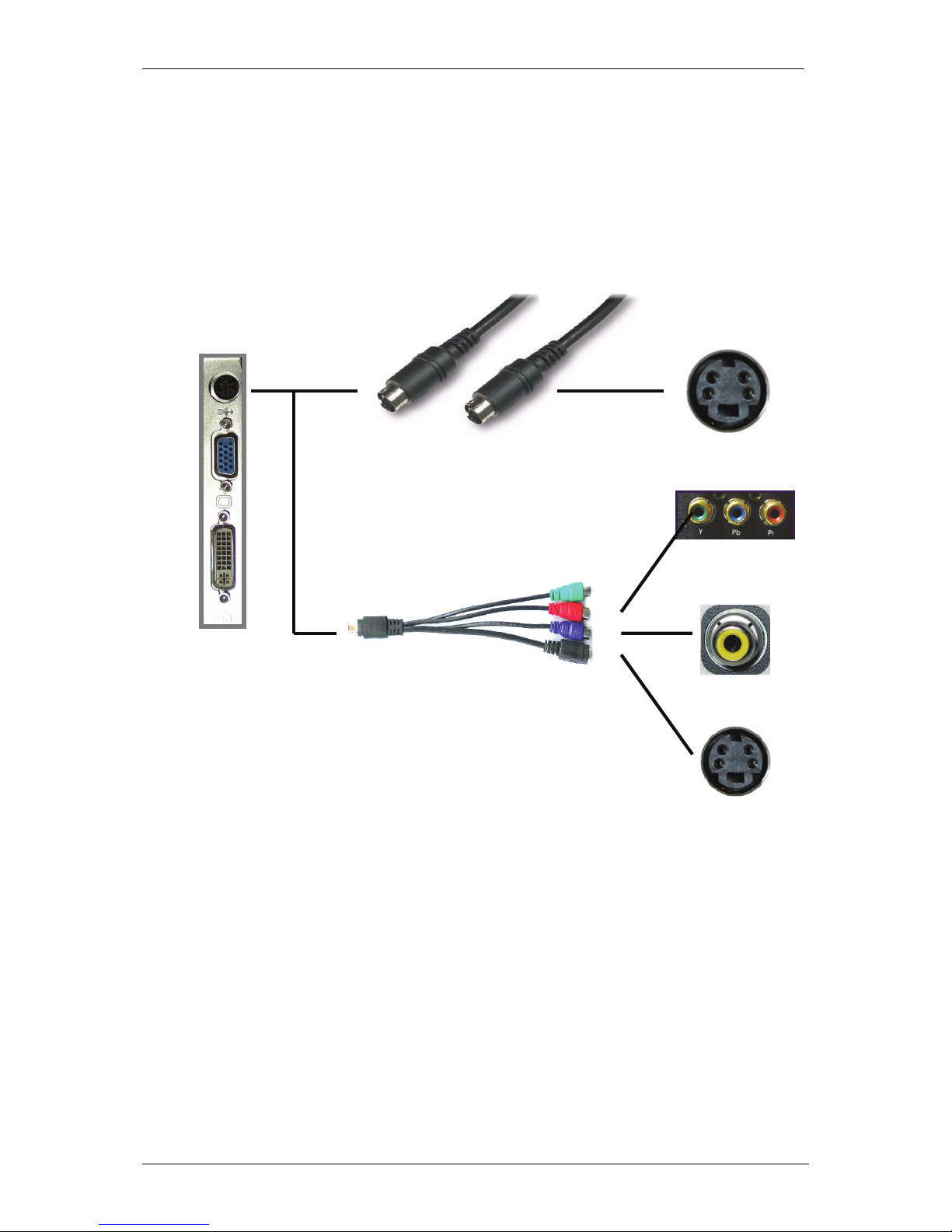
2. Connecting analogue TV
S-Video Cable
(optional)
}
HDTV Splitter - Cable
(optional)
Component-
Video
CVBS
S-Video
PC Connector Monitor Connector
Cable
S-Video
Page 5
3
3. Managing multiple monitors / TV
The following steps will help you to mange multiple monitors or TV connected to your PC.
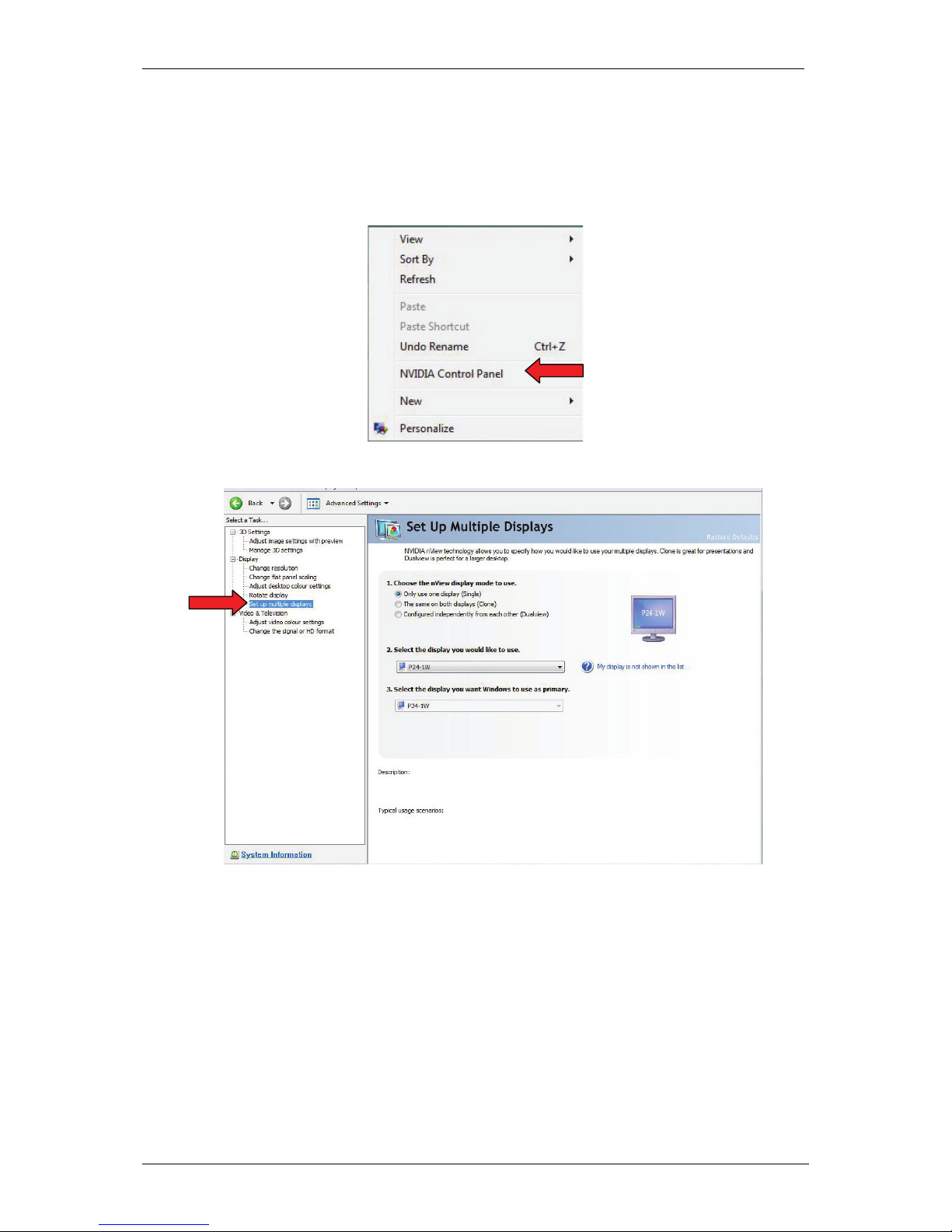
1. Move the mouse cursor onto the desktop and do a right click. The following window will open up:
2. Select the NVIDIA Control Panel. The following window will open up:
3. Select Set up multiple monitors.
Page 6
4
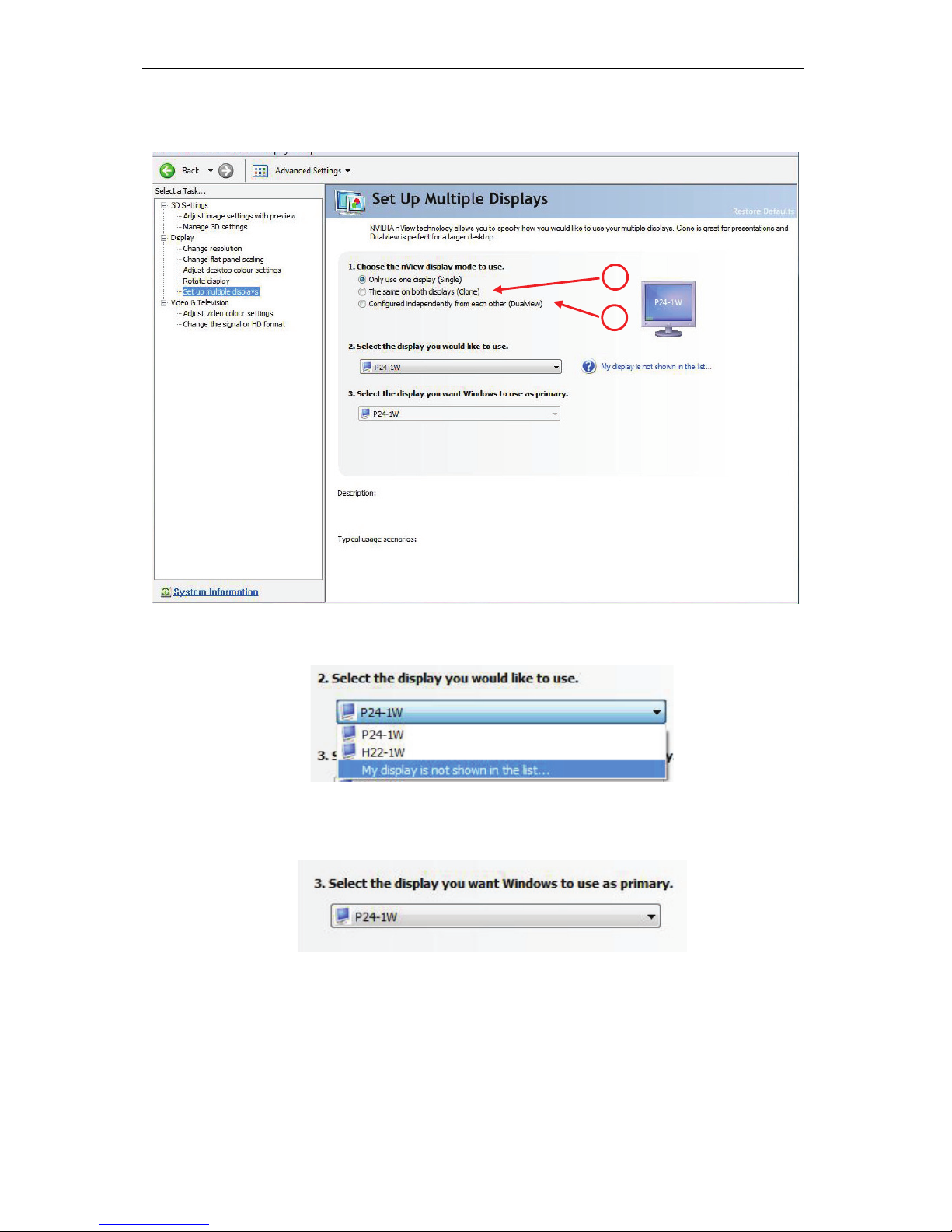
4. In the following window you can select between the same content on both displays (Clone) -> 1
or independent content to two displays (Dualview) -> 2 by using the extended desktop:
5. Select the second monitor / TV:
6. Did you decide for independent content on two displays (Dualview) -> 2 (see above) you need to
decide in the following dialogue box which monitor/TV will be the primary display.
1
2
Page 7
5
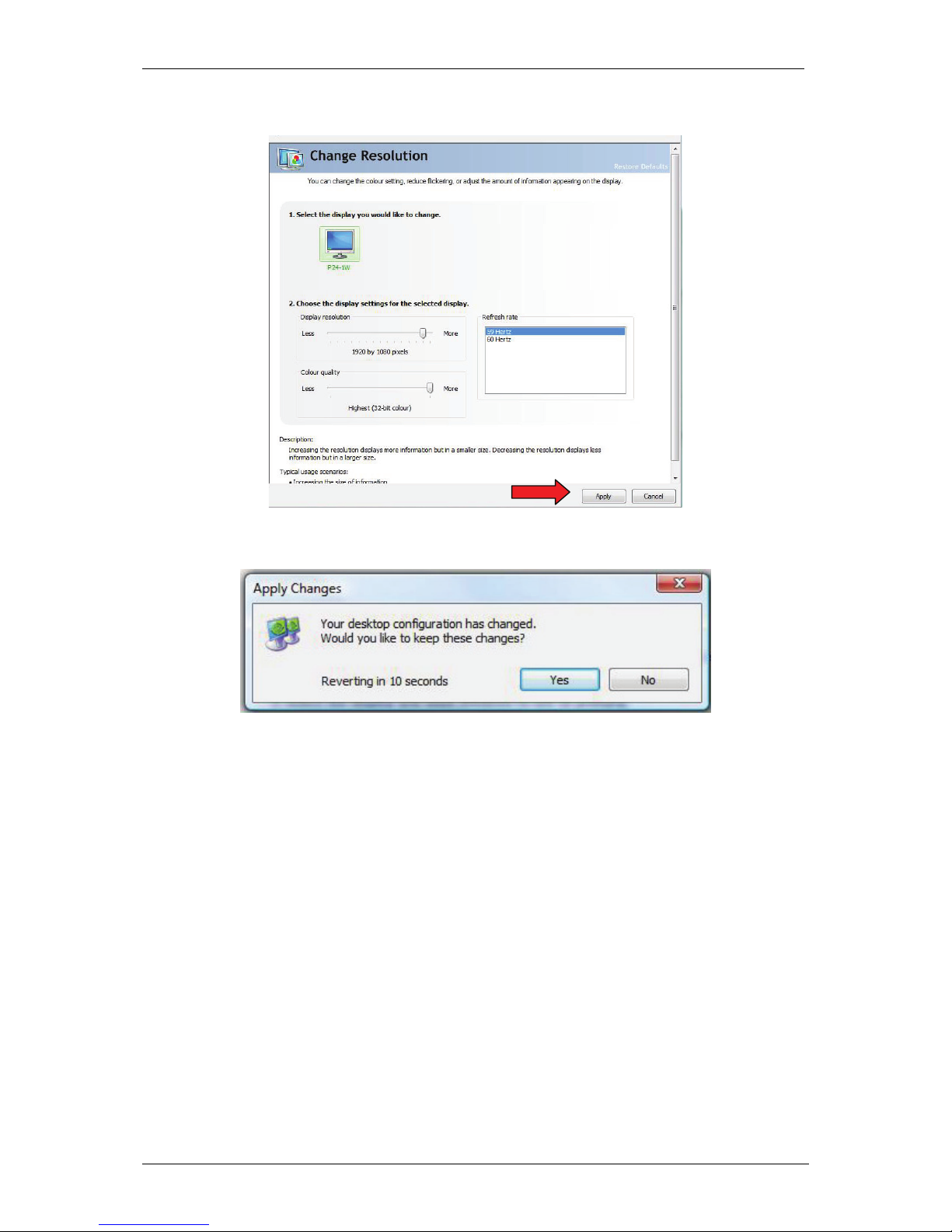
7. Confirm your inputs with Apply.
8. Confirm your inputs again with Yes.
Page 8

6
4. Troubleshooting Tips
The following troubleshooting tips may help if you experience problems. Contact your dealer for more
advanced troubleshooting information.
• Check that the card is seated properly in the slot.
• Ensure that display cable is securely fastened to the card's display connector.
• Make sure that the monitor and computer are plugged in and receiving power.
• If necessary, disable any build-in graphics capabilities on your motherboard. For more information,
consult your computer's manual.
• Make sure you selected the appropriate display device and graphics card when you installed the
VGA driver.
• For more assistance, use the Troubleshooting Guide located in the Windows®-Help or contact our
support centre.
 Loading...