

Page 1

Novell®
www.novell.com
Login Scripts Guide
Login Scripts
novdocx (en) 24 March 2009
AUTHORIZED DOCUMENTATION
August 2008
Novell Login Scripts Guide
Page 2

Legal Notices
Novell, Inc. makes no representations or warranties with respect to the contents or use of this documentation, and
specifically disclaims any express or implied warranties of merchantability or fitness for any particular purpose.
Further, Novell, Inc. reserves the right to revise this publication and to make changes to its content, at any time,
without obligation to notify any person or entity of such revisions or changes.
Further, Novell, Inc. makes no representations or warranties with respect to any software, and specifically disclaims
any express or implied warranties of merchantability or fitness for any particular purpose. Further, Novell, Inc.
reserves the right to make changes to any and all parts of Novell software, at any time, without any obligation to
notify any person or entity of such changes.
Any products or technical information provided under this Agreement may be subject to U.S. export controls and the
trade laws of other countries. You agree to comply with all export control regulations and to obtain any required
licenses or classification to export, re-export, or import deliverables. You agree not to export or re-export to entities
on the current U.S. export exclusion lists or to any embargoed or terrorist countries as specified in the U.S. export
laws. You agree to not use deliverables for prohibited nuclear, missile, or chemical biological weaponry end uses.
Please refer to www.novell.com/info/exports/ for more information on exporting Novell software. Novell assumes no
responsibility for your failure to obtain any necessary export approvals.
Copyright © 1993-2003, 2005-2007 Novell, Inc. All rights reserved. No part of this publication may be reproduced,
photocopied, stored on a retrieval system, or transmitted without the express written consent of the publisher.
novdocx (en) 24 March 2009
Novell, Inc. has intellectual property rights relating to technology embodied in the product that is described in this
document. In particular, and without limitation, these intellectual property rights may include one or more of the U.S.
patents listed at http://www.novell.com/company/legal/patents/ and one or more additional patents or pending patent
applications in the U.S. and in other countries.
Novell, Inc.
404 Wyman Street, Suite 500
Waltham, MA 02451
U.S.A.
www.novell.com
Online Documentation: To access the online documentation for this and other Novell products, and to get
updates, see www.novell.com/documentation.
Page 3

Novell Trademarks
For Novell trademarks, see the Novell Trademark and Service Mark list (http://www.novell.com/company/legal/
trademarks/tmlist.html).
Third-Party Materials
All third-party trademarks are the property of their respective owners.
novdocx (en) 24 March 2009
Page 4

novdocx (en) 24 March 2009
4 Novell Login Scripts Guide
Page 5

Contents
About This Guide 7
1 Using Login Scripts 9
1.1 Login Script Overview . . . . . . . . . . . . . . . . . . . . . . . . . . . . . . . . . . . . . . . . . . . . . . . . . . . . . . . . 9
1.2 Where Login Scripts Should Be Located . . . . . . . . . . . . . . . . . . . . . . . . . . . . . . . . . . . . . . . . . 10
1.3 Common Login Script Commands . . . . . . . . . . . . . . . . . . . . . . . . . . . . . . . . . . . . . . . . . . . . . . 12
1.4 Creating or Modifying Login Scripts . . . . . . . . . . . . . . . . . . . . . . . . . . . . . . . . . . . . . . . . . . . . . 12
1.4.1 Creating or Modifying Login Scripts in iManager . . . . . . . . . . . . . . . . . . . . . . . . . . . . 13
1.4.2 Creating or Modifying Login Scripts in ConsoleOne . . . . . . . . . . . . . . . . . . . . . . . . . 14
1.4.3 Getting Around the One User and One Profile Login Script Restriction . . . . . . . . . . 15
1.5 Creating Login Scripts from a Sample or Existing Login Script . . . . . . . . . . . . . . . . . . . . . . . . 15
1.6 Modifying User Login Scripts from the N Menu . . . . . . . . . . . . . . . . . . . . . . . . . . . . . . . . . . . . 16
1.6.1 Modifying Login Scripts from the N Menu . . . . . . . . . . . . . . . . . . . . . . . . . . . . . . . . . 16
1.7 Printing Login Scripts from Windows . . . . . . . . . . . . . . . . . . . . . . . . . . . . . . . . . . . . . . . . . . . . 17
1.8 Understanding How Login Scripts Work with Linux Workstations . . . . . . . . . . . . . . . . . . . . . . 17
1.9 Understanding How Login Scripts Work with NetStorage . . . . . . . . . . . . . . . . . . . . . . . . . . . . 18
1.10 Additional Sources for Login Scripts Information . . . . . . . . . . . . . . . . . . . . . . . . . . . . . . . . . . . 19
novdocx (en) 24 March 2009
2 Sample Login Scripts 21
2.1 Sample Container Login Script . . . . . . . . . . . . . . . . . . . . . . . . . . . . . . . . . . . . . . . . . . . . . . . . 21
2.2 Sample Profile Login Script . . . . . . . . . . . . . . . . . . . . . . . . . . . . . . . . . . . . . . . . . . . . . . . . . . . 22
2.3 Sample User Login Scripts. . . . . . . . . . . . . . . . . . . . . . . . . . . . . . . . . . . . . . . . . . . . . . . . . . . . 22
2.3.1 Sample User Login Script for Mapping Drives . . . . . . . . . . . . . . . . . . . . . . . . . . . . . . 23
2.4 Sample Default Login Script. . . . . . . . . . . . . . . . . . . . . . . . . . . . . . . . . . . . . . . . . . . . . . . . . . . 23
2.5 Samples of Login Script Commands . . . . . . . . . . . . . . . . . . . . . . . . . . . . . . . . . . . . . . . . . . . . 24
2.5.1 If Member Of Script Sample . . . . . . . . . . . . . . . . . . . . . . . . . . . . . . . . . . . . . . . . . . . 24
2.5.2 MAP Command Script Sample . . . . . . . . . . . . . . . . . . . . . . . . . . . . . . . . . . . . . . . . . 24
2.5.3 Identifier Variables Script Sample . . . . . . . . . . . . . . . . . . . . . . . . . . . . . . . . . . . . . . . 25
2.5.4 Display Script Sample . . . . . . . . . . . . . . . . . . . . . . . . . . . . . . . . . . . . . . . . . . . . . . . . 26
2.5.5 Fdisplay Script Sample . . . . . . . . . . . . . . . . . . . . . . . . . . . . . . . . . . . . . . . . . . . . . . . 26
2.5.6 Include Script Sample . . . . . . . . . . . . . . . . . . . . . . . . . . . . . . . . . . . . . . . . . . . . . . . . 27
3 Login Script Commands and Variables 29
3.1 Login Script Conventions . . . . . . . . . . . . . . . . . . . . . . . . . . . . . . . . . . . . . . . . . . . . . . . . . . . . . 30
3.2 Using Identifier Variables . . . . . . . . . . . . . . . . . . . . . . . . . . . . . . . . . . . . . . . . . . . . . . . . . . . . . 31
3.2.1 Login Parameters with %n Variables. . . . . . . . . . . . . . . . . . . . . . . . . . . . . . . . . . . . . 34
3.3 Login Scripts Commands by Task . . . . . . . . . . . . . . . . . . . . . . . . . . . . . . . . . . . . . . . . . . . . . . 35
3.3.1 Network Connection and Resource Access . . . . . . . . . . . . . . . . . . . . . . . . . . . . . . . 35
3.3.2 Login Script Execution . . . . . . . . . . . . . . . . . . . . . . . . . . . . . . . . . . . . . . . . . . . . . . . . 35
3.3.3 Workstation Environment. . . . . . . . . . . . . . . . . . . . . . . . . . . . . . . . . . . . . . . . . . . . . . 36
3.3.4 Text File Usage . . . . . . . . . . . . . . . . . . . . . . . . . . . . . . . . . . . . . . . . . . . . . . . . . . . . . 36
3.3.5 Other . . . . . . . . . . . . . . . . . . . . . . . . . . . . . . . . . . . . . . . . . . . . . . . . . . . . . . . . . . . . . 37
3.4 # . . . . . . . . . . . . . . . . . . . . . . . . . . . . . . . . . . . . . . . . . . . . . . . . . . . . . . . . . . . . . . . . . . . . . . . . 37
3.5 @ . . . . . . . . . . . . . . . . . . . . . . . . . . . . . . . . . . . . . . . . . . . . . . . . . . . . . . . . . . . . . . . . . . . . . . . 38
3.6 ATTACH. . . . . . . . . . . . . . . . . . . . . . . . . . . . . . . . . . . . . . . . . . . . . . . . . . . . . . . . . . . . . . . . . . 39
3.7 BREAK . . . . . . . . . . . . . . . . . . . . . . . . . . . . . . . . . . . . . . . . . . . . . . . . . . . . . . . . . . . . . . . . . . . 39
Contents 5
Page 6

3.8 CONTEXT . . . . . . . . . . . . . . . . . . . . . . . . . . . . . . . . . . . . . . . . . . . . . . . . . . . . . . . . . . . . . . . . 39
3.9 DISPLAY . . . . . . . . . . . . . . . . . . . . . . . . . . . . . . . . . . . . . . . . . . . . . . . . . . . . . . . . . . . . . . . . . 40
3.10 DRIVE . . . . . . . . . . . . . . . . . . . . . . . . . . . . . . . . . . . . . . . . . . . . . . . . . . . . . . . . . . . . . . . . . . . 40
3.11 EXIT . . . . . . . . . . . . . . . . . . . . . . . . . . . . . . . . . . . . . . . . . . . . . . . . . . . . . . . . . . . . . . . . . . . . . 41
3.12 FDISPLAY . . . . . . . . . . . . . . . . . . . . . . . . . . . . . . . . . . . . . . . . . . . . . . . . . . . . . . . . . . . . . . . . 41
3.13 FIRE or FIRE PHASERS . . . . . . . . . . . . . . . . . . . . . . . . . . . . . . . . . . . . . . . . . . . . . . . . . . . . . 42
3.14 GOTO. . . . . . . . . . . . . . . . . . . . . . . . . . . . . . . . . . . . . . . . . . . . . . . . . . . . . . . . . . . . . . . . . . . . 42
3.15 IF...THEN . . . . . . . . . . . . . . . . . . . . . . . . . . . . . . . . . . . . . . . . . . . . . . . . . . . . . . . . . . . . . . . . . 43
3.16 INCLUDE . . . . . . . . . . . . . . . . . . . . . . . . . . . . . . . . . . . . . . . . . . . . . . . . . . . . . . . . . . . . . . . . . 45
3.17 LASTLOGINTIME . . . . . . . . . . . . . . . . . . . . . . . . . . . . . . . . . . . . . . . . . . . . . . . . . . . . . . . . . . 47
3.18 MAP . . . . . . . . . . . . . . . . . . . . . . . . . . . . . . . . . . . . . . . . . . . . . . . . . . . . . . . . . . . . . . . . . . . . . 47
3.18.1 MAP Command Differences on Linux . . . . . . . . . . . . . . . . . . . . . . . . . . . . . . . . . . . . 49
3.19 NO_DEFAULT . . . . . . . . . . . . . . . . . . . . . . . . . . . . . . . . . . . . . . . . . . . . . . . . . . . . . . . . . . . . . 49
3.20 PAUSE . . . . . . . . . . . . . . . . . . . . . . . . . . . . . . . . . . . . . . . . . . . . . . . . . . . . . . . . . . . . . . . . . . . 50
3.21 PROFILE . . . . . . . . . . . . . . . . . . . . . . . . . . . . . . . . . . . . . . . . . . . . . . . . . . . . . . . . . . . . . . . . . 50
3.22 REGREAD . . . . . . . . . . . . . . . . . . . . . . . . . . . . . . . . . . . . . . . . . . . . . . . . . . . . . . . . . . . . . . . . 50
3.23 REMARK . . . . . . . . . . . . . . . . . . . . . . . . . . . . . . . . . . . . . . . . . . . . . . . . . . . . . . . . . . . . . . . . . 51
3.24 SCRIPT_SERVER . . . . . . . . . . . . . . . . . . . . . . . . . . . . . . . . . . . . . . . . . . . . . . . . . . . . . . . . . . 52
3.25 SET . . . . . . . . . . . . . . . . . . . . . . . . . . . . . . . . . . . . . . . . . . . . . . . . . . . . . . . . . . . . . . . . . . . . . 52
3.26 SET_TIME . . . . . . . . . . . . . . . . . . . . . . . . . . . . . . . . . . . . . . . . . . . . . . . . . . . . . . . . . . . . . . . . 53
3.27 SHIFT . . . . . . . . . . . . . . . . . . . . . . . . . . . . . . . . . . . . . . . . . . . . . . . . . . . . . . . . . . . . . . . . . . . . 54
3.28 TREE . . . . . . . . . . . . . . . . . . . . . . . . . . . . . . . . . . . . . . . . . . . . . . . . . . . . . . . . . . . . . . . . . . . . 56
3.29 WRITE . . . . . . . . . . . . . . . . . . . . . . . . . . . . . . . . . . . . . . . . . . . . . . . . . . . . . . . . . . . . . . . . . . . 56
novdocx (en) 24 March 2009
4 Troubleshooting Login Scripts 59
4.1 Locating the Problem Statement in the Windows Login Script. . . . . . . . . . . . . . . . . . . . . . . . . 59
4.2 Turning Off the MAPROOT Function in Windows 2000/XP . . . . . . . . . . . . . . . . . . . . . . . . . . . 60
4.3 Limitations of Tree Command in Login Scripts. . . . . . . . . . . . . . . . . . . . . . . . . . . . . . . . . . . . . 60
4.4 Lowercase Passwords Not Supported When Using the Tree Command in Login Scripts . . . . 60
4.5 Other Common Login Script Problems . . . . . . . . . . . . . . . . . . . . . . . . . . . . . . . . . . . . . . . . . . 60
4.5.1 Losing Path Statements after Login. . . . . . . . . . . . . . . . . . . . . . . . . . . . . . . . . . . . . . 61
4.5.2 Cannot Use the LOGIN and NLIST Utilities. . . . . . . . . . . . . . . . . . . . . . . . . . . . . . . . 61
4.5.3 Cannot Execute External Command . . . . . . . . . . . . . . . . . . . . . . . . . . . . . . . . . . . . . 61
4.5.4 LOGIN.EXE Problems . . . . . . . . . . . . . . . . . . . . . . . . . . . . . . . . . . . . . . . . . . . . . . . . 61
4.5.5 EXIT Command Doesn't Work. . . . . . . . . . . . . . . . . . . . . . . . . . . . . . . . . . . . . . . . . . 61
4.5.6 Login Script Does Unexpected Things . . . . . . . . . . . . . . . . . . . . . . . . . . . . . . . . . . . 62
A Documentation Updates 63
A.1 August 19, 2008 . . . . . . . . . . . . . . . . . . . . . . . . . . . . . . . . . . . . . . . . . . . . . . . . . . . . . . . . . . . . 63
A.2 September 21, 2007. . . . . . . . . . . . . . . . . . . . . . . . . . . . . . . . . . . . . . . . . . . . . . . . . . . . . . . . . 63
A.3 December 23, 2005 . . . . . . . . . . . . . . . . . . . . . . . . . . . . . . . . . . . . . . . . . . . . . . . . . . . . . . . . . 63
6 Novell Login Scripts Guide
Page 7

About This Guide
novdocx (en) 24 March 2009
This guide includes the following information on login scripts that can be used with Novell®
TM
eDirectory
Chapter 1, “Using Login Scripts,” on page 9
Chapter 2, “Sample Login Scripts,” on page 21
Chapter 3, “Login Script Commands and Variables,” on page 29
Chapter 4, “Troubleshooting Login Scripts,” on page 59
Appendix A, “Documentation Updates,” on page 63
user accounts and Novell ClientTM software on Windows* and Linux* workstations:
Audience
This guide is intended for network administrators.
Feedback
We want to hear your comments and suggestions about this manual and the other documentation
included with this product. Please use the User Comments feature at the bottom of each page of the
online documentation, or go to www.novell.com/documentation/feedback.html and enter your
comments there.
Documentation Updates
For the latest version of this documentation, see the Novell Clients online documentation (http://
www.novell.com/documentation/noclienu/index.html).
Additional Documentation
For documentation on installing and managing Novell Client software, see the following
documentation Web pages.
Novell Client v 4.91 for XP/2003 (http://www.novell.com/documentation/noclienu/index.html)
Novell Client for Linux (http://www.novell.com/documentation/linux_client/index.html)
Novell Client for Windows Vista (http://www.novell.com/documentation/vista_client/
index.html)
Documentation Conventions
In this documentation, a greater-than symbol (>) is used to separate actions within a step and items
within a cross-reference path.
®
A trademark symbol (
, TM, etc.) denotes a Novell trademark. An asterisk (*) denotes a third-party
trademark.
When a single pathname can be written with a backslash for some platforms or a forward slash for
other platforms, the pathname is presented with a backslash. Users of platforms that require a
forward slash, such as Linux*, should use forward slashes as required by your software.
About This Guide 7
Page 8

novdocx (en) 24 March 2009
8 Novell Login Scripts Guide
Page 9

1
Using Login Scripts
This section includes the following information:
Section 1.1, “Login Script Overview,” on page 9
Section 1.2, “Where Login Scripts Should Be Located,” on page 10
Section 1.3, “Common Login Script Commands,” on page 12
Section 1.4, “Creating or Modifying Login Scripts,” on page 12
Section 1.5, “Creating Login Scripts from a Sample or Existing Login Script,” on page 15
Section 1.6, “Modifying User Login Scripts from the N Menu,” on page 16
Section 1.7, “Printing Login Scripts from Windows,” on page 17
Section 1.8, “Understanding How Login Scripts Work with Linux Workstations,” on page 17
Section 1.9, “Understanding How Login Scripts Work with NetStorage,” on page 18
Section 1.10, “Additional Sources for Login Scripts Information,” on page 19
novdocx (en) 24 March 2009
1
1.1 Login Script Overview
A login script is a set of instructions that is executed when a user logs in using the Novell® ClientTM
for Windows, the Novell Client for Linux, or some other method of login that accesses Novell
eDirectory
and runs line by line.
When a user successfully logs in to the network, one or more login scripts can be executed that
automatically set up the workstation environment.
Login scripts are similar to batch files and are executed by the Novell LOGIN utility.
You can use login scripts to map drives and search drives to directories, display messages, set
environment variables, and execute programs or menus.
Login scripts are properties of specific eDirectory objects.
There are four types of login scripts:
Container sets the general environments for all users in that container. Container login scripts
Profile sets environments for several users at the same time. Profile login scripts are executed
TM
object properties. A login script is simply a text file that the login executable interprets
are executed first and can be associated with Organization or Organizational Unit objects. A
user can use only one container login script.
after the container login script and are associated with Profile objects. A user can be assigned
only one profile login script that is then associated with the User object in eDirectory. However,
other profile login scripts can be assigned by using the PROFILE command in the login script
or by selecting a different Profile login script from the Novell Login window.
Using Login Scripts
9
Page 10

User sets environments (such as printing options or an e-mail username) specific to a single
user. User login scripts are executed after any container and profile login scripts and are
associated with User objects. A user can have only one user login script. However, the User
login script can be overwritten by selecting a different login script from the Novell Login
window.
Default contains only essential commands, such as drive mappings to NetWare
cannot be edited. The default login script runs if a user (including user Admin) doesn’t have a
user login script, even if a container or profile login script exists.
TIP: If you don't want to create any user login scripts and you don't want the default login
script to execute for any users, you can disable the default login script by including the
NO_DEFAULT command in the container or profile login script.
Maintaining many user login scripts can be time consuming. Therefore, you should try to include as
much customization information as possible in the container and profile login scripts, which are
fewer in number and easier to maintain.
For example, if all users need access to the NetWare utilities in the same volume, put the search
drive mapping to that volume in a single container login script rather than in every user login script.
®
utilities, and
novdocx (en) 24 March 2009
Create profile login scripts if several users have identical login script needs. Profile login scripts are
sometimes thought of as group login scripts.
Finally, in user login scripts, include only those individual items that can't be included in profile or
container login scripts. For example, personal drive mappings could be included in the user login
script.
IMPORTANT: Because three or more login scripts can execute whenever a user logs in, conflicts
can occur and drive mappings can be overwritten by consecutive login scripts. It is important to note
that the last login script to execute (usually the user login script) overrides any conflicting
commands in a previous login script.
1.2 Where Login Scripts Should Be Located
Login scripts are properties of User objects, Profile objects and Container objects in eDirectory.
Consequently, only User objects, Profile objects, and Container objects can contain login scripts.
This, in turn, largely determines where login scripts can be located.
The following figure shows how the different types of login scripts can reside in an eDirectory tree
and how they affect users.
10 Novell Login Scripts Guide
Page 11
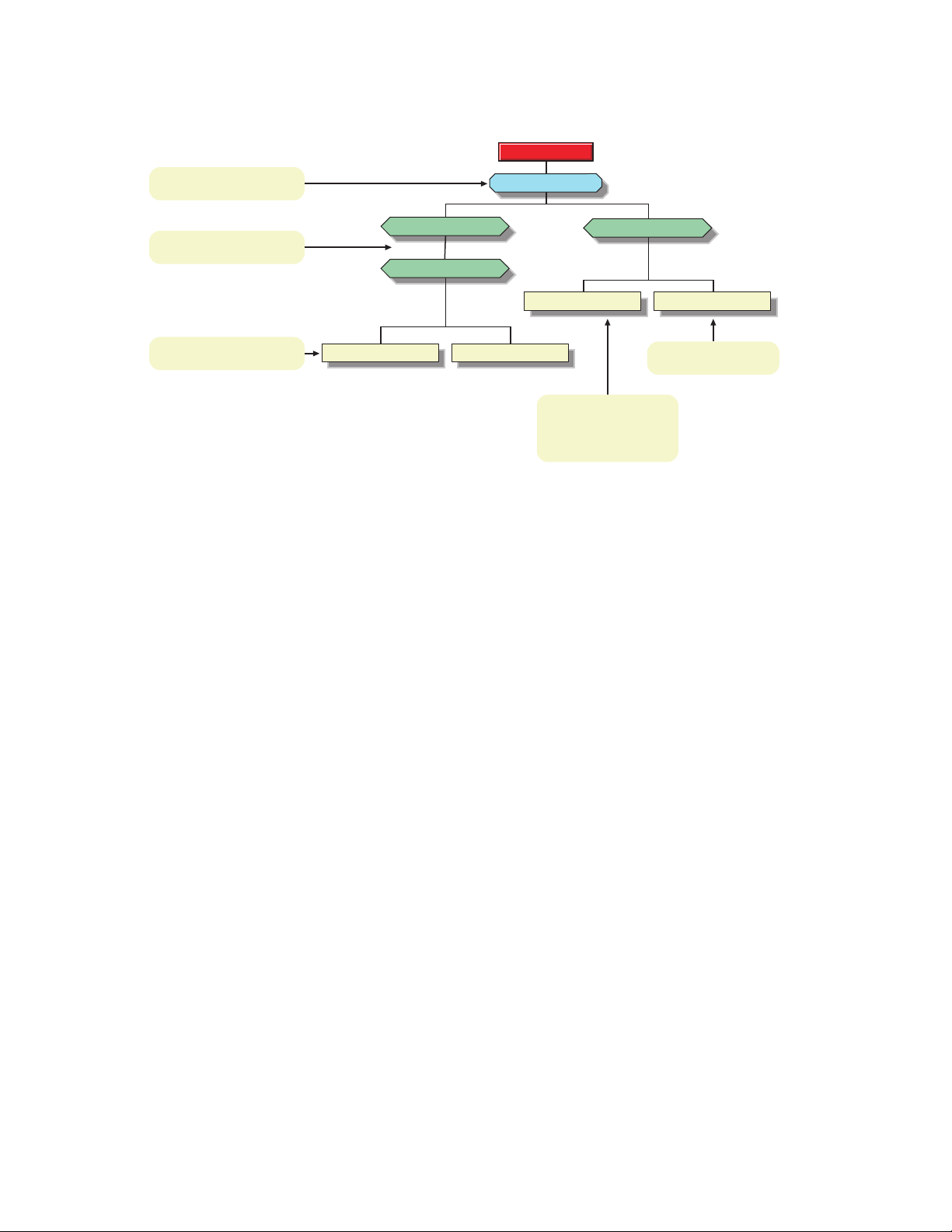
Figure 1-1 Where Different Types of Login Scripts Can Reside
Organization:
Holds container script.
Organizational Units:
Hold container scripts.
[ROOT]
[ROOT]
(OU)=Accounting
(OU)=Sales
(O)=Novell US
(CN)=MRICHARD (CN)=CLERKS
(OU)=Sales PV
(CN)=ESAYERS (CN)=SWILLIAMS
User:
Holds user script.
Profile:
Holds profile script.
User:
Holds user script.
Belongs to “CLERKS”
Profile object.
novdocx (en) 24 March 2009
In the figure, there are three users: ESAYERS, SWILLIAMS, and MRICHARD. The following
explains which login scripts execute when each of these users logs in:
User ESAYERS: The SALES_PV container login script executes first, followed by
ESAYERS's user login script.
User SWILLIAMS: The SALES_PV container login script executes first, followed by the
default login script.
User MRICHARD: The ACCOUNTING container login script executes, followed by the
CLERKS profile login script, and then the MRICHARD user login script.
Container login scripts affect only users immediately below the Organization or Organizational Unit
that contains the login script.
For example, in the previous figure, although there are two levels of container objects above users
ESAYERS and SWILLIAMS, only the script for the container they are in (OU=SALES_PV)
executes when they log in.
If the SALES_PV Organizational Unit had no container login script defined, no container login
script would execute for ESAYERS and SWILLIAMS, even though a container login script exists at
a higher level.
Because user SWILLIAMS has no user login script defined, the default login script executes after
the container login script.
Because user MRICHARD belongs to the profile CLERKS, the CLERKS profile login script
executes before the MRICHARD user login script. Users can be assigned to only one Profile object,
but there are ways to get around this restriction. See “Getting Around the One User and One Profile
Login Script Restriction” on page 15.
Using Login Scripts 11
Page 12

1.3 Common Login Script Commands
Login scripts are powerful and can execute many different commands that you might find useful.
However, the most common use for login scripts is mapping drives on NetWare servers. The
following are the most common commands:
MAP: Defines a path to a directory on a NetWare server. By putting a MAP command in the
login script, the directory is automatically available to the user in My Computer. The drive
letter can either be specified (MAP G:=) or can be relative (MAP *1= or MAP NEXT=). See
Section 3.18, “MAP,” on page 47.
IF...THEN: Gives statements of condition. For example, IF MEMBER OF “MANAGERS”
THEN would execute the command that follows only if the user is a member of the Managers
group. See Section 3.15, “IF...THEN,” on page 43.
INCLUDE: Provides the name of an ANSI text file to be processed at a specific point in the
login script. See Section 3.16, “INCLUDE,” on page 45.
EXIT: Terminates all login script processing. EXIT is often used with IF...THEN
statements. See Section 3.11, “EXIT,” on page 41.
Information on these commands and others that you might find useful is provided in Chapter 3,
“Login Script Commands and Variables,” on page 29. Sample login scripts are located in “Sample
Login Scripts” on page 21.
novdocx (en) 24 March 2009
1.4 Creating or Modifying Login Scripts
You can use Novell iManager or ConsoleOne® to create login scripts from scratch or from a sample
login script that is provided for you. Using a sample login script can help reduce syntax errors and
thus reduce the time it takes to create login scripts.
All four types of login scripts use the same conventions, commands, and variables. For more
information, see “Login Script Commands and Variables” on page 29.
The main difference in creating Container, Profile, and User login scripts is the object that you select
to contain the login scripts. The default login script is not assigned to any object.
Container login scripts are assigned to container objects (Organization or Organizational Unit
objects).
Profile login scripts are assigned to Profile objects. In order for a User object to use a profile
login script, you must select that User object and assign it to (make it a trustee) the Profile
object.
IMPORTANT: You must make the user a trustee of the Profile object in order for the User
object to be able to access the Profile login script. Failing to do so means that the User object
has the command to run the Profile login script but does not have the rights to access it, so the
login script does not run.
User login scripts are assigned to User objects.
Before you create or modify login scripts, you must have the Write property right to the object that
will contain the login script. In addition, the Organization, Organizational Unit, Profile, or User
object that you plan to assign the login script to must already exist.
12 Novell Login Scripts Guide
Page 13

1.4.1 Creating or Modifying Login Scripts in iManager
“Creating or Modifying a User Login Script” on page 13
“Creating a Container Login Script” on page 13
“Creating a Profile Login Script” on page 13
Creating or Modifying a User Login Script
1 Click Roles and Tasks > User > Modify User.
2 Specify a username and context, then click OK.
3 Click General > Login Script.
4 Type the login script commands and information in the login script text box.
For a sample, see “Sample Login Scripts” on page 21.
IMPORTANT: Make sure that you edit the sample login script to match the server names,
directory paths, and specifications of your own network.
For additional information on all login script commands, see “Login Script Commands and
Variables” on page 29.
5 (Conditional) To associate a Profile login script with this object, specify the Profile object name
and context in the Profile field.
For additional information, see “Creating a Profile Login Script” on page 13.
6 To save the login script, click OK.
novdocx (en) 24 March 2009
Creating a Container Login Script
1 Click Roles and Tasks > Directory Administration > Modify Object.
2 Specify the container and context, then click OK.
3 Click General > Login Script.
4 Type the login script commands and information in the login script text box.
For a sample, see “Sample Login Scripts” on page 21.
IMPORTANT: Make sure that you edit the sample login script to match the server names,
directory paths, and specifications of your own network.
For additional information on all login script commands, see “Login Script Commands and
Variables” on page 29.
5 (Optional) To associate a Profile login script with this object, specify the Profile object name
and context in the Profile field.
For additional information, see “Creating a Profile Login Script” on page 13.
6 To save the login script, click OK.
Creating a Profile Login Script
1 Click Roles and Tasks > Directory Administration > Create Object.
2 Select Profile, then click OK.
Using Login Scripts 13
Page 14

3 Specify the Profile name and context.
4 Type the login script commands and information in the login script text box.
For a sample, see “Sample Login Scripts” on page 21.
IMPORTANT: Make sure that you edit the sample login script to match the server names,
directory paths, and specifications of your own network.
For additional information on all login script commands, see “Login Script Commands and
Variables” on page 29.
5 Click OK twice.
6 To associate the Profile with a user, click Roles and Tasks > Users > Modify User.
7 Specify a username and context, then click OK.
8 On the General tab, click Login Script.
9 In the Profile field, specify a profile name and context, then click OK.
1.4.2 Creating or Modifying Login Scripts in ConsoleOne
novdocx (en) 24 March 2009
1 Double-click the object whose login script you want to create or modify.
You can create this login script on a Container object, Profile object, or User object.
2 Click Login Script.
3 Type the login script commands and information in the login script text box.
For a sample, see “Sample Login Scripts” on page 21.
IMPORTANT: Make sure that you edit the sample login script to match the server names,
directory paths, and specifications of your own network.
For additional information on all login script commands, see “Login Script Commands and
Variables” on page 29.
4 To save the login script and close the Details dialog box, click OK.
If the login script that you just created was a container or user login script, you're finished and the
client software will be installed or updated the next time users log in.
If the login script that you just created was for a Profile object, you must associate the User object
with the Profile object and make the User object a trustee of the Profile object. See the next section,
“Associating the User Object with a Profile Object.”
For additional information on all login scripts, see Section 1.4, “Creating or Modifying Login
Scripts,” on page 12.
Associating the User Object with a Profile Object
1 Double-click the User object that needs to use the profile login script.
2 Click Login Script.
3 Type the name of the Profile object in the Default Profile field located under the login script
text box, then click OK.
4 Add the User object as a trustee of the Profile object by double-clicking the Profile object.
14 Novell Login Scripts Guide
Page 15

5 Click NDS Rights > Trustees of This Object > Add Trustee.
6 Specify the name of the User object that uses this Profile object.
7 Make sure that the Browse object and the Read Property check boxes are selected, then click
OK to assign these rights to the User object.
The User object is now a trustee of the Profile object and has the rights necessary to run the
profile login script.
Repeat these steps for all additional users who need to use this script.
1.4.3 Getting Around the One User and One Profile Login Script Restriction
Users can have only one User profile associated with their User object and can belong to only one
Profile object. As a rule, only one User login script and one Profile login script can be executed for
any user.
There are ways around this limitation using the Novell Login Window and the PROFILE command.
The Novell Login Window allows users to specify additional login scripts to be run during login
when they click on the Scripts tab. Here, users can specify scripts that are not a part of their
eDirectory User object or, are not associated with a Profile object that they are trustees for.
novdocx (en) 24 March 2009
Also, additional scripts can be run from within the two standard scripts by using the PROFILE
command. For more information on the PROFILE command, see Section 3.21, “PROFILE,” on
page 50.
In addition to using the Novell Login Window or the PROFILE command, you can also assign users
to more than one Group object. Use the MEMBER OF group identifier variable to execute different
parts of a login script, depending on the Group objects that the user belongs to. To accomplish this,
use the IF...THEN command (see Section 3.15, “IF...THEN,” on page 43) and the MEMBER OF
group identifier variable (see Section 3.2, “Using Identifier Variables,” on page 31).
To view an example of the IF...THEN command used with the MEMBER OF group identifier
variable, see “Sample Login Scripts” on page 21.
1.5 Creating Login Scripts from a Sample or Existing Login Script
1 Locate the sample or existing login script that you want to modify.
For sample login scripts included in this documentation, see “Sample Login Scripts” on
page 21.
2 Copy the sample or existing login script.
3 In Novell iManager or ConsoleOne, open the login script, copy the sample, then paste it into
the User object or Profile object's login script.
See Section 1.4, “Creating or Modifying Login Scripts,” on page 12.
4 Make necessary changes to the sample login script to customize it for your network.
Using Login Scripts 15
Page 16
IMPORTANT: Make sure that you edit the sample login script to match the server names,
directory paths, and specifications of your own network.
5 Click OK to save the new login script.
If the login script that you just created was a container or user login script, you're finished. If
the login script that you just created was for a Profile object, you must associate the User object
with the Profile object and make the User object a trustee of the Profile object. See “Creating a
Profile Login Script” on page 13 or “Associating the User Object with a Profile Object” on
page 14.
1.6 Modifying User Login Scripts from the N Menu
In addition to creating User login scripts in Novell iManager or ConsoleOne, you can also add user
login scripts to User objects from the N menu in the system tray. This lets you customize the login
script for the user that is currently logged in to the network, without running iManager or
ConsoleOne.
novdocx (en) 24 March 2009
IMPORTANT: On Linux workstations, the ability to edit login scripts is available only in the
Novell Client for Linux 1.2 or later.
1.6.1 Modifying Login Scripts from the N Menu
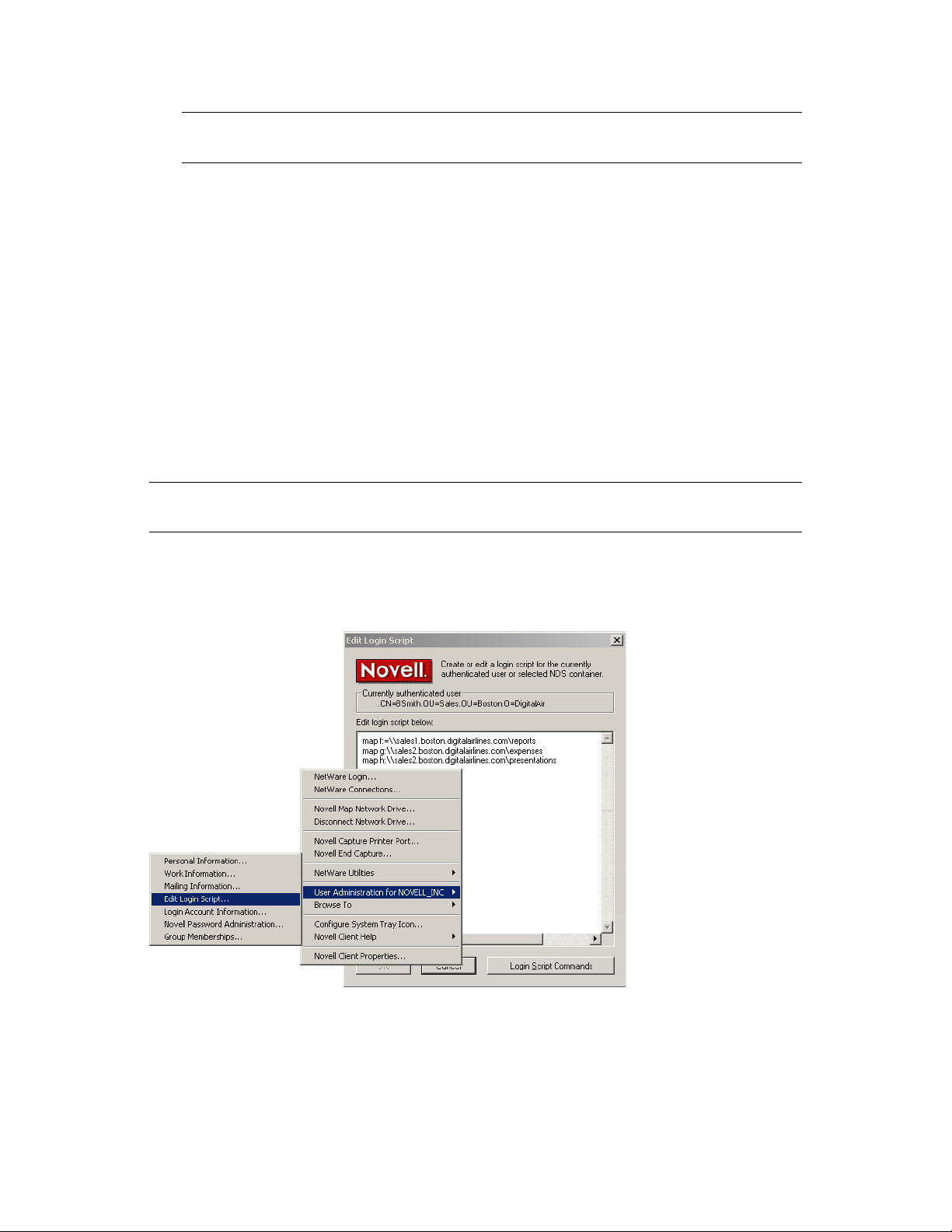
Figure 1-2 Editing a Login Script from the N Menu
For example, users can add commands to their login scripts to map drives that they access
frequently.
1 Log in as the user you want to modify login scripts for.
2 Right-click the N menu, then click User Administration for tree_name > Edit Login Script.
16 Novell Login Scripts Guide
Page 17

3 Type the login script commands you want to add.
For example, if you want to map drives, you would type
MAP drive_letter:=\\server_name\path_to_volume
For example:
MAP F:=\\MKTG.TOKYO.DIGITALAIRLINE.COM\DOC
4 Click OK.
5 Click Ye s to save changes to the login script.
6 Log in again to see the changes to your login script.
1.7 Printing Login Scripts from Windows
To print a login script from the Windows command line, use the NLIST command and redirect the
output to a file or a printer. You must be in an object's parent container to see and print the login
script of that object.
IMPORTANT: You must have a workstation running DOS 3.30 or later and the Read and File Scan
property rights to the object to be printed.
novdocx (en) 24 March 2009
To print a user's login script, enter
NLIST user=username show “login script”>LPT1
To print a container's login script, enter
NLIST organizational unit=ou name show login script>LPT1
IMPORTANT: Any option in the NLIST command that includes a space in its name must be
enclosed in quotes.
1.8 Understanding How Login Scripts Work with Linux Workstations
Novell has been able to port the vast majority of login script functionality over to the Linux
platform. This means that the login scripts you create in your network will work for both Windows
users and Linux users with very little difference in functionality.
Additionally, login scripts that were created to run on Windows will be run when a user logs in from
a Linux workstation. This means that in most cases, your existing login scripts do not need to be
modified to accommodate Linux workstations unless you have specific commands that you want to
run only on Linux workstations.
Some of the small differences are created by the inherent difference between Windows and Linux.
For example, when you map drives in Linux, you are creating a symbolic link like a mount point.
When you create a mapped drive, you can also use a descriptive name instead of a drive letter since
Linux supports descriptive names in addition to drive letters. For more information on differences in
the MAP command on Linux, see Section 3.18.1, “MAP Command Differences on Linux,” on
page 49.
Using Login Scripts 17
Page 18

Some login script commands do not work on Linux workstations due to the way the Linux operating
system handles them.
The following commands do not work: DRIVE, SCRIPT_SERVER, and SET_TIME.
FDISPLAY displays the file displays the binary form with all commands visible. It is better to
use the DISPLAY command in Linux.
FIRE PHASERS prints a message stating BEEP BEEP BEEP to indicate that the beep has
been sent.
IF...THEN statements can be nested up to 100 levels in Linux.
SET command are not persistent and only apply to the specific login session they are associated
with, as is standard with Linux.
The TERM command operates the same way that EXIT.operates.
1.9 Understanding How Login Scripts Work with NetStorage
Novell NetStorage provides secure Internet-based access to files and folders on a NetWare server in
your network using either a browser or Microsoft* Web Folders (Microsoft's implementation of
WebDav). NetStorage authentication relies on the power of eDirectory to provide secure access, so
Internet-based access is as secure as accessing files from within the network.
novdocx (en) 24 March 2009
When a user authenticates to NetStorage, the login scripts associated with the eDirectory User object
in the primary authentication domain are processed. These login scripts are the same scripts
processed by the Novell Client.
However, because login scripts were designed to be processed by the Novell Client on the user’s
workstation, some of the defined statement types and script variables cannot be processed by
NetStorage. The following is a list of what login script functions are available when users
authenticate using NetStorage.
NetStorage Looks for MAP Commands: NetStorage processes login scripts in order to find
MAP statements. Each MAP statement generates one path into the NetWare file system that the
user can access using NetStorage.
In addition to the MAP command, the IF, THEN, ELSE, END, INCLUDE, and EXIT
commands are the only commands recognized by NetStorage. All other login script statements
are treated as comments and ignored.
Multiple Login Scripts Processed: When a user successfully logs in to the network, one or
more login scripts are executed. Login scripts can be obtained from container objects, Profile
objects, User objects, or any file or directory object designated by the INCLUDE statement.
Authentication to Multiple eDirectory Trees: Users can authenticate to multiple eDirectory
trees. One tree is configured as primary. When the user enters a username and password,
NetStorage authenticates to the primary tree and, if successful, attempts to authenticate to all
other domains.
18 Novell Login Scripts Guide
Page 19

Only the login scripts from the primary eDirectory tree are processed. However, one of these
login scripts might map to a directory on a server that resides in another tree. Because the user
is authenticated to all trees, he will also have access to this directory.
eDirectory Variables: The value of an eDirectory attribute of the current User object can be
substituted anywhere in the login script. Precede the attribute name with a percent sign (%) and
replace any spaces in the attribute name with an underscore (_). The following are some
attributes that are useful in login scripts:
%HOME_DIRECTORY
%CN
%LANGUAGE
These variables are generally used as part of the MAP statement or the IF statement. For
example:
IF “%LANGUAGE” = “ENGLISH”
MAP H:=\\MYSERVER\USERS\%CN
The eDirectory syntax types supported by NetStorage for these attributes are path, string, and
list. In the case of the list syntax, only the first string in the list is used.
novdocx (en) 24 March 2009
For more specific information on how login scripts are processed by NetStorage, see “Login
Script Processing by NetStorage” TID# 10068983 (http://support.novell.com/cgi-bin/search/
searchtid.cgi?/10068983.htm).
1.10 Additional Sources for Login Scripts Information
Because login scripts have been used in multiple versions of Novell products over the past 10 years,
there is a wealth of information about them available in other documentation. Here are a few sources
to check for additional information:
“Using NDS User Object Properties in a Login Script” AppNotes
developer.novell.com/research/appnotes/1995/may/04/index.htm)
Troubleshooting Login Scripts TID# 1203151 (http://support.novell.com/cgi-bin/search/
searchtid.cgi?/1203151.htm)
Troubleshooting Login Scripts TID# 10012087 (http://support.novell.com/cgi-bin/search/
searchtid.cgi?/10012087.htm)
Login Scripts and Directory Services TID# 2924798 (http://support.novell.com/cgi-bin/search/
searchtid.cgi?/2924798.htm)
Troubleshooting Container Login Scripts TID# 10025702 (http://support.novell.com/cgi-bin/
search/searchtid.cgi?/10025702.htm)
Login Frequently Asked Questions TID# 2907537 (http://support.novell.com/cgi-bin/search/
searchtid.cgi?/2907537.htm)
ATTACH Command TID# 2907537 (http://support.novell.com/cgi-bin/search/searchtid.cgi?/
2910819.htm)
Login Command Not Executing Due to Server Time Issue TID# 2924912 (http://
support.novell.com/cgi-bin/search/searchtid.cgi?/2924912.htm)
®
article (http://
Using Login Scripts 19
Page 20

This additional information, in conjunction with this manual, provides you the needed information
to construct and troubleshoot login scripts.
novdocx (en) 24 March 2009
20 Novell Login Scripts Guide
Page 21

2
Sample Login Scripts
novdocx (en) 24 March 2009
2
You can create login scripts from these sample login scripts using Novell® iManager, ConsoleOne®,
or NetWare
the time it takes you to create your login scripts.
This section includes the following information:
Section 2.1, “Sample Container Login Script,” on page 21
Section 2.2, “Sample Profile Login Script,” on page 22
Section 2.3, “Sample User Login Scripts,” on page 22
Section 2.4, “Sample Default Login Script,” on page 23
Section 2.5, “Samples of Login Script Commands,” on page 24
For more information on how to create login scripts, see Section 1.4, “Creating or Modifying Login
Scripts,” on page 12.
IMPORTANT: You must modify these sample login scripts to match the server names, directory
paths, and specifications of your own network.
®
Administrator. Using a sample login script can help eliminate syntax errors, reducing
2.1 Sample Container Login Script
The container login script should contain any information that applies to all users. By using some or
all of the commands included in the following sample container login script, you might find it easier
to plan and create your own container login scripts.
For more detailed information about each type of login script command, see “Login Script
Commands and Variables” on page 29.
MAP DISPLAY OFF
MAP ERRORS OFF
MAP *1:=%HOME_DIRECTORY
IF “%1”=”ADMIN” THEN MAP *1:SYS:SYSTEM
IF OS=”WINNT” THEN
MAP P:=SYS:PUBLIC
ELSE
MAP INS S1:=SYS:PUBLIC
MAP INS S2:=SYS:PUBLIC\%MACHINE\%OS\%OS_VERSION
END
IF OS=”WINNT” THEN
MAP P:=SYS:USERS\%LOGIN_NAME\WINNT
MAP INS S16:=SYS:APPS\WINAPPS\WINNT
SET TEMP = “P:\USERS\%LOGIN_NAME\WINNT\TEMP”
END
IF OS=”LINUX” THEN
WRITE “Running on Linux”
Sample Login Scripts
21
Page 22

MAP mydocuments=server/vol1:/documents
ELSE
WRITE “Running on a machine other than Linux”
MAP d:=server/vol1:/documents
END
IF MAP INS S16:=VOL1:APPL\LOTUS
MAP INS S16:=SYS:EMAIL
MAP M:=VOL1:SHARED
MAP N:=VOL1:MODEMS
MAP O=SYS:DOC
IF MEMBER OF “MANAGERS” THEN
MAP *3:=VOL1:PROJECTS\REPORTS
END
IMPORTANT: The Novell ClientTM for Linux is designed to work with scripts that were written for
the Windows Client, so if you already have Windows login scripts, Linux workstations logging in to
the network will execute any part of the login script that is labeled IF OS=”WINNT”.
novdocx (en) 24 March 2009
2.2 Sample Profile Login Script
If you have groups of users with identical login script needs, you can create a Profile object and then
create a login script for it. Then you can assign each user to be a member of that object.
The following login script shows an example of a profile login script you might create for users in
the Profile object ACCOUNTING. This profile login script would execute after the container login
script had executed.
For more detailed information about each type of login script command, see “Login Script
Commands and Variables” on page 29.
MAP DISPLAY OFF
MAP ERRORS OFF
MAP INS S16:=VOL1:APPL\DB
MAP *5:=VOL1:ACCOUNTS\NEW
MAP *6:=VOL1:ACCOUNTS\RECORDS
@GRPWISE5
MAP DISPLAY ON
MAP
WRITE
IF DAY_OF_WEEK=”FRIDAY” THEN
WRITE “Weekly progress report is due today.”
FIRE 2
END
2.3 Sample User Login Scripts
The following login script is an example of a login script created for user MARY. The user login
script executes after the container and profile login scripts have executed. In addition, a user login
script prevents the default login script from executing for this specific user.
22 Novell Login Scripts Guide
Page 23

Therefore, you should consider whether any commands in the default login script are necessary for
setting the user's environment. If so, determine whether those commands should be placed into one
of the other login scripts (container, profile, or user).
MAP DISPLAY OFF
MAP ERRORS OFF
MAP *7:=VOL1:MARY\PROJECTS\RESEARCH
MAP *8:=VOL1:FORMS
REM Mary needs access to FORMS while she's on the
REM troubleshooting team.
SET WP=”/u-mjr/b-5”
SET USER=”mrichard”
#SEND /A=N
For more detailed information about each type of login script command, see “Login Script
Commands and Variables” on page 29.
2.3.1 Sample User Login Script for Mapping Drives
In addition to creating User login scripts in ConsoleOne, users can also add modify their own user
login scripts from the N menu in the system tray. This is very useful if users want to add commands
to their login scripts to map drives that they access frequently. For more information on editing user
login scripts from the N menu, see Section 1.6, “Modifying User Login Scripts from the N Menu,”
on page 16.
novdocx (en) 24 March 2009
The following sample shows how Takashi included his drive mappings in his User login script.
MAP F:=\\MKTG.TOKYO.DIGITALAIRLINE.COM\DATA
MAP G:=\\MKTG.TOKYO.DIGITALAIRLINE.COM\HOME\KYAMATO
2.4 Sample Default Login Script
The default login script executes the first time User object ADMIN logs in. It also executes for any
users who do not have user login scripts.
You can't modify the default login script because it is coded into the Novell LOGIN utility. Instead,
you can create container, profile, or user login scripts.
The following sample displays the contents of a default login script.
MAP DISPLAY OFF
MAP ERRORS OFF
MAP *1:=%FILE_SERVER\SYS:
MAP *1:=%FILE_SERVER\SYS:%LOGIN_NAME
IF “%LOGIN_NAME”=”SUPERVIS” OR “%LOGIN_NAME”=”ADMIN” THEN
MAP *1:=%FILE_SERVER\SYS:SYSTEM
MAP INS S1:=%FILE_SERVER\SYS:PUBLIC
MAP INS S2:=%FILE_SERVER\SYS:PUBLIC\%MACHINE\%OS\%OS_VERSION
MAP DISPLAY ON
MAP
For more detailed information about each type of login script command, see “Login Script
Commands and Variables” on page 29.
Sample Login Scripts 23
Page 24

2.5 Samples of Login Script Commands
This section contains the following samples of login script commands:
Section 2.5.1, “If Member Of Script Sample,” on page 24
Section 2.5.2, “MAP Command Script Sample,” on page 24
Section 2.5.3, “Identifier Variables Script Sample,” on page 25
Section 2.5.4, “Display Script Sample,” on page 26
Section 2.5.5, “Fdisplay Script Sample,” on page 26
Section 2.5.6, “Include Script Sample,” on page 27
2.5.1 If Member Of Script Sample
The following is a sample of an IF...THEN statement that uses the identifier variable MEMBER. For
more information, on these commands, see Section 3.15, “IF...THEN,” on page 43 and Section 3.2,
“Using Identifier Variables,” on page 31 for more information on using identifier variables like
MEMBER.
novdocx (en) 24 March 2009
IF MEMBER OF “USER.MYCOMPANY” THEN WRITE “You are a member of User”
IF NOT MEMBER OF “USER.MYCOMPANY” THEN WRITE “You are not a member of User”
IF MEMBER OF “GROUP10.MYCOMPANY” then WRITE “Group 10 is the Best!”
2.5.2 MAP Command Script Sample
The following is a sample of MAP command statements used to map to
For more information, on these commands, see Section 3.18, “MAP,” on page 47.
MAP DISPLAY ON
MAP DISPLAY ON E:=FILE_SERVER/SYS:
MAP H:=.FILE_SERVER_SYS.MYCOMPANY
MAP D:=FILE_SERVER/SYS:;G:=FILE_SERVER/SYS:
MAP ERRORS OFF D:=FILE_SERVER/SYS:;G:=FILE_SERVER/SYS:;J:=FILE_SERVER/SYS:/JAVA
MAP X:=\\FILE_SERVER\SYS;G:=FILE_SERVER/SYS:
MAP INS K:=FILE_SERVER/SYS:/JAVA;Y:=FILE_SERVER\SYS:\JAVA
MAP Z:=\\FILE_SERVER\SYS\JAVA
MAP INS J:=FILE_SERVER/SYS:/JAVA;Y:=\\FILE_SERVER\SYS\JAVA
MAP DEL C:
MAP K:=%HOME_DIRECTORY
MAP DISPLAY OFF
MAP INS
F:=\\FILE_SERVER\SYS\LOGIN;H:=\\FILE_SERVER\SYS\LOGIN\;Y:=FILE_SERVER/SYS:
MAP L:=\\FILE_SERVER\SYS\LOGIN\
MAP ROOT G:=FILE_SERVER/SYS:
MAP ERRORS ON
MAP DISPLAY OFF F:=FILE_SERVER/SYS:
MAP DISPLAY OFF INS F:=FILE_SERVER/SYS:
MAP DEL D:
MAP L:=.FILE_SERVER_SYS.MYCOMPANY/LINUX
MAP P:=.FILE_SERVER_SYS.MYCOMPANY:LINUX
MAP Q:=.FILE_SERVER_SYS.MYCOMPANY:/LINUX
MAP O:=X:=.CN=DATA.O=MYCOMPANY
24 Novell Login Scripts Guide
Page 25

2.5.3 Identifier Variables Script Sample
The following is a sample of how identifier variables can be used in a script. For more information,
on these variables, see Section 3.2, “Using Identifier Variables,” on page 31.
WRITE “DAY %DAY”
WRITE “DAY OF WEEK %DAY_OF_WEEK”
WRITE “MONTH %MONTH”
WRITE “MONTH NAME %MONTH_NAME”
WRITE “NDAY OF WEEK %NDAY_OF_WEEK”
WRITE “SHORT_YEAR %SHORT_YEAR”
WRITE “YEAR %YEAR”
SET TESTING=”ENVDATA”
WRITE “SET DATA IS: %<TESTING>”
WRITE “ACCESS SERVER: %ACCESS_SERVER”
WRITE “PARAMETER %1”
WRITE “DIALUPIS:”;DIALUP
WRITE “OFFLINE IS %OFFLINE”
WRITE “FILE_SERVER: %FILE_SERVER”
WRITE “NETWORK_ADDRESS%NETWORK_ADDRESS”
WRITE “SURNAME: %SURNAME”
novdocx (en) 24 March 2009
WRITE “AM PM %AM_PM”
WRITE “GREETING TIME%GREETING_TIME”
WRITE “HOUR %HOUR”
WRITE “HOUR24%HOUR24”
WRITE “MINUTE %MINUTE”
WRITE “SECOND %SECOND”
WRITE “CN IS: %CN”
WRITE “LOGIN ALIAS CONTEXT%LOGIN_ALIAS_CONTEXT”
WRITE “FULL NAME IS: %FULL_NAME”
WRITE “LAST NAME IS: %LAST_NAME”
WRITE “LOGIN CONTEXT IS: %LOGIN_CONTEXT”
WRITE “LOGIN NAME IS: %LOGIN_NAME”
IF MEMBER OF “USERS.MYCOMPANY” THEN WRITE “USER IS MEMBER OF USERS.MYCOMPANY”
IF NOT MEMBER OF “USERS.MYCOMPANY” THEN WRITE “USER IS NOT A MEMBER OF
USERS.MYCOMPANY”
WRITE “PASSWORD EXPIRES: %PASSWORD_EXPIRES”
WRITE “REQUESTER CONTEXT: %REQUESTER_CONTEXT”
WRITE “USER ID %USER_ID”
WRITE “HOME DIRECTORY IS %HOME_DIRECTORY”WRITE “MACHINE IS: %MACHINE”
WRITE “NETWARE REQUESTER: %NETWARE_REQUESTER”
WRITE “OS IS: %OS”
WRITE “OS VERSION IS: %OS_VERSION”
WRITE “P STATION IS: %P_STATION”
WRITE “PLATFORM IS: %PLATFORM”
WRITE “SHELL TYPE IS; %SHELL_TYPE”
WRITE “SHELL VERSION IS: %SHELL_VERSION”
WRITE “SMACHINE IS: %SMACHINE”
WRITE “STATION IS: %STATION”
WRITE “WINVER IS: %WINVER”IF JUNK THEN WRITE “JUNK”
WRITE “TESTING FOR AN INVALID IDENTIFIER(MYID) %MYID”WRITE “DAY IS”;DAY
WRITE “DAY %DAY”
WRITE “DAY OF WEEK %DAY_OF_WEEK”
WRITE “MONTH %MONTH”
WRITE “MONTH NAME %MONTH_NAME”
Sample Login Scripts 25
Page 26

WRITE “NDAY OF WEEK %NDAY_OF_WEEK”
WRITE “SHORT_YEAR %SHORT_YEAR”
WRITE “YEAR %YEAR”SET TESTING=”ENVDATA”
WRITE “SET DATA IS: %<TESTING>”
WRITE “ACCESS SERVER: %ACCESS_SERVER”
WRITE “PARAMETER %1”WRITE “DIALUPIS:”;DIALUP
WRITE “OFFLINE IS %OFFLINE”
WRITE “FILE_SERVER: %FILE_SERVER”
WRITE “NETWORK_ADDRESS %NETWORK_ADDRESS”
WRITE “SURNAME: %SURNAME”WRITE “AM PM %AM_PM”
WRITE “GREETING TIME %GREETING_TIME”
WRITE “HOUR %HOUR”
WRITE “HOUR24 %HOUR24”
WRITE “MINUTE %MINUTE”
WRITE “SECOND %SECOND”WRITE “CN IS: %CN”
WRITE “LOGIN ALIAS CONTEXT %LOGIN_ALIAS_CONTEXT”
WRITE “FULL NAME IS: %FULL_NAME”
WRITE “LAST NAME IS: %LAST_NAME”
WRITE “LOGIN CONTEXT IS: %LOGIN_CONTEXT”
WRITE “PASSWORD EXPIRES: %PASSWORD_EXPIRES”
WRITE “REQUESTER CONTEXT: %REQUESTER_CONTEXT”
WRITE “USER ID %USER_ID”
novdocx (en) 24 March 2009
WRITE “MACHINE IS: %MACHINE”
WRITE “NETWARE REQUESTER: %NETWARE_REQUESTER”
WRITE “OS IS: %OS”
WRITE “OS VERSION IS: %OS_VERSION”
WRITE “P STATION IS: %P_STATION”
WRITE “PLATFORM IS: %PLATFORM”
WRITE “SHELL TYPE IS; %SHELL_TYPE”
WRITE “SHELL VERSION IS: %SHELL_VERSION”
WRITE “SMACHINE IS: %SMACHINE”
WRITE “STATION IS: %STATION”
WRITE “WINVER IS: %WINVER”
2.5.4 Display Script Sample
The following is a sample of how the DISPLAY command can be used in a script. For more
information, see Section 3.9, “DISPLAY,” on page 40.
SET SERVER=”FILE_SERVER”
DISPLAY \\FILE_SERVER\SYS\VOL1\LOGINSCRIPT.TXT
DISPLAY \\FILE_SERVER\SYS\VOL1\LOGINSCRIPT.TXT\
DISPLAY \\%FILE_SERVER\SYS\VOL1\LOGINSCRIPT.TXT
DISPLAY FILE_SERVER\SYS:\VOL1\LOGINSCRIPT.TXT
DISPLAY %FILE_SERVER\SYS:\VOL1\LOGINSCRIPT.TXT
DISPLAY %FILE_SERVER\SYS:VOL1\LOGINSCRIPT.TXT
DISPLAY SYS:VOL1\LOGINSCRIPT.TXT
DISPLAY SYS:/VOL1/LOGINSCRIPT.TXT
DISPLAY /ETC/PAM.D/NWLOGIN
DISPLAY .MYCOMPANY
2.5.5 Fdisplay Script Sample
The following is a sample of how the FDISPLAY command can be used in a script. For more
information, see Section 3.12, “FDISPLAY,” on page 41.
26 Novell Login Scripts Guide
Page 27

SET SERVER=”FILE_SERVER”
FDISPLAY \\FILE_SERVER\SYS\VOL1\LOGINSCRIPT.TXT
FDISPLAY \\%FILE_SERVER\SYS\VOL1\LOGINSCRIPT.TXT
FDISPLAY FILE_SERVER\SYS:\VOL1\LOGINSCRIPT.TXT
FDISPLAY %FILE_SERVER\SYS:\VOL1\LOGINSCRIPT.TXT
FDISPLAY .MYCOMPANY
2.5.6 Include Script Sample
The following is a sample of how the INCLUDE command can be used in a script. For more
information, see Section 3.16, “INCLUDE,” on page 45.
SET SERVER=”FILE_SERVER”
INCLUDE \\FILE_SERVER\SYS\VOL1\LOGINSCRIPT.TXT
INCLUDE \\FILE_SERVER\SYS\VOL1\LOGINSCRIPT.TXT\
INCLUDE \\%FILE_SERVER\SYS\VOL1\LOGINSCRIPT.TXT
INCLUDE %FILE_SERVER\SYS:\VOL1\LOGINSCRIPT.TXT
INCLUDE %FILE_SERVER/SYS:/VOL1\LOGINSCRIPT.TXT
INCLUDE .MYCOMPANY
novdocx (en) 24 March 2009
Sample Login Scripts 27
Page 28

novdocx (en) 24 March 2009
28 Novell Login Scripts Guide
Page 29

3
Login Script Commands and
novdocx (en) 24 March 2009
Variables
This section lists login script commands alphabetically and by the type of tasks the commands
perform. It also contains a list of identifier variables used in login scripts.
Section 3.1, “Login Script Conventions,” on page 30
Section 3.2, “Using Identifier Variables,” on page 31
Section 3.3, “Login Scripts Commands by Task,” on page 35
Section 3.4, “#,” on page 37
Section 3.5, “@,” on page 38
Section 3.6, “ATTACH,” on page 39
Section 3.7, “BREAK,” on page 39
Section 3.8, “CONTEXT,” on page 39
Section 3.9, “DISPLAY,” on page 40
Section 3.10, “DRIVE,” on page 40
Section 3.11, “EXIT,” on page 41
Section 3.12, “FDISPLAY,” on page 41
Section 3.13, “FIRE or FIRE PHASERS,” on page 42
Section 3.14, “GOTO,” on page 42
Section 3.15, “IF...THEN,” on page 43
3
Section 3.16, “INCLUDE,” on page 45
Section 3.17, “LASTLOGINTIME,” on page 47
Section 3.18, “MAP,” on page 47
Section 3.19, “NO_DEFAULT,” on page 49
Section 3.20, “PAUSE,” on page 50
Section 3.21, “PROFILE,” on page 50
Section 3.22, “REGREAD,” on page 50
Section 3.23, “REMARK,” on page 51
Section 3.24, “SCRIPT_SERVER,” on page 52
Section 3.25, “SET,” on page 52
Section 3.26, “SET_TIME,” on page 53
Section 3.27, “SHIFT,” on page 54
Section 3.28, “TREE,” on page 56
Section 3.29, “WRITE,” on page 56
Login Script Commands and Variables
29
Page 30

NOTE: Commands that work only on DOS or Windows 3.x workstations have not been included.
These commands include CLS, COMSPEC, DOS VERIFY, MACHINE, NOSWAP, and SWAP. For
®
information on using these commands, see the help file that accompanies the Novell
ClientTM for
DOS and Windows 3.x software.
3.1 Login Script Conventions
The following table explains the conventions you should follow when creating login scripts.
Table 3-1 Login Script Conventions
Convention Explanation
Minimum login script No minimum. All types of login scripts are optional. Login scripts can
vary from one line to many. There are no required commands.
Case Either uppercase or lowercase is accepted. Exception: identifier
variables enclosed in quotation marks and preceded by a percent
sign (%) must be uppercase. See Section 3.2, “Using Identifier
Variables,” on page 31.
novdocx (en) 24 March 2009
Characters per line Maximum 512 characters per line, including any variables after they
are replaced by their values; 78 characters per line (common screen
width) is recommended for readability.
Punctuation and symbols Type all symbols (#, %, ", _) and punctuation exactly as shown in
examples and syntax.
Commands per line Use one command per line. Start each command on a new line; press
Enter to end each command and start a new command.
Lines that wrap automatically are considered one command.
Sequence of commands Generally, list commands in the order that you want them to execute,
with the following restrictions:
ATTACH commands (NetWare
MAP commands to avoid prompting the user for a username/
password during login (see Section 3.6, “ATTACH,” on
page 39).
®
3 only) must precede related
If you use # (see Section 3.4, “#,” on page 37) or @ (see
Section 3.5, “@,” on page 38) to execute an external program,
the command must follow any necessary MAP commands. If
sequence is not important, group similar commands, such as
MAP and WRITE commands, together to make the login script
easier to read.
Blank lines Blank lines don't affect login script execution. Use them to visually
separate groups of commands.
Remarks Lines beginning with REMARK, REM, an asterisk (*), or a semicolon
30 Novell Login Scripts Guide
(;) are comments, which don't display when the login script executes
(see Section 3.23, “REMARK,” on page 51).
Use remarks to record the purpose of each command or group of
commands or to temporarily keep certain lines from executing.
Page 31

Convention Explanation
Identifier variables Type identifier variables exactly as shown. To display the value of an
identifier variable as part of a WRITE command, you must enclose
the identifier in quotation marks and precede it by a percent sign (%).
See Section 3.2, “Using Identifier Variables,” on page 31.
eDirectoryTM attribute values Any eDirectory attribute value, including extended names, can be
read from a login script. The syntax for accessing eDirectory
attributes is identical to common script variables with a few
exceptions:
The eDirectory attribute must be at the end of the string.
If multiple variables are required, they must be in separate
strings.
You must use the actual eDirectory attribute value names. You
cannot use localized names or nicknames. Some common
eDirectory attribute names are listed in Section 3.2, “Using
Identifier Variables,” on page 31.
You must have the Read right to read the value of objects other
than values associated with your own User object.
novdocx (en) 24 March 2009
If the name contains a space, you can replace it with an underscore
(_) but it is not required. Both of the following examples are correct
syntax:
map n %home directory
map n %home_directory
eDirectory object mappings eDirectory objects, such as cluster-enabled volumes, can be mapped
in the login script using the object's fully distinguished name and
context preceded by a leading dot (.).
To map to a cluster-enabled volume, you would use the following
syntax:
MAP
N:=.eDirectory_object’s_fully_distinguished_name_including_context
For example:
MAP N:=.cluster2_vol1.xyz.provo.novell
For more information on mapping, see Section 3.18, “MAP,” on
page 47.
3.2 Using Identifier Variables
Many login script commands allow you to take advantage of identifier variables to make login
scripts more efficient and flexible.
Use identifier variables to enter a variable (such as LAST_NAME) rather than a specific name (such
as Smith) in a login script command. When the login script executes, it substitutes real values for the
identifier variables.
By using the variable, you can make the same login script command applicable to multiple users.
Login Script Commands and Variables 31
Page 32

When using variables within login script commands, observe the following conventions:
Type the variable exactly as shown.
To use environment variables as identifiers, enclose them in angle brackets (< >).
Identifier variables are used most often with commands such as IF...THEN, MAP, and
WRITE. They can also be used with commands that you can specify a path for, such as
COMSPEC.
Identifier variables can be placed within literal text strings in a WRITE statement. However,
the identifier variable must be in uppercase letters and preceded by a percent sign (%). (Literal
text is the text that is displayed on the screen, such as “Sales report is due today.” Literal text
must be enclosed in quotation marks.)
For example, using the %LAST_NAME variable substitutes the user's actual last name for the
LAST_NAME variable in the command when the user logs in. For example:
WRITE "Hello, ";LAST_NAME
or
WRITE "Hello, %LAST_NAME"
novdocx (en) 24 March 2009
displays the following message on Bob Smith's workstation screen when he logs in:
Hello, SMITH
The percent sign (%) is used only within literal text strings (that is, within quotation marks (“ “)).
The semicolon (;) is used to concatenate the literal text string and the identifier variable.
Using the %GREETING_TIME variable displays the time of day. If Bob Smith logs in during the
morning, both of the following lines display the same message (Good morning, SMITH) on his
screen:
WRITE “Good “; GREETING_TIME;”, “; LAST_NAME
WRITE “Good %GREETING_TIME,%LAST_NAME”
The following table lists the identifier variables that work for both Linux and Windows
workstations.
Table 3-2 Identifier Variables for Linux and Windows
Category Identifier Variable Function
Date DAY Day number (01 through 31)
DAY_OF_WEEK Day of week (Monday, Tuesday, etc.)
MONTH Month number (01 through 12)
32 Novell Login Scripts Guide
MONTH_NAME Month name (January, February, etc.)
NDAY_OF_WEEK Weekday number (1 through 7; 1=Sunday)
SHORT_YEAR Last two digits of year (99, 00, 01)
YEAR All four digits of year (1999, 2000, 2001)
Page 33

Category Identifier Variable Function
DOS Environment variable Any DOS environment variable can be used in
angle brackets. To use a DOS environment
variable in MAP, COMSPEC, INCLUDE, DISPLAY,
and FIRE PHASERS commands, add a percent
sign (%) in front of the variable.
Miscellaneous ACCESS_SERVER Shows whether the access server is functional
(TRUE = functional; FALSE = nonfunctional)
ERROR_LEVEL An error number (0 = no errors)
%n Replaced by parameters the user enters at the
command line with the login utility
See “Login Parameters with %n Variables” on
page 34.
TM
NetWare Mobile
DIALUP 0 = Not using DIALUP
1 = Using NetWare Mobile Client DIALUP profile
novdocx (en) 24 March 2009
OFFLINE 0 = Not offline
1 = Disconnected login
Network FILE_SERVER NetWare server name
NETWORK_ADDRESS Internal number assigned by the network
specifying where a device can be located in the
network cabling system
Object Properties property_name You can use property values of eDirectory
objects as variables. Use the property values just
as you do any other identifier variable. If the
property value includes a space, enclose the
name in quotation marks.
To use a property name with a space within a
WRITE statement, you must place it at the end of
the quoted string:
WRITE “Given name=%GIVEN_NAME” IF
“MESSAGE SERVER”=”MS1” THEN MAP INS
S16:=MS1\SYS:EMAIL END
Time AM_PM a.m. or p.m.
GREETING_TIME Time of day (morning, afternoon, evening)
HOUR Hour (12-hour scale; 1 through 12)
HOUR24 Hour (24-hour scale; 00 through 23)
MINUTE Minute (00 through 59)
SECOND Second (00 through 59)
User CN User's full login name as it exists in eDirectory
LOGIN_ALIAS_CONTEXT “Y” if REQUESTER_CONTEXT is an alias
Login Script Commands and Variables 33
Page 34

Category Identifier Variable Function
FULL_NAME User's unique username. It is the value of the
FULL_NAME property for both eDirectory and
bindery-based NetWare. Spaces are replaced
with underscores ( _ ).
LAST_NAME User's surname in eDirectory or full login name in
bindery-based NetWare
LOGIN_CONTEXT User's context
LOGIN_NAME User's unique login name (long names are
truncated to eight characters)
MEMBER OF “group" Group object that the user is assigned to
NOT MEMBER OF “group" Group object that the user is not assigned to
PASSWORD_EXPIRES Number of days before password expires
REQUESTER_CONTEXT Context when login started
novdocx (en) 24 March 2009
USER_ID Number assigned to each user
Workstation MACHINE Type of computer (IBM_PC, etc.)
NETWARE_REQUESTER Version of the NetWare Requester
VLMTM users
OS Type of operating system on the workstation
OS_VERSION Operating system version on the workstation
P_STATION Workstation's node number (12-digit
hexadecimal)
PLATFORM Workstation's operating system platform
SHELL_TYPE Version of the workstation's DOS shell; supports
NetWare 2 and NetWare 3 shells and NetWare 4
Requester for DOS.
SHELL_VERSION The version of the Novell Client, as displayed in
the property pages. Provides a more effective
testing of the Novell Client version from the login
script.
SMACHINE Short machine name (IBM*, etc.)
Workstation (
cont'd) STATION Workstation's connection number
WINVER Version of the workstation's Windows operating
system
TM
for OS/2* or
3.2.1 Login Parameters with %n Variables
Some variables in a login script can be indicated by a percent sign (%) followed by a number from 0
through 9.
NOTE: Only four variables (%2 through %5) can be changed in the login screen.
34 Novell Login Scripts Guide
Page 35

When a user logs in, additional parameters can be entered that the LOGIN utility passes to the login
script. The utility then substitutes these parameters for any %n variables in the login script. These
variables are replaced in order by the parameters the user entered when logging in.
The %0 variable is replaced by the name of the NetWare server entered in the Login dialog box, and
%1 is replaced by the user's fully distinguished login name. The remaining variables change,
depending on what the user types when executing the LOGIN utility. The %n variables must precede
all command line options.
The SHIFT (page 54) command allows you to change the order in which these %n variables are
substituted.
3.3 Login Scripts Commands by Task
This list identifies which specific login script commands to use, depending on what you need your
login scripts to accomplish.
Section 3.3.1, “Network Connection and Resource Access,” on page 35
Section 3.3.2, “Login Script Execution,” on page 35
novdocx (en) 24 March 2009
Section 3.3.3, “Workstation Environment,” on page 36
Section 3.3.4, “Text File Usage,” on page 36
Section 3.3.5, “Other,” on page 37
3.3.1 Network Connection and Resource Access
Action Command
Establish a connection between a workstation and a NetWare
server
Set a user's current context in the eDirectory tree Section 3.8, “CONTEXT,” on page 39
Change the default drive while the login script is executing
This is not available for Novell Client for Linux.
Map drives and search drives to network directories or to map
to eDirectory objects such as cluster-enabled volumes
Attach to another eDirectory tree within the network and
access its resources
Section 3.6, “ATTACH,” on page 39
Section 3.10, “DRIVE,” on page 40
Section 3.18, “MAP,” on page 47
Section 3.28, “TREE,” on page 56
3.3.2 Login Script Execution
Action Command
Allow the user to terminate execution of the login script Section 3.7, “BREAK,” on page 39
Emit a phaser sound or beep Section 3.13, “FIRE or FIRE
PHASERS,” on page 42
Login Script Commands and Variables 35
Page 36

Action Command
novdocx (en) 24 March 2009
Execute a portion of the login script out of the regular
sequence
Perform an action only under certain conditions Section 3.15, “IF...THEN,” on page 43
Execute independent files or another object's login script as a
part of the login script currently being processed
Prevent the default user login script from running and do not
create any user login scripts in a container or profile login
script
Create a pause in the execution of the login script Section 3.20, “PAUSE,” on page 50
Set or override a user's assigned or command line-specified
profile script in a container script
Set a home server where the bindery login script is read from
This is not available for Novell Client for Linux.
Change the order in which %n variables are interpreted in the
login script
Section 3.14, “GOTO,” on page 42
Section 3.16, “INCLUDE,” on page 45
Section 3.19, “NO_DEFAULT,” on
page 49
Section 3.21, “PROFILE,” on page 50
Section 3.24, “SCRIPT_SERVER,” on
page 52
Section 3.27, “SHIFT,” on page 54
3.3.3 Workstation Environment
Action Command
Set an environment variable to a specified value Section 3.25, “SET,” on page 52
Set the workstation time equal to the time on the NetWare
server that the workstation first connects to
This is not available for Novell Client for Linux.
Section 3.26, “SET_TIME,” on page 53
3.3.4 Text File Usage
Action Command
Execute a program that is external to the login script Section 3.4, “#,” on page 37
Execute a program that is external to the login script and then
continue with the script
Show the contents of a text file when the user logs in Section 3.9, “DISPLAY,” on page 40
Terminate execution of the login script Section 3.11, “EXIT,” on page 41
Show the text of a word processing file when the user logs in
In Linux, the file displays the binary form with all commands
visible. It is better to use the DISPLAY command in Linux.
Display messages on the workstation screen when a user logs
in to the network
Section 3.5, “@,” on page 38
Section 3.12, “FDISPLAY,” on page 41
Section 3.29, “WRITE,” on page 56
36 Novell Login Scripts Guide
Page 37

3.3.5 Other
Action Command
Display the last time the user logged in LASTLOGINTIME (page 47)
novdocx (en) 24 March 2009
Include explanatory text in the login script or to keep a line
from being executed during testing
REMARK (page 51)
3.4 #
Use the # command to execute a program that is external to the login script. The # command
executes an external program and waits until it is finished running before continuing with other
login script commands.
This command fails when
The given directory is invalid
Proper security rights are lacking
The executable file cannot be found
Insufficient workstation memory is available to load the file
IMPORTANT: Use the @ command instead of the # command to run an external program from a
login script if that external program will remain open for any length of time. Otherwise, the login
script remains open until that external program is closed. (Login scripts cannot be edited while they
are open.)
Command Format
# [path] filename [parameter]
Replace path with a drive letter (Windows) or a valid path name (Linux) or, if you have specified
NOSWAP on the command line or in the login script, you can replace variable with a full directory
path beginning with the NetWare volume name.
Replace filename with an executable file (files that end in .exe, .com, or .bat, for example). It
isn't necessary to include the extension, but doing so can speed up the execution of the external
program.
Replace parameter with any parameters that must accompany the executable file.
Example
You can use Automatic Client Update (ACU) to update Novell Client software without having to
physically visit each workstation and manually update the software.
ACU uses a text file that can be called from the login script. To call this file from the login script for
a workstation running Novell Client for Windows NT/2000, place one of the following commands
in the login script:
#Z:\PUBLIC\INSTALL\NTCLIENT\SETUPNW.EXE /ACU
Login Script Commands and Variables 37
Page 38

or
#\\[SERVER]\[VOLUME]\PUBLIC\INSTALL\NTCLIENT\SETUPNW.EXE /ACU
3.5 @
Use the @ command to execute a program that is external to the login script and then continue with
the script (similar to the Startup group). Enter the @ command followed by the name of the file that
you want to execute.
IMPORTANT: Use the @ command instead of the # command to run an external program from a
login script if that external program will remain open for any length of time. Otherwise, the login
script remains open until that external program is closed. (Login scripts cannot be edited while they
are open.)
This command fails when
The given directory is invalid.
Proper security rights are lacking.
The executable file cannot be found.
Insufficient workstation memory is available to load the file.
novdocx (en) 24 March 2009
Command Format
@ [path] filename [parameter]
Replace path with a drive letter (Windows) or a valid path name (Linux).
Replace filename with an executable file (files that end in .exe, .com, or .bat, for example). Do
not include the extension.
Replace parameter with any parameters that must accompany the executable file.
Examples
If you want to start the GroupWise
®
program from within the login script, you must have a search
drive mapped to where the GroupWise application is stored. Enter the following command in the
login script:
@GRPWISE
You do not need to enter a path in this case, because the executable program file for GroupWise
(grpwise.exe) is located in a search drive.
If you do not have a search drive mapped to the directory where the program is located, include the
path to that directory in the command. For example, if the program to run GroupWise is located in
the APPS directory on drive G:, use the following command:
@SYS:\APPS\GRPWISE
38 Novell Login Scripts Guide
Page 39

3.6 ATTACH
Establishes a connection between a workstation and a NetWare server. If the server is not in the
current tree, a bindery connection is made.
In networks running NetWare 3 or earlier versions, use the ATTACH command to connect to
multiple file servers. In NetWare 4 and later, users no longer need to attach separately to multiple
servers and do not need to use the ATTACH command. If users want to connect to multiple trees,
use the TREE command (see Section 3.28, “TREE,” on page 56).
TIP: To create persistent drive mappings, use the MAP command (see Section 3.18, “MAP,” on
page 47).
3.7 BREAK
Use BREAK ON to allow the user to terminate execution of the login script. The default is BREAK
OFF. If BREAK ON is included in a login script, the user can press Ctrl+C or Ctrl+Break to abort the
normal execution of the login script.
novdocx (en) 24 March 2009
NOTE: When the BREAK option is ON, type-ahead keyboard input is not saved to the buffer.
DOS BREAK ON/OFF does the same thing.
Command Format
BREAK ON|OFF
3.8 CONTEXT
Use CONTEXT to set a user's current context in the eDirectory tree. Similar to the CX utility in DOS,
you can use a complete name to move down through the context, or you can use periods to move up
toward the root of the tree. However, CONTEXT does not support all options that the CX workstation
utility does; CONTEXT only sets the context.
Command Format
CONTEXT context
To change the current eDirectory context, replace context with the context that you want the user to
see after login.
Example
To change the context to the Organizational Unit SALES, under the Organization NOVELL_US add
the following line to the login script:
CONTEXT .SALES.NOVELL_US
You can type a single period instead of a container name to indicate that you want to move up one
level.
Login Script Commands and Variables 39
Page 40

For example, if you are in the context SALES.NOVELL_US and you want to move up one level to
the context NOVELL_US, add the following line to the login script:
CONTEXT .
To move up two levels, enter two periods, etc.
3.9 DISPLAY
Use DISPLAY to show the contents of a text file when the user logs in.
When you use DISPLAY, all characters in the file, including any printer and word processing codes,
appear. This command works best with an ASCII file.
To display only the text and suppress codes, use Section 3.12, “FDISPLAY,” on page 41.
NOTE: If the given path does not exist or if the file is not found, no error message appears on the
screen when the user logs in.
Command Format
novdocx (en) 24 March 2009
DISPLAY [path] filename
Replace path with either a drive letter or a full directory path beginning with the NetWare volume
name.
Replace filename with the complete name (including the extension) of the file that you want to
display.
Example
Suppose you put messages in a file called sysnew.txt in the sys:public\messages
directory, and you want your users to see the messages when they log in on Monday. Add the
following lines to the container login script:
IF DAY_OF_WEEK=”Monday” THEN
DISPLAY SYS:PUBLIC\MESSAGES\SYSNEWS.TXT
END
3.10 DRIVE
Use DRIVE to change the default drive while the login script is executing.
NOTE: This is not fully functional for the Novell Client for Linux.
If this command is not included in the login script, the default drive is set to the first network drive,
which is often assigned to the user's home directory upon login.
If you don't want the default drive to be the first network drive, map a drive in the login script to the
directory you want to be the default; then use the DRIVE command to change the default drive.
40 Novell Login Scripts Guide
Page 41

Instead of specifying a drive letter such as F: or G:, you can use an asterisk followed by a number n
to represent the nth network drive (for example, *3). This allows drive letters to reorder themselves
automatically if previous drive mappings are deleted or added.
Command Format
DRIVE [drive |*n]
Replace drive with a local or network drive letter, or replace n with a drive number. The use of either
is dependent on their already being assigned within the login script.
Example
Suppose a user will be working on only one project for several days and the files for that project are
located on drive S:. Use the DRIVE command to set the default drive to S: so that the user doesn't
need to change the default drive manually after each login.
First, make sure drive S: is mapped to the correct directory in the user's login script. Then add the
following command to the login script:
DRIVE S:
novdocx (en) 24 March 2009
3.11 EXIT
Use EXIT to terminate execution of the login script.
IMPORTANT: You cannot use EXIT in a login script to stop the login script and execute a
program. EXIT only terminates the execution of the login script. If you want to execute a program
after exiting the login script, you must use one of two commands: Section 3.4, “#,” on page 37 or
Section 3.5, “@,” on page 38, followed on the next line by EXIT.
3.12 FDISPLAY
Use FDISPLAY to show the text of a word processing file when the user logs in.
To display both the text and the printer and word processing codes of a file, or to display an ASCII
file, see Section 3.9, “DISPLAY,” on page 40.
When you use FDISPLAY to display a word processing file, the text is filtered and formatted so that
only the text is displayed. FDISPLAY does not display tabs.
NOTE: If the given path does not exist or if the file is not found, no error message appears on the
screen when the user logs in.
Command Format
FDISPLAY [path] filename
Replace path with either a drive letter or a full directory path beginning with the NetWare volume
name.
Replace filename with the complete name (including the extension) of the file that you want to
display.
Login Script Commands and Variables 41
Page 42

Examples
Suppose you put messages in a file called sysnews.txt in the sys:public\messages
directory, and you want your users to see this file on their screens when they log in on Monday.
Add the following lines to the container login script:
IF DAY_OF_WEEK=”Monday” THEN
FDISPLAY SYS:PUBLIC\MESSAGES\SYSNEWS.TXT
END
3.13 FIRE or FIRE PHASERS
FIRE or FIRE PHASERS emits a long beep or a phaser sound.
Use this command to generate the phaser sound whenever a user logs in. Use FIRE or FIRE
PHASERS with the IF...THEN command to make the sound execute a different number of times
depending on the circumstances of the login.
novdocx (en) 24 March 2009
On Linux, this command prints a message stating BEEP BEEP BEEP to indicate that the beep has
been sent.
Command Format
FIRE n soundfile
Replace n with the number of times that you want this sound to occur.
Replace soundfile with the name of the sound file that you want to play when this command is
executed. (The sound file variable cannot be used on DOS workstations.) You can use any .wav or
platform-compatible sound file.
Examples
The following line executes the phaser sound four times upon login:
FIRE 4
The following line executes the rifle sound three times upon login:
FIRE 3 RIFLE.WAV
To use a variable as the number of times to fire, use % before the variable, as follows:
FIRE %variable
For more information about using variables, see Section 3.2, “Using Identifier Variables,” on
page 31.
3.14 GOTO
Use GOTO to execute a portion of the login script out of the regular sequence.
Set BREAK ON in your login script before experimenting with GOTO loops so that you can break out
of a login script if necessary. See Section 3.7, “BREAK,” on page 39.
42 Novell Login Scripts Guide
Page 43

IMPORTANT: Do not use GOTO to enter or exit a nested IF...THEN (page 43) statement. This
usage causes problems for the program.
Command Format
GOTO label
Use label to indicate where the login script should continue executing.
In Windows, the label can take formats :label (colon before) or label: (colon after). When the colon
comes before the label, any words may be used with the label. When the colon comes after, do not
use words that also represent a command or they are interpreted as a command.
Example
To execute a loop of commands, include the following lines in the login script. In this case, the
commands to be executed are labeled AGAIN (as indicated in the second line).
SET X=”1”
novdocx (en) 24 March 2009
AGAIN:
SET X=<X> + “1”
;see compound strings for this
WRITE <X>
IF <X> < “9” THEN GOTO AGAIN
The GOTO command looks at the value of <X> (a DOS environment variable). If the value of <X> is
less than 9, then <X> increments by 1 and GOTO loops back to the AGAIN label. When <X> gains
the value of 9, the IF...THEN test becomes false, the GOTO is ignored, and the script continues
normally.
3.15 IF...THEN
Use IF...THEN to perform an action only under certain conditions.
An example of a conditional statement is
IF MEMBER OF “CLERKS”
In this statement, some action is performed if the user who logged in belongs to the Group object
named CLERKS.
The following is a different type of conditional statement:
IF DAY_OF_WEEK=”MONDAY”
In this statement, the equal sign (=) indicates the relationship between the variable
(DAY_OF_WEEK) and its value (Monday). Note that the value (Monday) is inside quotation marks.
When using IF...THEN statements, be aware of the following syntax rules:
Use AND or OR to include two or more conditionals in an IF...THEN statement.
Values of conditional statements must be enclosed in quotation marks.
Login Script Commands and Variables 43
Page 44

Values of conditional statements are compared with the assumption that the values are
characters, not numeric values. The value of 21, therefore, would be considered greater than the
value of 100 when comparing these two characters. To ensure the system properly calculates
numeric values instead of character values, use the VALUE modifier in the IF...THEN
statement.
The ELSE statement is optional.
IF, ELSE, and END must be on separate lines. THEN does not need to be on a separate line.
If you include a WRITE command as part of the IF...THEN command, the WRITE command
must be on a separate line.
IF...THEN statements can be nested (up to 10 levels in Windows and 100 levels in Linux).
However, GOTO should not be used in a nested IF...THEN statement to enter or exit from
the body of an IF...THEN statement.
If your IF...THEN statement consists of only one line, you do not need to include END even
if that line wraps. If your IF...THEN statement must be on more than one line (for example,
if you used ELSE or WRITE, which must be on separate lines), you must include END.
Six relationships are possible between the elements of an IF...THEN statement. Represent
these relationships with the following symbols:
novdocx (en) 24 March 2009
= Equals (can also be written as ==, EQUALS, EQUAL or IS)
< > Does not equal (can also be written as != or as NOT NOTEQUALS)
> Is greater than (can also be written as GREATER THAN)
>= Is greater than or equal to
< Is less than (can also be written as LESS THAN)
<= Is less than or equal to
Command Format
IF conditional [AND|OR [conditional]] THEN
commands
[ELSE
command]
[END]
Replace conditional with identifier variables. For information about identifier variables, see
Section 3.2, “Using Identifier Variables,” on page 31.
Replace commands with any login script commands that you want to be executed if the specified
condition is true.
Examples
If you place the following command in a login script, the message Status report is due
today appears when the user logs in on Monday and Have a nice day! on other days:
IF DAY_OF_WEEK=”MONDAY” THEN
WRITE “Status report is due today.”
ELSE
WRITE “Have a nice day!”
END
44 Novell Login Scripts Guide
Page 45

The following lines mean “If the hour (on a 24-hour scale) is greater than or equal to 12, then write
‘afternoon'”:
IF VALUE HOUR24>=”12” THEN
WRITE “afternoon"
END
The following command executes the CAPTURE utility on the fourth day of the week (Wednesday):
IF NDAY_OF_WEEK=”4” THEN
#CAPTURE Q=FAST_Q NB TI=10 NFF
END
The following example shows nested IF...THEN statements. Notice that there are two IF
statements, so each one must have its own END statement:
IF DAY_OF_WEEK=”MONDAY” THEN
MAP *6:=VOL1:APPL\WP
IF MEMBER OF CLERKS THEN
WRITE “Your report is due immediately!”
END
END
novdocx (en) 24 March 2009
Conditionals can be joined with commas, the word AND, or the word OR to form compound
conditionals.
The first line of the following IF...THEN statement is a compound conditional that means “If it is
the evening of the first day of the month”:
IF GREETING_TIME=”EVENING” AND DAY=”01” THEN
WRITE “The system will be backed up tonight.”
END
An IF...THEN statement can include several commands that must be executed if the conditional
is true.
The following example shows two commands that are executed on Tuesdays: a WRITE command
that displays a message about a staff meeting, and an INCLUDE command that tells the login script
to process any commands or messages contained in the file sys:public\update.txt.
IF DAY_OF_WEEK=”TUESDAY” THEN
WRITE “Staff meeting today at 10 a.m.”
INCLUDE SYS:PUBLIC\UPDATE.TXT
END
3.16 INCLUDE
Use INCLUDE to execute independent files or another object's login script as a part of the login
script currently being processed.
These subscripts can be text files that contain valid login script commands (any of the commands
explained here) or login scripts that belong to a different object you have rights to.
Text files that contain login script commands, as well as other objects' login scripts, can be used as
subscripts. Use these subscripts to supplement the main login script.
You can create and edit text file subscripts using any text editor. Subscripts do not need to have any
particular filenames or extensions.
Login Script Commands and Variables 45
Page 46

The INCLUDE command executes the login script commands contained in the subscript. It does not
display the text of the subscripts.
INCLUDE nesting is limited only by available memory. This means that one subscript file can
include another subscript file, which can include yet another subscript file, etc. In DOS, however,
the maximum number of subscript files that you can nest is 10.
If the subscript is a text file, users must have at least File Scan and Read rights to the directory
containing the subscript.
If you are using another object's login script as a subscript, users must have the Browse right to the
object whose script you are including and the Read right to the object's Login Script property.
You should include the path file name. In Linux, this could be a UNC path, regular mapping, or an
eDirectory object name (either a simple eDirectory object name such as .user.company or a fully
distinguished name such as .cn=user.o=company).
Command Format
INCLUDE [path]filename
novdocx (en) 24 March 2009
or
INCLUDE object_name
To use a text file as a subscript, replace path with either a drive letter or a full directory path
beginning with the NetWare volume name.
Replace filename with the complete name (including the extension) of the text file.
To execute another object's login script as part of a login script, replace object_name with the name
of the object whose login script you want to use.
Examples
To execute a text file called script.new (located in volume vol1) as a subscript, add the following
line to your main login script:
INCLUDE VOL1:ADMIN\USERS\SCRIPT.NEW
Suppose you are creating a container login script for all users under the Organizational Unit object
SALES_LA. You recently created a container login script for users under the Organizational Unit
object SALES_PV.
You've decided that the SALES_LA users could use the same login script as the SALES_PV users,
but with a few more drive mappings.
In the SALES_LA login script, you could add the additional drive mappings and then use the
INCLUDE command to execute the entire SALES_PV login script as a part of the SALES_LA login
script, as follows:
1. Create an alias for the SALES_PV Organizational Unit in the SALES_LA Organizational Unit.
2. Add this line to the SALES_LA Organizational Unit's login script:
INCLUDE .SALES_PV_ALIAS.SALES.NOVELL_US
46 Novell Login Scripts Guide
Page 47
The following figure illustrates how the INCLUDE command executes the SALES_PV login script
(OU)=Sales PV(OU)=Sales LA
(O)=Sales
(O)=Novell US
Login Script
MAP…
MAP…
WRITE "…
INCLUDE .SALES_PV_ALIAS.SALES.NOVELL_US
MAP…
MAP…
MAP…
SET…
WRITE "…
DISPLAY…
Login Script
as part of the SALES_LA login script.
Figure 3-1 How an INCLUDE Command Executes
novdocx (en) 24 March 2009
3.17 LASTLOGINTIME
Use LASTLOGINTIME to display the last time the user logged in.
If you include this command in the login script, the time of the last login is displayed on the
workstation screen.
Command Format
LASTLOGINTIME
3.18 MAP
NOTE: This is not fully functional for the Novell Client for Linux.
Use MAP to map drives and search drives to network directories or to map to eDirectory objects such
as cluster-enabled volumes.
If you use MAP to automate drive map assignments during execution of the login script, users don't
need to map drives every time they log in.
If you do not want the result of each mapping to be displayed as it is executed, add the MAP
DISPLAY OFF command at the beginning of the login script. When all drive map assignments
have been completed, add the line MAP DISPLAY ON and MAP to your login script. This sequence
provides a cleaner display for users as they log in.
Login Script Commands and Variables 47
Page 48

Instead of specifying drive letters such as F: or G:, you could use an asterisk followed by a number n
to represent the nth network drive. For example, if the first network drive is F:, then using MAP
*3:= would assign H: {1 2 3 = F G H}. Or, if the first network drive is D:, then using MAP *4:=
would assign G: {1 2 3 4 = D E F G}.
This allows drive letters to reorder themselves automatically when local drives are removed or
added or when the first network drive is changed. This also allows users to log in from workstations
with a different number of local drives than their regular workstation.
You can map a local drive (usually A: through C:) to a network directory, but you cannot access the
local drive until you remove the network drive mapping. Do not map over the local drive containing
the Windows directory. Do not map a drive to a network drive such as a CD-ROM drive.
You can also map to a UNC path that contains a forward slash at the end or to one that does not
contain a forward slash. Or, you can map to a volume without the server information. In Linux, this
could be a UNC path, regular mapping, or an eDirectory object name (either a simple eDirectory
object name such as .user.company or a fully distinguished name such as .cn=user.o=company).
Command Format
novdocx (en) 24 March 2009
MAP [[options]|[parameter][drive:=path]
Replace drive with any valid network drive letter, local drive letter, or search drive number.
Replace path with either a drive letter, a full directory path, a Directory Map object, or an eDirectory
object such as a cluster-enabled volume.
The UNC path should have a backslash and should not have a colons. It may have an optional
forward slash at the end. You can also map to an eDirectory object.
More than one command can be on the map line if the commands are separated by a semicolon (;),
as shown in the following example:
MAP *1:=SYS:PUBLIC;*2:=SYS:PUBLIC\DOS
When mapping a drive to a directory on an eDirectory server, begin the path with either the Volume
object name or server\volume.
When mapping to a directory on a bindery-based server or to an eDirectory server that isn't the
current server, begin the path with the server's name.
When mapping to a directory with spaces in its name, put quotation marks (“ “) around the directory
name (for example, "Forms and Resources”).
When mapping to an eDirectory object, use the object's fully distinguished name preceded by a
leading period (.).
Replace option with one of the following:
DISPLAY ON|OFF determines whether drive mappings are displayed on the screen when the
user logs in. The default setting is ON. This option is valid only in login scripts.
ERRORS ON|OFF determines whether MAP error messages are displayed when the user logs
in. MAP ERROR OFF must be placed before MAP commands in the login script. The default
setting is ON. This option is valid only in login scripts.
48 Novell Login Scripts Guide
Page 49

Replace parameter with one of the following:
INS inserts a drive mapping between existing search mappings.
This is not available on the Novell Client for Linux.
DEL deletes a drive mapping, making that drive letter available for other mapping assignments.
ROOT or R maps a fake root. Windows 2000/XP are always mapped to the root. Some
applications require their executable files to be located in a root directory.
Because you might not want users to have rights at the root directory, you can map a fake root
to a subdirectory instead.
The Windows NT/2000 native environment forces a map root on all drives. To prevent a forced
map root in a Windows NT/2000 environment, set the MAP ROOT OFF = 1 environment
variable. All drives are then mapped as specified, and only explicit map root drives are rooted.
This is not available on the Novell Client for Linux.
C (CHANGE) changes a search drive mapping to a regular mapping or a regular mapping to a
search drive mapping.
This is not available on Novell Client for Linux.
P (PHYSICAL) maps a drive to the physical volume of a server rather than to the Volume
object's name.
novdocx (en) 24 March 2009
A Volume object name might conflict with a physical volume name. (For example, object
ACCT is an Accounting volume, but there is also a physical volume named ACCT.) Therefore,
if you prefer to map a drive to the physical volume name, use MAP P.
This is not available for Novell Client for Linux.
N (NEXT) maps the next available drive when used without specifying a drive number or letter.
3.18.1 MAP Command Differences on Linux
For the most part, the MAP command works the same on both Windows and Linux workstations.
However, a few differences do exist.
Mapping search drives (MAP s1:=server/vol:) creates symbolic links rather than adding
the drives to the path environment.
Map physical, map change, map ins are not supported on Linux.
When you create a mapped drive, you can also use a descriptive name instead of a drive letter
since Linux supports descriptive names in addition to drive letters.
In this case, Map “mydocuments”:=server/vol: would be a valid drive mapping.
For example, map MyServer:=server/vol: results in a symbolic link as MyServer
Single Drive letters result in upper case symbolic links. This means that map d:=server/
vol: results in a symbolic link as D.
3.19 NO_DEFAULT
Use NO_DEFAULT in a container or profile login script if you do not want the default user login
script to run and you do not want to create any user login scripts.
Login Script Commands and Variables 49
Page 50

NOTE: If you have created a user login script for a user, that login script executes whether or not
the NO_DEFAULT command is in the container or profile login script. You can add the EXIT
command to the end of a container login script to prevent execution of all user login scripts.
Command Format
NO_DEFAULT
3.20 PAUSE
Use PAUSE to create a pause in the execution of the login script.
You can add PAUSE to the login script following a message so that the user has time to read the
message before it scrolls off the screen.
If you include PAUSE, the message Strike any key when ready... appears on the
workstation screen. NetWare Login then waits for a key to be pressed before it executes the rest of
the login script.
novdocx (en) 24 March 2009
Command Format
PAUSE
3.21 PROFILE
Use PROFILE in a container script to set or override a user's assigned or command line-specified
profile script. This is useful when defining a group profile.
Command Format
PROFILE profile_object_name
Example
To override the profile script assigned to a user, and to cause the user to execute a PROFILE script
called team_profile, use the following command:
PROFILE team_profile
3.22 REGREAD
Use REGREAD to read values from the Windows registry through a Novell login script on Novell
Clients 3.0x and 4.5 and higher for Windows.
Command Format
REGREAD “HIVE,KEY,VALUE"
IMPORTANT: Case is important, and no spaces are allowed after the commas.
HIVE is HKLM, HKCU, HKU, etc.
50 Novell Login Scripts Guide
Page 51

KEY is the path to the value. For example: Network\Novell\System Config\NetWare
DOS Requester\Name Context.
VALUE is the name of the value if you want to read (a value other than default); otherwise, leave it
blank.
Example
REGREAD “HKLM,Network\Novell\System Config\NetWare DOS Requester\Name Context,0”
This reads the data from the Value Name 0. The data read is placed in the variable, %99. The value
can then be used in subsequent login script logic.
The following is a sample script that you can use to test this feature:
WRITE “Running REGREAD TEST Script”
REGREAD “HKLM,Network\Novell\System Config\NetWare DOS Requester\Name Context,0”
WRITE “Value = %99”
SET REGVAL=”%99”
PAUSE
EXIT
novdocx (en) 24 March 2009
3.23 REMARK
To include explanatory text in the login script or to keep a line from being executed during testing,
begin a line with REMARK, REM, an asterisk (*), or a semicolon (;). Any text that follows these
symbols is ignored when NetWare Login executes the login script. Remarks do not appear on the
screen.
IMPORTANT: This command and its associated text must be the only entry on a line. Placing
remarks on the same line as other login script commands can cause errors.
If a remark is several lines long, begin each line with the remark keyword.
Command Format
REM[ARK] [text]
or
* [text]
or
; [text]
Replace text with the comment you want to include in the login script.
Example
The following are examples of explanatory text that you might use with the REMARK command and
its variants:
* This is Richard's login script
; Mapped network drives follow:
Login Script Commands and Variables 51
Page 52

REM The next mapping is a fake root.
REMARK This login script is for new users.
3.24 SCRIPT_SERVER
NetWare 2 and NetWare 3 users can use SCRIPT_SERVER to set a home server where the bindery
login script is read from.
SCRIPT_SERVER has no effect on NetWare 4 and later users or on Linux servers
Command Format
SCRIPT_SERVER server_name
3.25 SET
Use SET to set an environment variable to a specified value.
When you use SET in a login script, you must include quotation marks (“ ”) around values.
novdocx (en) 24 March 2009
If a variable is set to a path that ends in a backslash and quote (\”), these two characters are
interpreted as an embedded quote preceded by an escape character. To avoid this problem, use two
backslashes before the ending quotes (\\”).
You do not need to include SET commands in login scripts. For example, you might decide to place
some SET commands in the workstation's autoexec.bat file. Where you use SET commands depends
upon your individual needs.
This command does not work in a login script if the DOS workstation's environment is too small. In
this case, you should set the environment size in the CONFIG.SYS file.
After you use the SET command to set a value for an environment variable, you can use that
variable in other login script commands.
To include an environment variable as an identifier variable in a command, enclose the name of the
variable in angle brackets (for example, <emailuser>).
Command Format
[TEMP or DOS] SET name="value"
Replace name with an environment parameter that identifies the environment you want to change.
Replace value with identifier variable substitutions. Values must be enclosed in quotation marks.
To change the environment for the login script, but not for the workstation itself after the login script
has finished executing, use the optional keyword TEMP.
NOTE: In Linux, all of the SET commands are not persistent and only apply to the specific login
session they are associated with, as is standard with Linux.
52 Novell Login Scripts Guide
Page 53

Examples
You can use SET to make a prompt display the current directory path (such as F:\HOME\MARY>)
rather than just the drive letter. To do this, add the following line to the login script:
SET PROMPT=”$P$G”
“$P” lists the current directory path and “$G” displays a greater-than sign (>).
To set a path for a program called DAILY, which is in the REPORTS subdirectory under drive G:,
you would add the following line:
SET PATH=”G:\REPORTS\DAILY”
This sets the variable PATH to g:reports\daily.
Setting the variable PATH in the login script removes any search drives previously assigned. Use
SET PATH only before you map search drives. SET PATH also overwrites any paths set in the user's
autoexec.bat file.
To display this path, you can include PATH as an identifier variable in a WRITE command. For
example, the following line displays My path is G:\REPORTS\DAILY:
novdocx (en) 24 March 2009
WRITE “My path is “;path
To include an environment variable in a MAP command, precede the variable with a percent sign
(%). For example, you could include the following lines in a login script to set and map a drive to the
variable NWS:
SET NWS=”C:\XYZ”
MAP S16:=%<NWS>
3.26 SET_TIME
Use SET_TIME to control whether the Novell Client should attempt to synchronize the workstation
time with the primary NetWare server connection after login script processing.
Windows XP/2003 and Earlier Workstations
Time synchronization at the end of login script processing only occurs during a GINA-based login to
both eDirectory and Windows, or during an eDirectory-only login when the Clear current
connections option is enabled and selected on the eDirectory tab of the Novell Login dialog box.
In the absence of an explicit SET_TIME ON or SET_TIME OFF statement in the login script, the
default for whether time synchronization will be attempted after login script processing is controlled
by the Set Station Time setting in the Advanced Settings tab of the Novell Client Configuration
dialog box (right-click the Red N menu, click Novell Client Properties, then click the Advanced
Settings tab). The default for the Set Station Time setting is On.
SET_TIME only controls the attempt to synchronize time after login script processing. In addition,
the Novell Client GINA (NWGINA) performs time synchronization with the primary NetWare
server connection immediately after the eDirectory user login (before login scripts are executed).
Whether or not this pre-login script time synchronization occurs is also controlled by the Set Station
Tim e setting in the Advanced Settings tab of the Novell Client Configuration dialog box.
Login Script Commands and Variables 53
Page 54

The attempt to synchronize the workstation time after login script processing occurs with the
interactive Windows user's permissions. If the current Windows user does not have permission to
change the workstation time, the time synchronization attempt controlled by SET_TIME will not
succeed.
The attempt to synchronize time performed by the Novell Client GINA (NWGINA) immediately
after the eDirectory user login occurs using Windows system permissions, and is therefore possible
even if the Windows user logging in does not have permission to change the workstation time.
Windows Vista and Later Workstations
If the Windows User Account Control (UAC) feature is enabled, even a Windows user who is an
Administrators group member will not have permission to change the workstation time without
UAC elevation. See Windows Vista Application Development Requirements for User Account
Control (http://msdn2.microsoft.com/en-us/library/aa905330.aspx) for more information.
Rather than potentially cause a UAC elevation consent or credential prompt during login processing,
the Novell Client simply attempts to synchronize time with the current Windows user permissions.
If UAC is enabled, this attempt will likely be unsuccessful.
novdocx (en) 24 March 2009
Alternatives to Novell Client Time Synchronization
For Windows XP/2003 and later workstations that are not part of a domain, you can use the Internet
Tim e tab on the Date and Time control panel applet to update the time directly from an NTP-based
time source. You can configure your workstations to update from the same NTP time source that
your Novell servers use as their time standard.
For more information, see the Microsoft Windows XP documentation on Synchronizing Your
Computer Clock (http://www.microsoft.com/resources/documentation/windows/xp/all/proddocs/enus/windows_date_it_overview.mspx).
Linux Workstations
The SET_TIME command is not available for the Novell Client for Linux.
Command Format
SET_TIME ON|OFF
3.27 SHIFT
Use SHIFT to change the order in which %n variables are interpreted in the login script. SHIFT
allows users to enter login parameters in any order. For more information on %n variables, see
“Login Parameters with %n Variables” on page 34.
You can shift up to 10 login script variables from %0 to %9.
When users execute NetWare Login, they can include additional parameters. Each of these
parameters is assigned a %n variable; in this way, the parameter's real value can be substituted for
the %n variable that appears in the login script.
In the login script, you can add SHIFT with a positive or negative number to move the variables in
either direction. For example, SHIFT -3 moves each %n variable three positions to the right.
54 Novell Login Scripts Guide
Page 55

Command Format
SHIFT [n]
Replace n with the number of places that you want the variable to shift. The default is SHIFT 1.
Examples
When Mary logs in, she wants to access her word processing program, change the way it is set up,
and map a drive to her work directory called ACCNTS.
Mary also has a command in her login script to map a drive to her DATABASE directory, but she
does not need it today. The commands in Mary's login script are shown here:
:LOOP
IF “%2”=”WP” THEN
SET WP=”\U-CML\B-10\D”
MAP S16:=SYS:APPL\WP\SETUP
END
IF “%2”=”ACCNTS” THEN MAP G:=SYS:ACCNTS
IF “%2”=”DATABASE” THEN MAP S16:=SYS:APPL\DATABASE
SHIFT
IF “%2”<>”>”” THEN GOTO LOOP ***THIS IS A LABEL :LOOP (free to use whatever string
wanted) or LOOP: (have to use non-conflicting strings--commands)***
novdocx (en) 24 March 2009
(In the last line,
IF “%2” < >
is followed by closed quotation marks, which means “If %2 isn't blank”.)
With these commands in her login script, and assuming a command line login, Mary can log in to the
primary file server (named FS1) using her username, MARY, as follows:
LOGIN FS1\MARY WP ACCNTS
The parameters in Mary's login command are given the following values:
%0=FS1
%1=MARY
%2=WP
%3=ACCNTS
Mary's login script looks for %2, which is WP, and sets the word processing environment. Then the
login script shifts the variables one to the left so that %2 now becomes ACCNTS. Upon executing the
loop, the login script maps a drive to the ACCNTS directory.
Mary could also change the order of her login command without affecting the way her work
environment is set up, as follows:
LOGIN MARY ACCNTS WP
The parameters in this login command are given the following values:
%0=FS1
%1=MARY
Login Script Commands and Variables 55
Page 56

%2=ACCNTS
%3=WP
In this case, Mary's login script looks for %2, which is now ACCNTS. The login script maps a drive
to the ACCNTS directory. Then the login script shifts the variables to the left so that %2 now
becomes WP.
Upon executing the loop, the login script sets the word processing environment.
3.28 TREE
The TREE command can be used only with clients that support multiple eDirectory tree
attachments.
Use TREE to attach to another eDirectory tree within the network and to access its resources.
The TREE command changes the focus of the login script so that all eDirectory object references in
subsequent script commands (for drive mappings, print captures, etc.) apply to the eDirectory tree
specified in the TREE command.
novdocx (en) 24 March 2009
You can include multiple TREE commands within a login script, either to attach to additional trees
or to switch the login script's “focus” back to a tree that the user is already attached to.
Command Format
TREE tree_name[/complete_name[;password]]
Replace tree_name with the name of the eDirectory tree that you want the user to attach to.
Replace complete_name with the user's complete name (Distinguished Name) for the eDirectory
tree that the user is attaching to. The complete name establishes the user's context in the tree. If you
do not include the complete name, the user is prompted for a complete name when the TREE
command is executed from the login script.
Replace password with the correct password for that user and tree. If the username and password are
the same as the primary login username and password, you can omit the password and not be
prompted for it.
IMPORTANT: Use caution when including passwords in a login script. It is more secure to
eliminate the password. Then, at the point in the login script where the TREE command is executed,
the user is prompted for the password.
Example
To attach the user with the complete name MRICHARD.ACME (whose password is BUTTERFLY)
to an eDirectory tree named CORP, add the following line to the login script:
tree corp/.mrichard.acme;butterfly
3.29 WRITE
Use WRITE to display messages on the workstation screen when a user logs in to the network. Text
that you want to display must be enclosed in quotation marks (" ").
56 Novell Login Scripts Guide
Page 57

There are several ways to display variables in the text message. The way you enter the variable in
the WRITE command determines the display format, as follows:
If you type the identifier variable as shown, with no special punctuation, only the variable is
displayed on the screen.
If you enclose the identifier variable inside quotation marks, precede the variable with a percent
sign (%) and type it in uppercase letters. This method is often used to combine regular text with
an identifier variable, because both the text and the variable can be enclosed in the same
quotation marks.
To join several text strings and identifier variables into a single display without enclosing the
variables in quotation marks, use a semicolon (;) between the text and the variables.
If you have several WRITE commands, each one appears on a separate line on the user's
workstation. However, if you put a semicolon at the end of all but the last WRITE commands,
the commands all appear as one continuous sentence or paragraph (although they might wrap
onto additional lines on the workstation's screen).
Text strings can include the following special characters:
novdocx (en) 24 March 2009
Character Meaning
\r Causes a carriage return
\n Starts a new line of text
\" Displays a quotation mark on the screen
\7 Makes a beep sound
In addition to the semicolon, you can use other operators to form compound strings (in other words,
to join text and identifier variables into one command). These operators are listed in the following
table, in order of precedence:
Operator Meaning
* / % Multiply, divide
+ - Add, subtract
>> << Shift left or right (1000 >> 3 becomes 1)
Command Format
WRITE “[text][%identifier]" [;][identifier]
Replace text with the words you want to display on the screen.
Replace identifier with a variable you want to display, such as a user's login name. See Section 3.2,
“Using Identifier Variables,” on page 31 for a complete list of variables.
Examples
To display the message Hello, add the following line to the login script:
WRITE “Hello”
Login Script Commands and Variables 57
Page 58

To display the user's surname along with a greeting, add the identifier LAST_NAME to the
command. To do this, either join the text and the identifier with a semicolon (;) or include the
variable in the quotation marks with the text.
For example, either of the following lines displays Hello, Smith when user Bob Smith logs in:
WRITE “Hello, “;LAST_NAME
WRITE “Hello, %LAST_NAME”
To make a beep sound occur while the phrase Good morning appears on the screen, add the
following line to the login script:
WRITE “Good %GREETING_TIME \7”
novdocx (en) 24 March 2009
58 Novell Login Scripts Guide
Page 59

4
Troubleshooting Login Scripts
Although login scripts are useful in setting up drive mappings, search mappings, the user's printing
environment, and displaying important messages and other commands, they can sometimes be a
source of frustration when they don’t work as expected.
A majority of the problems that occur with login scripts are associated with mapping drives and
capturing printers. Usually, these problems can be attributed to syntax and spelling errors.
Correcting spelling errors and using variables in the right way resolve many problems. For example,
you must put quotes around a login name in an IF..THEN statement.
Section 4.1, “Locating the Problem Statement in the Windows Login Script,” on page 59
Section 4.2, “Turning Off the MAPROOT Function in Windows 2000/XP,” on page 60
Section 4.3, “Limitations of Tree Command in Login Scripts,” on page 60
Section 4.4, “Lowercase Passwords Not Supported When Using the Tree Command in Login
Scripts,” on page 60
Section 4.5, “Other Common Login Script Problems,” on page 60
novdocx (en) 24 March 2009
4
4.1 Locating the Problem Statement in the Windows Login Script
Try the following to locate the problem statement in the login script:
Set MAP DISPLAY and MAP ERRORS to ON in the login script.
By setting MAP DISPLAY and MAP ERRORS to ON, the errors display, often providing clues
as to why a certain command did not execute as expected. After seeing that the login script
performs all map commands without error, the MAP DISPLAY and MAP ERRORS parameters
can be turned OFF.
Use the WRITE or MAP commands together with the PAUSE command prior to the script
command which doesn't work as expected.
By adding the PAUSE command after the WRITE or MAP command, you have an opportunity
to see what is happening when the script is executed.
For example, if the login script didn't seem to be completing an IF..THEN statement, put both
a WRITE and a PAUSE statement immediately before the IF..THEN statements to verify that
the script executed to that point. Then, place a WRITE and PAUSE inside the IF..THEN to see
if it gets past the IF correctly. It would also be helpful to have the WRITE statement give the
value of the variables being tested to make sure that the variables are correct going into the
script. For example, WRITE “This is the login name: %LOGIN_NAME”.
You can also use the PAUSE command with the MAP command to determine when and where a
certain mapping was created in a login script.
Make a test login script file either on the local drive or a network drive using any DOS text
editor.
Test this script file by using the /S parameter at the DOS prompt:
LOGIN /S drive:\filename servername/username
Troubleshooting Login Scripts
59
Page 60

If this login script works correctly, copy each statement from this login script into the login
script that doesn’t work correctly. This way, problems in login scripts can be dealt with by
elimination.
4.2 Turning Off the MAPROOT Function in Windows 2000/XP
In Windows 2000/XP, all drive mappings created using NetWare® LOGIN are root mapped.
Because of this, programs cannot access directories above the directory that the drive is mapped to.
If necessary, you can turn off the default by adding SET MAPROOTOFF=“1” as the first line in the
login script. This will globally force all Windows workstations using the login script to not map root
drives.
4.3 Limitations of Tree Command in Login Scripts
When a TREE command is issued from a login script and attempts to map a drive to an eDirectoryTM
tree using any login method, you will receive -1673 and 34970 errors. Do not use the Tree command
in login scripts while using a login method.
novdocx (en) 24 March 2009
When a TREE command is issued from a login script, only the default login sequence defined by the
NMAS
attempted. The NMAS tabbed page on the login dialog that initiated login to the first NDS tree does
not control which NMAS sequence is used when the TREE command causes authentication to
additional NDS trees.
If an NMAS method requires collecting a PIN or password from the user, the NMAS method user
interface appears during login script processing of the TREE command. If the initial transparent
login attempt by the TREE command fails, the username and password prompt that appears during
login script processing does not override the NMAS sequence for logging into the additional
eDirectory tree.
To log in to an additional NDS tree using a specific NMAS method, run loginw32.exe or rightclick the Red N > Novell Login and log in to the additional NDS tree while specifying the required
NMAS method on the NMAS page.
TM
server and user’s default NMAS sequence configuration located in eDirectory is
4.4 Lowercase Passwords Not Supported When Using the Tree Command in Login Scripts
If the login script tree command includes a password for login, uppercase characters are required.
Currently, lowercase passwords are not supported and the login will prompt for username and
password.
4.5 Other Common Login Script Problems
The following is a list of other common login script problems:
Section 4.5.1, “Losing Path Statements after Login,” on page 61
Section 4.5.2, “Cannot Use the LOGIN and NLIST Utilities,” on page 61
60 Novell Login Scripts Guide
Page 61

Section 4.5.3, “Cannot Execute External Command,” on page 61
Section 4.5.4, “LOGIN.EXE Problems,” on page 61
Section 4.5.5, “EXIT Command Doesn't Work,” on page 61
Section 4.5.6, “Login Script Does Unexpected Things,” on page 62
4.5.1 Losing Path Statements after Login
After each login, the user would lose a part of the path specified in the autoexec.bat file. The
user had a PATH statement in autoexec.bat and then mapped some search drives in the system
login script (MAP S1:= MAP S2:= ). PATH statements are set up as search mappings when logged
in to the network starting with s1, s2, etc. When you specifically MAP (S1:=), then you overwrite
the existing search mapping (PATH). Solution: Doing a MAP INS on the search drives pushes the
existing statements down the line without overwriting. Using MAP INS S16:= appends the map
statements to the end of the line without overwriting those at the beginning.
4.5.2 Cannot Use the LOGIN and NLIST Utilities
novdocx (en) 24 March 2009
Don't delete the login directory (sys:login) created during network installation. It contains the
®
Novell
to log in and view a list of available NetWare servers.
LOGIN and NLIST utilities. If users run command line utilities, they can use these utilities
4.5.3 Cannot Execute External Command
This error occurs with external commands (such as CAPTURE) trying to run inside a login script. To
troubleshoot this problem, make sure the COMSPEC is set. Then, make sure login.exe is being
swapped out correctly.
4.5.4 LOGIN.EXE Problems
Because the language-enabled login.exe is so large, it must be swapped out before large
executables can run. capture.exe is a good example of an external program frequently called in
a login script. By default, login.exe tries to swap to extended memory first, then to expanded
memory, and then to the current drive. If writing to a drive, be sure you have at least the Read and
Write rights. If you are using a diskless workstation, this task can be accomplish by using the SWAP
command right before the external command. SWAP out to a place on the server you have already
mapped to and have been given the appropriate rights (for example, SWAP
F:\USERS\%LOGIN_NAME). This allows login.exe to be swapped out and give the external
program memory to execute. Also, when running an external command, you must either provide a
explicit path to the file or have a search drive mapped to the location of the file before running the
command. Typically, this will be sys:\public.
4.5.5 EXIT Command Doesn't Work
Make sure the syntax is right. EXIT “path:command” with the quotes is the right syntax.
Ensure that the path and command you put in the quotes are not more than 14 characters long. The
early versions of login.exe in NetWare 3.1x and the login.exe in NetWare 4.1 don't support more
than 14 characters in the path. Also, remember that EXIT will exit you completely out of the login
script, not allowing any other login scripts to run. If there is a user or profile login script that a user
needs to execute, you should not use EXIT to get out of the system/container login script.
Troubleshooting Login Scripts 61
Page 62

4.5.6 Login Script Does Unexpected Things
Make sure there are no viruses on the computer. Viruses have caused numerous strange problems
with login scripts that have previously executed or should now execute correctly.
Also, temporarily delete any TSRs, because some have been known to cause login problems.
Using an ATTACH command to create an attachment to another NetWare 4.1x server in the same tree
can also cause unexpected results such as intermittent premature termination of the login script. The
ATTACH command makes a bindery connection that causes any previous eDirectory connections to
that server to be destroyed. Using CAPTURE with the Server parameter also causes a bindery
attachment to occur.
novdocx (en) 24 March 2009
62 Novell Login Scripts Guide
Page 63

A
Documentation Updates
novdocx (en) 24 March 2009
A
This section contains information on documentation content changes made in this guide since the
last release of the Novell
current on updates to the documentation.
The documentation was updated on the following dates:
Section A.2, “September 21, 2007,” on page 63
Section A.3, “December 23, 2005,” on page 63
®
ClientTM for Linux and Windows. The information will help you keep
A.1 August 19, 2008
Updated the title page in the PDF version.
A.2 September 21, 2007
Added Section 3.22, “REGREAD,” on page 50.
Updated Section 3.26, “SET_TIME,” on page 53.
Removed outdated TERM command from Chapter 3, “Login Script Commands and Variables,”
on page 29.
A.3 December 23, 2005
Page design reformatted to comply with revised Novell documentation standards.
Documentation Updates
63
Page 64

novdocx (en) 24 March 2009
64 Novell Login Scripts Guide
 Loading...