

Page 1
•••••••••••••••••••••••••••••••••
Return
to Menu
Modular ICS
Telephone Feature Card
Page 2

Page 3
About this card
Use this card as a quick reference for accessing the features of your
telephone. Your system administrator will inform you if any of these features
are not available for your telephone.
Buttons
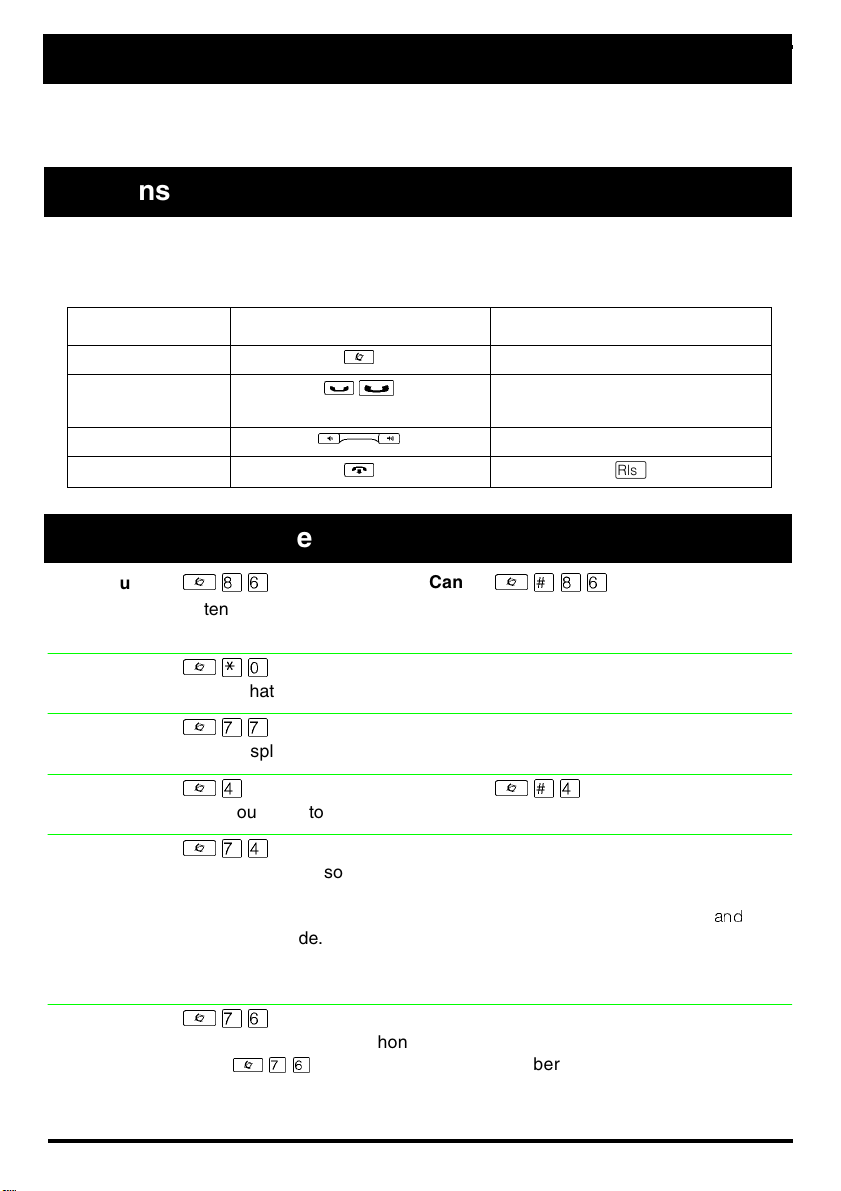
This card uses the Business Series Terminals button icons. The table below
shows which buttons to use on the different types of Nortel Networks
telephones.
Button Name T7000, T7100, T7208, T7316 M7100, M7208, M7310, M7324
Feature
Hold
Volume Control
Release
²
³
ú
≥
Ã
¨
ƒ
˙
≥
√
®
Telephone features
Background Music
Button Inquiry
Call Duration Timer
Call Forward
Call Park
Call Pickup directed
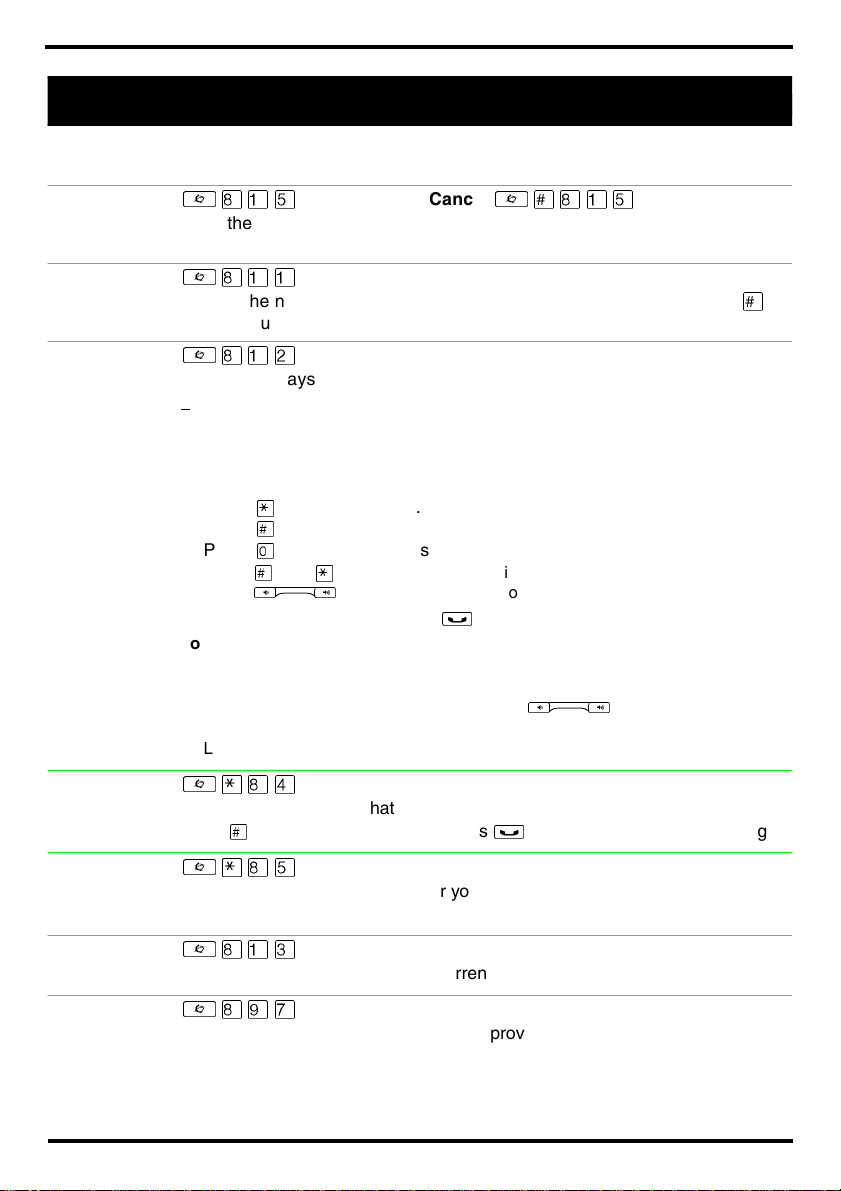
²¡ß
Listen to music (provided by your office) through your telephone speaker
when you are not on a call.
Cancel
²£¡ß
²¥â
Check what is programmed on any button. Use when labeling buttons.
²àà
Briefly display the approximate length of your current or most recent call.
²Ý
Send your calls to another telephone in your system.
Cancel
²£Ý
²àÝ
Put a call on hold so that it can be picked up from any telephone in your
system. The display shows a three-digit retrieval code.
To retrieve a parked call from a telephone, press an intercom button
the retrieval code.
On the T7100/M7100 telephone, just lift the handset and dial the retrieval
code.
and
dial
²àß
Answer any ringing telephone.
Press
²àß
and dial the extension number for the ringing telephone.
Page 4
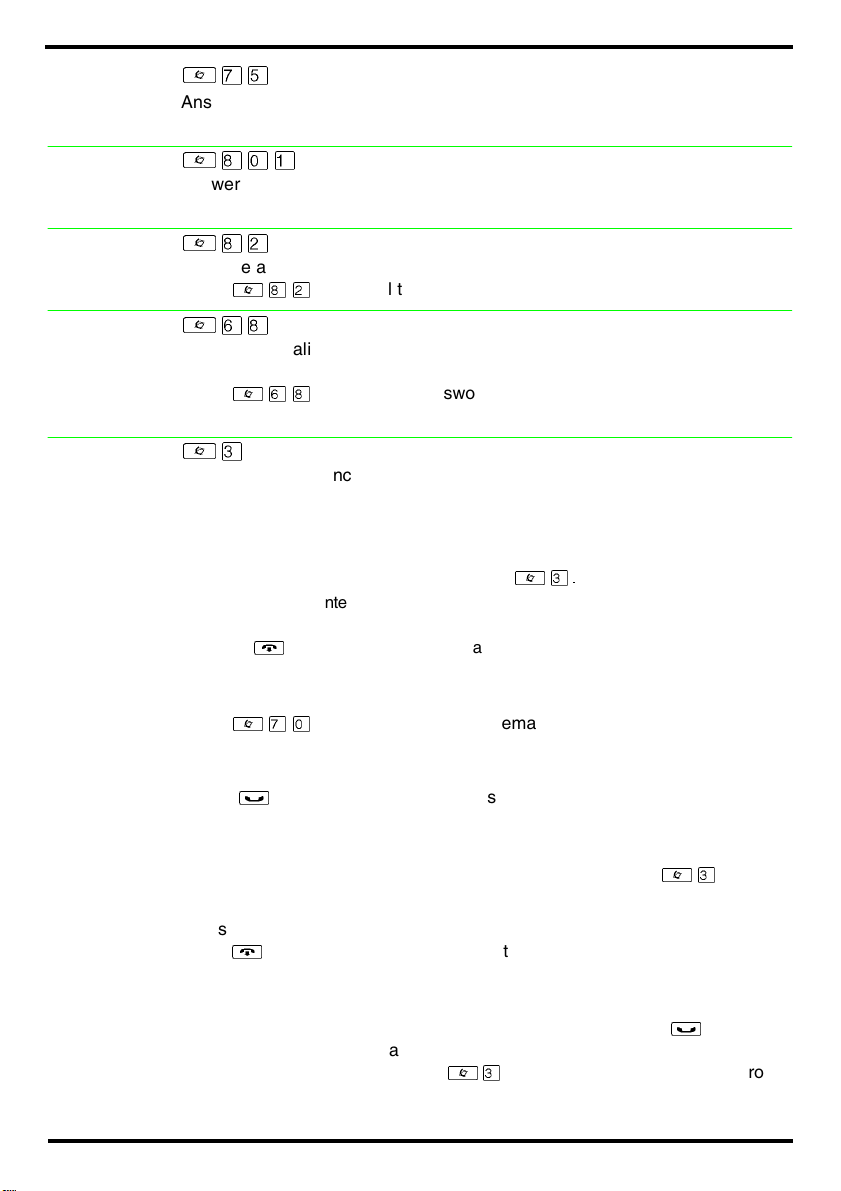
Call Pickup group
²àÞ
Answer a call that is ringing at another telephone in your pickup group. The
external call that has been ringing longest is answered first.
Call Queuing
Camp-on
Class of service password
Conference
²¡âÚ
Answer the next call. If more than one call is waiting, priority is given to
incoming external calls over callback, camped, or transferred calls.
²¡Û
Re-route a call to another telephone even if all its lines are busy.
Press
²¡Û
, then dial the extension number of the receiving telephone.
²ß¡
Change the dialing filters on a line or telephone, or gain external access to
your system. Dialing filters determine which numbers you can dial.
Press
²ß¡
to change your class of service.
and enter a password provided by your system coordinator
²Ü
Establish a conference call between yourself and two other parties.
1. Make or answer the first call.
2. Put the first call on hold.
3. Make or answer the second call.
4. After the second call is connected, press
5. Press the line or intercom button of the first held call (not required on the T7100/
M7100 telephone).
6. Press
To remove yourself from a conference permanently (unsupervised
conference):
Press
lines may not support this feature. See your system coordinator.)
To put a conference on hold:
Press
To split a conference:
Press the line or intercom button of one caller to consult privately while the
other caller is on hold. To re-establish the conference, press
To disconnect one party:
Press the line or intercom button of the caller you want to disconnect, then
press
resume your conversation.
To independently hold two calls:
Press the line or intercom button of the first caller, then press
second caller is automatically put on hold. To re-establish the conference,
retrieve one call from hold, press
hold.
¨
²àâ
³
¨
end the conference call.
to
. The other two callers remain connected. (Some external
. The other two callers can still talk to each other.
.
Press the line or intercom button of the remaining caller to
, then retrieve the second call from
²Ü
²Ü
.
.
²Ü
. The
³
Page 5
Contrast
Do N
G
adjustment
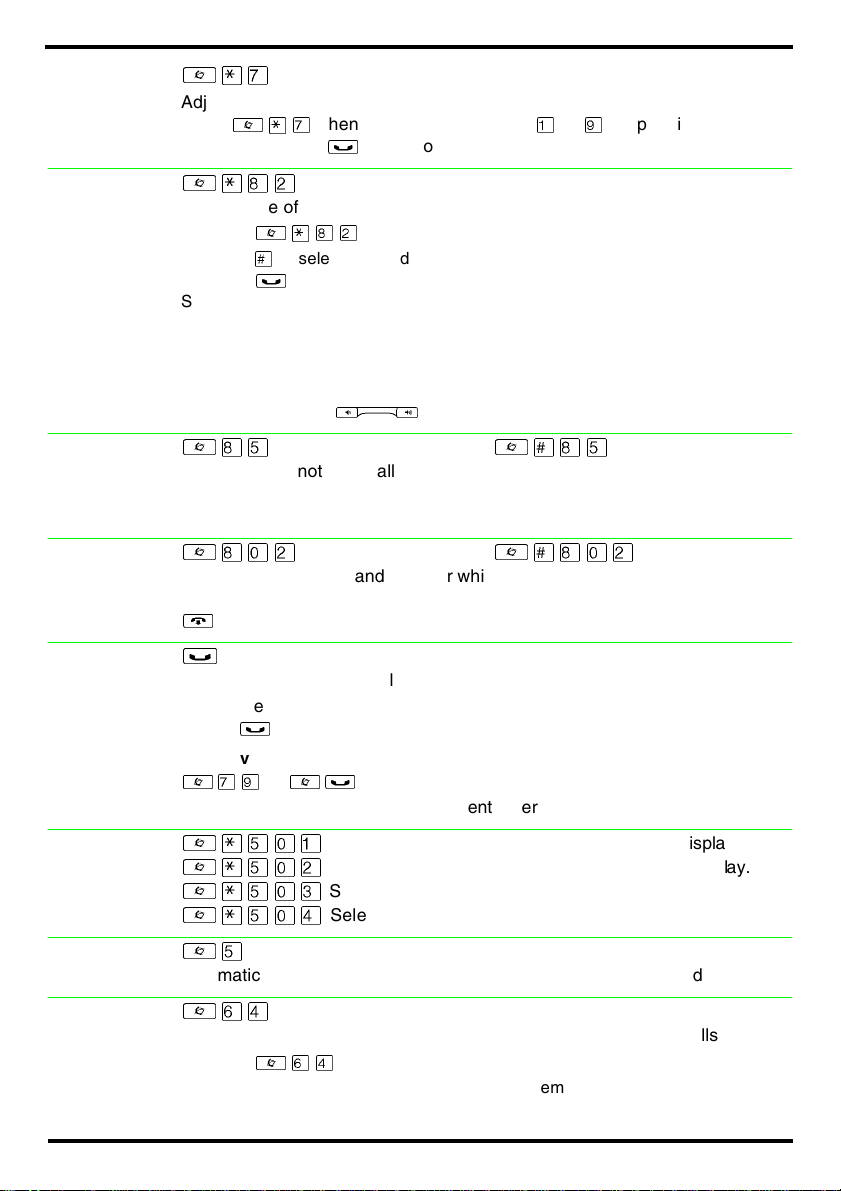
²¥à
Adjust the contrast of your display.
Press
²¥à
telephone). Press
, then press a number from Ú toá(depending on your
to set your choice.
³
Dialing modes
ot
Disturb
roup
Listening
Hold
²¥¡Û
Choose one of three methods of dialing.
1. Press
2. Press £ to select the mode.
3. Press
Standard Dial: Select a line, then dial the number. (Standard Dial is always
available, even when another dialing mode is selected.)
Automatic Dial: Dial the number without choosing a line button first. Your prime
line is automatically selected for the call.
Pre-Dial: Dial the number, then press a line button to place the call. Edit the
number by pressing
²¥¡Û
to store the mode.
³
²¡Þ
When you are not on a call prevent all incoming calls, except priority calls,
from ringing at your telephone. When you are on a call, block an incoming
priority call.
²¡âÛ
Use both the handset and speaker while you are on a call. To avoid electronic
feedback, keep the handset away from the speaker during the call, and press
to hang up.
¨
.
Ã
before placing the call.
Cancel
Cancel
²£¡Þ
²£¡âÛ
³
Temporarily suspend a call.
To retrieve a held call, press the line button for the held call.
(Press
Exclusive Hold
²àá
Temporarily suspend a call and prevent other telephones from picking it up.
on the T7100/M7100 telephone.)
³
or
²³
Language Choice
Last Number Redial
Line pools
²¥ÞâÚ
²¥ÞâÛ
²¥ÞâÜ
²¥ÞâÝ
Select Primary Language for the telephone display.
Select Alternate Language for the telephone display.
Select Alternate Language 2 for the telephone display.
Select Alternate Language 3 for the telephone display.
²Þ
Automatically redial the last external telephone number that you dialed.
²ßÝ
With a line pool, telephones can share several lines for making calls.
1. Press
2. Enter a line pool access code. (See your system coordinator for a list.)
²ßÝ
or an intercom button.
Page 6
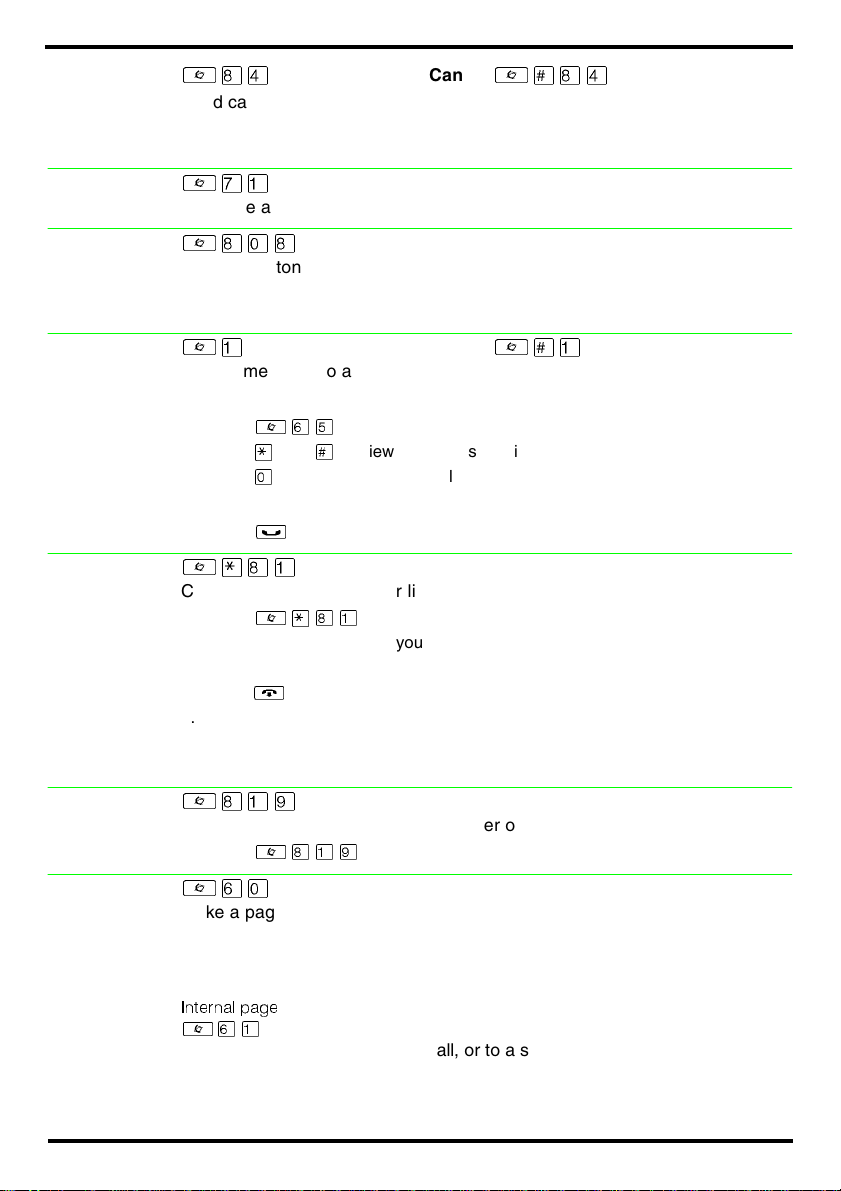
Line Redirection
²¡Ý
Send calls arriving on an external line to another telephone outside your
system. (Some external lines may not support this feature. See your system
coordinator.) This feature is not available on the T7100/M7100 telephone.
Cancel
²£¡Ý
Link
Long Tones
Messages
Moving line buttons
²àÚ
Generate a Link signal ‹ to access a PBX or other host exchange.
²¡â¡
Generate a tone for as long as you hold down a button. This is used to
communicate with devices like fax or answering machines. Long tones are in
effect only for your current call.
²Ú
Send a message to another telephone within your system.
To view and reply to your messages:
1. Press
2. Press ¥ and £ to view your message list.
3. Press
To erase a message:
1. Press ³ while viewing a message.
²ßÞ
to call the person who left you the message.
â
.
Cancel
²£Ú
²¥¡Ú
Change the position of your line or hunt group buttons.
1. Press
2. Press the line button that you want to move.
3. Press the button that you want to move the line to.
4. Press
5. Update the button label strip on your telephone.
Line buttons cannot be exchanged with intercom, answer or Handsfree
buttons.
²¥¡Ú
. The two buttons are exchanged.
¨
.
Name and number blocking
Page
²¡Úá
Block the outgoing name and/or number on a per-call basis.
1. Press
²ßâ
Make a page announcement throu gh either t he internal (code 1) or external
(code 2) speakers, or both (code 3). Zone 0 pages all zones.
Page announcements are programmed to timeout after a pre-selected
amount of time which is set by your system coordinator.
²¡Úá
and code (1 to 3) and zone (0 to 6)
.
Internal page
²ßÚ
Make a page announcement to all, or to a specific group of telephones,
through the telephone speakers. Zone 0 pages all zones.
and zone (0 to 6)
Page 7
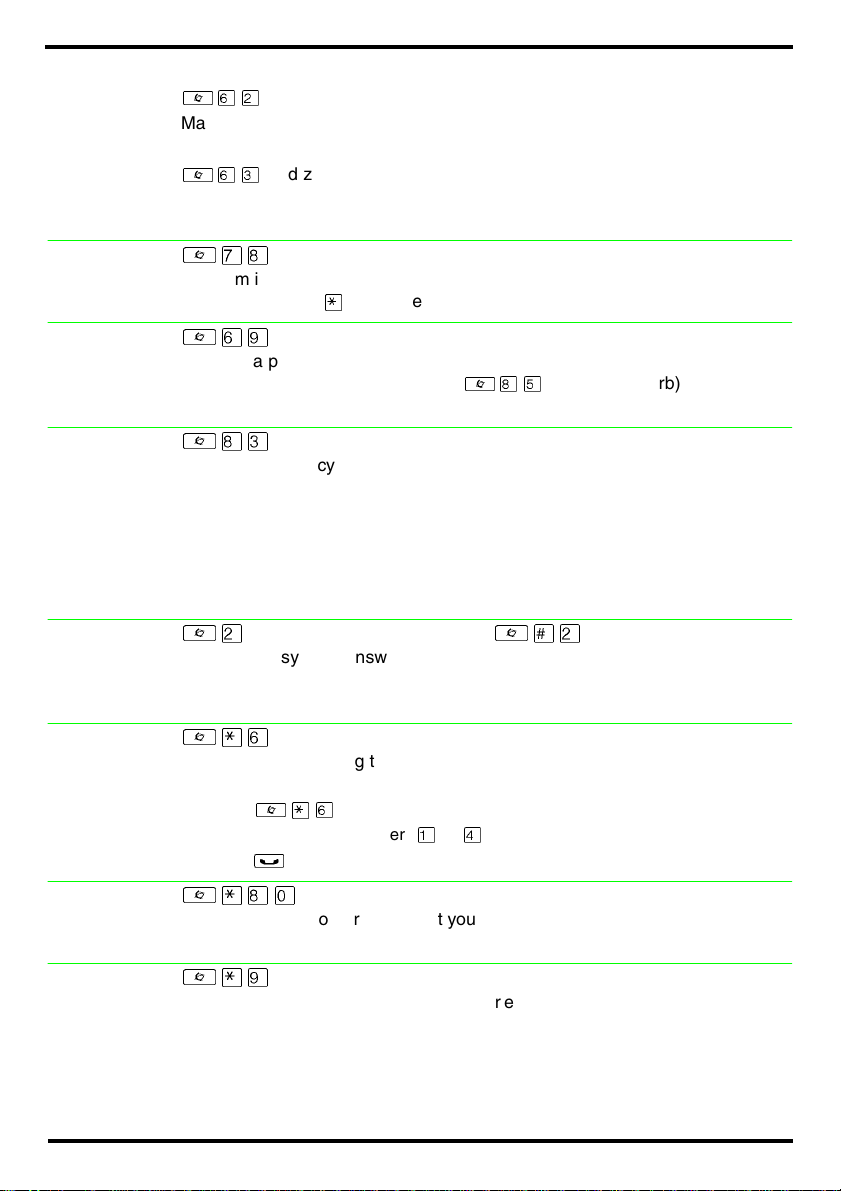
External page
²ßÛ
Make a page announcement through an external loudspeaker system.
Internal and external page
²
Make a page announcement through both your telephone speakers and an
external loudspeaker system. Zone 0 pages all zones.
and zone (0 to 6)
ßÜ
Pause
Priority Call
Privacy
Ring Again
Ring type
²à¡
Program in an external autodial sequence to insert a 1.5 second delay ›.
For pulse dialing:
also inserts a 1.5 second delay.
¥
²ßá
Interrupt a person who is on a call.
A person on another call can press
priority calls.
²¡Þ
(Do Not Disturb) to block
²¡Ü
Change the privacy setting for an external line. If a line normally has privacy,
this permits another telephone that shares the line to join your call by
selecting the line while you are using it. If a line normally has privacy
disabled, this prevents another telephone that shares the line from joining
your call by selecting the line while you are using it. The privacy setting is reestablished once you end your call or when you enter the Privacy feature
code again.
²Û
Monitor a busy or unanswered telephone, or a busy line pool within your
system. Ring Again signals you to call back when the telephone or line pool
becomes available.
Cancel
²£Û
²¥ß
Select a distinctive ring to help differentiate between your telephone and
others nearby.
1. Press
2. Enter the ring type number (Ú toÝ).
3. Press
²
³
¥ß
.
.
Ring volume
Run/Stop
²¥¡â
Make your telephone ring so that you can adjust the volume. You can also
adjust the volume any time your telephone rings.
²¥á
Store more than one autodial number or external carrier feature code on one
memory button by inserting a break point
first press of the button dials the first number or code; the next press dials the
next number or code. You can program up to four numbers or codes
separated by break points.
between numbers or codes. The
fl
Page 8
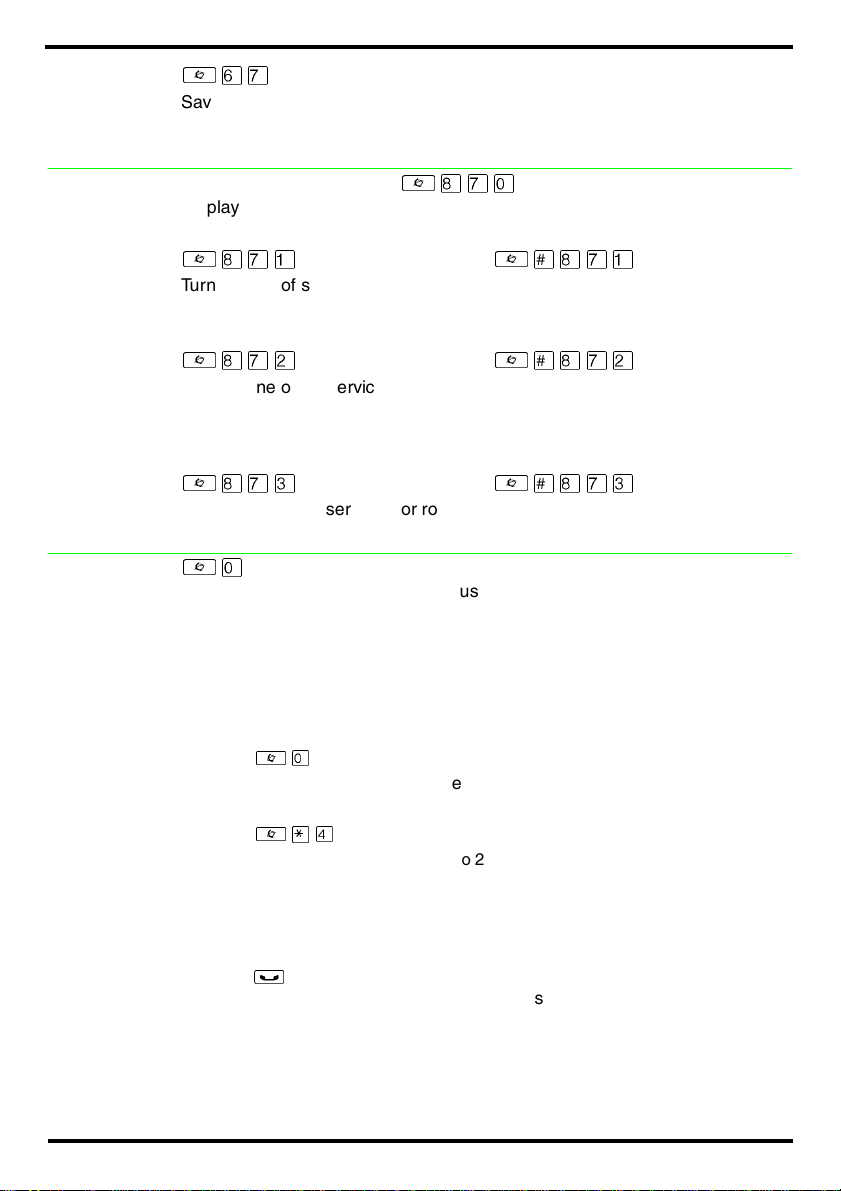
Saved Number Redial
²ßà
Save a number to redial later. Enter the code while you are on a call that you
have dialed to save the number. Enter the code when you are not on a call to
redial the saved number.
Service Schedules
Speed Dial
Show service schedules
Display the modes that have been turned on at a designated control set.
Ringing service
²¡àÚ
Turn on one of six schedules for alternative ringing/call answering
arrangements from a designated control telephone.
Restriction services
²¡àÛ
Turn on one of six services for restrictions on particular lines or telephones
from a designated control telephone. You will be required to enter a
password.
Routing services
²¡àÜ
Turn on one of six services for routing on particular lines or telephones from a
designated control telephone. You will be required to enter a password.
²¡àâ
Cancel
Cancel
Cancel
²£¡àÚ
²£¡àÛ
²£¡àÜ
²â
Dial an external telephone number using a three-digit code.
There are two types of speed dial codes: system (001 to 255) and user (256
to 279).
System speed dial codes can be used from any display telephone in the
system. They are assigned by your system coordinator.
User speed dial codes are used exclusively at your telephone.
To make a call using a speed dial code:
1. Press
2. Enter the three-digit code for the number.
To program user speed dial numbers:
1. Press
2. Enter a three-digit code from 256 to 279.
3. Specify an external line by pressing a line button, a line pool button, or the
intercom button. If you do not specify the line, the system automatically chooses
a line for the call.
4. Dial the telephone number you want to program (up to 24 digits).
5. Press
6. Record the code and number you have just programmed.
You cannot program user speed dial numbers while someone else is
programming your system. Codes you enter can be overridden by your
system administrator.
³
.
²
â
²¥Ý
.
.
Page 9
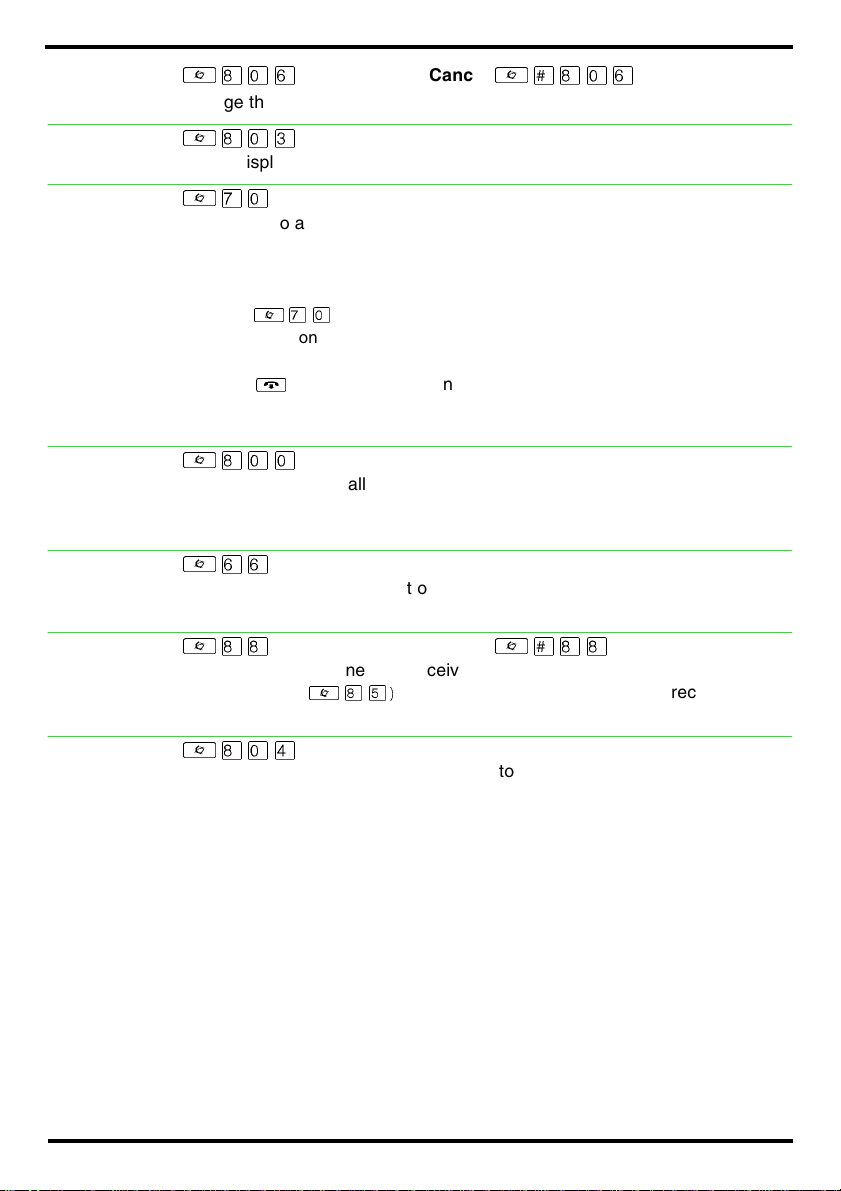
Static time and date
²¡âß
Change the first line of the display to the current time and date.
Cancel
²£¡âß
Time
Transfer
Trun k Answer
Voice call
Voice call deny
²¡âÜ
Briefly display the time and date while you are on a call.
²àâ
Send a call to another telephone within your system, or to an external
telephone. You may not be able to transfer a call on an external line to an
external telephone, depending on the capabilities of the lines.
1. Make or answer a call.
2. Press
3. Call the person you want to transfer the call to.
4. Stay on the line if you wish to speak to the person first.
5. Press ¨to complete the transfer.
If an external call is transferred to a busy internal or network extension, or is
not answered after a few rings, the call automatically rings you back.
²
àâ
.
²¡ââ
Answer an external call that is ringing on a line that has been placed into a
Ringing Service schedule from any telephone in your system. This feature
does not work for a private line.
²ßß
Make a voice announcement or begin a conversation through the speaker of
another telephone without first making the other telephone ring.
²¡¡
Prevent your telephone from receiving voice calls.
Do Not Disturb (
calls.
²
also prevents your telephone from receiving voice
¡Þ)
Cancel
²£¡¡
Wait for dial tone
²¡âÝ
Program in an external autodial number to cause the system to wait to
receive dial tone
sequence.
from another system before proceeding with the dialing
‡
Page 10
Call Display Services
The following features are available only if you subscribe to Call Display
services or to special line services from your local telephone company.
Autobumping
Call Information
Call Log
²¡ÚÞ
Have the system automatically delete the oldest log item from a full Call Log,
so that a new log item can be stored.
²¡ÚÚ
Display the name, number or line name of a ringing or held call. Press £ to
move through the information displays.
²¡ÚÛ
Call Log displays use the following special characters:
(underline) identifies a new item
1
identifies answered calls
¯
identifies long distance calls
§
identifies that the information has been shortened
/
To view your Call Log:
1. Press ¥ to view old items.
Press
Press
2. Press£ and ¥ to move through your items.
3. Press
To erase a Call Log entry: Press
To return a call from your Call Log:
1. Display the desired number on your telephone.
2. Edit the number, if required. You can add numbers for long distance dialing or
line pool access or remove numbers using
3. Press a line button.
4. Lift the handset.
to view new items.
£
to return to the last viewed item.
â
Ã
Cancel
to view more information on an item.
²£¡ÚÞ
while viewing an item.
³
Ã
.
Call Log options
Call Log password
Logit
Malicious Caller ID (MCID)
²¥¡Ý
Select the type of calls that will automatically be stored in your Call Log.
Press
to see the next setting. Press ³ to select the displayed setting.
£
²¥¡Þ
Program a four-digit password for your Call Log. To remove a forgotten
password, see your system coordinator.
²¡ÚÜ
Store caller information for your current call in your Call Log.
²¡áà
Store caller information on the service provider system for last external call.
This feature only works if your system uses ETSI ISDN lines. Check with your
system administrator. The code must be invoked within 30 seconds after the
caller hangs up, and before you hang up.
Page 11

Page 12

Meridian and Norstar are trademarks of Nortel Networks.
Meridian Norstar is manufactured by Nortel Networks.
This document is for use with Norstar Modular ICS.
P0992653 Issue 03
Printed in Can ada
••••••••••••••••••••••••••••••••••••••••
 Loading...