

Page 1
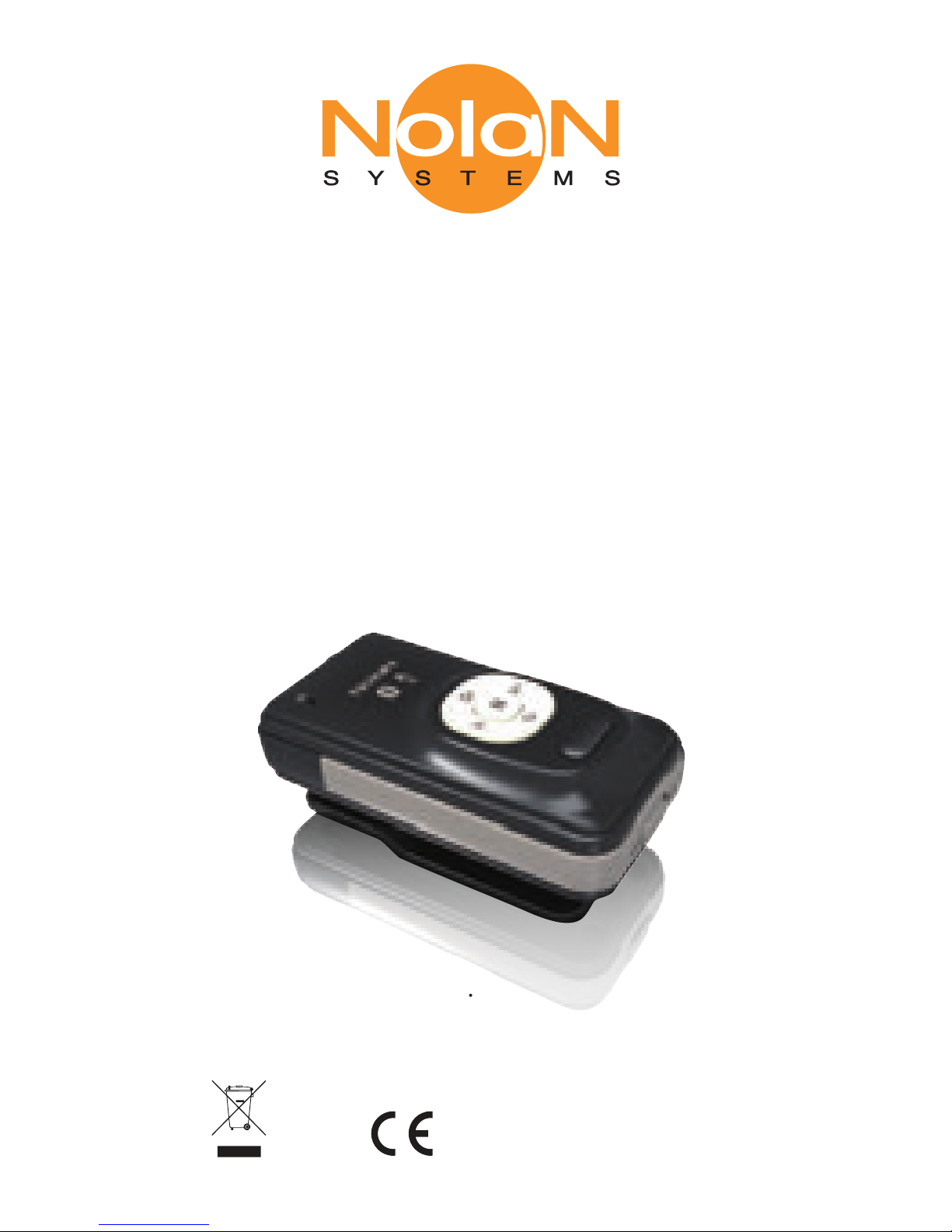
Bluetooth
Wireless Microphone
P/N NSRXRM3C2MSX
USER GUIDE
LiveMIC
.
FCC ID:TNZNSRXRM3C2XXX
0678
Declaration of Conformity. We declare that product
NSRXRM3C2MSX conforms to the R&TTE Directive 1999/5/RC.
Page 2
GETTING STARTED
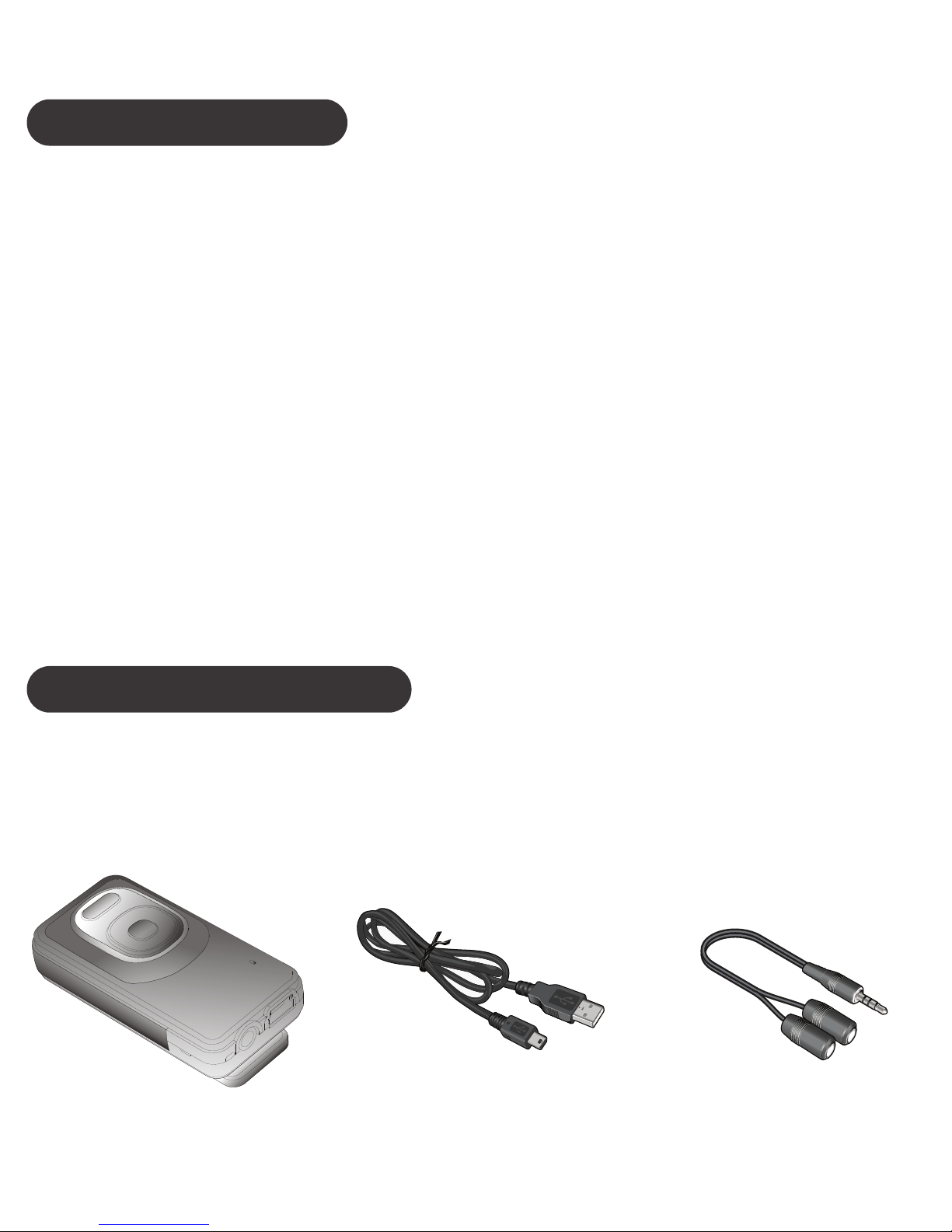
Unpack the package carefully and confirm that you
have all of parts as shown below.
INTRODUCTION
The LiveMIC allows capturing the source of audio
wirelessly and freely with internal Uni/Omnidirectional microphone units. Its audio jack
supports your own external microphone and real
time microphone sound monitoring. Users can
record the audio/voice of subject with clarity sound
from LiveMIC.
Compatible stereo Bluetooth devices must
support the Bluetooth profile known as
A2DP,HST,HF profiles.
※
USB charging cableLiveMIC
Split audio cable
Page 3
Please check the contents carefully and contact
your local dealer immediately if anything is missing
or damaged.
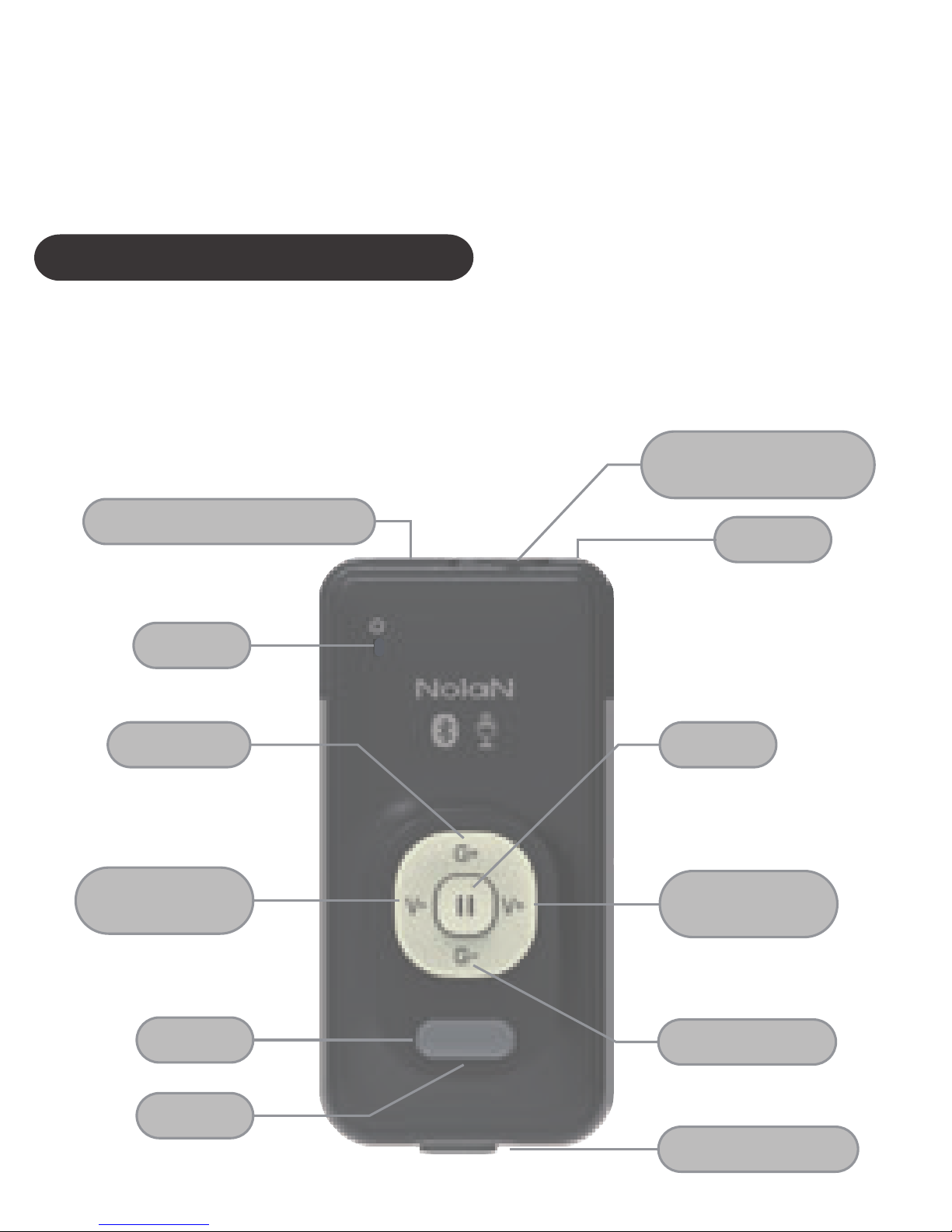
PRODUCT OVERVIEW
See image below. Please note some models of
LiveMIC will differ slightly in style, colour and the
functionality may vary according to their specifications.
Omni Mic
USB Charging Connector
LED
On/Off
Mute
Omni /Uni Switch
Uni Mic
Earphone and
External Mic Jack
Headphone
Volume Down
Headphone
Volume Up
Mic Gain Up
Mic Gain Down
Page 4
CHARGING
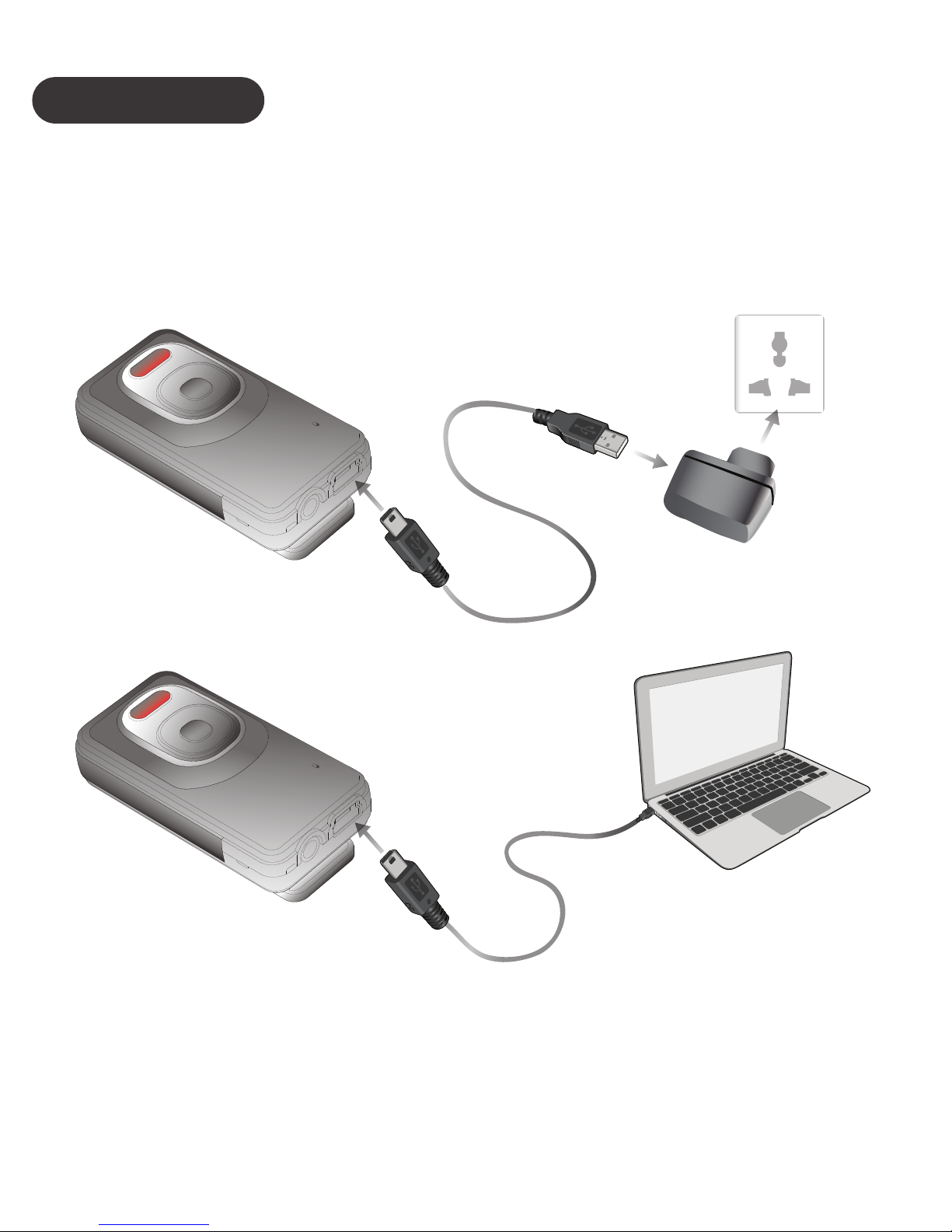
Plug the USB charging cable into LiveMIC mini
USB connector. Plug the other side of the USB
charging cable into a powered USB connector.
When charging, the amber LED will be lighted.
When charging is completed, the amber LED will be
turn off.
or
Page 5
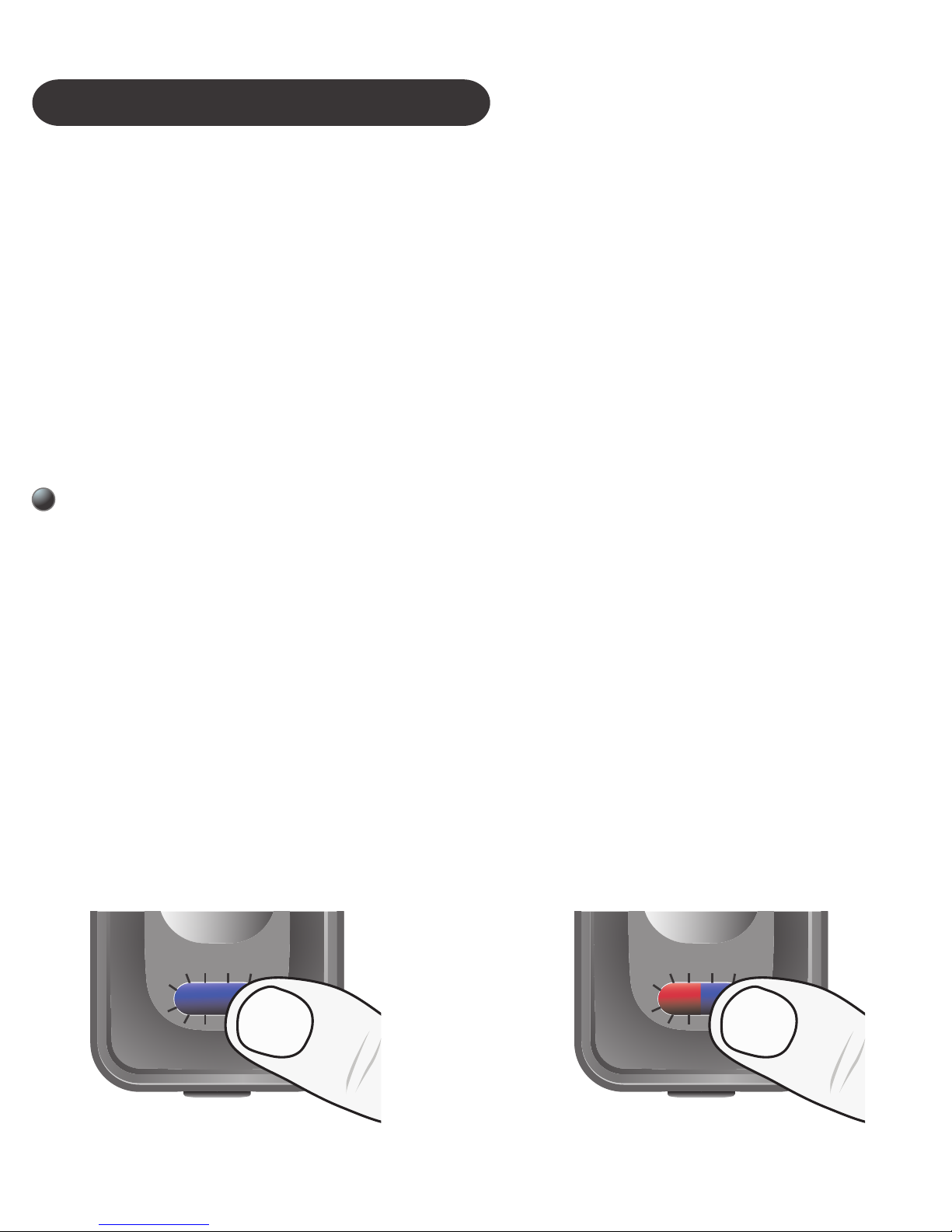
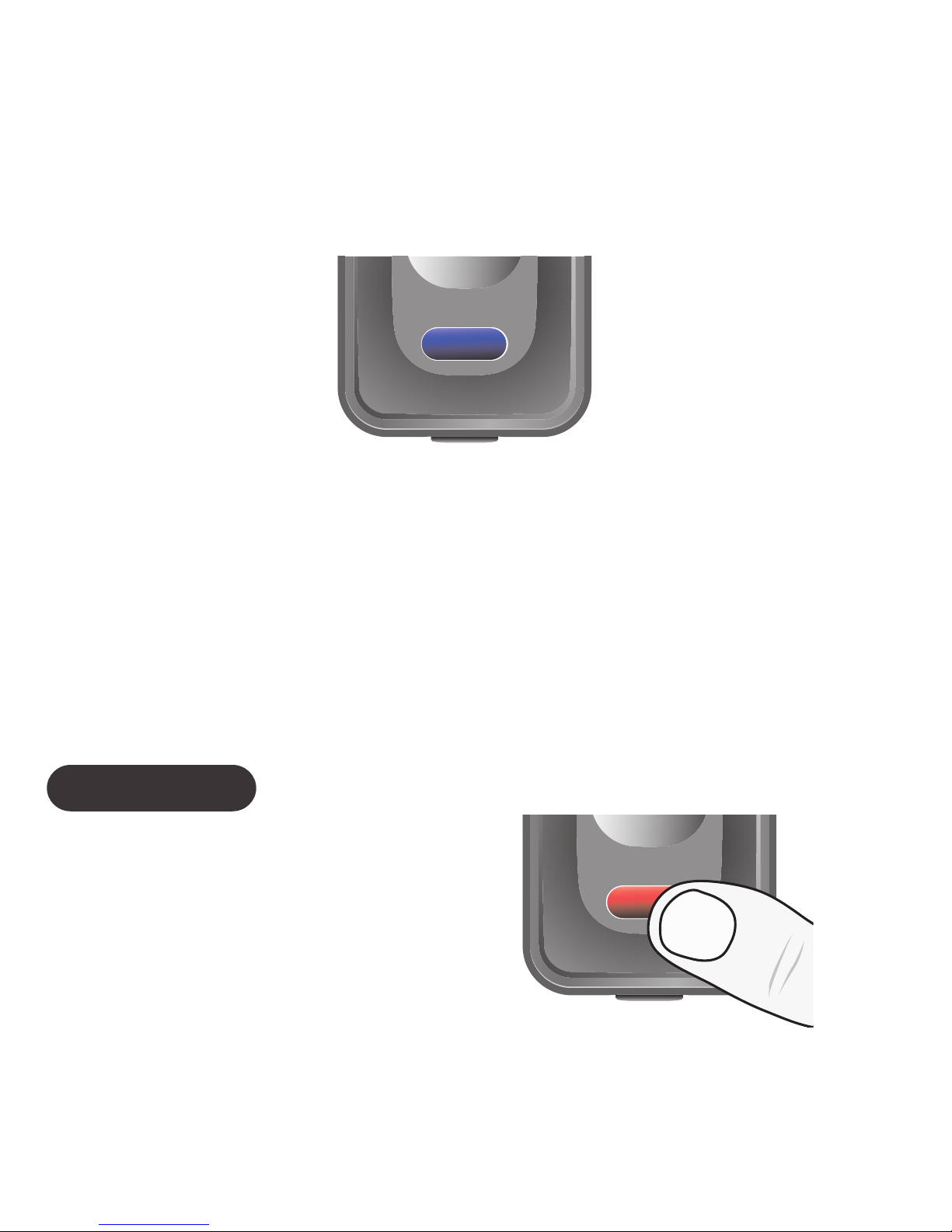
Press and hold the ON/OFF button for about 3
seconds, the blue LED will solid light for about 1
second, and then release the button. LiveMIC will
be turned on and into current type A or B pairing
mode automatically. The type A and B pairing mode
has different LED indication, please ensure you are
in suitable pairing mode during the pairing.
TURN ON AND PARING
Type A pairing mode : Blue LED fast flashes
Work with audio receivers, speakers and headsets
Type B pairing mode : Blue and amber LED
flash alternatively.
Work with iPhones, iPads, android phones,
smartphones, tablets, PCs, laptops and Macs.
Type A and Type B of pairing modes supporting:
Type B pairing modeType A pairing mode
Page 6
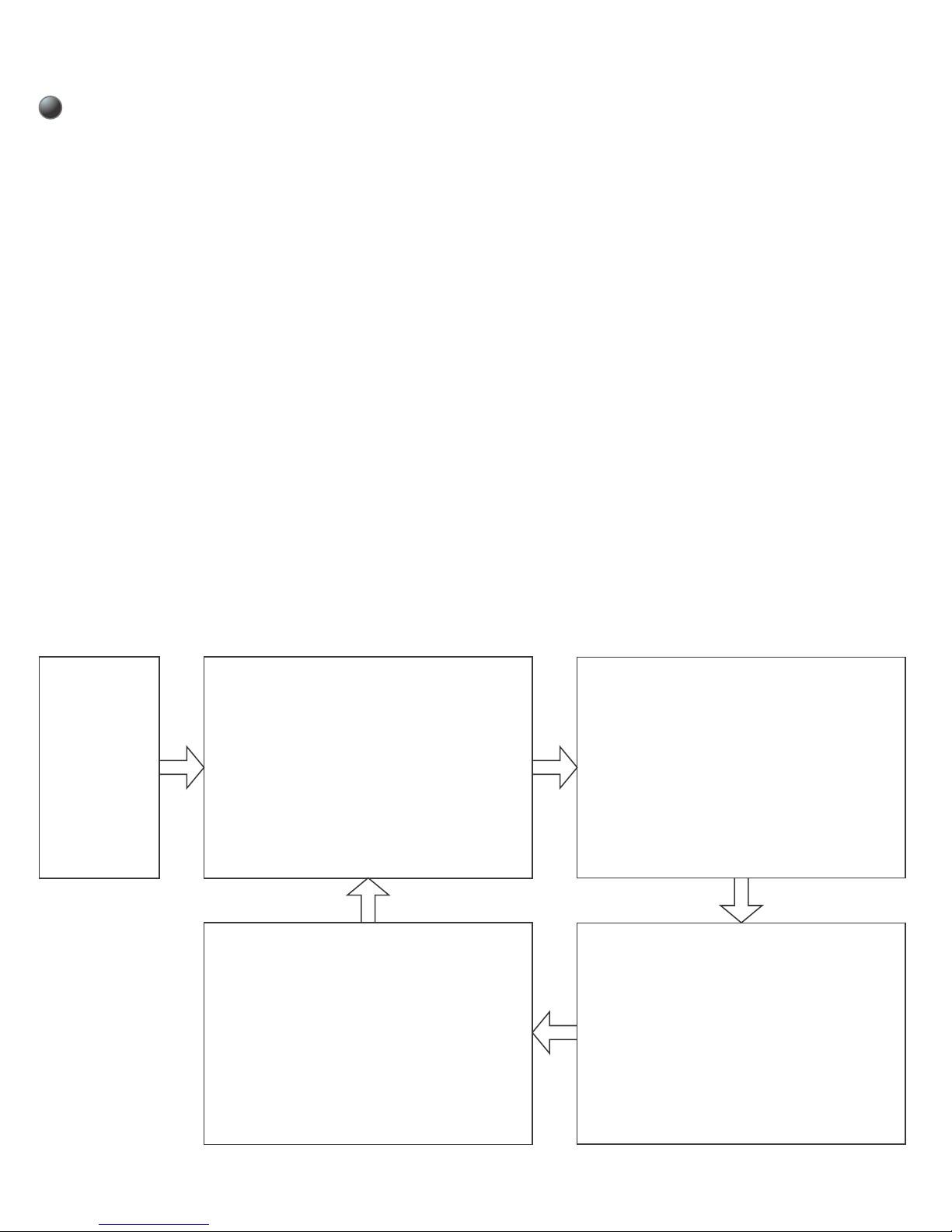
When you press and hold the ON/OFF button
without released, the LiveMIC will switch between
the type A and B mode circularly with different LED
indication. When the LiveMIC is into desired pairing
mode, release the button, the LiveMIC will keep this
pairing mode for using. If you like to change again,
you can repeat this operation for mode changing
between Type A and Type B.
Switch to desired Type A or Type B mode
Power On
blue LED solid on
and then into type
A(or B) pairing mode
Switch Pairing Mode
blue and amber LED
solid on together and
then LEDS off
Switch Pairing Mode
blue and amber LED
solid on together and
then LEDS off
Power
Off
Power On
blue LED solid on
and then into type
B(or A) pairing mode
Page 7
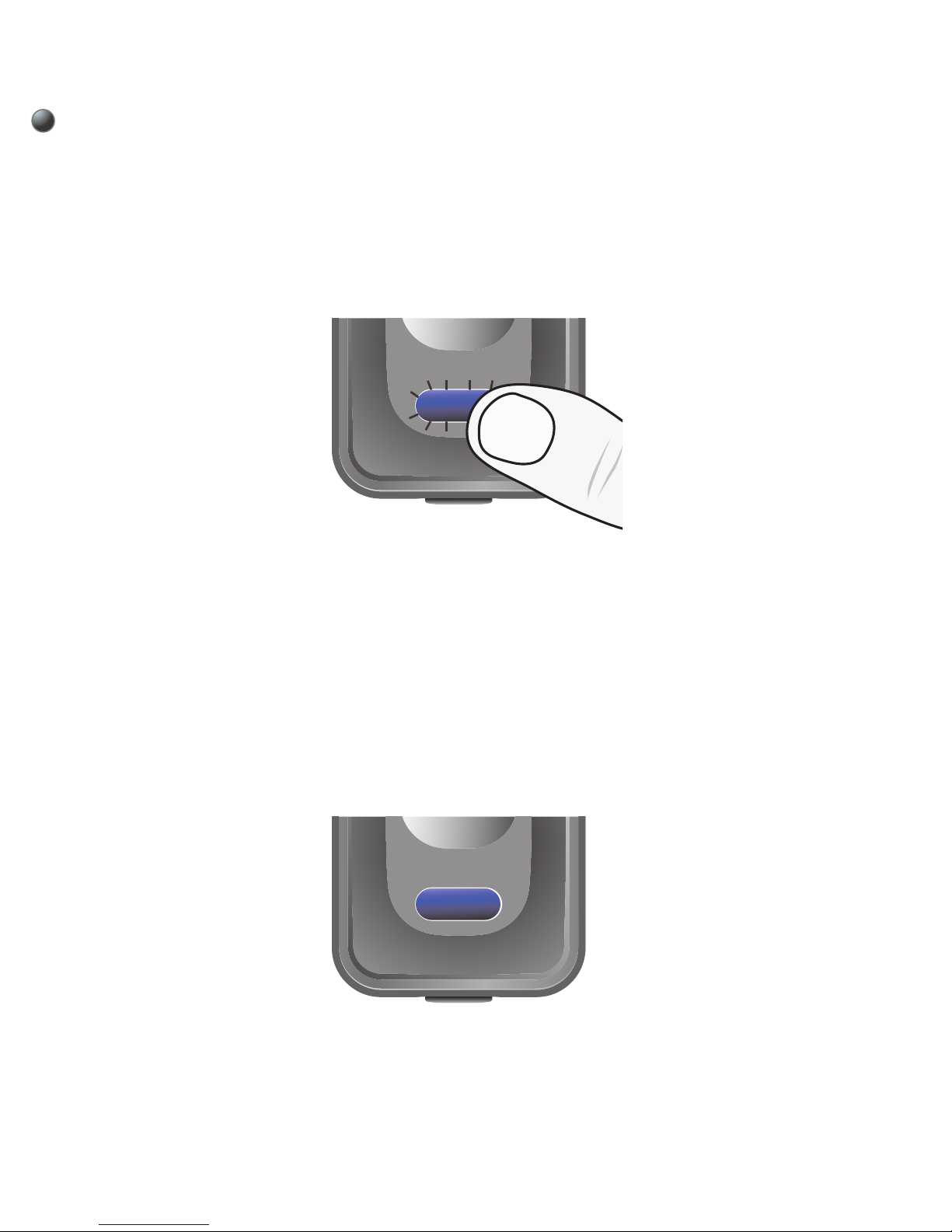
Type A pairing mode
1. Turn on the LiveMIC and into type A pairing
mode.
2. Initiate pairing feature on the audio receiver.
3. When pairing is completed and connecting,
the blue LED will begin to flash slowly.
※
Important Note: LiveMIC supports four sets of
pin code: 0000, 1111, 1234, and 8888. It covers the
popular speakers, receivers.
Type A: To pair with an A2DP enabled
Bluetooth audio receivers, speakers or
headsets
Page 8
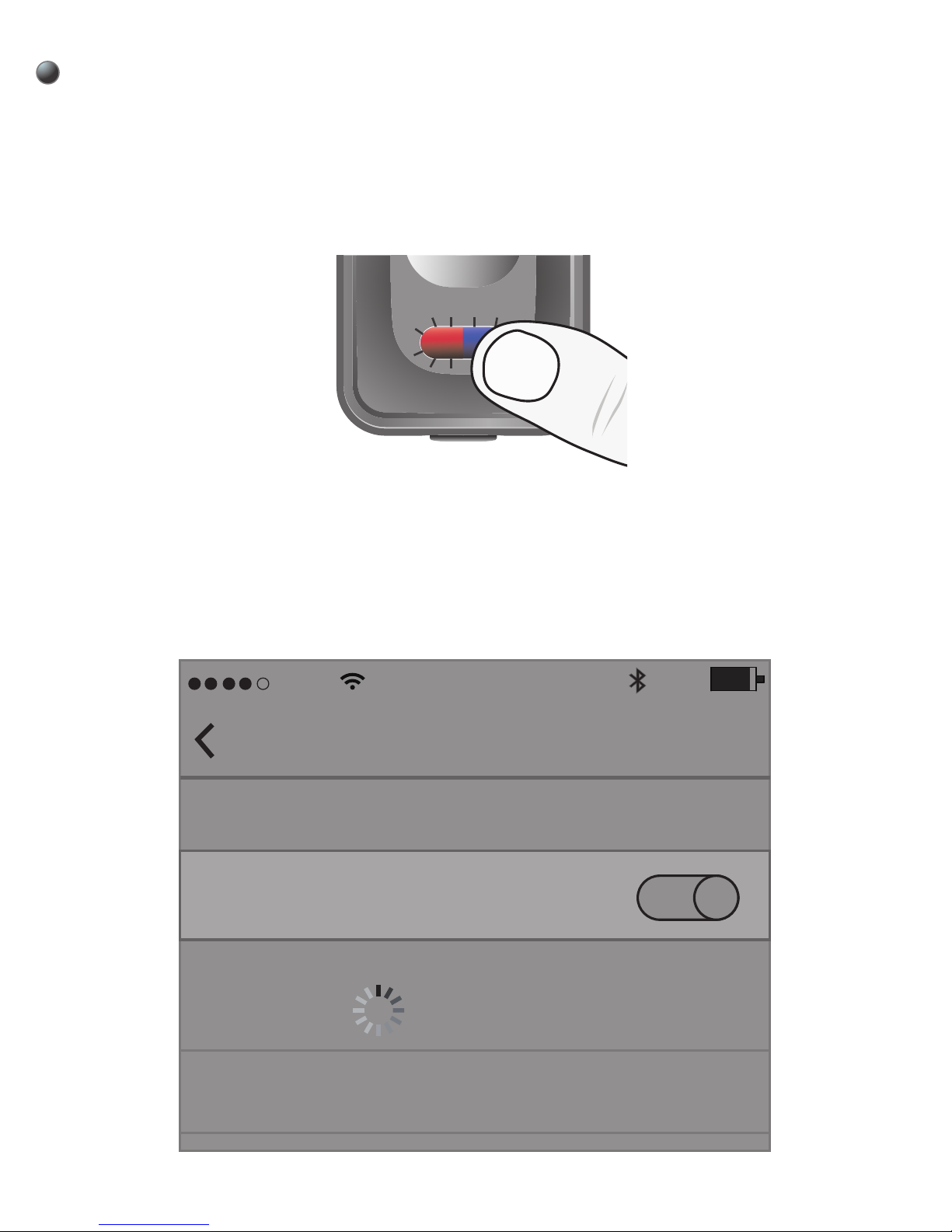
Type B pairing mode
1. Turn on the LiveMIC and into type A pairing
mode.
Type B: To pair with iPhones, iPads, tablets,
android phones, smartphones, laptop, Mac and
PCs…etc
2. Initiate Bluetooth search feature and find the
device name “LiveMIC”. If pin code requested
during pairing, please submit the pin code 0000.
AT&T
10:08 AM
Settings
Bluetooth
LiveMIC
Bluetooth
DEVICES
90%
Page 9
3. When pairing is completed and connecting,
the blue LED will begin to flash slowly.
※
In your laptop or pc, please ensure your
Bluetooth driver supported or included
headset/handfree profile.
TURN OFF
then the Microphone will turn off. Release the
ON/OFF button.
Press and hold the
ON/OFF button for
about 2 seconds, the
amber LED will stay on
for about 1 second and
Page 10

Auto-reconnect to the LiveMIC
When LiveMIC is paired with your Bluetooth
device, you just need to turn on the Microphone
and your Bluetooth device in the later using, and
they will connect to each others automatically.
LiveMIC WROKING
At the type A mode, LiveMIC will start to transmit
the microphone sound to the receiver.
At the type B mode, when connected with PC,
please set the LiveMIC as the default recording
device from system audio setting in your PC. When
connected with iPhone, iPad or android, you need
to run the suitable audio or video recording apps
Page 11
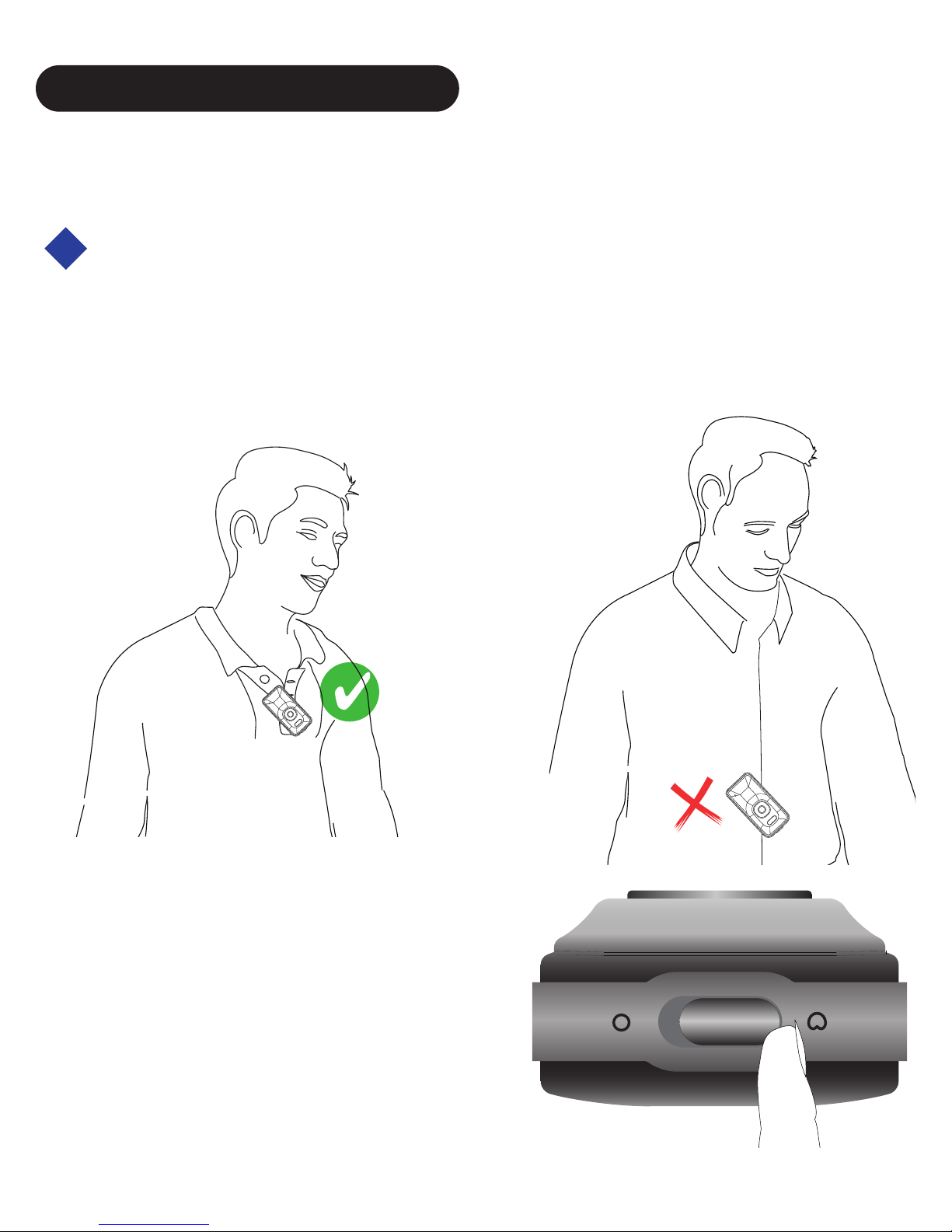
Slide the microphone
selection switch to choose
the corresponding internal
microphone.
Using internal Uni and Omni directional
microphone
Put LiveMIC’ microphone close to the sound source
around 8 inches to captured the best sound quality.
USING MICROPHONE
The LiveMIC support internal and
external
microphone
max. 20cm
8 inches
Too far away
Page 12
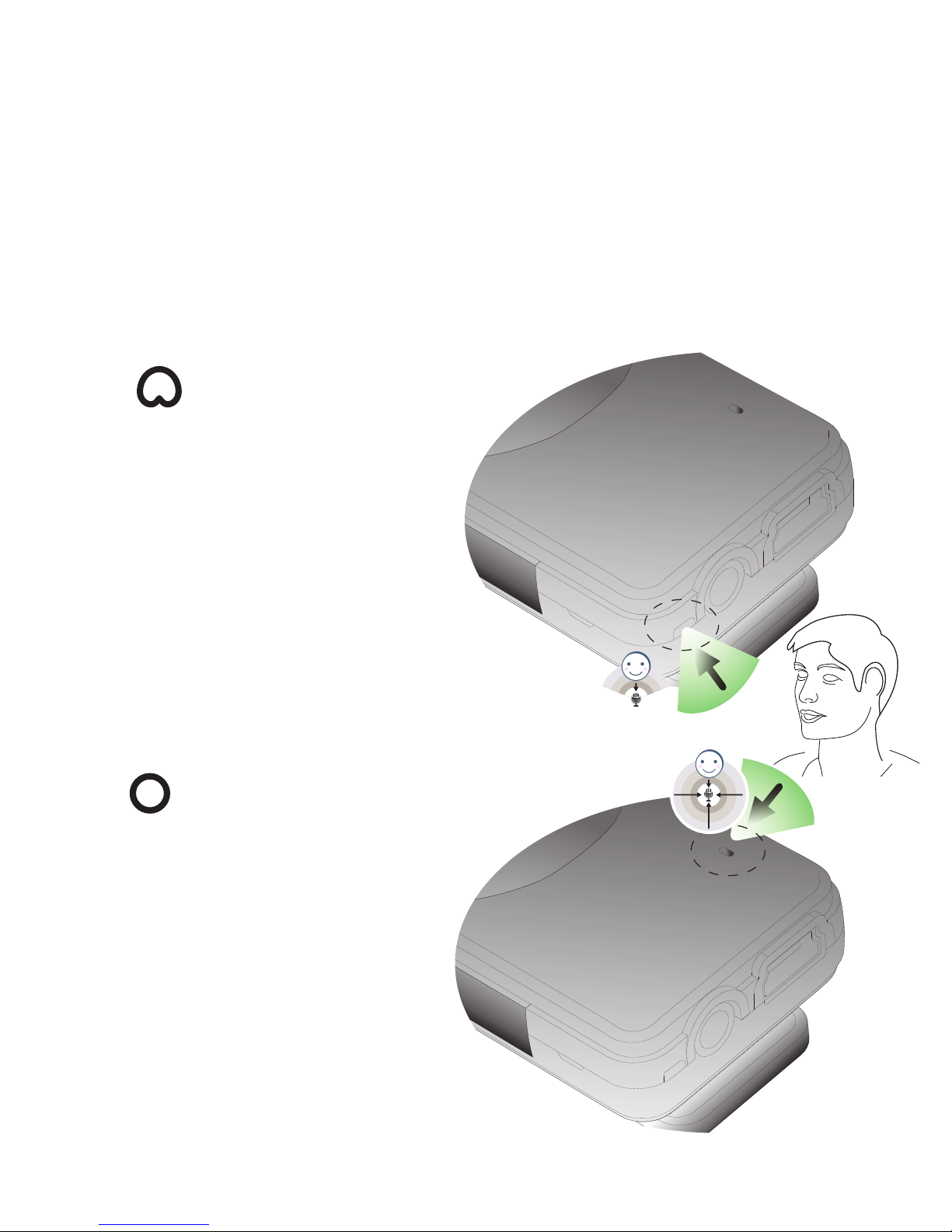
Unidirectional
(Cardioid) microphone
is used that the target
sound source pick up
directly in front of the
microphone, and all
other sounds from sides
are largely rejected.
Omnidirectional microphones will
pick up sound from all
directions or sides
around the microphone.
Users can speak into
any side of the
microphone.
Both unidirectional and omnidirectional
microphones have their advantages and disadvantages. The important thing is to know the application of the microphone in use to know which would
be better for the given situation around.
Page 13
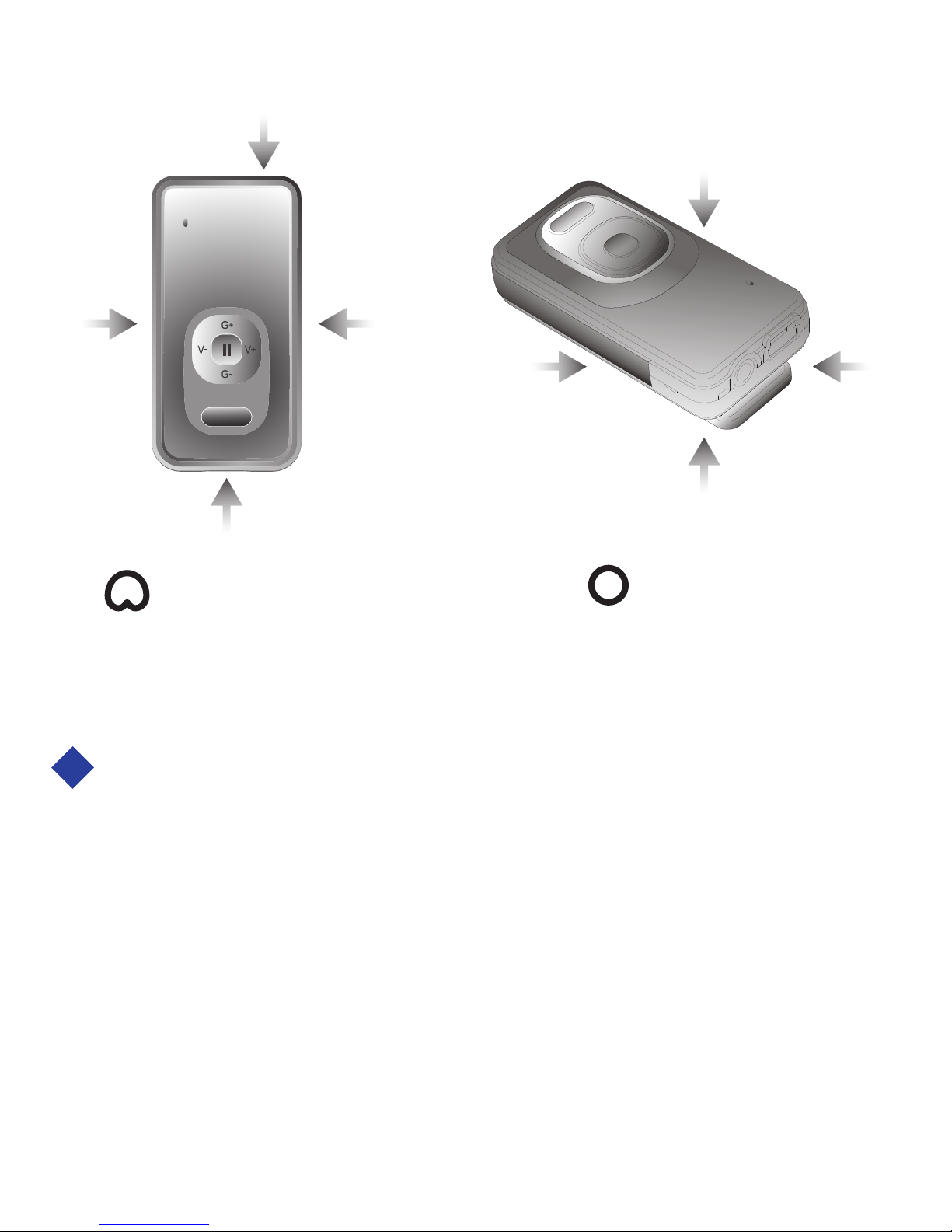
Unidirectional
Omnidirectional
Using external microphone
LiveMIC external microphone – When plug the
suitable 3.5mm audio plug of external microphone
into the LiveMIC audio jack, LiveMIC will scan the
external microphone and amber LED will flash
once. If the external microphone is supported,
LiveMIC will disable internal MIC and use the
external MIC for sound capturing.
Good
Weak Weak
Weak
Good
Good Good
Good
Page 14
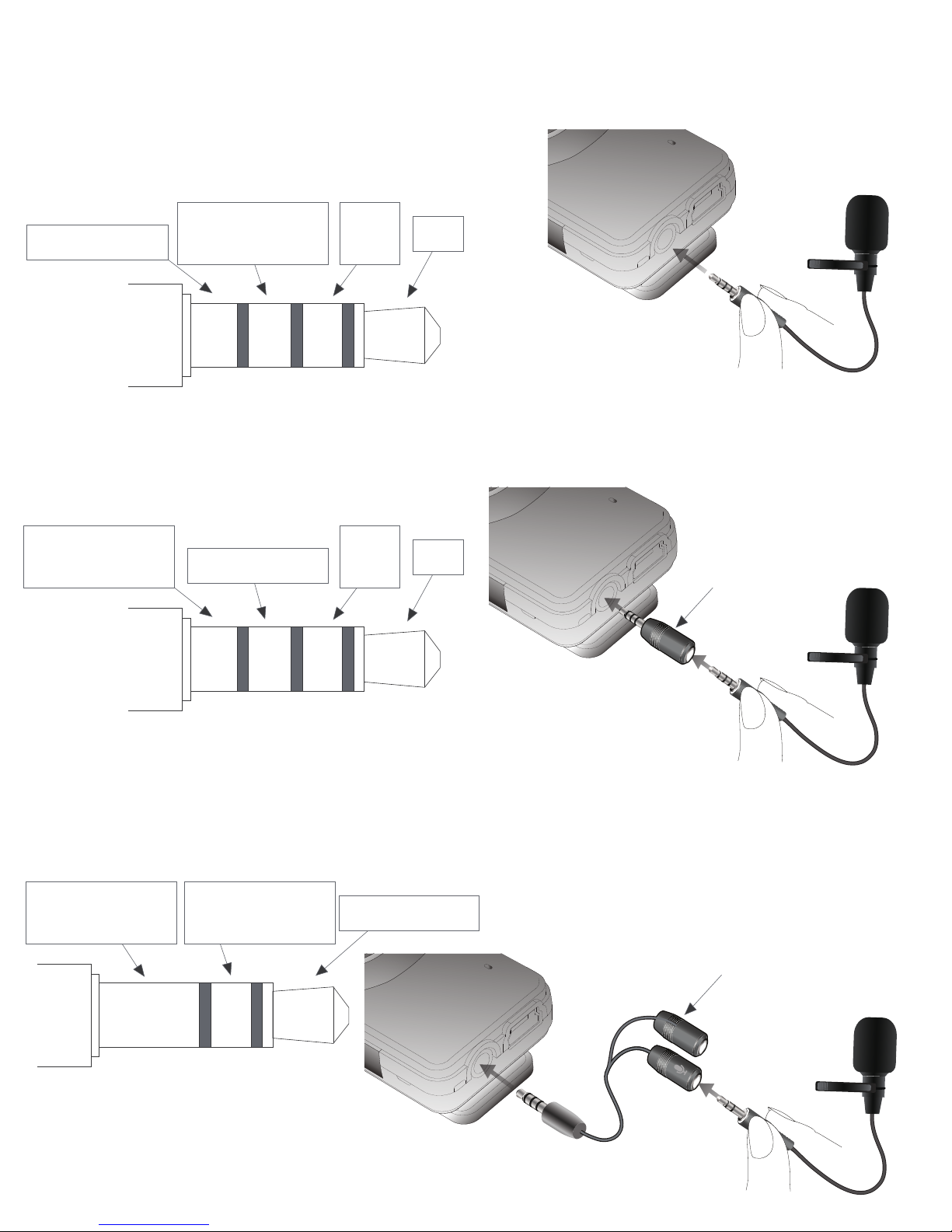
This type of external microphone needs a split
audio cable to plug into LiveMIC.
3 2 1
Microphone
or empty
Microphone
Signal retrun
Groud
Split audio cable
This type of external microphone is suitable
for LiveMIC
4 3 2 1
Microphone
Signal retrun
Groud
Right
Left
This type of external microphone needs a
reversed converter to plug into LiveMIC.
4 3 2 1
Microphone
Signal retrun
Groud
Right
Left
reversed
converter
Page 15
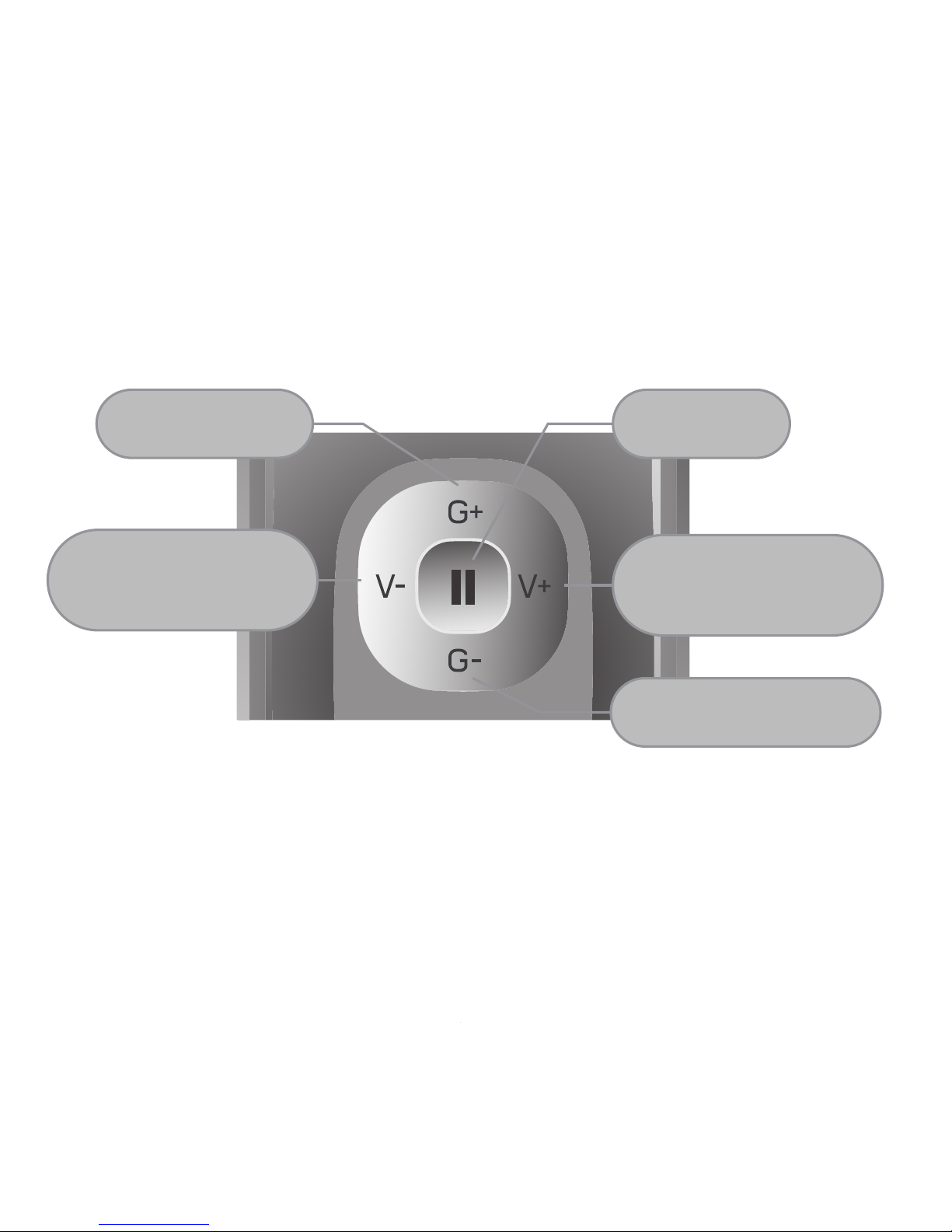
Mute
Headphone
Volume Down
Headphone
Volume Up
Mic Gain Up
Mic Gain Down
Adjust microphone gain, headphone volume or
mute the LiveMIC
LiveMIC provides 5 buttons to let you adjust the
microphone gain, headphone monitoring volume
and toggle the mute/un-mute state.
G+ and G- : Single press to increase and
decrease the microphone gain.
V+ and V- : Single press to increase and
decrease the monitoring sound volume.
Mute: Press and hold about 0.5s to mute
the microphone, the amber LED will flash slowly.
Then press and hold about 0.5s again to un-mute.
Page 16

VISUAL INDICATION
The POWER/MODE/AUDIO LED can also indicate
the status of RemHearLinks working statues.
Statues Indication
Charging Amber LED is On
Not Connected
Blue LED very
slow flashes, approx.
every 5 seconds
Connected
Blue LED Medium
speed flashes, approx.
every 2 seconds
Blue LED flash quickly
Type A pairing
mode with audio
receiver
Amber and Blue LEDs
flash alternatively
Type B pairing
mode with
iPhones, iPads,
Android,
Smartphones,
Laptop, Mac,
PCs.etc
Page 17
TROUBLESHOOTING
Please note that you should also be familiar with the
operation of your audio receiver, mobile phone or
other connecting Bluetooth device. Please read the
User Guide for your device carefully. For operation
with a PC or laptop, please note that these devices
should be Bluetooth enabled with appropriate third
party software and profiles in order to enable
correct operation.
Power On
Power Off
Blue and Amber LED
on for 1 second
Blue LED flash once
Amber LED flash once
Amber LED slow flash,
approx. every 5 seconds
Mute
Statues Indication
Switch between
type A and type
B pairing mode
Page 18

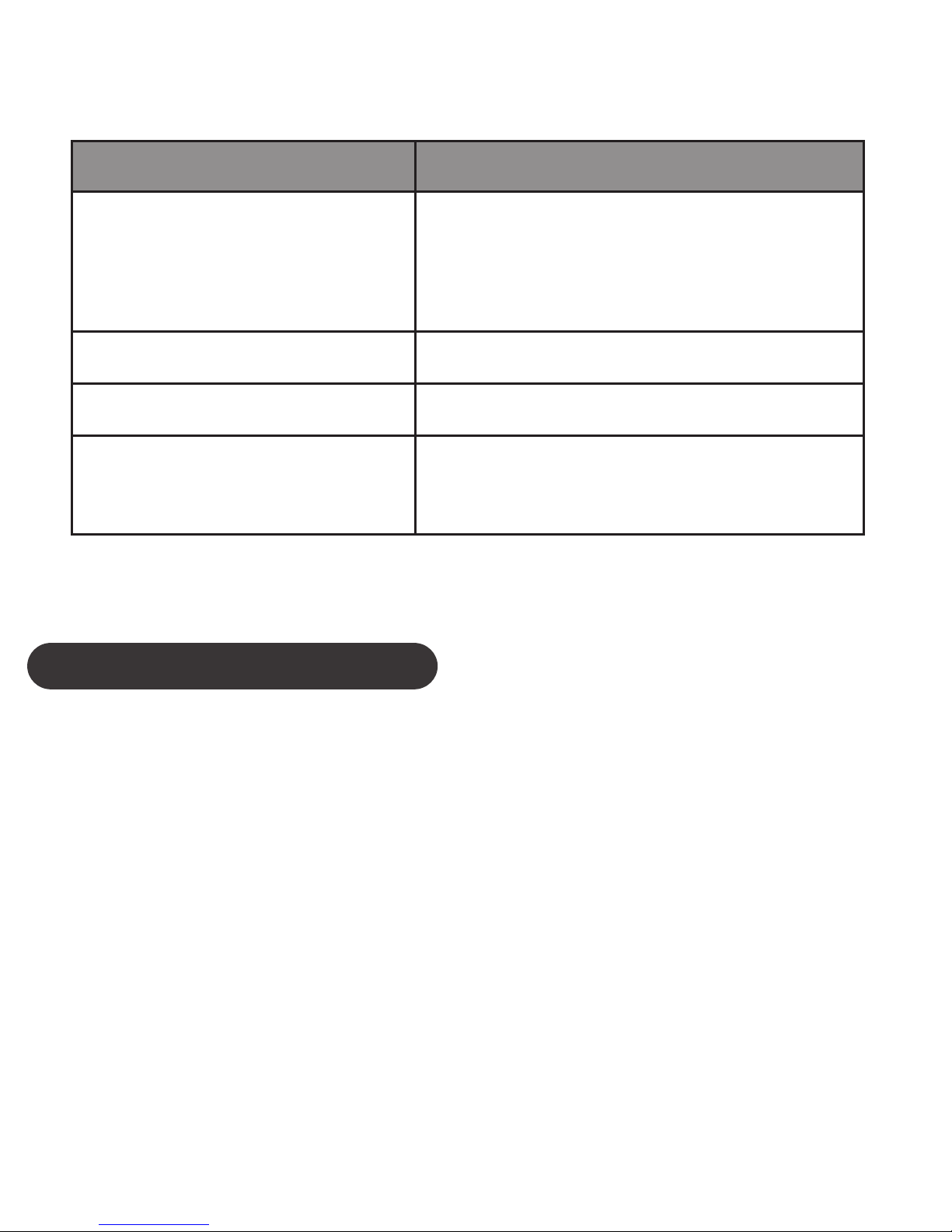
Problem Likely Cause / Solution
LiveMIC
will not pair with
audio receiver
Ensure that PIN code is
one of these codes:
0000, 1111, 1234, 8888
LiveMIC and audio
receiver were out of
range for more than 30
feet. Turn both
microphone and audio
receiver off and turn on
again to reconnect.
LiveMIC
does not
reconnect.
Lost Connection.
Blue LED flashes
at 5 second
intervals.
Make sure your external
microphone has correct
audio plug, for some
audio plugs of
microphones, you may
use the reverse converter
or the split audio cable.
External
microphone
cannot work
Page 19

Problem Likely Cause / Solution
Ensure have handfree or
handset profile installed or
supported on your Bluetooth
driver in your laptop, PC
No sound
capture on
laptop, Mac and
PC
Ensure your voice/video
recording apps support
Bluetooth microphone
No sound
recorded on
iPhone, iPad,
smartphone,
Tablet
Ensure you are using
Type A pairing mode with
blue light flashing
Cannot pair with
Bluetooth
speaker, receiver
Ensure you are using
Type B pairing mode with
blue and amber light
flashing alternatively
Cannot pair with
iPhone, iPad,
Mac, PC...etc
CUSTOMER SERVICE INFORMATION
For other Nolan Bluetooth products or support,
please view our website – www.nolan-sys.com or
email [email protected] or contact your local
representative.
Page 20

ENVIRONMENT
Do not throw this electrical device away with the
normal household waste at the end of its life, but
hand it in at an official collection point for recycling.
By doing this you will help to preserve the environment.
DISCLAIMER
Whilst every effort has been made to ensure that
the information in this manual is accurate and
complete, no liability will be accepted for any errors
and/or omissions made. The manufacturer
reserves the right to make changes and improvements to the specifications and features of the
hardware and firmware of the products described in
this document without prior notice. Reproduction,
transfer, distribution or storage of part or all of the
contents in this document in any form is prohibited
without prior permission of the manufacturer. All
trademarks acknowledged.
 Loading...