

Page 1
NoLimitDrones Overview
Thank you for your purchase and or interest in NoLimitDronez software, or NLD for short.
How do I use NLD, where do I start? Is using NLD legal, and will it void my warranty?
First some background info. NLD was created as a response to DJI’s heavy-handed nanny-state as it applies
to the locking down of their products. We at NLD are all drone enthusiasts, just like you are. We want to
enjoy our quads that we have paid for and not be bothered by a company that feels that they know what is
best for the use of hardware that we own. We all pay big money for DJI products, and we should be able to
modify them freely, and of course fly them responsibly. The pilot is the one who is in charge of all flights, and
the pilot is the ONLY one responsible for the safe operation of their drone. Not DJI.
Since the creation of NLD, DJI has taken, and continues to take steps in their release of updated firmware to
thwart any modding that you can do via the use of NLD. This is why not all mods, or features of NLD are
available on all firmware and all models of DJI drones. This is not easy stuff to pull off, otherwise there would
be a multitude of companies doing this. Always check the Birdmap (https://nolimitdronez.com/birdmap) and
use that as a guide to what you can do and can’t do for each supported bird and firmware versions.
Will NLD void my DJI warranty? We have not had one single user tell us that DJI voided their warranty by
the use of NLD. When you have a warranty issue with your drone, DJI fixes that issue and does not spend
the time and energy to figure out what software did what, including any other 3rd party software. Legal? Yes.
The drone you bought from DJI is yours. You own it and can modify it all you want to. You are also responsible
for each and every flight you do with it. Not DJI. Make sure you are flying within the laws of your country.
That’s all the nanny we have in us. Just don’t be stupid with the flights of your drone.
Basics –
Every DJI drone has a usb port on it, so that it can be connected to a PC. DJI has their own software to
communicate with the drones called DJI Assistant. This is readily available for download on the DJI site. We
created our own software to be able to communicate with the drone and to unlock and make changes to
increase performance, firmware upgrading and downgrading etc. DJI Assistant can only do certain things,
and locks the end user out of doing much with their drone besides upgrading firmware and limited access to
firmware downgrading. DJI does not want you changing YOUR DRONE. This all changes with NLD.
Upgrading and downgrading of firmware –
As DJI keeps releasing new firmware, they also keep trying to lock you out of doing any modifications to your
bird. This is why you will probably use NLD to downgrade your firmware to a lower version, so that you can
modify your bird. Whether it is performance modifications, or unlocking altitude restrictions or even just simply
unlocking NFZ because of wrong or poorly drawn NFZ created and enforced by DJI and not your local
government…NLD can help you with all of these things, and more.
Requirements of using NLD –
Windows 7,8 or 10. We also give you the ability to patch your own GO app, and open up more options and
to limit data connections back to DJI. This app is only for Android, called NLD GO. While you can use stock
GO, either iOS or Android, if your model is supported by NLD GO, we highly encourage you to use that instead
of GO that you get from the itunes or Google play store. Do I have to use NLD GO? Can I continue using
what GO app I have now? Yes, of course. Just remember that the NFZ removal may be overridden by the
use of stock GO at any time, since you have a direct connection back to DJI, and they can remotely lock your
drone and/or force any update. This can’t happen with the use of NLD GO on supported models. We cut off
DJI access to your bird. Ok, enough….let’s get on with using NLD to mod your bird!
Page 2
NLD ACTIVATION
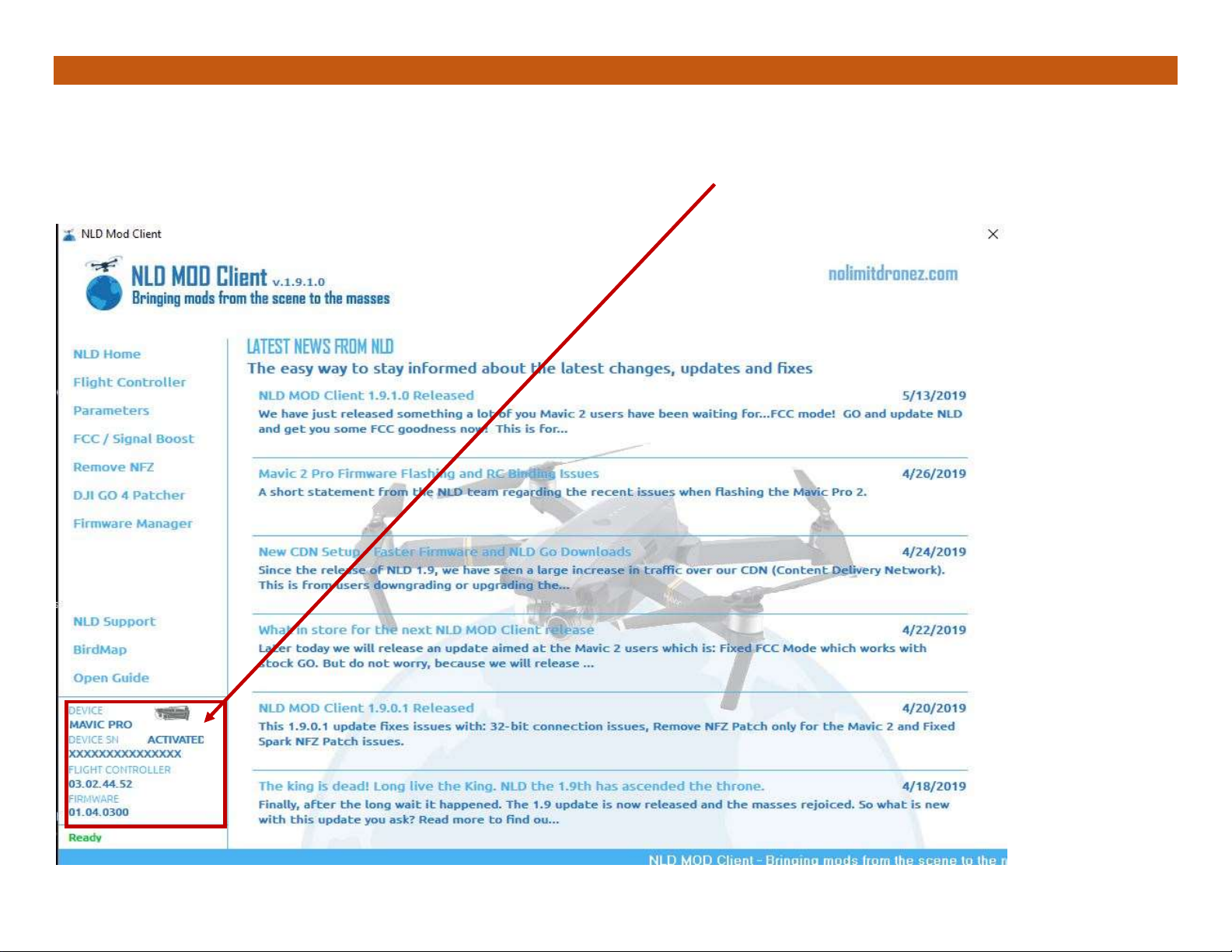
This is the first page you will see when running the NLD App on your Windows computer.
Information about your bird and any actions required will appear in the bottom left corner of the screen.
Power on your bird. Connect it to your PC’s USB port using the supplied DJI cable that came with your bird.
An Activate button will appear in the bottom left corner. Click to activate. Enter your activation code in the dialog box.
Page 3
NLD HOME
Current Status
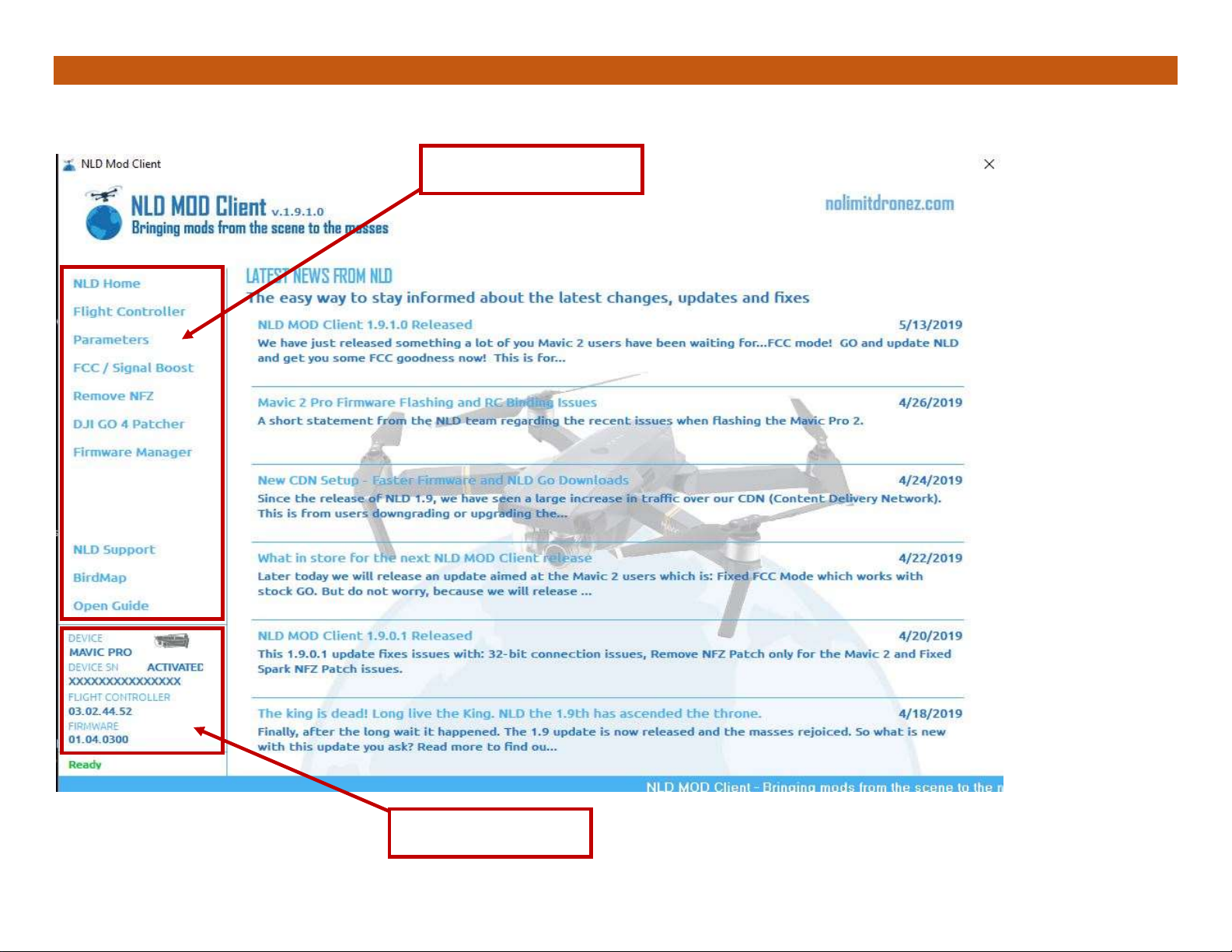
Navigation Links
This is the NLD App main page. Get the latest news from NLD and navigate to the various features from here.
Page 4
FLIGHT CONTROLLER
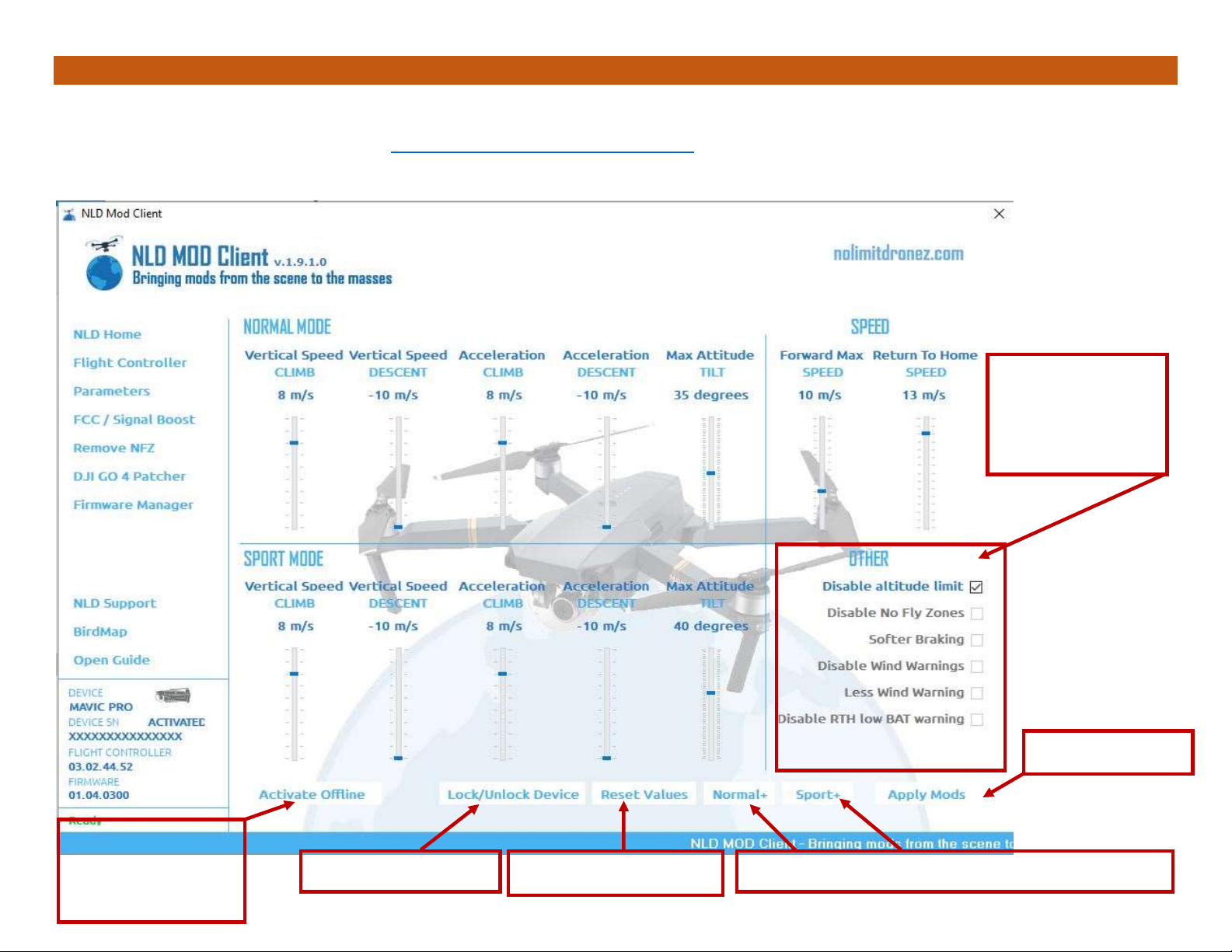
Extra options
available are
in BLUE text
Unlock your bird
Reset Page Values
Preset values for increased performance
Save Changes
Activate new
drone without
logging in to DJI
Options for modifying your bird’s performance. Use the sliders or the available presets to mod your bird.
Not all options visible on this page are available to all bird models/firmware.
Check the BirdMap for compatibility. https://nolimitdronez.com/birdmap
Page 5
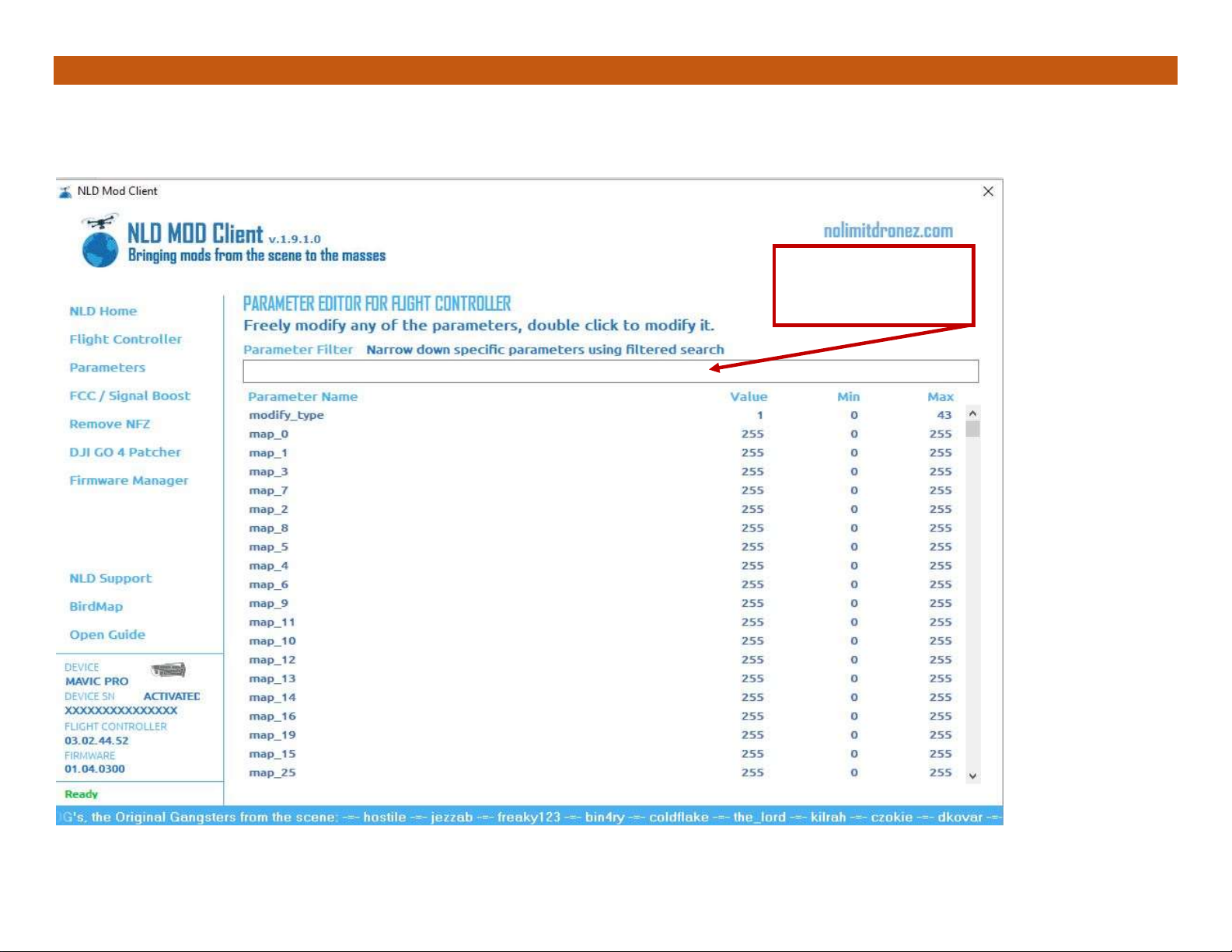
PARAMETERS
Enter your
search term here
This is for advanced users only to manually modify your bird.
ANY CHANGES ARE AT YOUR OWN RISK.
PARAMETERS
ARAMETERS
Page 6
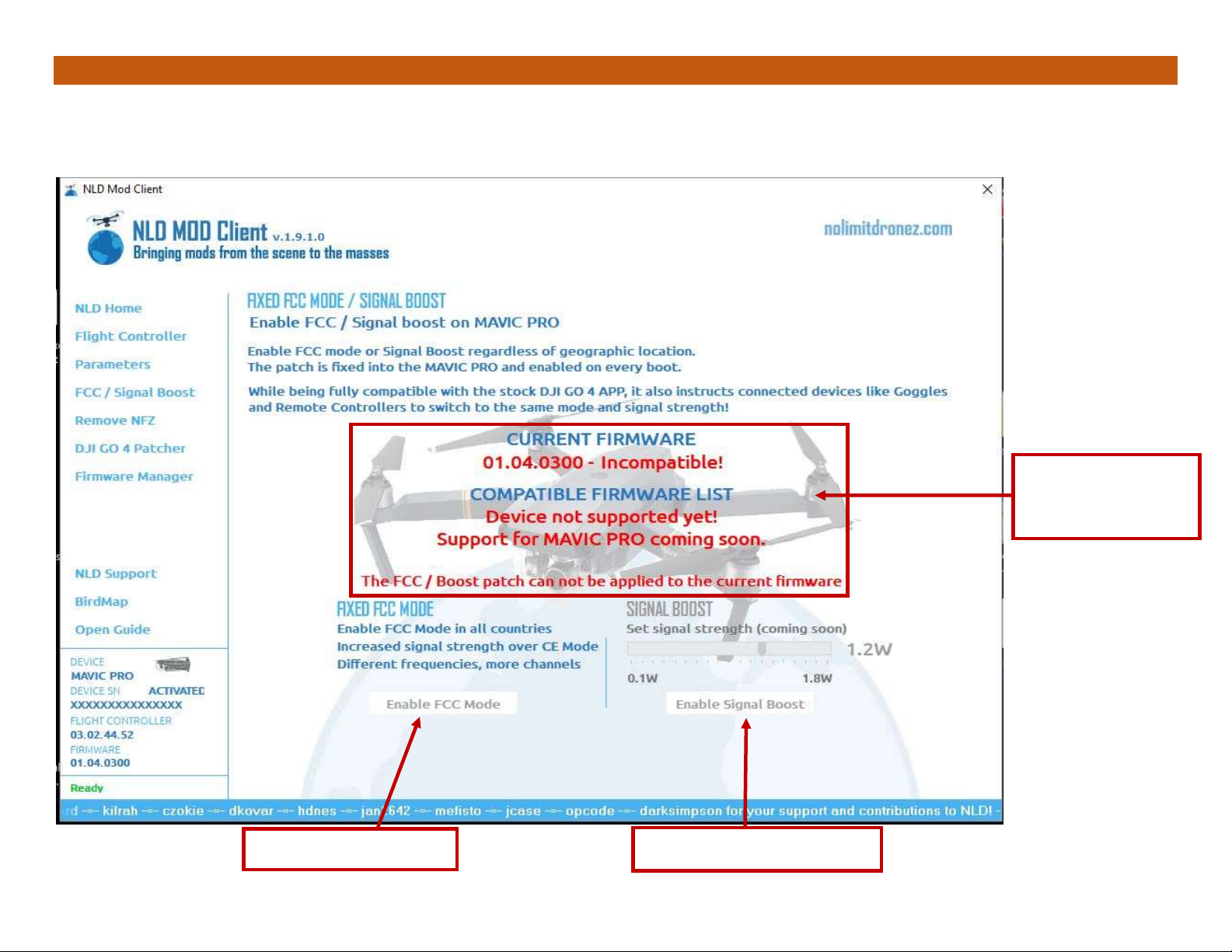
FCC / Signal Boost
Enable FCC Mode
Set RC boost strength
Check firmware
status here
Want to increase your signal strength if you are in a CE country? Or Enable Signal Boost to an even higher level?
This page gets it done. Must be on compatible firmware. If your bird is not compatible, use NLD GO instead for FCC mode.
NLD GO enables FCC mode by default. (all birds except for Air and M2)
Page 7
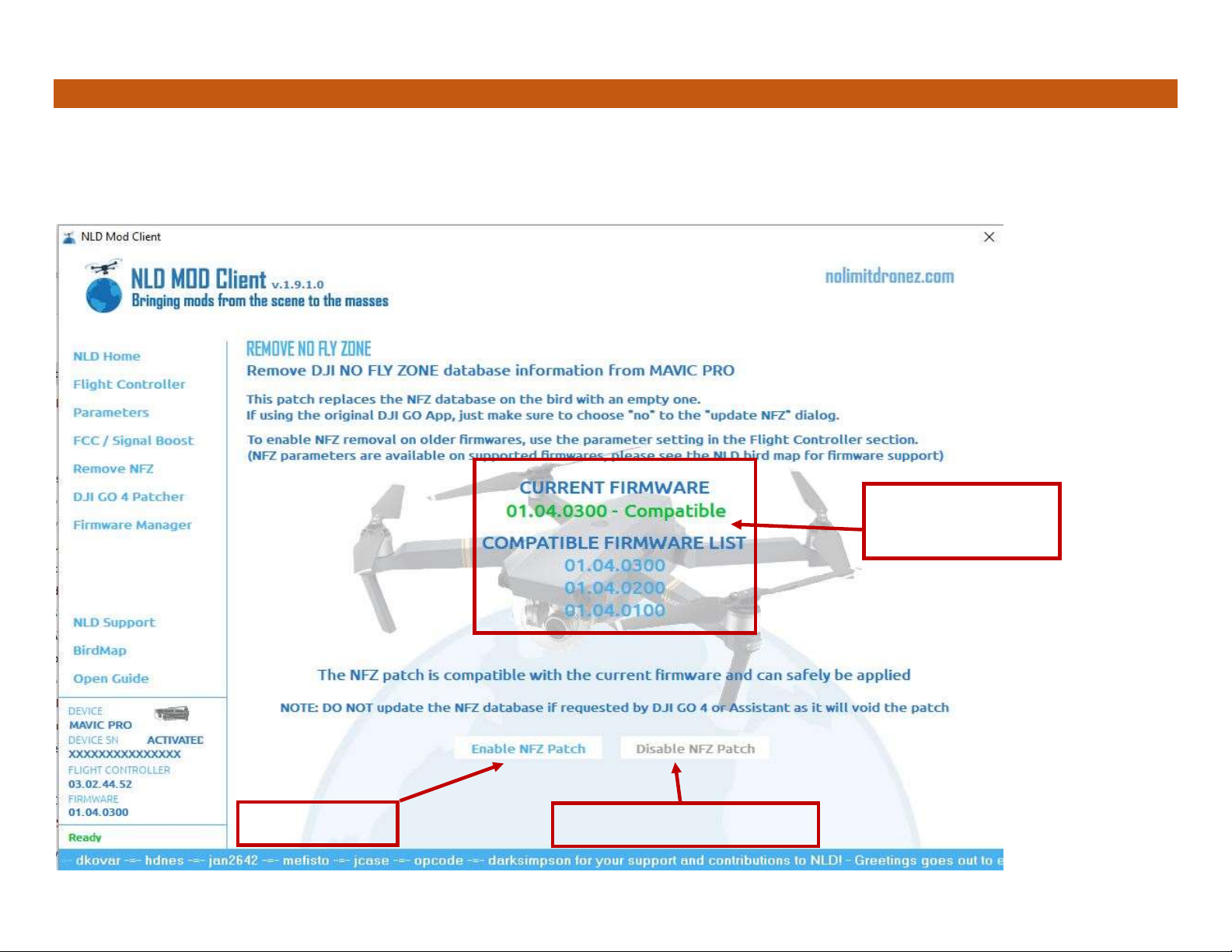
Remove NFZ
Set NFZ back to STOCK
Check firmware
status here
REMOVE NFZ
Want to remove that pesky DJI NFZ? Your bird must be on compatible firmware to apply the Remove NFZ Patch. (Click on
Enable NFZ Patch to remove NFZ, or Disable NFZ Patch to return NFZ back to stock settings) Must be on compatible
firmware, or you will need to DOWNGRADE FIRMWARE to use the Flight Controller check box to DISABLE NFZ.
Page 8
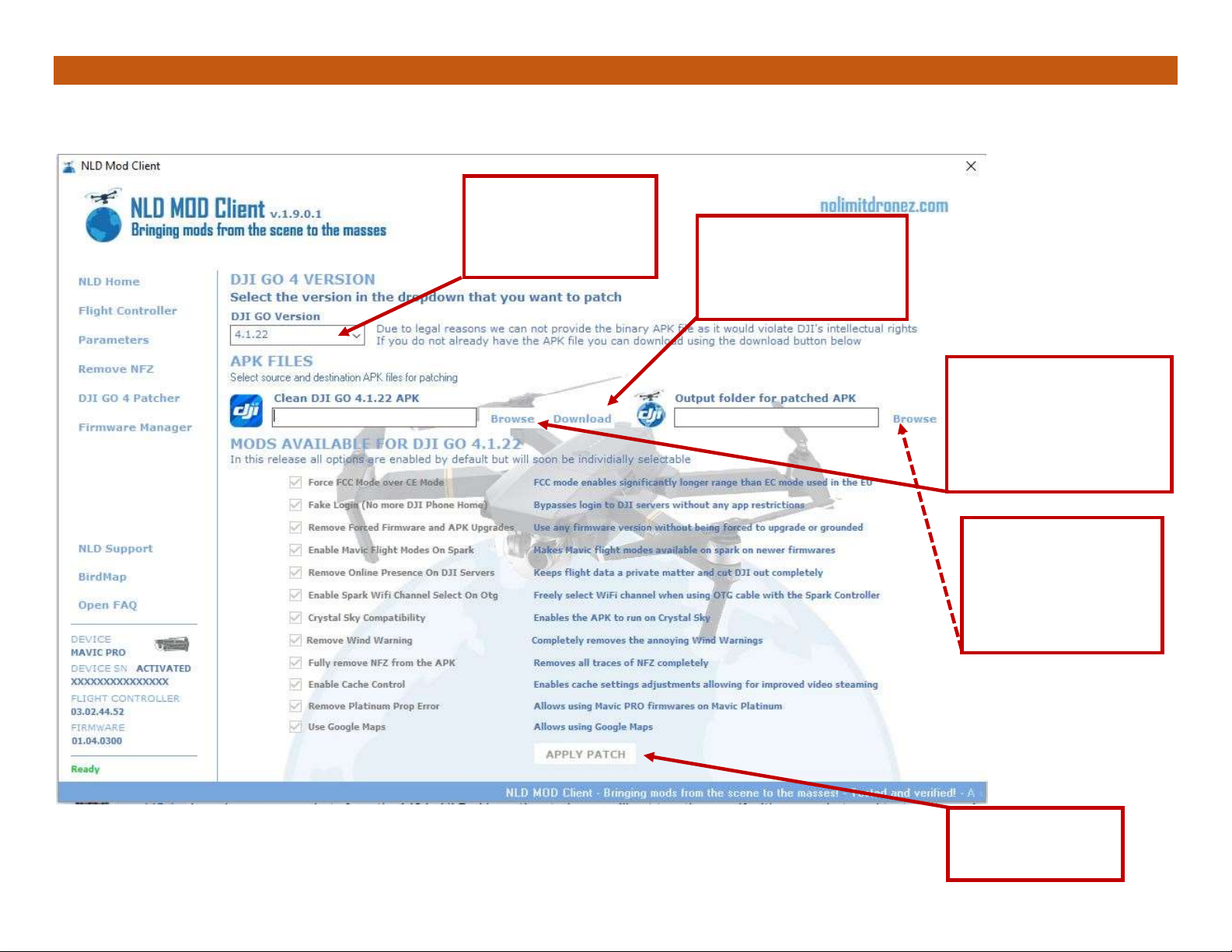
DJI GO 4 PATCHER
Step 1. Choose
the DJI GO
version to Patch
Step 2. Click to
download the GO
version to patch
Step 3. Browse to
the saved GO
version from Step 2
and select it
Step 4. Choose
where you want
to save the
patched GO file
Step 5. Click to
start patching
This is where you download and patch DJI GO for your Android device. M2 and Air use STOCK GO only.
Page 9
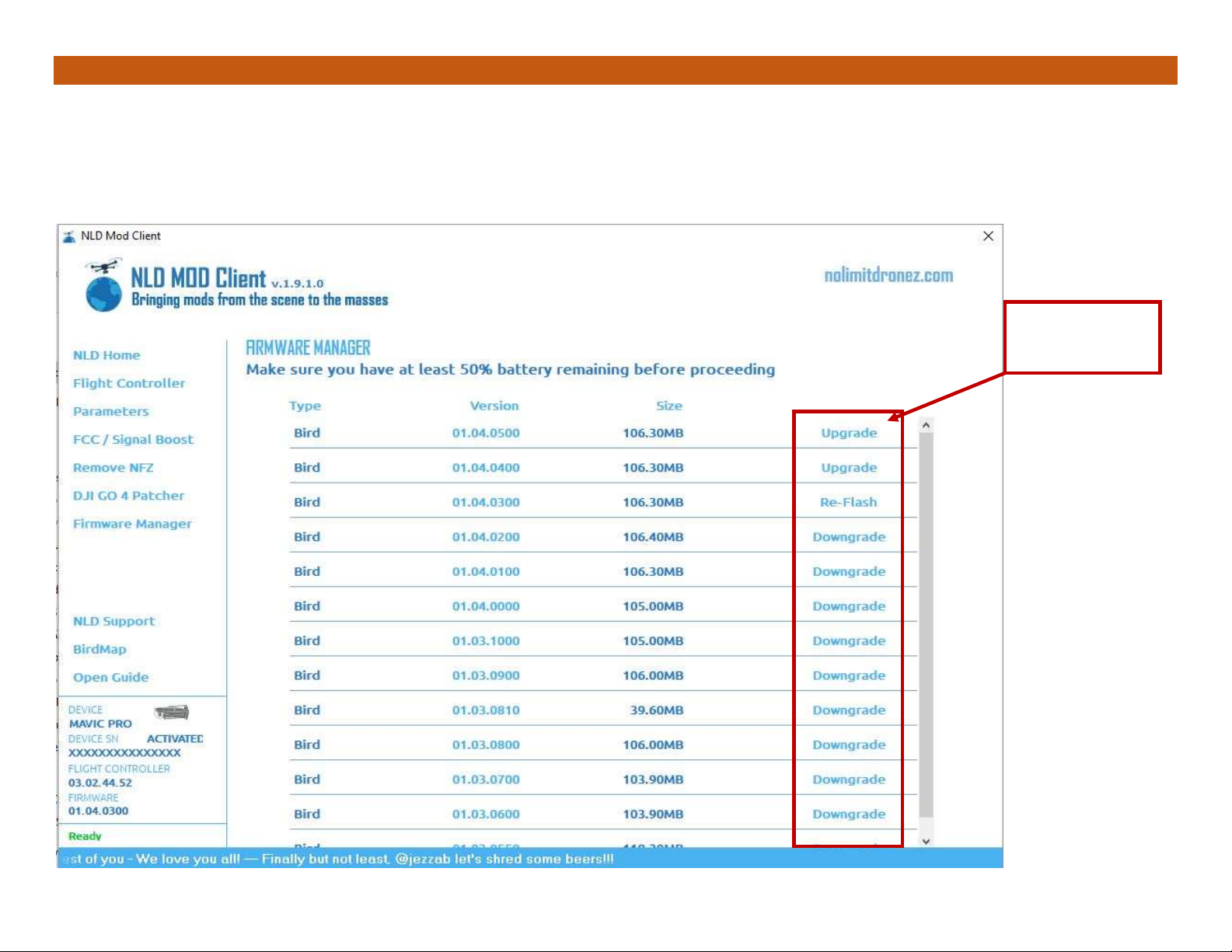
FIRMWARE MANAGER
Select your
option here
Upgrade, downgrade or Re-Flash available firmware on your bird.
Find the firmware you need and click on Upgrade, Downgrade, or Re-Flash to start.
Updated status messages will guide you. If the firmware status doesn’t change for more than 10 minutes, just restart the
bird. NLD will continue from where it left off from. Flash times – Approx. 15minutes 1st flash, 7 minutes re-flash
Page 10
How to Use NLD Software
These instructions will get you started getting more out of your bird than you ever thought possible.
Start NLD as administrator and connect your powered on bird.
After NLD detects your aircraft, status info will be shown at the bottom left of the NLD program and you will
have access to all of the links listed on the left side of the screen
Activation
To install and activate NLD with your purchased license key, please do the following:
Before you run any programs, ensure that NLD is allowed through any firewall program and anti-virus
programs. You will need a live internet connection at all times when using NLD.
Download the latest NLD software. https://nolimitdronez.com/downloads/nldapp.zip
Create a folder on your desktop called NLD and unzip or decompress the NLD files into this folder.
Power on your bird and connect to the computer with the data cable supplied by DJI, and right-click
on NLDApp.exe in the NLD folder. Run as Administrator. If NLD needs to communicate with you, you
will see messages in the bottom left.
Follow the prompts to activate NLD and enter your activation code you received by email, if you didn’t
do so already. You will need 1 activation key per bird. The Activation key is tied to the serial number
of each bird, so you can run NLD from multiple computers, not just one - once NLD is activated.
NLD Home – NLD starting page. News from NLD.
Flight Controller – This is where you make your performance mods
Parameters – For advanced users. If you don’t know what you are doing, don’t go here.
FCC / Signal Boost - Want to increase your RC signal power or change to FCC mode? This is the place.
Remove NFZ – NFZ removal patch. Checks your firmware to see if it is compatible. Apply the patch, or
remove the already applied patch to return to stock NFZ settings.
DJI GO 4 Patcher – for patching DJI GO to make NLD GO with additional features *not all drones supported
Firmware Manager – where you go to flash firmware. Upgrade, downgrade or re-flash.
Flight Controller:
You can either use the sliders to customize each setting, or go to the bottom of the page and click on the
presets for Normal + or Sport +. The SPEED section sets the max speed when obstacle avoidance is off.
Return to Home speed. You can set a faster RTH speed. 13.5 is good. OTHER is full of check boxes that
may or may not be available. This depends on your firmware version. Disable altitude limit and Disable No
Fly Zones are ONLY available on early (old) firmware. Check the birdmap to see what mods your firmware
version can do. https://nolimitdronez.com/birdmap
*note*
There are two ways to deal with NFZ. The 1st way is to see what early firmware is required on your bird, flash
to that firmware, then use NLD and use the checkbox to Disable NFZ. What this does is to DISABLE the
enforcement of NFZs, but you may still get minimal warnings. If they will show up, they just won't be enforced
and you can take off. This is best used with NLD GO, since we remove the NFZ database in the NLD GO
App. You can use this check box option with any version of GO, Android or iOS, but you will get lots of
warnings. If the Remove NFZ patch option is not working for you, this is your other choice.
What’s the difference between the Disable No Fly Zones and the Remove NFZ patch? The check box TURNS
OFF enforcement of NFZ and is only available on early firmware, while the Remove NFZ patch, removes the
NFZ data from the bird, but NFZ is still turned on. For the best success, always start your flight in this order:
1. RC on 2. Turn on bird and let it connect to RC 3. Connect device running GO to RC
Page 11
Parameters – This area is for searching parameters and setting them manually. Advanced users only.
FCC / Signal Boost – FCC is a higher output for RC power than CE mode. You can change your RC to the
higher output here. You must have a supported bird and be on compatible firmware.. Connect your bird and
Enable FCC Mode to change from CE to FCC. Once changed, you can leave it, or if you want even more
power, you can Enable Signal Boost, along with FCC mode for the highest power output possible.
*CAUTION* This will run your RC at max power, creating quite a bit of heat on the RF chips. You risk burning
out your RC by doing this, so enable the Signal Boost mode at your own risk. FCC mode is fully supported
by the RC and will NOT overheat your RC at all. FCC mode has the possibility of increasing your distance
for flying reception, but every flight area is different, but this change should help you with better reception.
If you are already in a FCC country, (like the USA) you do not need to enable FCC mode. It is already on
and determined by GPS location. If your bird is NOT COMPATIBLE, use the DJI GO 4 Patcher instead to
enable FCC mode using the NLD GO APP.
Remove NFZ – This is for removing the NFZ data from the bird by applying the patch if your bird is on
compatible firmware. You will not be able to apply the patch if you are not on the correct firmware version. If
you want to remove the applied patch, you can do that and return the bird to stock NFZ settings. Once
applied, do not upgrade or downgrade your bird, or you will lose the patch and have stock NFZ data. Also,
once applied, if you get a message in GO to update your Fly Safe Database, do not do so. This will override
the patch. Remember that NFZ is still active and enforceable even after running this patch. If you use Stock
GO, there are ways that DJI can override this patch and you will still not be able to take off. Best results are
with using NLD GO 4.1.22, or Spark owners wanting to use OTG, with NLD GO 4.1.14. Both NLD versions
have had the NFZ database removed from them. Mavic 2 users can only use stock GO, iOS or Android.
AWAYS start your bird in this order: RCBird (establish connection) then connect device with GO.
DJI GO 4 Patcher (Android only) You can patch DJI go to NLD GO, and add some cool features to GO, like
FCC mode by default, not having to login with your real DJI account, removing links to DJI, removing the NFZ
database from GO along with other options. The latest version of DJI GO that you can patch is 4.1.22. This
version does not support the Air, or the M2 line, so for those birds you will use the stock version of GO, either
iOS of Android. Spark users who want to use OTG, will patch 4.1.14, since DJI crippled OTG support in
4.1.22. To patch a version of GO that we support, click on the drop down box on the left side of the screen
and select the GO version you want to patch. Click on download and save this file to your desktop, or to the
NLD folder you created. Click on the box on the right side of the screen and select an output folder where
you want the new NLD DJI GO4 App to be stored. Use the same location as where you downloaded the
unpatched GO file. Once that is done, click APPLY PATCH at the bottom of the screen and the DJI App will
now be patched and converted into the modified NLD-DJI-GO4 App. Be patient. Depending on your internet
connection, this may take a while. Once that is done, transfer that file to your device via a USB cable hooked
between the phone & the computer. Use the “My Files” app on the phone to locate the APK file and click on
it to install it in the phone. Note you have to allow unknown apps to be installed in the settings on your device.
If you have issues with the .apk not wanting to install, download ES file explorer from the Google playstore
and use that. Current Mavic 2 owners will use Stock GO, either iOS or Android for their birds. We recommend
flying in airplane mode, and caching your maps before you fly. Either download offline HERE maps, or open
GO on your device, go to the map and scroll around your flying area before you fly.
Page 12
Firmware Manager - To Downgrade, Update or Refresh the aircraft firmware just click on the version that
you want to upgrade/downgrade to or refresh. NLD will download the firmware requested, transfer it to the
bird and start the flashing procedure. This takes approximately 15-20 minutes. All the flashing is being done
by DJI code on the bird itself. NLD will ensure that the firmware is actual DJI Stock firmware by MD5 checking,
and then start the firmware flashing. BE PATIENT. NLD will provide you status updates for each module
being flashed. Pay attention to the NLD status messages. NLD will tell you when the firmware flash has been
completed. If you are unsure if the flashing procedure is complete or not, or you think the firmware is “stuck”
let the bird sit for a few minutes, at least 10. If nothing changes, go ahead and restart your bird, but don’t
touch NLD. NLD will continue the firmware flash from where it left off. If, after doing this it still appears that
the bird is not flashing, turn on your RC and see if it connects to your bird. If it does, the bird is not doing any
firmware flashing and you will need to start all over again. Power off the bird, close NLD, restart the PC, run
NLD, connect the bird and try again. Once successfully completed, turn off your bird, close NLD, and choose
re-flash to flash a 2nd time for error checking. The 2nd flash should be much faster to complete. NLD will
always show you the current firmware version on your bird. The other way to check if you are using a stock
version of GO is to go to the about page and check the firmware version listed there.
If you need to contact NLD with issues, or questions don’t hesitate to go to: support.nolimitdronez.com
Open up a support ticket, even if you just want to tell us how much you like NLD. We like hearing from you!!
More information and links:
Excellent videos on how to use NLD by user Flymymavic…please subscribe to his channel.
https://www.youtube.com/playlist?list=PL5hW7b8MzH7ptRjVxOdMGTnLW1qWGwSQg&app=desktop
Over all Guide, GO Patcher, NFZ info forum links:
https://nolimitdronez.com/boards/topic/12/over-all-guide-read-this-first
https://nolimitdronez.com/boards/topic/3/dji-go4-apk-patcher-nld-go4
https://nolimitdronez.com/boards/topic/27/remove-nfz
https://nolimitdronez.com/boards/forumgroup/1/nld-user-guide-tips-tricks
Setup instructions for NLD GO 4.1.22:
https://nolimitdronez.com/boards/topic/12/over-all-guide-read-this-first/page/1#20
How to roll back to iOS GO 4.1.3:
https://www.youtube.com/watch?v=ziP2SBTzDh0
Crystal Sky patching thread:
https://nolimitdronez.com/boards/topic/39/howto-rooting-dji-crystal-sky
Unpatched GO links:
4.1.22 - http://www.openpilotlegacy.org/dji.go.v4-4.1.22-3028592-noseceo.apk
4.1.14 - http://www.openpilotlegacy.org/dji.go.v4_4.1.14-1027326-noSecNeo.apk
Page 13
DJI Assistant 1.2.4 -
https://dl.djicdn.com/downloads/dji_assistant/20180516/DJI+Assistant+2+1.2.4.zip
DJI Assistant 2.0.8
https://dl.djicdn.com/downloads/dji_assistant/20190423/DJI+Assistant+2+For+Mavic+2.0.8.zip
Some helpful tips:
All version of NLD GO turn on FCC mode by default.
Spark’s using OTG, use NLD GO 4.1.14. 4.1.22 OTG support was crippled by DJI
Mavic2 and Air users, use stock GO. Current versions of NLD GO do not support these birds
Yes, you can use any version of Stock GO with NLD. Mods are done on the birds themselves
3rd party apps work fine with an NLD modded bird
If you disable altitude limits, any height value entered into the GO app will be ignored
For best results with NFZ, use NLD GO, or iOS 4.1.3. Both of these versions have no NFZ
database in them. NLD GO 4.1.22 and 4.1.14 have no NFZ. Ignore any prompts to update. M2
users will need to use Stock GO…we do not have a patchable GO version for you. AWAYS start
your bird in this order: RCBird (establish connection) then connect device with GO.
There are ‘Hard coded” NFZ areas that the patch cannot remove. Use the downgrade option
instead to early firmware and use the check box to disable No Fly Zones
DO NOT TURN OFF YOUR DRONE while firmware updating unless prompted to do so
Approximate firmware flashing times: 1st flash 15-20 minutes, 2nd flash of same firmware will take
less time. Always flash firmware twice to ensure proper error checking and a complete flash
 Loading...