

Page 1
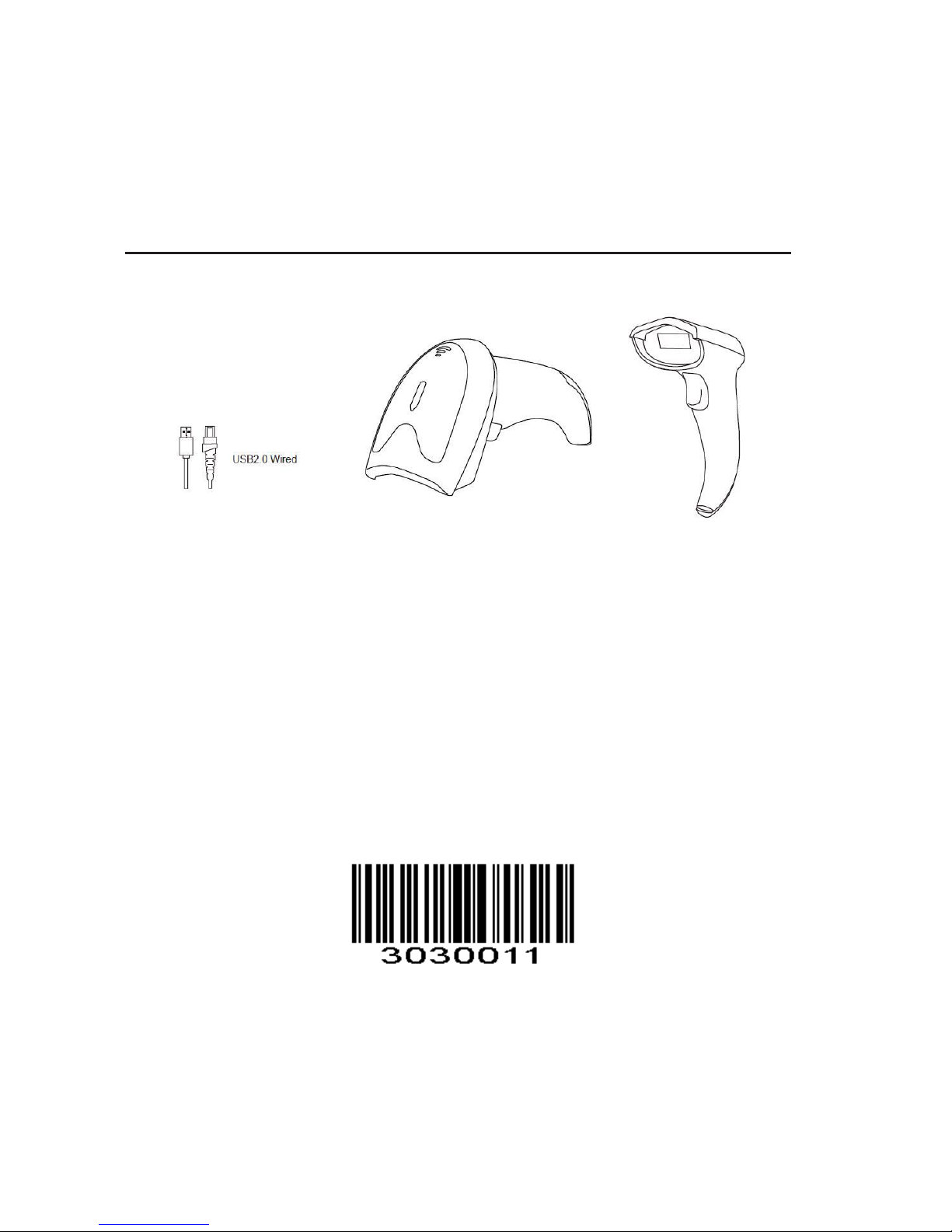
NT-W5
Quick Setup Guide
This is 1D&2D plug and play model if you use a US keyboard. If you use other type of keyboard, plug
the USB cable on your device , setup keyboard language before you use it. (refer to below Keyboard
Language Type) after that the scanner can start to work.
If you want to do other configurations please refer to below programming barcodes.
Barcode Programming
Netum barcode scanners are factory programmed for common terminal and communications
settings. If you need to change these settings, programming is accomplished by scanning the bar
codes in this guide. An asterisk (*) next to an option indicates the default setting.
Communication Mode
USB -KBW
When you connect the scanner to the Host via a USB connection, you can enable the USB-KBW
feature by scanning the barcode below. It works on a Plug and Play basis and no driver is
required.
USB KBW*
USB Serial Port
If you connect scanner to the Host via a USB connection, the USB COM Port Emulation feature
allows the Host to receive data in the way as a serial port does.
Page 2
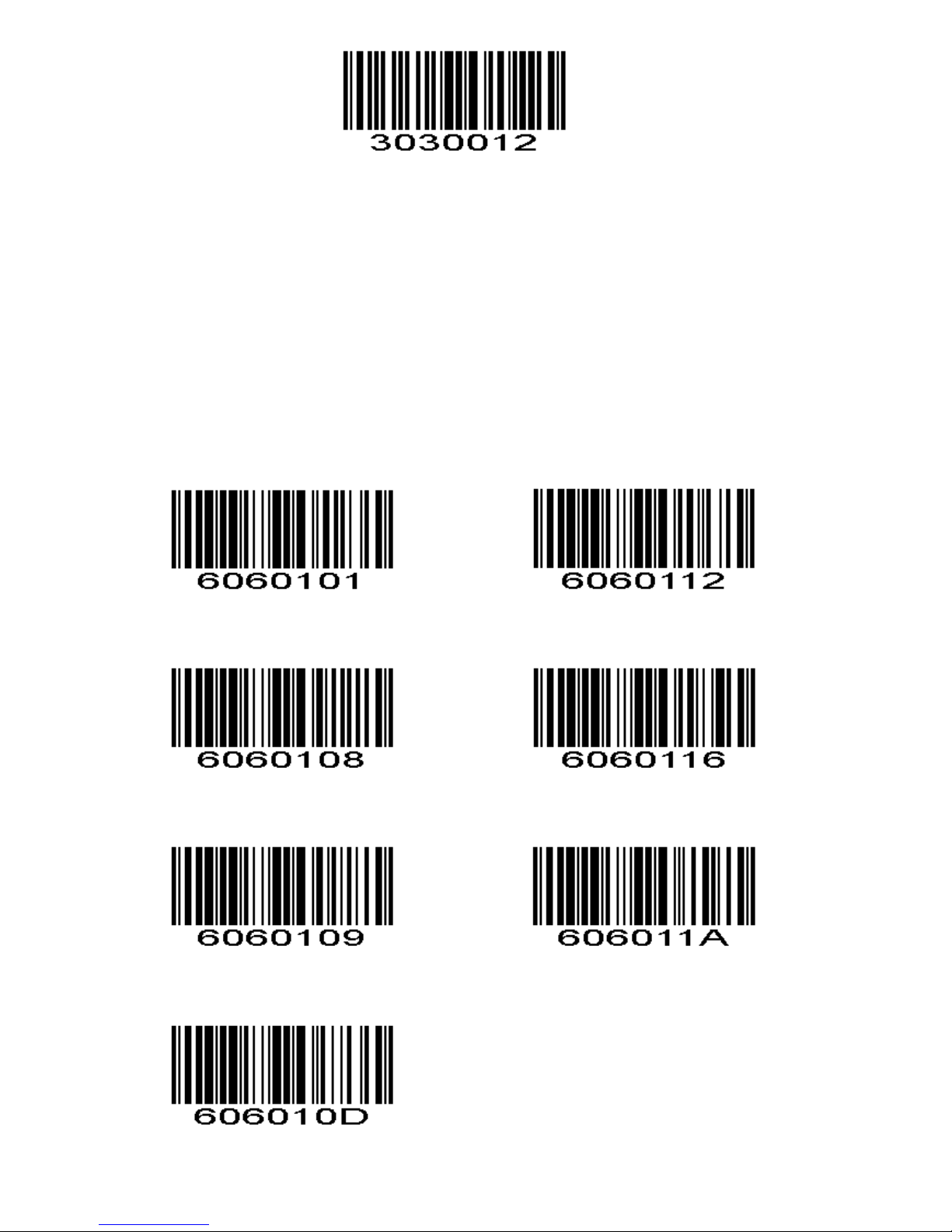
USB Serial Port
Driver is required if you want to work under USB Serial Port.
Please download it from below link http://www.gzxlscan.com/downloads/
For Win 7,install 64X, for other system please install X86. As for system above Win 10 no need to
install any software.
Keyboard Language
In order to let scanner upload the codes in a correct way, you have to set the keyboard language.
For example
If you use French Keyboard, scan below barcode of “French keyboard” then scanner will upload
barcodes according to France keyboard layout. American Keyboard is set by default, if you use a
US keyboard you can skip this step.
America Keyboard* Portugal Keyboard
Franc Keyboard Spain Keyboard
Germany Keyboard Turkey Q Keyboard
Italy Keyboard
Page 3
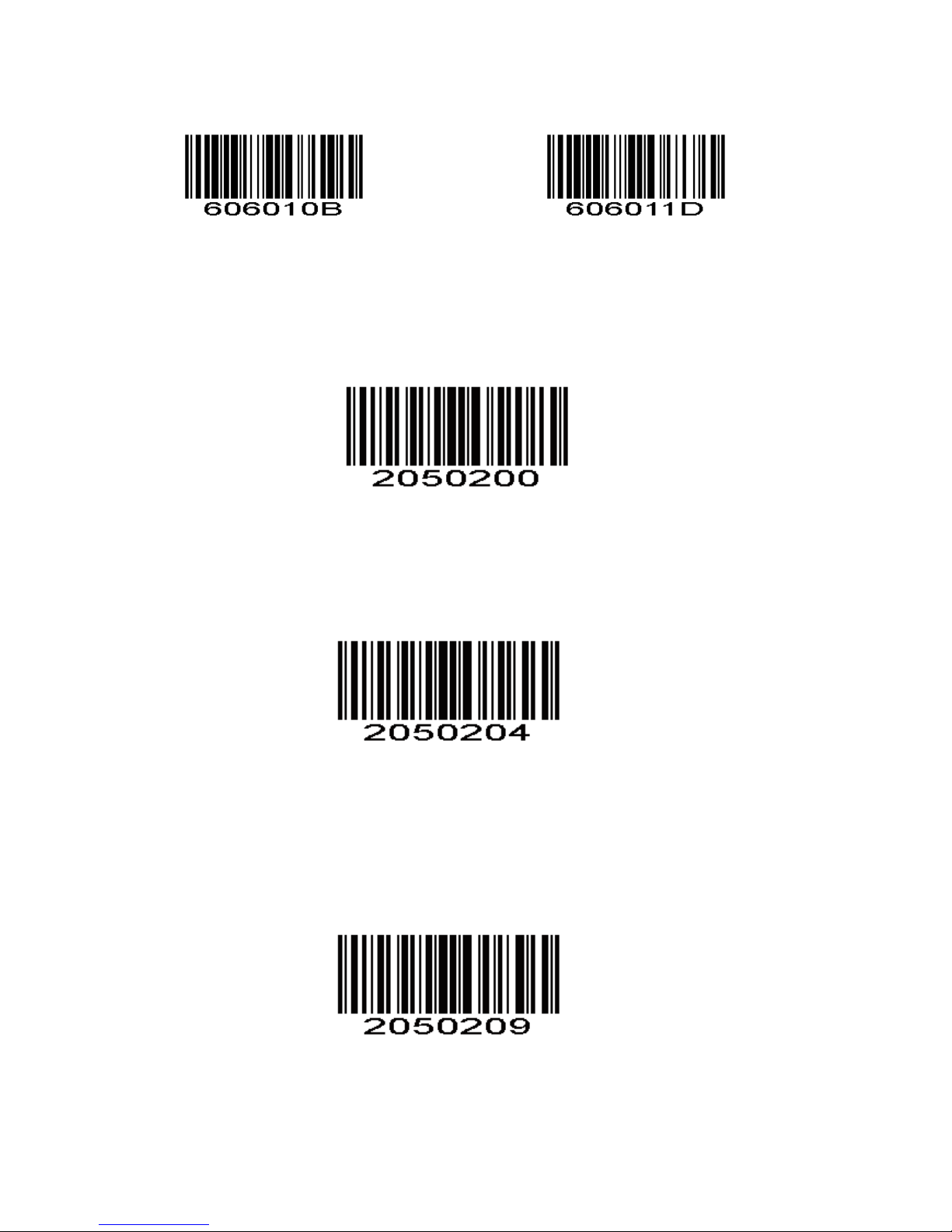
Newly Added
Hungary Keyboard Czech Keyboard
Scanning Mode
· Key Holding
Press the button to trigger the reading, release the button to end the reading. Reading success or
reading time over a single reading time will end the reading
Level *
· Continuous Mode
Under continuous mode scanner performs continuous work. Reading success or reading time
over a single reading time will end the reading. More than the specified time will automatically
trigger the next reading.
Continuous Mode
· Auto Sense Mode
Under auto sense mode, scanner detects the brightness of the surroundings. Trigger reading
when the brightness changes. Reading success or reading time over a single reading time will end
the reading. Regardless of the last success or failure to read, re-enter the detection of the
surrounding environment brightness.
Auto Sense Mode
Terminator configuration
The scanner provides a shortcut for setting the terminating character suffix to CR or CRLF and
enabling it by scanning the appropriate barcode below.
Page 4
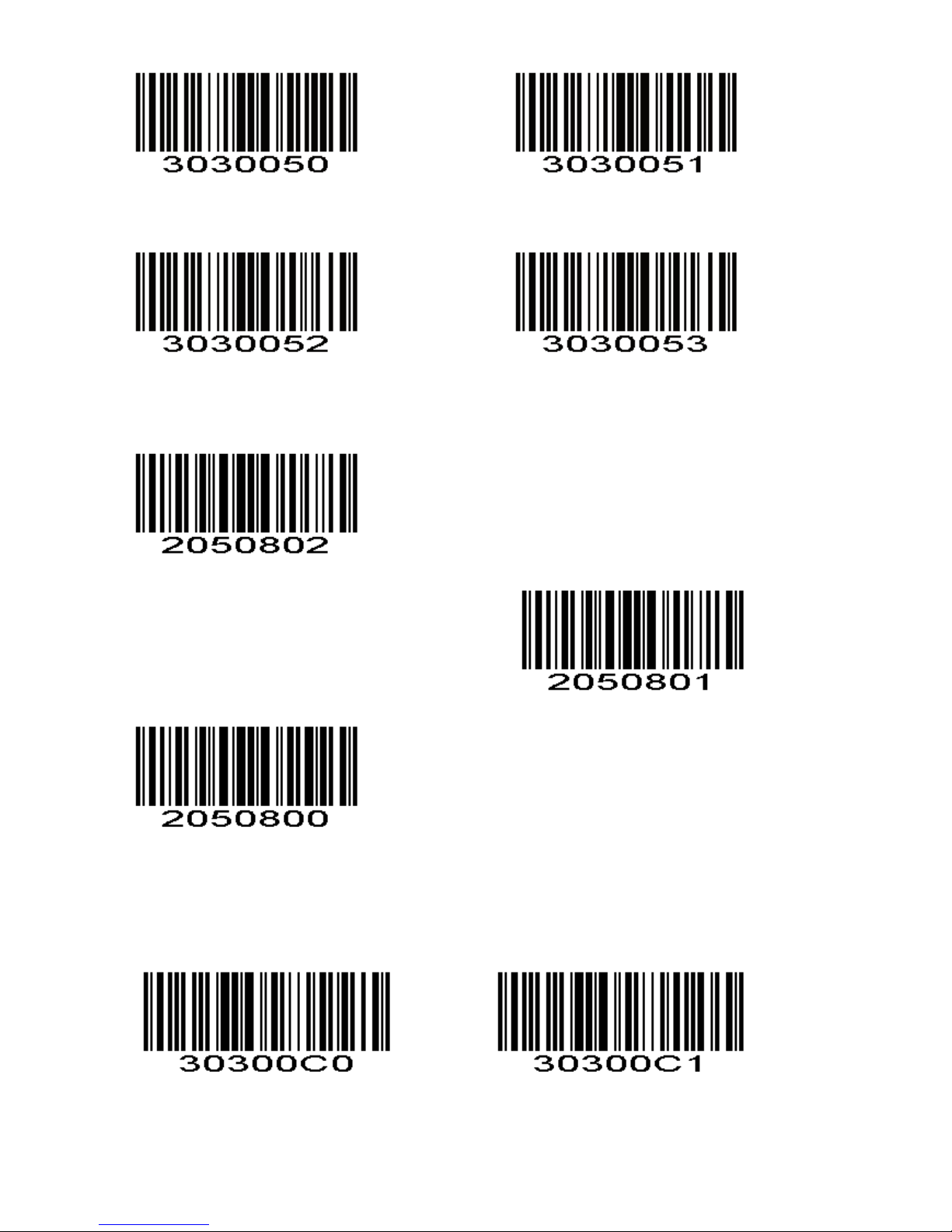
Disable CR & LF*
CR TAB
Beeper Volume
To select a decode beep volume, scan the appropriate bar code.
Low
Medium
*High
Mute
To enable or disable close all prompt, scan the appropriate bar code below.
Disable * Enable
Page 5
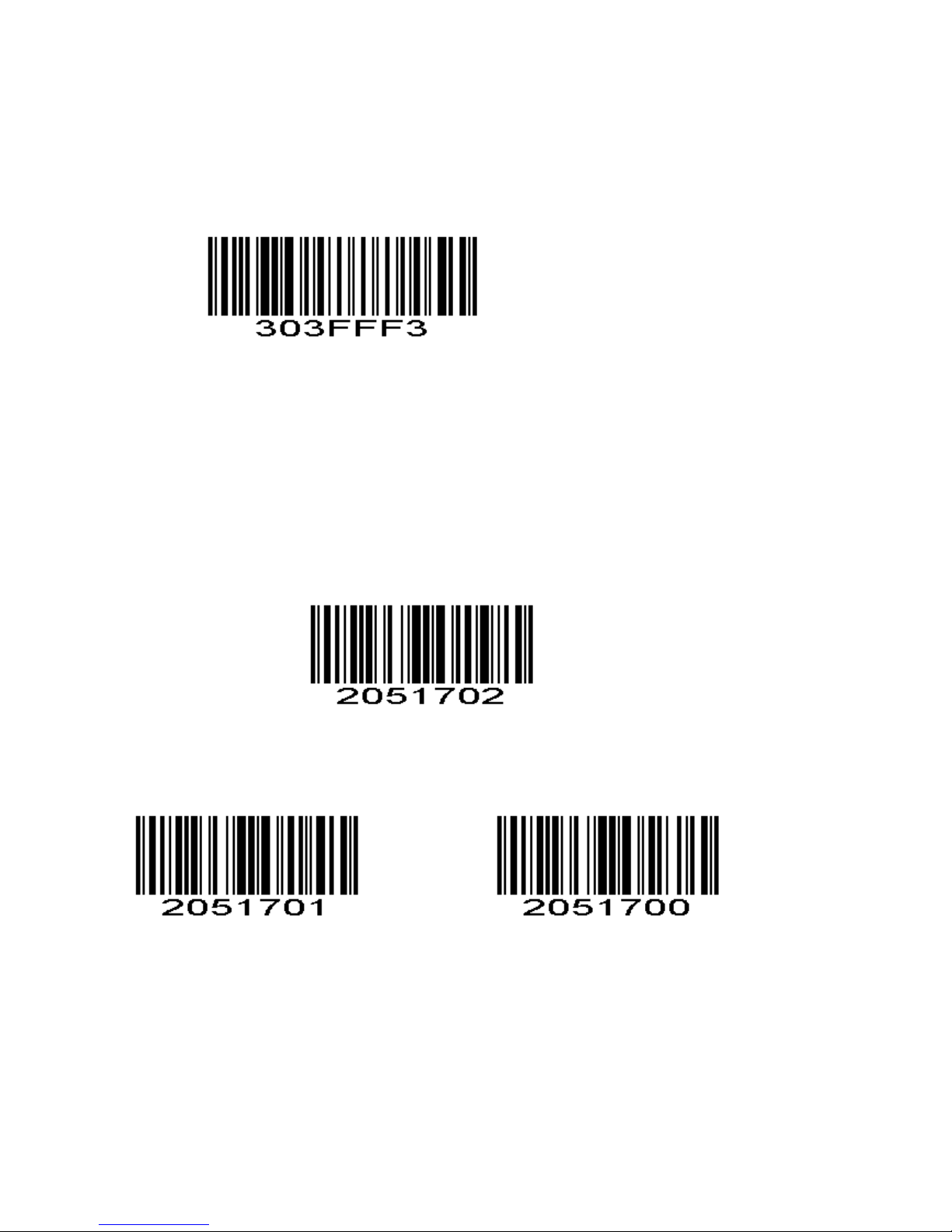
Default Configuration
If you want to cancel all the configuration that you have done to the scanner.
Scan below barcodes to the restore factory.
Transmit Code ID Character
A code ID character identifies the code type of a scanned bar code. This can be useful when
decoding more than one code type. The code ID character is inserted between the prefix
character (if selected) and the decoded symbol.
Symbol Code ID
Aim Code ID None*
Symbol Code ID refer to Symbol Code Identifiers.
Aim Code ID refer to AIM Code Identifiers.
Page 6
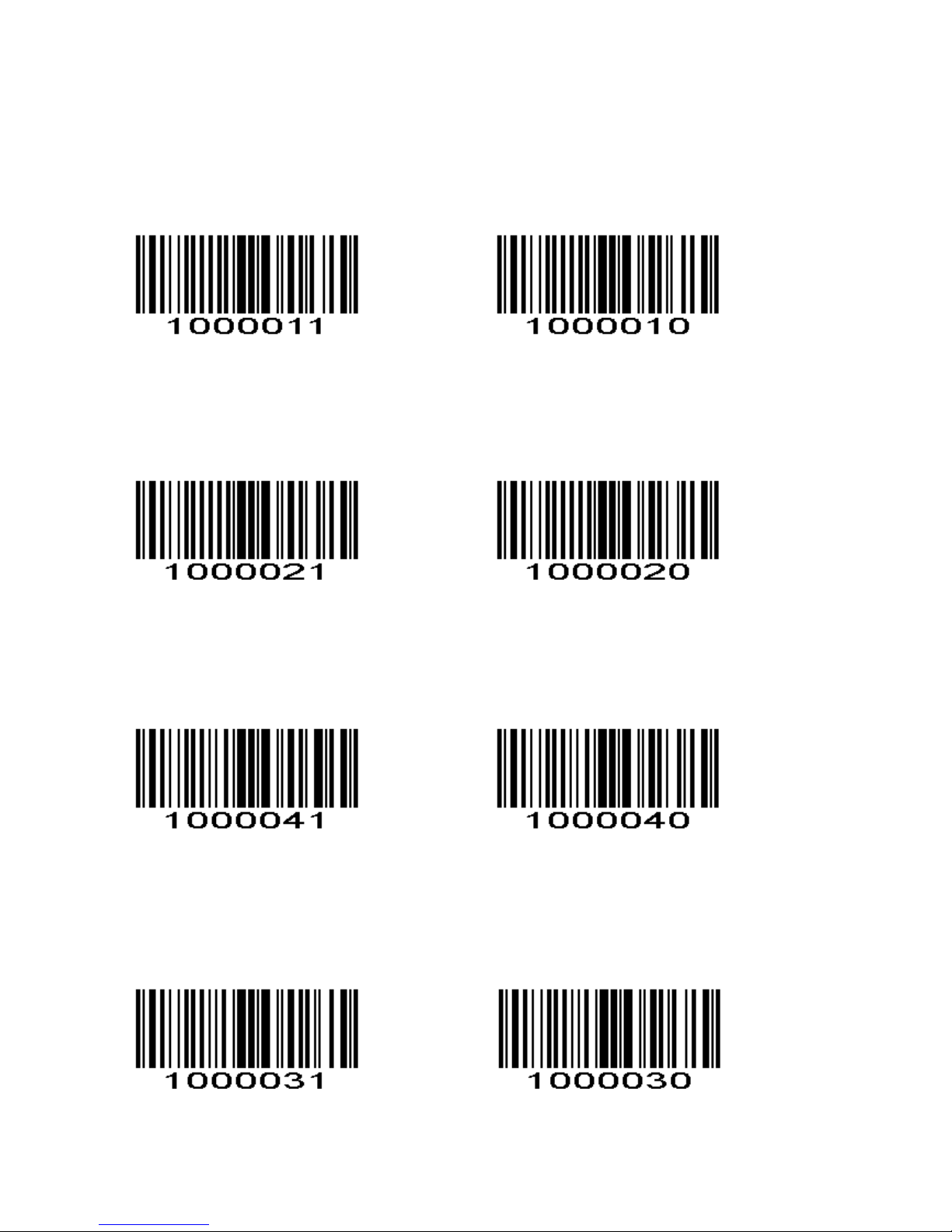
Common Function
Enable/Disable UPC-A
To enable or disable UPC-A, scan the appropriate bar code below.
*Enable UPC-A Disable UPC-A
Enable/Disable UPC-E
To enable or disable UPC-E, scan the appropriate bar code below.
*Enable UPC-E Disable UPC-E
Enable/Disable EAN-8
To enable or disable EAN-8, scan the appropriate bar code below.
*Enable EAN-8 Disable EAN-8
Enable/Disable EAN-13
To enable or disable EAN-13, scan the appropriate bar code below.
*Enable EAN-13 Disable EAN-13
Page 7
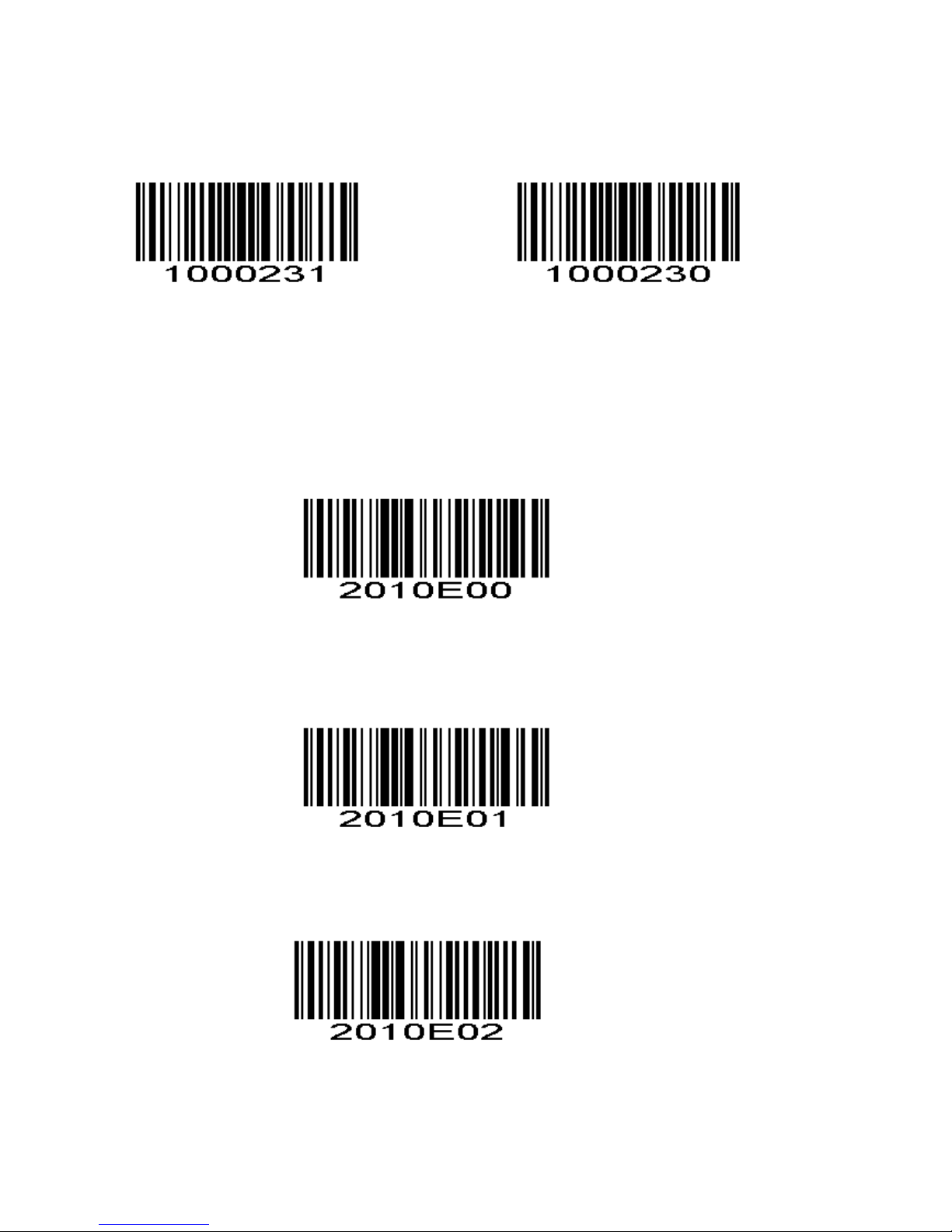
Enable/Disable Bookland EAN(ISBN)
To enable or disable EAN Bookland, scan the appropriate bar code below.
Enable Bookland EAN *Disable Bookland EAN
Decode UPC/EAN Supplementals
Supplementals are bar codes appended according to specific format conventions (e.g.UPC A+2,
UPC E+2, EAN 13+2, EAN 13+5). The following options are available:
*Ignore UPC/EAN with Supplementals
Do not read supplementals – Scanner can only read the barcode no matter the barcode with
supplementals or not.
Only read the barcode with supplementals- The scan engine can only read the barcode with
supplementals.
Auto read supplementals- The scan engine can not only read the barcode with supplementals, but also
read the barcode without supplementals.
Page 8
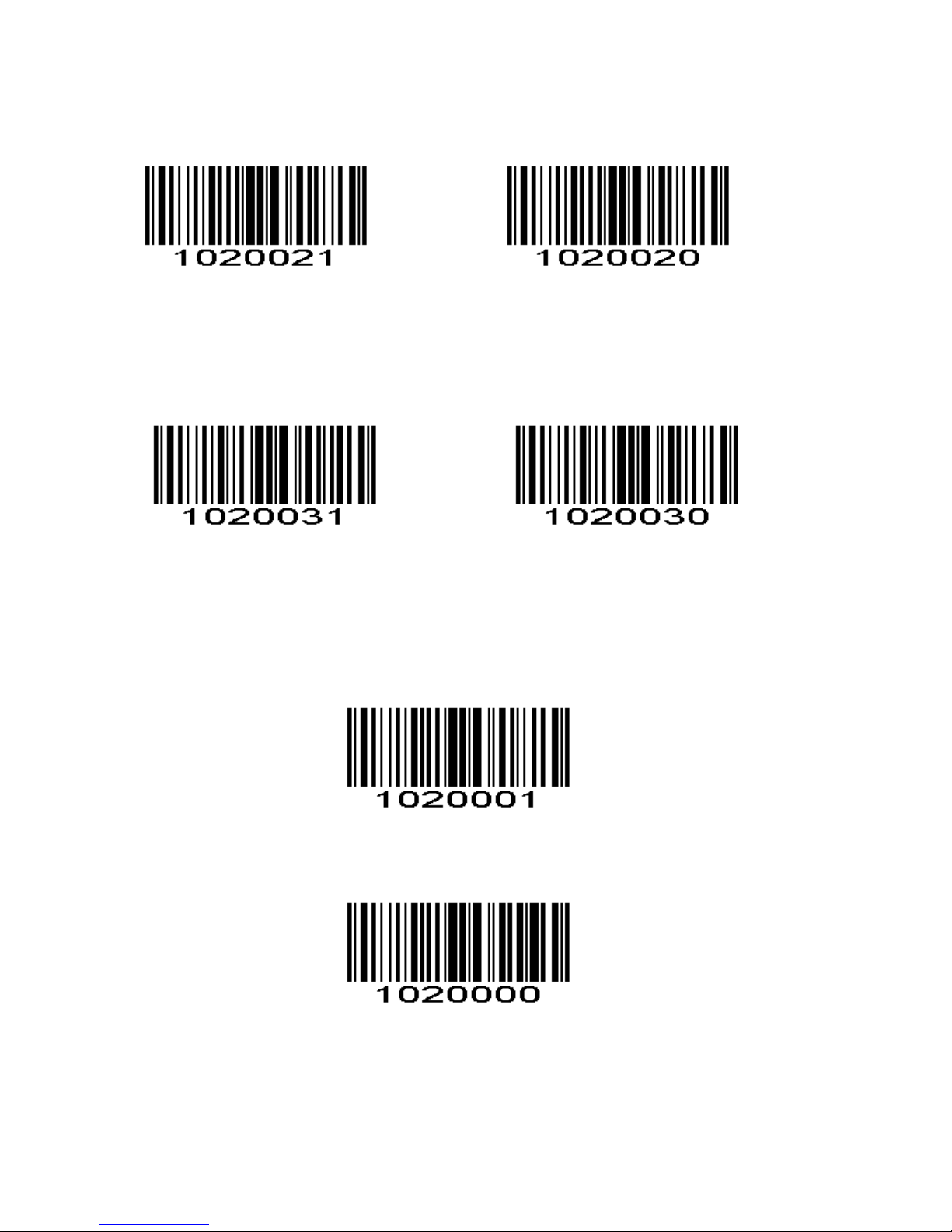
Transmit UPC-A Check Digit
Scan the appropriate bar code below to transmit the symbol with or without the UPC-A check digit.
*Transmit UPC-A Check Digit Do Not Transmit UPC-A Check Digit
Transmit UPC-E Check Digit
Scan the appropriate bar code below to transmit the symbol with or without the UPC-E check digit.
*Transmit UPC-E Check Digit Do Not Transmit UPC-E Check Digit
Convert UPC-E to UPC-A
Enable this parameter to convert UPC-E (zero suppressed) decoded data to UPC-A format before transmission.
After conversion, data follows UPC-A format and is affected by UPC-A programming selections
Convert UPC-E to UPC-A
Scan DO NOT CONVERT UPC-E TO UPC-A to transmit UPC-E (zero suppressed) decoded data.
*Do Not Convert UPC-E to UPC-A
Page 9
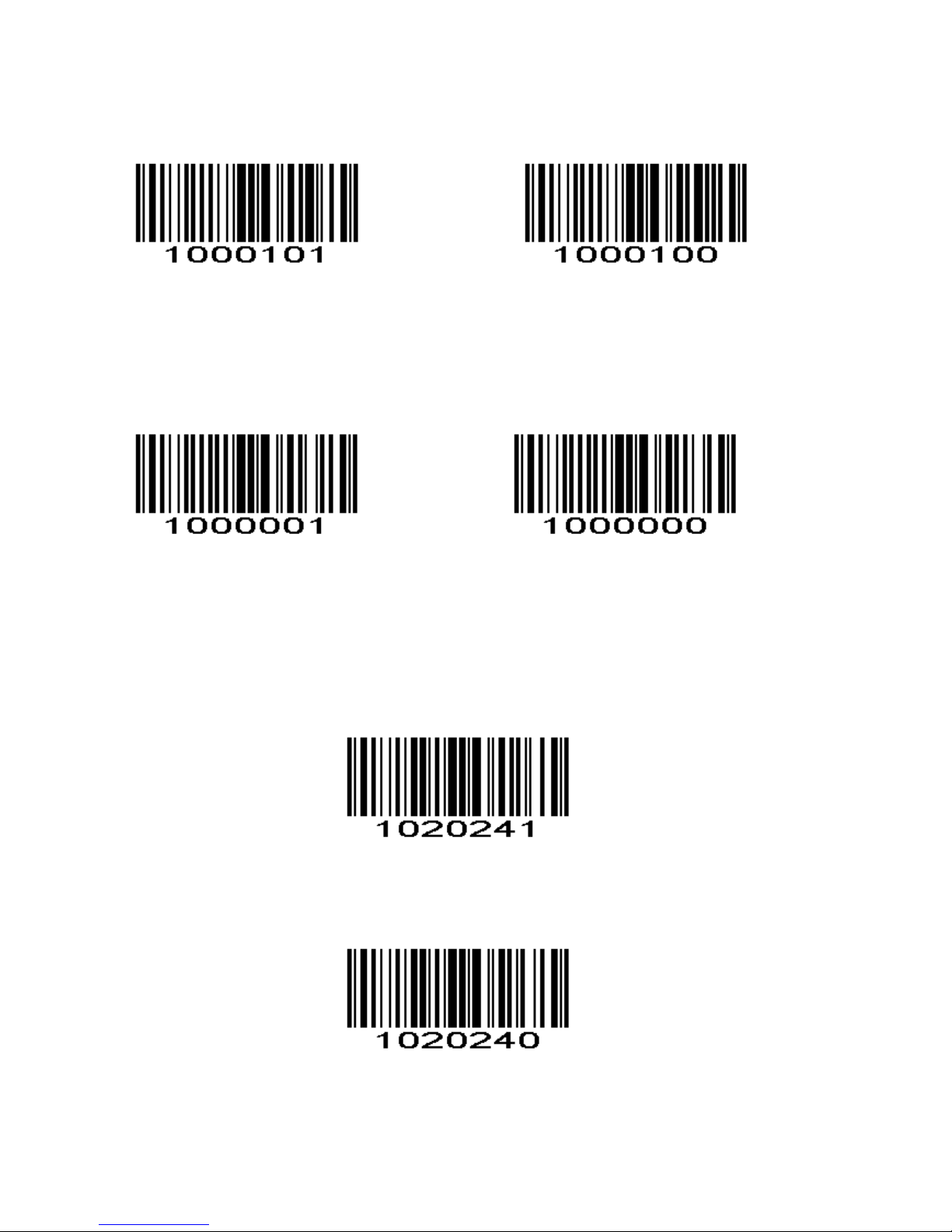
Code 128
Enable/Disable Code 128
To enable or disable Code 128, scan the appropriate bar code below.
*Enable Code 128 Disable Code 128
Code 39
Enable/Disable Code 39
To enable or disable Code 39, scan the appropriate bar code below.
*Enable Code 39 Disable Code 39
.
Transmit Code 39 Check Digit
Scan this symbol to transmit the check digit with the data.
Transmit Code 39 Check Digit (Enable)
Scan this symbol to transmit data without the check digit.
*Do Not Transmit Code 39 Check Digit (Disable)
Page 10
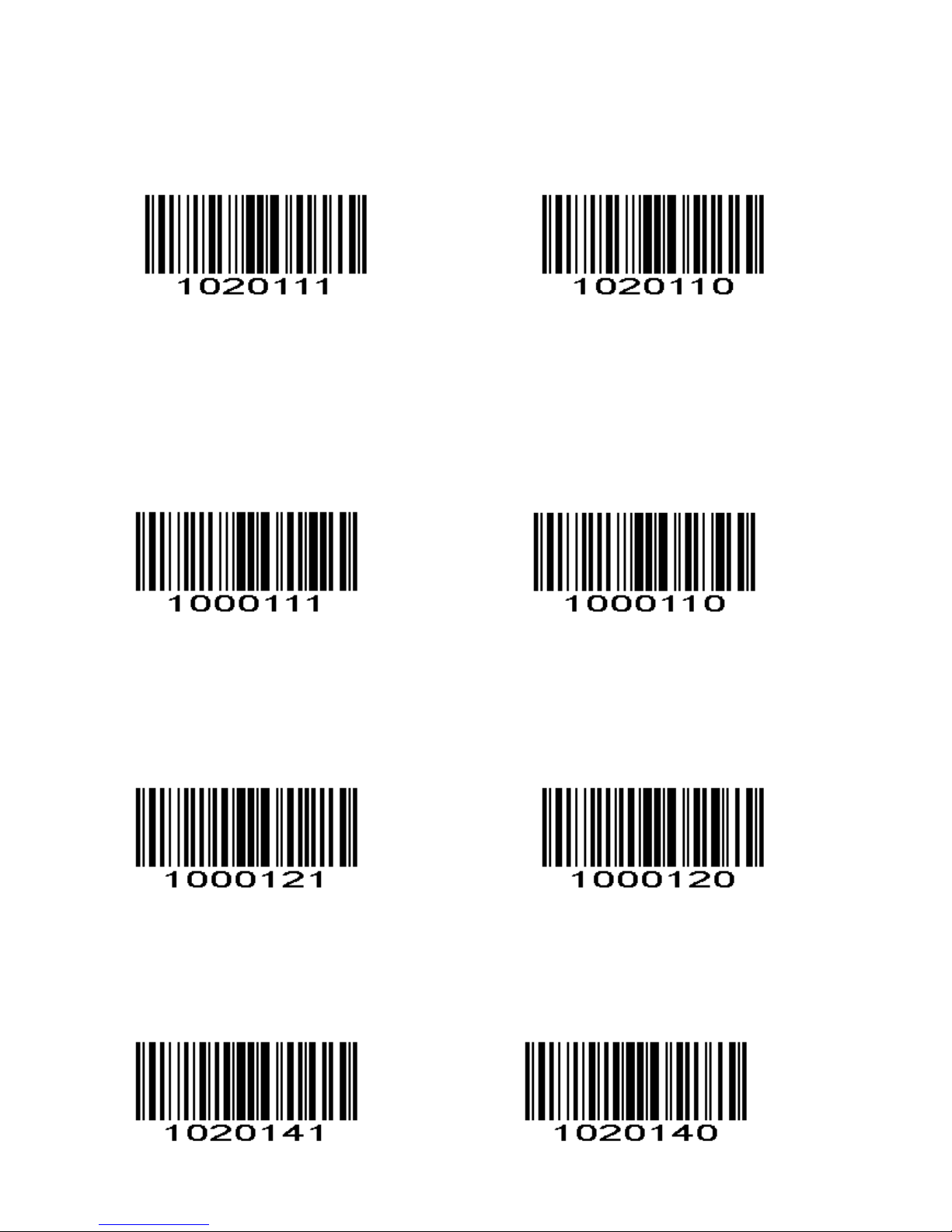
Enable/Disable Code 39 Full ASCII
Code 39 Full ASCII is a variant of Code 39 which pairs characters to encode the full ASCII character set. To
enable or disable Code 39 Full ASCII, scan the appropriate bar code below.
See Table 4-3 for the mapping of Code 39 characters to ASCII values.
Enable Code 39 Full ASCIl *Disable Code 39 Full ASCII
NOTE Trioptic Code 39 and Code 39 Full ASCII cannot be enabled simultaneously. If you get an error beep when
enabling Code 39 Full ASCII, disable Trioptic Code 39 and try again.
Code 93
Enable/Disable Code 93
To enable or disable Code 93, scan the appropriate bar code below.
Enable Code 93 *Disable Code 93
Code 11
Enable/Disable Code 11
To enable or disable Code 11, scan the appropriate bar code below.
Enable Code 11 *Disable Code 11
Transmit Code 11 Check Digits
This feature selects whether or not to transmit the Code 11 check digit(s).
Transmit Code 11 Check Digit(s) (Enable) *Do Not Transmit Code 11 Check Digit(s) (Disable)
Page 11
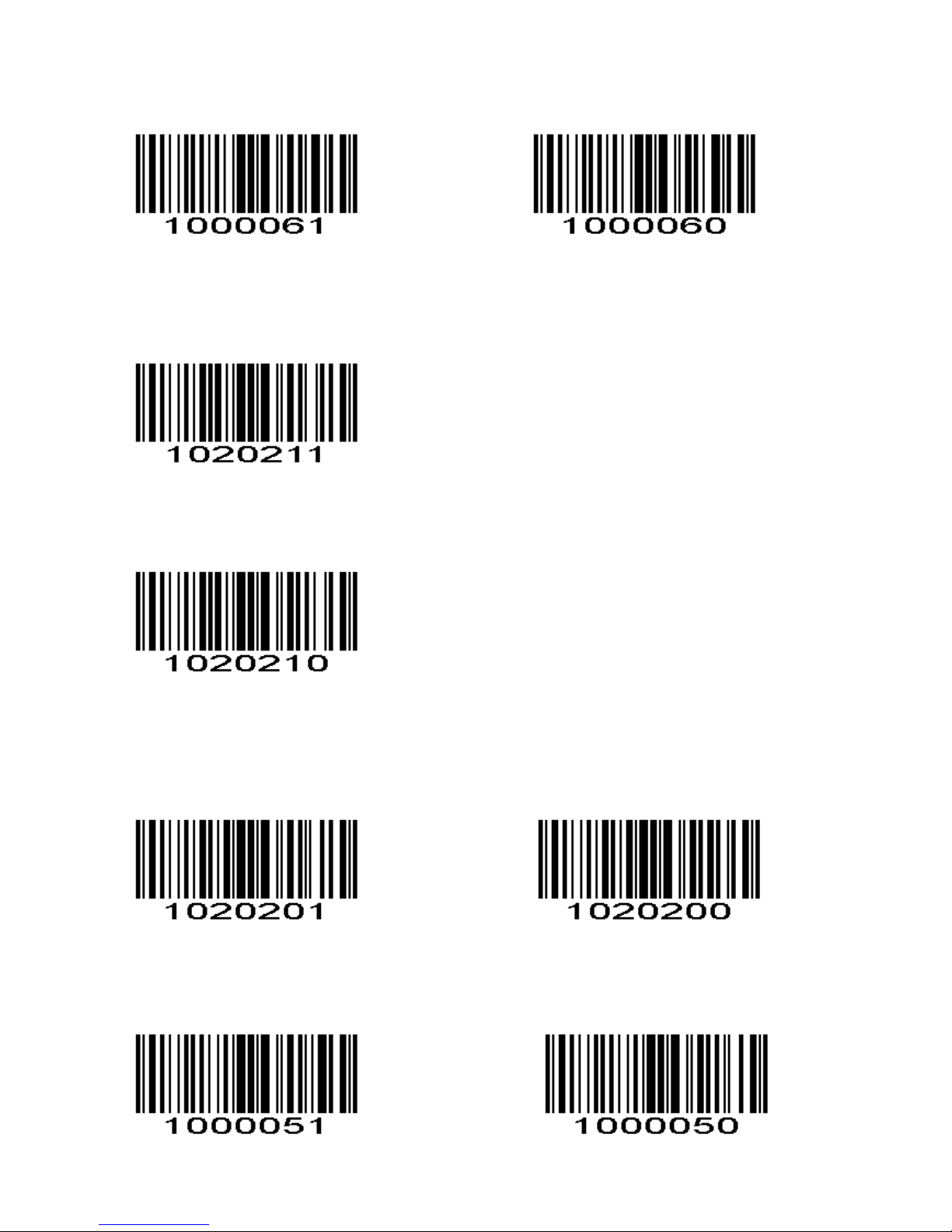
Interleaved 2 of 5
Enable/Disable Interleaved 2 of 5
To enable or disable Interleaved 2 of 5, scan the appropriate bar code below.
*Enable Interleaved 2 of 5 Disable Interleaved 2 of 5
Transmit I 2 of 5 Check Digit
Scan this symbol to transmit the check digit with the data.
Transmit I 2 of 5 Check Digit (Enable)
Scan this symbol to transmit data without the check digit.
*Do Not Transmit I 2 of 5 Check Digit (Disable)
Convert I 2 of 5 to EAN-13
This parameter converts a 14 character I 2 of 5 code into EAN-13, and transmits to the host as EAN-13. To
accomplish this, I 2 of 5 must be enabled, one length must be set to 14, and the code must have a leading zero
and a valid EAN-13 check digit.
Convert I 2 of 5 to EAN-13 *Do Not Convert I 2 of 5 to EAN-13
Discrete 2 of 5/Industrial 2 of 5
To enable or disable Discrete 2 of 5, scan the appropriate bar code below.
Enable Discrete 2 of 5 *Disable Discrete 2 of 5
Page 12
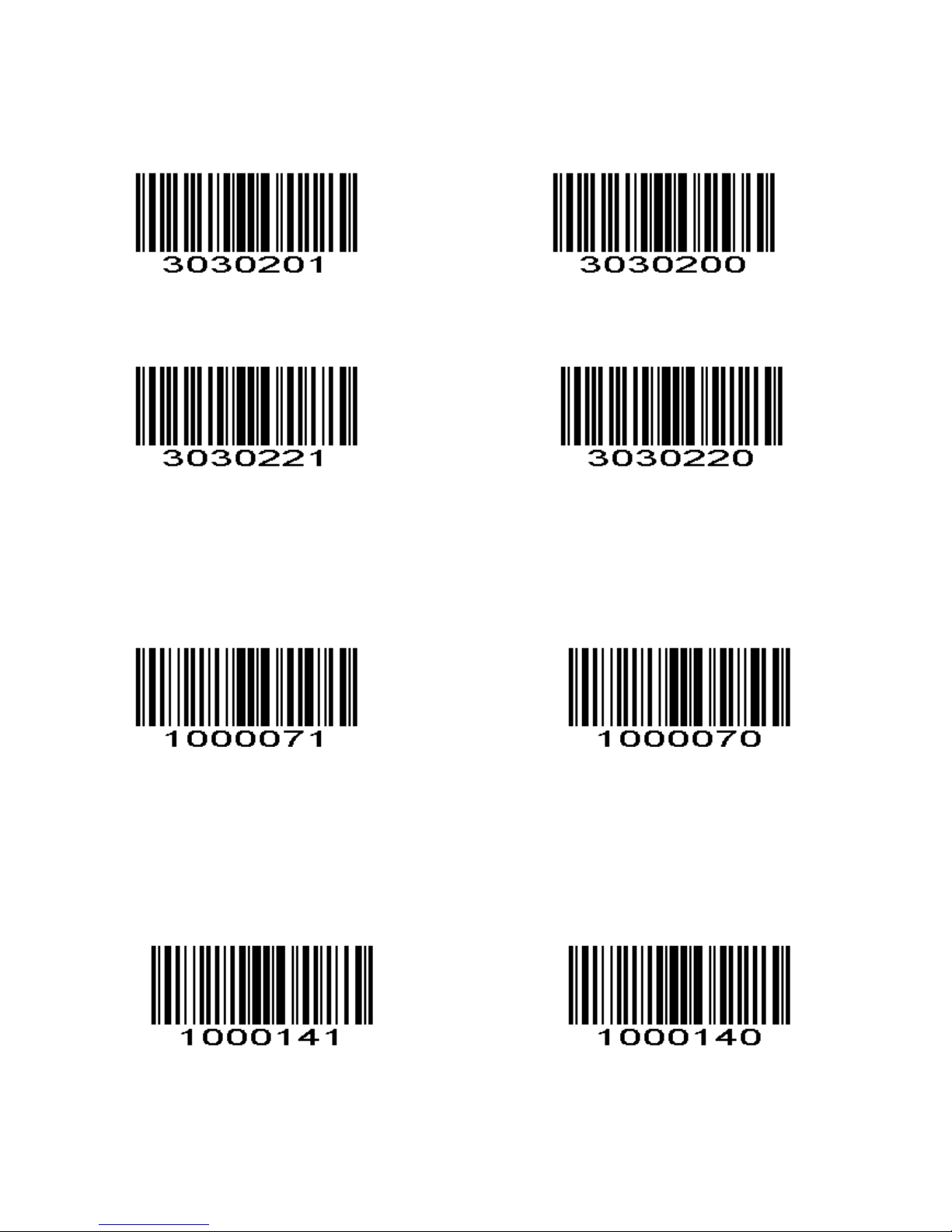
Matrix 25
Enable/Disable Matrix 25
To enable or disable Matrix 25, scan the appropriate bar code below.
Enable Matrix 25 *Disable Matrix 25
Transmit Matrix 25 Check Character
Enable Matrix 25 Transmit Check Character Disable Matrix 25 Transmit Check Character *
Codabar
Enable/Disable Codabar
To enable or disable Codabar, scan the appropriate bar code below.
Enable Codabar *Disable Codabar
MSI/MSI PLESSEY
Enable/Disable MSI
To enable or disable MSI, scan the appropriate bar code below.
Enable MSI *Disable MSI
Transmit MSI Check Digit
Scan this symbol to transmit the check digit with the data.
Page 13
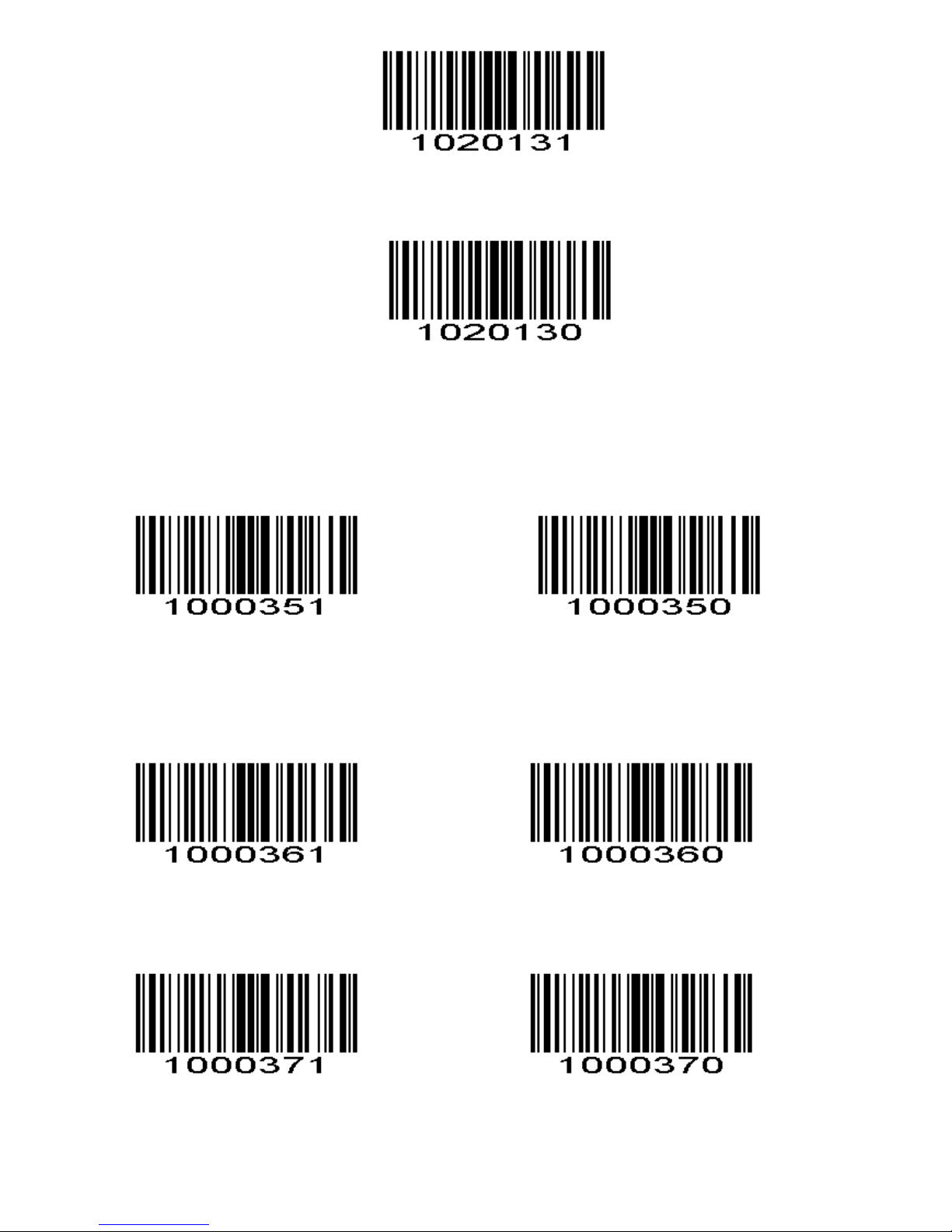
Transmit MSI Check Digit (Enable)
Scan this symbol to transmit data without the check digit.
*Do Not Transmit MSI Check Digit (Disable)
GS1 DataBar/RSS
Enable/Disable GS1 DataBar-14
To enable or disable GS1 DataBar-14, scan the appropriate bar code below.
Enable GS1 DataBar-14 *Disable GS1 DataBar-14
Enable/Disable GS1 DataBar Limited
To enable or disable GS1 DataBar Limited, scan the appropriate bar code below.
Enable GS1 DataBar Limited *Disable GS1 DataBar Limited
Enable/Disable GS1 DataBar Expanded
To enable or disable GS1 DataBar Expanded, scan the appropriate bar code below.
Enable GS1 DataBar Expanded *Disable GS1 DataBar Expanded
Page 14
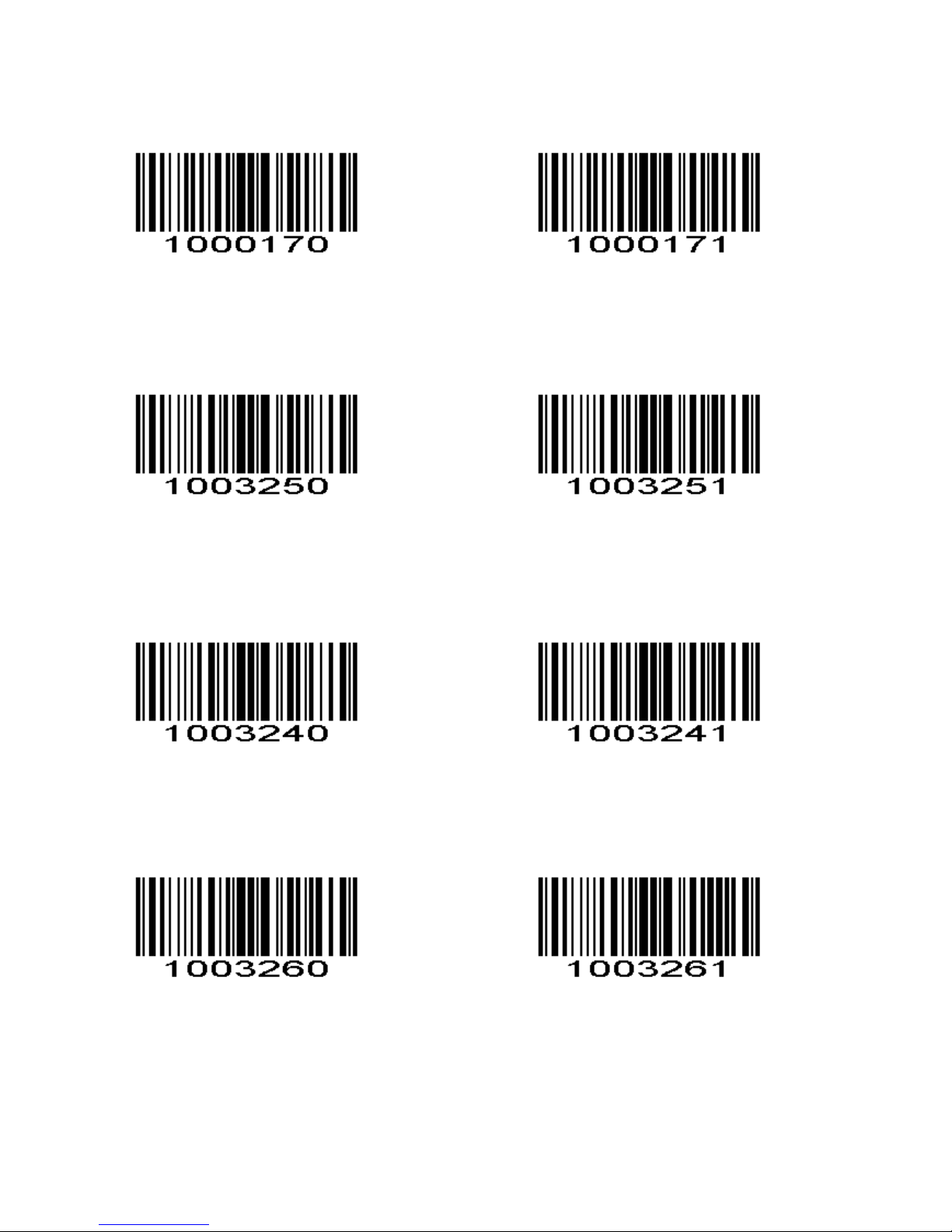
PDF417
Enable/Disable PDF417
To enable or disable PDF417, scan the appropriate bar code below.
Disable PDF417 *Enable PDF417
QR
Enable/Disable QR
To enable or disable QR, scan the appropriate bar code below.
Disable QR Code *Enable QR Code
Data Matrix(DM)
Enable/Disable Data Matrix(DM)
To enable or disable Data Matrix(DM), scan the appropriate bar code below.
Disable DataMatrix *Enable DataMatrix
Maxi Code
Enable/Disable Maxi Code
To enable or disable Maxi Code, scan the appropriate bar code below.
*Disable MaxiCode Enable MaxiCode
Prefix/Suffix Values
A prefix and/or one or two suffixes can be appended to scan data for use in data
editing. To set these values, scan a four-digit number (i.e. four bar codes) that
corresponds to ASCII values. See the Table 4-3 and Numeric Bar Codes in
appendix. To change the selection or cancel an incorrect entry, scan Cancel in
appendix. To set the Prefix/Suffix values via serial commands, see Setting Prefixes
Page 15
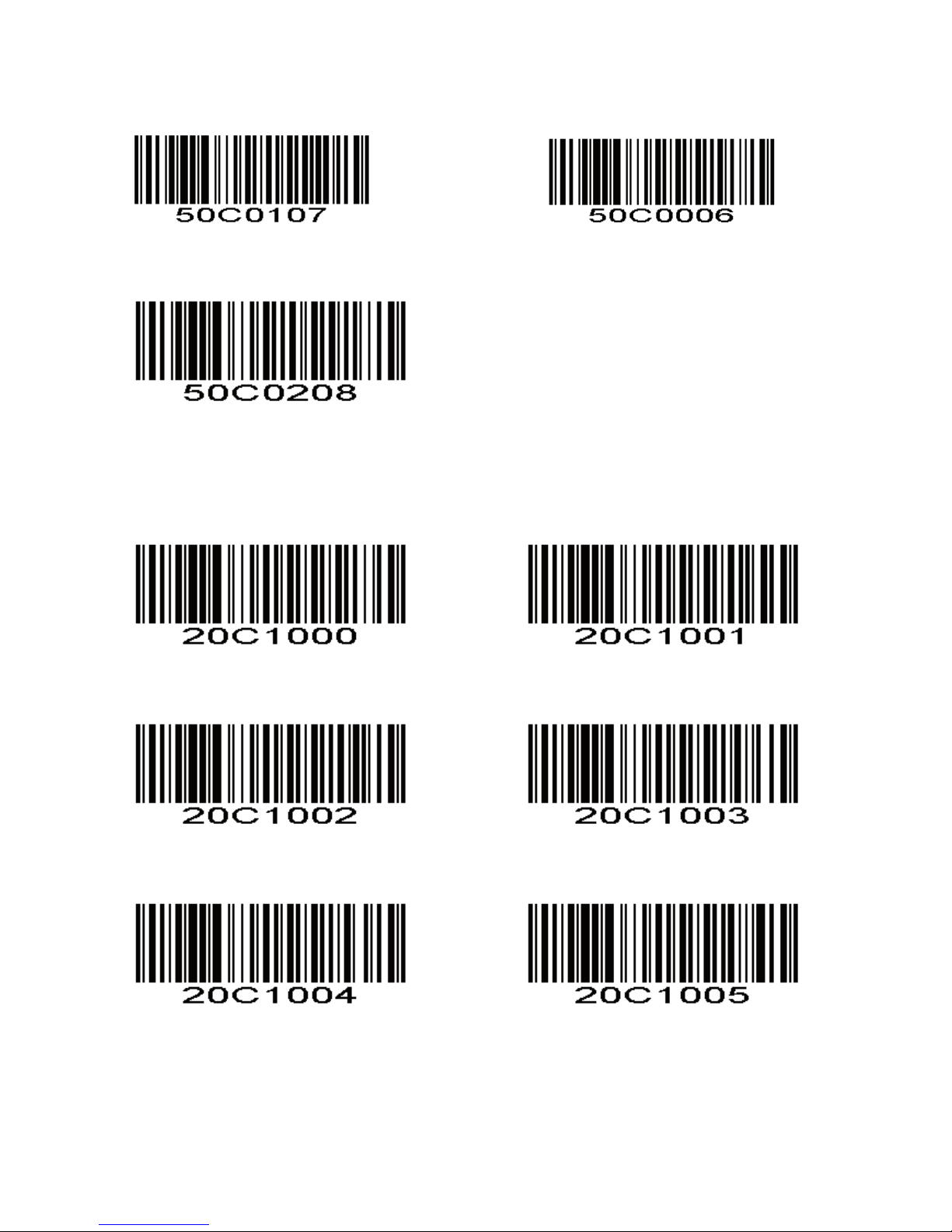
and Suffixes Via Serial Commands.
NOTE In order to use Prefix/Suffix values, the Scan Data Transmission Format
must be set.
Scan Prefix Scan Suffix 1
Scan Suffix 2
Scan Data Transmission Format
To change the Scan Data Transmission Format, scan one of the eight bar codes
corresponding to the desired format.
*Data As Is <DATA><SUFFIX 1>
<DATA><SUFFIX2> <DATA> <SUFFIX 1><SUFFIX 2>
<PREFIX> <DATA > <PREFIX> <DATA> <SUFFIX 1>
Page 16
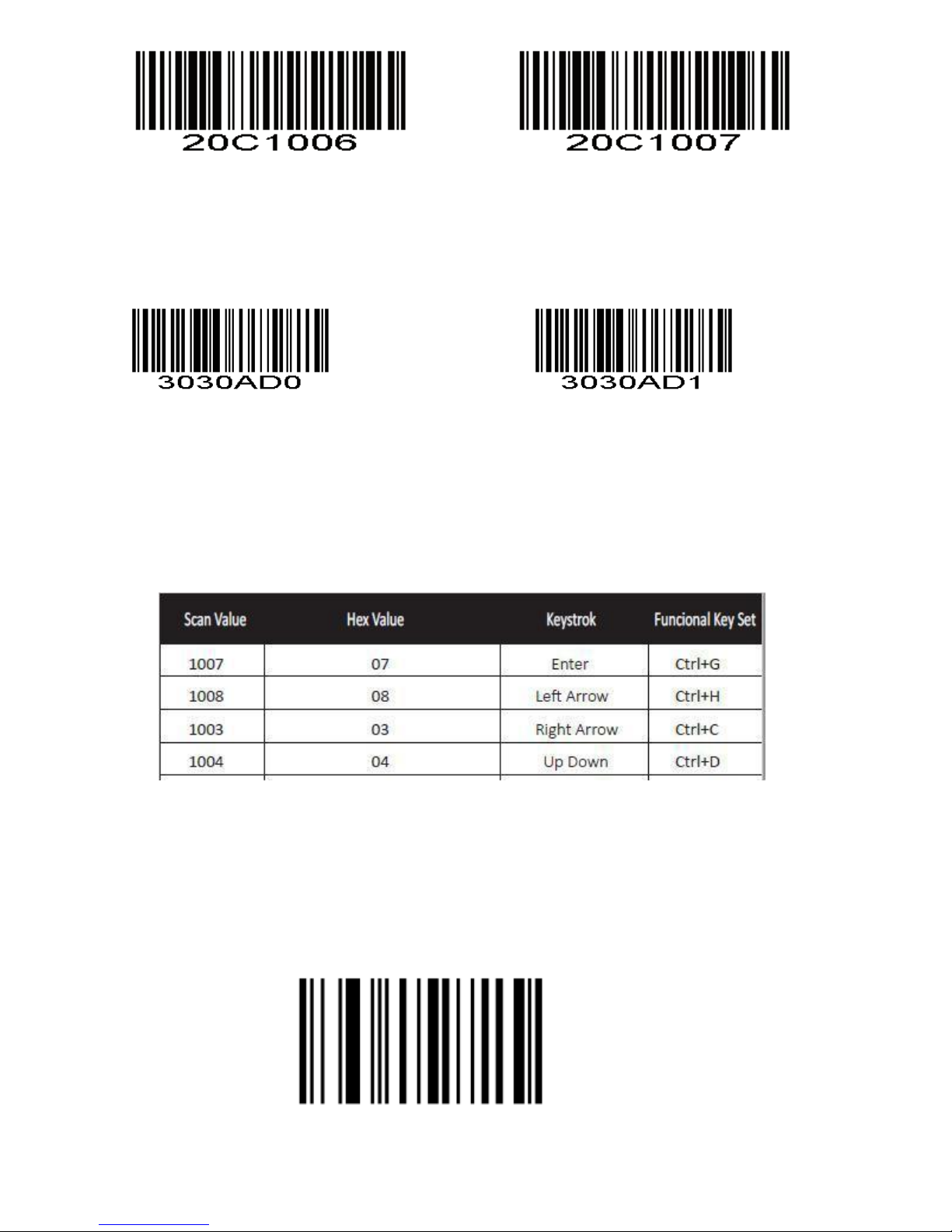
<PREFIX> <DATA> <SUFFIX 2> <PREFIX> <DATA> <SUFFIX 1> <SUFFIX 2>
Enable /Disable Functional Key Set
Disable Functional Key Set* Enable Functional Key Set
For example if you scan value 1004, Keystroke will be “Up Down”.
But if you scan Enable Functional Key Set after you scan the value ” 1004”, you will get
functional key set Ctrl +D. For more details please refer to Appendix 2.
4. Appendix 1
Numeric Bar Codes
For parameters requiring specific numeric values, scan the appropriately numbered bar code(s).
Numeric Bar Codes
For parameters requiring specific numeric values, scan the appropriately numbered bar code(s).
0
Page 17
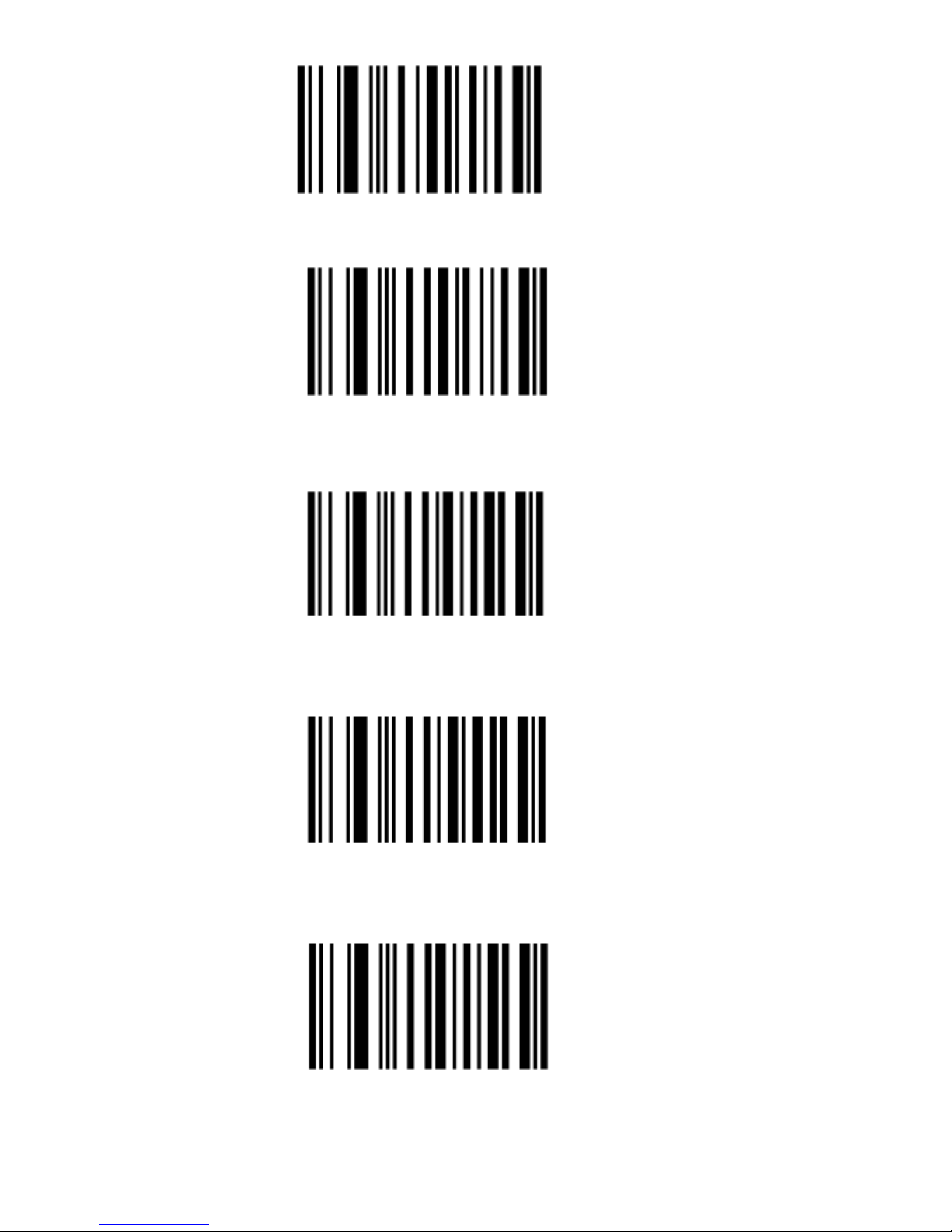
1
2
3
4
5
Page 18
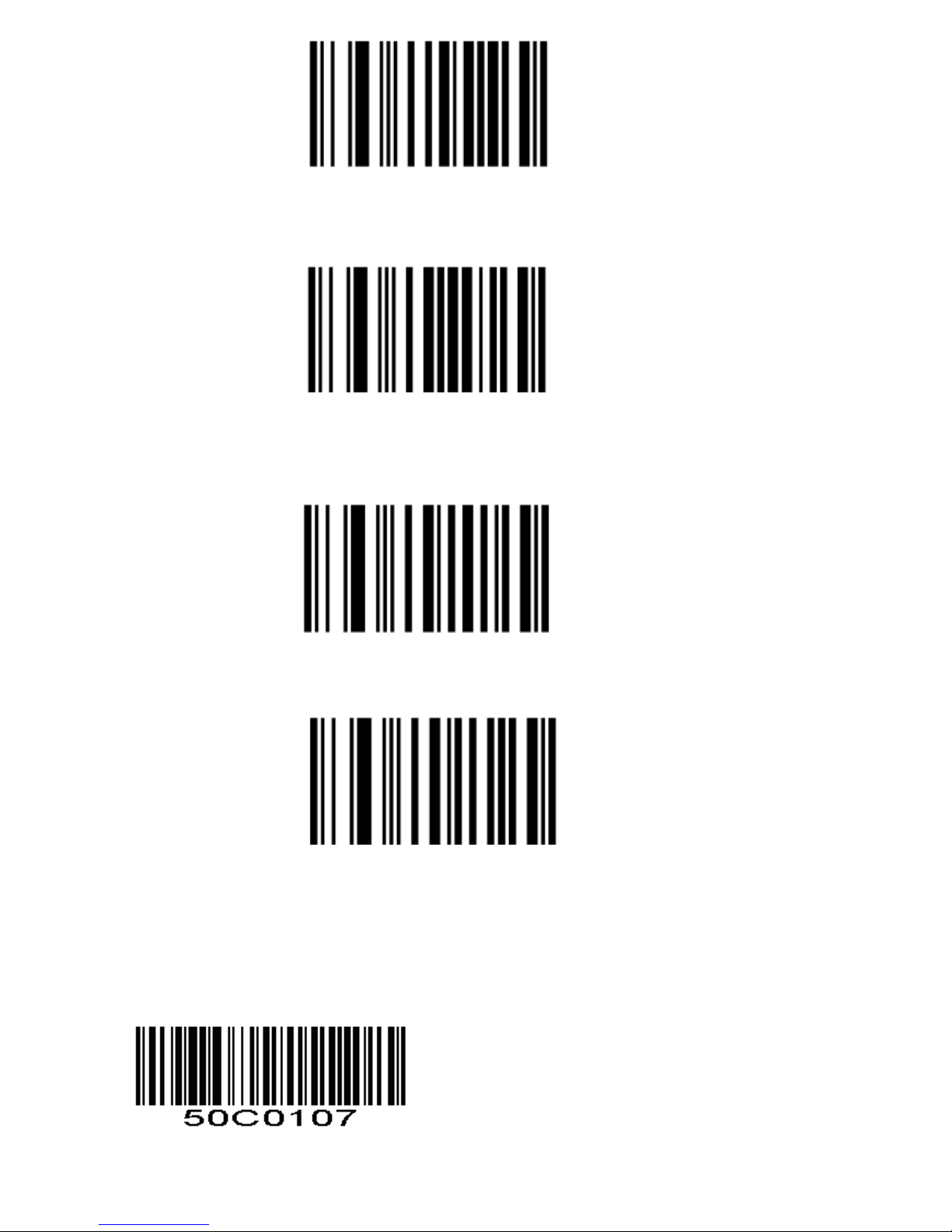
6
7
8
9
Example on how to set prefix and suffix
Prefix Setting
Step 1: scan prefix
Scan Prefix
Page 19
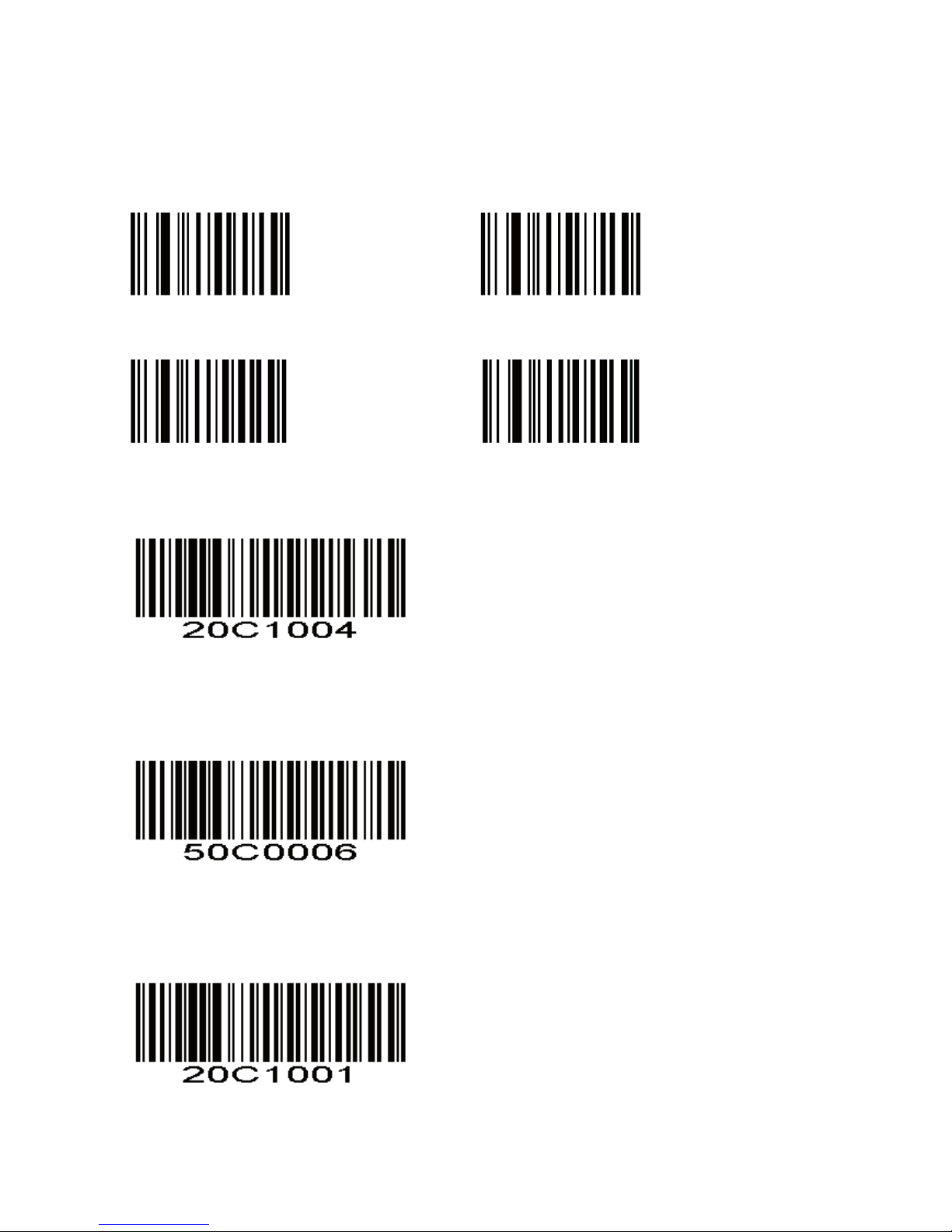
Step 2: To set these values, scan a four-digit number (i.e. four bar codes) that
corresponds to ASCII values. See the Table 4-3 and Numeric Bar Codes
in appendix.
Step 3: i.e if you want to add “+” , scan 1043 (one by one)
1 0
4 3
Step 4: Set Data Transmission Format
<PREFIX> <DATA >
Suffix Setting
Step 1: scan suffix
Scan Suffix 1
Step 2 and Step 3 same procedures like setting prefix
Step 4: Set Data Transmission Format
<DATA><SUFFIX 1>
Page 20

Setting Prefixes and Suffixes Via Serial Commands
To append a prefix and suffixes to the decode data:
1、Set the Scan Data Transmission Format (parameter 0xE2) to the desired option.
2、Enter the required value(s) for Prefix (0x69), Suffix1 (0x68) or Suffix2 (0x6A)
using the hex values for the desired ASCII value from Table 4-3
Table 4-3 Character Equivalents (Continued)
Scan Value
Hex Value
Full ASCLL Code
39 Encode Char
Keystroke
1000
00h
%U
CTRL 2
1001
01h
$A
CTRL A
1002
02h
$B
CTRL B
1003
03h
$C
CTRL C
1004
04h
$D
CTRL D
1005
05h
$E
CTRL E
1006
06h
$F
CTRL F
1007
07h
$G
CTRL G
1008
08h
$H
CTRL H
1009
09h
$I
CTRL I
1010
0Ah
$J
CTRL J
1011
0Bh
$K
CTRL K
1012
0Ch
$L
CTRL L
1013
0Dh
$M
CTRL M
1014
0Eh
$N
CTRL N
1015
0Fh
$O
CTRL O
1016
10h
$P
CTRL P
1017
11h
$Q
CTRL Q
1018
12h
$R
CTRL R
1019
13h
$S
CTRL S
1020
14h
$T
CTRL T
1021
15h
$U
CTRL U
1022
16h
$V
CTRL V
1023
17h
$W
CTRL W
1024
18h
$X
CTRL X
Page 21

Scan Value
Full ASCLL Code
39 Encode Char
Keystroke
Table 4-3 Character Equivalents (Continued)
Scan Value
Hex Value
Full ASCLL Code
39 Encode Char
Keystroke
1025
19h
$Y
CTRL Y
1026
1Ah
$Z
CTRL Z
1027
1Bh
%A
CTRL [
1028
1Ch
%B
CTRL \
1029
1Dh
%C
CTRL ]
1030
1Eh
%D
CTRL 6
1031
1Fh
%E
CTRL -
1032
20h
Space
Space
1033
21h
/A
!
1034
22h
/B
‘
1035
23h
/C
#
1036
24h
/D $ 1037
25h
/E % 1038
26h
/F
&
1039
27h
/G
‘
1040
28h
/H
(
1041
29h
/I
)
1042
2Ah
/J
*
1043
2Bh
/K
+
1044
2Ch
/L , 1045
2Dh
-
-
1046
2Eh
.
.
1047
2Fh
/
/
1048
30h
0 0 1049
31h
1
1
1050
32h
2
2
1051
33h
3
3
1052
34h
4
4
1053
35h
5
5
1054
36h
6
6
1055
37h
7
7
Page 22

Table 4-3 Character Equivalents (Continued)
Scan Value
Hex Value
Full ASCLL Code
39 Encode Char
Keystroke
1056
38h
8 8 1057
39h
9
9
1058
3Ah
/Z
:
1059
3Bh
%F
;
1060
3Ch
%G
<
1061
3Dh
%H
-
1062
3Eh
%I
>
1063
3Fh
%J
?
1064
40h
%V
@
1065
41h
A
A
1066
42h
B
B
1067
43h
C
C
1068
44h
D
D
1069
45h
E
E
1070
46h
F
F
1071
47h
G
G
1072
48h
H
H
1073
49h
I
I
1074
4Ah
J J 1075
4Bh
K
K
1076
4Ch
L
L
1077
4Dh
M
M
1078
4Eh
N
N
1079
4Fh
O
O
1080
50h
P
P
1081
51h
Q
Q
1082
52h
R
R
1083
53h
S
S
1084
54h
T
T
1085
55h
U
U
1086
56h
V
V
Page 23

Table 4-3 Character Equivalents (Continued)
Scan Value
Hex Value
Full ASCLL Code
39 Encode Char
Keystroke
1087
57h
W
W
1088
58h
X
X
1089
59h
Y Y 1090
5Ah
Z
Z
1091
5Bh
%K
[
1092
5Ch
%I
\
1093
5Dh
%M
]
1094
5Eh
%N
^
1095
5Fh
%O
_
1096
60h
%W
‘
1097
61h
+A
a
1098
62h
+B
b
1099
63h
+C
c
1100
64h
+D
d
1101
65h
+E
e
1102
66h
+F
f
1103
67h
+G
g
1104
68h
+H
h
1105
69h
+I i 1106
6Ah
+J
j
1107
6Bh
+K
k
1108
6Ch
+L
l
1109
6Dh
+M
m
1110
6Eh
+N
n
1111
6Fh
+O
o
1112
70h
+P
p
1113
71h
+Q
q
1114
72h
+R
r
1115
73h
+S
s
1116
74h
+T
t
1117
75h
+U
u
Page 24
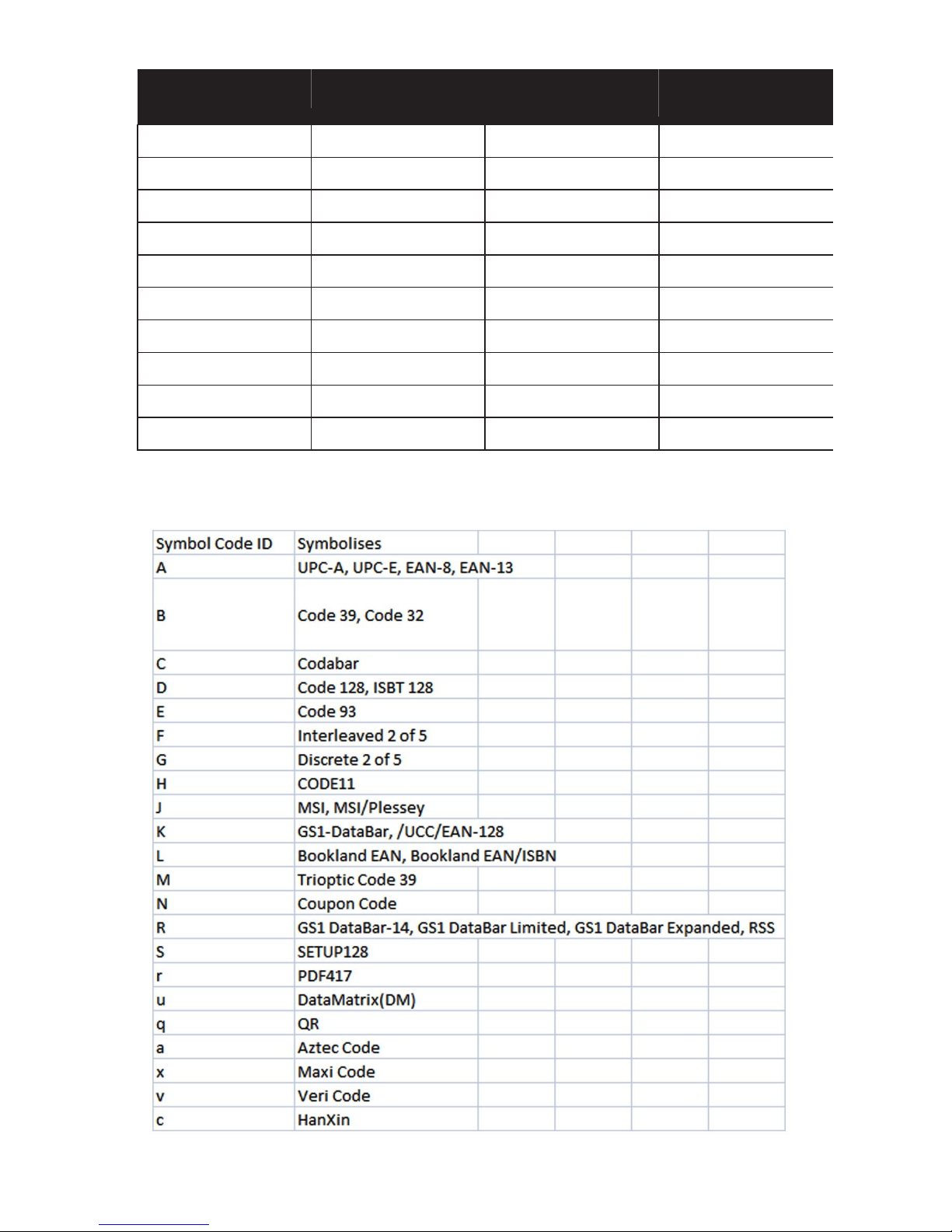
Table 4-3 Character Equivalents (Continued)
Scan Value
Hex Value
Full ASCLL Code
39 Encode Char
Keystroke
1118
76h
+V
v
1119
77h
+W
w
1120
78h
+X
x
1121
79h
+Y
y
1122
7Ah
+Z
z
1123
7Bh
%P
{
1124
7Ch
%Q
|
1125
7Dh
%R
}
1126
7Eh
%S
~
1127
7Fh
Undefined
Symbol Code Identifiers.
Page 25
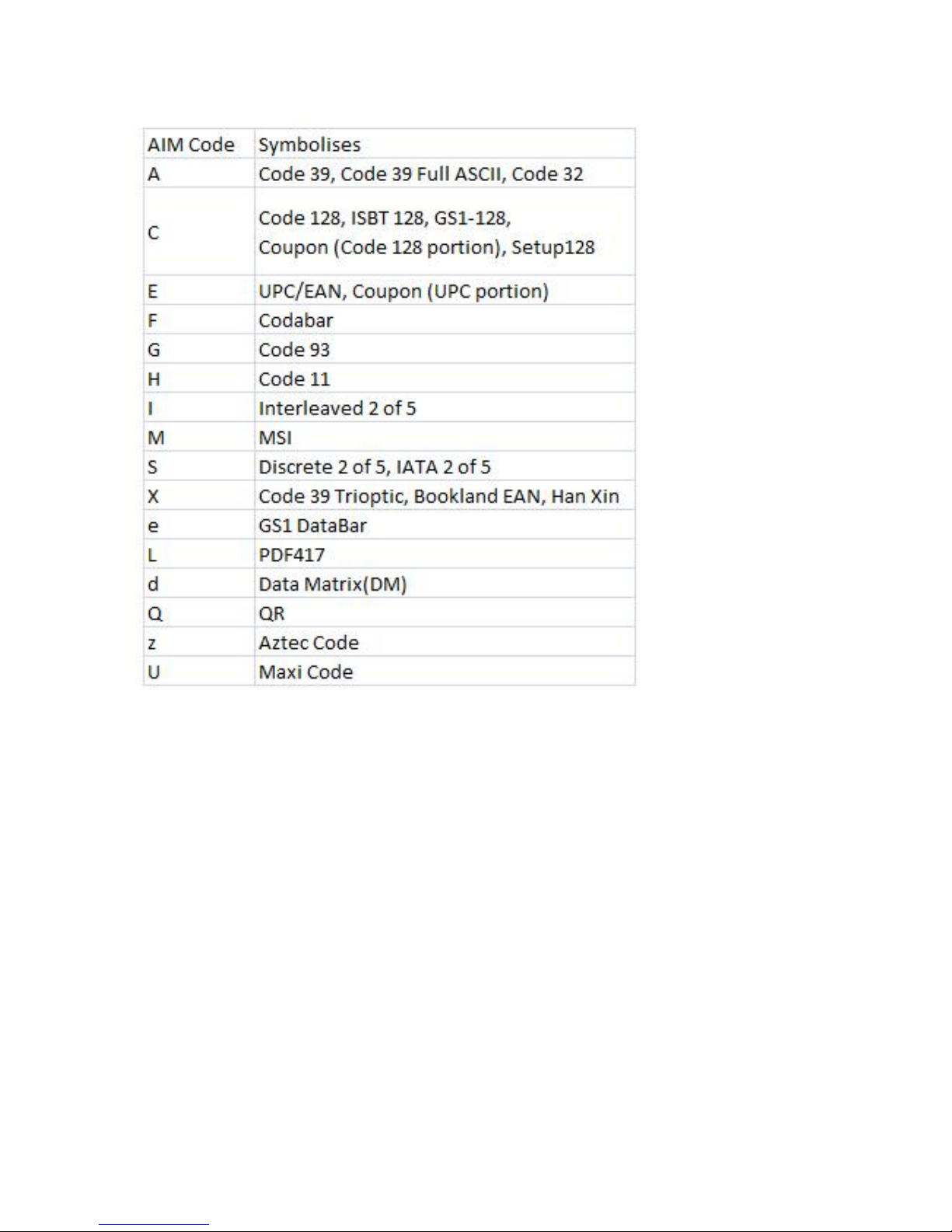
AIM Code Identifiers
Page 26
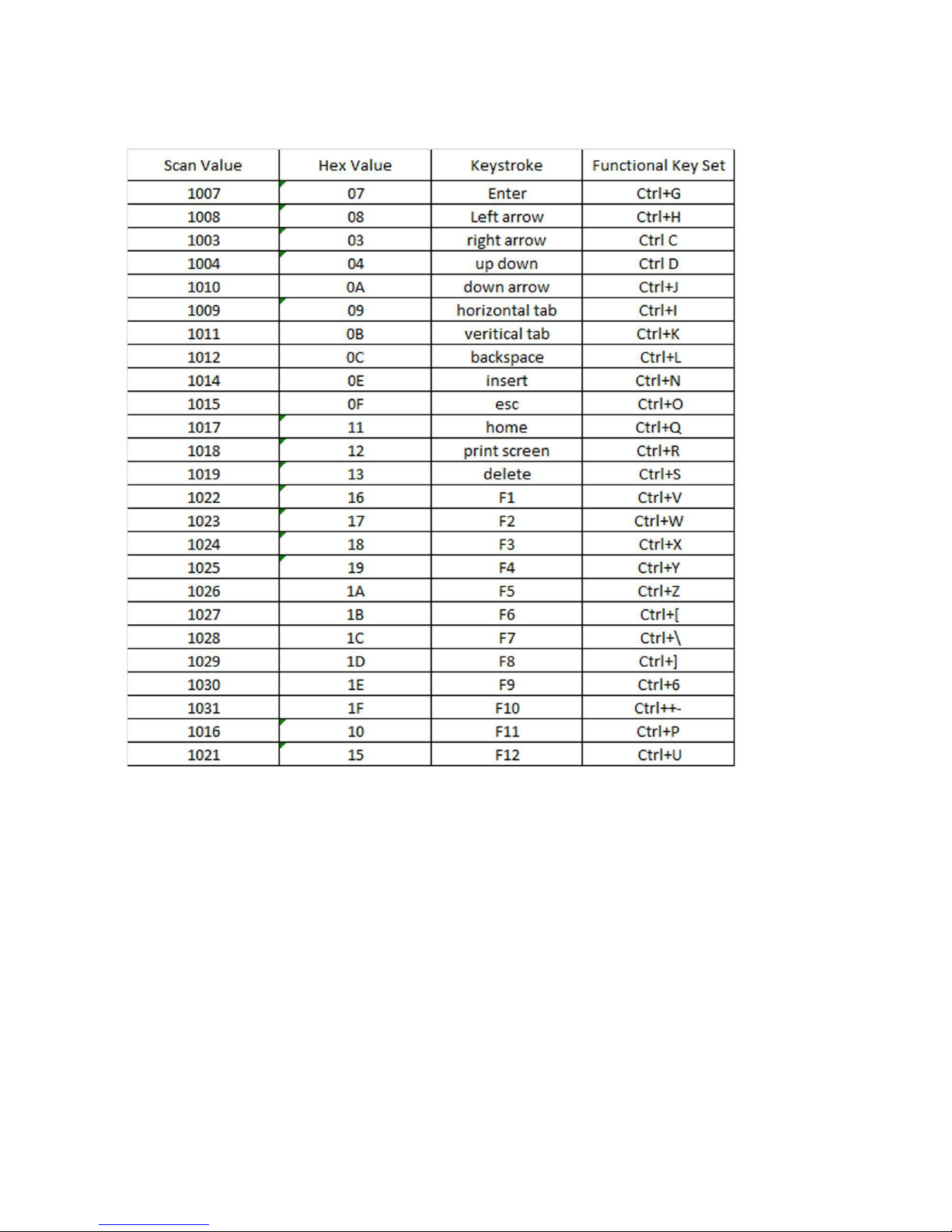
Appendix 2
 Loading...