

Page 1

NEC USB PortBar
with the Driver Installation Diskette
Congratulations on purchasing the NEC USB PortBar for your NEC Versa® notebook
computer! The NEC USB PortBar connects to the USB port on your NEC Versa system running
Microsoft® Windows® 98 and Windows 2000. (Note that some NEC Versa notebook systems
contain more than one USB port.) Keep the USB PortBar in your office connected to peripherals
while you take your NEC Versa notebook on the road.
Note
The NEC USB PortBar comes with two driver installation diskettes, one each for Windows 2000
and Windows 98, plus two USB cables of varying length.
In addition to introducing the NEC Versa PortBar features, this sheet describes the following:
Use AC power when using the NEC Versa system with the NEC USB PortBar.
Installing the USB PortBar Driver Software.
Attaching the NEC Versa PortBar to the NEC Versa.
Disconnecting the NEC Versa PortBar from the NEC Versa.
NEC USB PortBar Features
The following figure shows the NEC USB PortBar features, which are described after the figure.
NEC USB PortBar front features
A – External PS/2 Ports C – Parallel Port
B – Serial Port
External PS/2 Ports – Connects to a 6-pin standard PS/2-style keyboard and mouse,
respectively.
Serial Port – Connects a serial device to your notebook computer, such as an external
modem.
Parallel Port – Connects (only) a printer to your notebook computer.
Note
The parallel port does not support bidirectional data transfer.
NEC USB PortBar with the Driver Installation Diskette 1
Page 2

NEC USB PortBar back features
A – USB Cable
USB Cable – Connects the USB PortBar to your NEC Versa.
USB Port – Connects the USB cable to your NEC Versa. This port is located under the
USB cable. See the figure entitled, “Location of USB Port.”
Installing the USB PortBar Driver Software
The instructions to install the USB PortBar drivers and INF files vary for Windows 2000 and
Windows 98. Be sure to follow the instructions specific to your operating system.
The following overall functions are the same for both platforms:
Copy the USB PortBar driver files from the Setup diskette.
Attach the USB PortBar and install the USB PortBar drivers.
Installing the USB PortBar Drivers for Windows 2000
Follow these steps to install the device drivers for Windows 2000.
Copy the Device Driver Files
1.
Insert the Windows 2000 USB PortBar installation diskette into the diskette drive and
double click the Setup icon to launch the InstallShield Wizard.
2.
Click Next at the NEC USB PortBar Installation window, and Yes at the License
Agreement window.
3.
Click Next at the “Select driver storage location” window. NEC Computers recommends
accepting the default location.
4.
All the driver files are copied to your NEC Versa. Click Next at the Information window,
which informs you of where you are in the installation process.
5.
Click Finish at the “Install completed” window, and remove the diskette.
Install the Device Driver Files
6.
Attach the USB PortBar to your notebook computer, which launches the Add New
Hardware Wizard.
Note
installs each one with its own series of steps.
Several drivers must be installed. The Wizard recognizes each one in turn, and
7.
Click Next at the Found New Hardware Wizard window.
You are returned to the desktop, as the Wizard installs each of the drivers in the background.
The installation process is complete as soon as disk activity ends.
2 NEC USB PortBar with the Driver Installation Diskette
Page 3

Installing the USB PortBar Drivers for Windows 98
Follow these steps to install the device drivers for Windows 98.
Copy the Device Driver Files
1.
Insert the Windows 98 USB PortBar installation diskette into the diskette drive and double
click the Setup icon to launch the InstallShield Wizard.
2.
Click Next at the NEC USB PortBar Installation window, and Yes at the License
Agreement window.
3.
Click Next at the “Select driver storage location” window. NEC Computers recommends
accepting the default location.
4.
All the driver files get copied to your NEC Versa. Click Next at the Information window,
which informs you of where you are in the installation process.
5.
Click Finish at the “Install completed” window, and remove the diskette.
Install the Device Driver Files
6.
Attach the USB PortBar to your notebook computer, which launches the Add New
Hardware Wizard.
Note
installs each one with its own series of steps.
7.
Click Next at the Add New Hardware Wizard window.
8.
Click Next when “What do you want Windows to do?” appears in the window. Do not
Several drivers must be installed. The Wizard recognizes each one in turn, and
uncheck the “Search for the best driver for your device (Recommended)” option!
9.
Uncheck the “Floppy disk drives” box, check the “Specify a Location” box, and click Next.
The previously set default location appears in the data window.
10.
Click Next in each window as the Wizard conducts a series of steps for each of the device
drivers needed for the installation.
11.
Click Finish to return to the desktop when the program closes.
Attaching the NEC USB PortBar
Follow these steps to attach the USB PortBar to your NEC Versa.
Note
See the topic, “Installing the USB PortBar Driver Software.”
1.
Do not attach the USB PortBar before running the setup from the installation diskette.
Your NEC Versa comes equipped with one or more USB ports. The locations are marked
with the USB symbol. See your NEC Versa user’s guide for details.
2.
Remove the USB cable from the holder on the USB PortBar. The cable is located on the
side opposite the ports.
NEC USB PortBar with the Driver Installation Diskette 3
Page 4
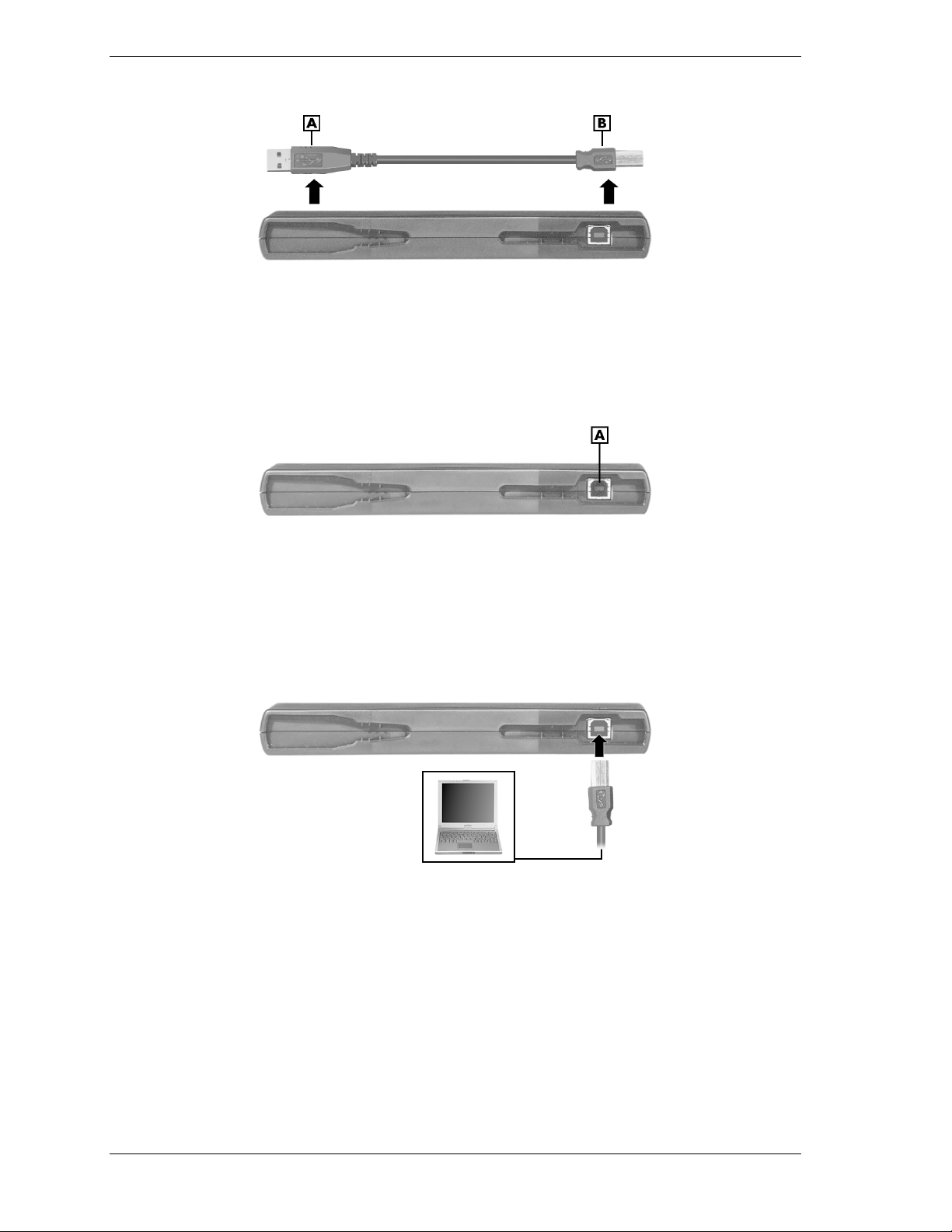
Removing the USB cable from the PortBar
A – Large USB Connector
for the NEC Versa
3.
Once the USB cable is removed, the USB port is visible.
B – Small USB Connector
for the USB PortBar
Location of USB Port
A – USB Port
4.
Attach the small connector end of the USB cable to the back side of the USB PortBar.
Attach the larger connector end of the USB cable to the USB port on the NEC Versa.
Connecting the USB PortBar to your NEC Versa
5.
Your USB PortBar is now properly attached to your NEC Versa.
4 NEC USB PortBar with the Driver Installation Diskette
Page 5
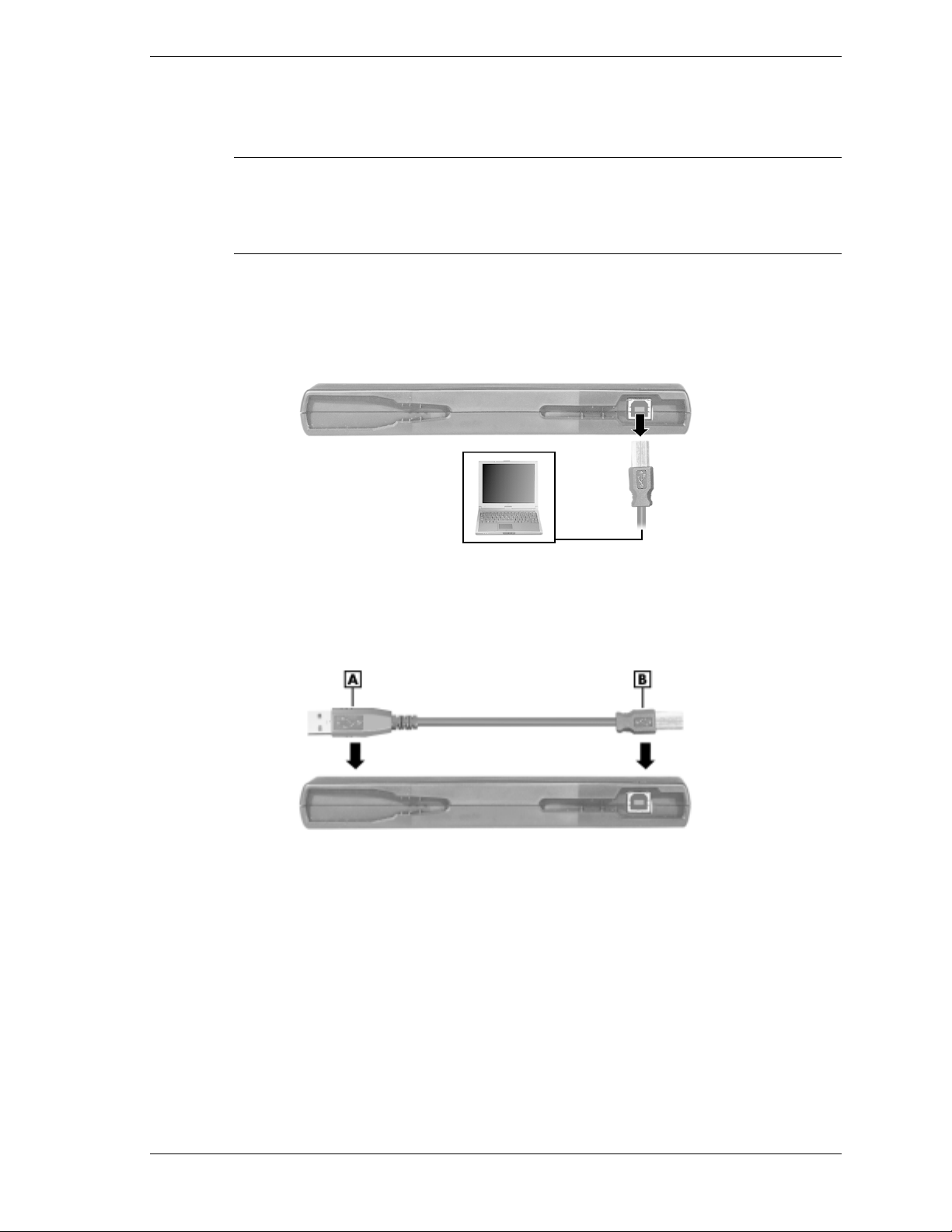
Disconnecting the USB PortBar
Disconnect the USB PortBar from your NEC Versa as follows.
Note
Standby mode.
Do not unplug any peripheral devices connected to the USB PortBar with the NEC Versa system
powered on or in Standby mode.
1.
Disconnect and connect the USB PortBar with the NEC Versa system powered on or in
Remove the small connector end of the USB cable from the back side of the USB PortBar.
Remove the larger connector end of the USB cable from the USB port on the NEC Versa.
Disconnecting the USB PortBar from your NEC Versa
2.
Place the USB cable back into its holder on the USB PortBar. Note that the smaller and
larger connector fit into slots based on the size of the end of the cable.
Replacing the USB PortBar cable
3.
Push down on the cable between the teeth marks to ensure a proper fit for storing.
NEC USB PortBar with the Driver Installation Diskette 5
Page 6

6 NEC USB PortBar with the Driver Installation Diskette
819-200628-003
10/2000
*819-200628-003*
 Loading...