

Page 1
Issue : April 2010 Polycom VVX 1500 Phone - Quick User Guide 1
Polycom® VVX™ 1500 Phone
Quick User Guide
About Your Phone
Using Your Phone
Basic Phone Features
Customizing Your Phone
Applies to phones running SIP 3.1.2 or later.
For detailed information, see the User Guide
for the Polycom VVX 1500 Phone available
at : www.nec-unified.com.
© NEC Unified Solutions 2010.
All rights are reserved. Reproduction in whole or in part is prohibited
without the written consent of the copyright owner.
All brand names and product names in this document are trademarks or
registered trademarks of their respective companies.
ABOUT YOUR PHONE
ABOUT THE TOUCH SCREEN
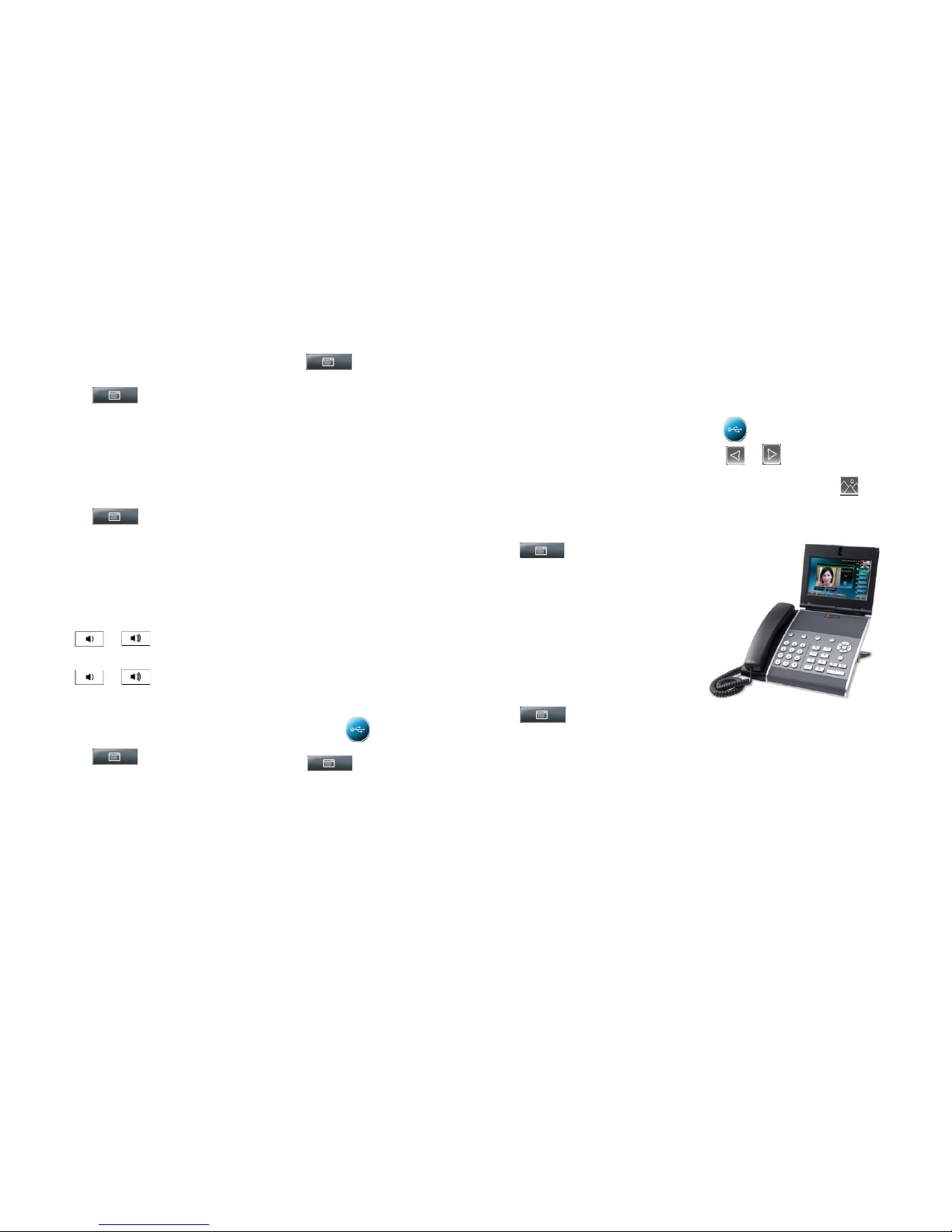
Your phone has a touch-sensitive screen.
To access features, obtain information, or
edit fields, tap the menu items, arrow keys,
soft keys (the keys along the bottom of the
touch screen), and fields that display on the
touch screen.
ABOUT CALLS AND LINE KEYS
Your phone can handle one active call and
multiple calls on hold. The active call
displays in the center of the touch screen.
Calls on hold display in a row along the
bottom of the touch screen.
Your phone can have up to six lines. A line is
assigned to a Line Key. Line Keys display in
a column along the far-right of the touch
screen. Any unassigned Line Key can be a
Speed Dial Key.
A Line Key is either green (dial tone,
incoming call, or active call) or blue (no
active call). Calls that display on the touch
screen are associated with the Line Key that
is green. Line Keys can also have a status
indicator: a vertical bar on the right-hand side
The status indicator can be :
• Solid green : Dial-tone is available, dialing
is in progress, or a call is active.
• Flashing green : Incoming call.
• Flashing red : All calls or conferences are
on hold.
ABOUT VIDEO
Your phone displays video in two windows :
a small picture-in-picture (PIP) window at the
top-right of the touch screen, and a larger
window centered in the middle of the touch
screen. By default, the near site (i.e., you)
displays in the PIP, and the far site displays
in the larger window.
During an active call, you can tap the PIP to
swap the windows the video displays in.
When the near site displays in the larger
window, “Local Camera” displays next to it.
You can also display video on the entire
screen (full screen mode) by tapping the
larger window. In full screen mode, you can
swap the windows the video displays in by
tapping the PIP. To resume normal viewing
mode, tap the full screen video.
UNDERSTANDING ICONS
Active call without Polycom®
HD Voice™
Active audio call with Polycom
HD Voice
Active video call with Polycom
HD Voice
Call (audio-only)
Call (video)
Call on hold
Conference call
Do Not Disturb
Handset
Headset
Line Key (private and registered)
Line Key (shared and registered)
Messages
Missed calls
Mute
Speakerphone
Speed Dial Key
USING YOUR PHONE
NAVIGATING THE TOUCH SCREEN
• To enter the Main Menu, tap
• To return to the idle screen, tap
• To go back to the previous menu, tap the
Back soft key.
• To select a menu item, tap the menu item.
• To select an option in a list, tap the option,
and then tap the Select soft key.
• To scroll menu items and lists on more
than one screen, tap
or
• To “Page Down” or “Page Up,” tap
or
• To select a soft key, tap the soft key.
• To view more soft keys, tap the More soft
key.
• To select a field, tap the field.
• To select a field’s entry box, tap the field
name, and then tap the field’s highlighted
box.
ENTERING AND UPDATING DATA
To enter data :
1. Tap the field you want to edit, and then tap
(beside the screen title).
2. From the “keyboard” on the touch screen,
do one or more of the following :
• If you can only enter numbers, tap a
number on the touch screen’s keyboard.
• If you can enter a combination of letters
and numbers, tap the abc, ABC, 123, or
Abc soft keys to toggle between
lowercase, uppercase, numerical, and
title case modes. Then, tap a letter or
number on the touch screen’s keyboard.
• To enter special characters, tap
to display the special
characters keyboard. Then, tap the
special character on the touch screen’s
keyboard.
Page 2
Issue : April 2010 Polycom VVX 1500 Phone - Quick User Guide 2
To return to alphabetic mode, tap
• To enter text in a special language, tap
the Latin, Katakana, Unicode, Cyrillic
or ASCII soft keys to toggle between
different languages. Then, tap a
character on the touch screen’s
keyboard.
• To delete data you entered, use the
arrow keys to position the cursor to the
right of the character or number you
want to delete, and then tap
3. Tap
To enable or disable fields, or choose a
field option :
• Tap the field name, and then tap the field’s
highlighted box. From the dropdown list,
tap the option you want.
BASIC PHONE FEATURES
PLACING CALLS
Using the handset :
• Pick up the handset, and then enter the
phone number by tapping the touch
screen or using the phone keypad.
Using the speakerphone :
• With the handset on-hook, tap the New
Call soft key or a Line Key, and then enter
the phone number by tapping the touch
screen or using the phone keypad.
Using the optional headset :
• With the headset connected, press
and then enter the phone number by
tapping the touch screen or using the
phone keypad. If the call is not
automatically placed, tap the Send soft
key.
ANSWERING CALLS
Using the handset :
• Pick up the handset.
Using the speakerphone :
• Tap the Answer soft key or the Line Key
with the flashing green status indicator.
Using the optional headset :
• Press
ANSWERING CALLS WHEN YOU ARE ON
ANOTHER CALL
If an incoming call arrives while you have an
active call, you will hear a call-waiting beep,
and the incoming call is displayed.
To answer the new call, tap the Answer
soft key. The phone places the original
call on hold.
ENDING CALLS
To end a call, tap the End Call soft key.
USING VIDEO
Make sure you open the privacy shutter
(centered above the touch screen) using the
privacy shutter adjuster (centered along the
top edge, above the camera).
You can also adjust the camera barrel
(located behind the camera) up or down.
During a video call, tap the Video soft key to
do the following :
• To start or stop transmitting video, tap the
Start Video or Stop Video soft key.
• To display the video that appears in the
large window on the entire screen, tap the
Full Screen soft key. To return to normal
viewing mode, tap the full screen video.
• To toggle the video to display large far-site
video with PIP near-site video, or PIP farsite video with larger near site video, tap
the Swap soft key.
• To exit the video options, tap the Back
soft key.
DISABLING VIDEO
You can disable your phone from
automatically transmitting video at the start of
all calls. (If you disable this setting, you can
still choose to transmit video on a call-by-call
basis. See Using Video.)
To disable video at the start of all calls :
1. Tap > Settings > Basic > Video >
Video Call Settings.
2. Tap the Auto Start Video Tx field’s
highlighted box.
3. From the drop-down list, tap Disabled.
4. Tap the Save soft key.
MUTING THE MICROPHONE
During a call, press
The Mute button glows red.
You can hear all other parties while Mute is
enabled, but the other parties cannot hear
you.
To turn off Mute, press
again. The red LED turns off.
DISABLING VIDEO
To place a call on hold :
• Tap the Hold soft key.
To resume a call on hold :
• Tap the Resume soft key.
If you have more than one call on hold, tap
the call on hold to select it, and then tap
the Resume soft key. If you have more
than three calls on hold on a Line Key, use
or to select the call on hold.
If you have multiple Line Keys, you can
resume the first call on hold on another
Line Key by tapping the associated
Line Key.
TRANSFERRING CALLS
To transfer a call :
1. During a call, tap the Transfer soft key.
The active call is placed on hold.
2. Place a call to the party to whom you want
to transfer the call.
3. When you hear the ring-back sound or
after you speak with the second party, tap
the Transfer soft key.
FORWARDING CALLS
Your company’s settings may override this
feature. If you have a shared line, call
forwarding is not available.
To enable Call Forwarding :
1. From the idle screen, tap the Forward soft
key.
2. If your phone has multiple lines, tap the
line for which to enable call forwarding.
3. Tap the forwarding type you want to
enable. Choose one of the following :
Always : for all incoming calls
No Answer : for all unanswered
incoming calls, or
Busy : for calls that arrive when
you are already in a call.
4. Enter a number to forward calls to.
5. Tap the Enable soft key.
To disable Call Forwarding :
1. From the idle screen, tap the Forward soft
key.
2. If your phone has multiple lines, select the
line for which to disable call forwarding.
3. Tap the forwarding type to disable.
4. Tap the Disable soft key.
REDIALING NUMBERS
To call the last number you dialed, press
Page 3
Issue : April 2010 Polycom VVX 1500 Phone - Quick User Guide 3
SPEED DIALING CONTACTS
To quickly dial a contact, use the contact’s
speed dial index number, or press the
contact’s Speed Dial Key (if available).
Speed Dial Keys display and the
contact’s name.
To use a speed dial index number :
1. Press the
button on the phone
console.
2. From the Speed Dial Information screen,
tap the contact. The call is automatically
placed.
To add or edit a speed dial index
number for a contact, update the
contact’s Speed Dial Index field in the
Contact Directory (see Updating
Contact Directory). If a Line Key is
available, the contact you add will
display as a Speed Dial Key.
FUNCTIONS PROGRAMMED UNDER
SPEED DIAL KEYS
Speed dial soft keys can be pre-programmed
with a dedicated function or a (colleague’s)
internal telephone number of which the
status can be monitored by means of the
indicators.
Ask your system administrator for more details.
Function
Pressing this soft key activates the function :
the corresponding indicator is switched ON.
Pressing the soft key once more de-activates
the function : the indicator is switched OFF.
Telephone Number
When the indicator is :
- OFF : the telephone is idle
- Flashing : the telephone is ringing : you
can answer this call
- ON : the telephone is busy
USING DO NOT DISTURB
You can prevent your phone from ringing
(company’s settings may override this
feature)
To activate Do Not Disturb with fall back
to operator :
1. Tap the
soft key
programmed with the Do Not Disturb
function (indicator is ON), or
2. Dial the “activate prefix”.
To cancel Do Not Disturb :
1. Tap the
soft key once more
(indicator is OFF), or
2. Dial the “cancel prefix”.
Ask your system administrator for both prefixes.
An alternative way (no fall back) is :
1. Press
2. If your phone has multiple lines, tap the
line for which to enable or disable Do Not
Disturb.
3. Tap the Enable or Disable soft key.
When you enable Do Not Disturb, the DND
button glows red.
SETTING UP CONFERENCE CALLS
You can set up a conference call with two
other people.
During a conference call, you can send and
receive video with only one conference
participant. If you want, you can switch the
person with whom you exchange video (see
Managing Conference Calls).
To set up a conference :
1. Call the first party.
2. After the first party answers, tap the
Conference soft key. The active call is
placed on hold.
3. Place a call to the second party.
4. When the second party answers, tap the
Conference soft key. All parties are joined
in the conference.
You can do the following :
• To place the conference on hold, tap the
Hold soft key. To resume the call, tap the
Resume soft key.
• To end the conference, but keep the other
participants connected, tap the End Call
soft key.
• To end the conference and place all
participants on hold, tap the Split soft key.
• To start and stop the transmission of nearsite video, tap the Video soft key, and
then tap the Stop Video soft key.
• You will still receive video. To start the
transmission of near-site video again, tap
the Start Video soft key.
If you have an active call and a call on
hold, you can create a conference by
tapping the Join soft key.
MANAGING CONFERENCE CALLS
This feature may not be enabled on your
phone.
If enabled for your phone, you can manage
each conference participant.
To manage conference participants :
• During a conference call, tap the Manage
soft key. Then, if the participant you want
to manage is not selected, tap the
participant. A white border displays around
the selected participant.
You can do the following :
• To mute the selected participant, tap the
Far Mute soft key. The muted participant
can hear all participants, but no participant
can hear the muted participant.
• To make the selected participant the
“active” conference participant (the
participant with whom you’ll exchange
video), tap the Select Video soft key.
• To place the selected participant on hold,
tap the Hold soft key. The held participant
cannot hear any participant and no
participant can hear the held participant.
To return the participant to the call, tap the
Resume soft key.
• To remove the selected participant from
the call, tap the Remove soft key.
• To view information about the selected
participant, tap the Information soft key.
• To exit the conference management
feature, tap the Back soft key.
LISTENING TO VOICE/VIDEO MAIL
Voice/video mail is a call platform dependant
feature. Options may vary.
Tap
and then follow the prompts to
listen to your message.
MANAGING CONFERENCE CALLS
To use a call list :
1. Tap
> Features > Call Lists >
Missed Calls, Received Calls or Placed
Calls
2. Tap a call. Information about the call
displays.
You can do the following :
• To place a call, tap the Dial soft key.
• To change the number before dialing, tap
the Edit soft key.
• To remove the call from the list, tap the
Back soft key, and then tap the Clear soft
key.
• To store the contact in your Contact
Directory, tap the Back soft key, and then
tap the Save soft key.
Page 4
Issue : April 2010 Polycom VVX 1500 Phone - Quick User Guide 4
CUSTOMIZING YOUR PHONE
UPDATING CONTACT DIRECTORY
To add or edit a contact :
1. Tap
> Features > Contact
Directory
2. To add a contact, tap the Add soft key.
3. To edit a contact, tap the contact you want
to edit, and then tap the Edit soft key.
4. Tap a field, and then add or edit the
information. The only required field is the
Contact field (the phone number).
5. Tap the Save soft key.
To search for a contact :
1. Tap
> Features > Contact
Directory
2. Tap the Search soft key, and then enter
the first few characters of the contact’s first
or last name.
3. Tap the Search soft key.
ADJUSTI NG VOLUME
To change the handset, speakerphone, or
headset volume :
• During a call, press
or
To change the ringer volume :
• When the phone is idle, press
or
UPDATING RING TONES
Your company’s settings may not allow this
feature.
To change the incoming ring tone :
1. Tap
> Settings > Basic >
Ring Type
2. If your phone has multiple lines, tap the
line for which to update the ring tone.
3. Tap the ring type you want, and then tap
the Select soft key.
To set a ring tone for a contact :
1. Tap
> Features > Contact
Directory
2. Search for the contact (see Updating
Contact Directory).
3. Tap the Edit soft key, and then scroll to
Ring Type.
4. Enter the number that corresponds to the
ring type you want.
To find the number associated with a ring
type, see the instructions to change the
incoming ring tone.)
5. Tap the Save soft key.
SETTING UP A SCREEN SAVER
This feature may not be enabled on your
phone.
You can set up your phone so that after the
phone is idle for a certain amount of time,
your phone will display a screen saver of
your own pictures.
You can stop a screen saver at any time and
return to the idle screen by tapping the touch
screen.
To set up a screen saver :
1. Place your pictures on a USB flash drive,
either in the root directory or in a folder.
2. For information on supported file types
and the maximum file size for pictures, see
the User Guide for the Polycom VVX 1500
Phone available at : www.nec-philips.com)
3. Attach the USB flash drive to the USB port
on the right side of your phone. The USB
port is behind a door you flip down.
The USB icon
will display on the
touch screen.
4. Tap
> Settings > Basic >
Preferences > Picture Frame
5. From the Picture Frame screen :
• In the Folder field, enter the name of
the folder in which you placed your
pictures on the USB flash drive.
• If you placed your pictures in the root
directory, leave the field blank.
• In the Time Per Image field, enter the
number of seconds you want each
picture to display. Enter a number
between 3 and 300 seconds.
The default is 5 seconds.
6. Tap the Save soft key, and then tap
Screen Saver.
7. From the Screen Saver screen :
• For the Screen Saver field, select
Enabled.
• In the Wait Time field, enter the number
of minutes the phone should wait after
no activity before displaying the screen
saver. Enter a number between 1 and
9999 minutes.
The default is 15 minutes.
8. Tap the Save soft key.
To disable a screen saver :
• Tap
> Settings > Basic >
Preferences > Screen Saver
• From the Screen Saver screen, select
Disabled for the Screen Saver field.
• Tap the Save soft key.
UPDATING THE BACKGROUND PICTURE
This feature may not be enabled on your
phone.
You can change the background picture on
your phone. You can choose a picture that
your system administrator has added to your
phone, or a picture on your USB flash drive.
To update the background picture :
1. Tap
> Settings > Basic >
Preferences > Backgrounds
2. From the Backgrounds screen, tap the
background picture you want, and then tap
the Select soft key.
To set your own picture as the
background picture :
Ensure that the picture is on the USB flash
drive, the device is attached to your phone,
and you have specified the folder the picture
is in. For more information, see Setting Up a
Screen Saver.
Tap
> Picture Frame
Tap
or one or more times to
display the picture you want as the
background picture, and then tap
The new background picture displays.
The picture will display on the Backgrounds
screen as “Local File.”
 Loading...