

Page 1
Getting To Know Myo
Myo's Physical Ch ar acteristics
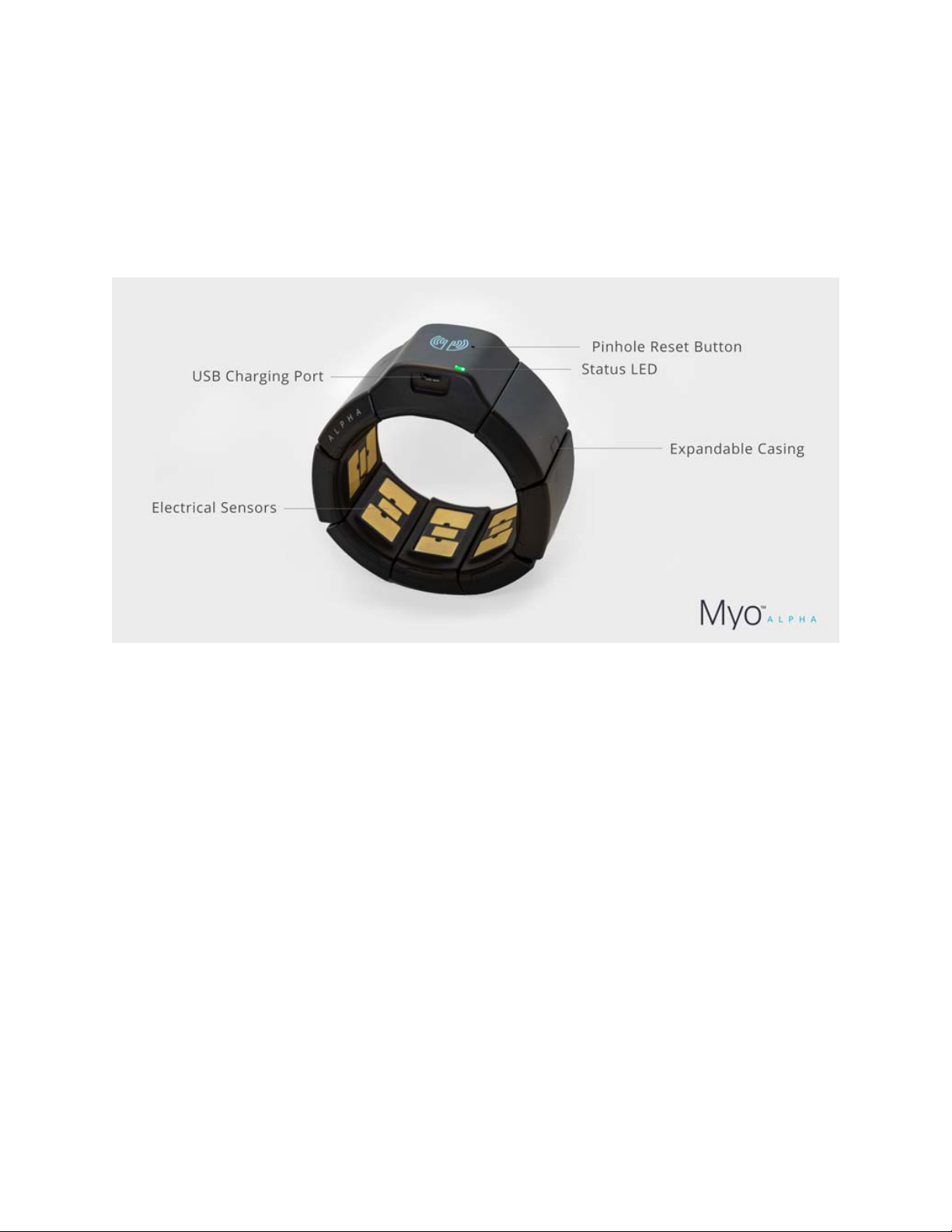
The following image illust r at es t he m ain components of Myo Alpha:
Myo is designed to be "wear and play", requiring minima l physical interaction. The eight segments
of expandable casinghouse Myo's component s and are connected using str et chable material that
allows them to expand an d cont r act relative to each other, so t hat M yo can comfortably fit each
user's unique physiology . The electrical sensors measure electrical signals traveling across the
user's arm, which Myo trans lates into poses and gest ur es.
The USB charging port a llows you to charge Myo's inter nal battery using a USB pow er adapter or a
conventional USB port on a computer.
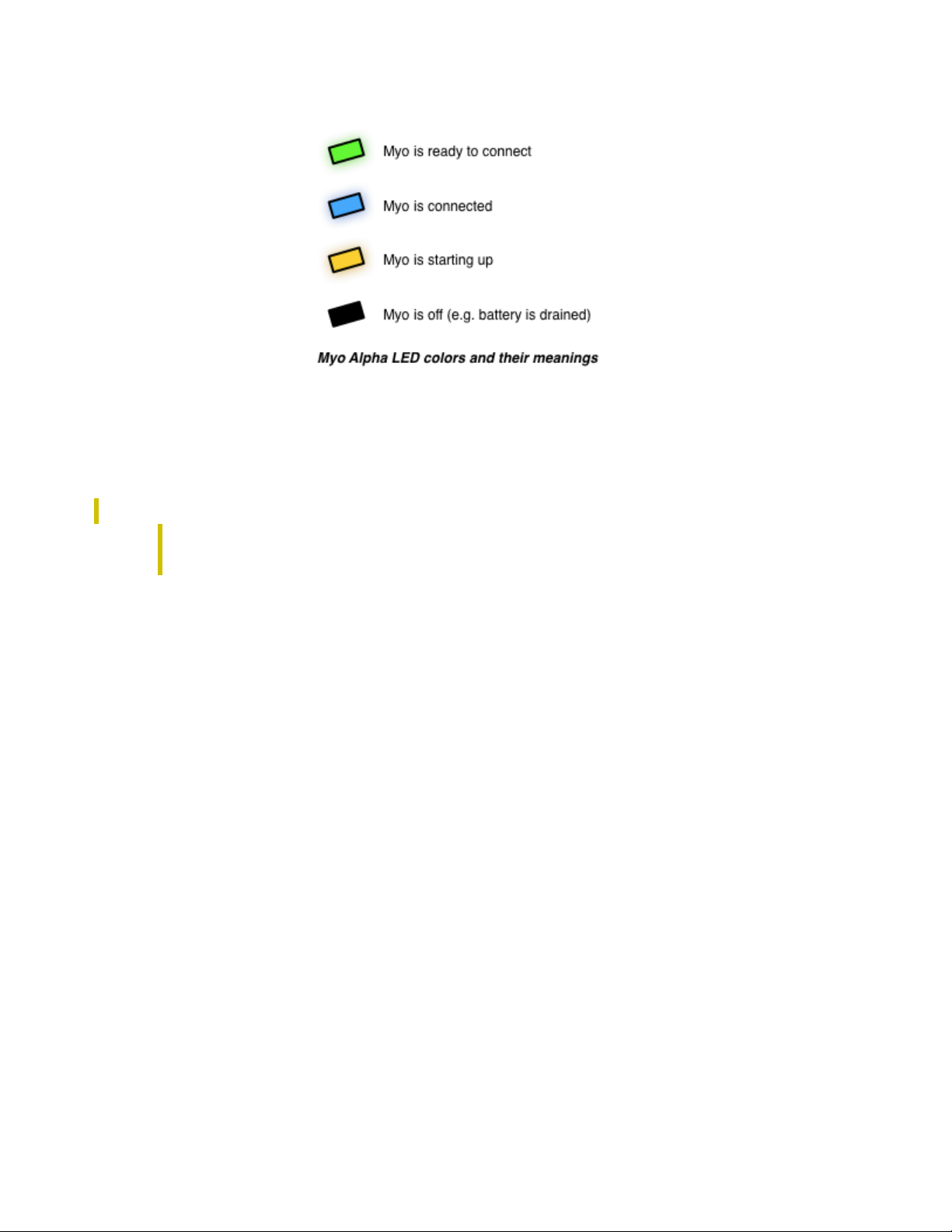
Myo Alpha provides two additional features. The status LED light s up in green when Myo is ready to
be connected to a device. Once M yo is connected, it lights up in blue instead. The pinhol e reset
button can be used to reset My o in case of a device malfunction.
Page 2
Myo is connected to a device (e.g. a computer, tablet, or smart phone) using Bluetooth 4.0 Low
Energy. The SDK takes c ar e of a ll o f the low level details related to Bl uet oot h connections and data
transmission.
Note
The pictures and description above depict Myo Alph a. Pr oduction Myo will be similar b ut
differ in shape and specifi c c har act eristics.
A Developer's View Of Myo
At its core, Myo provides two k ind s of data to an application, spat ial data and gestural data.
Spatial data informs t he application about the orientation and movement o f the user's arm. The Myo
SDK provides two kinds of spatial data:
• An orientation represents which way Myo is pointed. In t he SDK thi s or ientation is provided
as a quaternion that can be converted to other representat i ons, like a rotation matrix or Euler
angles.
• An acceleration vect or represents the acceleration Myo is undergoing at any given time.
The SDK provides this as a thr ee-dimensional vector.
Gestural data tells the ap pli cat ion what the user is doing with their hands. The Myo SDK provides
gestural data in the form of one of several preset poses, which represent a pa r t icul ar configuration
of the user's hand. For example, one pose represents the hand ma k in g a f ist , while another
represents the hand being at r est with an open palm.
An application can provid e fee dback to the wearer of Myo by issuing a vibration command. This
causes Myo to vibrate in a way that is both audible and sensed through touch.
Page 3
Running The Bundled Apps
The best way to start explor ing Myo is by running the apps bundled with the SDK. You can f ind all
bundled Myo apps in thebin/ direct or y of the SDK.
Apps can only be run when the M yo has previously been trained on the system.
Installing The Bluetooth Dongle Driver
If you are using Windows, you may need to install a driver for the Bluetooth 4.0 Low Energy dongl e
provided with Myo. On ma ny computers, the drivers will inst all automatically when you first plug in
the dongle. If they do not, you c an m anually install the driver bundled with the SDK in
the drivers/BluetoothDongle/ directory. Follow the instructi ons i n t he vendor-provided
README to perform the installation.
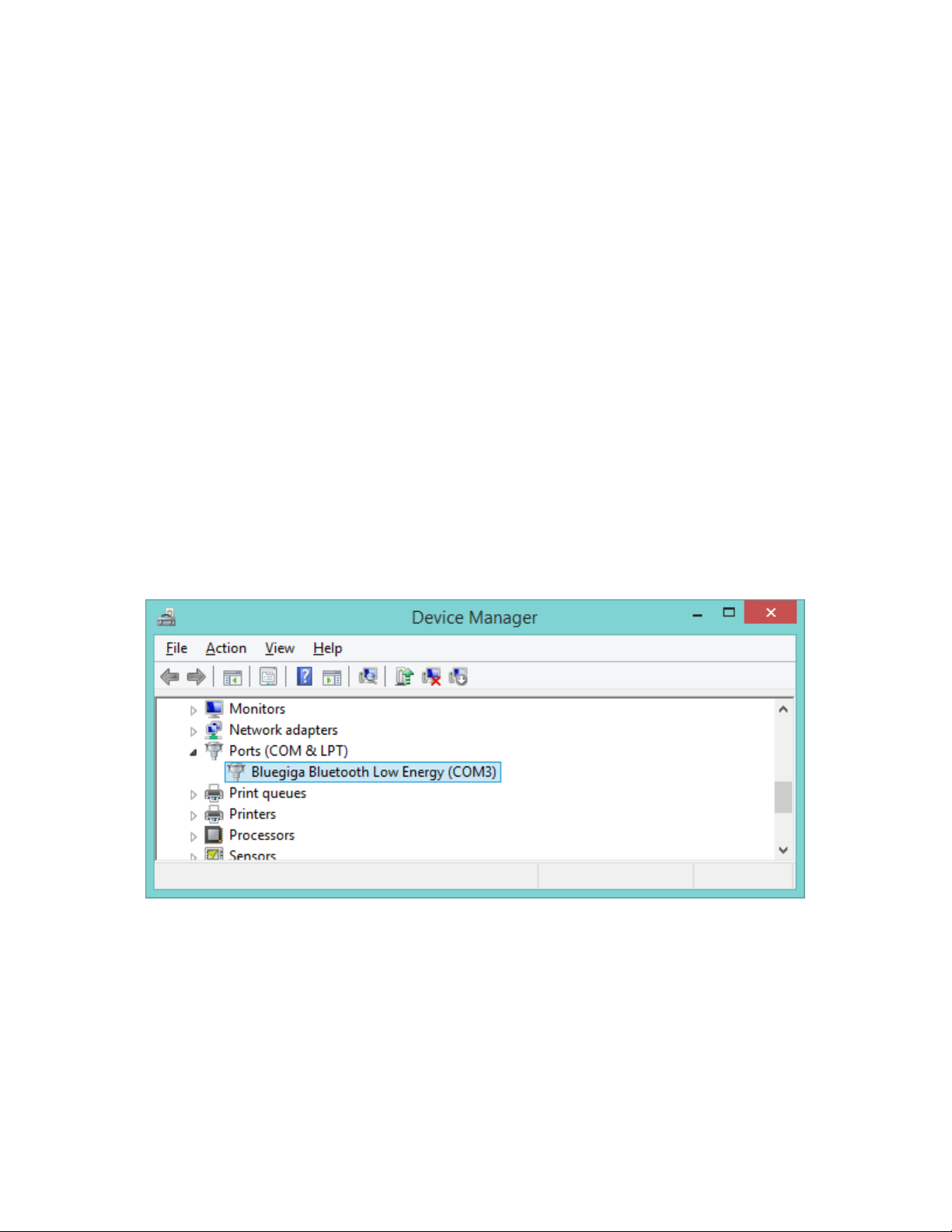
One way to verify that the Bluetoot h dongle drivers are installe d is t o open Device Manager and
check that the dongle appears under the "Ports (CO M & LP T) " device group. Make sure the
Bluetooth dongle is plugg ed in b ef or e you check the device manag er .
On Mac OS X, no additional driver s need to be installed.
Training Myo
The first app you will want to r un is the Myo Trainer. The trainer al low s you to demonstrate each
pose supported by the SDK to M yo so that it can recognize them later on.
Page 4
On Windows, the Myo Tra iner is launched by running t he MyoTrainer.exe file. If you encounter an
error launching the trainer, you may need to first install the .NET Framework. Y ou can f ind an
installer for the .NET fram ew ork in the drivers/ directory of the SDK.
On Mac OS X, the Myo Trainer is launched by running the myo-trainer application at the root of
the SDK.
The trainer itself is intended t o be self explanatory and will guid e you through the training process.
Before you train for the fir st t ime, w e st r ongly recommend you wat ch t he How To Train Your
Myo video found on the Myo developer website.
Note
If you are using Windows and have more than one Myo armba nd, see Using
MYO_PAIR_WITH_MAC on how to choose the Myo armband that you t r ain.
Running The Sample s
With training complete, y ou'r e r eady to run any Myo applicatio n. St ar t by opening the hello-
myo application found in the bin/directory of the SDK.
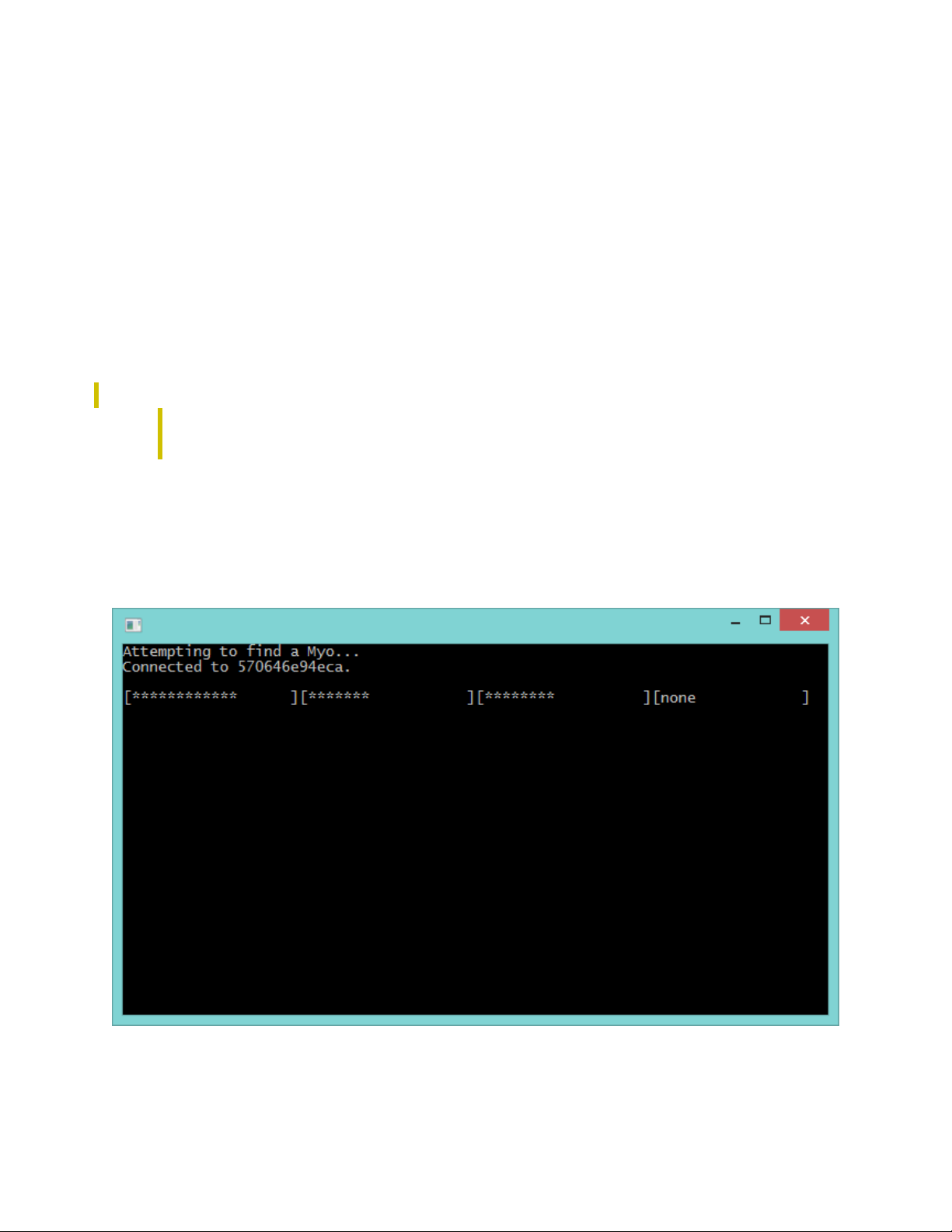
The hello-myo application is a basic cons ole application that demonst r at es Myo's orientation, pos e
recognition, and vibrat ion functionality. The first thr ee bar s in the application show Myo's orientation
 Loading...