

Page 1
Type1GC/1PS Evaluation Board AT Command (USB) Quick Start Guide
Type1GC Evaluation Board
AT Command (USB)
Quick Start Guide
Document No. N3-0663
Document Number: N3-0663
Version: E
Release Date: 2021/03/25
Murata Manufacturing Co., Ltd.
Page 1
Page 2
Type1GC/1PS Evaluation Board AT Command (USB) Quick Start Guide
Page 2
Revision History
Revision Number
Release Date
Comments
Revision A
2020/03/31
Initial
Revision B
2020/06/11
Change Chapter 4 image
Revision C
2020/06/30
Added description of UART usage
1.1 Purpose and Scope
Revision D
2020/07/28
Change to the USB procedure
1.1Purpose and Scope
3 Prerequisites
In this guide, it is assumed that you have applied the patch file
provided by Murata Manufacturing to the WICED SDK. If it has not
been applied, check the Type1GC/1PS Evaluation Board Quick
Start Guide and apply the patch file.
Building a Demo Application
5 Running AT command Application
Revision E
2021/03/25
Update for .patch platform file
Page 3

Type1GC/1PS Evaluation Board AT Command (USB) Quick Start Guide
Page 3
Contents
1. About this Document ................................................................................................................. 4
1.1. Purpose and Scope .................................................................................................................. 4
1.2. Document Conventions ............................................................................................................ 4
2. Evaluation Board ....................................................................................................................... 5
3. Prerequisites ............................................................................................................................. 6
4. Setting up the WICED Studio and Building a Demo Application ..................................................... 6
5. Running AT command Application ............................................................................................ 11
Page 4
Type1GC/1PS Evaluation Board AT Command (USB) Quick Start Guide
Page 4
1. About this Document
1.1. Purpose and Scope
This document provides instructions to evaluate an AT command sample application on the Murata
Type1GC EVB. Although Type1GC is supported by WICED-SDK, some modifications will be required when
using our EVB. We provice the modification as a “platform file” and AT command sample application
source code.
Note: Type1GC and 1PS is pin-to-pin compatible module.
For example, in the case of Type1PS, please use Type1PS platform files and module name 1PS instead of
1GC.
1.2. Document Conventions
Platform file – the source code to configure each platform.
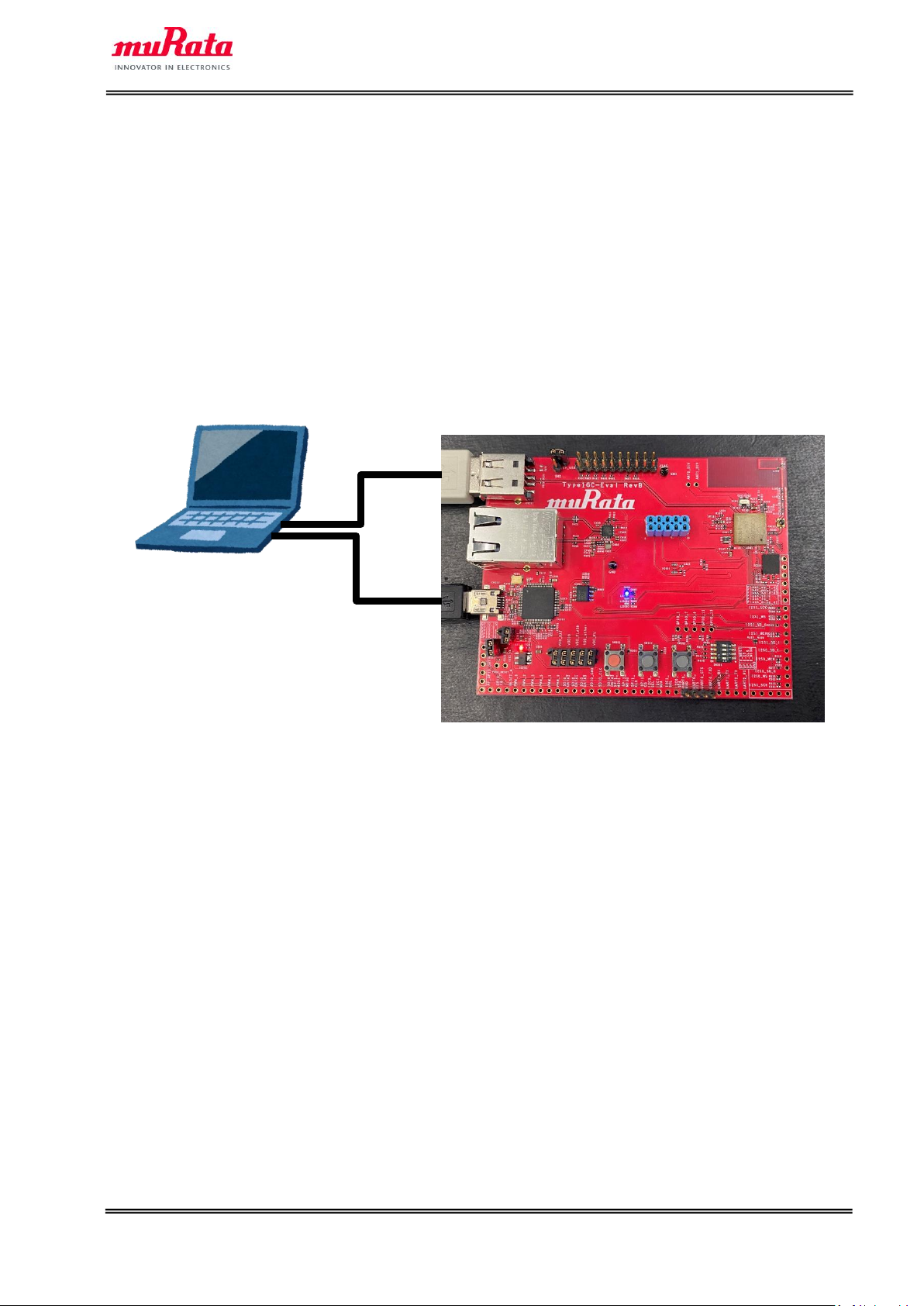
Type1GC
Tera Term
USB
(For AT commands)
UART1
(For debug)
Page 5

Type1GC/1PS Evaluation Board AT Command (USB) Quick Start Guide
Page 5
2. Evaluation Board
The Murata Type1GC Evaluation Board supports both Ethernet and USB interfaces. To allow proper
operation with WICED Studio, please verify that the mini-switch SW304 is set with the correct pin settings.
To use USB with AT commands, the jumper must be properly configured and used as a "USB device".
✓ SW304: pin1 and 2 ON, pin3 and 4 OFF
✓ Jumper setting
R106
R107
USB Host
Open
Short
USB device
Short
Open
Reset Switch
SW304
JTAG
R106
R107
Page 6

Type1GC/1PS Evaluation Board AT Command (USB) Quick Start Guide
Page 6
3. Prerequisites
In this guide, it is assumed that you have applied the patch file provided by Murata Manufacturing to the
WICED SDK. If it has not been applied, check the Type1GC/1PS Evaluation Board Quick Start Guide and
apply the patch file.
4. Building a Demo Application
To Build a Demo Application, the following steps must be performed:
A) Copy the AT command sample application files provided by Murata to your WICED directory.
Note: WICED directory is at “C:\Users\<user name>\Documents\WICED-Studio-<VERSION>” with default
installation.
B) Connect the Evaluation board to your PC via the mini USB cable.
Type1GC should be detected as “WICED USB Serial Port (COMXX)”. (“XX” is the serial port number.) If
Type1GC cannot be detected, you may manually install the driver from
<WICED-Studio>\Drivers\Windows\
C) Change the source code.
To run the sample application, edit “43xxx_Wi-Fi¥apps¥test¥at_cmd¥at_cmd.mk”.
D) Start the WICED-SDK.
Start the WICED Studio by selecting START > ALL Programs > Cypress > WICED-Studio.
Select target “43xxx_Wi-Fi” or “WICED Filters off”.
WICED-Studio-<VERSION>
WICED-Studio-<VERSION>_Type1GC
Change to “1”.
Page 7

Type1GC/1PS Evaluation Board AT Command (USB) Quick Start Guide
Page 7
E) Make new build targets.
a) Click “New Make Target” button.
“Create Make Target” window will appear.
b) Input the following text to the “Target name” field.
test.at_cmd-MurataType1GC ota2_image download run
Console Window
Code Editor
Project
Explorer
Make Target Window
Page 8

Type1GC/1PS Evaluation Board AT Command (USB) Quick Start Guide
Page 8
c) Select “OK”.
d) Repeat steps “a)” through “c)” to create make Target "snip.ota2_extract-MurataType1GC".
e) Confirm that the new targets have been added in the “Make Target”.
Page 9

Type1GC/1PS Evaluation Board AT Command (USB) Quick Start Guide
Page 9
F) Double-click on the Make Target “snip.ota2_extract-MurataType1GC” to build the application.
Note: It will take some minutes for first building.
G) Building progress will be displayed on the window of the “Studio Console”.
H) “Build complete” indicates that the building has been successful.
I) Double-click on the Make Target “test.at_cmd-MurataType1GC ota2_image download run” to build
the application.
Note: It will take some minutes for first building.
Page 10

Type1GC/1PS Evaluation Board AT Command (USB) Quick Start Guide
Page 10
J) Building progress will be displayed on the window of the “Studio Console”.
K) “Build complete” indicates that the building and downloading of the application has been successful.
Page 11

Type1GC/1PS Evaluation Board AT Command (USB) Quick Start Guide
Page 11
5. Running AT command Application
To verify the application which is downloaded in section 3, you need to launch a terminal software such as
Tera Term. Please select [Setup] > [Serial Port…] in the menu bar to setup serial port. Please use the
following settings for the COM port connection.
COM port settings for USB
COM port settings for UART1
Page 12

Type1GC/1PS Evaluation Board AT Command (USB) Quick Start Guide
Page 12
The following texts will appear on Tera Term (UART1).
The following texts will appear on Tera Term (USB) when you type an AT command “AT+WSCAN” and line
feed code (CR+LF) on the Tera Term window.
(END)
 Loading...