

Page 1

Contents
Introduction and Getting Star ted ..............1
Switching the Pager On............................1
Status and Operating Symbols ................2
Setting the Time and Date........................4
Setting the Pager Alarm ...........................6
Selecting the Pager Alert ......................... 8
Receiving a Message .............................10
Reviewing Stored Messages..................11
Archiving Messages ............................... 12
Reviewing Archived Messages ..............13
Deleting Messages .................................13
Deleting All Messages............................ 14
Timed Off ................................................14
Reviewing Information Ser vice
Messages .............................................16
Caring for your Pager .............................17
Fault-Finding...........................................17
(i)
Page 2
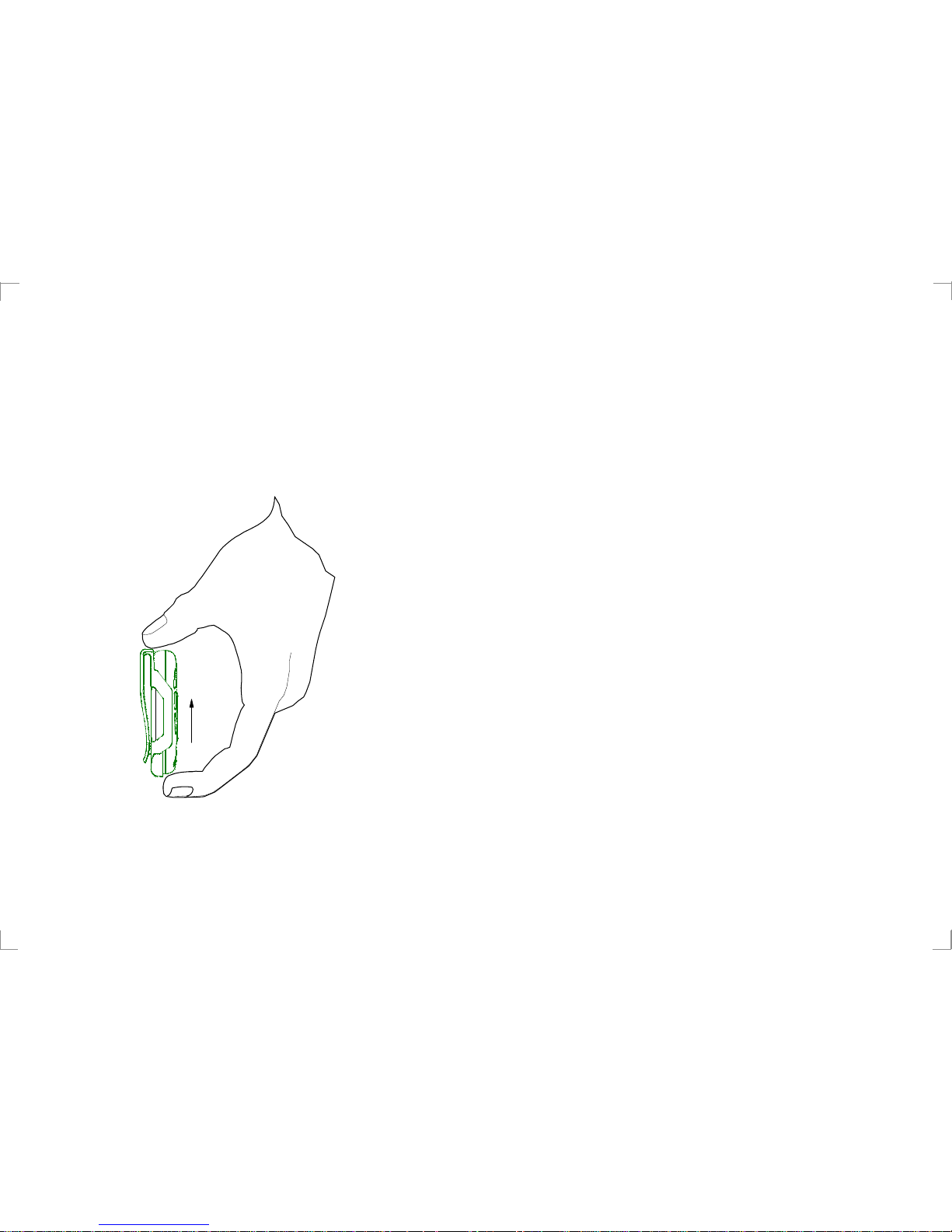
Releasing the Pager from the
Holster
Press on the bottom tag with your finger
and slide the pager upward.
(ii) 1
Introduction and Getting Started
Congratulations on selecting the TLA 850
alphanumeric pager from Multitone. Your
pager has all the features you expect of a
top class product yet it retains simplicity of
operation through the superbly designed
user interface and icon menu selection.
This guide will describe the operation of the
product and ensure that you receive the full
benefits of paging with the TLA 850.
On the back of your pager you will find the
battery cover. Press down on the centre
tab while sliding the battery cover outwards
to remove. Insert the battery into the
spring end first so that the + symbol on the
battery is aligned with the moulded +
symbol in the battery compar tment.
Carefully slide the cover back into position.
Switching the Pager On
To turn the pager on press and hold the •>
button for one second. A short alert will
Page 3
2
14:24 23.03.98
sound and the pre-programmed switch-on
message will be displayed.
After one second the time and date will be
shown. This is the standby screen:
Standby Screen
Status and Operating Symbols
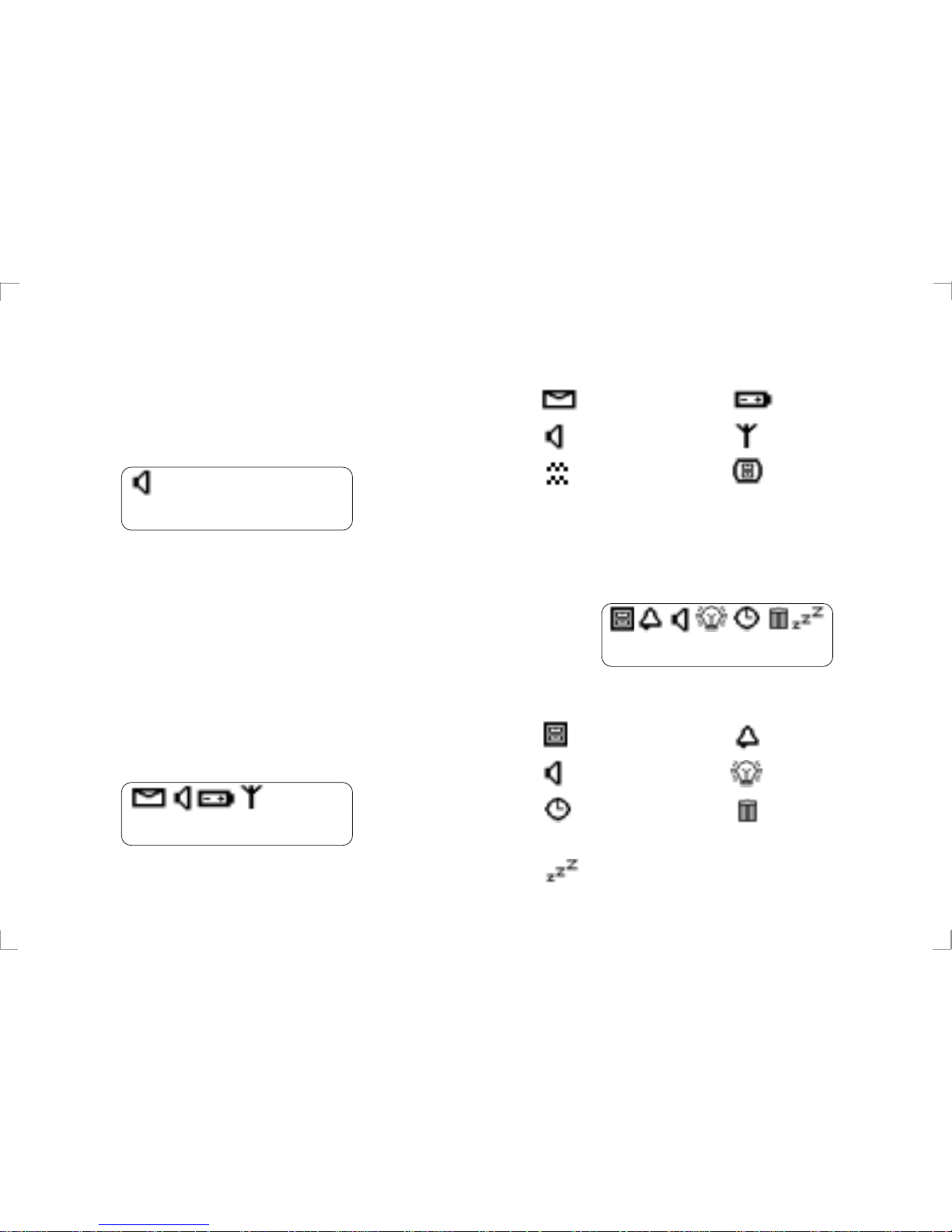
The standby screen shows the current time
and date. It also shows if there are unread
messages, whether audible or vibrate alert
is selected and, if appropriate, gives low
battery and out-of-range warnings by
displaying the following symbols:
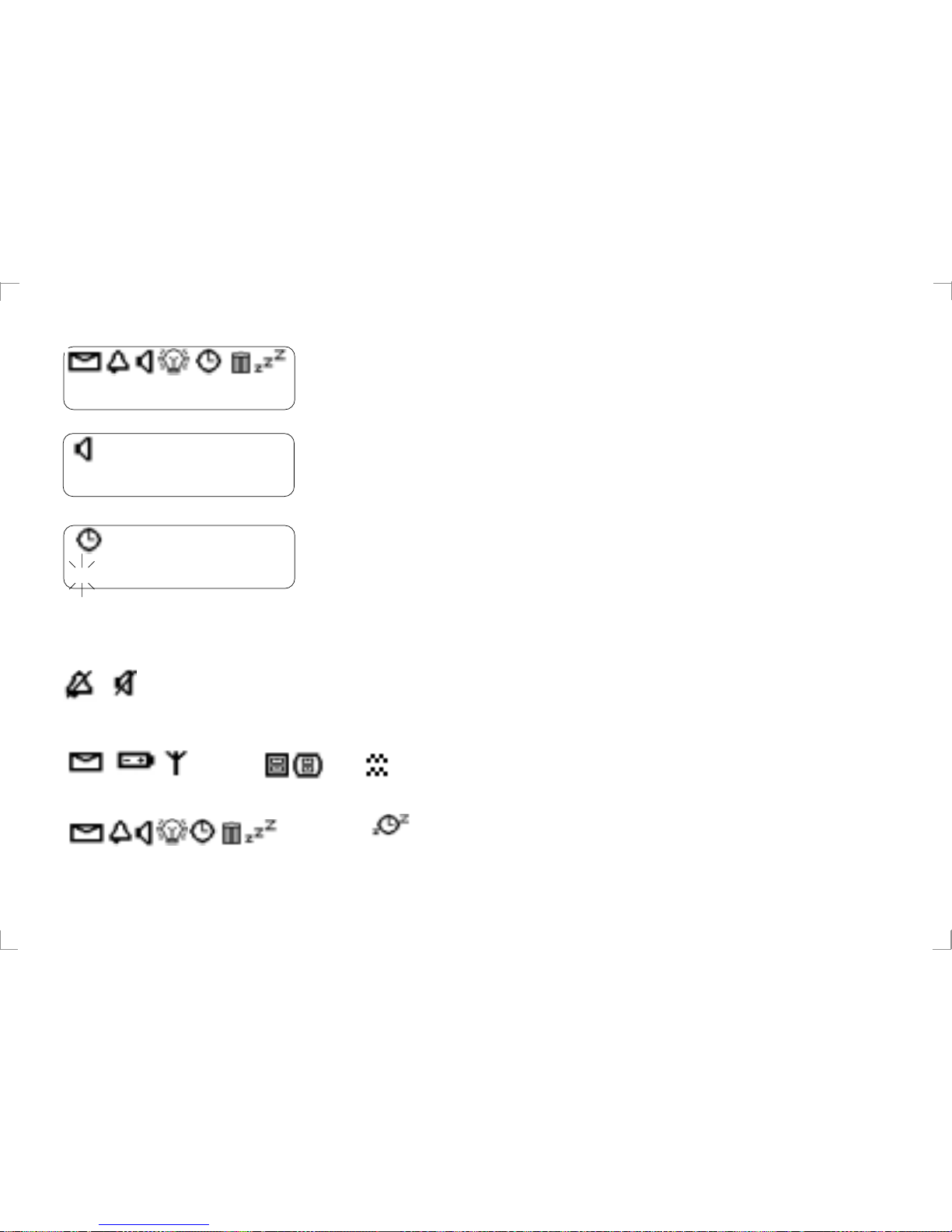
Status Symbols
14:26 23.03.98
3
From the standby screen press •> to enter
the pager options screen. The following
symbols are displayed:
Pager Option Screen
Unread Messages Low Battery
Audible Alert Out-of-Range
Vibrate Memory Full
The status symbols are as follows:
Archive
Alert Section
Time Setting and
Timed Off Setup
Off
Alarm Function
Backlight
Delete All
Messages
Page 4
4
To turn the pager off press •> to show the
pager options screen and then press < or >
several times until the
symbol is
flashing. Press •> and the display will
show the symbol plus a flashing ?.
Press •> again to tur n the pager off.
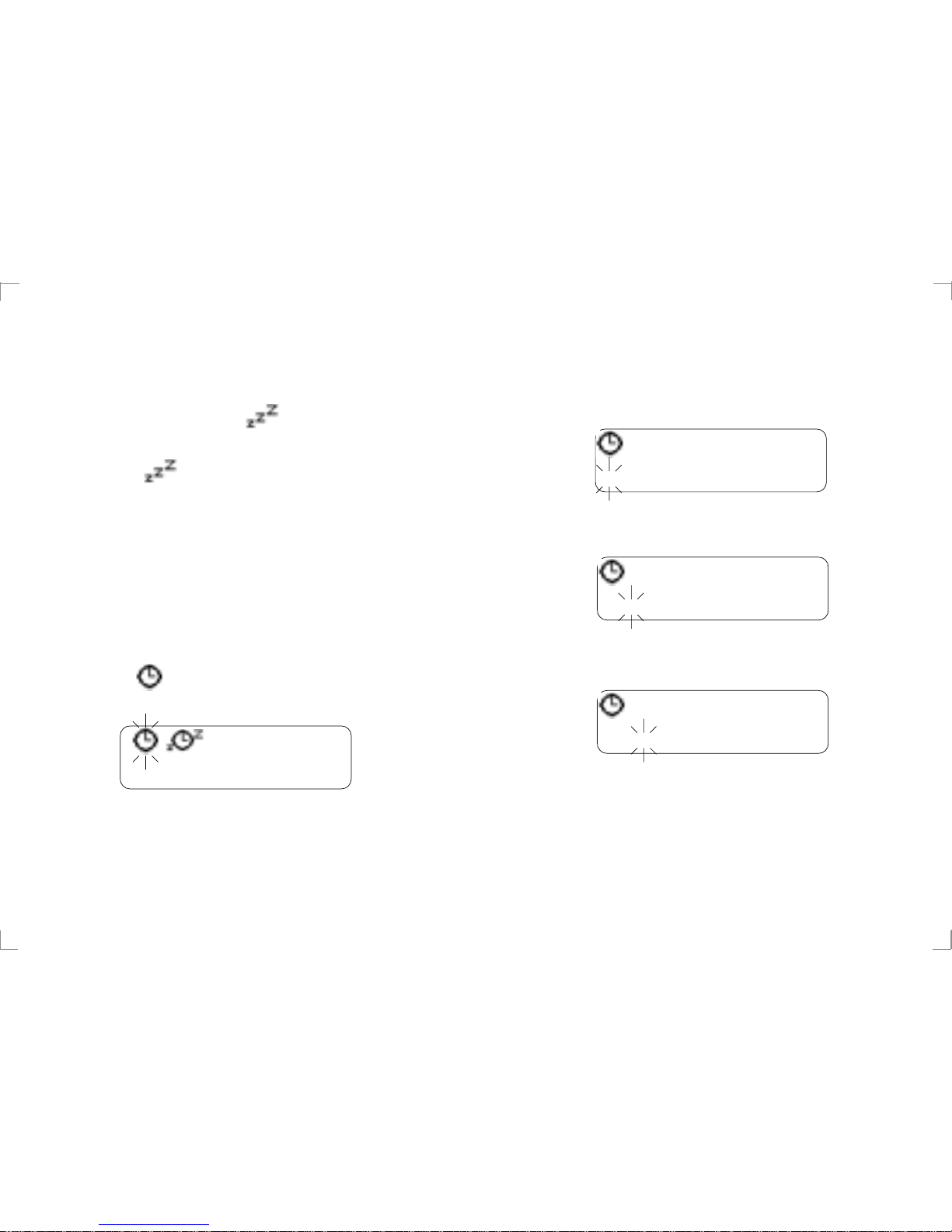
Setting the Time and Date
The standby screen will normally show the
time and date. To set the current time and
date press •> once to display the pager
options and then press < or > several times
until the symbol flashes. Press •> to
display the time function edit screen.
Time Function Screen
The clock symbol will flash. To set the
clock press •> and the clock symbol will
5
appear with 12 or 24 hour mode indicated.
The hour will flash and the correct value
may be selected by pressing either < or >.
Once the hour is correct press •> and the
tens of minutes will flash.
Press < or > until the correct number is
shown and then press •>.
Press < or > until the correct number is
shown and then press •> to set the
minutes.
The date is set with the same method.
5:27 pm 23.03.98
12
5:27 pm 23.03.98
12
5:29 pm 23.03.98
12
Page 5
6
Once the display shows the correct time
and date the 12 or 24 hour mode can be
selected by pressing the < or > buttons to
change as required.
Press and hold •> for one second to return
the pager to the standby screen.
Setting the Pager Alarm
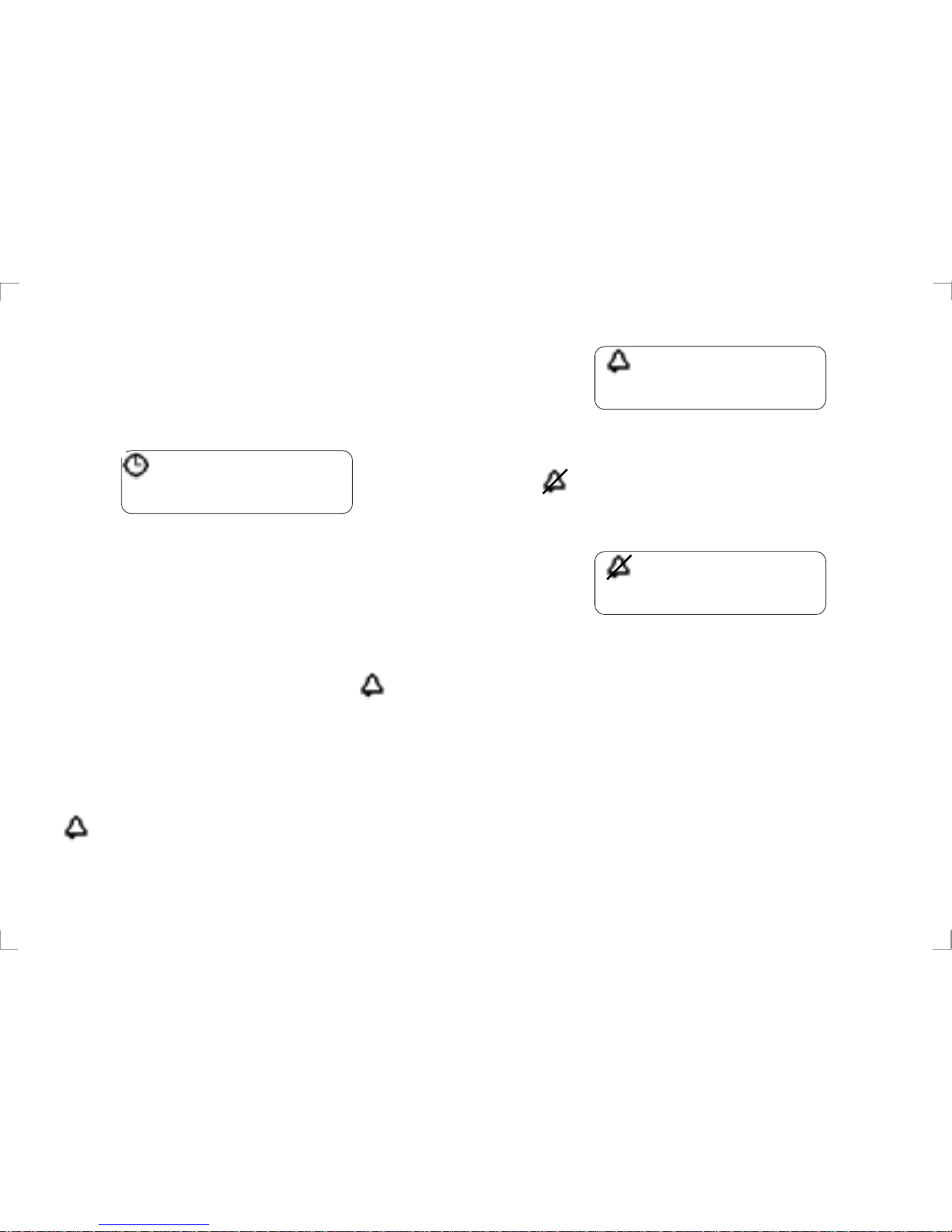
The pager has a daily alarm feature and it
may be set by pressing the •> to show the
pager options and then selecting the
symbol using the < or > buttons.
Press the •> to display the alarm options
screen.
To turn the alarm on press < or > until the
symbol shows and the time that the
alarm is set to sound is displayed.
17:27 pm 23.03.98
24
7
To turn the alarm off press < or > until the
symbol shows and the alarm time is
turned off.
To change the alarm time press •> and the
hour will flash. Press < or > to change the
numbers and when the correct value is set
press •> and the tens of minutes will flash.
Press < or > to change the numbers and
when the correct value is shown press •>.
Press < or > until the minutes display is
correct and then press •> for one second to
return to the standby screen.
07:00
Page 6
8
The display will show the symbol
indicating that the alarm is set. When the
alarm time is reached the standby screen
will show the symbol flashing and the
alert will sound for eight seconds. Pressing
any button within the eight second period
will stop the alert.
Selecting the Pager Alert
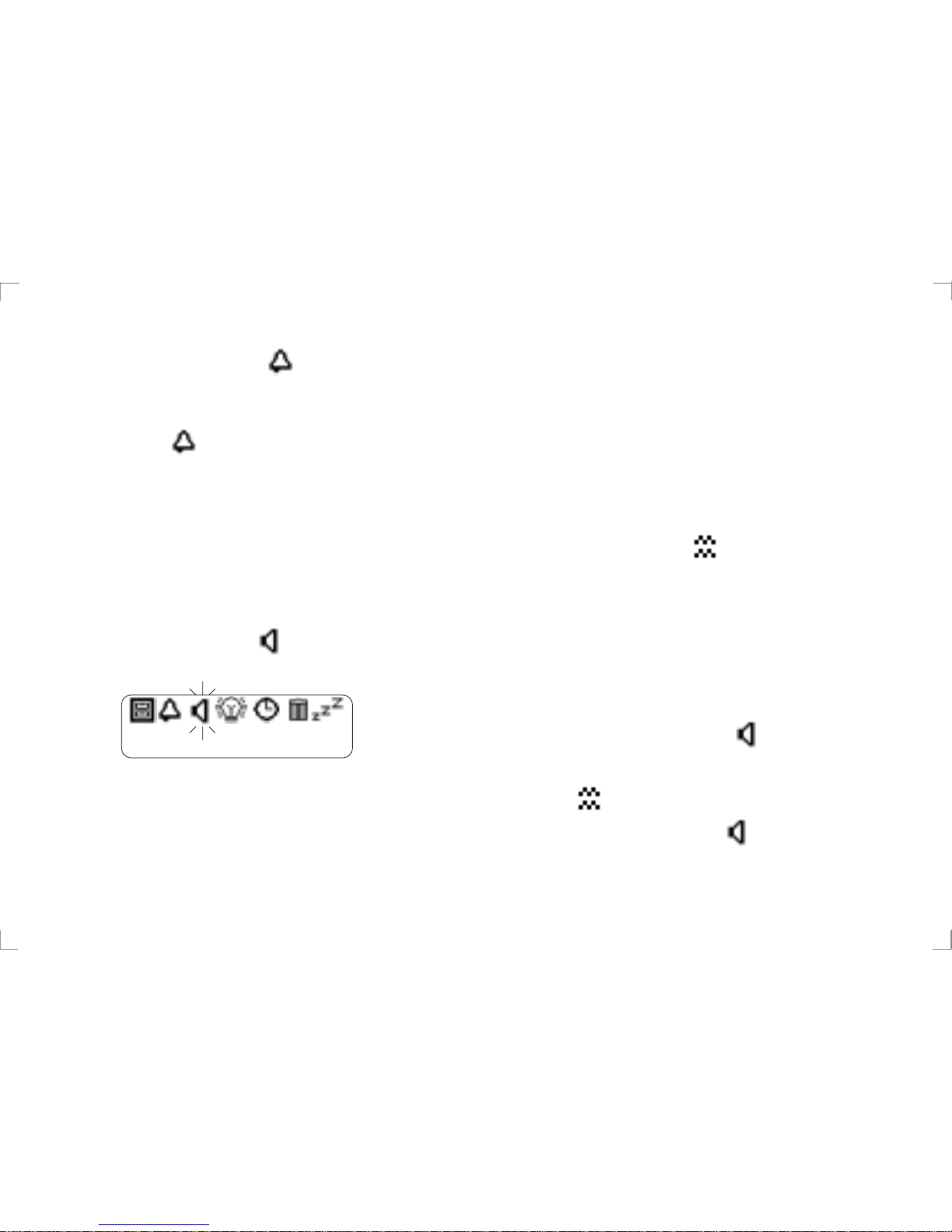
To set the alert on the pager press •> to
show the pager options and then press < or
> several times until the symbol is
flashing.
Press •> to display the alert options screen
which allows you to select the type of alert
that the pager produces when a call is
received. The pager has nine possible aler t
9
settings. These are numbered 0 for No
alert, 1 for Vibrate alert and 2 to 8 for the
seven audible alerts. Press < or > to
change the aler t and the pager gives you a
sample of the alert.
To stop the alert press any button.
If the vibrate alert is required then press
the < or > until the
symbol is displayed
and the pager will vibrate for one second.
The pager will now vibrate discreetly when
a call is received.
Once the desired aler t has been selected
press •> for one second to return to the
standby screen. In the standby screen the
pager will now show the symbol if the
audible alert has been selected.
The will be displayed if the vibrate alert
has been selected and will be displayed
if the no alert option is selected.
Page 7

10
It is also possible to toggle rapidly between
audible and no alert by pressing and
holding the •> button for three seconds.
Receiving a Message
When receiving a message your pager will
either alert you audibly or vibrate as
selected. The alert will continue for eight
seconds or until you acknowledge receipt
of the message by pressing any of the
buttons on the front of the pager. The
received message will also be displayed
during this initial aler t. If you are away from
your pager the alert will continue for eight
seconds after which the symbol will
be shown to indicate you have an unread
message. A reminder alert will sound
every five minutes during the following hour.
To display the message press the > button.
If the message length exceeds one screen
you can scroll through to the end of the
11
message by pressing the •> button. A !
symbol marks the end of each message.
Each message is time and date stamped
when received. This information can
subsequently be seen when the messages
are reviewed.
Reviewing Stored Messages
When the pager has received a new
message the standby display will show the
symbol. To scroll through received
messages starting with the newest
message press >. To read a particular
message select it using < or > and if the
message occupies more than one screen
pressing •> allows subsequent screens to
be viewed.
To return to the standby screen at any time
press •> for one second.
Once the pager has received 32 messages
its memory will be full and the standby
Page 8

12
screen will show the symbol. If a new
message is received when the pager
memory is full then the oldest message will
be deleted. However, if there are no read
messages then the oldest unread message
will be deleted.
When the end of message block has been
viewed press •> to enter the message
options screen which contains the
message timestamp.
Archiving Messages
Archive messages by transferring them to
the pager archive store. To do this press >
followed by < or > several times to select
the message to be archived and then view
the complete message by pressing •> so
that the
!!
!!
!
symbol is seen.
Press •> again to enter the message option
screen and press < or > until the
13
symbol is flashing. Press •> and the
display will show the symbol plus a
flashing ?. Press •> to transfer the
message to the archive memory. If the
archive memory is full the symbol will
flash and a message must be deleted from
the archive memory before a new one can
be archived.
Reviewing Archived Messages
To view the contents of the archive
message memory star ting with the most
recent message press the •> twice. Press
< or > to scroll through the messages. To
view a long message press •> to read
subsequent screens.
Deleting Messages
To delete messages from either the pager
message or archive memories first select
the message to be deleted using < or > and
Page 9

14
then read the message using the •> button.
When the last screen of the message is
displayed press •> and press < or > until
symbol is flashing. Press •> and the
display will show the symbol plus a
flashing ?. Press •> to delete the
message.
Deleting All Messages
The pager message memory (but not the
archive store) may be completely erased by
pressing •> to show the pager options and
then pressing either the < or > until the
symbol is flashing. Press •> again and the
display will show the symbol plus
flashing ?. Press •> to delete all of the
messages.
Timed Off
The pager may be switched off and on at
preset times (e.g. overnight).
15
To set the off and on times press •> when
in the standby screen and then press either
< or > until the symbol is flashing.
Press •> then press the < or > until the
symbol is flashing. Then press •> to
display the timed off edit screen.
To disable the timed off feature press < or >
until the off and on times are not shown.
To enable the timed off feature press < or >
until the off and on times are shown.
The off and on times may be set by
pressing •> to select the hours or minutes
and < or > to adjust the values. Once the
desired times are displayed press •> for
one second to return to the pager standby
display and the symbol will show
indicating that the timed off feature is
active.
Page 10

16
Reviewing Information Ser vice
Messages
The Information services menu is reached
by pressing the < button when in the
standby screen. Each enabled ser vice has
a number symbol.
Press < or > until the number symbol of the
the service you require is flashing then
press •> to display the service message.
To review other messages received on the
same service, press < or > until the
required message is displayed.
The ‘history depth’ of each service has
been programmed at manufacture to
optimise the memory allocation for the
services provided.
To return to the information services menu
press •> repeatedly until the information
service menu is displayed.
To archive an information service message
use the same method as described for
archiving messages.
Caring for your Pager
Protect your pager from strong magnetic
fields, liquids, extreme temperatures and
long periods exposed to strong sunlight.
Clean the exterior of your pager using a
clean, soft, non-abrasive cloth. If
necessary, dampen cloth with water only.
Fault-Finding
If your pager appears to have a fault
please check the following:
• Is the pager switched on?
• Is the battery dead?
• Is the battery fitted correctly?
• Is the +ve sign on the battery aligned
with the moulded +ve sign in the battery
compartment?
17
Page 11

If you have checked the above and are still
having problems please contact your
Multitone dealer.
18
FCC Statement Of Compliance
This device complies with Part 15
of the FCC Rules. Operation is
subject to the following two
conditions: (1) this device may not
cause harmful interference, and (2)
this device must accept any
interference received, including
interference that may cause
undesired operation.
Unauthorised modification to this
equipment, will void the user’s
authority to continue to operate the
device, within the scope of the FCC
P art 15 Rules.
Page 12
14:24 23.03.98
14:27 23.03.98
SYMBOLS (not icons)
?
!!
!!
!
 Loading...