

Page 1
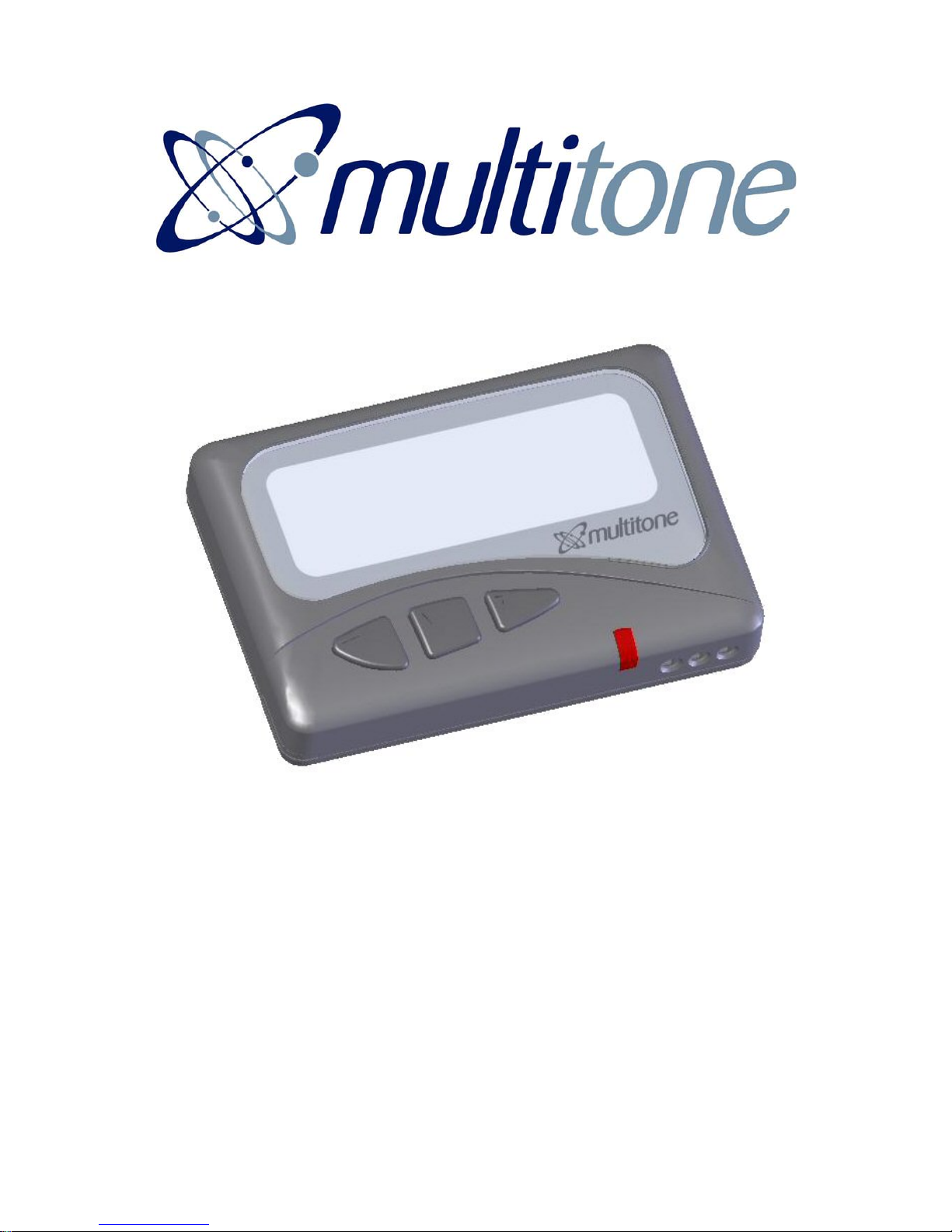
MIT870 Series
USER GUIDE
For
MIT870 SERIES PAGING RECEIVER
9261- 8130 (Issue 1)
Page 2

MIT870 Series
2
CONTENTS
Introduction 4
Compliance 5
General User Information 6
Switching On Your MIT870 Pager 7
Status and Warning Messages 8
Switching Off Your MIT870 Pager 9
Receiving a Message 10
Reviewing Messages 12
Viewing a Message Again 13
Deleting a Message 14
Delete All Messages 15
Archiving a Message 16
Reviewing Archived Messages 17
Deleting Archived Messages 18
Delete All Archived Messages 19
Reviewing Special Information Services (SIS) Messages 20
Archiving a Special Information Services (SIS) Message 21
Setting Time & Date 22
Setting the Alarm 23
Page 3

MIT870 Series
3
Setting the Alert Options 25
Audible Alert Switch Off 27
Setting the Message Display Options 28
Setting Auto Delete 30
Changing the Battery 31
Page 4
MIT870 Series
4
Introduction
Your MIT870 pager is an alphanumeric radio-paging receiver, which
is able to receive text messages and store them for you to view
later. The high contrast screen is capable of displaying up to 150
characters, whilst operation of the functions may be performed via
intuitive menus and 3 tactile buttons. An additional feature is that
no icons are used on the screen, as all operating prompts are
displayed in plain text language. In order to obtain maximum
benefit from the features provided, please read the following guide
carefully.
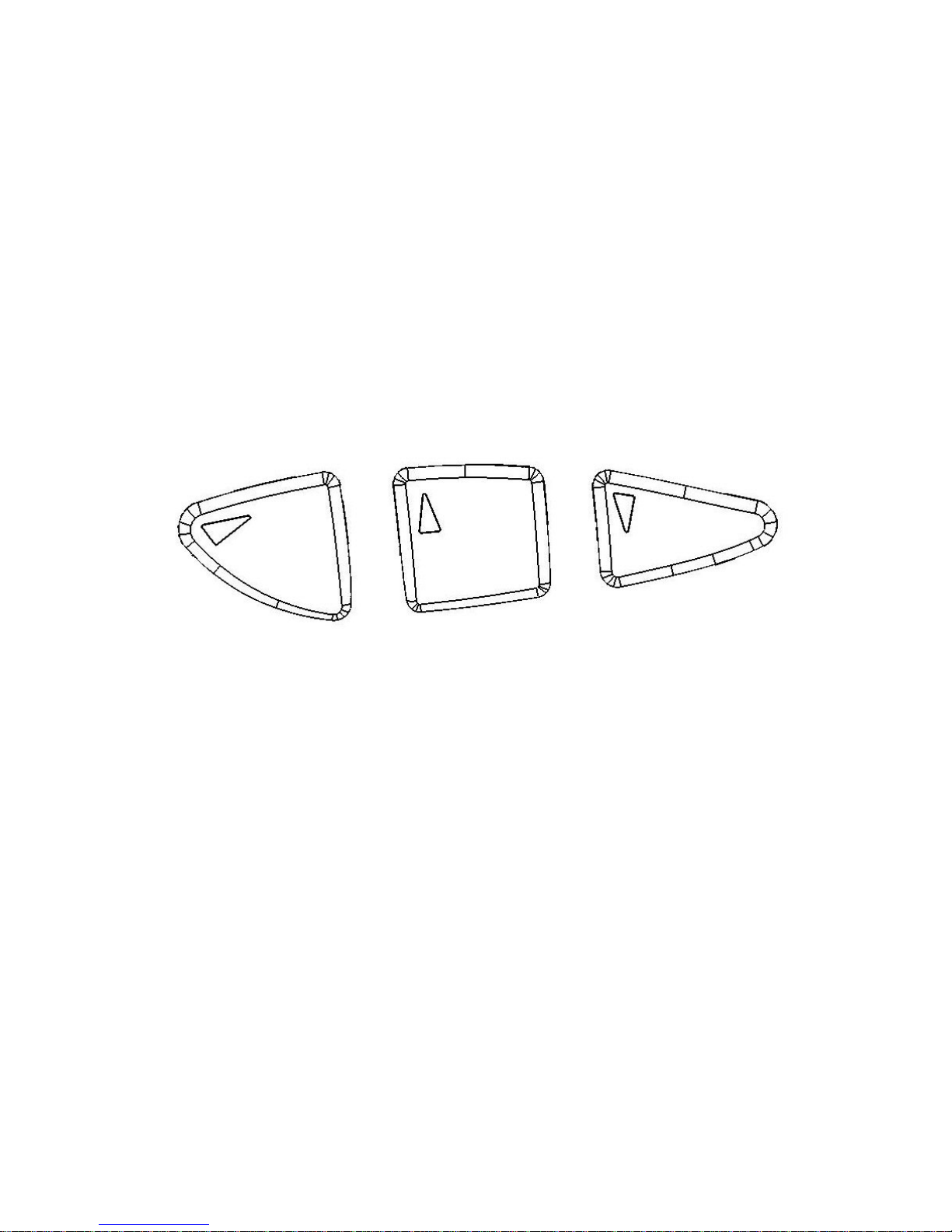
Function/Control Buttons
Select/Enter Button Scroll Up Button Scroll Down Button
Select & Enter Button
Denoted by the X symbol, this button is used to move to and
confirm selected options within the Menu Screens and to return to
the Standby Screen when pressed for more than 1 second.
Scroll Up/Down Buttons
Denoted by the S(Up) and T (Down) Symbols. These buttons are
used to scroll up and down the Menu Screens.
Page 5
MIT870 Series
5
Compliance
This product complies with the requirements of the EU Radio &
Telecommunications Terminal Equipment Directive 99/5/EC. A
complete copy of the associated Declaration Of Conformity for this
and other Multitone products, may be found at the Multitone Internet
address www.multitone.com
FCC & Industry Canada Statement Of Compliance
This device complies with Part 15 of the FCC Rules and Industry
Canada Standard RSS 210.
Operation is subject to the following two conditions: (1) this device
may not cause harmful interference and (2) this device must accept
any interference that may cause undesired operation.
Unauthorised modification to this equipment will void the user's
authority to continue to operate the device within the scope of the
Industry Canada and FCC Part 15 Rules.
A full technical specification for this product may be obtained from
your Multitone representative.
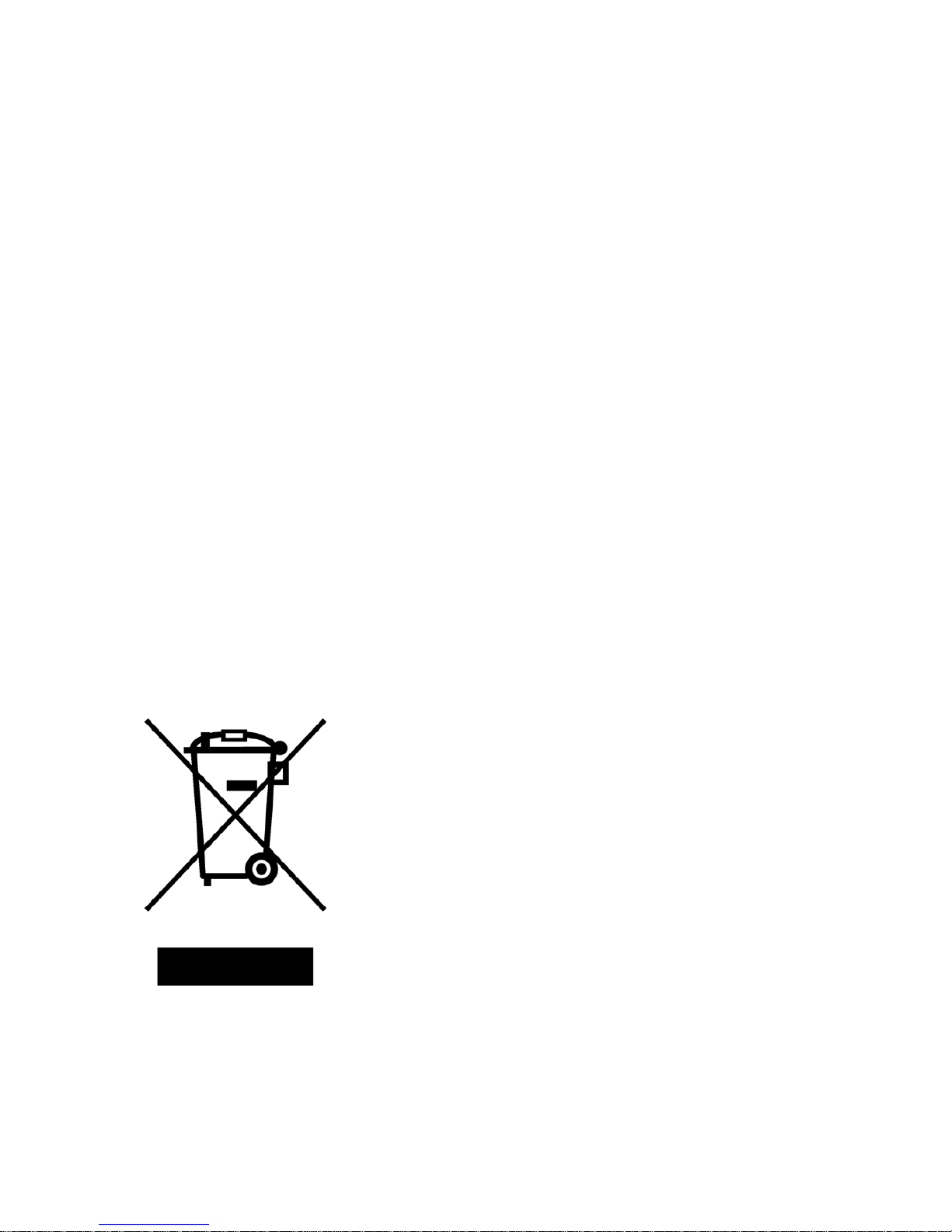
WEEE Directive & Product Disposal
At the end of its serviceable life, this product
should not be treated as household, or
general waste. It should be handed over to
the applicable collection point for the
recycling of electrical and electronic
equipment, or returned to Multitone or their
agent, for disposal.
Page 6

MIT870 Series
6
General User Information
Radio Reception
Your pager has been designed to give optimum performance within
the coverage area of the transmitting system. As with any radio
system there may be areas of poor coverage, where reception may
be sporadic, or non-existent. If necessary, consult your system
administrator in order to familiarise yourself with these areas.
Hazardous Areas
Standard versions of this pager should not be taken into areas
where explosive gas, or dust products, may be present. Intrinsically
Safe versions are available for use in such environments, details of
which may be obtained from your distributor, or direct from
Multitone.
Pager Care
Protect your pager from liquids, extreme temperatures and strong
magnetic fields. Do not leave your pager exposed to strong
sunlight, e.g. on a car dashboard, or a windowsill.
Servicing
Should your pager need repair, return it to the designated service
agent, or Multitone Electronics plc. Do not attempt to open or repair
the product, as it contains delicate components and requires
specialised test equipment. Only qualified personnel in a Multitone
Electronics authorised workshop should perform repairs.
Page 7

MIT870 Series
7
Switching On Your MIT870 Pager
To switch on, just press and hold the X button for more than half a
second. The audible alert will sound and all the segments of the
screen will be displayed for one second, to check display
functionality. A message will then be displayed for three seconds,
whilst other self-checks are performed. Finally, the Standby Screen
will be displayed:
If your MIT870 does not switch on, check that a fresh battery is
correctly installed, see section: Changing the Battery.
11:34 AM 12.09.06
No Unread Messages
Page 8

MIT870 Series
8
Status and Warning Messages
When your MIT870 pager is switched on, the Standby Screen is
displayed. This consists of the time and date, with any additional
status and warning messages. A typical screen is shown below:
The first line always acts as a clock, showing the current time and
date. The time is shown to the left of the first line and the date is
shown in the centre. The time may be displayed in either a 12 or
24-hour format.
Alarm will show at the right side of the top line, to denote that the
internal alarm is currently set. The second line displays No Unread
Messages or 1 Unread Message, to show how many messages
have been received but not viewed.
Sometimes another message, Memory Full, may alternate with the
message status. This occurs when the memory is almost full and
the next message may overwrite the oldest read message.
The third line shows the status of the alert, Silent to warn that the
audible alert has been turned off, or No Vibrate to show that the
vibrate alert has been turned off. When both audible and vibrate
alerts are turned off, Silent and No Vibrate alternate at 2-second
intervals. If nothing is displayed, then both audible and vibrate alert
are turned on.
Depending on the programming options selected, the bottom line
may display Replace Battery, to indicate that the battery should be
replaced. Likewise, if the MIT870 is out of range from the
transmitter, the Out of Range message will also be displayed on
the bottom line. In situations where Replace Battery and Out of
Range are both displayed, these will alternate at 2-second intervals.
11:34 AM 12.09.06 Alarm
1 Unread Message
Silent
Replace Battery
Page 9

MIT870 Series
9
Switching Off Your MIT870 Pager
When the Standby Screen is displayed, press and release the X
button. The options screen will now be displayed:
The two pointers show the item that will be selected if the X button
is pressed. Use the S or T buttons to move the pointers to Off and
select by pressing the X button. The pointers will change to
question marks, showing that confirmation is required to switch off:
Press the X button again and your MIT870 will switch off. If switch
off is not required, press either the: S or T button. When your
MIT870 is switched off, any messages you have received will be
retained in memory and the internal clock will remain running.
**> Archive <**
Options
Alarm/Time
Off
Archive
Options
Alarm/Time
??> Off <??
Page 10
MIT870 Series
10
Receiving a Message
When your MIT870 pager receives a call, the LED will flash in
sequence with the beep code pattern received, the audible alert will
also sound in sequence (unless silent mode has been selected) and
a vibrate alert is produced (unless vibrate has been turned off). The
message will either be sent immediately to the message store, or
will be displayed during the alert period, depending on whether the
Auto View function has been selected. Press any button to cancel
an alert:
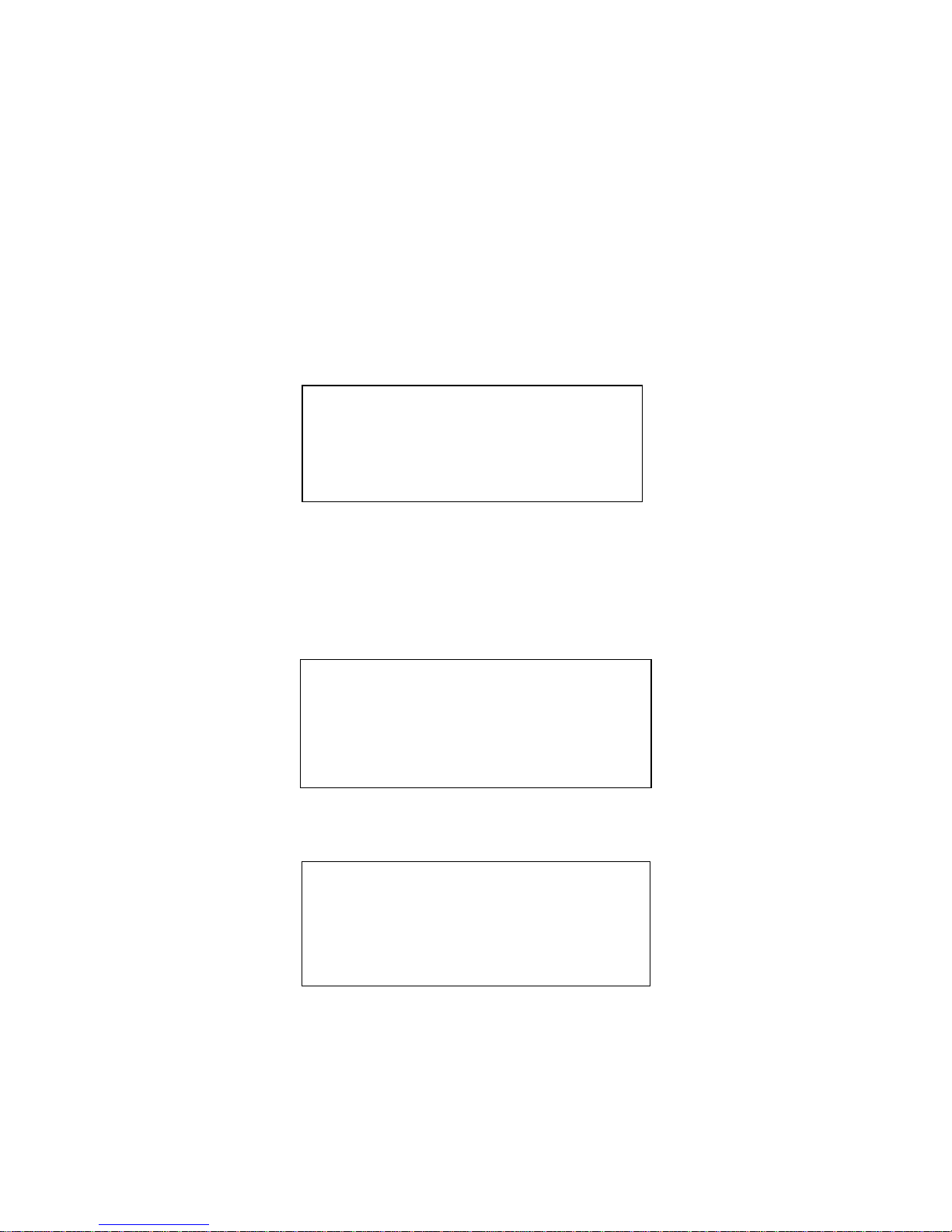
The end of the message is always shown by the character ■. If the
message is very long and cannot be fully displayed on the current
screen, then the last character will be a ►. This shows that the
message is continued on the next screen:
To see the rest of the message, simply press the X button:
Your car will be ready for
collection next Monday
afternoon■
Contact Mr Moore of ABC
Electronics Tel: 01763-246391.
The new contract is ready for
signature can you sign this►
before Wednesday. JILL■
Page 11

MIT870 Series
11
If the alert is not cancelled, the MIT870 will go to the extended alert
mode and return to the Standby Screen, indicating that a new
message had been received:
During the extended alert period, the alert LED will flash every two
seconds, the audible alert will emit two short pips and the vibrate
will issue a reminder every 90 seconds, 2, or 5 minutes, depending
on how the pager has been programmed.
As each new message is received it is stored. When the message
store is almost full, a warning message Memory Full will be
displayed on the Standby Screen. To make room for new
messages, your MIT870 will start to delete your oldest read
messages. If there are no read messages, it will delete the oldest
unread message.
Some MIT870's may be programmed not to display the message
immediately. In this case press the S button to cancel the alert, or
the T button to cancel the alert and display the message.
3:54 PM 12.09.06
1 Unread Message
Page 12
MIT870 Series
12
Reviewing Messages
To review your message, press the T button whilst your MIT870
pager is displaying the Standby Screen. The most recently received
unread message will then be displayed.
The top line shows the time and date that the message was
received and to the right, the message status will be displayed.
This will either be Unread or Read.
The next press of the T button will display the previously received
unread message, whilst selecting the S button will display the
previously viewed message.
Using the S and T buttons allows navigation of the stored
messages. Unread messages are sorted in time order and are
displayed first, followed by the read messages, also in time order.
4:38 PM 12.09.06 Unread
Your car will be ready for
collection next Monday
afternoon■
9:05 AM 12.09.06 Unread
Contact Mr Moore of ABC
Electronics Tel: 01763 - 246391.
The new contract is ready►
2:17 PM 12.09.06 Read
You are booked on Flight BA153.
Departs at 18:05 ticket
confirmed. Helen■
Page 13
MIT870 Series
13
Viewing a Message Again
While a message is being displayed, press the X button and the
message option screen will be shown.
Press the X button again to select View Again and your MIT870
will display the last message again, which will then remain in the
memory for you to view in future, until deleted.
If the message is in an unread state when View Again is selected,
the status will change to Read.
**> View Again <**
Delete
Delete All
Archive
9:05 AM 12.09.06 Read
Contact Mr Moore of ABC
Electronics Tel: 01763 - 246391.
The new contract is ready►
Page 14
MIT870 Series
14
Deleting a Message
To delete a message, press the X button when the ■ appears at the
end of the message. The message option screen will be displayed:
Press the T button to move the pointers to the Delete item and
select by pressing the X button:
The pointers will change to question marks to show that
confirmation of the delete action is required. If you do not want to
delete, press the S or T buttons. To confirm that you wish to
delete the message, press the X button again and the screen will
briefly display Deleting.
When the current message has been deleted, the previously
received message will be displayed. If you wish to delete this
message repeat the procedure above. To return to the Standby
Screen press and hold the X button for one second, if there are no
more messages, the following screen will be displayed:
**> View again <**
Delete
Delete All
Archive
No messages
View again
??> Delete <??
Delete All
Archive
Page 15
MIT870 Series
15
Delete All Messages
To delete all the messages, press the X button when the ■ appears
at the end of the message. The message option screen will be
displayed:
Press the T button to move the pointers to the Delete All item and
select by pressing the X button:
The pointers will change to question marks, to show that
confirmation of the delete action is required. If you do not want to
delete, press the S or T buttons. To confirm that you wish to
delete the message, press the X button again and the screen will
briefly display Deleting. Having deleted all the messages the
following screen will be displayed:
**> View again <**
Delete
Delete All
Archive
No Messages
View again
Delete
??> Delete All <??
Archive
Page 16

MIT870 Series
16
Archiving a Message
Messages may be stored for long-term reference, by using the
archive facility. The MIT870 pager cannot automatically delete
archived messages when the message memory is full, only the user
can delete messages. At the end of the message you wish to
archive, press the X button to see the message option screen.
Move the pointers to the Archive item with the S or T button:
Select Archive with the X button and the pointers will change to
question marks.
Confirm your selection by pressing the X button again. The screen
will briefly display Archiving. When the current message has been
archived, the screen will show the previously received message. If
you wish to archive this message, repeat the procedure. If there are
no other messages, you may return to the Standby Screen by
pressing and holding the X button for one second. The following
screen will be displayed:
View again
Delete
Delete All
**> Archive <**
No Messages
Page 17

MIT870 Series
17
Reviewing Archived Messages
To review your archived messages, press the S button whilst your
MIT870 pager is displaying the Standby Screen. When the MIT870
has been programmed to use Special Information Services, the
Archive store can be accessed via the main menu:
The first screen of the most recent archived message will be
displayed. You may select the archived message that you want to
review, by pressing the S or T buttons until the first screen of the
message is displayed. If the archived message is several screens
long, you can view subsequent screens by pressing the X button.
The last screen of the message will contain the ■ symbol.
The top line shows the time and date that the message was
received and to the right the message status Archive is displayed.
10.50 AM 12.09.06 Archive
Bring 2 new demo models to the
meeting at 11.30 next Tuesday.
Ruth■
Page 18
MIT870 Series
18
Deleting Archived Messages
To delete an archived message, press the X button when the ■
symbol appears at the end of the message. The message option
screen will be displayed:
Press the T button to move the pointers to the Delete item and
select by pressing the X button. The pointers will change to
question marks.
If you do not want to delete, press the S or T buttons. To confirm
that you wish to delete the message press the X button again and
the screen will briefly display Deleting.
When the current message has been deleted, the previously
archived message will be displayed. If you wish to delete this
message, repeat the procedure. If there are no more archived
messages, the following screen will be displayed:
To return to the Standby Screen, press and hold the X button for
one second.
**> View again <**
Delete
Delete All
View again
??> Delete <??
No Archived Messages
Page 19
MIT870 Series
19
Delete All Archived Messages
To delete all of the archived messages, press the X button when
the ■ symbol appears at the end of a message. The message
option screen will be displayed:
Move the pointers to the Delete All item by pressing the T button.
Select by pressing the X button and the pointers will change to
question marks:
If you do not want to delete all the messages press the S or T
buttons. To confirm that you wish to Delete All the messages,
press the X button again and the screen will briefly display
Deleting:
To return to the Standby Screen press and hold the X button for
one second.
**> View again <**
Delete
Delete All
View again
Delete
??> Delete All <??
No Archived Messages
Page 20
MIT870 Series
20
Reviewing Special Information Services (SIS) Messages
Some MIT870 pagers are programmed to receive SIS messages.
To review SIS messages press the S button whilst the MIT870
pager is displaying the Standby Screen:
When entering the SIS menu, the first four services are displayed.
There are a maximum of 12 services available, their order being
determined by the RIC and Function Code number selected. Use
the S and T buttons to allow you to navigate the menus available,
to access the selected service press and release the X button.
The date and time that the message was received is displayed on
line one, followed by the message received:
If the message is several screens long, you can view this further by
pressing the X button. The last screen of the message will contain
the ■ symbol. If there is no message stored in the selected service
the following screen is displayed:
To return to the Standby Screen, press and hold the X button for
one second.
**> Service 1 <**
Service 2
Service 3
Service 4
No Message
10.50 AM 12.09.06
Special Information Service■
Page 21

MIT870 Series
21
Archiving a Special Information Services (SIS) Message
Special Information Service Messages may be stored for long-term
reference, by using the Archive Facility. The MIT870 pager cannot
automatically delete archived messages when the message
memory is full, only the User can delete these. At the end of the
message you wish to archive, press the X button to see the Special
Information Service message option screen. Move the pointers to
Archive using the Sor T buttons:
Select Archive with the X button and the pointers will change to
question marks.
Confirm your selection by pressing the X button again. The screen
will briefly display Archiving. When the current message has been
archived, the screen will show the previously received message. If
you wish to archive this message, repeat the procedure. If there are
no other messages, you may return to the Standby Screen by
pressing and holding the X button for one second. The following
screen will be displayed:
Menu
**> Archive <**
No Messages
Page 22
MIT870 Series
22
Setting Time & Date
To set the time and date, press the X button when the Standby
Screen is displayed. The Options Screen will be displayed. Move
the pointers to Alarm/Time by pressing the T button:
Select this item by pressing the X button:
Move the pointers to Time and Date by pressing the T button, then
select by pressing the X button:
This screen allows you to set the time and date and also the 12 or
24-hour format. The currently selected item will flash. To select
another item for change, press the X button. Each press of the X
button will advance the selection to the next item. When the item
you wish to change is flashing, press the S or T buttons to
increase or decrease its value.
Once you have set the time and date, to return to the Standby
Screen press and hold the X button for one second.
Archive
Options
**> Alarm/Time <**
Off
**> Alarm <**
Time and Date
Time and Date
12:21 PM 12.09.06
12 Hour Mode
Page 23
MIT870 Series
23
Setting the Alarm
The internal clock can be set to trigger an alarm at a set time and
date. At the chosen time, a triple beep will sound with a special
tone and the warning Alarm will flash at the top right hand side of
the Standby Screen. Press any button to cancel the audible
warning.
To set the alarm, press the X button when the Standby Screen is
displayed. The Options Screen will now be displayed. Move the
pointers to Alarm/Time by pressing the T button:
Select this item by pressing the X button and the following screen
will be displayed:
Select Alarm by pressing the X button, the Alarm Screen will be
displayed:
This screen allows you to set the time and the date of the alarm.
However, if the Alarm is set to ‘Off’ press the: S or T buttons to
turn this function to ‘On’.
Archive
Options
**> Alarm/Time <**
Off
**> Alarm <**
Time and Date
Alarm On
7:30 pm 12.09.06
Page 24

MIT870 Series
24
The top line of the screen indicates the status of the alarm. When
the alarm is switched on, the second line shows the time and date
that the alarm will sound.
The selected item will flash. To select the next item, press the X
button. Each press of the X button will advance the selection.
When the item you wish to change is flashing, press the S or T
buttons to increase or decrease the value. Once you have set the
alarm, return to the Standby Screen by pressing and holding the X
button for one second.
If your MIT870 pager is switched off at the selected alarm time, the
pager will turn on and the audible warning will sound, the Alarm text
will flash and the display will show the time and date. Press any
button to cancel the alert, or after 16 seconds the alert will cancel
and the MIT will switch off again. To switch the MIT870 back on
again, press X button for more than half a second.
Page 25
MIT870 Series
25
Setting the Alert Options
The MIT870 allows full control of how the pager alerts when
messages are received, the audible alert and vibrate alert can be
set to off or on and the start point and length of alert may also be
set. To set the alert options, press the X button. The Options
Screen will now be displayed:
Select Options and press the X button again. The following screen
will be displayed:
Select Alert by pressing the X button and the following screen will
be displayed:
You are now able to modify the alert options. The currently selected
item will flash and each press of the X button will advance the
selection to the next menu item.
Archive
**> Options <**
Alarm/Time
Off
**> Alert <**
Display
Auto-delete
Audible Alert On
Vibrate Alert On
Alert Start Quiet
Loud Alert Length 8s
Page 26

MIT870 Series
26
When the item you wish to change is flashing, press the S and T
button to change its value:
The Audible Alert can be either enabled, or disabled.
The Vibrate Alert can be either enabled, or disabled.
The Alert Start can be set to Lamp, Quiet or Loud.
• Lamp option: When a message is received the MIT870 LED will
flash for 4 seconds with no audible alert being sounded, before
moving on to the Quiet Stage
• Quiet option: When a message is received, the audio alert will
sound at a lower volume for 4 seconds, before moving on to the
Loud Stage
• Loud option: When a message is received, the audio alert will
sound at full volume for the duration set by the Full Alert Length.
The Full Alert Length can be set to 8, 16, 32 seconds, or
Continuous. When set to Continuous, the alert will automatically
cancel after 14 minutes.
The MIT870 can be programmed to have the Silent mode inhibited.
Under these circumstances, the Audible Alert and or Vibrate
options will not be present in the menu.
Once your desired alert options have been selected, press and hold
the X button for one second and the MIT870 will return to the
Standby Screen.
Page 27

MIT870 Series
27
Audible Alert Switch Off
Sometimes you may want to simply turn off the audible alert, without
changing the other alert items. For example, when you are in a
meeting and do not want the intrusion of the beep sounding, a
single button press may be a more convenient way to disable the
audible alert.
To turn the beep off, press and hold the X button for 7-seconds
when the Standby Screen is displayed. When the warning Silent is
displayed, release the X button.
Please note: the "rapid mute toggle" option must be enabled via the
programming software, to allow this function to operate.
To restore the audible alert again, proceed in the same way holding
the X button depressed for three seconds, until the Silent warning
is removed from the Standby Screen.
10:45 am 12.09.06
No Unread Messages
Silent
Page 28
MIT870 Series
28
Setting the Message Display Options
Your MIT870 pager is equipped with display options and these may
be set according to your personal requirements. To change the
message display options, press the X button from the Standby
Screen. The Options Screen will now be displayed and select
Options by pressing the X button:
Move the pointers to Display by pressing the T button and select
this item by pressing the X button:
The following screen will be displayed:
The selected item will flash. To select the next item, press the X
button. Each press of the X button will advance the selection to the
next menu item. When the item you wish to change is flashing,
press the S or T buttons to change its value.
Archive
**> Options <**
Alarm/Time
Off
Alert
**> Display <**
Auto-delete
Font 2
Backlight On
Display Timeout 16s
Contrast 16
Page 29

MIT870 Series
29
The Font option can be set to 1, 2 or 3:
• Font option 1 - Corresponds to a text size allowing up to 6 lines
per screen (this text size option may be disabled via the
programming software).
• Font option 2 - Corresponds to a text size allowing up to 4 lines of
larger text per screen.
• Font option 3 - Corresponds to a text size allowing up to 4 lines
per screen of larger text, in a bold font (the date stamp can be
suppressed via the programming software, when this text size is
selected).
The Backlight can be either enabled, or disabled. When disabled,
it will help to prolong battery life.
The Display Timeout can be set to 8, 16 or 32 seconds. This
option determines the length of time that selected screen remains
on display before reverting back to the Standby Screen, if no
buttons are selected.
The Display Contrast can be increased, or decreased.
When you have finished setting your display options, return to the
Standby Screen by pressing and holding the X button for 1 second.
Page 30
MIT870 Series
30
Setting Auto Delete
The Auto Delete function allows you to set the maximum number of
stored messages, excluding those in the Archive memory. If the
number of messages in the memory exceeds the selected number,
then the oldest Read message is deleted. Should there be no Read
messages, then the oldest un-read message is deleted instead.
If the Auto Delete value is changed and the number of messages in
the memory exceeds the new setting, then one message will be
deleted per minute, until the memory equals the new setting. The
available options are: OFF, 1, 2, 3, 5, 10, 25 and 50 messages. To
access the Auto Delete function, press X the button to display the
Options Screen.
Press the X button to select Options. Move the pointers to Auto-
delete by pressing the T button and select using the X button:
The following screen will then be displayed:
To set up Auto-delete, press the S or T button to change the
setting and then return to the Standby Screen by pressing and
holding the X button for one second.
Archive
**> Options <**
Alarm/Time
Off
Alert
Display
**> Auto-delete <**
Auto - delete Off
Page 31
MIT870 Series
31
Changing the Battery
When the battery is near the end of its operating life, the MIT870 is
programmed to provide a visual, audio and vibrate alert warning.
The normal audible beep alert will change to a different tone and the
Replace Battery warning will be displayed on the Standby Screen:
The MIT870 pager will continue to operate normally for several
days. To ensure that calls are not missed, the old battery should be
replaced with a fresh AAA sized cell as soon as possible.
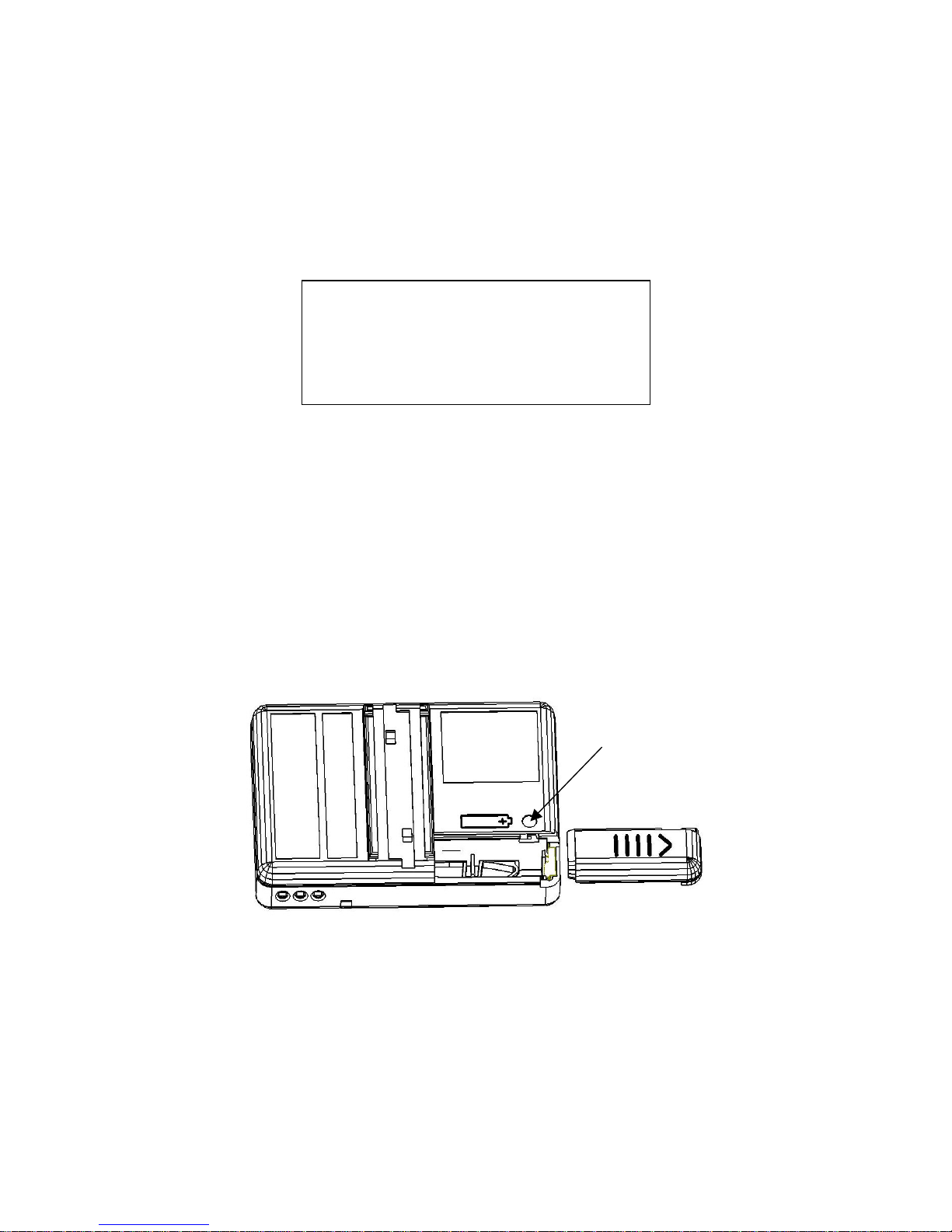
To remove the battery door, press and hold the battery door lock
"pip" on the back of your MIT870. At the same time, slide the
battery door off in the direction of the arrow. All of your messages
and settings will be retained while you change the battery, but to
ensure the retention of the clock settings, insert the new battery
within one minute of removing the old battery.
Insert the new battery in the direction as shown on the case back,
by sliding in the negative (-) end first. Slide the battery door back
into position so that it locks automatically with a click.
Dispose of the old battery carefully with consideration for the
environment and do not recharge, or incinerate alkaline batteries.
4:55 PM 12.09.06
No Unread Messages
Replace Battery
DOOR
LOCK
Page 32

MIT870 Series
Multitone Electronics plc
Multitone House,
Shortwood Copse Lane,
Basingstoke,
Hampshire,
England RG23 7DH
Part No. 9261-8130
 Loading...