

Page 1
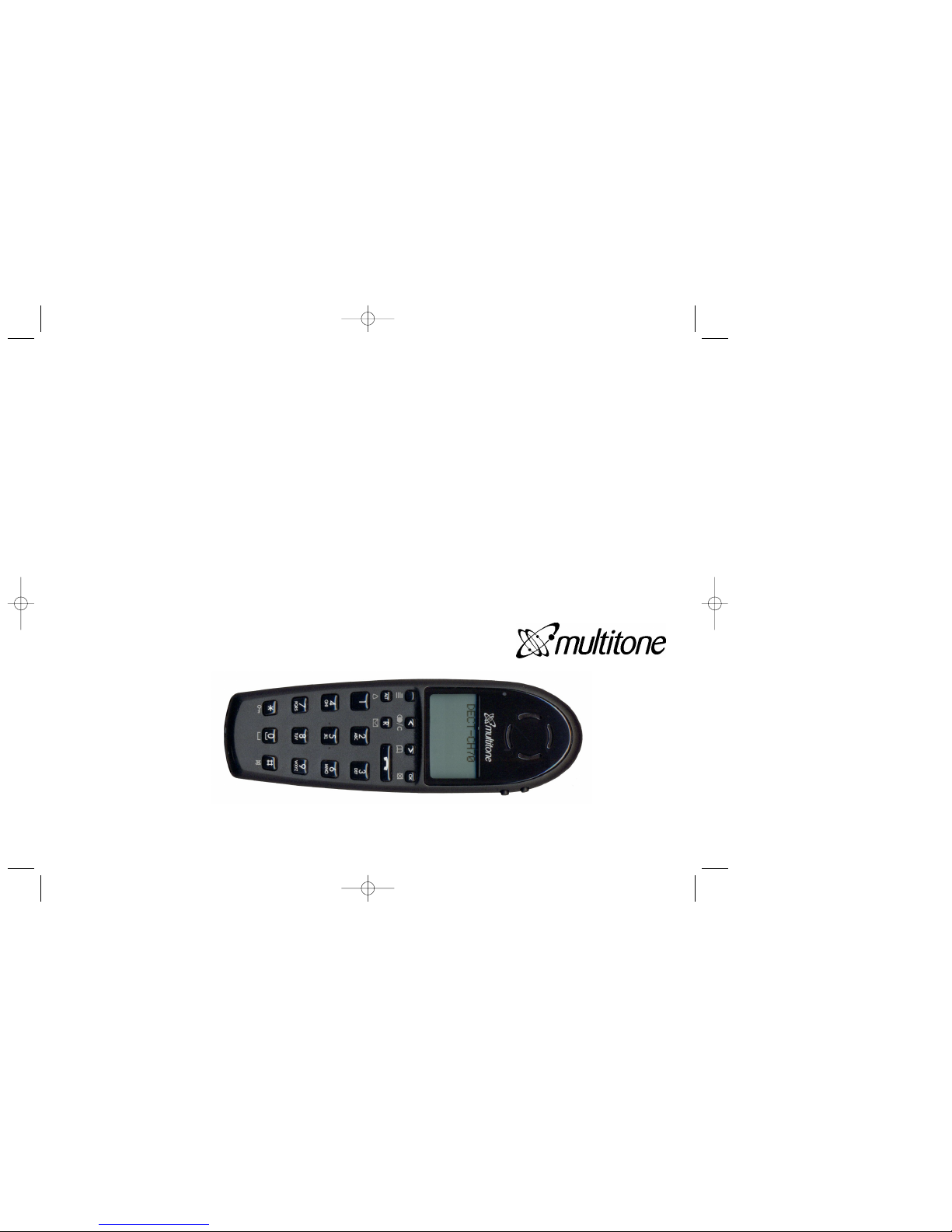
CH70 User’s Guide
User Guide Pt. No. 9261-6733 iss 4
Multitone 9261-6733 iss 4 20/05/03 PCN5906 Side 1
Page 2

The handset CH70 will provide you with the greatest possible degree of flexibility and mobility due to high
battery capacity, practical weight, size and design.
Contents:
1. Construction ...........................................................................4
2. Battery installation ..................................................................5
3. Charging and key functions. ..................................................6
4. Key functions ..........................................................................7
5. Turning the handset ON/OFF .................................................9
6. Making a call.........................................................................10
6.1 Receiving calls................................................................12
6.2 During conversation .......................................................13
6.2.1 Volume regulation.................................................13
6.2.2 Microphone mute ..................................................13
6.2.3 Transferring the call to another handset...............13
7. Set ups .................................................................................14
8. Menu structure .....................................................................15
8.1 Using the alphanumeric keyboard .................................16
8.2 The key functions...........................................................17
8.3 Profile set up ..................................................................18
8.4 Profile functions..............................................................20
3
8.5 Menu subscription and login .........................................21
8.5.1 Create subscription ..........................................22
8.5.2 Login.................................................................23
8.5.3 Auto login .........................................................24
8.5.4 Remove subscription........................................25
8.6 Battery ...........................................................................26
8.7 Redial ............................................................................27
8.8 Telephone Book .............................................................29
8.9 External services...........................................................31
8.10 MSF Functions............................................................32
8.11 Mail/Textmessages......................................................33
9. Shortcuts .............................................................................35
10. Information ..........................................................................36
10.1 Error tree .....................................................................36
10.2 Error information .........................................................37
10.3 Warranty......................................................................37
10.4 Technical information ..................................................38
Multitone 9261-6733 iss 4 20/05/03 PCN5906 Side 2
This user guide also includes details of features that may be used with Multitone messaging products,P318
and Access Integrator. The CH70 Handset may be used with the Kirk telecom product range DECT-Z System
1500 and System 500 and may also be used with other Communication Systems that support DECT-GAP.
The features available will be limited to those supported by the Host PABX.
Page 3
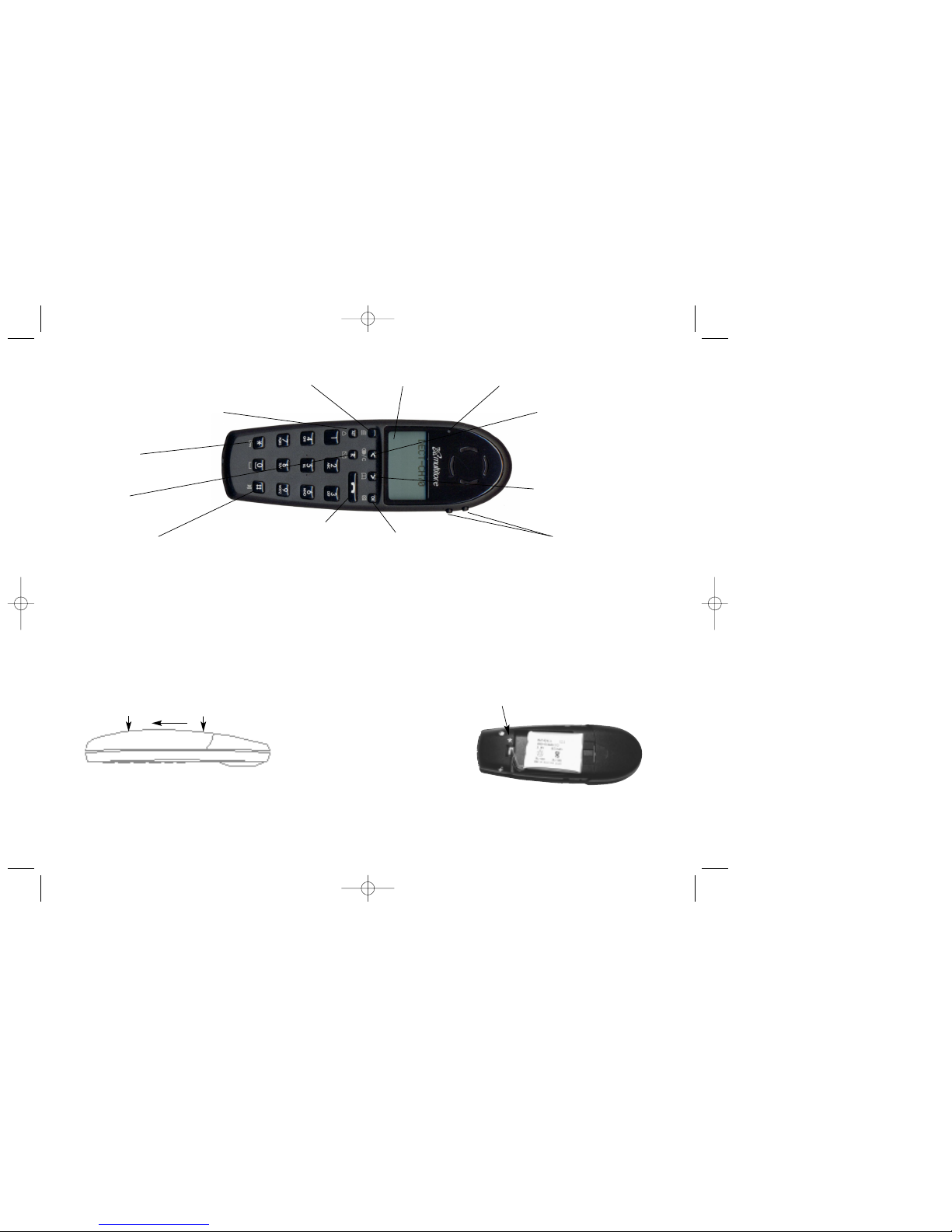
1. Construction
2. Battery installation
Before using the telephone it is important that you connect the battery to the connector in the battery box. Assemble the back cover as described below and place the handset into the charger. It is recommended that you charge
2. Lift off back cover.
3. If the battery is not already installed, place battery plug
in the slot in the battery box.
4. Insert battery with the label readable and replace cover.
4
5
Key for internal calls
Keyboard LOCK
(Menu*)
MENU key Display with backlight
Recall key
(MAIL key)
SILENT (Menu#)
ON/OFF HOOK keyalso used as turn ON key
CONFIRMATION key - OK
MUTE microphone.
MUTE ringer when ringing.
Long key press turns OFF.
Right arrow key, save number.
Telephone book menu from
standby text
Left arrow key, Redial menu
from standby text
Volume up/down
LED
Place the battery plug in the slot
with red wire closest to the mark
*
(see figure)
Multitone 9261-6733 iss 4 20/05/03 PCN5906 Side 3
STATUS
1. Push the back cover 5 mm towards the headset plug using your thumbs.
your handset for for 14-16 hours, prior to use.
Page 4
3. Charging
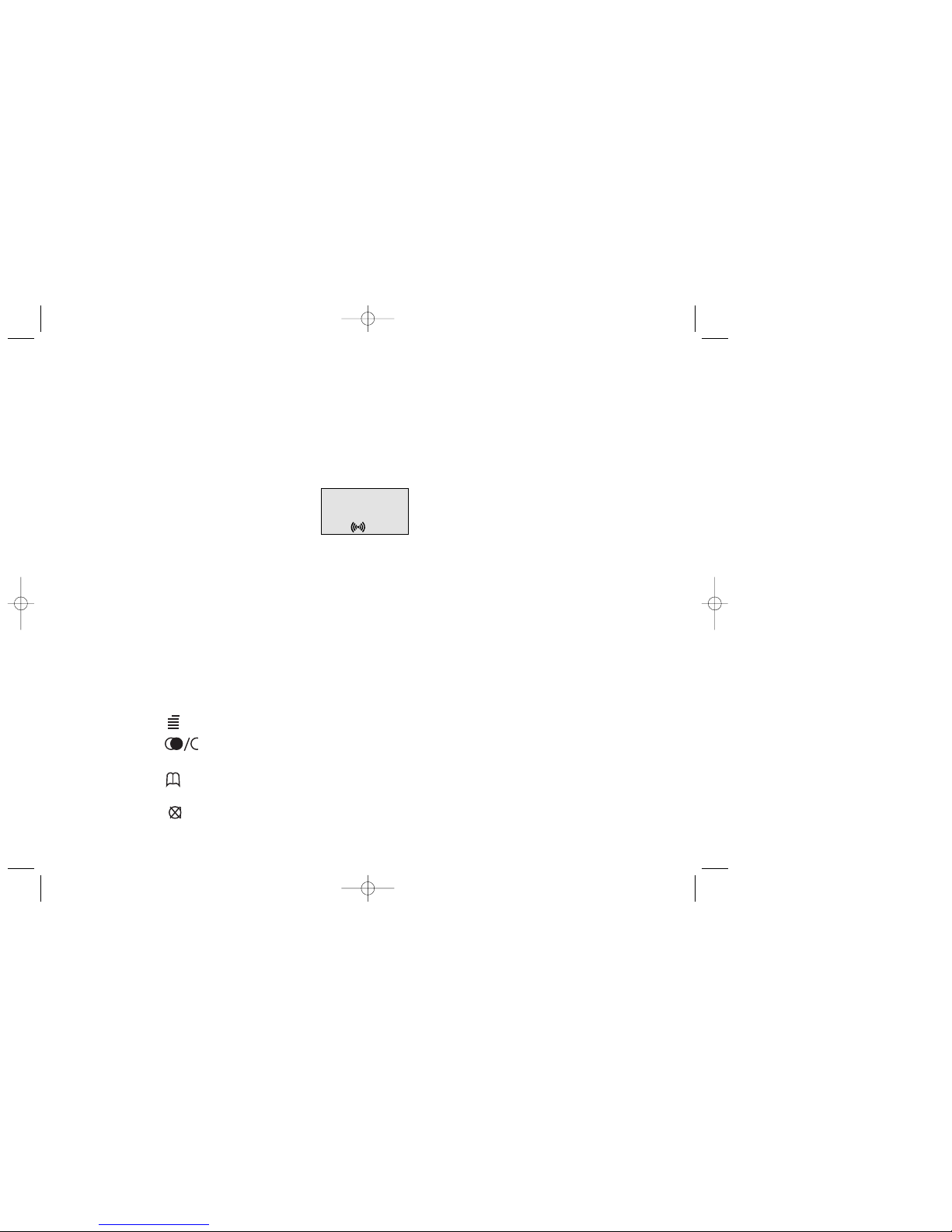
It takes approximately 3 1/2 hours to charge the handset from fully discharged to its full capacity. Place the handset in the charger. The display shows the charging status. For correct charging the room temperature has to be
between 0°C and 25°C and the handset must therefore not be placed in direct sunshine. The battery has a built-in
heat sensor which will stop charging if the battery temperature is too high.
It is necessary to recharge the battery when the display shows “BATTERY LOW”, or if it can not be turned on. The
LED flashes at a low frequency while charging and lights constantly when the charging is finished. The display
goes back to normal mode when fully charged.
When the handset is placed in the charger the vibrator will not work and the B-answer function is inactive even if
chosen. NOTE! If the battery is fully discharged charging may take up to 10 minutes to initiate.
6
7
❚❚❚❚❚❚❚❚❚ . . . .
4. Key Functions
The handset has 21 keys, Some have multiple functions :
Two keys are placed at the right side for volume control. Press upper or lower key to change the volume. Each
key-press turns volume one step up/down.
“MENU” - Go to menu structure or exit the menu structure. (Enter or Exit)
” < ”, “REDIAL” - From standby text: Redial menu. - left arrow key, Cursor left to find required number.
- press "OK" to access sub menu, right arrow selects - Delete, Store & Delete all options.
” > ”, “BOOK” - From standby text: Telephone book read. - right arrow key, Cursor right to find req'd No.
- press "OK" to access sub menu, right arrow selects - Delete,Edit No.& Edit Name options.
“ OK ”, “MUTE” - In off hook: Mute.- Confirmation (»Mic. Muted«). Long key press turns the handset OFF.
Or if Menu is pressed, jump to next level in the menu.
Multitone 9261-6733 iss 4 20/05/03 PCN5906 Side 4
To check the Battery Status - Menu - > - > Menu Battery - OK
Page 5

8
9
“ALT” -Residential systems SOHO & CS100: Internal calls off hook, and internal recall if already offhook.
“R” - If offhook: Recall. If onhook: Read a message.
“ ” - On hook/off hook and turn ON.
” *” - * (Change from pulse to DTMF on Multitone CCFP), Long = pause (-), extra long: change from pulse
to DTMF (a ”T” appears in the display, GAP standard).
“0-9” - Digits or letters in alphanumeric mode (names and messages)
“ # “ - #, Choose uppercase or lowercase letters in alphanumeric mode.
5. Turning the handset ON/OFF
ON: Press -key for 1/2 second.
When the handset is turned on the symbol is shown in the lower left corner of the display, if the handset is
subscribed to a system. (For subscription, see 8.5.1)
OFF: Press the “OK” (MUTE) key for 3 seconds.
Please note: When the handset has been outside the coverage area, it can take up to 30 seconds before the handset is back on the system after re-entering the coverage area.
Multitone 9261-6733 iss 4 20/05/03 PCN5906 Side 5
Page 6

10
11
Redial:
Redial / CLIP (CLIP = Calling Line Identification Presentation) stack:
Press the < -key (redial-key) to enter the redial/CLIP stack
Search for the number by using the < -key or the > -key, redial numbers are marked with REDIAL or name and clip
numbers are marked either with CLIP or the name of the person who called and the LED is on.
Press the -key, the -icon will flash until the connection is established.
Using the handset in residential systems: (not in CS600 and CS100)
Internal call post-dial:
Press the INT-key, the -icon in the display will flash
Dial the number of another handset on the base station, the -icon will flash until the connection is established
Internal call pre-dial: (not in CS600 and CS100)
Press the number of another handset on the base station
Press the INT-key, the -icon will flash until the connection is established
6. Making a call
For making or receiving calls the handset has to be subscribed to a system ( shown in display) (see chap. 8.5.1)
Press the -key, the -icon in the display will flash until connection is established
Dial the number
Pre-dial:
Press the number to dial (long press on »*« will make a pause, if necessary)
Press the -key, the -icon will flash until the connection is established
Telephone book:
Press the > -key (book-key) to enter the telephone book
Search for the number either by using the < -key or the > -key or by pressing the first letter in the name by using the
digits 1 – 9 (see chap. 8.2)
Press the -key, the -icon will flash until the connection is established
Multitone 9261-6733 iss 4 20/05/03 PCN5906 Side 6
Page 7

6.1. Receiving calls
If the phone rings, the call can be answered by pressing the -key.
When ringing the LED flashes fast, and the display shows the CLIP (if presented). If it is an external call (or if no
CLIP) the display shows “INCOMING CALL”
It is possible to stop the ring signal without answering the call. Press MUTE (OK) and the ring signal is muted.
Display shows: »RINGER MUTED«
6.2 During conversation
6.2.1 Volume regulation:
Use the two keys placed at the right side of the handset for volume control.
6.2.2 Microphone mute:
Press the OK-key (mute-key), MIC. MUTED is showed in the display.
Press the OK-key (mute-key) to enable the microphone again.
6.2.3 Transferring the call to another handset:
Press R, and dial new number.
Press the -key and the call is transferred to the other handset
12
13
Multitone 9261-6733 iss 4 20/05/03 PCN5906 Side 7
Page 8
7. Set ups
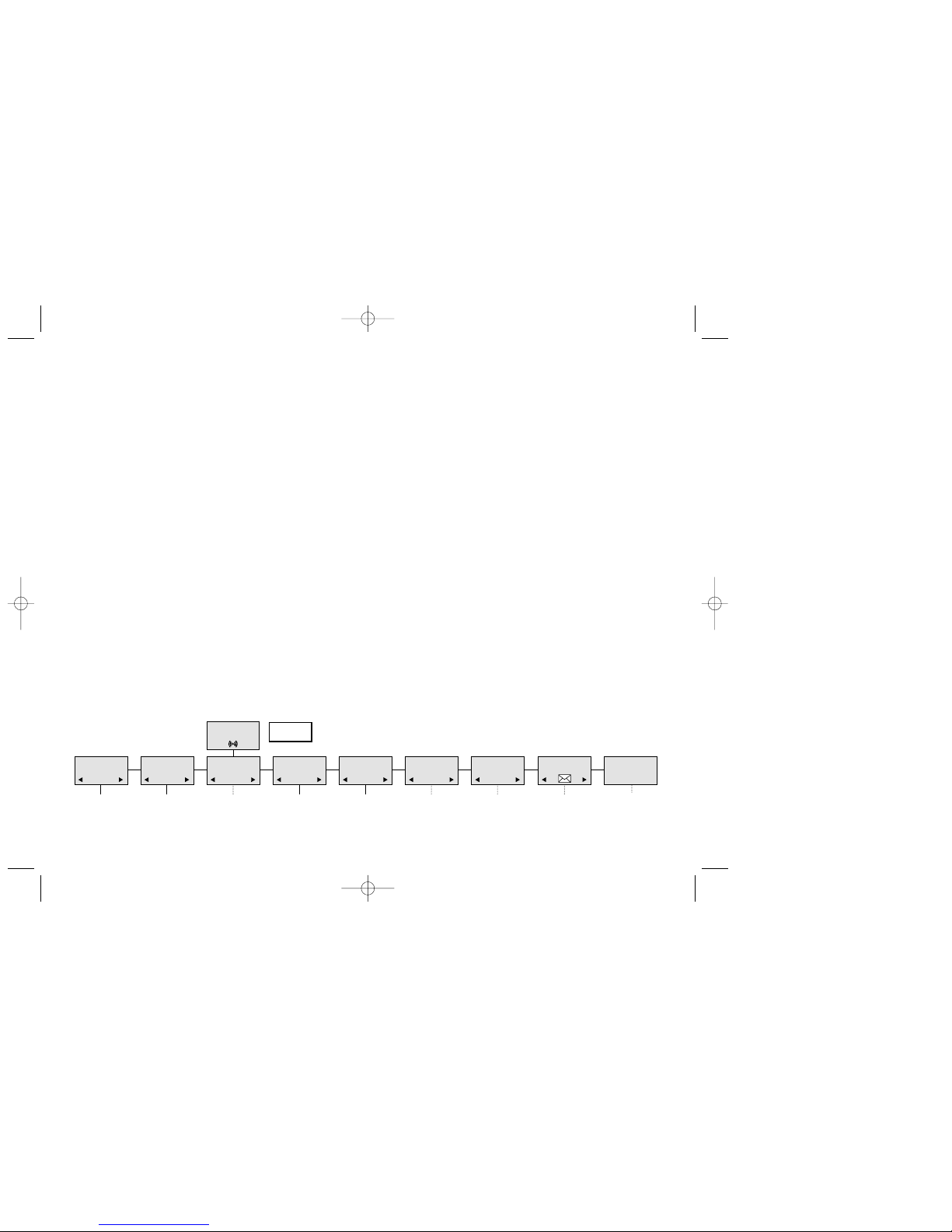
The handset has two user-defined profiles (set ups), and a mode where all sounds are disabled (SILENT). Pressing “MENU” followed by “OK” will show the chosen profile. A new profile can be selected by using the arrow keys.
To select the chosen profile press “OK”. To escape (without storing anything) press “MENU” again.
A quick way of choosing a profile, is to press “MENU” and then 1, 2 or # (1 is the INDOORs, 2 is the OUTDOORs
profile and # is SILENT). To change the set up in a profile, press “MENU” followed by “OK” twice. All settings have to
be defined under each of the two profiles. The display shows if the SILENT mode or PROFILE2 is chosen.
14
15
8. Menu structure
Pressing the MENU-key, enters or exits the menu structure. It has to be used if a “NO” or “CLEAR” is wanted in the
menu structure.
Pressing the OK-key, jumps to a lower level in the menu. When the lowest menu level is reached, it will store the
setting and jump to a higher level. It has to be used if a “YES” (select option) is wanted.
The phonebook and redial menu can be accessed directly. The phone book by pressing the > -key (book-key) and
the redial menu by pressing the < -key (redial-key).
MENU
LOGIN
MENU
MSF FUNCTION
PROFILE
SET UP
MENU
EXT. SERVICE
MENU
BATTERY
MENU
PHONE BOOK
MENU
REDIAL
MENU
MAIL
MENU
Multitone 9261-6733 iss 4 20/05/03 PCN5906 Side 8
MENU
LANGUAGE
Page 9

8.1 Using the alphanumeric keyboard
The normal dialling keys (0-9) are used for writing the name to be placed in the telephone book. By pressing the
keys a certain number of times the related letters or digits will appear in the display. Spaces are made by using the
0-key. Key # changes between uppercase and lowercase letters. The arrows will move the cursor. Left arrow is
also used for deleting (hold for 1 sec.) = delete. New letters can be inserted.
Change of key press and pauses lasting more than 1 second automatically moves the cursor to next position.
16
17
8.2 The key functions
Key
1 Æ Ø Å @ Ä Ö ß Ü 1
2 A B C @ Ä Á À Â 2
3 D E F 3
4 G H I Ï Î 4
5
6 M N O Ö Ó Ò 6
7 P Q R S ß 7
8 T U V Ü Ú Ù Û 8
9
0 Space . , _ - + : ? ! 0
*
* # / \ ( ) = &
# Upper/lower-case
W X Y Z 9
J K L 5
Keys 1 to 9 and 0 also have a "long press"
function. A long press of 3 seconds will cause
the handset to "beep". The feature available
fo r the soft keys are used with Multitone
applications products, Access Integrator and
P318.
See www.multitone.com for further information.
Page 10
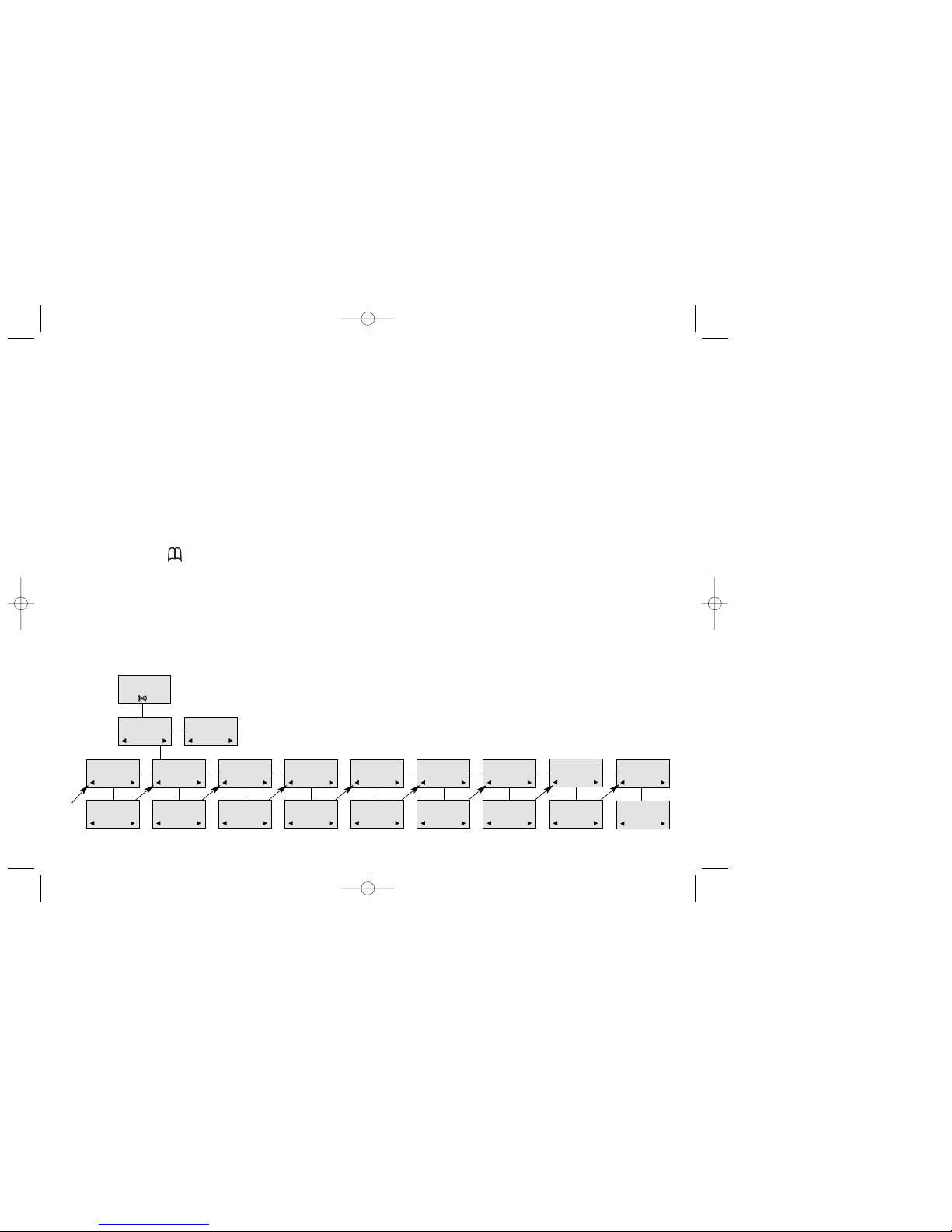
8.3 Profile set-up
In the following you will find a description of how to set up one of the 2 profiles. To enter the Profile Setup menu
press “MENU”. Then press “OK” and use > or < to find the profile you wish to change and confirm with “OK”. You are
now able to switch between the different settings. Press “OK” when you find the setting you wish to change (or see).
Change the setting according to your needs, confirm with “OK” and you automatically go to the next setting. Press
“Menu” to finalize profile setup.
18
19
Profile set-up Menu
SET PROFILE1
BACKLIGHT
SET PROFILE1
RINGERTONE
SET PROFILE1
RINGER VOL
SET PROFILE1
KEY CLICK
SET PROFILE1
VIBRATOR
SET PROFILE1
B-ANSWER
SET PROFILE1
START VOL
SET PROFILE1
OUT OF RANGE
BACKLIGHT
ON/OFF
RINGERTONE
1,2.........
RINGER VOL
❚❚❚❚❚
KEY CLICK
❚❚❚❚❚ - - -
VIBRATOR
ON/OFF
B-ANSWER
ON/OFF
START VOL
❚❚❚❚❚
OUT OF RANGE
TONE ON/OFF
SET PROFILE
INDOORS (1)
DOORS (2)
Multitone CS70 handset 20/05/03 PCN5906 Side 10
SET PROFILE
OUT
SET PROFILE1
AUTO KEY LOCK
ON/OFF
AUTO KEY LOCK
8.3.1 Start up text
When the handset is turned on it will display "DECT-CH70" for 3-4 seconds. Once the handset is registered to a user
the display will show the registered users name. The start up text may be changed using the following procedure.
Press
**** - > - ok. enter the new start up text followed by ok. A maximum of 24 characters may be used.
Page 11
20
21
8.4 Profile functions
R
INGERTONE: Scroll through the 9 different ringertones using > and <. Confirm with (OK).
R
INGER VOL: Turn the volume up and down using > or <. Confirm with (OK).
KEY CLICK: Turn the volume up and down using the > and <. Confirm with (OK).
V
IBRATOR: Can be turned on/off using the > and <. Confirm with (OK).
B-ANSWER: Can be turned on/off using the > and <. Confirm with (OK). When turned on, the telephone automatically
goes off hook when ringing. If subscribed to a Multitone system it automatically goes on hook when calls are terminated. Note: The on hook feature may be dependent on the PABX settings.
S
TART VOL: Start volume can be adjusted using the > and <. Confirm with (OK).
O
UT OF RANGE: The out of range tone Can be turned on/off using the > and <. Confirm with (OK). With the Out of
range tone turned on, a beep will be heard when the telephone is moving out of range of the base station and "Out
of range" will be displayed.
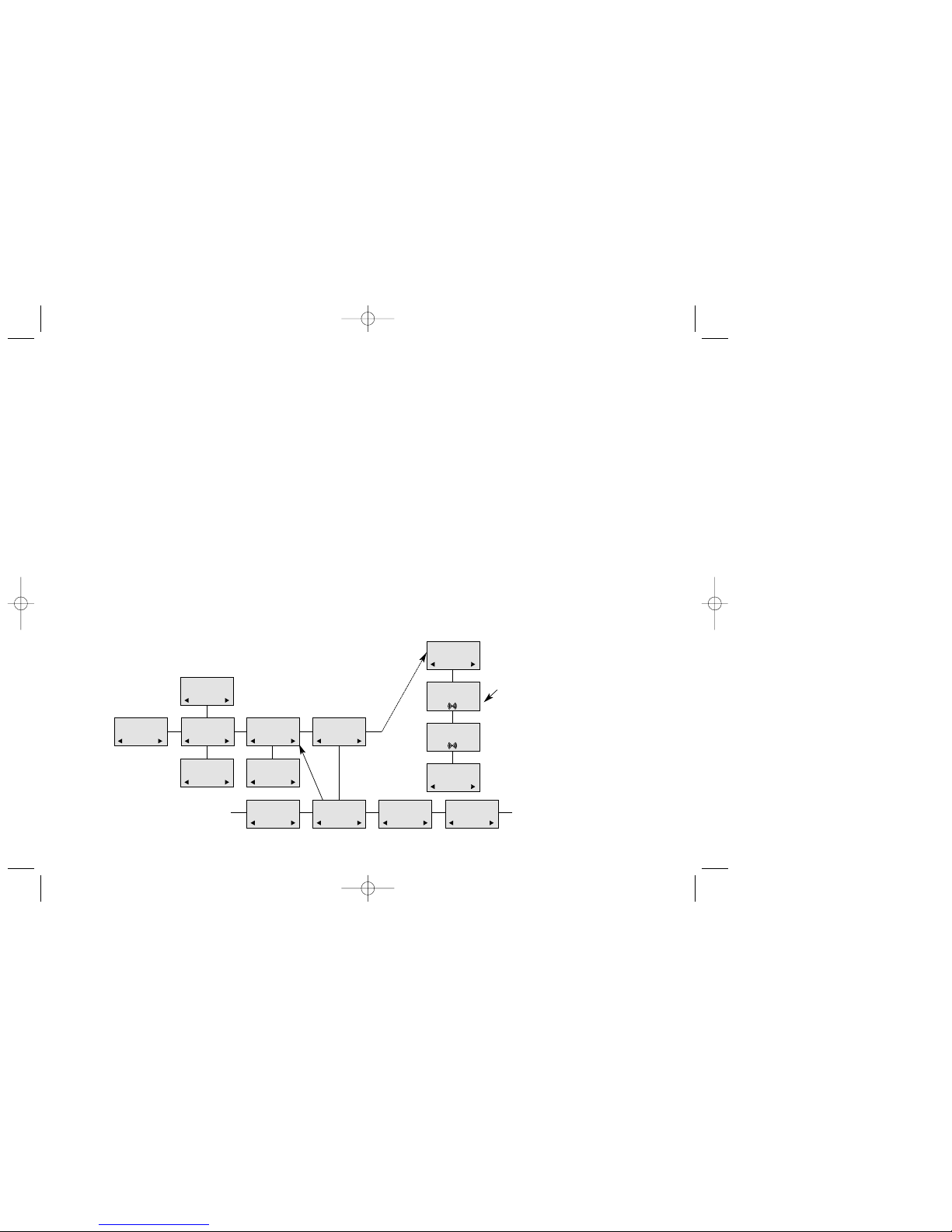
8.5 Menu subscription and login
Password is factory set 0000
LOGIN
SYSTEM1*
CREATE
SEARCH ID:
123456789012
REMOVE
SYSTEM 4
123456789015
REMOVE
SYSTEM 1*
123456789012
REMOVE
SYSTEM 2
123456789013
REMOVE
SYSTEM 3
123456789014
MENU
LOGIN
MENU
SELECT LOGIN
SUBSCRIPTION
CREATE
SUBSCRIPTION
REMOVE
REMOVE?
PASSWORD
_ _ _ _ _
SUBSCRIPTION
REMOVE
REMOVE
SYSTEM 1
SUBSCRIPTION
REMOVE
Multitone 9261-6733 iss 4 20/05/03 PCN5906 Side 11
SELECT LOGIN
AUTO
AUTO KEYLOCK: Can be turned on and off using the > and <. Confirm with ok. with auto keylock on, the keypad will lock
After 60 seconds. Press
* to activate the keypad.
B
ACKLIGHT: Can be turned on/off using the > and <. Confirm with (OK).
Page 12

23
8.5.1 Create subscription
To make subscriptions, the system must allow subscriptions to be made. Some systems also require an Access
Code (AC). If more than one system currently permits subscription, you will need to know the ID of the system to
which you wish to subscribe. Access Codes and system ID’s will be provided by the system administrator.
If the handset is already subscribed to 4 or 10 systems, you will have to remove a subscription before creating a
new (see 8.5.3).
Choose the SUBSCRIPTION CREATE menu to subscribe to a new system. (see 8.5)
Use the < and > keys to scroll between the ID’s of the different systems available.
Choose the system you wish to subscribe to. When a subscription is available, enter the free system using < or >
and the AC (if required) using the keyboard, and press (OK).
If the subscription was successful, the standby text and is shown in the display. If not, the subscription has
failed and the procedure must be retried.
22
8.5.2 Login
Handsets up to SW PIE 4G can be subscribed to 4 different systems. Handsets with SW PIE 4K or later can be
subscribed to 10 systems, enabling you to use the same handset on 4 or 10 different systems.
If you would like to change to another system, use the login menu to connect to another system number, or select
Auto login if the option is available see 8.5.3. The actual chosen system is shown with the red LED on.
To change to another system use < or > and press OK to confirm.
To be able to log on to a system, subscription to the system has to be established. (See 8.5.1).
Multitone 9261-6733 iss 4 20/05/03 PCN5906 Side 12
NOTE: Handsets with SW PIE 4K or later (*99982*-OK) allow the first subscription without using login.
Page 13
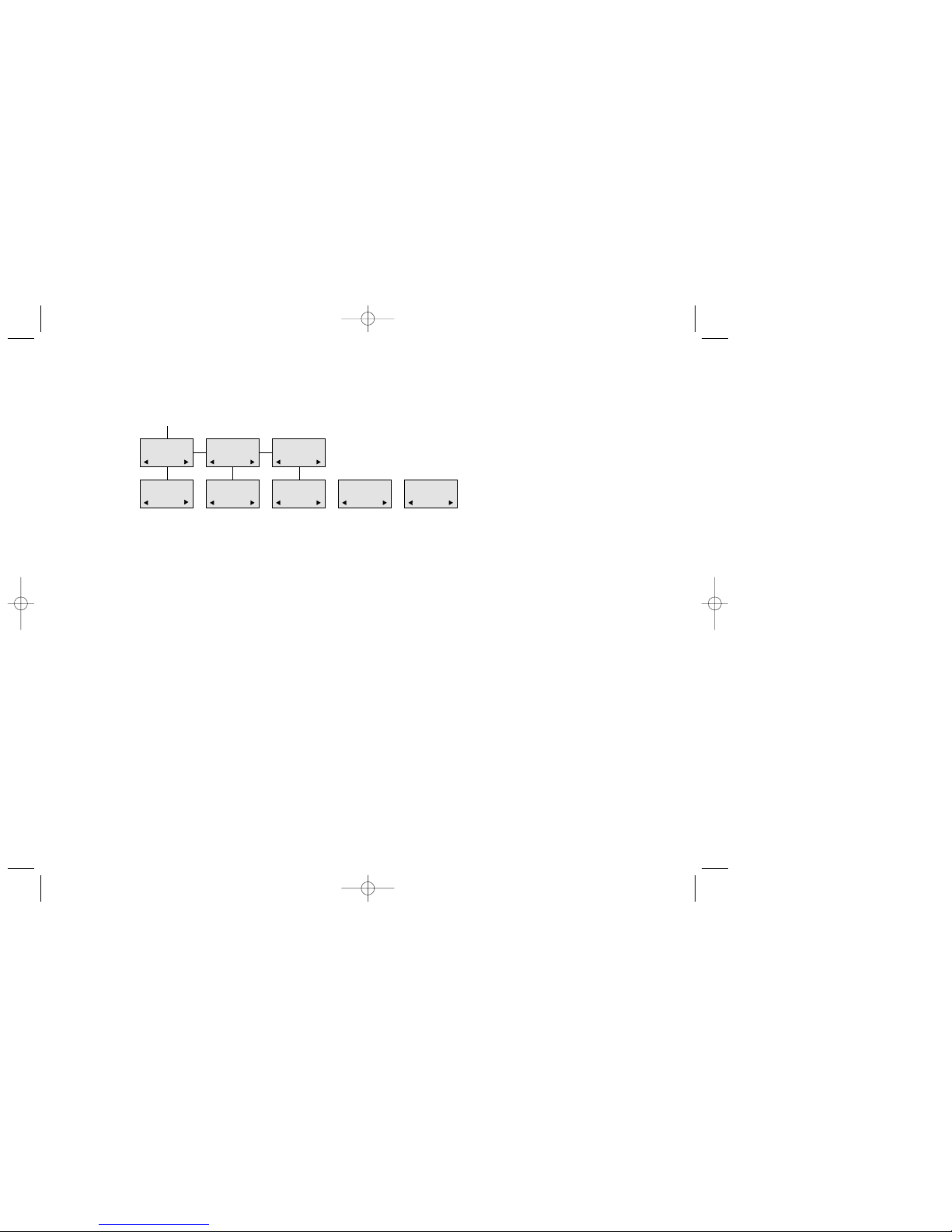
8.5.3 Auto login
The handset can be subscribed to 4 or 10 different systems. * If Auto login is chosen from the menu, the handset
automatically selects the closest system. The selected system is marked with an “
*”.
Please note: Auto login should only be used in separate systems without overlaps.
8.5.4 Remove subscription
Subscriptions can be removed from the system in use and from any other systems (if connected). Removing a
subscription requires a password. Password is factory set at 0000. If the system in use is removed, it is necessary
either to select one of the remaining systems or to subscribe to a new one. If one of the systems not chosen is
removed, the handset remains connected to the system in use.
24
25
MENU
SELECT LOGIN
SUBSCRIPTION
CREATE
SUBSCRIPTION
REMOVE
SELECT LOGIN
SYSTEM 1
123456789015
SELECT LOGIN
SYSTEM 2A
123456789012
SELECT LOGIN
SYSTEM 3
123456789013
SELECT LOGIN
SYSTEM 4
123456789014
SELECT LOGIN
AUTO
Multitone 9261-6733 iss 4 20/ 05/ 03 PCN5906 Side 13
*SW PIE to 4I =4 Systems SW PIE 4K and later 10 Systems
Page 14
26
27
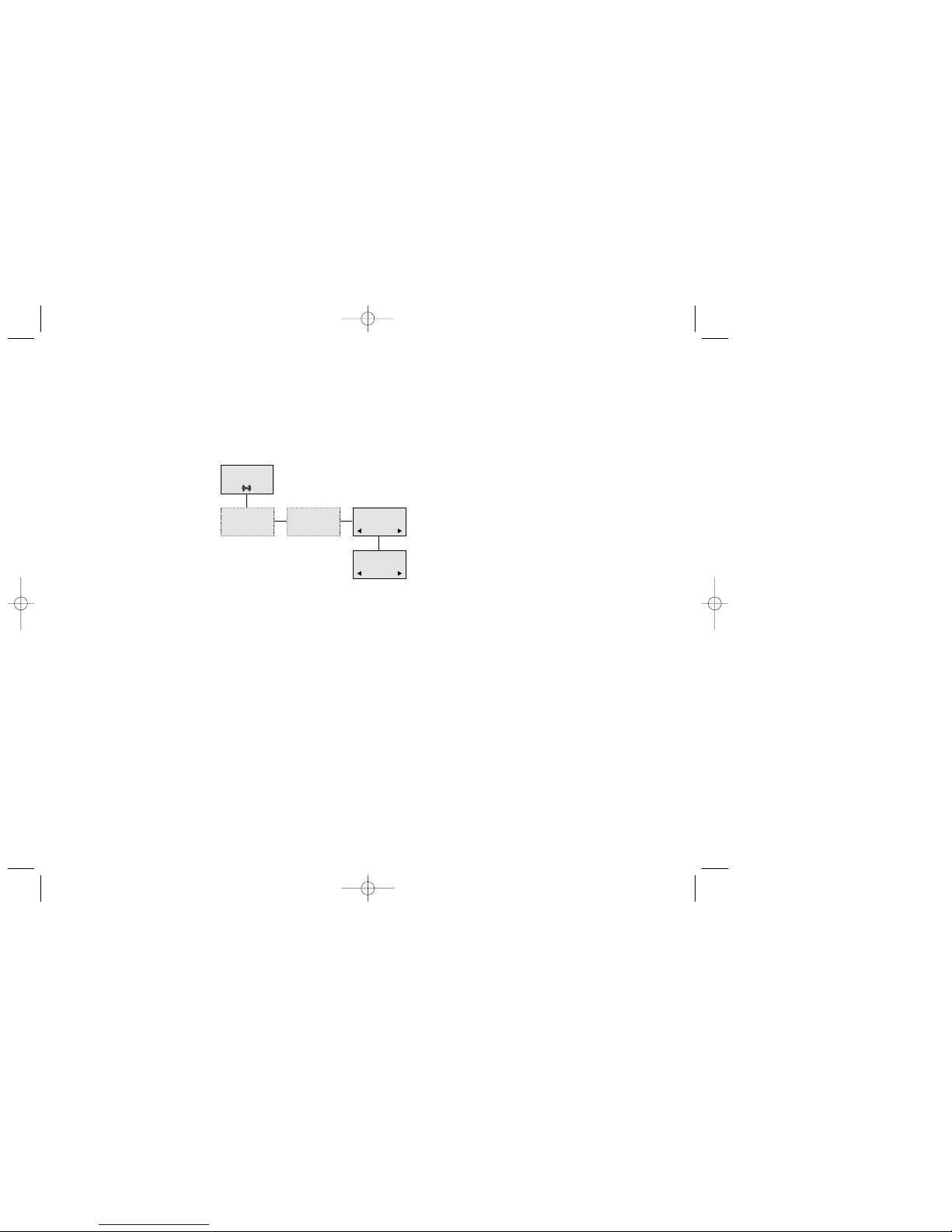
8.6 Battery capacity
In the battery menu it is possible to see the remaining battery capacity. For reading the correct capacity, the handset has to be removed from the charger for at least one hour. Press “Menu” and use the > or < keys to reach the
Battery Menu. Press “OK” to enter the menu, and you can see the current status of the battery capacity. Press “OK”
to return to the menu system or press “Menu” to quit.
The indication on the display is not necessarily an exact reflection on the remaining speech time.
MENU
BATTERY
BATTERY
CAPACITY
❚❚❚❚❚
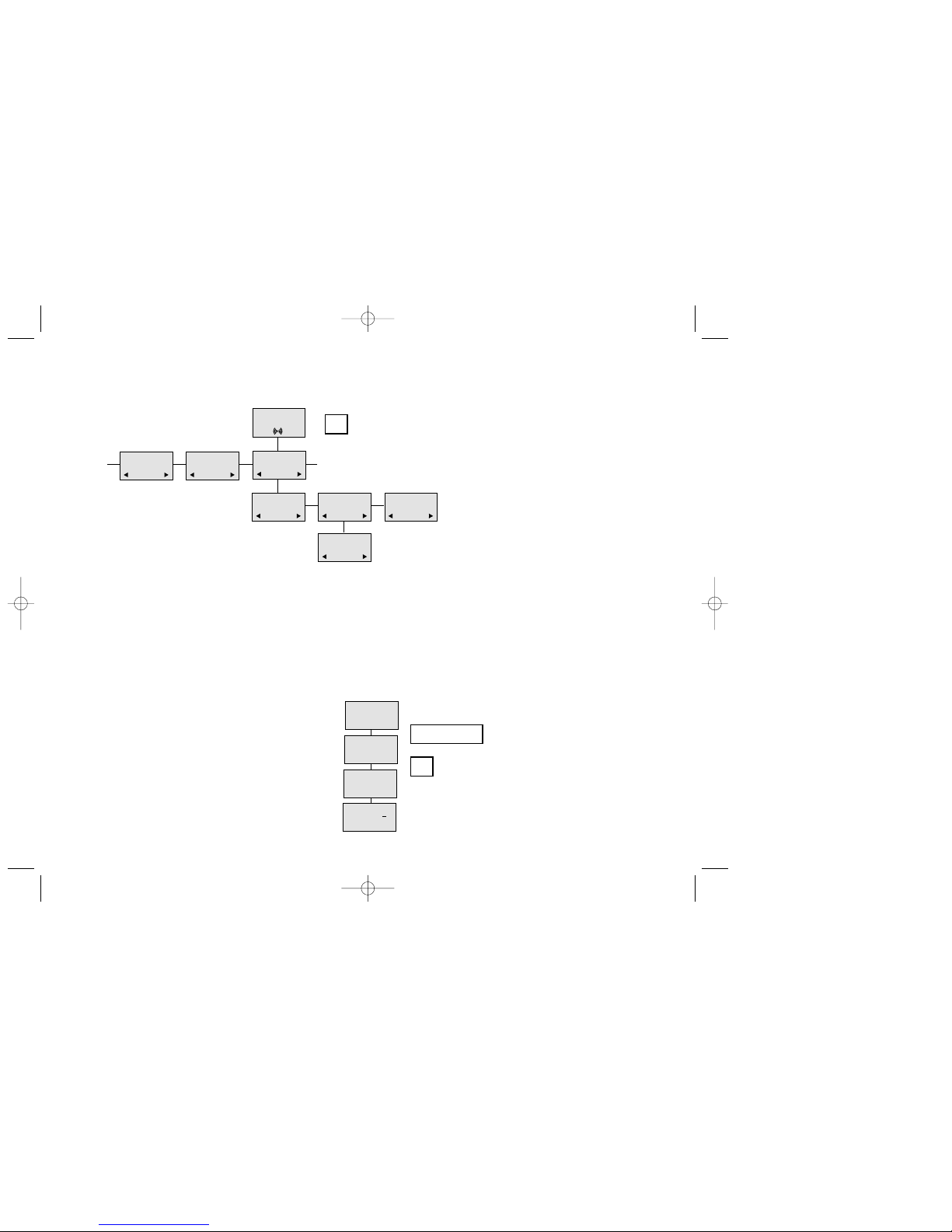
8.7 Redial
The handset has maximum 10 or 15 redial numbers Depending on the software version and 10 Caller ID’s placed in
the same stack. Each number is only represented once. Enter the redial menu by pressing ”< ”(Redial) from the
standby text. Repeated presses at the “<” button turn backward through the dialled numbers and CLIP numbers (from
newest to the oldest). Right arrow moves in the opposite direction. It is also possible to reach the redial menu in the
main menu. Numbers are named “REDIAL”, ”CLIP” or with the name.
The LED will flash slowly if a new number (unanswered call) has arrived in the CLIP stack. If no number (no clip) is
represented by a call only the LED will flash slow afterwards.
If you want to delete a ”CLIP” or a ”REDIAL” you scroll to the name/number and press »OK« twice.
The name/number is now deleted. If number is stored, it is moved to the telephone book.
Multitone 9261-6733 iss 4 20/05/03 PCN5906 Side 14
Page 15
28
29
The Redial and CLIP stack Menu
REDIAL
75602850
CLIP
898
DELETE?
899
STORE NO.?
899
DELETE ALL?
NAME:
BILL GATES
899
NAME:
STORE NO.?
75602850
75602850
>
75602850
BOOK
Multitone 9261-6733 iss 4 20/05/03 PCN5906 Side 15
8.8 Telephone Book
Storing a number (max. 24 digits) in the telephone book is done by pressing the number to be stored (in on hook),
then press the “>”- key followed by the “OK” key, the book can store up to 65 numbers with name. Typing of the
name and a confirmation is required. After storing the telephone will go back to standby mode. If the display shows
“MEMORY FULL”, it is necessary to delete one or
more numbers from the telephone book.
(See menu structure page 30)
<
Page 16
30
31
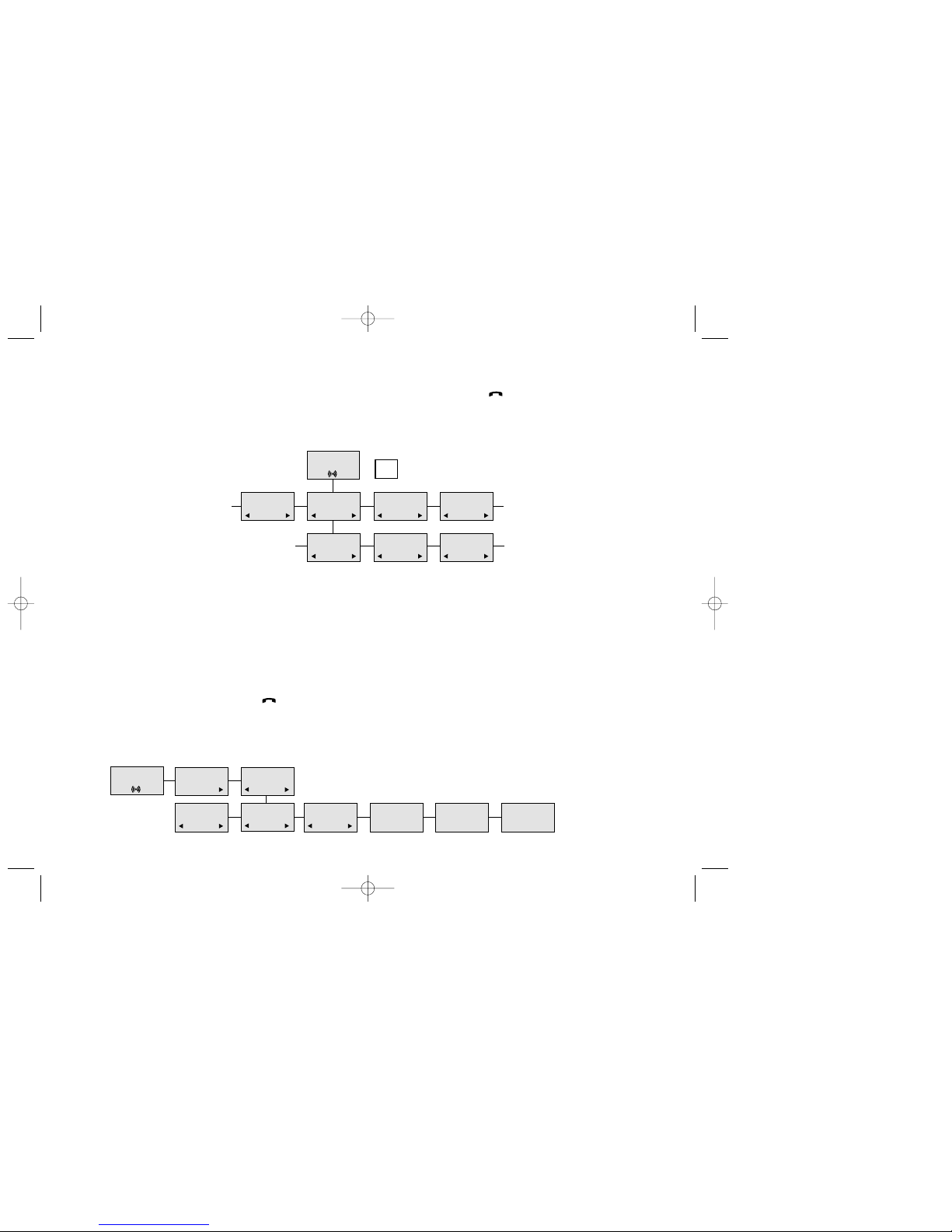
Read BOOK numbers: The telephone book is entered by pressing ”>”(book). For quick-search: press the first letter
of the name (using 1-9)(see chap. 8.2). Call the displayed person by pressing the key. It is also possible to
reach the telephone book menu in the main menu.
bILL JENSEN
899
CARL NIELSEN
7561XXXX
PHILIP
HANSEN
8614XXXX
CLAUS
PEDERSEN
134
DELETE?
7561XXXX
EDIT NO.?
7561XXXX
EDIT NAME?
CARL NIELSEN
>
BOOK
8.9 External services
External services gives access to the "calling line identity party" clip for other DECT user's that called you. Missed calls
from the Host PABX will be listed as Ext Call. All calls are time and date stamped. To return a call that has a clip name
Multitone 9261-6733 iss 4 20/05/03 PCN5906 Side 16
and number press the "off hook" key Ext Calls can not be called back. To delete all clip calls go to the menu "Delete
clip stack" and press "ok". The local phone book contains the of all of all CS600 system users as well as other external
numbers entered by the system administrator. For example the system administrator could add the number for Multitone,
00-44-1256-320292 press the number assosiated with the destination phone number required,(2=M) for any users or
company whose name begins with M.
SET UP
PROFILE
MENU
EXT SERVICES
VIEW
CLIP STACK
(ENTER)
DELETE
CLIP STACK
(ENTER)
LOCAL
PHONE BOOK
(ENTER)
A----------J
0-------9
PRESS KEY NO.
K----------T
0-------9
PRESS KEY NO.
U----------A
0-------9
PRESS KEY NO.
Page 17

8.11 Mail/Textmessages
Available in systems configured with textmessaging software or equipped with P318 or Access Integrator.
At the reception of a text message the envelope icon appears in the display. Up to 14 messages can be
”stored” in the handset; The 15th message will overwrite the oldest message. The message can be of a maximum of
36 characters per screen. 2 screens (72 charecters) can be displayed.
To read the message: Press the ”R”- (MAIL) key or enter the mail menu. The text message is shown in the display,
Use the < > charecters to scroll through messages. The (R) charecter indicates a message has been read, (N) is
unread and (L) is locked. If the message contains a callback number, this will be displayed on the bottom line of the
display. If the callback number contains more than 12 digits, only the last 12 digits are displayed. It is possible to read
all the digits by pressing the MENU-key. As long as the callback number is in the display, it is possible to activate the
number by pressing the HOOK-key.
32
33
8.10 MSF Functions
MSF Functions are special functions, which are based on MSF (Message Service Function). The functions require
special software in the main system.
Multitone 9261-6733 iss 4 20/05/03 PCN5906 Side 17
Multitone MSF product range includes Access Integrator and P318 messaging interface. These products are
designed to enhance the messaging functionallity of the CS600 or CS100. Both products may be connected to your
local alarms, fridges, freezers, machinery or door alarms to alert on site personnel carrying a CH70 DECT Handset.
Access Integrator also connects to the local IT Network to allow messages to be sent to a single user or team of users
from a PC. For further information contact www.multitone.com
Page 18

Multitone 9261-6733 iss 4 20/05/03 PCN5906 Side 18
34
35
Read a mail
Press the ”R”- (MAIL) key followed by the OK-key or enter the mail menu (in on hook condition).
If the message includes more than 36 letters or digits, the message will run over 2 display screens.
Use the > -key to scroll.
To see the sender of the mail, press the
OK-key.
To leave the mail, press the
“”-key.
Reply a mail
Open the mail by pressing the R-key followed by the OK-key, press the OK-key again and use the < >-keys to find the reply feature,
press the
OK-key and you are then able to reply the mail. After writing your reply press the OK-key to confirm.
Forward a mail
Open the mail by pressing the R-key followed by the
OK-key, press the OK-key again and use the < >-keys to find the forward feature,
press the
OK-key twice and you are then able to write the number on the receiver. Confirm with the OK-key.
Delete all mail
Open the mail stack by pressing the R-key followed by the
OK-key, press the OK-key again and use the < >-keys to find the delete
feature, press the
OK-key and all mails are deleted.
Delete a mail
Open the mail by pressing the R-key followed by the
OK-key, press the OK-key again and use the < >-keys to find the delete feature,
press the
OK-key and the mail is deleted.
Lock/unlock a mail
Open the mail by pressing the R-key followed by the
OK-key, press the OK-key again and use the < >-keys to find the lock/unlock fea-
ture, press the
OK-key and the mail is locked/unlocked.
Write a mail
To write a new mail press the R (mail)-key, confirm with the
OK-key and write your message. To send the mail press the OK-key, type
the number of the receiver and confirm with the
OK-key.
If one or more mails are stored do as followed: Press the R (mail)-key followed by the >-key confirm with the
OK-key and write your
message. Press the
OK-key, type the number of the receiver and confirm with the OK-key. The message is send.
Note
In case a sent message is not received, the sender will get a message in the display.
Page 19
36
37
9. Shortcuts
”INDOORS PROFILE”: Press: MENU 1.
”OUTDOORS PROFILE”: Press: MENU 2. (Display shows PROFILE 2)
”SILENT”: Press: MENU #. (No sounds) (Display shows SILENT)
”KEY LOCKED”: Press: MENU
*
. (Display shows KEY LOCKED)
“PHONE BOOK”: Press >(BOOK) key in standby.
Name search in telephone book: Press the first letter in name and > (book) afterwards.
Store a number: Press >(BOOK) after the number (in on hook).
“REDIAL ”and “CLIP”: Press <(REDIAL) key in standby.
“MAIL”: Press R(MAIL) key in on hook.
MUTE temporarily the ringer: Press “OK”(MUTE) when the telephone is ringing.
MUTE the microphone: Press “OK”(MUTE) when the telephone is off hook.
RECALL: Press the INT key if residential system, else press the “R”-key.
Pause(-): Hold * for one second.
Change from pulse to DTMF(T): Hold
*
for 2 seconds.
Multitone 9261-6733 iss 4 20/05/03 PCN5906 Side 19
10. Information
10.1 Error tree
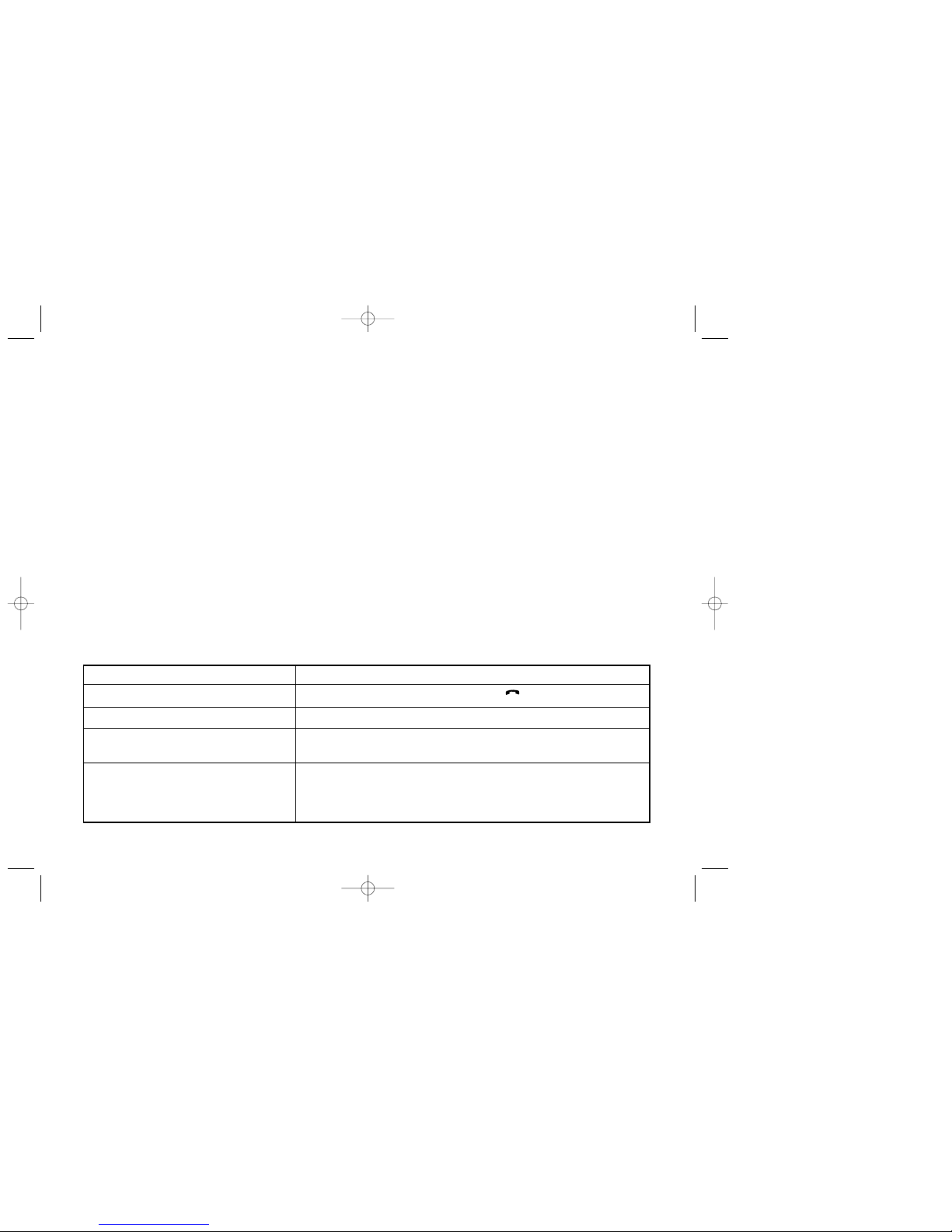
Problem Check
The telephone freezes. Remove and replace the battery pack. Press to turn on the telephone.
The telephone does not ring. Check whether the ringer is SILENT or RINGER VOL. is OFF.
The telephone cannot find a system ID at Check whether the system CCFP is set to allow subscriptions.
“SUBSCRIPTION CREATE”.
The telephone cannot subscribe even if Check if Access Code is necessary (A/C can be up to 8 digits).
system ID has been found.
Not possible to turn on the telephone Check if battery is connected. If yes, charge the battery.
Page 20

38
39
10.2 Error information
Improper function of the handset might be related to the installation of the DECT system or failures related to the
main system. Before declaring a handset for repair be sure that the main system is operating properly.
10.3 Warranty
The handset is covered by a normal warranty-solution, except the battery. The lifetime of the battery depends on
the general use of the handset.
The handset is not covered by a general warranty if:
• The handset is exposed to water or metal dust
• The handset is mistreated
• The handset is exposed to unauthorised break-in
Multitone 9261-6733 iss 4 20/05/03 PCN5906 Side 20
10.4. Technical information - Approvals:-
Europe - Radio & Telecommunications Terminal Equipment Directive 1999/5/EC (see accompanying leaflet);
United States - FCC Part 15; UL1950
Canada - RSS 210; CAN 22-950
This device complies with Part 15 of the FCC Rules and Industry Canada Standard RSS210. Operation is
subject to the following two conditions: (1) this device may not cause harmful interference, and (2) this device
must accept any interference received, including interference that may cause undesired operation.
Any modifications to this handset not expressly authorised by Multitone, could void the user's authority to
operate the equipment.
Page 21

40
41
10.5 Safety & Product Information
Before using your telephone, read this User Guide and follow any warnings and instructions.
Use only a damp cloth for cleaning. Avoid liquid, or aerosol cleaning agents.
Multitone 9261-6733 iss 4 20/05/03 PCN5906 Side 21
Do not expose the handset to direct sunlight for long periods, or excessive heat and moisture. Do not attempt
The handset charger must be placed on a hard flat surface. Do not install the charger near any sources of
water, or in damp conditions. Use only the power adapter provided, or a recommended equivalent and do not
overload wall outlets and extension cords, as this can result in fire, or electrical shock. If in doubt, consult your
dealer or local power company.
Operation of the handset in the proximity of microwave appliances or radio/TV equipment, may be subject to
interference.
Do not use the handset where there is a danger of electrically ignited explosions eg. gas leaks, or petroleum
vapour.
NB Unless special provision has been made, this handset will not operate in the event of a power blackout.
Keep a back-up phone for emergencies.
to disassemble the handset. If it has been adversely exposed to liquid, dropped or damaged, or does not
operate as intended, please refer to qualified service personnel.
Battery Information
THIS PRODUCT CONTAINS NI MH BATTERIES. THESE BATTERIES MUST BE RECYCLED, OR DISPOSED
OF PROPERLY. DO NOT DISPOSE OF IN FIRE, OR MUNICIPAL WASTE. CHECK WITH LOCAL CODES FOR
SPECIAL DISPOSAL INSTRUCTIONS.
Use only specified batteries in the handset, as other battery types eg Alkaline or Lithium, may lead to hazardous
conditions. Do not use non-specified charging devices, as this could damage the batteries. Periodically clean the
charge contacts on both the handset and charger.
Exercise care when handling batteries, to avoid shorting contacts with conductive materials such as jewelry, or
keys. Do not open or mutilate the batteries, as the electrolyte is corrosive and toxic.
Batteries may heat-up slightly during charging. This is normal and not dangerous
Page 22

42
43
10.6 Specific Absorption Rate (SAR) Information
This cordless telephone is a radio transmitter and receiver. It has been designed not to exceed the recommended
limits for exposure to radio-frequency (RF) energy, set by the U.S. Federal Communications Commission and
limit of 1.6W/kg, averaged over 1 gram of tissue.
Multitone 9261-6733 iss 4 20/05/03 PCN5906 Side 22
Size and weight
Size: 143 x 48 x 26 mm
Weight: 121 g including battery ± 10 g
Capacity
Active talking time 10 hours
Stand-by time 90 hours
Industry Canada/Health Canada. The measured SAR levels from this unit are a factor of 15 below the recommended
 Loading...