

Page 1
General Introductions Chapter 1
Getting Started
Chapter 2
Customizing this Notebook
Chapter 3
BIOS Setup
Chapter 4
Preface
Page 2
II
Preface
Regulations Information
FCC-B Radio Frequency Interference Statement
This equipment has been tested and found to comply with the limits for a Class B
digital device, pursuant to part 15 of the FCC rules. These limits are designed
to provide reasonable protection against harmful interference in a residential
installation. This equipment generates, uses and can radiate radio frequency
energy and, if not installed and used in accordance with the instructions, may
cause harmful interference to radio communications. However, there is no
guarantee that interference will not occur in a particular installation. If this
equipment does cause harmful interference to radio or television reception,
which can be determined by turning the equipment off and on, the user is
encouraged to try to correct the interference by one or more of the following
measures:
w Reorient or relocate the receiving antenna.
w Increase the separation between the equipment and receiver.
w Connect the equipment into an outlet on a circuit different from that to
which the receiver is connected.
w Consult the dealer or an experienced radio TV technician for help.
NOTE
1. The changes or modifications not expressly approved by the party
responsible for compliance could void the user’s authority to operate the
equipment.
2. Shield interface cables and AC power cord, if any must be used in order
to comply with the emission limits.
Page 3
III
Preface
FCC Conditions
This device complies with part 15 of the FCC Rules. Operation is subject to the
following two conditions:
1. This device may not cause harmful interference.
2. This device must accept any interference received, including
interference that may cause undesired operation.
Page 4
IV
Preface
Safety Guideline for Using Lithium Battery
(Danish) ADVARSEL! Lithiumbatteri --- Eksplosionsfare ved fejlagtig
håndtering. Udskiftning må kun ske med batteri af same
fabrikat og type.
Levé det brugte batteri tilbage til leverandøren.
(Deutsch) VORSICHT: Explosionsgefahr bei unsachgemäßem Austausch der
Batterie. Ersatz nur durch denselben oder einen vom Hersteller empfohlenen
gleich-wertigen Typ. Entsorgung gebrauchter Batterien nach Angaben des
Herstellers.
(English) CAUTION: Danger of explosion if battery is incorrectly replaced.
Replace only with the same or equivalent type recommended by the equipment
manufacturer. Discard used batteries according to manufacturer’s instructions.
(Finnish) VAROITUS: Paristo voi räjähtää
, jos se on virheellisesti asennettu.
Vaihda paristo ainoastaan valmistajan suosittelemaan tyyppiin. Hävitä käytetty
paristo valmistajan ohjeiden mukaisesti.
(French) ATTENTION: II y a danger d’explosion s’il y a remplacement incorrect
de la batterie. Remplacer uniquement avec une batterie du meme type ou d’un
type équivalent recommandé par le constructeur. Mettre au rebut les batteries
usages conformément aux instructions du fabricant.
(Norwegian) ADVARSEL: Eksplosjonsfare ved feilaktig skifte av batteri. Benytt
same batteritype eller en tilsvarende type anbefalt av appar
atfabrikanten.
Brukte batterier kasseres I henhold til fabrikantens instruksjoner.
(Swedish) VARNING: Explosionsfara vid felaktigt batteribyte. Använd samma
batterityp eller en ekvivalent typ som rekommenderas av apparattillverkaren.
Kassera använt batteri enligt fabrikantens instruction.
Page 5

V
Preface
Caution on Using Modem
1. Never install telephone wiring during a lightning storm.
2. Never install telephone jacks in wet locations unless the jack is specifically
designed for wet locations.
3. Never touch uninsulated telephone wires or terminals unless the telephone
line has been disconnected at the network interface.
4. Use caution when installing or modifying telephone lines.
5. Avoid using the telephone function (other than a cordless type) during an
electrical storm. There may be a remote risk of electric shock from
lightning.
6. Do not use the telephone function to report a gas leak in the vicinity of the
leak.
Optical Device Drive Notice
CAUTION: This appliance contains a laser system and is classified as a
“CLASS 1 LASER PRODUCT. ” To use this model properly, read the
instruction manual carefully and keep this manual for your future reference.
In case of any trouble with this model, please contact your nearest
“AUTHORIZED service station.” To prevent direct exposure to the laser
beam, do not try to open the enclosure.
Page 6
VI
Preface
Macrovision Notice
This product incorporates copyright protection technology that is protected
by U.S. patents and other intellectual property rights. Use of this copyright
protection technology must be authorized by Macrovision, and is intended
for home and other limited viewing uses only unless otherwise authorized
by Macrovision. Reverse engineering or disassembly is prohibited.
Safety Instructions
1. Read the safety instructions carefully and thoroughly.
2. Save this User Guide for possible use later.
3. Keep this equipment away from humidity and high temperature.
4. Lay this equipment on a stable surface before setting it up.
5. The openings on the enclosure are used for air convection and to prevent
the equipment from overheating. Do not cover the openings.
6. Make sure that the power voltage is within its safety range and has been
adjusted properly to the value of 100~240V before connecting the
equipment to the power inlet.
7. Place the power cord in a way that people are unlikely to step on it. Do
not place anything on the power cord.
8. Always unplug the power cord before inserting any add-on card or module.
9. All cautions and warnings on the equipment should be noted.
10. If any of the following situations arises, get the equipment checked by a
service personnel:
w The power cord or plug is damaged.
Page 7
VII
Preface
w Liquid has penetrated into the equipment.
w The equipment has been exposed to moisture.
w The equipment has not worked well or you can not get it work
according to User’s Manual.
w The equipment was dropped and damaged.
w The equipment has obvious signs of breakage.
11. Never pour any liquid into the opening that could damage the equipment or
cause an electrical shock.
12. Do not leave the equipment in an unconditioned environment with a
storage temperature of 60OC (140OF) or above, which may damage the
equipment.
13. To prevent explosion caused by improper battery replacement, use the
same or equivalent type of battery recommended by the manufacturer only.
WEEE Statement
(English) Under the European Union ("EU") Directive on Waste Electrical and
Electronic Equipment, Directive 2002/96/EC, which takes effect on August 13,
2005, products of "electrical and electronic equipment" cannot be discarded as
municipal waste anymore and manufacturers of covered electronic equipment
will be obligated to take back such products at the end of their useful life.
(Deutsch) Gemäß der Richtlinie 2002/96/EG über Elektro- und
Elektronik-Altgeräte dürfen Elektro- und Elektronik-Altgeräte nicht mehr als
Page 8
VIII
Preface
kommunale Abfälle entsorgt werden, die sich auf 13.August, 2005 wirken. Und
der Hersteller von bedeckt Elektronik-Altgeräte gesetzlich zur gebrachten
Produkte am Ende seines Baruchbarkeitsdauer zurückzunehmen.
(Français) Au sujet de la directive européenne (EU) relative aux déchets des
équipement électriques et électroniques, directive 2002/96/EC, prenant effet le
13 août 2005, que les produits électriques et électroniques ne peuvent être
déposés dans les décharges ou tout simplement mis à la poubelle. Les
fabricants de ces équipements seront obligés de récupérer certains produits en
fin de vie.
(Русский) В соответствии с директивой Европейского Союза (ЕС) по
предотвращению загрязнения окружающей среды использованным
электрическим и электронным оборудованием (директива WEEE
2002/96/EC), вступающей в силу 13 августа 2005 года, изделия,
относящиеся к электрическому и электронному оборудованию, не могут
рассматриваться как бытовой мусор, поэтому производители
вышеперечисленного электронного оборудования обязаны принимать его
для переработки по окончании срока службы.
(Español) Bajo la directiva 2002/96/EC de la Unión Europea en materia de
desechos y/o equipos electrónicos, con fecha de rigor desde el 13 de agosto
de 2005, los productos clasificados como "eléctricos y equipos electrónicos"
no pueden ser depositados en los contenedores habituales de su municipio,
los fabricantes de equipos electrónicos, están obligados a hacerse cargo de
dichos productos al termino de su período de vida.
(Nederlands) De richtlijn van de Europese Unie (EU) met betrekking tot
Page 9
IX
Preface
Vervuiling van Electrische en Electronische producten (2002/96/EC), die op 13
Augustus 2005 in zal gaan kunnen niet meer beschouwd worden als vervuiling.
Fabrikanten van dit soort producten worden verplicht om producten retour te
nemen aan het eind van hun levenscyclus..
(Srpski) Po Direktivi Evropske unije ("EU") o odbačenoj ekektronskoj i
električnoj opremi, Direktiva 2002/96/EC, koja stupa na snagu od 13. Avgusta
2005, proizvodi koji spadaju pod "elektronsku i električnu opremu" ne mogu
više biti odbačeni kao običan otpad i proizvođači ove opreme biće prinuđeni da
uzmu natrag ove proizvode na kraju njihovog uobičajenog veka trajanja.
(Polski) Zgodnie z Dyrektywą Unii Europejskiej ("UE") dotyczącą odpadów
produktów elektrycznych i elektronicznych (Dyrektywa 2002/96/EC), która
wchodzi w życie 13 sierpnia 2005, tzw. “produkty oraz wyposażenie
elektryczne i elektroniczne " nie mogą być traktowane jako śmieci komunalne,
tak więc producenci tych produktów będą zobowiązani do odbierania ich w
momencie gdy produkt jest wycofywany z użycia.
(TÜRKÇE) Avrupa Birliği (AB) Kararnamesi Elektrik ve Elektronik Malzeme
Atığı, 2002/96/EC Kararnamesi altında 13 Ağustos 2005 tarihinden itibaren
geçerli olmak üzere, elektrikli ve elektronik malzemeler diğer atıklar gibi çöpe
atılamayacak ve bu elektonik cihazların üreticileri, cihazların kullanım süreleri
bittikten sonra ürünleri geri toplamakla yükümlü olacaktır.
(ČESKY) Podle směrnice Evropské unie ("EU") o likvidaci elektrických a
elektronických výrobků 2002/96/EC platné od 13. srpna 2005 je zakázáno
likvidovat "elektrické a elektronické výrobky" v běžném komunálním odpadu a
výrobci elektronických výrobků, na které se tato směrnice vztahuje, budou
Page 10
X
Preface
povinni odebírat takové výrobky zpět po skončení jejich životnosti.
(MAGYAR) Az Európai Unió („EU") 2005. augusztus 13-án hatályba lépő, az
elektromos és elektronikus berendezések hulladékairól szóló 2002/96/EK
irányelve szerint az elektromos és elektronikus berendezések többé nem
kezelhetőek lakossági hulladékként, és az ilyen elektronikus berendezések
gyártói kötelessé válnak az ilyen termékek visszavételére azok hasznos
élettartama végén.
(Italiano) In base alla Direttiva dell’Unione Europea (EU) sullo Smaltimento dei
Materiali Elettrici ed Elettronici, Direttiva 2002/96/EC in vigore dal 13 Agosto
2005, prodotti appartenenti alla categoria dei Materiali Elettrici ed Elettronici
non possono più essere eliminati come rifiuti municipali: i produttori di detti
materiali saranno obbligati a ritirare ogni prodotto alla fine del suo ciclo di vita..
Page 11
XI
Preface
Trademarks
All trademarks are the properties of their respective owners.
w Microsoft is a registered trademark of Microsoft Corporation.
Windows®98/ME, 2000/XP are registered trademarks of Microsoft
Corporation.
w AMI® is a registered trademark of American Megatrends Inc.
w PCMCIA and CardBus are registered trademarks of the Personal
Notebook Memory Card International Association.
Release History
Version Revision Note Date
1.0 First Release 12, 2007
Page 12
XII
Preface
Preface
Regulations Information.....................................................................................II
FCC-B Radio Frequency Interference Statement........................................II
FCC Conditions............................................................................................III
Safety Guideline for Using Lithium Battery....................................................IV
Caution on Using Modem...................................................................................V
Optical Device Drive Notice................................................................................V
Macrovision Notice ...........................................................................................VI
Safety Instructions.............................................................................................VI
WEEE Statement................................................................................................VII
Trademarks..........................................................................................................XI
Release History...................................................................................................XI
Introductions
How to Use This Manual..................................................................................1-2
Unpacking..........................................................................................................1-4
Table of Content
Page 13
XIII
Preface
Getting Started
Specification......................................................................................................2-2
Product Overview.............................................................................................2-5
Top-open View............................................................................................2-5
Front View...................................................................................................2-9
Right-side View.........................................................................................2-10
Left-side View...........................................................................................2-12
Rear View.................................................................................................2-14
Bottom View..............................................................................................2-15
Power Management........................................................................................2-16
AC Adapter................................................................................................2-16
Battery Pack.............................................................................................2-18
Using the Battery Pack.............................................................................2-21
Basic Operations............................................................................................2-23
Safety and Comfort Tips...........................................................................2-23
Have a Good Work Habit.........................................................................2-24
Knowing the Keyboard.............................................................................2-25
Knowing the Touchpad.............................................................................2-30
About Hard Disk Drive..............................................................................2-34
Using the Optical Device Drive................................................................2-35
Page 14
XIV
Preface
Customizing this Notebook
Connecting the External Devices...................................................................3-2
Connecting the Peripheral Devices...........................................................3-3
Connecting the Communication Devices...................................................3-6
PC Card Installation..........................................................................................3-7
Installing the PC card.................................................................................3-7
Removing the PC card...............................................................................3-8
Safely Remove Hardware.................................................................................3-9
BIOS Setup
About BIOS Setup.............................................................................................4-2
When to Use BIOS Setup..........................................................................4-2
How to Run BIOS Setup.............................................................................4-2
Control Keys...............................................................................................4-3
BIOS Setup Menu..............................................................................................4-4
Main menu..................................................................................................4-6
Advanced menu..........................................................................................4-8
Power Manager........................................................................................4-10
Security menu...........................................................................................4-11
Boot menu.................................................................................................4-13
Exit menu..................................................................................................4-14
Page 15
General Introductions Chapter 1
Getting Started
Chapter 2
Customizing this Notebook
Chapter 3
BIOS Setup
Chapter 4
Preface
Page 16
1-2
General Introductions
Congratulations on becoming a new user of this notebook, the finely designed
notebook. This brand-new exquisite notebook will give you a delightful and
professional experience in using notebook. We are proud to tell our users that
this notebook is thoroughly tested and certified by our reputation for
unsurpassed dependability and customer satisfaction.
How to Use This Manual
This User’s Manual provides instructions and illustrations on how to operate this
notebook. It is recommended to read this manual carefully before using this
notebook.
Chapter 1, General Introductions, includes the descriptions of all the
accessories of this notebook. It is recommended to check out that if you have
all the accessories included when you open the packing box. If any item is
damaged or missing, please contact the vendor where you purchased this
notebook.
Chapter 2, Getting Started, provides the specification of this notebook, and
introduces the function buttons, quick launch buttons, connectors, LEDs and
externals of this notebook. Also, this chapter instructs the correct procedure of
installing or uninstalling the battery pack, and the brief ideas on how to use this
notebook.
Page 17
1-3
General Introductions
Chapter 3, Customizing this Notebook, gives instructions not only in
connecting the mouse, keyboard, webcam, printer, external monitor, IEEE 1394
devices, and communication devices, but also in installing and removing the PC
card.
Chapter 4, BIOS setup, provides information on BIOS Setup program and
allows you to configure the system for optimum use.
Page 18

1-4
General Introductions
Unpacking
First, unpack the shipping carton and check all items carefully. If any item
contained is damaged or missing, please contact your local dealer immediately.
Also, keep the box and packing materials in case you need to ship the unit in the
future.
The package should contain the following items:
w Notebook
w User’s Manual or Quick Start Guide
w All-in-one application disk, containing the drivers, utilities, and optional
recovery function.
w High-capacity Li-ion battery pack
w AC adapter and power cord
w Phone cable/Phone jack (optional)
w Notebook carry bag (optional)
These accessories listed above may change without notice.
Page 19
General Introductions Chapter 1
Getting Started
Chapter 2
Customizing this Notebook
Chapter 3
BIOS Setup
Chapter 4
Preface
Page 20
2-2
Getting Started
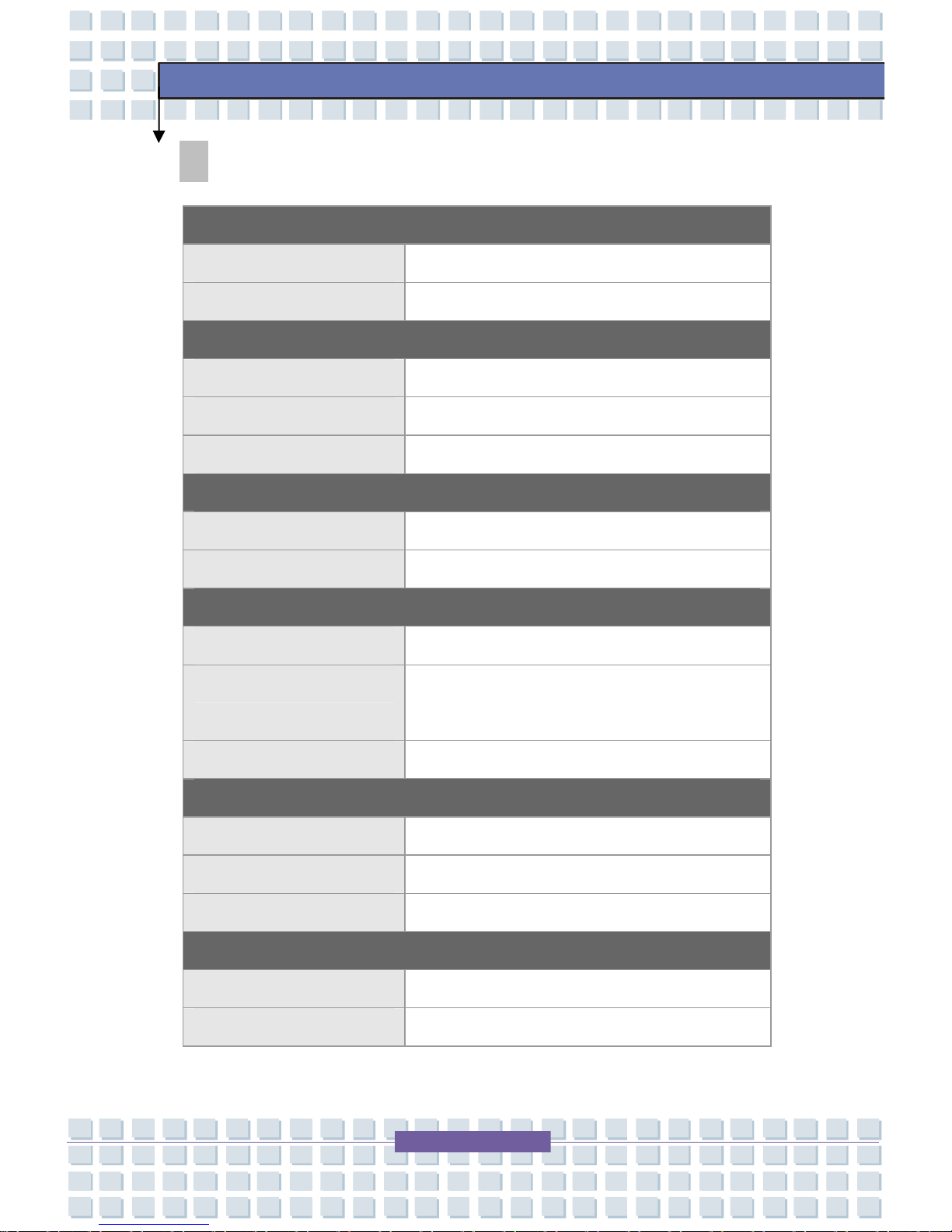
Specification
Physical Characteristic
Dimension 332 (W) x 240 (D) x 26.5~35 (H) mm
Weight 2.1~2.2 kg with 6 cell battery
CPU
Processor Type Micro-FCPGA 478-pin
Support Processor Intel® Celeron® Processor
FSB Speed 533MHz
Core Chips
North Bridge Intel® 960GL
South Bridge Intel® ICH8-M (82801HBM)
Memory
Technology DDR2 533/ 667
Memory DDR2 SO-DIMM X 2 slot
256/512/1024/2048 MB DDR2 SDRAM
Maximum 2GB
Power
AC Adapter 65W, 19 Volt
Battery Type 6 cells (Li-lon) (2600mAh)
RTC Battery Yes
Storage
HDD form factor 2.5" 9.5mm High
Controller Intel® ICH8-M (82801HBM)
Page 21
2-3
Getting Started
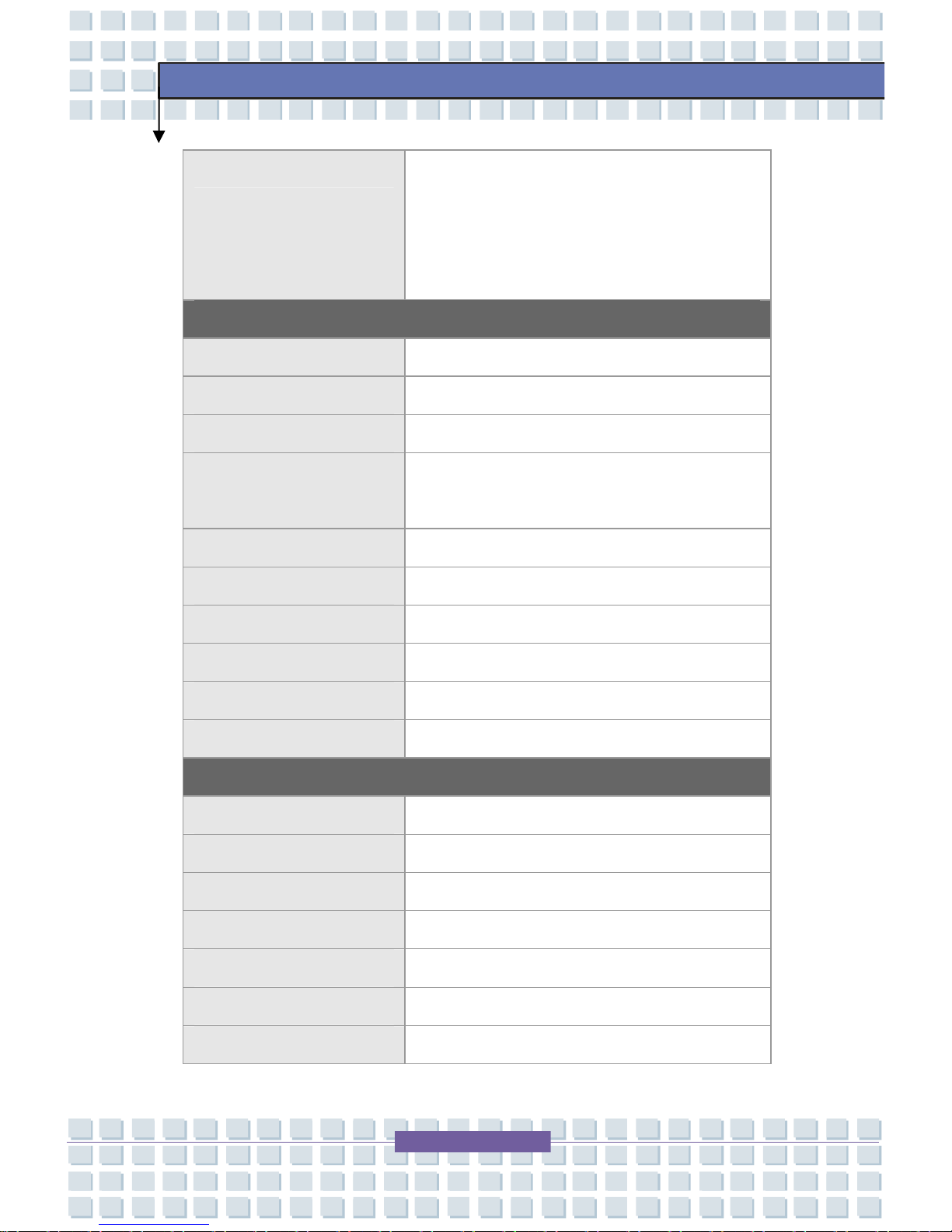
Optical Device DVD Combo
DVD dual
Super Multi
(Devices listed here may vary without notice)
I/O Port
Monitor(VGA) 15 pin D-Sub x 1
USB x 3 (USB version 2.0)
IEEE1394 x 1
Headphone Out
(S/PDIFOut supported)
x 1
Mic-in x 1
RJ11 x 1
RJ45 x 1
TV-Out x 1 (S-Video)
Slot x 1 PC Card Slot (Type II)
Card Reader x 1 (XD/SD/SDIO/MMC/MS/MS Pro)
Communication Port
56K Fax/MODEM MDC1.5 (AZALIA)
I/F AZALIA S/W Modem
Controller AZALIA Embedded
Wake on Ring Support on S1/S2/S3 state
LAN Giga LAN 10/100/1000
LAN Controller Intel® 82566MM
Wake on LAN Support on S3/S4/S5 state
Page 22
2-4
Getting Started
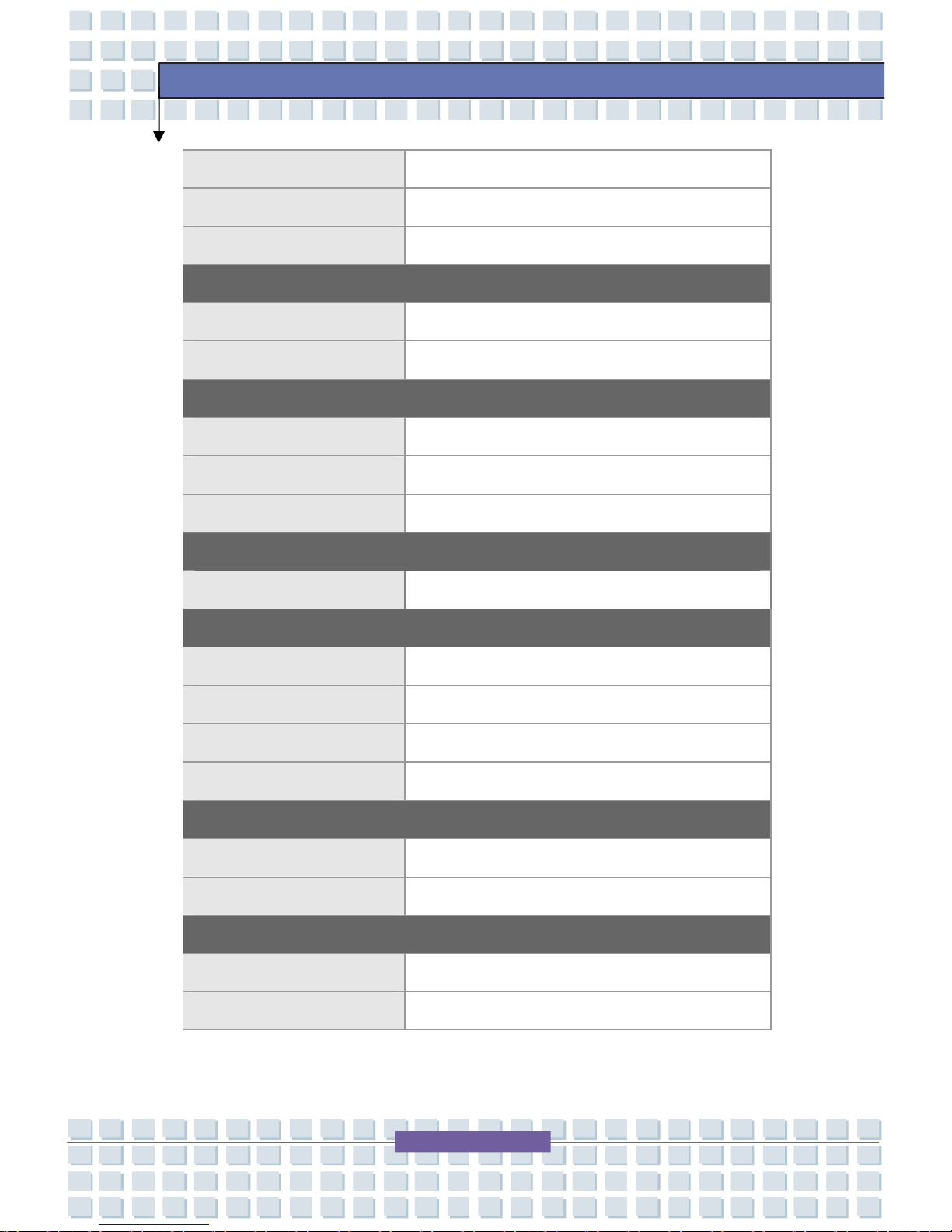
LAN Boot Yes
Bluetooth Yes (Optional, MS-6837D, Bluetooth 2.0)
Wireless LAN IEEE802.11 A/B/G/N, MSI 6877/Kedron
Display
LCD Type 13.3" WXGA Glare / Non-Glare
Brightness Brightness controlled by K/B hot-keys
Video
Controller Intel® 960GL
LCD 1,280 x 800 WXGA
VRAM Sharing system memory
Camera (Optional)
CMOS 1.3 Mega pixels
Audio
Sound Codec chip Realtek ALC888
Internal Speaker 2 Speakers, 1.5W
Internal Microphone Yes
Sound Volume Adjust by volume button, K/B hot-key & SW
Software & BIOS
USB Flash Boot Yes, USB floppy boot up DOS only
BIOS Fast Boot Support --- Yes
Others
Kensington Lock Hole x 1
Compliance WHQL
Page 23
2-5
Getting Started
Product Overview
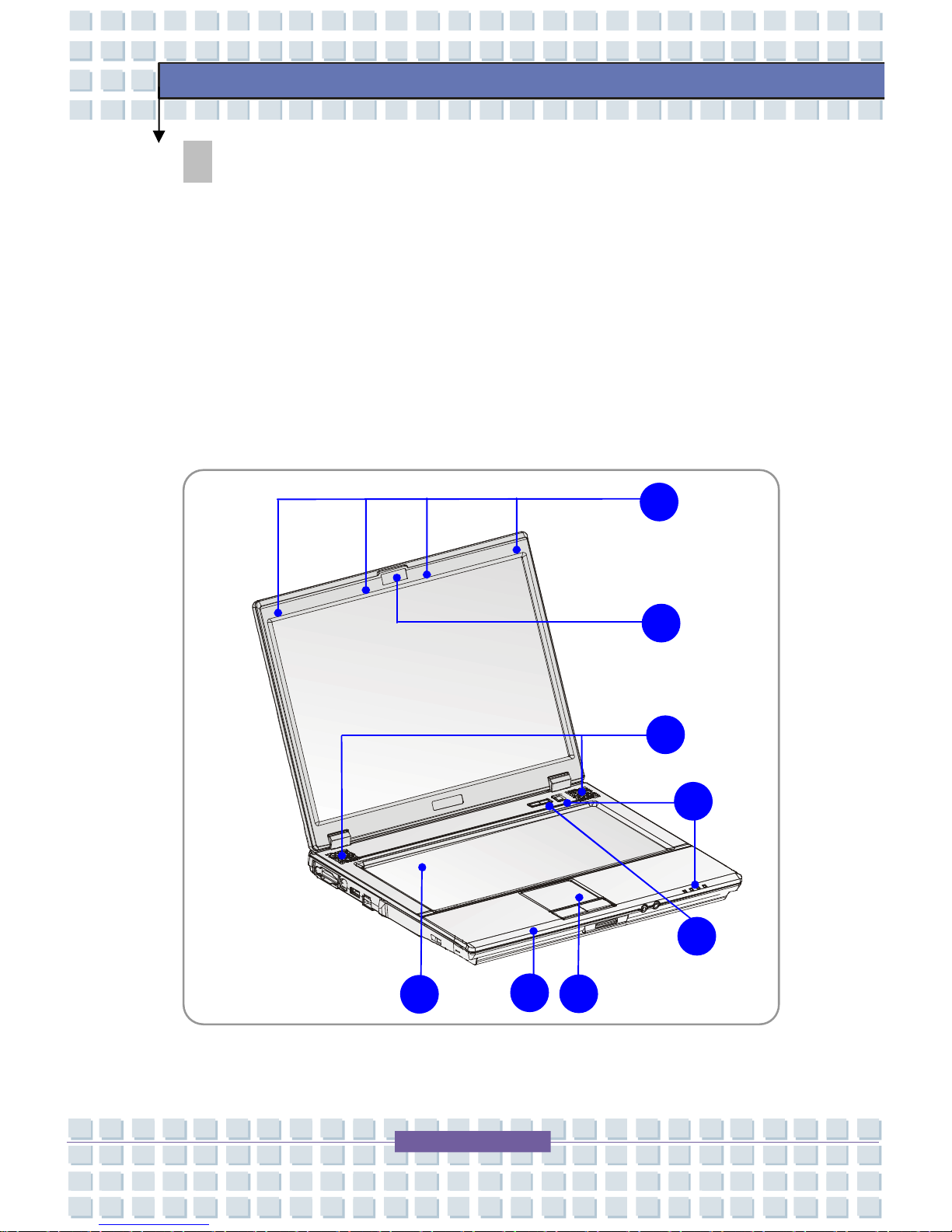
This section provides the description of basic aspects of the notebook. It will
help you to know more about the appearance of this Notebook before using it.
Note the notebook shown here may vary from the actual one.
Top-open View
The figure of top-open view and description showing below will lead you to
browse the main operating area of your notebook.
2
2
1 3 4 5 6 7 8
Page 24
2-6
Getting Started
1. Rubber Pads
Protect your Notebook PC from random closing.
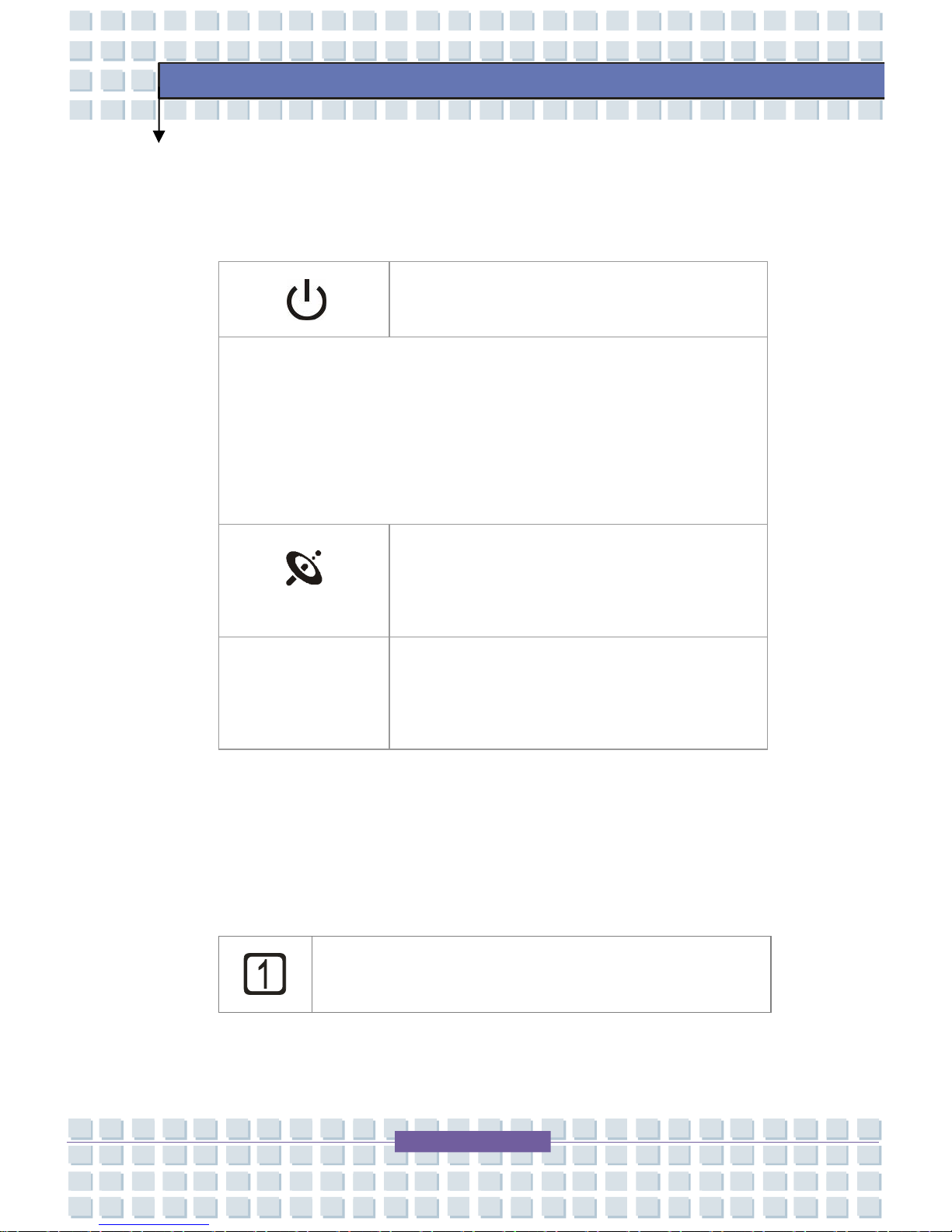
2. Quick Launch Buttons and Power Button
Power Button: To turn your Notebook power ON
and OFF.
Quick Launch Buttons: Simply click the quick launch buttons to speed
up the starting of the programs in common use. It helps you to do works
more efficiently.
Note: These Quick Launch Buttons will only work when the supplied
preload disk is installed.
WLAN & BT(optional)
Press the WLAN & BT (optional) Quick
Launch Button to enable/disable the Wireless
LAN or Bluetooth (optional) function.
P1
Press the P1 Quick Launch Button to activate the
Webcam or Search function. (It may vary
depending on the model you purchase.)
3. Keyboard
The built-in keyboard provides all the functions of a full-sized keyboard.
4. Touchpad
It is the pointing device of the computer..
5. Status LED
Num Lock: Glowing Blue when the Num Lock function is
activated.
Page 25

2-7
Getting Started
Caps Lock: Glowing Blue when the Caps Lock function is
activated.
Scroll Lock: Glowing Blue when the Scroll Lock function is
activated.
Hard Disk In-use: Glowing Blue when the Notebook PC is
accessing the hard disk drive.
Bluetooth (Optional)
Glowing blue when Bluetooth function of is enabled.
Wireless LAN
Glowing green when wireless LAN function is enabled.
Battery:
w Glowing green when the battery is fully charged.
w Glowing red when the battery is being charged.
w Blinking red if the battery fails and it is recommended
to replace a new battery.
w Battery LED goes out when the AC adapter is
disconnected.
Power On/ Off/ Suspend:
w Blinking green when system is in the suspend mode.
w Glowing green when the system is activated.
w LED goes out when the system is turned off.
6. Stereo Speakers
Make high quality sound blaster with stereo system and Hi-Fi function
supported.
Page 26

2-8
Getting Started
7. Webcam (Optional)
This built-in webcam can be used for picture taking, video recoding or
conferencing, and any other interactive applications.
8. Internal Microphone
There is built-in microphone and its function is the same with
microphone.
Page 27

2-9
Getting Started
Front View
1. 6 in 1 Card Reader
The built-in card reader supports MMC (multi-media card), SD (secure
digital), MS (memory stick), XD, SDIO, and MS Pro (memory stick pro)
cards.
2. Audio Port Connectors
Make high quality sound blaster with stereo system and Hi-Fi function
supported.
Mic-In: Used for an external
microphone.
Headphone/SPDIF Out: A connector
for speakers or headphones.
1
2
Page 28

2-10
Getting Started
Right-side View
1. PC Card Slot
The computer provides a PC card slot to support one Type-II PC card for
expansion functions, such as LAN/WLAN card, modem card, memory card,
etc.
2. IEEE 1394
The IEEE 1394 port is a high-speed bus that allows you to connect
high-end digital devices such as the DV (digital video camera).
3. USB Port
The USB 2.0 port allows you to connect USB-interface peripheral devices,
such as the mouse, keyboard, modem, portable hard disk module, printer
and more.
4. Ventilator
The ventilator is designed to cool the system. DO NOT block the
ventilator for air circulation.
1
2 3 4 5 6
Page 29

2-11
Getting Started
5. RJ-45 Connector
The Ethernet connector is used to connect a LAN cable for network
connection.
6. Kensington Lock
This port is used to lock the computer to location for security.
Page 30

2-12
Getting Started
2
Left-side View
1. VGA Port
The 15-pin-D-sub VGA port allows you to connect an external monitor
or other standard VGA-compatible device (such as a projector) for a
great view of the computer display.
2. S-Video Connector
By using a Super VHS (S-Video) cable, this connector allows you to
connect a television (NTSC/PAL system) to use as a computer display.
3. USB Port
The USB 2.0 port allows you to connect USB-interface peripheral
devices, such as the mouse, keyboard, modem, portable hard disk
module, printer and more.
4. RJ-11 Connector
The computer provides a built-in modem that allows you to connect an
RJ-11 telephone line through this connector. With the 56K V.90 modem,
you can make a dial-up connection.
1
3 4 5
Page 31

2-13
Getting Started
5. Optical Storage Device
A slim DVD Combo/ DVD Dual/ Super Multi drive is available in the
computer, depending on the model you purchased. The optical device
allows you to use the CD/DVD disc for installing software, accessing data
and playing music/movie on the computer.
Page 32

2-14
Getting Started
Rear View
1. Battery Pack (Rear View)
Supply power to your computer when the AC adapter is not connected.
2. Power Connector
To connect the AC adapter and supply power for the computer.
1
2
Page 33

2-15
Getting Started
Bottom View
1. Battery Lock/Unlock Button
Battery cannot be moved when the button is positioned on lock status.
Once the button is pushed to unlock position, the battery is removable.
2. Battery Pack
Supply power to your computer when the AC adapter is not connected.
3. Battery Release Button
It is a bounce-back device as a preparation for releasing the battery pack.
Press it with one hand and pull the battery pack carefully with the other.
1
2 3
Page 34

2-16
Getting Started
Power Management
AC Adapter
Please be noted that it is strongly recommended to connect the AC adapter and
use the AC power while using this Notebook for the first time. When the AC
adapter is connected, the battery is being charged immediately.
NOTE that the AC adapter included in the package is approved for your
Notebook; using other adapter model may damage the Notebook or other
devices on the Notebook.
Connecting the AC Power
1. Unpack the package to find the AC adapter and power cord.
2. Attach the power cord to the connector of the AC adapter.
3. Plug the DC end of the adapter to the Notebook, and the male end of the
power cord to the electrical outlet.
Note: The notebook shown here may vary from the actual one.
2
3 3
Page 35

2-17
Getting Started
Disconnecting the AC Power
When you disconnect the AC adapter, you should:
1. Unplug the power cord from the electrical outlet first.
2. Unplug the connector from the Notebook.
3. Disconnect the power cord and the connector of AC adapter.
4. When unplugging the power cord, always hold the connector part of the
cord. Never pull the cord directly!
Page 36

2-18
Getting Started
Battery Pack
This Notebook is equipped with a high-capacity Li-ion Battery pack. The
rechargeable Li-ion battery pack is an internal power source of the Notebook.
Releasing the Battery Pack
It’s a better way to have extra battery for enough power supply, so you don’t
have to worry about the lack of battery power. It’s recommend to buy a battery
pack from your local dealer.
To remove the battery pack:
1. Make sure the Notebook is turned off.
2. Check the Lock/Unlock button is in unlocked status.
3. Locate the Battery Release Button on the bottom side.
4. Push the Release Button to the direction of arrow showing below the
button.
5. Slide the left side of the battery pack first out of the compartment and then
pull the right side of the battery pack.
Page 37

2-19
Getting Started
2
3 4 5 5
Page 38

2-20
Getting Started
Replacing the Battery Pack
1. Insert the right side of battery pack into the compartment.
2. Slightly slide and press the battery pack into the right place.
3. After the right side of the battery pack fitting the right track, then
slightly press the left side of battery pack into the battery chamber.
4. Make sure the Lock/Unlock button is in lock position.
1
4
Page 39

2-21
Getting Started
Using the Battery Pack
Battery Safety Tips
Replacing or handling the battery incorrectly may present a risk of fire or
explosion, which could cause serious injury.
w Only replace the main battery pack with the same or equivalent type of
battery.
w Do not disassemble, short-circuit or incinerate batteries or store them to
temperatures above +60° C (+140° F).
w Do not temper with batteries. Keep them away from children.
w Do not use rusty or damaged batteries.
w Dispose of batteries according to local regulations. Check with your
local solid waste officials for details about recycling options or for proper
disposal in your area.
Conserving Battery Power
Efficient battery power is critical to maintain a normal operation. If the battery
power is not managed well, the saved data and customized settings may be lost.
Follow these tips to help optimizing battery life and avoid a sudden power loss.
w Suspend system operation if the system will be idle for a while or
shorten the Suspend Timer’s time period.
w Turn off the system if you won’t be using it for a period of time.
w Disable unneeded settings or remove idle peripherals to conserve
power.
w Connect an AC adapter to the system whenever possible.
Page 40

2-22
Getting Started
Charging the Battery Pack
The battery pack can be recharged while it is installed in the Notebook. Please
pay attention to the following tips before recharging the battery:
w If a charged battery pack is not available, save your work and close all
running programs and shut down the system or Save-to-Disk.
w Plug in an external AC/DC power source.
w You can use the system, suspend system operation or shut down and
turn off the system without interrupting the charging process.
w The battery pack uses Lithium-ion battery cells that have no “memory
effect.” You do not need to discharge the battery pack before you
begin charging. However, to optimize the life of battery, we suggest
that consuming the battery power completely once a month is
necessary.
w If you do not use the Notebook for a long time, it is suggested to remove
the battery pack from your Notebook. This may be helpful to extend
your battery life.
w The actual charging time will be determined by the applications in use.
Warning
1. Do not try to disassemble THE BATTERY PACK.
2. Please follow your local laws and regulations to recycle the
unused
battery pack.
Page 41

2-23
Getting Started
Basic Operations
If you are a beginner to the Notebook, please read the following tips to make
yourself safe and comfortable during the operations.
Safety and Comfort Tips
The Notebook is a portable platform that allows you to work anywhere.
However, choosing a good workspace is important if you have to work with your
Notebook for long periods of time.
w Your work area should have enough illumination.
w Choose the proper desk and chair and adjust their height to fit your
posture when operating.
w When sitting on the chair and adjust the chair’s back (if available) to
support your back comfortably.
w Place you feet flat and naturally on the floor, so that your knees and
elbows have the proper position (about 90-degree) when operating.
w Put your hands on the desk naturally to support your wrists.
w Adjust the angle/position of the LCD panel, so that you can have the
optimal view.
w Avoid using your Notebook in the space where may cause your
discomfort (such as on the bed).
w The Notebook is an electrical device, please treat it with great care to
avoid personal injury.
Page 42

2-24
Getting Started
Have a Good Work Habit
Have a good work habit is important if you have to work with your Notebook for
long periods of time; otherwise, it may cause discomfort or injury to you. Please
keep the following tips in mind when operating.
w Change your posture frequently.
w Stretch and exercise you body regularly.
w Remember to take breaks after working for a period of time.
Adjust the
angle and
position of
LCD panel.
Adjust the
desk’s height.
Keep your hands
and feet with
optimal comfort.
Sit straight and
keep a good
posture.
Adjust the
chair’s height.
Page 43

2-25
Getting Started
Knowing the Keyboard
The Notebook’s keyboard provides all the functions of a full-sized keyboard and
an additional [Fn] key for specific functions on the Notebook. The keyboard
can be divided into four categories: Typewriter keys, Cursor keys, Numeric
keys and Function keys.
Page 44

2-26
Getting Started
Typewriter Keys
The function of these Typewriter keys is the major function of the keyboard,
which is similar to the keys on a typewriter. It also provides several keys for
special purposes, such as the [Ctrl], [Alt] and [Esc] key.
When the lock keys are pressed, the corresponding LEDs will light up to indicate
their status:
n Num Lock: Press and hold the [Fn] key and press this key to toggle the
Num Lock on and off. When this function is activated, you can use the
numeric keys that are embedded in the typewriter keys.
n Caps Lock: Press this key to toggle the Caps Lock on and off. When this
function is activated, the letters you type are kept in uppercase.
n Scroll Lock: Press and hold the [Fn] key and press this key to toggle the
Scroll Lock on and off. This function is defined by individual programs,
and it is usually used under DOS.
Page 45

2-27
Getting Started
Cursor Keys
The keyboard provides four cursor (arrow) keys and
[Home], [PgUp], [PgDn], [End] keys at the lower right
corner, which are used to control the cursor movement.
Move the cursor left for one space.
Move the cursor right for one space.
Move the cursor up for one line.
Move the cursor down for one line.
Move to the previous page.
Move to the next page.
Move to the beginning of the line (or
document).
Move to the end of the line (or document).
Page 46

2-28
Getting Started
The Backspace key, [Ins] and [Del] keys at upper right corner are use for editing
purpose.
This key is used to switch the typing mode between
“insert” and “overtype” modes.
Press this key to delete one character to the right of the
cursor and move the following text left for one space.
Press this key to delete one character to the left of the
cursor and move the following text left for one space.
Numeric Keys
The keyboard provides a set of numeric keypad, which is embedded in the
typewriter keys. When the Num Lock is activated, you can use these numeric
keys to enter numbers and calculations.
Page 47

2-29
Getting Started
Function Keys
n Windows Keys
You can find the Windows Logo key and one Application Logo key
on the keyboard, which are used to perform Windows-specific
functions, such as opening the Start menu and launching the shortcut
menu. For more information of the two keys, please refer to your
Windows manual or online help.
n [Fn] Key
+
Switch the display output mode between the
LCD, external monitor and Both.
+
Enable or disable the touchpad function.
+
Decrease the LCD brightness.
+
Increase the LCD brightness.
+
Decrease the built-in speaker’s volume.
+
Increase the built-in speaker’s volume.
+
Disable the computer’s audio function.
+
Force the computer into suspend mode
(depending on the system configuration).
Page 48

2-30
Getting Started
Knowing the Touchpad
The touchpad integrated in your Notebook is a pointing device that is compatible
with standard mouse, allowing you to control the Notebook by pointing the
location of the cursor on the screen and making selection with its two buttons.
1. Cursor Movement Area
This pressure-sensitive area of the touchpad, allows you to place your
finger on it and control the cursor on the screen by moving your finger.
2. Right Button
Acts as the mouse’s right button.
3. Left Button
Acts as the mouse’s left button.
1
2 3
Page 49

2-31
Getting Started
Using the Touchpad
Read the following description to learn how to use the touchpad:
n Positioning and Moving
Place your finger on the touchpad (usually using the forefinger), and the
rectangular pad will act as a miniature duplicate of your display. When
you move your fingertip across the pad, the cursor on the screen will move
simultaneously in the same direction. When your finger reaches the edge
of the pad, lift your finger and replace it on a proper location of the
touchpad.
n Point and Click
When you have moved and placed the cursor over an icon, a menu item or
a command that you want to execute, simply tap slightly on the touchpad or
press the left button to select. This procedure, called as point and click is
the basics of operating your Notebook. Unlike the traditional pointing
device such as the mouse, the whole touchpad can act as a left button, so
that your each tap on the touchpad is equivalent to pressing the left button.
Tapping twice more rapidly on the touchpad is to execute a double-click.
n Drag and Drop
You can move files or objects in your Notebook by using drag-and-drop.
To do so, place the cursor on the desired item and slightly tap twice on the
touchpad, and then keep your fingertip in contact with the touchpad on the
second tap. Now, you can drag the selected item to the desired location
by moving your finger on the touchpad, and then lift your finger from the
touchpad to drop the item into place. Alternately, you can press and hold
the left button when you select an item, and then move your finger to the
Page 50

2-32
Getting Started
desired location; finally, release the left button to finish the drag-and-drop
operation.
Move the
cursor by
sliding your
fingertip.
Put your wrist
on the desk
comfortably.
Using the Touchpad
Page 51

2-33
Getting Started
n Configuring the Touchpad
You can customize the pointing device to meet your personal needs. For
example, if you are a left-hand user, you may want to swap the functions of
the two buttons. In addition, you can change the size, shape, moving
speed and other advanced features of the cursor on the screen.
To configure the touchpad, you can use the standard Microsoft or IBM PS/2
driver in your Windows operating system. The Mouse Properties in
Control Panel allows you to change the configuration.
Mouse Properties Window
Page 52

2-34
Getting Started
About Hard Disk Drive
Your Notebook is equipped with a 2.5-inch hard disk drive. The hard disk drive
is a storage device with much higher speed and larger capacity than other
storage devices, such as the floppy disk drive and optical storage devices.
Therefore, it is usually used to install the operating system and software
applications.
1. To avoid unexpected data loss in your system, please backup
critical files regularly.
2. Do not turn off the Notebook when the Hard Disk In-use LED
is on.
3. Do not remove or install the hard disk drive when the
Notebook is turned on. The replacement of hard disk drive
should be done by an authorized retailer or service
representative.
Page 53

2-35
Getting Started
Using the Optical Device Drive
Your Notebook is equipped with an optical device drive. The actual device
installed in your Notebook depends on the model you purchased.
n DVD Combo Drive: This device allows you to read DVD and CD, and
record CD format.
n DVD Dual: Microsoft DirectX® 9.0c is the latest version of DirectX
technology that can enable DirectX games and bring the best performance
of other multi-media software.
n Super-Multi Drive: A multi format recorder, allows you to record
the –R/RW, +R/RW, -RAM, CDR and CD-RW formats.
1. The optical device drives are classified as a Class 1 Laser
product. Use of controls or adjustments or performance of
procedures other than those specified here in may result in
hazardous radiation exposure.
2. Do not touch the lens inside the drive.
Page 54

2-36
Getting Started
Eject Button
Inserting the Disk
The following instruction describes the general procedure when operating
the optical storage device.
1. Confirm that the Notebook is turned on.
2. Press the Eject Button on the drive’s panel and the disk tray will slide out
partially. Then, gently pull the tray out until fully extended.
3. Place your disk in the tray with its label facing up. Slightly press the
center of the disk to secure it into place.
4. Push the tray back into the drive.
Page 55

2-37
Getting Started
Removing the disk
1. Press the Eject Button on the drive’s panel and the disk tray will slide out
partially. Then, gently pull the tray out until fully extended.
2. Hold the disk by its edge with your fingers and lift it up from the tray.
3. Push the tray back into the drive.
1. Confirm that the disk is placed correctly and securely in the
tray before closing the tray.
2. Do not leave the disk tray open.
Page 56

General Introductions Chapter 1
Getting Started
Chapter 2
Customizing this Notebook
Chapter 3
BIOS Setup
Chapter 4
Preface
Page 57

3-2
Customizing this Notebook
Connecting the External Devices
The I/O (input/output) ports on the Notebook allow you to connect peripheral
devices. All devices listed here are for reference only.
Note: The notebook shown here may vary from the actual one.
Mouse/ Keyboard
Printer
IEEE 1394 Device
Monitor
Television
Microphone
Speakers/
Earphones
Modem
LAN
Web Cam
Page 58

3-3
Customizing this Notebook
Connecting the Peripheral Devices
Connecting the Mouse
You can connect a mouse to your Notebook through the USB port. To connect
the mouse:
1. Turn on the Notebook and install the mouse driver.
2. Connect your mouse to the Notebook.
3. The Notebook may auto detect your mouse driver and enable the mouse
function. If there is no detection of you mouse you can manually enable
the mouse by going to Start Menu à Control Panel à Add Hardware to
add the new device.
Connecting the Keyboard
You can connect a keyboard to your Notebook through the USB port. To connect
the keyboard:
1. Turn on the Notebook and install the keyboard driver.
2. Connect your keyboard to the Notebook.
3. The Notebook may auto detect your keyboard driver and enable the
keyboard function. If there is no detection of you keyboard you can
manually enable the keyboard by going to Start Menu à Control Panel à
Add Hardware to add the new device.
Connecting the WebCam
You can connect a WebCam to your Notebook through the USB port. To
connect the WebCam:
1. Turn on the Notebook and install the WebCam driver.
Page 59

3-4
Customizing this Notebook
2. Connect your WebCam to the Notebook.
3. The Notebook may auto detect your WebCam driver and enable the
WebCam function. If there is no detection of you WebCam you can
manually enable the WebCam by going to Start Menu à Control Panel à
Add Hardware to add the new device.
Connecting the Printer
If your printer has a USB interface, you can then use the USB port on the
Notebook to connect the printer. The following instruction describes the
general procedure to connect a printer:
1. Turn off the Notebook.
2. Connect one end of the printer cable to the Notebook’s USB port and the
other end to the printer.
3. Connect the power cord and turn on the printer.
4. Turn on the Notebook and the system will detect a new device. Install the
required driver.
For further instructions, please refer to your printer’s manual.
Connecting the External Monitor or TV
You can connect an external monitor to your Notebook through the VGA port for
a larger view with higher resolution. To connect the monitor:
1. Make sure that the Notebook is turned off.
2. Plug the monitor’s D-type connector into the Notebook’s VGA port.
3. Connect the monitor’s power cord and turn on the monitor.
4. Turn on the Notebook and the monitor should respond by default. If not,
you can switch the display mode by pressing [Fn]+[F2]. Alternately, you
Page 60

3-5
Customizing this Notebook
can change the display mode by configuring the settings in Display
Properties of Windows operating system.
Connecting the IEEE 1394 devices
The IEEE 1394 port of your Notebook is a next-generation serial bus that
features a high-speed transfer rate and the connection of up to 63 devices,
allowing you to connect many high-end peripheral devices and consumer
electronic appliances, such as the DV (digital video camera). The IEEE 1394
standard interface supports “plug-and-play” technology, so that you can
connect and remove the IEEE 1394 devices without turning off the Notebook.
To connect the IEEE 1394 device, simply connect the cable of the device to the
IEEE 1394 port of your Notebook.
Page 61

3-6
Customizing this Notebook
Connecting the Communication Devices
Using the LAN
The RJ-45 connector of the Notebook allows you to connect the LAN (local area
network) devices, such as a hub, switch and gateway, to build a network
connection.
For more instructions or detailed steps on connecting to the LAN, please ask
your MIS staff or network manager for help.
Using the Modem or Combo Modem
The built-in 56Kbps fax/data modem or Combo Modem (with built-in Bluetooth
function) allows you to use a telephone line to communicate with others or to
dial-up to connect the Internet.
For more instructions or detailed steps on dialing-up through the modem, please
consult your MIS staff or Internet service provider (ISP) for help.
1. To reduce the risk of fire, use only No. 26 AWG or larger
telecommunication lone cord.
2. You are strongly recommended to install the modem driver
included in the software disk of your Notebook to take full
advantage of the modem feature.
Page 62

3-7
Customizing this Notebook
PC Card Installation
The PC card slot of your Notebook allows you to install comprehensive Type-II
PC cards that support various functions for your necessary, including the
LAN/WLAN card, modem card, and memory card.
The following instruction provides you with a basic installation for the PC card,
including how to install and remove it. For more information, please refer to the
manual of your PC card.
Installing the PC Card
1. Locate the PC card slot on your notebook. If there is the dummy card in
the slot, remove it first.
2. Insert the PC card into the slot (usually with its label facing up) and push it
until it is firmly seated.
Page 63

3-8
Customizing this Notebook
Removing the PC Card
1. Press the Eject Button to make it stretch out.
2. Push the Eject Button and the PC card will slide out. Pull it out of the slot.
3. Reattach the dummy card back to the slot.
1. Do not hold the “golden finger” when installing the PC card;
otherwise, it may cause interference or damage to the PC
card.
2. Before removing the PC card, you should stop the device in
Windows operating system.
Eject button
Page 64

3-9
Customizing this Notebook
Safely Remove Hardware
If you connect any peripheral device to your system, the Safely Remove
Hardware icon will appear on the taskbar. Double-click the icon to
bring up the Safely Remove Hardware dialog box. You can see all connected
peripheral devices here. If you want to remove any of the devices, move the
cursor to the device and click Stop.
Select
Page 65

General Introductions Chapter 1
Getting Started
Chapter 2
Customizing this Notebook
Chapter 3
BIOS Setup
Chapter 4
Preface
Page 66

4-2
BIOS Setup
About BIOS Setup
When to Use BIOS Setup?
You may need to run the BIOS Setup when:
w An error message appears on the screen during the system booting up
and requests you to run SETUP.
w You want to change the default settings for customized features.
w You want to reload the default BIOS settings.
How to Run BIOS Setup?
To run the BIOS Setup Utility, turn on the Notebook and press the [Del] key
during the POST procedure.
If the message disappears before you respond and you still wish to enter Setup,
restart the system by turning it OFF and ON, or simultaneously pressing
[Ctrl]+[Alt]+[Delete] keys to restart.
The screen snaps and setting options in this chapter are for your
references only. The actual setting screens and options on your
Notebook may be different because of BIOS update.
Page 67

4-3
BIOS Setup
Control Keys
You can use only the keyboard to control the cursor in the BIOS Setup Utility.
Press left arrow to select one menu title.
Press right arrow to select one menu title.
Press up arrow to select one item under the menu
title.
Press down arrow to select one item under the menu
title.
+
Increase the setting value or make changes.
Decrease the setting value or make changes.
1) Open the selected item to change setting
options.
2) Bring up a sub-menu when available.
In some items, press this key to change setting field.
Bring up help screen providing the information of
control keys.
1) Exit the BIOS Setup Utility.
2) Return to the previous screen in a sub-menu.
Page 68

4-4
BIOS Setup
BIOS Setup Menu
Once you enter the BIOS Setup Utility, the Main menu will appear on the screen.
The Main menu displays the system information, including the basic
configuration.
Main menu
Show System Overview information about BIOS version, CPU features, Memory
size and setting of System Time and Date.
Advanced menu
Configure IDE and USB settings.
Power Manager
Configure Power saving settings.
Security menu
Install or clear Supervisor’s and User’s Password settings.
Boot menu
Set up Boot Type and Boot Sequence.
Page 69

4-5
BIOS Setup
Exit menu
Choose decided status before leaving the BIOS menu.
Page 70

4-6
BIOS Setup
Main menu
System Overview
System Overview will show you BIOS version and other information about its
build date and update notes. Following is CPU’s information about its Type and
Speed.
w System Date
This item allows you to set the system date. The date format is
[day:month:date:year].
Day Day of the week, from Sun to Sat, which is determined by
BIOS (read-only).
Month The month from 01 (January) to 12 (December).
Date The date from 01 to 31.
Year The year can be adjusted by users.
Page 71

4-7
BIOS Setup
w System Time
This item allows you to set the system time. The system clock will go on
no matter you shut down the PC or get into sleep mode. The set format is
[hour:minute:second].
w Primary/Secondary IDE Master
The two items display the types of the primary/secondary IDE maste
devices installed in the Notebook. Press [Enter] to bring up a window
showing the detailed information of the device, including the device name,
vendor, LBA mode, PIO mode and more.
w USB Configuration
This item configure USB device.
w System Information
This item indicates the information of firmware, processor, and system
memory.
Page 72

4-8
BIOS Setup
Advanced menu
Advanced Settings
w Intel(R) SpeedStep(tm) tech.
This item allows you to enable or disable Intel SpeedStep technology.
When set to Disabled, the system always operates in a conserve power
mode (the processor works at FSB400-600MHz or FSB533-800MHz). If
you want optimize the processor, set this item to Enabled, so that the
processor’s speed will be controlled by the use of your operating system
and applications. Setting options: Enabled, and Disabled.
w IDE Configuration
This item allows you to configure IDE device settings.
w Chipset Configuration
This item allows you to enable automatically or disable HD audio Azalia
device.
Page 73

4-9
BIOS Setup
w Advance PCI/PnP Settings
This item allows you to configure the PCI bus system and PnP (plug and
play) feature.
Page 74

4-10
BIOS Setup
Power Manager
w ACPI Standby State
The item allows you to specify the power saving modes for ACPI
function.
w Repost Video on S3 Resume
The item allows you to determine whether to invoke VGA BIOS POST
on S3/STR resume.
w HDA Controller
The item allows you to enable or disable HDA Controller.
w 1394 Device
The item allows you to enable or disable 1394 device.
Page 75

4-11
BIOS Setup
Security menu
Security Settings
w Change Supervisor/User Password
When you select the function, a message box will appear on the screen as
below:
Type the password you want, up to six characters in length and press
[Enter]. The password typed now will replace any previously set password
from CMOS memory. You may also press [ESC] to abort the selection and
not enter a password.
Enter
New Password
Page 76

4-12
BIOS Setup
When the Supervisor Password is set, the new item User Access Level
and Password Check will be added in the menu. You can make further
settings of access right in the User Access Level item. Setting options:
No Access, View Only, Limited and Full Access. The Password Check
item is used to specify the type of BIOS password protection that is
implemented. Settings are described below:
Setup The password prompt appears only when end users try
to run Setup.
Always
A password prompt appears every time when the
Notebook is powered on or when end users try to run
Setup.
To clear a set password, just press [Enter] when you are prompted to enter
the password. A message box will show up confirming the password will
be disabled. Once the password is disabled, the system will boot and you
can enter Setup without entering any password.
w Boot Sector Virus Protection
This item can avoid virus to invade.
About Supervisor Password and User Password
Supervisor Password allows the user to enter and change the
settings of the setup menu; User Password only allows the user to
enter the setup menu, but do not have the right to make changes.
Page 77

4-13
BIOS Setup
Boot menu
w Boot Settings Configuration
Configure settings during system boot.
w Boot Device Priority
The item allows you to set the sequence of boot devices where BIOS
attempts to load the disk operating system.
Page 78

4-14
BIOS Setup
Exit menu
w Exit & Save Changes
Save the changes you have made and exit the utility.
w Exit & Discard Changes
Exit the utility without saving the changes you have made.
w Discard Changes
Abandon your changes and reload the previous configuration before
running the utility.
w Load Setup Defaults
Select this item to load the default settings for optimal system
performance.
 Loading...