

Page 1

MSI PF560
MSI PF560
TFT Monitor
User Operation Guide
Page 2
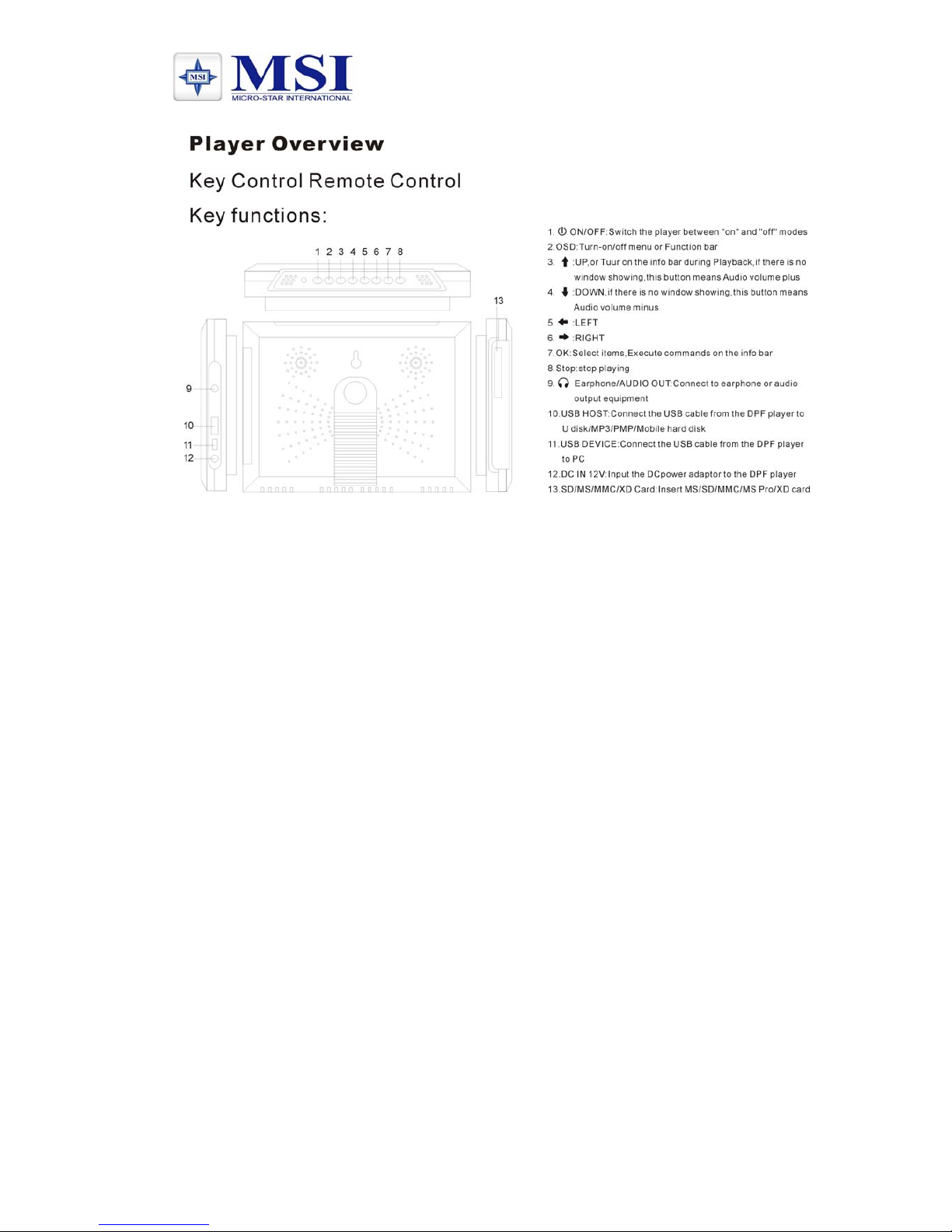
MSI PF560
Features:
• Playback of photo, music, or video files stored in data storage
devices through dual High-Speed USB 2.0 port or various
card-reader port, or internal memory.
• Supported data storage devices include USB disk, memory
card, MP3 player, hard disk, etc.
• Dual High-Speed USB 2.0 can be configured as OTG, Host, or
Device
• Supports up to 8000x8000 mega pixel image files (JPEG
format)
• Compatible with most digital cameras stored JPEG images
including Motion JPEG files
• Automatic slideshow with multiple transition effects and
adjustable display time
• Dedicated hardware JPEG decoder for super fast JPEG display
• Plays slideshow with MP3 music on in the background
• Plays MP3 music through the integrated speakers
• Plays MPEG-I, II, or IV video files (including DIVX) stored on
supported memory cards or external USB devices.
• Supports SD, SM, MS, MMC, and XD memory cards
• User friendly on-screen display
• Build in alarm clock and calendar
• Supports default alarm sound or user-selected alarm music.
• Supports firmware upgrade via USB device or memory cards.
Page 3
MSI PF560
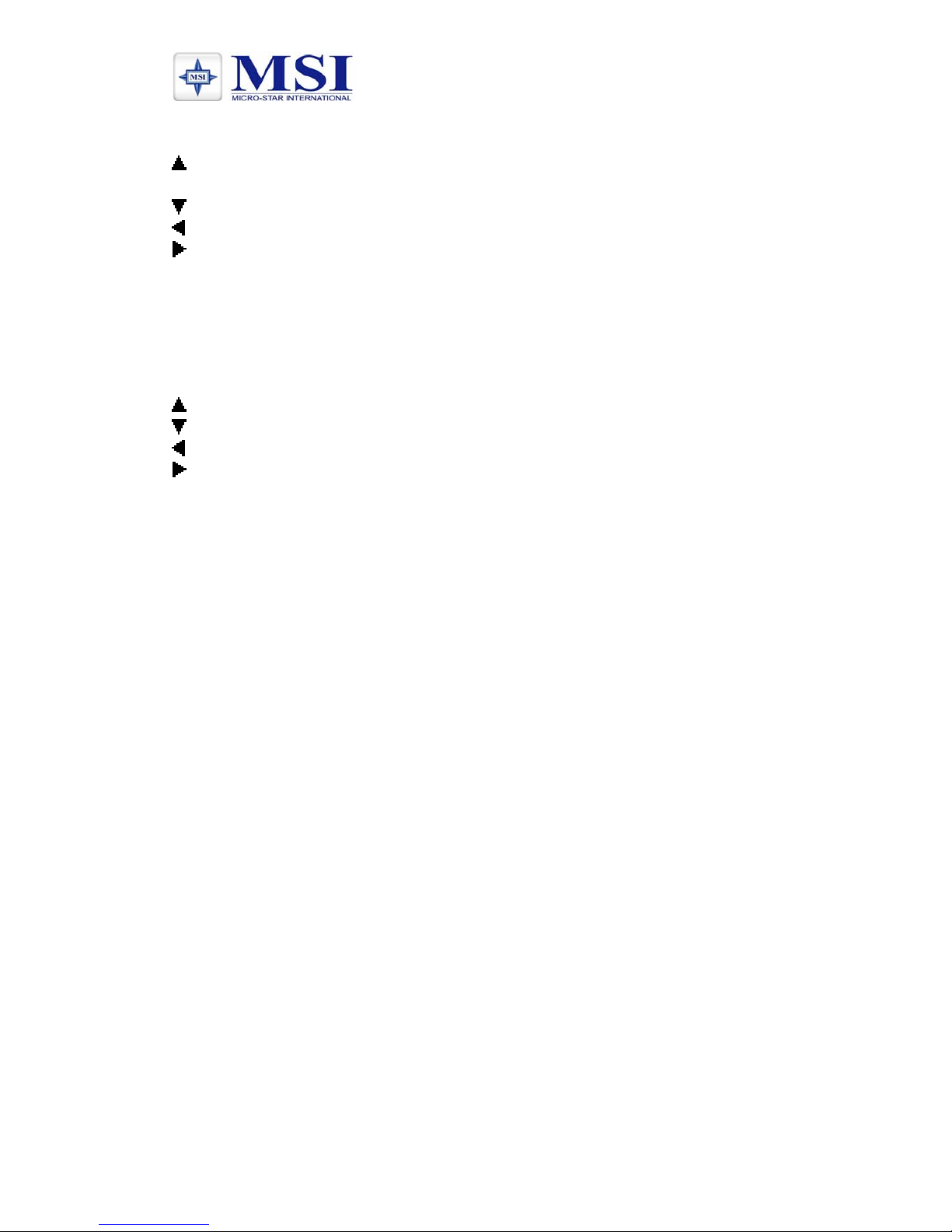
Buttons
UP, or Turn on the info bar during
playback
DOWN
LEFT
RIGHT
Enter Select items, Execute commands on the
info bar.
OSD Turn-on/off menu or Function bar
Remoter (Optional)
UP
DOWN
LEFT
RIGHT
Enter Select items, Execute commands on
the info bar
OSD Turn-on/off menu or Function bar
Mute Mute/Unmute audio
Vol + Audio volume plus
Vol - Audio volume minus
Play/Pause Playback a multi-media file/ Pause
Stop Stop playing
Rotate Rotate the picture 90 degree
Zoom Zoom in the picture
Bluetooth Enter into bluetooth navigation mode
Photo Enter into photo auto playback mode
Music Enter into music auto playback mode
Movie Enter into movie auto playback mode
File Enter into File list display screen
Combo Enter into Photo +music auto playback
mode
Page 4
MSI PF560
User Operation Guide:
1. Play List Screen
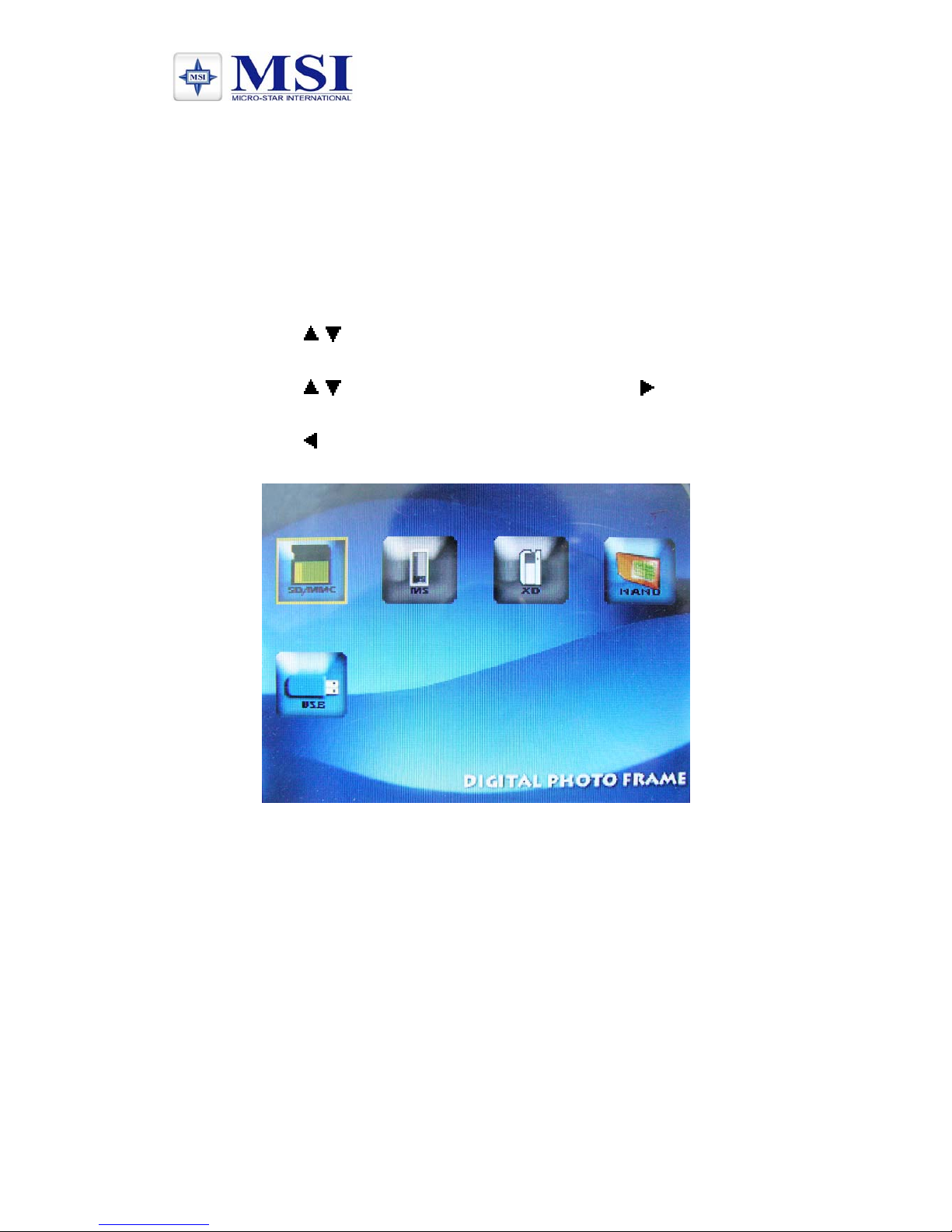
With USB device/Memory cards rightly inserted into the Digital
Picture Frame: volume label list screen displays. (Exhibit 1)
Actions:
a) Press / to select a volume label, then press ENTER to
enter the filelist.
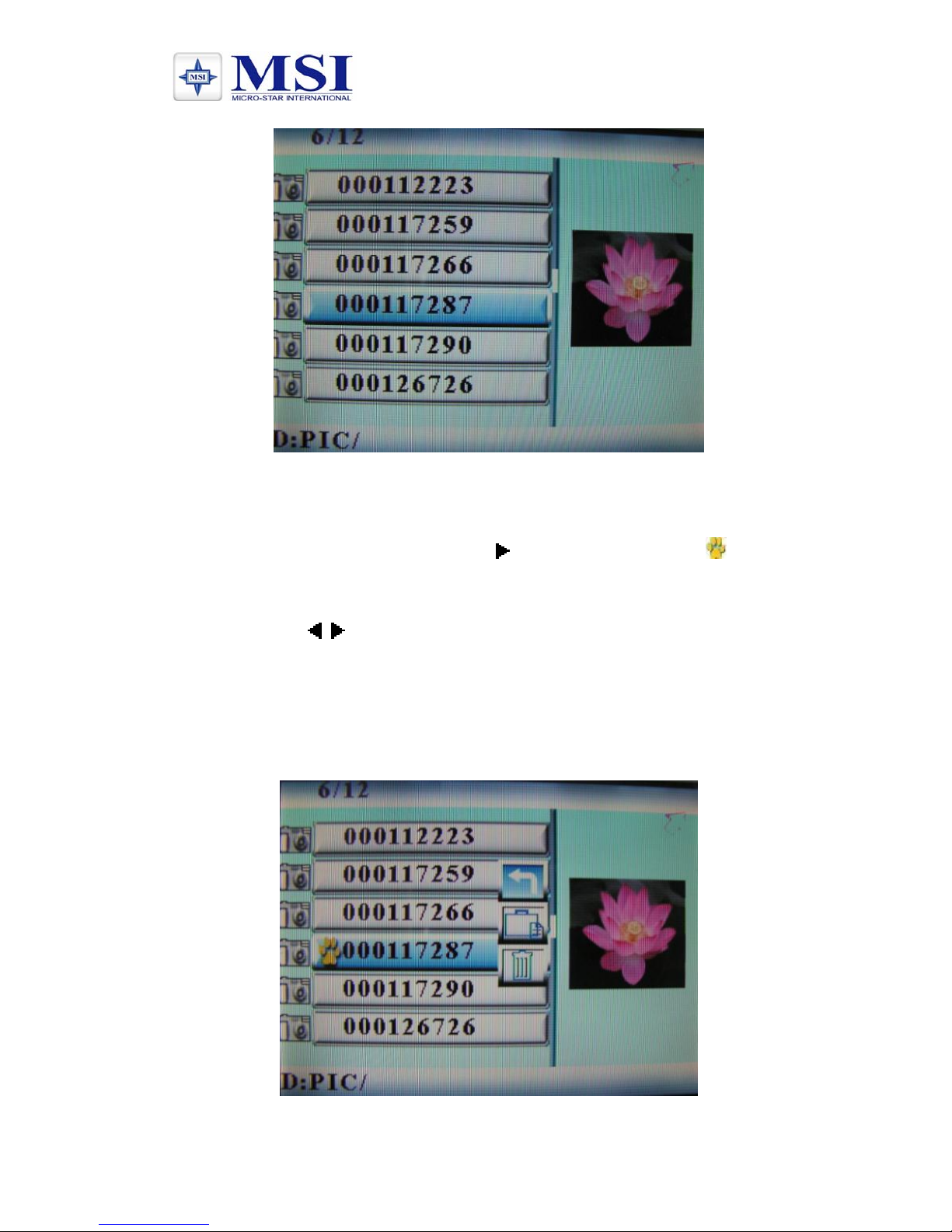
b) Press / to select a file/folder, then press to enter the
folder or press ENTER to play the file. (Exhibit 2)
c) Press to return to previous directory.
d) Press ENTER to enable the command tool bar.
Exhibit 1. Volume Label List
Page 5
MSI PF560
Exhibit 2. File Play List
1.1 File management screen
Action:
a) Select a file to copy, press on the original file. A will
appear in front of the file name indicating the file has been
selected.
b) Press / to locate and enter the copy-to destination
directory.
c) Press OSD and Cancel/Paste/Del menu displays on the
screen. (Exhibit 3)
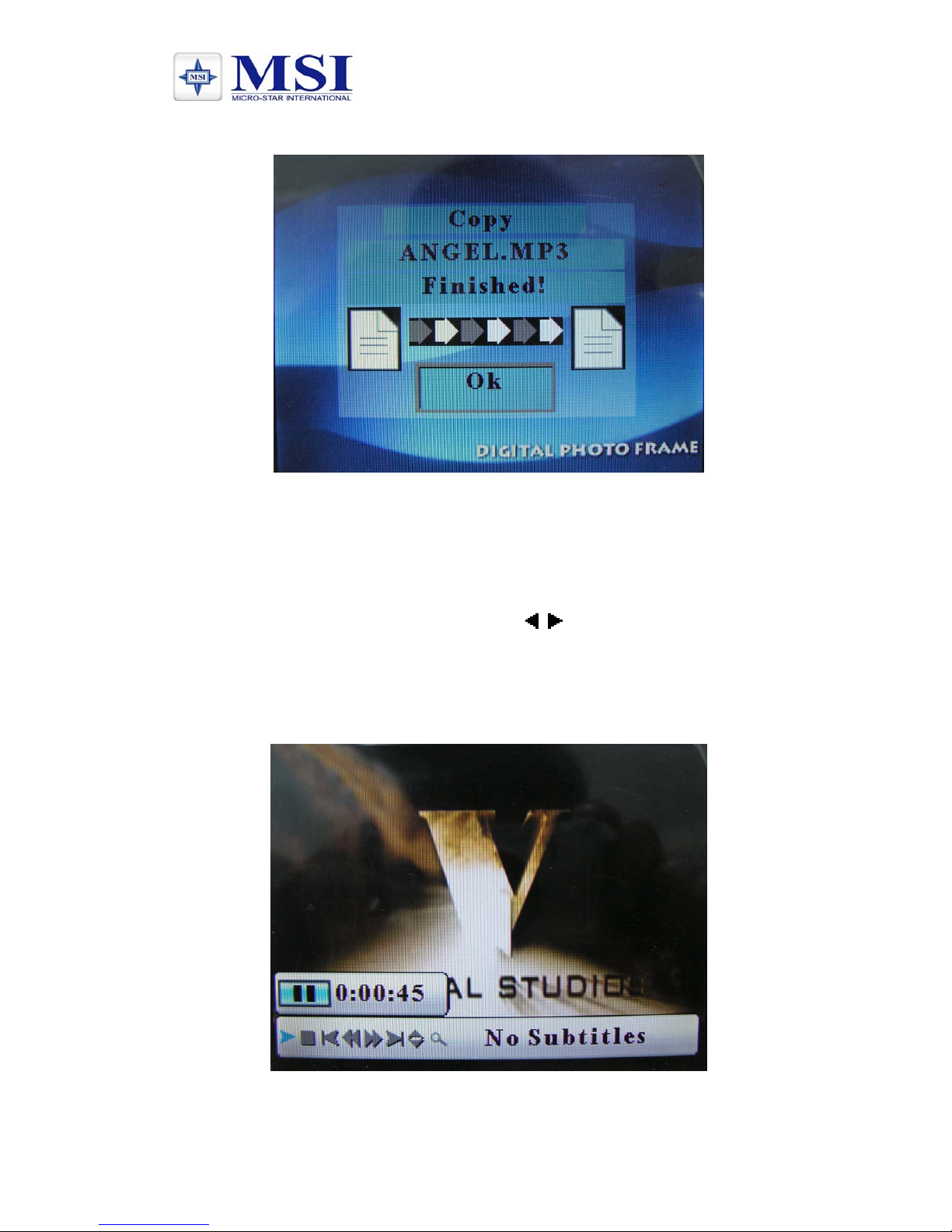
d) Select Paste and press ENTER to paste the file. (Exhibit 4)
e) Press ENTER (ok) to return to the file list.
Exhibit 3. File Operation
Page 6
MSI PF560
Exhibit 4. File Copy
2. Playback screens
Actions:
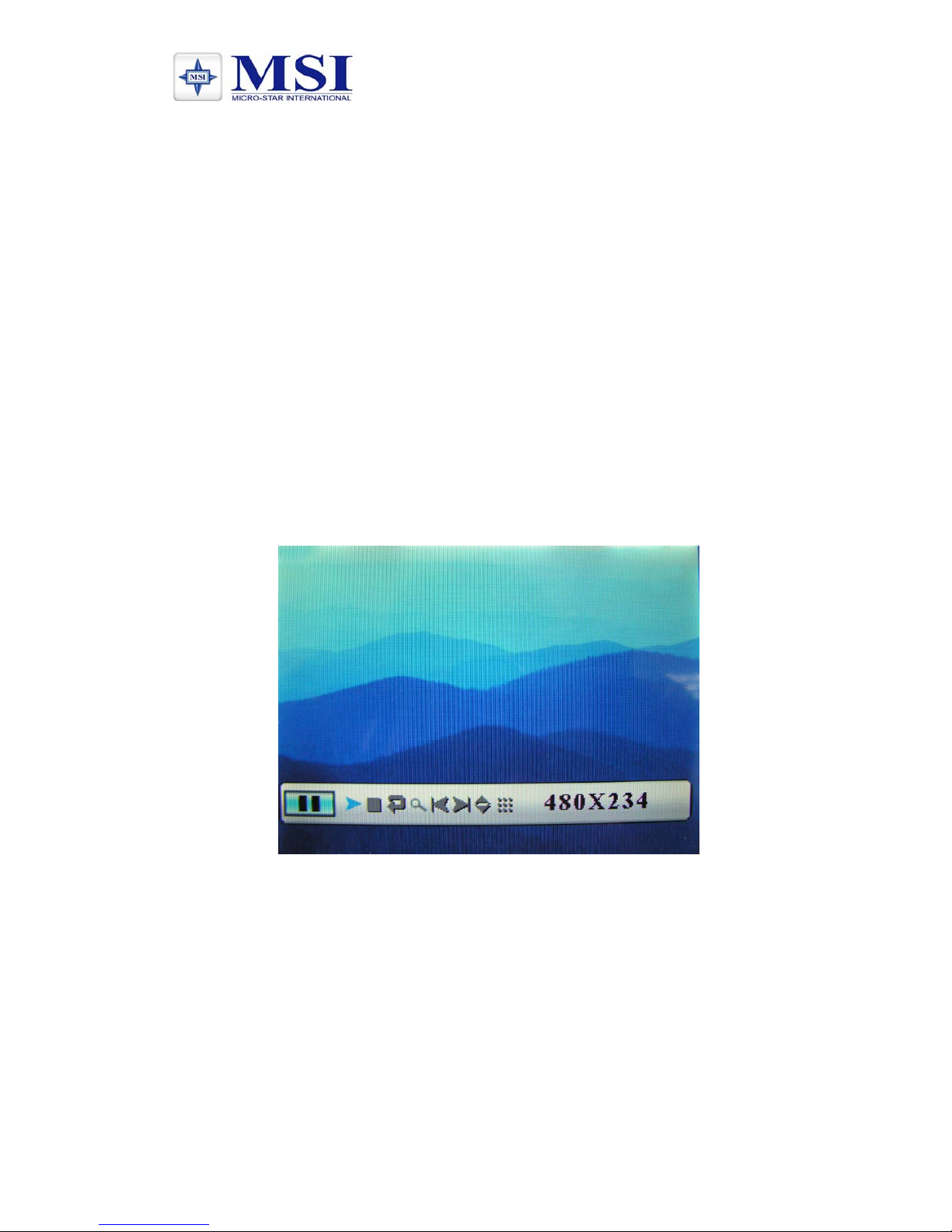
During Playback, press ENTER and info bar displays on the screen.
Then select a function item by pressing / , and press ENTER to
perform the corresponding function. (Exhibit 5)
Press ENTER to enable command tool bar.
2.1 Movie playback screen
Exhibit 5. Video Playback with Info Bar
Info bar layout and functions:
Page 7
MSI PF560
• Status indicator
• Playback time
• Play/Pause
• Stop
• Previous movie clip
• Fast backward
• Fast forward
• Next movie clip
• Show file info
• Zoom
• Sub-title switch
a) It can play film and AVI file.
b) For management , please found the other films on different files
except AVI file
2.2 Picture display screen
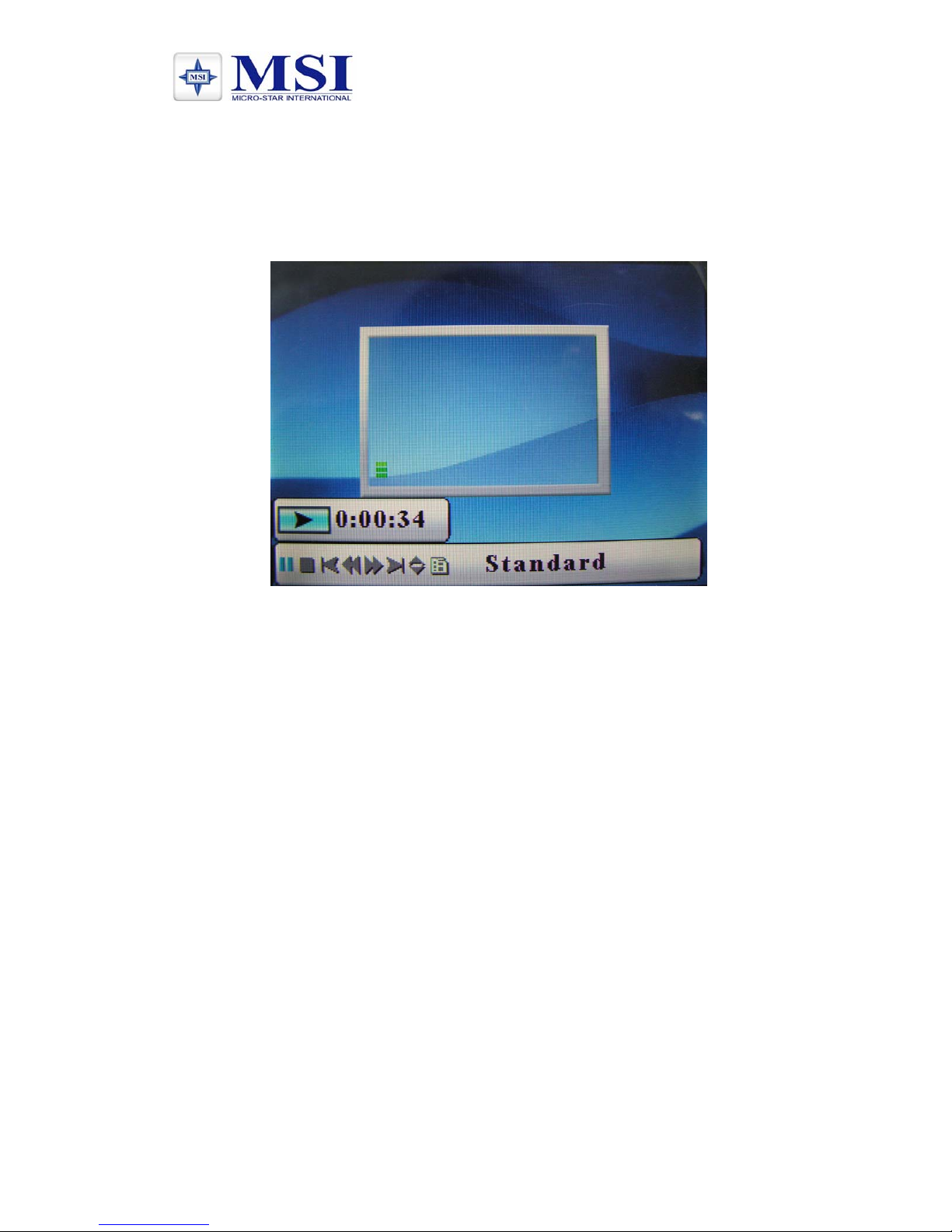
Exhibit 6. Picture Playback with Info Bar
Info bar layout and functions:
• Status indicator
• Play/Pause
• Stop
• Picture rotate
• Zoom
• Previous picture
• Next picture
Page 8
MSI PF560
• Show file info
• Picture thumbnail display
• Picture resolution display
2.3 Music playback screen
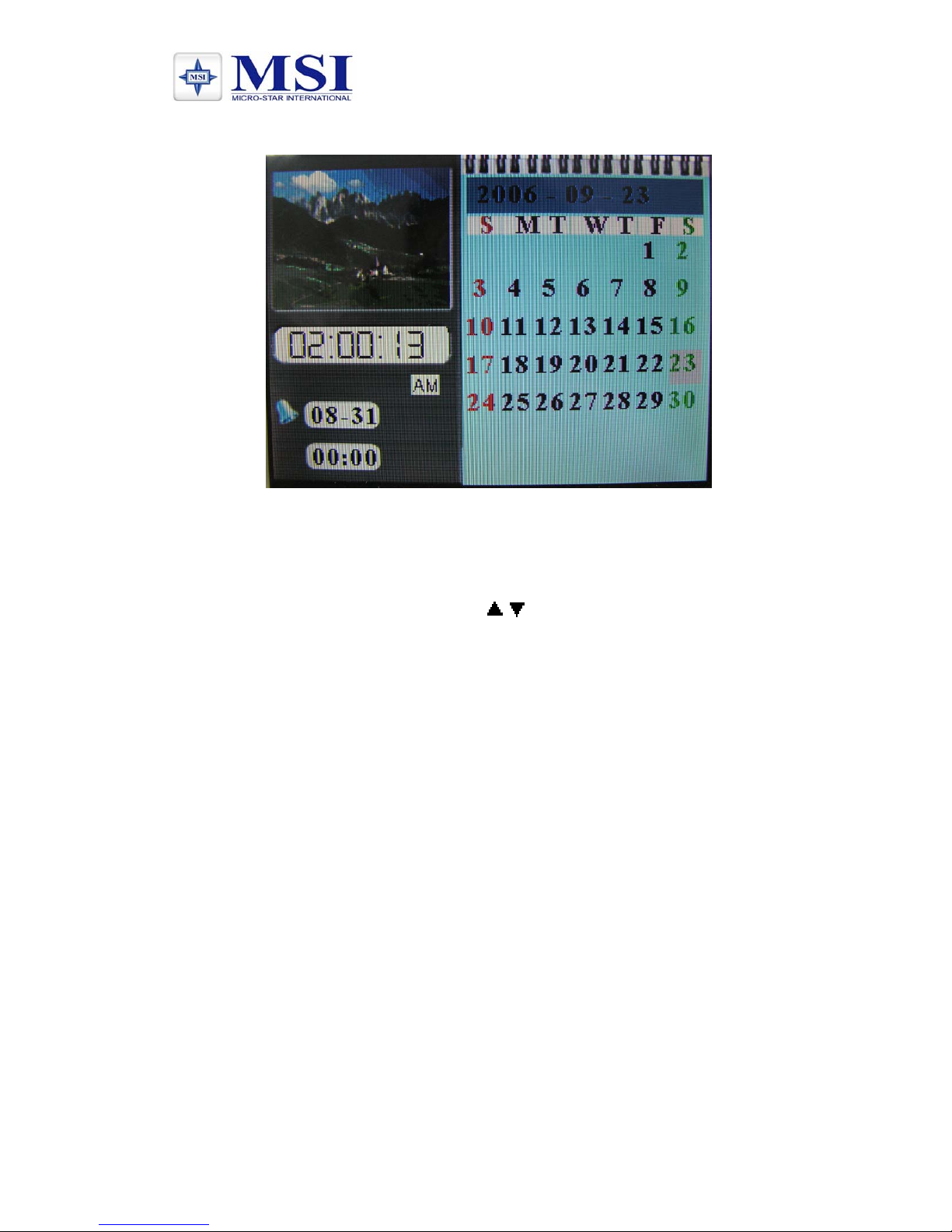
Exhibit 7. Music Playback with Info Bar
Info bar layout and functions:
• Status indicator
• Play/Pause
• Stop
• Previous song
• Fast backward
• Fast forward
• Next song
• Show file info
• ID3 tag display
• Play mode (Standard, Repeat one, Dir Directory)
Page 9
MSI PF560
3. Calendar
Exhibit 8. Calendar Screen
Actions:
Press OSD to enable command tool bar. Select Calendar to
enter Calendar Screen. Press / to move to the previous or
next month.
Display Information:
• Monthly calendar display
• Picture display
• Time display
• Alarm display
Page 10
MSI PF560
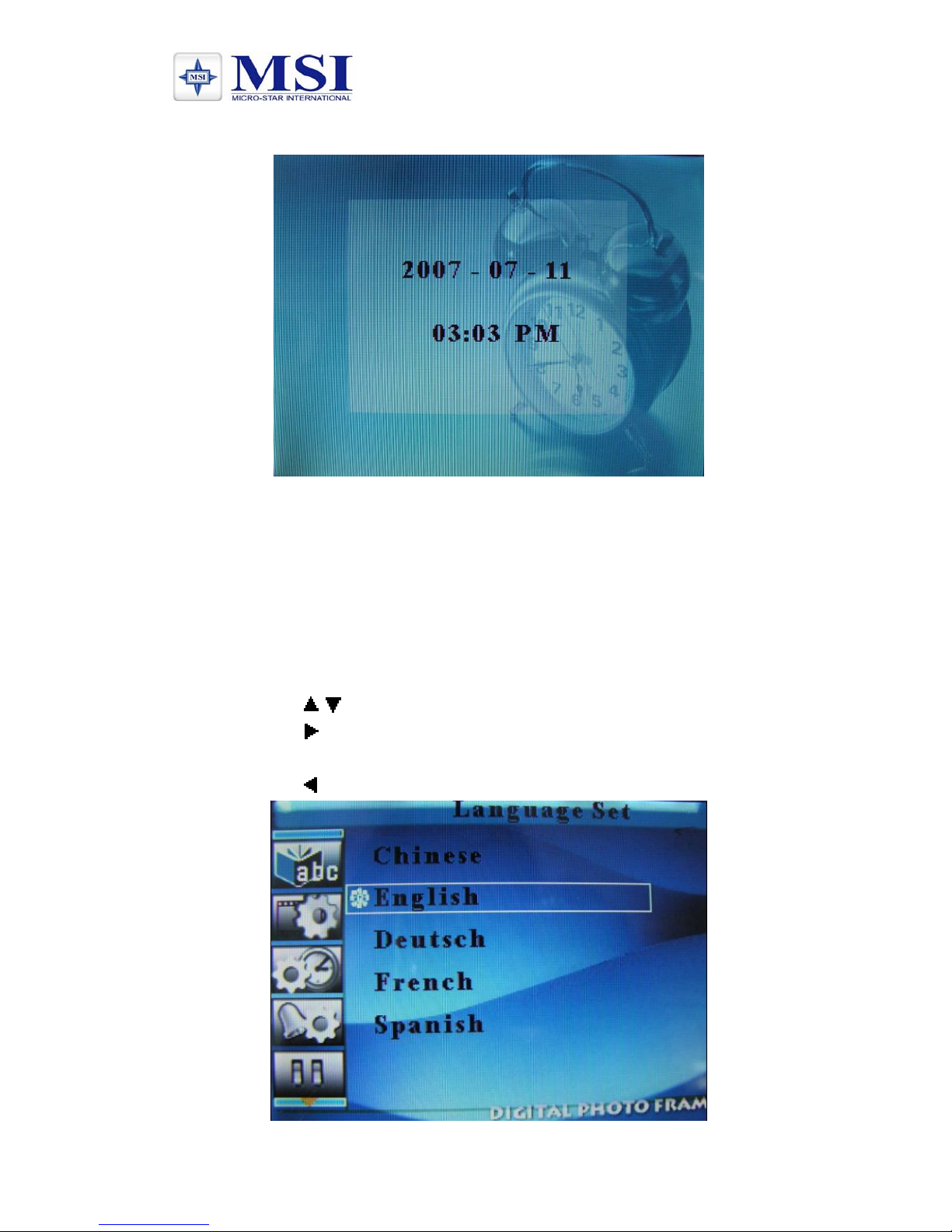
4. Alarm screen
Exhibit 9. Alarm Screen
When alarm goes off, the screen displays current date and time.
(Exhibit 9) Press any button to return to the previous mode.
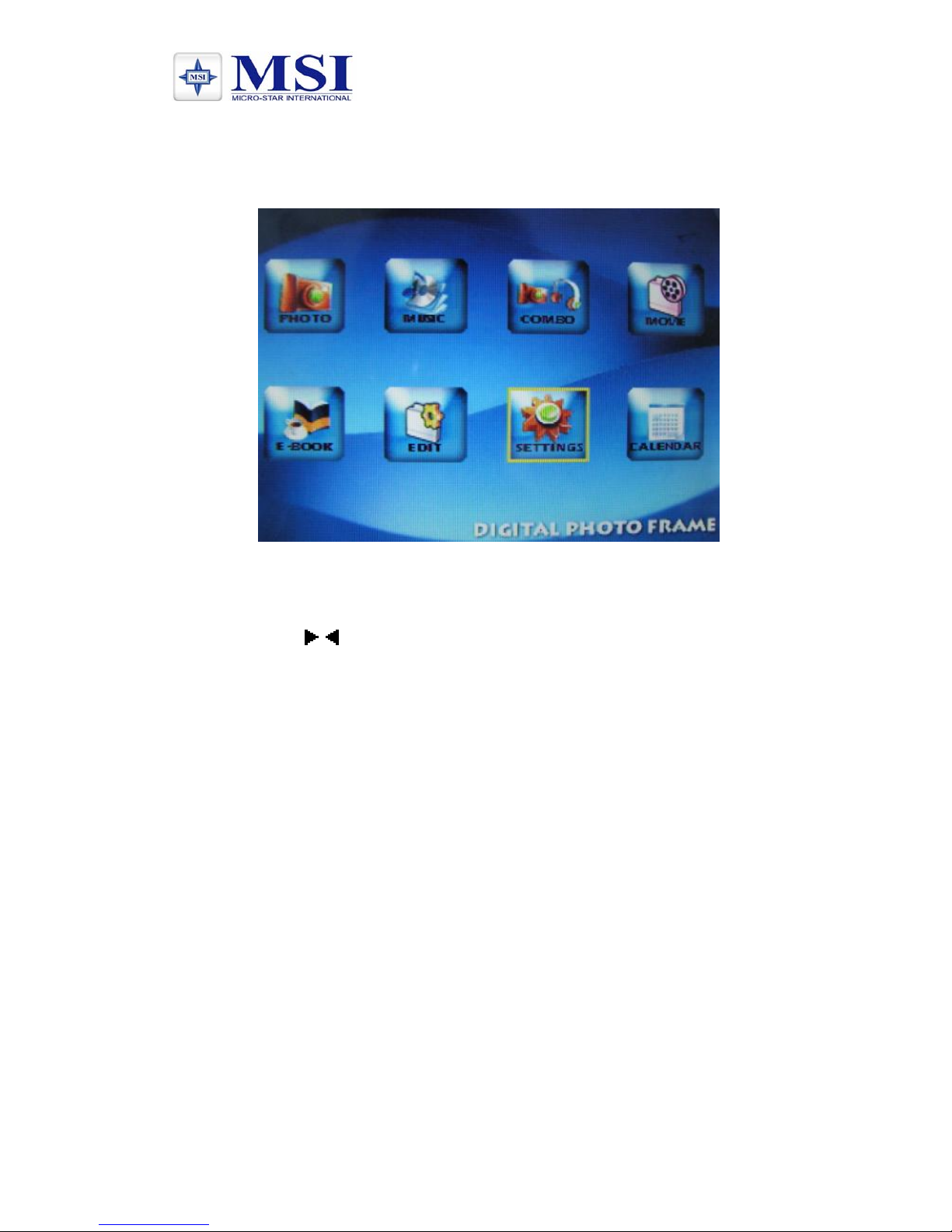
5. Setup Menu
Press Menu to enable command tool bar. Select Setup to enter
Setup Screen. (Exhibit 10)
Actions:
a) Press / to select an item
b) Press
or ENTER to enter the sub-menu.
c) Press ENTER to choose the setup.
d) Press
to return.
Page 11
MSI PF560
Exhibit 10. Setup Screen
6. Mode Select
Press OSD to enable command Mode Select (Exhibit 11)
Exhibit 11. Mode Select
Actions:
a) Press / to select a function
b) Press ENTER to enter the specific function screen.
Mode Select layout and Functions:
• Picture display screen (Auto play mode)
• Music playback screen (Auto play mode)
• Background music playback screen(Auto play mode)
• Movie playback screen (Auto play mode)
• E-book playback screen
• Edit playback screen
• Setup screen
• Clock and Calendar screen
Specifications are subject to change and improvement without notice. Please refer
to the latest version at our website.
 Loading...