

Page 1

1
Notice
Before use this product, please read this menu
carefully.
Your hearing ability may be harmed permanently
due to listen to the music at the highest volume
level continuously for a long period of time
Do not use the player at the highest volume while
driving as it would divert your attention, it may
cause the traffic accident.
It is every person’s duty to protect the
environment, please don’t throw the disused
battery randomly.
Notice for using this product
Please do not disassemble or repair the player by
yourself. Otherwise, it may affect the quality
guarantee of the player. MP3 player itself has no
parts available for the user to repair by oneself.
Please contact the professional personnel in case
the repair is required.
Page 2

2
Please not use this product in the environment at
high temperature or high humidity, such
environment include:
1. The environment temperature much higher than
50℃or lower than-10℃.
2. Sunshine Point blank or near to the heat head.
3. High humidity environment (such as bathroom).
Please not use the organic impregnant to clean the
product, such as benzene.
Please backup your important data frequently, and
it’s not our company’s fault if the loss caused by
the lost of the data at any condition.
If you do not intend to use the player for a long time,
please take out the battery, otherwise the battery
may leak, corrode and damage the player.
Description of the player
⎫ Outline and key
Page 3
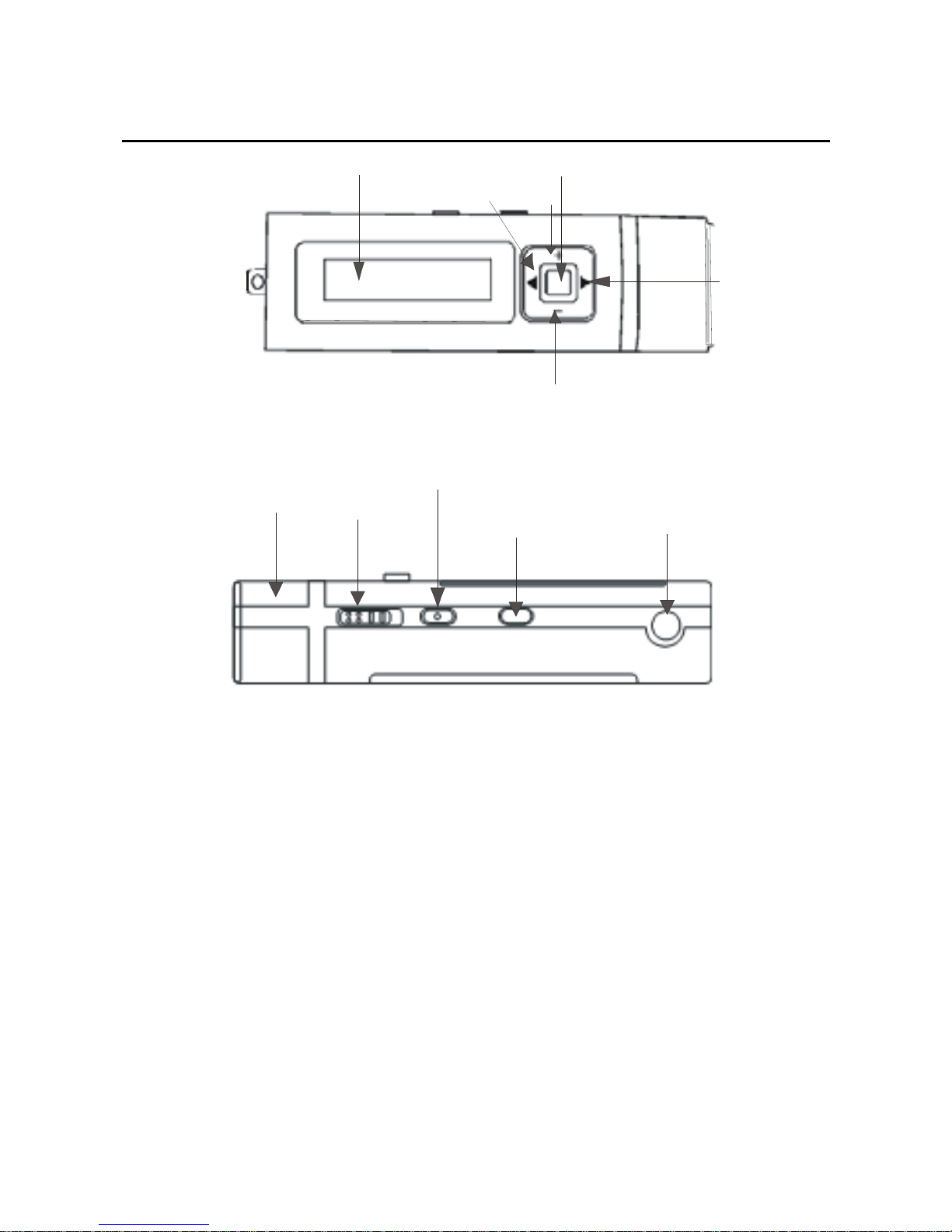
Play/Paus
e
VOL-
VOL+
Back
Forward
LCD
HO LD
MOD E
Headphone
US B
STOP/POWER OFF/POWER ON/A/B
Display screen
3
Page 4
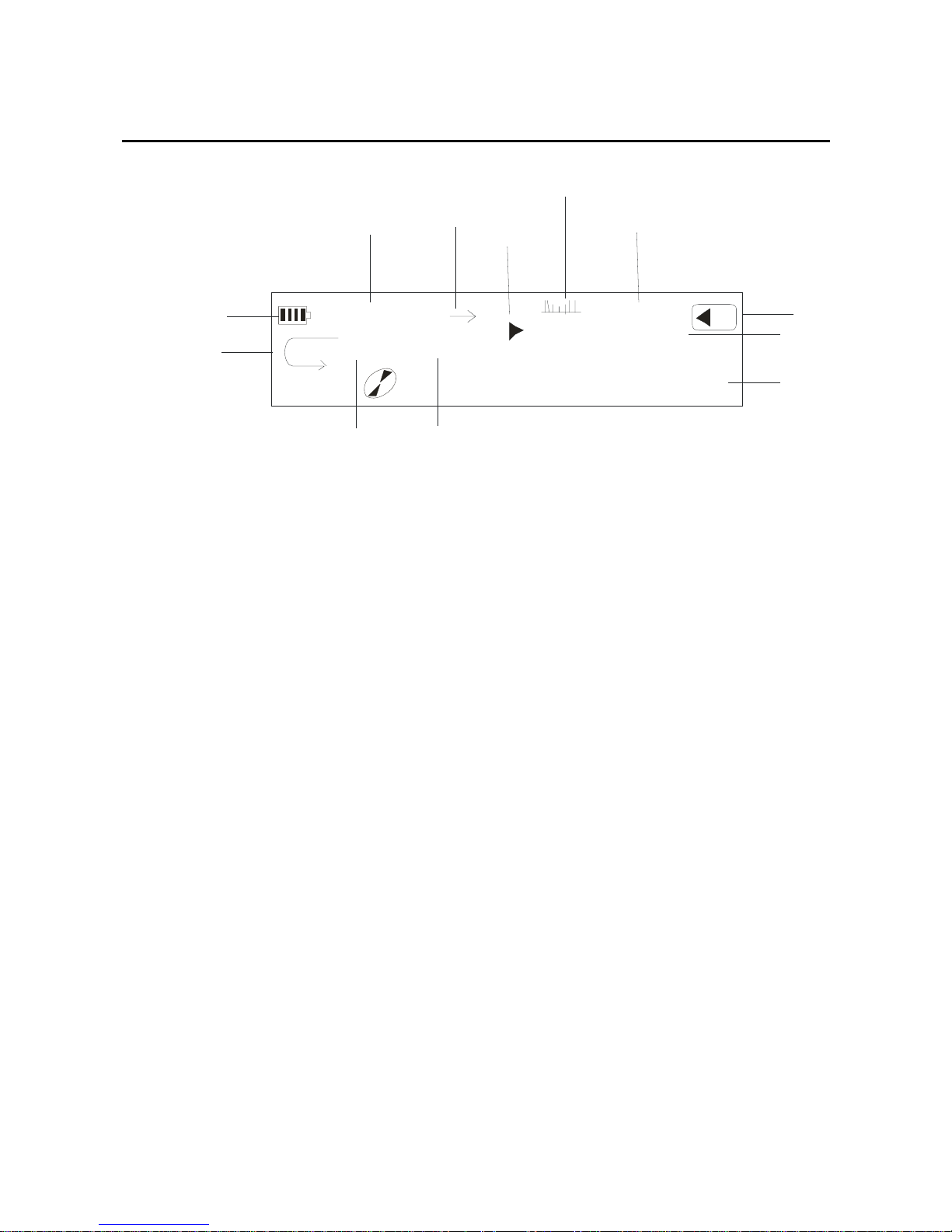
4
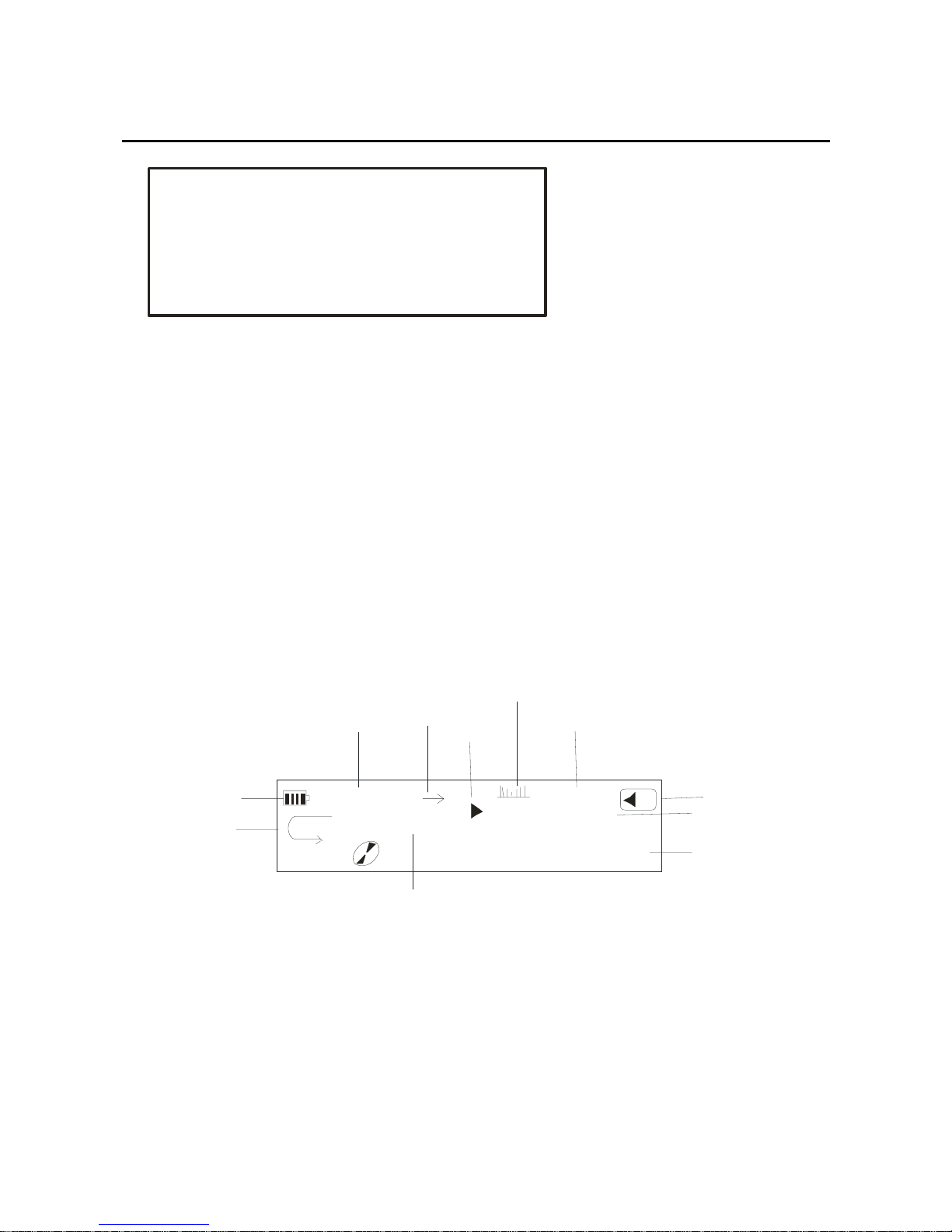
Title:take me to your heart.mp3
00:0 0
A
B
NOR
05:40
06 /09
14
128
ALL1
MP3
Ba tt er y lev el
ID 3 Display
Song counter
Re pea t mo de
Spect rum s tatus
Play status
Play time
Volu me
Bit rate
Re pe a t m o de
Musi c t im e
Play format
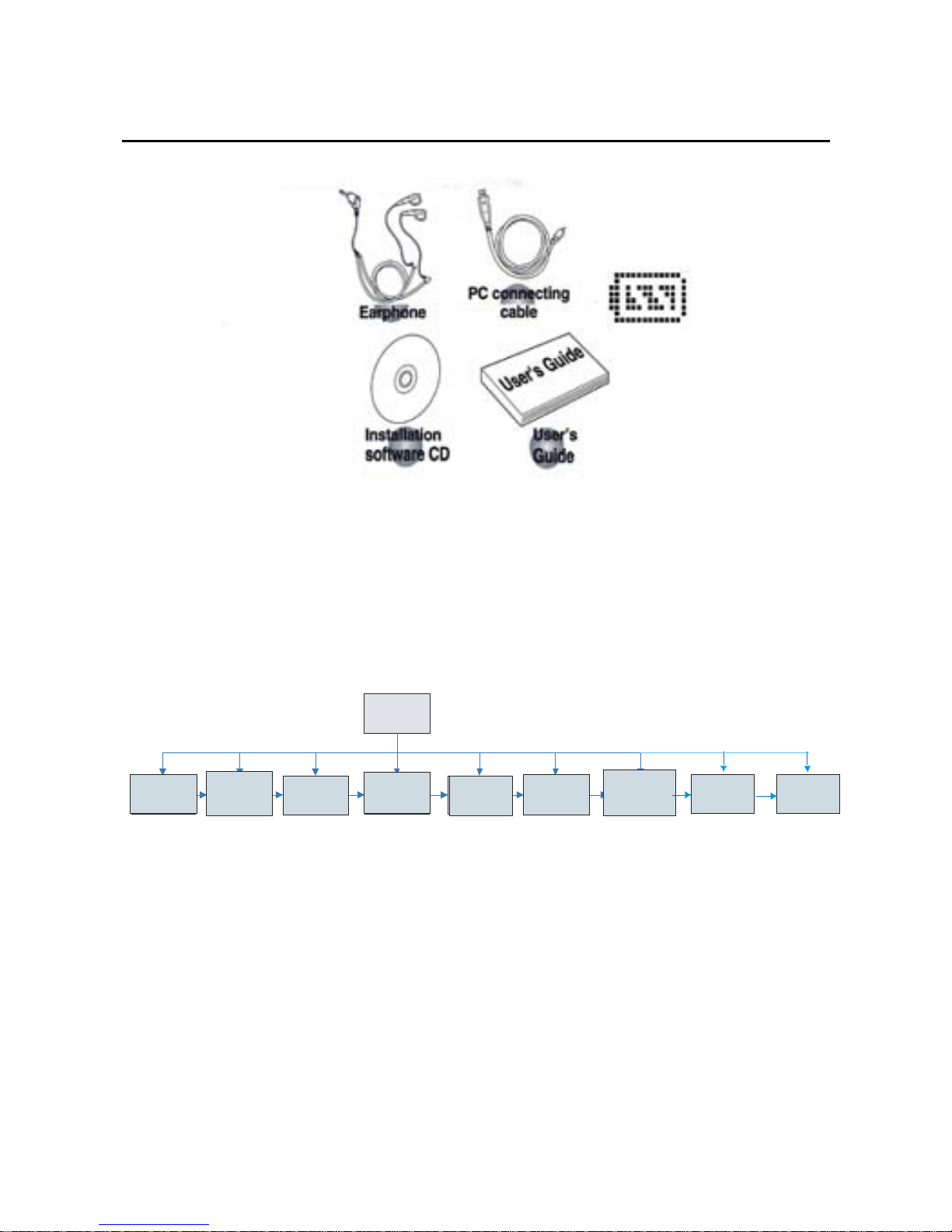
Accessories
Earphone; PC connecting cable; Installation software CD;
User’s Guide, Battery
.
Page 5
Ba t t ery
The chart of the player function
Voice Record FM Tuner Setting Info.
Pl ayer
Pl a y M u s i c Folder
Play Voi ce
Preview
About
Fold e r
Exit
Record
Play Musi c
Setting
FM Tuner
5
Page 6
The condition of the battery
(Time unit: hour)
AAA alkalescency
battery
Play time
Size 7 8
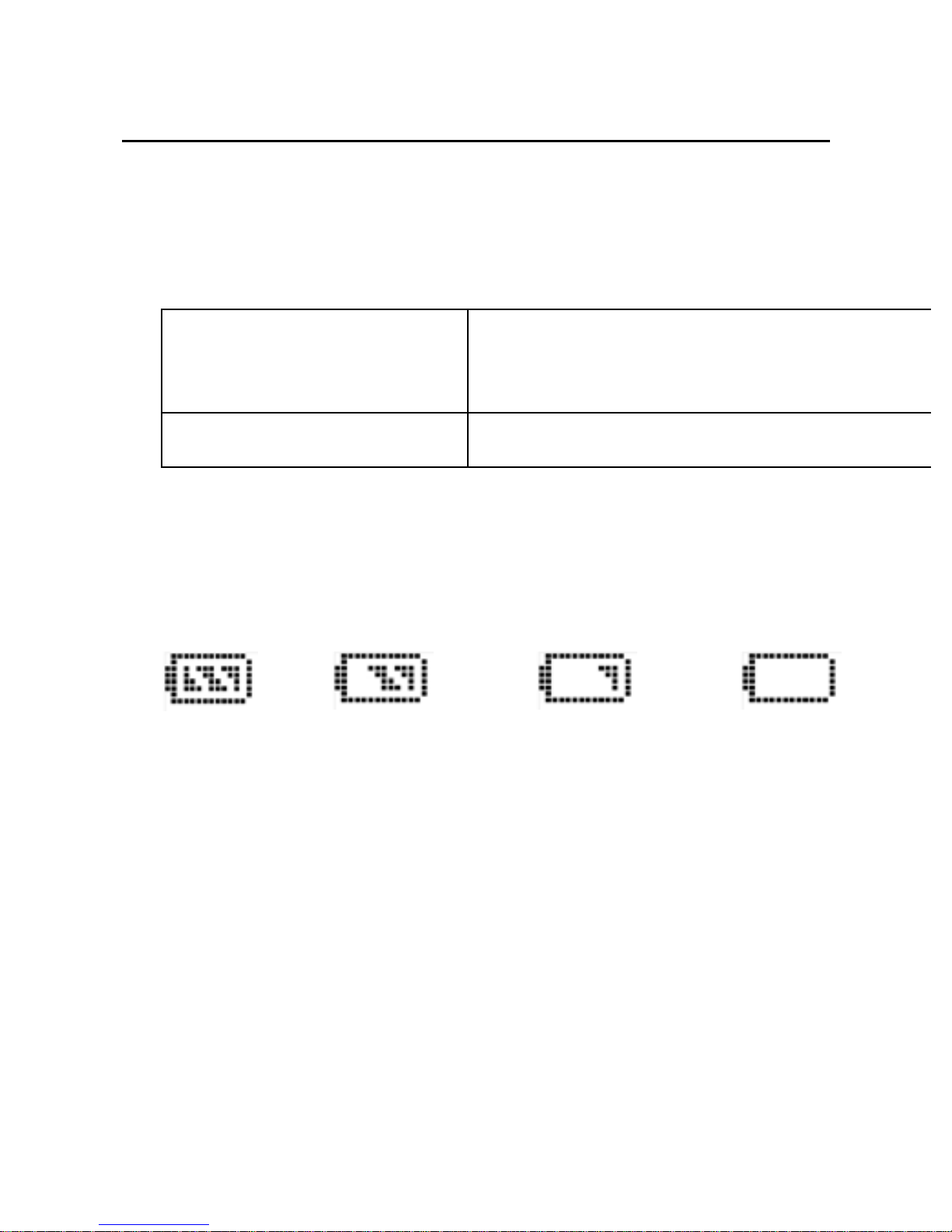
The life of the battery may be different in the use
condition, the manufacture company and the produce
date. The condition of the electricity level showed
below:
enough middle low empty
Please change the battery when the electricity is empty.
The method about fixing the battery: Open the cover of
the battery, then put the battery into the slot (attention
to the anode and cathode) then cover the battery.
6
Page 7

7
Definition of key functions
1. “PLAY”: PLAY/ PAUSE, hereafter referred to as
“Play key”.
2. “Stop”: Stop/Power off/Power on/ A/B
3. “Mode”: to select the entry and to enter the menu,
hereafter referred to as “mode key”.
4. “VOL+”: volume increase, fast increase.
5. “VOL–”: volume decrease, fast decrease.
6. “Forward”: next entry, fast forward.
7. “Back”: last entry, fast rewind.
8. “USB”: USB jack.
9. “Earphone jack”: standard earphone jack.
Definition of key operation
The key operation includes short press, long press,
press and hold, and press. The paragraphs below
refer to short press unless otherwise stated.
Short press: Press the key for one time and the key
comes into effect right away.
Page 8

8
Long press: Press the key for more than 1.5 seconds
before the key comes into effect, and only coming
into effect for one time
Press: Press the key, which will only come into effect
at the moment the hand releases from the key.
Press and hold the key: The whole process starting
from pressing the key to releasing the key, the event
comes into effect in multiple times at a certain
frequency, such as “Fast forward/fast rewind”.
The function of the player
Play MP3 music
Open /Close the player
When you open the player please press the stop key for a
long time, after 2 seconds, the screen will display “Hello”
it is showed that your player has been opened, the picture
as below:
Page 9
Hello!!
You can press the play key for a few seconds, and if there
are music files in the player, you will see the interface
below: music item, play time, bit rate, name of the
music playing. Press the mode key again, and then
begin to play. The LCD showed as:
Title:t ake m e to your heart.mp3
00:0 0
A
B
NOR
05: 40
06/0 9
14
128
ALL1
MP3
B atter y le ve l
ID 3 Display
Son g co unter
Repeat mode
Spect rum status
Play status
Play t ime
Volume
Bit rate
Re peat m ode
Music time
If you want to select the Forward/Back music, please
press the Forward/Back key. In the music play mode,
press the Forward/Back key for a long time, the
9
Page 10
selected music will be fast forward/backward, during
the music play if press the pause key, the music will be
paused.
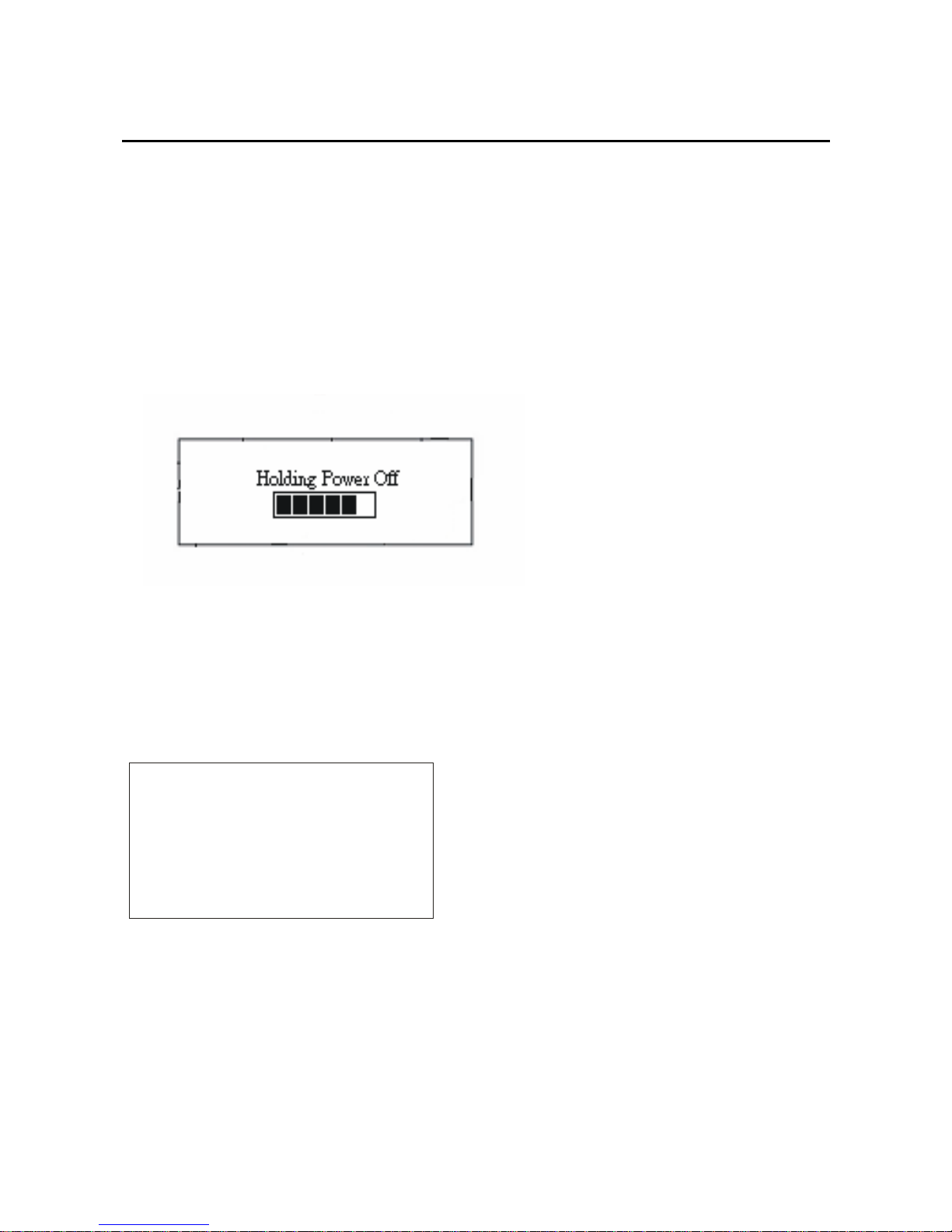
If you long press stop key to turn off the power the LCD
will show as below:
When you press the stop key more than 3 seconds until
the LCD showed “Bye Bye!!” that indicates you have
turned off the player safely, the picture as below:
ByeBye!!
Lock key function:
Push the HOLD key, the LCD Will show “Locked”. In
10
Page 11
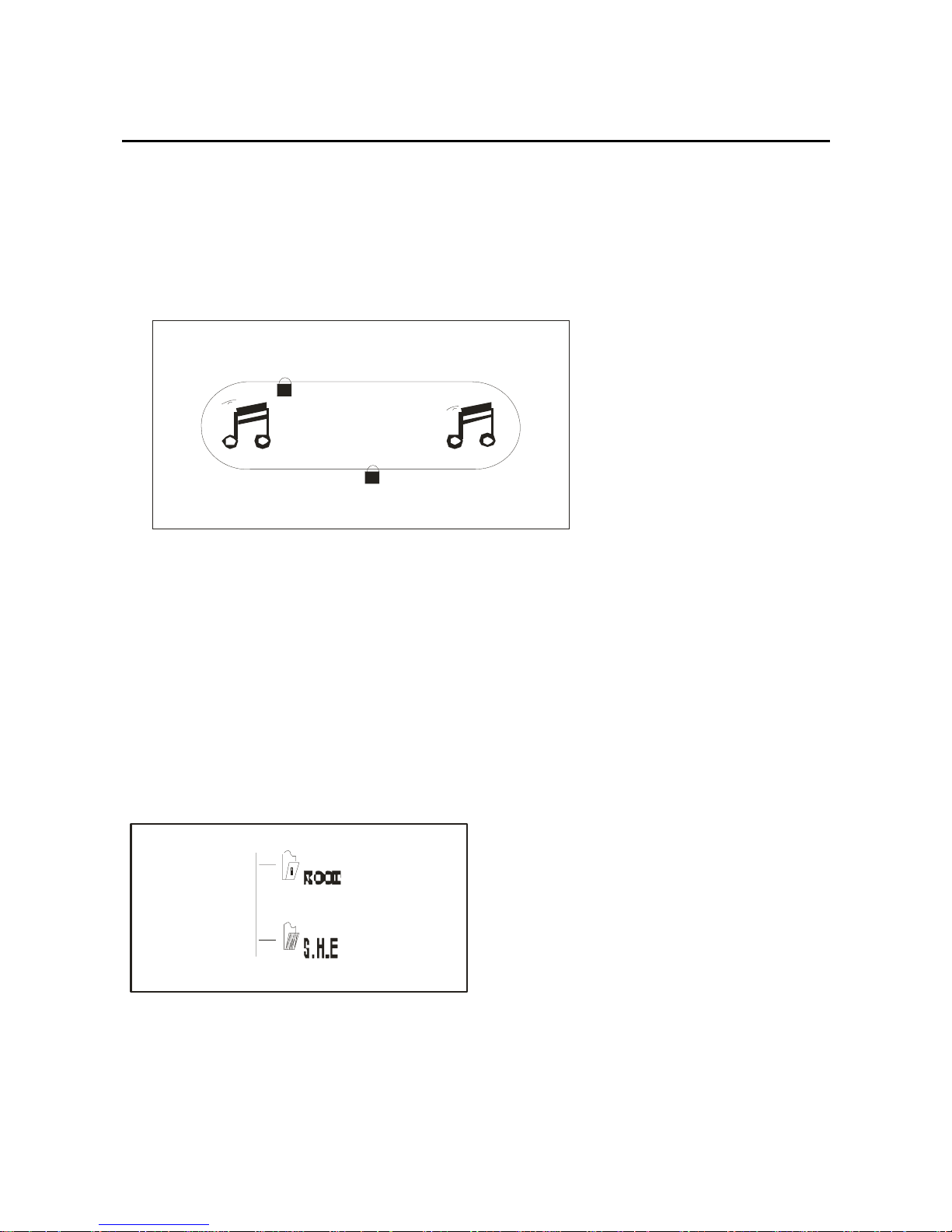
the locked state, any pressing key will take no effect.
Note: If you push the locked key before start the player,
the player can’t be opened.
T
Locked
T
Sub-directory function
In any state, long press the mode key, through the
Forward/Back key you can select the folder mode. Press
mode key again, then into root directory files, the
picture as below:
Into root directory through Forward/Back key you can
11
Page 12
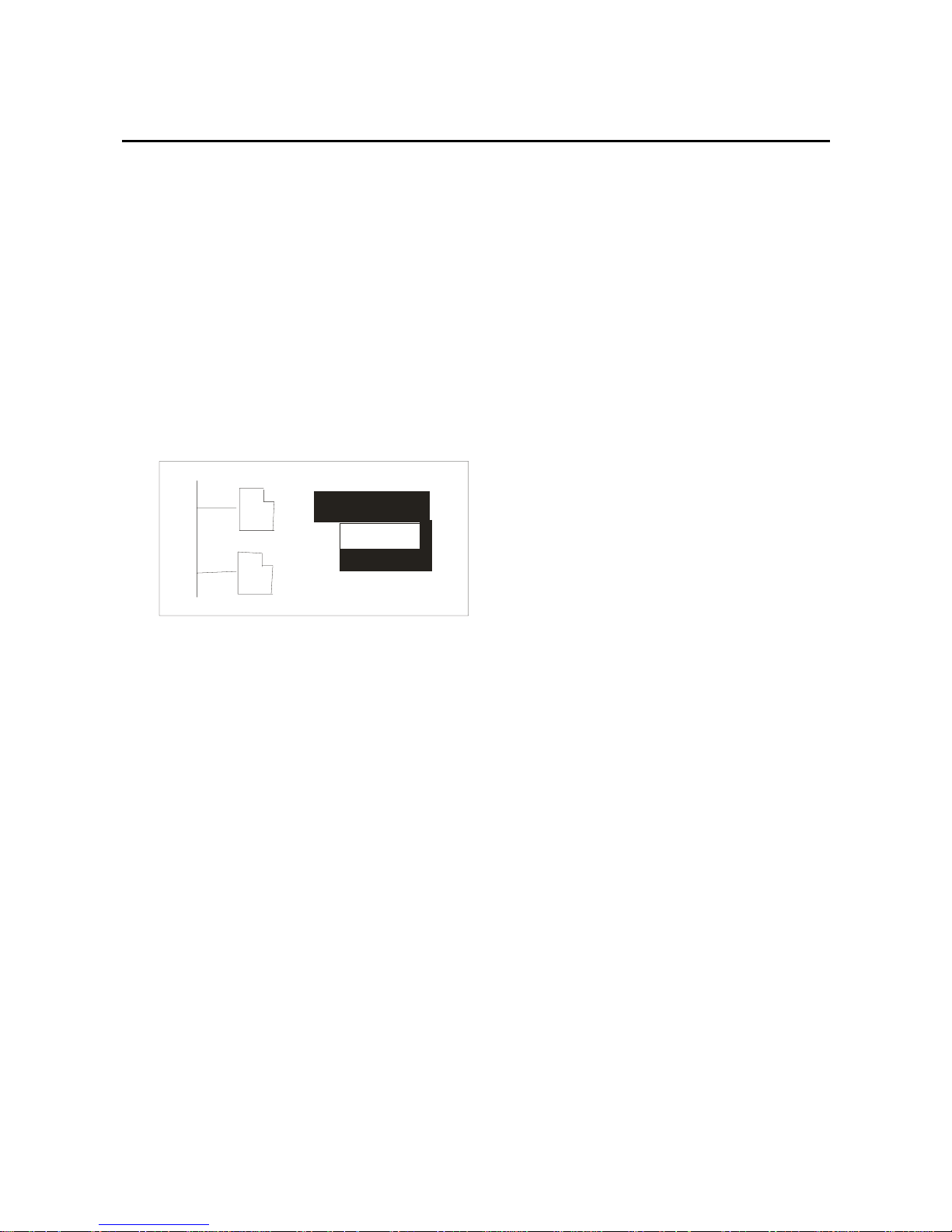
choose the subdirectory which you had sited in your
computer freely. Select a subdirectory and press mode
key, then enter into the file of the directory. Through
the Forward/Back key you can select the music you
want, and confirm it by pressing the mode key, the
picture as below:
Play now
Delete ?
Press the play key then exit the root directory files
system.
Note: How to set up the sub directory in the player,
please refer to the section <<Connect with the
computer>>
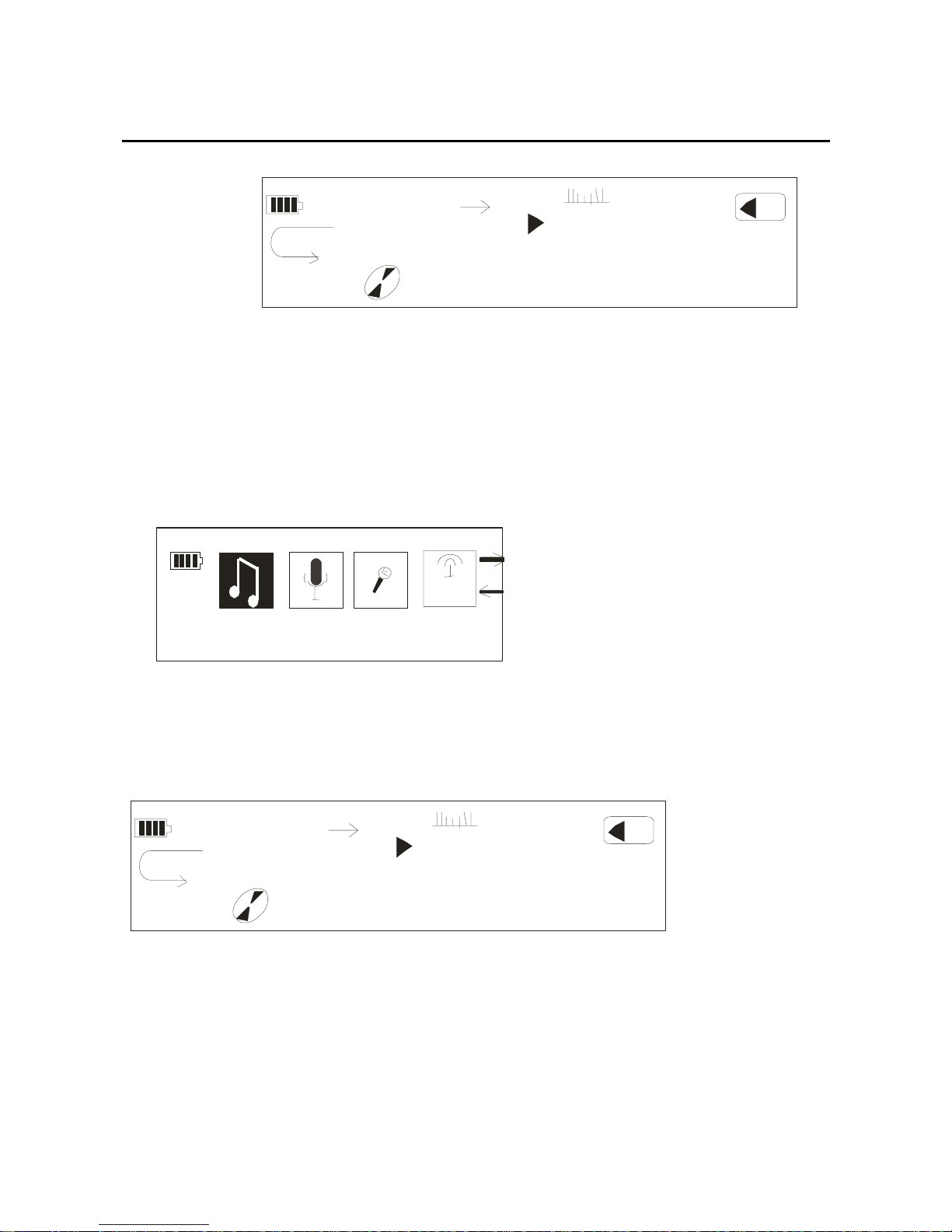
Setting the volume
12
At any state, you can adjust the volume through pressing
the vol+/vol- key .The volume will be displayed in the
LCD as below picture:
Page 13
00:00
AB
NOR
05:40
06/0 9
14
128
ALL1
MP3
Title:Take me to your heart.mp3
Play Music
At any state, long press the mode key, then you will see
the “Play Music” option, as below:
FM
Play Music
Press the mode key to confirm, then it will display:
00:00
AB
NOR
05:40
06/0 9
14
128
ALL1
MP3
Title:Take me to your heart.mp3
Play Voice
13
Page 14
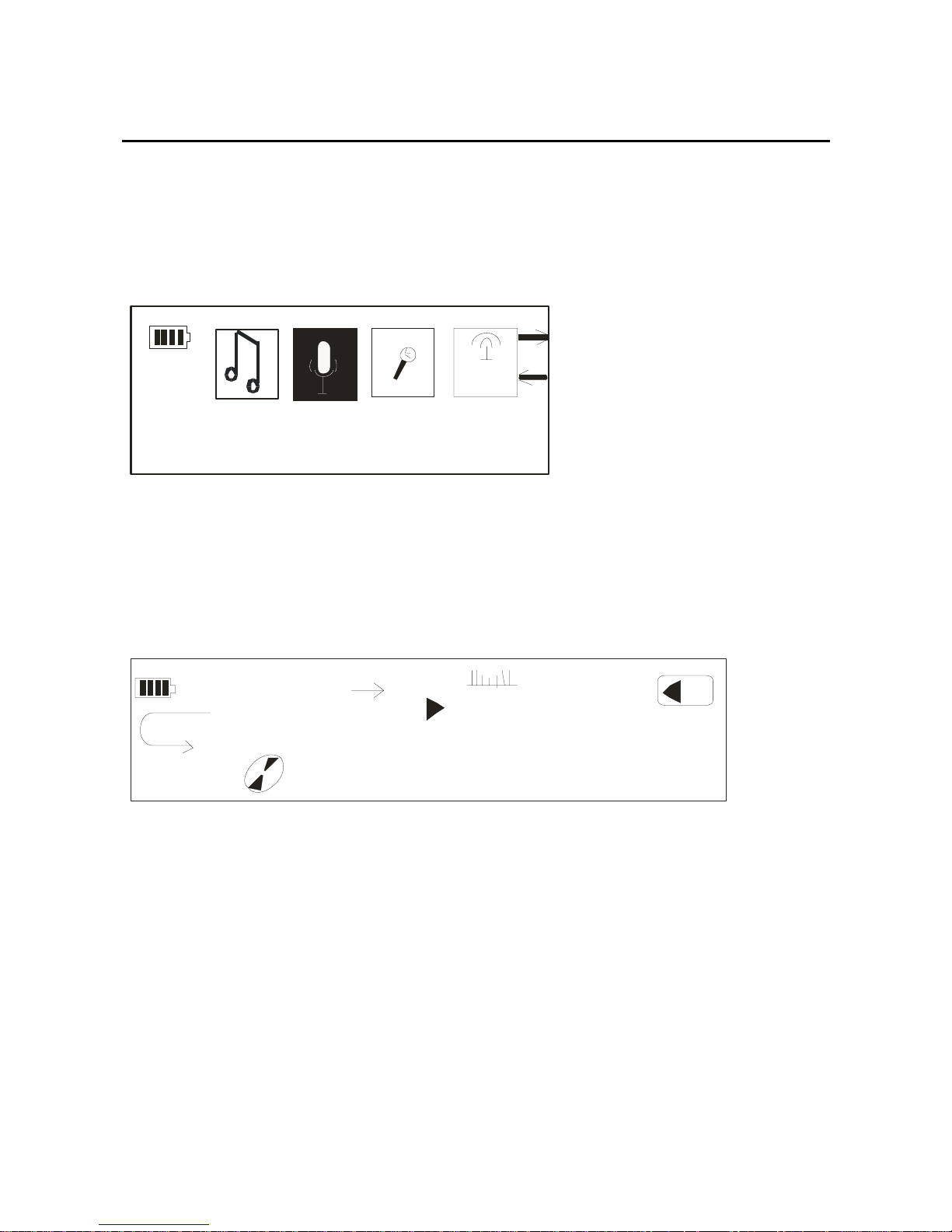
At any state, long press the mode key, and then select the
“Play Voice” option through the forward/back key,
picture as below:
FM
Pl a y Vo i ce
Press the mode key to confirm, and it can play recorded
files:
00:00
A
B
NOR
05:40
06/0 9
14
128
ALL1
WAV
Title:Take me to your heart.wav
Record
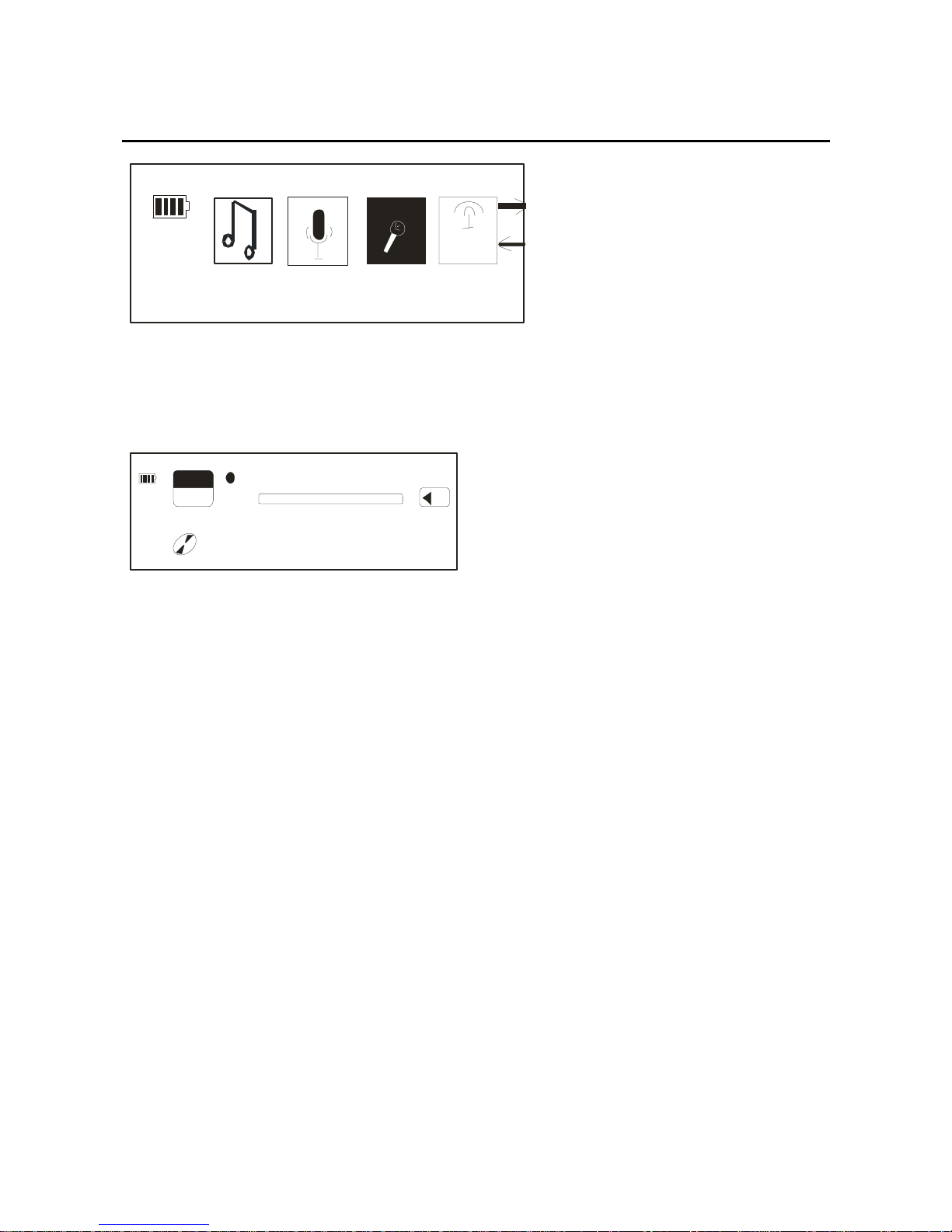
At any state, long press the mode key, select the
“record”option through the forward/back key then
confirm it by pressing the mode key, you will get into the
record interface, the picture as below:
14
Page 15
15
FM
Recor d
In the record interface, press mode key and begin record.
The record interface picture as below:
T
14
MIC00001.WAV
FREE
REC
03 2
00:09:43
Press the mode key again, then the record will be stopped,
and there will be a MIC_REC file in the player which
keeps record files.
Note: The record can only be saved as record files if the
record be confirmed by pressing the mode key, so, please
affirm whether the electricity of the battery is enough or
the player will shut off by itself, and the record files can
not be saved.
FM Tuner
At any state, long press the mode key, through the
Page 16
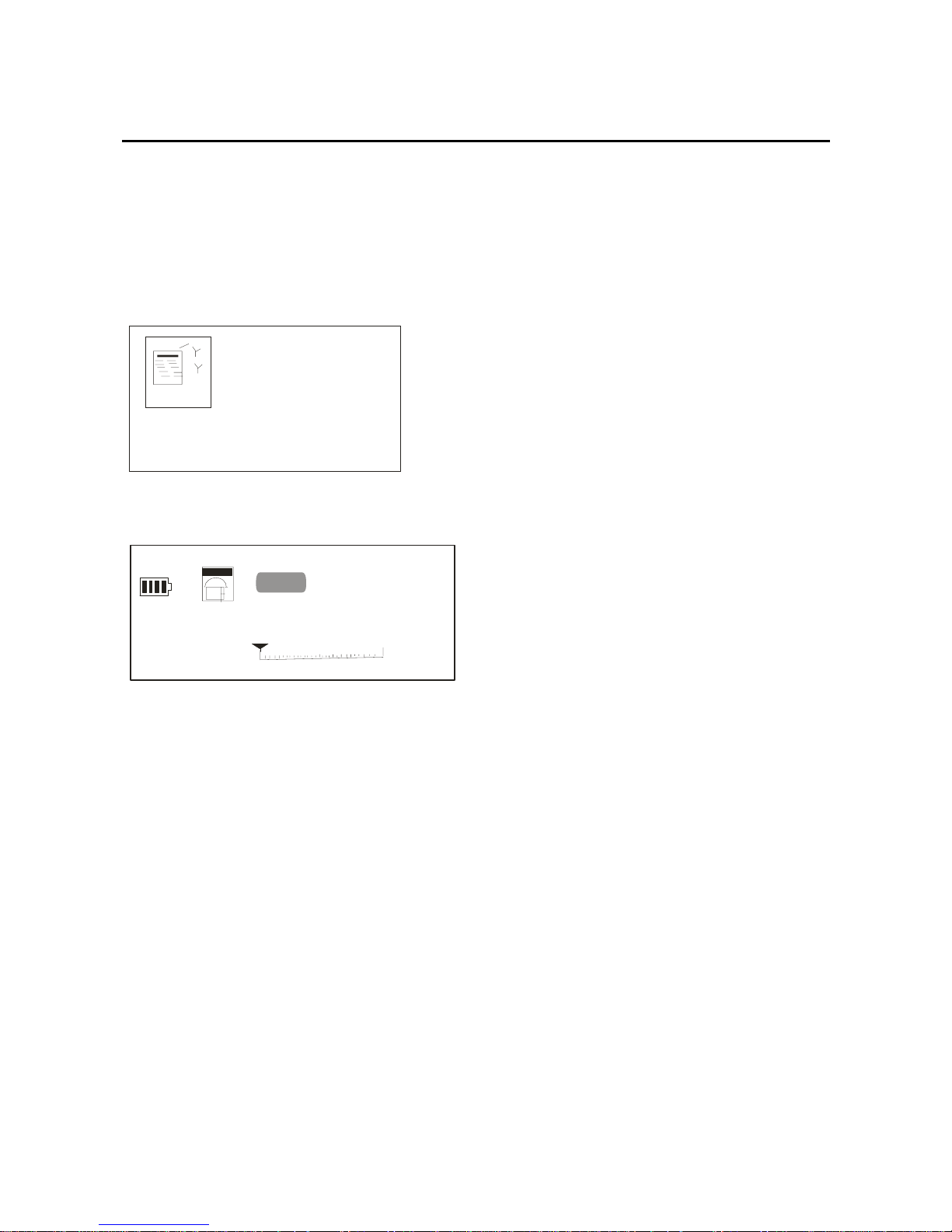
forward/back key; you can select the “FM Tuner” option,
and then confirm it by pressing the mode key, the picture
will show as below:
FM RADIO
After a short while it will get into below picture:
01/30
PR ESET
87.5MHZ
87.5
108
You can press the play key, and then adjust the FM
through the forward/back key. Long Press the mode key,
you will get into the “FM tuner”option. Press the
forward/back key again, you can get below option: play
music, Play voice, save station, delete station, auto scan,
record and exit. .
Play Music
16
Page 17
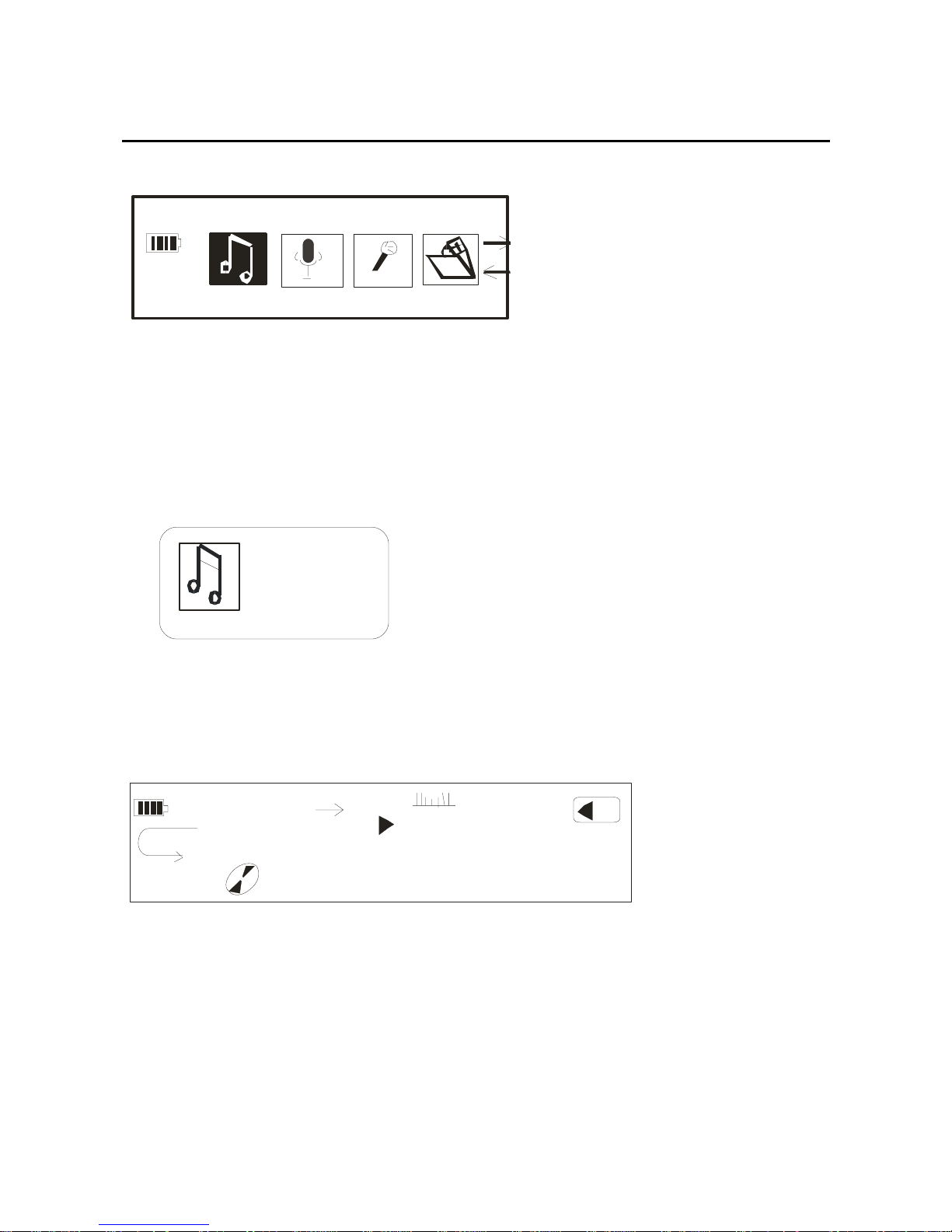
Play Music
After you pressing the mode key and confirmed the
“Play Music” option, you will get below picture:
MUSIC
After a few seconds it will get below picture
automatically:
00:00
AB
NOR
05:4
0
06/ 09
14
128
ALL1
WMA
Title:Take me to your heart.wma
Press the play key, it will play music.
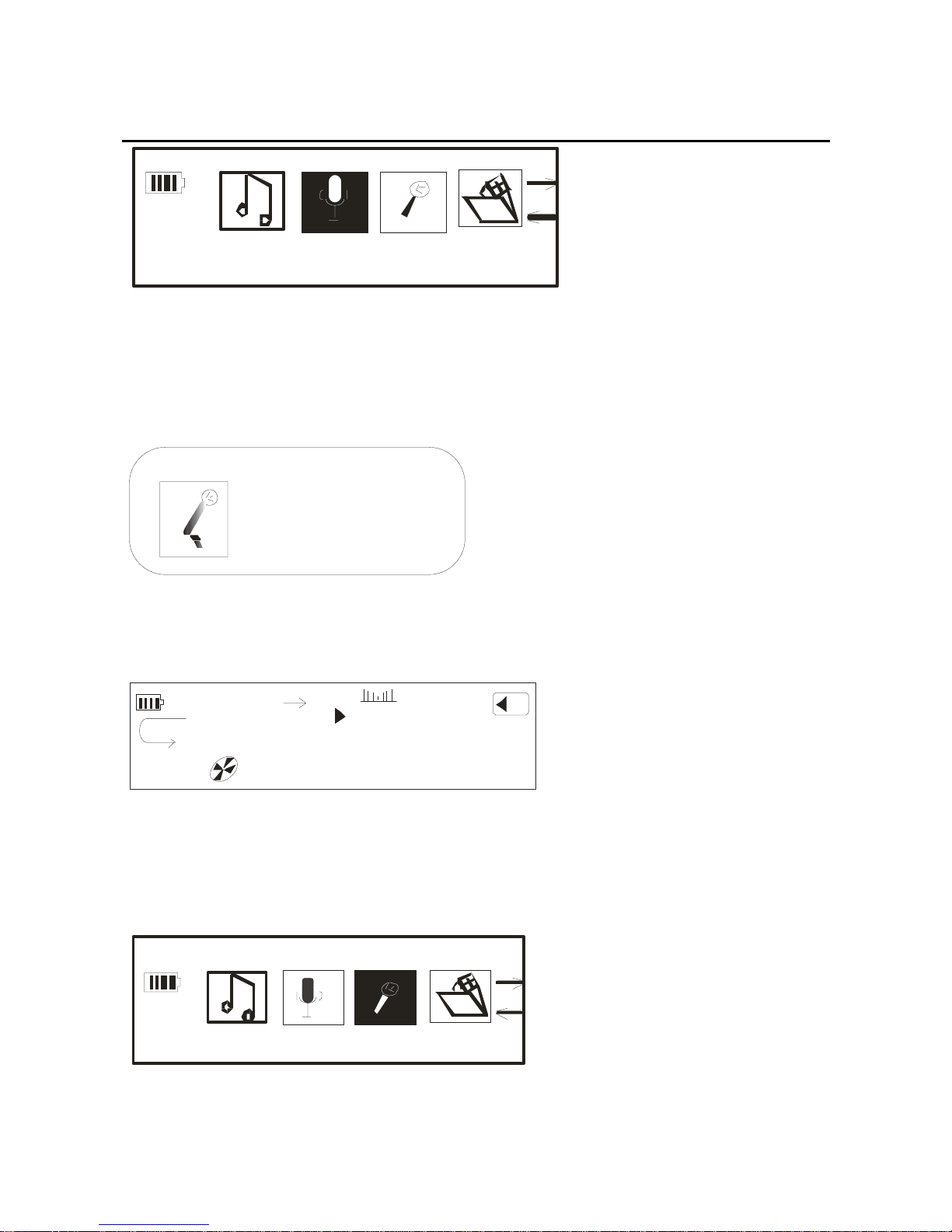
Play Voice
17
Page 18
18
Play Vo ice
After you pressing the mode key and confirmed the
“Play Voice” option, you will get below picture:
VOICE
After a few seconds it will get below picture
automatically:
00:0 0
AB
NOR
05:4 0
06/09
14
128
ALL1
WAV
FM000001.WAV
Press the play key, it will Play Voice.
Record
Record
Page 19
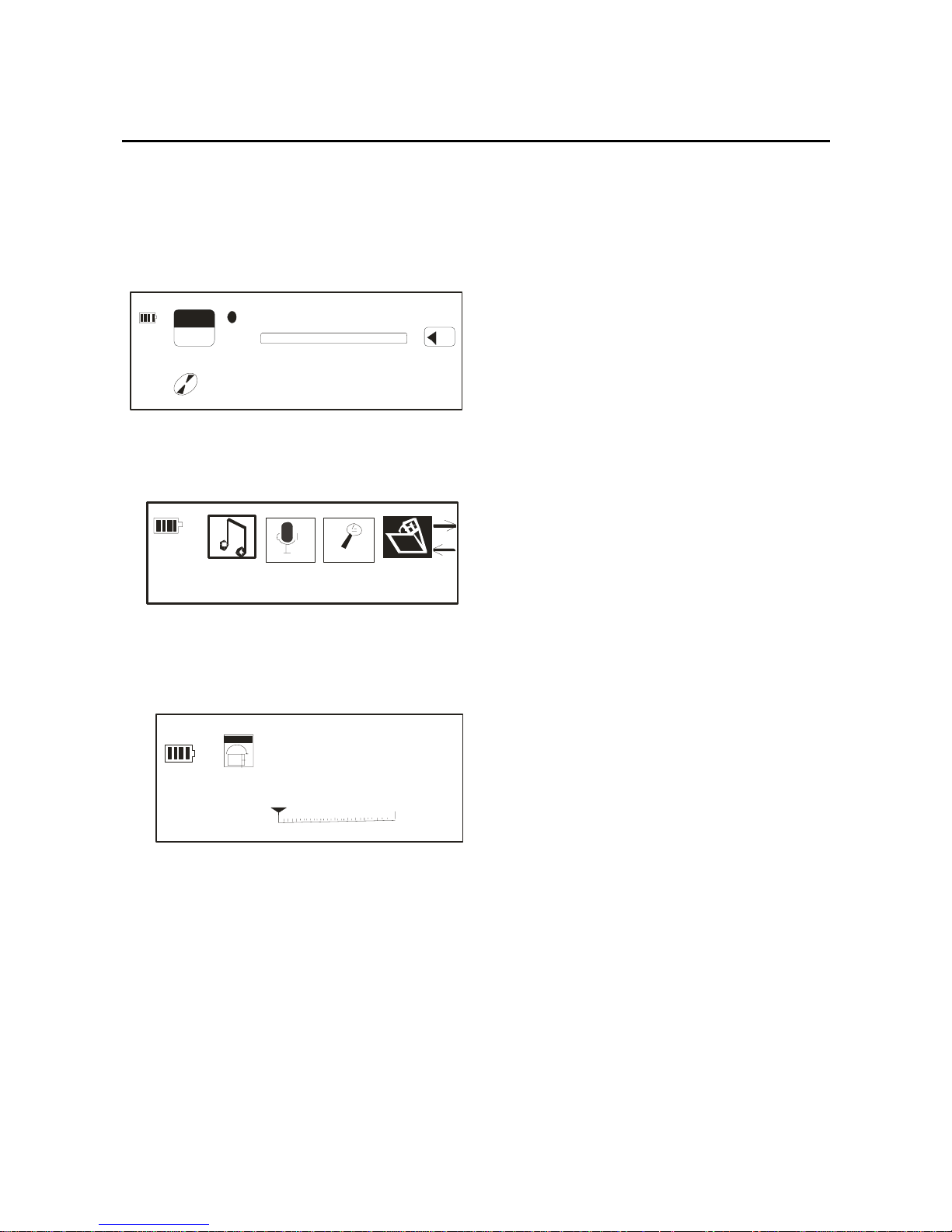
After you pressing the mode key and confirmed the
“Record” option, you will get below picture and it will
record
automatically.
T
14
FM000002.WAV
FREE
REC
032
00:09:43
Save Station:
Sa ve s t a ti on
After you pressing the mode key and confirmed the
“Save Station” option, you will get below picture:
Save?
01/30
87.5MHZ
87.5
108
Press the mode key that is said you have saved the
station, and then the play will back to the “FM tuner”
option.
19
Page 20
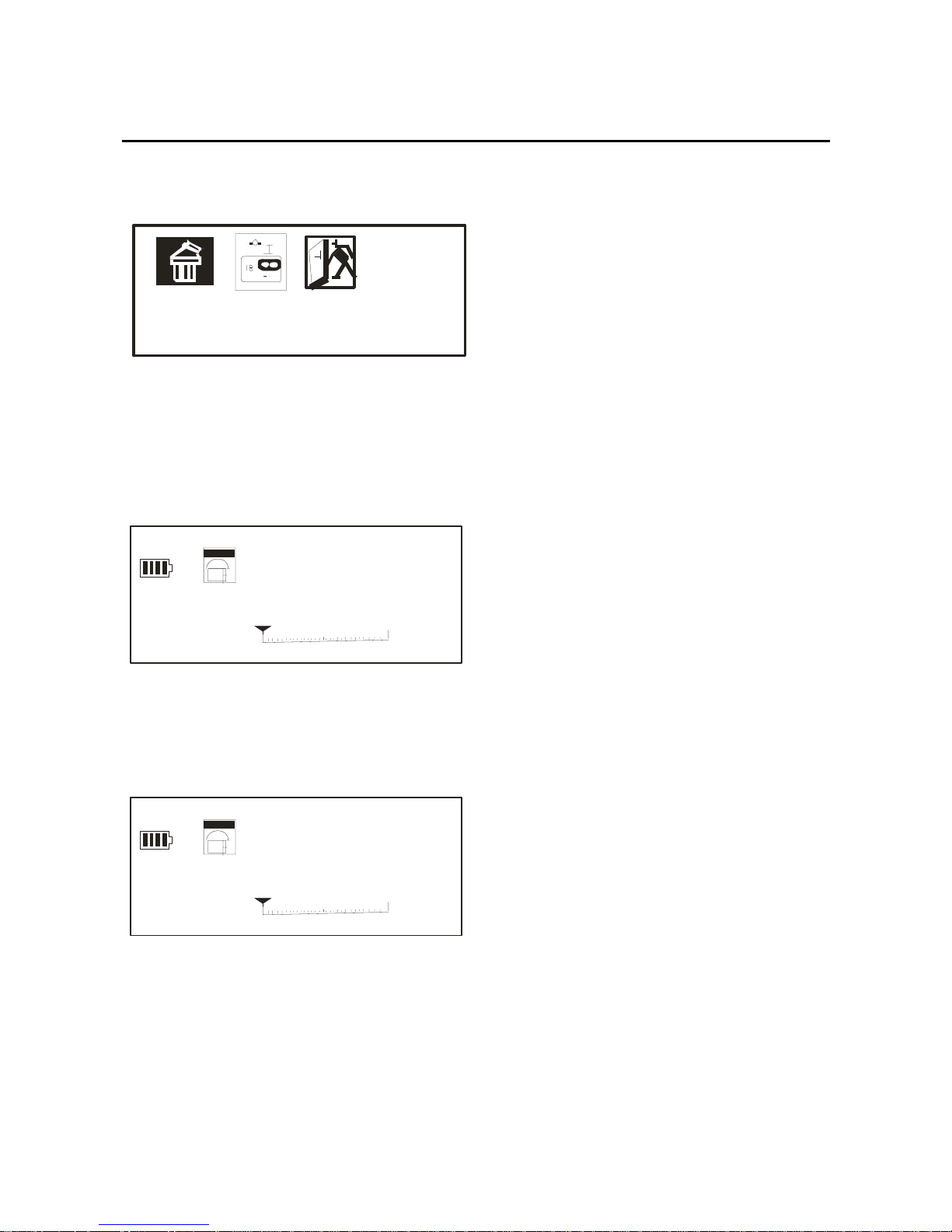
Delete Station
D e le te s t at i o n
After you pressing the mode key and confirmed the
“Delete Station” option, you will get below picture:
Delete?
01/30
87.5MHZ
87.5
108
Press the play key, and then you will get below picture:
Delete OK
01/30
87.5MHZ
87.5
108
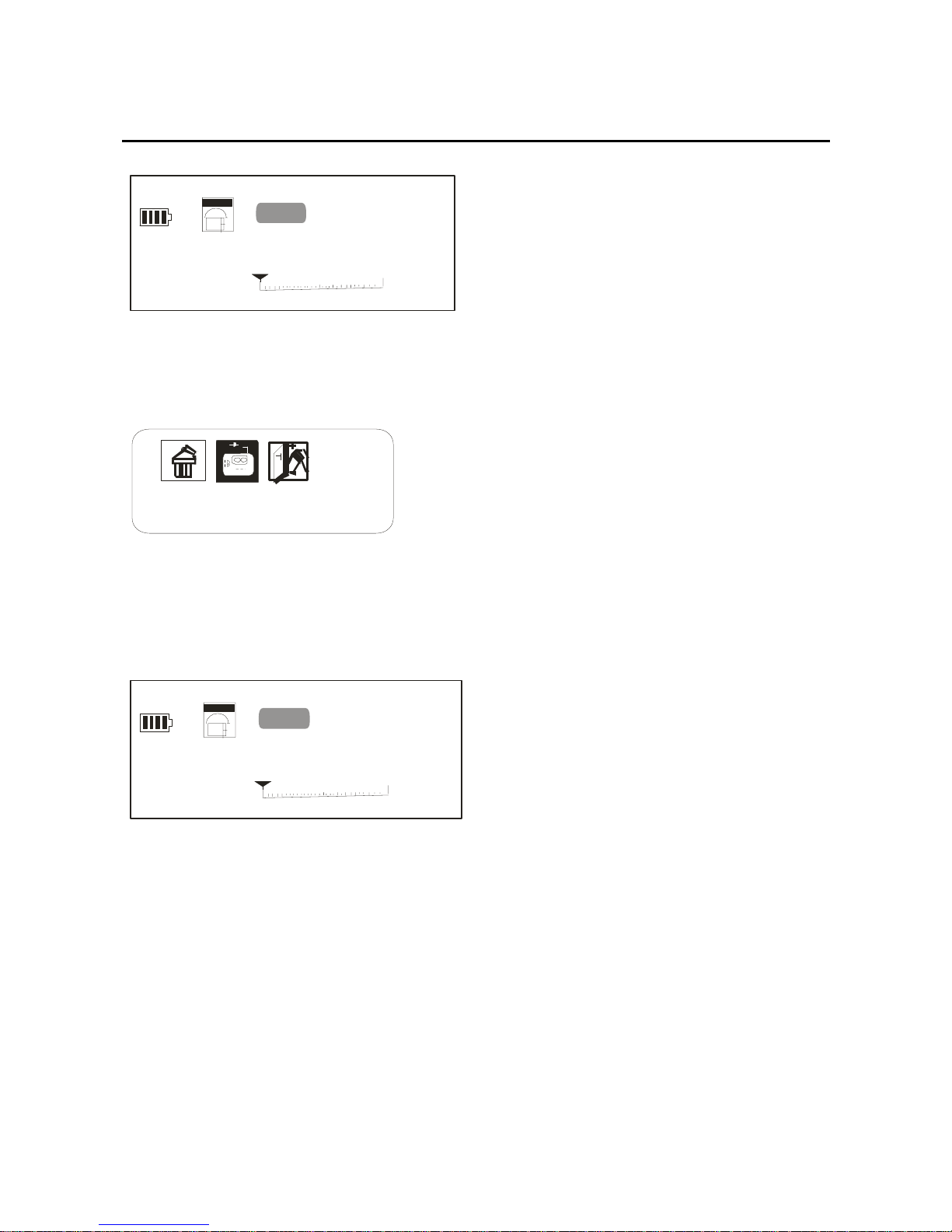
And it will go back to the below picture automatically:
20
Page 21
21
01/30
PR ESET
87.5MHZ
87.5
108
Auto Scan
Auto Scan
After you pressing the mode key and confirmed the
“Auto Scan” option, you will get below picture:
01/01
PR ESET
87.5MHZ
87.5
108
And the frequency changed quickly. When doing auto
scan, any pressing will take no effect.
Exit
Page 22
22
Ex it
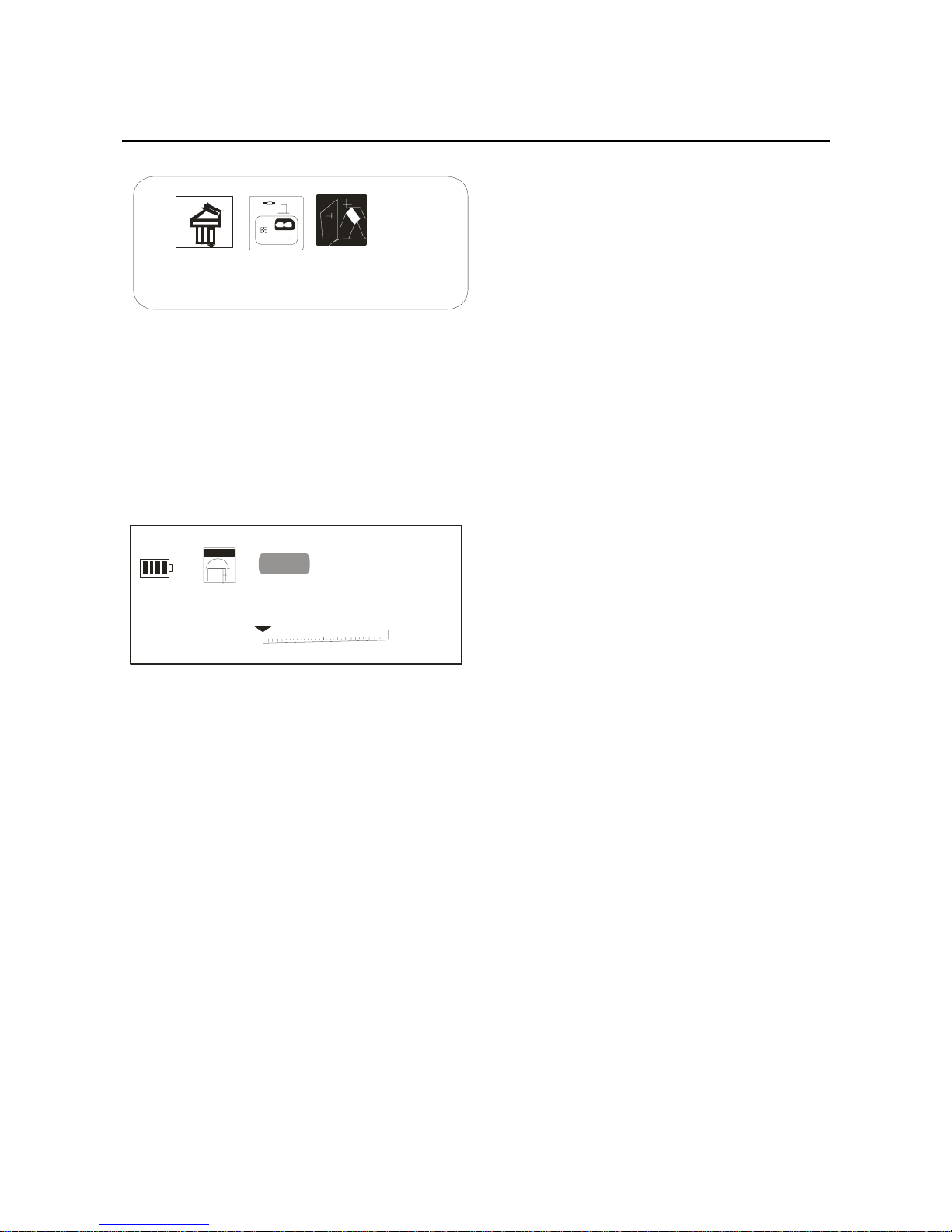
After you pressing the mode key and confirmed the
“Exit” option, you will get below picture:
01/01
PR ESET
87.5MHZ
87.5
108
Press the mode key, it will back to the FM tuner option.
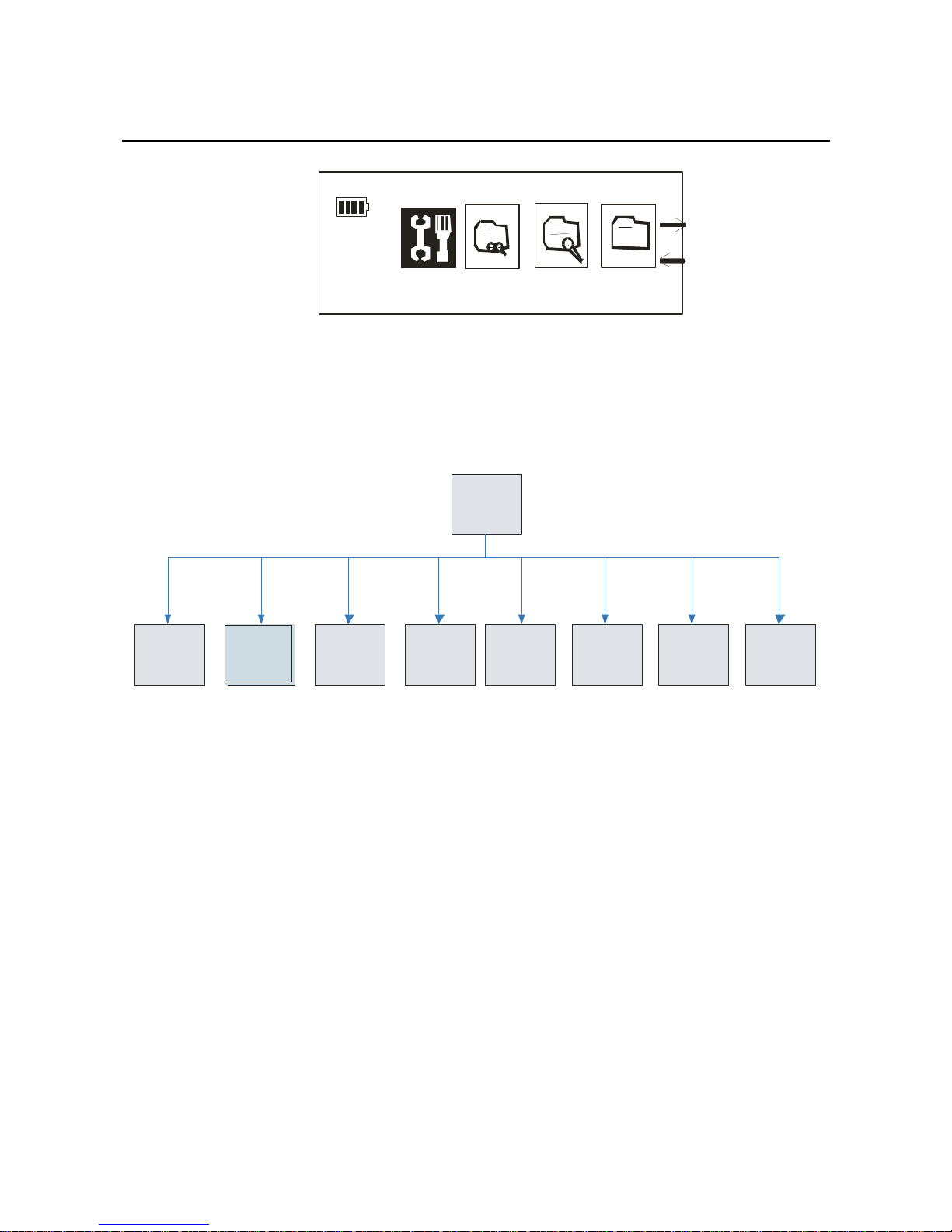
Setting
Long press the mode key and open the function menu,
select the “Setting” by forward/back key, picture as
below:
Page 23
Setting
In this mode, you can give some parameter a simple
sitting for the player, below is the chart for it:
Equal izer
Re p e at
Mod e
Contrast Ba c kl i ght RecordSet Lan guage Exit
Settin g
Powe r Set
Pl ay M o de
Equalizer
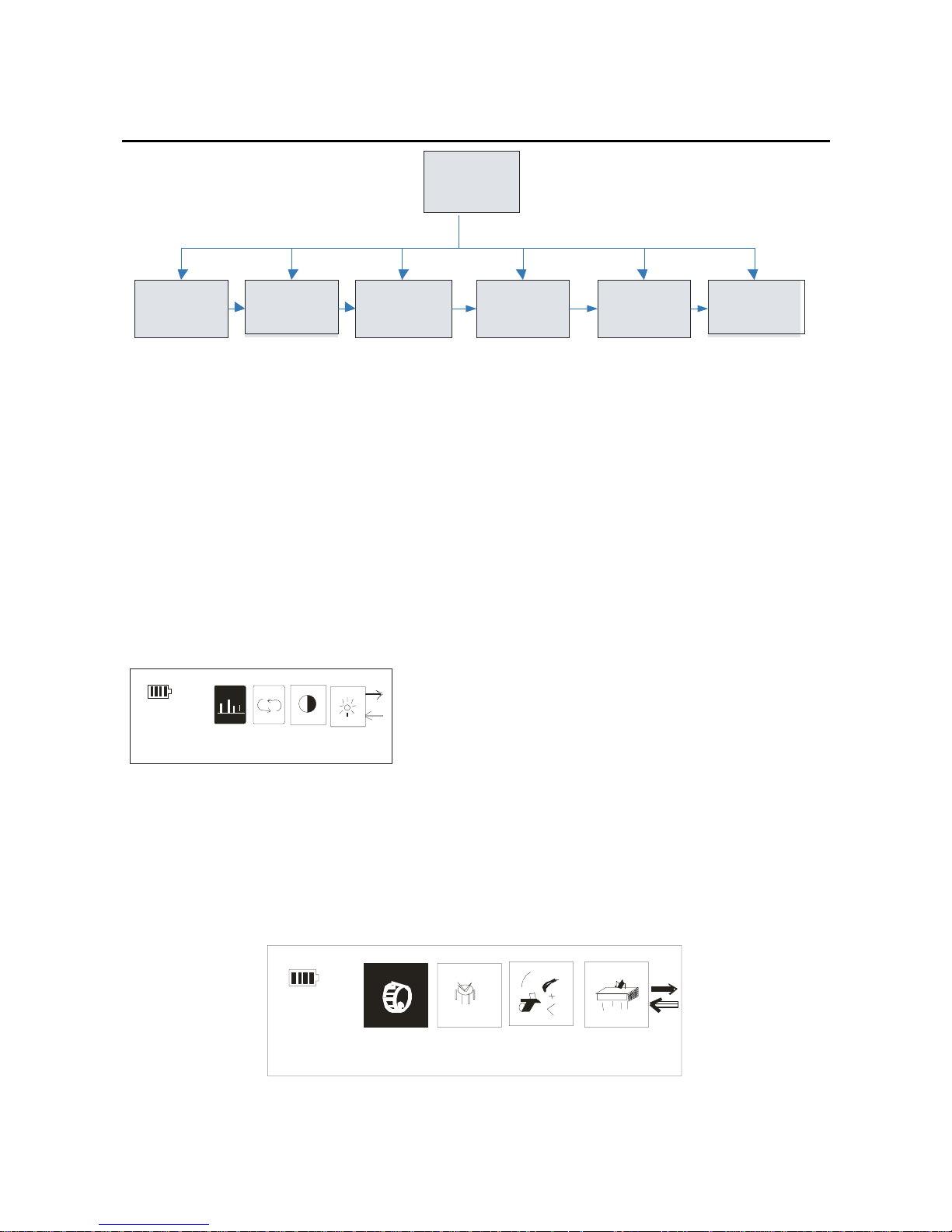
According to you favor, you can select different equalizer,
the detail chart as below:
23
Page 24
24
Po p
Ro c k
Cl as sica l
Ja zz
Ba s s
Eq ualiz er
Normal
You can through selecting the “equalizer” option to
adjust all kinds of the mode as below:
When you get into the setting mode, through the
forward/back key, and choose the “equalizer option”, the
picture as below:
Equalize r
EQ
Press the mode key, you will get into the equalizer,
through the forward/back key, you can choose the
different equalizer, and then confirm it by the mode key:
Normal
Page 25
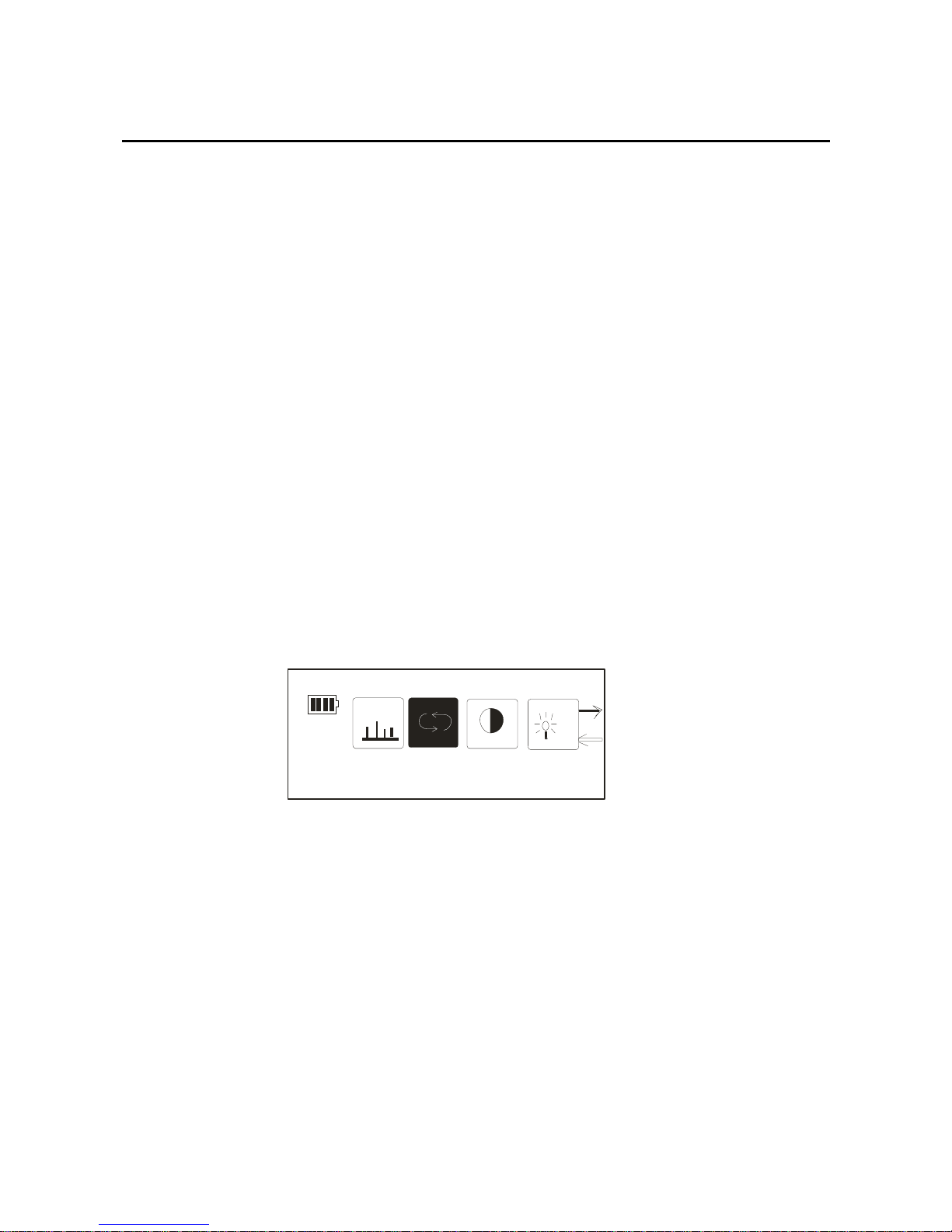
If you do not want to change the setting, you can press
the play key and exit the menu.
Play mode
If you want to repeat listen to a song, you need get into
the play mode, you can select: Normal, Repeat One,
Repeat All, Shuffle.
Details as below:
1. After you get into the setting option, select the “Play
Mode” option, then press the mode key again, the picture
as below:
EQ
P l ay M ode
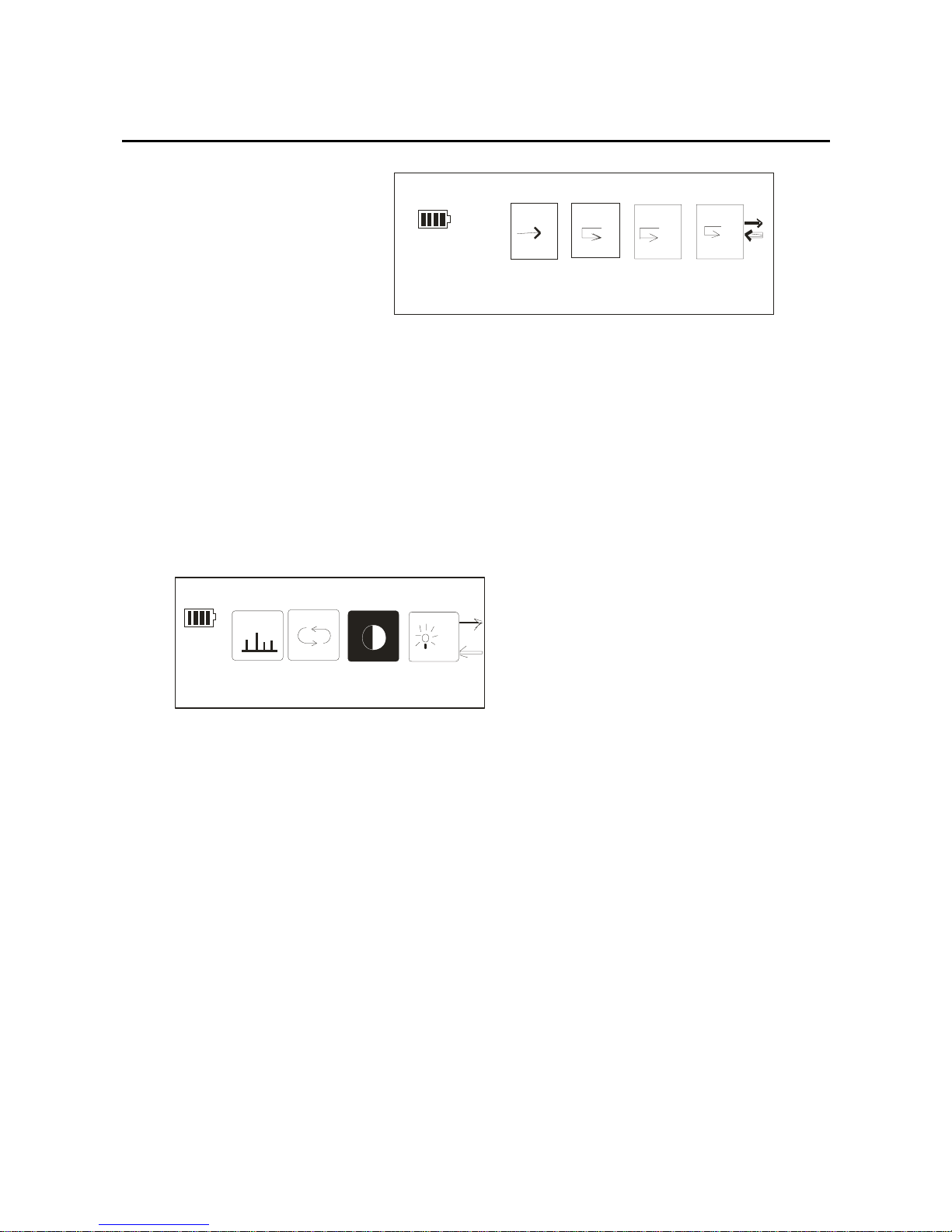
2. In the repeat mode, through the forward/back key,
select the different mode you need, and confirmed by
press the mode key:
25
Page 26
S
A
1
Nor mal
Adjust the contrast
1. After getting into the setting mode, through the
forward/back key to select the contrast setting, and then
confirm it by pressing the mode key, the picture:
EQ
Contrast
2.
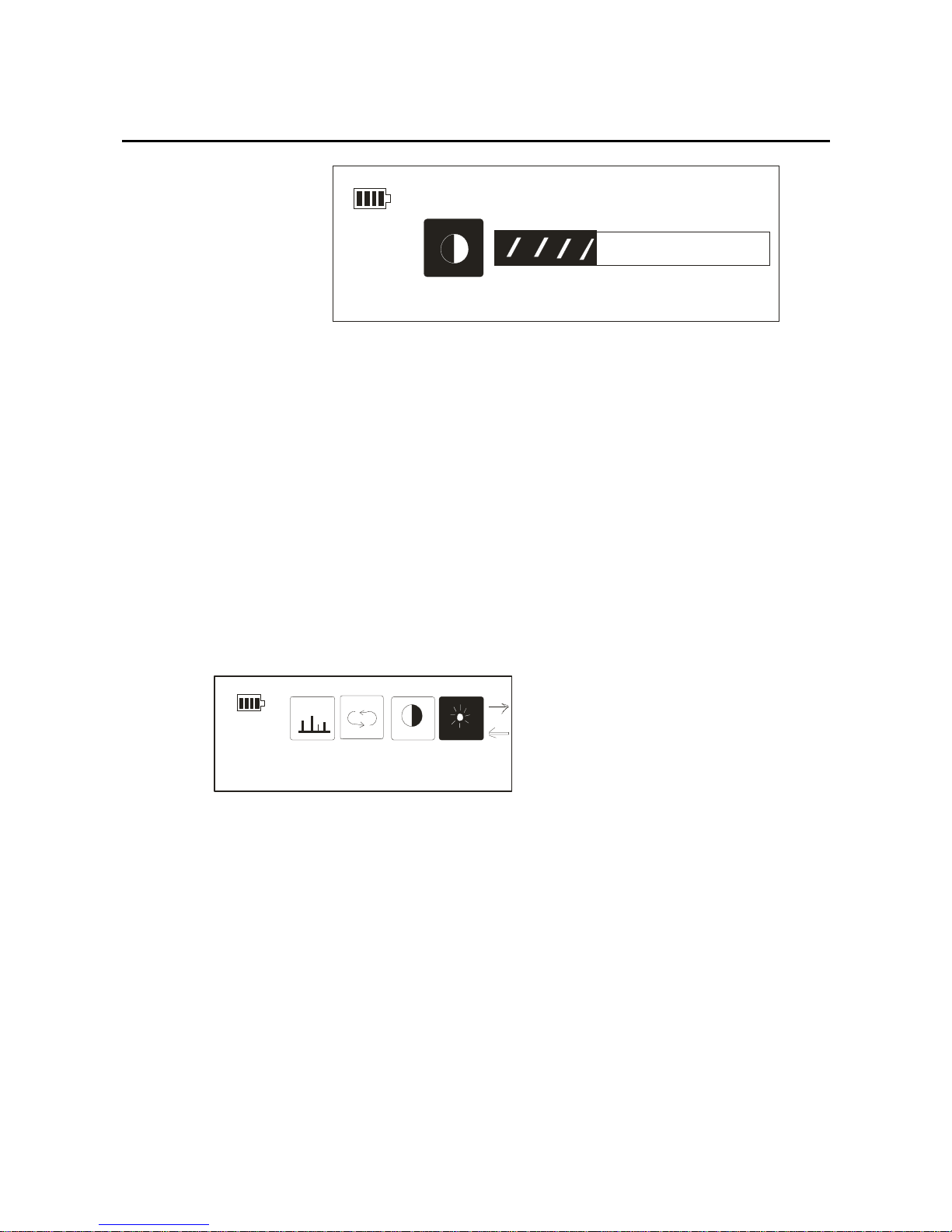
In the contrast mode, through the forward/back key,
you can adjust the contrast level. The level is different
in four ranks, example picture as below:
26
Page 27
Contrast
Backlight setting
You can set the backlight time according to your need:
1.After getting into the setting mode, through the
forward/back key and select the “backlight setting”, the
picture as below:
EQ
Backlight
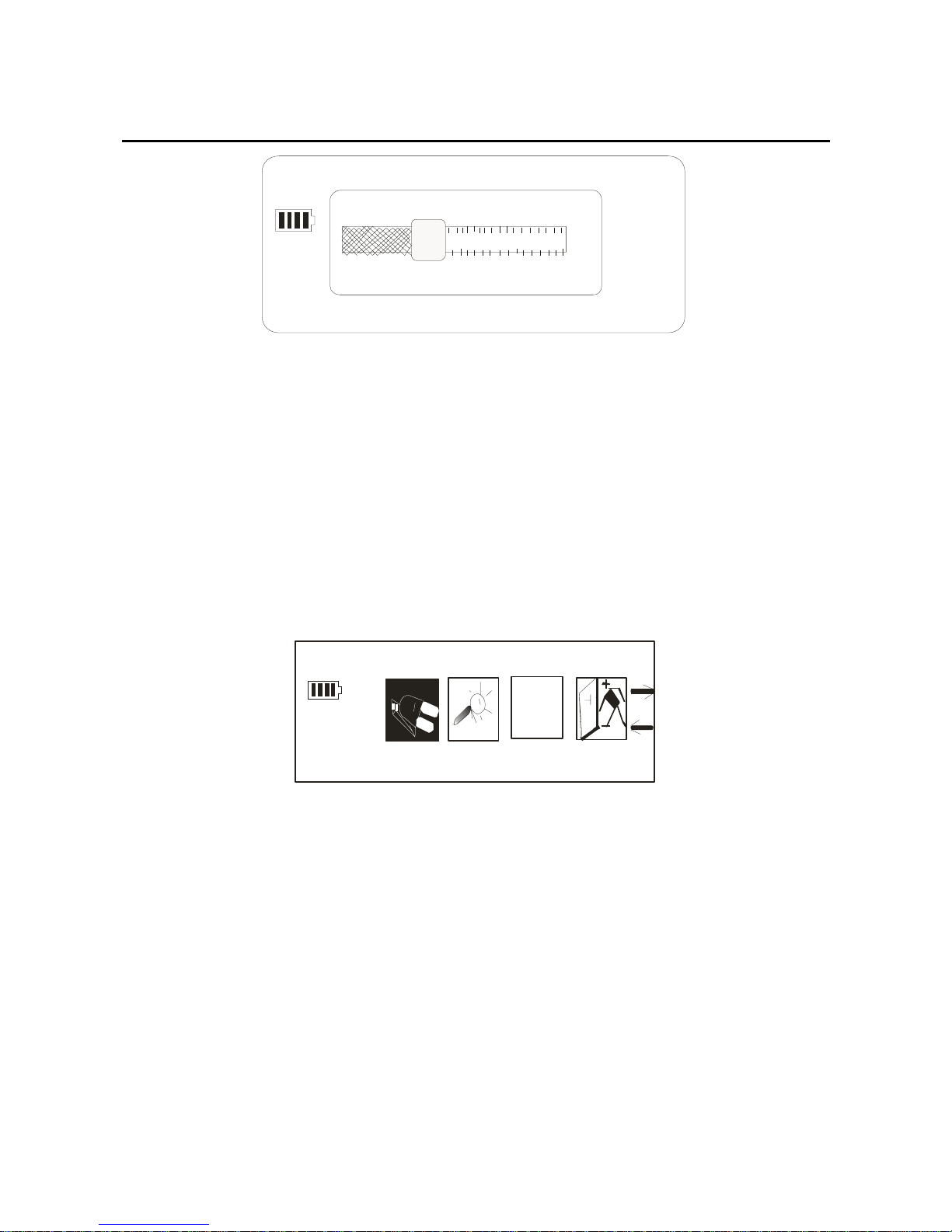
2.You can shut off the backlight through the
forward/back key, you also can choose the backlight on
for 5 seconds,10 seconds ,and constant. Confirm your
choice by pressing the mode key, the picture as below:
27
Page 28
5
S
5 secs
⎫ Power Set
1.After getting into the setting mode, through the
forward/back key and select the “Power set”, the picture
as below:
A
b
c
Pow er Se t
2.When you get into the “Power Set” option, you can
see the picture as below:
28
Page 29
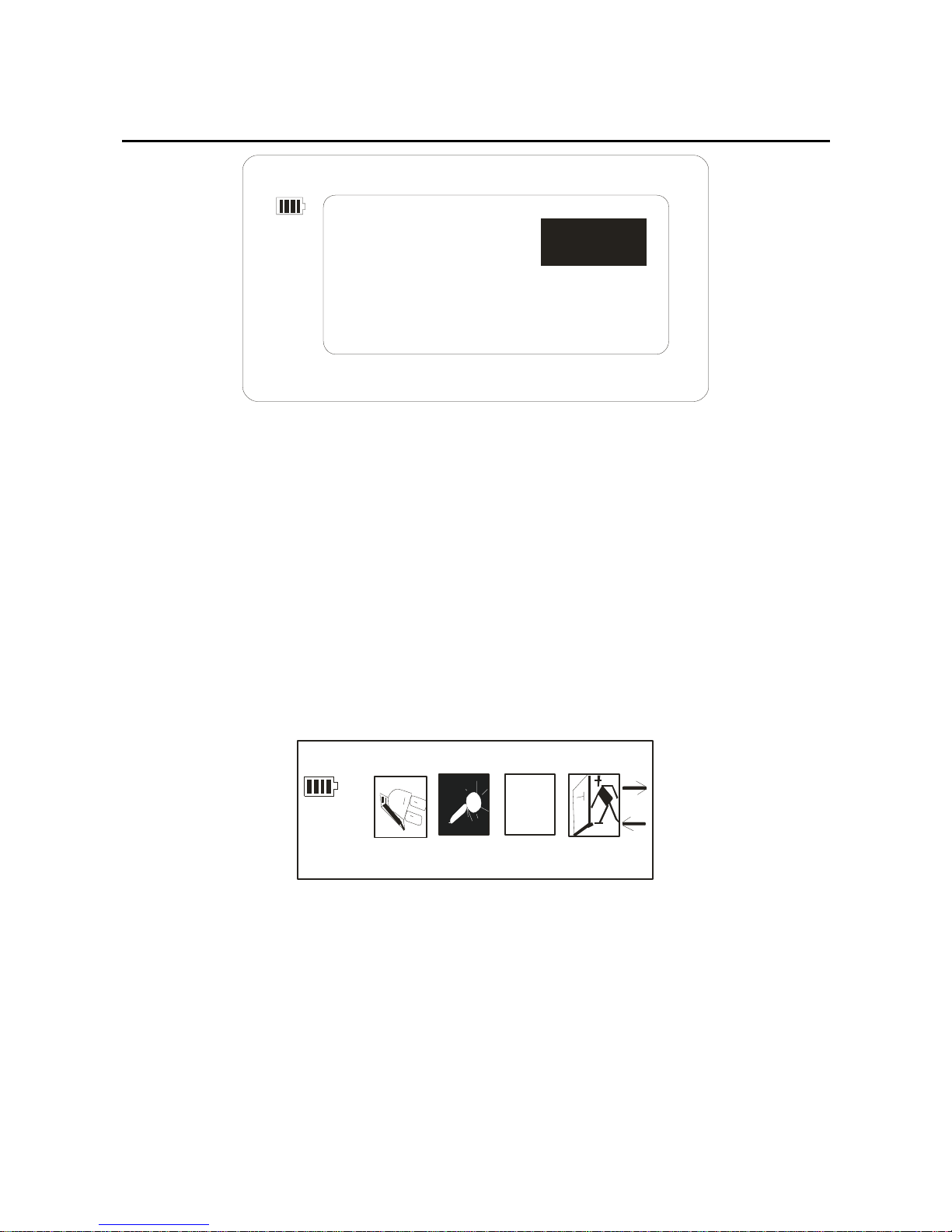
DISABLE
10MIN 30MIN
2MIN
Through the forward/back key again, you can select the
time the player will be turned off.
Record set.
1. After getting into the setting mode, through the
forward/back key to select the “Record set”, the picture
as below:
A
b
c
Re cord Set
2.When you get into the “Record Set” option, through
the forward/back key, you can select: 32kbps, 44kbps,
64kbps, and 88kbps. The picture as below:
29
Page 30
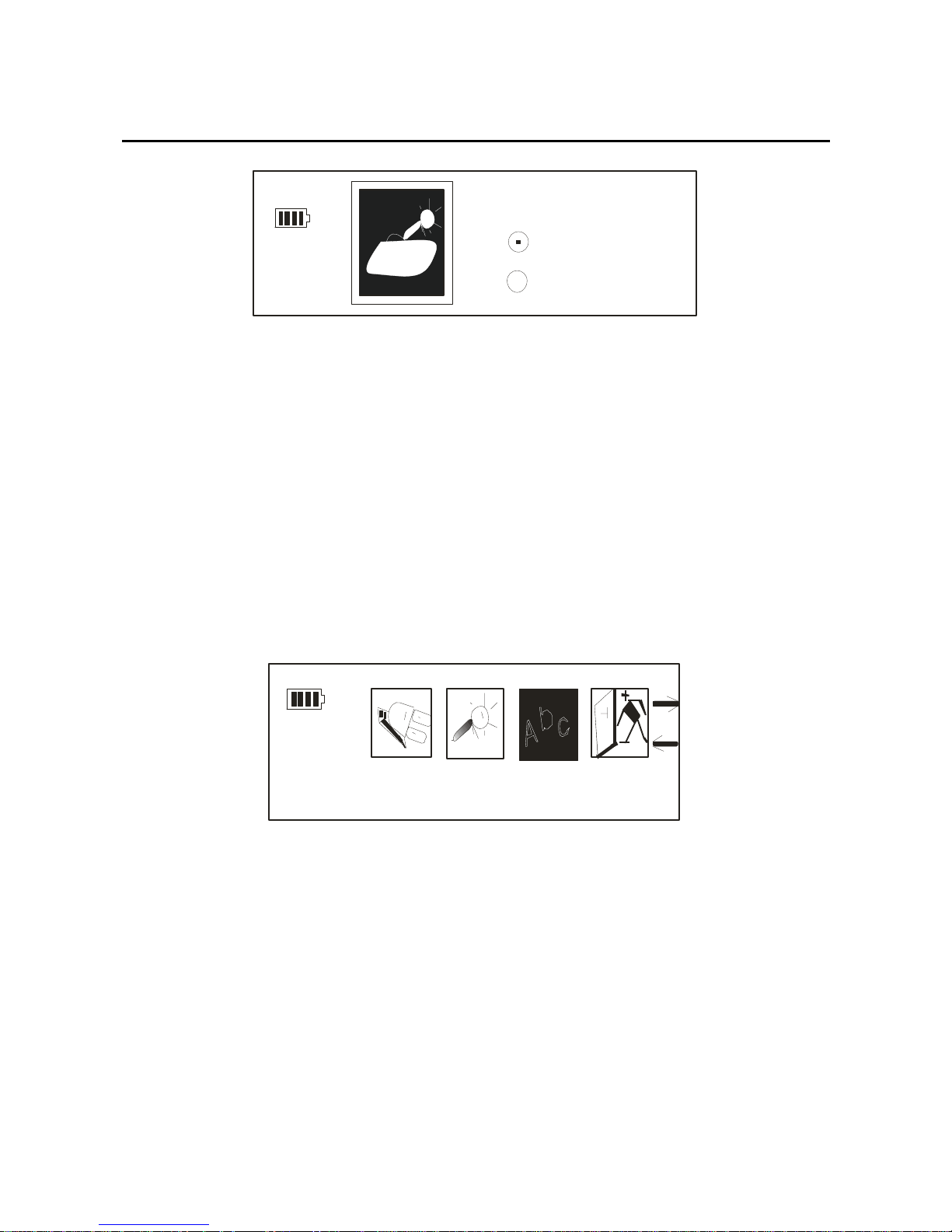
8000HZ
11000HZ
Confirm the selected option by pressing the mode key
that you have done what you need.
Language
1
.After getting into the setting mode, through the
forward/back key to select the language setting, the
picture as below:
Langua ge
2.When you get into the “language” option, through the
forward/back key, you can see such as: English, French,
Chinese (Trad), Chinese (Simple), German, Spanish,
Italian, Portuguese. Press the mode key, you’ll get the
30
Page 31
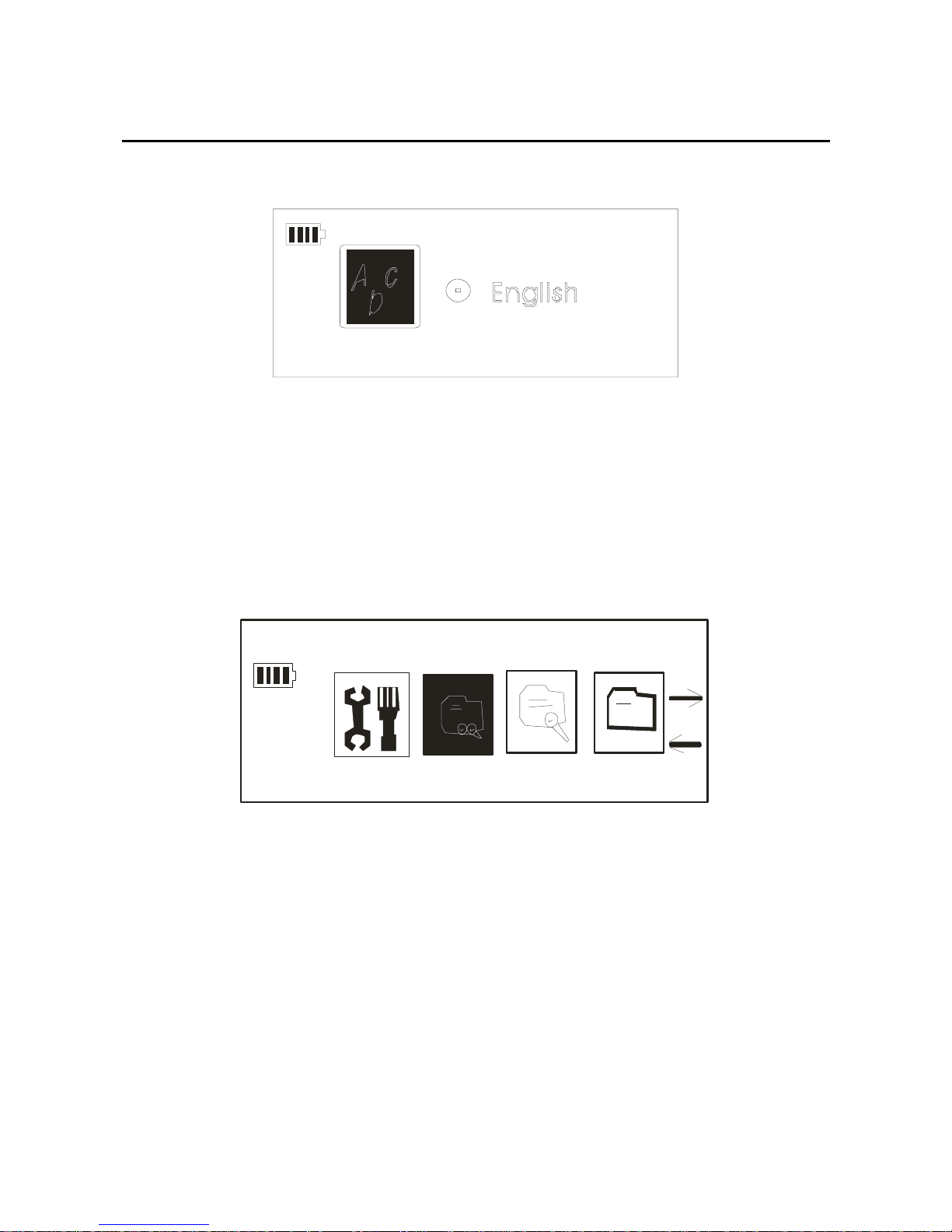
language which you need. The picture as below:
Preview
1. In any state, long press the mode key, through the
forward/back key you will get the “Preview” option, the
picture as below:
Pr evie w
2. Confirm it by press the mode key, you can see the
picture as below:
31
Page 32
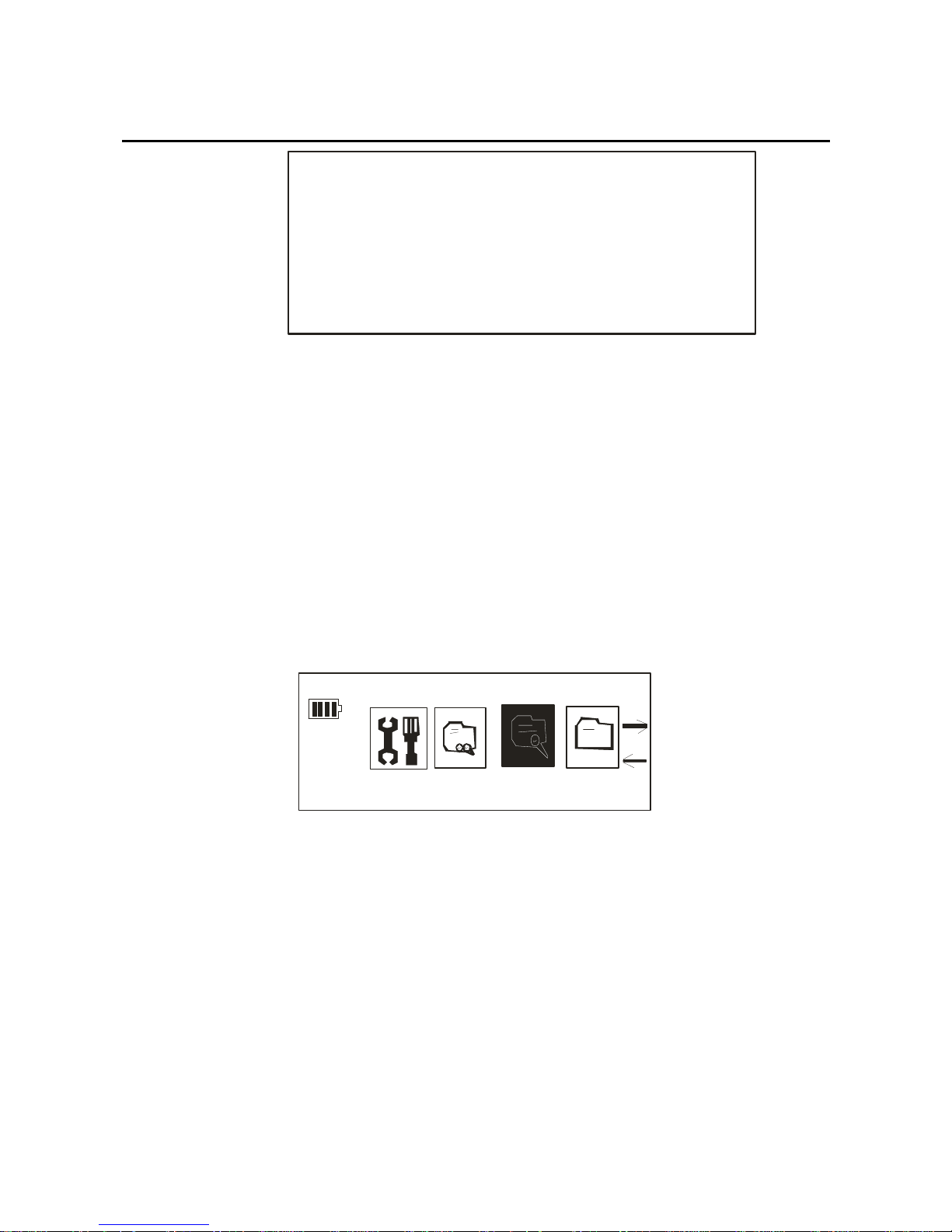
Intro
Memorizer info
Refer to the EMS memory size in the condition of
disconnected with the computer:
1. In any state, long press the mode key, through the
forward/back key you will get the “About” option, the
picture as below:
About
2. Confirm it by press the mode key, you can see the size
of the player’s EMS memory: (example for 128MB)
32
Page 33
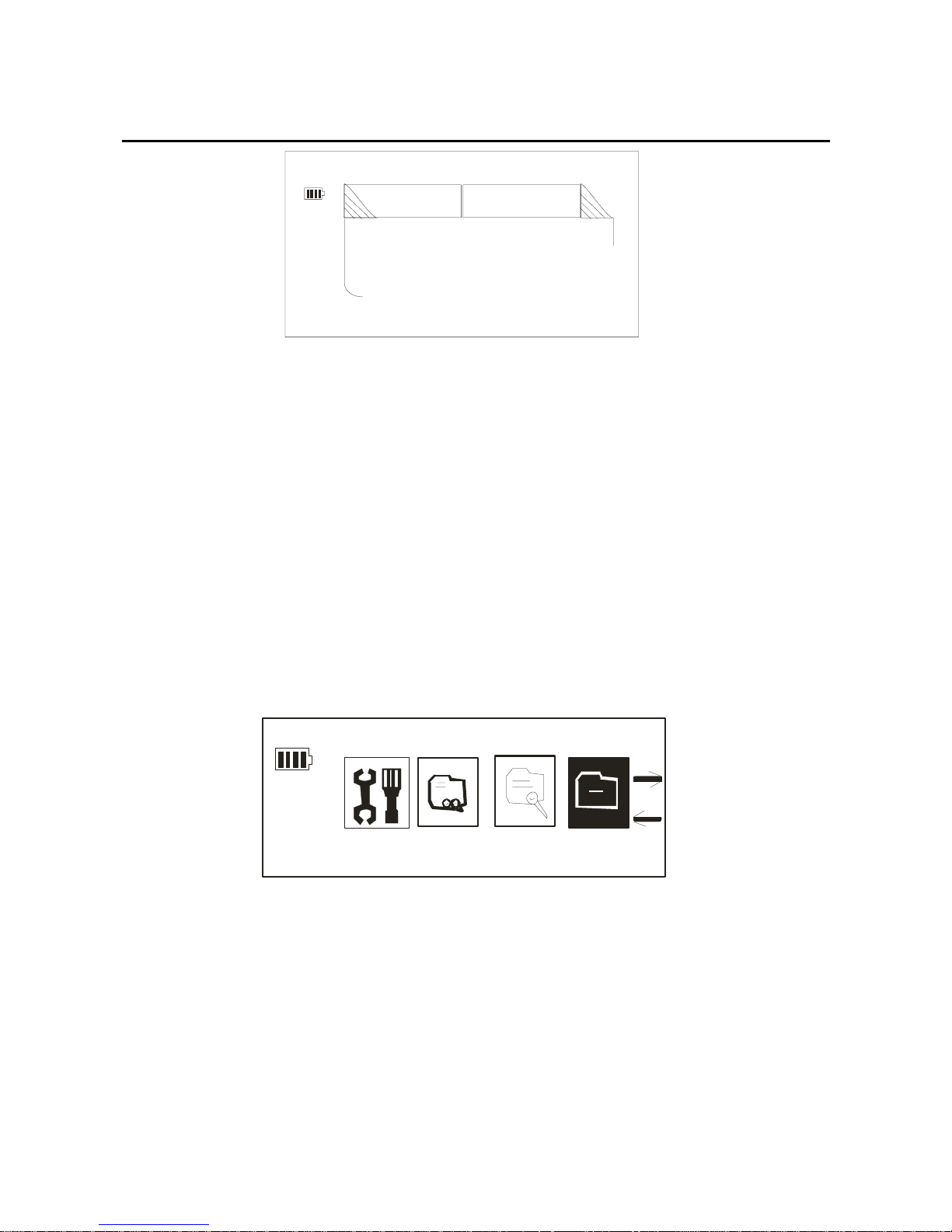
TOTAL
FREE
128
099MB
Folder
If you want to delete the play file in the player, you can
use the menu option.
1. Long press the mode key and open the function
menu, select the “Folder” by forward/back key, the
picture as below:
Folder
2. Confirmed by press the mode key, it will display
below:
33
Page 34
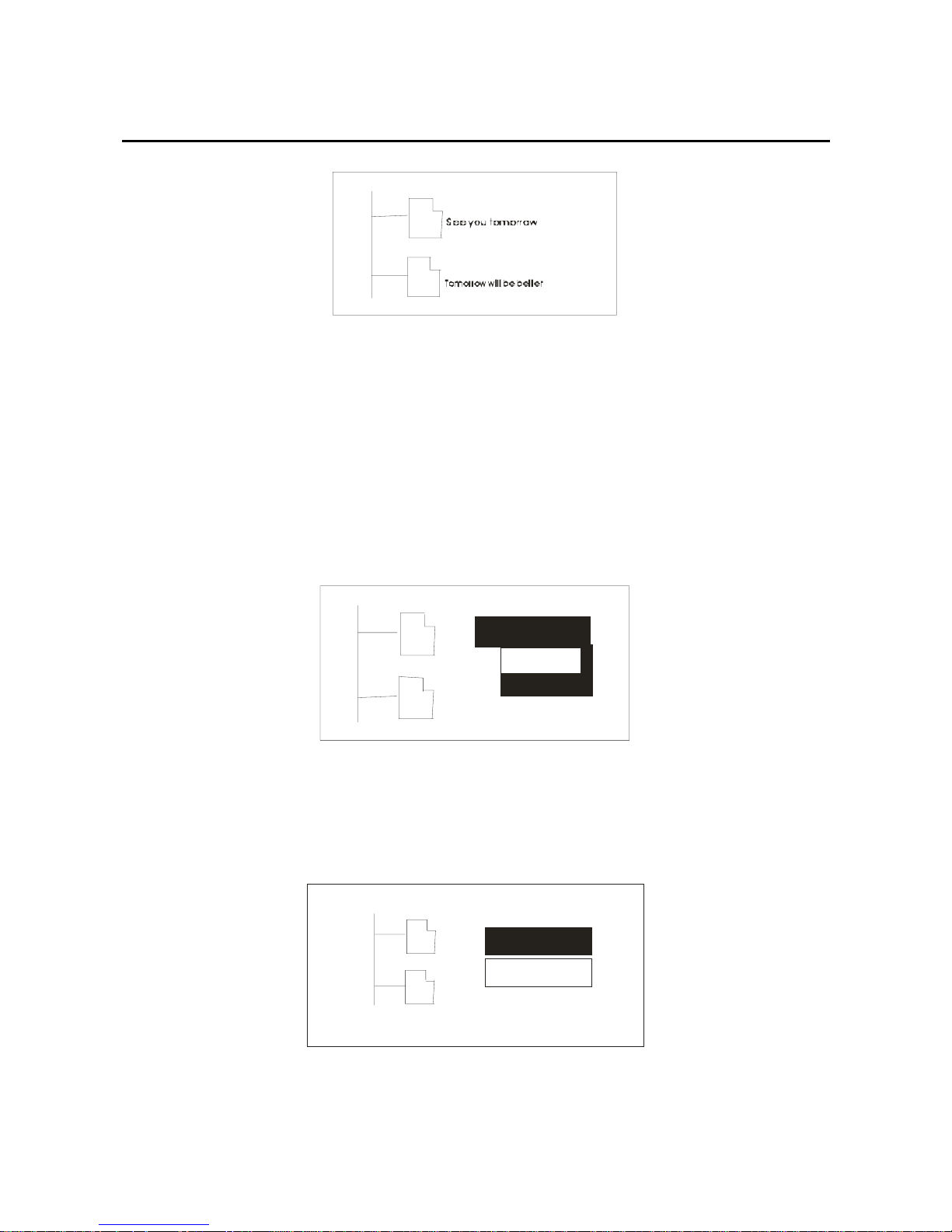
3. Through forward/back key and select the files
which you want to delete, when you press the mode
key ,the LCD shows as below picture:
Play now
Delete ?
4. In the delete dialog box, confirming by pressing the
mode key, it will show “Yes/No”, the picture as below:
Play no wPlay no w
Yes
Play now
No
34
Page 35
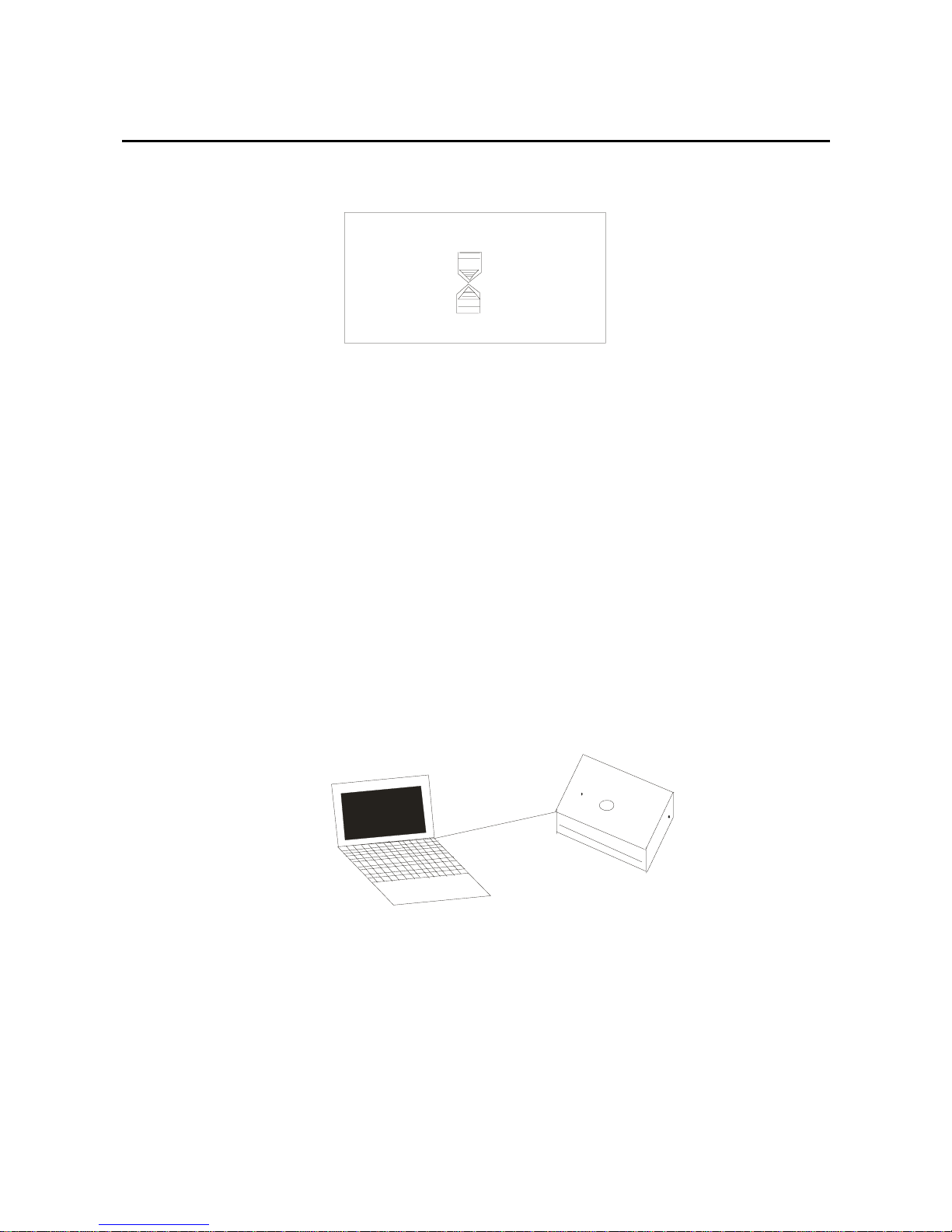
Select “Yes”, then the LCD will display:
Then the file has been deleted.
Connect with the computer
USB port connection
If your player has connected with the computer’s USB
port, the LCD will display below picture, it is showed
that the USB port has been connected.
V1.01
35
After the connection, you can transfer the data between
the computer and the player, and then you can download
the music and other files
.
Page 36

36
Set up the subdirectories for the player:
After the player connected with the computer, you can
get into “moveable disk” and set up the folder you need.
Remove the files into the homologize folder that you can
sort the files expediently. .
Disconnection with the USB
In WIN2000/ME/XP operating system click the left key
of the mouse on the PC taskbar’s right corner that
shows the icon of“Pull out or spring out the hardware”.
Click the “stop” of the dialog box, then it will say “You
can pull out the player safely”.
Player Promotion
Note: (Before promotion please copy the content of the
Page 37

37
compact disc to the computer only then it is possible to
realize the software promoting, otherwise the promotion
would be unable to complete .In this compact disc the
software is the initial edition Warm prompt: Before the
promotion, please complete the data backup, after this
software promotion completes the procedure will
automatic formatting!
1、In the movement compact disc promotion tool, open
“Factory4”, then it shows below picture:
Page 38
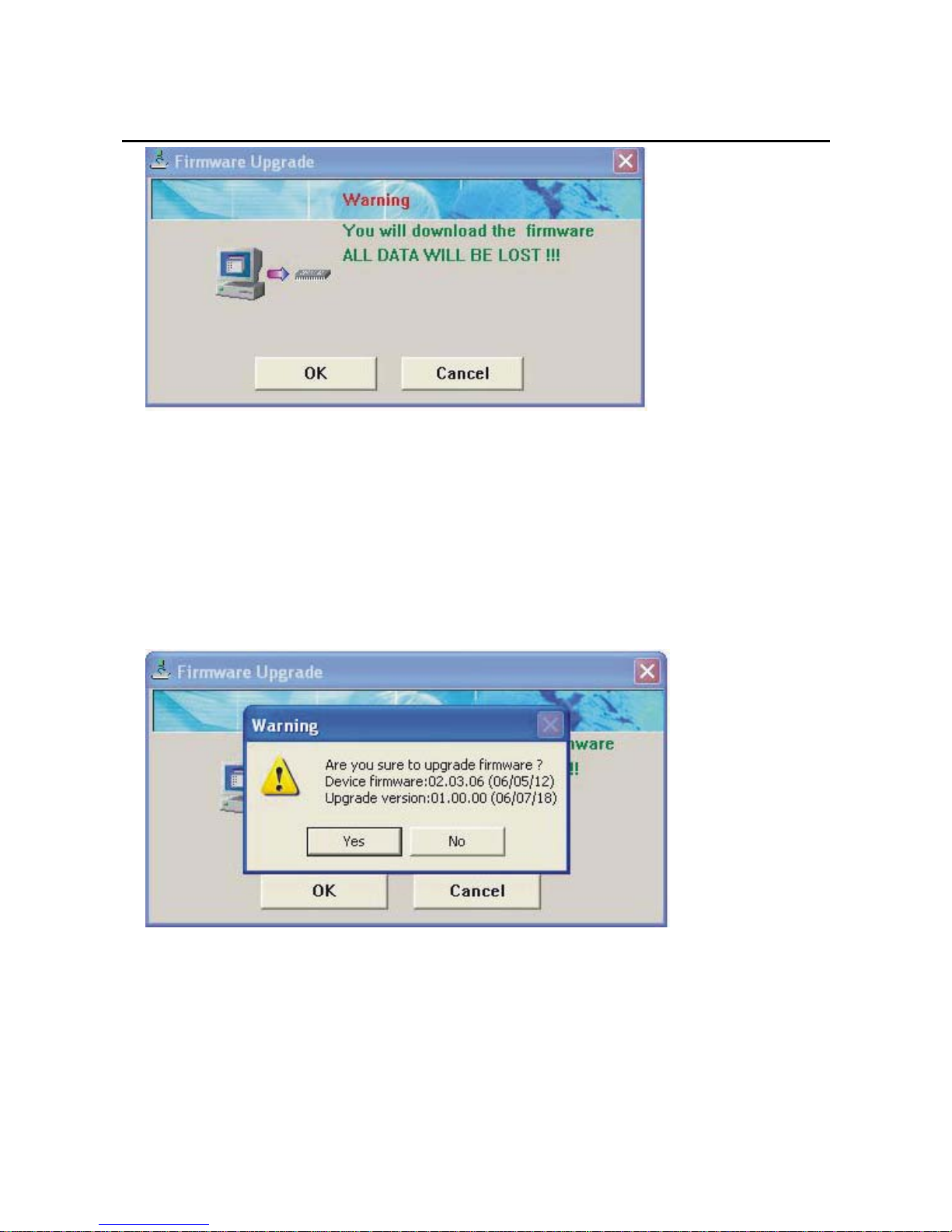
2、Must hold down “VOL-” only then it is possible
on-line with the PC machine then loose the player,
after that please click: “Yes”
3、After inputs successfully press the determination, this
38
Page 39

39
time the software promotes has been completed
4、Tear off USB, then may carry on other operations.
The fixation promotional software can advance and
optimize the function of the player. If you not use
the software, the normal running would not be affected.
It would work unmorally if the fixation promotion
software operation is error! Please read the specification
carefully. The fixation promotion software for this
player is not for other player , and vice versa.
Computer connection and realization of
flash disk function
Page 40
USB transm ission and MP3 file up-load
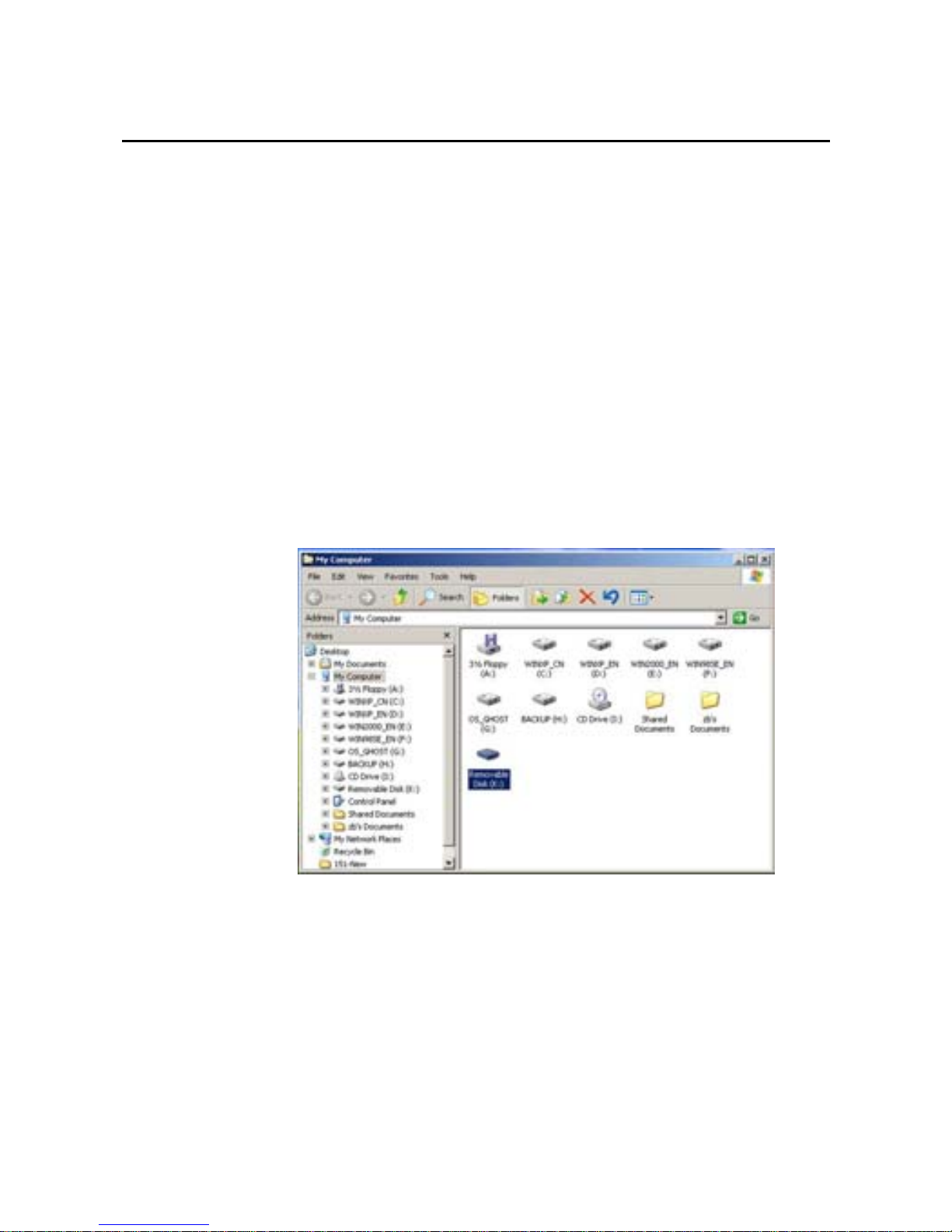
1. If your operation systems are WinME, Win2000,
Winxp and Win2003, and they need no installation of
driver program. After proper connection of USB data
line, a movable disk will appear in the resource manager
of WINDOWS. In this case, it is available for you to use
MP3 player as a common disk as shown in the picture
below:
2.If it is the first time for you to connect MP3
player to PC with operation system WIN98/SE, it
40
Page 41
is required to install the driver program.
Driver installation for Win98
For MP3 player at WIN ME/2000/XP/2003, etc.
operation systems, it is no need to install the driver
program. If it is the first time for you to use MP3 player
at WIN98 operation system, it is needed to install the
driver program before connection of MP3 player and the
operation step is given below:
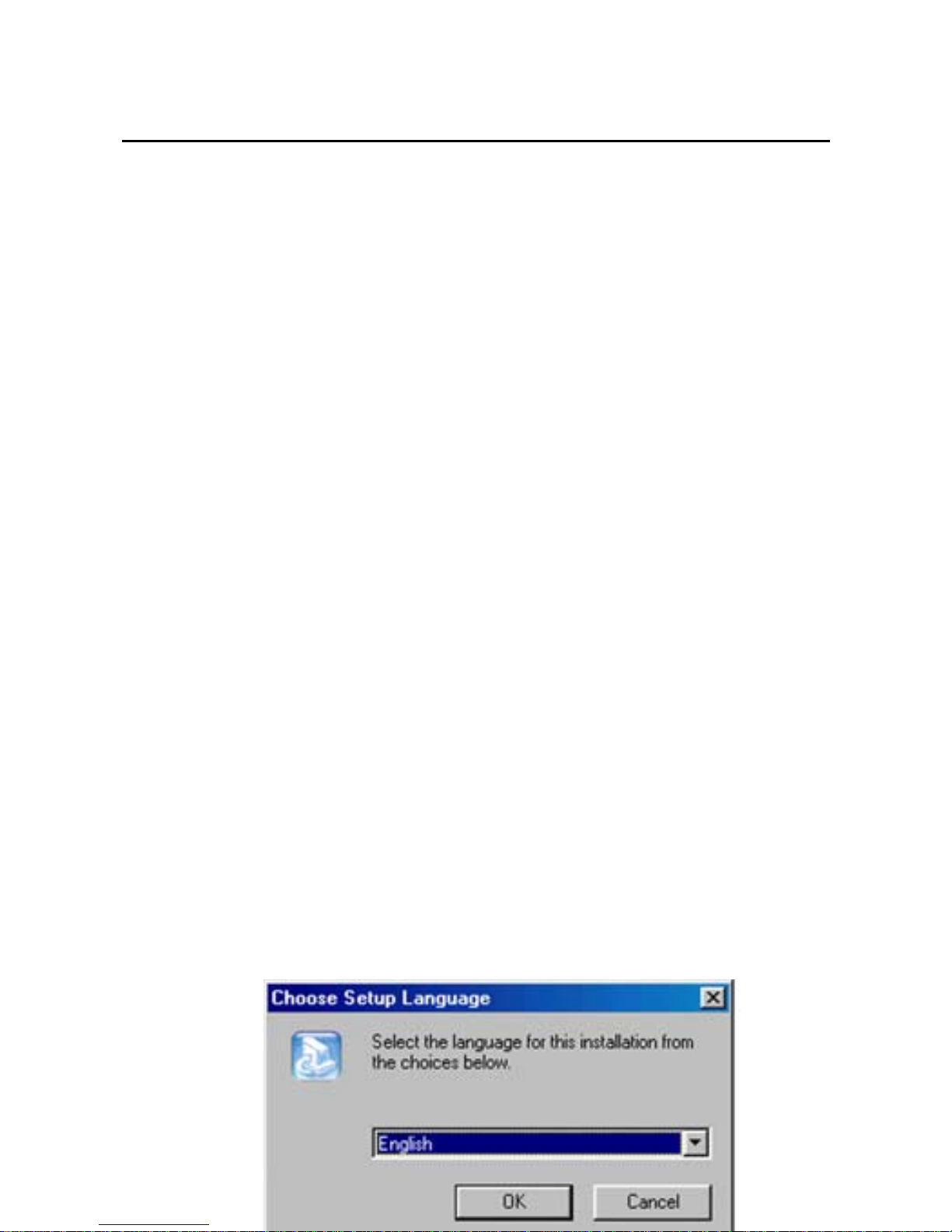
(1). Insert the installation disk affiliated to the player into
CD-ROM.
(2).Use the right key of mouse to open the driver disk
and run “Disk icon SETUP.EXE” file. The following
picture will appear.
41
Page 42
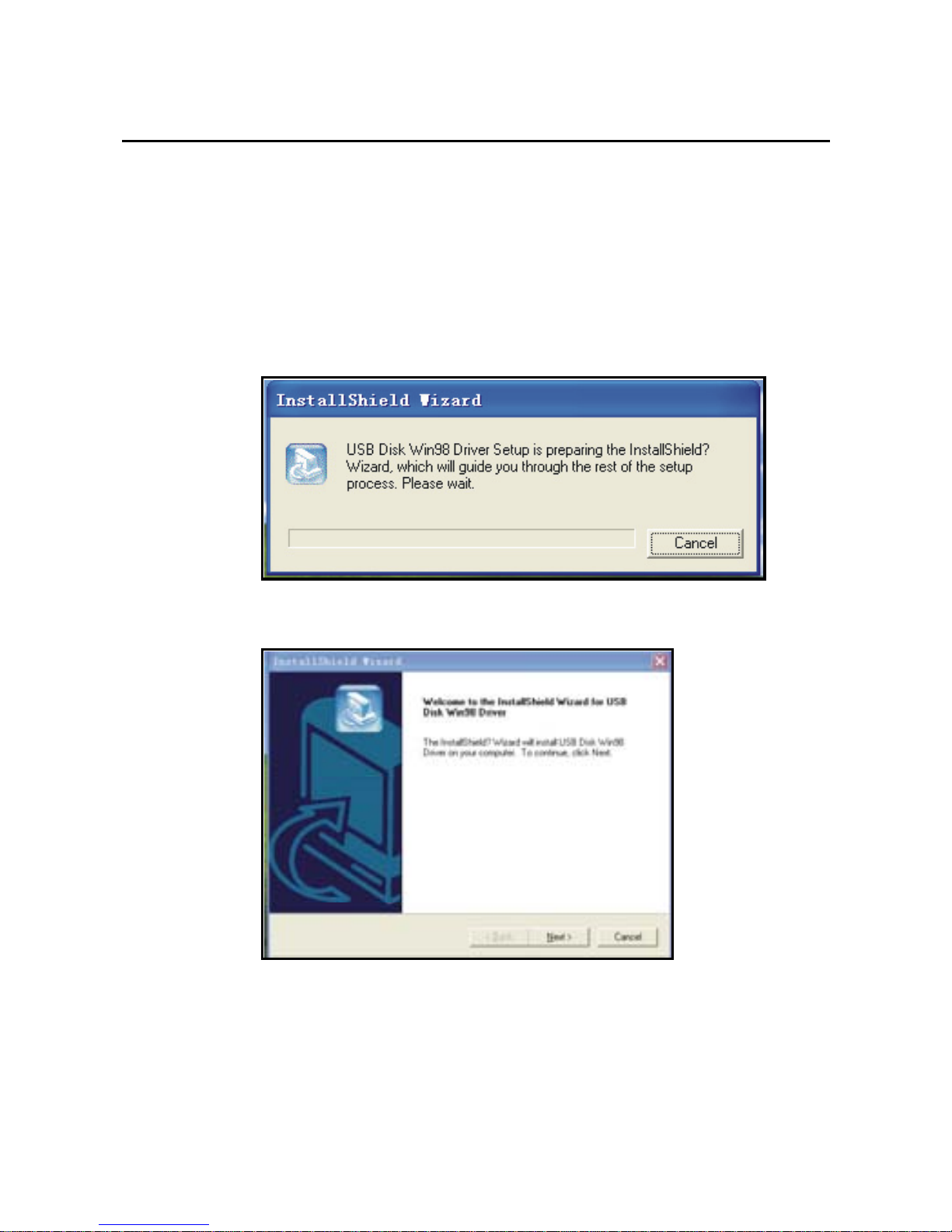
(3). Click “OK” to enter the following picture:
42
(4)After install shield wizard, then it will display below
picture:
(5) Click “Next” to enter the following picture:
Page 43
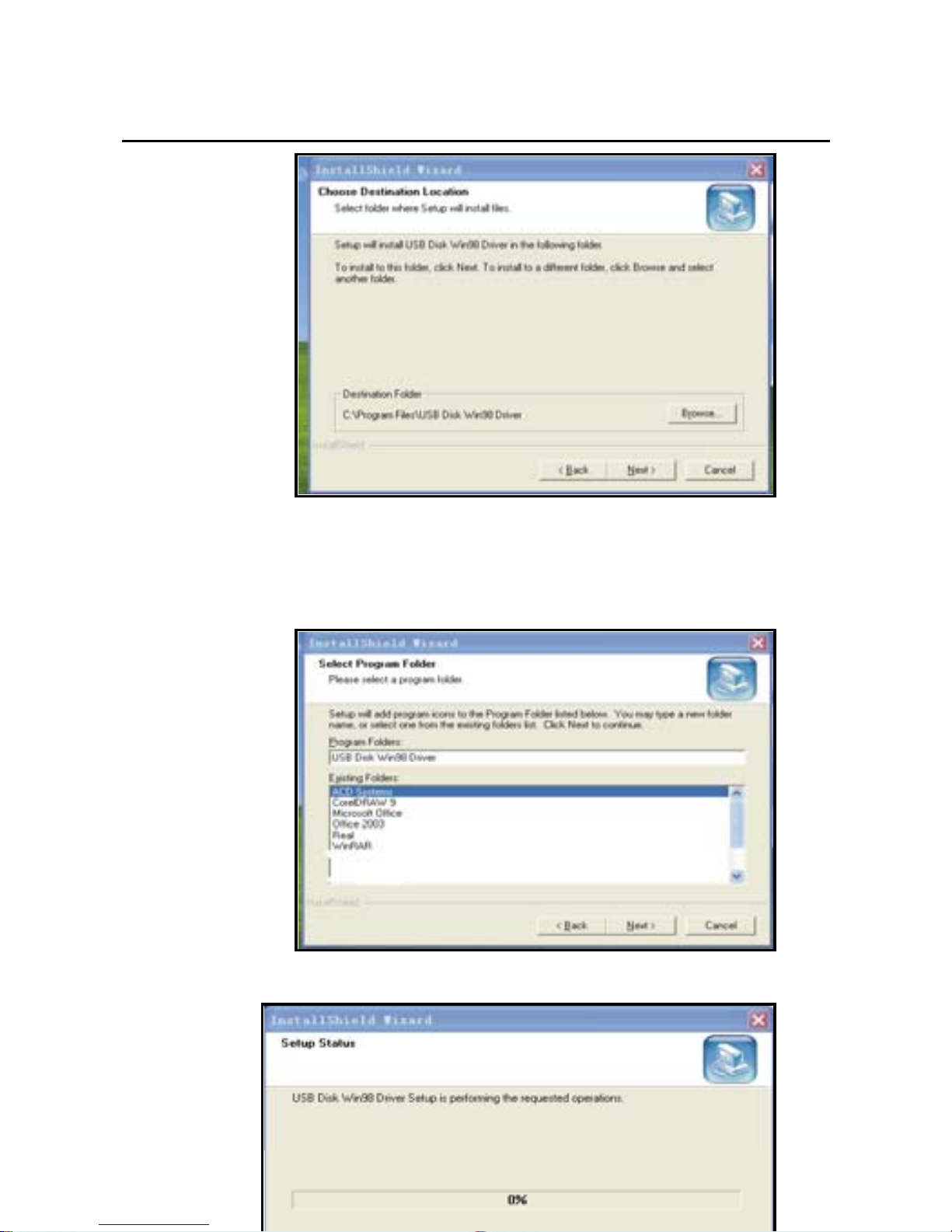
(6) Click “Next” again to enter the following picture:
(7) Click “Next” again to enter the “ Setup Status”:
43
Page 44
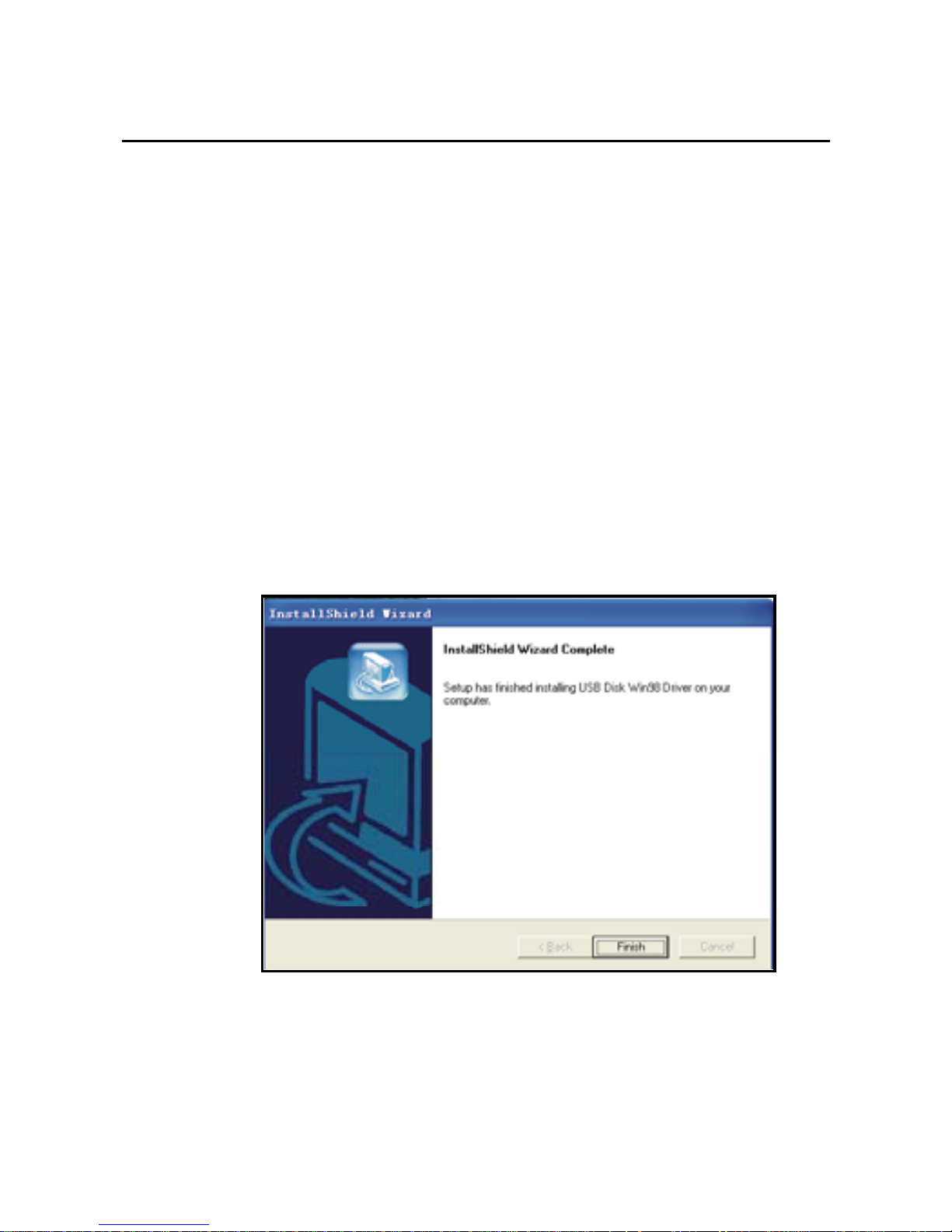
(8) After“Setup Status” then you will get the picture as
below:
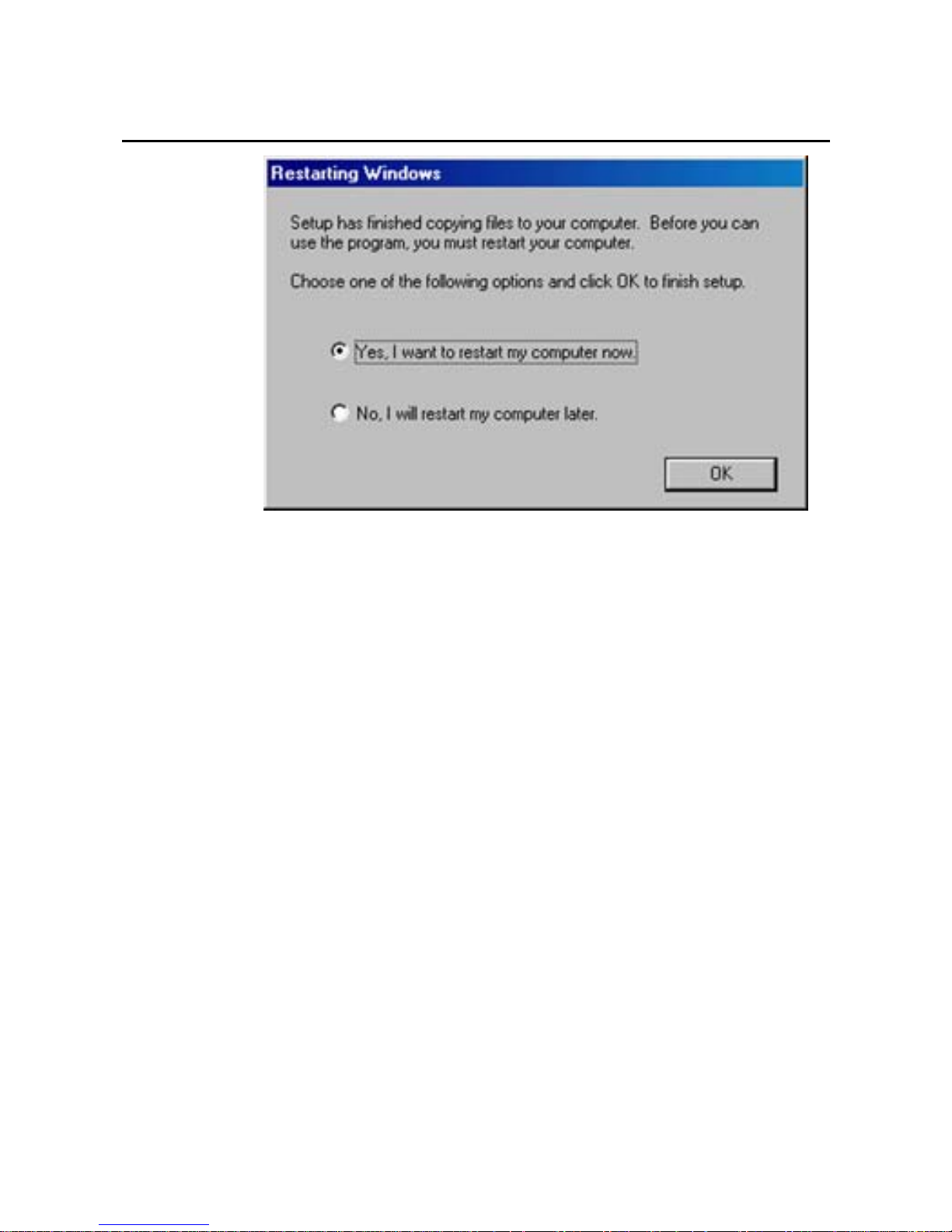
(9). Click “Finish” to enter the following picture, and
you have finished the driver installation for Win98
44
Page 45
45
Page 46
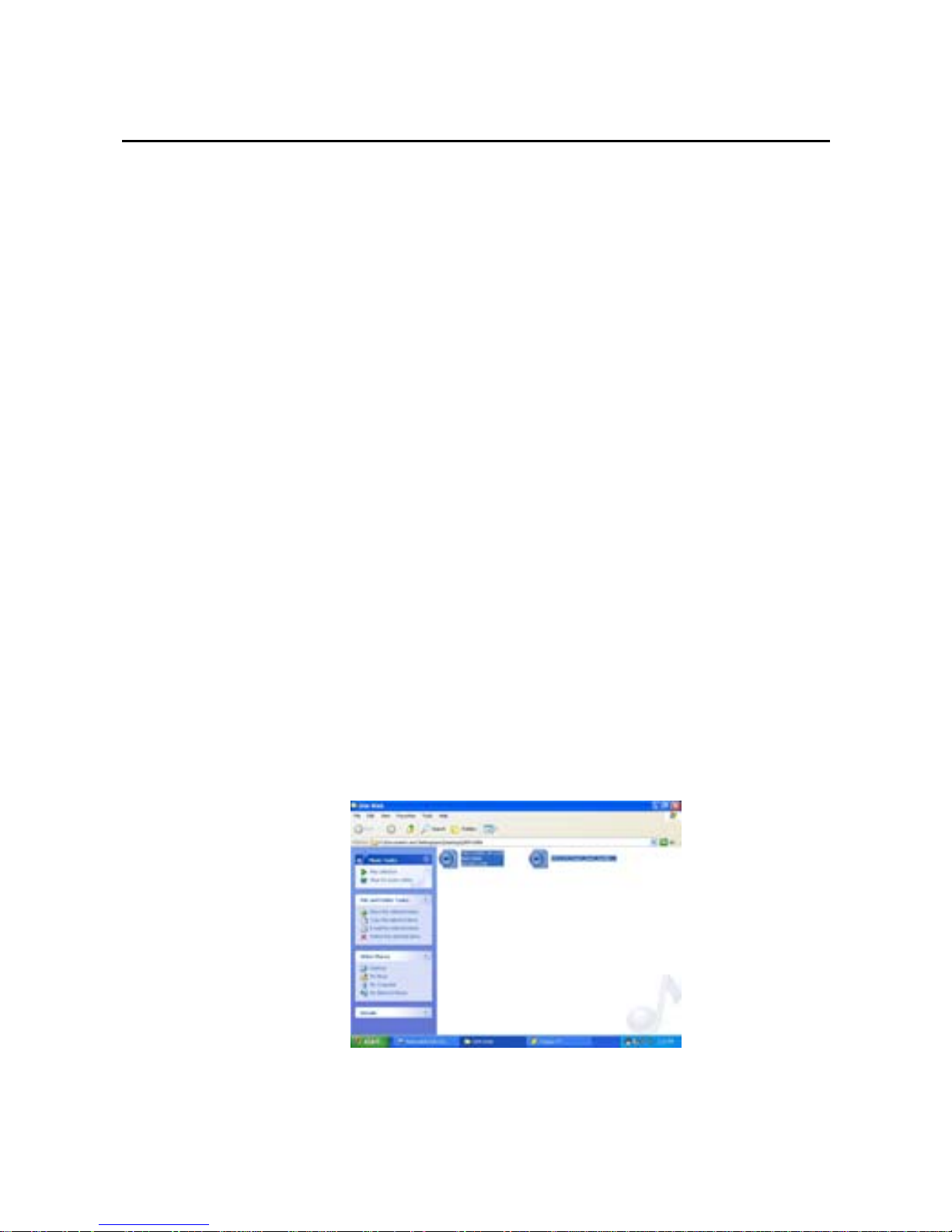
DRM10
Warning: Download operation of WMA music with D
RM protection to MP3-Player
On Windows XPII, WMA music with DRM should be
transferred by Windows Media 10.0 version to
MP3-Player.
Other download operation probably will cause MP4-Pla
-yer can not read the WMA music with DRM file.
Operation instruction: Windows XPII, user should
upgrade Windows Media Player to 10.0 versions.
A) On Windows Media Player 10.0 version:
(Windows XPII)
1) Connect your MP3.Player to PC press the mode
key, then the MP3 player will in MTP MODE.
2) Open Windows Media Player 10.0
3) Connect your MP3-Player to PC.
4) Choose the desired WMA music with DRM and
confirmed the music can be played in
WINDOWS MEDIA 10.
46
Page 47
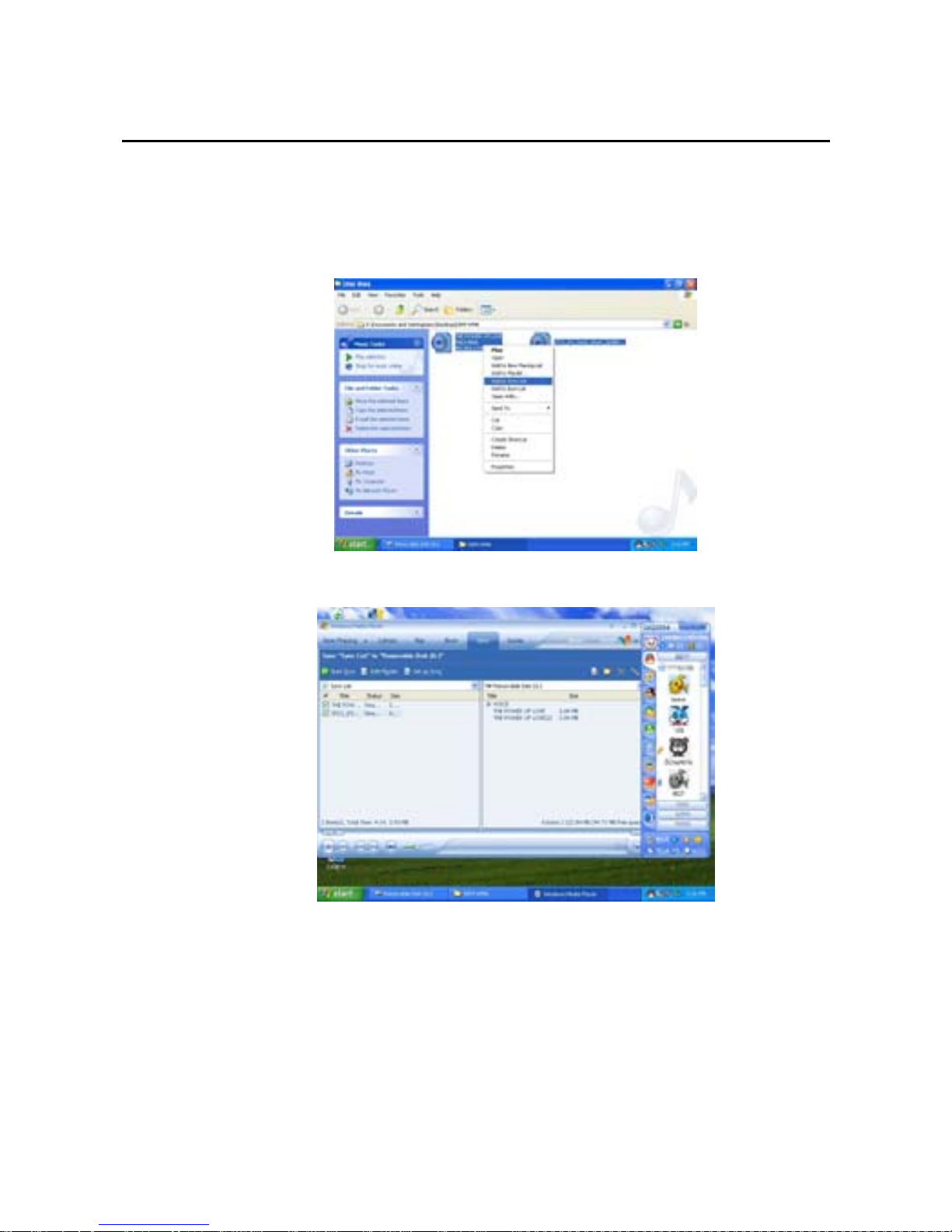
5) Click Right button of mouse and choose Add to
Sync list.
6) On the open windows, choose “Sync” option.
7) On Sync window, choose the desired WMA
music with DRM. And choose “ Removable
Disk”.
47
Page 48
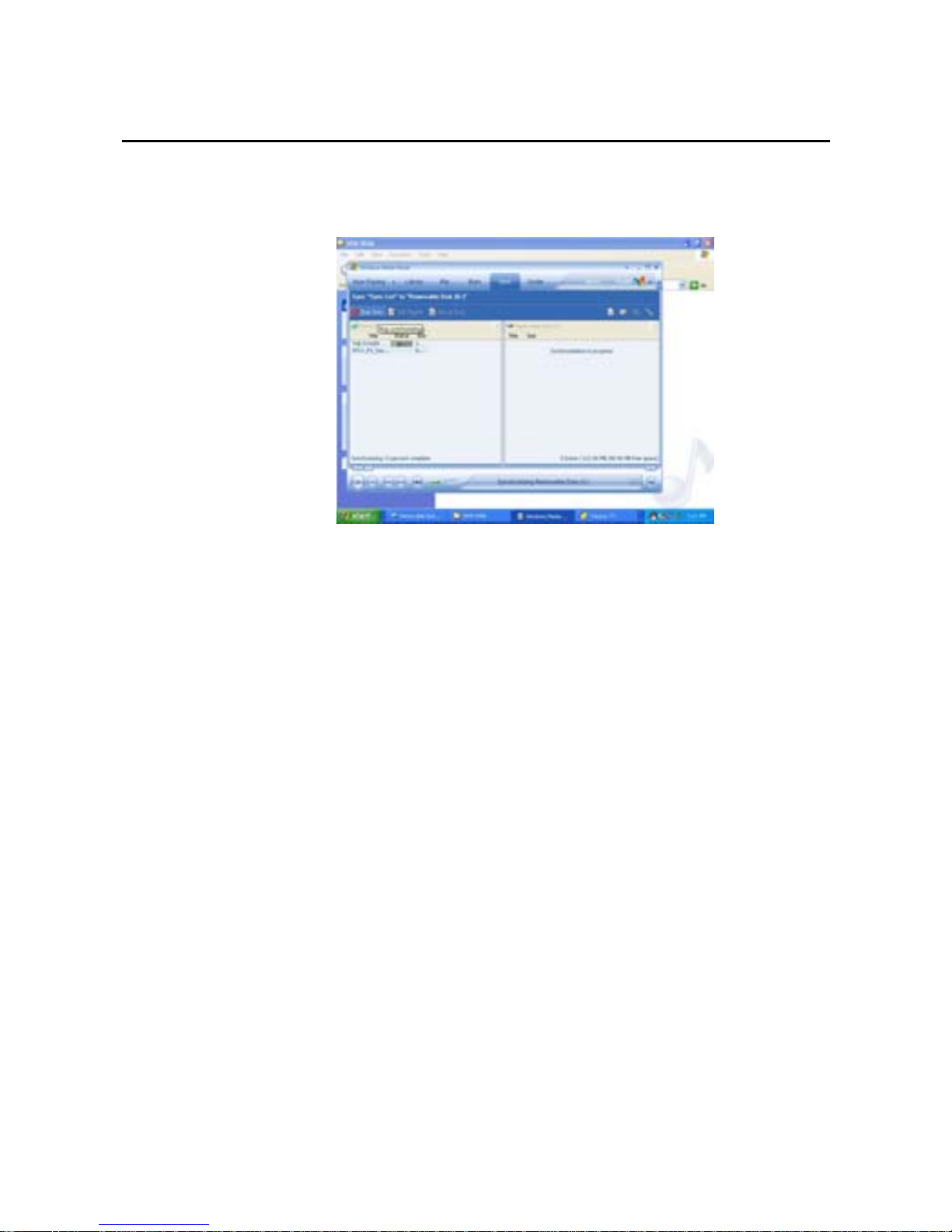
8) Click start Sync to transfer the WMA music with
DRM to your MP3-Player.
9) Safely remove your MP3-Player from PC.
48
Page 49
49
FAQ
Problem Solution
No
power
Check if the battery is installed
correctly.
Check if the power is ON.
No sound
can be
heard
from the
earphone
.
Confirm that the volume is not
at 0 status and that there is no
problem in the earphone
connection.
Please keep the earphone clean.
The damaged MP3 file may
cause noise of different levels
and even can be played. So, it
should be assured that the files
are intact.
Abnorma
l words
displayed
on the
screen.
Please confirm that correct
language is selected.
FM
rece
p
tion
As the earphone may be used as
antenna, ad
j
ust position of
Page 50
50
effect is
not good.
earphone respective to the
player.
Turn off the electric devices
nearby.
It is not
available
to down
load
music
normally.
Check the USB connection line
and see if it is connected
properly.
Check if the driver is properly
installed.
Check if there is still space in
the memory.
Page 51
51
Technical parameters
Items Parameters
Music format MPEG 1, 2, 3, WMA
Record format WAV
Bit rate
Mp3: 8-320kbps
Wma: 32-192kbps
Frequency range 20Hz~20KHz
Signal/noise ratio ≥86DB
Separation ≥85DB (1KHZ referenced signal)
Frequency response ≤3DB (20HZ~20KHZ)
Output power of the
earphone
L 4mW, R 4mW
EQ mode
Normal, POP, Jazz, Rock, Classic,
Bass
Display 26*10.5(mm)
Type of port 2.0,Compatible with USB1.1
Memory media FLASH
Page 52
Memory 64MB-2GB
Play current ≤80mA
Power off current ≤300uA
Battery One AAA No.7 alkali battery
Play time Above 8 hours
File system
FAT, FAT32
ALL INFORMATION IS SUBJECT TO BE
CHANGED WITHOUT PRIOR NOTICE!
52
Page 53

53
Page 54

54
 Loading...