

Page 1
24Ai
24Ao
User Guide
Title Page
™
™
1280 Massachusetts Avenue
Cambridge, MA 02138
Business voice: (617) 576-2760
Business fax: (617) 576-3609
Web site: www.motu.com
Tech support: www.motu.com/support
Page 2
SAFETY PRECAUTIONS AND ELECTRICAL REQUIREMENTS FOR THE 24Ai, 24Ao and MOTU AVB SWITCH (“PRODUCT”)
CAUTION! READ THIS SAFETY GUIDE BEFORE YOU BEGIN INSTALLATION OR OPERATION. FAILURE TO COMPLY WITH SAFETY INSTRUCTIONS
COULD RESULT IN BODILY INJURY OR EQUIPMENT DAMAGE.
HAZARDOUS VOLAGES: CONTACT MAY CAUSE ELECTRIC SHOCK OR BURN. TURN OFF UNIT BEFORE SERVICING.
WARNING: TO REDUCE THE RISK OF FIRE OR ELECTRICAL SHOCK, DO NOT EXPOSE THIS APPLIANCE TO RAIN OR OTHER MOISTURE.
CAUTION: TO REDUCE THE RISK OF ELECTRICAL SHOCK, DO NOT REMOVE COVER. NO USER-SERVICEABLE PARTS INSIDE. REFER SERVICING TO
QUALIFIED SERVICE PERSONNEL.
WARNING: DO NOT PERMIT FINGERS TO TOUCH THE TERMINALS OF PLUGS WHEN INSTALLING OR REMOVING THE PLUG TO OR FROM THE OUTLET.
WARNING: IF NOT PROPERLY GROUNDED THE MOTU PRODUCT COULD CAUSE AN ELECTRICAL SHOCK.
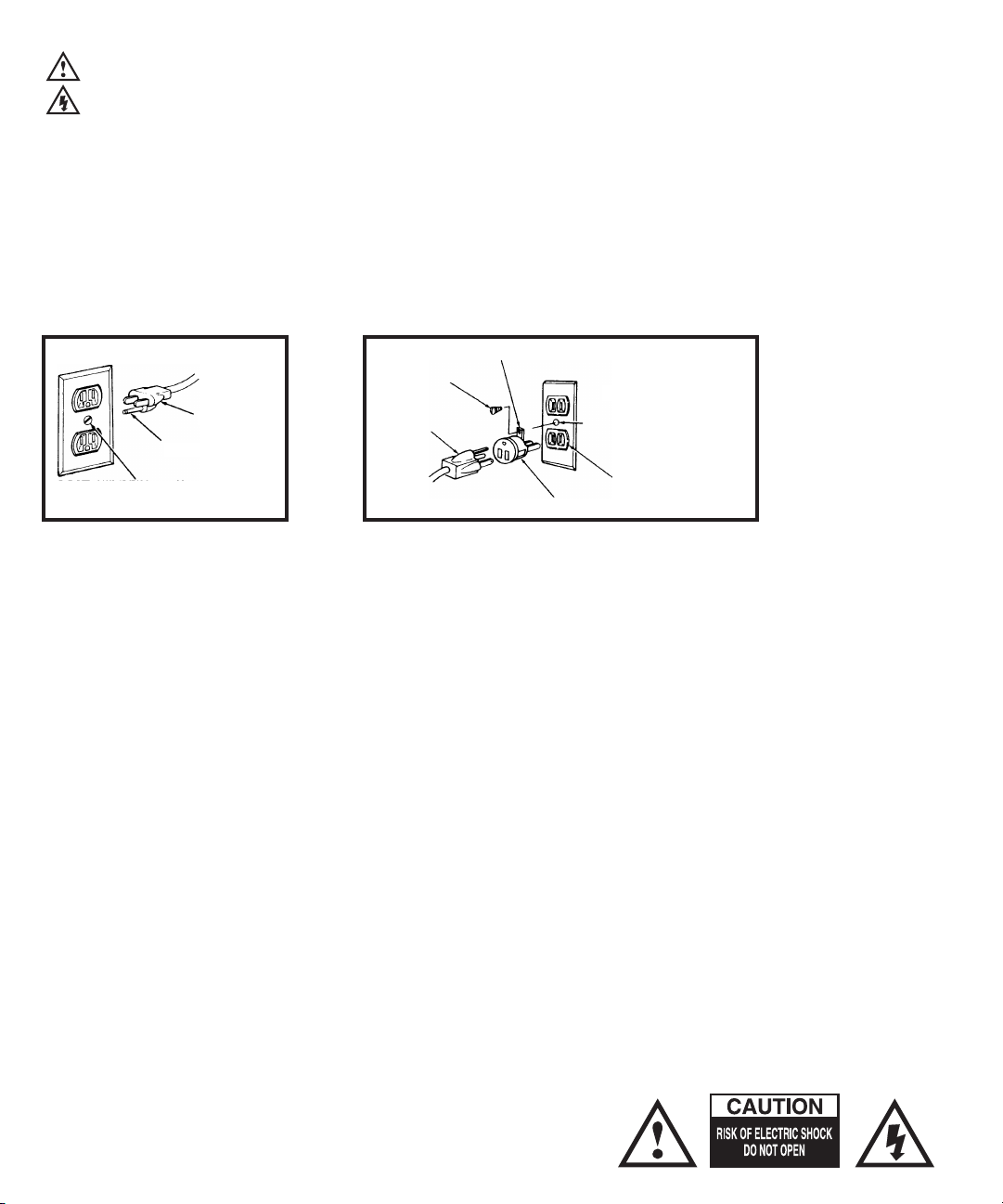
The MOTU product is equipped with a three-conductor cord and grounding type plug which has a grounding prong, approved by Underwriters' Laboratories and the Canadian Standards Association.
This plug requires a mating three-conductor grounded type outlet as shown in Figure A below. If the outlet you are planning to use for the MOTU product is of the two prong type, DO NOT REMOVE
OR ALTER THE GROUNDING PRONG IN ANY MANNER. Use an adapter as shown below and always connect the grounding lug to a known ground. It is recommended that you have a qualified
electrician replace the TWO prong outlet with a properly grounded THREE prong outlet. An adapter as illustrated below in Figure B is available for connecting plugs to two-prong receptacles.
Figure A Figure B
Grounding lug
Screw
3-prong plug
Grounding prong
Properly grounded 3-prong outlet
3-prong plug
Mak e sur e th is i s con nec ted to
a known ground.
Adapter
Two-prong receptacle
WARNING: THE GREEN GROUNDING LUG EXTENDING FROM THE ADAPTER MUST BE CONNECTED TO A PERMANENT GROUND SUCH AS TO A
PROPERLY GROUNDED OUTLET BOX. NOT ALL OUTLET BOXES ARE PROPERLY GROUNDED.
If you are not sure that your outlet box is properly grounded, have it checked by a qualified electrician. NOTE: The adapter illustrated is for use only if you already have a properly grounded two-prong
receptacle. Adapter is not allowed in Canada by the Canadian Electrical Code. Use only three wire extension cords which have three-prong grounding type plugs and three-prong receptacles which
will accept the MOTU product plug.
IMPORTANT SAFEGUARDS
1. Read these instructions. All the safety and operating instructions should be read before operating the product.
2. Keep these instructions. These safety instructions and the product owner’s manual should be retained for future reference.
3. Heed all warnings. All warnings on the product and in the owner’s manual should be adhered to.
4. Follow all Instructions. All operating and use instructions should be followed.
5. Do not use the product near water.
6. Cleaning - Unplug the product from the computer and clean only with a dry cloth. Do not use liquid or aerosol cleaners.
7. Ventilation - Do not block any ventilation openings. Install in accordance with the manufacturer’s instructions.
8. Heat - Do not install the product near any heat sources such as radiators, heat registers, stoves, or another apparatus (including an amplifier) that produces heat.
9. Overloading - Do not overload wall outlets and extension cords as this can result in a risk of fire or electrical shock.
10. Grounding - Do not defeat the safety purpose of the polarized or grounding-type plug. A polarized plug has two blades with one wider than the other. A grounding-type plug has two blades and a third grounding prong. The wide blade
or the third prong are provided for your safety. If the provided plug does not fit into your outlet, consult and electrician for replacement of the obsolete outlet.
11. Power cord - Protect the product power cord from being walked on or pinched by items placed upon or against them. Pay particular attention to cords and plugs, convenience receptacles, and the point where they exit from the unit.
12. Power switch - Install the product so that the power switch can be accessed and operated at all times.
13. Disconnect - The main plug is considered to be the disconnect device for the product and shall remain readily operable.
14. Accessories - Only use attachments/accessories specified by the manufacturer.
15. Placement - Use only with the cart, stand, tripod, bracket or table specified by the manufacturer, or sold with the product. When a cart is used, use caution when moving the cart/apparatus combination to avoid injury from tip-over.
16. Surge protection - Unplug the product during lightning storms or when unused for long periods of time.
17. Servicing - Refer all servicing to qualified service personnel. Servicing is required when the product has been damaged in any way, such as when a power-supply cord or plug is damaged, liquid has been spilled or objects have fallen
into the product, the product has been exposed to rain or moisture, does not operate normally, or has been dropped.
18. Power Sources - Refer to the manufacturer’s operating instructions for power requirements. Be advised that different operating voltages may require the use of a different line cord and/or attachment plug.
19. Installation - Do not install the product in an unventilated rack, or directly above heat-producing equipment such as power amplifiers. Observe the maximum ambient operating temperature listed below.
20. Power amplifiers- Never attach audio power amplifier outputs directly to any of the unit’s connectors.
21. Replacement Parts - When replacement parts are required, be sure the service technician has used replacement parts specified by the manufacturer or have the same characteristics as the original part. Unauthorized substitutions
may result in fire, electric shock or other hazards.
22. Safety Check - Upon completion of any service or repairs to this MOTU product, ask the service technician to perform safety checks to determine that the product is in safe operating conditions.
ENVIRONMENT, HEAT AND VENTILATION
Operating Temperature: 10°C to 40°C (50°F to 104°). The product should be situated away from heat sources or other equipment that produces heat. When installing the product in a rack or any other location, be sure there is adequate
space around the product to ensure proper ventilation. Improper ventilation will cause overheating and can damage the unit.
TO REDUCE THE RISK OF ELECTRICAL SHOCK OR FIRE
Do not handle the power cord with wet hands. Do not pull on the power cord when disconnecting it from an AC wall outlet. Grasp it by the plug.
Do not expose this apparatus to rain or moisture. Do not place objects containing liquids on it.
AC INPUT
100 - 240VAC ~ • 50 / 60Hz • 0.5A max
Page 3

Contents
Part 1: Getting Started
7
Quick Start Guide
24Ai Front Panel
9
10
24Ai Rear Panel
24Ao Front Panel
11
24Ao Rear Panel
12
13
MOTU AVB Switch
MOTU AVB Control Web App
15
25
About Your MOTU AVB Audio Interface
Packing List and System Requirements
29
31
Software Installation
Hardware Installation
33
Part 2: Using your MOTU interface
Presets
45
51
The Front Panel LCD
Working with Host Audio Software
53
Mixer Effects
61
Networking
67
Part 3: Appendices
Troubleshooting
75
77
Audio Specifications
Mixer Schematics
79
83
D-sub Connector Specifications
Updating Firmware
85
OSC Support
87
89
Index
III
Page 4

About the Mark of the Unicorn License Agreement and
Limited Warranty on Software
TO PERSONS WHO PURCHASE OR USE THIS PRODUCT: carefully read all the
terms and conditions of the “click-wrap” license agreement presented to you when
you install the software. Using the software or this documentation indicates your
acceptance of the terms and conditions of that license agreement.
Mark of the Unicorn, Inc. (“MOTU”) owns both this program and its documentation.
Both the program and the documentation are protected under applicable copyright,
trademark, and trade-secret laws. Your right to use the program and the
documentation are limited to the terms and conditions described in the license
agreement.
Reminder of the terms of your license
This summary is not your license agreement, just a reminder of its terms. The actual
license can be read and printed by running the installation program for the software.
That license agreement is a contract, and clicking “Accept” binds you and MOTU to
all its terms and conditions. In the event anything contained in this summary is
incomplete or in conflict with the actual click-wrap license agreement, the terms of the
click-wrap agreement prevail.
YOU MAY: (a) use the enclosed program on a single computer; (b) physically transfer
the program from one computer to another provided that the program is used on only
one computer at a time and that you remove any copies of the program from the
computer from which the program is being transferred; (c) make copies of the
program solely for backup purposes. You must reproduce and include the copyright
notice on a label on any backup copy.
YOU MAY NOT: (a) distribute copies of the program or the documentation to others;
(b) rent, lease or grant sublicenses or other rights to the program; (c) provide use of
the program in a computer service business, network, time-sharing, multiple CPU or
multiple user arrangement without the prior written consent of MOTU; (d) translate,
adapt, reverse engineer, decompile, disassemble, or otherwise alter the program or
related documentation without the prior written consent of MOTU.
MOTU warrants to the original licensee that the disk(s) on which the program is
recorded be free from defects in materials and workmanship under normal use for a
period of ninety (90) days from the date of purchase as evidenced by a copy of your
receipt. If failure of the disk has resulted from accident, abuse or misapplication of the
product, then MOTU shall have no responsibility to replace the disk(s) under this
Limited Warranty.
THIS LIMITED WARRANTY AND RIGHT OF REPLACEMENT IS IN LIEU OF,
AND YOU HEREBY WAIVE, ANY AND ALL OTHER WARRANTIES, BOTH
EXPRESS AND IMPLIED, INCLUDING BUT NOT LIMITED TO WARRANTIES
OF MERCHANTABILITY AND FITNESS FOR A PARTICULAR PURPOSE. THE
LIABILITY OF MOTU PURSUANT TO THIS LIMITED WARRANTY SHALL BE
LIMITED TO THE REPLACEMENT OF THE DEFECTIVE DISK(S), AND IN NO
EVENT SHALL MOTU OR ITS SUPPLIERS, LICENSORS, OR AFFILIATES BE
LIABLE FOR INCIDENTAL OR CONSEQUENTIAL DAMAGES, INCLUDING
BUT NOT LIMITED TO LOSS OF USE, LOSS OF PROFITS, LOSS OF DATA OR
DATA BEING RENDERED INACCURATE, OR LOSSES SUSTAINED BY THIRD
PARTIES EVEN IF MOTU HAS BEEN ADVISED OF THE POSSIBILITY OF
SUCH DAMAGES. THIS WARRANTY GIVES YOU SPECIFIC LEGAL RIGHTS
WHICH MAY VARY FROM STATE TO STATE. SOME STATES DO NOT ALLOW
THE LIMITATION OR EXCLUSION OF LIABILITY FOR CONSEQUENTIAL
DAMAGES, SO THE ABOVE LIMITATION MAY NOT APPLY TO YOU.
Update Policy
In order to be eligible to obtain updates of the program, you must complete and return
the attached Mark of the Unicorn Purchaser Registration Card to MOTU.
Copyright Notice
Copyright © 2014 by Mark of the Unicorn, Inc. All rights reserved. No part of this
publication may be reproduced, transmitted, transcribed, stored in a retrieval system,
or translated into any human or computer language, in any form or by any means
whatsoever, without express written permission of Mark of the Unicorn, Inc., 1280
Massachusetts Avenue, Cambridge, MA, 02138, U.S.A.
Limited Warranty on Hardware
Mark of the Unicorn, Inc. and S&S Research (“MOTU/S&S”) warrant this equipment
against defects in materials and workmanship for a period of TWO (2) YEARS from
the date of original retail purchase. This warranty applies only to hardware products;
MOTU software is licensed and warranted pursuant to separate written statements.
If you discover a defect, first write or call Mark of the Unicorn at (617) 576-2760 to
obtain a Return Merchandise Authorization Number. No service will be performed on
any product returned without prior authorization. MOTU will, at its option, repair or
replace the product at no charge to you, provided you return it during the warranty
period, with transportation charges prepaid, to Mark of the Unicorn, Inc., 1280
Massachusetts Avenue, MA 02138. You must use the product’s original packing
material for in shipment, and insure the shipment for the value of the product. Please
include your name, address, telephone number, a description of the problem, and
the original, dated bill of sale with the returned unit and print the Return Merchandise
Authorization Number on the outside of the box below the shipping address.
This warranty does not apply if the equipment has been damaged by accident,
abuse, misuse, or misapplication; has been modified without the written permission
of MOTU, or if the product serial number has been removed or defaced.
ALL IMPLIED WARRANTIES, INCLUDING IMPLIED WARRANTIES OF
MERCHANTABILITY AND FITNESS FOR A PARTICULAR PURPOSE, ARE
LIMITED IN DURATION TO TWO (2) YEARS FROM THE DATE OF THE
ORIGINAL RETAIL PURCHASE OF THIS PRODUCT.
THE WARRANTY AND REMEDIES SET FORTH ABOVE ARE EXCLUSIVE
AND IN LIEU OF ALL OTHERS, ORAL OR WRITTEN, EXPRESS OR IMPLIED.
No MOTU/S&S dealer, agent, or employee is authorized to make any modification,
extension, or addition to this warranty.
MOTU/S&S ARE NOT RESPONSIBLE FOR SPECIAL, INCIDENTAL, OR
CONSEQUENTIAL DAMAGES RESULTING FROM ANY BREACH OF
WARRANTY, OR UNDER ANY LEGAL THEORY, INCLUDING LOST PROFITS,
DOWNTIME, GOODWILL, DAMAGE OR REPLACEMENT OF EQUIPMENT
AND PROPERTY AND COST OF RECOVERING REPROGRAMMING, OR
REPRODUCING ANY PROGRAM OR DATA STORED IN OR USED WITH
MOTU/S&S PRODUCTS.
Some states do not allow the exclusion or limitation of implied warranties or liability for
incidental or consequential damages, so the above limitation or exclusion may not
apply to you. This warranty gives you specific legal rights, and you may have other
rights which vary from state to state.
MOTU, Digital Performer, AudioDesk, Mark of the Unicorn and the unicorn silhouette
logo are trademarks of Mark of the Unicorn, Inc.
Thunderbolt and the Thunderbolt logo are trademarks of Intel Corporation in the U.S.
and/or other countries.
This equipment has been type tested and found to comply with the limits for a class B digital device,
pursuant to Part 15 of the FCC Rules. These limits are designed to provide reasonable protection
against harmful interference in a residential installation. This equipment generates, uses, and can
radiate radio frequency energy and, if not installed and used in accordance with the instruction manual,
may cause harmful interference to radio communications. However, there is no guarantee that
interference will not occur in a particular installation. If this equipment does cause interference to radio
or television equipment reception, which can be determined by turning the equipment off and on, the
user is encouraged to try to correct the interference by any combination of the following measures:
• Relocate or reorient the receiving antenna
• Increase the separation between the equipment and the receiver
• Plug the equipment into an outlet on a circuit different from that to which the receiver is connected
If necessary, you can consult a dealer or experienced radio/television technician for additional
assistance.
PLEASE NOTE: only equipment certified to comply with Class B (computer input/output devices,
terminals, printers, etc.) should be attached to this equipment, and it must have shielded interface
cables in order to comply with the Class B FCC limits on RF emissions.
WARNING: changes or modifications to this unit not expressly approved by the party
responsible for compliance could void the user's authority to operate the equipment.
Page 5

Part 1
Getting Started
Page 6

Page 7
Quick Start Guide
CHAPTER
Thank you for purchasing a MOTU AVB interface!
Follow these easy steps to get started quickly.
1
Download and run the
MOTU AVB Installer
:
http://www.motu.com/avb
2
(Optional) For quick access to your MOTU
interface from your iPad or iPhone, download the
MOTU AVB Discovery app from the Apple App
Store.
Your iPhone and iPad must be on the same
☛
WiFi network as your computer.
3
Connect the interface to your computer with a
USB cable (included).
4
Switch on your MOTU interface.
5
Open the
MOTU AVB Control
web app by doing
one of the following:
■
From your computer, choose your MOTU
interface from the MOTU AVB Discovery app
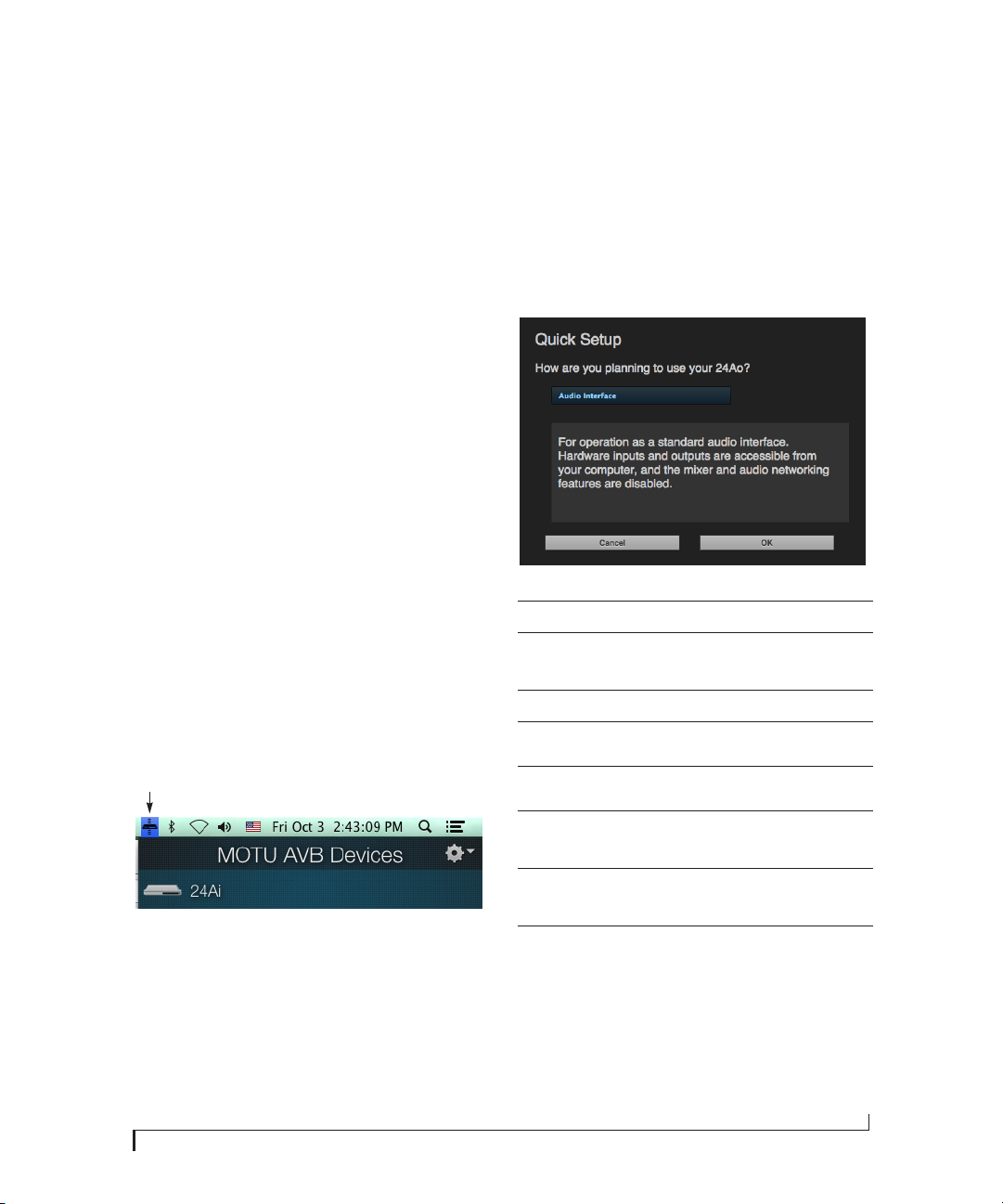
menu, as shown below.
MOTU AVB Discovery app menu
For advanced network options, and device
■
discovery from any modern browser, see chapter 9,
“Networking” (page 67).
6
Choose a preset from the Quick Setup.
Preset Application
Audio interface Operate as a standard audio interface.
Stand-alone mixer Operate as a stand-alone mixer, where all
Interface + mixer A combination of the above two presets.
Live recording with
monitor mixing
Stage I/O Route audio inputs from one AVB interface
inputs are mixed to the main outs and monitor outs.
Record a live concert or recording session,
with a full monitor mix.
to another, through Ethernet cabling.
■
From your iPad or iPhone, launch the MOTU
AVB Discovery app, and tap your interface.
■
You should now see the
MOTU AVB Control
web
app in your browser, as shown on page 16. If not,
visit Appendix A, “Troubleshooting” (page 75).
Studio Input
Expander
Studio Output
Expander
Optical Converter Multi-channel analog-to-digital or digital-
Routes the expansion unit’s physical inputs
to the main system using AVB network
streams.
Routes the main systems’s AVB network
streams to physical outputs on the expansion unit.
to-analog converter.
7
Page 8

8
Page 9
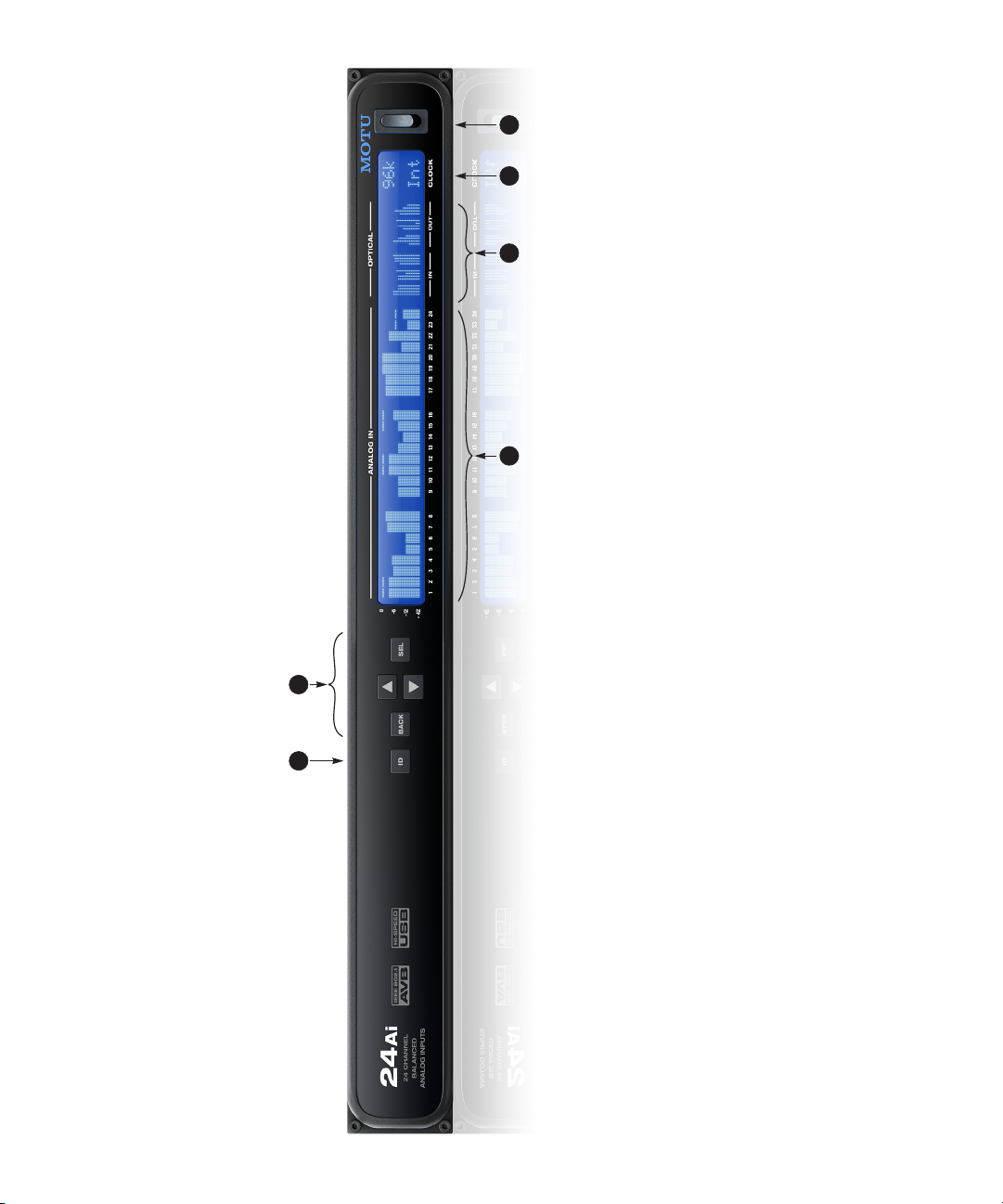
321 4
ARROW buttons to scroll through menu options. Push
again to descend into the submenus, if applicable. To
choose the current setting, push SELECT a third time.
Push BACK to return to the previous menu level, and do
so repeatedly to exit the menu altogether.
5. Push SEL (select) to enter the LCD menu. Push the
56
including its IP address.
6. Push ID to display network settings for the device,
24Ai Front Panel
rate and clock mode (source) for the unit.
3. The CLOCK section displays the current operating sample
4. POWER SWITCH: AVB and USB are “plug-and-play” proto-
inputs.
1. ANALOG INPUT METERS for the twenty-four analog
2. ADAT OPTICAL input and output metering. At 1x sample
cols. That means you can turn the 24Ai off and back on
without restarting your computer.
rates (44.1 or 48 kHz), there are twenty-four channels of
input and output. At 2x (88.2 or 96 kHz), there are twelve
channels.
Page 10

24Ai Rear Panel
9
threading (not metric threading).
7. Use a standard (AES-59) Panasonic/Tascam DB-25 cable.
8. Make sure the retaining screws have standard 4-40
9. These are the pin-outs for the D-sub connector.
4
Another 24Ai or any other MOTU AVB-equipped device,
such as the 1248, 8M, 16A or 24Ao audio interfaces. ■A standard Ethernet hub or WiFi router (for internet
connection and communication with the MOTU AVB
Control web app software).■A standard AVB Ethernet switch for high-speed, low-
latency, high-capacity audio connectivity to an AVB
802.1 network connectivity to other network devices.
Examples include:
6. The AVB Ethernet port provides industry standard IEEE
■
audio network.
5
balanced analog input. You can use either a standard
8-channel Panasonic/Tascam format DB-25 cable or the
two 4-channel Phoenix connectors. DO NOT connect
both the D-sub and Phoenix connectors for a bank at the
same time. You can, however, use different connectors
across banks, if needed (for example, D-sub for channels
1-8 and Phoenix for channels 9-16). The pin-outs for the
Phoenix connectors are indicated on the label of the
connector; for the D-sub pinouts, see Appendix D, “D-sub
Connector Specifications” page (83).
using a standard USB cable. You can connect it to a
6
7
8
4. These three 8-channel banks provide 24 channels of
USB 2.0 or 3.0 port on the computer.
5. Connect the 24Ai to the computer with this USB 2.0 port
1 2 3
tional power supply.
tions, such as digital transfers with devices that cannot
slave to the clock supplied by their digital I/O connection
with the 24Ai.
channels of 24-bit ADAT optical digital I/O at 1x sample
rates (44.1 or 48 kHz) and 12 channels at 2x sample rates
(88.2 or 96 kHz). They are disabled at higher sample
rates. The IN and OUT ports on the right provide channels
1-8 (or 1-4), the left-hand ports provide channels 9-16
(or 5-8), and the third bank below provides channels
1. The 24Ai is equipped with an auto-switching interna-
2. BNC word clock jacks. Use them for a variety of applica-
3. These three ADAT optical “lightpipe” jacks provide 24
17-24 (or 9-12).
Page 11
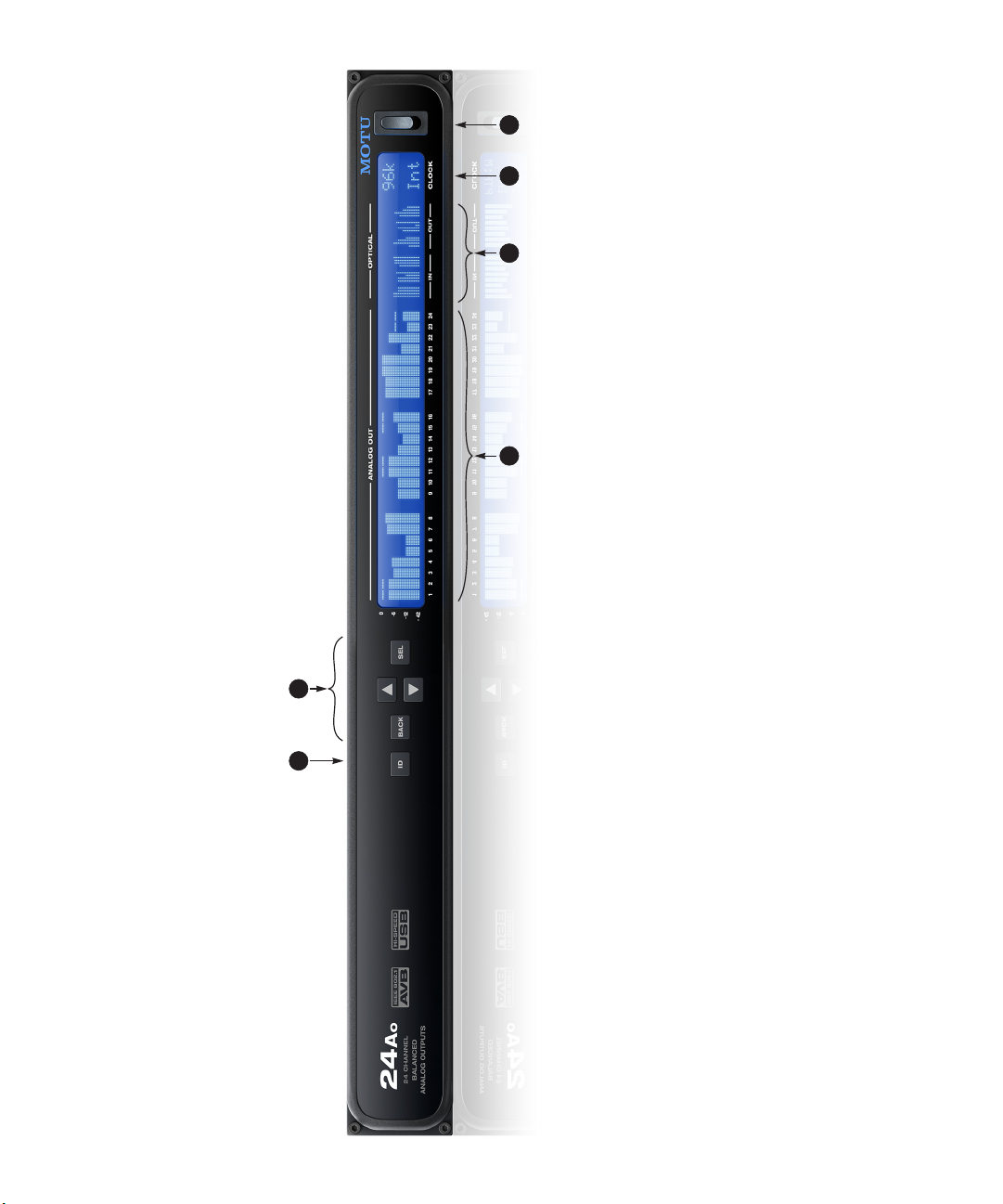
24Ao Front Panel
321 4
ARROW buttons to scroll through menu options. Push
again to descend into the submenus, if applicable. To
choose the current setting, push SELECT a third time.
Push BACK to return to the previous menu level, and do
so repeatedly to exit the menu altogether.
5. Push SEL (select) to enter the LCD menu. Push the
56
rate and clock mode (source) for the unit.
cols. That means you can turn the 24Ao off and back on
3. The CLOCK section displays the current operating sample
4. POWER SWITCH: AVB and USB are “plug-and-play” proto-
including its IP address.
6. Push ID to display network settings for the device,
without restarting your computer.
outputs.
1. ANALOG OUTPUT METERS for the twenty-four analog
2. ADAT OPTICAL input and output metering. At 1x sample
rates (44.1 or 48 kHz), there are twenty-four channels of
input and output. At 2x (88.2 or 96 kHz), there are twelve
channels.
Page 12
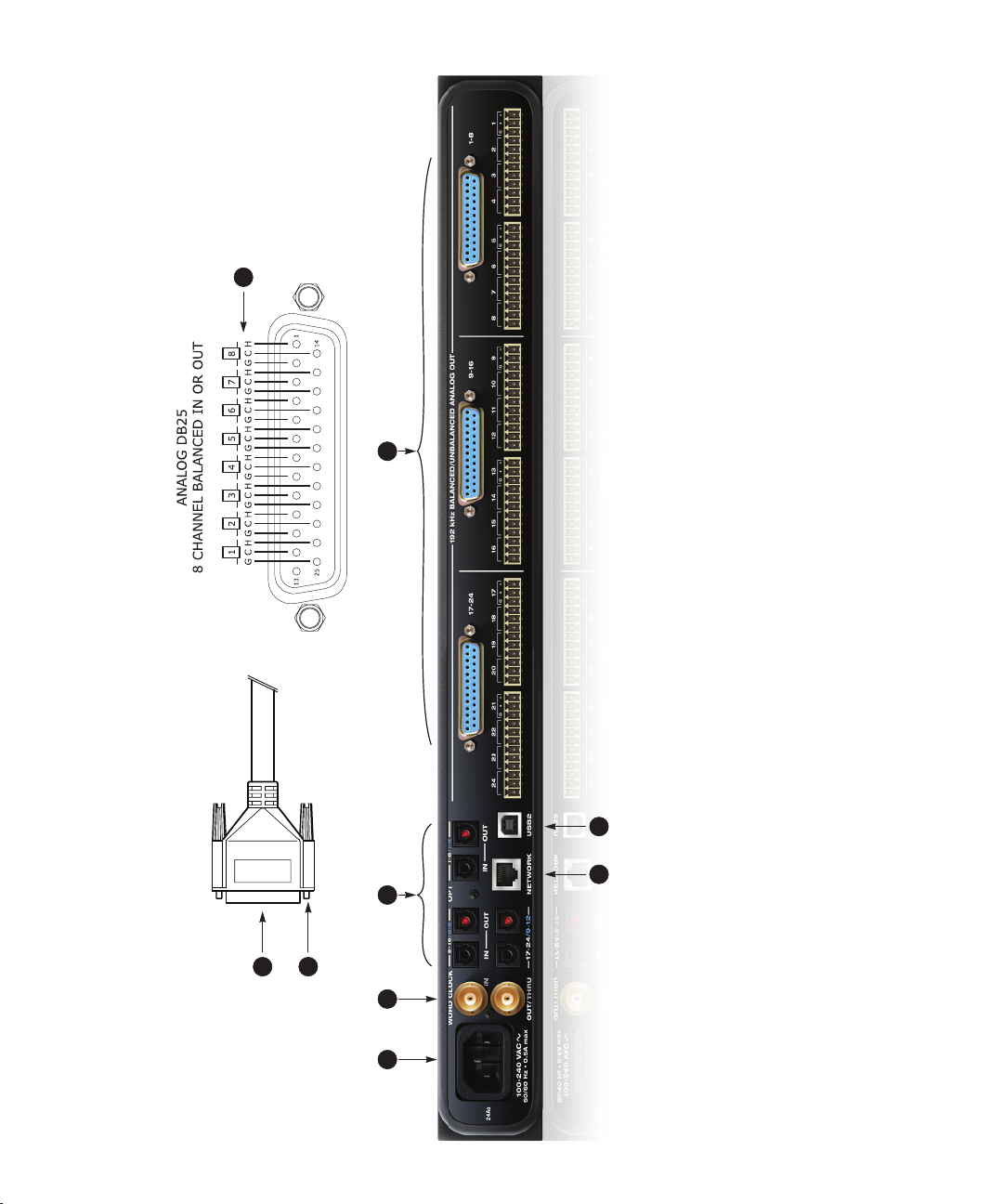
24Ao Rear Panel
9
threading (not metric threading).
7. Use a standard (AES-59) Panasonic/Tascam DB-25 cable.
8. Make sure the retaining screws have standard 4-40
9. These are the pin-outs for the D-sub connector.
4
Another 24Ao or any other MOTU AVB-equipped device,
such as the 1248, 8M, 16A or 24Ai audio interfaces. ■A standard Ethernet hub or WiFi router (for internet
connection and communication with the MOTU AVB
Control web app software).■A standard AVB Ethernet switch for high-speed, low-
latency, high-capacity audio connectivity to an AVB
802.1 network connectivity to other network devices.
Examples include:
6. The AVB Ethernet port provides industry standard IEEE
■
audio network.
5
balanced analog output. You can use either a standard
8-channel Panasonic/Tascam format DB-25 cable or the
two 4-channel Phoenix connectors. DO NOT connect both
the D-sub and Phoenix connectors for a bank at the same
time. You can, however, use different connectors across
banks, if needed (for example, D-sub for channels 1-8
and Phoenix for channels 9-16). The pin-outs for the
Phoenix connectors are indicated on the label of the
connector; for the D-sub pinouts, see Appendix D, “D-sub
Connector Specifications” page (83).
using a standard USB cable. You can connect it to a
6
7
8
4. These three 8-channel banks provide 24 channels of
USB 2.0 or 3.0 port on the computer.
5. Connect the 24Ao to the computer with this USB 2.0 port
1 2 3
tional power supply.
tions, such as digital transfers with devices that cannot
slave to the clock supplied by their digital I/O connection
with the 24Ao.
channels of 24-bit ADAT optical digital I/O at 1x sample
rates (44.1 or 48 kHz) and 12 channels at 2x sample rates
(88.2 or 96 kHz). They are disabled at higher sample
rates. The IN and OUT ports on the right provide channels
1-8 (or 1-4), the left-hand ports provide channels 9-16
(or 5-8), and the third bank below provides channels
1. The 24Ao is equipped with an auto-switching interna-
2. BNC word clock jacks. Use them for a variety of applica-
3. These three ADAT optical “lightpipe” jacks provide 24
17-24 (or 9-12).
Page 13
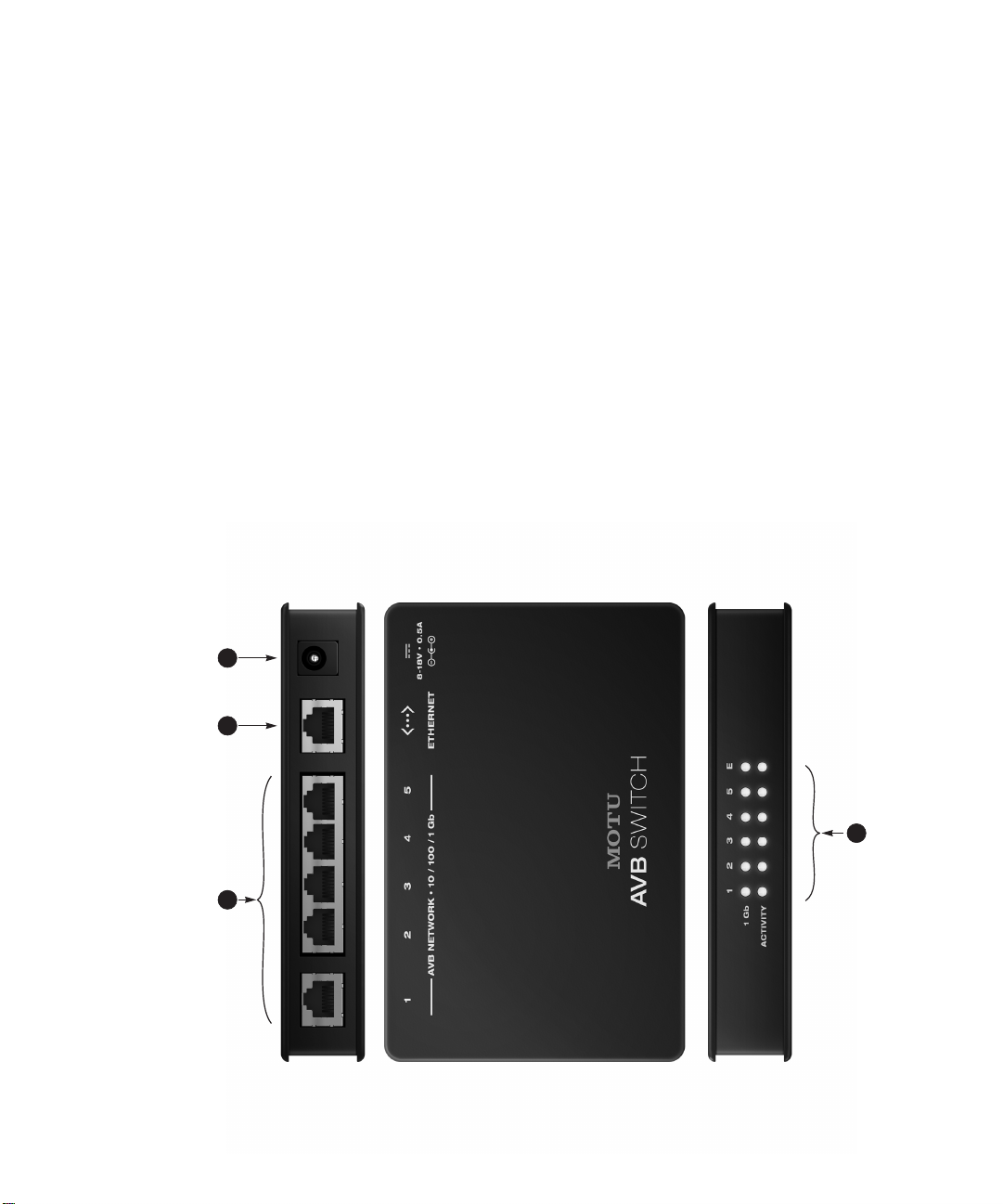
MOTU AVB Switch
MOTU AVB interfaces (1248, 8M, 16A, 24Ai, 24Ao)
Another MOTU AVB Switch (to extend the network)
A 3rd-party AVB switch
An Ethernet device, Wi-Fi router or Ethernet network
A third-party AVB device
device, Wi-Fi router or Ethernet network. DO NOT connect AVB devices to this port; it does
not support AVB.
supply that conforms to the indicated specifications.
■
■
■
■
1. Use these 1 gigabit AVB NETWORK ports to connect any of the following:
■
2. This standard Ethernet port can be used to connect a standard 10/100/1Gb Ethernet
connected to a port , the 1 Gb LED illuminates.
3. Connect the included 15V DC power supply here. Alternately, you can use any power
4. The front panel LEDs indicate signal activity for each port. When a 1 gigabit device is
NOTE: When making network connections, use shielded CAT-5e or CAT-6 cables (a higher
grade cable). For local connections, patch cables can be used, but will reduce the maximum
total cable run length.
No configuration is necessary. The switch configures itself and manages all device
discovery, configuration, and system resource allocation.
The switch establishes and maintains extremely accurate timing and synchronization
among all connected devices.
The switch negotiates audio routing throughout the network and guarantees that audio
integrity is maintained, regardless of external (non AVB) network traffic.
■
The MOTU AVB Switch provides deep functionality that goes beyond
a standard Ethernet switch.
■
The switch consolidates audio, synchronization, and control together.
■
■
For more information, see chapter 9, “Networking” (page 67).
21 3
4
Page 14

14
Page 15
MOTU AVB Control Web App
CHAPTER
OVERVIEW
MOTU AVB Control is a web app that gives you
comp lete cont rol over your MOTU aud io inter face.
If you have several MOTU AVB interfaces
networked together, such as the 24Ai and 24Ao,
you can control them all. If you are working with a
large-scale network of many MOTU AVB
interfaces, you can access and control any device
on the network.
IT’S NOT ON YOUR HARD DRIVE
The MOTU AVB Control web app is served from
the audio interface hardware itself, therefore it is
not an application on your computer’s hard drive.
Instead, access it by using the MOTU AVB
Discovery Application, or through your web
browser by t yping your MOTU device’s IP Address
into the address bar.
USE YOUR FAVORITE WEB BROWSER
The MOTU AVB Control web app runs in any
modern web browser on any device connected to
your MOTU interface, either directly or wirelessly
through a WiFi network. You can use any device
you w ish: a desktop computer, laptop, iPad, tablet,
iPhone or smar t phone. If it can r un a web browser,
it can run the web app. You can use any browser
you prefer: Chrome, Firefox, Safari, IE 11 etc. The
latest versions are strongly recommended.
CONTROL FROM MULTIPLE DEVICES
You can run the web app on multiple host devices
simultaneously.
RUN THE INSTALLER, GET THE APP
Visit www.motu.com/avb to get the latest MOTU
AVB installer and run it on your computer to install
MOTU AVB Discovery app and drivers. Visit the
the
Apple App Store to download the discovery app
onto your iPad or iPhone.
MAKE HARDWARE AND NETWORK CONNECTIONS
Connect your MOTU interface to your computer
or laptop with a USB cable. Make sure your iPad,
iPhone, tablet or smartphone is connected to the
same WiFi network as your computer or device.
You can use any network connection scenario
explained in “Setup for web app control” on
page 38.
LAUNCHING THE WEB APP
To launch the web app, do any of the following:
■
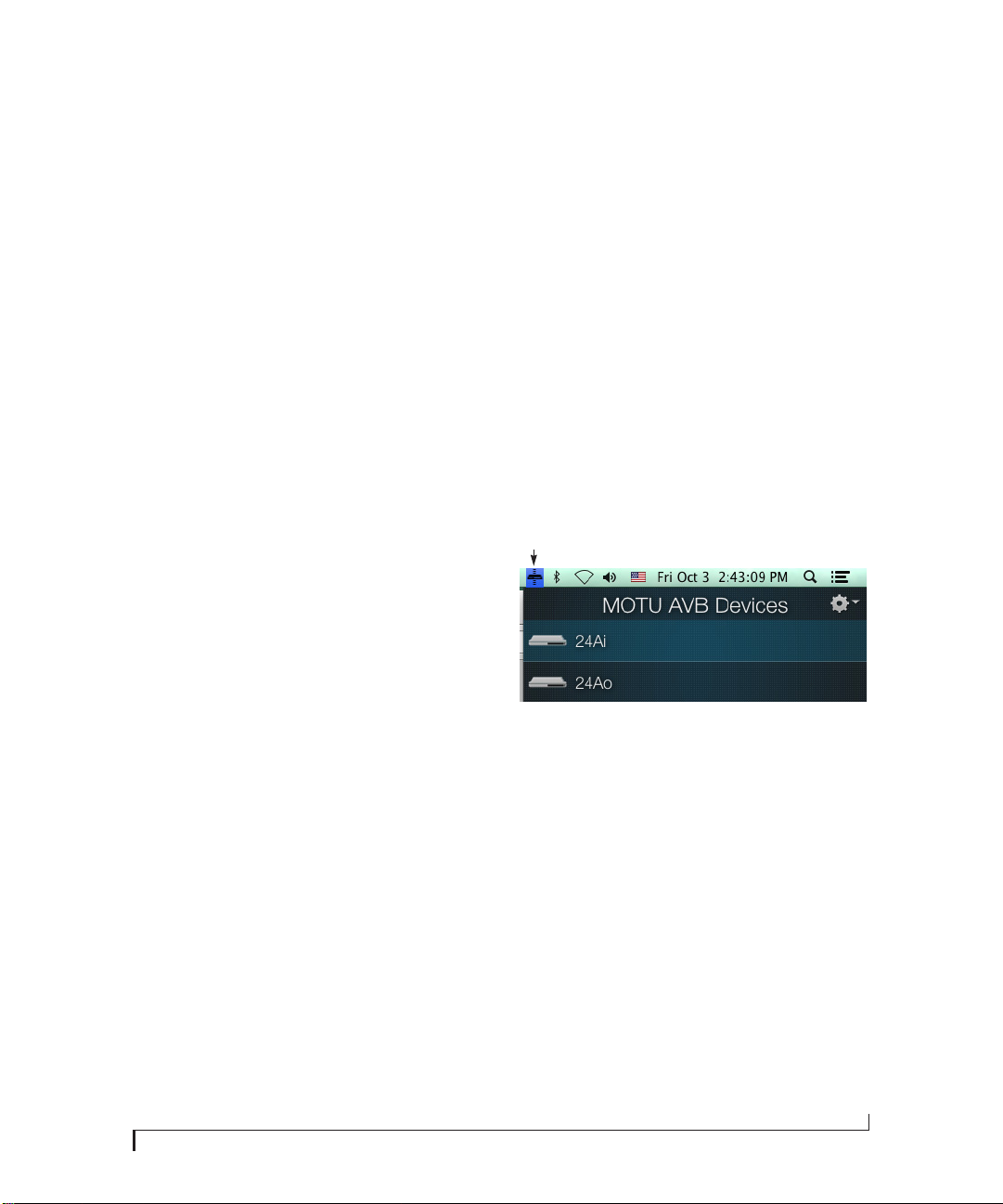
From your computer, choose your MOTU
interface from the MOTU AVB Discovery app
menu, as shown below. If you have multiple
interfaces, choose the one you want.
■
From your iPad or iPhone, launch the MOTU
AVB Discovery app.
■
From any web browser on any host (computer,
tablet, etc.), type in the IP address or .localname of
your MOTU AVB interface. See below for how to
obtain the IP address.
You should now see the MOTU AVB Control web
app in your browser, as shown on page 16. If not
visit Appendix A, “Troubleshooting” page (75).
Obtaining your MOTU device’s IP address
On the front panel of the interface, push the ID
knob or button once. The LCD now displays the
unit’s I P add ress , which sh ould lo ok some thing like
“IP Address: 192.168.1.209”.
this:
15
Page 16
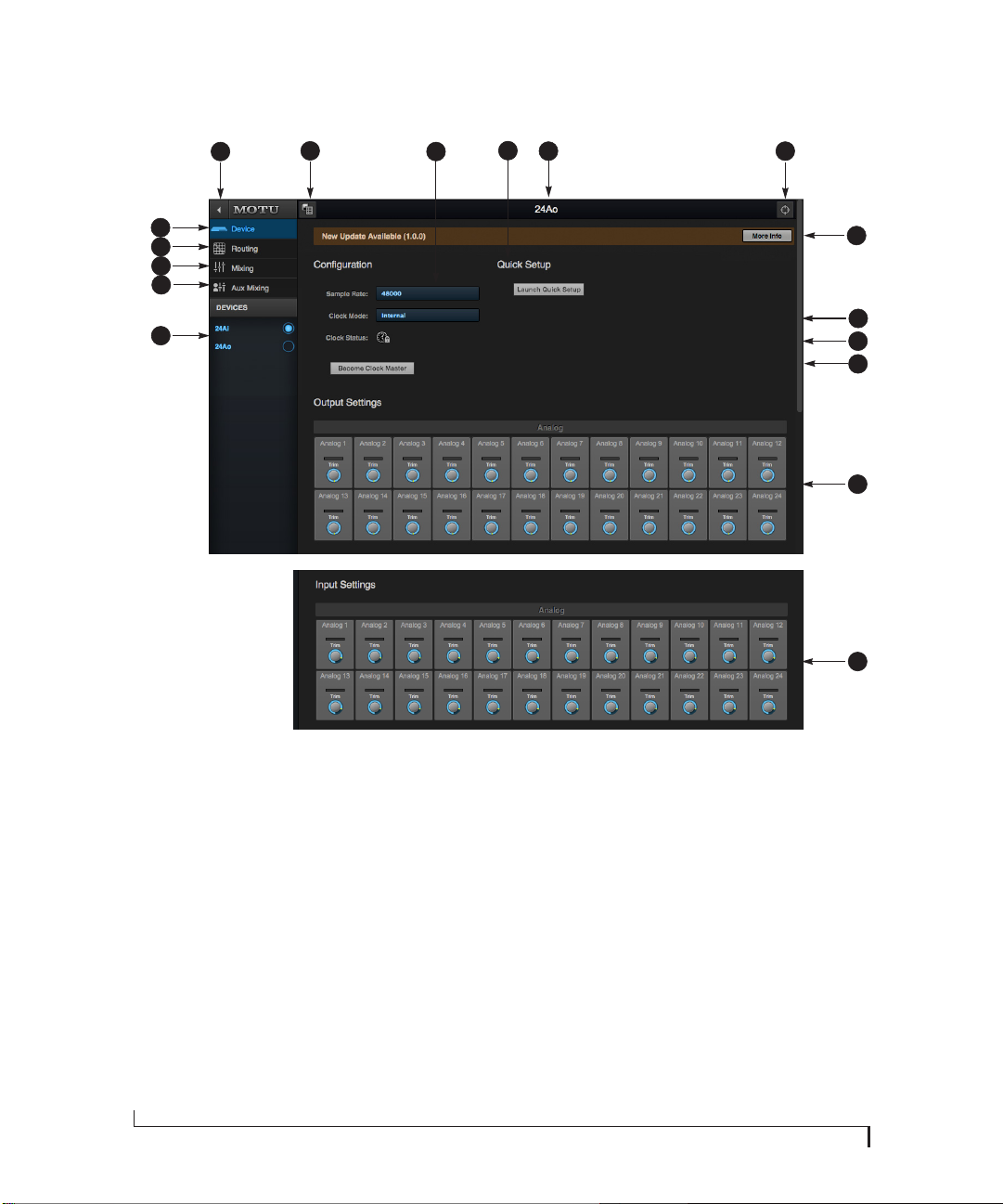
DEVICE TAB
6
7
8
5
4
9
10
11
12
3
2
13
1
14
15
16
17
1. If you have two or more MOTU AVB
interfaces, the Device list lets you
choose the one you are currently
controlling with the web app.
2. The Aux Mixing tab lets you view
each Aux bus in the mixer, one at a
time.
3. The Mixing tab gives you access to
the mixing and DSP in the interface.
4. The Routing tab displays a grid
matrix, where you can make direct
connections between inputs and
outputs, your computer, the mixer,
and network audio streams, if
networked interfaces are connected.
5. The Device tab has settings for the
hardware itself, such as mic input
phantom power and preamp gain.
16
6. Expands and collapses the sidebar.
7. Lets you create, save, recall and
manage presets for your MOTU AVB
interface. These presets capture and
recall the complete state of the
device (all settings in all tabs).
8. Choose the desired sample rate.
9. The Quick Setup button prompts
factory presets used to configure
your interface for a specific application. See chapter 5, “Presets”
(page 45).
10. Click to rename the interface. To
restore the default name, delete the
current name.
11. Click this device ID button to identify
the unit you are currently viewing
and controlling with the web app
software. The front panel LCD on the
hardware itself will flash the name
of the device, and its name will also
flash in the Device list (1).
12. If an update is available for your
device, and the computer you are
viewing it from is connected to the
internet, you’ll be notified here. Click
More Info to learn what’s new and
start the update process.
13. Choose the clock source from the
Clock Mode menu. Your MOTU device
will resolve its digital clock to this
master source. See “Synchronization” on page 40.
14. Indicates that the current device (1)
is successfully resolved to its chosen
Clock Mode source (13). If it cannot
MOTU AVB CONTROL WEB APP
lock for some reason, this icon
flashes red. Check your chosen clock
so urc e, ca bl es, e tc.
15. If you have multiple MOTU AVB
interfaces, one of them may serve as
a master clock source for the
network. Click this button to choose
the current interface (1) as the
master clock source.
16. These are the Output Settings for
the 24Ao, which provide 32 bit trim
in the DACs from zero to -24 dB.
17. These are the Input Settings for the
24Ai, which provide digitally
controlled analog trim from -96 to
+22 dB.
Page 17
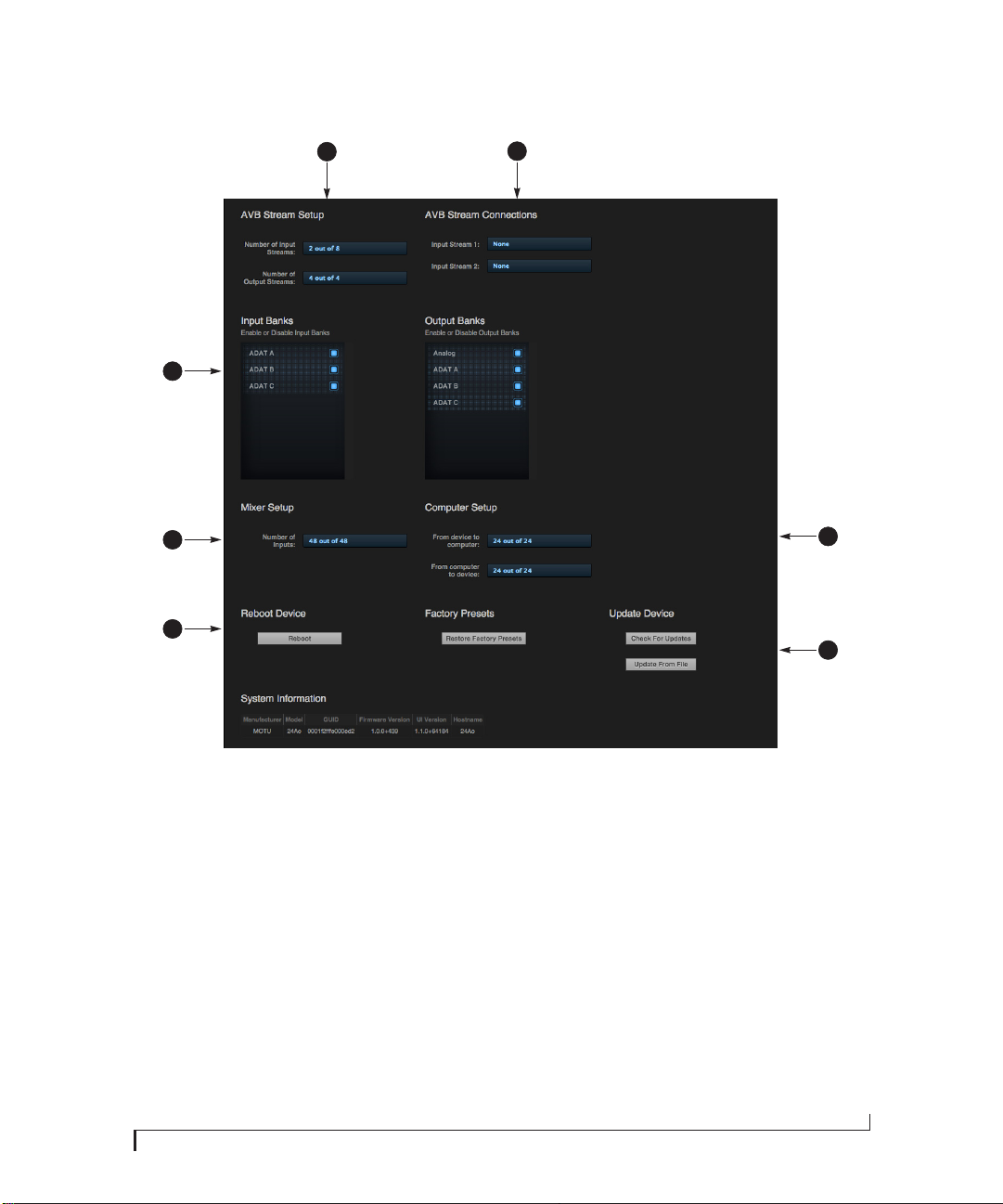
DEVICE TAB (CONTINUED)
19
20
18
24
23
21
22
Scroll down to view these additional
Device tab settings.
18. In the Input/Output Banks sec tions,
you can disable any banks that you
are not using. Doing so hides them
from the routing matrix and mixer to
simplify operation. Doing so also
helps conserve DSP resources.
AVB is IEEE’s Audio Video Bridging
19.
Ethernet standard for highbandwidth, low-latency audio
streaming over Ethernet. If your
24Ai or 24Ao is connected to a 2nd
MOTU AVB interface through its
network port, or to an AVB switch for
MOTU AVB CONTROL WEB APP
access to an extended AVB network,
you can stream audio channels to
other destinations on the network.
AVB streams are handled in banks of
eight channels, so if you enable 8
out of 8 streams, that’s 64 channels.
See chapter 9, “Net working”
(page 67).
20. If you have AVB network input
streams enabled, connect them to
the output streams of other devices
on the network here.
21. In the Computer Setup section, you
can specify how many audio
channels you would like to be able to
stream to and from your computer,
up to 24 channels each way, simultaneously. Map them as desired in
the Routing tab (page 18).
22. Use these buttons to manually check
for and install updates for your
MOTU AVB device. For complete
details, see Appendix E, “Updating
Firmware” page (85). Updating from
a file can be done offline from your
computer, using an update you’ve
obtained through MOTU’s web site
or tech support department. The
Check For Updates button requires
that the computer (or device) you
are using to view your MOTU AVB
interface is connected to the internet through a local network or WiFi.
Updating from the internet is easy
and convenient.
23. Use these buttons to reboot (restart)
the device, or restore its factory
presets.
24. The digital mixer in your MOTU AVB
interface supports up to 48
channels. If you don’t need that
many inputs, you can lower the
number here to simplify mixer and
routing operation and conserve DSP
bandwidth for effects processing.
17
Page 18
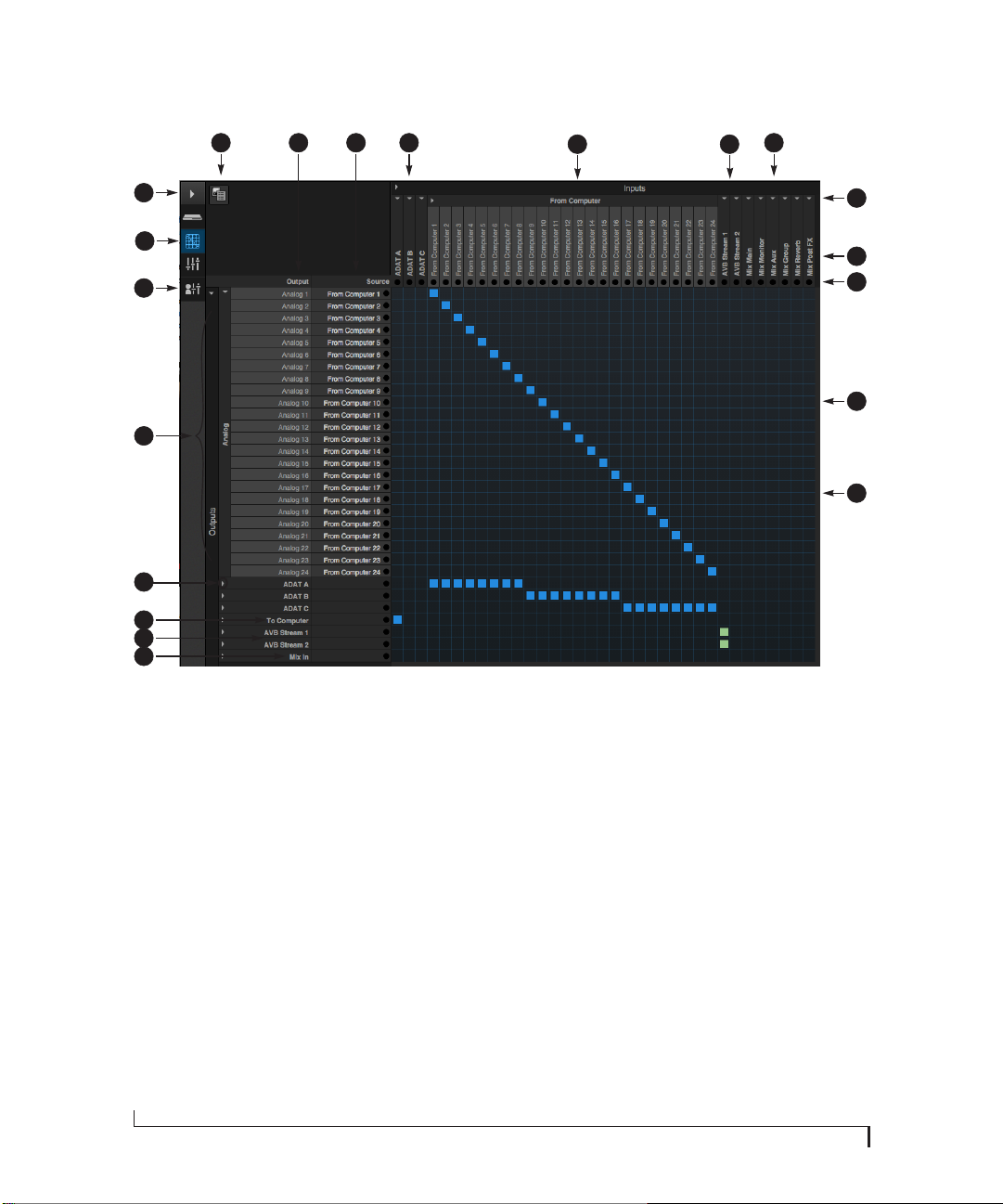
ROUTING TAB
3
2
1
20
19
18
17
16
The Routing Tab lets you route inputs to
outputs. Outputs are listed by row on the
left; inputs are listed in columns across
the top. Simply click in the grid to make
a single connection. Click and drag to
make multiple connections in one
gesture. To route a single input to multiple outputs, make multiple connections
vertically in the same column below the
input. To mix multiple inputs to the
same output, you’ll need to use the
mixer (page 19) and the
the routing tab (16).
1. In its collapsed form, (shown here),
the sidebar displays icons for each
tab.
2. Click this icon to view the Routing
tab, shown on this page.
3. Click here to show or hide the
sidebar.
4. Create, save, recall and manage
routing presets.
5. Outputs are listed in rows on the left.
18
Mix In bank in
54 7
6
6. When you make a connection, the
source (input) signal is listed by
name here in the Source column,
just to the right of the output it is
being routed to.
7. Inputs are listed in columns across
the top of the grid, starting with the
physical inputs on the hardware
itself. In this example, each
8-channel ADAT optical bank is
collapsed. In the grid below, in the
first column, you can see that Bank A
input is routed to the computer.
From Computer input bank lets
8. The
you route audio channels from your
host audio software to any output,
including AVB network streams or
the mixer. In this example, all 24
computer output channels are
routed to the 24Ao analog outs. Use
the Device tab to choose how many
computer channels are available.
9. AVB streams are 8-channel banks
that let you route audio to or from
other devices on the AVB network (if
any are connected) to local
hardware inputs and outputs. Use
8 9
10
11
12
13
14
15
the Device tab (page 17) to configure how many AVB streams you wish
to work with. If you aren’t working
with network audio, you can set the
number of streams to zero (0).
10. These input streams are busses that
originate from the mixer, which
supplies the main mix bus, monitor
mix bus, seven stereo aux busses,
three stereo group busses, a reverb
return bus and postFX channel sends
(for sending processed inputs to the
computer or elsewhere). You can
route these mixer busses to any
outputs you wish (5), including
physical outputs, host software on
your computer, other devices on the
AVB network, or even back in to the
mixer (beware of feedback loops!)
11. Use these triangles to expand or
collapse groups of inputs. For
example, it might be convenient to
collapse banks that you are not
using at the moment.
12. Click a channel label to rename it.
13. Audio activit y indicators.
MOTU AVB CONTROL WEB APP
14. Click the grid to make a connection.
Click a connection to remove it. Click
and drag to make or break multiple
connections in one gesture.
15. In this example, all 24 channels from
the computer are routed to the 24
analog outputs on the 24Ao. In
addition, all 24 computer channels
are simultaneously being routed to
the three ADAT banks, for 24
channels of digital output.
Mix In group lets you route audio
16. The
to the 48-channel mixer.
17. These AVB output streams let you
route any audio to other devices on
the AVB network.
To Computer output bank routes
18. The
any input to host audio software
running on your computer. Use the
Device tab to choose how many
computer channels are available.
19. Use these triangles to expand or
collapse groups of outputs.
20. These are the physical outputs on
the interface itself.
Page 19
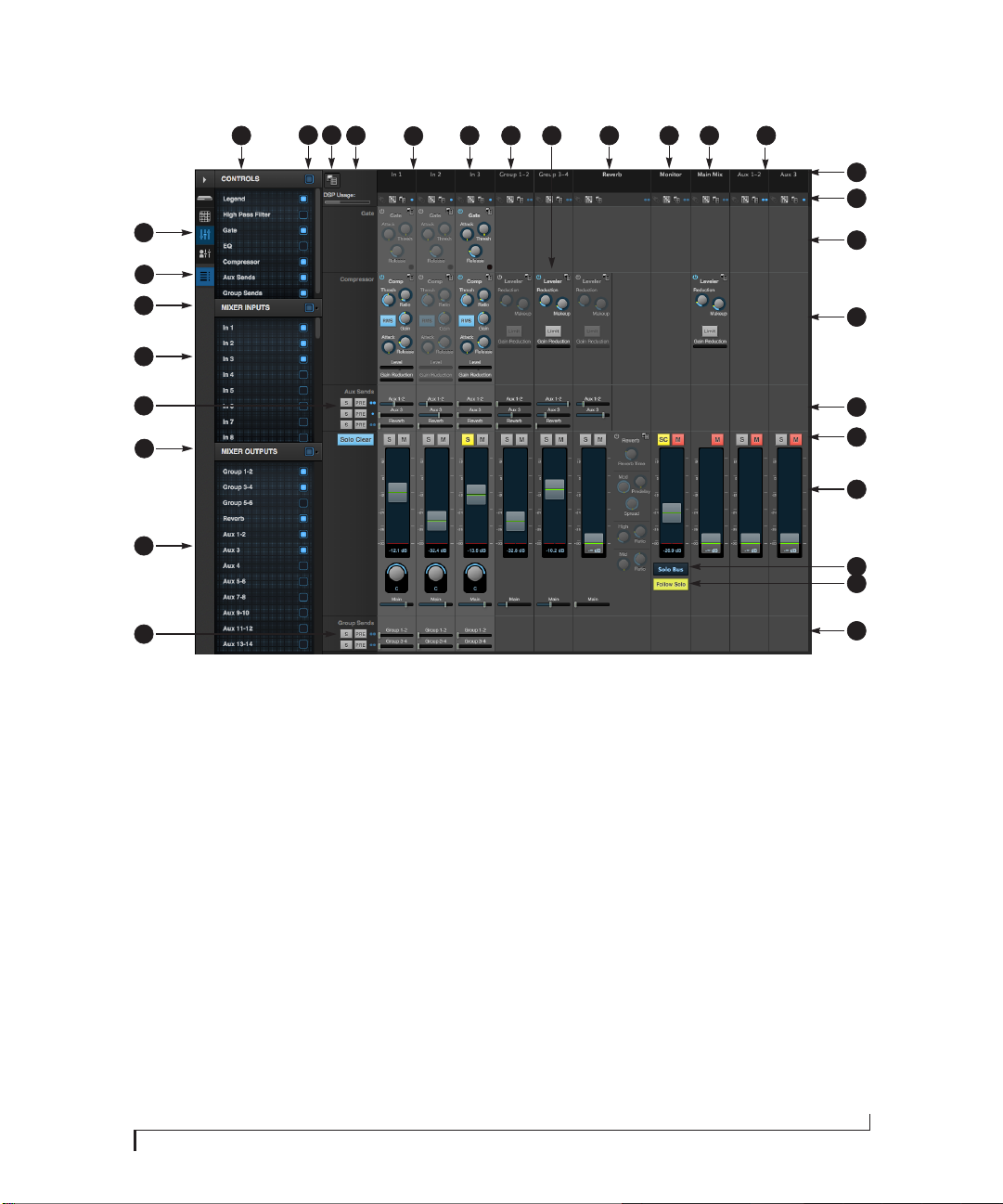
MIXING TAB
4 5
6
7
93 13 14
8 10 11 12
15
16
2
1
30
29
28
27
26
25
The Mixing tab gives you full access to
the 48-channel mixer in your MOTU AVB
interface, which provides a main mix
bus, monitor bus, three group busses,
seven aux busses, and a dedicated
reverb bus. Use the Device tab to configure how many inputs you wish to work
with (up to 48). Use the Routing tab
(page 18) to route channels to the mixer
inputs. Channels can come from any
source, such as the physical inputs on
the interface, channels coming from the
computer, or channels coming from the
AVB net work .
1. Shows and hides the Mixer Setup
sidebar (3), which lets you show and
hide channels, channel strip
settings, effects, and the Legend (6).
2. The Mixing tab selects the mixer.
3. Use the Mixer Setup sidebar to show
and hide elements in the mixer.
4. Shows and hides all elements in the
section with one click.
5. Create, save, recall and manage
mixer presets.
SC
6. This column is the Legend. It
provides labels and controls for
channel strip sections. The menu at
the top lets you create, name, save
and manage entire mixer presets.
7. Mixer input channels.
8. This input channel has its Gate and
Compressor enabled. Disabled
effects are grayed out.
9. This is Group bus 1-2. You can send
inputs to this group with their Group
send fader (24). Groups are sent to
the Main Mix with its Main send
fader (24) or aux busses (19).
10. Group buses, the main mix bus, and
the reverb return bus are equipped
with the Leveler, a vintage compressor modeled after the Teletronix
LA-2A leveling amplifier.
11. The reverb channel strip provides
controls for the reverb processor. Use
the reverb send on individual inputs
or groups to route them to the
reverb bus, which can then be mixed
in with the main mix or aux busses.
Disable the reverb processor to use it
as an extra group.
12. The Monitor Bus can mirror the
output of any other bus, or it can act
as a separate Solo bus. See page 24.
13. The Main Mix bus is the master fader
for the entire mixer. You can add EQ
and Leveler compression.
14. You can adjust Aux bus output levels
here, or in the Aux Mixing tab shown
on page 20.
15. Click a name to change it, except for
the Main Mix, Monitor, and Reverb
busses, which cannot be changed.
16. Stereo toggle to switch channels
pairs between mono or stereo. Use
the other menus to manage channel
strip presets and to choose audio
sources and destinations for mixer
inputs and bus outputs.
17. Gate processing for inputs.
18. The Dynamics sec tion provides a
conventional compressor for inputs
and the Leveler for output busses.
17
18
19
20
21
22
23
24
19. Reverb and aux sends.
20. Solo and mute. On the Monitor bus,
button clears all solos.
the
21. Channel faders.
22. Choose the source for the Monitor
bus from this menu. It can mirror
any output bus or the Solo Bus.
Follow Solo is enabled, the
23. When
Monitor bus temporarily switches to
the solo bus when any channel is
soloed.
24. Group sends.
25. ‘S’ lets you solo the group. ‘PRE’
toggles the sends between pre- and
post-fader routing, i.e. before or
after the channel fader.
26. Show and hide output busses here.
27. Show/hide all busses with one click.
28. S ame as (24) above.
29. Show and hide inputs here.
30. Show/hide all inputs with one click.
MOTU AVB CONTROL WEB APP
19
Page 20
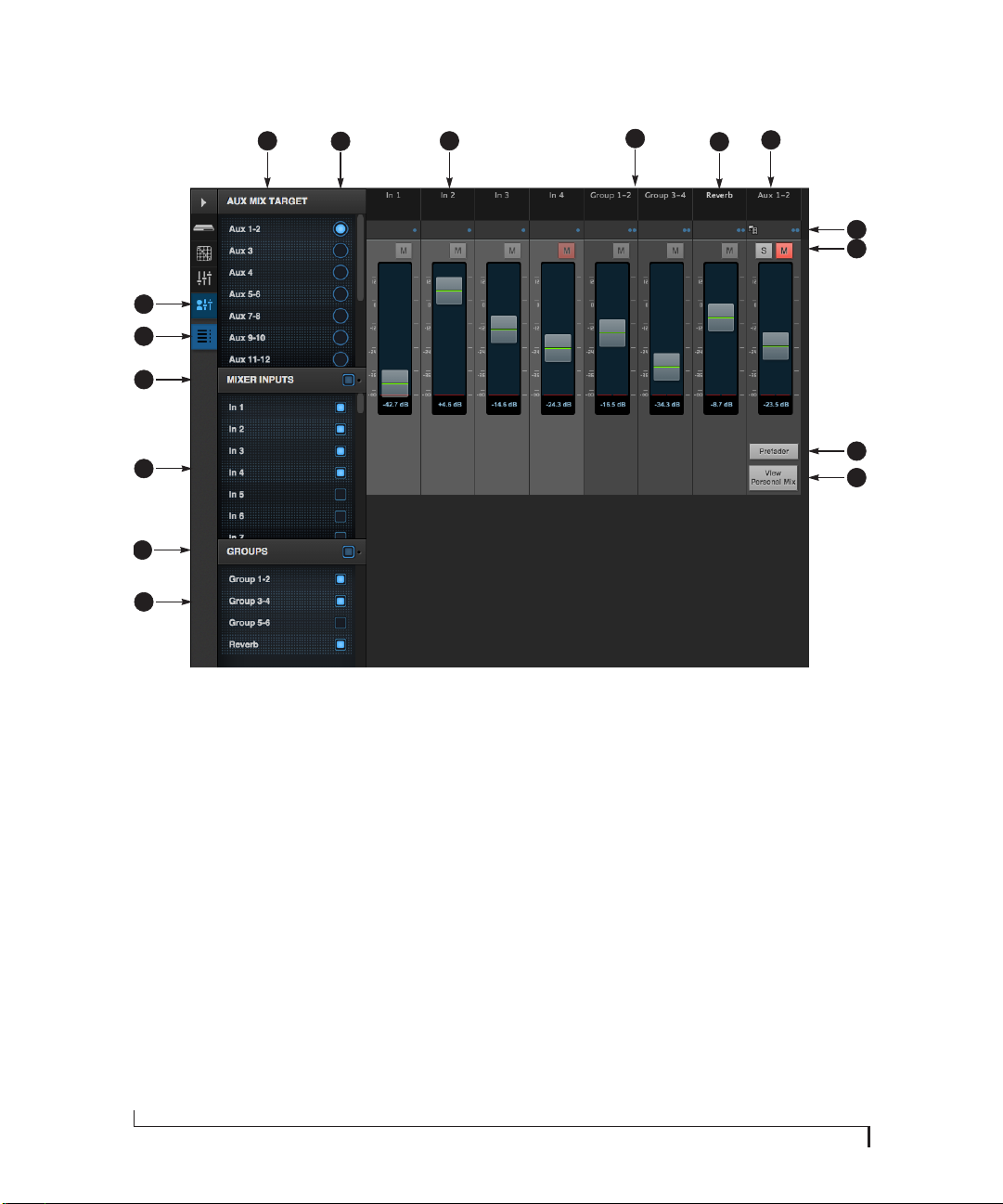
AUX MIXING TAB
2
1
16
4
53
6
8
7
9
10
15
14
13
The Aux Mixing tab provides quick
access to your MOTU AVB interface’s mix
busses (aux busses, groups and reverb
bus), viewed one at a time. Choose a bus
in the Aux Mix Target section and then
use the faders to directly mix the send
levels from all mixer inputs, groups, and
the reverb bus.
1. Shows and hides the Mixer Setup
sidebar (3), which lets you show and
hide channels.
2. The Aux Mixing tab (shown on this
page) gives you access to the Aux
busses and groups in the mixer.
Aux Mix Target sidebar to
3. Use the
control which aux bus or group you
are currently viewing. You can also
show/hide inputs and group sends.
4. Click the aux bus or group you wish
to view in the window. In this
example, Aux bus 1-2 is being
displayed.
5. These are mixer inputs (aux sends
from each mixer channel). To include
an input in the aux bus mix, simply
bring up its fader.
6. These are group bus faders.
7. This is the mixer’s reverb bus fader.
8. This is the master fader for the
current aux bus being viewed (4).
9. Indicates if the input or group is
stereo or mono. Each channel’s
mono/stereo status cannot be
toggled (unlike MIXING page).
10. Solo and mute for the aux bus
master fader.
Prefader is enabled, all send
11. When
levels to the aux bus are independent of the main fader for each
channel. In other words, changing
an individual channel’s main fader in
the Mixing tab won’t affect its send
level to the aux bus.
11
12
12. Click the View Personal Mix button
to open a new web page that
displays only that specific Aux Mix or
Group.
13. Show and hide mix groups and the
reverb bus here.
14. Use the Groups button here to show
or hide all groups with one click.
15. Show and hide mixer inputs
(channel sends) here.
16. Show and hide all mixer inputs with
one click here.
20
MOTU AVB CONTROL WEB APP
Page 21
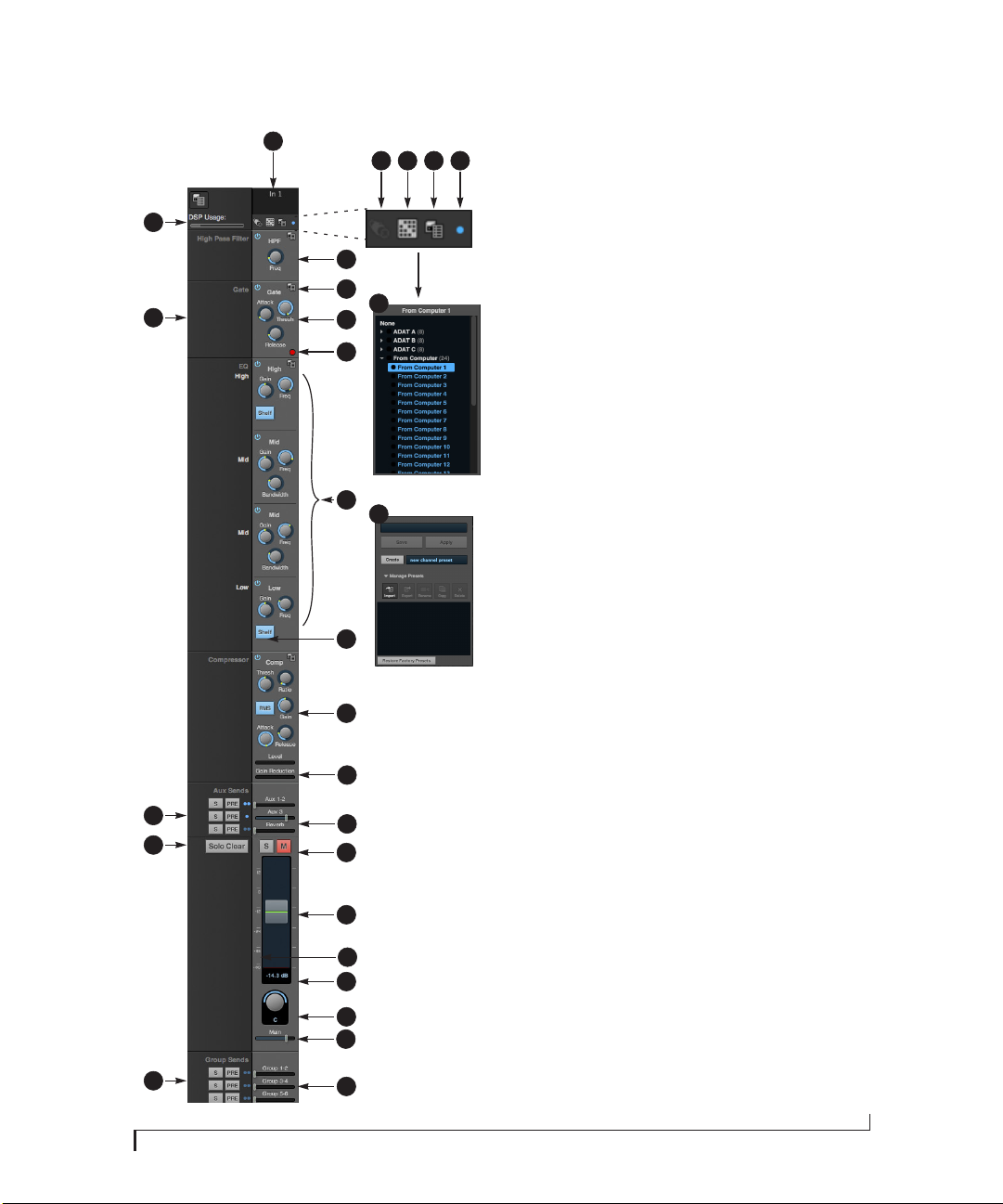
MIXER INPUT CHANNEL STRIPS
1
2 3 4 5
26
6
7
25
3
8
9
10
4
11
12
13
24
23
14
15
16
17
18
19
20
22
21
To access a mixer input channel strip, go
to the Mixing tab (page 19), reveal the
side bar (item #3 on page 19), and then
show the input channel you want in the
Mixer Inputs section (29).
To show and hide sections of the channel
strip, such as EQ or the compressor, use
Contro ls section of the side bar (item
the
#3 in the mixer tab on page 19).
1. Click the input channel name to
change it. Delete the current name to
restore the default name.
2. Provides hardware settings for
inputs, if any, on other MOTU AVB
interfaces. In the case of the 24Ai and
24Ao, this is grayed out because there
are no hardware settings for inputs.
3. Choose the source for the input
channel. You can also make this
setting directly on the Routing grid
(page 18).
4. Create, name, save and recall channel
strip presets.
5. Toggles the input between mono and
a stereo pair.
∞
∞
6. High Pass Filter with cutoff frequency.
7. Each effect in the channel strip (High
Pass Filter, Gate, EQ, etc.) has an on/
off button (on the left) and a preset
menu on the right, for managing
presets that apply only to that
processing module. For example, you
can create your own EQ presets for the
EQ modules.
8. The Gate processor provides standard
attack, threshold and release
controls.
9. The Gate indicator turns red when the
gate is engaged.
10. The EQ section provides four bands of
parametric EQ, each with standard
Gain, Frequency, and Bandwidth
settings.
11. The High and Low EQ bands provide a
Shelf filter button for standard high
and low shelf filtering.
12. The Compressor provides standard
controls for Threshold, Ratio, Attack,
Release and Gain. Normally, the
compressor operates in Peak mode,
where signal peaks determine the
input level. Engage the RMS button to
uses RMS values (a computational
method for determining overall
loudness) to measure the input level.
13. Input level and gain reduction meters
for the compressor.
14. Aux and reverb sends.
15. Solo/Mute. Mute affects all sends as
well as the main channel. Pre-fader
sends are not affected by Mute.
16. Move the fader to adjust level.
Double-click to return to zero (unity
.
gain) or -
17. Click the dB scale numbers to make
the fader jump exactly to that level.
Click and drag horizontally to jump
consecutive faders to the same level.
18. Click to type in an exact dB level.
19. Channel pan. For mono inputs,
double-click to center.
20. Main Mix Slider is used to feed signal
to the Main Mix. Slider is set to 0 dB
by default, so all channel strips are
pre-routed to the Main Mix bus. If a
channel is being sent to a Group
(which will eventually be fed to the
Main Mix), drag the slider to is not sent to Main Mix directly.
21. Group sends.
22. ‘S’ lets you solo the group. ‘PRE’
toggles the sends between pre- and
post-fader routing, i.e. before or after
the channel fader.
23. Clears all solos.
24. ‘S’ lets you solo the Aux bus. ‘PRE’
toggles the sends between pre- and
post-fader routing, i.e. before or after
the channel fader. The dots let you
toggle the Aux bus between mono
and stereo.
25. This side bar, with the section labels
in it, can be shown or hidden using
Legend switch in the Contro ls
the
section of the side bar (item #3 in the
mixer tab on page 19).
26. Shows how much DSP power is being
used by the mixer hardware. To free
up DSP bandwidth, try reducing the
number of mixer ins, disabling
channel effects, reverb, etc. See “DSP
Usage” on page 66 for more info.
so it
MOTU AVB CONTROL WEB APP
21
Page 22
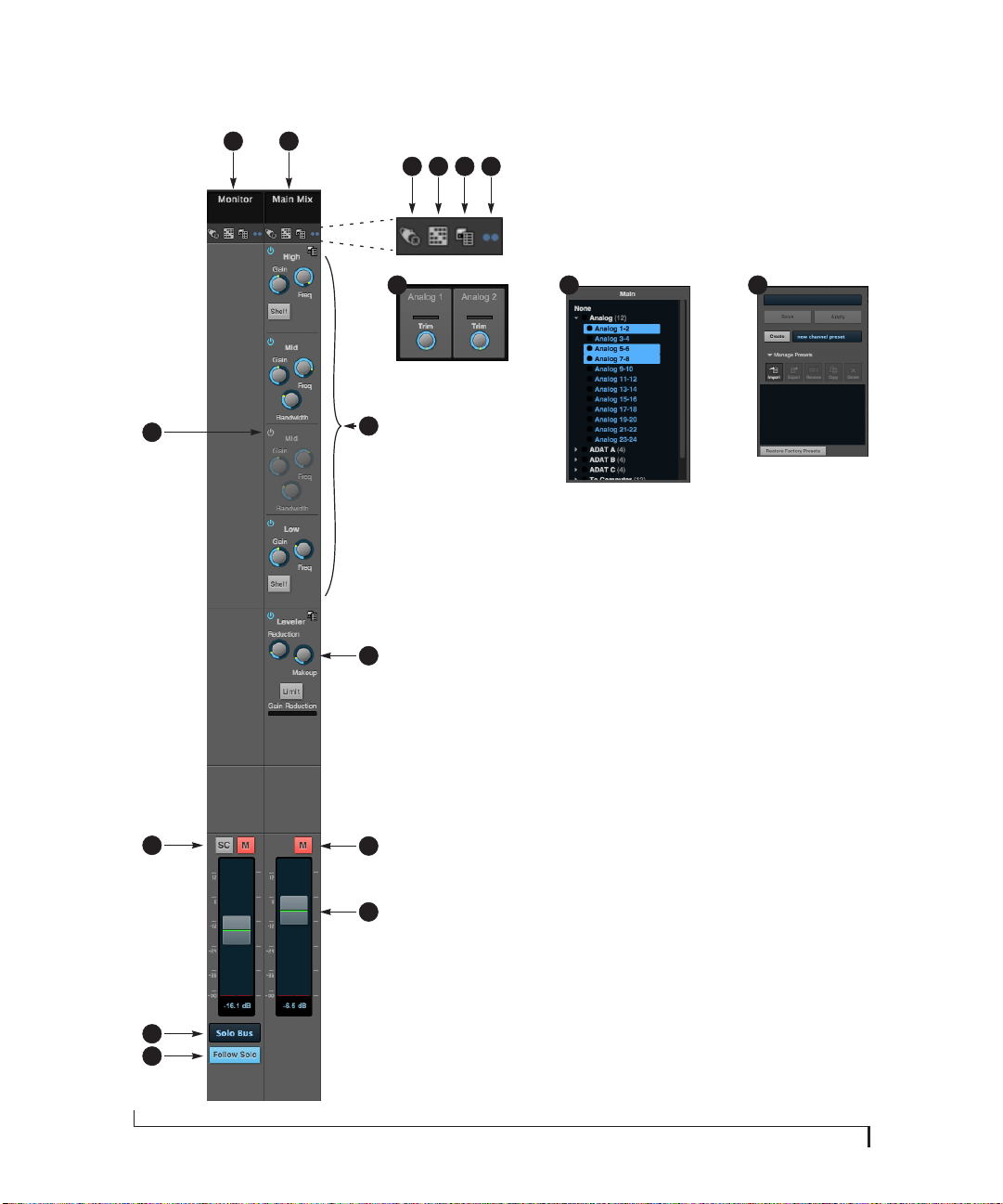
MAIN MIX AND MONITOR CHANNEL STRIPS
1
2
3 4 5 6
3 4
14
13
12
11
7
To access the Main Mix and Monitor
channel strips, go to the mixer tab
(page 19) and scroll the display to the
right, beyond the inputs and groups.
To show and hide sections of the channel
strip, such as EQ or the Leveler, use the
Contro ls section of the side bar (item #3 in
SC
the mixer tab on page 19).
8
9
10
1. By default, the Monitor bus serves as
a solo bus. However, it can be set to
mirror the main mix bus, or any other
aux bus, group, or the reverb bus, in
addition to monitoring solo. Make
this choice in the source menu (12).
Use the Routing grid (page 18) to
specify the output for the Monitor
bus.
2. The Main Mix bus is the primary
stereo mix.
3. Provides hardware settings for any
assigned outputs that have them. For
example, if the Main Mix bus is
assigned to analog outputs on the
24Ao, you’ll see trim settings for the
outputs. This item is grayed out if
there are no hardware settings for
output.
4. Use this output assignment widget to
choose the destination — or multiple destinations — for the bus. You
can also make this setting directly on
the Routing grid (page 18).
5. Use the preset menus to create save,
recall, and otherwise manage
channel strip presets for the Monitor
bus and Main Mix bus.
6. Indicates that the bus is stereo.
7. The four-band parametric EQ for the
8. The Leveler provides specialized gain
9. Mutes for the Main Mix bus and
10. Master faders for the Main Mix bus
11. When
12. Choose the source for the Monitor bus
13. The
14. This mid-band EQ is currently
5
Main Mix bus operates the same as
described for input channels (items
10 and 11 on page 21), including
High and Low Shelf filter options.
reduction modeled after the legendary Teletronix LA-2A Leveling Amplifier. For complete details, see
“Leveler” on page 64.
Monitor bus.
and Monitor bus. Use the same
techniques described for input
channel faders (items 16, 17 and 18
on page 21).
Follow Solo is enabled, the
Monitor bus switches to the solo bus
when any channel is soloed. NOTE: if
an aux bus is soloed, then the Monitor
bus carries only the soloed aux bus
(any current channel solos are
excluded).
from this menu. It can mirror the
main mix, any aux bus, group, the
reverb bus, or it can serve only as a
Solo bus.
button clears all solos.
disabled (and therefore grayed out).
22
MOTU AVB CONTROL WEB APP
Page 23
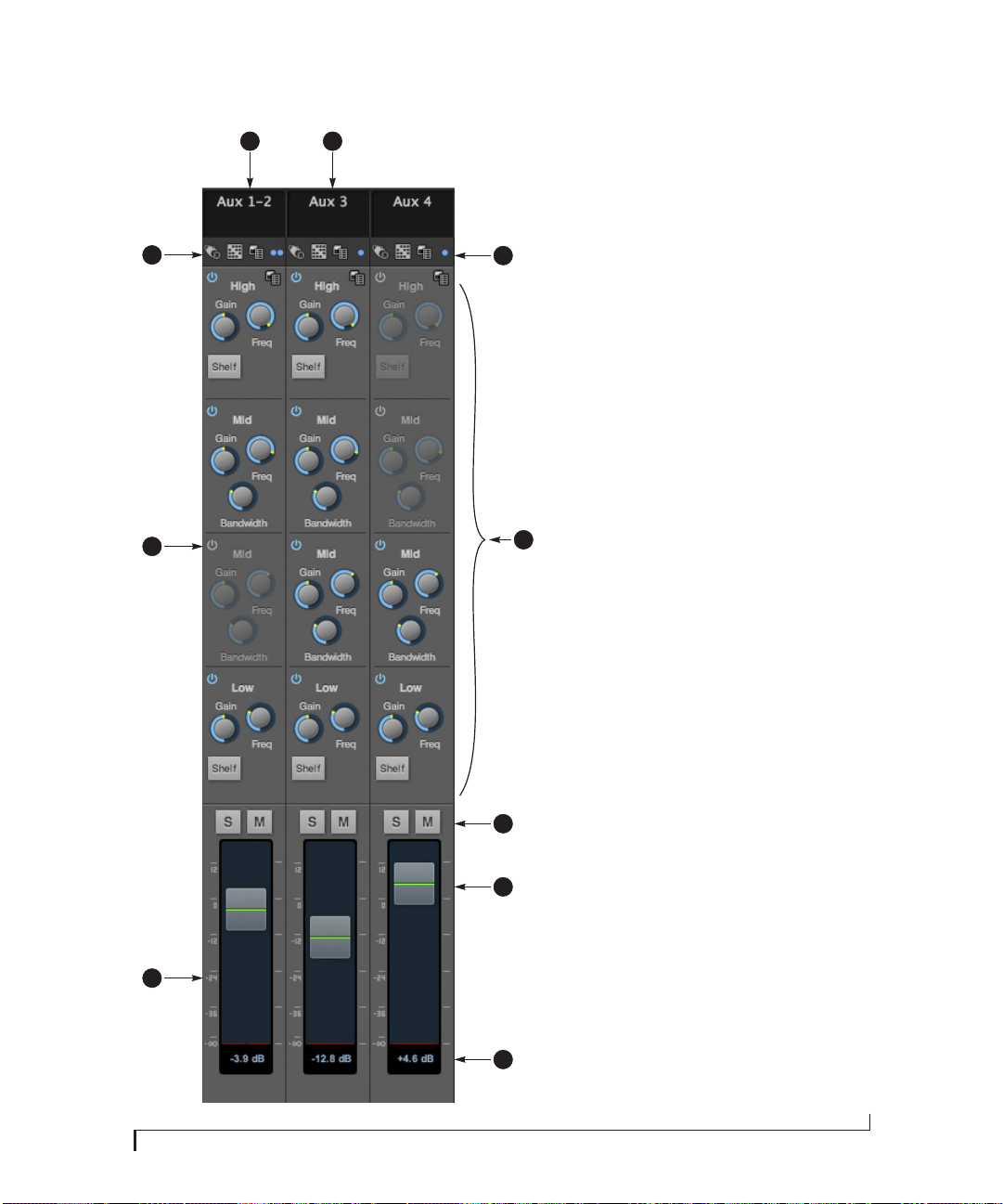
AUX BUS CHANNEL STRIPS
1
10
9
8
2
3
Aux busses can be used to create sub-mixes.
An aux bus can be assigned to any output in
4
5
6
7
the Routing grid (page 18).
To access an Aux bus channel strip, go to the
mixer tab (page 19), reveal the side bar (item
#3 on page 19), and then show the aux busses
you want in the
To show and hide the four-band EQ section of
the channel strip, use the
the side bar (item #3 in the mixer tab on
page 19).
1. A stereo aux bus.
2. A mono aux bus.
3. Click this dot to toggle an aux bus between
4. The four-band parametric EQ module for
5. Aux bus solo and mute.
6. Aux bus master fader.
7. Click to type specific value manually.
8. Click the dB scale numbers to make the
9. A disabled EQ band.
10. Use these menus (hardware settings,
Mixer Outputs section (26).
Contro ls section of
mono and stereo.
Aux busses operates the same as described
for input channels (items 10 and 11 on
page 21), including High and Low Shelf
filter options.
fader jump exactly to that level. Click and
drag horizontally to jump consecutive
faders to the same level.
output assignment, and presets) in a
similar fashion as described for the Main
Out bus (items 3-5 on page 22).
MOTU AVB CONTROL WEB APP
23
Page 24
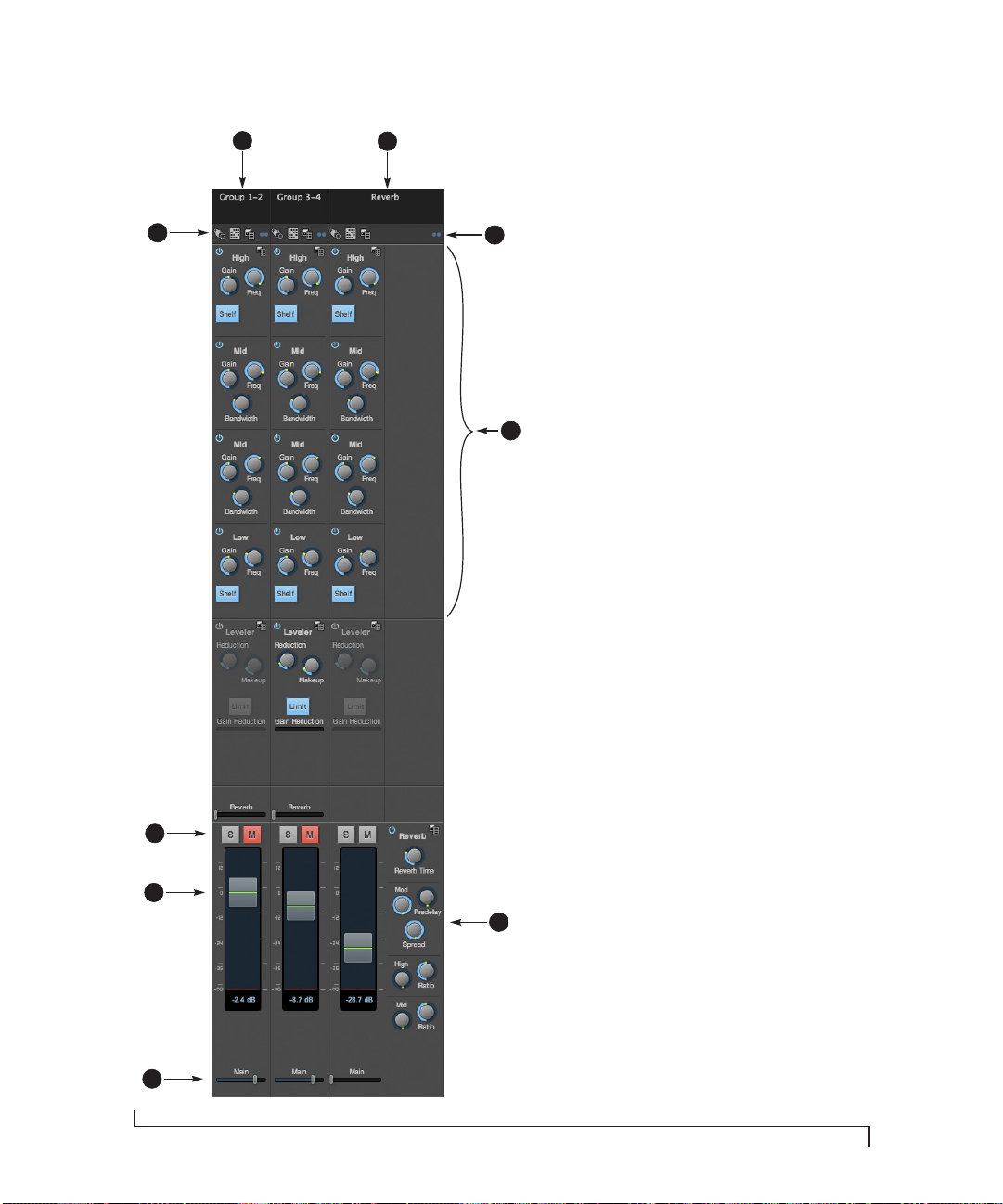
GROUP AND REVERB CHANNEL STRIPS
1
2
9
8
7
6
3
Group busses can be used to create a mix subgroup, which is a set of inputs you wish to
control together as a group. Groups differ from
aux busses in that they have aux sends, a reverb
send, as well as a main mix send. In addition,
group busses are equipped with the Leveler.
The Reverb bus is a special group bus that
4
5
provides a reverb processor. If you disable the
reverb, the reverb bus functions as a (four th)
regular group bus.
To access the Group and Reverb bus channel
strips, go to the mixer tab (page 19), reveal the
side bar (item #3 on page 19), and then show
the desired Group busses or Reverb bus in the
Mixer Outputs section (26).
To show and hide the four-band EQ section of
the channel strip, use the
side bar (item #3 in the mixer tab on page 19).
1. A Group bus channel strip. Click the name to
rename it. Delete the current name to return
to its default.
2. The Reverb bus. If you disable the Reverb
processor, it can be used as a fourth Group
bus. The Reverb channel strip is twice as
wide as other mixer channel strips to
accommodate the Reverb processor
controls.
3. Group busses and the Reverb bus are always
stereo.
4. The four-band parametric EQ module for
Group busses and the Reverb bus operates
the same as described for input channels
(items 10 and 11 on page 21), including
High and Low Shelf filter options.
5. The Reverb processor. For complete information, see “Reverb” on page 65.
6. Main Mix sends.
7. Master faders for the Group and Reverb
busses.
8. Mute and Solo.
9. Use these menus (hardware settings, output
assignment, and presets) in a similar
fashion as described for the Main Out bus
(items 3-5 on page 22).
Contro ls section of the
24
MOTU AVB CONTROL WEB APP
Page 25

CHAPTER
1
About Your MOTU AVB Audio Interface
The 24Ai and 24Ao are hybrid USB2/AVB audio
interfaces with 48-channel digital mixers and AVB
Ethernet networking capability. They can operate
as audio interfaces for a computer, as stand-alone
digital mixers, as gateways to an expanded studio
system, as components of an extended AVB audio
network, or as capable hybrid devices performing
all of these roles simultaneously.
Together, they are designed to be a central
component of a modern, high performance
recording studio or live mixing platform. The
following sections provide a brief overview of their
main features and characteristics.
State-of-the-art A/D and D/A conversion
The analog section of each interface employs stateof-the-art 24-bit DACs or ADCs, which deliver
analog recording and playback with remarkably
high dynamic range at sample rates from 44.1 to
192 kHz.
Complementary I/O configurations
Each interface delivers an exceptional amount of
analog and digital audio. In addition, the interfaces
are designed to complement each other, and
MOTU’s other AVB-equipped audio interfaces, to
deliver a wide range of I/O options; you can mix
and match several interfaces and operate them as a
unified I/O and mixing system. The following
sections provide a bird’s-eye glance of the I/O
configurations offered by each interface in the
MOTU AVB family.
Each interface provides a variety of analog and
digital interconnects, all active simultaneously,
designed to provide everything you need for a wellequipped recording studio.
24Ai
72 simultaneous audio channels
Connection Input Output
Balanced analog on 3x D-sub or 6x Phoenix 24 -
ADAT optical digital (at 44.1 or 48 kHz) 24 24
Total 48 24
24Ao
72 simultaneous audio channels;
Connection Input Output
Balanced analog on 3x D-sub or 6x Phoenix - 24
ADAT optical digital (at 44.1 or 48 kHz) 24 24
Total 24 48
Network I/O
Each interface is also capable of handling
additional 8-channel banks of network audio input
and output for an additional 96 simultaneous
audio channels.
Other MOTU AVB interfaces
The 24Ai and 24Ao are part of a larger family of
audio interfaces, summarized below, with
complementary I/O configurations.
1248
66 simultaneous audio channels
Connection Input Output
Quarter-inch analog on bal/unbal TRS 8 12
Mic inputs with individual preamps on XLR 4 -
Hi-Z guitar inputs 2 -
Headphone output - 2 x stereo
ADAT optical digital (at 44.1 or 48 kHz) 16 16
RCA S/PDIF digital up to 96 kHz with SRC stereo stereo
Total 32 34
25
Page 26

50 simultaneous audio channels
Connection Input Output
Quarter-inch analog on bal/unbal TRS - 8
Mic/guitar inputs on combo XLR/TRS 8 -
Headphone output - stereo
ADAT optical digital (at 44.1 or 48 kHz) 16 16
Total 24 26
16A
64 simultaneous audio channels
Connection Input Output
Quarter-inch analog on bal/unbal TRS 16 16
ADAT optical digital (at 44.1 or 48 kHz) 16 16
Total 32 32
Universal connectivity
The 24Ai and 24Ao can connect to a computer with
high-speed USB 2.0, which is compatible with USB
3.0). They are USB audio class-compliant, which
means that they are iPad compatible (with a
camera connection kit) and do not require driver
installation for USB connection to a computer.
On-board DSP with mixing and effects
Each interface is equipped with a powerful DSP
engi ne that drives both a n ext ensive routing m atri x
and a 48-input digital mixer with 12 stereo busses
and effects. The mixer offers familiar operation
modeled after large format mixing consoles.
32-bit floating point processing
All of the mixing and effects processing in the DSP
engine is handled with 32-bit floating point
calculations, to maintain and deliver virtually
unlimited headroom and the utmost in sound
quality.
Modeled vintage effects processing
Effects include “classic” reverb, compression
modeled after the legendary Teletronix LA-2A
compressor, and 4-band EQ modeled after British
analog console EQs.
AVB system expansion and audio networking
AV B stands for the IEEE 802.1 Audio Video
Bridging Ethernet standard for high-bandwidth,
low-latency audio streaming over Ethernet. The
AVB Ethernet network port on each MOTU
interface lets you add a second AVB-equipped
MOTU interface using any standard CAT-5e
Ethernet cable. You can network up to five MOTU
interfaces together using a MOTU AVB Switch™
(sold separately), and then run them as a standalone network or as an extended bank of I/Os for
your computer-based production system (or
both). You can even connect multiple computers,
each with full access to all devices on the network
(including the other computers).
With additional standard AVB switches (from
8M
MOTU or other brands) and standard Ethernet
cabling, you can build an extensive AVB audio
network. The entire network operates with nearzero network latency, even over very long cable
runs. MOTU’s AVB implementation allows you to
stream hundreds of audio channels among devices
and computers on the network with guaranteed
Quality of Service (QoS), prioritizing audio
streams over less important traffic.
Matrix routing and multing
Each MOTU interface provides completely flexible
matrix-style audio routing and multing. You can
route any analog or digital input, computer
channel, or network stream to any other output,
computer, or network device. You can also mult any
single input to unlimited multiple output
destinations.
26
ABOUT YOUR MOTU AVB AUDIO INTERFACE
Page 27

24 channels of network audio I/O for your host computer
The 24Ai and 24Ao let you stream up to 24 audio
channels in and out, simultaneously, through their
USB connection to a host computer. Sources and
destinations can include inputs and outputs on the
device, inputs and outputs on other interfaces on
the network, and even audio software apps
running on other computers connected to other
devices on the network.
Web app control
You can control on-board DSP, mixing, device
settings, clock/sync settings, and network audio
routing from the MOTU AVB Control web app
software running in your favorite browser on a
laptop, tablet or smart phone connected to your
MOTU interface directly, or through your local
WiFi network. Multiple devices can be used simultaneously to access any audio interface settings on
the network.
Stand-alone mixing with wireless control
If you connect your MOTU interface to an Apple
Airport or other WiFi router with a standard
Ethernet cable, you can control its powerful mixing
and DSP effects from your smart phone or tablet,
without a computer — great for live sound mixing
from your iPad, tablet, or other wireless device.
ADAT digital I/O
The 24Ai and 24Ao interfaces each provide three
8-channel banks of optical digital I/O. Connect
outboard digital processors, digital mixers or other
gear: 24 channels at 44.1/48 kHz or 12 channels at
88.2/96 kHz.
sample rates (from 88.2 to 192 kHz). The word
clock OUT port can alternately be used as a THRU
port for word clock daisy-chaining. To configure,
use the LCD menu to navigate to Settings -> Word
Clock Thru Mode.
Comprehensive metering
The large backlit LCD displays all signal activity at
a glance with detailed metering for all analog and
digital I/O. You can access many hardware settings
directly from the front panel.
Precision Digital Trim™
Analog inputs are equipped with digitally
controlled analog trims, adjustable in 1 dB
increments. Analog outputs offer 32 bit trim in the
DAC, also adjustable in 1 dB increments. You can
save your tr im co nfigu rations as a pre set for instant
recall.
Rack mount or desktop operation
Each interface is housed in a sturdy, metal-alloy,
19-inch, rack-mountable unit. The rack mounting
brackets can be removed using a 7/64” hex wrench
for desktop operation.
AudioDesk
AudioDesk is a full-featured, audio workstation
software package included with the 24Ai and 24Ao.
AudioDesk provides multi-channel waveform
editing, automated virtual mixing, graphic editing
of ramp automation, real-time effects plug-ins with
crossfades, support for many third-party audio
plug-ins, sample-accurate editing and placement
of audio, and more.
Word clock
Each MOTU interface supports standard word
clock synchronization at any supported sample
rate. When the interface is operating at 96 kHz, it
can generate word clock output at either 96 or
48 kHz; the 1x equivalence is available as an option
for word clock output when running at high
ABOUT YOUR MOTU AVB AUDIO INTERFACE
27
Page 28

28
ABOUT YOUR MOTU AVB AUDIO INTERFACE
Page 29

CHAPTER
2
Packing List and System Requirements
PACKING LIST
Your MOTU interface ships with the items listed
below. If any of these items are not present in the
box when you first open it, please immediately
contact your dealer or MOTU.
■
One audio interface
One USB cable
■
■
One power cord
■
One manual
■
Product registration card
SYSTEM REQUIREMENTS
■
A 1 GHz Intel-based Mac. Faster CPUs are
recommended for best performance.
■
2 GB RAM or more recommended
■
Mac OS X 10.8 or later
■
Available high-speed USB 2.0 port
■
A large hard drive (preferably at least 500 GB)
PLEASE REGISTER TODAY!
Please register your MOTU interface today. There
are two ways to register.
Visit www.motu.com/register
■
OR
Fill out and mail the included product
■
registration card
As a registered user, you will be eligible to receive
technical support and announcements about
product enhancements as soon as they become
available. Only registered users receive these
special update notices, so please register today.
Be sure to do the same for the included AudioDesk
software, which must be registered separately. You
can do so online or by filling out and mailing the
included software registration card found at the
beginning of your AudioDesk manual.
Thank you for taking the time to register your new
MOTU products!
29
Page 30

30
PACKING LIST AND SYSTEM REQUIREMENTS
Page 31

CHAPTER
3 Software Installation
OVERVIEW
USB 2.0 class-compliant operation. . . . . . . . . . . . . . . . . . . 31
Software installation. . . . . . . . . . . . . . . . . . . . . . . . . . . . . . . . . 31
MOTU AVB Discovery app . . . . . . . . . . . . . . . . . . . . . . . . . . . 32
AudioDesk workstation software . . . . . . . . . . . . . . . . . . . . 32
USB 2.0 CLASS-COMPLIANT OPERATION
Your MOTU interface is a USB 2.0 audio classcompliant device. This means that you can connect
it to your computer with a USB cable and use it
without installing any software drivers. The Web
app (discussed below) is available through USB if
drivers are installed (no Ethernet required). The
computer recognizes your MOTU interface as a
USB audio device and makes its inputs and outputs
available to your host audio software. Basic
settings, such as the hardware’s sample rate, are
made in either your host software (Mac) or your
system settings (Windows).
Optionally, you can use the network port on your
MOTU audio interface to access the MOTU AVB
Control web app, which provides full access to all
settings in the device, including the extensive onboard routing, mixing, and effects processing
features. Since the web app is served from the audio
interface hardware itself, it does not require any
software installation on your computer; all it
requires is a network connection between your
computer and your MOTU interface with a
standard Ethernet cable, Ethernet hub, or shared
WiFi network. For details about accessing the web
app through the network port, see “MOTU AVB
Control Web App” on page 15.
SOFTWARE INSTALLATION
Software installation is required for any of the
following scenarios:
■ You will use your MOTU device as a USB audio
interface, and you want to access the Web app
without the network port.
■ You wish to use the included AudioDesk
workstation software.
■ You will be using multiple MOTU interfaces.
If none of the above scenarios apply to you, then
you can skip software installation if you wish, as
explained in the “USB 2.0 class-compliant
operation”.
Run the software installer before connecting your MOTU interface to your computer
If you wish to proceed with software installation,
we recommend that you run the software installer
before you connect your MOTU interface to your
computer and power it on. This ensures that all
driver components are properly installed in your
system.
☛ In this scenario, your MOTU interface
provides basic audio input and output, and no
software driver installation is necessary.
31
Page 32

RUN THE MOTU AUDIO INSTALLER
To download the latest MOTU AVB installer, visit
www.motu.com/avb. Follow the directions that the
installer gives you.
MOTU AVB DISCOVERY APP
The MOTU AVB Discovery app is installed in your
Mac’s applications folder; a shortcut for it appears
in your computer’s title bar, too (as shown on page
page 15). It locates all MOTU AVB interfaces
connected to the computer, either directly through
USB or on your network, and displays them in a
list. Double-click an interface to access its settings
through the web app (“MOTU AVB Control Web
App” on page 15).
AUDIODESK WORKSTATION SOFTWARE
AudioDesk is an advanced workstation software
package that lets you record, edit, mix, process,
bounce and master multi-track digital audio
recording projects. Advanced features include realtime effects processing, recording, and much
more.
See the AudioDesk User Guide, available on your
computer hard drive as a PDF document.
Figure 3-1: AudioDesk.
32
SOFTWARE INSTALLATION
Page 33

CHAPTER
4 Hardware Installation
OVERVIEW
Rack installation and heat . . . . . . . . . . . . . . . . . . . . . . . . . . . 33
USB audio interface setup . . . . . . . . . . . . . . . . . . . . . . . . . . . 36
Setup for two interfaces . . . . . . . . . . . . . . . . . . . . . . . . . . . . . 34
Setup for three to five interfaces . . . . . . . . . . . . . . . . . . . . . 35
Setup for a multi-switch network . . . . . . . . . . . . . . . . . . . . 36
Setup for multiple interfaces. . . . . . . . . . . . . . . . . . . . . . . . . 37
Setup for web app control . . . . . . . . . . . . . . . . . . . . . . . . . . . 38
Audio connections. . . . . . . . . . . . . . . . . . . . . . . . . . . . . . . . . . . 40
Synchronization . . . . . . . . . . . . . . . . . . . . . . . . . . . . . . . . . . . . . 40
Syncing word clock devices. . . . . . . . . . . . . . . . . . . . . . . . . . 41
Syncing an AVB network. . . . . . . . . . . . . . . . . . . . . . . . . . . . . 42
RACK INSTALLATION AND HEAT
When installing your MOTU audio interface in a
19-inch rack, leave extra space above, below,
behind and on either side of the unit to provide
adequate ventilation and heat dispersion. Do not
install it near other gear that generates excessive
heat.
USB AUDIO INTERFACE SETUP
Use this setup if you want to use your MOTU
device as an audio interface.
■ Use a standard USB cable.
■ Connect to any USB port (USB2.0 or 3.0).
■ See “USB2.0 class-compliant operation” on
page 33.
■ No driver installation is necessary (unless you
want to use the Web app).
33
Page 34

SETUP FOR TWO INTERFACES
OR
Use this setup if you want to connect two MOTU
interfaces to your computer.
■ The connection to the computer can be either
USB or Thunderbolt, if you have a Thunderboltequipped MOTU AVB interface such as the 1248,
8M or 16A.
Thunderbolt is available on other
MOTU AVB-equipped interfaces:
the 1248, 8M and 16A.
About CAT-5e cables
Use shielded CAT-5e or
CAT-6 cables, which are a
higher grade version of a
standard Ethernet patch
cable. They are available
wherever network cables
are sold.
■ Use a standard Thunderbolt cable. Place it at the
end of the Thunderbolt chain.
■ Use any standard CAT-5e Ethernet network
cable to connect the two interfaces together using
their NETWORK ports.
■ As an alternative, see “Setup for multiple
interfaces” on page 37.
34
HARDWARE INSTALLATION
Page 35

SETUP FOR THREE TO FIVE INTERFACES
Use this setup if you want to connect three to five
MOTU interfaces to your computer using a MOTU
AVB Switch™ (sold separately).
■ The connection to the computer can be USB or
Thunderbolt (if you have a Thunderbolt-equipped
MOTU AVB interface). Use Thunderbolt, if
possible, to support a large number of audio
streams to and from the networked interfaces. A
single Thunderbolt connection supports 128
channels in and out, simultaneously. If you need
more channels, and your computer has another
available Thunderbolt or USB port, you can make a
second connection, with full access to the network
from both ports.
Additional computers are optional.
All computers and interfaces have full
access to each other on the network.
■ Use standard CAT-5e Ethernet network cables to
connect the interfaces to the MOTU AVB Switch
using their NETWORK ports.
■ Use the five AVB NETWORK ports on the switch
(not the Ethernet port).
■ Network cable lengths can be long: 100 meters
with standard copper wire cables; much longer
with fiber-optic network cables.
■ See “About CAT-5e cables” on page 34.
■ As an alternative, see “Setup for multiple
interfaces” on page 37.
■ To add more computers to the network, connect
them to any interface, as shown. All computers and
interfaces have full access to each other.
■ See chapter 9, “Networking” (page 67).
Thunderbolt is available
on other MOTU AVBequipped interfaces:
the 1248, 8M and 16A.
OR
HARDWARE INSTALLATION
35
Page 36

SETUP FOR A MULTI-SWITCH NETWORK
Use thi s se tup if you wan t to conn ect m ore th an fi ve
MOTU interfaces to an extended network that
employs multiple AVB switches. AVB Ethernet is an
industry standard, so you can use MOTU AVB
Switches or 3rd-party AVB switches.
If you have Thunderbolt-equipped MOTU AVB interfaces on the network (1248, 8M or 16A),
in addition to your 24Ai or 24Ao, use them for computer connections. The computer then has
access to 128 channels of input and output to the network.
Switch A
■ You can daisy-chain switches in serial fashion,
but don’t create loops. For example, switches A, B,
and C below are chained properly, but don’t
connect C back to A. Alternately, you could
connect both Switches B and C to Switch A.
■ For further information, see chapter 9,
“Networking” (page 67).
36
Additional switches,
interfaces, and
computers.
OR
Switch B
Switch C
HARDWARE INSTALLATION
Page 37

SETUP FOR MULTIPLE INTERFACES
It is possible to connect multiple MOTU interfaces
directly to your host computer through multiple
USB (and Thunderbolt) ports, as discussed in the
following sections. However, there are several
disadvantages to doing it this way:
Connecting multiple interfaces using Thunderbolt and USB
Another way to operate multiple interfaces on the
same host computer is to connect the first interface
to a Thunderbolt port and the second to a USB 2.0
(or 3.0) port.
■ The audio interfaces will not be clocked to one
another and may be susceptible to drift, unless you
use external word clock connections. When using
the AVB network connections shown on pages
34-36, the interfaces are very tightly synchronized
with each other through their network connections
(measured in pico seconds).
■ You will not be able to route audio directly from
one audio interface to another. When using the
AVB network connections shown on pages 34-36,
you can route audio streams (hundreds at a time)
directly among interfaces with near-zero latency.
Connecting multiple interfaces using Thunderbolt
If you have other MOTU AVB interfaces with
Thunderbolt connectivity (1248, 8M or 16A) and
your host computer has two or more Thunderbolt
ports, you can connect one interface to each port,
either directly or at the end of a Thunderbolt daisy
chain (on either port or both ports).
Multiple interfaces and USB
When connected through USB, your MOTU
interface operates as a USB 2.0 device, even when
connected to a USB 3.0 port. USB 2.0 provides
enough bus speed for several USB 2.0 devices, but
due to your MOTU interface’s high-performance
requirements for real-time operation and low
latency timing, we recommend the following:
■ Do not connect more than two units to your
computer’s USB 2.0 or 3.0 port(s).
■ When two units are connected with USB 2.0,
don’t connect other USB 2.0 or 3. 0 devices, such as
external hard drives.
■ For best results, establish clock synchronization
with other interfaces connected to the same
computer. You can use word clock, S/PDIF, ADAT,
or AVB to achieve clock synchronization.
Mixing and matching audio interfaces
In the scenarios just discussed for connecting
multiple interfaces, you can mix and match the
interface with other MOTU audio interface
models. For example, you could connect a 1248
through Thunderbolt and another MOTU audio
interface, such as a 24Ai, through USB 2.0.
HARDWARE INSTALLATION
37
Page 38

SETUP FOR WEB APP CONTROL
The MOTU AVB Control web app gives you access
to all settings, routing, mixing, and effects
processing in your audio interface, and each
interface on the AVB network, if applicable. For
more info, see “MOTU AVB Control Web App” on
page 15.
Mixing and matching web app control scenarios
The web app connection scenarios shown in the
following sections are not exclusive from one
another. You can set up as many web app
connections as you wish and control your MOTU
device from many web app hosts simultaneously.
The web app is a web application served by the
hardware. All you need to run it is a web browser
running on a device that has a connection to your
audio interface through USB or the network port.
Web app in
your browser
Web app
Figure 4-1: The web app is served from the hardware, and accessed
through any web browser on any device connected to the interface.
Web app control can be set up independently of audio connections
The connections in this section, especially the
network scenarios, can be set up independently of
USB or AVB networking connections you make for
audio routing (as shown in the setup diagrams
earlier in this chapter). In addition, connections
for web app control can be made over standard
Ethernet and do not require AVB Ethernet
connections. Think of web app control as being
separate from audio. Doing so opens up a lot of
possibilities for control of your MOTU interface,
independent of the connections you make for
audio.
Launching the web app
Once you’ve m ade a ny of the connec tions show n in
the following sections, launch the web app as
explained in “Make hardware and network
connections” on page 15.
Web app control over USB or Thunderbolt
If your audio interface is connected a computer
with internet access through USB (as shown on
page 33), you can access the web app from the
computer, or any other device on the network. In
this case, make sure you’ve run the software
installer (page 31), which installs drivers that allow
your computer to properly communicate with the
device.
Web app control through standard Ethernet
Your MOTU interface can also be controlled by the
web app running on any device that has a standard
Ethernet connection to the interface, either directly
with a network cable, through an Ethernet hub, or
through WiFi on your local network. The sections
on the opposite page show you how to set up each
of these connection scenarios.
38
HARDWARE INSTALLATION
Page 39

Ethernet cable
A simple Ethernet cable connection can be used for
web app control, even without a USB or
Thunderbolt connection to your computer. For
example, if you are using your MOTU device as a
mixer or audio router, you could control the
on-board routing, mixing and effects from the web
app through a standard Ethernet connection.
Network port
WiFi
When using standard WiFi as shown, you can
control your MOTU interface from multiple WiFi
devices simultaneously.
Laptop (optional) Tablet Smart
WiFi devices
phone
Standard Ethernet cable
Network port
Figure 4-2: Web app control through a simple Ethernet cable.
Ethernet hub or network (LAN)
In this scenario, both your laptop and your MOTU
device are connected to a standard Ethernet hub or
home/office network (LAN). You can run the web
app on multiple computers simultaneously.
Standard Ethernet
hub or network (LAN)
Network port
Ethernet cables
Network port
Airport
Ethernet cable
Network port
Figure 4-4: Web app control through WiFi.
or any other WiFi router
Ethernet network + WiFi
You can, of course, combine the setups shown in
Figure 4-3 and Figure 4-4, with WiFi connected to
the Ethernet hub or network.
MOTU AVB Switch
The MOTU AVB Switch provides five AVB
Ethernet ports, plus one standard Ethernet port.
Use the AVB ports for MOTU audio interfaces, and
use the Ethernet port for WiFi, Ethernet, etc.
MOTU AVB interfaces
WiFi router o r
Ethernet hub/network
Figure 4-3: Web app control through a standard Ethernet hub or
network (LAN).
HARDWARE INSTALLATION
(Sold separately)
Figure 4-5: Using the Ethernet port on the MOTU AVB Switch.
39
Page 40

AUDIO CONNECTIONS
Here are a few things to keep in mind as you are
making audio connections to your 24Ai or 24Ao
interface.
D-Sub connectors
The 24Ai and 24Ao D-Sub connectors accept
standard, female Panasonic/Tascam (AES-59)
D-sub cables. Be sure the screws have standard
4-40 threading (not metric threading). For details
and pin-outs, see Appendix D, “D-sub Connector
Specifications” page (83).
A. Resolve the optical device to your MOTU
interface
B. Resolve your MOTU interface to the optical
device
For A, choose Internal (or anything other than
ADAT) as the clock source (page 16).
For B, choose an ADAT bank as the clock source
(page 16). Be sure to choose the bank that the
device is connected to.
Analog trims
All quarter-inch analog inputs and outputs can be
trimmed. This allows them to support a variety of
standards, including EBU-R68, SMPTE RP-155,
+4dBu, -10dBV, 2vRMS, 1vRMS.
24Ai analog inputs are equipped with high-quality,
digitally controlled analog trim that provides a
range from -96 to +22 dB in 1dB steps.
24Ao outputs can be trimmed in the DAC at 32 bit
resolution. Range is 24 dB.
Trim controls are most easily accessed in the web
app. See “Device tab” on page 16. Trim settings can
also be accessed in the LCD menu.
Optical
The 24Ai and 24Ao provide three banks of ADAT
optical (“lightpipe”) connectors. Each bank
provides an input and output connector. Together,
they provide 24 channels of ADAT optical digital
I/O at 44.1 or 48 kHz, or 12 channels at 88.2 or 96
kHz. The optical ports are disabled when the
interface is operating at a 176.4 or 192 kHz.
Choosing a clock source for optical connections
When connecting an optical device, make sure that
its digital audio clock is phase-locked (in sync
with) your MOTU interface, as explained in
“Synchronization” on page 40. There are two ways
to do this:
Using word clock to resolve optical devices
If the optical device has word clock connectors on
it, you can use them to synchronize the device with
your MOTU interface. See “Syncing word clock
devices” on page 41.
SYNCHRONIZATION
If you connect devices digitally to your MOTU
device, or if you need to synchronize your MOTU
device with an outside time reference such as word
clock, you must pay careful attention to the
synchronization connections and clock source
issues discussed in the next few sections.
Do you need to sync?
If you will be using only your MOTU device’s
analog inputs and outputs (and none of its digital
I/O), and you don’t need to resolve your system to
external word clock, you don’t need to make any
sync connections. You can skip this section.
Situations that require synchronization
There are two general cases in which you will need
to resolve you MOTU device with other devices:
■ Synchronizing w ith other digital audio devices
so that their digital audio clocks are phase-locked
(as shown in Figure 4-6)
■ Resolving your MOTU device to an external
clock source
■ Networking multiple MOTU AVB interfaces
40
HARDWARE INSTALLATION
Page 41

Synchronization is critical for clean digital I/O
Synchronization is critical in any audio system, but
it is especially important when you are transferring
audio between digital audio devices. Your success
in using the digital I/O features on your MOTU
device depends almost entirely on proper synchronization. The following sections guide you through
several recommended scenarios.
you set things up with this rule in mind, you’ll have
trouble-free audio transfers with your MOTU
hardware.
SYNCING WORD CLOCK DEVICES
The word clock connectors on your MOTU device
allow you to synchronize it with a wide variety of
other word clock-equipped devices.
Be sure to choose a digital audio clock master
When you transfer digital audio between two
devices, their audio clocks must be in phase with
one another — or phase-locked. Other wise, you’l l
hear clicks, pops, and distortion in the audio — or
perhaps no audio at all.
Not phase-locked Phase-locked
Device A
Device B
Figure 4-6: When transferring audio, two devices must have phaselocked audio clocks to prevent clicks, pops or other artifacts.
There are two ways to achieve phase lock: slave one
device to the other, or slave both devices to a third
master clock. If you have three or more digital
audio devices, you need to slave them all to a single
master audio clock.
Master
Slave
Figure 4-7: To keep the your MOTU interface phased-locked with
other digital audio devices connected to it, choose a clock master.
Master
Slave Slave
Also remember that audio phase lock can be
achieved independently of timecode (location).
For example, one device can be the timecode
master while another is the audio clock master. But
only one device can be the audio clock master. If
For standard word clock sync, you need to choose
an audio clock master (as explained in “Be sure to
choose a digital audio clock master” on page 41).
In the simplest case, you have two devices and one
is the word clock master and the other is the slave
as shown below in Figure 4-8 and Figure 4-9.
Master
Word clock OUT
Word clock IN
Slave
Figure 4-8: Slaving another digital audio device to your MOTU device
(a 24Ai in this example) via word clock. For the 24Ai clock source,
choose any source besides word clock, as it is not advisable to chain
word clock.
Audio
clock
Master
Slave
Figure 4-9: Slaving your MOTU device (a 24Ai in this example) to word
clock. For the 24Ai clock source, choose ‘Word Clock In’.
Word clock master device
Word clock OUT
Word clock IN
24Ai
Other device
24Ai
Daisy-chaining word clock
If necessary, you can daisy-chain several word
clock devices together. When doing so, connect
WORD CLOCK OUT from the first (master)
device to the WORD CLOCK IN on the second
device. Then connect its WORD CLOCK THRU
port to the next device’s WORD CLOCK IN port,
and so on. On your MOTU interface, use its
HARDWARE INSTALLATION
41
Page 42

WORD CLOCK OUT port and change its
operation from OUT to THRU in the front panel
LCD. See “Settings menu” on page 52.
If you have more than four word clock devices that
you need to synchronize, avoid chaining their word
clock connections. Instead, use a word clock
distribution device of some kind.
Word clock is not needed for AVB networking
When working with multiple MOTU AVB
interfaces on an AVB network, synchronization is
handled by AVB, so no word clock connections are
necessary. See the next section for details.
SYNCING AN AVB NETWORK
The AVB protocol provides sophisticated and
accurate timing, synchronization, and clocking
features for AVB device networks of any size as
shown on pages 35-36, including:
■ Low latency
■ Network-wide time base
■ Better-than-sample-accurate phase lock across
all connected devices
■ Timing accuracy down to the nanosecond
Choosing a master clock
The Web app provides an easy way to choose one
device as the master clock for your whole MOTU
AVB network.
1 Go to the Devices tab (page 16).
Figure 4-10: Choosing a clock master.
Alternately, you can go to the clock mode menu for
each individual device separately and choose the
master clock device by hand. For example, you may
be in a situation where at least one MOTU device
on the network must remain resolved to its own
clock (or another clock source). Just know that in
this case, audio cannot be streamed between
MOTU AVB devices that don’t share the same
master clock.
Resolving the master clock device to an external clock source
The MOTU device you’ve specified as the AVB
network clock master can itself be resolved to an
external time base such as word clock or ADAT
optical. Just choose the desired clock source from
its Clock Mode menu (in the Device tab). Doing so
effectively resolves the entire AVB network to the
external clock source.
2 In the device list (item #1 on page 16), choose
the MOTU interface you wish to use as the clock
master.
3 Click the Become Clock Master button below the
Clock Mode menu.
Now, all other MOTU AVB devices on the network
are resolved to this device.
42
HARDWARE INSTALLATION
Page 43

Part 2
Using your
MOTU interface
Page 44

Page 45

CHAPTER
5 Presets
OVERVIEW
Because of its advanced, extensive feature set, your
MOTU AVB interface can be used for many
different purposes. This chapter discusses
common use cases and their corresponding device
presets, to help you use the hardware for your
needs.
Preset menu
The preset menu (item #7 on page 16) contains a
number of presets specifically designed for
common use cases. By loading the corresponding
preset, your MOTU AVB interface routing tab and
mixer will be reconfigured accordingly. You can
visit the Routing and mixing tabs to inspect
settings and adjust them as needed.
Audio interface . . . . . . . . . . . . . . . . . . . . . . . . . . . . . . . . . . . . . . 45
Stand-alone mixer . . . . . . . . . . . . . . . . . . . . . . . . . . . . . . . . . . . 46
Interface + mixer. . . . . . . . . . . . . . . . . . . . . . . . . . . . . . . . . . . . . 46
Live recording with monitor mixing . . . . . . . . . . . . . . . . . 47
Stage I/O. . . . . . . . . . . . . . . . . . . . . . . . . . . . . . . . . . . . . . . . . . . . . 47
Studio Input expander. . . . . . . . . . . . . . . . . . . . . . . . . . . . . . . 48
Studio Output expander. . . . . . . . . . . . . . . . . . . . . . . . . . . . . 48
Optical converter . . . . . . . . . . . . . . . . . . . . . . . . . . . . . . . . . . . . 49
AUDIO INTERFACE
Choose the Audio Interface preset to use your
MOTU AVB device as a standard USB audio
interface. Hardware inputs and outputs are
accessible from your computer, and the mixer and
audio networking features are disabled.
audio connections to audio gear
Figure 5-1: Using your MOTU AVB device as an audio interface.
Create your own presets
You can create presets to suit your specific needs.
Your MOTU device is highly capable and
configurable, allowing it to perform many tasks
simultaneously.
Video tutorials
To view several excellent video tutorials for the
presets described in this chapter, visit:
www.motu.com/avb
45
Page 46

STAND-ALONE MIXER
Choose the Stand-alone mixer preset to use your
MOTU AVB device as a mixer. Doing so routes all
physical inputs to the mixer with the mixer main
out and monitor out going to two hardware output
pairs.
To control the mixer (with the AVB Control web
app), you have several options. You can connect a
computer to your MOTU AVB device using USB,
Ethernet, or Wi-Fi, as explained in “Setup for web
app control” on page 38. Figure 5-2 below shows
the WiFi scenario. Note that you can control the
mix from multiple WiFi devices.
Laptop (optional) Tablet Smart
WiFi devices
Aux
Mix 1
Aux
Mix 2
Ethernet
cable
Main
Mix
phone
Airport
or any other WiFi router
INTERFACE + MIXER
Choose the Interface + Mixer preset to use your
MOTU AVB device as both an audio interface and
mixer, simultaneously. Doing so routes all physical
inputs and outputs to and from the computer,
connected through USB. In addition, all MOTU
AVB device inputs are routed to the mixer, which
mixes them to the Main Mix bus. The Monitor bus
is set up as a solo bus.
Specifically for the 24Ai, the internal DSP mixes the
analog inputs with eight output channels from the
computer. The computer receives analog inputs
and the output of the internal mixer.
Specifically for the 24Ao, the internal DSP mixes
the ADAT inputs with 8 output channels from the
computer. The computer receives ADAT inputs and
the output of the internal mixer.
In this scenario, you can control the mixer from the
MOTU AVB Control web app running on the
computer. You can also run the web app from
wireless devices on the same WiFi network as the
laptop.
Laptop
Audio inputs from stage, etc.
Figure 5-2: Using your MOTU AVB device as a stand-alone mixer. This
example demonstrates how you can control the mixer from several
Wi-Fi devices.
46
Aux
Mix 1
PRESETS
Aux
Mix 2
Main
Mix
Audio inputs from stage, studio, etc.
Figure 5-3: Using your MOTU AVB device as an audio interface and
mixer, simultaneously.
Page 47

LIVE RECORDING WITH MONITOR MIXING
Choose the Live recording with monitor mixing
preset when you are tracking in the studio. The
setup is pretty much the same as for the “Interface
+ mixer” preset discussed in the previous section,
shown in Figure 5-3 on page 46. All physical inputs
on the interface are routed to both the computer
(for recording) and the Main Mix and Monitor
busses in the mixer (for near-zero latency
monitoring).
Single AVB Ethernet “snake”
For example, you could have a single Ethernet cable
ru nning fr om a 2 4Ai on st age t o a 24 Ao at the Front
of House (FOH) mixer.
Audio inputs from musicians on stage
Stage area
STAGE I/O
Use the Stage I/O preset when you want to route
audio inputs from musicians and instruments on
stage to another location over Ethernet cabling.
This preset routes all inputs and outputs on the
MOTU AVB interface to 8-channel AVB network
streams in the routing grid, which are then
broadcast to any/all other devices on the same AVB
Ethernet network.
24Ai
Ethernet cable
Analog outputs to the mixing console
Figure 5-4: An example of using the Stage I/O preset. 24Ai analog
inputs are routed to network streams. Those streams are carried over
the network cable to the 24Ao, which streams them to its analog
outputs going going to the mixing console. The computer rig is
optional and can be used for backup recording of the performance.
FOH mix position
Laptop (optional)
24Ao
PRESETS
47
Page 48

Stage I/O to network
As another example, you could run an Ethernet
cable from the stage unit to a MOTU AVB Switch,
with a host of other MOTU AVB interfaces and
computers on a multi-device network.
Audio inputs from musicians on stage
Stage area
24Ai
STUDIO INPUT EXPANDER
Use the Studio Input Expander preset when you
already have a main system set up, but you want to
add additional inputs. This preset routes all
physical inputs (analog and digital) on the
expansion MOTU AVB interface to AVB network
streams. You can connect to these expansion
streams in AVB Stream Connections section of the
Device tab of the main MOTU AVB interface.
STUDIO OUTPUT EXPANDER
Use the Studio Output Expander preset when you
already have a main system set up, but you want to
add additional outputs. This preset routes AVB
network streams to all physical outputs (analog
and digital) on the expansion MOTU AVB
interface. You must choose which network streams
are used in the AVB Stream Connections section of
the Device tab of the expansion MOTU AVB
interface.
Switch A
Figure 5-5: Use the Stage I/O preset to connect audio inputs and
outputs to other AVB devices on the rest of the network.
48
PRESETS
Page 49

OPTICAL CONVERTER
Choose the Optical converter preset if you would
like your MOTU AVB device to serve as a multichannel analog-to-digital or digital-to-analog
converter connected to another device equipped
with an ADAT optical port.
For example, if you have a 24Ai, you could connect
the 24Ai optical output to the optical input on
another device. The 24Ai then serves as a multichannel expander that adds an additional 24
analog inputs to your setup. The benefit of
connecting the 24Ai optically is that you can
seamlessly integrate its inputs into the other device,
such as the on-board no-latency CueMix mixing
environment in MOTU mk3 interfaces.
Similarly, if you have a 24Ao, you could connect the
24Ao optical inputs to the optical outputs on
another device. The 24Ao then serves as a multichannel expander that adds an additional 24
analog outputs to your setup.
Audio inputs
24Ai interface
Optical cable
Other optical device
Figure 5-6: Use the Optical converter preset to connect additional
audio inputs and outputs to another optical device. This example
shows 24Ai interface analog inputs being routed to the other optical
device, but you could also do the same thing for outputs, even simultaneously.
PRESETS
49
Page 50

50
PRESETS
Page 51

CHAPTER
6 The Front Panel LCD
OVERVIEW
The front panel LCD displays level meters for all
inputs and outputs. The LCD also provides several
navigable menus that provide status information
and basic hardware settings.
Level meters . . . . . . . . . . . . . . . . . . . . . . . . . . . . . . . . . . . . . . . . . 51
ID button . . . . . . . . . . . . . . . . . . . . . . . . . . . . . . . . . . . . . . . . . . . . 51
Menu Navigation . . . . . . . . . . . . . . . . . . . . . . . . . . . . . . . . . . . . 51
Device menu. . . . . . . . . . . . . . . . . . . . . . . . . . . . . . . . . . . . . . . . . 52
Network menu. . . . . . . . . . . . . . . . . . . . . . . . . . . . . . . . . . . . . . . 52
Settings menu . . . . . . . . . . . . . . . . . . . . . . . . . . . . . . . . . . . . . . . 52
Presets menu . . . . . . . . . . . . . . . . . . . . . . . . . . . . . . . . . . . . . . . . 52
Version menu. . . . . . . . . . . . . . . . . . . . . . . . . . . . . . . . . . . . . . . . 52
Clock. . . . . . . . . . . . . . . . . . . . . . . . . . . . . . . . . . . . . . . . . . . . . . . . . 52
ADAT SMUX Type . . . . . . . . . . . . . . . . . . . . . . . . . . . . . . . . . . . . 52
Stand-alone operation. . . . . . . . . . . . . . . . . . . . . . . . . . . . . . . 52
LEVEL METERS
In its default state when the unit is first powered on,
the LCD displays level meter activity for all
physical audio inputs and outputs on the device.
The meters display from -42dBFS to 0dBFS, as
shown by the labels to the left of the LCD display
(Figure 6-1).
ID BUTTON
Push ID (Figure 6-1) to immediately view the
device’s network information, including its IP
Address. Push back to return to the meters.
Figure 6-1: Buttons on the 24Ai and 24Ao front panel.
MENU NAVIGATION
Push SEL (select) to access the main menu, which
provides settings and status information.
Main Menu
Push the up/down arrow buttons to scroll through
the menu settings on the left side of the LCD.
Push SEL to enter the selected sub-menu (column
of options to the right) or to select the currently
highlighted parameter.
Push BACK to go to the parent menu.
To exit the menu entirely, push BACK repeatedly
until the menu disappears from the display.
51
Page 52

Device menu
The Device menu provides information about the
device, such as its name and connection mode
(USB or AVB).
Network menu
The Network menu displays the following
network-related information:
Setting Explanation
Serial/UID Unique AVB network identifier that can be
used for troubleshooting.
Version menu
The Version menu displays firmware version
information.
CLOCK
The Clock section of the LCD displays the sample
rate at which the unit is currently operating, and
the current Clock Mode setting (item #13 in the
Devices tab on page 16). The Clock Mode setting
can also be found (and changed) in the Settings
Menu.
IP address The unique network address for the unit.
AVB Indicates whether AVB networking is cur-
Type this address into your web browser to
access the unit’s settings in the MOTU
AVB Control web app.
rently enabled or disabled. For example,
AVB could be disabled because a non-AVB
switch is being used. When AVB is disabled, audio streaming over the network is
disabled.
Settings menu
The Settings menu provides access to basic
hardware settings, such as Clock Mode, Sample
Rate, and so on.
Setting What it does
Clock Mode Sets the digital audio clock source for the
Sample Rate Sets the sample rate for the device.
Word Clock Thru
Mode
Optical Specifies the SMUX format when operat-
Configure IP Chooses between DHCP and a manually
device.
Toggles the Word Clock Output between
OUT and THRU.
ing at 88.2 or 96 kHz. See “ADAT SMUX
Type” on page 52.
assigned IP Address.
ADAT SMUX TYPE
When your MOTU interface is operating at either
88.2 or 96 kHz, the Settings menu > Optical setting
lets you configure ADAT SMUX type. There are
two choices:
■ Type I — interoperation with 3rd-party SMUX-
compatible hardware products
■ Type II — interoperation with compatible
MOTU products
STAND-ALONE OPERATION
All settings, including mix settings and device
settings, are saved in your MOTU interface’s
memory. They remain in effect even when the
interface is not connected to a computer. This
allows you to use your MOTU device as a standalone mixer. You can make adjustments to any
setting at any time from the web app running on a
device that has a network connection to your
MOTU interface, as explained in “Setup for web
app control” on page 38.
LCD Contrast Adjusts the contrast of the LCD.
Factory Defaults Restores factory default settings.
Presets menu
The Presets menu lets you recall settings that have
been saved as a device preset. Use the web app to
create and save presets (item #7 in the “Device tab”
on page 16).
52
THE FRONT PANEL LCD
Page 53

CHAPTER
7 Working with Host Audio Software
OVERVIEW
Your MOTU interface provides multi-channel
audio input and output for Core Audio compatible
audio applications, including MOTU’s Digital
Performer and AudioDesk, Apple’s Logic Pro and
GarageBand, and other third-party software
applications such as Ableton Live, Avid Pro Tools,
Cockos Reaper, Propellerhead Reason and Record,
Steinberg Cubase and Nuendo, PreSonus Studio
One, Bitwig, and others.
AudioDesk is included with your MOTU system.
For complete information about all of AudioDesk’s
powerful workstation features, refer to the
AudioDesk User Guide.pdf included in the
AudioDesk applic ation.
Digital Performer, MOTU’s state-of-the-art digital
audio workstation software, is available separately;
for details about upgrading from AudioDesk to
Digital Performer, talk to your authorized MOTU
dealer or visit MOTU.com.
Preparation . . . . . . . . . . . . . . . . . . . . . . . . . . . . . . . . . . . . . . . . . . 53
Run the web app. . . . . . . . . . . . . . . . . . . . . . . . . . . . . . . . . . . . . 53
Choosing the MOTU Audio driver. . . . . . . . . . . . . . . . . . . . 56
Reducing monitoring latency. . . . . . . . . . . . . . . . . . . . . . . . 57
Working with on-board mixing and effects . . . . . . . . . . 60
Synchronization . . . . . . . . . . . . . . . . . . . . . . . . . . . . . . . . . . . . . 60
PREPARATION
Install your host audio software first if you haven’t
already done so, and complete these chapters
before proceeding:
■ Chapter 4, “Software installation” (page 33)
■ Chapter 5, “Hardware Installation” (page 35)
RUN THE WEB APP
Before you run your host audio software, launch
the web app to configure your MOTU hardware.
The web app lets you configure important settings
in your audio interface, enable the desired inputs
and outputs, and set up audio streams to and from
the computer.
Sample rate
Choose the desired sample rate for your interface
and your host audio software. Newly recorded
audio will have this sample rate.
Clock Mode
This setting is important because it determines the
master digital audio clock for your system.
If you do not have any digital audio connections to
your MOTU device (you are using the analog
inputs and outputs only), and you will not be
resolving your host software to word clock or
another external clock source, choose Inter nal.
If you have devices connected to the optical ports,
see “Choosing a clock source for optical
connections” on page 40.
If you are slaving your MOTU device and your host
software to word clock, follow the directions in
“Syncing word clock devices” on page 41.
Enabling and disabling input/output banks
In the web app Device tab (page 17), enable all
input and outp ut ban ks on your MOTU dev ice th at
you wish to make available to your host audio
software. Disable banks you are not using to
simplify operation.
53
Page 54

Specifying the number of computer channels
In the web app Device tab (page 17), in the
Computer Setup section, specify the number of
computer channels for streaming audio to and
from your host audio software. You might want
enough channels to cover the following:
■ Physical inputs you want to record on your
computer.
■ The physical outputs you want to send audio
playback to.
■ Any audio streams going to and from the
on-board mixer in your MOTU device
■ Any audio streams going to and from the AVB
network, if you have multiple networked MOTU
AVB devices
If you aren’t sure how many channels you’ll need,
visit the Routing tab, as explained below.
Making inputs and outputs available to your host software
In the web app, use the Routing tab (page 18) to
map inputs and outputs to computer channels, as
demonstrated in Figure 7-1 and Figure 7-2.
Configuration presets
The presets menu (item #7 in the Devices tab on
page 16) provides many useful presets for various
host routing scenarios. These presets are a
convenient shortcut for the routing grid setups
discussed in the next few sections.
Figure 7-1: An example of routing computer channels (from host audio software) to the analog outputs on a 24Ao.
54
WORKING WITH HOST AUDIO SOFTWARE
Page 55

Naming computer input and output channels
Click on any compute r input or output name in the
routing gr id (Fig ure 7- 1) to change i ts name. These
names appear in your host audio software (if
supported).
Streaming computer audio to and from the
on-board mixer
In Figure 7-1, you’ll see “mix” inputs across the top
of the grid. These are output busses from the your
interface’s on-board mixer. To route one of these
mix busses to your host computer software, click
the grid at the intersection of the mix column and
desired computer channel row. Now, the mix bus
output will be routed to the computer via the
channel you selected.
Conversely, you can stream audio from the
computer into the mixer. Channels coming from
the computer are represented across the top of the
routing g rid as inputs. To route a computer channel
to the mixer, click the grid at the intersection of the
computer channel column and the desired mix
input row. Now, that computer channel will be
routed to the mixer input.
Figure 7-2: An example of routing physical inputs on the 24Ai to computer channels (for host audio software).
WORKING WITH HOST AUDIO SOFTWARE
55
Page 56

Working with AVB network streams
Audio channels going to networked AVB interfaces
can be streamed to and from your host audio
software through the MOTU interface connected
directly to the computer. For information about
how to set this up, see “Mapping computer
channels to network streams” on page 71.
Mirroring computer channels to multiple outputs
Figure 7-1 shows an example of mirroring one
stereo audio stream from your host audio software
to several outputs. In the example, computer
channels 1-2 are being sent to the main outs, plus
phones 1-2 and phones 3-4. To route an input to
multiple outputs, click multiple boxes in its
column, (see computer channels 1-2 in Figure 7-1).
Combining multiple inputs to one output
To merge (mix) any channels in the grid (computer
streams or otherwise), route them to mixer inputs
and then use the on-board mixer (“Mixing tab” on
page 19).
Routing grid tutorials
For further information about using the routing
grid, including many useful tips and techniques,
visit:
www.motu.com/techsupport/technotes/avbrouting
CHOOSING THE MOTU AUDIO DRIVER
Once you’ve made the preparations described so
far in this chapter, you’re ready to run your audio
software and enable the MOTU audio driver.
Digital Performer and AudioDesk
In MOTU Digital Performer or AudioDesk, choose
Configure Audio System > Configure Hardware
Driver from the Setup menu. Choose 24Ai (or
other MOTU interface model) from the list of
CoreAudio drivers.
Pro Tools
Go to the Setup menu and choose Playback Engine.
Choose 24Ai (or other MOTU interface model)
from the Current Engine menu. For information
about the H/W Buffer Size setting, see “Reducing
monitoring latency” on page 57.
☛ Pro Tools 9 or later is required.
Logic Pro
Open the Preferences window, (click Audi o tab ->
Devices tab -> Core Audio tab). Choose 24Ai (or
other MOTU interface model) from the Output
and Input device menus.
Garage Band
In Garage Band, go to the Audio/MIDI preferences
(Garage Band drop-down menu -> Preferences ->
Audio/MIDI) and choose 24Ai (or other MOTU
interface model) from the Audio Output and Aud io
Input menus.
56
Cubase and Nuendo
Open the Device Setup window. Click the VST
Audio System item in the Devices list and choose
24Ai (or other MOTU interface model) from the
VST Audio System menu. Activate the inputs and
outputs within Cubase or Nuendo as usual.
WORKING WITH HOST AUDIO SOFTWARE
Page 57

Live
Open the Preferences window and click the Aud io
tab. Choose Core Audio from the Driver Type
menu. Choose 24Ai (or other MOTU interface
model) from the Input Audio Device and Output
Audio Device menus. To enable or disable input or
output channels, click the Input Config or Output
Config buttons.
Reason and Record
Open the Preferences window, choose Audi o
preferences from the menu and choose 24Ai (or
other MOTU interface model) from the Audi o
Output menu.
Reaper
Open the Preferences window and click Devices
under the Audi o preferences. Choose 24Ai (or
other MOTU interface model) from the Audio
Device menu.
Other audio software
Consult your software’s manual for further
information.
REDUCING MONITORING LATENCY
Monitoring latency is a slight delay caused by
running an input signal through your host audio
software and back out. For example, you might
hear it when you drive a live guitar input signal
through an amp modeling plug-in running in your
audio sequencer.
This delay is caused by the amount of time it takes
for audio to make the entire round trip through
your computer, from when it first enters an input
on your MOTU interface, passes through the
interface hardware into the computer, through
your host audio software, and then back out to an
output.
Monitoring through your MOTU interface
If you don’t need to process a live input with
plug-ins, the easiest way to avoid monitoring
latency is to disable your DAW’s live monitoring
feature and instead use the digital mixer in your
MOTU interface to route the input directly to your
outputs. For details, see “Mixing tab” on page 19.
The mixer in your MOTU interface even provides
zero latency effects processing (EQ, compression
and reverb), which can be applied to the signal.
Direct hardware playthrough / Direct ASIO monitoring
When managing your live monitor mix through
your MOTU interface mixer, remember to disable
your DAW’s live monitoring features, so that you
won’t hear record-enabled tracks in your DAW.
Also note that your MOTU AVB interface does not
support Direct Hardware Playthrough in Digital
Performer, or the Direct ASIO Monitoring feature
(or similar) offered and other DAWs, which lets
you control no-latency hardware monitoring from
within the host application. Instead, you can use
the MOTU AVB Control web app mixer (“Mixing
tab” on page 19) to make these live monitoring
connections manually.
If you don’t require any effects processing on the
input signal (no reverb or compression, for
example), all this takes is one click in the routing
grid to route the input being recorded to the output
you are using for monitoring.
If you are recording a mono input that you’d like to
monitor in stereo, or if you need to apply effects to
the monitored signal, you can simply route the
input to the mixer in your MOTU interface. This is
done by opening the Mix In group in the Outputs
column along the left side of the grid (Figure 7-2
on page 55), and clicking the tile at the intersection
of the input’s column and the desired mixer input’s
row. Once routed to the mixer, use the input
channel, reverb bus, and monitor bus in the mixer
to apply effects as desired, and perhaps include
other channels to the mix, and then assign the
monitor bus output in the routing grid to the
output you are using for monitoring.
WORKING WITH HOST AUDIO SOFTWARE
57
Page 58

In either case (routing directly in the grid or
routing through the mixer), be sure to maintain the
input’s connection to the computer as well, so the
input signal can be recorded in your host software.
In other words, you’ll want to make sure there are
two tiles enabled in the input’s column in the grid:
one tile for the connection to the computer and
another tile for your monitoring output (or a mixer
input, if you are using the mixer to apply effects). If
you need to route the input signal to other
destinations, too, you can certainly do so (you can
route the input to multiple destinations).
Monitoring through your host audio software
If you do need to process a live input with host
software plug-ins, or if you are playing virtual
instruments live through your MOTU audio
hardware, you can significantly reduce latency by
adjusting the audio buffer setting in your host
audio software, as explained in the next section.
you’ll hear when monitoring live inputs or
processing them with software plug-ins. Here are a
few examples.
☛ It is important to note that monitoring delay
has no effect on the recording, or playback, of
audio data from disk. The actual recording and
playback is extremely precise, it is only the
monitoring of your live input signal which may be
delayed.
Adjusting your host software audio buffer
Buffers are small bundles of audio data. Your
interface “speaks” to your computer in buffers,
rather than one sample at a time. The size of these
buffers determine how much delay you hear when
monitoring live inputs through your audio
software: larger buffers produce more delay;
smaller buffers produce less.
Under Mac OS X, audio I/O buffer size is handled
by the host audio application (not by your MOTU
interface’s Core Audio driver). Most audio software
applications provide an adjustable audio buffer
setting that lets you control the amount of delay
58
Figure 7-3: In Digital Performer and AudioDesk, choose Setup menu>
Configure Audio System> Configure Hardware Driver to open the
dialog shown above and access the Buffer Size setting. Refer to your
Digital Performer or AudioDesk manual for information about the
Host Buffer Multiplier setting.
Figure 7-4: In Cubase or Nuendo, choose Devices menu > Device
Setup. Select your interface (24Ai or 24Ao), then click the Control
Panel button to access the window above and the Buffer Size setting.
WORKING WITH HOST AUDIO SOFTWARE
Page 59

Figure 7-5: In Logic Pro, go to the Audio Driver preferences to access
the Buffer Size option shown above.
Lower latency versus higher CPU overhead
Buffer size has a large impact on the following:
Figure 7-6: When adjusting the buffer size to reduce monitoring
latency, watch the ‘processor’ meter in Digital Performer or
AudioDesk’s Performance Monitor. If you hear distortion, or if the
Performance meter is peaking, try raising the buffer size.
If you a re at a point i n you r rec ordi ng proj ect whe re
you are not currently working with live, patchedthru material (e.g. you’re not recording vocals), or
if you have a way of externally processing inputs,
choose a higher buffer size. Depending on your
computer’s CPU speed, you might find that settings
in the middle work best (256 to 1024).
■ Monitoring latency
■ The load on your computer’s CPU
■ Responsiveness of transport controls and effect
knobs in AudioDesk, Digital Performer or other
audio software.
■ Real-time virtual instrument latency.
The buffer setting presents you with a trade-off
between the processing power of your computer
and the delay of live audio as it is being patched
through your software. If you reduce the size, you
reduce monitoring latency, but significantly
increase the overall processing load on your
computer, leaving less CPU bandwidth for things
like real-time effects processing. On the other
hand, if you increase the buffer size, you reduce the
load on your computer, freeing up bandwidth for
effects, mixing and other real-time operations.
Transport responsiveness
Buffer size also impacts how quickly your audio
software will respond when you begin playback,
although not by amounts that are very noticeable.
Lowering the buffer size will make your software
respond faster; raising the buffer size will make it a
little bit slower.
Effects processing and automated mixing
Reducing latency with the buffer size setting has
another benefit: it lets you route live inputs through
the real-time effects processing and mix
automation of your audio software.
WORKING WITH HOST AUDIO SOFTWARE
59
Page 60

WORKING WITH ON-BOARD MIXING AND EFFECTS
Your MOTU interface provides powerful mixing,
EQ, compression and reverb, which can oper ate
hand-in-hand with your host’s mixing
environment. For example, your MOTU interface
can serve as a monitor mixer, routing channels to
musicians, or it can serve as an integrated
extension of your host’s mixing environment. You
can even save a particular mixing configuration as
a preset for future recall. For details, see “Mixing
tab” on page 19.
SYNCHRONIZATION
You may encounter situations in which you need to
synchronize your audio software and your MOTU
interface to other components of your system. For
details, see “Synchronization” on page 40.
60
WORKING WITH HOST AUDIO SOFTWARE
Page 61

CHAPTER
8 Mixer Effects
OVERVIEW
This chapter provides further information about
the effects processors available in the DSP mixer in
your MOTU AVB interface. For basic mixer
operation, see:
Mixing tab . . . . . . . . . . . . . . . . . . . . . . . . . . . . . . . . . . . . . . . . . . . 19
Aux Mixing tab . . . . . . . . . . . . . . . . . . . . . . . . . . . . . . . . . . . . . . 20
Mixer input channel strips . . . . . . . . . . . . . . . . . . . . . . . . . . . 21
Main Mix and Monitor channel strips . . . . . . . . . . . . . . . . 22
Aux bus channel strips . . . . . . . . . . . . . . . . . . . . . . . . . . . . . . . 23
Group and Reverb channel strips . . . . . . . . . . . . . . . . . . . . 24
Powerful DSP-driven mixing and effects
The m ixer is dr iven by a powe rfu l DSP that delivers
32-bit floating point precision and plenty of
processing bandwidth for no-latency effects,
including parametric EQ, dynamics, and reverb.
Effects can be applied when operating as an audio
interface or as a stand-alone mixer without a
computer. Input signals to the computer can be
recorded wet and/or dry, or recorded dry while a
real-time wet monitor mix is sent to musicians.
Effects include:
High Pass Filter . . . . . . . . . . . . . . . . . . . . . . . . . . . . . . . . . . . . . . 61
A conventional high pass filter
Gate. . . . . . . . . . . . . . . . . . . . . . . . . . . . . . . . . . . . . . . . . . . . . . . . . . 71
A standard gate with threshold/attack/release
controls
Four-band parametric EQ. . . . . . . . . . . . . . . . . . . . . . . . . . . . 62
Multi-band parametric EQ modeled after British
analog consoles
Leveler . . . . . . . . . . . . . . . . . . . . . . . . . . . . . . . . . . . . . . . . . . . . . . . 64
The Leveler™, an accurate model of the legendary
LA-2A optical compressor, which provides
vintage, musical automatic gain control
Reverb . . . . . . . . . . . . . . . . . . . . . . . . . . . . . . . . . . . . . . . . . . . . . . . 65
Classic reverb with tail lengths up to 60 seconds
Advantages over host-based mixing and processing
The hardware mixer in your MOTU AVB interface
provides several major advantages over mixing and
processing in your host audio software:
■ No buffer latency. The DSP-mixer provides the
same near-zero latency throughput performance as
a conventional digital mixer. Effects processing
doesn’t impact your computer’s CPU.
■ DSP mixing and routing can be maintained
independently of individual software applications
or projects.
■ DSP-driven mixing can function without the
computer, allowing your MOTU AVB device to
operate as a portable, stand-alone mixer with
effects.
☛ Effects are disabled when operating at 4x
sample rates (176.4 or 192 kHz).
HIGH PASS FILTER
All input channel strips provide a 12 dB per octave
high pass filter. High Pass filters are often used to
remove unwanted mic rumble, for example.
Compressor. . . . . . . . . . . . . . . . . . . . . . . . . . . . . . . . . . . . . . . . . . 63
A standard compressor with threshold/ratio/
attack/release/gain controls
Figure 8-1: The High Pass Filter.
61
Page 62

GATE
All input channel strips provide a Gate module.
Figure 8-2: The Gate module.
The gate silences the signal when the input signal’s
level drops below the Threshold.
The rate at which the gate responds, (opens to let
signal through) is determined by the Att ack
parameter. With a short Attack time, the gate will
open as soon as the signal crosses the Threshold;
with longer Attack times, the gate will gradually
open, much like a fade-in.
When the input level falls back below the
Threshold, the time it takes for the gate to close
(how quickly the signal is attenuated), is
determined by the Release parameter. Short
Release times will close the gate quickly, abruptly
attenuating your signal, versus longer release times,
which will gradually attenuate your signal, like a
natural fade-out.
FOUR-BAND PARAMETRIC EQ
All mixer channel strips, (except for the Monitor
bus), provide modeled, four-band parametric EQ.
Enabling EQ
Each band has an enable/disable button
(Figure 8-3), allowing you to enable as few or as
many bands as needed for the channel strip.
Enable/disable
Disabled band
Figure 8-3: The Four-band parametric EQ module.
EQ filter controls
The EQ filters have three controls:
Control unit range
Gain dB -20.00 to +20.00
Vintage EQ
Inspired by legendary British large console EQs,
the EQ section (Figure 8-3) models the sound of the
most sought-after classic equalizers. Four bands of
center frequency parametric EQ filtering are
provided, each with a bandwidth control. The
High and Low bands include a shelf filtering
option. With 32-bit floating point precision, the
vintage EQ has been carefully crafted and
meticulously engineered to produce musical
results in a wide variety of applications.
62
Frequency Hertz 20 to 20,000
Bandwidth Octaves 0.01 to 3.00
Double-click a knob to return to its default position.
EQ filter characteristics
EQ is one of the most widely used processing tools
and can be applied to many different situations,
from minor corrective tasks to creative tone
sculpting. The four-band EQ has been designed to
MIXER EFFECTS
Page 63

be flexible enough to cover a broad range of
applications. By adjusting Gain and Bandwidth
together, you can emulate the smooth and musical
character of classic analog EQ circuits, in which the
Gain/Bandwidth dependency was dictated by the
actual circuit design and electrical components
used.
Low and high shelf filters
The Low and High bands offer a shelf option that is
similar to those found in most conventional
parametric EQs.
follows a loud passage. Short Release times may
cause the attenuation to “pump”, a term used to
describe the sound of the compressor when the
average input level quickly fluctuates above and
below the Threshold. These types of issues can be
addressed by adjusting the compressor’s
parameters, or applying the Leveler instead. Gain
adjusts the overall output level of the compressor,
post processing. The Level meter (Figure 8-4)
shows the level of the input signal entering the
compressor. It shows either the Peak envelope or
the RMS level, if enabled.
COMPRESSOR
All mixer input channel strips provide a
compressor module.
Figure 8-4: The Compressor module.
The Compressor (Figure 8-4) lowers the level of the
input when amplitude of the signal is above the
Threshold. The amount of attenuation is
determined by the Ratio and the input level. For
example, if the input is 6 dB above the Threshold
and the Ratio is 3:1, the compressor will attenuate
the signal to 2 dB above the Threshold. When the
input level goes above the threshold, the
attenuation is added gradually to reduce distortion.
The rate at which the attenuation is added is
determined by the Attac k parameter. Likewise,
when the input level falls below the Threshold, the
attenuation is removed gradually. The rate at which
the attenuation is removed is determined by the
Release parameter. Long Release times may cause
the audio to drop out briefly when a soft passage
Gain reduction meter
The Gain reduction meter (Figure 8-4) displays the
current amount of attenuation applied by the
compressor, before the makeup gain stage.
RMS mode
By default, the compressor operates in Peak mode,
which uses signal peaks to determine the input
level. In RMS mode, the compressor measures the
input signal’s loudness, using the root-meansquare computational method. When RMS is
disabled, RMS mode will let brief peaks through
because the detector sidechain is only looking at
the average signal level. By contrast, peak mode
wi ll catch those brief peaks. Peak mode is generally
used for drums, percussion and other source
material with strong transients, while RMS mode is
mostly used for everything else.
The level meter shows either the peak level or the
RMS level, depending on the mode.
MIXER EFFECTS
63
Page 64

LEVELER
The Leveler™ (Figure 8-5) provides an accurate
model of the legendary Teletronix™ LA-2A®
optical compressor, known for its unique and
highly sought-after Automatic Gain Control
(AGC) characteristics.
Figure 8-5: The Leveler module.
The Leveler is available on the Main Mix bus and
all Group busses, including the Reverb bus.
A model of an optical compressor
An optical leveling amplifier works by shining a
light on a photoresistor. The intensity of the light
source is proportional to the audio signal, and the
resistance of the photoresistor is in turn inversely
proportional to the intensity of the light. Photoresistors respond quite quickly to increases in light
intensity, yet return to their dark resistance very
slowly. Thus, incorporation of the photoresistor
into an attenuator followed by an amplifier which
provides make-up gain produces a signal which
maintains a constant overall loudness.
Automatic gain control using light
The AGC circuit of the LA-2A uses a vintage optocoupler known by its model number T4. The T4
contains an electroluminescent-panel (ELP) and
photoresistor mounted so that the emission of the
panel modulates the resistance. An ELP consists of
a thin layer of phosphorescent material
sandwiched between two insulated electrodes to
form a capacitor. Making one of the electrodes
transparent allows the light to escape. These
devices are essentially glow-in-the-dark paint on a
piece of foil covered by metalized glass or plastic,
and are the same devices used in low-power night
lights. Unfortunately, these devices need high
voltages to operate, and are best driven by tube
circuits which can supply voltage swings of several
hundred volts.
Response characteristics
Once the light has faded away, the photoresistor
then decays back to its dark state. The shape of the
decay curve varies depending on how bright the
light was, and how long the light lasted. A general
rule of thumb is that the louder the program, the
slower the release. Typically, the release can take up
to and over one minute. One thing to keep in mind
when using these types of devices is that the typical
concepts of compression ratio, attack, release, and
threshold do not apply. The light intensity is
determined by the highly non-linear interactions
of the input signal, AGC circuit, and ELP, and thus
exhibit a strong program dependence that is
impossible to describe without the mind-numbing
mathematics of statistical mechanics. The actual
results, however, can be almost mystical: even
when you feed the same material (a loop perhaps)
through the Leveler twice, you’ll often see a new
response the second time through a loop, complete
with unique attack times, release times and
compression ratios. Furthermore, two different
input signals with the same RMS levels may be
leveled in a drastically different manner.
It is precisely this self-adjusting behavior that
makes optical compressors the tool of choice for
smoothing out vocals, bass guitar and fullprogram mixes without destroying perceived
dynamics.
64
MIXER EFFECTS
Page 65

Enabling or disabling the Leveler
The Leveler models the LA-2A so closely, it also
models the time it takes for an actual LA-2A to
“warm up” after it is turned on. Therefore, when
you enable the Leveler, give it a moment to “settle”
before you begin processing signals with it.
Gain Reduction
Gain Reduction (Figure 8-5) sets the strength of the
signal sent to the AGC model.
Makeup Gain
Makeup gain (Figure 8-5) amplifies the output
signal to make up for gain reduction.
Limit button
The Limit button (Figure 8-5) models the original
LA-2A Limit/Compress mode switch. The effect is
very subtle, with the Limit option behaving only
slightly more like a limiter than a compressor. The
switch increases the level of the input to the AGC
model and runs the attenuator at a slightly lower
level. The Leveler then responds more strongly to
transients, but otherwise still behaves like a leveling
amplifier.
REVERB
Use the enable/disable button (Figure 8-6) to turn
the reverb processor on or off. Since reverb uses
considerable DSP resources, it is best to leave it off
when you are not using it.
Routing inputs and groups to the reverb processor
The reverb processor is a single, independent unit
that provides stereo reverb. You can route any input
channel or Group bus to the Reverb processor w ith
the Reverb send on its channel strip. All incoming
signals to the reverb processor are merged and
processed together. The resulting stereo output
from the reverb can then be merged into the Main
Mix bus with the Main send on the Reverb channel
strip (item #6 on page 24).
Reverb Time
Reverb time (Figure 8-6) determines the length of
decay, or tail, of the reverb. The knob’s range is
from 100 milliseconds to 60 seconds.
Predelay
Predelay is the amount of time before the acoustic
energy from the source returns to the listener, after
reflecting off the surfaces of the listening space.
The very first reflections helps you perceive
information about the listening space, (size,
distance, surface type, etc.). In large rooms, it takes
a while (on the order of milliseconds) before the
first reflections return to the listener. Predelay is
useful for adding clarity, as it delays these
reflections, before the onset of full reverberation.
For example, with vocals, the reflections won’t start
until after the initial sound of a word has been
sung.
Figure 8-6: The Reverb processor.
MIXER EFFECTS
Spread
Spread controls stereo imaging. A position of 12
o’clock produces essentially a mono image.
Turning the control all the way to the left
completely swaps the stereo image.
High and Mid frequency bands
The High and Mid frequency bands let you
independently control the reverb time for separate
frequency bands, relative to the low frequency
reverb time. The High setting represents the
bottom frequency of the High band; the Mid
65
Page 66

setting represents the bottom frequency of the Mid
band. The Ratio determines the length for each
band specified in a percentage of the low frequency
reverb time.
DSP USAGE
The DSP Usage meter (item #26 on page 21) shows
how much of the available DSP processing power is
currently being used by the mixer for the mix and
for effects processing. If there aren’t enough DSP
resources for all effects to be enabled on a channel,
effects are disabled for that channel and all
subsequent channels.
☛ Unlike other effects, HPF and EQ on a stereo
channel requires approximately twice the DSP
resources as on a mono channel.
66
MIXER EFFECTS
Page 67

CHAPTER
9 Networking
OVERVIEW
The Audio Video Bridging (AVB) network port on
your MOTU interface opens up a world of
possibilities for creating expanded, customized
audio network systems.
About AVB . . . . . . . . . . . . . . . . . . . . . . . . . . . . . . . . . . . . . . . . . . . 67
MOTU’s AVB implementation . . . . . . . . . . . . . . . . . . . . . . . . 68
Networking examples . . . . . . . . . . . . . . . . . . . . . . . . . . . . . . . 68
A quick guide to networking . . . . . . . . . . . . . . . . . . . . . . . . 70
Setting up a MOTU AVB interface for networking. . . . 71
Mapping audio to network streams . . . . . . . . . . . . . . . . . 71
Mapping computer channels to network streams . . . 71
Bridging to Ethernet . . . . . . . . . . . . . . . . . . . . . . . . . . . . . . . . . 72
The MOTU AVB Switch . . . . . . . . . . . . . . . . . . . . . . . . . . . . . . . 72
ABOUT AVB
Audio Video Bridging (AVB) is an extension of the
Ethernet standard developed by the IEEE (802.1
standards committee) specifically to add highperformance audio and video networking. AVB
brings together the worlds of networking
technology and high-end audio. Here is a brief
summary of some of the immediate benefits of
AVB for you, as a MOTU AVB interface user:
■ An open industry standard — AVB has been
developed by the IEEE as an international standard
specification. It is not proprietary or controlled by
one company.
■ High channel counts — AVB provides hundreds
of network channels.
■ Extremely low latency — AVB guarantees low-
latency, real-time performance.
■ Guaranteed Quality of Service (QoS) — AVB’s
Stream Reservation Protocol provides Guaranteed
Quality of Service for each and every audio stream.
If the network cannot continuously maintain every
bit of every sample in the audio stream, it will not
allow you to make the network connection in the
first place. AVB streams are prioritized over other
network traffic to ensure high performance.
■ Network-wide clocking and sync — AVB
devices all clock together over your network for
better-than-sample-accurate phase lock across all
connected dev ices. Timing accuracy is down to the
nanosecond.
■ True plug-and-play operation — AVB has been
designed from the ground up to provide automatic
device discovery, enumeration, and connection
management. Just plug your MOTU AVB interfaces
into a standard AVB switch and go. If you wish to
make stream connections and have the ability to
select media clock, you must use the Web app, or
some other AVB controller. You don’t need an IT
professional to configure the network. AVB is a
self-managing network protocol.
■ Bridging to standard Ethernet — AVB
cooperates with standard Ethernet networks, for
connecting traditional Ethernet devices like
wireless routers, switches, or any other non-AVBaware device.
■ Support for existing network infrastructure —
Replace your existing switches with standard AVBcompatible switches, and your CAT-5e or CAT-6
wired infrastructure now supports AVB.
■ Long cable runs — a single AVB network
connection can run up to 100 meters with a
standard copper wire CAT-5e or CAT-6 cable.
Fiber-optic cable runs can be much longer. With
multiple switches, you can create a network that
covers very large distances, if necessary. You can
use up to seven “hops” (switch-to-switch
connections).
67
Page 68

■ AVB is already shipping on current Macs —
Apple has already implemented initial support for
AVB on all current shipping Macs. MOTU is
working closely with Apple to realize the full
potential of AVB Ethernet class-compliant
connectivity and scalable networking for all
current-generation Macs.
MOTU’S AVB IMPLEMENTATION
MOTU engineering has faithfully implemented the
IEEE 802.1 AVB standard for the MOTU AVB
products. This means that MOTU devices are fully
interoperable with any 3rd party AVB-compatible
device. In addition, MOTU has fine-tuned AVB
operation among MOTU AVB devices for
optimum performance, within the AVB specification. Here is a brief summary of advantages you
will enjoy when using MOTU AVB devices
together in a network:
■ 256 channels of host I/O — Over Thunderbolt,
each MOTU AVB interface support 256
simultaneous channels of audio I/O (128 in, 128
out) to and from the entire network.
■ Support for multiple computer hosts — All
computers and all network devices run in sync
with each other, resolved to the network’s master
clock.
■ Gigabit Ethernet — The MOTU AVB Switch
deliver 1 Gbit Ethernet performance, which
provides substantially higher bandwidth than
100 Mbit Ethernet. This allows you to have many
more devices on the AVB network.
■ Over 500 channels of network audio — MOTU’s
AVB network can stream over 500 channels of
audio throughout the network. Each MOTU AVB
device can broadcast sixteen 8-channel network
streams and simultaneously listen to sixteen
8-channel network streams.
■ Exceptionally low network latency — Standard
AVB network latency is 2 ms. MOTU AVB network
latency is an astonishing 0.6 ms, even over seven
“hops” (switches) and hundreds of meters of cable.
By comparison, other commercially available,
proprietary audio network protocols have variable
(unpredictable) network latency in the range of
2-5 ms.
■ Star configuration — MOTU AVB supports a
star network configuration, which is much more
flexible than daisy-chain scenarios, which depends
on all devices in the chain.
■ Web interface — MOTU AVB devices can be
controlled from the MOTU AVB Control Web App,
which runs within any web browser on any
networked laptop, tablet, or smart phone.
Although the web app shares the network with
AVB, AVB audio streams are never compromised
because AVB streams over the network traffic.
■ Bridging to standard Ethernet — the MOTU
AVB Switch provides an extra standard Ethernet
port for bridging to your local Ethernet network,
Wi-Fi, etc. for command and control, internet
access, and other standard network traffic. All
ports allow connection to standard (non-AVB)
network devices, however, the “Ethernet” port is
suggested because it does not support AVB.
NETWORKING EXAMPLES
Networking comes into play as soon as you hook
up a second MOTU interface to your first one, as
explained in “Setup for two interfaces” on page 34,
to add more I/O to your studio. Here are just a few
examples of what is possible.
Personal studio expansion
Let’s say you have a 24Ai mounted in a rack next to
your computer. You could add an 8M interface and
position it across the room, near your drum kit, for
placing up to 8 mics on the drums. All the mic
cabling is kept near the drums, and you have one
simple, clean network cable running back to your
68
NETWORKING
Page 69

computer system. Despite the distance, the two
interfaces operate as a seamless system, controlled
from your computer or iPad.
can stream audio anywhere on the network with
near-zero latency, as if any two devices were
connected directly to each other.
Studio installation
A studio installation of three to five interfaces can
be handled with a single MOTU AVB Switch. See
“Setup for three to five interfaces” on page 35.
Networking is ideal for studio installation because
you can position interfaces at strategic locations.
Running cables becomes much simpler and more
cost effective. Not only does a setup like this give
you access to all I/O from your computer, even
multiple computers, you can also route audio from
any input to any output across devices with near
zero latency. You can also route audio from one
computer to another with very low latency. As a
simple example, you could deploy several
interfaces in a studio as follows:
Interface Location Purpose
24Ao Control room Multi-channel output in control
1248 Iso booth Local mic and instrument
1248 Studio room General purpose I/O for studio A
8M Studio room More mic inputs, or additional
8M Studio room
24Ai Machine room Analog inputs for hardware
drum kit
room for main monitors, secondary monitors, surround, etc.
I/O in the iso booth.
mic inputs for drum kit
8 more mics on the drum kit
synths, outboard returns, etc.
Concert systems
Concert systems must be flexible so they can adapt
to each new venue while on tour. Because of its
modular nature, AVB networking allows you to
design systems that are scalable and easy to adapt
to each venue. You can easily bring devices on and
offline, rerouting audio stems as needed.
Because MOTU AVB networking employs a star
configuration, instead of daisy-chaining, you can
set up backup computer playback systems on a
shared network. For example, in a concert setting,
if one computer system goes down, the backup
system can be brought on line instantly through the
same network infrastructure.
Traditionally, live performance setups often have
separate domains for front of house mixing,
monitor mixing, computer backline, and other
systems. With MOTU AVB networking, these
systems can be unified on the same network,
opening up many possibilities for shared resources
and mixing/routing responsibilities, especially
from multiple sources (laptops, iPads, tablets, etc.)
MOTU AVB networking handles audio in
convenient 8-channel stems, making large-scale
network management more manageable. MOTU
AVB’s very low latency makes it particularly
suitable for line arrays and sound reinforcement.
Large studio facility
In a larger studio facility, you could build audio
network neighborhoods similar to the studio
installation described earlier in multiple rooms,
even multiple floors, with multiple computers and
WiFi control from anywhere in the facility. All
computers and devices can see each other and you
NETWORKING
Large-scale venues
With long cable runs and industry standard
networking infrastructure, MOTU AVB systems
are well-suited for large-scale commercial
installations such as arenas, stadiums, theme
parks, clubs, casinos, houses of worship, broadcast
facilities, schools, universities, and so on. Audio
streams can travel long distances with sub-
69
Page 70

millisecond latency through as many as seven
switches. Audio can be distributed from a
centralized location to anywhere in the venue.
A QUICK GUIDE TO NETWORKING
MOTU AVB networking has been designed to be
powerful, yet straightforward to set up and use.
Here are a few things that are useful to know.
Networking basics
■ Before proceeding below, review the networking
connection diagrams on pages 34-36.
■ When making network connections, use
shielded CAT-5e or CAT-6 cables (a higher grade
cable).
■ Network cable lengths can be long: 100 meters
with standard copper wire cables; much longer
with fiber-optic network cables.
MOTU AVB interfaces or
other AVB switches
WiFi router, Ethernet
hub/network, or
computer
(Sold separately)
■ Expand the network by adding more switches.
Make a single connection from one switch to the
other. On MOTU AVB Switches, use their AVB
NETWORK ports, NOT the Ethernet port.
■ You can daisy-chain switches in serial fashion,
but don’t create loops. For example, in the network
below, do not make any additional connections
between any two switches.
Working with AVB switches
■ Networks of three or more interfaces require an
AVB-compatible switch. You can use any standard
AVB switch on the market. MOTU offers the fiveport MOTU AVB Switch™ (sold separately).
☛ A non-AVB compatible switch will not work.
■ Connect MOTU AVB interfaces to any AVB
Switch using their NETWORK ports.
■ On the MOTU AVB Switch, connect MOTU
interfaces to the five AVB NETWORK ports (not
the Ethernet port). Connect the Ethernet port to a
WiFi router, your Local Area Network (LAN) or
your computer (for running web app only).
A
B
C
■ AVB audio can’t pass through more than seven
D
E
switches. However, you can daisy-chain more than
seven switches and route audio freely among them.
You just won’t be able to create point-to-point
connects that span more than seven switches.
Working with computers on a network
■ Computers are not required for network
operation, as you can control the network from
iPads, tablets and smart phones.
F
G
70
NETWORKING
Page 71

■ To add computers to the network, connect them
to any interface using Thunderbolt. If Thunderbolt
is not available, use USB.
■ A computer can be connected to the network
through its Ethernet port, but only for the purposes
of running the web app on the computer for
command and control over the network. You
cannot stream audio through the computer’s
Ethernet port. At this time, MOTU is working
closely with Apple on direct AVB support using the
network connectors.
■ All computers and interfaces on the network
have full access to each other.
■ MOTU employs a 1 Gbit AVB implementation in
the MOTU AVB Switch. The switch allows routing
of many audio channels on the network while
maintaining low latency.
SETTING UP A MOTU AVB INTERFACE FOR NETWORKING
Each MOTU AVB interface has the ability to
broadcast up to sixteen 8-channel streams to the
rest of the network. Conversely, it can “listen” to as
many as sixteen 8-channel streams from anywhere
else in the network.
For each device on the network, set it up for
network operation as follows:
1 In the MOTU AVB Control web app, choose the
device (item #1 on page 16).
2 Go to the Device tab (item #5 on page 16), go to
the AV B S t r e a m S e tu p section (item #24 on
page 17), and type in the number of 8-channel
input and output streams you want for that device.
3 Go to the AV B S t r e a m C o n n e c t i o n s section (item
#9 on page 17), and choose the network stream you
want the device to listen to for each bank.
4 Use the Routing tab to map specific I/O
channels within each MOTU AVB interface to its
network input and output streams, as explained in
the next section.
MAPPING AUDIO TO NETWORK STREAMS
Once you’ve configured a device’s AVB streams, as
explained above, use the Routing tab (page 18) to
map audio channels to network input and output
streams.
Input streams (coming from the rest of the
network) are listed across the top of the routing
grid. Expand the stream and click on the grid to
map incoming network channels to local
destinations, including physical outputs on the
device, computer channels (to a connected
computer), or mixer channels.
Output streams being broadcast to the rest of the
network are listed in rows along the left side of the
grid. Expand each stream bank and map
individual network output channels to local
sources, such as physical inputs on the interface,
channels coming from the computer, or channels
coming from the device’s mixer.
MAPPING COMPUTER CHANNELS TO NETWORK STREAMS
If a host computer is connected to an interface
(through USB), mapping network input and
output streams is accomplished as described in the
previous two sections. Simply enable AVB streams
as desired, and map them to computer channels in
the Routing grid.
If, while mapping, you run out of computer
channels, enable more in the Computer Setup
section of the Device tab (item #21 on page 17). If
the computer is connected with Thunderbolt, you
can enable a maximum of 128 channels in and out.
If the computer is connected with USB,
performance will vary, depending on the sample
rate and other factors.
NETWORKING
71
Page 72

BRIDGING TO ETHERNET
The Ethernet port on the MOTU AVB Switch
allows you to connect standard network devices,
such as:
■ A WiFi router
■ An Ethernet hub or switch connected to a local
home, studio, or office network
■ Any other standard networking device
THE MOTU AVB SWITCH
The heart of a MOTU AVB network is the MOTU
AVB Switch (sold separately). For a brief overview
of the switch and its features, see “MOTU AVB
Switch” on page 13.
72
NETWORKING
Page 73

Part 3
Appendices
Page 74

Page 75

APPENDIX
A Troubleshooting
Some or all of my MOTU interface inputs and
outputs are not available in my host audio
software.
Make sure that the inputs and outputs are enabled
in the Device tab (“Device tab” on page 16) and
routed to and from the computer in the Routing
tab (“Routing tab” on page 18). For details, see
“Making inputs and outputs available to your host
software” on page 54.
I have absolutely no audio input or output
happening to or from my interface. Why?
Make s ure th at th e unit has a s table samp le rate (th e
sample rate will flash if the clock hasn’t settled yet).
Tr y s et ti ng t he uni t’s cl ock so ur ce to Internal if you
can’t sync to any external clock sources. Check that
audio is working with Internal sync, and if so, then
work on establishing a stable external clock.
I can't hear computer audio output through my
MOTU AVB interface.
In the Sound panel of System Preferences, your
MOTU AVB interface should be selected as the
output device. Almost all applications will use just
the first two output channels, so make sure that
From Computer 1 and From Computer 2 are routed
to the physical outputs that you are listening to in
the Routing tab (e.g. Phones 1-2 or Analog 1-2).
How do I monitor live inputs?
Please refer to the documentation for the audio
application that you are using. If your application
does not support input monitoring, you will need
to use the mixer in your MOTU interface. Please
see “Monitoring through your MOTU interface”
on page 57.
How do I control monitoring latency?
See “Reducing monitoring latency” on page 57.
The Routing tab (page 18) doesn’t display some of
the inputs or outputs on my interface.
The Routing tab only displays input and output
banks that are enabled in the Device tab (page 16),
so be sure any banks you wish to work with are
enabled there. However, to conserve DSP resources
and help consolidate screen-space in the other
tabs, it is efficient practice to disable unused input
or output banks (ADAT banks, for example, when
only working with analog banks, or all output
banks when only working with Phones).
I'm getting a “Could not enable this effect because
DSP is overloaded” error. What should I do?
Disable other effects or reduce the number of mixer
inpu ts to c onser ve D SP r esour ces. If the re a re au dio
input and output banks on your interface that you
are not using (such as the ADAT optical banks),
disable them in the Device tab (page 16).
I accidentally deleted my factory presets. How do I
restore them?
In the Device tab (page 16), click the Restore
Factory Presets button to restore all factory presets.
How do I factory reset my device?
Push the SELECT knob/button to enter the main
menu. Navigate to Settings > Factory Default and
push the SELECT knob/button twice to reset.
I can’t authenticate AudioDesk.
When authenticating AudioDesk, the OK button
does not become active until you have entered in
your name and a valid keycode. Your name must
contain at least three characters, and you must
enter the keycode exactly as it appears (on the
jacket of your AudioDesk installer disc). If you
continue to have difficulties, try repairing
Mac OS X disk permissions using Disk Utility.
75
Page 76

I hear clicks and pops under word clock sync.
Many problems result from incorrect word
clocking. It is essential that all digital devices in the
system be word locked. Consult “Synchronization”
on page 40 for detailed information on how to
word clock your gear. Whenever there is any
unexpected noise or distortion, suspect incorrect
word lock.
Clicks and pops due to hard drive problems...
If you have checked your clock settings and you are
still getting clicks and pops in your audio, you may
have a drive related problem. Set your Clock
Source to Inter nal and try recording just using the
analog inputs and outputs on your MOTU
interface. If you encounter the same artifacts you
may want try using another drive in your
computer. Clicks and pops can also occur when the
drive is severely fragmented or there are other
drive-related issues.
Connecting or powering gear during operation...
It is not recommended that you connect/
disconnect, or power on/off devices connected to
your MOTU interface while recording or playing
back audio. Doing so may cause a brief glitch in the
audio.
CUSTOMER SUPPORT
We are happy to provide complimentary customer
support to our registered users. If you haven’t
already done so, please take a moment to register
online at MOTU.com, or fill out and mail the
included registration card. Doing so entitles you to
technical support and notices about new products
and software updates.
TECHNICAL SUPPO R T
If you are unable, with your dealer’s help, to solve
problems you encounter with your MOTU device,
you may contact our technical support department
in one of the following ways:
■ Tech support hotline: (617) 576-3066 (Monday
through Friday, 9 a.m. to 6 p.m. EST)
■ Online support: www.motu.com/support
Please provide the following information to help us
solve your problem as quickly as possible:
■ The ser ial numb er of your MOTU devi ce. Thi s is
printed on a label placed on the bottom of the rack
unit. You must be able to supply this number to
receive technical support.
■ A brief explanation of the problem, including the
exact sequence of actions which cause it, and the
co ntent s of any er ror mes sage s whi ch a ppe ar on t he
screen.
■ The pages in the manual that refer to the features
or operation of your MOTU AVB Device or
AudioDesk with which you are having trouble.
■ The version of your computer’s operating
system.
We’re not able to solve every problem immediately,
but a quick call to us may yield a suggestion for a
problem which you might otherwise spend hours
trying to track down.
If you have features or ideas you would like to see
implemented, we’d like to hear from you. Please
write to the Development Team, MOTU Inc., 1280
Massachusetts Avenue, Cambridge, MA 02138, or
use our online suggestion box at www.motu.com/
suggestions.
76
APPENDIX A: TROUBLESHOOTING
Page 77

APPENDIX
B Audio Specifications
24Ao
Line Out
Connector Type Panasonic/Tascam format “DB-25” D-Sub AES-59 pin-outs, 4-40 retaining screw
Phoenix screw block Pin-outs as indicated by connector labeling
Output Impedance 100 ohm Per leg
Dynamic Range 123 dB A-weighted
THD+N -110 dB (0.0003%) -1 dBFS, Unweighted, 1 kHz
Frequency Response +0, -0.1 dB, 20 Hz/20 kHz Ref. 1 kHz
Max Level Out +20 dBu
Trim Range 24 dB -4 dBu to +20 dBu in 1 dB steps
Word Clock In/Out/Thru
Specification AES-11 2009 Annex B
Connector Type BNC
Termination 75 ohm (in/out) THRU is unterminated
Lock Range 44.1 kHz / 48kHz, +- 0.5% x1/x2/x4
Input 1 vpp to 3 v p-p (with termination) AC coupled
Output 5.0 vpp, (2.5 v p-p terminated) DC coupled
Jitter complies with AES3-4-2009 < 0.025 UI
Power Supply
Connector Type IEC 3-conductor receptacle For AC mains connection
Configuration Internal, Universal
Power Input 100 V to 240 V, 50 Hz or 60 Hz
Power Usage 35 watts
77
Page 78

24Ai
Line In
Connector Type Panasonic/Tascam format “DB-25” D-Sub AES-59 pin-outs, 4-40 retaining screw
Phoenix screw block Pin-outs as indicated by connector labeling
Specification Complies with EBU-R68 / SMPTE RP-155
Impedance Load 10 k ohm
Dynamic Range 110 dB A-weighted
THD+N -102 dB (0.0008%) -1 dBFS, Unweighted
Frequency Response +0, -0.1 dB, 20 Hz/20 kHz Ref. 1 kHz
Max Level In +24 dBu
Trim Range 118 dB -96 to +22 dB in 1 dB steps
Word Clock In/Out/Thru
Specification AES-11 2009 Annex B
Connector Type BNC
Termination 75 ohm (in/out) THRU is unterminated
Lock Range 44.1 kHz / 48kHz, +- 0.5% x1/x2/x4
Input 1 vpp to 3 v p-p (with termination) AC coupled
Output 5.0 vpp, (2.5 v p-p terminated) DC coupled
Jitter complies with AES3-4-2009 < 0.025 UI
Power Supply
Connector Type IEC 3-conductor receptacle For AC mains connection
Configuration Internal, Universal
Power Input 100 V to 240 V, 50 Hz or 60 Hz
Power Usage 35 watts
78
APPENDIX B: AUDIO SPECIFICATIONS
Page 79

APPENDIX
MONO INPUT CHANNEL
C Mixer Schematics
79
Page 80

STEREO INPUT CHANNEL
+
80
APPENDIX C: MIXER SCHEMATICS
Page 81

GROUP BUS
+
APPENDIX C: MIXER SCHEMATICS
81
Page 82

MONITOR BUS
+
82
APPENDIX C: MIXER SCHEMATICS
Page 83

APPENDIX
D D-sub Connector Specifications
D-SUB CABLE PIN-OUTS
The 24Ai and 24Ao follow the Panasonic/Tascam
(AES-59) standard specification for a female D-sub
connector with balanced analog input or output.
A NOTE ABOUT RETAINING SCREWS
The 24Ai and 24Ao D-sub connectors are
equipped with standard nuts with a 4-40 thread
size, which support 4-40 retaining screws. When
you purc hase your DB-25 cabl e, most DB-2 5 cabl es
include 4-40 screws, but they may not be installed
on the cable yet. Instead, the cable may have metric
screws on it, with the 4-40 screws supplied
separately (in a bag or pouch). If this is the case,
remove the currently installed screws and replace
them with the supplied 4-40 screws.
Pin Signal
1 Channel 8 (+)
2 SG (Signal Ground)
3 Channel 7 (-)
4 Channel 6 (+)
5SG
6 Channel 5 (-)
7 Channel 4 (+)
8SG
9 Channel 3 (-)
10 Channel 2 (+)
11 SG
12 Channel 1 (-)
13 Not used
14 Channel 8 (-)
15 Channel (7 (+)
16 SG
17 Channel 6 (-)
18 Channel 5 (+)
Use 4-40 retaining
screws (supplied with
your DB-25 cable)
19 SG
20 Channel 4 (-)
21 Channel 3 (+)
22 SG
23 Channel 2 (-)
24 Channel 1 (+)
25 SG
83
Page 84

84
APPENDIX D: D-SUB CONNECTOR SPECIFICATIONS
Page 85

APPENDIX
E Updating Firmware
MOTU periodically posts firmware updates for
your MOTU AVB interface. These updates may
include bug fixes, enhancements, and new features.
Updates are posted on MOTU’s servers. If your
computer or Wi-Fi device has access to the
internet, the MOTU AVB Control app notifies you
as soon as an update is made available. Otherwise,
you can check motu.com/avb periodically for the
latest firmware update.
A network cable connection is required
Firmware updating requires a network cable
connection, so before you begin, connect a
standard CAT-5 or CAT-6 network cable from the
network port on your MOTU interface to one of
the following:
■ Your computer’s network port (or a
Thunderbolt-to-Ethernet adapter)
■ Your home, studio, or office network (with
internet access)
■ An AVB port on a MOTU AVB switch
(connected to your office network through the
Ethernet port)
Updating with internet access
You are now ready to update:
1 Launch the MOTU AVB Control web app on
your computer, iPad, or iPhone, as usual.
2 Go to the Device tab.
3 In the New Update Available banner
(Figure E-1), click More Info.
4 After reviewing the list of enhancements, click
OK to start the update.
5 Wait a few moments for the update to finish,
then click OK to return to the Device tab.
6 IMPORTANT: disconnect the Ethernet cable
from your MOTU interface after you complete the
update, unless it is connected to a MOTU AVB
switch or other AVB-aware switch. If so, you can
leave it connected.
Figure E-1: The firmware update banner appears automatically at the top of the
Device tab when your web host has internet access and MOTU posts an update.
85
Page 86

Updating off-line, without internet access
If your MOTU AVB interface (and the computer it
is connected to) has no internet access, you can
download a firmware update file from another
computer that does have internet, and then use the
file to update your MOTU interface, as follows:
1 Download the firmware file.
2 Transfer the file to a computer with a network
cable connection to your MOTU interface.
3 Launch the MOTU AVB Control web app on the
computer, as usual.
4 Go to the Device tab.
5 Scroll down to the bottom and click Update
from File.
6 Locate the file on your hard drive and click OK
to start the update.
7 Wait a few moments for the update to finish,
then click OK to return to the Device tab.
Viewing the latest firmware version
information
You can confirm the firmware version at the
bottom of the Device tab (Figure E-2).
Why does the firmware update require a
network cable?
Firmware updating was designed to use ethernet
mostly for convenience. If you have lots of
networked devices, you can upgrade them all from
a d ist ance (ev en o ver Wi- Fi) w ith out havin g to plu g
in directly and without having to download or run
an updater application.
This approach was also taken for engineering
reasons, with reliability foremost in mind. When
installing an update, the device reboots into a
stripped-down recovery partition to guarantee
that the update process can always be completed,
even if the power goes out mid-update. Since
updates can also affect the Thunderbolt or USB
chips, they cannot be used during the update.
8 IMPORTANT: disconnect the Ethernet cable
from your MOTU interface after you complete the
update, unless it's connected to a MOTU AVB
switch or other AVB-aware switch. If so, you can
leave it connected.
Figure E-2: The currently installed firmware version is displayed at the bottom of the Device tab.
86
APPENDIX E: UPDATING FIRMWARE
Page 87

APPENDIX
Open Sound Control (OSC) is a protocol for
communication among computers and other
multimedia devices that is optimized for modern
networking technology.
MOTU AVB audio interfaces support OSC, which
provides remote control of all device settings and
mixer controls from any OSC-enabled controller.
For further details about remote control through
OSC, along with complete documentation for the
MOTU AVB OSC API, visit:
http://www.motu.com/avb#avb-osc-support
F OSC Support
87
Page 88

88
APPENDIX F: OSC SUPPORT
Page 89

Index
24Ai
expansion
front panel 9
installing 33
rear panel 10
summary of features 25
24Ao
expansion
front panel 11
installing 33
rear panel 12
summary of features 25
24-bit
optical
A
Ableton Live 53
ADAT optical 10, 12
SMUX Type 52
Analog inputs/outputs 40
Apple
Garage Band
ASIO monitoring 57
Attack
Compressor
Audio interface preset 7, 45
AudioDesk 27, 32, 53, 56
authenticating 75
Aux Mix Target 20
Aux Mixing tab 20
AVB
Discovery app
Ethernet explained 67
Input/Output Banks 17
networking 67-72
overview 67
Stream Connections 17
Stream Setup 17
streams (Routing tab) 18
Switch
AVB Control web app 7, 15-24
Aux Mixing tab 20
Device tab 16, 17
Mixing tab 19
Routing tab 18
AVB Switch 13
B
Become Clock Master 16, 42
C
CAT-5e/6 cables 13, 34
Check for Updates 17
Chrome 15
Class compliance 31
Clock section (LCD) 52
Clock source 16, 40
Cockos Reaper 57
Compressor effect 19, 63
Computer Setup 17
Connecting multiple interfaces 34
Control surface support (through OSC) 87
Converter mode
INDEX
10, 12
setup
34
34
56
62, 63
7, 32
35, 39
setup/example
Cubase 53
clock source 53
Mac OS X 56
sample rate 53
Customer
support
D
Device tab 16, 17
Digital converter (see Optical converter)
Digital Performer
Direct hardware playthrough 57
Direct ASIO monitoring 57
Direct hardware playthrough 57
Driver installation 7, 15, 31
Drivers
installing USB drivers
DSP
effects
meter 66
resources 66
DSP Usage 21, 66
E
Effects 61
EQ 62
enabling 62
filter types 62
frequency 62
gain 62
Q 62
Ethernet
connecting
Ethernet cables 13
Expansion 34
F
Firefox 15
Firmware updates 16
Follow Solo 19, 22
Four-band EQ 62
Frequency
EQ
62
From Computer 18
Front panel 51
menu navigation 51
metering 51
G
Gain
EQ
62
reduction 63
reduction (Leveler) 65
Garage Band 53, 56
clock source 53
sample rate 53
Gate effect 19, 62
GR (gain reduction) 63
H
High pass filter 61
Host audio software
3rd party software sync
49
76
53, 56
32
61
39
60
I
ID knob/button 15, 16, 51
IEEE 802.1 67
Input banks 17
Input settings 16
Inputs
optical
Installation
Interface + mixer preset 7, 46
Internet Explorer 15
IP address 15
iPad
L
Latency 57, 59
LCD
Leveler 19, 64
Lightpipe
Limit button 65
Live recording with monitor mixing preset
Logic Pro/Express 53
M
Mac OS X 53
Makeup gain 65
Mixer
Mixing tab 19
MOTU
10, 12
hardware
33
network 35, 36
QuickStart Guide 7
software 32
Thunderbolt interface 33
two interfaces networked 34
QuickStart
menu
2x mode
clock source 53
sample rate 53
input and output names 55
accessing
aux bus 23
effects 61
group bus 24
input channel strip 21
main mix channel strip 22
Monitor channel strip 22
overview 19
Reverb bus 24
schematics 79
Setup 17
stand-alone operation 61
AudioDesk
AVB
AVB Control web app 7, 15-24
AVB Discovery app 7, 32
AVB Installer 7, 15, 31
7
51
52
7, 47
19
56
Switch
13
Aux Mixing tab 20
Device tab 16, 17
Mixing tab 19
Routing tab 18
89
Page 90

AVB Switch
setup
Digital Performer 56
N
Networking 67-72
installation 35, 36
MOTU AVB Switch 13
Nuendo 53
clock source 53
Mac OS X 56
sample rate 53
O
Optical
2x mode
connectors 10, 12
Optical converter mode 52
setup/example 49
Optical Converter preset 7, 49
Optimization 59
OS X audio software
clock source
sample rate 53
OSC support 87
Output banks 17
Outputs
optical
P
Packing list 29
Patch thru
latency
Performance 59
Phase-lock 41
PRE switch 19
PreDelay 65
Prefader button 20
Presets 7, 16
Mixer tab 19
35, 39
52
53
10, 12
59
overview 45
Routing tab 18
Pro Tools 53
Processing 61
Q
Q 62
Quick Setup window 7
QuickStart Guide 7
R
Ratio
Compressor
Reaper 53, 57
Reason 53
Record 53
Registration 29
Release
Compressor
Remote control (through OSC) 87
Restore Factory Presets 17
Reverb 65-66
design section 65
enabling/disabling 65
predelay 65
routing to/from 65
time 65, 66
width 66
RMS mode 63
Routing tab 18
S
S/MUX 52
Safari 15
Sample rate 16
SC button 22
Schematics 79
Software
installation
Software installer 7, 15, 31
63
62, 63
32
Solo bus 22
Solo Clear button 21
Soundtrack Pro
clock source
sample rate 53
Stage I/O preset 7, 47
Stand-alone mixer preset 7, 46
Stand-alone operation 51, 52
Studio Input Expander preset 7, 48
Studio Output Expander preset 7, 48
Synchronization 40
Become Clock Master 42
host software 60
System requirements
minimum
recommended computer 29
T
Technical support 76
Threshold
Compressor
To Computer 18
Troubleshooting 75
TRS analog inputs/outputs 40
Type I, II optical mode 52
U
Update From File 17
USB
class compliance
installing drivers 32
V
View Personal Mix 20
W
Width
reverb
WiFi
setup
53
29
63
31
66
39
90
INDEX
 Loading...