

Page 1
HOME »
LESSON:
PRINT »
VIEW »
EXIT »
KNOW YOUR PHONE »
– phone overview
– military spec certified
BATTERY »
– removing the door
– installing the door
MUSIC »
– transfer music
– playing music
– creating playlists
CAMERA & PICTURES »
– taking pictures
– editing pictures
YOUR MetroWEB »
– using
MORE INFO »
– support site
– download user guide (PDF)
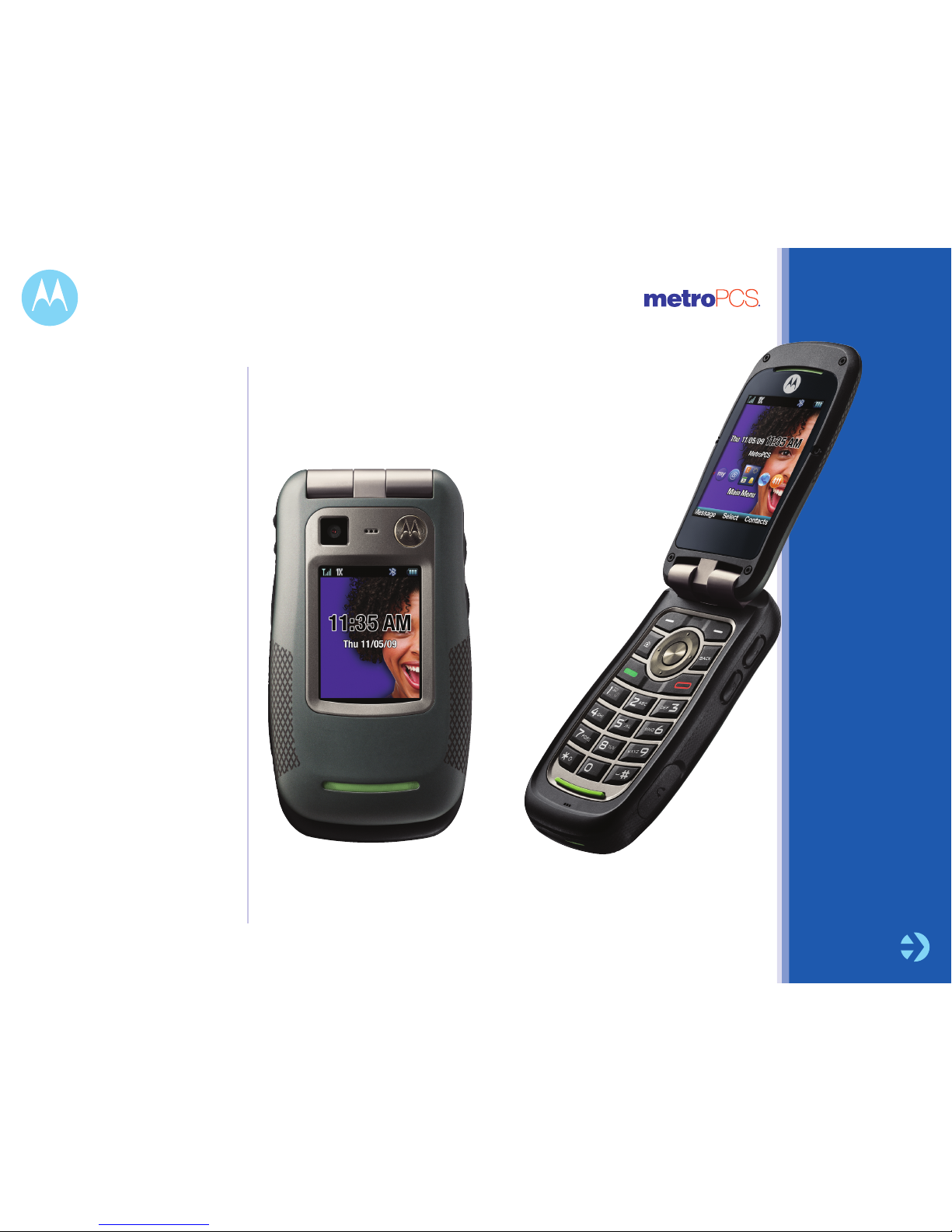
Explore your MOTOROLA QUANTICO™
TUTORIAL
NEXT
All screen images simulated
Page 2
HOME »
LESSON:
PRINT »
VIEW »
EXIT »
MOTOROLA QUANTICO™
KNOW YOUR PHONE »
– phone overview
– military spec certified
BATTERY »
– removing the door
– installing the door
MUSIC »
– transfer music
– playing music
– creating playlists
CAMERA & PICTURES »
– taking pictures
– editing pictures
YOUR MetroWEB »
– using
MORE INFO »
– support site
– download user guide (PDF)
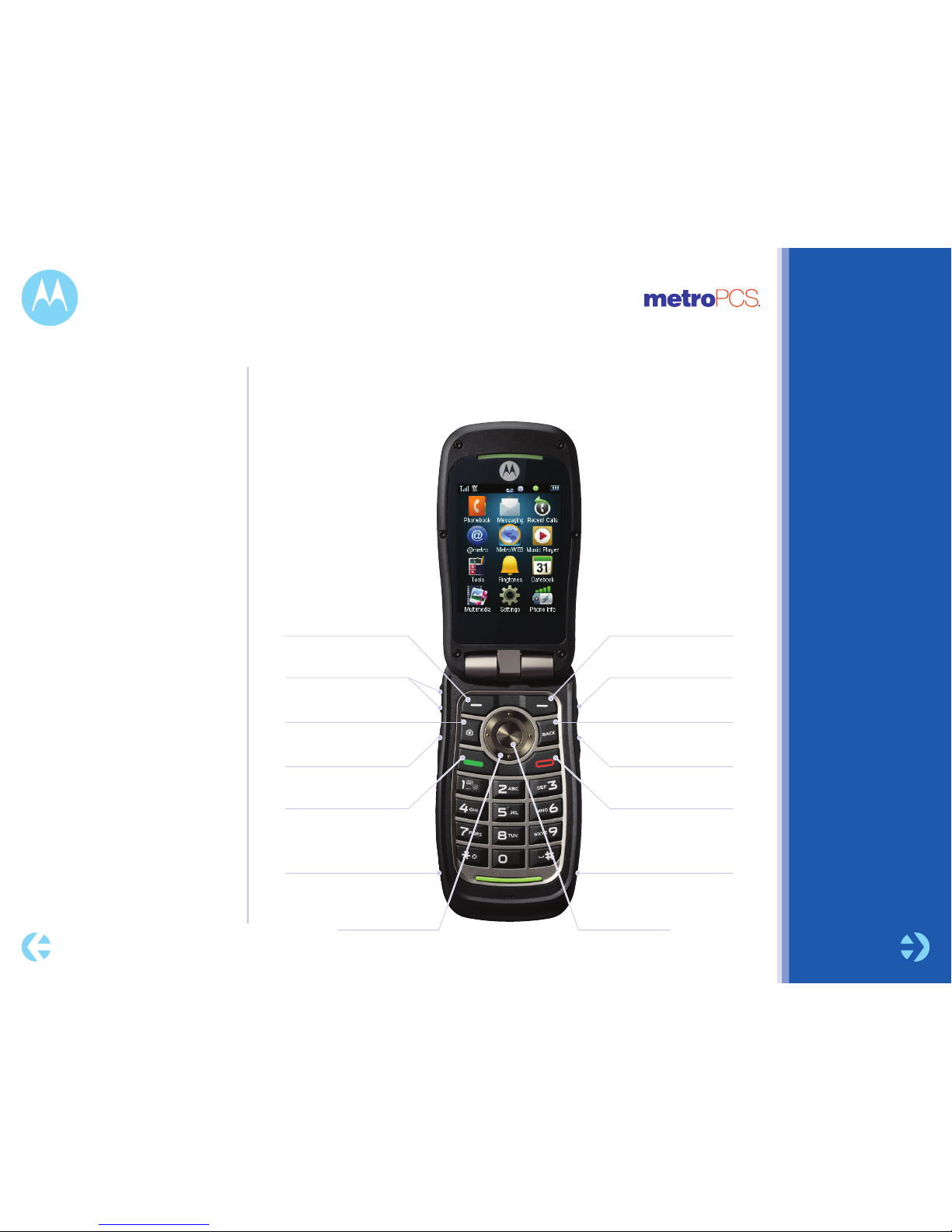
Know your phone (basics)
metro chatLINKSM
button
Volume Keys
Micro USB Connector
Charge or connect to PC.
Navigation Key
Scroll up/down/left/right.
Center Key
Open menu & select.
Speaker Key
Clear/Back Key
Voice Key
Right Soft Key
Left Soft Key
Camera Key
Send Key
Make & answer calls.
Power/End Key
Turn on/off, hang
up, exit menus.
2.5 mm Headset
Jack
The important keys and connectors.
MOTOROLA and the Stylized
M Logo are registered in the
US Patent & Trademark Office.
All other product or service
names are the property of their
respective owners.
© 2009 Motorola, Inc. All rights
reserved.
Certain mobile phone features
are dependent on the
capabilities and settings of your
service provider’s
network. Additionally, certain
features may not be activated
by your service provider, and/
or the provider’s network
settings may limit the feature’s
functionality. Always contact
your service provider about
feature availability and
functionality. All features,
functionality, and other product
specifications, as well as the
information contained in this
tutorial, are based on the latest
available information and are
believed to be accurate at the
time of publication. Motorola
reserves the right to change
or modify any information or
specifications without notice or
obligation.
NEXTBACK
Page 3
HOME »
LESSON:
PRINT »
VIEW »
EXIT »
MOTOROLA QUANTICO™
KNOW YOUR PHONE »
– phone overview
– military spec certified
BATTERY »
– removing the door
– installing the door
MUSIC »
– transfer music
– playing music
– creating playlists
CAMERA & PICTURES »
– taking pictures
– editing pictures
YOUR MetroWEB »
– using
MORE INFO »
– support site
– download user guide (PDF)
Military spec certified
1
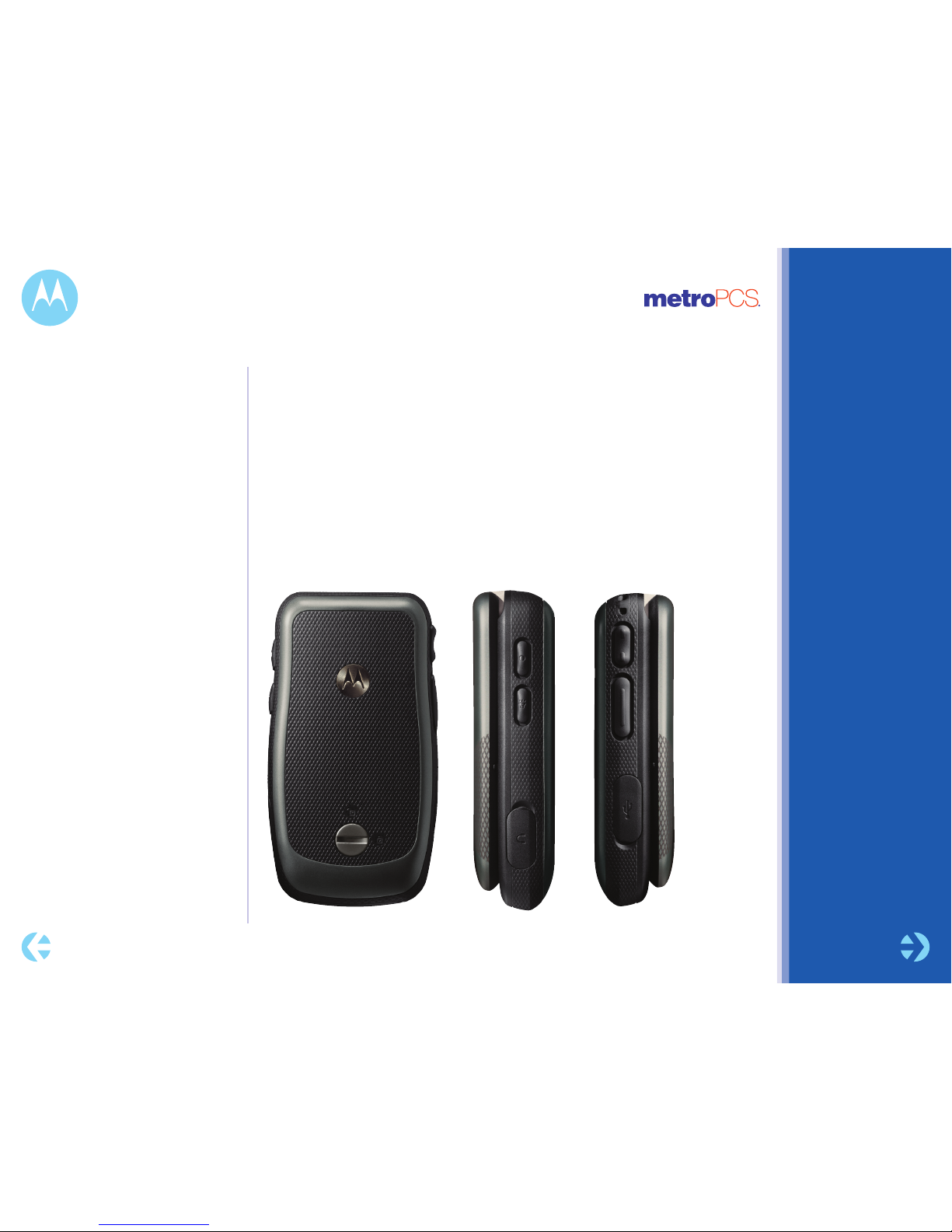
Meet your everyday duties head on with MOTOROLA QUANTICO™. This rough and
tumble device is built to survive and designed to let you thrive. Quantico is MilSpec
certified, which means it can hold up against extreme pressure, temperature, dust,
shock, vibration and blowing rain.
An accidental dip in water used to spell disaster for your mobile phone, but fret no
more with QUANTICO – thanks to a submersible design that protects the device in
up to three feet of water for up to 30 minutes.2 Rubber overmold and sturdy gripping
textures make sure you always have a handle, even after it’s been dunked.
NEXTBACK
1 Military Specification
810F protects the device
from low pressure,
high temperature, low
temperature, dust, shock,
vibration, solar radiation,
humidity, blowing rain and
salt fog.
2 Both the charging and
headset jack covers on your
phone must be completely
closed to maintain water
resistance. Defects or
damage from misuse,
accident, abuse or neglect,
including water damage
caused from incorrectly
securing the phone’s
waterproofing elements
or immersing the phone
in water beyond its stated
limits is not covered by the
Motorola warranty.
Page 4
HOME »
LESSON:
PRINT »
VIEW »
EXIT »
MOTOROLA QUANTICO™
KNOW YOUR PHONE »
– phone overview
– military spec certified
BATTERY »
– removing the door
– installing the door
MUSIC »
– transfer music
– playing music
– creating playlists
CAMERA & PICTURES »
– taking pictures
– editing pictures
YOUR MetroWEB »
– using
MORE INFO »
– support site
– download user guide (PDF)
Battery
NEXTBACK
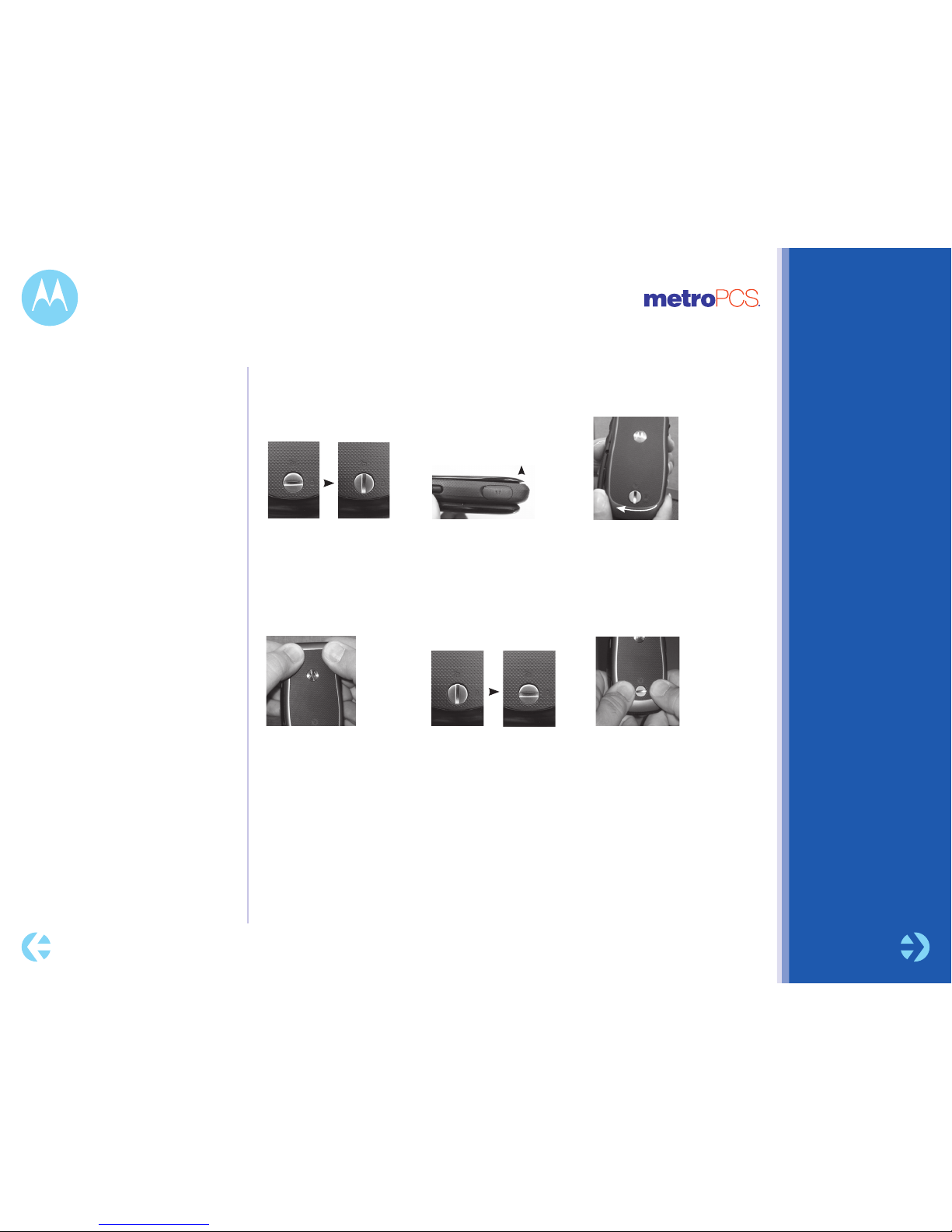
Removing the door
To remove the battery door:
Installing the door
1 First turn the lock to
the vertical or unlocked
position.
1 Place the door in
position and push
on all four corners
to close the gaps.
2 The door will
automatically lift up.
2 Turn the lock to the
horizontal or locked
position.
3 Slide the door down
and twist it to the left to
remove.
3 Push on the bottom
corners to make sure
no gaps are under the
battery door.
Warning: Failure to properly
secure battery door could
result in moisture damage if
exposed to liquids.
Page 5
HOME »
LESSON:
PRINT »
VIEW »
EXIT »
MOTOROLA QUANTICO™
KNOW YOUR PHONE »
– phone overview
– military spec certified
BATTERY »
– removing the door
– installing the door
MUSIC »
– transfer music
– playing music
– creating playlists
CAMERA & PICTURES »
– taking pictures
– editing pictures
YOUR MetroWEB »
– using
MORE INFO »
– support site
– download user guide (PDF)
Music
1
NEXTBACK
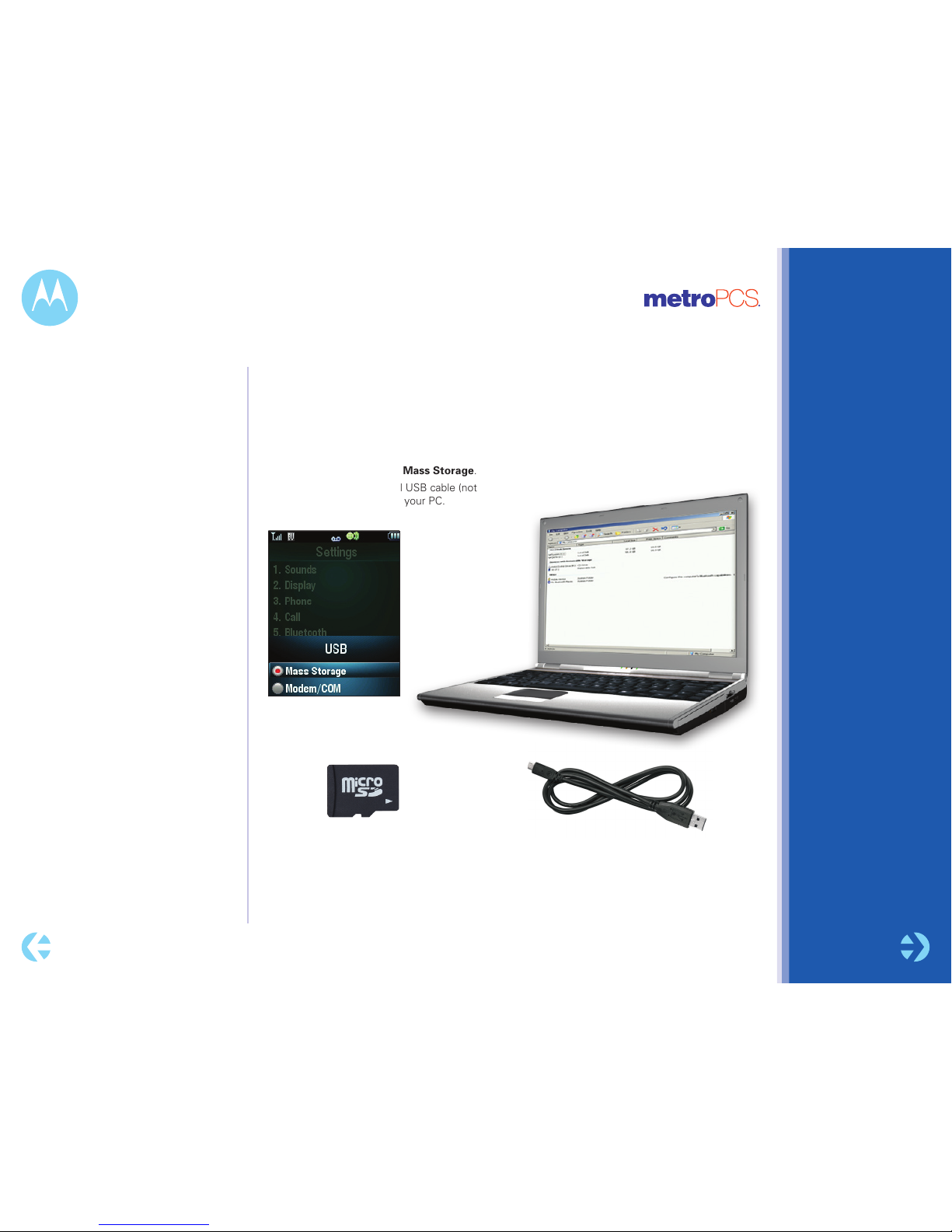
To connect your phone to your Windows PC:
1 Insert a microSD memory card into your phone.
2 Set your phone to Mass Storage by pressing
Menu > Settings > USB > Mass Storage.
3 Connect a Motorola Original USB cable (not
included) to your phone and your PC.
Transferring music2
1 Your phone’s music player
can play the following types
of song files: MP3, AAC,
M4A, WMA.
2 The unauthorized copying
of copyrighted materials is
contrary to the provisions
of the Copyright Laws of
the United States and other
countries. This device is
intended solely for copying
non-copyrighted materials,
materials in which you own
the copyright, or materials
which you are authorized or
legally permitted to copy.
If you are uncertain about
your right to copy any
material, please contact
your legal advisor.
Page 6
HOME »
LESSON:
PRINT »
VIEW »
EXIT »
MOTOROLA QUANTICO™
KNOW YOUR PHONE »
– phone overview
– military spec certified
BATTERY »
– removing the door
– installing the door
MUSIC »
– transfer music
– playing music
– creating playlists
CAMERA & PICTURES »
– taking pictures
– editing pictures
YOUR MetroWEB »
– using
MORE INFO »
– support site
– download user guide (PDF)
Music
NEXTBACK
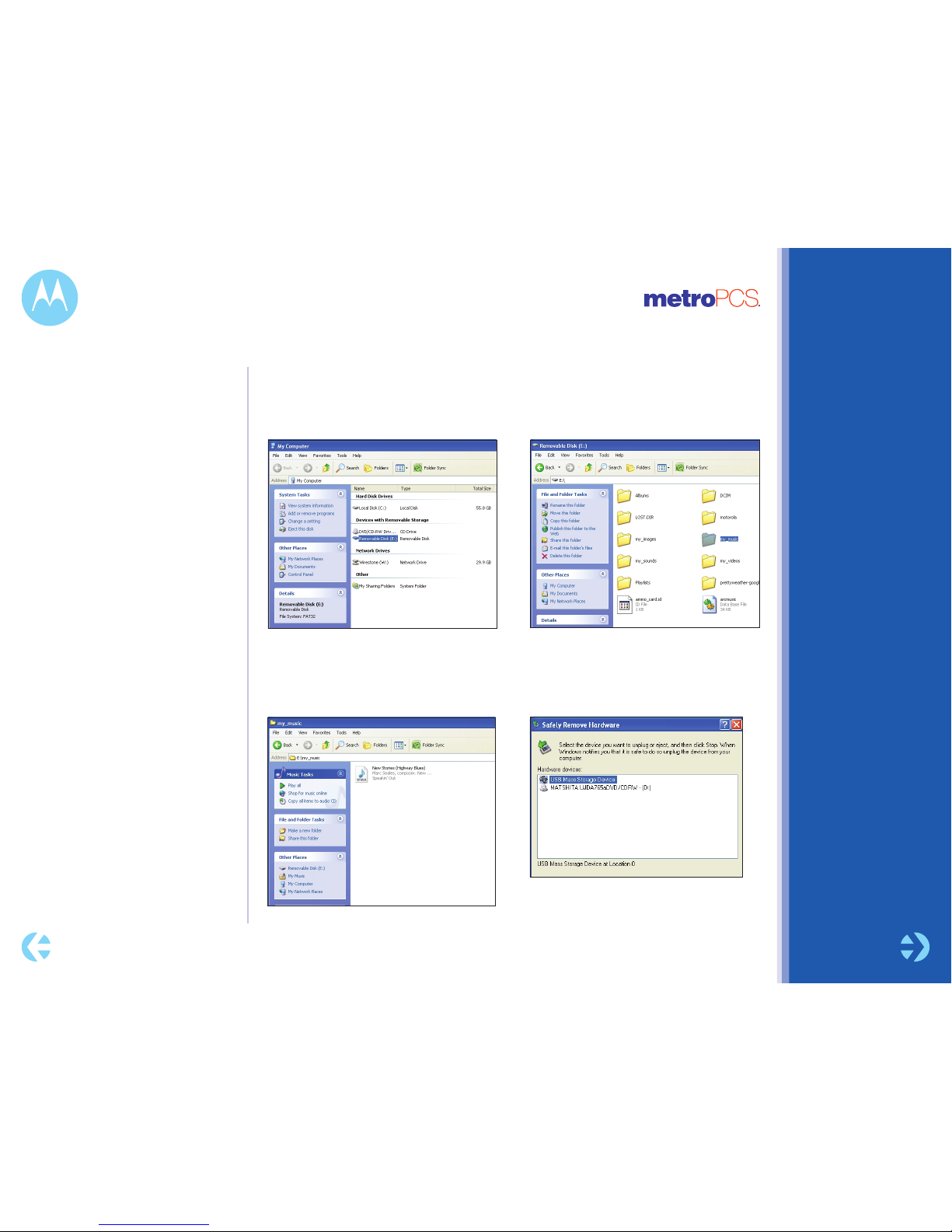
Now that you’ve connected, use USB drag and drop to copy your music:
1 On your Windows PC, double-click on “My
Computer” to find the “Removable Disk”
icons for your phone/memory card.
2 Double-click the “Removable Disk” icon for
the memory card.
3 In the “Removable Disk” window, create the
“my_music” folder (if it doesn’t already exist).
Transferring music (cont.)
4 Drag and drop song files onto the “my_music”
folder.
5 When you’re done, right-click the “Safely Remove
Hardware” icon in the system tray at the bottom
of your computer screen, then select “USB Mass
Storage Device” (your memory card).
6 Disconnect the USB cable.
Page 7
HOME »
LESSON:
PRINT »
VIEW »
EXIT »
MOTOROLA QUANTICO™
KNOW YOUR PHONE »
– phone overview
– military spec certified
BATTERY »
– removing the door
– installing the door
MUSIC »
– transfer music
– playing music
– creating playlists
CAMERA & PICTURES »
– taking pictures
– editing pictures
YOUR MetroWEB »
– using
MORE INFO »
– support site
– download user guide (PDF)
Music
Note: If you can’t find artist,
album, or genre information
for a song, the information
may not be available.
If you receive a call during
a song, the music player
pauses the song until the call
is over.
Note: The playlist name
cannot exceed 32 characters,
and cannot include the
characters / \ : * ? < > | “
NEXTBACK
You can select a song or playlist from these categories:
All Songs, Playlists, Artists, Albums, or Genres.
Shortcut: In a song list, press a key to jump to songs that begin with the letters on the key.
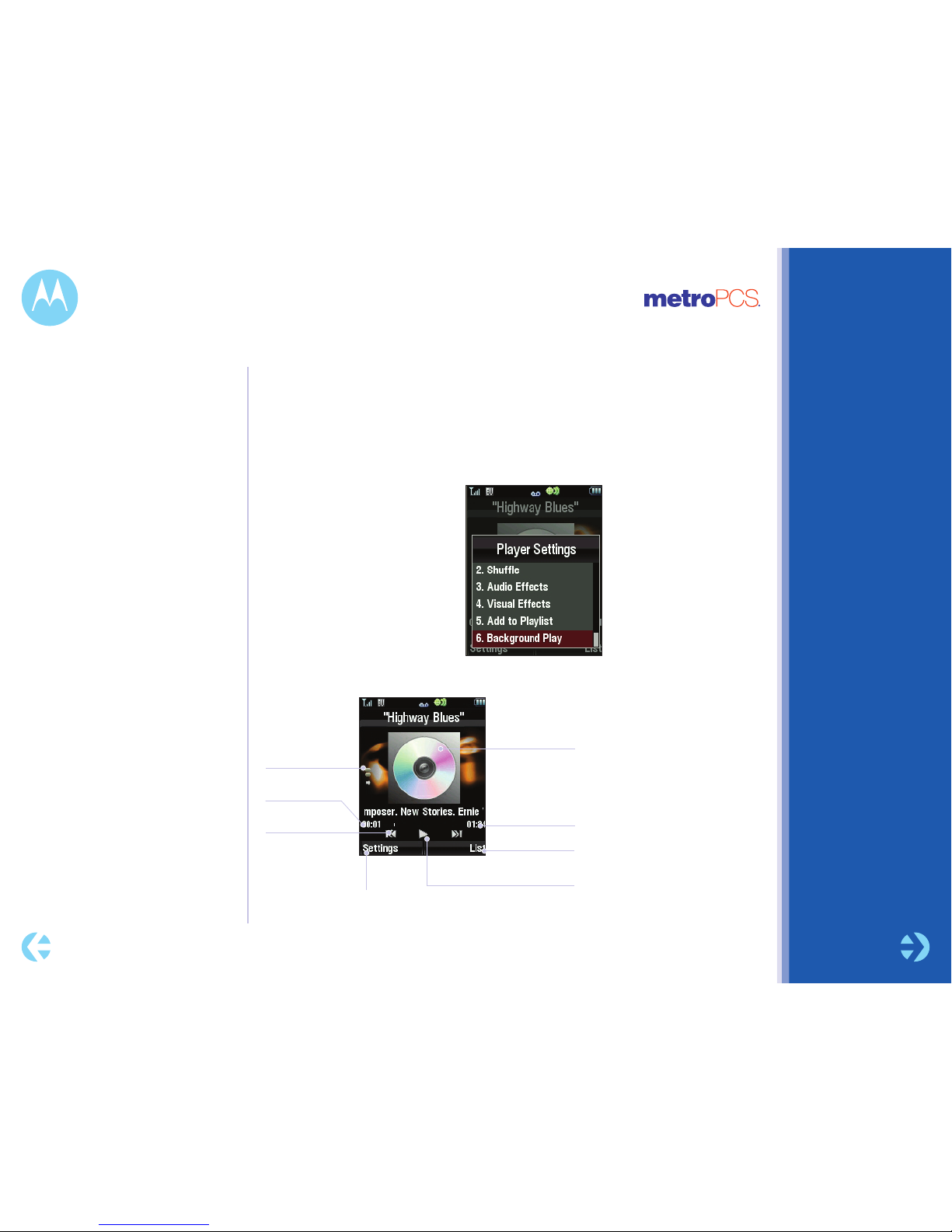
While a song is playing, use the following keys to control song playback.
To hide the music player while
music plays, press Settings >
Background Play.
To return to the music player
from the home screen, press
Menu > Music Player.
Playing music
Album Artwork
(if available)
Volume Level
Song Length
View song list.
Press s to pause/play.
Elapsed Time
Press S left/right
to skip songs.Press
& hold to rewind or
fast forward.
Select player settings.
Page 8
HOME »
LESSON:
PRINT »
VIEW »
EXIT »
MOTOROLA QUANTICO™
KNOW YOUR PHONE »
– phone overview
– military spec certified
BATTERY »
– removing the door
– installing the door
MUSIC »
– transfer music
– playing music
– creating playlists
CAMERA & PICTURES »
– taking pictures
– editing pictures
YOUR MetroWEB »
– using
MORE INFO »
– support site
– download user guide (PDF)
Music
Note: If you can’t find artist,
album, or genre information
for a song, the information
may not be available.
If you receive a call during
a song, the music player
pauses the song until the call
is over.
Note: The playlist name
cannot exceed 32 characters,
and cannot include the
characters / \ : * ? < > | “
NEXTBACK
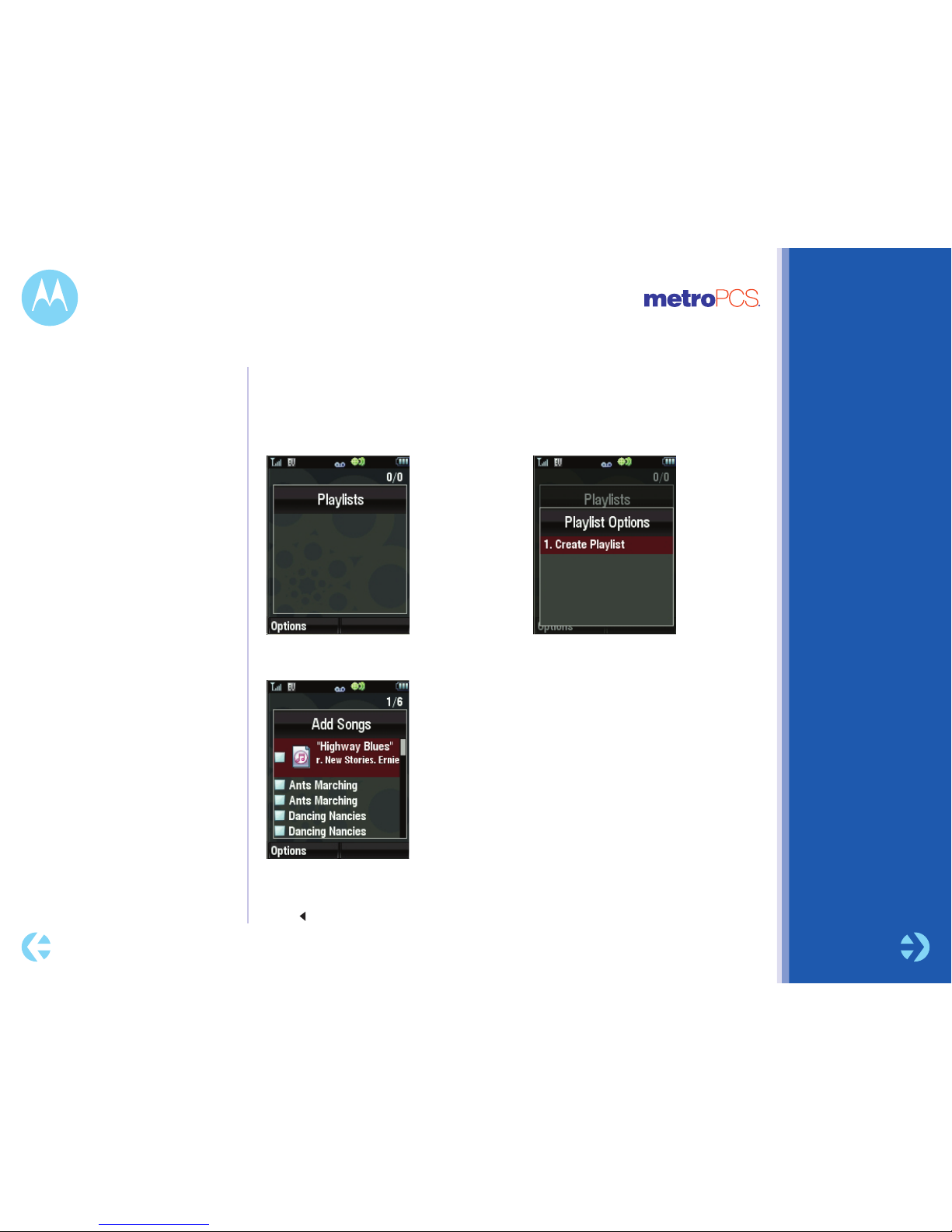
1 Press Options > Create Playlist.
2 Enter a name for the playlist and press Done.
3 With the new playlist highlighted on the Playlists screen,
press Options > Add a Song. Scroll to a song and press
s. Repeat this step to add more songs.
4 Press to add the marked songs to the playlist.
To add a song to a playlist: Scroll to the playlist and press
Options > Add a Song.
Creating playlists
Personalize your music collection by creating your own playlists.
To create a playlist:
Find it: Menu > Music Player > Playlists
Page 9
HOME »
LESSON:
PRINT »
VIEW »
EXIT »
MOTOROLA QUANTICO™
KNOW YOUR PHONE »
– phone overview
– military spec certified
BATTERY »
– removing the door
– installing the door
MUSIC »
– transfer music
– playing music
– creating playlists
CAMERA & PICTURES »
– taking pictures
– editing pictures
YOUR MetroWEB »
– using
MORE INFO »
– support site
– download user guide (PDF)
Camera & Pictures
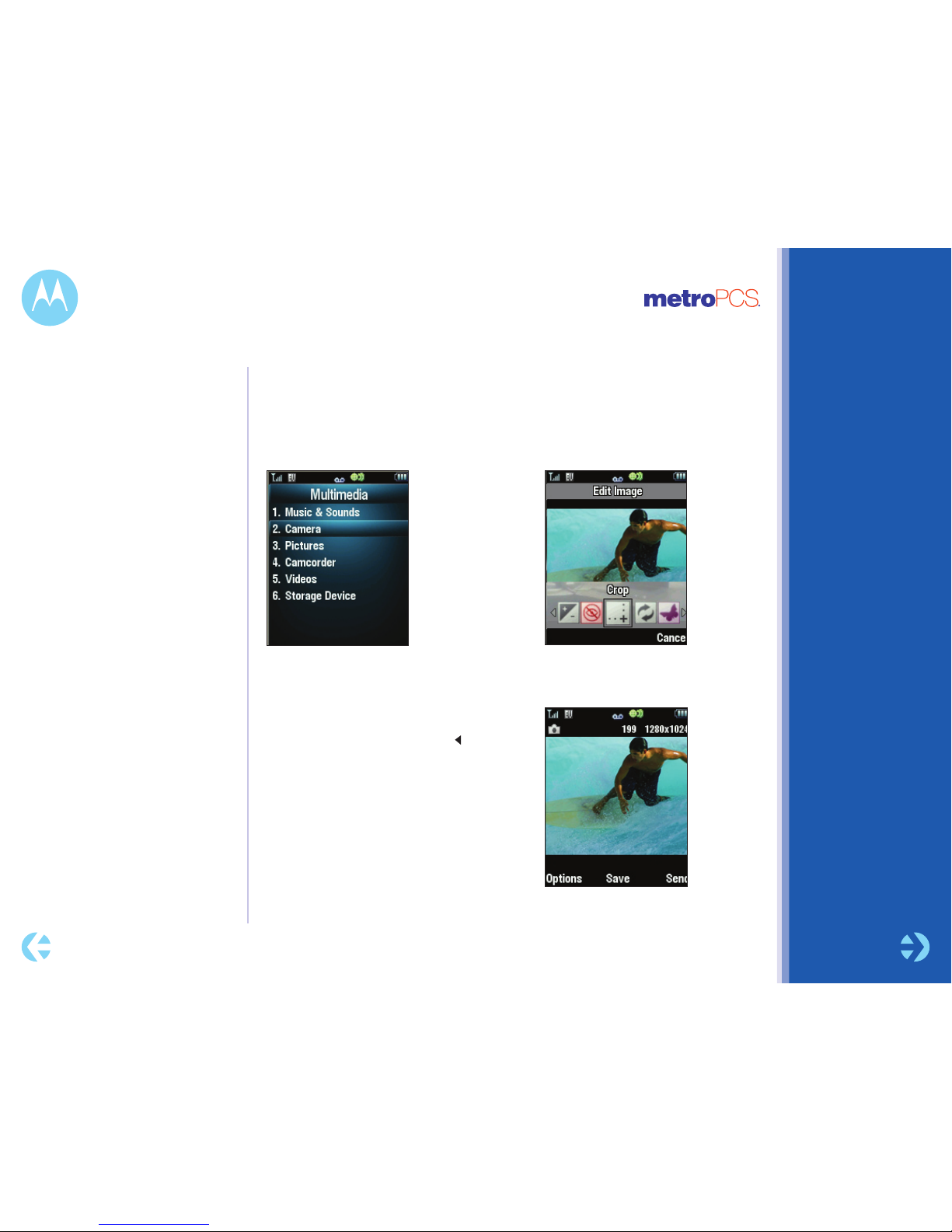
Find it: Menu > Multimedia > Camera
Shortcut: From the home screen, press
the camera key e.
When you take a photo, your phone shows
options to Send the photo or Send to Online
Album. Select a send option, or press to see
other options. You can:
• Press s to save the photo. The photo is
named after the date and time you took it.
• Press Send to send the photo.
• Press Options to delete the photo, save the
photo with a name you specify, or set the
photo as a wallpaper or picture ID.
NEXTBACK
Taking pictures
Select the photo and press edit. Select
crop, add text or color effects options.
Editing pictures
Page 10
HOME »
LESSON:
PRINT »
VIEW »
EXIT »
MOTOROLA QUANTICO™
KNOW YOUR PHONE »
– phone overview
– military spec certified
BATTERY »
– removing the door
– installing the door
MUSIC »
– transfer music
– playing music
– creating playlists
CAMERA & PICTURES »
– taking pictures
– editing pictures
YOUR MetroWEB »
– using
MORE INFO »
– support site
– download user guide (PDF)
Your MetroWEB
1
MetroWEB is your unlimited connection to the Internet using your MetroPCS phone. Access
local information, news, entertainment and more while surfing the web from the palm of
your hand. MetroWEB is powered by Google™, which means you get the answers you’re
looking for—fast! Anything from flight updates and sports results, restaurants to the local
dry cleaners, images and weather reports to web and mobile web pages—it’s all just a click
away. Just press the MetroWEB key on the main menu to get started.
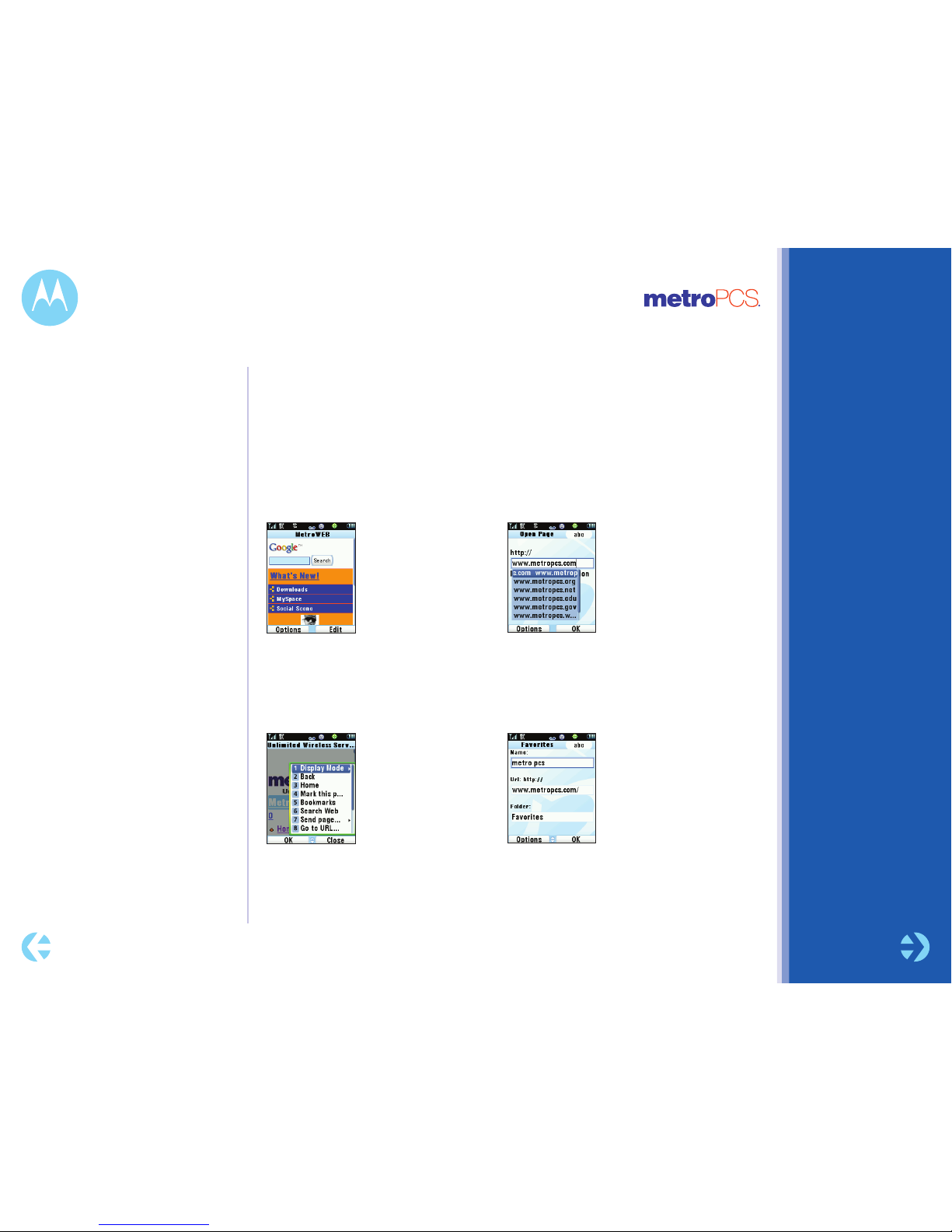
1 Search the web from the
home page or enter a
specific site by pressing
Options > Go to URL.
3 The requested page
appears. From the options
menu, you can change the
display mode from normal
to wide or send the URL in
a text message.
2 As you enter a URL, your
phone will suggest websites.
Select the one you want to
view and press OK.
4 To bookmark a page or set
it as your home page, press
Options > Mark this page,
then name the link.
Using Your MetroWEB
1 Network and/or SIM
card dependent feature,
not available in all areas.
Airtime, data charges and/
or additional charges may
apply. Wireless email
functionality requires an
email account with wireless
server capabilities.
NEXTBACK
Page 11
HOME »
LESSON:
PRINT »
VIEW »
EXIT »
MOTOROLA QUANTICO™
KNOW YOUR PHONE »
– phone overview
– military spec certified
BATTERY »
– removing the door
– installing the door
MUSIC »
– transfer music
– playing music
– creating playlists
CAMERA & PICTURES »
– taking pictures
– editing pictures
YOUR MetroWEB »
– using
MORE INFO »
– support site
– download user guide (PDF)
More Info
We’re here to help
Go to www.motorola.com/support, where you can select from
a number of customer care options. You can also contact the
Motorola Customer Support Center at 1-800-331-6456 (United
States), 1-888-390-6456 (TTY/TDD United States for hearing
impaired), or 1-800-461-4575 (Canada).
The User Guide included in the box contains detailed instructions
for using the phone. It’s a helpful tool for learning about all the
phone’s features.
Support site
User Guide
BACK
 Loading...