

Page 1
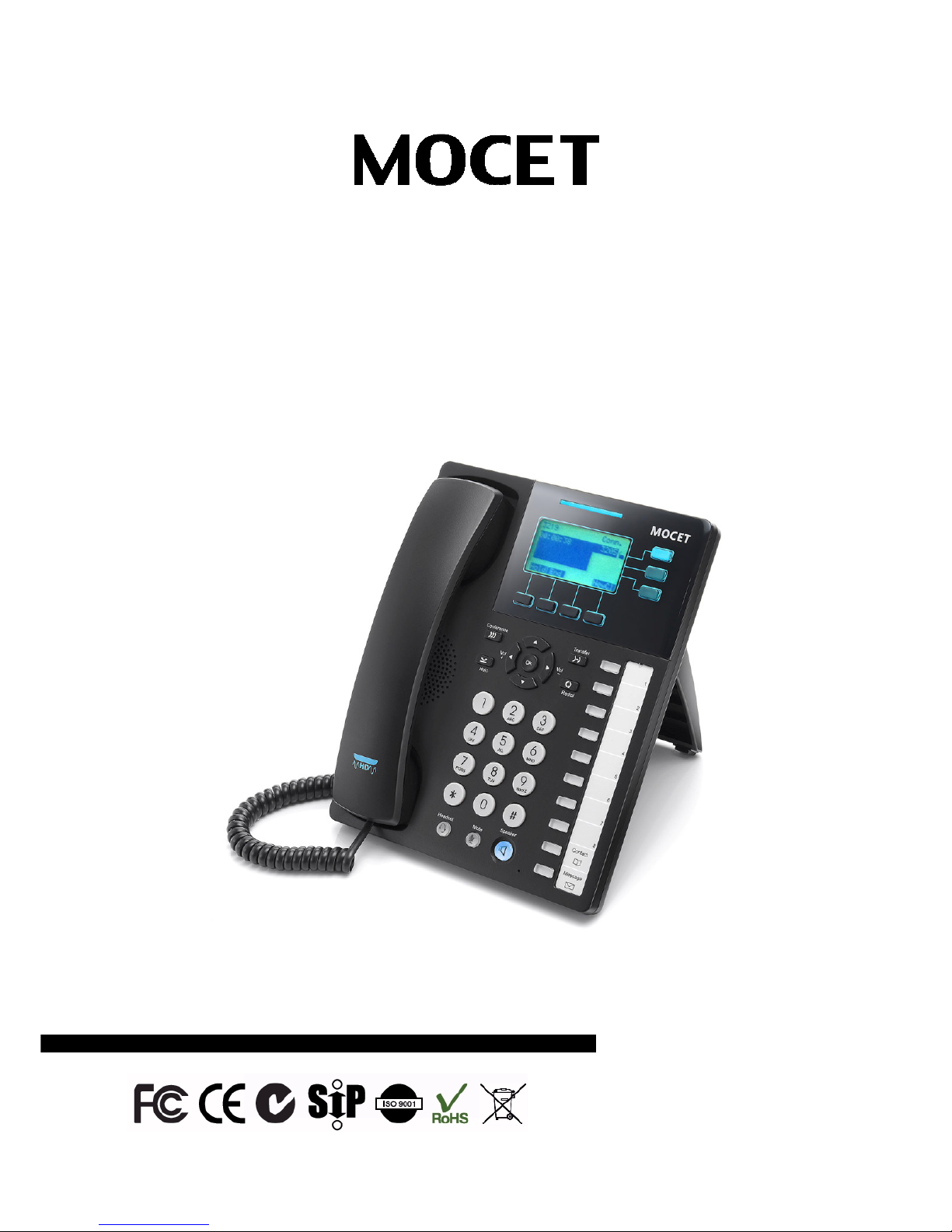
IP3022 / IP3021
SOHO IP Deskphone
Quick User Guide
Copyright © 2014, All Rights Reserved.
Ver: 1.11 D/C: 103-0113
Page 2

Page 2
MOCET IP3022 / IP3021 SOHO IP Deskphone Quick User Guide
FCC Statement
This equipment has been tested and found to comply with the limits for a Class B digital device,
pursuant to part 15 of the FCC Rules. These limits are designed to provide reasonable protection
against harmful interference in a residential installation. This equipment generates, uses and can
radiate radio frequency energy and, if not installed and used in accordance with the instructions,
may cause harmful interference to radio communications. However, there is no guarantee that
interference will not occur in a particular installation. If this equipment does cause harmful
interference to radio or television reception, which can be determined by turning the equipment off
and on, the user is encouraged to try to correct the interference by one or more of the following
measures:
•
Reorient or relocate the receiving antenna.
•
Increase the separation between the equipment and receiver.
•
Connect the equipment into an outlet on a circuit different from that to which the receiver is
connected.
•
Consult the dealer or an experienced radio/TV technician for help.
Modifications not expressly approved by the manufacturer could void the user's authority to
operated the equipment under FCC rules.
CE Declaration of Conformity
This equipment complies with the requirements relating to electromagnetic compatibility, EN55022
class B for ITE and EN 50082-1. This meets the essential protection requirements of the European
Council Directive 89/336/EEC on the approximation of the laws of the Member States relating to
electromagnetic compatibility.
C-Tick Declaration of Conformity
This equipment passed tests performed according to AS/NZS CISPR 22:2009/A1:2010 Class B at
Sporton International Inc. Lab. Certificate.
Environment
The phone you have purchased, as well as any used batteries must not be disposed of with
household waste. You should return these to your distributor if they are to replaced or dispose of
them in an approved recycling center.
Trademarks
All company, brand and product names, like Metaswitch™, Broadsoft™, Freeswitch™ and
Asterisk™ are registered trademarks of their respective owners.
WARNING!
▼
1.
Read these installation instructions carefully before connecting the IP phone to its power.
2.
To reduce the risk of electric shock, do not remove the cover from the IP phone or attempt to
dismantle it. Opening or removing covers may expose you to dangerous voltage levels.
Equally, incorrect reassembly could cause electric shock on re-use of the appliance.
3.
Do not expose the IP Phone to Fire, direct sunlight or excessive heat.
4.
Do not expose the IP Phone to rain or moisture and do not allow it to come into contact with
water.
5.
Do not install the IP phone in an environment likely to present a THREAT OF IMPACT.
6.
You may clean the IP phone using a fine damp cloth. Never use solvents (such as
trichloroethylene or acetone), which may damage the phone’s plastic surface and LCD
screen. Never spray the phone with any cleaning product whatsoever.
!
!
Page 3

Page 3
MOCET IP3022 / IP3021 SOHO IP Deskphone Quick User Guide
7.
Take care not to scratch the LCD screen.
8.
The IP phone is designed to work in temperatures from 5oC to 40oC.
9.
The IP phone must be installed at least 1 meter from radio frequency equipment, such as
TVs, radios, hi-fi or video equipment (which radiate electromagnetic fields).
10.
Do not connect the LAN/PC port to any network other than an Ethernet network.
11.
Do not attempt to upgrade your IP phone in an unstable power environment. This could
cause unexpected issues.
12.
Do not work on the system or connect or disconnect cables during lightning storms.
13.
Children don't recognize the risks of electrical appliances. Therefore use or keep the phone
only under supervision of adults or out of the reach from children.
14.
No repair can be performed by the end user, if you experience trouble with this equipment,
for repair or warranty information, please contact your supplier.
Page 4
Page 4
MOCET IP3022 / IP3021 SOHO IP Deskphone Quick User Guide
Introduction
The MOCET IP3022/IP3021 SOHO IP Desk-phone is an easy-to-use high quality IP
phone with a variety of advanced features, including support for secure calls with trusted
layer security (TLS), Secure Real-time Transfer Protocol (SRTP), and a built-in IP Security
(IPSEC) virtual private network (VPN) client.
The IP3022/IP3021 has a graphic and backlit LCD display and supports wideband audio
through handset, headset and Speakerphone. It can be positioned 2 tilt angles and has a
wall mount option, and has a built-in two port 10/100 Ethernet switch* with automatic
support for power over Ethernet (PoE). The IP3022 / IP3021 has 8 programable buttons
and can be configured through the simple built in LCD menus or from the web user
interface of phone. The IP3022 / IP3021 can be automatically provisioned from a local
server (like DHCP or TFTP), or from Internet using the built-in MOCET auto-provisioning
system and management protocols.
The phone supports industry-standard SIP protocols and rich business call features,
including call Hold, built-in music-on-hold (MoH), Transfer, Forward, 3-way on-phone
conferencing, and MWI. The IP3022 / IP3021 can be interoperable with a wide range of
SIP servers or IP-PBX including those based on Metaswitch™, Broadsoft™,
Freeswitch™ and Asterisk™. The phone also offer business class capability for SOHO
office with a support up to 3 simultaneous SIP trunks and total 6 calls appearance.
There are some optional items for function expansion, including a wall-mount kit, Electronic
Hook Switch (EHS) for wireless headset, and Extended Dial Module port. These functions
make the IP3022 / IP3021 more powerful and versatile in application in order to meet
business professional user needs. Besides, there is a family model table below for you to
choice the proper phone you need.
Model
Name
PoE
Power
Adapter
BLF LEDs
(Red/Green)
IP-WMK (Wall
Mount Kit)
IP-EHS IP-EDMX PA 5V/2A
IP3022
Class 1
― 8 Option Option Option Option
IP3022P
Class 1 5V/550mA
8 Option Option Option ―
IP3021A
― 5V/550mA
― Option ― ― ―
Hardware Installation
Attaching the Stand to the Phone
Please select the angle you want and then align and slide the stand snaps into the slots
on the rear side of the phone. You may slide out and change to the second angle.
Page 5
Page 5
MOCET IP3022 / IP3021 SOHO IP Deskphone Quick User Guide
Connecting the Handset to the Phone
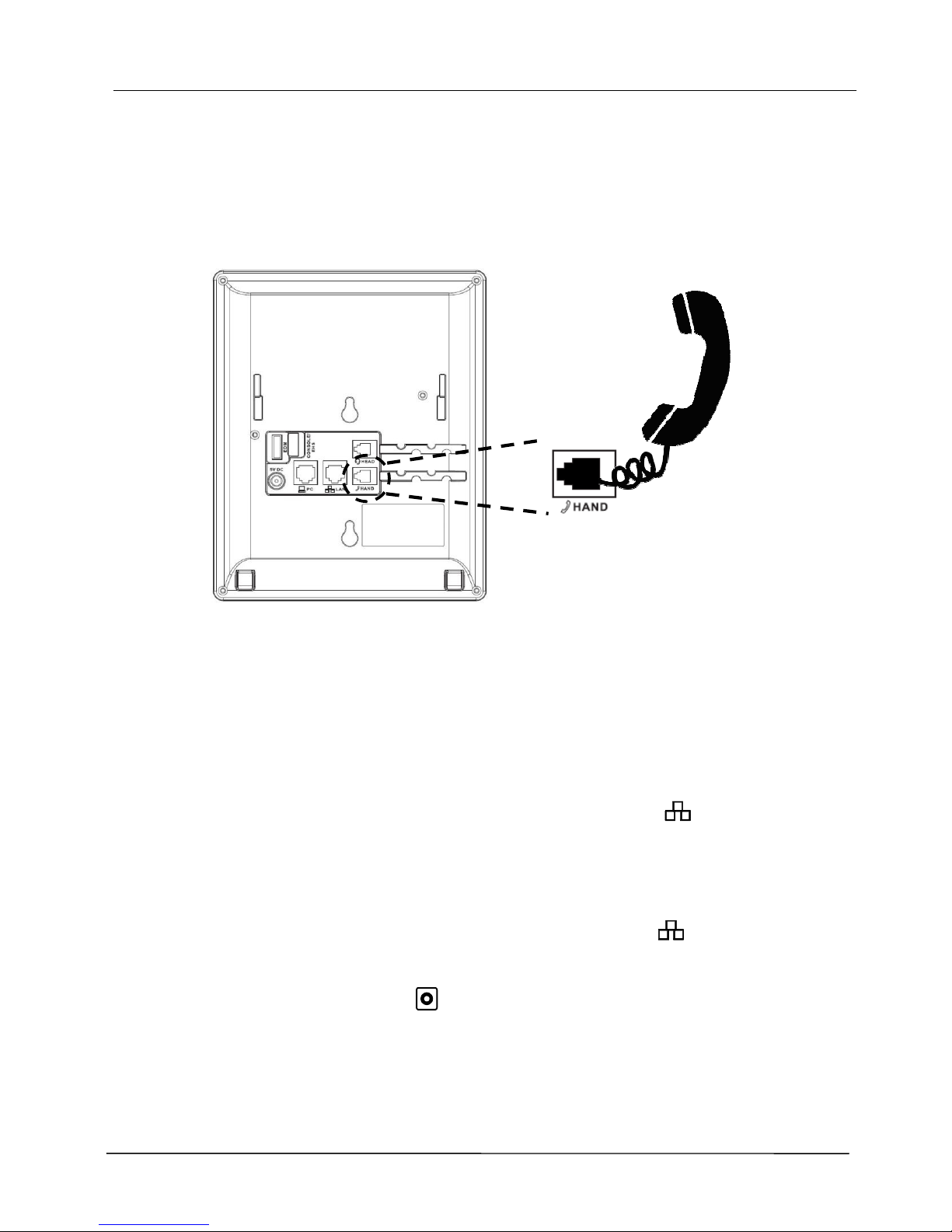
Connect the handset to the curly handset cord and then connect the other end of the
curly handset cord to the port marked HAND with the handset icon on the bottom of the
phone.
Connecting the Ethernet Cable
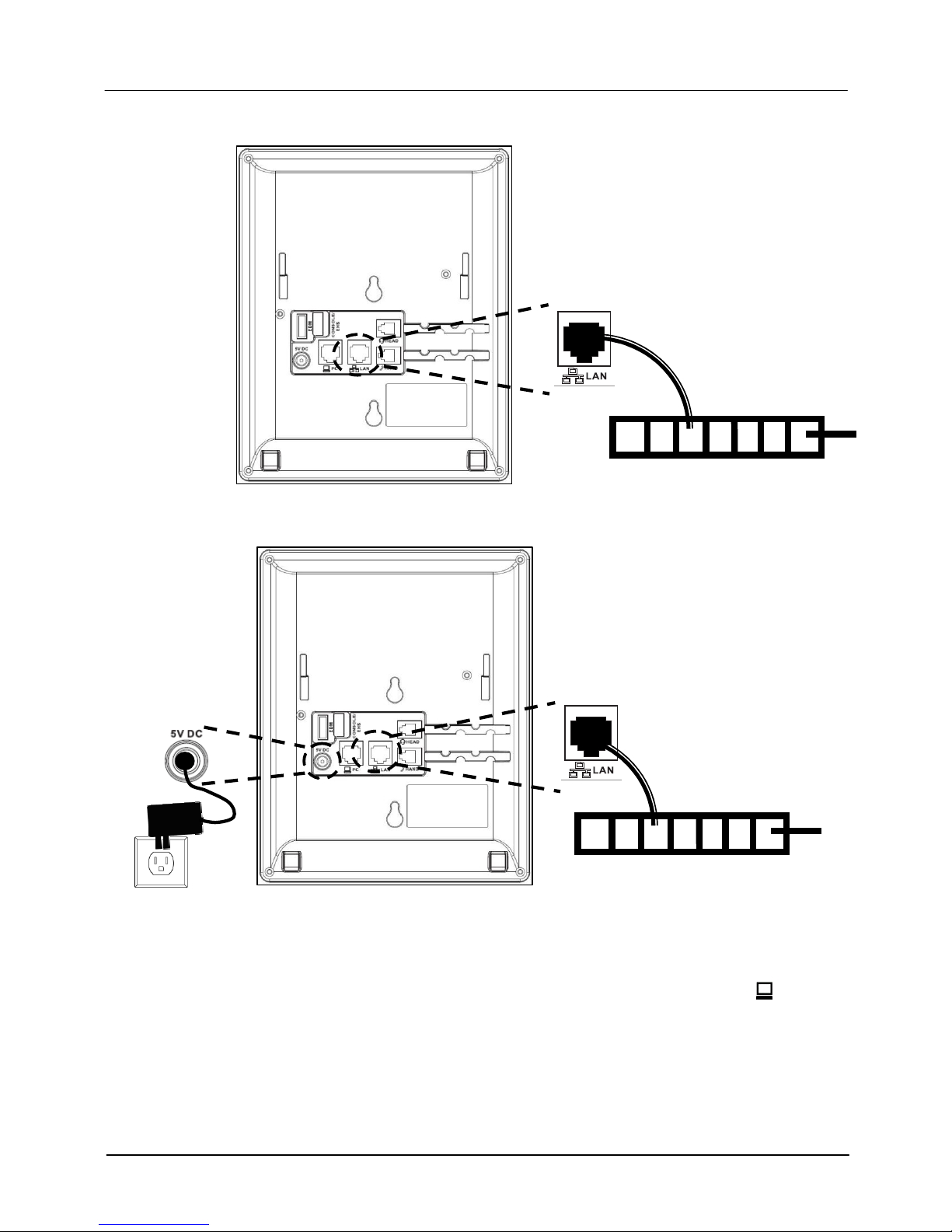
Using a general CAT-5 Ethernet cable, follow the installation steps below:
(1) If your Ethernet Switch supports PoE: (see figure below)
- Please connect an Ethernet cable to the Switch port from the LAN port of the
IP3022 / IP3021. Then you will see the phone LEDs and buttons are lit up
momentarily and then the phone will start to boot.
(2) If your Ethernet Switch doesn’t support PoE: (see figure below)
- Please connect an Ethernet cable to the Switch port from LAN port of the
IP3022 / IP3021.
- Plug in the IP3022 / IP3021 power adaptor* to the wall power outlet then plug the
barrel plug to the power port on the back of the phone. You should see the
phone MWI LED light up momentarily and the phone will boot.
Page 6
Page 6
MOCET IP3022 / IP3021 SOHO IP Deskphone Quick User Guide
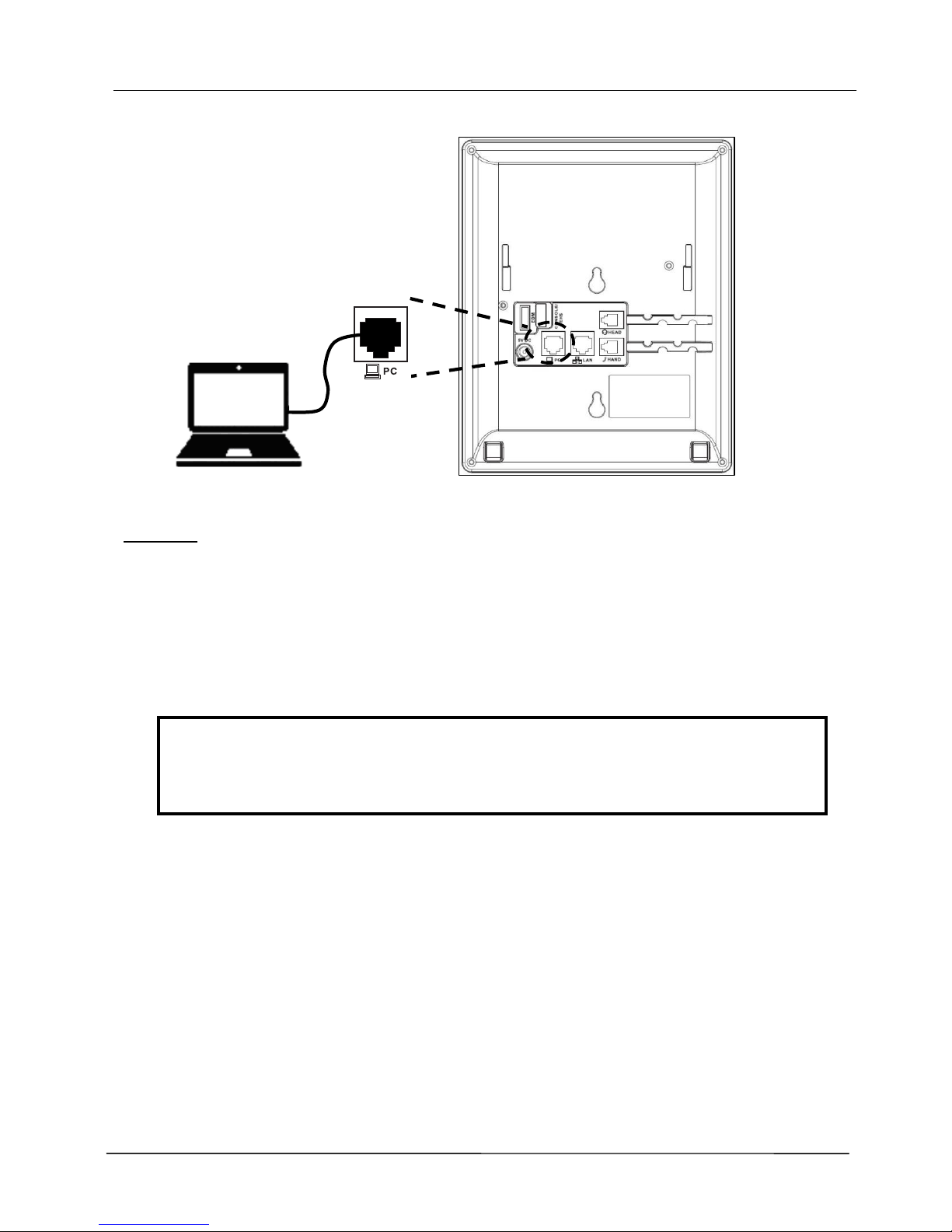
To eliminate the requirement for multiple Ethernet cables to an user’s location, the user’s
computer can be connected to the network through the second Ethernet port on the
IP3022 / IP3021 phone with an Ethernet cable.
PoE Ethernet Switch
Office LAN
or Internet
Non-
PoE
Ethernet Switch
Office LAN
or Internet
Page 7
Page 7
MOCET IP3022 / IP3021 SOHO IP Deskphone Quick User Guide
Remarks :
1. The IP3022 / IP3021 takes about under two minutes to start up and becomes
operational. There are a series of LED and buttons that will be lit up periodically to
provide boot progress information. Please be patient.
2. The IP3022 does not come with a power adapter, but IP3022P / IP3021A does. If you
are not using Power over Ethernet (PoE), you must order the power adapter
separately from MOCET.
Warning
Do not use other Power Adapters. Use only the MOCET IP3022 /
IP3021 Power Adapter in the package of IP3022 / IP3021. Other spec
power adapters may damage your IP3022 / IP3021 IP Phone.
(But for adding IP-EDMX, recommend using IP3062 power adaptor.)
Appearance & Function Description
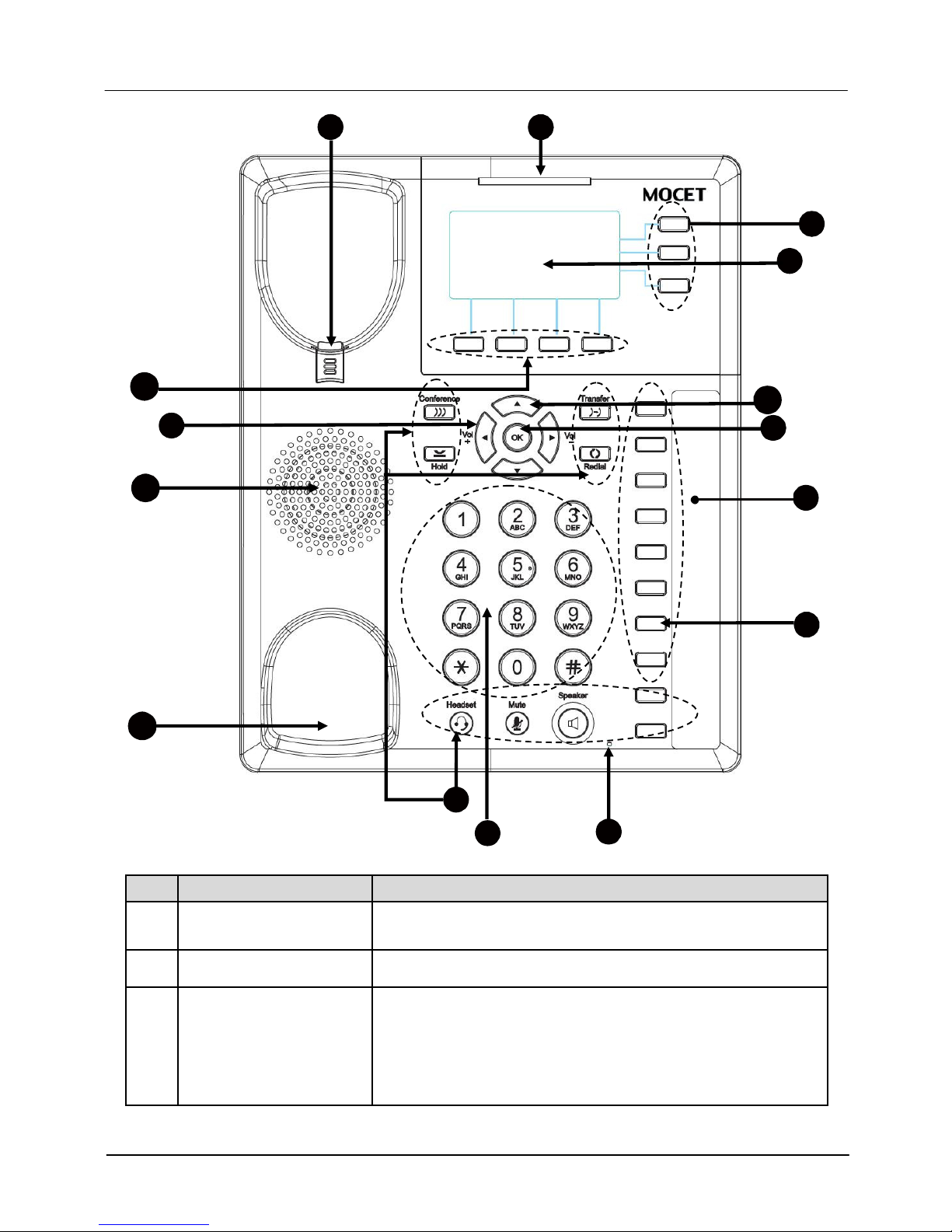
The IP3022 / IP3021 IP Deskphone comes with a graphic LCD display, including 4 soft
keys, 3 line keys, and 5 navigator keys, as well as a traditional keypad, 16 programmable
keys and 9 function keys. In the box, a handset, curly handset cord and an Ethernet cable
supplied. It can be installed and placed on the desktop or mounted on the wall. The wall
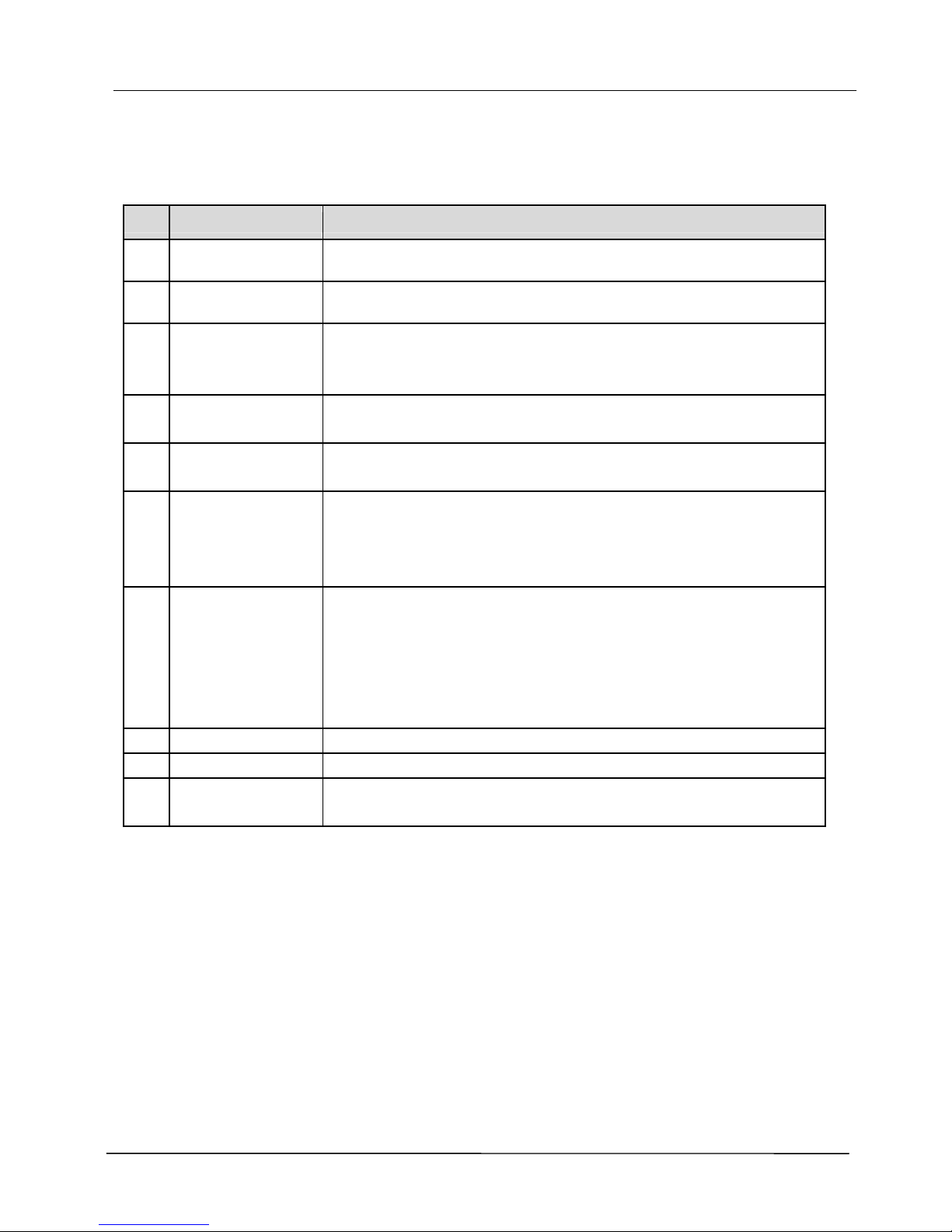
mount accessory is available separately. The figure below illustrates the front view of the
IP3022/ IP3021 IP Phone. With the point numbers, you can find its name and a simple
description of specified part in the following table.
Page 8
Page 8
MOCET IP3022 / IP3021 SOHO IP Deskphone Quick User Guide
No Part Name Description
1 Hanger
The hanger can be pulled; it is reversed for wall-mount
installation.
2 Speaker
For ring and hands-free talking.
3
Hook switch &
Handset
bottom cradle
Under the cradle, a hook switch is used for handset
hang-on and hang-off detection.
The handset bottom cradle is for the placement of
handset; placing the handset on the bottom cradle
while on a call will end the call.
1
6
2
1 3
1 0
9
1 1
1 2
1 5
1
4
5
7
4
8
3
Phone book
Message
Page 9
Page 9
MOCET IP3022 / IP3021 SOHO IP Deskphone Quick User Guide
4
Message LED
The message LED. Steady Blue means the phone is
booting or upgrading.
5 LCD Display
The LCD screen is used for displaying phone’s
settings, phone number, call status and so forth.
6
Soft keys
Soft keys displayed on the LCD are used for item
selection or control. The various soft key functions
depend on the current activity on the phone as they are
context-sensitive.
7
Line keys
These keys are used for line selection. A blue LED is
associated with each key to indicate its line/call status.
8
Programmable keys
Programmable keys can be used for indicating busy
lamp field (BLF) status of other phones, speed dial
phone numbers, or for activating features of a service
or IP-PBX. A Green/Red LED is associated with each
key to indicate its status.
[Note] : IP3021 doesn’t support the LEDs and BLF
function. But its programmable keys can be used
for speed dial purpose.
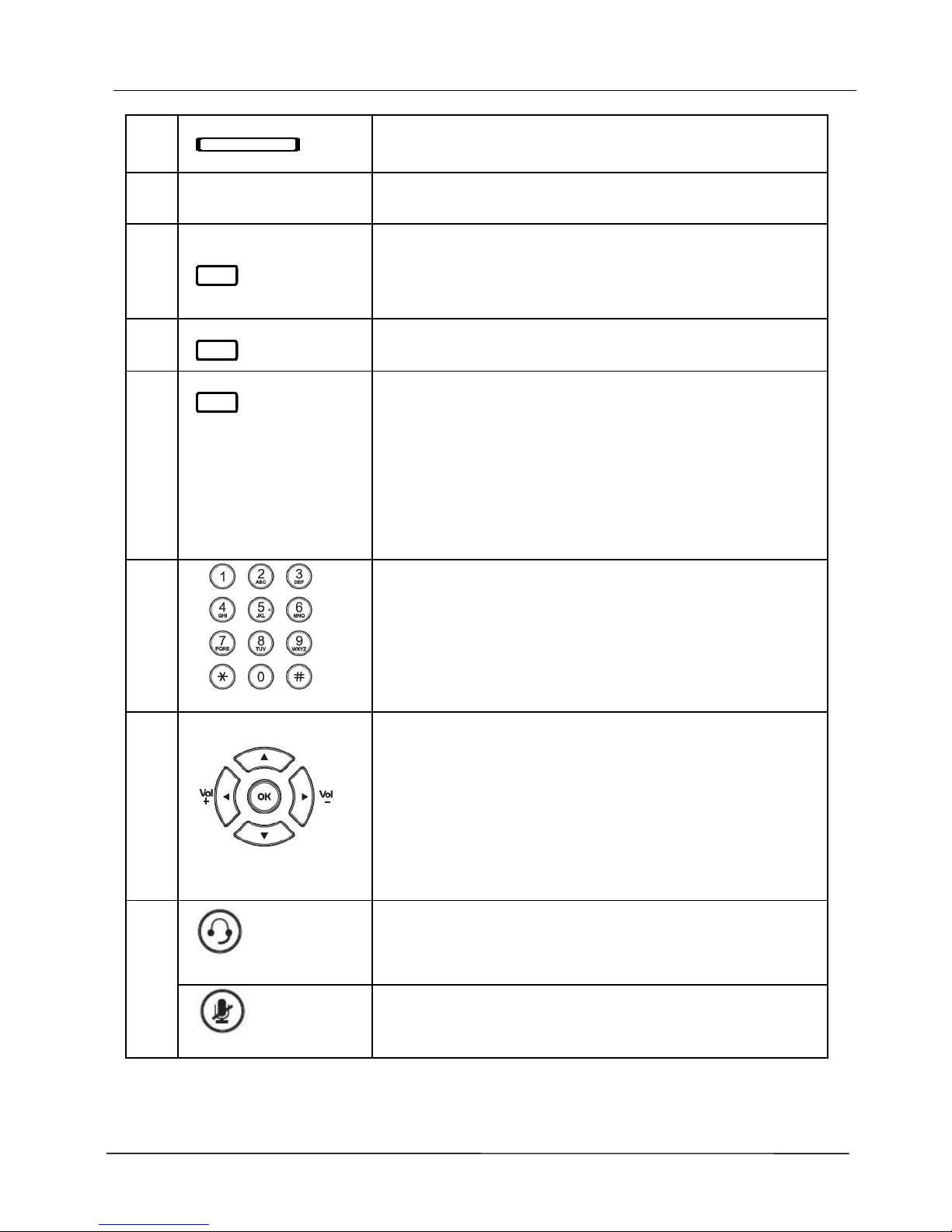
9
Numeric keypad
[1], [2], …, [9], [*], [0], [#]: The numeric keypad is for
dialing numbers.
10
Volume Control
Keys
The Volume Control key is used to set the loudness of
the ringer, handset, headset and speakerphone
functions. While the phone is in idle state, the ringer is
adjustable. While in a call, the handset, headset or
speaker volume is adjustable.
[Note]: The left and right arrow keys can be used
for volume adjustment purpose when idle, dialing
or talking time.
Headset key
The Headset key is used to activate or deactivate the
external headset.
11
MUTE key
The MUTE key is used to activate or deactivate the
microphone on the IP3022 / IP3021.
Page 10
Page 10
MOCET IP3022 / IP3021 SOHO IP Deskphone Quick User Guide
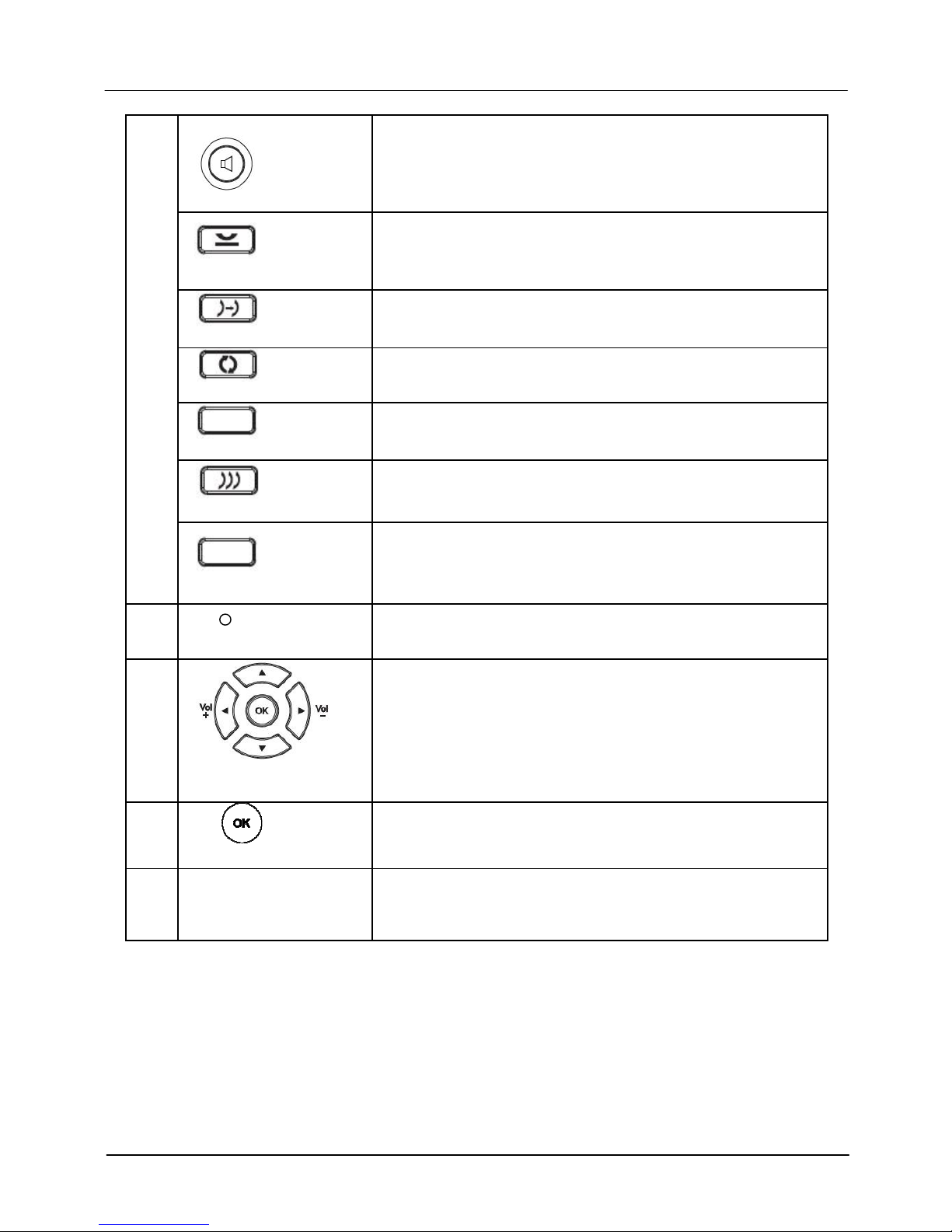
Speaker Phone key
The SPKR key is used to activate or deactivate the
Hands-free feature. A blue LED is used to indicate
whether the speakerphone is active or not.
Hold key
The Hold key is used to place the active call on hold.
A b
lue LED is used to indicate whether the call is on
hold or not.
Transfer key
The Transfer key is used to transfer a call to another IP
phone.
Redial key
The Redial key is used to enter Dialed Record list.
Message key
The Message key is used to enter VM message list.
Conference key
The Conference key is used to place multiple calls on
the phone into a conference on the phone.
Phonebook key
The Phonebook key is used to enter into the
Phonebook menu to call, add, edit or delete a contact
in a selected phonebook.
12
Hands-free MIC
Hands-free MIC hole.
13
Navigator Control
keys
The Navigation Control Keys are used for navigating
the menus on the phone; menu items are displayed on
the LCD screen.
14
Navigator OK key
The OK button is used to confirm and save a setting on
the phone or to dial a phone number.
15
Programmable key
plate (DESI) label
The programmable key plate (DESI) label is papermade. We recommend you to use a pensilefor writing
so that it can be erased for reuse from time to time.
Page 11
Page 11
MOCET IP3022 / IP3021 SOHO IP Deskphone Quick User Guide
IP3022 / IP3021 Port Functions
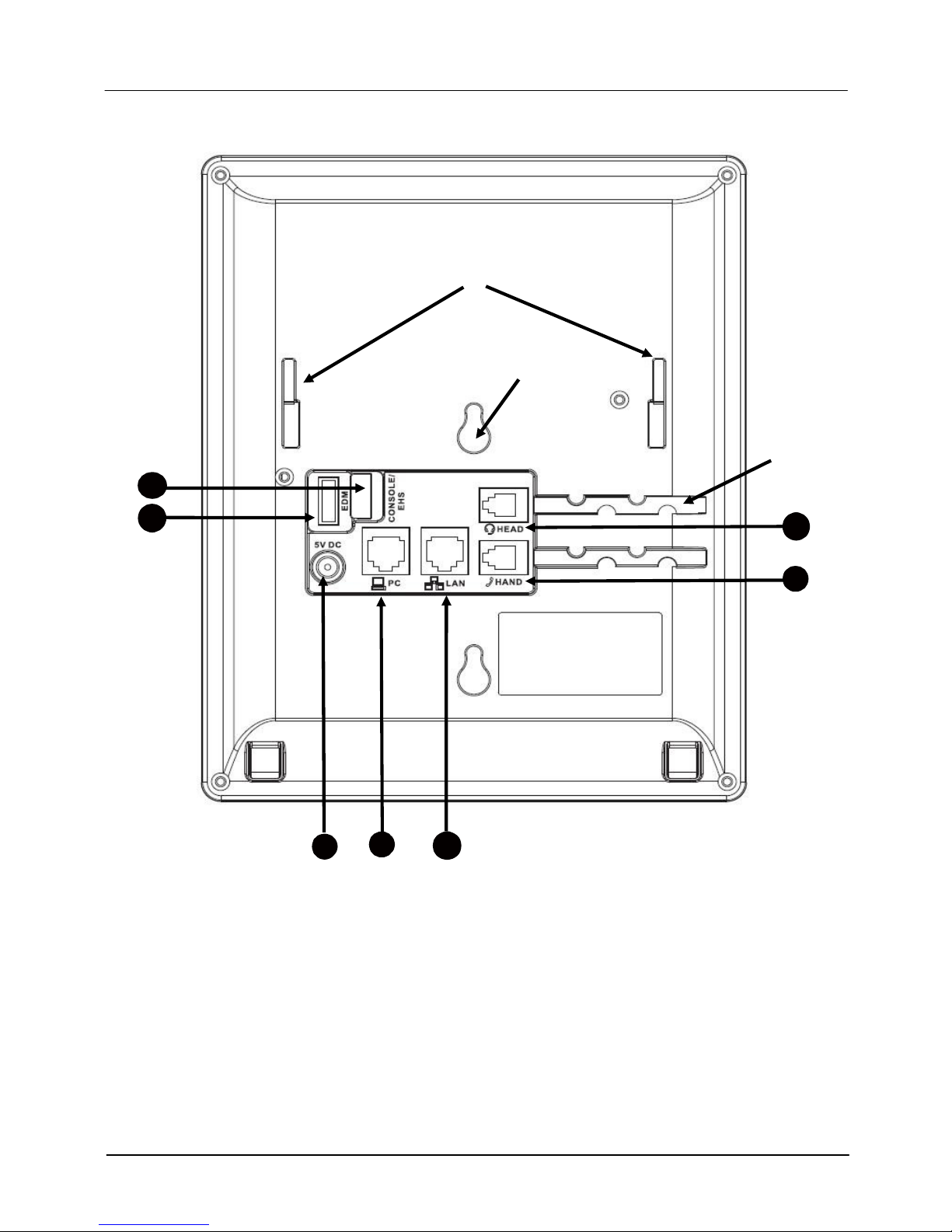
The rear side view and connectors on the IP3022 / IP3021 are as follows:
No
Part Name Description
1
Handset
Connector
RJ-9 Jack for connecting handset cord.
2
Headset
Connector
RJ-9 Jack for connecting headset cord.
3
LAN Port
RJ-45 Jack 100/10Mbps Ethernet port for connecting to the
local area network (LAN). This port can support power over
Ethernet (PoE) if the LAN switch provides it.
4
PC Port
RJ-45 Jack 100/10Mbps Ethernet port for connecting to a
computer.
5
Power Jack
If a power source from adaptor is required, please order the
IP3022 / IP3021 power adapter separately from MOCET.
6
EDM Port
SATA interface for attaching the Extended Dial Module
(EDM) accessory. Up to two EDM units can be supported
on the IP3022. Please refer to EDM Quick Installation Guide
for more information.
7
Console / EHS
Port
1. Console port for engineering maintaince purpose. or
2. EHS Port (Electrical Hook Switch) connects to IP-EHS for
Wireless Headset support. This can be connected to
general DHSG I/F(eg. Jabra) or APD-80 I/F of Plantronics.
The default is set to EHS. And switching between Console
and EHS will be done by software.
8
Stand Slots
These 2 slots are used for snapping the stand.
9
Hang Holes
These 2 holes are reserved for wall-mount support
10
Wire Route
Ditch
The wires of Handset and Headset can be routed and run in
the ditches.
Their locations are shown in the figure below:
Page 12
Page 12
MOCET IP3022 / IP3021 SOHO IP Deskphone Quick User Guide
1
4
2
5
6
3
7
Page 13
Page 13
MOCET IP3022 / IP3021 SOHO IP Deskphone Quick User Guide
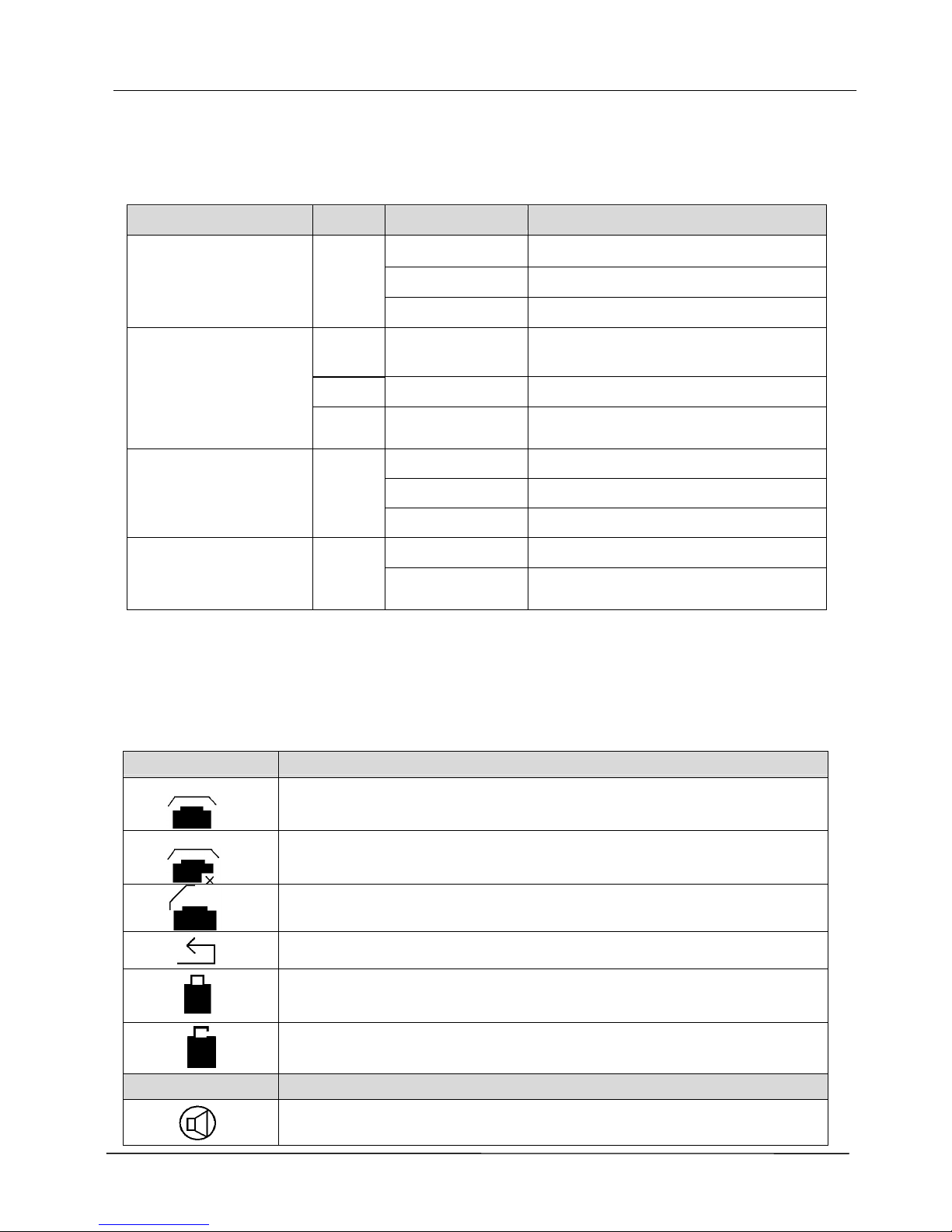
IP3022 / IP3021 LED Functions
The following table describes all functions of LED indicators:
LED Color
Status Description
Off No new message(s).
Steady Phone is booting or upgrading.
Message LED
Blue
Blinking slow New message(s) indication.
Red
Steady
Feature is set to “ON – Active”.
Or Phone is busy (BLF mode).
Blue
Blinking slow Incoming call notification.
Programmable LED
(for IP3022 models)
Off
Off
Feature is set “Off-inactive”.
Or the phone is idle (BLF mode).
Steady Line is active, dialing or in a call.
Blinking slow Call is on hold.
Line LED Blue
Flashing faster Incoming call.
Off Speakerphone is not in use.
Speakerphone LED Blue
Steady
On-hook dialing or hands-free
mode.
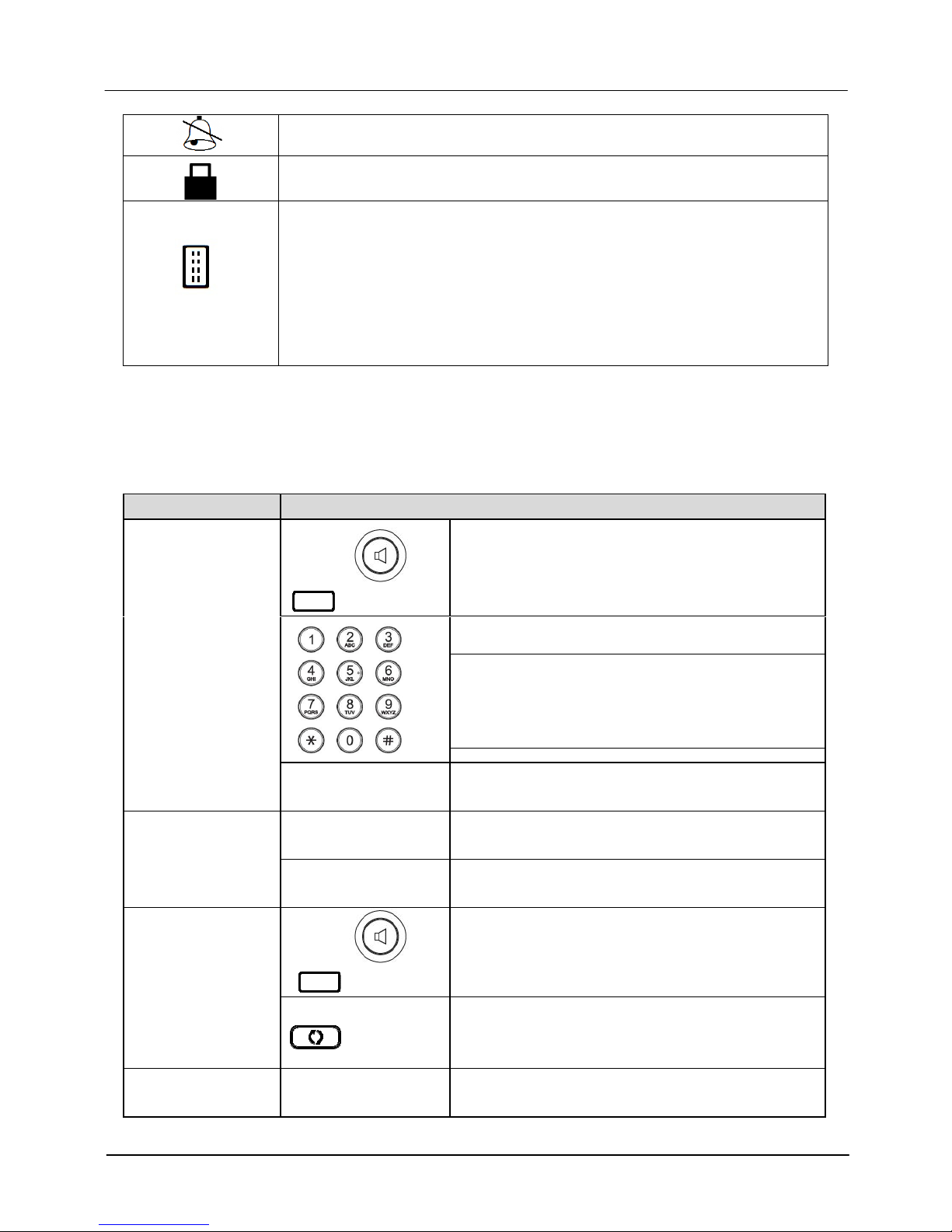
IP3022 / IP3021 Screen Icons
The following table describes line and phone status icons on the main screen:
Line Status Icon
Description
The line is registered to the SIP server or service.
The line is not registered to the SIP server or service.
The line is registered to the SIP server or service and is in use.
The line is set for “Call Forwarding” to the configured number.
The line is enabled both of “SIPs” and “SRTP”.
The line is enabled “SIPs” or “SRTP”.
Screen Icon Description
The phone is on “Auto Answer” mode.
Page 14
Page 14
MOCET IP3022 / IP3021 SOHO IP Deskphone Quick User Guide
The phone is on “Do Not Disturb” mode.
The phone is enabled “Phone Locked”.
IP3022 can be connected with up 2 IP-EDMX modules. Each IPEDMX can provide 24 programmable keys. To use over 8 defult
programmable keys that IP3022 supports, you can expand
them with
IP-EDMX(s). Please contact your distributor for purchasing.
[Warning]:
Due to more power required, the power adaptor of
IP3022 should be changed to 5V/2A spec that is used in MOCET
IP3062 phone. Please contact your distributor for purchasing.
Basic Operation Guide
This section will introduce some basic features of the IP3022 / IP3021 IP phone.
Operation Description
or
Line Key
1. Pick-up the handset or press a line key or
press the speaker key.
You will hear a dial tone.
2. Use the keypad to dial the phone number.
The LCD window displays the number you
enter.
Note: You may use the “BkSp” soft-key to
delete the last digit.
Making a call
3. On-hook the handset when your
conversation is over.
1. Pick-
up the handset upon hearing the phone
ringing.
Receiving a call
2. On-hook the handset you’re your
conversation is over.
or
Line Key
1. Pick up the handset or press a line key or
press the speaker key.
Last number
redial
2. Press the REDIAL key. The Dialed Record
list will show on the display. Select one
record to dial out.
To adjust v
olume
while on a call
1. During a conversation, if
the voice volume is
too low or too high, you may adjust it.
Page 15
Page 15
MOCET IP3022 / IP3021 SOHO IP Deskphone Quick User Guide
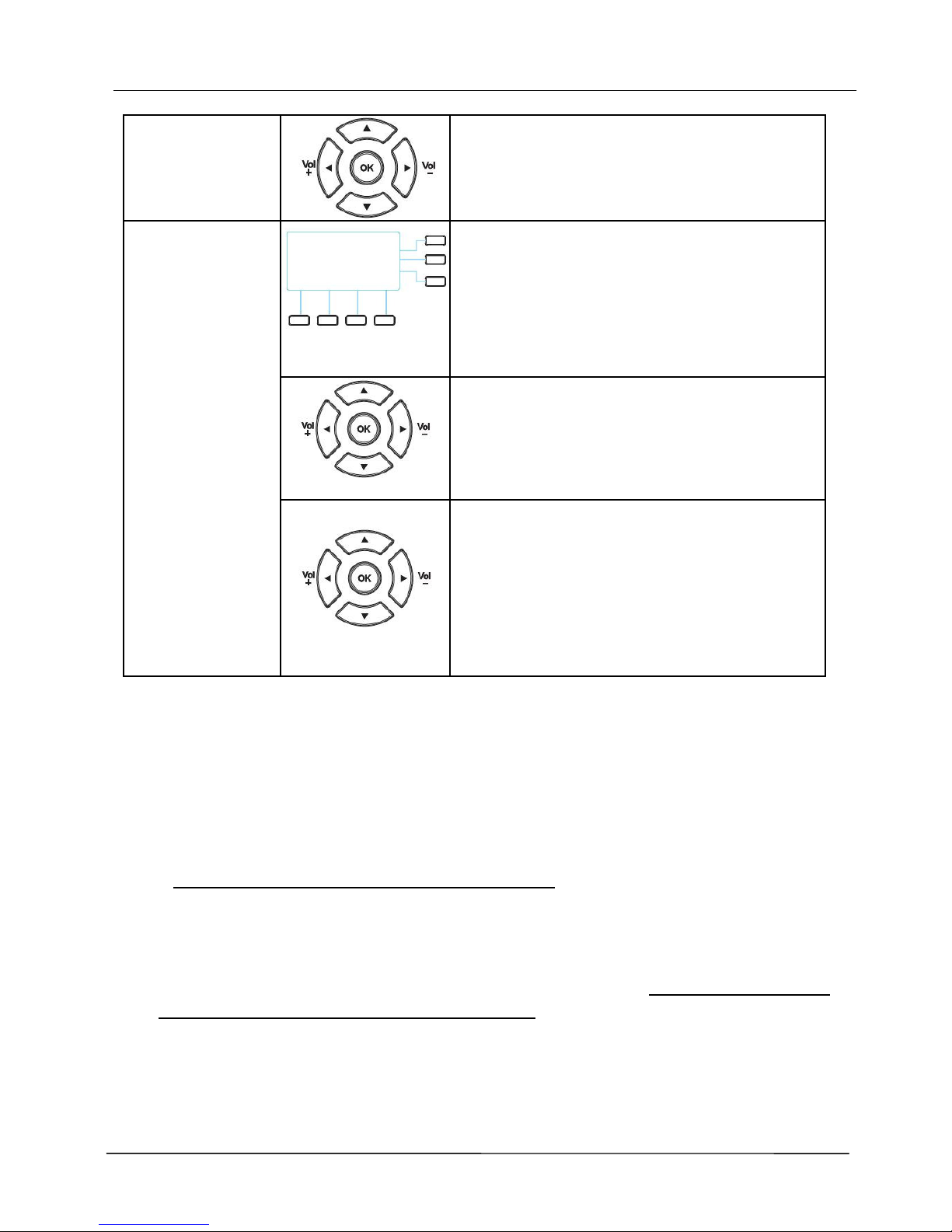
2. Press the Volume control key Left (+) or
Right (-) to adjust the volume of Speaker,
Handset, or Headset.
Call Logs
1. Press the “Logs” softkey to enter and
view Call log record.
Missed Calls
2. Select the item Missed Calls and validate
with the validate key “OK”.
Review missed
phone calls
3. Use the navigation key to review the
different missed calls. You may choose to
redial the number if the Caller ID is known
(using the “Dial” soft key).
4. Press the Navigation LEFT button to exit
the menu.
IP3022 / IP3021 Configuration with a Web
Browser
The IP3022 / IP3021 can be configured using a web browser. Point your web browser to
the factory default IP address of 192.168.1.10 (assuming the subnet mask is
255.255.255.0 ) and the login dialog will appear.
To access the web interface, please follow the following steps:
1. Start a web browser then enter the URL http://192.168.1.10 and click ENTER key.
2. You will be prompted for to enter a username and a password. The default username
is “user” and the default password is “1111”.
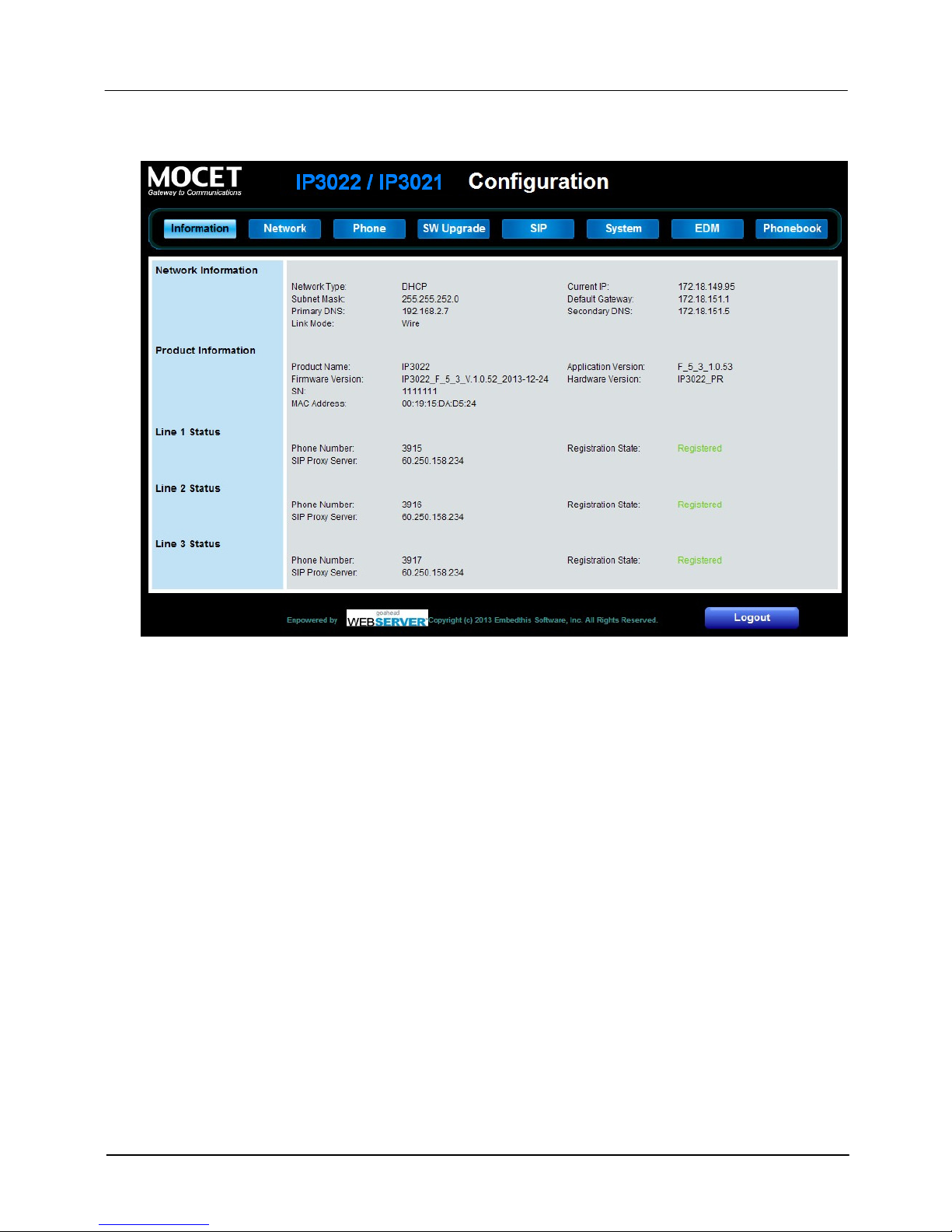
This Web interface (see the example page figure below) allows you check the status and
configure all the settings of IP Phone:
Information, Network Settings, Phone settings, SW Upgrade, SIP settings, System
Page 16
Page 16
MOCET IP3022 / IP3021 SOHO IP Deskphone Quick User Guide
settings, EDM settings and Phonebook settings
Resetting the IP Phone
There is a “Reboot” soft key in LCD Menu, which can execute the warm reboot of the
phone. In general, when you finish a configuration, you will be asked by IP phone to
confirm the save of configuration and reboot function. To clear the current configuration
and reset the IP3022 / IP3021 to factory defaults, please ask your Administrator for help.
Upgrading the IP Phone
Normally, general user is unable to upgarde IP phone by themselves. To upgrade IP
phone, please ask your Administrator for help. Administrator can upgrade the IP phone
through the Web user interface of the IP phone. There is also an Emergency Upgrade
process available for administrators or vendors to recover a phone with corrupt or defective
firmware that cannot be fixed using the web user interface of the phone.
More Information
Please refer to related User Manuals of the Phone for more detailed descriptions or contact
your administrator or supplier for advanced configuration support.
Thank you for your choice of product. Remember to record your IP phone information
below for further support service, if needed.
Page 17
Page 17
MOCET IP3022 / IP3021 SOHO IP Deskphone Quick User Guide
Notes
This device has Model number, MAC Address and Serial Number which are located
on the back of Base Unit. Please record down them for service check.
Model Number: IP302 MAC : Serial Number:
And every time you change the PASSWORD and/or User ID, please record down and
retain them for use.
USER ID: PASSWORD:
USER ID: PASSWORD:
USER ID: PASSWORD:
 Loading...