

Page 1
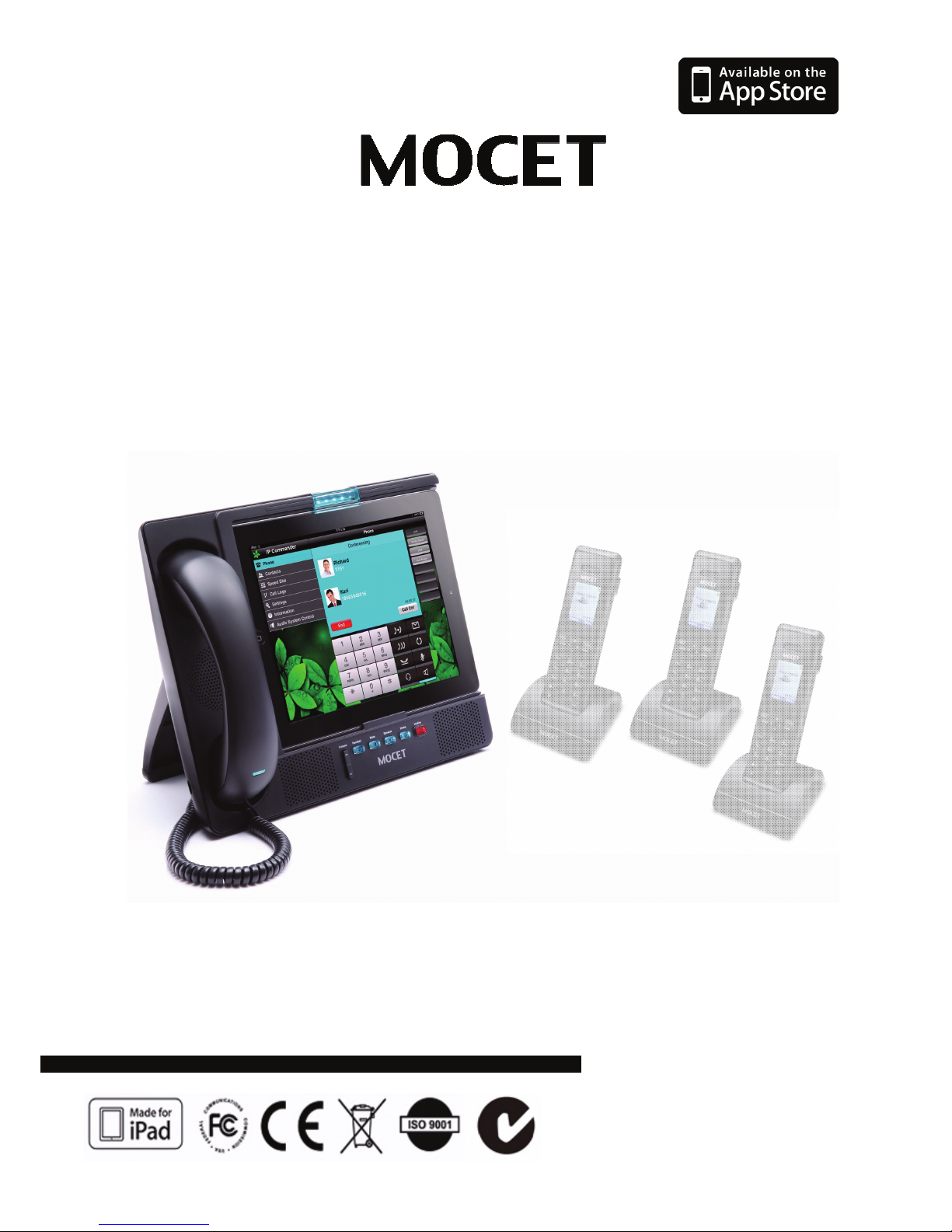
Communicator
TM
IP3092-D/ IP3092L-D /
IP3092-DE / IP3092L-DE
Quick User Guide
Copyright © 2014, All Rights Reserved.
Ver: R13 D/C: 103-0404
Page 2

Page 2
MOCET IP3092 Communicator DECT Series Quick User Guide
FCC Statement
This equipment generates, uses and can radiate radio frequency energy and, if not installed and
used in accordance with the instructions in this manual, may cause interference to radio
communications. This equipment as been tested and found to comply with the limits for a Class B
computing device pursuant to Part 15J, as well as Part15B/15D, and OET65c for DECT 6.0
compliance of FCC rules, which are designed to provide reasonable protection against radio
interference when operated in a commercial environment. Operation of this equipment in a
residential area is likely to cause interference, in which case the user, at is own expense, will be
required to take whatever measures are necessary to correct the interface.
CE Declaration of Conformity
This equipment complies with the requirements relating to electromagnetic compatibility, EN55022
class B for ITE and EN 50082-1, as well as EN 301 406, EN 301 489-1-6, EN55022/EN55024,
EN60950, EN50385 (for Base) for DECT. This meets the essential protection requirements of the
European Council Directive 89/336/EEC on the approximation of the laws of the Member States
relating to electromagnetic compatibility.
A & C Tick Declaration of Conformity
This equipment complies and passed tests preformed according to AS/NZS CISPR 22-2009 Class
B and complies with AS/ACIP S004-2008. As well as the DECT compliance passed CISPR 22,
S004, EN301 406:CE, and EN 301 489-1-6:CE requirements.
Environment
The phone you have purchased, as well as any used batteries must not be disposed of with
household waste. You should return these to your distributor if they are to replaced or dispose of
them in an approved recycling center.
Trademarks
iPad™, iPod™, iPhone™, iPad2™, the new iPad™, iTunes™, iOS™, Safari™, AirplayTM and
Facetime™ are registered trademarks of Apple Inc., USA. All other company, brand and product
names, like Cisco
™ Jabber™, Metaswitch™, Broadsoft™, Freeswitch™ and Asterisk™ are
registered trademarks of their respective owners.
WARNING!
1. Read these installation instructions carefully before connecting the IP phone to its power
2. To reduce the risk of electric shock, do not remove the cover from the IP phone or attempt to
dismantle it. Opening or removing covers may expose you to dangerous voltage levels.
Equally, incorrect reassembly could cause electric shock on re-use of the appliance.
3. Do not expose the IP Phone to Fire, direct sunlight or excessive heat.
4. Do not expose the IP Phone to rain or moisture and do not allow it to come into contact with
water.
5. Do not install the IP phone in an environment likely to present a THREAT OF IMPACT.
6. You may clean the IP phone using a fine damp cloth. Never use solvents (such as
trichloroethylene or acetone), which may damage the phone’s plastic surface and LCD
!
Page 3
Page 3
MOCET IP3092 Communicator DECT Series Quick User Guide
screen. Never spray the phone with any cleaning product whatsoever.
7. Take care not to scratch the LCD screen.
8. The IP phone is designed to work in temperatures from 5
o
C to 40oC.
9. The IP phone must be installed at least 1 meter from radio frequency equipment, such as
TVs, radios, hi-fi or video equipment (which radiate electromagnetic fields).
10. Do not connect the LAN/PC port to any network other than an Ethernet network.
11. Do not attempt to upgrade your IP phone in an unstable power environment. This could
cause unexpected issues.
12. Do not work on the system or connect or disconnect cables during lightning storms.
13. Children don't recognize the risks of electrical appliances. Therefore use or keep the phone
only under supervision of adults or out of the reach from children.
14. No repair can be performed by the end user, if you experience trouble with this
equipment, for repair or warranty information, please contact your supplier.
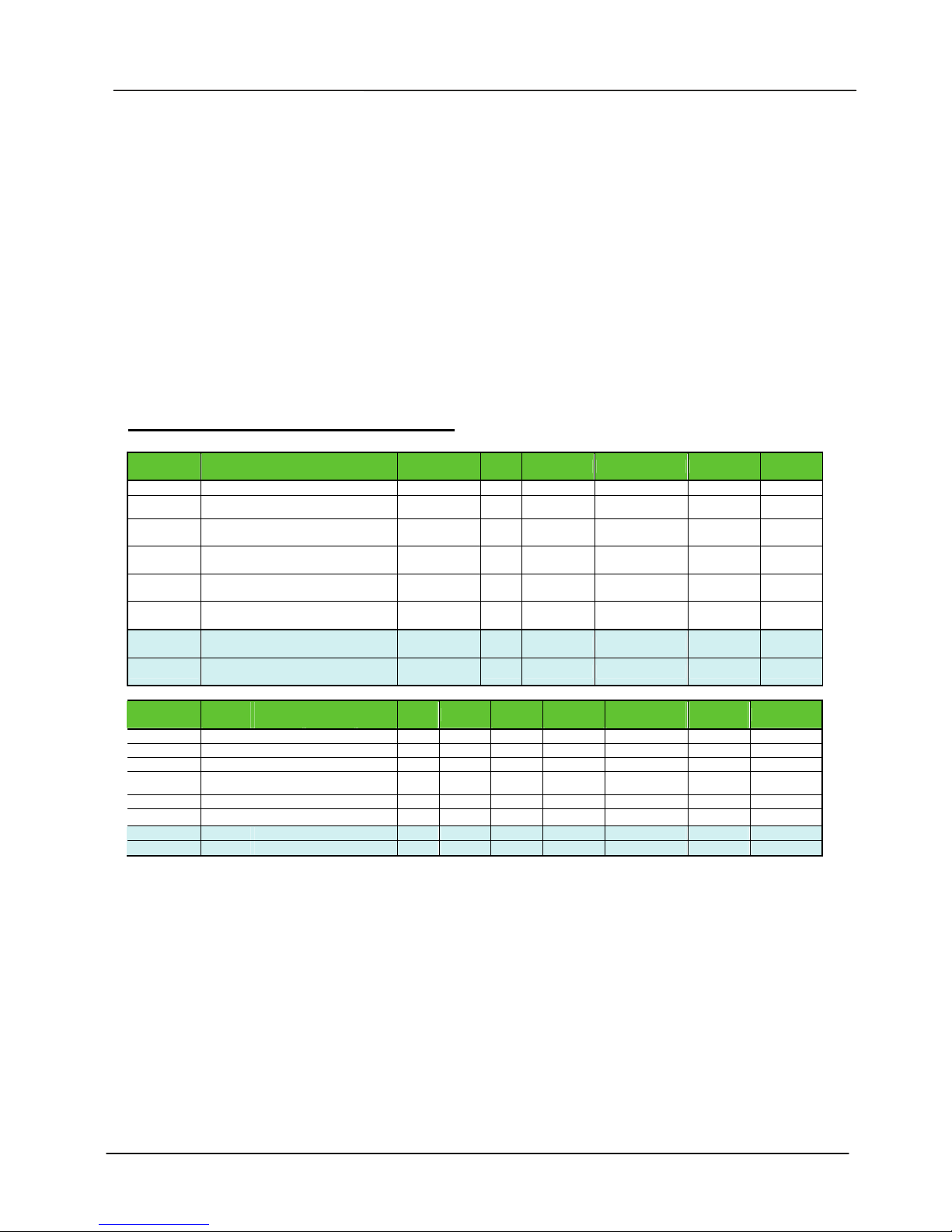
Product Model Comparison Table :
Model Communicator Description
Product
Classification
Color Connector iPad type Ethernet
Power
Adaptor
IP3092 Communicator for iPad Single unit black 30-pin iPad 1,2,3 Fast, 2 ports 12V2A
IP3092L Communicator for iPad new types Single unit black 8-pin iPad4, iPad Air Fast, 2 ports 12V2A
IP3092-D
Communicator for iPad with DECT
base
Single unit black 30-pin iPad 1,2,3 Fast, 2 ports 12V2A
IP3092L-D
Communicator for iPad new type
with DECT base
Single unit black 8-pin iPad4, iPad Air Fast, 2 ports 12V2A
IP3092-DE
Communicator for iPad with DECT
base and Gigabit
Single unit black 30-pin iPad 1,2,3 Giga, 2 ports 12V2A
IP3092L-DE
Communicator for iPad new type
with DECT base and Gigabit
Single unit black 8-pin iPad4, iPad Air Giga, 2 ports 12V2A
IP3092-DK
Communicator SOHO Suite for iPad
with DECT base
Bundle
package
black 30-pin iPad 1,2,3 Fast, 2 ports 12V2A
IP3092L-DK
Communicator SOHO Suite for iPad
new type with DECT base
Bundle
package
black 8-pin iPad4, iPad Air Fast, 2 ports 12V2A
Model
PoE
802.3at
Headset
port
Headset
port
USB
port
MicroSD
IP-MIC
DECT
Base
DECT
Handsets
Embedded
PBX
V
oice Mail
Box
WiFi USB
IP3092 No Yes Yes Yes Yes not inclu. No not inclu. Yes Yes Optional
IP3092L No Yes Yes Yes Yes not inclu. No not inclu. Yes Yes Optional
IP3092D No Yes Yes Yes Yes not inclu. Yes not inclu. Yes Yes Optional
IP3092LD No Yes Yes Yes Yes not inclu. Yes not inclu. Yes Yes Optional
IP3092D-E No Yes Yes Yes Yes not inclu. Yes not inclu. Yes Yes Optional
IP3092LD-E No Yes Yes Yes Yes not inclu. Yes not inclu. Yes Yes Optional
IP3092D-K No Yes Yes Yes Yes Included Yes 3 sets Yes Yes Optional
IP3092LD-K No Yes Yes Yes Yes Included Yes 3 sets Yes Yes Optional
[Note]: White housing models which follows with "(w)" :
IP3092 (w), IP3092L (w), IP3092-D (w), IP3092L-D(w), IP3092-DK (w), and IP3092L-DK(w).
Page 4

Page 4
MOCET IP3092 Communicator DECT Series Quick User Guide
Introduction
The MOCET Communicator™ IP3092-D series is an innovative accessory for the Apple™
iPad™ that will enable you to use your iPad as your DECT phone system and an power ful
video conferencing station with popular applications including Skype™, Cisco Jabber, etc.
With the addition of the MOCET™ IP Commander™ app from Apple™ App Store™ free
download, you can create amazing phone system, and gain high quality phone service by
subscribing to a compatible VoIP service (available separately).
Use the high definition audio-enabled handset and speakerphone on the Communicator to
enhance your communication and ensure privacy and comfort. For office use, an external
microphone pair can be attached to improve the conference call experience. The enhanced
dynamic range stereo speakers make listening to music and watching music a more
engaging experience. Besides, the wireless DECT supports higher qualility wideband
communications for handset user. It is based on 2nd generation specification, CATiq2.0 of
DECT technology.
The Communicator stand is adjustable between 30º and 75º, allowing you to find the most
convenient viewing angle for watching movies or participating in video conferences. The
Communicator can fast charge and power your iPad for all day work and play, and the USB
port can charge an additional iPhone or other mobile device.
A Bluetooth-enabled iPad / iPhone / Android Pad / mobile phone can be paired with the
Communicator allowing calls to be directed to the handset or speakerphone for better call
quality and comfort as well. One USB host port and one micro-SD port on the IP3092 allow
user to connect USB WiFi dongle, memory devices, keyboard or other supported
peripherals.
The integrated DECT base station on Communicator’s IP3092-D / IP3092L-D and IP3092DE / IP3092L-DE models can support up to five Euro DECT or USA DECT 6.0 handsets,
configured as an embedded mini PBX system which performs rich features, such like call
transfer, call forward, on-phone conferencing, DID (Direct Inward Dialing), hunting group,
multiple ringing group, call transfer/call forward, and voice mail box for DECT handset users.
.
Two fast Ethernet ports on IP3092-D and IP3092L-D models allow you to connect your
computer as a pass-through to your network, requiring only one Ethernet to your switch or
router for both, while IP3092-DE and IP3092L-DE models support Gigabit Ethernet higher
speed connectivity.
The following table shows the main differences among the Communicator DECT Models:
Communicator Model IP3092-D IP3092-DE IP3092L-D IP3092L-DE
Apple Connector Type 30-pin 30-pin 8-pin 8-pin
iPad Model Support iPad 1, 2, 3 iPad 4, iPad Air, iPad mini/2
Ethernet Support (2-ports) 10/100M 10/100/1000M 10/100M 10/100/1000M
HD handset and speakerphone Y Y Y Y
DECT Base Station Y Y Y Y
Support GAP and CAT-iq2.0 HS Y Y Y Y
Page 5
Page 5
MOCET IP3092 Communicator DECT Series Quick User Guide
Bluetooth Stereio Music/Voice Y Y Y Y
Embedded VoIP phone Y Y Y Y
Hardware Installation
The IP3092-D Series Communicator comes with accessories in the box, including a
Quick Guide, handset, handset cord, power supply adapter, and an Ethernet cable.
Please check on the Communicator and proceed the following sections of this Quick
Guide.
Set Up the Communicator:
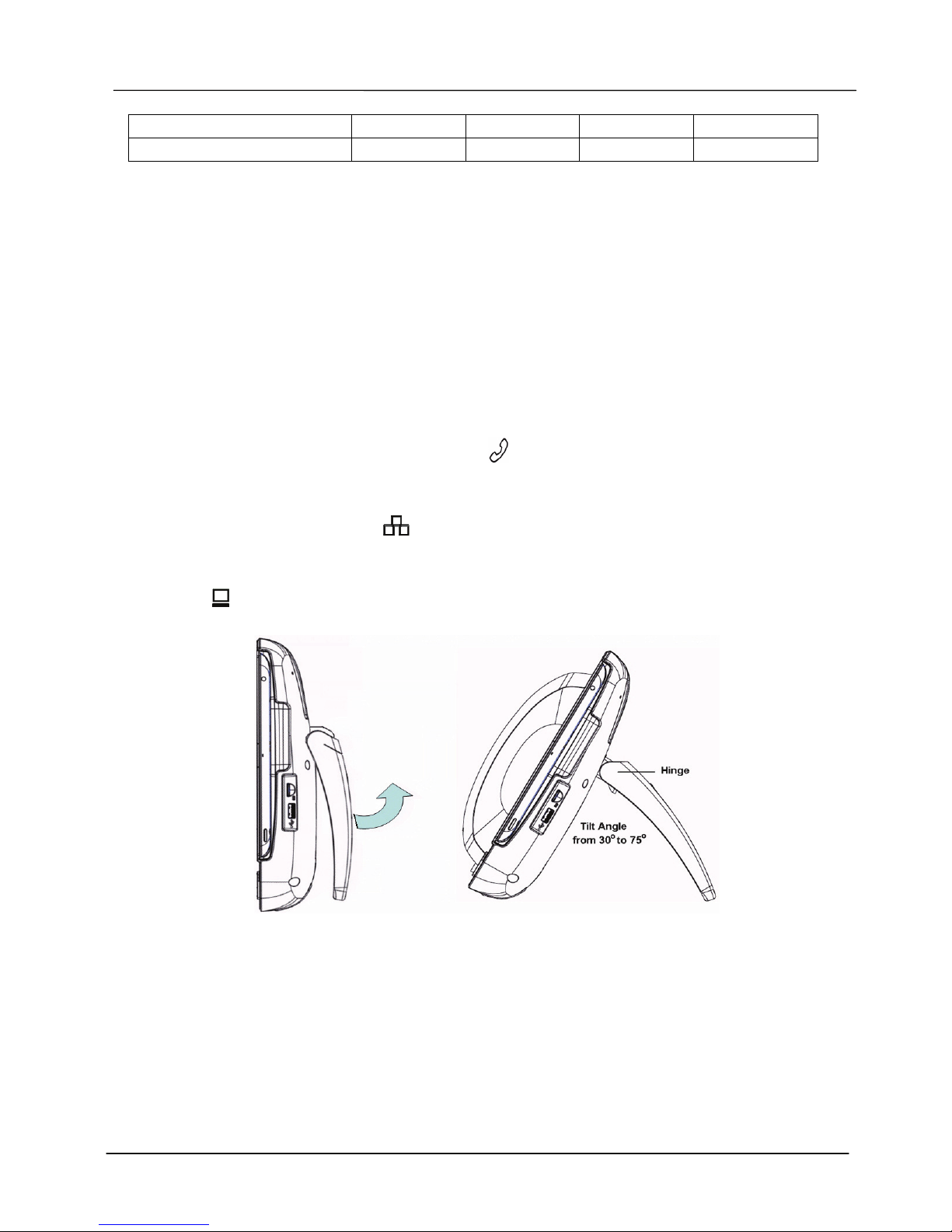
- Unpacking the package box; place the Communicator on the table and turn its stand
to a proper angle (say 45 degree, please see Figure 1).
- Then connect the handset to the curly handset cord first and plug the other end of the
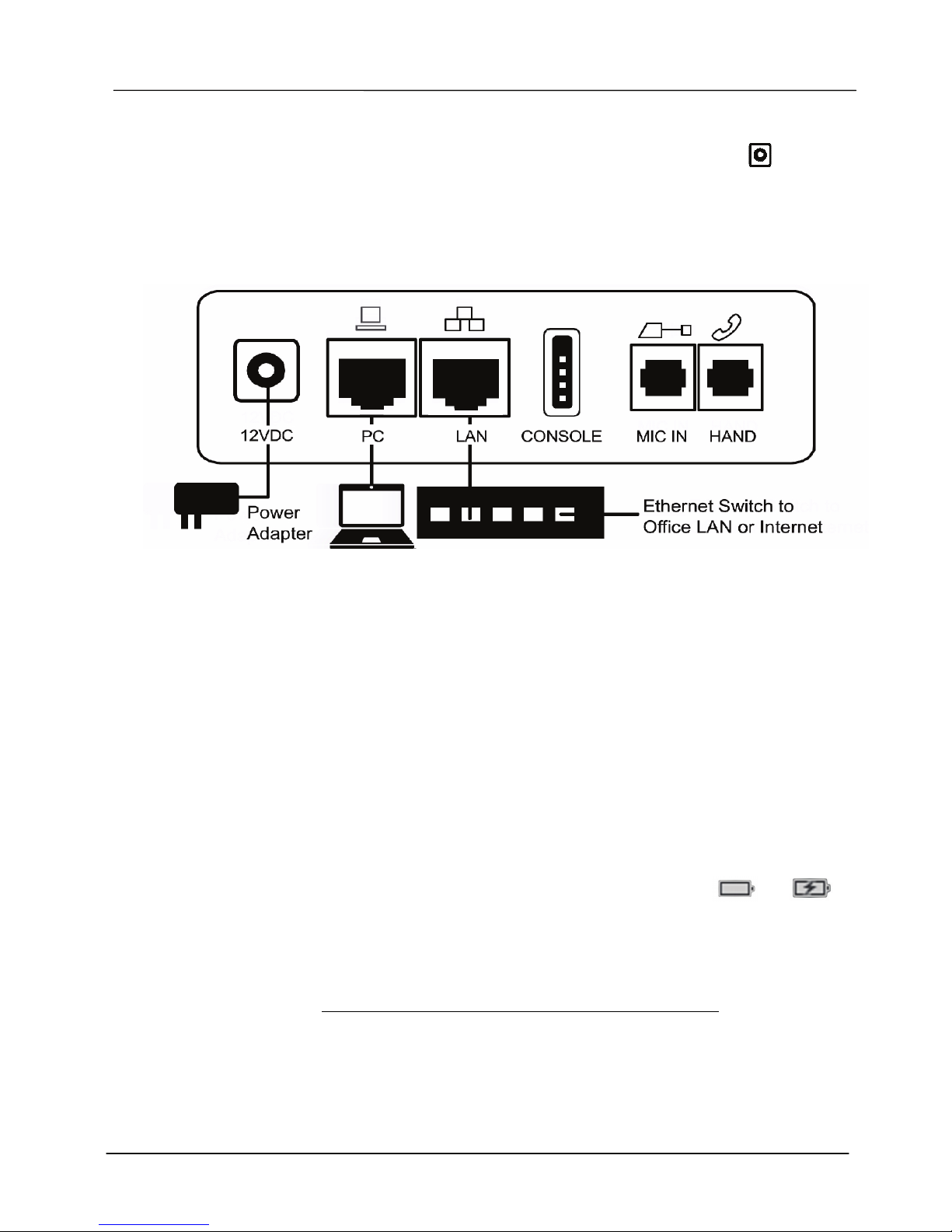
cord to the phone jack marked HAND on the rear panel of the Communicator.
Please refer to the Figure 2 and the back shell ports of the Communicator.
- With an included CAT-5 Ethernet cable, connect Communicator to an Ethernet port on
a Switch from its LAN port , where it is connected to office LAN or Internet.
- To eliminate the requirement for multiple Ethernet cables to a user’s location, the
user’s computer can be connected to the network through the second Ethernet PC
port on the Communicator if required.
Figure 1. To Set up the Communicator with a proper stand angle
[Remark]:
In the carton the hinge of IP3092 stand is set at 0o. To adjust the stand
position, open the hinge by pulling firmly out from the stand. The first
position of hinge is placed at 30 o. Then you can adjust the stand angle
at any position from 30
o
to 120 o, so that you can find the most
convenient viewing angle.
Page 6
Page 6
MOCET IP3092 Communicator DECT Series Quick User Guide
Connect the Power:
- Then plug the barrel plug of the included power adapter to the port marked
12VDC. Make sure you use the right power adaptor with a label showing 12V and 2A.
- Then plug in the other end of power adaptor to an AC power outlet. The LEDs on the
Communicator will illuminate momentarily and then the Communicator will boot.
-
Figure 2. The Back Panel of the Communicator and How To Connect
Booting Up :
The Communicator will take about two minutes to boot. When the Communicator is
booting up, the blue-green LED (MWI) indicator on the top of the unit will illuminate.
Please don’t insert the iPad into the Communicator untill the MWI LED is extinguished.
InsertingThe iPad:
- Except iPad 1, keep the add-on tray in the dock for iPad 2, iPad 3, and iPad4.
(For iPad Air, and iPad mini, you may need another add-on tray, please contact
your supplier). To dock the iPad 1, remove the add-on tray first. (see figure below).
- By sliding your iPad into the front bezel slot will cause the battery signal showed on
the upper right corner of the iPad screen to be changed from to .
Then the Communicator is ready for operation.
Setup DECT Handset Connection:
Please refer to the DECT Handset Operation with the Communicator section of this
guide for DECT Handset configuration and operation.
[Remarks]:
The Console port is reserved for engineering servide, it is not for general users.
Page 7
Page 7
MOCET IP3092 Communicator DECT Series Quick User Guide
Appearance & Function Description
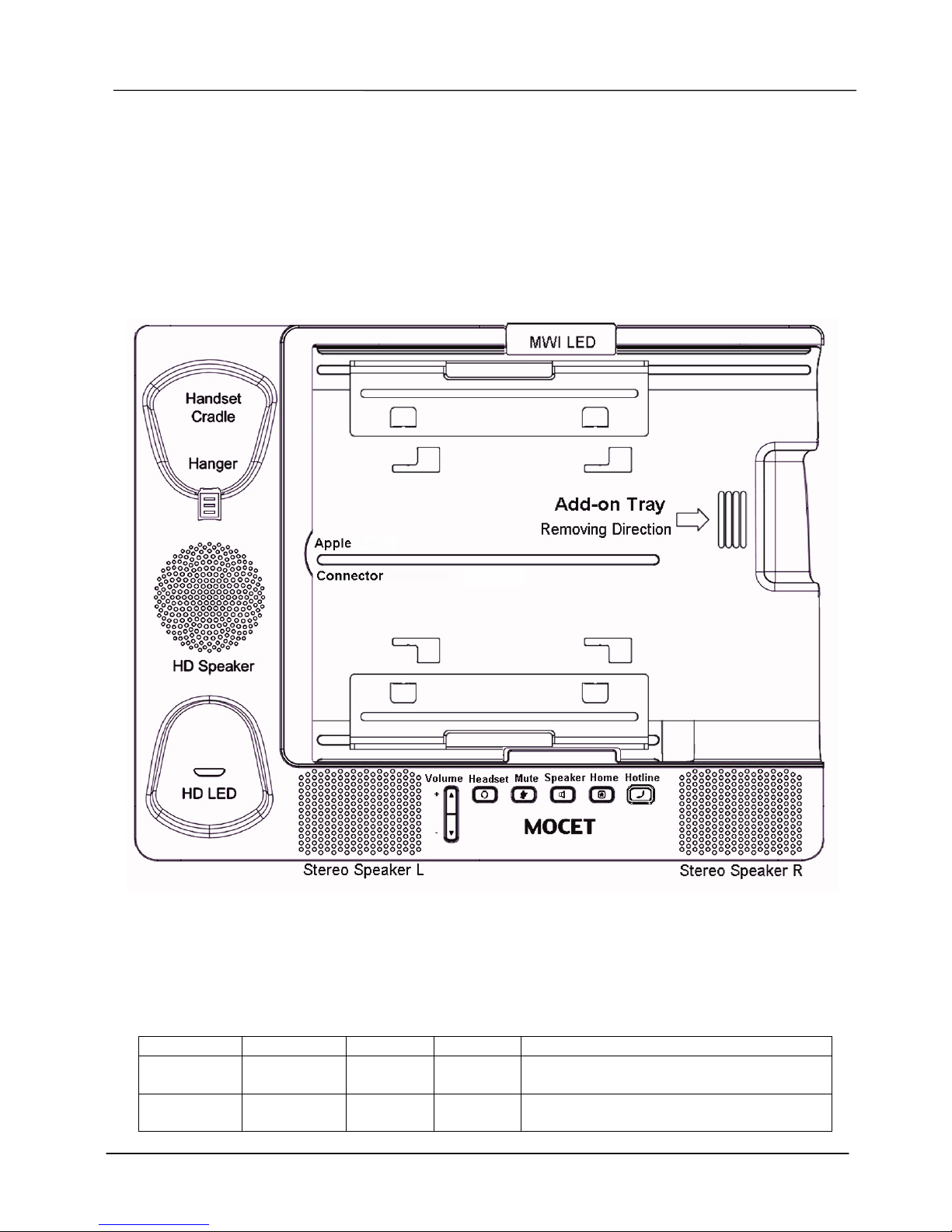
The appearance of Communicator is shown in the figure below. The handset will be
mounted on the left cradles and an iPad will be inserted from the right side. There are 2
stereo speakers are located at the bottom side with a control panel. Before inserting your
iPad, you need to check if you need to change the configuration of the add-on tray. For 30pin Communicator, the default configuration is for iPad2 or iPad3. But for the 8-pin
Communicator, the default configuration is for iPad Air.
Figure 3. The Communicator Front Appearance and Add-on Trays
To Configure The Add-on Tray
There are different models from Apple which come with Apple 30-pin or 8-pin Lightning
connectors. To support different iPad models, there are different configuration of tray
applicable; please refer to the table below.
iPad Model Connector Tray Holder Support Communicator Models
iPad1 30-pin No need No need IP3092, IP3092C,
IP3092-D, IP3092-DE
iPad2,
iPad3
30-pin Need
(Config.A)
No need IP3092, IP3092C,
IP3092-D, IP3092-DE
Page 8
Page 8
MOCET IP3092 Communicator DECT Series Quick User Guide
iPad4 8-pin Need
(Config.A)
No need IP3092-L, IP3092L-C, IP3092L-DE,
IP3092L-DK
iPad Air 8-pin Need Required
(Conf. B)
IP3092-L, IP3092L-C, IP3092L-DE,
IP3092L-DK
iPad mini,
iPad mini2
8-pin Need Required
(Conf. C)
IP3092-L, IP3092L-C, IP3092L-DE,
IP3092L-DK
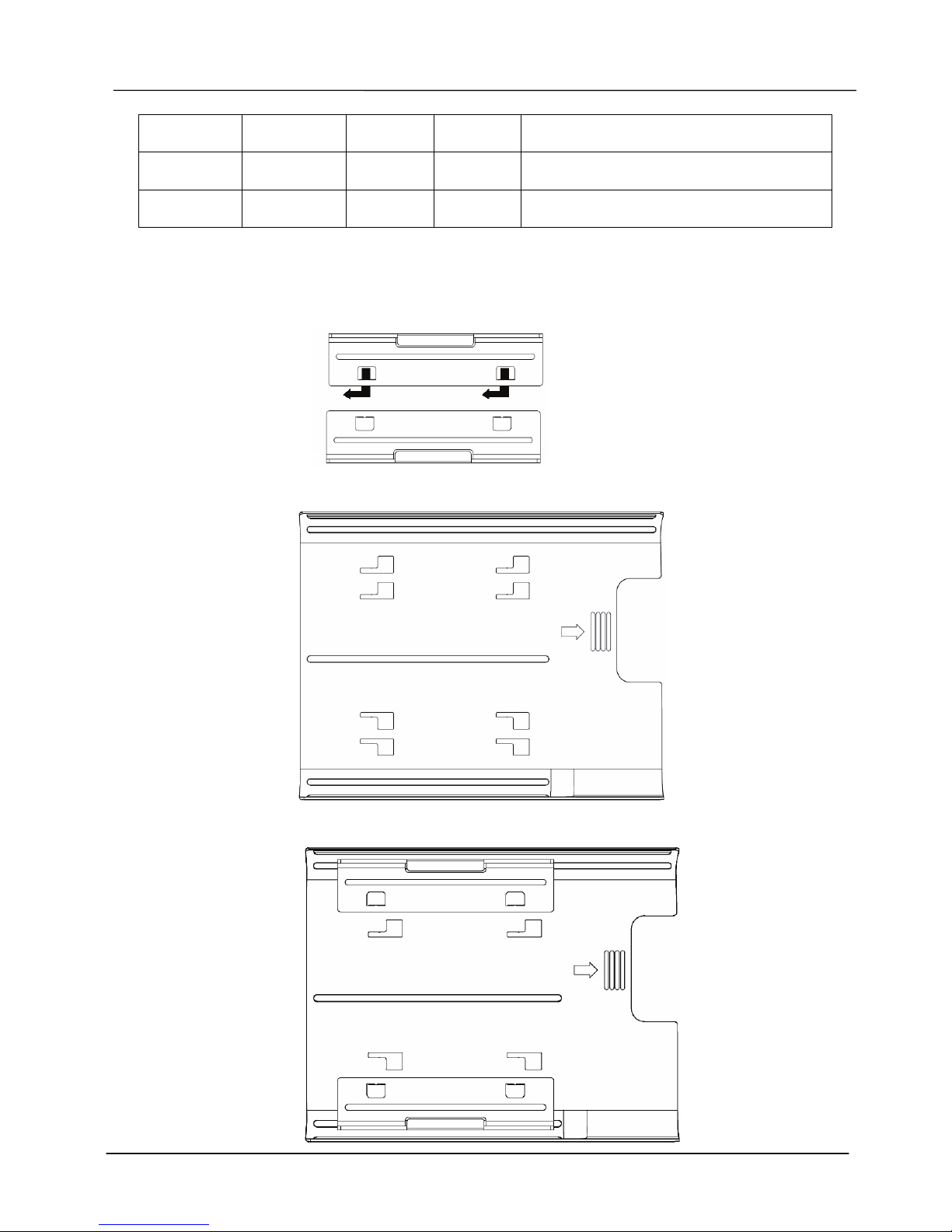
Different tray with side-holder configurations are shown below.
(Side-Holders): Please install 2 side holders onto the tray by aligning the foot into
the holes of the tray and then slide the holder to the left side. To
remove it, just do it in the reversed way.
(Configuration A): no side-holder is required
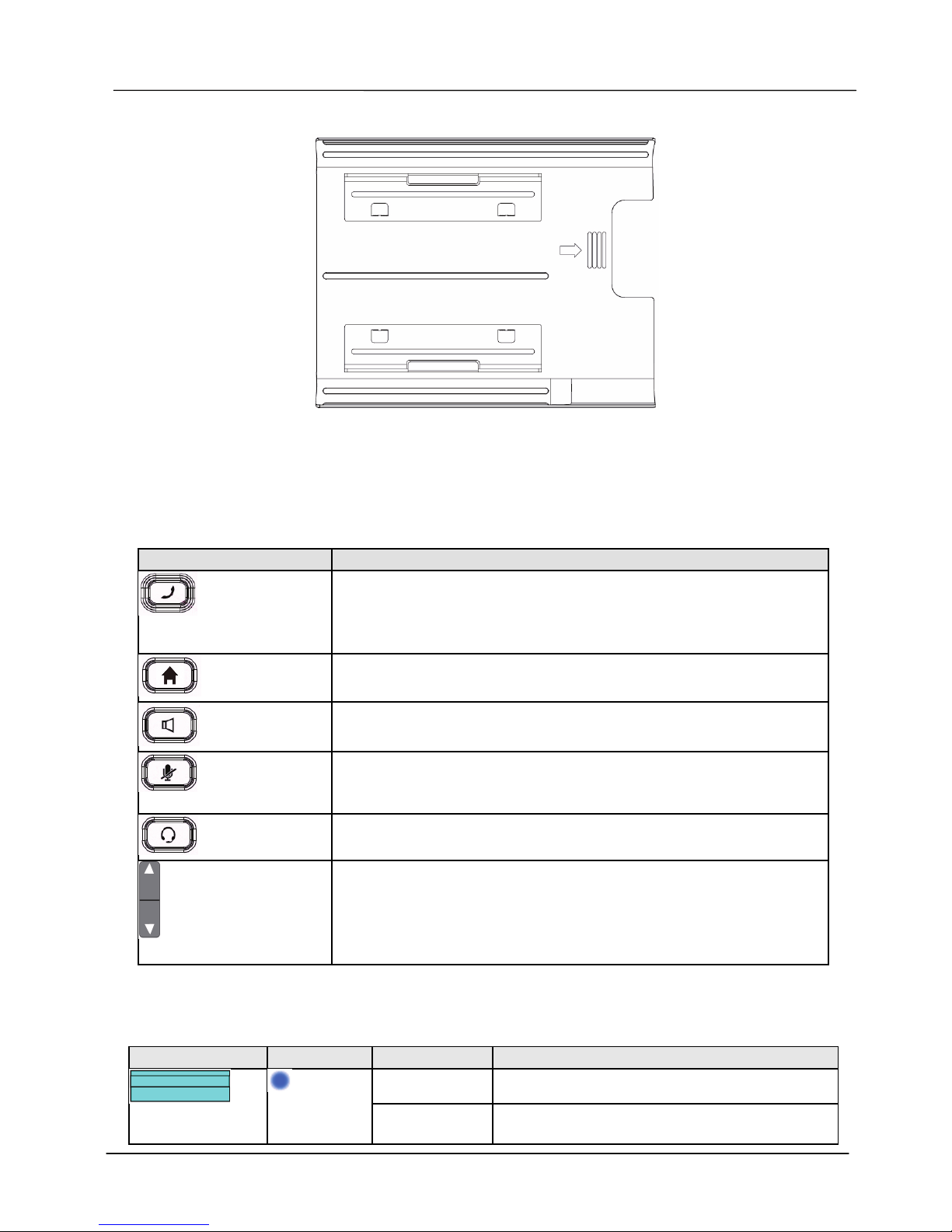
(Configuration B): The side-holders are installed on the most top and bottom sides.
Page 9
Page 9
MOCET IP3092 Communicator DECT Series Quick User Guide
(Configuration C): The side-holders are installed on the inner top and bottom sides.
When you remove the side-holders, please reserve them in a safe place. And when you
want to use with other iPad model, they can be used.
Communicator Keys
Key Description
Hotline
Press this key to make an emergency call whether the iPad is
attached or not; requires subscription to VoIP service or
connection to an IP PBX. A red LED is used to indicate its
status
Home
Press this key to bring IP Commander app immediately to the
forefront. A blue LED is used to indicate its status
Speakerphone
Press this key to enable or disable the Speakerphone; a blue
LED is used to indicate status
Mute
Press this key to mute a call (the other party will not be able to
hear you when making a phone call by using communication
APP)
Headset
Press this key to enable or disable the Headset feature;
Volume Rocker
Volume control keys to adjust volume of Handset Receiver,
Handset DTMF output, Handset Ring output, Headset
Receiver, Headset DTMF output, Headset Ring output,
Speakerphone output, Speakerphone DTMF output and
Speakerphone Ring output
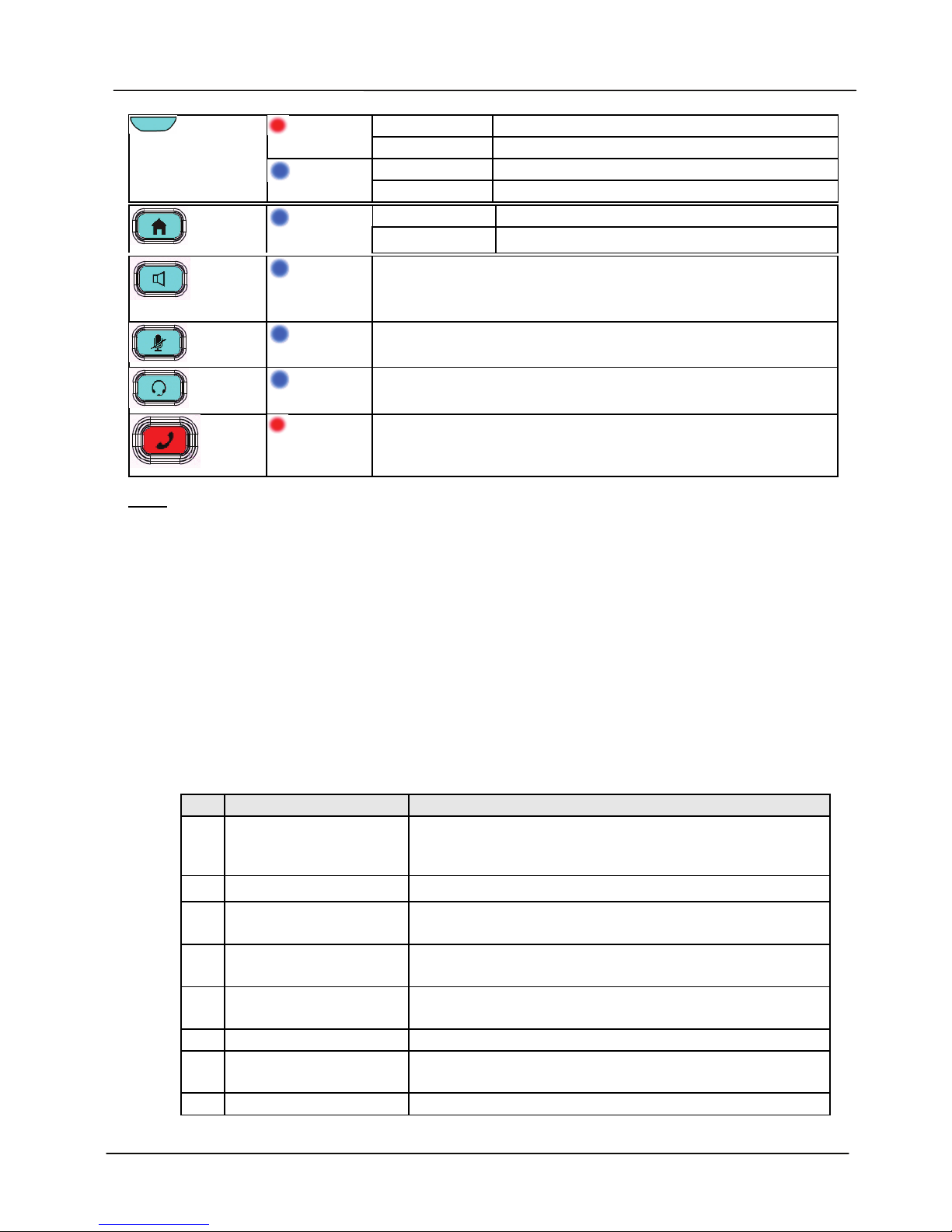
LEDs on The Communicator
LED Color Status Description
Off Communicator has booted OK
Message Waiting
Indicator
Blue
Steady The Communicator is booting or updating
Page 10
Page 10
MOCET IP3092 Communicator DECT Series Quick User Guide
Steady System is under upgrade or abnormal state
Red
Fast Flashing Network is disconnected
Steady Support HD audio quality.
Handset
Blue
Off HD audio quality not supported
Off Normal condition
Home
Blue
Steady On N/A
Speakerphone
Blue
Blue-green LED indicates that speakerphone is enabled
Mute
Blue
Blue-green LED indicates that “Mute” is enabled
Headset
Blue
Blue-green LED indicates that the headset feature is
enabled
Hotline
Red
By default, the red LED is off. When user makes an
emergency call, the LED will light up.
Note: To activate the Hotline function, please configure it in the IP CommanderTM app or
web interface of CommunicatorTM. The location of the Communicator and up to
three emergency phone numbers may be programmed into the web interface. For
instance,
(1) 911 at Line 1-408-123-4567 (Police station)
(2) 1-555-111-2222 at Line 1-230-765-4321 (Office Security)
(3) 1-666-333-4444 at Line 1-230-765-4321(Building Security)
For more information, please refer to the Hotline section in the Basic Operation
Guide.
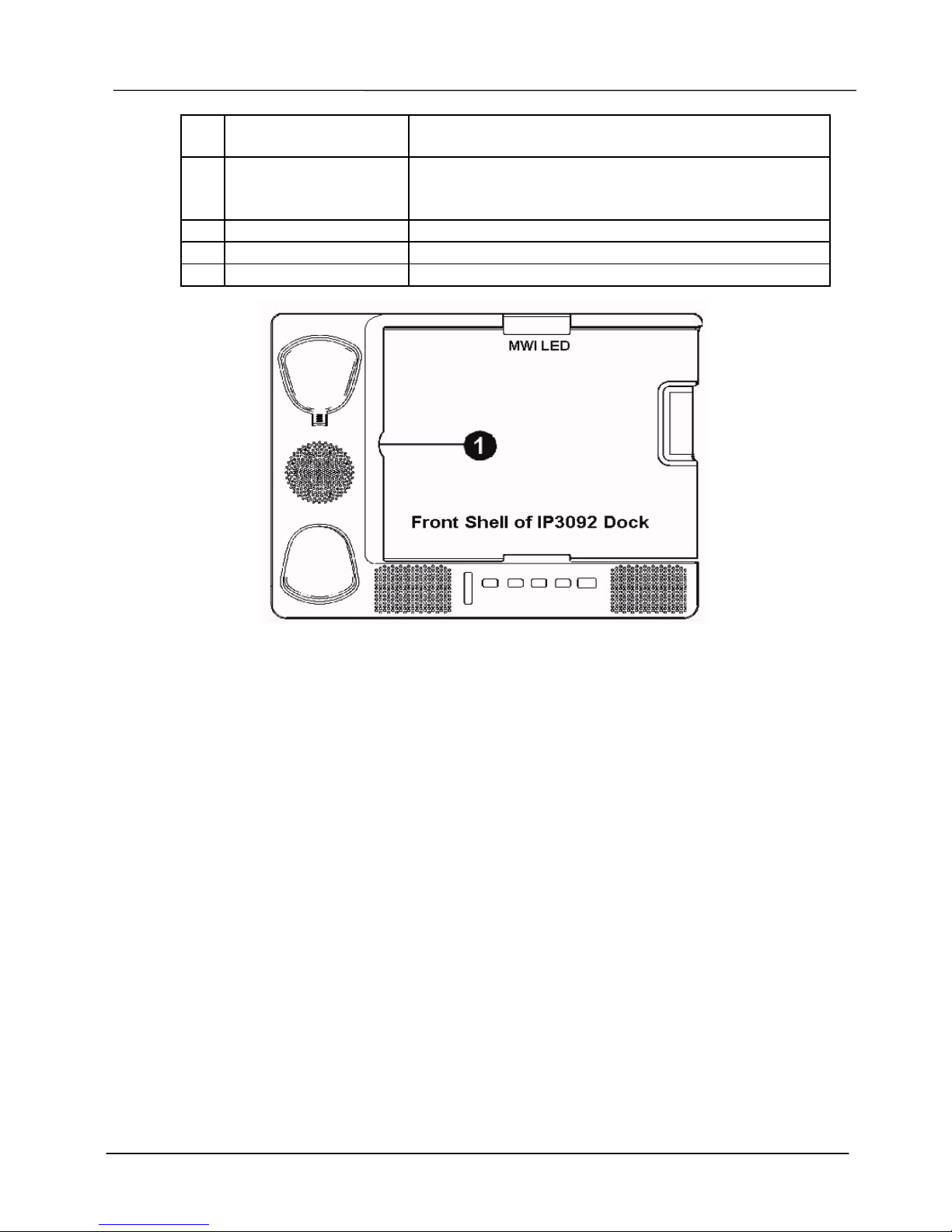
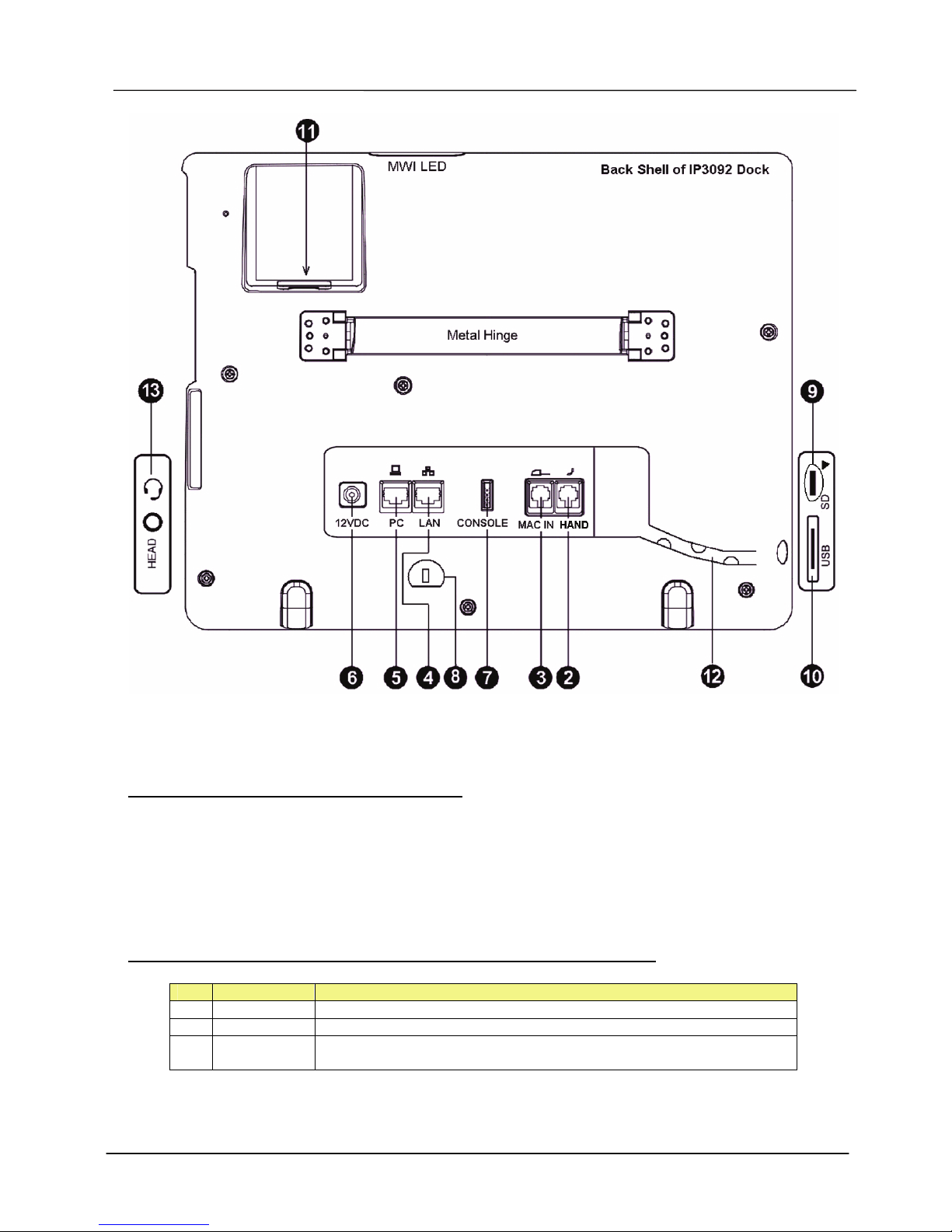
I/O Port Functions
The front, rear and side view of the Communicator with location of connectors is shown
in the following figures and the description of I/O ports are listed in the table here. Refer
to their locations in Figure 4 and 5.
NO. Port Description of I/O Port
1 iPad Docking Port Apple connector for iPad on the front shell
IP3092-D / 92-DE: with Apple 30-pin connector
IP3092L-D / 92L-DE: with Lightning 8-pin connector
2 Handset Port RJ9 jack for attaching handset with curly phone cord
3 Microphone Input Port RJ9 jack to connect an external microphone for hands
free (conferencing) mode
4 Ethernet LAN Port IP3092–D / 92L-D: RJ45 10/100 Ethernet port
IP3092-DE / 92L-DE: RJ45 10/100/1000 Ethernet port
5 Ethernet PC Port IP3092–D / 92L-D: RJ45 10/100 Ethernet port
IP3092-DE / 92L-DE: RJ45 10/100/1000 Ethernet port
6 12VDC Power In 2.5mm Jack for external power adapter
7 Console Port 4-pin header for engineering service port
Note: This port is not necesary for general user.
8 Kensington Lock hole For user to luck the Communicator against stealing
Page 11
Page 11
MOCET IP3092 Communicator DECT Series Quick User Guide
9 Micro SD Card Port For Communicator local use only (upgrade image,
configure, voice mails, melody, IVR greeting, etc.
10 USB 2.0 Host Port For Communicator local use only: Allows to support
memory, keyboard and peripheral device to be
connected to the Communicator.
11 WiFi AP Router Port Reserved for future WiFi accessory support
12 Wiring Duct For inserting curly handset cord into the slot
13 Headset Port 3.5mm jack for standard Apple ear buds or headset
Figure 4. The Apple 30-pin or Lightning Connector for Docking
Page 12
Page 12
MOCET IP3092 Communicator DECT Series Quick User Guide
Figure 5. I/O Ports on Back Shell and Sides
The Contents of Product Package:
- 1 x IP3092-D series unit
- 1 x wideband Handset with cord
- 1 x power adaptor
- 1 x Ethernet cable
- 1 x quick user guide
Optional Accessories for Communicator DECT Series:
No. Model No. Product Name / Description
1 DH300 DECT Wideband Handset (CATiq2.0 spec)
2 IP-MIC External Microphone Pair for Conference
3 WU-311NA WiFi IEEE802.11b/g/n USB dongle for wireless connection of
Communicator to Internet
Page 13

Page 13
MOCET IP3092 Communicator DECT Series Quick User Guide
Software Installation
Docking The Communicator To Play Multimedia
When the Communicator powers on and is ready and the iPad is inserted all the way
into the Apple connector, the iPad will start charging. The user can adjust the screen
angle by holding the stand and the base unit and opening or closing the stand to a
comfortable angle, ranging from 30 to 75 degrees (see the figure above). A convenient
angle for use is easy to find for playing music or video with the Communicator.
In addition, the user can charge his iPhone or other mobile phone by connect it to the
USB port on the right side of the Communicator.
Audio Path via Bluetooth or Apple Connector
By default, all audio from an docked iPad plays through Apple connector onto the
speakers, handset or headset of the Communicator. However, the Communicator
supports Bluetooth 2.1 EDR and the A2DP audio profile too for a wireless connection to
the iPad’s audio system. You can pair your iPad, iPhone or another mobile phone to the
the Communicator by using the Bluetooth discovery process on your iPad, iPhone or
another mobile phone to find and associate it to the Communicator. You will see a
device ID like IP3092-xxxxxxxxxxx when finished scanning. When the iPad, iPhone or
other mobile phone is properly paired with the Communicator, you will see it in the
Information page of the Communicator web interface or on the Commander app
interface on the iPad.. When connected, you can control the audio output of the iPad,
iPhone or other mobile phone using the volume controls on the Communicator to play
music or make a call using the Communicator’s handset, speakerphone and headset.
When the iPad is is paired to the Communicator using Bluetooth the audio and video
will keep playing even if the iPad is not connected to the Communicator.
When the iPad is docked successfully on the Communicator, the iPad will use the Apple
connector (30-pin or 8-pin) as it supports true wide-band quality for both music and
voice calls.
Run Social Networking Apps With The Communicator
Many users like to run social networking and communications apps, like FacetimeTM,
Skype
TM,
, Hookflash™ and other apps on their iPads. The Communicator’s high quality
audio system greatly enhances the user experience for voice and video calls. Your calls
with sound better, regardless of whether the app supports narrow-band or wide-band
audio. For comfort and convenience, the user can switch the audio among
speakerphone, handset or headset and volume can be adjusted independently for all
three modes.
Warning: Some apps do not support Bluetooth audio and some other apps do not support
audio through the Apple connector (USB audio). So, you may need to switch the audio path in
iPad accordingly .
Page 14
Page 14
MOCET IP3092 Communicator DECT Series Quick User Guide
Installing The Commander App on Your iPad
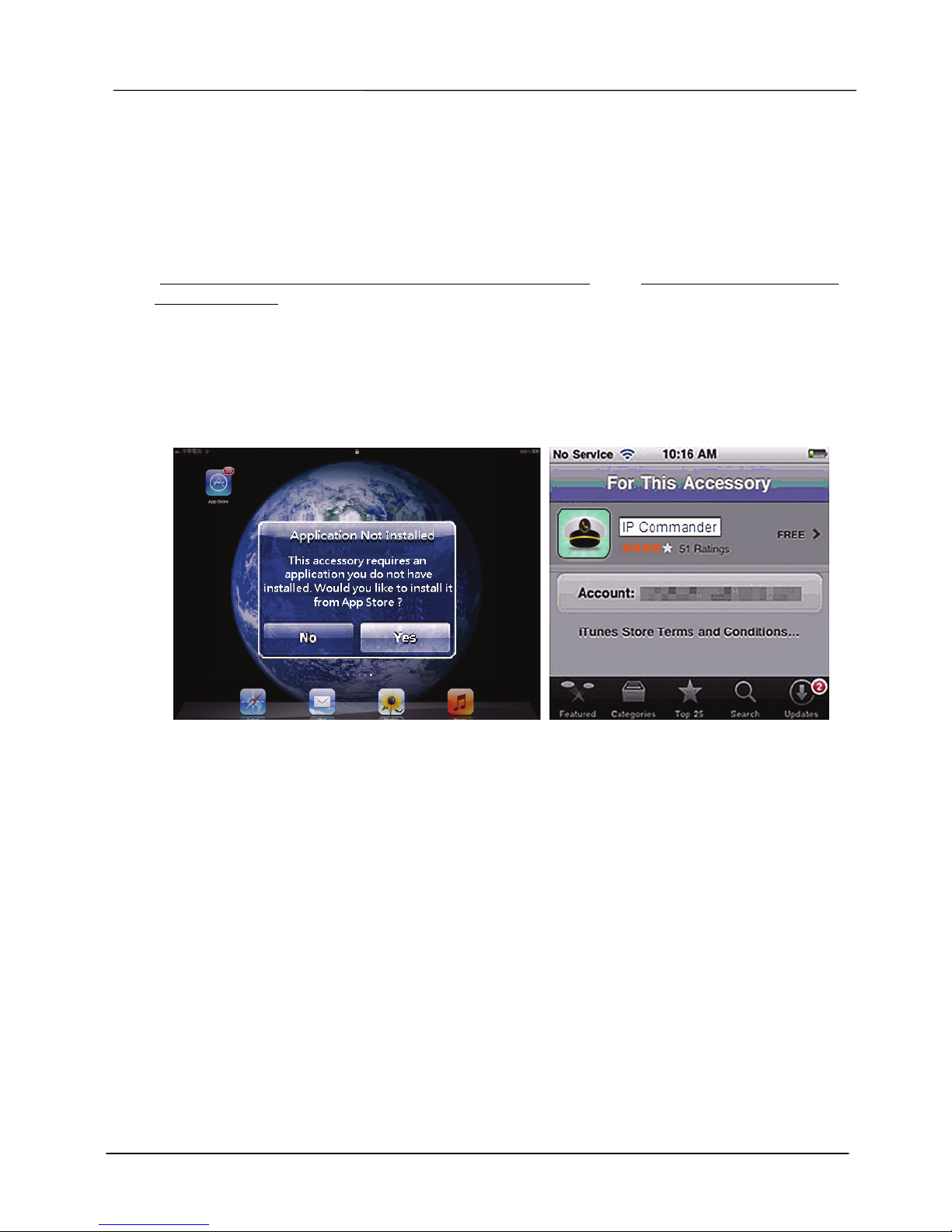
When an iPad is inserted into the Communicator, the Communicator will scan the iPad
to determine whether it has been well-connected and whether it has the IP Commander
app installed previously. If it is the first time you have connected your iPad to the
Communicator, and you do not have the Commander app, a dialog box will comment
“This accessory requires an application you do not have” and “Would you like to install it
from App store?”
Please press the “Yes” button. Then the iPad will lead you to iTunes store to dowload
the IP Commander app. And you will be prompted to confirm the “install” on your iPad.
If more than one iPad shares one Communicator, the download and install process will
be repeated for each new iPad docked.
After successful install, keep the IP Commander APP on your iPad. If you delete the IP
Commander APP, you need to do the download and install procedure again. If any upgrade
is notified, please update. This IP Commander App is mainly designed to let user to run
VoIP mode and operate the embedded VoIP functions. It does however, provide the way
system updates and provides new features that can be installed on your machine.
To learn more information about how to use the IP Commander APP, please refer to “IP
Commander for iOS VoIP User Guide”
Page 15
Page 15
MOCET IP3092 Communicator DECT Series Quick User Guide
DECT Handset Operation with the Communicator
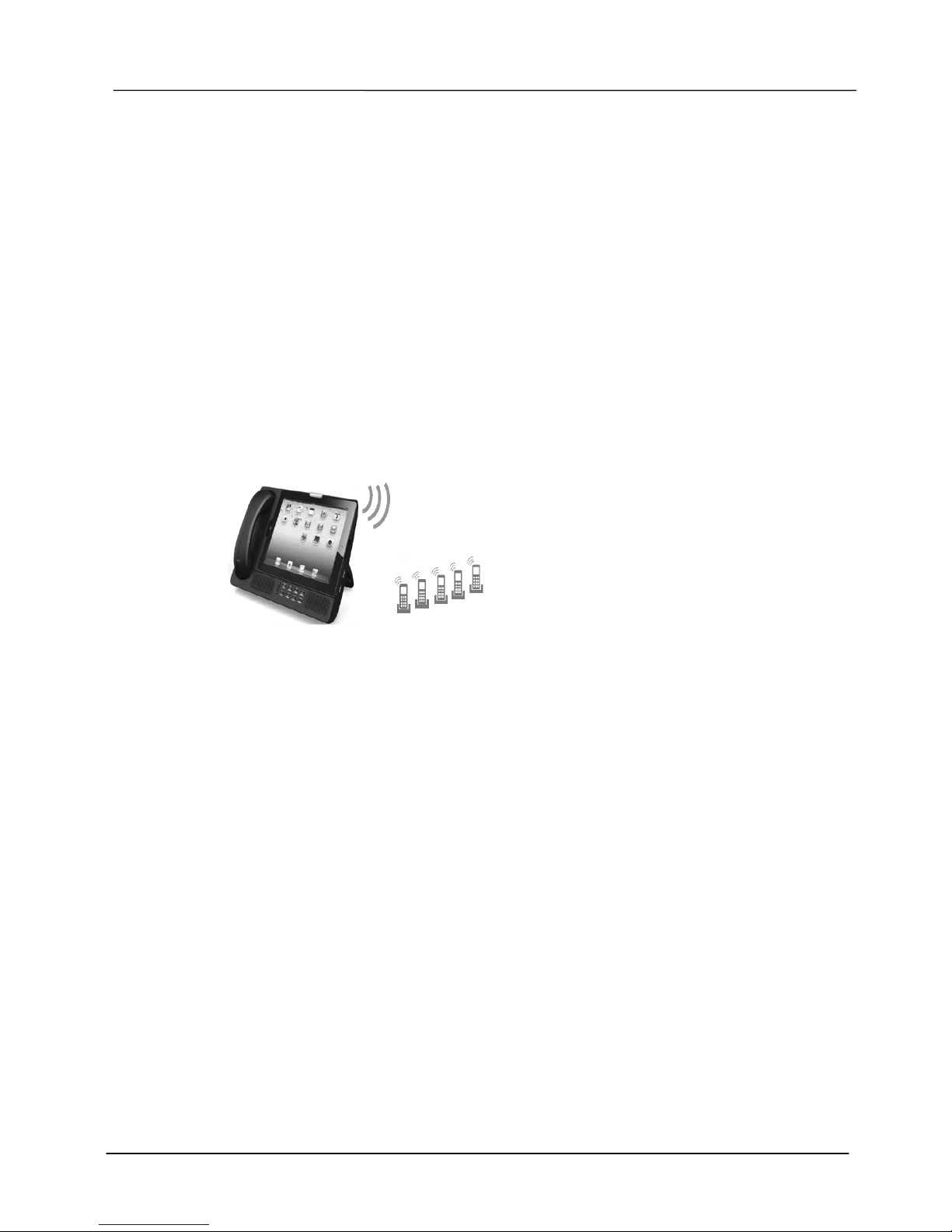
Communicator IP3092D series models (IP3092-D / IP3092-DE and IP3092L-D / IP3092LDE) include a DECT Base Station inside which supports DECT GAP and CATiq-2.0
compatible handsets. Up to five handsets can be supported on the DECT-enabled
Communicators. These handsets can make and receive calls from the VoIP service if
configured to do so. If your Communicator model is not in this series. You can skip this
section.
The following configuration is an example using DH300 DECT handsets to register to a
IP3092-D DECT model Communicator for application.
[Note]: If you are not using DH300 handsets, the procedures of DECT registration,
supported functions, interoperability may vary and are dependent from the
DH300 Handsets.
Register up to 5 DECT compliant handsets with the Communicator’s base station.
To register a CATiq-2.0 compliant DECT handset with Communicator, enter the Register
Mode in Setting menu of IP Commander first :
1. Press “Setting”.
2. Select DECT Setting.
3. Select “Register Mode” to enter the Register Mode Screen.
When you want to remove the registration of a DECT handset, please follow the de-
registration procedure below:
1. Press “Setting”.
2. Select DECT Setting.
3. Select “Deregister” to enter the Deregister Screen.
4. Select the target handset then press “OK” to confirm de-registration of it.
After successful registeration, you can enjoy features as below:
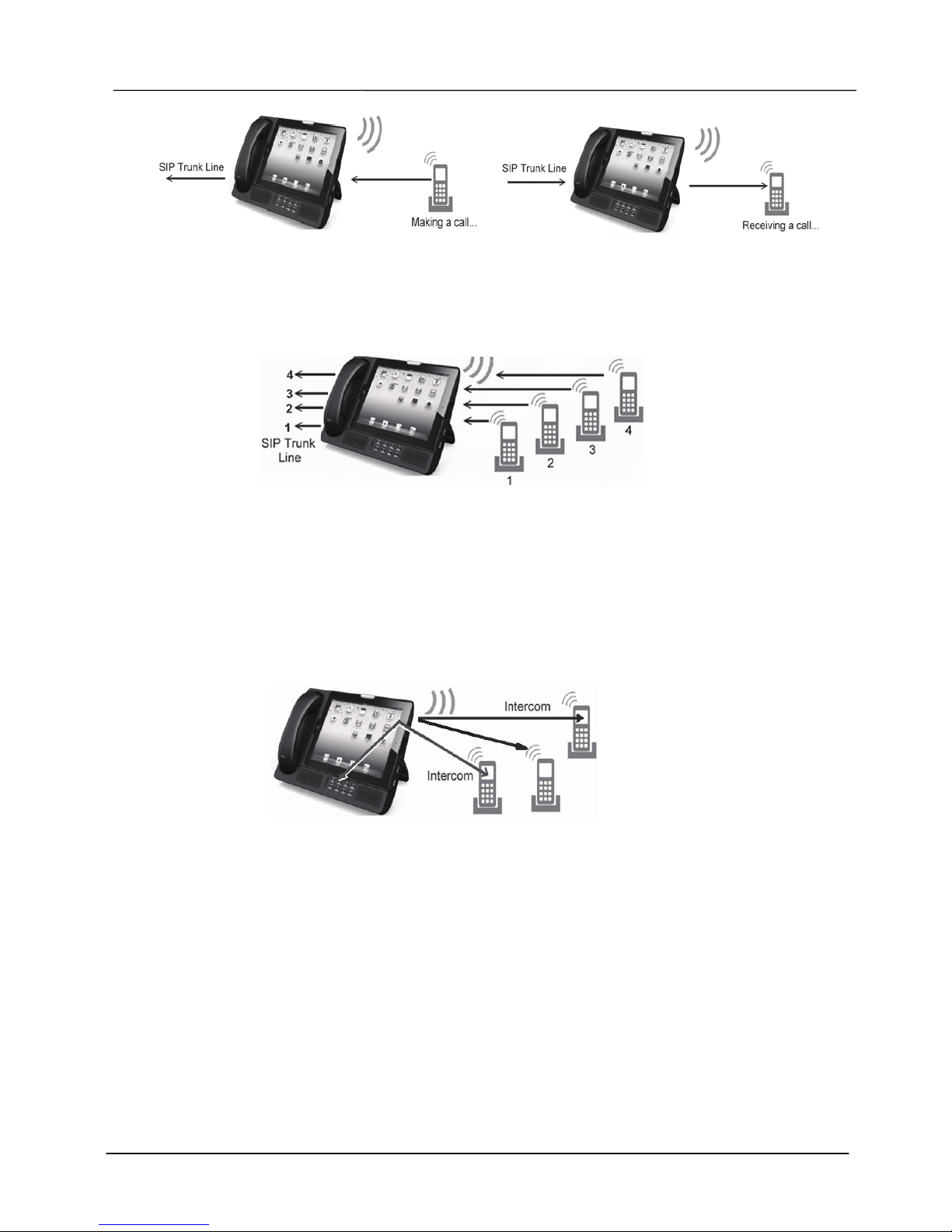
Make a call from a registered DECT handset through the preferred SIP line on the
Communicator. See the picture below left side.
Page 16
Page 16
MOCET IP3092 Communicator DECT Series Quick User Guide
Receive a call from SIP line to the corresponding DECT handset (Direct Inward Dial
call feature). See the picture above right side.
Up to four concurrent calls can be made on the registered DECT handsets through
the SIP lines on the Communicator. See the picture below.
Intercom calling between CAT-iq2.0 compliant DECT handset or with the
Communicator.
To make an intercom call from Communicator to a DECT handset, using the
Commander DECT Extension menu:
1. Select “Intercom” to enter the Intercom Screen.
2. Touch the target handset to make an intercom call to it.
Paging between a handsets or the Communicator
To make a paging from the Communicator to a compliant DECT handset, please follow
the steps below:
1. Select “Paging” to enter the Paging Screen.
2. Select the target handset and touch it to page it.
The Communicator can be also be configured with advanced features like DID call (Direct
Inward Dial call), Hunting Group, Ringing Group, Auto-Attendant and Voicemail Box.
For detailed information or operation of these features, please refer to the User Manual of
the Communicator or your DECT Handset, or ask your Administrator or Service Provider.
Page 17
Page 17
MOCET IP3092 Communicator DECT Series Quick User Guide
Configuring The Communicator Through The Web
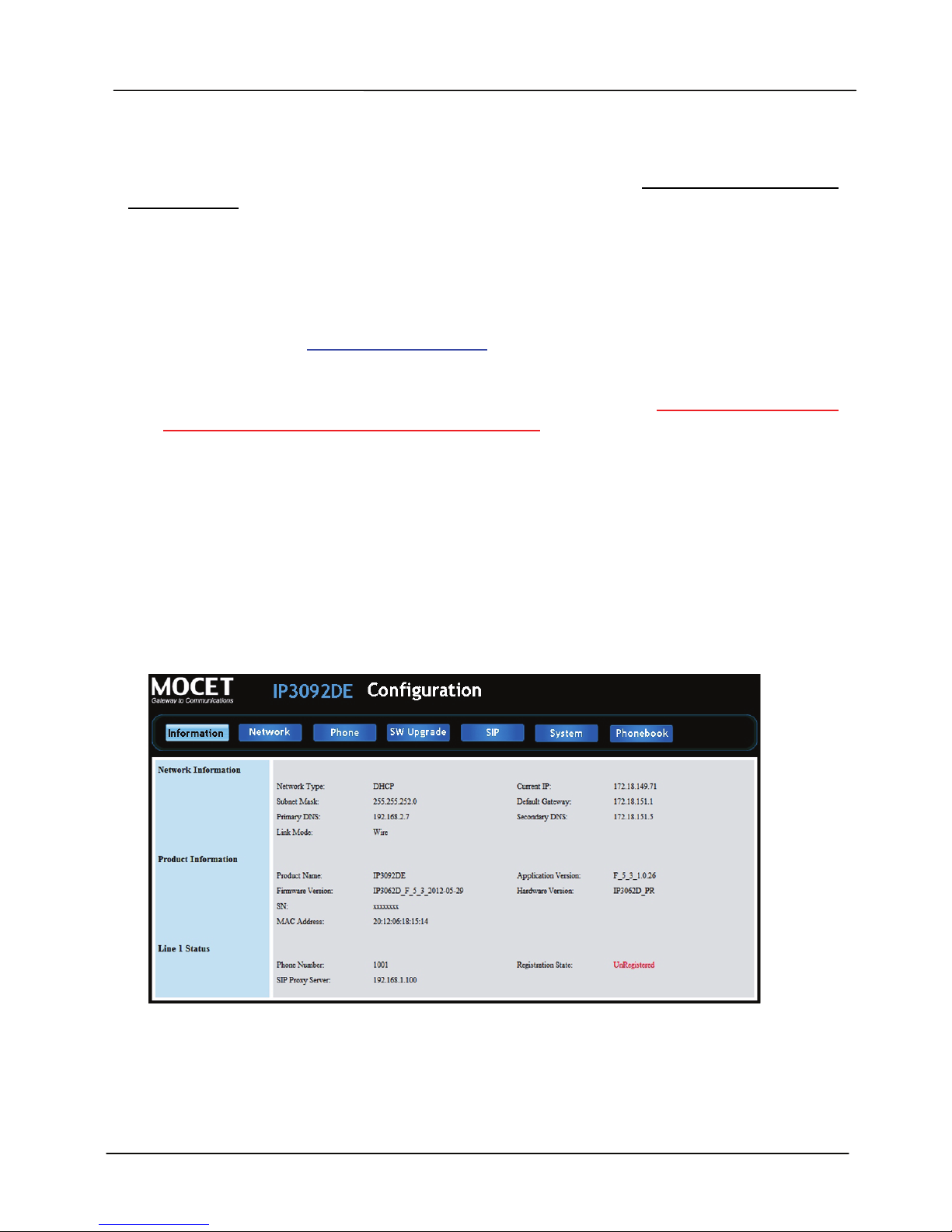
The Communicator can be configured using a web browser. The factory default Network
type is DHCP. To access the web interface, please follow the following steps:
1. Plug your iPad into the Communicator and follow the popup dialog to install the
Commander App.
2. In the information tab, you can find the current IP address that Communicator is
assigned from the DHCP server on the network.
3. Open your web browser (like AppleTM SafariTM) then enter the IP address shown in the
last step like this http://xxx.xxx.xxx.xxx and click ENTER key. In the setting tab of
Menu of Commander, you can also find the Web Interface access button where it
brings you to Safari’s login window.
4. You will be prompted for to enter a username and a password. The default username
is “user” and the default password is “1111”.
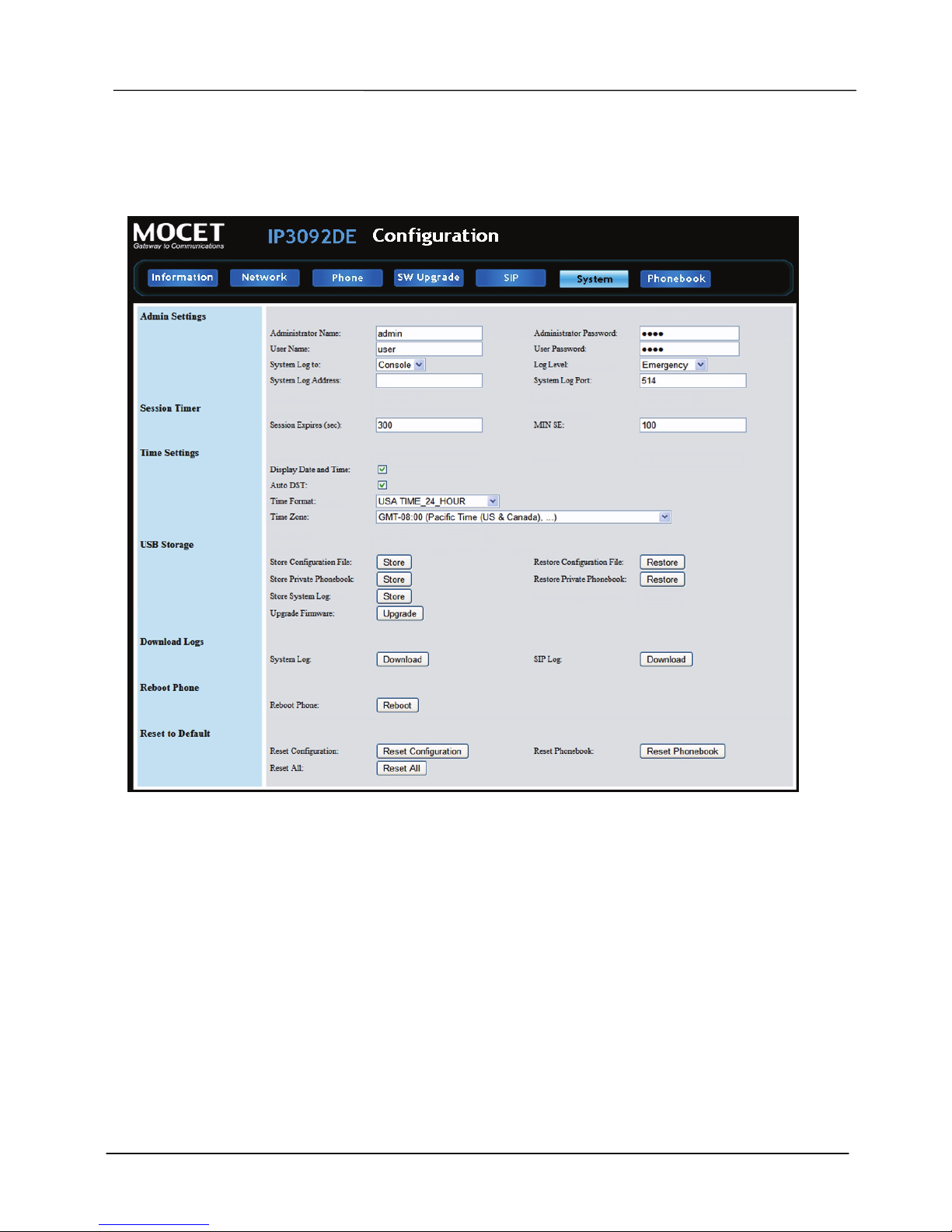
This web interface (see the example web page below) allows you check the status and
configure all the settings of the Communicator:
• Information
• Phone settings
• SIP settings (for embedded VoIP service)
• System settings
• SW Upgrade settings
• Phonebook settings (Note: these are different from the Contacts in the iPad Address Book app)
• Network settings
• Programmable Key settings
Resetting the IP Phone
There is a “Reset All” button in web interface which will erase all current configuration data
and reset the Communicator to it’s system default settings and will then execute a warm
reboot of the Communicator.
Page 18
Page 18
MOCET IP3092 Communicator DECT Series Quick User Guide
There is also, a “Reset Configuration” button to clear the current configuration and reset
the phone to its default configuration, but will leave any personalized user settings and
phonebook entries.
Upgrading the Communicator
Normally, upgrading the Communicator can be done through the Web interface of the
Communicator. Using the “SW Upgrade” page, you can upload the new firmware file or
service pack from a computer on the network and then upgrade the Communicator.
Besides, the software upgrade from USB memory is also supported. Please refer to the
user manual or Communicator for details.
There is also an Emergency Upgrade process available for administrators or suppliers to
recover a Communicator with corrupt or defective firmware that cannot be fixed by using
web upgrade.
For the IP Commander app, please check on the Apple App store for updates or upgrades.
Page 19

Page 19
MOCET IP3092 Communicator DECT Series Quick User Guide
More Information
Please refer to related User Manuals of the Communicator for more information or contact
your administrator or supplier for advanced configuration support.
Thank you for your choice of product. Remember to register your Communicator at first and
record down your Communicator information below for further support service, if needed.
Page 20

Page 20
MOCET IP3092 Communicator DECT Series Quick User Guide
Notes
This device has Model number, MAC Address and Serial Number which are located
on the back of Base Unit. Please record down them for service check.
Model Number:
MAC : Serial Number:
And every time you change the PASSWORD and/or User ID, please record down and
retain them for use.
USER ID:
PASSWORD:
USER ID:
PASSWORD:
USER ID:
PASSWORD:
 Loading...