

Page 1
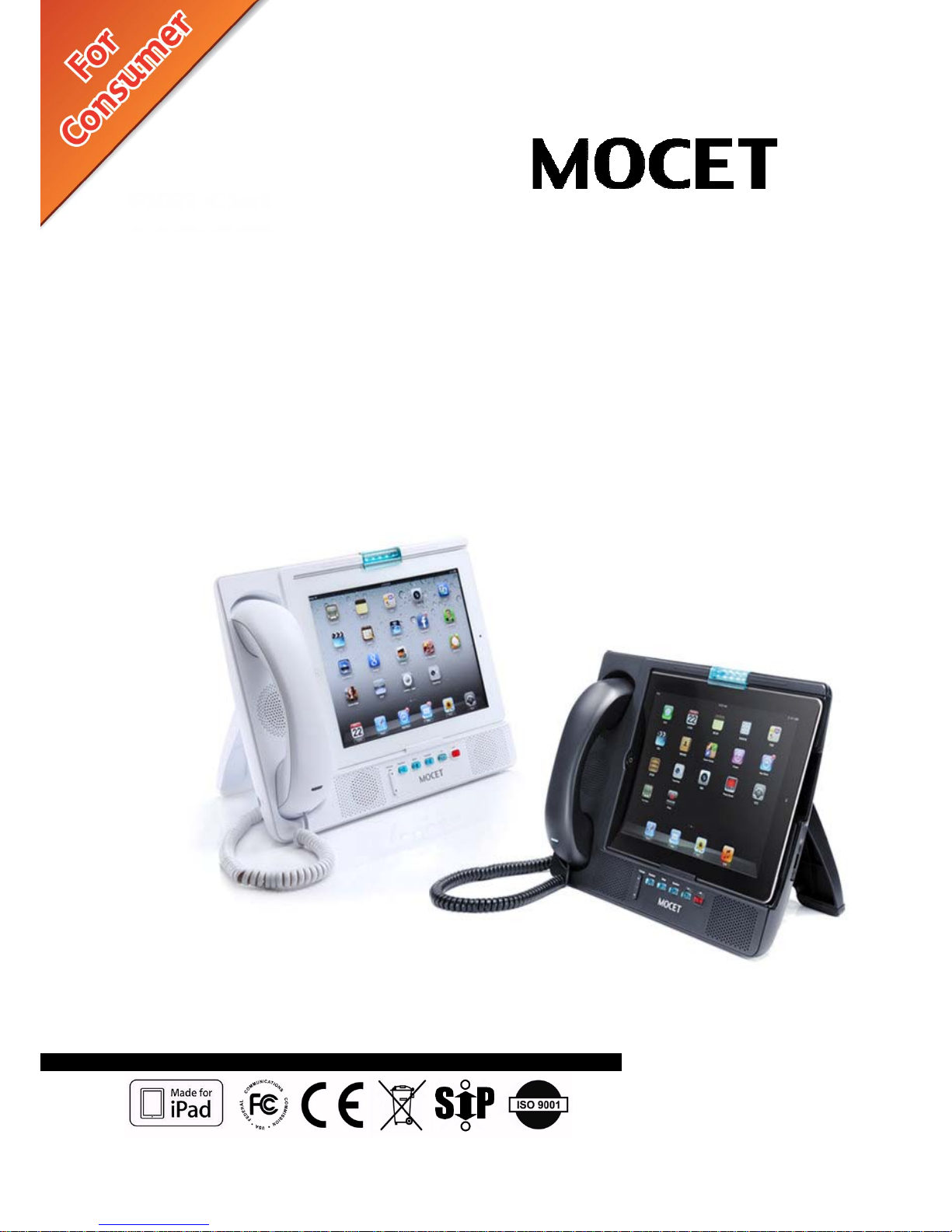
IP3092-C/IP3092L-C Communicator
Quick User Guide
IP3092-C/3092L-C コミュニケーター
取扱説明書
IP3092-C/3092L-C 通訊王
快速使用指南
Copyright © 2013, All Rights Reserved.
Ver: R03 D/C: 102-1018
Page 2

Page 2
MOCET IP3092-C/IP3092L-C Communicator Quick User Guide
CE Declaration of Conformity
This equipment complies with the requirements relating to electromagnetic compatibility,
EN55022 class B for ITE and EN 50082-1. This meets the essential protection requirements of
the European Council Directive 89/336/EEC on the approximation of the laws of the Member
States relating to electromagnetic compatibility.
Federal Communication Commission Interference Statement
This equipment has been tested and found to comply with the limits for a Class B digital device,
pursuant to Part 15 of the FCC Rules. These limits are designed to provide reasonable protection
against harmful interference in a residential installation. This equipment generates, uses and can
radiate radio frequency energy and, if not installed and used in accordance with the instructions,
may cause harmful interference to radio communications.
Trademarks
iPad™, iPod™, iPhone™, iPad2™, the new iPad™, iTunes™, iOS™, Safari™ and Facetime™
are registered trademarks of Apple Inc., USA. All other company, brand and product names, like
Skype™, and others are registered trademarks of their respective owners.
WARNING !
1. Read these installation instructions carefully before connecting the device to its power.
2. To reduce the risk of electric shock, do not remove the cover from the device or attempt to
dismantle it. Opening or removing covers may expose you to dangerous voltage levels.
Equally, incorrect reassembly could cause electric shock on re-use of the appliance.
3. Do not expose the Device to Fire, direct sunlight or excessive heat.
4. Do not expose the Device to rain or moisture and do not allow it to come into contact with
water.
5. Do not install the Device in an environment likely to present a THREAT OF IMPACT.
6. You may clean the Device using a fine damp cloth. Never use solvents (such as
trichloroethylene or acetone), which may damage the device’s plastic surface. Never spray
the device with any cleaning product whatsoever.
7. The Device is designed to work in temperatures from 0
o
C to 40oC.
8. The Device must be installed at least 1 meter from radio frequency equipment, such as
TVs, radios, hi-fi or video equipment (which radiate electromagnetic fields).
9. Do not attempt to upgrade your Device in an unstable power environment. This could
cause unexpected issues.
10. Do not work on the system or connect or disconnect cables during lightning storms.
11. Children don't recognize the risks of electrical appliances. Therefore use or keep the
phone only under supervision of adults or out of the reach from children.
12. No repair can be performed by the end user, if you experience trouble with this equipment,
for repair or warranty information, please contact your supplier.
!
Page 3
Page 3
MOCET IP3092-C/IP3092L-C Communicator Quick User Guide
Introduction
The MOCET™ Communicator™ for Consumer IP3092-C/IP3092L-C is an innovative
dock for the Apple™ iPad™ that will enable you to use your iPad as your desk phone
with popular APPs such as Skype™. Different Communicator models are used for
different iPad devices. IP3092-C supporting Apple 30-pin connector is designed for
iPad 1, iPad 2, and iPad3, and IP3092L-C supporting 8-pin lightning connector is
designed for iPad 4.
Use the high definition audio-enabled handset and speakerphone on the Communicator
to enhance your communication and ensure privacy and comfort. For small office use, an
external microphone pair can be attached improving the conference call experience. The
enhanced dynamic range stereo speakers make listening to music and watching movies
a more engaging experience.
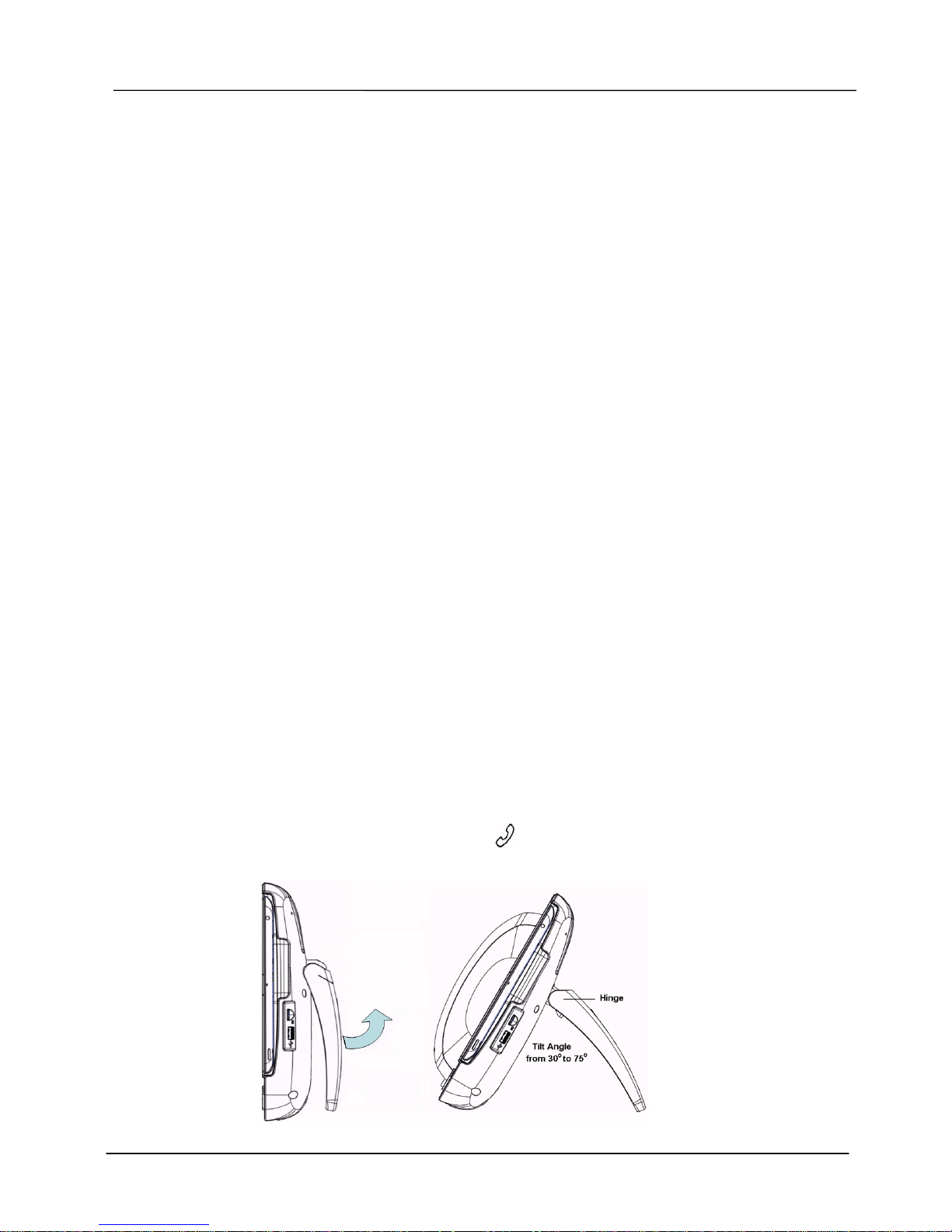
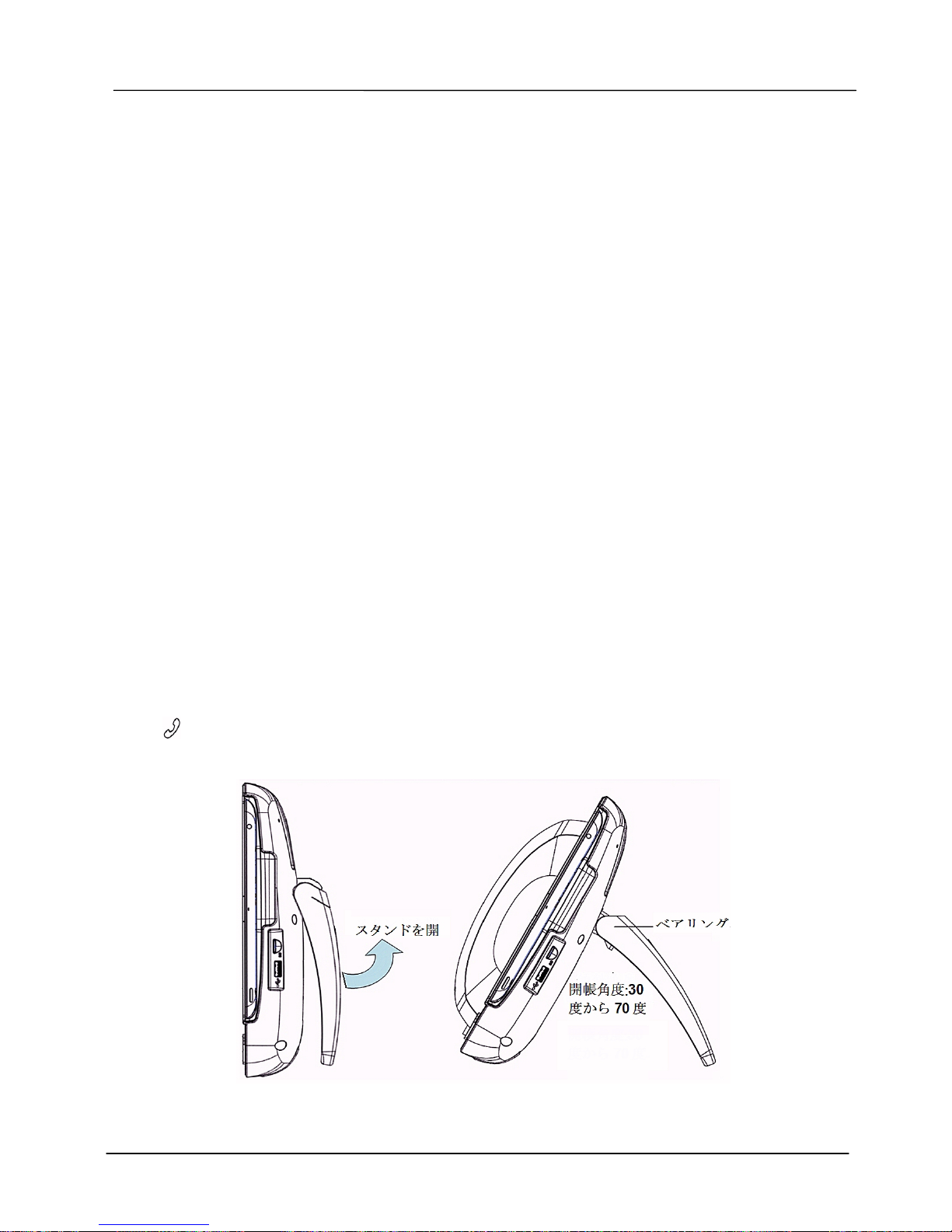
The Communicator stand is adjustable between 30º and 75º, allowing you to find the
most convenient viewing angle for watching movies or participating in video conferences.
The Communicator can fast charge and power your iPad for all day work and play. And
the USB port can offer charging to your iPhone or other smart mobile phone.
Hardware Installation
The Communicator comes with all the accessories needed to get going right away.
Included in the box are Quick Guide, the handset, handset cord, and a power supply
adapter. Please check on the Communicator and proceed the following sections of this
Quick Guide.
Set Up the Communicator:
- Unpacking the package box, place the Communicator on the table and turn its
stand to a proper angle (say 45o, please see Figure 1).
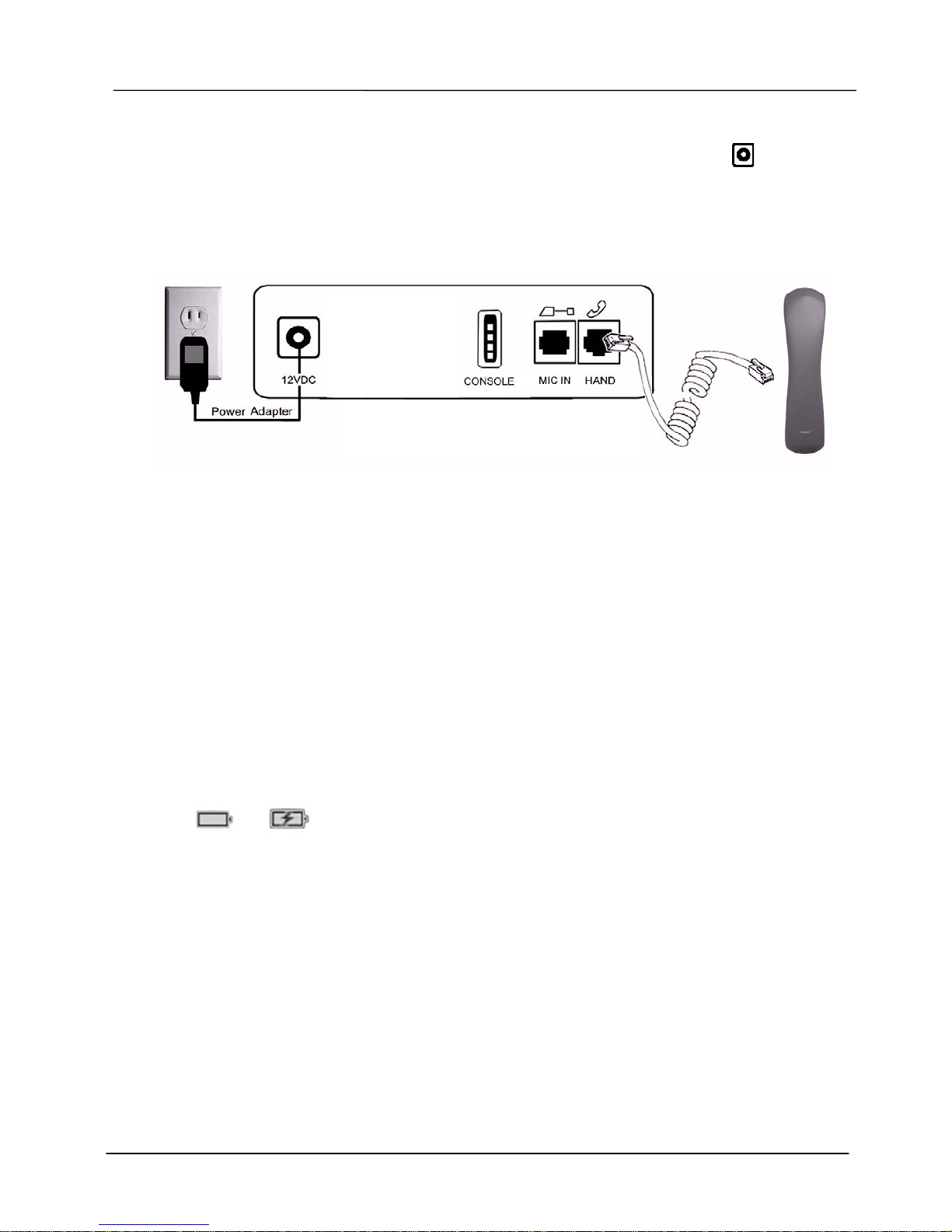
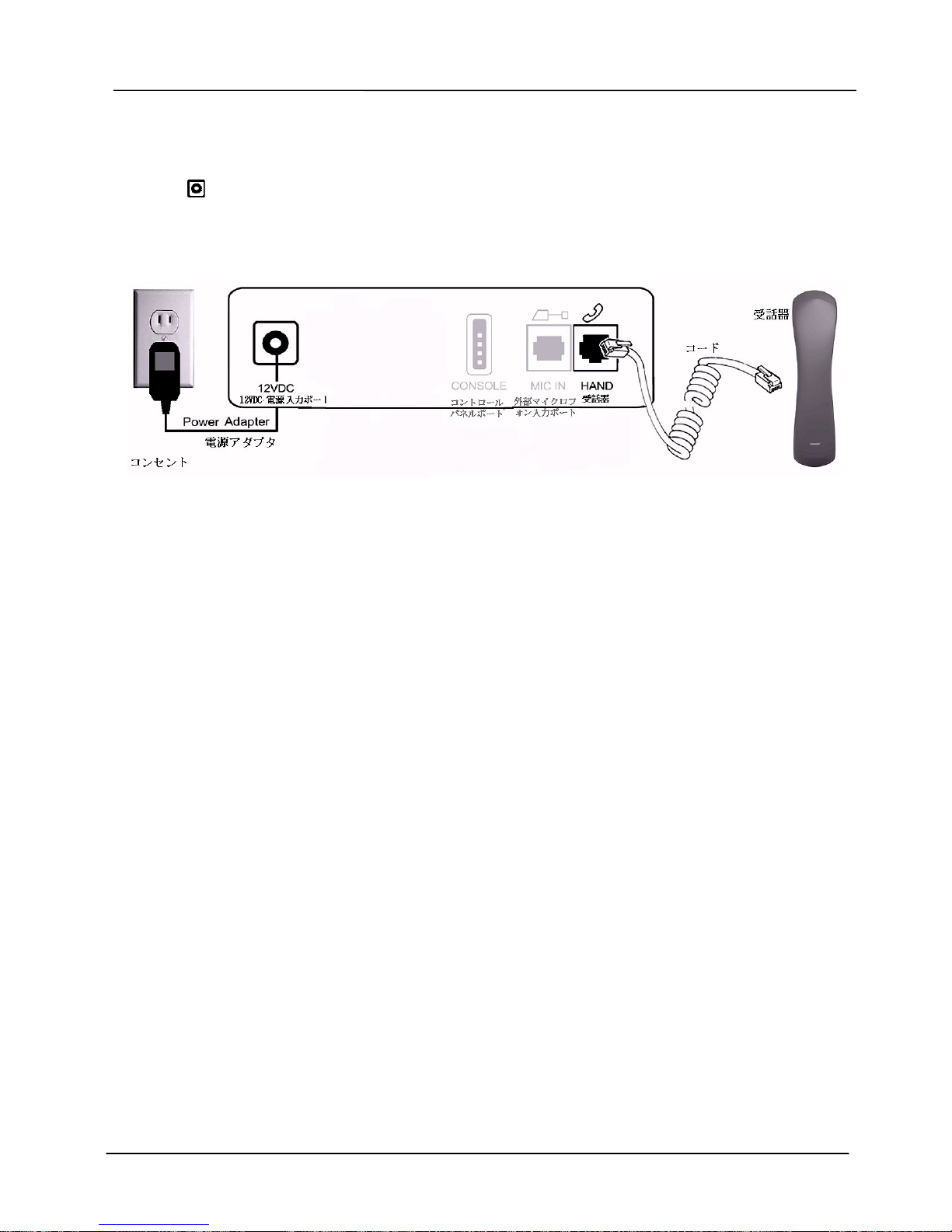
- Then connect the handset to the curly handset cord first and plug the other end of
the cord to the phone jack marked HAND on the rear panel of the Communicator.
Please refer to the Figure 2 and the back shell ports of the Communicator.
Figure 1. To Set up the Communicator with a proper stand angle
Page 4
Page 4
MOCET IP3092-C/IP3092L-C Communicator Quick User Guide
Connect the Power:
- Then plug the barrel plug of the included power adapter to the port marked
12VDC. Please make sure you use the right power adapter. It shall have a label
showing 12V and 2A.
- Then plug in the other end of power adaptor to the wall power AC power outlet.
Then you can see LEDs on the Communicator will light up momentarily and then
the Communicator will boot.
Figure 2. The Back Panel of the Communicator and How To Connect
Booting Up :
- The Communicator will take about two minutes to boot. When the
Communicator is booting up, the top biggest blue-green LED (MWI) indicator will
be turned on. Please don’t insert the iPad into the Communicator untill the MWI
LED tuned off.
InsertingThe iPad:
- Except iPad 1, please keep the add-on tray in the dock no matter IP3092 (for
iPad 2 and iPad 3) or IP3092L (for iPad 4). To dock the iPad 1, please remove
the add-on tray first. (see figure below).
- After that, simply by sliding your iPad into the front bezel slot will cause the
battery signal showed on the upper right cornor of iPad screen changed from
to . Then the Communicator is ready for operation now.
[Remarks]:
The Console port is reserved for engineering service only, not for general users.
Appearance & Function Description
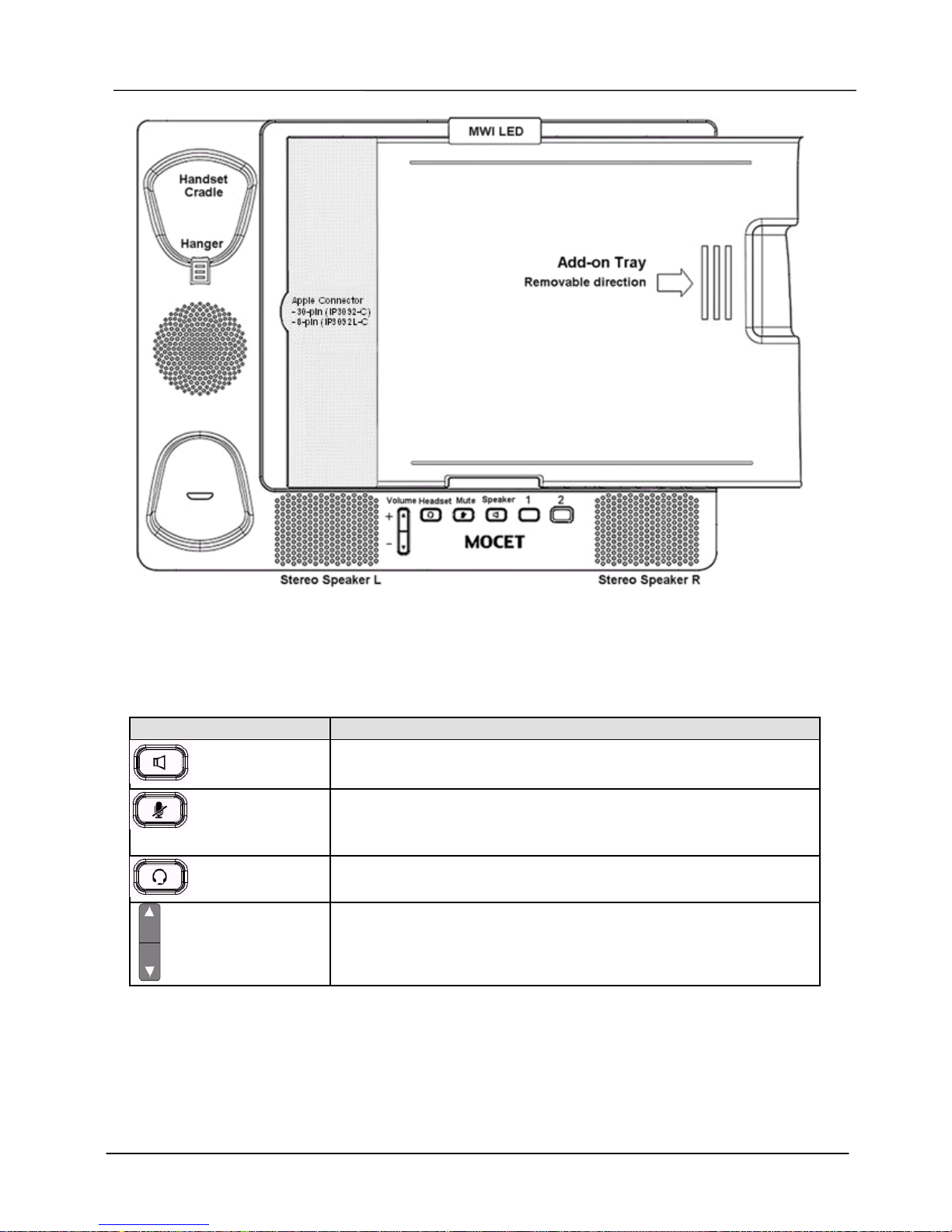
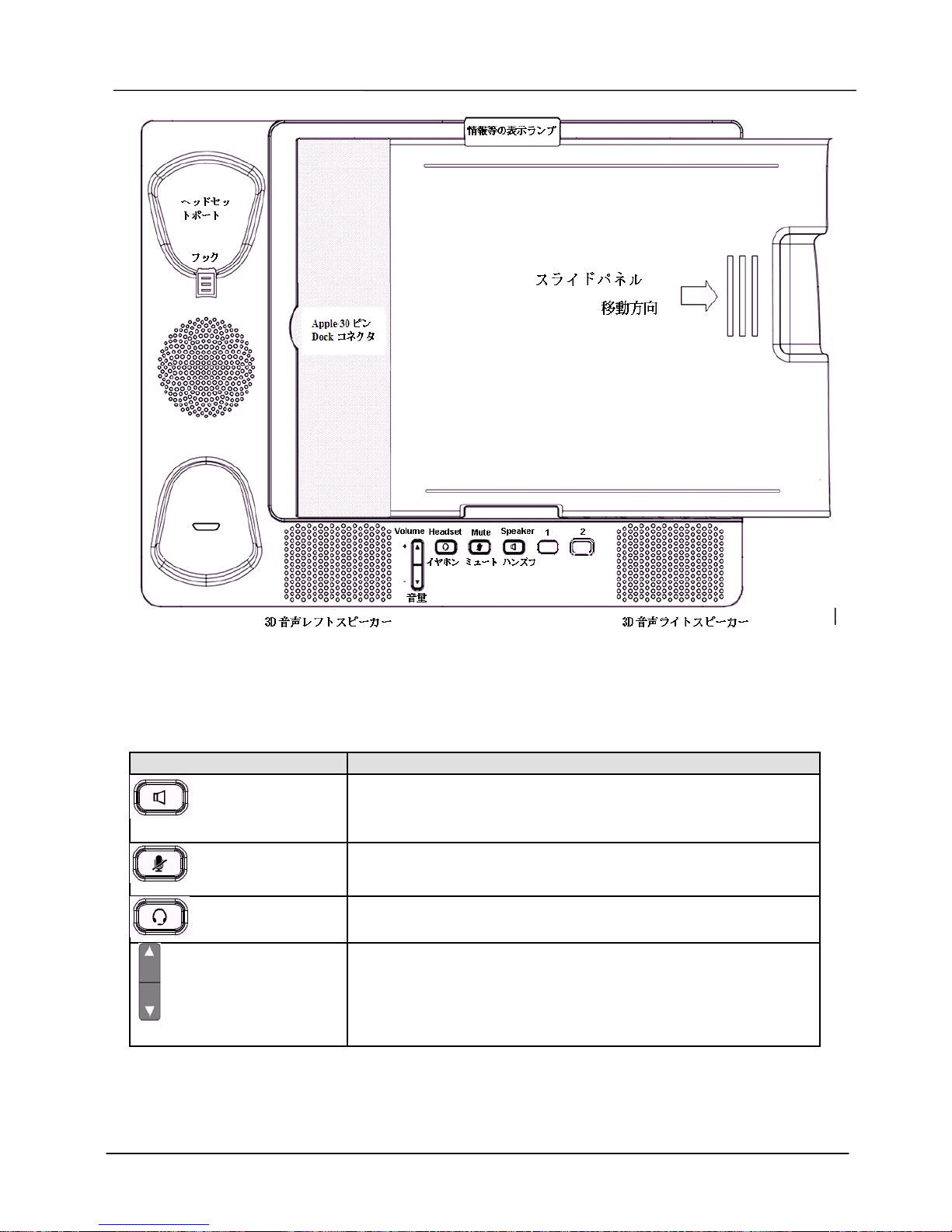
Before insert the iPad to the Communicator, please see if you need the add-on tray for
your iPad device (iPad 2, iPad 3, or iPad 4) or not. The figure below shows the Add-on
Tray can be removed or slided in easily.
Page 5
Page 5
MOCET IP3092-C/IP3092L-C Communicator Quick User Guide
Figure 3. The Communicator Front Appearance and Add-on T ray
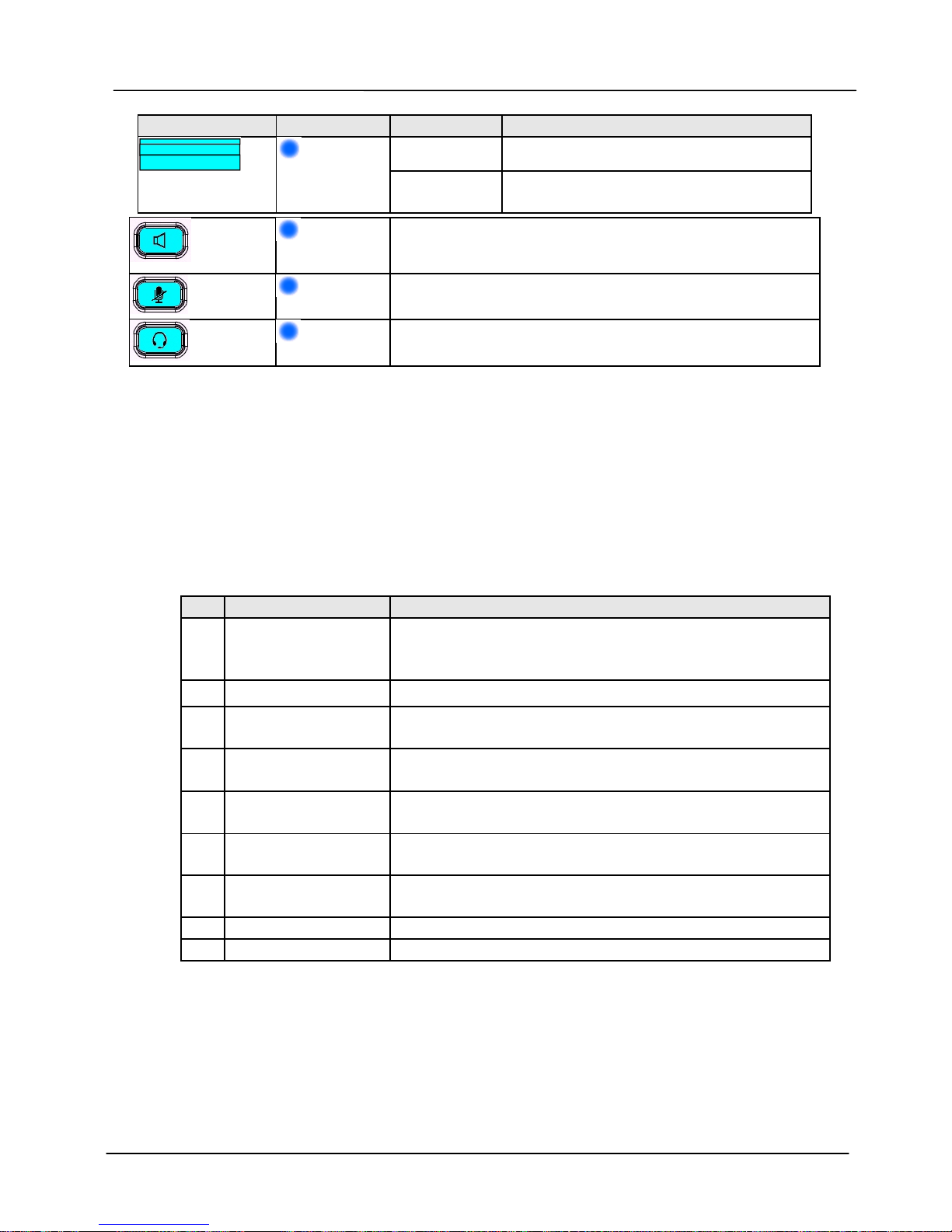
Communicator Keys
Name of Key Description
Speakerphone
Press this key to enable or disable the Speaker; a blue LED
is used to indicate status
Mute
Press this key to mute the microphon (the other party will not
be able to hear you when making a phone call by using
communication APP).
Headset
Press this key to enable or disable the Headset feature.
Volume Rocker
Volume control keys to adjust volume of Handset Receiver,
Headset Receiver, Speaker output.
Besides, there are 2 keys (named “1” & “2”) reserved for further use, they have no
function in general App application.
LEDs on The Communicator
Page 6
Page 6
MOCET IP3092-C/IP3092L-C Communicator Quick User Guide
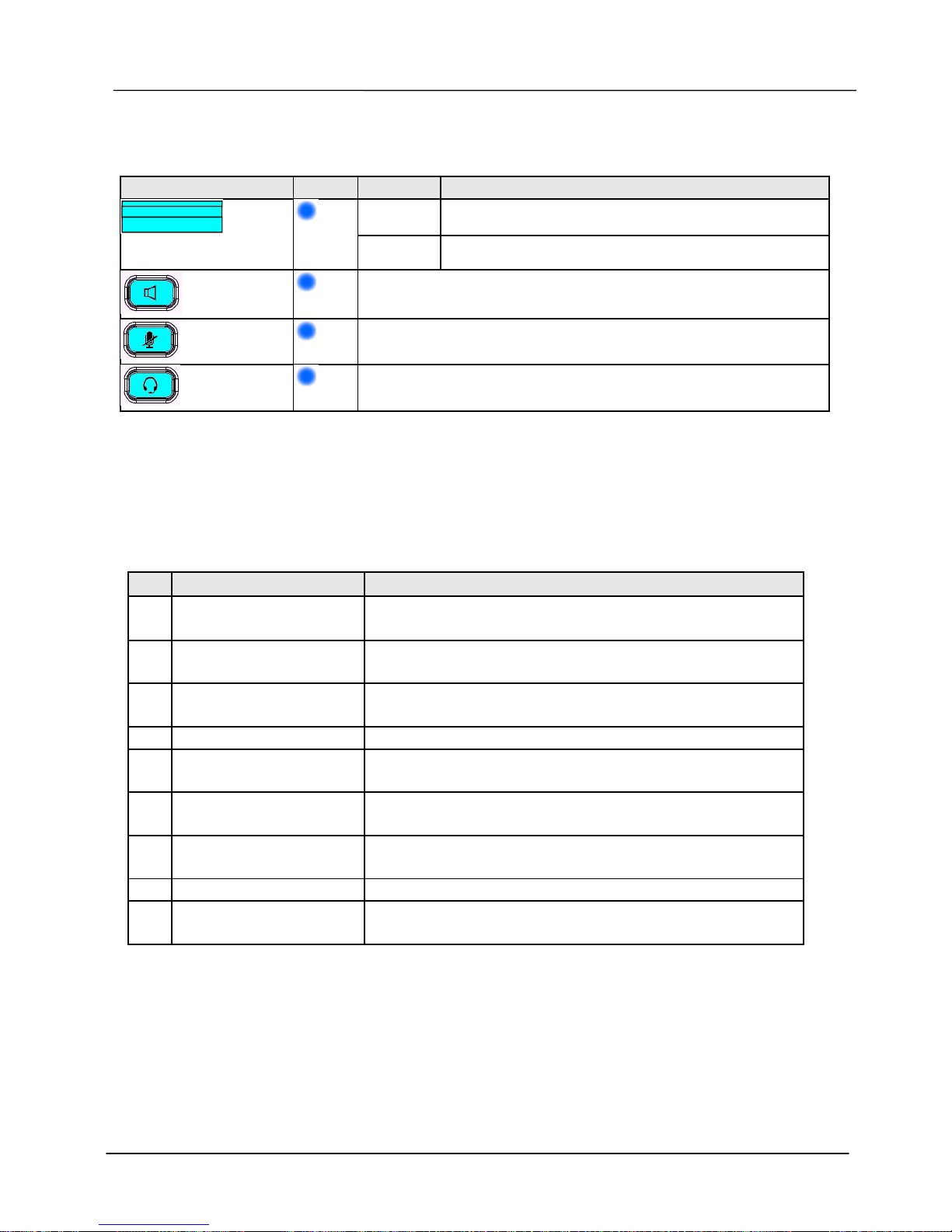
LED Color Status Description
Off Communicator is booted OK.
Message Waiting
Indicator
Blue
Steady The Communicator is booting or
updating
Speaker
Blue
Blue-green LED indicates that speaker is enabled
Mute
Blue
Blue-green LED indicates that Mute is enabled
Headset
Blue
Blue-green LED indicates that the headset feature is
enabled
Besides, there are two LEDs (one is Blue and the other is Red) reserved for further
usage. Please don’t care them.
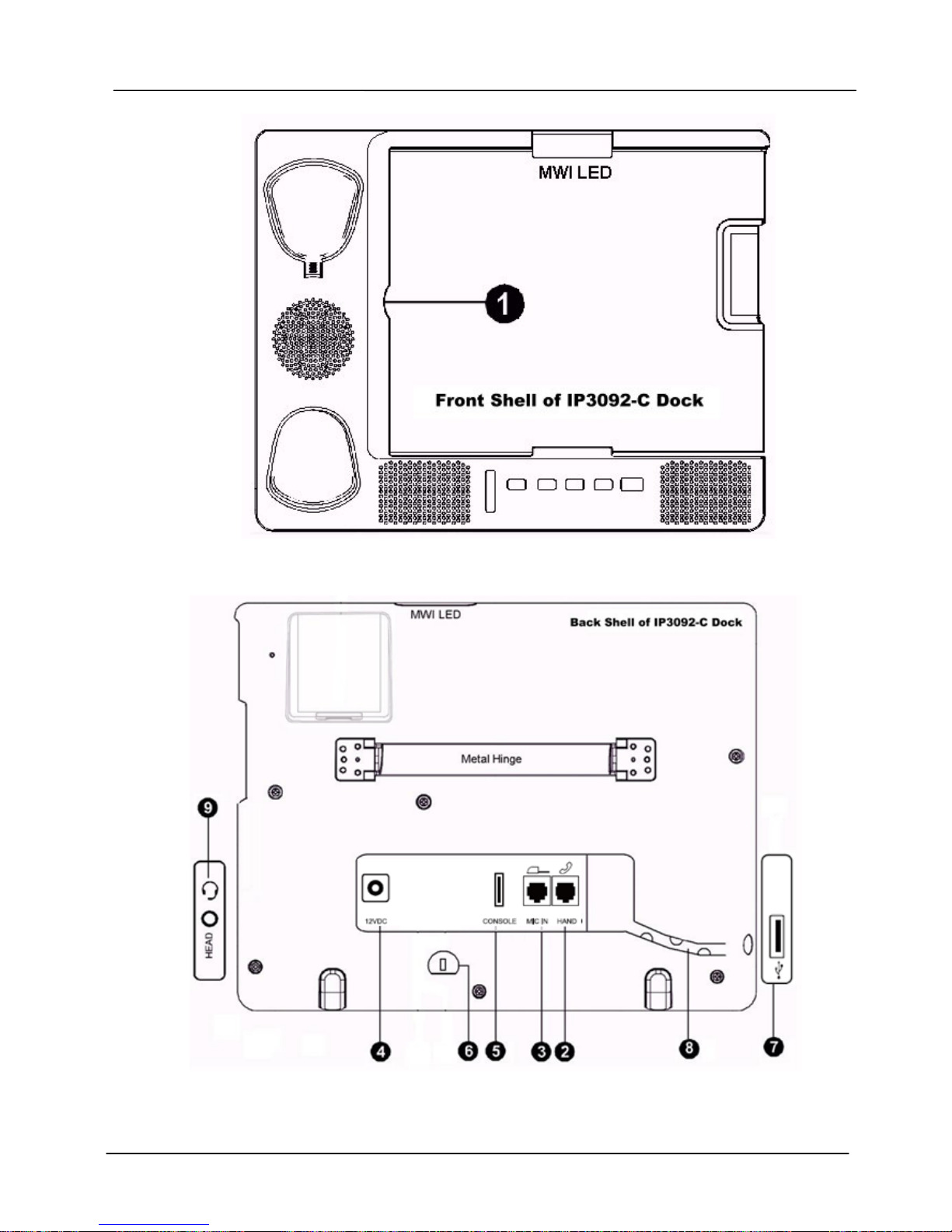
I/O Port Functions
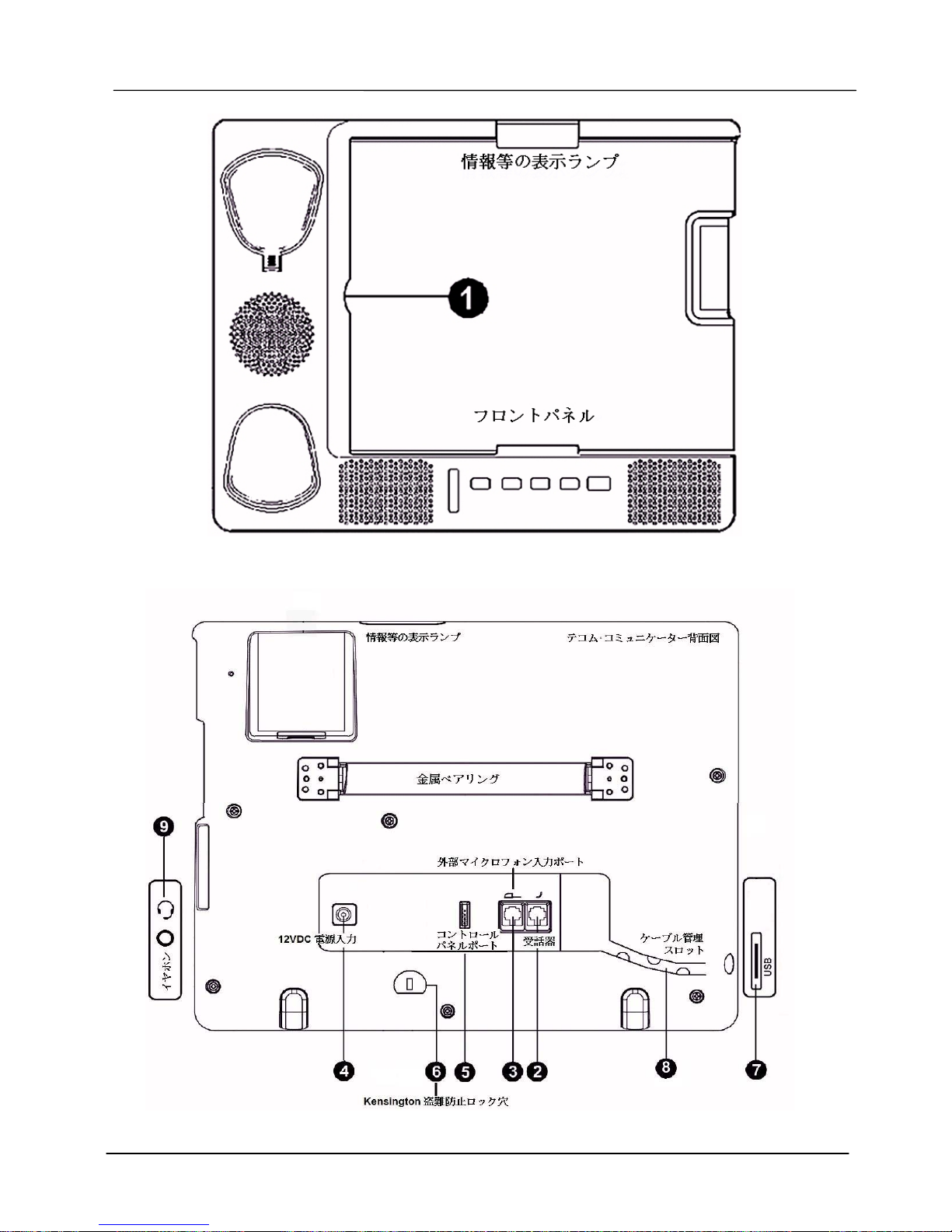
The front, rear and side view of the Communicator with location of connectors is
shown in the following figures and the description of I/O ports is listed in the table
here. And please refer to their locations in Figure 4 and 5.
NO. Port Description of I/O Port
1 iPad Docking Port Apple connector for iPad on the front shell
- IP3092-C: 30-pin connector
- IP3092L-C: 8-pin Lightning connector
2 Handset Port RJ9 jack for attaching handset with curly phone cord
3 Microphone Input
Port
RJ9 jack to connect an external microphone for hands
free (conferencing) mode.
4 12VDC Power In 2.5mm Jack for external power adapter
5 Console Port 4-pin header for engineering service port
Note: This port is not necesary for general user.
6 Kensington Lock
Mount
For user to luck the Communicator against stealing
7 USB Type A Port This USB port can be used for iPhone or other smart
mobile phone charging.
8 Wiring Duct For inserting curly handset cord into the slot
9 Headset Port 3.5mm jack for standard Apple ear buds or headset
Page 7
Page 7
MOCET IP3092-C/IP3092L-C Communicator Quick User Guide
Figure 4. The Apple 30-pin or Lightning Connector for Docking
Figure 5. I/O Ports on Back Shell and Sides
Page 8

Page 8
MOCET IP3092-C/IP3092L-C Communicator Quick User Guide
Use Communicator To Play Music/Audio
Now, you can start to use the Communicator for listening to music, watching movie,
singing Karaoke, recording voice, call Skype, or running social media iPad App.
Docking with Apple Connector:
(1) Charging: After the Communicator powers on and gets ready, when the
iPad is slided in and connected to the Apple connector, the iPad will start
charging. In addition, the user can charge his/her iPhone or other mobile
phone by connecting it to the USB port on the right side of the Communicator.
(2) Tununing the Stand Angle for Video Player: The user can adjust the screen
angle by holding the stand and the base unit, then opening or closing the
stand to a comfortable angle, ranging from 30o to 75 o(see the figure above). A
convenient angle is good for uses to see a movie or have a videoconference.
(3) Play The Audio: All audio from a docked iPad plays through Apple
connector onto the speakers, handset or headset of the Communicator.
To Run iPad Apps
To Run Music Movie Player APP:
After plugging the iPad on the Communicator, you can direct the APP’s audio to
Speaker, Headset or Handset just via pressing the Speaker key, Headset key, or
handset off-hook.
To Run Social Networking APP
Many users like to run social network and communication apps, like Skype
TM,
,
CISCO Jabber™ and other apps on their iPads. The Communicator’s high quality
audio system greatly enhances the user experience for voice and video calls. Your
calls with sound better, regardless of whether the app supports narrow-band or
wide-band audio. For comfort and convenience, the user can switch the audio
among speakerphone, handset or headset and volume can be adjusted
independently for all three modes.
To Pickup The APP Calls During Playing Music :
(1) When you are playing the music, you can go to the Social Networking APP’s
screen for standby. So, when an incoming call occurs, the App will wake up
and play the ringtone to Speaker.
(2) When you are playing the music, but the Social Networks APP is on the
background, the incoming call will generate a notice to the iPad screen. The
ringtone may not be played if the APP is not well configured. But the music
may be reduced or stopped during the ringtone.
(3) When you encounter the above issue, please go to “Setting” APP of iPad and
find that social networking APP to set it works always.
Page 9

Page 9
MOCET IP3092-C/IP3092L-C Communicator Quick User Guide
More Information
Thank you for your choice of product. Remember to register your Communicator at first
and record down your Communicator product Serial Number (S/N) below for further
support service.
Notes
This device has Model number and Serial Number which are located on the back of
Base Unit. Please record down them for future service check.
Model Number: IP3092-C Serial Number:
Purchase Date: / /
Page 10
Page 10
MOCET IP3092-C/IP3092L-C Communicator Quick User Guide
警告!
1. 本製品を電源に接続する前に、この取扱説明書をよくお読みください。
2. 感電の危険を避ける為、本製品を分解しないで下さい。本製品を分解すると、危険レベル
の高い電圧に触れる場合があります。同様に、不適切な再組み立ては感電の原因となりま
す。
3. 本製品を火気のある場所、直射日光のあたる場所、高温になる場所に置かないでくださ
い。
4. 本製品を雨のあたる場所や湿度の高い場所に置かないでください。また、水がかからな
いようにしてください。
5. 本製品を危険な影響を及ぼす場所に設置しないでください。
6. 汚れが気になる時は、乾いた清潔な布で拭いて下さい。製品のプラスチック表面を損傷
する場合がありますので、溶剤(トリクロロ エチレン、アセトンなど)は使用しないでく
ださい。製品の表面を損ねる場合があります。また、洗浄剤を製品に吹き掛けないでく
ださい。
7. 本製品の動作温度は 0℃~40℃です。
8. 本製品は高周波の設備、例えばテレビ・ラジオ・ハイファイオーディオまたはビデオ設
備(放射電磁界)から少なくとも1メートルは離して設置してください。
9. 電源が不安定な環境では、製品ファームウェアを更新しないで下さい。予期しない問題
が発生するおそれがあります。
10. 付近で雷雨が発生した時は、できるだけ本製品を使用しないか、コンセントを抜いてく
ださい。
11. お子さまは電気製品の危険性を理解していない為、お子さまから離れた場所で使用する
か、または保護者の監督のもとで使用するようにしてください。
12. ご自身で本製品を修理しないでください。もし何らかの不具合がありましたら、お買い
上げ店または、TECO JAPAN サービスセンター(裏表紙に記載)に修理をご依頼くださ
い。
!
IP3092-C/IP3092L-C
コミュニケーター
取扱説明書
Page 11
Page 11
MOCET IP3092-C/IP3092L-C Communicator Quick User Guide
製品紹介
MOCET コミュニケーターは、米国アップル社 iPad 専用の革新的デザインの素晴らしい
製品です。Skype™を含む、すべての iPad アプリケーション(Apps)に対応していま
す。
高品質なハンドセットは通話のプライバシーを守り、さらにハンズフリーフォン機能も備えてお
り、より快適な通話を体験できます。小さなオフィスでのユーザーには、外部接続型卓上マイク
ロフォンを利用した電話会議にもお使いいただけます。これ以外にも、ダイナミックで広がりの
ある高品質な 3D オーディオシステムを備えており、音楽再生や映画観賞にも優れたサウンドを
お楽しみいただけます。
MOCET コミュニケーターは大幅に角度調整でき、調整可能な視覚範囲は 30 度から 75 度で、映
画観賞やテレビ電話に最適です。さらに、急速充電機能を内蔵しており、iPad で一日中仕事を
したり楽しんだりすることができます。また同時に、USB 接続による iPhone や携帯電話の充電
が可能です。
本機の取り付け
MOCET コミュニケーターの梱包箱の中には、取扱説明書、ハンドセット、ハンドセットコー
ド、電源アダプタが入っています。下記説明をよくお読みください。
コミュニケーターを備えつける:
- 製品包装を開封後、デスクに置き、スタンドを適当な角度に合わせます(例えば 45
度)。図 1 をご参照ください。
- ハンドセットコードとハンドセットをつなぎ、もう一方をコミュニケーター後部の「HAND
」と表示されている電話ジャックに差し込みます。図 2 をご参照ください。
図 1 コミュニケータースタンドを適当な角度にあわせます。
Page 12
Page 12
MOCET IP3092-C/IP3092L-C Communicator Quick User Guide
電源を接続する:
- 電源アダプタの円柱型プラグを、コミュニケーター後部の 12VDC と表示された電源ポー
ト に差し込みます。ご使用の電源アダプタの電源規格をご確認ください。電源規格は
12V/2A です。
- 電源アダプタのもう一方を壁側のコンセントにつなぎます。電源が入ると、コミュニケー
ター正面の LED 表示ランプが点灯し、システムが起動を始めます。
図 2 コミュニケーター後部のポートとの接続図
起動:
- コミュニケーターはシステムの起動が完了するまで 1~2 分かかります。コミュニケータ
ー正面上部の MWI 表示ランプが消えるまで、コミュニケーター前面のスロットに iPad を
差し込まないでください。
iPad を装着する:
- システム起動後、iPad をコミュニケーター前面のスロットに差し込みます。パネル前面
のトレイにご注意ください。iPad1 をご使用の場合、まずトレイを外してください。
iPad2 または iPad3(第 3 世代 iPad)をご使用の場合、トレイを外す必要はありません。
- iPad をコミュニケーターに差し込むと、Home 画面の LED ランプは約 3 秒間点滅した後
消灯します。その際、コミュニケーターは使用可能です。
【備考】:
一般 APP ユーザーの場合、本機にはポートを備えていますが、使用する必要はありません。
- コントロールパネル:メンテナンスエンジニア専用です。
外観と機能説明
iPad1 ユーザーは、コミュニケーターに iPad を差し込む前に、付属トレイを外してくだ
さい。
Page 13
Page 13
MOCET IP3092-C/IP3092L-C Communicator Quick User Guide
図 3 コミュニケーター外観と付属トレイ
コミュニケーターのボタンについて
ボタン 機能説明
Speaker
(ハンズフリー)
このボタンを押すとハンズフリー機能に切り替わります。青い表
示ランプがついていれば使用可能です。
Mute (ミュート)
このボタンを押すとミュート機能に切り替わります。(相手にあ
なたの声は聞こえず、影像も見えません)。
Headset(イヤホン)
このボタンを押すとイヤホン通話に切り替わります。青い表示ラ
ンプがついていれば使用可能です。
Volume
(ボリュームコントロール)
ボリュームコントロールキーは以下の音量を調整できます:ハン
ドセット音声、イヤホン音声、コミュニケーターのスピーカー音
量や着信音など。
また、将来の機能拡張のために予約されて 1 と 2 というラベルの付いた 2 つのボタン
があります。現時点ではそれは問題ではありません。
Page 14
Page 14
MOCET IP3092-C/IP3092L-C Communicator Quick User Guide
コミュニケーターの表示ランプについて
LED
色 状態 説明
オフ 新しい情報はありません
新着情報ランプ
青
点灯 コミュニケーターは起動しています
ハンズフリー
青
ブルーグリーンの表示ランプ点灯時、ハンズフリー機能は有効で
す
ミュート
青
ブルーグリーンの表示ランプ点灯時、ミュート機能は有効です
イヤホン
青
ブルーグリーンの表示ランプ点灯時、イヤホン通話機能は有効で
す
さらに、2 つの光(赤色光と青色光)は将来の拡張のために予約されて、それは問題ではありません。
入出力接続ポート
コミュニケーターの前面・背面・側面の接続ポートと機能については、下表の機能説明をご参照
ください。接続ポートの位置については、下の図 4 と図 5 をご参照ください。
No.
接続ポート 機能説明
1
iPad ポートドック
フロントパネルに 30 ピン Dock コネクタがあり、iPad を差
し込んで使用します。
2
ハンドセットポートイン
ターフェース
RJ9 電話ジャックはハンドセットコードとハンドセットをつ
なぐのに用います。
3
外部接続マイクロフォン
入力ポート
RJ9 ポートは外部接続マイクロフォンと接続します。通常
は、大規模な電話会議に使用します。
4
12VDC 電源入力 2.5mm の電源コネクタと電源アダプタを接続します。
5
コンソールポート 4ピンコンソールコネクタ。サービス用。
注意:一般の App ユーザーは使用しません。
6
Kensington 盗難防止ロッ
ク穴
ユーザーはコミュニケーターチェーンロックで、盗難を防止
することができます。
7
USB Type A ポート ポートは、携帯電話の iPhone 又は他のブランドを充電する
ために使用される。
8
ケーブル管理スロット ハンドセットコードをスロットに格納します。
9
イヤホンジャック 3.5mm イヤホンジャックはアップル社の標準イヤホンまた
はヘッドセットイヤホンに対応しています。
Page 15
Page 15
MOCET IP3092-C/IP3092L-C Communicator Quick User Guide
図 4 iPad を装着する 30 ピン Dock コネクタ
図 5 背面と側面のポート説明
Page 16

Page 16
MOCET IP3092-C/IP3092L-C Communicator Quick User Guide
コミュニケーターでメディアを再生する
コミュニケーターを使い iPad のさまざまな App を楽しめます。
Apple 社の 30 ピン Dock コネクタを差し込む
(1) 充電:コミュニケーター起動後、iPad をフロントパネルの iPad スロットに差し
込み、30 ピン Dock コネクタでコミュニケーターと接続すると、iPad は自動的
に充電を始めます。同時に、USB ポートを使って iPhone や携帯電話の充電を行
うこともできます。
(2) コミュニケーターのスタンドの角度を映画観賞用に調整する:後部スタンドを 30
度から 75 度に調整すると、ユーザーが映画観賞やテレビ会議をするのに最適な
角度になります。
(3) 音楽を再生する:iPad を差し込み、コミュニケーターを起動させると、iPad が
発する音声が、デフォルト設定された Apple 30 ピン Dock コネクタを経由してコ
ミュニケーターのハンズフリースピーカー、ハンドセットやイヤホンに接続され
ます。そのため、ユーザーは調整の必要はなく、すぐに音楽を再生できます。
iPad の音楽から映画まで限りなく楽しもう
iPad をコミュニケーターに差し込んだ後、ユーザーは操作パネルのボタンとハン
ドセットで、iPad の音楽や映画、高品質な音声の響きを楽しめます。ユーザーは
自分の好みに合わせて、ハンズフリー、ハンドセット、イヤホンの音声モードを
切り替えることができます。さらにどの音声モードでも、ボリュームコントロー
ルが可能で、異なった楽しみと便利さを体験できます。
ネットコミュニティアプリに熱中!
多くの人が iPad でグループネットワークやコミュニケーション用ソフトウェア
を楽しんでいます。例えば、SkypeTM、Hookflash™、その他のアプリケーション
ソフト等です。コミュニケーターの高品質音声システムにより、ユーザーは通話
やビデオ電話を利用する上で全く新しい体験ができます。どの運用ソフトも一般
電話またはブロードバンド通話をサポートしており、より美しくクリアな音質を
体験できます
音楽再生時もネットコミュニティ電話をキャッチ
(1) 音楽再生時にネットコミュニティ電話が入ってくると、App は着信音を鳴らす
ため、電話を受けることができます。
(2) 音楽再生時には、ネットコミュニティ電話を装備していなくても、電話が入る
と App は iPad パネルにお知らせメッセージを出し、バイブレーションでお知
らせします。(音楽の音量は小さくなるか聞こえなくなります)
(3) トラブル発生時は、iPad 内の当該ネットコミュニティ App を検索、パラメー
タを調整し、設定モードを確定させてください。
Page 17

Page 17
MOCET IP3092-C/IP3092L-C Communicator Quick User Guide
更に多くの情報をお求めの場合
本製品をお買い求めいただき誠にありがとうございます。製品シリアルナンバー(S/N)等
の登録データをご記入いただくとともに、コミュニケーター製品のご登録をお願いいた
します。お客さまが技術サポートを必要とした際に、すぐに対応可能です。
注意
本機背面には型番、S/N シリアルナンバーが記されています。下記表内にご記入くださ
い。サービスを受ける際、迅速にチェックすることができます。
型番: IP3092-C シリアルナンバー:
期日を買います: / /
Page 18

Page 18
MOCET IP3092-C/IP3092L-C Communicator Quick User Guide
警告!
1. 接上電源給此產品前, 請仔細閱讀這份安裝說明。
2. 為了減少觸電的危險,不要試圖拆除此產品. 打開此產品可能會接觸到危險等級的電
壓. 同樣的,不正確的重新組裝也可能會造成觸電。
3. 請勿將此產品暴露於有火的環境,或者是陽光直接照射或溫度過高的環境。
4. 請勿將此產品暴露在有雨或潮濕的環境,亦不可讓其與水接觸。
5. 不要將此產品安裝在可能構成威脅影響的環境中。
6. 您可以使用纖細乾淨的布清潔此產品, 但切勿使用溶劑(如三氯乙烯,丙酮), 這可
能會損壞產品的塑料表面. 此外, 不要噴灑任何清潔劑於產品上。
7. 產品表面很容易被刮傷,請小心使用。
8. 此產品允許的工作溫度為 0℃~40℃。
9. 此產品必須安裝於離無線電頻率的設備,如電視,收音機,高保真音響或視頻設備
(輻射電磁場)至少 1 公尺的距離。
10.在電源不穩定的環境中,不要試圖更新您的產品韌體, 因為這可能會導致意想不到的
問題發生。
11.因為孩童不理解電器可能具有的危險, 因此請將此產品遠離孩童, 或只允許孩童在成
人的監督下使用。
12.使用者請勿自行維修此產品. 如果您對於這項產品有任何維修或保固的需求,請聯繫
您的供應商。
IP3092-C/IP3092L-C 通訊王
快速使用指南
!
Page 19
Page 19
MOCET IP3092-C/IP3092L-C Communicator Quick User Guide
產品介紹
東訊通訊王(MOCET Communicator)是專為美國蘋果公司 iPad 特別創新設計的經典極品
機座, 適用於所有 iPad 的應用程式(Apps), 包括 Skype™這個應用程式。 針對不同的
iPad 型號,我們提供相對應的機種供使用者選擇。iPad 1, iPad 2 或是 iPad 3 的使用者請
選購 IP3092-C; iPad 4 的使用者請選購 IP3092L-C
其高品質的電話聽筒可保護您的通話隱私, 另還有免持聽筒功能, 能使您有更舒適的通話
體驗。 對於小型辦公室的使用者, 利用其外接式的桌上型麥克風, 即可增進電話會議的使
用效果。 除此之外, 其可動態延伸範圍的高品質立體音響系統, 讓您不管是在聽音樂還是
看影片, 都能感受到其迷人的音響效果。
東訊通訊王具有大幅度可調整角度的機座,可調整的視角範圍從 30 度到 75 度, 很合適看電
影與撥打影像電話。且其內建快速充電功能, 讓 iPad 可整天伴你工作玩樂。另外, USB 孔
可讓您同時為您的 iPhone 或其他廠牌的智慧型手機充電.
硬體安裝
打開東訊通訊王的包裝盒,盒內裝的配件有一本快速指南,話筒,話筒捲線,和電源供應
器。請對照機器並研讀下面章節說明。
架好通訊王:
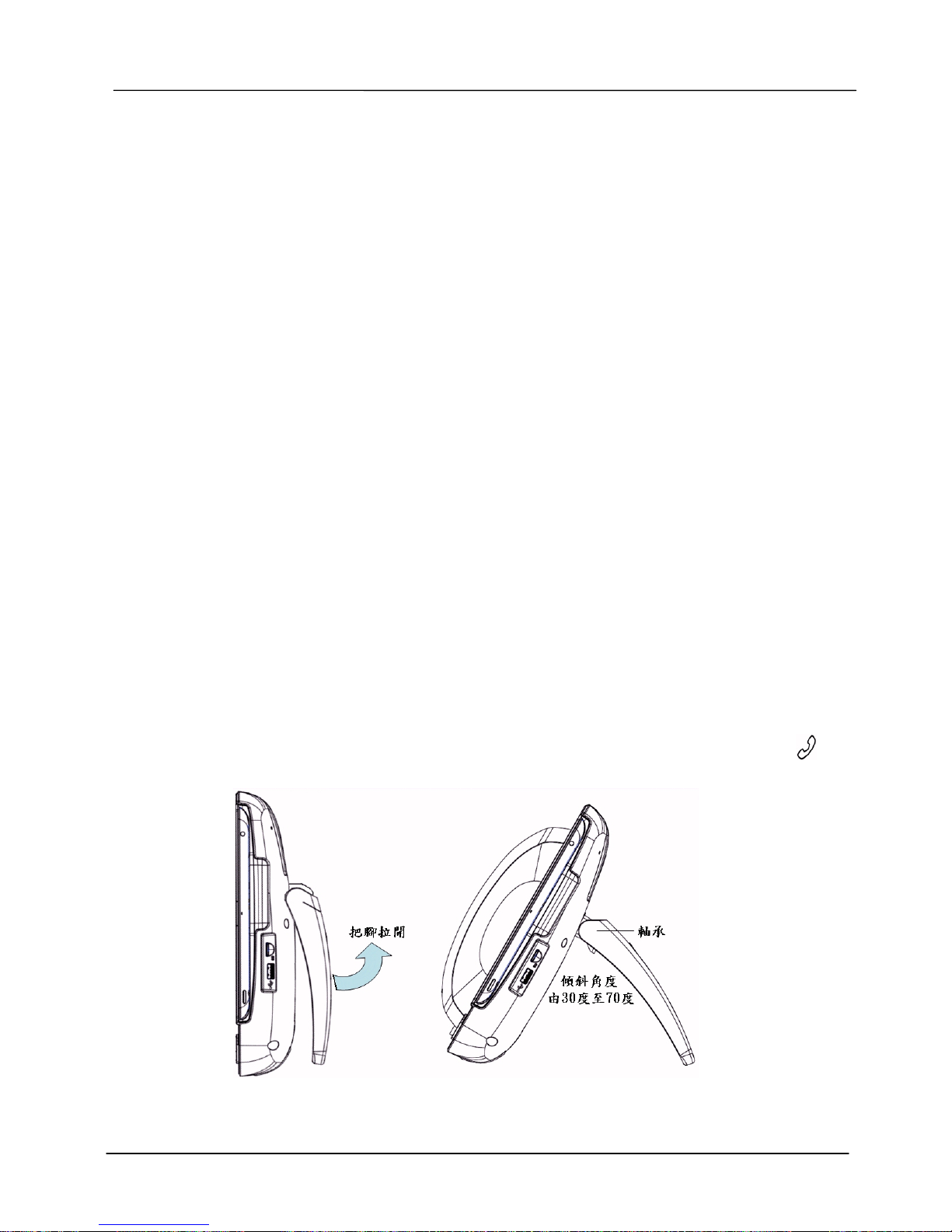
- 將產品包裝拆封後,把它放在桌上,並將它轉到一個適當的角度(譬如 45 度角度)。
請參見圖一。
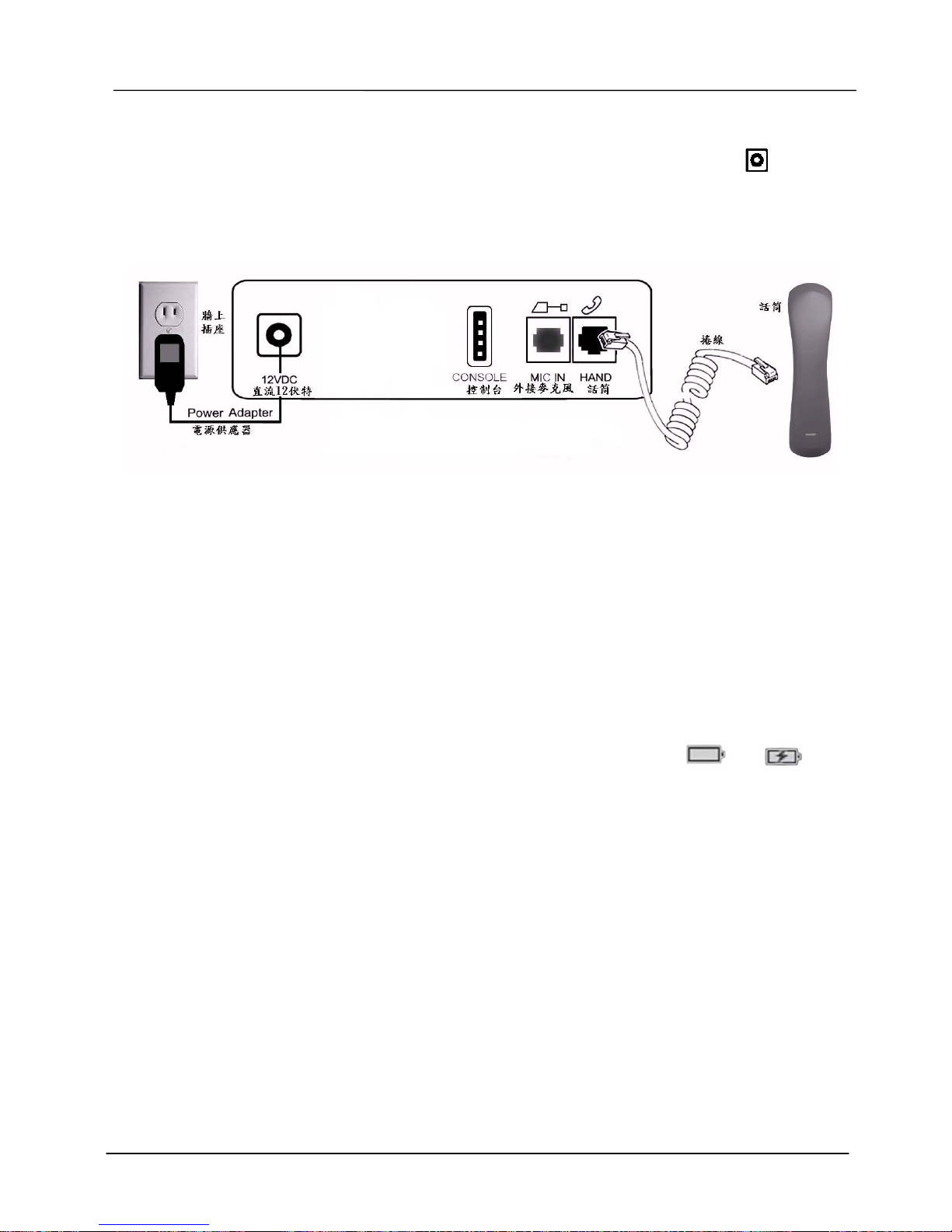
- 將話筒連接捲線連接到話筒,並將連接線的另一端插到通訊王背後,標示有 HAND
的電話插孔。請參考圖二所示。
圖一 將通訊王腳架張開至適當角度
Page 20
Page 20
MOCET IP3092-C/IP3092L-C Communicator Quick User Guide
連接電源:
- 將電源供應器的圓柱狀插頭插入到通訊王背後,標記 12VDC 的電源端口 。請確
保您使用的確實為隨機贈送的電源供應器, 電源規格是 12V/2A。
- 將電源供應器的另一端插到牆上交流電源插座上。接上電源之後,通訊王正面的
LED 指示燈會亮,通訊王便開始進行系統開機的動作。
圖二 通訊王背蓋之插孔與接線圖
啟動:
- 通訊王需要花費 1~2 分鐘的時間來完成系統開機動作。當系統開始啟動時,在通訊
王正上方的 MWI 大指示燈會被點亮。該指示燈未滅掉前, 請不要將 iPad 插入通訊
王前面的插槽。
插入 iPad:
- 系統開機完成後,您便可以將您的 iPad 滑入通訊王的前插槽。請注意面板前方有
一個托盤,當您是使用 iPad 1 時,請先移去托盤;若您是搭配 iPad2, iPad 3 或是
iPad 4 時,請不必移除加托盤。
- 當您將 iPad 插入通訊王時,在 iPad 螢幕右上方的電池符號會從 變為 。
此時 iPad 已經連接上通訊王,可以從通訊王上充電。這代表通訊王己經可以使用
了。
[備註]: 在背蓋的控制台插孔是保留給維修工程師用,一般使用者不會用到。
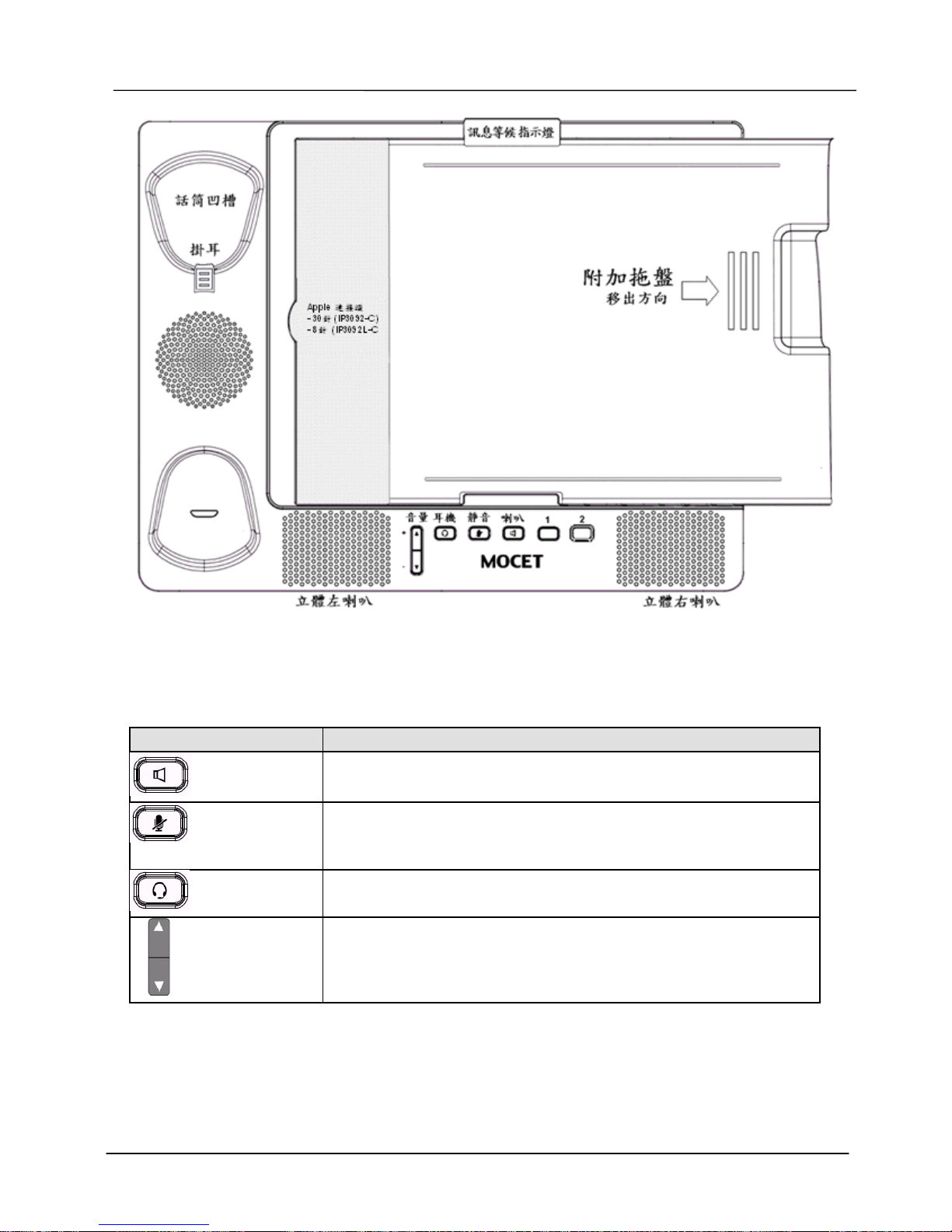
外觀及功能描述
在將您的 iPad 插入通訊王前, 請注意如果是 iPad1 用者, 請須將附加托盤取下.
Page 21
Page 21
MOCET IP3092-C/IP3092L-C Communicator Quick User Guide
圖三 通訊王外觀與附加托盤
通訊王的按鍵
按鍵 功能說明
喇叭
按下此鍵來切換喇叭的功能。藍色指示燈顯示喇叭的使用狀態。
靜音
按下此鍵來關閉麥克風靜音功能(通話的對方沒法聽到您的聲音
或/與影像)。
耳機
按下此鍵來切換至耳機接聽。藍色指示燈顯示耳機的使用狀態。
音量按制
音量控制鍵用來調整以下設備的音量:話筒的語音接收音量,耳
機的語音接收音量,通訊王的喇叭音量。
此外, 還有兩個按鍵分別標示為 1 跟 2,這是保留給以後功能擴充用的。目前不用理會。
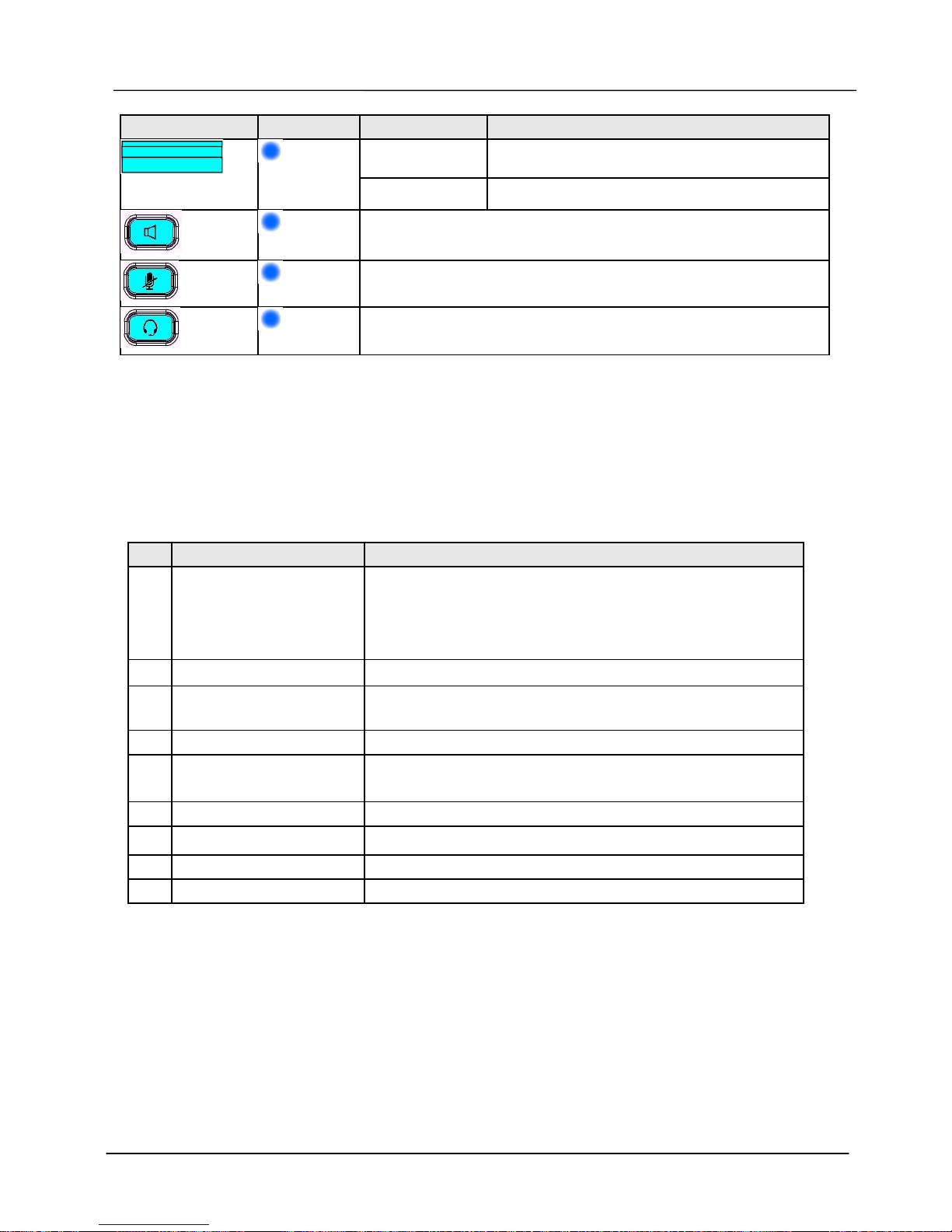
通訊王的指示燈
Page 22
Page 22
MOCET IP3092-C/IP3092L-C Communicator Quick User Guide
LED 顏色 狀態 說明
熄滅 沒有新的訊息
訊息等候指示燈
藍色
恆亮 通訊王正在開機中
免持
藍色
藍綠色指示燈亮顯示啟用免持聽筒功能
靜音
藍色
藍綠色指示燈亮顯示啟動靜音功能
耳機
藍色
藍綠色指示燈亮顯示啟用耳機通話功能
此外, 另有两個指示燈(一藍燈跟一紅燈)保留給未來擴充功能用,目前不用理會。
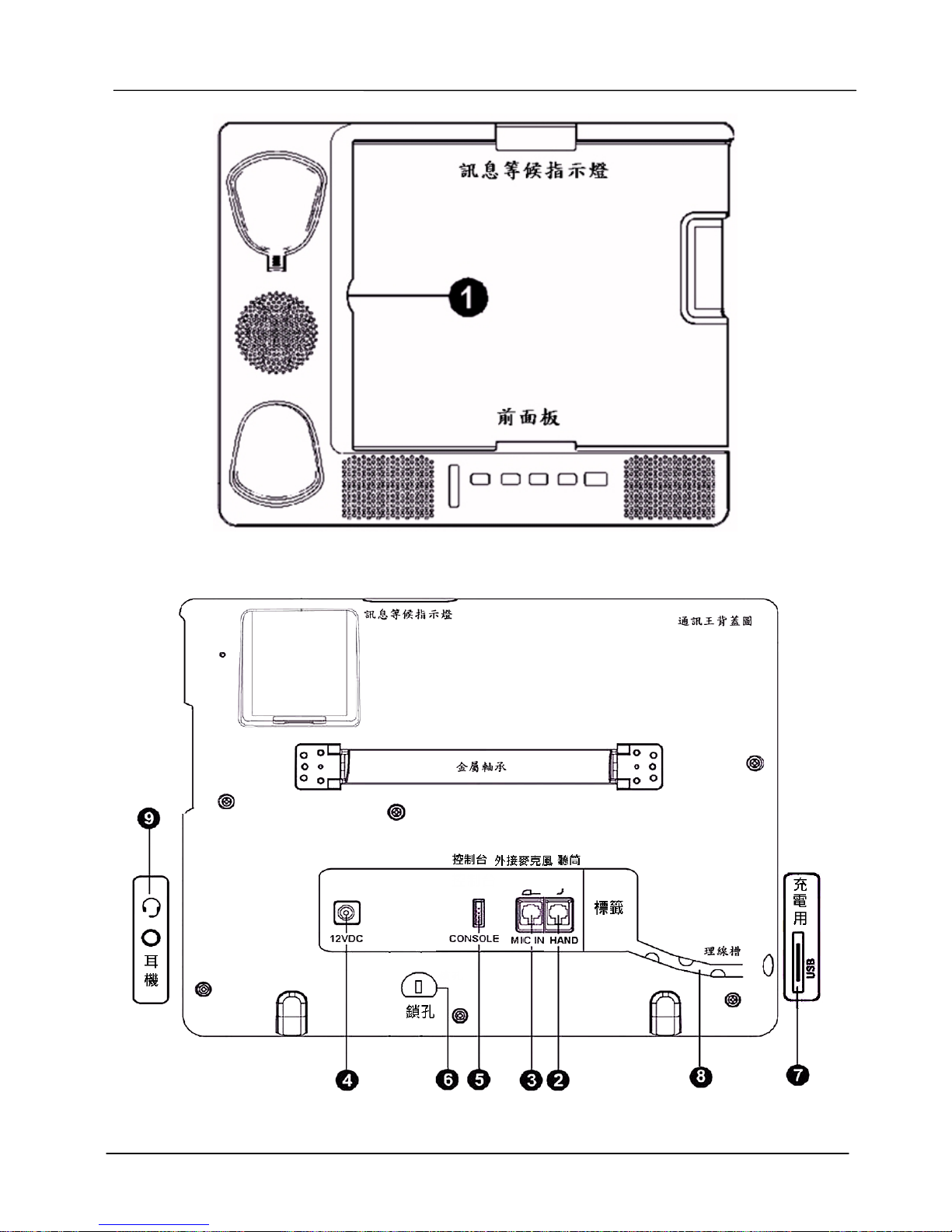
輸出入連接端口
有關通訊王的前、後、與側邊之連接端口及其功能,請參閱下表的功能說明。其位置則請
參照下方之圖四與圖五.
編號 連接端口 功能說明
1
iPad 對接端口 位於前面面板,Apple iPad 的連接端口,供 iPad 插入使
用。
- IP3092-C: 30 針連接器
- IP3092L-C: 8 針 Lightning 連接器
2
話筒接口 RJ9 電話插孔,用話筒電話捲線連接電話話筒。
3
外接麥克風輸入口
MIC IN
RJ9 插孔,連接外接麥克風,通常於大型電話會議時使用。
4
12V 直流電源輸入 2.5 mm 電源接頭,外接電源供應器
5
控制台端口 4 針的控制台接頭,非工程人員請勿使用
注意:此與一般使用者無關.
6
Kensington 防盗鎖孔 可讓使用者將通訊王鎖到鍊條上,防止被偷。
7
USB Type A 端口 本端口僅供對 iPhone 或是其他廠牌的手機充電用。
8
理線槽 將話筒的電話捲線埋入理線槽中
9
耳機孔 3.5 m m 耳機孔用於 Apple 標準耳機或是頭戴式耳機
Page 23
Page 23
MOCET IP3092-C/IP3092L-C Communicator Quick User Guide
圖四 通訊王供插入 iPad 的 30 針或 8 針 Lighting 接頭
圖五 背蓋與側邊的插孔說明
Page 24

Page 24
MOCET IP3092-C/IP3092L-C Communicator Quick User Guide
用通訊王播放多媒體
現在您可以用通訊王來玩 iPad 的各種 APP 應用程式了.
插到 Apple 的 30 針或 8 針接頭:
(1) 充電: 通訊王開機完成後,將 iPad 推入前面面板的 iPad 插槽,利用 Apple 的連接
和通訊王連接後,iPad 將會自行充電。同時, 可利用 USB 孔為 iPhone 或手機進
行充電。
(2) 調整通訊王座機角度看電影: 後面的腳座可作 30 度到 75 度的調整,讓使用者能夠
調整螢幕到最舒適的角度來觀看影片播放或打視訊會議。
(3) 播放音樂: 當 iPad 插入通訊王開完機後,iPad 所發出的所有聲音訊號都預設成會
經由 Apple 連接頭到通訊王的免持喇叭、手提話筒或是耳機。故使用者可以立刻播
放音樂, 不需做任何調整.
無限享受 iPad 的音樂與電影
當 iPad 插入通訊王後, 使用者可透過操作面板的按鍵與手提話筒, 享受 iPad 上的
音樂與看電影,感受高品質聲音的震憾. 使用者可以隨自已的舒適及方便性,切換語
音模式為免持,聽筒或耳機模式。而且可以在任一模式下,皆可單獨調整聲音的大
小; 體驗不同的樂趣與便利性。
飆社群網路應用程式
很多人喜歡在他們的 iPad 上玩社群網路及通訊運用軟體,例如 Skype
TM,
,
CISCO Jabber™ 或其他的應用軟體。通訊王的高品質聲音系統,大大地提昇了使
用者在打電話或是影像電話上的全新體驗。無論所使用的運用軟體是支持一般或是
寬音域電話通訊,您都能夠體驗到更美好清晰的語音品質。
聽音樂時接聽社群網路電話呼叫
(1) 當聽音樂時, 您可把社群網路電話拉到前景. 因此, 當電話來時, APP 會發出響
鈴聲, 方便接聽.
(2) 當聽音樂時, 如您的社群網路電話未在前景且無適當配置,此時,當電話來時,
APP 只會於 iPad 銀幕出現通報訊息. 並無響鈴聲.(雖然音樂會變小聲或不見)
(3) 如遇上敘問題時,請至 iPad 的設置內找出該社群網路 APP 進行參數調整, 將之
定為永遠工作模式.
Page 25

Page 25
MOCET IP3092-C/IP3092L-C Communicator Quick User Guide
更多資訊
謝謝您選購本產品,請記得填寫產品序號(S/N)等登錄資料, 並立即登錄您的通訊王產品。
這樣我們才能夠在您需要技術支援的時候,立即提供必要的服務。
注意
這個設備在機器的背面有型號,生產序號(S/N)。請將它們填寫在下列表格裡。以備將來服
務時可快速查驗。
型號: IP3092-C 序號(S/N) :
購買日期: / /
 Loading...