

Page 1
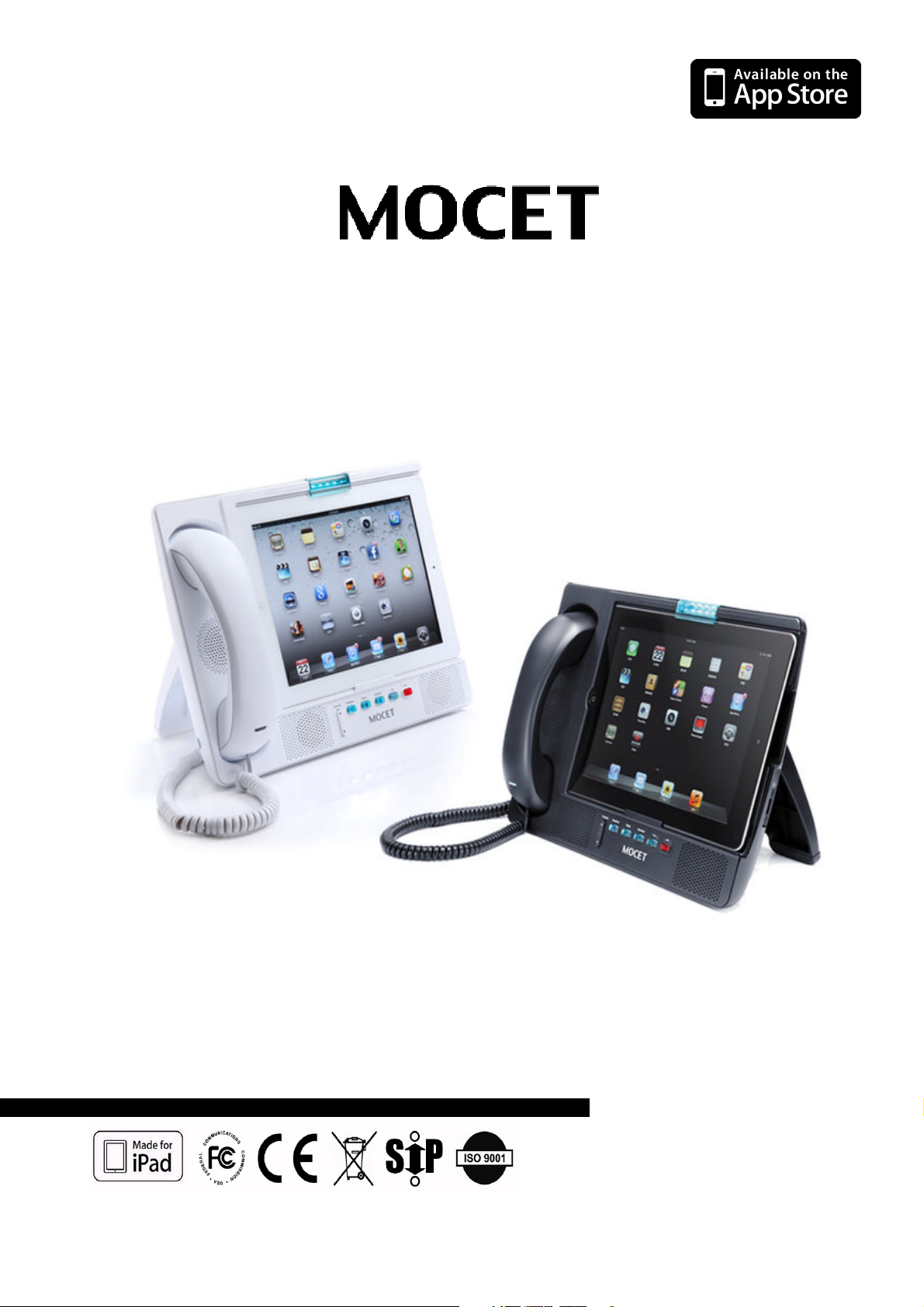
IP3092/ IP3092L Communicator
User Guide
Copyright © 2013, All Rights Reserved.
Ver: R03 D/C: 102-1129
Page 2

MOCET IP3092/IP3092L Communicator User Guide
FCC Statement
This equipment generates, uses and can radiate radio frequency energy and, if not installed and
used in accordance with the instructions in this manual, may cause interference to radio
communications. This equipment as been tested and found to comply with the limits for a Class B
computing device pursuant to Subpart J of Part 15 of FCC rules, which are designed to provide
reasonable protection against radio interference when operated in a commercial environment.
Operation of this equipment in a residential area is likely to cause interference, in which case the
user, at is own expense, will be required to take whatever measures are necessary to correct the
interface.
CE Declaration of Conformity
This equipment complies with the requirements relating to electromagnetic compatibility,
EN55022 class B for ITE and EN 50082-1. This meets the essential protection
requirements of the European Council Directive 89/336/EEC on the approximation of the
laws of the Member States relating to electromagnetic compatibility.
Environment
The phone you have purchased, as well as any used batteries must not be disposed of
with household waste. You should return these to your distributor if they are to replaced or
dispose of them in an approved recycling center.
Trademarks
iPad™, iPod™, iPhone™, iPad2™, the new iPad™, iTunes™, iOS™, Safari™, AirplayTM
and Facetime™ are registered trademarks of Apple Inc., USA. All other company, brand
and product names, like Metaswitch™, Broadsoft™, Freeswitch™ and Asterisk™ are
registered trademarks of their respective owners.
!
WARNING!
1.
Read these installation instructions carefully before connecting the IP phone to its power
2.
To reduce the risk of electric shock, do not remove the cover from the IP phone or attempt
to dismantle it. Opening or removing covers may expose you to dangerous voltage levels.
Equally, incorrect reassembly could cause electric shock on re-use of the appliance.
3.
Do not expose the IP Phone to Fire, direct sunlight or excessive heat.
4.
Do not expose the IP Phone to rain or moisture and do not allow it to come into contact with
water.
5.
Do not install the IP phone in an environment likely to present a THREAT OF IMPACT.
6.
You may clean the IP phone using a fine damp cloth. Never use solvents (such as
trichloroethylene or acetone), which may damage the phone’s plastic surface and LCD
screen. Never spray the phone with any cleaning product whatsoever.
7.
Take care not to scratch the LCD screen.
8.
The IP phone is designed to work in temperatures from 5oC to 40oC.
9.
The IP phone must be installed at least 1 meter from radio frequency equipment, such as
TVs, radios, hi-fi or video equipment (which radiate electromagnetic fields).
10.
Do not connect the LAN/PC port to any network other than an Ethernet network.
11.
Do not attempt to upgrade your IP phone in an unstable power environment. This could
cause unexpected issues.
12.
Do not work on the system or connect or disconnect cables during lightning storms.
13.
Children don't recognize the risks of electrical appliances. Therefore use or keep the phone
only under supervision of adults or out of the reach from children.
14. No repair can be performed by the end user, if you experience trouble with this
equipment, for repair or warranty information, please contact your supplier.
!
▼
Page 2
Page 3

MOCET IP3092/IP3092L Communicator User Guide
Table of Content
ABOUT THIS GUIDE .................................................................................... 5
1. INTRODUCTION ..................................................................................... 6
1.1. C
1.2. O
1.3. I
1.3.1. Connect the Handset to the Communicator: .............................................9
1.3.2. Connect the Ethernet cable:........................................................................9
1.3.3. Connect the power:......................................................................................9
1.3.4. Starting Up:.................................................................................................10
1.3.5. Inserting The iPad: .....................................................................................10
1.3.6. Other Ports Support:..................................................................................12
1.4. A
1.4.1. Communicator Port Functions:.................................................................13
1.5. C
1.5.1. Communicator Key Functions for iPad app mode: .................................14
1.5.2. Communicator Key Function for IP Commander mode:.........................15
1.6. C
1.6.1. Communicator LED Functions for IP Commander Mode: ......................16
1.6.2. Communicator LEDs Function for iPad app mode: ................................17
OMMUNICATOR FEATURES
PERATING MODES AND REQUIREMENTS
NSTALLATION AND SETUP
PPEARANCE AND PORT FUNCTION DESCRIPTION
OMMUNICATOR KEYS FUNCTION DESCRIPTION
OMMUNICATOR
LED F
.....................................................................................7
...................................................................8
........................................................................................8
UNCTION DESCRIPTION
....................................................12
.......................................................14
........................................................16
2. GETTING START.................................................................................. 18
2.1. P
2.2. S
OWER ON
OFTWARE INSTALLATION
IP3092 C
OMMUNICATOR AND IPAD
........................................................18
......................................................................................18
2.2.1. Installing the IP Commander app on your iPad .......................................18
2.2.3. I Inserting the iPad into the Apple 30-pin Connector:.....................................19
2.2.3. Audio Routing over Bluetooth or Apple 30-pin connector: .............................19
2.2.4. Using Other iPad apps with the Communicator .............................................20
2.3. IP C
OMMANDER OVERVIEW
....................................................................................24
2.3.1. Settings .......................................................................................................25
2.3.2. Audio System Control................................................................................25
2.3.3. Audio System Control Privilege................................................................26
3. BASIC PHONE SETTING WITH COMMANDER APP .......................... 27
3.1. U
3.2. U
3.3. C
3.3.1. Lines.............................................................................................................32
3.3.2. Calls .............................................................................................................33
3.3.3. Registration ..................................................................................................33
3.3.4. Caller ID.......................................................................................................33
3.4. C
3.5. N
3.6. L
3.7. P
3.7.1. Volume Setting ...........................................................................................36
SING THE COMMUNICATOR WITHOUT THE IP COMMANDER APP
SING THE IP COMMANDER APP
OMMON TERMS
ONFIGURING YOUR IP PHONE FOR SERVICE
ETWORK SETTING
INE SETTING
HONE SETTING
....................................................................................................32
................................................................................................34
........................................................................................................35
....................................................................................................36
.............................................................................27
..........................................................33
...............................27
Page 3
Page 4

MOCET IP3092/IP3092L Communicator User Guide
3.7.2. Call Features...............................................................................................37
3.7.3. Hotline Setting ............................................................................................37
4. USING THE BASIC FEATURES OF YOUR PHONE ............................ 39
4.1. L
4.2. A
4.3. R
4.4. E
4.5. M
4.6. RED
4.7. S
4.8. T
4.9. F
INE SETTING
NSWERING A CALL
EJECTING A CALL
NDING/HOLDING/RESUMING A CALL
UTE AND UN-MUTE A CALL
IALING A NUMBER
ETTING UP A CONFERENCE CALL
RANSFERRING A CALL
ORWARDING A CALL
........................................................................................................39
...............................................................................................40
................................................................................................40
..................................................................................41
...........................................................................................41
..........................................................................42
..........................................................................................43
............................................................................................43
......................................................................41
5. USING THE ADVANCED FEATURES OF YOUR PHONE ................... 45
5.1. L
5.2. C
5.3. V
5.4. C
5.5. M
5.6. C
5.7. C
5.8. M
5.8.1. Private Phonebook ........................................................................................53
5.8.2. Public Phonebook..........................................................................................54
5.8.3. LDAP Directory ............................................................................................54
5.9. S
OGIN TO THE WEB INTERFACE OF THE COMMUNICATOR
HANGING THE USER’S PASSWORD
IEWING PHONE INFORMATION ON WEB USER INTERFACE
ONFIGURING PHONE SETTINGS
ANAGING PROGRAMMABLE KEYS
ONFIGURING
ONFIGURING SYSTEM SETTINGS
ANAGING PHONEBOOK
ENDING AN INSTANT MESSAGE
SIP L
INE SETTINGS
........................................................................................53
........................................................................46
.............................................................................47
.........................................................................50
..........................................................................51
...........................................................................52
(IM).......................................................................56
............................................45
........................................46
6. USING ADVANCED CALL FEATURE.................................................. 57
6.1. C
6.2. I
6.2.1. Answering an Intercom Call ......................................................................58
6.2.2. Placing an Intercom Call............................................................................58
ALL WAITING
NTERCOM CALL
.......................................................................................................57
....................................................................................................58
7. PHONE FIRMWARE UPGRADE .......................................................... 59
8. USING USB DEVICES WITH YOUR PHONE ....................................... 60
8.1. USB K
8.2. USB WLAN D
EYBOARD
ONGLE
...................................................................................................60
............................................................................................60
9. TROUBLESHOOTING .......................................................................... 61
10. GLOSSARY .......................................................................................... 62
10.1. A
10.2. T
CRONYMS
ERMINOLOGY
...........................................................................................................62
.......................................................................................................63
Page 4
Page 5

MOCET IP3092/IP3092L Communicator User Guide
About this Guide
This is the User Guide for the MOCET IP3092/IP3092L Series Communicator. Not all
features listed or described in this guide are available, or available by default. If you are
not sure of what features are available on your Communicator, if you have a system or
network administrator, or you recieved this product from a service provider, please contact
them. They have the ability to customize some features on this phone that are not readily
available or accessible by a userregular user. For information on the advanced settings
and configuration of the Communicator, refer to the Communicator Administrator Guide.
Page 5
Page 6

MOCET IP3092/IP3092L Communicator User Guide
1. Introduction
The MOCET™ Communicator™ is an innovative accessory for the Apple™ iPad™ that will
enable you to use your iPad as your desk phone with popular applications including
FaceTime™ and Skype™. With the addition of the MOCET™ Commander™ application,
available from the Apple™ App Store™, you can replace your existing phone service, or
add high quality phone service by subscribing to a compatible VoIP service (available
separately).
Use the high definition audio-enabled handset and speakerphone on the Communicator to
enhance your communication and ensure privacy and comfort. For small office use, an
external desktop microphone can be attached improving the conference call experience.
The enhanced dynamic range stereo speakers make listening to music and watching
music a more engaging experience.
The Communicator stand is adjustable between 30º and 75º, allowing you to find the most
convenient viewing angle for watching movies or participating in video conferences. The
Communicator can fast charge and power your iPad for all day work and play, and the
USB port can offer charging to your iPhone of Mobile phone.
Bluetooth-enabled iPad / iPhone / Android Pad / mobile phones can be paired with the
Communicator allowing calls to be directed to the handset or speakerphone for better call
quality and comfort as well. One USB host port and one micro-SD port on the IP3092 allow
users to connect memory devices, keyboards and other supported peripherals.
The integrated DECT base station on Communicator’s IP3092D(L) and IP3092D-E(ODM)
models can support up to five DECT 6.0 CATiq-2.0 handsets configured as a mini PBX
complete with a simple auto-attendant and voicemail or as individually configured VoIP
phones, each with their own voicemail and phone numbers on a supported phone system
or service.
Two 10/100 Ethernet ports on Communicator’s IP3092/IP3092L and IP3092D/IP3092DL
(ODM) models allows you to connect your computer as a pass-through to your network,
requiring only one Ethernet to your switch or router for both. Two 10/100/1000Mbps
Ethernet ports on the IP3092D-E(ODM) model allows you to connect both your computer
and the Communicator to a Gigabit Ethernet switch or router, without slowing down your
applications or network services.
The following table shows the differences between the various Communicator Models:
Feature IP3092/IP3092L IP3092D/IP2092DL
(ODM Only)
Hardware echo cancelation
DECT base station
Ethernet 2x10/100 2x100/100 2x10/100/1000
PBX features
● ●
● ●
IP3092D-E
(ODM Only)
●
Page 6
Page 7

MOCET IP3092/IP3092L Communicator User Guide
1.1. Communicator Features
Hardware Highlights
Extended dynamic range stereo speaker system
HD acoustic designed handset, headset and hands-free
Super wide-band audio quality
Adjustable viewing angles (30º~ 75º)
Bluetooth 2.1 EDR with high quality A2DP audio support
Front Panel Buttons
Volume control
Speaker
Mute
Handset
Home
Hotline (for emergency calls)
Rear and Side Panel Connectivity
Headset port with 3.5mm port
RJ-9 external microphone extension (audio in)
Ethernet LAN port
Ethernet PC pass-through port
DC power port
USB 2.0 port
Micro SD card reader
Apple 30-pin connector (supports all iPad™ models)
Power Supply
Input : AC100~240V, 50~60Hz, 1.0A
Output : DC12V, 2A with connector 2.5mmФ
Phone Feature Highlights
Complete VoIP and networking protocol support
Rich supplementary call services and phone features
HD acoustic hardware design for handset and speakerphone
G.722, G.711 and G.729 wide and narrow-band audio codec support
4 Standards-compliant SIP Lines with 16 call appearances
Two port 10/100 Ethernet switch
5-way on-phone conferencing
16 programmable keys
Certified for use on Asterisk, Freeswitch, Metaswitch, Broadsoft and 3CX systems
Robust auto-provisioning, remote management and security enhancements
Page 7
Page 8
MOCET IP3092/IP3092L Communicator User Guide
1.2. Operating Modes and Requirements
The Communicator operates in two modes;
iPad app mode… where the user can make and recieve calls using FaceTime™ ,
Skype™, Hookflash, Bria for iPad and other social networking or communications
apps running on the iPad
IP Commander mode… where the user can make and recieve calls using the
MOCET™ Commander™ application, available from the Apple™ app store
The Communicator is configured by default to start in iPad app mode. For operating in
iPad app mode, the iPad uses it’s built in connectivity options for communicating with
FaceTime, Skype, Hookflash, VoIP services or IP PBXs. For operating in IP Commander
mode, the Communicator must be connected to an Ethernet LAN to register with a VoIP
service or an IP PBX.
1.3. Installation and Setup
The Communicator comes with all the accessories needed to get going right away.
Included in the box is a Quick Start Guide, a handset, handset cord, power supply adapter,
and an Ethernet cable.
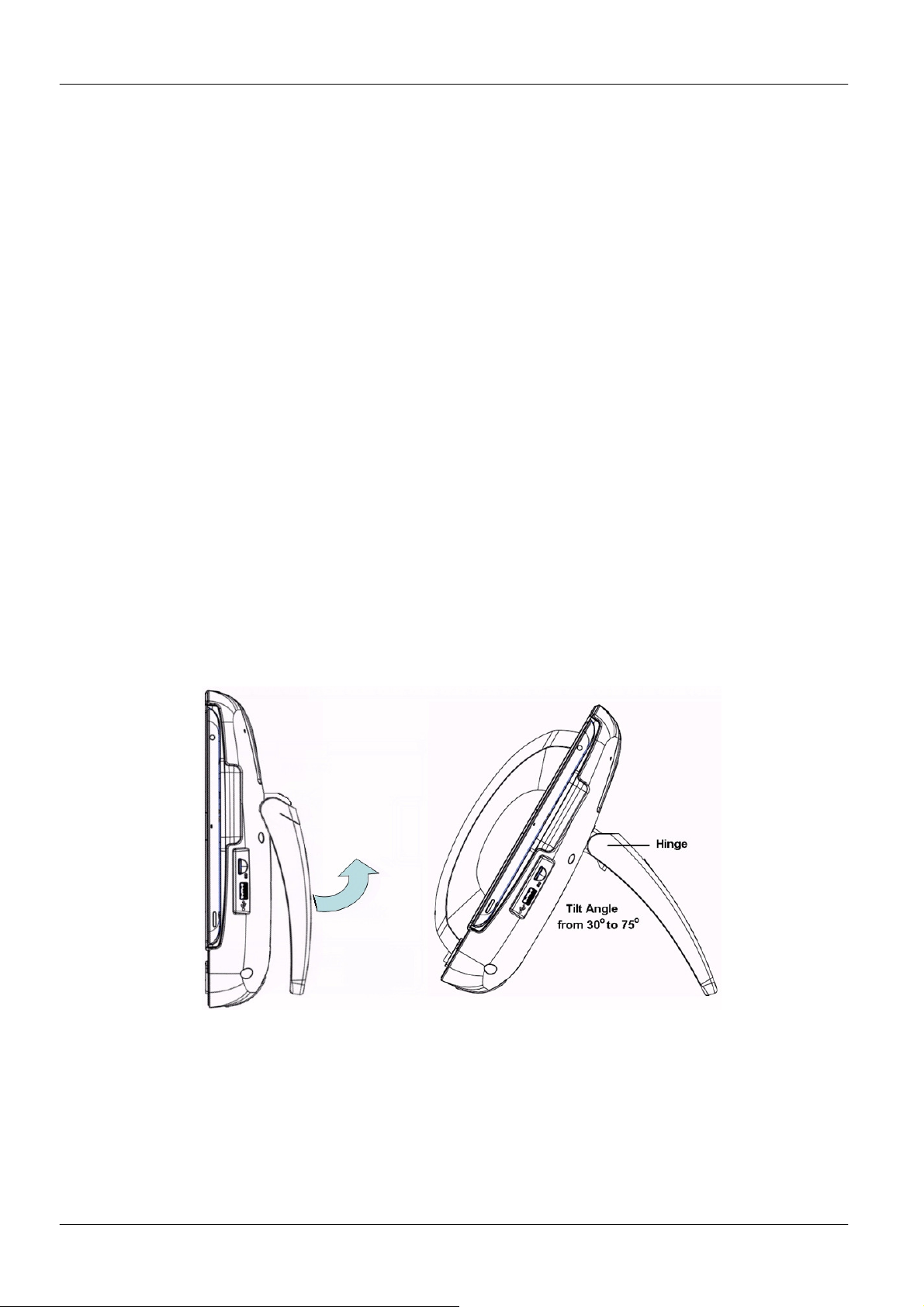
The IP Communicator can support wide-range of viewing angles (30°~75°) as the hinge is
easily adjusted (see below).
Page 8
Page 9
MOCET IP3092/IP3092L Communicator User Guide
1.3.1. Connect the Handset to the Communicator:
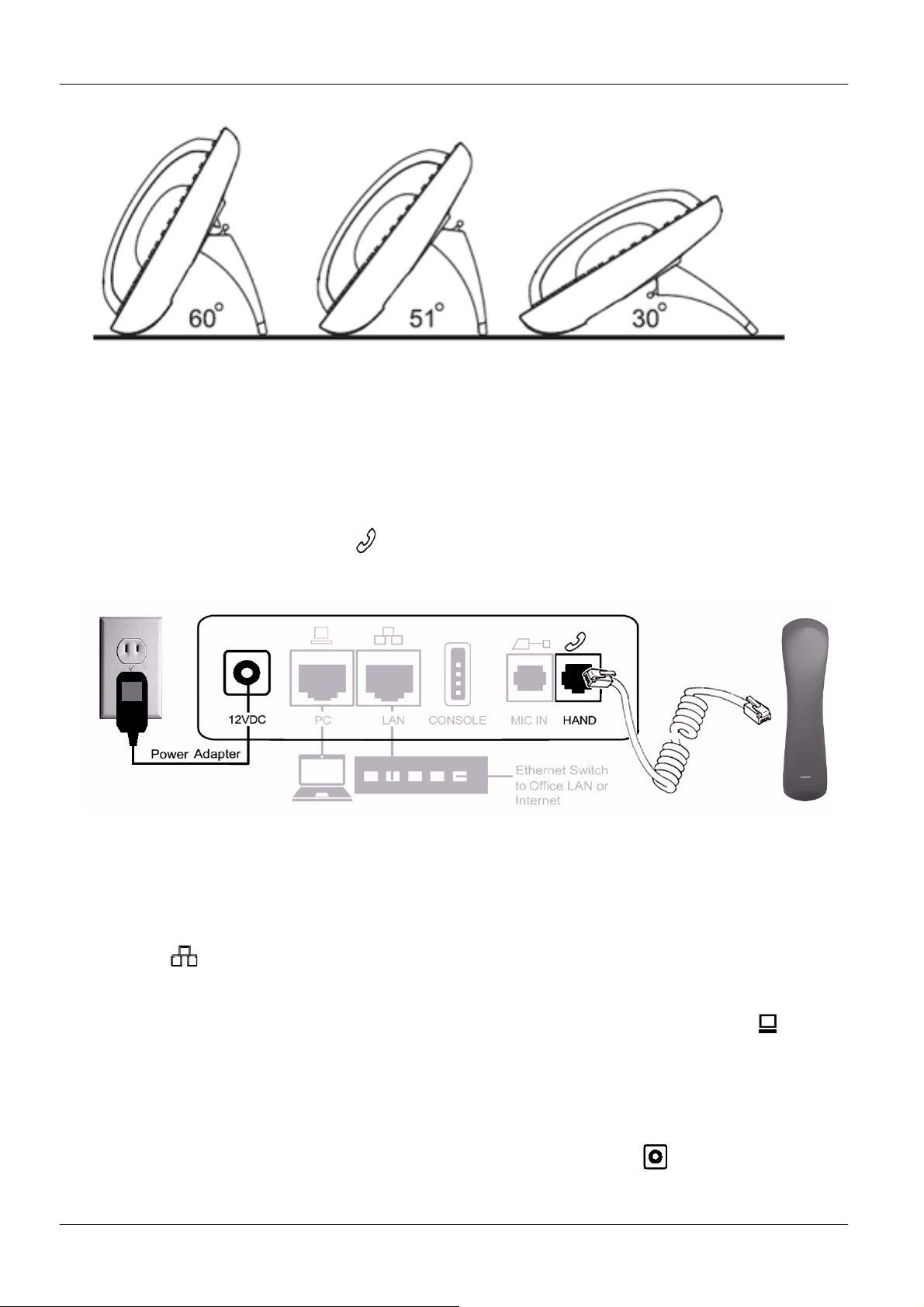
After unpacking the box, place the Communicator on the table and turn its stand to a
proper angle (for example, 45º).
Then connect the handset to the curly handset cord first and plug the other end of the cord
to the phone jack marked HAND on the rear panel of the Communicator. Please refer to
the following figure below.
1.3.2. Connect the Ethernet cable:
If you plan to use IP Commander mode with a VoIP service or an IP PBX, connect the
Communicator to your LAN or Internet router with the included CAT-5 Ethernet cable on its
LAN port ,
To eliminate the requirement for multiple Ethernet cables to a user’s location, the user’s
computer can be connected to the network through the second Ethernet PC port on
the Communicator if desired.
1.3.3. Connect the power:
Then plug the barrel plug of the included power adapter to the port marked 12VDC.
Please make sure you use the right power adapter. It shall have a label showing 12V
and 2A.
Page 9
Page 10
MOCET IP3092/IP3092L Communicator User Guide
Then plug in the other end of power adaptor to the wall power AC power outlet. Then you
will see LEDs on the Communicator light up and after about two minutes the
Communicator will be ready to use..
1.3.4. Starting Up:
The Communicator will take about two minutes to start up. Please don’t insert the iPad into
the Communicator until the the blue message waiting indicator (MWI) LED turns off.
1.3.5. Inserting The iPad:
Befroe you inserting your iPad, please make sure your iPad is met with the model of
Communicator as shown in below:
IP3092 is for iPad 1, iPad 2 and new iPad (3rd Generation) by using 30-pin connector
IP3092L is for iPad 4 by using 8-pin lightning connector
For the iPad 2, iPad 3 and iPad4, keep the add-on tray in the Communicator. To use an
iPad 1 in the Communicator, please remove the add-on tray first. (see figure below).
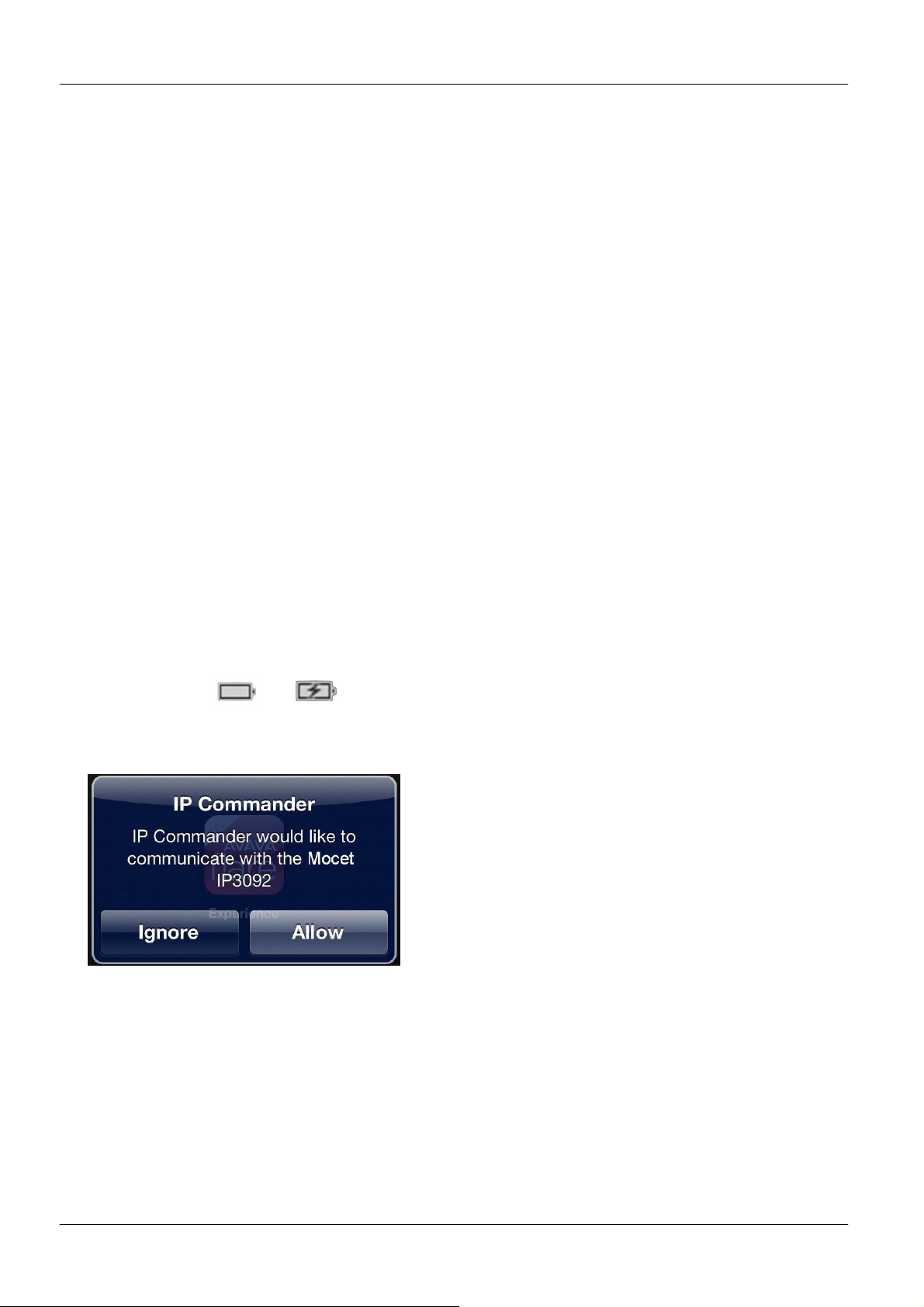
After that, simply by sliding your iPad into the front bezel slot and pushing it into the
Apple 30-pin connector (IP3092) or 8-pin lightning connector (IP3092L) in the
Communicator, the battery signal showed on the upper right cornor of iPad screen
changed from to and the Apple iPad will show message “ IP Commander
would like to communicate with the Mocet IP3092, Ignore or Allow” letting you know
that the Communicator is ready to go.
Page 10
Page 11

MOCET IP3092/IP3092L Communicator User Guide
Note: You do not need to remove the Add-on tray unless you want to use the
Communicator with an iPad1.
Page 11
Page 12
MOCET IP3092/IP3092L Communicator User Guide
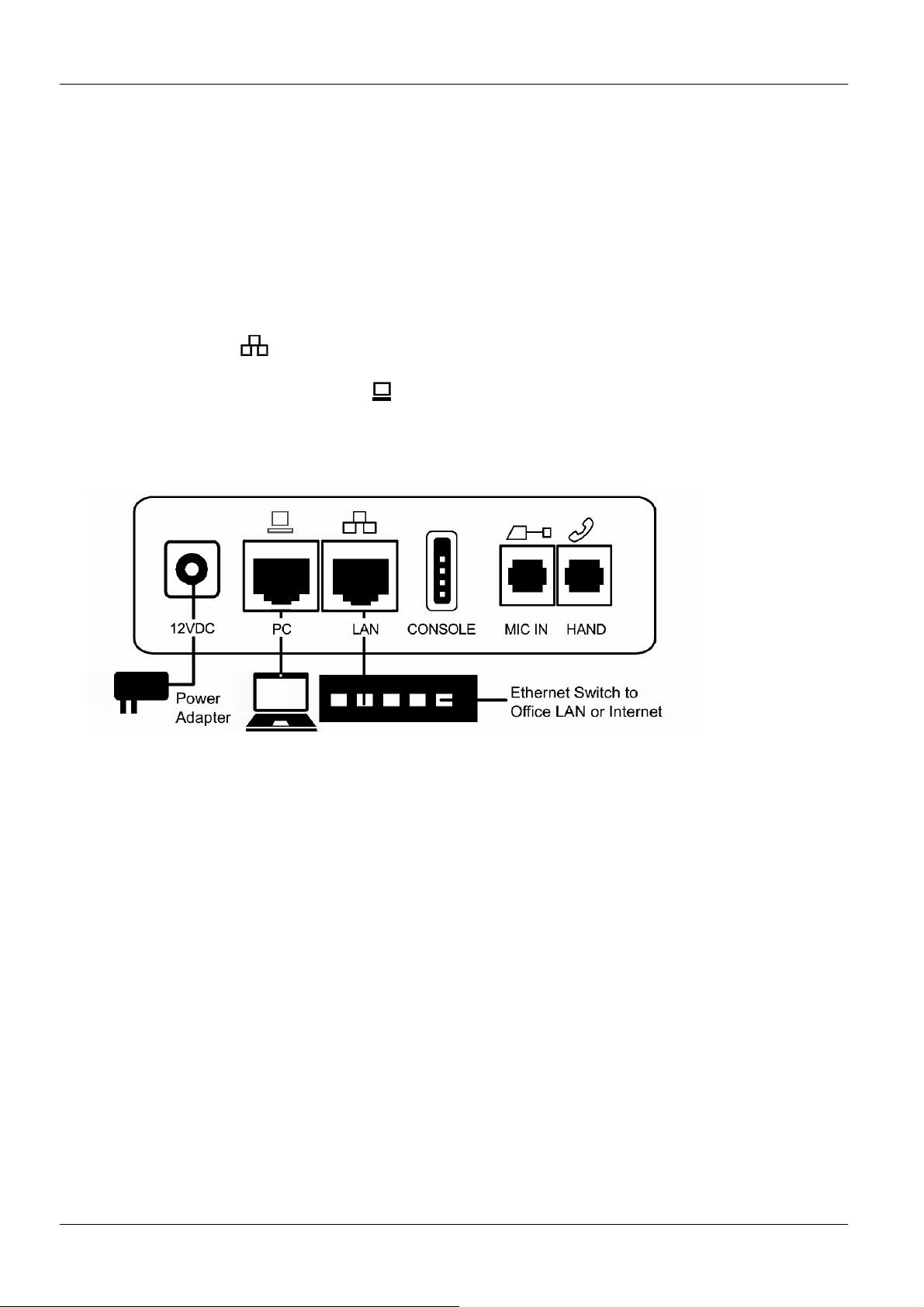
1.3.6. Other Ports Support:
External Mic : this is for voice conferencing use with a VoIP service or IP PBX;
requires the purchase of an optional desktop microphone set from MOCET.
Console port : this is reserved for engineering service only.
PC and LAN Ethernet ports : Allows the Communicator to be connected to a
LAN or the Internet for VoIP or IP PBX use.A CAT-5 Ethernet cable is provided in
the box to connect the Communicator to an port on an Ethernet switch from its
LAN port ,. To eliminate the requirement for multiple Ethernet cables to a
user’s location, the user’s computer can be connected to the network through the
second Ethernet PC port on the Communicator;
Note: you do not need to connect the Communicator to your network if do not intend to
use the MOCET IP Commander app to connect to a VoIP service or IP PBX.
1.4. Appearance and Port Function Description
The Communicator comes with all the accessories needed to get going right away.
Included in the box are the handset, handset cord, power supply adapter, and an Ethernet
Page 12
Page 13
MOCET IP3092/IP3092L Communicator User Guide
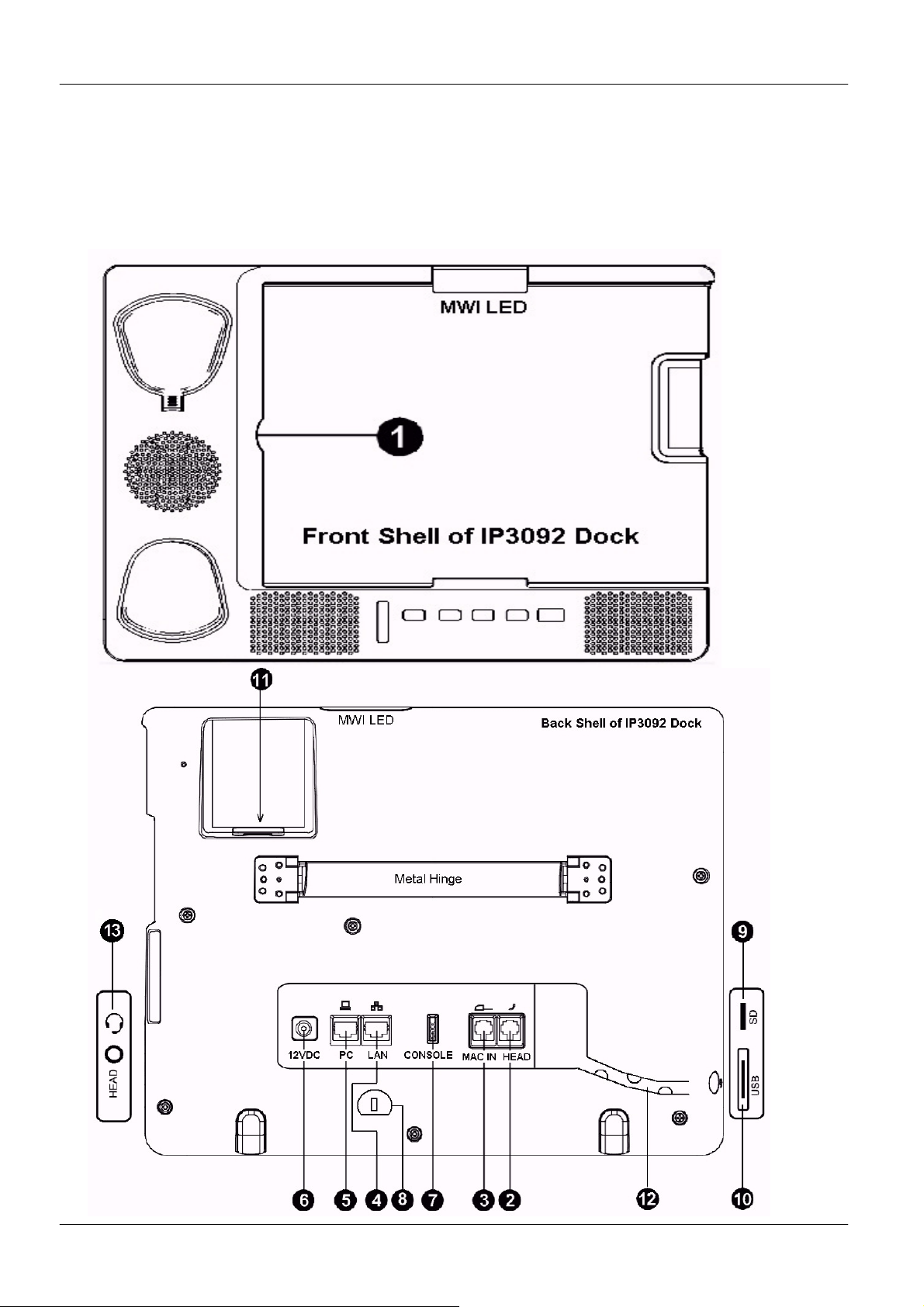
1.4.1. Communicator Port Functions:
The front, rear and side views of the Communicator with the location of all connectors are
shown in the following figures and the description of ports and connectors are listed in the
table below.
Page 13
Page 14
MOCET IP3092/IP3092L Communicator User Guide
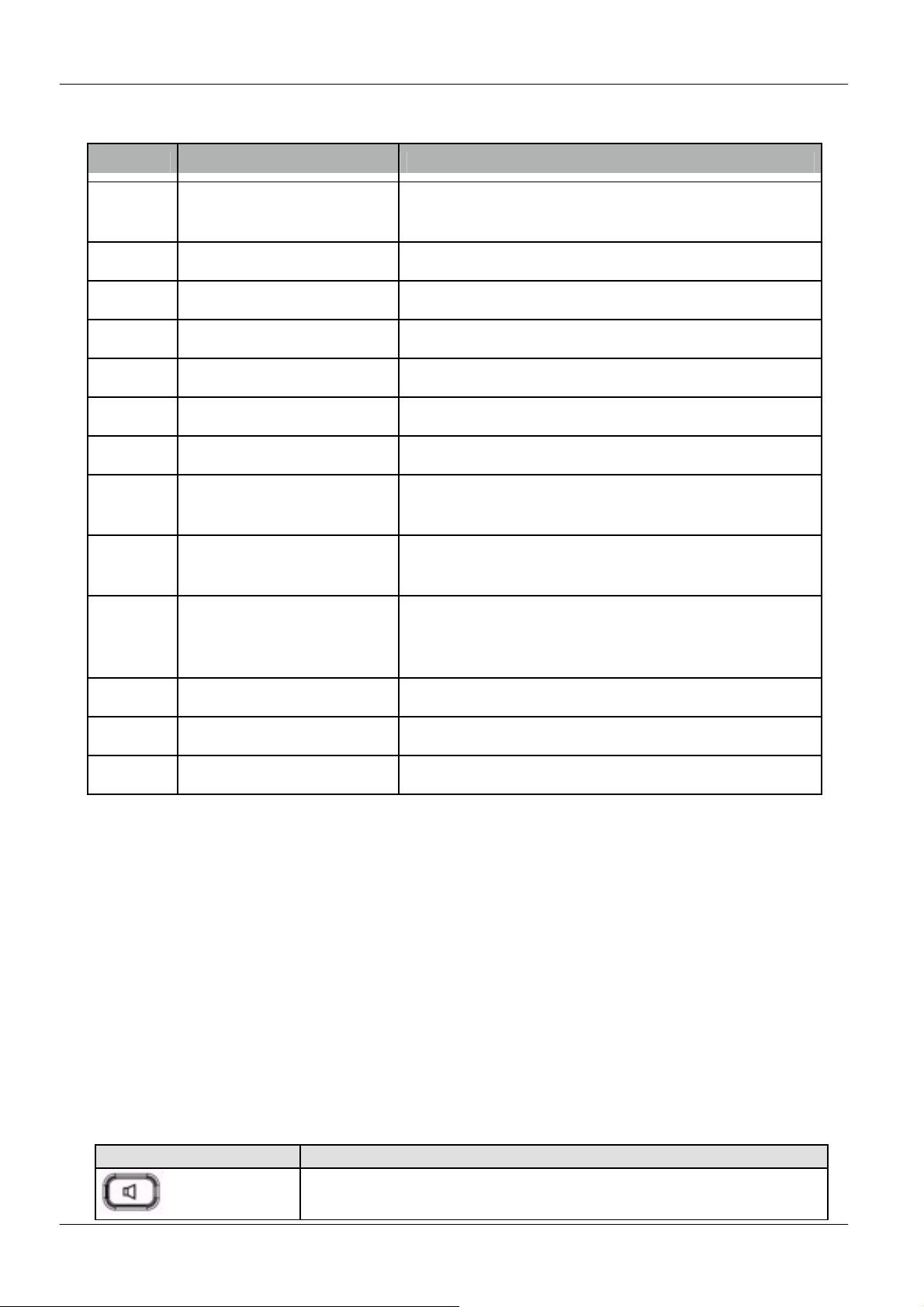
Number
Port/Connector Description
1 iPad docking port Apple 30-pin connector or 8-pin lightning
connector on front shell
2 Handset port RJ-9 for attaching handset with curly phone cord
3 Microphone input port To connect optional desktop microphone set
4 Ethernet LAN port To connect the Communicator to the LAN
5 Ethernet PC port To connect a PC to the LAN
6 12VDC Power port 2.5mm port for external power adapter
7 Console port For service use only
8 Kensington lock mount To lock the Communicator to a desk with
Kensington lock
9 Micro SD card reader For voicemail, IVR prompts, and firmware
updates
10 USB 2.0 host port Can be used to charge an iPhone or other
device; also for voicemail, IVR prompts, and
firmware updates
11 MOCET accessory port Reserved for future use
12 Wiring duct Allows curly handset cord to be routed to port
13 Headset port 3.5mm port for Apple or other headset
1.5. Communicator Keys Function Description
The Communicator supports two audio system control modes: iPad app mode and IP
Commander mode,The following section shows how to operate the Communicator in both
modes.
1.5.1. Communicator Key Functions for iPad app mode:
The default configuration of the Communicator automatically enables the audio controls for
FaceTime, Skype, Hookflash, Bria or other iPad apps. In iPad app mode, the
Communicator key functions are as follows:
Name of Key Description
Speakerphone
Press this key to enable or disable the Speakerphone; a blue
LED is used to indicate status
Page 14
Page 15
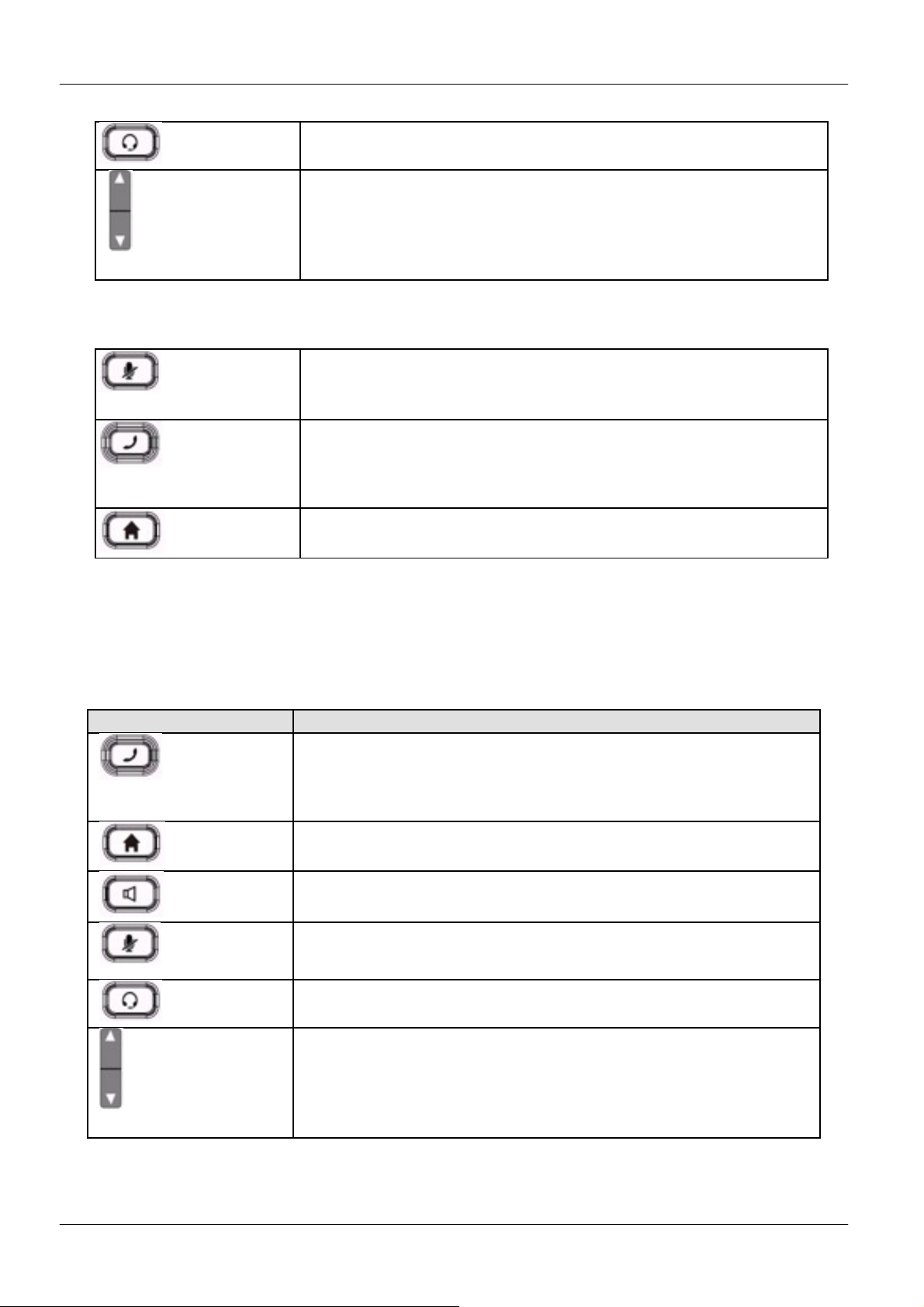
MOCET IP3092/IP3092L Communicator User Guide
Press this key to enable or disable the Headset feature; it does
Press this key to enable or disable the Headset feature; it does
Headset
not enable or disable the 3.5mm port or Bluetooth connection.
Volume control keys to adjust volume of Handset Receiver,
Handset DTMF output, Handset Ring output, Headset
Receiver, Headset DTMF output, Headset Ring output,
Volume Rocker
Speakerphone output, Speakerphone DTMF output and
Speakerphone Ring output
There are three Communicator keys that may not function in iPad app mode:
For supported apps, this key can be used to mute the audio.
Mute
Function is used in IP Commander app mode for dialing up to
Hotline
three pre-programmed phone numbers in succession
regardless of whether an iPad is inserted in the Communicator
Function is used in IP Commander app mode to bring IP
Home
Commander to the forefront or launch it if it is not running
1.5.2. Communicator Key Function for IP Commander mode:
If the Communicator is connected to a VoIP service or IP PBX, and the IP Commander app
is to be used, the audio system control in the app should be set to On and to Commander.
The Communicator key functions are shown below:
Key Description
Press this key to make an emergency call whether the iPad is
Hotline
attached or not; requires subscription to VoIP service or
connection to an IP PBX. A red LED is used to indicate its
status
Press this key to bring the IP Commander app immediately to
Home
the forefront. A blue LED is used to indicate its status
Press this key to enable or disable the Speakerphone; a blue
Speakerphone
LED is used to indicate status
Press this key to mute a call (the other party will not be able to
Mute
hear you).
Headset
not enable or disable the 3.5mm port or Bluetooth connection.
Volume control keys to adjust volume of Handset Receiver,
Handset DTMF output, Handset Ring output, Headset
Receiver, Headset DTMF output, Headset Ring output,
Volume Rocker
Speakerphone output, Speakerphone DTMF output and
Speakerphone Ring output
Page 15
Page 16
MOCET IP3092/IP3092L Communicator User Guide
The Communicator is booting or updating
Message Waiting
disconnected, VoIP service is unavailable,
emergency call, the LED will light up. There are two states
1.6. Communicator LED Function Description
The Communicator supports two audio system control modes, one is iPad app mode and
the other is Commander mode. Each uses the LEDs in a slightly different manner; and
they are described below.
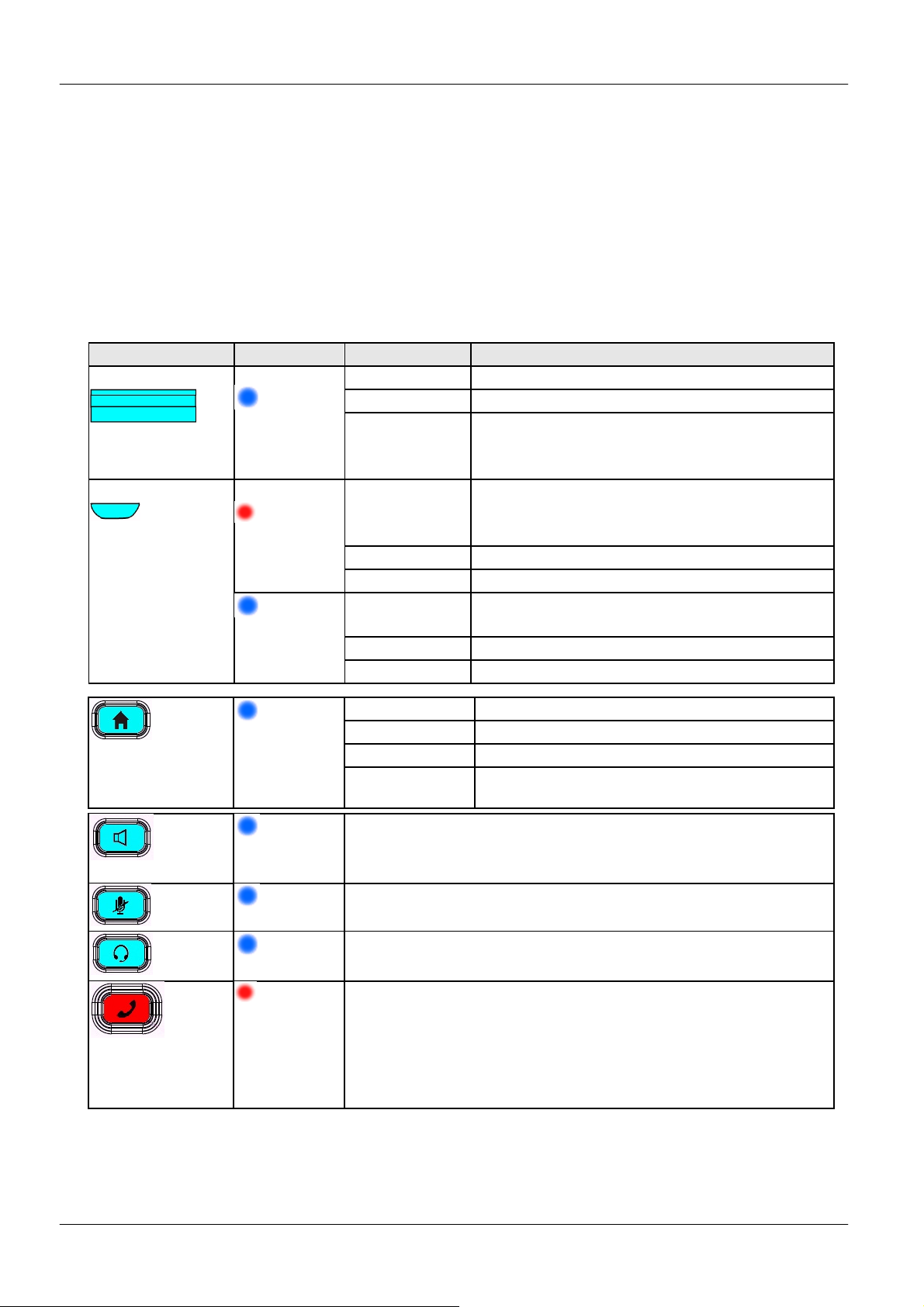
1.6.1. Communicator LED Functions for IP Commander Mode:
The following table describes all functions of LED indicators:
LED Color Status Description
Indicator
Handset
Home
Blue
Red
Blue
Blue
Blue
Off No new messages
Steady
Blinking slow New voice message indication. This is
also applicable for supported instant
messaging and email apps
Steady Warning: Wired Ethernet link is
or Ethernet keep alive link is failing
Fast Flashing Urgent call ringing (for supported servers)
Off N/A
Steady Wide-band audio call support after boot
up.
Blinking N/A
Off Narrowband audio call
Off No new messages
Steady On Commander app running on Communicator
Flashing 3 sec. iPad inserted or removed
Off Commander app not running on foreground,
or Communicator off
Blue-green LED indicates that speakerphone is enabled
Speakerphone
Blue
Blue-green LED indicates that “Voice Mute” is enabled
Mute
Blue
Headset
Red
Hotline
Blue-green LED indicates that the headset feature is
enabled
By default, the red LED is off. When user makes an
where the LED lights up:
(1) Flashing : when the call is dialed and ringing to the
destination.
(2) Steady on: when the call is connected.
Note: To activate the Hotline function, please configure it in the IP Commander
web user interface of the Communicator
and up to 3 emergency phone numbers may be programmed. For instance,
TM
TM
. The location address of Communicator
app or
Page 16
Page 17
MOCET IP3092/IP3092L Communicator User Guide
Message Waiting
The Communicator is booting or updating
911 at Line 1-408-123-4567 (Police station)
1-555-111-2222 at Line 1-230-765-4321 (Office Security)
1-666-333-4444 at Line 1-230-765-4321(Building Security)
For a more detailed discussion of the Hotline feature, refer to the Basic Operation
Guide.
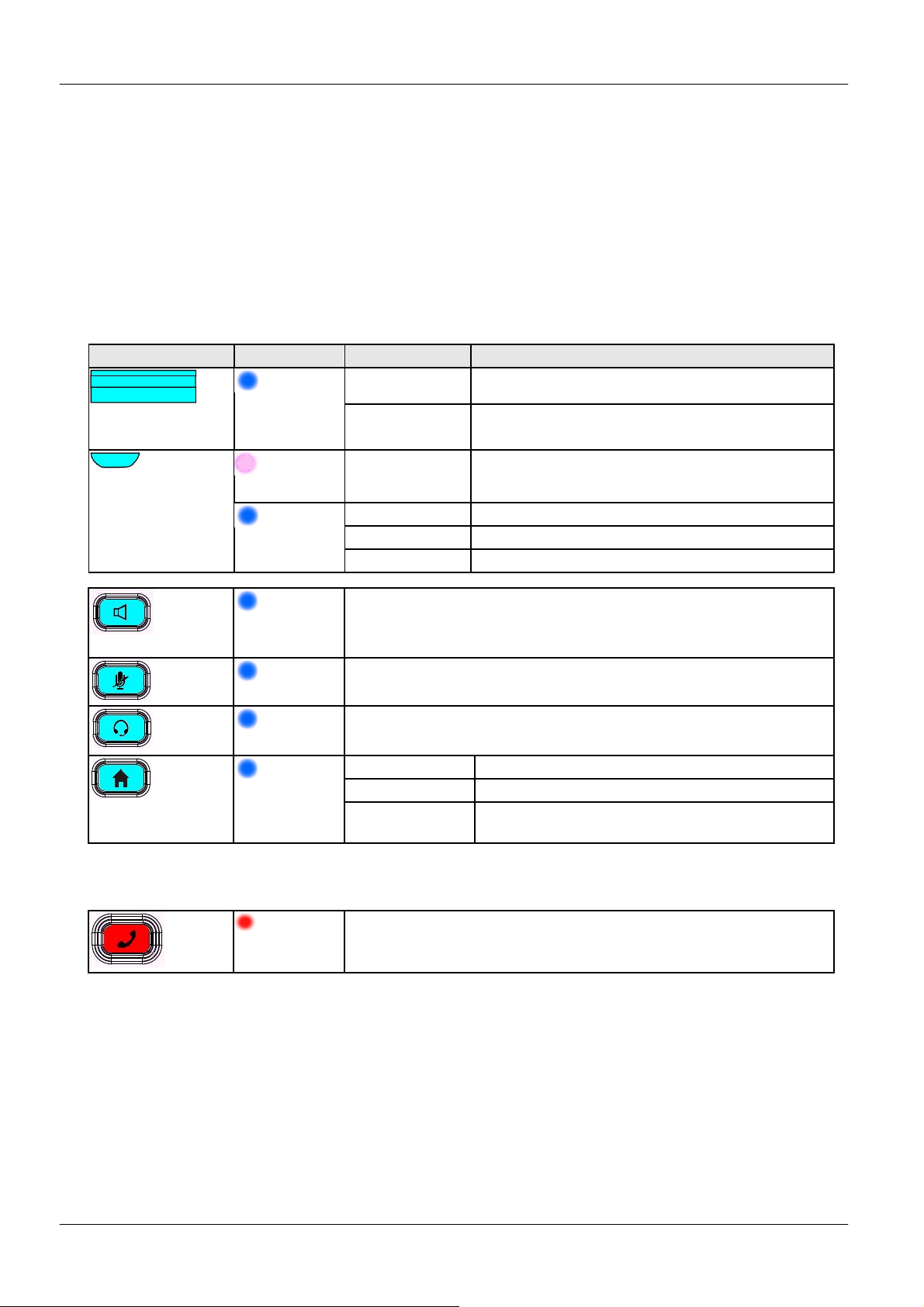
1.6.2. Communicator LEDs Function for iPad app mode:
The following table describes all functions of LED indicators:
LED Color Status Description
Blue
Off Communicator is booted OK.
Steady
Indicator
Handset
Light
Purple
Blue
Steady System is under upgrade or abnormal
state.
Steady Support HD audio quality
Blinking N/A
Off Not support HD audio quality
Blue
Blue-green LED indicates that speakerphone is enabled
Speakerphone
Blue
Blue-green LED indicates that Mute is enabled
Mute
Blue-green LED indicates that the headset feature is
enabled
Off Normal condition
Steady On N/A
Flashing 3
sec.
iPad inserted or removed
Headset
Home
Blue
Blue
There is one Communicator key that may not function in iPad app mode:
Red
N/A (Only supported in VoIP mode)
Hotline
Page 17
Page 18
MOCET IP3092/IP3092L Communicator User Guide
2. Getting Start
After unpacking the Communicator from the box, please follow these steps to start the
Communicator and install IP Commander and setup the VoIP features.
2.1. Power on Communicator and iPad
Following the hardware installation section of IP3092/IP3092L Communicator User
Guide, connect the curly cord to both the handset and Communicator, the Ethernet
cable between the LAN port and the LAN or Internet router, and the power adapter
between the wall socket and the Communicator;
Then power on Communicator, but do not connect your iPad;
It will take just about two minutes for the Communicator to start up; you will see
the LEDs light and then go off while the blue LED of the message waiting indicator
(MWI) stays lit a little longer. When the MWI LED goes off, the Communicator is
ready and you can connect your iPad
2.2. Software Installation
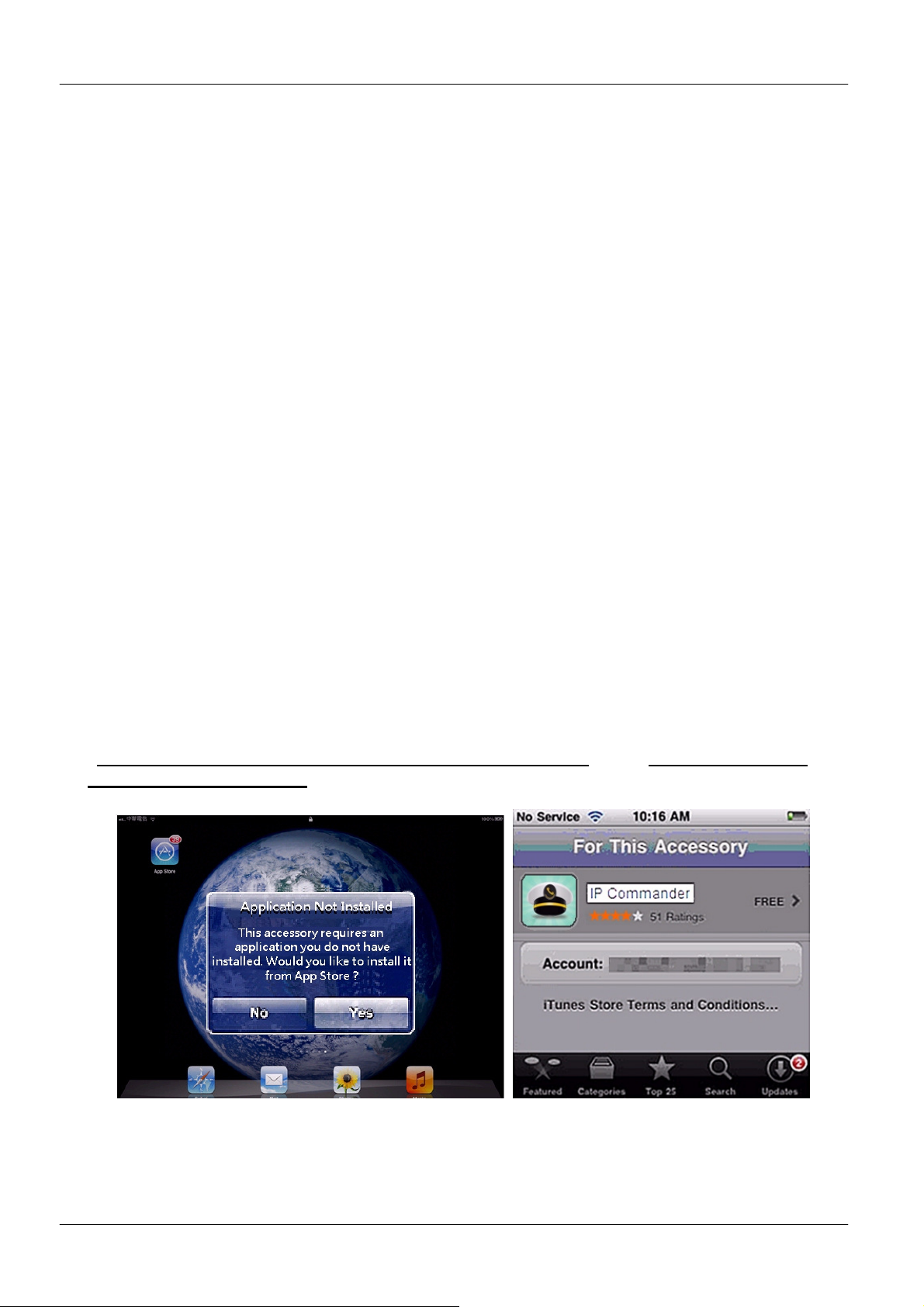
2.2.1. Installing the IP Commander app on your iPad
When an iPad is inserted into the Communicator, the Communicator will scan the iPad to
determine whether it has been connected to the Communicator and whether it has the
Commander app installed. If this is the first time you have connected your iPad to the
Communicator, and you do not have the Commander app, a dialog box will display saying
“This accessory requires an application you do not have” and “Would you like to
install it from App store?”
Please press the “Yes” button. Then the iPad will lead you to iTunes store to
dowload the IP Commander app. Then you have to confirm the “install” on your
iPad.
Page 18
Page 19

MOCET IP3092/IP3092L Communicator User Guide
If more than one iPad share one Communicator, the download and install process
will be repeated for each new iPad discovered.
After the installation is complete, you can launch the IP Commander app on your
iPad and it will syncronize to the Communicator when the iPad is connected.
The Communicator supports audio routing through both the iPad 30-pin connector
and Bluetooth. Depending on the iPad app, the audioroute may need to be
switched. The default audio path selection is through the 30-pin connector or 8-pin
lightning connector.
Note: When using the Bluetooth audio route, the volume can be controlled using the
Communicator buttons; when the iPad is disconnected from the Communicator, but still
paired with the Communicator and within range, the volume of the Communicator can be
controlled from within the app itself..
2.2.3. I Inserting the iPad into the Apple 30-pin or 8-pin lightning Connector:
Charging: When the Communicator powers on and is ready, and the iPad is
inserted all the way into the 30-pin or 8-pin lightning connector, the iPad will start
charging. In addition, the user can charge his iPhone or other mobile phone by
connect it to the USB port on the right side of the Communicator.
Adjusting the stand angle for video or conference calling: The user can
adjust the screen angle by holding the stand and the base unit and opening or
closing the stand to a comfortable angle, ranging from 30º to 75º.
Audio routing: By default, all audio from a connected iPad plays through the
Apple 30-pin or 8-pin lightning connector to the speakers, handset or headset of
the Communicator
2.2.3. Audio Routing over Bluetooth or Apple 30-pin/8-pin lightning connector:
By default, all audio from a connected iPad plays through Apple 30-pin or 8-pin lightning
connector to the speakers, handset or headset of the Communicator. In this mode, all apps
can take advantage of the HD handset and super-wideband stereo speaker system.
The Communicator supports Bluetooth 2.1 EDR and the A2DP audio profile for a wireless
connection to the iPad’s audio system.
You can pair your iPad, iPhone or another mobile phone to the Communicator by using the
Bluetooth discovery process on your device to find and pair it to the Communicator. You
will see a device ID like IP3092-xxxxxx when finished scanning.
When connected, you can control the audio output of the iPad, iPhone or other mobile
phone using the volume controls on the Communicator to play music or make a call using
the Communicator’s handset, speakerphone and headset.
When the iPad is paired to the Communicator using Bluetooth, the audio and video will
keep playing even if the iPad is not connected to the Communicator (The volume buttons
on the Communicator will be disabled when the iPad is detached but can still be
controlled from within the app itself).
Page 19
Page 20
MOCET IP3092/IP3092L Communicator User Guide
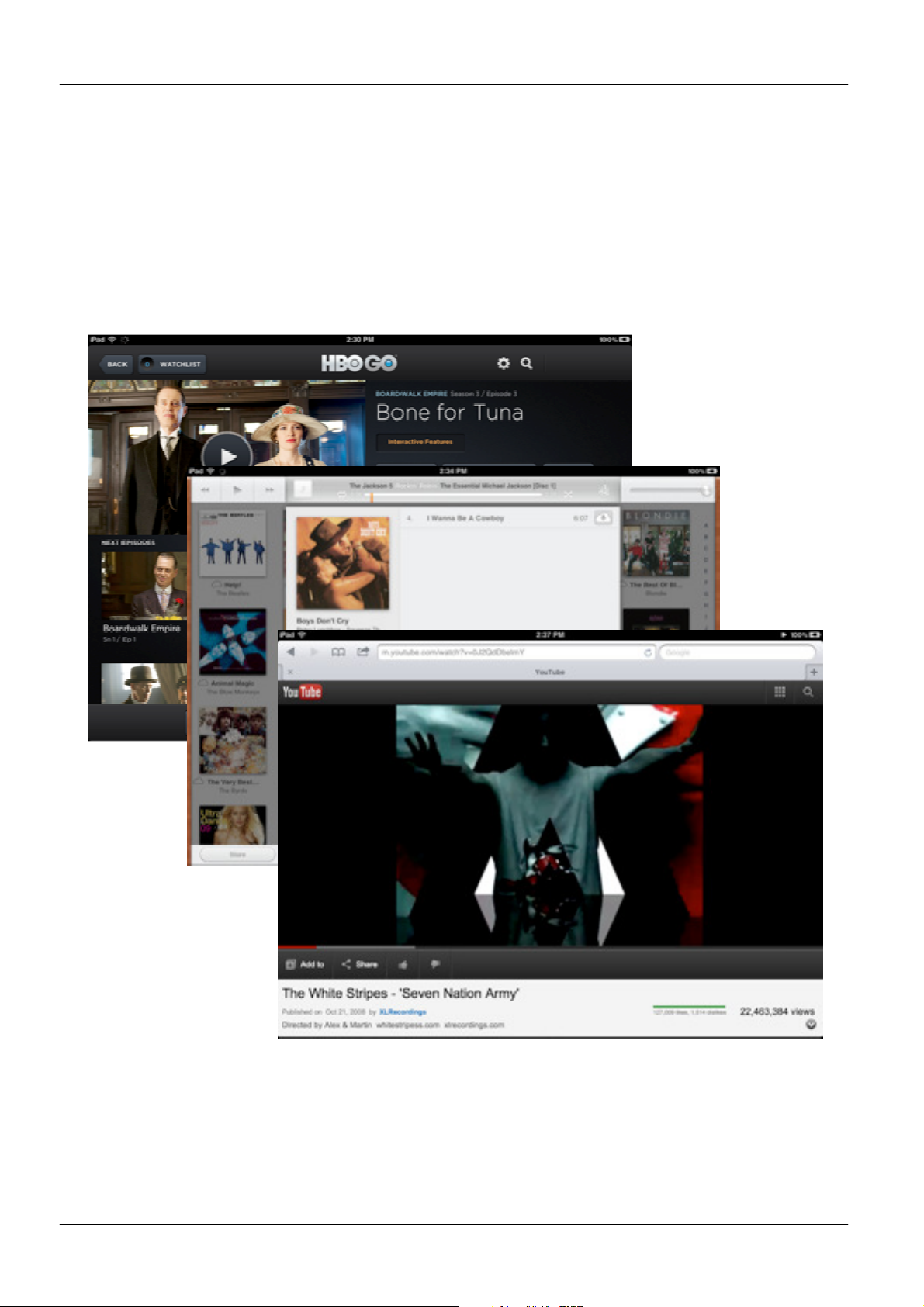
2.2.4. Using Other iPad apps with the Communicator
iPad Movie, HBO Go, Youtube and other video apps
After inserting the iPad into the Communicator, the audio from the iPad Movie app, HBO
Go and other video apps will play by default on the Communicator Speaker. You can
switch to the headset or Handset just by pressing the appropriate key.
Page 20
Page 21
MOCET IP3092/IP3092L Communicator User Guide
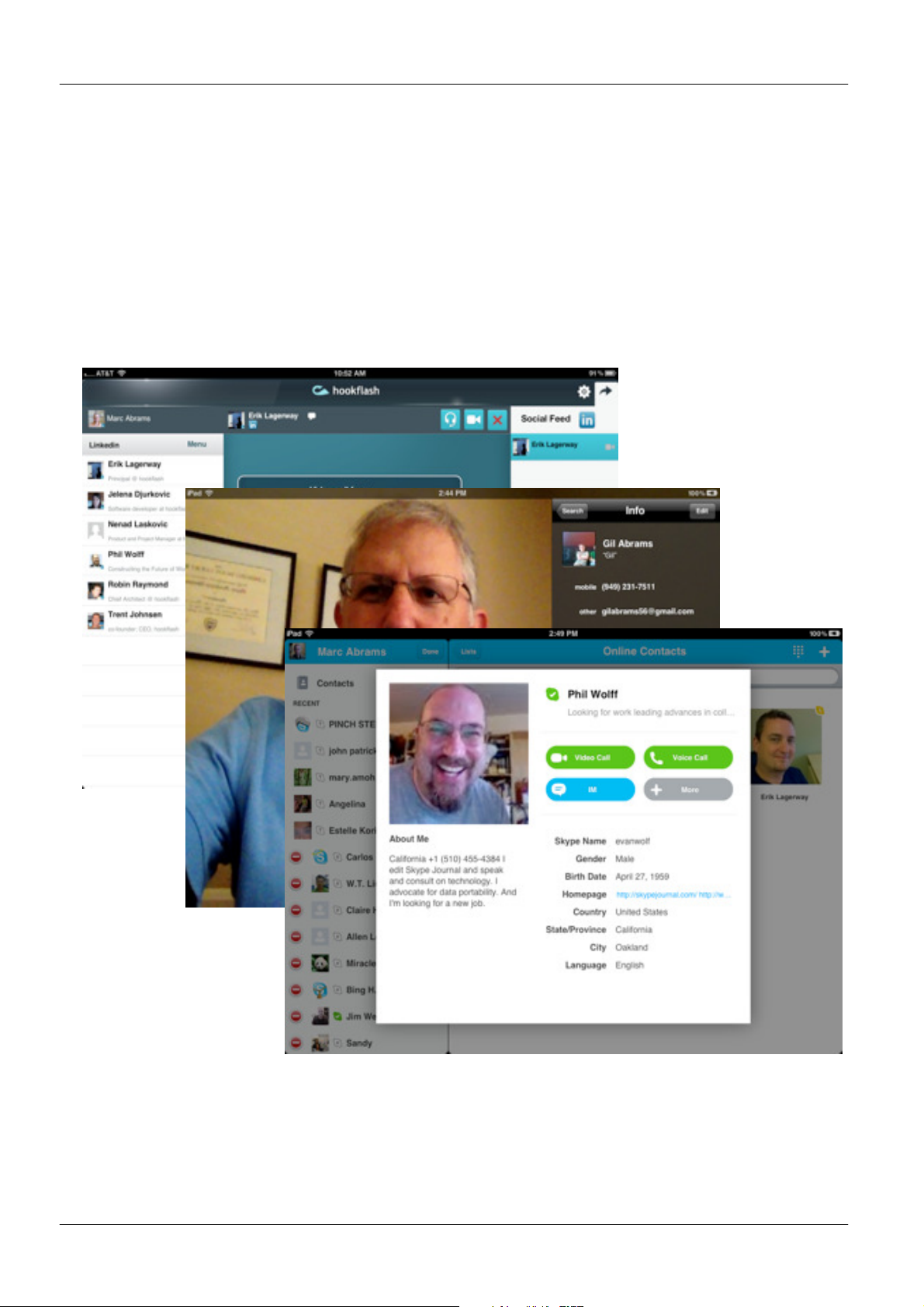
FaceTime, Skype and other Social Networking apps
Many users like to run social networking and communications apps, like FaceTimeTM,
Skype
TM,
, Hookflash™ and other apps on their iPads. The Communicator’s high quality
audio system greatly enhances the user experience for voice and video calls. Your calls
with sound better, regardless of whether the app supports narrow-band or wide-band audio.
For comfort and convenience, the user can switch the audio among speakerphone,
handset or headset and volume can be adjusted independently for all three modes.
Page 21
Page 22
MOCET IP3092/IP3092L Communicator User Guide
Pickup calls when in other apps
When you are playing music or games, or working in an app, if you recieve an incoming
call on the Social Network like Hookflash, Skype or FaceTime, you will recieve a
notification on the screen. If touch the notification, your current app will move to the
background and the Social Networking app will come to the foreground so you can take
the call.
Some apps on the iPad, including the Music app, are smart enough to reduce their volume
so that you can hear the incoming ringtone of the caller.
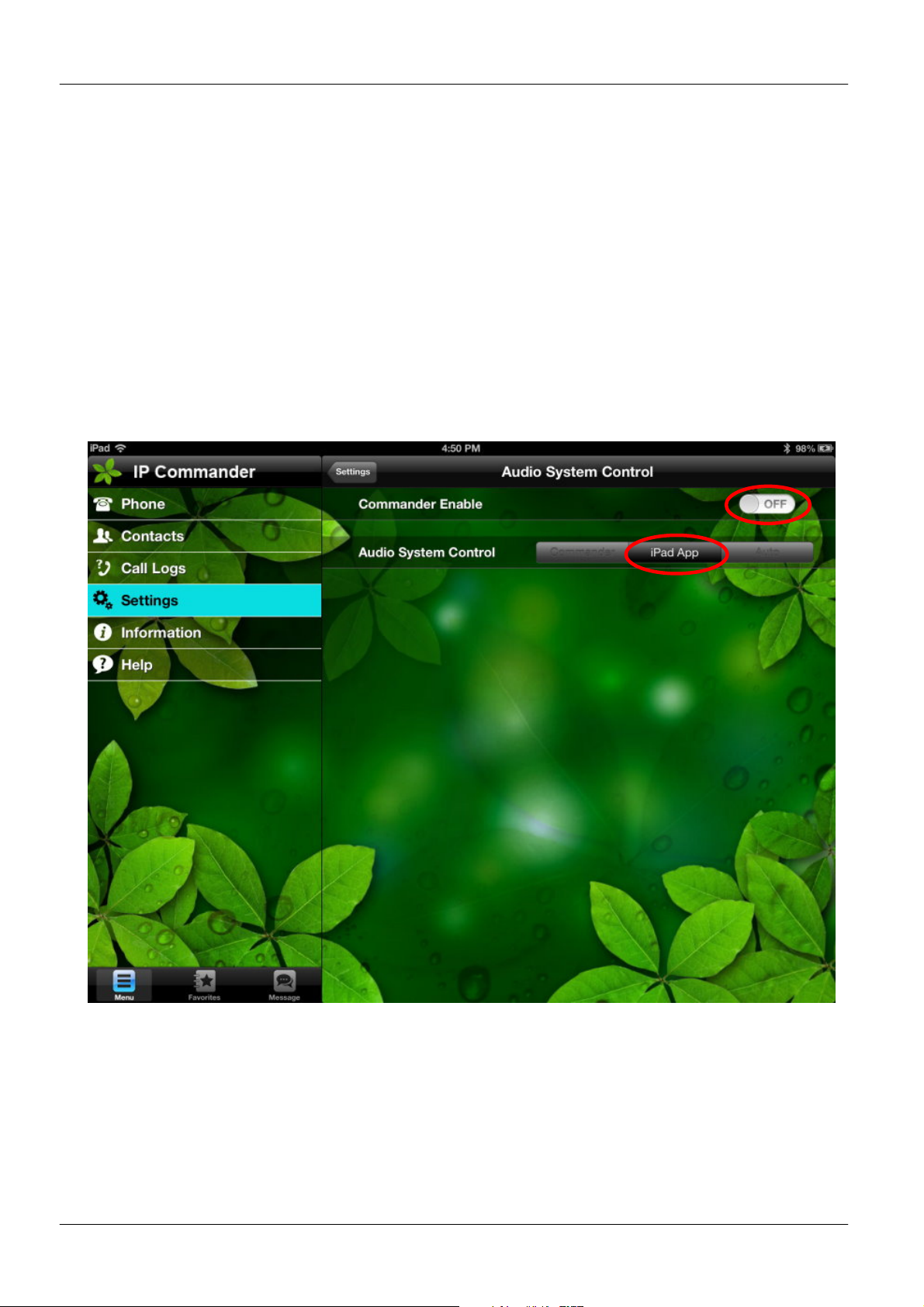
If you find that you cannot hear the caller when you pickup the handset, verify that you
have the Audio System Control set properly. By default, the Commander Enable is set to
Off and the Audio System Control selection is iPad App (see below).
Page 22
Page 23
MOCET IP3092/IP3092L Communicator User Guide
Apps that do not use the Apple 30-pin or 8-pin lightning connector for audio
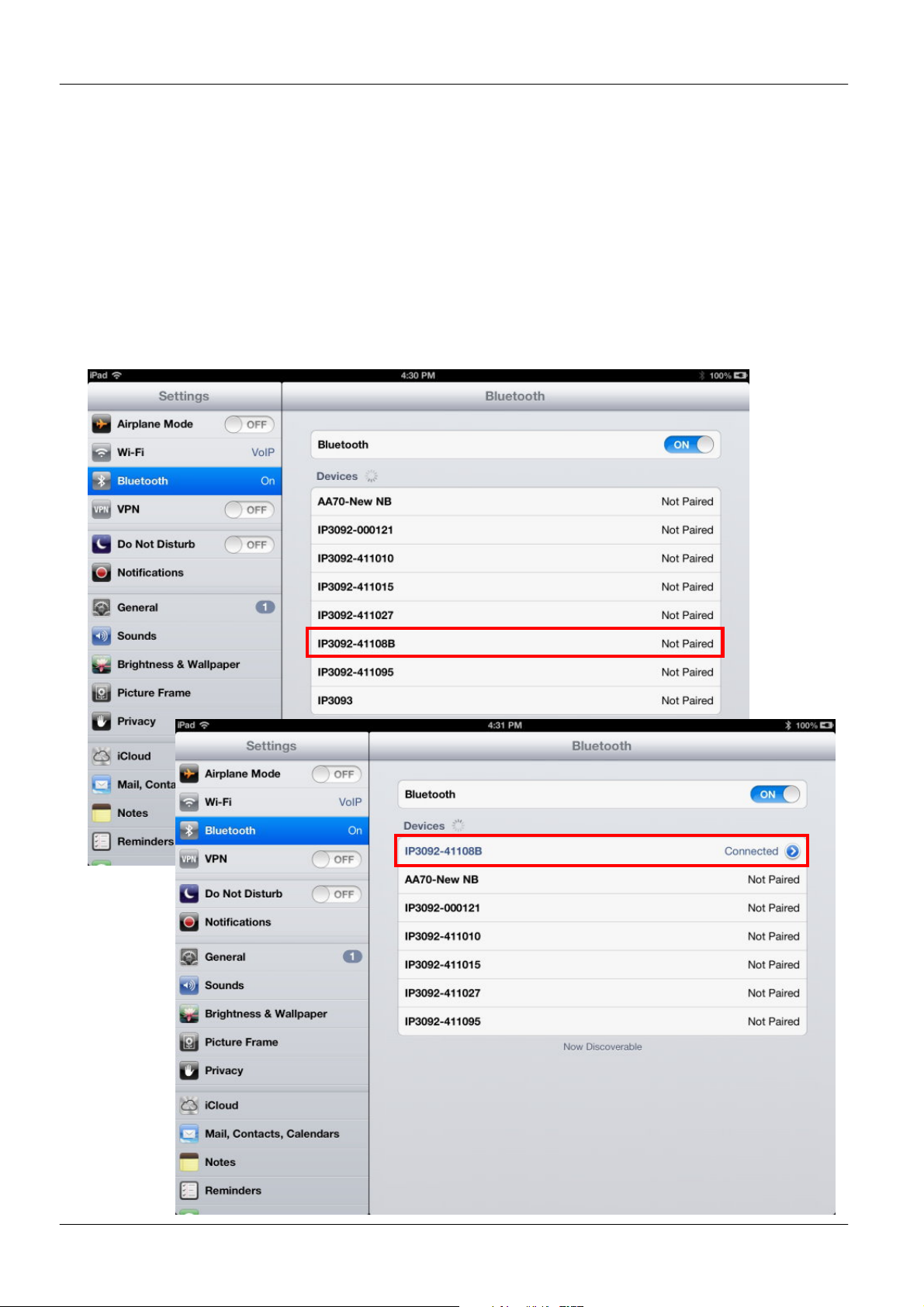
Some popular apps including Apple FaceTime, Hookflash and Counterpath Bria for iPad
do not support audio through the 30-pin or 8-pin lightning connector. In this case, you will
need to pair your iPad to the Communicator using Bluetooth.
You can pair your iPad to the Communicator by enabling Bluetooth in the iPad Settings
app. Once enabled, the iPad will search for nearby Bluetooth devices. You will see a listing
with devices including one like “IP3092-xxxxxx”. Just press on the IP3092-xxxxxx device
and it will connect. Now, the apps that do not support audio through the Apple 30-pin or 8pin lightning connector will work properly through the Communicator (see below).
Page 23
Page 24
MOCET IP3092/IP3092L Communicator User Guide
Line/Call Display Area
2
1
Phone Status icon
Dial Pad
Function Keys
2.3. IP Commander Overview
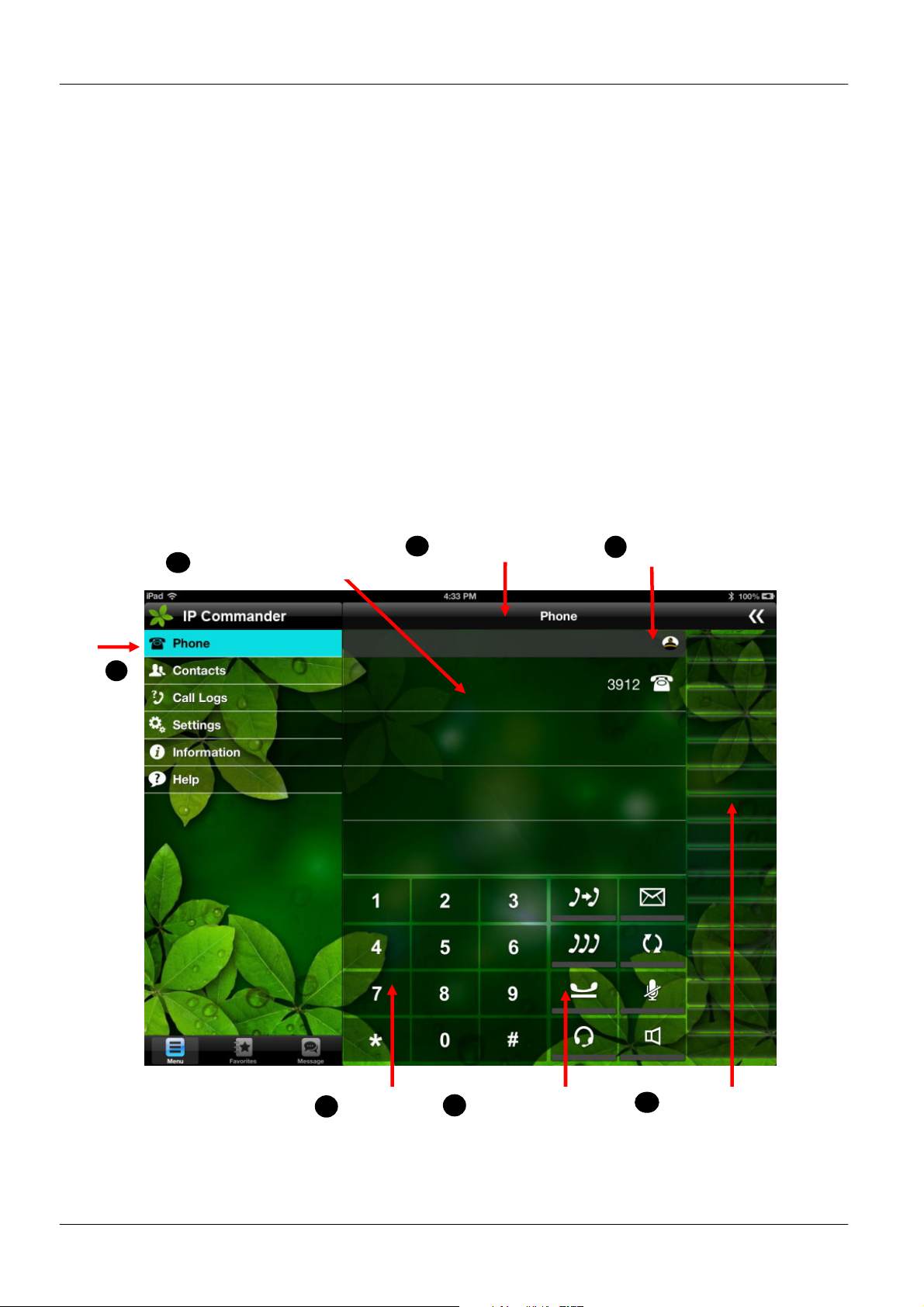
When you launch the IP Commander app on your iPad, you will see the following screen:
Phone: this is the default panel
Line/Call Display: this is where incoming and outgoing calls are displayed
Phone Status: this is where notifications for settings, messages, and operations
are displayed
Dial Pad: these are the phone keypad
Function Keys: these are the most commonly used features such as hold, last
call return, voicemail, mute and the headset and speakerphone toggles
Programmable keys: these can be used for making speed dials, setting phone
features like do not disturb (DND) or monitoring other extensions in the office
(BLF)
Sub Commands: when in a call, or during certain operations, a second set of
menus will appear in the Call Display area (see below)
3
4
Menu
5
6
7
Programmable Keys
Page 24
Page 25
MOCET IP3092/IP3092L Communicator User Guide
2.3.1. Settings
In the Settings panel, you can configure the phone, VoIP account, and network settings. If
you have a VoIP account, you can configure the Communicator to register and use that
account. If you do not have a VoIP account, ask your administrator or ISP/ITSP service
provider to send you the account information for you to enter, or configure the SIP account
for you remotely.
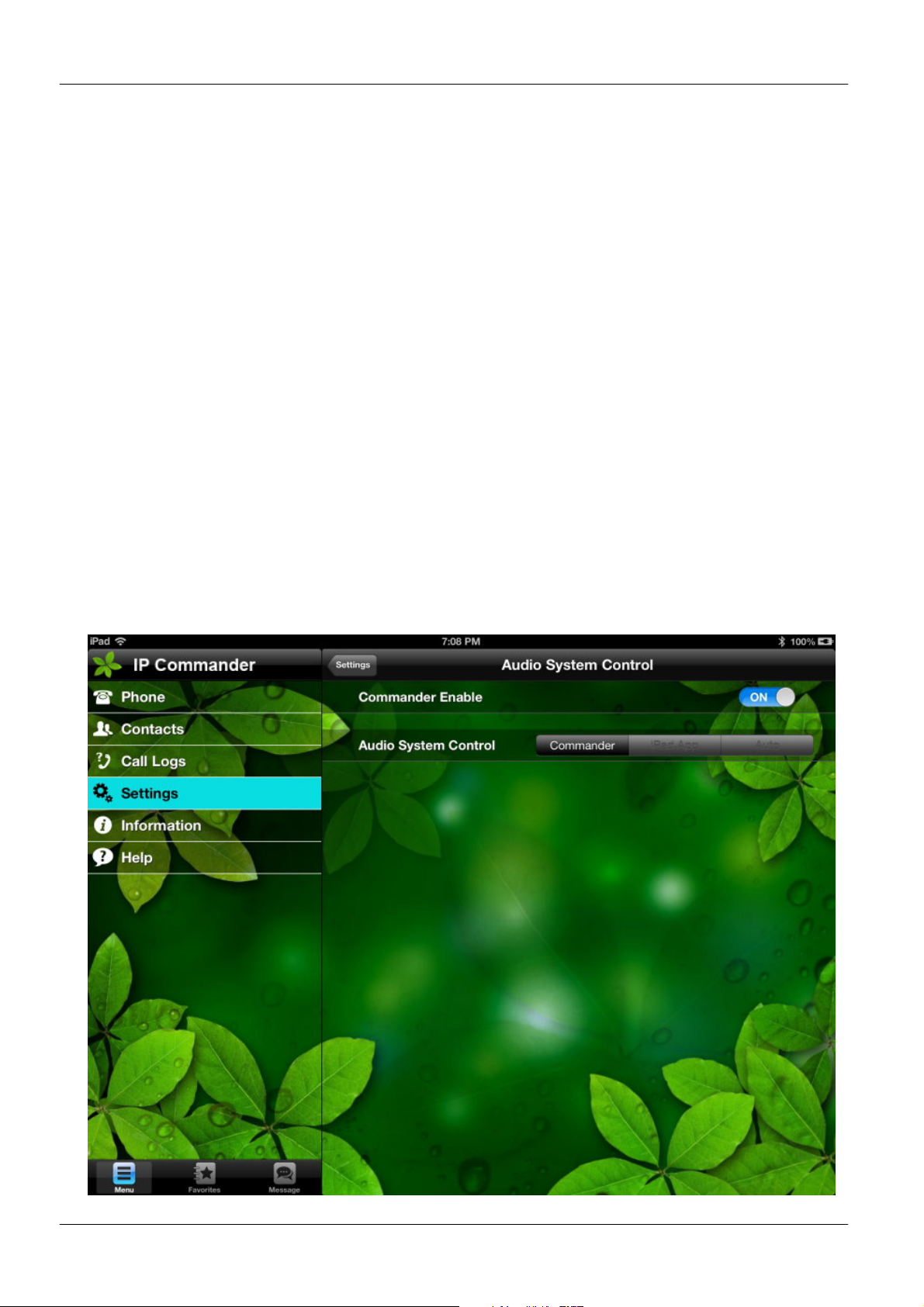
2.3.2. Audio System Control
When you get into this control page, you will find there are two configurable functions:
Commander Enable Control
Audio System Control
By default, the speakerphone, handset and headset of the Communicator work with iPad
apps like Skype, FaceTime, Hookflash and others without any configuration. To use the
built-in VoIP feature of the Communicator, enable the Commander app in the Audio
System Control Panel of the Commander app
When the Commander app is enabled, the Communicator’s VoIP phone will share the
audio system with iPad Apps. To determine whether the VoIP phone or the iPad app has
priority for audio control, a privilege setting can be configured for each.
Page 25
Page 26

MOCET IP3092/IP3092L Communicator User Guide
2.3.3. Audio System Control Privilege
By default, the audio system (including speakerphone, handset, and headset of the
Communicator) is set to prioritize iPad apps so that user can use Skype, FaceTime,
Hookflash or other apps or play music or movies without changing any settings.
However, if the “Audio Control Switch” is set to “Commander” (see the figure above),
VoIP calls will be prioritized over any iPad app, or iPad audio or video, and any incoming
VoIP call will ring the Communicator and the conversation will occupy the audio system
until the call is ended.
Conversely, if the priority is set to “iPad App”, the incoming VoIP call won’t ring the user
but will flash the “HOME” key LED to indicate the call, and the user can pickup the call.
If the priority is aet to “Auto”, the foreground app will be prioritized over any background
app, or iPad audio or video and occupy the audio system until the app is ended. The
Commander app also is one app in this mode, it must follow the rule of foreground and
background to occupy the audio system.
Please refer to IP Commander app User Guide for more details on the operation of
IP commander App.
Page 26
Page 27
MOCET IP3092/IP3092L Communicator User Guide
3. Basic Phone Setting with Commander App
This Chapter will describe how to operate the VoIP phone of the Communicator using the
Commander app, which is available on the Apple app store.
Before the operation, please make sure the VoIP account is properly configured the
Communicator is registered to the SIP server or IP PBX successfully. We recommend
configuring the “Audio System Control” switches to:
Enable the Commander
Set Audio System Control privilege to “Commander”
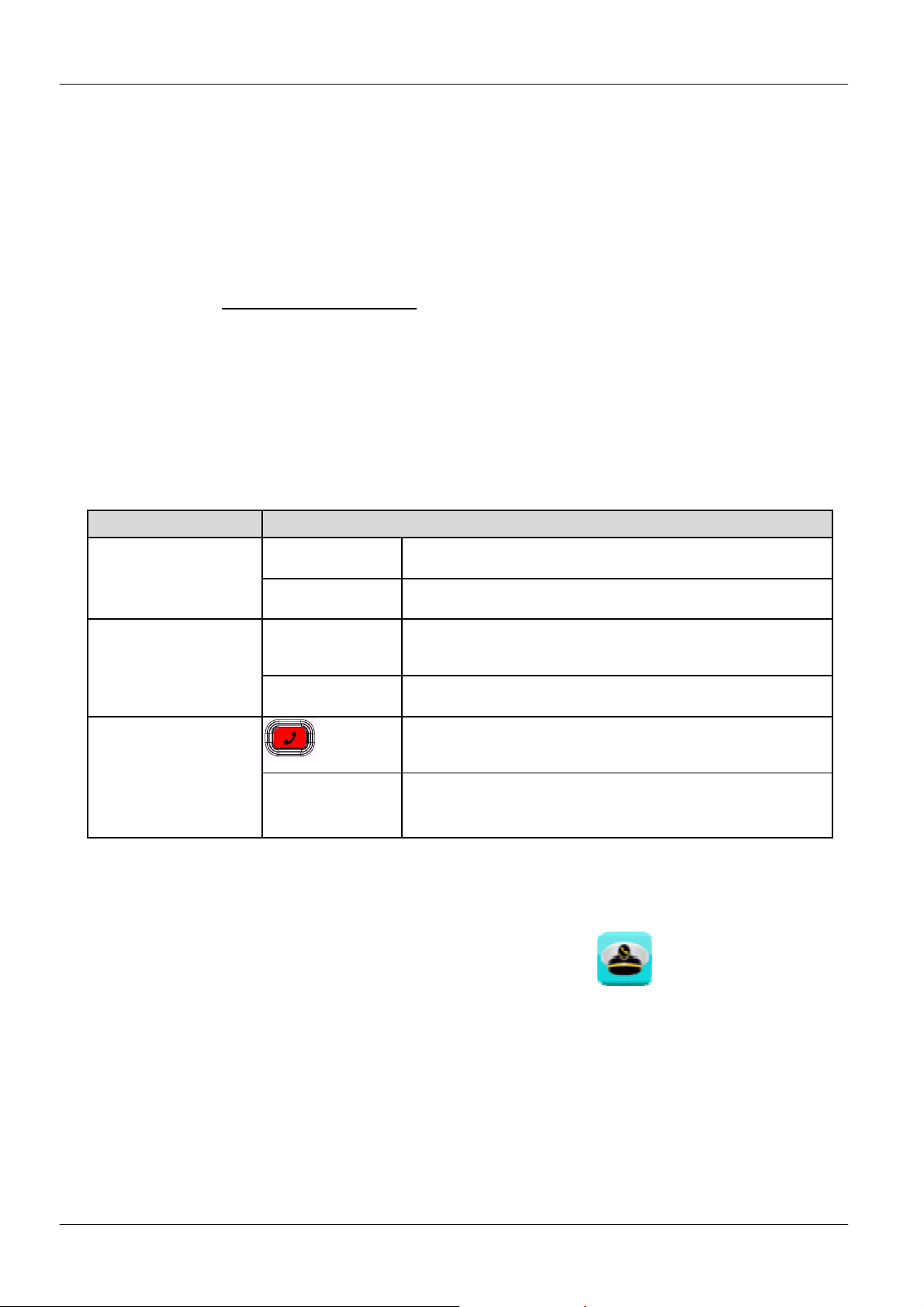
3.1. Using the Communicator Without the IP Commander App
Without the IP Commander, the following operations can be performed:
Operation Description of Feature(s)
Pick-up the handset upon hearing the phone ringing.
On-hook the handset when your conversation is over.
During a conversation, if the voice volume is too low or
too high, you may adjust it.
Press the Volume key rocker up or down to adjust the
volume of speakerphone, handset, or headset.
If no iPad is docked or Commander is installed, user
can press the Hotline key for Emergency call.
When the call is answered, you can talk on the phone
and your location information will be sent to the calling
party through Instant message.
Receiving a call
To Adjust Volume
While on a Call
Emergency Call
Hotline
3.2. Using the IP Commander App
Once the IP Commander App is installed, clicking the its icon will launch the app
on the iPad and begin synchronizing with the Communicator.
When the IP Commander is launched, it will display some synchronization messages.
The process of synchronization can take up to a minute, but usually finishes in about 30
seconds. During that time, the pre-configured data in Communicator will be transferred to
iPad and IP Commander through iPad’s 30-pin or 8-pin lightning connector.
After synchronization is complete, the default main menu of IP Commander will be
displayed as follows:
Page 27
Page 28
MOCET IP3092/IP3092L Communicator User Guide
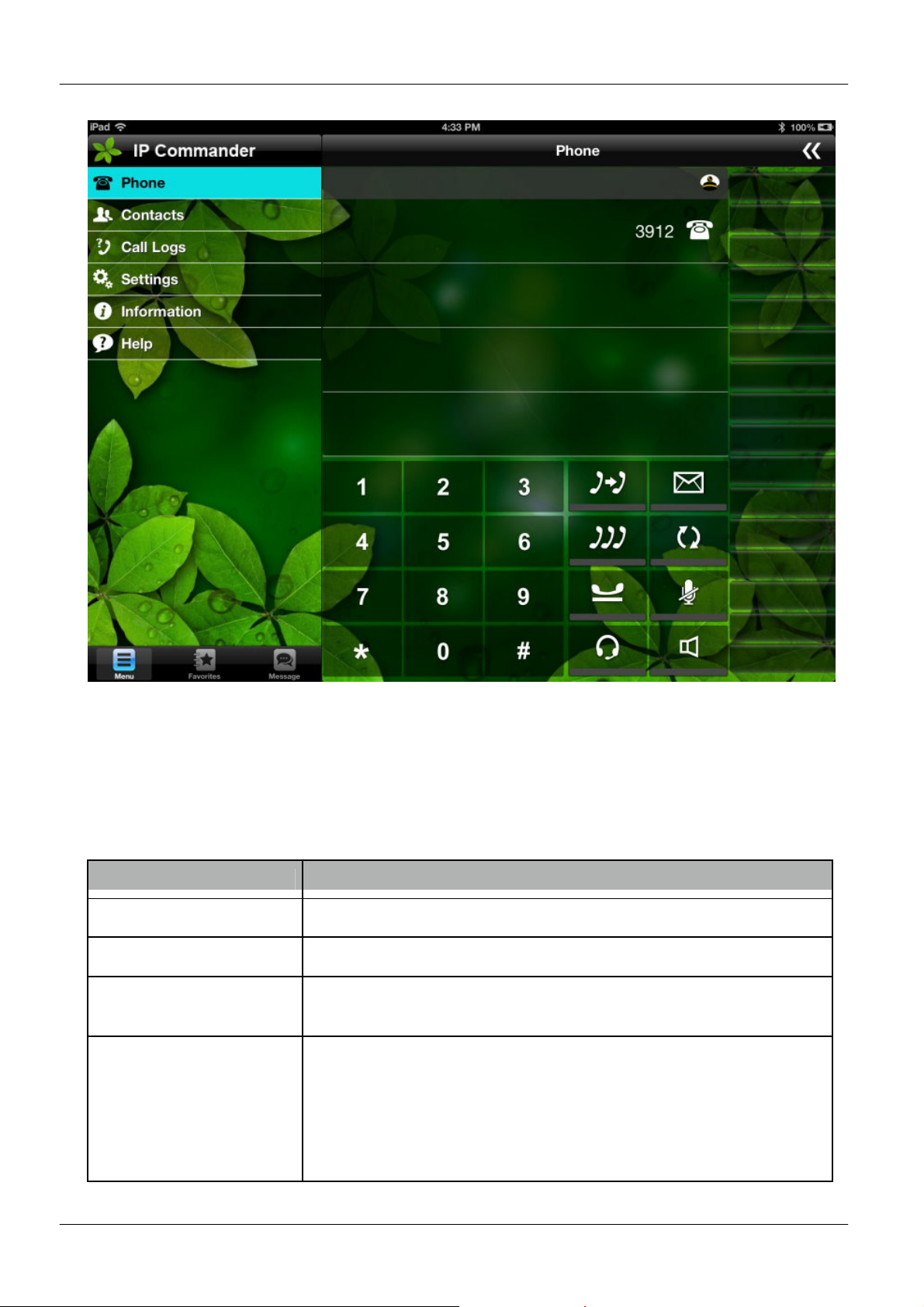
When running the IP Commander app, the user can operate the Commander and calling
functions using the following buttons and keys:
The IP Commander can be configured and controlled from the app as follows:
Commander Manu
Menu Item Description
Phone Press the “Phone” tab to make and receive calls
Contacts Press the “Contacts” tab to view and sort your iPad contacts
Call Logs Press the “Call Logs” tab to view or make calls from
Answered, Dialed, and Missed call logs
Settings Press the “Settings” tab to configure phone settings, line
settings, administrator settings, programmable keys, Audio
System Control, access the web user interface of the
Communicator, customize the background of the IP
Commander app, Internet Telephony Service or reboot the
Communicator
Page 28
Page 29
MOCET IP3092/IP3092L Communicator User Guide
Menu Item Description
Information Press the “Information” tab to view line information, product
information and network information
Help You can learn more about the definition and operation of call
functions and features
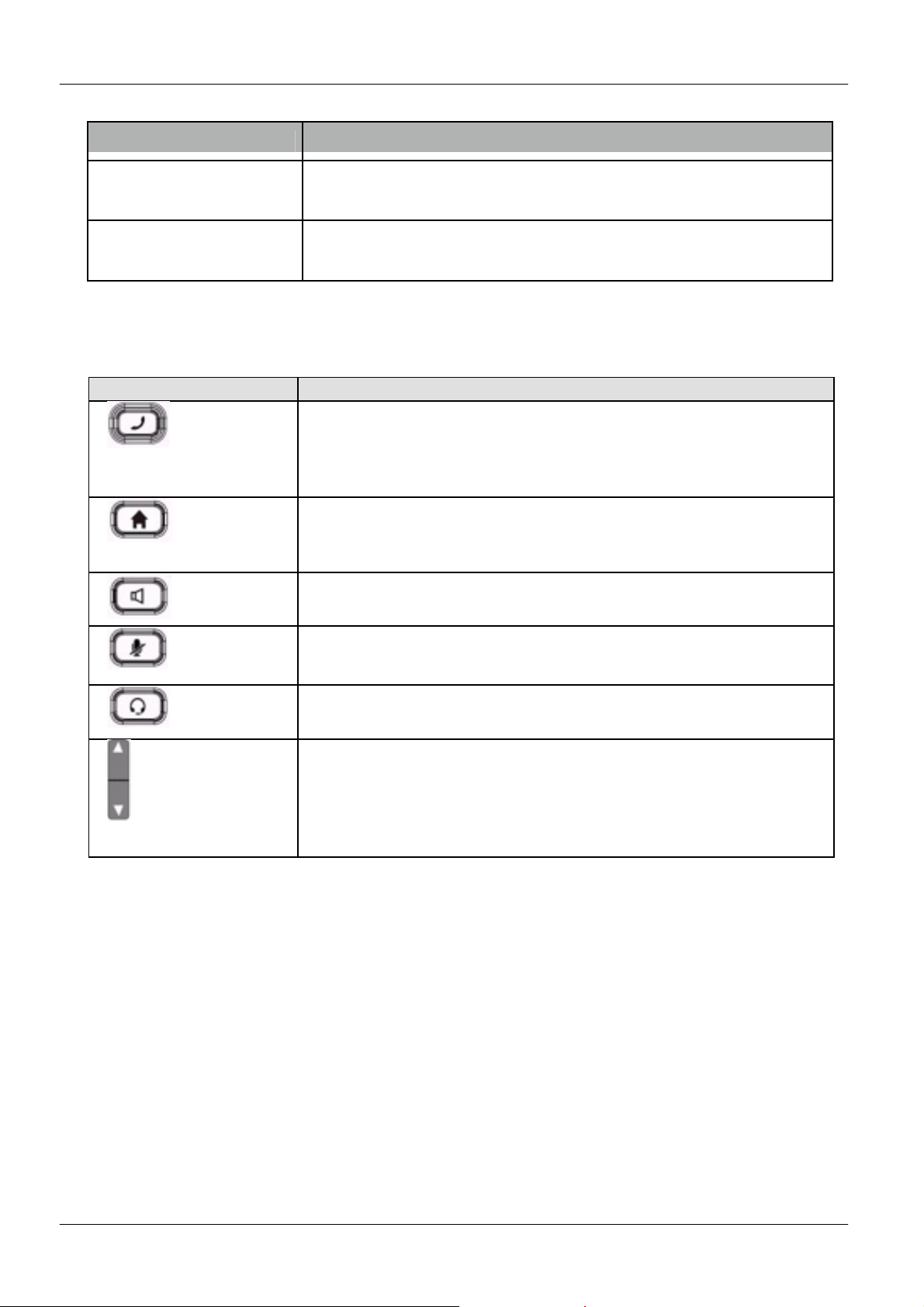
Communicator front panel buttons and keys
Key Description
Press this key to make an emergency call whether the iPad is
Hotline
attached or not; requires subscription to VoIP service or
connection to an IP PBX. A red LED is used to indicate its
status
Press this key to bring supported IP Commander app
Home
immediately to the foreground. A blue LED is used to indicate
its status
Speakerphone
Mute
Headset
Volume Rocker
Press this key to enable or disable the Speakerphone; a blue
LED is used to indicate status
Press this key to mute or un-mute a call (the other party will not
be able to hear you).
Press this key to enable or disable the Headset feature; it does
not enable or disable the 3.5mm port or Bluetooth connection.
Volume control keys to adjust volume of Handset Receiver,
Handset DTMF output, Handset Ring output, Headset
Receiver, Headset DTMF output, Headset Ring output,
Speakerphone output, Speakerphone DTMF output and
Speakerphone Ring output
Page 29
Page 30
MOCET IP3092/IP3092L Communicator User Guide
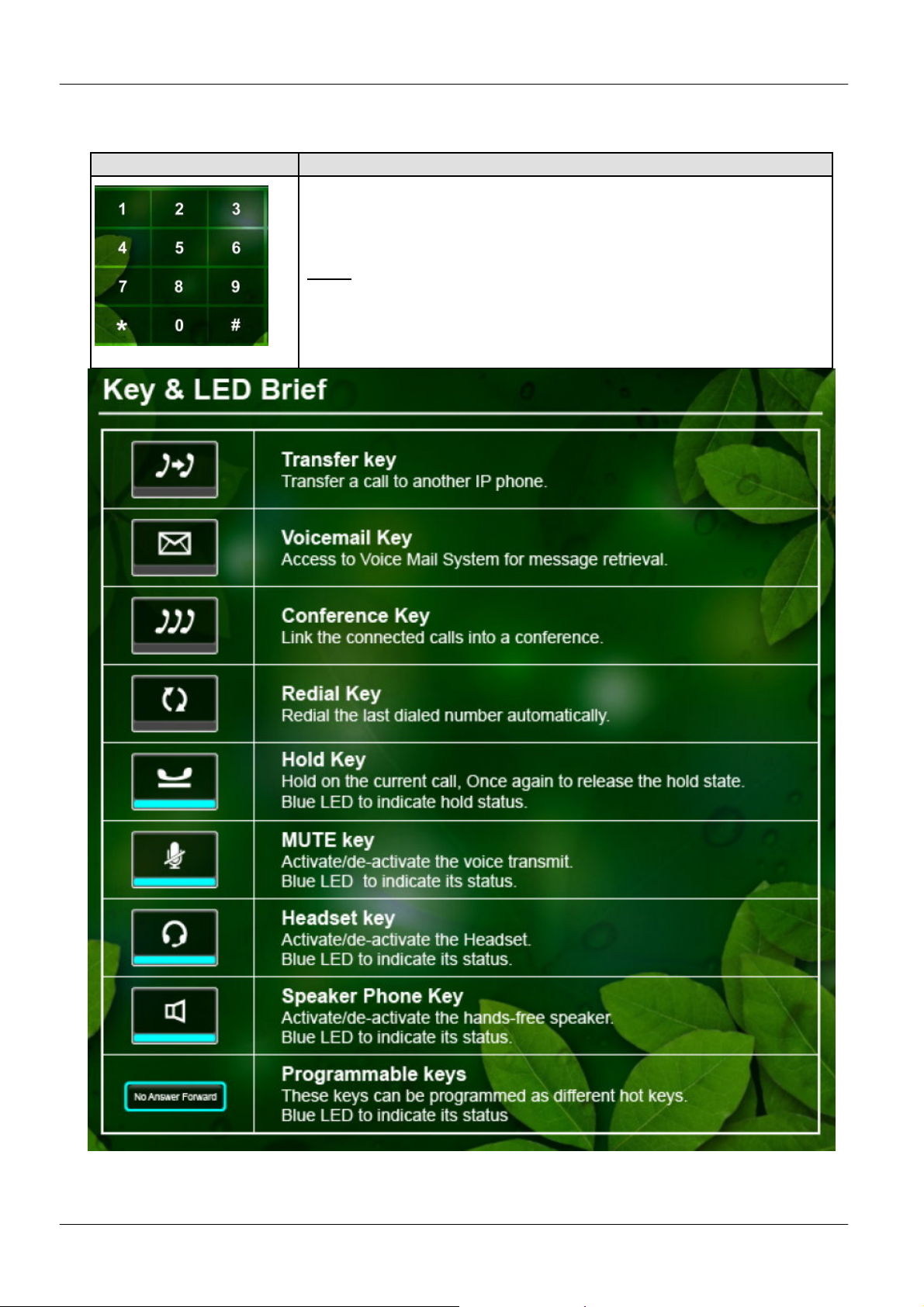
IP Commander Keys and Buttons
Key Description
Use the keypad to dial the phone number or SIP URL.
The LCD window displays the number or URL you enter. See
screen below
Note: You may use the “BkSp” soft-key to delete the last digit.
Numeric keypad
The IP Commander supports more flexible direct touch dialing for Speed Dial, Call Logs,
Contacts, and dialing phone numbers or SIP URIs
Page 30
Page 31
MOCET IP3092/IP3092L Communicator User Guide
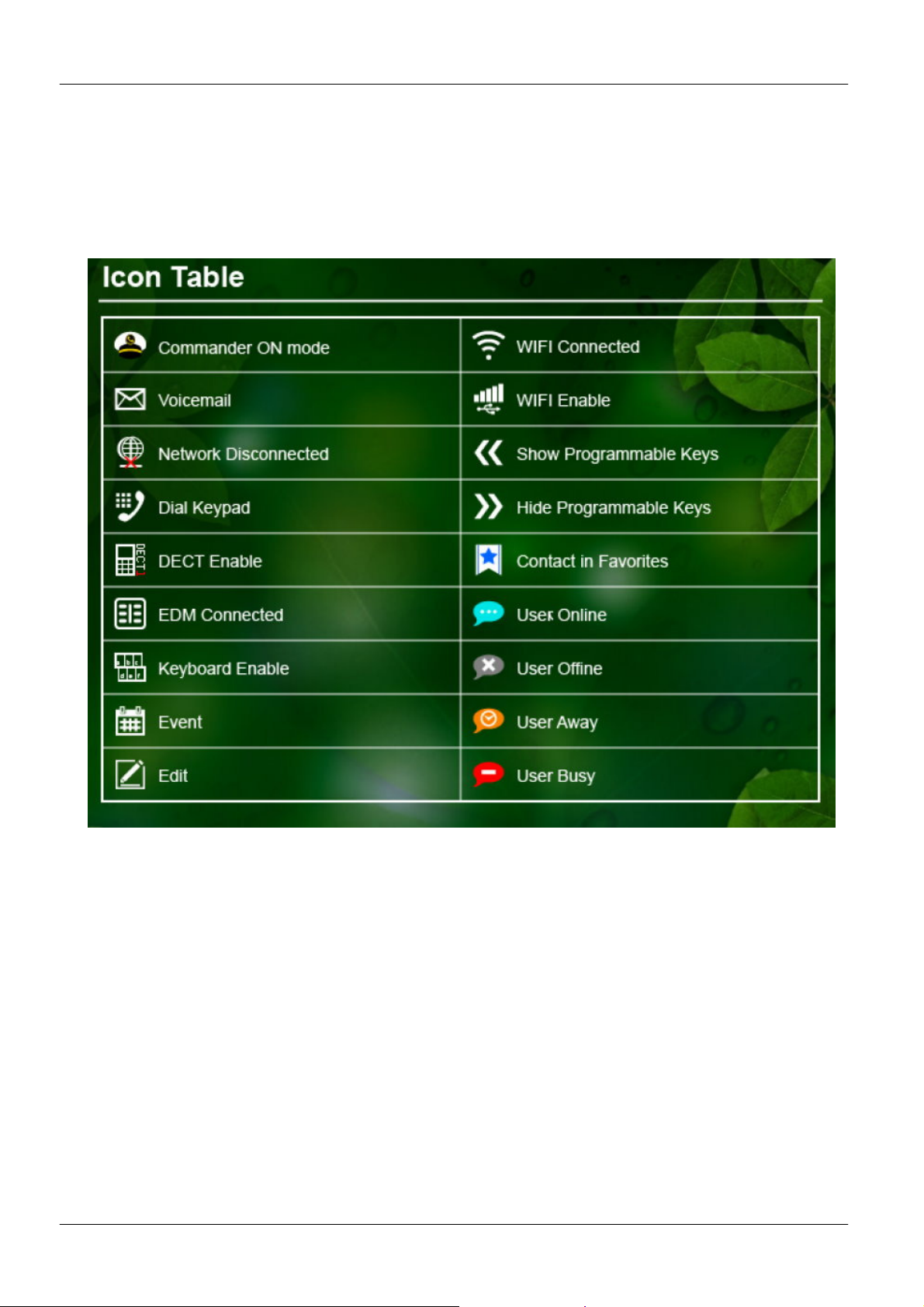
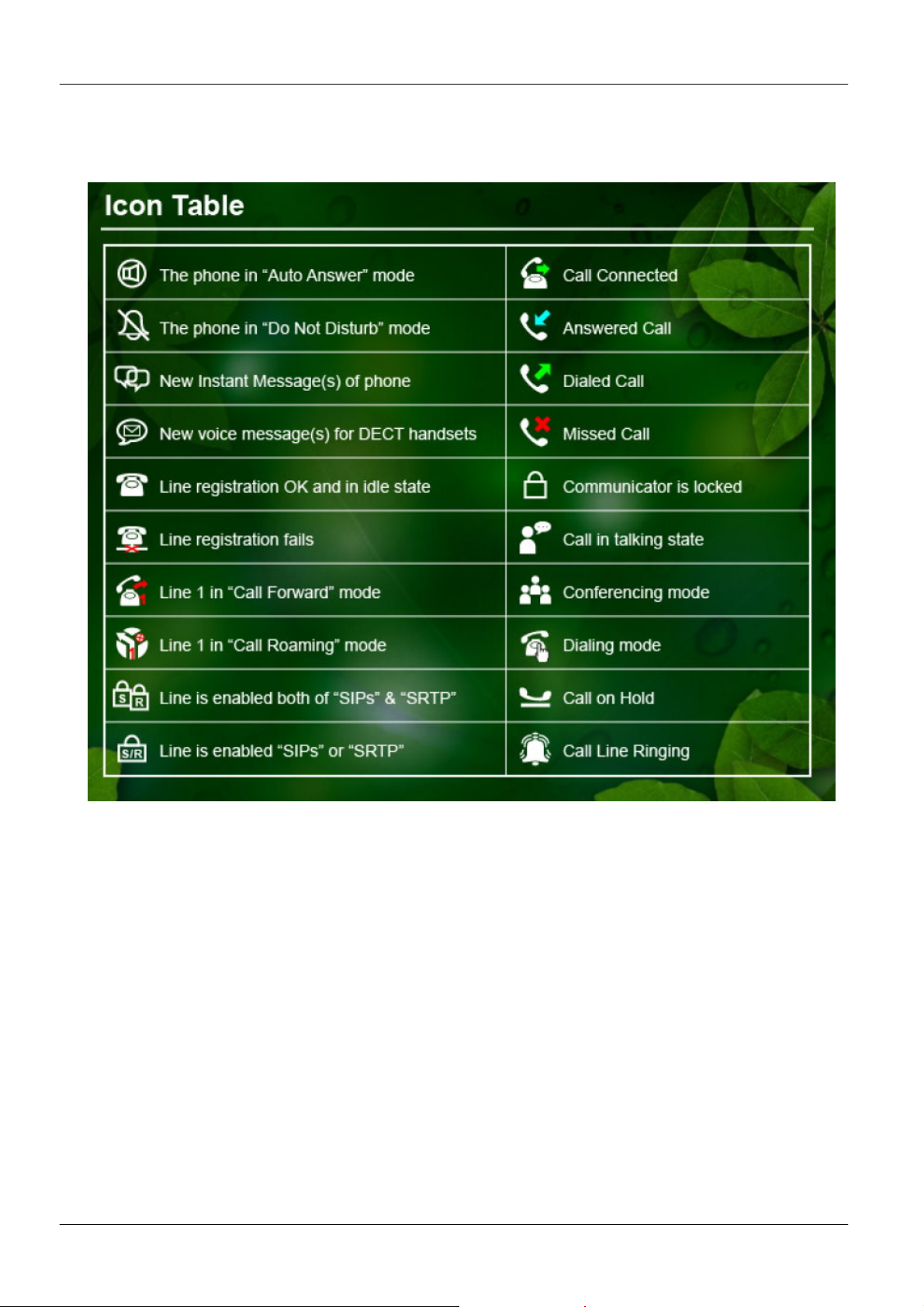
Screen Icons
The following table describes the icons that may display on the IP Commander screen
Phone Status Icons
Page 31
Page 32
Line Status Icons
MOCET IP3092/IP3092L Communicator User Guide
3.3. Common Terms
To use the Communicator, you need to follow some conventions that we will mention in
this guide. In the following descriptions, we will introduce some common terms for your
understanding.
3.3.1. Lines
A “Line” in this guide represents how many phone numbers supported in one phone. For
example, the Communicator can support up to four lines configured for the same or
different service providers or servers and even make up to four concurrent calls. Therefore,
the Communicator is said to support multiple line appearances.
Note: The Commander App v1.x supports 1 Line and 2 Calls.
The Commander App v2.x supports 4 Line and 4 simultaneous calls in one line.
Page 32
Page 33

MOCET IP3092/IP3092L Communicator User Guide
3.3.2. Calls
A “Call” in this guide represents how many simultaneous connections can be made to a
single phone number. Each line of service in the Communicator can support up to four
calls simultaneously. This allows the user to place one caller on hold and talk to the other
person in another call on the same Line. Therefore, the Communicator phone is said to
support multiple call appearances.
Note: The Commander App v1.x supports 1 Line and 2 Calls.
3.3.3. Registration
The Communicator must be configured before it can perform some functions. Although the
phone can make a peer-to-peer SIP call by dialing the other user’s IP address (i.e.,
192.168.1.10) directly on the keypad, this is inconvenient and it is hard to remember all the
IP addresses of phones on the system. This is why a hosted SIP server or local IP PBX
implements a Registrar service, which allows the connected phones to find and dial each
other more easily by extension numbers or names instead of IP addresses.
In addition, the hosted SIP server or IP PBX helps keep track of active phones, their IP
addresses for routing calls, as well as keeping track of which phones are busy or idle.
Most hosted SIP services and IP PBXs support direct system service (DSS) as well as
showing the busy lamp field (BLF) status of system phones. These allow you to directly
dial another extension and can show you whether the other phone is on a call or not.
Usually, the hosted SIP service or IP PBX will also use the Registrar service to send
messages to your phone to alert you that you have voicemail. This is called message
waiting indication (MWI).
3.3.4. Caller ID
When you receive a call, the caller's phone number is shown on the screen, if the caller
has not chosen to hide his number and if the network supports the Caller ID feature. The
IP Phone can display both the Caller ID (CLID) and the Caller Name (CNAM) of the caller
if it is available. Not all services and servers support CLID and CNAM. For more
information about this topic, please contact your service provider or system administrator.
3.4. Configuring Your IP Phone for Service
The Communicator must be configured for the hosted SIP service or IP PBX before
operation. The phone is usually pre-configured by the administrator or hosted SIP service
provider. For an advanced or experienced user, you may refer to the Communicator
Administrator Guide for full information on how to configure all the settings of the
Communicator.
Page 33
Page 34
MOCET IP3092/IP3092L Communicator User Guide
3.5. Network Setting
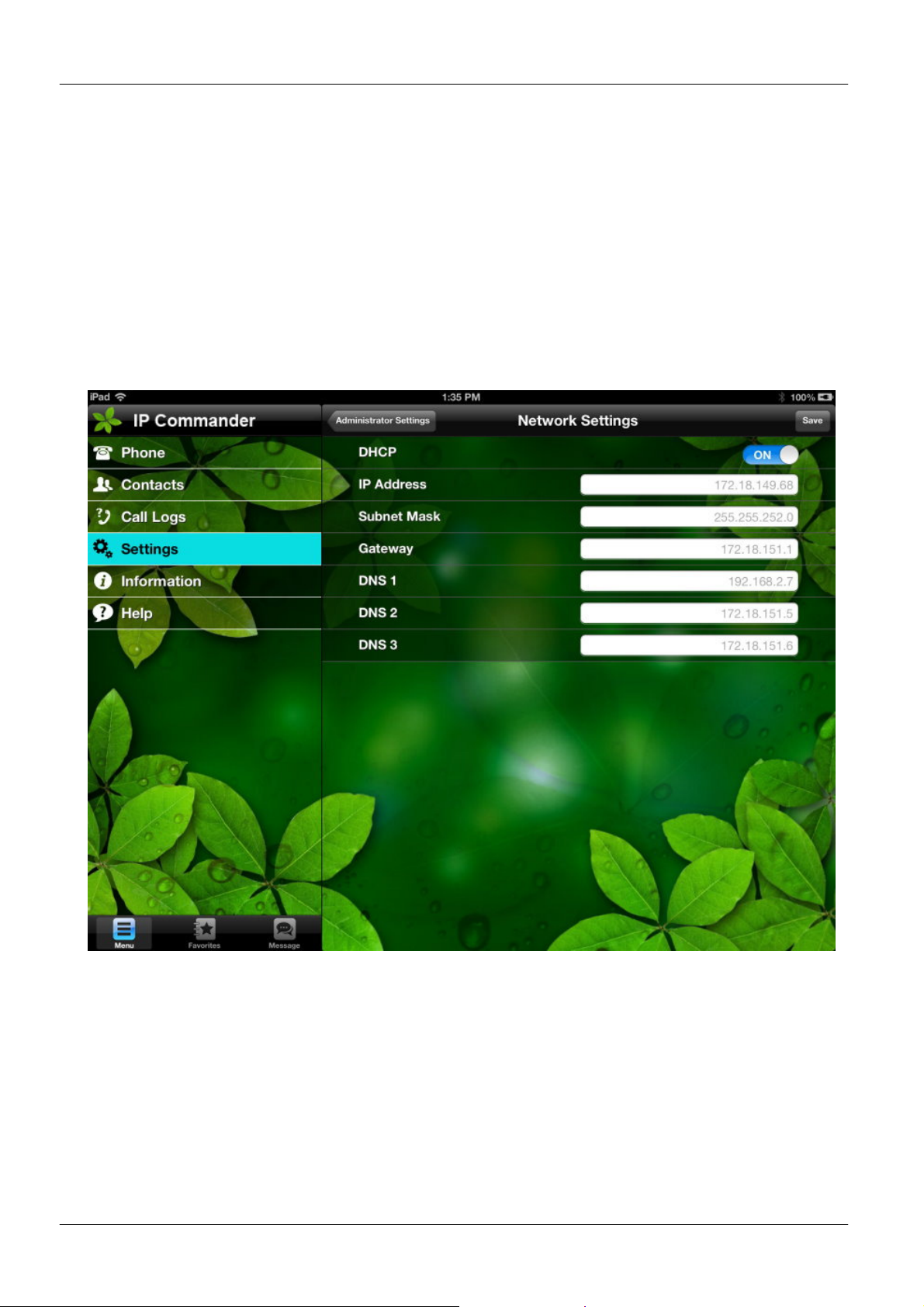
To configure the network type as Static IP or DHCP
Select “Settings” command from the main menu
Select “ Administrator Settings” from the sub-command area
IP Commander will ask you to input Admin Password. The default Admin
password is “1234”.
Enter the password and “Confirm”
Select “Network Settings” from the sub-command area
A Network type selection menu will be displayed as follows. You can specify the
network type as DHCP or static IP from this page.
Page 34
Page 35
MOCET IP3092/IP3092L Communicator User Guide
3.6. Line Setting
The IP Commander V2.x can support four SIP lines registration. To configure the SIP line
setting, you must subscribe to a VoIP service or use an IP PBX. To configure the SIP Line
settings:
Select “Settings” command from the main menu
Select “ Administrator Settings” from the sub-command area
IP Commander will ask you to input Admin Password. The default admin
password is “1234”.
Enter the password and “Confirm”
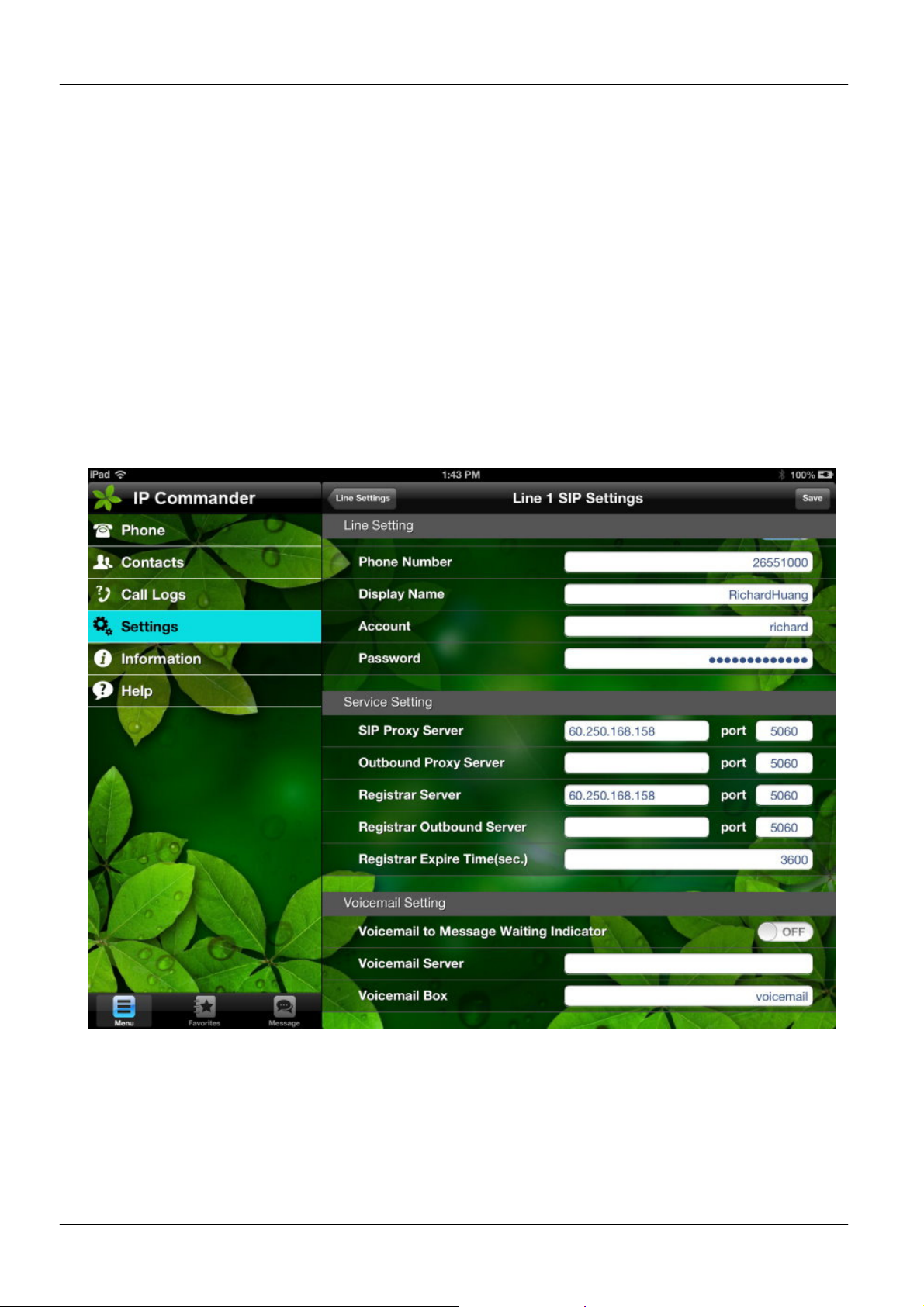
Select “Line Settings” from the sub-command area
Select “Line 1” or other line number that you want to configure
A Line Setting menu is displayed as follows, please fill out your SIP account data
in the provided fields then save the settings
Page 35
Page 36
MOCET IP3092/IP3092L Communicator User Guide
3.7. Phone Setting
IP Commander provide phone settings features to allow you to customize your own IP
Phone functions, such as volume settings for Handset, Headset, and Speaker,
programmable keys function definition and more..
3.7.1. Volume Setting
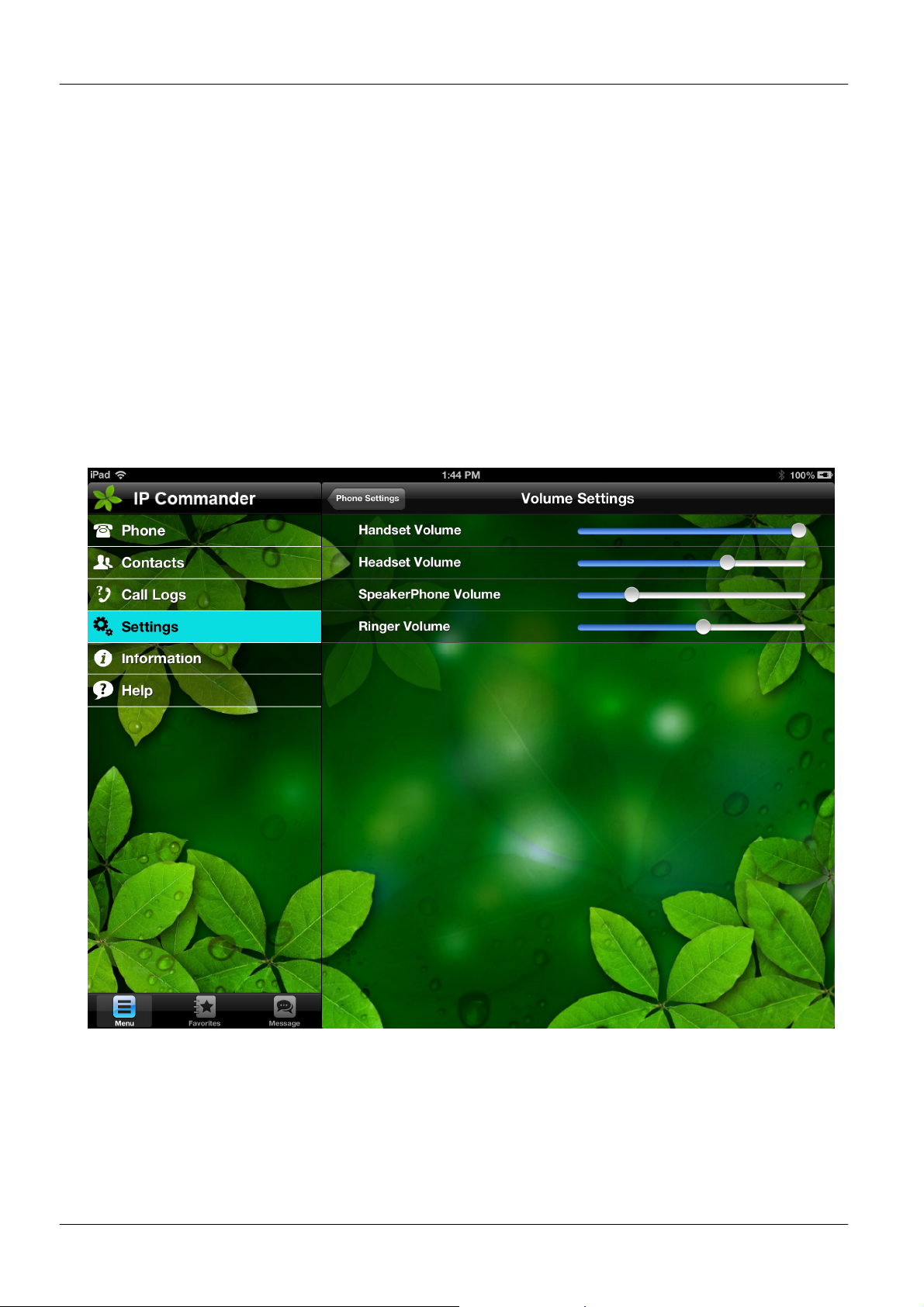
To adjust the volume control of Handset, Headset, Speaker phone, and Ringer, please
follow the steps:
Select “Settings” command from the main menu.
Select “Phone Settings” twice from the sub-command area
You may adjust the volumes for different voice devices individually from below
screen display:
Page 36
Page 37
MOCET IP3092/IP3092L Communicator User Guide
3.7.2. Call Features
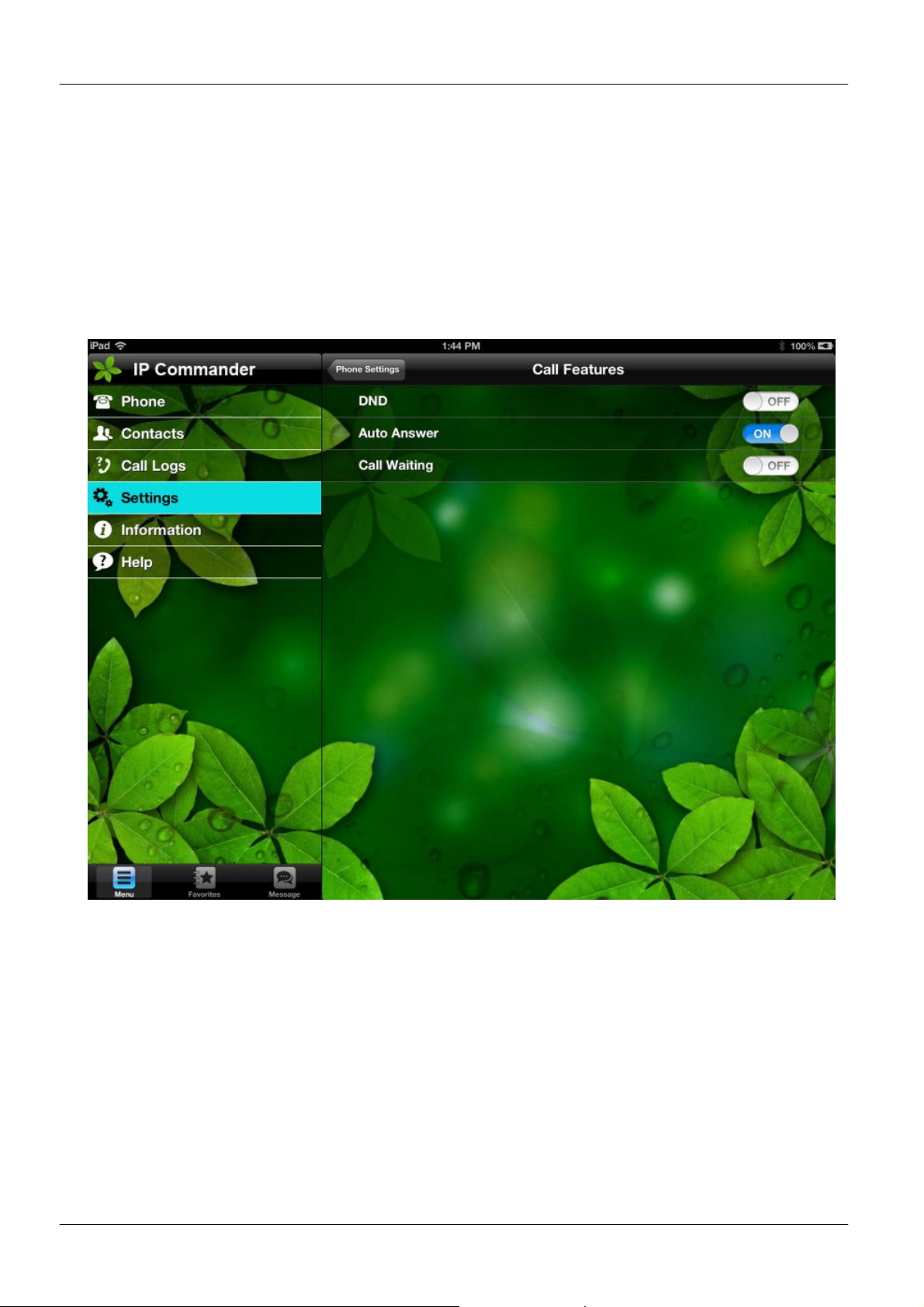
You may put your IP phone in DND mode, Auto Answer mode, or Call Waiting mode by
below steps:
Select “Settings” command from the main menu.
Select “Phone Settings” from the sub-command area
Select “Call Features” from the sub-command area
You may enable/disable the DND, Auto Answer, and Call Waiting modes from
below screen display:
3.7.3. Hotline Setting
The Communication provides 3 hotline numbers, when the user press the “Hotline” hotkey of Communication, the Communicator will auto dial out the first hotline number. If
nobody answers the call until timeout (you can configure the timeout setting from
Communicator’s web interface, please refer to the Communicator User Guide for the
configuration of Communicator web interface), then the Communicator will terminate the
first call, and dial the second hotline number out. The round robin will be continued
among these 3 hotline numbers until a call is answered, or the hotline call is cancelled.
Page 37
Page 38
MOCET IP3092/IP3092L Communicator User Guide
You can configure the 3 hotline numbers from both Communicator Web Interface and IP
Commander.
To configure the hotline numbers from IP Commander:
Select “Settings” command from the main menu.
Select “Phone Settings” from the sub-command area
Select “Hotline” from the sub-command area
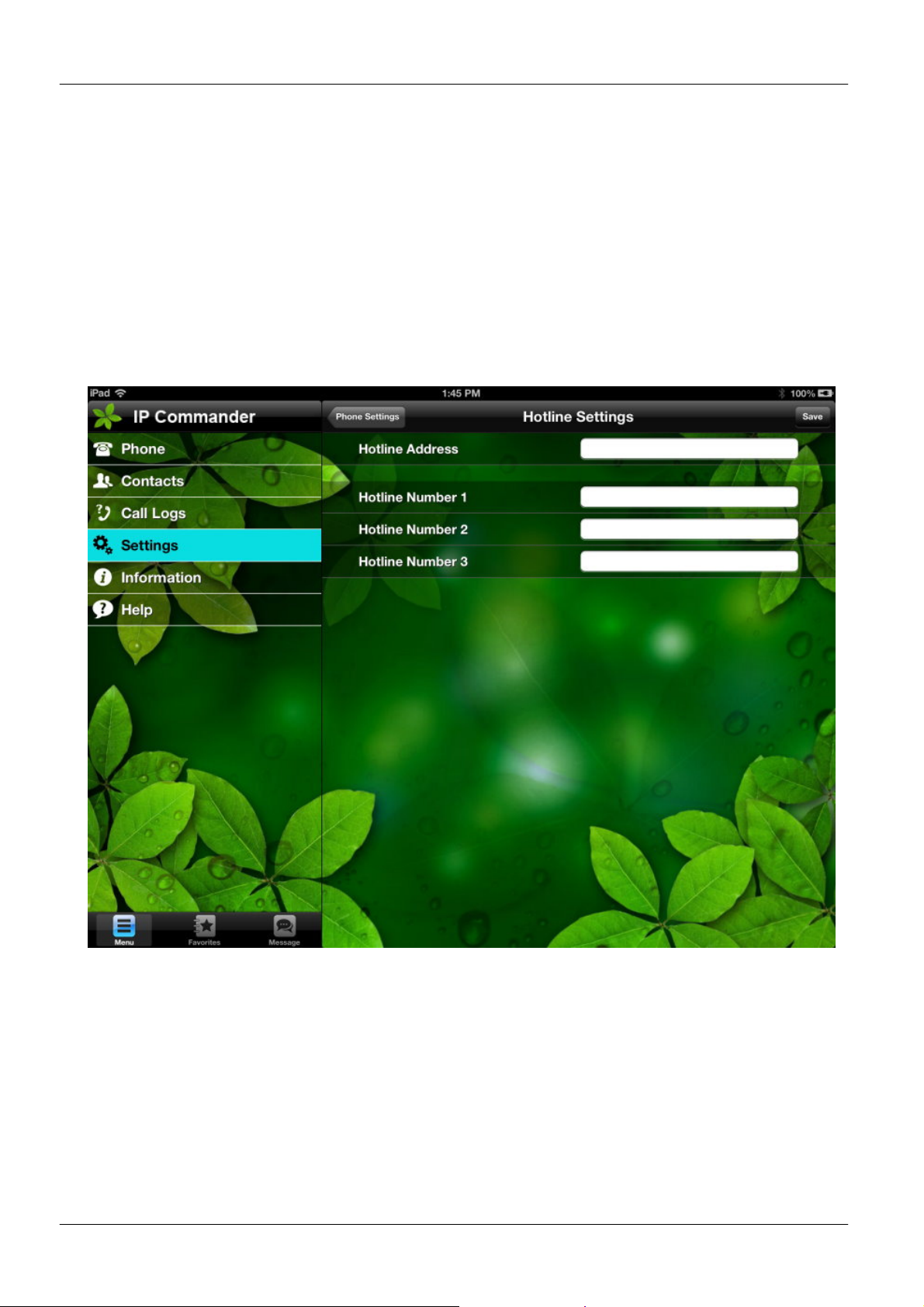
A Hotline Settings window is displayed, allow you to input the Hotline numbers. You can
also fill out the “Hotline Address”, this hotline address will send a message to the
configured address using SIP SIMPLE instant messaging (IM).
Page 38
Page 39
MOCET IP3092/IP3092L Communicator User Guide
4. Using the Basic Features of Your Phone
The IP Commander supports four SIP line with 4 simultaneous calls. However, only one
call can be active at one time. The active call is the one you are using to speak or listen to.
The inactive calls can be:
On hold
Joined in a conference (with up to 3 callers)
“Incoming call” or “Ringing”
This chapter describes the basic operating instructions from IP Commander.
4.1. Line Setting
You can place a call in many ways from the IP Commander:
Using the handset
Using the speakerphone
Pressing the line key from IP Commander screen
Using the headset
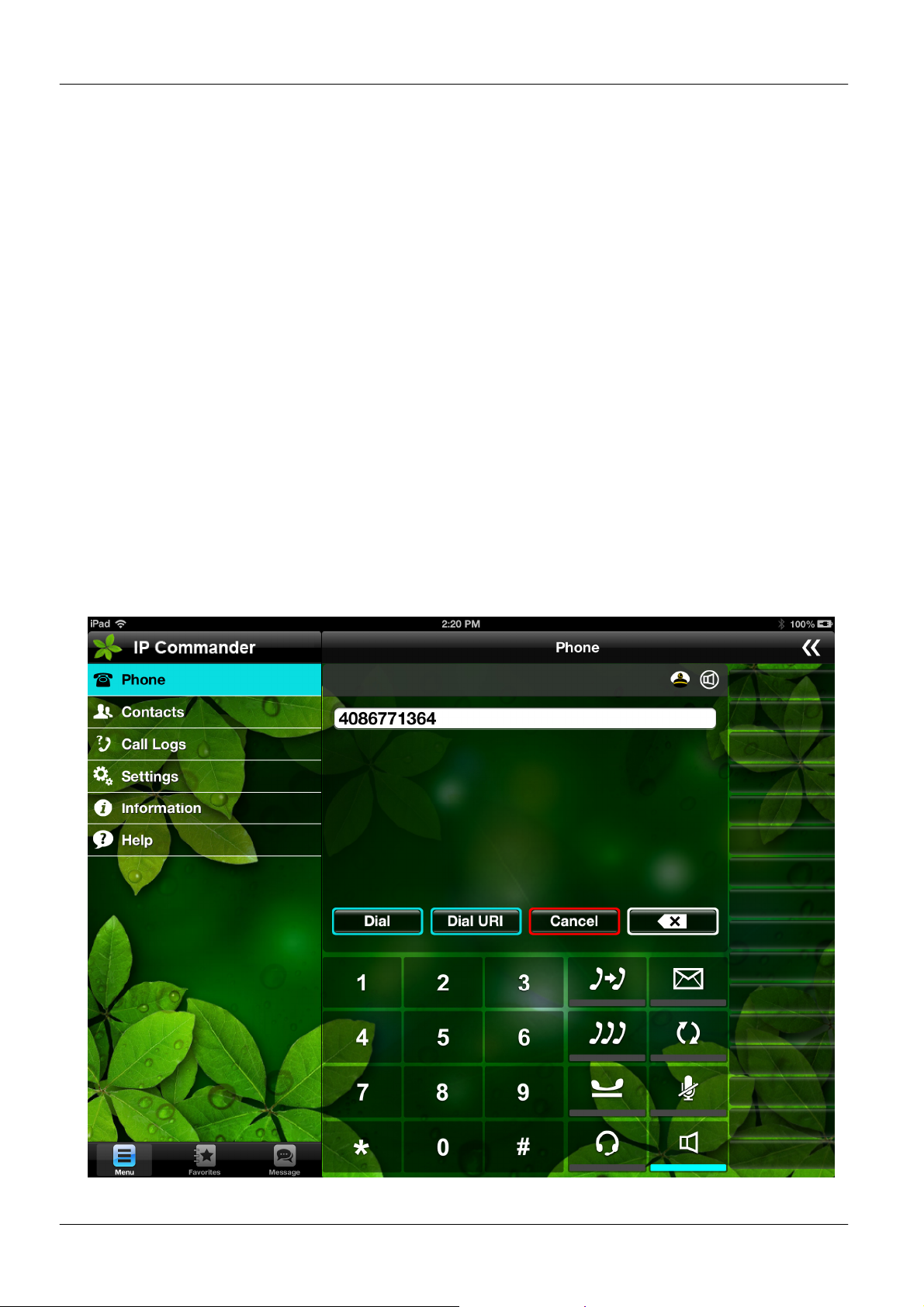
Dial the number from IP Commander’s numeric keypad
Page 39
Page 40
MOCET IP3092/IP3092L Communicator User Guide
key to delete the
key
key, the call will be dropped
l list.
No matter which way you are using to dial the party, the dialing screen will display the
phone number or SIP URI you dialed. During a call, you can alternate between using the
handset or speakerphone modes by pressing the speakerphone key, or picking up the
handset while on a speakerphone call.
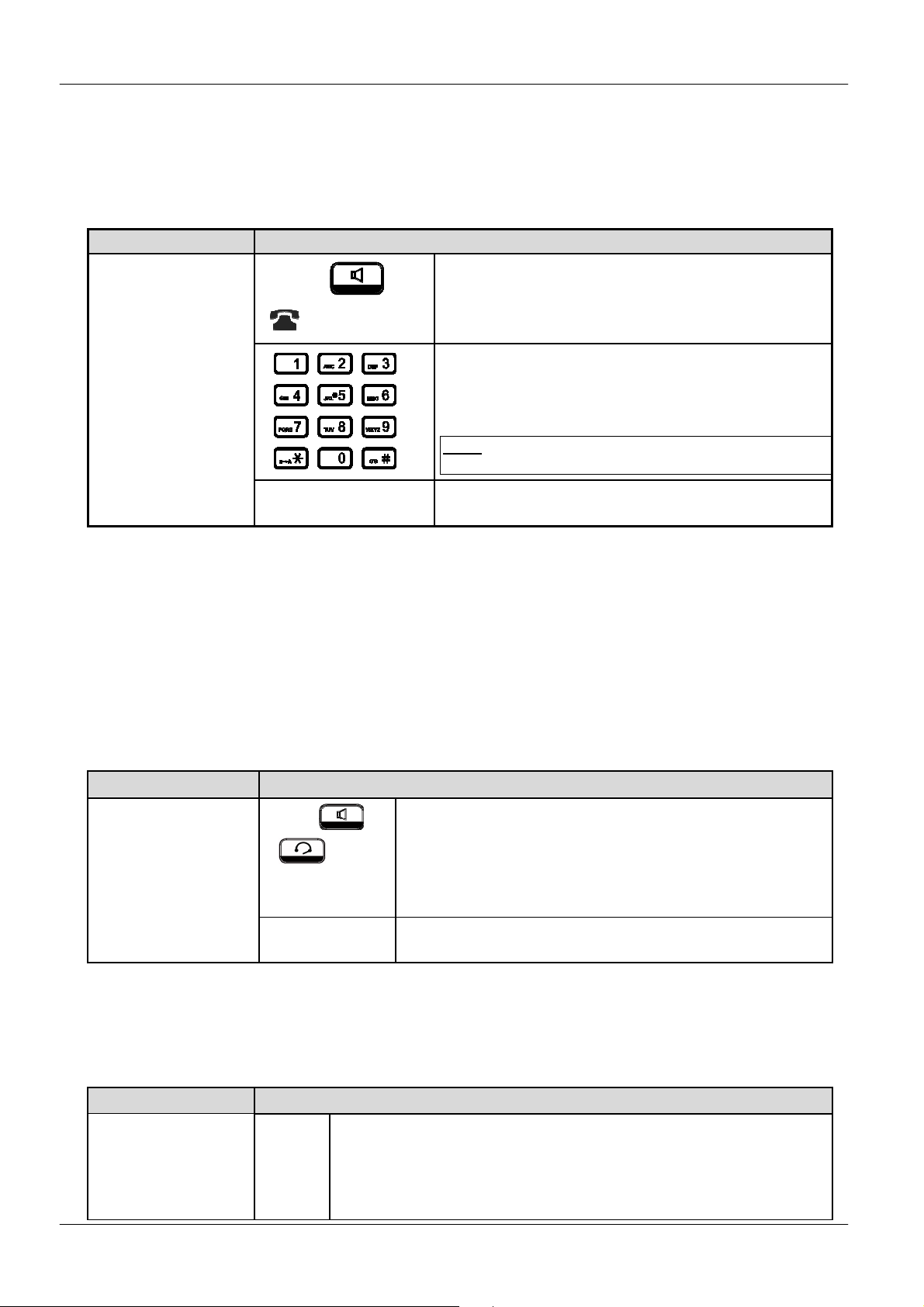
Operation Description
Making a call
or
Line Number
Pick-up the handset or press the speaker key,
press the available line
You will hear a dial tone.
Use the keypad to dial the phone number or
SIP URL.
The LCD window displays the number or
URL you enter. See screen below
Note: You may use the “BkSp” soft-
last digit.
On-hook the handset when your conversation
is over.
4.2. Answering a Call
When a new incoming call on the phone, you can answer the call by:
Using the handset
Using the speakerphone
Using a headset
Pressing “Answer” soft-key on the IP Commander screen
Operation Description of Feature(s)
Receiving a call
or or
or
Answer key
Pick up the handset or press the speakerphone
or the headset key or press the “Answer” soft-key
upon hearing the phone ringing.
On-hook the handset when your conversation is over.
4.3. Rejecting a Call
When there is an incoming call on the phone, you can reject the call.
Operation Description
Rejecting a call Reject
Press “Reject” soft-key to reject the call.
After pressing the “Reject” softdirectly. The record will be logged in answered cal
Other call features are not affected by this operation.
Page 40
Page 41
MOCET IP3092/IP3092L Communicator User Guide
4.4. Ending/Holding/Resuming a Call
When a call is in connected state, you can end a call by:
Using the handset
Using the speakerphone
Using a headset
Pressing “Drop” soft-key
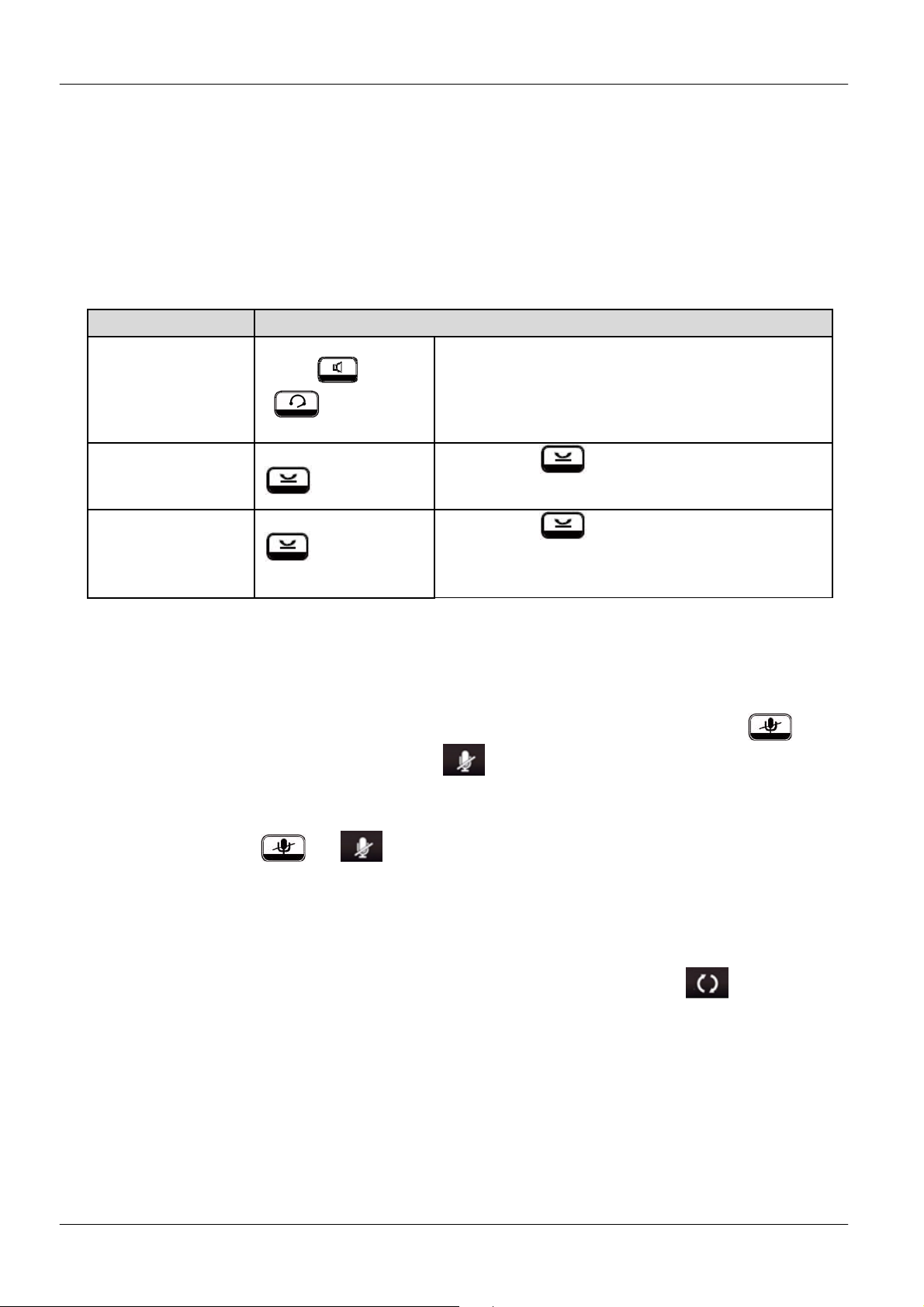
Operation Description
Place the handset back into the cradle, press
the speakerphone key or the headset key or
press “End” soft-key to end the call.
Ending a call
or or
or End
Holding a call
Resuming a call
or Resume
Press the key to place an active call
on hold.
Press the key again or “Resume” softkey to place an active call on hold.
4.5. Mute and Un-Mute a Call
While in a conversation, you may mute the microphone by pressing the MUTE ( ) hot-
key on the Communicator or pressing the key in the IP Commander screen. The
LED of the IP3092 Mute button will become blue. When muted, the other caller will not
hear anything from your phone.
Pressing the MUTE ( or ) key again to un-mute the phone.
4.6. ReDialing a Number
To redial the last numbers you dialed, you need just to press the Redial( ) key from IP
Commander screen .
Page 41
Page 42
MOCET IP3092/IP3092L Communicator User Guide
4.7. Setting up a Conference Call
The IP Commander can support a 3-party conference call.
To set up a conference:
Call the first party and Hold the call
Press “New Call” soft key from the IP Commander to call another party
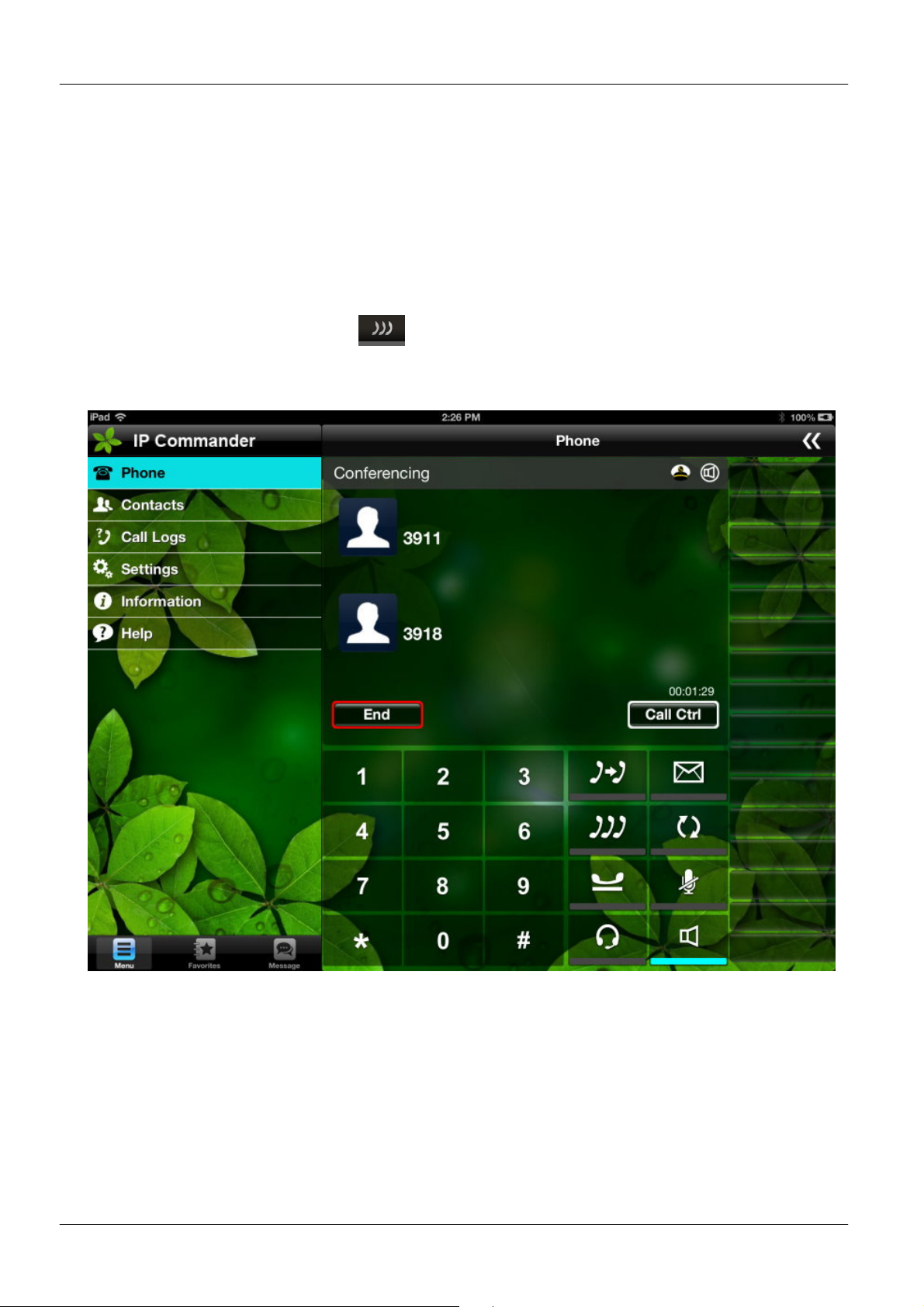
Press the Conference ( ) key from the IP Commander to set up a 3-party
conference. The conference screen in IP Commander is shown as follows.
Page 42
Page 43

MOCET IP3092/IP3092L Communicator User Guide
4.8. Transferring a Call
A call can be transferred in two ways:
Blind Transfer: The call is automatically transferred after you dial the number of the party
to whom you want to transfer the call.
Attended transfer: The party to whom you want to transfer the call answers their phone
before you transfer the call. You can consult with them before completing the transfer.
Blind Transfer:
To do a blind transfer:
During an active call, press “New Call” soft-key from IP Commander to call
another party.
When you hear the ring-back tone, press the Transfer ( ) key from IP
Commander to transfer the call.
Attended Transfer:
To do Attended transfer:
During an active call, press “New Call” soft-key from IP Commander to call
another party.
Wait for the other party to answer the call.
Press the Transfer ( ) key from IP Commander to transfer the call.
4.9. Forwarding a Call
You can configure the IP3092/IP3092L Communicator to forward the incoming call to
another party.
There are four types of static forwarding:
Unconditional
Busy Forward
No Answer Forward
DND Forward
Page 43
Page 44
MOCET IP3092/IP3092L Communicator User Guide
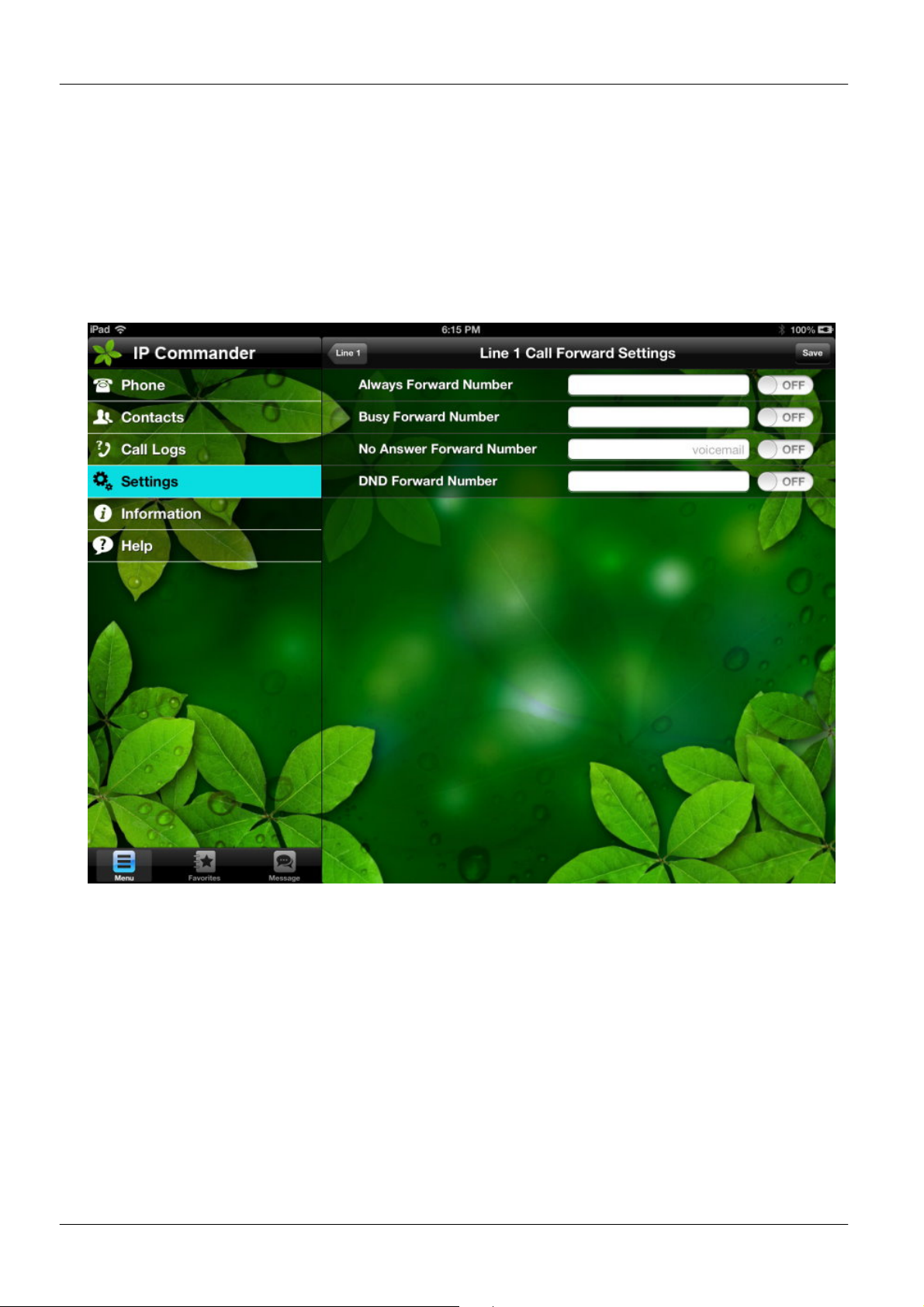
To setup the call forward, please follow the following steps:
Select “Settings” command from the main menu.
Select “Line Settings (User Level)” from the sub-command area
Select “Line 1 ~ 4” from the sub-command area
Select Call Forward from the sub-command area
The following table will be displayed to setup the call forward function and forward
number.
Page 44
Page 45
MOCET IP3092/IP3092L Communicator User Guide
5. Using the Advanced Features of Your
Phone
The Getting Started chapter describes the steps used to customize the Communicator
from the IP Commander app menus. However, there are many advanced features that
need to be configured using the phone’s web user interface. This chapter provides
instructions on how to use these features.
5.1. Login to the web interface of the Communicator
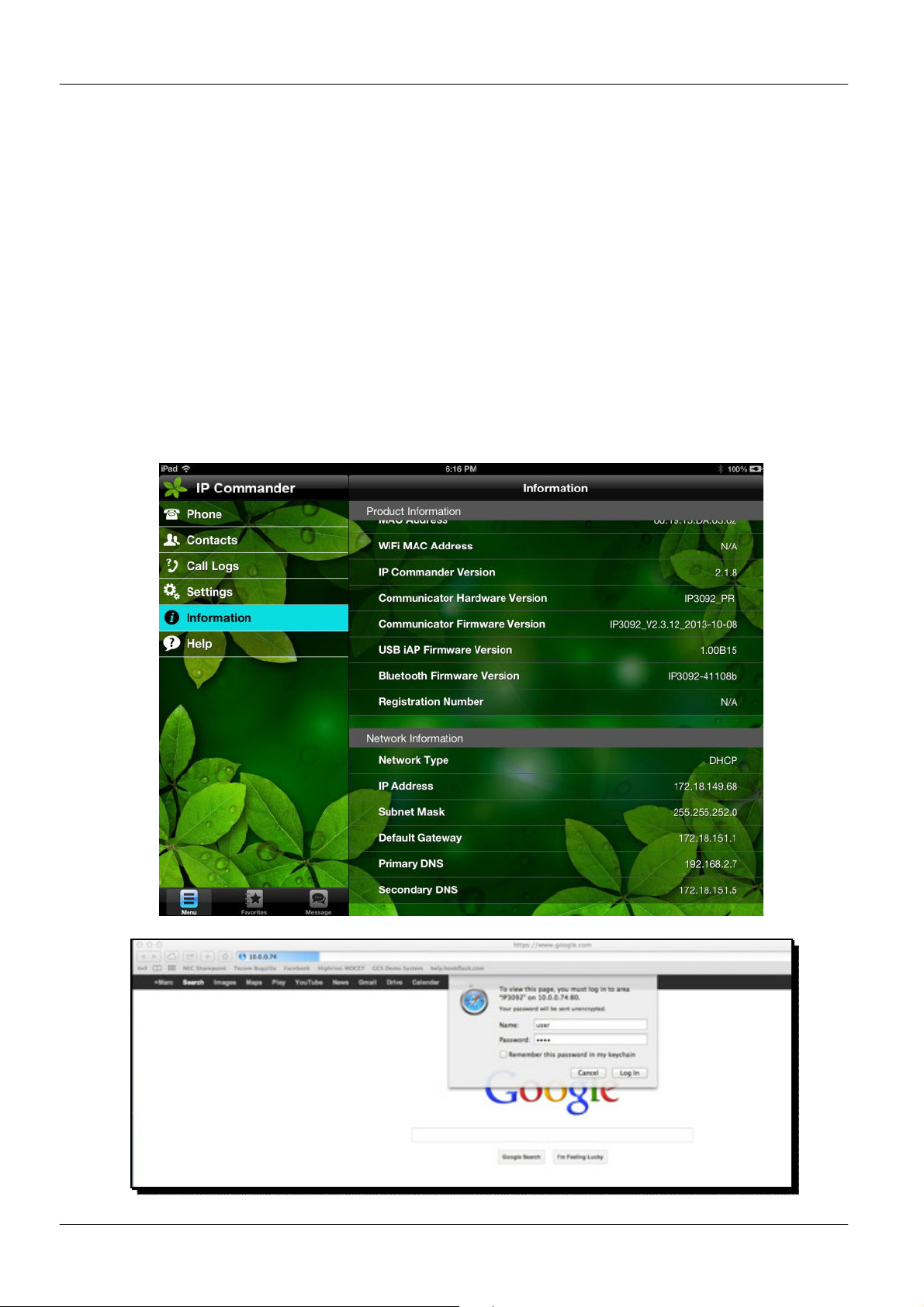
To use your web browser to configure the Communicator, you need to know the IP
address of the phone on your local area network (LAN). Using the IP Commander app,
press the Information panel and find the IP address (see below)
Enter the correct Username and Password information into the dialog box and press OK.
Page 45
Page 46
MOCET IP3092/IP3092L Communicator User Guide
Note: The default Username is “user” and the default Password is “1111” and the default
network settings are:
Default IP address: 192.168.1.10
Default Subnet mask: 255.255.255.0
Default Gateway: 192.168.1.1
Default DNS: 8.8.8.8
5.2. Changing the User’s Password
Some features of the Communicator require you to enter a personal identification number
(PIN) for security. The default PIN of the Communicator User account is “1111”.
To change the User password:
Navigate to the System tab.
Locate User Settings > User Password:.
Change the password to use a new PIN.
5.3. Viewing Phone Information on Web User Interface
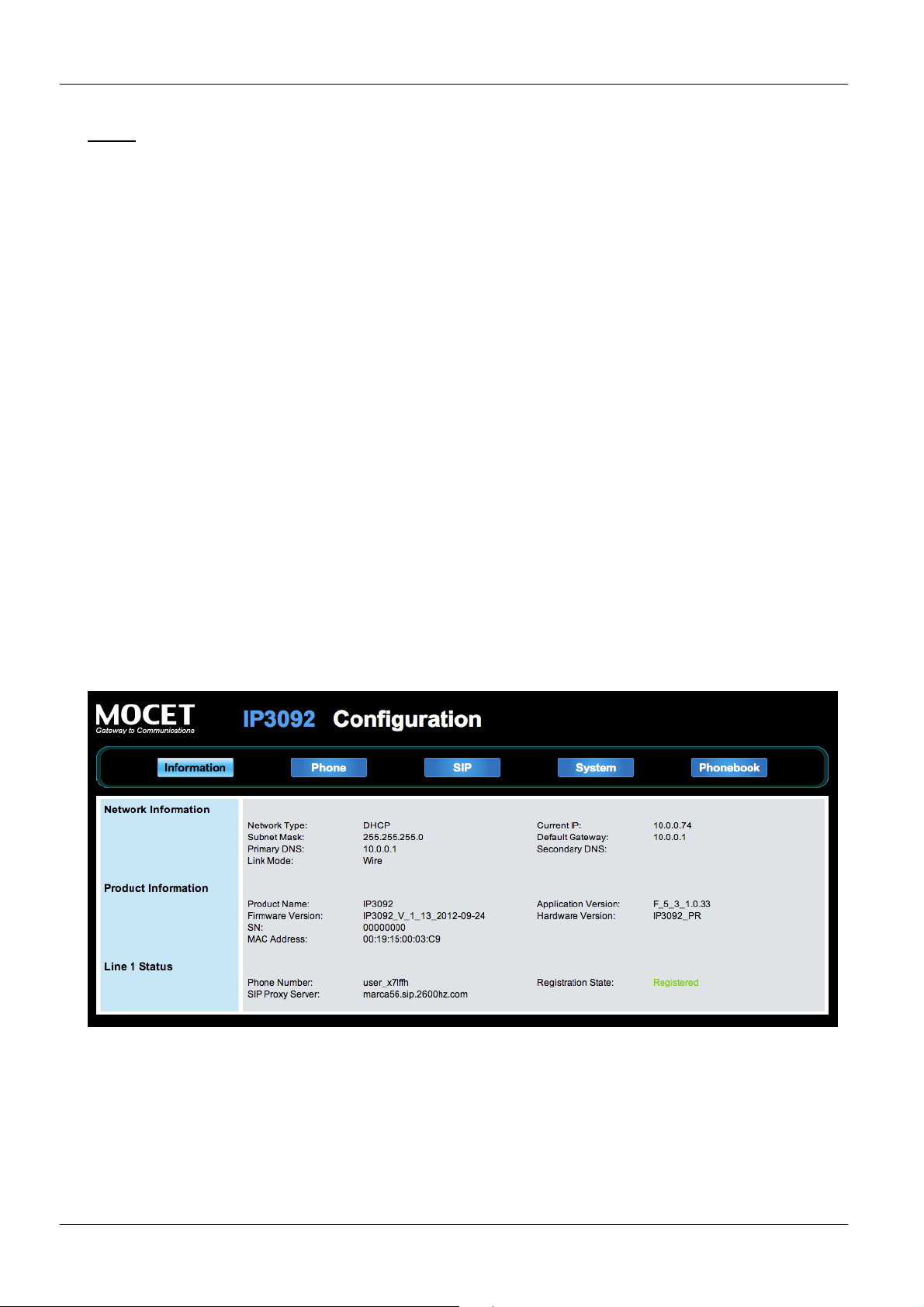
Information is the first page you will see when you login to the phone’s web user interface.
This page lets you check the status of the IP Phone including network and product related
information as well as account status information.
For SIP Line status:
When this line is disabled, the line status will not be displayed.
“Registration State” will be marked “Registered” with green text.
“Unregistered” will be marked with red text.
Page 46
Page 47
MOCET IP3092/IP3092L Communicator User Guide
5.4. Configuring Phone Settings
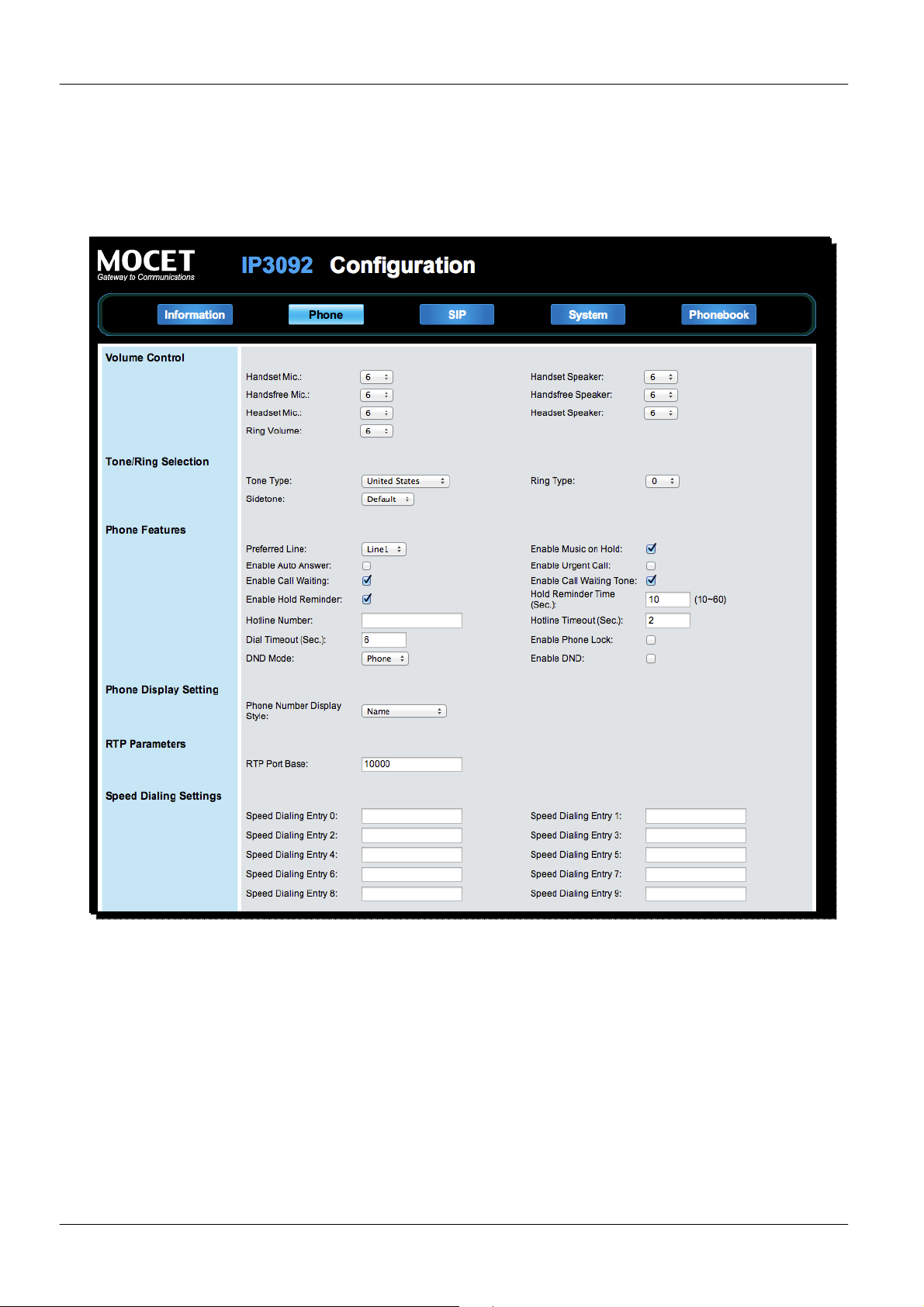
Phone Settings enables you to configure private settings for phone. Select the Phone tab
of the web user interface to begin configuration.
Page 47
Page 48
MOCET IP3092/IP3092L Communicator User Guide
From this page you can change following settings:
Device Volume
Tone and Ring types
Voice parameters
Advanced phone features (DND, Auto-answer, Call Waiting, etc)
Speed dial settings
Programmable key settings
Here is the description of each setting:
Setting Description
Handset mic Set the input level of the handset microphone
Handset speaker Set the output level of the handset speaker
Handsfree mic Set the input level of the handsfree microphone
Handsfree speaker Set the output level of the handsfree speaker
Headset mic Set the input level of the headset microphone
Headset speaker Set the output level of the headset speaker
Page 48
Page 49

MOCET IP3092/IP3092L Communicator User Guide
Setting Description
Ring volume Set the output level of the ring
Tone type Select from one of 11 tone types
Ring type Select from one of 11 ring types
Sidetone Set the output level of the comfort noise generator
Preferred line Select the preferred SIP line to dial out from
Enable music on hold Plays music on hold from the phone when on hold
Enable auto-answer If enabled, phone will auto-answer incoming calls
Enable DND If enabled, incoming callers will be blocked
Enable call waiting If enabled, will turn on call waiting feature
Enable call waiting tone If enabled, and user is on call, and another call comes
in, the user will hear a call waiting tone
Enable call hold reminder If enabled, and user is on call, and another call comes
in, the user will hear a call waiting tone every 5 seconds
by default
Hold reminder time Set the call waiting tone reminder time
Hotline number If enabled, and a phone number is entered, if user does
not dial within the timeout period, the call will be
connected to the phone number
Hotline timeout Set the hotline timeout period in seconds
Dial timeout Set the dial timeout period in seconds
Enable phone lock If enabled, the user can lock the phone and by entering
the password on a locked phone, make calls
Enable urgent call Broadsoft-only feature that allows an urgent call to
break into a call in progress
Phone number display style Can display incoming phone number or phone number
and name
RTP port base Set the local RTP base port
Speed dial entries 0-9 Set up to 10 phone numbers or extensions for speed
dials
Programable key settings 116
Please refer to section 5.5 Managing Programable
Keys
Enable MWI LED flash Toggles MWI LED blinking or solid display
Page 49
Page 50

MOCET IP3092/IP3092L Communicator User Guide
Setting Description
Enable MWI popup message Toggles MWI message on display
Emergency call numbers Set up to three numbers for emergency calls
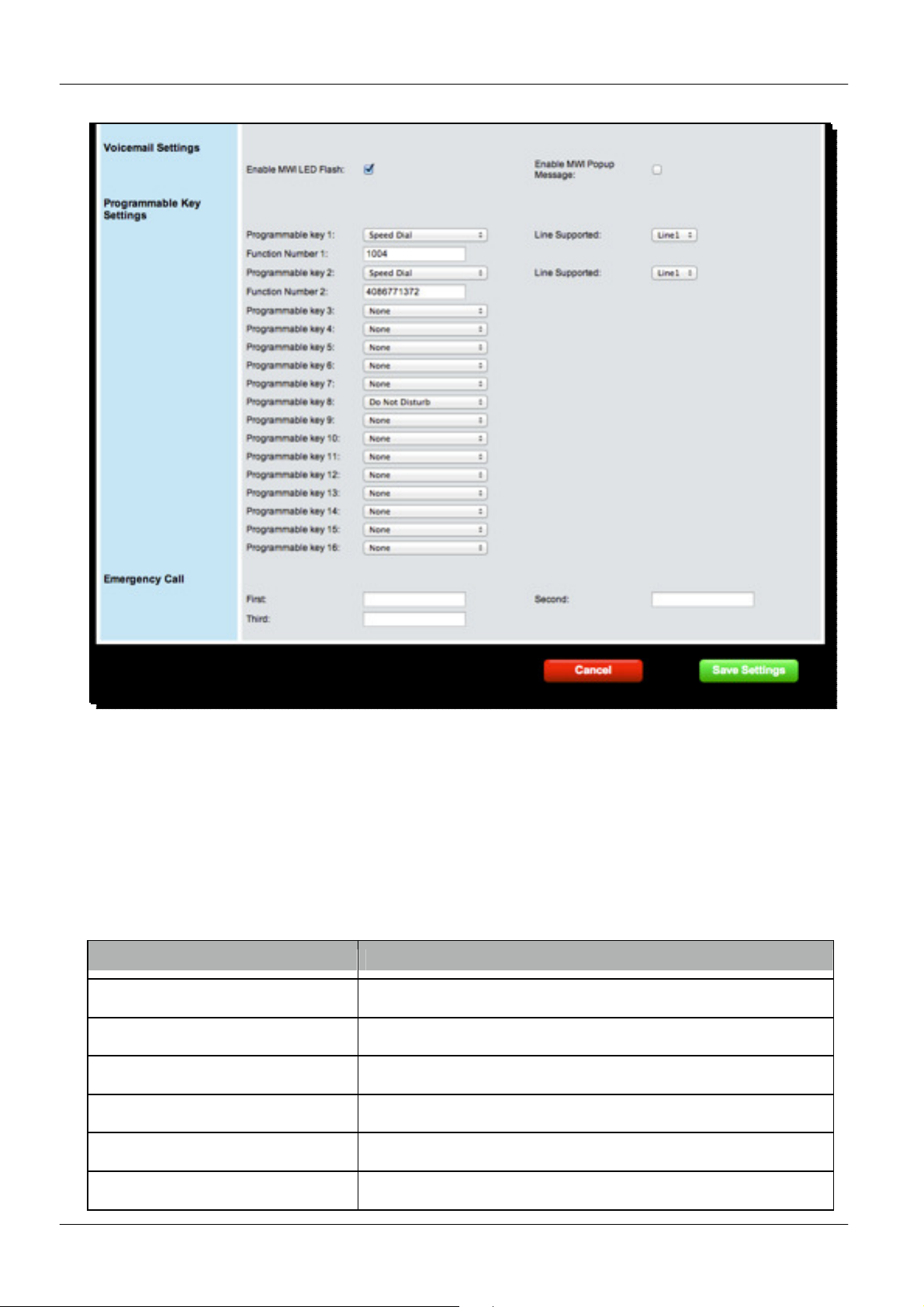
5.5. Managing Programmable Keys
Your Communicator has 16 programmable keys which can be configured for different
features.
To use the programmable keys, just press the key, then the configured feature will be
executed, some features will blink the LEDs or turn on the related features.
To configure programmable keys, go to Phone tab of the web user interface, and find the
“Programmable Key Settings” section:
Setting Description
Do Not Disturb (DND) Enable or disable DND
Lock IP phone Lock or unlock phone
Speed dial Speed dial the phone number
Abbreviated codes Speed dial the entered string
Busy forward Set number for call forwarding when busy
Always forward Set number for all calls
No answer forward Set number for when call is not answered
DND forward Set number for when DND is enabled
Auto-answer Enable or disable auto-answer
Call blocking Set number to block
Busy lamp field (BLF) Set number to monitor on a button
Call park Park a call; contact administrator or service provider
for more information
Shared line appearance
(SLA)
Asterisk parking number Park a call on Asterisk IP PBX; contact administrator
Enables phone to be monitored using BLF feature
or service provider for more information
Page 50
Page 51
MOCET IP3092/IP3092L Communicator User Guide
Setting Description
Asterisk parking slot Park location on Asterisk IP PBX; contact
administrator or service provider for more information
Intercom Set intercom number; contact administrator or service
provider for more information
Feature code Speed dial IP PBX feature codes; contact
administrator or service provider for more information
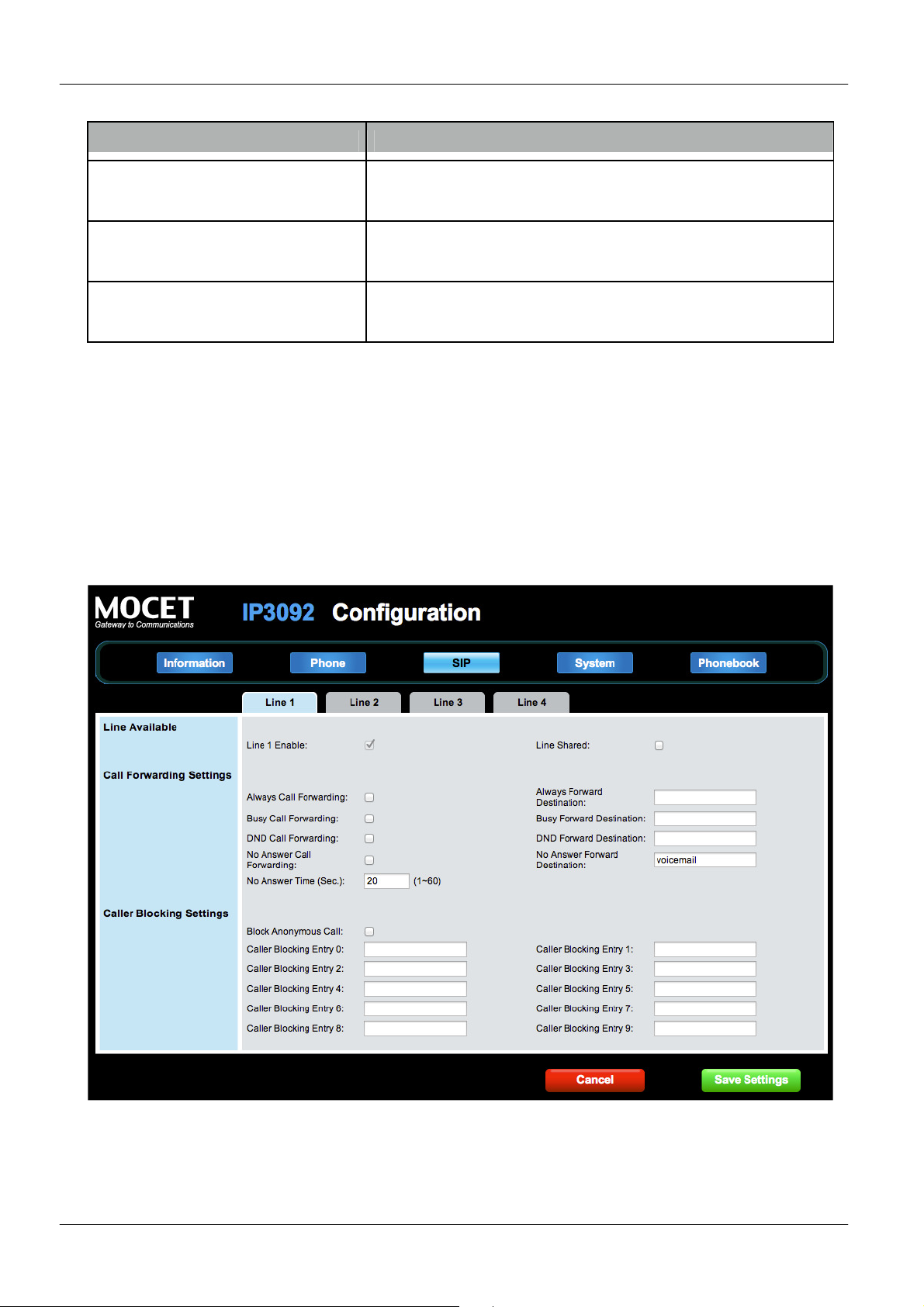
5.6. Configuring SIP Line Settings
On the SIP tab of the web user interface, you can change various SIP settings for each
Line.
A user can block specific calls by Caller ID (CLID). For each SIP Line, you can configure
up to 10 blocking entries.
Page 51
Page 52
MOCET IP3092/IP3092L Communicator User Guide
Setting Description
Line enable Enable or disable a configured SIP line
Line shared Enable or disable ability to monitor this SIP line
Always call forwarding Enable or disable and set forwarding number for all calls
Busy call forwarding Enable or disable and set forwarding number for busy
calls
No answer call forwarding Enable or disable and set forwarding number for calls that
are not answered within a specified period
No answer time Set the no answer timeout period
Block anonymous calls Block calls that do not provide a phone number
Call blocking Block specified calls by phone number
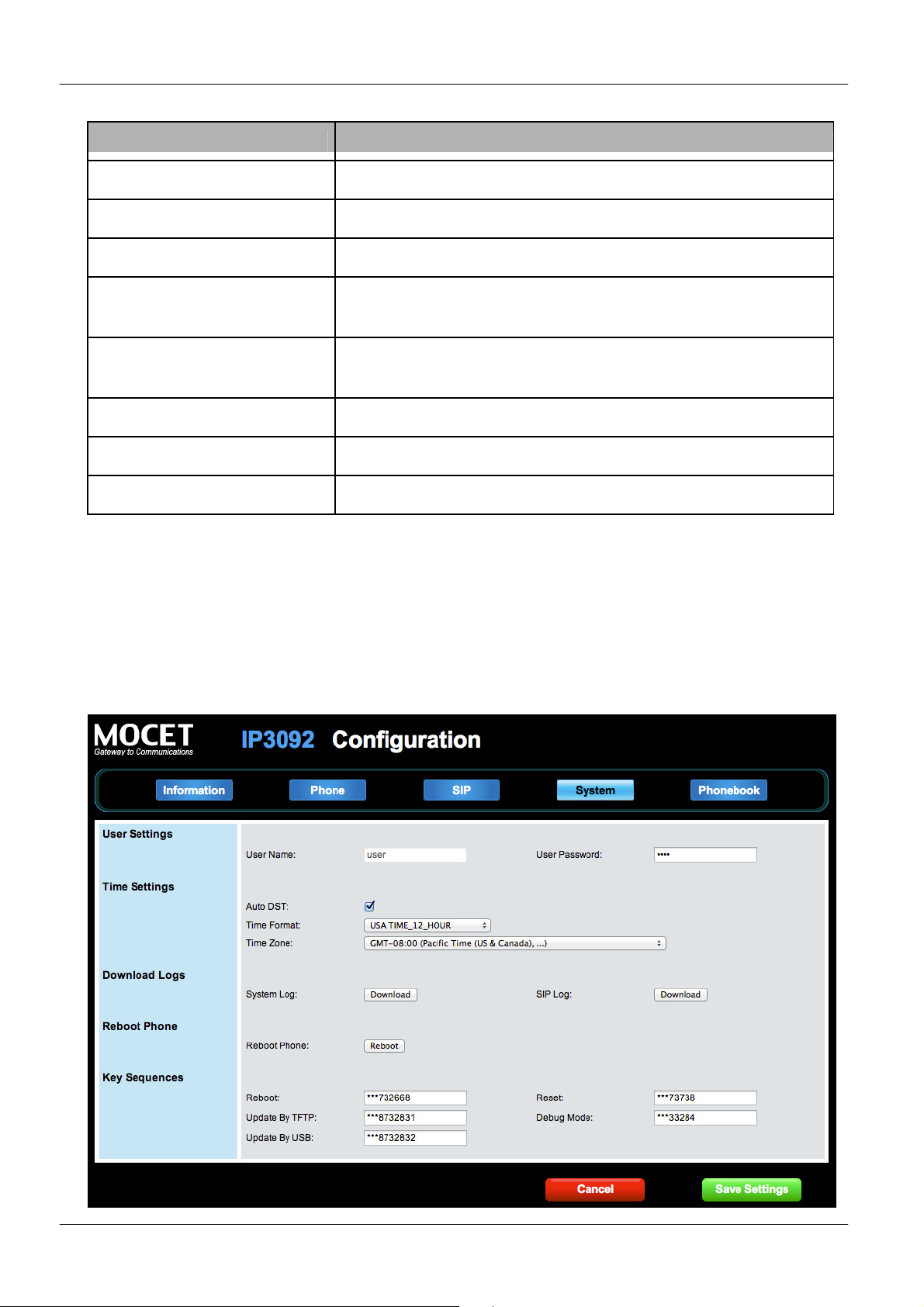
5.7. Configuring System Settings
On the System tab, the user can access or change:
Password
Time settings
Debug logs
Reboot the phone
Page 52
Page 53
MOCET IP3092/IP3092L Communicator User Guide
Setting Description
User name Set user name
User password Set user password
Auto daylight savings time
Enable auto DST setting
(DST)
Daylight savings time (DST) Enable manual DST setting
Starts on DST start date
Ends on DST end date
Time format DST time format
Time zone Set time zone
System log download Download current system log
SIP log download Download current SIP messages
Reboot Reboot the Communicator
Reboot Key sequence for rebooting the phone
Update by tftp Key sequence to update Communicator by tftp on
reboot
Update by USB Key sequence to update Communicator using
specially formatted USB memory stick on reboot
Reset Key sequence for resetting Communicator to
shipping default settings
Debug mode Key sequence for rebooting Communicator into
special diagnostics mode
5.8. Managing Phonebook
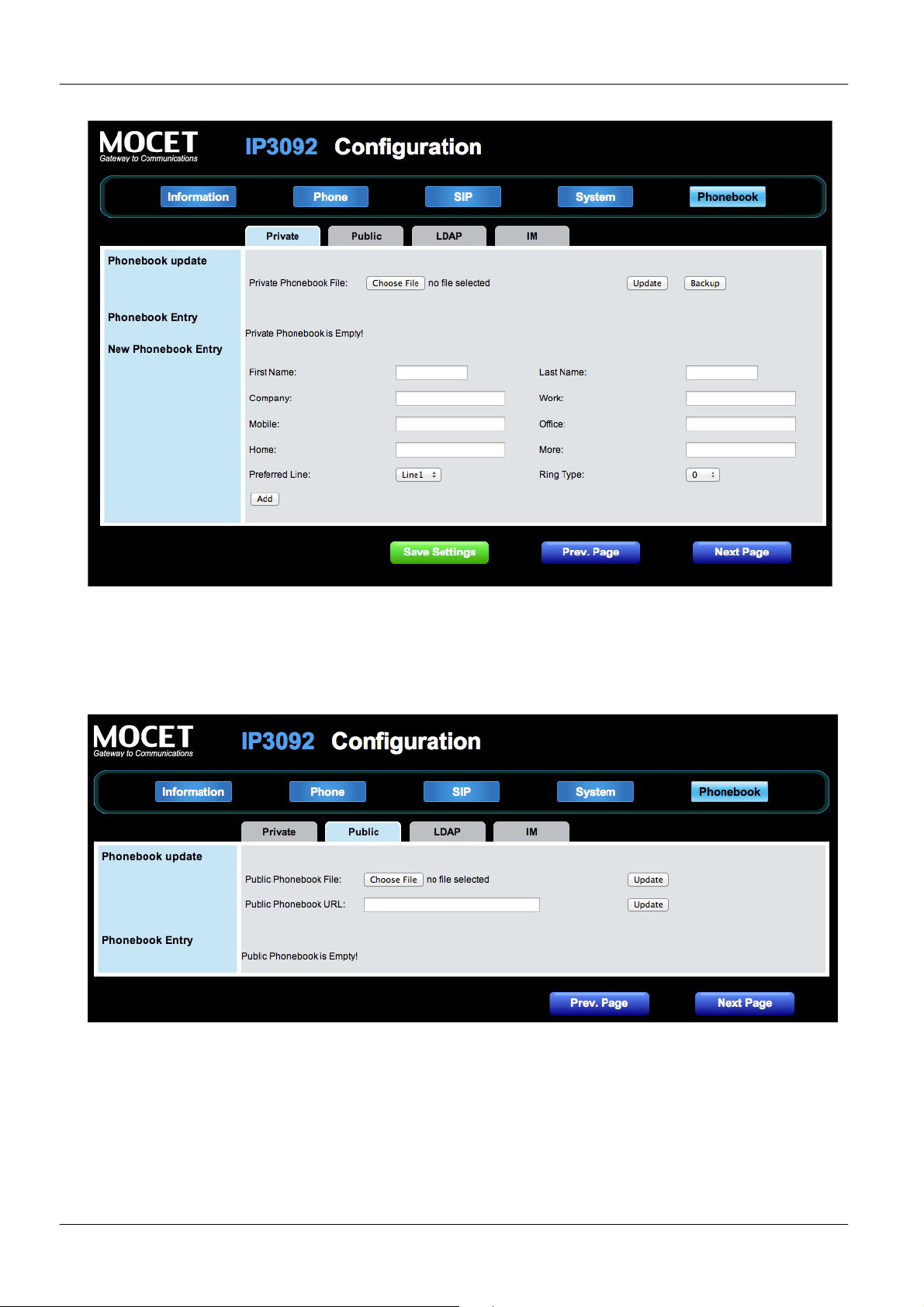
On the Phonebook tab, the user can manage his phone directories.
5.8.1. Private Phonebook
For the Private Phonebook, the user can add, edit, delete or dial an entry directly from the
web page. The user can also upload his contacts from a file using a web browser. The
Private Phonebook can have up to 100 contacts.
Page 53
Page 54
MOCET IP3092/IP3092L Communicator User Guide
5.8.2. Public Phonebook
A public phonebook can be shared on a web server either locally or remotely and will be
uploaded to the phone each time the Communicator starts or restarts.
5.8.3. LDAP Directory
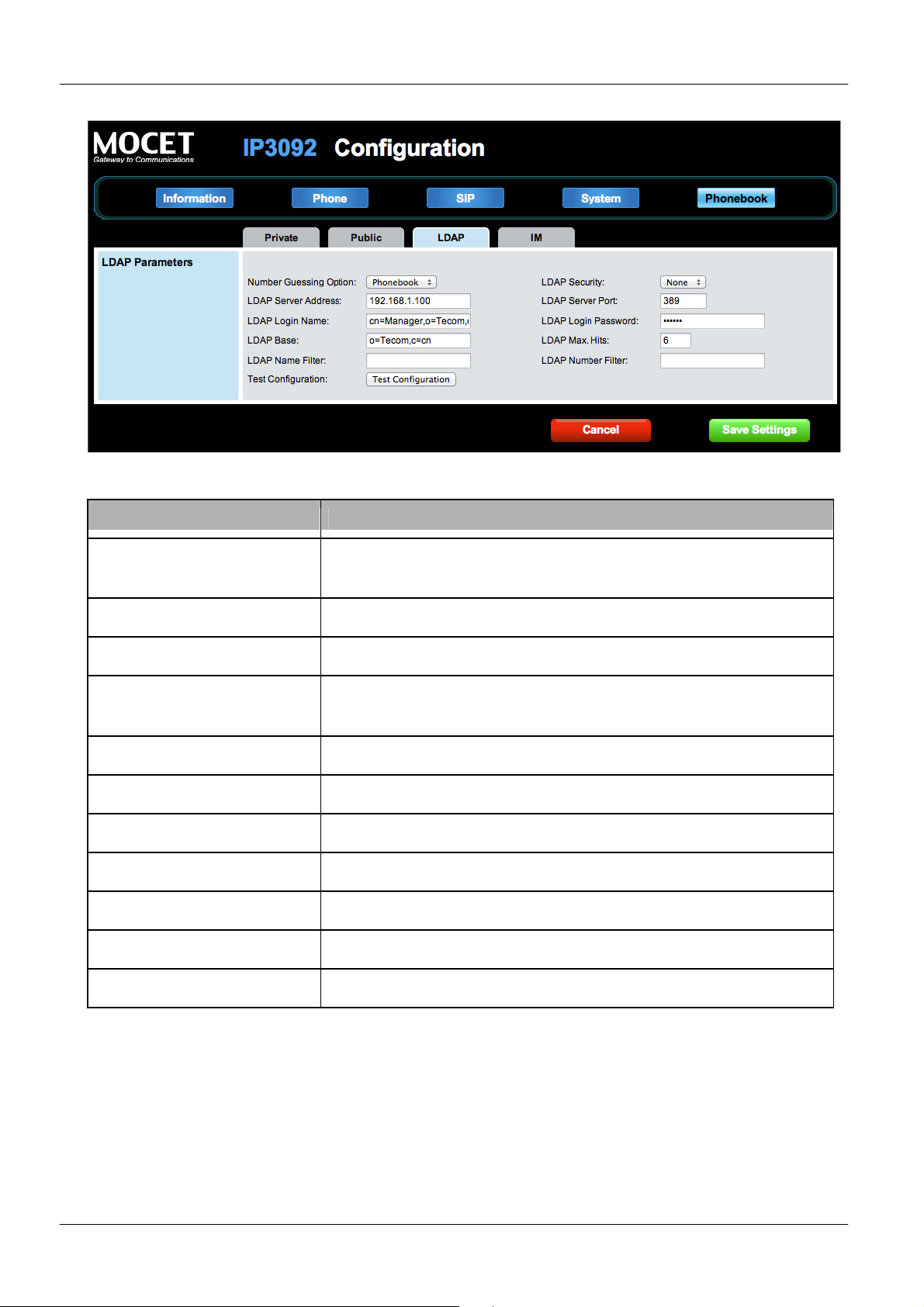
A shared LDAP directory can be configured for phone number matching on incoming calls;
please contact your administrator or service provider for more information.
Page 54
Page 55
MOCET IP3092/IP3092L Communicator User Guide
Setting Description
Number guessing
source
LDAP security Set to either SSLv2, SSLv3, or TLSv1
LDAP server address Set to IP address of the LDAP server
LDAP server port Set to port number of LDAP server; use 389 for no SSL or
LDAP login name Set to LDAP user name
LDAP login password Set to LDAP password
LDAP search base Set to LDAP search base
LDAP maximum hits Set to limit number of entries to return on search
LDAP name filter Set to filter names
LDAP number filter Set to filter numbers
Set either private phonebook or LDAP directory
636 for SSL
Test configuration Tests configuration
Page 55
Page 56
MOCET IP3092/IP3092L Communicator User Guide
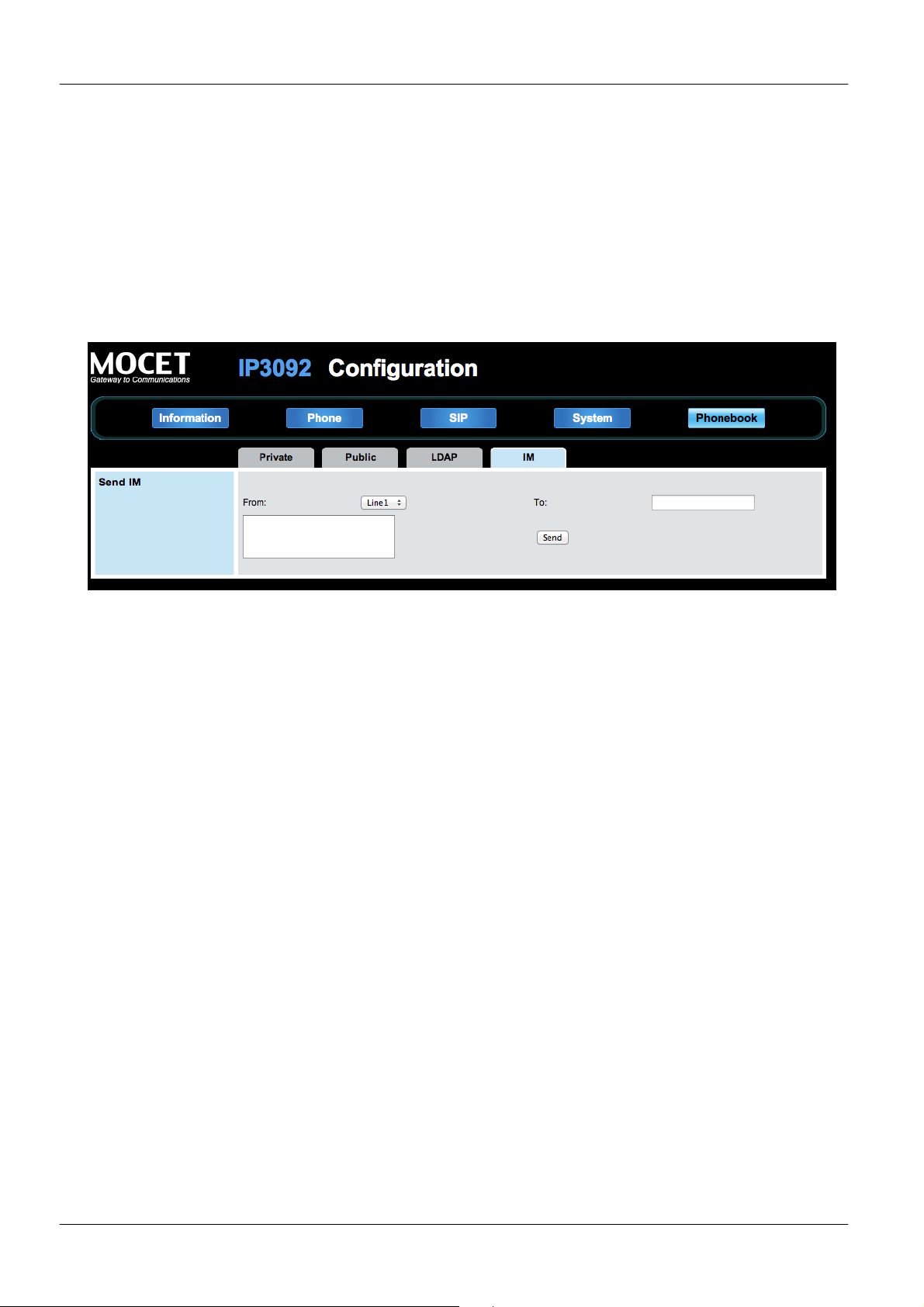
5.9. Sending an Instant Message (IM)
On the Phonebook tab, the user can send instant messages.
To send an instant message:
Select a registered line that you want to use to send the IM.
Enter a text message.
Enter a contact’s number.
Press “Send” button to send the instant message out.
Page 56
Page 57
MOCET IP3092/IP3092L Communicator User Guide
6. Using Advanced Call Feature
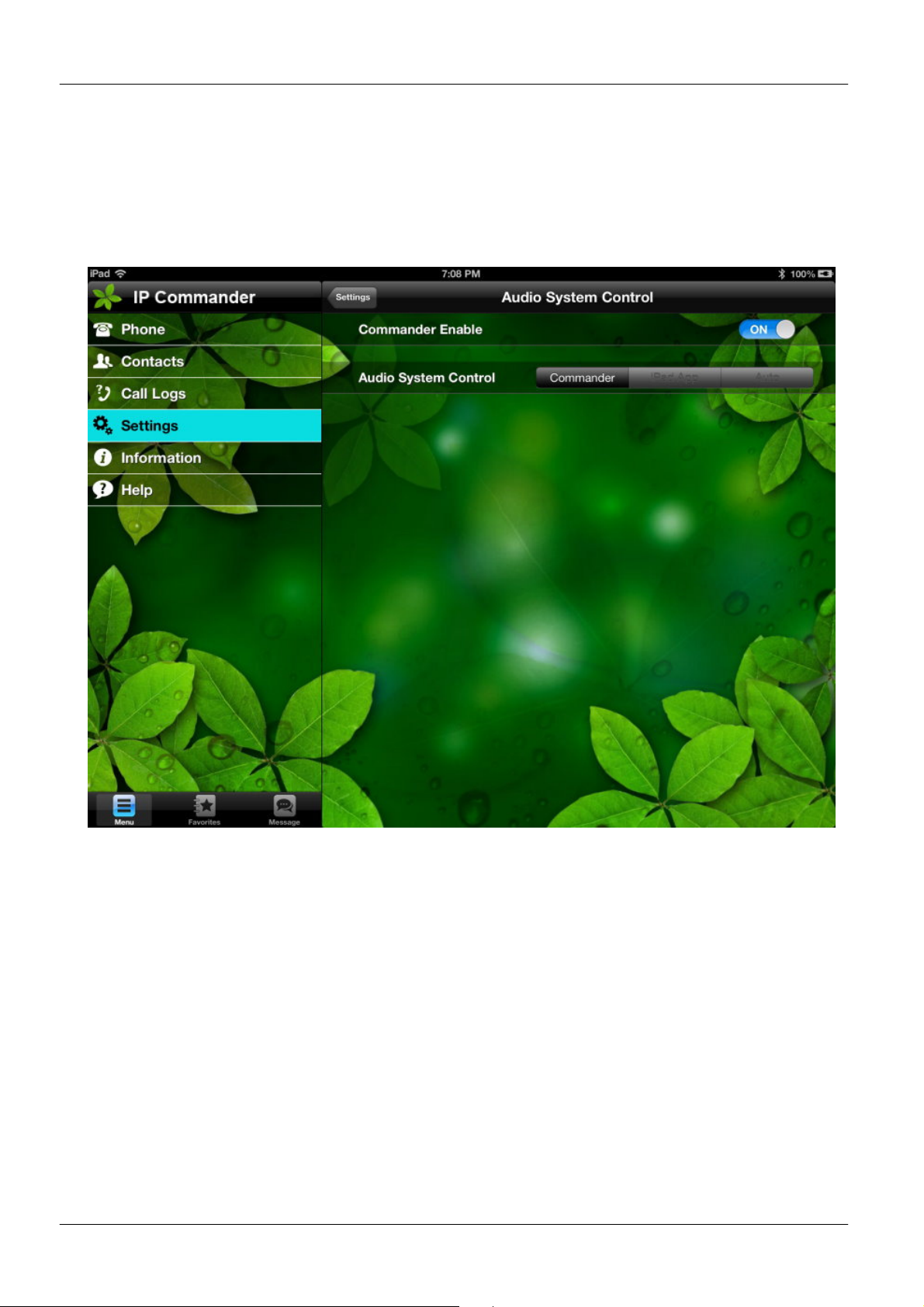
The Communicator advanced calling features are designed to work with the IP
Commander app only. To use them, make sure that the IP Commander mode is properly
configured in the app (see below)
6.1. Call Waiting
The call waiting feature notifies the user on an active call of a new incoming call. You can
disable the call waiting feature, so that the new incoming call is automatically rejected by
the phone with a busy message.
If you disable call waiting on the phone, and the user is on a call, any further incoming
calls receive busy unless “Call Forward Busy” is configured on the phone, where it then
forwards the call according to the configured destination.
Page 57
Page 58

MOCET IP3092/IP3092L Communicator User Guide
6.2. Intercom Call
6.2.1. Answering an Intercom Call
By default, the IP phone allows incoming intercom calls to be automatically answered on
your phone. If the intercom call comes into the phone while an active call is already
present, the phone puts the active call on hold and answers the intercom call.
6.2.2. Placing an Intercom Call
The Intercom call feature depends on PBX/SIP Server as there are different intercom call
codes for each servers; for example, the Asterisk default intercom code is “*80”.
To place intercom call on an Asterisk server, just make a call to “*80”+ [destination number]
(“*801001” for example). For other phone systems or hosted SIP services, please contact
your administrator or Service Provider for more information.
Page 58
Page 59
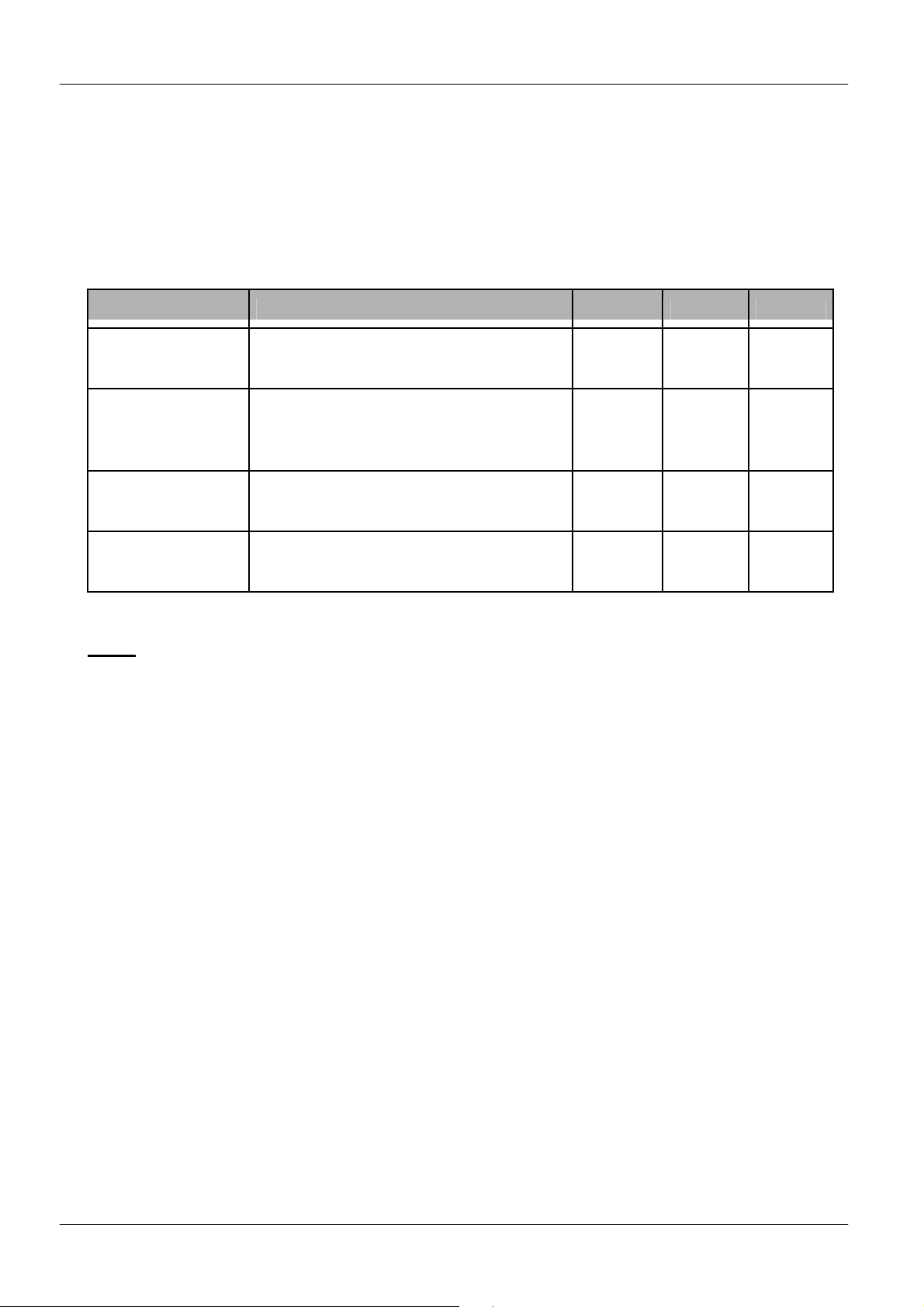
MOCET IP3092/IP3092L Communicator User Guide
7. Phone Firmware Upgrade
The Communicator supports several different ways to update its firmware (please refer to
the table below). This is for system administrators or service providers. End users normally
do not have to upgrade firmware by themselves. Please contact your Administrator or
service provider for assistance.
Method Description User Admin Factory
Web browser Upload firmware using a web
browser and file saved on a PC
SD card Upload firmware from SD card on
boot (this is an emergency procedure
for users)
Auto-provisioning Upload firmware from remote server
using TFTP, FTP, HTTP or HTTPS
Key sequence Upload firmware from local server
using TFTP, SD card, or USB drive
Note: Please contact your adminstrator or service provider if you have any issues or think
you need to update your Communicator.
● ● ●
● ●
● ●
●
Page 59
Page 60

MOCET IP3092/IP3092L Communicator User Guide
8. Using USB Devices with Your Phone
The Communicator can support various accessories on the USB port including keyboards,
WiFi adaptors, and memory devices.
8.1. USB Keyboard
When attached, a USB keyboard can be used to operate the various features of the
Communicator including the IM feature of IP Commander
8.2. USB WLAN Dongle
To use a USB WiFi adaptor with the Communicator, you must use the supported device
sold by MOCET.
To configure the USB WiFi adaptor, please contact your administrator or service provider
for more information or assistance.
Page 60
Page 61

MOCET IP3092/IP3092L Communicator User Guide
9. Troubleshooting
Symptom Remedy
Communicator does not work • Make sure that the power adaptor is
properly connected to the
Communicator and the wall outlet;
• Make sure the Ethernet cable is
properly connected between the
Communicator and the LAN or Internet
router;
• Reboot the Communicator and make
sure that the MWI LED goes out before
attaching your iPad
IP Commander does not have dial tone • Make sure the curly cord is properly
connected between the handset and
the Communicator;
• Make sure the power adaptor is
properly connected to the
Communicator and the wall outlet;
• Make sure the Communicator is
properly configured for Commander
mode in the Audio System Control
panel
LAN connection is lost • Make sure that the power adaptor is
properly connected to the
Communicator and the wall outlet;
• Make sure the Ethernet cable is
properly connected between the
Communicator and the LAN or Internet
router;
• Reboot the Communicator and make
sure that the MWI LED goes out before
attaching your iPad
Cannot make or receive calls on IP
Commander
Cannot hear the other party talking or
they cannot hear you talking but call
connects
Cannot access the web interface of the
Communicator
• Make sure your SIP account is properly
configured and you are registered
successfully
• This is a NAT traversal issue; please
contact your administrator or service
provider
• Make sure you are browsing to the right
IP address;
• Make sure that the communicator is
powered up properly
Page 61
Page 62

MOCET IP3092/IP3092L Communicator User Guide
10. Glossary
10.1. Acronyms
ANC
APS
B2BUA
CA
CID
CODEC
CNG
CPC
CPE
CWCID
CWI
CWT
DHCP
DNS
DTMF
ETSI
FQDN
FSK
HTML
HTTP
ICMP
IETF
IP
ISP
ITSP
IVR
LAN
LBR
LBRC
MWI
PoE
PPPoE
PSTN
NAT
NTP
RTP
RTCP
SDP
SIP
TFTP
TCP
UDP
URL
VLAN
WAN
XDSL
XML
Anonymous Call
Auto-Provisioning Server
Back to Back User Agent
Certificate Authority
Caller ID
Coder and Decoder of Voice
Comfort Noise Generation
Calling Party Control
Customer Premises Equipment
Call Waiting Caller ID
Call Waiting Indication
Call Waiting Tone
Dynamic Host Configuration Protocol
Domain Name Server
Dual Tone Multiple Frequency
European Telecommunication Standard
Fully Qualified Domain Name
Frequency Shift Keying
Hypertext Markup Language
Hypertext Transfer Protocol
Internet Control Message Protocol
Internet Engineering Task Force
Internet Protocol
Internet Service Provider
IP Telephony Service Provider
Interactive Voice Response
Local Area Network
Low Bit Rate
Low Bit Rate Codec
Message Waiting Indication
Power over Ethernet (IEEE802.3af standard)
Point-to-point protocol over Ethernet (mainly for xDSL modem connection)
Public Switched Telephone Network
Network Address Translation
Network Time Protocol
Real Time Protocol
Real Time Control Protocol
Session Description Protocol
Session Initiation Protocol
Trivial File Transfer Protocol
Transmission Control Protocol
User Datagram Protocol
Uniform Resource Locator
Virtual Local Area Network
Wide Area Network
Digital Subscriber Loop, such as ADSL, VDSL, HDSL, etc.,….
Extensible Markup Language
Page 62
Page 63

MOCET IP3092/IP3092L Communicator User Guide
Transmission speed is 10 or 100 Mbps and the modulation technique
An IEEE standard for providing QoS using three bits (defined i
An IEEE standard for providing virtual LAN (VLAN) identification and
Automatic Gain Control is a feature of IP solutions units that allows
The CODEC (CODER/DECODER) is a standard through which voice
10.2. Terminology
10/100BASE-T
It is a LAN transmission line specification stipulated by IEEE.
is base-band modulation. The cable uses unshielded twisted pair,
similar to a telephone wire. 10BaseT is an IEEE standard (802.3) for
operating 10 Mbps Ethernet networks (LANs) with twisted pair
cabling and a wiring hub.
802.1p
n
802.1q) to allow switches to reorder packets based on priority level.
802.1q
QoS levels. Three bits are used to allow eight priority levels, and 12
bits are used to identify up to 4,096 VLANs.
AGC
the units to automatically adjust the incoming voice signal to a user
defined level in dBm.
A-law The PCM coding and compression standard used in Europe and in
areas outside of North America influence. A Law Encoding is the
method of encoding sampled audio waveforms used in 2.048Mbps,
30 channel PCM primary system known as E-carrier.
Auto answer In telephone call control: The capability of a machine to answer a
ringing telephone without human intervention.
Autodial In telephone call control: An auxiliary device for a telephone that
automatically dials any of a group of prerecorded telephone
numbers.
Blocked Calls Caused by an insufficient network facility that does not have enough
lines to allow calls to reach a given destination. May also pertain to a
call from an originating number that is blocked by the receiving
telephone number.
Call Completion The point at which a dialed number is answered.
Call Termination The point at which a call is disconnected.
CDR In telephone call control: Call Detail Record for billing
This service is offered by the LEC to the end user. The feature-rich
IP Centrex
Centrex line offers the same features and benefits as a PBX to a
customer without the capital investment or maintenance charges.
The LEC charges a monthly fee to the customer, who must agree to
sign a term agreement. And the abive service is thru VoIP called IP
centrex.
CO Switching center for the local exchange carrier.
CODEC
information can be encoded into data or decoded back to voice
information. Both a Coder and Decoder are necessary on both sides
of the telephone call since telephone calls occur simultaneously in
both directions. Bandwidth is an extremely important factor in QOS
(Quality of Service). MOS (Mean Opinion Score) is an attempt to
make a quantifiable benchmark of voice quality. Below are examples
of the CODEC, bit rate and mean opinion score: G.711 (toll quality)
64K MOS=4.1, G.726 16K (32K) MOS =3.8, G.729AB (cell phone
quality) 8K MOS=3.7.
Page 63
Page 64

MOCET IP3092/IP3092L Communicator User Guide
A utility that enables a server to dynamically assign IP addresses
A Centrex feature that allows an outside caller to dial a central
A type of antenna system that uses two antennas to maximize
sus numeric addresses. A DNS server
Various t
Noise ratio is one of the most important factors in telephony
when you press the buttons on a t
Customer
Premise
Equipment
The only part of the telecommunications system that the customer
comes into direct contact with. Example of such pieces of equipment
are: telephones, key systems, PBXs, voicemail systems and call
accounting systems as well as wiring telephone jacks. The standard
for this equipment is set by the FCC, and the equipment is supplied
by an interconnect company.
DHCP
from a predefined list and limit their time of use so that they can be
reassigned. Without DHCP, an IT Manager would have to manually
enter in all the IP addresses of all the computers on the network.
When DHCP is used, whenever a computer logs onto the network, it
automatically gets an IP address assigned to it.
DID Direct Inward Dialing: The ability to make a telephone call directly
into an internal extension without having to go through the operator.
Diff-Serv Differentiated Services : The Diff-Serv model divides traffic into a
small number of classes to provide quality of service (QoS). One of
QoS in internet
Direct inward
dialing
Diversity
antenna
business number, as well as an extension number.
reception and transmission quality and reduce interference.
DNS Domain Name Service : A server/program that translates URLs to IP
addresses by accessing a database maintained on a collection of
Internet servers. The program works behind the scenes to facilitate
surfing the Web with alpha ver
converts a name like mywebsite.com to a series of numbers like
107.22.55.26. Every website has its own specific IP address on the
Internet. Typically one or more DNS servers is located in an IP
network.
DSL
echnology protocols for high-speed data, voice and video
transmission over ordinary twisted-pair copper POTS (Plain Old
Telephone Service) telephone wires.
DSP Digital Signal Processors (DSP) standardize the different states of a
digital signal into an organized and understandable signal. DSP
circuits can differentiate between digital signals and digital noise.
Signal-tovoice communication because if there is too much noise in a signal,
the DSP will be unable to find a signal standard and lose it. DSP
circuits always adjust digital signal levels so the can maintain a
standard without noise.
DTMF Dual Tone Multi-Frequency: The type of audio signals generated
ouch-tone telephone. Can be used
in inbound(after voice channel connected) and outbound(before
voice channel connected) application.
Ethernet International standard networking technology for wired
implementations. Basic 10BaseT networks offer a bandwidth of
about 10 Mbps. Fast Ethernet (100 Mbps) and Gigabit Ethernet
(1000 Mbps) are becoming popular.
G.711 64 kbps PCM half-duplex codec (high quality, high bandwidth,
minimum processor load)
Page 64
Page 65

MOCET IP3092/IP3092L Communicator User Guide
www.ieee.org. A membership organization that includes engineers,
A 32
bit number that identifies each sender or receiver of information
wireless 802.11 device has its own specific MAC address hard
G.723.1 6.4/5.3 kbps MP-MLQ codec (low quality, low bandwidth, high
processor load due to the compression)
G.726 40/32/24/16 ADPCM codec (good quality, medium bandwidth, low
processor load)
G.729 8 kbps ACELP codec (medium quality, low bandwidth, high
processor load)
IEEE Institute of Electrical and Electronics Engineers, New York,
scientists and students in electronics and allied fields. It has more
than 300,000 members. The IEEE is an international organization
that develops standards for hundreds of electronic and electrical
technologies for computers and communications. The organization
uses a series of numbers, like the Dewey Decimal system in
libraries, to differentiate between the various technology families.
IP (Internet
Protocol)
Internet Protocol is located at 3rd layer of ISO network model. A set
of rules used to send and receive messages at the Internet address
level. IP protocol is widely used in Internet and LAN networks. The
purpose is to deliver data between computing equipment over the
network. The protocol is generally effective but does not guarantee
complete and accurate data communications.
IP address
that is sent across the Internet. An IP address has two parts: an
identifier of a particular network on the Internet and an identifier of
the particular device (which can be a server or a workstation) within
that network. A number used to identify the location of a host device.
It is expressed in numeric dot notation (e.g. 202.203.27.31).
This service is offered by the LEC to the end user. The feature-rich
IP Centrex
Centrex line offers the same features and benefits as a PBX to a
customer without the capital investment or maintenance charges.
The LEC charges a monthly fee to the customer, who must agree to
sign a term agreement. And the above service is thru VoIP called IP
centrex.
Jitter Jitter refers to fluctuations in transmission delay time. In the case of
voice data, conversations are packaged into packets (IP
packetization) and transmitted. Individual packets can take different
routes through the varied networks that comprise the Internet. When
the time interval for the arrival of the packets is not constant the
timing fluctuations that may occur are referred to as "jitter".
MAC Medium Access Controller (MAC) : The IEEE 802.11 Standard
encompasses the physical layer (PHY) and the lower portion of the
data link layer. The lower portion of the data link layer is often
referred to as the Medium Access Controller (MAC) sublayer. Every
coded into it. This unique identifier can be used to provide security
for wireless networks. When a network uses a MAC table, only the
802.11 radios that have had their MAC addresses added to that
network's MAC table will be able to get onto the network.
Page 65
Page 66

MOCET IP3092/IP3092L Communicator User Guide
A wirel
System is the standard analog traditional telephone service that most
A device that forwards data packets from one local area network
tables and routing protocols, routers can read the network address in
NAT Network Address Translation: A network capability that enables a
houseful of computers to dynamically share a single incoming IP
address from a dial-up, cable or xDSL connection. NAT takes the
single incoming IP address and creates new IP address for each
client computer on the network.
Numbering plan In a communications network, a numbering plan allocates specific
numeric codes to identify each subscriber line, special lines, trunk
lines, etc. Numbering plans can be divided into the numbering
system and number assignments. The numbering system indicates
the number of digits to be assigned and the basic scheme of number
assignment. The assignment of specific codes is performed
according to the numbering system.
PBX Private Branch Exchange: An in-house telephone switching system
that interconnects telephone extensions to each other as well as to
the outside telephone network.
Peer-to-peer
network
ess or wired computer network that has no server or central
hub or router. All the networked PCs are equally able to act as a
network server or client, and each client computer can talk to all the
other wireless computers without having to go through an access
point or hub. However, since there is no central base station to
monitor traffic or provide Internet access, the various signals can
collide with each other, reducing overall performance.
POTS Plain Old Telephone Service (POTS), or Pretty Old Telephone
homes use. In contrast, telephone services based on high-speed,
digital communications, such as ISDN and DSL, are not POTS. The
main distinctions between POTS and non-POTS services are speed
and bandwidth.
Proxy server Used in larger companies and organizations to improve network
operations and security, a proxy server is able to prevent direct
communication between two or more networks. The proxy server
forwards allowable data requests to remote servers and/or responds
to data requests directly from stored remote server data.
PSTN Public Switched Telephone Network: The worldwide voice telephone
network.
QoS Quality of service (QoS)
RJ-45 Standard connectors used in Ethernet networks. Even though they
look very similar to standard RJ-11 telephone connectors, RJ-45
connectors can have up to eight wires, whereas telephone
connectors have only four.
Router
(LAN) or wide area network (WAN) to another. Based on routing
each transmitted frame and make a decision on how to send it via
the most efficient route based on traffic load, line costs, speed, bad
connections, etc.
Page 66
Page 67

MOCET IP3092/IP3092L Communicator User Guide
jitter tolerance and makes sure that voice packets are arriving in
network. Every computer in a TCP/IP network has its own IP address
Type of Service: A method of setting precedence for a particular type
Voice Activity Detection (VAD) helps save bandwidth during calls.
bandwidth during the call. When silence is detected by VAD software
RTP/RTCP Real-Time Protocol/Real-Time Control Protocol(RTP / RTCP) : IETF
specifications for audio and video signal management. Allows
applications to synchronize and spool audio and video information.
RTP (Real Time Protocol) is specifically concerned with the
dependable transmission of latency-sensitive traffic across the
network and is involved in using time stamping to determine network
order.
SIP Session Initiation Protocol: A protocol that provides telephony
services similar to H.323, but is less complex and uses less
resource. SIP (Session Initiation Protocol) is a signaling protocol for
Internet conferencing, telephony, presence, events notification and
instant messaging. SIP is a text-based protocol, similar to HTTP and
SMTP, for initiating interactive communication sessions between
users.
Subnetwork or
Subnet
Found in larger networks, these smaller networks are used to
simplify addressing between numerous computers. Subnets connect
to the central network through a router, hub or gateway. Each
individual wireless LAN will probably use the same subnet for all the
local computers it talks to.
TCP/IP Internet Standard Protocol: The underlying technology behind the
Internet and communications between computers in a network. The
first part, TCP, is the transport part, which matches the size of the
messages on either end and guarantees that the correct message
has been received. The IP part is the user's computer address on a
that is either dynamically assigned at startup or permanently
assigned. All TCP/IP messages contain the address of the
destination network as well as the address of the destination station.
This enables TCP/IP messages to be transmitted to multiple
networks (subnets) within an organization or worldwide.
TOS
of traffic for QoS.
UDP User Datagram Protocol. An unreliable networking layer that sits at
the same level of the networking stack at TCP. UDP is a
connectionless transport protocol that is part of a suite of protocols
(the others being RTP and IP) that allow for the timely and efficient
transfer of voice data across and IP network. UDP is the better
transport protocol for VoIP data than TCP.
VAD
Examples: When you are making a VoIP call and you are not
speaking and you are listening, that silence is still taking up
over a predetermined length of time, is sends silent packets that
inform other VAD enabled systems to stop holding the bandwidth for
these empty packets.
Page 67
Page 68

MOCET IP3092/IP3092L Communicator User Guide
Voice Over Internet Protocol: VoIP is based on the principal of
xes, or overhead paging to be transported
Virtual Private Network(VPN) is a virtual created sub
work with either wired or wireless networks, as well as with dial
Also referred
VoIP
transmitting digitized voice packets over networks. Basically, VoIP
consists of converting voice signals into streams of digital packets
and sending those packets of data through an IP-constructed
network environment. VoIP can work in both LAN (local area
network) and WAN (wide area network) environments for
intranetworking or internetworking communication between VoIP
channel users. Routers and switches and other special compression
protocols direct the packetized voice data to their destination IP
address. VoIP can be less expensive than voice transmission using
standard analog packets over POTS (Plain Old Telephone Service).
It allows telephone calls, fa
over an existing IP data network topology.
VPN
-network based
on a public real network. A type of technology designed to increase
the security of information transferred over the Internet. VPN can
-up
connections over POTS. VPN creates a private encrypted tunnel
from the end user's computer, through the local wireless network,
through the Internet, all the way to the corporate servers and
database.
WAN Wide Area Network: For global or long distance networking access
thru the support of telecommunication devices. A communication
system of connecting PCs and other computing devices across a
large local, regional, national or international geographic area. Also
used to distinguish between phone-based data networks and Wi-Fi.
Phone networks are considered WANs and Wi-Fi networks are
considered Wireless Local Area Networks (WLANs).
WLAN
to as LAN. A type of local-area network that uses highfrequency radio waves rather than wires to communicate between
nodes.
Page 68
 Loading...