

Page 1

User Manual
Version 1.0
Save more than 90%
over typical international mobile phone charges
Saving big money on international calls
just went mobile.
www.Packet8.net | 1.866.TRY. VOIP
Page 2

Contents
Packet8 MobileTalk Software ....................................................................................................... 3
How Does Packet8 MobileTalk Software Work? .......................................................... 3
Installation Instructions for Nokia SmartPhones (Symbian OS) ...................................... 3
Installation Instructions – Palm OS SmartPhones ................................................................ 4
Installation Instructions – Windows OS Pocket PC Edition ............................................... 4
Installation Instructions – Windows Mobile 5 SmartPhone Edition .............................. 5
Installation Instructions – RIM - BlackBerry SmartPhones ................................................ 5
Installation Instruction’s via email .............................................................................................. 6
Steps to installing the application from an email: ......................................................6
General Technical Support............................................................................................................ 6
Technical Support – Symbian OS SmartPhones ................................................................... 7
Technical Support – RIM OS SmartPhones ............................................................................. 7
Supported Phones ........................................................................................................................... 8
Windows .............................................................................................................................................. 8
Audiovox/ Sprint/ UTStarcom ............................................................................................ 8
Cingular ...................................................................................................................................... 8
Dopod ......................................................................................................................................... 8
HTC ............................................................................................................................................... 8
I-Mate .......................................................................................................................................... 8
Motorola .................................................................................................................................... 8
O2 ................................................................................................................................................. 8
Orange ........................................................................................................................................ 8
Qtek .............................................................................................................................................9
BenQ-Siemens .........................................................................................................................9
T-Mobile ..................................................................................................................................... 9
Telefonica................................................................................................................................... 9
Treo .............................................................................................................................................. 9
Verizon ........................................................................................................................................ 9
Vodafone ....................................................................................................................................9
Samsung .................................................................................................................................... 9
HP IPAQ....................................................................................................................................... 9
Eten .............................................................................................................................................. 9
Palm ....................................................................................................................................................... 9
Treo .............................................................................................................................................. 9
Symbian ............................................................................................................................................. 10
Nokia .........................................................................................................................................10
Sony Ericsson .........................................................................................................................10
RIM .......................................................................................................................................................10
BlackBerry OS 4.0 and above ...........................................................................................10
FAQ ......................................................................................................................................................11
| 2
Page 3
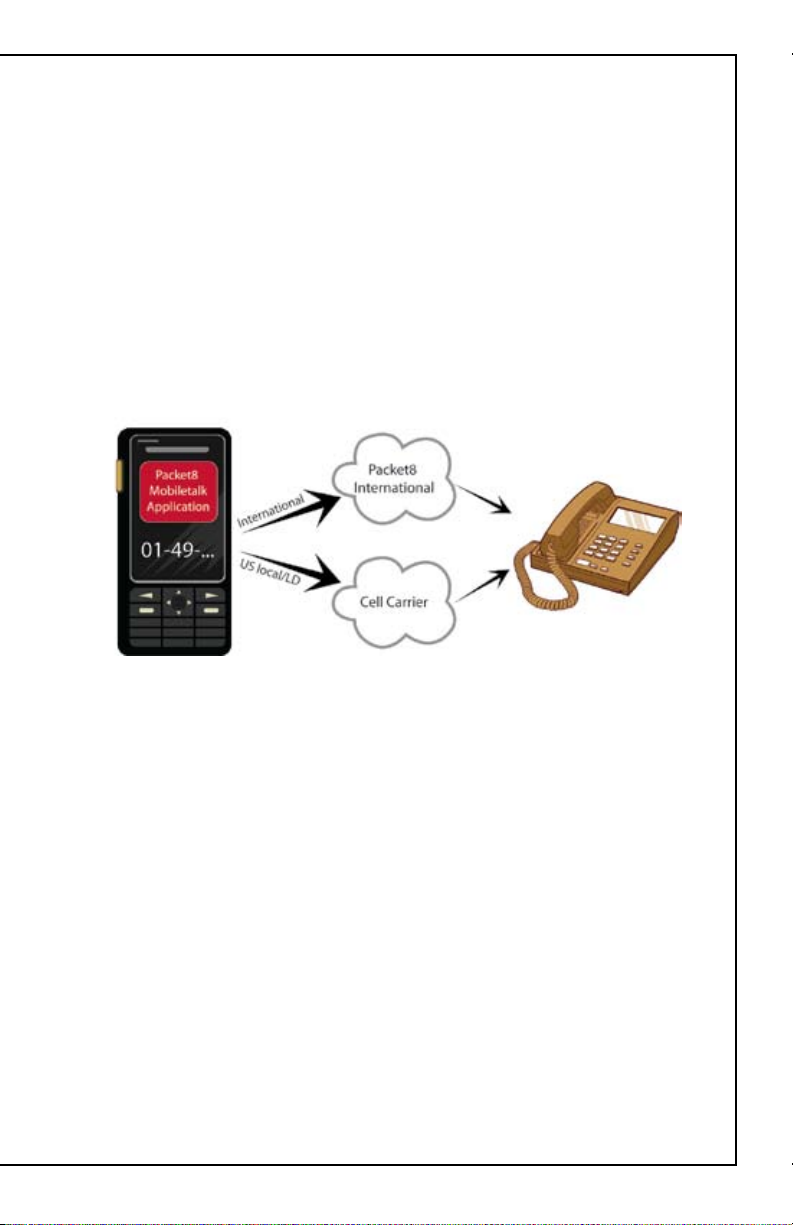
Packet8 MobileTalk Software
The Packet8 MobileTalk Software is an application installed on the subscriber’s
mobile phone, enabling direct mobile connection to Packet8 Service for international calls. The solution does not require anything more than a one-time simple
installation.
How Does Packet8 MobileTalk Software Work?
The Packet8 MobileTalk Software includes a unique account code that allows your
phone to access Packet8’s network. Once installed, the software constantly operates
in the background. Once it recognizes that an international number is being dialed,
it redirects the call to your Packet8 account where your call is actually routed. The
result: significantly cheaper international calls, without cumbersome calling codes,
access numbers or pin codes.
Installation Instructions for Nokia SmartPhones (Symbian OS)
Please use the instructions on the Packet8 web site (server interface) to down-1.
load the Packet8 MobileTalk Software for your SmartPhone.
After you send the request to get the software, you will receive a text message 2.
containing a link from which to download the application.
Click the link within the text message. Your mobile phone will download the 3.
application via cellular Internet.
Once the software is downloaded, it is ready to be installed. The system will 4.
prompt a request to continue to install. Click yes.
An “Installation Complete” prompt confirms that the system has been installed.5.
That’s it! From now on, the Packet8 MobileTalk Software is activated on your 6.
handset. No additional implementation is necessary.
The MobileTalk icon will now appear on the mobile phone’s applications’ menu.7.
3 |
Page 4

Installation Instructions – Palm OS SmartPhones
After you send a request to get the software, your SmartPhone will receive a 1.
text message containing a link.
Click the link. A download screen will open. Choose “Yes” to begin the down-2.
load.
An alert screen will be prompted. Click the “Go To” option in order to confirm 3.
the download. You can also find the text message in the “Messages” option in
the “Main” menu. Click the link in the message and choose “Yes” to install.
A progress bar will appear, showing the installation progress. Once the installa-4.
tion is completed, click “Open”.
Choose “Yes” to save the application in the “Applications” menu of your hand-5.
set.
The MobileTalk icon will now appear in your handset’s main “Applications” 6.
menu.
Click the application’s icon (Packet8) to launch the application. During the 7.
initial installation only, the software will install itself, after which the various
menus of the software will be opened using Switchboard
Note: With some mobile operators, the Treo 600 allows the user to choose between
a few Internet connection options.
Go to:
Treo 600 Device main menu1.
Choose the “Prefs” menu 2.
On the right-hand dropdown menu, choose “Network”3.
Click the “Service” menu4.
Choose the “Online” option5.
This will ensure the application will function correctly.
Installation Instructions – Windows OS Pocket PC Edition
After you send a request to get the software, you will receive a text message 1.
containing a link. The message will be saved in your text message inbox (go to
the start menu, click the inbox, and choose the “text message” inbox).
Click the link to start the application download.2.
Choose “Yes” to install. The installation will begin.3.
A notice screen will be prompted. Click “OK”.4.
The MobileTalk icon (Packet8) will now appear in the programs menu. Click it.5.
After the SmartPhone reset, dial your destination number, using regular dialing, 6.
speed dial, contact list or last calls menu.
The call is being connected via Packet8’s MobileTalk application.7.
| 4
Page 5

Installation Instructions – Windows Mobile 5 SmartPhone Edition
After you send a request to get the software, you will receive a text message 1.
containing a link. The message will be saved in your text message inbox (go to
the start menu, click the inbox, and choose the “text message” inbox).
Click the link to start the application download.2.
Confirm that you want to install the application.3.
Choose “Yes” to install. The installation will begin.4.
A progress screen will appear. Once done click “done”.5.
You will be prompted to reset your handset. Choose “OK”.6.
The MobileTalk icon will now appear in the programs menu. Click it.7.
In the next screen, make sure the method is set on “Auto”.8.
Click the “Start Service” button.9.
You will be prompted to confirm you wish to start the service. Click “OK”.10.
Dial your destination number, using regular dialing, speed dial, contact list or 11.
last calls menu.
The call is being connected via Packet8’s MobileTalk application.12.
Installation Instructions – RIM - BlackBerry SmartPhones
After you send a request to get the software, you will receive a text message 1.
containing a link. The message will be saved in the inbox of your handset.
Click the link to start the application download. Note: the link will have to be 2.
downloaded and installed in two parts. (The text message contains 2 different
links and using the Jog-Dial the user can choose each link separately.)
Choose “Get Link” to download.3.
Choose “download” to begin installation4.
A notice screen will be prompted. Click “RUN”. (* steps 2,3 and 4 are to be 5.
repeated with second part of the link in the initial text message)
The MobileTalk icon will now appear in the programs menu. Click it.6.
In the next screen, make sure the method is set on “Auto”.7.
Make sure you see the “Stop Service” button. If you see the “Start Service” but-8.
ton on, click it and change it to “Stop Service”.
Dial your destination number, using regular dialing, speed dial, contact list or 9.
last calls menu.
The call is being connected via Packet8’s MobileTalk application.10.
* Please see RIM Technical Support section for setting up your BlackBerry if connected to the Enterprise Server.
5 |
Page 6
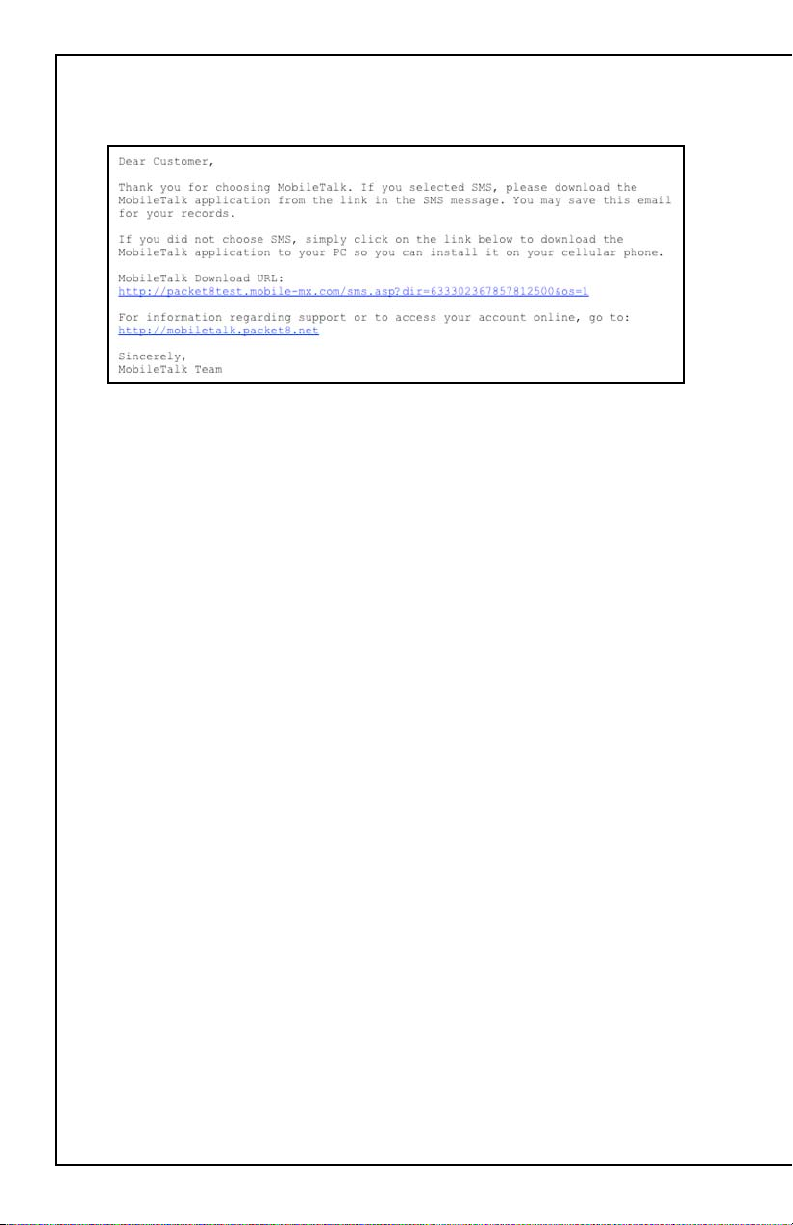
Installation Instruction’s via email
In addition to the SMS sent to your handset an email is sent to your designated
email address as well. The email below is an example of what is sent to the user:
Steps to installing the application from an email:
Open the email1.
Save the attached file on your computer desktop. File extension depends on 2.
OS (see below)
Right click on the saved file and choose appropriate method of synchroniza-3.
tion:
Bluetooth:
Bluetooth – choose “send to” Bluetooth device »
In the Bluetooth file transfer wizard find your mobile device (make sure your »
Bluetooth radio power and handset is turned on) and click Next.
Approve the authentication between the handset and your computer »
You will receive a text message on your Mobile »
Open the message (your application is already downloaded) »
Follow same installation instructions as with SMS »
Cable:
Attach the USB cable from your computer to your handset »
Use your own synchronization tool (installed on your computer – for example: »
Microsoft Active Sync)
Save the email file through your Sync Tool onto your desktop »
Packet8 2018 Antwerpen, Belgium Tel + 323 201 96 40 Fax + 323 227 09 81 11 »
Upload the file from your computer desktop to your handset »
Note: File extensions for different OS handsets:
.cab – Microsoft (Windows) OS »
.sis – Symbian OS »
.prc – Palm OS »
.alx – RIM (BlackBerry) »
General Technical Support
Shutting down the system: at any stage in the process, MobileTalk can be shut »
down so it is not automatically activated. In order to do so, go to the “Settings”
menu and select the “Off” option in the desired fields. When there is a possibil-
| 6
Page 7

ity of a system malfunction, it is recommended that the handset be turned off
and restarted. Another option is to call the international call provider’s custom-
er service number (a local number from any country) by choosing the “Help”
option (Call Support) from the system’s main menu.
If the application download fails: »
Call the mobile operator’s support service and confirm that your handset a.
supports Internet access and that the Internet access point is intact.
Call the international call provider’s support number and request that the b.
application be emailed to you. The application can be installed on the
handset directly from your computer, using a data cable or via Infrared/
Bluetooth technology.
How do I know my calls are redirected through Packet8’s MobileTalk »
application?
On Windows and Symbian phones there is special popup screen with a a.
progress bar to allow the user to know he is calling through Packet8’s
MobileTalk application.
In Palm and RIM (BlackBerry) the user will have to look at the handset b.
when the call is being placed and should see “Packet8” as the contact he
is calling.
Technical Support – Symbian OS SmartPhones
The application download failed: The phone must be pre-configured to appli- »
cations installation.
Go to: menu > Tools > Manager > Options > Settings > Software installation.1.
There are 4 options. Choose option “On”.2.
Exit the menu appropriately (do not press “End”), using “Back” and “OK” options.3.
Go to Internet Messages, and click the link. The application should now be 4.
properly installed.
The application was incorrectly installed – turn the SmartPhone off and then »
turn it on again. Go back to the Internet message inbox and re-activate the link.
The application should now be appropriately installed.
Technical Support – RIM OS SmartPhones
The application was correctly installed but failed on the BlackBerry – turn the »
SmartPhone off and then turn it on again. If your BlackBerry is connected to
the Enterprise Server follow the steps below:
Go to BlackBerry Handheld Configuration Tool »
Go to Software Configuration »
Choose “Add New Configuration” »
Click on “Policies” »
Click on “New” (Policy) »
Change “Event Injection” to “Allowed” »
Set the new policy to the default “Application Software” policy »
Assign the handheld’s software configuration to the newly created »
configuration
7 |
Page 8

Supported Phones
Windows Including: Windows Mobile 2003 Pocket PC Edition Windows Mobile for
Pocket PC V.5 Windows Mobile for SmartPhones V.5
Windows
Audiovox/ Sprint/ UTStarcom
PPC 5050, PPC 6600, PPC 6601, XV6600,PPC 6700.
Cingular
8100, 8125, 8500, 8525,2100, 2125, 3125.
Dopod
686, 696/i, 699, 700, 818, 828,838, 900, 818 Pro, 557w, 577w, 585, 586/w, 595, S300
HTC
Alpine, Blue Angel, Charmer, Falcon, Harrier, Himalyay, Magician, Refresh, Space
Needle, Wallaby. Apache, Artemis, Athena, Cruiser, Excalibur, Galaxy, Hermes, Libra,
Muse, P3300, P3600, Prodigy, Prophet, S620, Trinity, TyTn, Universal, Wizard. Beetles,
Blizzard, Breeze, Faraday, Hertz, Meteor, Noble, Oxygen, S310, Start Trek, Tempo,
Tornad
I-Mate
Jam, New Jam, PDA2, PDA2K, PDA2K EvDo, Phone Edition, Pocket PC. JAMin, Jaq,
JasJam, JasJar, K-Jam, PDA-N, Smartflip, SP5, SP5m, SP6, SPJAS, SPL.
Motorola
Q
O2
XDA, XDA II, XDA II Mini, XDA IIs, XDA III, XDA Iii, XDA Atom, XDA Atom Exec, XDA
Exec, XDA Mini Pro, XDA Mini S, XDA Neo, XDA Orbit, XDA Trion, XDA Cosmo, XDA
IQ, XDA Orion, XDA Phone.
Orange
SPV M500, SPV M2000, SPV M2500, SPV M1000, SPV M600, SPV M3100, SPV M5000,
SPV M3000, SPV C100, SPV C600, SPV C700, SPV F600.
| 8
Page 9

Qtek
1010, 2020/i, 9090, S100, S110, 9000, 9100, 9600, G100, S200, S300, 8300, 8310, 850,
8600.
BenQ-Siemens
P50, SX56, SX66.
T-Mobile
MDA Compact, MDA Compact II, MDA I, MDA II, MDA III, MDA, MDA Compact III,
MDA IV, MDA Pro, MDA Dash, SDA, SDA IV, V1240.
Telefonica
TSM 400, TSM 500.
Treo
700w, 700wx.
Verizon
XV 6600, XV6700.
Vodafone
VPA, VPA Compact, VPA III, V1640, VPA Compact II, VPA Compact III, VPA Compact S.
Samsung
Blackjack SGH-i607, i320, i600, SCH-i730.
HP IPAQ
6310, 6315, 6320, 6325, 6510, 6515, 6910, 6915, 6815, 6818, 6828.
Eten
P300, P300B, P700, M500, M550, M600/+, M700, G500/+, X500, X800.
Palm
Treo
600, 650, 700P, 700W.
9 |
Page 10

Symbian
Nokia
3230, 6260, 6600, 6620, 6670, 7610,6630, 6680, 6681, 6682, N70, N90, 3250, E71, N72,
E50, E61, E61i, E62, E65, E70, N71, N73, N75, N76, N80, N91, N92, N93, N95.
Sony Ericsson
P800, P900, P910.
RIM
BlackBerry OS 4.0 and above
5810, 6710, 6720, 7230, 7250, 7280, 7290, 7520, 7730, 7750, 7780, 7100g/i/r/t/v/x,
7105t, 7130c/e/g, 8100 pearl, 8700c/e/f/g/r/v, 8707v, 8703e, 8800.
| 10
Page 11

FAQ
How does Packet8 MobileTalk Software work? 1.
This service is actually a virtual calling card software that’s installed on the »
handset’s operating system. The software contains the details of your international calling card, all Packet8’s country access codes, and rules of action
which instruct the application which calls to redirect through the calling
cards, and which calls will be dialed directly through the mobile operator.
This application is automatically and seamlessly operated and is able to
select the lowest rates for each call, be it via calling card or direct calling. All
the subscriber has to do is dial the desired number as he usually does on
his mobile phone (keying in the number, or using the handset’s call log or
contact list). The application will automatically be activated and route the
call via the calling card if a lower rate call has been recognized.
How does MobileTalk recognize which calls to redirect via the calling card, 2.
and how does it redirect them?
MobileTalk recognizes the country from which the call is made, and the »
call’s destination country. Pending the rules defined for the application, if
it recognizes that the call can be made with a lower rate (using the calling
card), it will redirect the call to be executed to Packet8’s local access number. The application will automatically key in the calling card’s details, and
immediately thereafter the destination number dialed by the user.
Why should I use Packet8 service? 3.
The main advantage of this service is dramatically lower rates for interna- »
tional calls. Rather than paying the operator’s extremely high international
rates, subscribers to this service pay calling-card low rates.
This service is seamless and requires absolutely no additional effort from »
the subscriber (such as 40-digit long access codes, pin codes, etc.).
This application performs automatic dialing at optimal rates. »
The subscriber is not required to remember or write down international or »
access codes.
The subscriber is not required to remember, write down or key in calling »
card or pin code numbers, access codes or destination numbers. He uses
his handset as he usually does in his home country.
The application recognizes and uses the most cost effective local mobile »
network in every country.
MobileTalk is installed with a one-time, simple and error-free manner, via a »
WAP link received in a text message.
11 |
Page 12

How do I install MobileTalk if I failed to download it directly to 4.
the handset?
MobileTalk can be installed by receiving it as an email attachment. When »
calling the provider’s service, ask the rep to mail the file to your computer.
Save it and connect your mobile to the computer via Infrared or Bluetooth,
and send the file to your handset. You will receive the WAP link, and than
install as instructed.
| 12
Page 13

13 |
Page 14

Internet Phone Service
WARNING
Toll fraud is committed when individuals unlawfully gain access to a customers telecommunication system. This is a criminal offense. Currently, we do not know of any
telecommunications system that is immune to this type of criminal activity. 8x8 Inc.
will not accept liability for any damages, including long distance charges, which result
from unauthorized and/or unlawful use. Although 8x8 Inc. has designed security features into its products and services, it is your sole responsibility to use the security features and to establish security practices within your organization, including training,
security awareness, and call auditing to eliminate security risks.
NOTICE
While every effort has been made to ensure accuracy, 8x8, Inc.will not be liable for
technical or editorial errors or omissions contained within the documentation.The
information contained in this documentation is subject to change without notice. This
documentation may be used only in accordance with the terms of the 8x8, Inc. License
Agreement.
Packet8
Contact Information
• Web Page: http://www.packet8.net
Support:
• http://www.packet8.net/support
• Customer Service, toll free: 1.888.898.8733
• Customer Service, outside of the U.S.: 1.408.687.4120
Packet8, the Packet8 logo, the 8x8, Inc. logo and MobileTalk logo are registered trademarks of 8x8, Inc.
8x8, Inc. is a Nasdaq listed company, symbol EGHT.
© 2007. 8x8, Inc. All rights reserved.
Santa Clara, CA U.S.A. 95054
3151 Jay Street.
Tel: 408.727.1885
Fax: 408.980.0432
www.packet8.net
 Loading...