

Page 1
WayPoint Pocket Real Estate Edition
Supplementary Users Manual
Page 2

Table of Contents
Introduction . . . . . . . . . . . . . . . . . . . . . . . . . . . . . . . . . . . . 3
Pocket Real Estate Overview. . . . . . . . . . . . . . . . . . . . . . . 4
First Time Start of Pocket Real Estate . . . . . . . . . . . . . 4
Normal Start Pocket Real Estate. . . . . . . . . . . . . . . . . . 5
Pocket Real Estate Users Guide changes. . . . . . . . . . . . . . 9
Installation Changes . . . . . . . . . . . . . . . . . . . . . . . . . . . 9
Working with WayPoint navigation . . . . . . . . . . . . . . . 9
Maps . . . . . . . . . . . . . . . . . . . . . . . . . . . . . . . . . . . . . . 10
You can find additional product and support information for your
WayPoint at the following website:
or contact:
Mobile Crossing
1230 Oakmead Parkway, Suite 304
Sunnyvale, CA 94085
(408) 738-8816
(800) 605-8198
Fax (408) 738-8806
http://www.mobilecrossing.com
email: [email protected]
© 2005 Mobile Crossing in partnership with Pocket Real Estate. -
All rights reserved
April 2005
2
Page 3

Introduction
WayPoint Pocket Real Estate Edition is special version of the
WayPoint PDA that includes a copy of Pocket Real Estate built in.
This version has specific support for the WayPoint navigation
software and takes advantage of this integrated environment.
Having the program built in offers several distinct advantages:
• It is already installed and can be run easily.
• If the unit were to be totally reset the program will still be
present. This provides peace of mind for the user.
• The user can try out and learn the functions of the program on
a Pocket PC without having to go through an installation on the
PC.
This program is supplied by Pocket Real Estate in a partnership
with Mobile Crossing. This manual supplements the Real Estate
Users Guide that is supplied by Pocket Real Estate. Please read
that manual for Licensing restrictions and information on how to
use the Pocket Real Estate program.
3
Page 4
Pocket Real Estate Overview
The intent of the Pocket Real Estate program is to provide
reference material and help with financial calc ula tio ns for a Re al
Estate professional. It can readily provide information from MLS
data on homes and other real estate and it can p rovide tools for the
agent to use in managing their accoun ts or wh ile wo rking with th eir
customers.
First Time Start of Pocket Real Estate
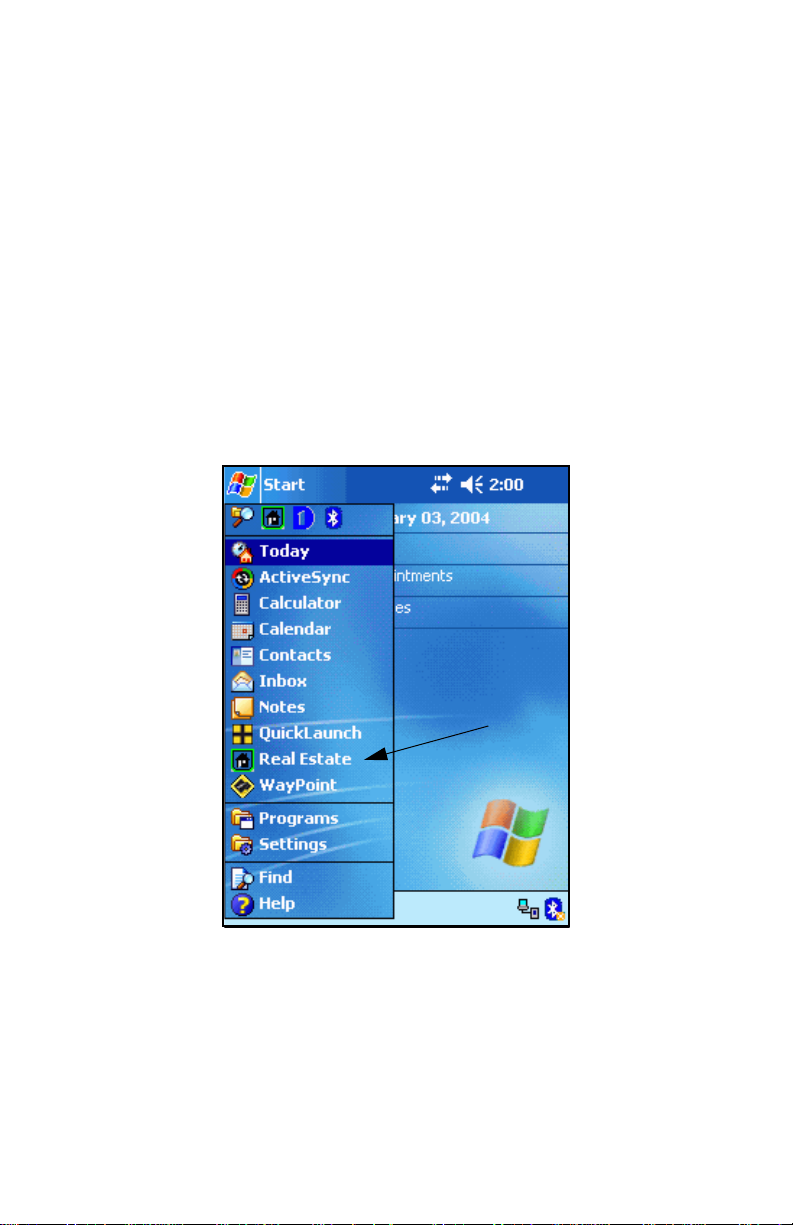
To start Pocket Real Estate the first time follow these steps:
1. From the Today screen Tap Start > Real Estate
Figure 1 Start Menu
4
Page 5
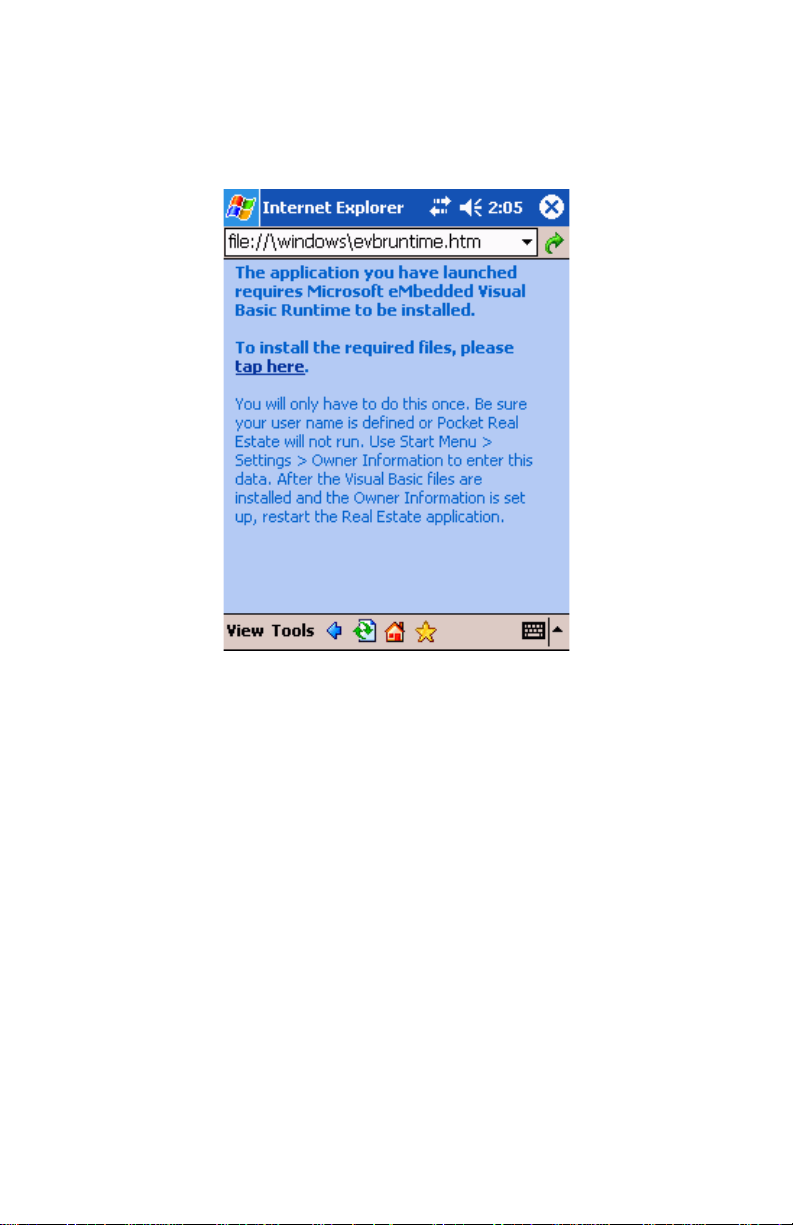
2. The first time Pocket Real Estate is run it will bring up a
screen to install Visual Basic Runtime support.
Figure 2
3. Tap the line that says: tap here and wait for the Visual Basic
support to be installed. Tap the X to leave this program.
4. Note the instructions on entering an ow ne r na m e. You mu st
have entered an owner name to successfully use Pocket
Real Estate.
5. Restart Pocket Real Estate from the Start Menu. It will
finalize the setup.
Normal Start Pocket Real Estate.
Pocket Real Estate can be started from the Start Menu by tapping
the Real Estate icon. If this is inconvenient or there is no title bar
you can use QuickLaunch to start or switch to Pocket Real Estate.
5
Page 6
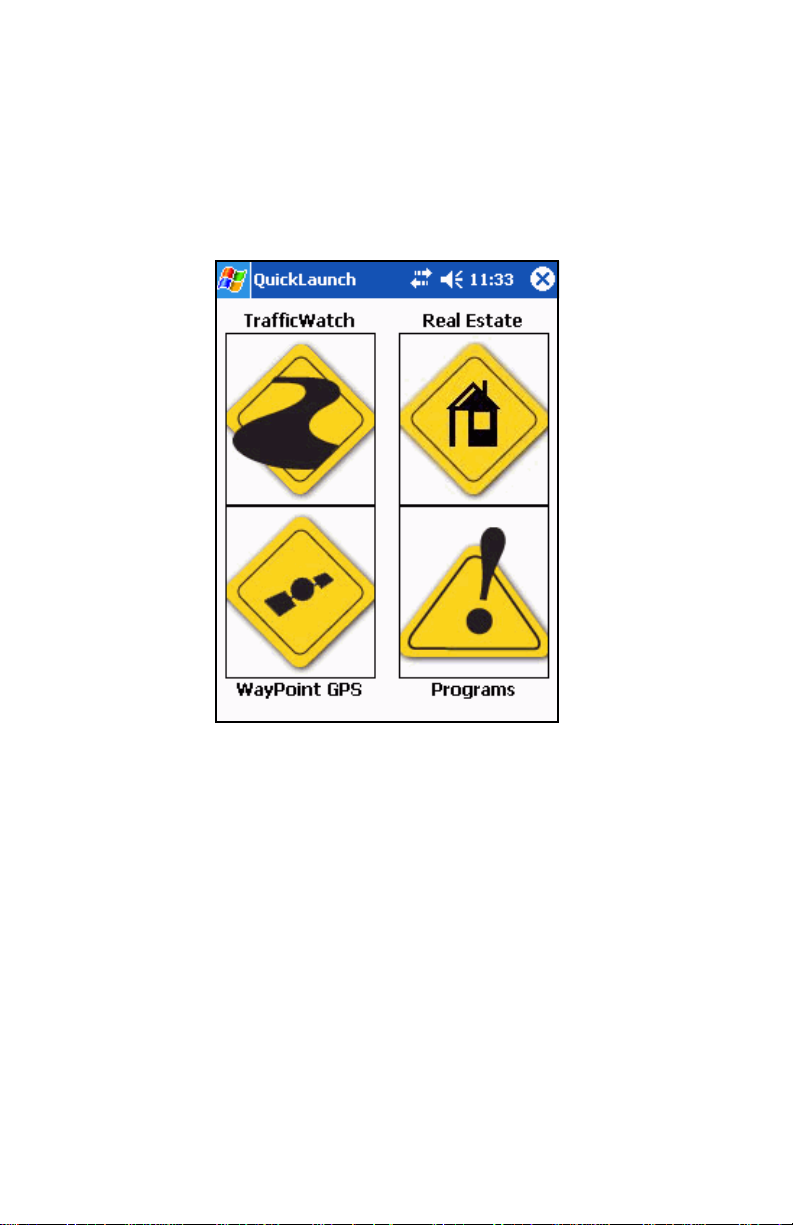
Start QuickLaunch and use the Real Estate icon to start Pocket
Real Estate. QuickLaunch can be started two different ways.
• Tap Start > QuickLaunch. The screen shown in Figure 1
will appear. Tap the Real Estate icon.
Figure 3 QuickLaunch
6
Page 7
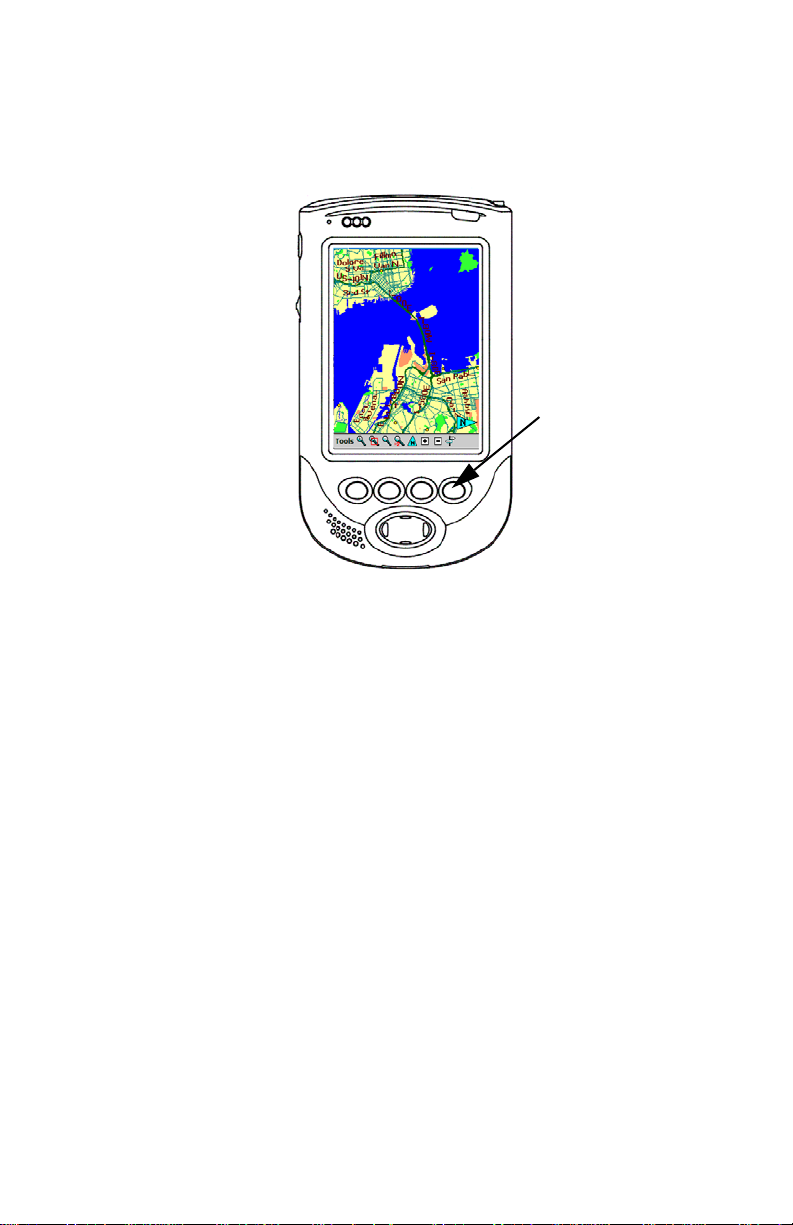
• use the hotkey from the WayPoint navigation software as
shown in Figure 4. Press and hold for about a second.
Figure 4 Starting QuickLaunch from WayPoint
This will also bring up the QuickLauch program and the
Real Estate icon can be selected.
7
Page 8
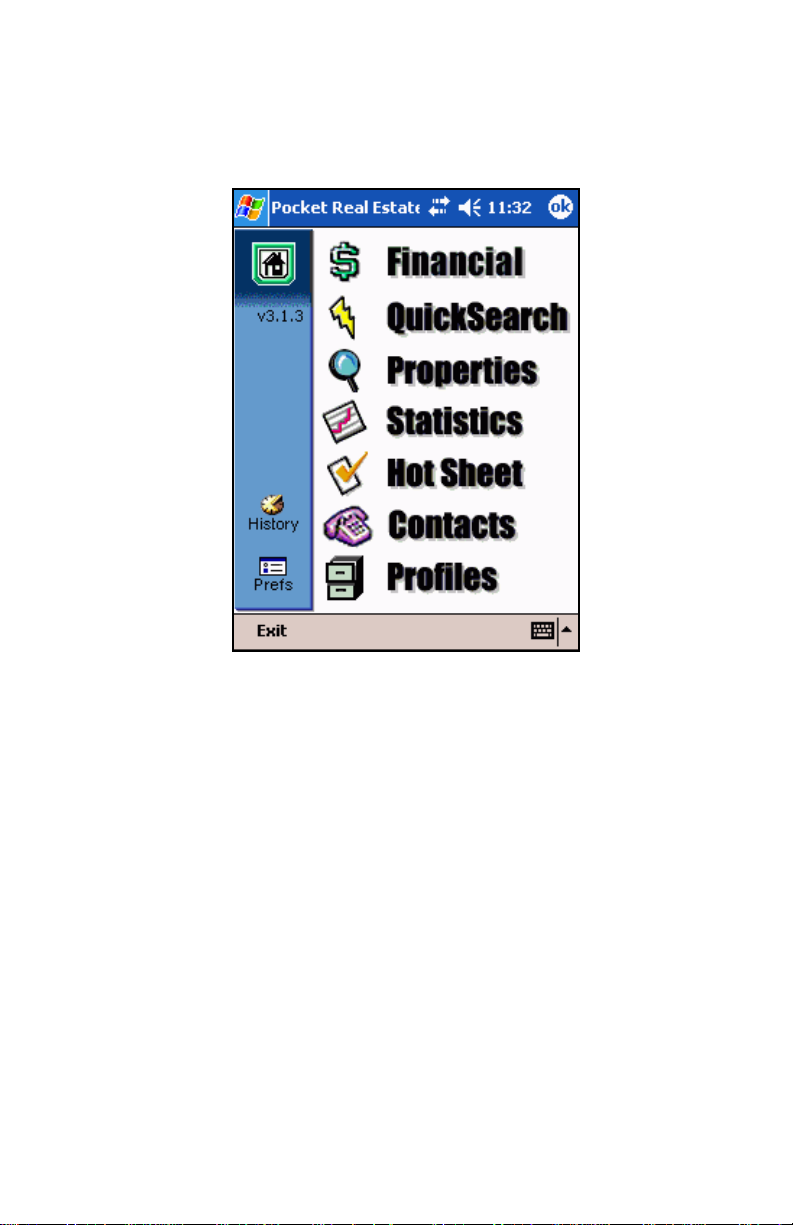
When Pocket Real Estate starts it will initialize the environment and
switch to the main page as shown in Figure 5.
Figure 5 Real Estate Home Screen
For further instructions on using Pocket Real Estate please consult
the Pocket Real Estate Users Guide.
8
Page 9

Pocket Real Estate Users Guide changes
There are only a few differences in the WayPoint version and the
standard version of Pocket Real Estate. Use the Pocket PC
sections of the manual.
Installation Changes
When the installation asks if you want to install the program on the
Pocket PC say ‘no’ since it is already installed.
You cannot uninstall the program so ignore those instructions in
the manual.
If you need to install an update be sure that you have one that is
compatible with the WayPoint unit.
Working with WayPoint navigation
WayPoint use most resembles the Mapopolis instructions for the
Pocket PC in the Pocket Real Estate manual. You will switch to
WayPoint if you choose to view a map from inside of Pocket Real
Estate on the Utilities menu. You can switch back to the Real
Estate program in several ways:
• Tap the WayPoint hardware button to return.
• Tap and hold the WayPoint hardware button to bring up
QuickLaunch and then tap the Real Estate icon.
• If you have title bars enabled you can tap the in the title bar
from the map screen to return to Pocket Real Estate.
• You can use the start menu and select Real Estate.
While inside the WayPoint navigation program you can use the full
features of that program including route generation and navigation.
If you switch back to Pocket Real Estate while navigating the
program will continue to provide turn by turn audio instructions
even though the screen is not being viewed. You can switch to the
screen at any time by pressing the WayPoint hardware button.
9
Page 10

Maps
In order to view a map location you must have suitable maps
loaded on your unit. The MLS listings in the demo include samples
from every state and Puerto Rico. When working with the demo
database be sure and select a location that is within the maps you
have loaded. Once a suitable location is found you can use the
routing capablility to actually plan a route to that location.
10
 Loading...