

Page 1

High Resolution sound with
Stereo Bluetooth headset
Sound Master MFB- BC8100
User Manual
MobiFren is made by dreaming for all the user's happiness.
It delivers premium sound via MSTS™ Tuning Technology together with lossless compression
codec Qualcomm® aptX™ & AAC codec enabling you to enjoy music with premium Hi-Fi
sound in wireless like as CD quality.
Page 2
M
re you placed mobile phone, it helps you to
TM
STS
is a Audio Technology of MobiFren Co.,Ltd.
Qualcomm aptX is a product of Qualcomm Technologies, Inc. and/or its subsidiaries.
Qualcomm is a trademark of Qualcomm Incorporated, registered in the United States and other countries.
aptX is a trademark of Qualcomm
MobiFren MFB-BC8100 Features
Premium Sound
®
MSTS™ Tuning Technology together with lossless compression codec Qualcomm
enables you to listen premium Hi-Fi stereo sound.
With built-in DSP chip, it enables optimal call quality by noise reduction and echo cancellation.
Supporting Android & iOS App.
You can use many kinds of useful functions like as below, if you download MobiFren_SM from the store.
※ App function may be changed due to mobile phone OS update or improving or adding function.
If you press any button of the headset on incoming call, your mobile reads you
Caller ID TTS
the caller's name.
(In case of iPhone, it reads caller ID together with bell sound and you can listen via earphone too)
aptX™ & AAC codec
TTS message (SMS, Line , Whats
app or other SNS)
Find mobile phone
Hot call
If there's new message of SNS or WhatsApp, it reads you the message,
If you can not remember well whe
find out your mobile phone by pressing headset button.
If you register the number in advance that you call frequently, you can call easily
by pressing headset button.
Last Call You can call to the lastest number directly.
Present time notice
Voice Memo
(Available with Android)
Anti Phone loss function
By pressing headset button for 2 times consecutively, it notices you the present time.
It's to record the conversation by operating headset button simply during a call.
When mobile phone and earphone is disconnected, you can hear alarm from the
earphone, not to lose mobile phone.
Multi Point
Supporting Bluetooth 5.0(BDR,EDR)
Voice prompt
Supporting firmware upgrade
※ Features of this product depend on your mobile phone.
Page 3

Contents
Headset & Accessories .......................................................................................... 1
Safety Instruction...................................................................................................... 1
Turn on/off the headset ....................................................................................... 1
Headset charging ..................................................................................................... 2
About your MobiFren MFB-BC8100 ................................................................ 3
Button Guide .............................................................................................................. 4
Getting started with your MobiFren ................................................................ 6
1. Pairing to your mobile phone .................................................................. 6
2. Multi point setting ......................................................................................... 7
3. Call ........................................................................................................................ 7
4. How to use bone conduction earbody type ...................................... 8
5. Factory Reset .................................................................................................... 8
6. Firmware Upgrade.......................................................................................... 8
7. Changing Music Mode ................................................................................. 9
8. Mobile phone Anti-loss ............................................................................... 9
9. Using Android & iOS application ......................................................... 10
10. Couple listening mode(MobiShare) ................................................... 11
What does LED color mean? ............................................................................ 13
FAQ & Troubleshooting ...................................................................................... 14
Handle MobiFren with care ............................................................................... 15
Certification and safety approvals .................................................................. 16
Specifications............................................................................................................ 17
Warranty ..................................................................................................................... 18
Page 4
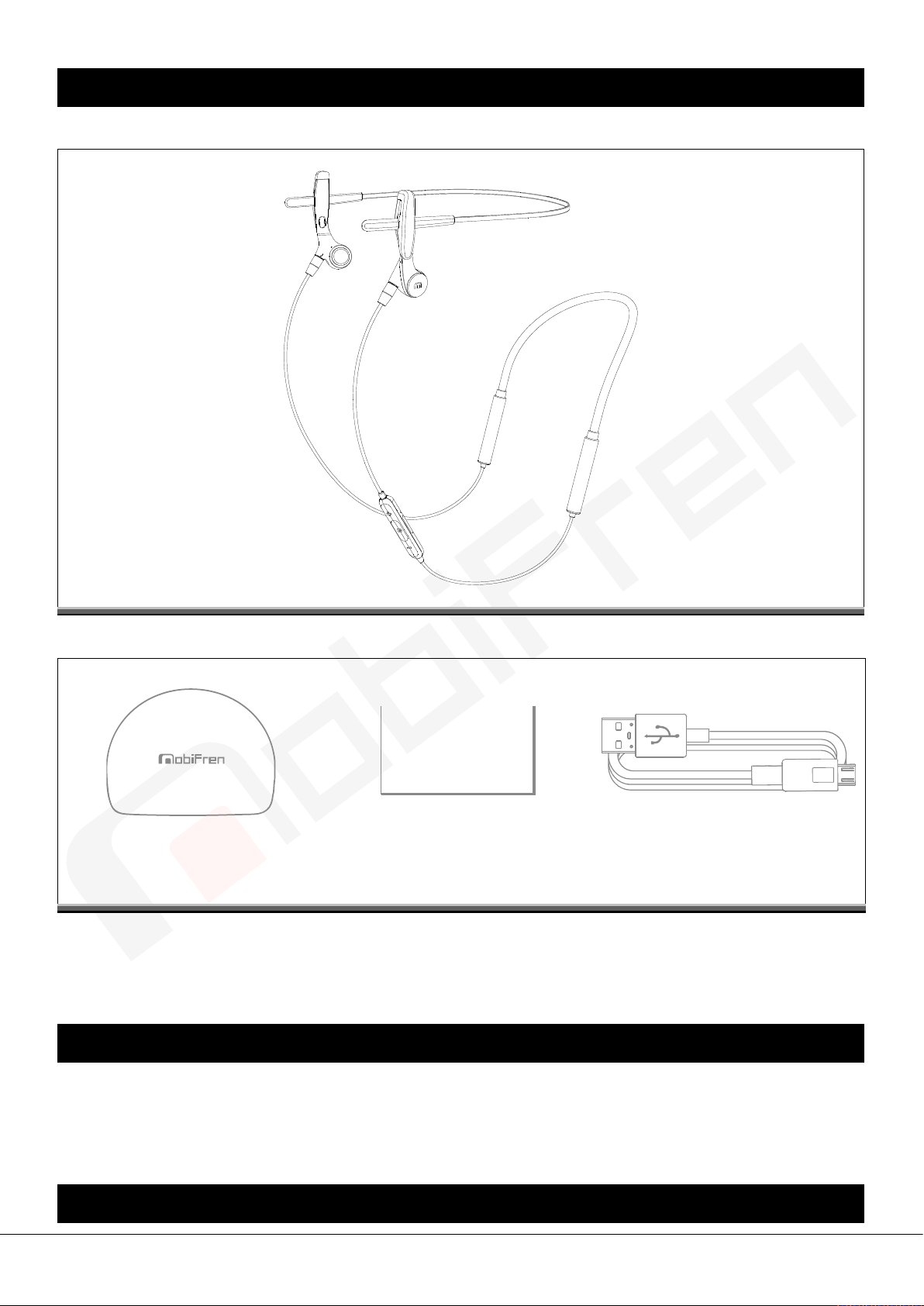
Headset & Accessories
Manual
MFB-BC8100
Case User Manual Charging cable
※ The drawings and examples in manual are for better understanding to this product, so, it may be different
from the real goods. Accessories and design can be changed without prior notice.
Safety Instruction
oad safety at all times.
- R
- Using mobile phone while driving can distract you and increase the possibility of an accident.
- Do not use mobile phones while driving. Always drive safely and follow local laws.
Turn on/off the headset
- 1 -
Page 5
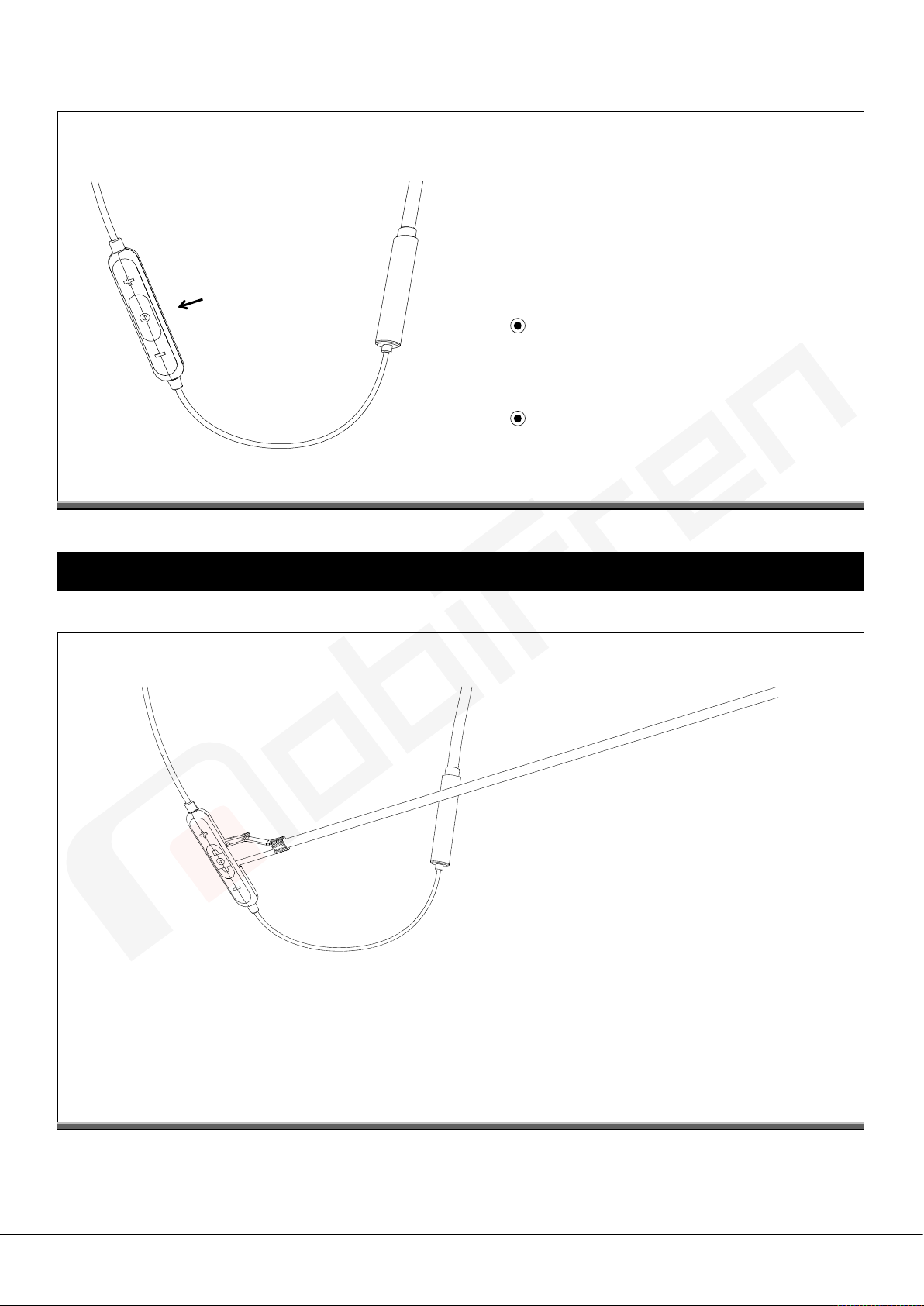
MFB button
< Turn on >
Press for 2 seconds.
It turns on and glitters blue LED.
< Turn off >
Press for 4 seconds.
If you give MFB button long press, the purple LED
glitters and earphone is power off.
Headset charging
※ Make sure that your headset is fully charged before you use it.
- The red LED shows during charging and turns blue LED after fully charged.
- You can use it during charging.
- Charging may not work properly due to low current if you use USB hub.
- It's compatible with Android smart phone charging cable (Mirco 5pin).
- 2 -
Page 6

About your MobiFren MFB-BC8100
Microphone Microphone
(1)
(2) LED Light LED guide light for headset status
(3) Micro USB charging port Charging port
(4) Volume up Volume control, Next song etc.
(5) Multi Function button Turn on/off, Answer/Reject/Convert a call, Play/Pause etc.
(6) Volume down Volume control, Previous song etc.
(7) Fixing Magnet Holding L&R earphone with magnet while not in use.
(8) Ear pad Padded material of ear pad
(9) MMCX Connector Compatible with other earphones brands
(10) Band(Accessory) The bands for people who do not use glasses
(11) Battery Dual batteries for extended working hours
- 3 -
Page 7
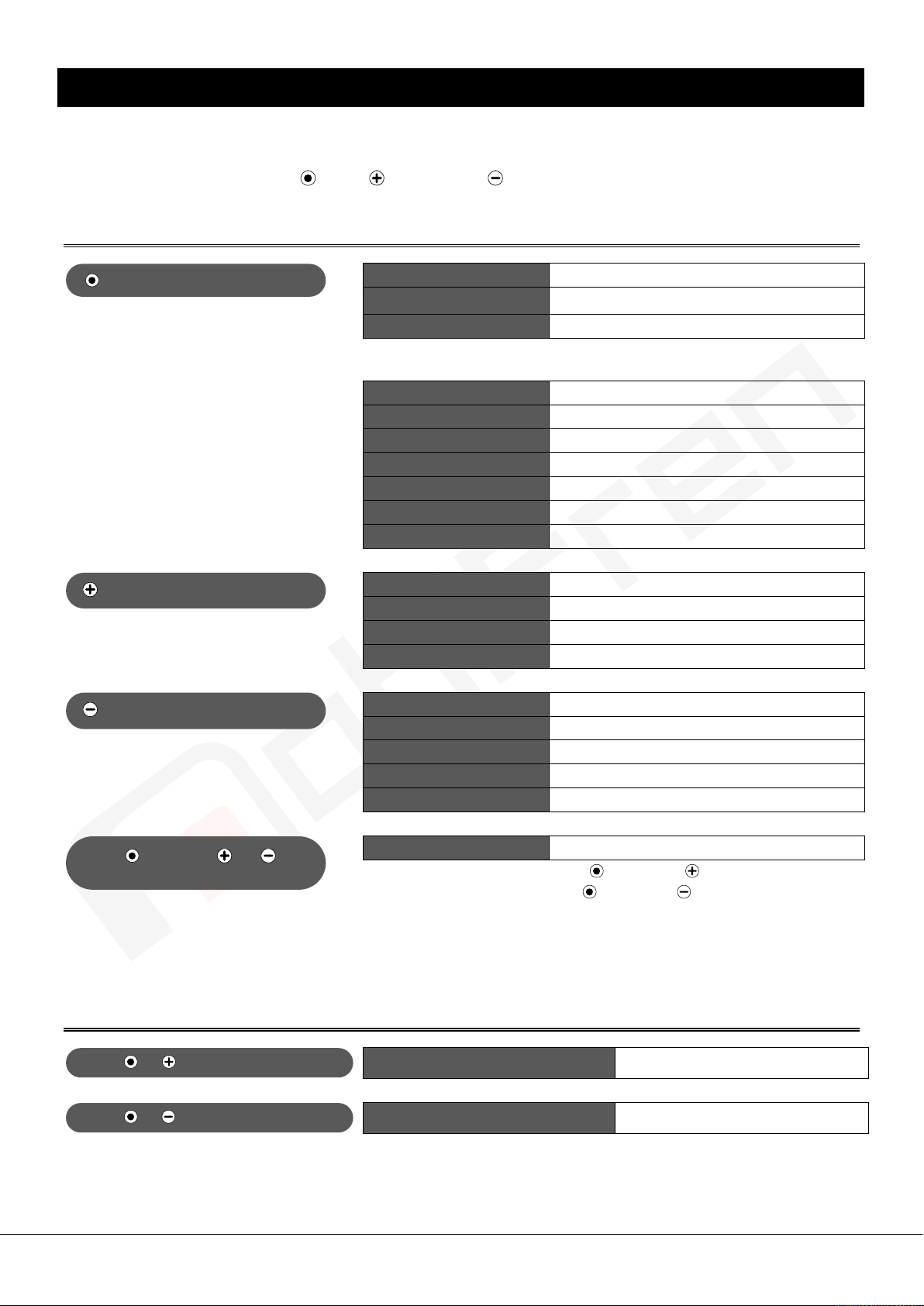
ou can control MFB-BC8100 easily with the following 3 buttons.
Press MFB
Press Vol. down button.
Press + Volume or
Press + at the same time
Press + at the same time
Y
Basic Button Control
Button Guide
MFB Volume up Volume down
Answer a call Short press
End a call Short press
Turn on headset Press for 2 seconds
(If no paired device, it moves to pairing mode automatically.)
(If there's paired device, it connects to the paired device.)
Turn off headset Press for 4 seconds
Pairing mode Press for 4 seconds at power off
End a call Short press (during call)
Reject a call Press for 1 second
Convert a call Press shortly in mobile during call
Play/Pause Short press
Siri (Voice input) Press for 1 second
Press Vol. up button.
button at the same time.
Couple listening mode(MobiShare)
Volume + Short press
Next song Press for 1 second (during play)
Camera remote control Short press
Voice for battery level Press for 1 second
Volume - Short press
Mic mute Press for 1 second (during call)
Previous song Press for 1 second (during play)
Camera remote control Short press
Voice for battery level Press for 1 second
Music Mode Change Press for 1 second (during play)
To move forward direction, press button and button simultaneously.
To go backward direction, press button and button simultaneously.
Entering couple listening mode Press for 1 second
Releasing couple listening mode Press for 1 second
- 4 -
Page 8
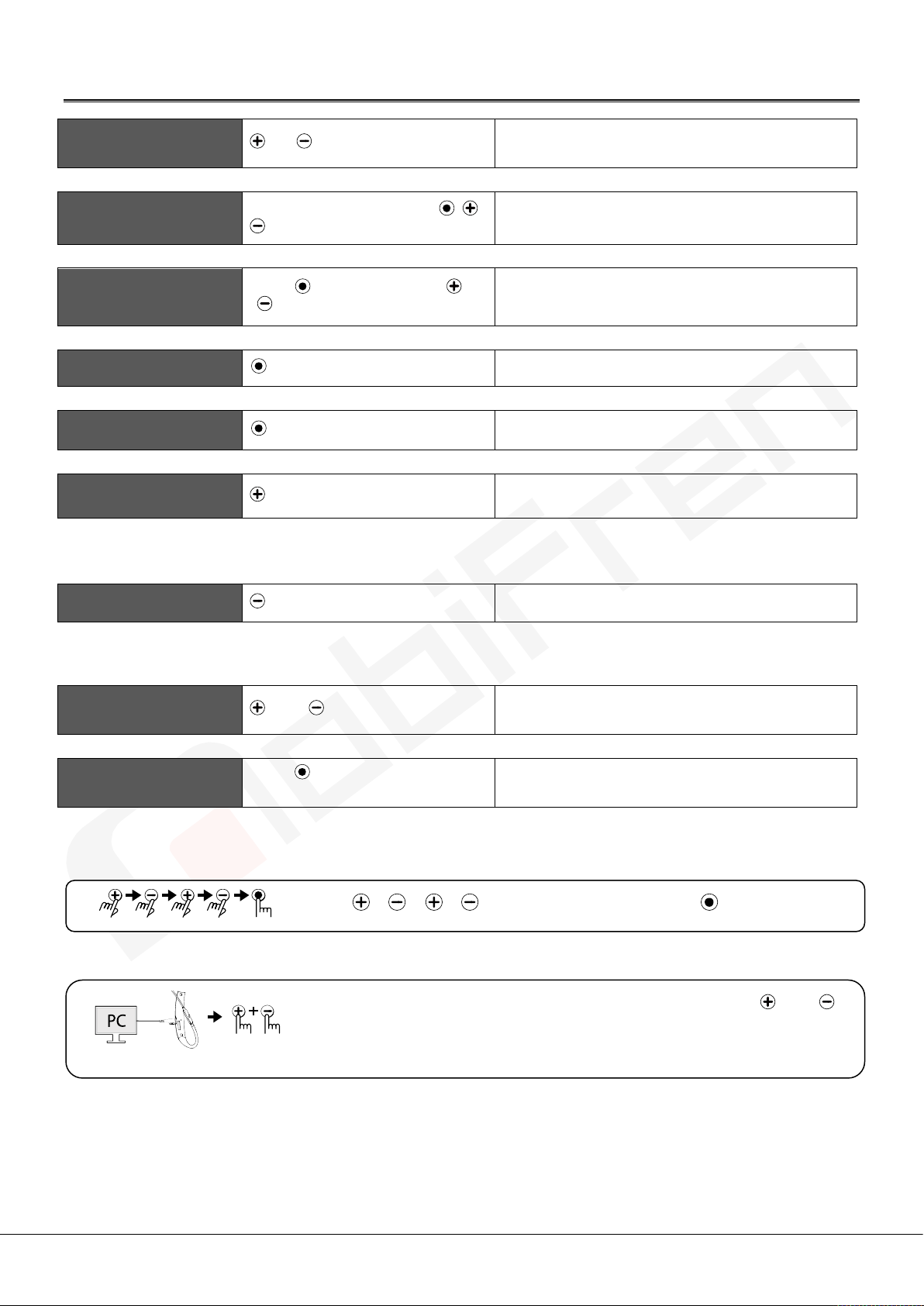
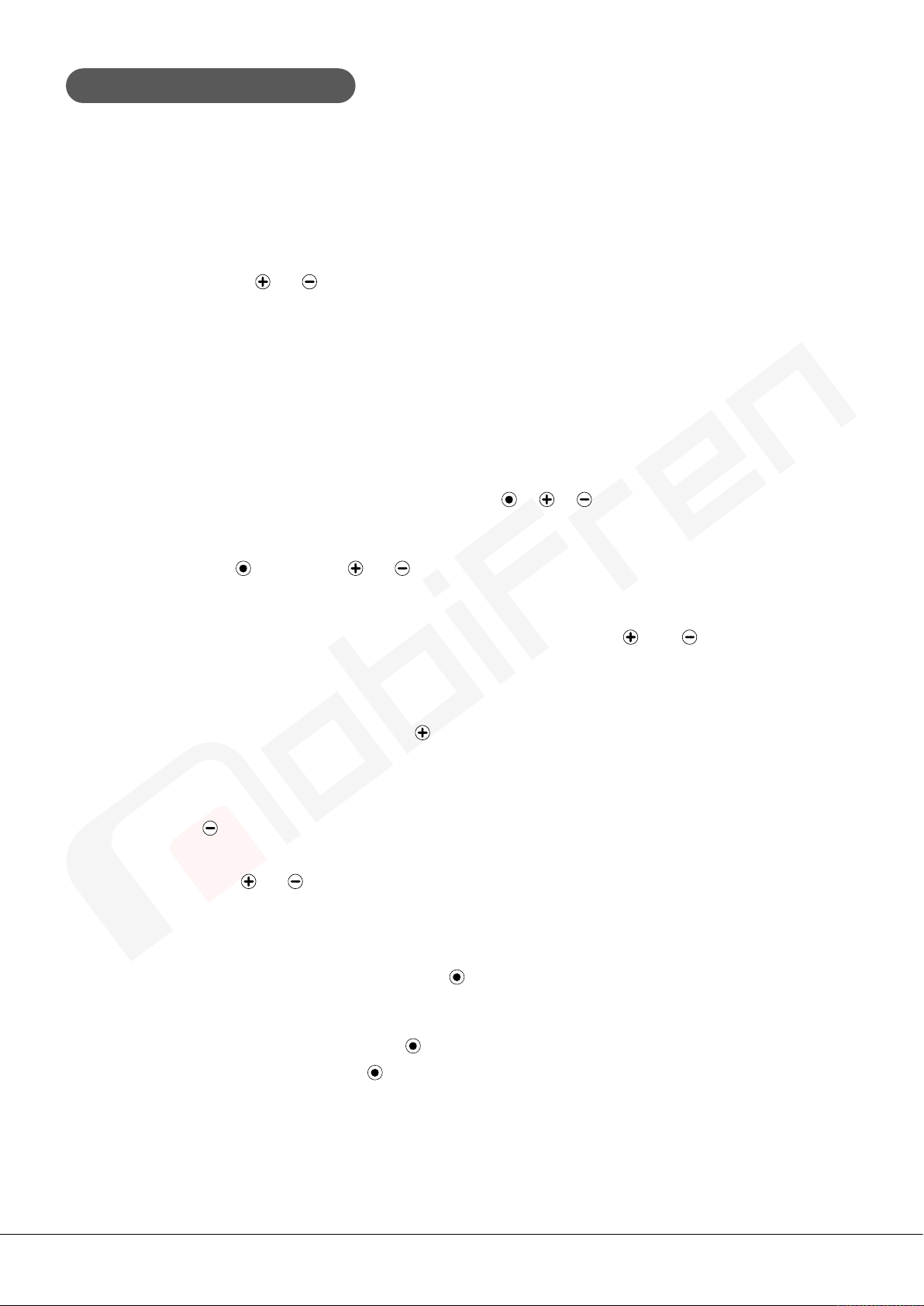
Operating App functions with headset
Available for siri and
TTS caller ID
TTS (Stop during TTS)
TTS (Manual TTS play)
Present time notice
Voice Memo
Hot call (Prompt call)
or Press volume button.
Press any button among / /
buttons
Press (MFB) + Volume or
button at the same time.
Press MFB button
Press MFB button
Press Vol. up button
※ Beep sound and it connects to call for designated contact.
※ In case of iPhone, it needs to press Call button in your mobile.
Press button deeply (while being ringed)
Press any button Short press for 1 time
(during message TTS)
Short press for 1 time
Short press for 2 times
1 seconds and hold pressed and release
Short press for 2 times (at standby)
Last Call (Direct call)
Find mobile phone
voice talk modes
actory Reset
F
Firmware upgrade
Press Vol. down button
※ There are basic mode and exceptional mode for Hot Call/Last Call. If you choose exceptional mode,
it works during playing music. You can set exceptional mode in app.
and at the same time
Press button, and talk mode
is on.
Short press for 2 times (at standby)
Press for 1 second
Press for 1 second
Press ➜ ➜ ➜ buttons in order , then press button
After connecting headset and PC with charging cable, press and
simultaneously for about one second deeply, then red signal lights flicker
and become off.
- 5 -
Page 9

Getting started with your MobiFren
MFB-BC8100 are easy to use for everyone.
1. Pairing to your mobile phone
※
Before you use MobiFren Bluetooth earphone, you need to pair it with your mobile phone or Bluetooth
enabled device.
Step 1 : Entering into pairing mode with Bluetooth headset.
- Press button till LED is continuously on for about 4 seconds at power-off.
(You need to pair within 3 minutes.)
Step 2 : Pairing by mobile phone
➀ Activate Bluetooth function in your mobile phone according to phone manual and search Flex Wave and
select, then, it shows "Pairing".
(Some mobile phone needs Pin code, then, enter "0000")
➁ If pairing is successful, it shows that " Connected to phone and media audio" and blue LED glitters for
5 times. Now, it's ready to use.
※ Pairing will be more easy with MobiFren_SM application
➀ Install "MobiFren_SM" from Google play store / App store.
➁ Press the first menu "Pair (Connect) headset ", then it goes to Bluetooth setting.
➂ Activate Bluetooth and search headset.
➃ Select "Flex Wave" from the searched devices, then it pairs.
※ Connecting app for iPhone
To use convenient app for iPHone, you need to connect "MobiFren_SM" app after connecting headset to
iPhone.
After connecting Flex Wave, there’s “Bluetooth connection” pop-up window after running “MobiFren_SM”
Then, connection is completed if you select “connection by pair”
(If you run app within 1 minute after connection, there’s “Bluetooth connection” pop-up window
automatically. If it passes for 1 minute, please press any button of the headset and run “MobiFren_SM”
Then, there’s pop-up message to connect.)
※ Useful tip (3 ways to go Bluetooth setting)
➀ Menu button, Setting, Bluetooth on wallpaper.
➁ Drag down the screen and press Bluetooth icon for 1 second.
➂ Run MobiFren_SM app. and select the menu " Pair (Connect) headset".
※ Pairing process may be different from mobile phone makers. Please refer to mobile phone's manual.
※ In case of Iphone, 2 devices with model name and model name2 are connected in bluetooth setting
( If model name is Flex Wa ve, 2 devices are named Flex Wave and Flex Wave2).
(Pairing process may be different from mobile phone makers. Please refer to mobile phone's manual.)
- 6 -
Page 10
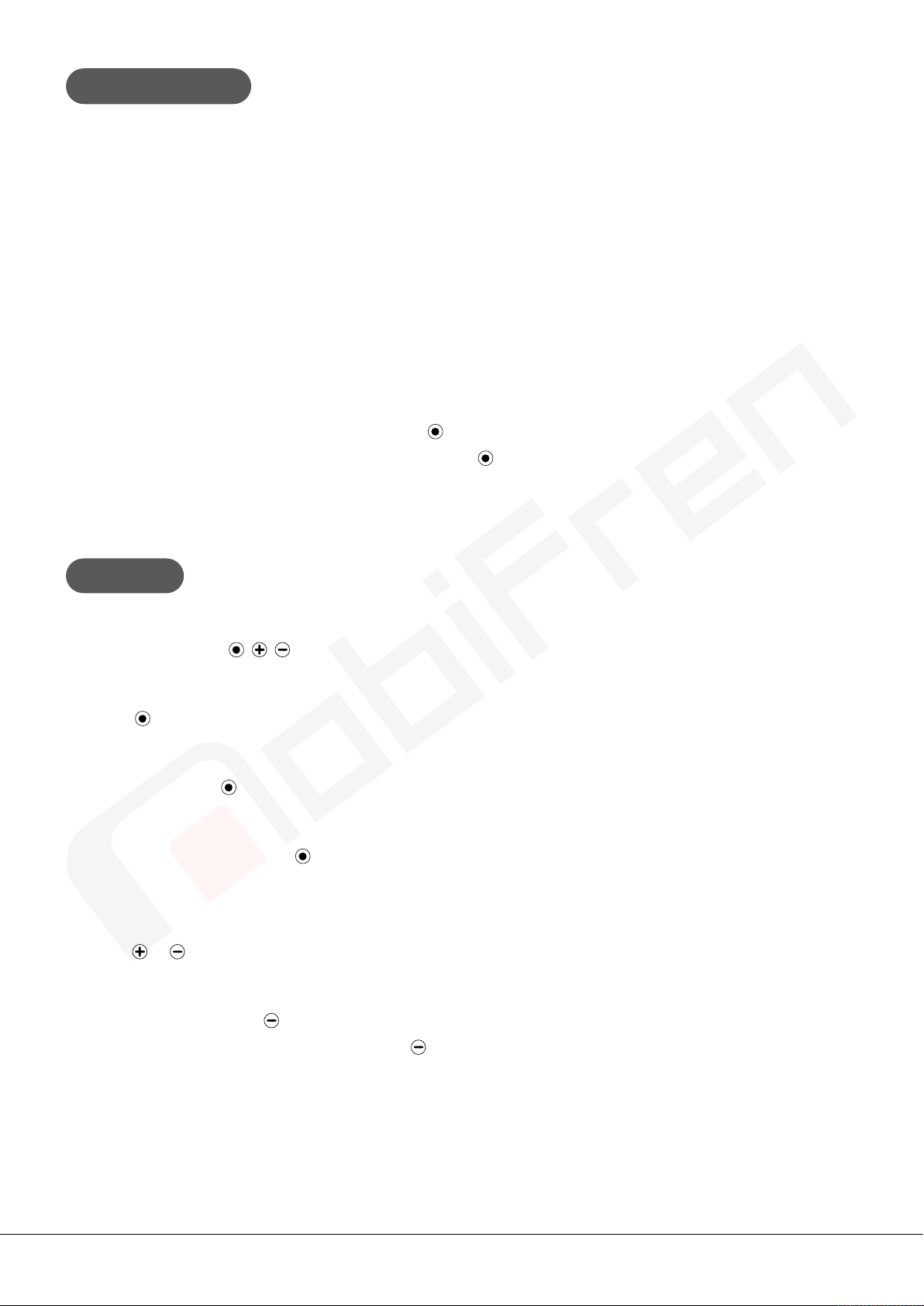
※
2. Multi point setting
3. Call
It's possible to pair up to 2 devices simultaneously.
(App related functions which are not Bluetooth basic functions like as call or listening music shall be
connected with only one device, so, we recommend to connect with one mainly used device.)
1) Setting Multi point
- Please pair MFB-BC8100 to the first device according to the pairing process.
(Refer to pairing process P.6 )
- Turn off MFB- BC8100.
- Please pair MFB- BC8100 to 2nd device according to pairing process.
- Then, turn off MFB- BC8100 and turn on again, it will be connected 2 devices.
2) To use multi point
- At the status of connecting two devices, press to answer a call if there's incoming call.
- At the status of connecting two devices, if you press then, you can listen the music for the device that
was played lately.
1) Answering a call
- Press one of these / / 3 buttons at your convenience to answer a call.
2) Ending a call
- Press button to end a call.
3) Rejecting a call
- During call, press button for about 1 second.
4) Converting a call
- During call by mobile, press button to convert to headset
(To call by mobile again, use your mobile phone menu.)
5) Volume control
- With / button, you can control volume.
6) Microphone Mute
- During call, if you press button for about 1 second, the mic becomes mute.
- During mute, it will be released, if you press button for about 1 second.
- 7 -
Page 11
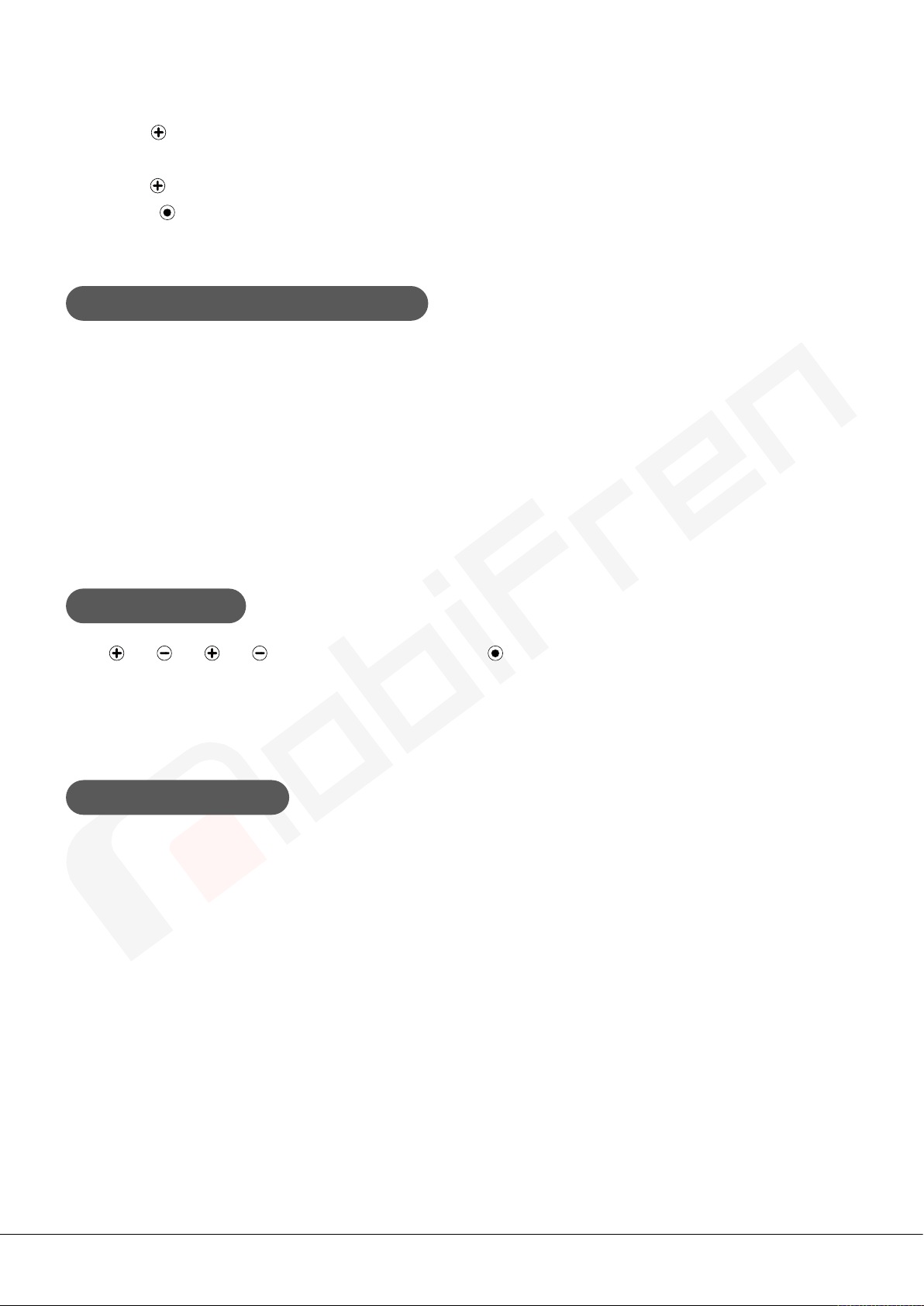
7) Waiting a call and put a call on hold
4. How to use bone conduction earbody type
5. Factory Reset
6. Firmware Upgrade
- This feature allows you to put a call on hold during conversation and answer a waiting call.
- Give the a long press (press approximately 1 second) to put an active call on hold and answer a waiting
call.
- Give the a long press to switch between two calls.
- Just press shortly to end a call.
his model is changable earbody type with MMCX connector.
T
Connected to glasses
Bone conduction is used to connect the MMCX connector part to the main body while inserting the silicone
clip part of the body into the eyeglasses(sunglasses)
Connected to a band(Accessory)
Without Glasses: you can use a bone conduction ear body with a band.
P
ress ➜ ➜ ➜ buttons in order, then press button, and violet signal lights flicker and MFB-
BC8100 is initialized to the factory shipment state.
Please pair the headset again after factory reset.
The USB port can be used for charging and data communication.
1)Consumers can use the USB port only for charging purposes.
2)manufacturers and authorized service centers use part of the DATA communication for firmware
modificationsand so on.
After firmware upgrade, the headset becomes initialization automatically.
※
- 8 -
Page 12
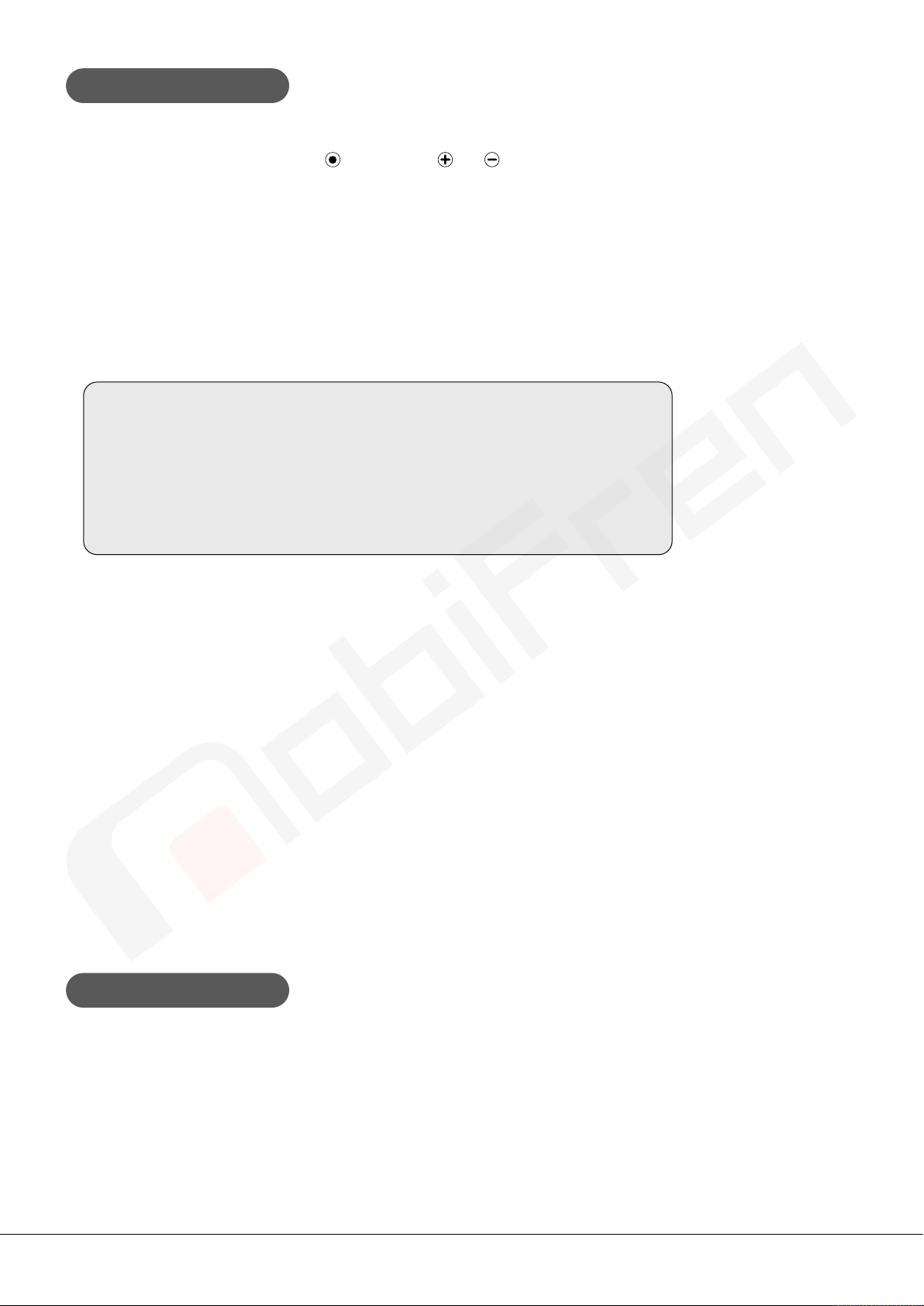
You can use 5 music modes and 1 user mode.
7. Changing Music Mode
User Mode : Sound created by user
8. Mobile phone Anti-loss
While playing music, if you press button and or button at the same time for 1 second, the Music
Mode will be changed in order.
MSTS™ Tuning technology together with lossless compression codec Qualcomm
®
aptX™ HD & AAC codec
enables you to enjoy not only MobiFren sound but similar sound of various kinds of famous high end
earphones and you can select it as your preference. Now you will enjoy the music with the optimum soun
uality like as CD in wireless.
q
Music Mode
Mobifren Mode : MobiFren Sound
Reference Mode : Natural sound using faithfully the original sound
Space Mode : Extraordinary sound creating a wide sense of space
Tender Mode : Sound of tone color whispering softly into ear
Enhance Mode : Sound of tone color even reproducing vividly breath
※
When using bone conduction ear-body, 3 music modes(Mobifren, Space, Tender Mode) are available. And
when you change ear-body, you should set ear-body type at Mobifren_SM application. Otherwise you are
not able to enjoy music mode exactly.
d
Sound Effects
Each music mode can be tuned on/off the Bass Enhancement & 3D Enhancement.
※ There are several kinds of bit rate even though it's the same MP3 file. If the file source is higher bit
rate(320K) for listening, you can feel the real worth for our Bluetooth earphone. And, if the speaker is not
good even with good source, the sound quality will not be good, and if the speaker is good with inferior
source, the sound quality can't touch to the listener. The MobiFren earphone of optimized tuning supplies
you high quality sound, but, we also recommend you to use high resolution source file (320K) to enjoy
touching sound.
hen mobile phone and earphone is disconnected, you can hear alarm from the earphone, not to lose
- W
mobile phone.
- 9 -
Page 13
For more convenient and easy use of the headset, please download "MobiFren_SM" at Google play store or
9. Using Android & iOS application
Apple App store.
(Minimum supporting specification : higher than iPhone 4S / Recommend : higher than iPhone 5)
※ Detailed operation for each function shall be different between Android and iOS app.
TTS caller ID
To answer a call, press or button deeply on the headset, then the caller's name is indicated by the
speaker of the mobile phone.
Message TTS (SMS/ Kakao Talk/ Line / WhatsApp)
After setting Message TTS, in automatic mode, it reads you message after the setting time, and in manual
mode, you can hear message by using headset button. (When you set this function, it goes to mobile
phone's notification accesss menu automatically, then, select MobiFren_SM in notification accesss menu.)
Stop while playing TTS : TTS playing stop.
While reading TTS message, press / / button to stop playing.
Manual mode : It reads you message by pressing headset button.
Press button and or button shortly at the same time at standby.
Find mobile phone
If you can't remember well where you placed your mobile phone, press and buttons at the same
time for about 1 second to find out your mobile phone. Then, the mobile phone will ring.
Hot Call (Prompt call)
Register one frequent call number and press button shortly for 2 times. (In case of iPhone, it needs to
press Call button in your mobile.)
Last call (call to the latest number) (Android only)
Pressing button shortly two times, the latest caller is read(through earphone) while it's optional to select
the expected caller from caller lists by pressing up and down button away from the unexpected callers, and
then pressing button or deeply, the chosen caller can be called back. In driving or not seeing mobile
screen, it's available to call by the latest call lists with headset simply.
Present time notice
You can hear present time via headset if you press button for 2 times consecutively.
Voice Memo (Android only)
It's useful to record voice memo by pressing button for 1 second and releasing during a call.
You can record it by pressing the same button during a call or not.
Anti Mobile Phone loss
When mobile phone and earphone is disconnected, you can hear alarm from the earphone, not to lose
mobile phone.
- 10 -
Page 14
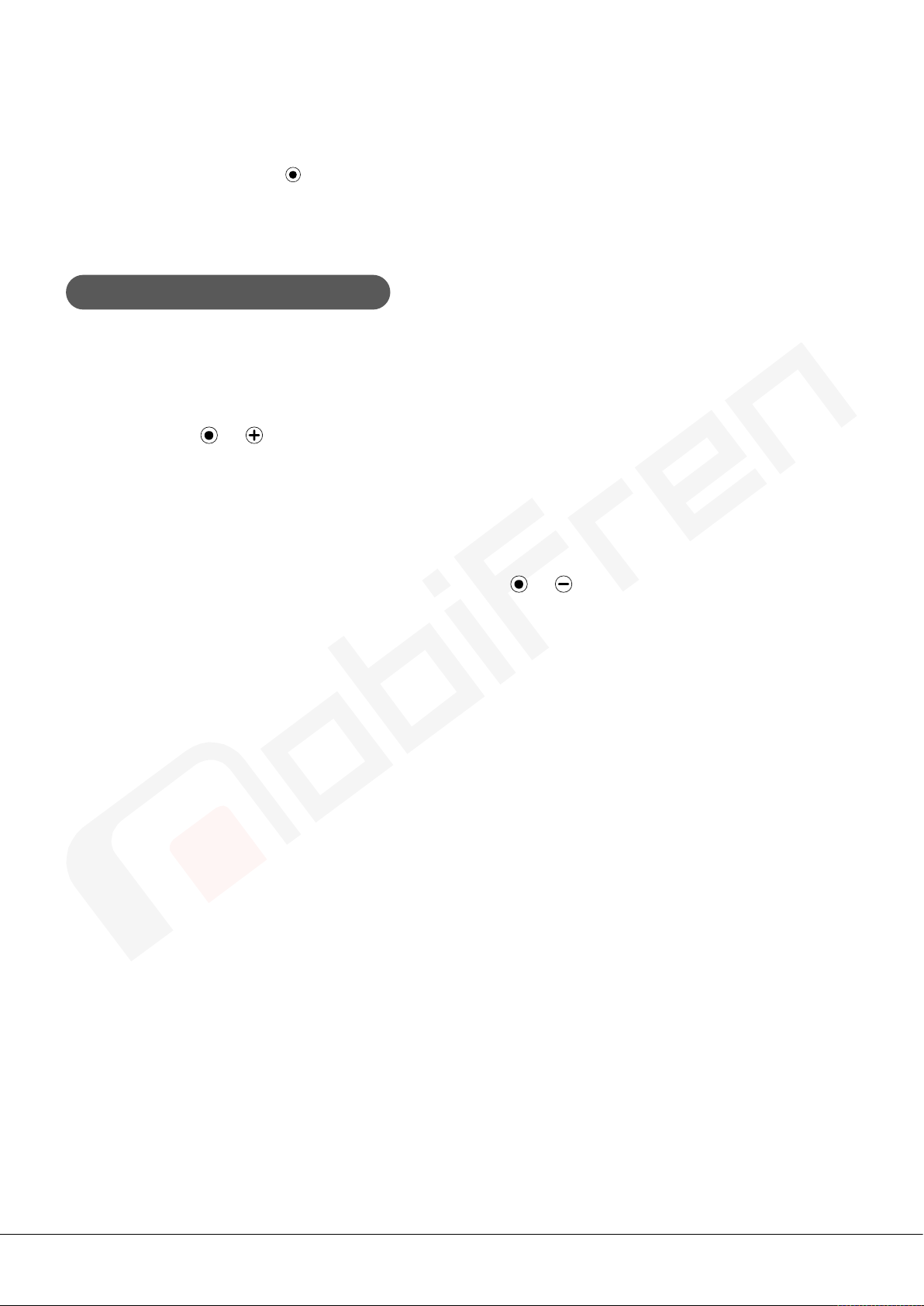
Available for siri and voice talk mode
10. Couple listening mode(MobiShare)
In the ON state of talk mode function, voice input button is called repeatedly and continuously like as if
talking by pressing headset button deeply.
To stop talking, press any buttons.
his function is used when two people want to listen to music on one's mobile phone. If you connect two
T
earphones with MobiShare function in couple listening mode, you can enjoy the same music with your earset.
Entering Couple Listening Mode
Press and hold + simultaneously while both headphones are on.
When a beep sounds and the blue LED and the red LED alternately flash, it enters into a mode to connect
the two products. Wait for a while, "tortoise" sound and the LED turns off and both products are
connected. After connecting, you can enjoy the same music on both headsets by playing music.
Releasing Couple Listening Mode
To turn off the Couple Listening mode, press and hold the + button.
The connection is released after a beep is heard.
※ If the distance between the connected devices is more than 5m away while operating the couple listening
mode, the phenomenon such as sound discontinuity may occur.
※ If the sound is cut off when using with a specific phone such as iPhone, it occurs because the phone gives
the streaming signal even when the music is stopped. In this case, if you disconnect the Bluetooth connection
from the slave, it will work normally. (When you are connected to Couple Listening Mode, the one that plays
music first becomes the master, and the other mobile becomes the slave.)
- 11 -
Page 15
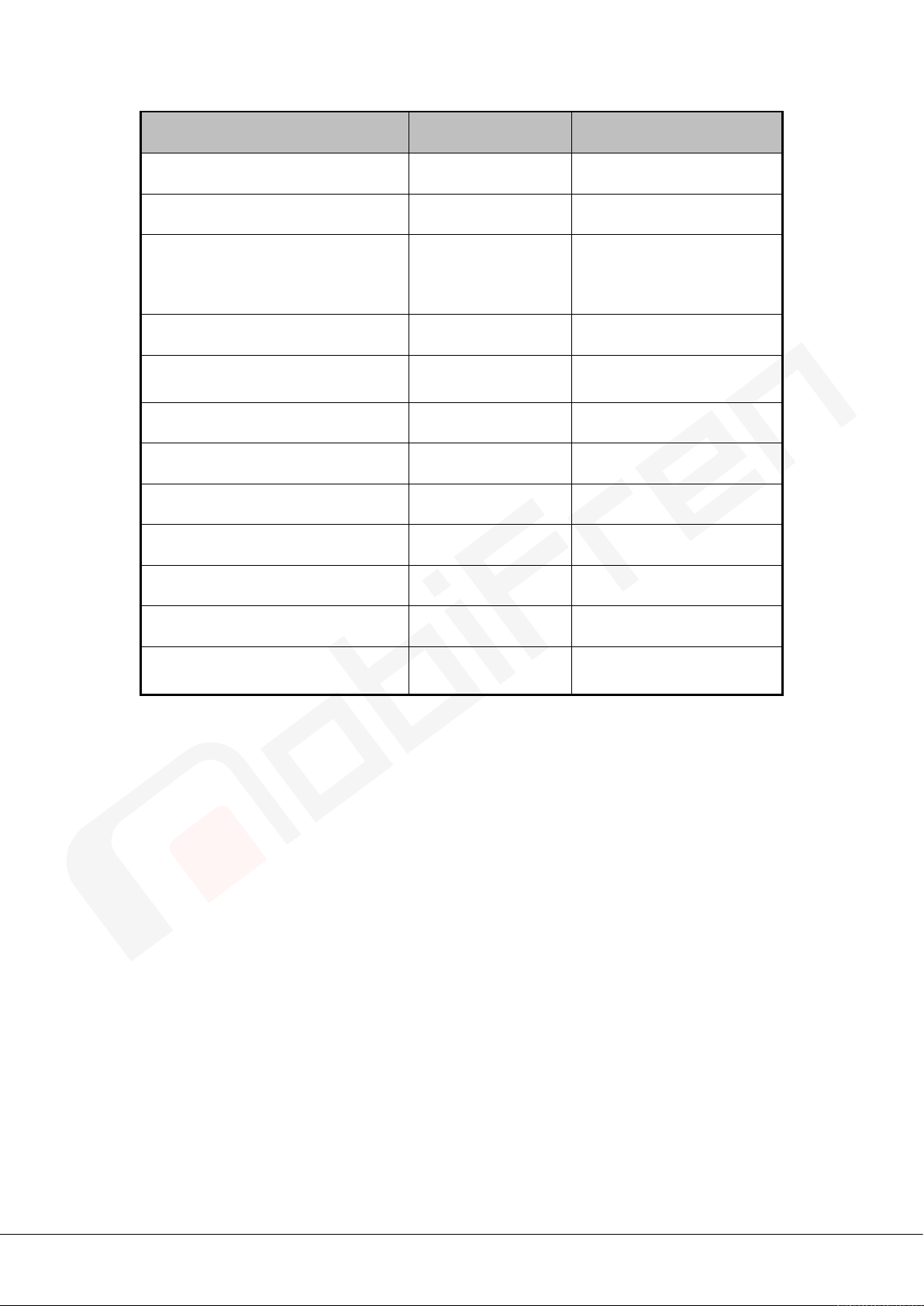
< Available functions for Android or iOS app >
App function Android iOS
Music Mode control ○ ○
Battery gauge ○ ○
○
Message TTS ○
(Ref.) iPhone supporting SNS
shall be different from that of
Android.
Anti Mobile Phone loss ○ ○
Last call
(call to the latest call number)
○ ○
Hot call (Prompt call) ○ ○
Present time notice ○ ○
Find mobile phone ○ ○
Caller ID TTS ○ ○
Voice Memo ○ X
Factory reset ○ ○
Available for siri and voice talk
modes
○ ○
- 12 -
Page 16
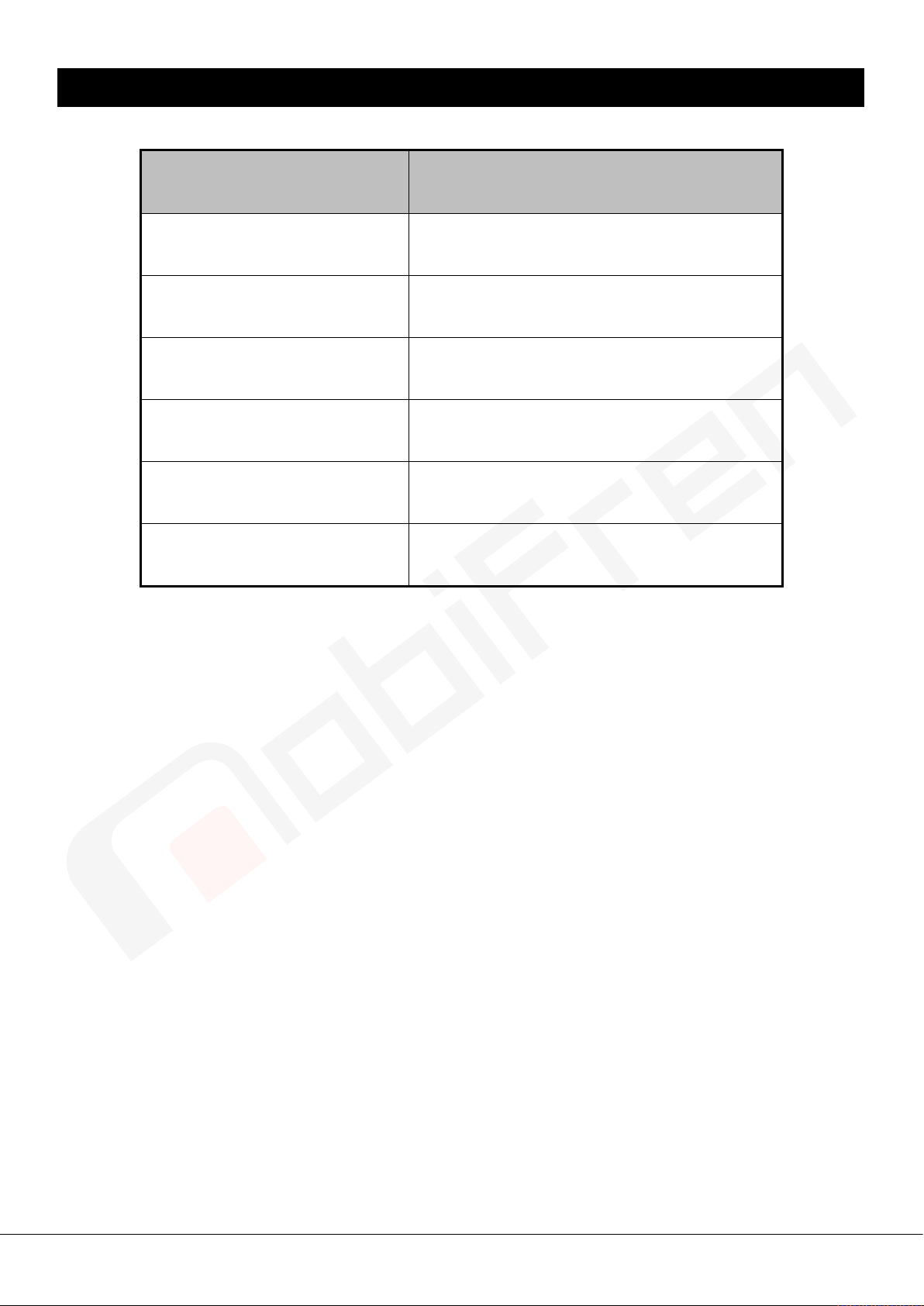
What does LED color mean?
Status LED indication
Standby Purple LED blinks for every 5 seconds
Connection state Blue LED blinks for every 5 seconds
Battery is running low Blinks red light
Charging Red light ON
Fully charged Blue light ON
Pairing mode Blue light ON
- 13 -
Page 17

FAQ & Troubleshooting
I hear crackling noises.
For the best audio quality, always locate your headset close to mobile phone.
I cannot hear anything.
- Increase the volume on the headset.
- Ensure that the headset is paired with the phone.
- Make sure that the phone is connected to the headset.
- If the headset fails to connect either when you pressed MFB or through
your mobile phone’s Bluetooth menu, Please refer to set up “Pairing mode” in Page 8.
I have problems with pairing even though my phone indicates otherwise.
Please delete the headset paired in your mobile and pair the headset again. Please refer to set up “Pairing
mode" in Page 6.
Will the MobiFren MFB-BC8100 work with other Bluetooth equipment?
MFB-BC8100 is designed to connect with Bluetooth mobile phone. You can also connect to a Bluetooth
device that supports the Bluetooth stereo headset handsfree profile.
Is the enclosed charging cable for only specified device?
It’s compatible with all standardized micro usb charger, and in general, compatible with Android mobile
phone charger.
When you use the headset in the car, the handsfree can be affected by the internal noise.
- 14 -
Page 18
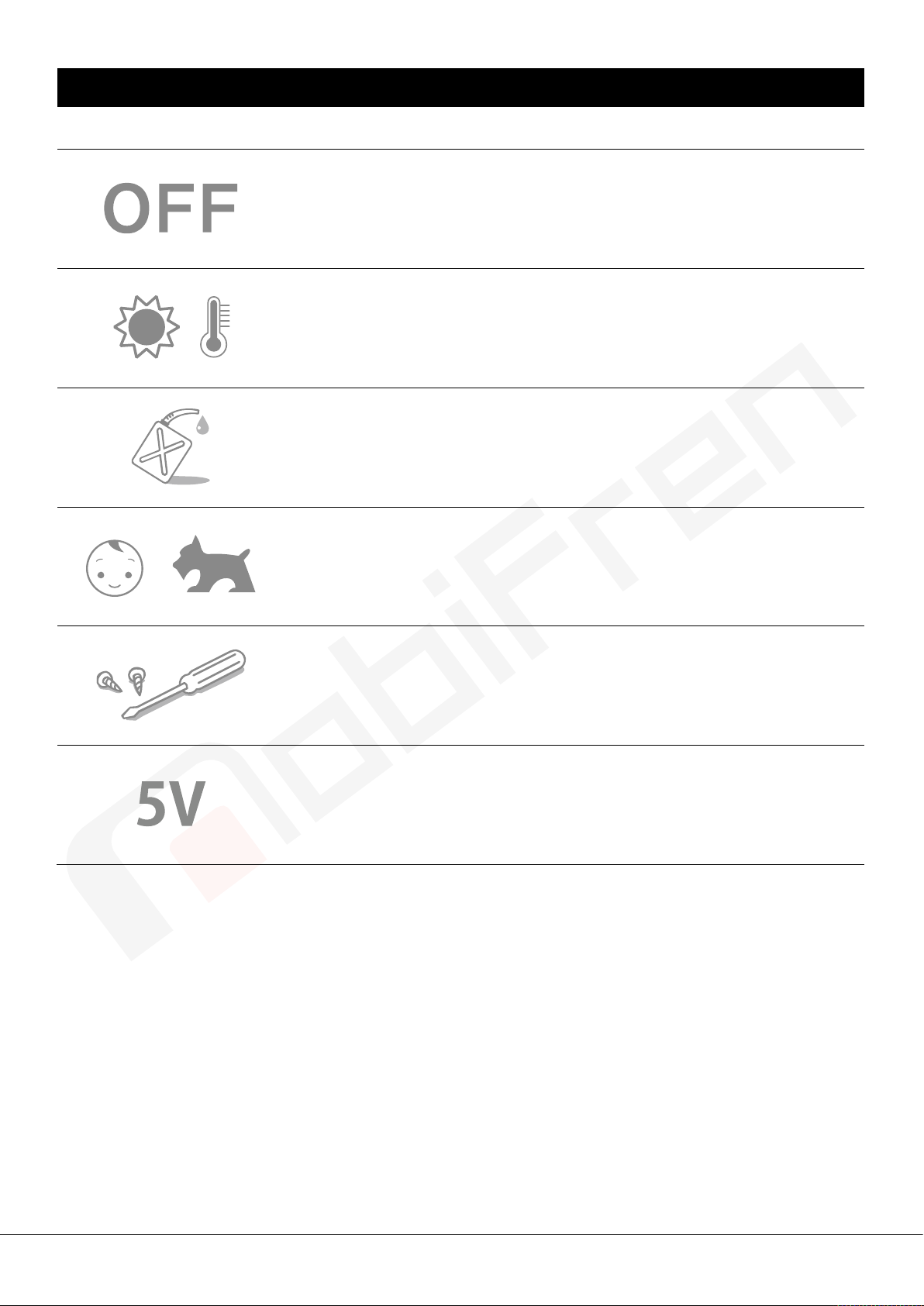
Handle MobiFren with care
Always sto re the MobiFr en MFB-BC8100 with the po wer off and protec t saf ely wh en
it’ s not in use.
Avoid storage at extreme temperature.
(above 60 ℃/ 140℉ -including direct sunlight -or below -20 ℃ / - 4 ℉)
This can affect the MobiFren’s battery life and may be the cause of malfunction.
High temperature may also degrade perform ance.
Do not expose the MobiFren MFB-BC8100 to rain or other liquids
Prevent baby, children or pets to bite or suck this headset.
Please do not disassemble at user’s option.
Please make sure to use certified charger. (Rated Voltage : 5V)
- 15 -
Page 19

Certification and safety approvals
FCC ID : UZCMFB-BC8100
This device complies with part 15 of the FCC Rules. Operation is subject to the following two conditions:
(1) This device may not cause harmful interference, and
(2) this device must accept any interference received, including interference that may cause undesired operation.
This equipment has been tested and found to comply with the limits for a Class B digital device, pursuant to part
15 of the FCC Rules.
These limits are designed to provide reasonable protection against harmful interference in a residential installation.
This equi p m ent g ene r at e s, us es an d c a n r a di at e r ad i o frequency energy and, if not installed and used in ac co r d a nc e
with the instruc tions, may cause harmful inte r ference to radio communications.
However, there is no guarantee that interference will not oc c ur in a p ar ti c u l ar ins t a ll at i on.
If this equipment does cause harmful interference to radio or television reception, which can be determined by
turning t he equipment off and on, the user is encou raged to try to c orrect the interf erence by one or more of the
following measures:
- Reorient or reloc ate the receiving antenna.
- Increase the separation between the equipment and receiver.
- Connect the equipment into a n outlet on a circuit different fro m that to which the receiver is connected.
- Consult the dealer or an experienced radio/TV technician for help.
CAUTION :
This device complies with RF exposure requirement.
Changes or modifications not expressly ap proved by the manufacturer resp onsible for compliance
could void the user’s authority to operate the equipm ent.
Made in Korea
In accordance with the R & TTE Directive 1999 / 5 / EC of 09. March 1999
- 16 -
Page 20
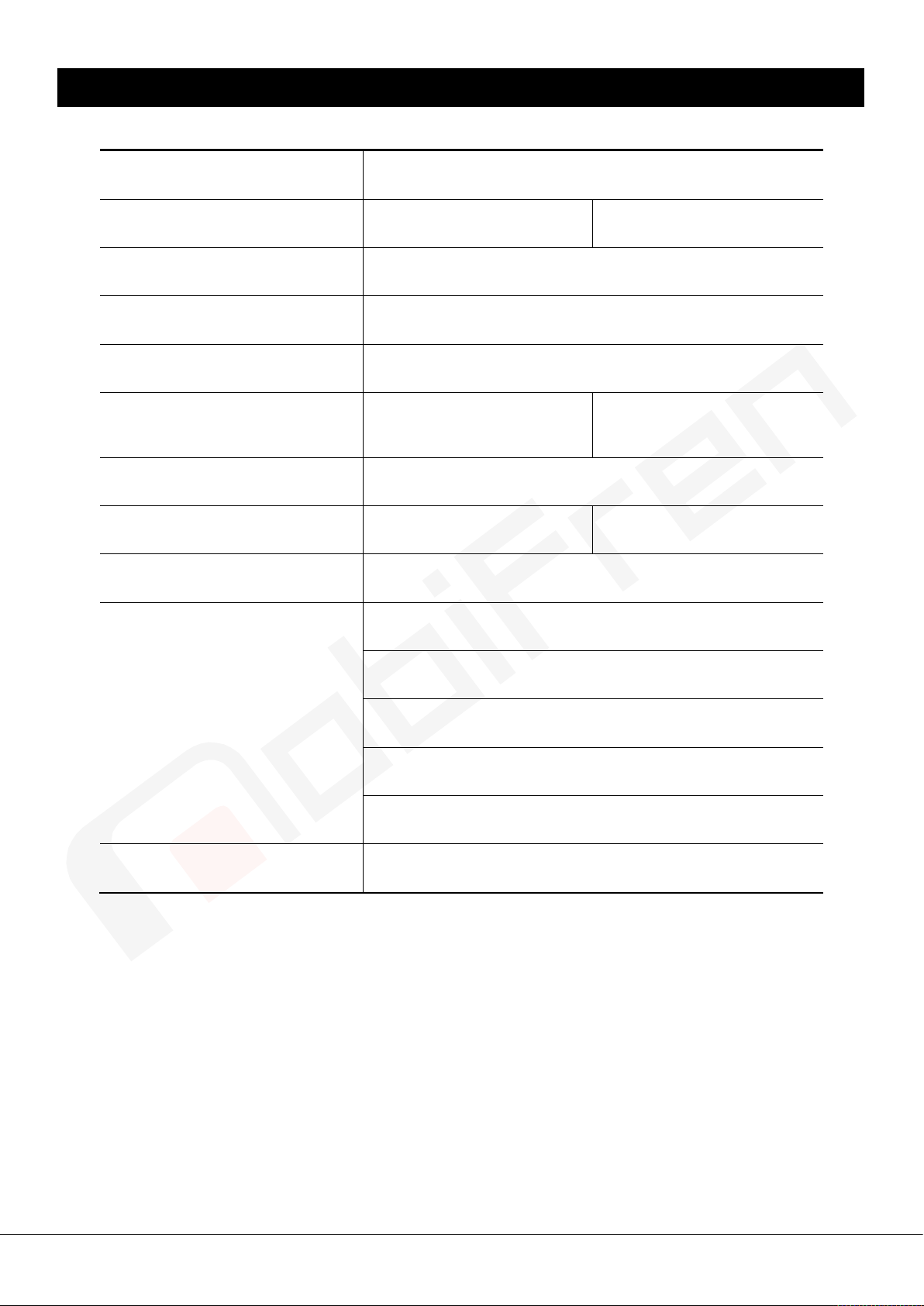
Specifications
(Bone Conduction type)
(In-Ear Type)
M
odel
Talk time
Music play time About 7 hrs
Standby time
Charging time
125mm (W) x 385mm (L)
Size
Battery Rechargeable Lithium Polymer
Weight
Operation range Within 10m
About 9.5 hrs
(Bone Conduction type)
13mm
About 35 g
(Bone Conduction type)
(T)
MFB-BC8100
About 14 days
About 1 hrs 30 mins
x
125mm (W) x 345mm (L) x
About 11 hrs
(In-Ear Type)
5mm (T)
17.
About 37 g
(In-Ear Type)
Headset profile
Handsfree profile
Supporting Bluetooth
profile
Bluetooth Version
※ Operation time may be variable, depending on connected device or setting status.
A2DP
AVRCP
SPP
Ver. 5.0(BDR,EDR)
- 17 -
Page 21

Warranty
※
The conditions and our responsibilities under this warranty are as follows :
The warranty is limited to the original purchaser.
A copy of your receipt or other proof of purchase is required.
The warranty is void if the serial number, date code label or product label is removed, or if the product
has been subject to physical abuse, improper installation, modification, or repair by unauthorized third
parties.
The responsibility of MobiFren products shall be limited to the repair or replacement of the product at its
sole discretion.
Any implied warranty on MobiFren products is limited to one year from the date of purchase on all parts,
including any cord and connector. But, battery warranty is limited to 6 months.
Specifically exempt from any warranty are limited-life consumable components subject to normal wear
and tear, such as microphone windscreens, ear cushions, decorative finishes, batteries, and other
accessories.
MobiFren is not liable for any incidental or consequential damages arising from the use or misuse of any
MobiFren product.
This warranty gives you specific rights and you may have other rights which vary from area to area.
Unless otherwise instructed in the User Manual, the user may not, under any circumstances, attempt to
perform service, adjustments or repairs on this unit, whether in or out of warranty. It must be returned to
the purchase point, factory or authorized service agency for all such work.
MobiFren will not take any responsibility for any loss or damage incurred in shipping. Any repair work on
MobiFren products by unauthorized third parties voids any warranty.
"Contribute to our communities with good
technology and good product"
- 18 -
Page 22
www.mobifren.com
MobiFren Co.,Ltd.
88, Indong 52-gil, Gumi-City, Gyeongbuk, KOREA
TEL : +82-54-474-2220 FAX : +82-54-474-2251
ISO 9001 Quality Management System Certified Company
R-C-GTT-MFB-NB8100W
- 19 -
 Loading...