

Page 1

COMPUTER PRODUCTSCOMPUTER PRODUCTS
COMPUTER PRODUCTSCOMPUTER PRODUCTS
COMPUTER PRODUCTS
CM33-TL
System Board
User Manual
(Manual Part Number MAN-0CM33-001)
Page 2

WARNING!
Programmable control devices such as MEAU’s Industrial Computers must not be used as stand-alone protection in any application. Unless proper safeguards are used, unwanted start-ups could result in equipment
damage or personal injury. The operator must be made aware of this hazard and appropriate precautions must
be taken.
In addition, consideration must be given to the use of an emergency stop function that is independent of the
programmable controller.
The diagrams and examples in this user manual are included for illustrative purposes only. The manufacturer
cannot assume responsibility or liability for actual use based on the diagrams and examples.
Trademarks
This publication may contain references to products produced and/or offered by other companies. The
product and company names may be trademarked and are the sole property of their respective owners.
MEAU and/or AVG Automation disclaims any proprietary interest in the marks and names of others.
Manual P/N MAN-0CM33-001
Designed, and Manufactured specifically for Mitsubishi Electric Automation, Inc., by AVG
Mitsubishi Electric Automation, Inc. (MEAU)
500 Corporate Woods Parkway, Vernon Hills, IL 60061
Phone: (847) 478-2100 • Fax: (847) 478-2253 • www.meauic.com
AVG Automation
Mitsubishi Approved IC Service Center
4140 Utica Ridge Rd. • Bettendorf, IA 52722-1327
Phone: 1-563-359-7501 • Fax: 1-563-359-9094 • www.avg.net
© Copyright 2003, AVG Automation
All Rights Reserved
No part of this manual shall be copied, reproduced, or transmitted in any way without the prior written
consent of AVG Automation. AVG Automation retains the exclusive rights to all information included in this
document.
Page 3

i
MAN-0CM33-001 MC Series Computer Products
Warning/Caution/Copyright Information .................................... inside cover
Contents ........................................................................................ i
CHAPTER 1 INTRODUCTION
Manual Organization............................................................................. 1
Introduction 2
Safety Precautions ................................................................................ 2
Technical Support ................................................................................. 2
Features and Specifications ................................................................. 3
CHAPTER 2 HARDWARE INSTALLATION
CM33-TL System Board Layout ........................................................... 7
System Memory .................................................................................... 8
Jumpers ....................................................................................... 9
Jumper Settings for Clearing the CMOS Data .............................. 9
Jumper Settings for Selecting the USB Power............................ 10
Ports and Connectors ......................................................................... 11
PS/2 Mouse and PS/2 Keyboard Ports ....................................... 11
Parallel Port .................................................................................. 12
Universal Serial Bus Port ............................................................. 13
VGA Port ..................................................................................... 14
RJ45 Fast-Ethernet Port (CM33-TL) ........................................... 15
CHAPTER 3 AWARD BIOS SETUP UTILITY
Basic Input/Output System ................................................................. 17
Standard CMOS Features .................................................................. 17
Advanced BIOS Features ................................................................... 20
Advanced Chipset Features ............................................................... 24
Integrated Peripherals ........................................................................ 26
Power Management Setup ................................................................. 29
PnP/PCI Configuration ....................................................................... 32
PC Health Status ................................................................................ 34
Frequency/Voltage Control ................................................................. 36
Updating the BIOS .............................................................................. 38
CHAPTER 4 SUPPORTED SOFTWARE
VIA Hardware Monitor ......................................................................... 39
Onboard LAN Drivers for Windows .................................................... 39
Graphics Drivers ................................................................................. 39
Error/Improvement Report ..................................................................... 41
APPENDIX A SYSTEM ERROR MESSAGES
System Error Messages ................................................................... A-1
CONTENTS
Page 4

ii
MC Series Computer Products MAN-0CM33-001
CONTENTS
APPENDIX B TROUBLESHOOTING
Troubleshooting Checklist ................................................................. B-1
Monitor/Display .................................................................................. B-1
Power Supply ..................................................................................... B-2
Floppy Drive ....................................................................................... B-2
Hard Drive ................................................................................... B-2
Parallel Port ................................................................................... B-2
Serial Port ................................................................................... B-3
Keyboard ................................................................................... B-3
System Board ................................................................................... B-3
Page 5

1
MAN-0CM33-001 MC Series Computer Products
INTRODUCTION 1
The table, below, provides an overall description of the topics covered within this manual.
Manual Organization
Introduction
This chapter introduces you to the background of this
manual, and the features and specifications for this
system board. The final page of this chapter will
indicate how to avoid damaging the Embedded CPU
Card.
Hardware
Configuration
This chapter outlines the component locations and their
functions. You will be shown how to install a DIM
Module and set Jumpers to configure the CPU to meet
your own needs.
Award BIOS
Setup Utility
This chapter describes how to set up the BIOS
configurations.
Supported
Software
This chapter discusses the software (utilities, drivers)
that was provided with your computer.
Chapters
Appendix A
System Error
Messages
This appendix provides you with System Error Messages that may occur during use, what may prompt
these messages, and corrective action.
Appendix B
Troubleshooting
This appendix outlines the errors that may occur when
you operate the system. It also provides suggestions for
problem resolution.
B
A
4
3
2
1
Page 6

2
MC Series Computer Products MAN-0CM33-001
1 INTRODUCTION
Introduction
Mitsubishi Electric Automation MEAU now offers the MC Series Industrial Computer products to comply with the demands of most every factory application.
The MEAU brand of computer’s offer the extreme reliability, and feature sets
that OEM’s, and end users have come to expect with Mitsubishi Electric Automation products.
The MEAU MC Series Industrial Computer line is designed for harsh plant
environments, with rugged materials to withstand the daily riggers of operation. Designed with component longevity in mind, and to accommodate the
fast rate of change in computer technology, our computer products employ
competent component performance ranges for industrial applications. This
ensures the long term acquisition of components, and repeatability of product,
along with true forward/backward compatibility.
In keeping with these performance demands, the CM33-TL Embedded System Board has been installed in your MC400 Series Industrial Node Computer.
The CM33-TL is a Micro ATX Style CPU Card for a Single Intel® Pentium® III
Processor in a 370-pin socket.
This manual provides you with the information you need to configure the CM33TL and get your MC400 Series Computer up and running in accordance with
your application requirements.
Safety Precautions
Follow the precautions below to avoid damaging your system:
1. Keep your system away from static electricity at all times.
2. Prevent electric shock. Don‘t touch any components of this card when
the card is powered on. Always disconnect power when the system is
not in use.
3. Disconnect power when you change any hardware device. For
instance, when you connect a jumper or install any cards, a surge of
power may damage the electronic components or the whole system.
Technical Support
If you are having difficulty with a particular aspect of installation or setup, technical support is available at 1-800-950-7781 (Auto Attendant, Option 4) or
visit our website at www.meauic.com.
Page 7
3
MAN-0CM33-001 MC Series Computer Products
INTRODUCTION 1
Features and Specifications
Features
Processor: Pentium® III
FCPGA2 133MHz FSB (1.13GHz-1.26GHz on 0.13 µ)
FCPGA 133 MHz FSB (5.33EB-1GHz)
System Memory:
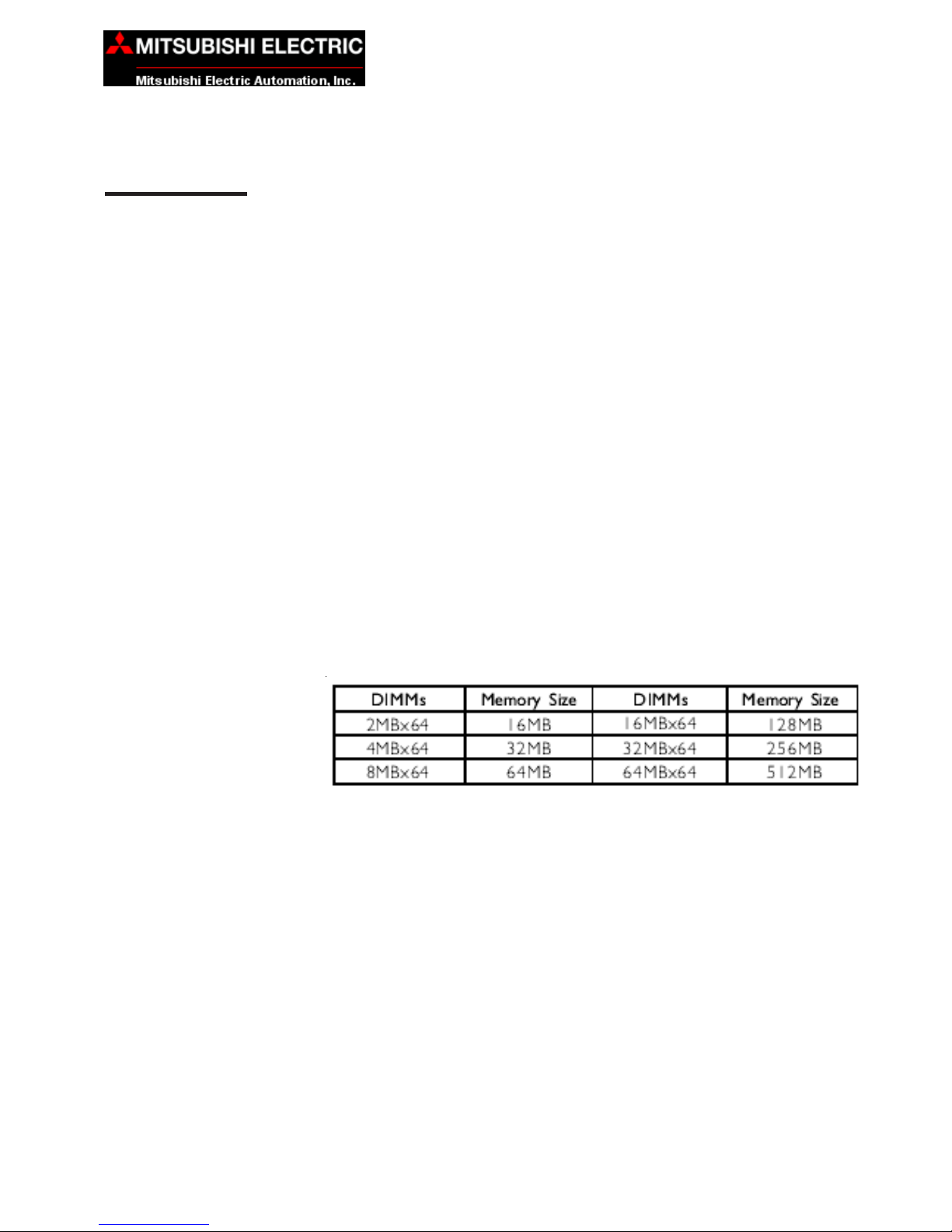
• Supports up to 1 GB using VCM (Virtual Channel Memory)
or PC SDRAM DIMM (unbuffered or registered)
• Two 168-pin DIMM sockets
• Uses x64 PC SDRAM, 3.3V
PC-133 SDRAM DIMM for 133 MHz FSB processors
Note: If you are using more than one DIMM, ensure that you insert the same
type of DIMMs into the DIMM sockets. Using different types (VCM or PC
SDRAM) of DIMMs may cause problems.
Expansion Slots
The system board is equipped with 3 dedicated PCI slots.
Onboard Graphics Features
• Integrated rCADE3D 2D/3D/Video accelerator
— Shares 8MB of the system memory
— Optimized Shared Memory Architecture (SMA)
— High quality DVD video playback
• 3D rendering features
— 32-bit true color rendering
— MPEG-2 video textures
Page 8

4
MC Series Computer Products MAN-0CM33-001
1 INTRODUCTION
• 2D hardware acceleration features
• Motion video architecture
• Software drivers
— Windows
®
98/98SE/ME/2000/XP
— Windows NT® 4.0
Onboard LAN Features
• Uses Realtek RTL8100 fast ethernet controller
• Integrated IEEE 802.3 10BASE-T and 100BASE-TX compatible
PHY
• 32-bit PCI master interface
• Integrated power management functions
• Full duplex support at both 10 and 100 Mbps
• Supports IEEE 802.3µ auto-negotiation
• Supports wire for management
ATX Double Deck Ports (PC 99 color-coded connectors)
• Two USB ports
• One RJ45 LAN port
• One NS16C550A-compatible DB-9 serial port
• One DB-15 VGA port
• One DB-25 Parallel port
• One mini-DIN-6 PS/2 mouse port
• One mini-DIN-6 PS/2 keyboard port
Connectors
• Two IDE connectors
• One floppy drive interface supports up to two 2.88MB floppy drives
• One ATX power supply
• One Wake-On-LAN connector
• One Wake-On-Ring connector
• CPU fan and chassis fan connectors
PCI Bus Master IDE Controller
• Two PCI IDE interfaces support up to four IDE devices
• supports ATA/33, ATA/66 and ATA/100 hard drives
• PIO Mode 3 and Mode 4 Enhanced IDE (data transfer rate up to
16.6 MB/sec.)
Page 9

5
MAN-0CM33-001 MC Series Computer Products
INTRODUCTION 1
• Bus mastering reduces CPU utilization during disk transfer
• Supports ATAPI CD-ROM, LS-120 and ZIP
USB Ports
The system board supports 2 USB ports. Two onboard USB ports are located
at the ATX double deck ports of the board. USB allow data exchange between
your computer and a wide range of simultaneously accessible external Plug
and Play peripherals.
BIOS
• Award BIOS, Windows
®
95/98/2000/ME/XP Plug and Play
compatible
• Flash EPROM for easy BIOS updates
• Supports DMI 2.0 function
• 2 Mbit flash memory
Desktop Management Interface (DMI)
The system board comes with a DMI 2.0 built into the BIOS. The DMI utility in
the BIOS automatically records various information about your system configuration and stores this information in the DMI pool, which is a part of the
system board’s Plug and Play BIOS. DMI, along with the appropriately networked software, is designed to make inventory, maintenance and troubleshooting of computer systems easier. Refer to Chapter 4 for instructions on
using the DMI utility.
System Health Monitor Functions
The system board is capable of monitoring the following “system health” conditions.
• Monitor CPU/system temperature and overheat alarm
• Monitors VCORE/3.3V/5V/12V/2.5V voltages and failure alarm
• Monitors CPU/chassis fan speed and failure alarm
• Automatic CPU and chassis fans on/off control
• Read back capability that displays temperature, voltage and fan
speed
Refer to the “PC Health Status” section in chapter 3 and the “VIA Hardware
Monitor” section in chapter 4 for more information.
Automatic CPU/Chassis Fan Off
The CPU and chassis fans will automatically turn off once the system enters
the Suspend mode.
Page 10

6
MC Series Computer Products MAN-0CM33-001
1 INTRODUCTION
Dual Function Power Button
Depending on the setting in the “Soft-Off by PWRBTN” field of the Power Management Setup, this switch will allow the system to enter the Soft-Off or Suspend Mode.
AC Power Failure Recovery
When power returns after an AC power failure, you may choose to either poweron the system manually, let the system power-on automatically or return to the
state where you left off before power failure occurred. Refer to “PWR Lost
Resume State” in the Power Management Setup section in Chapter 3 for more
information.
Virus Protection
Most viruses today destroy data stored in hard drives, The system board is
designed to protect the boot sector and partition table of your hard disk drive.
Page 11
7
MAN-0CM33-001 MC Series Computer Products
2 HARDWARE INSTALLATION
Hardware Installation
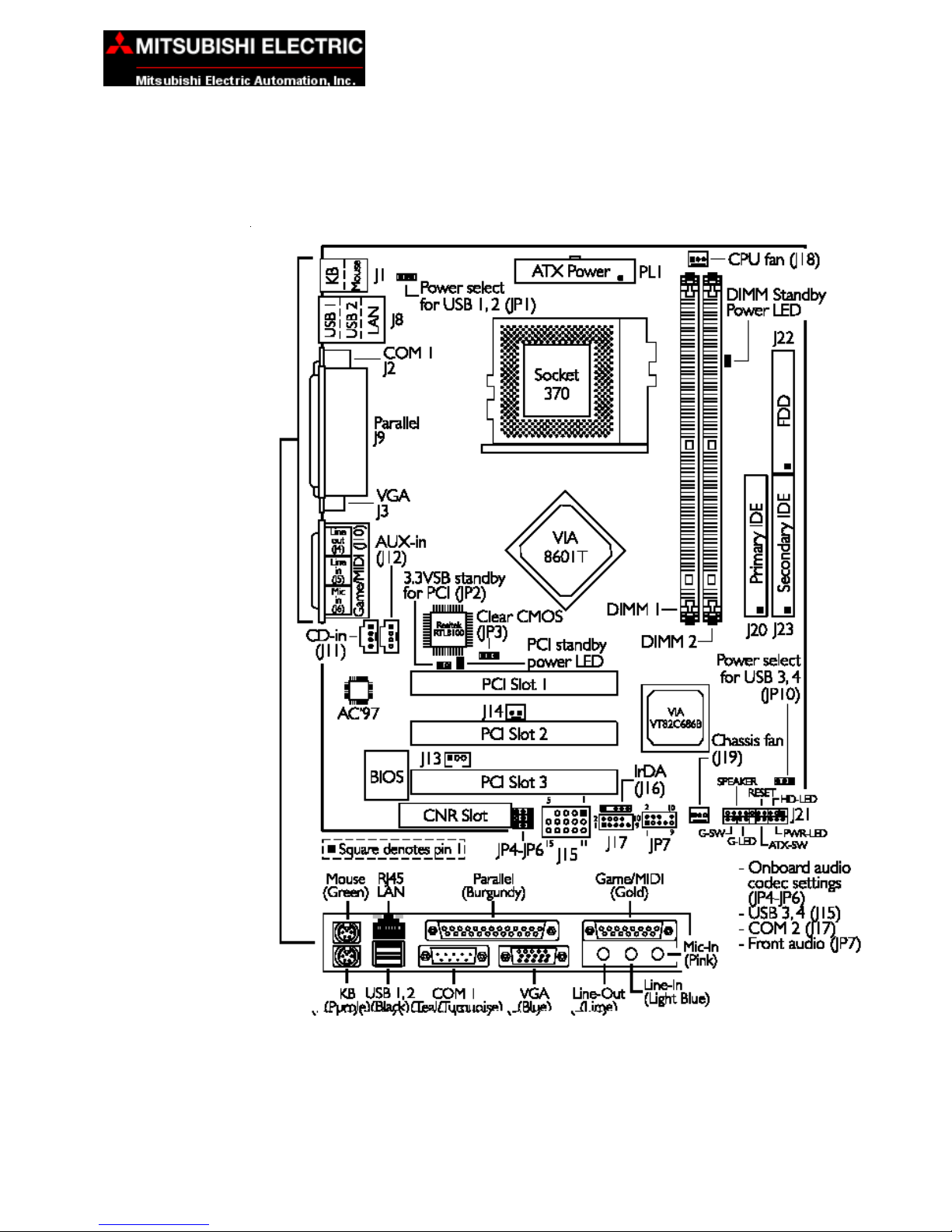
CM33-TL System Board Layout
Page 12
8
MC Series Computer Products MAN-0CM33-001
2 HARDWARE INSTALLATION
WARNING: Electrostatic discharge (ESD) can damage your system board,
processor, disk drives, add-in boards, and other components. Perform
the upgrade instruction procedures described at an ESD workstation only.
If such a station is not available, you can provide some ESD protection by
wearing an antistatic wrist strap and attaching it to a metal part of the
system chassis. If a wrist strap is unavailable, establish and maintain
contact with the system chassis throughout any procedures requiring
ESD protection.
System Memory
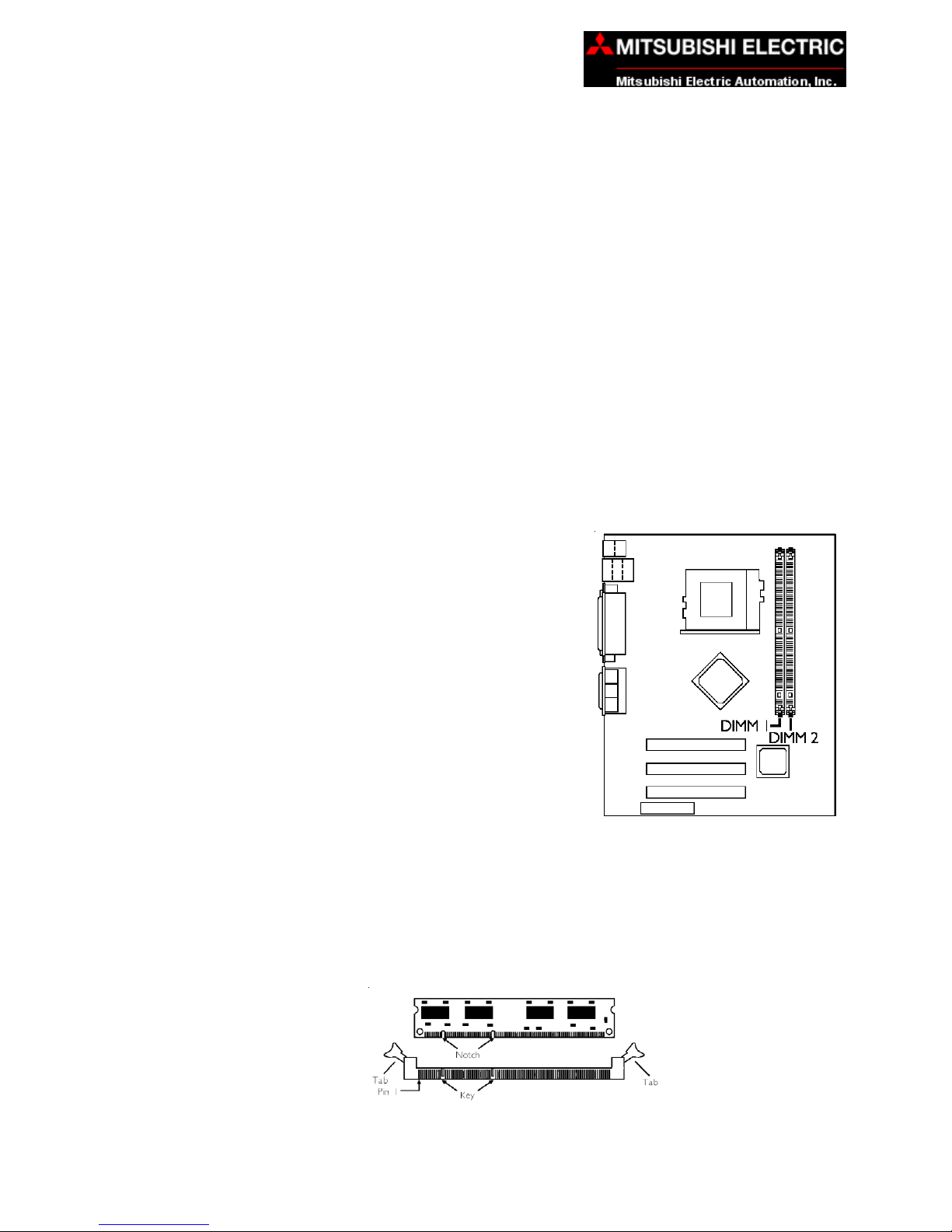
The system board is equipped with two 168-pin DIMM (Dual In-line Memory
Module) sockets that support VCM or PC SDRAM DIMM. PC SDRAM (Synchronous Dynamic Random Access Memory) uses a fast memory interface
technology that includes using the clock on the chip to synchronize with the
CPU clock so that the timing of the memory chips and the timing of the CPU
are synchronized. This saves time during transmission of data, subsequently
increasing system performance.
Refer to Chapter 1 (System Memory section)
for detailed specification of the memory supported by the system board.
Installing the DIM Module
A DIM Module simply snaps into a DIMM
socket on the system board. Pin 1 of the DIM
module must correspond with Pin 1 of the
socket.
1. Pull the “tabs,” located at the end of
the socket, to the side
2. Position the DIMM above the socket with the “notches” in the module
aligned with the “keys” on the socket.
3. Seat the module vertically into the socket. Make sure it is completely
seated. The tabs will hold the DIMM in place.
Page 13
9
MAN-0CM33-001 MC Series Computer Products
2 HARDWARE INSTALLATION
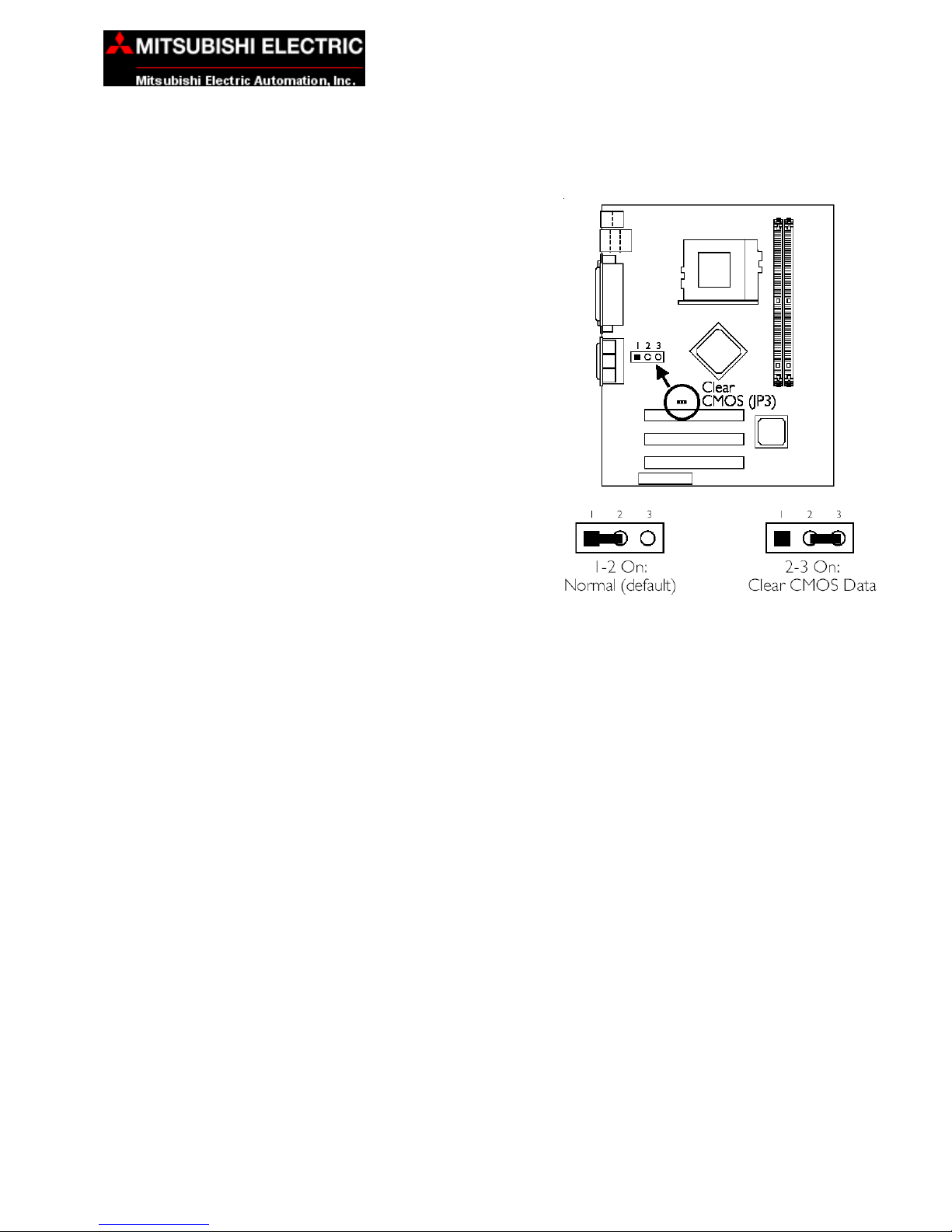
Jumper Settings for Clearing the
CMOS Data
If you encounter the following: a)
CMOS data becomes corrupted; b)
Supervisor or User Password is forgotten; c) Unable to boot-up the computer system because the
processor’s bus clock was incorrectly
set in the BIOS, you can reconfigure
the system with the default values
stored in the ROM BIOS.
To load the default values stored in
the ROM BIOS, please follow the
steps below.
1. Power-off the system and
unplug the power cord.
2. Set JP3 pins 2 and 3 to ON.
Wait for a few seconds and
set JP3 back to its default
setting, pins 1 and 2 ON.
3. Plug the power cord and power-on the system.
If your reasons for clearing the CMOS data is due to incorrect setting
of the processor’s bus clock in the BIOS, proceed to step 4.
4. After powering-on the system, press <Del> to enter the main menu of
the BIOS.
5. Select the “Frequency/Voltage Control” submenu and press <Enter>.
6. Set the “Clock By Slight Adjust” field to its default setting or an
appropriate bus clock. Refer to “Clock by Slight Adjust” in the
“Frequency/Voltage Control” section in Chapter 3 for more information.
7. Press <Esc> to return to the main menu of the BIOS setup utility.
Select “save & Exit Setup” and press <Enter>.
8. Type <Y> and press <Enter>.
Clear CMOS Data - jumper JP3
JUMPERS
Page 14
10
MC Series Computer Products MAN-0CM33-001
2 HARDWARE INSTALLATION
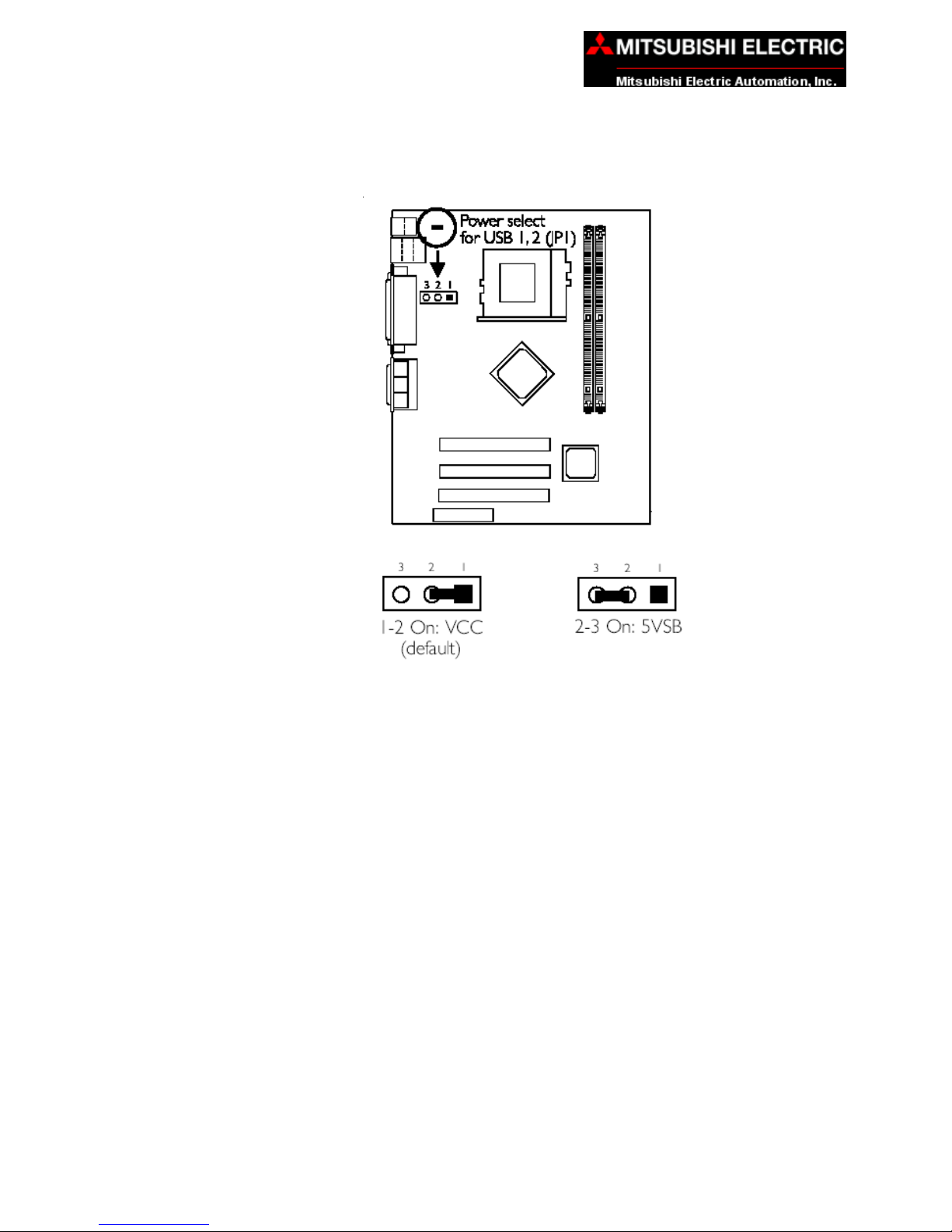
Jumper Settings for Selecting the USB Power
Power Select for USB 1 and 2 (JP1) and
This jumper is used to select the power for the USB devices that are connected to the USB ports.
Page 15
11
MAN-0CM33-001 MC Series Computer Products
2 HARDWARE INSTALLATION
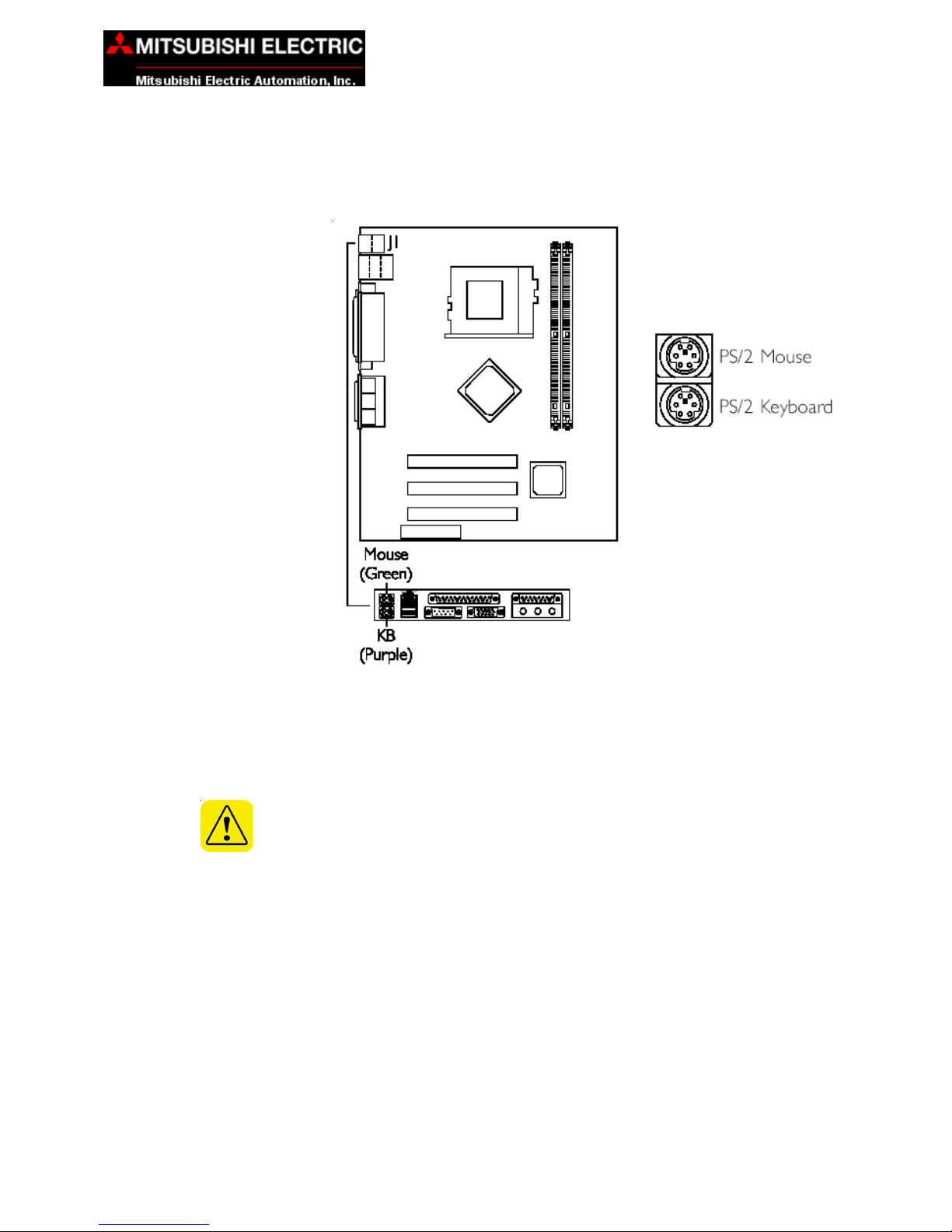
PS/2 Mouse and PS/2 Keyboard Ports
The system board is equipped with onboard PS/2 Mouse (Green) and PS/2
Keyboard (Purple) ports — both at location J1 of the ATX double deck ports of
the system board. The PS/2 mouse port uses IRQ12. If a mouse is not connected to this port, the system will reserve IRQ12 for other expansion cards.
Caution: Make sure to turn off your computer prior to connecting or disconnecting a mouse or keyboard. Failure to do so may damage the system board.
PORTS AND CONNECTORS
Page 16
12
MC Series Computer Products MAN-0CM33-001
2 HARDWARE INSTALLATION
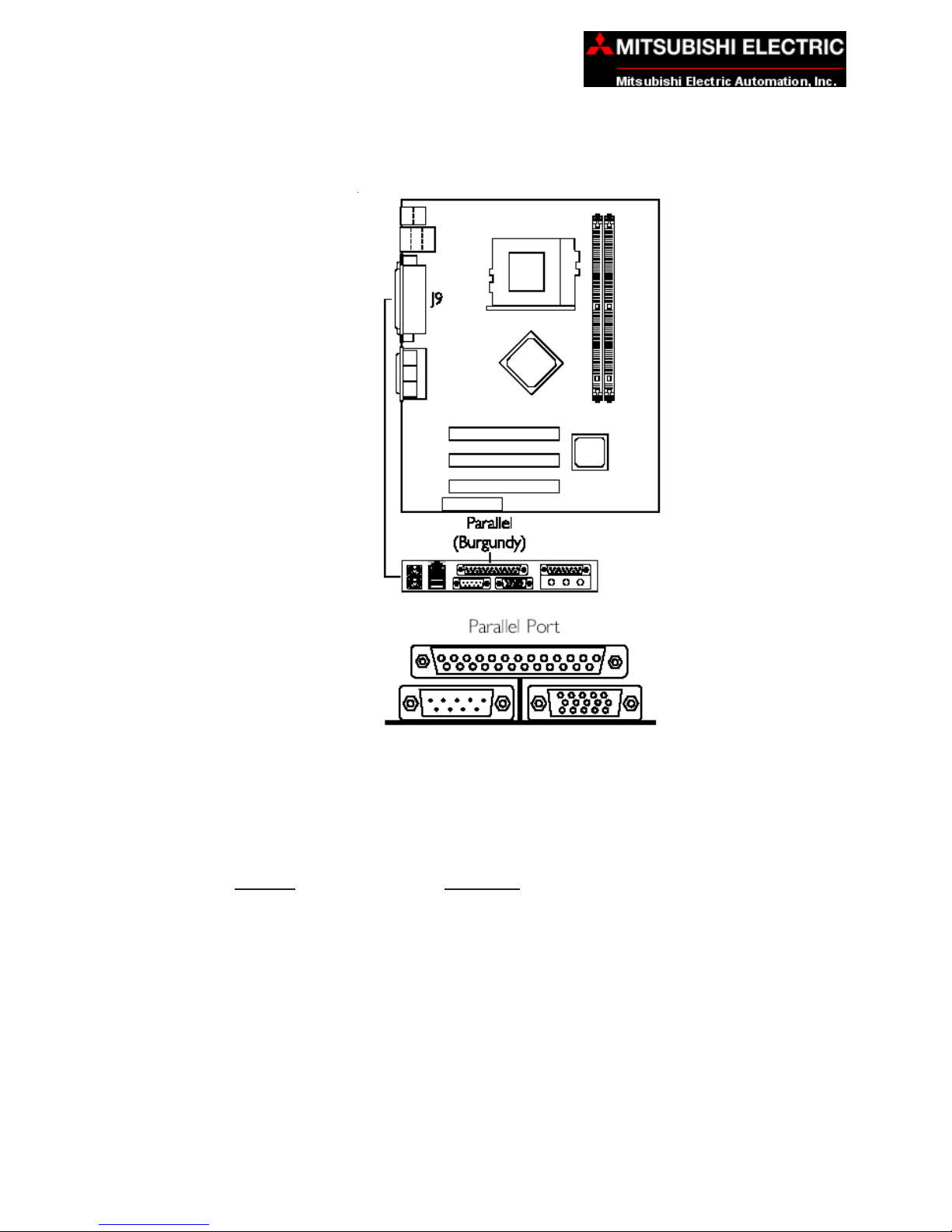
Parallel Port
The system board has a standard parallel port (J9 - Burgundy) located at the
ATX double deck ports of the board for interfacing your PC to a parallel printer.
It supports Normal, ECP and EPP modes. You can set the port’s mode in the
Integrated Peripherals submenu of the BIOS.
Setting Function
Normal Allows normal speed operation but in
one direction only.
ECP (Extended
Capabilities Port) Allows parallel port to operate in bidirectional mode
and at a speed faster than the SPP’s data
transfer rate
EPP (Enhanced Allows bidirectional parallel port operation at
Parallel Port) maximum speed.
Page 17

13
MAN-0CM33-001 MC Series Computer Products
2 HARDWARE INSTALLATION
Universal Serial Bus Ports
The system board supports 2 USB ports. USB allows data exchange between
your computer and a wide range of simultaneously accessible external Plug
and Play peripherals. You must have the proper drivers installed in your operating system to use the USB ports. Refer to your operating system’s manual
or documentation.
Two onboard USB ports (J8 - Black) are located at the ATX double deck ports
of the board.
Page 18

14
MC Series Computer Products MAN-0CM33-001
2 HARDWARE INSTALLATION
VGA Port
The system board can only be used with an analog video monitor. Connect
the monitor’s 15-pin D-shell cable connector to the VGA port (J3 - Blue) located at the ATX double deck ports of the board. Some monitors have a switch
that chooses between analog and TTL (or digital) operation. If your monitor
has such a switch, set it for analog.
Page 19

15
MAN-0CM33-001 MC Series Computer Products
2 HARDWARE INSTALLATION
RJ45 Fast-Ethernet Port (CM33-TL)
The system board is equipped with an onboard RJ45 fast-ethernet LAN port at
location J8 of the ATX double deck ports. It allows the system board to connect to a local area network by means of a network hub.
Page 20

16
MC Series Computer Products MAN-0CM33-001
2 HARDWARE INSTALLATION
This page intentionally left blank.
Page 21

17
MAN-0CM33-001 MC Series Computer Products
3 AWARD BIOS SETUP UTILITY
Award BIOS Setup Utility
Basic Input/Output System
The Basic Input/Output System (BIOS) is a program that takes care of the
basic level of communication between the processor and peripherals. In addition, the BIOS also contains codes for various advanced features found in this
system board. This chapter explains the Setup Utility for the Award BIOS.
After you power up the system, the BIOS message appears on the screen and
the memory count begins. After the memory test, the following message will
appear on the screen:
Press DEL to enter setup
If the message disappears before you respond, restart the system or press the
“Reset” button. You may also restart the system by pressing the <Ctrl> <Alt>
and <Del> keys simultaneously.
When you press <Del>, the main menu screen will appear.
Standard CMOS Features
Use the arrow keys to highlight “Standard CMOS Features” and press <Enter>. A screen similar to the one shown below will appear.
Page 22

18
MC Series Computer Products MAN-0CM33-001
3 AWARD BIOS SETUP UTILITY
Date
The date format is <day>, <month>, <date>, <year>. Day displays a day, from
Sunday to Saturday. Month displays the month, from January to December.
Date displays the date, from 1 to 31. Year displays the year, from 1994 to
2079.
Time
The time format is <hour>, <minute>, <second>. The time is based on the 24hour military-time clock. For example, 1 PM. is 13:00:00. Hour displays hours
from 00 to 23. Minute displays minutes from 00 to 59. Second displays seconds from 00 to 59.
IDE Primary Master, IDE Primary Slave, IDE Secondary Master and IDE
Secondary Slave
Move the cursor to “IDE Primary Master”, “IDE Primary Slave”, “IDE Secondary Master”, or “IDE Secondary Slave” field, then press <Enter>.
IDE HDD Auto Detection
Detects the parameters of the drive. The parameters will automatically be shown on the screen.
IDE Primary/Secondary Master/Slave
If you wish to define your own drive type manually, select “Manual”.
The drive type information should be included in the documentation
from your hard disk vendor. If you select “Auto”, the BIOS will autodetect the HDD and CD-ROM drive at the POST stage and show the
IDE for the HDD and CD-ROM drive. If a hard disk has not been
installed, select “None”.
Page 23

19
MAN-0CM33-001 MC Series Computer Products
3 AWARD BIOS SETUP UTILITY
Capacity
Displays the approximate capacity of the disk drive. Usually the size
is slightly greater than the size of a formatted disk given by a disk
checking program.
Access Mode
For hard drives larger than 528MB, you would typically select the LBA
type. Certain operating systems require that you select Normal or
Large. Please check your operating system’s manual or Help desk on
which one to select.
Drive A and Drive B
These fields identify the types of floppy disk drives installed.
None No floppy drive is installed.
360K, 5.25 in. 5-1/4 in. standard drive; 360KB capacity
1.2M, 5.25 in. 5-1/4 in. AT-type high-density drive; 1.2MB capacity
720K, 3.5 in. 3-1/2 in. double-sided drive; 720KB capacity
1.44M, 3.5 in. 3-1/2 in. double-side drive; 1.44 MB capacity
2.88M, 3.5 in. 3-1/2 in. double-sided drive; 2.88 MB capacity
Video
This field selects the type of video adapter used for the primary system monitor. Although secondary monitors are supported, you do not have to select the
type. The default setting is EGA/VGA.
EGA/VGA Enhanced Graphics Adapter/Video Graphics Array. For EGA,
VGA, SVGA and PGA monitor adapters.
CGA 40 Color Graphics Adapter. Power up in 40-column mode.
CGA 80 Color Graphics Adapter. Power up in 80-column mode.
Mono Monochrome adapter. Includes high resolution monochrome
adapters.
Halt On
This field determines whether the system will stop if an error is detected during
power up. The default setting is All Errors.
No Errors The system boot will not stop for any errors detected.
All Errors The system boot will stop whenever the BIOS detects a
non- fatal error.
All, but Keyboard The system boot will not stop for a keyboard error; it will
stop for all other errors.
All, but Diskette The system boot will not stop for a disk error; it will stop for
all other errors.
All, But Disk/Key The system boot will not stop for a disk or keyboard error;
it will stop for all other errors.
Page 24

20
MC Series Computer Products MAN-0CM33-001
3 AWARD BIOS SETUP UTILITY
Base Memory
Displays the amount of base (or conventional) memory installed in the system.
The value of the base memory is typically 512K for system with 512K memory
installed on the motherboard or 640K for system with 640K or more memory
installed on the motherboard.
Extended Memory
Displays the amount of extended memory detected during boot-up
Total Memory
Displays the total memory available in the system.
Advanced BIOS Features
The Advanced BIOS Features allows you to configure your system for basic
operation. Some entries are defaults required by the system board, while others, if enabled, will improve the performance of your system or let you set
some features according to your preference.
The screen above lists all the fields available in the Advanced BIOS Features
submenu for you to reference. In the actual CMOS setup, you must scroll to
view all of the fields. The settings on the screen are for reference only — your
version may not be identical to this one.
Onboard LAN Control
By default, the onboard LAN is enabled. If you are not using this function, set
this field to Disabled.
Page 25

21
MAN-0CM33-001 MC Series Computer Products
3 AWARD BIOS SETUP UTILITY
Virus Warning
This field protects the boot sector and partition table of your hard disk drive.
When this field is enabled, the Award BIOS will monitor the boot sector and
partition table of the hard disk drive. If an attempt is made to write to the boot
sector or partition table of the hard disk drive, the BIOS will halt the system and
an error message will appear.
After seeing the error message, if necessary, you will be able to run an antivirus program to locate and remove the problem before any damage is done.
Many disk diagnostic programs which attempt to access the boot sector table
will cause the warning message to appear. If you are running such a program,
we recommend that you first disable this field. Also, disable this field if you are
installing or running certain operating system like Windows® 95/98/2000/ME/
XP or the operating system may not install nor will it work.
CPU L1 Cache and CPU L3 Cache
These field speed up the memory access. The default value is enabled.
CPU L2 Cache ECC Checking
The processors supported by the system board come with built-in Level 2 cache.
By default, ECC is enabled to check the Level 2 cache. If you are not using
this function, set this field to Disabled.
Processor Serial Number
This field will appear only when you are using Intel’s Pentium® III or later processor. These processors come with an individual “processor serial number”
which by default is activated. Therefore, when connected to the Internet, the
processor transmits the serial number online making it possible to track your
online activity. This field provides you the option of disabling this function.
Quick Power On Self Test
This field speeds up Power On Self Test (POST) after you power on the system. When Enabled, the BIOS will shorten or skip some check items during
POST.
First Boot Device, Second Boot Device, Third Boot Device and Boot Other
Device
Select the drive to boot first, second, and third in the “First Boot Device”, “Second Boot Device”, and “Third Boot Device” fields respectively. The BIOS will
boot the operating system according to the sequence of the drive selected.
Set “Boot Other Device” to Enabled if you wish to boot from another device.
Page 26

22
MC Series Computer Products MAN-0CM33-001
3 AWARD BIOS SETUP UTILITY
Swap Floppy Drive
When this field is enabled and the system is booting from the floppy drive, the
system will boot from drive B instead of drive A. When this option is disabled
and the system is booting from the floppy drive, the system will boot from drive
A. You must have two floppy drives to use this function.
Boot Up Floppy Seek
When enabled, the BIOS will check whether the floppy disk drive installed is
40 or 80 tracks. Note that the BIOS cannot distinguish between 720K, 1.2M,
1.44M and 2.88M drive types as they are all 80 tracks. When disabled, the
BIOS will not search for the type of floppy disk drive by track number. Note that
there will not be any warning message if the drive installed is 360KB.
Boot Up NumLock Status
This allows you to determine the default state of the numeric keypad. By default, the system boots up with NumLock on wherein the function of the numeric keypad is the number keys. When set to Off, the function of the numeric
keypad is the arrow keys.
Typematic Rate Setting
Disabled Continually holding down a key on your keyboard will cause
the BIOS to report that the key is down.
Enabled The BIOS will not only report that the key is down, but will
first wait for a moment, and, if the key is still down, it will
begin to report that the key has been depressed repeatedly.
For example, you would use such a feature to accelerate
cursor movements with the arrow keys. You can then select
the typematic rate and typematic delay in the “Typematic Rate
(Chars/Sec)” and “Typematic Delay (Msec)” fields below.
Typematic Rate (Chars/Sec)
This field allows you to select the rate at which the keys are accelerated.
Typematic Delay (Msec)
This field allows you to select the delay between when the key was first depressed and when the acceleration begins.
Security Option
This field determines when the system will prompt for the password - every
time the system boots or only when you enter the BIOS setup. Set the password in the Set Supervisor/User Password submenu.
Page 27

23
MAN-0CM33-001 MC Series Computer Products
3 AWARD BIOS SETUP UTILITY
System The system will not boot and access to Setup will be denied
unless the correct password is entered at the prompt.
Setup The system will boot, but access to Setup will be denied
unless the correct password is entered at the prompt.
OS Select for DRAM > 64MB
This field allows you to access the memory that is over 64MB in OS/2. The
options are Non-OS2 and OS2.
HDD S.M.A.R.T. Capability
The system board supports SMART (Self-Monitoring, Analysis and Reporting
Technology) hard drives. SMART is a reliability prediction technology for ATA/
IDE and SCSI drives. The drive will provide sufficient notice to the system or
user to back up data prior to the drive’s failure. The default is Disabled. If you
are using hard drives that support SMART, set this field to Enabled. SMART is
supported in ATA/33 or later hard drives.
Small Logo (EPA) Show
Enabled The EPA logo will appear during system boot-up
Disabled The EPA logo will not appear during system boot-up.
Onboard LAN Boot ROM
By default, this field is disabled. Enable this field if you wish to use the boot
ROM (instead of a disk drive) to boot-up the system and access the local area
network directly.
If you wish to change the boot ROM’s settings, type the <Shift> and <F10>
keys simultaneously when prompted during boot-up. Please note: you will be
able to access the boot ROM’s program (by typing <Shift> + <F10>) only when
this field is enabled.
Page 28

24
MC Series Computer Products MAN-0CM33-001
3 AWARD BIOS SETUP UTILITY
Advanced Chipset Features
This section gives you functions to configure the system based on the specific
features of the chipset. The chipset manages bus speeds and access to system memory resources. These items should not be altered unless neces-
sary. The default settings have been chosen because they provide the best
operating conditions for your system. The only time you might consider making any changes would be if you discovered some incompatibility or that data
was being lost while using your system.
DRAM Timing by SPD
Enabled The EEPROM on a PC SDRAM DIMM that has SPD (Serial
Presence Detect) data structure stores information about the
module such as the memory type, memory size, memory
speed, etc. When this field is enabled, the system will run
according to the information in the EEPROM.
Disabled It allows you to configure the 2 fields that follow (SDRAM
Cycle Length and DRAM Clock). The system will run
according to the settings in these fields.
SDRAM Cycle Length
This field is used to set the clock cycle for the CAS latency.
DRAM Clock
This field allows you to set the DRAM clock.
Page 29

25
MAN-0CM33-001 MC Series Computer Products
3 AWARD BIOS SETUP UTILITY
System BIOS Cacheable
When this field is enabled, accesses to the system BIOS ROM addressed at
F0000H-FFFFFH are cached, provided that the cache controller is enabled.
The larger the range of the Cache RAM, the higher the efficiency of the system.
Video RAM Cacheable
When enabled, it allows the video RAM to be cacheable thus providing better
video performance. If your graphics card does not support his function, leave
this field in its default setting - Disabled.
I/O Recovery Time
Selecting Enabled will allow additional time for I/O devices to respond to the
system. However, if your I/O devices are capable of fast I/O, select Disabled
to speed up system operation.
Frame Buffer Size
The options are 2M, 4M, and 8M.
OnChip USB
This field is used to enable or disable the onboard USB controller supported
by the chipset. If you are using a USB peripheral, make sure to set this field to
Enabled.
USB Keyboard Support
This field will appear only if the “OnChip USB” field is set to Enabled. By
default, USB Keyboard Support is Disabled. However; if you are using a USB
keyboard under DOS, make sure to enable this function.
PCI Delay Transaction
When enabled, this function frees up the PCI bus for other PCI masters during
the PCI-to-ISA transactions. This allows PCI and ISA buses to be used more
efficiently and prevents degradation of performance on the PCI bus when ISA
accesses are made.
Page 30

26
MC Series Computer Products MAN-0CM33-001
3 AWARD BIOS SETUP UTILITY
Integrated Peripherals
The screen above lists all the fields available in the Integrated Peripherals
submenu for you to reference. In the actual CMOS setup, you must scroll to
view all of the fields. The settings on the screen are for reference only — your
version may not be identical to this one.
On-Chip Primary IDE and On-Chip Secondary IDE
These fields allow you to enable or disable the primary and secondary IDE
controller. The default is Enabled. Select Disabled if you want to add a different hard drive controller.
IDE Prefetch Mode
This allows data and addresses to be stored in the internal buffer of the chip,
thus reducing access time. Enable this field to achieve better performance.
IDE Primary Master/Slave PIO and IDE Secondary Master/Slave PIO
PIO means Programmed Input/Output. Rather than have the BIOS issue a
series of commands to effect a transfer to or from the disk drive, PIO allows the
BIOS to tell the controller what it wants and then let the controller and the CPU
perform the complete task by themselves. Your system supports five modes, 0
(default) to 4, which primarily differ in timing. When Auto is selected, the BIOS
will select the best available mode after checking your drive.
Page 31

27
MAN-0CM33-001 MC Series Computer Products
3 AWARD BIOS SETUP UTILITY
Auto The BIOS will automatically set the system according to your
hard disk drive’s timing.
Mode 0-4 You can select a mode that matches your hard disk drive’s
timing. Caution: Do not use the wrong setting or you will
have drive errors.
IDE Primary Master/Slave UDMA and IDE Secondary Master/Slave UDMA
These fields allow you to set the Ultra DMA in use. When Auto is selected, the
BIOS will select the best available option after checking your hard drive or CDROM.
Auto The BIOS will automatically detect the settings for you.
Disabled The BIOS will not detect these categories.
Init Display First
This field is used to select whether to initialize AGP or PCI first when the system boots.
AGP When the system boots, it will first initialize AGP.
PCI Slot When the system boots, it will first initialize PCI.
IDE HDD Bock Mode
Enabled The IDE HDD uses the block mode. The system BIOS will
check the hard disk drive for the maximum block size the
system can transfer. The block size will depend on the type
of hard disk drive.
Disabled The IDE HDD uses the standard mode.
Onboard FDD Controller
Enabled Enables the onboard floppy disk controller.
Disabled Disables the onboard floppy disk controller.
Onboard Serial Port 1 and Onboard Serial Port 2
Auto The system will automatically select an I/O address for the
onboard serial port 1 and disable serial port 2.
3F8/IRQ4, 2F8/IRQ3, 3E8/IRQ4, 2E8/IRQ3
Allows you to manually select an I/O address for the onboard
serial port 1.
Disabled Disables the onboard serial port 1.
Page 32

28
MC Series Computer Products MAN-0CM33-001
3 AWARD BIOS SETUP UTILITY
Onboard Parallel Port
378/IRQ7, 3BC/IRQ7, 278/IRQ5
Selects the I/O address and IRQ for the onboard parallel port
Disabled Disables the onboard parallel port
Parallel Port Mode
The options are Normal, EPP, ECP and ECP/EOO. These apply to a standard
specification and will depend on the type and speed of your device. Refer to
your peripheral’s manual for the best option.
Normal: Allows normal speed operation but in one direction only.
“ECP (Extended Capabilities Port)”: Allows parallel port to operate in
bidirectional mode and at a speed faster than the normal mode’s data
transfer rate.
“EPP (Enhanced Parallel Port)”: Allows bidirectional parallel port
operation at maximum speed.
ECP Mode Use DMA
This is used to select a DMA channel for the parallel port.
EPP Mode Select
The options are EPP1.9 and EPP1.7.
Page 33

29
MAN-0CM33-001 MC Series Computer Products
3 AWARD BIOS SETUP UTILITY
Power Management Setup
The Power Management Setup allows you to configure your system to most
effectively save energy.
ACPI Function
This function should be enabled only in operating systems that support ACPI.
Currently, only Windows® 98/2000/ME/XP support this function. When enabled, the system will ignore the settings in “Power Management”. If you want
to use the Suspend to RAM function, make sure this field is enabled then
select “S3(STR)” in the “ACPI Suspend Type” field.
Power Management
Move the cursor to this field and press <Enter>. The “Power Management”,
“HDD Power Down”, “Doze Mode” and “Suspend Mode” fields will appear.
Power Management
This field allows you to select the type (or degree) of power saving by
changing the length of idle time that elapses before the “Doze Mode” and
“Suspend Mode” field are activated.
Min Saving: Minimum power saving time for Doze and Suspend
Mode = 1 hr.
Max Saving: Maximum power saving time for Doze and Suspend
Mode = 10 sec.
User Define: Allows you to set the power saving time in the “Doze
Mode” and “Suspend Mode” fields.
Page 34

30
MC Series Computer Products MAN-0CM33-001
3 AWARD BIOS SETUP UTILITY
HDD Power Down
After the set time of system inactivity, the hard disk drive will be powered
down while all other devices remain active.
Doze Mode
This is configurable only when the Power Management field is set to User
Define. When the system enters the Doze mode according to the power
saving time selected, the CPU clock will run at a slower speed (1/2 of full
speed) while all other devices operate at full speed.
Suspend Mode
This is configurable only when the Power Management field is set to User
Define. When the system enters the Suspend mode according to the power
saving time selected, the CPU and onboard peripherals will be shut off.
ACPI Suspend Type
This field is used to select the type of Suspend mode.
S1(POS) Enables the Power On Suspend function.
S3(STR) Enables the Suspend to RAM function. Refer to “using the
Suspend to RAM Function in appendix A for more
information.
PM Control by APM
Yes An Advanced Power Management device will be activated to
enhance the Max. Power Saving mode and stop the CPU’s
internal clock. Use this option in Windows® 95/98/2000/ME/
XP (default).
No The system BIOS will ignore APM when initiating the Power
Management mode.
Video Off Option
Always On The system BIOS will never turn off the screen.
Suspend-> Off The screen is off when the system is in the Suspend mode.
All Modes-> Off The screen is off when the system is in the Doze, Standby, or
Suspend Mode.
Video Off Method
This determines the manner in which the monitor is blanked.
Page 35

31
MAN-0CM33-001 MC Series Computer Products
3 AWARD BIOS SETUP UTILITY
V/H SYNC + Blank This will cause the system to turn off the vertical and
horizontal synchronization ports and write blanks to the
video buffer.
Blank Screen This only writes blanks to the video buffer.
DPMS Support Initializes display power management signaling. Select
this if your video board supports it.
MODEM Use IRQ
This field is used to set an IRQ channel for the modem installed in your system.
Soft-Off by PWRBTN
This field allows you to select the method of powering off your system.
Delay 4 Sec. Regardless of whether the Power Management field is
enabled or disabled, if the power button is pushed and
released in less than 4 sec., the system enters the Suspend
mode. The purpose of this function is to prevent the system
from powering off in case you accidentally “hit” or pushed
the power button. Push and release again in less than 4
sec. to restore. Pushing the power button for more than 4
seconds will power off the system.
Instant-Off Pressing then releasing the power button at once will
immediately power off your system.
PWR Lost Resume State
Keep Off When power returns after an AC power failure, the system’s
power is off. You must press the Power button to power-on
the system.
Turn On When power returns after an AC power failure, the system
will automatically power-on.
Last State When power returns after an AC power failure, the system
will return to the state where you left off before power failure
occurred. If the system’s power is off when AC power failure
occurred, it will remain off when power returns. If the system’s
power is on when AC power failure occurs, the system will
power-on when power returns.
Resume Time (hh:mm:ss)
This is used to set the time you would like the system to power-on. If you want
the system to power-on everyday as set in the “Date (of Month)” field, the time
set in this field must be later than the time of the RTC set in the Standard
CMOS Features submenu.
Page 36

32
MC Series Computer Products MAN-0CM33-001
3 AWARD BIOS SETUP UTILITY
IRQs Activity Monitoring
Move the cursor to this field and press <Enter>. The “Primary INTR” field, when
set to On will allow the system to respond and wake up to an IRQ activity that
has been detected. When any of the “IRQ3” to “IRQ15” fields is enabled,
access to the specified IRQ will cause the system to wake up completely from
the power management mode. When disabled, the system will not wake up
from the power management mode despite access to the specified IRQ.
PnP/PCI Configurations
This section describes configuring the PCI bus system. It covers some very
technical items and it is strongly recommended that only experienced users
make any changes to the default settings.
Reset Configuration Data
Enabled The BIOS will reset the Extended System Configuration Data
(ESCD) once automatically. It will then recreate a new set of
configuration data.
Disabled The BIOS will not reset the configuration data.
Resources Controlled By
The Award Plug and Play BIOS has the capability to automatically configure all
of the boot and Plug and Play compatible devices.
Auto (ESCD) The system will automatically detect the settings for you.
Manual Choose the specific IRQ and DMA resources in the “IRQ
Resources” and “DMA Resources” fields respectively.
Page 37

33
MAN-0CM33-001 MC Series Computer Products
3 AWARD BIOS SETUP UTILITY
IRQ Resources
Move the cursor to this field and press <Enter>. The “IRQ-3” to “IRQ-15” fields
will appear. Set each system interrupt to either Legacy ISA or PCI/ISA PnP.
PCI/ISA PnP For devices compliant with the PCI bus architecture.
Legacy ISA For devices compliant with the original PC AT bus
specification.
DMA Resources
Move the cursor tot his field and press <Enter>. The “DMA-0” to “DMA-7” fields
will appear. Set each DMA address to either Legacy ISA or PCI/ISA PnP.
PCI/ISA PnP For devices compliant with the PCI bus architecture.
Legacy ISA For devices compliant with the original PC AT bus
specification.
PCI/VGA Palette Snoop
This field determines whether the MPEG ISA/VESA VGA cards can work with
PCI/VGA or not. The default value is Disabled.
Enabled MPEG ISA/VESA VGA cards work with PCI/VGA.
Disabled MPEG ISA/VESA VGA cards do not work with PCI/VGA.
Assign IRQ for VGA
When Enabled, the system automatically assigns an IRQ for the VGA card
installed. Your VGA card will need an IRQ only when using the video capture
function of the card. If you are not using this function and a new device requires an IRQ, you can set this field to Disabled. The IRQ (previously occupied by the VGA card) will be available for your new device.
Note: When disabled a “Yellow” mark will appear in Windows® 95’s Device
Manager.
Assign IRQ for USB
When Enabled, the system automatically assigns an IRQ for the USB device
connected to your system. However, if you are not using USB devices and an
ISA slot requires an IRQ, set this field to Disabled. The IRQ previously occupied by the USB device will be available for the ISA slot.
Note: When disabled a “Yellow” mark will appear in Windows® 95’s Device
Manager.
Page 38

34
MC Series Computer Products MAN-0CM33-001
3 AWARD BIOS SETUP UTILITY
PC Health Status
Current CPU Temperature, Current System Temp., Current CPU Fan Speed
and Current Chassis Fan Speed
These fields show the current temperature of the CPU, Internal temperature of
the system, and the current fan speed of the CPU and chassis fans in RPM
(Revolutions per Minute).
Vcore
This field shows the voltage of the processor.
3.3V, 5V and 12V
These fields show the output voltage of the power supply.
Note: The onboard hardware monitor function is capable of detecting
“system health” conditions, but if you want a warning message to pop up
or a warning alarm to sound when an abnormal condition occurs, you
must install the “VIA Hardware Monitor” utility. This utility is included on
the CD that came with your computer. Refer to the “VIA Hardware Monitor” section in chapter 4 for more information.
Page 39

35
MAN-0CM33-001 MC Series Computer Products
3 AWARD BIOS SETUP UTILITY
CPU Fan Protection
The CPU Fan Protection function, when enabled, has the capability of monitoring the CPU fan during system boot-up and will automatically power-off the
system once it has detected that the CPU fan did not rotate. Set this field to
disabled if you are not using this function. Refer to “CPU Fan Connector with
CPU Fan Protection Function” in chapter 2 for more information.
CPU Temp. Prot. Function and CPU Temp. Prot. Alarm
The CPU Temperature Protection function has the capability of monitoring the
CPU’s temperature during system boot-up. To use this function, set the “CPU
Temp. Prot. Function” field to Enabled, then select the desired CPU temperature limit in the “CPU Temp. Prot. Alarm” field. Once the system has detected
that the CPU’s temperature exceeded the limit, 5 warning beeps will sound
and at the same time, a warning message will appear on the boot-up screen
instructing you to press <Del> in order to enter the man menu of the BIOS. If
you did not press <Del>, the system will automatically power-off after the 5
warning beeps. You may either:
1. Press <Del> then enter a new CPU temperature limit;
or
2. Allow the system to power-off after the 5 warning beeps then check
whether the heatsink and fan are mounted properly onto the CPU
because high CPU temperature may be due to incorrect fan/heatsink
installation. Now restart the system. If the same problem persists, it
may be that the CPU fan is damaged or it is not rotating properly. Try
replacing it with a new fan. If it is due to other contributing factors that
resulted in high CPU temperature, you may need to set a lower CPU
temperature limit.
CPU Temperature References
When you power-up a system, the BIOS message appears on the
screen and the memory count begins. After the memory test, the
CPU temperature range is normally between 32° C and 35° C. When
you run an operating system then tried to reboot the system, the CPU
temperature range at this time is between 40° C and 45° C. These
temperature references serve as a guide when you select the CPU
temperature limit.
Page 40

36
MC Series Computer Products MAN-0CM33-001
3 AWARD BIOS SETUP UTILITY
Frequency/Voltage Control
Auto Detect DIMM/PCI Clk
When enabled, the system will automatically send clock signals to exiting DIMM
or PCI devices.
Spread Spectrum Modulated
Leave this field in its default setting. Do not alter this setting unless advised by
an engineer or technician.
Clock by Slight Adjust
Do not change this field.
Load Fail-Safe Defaults
This option loads the troubleshooting default values permanently stored in the
ROM chips. These settings are not optimal and turn off all high performance
features. You should use these values only if you have hardware problems.
Highlight this option in the main menu and press <Enter>. The message below
will appear.
Load Fail-Safe Defaults (Y/N)? N
If you want to proceed, type <y> and press <Enter>. The default settings will
be loaded.
Page 41

37
MAN-0CM33-001 MC Series Computer Products
3 AWARD BIOS SETUP UTILITY
Load Optimized Defaults
This option loads optimal settings from the BIOS ROM. Use the default values
as standard values for your system. Highlight this option in the main menu and
press <Enter>. The message below will appear.
Load Optimized Defaults (Y/N)? N
Type <Y> and press <Enter> to load the Setup default values.
Set Supervisor Password
If you want to protect your system and setup from unauthorized entry, set a
supervisor’s password with the “System” option selected in the Advanced BIOS
Features. If you want to protect access to setup only, but not your system, set
a supervisor’s password with the “Setup” option selected in the Advanced BIOS
Features. You will not be prompted for a password when you cold boot the
system. Use the arrow keys to highlight “Set Supervisor Password” and press
<Enter>. The message below will appear:
Enter Password
Type in the password. You are limited to eight characters. (ALWAYS KEEP A
RECORD OF PASSWORDS IN A SAFE PLACE!) When done, the following
message will appear:
Confirm Password
You are asked to verify the password. Type in exactly the same password. If
you type in a wrong password, you will be prompted to enter the correct password again. To delete or disable the password function, highlight “Set Supervisor Password” and press <Enter>, instead of typing in a new password. Press
the <Esc> key to return to the main menu.
Set User Password
If you want another user to have access only to your system but not to setup,
set a user’s password with the “System” option selected in the Advanced BIOS
Features. If you want a user to enter a password when trying to access setup,
set a user’s password with the “Setup” option selected in the Advanced BIOS
Features.
Using user’s password to enter Setup allows a user to access only “Set User
Password” that appears in the main menu screen. Access to all other options
is denied. To set, confirm, verify, disable or delete a user’s password, follow
the procedures described in the section “Set Supervisor Password”.
Page 42

38
MC Series Computer Products MAN-0CM33-001
3 AWARD BIOS SETUP UTILITY
Save & Exit Setup
When all the changes have been made, highlight “Save & Exit Setup” and
press <Enter>. The message shown below will appear:
Save to CMOS and Exit (Y/N)? N
Type “Y” and press <Enter>. The modifications you have made will be written
into the CMOS memory, and the system will reboot. You will once again see
the initial diagnostics on the screen. If you wish to make additional changes to
the setup, press <Ctrl> <Alt> <Esc> simultaneously or <Del> after memory
testing is done.
Exit Without Saving
When you do not want to save the changes you have made, highlight “Exit
Without Saving” and press <Enter>. The message below will appear:
Quit Without Saving (Y/N)? N
Type “Y” and press <Enter>. The system will reboot and you will once again
see the initial diagnostics on the screen. If you wish to make any changes to
the setup, press <Ctrl> <Alt> <Esc> simultaneously or <Del> after memory
testing is done.
Updating the BIOS
To update the BIOS, you will need the new BIOS file and a flash utility,
AWDFLASH.EXE. You can download them from DFI’s web site or contact
technical support.
1. Save the BIOS along with the flash utility AWDFLASH.EXE to a floppy
disk.
2. Insert the floppy disk into a floppy disk drive and power-on the
system. Press the <Alt> and <F2> keys simultaneously. The utility,
which works only in DOS mode, will update the new BIOS file to the
programmable flash EEPROM that is on the system board. The new
BIOS will permanently replace the original BIOS content after flashing.
Page 43

39
MAN-0CM33-001 MC Series Computer Products
Supported Software
(included on CD shipped with unit)
VIA Hardware Monitor
The system board comes with the VIA Hardware Monitor utility available on the
CD that was provided with your unit. It is capable of monitoring the system’s
hardware conditions such as the temperature of the CPU and system, voltage,
and speed of the CPU and chassis fans. It also allows you to manually set a
range to the items being monitored. If the values are over or under the set
range, a warning message will pop up. The utility can also be configured so
that a beeping alarm will sound whenever an error occurs. We recommend
that you use the “Default Setting” which is the ideal setting that would keep the
system in good working condition.
Note: Use this utility on in Windows® 95/98/98SE/ME/2000/XP or NT 4.0
operating systems.
To install the utility, insert the CD into a remote disk drive. Download the VIA
Hardware Monitor Utility.
Onboard LAN Drivers for Windows
The onboard LAN drivers included on the CD do not support “Autorun”. Once
the system has detected the Realteck RTL8100 fast ethernet controller, it will
prompt you to install the driver for the operating system you are using. The
drivers are in the RTL8100 root directory of the CD.
Graphics Drivers
1. Insert the CD that came with the computer into a remote disk drive.
2. Click VIA VGA Driver.
3. Follow the prompts on the screen to complete installation.
4. Restart the system.
4 SUPPORTED SOFTWARE
Page 44

40
MC Series Computer Products MAN-0CM33-001
This page intentionally left blank
4 SUPPORTED SOFTWARE
Page 45

41
MAN-0CM33-001 MC Series Computer Products
Error / Improvement Report
Fill in this form and fax or mail to: For Mitsubishi use only:
Name Company Phone Number
________________________ _________________________ ___________________
Manual / Product / Brochure Version
____________________________________________________ ___________________
Description of request Error Improvement
(Please describe in detail the reported error(s). Use additional paper, or attachments (if needed.)
_____________________________________________________________________________________________________________
_______________________________________________________________________________________________
_____________________________________________________________________________________________________
___________________________________________________________________________________________
__________________________________________________________________________________________
_____________________________________________________________________________________________
_____________________________________________________________________________________________
______________________________________________________________________________________________
__________________________________________________________________________________________
__________________________________________________________________________________________
____________________________________________________________________________________
Suggested Solution
_______________________________________________________________________________________________
__________________________________________________________________________________________
__________________________________________________________________________________________
__________________________________________________________________________________________
___________________________________________________________________________________________
__________________________________________________________________________________________
_______________________________________________________________________________________
(Please print clearly in order to insure a prompt response)
Mitsubishi Electric Automation, Inc.
Attn: HMI Marketing
500 Corporate Woods Parkway
Vernon Hills, IL. 60061
Fax: (847) 478-2253
Date Received:
Date Responded:
Status:
Page 46

42
MC Series Computer Products MAN-0CM33-001
_____________________________________________________________________________________________________________
____________________________________________________________________________________________________
_______________________________________________________________________________________
________________________________________________________________________________
__________________________________________________________________________________________________________
_____________________________________________________________________________________________________
_____________________________________________________________________________________
____________________________________________________________________________________________
____________________________________________________________________________________________
_____________________________________________________________________________________
___________________________________________________________________________________
_________________________________________________________________________________________
________________________________________________________________________________________
_______________________________________________________________________________________
________________________________________________________________________________________
________________________________________________________________________________________
__________________________________________________________________________________
___________________________________________________________________________________
_______________________________________________________________________________
Page 47

A-1
MAN-0CM33-001 MC Series Computers
APPENDIX A - SYSTEM ERROR MESSAGES
When the BIOS encounters an error that requires the user to correct something, either a beep code will sound or a message will be displayed in a box in
themiddle of the screen and the message, PRESS F1 TO CONTINUE, CTRLALT-ESC or DEL TO ENTER SETUP, will be shown in the information box at
the bottom. Enter Setup to correct the error.
POST Beep
There are two kinds of beep codes in the BIOS. One code indicates that a
video error has occured and the BIOS cannot initialize the video screen to
display any additional information. This beep code consists of a single long
beep followed by three short beeps. The other code indicates that a DRAM
error has occured. This beep code consists of a single long beep.
Error Messages
One of more of the following messages may be displayed if the BIOS detects
an error during the POST. This list indicates the error messages for all Awards
BIOSes:
CMOS BATTERY HAS FAILED
The CMOS battery is no longer functional. It should be replaced.
Caution: Danger of explosion if battery is incorrectly replaces. Replace
only with the same or equivalent type recommended by the manufacturer. Dispose of used batteries according to the battery manufacturer’s
instructions.
CMOS CHECKSUM ERROR
Checksum of CMOS is incorrect. This can indicate that CMOS has become
corrupt. This error may have been caused by a weak battery. Check the
battery and replace if necessary.
DISPLAY SWITCH IS SET INCORRECTLY
The display switch on the motherboard can be set to either monochrome or
color. This indicates the switch is set to a different setting than indicated in
Setup. Determine which setting is correct, either turn off the system and change
the jumper or enter Setup and change the VIDEO selection.
FLOPPY DISK(S) fail (80)
Unable to reset floppy subsystem.
FLOPPY DISK(S) fail (40)
Floppy type mismatch.
System Error Messages
Page 48

A-2
MC Series Computers MAN-0CM33-001
APPENDIX A - SYSTEM ERROR MESSAGES
Hard Disk(s) fail (80)
HDD reset failed.
Hard Disk(s) fail (40)
HDD controller diagnostics failed.
Hard Disk(s) fail (20)
HDD initialization error.
Hard Disk(s) fail (10)
Unable to recalibrate fixed disk.
Hard Disk(s) fail (08)
Sector Verify failed.
Keyboard is locked out - Unlock the key
The BIOS detects that the keyboard is locked. Keyboard controller is pulled
low.
Keyboard error or no keyboard present
Cannot initialize the keyboard. Make sure the keyboard is attached correctly
and no keys are being pressed during boot.
Manufacturing POST loop
System will repeat POST procedure infinitely while the keyboard controller is
pull low. This is also used for the M/B burn in test at the factory.
BIOS ROM checksum error - System halted
The checksum of ROM address F0000H-FFFFFH is bad.
Memory test fail
The BIOS reports memory test fail if the memory has error(s).
Page 49

B-1
MAN-0CM33-001 MC Series Computers
APPENDIX B - TROUBLESHOOTING
Troubleshooting Checklist
This section of the manual is designed to help you with problems that you may
encounter with your computer. To efficiently troubleshoot your system, treat
each problem individually. This is to ensure an accurate diagnosis of the problem in case a problem has multiple causes.
Some of the most common things to check when you encounter problems
while using your system are listed below.
1. The power switch of each peripheral device is turned on.
2. All cables and power cords are tightly connected.
3. The electrical outlet to which your peripheral devices are
connected is working. Test the outlet by plugging in a lamp or
other electrical device.
4. The monitor is turned on.
5. The display’s brightness and contrast controls are adjusted
properly.
6. All add-in boards in the expansion slots are seated securely.
7. Any add-in board you have installed is designed for your system
and is set up correctly.
Monitor/Display
If the display screen remains dark after the system is turned on:
1. Make sure that the monitor’s power switch is on.
2. Check that one end of the monitor’s power cord is properly attached
to the monitor and the other end is plugged into a working AC outlet.
If necessary, try another outlet.
3. Chekc that the video input cable is properly attached to the monitor
and the system’s display adapter.
4. Adjust the brightness of the display by turning the monitor’s bright-
ness control knob.
The picture seems to be constantly moving.
1. The monitor has lost its vertical sync. Adjust the monitor’s vertical
sync.
2. Move away any objects, such as another monitor or fan, that may be
creating a magnetic field around the display.
3. Make sure your video card’s output frequencies are supported by this
monitor.
Troubleshooting
Page 50

B-2
MC Series Computers MAN-0CM33-001
APPENDIX B - TROUBLESHOOTING
The screen seems to be constantly wavering.
1. If the monitor is close to another montiro, the adjacent monitor may
need to be turned off. Fluorescent lights adjacent to the montior may
also cause screen wavering.
Power Supply
When the computer is turned on, nothing happens.
1. Check that one end of the AC power cord is plugged into a live outlet
and the other end properly plugged into the back of the system.
2. Make sure that the voltage selection switch on the back panel is set
for the correct type of voltage you are using.
3. The power cord may have a “short” or “open”. Inspect the cord and
install a new one if necessary.
Floppy Drive
The computer cannot access the floppy drive.
1. The floppy diskette may not be formatted. Format the diskette and try
again.
2. The diskette may be write-protected. Use a diskette that is not writeprotected.
3. You may be writing to the wrong drive. Check the path statement to
make sure you are writing to the targeted drive.
4. There is not enough space left on the diskette. Use another diskette
with adequate storage space.
Hard Drive
Hard disk failure: Make sure the correct drive type for the hard disk drive has
been entered in the BIOS.
Excessively long formatting period: If your hard drive takes an excessively
long period of time to format, it is likely a cable connection problem. However,
if your hard drive has a large capacity, it will take a longer time to format.
Parallel Port
The parallel printer doesn’t respond when you try to print.
1. Make sure that your printer is turned on and that the printer is on-line.
2. Make sure your software is configured for the right type of printer
attached.
Page 51

B-3
MAN-0CM33-001 MC Series Computers
APPENDIX B - TROUBLESHOOTING
3. Verify that the onboard LPT port’s I/O address and IRQ settings are
configured correctly.
4. Verify that the attached device works by attaching it to a parallel port
that is working and configured correctly. If it works, the printer can be
assumed to be in good condition. If the printer remains inoperative,
replace the printer cable and try again.
Serial Port
The serial device doesn’t output anything or is outputting garbled characters.
1. Make sure that the serial device’s power is turned on and that the
device is on-line.
2. Verify that the device is plugged into the correct serial port on the rear
of the computer.
3. Verify that the attached serial device works by attaching it to a serial
port that is working and confgured correctly. If the serial device does
not work either, the cable or the serial device has a problem. If the
serial device works, the problem may be due to the onbaord I/O or the
address setting.
4. Make sure the COM settings and I/O address are configured correctly.
Keyboard
Nothing happens when a key on the keyboard was pressed.
1. Make sure the keyboard is properly connected.
2. Make sure there are no objects resting on the keyboard and that no
keys are pressed during the booting process.
System Board
1. Make sure the add-in card is seated securely in the expansion slot. If
the add-in card is loose, pwer off the system, re-install the card and
power up the system.
2. Check the jumper settings to ensure that the jumpers are properly set.
3. Verify that all memory modules are seated securely into the memory
sockets.
4. Make sure the memory modules are in the correct locations.
5. If the board fails to function, place the board on a flat surface and
seat all socketed components. Gently press each component into the
socket.
6. If you made changes to the BIOS settings, re-enter setup and load
the BIOS defaults.
Page 52

B-4
MC Series Computers MAN-0CM33-001
APPENDIX B - TROUBLESHOOTING
This page intentionally left blank.
 Loading...