

Page 1
Mitel Deskphones
S1
S2
S3
S4
S5
S6
S7
S8
L2
L1
Log off: 1. Press the Log off function key.
Mitel Deskphones
Mitel 6865 Quick guide
Copyright © 2016 Mitel Networks Corporation
Table of Contents
1. Getting started ......................................................................... 1
2. Basic call handling .................................................................... 2
3. Advanced call handling ............................................................... 3
1. Getting started
This quick guide will help you get started using your new Mitel 6865 deskphone together with the MiCloud. We recommend using the phone's user guide for more information on handling the phone, please visit www.mitel.com.
1.1. Prerequisites
Your deskphone must be provisioned to your organization as a free seating phone,
or provisioned to your account.
Table 1. Log in or log off from free seating phone
Log in: 1. Enter the short (Alias) number in the field Enter
2. Press Enter.
1.2. Phone overview
login number.
2. Press Enter.
3. Enter PIN code.
4. Press Enter.
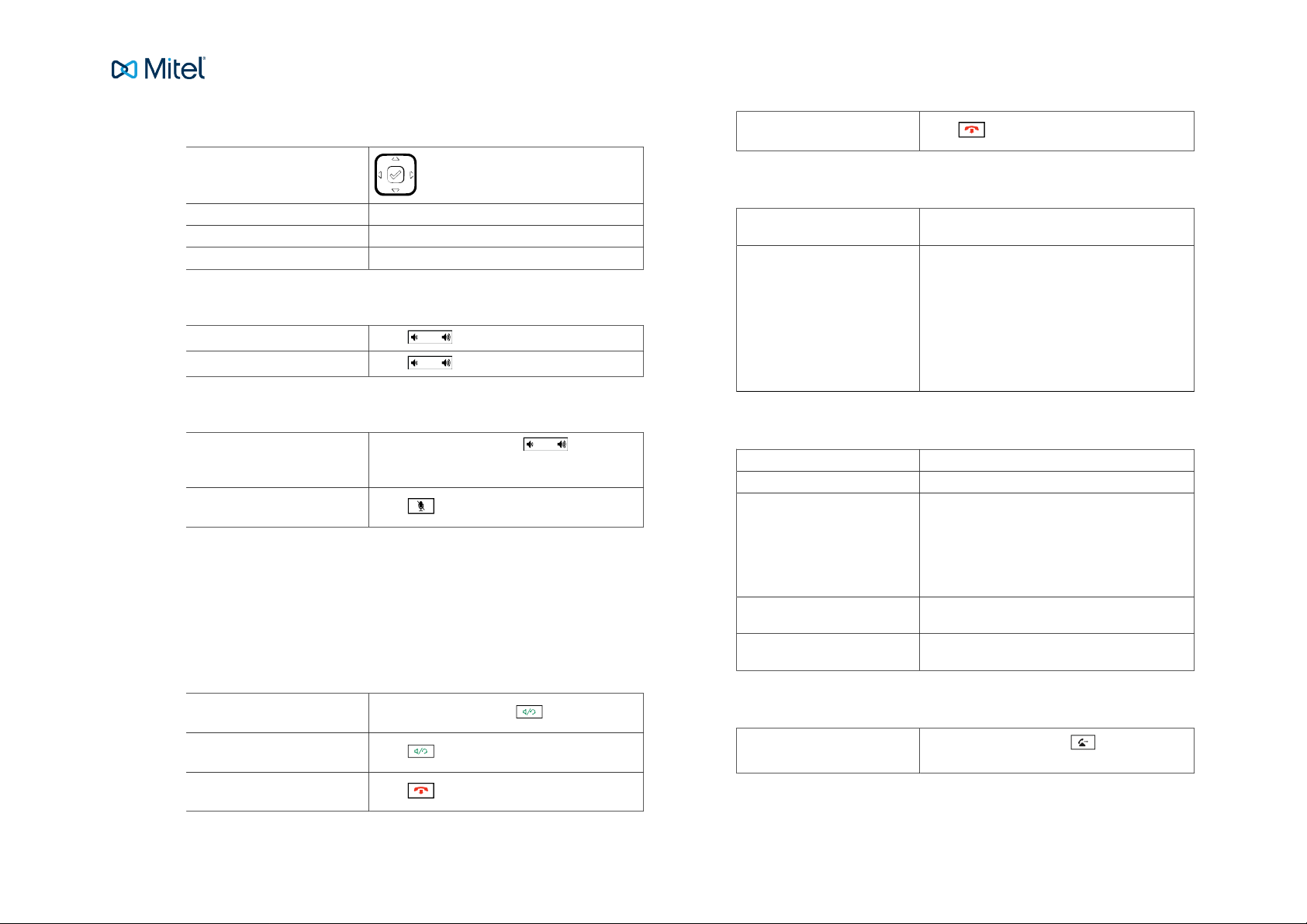
The Mitel 6865 consists of handset, screen, navigation/select key, numpad, option
keys, line keys (L-keys) and function keys (S-keys).
1.3. Settings in the telephone
5. Your username is displayed on the screen
when the login is successful.
Revision: 4.5_6630 1
Page 2
Mitel Deskphones
Table 2. Navigation
Navigation / Select keys:
Up and down key: Scroll in the menus and lists.
Left arrow key: Go back.
Right arrow key: Select the option.
Table 3. Set volume
Adjust volume during a call:
Adjust ringing volume:
Press during the call.
Press in idle mode.
Table 4. Silent ringing and mute
Silent ringing:
Mute microphone during call:
Press the left Volume key until the column is empty and the text Ringer volume is OFF
is displayed.
Press
2. Basic call handling
You can call a user in many ways: dialing the number, pressing the shortcut key,
pressing and holding on a quick dial key, selecting the contact in your contact list or
searching for the contact in the directory and then calling.
Table 5. Incoming calls
Reject call:
Press
Table 6. Missed calls
Missed call indication: Missed calls are indicated by the Missed Call text
Check missed calls: 1. Press the Call log function key. A list of types
on the display.
of calls is displayed.
2. Select Missed calls.
3. Press Select. A list is displayed.
4. Check the missed call.
5. Press left arrow key to exit the call list.
Table 7. Outgoing calls
Internal calls: Enter the number and press Dial.
External calls: Enter the full number, then press Dial.
Dial from call log (incoming
calls):
Dial by function key: Press the function key that is assigned to a num-
Dial by speed dial key: Press and hold the keypad key (1-9). The number
1. Press the Call log key. A list is displayed.
2. Select type of calls from the list.
3. Select contact to call.
4. Press Enter. The contact is dialed.
ber you want to dial.
associated with the key is called.
Answer:
Lift your handset or press
Handsfree mode:
Press
End call:
Press
Revision: 4.5_6630 2
Table 8. Transfer calls
Attended transfer: 1.
During your call, press . This places the
call on hold.
Page 3
Mitel Deskphones
2. Type the number to the 3rd party, then press
Xfer softkey.
3. Wait until answer, then you can ask the 3rd party if you should transfer the call.
4.
Transfer the call by pressing .
Blind transfer: 1.
During your call, press .
2. Type the number to the 3rd party and press
.
Table 9. Holding and parking calls
Holding a call:
Press . This will put the call on hold and play
on-hold music, if that is configured.
Resume a held call:
Press again.
Parking a call: Press the function key configured with Park. This
Pick up a parked call: Press the function key configured with Pickup.
will park the call. Other colleagues may be able to
pick up the call if authorized.
Table 10. Conference
Conference 1. When a call is established with one party, press
Conf and enter the number to third party.
2. Press Dial. The other party is put on hold.
3. After answer from third party, press Conf to
start the conference.
2. Select your preferred presence, and press En-
ter.
3. The selected presence state will be displayed
in a few seconds.
Presence shortkey: Press the Presence shortkey to change back to
the selected shortkey option, for example Office.
The presence states listed in the menu are configured by the system administrator.
If a desired presence state is not listed, contact your administrator to have it added.
Table 12. Recording
Record a call: During a call, press the Recording function key.
Table 13. Get my active call
A call is ongoing: 1. A call is ongoing on a device that belongs to
you, for example a mobile phone or the softphone.
2. Press *6* to pick up the call from the other device that belongs to you.
Table 14. Common Call Pickup
A group call is ongoing: Press *5* to pickup any alerted group members
calls. (Enabled by System Administrator).
Note
Function codes for SIP phones can be configured as function key
“Phone Number”.
Table 11. Presence
3. Advanced call handling
Select presence: 1. Press the Presence function key. The Pres-
ence menu is displayed.
Revision: 4.5_6630 3
Table 15. Extensions
Answer a call to an extension:
Page 4
Mitel Deskphones
1. The lamp at the Extension function key is
flashing.
2. Press the Extension function key to answer
the call.
Call an extension: Press the Extension softkey to call.
Answer a monitored exten-
sion call during an ongoing
call:
Other extensions can be monitored from function keys on your telephone. The monitoring keys are called Extension. When the monitored extension is busy in a call the
lamp next to the function key is lit in red. If the extension is free the lamp is green.
1. Park the ongoing call, by pressing the Park
softkey.
2. Answer the monitored call by pressing the
alerted Extension softkey.
Table 16. Intercom
Initiate an intercom call: Press the Intercom function key; the call is con-
Answer an Intercom call: 1. An intercom is answered automatically.
nected automatically.
2. You hear the other party in the speaker, but
other party cannot hear you and the Mute key,
is lit.
3. You can press the mute key to let the other party hear you.
Table 18. Group Voicemail
Call voicemail system: Press the Group voice inbox function key.
Listen to received messages: 1. The function key lamp is slowly blinking when
there are pending messages.
2. Press the Group inbox function key.
Note
The system administrator can initiate a Group Inbox keys on your
phone. Each Group Inbox key monitors one Group inbox function
number. You may only monitor groups where the main user (line 1)
is member. In the voice mail call, messages may be handled using
keys (DTMF) described in the User Portal Inbox menu.
Table 19. Directories (Contacts)
Search for a contact: 1. Press the Directory search function key. The
Directory search is displayed.
2. Enter your search information, and press Enter. A list is displayed.
3. Select a contact and press Enter.
Favorites: Press the function key configured with Favorites
to bring up your personal contact list.
The system administrator can initiate an intercom connection on a function key on
your phone. When you press the key, a call is set up towards a predefined party and
it is answered automatically.
Table 17. User voicemail
User voicemail system: Press the Voicemail function key.
Listen to received messages: 1. The message waiting lamp is slowly blinking
Revision: 4.5_6630 4
and the number of messages is displayed,
when there are pending messages.
2. Press the Voicemail function key.
 Loading...