

Page 1

Mitel 6800 Series SIP Phones
58014473 REV02
RELEASE 4.2.0 SERVICE PACK 2 ADMINISTRATOR GUIDE
Page 2

NOTICE
The information contained in this document is believed to be accurate in all respects but is not warranted
by Mitel Networks™ Corporation (MITEL®). The information is subject to change without notice and should
not be construed in any way as a commitment by Mitel or any of its affiliates or subsidiaries. Mitel and its
affiliates and subsidiaries assume no responsibility for any errors or omissions in this document. Revisions
of this document or new editions of it may be issued to incorporate such changes.
No part of this document can be reproduced or transmitted in any form or by any means - electronic or
mechanical - for any purpose without written permission from Mitel Networks Corporation.
Trademarks
The trademarks, service marks, logos and graphics (collectively "Trademarks") appearing on Mitel's
Internet sites or in its publications are registered and unregistered trademarks of Mitel Networks
Corporation (MNC) or its subsidiaries (collectively "Mitel") or others. Use of the Trademarks is prohibited
without the express consent from Mitel. Please contact our legal department at l[email protected] for
additional information. For a list of the worldwide Mitel Networks Corporation registered trademarks, please
refer to the website: http://www.mitel.com/trademarks.
Mitel 6800 Series SIP Phones Release 4.2.0 SP2 Administrator Guide
58014473 REV02 - June 2016
®,™ Trademark of Mitel Networks Corporation
© Copyright 2016, Mitel Networks Corporation
All rights reserved
Page 3

SOFTWARE LICENSE AGREEMENT
Mitel, hereinafter known as "Seller", grants to Customer a personal, worldwide,
non-transferable, non-sublicenseable and non-exclusive, restricted use license to use Software
in object form solely with the Equipment for which the Software was intended. This Product
may integrate programs, licensed to Mitel by third party Suppliers, for distribution under the
terms of this agreement. These programs are confidential and proprietary, and are protected
as such by copyright law as unpublished works and by international treaties to the fullest extent
under the applicable law of the jurisdiction of the Customer. In addition, these confidential and
proprietary programs are works conforming to the requirements of Section 401 of title 17 of the
United States Code. Customer shall not disclose to any third party such confidential and
proprietary programs and information and shall not export licensed Software to any country
except in accordance with United States Export laws and restrictions.
Customer agrees to not reverse engineer, decompile, disassemble or display Software
furnished in object code form. Customer shall not modify, copy, reproduce, distribute, transcribe,
translate or reduce to electronic medium or machine readable form or language, derive source
code without the express written consent of the Seller and its Suppliers, or disseminate or
otherwise disclose the Software to third parties. All Software furnished hereunder (whether or
not part of firmware), including all copies thereof, are and shall remain the property of Seller
and its Suppliers and are subject to the terms and conditions of this agreement. All rights
reserved.
Software License Agreement
Customer's use of this software shall be deemed to reflect Customer's agreement to abide by
the terms and conditions contained herein. Removal or modification of trademarks, copyright
notices, logos, etc., or the use of Software on any Equipment other than that for which it is
intended, or any other material breach of this Agreement, shall automatically terminate this
license. If this Agreement is terminated for breach, Customer shall immediately discontinue
use and destroy or return to Seller all licensed software and other confidential or proprietary
information of Seller. In no event shall Seller or its suppliers or licensors be liable for any
damages whatsoever (including without limitation, damages for loss of business profits,
business interruption, loss of business information, other pecuniary loss, or consequential
damages) arising out of the use of or inability to use the software, even if Seller has been
advised of the possibility of such damages.
ii
Page 4

Mitel 6800 Series SIP Phone Release 4.2.0 SP2 Administrator Guide
Software License Agreement . . . . . . . . . . . . . . . . . . . . . . . . . . . . . . . . . . . . . . . . . . . . . . . . . . . . . . ii
Preface . . . . . . . . . . . . . . . . . . . . . . . . . . . . . . . . . . . . . . . . . . . . . . . . . . . . . . . . . . . . . . . . . . . . . xix
Audience . . . . . . . . . . . . . . . . . . . . . . . . . . . . . . . . . . . . . . . . . . . . . . . . . . . . . . . . . . . . . . . . . xix
Documentation . . . . . . . . . . . . . . . . . . . . . . . . . . . . . . . . . . . . . . . . . . . . . . . . . . . . . . . . . . . . . xix
Chapters and Appendices in this Guide . . . . . . . . . . . . . . . . . . . . . . . . . . . . . . . . . . . . . . . . . . . xx
CHAPTER 1:
OVERVIEW
About this Chapter . . . . . . . . . . . . . . . . . . . . . . . . . . . . . . . . . . . . . . . . . . . . . . . . . . . . . . . . . . . . 1-2
Topics . . . . . . . . . . . . . . . . . . . . . . . . . . . . . . . . . . . . . . . . . . . . . . . . . . . . . . . . . . . . . . . . . . . 1-2
IP Phone Models. . . . . . . . . . . . . . . . . . . . . . . . . . . . . . . . . . . . . . . . . . . . . . . . . . . . . . . . . . . . . . 1-3
Description . . . . . . . . . . . . . . . . . . . . . . . . . . . . . . . . . . . . . . . . . . . . . . . . . . . . . . . . . . . . . . . . 1-3
Optional Accessories . . . . . . . . . . . . . . . . . . . . . . . . . . . . . . . . . . . . . . . . . . . . . . . . . . . . . . . . 1-4
Model 6863i IP Phone . . . . . . . . . . . . . . . . . . . . . . . . . . . . . . . . . . . . . . . . . . . . . . . . . . . . . . . 1-7
Model 6865i IP Phone . . . . . . . . . . . . . . . . . . . . . . . . . . . . . . . . . . . . . . . . . . . . . . . . . . . . . . . 1-9
Model 6867i IP Phone . . . . . . . . . . . . . . . . . . . . . . . . . . . . . . . . . . . . . . . . . . . . . . . . . . . . . . 1-12
Model 6869i IP Phone . . . . . . . . . . . . . . . . . . . . . . . . . . . . . . . . . . . . . . . . . . . . . . . . . . . . . . 1-15
Model 6873i IP Phone . . . . . . . . . . . . . . . . . . . . . . . . . . . . . . . . . . . . . . . . . . . . . . . . . . . . . . 1-18
Firmware Installation Information . . . . . . . . . . . . . . . . . . . . . . . . . . . . . . . . . . . . . . . . . . . . . . . . 1-20
Description . . . . . . . . . . . . . . . . . . . . . . . . . . . . . . . . . . . . . . . . . . . . . . . . . . . . . . . . . . . . . . . 1-20
Important M685i Expansion Module Firmware Downgrade Information . . . . . . . . . . . . . . . . 1-20
Installation Considerations . . . . . . . . . . . . . . . . . . . . . . . . . . . . . . . . . . . . . . . . . . . . . . . . . . . 1-20
Installation Requirements . . . . . . . . . . . . . . . . . . . . . . . . . . . . . . . . . . . . . . . . . . . . . . . . . . . 1-21
Configuration Server Requirement . . . . . . . . . . . . . . . . . . . . . . . . . . . . . . . . . . . . . . . . . . . . 1-22
Firmware and Configuration Files. . . . . . . . . . . . . . . . . . . . . . . . . . . . . . . . . . . . . . . . . . . . . . . . 1-23
Description . . . . . . . . . . . . . . . . . . . . . . . . . . . . . . . . . . . . . . . . . . . . . . . . . . . . . . . . . . . . . . . 1-23
Configuration File Precedence . . . . . . . . . . . . . . . . . . . . . . . . . . . . . . . . . . . . . . . . . . . . . . . . 1-25
Installing the Firmware/Configuration Files . . . . . . . . . . . . . . . . . . . . . . . . . . . . . . . . . . . . . . 1-25
Multiple Configuration Server Support . . . . . . . . . . . . . . . . . . . . . . . . . . . . . . . . . . . . . . . . . . 1-26
CHAPTER 2:
CONFIGURATION INTERFACE METHODS
About this Chapter . . . . . . . . . . . . . . . . . . . . . . . . . . . . . . . . . . . . . . . . . . . . . . . . . . . . . . . . . . . . 2-2
Topics . . . . . . . . . . . . . . . . . . . . . . . . . . . . . . . . . . . . . . . . . . . . . . . . . . . . . . . . . . . . . . . . . . . 2-2
iii
Page 5

Table of Contents
Configuration Methods . . . . . . . . . . . . . . . . . . . . . . . . . . . . . . . . . . . . . . . . . . . . . . . . . . . . . . . . . 2-3
Description . . . . . . . . . . . . . . . . . . . . . . . . . . . . . . . . . . . . . . . . . . . . . . . . . . . . . . . . . . . . . . . . 2-3
IP Phone UI . . . . . . . . . . . . . . . . . . . . . . . . . . . . . . . . . . . . . . . . . . . . . . . . . . . . . . . . . . . . . . . 2-3
Mitel Web UI . . . . . . . . . . . . . . . . . . . . . . . . . . . . . . . . . . . . . . . . . . . . . . . . . . . . . . . . . . . . . . 2-5
Configuration Files (Administrator Only) . . . . . . . . . . . . . . . . . . . . . . . . . . . . . . . . . . . . . . . . 2-16
CHAPTER 3:
ADMINISTRATOR OPTIONS
About this Chapter . . . . . . . . . . . . . . . . . . . . . . . . . . . . . . . . . . . . . . . . . . . . . . . . . . . . . . . . . . . . 3-2
Topics . . . . . . . . . . . . . . . . . . . . . . . . . . . . . . . . . . . . . . . . . . . . . . . . . . . . . . . . . . . . . . . . . . . 3-2
Administrator Level Options . . . . . . . . . . . . . . . . . . . . . . . . . . . . . . . . . . . . . . . . . . . . . . . . . . . . . 3-3
Description . . . . . . . . . . . . . . . . . . . . . . . . . . . . . . . . . . . . . . . . . . . . . . . . . . . . . . . . . . . . . . . . 3-3
IP Phone UI Options . . . . . . . . . . . . . . . . . . . . . . . . . . . . . . . . . . . . . . . . . . . . . . . . . . . . . . . . 3-3
Mitel Web UI Options . . . . . . . . . . . . . . . . . . . . . . . . . . . . . . . . . . . . . . . . . . . . . . . . . . . . . . . . 3-7
Configuration File Options . . . . . . . . . . . . . . . . . . . . . . . . . . . . . . . . . . . . . . . . . . . . . . . . . . . 3-10
Phone Status . . . . . . . . . . . . . . . . . . . . . . . . . . . . . . . . . . . . . . . . . . . . . . . . . . . . . . . . . . . . . 3-10
Restarting Your Phone . . . . . . . . . . . . . . . . . . . . . . . . . . . . . . . . . . . . . . . . . . . . . . . . . . . . . 3-13
Set Phone to Factory Defaults/Erase Local Configuration . . . . . . . . . . . . . . . . . . . . . . . . . . . 3-14
Basic Settings . . . . . . . . . . . . . . . . . . . . . . . . . . . . . . . . . . . . . . . . . . . . . . . . . . . . . . . . . . . . 3-17
Account Configuration . . . . . . . . . . . . . . . . . . . . . . . . . . . . . . . . . . . . . . . . . . . . . . . . . . . . . . 3-37
Custom Ringtones . . . . . . . . . . . . . . . . . . . . . . . . . . . . . . . . . . . . . . . . . . . . . . . . . . . . . . . . . 3-38
Network Settings . . . . . . . . . . . . . . . . . . . . . . . . . . . . . . . . . . . . . . . . . . . . . . . . . . . . . . . . . . 3-38
Line Settings . . . . . . . . . . . . . . . . . . . . . . . . . . . . . . . . . . . . . . . . . . . . . . . . . . . . . . . . . . . . . 3-63
Softkeys, Programmable Keys, Expansion Module Keys . . . . . . . . . . . . . . . . . . . . . . . . . . . 3-64
Action URI . . . . . . . . . . . . . . . . . . . . . . . . . . . . . . . . . . . . . . . . . . . . . . . . . . . . . . . . . . . . . . . 3-65
Configuration Server Settings . . . . . . . . . . . . . . . . . . . . . . . . . . . . . . . . . . . . . . . . . . . . . . . . 3-67
Firmware Update Features . . . . . . . . . . . . . . . . . . . . . . . . . . . . . . . . . . . . . . . . . . . . . . . . . . 3-74
TLS Support . . . . . . . . . . . . . . . . . . . . . . . . . . . . . . . . . . . . . . . . . . . . . . . . . . . . . . . . . . . . . . 3-75
802.1x Support . . . . . . . . . . . . . . . . . . . . . . . . . . . . . . . . . . . . . . . . . . . . . . . . . . . . . . . . . . . 3-80
Troubleshooting . . . . . . . . . . . . . . . . . . . . . . . . . . . . . . . . . . . . . . . . . . . . . . . . . . . . . . . . . . . 3-82
CHAPTER 4:
CONFIGURING NETWORK AND SESSION INITIATION PROTOCOL (SIP)
FEATURES
About this Chapter . . . . . . . . . . . . . . . . . . . . . . . . . . . . . . . . . . . . . . . . . . . . . . . . . . . . . . . . . . . . 4-2
Topics . . . . . . . . . . . . . . . . . . . . . . . . . . . . . . . . . . . . . . . . . . . . . . . . . . . . . . . . . . . . . . . . . . . 4-2
iv
Page 6

Mitel 6800 Series SIP Phone Release 4.2.0 SP2 Administrator Guide
Overview. . . . . . . . . . . . . . . . . . . . . . . . . . . . . . . . . . . . . . . . . . . . . . . . . . . . . . . . . . . . . . . . . . . . 4-3
References . . . . . . . . . . . . . . . . . . . . . . . . . . . . . . . . . . . . . . . . . . . . . . . . . . . . . . . . . . . . . . . . 4-3
Network Settings. . . . . . . . . . . . . . . . . . . . . . . . . . . . . . . . . . . . . . . . . . . . . . . . . . . . . . . . . . . . . . 4-4
Basic Network Settings . . . . . . . . . . . . . . . . . . . . . . . . . . . . . . . . . . . . . . . . . . . . . . . . . . . . . . 4-4
Advanced Network Settings . . . . . . . . . . . . . . . . . . . . . . . . . . . . . . . . . . . . . . . . . . . . . . . . . . 4-32
Global SIP Settings. . . . . . . . . . . . . . . . . . . . . . . . . . . . . . . . . . . . . . . . . . . . . . . . . . . . . . . . . . . 4-60
Description . . . . . . . . . . . . . . . . . . . . . . . . . . . . . . . . . . . . . . . . . . . . . . . . . . . . . . . . . . . . . . . 4-60
Basic SIP Settings . . . . . . . . . . . . . . . . . . . . . . . . . . . . . . . . . . . . . . . . . . . . . . . . . . . . . . . . . 4-60
Advanced SIP Settings (optional) . . . . . . . . . . . . . . . . . . . . . . . . . . . . . . . . . . . . . . . . . . . . . 4-79
Real-time Transport Protocol (RTP) Settings . . . . . . . . . . . . . . . . . . . . . . . . . . . . . . . . . . . . 4-85
RTCP Summary Reports . . . . . . . . . . . . . . . . . . . . . . . . . . . . . . . . . . . . . . . . . . . . . . . . . . . . 4-97
Autodial Settings . . . . . . . . . . . . . . . . . . . . . . . . . . . . . . . . . . . . . . . . . . . . . . . . . . . . . . . . . . 4-98
Configuration Server Protocol. . . . . . . . . . . . . . . . . . . . . . . . . . . . . . . . . . . . . . . . . . . . . . . . . . 4-101
Configuring the Configuration Server Protocol . . . . . . . . . . . . . . . . . . . . . . . . . . . . . . . . . . 4-101
CHAPTER 5:
CONFIGURING OPERATIONAL FEATURES
About this Chapter . . . . . . . . . . . . . . . . . . . . . . . . . . . . . . . . . . . . . . . . . . . . . . . . . . . . . . . . . . . . 5-2
Topics . . . . . . . . . . . . . . . . . . . . . . . . . . . . . . . . . . . . . . . . . . . . . . . . . . . . . . . . . . . . . . . . . . . 5-2
Operational Features . . . . . . . . . . . . . . . . . . . . . . . . . . . . . . . . . . . . . . . . . . . . . . . . . . . . . . . . . . 5-6
Description . . . . . . . . . . . . . . . . . . . . . . . . . . . . . . . . . . . . . . . . . . . . . . . . . . . . . . . . . . . . . . . . 5-6
User Passwords . . . . . . . . . . . . . . . . . . . . . . . . . . . . . . . . . . . . . . . . . . . . . . . . . . . . . . . . . . . . 5-6
Administrator Passwords . . . . . . . . . . . . . . . . . . . . . . . . . . . . . . . . . . . . . . . . . . . . . . . . . . . . . 5-8
Locking/Unlocking the Phone . . . . . . . . . . . . . . . . . . . . . . . . . . . . . . . . . . . . . . . . . . . . . . . . . 5-9
Emergency Dial Plan . . . . . . . . . . . . . . . . . . . . . . . . . . . . . . . . . . . . . . . . . . . . . . . . . . . . . . . 5-14
Configurable Emergency Call Behavior . . . . . . . . . . . . . . . . . . . . . . . . . . . . . . . . . . . . . . . . . 5-16
User Dial Plan Setting . . . . . . . . . . . . . . . . . . . . . . . . . . . . . . . . . . . . . . . . . . . . . . . . . . . . . . 5-17
Time and Date . . . . . . . . . . . . . . . . . . . . . . . . . . . . . . . . . . . . . . . . . . . . . . . . . . . . . . . . . . . . 5-18
Backlight Mode . . . . . . . . . . . . . . . . . . . . . . . . . . . . . . . . . . . . . . . . . . . . . . . . . . . . . . . . . . . 5-32
Display . . . . . . . . . . . . . . . . . . . . . . . . . . . . . . . . . . . . . . . . . . . . . . . . . . . . . . . . . . . . . . . . . 5-33
Background Image on Idle Screen . . . . . . . . . . . . . . . . . . . . . . . . . . . . . . . . . . . . . . . . . . . . . 5-35
Configurable Home/Idle Screen Modes . . . . . . . . . . . . . . . . . . . . . . . . . . . . . . . . . . . . . . . . . 5-36
Configurable Home/Idle Screen Font Color . . . . . . . . . . . . . . . . . . . . . . . . . . . . . . . . . . . . . . 5-39
Screen Saver . . . . . . . . . . . . . . . . . . . . . . . . . . . . . . . . . . . . . . . . . . . . . . . . . . . . . . . . . . . . 5-40
v
Page 7

Table of Contents
Screen Saver Background Image Support . . . . . . . . . . . . . . . . . . . . . . . . . . . . . . . . . . . . . . 5-41
Picture ID Feature . . . . . . . . . . . . . . . . . . . . . . . . . . . . . . . . . . . . . . . . . . . . . . . . . . . . . . . . . 5-43
Audio DHSG Headset . . . . . . . . . . . . . . . . . . . . . . . . . . . . . . . . . . . . . . . . . . . . . . . . . . . . . . 5-44
USB Headset Support . . . . . . . . . . . . . . . . . . . . . . . . . . . . . . . . . . . . . . . . . . . . . . . . . . . . . . 5-46
Bluetooth Headset Support . . . . . . . . . . . . . . . . . . . . . . . . . . . . . . . . . . . . . . . . . . . . . . . . . . 5-47
Audio Hi-Q on G.722 Calls . . . . . . . . . . . . . . . . . . . . . . . . . . . . . . . . . . . . . . . . . . . . . . . . . . . 5-47
Audio Mode Configuration . . . . . . . . . . . . . . . . . . . . . . . . . . . . . . . . . . . . . . . . . . . . . . . . . . . 5-47
Live Dialpad . . . . . . . . . . . . . . . . . . . . . . . . . . . . . . . . . . . . . . . . . . . . . . . . . . . . . . . . . . . . . . 5-48
Live Keyboard . . . . . . . . . . . . . . . . . . . . . . . . . . . . . . . . . . . . . . . . . . . . . . . . . . . . . . . . . . . . 5-49
Language . . . . . . . . . . . . . . . . . . . . . . . . . . . . . . . . . . . . . . . . . . . . . . . . . . . . . . . . . . . . . . . . 5-51
Minimum Ringer Volume . . . . . . . . . . . . . . . . . . . . . . . . . . . . . . . . . . . . . . . . . . . . . . . . . . . . 5-65
Locking IP Phone Keys . . . . . . . . . . . . . . . . . . . . . . . . . . . . . . . . . . . . . . . . . . . . . . . . . . . . . 5-66
Locking/Unlocking the SAVE and DELETE keys . . . . . . . . . . . . . . . . . . . . . . . . . . . . . . . . . . 5-67
Local Dial Plan . . . . . . . . . . . . . . . . . . . . . . . . . . . . . . . . . . . . . . . . . . . . . . . . . . . . . . . . . . . . 5-68
Suppressing DTMF Playback . . . . . . . . . . . . . . . . . . . . . . . . . . . . . . . . . . . . . . . . . . . . . . . . 5-73
Display DTMF Digits . . . . . . . . . . . . . . . . . . . . . . . . . . . . . . . . . . . . . . . . . . . . . . . . . . . . . . . 5-73
Filter Out Incoming DTMF Events . . . . . . . . . . . . . . . . . . . . . . . . . . . . . . . . . . . . . . . . . . . . . 5-74
Call Waiting . . . . . . . . . . . . . . . . . . . . . . . . . . . . . . . . . . . . . . . . . . . . . . . . . . . . . . . . . . . . . . 5-75
Stuttered Dial Tone . . . . . . . . . . . . . . . . . . . . . . . . . . . . . . . . . . . . . . . . . . . . . . . . . . . . . . . . 5-80
XML Beep Support . . . . . . . . . . . . . . . . . . . . . . . . . . . . . . . . . . . . . . . . . . . . . . . . . . . . . . . . 5-81
Status Scroll Delay . . . . . . . . . . . . . . . . . . . . . . . . . . . . . . . . . . . . . . . . . . . . . . . . . . . . . . . . 5-83
Switch Focus to Ringing Line . . . . . . . . . . . . . . . . . . . . . . . . . . . . . . . . . . . . . . . . . . . . . . . . . 5-84
Call Hold Reminder During Active Calls . . . . . . . . . . . . . . . . . . . . . . . . . . . . . . . . . . . . . . . . 5-85
Call Hold Reminder (on Single Hold) . . . . . . . . . . . . . . . . . . . . . . . . . . . . . . . . . . . . . . . . . . . 5-87
Call Hold Reminder Timer & Frequency . . . . . . . . . . . . . . . . . . . . . . . . . . . . . . . . . . . . . . . . 5-88
Preferred Line and Preferred Line Timeout . . . . . . . . . . . . . . . . . . . . . . . . . . . . . . . . . . . . . . 5-89
Goodbye Key Cancels Incoming Call . . . . . . . . . . . . . . . . . . . . . . . . . . . . . . . . . . . . . . . . . . 5-91
Message Waiting Indicator Line . . . . . . . . . . . . . . . . . . . . . . . . . . . . . . . . . . . . . . . . . . . . . . . 5-93
Customizable Message Waiting Indicator (MWI) Request URI . . . . . . . . . . . . . . . . . . . . . . . 5-95
DND Key Mode . . . . . . . . . . . . . . . . . . . . . . . . . . . . . . . . . . . . . . . . . . . . . . . . . . . . . . . . . . . 5-95
Call Forward Mode . . . . . . . . . . . . . . . . . . . . . . . . . . . . . . . . . . . . . . . . . . . . . . . . . . . . . . . . . 5-97
Link Layer Discovery Protocol for Media Endpoint Devices (LLDP-MED)
and Emergency Location Identification Number (ELIN) . . . . . . . . . . . . . . . . . . . . . . . . . . . . . 5-99
Incoming/Outgoing Intercom with Auto-Answer and Barge In . . . . . . . . . . . . . . . . . . . . . . . 5-103
Group Paging RTP Settings . . . . . . . . . . . . . . . . . . . . . . . . . . . . . . . . . . . . . . . . . . . . . . . . 5-106
Speeddial Key Mapping . . . . . . . . . . . . . . . . . . . . . . . . . . . . . . . . . . . . . . . . . . . . . . . . . . . . 5-109
vi
Page 8

Mitel 6800 Series SIP Phone Release 4.2.0 SP2 Administrator Guide
Send DTMF for Remapping Conference or Redial Key . . . . . . . . . . . . . . . . . . . . . . . . . . . . 5-111
Ring Tones and Tone Sets . . . . . . . . . . . . . . . . . . . . . . . . . . . . . . . . . . . . . . . . . . . . . . . . . 5-112
Customizable Ringing/Ring Back TimeOut Period . . . . . . . . . . . . . . . . . . . . . . . . . . . . . . . 5-123
Custom Ring Tones . . . . . . . . . . . . . . . . . . . . . . . . . . . . . . . . . . . . . . . . . . . . . . . . . . . . . . . 5-123
Ring Tone via Speaker During Active Calls . . . . . . . . . . . . . . . . . . . . . . . . . . . . . . . . . . . . . 5-125
Individual Contact Ring Tone Support . . . . . . . . . . . . . . . . . . . . . . . . . . . . . . . . . . . . . . . . . 5-126
No Service Congestion Tone . . . . . . . . . . . . . . . . . . . . . . . . . . . . . . . . . . . . . . . . . . . . . . . . 5-127
Priority Alerting . . . . . . . . . . . . . . . . . . . . . . . . . . . . . . . . . . . . . . . . . . . . . . . . . . . . . . . . . . . 5-127
Directed Call Pickup (BLF or XML Call Interception) . . . . . . . . . . . . . . . . . . . . . . . . . . . . . . 5-132
Softkeys/Programmable Keys/Expansion Module Keys . . . . . . . . . . . . . . . . . . . . . . . . . . . 5-140
Configurable Positioning of Programmed Softkeys . . . . . . . . . . . . . . . . . . . . . . . . . . . . . . . 5-153
Shifting of Softkey Positions for Busy States . . . . . . . . . . . . . . . . . . . . . . . . . . . . . . . . . . . . 5-156
Option to Remove the “More” Softkey when Not Required . . . . . . . . . . . . . . . . . . . . . . . . . 5-157
Press-and-Hold Speeddial Keypad Keys . . . . . . . . . . . . . . . . . . . . . . . . . . . . . . . . . . . . . . . 5-158
Hard Key Reprogramming . . . . . . . . . . . . . . . . . . . . . . . . . . . . . . . . . . . . . . . . . . . . . . . . . . 5-159
Customizing the Key Type List in the Mitel Web UI . . . . . . . . . . . . . . . . . . . . . . . . . . . . . . . 5-167
Speeddial Prefixes . . . . . . . . . . . . . . . . . . . . . . . . . . . . . . . . . . . . . . . . . . . . . . . . . . . . . . . . 5-169
Enabling/Disabling Ability to Add or Edit a Speeddial Key . . . . . . . . . . . . . . . . . . . . . . . . . . 5-169
Busy Lamp Field (BLF) . . . . . . . . . . . . . . . . . . . . . . . . . . . . . . . . . . . . . . . . . . . . . . . . . . . . 5-170
BLF Page Switch Feature . . . . . . . . . . . . . . . . . . . . . . . . . . . . . . . . . . . . . . . . . . . . . . . . . . 5-174
Configurable Display Modes for BLF and BLF/List Softkey Labels . . . . . . . . . . . . . . . . . . . 5-175
Configurable Display for Blank BLF/List and XMPP Presence-Related Favorite Softkeys . 5-176
Configurable BLF or BLF/List Key Behavior When in an Active Call . . . . . . . . . . . . . . . . . . 5-176
Ring Signal Type for BLF and BLF/List . . . . . . . . . . . . . . . . . . . . . . . . . . . . . . . . . . . . . . . . 5-177
BLF Subscription Period . . . . . . . . . . . . . . . . . . . . . . . . . . . . . . . . . . . . . . . . . . . . . . . . . . . 5-180
BLF/Xfer and Speeddial/Xfer Keys . . . . . . . . . . . . . . . . . . . . . . . . . . . . . . . . . . . . . . . . . . . 5-181
Speeddial/Conference Key . . . . . . . . . . . . . . . . . . . . . . . . . . . . . . . . . . . . . . . . . . . . . . . . . 5-185
Speeddial/MWI Key . . . . . . . . . . . . . . . . . . . . . . . . . . . . . . . . . . . . . . . . . . . . . . . . . . . . . . . 5-187
Discreet Ringing . . . . . . . . . . . . . . . . . . . . . . . . . . . . . . . . . . . . . . . . . . . . . . . . . . . . . . . . . . 5-190
Configurable Removal of the “Drop” Softkey . . . . . . . . . . . . . . . . . . . . . . . . . . . . . . . . . . . . 5-192
Automatic Call Distribution (ACD) (for Sylantro/BroadWorks Servers) . . . . . . . . . . . . . . . . 5-192
Do Not Disturb (DND) . . . . . . . . . . . . . . . . . . . . . . . . . . . . . . . . . . . . . . . . . . . . . . . . . . . . . 5-198
Bridged Line Appearance (BLA) . . . . . . . . . . . . . . . . . . . . . . . . . . . . . . . . . . . . . . . . . . . . . 5-207
BLA Support for Third-Party Registration . . . . . . . . . . . . . . . . . . . . . . . . . . . . . . . . . . . . . . 5-213
P-Preferred Identity Header for BLA Accounts . . . . . . . . . . . . . . . . . . . . . . . . . . . . . . . . . . 5-214
vii
Page 9

Table of Contents
BLA Support for Message Waiting Indicator (MWI) . . . . . . . . . . . . . . . . . . . . . . . . . . . . . . . 5-214
Shared Call Appearance (SCA) Call Bridging . . . . . . . . . . . . . . . . . . . . . . . . . . . . . . . . . . . 5-216
Park/Pick Up Static and Programmable Configuration . . . . . . . . . . . . . . . . . . . . . . . . . . . . 5-220
Last Call Return (LCR) (Sylantro Servers) . . . . . . . . . . . . . . . . . . . . . . . . . . . . . . . . . . . . . . 5-230
Call Forwarding . . . . . . . . . . . . . . . . . . . . . . . . . . . . . . . . . . . . . . . . . . . . . . . . . . . . . . . . . . 5-231
SIP Phone Diversion Display . . . . . . . . . . . . . . . . . . . . . . . . . . . . . . . . . . . . . . . . . . . . . . . . 5-252
Display Name Customization . . . . . . . . . . . . . . . . . . . . . . . . . . . . . . . . . . . . . . . . . . . . . . . . 5-253
Displaying Call Destination for Incoming Calls . . . . . . . . . . . . . . . . . . . . . . . . . . . . . . . . . . 5-254
Received Callers List . . . . . . . . . . . . . . . . . . . . . . . . . . . . . . . . . . . . . . . . . . . . . . . . . . . . . . 5-255
Customizable Received Callers List and Services Keys . . . . . . . . . . . . . . . . . . . . . . . . . . . 5-257
Missed Calls Indicator . . . . . . . . . . . . . . . . . . . . . . . . . . . . . . . . . . . . . . . . . . . . . . . . . . . . . 5-258
Call History Softkey Support . . . . . . . . . . . . . . . . . . . . . . . . . . . . . . . . . . . . . . . . . . . . . . . . 5-261
Enhanced Directory List . . . . . . . . . . . . . . . . . . . . . . . . . . . . . . . . . . . . . . . . . . . . . . . . . . . . 5-263
Directory Loose Number Matching . . . . . . . . . . . . . . . . . . . . . . . . . . . . . . . . . . . . . . . . . . . 5-279
Customizable Directory List Key . . . . . . . . . . . . . . . . . . . . . . . . . . . . . . . . . . . . . . . . . . . . . 5-280
Voicemail . . . . . . . . . . . . . . . . . . . . . . . . . . . . . . . . . . . . . . . . . . . . . . . . . . . . . . . . . . . . . . 5-280
Visual Indicators for Voicemail on SCA-Configured Lines . . . . . . . . . . . . . . . . . . . . . . . . . . 5-282
PIN and Authorization Code Suppression . . . . . . . . . . . . . . . . . . . . . . . . . . . . . . . . . . . . . . 5-283
XML Customized Services . . . . . . . . . . . . . . . . . . . . . . . . . . . . . . . . . . . . . . . . . . . . . . . . . . 5-284
XML Override for a Locked Phone . . . . . . . . . . . . . . . . . . . . . . . . . . . . . . . . . . . . . . . . . . . . 5-315
Configurable Indication of Terminated Calls . . . . . . . . . . . . . . . . . . . . . . . . . . . . . . . . . . . . 5-316
Centralized Conferencing (for Sylantro and BroadSoft Servers) . . . . . . . . . . . . . . . . . . . . . 5-317
Custom Ad-Hoc Conference . . . . . . . . . . . . . . . . . . . . . . . . . . . . . . . . . . . . . . . . . . . . . . . . 5-321
“SIP Join” Feature for 3-Way Conference . . . . . . . . . . . . . . . . . . . . . . . . . . . . . . . . . . . . . . 5-321
Conference/Transfer Support for Live Dial Mode . . . . . . . . . . . . . . . . . . . . . . . . . . . . . . . . 5-322
Authentication Support for HTTP/HTTPS Download Methods,
used with BroadSoft Client Management System (CMS) . . . . . . . . . . . . . . . . . . . . . . . . . . 5-323
Customizing the Display Columns on the M685i Expansion Module . . . . . . . . . . . . . . . . . . 5-325
CHAPTER 6:
CONFIGURING ADVANCED OPERATIONAL FEATURES
About this Chapter . . . . . . . . . . . . . . . . . . . . . . . . . . . . . . . . . . . . . . . . . . . . . . . . . . . . . . . . . . . . 6-2
Topics . . . . . . . . . . . . . . . . . . . . . . . . . . . . . . . . . . . . . . . . . . . . . . . . . . . . . . . . . . . . . . . . . . . 6-2
Advanced Operational Features. . . . . . . . . . . . . . . . . . . . . . . . . . . . . . . . . . . . . . . . . . . . . . . . . . 6-4
Description . . . . . . . . . . . . . . . . . . . . . . . . . . . . . . . . . . . . . . . . . . . . . . . . . . . . . . . . . . . . . . . . 6-4
TR-069 Support . . . . . . . . . . . . . . . . . . . . . . . . . . . . . . . . . . . . . . . . . . . . . . . . . . . . . . . . . . . . 6-8
viii
Page 10

Mitel 6800 Series SIP Phone Release 4.2.0 SP2 Administrator Guide
User Agent Computer Supported Telecommunications Applications (uaCSTA) Support . . . . 6-8
MAC Address/Line Number in REGISTER Messages . . . . . . . . . . . . . . . . . . . . . . . . . . . . . . 6-10
SIP Message Sequence for Blind Transfer . . . . . . . . . . . . . . . . . . . . . . . . . . . . . . . . . . . . . . 6-11
SIP Settings for Semi-Attended Transfers . . . . . . . . . . . . . . . . . . . . . . . . . . . . . . . . . . . . . . . 6-12
Update Caller ID During a Call . . . . . . . . . . . . . . . . . . . . . . . . . . . . . . . . . . . . . . . . . . . . . . . . 6-13
Boot Sequence Recovery Mode . . . . . . . . . . . . . . . . . . . . . . . . . . . . . . . . . . . . . . . . . . . . . . 6-13
Auto-discovery Using mDNS . . . . . . . . . . . . . . . . . . . . . . . . . . . . . . . . . . . . . . . . . . . . . . . . . 6-14
As-Feature-Event Subscription . . . . . . . . . . . . . . . . . . . . . . . . . . . . . . . . . . . . . . . . . . . . . . . 6-14
Blacklist Duration . . . . . . . . . . . . . . . . . . . . . . . . . . . . . . . . . . . . . . . . . . . . . . . . . . . . . . . . . . 6-17
Whitelist Proxy . . . . . . . . . . . . . . . . . . . . . . . . . . . . . . . . . . . . . . . . . . . . . . . . . . . . . . . . . . . . 6-18
Transport Layer Security (TLS) . . . . . . . . . . . . . . . . . . . . . . . . . . . . . . . . . . . . . . . . . . . . . . . 6-21
802.1x Support . . . . . . . . . . . . . . . . . . . . . . . . . . . . . . . . . . . . . . . . . . . . . . . . . . . . . . . . . . . . 6-24
Symmetric UDP Signaling . . . . . . . . . . . . . . . . . . . . . . . . . . . . . . . . . . . . . . . . . . . . . . . . . . . 6-30
Symmetric TLS Signaling . . . . . . . . . . . . . . . . . . . . . . . . . . . . . . . . . . . . . . . . . . . . . . . . . . . . 6-31
Removing UserAgent and Server SIP Headers . . . . . . . . . . . . . . . . . . . . . . . . . . . . . . . . . . . 6-31
GRUU and sip.instance Support . . . . . . . . . . . . . . . . . . . . . . . . . . . . . . . . . . . . . . . . . . . . . . 6-32
Multi-Stage Digit Collection (Billing Codes) Support (for Sylantro Servers) . . . . . . . . . . . . . . 6-32
Configurable DNS Queries . . . . . . . . . . . . . . . . . . . . . . . . . . . . . . . . . . . . . . . . . . . . . . . . . . 6-34
Ignore Out of Sequence Errors . . . . . . . . . . . . . . . . . . . . . . . . . . . . . . . . . . . . . . . . . . . . . . . 6-36
“Early-Only” Parameter in Replaces Header RFC3891 . . . . . . . . . . . . . . . . . . . . . . . . . . . . . 6-36
Switching Between Early Media and Local Ringing . . . . . . . . . . . . . . . . . . . . . . . . . . . . . . . . 6-37
Enable Microphone During Early Media . . . . . . . . . . . . . . . . . . . . . . . . . . . . . . . . . . . . . . . . 6-37
Configurable Codec Negotiation Behavior . . . . . . . . . . . . . . . . . . . . . . . . . . . . . . . . . . . . . . . 6-37
“Call-Info” Header to 200ok Responses for Shared Call Appearance (SCA) Lines . . . . . . . . 6-38
Reason Header Field in SIP Message . . . . . . . . . . . . . . . . . . . . . . . . . . . . . . . . . . . . . . . . . . 6-38
Configurable “Allow” and “Allow-Event” Optional Headers . . . . . . . . . . . . . . . . . . . . . . . . . . 6-39
Configurable SIP P-Asserted Identity (PAI) . . . . . . . . . . . . . . . . . . . . . . . . . . . . . . . . . . . . . . 6-39
Configurable Route Header in SIP Packet . . . . . . . . . . . . . . . . . . . . . . . . . . . . . . . . . . . . . . . 6-40
Configurable Compact SIP Header . . . . . . . . . . . . . . . . . . . . . . . . . . . . . . . . . . . . . . . . . . . . 6-42
Reject INV or BYE when Unsupported Value in REQUIRE Header . . . . . . . . . . . . . . . . . . . 6-42
XML URI for Key Press Simulation . . . . . . . . . . . . . . . . . . . . . . . . . . . . . . . . . . . . . . . . . . . . 6-43
Domain Name System (DNS) Server Pre-caching Support . . . . . . . . . . . . . . . . . . . . . . . . . . 6-46
Configurable DNS Maximum Cache TTL . . . . . . . . . . . . . . . . . . . . . . . . . . . . . . . . . . . . . . . . 6-50
Configurable Transport Protocol for SIP Services and RTCP Summary Reports . . . . . . . . . 6-50
Configurable Alphanumeric Input Order for Username Prompts . . . . . . . . . . . . . . . . . . . . . . 6-51
ix
Page 11

Table of Contents
Active Voice-over-IP (VoIP) Recording . . . . . . . . . . . . . . . . . . . . . . . . . . . . . . . . . . . . . . . . . 6-52
BroadSoft Xsi Features . . . . . . . . . . . . . . . . . . . . . . . . . . . . . . . . . . . . . . . . . . . . . . . . . . . . . 6-55
Feature Re-Branding Support for BroadSoft-Based Service Providers . . . . . . . . . . . . . . . . . 6-74
Interoperability Support for XMPP-Based BroadSoft UC-ONE Services . . . . . . . . . . . . . . . . 6-76
BroadSoft BroadWorks Executive and Assistant Services . . . . . . . . . . . . . . . . . . . . . . . . . . 6-90
Visitor Desk Phone Support . . . . . . . . . . . . . . . . . . . . . . . . . . . . . . . . . . . . . . . . . . . . . . . . . . 6-99
Option to Enable/Disable RTCP . . . . . . . . . . . . . . . . . . . . . . . . . . . . . . . . . . . . . . . . . . . . . 6-104
Configurable SIP No RTP Packet Timeout Period . . . . . . . . . . . . . . . . . . . . . . . . . . . . . . . . 6-104
Option to Parse or Ignore REFER Event IDs . . . . . . . . . . . . . . . . . . . . . . . . . . . . . . . . . . . . 6-105
Remote Rebooting and Dynamic Reloading of the Configuration Files . . . . . . . . . . . . . . . . 6-105
MiCloud Telepo Music on Hold Support . . . . . . . . . . . . . . . . . . . . . . . . . . . . . . . . . . . . . . . 6-106
UAC Session Refresh Support . . . . . . . . . . . . . . . . . . . . . . . . . . . . . . . . . . . . . . . . . . . . . . 6-106
Configurable SRTP Rollover Counter (ROC) RESET Behavior . . . . . . . . . . . . . . . . . . . . . 6-107
CHAPTER 7:
ENCRYPTED FILES ON THE IP PHONE
About this Chapter . . . . . . . . . . . . . . . . . . . . . . . . . . . . . . . . . . . . . . . . . . . . . . . . . . . . . . . . . . . . 7-2
Topics . . . . . . . . . . . . . . . . . . . . . . . . . . . . . . . . . . . . . . . . . . . . . . . . . . . . . . . . . . . . . . . . . . . 7-2
Encrypted Files on the IP Phone . . . . . . . . . . . . . . . . . . . . . . . . . . . . . . . . . . . . . . . . . . . . . . . . . 7-3
Configuration File Encryption Method . . . . . . . . . . . . . . . . . . . . . . . . . . . . . . . . . . . . . . . . . . . 7-3
Procedure to Encrypt Configuration Files . . . . . . . . . . . . . . . . . . . . . . . . . . . . . . . . . . . . . . . . 7-4
Vendor Configuration File Encryption . . . . . . . . . . . . . . . . . . . . . . . . . . . . . . . . . . . . . . . . . . . 7-6
CHAPTER 8:
UPGRADING THE FIRMWARE
About this Chapter . . . . . . . . . . . . . . . . . . . . . . . . . . . . . . . . . . . . . . . . . . . . . . . . . . . . . . . . . . . . 8-2
Topics . . . . . . . . . . . . . . . . . . . . . . . . . . . . . . . . . . . . . . . . . . . . . . . . . . . . . . . . . . . . . . . . . . . 8-2
Upgrading the Firmware . . . . . . . . . . . . . . . . . . . . . . . . . . . . . . . . . . . . . . . . . . . . . . . . . . . . . . . . 8-3
Using the “Firmware Update” Page in the Mitel Web UI . . . . . . . . . . . . . . . . . . . . . . . . . . . . . 8-3
Using the Restart Feature . . . . . . . . . . . . . . . . . . . . . . . . . . . . . . . . . . . . . . . . . . . . . . . . . . . . 8-5
Using the Auto-Resync Feature . . . . . . . . . . . . . . . . . . . . . . . . . . . . . . . . . . . . . . . . . . . . . . . . 8-6
CHAPTER 9:
TROUBLESHOOTING
About this Chapter . . . . . . . . . . . . . . . . . . . . . . . . . . . . . . . . . . . . . . . . . . . . . . . . . . . . . . . . . . . . 9-2
Topics . . . . . . . . . . . . . . . . . . . . . . . . . . . . . . . . . . . . . . . . . . . . . . . . . . . . . . . . . . . . . . . . . . . 9-2
x
Page 12

Mitel 6800 Series SIP Phone Release 4.2.0 SP2 Administrator Guide
Troubleshooting . . . . . . . . . . . . . . . . . . . . . . . . . . . . . . . . . . . . . . . . . . . . . . . . . . . . . . . . . . . . . . 9-3
Log Settings . . . . . . . . . . . . . . . . . . . . . . . . . . . . . . . . . . . . . . . . . . . . . . . . . . . . . . . . . . . . . . . 9-3
Module/Debug Level Settings . . . . . . . . . . . . . . . . . . . . . . . . . . . . . . . . . . . . . . . . . . . . . . . . . 9-4
Support Information . . . . . . . . . . . . . . . . . . . . . . . . . . . . . . . . . . . . . . . . . . . . . . . . . . . . . . . . . 9-6
WatchDog Task Feature . . . . . . . . . . . . . . . . . . . . . . . . . . . . . . . . . . . . . . . . . . . . . . . . . . . . 9-10
System Messages Display . . . . . . . . . . . . . . . . . . . . . . . . . . . . . . . . . . . . . . . . . . . . . . . . . . . 9-12
Error Messages Display . . . . . . . . . . . . . . . . . . . . . . . . . . . . . . . . . . . . . . . . . . . . . . . . . . . . . 9-14
Warning Message Display . . . . . . . . . . . . . . . . . . . . . . . . . . . . . . . . . . . . . . . . . . . . . . . . . . . 9-15
Configuration and Crash File Retrieval . . . . . . . . . . . . . . . . . . . . . . . . . . . . . . . . . . . . . . . . . 9-16
Tcpdump Network Packet Capture Support . . . . . . . . . . . . . . . . . . . . . . . . . . . . . . . . . . . . . 9-19
Troubleshooting Solutions . . . . . . . . . . . . . . . . . . . . . . . . . . . . . . . . . . . . . . . . . . . . . . . . . . . . . 9-21
Description . . . . . . . . . . . . . . . . . . . . . . . . . . . . . . . . . . . . . . . . . . . . . . . . . . . . . . . . . . . . . . . 9-21
Why does my phone display “Application missing”? . . . . . . . . . . . . . . . . . . . . . . . . . . . . . . . 9-21
Why does my phone display the “No Service” message? . . . . . . . . . . . . . . . . . . . . . . . . . . . 9-22
Why does my phone display "Bad Encrypted Config"? . . . . . . . . . . . . . . . . . . . . . . . . . . . . . 9-22
Why is my phone not receiving the TFTP IP address from the DHCP Server? . . . . . . . . . . . 9-23
How do I restart the IP phone? . . . . . . . . . . . . . . . . . . . . . . . . . . . . . . . . . . . . . . . . . . . . . . . 9-24
How do I set the IP phone to factory default? . . . . . . . . . . . . . . . . . . . . . . . . . . . . . . . . . . . . 9-25
How do I erase the phone’s local configuration? . . . . . . . . . . . . . . . . . . . . . . . . . . . . . . . . . . 9-26
How to reset a user’s password? . . . . . . . . . . . . . . . . . . . . . . . . . . . . . . . . . . . . . . . . . . . . . . 9-27
How do I lock and unlock the phone? . . . . . . . . . . . . . . . . . . . . . . . . . . . . . . . . . . . . . . . . . . 9-29
APPENDIX A:
CONFIGURATION PARAMETERS
About this Appendix . . . . . . . . . . . . . . . . . . . . . . . . . . . . . . . . . . . . . . . . . . . . . . . . . . . . . . . . . . A-2
Topics . . . . . . . . . . . . . . . . . . . . . . . . . . . . . . . . . . . . . . . . . . . . . . . . . . . . . . . . . . . . . . . . . . . A-2
Setting Parameters in Configuration Files . . . . . . . . . . . . . . . . . . . . . . . . . . . . . . . . . . . . . . . . . A-8
Operational, Basic, and Advanced Parameters . . . . . . . . . . . . . . . . . . . . . . . . . . . . . . . . . . . . . A-9
Simplified IP Phone UI Options Menu . . . . . . . . . . . . . . . . . . . . . . . . . . . . . . . . . . . . . . . . . . . A-9
Network Settings . . . . . . . . . . . . . . . . . . . . . . . . . . . . . . . . . . . . . . . . . . . . . . . . . . . . . . . . . . A-10
DHCP Option Settings . . . . . . . . . . . . . . . . . . . . . . . . . . . . . . . . . . . . . . . . . . . . . . . . . . . . . . A-13
Password Settings . . . . . . . . . . . . . . . . . . . . . . . . . . . . . . . . . . . . . . . . . . . . . . . . . . . . . . . . . A-16
Emergency Dial Plan Settings . . . . . . . . . . . . . . . . . . . . . . . . . . . . . . . . . . . . . . . . . . . . . . . . A-18
Emergency Call Behavior Settings . . . . . . . . . . . . . . . . . . . . . . . . . . . . . . . . . . . . . . . . . . . . A-19
User Dial Plan Setting . . . . . . . . . . . . . . . . . . . . . . . . . . . . . . . . . . . . . . . . . . . . . . . . . . . . . . A-19
xi
Page 13

Table of Contents
Mitel Web UI Settings . . . . . . . . . . . . . . . . . . . . . . . . . . . . . . . . . . . . . . . . . . . . . . . . . . . . . . A-20
Secure Web Service Settings . . . . . . . . . . . . . . . . . . . . . . . . . . . . . . . . . . . . . . . . . . . . . . . . A-20
Configuration Server Settings . . . . . . . . . . . . . . . . . . . . . . . . . . . . . . . . . . . . . . . . . . . . . . . . A-21
Multiple Configuration Server Settings . . . . . . . . . . . . . . . . . . . . . . . . . . . . . . . . . . . . . . . . . . A-30
Rport Setting . . . . . . . . . . . . . . . . . . . . . . . . . . . . . . . . . . . . . . . . . . . . . . . . . . . . . . . . . . . . . A-31
Local SIP UDP/TCP Port Setting . . . . . . . . . . . . . . . . . . . . . . . . . . . . . . . . . . . . . . . . . . . . . . A-31
Local SIP TLS Port . . . . . . . . . . . . . . . . . . . . . . . . . . . . . . . . . . . . . . . . . . . . . . . . . . . . . . . . A-32
SIP Keep Alive Support . . . . . . . . . . . . . . . . . . . . . . . . . . . . . . . . . . . . . . . . . . . . . . . . . . . . A-32
HTTPS Client and Server Settings . . . . . . . . . . . . . . . . . . . . . . . . . . . . . . . . . . . . . . . . . . . . A-33
HTTPS Server Certificate Validation Settings . . . . . . . . . . . . . . . . . . . . . . . . . . . . . . . . . . . . A-34
Virtual Local Area Network (VLAN) Settings . . . . . . . . . . . . . . . . . . . . . . . . . . . . . . . . . . . . . A-37
RTCP Summary Reports . . . . . . . . . . . . . . . . . . . . . . . . . . . . . . . . . . . . . . . . . . . . . . . . . . . . A-41
Type of Service (ToS)/DSCP Settings . . . . . . . . . . . . . . . . . . . . . . . . . . . . . . . . . . . . . . . . . . A-43
Time and Date Settings . . . . . . . . . . . . . . . . . . . . . . . . . . . . . . . . . . . . . . . . . . . . . . . . . . . . . A-44
Time Server Settings . . . . . . . . . . . . . . . . . . . . . . . . . . . . . . . . . . . . . . . . . . . . . . . . . . . . . . . A-52
Custom Time Zone and DST Settings . . . . . . . . . . . . . . . . . . . . . . . . . . . . . . . . . . . . . . . . . . A-53
Backlight Mode Settings . . . . . . . . . . . . . . . . . . . . . . . . . . . . . . . . . . . . . . . . . . . . . . . . . . . . A-61
Brightness Level Settings . . . . . . . . . . . . . . . . . . . . . . . . . . . . . . . . . . . . . . . . . . . . . . . . . . . A-62
Background Image on Idle Screen . . . . . . . . . . . . . . . . . . . . . . . . . . . . . . . . . . . . . . . . . . . . A-63
Home/Idle Screen Settings . . . . . . . . . . . . . . . . . . . . . . . . . . . . . . . . . . . . . . . . . . . . . . . . . . A-63
Screen Saver Settings . . . . . . . . . . . . . . . . . . . . . . . . . . . . . . . . . . . . . . . . . . . . . . . . . . . . . . A-64
Background Image on Screen Saver . . . . . . . . . . . . . . . . . . . . . . . . . . . . . . . . . . . . . . . . . . . A-65
Picture ID Feature . . . . . . . . . . . . . . . . . . . . . . . . . . . . . . . . . . . . . . . . . . . . . . . . . . . . . . . . . A-66
DHSG Settings . . . . . . . . . . . . . . . . . . . . . . . . . . . . . . . . . . . . . . . . . . . . . . . . . . . . . . . . . . . A-67
Live Dialpad Settings . . . . . . . . . . . . . . . . . . . . . . . . . . . . . . . . . . . . . . . . . . . . . . . . . . . . . . . A-67
Live Keyboard Settings . . . . . . . . . . . . . . . . . . . . . . . . . . . . . . . . . . . . . . . . . . . . . . . . . . . . . A-68
SIP Local Dial Plan Settings . . . . . . . . . . . . . . . . . . . . . . . . . . . . . . . . . . . . . . . . . . . . . . . . . A-69
SIP Outbound Support . . . . . . . . . . . . . . . . . . . . . . . . . . . . . . . . . . . . . . . . . . . . . . . . . . . . . . A-71
Contact Header Matching . . . . . . . . . . . . . . . . . . . . . . . . . . . . . . . . . . . . . . . . . . . . . . . . . . . A-71
SIP Basic, Global Settings . . . . . . . . . . . . . . . . . . . . . . . . . . . . . . . . . . . . . . . . . . . . . . . . . . . A-72
Backup Outbound Proxy (Global Settings) . . . . . . . . . . . . . . . . . . . . . . . . . . . . . . . . . . . . . . A-80
SIP Basic, Per-Line Settings . . . . . . . . . . . . . . . . . . . . . . . . . . . . . . . . . . . . . . . . . . . . . . . . . A-81
Backup Outbound Proxy (Per-line Settings) . . . . . . . . . . . . . . . . . . . . . . . . . . . . . . . . . . . . . A-91
BLA Support for MWI . . . . . . . . . . . . . . . . . . . . . . . . . . . . . . . . . . . . . . . . . . . . . . . . . . . . . . . A-92
Shared Call Appearance (SCA) Call Bridging . . . . . . . . . . . . . . . . . . . . . . . . . . . . . . . . . . . . A-92
xii
Page 14

Mitel 6800 Series SIP Phone Release 4.2.0 SP2 Administrator Guide
Centralized Conferencing Settings . . . . . . . . . . . . . . . . . . . . . . . . . . . . . . . . . . . . . . . . . . . . A-93
Custom Ad-Hoc Conference . . . . . . . . . . . . . . . . . . . . . . . . . . . . . . . . . . . . . . . . . . . . . . . . . A-95
SIP Join Feature for 3-Way Conference . . . . . . . . . . . . . . . . . . . . . . . . . . . . . . . . . . . . . . . . A-95
Conference/Transfer in Live Dial Mode . . . . . . . . . . . . . . . . . . . . . . . . . . . . . . . . . . . . . . . . . A-96
HTTP/HTTPS Authentication Support for BroadSoft CMS . . . . . . . . . . . . . . . . . . . . . . . . . . A-96
Advanced SIP Settings . . . . . . . . . . . . . . . . . . . . . . . . . . . . . . . . . . . . . . . . . . . . . . . . . . . . . A-98
As-Feature-Event Subscription Settings . . . . . . . . . . . . . . . . . . . . . . . . . . . . . . . . . . . . . . . A-105
Transport Layer Security (TLS) Settings . . . . . . . . . . . . . . . . . . . . . . . . . . . . . . . . . . . . . . . A-106
802.1x Support Settings . . . . . . . . . . . . . . . . . . . . . . . . . . . . . . . . . . . . . . . . . . . . . . . . . . . . A-112
RTP, Codec, DTMF Global Settings . . . . . . . . . . . . . . . . . . . . . . . . . . . . . . . . . . . . . . . . . . A-117
Autodial Settings . . . . . . . . . . . . . . . . . . . . . . . . . . . . . . . . . . . . . . . . . . . . . . . . . . . . . . . . . A-125
Voicemail Settings . . . . . . . . . . . . . . . . . . . . . . . . . . . . . . . . . . . . . . . . . . . . . . . . . . . . . . . . A-127
SCA Voicemail Indicator Settings . . . . . . . . . . . . . . . . . . . . . . . . . . . . . . . . . . . . . . . . . . . . A-128
Enhanced Directory Settings . . . . . . . . . . . . . . . . . . . . . . . . . . . . . . . . . . . . . . . . . . . . . . . . A-129
Directory Loose Number Matching . . . . . . . . . . . . . . . . . . . . . . . . . . . . . . . . . . . . . . . . . . . A-157
Customizable Directory List Key . . . . . . . . . . . . . . . . . . . . . . . . . . . . . . . . . . . . . . . . . . . . . A-157
Missed/received Callers List Settings . . . . . . . . . . . . . . . . . . . . . . . . . . . . . . . . . . . . . . . . . A-158
Customizable Received Callers List and Services Key . . . . . . . . . . . . . . . . . . . . . . . . . . . . A-158
Call Forward Settings . . . . . . . . . . . . . . . . . . . . . . . . . . . . . . . . . . . . . . . . . . . . . . . . . . . . . . A-159
Call Forward Key Mode Settings . . . . . . . . . . . . . . . . . . . . . . . . . . . . . . . . . . . . . . . . . . . . . A-160
PIN Suppression . . . . . . . . . . . . . . . . . . . . . . . . . . . . . . . . . . . . . . . . . . . . . . . . . . . . . . . . . A-161
LLDP-MED and ELIN Settings . . . . . . . . . . . . . . . . . . . . . . . . . . . . . . . . . . . . . . . . . . . . . . . A-162
Missed Calls Indicator Settings . . . . . . . . . . . . . . . . . . . . . . . . . . . . . . . . . . . . . . . . . . . . . . A-164
XML Settings . . . . . . . . . . . . . . . . . . . . . . . . . . . . . . . . . . . . . . . . . . . . . . . . . . . . . . . . . . . . A-165
Action URI Settings . . . . . . . . . . . . . . . . . . . . . . . . . . . . . . . . . . . . . . . . . . . . . . . . . . . . . . . A-167
XML SIP Notify Settings . . . . . . . . . . . . . . . . . . . . . . . . . . . . . . . . . . . . . . . . . . . . . . . . . . . . A-172
Polling Action URI Settings . . . . . . . . . . . . . . . . . . . . . . . . . . . . . . . . . . . . . . . . . . . . . . . . . A-173
Ring Tone and Tone Set Global Settings . . . . . . . . . . . . . . . . . . . . . . . . . . . . . . . . . . . . . . A-174
Ring Tone Per-Line Settings . . . . . . . . . . . . . . . . . . . . . . . . . . . . . . . . . . . . . . . . . . . . . . . . A-176
Ringing/Ring Back TimeOut Period Settings . . . . . . . . . . . . . . . . . . . . . . . . . . . . . . . . . . . . A-177
Custom Ring Tone Settings . . . . . . . . . . . . . . . . . . . . . . . . . . . . . . . . . . . . . . . . . . . . . . . . . A-177
Ring Tone via Speaker During Active Calls Settings . . . . . . . . . . . . . . . . . . . . . . . . . . . . . . A-178
No Service Congestion Tone Settings . . . . . . . . . . . . . . . . . . . . . . . . . . . . . . . . . . . . . . . . . A-179
Status Code on Ignoring Incoming Calls . . . . . . . . . . . . . . . . . . . . . . . . . . . . . . . . . . . . . . . A-179
Switch Focus to Ringing Line . . . . . . . . . . . . . . . . . . . . . . . . . . . . . . . . . . . . . . . . . . . . . . . . A-179
xiii
Page 15

Table of Contents
Call Hold Reminder Settings . . . . . . . . . . . . . . . . . . . . . . . . . . . . . . . . . . . . . . . . . . . . . . . . A-180
Preferred Line and Preferred Line Timeout . . . . . . . . . . . . . . . . . . . . . . . . . . . . . . . . . . . . . A-182
Goodbye Key Cancels Incoming Call . . . . . . . . . . . . . . . . . . . . . . . . . . . . . . . . . . . . . . . . . A-183
Stuttered Dial Tone Setting . . . . . . . . . . . . . . . . . . . . . . . . . . . . . . . . . . . . . . . . . . . . . . . . . A-184
Message Waiting Indicator Settings . . . . . . . . . . . . . . . . . . . . . . . . . . . . . . . . . . . . . . . . . . . A-184
Message Waiting Indicator Request URI Setting . . . . . . . . . . . . . . . . . . . . . . . . . . . . . . . . . A-184
DND UI Settings . . . . . . . . . . . . . . . . . . . . . . . . . . . . . . . . . . . . . . . . . . . . . . . . . . . . . . . . . A-185
DND Key Mode Settings . . . . . . . . . . . . . . . . . . . . . . . . . . . . . . . . . . . . . . . . . . . . . . . . . . . A-185
Priority Alert Settings . . . . . . . . . . . . . . . . . . . . . . . . . . . . . . . . . . . . . . . . . . . . . . . . . . . . . . A-186
Bellcore Cadence Settings . . . . . . . . . . . . . . . . . . . . . . . . . . . . . . . . . . . . . . . . . . . . . . . . . A-191
SIP Diversion Display . . . . . . . . . . . . . . . . . . . . . . . . . . . . . . . . . . . . . . . . . . . . . . . . . . . . . A-193
Display Name Customization Settings . . . . . . . . . . . . . . . . . . . . . . . . . . . . . . . . . . . . . . . . . A-194
Language Settings . . . . . . . . . . . . . . . . . . . . . . . . . . . . . . . . . . . . . . . . . . . . . . . . . . . . . . . . A-195
Language Pack Settings . . . . . . . . . . . . . . . . . . . . . . . . . . . . . . . . . . . . . . . . . . . . . . . . . . . A-197
Suppress DTMF Playback Setting . . . . . . . . . . . . . . . . . . . . . . . . . . . . . . . . . . . . . . . . . . . . A-207
Display DTMF Digits Setting . . . . . . . . . . . . . . . . . . . . . . . . . . . . . . . . . . . . . . . . . . . . . . . . A-207
Filter Out Incoming DTMF Events . . . . . . . . . . . . . . . . . . . . . . . . . . . . . . . . . . . . . . . . . . . . A-208
Intercom, Auto-Answer, and Barge In Settings . . . . . . . . . . . . . . . . . . . . . . . . . . . . . . . . . . A-208
Enable Microphone During Early Media . . . . . . . . . . . . . . . . . . . . . . . . . . . . . . . . . . . . . . . A-211
Codec Negotiation Behavior . . . . . . . . . . . . . . . . . . . . . . . . . . . . . . . . . . . . . . . . . . . . . . . . A-211
Group Paging RTP Settings . . . . . . . . . . . . . . . . . . . . . . . . . . . . . . . . . . . . . . . . . . . . . . . . A-211
Audio Mode Settings . . . . . . . . . . . . . . . . . . . . . . . . . . . . . . . . . . . . . . . . . . . . . . . . . . . . . . A-212
Disable User Login to Mitel Web UI . . . . . . . . . . . . . . . . . . . . . . . . . . . . . . . . . . . . . . . . . . . A-213
Minimum Ringer Volume . . . . . . . . . . . . . . . . . . . . . . . . . . . . . . . . . . . . . . . . . . . . . . . . . . . A-213
Terminated Calls Indicator . . . . . . . . . . . . . . . . . . . . . . . . . . . . . . . . . . . . . . . . . . . . . . . . . . A-213
Directed Call Pickup (BLF or XML Call Interception) Settings . . . . . . . . . . . . . . . . . . . . . . . A-214
ACD Auto-Available Timer Settings . . . . . . . . . . . . . . . . . . . . . . . . . . . . . . . . . . . . . . . . . . A-216
Mapping Key Settings . . . . . . . . . . . . . . . . . . . . . . . . . . . . . . . . . . . . . . . . . . . . . . . . . . . . . A-216
Send DTMF for Remapping Conference or Redial Key . . . . . . . . . . . . . . . . . . . . . . . . . . . . A-218
Park and Pickup Settings . . . . . . . . . . . . . . . . . . . . . . . . . . . . . . . . . . . . . . . . . . . . . . . . . . . A-219
Softkey/Programmable Key/Keypad Key/Expansion Module Key/Hard Key Parameters . . . A-221
Softkey Settings . . . . . . . . . . . . . . . . . . . . . . . . . . . . . . . . . . . . . . . . . . . . . . . . . . . . . . . . . . A-222
Configurable Positioning of Programmed Softkeys . . . . . . . . . . . . . . . . . . . . . . . . . . . . . . . A-229
Shifting of Softkey Positions for Busy States . . . . . . . . . . . . . . . . . . . . . . . . . . . . . . . . . . . . A-230
Option to Remove the “More” Softkey when Not Required . . . . . . . . . . . . . . . . . . . . . . . . . A-231
xiv
Page 16

Mitel 6800 Series SIP Phone Release 4.2.0 SP2 Administrator Guide
Programmable Key Settings . . . . . . . . . . . . . . . . . . . . . . . . . . . . . . . . . . . . . . . . . . . . . . . . A-232
Top Softkey Settings . . . . . . . . . . . . . . . . . . . . . . . . . . . . . . . . . . . . . . . . . . . . . . . . . . . . . . A-238
Press-and-Hold Speeddial Keypad Key Settings . . . . . . . . . . . . . . . . . . . . . . . . . . . . . . . . . A-246
Expansion Module Key Settings for M680i and M685i . . . . . . . . . . . . . . . . . . . . . . . . . . . . A-247
Hard Key Settings . . . . . . . . . . . . . . . . . . . . . . . . . . . . . . . . . . . . . . . . . . . . . . . . . . . . . . . . A-254
Customizing the Key Type List . . . . . . . . . . . . . . . . . . . . . . . . . . . . . . . . . . . . . . . . . . . . . . A-259
Locking Keys . . . . . . . . . . . . . . . . . . . . . . . . . . . . . . . . . . . . . . . . . . . . . . . . . . . . . . . . . . . . A-261
Locking the SAVE and DELETE Keys . . . . . . . . . . . . . . . . . . . . . . . . . . . . . . . . . . . . . . . . . A-264
Enabling/Disabling Ability to Add/Edit Speeddial Keys . . . . . . . . . . . . . . . . . . . . . . . . . . . . A-265
BLF List URI Settings . . . . . . . . . . . . . . . . . . . . . . . . . . . . . . . . . . . . . . . . . . . . . . . . . . . . . . A-265
BLF Page Switch . . . . . . . . . . . . . . . . . . . . . . . . . . . . . . . . . . . . . . . . . . . . . . . . . . . . . . . . . A-266
Configurable Display Modes for BLF and BLF/List Softkey Labels . . . . . . . . . . . . . . . . . . . A-266
Configurable Display for Blank BLF/List and XMPP Presence-Related Favorite Softkeys . A-267
Configurable BLF and BLF/List Key Behavior When in an Active Call . . . . . . . . . . . . . . . . A-268
Ring Splash Settings . . . . . . . . . . . . . . . . . . . . . . . . . . . . . . . . . . . . . . . . . . . . . . . . . . . . . . A-269
Discreet Ringing Settings . . . . . . . . . . . . . . . . . . . . . . . . . . . . . . . . . . . . . . . . . . . . . . . . . . . A-281
Drop Softkey Settings . . . . . . . . . . . . . . . . . . . . . . . . . . . . . . . . . . . . . . . . . . . . . . . . . . . . . A-281
Customizing M685i Expansion Module Column Display. . . . . . . . . . . . . . . . . . . . . . . . . . . . . A-282
Expansion Module 1 through 3 . . . . . . . . . . . . . . . . . . . . . . . . . . . . . . . . . . . . . . . . . . . . . . A-282
Advanced Operational Parameters. . . . . . . . . . . . . . . . . . . . . . . . . . . . . . . . . . . . . . . . . . . . . A-284
uaCSTA Settings . . . . . . . . . . . . . . . . . . . . . . . . . . . . . . . . . . . . . . . . . . . . . . . . . . . . . . . . . A-284
Blind Transfer Setting . . . . . . . . . . . . . . . . . . . . . . . . . . . . . . . . . . . . . . . . . . . . . . . . . . . . . A-285
Semi-Attended Transfer Settings . . . . . . . . . . . . . . . . . . . . . . . . . . . . . . . . . . . . . . . . . . . . . A-285
Update Caller ID Setting . . . . . . . . . . . . . . . . . . . . . . . . . . . . . . . . . . . . . . . . . . . . . . . . . . . A-286
Boot Sequence Recovery Mode Settings . . . . . . . . . . . . . . . . . . . . . . . . . . . . . . . . . . . . . . A-287
Blacklist Duration Setting . . . . . . . . . . . . . . . . . . . . . . . . . . . . . . . . . . . . . . . . . . . . . . . . . . . A-288
Whitelist Proxy Setting . . . . . . . . . . . . . . . . . . . . . . . . . . . . . . . . . . . . . . . . . . . . . . . . . . . . . A-288
XML Key Redirection Settings (for Redial, Xfer, Conf, Icom, Voicemail) . . . . . . . . . . . . . . . A-288
Options Key Redirection Setting . . . . . . . . . . . . . . . . . . . . . . . . . . . . . . . . . . . . . . . . . . . . . A-290
Off-Hook and XML Application Interaction Setting . . . . . . . . . . . . . . . . . . . . . . . . . . . . . . . . A-290
XML Override for a Locked Phone Setting . . . . . . . . . . . . . . . . . . . . . . . . . . . . . . . . . . . . . A-291
Symmetric UDP Signaling Setting . . . . . . . . . . . . . . . . . . . . . . . . . . . . . . . . . . . . . . . . . . . . A-291
Symmetric TLS Signaling Setting . . . . . . . . . . . . . . . . . . . . . . . . . . . . . . . . . . . . . . . . . . . . A-292
User-Agent Setting . . . . . . . . . . . . . . . . . . . . . . . . . . . . . . . . . . . . . . . . . . . . . . . . . . . . . . . . A-292
GRUU and sip.instance Support . . . . . . . . . . . . . . . . . . . . . . . . . . . . . . . . . . . . . . . . . . . . . A-292
xv
Page 17

Table of Contents
DNS Query Setting . . . . . . . . . . . . . . . . . . . . . . . . . . . . . . . . . . . . . . . . . . . . . . . . . . . . . . . A-293
Ignore Out of Order SIP Requests . . . . . . . . . . . . . . . . . . . . . . . . . . . . . . . . . . . . . . . . . . . . A-294
Optional “Allow” and “Allow-Event” Headers . . . . . . . . . . . . . . . . . . . . . . . . . . . . . . . . . . . . A-294
P-Asserted Identity (PAI) . . . . . . . . . . . . . . . . . . . . . . . . . . . . . . . . . . . . . . . . . . . . . . . . . . . A-295
Route Header in SIP Packet . . . . . . . . . . . . . . . . . . . . . . . . . . . . . . . . . . . . . . . . . . . . . . . . A-295
Compact SIP Header . . . . . . . . . . . . . . . . . . . . . . . . . . . . . . . . . . . . . . . . . . . . . . . . . . . . . . A-296
Rejection of INV or BYE . . . . . . . . . . . . . . . . . . . . . . . . . . . . . . . . . . . . . . . . . . . . . . . . . . . A-296
Configuration Encryption Setting . . . . . . . . . . . . . . . . . . . . . . . . . . . . . . . . . . . . . . . . . . . . . A-296
DNS Host File . . . . . . . . . . . . . . . . . . . . . . . . . . . . . . . . . . . . . . . . . . . . . . . . . . . . . . . . . . . A-297
DNS Server Query . . . . . . . . . . . . . . . . . . . . . . . . . . . . . . . . . . . . . . . . . . . . . . . . . . . . . . . . A-297
DNS Maximum Cache TTL Settings . . . . . . . . . . . . . . . . . . . . . . . . . . . . . . . . . . . . . . . . . . A-299
SIP Services/RTCP Summary Reports Transport Protocol Settings . . . . . . . . . . . . . . . . . . A-300
Alphanumeric Input Order for Username Prompts . . . . . . . . . . . . . . . . . . . . . . . . . . . . . . . . A-301
Active VoIP Recording Settings . . . . . . . . . . . . . . . . . . . . . . . . . . . . . . . . . . . . . . . . . . . . . . A-302
Xsi Feature Settings . . . . . . . . . . . . . . . . . . . . . . . . . . . . . . . . . . . . . . . . . . . . . . . . . . . . . . A-304
Settings for Re-Branding BroadSoft-Related Feature UI Strings . . . . . . . . . . . . . . . . . . . . . A-309
UC-ONE Interoperability Settings . . . . . . . . . . . . . . . . . . . . . . . . . . . . . . . . . . . . . . . . . . . . A-310
BroadSoft BroadWorks Executive and Assitant Services Settings . . . . . . . . . . . . . . . . . . . A-312
Visitor Desk Phone Settings . . . . . . . . . . . . . . . . . . . . . . . . . . . . . . . . . . . . . . . . . . . . . . . . A-313
MiCloud Telepo Music on Hold Settings . . . . . . . . . . . . . . . . . . . . . . . . . . . . . . . . . . . . . . . A-315
UAC Session Refresh Settings . . . . . . . . . . . . . . . . . . . . . . . . . . . . . . . . . . . . . . . . . . . . . . A-317
ROC Reset Behavior Settings . . . . . . . . . . . . . . . . . . . . . . . . . . . . . . . . . . . . . . . . . . . . . . . A-317
Troubleshooting Parameters . . . . . . . . . . . . . . . . . . . . . . . . . . . . . . . . . . . . . . . . . . . . . . . . . A-318
Log Settings . . . . . . . . . . . . . . . . . . . . . . . . . . . . . . . . . . . . . . . . . . . . . . . . . . . . . . . . . . . . . A-318
WatchDog Settings . . . . . . . . . . . . . . . . . . . . . . . . . . . . . . . . . . . . . . . . . . . . . . . . . . . . . . . A-320
Crash File Retrieval . . . . . . . . . . . . . . . . . . . . . . . . . . . . . . . . . . . . . . . . . . . . . . . . . . . . . . . A-321
APPENDIX B:
CONFIGURING THE IP PHONE AT THE ASTERISK IP PBX
About this Appendix . . . . . . . . . . . . . . . . . . . . . . . . . . . . . . . . . . . . . . . . . . . . . . . . . . . . . . . . . . B-2
Topics . . . . . . . . . . . . . . . . . . . . . . . . . . . . . . . . . . . . . . . . . . . . . . . . . . . . . . . . . . . . . . . . . . . B-2
IP Phone at the Asterisk IP PBX. . . . . . . . . . . . . . . . . . . . . . . . . . . . . . . . . . . . . . . . . . . . . . . . . B-3
APPENDIX C:
SAMPLE CONFIGURATION FILES
About this Appendix . . . . . . . . . . . . . . . . . . . . . . . . . . . . . . . . . . . . . . . . . . . . . . . . . . . . . . . . . . C-2
xvi
Page 18

Mitel 6800 Series SIP Phone Release 4.2.0 SP2 Administrator Guide
Topics . . . . . . . . . . . . . . . . . . . . . . . . . . . . . . . . . . . . . . . . . . . . . . . . . . . . . . . . . . . . . . . . . . .C-2
Sample Configuration Files. . . . . . . . . . . . . . . . . . . . . . . . . . . . . . . . . . . . . . . . . . . . . . . . . . . . . C-3
6869i Sample Configuration File . . . . . . . . . . . . . . . . . . . . . . . . . . . . . . . . . . . . . . . . . . . . . . . C-3
6865i Sample Configuration File . . . . . . . . . . . . . . . . . . . . . . . . . . . . . . . . . . . . . . . . . . . . . . C-10
APPENDIX D:
SAMPLE BLF SOFTKEY SETTINGS
About this Appendix . . . . . . . . . . . . . . . . . . . . . . . . . . . . . . . . . . . . . . . . . . . . . . . . . . . . . . . . . . D-2
Topics . . . . . . . . . . . . . . . . . . . . . . . . . . . . . . . . . . . . . . . . . . . . . . . . . . . . . . . . . . . . . . . . . . .D-2
Sample BLF Softkey Settings . . . . . . . . . . . . . . . . . . . . . . . . . . . . . . . . . . . . . . . . . . . . . . . . . . . D-3
Asterisk/sipXecs BLF . . . . . . . . . . . . . . . . . . . . . . . . . . . . . . . . . . . . . . . . . . . . . . . . . . . . . . . . D-3
BroadSoft BroadWorks BLF . . . . . . . . . . . . . . . . . . . . . . . . . . . . . . . . . . . . . . . . . . . . . . . . . . . D-4
APPENDIX E:
SAMPLE MULTIPLE PROXY SERVER CONFIGURATION
About this Appendix . . . . . . . . . . . . . . . . . . . . . . . . . . . . . . . . . . . . . . . . . . . . . . . . . . . . . . . . . . E-2
Topics . . . . . . . . . . . . . . . . . . . . . . . . . . . . . . . . . . . . . . . . . . . . . . . . . . . . . . . . . . . . . . . . . . . E-2
Multiple Proxy Server Configuration . . . . . . . . . . . . . . . . . . . . . . . . . . . . . . . . . . . . . . . . . . . . . . E-3
APPENDIX F:
CERTIFICATE SUPPORT
About this Appendix . . . . . . . . . . . . . . . . . . . . . . . . . . . . . . . . . . . . . . . . . . . . . . . . . . . . . . . . . . F-2
Topics . . . . . . . . . . . . . . . . . . . . . . . . . . . . . . . . . . . . . . . . . . . . . . . . . . . . . . . . . . . . . . . . . . . F-2
Certificates Supported in This Software Release . . . . . . . . . . . . . . . . . . . . . . . . . . . . . . . . . . . . F-3
Limited Warranty. . . . . . . . . . . . . . . . . . . . . . . . . . . . . . . . . . . . . . . . . . . . . . . . . . . . . . . Warranty-1
Exclusions . . . . . . . . . . . . . . . . . . . . . . . . . . . . . . . . . . . . . . . . . . . . . . . . . . . . . . . . . . Warranty-1
Warranty Repair Services . . . . . . . . . . . . . . . . . . . . . . . . . . . . . . . . . . . . . . . . . . . . . . Warranty-1
After Warranty Service . . . . . . . . . . . . . . . . . . . . . . . . . . . . . . . . . . . . . . . . . . . . . . . . . Warranty-1
Limited Warranty (Australia Only). . . . . . . . . . . . . . . . . . . . . . . . . . . . . . . . . . . . . . . . . . Warranty-2
Repair Notice . . . . . . . . . . . . . . . . . . . . . . . . . . . . . . . . . . . . . . . . . . . . . . . . . . . . . . . . Warranty-2
Exclusions . . . . . . . . . . . . . . . . . . . . . . . . . . . . . . . . . . . . . . . . . . . . . . . . . . . . . . . . . . Warranty-2
Warranty Repair Services . . . . . . . . . . . . . . . . . . . . . . . . . . . . . . . . . . . . . . . . . . . . . . Warranty-3
After Warranty Service . . . . . . . . . . . . . . . . . . . . . . . . . . . . . . . . . . . . . . . . . . . . . . . . . Warranty-3
Third-Party Copyright Compliance . . . . . . . . . . . . . . . . . . . . . . . . . . . . . . . . . . . . . . . . . Copyright-1
Expat XML Parser . . . . . . . . . . . . . . . . . . . . . . . . . . . . . . . . . . . . . . . . . . . . . . . . . . . Copyright-1
xvii
Page 19

Table of Contents
M5T SIP Stack - M5T . . . . . . . . . . . . . . . . . . . . . . . . . . . . . . . . . . . . . . . . . . . . . . . . . Copyright-1
MD5 RSA . . . . . . . . . . . . . . . . . . . . . . . . . . . . . . . . . . . . . . . . . . . . . . . . . . . . . . . . . . Copyright-1
OpenSSL . . . . . . . . . . . . . . . . . . . . . . . . . . . . . . . . . . . . . . . . . . . . . . . . . . . . . . . . . . Copyright-2
libSRTP (SRTP) - Cisco . . . . . . . . . . . . . . . . . . . . . . . . . . . . . . . . . . . . . . . . . . . . . . . Copyright-6
Wind River Systems - VxWorks software . . . . . . . . . . . . . . . . . . . . . . . . . . . . . . . . . Copyright-6
UPnP - Intel . . . . . . . . . . . . . . . . . . . . . . . . . . . . . . . . . . . . . . . . . . . . . . . . . . . . . . . . Copyright-7
xviii
Page 20

Mitel 6800 Series SIP Phone Release 4.2.0 SP2 Administrator Guide
PREFACE
This SIP IP Phone Administrator Guide provides information on the basic network setup,
operation, and maintenance of the Mitel 6800 (6863i, 6865i, 6867i, 6869i, and 6873i) Series
SIP IP Phones. It also includes details on the functionality and configuration of the IP phones.
Notes:
1. Features, characteristics, requirements, and configuration that are specific to a
particular IP phone model are indicated where required in this guide.
2. This guide will be updated periodically with new and/or updated information. For
details on what features have been added or updated, please refer to the Mitel
<Model/Series-Specific> SIP IP Phone Release Notes.
3. Received Callers List and Outgoing Redial List information in this Administrator
Guide describes the phone’s native Callers and Redial lists. In some environments,
the Received Callers List key and the Outgoing Redial List key may bring up a
Callers List and Redial List provided by the call manager; therefore, depending on
your call manager, the lists on your phone may function and behave differently then
what is documented in this Administrator Guide. If this is the case, refer to the
documentation provided with your respective call manager.
AUDIENCE
This guide is for network administrators, system administrators, developers and partners who
need to understand how to operate and maintain the IP phone on a SIP network. It also provides
some user-specific information.
This guide contains information that is at a technical level, more suitable for system or network
administrators. Prior knowledge of IP Telephony concepts is recommended.
DOCUMENTATION
The IP phone documentation suite consists of the following:
• Mitel <Model-Specific> SIP IP Phone Installation Guide – contains installation and
set-up instructions, information on general features and functions, and basic options list
customization. Included with the phone.
• Mitel Models 6800 Series SIP IP Phone Administrator Guide – explains how to set the
phone up on the network, as well as advanced configuration instructions for the 6800 Series
SIP IP phones. This guide contains information that is at a technical level more suitable for
a system or network administrator.
• Mitel <Model-Specific> SIP IP Phone User Guides – explains the most commonly used
features and functions for an end user.
xix
• Mitel <Model/Series-Specific> SIP IP Phone Release Notes – provides new features
and documents issues resolved for the SIP IP phones.
This Administrator Guide complements the Mitel <Model-Specific> Installation Guide, the
Mitel <Model-Specific> SIP IP Phone User Guides, and the Mitel <Model/Series-Specific>
SIP IP Phone Release Notes.
Page 21

CHAPTERS AND APPENDICES IN THIS GUIDE
This guide contains the following chapters and appendices:
FOR GO TO
An overview of the IP Phones and the IP Phone firmware installation information Chapter 1
IP Phone interface methods Chapter 2
Administrator options information Chapter 3
Configuring the Network and Global SIP Features on the IP Phone Chapter 4
Configuring operational information on the IP Phones Chapter 5
Configuring advanced operational information on the IP Phones Chapter 6
Encryption information Chapter 7
Firmware upgrade information Chapter 8
Troubleshooting solutions Chapter 9
Configuration parameters Appendix A
Configuring the IP Phones at the Asterisk PBX Appendix B
Sample configuration files Appendix C
Preface
Sample BLF softkey settings Appendix D
Sample multiple proxy server configuration Appendix E
xx
Page 22

Chapter 1
OVERVIEW
Page 23

ABOUT THIS CHAPTER
This chapter briefly describes the IP Phone Models, and provides information about installing
the IP phone firmware. It also describes the firmware and configuration files that the IP phone
models use for operation.
TOPICS
This chapter covers the following topics:
TOPIC PAGE
About this Chapter
IP Phone Models
Optional Accessories page 1-4
Model 6863i IP Phone page 1-7
Model 6865i IP Phone page 1-9
Model 6867i IP Phone page 1-12
Model 6869i IP Phone page 1-15
Model 6873i IP Phone page 1-18
Firmware Installation Information page 1-20
Important M685i Expansion Module Firmware Downgrade Information page 1-20
Installation Considerations page 1-20
Installation Requirements page 1-21
Configuration Server Requirement page 1-22
Firmware and Configuration Files page 1-23
Configuration File Precedence page 1-25
Installing the Firmware/Configuration Files page 1-25
Multiple Configuration Server Support page 1-26
page 1-3
1-2
Page 24

Mitel 6800 Series SIP Phone Release 4.2.0 SP2 Administrator Guide
IP PHONE MODELS
DESCRIPTION
All Mitel SIP IP Phone Models communicate over an IP network allowing you to receive and
place calls in the same manner as a regular business telephone. All phone models support the
Session Initiation Protocol (SIP).
The following illustration show the IP phone models in the 6800 series.
6863i
6867i
6865i
6869i
6873i
1-3
Page 25
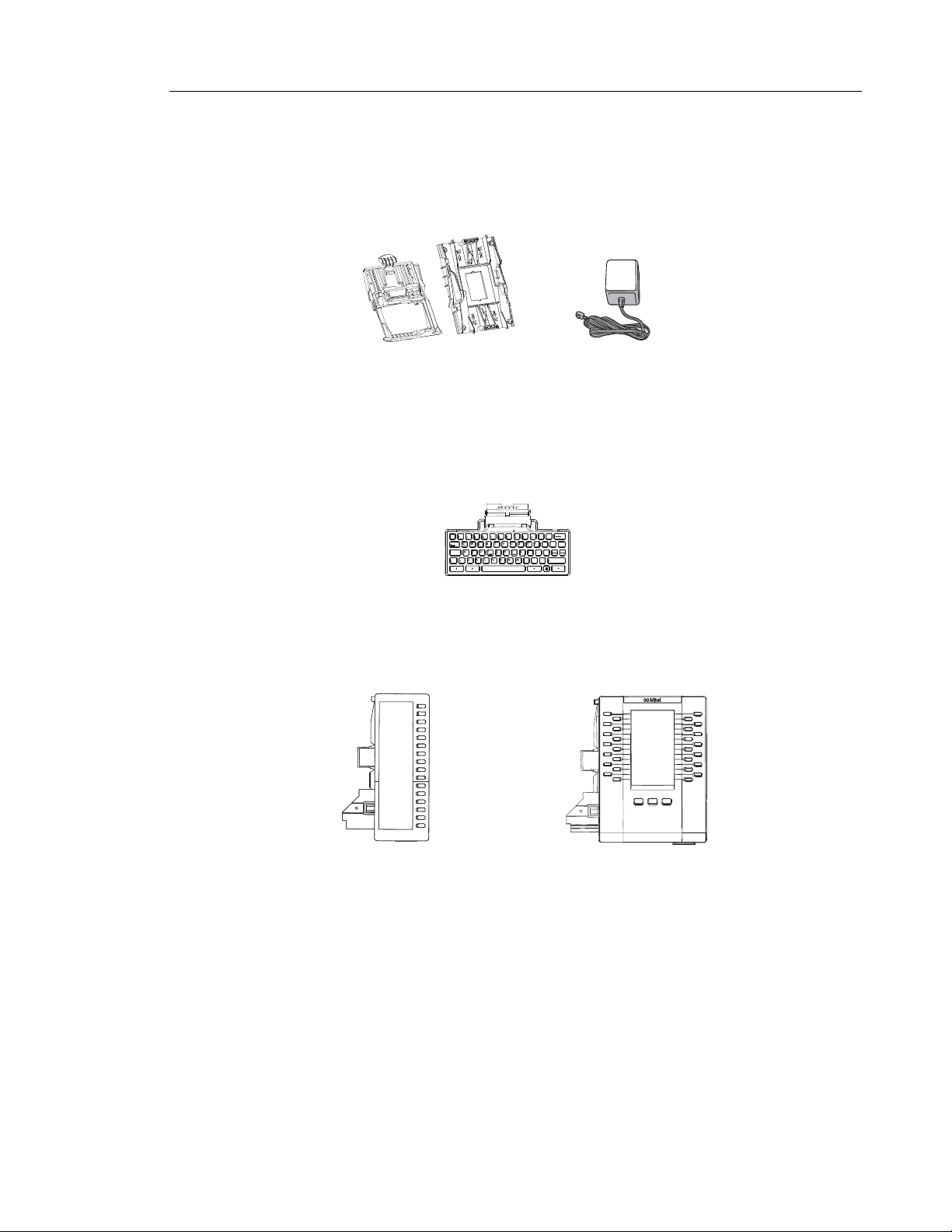
OPTIONAL ACCESSORIES
The 6800 wall mount kit is an optional accessory designed to be used with the 6863i, 6865i,
6867i, and 6869i IP Phones. The power adapter is an optional accessory designed to be used
with all the 6800 Series IP Phones.
IP Phone Models
6800 Wall Mount Kit
Power Adapter
The K680i magnetically connected keyboards (available in QWERTY, QWERTZ, and AZERTY
keyboard layouts) are optional accessories designed to be used wit the 6867i and 6869i IP
Phones. The full keyboard provides a more natural typing interface and helps to easily facilitate
dial by name, directory search, XML applications, etc....
_
(
@
#
$
!
~
`
Tab
Caps Lock
Shift
)
Backspace
%
^
+
&
_
=
}{
|
[]
\
:
Enter
“
;
‘
Shift
>
<
?
,
\
.
K680i Detachable Magnetic Keyboard
The following expansion modules are optional accessories designed to be used with the 6865i,
6867i, 6869i, and 6873i IP Phones.
M680i Expansion Module
M685i Expansion Module
The M680i module adds 16 additional softkeys to the 6865i, 6867i, 6869i, and 6873i IP phones
and provides paper labels for each softkey. The M685i adds 3 pages of 28 (i.e. 84 total) additional
softkeys to the 6865i, 6867i, 6869i, and 6873i IP phones. Labels can be configured and
displayed on the backlit color LCD display.
No separate power adapter is required for the expansion modules as they are powered by the
respective IP phone.
Up to 3 modules (mixed in any combination) can be daisy-chained together to provide a large
number of additional softkeys.
1-4
Page 26

Mitel 6800 Series SIP Phone Release 4.2.0 SP2 Administrator Guide
M680I AND M685I EXPANSION MODULES DAISY-CHAINING SUPPORT
IP PHONE
MODEL
6865i 3 3 Class 2 (< 6.49W)
6867i 3 3 Class 2 (< 6.49W) without
6869i 3 3 Class 3 (< 12.95W)
6873i 3 3 Class 3 (< 12.95W) without
MAXIMUM # OF
DAISY-CHAINED
MODULES WHEN
POWERED VIA 48V AC
ADAPTER
MAXIMUM # OF
DAISY-CHAINED
MODULES WHEN
POWERED VIA POE
POE CLASS
modules. Dynamically
switches to Class 3
(< 12.95W) when modules
are attached.
modules. Dynamically
switches to Class 4
(< 25.50W) when modules
are attached (see notes
below).
Notes:
1. Some 802.3at switches require connected devices to send power allocation requests
in excess of 12.95 W using LLDP. Therefore, Mitel recommends that Administrators
ensure LLDP is enabled when powering a 6873i SIP phone with one or more
expansion modules connected using Power over Ethernet plus (PoE plus). For more
information on LLDP, see “Link Layer Discovery Protocol for Media Endpoint Devices
(LLDP-MED) and Emergency Location Identification Number (ELIN)” on page 5-99.
2. For the 6873i, the USB port on the phone will be disabled if the phone is being
powered using 802.3af PoE and one or more expansion modules are connected.
Use the recommended AC adapter (optional accessory) or power the 6873i using
802.3at PoE plus to ensure the USB port will be functional when expansion modules
are connected to the phone.
1-5
M680i and M685i Software Upgrades
The M680i and M685i do not require separate firmware packages. M680i/M685i software is
embedded within the respective phone’s firmware package.
When the M680i or M685i is connected and is powered up (for the M680i the LED corresponding
to the second button will turn solid red indicating it is powered up; for the M685i the LCD screen
will turn on) the module will check to see if an upgrade is required. If it does not have the latest
software, the module will upgrade itself using the phone’s embedded firmware.
For the M680i, this process will take approximately 10 seconds, in which case the LED
corresponding to the second button will stay solid red for the duration. If the upgrade is
successful, the LED will turn green. If the LED stays solid and red for longer than 10 seconds,
the upgrade may have failed. In such scenarios, unplug and reattach the power source from
the phone to attempt the upgrade again.
Page 27

IP Phone Models
As software upgrades on the M680i are performed one at a time, each additional module
connected increases the approximate upgrade time (e.g. three connected M680i expansion
modules will take approximately 30 seconds to upgrade).
For the M685i, the upgrade process will take approximately 7 to 10 minutes, in which case an
upgrading icon will be displayed on the module’s LCD screen and an upgrading message will
be displayed on the phone’s LCD screen. If the upgrade is successful, the module’s LCD screen
will refresh with the softkey images. If the screen is not refreshed after ~15 minutes, the upgrade
may have failed. In such scenarios, unplug and reattach the power source from the phone to
attempt the upgrade again.
Unlike the M680i, software upgrades for the M685i are performed simultaneously and therefore
do not increase the upgrade time (e.g. three connected M685i expansion modules will still take
approximately 7 to 10 minutes to upgrade).
Note: When using a combination of M680i and M685i expansion modules in tandem,
the M685i modules must be connected to the phone first, followed by the M680i modules.
Additionally, if a software update is available for both expansion modules, the M685i
modules will upgrade first and a reboot will be required after the M685i module upgrade
is complete before the M680i can be upgraded.
Reference
For more information about installing the 6800 Wall Mount Kit and setting up and using the
K680i keyboard and M680i/M685i expansion modules, see the following respective documents:
• 6800 Wall Mount Kit Installation Guide
• K680i Detachable Magnetic Keyboard Installation Guide
• M680i Expansion Module Installation Guide
• M685i Expansion Module Installation Guide
• M680i Expansion Module Quick Start Guide
• M685i Expansion Module Quick Start Guide
• <Model-Specific> Installation Guide
• <Model-Specific> SIP Phone User Guide
1-6
Page 28

Mitel 6800 Series SIP Phone Release 4.2.0 SP2 Administrator Guide
MODEL 6863I IP PHONE
This section provides brief information about the Model 6863i IP Phone. It includes a list of
features and describes the hard keys on the 6863i.
6863I PHONE FEATURES
• LCD screen
• Built-in-two-port, 10/100 Fast Ethernet switch - lets you share a connection with your
computer
• 3 programmable keys
• Press-and-hold speeddial key configuration feature
• Supports up to 2 call lines with LEDs
• Wideband handset
• Wideband, full-duplex speakerphone for handsfree calls
• AC power adapter (sold separately)
• Set paging*
*Availability of feature dependent on your phone system or service provider.
1-7
Page 29
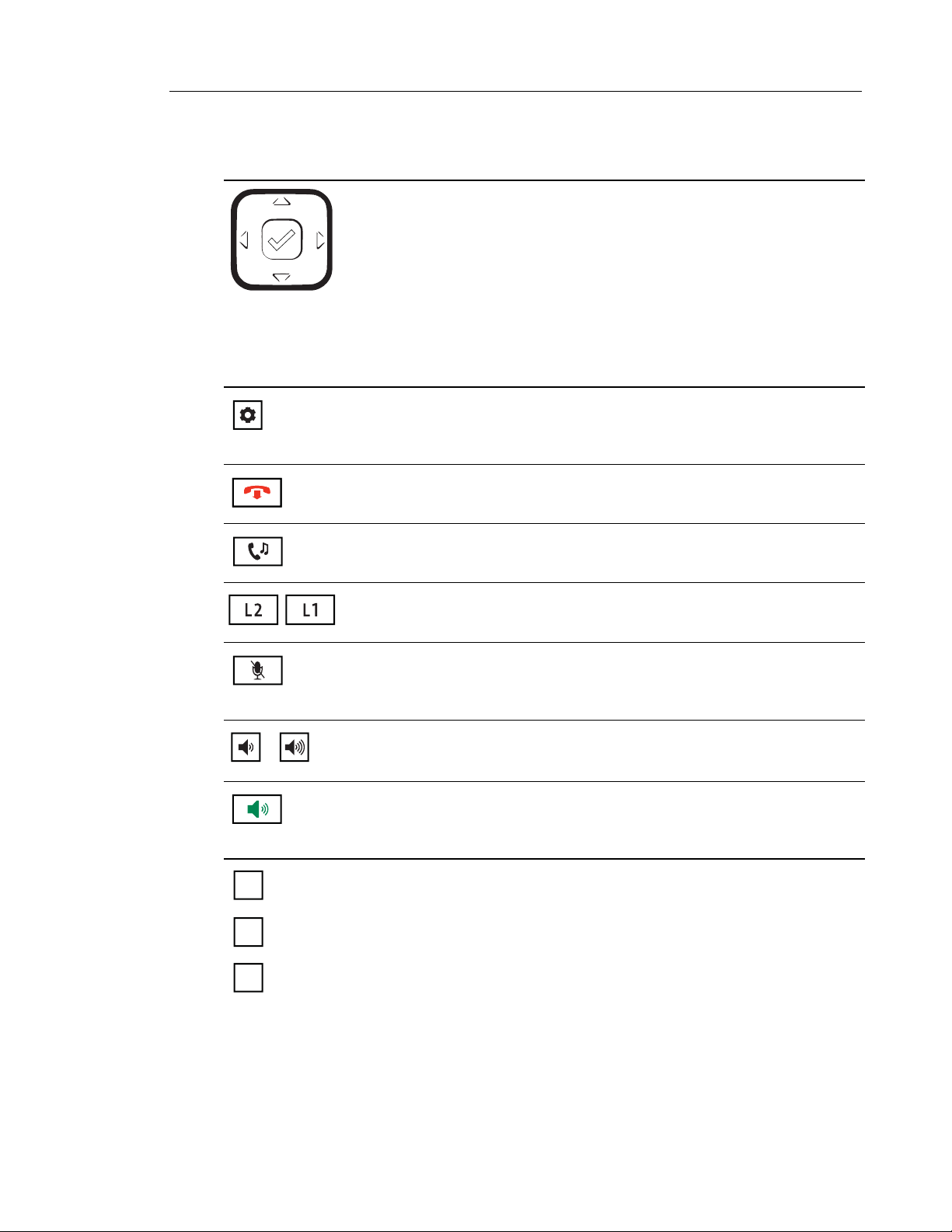
6863I KEY DESCRIPTION
KEY DESCRIPTION
Navigation/Select Keys - Pressing the UP and DOWN keys lets you view different
status and text messages on the LCD display (if there is more than 1 line of
status/text messages). These buttons also let you scroll through menu selections,
such as the Options List.
Pressing the LEFT and RIGHT keys lets you view the different line/call
appearances. While in the Options List, these keys allow you to exit or enter the
current option. When you are editing entries on the display, pressing the LEFT key
erases the character on the left; pressing the RIGHT key sets the option.
Alternatively, pressing the center Select key sets the option as well on specific
screens.
Options Key - Accesses services and options to customize your phone. Your
System Administrator may have already customized some of your settings. Check
with your System Administrator before changing the administrator-only options.
Goodbye Key - Ends an active call. The Goodbye key also exits an open list, such
as the Options List, without saving changes.
IP Phone Models
Hold Key - Places an active call on hold. To retrieve a held call, press the call
appearance button beside the light that is flashing.
Line/Call Appearance Keys - Connects you to a line or call. The Mitel 6863i
supports two line keys, each with LED indicator lights.
Mute Key - Mutes the microphone so that your caller cannot hear you (the light
indicator flashes when the microphone is on mute).
Volume Controls - Adjusts the volume for the handset, ringer, and handsfree
speaker.
Speaker Key - Transfers the active call to the speaker, allowing handsfree use of
the phone.
Programmable Keys - When programmed, allows you to easily perform up to 3
specific functions (e.g. Services, Directory, Intercom, etc...) and access enhanced
services provided by third parties (e.g. XML applications). The programmable keys
are pre-configured as (from top to bottom) Received Callers, Outgoing Redial, and
Transfer keys.
1-8
Page 30

Mitel 6800 Series SIP Phone Release 4.2.0 SP2 Administrator Guide
MODEL 6865I IP PHONE
This section provides brief information about the Model 6865i IP Phone. It includes a list of
features and describes the hard keys on the 6865i.
6865I PHONE FEATURES
• LCD screen with backlight
• Built-in-two-port, 10/100/1000 Gigabit Ethernet switch - lets you share a connection with
your computer
• 8 programmable top keys
• Press-and-hold speeddial key configuration feature
• Supports up to 24 call lines with LEDs
• Wideband handset
• Wideband, full-duplex speakerphone for handsfree calls
• Headset mode support
• AC power adapter (sold separately)
• Enhanced busy lamp fields*
• Set paging*
*Availability of feature dependent on your phone system or service provider.
1-9
Page 31
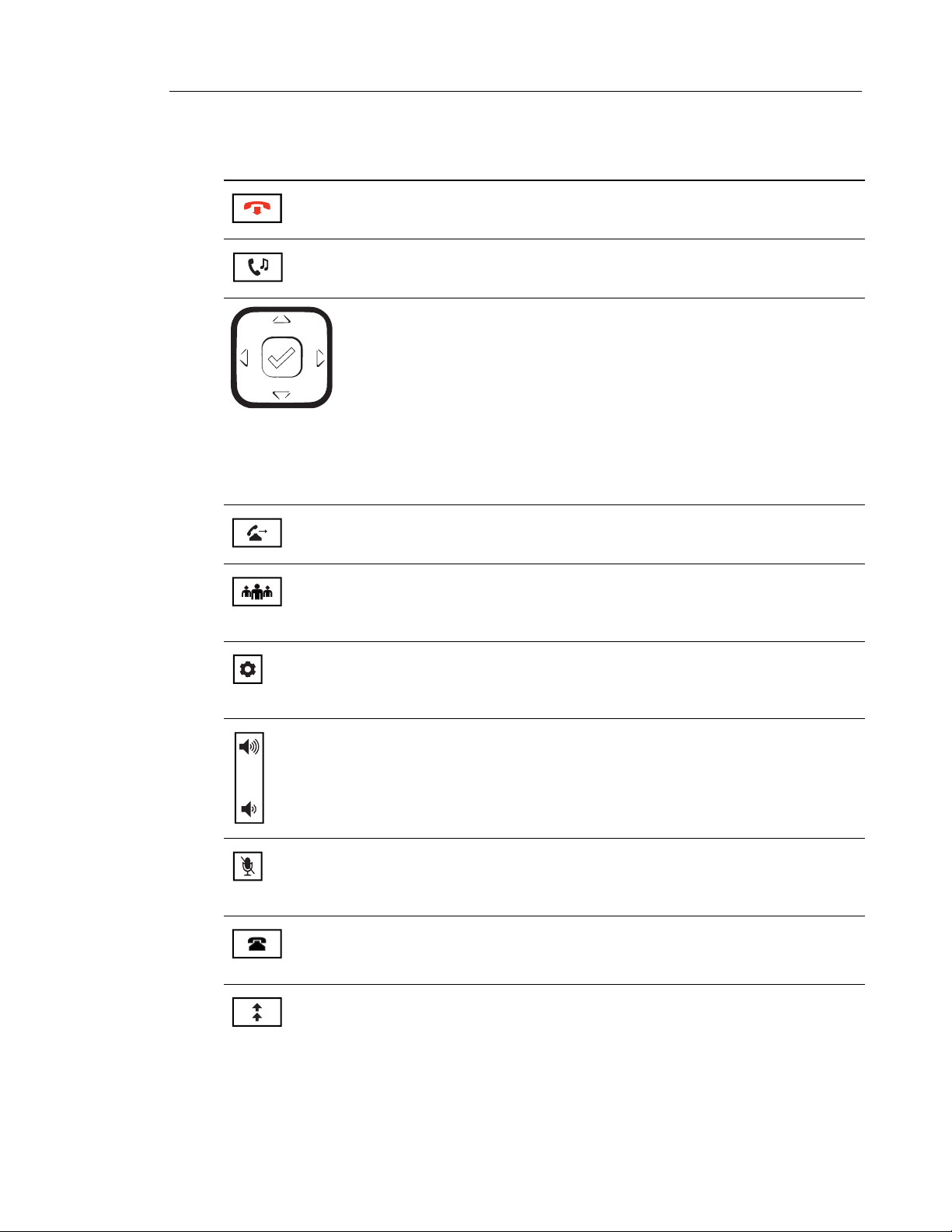
6865I KEY DESCRIPTION
KEY DESCRIPTION
Goodbye Key - Ends an active call. The Goodbye key also exits an open list, such
as the Options List, without saving changes.
Hold Key - Places an active call on hold. To retrieve a held call, press the call
appearance button beside the light that is flashing.
Navigation/Select Keys - Pressing the UP and DOWN keys lets you view different
status and text messages on the LCD display (if there is more than 1 line of
status/text messages). These buttons also let you scroll through menu selections,
such as the Options List.
Pressing the LEFT and RIGHT keys lets you view the different line/call
appearances. While in the Options List, these keys allow you to exit or enter the
current option. When you are editing entries on the display, pressing the LEFT key
erases the character on the left; pressing the RIGHT key sets the option.
Alternatively, pressing the center Select key sets the option as well on specific
screens.
Transfer Key - Transfers the active call to another number.
IP Phone Models
Conference Key - Begins a conference call with the active call.
Options Key - Accesses services and options to customize your phone. Your
System Administrator may have already customized some of your settings. Check
with your System Administrator before changing the administrator-only options.
Volume Controls - Adjusts the volume for the handset, ringer, and handsfree
speaker.
Mute Key - Mutes the microphone so that your caller cannot hear you (the light
indicator flashes when the microphone is on mute).
Received Callers List Key - Accesses a list of the last 200 calls received.
Redial Key - Accesses a list of the last 100 previously dialed numbers. Pressing
the Redial key twice redials the last dialed number.
1-10
Page 32
Mitel 6800 Series SIP Phone Release 4.2.0 SP2 Administrator Guide
KEY DESCRIPTION
Line/Call Appearance Keys - Connects you to a line or call. The Mitel 6865i IP
Phone supports two line keys, each with LED indicator lights.
Speaker/Headset Key - Transfers the active call to the speaker or headset,
allowing handsfree use of the phone.
Programmable Keys - When programmed, allows you to easily perform up to 8
specific functions (e.g. Services, Directory, Received Callers List, Intercom, etc...)
and access enhanced services provided by third parties (e.g. XML applications).
1-11
Page 33
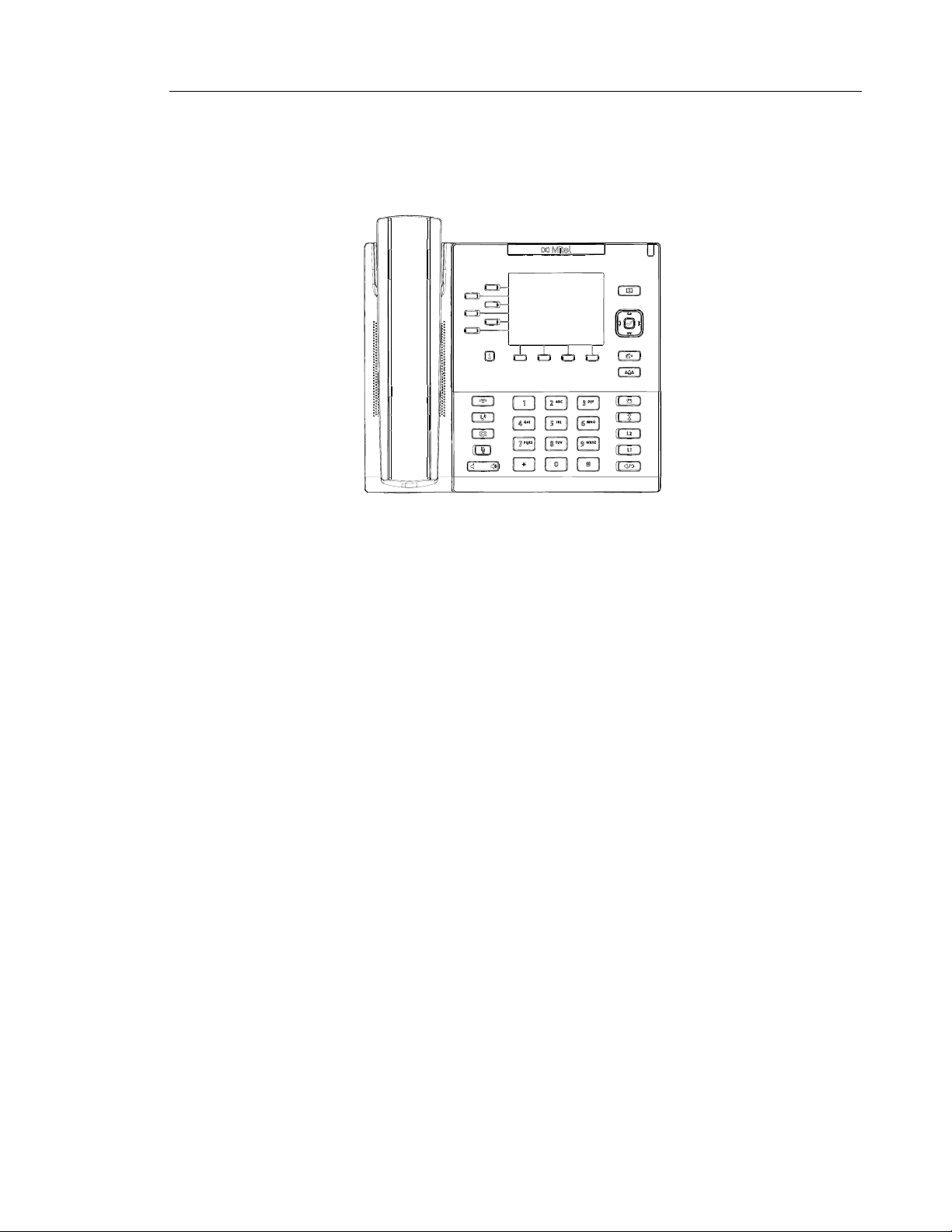
MODEL 6867I IP PHONE
This section provides brief information about the Model 6867i IP Phone. It includes a list of
features and describes the hard keys on the 6867i.
IP Phone Models
6867I PHONE FEATURES
• 3.5” QVGA color TFT LCD with backlight
• Built-in-two-port, 10/100/1000 Gigabit Ethernet switch - lets you share a connection with
your computer
• USB 2.0 port (100mA maximum)
• 6 programmable and 4 context-sensitive softkeys
• Press-and-hold speeddial key configuration feature
• Supports up to 24 call lines with LEDs
• Wideband handset
• Wideband, full-duplex speakerphone for handsfree calls
• Headset mode support
• AC power adapter (sold separately)
• Enhanced busy lamp fields*
• Set paging*
*Availability of feature dependent on your phone system or service provider.
1-12
Page 34
Mitel 6800 Series SIP Phone Release 4.2.0 SP2 Administrator Guide
6867I KEY DESCRIPTION
KEY DESCRIPTION
Goodbye Key - Ends an active call. The Goodbye key also exits an open list,
such as the Options List, without saving changes.
Hold Key - Places an active call on hold. To retrieve a held call, press the call
appearance button beside the light that is flashing.
Options Key - Accesses services and options to customize your phone. Your
System Administrator may have already customized some of your settings.
Check with your System Administrator before changing the administrator-only
options.
Mute Key - Mutes the microphone so that your caller cannot hear you (the light
indicator flashes when the microphone is on mute).
Volume Controls - Adjusts the volume for the handset, ringer, and handsfree
speaker.
Received Callers List Key - Accesses a list of the last 200 calls received.
Outgoing Redial Key - Accesses a list of the last 100 previously dialed
numbers. Pressing the Outgoing Redial key twice redials the last dialed
number.
Line/Call Appearance Keys - Connects you to a line or call. The Mitel 6867i
IP Phone supports two line keys, each with LED indicator lights.
Speaker/Headset Key - Transfers the active call to the speaker or headset,
allowing handsfree use of the phone.
Directory Key - Accesses a directory of names and phone numbers.
Navigation/Select Keys - Multi-directional navigation keys allow you to
navigate through the phone’s user interface. Pressing the center Select key
selects/sets options and performs various actions (such as dialing out when in
the Directory, Received Callers, and Outgoing Redial Lists).
Transfer Key - Transfers the active call to another number.
1-13
Page 35
KEY DESCRIPTION
Conference Key - Begins a conference call with the active call.
Presence Key - Accesses the partial and full contact presence information
screens, which provide more detailed information about the selected contact.
Left Softkeys - 6 programmable keys that allow you to easily perform up to 20
specific functions and access enhanced services provided by third parties
(e.g. XML applications).
Bottom Softkeys - 4 programmable keys that support up to 18 functions.
These keys also act as state-based keys allowing you to easily perform
context-sensitive functions during specific states (i.e. when the phone is an
idle, connected, incoming, outgoing, or busy state).
IP Phone Models
1-14
Page 36
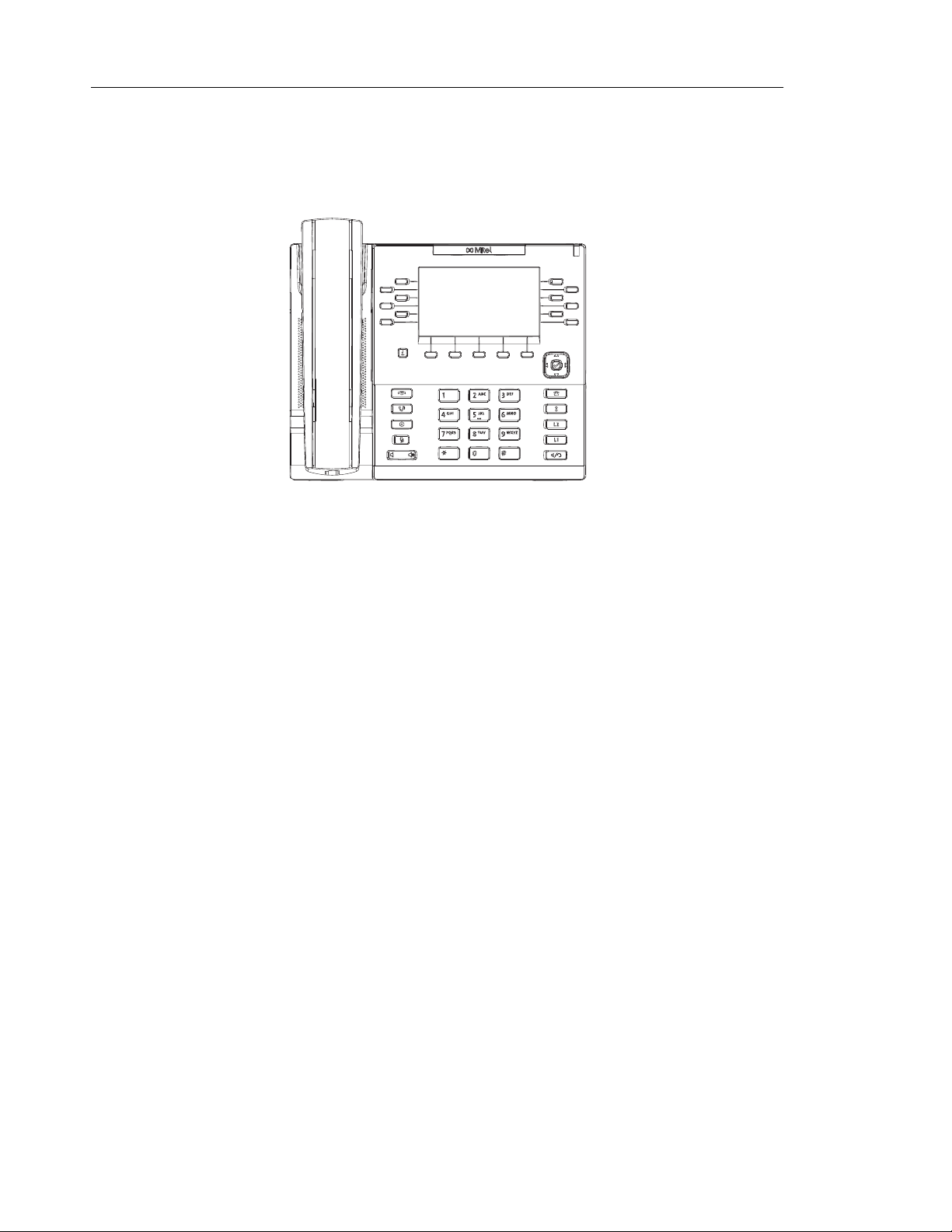
Mitel 6800 Series SIP Phone Release 4.2.0 SP2 Administrator Guide
MODEL 6869I IP PHONE
This section provides brief information about the Model 6869i IP Phone. It includes a list of
features and describes the hard keys on the 6869i.
6869I PHONE FEATURES
• 4.3” QVGA color TFT LCD with backlight
• Built-in-two-port, 10/100/1000 Gigabit Ethernet switch - lets you share a connection with
your computer
• USB 2.0 port (100mA maximum)
• 12 programmable and 5 context-sensitive softkeys
• Press-and-hold speeddial key configuration feature
• Supports up to 24 call lines with LEDs
• Wideband handset
• Wideband, full-duplex speakerphone for handsfree calls
• Headset mode support
• AC power adapter (sold separately)
• Enhanced busy lamp fields*
• Set paging*
*Availability of feature dependent on your phone system or service provider.
1-15
Page 37
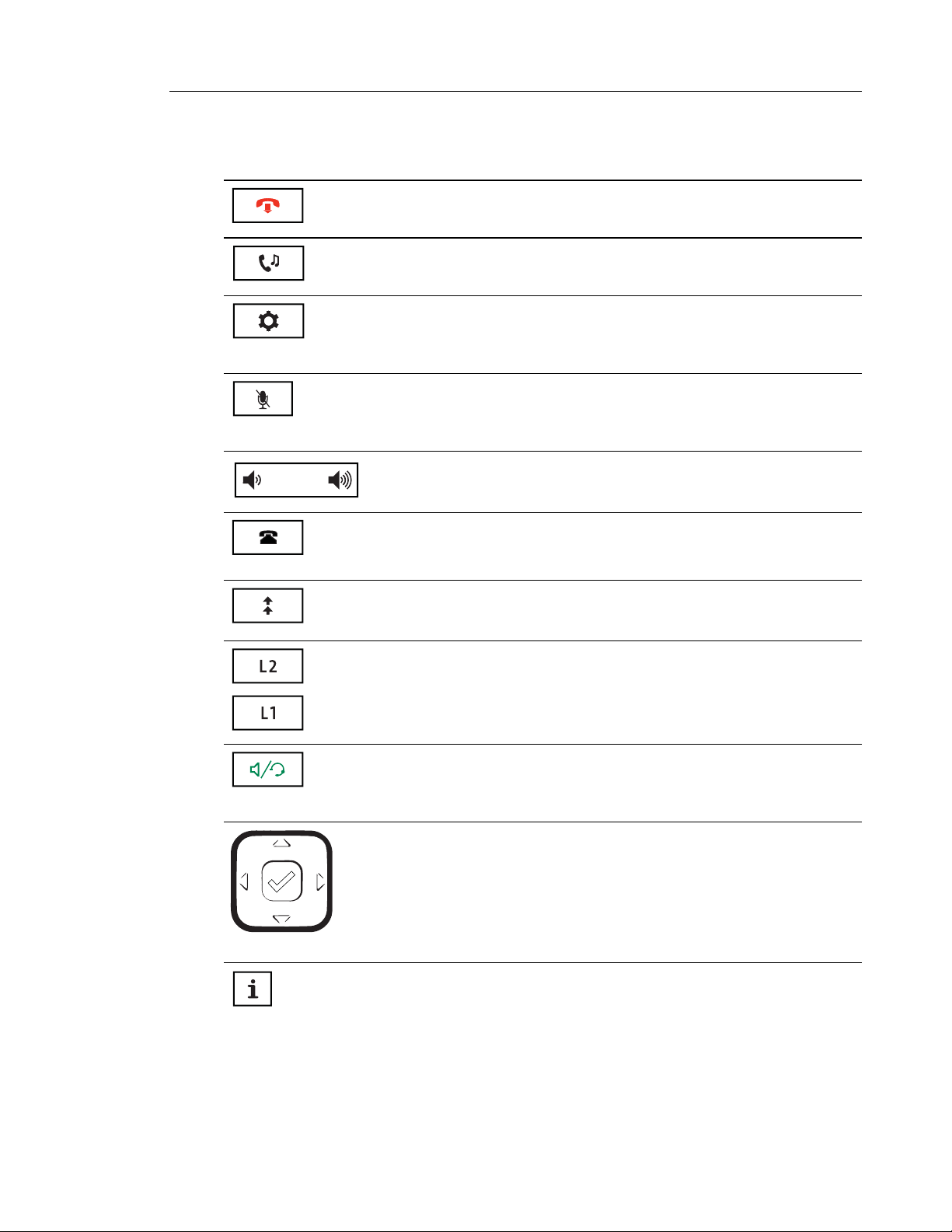
6869I KEY DESCRIPTION
KEY DESCRIPTION
Goodbye Key - Ends an active call. The Goodbye key also exits an open list,
such as the Options List, without saving changes.
Hold Key - Places an active call on hold. To retrieve a held call, press the call
appearance button beside the light that is flashing.
Options Key - Accesses services and options to customize your phone. Your
System Administrator may have already customized some of your settings.
Check with your System Administrator before changing the administrator-only
options.
Mute Key - Mutes the microphone so that your caller cannot hear you (the
light indicator flashes when the microphone is on mute).
Volume Controls - Adjusts the volume for the handset, ringer, and handsfree
speaker.
Received Callers List Key - Accesses a list of the last 200 calls received.
IP Phone Models
Outgoing Redial Key - Accesses a list of the last 100 previously dialed
numbers. Pressing the Outgoing Redial key twice redials the last dialed
number.
Line/Call Appearance Keys - Connects you to a line or call. The Mitel 6869i
IP Phone supports two line keys, each with LED indicator lights.
Speaker/Headset Key - Transfers the active call to the speaker or headset,
allowing handsfree use of the phone.
Navigation/Select Keys - Multi-directional navigation keys allow you to
navigate through the phone’s user interface. Pressing the center Select key
selects/sets options and performs various actions (such as dialing out when
in the Directory, Received Callers, and Outgoing Redial Lists).
Presence Key - Accesses the partial and full contact presence information
screens, which provide more detailed information about the selected contact.
1-16
Page 38

Mitel 6800 Series SIP Phone Release 4.2.0 SP2 Administrator Guide
KEY DESCRIPTION
Top Softkeys - 12 programmable keys that allow you to easily perform up to
44 specific functions and access enhanced services provided by third parties
(e.g. XML applications).
Bottom Softkeys - 5 programmable keys that support up to 24 functions.
These keys also act as state-based keys allowing you to easily perform
context-sensitive functions during specific states (i.e. when the phone is an
idle, connected, incoming, outgoing, or busy state).
1-17
Page 39
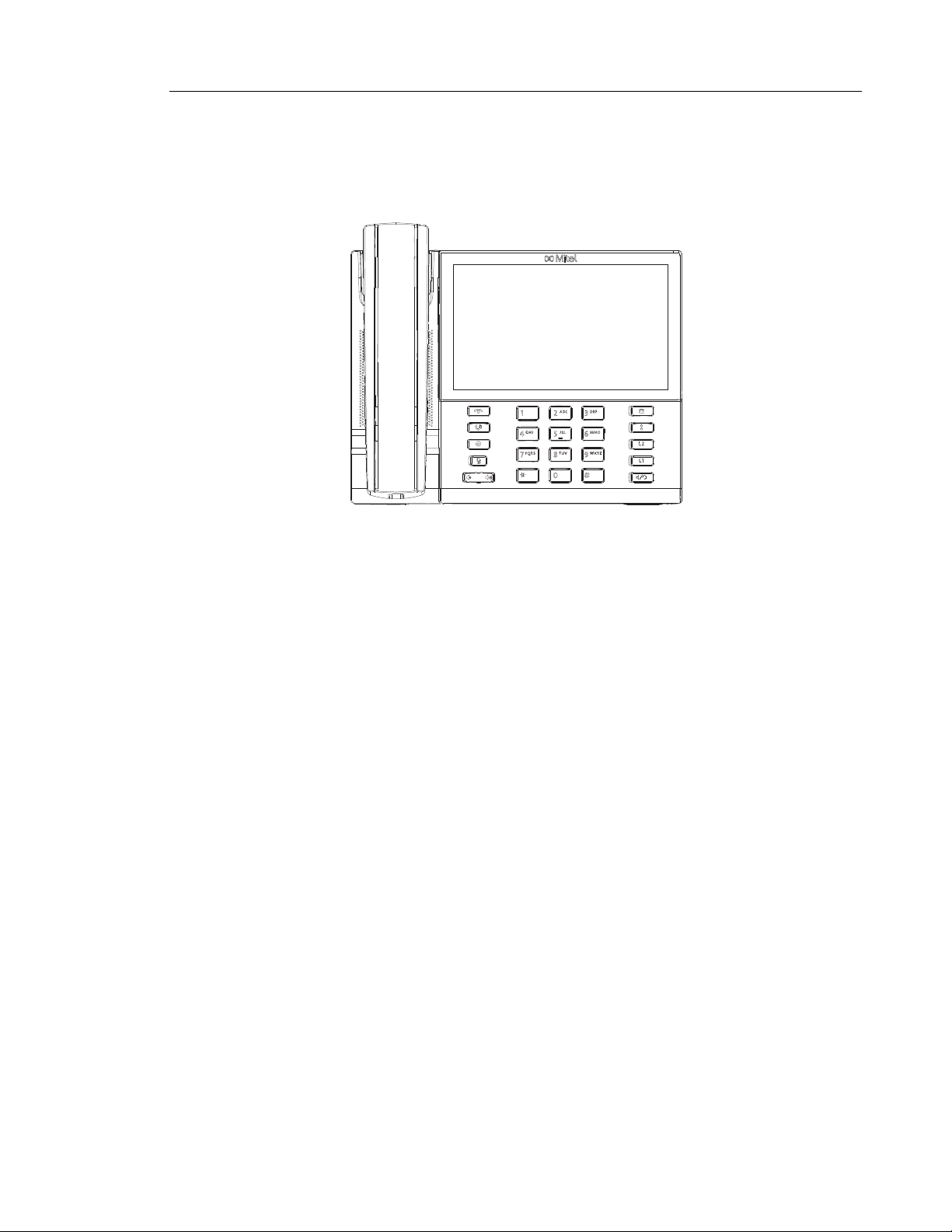
MODEL 6873I IP PHONE
This section provides brief information about the Model 6873i IP Phone. It includes a list of
features and describes the hard keys on the 6873i.
IP Phone Models
6873I PHONE FEATURES
• 7" WVGA (800x480) color TFT capacitive touch LCD
• Built-in-two-port, 10/100/1000 Gigabit Ethernet switch - lets you share a connection with
your computer
• USB 2.0 port (500mA maximum)
• Up to 48 top and 30 bottom softkeys
• Press-and-hold speeddial key configuration feature
• Supports 2 hard line keys with LEDs (additional line keys programmable via softkeys)
• Wideband handset
• Wideband, full-duplex speakerphone for handsfree calls
• USB and Bluetooth headset support
• AC power adapter (sold separately)
• Enhanced busy lamp fields*
• Set paging*
*Availability of feature Dependant on your phone system or service provider.
1-18
Page 40

Mitel 6800 Series SIP Phone Release 4.2.0 SP2 Administrator Guide
6869I KEY DESCRIPTION
KEY DESCRIPTION
Goodbye Key - Ends an active call. The Goodbye key also exits an open list,
such as the Options List, without saving changes.
Hold Key - Places an active call on hold. To retrieve a held call, press the call
appearance button beside the light that is flashing.
Options Key - Accesses services and options to customize your phone. Your
System Administrator may have already customized some of your settings.
Check with your System Administrator before changing the administrator-only
options.
Mute Key - Mutes the microphone so that your caller cannot hear you (the
light indicator flashes when the microphone is on mute).
Volume Controls - Adjusts the volume for the handset, ringer, and handsfree
speaker.
Received Callers List Key - Accesses a list of the last 200 calls received.
Outgoing Redial Key - Accesses a list of the last 100 previously dialed
numbers. Pressing the Outgoing Redial key twice redials the last dialed
number.
Line/Call Appearance Keys - Connects you to a line or call. The Mitel 6869i
IP Phone supports two line keys, each with LED indicator lights.
Speaker/Headset Key - Transfers the active call to the speaker or headset,
allowing handsfree use of the phone.
1-19
Page 41

Firmware Installation Information
FIRMWARE INSTALLATION INFORMATION
DESCRIPTION
The firmware setup and installation for the IP phone can be done using any of the following:
• Phone User Interface via the keypad (Phone UI)
• Mitel Web-based user interface (Mitel Web UI)
When the IP phone is initialized for the first time, DHCP is enabled by default. Depending on
the type of configuration server setup you may have, the IP phone may download a firmware
version automatically, or you may need to download it manually.
IMPORTANT M685I EXPANSION MODULE FIRMWARE DOWNGRADE INFORMATION
If you upgrade your phone to Release 4.2.0 and an M685i Expansion Module is attached, the
M685i Expansion Module will also upgrade to align itself with the new UI changes.
If downgrading the phone with an M685i Expansion Module from Release 4.2.0 to a firmware
version of Release 4.1.0 (or below), it is required to first downgrade to Release 4.1.0 Hot Fix
or 4.1.0 Service Pack and then to the Release 4.1.0 (or below) firmware version in such
scenarios.
This will ensure the UI of the M685i Expansion Module is aligned with the UI at all times.
INSTALLATION CONSIDERATIONS
The following considerations must be made before connecting the IP phone to the network:
• If you are planning on using dynamic IP addresses, make sure a DHCP server is enabled
and running on your network.
• If you are not planning on using dynamic IP addresses, see Chapter 4, the section, “Con-
figuring Network Settings Manually” on page 4-23 for manually setting up an IP address.
To install the IP phone hardware and cabling, refer to the <Model-Specific> SIP IP Phone
Installation Guide.
1-20
Page 42

Mitel 6800 Series SIP Phone Release 4.2.0 SP2 Administrator Guide
INSTALLATION REQUIREMENTS
The following are general requirements for setting up and using your SIP IP phone:
• SIP-based IP PBX system or network installed and running with a SIP account created for
the IP phone
• Access to a Trivial File Transfer Protocol (TFTP), File Transfer Protocol (FTP), Hypertext
Transfer Protocol (HTTP) server, or Hyper Text Transfer Protocol over Secure Sockets
Layer (SSL) (HTTPS)
• Ethernet/Fast Ethernet LAN (10/100 Mb) (Gigabit Ethernet LAN [1000 Mbps] recommended
for Gigabit Ethernet compliant phones)
• Category 5/5e straight through cabling (Category 6 straight-through cabling recommended
for Gigabit Ethernet compliant phones)
• Power source (6863i, 6865i, 6867i, and 6869i)
• For Ethernet networks that supply inline power to the phone (IEEE 802.3af) use an
Ethernet cable to connect from the phone directly to the network for power (no 48V AC
power adapter required if using Power-over-Ethernet [PoE])
• For Ethernet networks that DO NOT supply power to the phone:
• Use the respective power adapter to connect from the DC power port on the phone
to a power source
or
• Use a PoE power injector or a PoE switch
• Power source (6873i)
• For Ethernet networks that supply inline power to the phone (IEEE 802.3af or IEEE
802.3at [IEEE 802.3at recommended]) use an Ethernet cable to connect from the
phone directly to the network for power (no 48V AC power adapter required if using
Power-over-Ethernet [PoE] or PoE plus)
• For Ethernet networks that DO NOT supply power to the phone:
• Use only the GlobTek Inc. Limited Power Source [LPS] adapter model no.
GT-41080-1848 (sold separately) to connect from the DC power port on the phone
to a power source
or
• Use a PoE power injector or a PoE switch (PoE plus recommended)
1-21
Page 43

CONFIGURATION SERVER REQUIREMENT
A basic requirement for setting up the IP phone is to have a configuration server. The
configuration server allows you to:
• Store the firmware images that you need to download to your IP phone
• Stores configuration files for the IP phone
REFERENCE
To set the protocol for your configuration server, see Chapter 4, “Configuring Network and
Session Initiation Protocol (SIP) Features”, the section, “Configuring the Configuration Server
Protocol” on page 4-101.
To update the firmware on your phone, see Chapter 8, “Upgrading the Firmware”.
Firmware Installation Information
1-22
Page 44

Mitel 6800 Series SIP Phone Release 4.2.0 SP2 Administrator Guide
FIRMWARE AND CONFIGURATION FILES
DESCRIPTION
By default on startup, the phone downloads its firmware and configuration files from the
configuration server you have set; or you can manually download the firmware from the
configuration server. The phone supports TFTP, FTP, HTTP and HTTPS configuration servers.
Note: Automatic download is dependent on your configuration server setup. For more
information about manual and automatic download of firmware, see Chapter 8,
“Upgrading the Firmware.” For more information on changing the download protocol on
your phone, see Chapter 4, the section, “Configuring the Configuration Server Protocol”
on page 4-101.
The IP Phone firmware file (.st) include all the necessary files you need for your phone.
The firmware consists of the following file:
• <phone model>.st - This file contains information about the specific IP Phone model and
contains the language packs to load to the phone.
The configuration files consist of three files called:
• startup.cfg - This file contains configuration information about the IP Phone.
Note: In releases previous to 4.0.0 SP1, the "startup.cfg" file was named
"aastra.cfg". Apart from the file names, the "startup.cfg" file acts as an identical
replacement for the "aastra.cfg" file. Releases including and above 4.0.0 SP1
support both the "startup.cfg" and "aastra.cfg" files, but if the "startup.cfg" file is
available, the phone will disregard the "aastra.cfg" file (if available). The "aastra.cfg"
file will be used if the "startup.cfg" file is unavailable and will continue to be supported
going forward to ensure backwards compatibility with existing customer
deployments.
• <model>.cfg (for example, 6867i.cfg) - This file contains model specific information, where
“model” should be the same string that is used for the model name (e.g. 6863i.cfg, 6865i.cfg,
6867i.cfg, 6869i.cfg, 6873i.cfg).
• <MAC>.cfg (for example, 00085D1610DE.cfg) - This file contains configuration information
about the IP Phone.
1-23
Page 45

Firmware and Configuration Files
The following table provides the files that the phone requests from the configuration server
during bootup of the phone:
IP PHONE
MODEL
6863i 6863i.st startup.cfg
6865i 6865i.st
6867i 6867i.st
6869i 6869i.st
6873i 6873i.st
ASSOCIATED
FIRMWARE
CONFIGURATION FILES LANGUAGE FILES
<model>.cfg
(for example,
6867i.cfg)
<MAC>.cfg
(for example,
00085D1610DE.cfg)
lang_ca.txt (Catalan)
lang_ca_va.txt (Valencian)
lang_cs.txt (Czech - UTF-8)
lang_cs_op.txt (Czech - ASCII)
lang_cy.txt (Welsh)
lang_de.txt (German)
lang_da.txt (Danish)
lang_el.txt (Greek - 6867i, 6869i, and
6873i only)
lang_es.txt (Spanish)
lang_es_mx.txt (Mexican Spanish)
lang_eu.txt (Euskera)
lang_fi.txt (Finnish)
lang_fr.txt (French)
lang_fr_ca.txt (Canadian French)
lang_gl.txt (Galego)
lang_hu.txt (Hungarian)
lang_it.txt (Italian)
lang_nl.txt (Dutch)
lang_nl_nl.txt (Dutch - Netherlands)
lang_no.txt (Norwegian)
lang_pl.txt (Polish - ASCII)
lang_pl_pl.txt (Polish - UTF-8)
lang_pt.txt (Portuguese)
lang_pt_br.txt (Brazilian Portuguese)
lang_ro.txt (Romanian)
lang_ru.txt (Russian)
lang_sk.txt (Slovak - UTF-8)
lang_sk_op.txt (Slovak - ASCII)
lang_sv.txt(Swedish)
lang_tr.txt (Turkish)
REFERENCE
For more information about loading language files and using the various languages on the IP
phone, see Chapter 5, the section, “Language” on page 5-51.
1-24
Page 46

Mitel 6800 Series SIP Phone Release 4.2.0 SP2 Administrator Guide
CONFIGURATION FILE PRECEDENCE
Mitel IP phones can accept three sources of configuration data:
• The server configuration most recently downloaded/cached from the configuration server
files, startup.cfg/<model>.cfg/<mac>.cfg (or the startup.tuz/<model>.tuz/<mac>.tuz encrypted equivalents)
• Local configuration changes stored on the phone that were entered using either the IP
phone UI or the Mitel Web UI
If the same parameter appears more than once in the above configuration files, the last
parameter/value read will be used (i.e. the following precedence rules will apply):
• Settings in the <model>.cfg file can overwrite startup.cfg settings
• Settings in the <mac>.cfg file can overwrite <model>.cfg settings
In the event of conflicting values set by the different methods, values are applied in the following
sequence:
1. Default values hard-coded in the phone software
2. Values downloaded from the configuration server
3. Values stored locally on the phone
The last values to be applied to the phone configuration are the values that take effect.
For example, if a parameter’s value is set in the local configuration (via Mitel Web UI or IP
phone UI) and the same value was also set differently in one of the
startup.cfg/<model>.cfg/<mac>.cfg files on the configuration server, the local configuration
value is the value that takes effect because that is the last value applied to the configuration.
INSTALLING THE FIRMWARE/CONFIGURATION FILES
The following procedure describes how to install the firmware and configuration files.
1. If DHCP is disabled, manually enter the configuration server’s IP address. For details on
manually setting DHCP, see Chapter 4, the section “DHCP” on page 4-4.
2. Copy the firmware file <phone model>.st to the root directory of the configuration server.
The IP phone accepts the new firmware file only if it is different from the firmware currently
loaded on the IP phone.
Note: The <phone model> attribute is the IP phone model (i.e. 6863i.st, 6865i.st,
6867i.st, 6869i.st, 6873i.st).
1-25
Page 47

Firmware and Configuration Files
3. Copy the Mitel configuration files (startup.cfg, <model>.cfg, and <mac>.cfg) to the root
directory of the configuration server.
Notes:
1. The <mac> attribute represents the actual MAC address of your phone (i.e.
00085D030996.cfg).
2. The <model> represents a specific model of phone. (i.e. 6869i.cfg).
3. Restart the IP phone as described in Chapter 3,
page 3-13.
MULTIPLE CONFIGURATION SERVER SUPPORT
An Administrator has the option of specifying whether the phones get their firmware file, CSV
directory files, language packs, TLS certificate files, 802.1x certificate files, and HTTPS files
from the original configuration server or from another server in the network. This feature allows
you to specify the URL of other servers from which the phone can get this information.
FIRMWARE FILES AND MULTIPLE CONFIGURATION SERVERS
The firmware file for the phones can be downloaded from the original configuration server or
from another server specified by a URL. You can specify a valid full or partial URL (server IP
address) from which the phones get the firmware using a new parameter called, “firmware
server” in the configuration files. If a full URL is specified for this parameter, the phones in the
network get the security.tuz, startup.cfg, <model>.cfg, and <mac>.cfg files from the original
configuration server, and the firmware files from the server specified in the URL.
“Restarting Your Phone” on
When the “firmware server” parameter specifies a partial URL path, the configuration server
that is linked to the partial path is used to load the firmware.
For example,
firmware server: /path
When there is no “firmware server” parameter (or if it is empty), the original configuration
server is used to load the firmware.
Note: The default method for the download of all files and firmware to the phones is
from the original configuration server. The Administrator must specify a correct full or
partial server URL for the phones to get their firmware information from that server. If
the URL is incorrect, no firmware download occurs to the phones from the specified
server.
Examples
To download all configuration and firmware files from the original configuration server:
firmware server:
Leaving this parameter blank downloads all configuration and firmware files from the original
configuration server.
To download all firmware files from another specified server:
firmware server: tftp://10.30.102.158/test1
1-26
Page 48
Mitel 6800 Series SIP Phone Release 4.2.0 SP2 Administrator Guide
The above example uses TFTP to download all firmware files that exist in the “test1” directory
on the specified server, to the phone.
Note: Specifying the download of a “.st” file is not supported. For example, the following
filename should NEVER be entered as a value string for the “firmware server”
parameter:
firmware server: tftp://10.30.102.158/test1/67i.st
To download a partial from another specified server:
firmware server: /path
The above example uses the configuration server that is linked to the partial path to load the
firmware.
SPECIFYING A SERVER TO DOWNLOAD FIRMWARE FILES
You can use the following parameter to specify a server other than the original configuration
server from which the phones get their firmware:
• firmware server
CONFIGURATION FILES
For the specific parameter(s) you can set in the configuration files, see Appendix A, the section,
“Multiple Configuration Server Settings” on page A-30.
CSV DIRECTORY FILES, LANGUAGE PACKS, TLS CERTIFICATES, 802.1X
CERTIFICATES, HTTPS FILES AND MULTIPLE CONFIGURATION
SERVERS
The CSV directory files, language packs, TLS certificate files, 802.1x certificate files, and
HTTPS files can also be downloaded to the phone from a server other than the configuration
server. For each of these types of files, you can specify a URL (server IP address) from which
the phone gets these files. You can use existing parameters on the phone to specify the URL.
For applicable parameters, see “Specifying a Server Using Existing Parameters on the IP
Phones” on page 1-29.
1-27
Page 49

Firmware and Configuration Files
The following table specifies the files that the original configuration server downloads, and the
files that another server can download to the phone.
FILES ALWAYS DOWNLOADED FROM
ORIGINAL CONFIGURATION SERVER
ARE, BY ORDER:
security.tuz
startup.cfg/startup.tuz
<model>.cfg/<model>.tuz
<mac>.cfg/<mac>.tuz
ALL FILES THAT CAN BE DOWNLOADED FROM
ORIGINAL CONFIGURATION SERVER
OR ANOTHER SPECIFIED SERVER ARE, BY ORDER:
CSV Directory Files
• directory 1
• directory 2
Language Pack Files
• language 1
• language 2
• language 3
• language 4
Transport Layer Security (TLS) Certificate Files
• sips root and intermediate certificates
• sips local certificate
• sips private key
• sips trusted certificates
802.1x Security Authentication Certificate Files
• 802.1x root and intermediate certificates:
• 802.1x local certificate:
• 802.1x trusted certificates
HTTPS Files
• https user certificates
1-28
Page 50

Mitel 6800 Series SIP Phone Release 4.2.0 SP2 Administrator Guide
Specifying a Server Using Existing Parameters on the IP Phones
The following table provides the parameters on the phone that you can use to download CSV
directory files, language packs, TLS certificates, 802.1x certificates, and HTTPS files from the
original configuration server OR from another server in the network.
TYPE OF FILE PARAMETERS THAT SUPPORT THE MULTIPLE
CONFIGURATION SERVER FEATURE ARE:
CSV Directory Files directory 1:
directory 2:
Language Pack Files language 1:
language 2:
language 3:
language 4:
Valid files names you can specify for languages are:
lang_ca.txt (Catalan)
lang_ca_va.txt (Valencian)
lang_cs.txt (Czech - UTF-8)
lang_cs_op.txt (Czech - ASCII)
lang_cy.txt (Welsh)
lang_de.txt (German)
lang_da.txt (Danish)
lang_el.txt (Greek - 6867i, 6869i, and 6873i only)
lang_es.txt (Spanish)
lang_es_mx.txt (Mexican Spanish)
lang_eu (Euskera)
lang_fi.txt (Finnish)
lang_fr.txt (French)
lang_fr_ca.txt (Canadian French)
lang_gl.txt (Galego)
lang_hu.txt (Hungarian)
lang_it.txt (Italian)
lang_nl.txt (Dutch)
lang_nl_nl.txt (Dutch - Netherlands)
lang_no.txt (Norwegian)
lang_pl.txt (Polish - ASCII)
lang_pl_pl.txt (Polish - UTF-8)
lang_pt.txt (Portuguese)
lang_pt_br.txt (Brazilian Portuguese)
lang_ro.txt (Romanian)
lang_ru.txt (Russian)
lang_sk.txt (Slovak - UTF-8)
lang_sk_op.txt (Slovak - ASCII)
lang_sv.txt(Swedish)
lang_tr.txt (Turkish)
1-29
Page 51

Firmware and Configuration Files
TYPE OF FILE PARAMETERS THAT SUPPORT THE MULTIPLE
CONFIGURATION SERVER FEATURE ARE:
Transport Layer Security (TLS) Certificate
Files
802.1x Security Authentication Certificate
Files
HTTPS Files https user certificates
sips root and intermediate certificates:
sips local certificate:
sips private key:
sips trusted certificates:
802.1x root and intermediate certificates:
802.1x local certificate:
802.1x trusted certificates:
Reference
For more information on each of these parameters, refer to Appendix A, “About this Appendix.”
Examples
CSV Directory Files
The following example downloads no directory:
directory 1:
The following example downloads a company directory from the original configuration server:
directory 1: companylist.csv
The following example downloads a company directory file from the specified server in the
“path” directory:
directory 1: tftp://10.30.102.158/path/companylist.csv
Note: To download a specific file, the string value MUST HAVE A FILENAME at the end
of the string. For example:
directory 1: tftp://10.30.102.158/path/companylist.csv
where “path” is the directory and “companylist.csv” is the filename. If you do not specify
a filename, the download fails.
Language Pack Files
The following example downloads no language pack file:
language 1:
The following example downloads the German language pack to the phones from the original
configuration server:
language 1: lang_de.txt
1-30
Page 52

Mitel 6800 Series SIP Phone Release 4.2.0 SP2 Administrator Guide
The following example uses FTP to download the firmware file “lang_de.txt” (German language
pack) from the “path” directory on server 1.2.3.4 using port 50:
language 1:ftp://admin:[email protected]:50/path/lang_de.txt
Transport Layer Security (TLS) Certificate Files
The following example downloads no local certificate file:
sips local certificate:
The following example downloads the local certificate file from the original configuration server.
sips local certificate: phonesLocalCert.pem
The following example uses FTP to download the firmware file “phonesLocalCert.pem” (local
certificate file) from the “path” directory on server 1.2.3.4 using port 50.
sips local certificate:ftp://admin:[email protected]:50/path/
phonesLocalCert.pem
802.1x Security Authentication Certificate Files
The following example downloads no 802.1x local certificate file:
802.1x local certificate:
The following example downloads the 802.1x local certificate for the phone from the original
configuration server.
802.1x local certificate: 8021xlocalCert.pem
The following example uses FTP to download the firmware file “8021xlocalCert.pem” (802.1x
local certificate file) from the “path” directory on server 1.2.3.4 using port 50.
802.1x local certificate:ftp://admin:[email protected]:50/path/
8021xlocalCert.pem
HTTPS User Certificate Files
The following example downloads no HTTPS user certificate files:
https user certificates:
The following example downloads the HTTPS user certificates for the phone from the original
configuration server.
https user certificates: trustedCerts.pem
1-31
The following example uses FTP to download the firmware file “user.crt.pem” (https user
certificate file) from the “test1” directory on server 12.43.33.234 using port 50.
https user certificates:
ftp://test:[email protected]:50/test1/user.crt.pem
Page 53

Chapter 2
CONFIGURATION INTERFACE METHODS
Page 54

Mitel 6800 Series SIP Phone Release 4.2.0 SP2 Administrator Guide
ABOUT THIS CHAPTER
This chapter describes the methods you, as an Administrator, can use to configure the IP
phones.
Note: Features, characteristics, requirements, and configuration that are specific to a
particular phone model are indicated where required in this guide.
TOPICS
This chapter covers the following topics:
TOPIC PAGE
Configuration Methods page 2-3
• IP Phone UI page 2-3
• Mitel Web UI page 2-5
• Configuration Files (Administrator Only) page 2-16
2-2
Page 55

CONFIGURATION METHODS
DESCRIPTION
You can use the following to setup and configure the IP phone:
• IP phone UI
• Mitel Web UI
• Configuration files
Note: Not all parameters are available from all three methods. For more information
about configuring the phone, see Chapter 4, Chapter 5, and Chapter 6.
The following paragraphs describe each method of configuring the IP Phone.
IP PHONE UI
The IP Phone User Interface (UI) provides an easy way to access features and functions for
using and configuring the IP phone. Access to specific features and functions are restricted to
the Administrator. A User can configure a subset of these features and functions. Users of the
IP phones should see their <Model-Specific> SIP Phone User Guide for available features
and functions.
Configuration Methods
REFERENCE
Refer to Chapter 1, “IP Phone Models” on page 1-3 for keys specific to your phone model.
For more information about using the hard keys on each phone, see Chapter 1, “IP Phone
Models” on page 1-3.
For more information about the softkeys/programmable keys, see Chapter 5,
“Softkeys/Programmable Keys/Expansion Module Keys” on page 5-140.
OPTIONS KEY
The Options key allows you to access the "Options List" on the IP phone. Accessible options
in this list are for both User and Administrator use. The Administrator must enter a password
for administrator options.
Note: An Administrator can apply a simplified options menu to the IP phones. An
Administrator can also enable and disable the use of an Administrator password
protection in the IP phone UI. These features are configurable using the configuration
files only. For more information about these features, see Chapter 3, the section,
“Simplified IP Phone UI Options Menu” on page page 3-5, and Chapter 5, the section,
“Administrator Passwords” on page 5-8.
This document describes the administrator options only. For a description of the user options
in the "Options List", see your <Model-Specific> SIP Phone User Guide.
2-3
Page 56
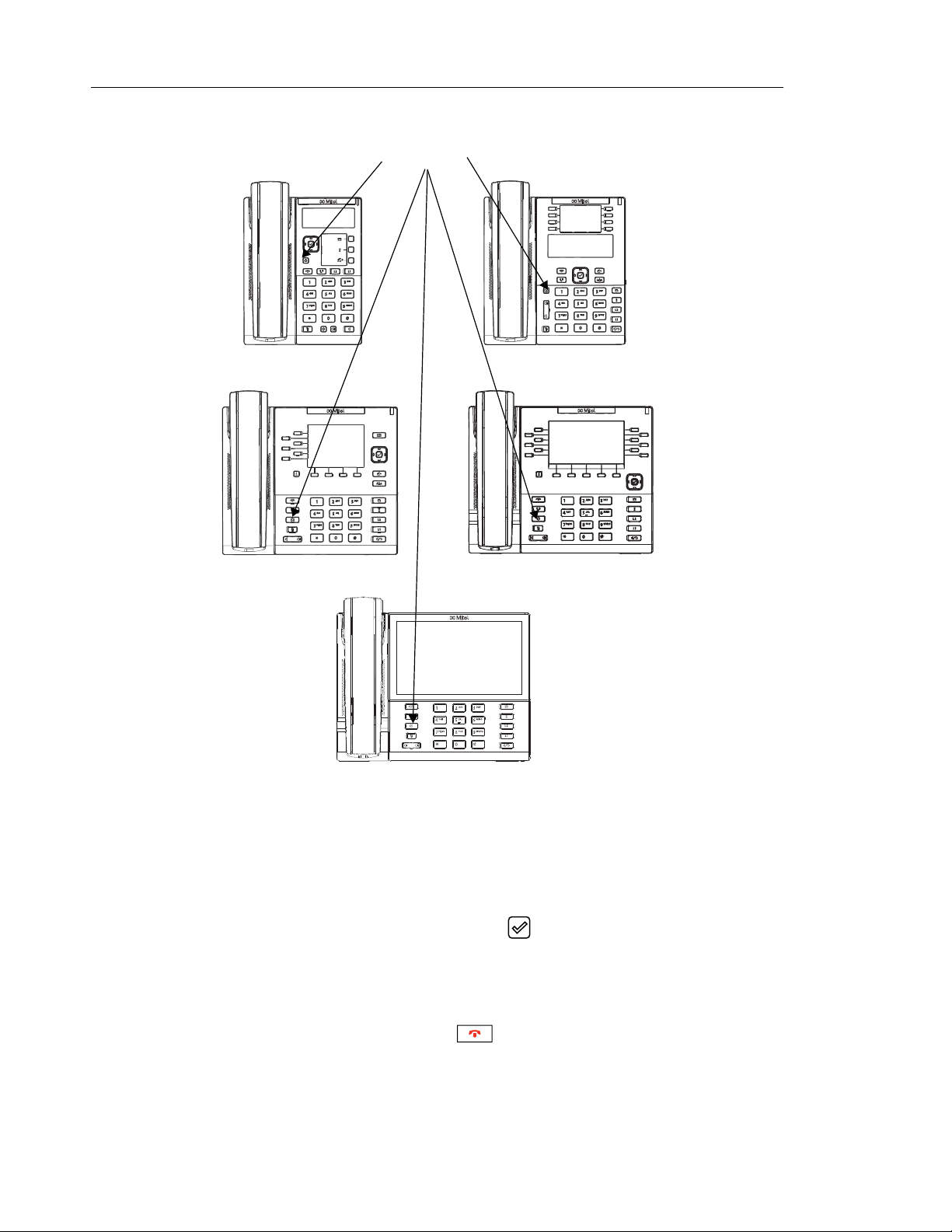
Mitel 6800 Series SIP Phone Release 4.2.0 SP2 Administrator Guide
The following illustrations indicate the location of the Options Key on each phone model.
Options Key
6863i
6867i
6865i
6869i
6873i
2-4
USING THE OPTIONS KEY ON THE 6863I/6865I
1. Press the Options key on the phone to enter the Options List.
2. Use the 5 and2 to scroll through the list of options.
3. To select an option, press the Enter softkey, the button (if applicable), or select the
number on the keypad that corresponds to the option in the Option List.
4. Use the Set softkey after making a change to an option, to save the change.
5. Press the Done softkey at any time to save the changes and exit the current option.
6. Press the Cancel softkey, press 3, press at any time to exit without saving changes.
Page 57
USING THE OPTIONS KEY ON THE 6867I/6869I
1. Press the key on the phone to enter the Options List.
Configuration Methods
2. Use the
3. To select an option, press the button or Select softkey.
4. Change your desired settings and use the button or Save softkey to apply and save
your changes.
5. Press the key or the key at any time to return to the idle screen.
USING THE OPTIONS KEY ON THE 6873I
1. Press the key on the phone to enter the Options List.
2. Press an icon to enter the respective menu. Touch the screen to navigate through the
sub-menus and swipe left and right to switch pages (if applicable).
3. Press the Save softkey to save your changes.
4. Press the key or the key at any time to return to the idle screen.
MITEL WEB UI
An administrator can setup and configure the IP phone using the Mitel Web UI. The Mitel Web
UI supports Internet Explorer and Gecko engine-based browsers like Firefox, Mozilla or
Netscape.
Note: An Administrator can enable or disable the Mitel Web UI for a single phone or all
phones in a network. For more information about enabling/disabling the Mitel Web UI,
see “Enabling/Disabling the Mitel Web UI” on page 14.
3and 4 to scroll through the list of options.
HTTP/HTTPS SUPPORT
The Mitel Web UI supports both Hypertext Transfer Protocol (HTTP) and Hypertext Transfer
Protocol over Secure Socket Layer (HTTPS) client and server protocols.
HTTP is the set of rules for transferring files (text, graphic images, sound, video, and other
multimedia files) over the Internet. When you open your Web browser, you are indirectly making
use of HTTP. HTTP is an application protocol that runs on top of the TCP/IP suite of protocols
(the foundation protocols for the Internet).
HTTPS is a Web protocol that encrypts and decrypts user page requests as well as the pages
that are returned by the Web server. HTTPS uses Secure Socket Layer (SSL) or Transport
Layer Security (TLS) as a sublayer under its regular HTTP application layering. SSL is a
commonly-used protocol for managing the security of a message transmission on the Internet.
It uses a 40-bit key size for the RC4 stream encryption algorithm, which is considered an
adequate degree of encryption for commercial exchange. TLS is a protocol that ensures privacy
between communicating applications and their users on the Internet. When a server and client
2-5
Page 58

Mitel 6800 Series SIP Phone Release 4.2.0 SP2 Administrator Guide
communicate, TLS ensures that no third party may eavesdrop or tamper with any message.
TLS is the successor to SSL.
Note: HTTPS uses port 443 instead of HTTP port 80 in its interactions with the TCP/IP
lower layer. Both the HTTP and HTTPS port numbers are configurable using the
configuration files, the IP Phone UI, the Mitel Web UI and DHCP Option 66. For more
information about configuring these ports, see Chapter 4, the section, “Configuring the
Configuration Server Protocol” on page 4-101.
HTTP/HTTPS CLIENT AND SERVER SUPPORT
The Mitel IP phones allow for HTTP request processing and associated data transfers to perform
over a secure connection (HTTPS). The IP phones support the following:
• Transfer of firmware images, configuration files, script files, and web page content over a
secure connection.
• Web browser phone configuration over a secure connection
• TLS 1.0, 1.1, and 1.2 and SSL 3.0 methods for both client and server
The following ciphers and cipher suites are supported by the phone:
CIPHER CIPHER SUITES
AES128 AES128-SHA, AES128-GCM-SHA256, AES128-SHA256
AES256 AES256-SHA
CAMELLIA128 CAMELLIA128-SHA
CAMELLIA256 CAMELLIA256-SHA
DES DES-CBC-SHA, DES-CBC3-SHA
DHE DHE-DSS-AES128-SHA, DHE-DSS-AES256-SHA,
DHE-DSS-CAMELLIA128-SHA, DHE-DSS-CAMELLIA256-SHA,
DHE-DSS-SEED-SHA, DHE-RSA-AES128-SHA,
DHE-RSA-AES256-SHA, DHE-RSA-CAMELLIA128-SHA,
DHE-RSA-CAMELLIA256-SHA, DHE-RSA-SEED-SHA
EDH EDH-DSS-DES-CBC3-SHA, EDH-DSS-DES-CBC-SHA,
EDH-RSA-DES-CBC3-SHA, EDH-RSA-DES-CBC-SHA
RC4 RC4-MD5, RC4-SHA
SEED SEED-SHA
HTTPS Client
When an HTTPS client opens and closes its TCP socket, the SSL software respectively
handshakes upon opening and disconnects upon closing from the HTTPS server. The main
HTTPS client functions are:
2-6
• Downloading of configuration files and firmware images
• Downloading of script files based on an “HTTPS://” URL supplied by a softkey definition
Page 59

Configuration Methods
HTTPS Server
The HTTPS server provides HTTP functionality over secure connections. It coexists with the
HTTP server but has its own set of tasks. The main HTTPS server functions are:
• Delivery of web page content to a browser client over a secure connection
• Execution of HTTP GET and POST requests received over a secure connection
NON-BLOCKING HTTP CONNECTIONS
The IP Phones support a non-blocking HTTP connection feature. This feature allows the user
to continue using the phone when there is a delay during an HTTP connection while the phone
is waiting for the HTTP server to respond. This feature also allows a user to abort the connection
and perform other operations on the phone (which will abort the HTTP connection
automatically). A user can also abort the HTTP loading by pressing the GOODBYE key while
the phone is displaying “Loading Page.......”.
Note: This feature impacts only the HTTP calls triggered by a phone key (softkey or
programmable key); the HTTP calls performed by action URIs are still blocking.
Authentication Support for HTTP/HTTPS Download Methods for BroadSoft Client
Management System (CMS)
The IP Phones have authentication support as referenced in RFC 2617 when using HTTP or
HTTPS as download protocols. If a 5i Series phone is challenged by an HTTP or HTTPS server
when the server attempts to download the startup.cfg file, the phone automatically sends
"aastra" as the default Username and Password back to the server. For more information about
this feature, see Chapter 5, the section, “Authentication Support for HTTP/HTTPS Download
Methods, used with BroadSoft Client Management System (CMS)” on page 5-323.
USING HTTPS VIA THE MITEL WEB UI
HTTPS is enabled by default on the IP phones. When you open a browser window and enter
an IP address or host name for a phone using HTTP, a server redirection occurs which
automatically converts an HTTP connection to an HTTPS connection. After the redirection, a
“Security Alert” certificate window displays alerting the user that information exchanged with
the phone cannot be viewed or changed by others. Accepting the certificate then forwards you
to the phone’s Web UI.
Notes:
1. The private key and certificate generate outside the phone and embed in the phone
firmware for use by the HTTPS server during the SSL handshake.
2. Using the configuration files, the IP phone UI, or the Mitel Web UI, you can configure
the following regarding HTTPS:
• Specify HTTPS security client method to use (TLS 1.0, 1.1, and 1.2 and SSL 3.0)
• Enable or disable HTTP to HTTPS server redirect function
• HTTPS server blocking of XML HTTP POSTS to the phone
2-7
Page 60
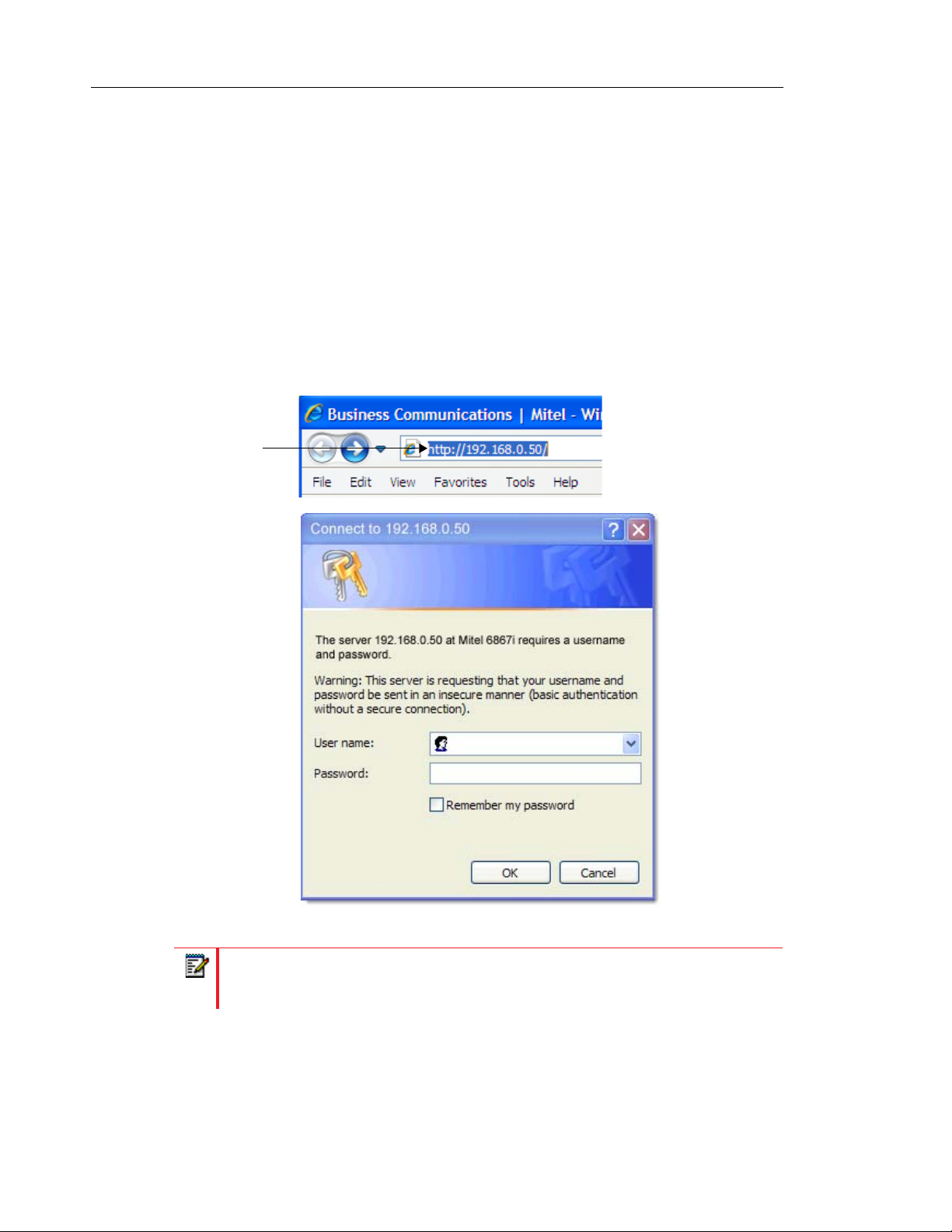
Mitel 6800 Series SIP Phone Release 4.2.0 SP2 Administrator Guide
REFERENCE
For more information on configuring the HTTPS protocol, see Chapter 4, the sections:
• “Configuring the Configuration Server Protocol” on page 4-101
• “HTTPS Client/Server Configuration” on page 4-34
ACCESSING THE MITEL WEB UI
Use the following procedure to access the Mitel Web UI.
1. Open your web browser and enter the phone’s IP address or host name into the address
field.
The following is an example of the Login screen that displays.
IP address or
host name
2-8
2. Enter your username and password and click OK.
Note: For an administrator, the default username is “admin” and the password is
“22222”. For a user, the default username is “user” and the password field is left
blank. The IP phones accept numeric passwords only.
Page 61

Configuration Methods
The Status window displays for the IP phone you are accessing. The following illustration is an
example of a Status screen for the 6873i IP phone.
You can logout of the Mitel Web UI at any time by clicking Log Off.
Depending on the model phone you are accessing, the following categories display in the side
menu of the Mitel Web UI: Status, Operation, Basic Settings, Advanced Settings.
Note: Programmable Keys apply to the 6863i and 6865i. Softkeys apply to the 6867i,
6869i, and 6873i. Expansion Modules apply to the 6865i, 6867i, 6869i, and 6873i only.
Status
The Status section displays the network status and the MAC address of the IP phone. It also
displays hardware and firmware information about the IP phone. The status window also
displays the SIP Account information for each account on the phone. The information in the
Status window is read-only.
2-9
Page 62

Mitel 6800 Series SIP Phone Release 4.2.0 SP2 Administrator Guide
Operation
The Operation section provides the following options:
HEADING DESCRIPTION
User Password Allows you to change user password.
(Applicable to User and Administrator)
Phone Lock Allows you to assign an emergency dial plan to the phone, lock the
phone to prevent any changes to the phone and to prevent use of the
phone, and reset the user password.
Note: You can also configure a softkey to use for locking/unlocking the
phone.
(Applicable to User and Administrator)
Softkeys and XML 6867i - 6 top, multi-functional, static softkeys (maximum of 20 functions)
/ 4 bottom, state-based, multi-functional softkeys (maximum of 18
functions).
6869i - 12 top, multi-functional, static softkeys (maximum of 44
functions) / 5 bottom, state-based, multi-functional softkeys (maximum
of 24 functions).
6873i - 12 top, multi-functional, touch softkeys (maximum of 48
functions) / 6 bottom, state-based, multi-functional touch softkeys
(maximum of 30 functions).
(Applicable to User and Administrator)
Programmable Keys 6863i - 3 multi-functional, programmable keys
6865i - 8 multi-functional, programmable keys
(Applicable to User and Administrator)
Expansion Module <N> The M680i has up to 16 configurable keys. The M685i has up to 84
configurable keys. You can have up to 3 expansion modules attached to
a single phone allowing you to configure keys for Expansion Module 1,
Expansion Module 2, and Expansion Module 3. See your
<Model-Specific> SIP Phone User Guide for applicable expansion
modules for your model phone.
Note: M680i and M685i Expansion Modules apply to the 6865i, 6867i,
6869i, 6873i only.
(Applicable to User and Administrator)
Keypad Speed Dial Allows you to configure up to 9 speeddial keys. These fields map to the
keypad digits 1 through 9 on the phone. You can also configure
additional speeddials on the programmable keys, softkeys and
expansion modules. See your <Model-Specific> SIP Phone User
Guide for more information about this feature.
(Applicable to User and Administrator)
Directory Allows you to copy the Received Callers List and Local Directory List
from your IP phone to your PC.
(Applicable to User and Administrator)
Reset Allows you to restart the IP phone when required. (Applicable to User
and Administrator).
This setting also allows you to set the IP phone back to its factory default
settings or remove the local configuration. (Applicable Administrator
only)
2-10
Page 63

Configuration Methods
Basic Settings
The Basic Settings section provides the following options:
HEADING DESCRIPTION
Preferences Allows you to set the following General specifications on the IP phone.
• Local Dial Plan (Admin Only)
• Send Dial Plan Terminator (Admin Only)
• Digit Timeout (Admin Only)
• Park Call
• Pick Up Parked Call
• Display DTMF Digits
• Play Call Waiting Tone
• Stuttered Dial Tone
• XML Beep Support
• Status Scroll Delay (seconds)
• Switch UI Focus to Ringing Line
• Call Hold Reminder During Active Calls
• Call Hold Reminder
• Call Waiting Tone Period
• Preferred Line
• Preferred Line Timeout (seconds)
• Goodbye Key Cancels Incoming Call
• Message Waiting Indicator Line
• DND Key Mode
• Call Forward Key Mode
This section also allows you to set:
• Outgoing Intercom Settings (Admin Only; Administrator can enable
these for a User if required)
• Incoming Intercom Settings
• Group Paging RTP Settings
• Key Mapping (Admin Only)
• Ring Tones
• Priority Alert Settings (Admin Only)
• Directed Call Pickup Settings (Admin Only)
• Auto Call Distribution Settings (Admin Only)
• Time and Date Settings
• Language Settings (Only the Admin can specify the language pack
names to load to the phone). Both the Admin and User can select the
language type to display for the Web UI.
Account Configuration Allows you to configure DND (Do Not Disturb) and/or Call Forwarding by
specific account or by all accounts. Also allows you to enable/disable
specific states for each account, specify different phone numbers for call
forwarding, and specify number of rings for a “No Answer” state.
Custom Ringtones Allows you to upload up to 8 custom WAV file ringtones on the phone that
can be used as your incoming ringtone.
2-11
Page 64

Mitel 6800 Series SIP Phone Release 4.2.0 SP2 Administrator Guide
Advanced Settings (Applicable to Administrator Only)
The Advanced Settings section provides the following options:
HEADING DESCRIPTION
Network Allows you to set Basic Network Settings, Advanced Network Settings,
HTTPS Settings, Type of Service DSCP, and VLAN settings.
Global SIP Allows you to set global Basic SIP Authentication Settings, Basic SIP
Network Settings, Advanced SIP Settings, Real-time Transport Protocol
(RTP) settings, Codec Preference List Settings, and Autodial Settings that
apply to all lines on the IP phone.
Line N
(where N = line number)
Action URI Allows an administrator to specify a uniform resource identifier (URI) that
Configuration Server Allows you to set the protocol to use on the configuration server (TFTP
Firmware Update Allows you to manually perform a firmware update on the IP phone from
TLS Support Allows you to specify SIP Root and Intermediate Certificate files, local
802.1x Support Allows you to enable/disable the 802.1x Protocol (Extensible
Allows you to set per-line Basic SIP Authentication Settings, Basic SIP
Network Settings, Advanced SIP Settings, Real-time Transport Protocol
(RTP) settings, and Autodial Settings that apply to specific lines on the IP
phone.
triggers a GET when certain events occur. An Administrator can also
specify a URI to be called, enable polling for the URI, and specify the
interval between polls.
(Applicable to Administrator Only)
(default), FTP, HTTP, or HTTPS), configure automatic firmware and
configuration file updates, enable/disable auto-resync, and assign an XML
push server list.
(Applicable to Administrator Only)
the configuration server using any of the IP Phones supported protocols.
(Applicable to Administrator Only)
certificate files, private key filename, and/or trusted certificate filename to
use when the phone uses the TLS transport protocol to setup a call.
(Applicable to Administrator Only)
Authentication Protocol (EAP)) to use on the IP phones for authentication
purposes. Applicable choices are EAP-MD5 or EAP-TLS.
(Applicable to Administrator Only)
2-12
Troubleshooting Allows you to perform troubleshooting tasks whereby the results can be
forwarded to Mitel Technical Support for analyzing and troubleshooting.
Also displays system messages and error messages if applicable.
Note: You can also specify whether a user can upload system information
automatically or manually by configuring a parameter in the configuration
files. For more information on this feature, see Chapter 9, the
section
“Configuration and Crash File Retrieval” on page 9-16.
(Applicable to Administrator Only)
Page 65

Configuration Methods
HEADING DESCRIPTION
Capture Tcpdump network packet capture functionality is natively available on the
phones. Administrators can start/stop packet capturing, configure capture
ports, set how long the capture should last, and retrieve the capture file
through the Capture page.
For more information on this feature, see Chapter 9, the section
“Tcpdump Network Packet Capture Support” on page 9-19.
(Applicable to Administrator Only)
2-13
Page 66

Mitel 6800 Series SIP Phone Release 4.2.0 SP2 Administrator Guide
ENABLING/DISABLING THE MITEL WEB UI
The Mitel Web UI is enabled by default on the IP phones. A System Administrator can disable
the Mitel Web UI on a single phone or on all phones if required using the configuration files.
System Administrators can also disable Users ability to login to the Mitel Web UI. With the Mitel
Web UI disabled, users will still be able to lock/unlock the phone with a PIN from the IP Phone.
Administrators can disable the user Web UI using the configuration file. System Administrators
have the option to either disable the Web UI for both the Administrator and User, enable for
both the Administrator and User, or enable the Web UI only for the Administrator.Use the
following procedure to enable and disable the Mitel Web UI.
To Disable the Mitel Web UI:
CONFIGURATION FILES
1. Using a text-based editing application, open the <mac>.cfg file if you want to disable the
Web UI on a single phone. Open the startup.cfg file to disable the Web UI on all phones
2. Enter the following parameter:
web interface enabled: 0
Note: A value of zero (0) disables the Web UI on the phone for Administrators and
Users. A value of (1) enables the Web UI for Administrators and Users. A value of
(2) enables the Web UI for administrators only.
3. Save the changes and close the <model>.cfg, <mac>.cfg or the startup.cfg file.
4. Restart the phone to apply the changes. The Mitel Web UI is disabled for a single IP phone
or for all phones.
WEB UI SECURITY FEATURES
WEB UI Lock
A security enhancement has been implemented whereby after multiple failed attempts to access
the phone’s Web UI, the Web UI access page will be locked for a specified period of time. The
period of time is exponential (i.e. the period of time increase relative to the number of failed
attempts). The table below details the period of time the Web UI is locked vs. the number of
failed attempts made.
# OF FAILED ATTEMPTS LOCKOUT TIME
1-5 N/A
6 1 minute
2-14
7 5 minutes
8 15 minutes
9-10 1 hour
11+ 12 hours
Page 67

Configuration Methods
Blacklist for Web Interface Attacks
An additional security feature is available for the Web UI whereby when the phone detects an
attack on its Web UI, it will automatically blacklist the IP of the attacker. By default, when the
initial attack is detected by the phone, access will be denied for 10 minutes. After the blacklist
period expires, if another attack is detected from the same IP, access will be denied for 20
minutes and every attack thereafter will trigger the blacklist again for incrementally larger
durations (i.e. 30 minutes, 1 hour, and 10 hours).
Administrators have the option of defining the maximum blacklist duration using the “web
interface blacklist duration” parameter. By configuring this parameter, administrators can set
the maximum amount of time the IP of the offending attacker will remain on the blacklist.
Use the following procedures to configure the maximum Web UI blacklist duration.
CONFIGURATION FILES
For specific parameters you can set in the configuration files, see Appendix A, the section,
“Mitel Web UI Settings” on page A-20.
SECURE WEB SERVICE FEATURE
The parameter "secure web service" is available allowing Administrators the ability to manually
open or close HTTP/HTTPs ports 80 and 443 as well as port 49249. Closing these ports not
only disables users from accessing the Web UI and other services such as XML, BroadWorks
Xsi, and custom ring tones, but will also help nullify web server attacks as the ports will not be
visible using port scanning software.
By defining the "secure web service" parameter as "1" in the configuration files, Administrators
can close TCP ports 80, 443, and 49249 on the phone.
Notes:
1. Ports 80, 443, and 49249 are open by default.
2. Closing ports 80, 443, and 49249 does not have an effect on the HTTP/HTTPs
client service on the phone.
3. This parameter takes precedence over the "web interface enabled" parameter. For
example, if the "web interface enabled" parameter is defined as "1" (the Web UI
is enabled) and the "secure web service" parameter is defined as "1" (ports 80,
443, and 49249 are closed), users will not be able to access the Web UI.
Alternatively, if the "web interface enabled" parameter is defined as "0" (the Web
UI is disabled) and the "secure web service" parameter is defined as "0" (ports80,
443, and 49249 are open), users will not be able to access the Web UI but the ports
will still be open and visible.
Use the following procedures to manually open/close ports 80, 443, and 49249.
CONFIGURATION FILES
For specific parameters you can set in the configuration files, see Appendix A, the section,
“Secure Web Service Settings” on page A-20.
2-15
Page 68

Mitel 6800 Series SIP Phone Release 4.2.0 SP2 Administrator Guide
CONFIGURATION FILES (ADMINISTRATOR ONLY)
A system administrator can enter specific parameters in the configuration files to configure the
IP phones. All parameters in configuration files can only be set by an administrator.
You can enter specific configuration parameters in either of the following configuration files:
• startup.cfg
• <model>.cfg
• <mac>.cfg
REFERENCES
For information about configuration file precedence, see "Configuration File Precedence‚" on
page 25. For a description of each configuration file parameter, see Appendix , “About this
Appendix.”
USING THE CONFIGURATION FILES
When you use the configuration files to configure the IP phones, you must use a text-based
editing application to open the configuration file (startup.cfg, <model>.cfg, or <mac>.cfg).
Use the following procedure to add, delete, or change parameters and their settings in the
configuration files.
Note: Apply this procedure wherever this Administrator Guide refers to configuring
parameters using the configuration files.
CONFIGURATION FILES
1. Using a text-based editing application, open the configuration file for the phone, for which
you want to configure the CSV directory list (either startup.cfg, <model>.cfg, <mac>.cfg or
all three).
2. Enter the required configuration parameters followed by the applicable value. For example,
directory 1: company_directory
directory 2: my_personal_directory
3. Save the changes and close the configuration file.
4. If the parameter requires the phone to be restarted in order for it to take affect, use the IP
Phone UI or the Mitel Web UI to restart the phone.
LOCKING PARAMETERS IN THE CONFIGURATION FILE
2-16
The IP Phones allow you to lock individual configuration parameters to prevent an end user
from changing the configuration on the phone. This feature allows service providers to prevent
the end-user from changing the values of specific parameters that would affect the service they
provide.
Page 69

Configuration Methods
An Administrator can lock parameters on the phone by placing an exclamation mark (!) before
the parameter in the configuration file. For example,
!admin password: 22222
!emergency dial plan: 911|999
You can lock parameters on the phone using the configuration files. Once the parameters are
locked, they cannot be changed at all during the phones run-time. The parameters appear as
read-only when accessing the Mitel Web UI and the IP Phone UI. In the Mitel Web UI, they
appear grayed out. In the IP Phone UI the ability to change the parameters is removed. In
addition, when parameters are locked, they cannot be changed via XML.
Notes:
1. The “parameter locking” feature applies to Release 2.4 and up. Any phones that
have a previous release loaded on the phone will not be able to use the locking
functionality in the configuration file.
2. Any parameter duplicated in the <model>.cfg from the startup.cfg is overwritten
by the locking status and the value of the parameter found in the <model>.cfg file.
Parameters in the <mac>.cfg file overwrite parameters in the <model>.cfg and
startup.cfg files.
Limitations
• A User possessing the Administrator password can bypass the locking of configuration
server details by defaulting the phone.
• Softkeys can be locked and unlocked via XML using the AastraIPPhoneConfiguration
object and softkeyN locked parameter (for more information about using the AastraIP-
PhoneConfiguration object, contact Mitel Customer Support regarding the Mitel XML
Development Guide). All other parameters cannot be locked or unlocked using XML.
• Configuration files that include locked parameters are not backwards compatible.
OVERWRITING PARAMETERS WITH DEFAULTS IN THE CONFIGURATION
FILES
An Administrator can specify a “ ^ “ (caret character) before a configuration parameter in the
startup.cfg, <model>.cfg, and <mac>.cfg configuration files, which allows the parameter to be
overwritten and reset back to a specified value. This can be convenient when changes are
made by a user to specific parameters on the phone locally (via Mitel Web UI or IP Phone UI),
and the Administrator wants to set the parameters back to the default values using the
configuration files.
As an example, the following table describes how the parameter “sip proxy ip” is handled by
the phone during phone bootup when either the “ ^ “ (default parameter) is used or the “ ! “
(locked parameter) is used.
IF THEN
new <mac>.cfg file is loaded to the phone with
“^sip proxy ip” and any other parameter(s) from
the file specifying a “ ^ “
2-17
the “^sip proxy ip” and any other “ ^ “ parameters
are overwritten if previously changed by the user.
Page 70

Mitel 6800 Series SIP Phone Release 4.2.0 SP2 Administrator Guide
IF THEN
new <model>.cfg file is loaded to the phone with
“^sip proxy ip” and any other parameter(s) from
the file specifying a “ ^ “
the “^sip proxy ip” and any other “ ^ “ parameters
are overwritten if previously changed by the user.
new startup.cfg file is loaded to the phone with
“^sip proxy ip” and any other parameter(s) from
the file specifying a “ ^ “
the first instance is “^sip proxy ip” and second
instance is “!sip proxy ip” in the startup.cfg,
<model>.cfg, and/or <mac>.cfg file,
the “^sip proxy ip” and any other “ ^ “ parameters
are overwritten if previously changed by the user.
the value for the second instance of the parameter
(“!sip proxy ip”) overwrites to the startup.cfg,
<model>.cfg, and/or <mac>.cfg files previously on
the phone.
Notes:
1. XML reboots take precedence over server.cfg values. Therefore, “ ^ “ parameters
are ignored in the startup.cfg file during XML reboots.
2. If a parameter has both a “ ^ “ and a “ ! “ preceding the same parameter (i.e. ^!sip
proxy ip: pbx.company.com), then the parameter is ignored and NOT overwritten.
Example 1
The following example illustrates the use of the “ ^ “ in the configuration files.
startup.cfg
^sip proxy ip: pbx.company.com
^sip proxy port: 5060
^sip registrar ip: pbx.company.com
^sip registrar port: 5060
In the above example, if an Administrator indicates the “ ^ “ before the parameters in the
startup.cfg file, and then loads the startup.cfg file to the phone, these four parameters are reset
to their default values, even if the parameters were previously changed on the phone.
Example 2
The following example illustrates the use of the “ ^ “ and “!” in the configuration files.
startup.cfg
^sip proxy ip: pbx.company.com
^sip proxy port: 5060
^sip registrar ip: pbx.company.com
^sip registrar port: 5060
<model>.cfg
!sip proxy ip: pbx.mitel.com //this parameter is locked
!sip proxy port: 5062 //this parameter is locked
!sip registrar ip: pbx.mitel.com//this parameter is locked
!sip registrar port: 5062//this parameter is locked
2-18
Page 71

Configuration Methods
<mac>.cfg
sip proxy port: 5064 //this parameter is unlocked
sip registrar port: 5064//this parameter is unlocked
With this configuration, on the Web UI, the "sip proxy ip" and "sip registrar ip” parameters
cannot be modified (they are grayed out), and the value is "pbx.mitel.com" since <model>.cfg
has overwritten startup.cfg.
The "sip proxy port" and "sip registrar port" parameters can be modified through Web UI
because <mac>.cfg has overwritten <model>.cfg and startup.cfg. On the Web UI, the value
for these parameters is 5064.
CONFIGURATION SERVER REDUNDANCY VIA DNS A RECORDS
The phone sends a DNS query and in the DNS response, it accepts the first server IP address
and contacts that server, ignoring any additional IP addresses in the response. This allows
service providers to manage load balancing (via the DNS server putting different records first
on each request), but does not provide redundancy.
The phones also provide support of multiple IP addresses being returned for the DNS lookup
for server redundancy via multiple DNS A record entries. The phone tries to contact the first
server address it receives, but if this fails, it now tries to contact the second server address, etc.
This feature supports all the download protocols (TFTP, FTP, HTTP, and HTTPS).
Notes:
1. Once the phone has failed over to a redundant server, it continues to use that server
for all other server-related processes on the phone (i.e. firmware upgrades from the
Web UI, boot-up process, etc.).
2. If a server fails while downloading a file(s) to the phone, the phone performs the
discovery process of finding a redundant server that is available. When the boot is
complete on the redundant server, the phone tries to download the file(s) again from
the previous server. The check-sync process also performs the same way when a
server fails.
3. The “Skip” softkey displays in the event of a network outage, the user can skip the
configuration download and continue the boot.
4. All server failovers and failed server IP addresses are logged in the “Error Messages”
page on the IP Phone UI at Options->Phone Status->Error Messages.
Limitation
In certain cases, the TFTP Protocol cannot distinguish between “server down” and “no file on
server” error messages; therefore, the failover in these instances may fail.
2-19
Page 72

Chapter 3
ADMINISTRATOR OPTIONS
Page 73

ABOUT THIS CHAPTER
The IP phones provide specific options on the IP Phone that only an Administrator can access.
These options are password protected and allow an Administrator to change or set features
and configuration information as required. For all models, an Administrator can use the IP
Phone UI, the Mitel Web UI, or the configuration files to enter and change values.
Note: Specific options are configurable only via the IP Phone UI, and/or Mitel Web UI,
and/or configuration files.
This chapter provides information about the available Administrator options.
TOPICS
This chapter covers the following topics:
TOPIC PAGE
About this Chapter
Administrator Level Options
• IP Phone UI Options page 3-3
• Mitel Web UI Options page 3-7
• Configuration File Options page 3-10
• Phone Status page 3-10
• Restarting Your Phone page 3-13
• Set Phone to Factory Defaults/Erase Local Configuration page 3-14
• Basic Settings page 3-17
• Account Configuration page 3-37
• Custom Ringtones page 3-38
• Network Settings page 3-38
• Line Settings page 3-63
• Softkeys, Programmable Keys, Expansion Module Keys page 3-64
• Action URI page 3-65
• Configuration Server Settings page 3-67
• Firmware Update Features page 3-74
• TLS Support page 3-75
page 3-3
• 802.1x Support page 3-80
• Troubleshooting page 3-82
3-2
Page 74

Mitel 6800 Series SIP Phone Release 4.2.0 SP2 Administrator Guide
ADMINISTRATOR LEVEL OPTIONS
DESCRIPTION
There are options on the IP phone that both a User and Administrator can access. However,
there are specific options that an Administrator can access only. These options allow the
Administrator to configure and manage local and/or remote IP phones in a network.
An Administrator can access and manage these options using the IP Phone UI, the Mitel Web
UI, or the configuration files.
IP PHONE UI OPTIONS
Using the 6863i/6865i IP Phone UI, you can access the Administrator options at Options >
Admin Menu using the default password of "22222"
The following are administrator options in the "Options List" on the 6863i and 6865i:
• Administrator Menu
• Configuration Server
• SIP Settings
• Network Settings
• Factory Default
• Erase Local Config
3-3
Page 75

Administrator Level Options
The 6867i, 6869i, and 6873i have an “Advanced” softkey, which when pressed and the
password entered gives access to the Administrator options.
Administrator Menu
6867i Mitel SIP Phone
6873i Mitel SIP Phone
6869i Mitel SIP Phone
The following are administrator options in the "Options List" on the 6867i, 6869i, and 6873i:
• Advanced Menu
• Configuration Server
• SIP Settings
• Network Settings
• Reset (includes options for “Erase Local Config” and “Factory Default”)
Note: An administrator has the option of enabling and disabling the use of password
protection on the IP phone UI for all model phones. This is configurable using the
configuration files only. For more information about this feature, see Appendix A, the
section “Password Settings” on page 16.
3-4
Page 76

Mitel 6800 Series SIP Phone Release 4.2.0 SP2 Administrator Guide
References
For information about all other user options in the “Options Menu”, see your <Model-Specific>
SIP Phone User Guide.
For procedures on configuring Administrator Options on the IP phone via the IP phone UI, see:
• Chapter 4, “Configuring Network and Session Initiation Protocol (SIP) Features”
• Chapter 5, “Configuring Operational Features”
• Chapter 6, “Configuring Advanced Operational Features”
SIMPLIFIED IP PHONE UI OPTIONS MENU
An Administrator can replace the existing options menu on the Phone UI with a more simplified
options menu. In the configuration files, the “options simple menu” parameter allows you to
display either the full menu (if set to 0), or the simplified menu (if set to 1). The following table
illustrates the differences between the full menu and the simplified menu.
Note: When setting the “options simple menu” parameter, the menu changes in the
Phone UI only. The Mitel Web UI is not affected.
6863i and 6865i
FULL OPTIONS MENU SIMPLIFIED OPTIONS MENU
Call Forward Call Forward
Preferences Preferences
Phone Status Phone Status
Password Removed
Administrator Menu Removed
Restart Phone Accessible through Phone Status
Phone Lock Phone Lock
3-5
Page 77

Administrator Level Options
6867i and 6869i
FULL OPTIONS MENU SIMPLIFIED OPTIONS MENU
Language Removed
Time and Date Removed
Directory Removed
Credentials Removed
Call Forward Call Forward
Lock Lock (Password Sub-Option Removed)
Status Status
Audio Audio
Display Display
Dialing Removed
Restart Restart
Advanced Only Factory Default option available.
3-6
Page 78
Mitel 6800 Series SIP Phone Release 4.2.0 SP2 Administrator Guide
6873i
FULL OPTIONS MENU SIMPLIFIED OPTIONS MENU
Language Removed
Time and Date Removed
Status Status
Bluetooth Bluetooth
Directory Removed
Credentials Removed
Call Forward Call Forward
Lock Lock (Password Sub-Option Removed)
Audio Audio
Display Display
Dialing Removed
Restart Restart
Advanced Only Factory Default option available.
Note: When using the simplified menu, you cannot change the Network settings from
the IP Phone UI. If the network settings become misconfigured, you must use the Mitel
Web UI to configure the network settings or factory default the phone through the Web
UI and then use the Phone UI’s full options menu to recover the networks setting.
CONFIGURING THE SIMPLIFIED IP PHONE UI OPTIONS MENU
You can enable the simplified IP Phone UI Options menu using the configurations files only.
CONFIGURATION FILES
For the specific parameter you can set in the configuration files, see Appendix A, the section,
“Simplified IP Phone UI Options Menu” on page 9.
MITEL WEB UI OPTIONS
An Administrator can configure specific options using the Mitel Web UI. These options display
after an Administrator logs into the Web UI using a Web browser and entering the Admin
username and password at the login prompt (The default username is "admin" and the default
password is "22222". The IP phones accept numeric passwords only.) The column on the left
3-7
Page 79

Administrator Level Options
side of the screen indicates the configurable options. A User has limited configuration options
as shown in the following illustrations.
Administrator Web UI Menu
User Web UI Menu
The following are options that an Administrator can configure in the Mitel Web UI (and are not
available for the User to configure):
• Operation->Reset
• Restore to Factory Defaults
• Remove Local Configuration Settings
• Basic Settings->Preferences->General
• Local Dial Plan
• Send Dial Plan Terminator
• Digit Timeout (seconds)
• Basic Settings->Preferences->Outgoing Intercom Settings (User can configure this via
the Mitel Web UI if enabled by an Administrator)
• Basic Settings->Preferences->Key Mapping
• Basic Settings->Preferences->Priority Alerting Settings
• Basic Settings->Preferences->Directed Call Pickup Settings
• Basic Settings->Preferences->Auto Call Distribution Settings
• Basic Settings->Preferences->Language Settings
3-8
Page 80

Mitel 6800 Series SIP Phone Release 4.2.0 SP2 Administrator Guide
• Language 1 (entering language pack filename)
• Language 2 (entering language pack filename)
• Language 3 (entering language pack filename)
• Language 4 (entering language pack filename)
• Basic Settings->Custom Ringtones (User can configure this via the Mitel Web UI if enabled
by an Administrator)
• Advanced Settings
• Network
• Global SIP
• Line 1 through N Settings
• Action URI
• Configuration Server
• Firmware Update
• TLS Support
• 802.1x Support
• Troubleshooting
REFERENCES
For information about options available to a User AND Administrator in the Mitel Web UI, see
your <Model-Specific> SIP Phone User Guide.
For procedures to Restart your phone or restore factory defaults, see “Restarting Your Phone”
on page 3-13, and “Set Phone to Factory Defaults/Erase Local Configuration” on page 3-14.
For more information about Advanced Settings for the IP Phone, see Chapter 4, “Configuring
Network and Session Initiation Protocol (SIP) Features.”
For procedures on configuring the Basic Settings for the IP Phone, see Chapter 5, “Configuring
Operational Features.”
3-9
Page 81

CONFIGURATION FILE OPTIONS
An Administrator can enter specific parameters in the configuration files to configure the IP
phones. All parameters in configuration files can only be set by an administrator.
REFERENCES
For a procedure on using the configuration files, see Chapter 2, the section, “Configuration
Files (Administrator Only)” on page 2-1.
For a description of each parameter you can enter in the configuration files, see Appendix A,
“Configuration Parameters.”
PHONE STATUS
The Phone Status on the IP Phone displays the network status and firmware version of the IP
phone.
You can display phone status using the IP phone UI or the Mitel Web UI.
PHONE STATUS VIA IP PHONE UI
Administrator Level Options
In the IP phone UI, the Phone Status options are available to the user and the administrator
and do not require a password entry.
Phone Status for 6863i and 6865i IP Phones
• IP&MAC Addresses
• Displays the IP address and MAC address of the phone.
• LAN Port
• Displays the Link State, Negotiation Method, Speed, and Duplex Method that the phone
uses on its LAN port.
• PC Port
• Displays the Link State, Negotiation Method, Speed, and Duplex Method that the phone
uses on its PC Port.
• Firmware Info
• Displays information about the firmware and boot version that is currently installed on
the IP phone.
• Error Messages
• Displays any error messages that occurred during the phone’s last reboot.
Phone Status for 6867i, 6869i, and 6873i IP Phones
• Phone Info
• Displays information about the platform, firmware, and boot version that is currently
installed on the IP phone.
3-10
Page 82
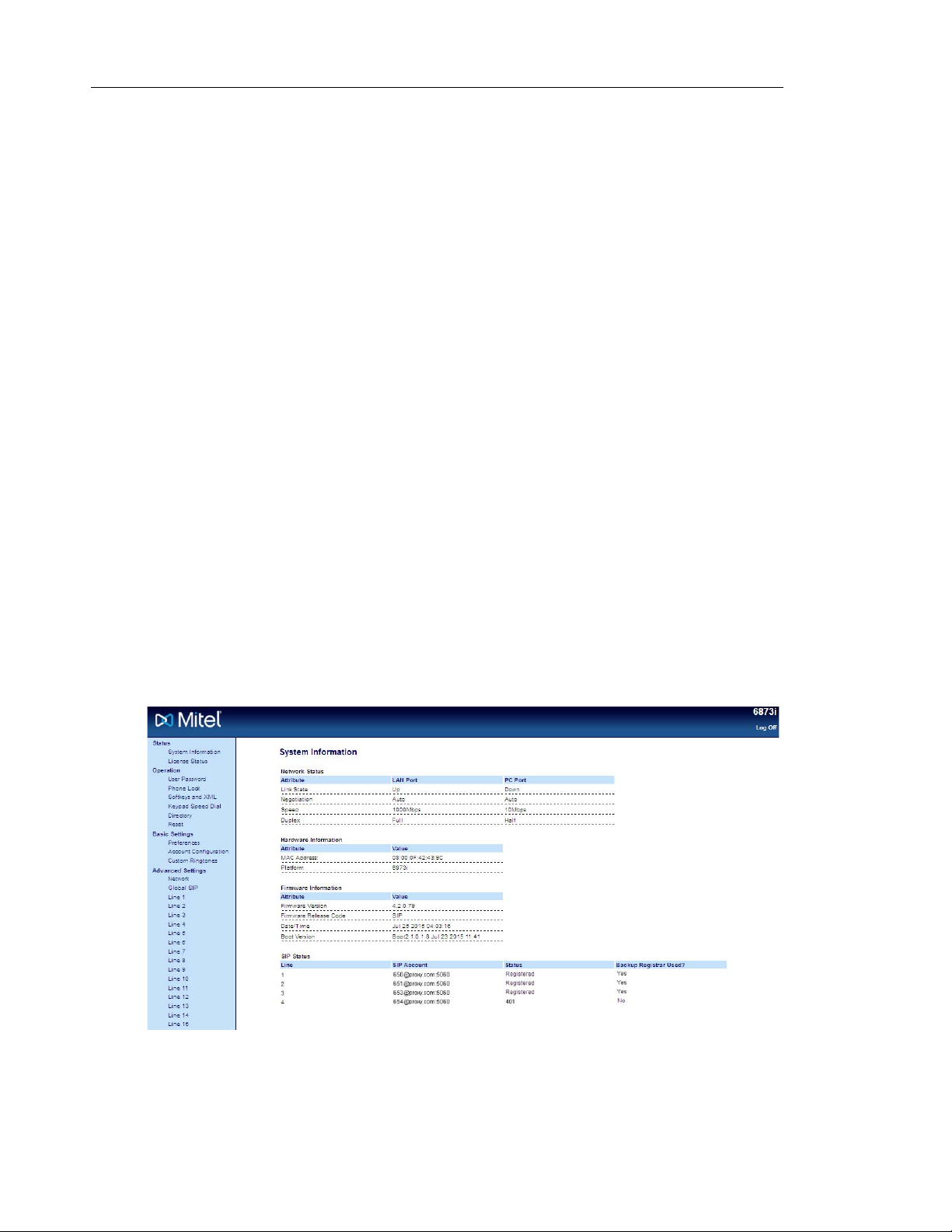
Mitel 6800 Series SIP Phone Release 4.2.0 SP2 Administrator Guide
• Accessory Info
• Displays firmware information about any accessories currently attached to the phone.
• Network
• IP Address
• Displays the IP address of the phone.
• MAC Address
• Displays the MAC address of the phone.
• LAN Port
• Displays the Link State, Negotiation Method, Speed, and Duplex Method that the
phone uses on its LAN port.
• PC Port
• Displays the Link State, Negotiation Method, Speed, and Duplex Method that the
phone uses on its PC Port.
• Storage
• Displays the number of Local Directory, Received Callers, and Outgoing Redial List
entries saved on the phone.
• Error Messages
• Displays any error messages that occurred during the phone’s last reboot.
PHONE STATUS VIA MITEL WEB UI
The first screen that displays after logging into the Mitel Web UI for a phone is the Status screen.
This screen also displays when selecting Status->System Information. The information on
this screen is available to the user and the administrator as read-only.
3-11
Page 83

Administrator Level Options
The following is a description of the information on the Status screen:
• Network Status
• Displays the network status of the Ethernet ports at the back of the phone. You can
also view the phone’s IP and MAC addresses. Information in this field includes Link
State, Negotiation, Speed, and Duplex for Port 0 and Port 1.
• Hardware Information
• Displays the current IP phone platform and the revision number.
• Firmware Information
• Displays information about the firmware that is currently installed on the IP phone (and
K680i Keyboard if applicable). Information in this field includes Firmware Version, Firmware Release Code, Boot Version, Release Date/Time.
• SIP Status
• Displays information about the SIP registration status of the phone. If there are accounts
configured on the IP Phone, their SIP status displays in this field. Excluding the 6863i
(2 lines), all model phones display the status of up to 24 lines.
The following table describes the status conditions that can display for an account(s).
STATUS CONDITION DESCRIPTION
Registered Displays this status on accounts that HAVE been registered with the SIP proxy
server.
Example:
Backup
Registrar
Line SIP Account Status Used?
where
Account Number is “1”
SIP Account is “[email protected]” on port “5060”
Status is “Registered”
Backup registrar is used (“Yes”)
SIP Error Number Displays on accounts when registration fails with the SIP proxy server.
Example:
Backup
Line SIP Account Status Used?
where
Account Number is “4”
SIP Account is “[email protected]” on port “5060”
Status is “401” - Unregistered if SIP registration fails.
Backup registrar is used (“No”)
Registrar
3-12
Page 84
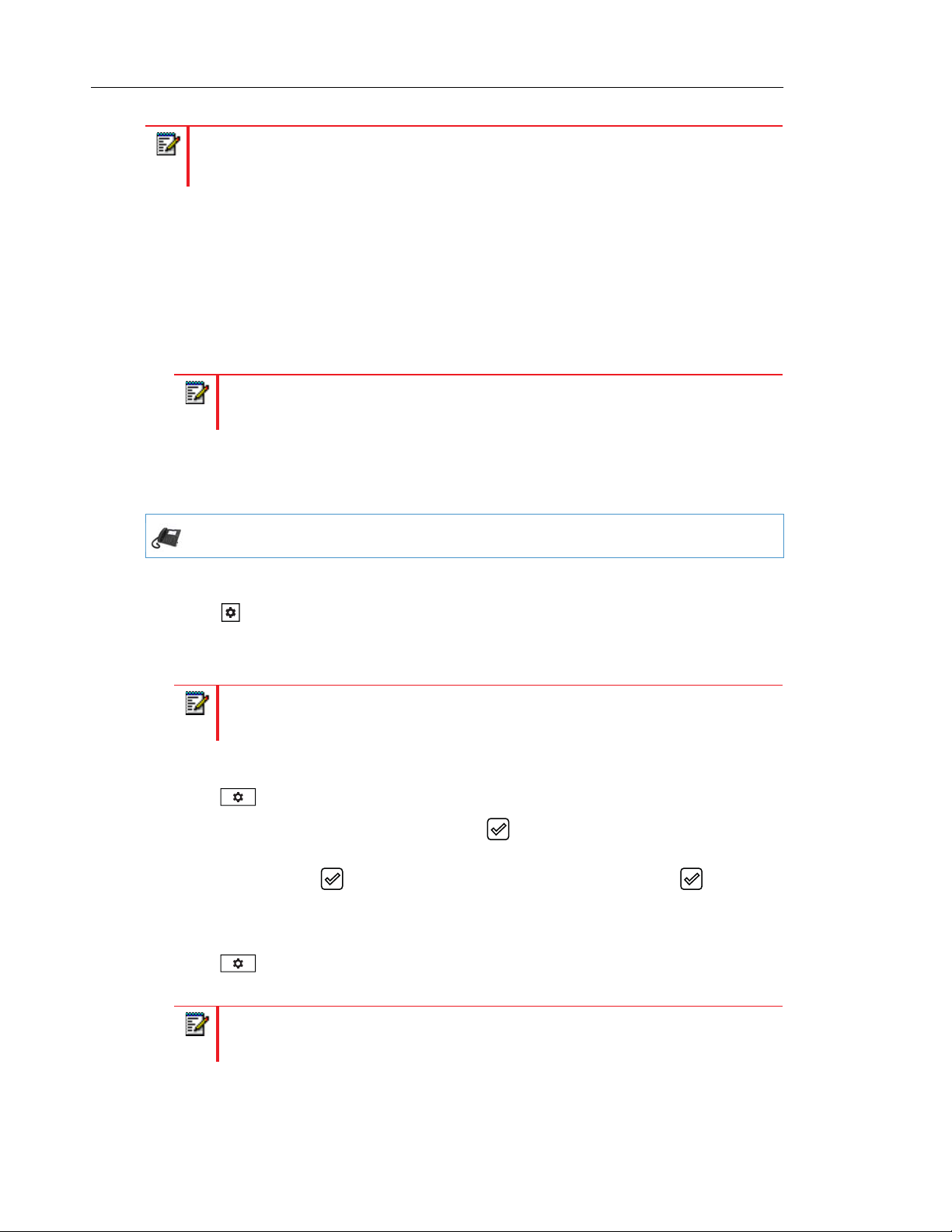
Mitel 6800 Series SIP Phone Release 4.2.0 SP2 Administrator Guide
Note: The IP Phones can register with multiple server using the same user name. So
the SIP Status information on the Status screen may display the same account with
different registrar and proxy IP addresses.
RESTARTING YOUR PHONE
As System Administrator, there may be times when you need to restart a phone. The Restart
option allows you reboot the phone when required. A reset may be necessary when:
• There is a change in your network, OR
• To re-load modified configuration files, OR
• If the settings for the IP phone on the IP PBX system have been modified.
Note: The SIP phones unregister all accounts before executing a reboot.
You can restart the phone using the IP Phone UI or the Mitel Web UI.
RESTARTING THE PHONE USING THE IP PHONE U
IP PHONE UI
For the 6863i/6865i:
1. Press on the phone to enter the Options List.
2. Select Restart Phone.
3. Press # to confirm.
Note: To cancel the Restart, press the 3key.
For the 6867i/6869i:
1. Press on the phone to enter the Options List.
2. Navigate to the Restart option and press the button or Select softkey. A “Restart
Phone?” prompt displays.
3. Select Yes using the button to restart the phone. Press No using the button to
cancel the restart function.
For the 6873i:
1. Press on the phone to enter the Options List.
3-13
2. Press the Restart icon. A “Restart Phone?” prompt displays.
Note: If required, swipe left on the screen to navigate to the second page of options.
3. Press Yes to restart the phone. Press No to cancel the restart function.
Page 85
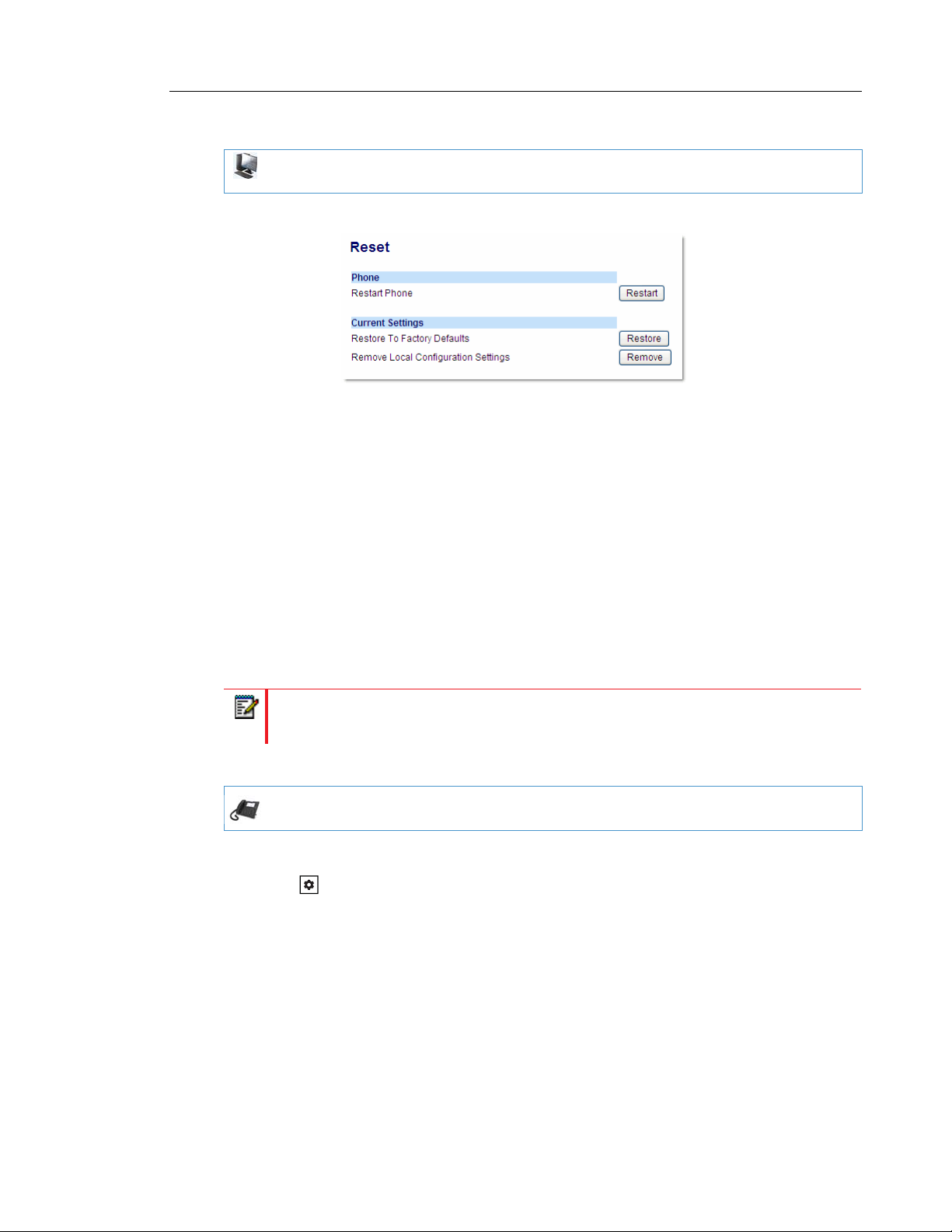
Administrator Level Options
RESTARTING THE PHONE USING THE MITEL WEB UI
MITEL WEB UI
1. Click on Operation->Reset->Phone.
2. Click Restart to restart the phone.
SET PHONE TO FACTORY DEFAULTS/ERASE LOCAL CONFIGURATION
You can set phones to their factory default settings or remove a local phone’s configuration
using the IP Phone UI or the Mitel Web UI.
SETTING FACTORY DEFAULTS ON THE PHONE
Factory default settings are the settings that reside on the phone after it has left the factory.
Performing a factory default on the phone will revert all the settings in the startup.cfg,
<model>.cfg, <mac>.cfg, and local configuration back to the original factory values. You can
reset a phone to factory defaults using the IP Phone UI or the Mitel Web UI.
Note: Performing a factory default is only applicable to the phone settings and does not
affect the firmware version loaded on the phone.
Setting Factory Defaults Using the IP Phone UI
IP PHONE UI
For the 6863i/6865i:
1. Press on the phone to enter the Options List.
2. Select Administrator Menu and enter your Administrator Password (default is 22222).
3. Select Factory Default.
The “Restore Defaults?” prompt displays.
4. Press # to confirm.
3-14
Page 86
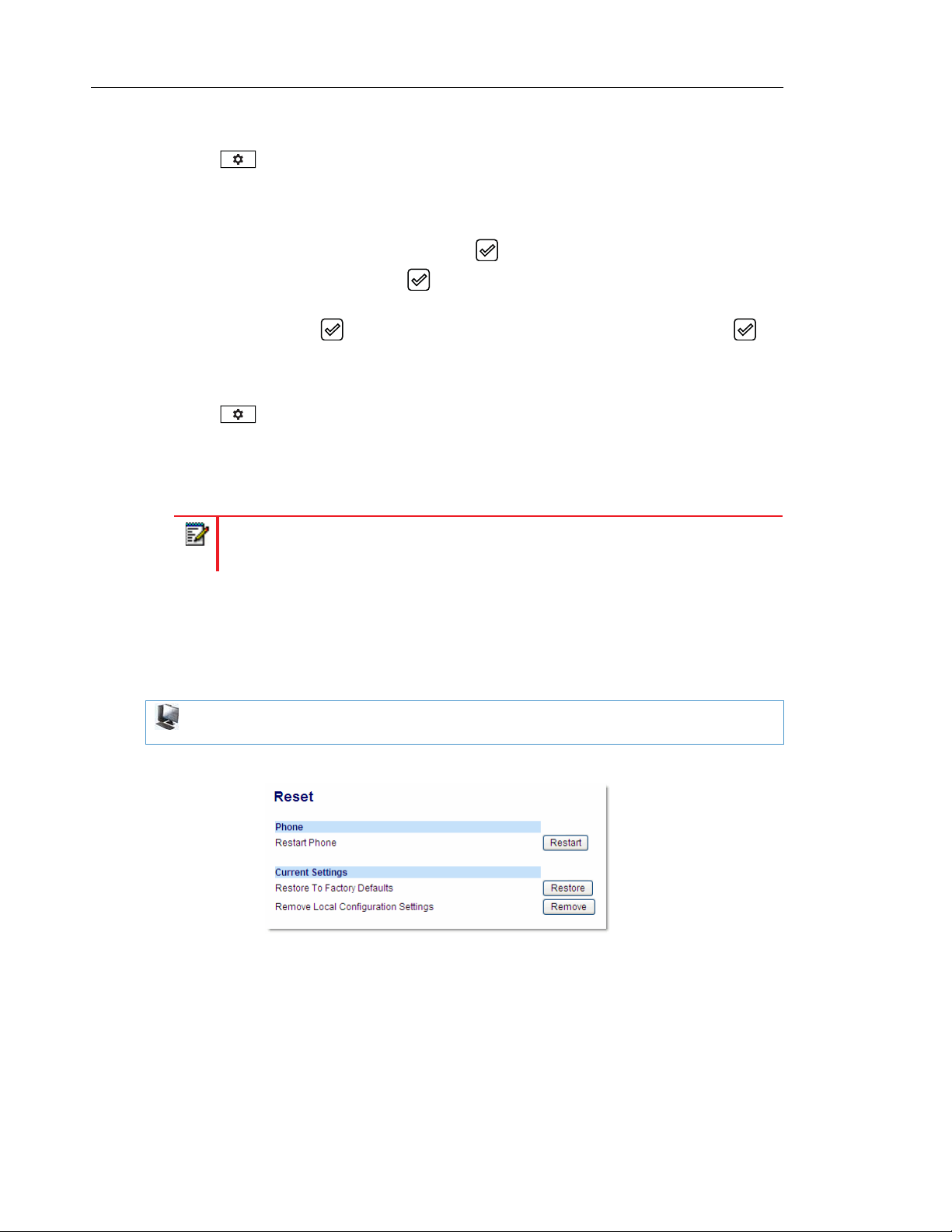
Mitel 6800 Series SIP Phone Release 4.2.0 SP2 Administrator Guide
For the 6867i/6869i:
1. Press on the phone to enter the Options List.
2. Press the Advanced softkey.
3. Enter the Administrator password and press Enter. Default is “22222”.
4. Navigate to the Reset option and press the button or Select softkey.
5. Select Factory Default using the button or press the Select softkey.
A “Factory Default?” prompt displays.
6. Select Yes using the button to factory default the phone. Press No using the
button to cancel the factory default function.
For the 6873i:
1. Press on the phone to enter the Options List.
2. Press the Advanced softkey.
3. Enter the Administrator password and press the blue Enter key. Default is “22222”.
4. Press the Reset icon.
Note: If required, swipe left on the screen to navigate to the second page of options.
5. With the Factory Default option highlighted press the Select softkey.
A “Factory Default?” prompt displays.
6. Press Yes to restart the phone. Press No to cancel the restart function.
Settings Factory Defaults Using the Mitel Web UI
MITEL WEB UI
1. Click on Operation->Reset->Current Settings.
2. In the "Restore to Factory Defaults" field, click Restore.
This restores all factory defaults, and removes any saved configuration and directory list
files.
3-15
Page 87
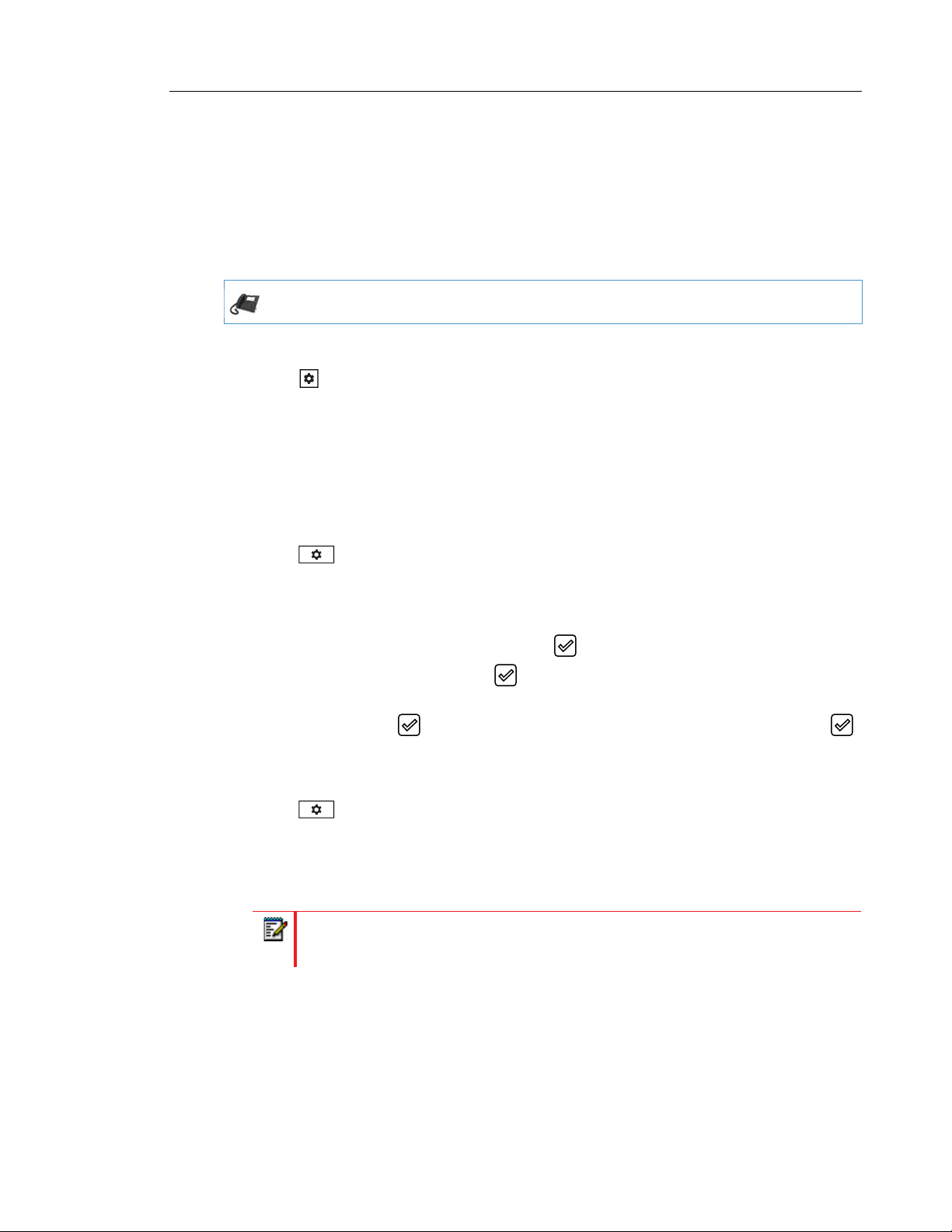
Administrator Level Options
ERASING THE PHONE’S LOCAL CONFIGURATION
You can reset the IP Phone’s local configuration if required. The local configuration is the last
updated configuration you performed using the IP Phone UI or the Mitel Web UI. Performing
this action results in losing all recently user-modified settings. For more information about local
configuration, see Chapter 1, the section, “Configuration File Precedence” on page 1-25.
Erasing the Phone’s Local Configuration Using the IP Phone UI
IP PHONE UI
For the 6863i/6865i:
1. Press on the phone to enter the Options List.
2. Select Administrator Menu and enter your Administrator Password (default is 22222).
3. Select Erase Local Config.
The “Erase local config?” prompt displays.
4. Press # to confirm.
For the 6867i/6869i:
1. Press on the phone to enter the Options List.
2. Press the Advanced softkey.
3. Enter the Administrator password and press Enter. Default is “22222”.
4. Navigate to the Reset option and press the button or Select softkey.
5. Select Erase Local Cfg. using the button or press the Select softkey.
An “Erase Local Configuration?” prompt displays.
6. Select Yes using the button to erase the local configuration. Press No using the
button to cancel the erase function.
For the 6873i:
1. Press on the phone to enter the Options List.
2. Press the Advanced softkey.
3. Enter the Administrator password and press the blue Enter key. Default is “22222”.
4. Press the Reset icon.
Note: If required, swipe left on the screen to navigate to the second page of options.
5. Press Erase Local Cfg.
6. With the Erase Local Cfg. option highlighted press the Select softkey.
An “Erase Local Configuration?” prompt displays.
7. Press Yes to erase the local configuration. Press No to cancel the erase function.
3-16
Page 88
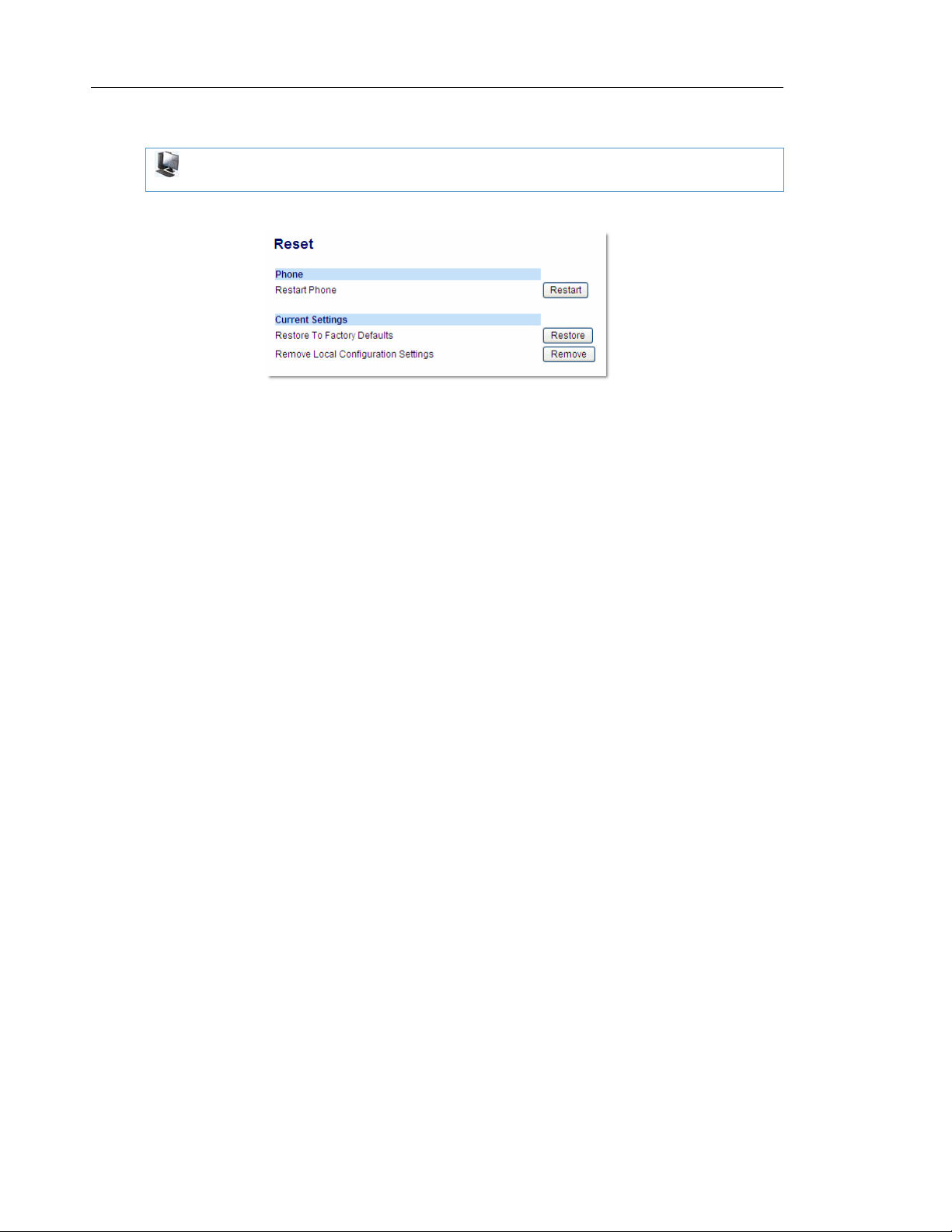
Mitel 6800 Series SIP Phone Release 4.2.0 SP2 Administrator Guide
Erasing the Phone’s Local Configuration Using the Mitel Web UI
MITEL WEB UI
1. Click on Operation->Reset->Current Settings.
2. In the "Remove Local Configuration Settings" field, click Remove.
This removes the last customized configuration settings made on the phone.
BASIC SETTINGS
An Administrator has access to specific Basic Setting options to configure and manage the IP
Phone in the network. The following sections identify the options available to an Administrator
only, or where indicated, to a User and Administrator. These tables also identify whether you
can configure them using the Mitel Web UI, IP Phone UI, or the configuration files.
3-17
Page 89

GENERAL SETTINGS
Administrator Level Options
PARAMETER IN
MITEL WEB UI
Local Dial Plan sip dial plan A dial plan that describes the number and pattern of
Send Dial Plan
Terminator
Digit Timeout sip digit timeout Represents the time, in seconds, to configure the
Park Call
PARAMETER IN
CONFIGURATION
FILES
sip dial plan terminator Specifies whether or not pressing the hash/pound (i.e.
sip lineN park pickup
config
DESCRIPTION
digits that a user dials to reach a particular telephone
number. Dial Plan field accepts up to 512 characters.
For more information on this feature, see “Local Dial
Plan” on page 5-68.
"#") key, while performing an outgoing call on an open
line, should be sent as %23 to the proxy in the dial
string or if the key should be used as a dial plan
terminator (i.e. dials out the call immediately).
For more information on this feature, see “SIP Dial
Plan Terminator” on page 5-71.
timeout between consecutive key presses.
For more information on this feature, see. “Digit
Timeout” on page 5-71.
The parking of a live call to a specific extension.
Note: This option can
be set by both Users
and Administrators.
Pick Up Parked Call
Note: This option can
be set by both Users
and Administrators.
N/A suppress dtmf
sip lineN park pickup
config
playback
Note: This feature on the Basic Preferences screen is
not available on the 6863i and 6865i.
To configure the Park feature on a key, see Chapter
5, the section, “Park/Pick Up Static and
Programmable Configuration” on page 5-220.
Picking up a parked call at the specified extension.
Note: This feature on the Basic Preferences screen is
not available on the 6863i and 6865i.
To configure the Pickup feature on a key, see Chapter
5, the section, “Park/Pick Up Static and
Programmable Configuration” on page 5-220.
Enables and disables suppression of DTMF playback
when a number is dialed from the softkeys or
programmable keys.
For more information on this feature, see.
“Suppressing DTMF Playback” on page 5-73.
3-18
Page 90

Mitel 6800 Series SIP Phone Release 4.2.0 SP2 Administrator Guide
PARAMETER IN
MITEL WEB UI
Display DTMF Digits
Note: This option
can be set by both
Users and
Administrators.
Play Call Waiting
Tone
Note: This option can
be set by both Users
and Administrators.
Stuttered Dial Tone
Note: This option can
be set by both Users
and Administrators.
XML Beep Support
Note: This option can
be set by both Users
and Administrators.
Status Scroll Delay
(seconds)
PARAMETER IN
CONFIGURATION
FILES
display dtmf digits Enables and disables the display of DTMF digits on
call waiting tone Enable or disables the playing of a call waiting tone
stutter disabled Enable or disables the playing of a stuttered dial tone
xml beep notification Enables or disables the playing of a beep to indicate
xml status scroll delay Allows you to set the time delay, in seconds, between
DESCRIPTION
the IP phone display during a connected state.
For more information on this feature, see. “Display
DTMF Digits” on page 5-73.
when a caller is on an active call and a new call comes
into the phone.
For more information on this feature, see. “Call
Waiting Tone” on page 5-77.
when there is a message waiting on the IP phone.
For more information on this feature, see. “Stuttered
Dial Tone” on page 5-80.
a status on the phone. When the phone receives a
status message, the BEEP notifies the user that the
message is displaying.
For more information on this feature, see “XML Beep
Support” on page 5-81.
the scrolling of each status message on the phone.
3-19
Note: This option can
be set by both Users
and Administrators.
Switch UI Focus to
Ringing Line
Note: This option can
be set by both Users
and Administrators.
switch focus to ringing
line
For more information on this feature, see “Status
Scroll Delay” on page 5-83.
Enables or disables whether or not the UI focus is
switched to a ringing line while the phone is in the
connected state.
For more information on this feature, see “Switch
Focus to Ringing Line” on page 5-84.
Page 91

Administrator Level Options
PARAMETER IN
MITEL WEB UI
Call Hold Reminder
During Active Calls
Note: This option can
be set by both Users
and Administrators.
PARAMETER IN
CONFIGURATION
FILES
call hold reminder
during active calls
DESCRIPTION
Enables or disables the ability for the phone to initiate
a continuous reminder tone on the active call when
another call is on hold. When this feature is disabled,
a ring splash is heard when the active call hangs up
and there is still a call on hold.
For more information on this feature, see “Call Hold
Reminder During Active Calls” on page 5-85.
3-20
Page 92

Mitel 6800 Series SIP Phone Release 4.2.0 SP2 Administrator Guide
PARAMETER IN
MITEL WEB UI
Call Hold Reminder
Note: This option can
be set by both Users
and Administrators.
PARAMETER IN
CONFIGURATION
FILES
call hold reminder Enables or disables the reminder ring splash timer to
call hold reminder
timer
Note: This option can
be set by an
Administrator only.
DESCRIPTION
start as soon as you put a call on hold (even when no
other calls are active on the phone). When enabled,
the phone initiates a reminder ring splash periodically
for the single call on hold. When disabled, no
reminder ring splash is audible.
For more information on this feature, see “Call Hold
Reminder (on Single Hold)” on page 5-87.
Specifies the time delay, in seconds, that a ring
splash is heard on an active call when another call
was placed on hold. For example, if a call comes into
Line 1, and then a call comes into Line 2 and you
answer Line 2, Line 1 is automatically placed on hold.
While on the active Line 2, after 7 seconds, a ring
splash audio sounds on the line reminding you that
the call on Line 1 is still on hold. This timer begins to
increment after Line 2 is answered.
Notes:
1. This parameter is used with the “call hold
reminder frequency” parameter.
2. You must enable this “call hold reminder timer”
parameter for it to work.
3. A value of “0” disables the call hold reminder
feature.
3-21
call hold reminder
frequency
Note: This option can
be set by an
Administrator only.
For more information on this feature, see “Call Hold
Reminder Timer & Frequency” on page 5-88.
Specifies the time interval, in seconds, between each
ring splash sound on the active line. For example, if a
call comes into Line 1, and then a call comes into Line
2 and you answer Line 2, Line 1 is automatically
placed on hold. While on the active Line 2, after 7
seconds, a ring splash audio sounds on the line
reminding you that the call on Line 1 is still on hold
(determined by the “call hold reminder timer”
parameter), and then the ring splash is heard again
after 60 seconds (determined by this parameter).
Notes:
1. You must enable the “call hold reminder” and/or
“call hold reminder during active calls”
parameter(s), and the “call hold reminder timer”
parameter, for this parameter to work.
2. A value of “0” prevents additional rings.
For more information on this feature, see “Call Hold
Reminder Timer & Frequency” on page 5-88.
Page 93

Administrator Level Options
PARAMETER IN
MITEL WEB UI
Call Waiting Tone
Period
Note: This option can
be set by an
Administrator only.
Preferred Line
Note: This option can
be set by both Users
and Administrators.
Preferred Line
Timeout (seconds)
Note: This option can
be set by both Users
and Administrators.
Goodbye Key
Cancels Incoming
Call
Note: This option can
be set by both Users
and Administrators.
Message Waiting
Indicator Line
Note: This option can
be set by both Users
and Administrators.
PARAMETER IN
CONFIGURATION
FILES
call waiting tone
period
preferred line Specifies the preferred line to switch focus back to
preferred line timeout Specifies the time, in seconds, that the phone
goodbye key cancels
incoming call
mwi led line Allows you to enable the Message Waiting Indicator
DESCRIPTION
Specifies the time period, in seconds, that the call
waiting tone is audible on an active call when another
call comes in. When enabled, the call waiting tone
plays at regular intervals for the amount of time set for
this parameter. For example, if set to “30” the call
waiting tone plays every 30 seconds. When set to “0”,
the call waiting tone is audible only once on the active
call.
For more information on this feature, see “Call
Waiting Tone Period” on page 5-78.
when incoming or outgoing calls end on the phone.
For more information on this feature, see “Preferred
Line and Preferred Line Timeout” on page 5-89.
switches back to the preferred line after a call
(incoming or outgoing) ends on the phone, or after a
duration of inactivity on an active line.
For more information on this feature, see “Preferred
Line and Preferred Line Timeout” on page 5-89.
Enable or disables the behavior of the Goodbye Key
on the IP phone.
For more information on this feature, see “Goodbye
Key Cancels Incoming Call” on page 5-91.
(MWI) on a single line or on all lines on the phone. For
example, if you set this parameter to 3, the LED
illuminates if a voicemail is pending on line 3. If you
set this parameter to 0, the LED illuminates if a
voicemail is pending on any line on the phone.
DND Key Mode
Note: This option can
be set by both Users
and Administrators.
For more information on this feature, see “Message
Waiting Indicator Line” on page 5-93.
dnd key mode Allows you to configure the DND mode to use on the
phone (Account, Phone, Custom) when the DND key
is pressed. You can configure DND for all accounts or
a specific account.
For more information on this feature, see “DND Key
Mode” on page 5-95. Also see Chapter 5, the section,
“Do Not Disturb (DND)” on page 5-198.
3-22
Page 94

Mitel 6800 Series SIP Phone Release 4.2.0 SP2 Administrator Guide
PARAMETER IN
MITEL WEB UI
Call Forward Key
Mode
Note: This option can
be set by both Users
and Administrators.
N/A use lldp elin Enables or disables the use of an Emergency
PARAMETER IN
CONFIGURATION
FILES
call forward key mode Allows you to configure the Call Forward mode to use
DESCRIPTION
on the phone (Account, Phone, or Custom). You can
configure Call Forward for all accounts or a specific
account.
For more information on this feature, see “Call
Forward Mode” on page 5-97. Also see Chapter 5, the
section, “Call Forwarding” on page 5-231.
Location Identification Number (ELIN) received from
LLDP as a caller ID for emergency numbers.
For more information on this feature, see “Link Layer
Discovery Protocol for Media Endpoint Devices
(LLDP-MED) and Emergency Location Identification
Number (ELIN)” on page 5-99.
INCOMING/OUTGOING INTERCOM CALLS
The Incoming/Outgoing Intercom Call settings on the IP Phone specify whether the IP phone
or the server is responsible for notifying the recipient that an Intercom call is being placed.
These settings also specify the prefix code for server-side Intercom calls, and specifies the
configuration to use when making the Intercom call.
PARAMETER IN
MITEL WEB UI
INCOMING INTERCOM SETTINGS
Auto-Answer
Note: This option
can be set by both
Users and
Administrators.
Microphone Mute
Note: This option
can be set by both
Users and
Administrators.
PARAMETER IN
CONFIGURATION
FILES
sip allow auto
answer
sip intercom mute
mic
DESCRIPTION
Enables or disables the IP phone to allow automatic
answering for an Intercom call. If auto-answer is enabled
on the IP phone, the phone plays a tone to alert the user
before answering the intercom call. If auto-answer is
disabled, the phone treats the incoming intercom call as a
normal call.
For more information on this feature, see
“Incoming/Outgoing Intercom with Auto-Answer and
Barge In” on page 5-103.
Enables or disables the microphone on the IP phone for
Intercom calls made by the originating caller.
For more information on this feature, see
“Incoming/Outgoing Intercom with Auto-Answer and
Barge In” on page 5-103.
3-23
Page 95

Administrator Level Options
PARAMETER IN
MITEL WEB UI
Play Warning Tone
Note: This option
can be set by both
Users and
Administrators.
Allow Barge In
Note: This option
can be set by both
Users and
Administrators.
OUTGOING INTERCOM SETTINGS
Type sip intercom type Determines whether the IP phone or the server is
PARAMETER IN
CONFIGURATION
FILES
sip intercom
warning tone
sip intercom allow
barge in
DESCRIPTION
Enables or disables a warning tone to play when the
phone receives an incoming intercom call on an active
line.
For more information on this feature, see
“Incoming/Outgoing Intercom with Auto-Answer and
Barge In” on page 5-103.
Enable or disables how the phone handles incoming
intercom calls while the phone is on an active call as well
as how the phone handles multicast paging calls while the
phone is in a dialing state.
For more information on this feature, see
“Incoming/Outgoing Intercom with Auto-Answer and
Barge In” on page 5-103.
responsible for notifying the recipient that an Intercom call
is being placed. Applicable settings are Phone-Side,
Server-Side, OFF.
For more information on this feature, see
“Incoming/Outgoing Intercom with Auto-Answer and
Barge In” on page 5-103.
Prefix Code sip intercom prefix
code
Line sip intercom line Specifies the line for which the IP phone uses the
The prefix to add to the phone number for server-side
outgoing Intercom calls. This parameter is required for all
server-side Intercom calls.
For more information on this feature, see
“Incoming/Outgoing Intercom with Auto-Answer and
Barge In” on page 5-103.
configuration from, when making the Intercom call. The IP
phone uses the first available line for physically making
the call but uses the configuration from the line you set for
this parameter.
Note: The "sip intercom type" parameter must be set with
the Server-Side option to enable the "sip intercom line"
parameter.
For more information on this feature, see
“Incoming/Outgoing Intercom with Auto-Answer and
Barge In” on page 5-103.
3-24
Page 96

Mitel 6800 Series SIP Phone Release 4.2.0 SP2 Administrator Guide
GROUP PAGING RTP SETTINGS
PARAMETER IN
MITEL WEB UI
Paging Listen
Addresses
Note: This option
can be set by both
Users and
Administrators.
PARAMETER IN
CONFIGURATION
FILES
paging group
listening
DESCRIPTION
Allows you to specify up to 5 listening multicast addresses
to send/receive a Real Time Transport Protocol (RTP)
stream to/from these pre-configured multicast addresses
without involving SIP signaling.
For more information on this feature, see “Group Paging
RTP Settings” on page 5-106.
3-25
Page 97

KEY MAPPING
Administrator Level Options
PARAMETER IN
MITEL WEB UI
Map Redial Key To map redial key to Sets the Redial key as a Speeddial key if a value is
Map Conf Key To map conf key to Sets the Conf key as a Speeddial key if a value is entered
NA map redial as dtmf The “Redial” key remappings has the same behavior as
PARAMETER IN
CONFIGURATION
FILES
DESCRIPTION
entered for this parameter. If you leave this parameter
blank, the Redial key returns to its original functionality.
For more information on this feature, see “Speeddial Key
Mapping” on page 5-109.
for this parameter. If you leave this parameter blank, the
Conf key returns to its original functionality.
For more information on this feature, see “Speeddial Key
Mapping” on page 5-109.
the “Speeddial” key when the phone is idle. During an
active call the phone will send the custom number as
DTMF using the phone configured DTMF method
(inbound vs out-of-band RFC2833 vs SIP INFO).
When a user presses the Redial key, the mapped number
will be sent out as DTMF during an active call if the current
“map redial key to” parameter is configured to a number
and the “map redial as dtmf” parameter is set to “1”.
For more information on this feature, see “Speeddial Key
Mapping” on page 5-109.
NA Map redial as conf The “Redial” key remappings has the same behavior as
the “Speeddial” key when the phone is idle. During an
active call the phone will send the custom number as
DTMF using the phone configured DTMF method
(inbound vs out-of-band RFC2833 vs SIP INFO).
When a user presses the Conf key, the mapped number
will be sent out as DTMF during an active call if the current
“map conf key to” parameter is configured to a number
and “map conf as dtmf” parameter is set to “1”.
For more information on this feature, see “Speeddial Key
Mapping” on page 5-109.
3-26
Page 98

Mitel 6800 Series SIP Phone Release 4.2.0 SP2 Administrator Guide
RING TONES
PARAMETER IN
IP PHONE UI
Tone Set
Note: This option
can be set by both
Users and
Administrators.
Ring Tone
Note: This option
can be set by both
Users and
Administrators.
N/A LineN
PARAMETER IN
MITEL WEB UI
Tone Set tone set Globally sets a tone set for a specific
Global Ring Tone ring tone Globally sets the type of ring tone on
Note: This option
can be set by both
Users and
Administrators.
PARAMETER IN
CONFIGURATION
FILES
lineN ring tone Sets the type of ring tone on the IP
DESCRIPTION
country
For more information on this feature,
see “Ring Tones and Tone Sets” on
page 5-112.
the IP phone. Ring tone can be set to
one of 15 distinct rings (excluding
silence) or a custom ring tone.
For more information on this feature,
see “Ring Tones and Tone Sets” on
page 5-112.
phone on a per-line basis. Ring tone
can be set to one of 15 distinct rings
(excluding silence) or a custom ring
tone.
For more information on this feature,
see “Ring Tones and Tone Sets” on
page 5-112.
PRIORITY ALERTING SETTINGS
PARAMETER IN
MITEL WEB UI
Enable Priority
Alerting
Group alert group When an "alert-group" keyword appears in the header of
PARAMETER IN
CONFIGURATION
FILES
priority alerting
enabled
DESCRIPTION
Enables and disables distinctive ringing on the IP phone
for incoming calls and call-waiting calls.
For more information on this feature, see “Priority
Alerting” on page 5-127.
the INVITE request, the configured Bellcore ring tone is
applied to the IP phone.
For more information on this feature, see “Priority
Alerting” on page 5-127.
3-27
Page 99

Administrator Level Options
PARAMETER IN
MITEL WEB UI
External alert external When an "alert-external" keyword appears in the header
Internal alert internal When an "alert-internal" keyword appears in the header
Emergency alert emergency When an "alert-emergency" keyword appears in the
Priority alert priority When an "alert-priority" keyword appears in the header of
PARAMETER IN
CONFIGURATION
FILES
DESCRIPTION
of the INVITE request, the configured Bellcore ring tone
is applied to the IP phone.
For more information on this feature, see “Priority
Alerting” on page 5-127.
of the INVITE request, the configured Bellcore ring tone
is applied to the IP phone.
For more information on this feature, see “Priority
Alerting” on page 5-127.
header of the INVITE request, the configured Bellcore
ring tone is applied to the IP phone.
For more information on this feature, see “Priority
Alerting” on page 5-127.
the INVITE request, the configured Bellcore ring tone is
applied to the IP phone.
Auto Call
Distribution
Community 1
through
Community 4
alert auto call
distribution
alert community 1
alert community 2
alert community 3
alert community 4
For more information on this feature, see “Priority
Alerting” on page 5-127.
When an "alert-acd" keyword appears in the header of
the INVITE request, the configured Bellcore ring tone is
applied to the IP phone.
For more information on this feature, see “Priority
Alerting” on page 5-127.
When an "alert-community-#” keyword appears in the
header of the INVITE request, the configured Bellcore
ring tone is applied to the IP phone. Available Bellcore
tones are:
• 0 - Normal ringing (default)
• 1 - Bellcore-dr2
• 2 - Bellcore-dr3
• 3 - Bellcore-dr4
• 4 - Bellcore-dr5
• 5 - Silent
For more information on this feature, see “Priority
Alerting” on page 5-127.
3-28
Page 100

Mitel 6800 Series SIP Phone Release 4.2.0 SP2 Administrator Guide
DIRECTED CALL PICKUP
PARAMETER IN
MITEL WEB UI
Directed Call Pickup directed call pickup Enables or disables the use of "directed call pickup"
N/A enhanced directed
Directed Call Pickup
Prefix
Play a Ring Splash play a ring splash Enables or disables the playing of a short "ring splash
PARAMETERS IN
CONFIGURATION
FILES
call pickup
directed call pickup
prefix
DESCRIPTION
feature.
For more information on this feature, see “Directed Call
Pickup (BLF or XML Call Interception)” on page 5-132.
Enables or disabled the use of the “enhanced directed
call pickup” feature.
For more information on this feature, see “Two-Stage
BLF Key Directed Call Pickup Support” on page 5-139.
Allows you to specify a prefix to use for "directed call
pickup" that you can use with a BLF or BLF List softkey.
For more information on this feature, see “Directed Call
Pickup (BLF or XML Call Interception)” on page 5-132.
tone" when there is an incoming call on the BLF or
BLF/List monitored extension.
For more information on this feature, see “Ring Signal
Type for BLF and BLF/List” on page 5-177.
N/A prgkeyN ring splash Controls the ring splash alert pattern per programmable
key.
For more information on this feature, see “Ring Signal
Type for BLF and BLF/List” on page 5-177.
N/A softkeyN ring splash Controls the ring splash alert pattern per softkey.
For more information on this feature, see “Ring Signal
Type for BLF and BLF/List” on page 5-177.
N/A topsoftkeyN ring
splash
N/A expmodX keyN ring
splash
N/A ring splash delay Indicates the delay (seconds) between rings.
Controls the ring splash alert pattern per top softkey.
For more information on this feature, see “Ring Signal
Type for BLF and BLF/List” on page 5-177
Controls the ring splash alert pattern per expansion
module key.
For more information on this feature, see “Ring Signal
Type for BLF and BLF/List” on page 5-177.
For more information on this feature, see “Ring Signal
Type for BLF and BLF/List” on page 5-177.
3-29
 Loading...