

Page 1
Quick start (en)
Date: 07/2019
Revision: v.1.2
Page 2
Table of contents
1. Getting started 3
1.1 In the box 3
1.2 Unpacking MiR500 4
2. Commissioning 7
2.1 Powering up 7
2.2 Connecting to the robot interface 9
2.3 Driving the robot in manual mode 10
2.4 Checking the hardware status 12
2.5 Shutting down the robot 14
2.6 Charging the robot 14
2.7 MiR500 control panel 15
2.8 MiR500 operating modes 17
2.9 Packing for transportation 19
3. Safety 22
3.1 Safety message types 22
3.2 General safety precautions 23
3.3 Intended use 24
3.4 Foreseeable misuse 25
3.5 Risk assessment 26
3.6 Residual risks 26
3.7 Safety-related functions and interfaces 27
3.8 Limiting safety-related functions 27
3.9 Safety-related electrical interfaces 28
3.10 Lithium battery 31
Page 3
1. Getting started
This section describes how to get started with MiR500.
1.1 In the box
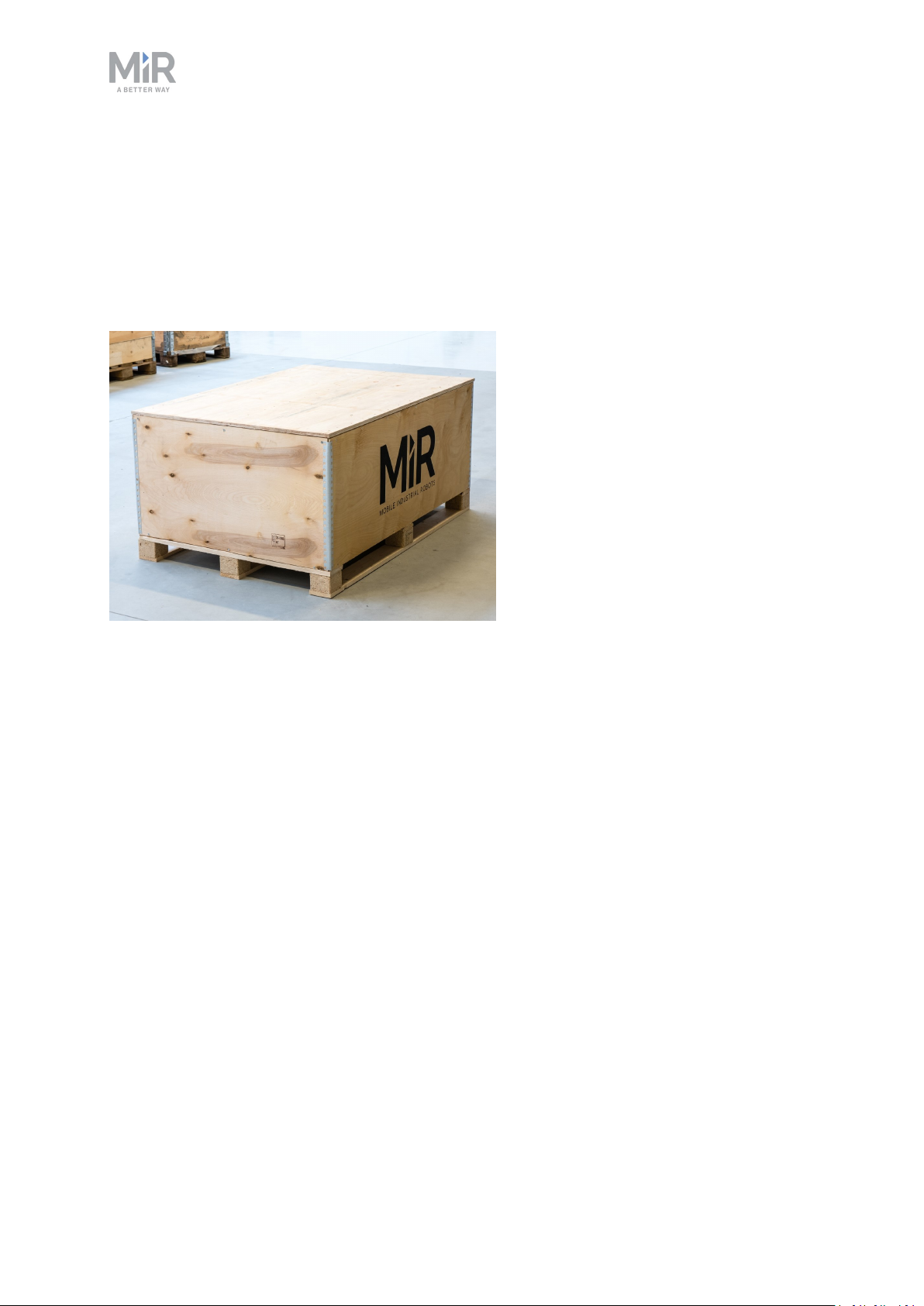
This section describes the content of the MiR500 box.
1. Getting started
The box contains:
1. The MiR500 robot
2. MiR500 document folder containing the printed documents and the USB flash drive.
3. Printed documents:
• MiR500 Quick Start
• MiR username and passwords
• CE declaration of conformity
4. USB flash drive with the following content:
• MiR500 User Guide
• MiR Robot Interface 2.0 Reference guide
• MiR robot REST API reference
• MiRCharge48V Operating Guide
• MiR500Lift Operating Guide
• MiR500EUPalletLift Operating Guide
• MiR username and passwords
• CE declaration of conformity
MiR500 Quick start (en) 07/2019 - v.1.2 ©Copyright 2019: Mobile Industrial Robots A/S. 3
Page 4
1. Getting started
1.2 Unpacking MiR500
This section describes how to unpack MiR500.
Keep the original packaging for the future transportation of the robot.
The robot is shown with a EU pallet lift.
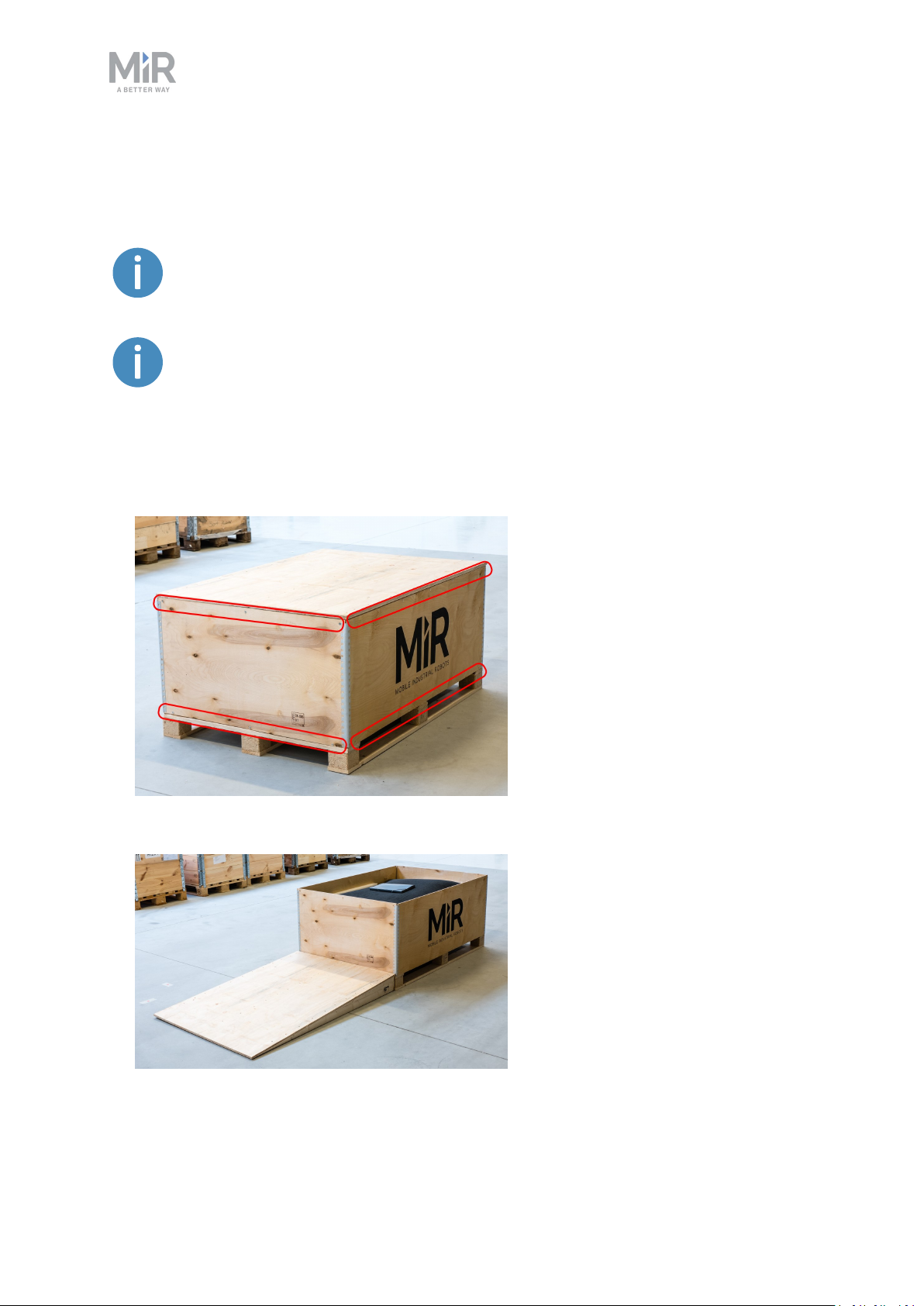
1. Place the box with the robot so that there is 3m of free space at the front or the back of
the box. This is necessary since the robot drives out of the box on the ramp.
2. Remove the screws that attach the walls of the box to the box lid and the base of the box.
3. Remove the lid from the box.
MiR500 Quick start (en) 07/2019 - v.1.2 ©Copyright 2019: Mobile Industrial Robots A/S. 4
Page 5
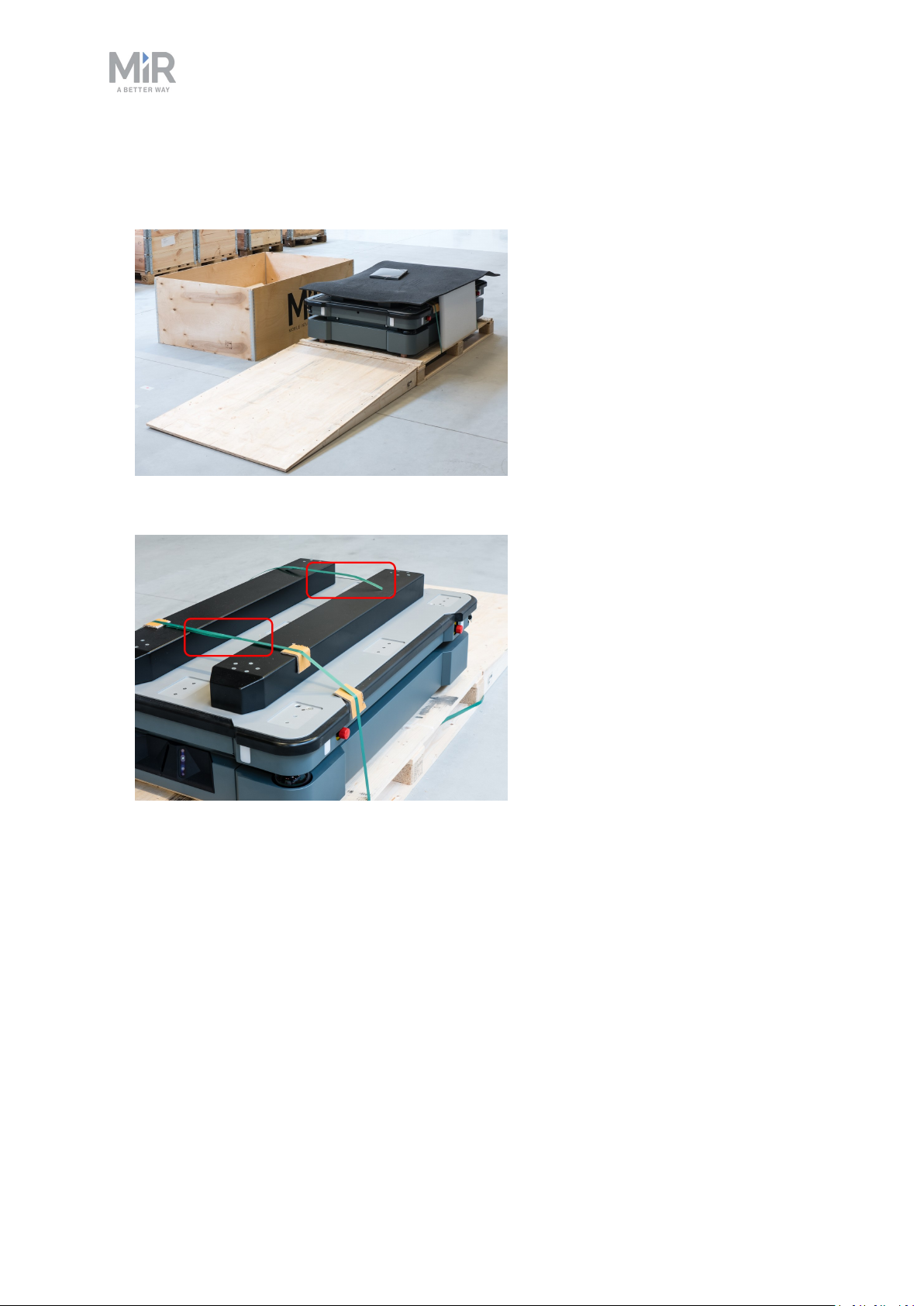
4. Take the folder with the printed documents and the USB drive out of the box.
5. Remove the walls of the box and the protective foam blocks.
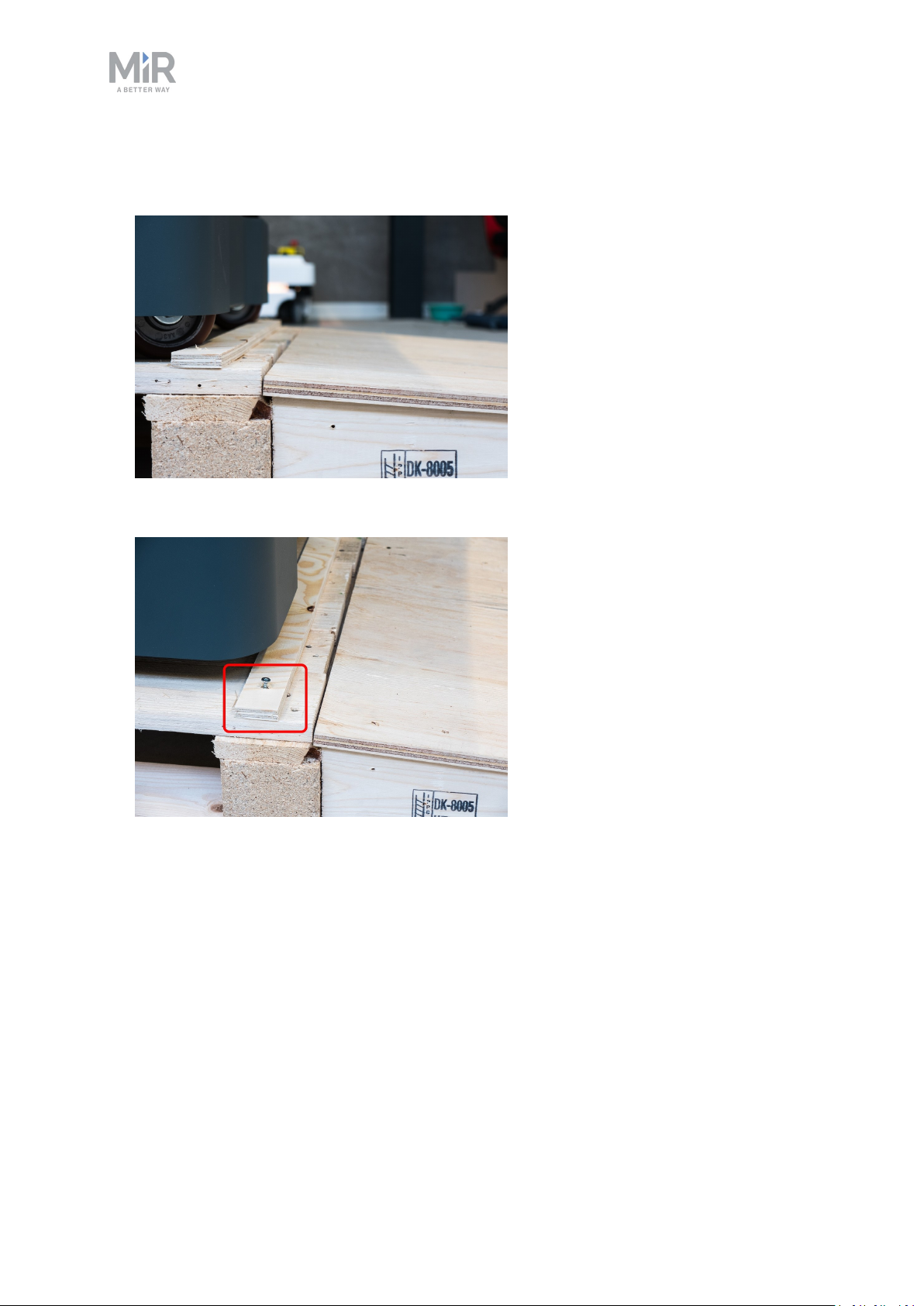
6. Cut the protective straps.
1. Getting started
MiR500 Quick start (en) 07/2019 - v.1.2 ©Copyright 2019: Mobile Industrial Robots A/S. 5
Page 6
1. Getting started
7. Place the lid of the box so that you can use it as a ramp. Align the lid so that it is flush
with the base of the box.
8. Remove the wheel stop board from the pallet to let the robot drive on the ramp.
MiR500 Quick start (en) 07/2019 - v.1.2 ©Copyright 2019: Mobile Industrial Robots A/S. 6
Page 7
2. Commissioning
2. Commissioning
This section describes how to get started with MiR500.
NOTICE
Read Safety on page22 before powering up the robot.
2.1 Powering up
Follow these steps to power up MiR500.
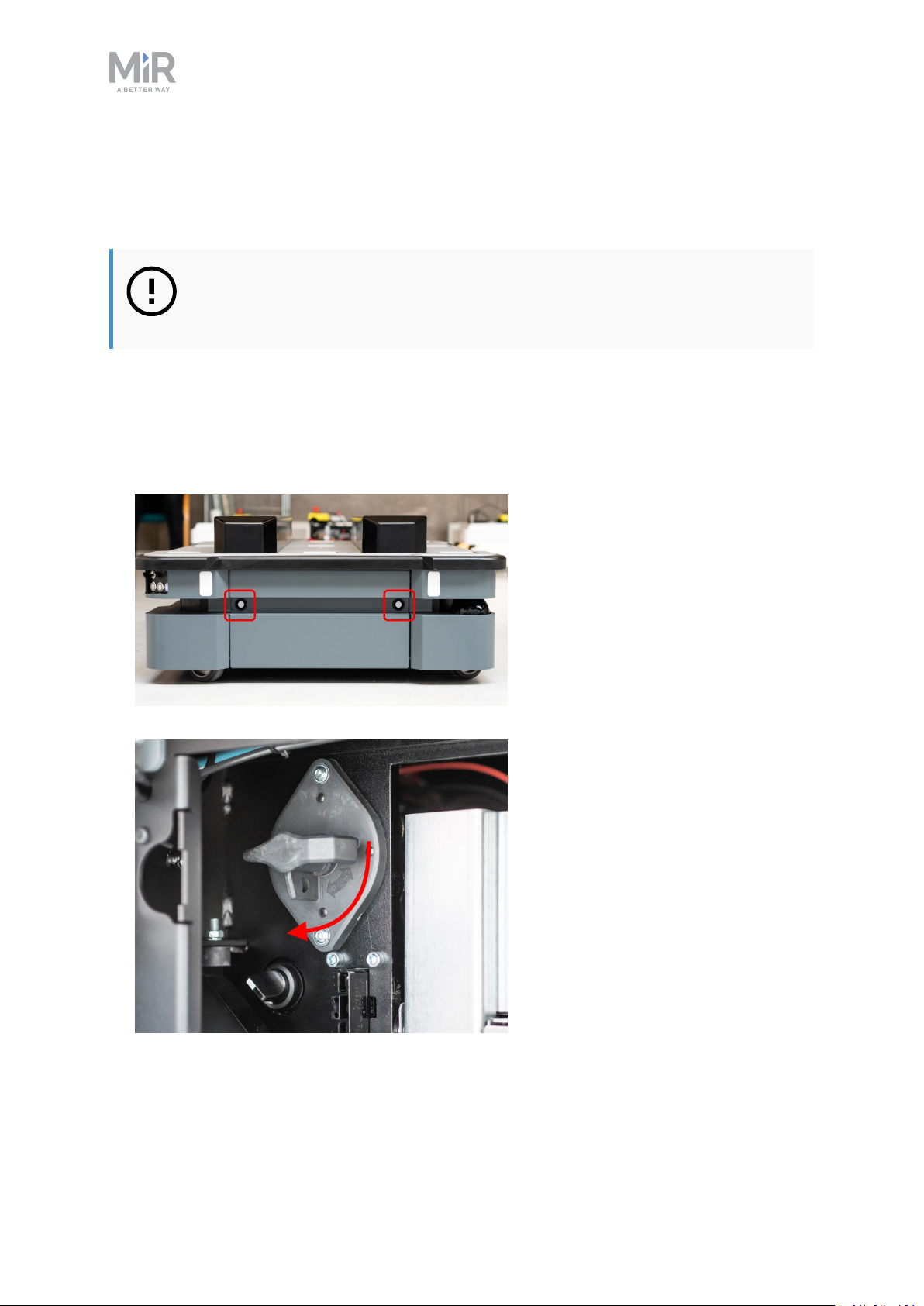
1. Open the rear maintenance hatch. To open the hatch, push two buttons on the hatch and
pull the hatch.
2. Turn the battery disconnect switch to position ON.
3. The On/Off button turns blue.
See MiR500 control panel on page15.
MiR500 Quick start (en) 07/2019 - v.1.2 ©Copyright 2019: Mobile Industrial Robots A/S. 7
Page 8
2. Commissioning
4. Close the maintenance hatch.
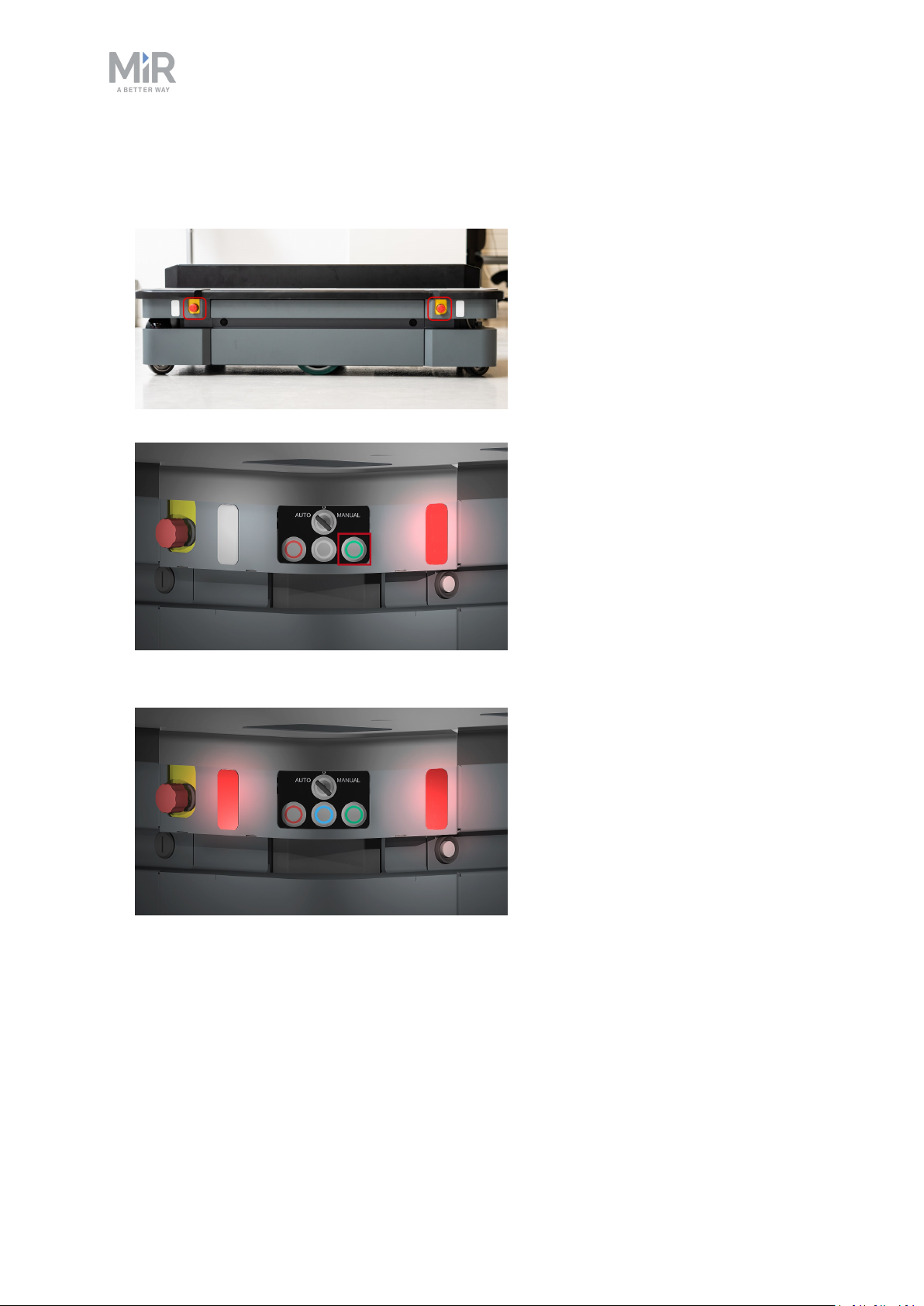
5. Ensure that all four emergency stop buttons are in the released state. Turn an emergency
stop button clockwise to release it.
6. Press the On/Off button for five seconds.
7. The robot turns on the red indicator lights and starts the software initialization process.
When the initialization process ends, the robot goes into the emergency stop mode.
MiR500 Quick start (en) 07/2019 - v.1.2 ©Copyright 2019: Mobile Industrial Robots A/S. 8
Page 9
2. Commissioning
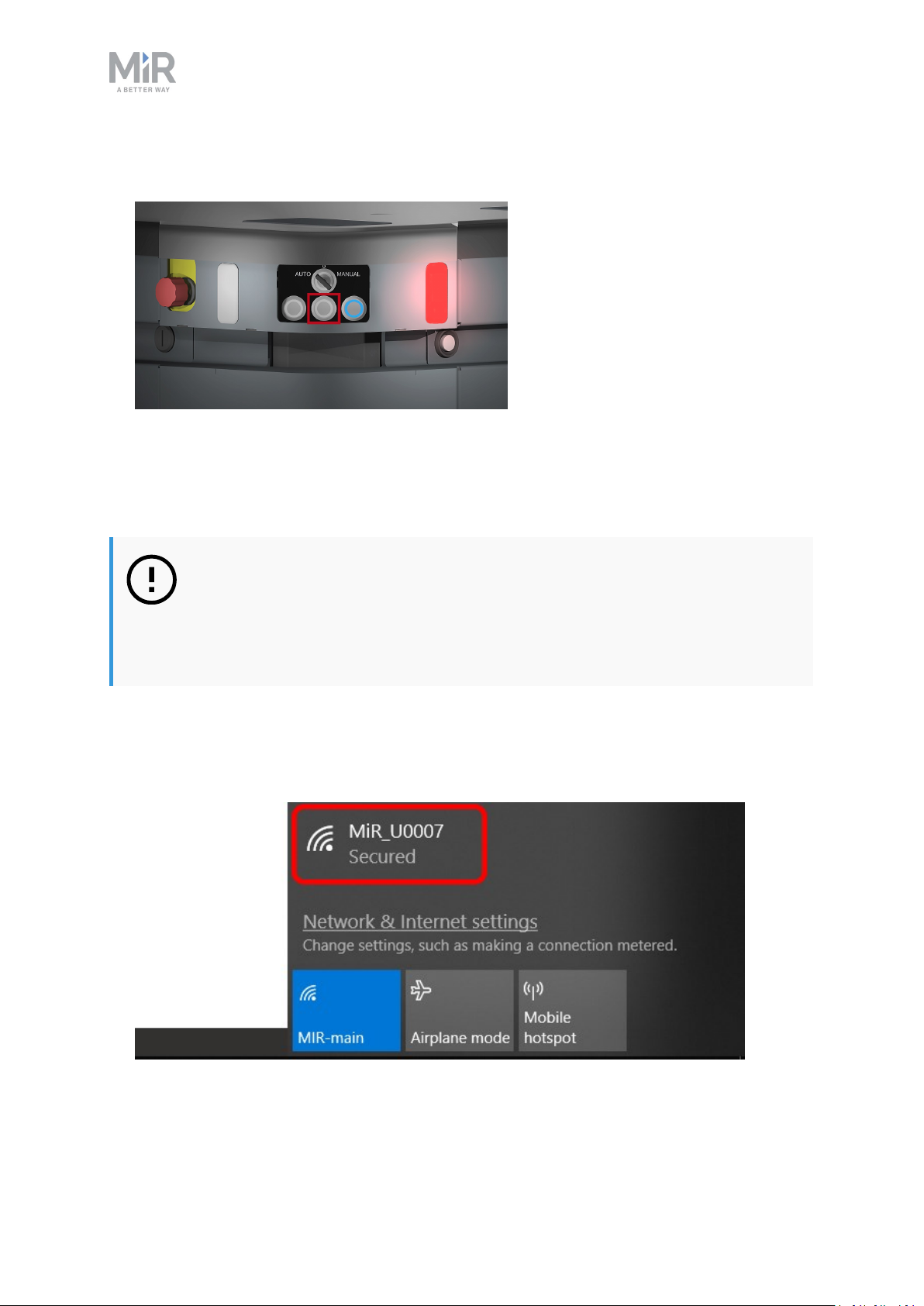
8. Press the Restart button to clear the emergency stop. The robot is ready for operation,
the status lights turn constant red.
2.2 Connecting to the robot interface
When the robot is on, it enables the connection to its WiFi access point. The name of the
access point appears in the list of available connections on your PC, tablet or phone.
NOTICE
The username and password for the robot’s WiFi access point and for accessing the web interface are in the MiR username and passwords document. The
document is in the box with the robot.
Follow these steps to connect to the robot interface:
1. Using your pc, tablet or phone, connect the WiFi access point of the robot. The access
point name has the following format: MiR_UXXXX.
MiR500 Quick start (en) 07/2019 - v.1.2 ©Copyright 2019: Mobile Industrial Robots A/S. 9
Page 10
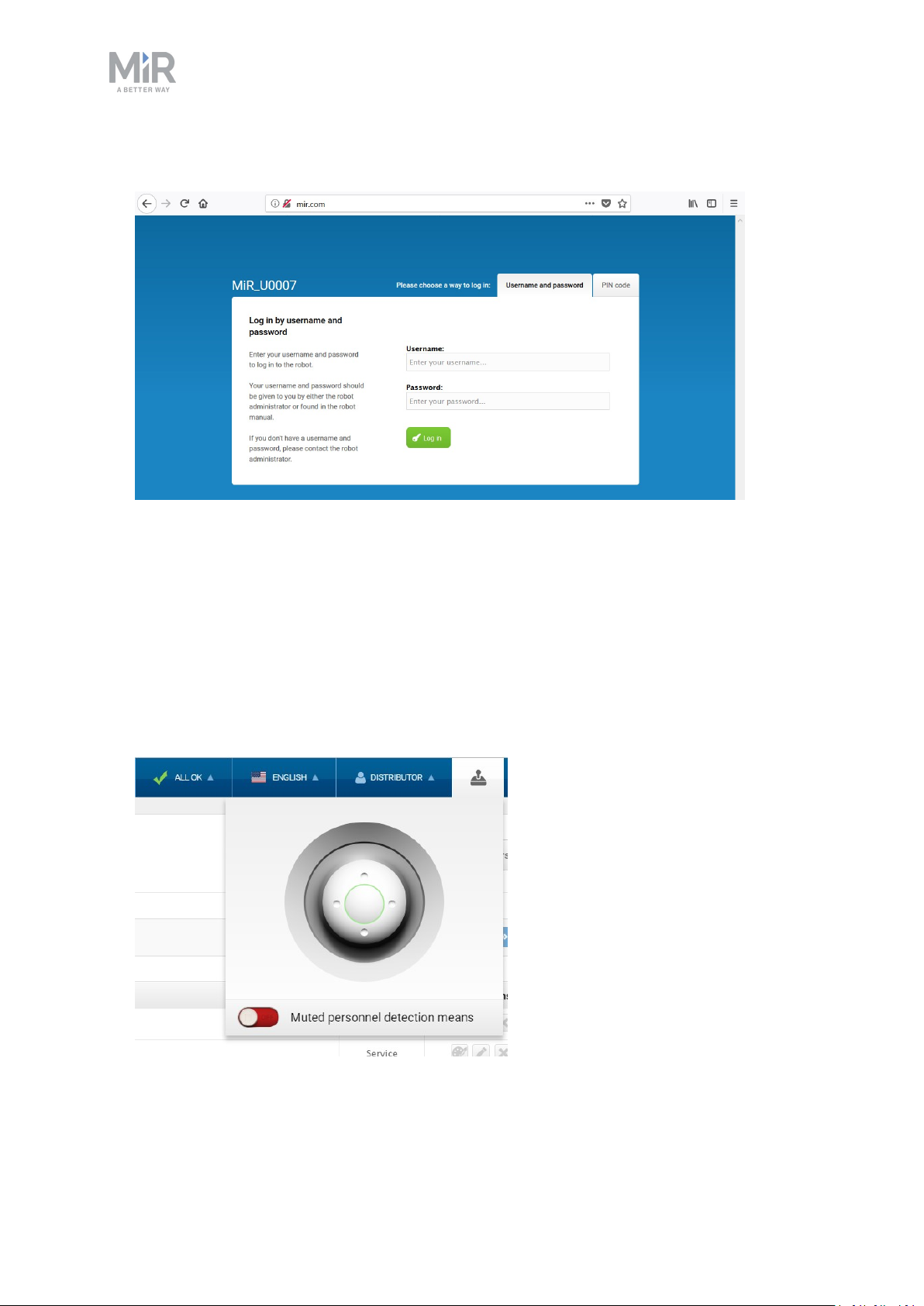
2. In a browser, go to the address mir.com and sign in.
2. Commissioning
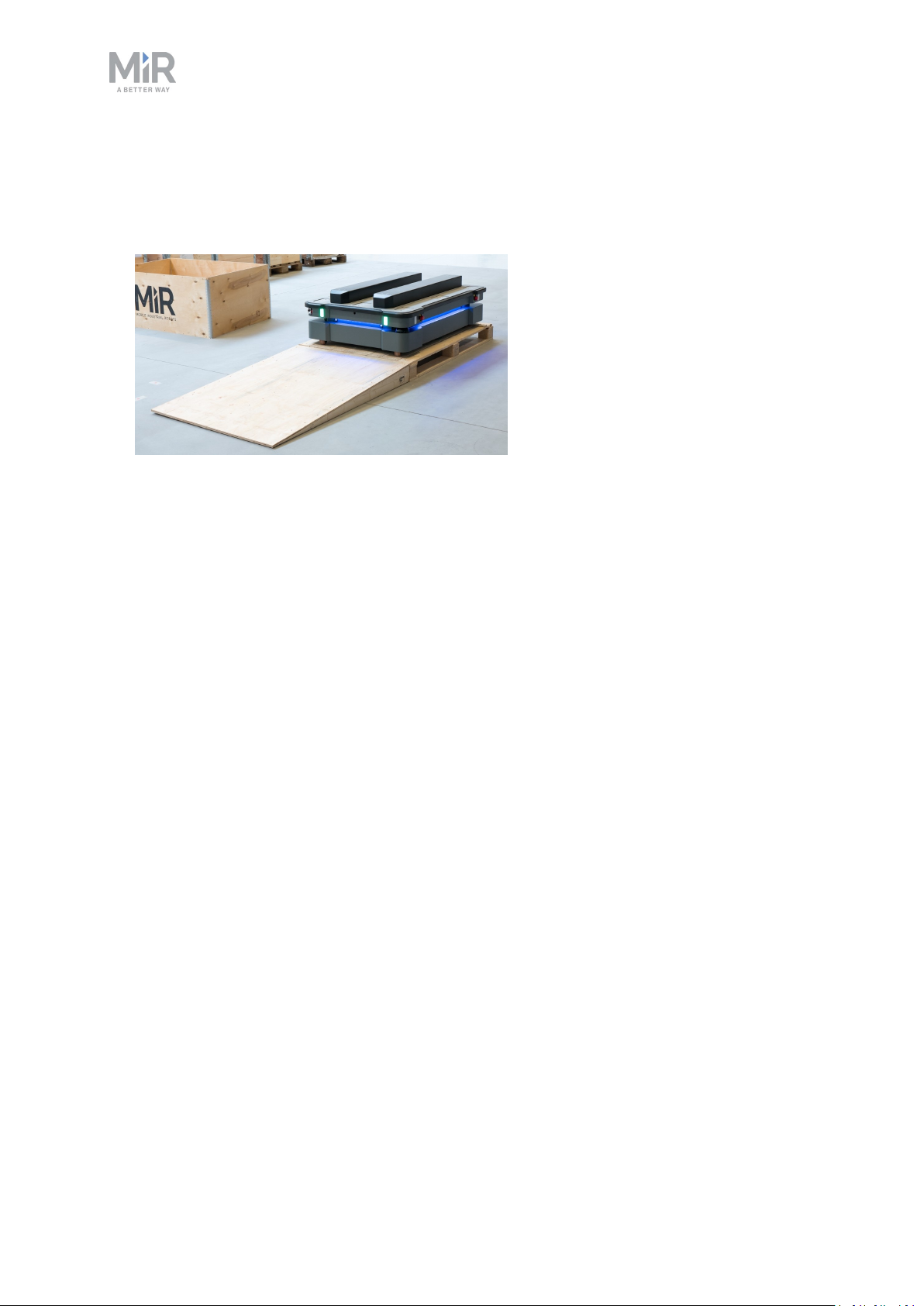
3. Switch to manual mode, and drive the robot down the ramp, see section Driving the
robot in manual mode on page1.
2.3 Driving the robot in manual mode
To drive the robot in Manual mode:
1. Put the Operating mode key into the Manual mode (turn to the right).
2. In the robot interface, select the joystick icon. The joystick control appears.
3. Select Manual control. The Restart button on the robot starts blinking.
MiR500 Quick start (en) 07/2019 - v.1.2 ©Copyright 2019: Mobile Industrial Robots A/S. 10
Page 11
2. Commissioning
4. Press the Restart button. The status lights turn blue indicating that the robot is in Manual
mode.
Note! The robot is shown with an EU pallet lift.
MiR500 Quick start (en) 07/2019 - v.1.2 ©Copyright 2019: Mobile Industrial Robots A/S. 11
Page 12
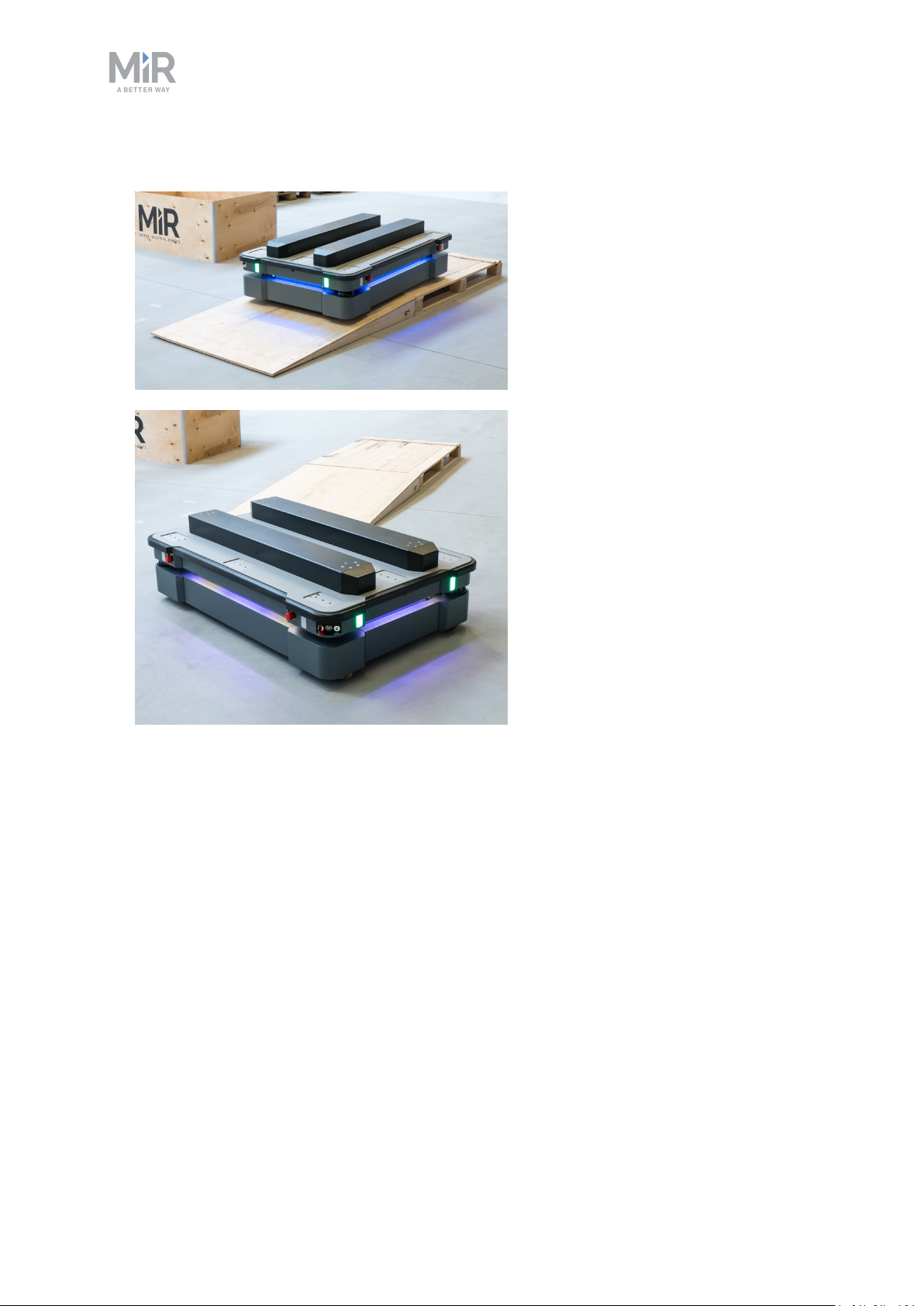
5. Drive the robot using the joystick.
2. Commissioning
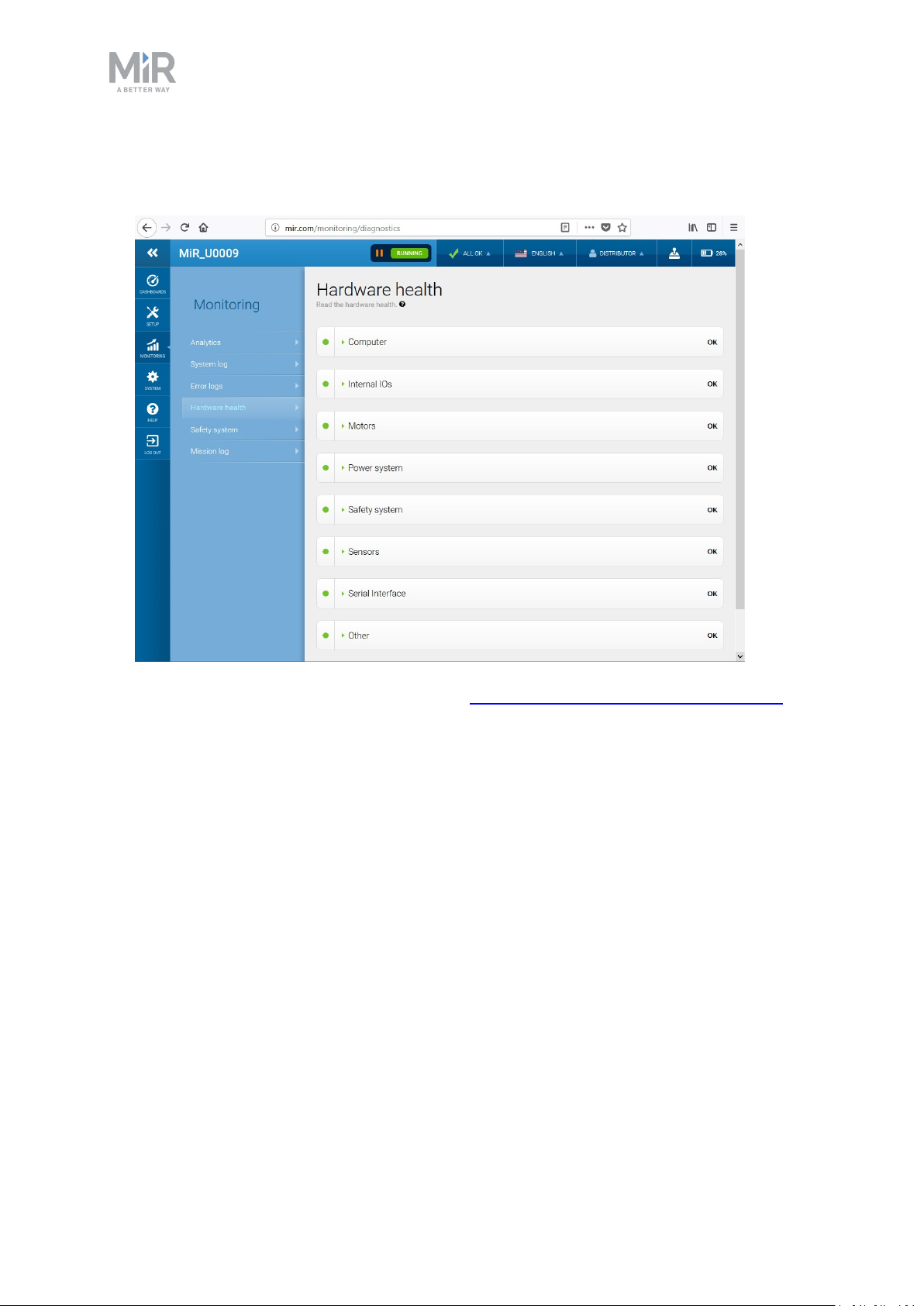
2.4 Checking the hardware status
To check that all hardware components work as intended follow the steps below:
1. Sign in to the robot interface. See the section Connecting to the robot interface on
page1.
2. Go to Monitoring > Hardware health.
MiR500 Quick start (en) 07/2019 - v.1.2 ©Copyright 2019: Mobile Industrial Robots A/S. 12
Page 13
2. Commissioning
3. Check that all elements on the page have the OK status and that they have green dots on
the left.
For more information, see Hardware health in MiR Robot Interface 2.0 Reference Guide.
MiR500 Quick start (en) 07/2019 - v.1.2 ©Copyright 2019: Mobile Industrial Robots A/S. 13
Page 14
2.5 Shutting down the robot
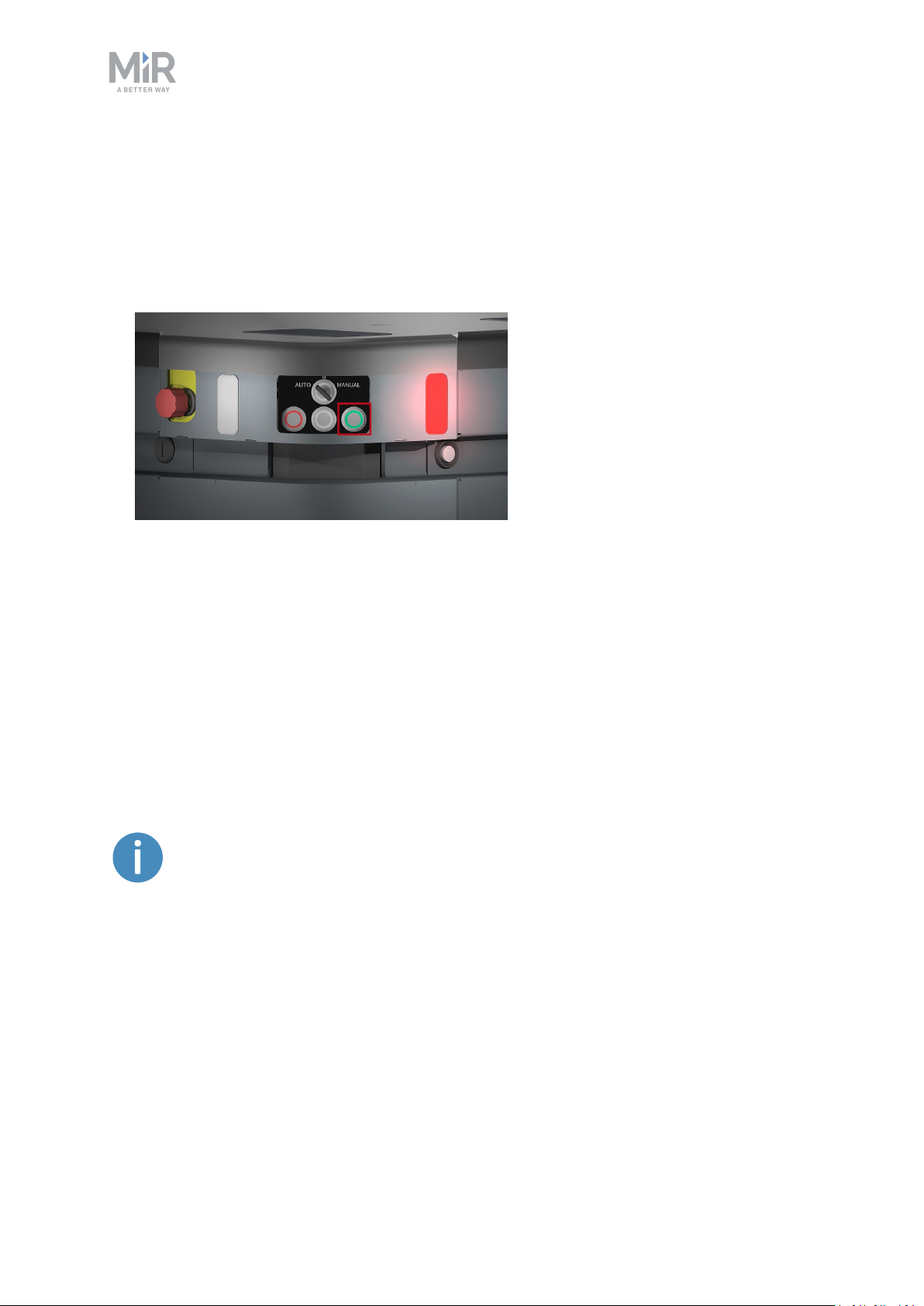
To shut down MiR500:
1. Ensure that the robot is not moving or executing an action.
2. Press the On/Off button for five seconds.
2. Commissioning
3. The robot starts the shutdown process. Status lights blink yellow, the On/Off button blinks
red.
4. When the robot finishes the shutdown process, the status and the signal lights go off, the
On/Off button turns blue.
If shutting the robot down for transportation or service/repair, the battery disconnect switch
must be turned off as well and the battery cable disconnected, see MiR500 User guide.
2.6 Charging the robot
A charger cable and an external charger is not part of the MiR500 standard
delivery.
To charge MiR500 using the cable charger:
1. Open the maintenance hatch at the back of the robot. To open the hatch, push two
buttons on the hatch and pull the hatch.
MiR500 Quick start (en) 07/2019 - v.1.2 ©Copyright 2019: Mobile Industrial Robots A/S. 14
Page 15
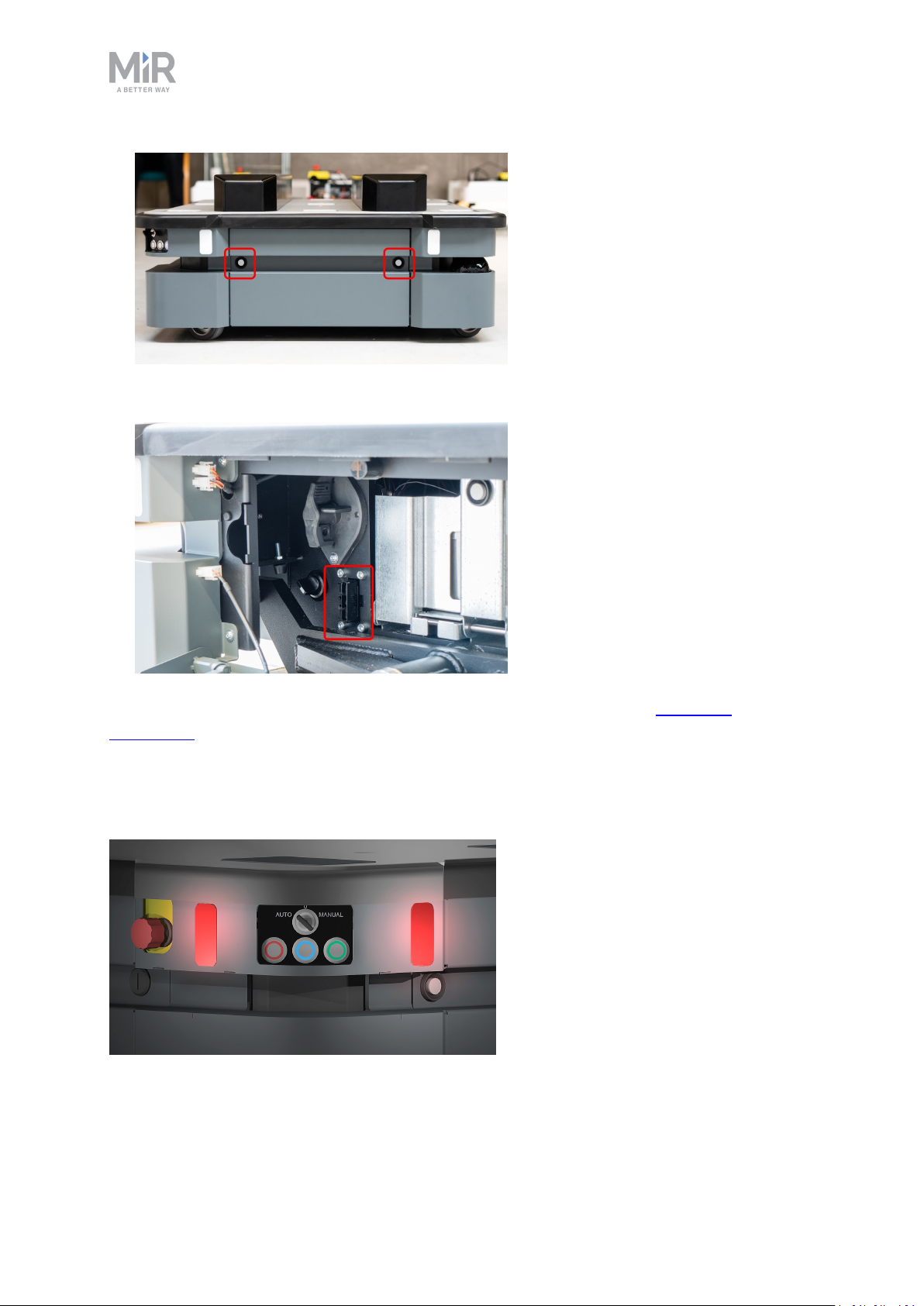
2. Connect the charger cable to the charging connector on the robot.
2. Commissioning
For information about the charging time, see the robot specifications at www.mir-
robots.com.
2.7 MiR500 control panel
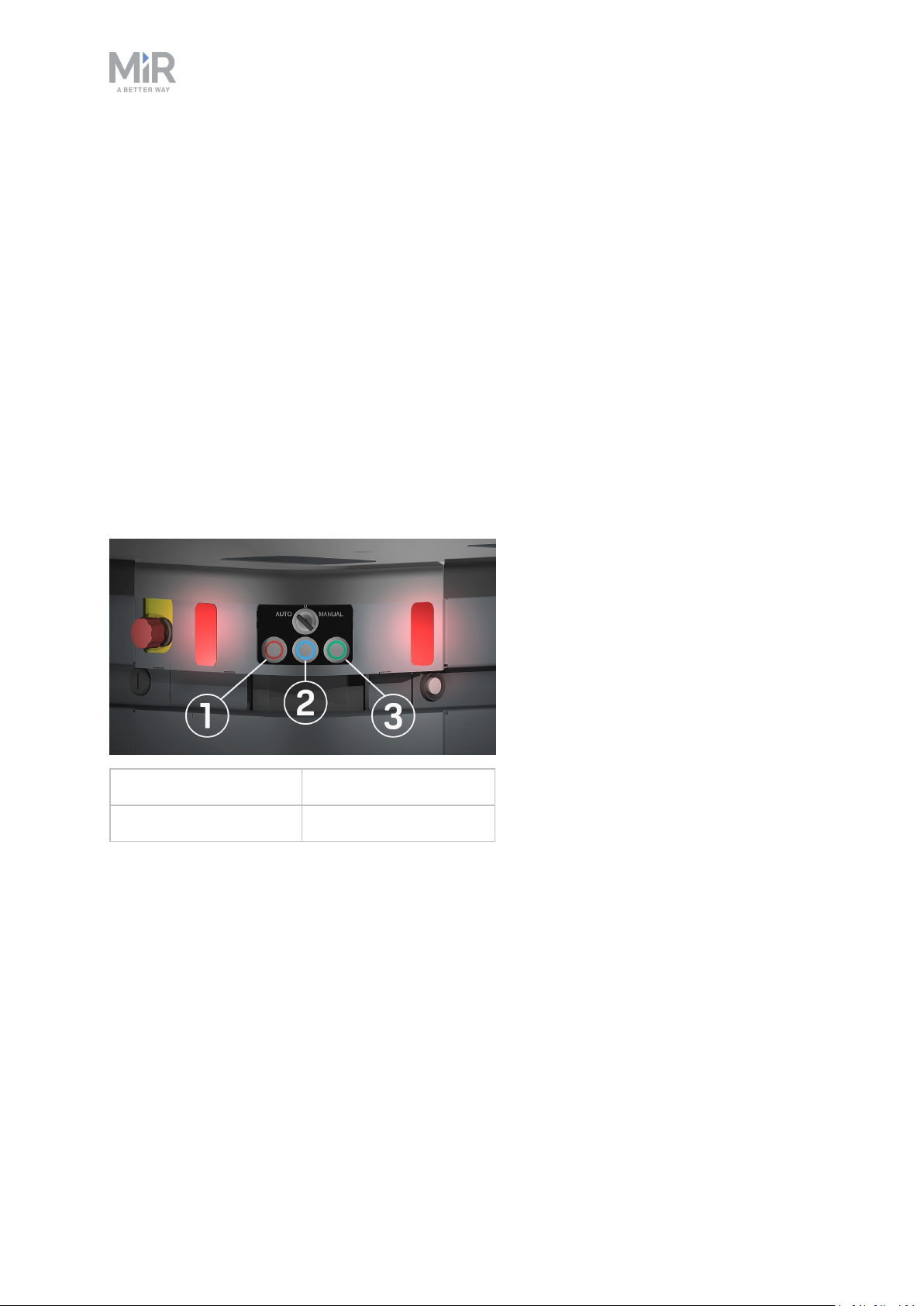
MiR500 has a control panel in the rear-left corner of the robot.
MiR500 Quick start (en) 07/2019 - v.1.2 ©Copyright 2019: Mobile Industrial Robots A/S. 15
Page 16
2. Commissioning
The Operating mode key
The Operating mode key lets you switch between operating modes.
• Left position: Autonomous mode.
Puts the robot in the Autonomous mode.
• Middle position: Stop.
Stops the robot. The robot blocks the wheels, you cannot start a mission or drive the robot
manually.
• Right position: Manual mode.
Puts the robot in the Manual mode.
For more information on operating modes, see MiR500 operating modes on the next page.
The control panel buttons
The buttons on the control panel have the following functions.
1. Stop 3. On/Off
2. Restart
Stop
Pressing the button stops the robot. After pressing this button, you must press the Restart
button to let the robot continue operating.
Color indication:
• Red: The robot is on.
Restart
Pressing this button:
MiR500 Quick start (en) 07/2019 - v.1.2 ©Copyright 2019: Mobile Industrial Robots A/S. 16
Page 17

2. Commissioning
• Clears the emergency stop state.
• Lets the robot continue operating after the Stop button was pressed.
• Lets the robot continue operating after powering up or after the operating mode change.
Color indication:
• Blinking red: The robot is waiting for a user action (clear the emergency stop state,
acknowledge the change of operating mode, etc.)
On/Off
Pressing this button for five seconds turns the robot on or shuts it down.
Color indication:
• Blue: The robot is off.
• Blinking green: The robot is starting up.
• Green: Normal operation.
• Red: The robot detected an error.
• Yellow: The battery level is low.
2.8 MiR500 operating modes
MiR500 has the following operating modes:
Manual mode
In this mode, you can drive the robot manually using the joystick in the robot interface. Only
one person can control the robot manually at a time. To ensure that nobody else takes
control of the robot, the robot issues a token to the device on which you activate the Manual
mode.
For information about activating this mode, see section Driving the robot in manual mode on
page10.
Autonomous mode
In this mode, the robot executes the programmed mission. After switching the key to this
mode, you can remove the key and the robot will continue driving autonomously. The
joystick is disabled in the robot interface.
MiR500 Quick start (en) 07/2019 - v.1.2 ©Copyright 2019: Mobile Industrial Robots A/S. 17
Page 18

2. Commissioning
Muting of the personnel detection means
When performing tasks that require to move very close to surrounding objects, the robot
mutes the personnel detection means. Docking to a pallet rack is the example of such task.
When muting the personnel detection means, the robot does the following:
• Reduces the size of the safety zones.
• Turns the collision detection off.
• Decreases the speed.
• Flashes the yellow indicator lights.
You can also mute the personnel detection means using the robot interface:
• Put the robot into the Manual mode. See section Driving the robot in manual mode on
page10
• In the robot interface, in the Joystick control, select Mute personnel detection means.
• In the prompt dialog, select Yes to acknowledge the muting of personnel detection means.
The status and the signal lights start flashing yellow, the robot is ready to drive with muted
personnel detection means.
MiR500 Quick start (en) 07/2019 - v.1.2 ©Copyright 2019: Mobile Industrial Robots A/S. 18
Page 19
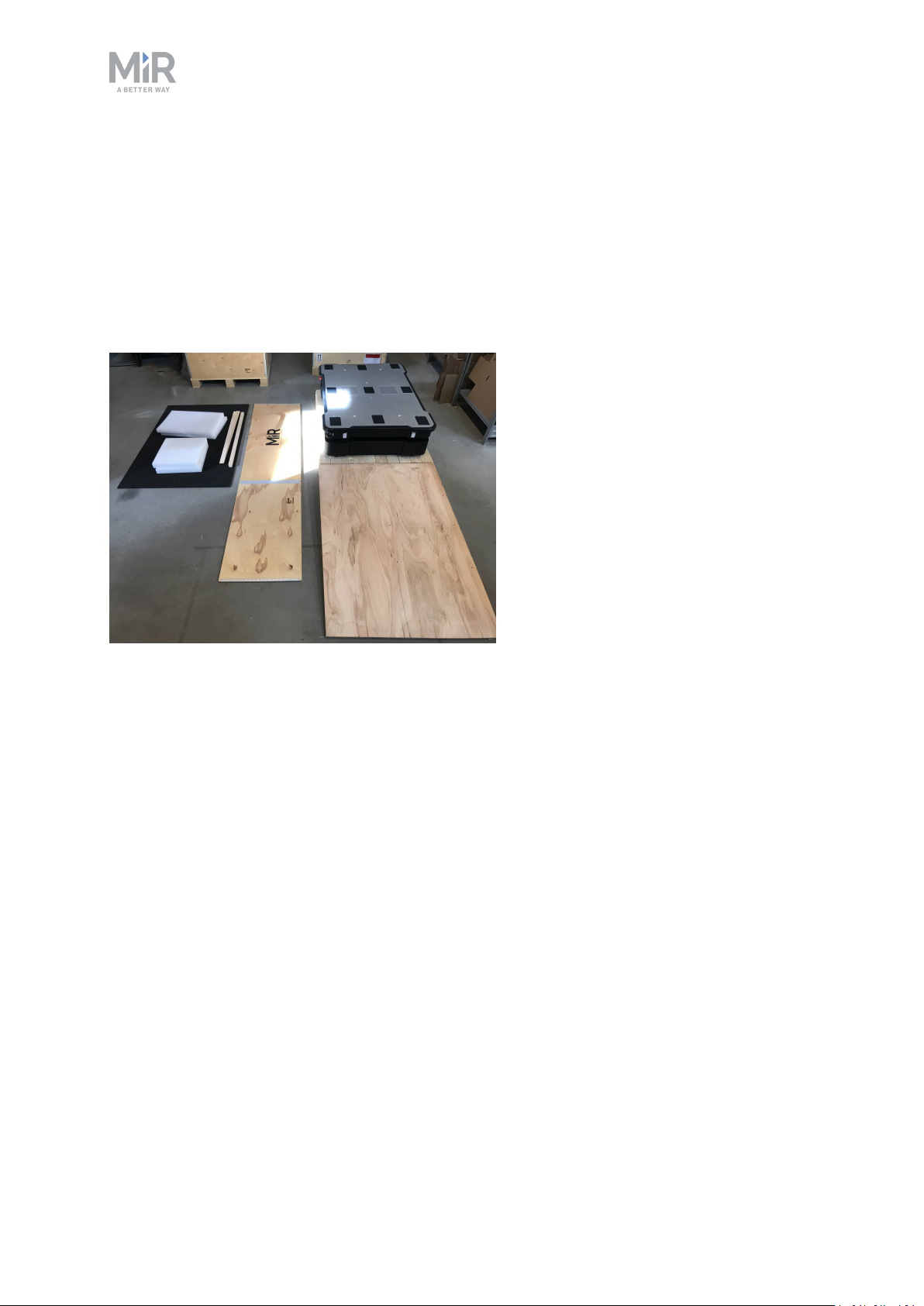
2.9 Packing for transportation
This section describes how to pack the robot for transportation.
Original packaging
Use the original packaging materials when transporting the robot.
Note! The robot is shown with a EU pallet lift.
2. Commissioning
The packaging materials are:
• The bottom of the box (the pallet).
• The lid of the box (the ramp).
• The walls of the box.
• The wheel stop board.
• Protective foam blocks: Side blocks and the top layer.
• Protective corner braces. The braces prevent the robot from being damaged by the trans-
port straps.
• Screws.
MiR500 Quick start (en) 07/2019 - v.1.2 ©Copyright 2019: Mobile Industrial Robots A/S. 19
Page 20
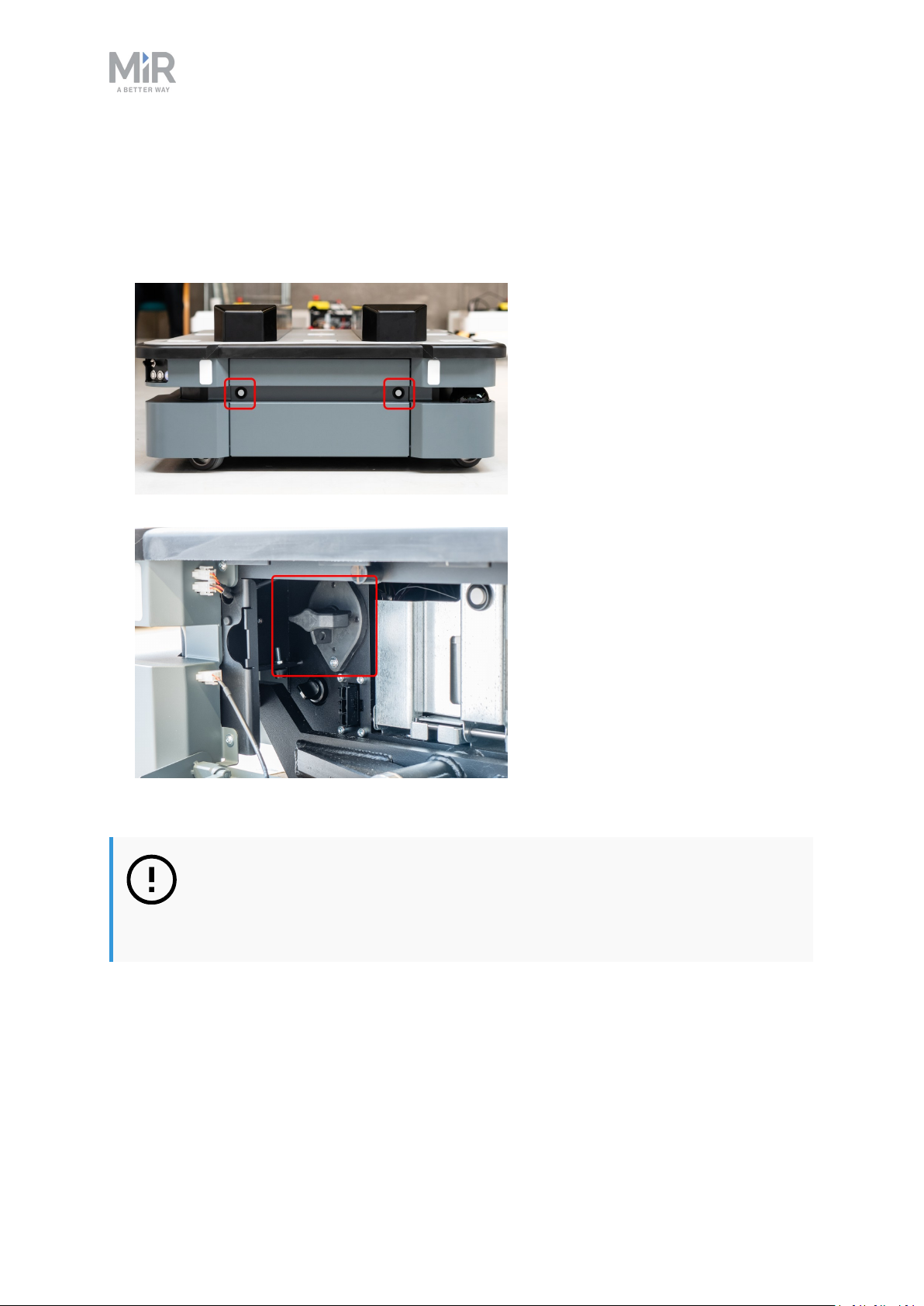
Packing the robot for transportation
To pack the robot for transportation:
1. Shut down the robot. See section .
2. Open the rear maintenance hatch.
3. Turn the battery disconnect switch to position OFF.
2. Commissioning
Repeat the steps in section Getting started on page3 in the reverse order.
NOTICE
Pack and transport the robot in an upright position. Packing and transporting
the robot in any other position voids the warranty.
Battery
The lithium battery is subject to transport regulations. Make sure that you follow the safety
precautions in this section and the instructions in section Packing for transportation on the
MiR500 Quick start (en) 07/2019 - v.1.2 ©Copyright 2019: Mobile Industrial Robots A/S. 20
Page 21
2. Commissioning
previous page. Different regulations apply depending on the mode of transportation: Land,
sea, or air.
Contact your distributor for more information.
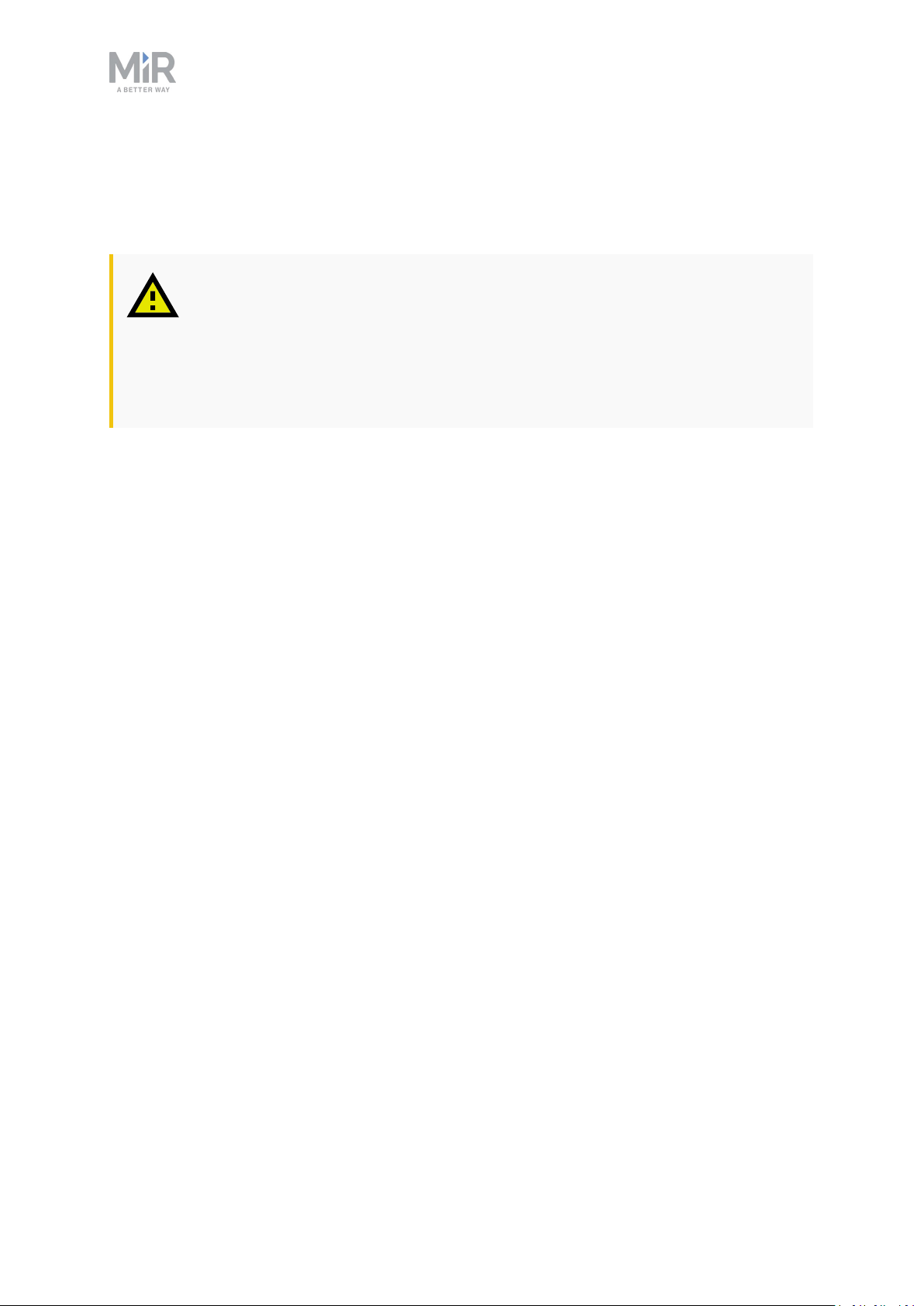
CAUTION
Lithium batteries are subject to special transportation regulations according to
United Nations Regulation of Dangerous Goods, UN 3171. Special transport
documentation is required to comply with these regulations. This may influence both transport time and costs.
MiR500 Quick start (en) 07/2019 - v.1.2 ©Copyright 2019: Mobile Industrial Robots A/S. 21
Page 22
3. Safety
Read the information in this section before powering up and operating MiR500.
Pay particular attention to the safety instructions and warnings.
NOTICE
Mobile Industrial Robots disclaims any and all liability if MiR500 or its
accessories are damaged, changed or modified in any way. Mobile Industrial
Robots cannot be held responsible for any damages caused to MiR500,
accessories or any other equipment due to programming errors or
malfunctioning of MiR500.
3.1 Safety message types
3. Safety
This document uses the following safety message types.
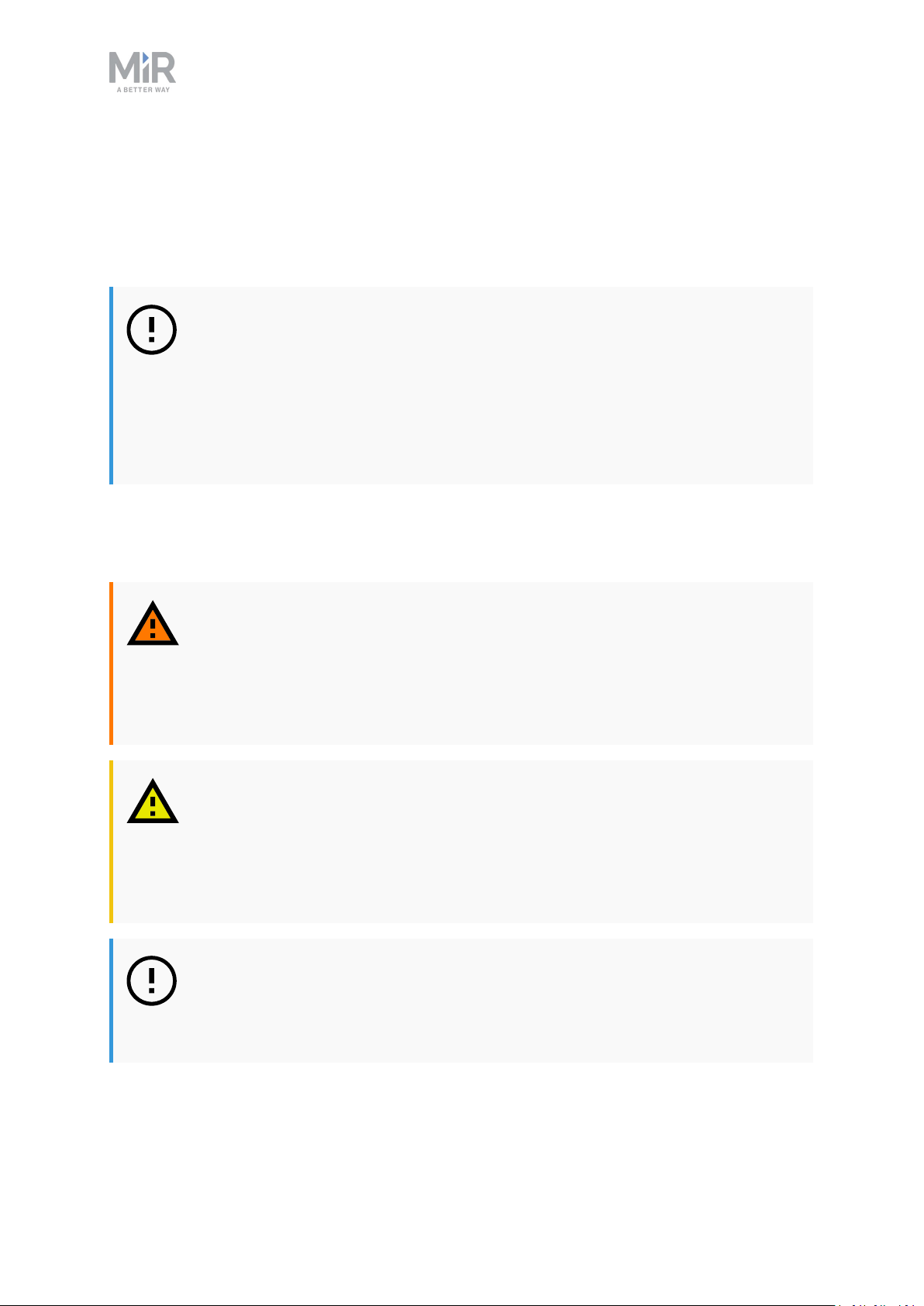
WARNING
Indicates a potentially hazardous situation that could result in death or serious
injury.
• Take proper precautions to avoid damage or injury.
CAUTION
Indicates a potentially hazardous situation that could result in minor or moderate injury. Alerts against unsafe practices.
• Take proper precautions to avoid damage or injury.
NOTICE
Indicates important information, including situations that can result in damage
to equipment or property.
MiR500 Quick start (en) 07/2019 - v.1.2 ©Copyright 2019: Mobile Industrial Robots A/S. 22
Page 23
3.2 General safety precautions
This section contains general safety precautions.
WARNING
If the load on the robot is not positioned or fastened correctly, the load may
fall or the robot may overturn.
• Ensure that the load is positioned according to the specifications and
fastened correctly. Refer to the User guide of your robot for payload specifications.
WARNING
3. Safety
Using a charger different from the one supplied by the manufacturer can
cause a fire.
• Use only the original charger.
WARNING
Make sure the UR Robot Arm is properly and securely bolted in place.
Unstable mounting can lead to accidents.
CAUTION
The robot can not see staircases going downwards and holes in the floor.
• Mark staircases or holes on maps with Forbidden zones.
• Keep the maps up to date.
MiR500 Quick start (en) 07/2019 - v.1.2 ©Copyright 2019: Mobile Industrial Robots A/S. 23
Page 24
3. Safety
CAUTION
Use Flight Mode with smartphone control of the robot. Risk of personal injury
and/or damage to the robot.
• If you use Manual control with a smartphone to drive the robot, make sure
that the phone is set to Flight Mode. An incoming call on the smartphone
will interrupt control of the robot.
WARNING
Lithium battery packs may get hot, explode or ignite and cause serious injury if
they are abused electrically or mechanically.
Observe the following precautions when handling and using lithium batteries:
• Do not short-circuit, recharge or connect with false polarity.
• Do not expose to temperature beyond the specified temperature range or
incinerate the battery.
• Do not crush, puncture or disassemble the battery. The battery contains
safety and protection devices, which, if damaged, may cause the battery to
generate heat, explode or ignite.
• Do not allow the battery to get wet.
• In the event the battery leaks and the fluid gets into one’s eye, do not rub
the eye. Rinse well with water and immediately seek medical care. If left
untreated, the battery fluid could cause damage to the eye.
• Use only the original charger (cable charger or charging station) and
always follow the instructions from the battery manufacturer.
3.3 Intended use
MiR500 is a partly completed machine as defined in the EU machinery directive and does
not have a CE mark. A correctly installed MiR500 is covered by the CE mark of MiRFleet PC.
However, a CE marked product does not guarantee a CE marked setup. It is the responsibility
of the integrator to safely commission MiR500.
MiR500 is designed for MiRFleet PC. MiR500 is only intended to be used as described in this
operating guide
MiR500 Quick start (en) 07/2019 - v.1.2 ©Copyright 2019: Mobile Industrial Robots A/S. 24
Page 25
3. Safety
NOTICE
A safe machine does not guarantee a safe system. Follow the Commissioning
guide to ensure safe commissioning.
MiR500 is intended to be commissioned indoor in a light industrial environment where
public access is restricted. For detailed description of the environment in which the robot
should operate, see technical specifications on our website.
NOTICE
Before commissioning MiR500, it is important to make a risk assessment. All
risks and foreseeable misuses relevant to MiRFleet PC also apply to MiR500.
Refer to the MiRFleet PC User guide for more information.
3.4 Foreseeable misuse
Any use or application deviating from the intended use is deemed to be misuse. This
includes, but is not limited to:
• Use of the robot to transport people.
Risk of injury.
• Steep ramps on the route.
Risk of injury. Steep surface grades (ramps etc.) may cause the robot to skid. See Technical specifications on the website.
• Use outdoor.
Risk of injury. MiR500 is designed and intended for indoor use only.
• Overloading of the robot.
Risk of injury. If the maximum payload on top of the robot is exceeded, it may cause overturning, falling load. See Technical specifications on the website.
• Failure to follow the guidelines for commissioning
See Commissioning on page7
• Failure to make a risk assessment of the full installation
See Risk assessment on the next page. This applies to the robot with any extra modules
installed.
• Operation outside the permissible operating rating parameters and environmental
specifications
Risk of instability, impact or tipping over.
MiR500 Quick start (en) 07/2019 - v.1.2 ©Copyright 2019: Mobile Industrial Robots A/S. 25
Page 26

3. Safety
• Transportation of liquids or food
Risk of instability.
• Use in potentially explosive environments
• Use in medical and life critical applications
3.5 Risk assessment
One of the most important steps in achieving a safe installation is to make a risk assessment.
The risk assessment is the responsibility of the individuals who are commissioning MiR500 in
the environment it will be used in. Most often it will be an integrator who also designs
and/or builds work cells or other required infrastructure related to MiR500.
The risk assessment must cover not only MiR500 itself, but also take into account potential
potential load transfer stations, work cells and the environment it will be used in. See
MiR100 and MiR200 Risk Analysis on the distributor page.
It is recommended that the integrator uses guidelines in ISO 12100, EN 1525, ANSI B56.5 or
other relevant standards to conduct the risk assessment.
The risk assessment shall at least consider the following scenarios:
• Detailed description of the robot installation.
• Normal operation of the robot installation.
In EN 1525, clause 4 there is a list of significant hazards, hazardous situations and events
which can be used for inspiration.
The risk assessment shall be written and saved as part of the technical file.
3.6 Residual risks
Mobile Industrial Robots has identified the potential significant hazards listed below as
hazards that must be considered by the integrator.
• Being run over, drawing-in, trapping or impact if a person steps into the route or walks
towards MiR500 while in motion.
• Crushing or trapping if user touches MiR500. Please notice the warnings on MiR500.
• Crushing, drawing-in or trapping at load transfer stations, work cells or charging stations.
MiR500 Quick start (en) 07/2019 - v.1.2 ©Copyright 2019: Mobile Industrial Robots A/S. 26
Page 27
3. Safety
NOTICE
Other significant hazards will be present in a specific robot installation and
shall be identified during Commissioning.
3.7 Safety-related functions and interfaces
MiR500 is equipped with a range of built-in safety-related functions as well as safety-related
electrical interfaces designed for integration with a top module and/or top manipulator.
Each safety function and interface is designed according to the standard ISO 13849-1.
The safety-related functions and interfaces are selected to support compliance with EN
1525.
3.8 Limiting safety-related functions
MiR500 has several built-in safety-related functions that are used to ensure safe operation in
the environment it is designed to be used in.
Advanced control software ensures that locomotion and the drive pattern are within safety
related limits and thereby avoid triggering a safety function. Violations of limits will hence
only occur in exceptional cases. Nevertheless, if a limit is violated, the safety system issues a
category 0 stop (stopping by “immediate removal of power to the machine actuators
according to IEC 60204-1”) followed by a controlled brake which brings MiR500 to a stop.
See Technical specifications on our website for more details.
Collision avoidance
The collision avoidance safety function ensures that the robot will come to a stop before it
collides with a human or object.
The function measures the speed on the two driving wheels and switches between the
predefined protective fields accordingly. The faster the speed, the larger the protective
fields will be.
This ensures that the robot will be brought to a stop in case a human or object is detected
within the active protective field.
Collision avoidance is automatically deactivated two seconds after the protective field is
free.
MiR500 Quick start (en) 07/2019 - v.1.2 ©Copyright 2019: Mobile Industrial Robots A/S. 27
Page 28

3. Safety
Safe load position
The safe load position safety function ensures that the robot will not drive, while MiR500Lift
or MiR500EUPalletLift is not in the lowest position and hence there is a risk of
compromising stability.
The safe load position safety system consists of interlock switches that detect if the lift
modules are in the lowest position or not.
The input can be used for a customized top module/manipulator when a MiR500Lift or
MiR500EUPalletLift is not installed.
The safe load position safety function must be manually deactivated by activation of the
restart button.
Overspeed avoidance
The safety system monitors if the speed of each motor is above limits for maximum rated
speed and hence an indication of speed control is lost for any reason.
The overspeed avoidance safety function must be manually deactivated by activation of the
restart button.
Stability
The safety system monitors if the speed difference between the two motors are above
predefined limits and hence an indication of speed control is lost for any reason.
The stability safety function must be manually deactivated by activation of the restart
button.
Emergency stop
MiR500 has four emergency stop buttons and an option to connect additional emergency
stop buttons through the electrical interface.
The emergency stop is only intended to be used in case of an emergency and shall not be
used for operational stop.
Emergency stop must be manually deactivated by activation of the restart button.
3.9 Safety-related electrical interfaces
The robot is equipped with several safety-related electrical inputs and outputs. All safetyrelated electrical inputs and outputs are dual channel. They are safe when low, e.g. the
MiR500 Quick start (en) 07/2019 - v.1.2 ©Copyright 2019: Mobile Industrial Robots A/S. 28
Page 29

3. Safety
emergency stop is not active when the signal is high (+24V).
Safety-related electrical inputs
This section contains the safety-related electrical inputs of the robot.
External emergency stop button input
This input is for connection of an optional emergency stop button. If activated, the safety
system issues a category 0 stop followed by a controlled brake which brings MiR500 to a
stop.
Must be manually deactivated by activation of the restart button.
System emergency stop input
This input should be used in case a top manipulator has its own emergency stop circuit. The
input must be used in combination with a system emergency stop output. With this, it is
possible to ensure that activation of any emergency stop button will cause an emergency
stop of both MiR500 and top manipulator. If activated, the safety system issues a category 0
stop followed by a controlled brake which brings the robot to a stop.
Must be manually deactivated by activation of the restart button.
Safeguard stop input
This input can be used to issue a category 0 stop followed by a controlled brake which brings
MiR500 to a stop.
Will be automatically deactivated when signal is driven high again.
Load handling position (position control of load)
This input can be used to apply the safe load position (position control of load) safety
function on a system with customized top modules or manipulators. A variety of sensors or
interlock switches that detect load handling position or position of load can be connected
and thereby enable the safe load position safety function.
Safety-related electrical outputs
This section contains the safety-related electrical outputs of the robot.
Locomotion
This safety related output is activated if the robot is in locomotion or intend to locomote
within two seconds.
MiR500 Quick start (en) 07/2019 - v.1.2 ©Copyright 2019: Mobile Industrial Robots A/S. 29
Page 30

3. Safety
The safety function is limited if locomotion is detected while the output is deactivated.
Shared emergency stop output
This output should be used in case a top manipulator has its own emergency stop circuit. The
output should be used in combination with a system emergency stop input. With this, it is
possible to ensure that activation of any emergency stop button will cause an emergency
stop of both the robot and top manipulator.
Activated by an emergency stop button or emergency stop input.
MiR500 Quick start (en) 07/2019 - v.1.2 ©Copyright 2019: Mobile Industrial Robots A/S. 30
Page 31
3.10 Lithium battery
This section contains safety precautions related to lithium batteries in MiR robots.
NOTICE
MiR does not support any additional batteries applied to the MiR500 by the
customer.
WARNING
Lithium battery packs may get hot, explode or ignite and cause serious injury if
they are abused electrically or mechanically.
Observe the following precautions when handling and using lithium batteries:
3. Safety
• Do not short-circuit, recharge or connect with false polarity.
• Do not expose to temperature beyond the specified temperature range or
incinerate the battery.
• Do not crush, puncture or disassemble the battery. The battery contains
safety and protection devices, which, if damaged, may cause the battery to
generate heat, explode or ignite.
• Do not allow the battery to get wet.
• In the event the battery leaks and the fluid gets into one’s eye, do not rub
the eye. Rinse well with water and immediately seek medical care. If left
untreated, the battery fluid could cause damage to the eye.
• Use only the original charger (cable charger or charging station) and
always follow the instructions from the battery manufacturer.
MiR500 Quick start (en) 07/2019 - v.1.2 ©Copyright 2019: Mobile Industrial Robots A/S. 31
Page 32

Copyright and disclaimer
All rights reserved. No parts of this manual may be reproduced in any form without the express
written permission of Mobile Industrial Robots A/S (MiR). MiR makes no warranties, express or
implied, in respect of this document or its contents. In addition, the contents of the document are
subject to change without prior notice. Every precaution has been taken in the preparation of this
manual. Nevertheless, MiR assumes no responsibility for errors or omissions or any damages
resulting from the use of the information contained.
Copyright © 20162018-2019 by Mobile Industrial Robots A/S.
Contact the manufacturer:
Mobile Industrial Robots A/S
Emil Neckelmanns Vej 15F
DK-5220 Odense SØ
www.mir-robots.com
Phone: +45 20 377 577
Email: [email protected]
CVR: 35251235
 Loading...