

Page 1
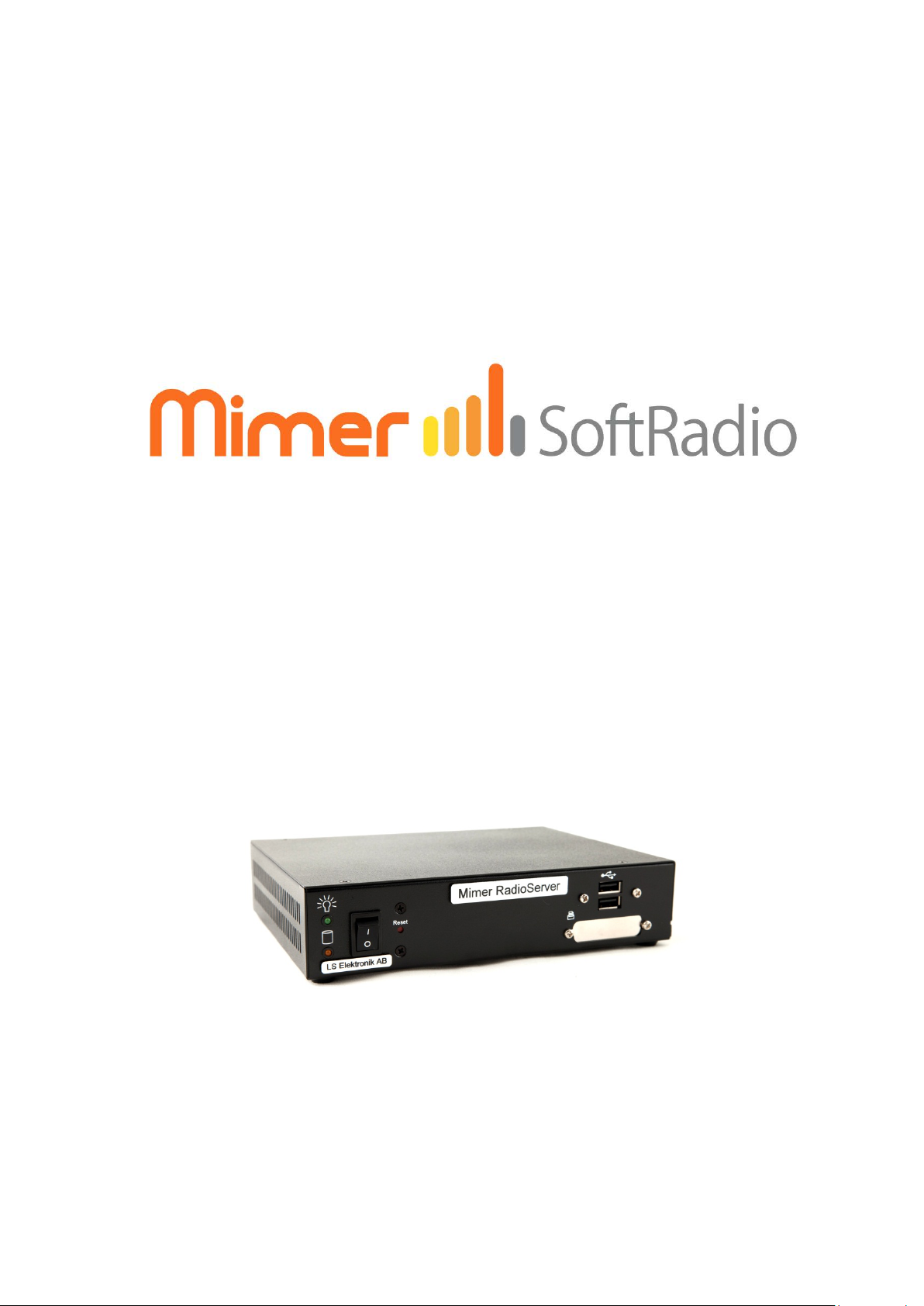
Mimer RadioServer
Technical description and set-up instructions
Rev F
Release date April 05, 2017
Page 2

A Mimer SoftRadio system can be configured in many ways. This paper
describes the basic use of a Mimer RadioServer and how to set it up.
Please also refer to the standard setup instructions for SoftRadio and to the
information provided on the web pages.
www.softradio.se
Mimer RadioServer 2860-81 F Page 2
Page 3

1 Table of Contents
1 Table of Contents.................................................................................... 3
2 General ................................................................................................... 4
3 The RadioServer ...................................................................................... 5
3.1 Settings in the RadioServer ............................................................. 5
4 Connecting to the RadioServer ............................................................... 6
4.1 Connect your PC .............................................................................. 6
4.2 Login ................................................................................................ 6
5 Setting up connections to the devices ................................................... 7
5.1 Interface ID ...................................................................................... 7
5.2 IP Address ........................................................................................ 8
5.3 Port .................................................................................................. 8
5.4 Password ......................................................................................... 8
5.5 Submit changes ............................................................................... 8
5.6 Save and Load from file ................................................................... 8
5.7 Configuration history ...................................................................... 8
6 Change network settings ........................................................................ 9
6.1 Static IP ............................................................................................ 9
6.1.1 IP address ................................................................................. 9
6.1.2 Netmask ................................................................................... 9
6.1.3 Gateway ................................................................................. 10
6.2 Dynamic IP ..................................................................................... 10
6.3 Important note regarding Gateways ............................................. 10
7 Other commands .................................................................................. 11
7.1 Change password .......................................................................... 11
7.2 Checking RadioServer status ......................................................... 11
7.3 Show the server log ....................................................................... 12
7.4 Allowed users ................................................................................ 13
7.5 Change Server name ..................................................................... 13
8 Setting up the Mimer SoftRadio client ................................................. 14
9 Mimer RadioServer summary: .............................................................. 15
9.1 Note ............................................................................................... 15
9.2 Power failure ................................................................................. 15
Mimer RadioServer 2860-81 F Page 3
Page 4
2 General
Mimer RadioServer is a component in the Mimer family of products for
network operated 2-way radios.
The RadioServer is used to allow many operators to remotely connect to one
or more Mimer radios at a single site via TCP-connections. This can be used
to allow access from users at different locations to radio resources at a
single site, like a remote radio site or a command centre with local radios.
A standard Mimer Network interface allows only one user to connect
remotely via TCP. If another user tries to connect he will get the message
“Server not found” because there is no free TCP server socket to connect to.
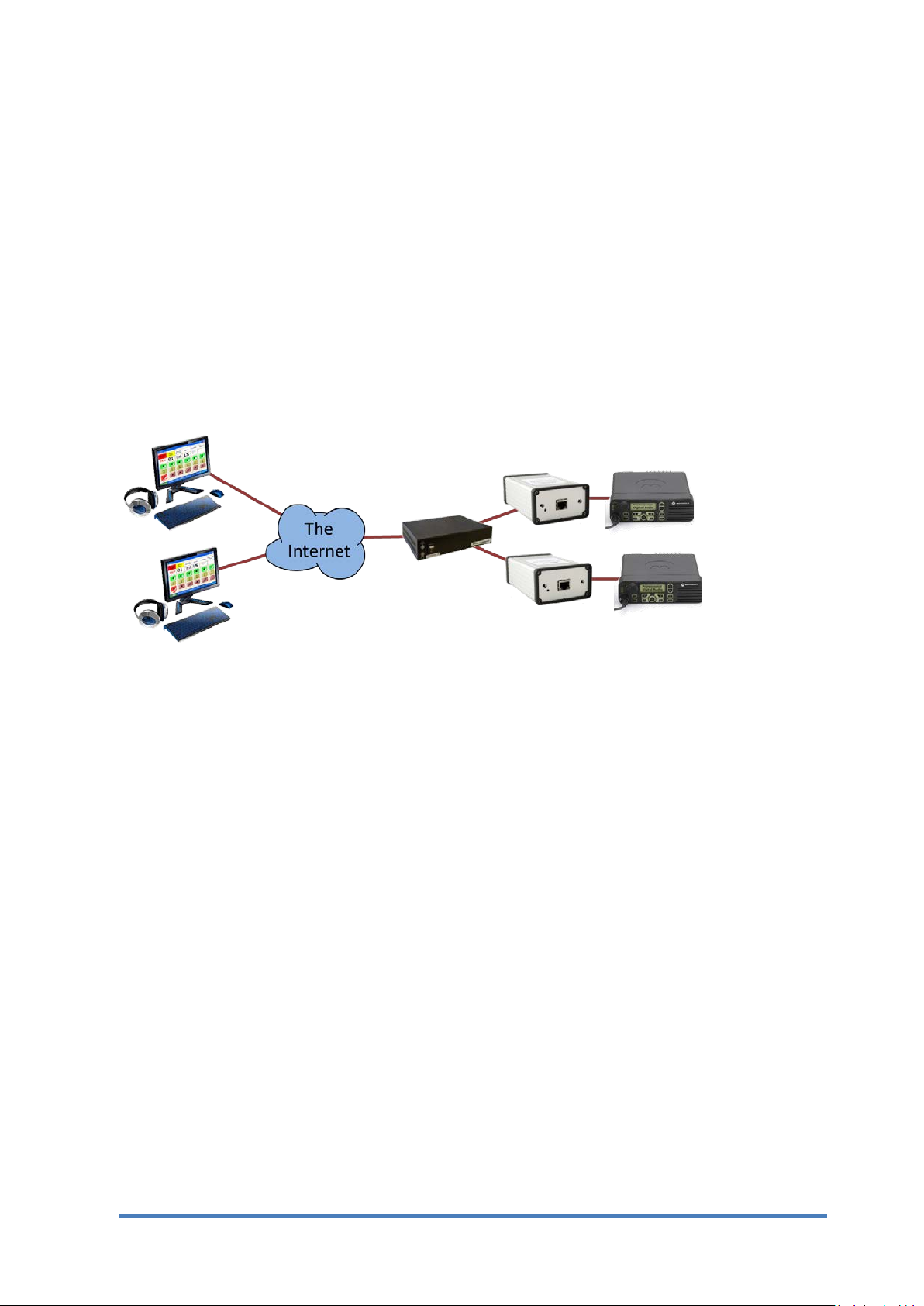
Typical setup where a RadioServer is needed, with two radios and two
remote operators
Mimer Radio Server solves this situation by allowing many simultaneous
operator connections for each radio attached to the server. The RadioServer
can handle up to 32 locally placed radios and up to 32 operators. However a
total of max 64 connections are allowed.
2 radios x 32 operators
4 radios x 16 operators
8 radios x 8 operators
16 radios x 4 operators
32 radios x 2 operators
The RadioServer has two Ethernet connections. This means it can serve as a
router to the Internet connection. By default the local network connection
has a static IP address and the WAN connection uses dynamic IP address
assignment, but this can be changed if needed.
Mimer RadioServer 2860-81 F Page 4
Page 5

The RadioServer can also be used in an existing Local Area Network (LAN)
which has a router towards the Internet. In this case only the Local network
connection on the RadioServer needs to be used.
3 The RadioServer
The Radio Server is basically a computer that runs a Debian based Linux
operating system. Network settings are configured in a standard Linux
way, using configuration files.
Settings for the Mimer system are defined in configuration files.
The Radio Server has an ssh server and an ftp server so it can be accessed and
configured via network connections.
3.1 Settings in the RadioServer
From version 1.29 of the software and forward all settings are made through
a standard web browser. Earlier versions needs the use of an ssh client like
PuTTY or similar. This is not described in this manual.
After logging on to the server you can change what radios to connect to, the
IP-settings, password etc.
Mimer RadioServer 2860-81 F Page 5
Page 6
4 Connecting to the RadioServer
4.1 Connect your PC
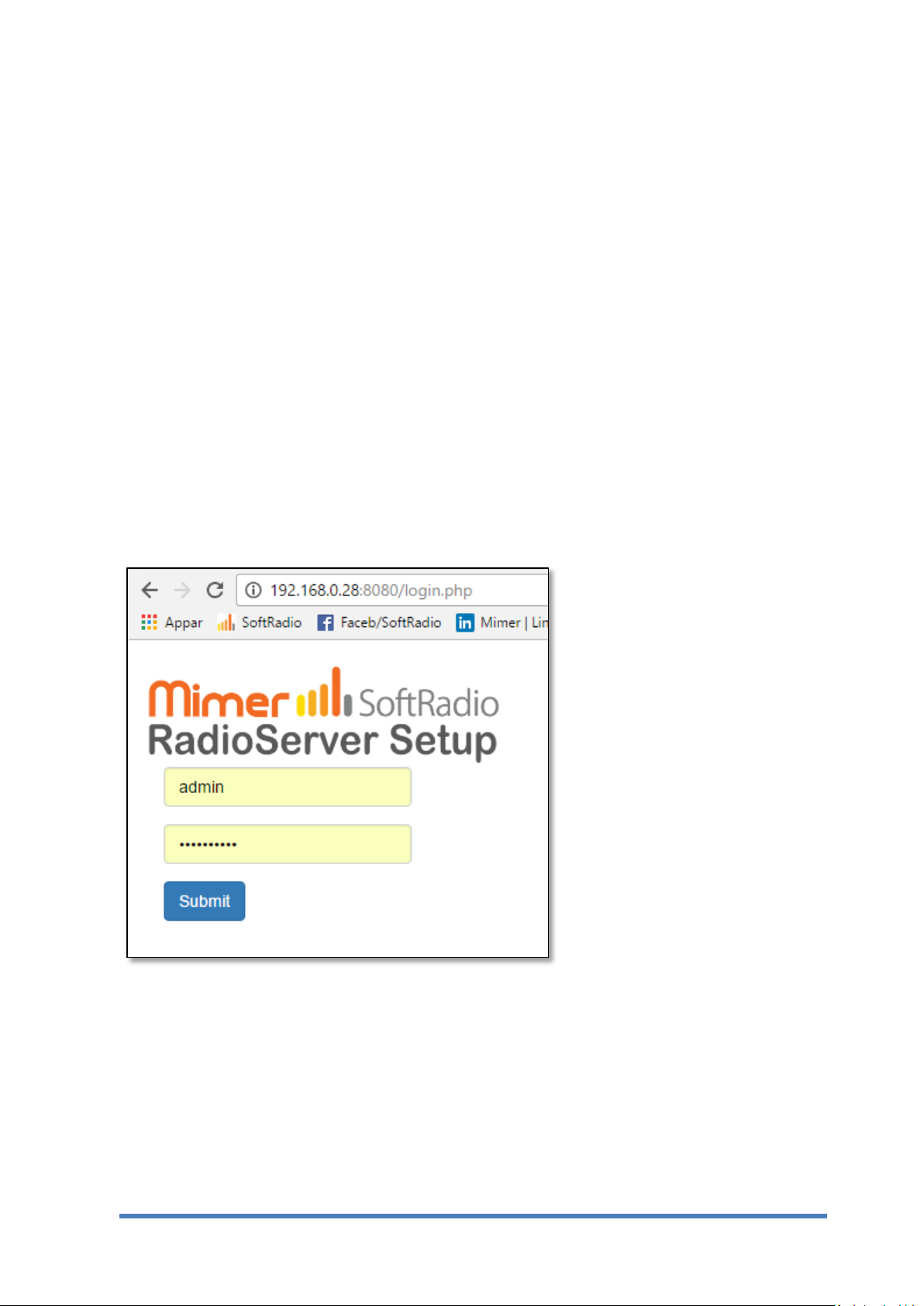
Connect your PC to the RadioServer through either LAN-port. Use your
favourite web browser and enter 192.168.0.28:8080.
192.168.0.28 is the default IP address that the RadioServer is delivered with.
This may be changed during the setup. If so, please don´t forget to make a
note of your changes, it might otherwise be hard to reconnect to the
RadioServer.
4.2 Login
On the first page, log on with the name and password delivered with the
RadioServer.
The password may be changed during the setup. If so, please don´t forget to
make a note of your changes, it might otherwise be hard to reconnect to the
RadioServer.
RadioServer – Login page
Mimer RadioServer 2860-81 F Page 6
Page 7
5 Setting up connections to the devices
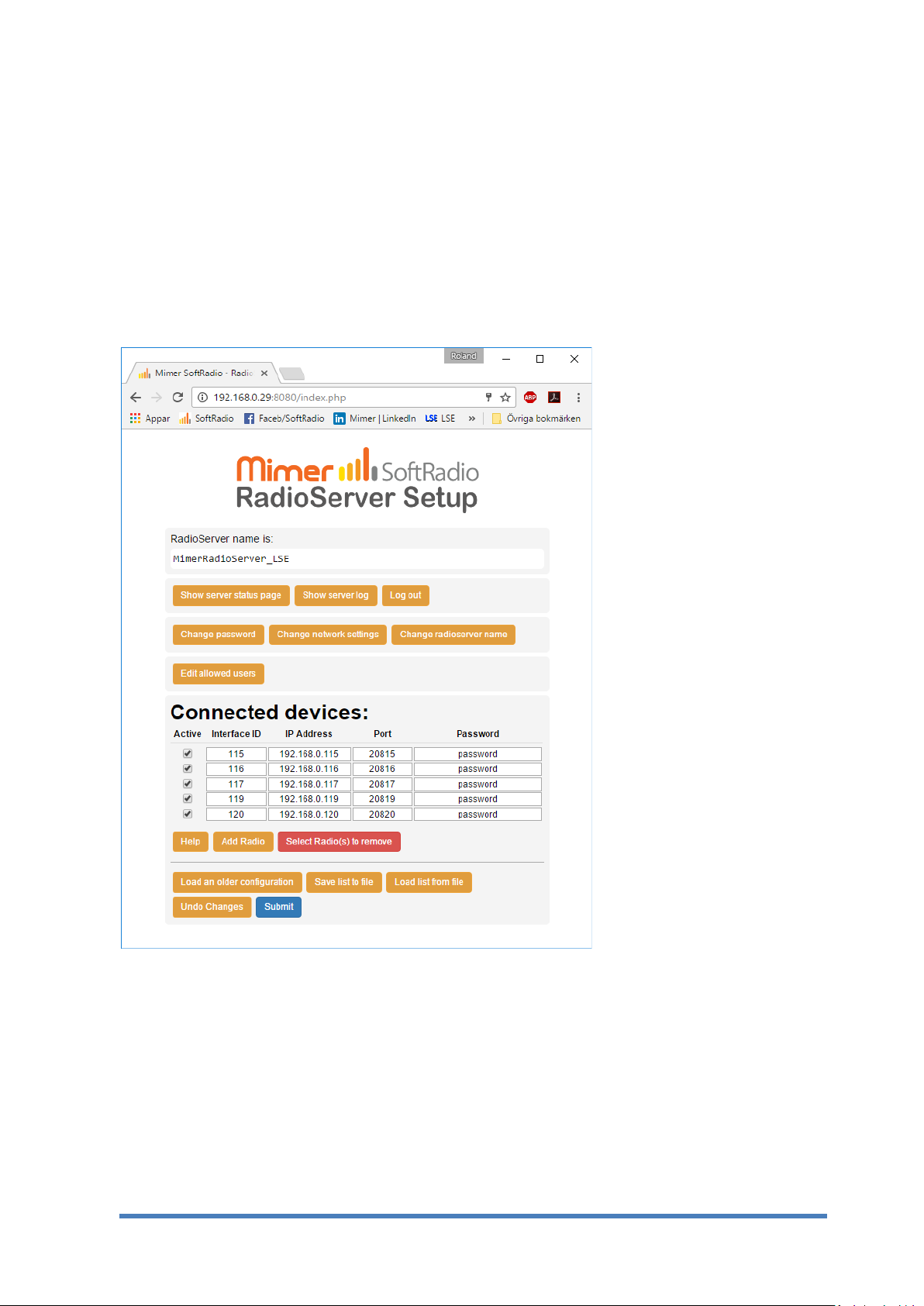
The first page is the setting of what devices that shall be connected to the
RadioServer. This can be radios, phones, intercoms and other types of
devices in the Mimer SoftRadio system.
The devices will be connected local through UDP over a LAN.
First push the button “Add Radio” so that the number of lines corresponds
with the number of devices that you would like to connect.
RadioServer – Setup page
5.1 Interface ID
This is the ID number used in the Mimer SoftRadio system for the device. In
Mimer SoftRadio every device and every operator needs to have a unique ID
number between 10-240. Usually the SoftRadio clients have numbers from
10-99 and all other devices numbers from 100-240.
The ID number is determined by the setting in the NetworkInterface.
Mimer RadioServer 2860-81 F Page 7
Page 8

5.2 IP Address
This is the IP address used in the local LAN connecting the device to the
RadioServer.
The IP Address is determined by the setting in the NetworkInterface.
5.3 Port
The port number is the TCP port used on the WAN side of the RadioServer to
forward the SoftRadio clients to the correct device.
The corresponding port will need to be set up as port forward in the WAN´s
fire wall pointing at the IP address of the RadioServer.
You also set up the same port number in the SoftRadio client.
The port number in the Network Interface is not used since it is connected
local through UDP.
5.4 Password
This is the password entered in the SoftRadio client setup.
The password in the Network Interface is not used since it is connected local
through UDP.
5.5 Submit changes
After entering your changes in the list of devices you need to submit them to
the RadioServer.
This is done by pushing the blue “Submit” button. A confirmation window
will show that the RadioServer has accepted the new settings.
If you don´t want to submit the changes, you can just push the “Undo
changes” button.
5.6 Save and Load from file
The keys “Save list to file” and “Load list from file” gives you the possibility
to have several settings lists on your PC that you easily can change between.
5.7 Configuration history
The key “Load an older configuration” will present a list of older settings
with time and date for setup. Any of these settings can be opened for review
by selecting them. They will not be used until the “Submit” button is pushed
again.
Mimer RadioServer 2860-81 F Page 8
Page 9
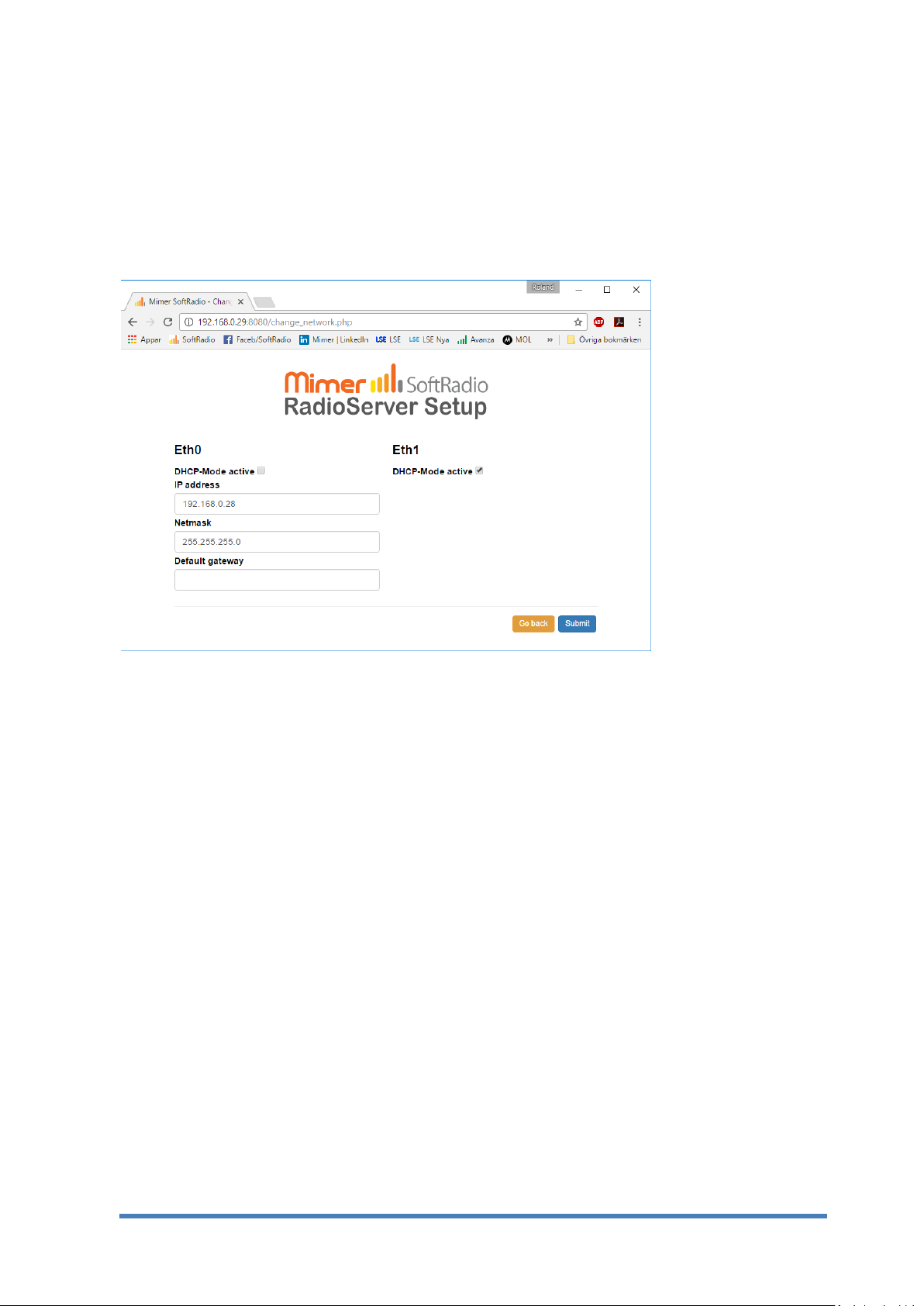
6 Change network settings
The standard settings delivered with the RadioServer are:
- Eth0 – Static IP address, used for the local LAN to the devices.
- Eth1 – Dynamic IP address, used for the WAN/Internet to the
SoftRadio clients (might also be delivered as blank)
RadioServer - IP setup page
After you have done your changes, push the “Submit” button.
Repeat the settings for both Eth0 and Eth1.
6.1 Static IP
Static IP means that you define all the settings for the IP address yourself.
6.1.1 IP address
The static IP address of the RadioServer. You can change this to any address
that suits your net. If you change the subnet part (often the three first
groups) you must remember to also change the Mimer Network Interfaces
accordingly.
6.1.2 Netmask
Defines what part of the address that is the subnet address. The standard
setting 255.255.255.0 tells that the first three groups are the subnet
address. In this case 192.168.0. This is called a class C net. If you only want to
change the IP, you normally not need to change this setting.
Mimer RadioServer 2860-81 F Page 9
Page 10

6.1.3 Gateway
This is the address of your gateway out of the local subnet, normally the
address of the Internet router.
6.2 Dynamic IP
Dynamic IP means the network you connect to have a DHCP-server that can
assign an address and all IP settings to a computer that connects to it. The
DHCP-server has a range of addresses that are assigned to a client when it
sends a request. This is called dynamic address assignment.
To use Dynamic IP, tick the box “DHCP-Mode active”.
6.3 Important note regarding Gateways
When using both LAN ports, only the WAN port shall have a gateway
assigned (when it is set to DHCP it gets a gateway automatically). Leave the
other LAN ports Gateway field blank.
Mimer RadioServer 2860-81 F Page 10
Page 11
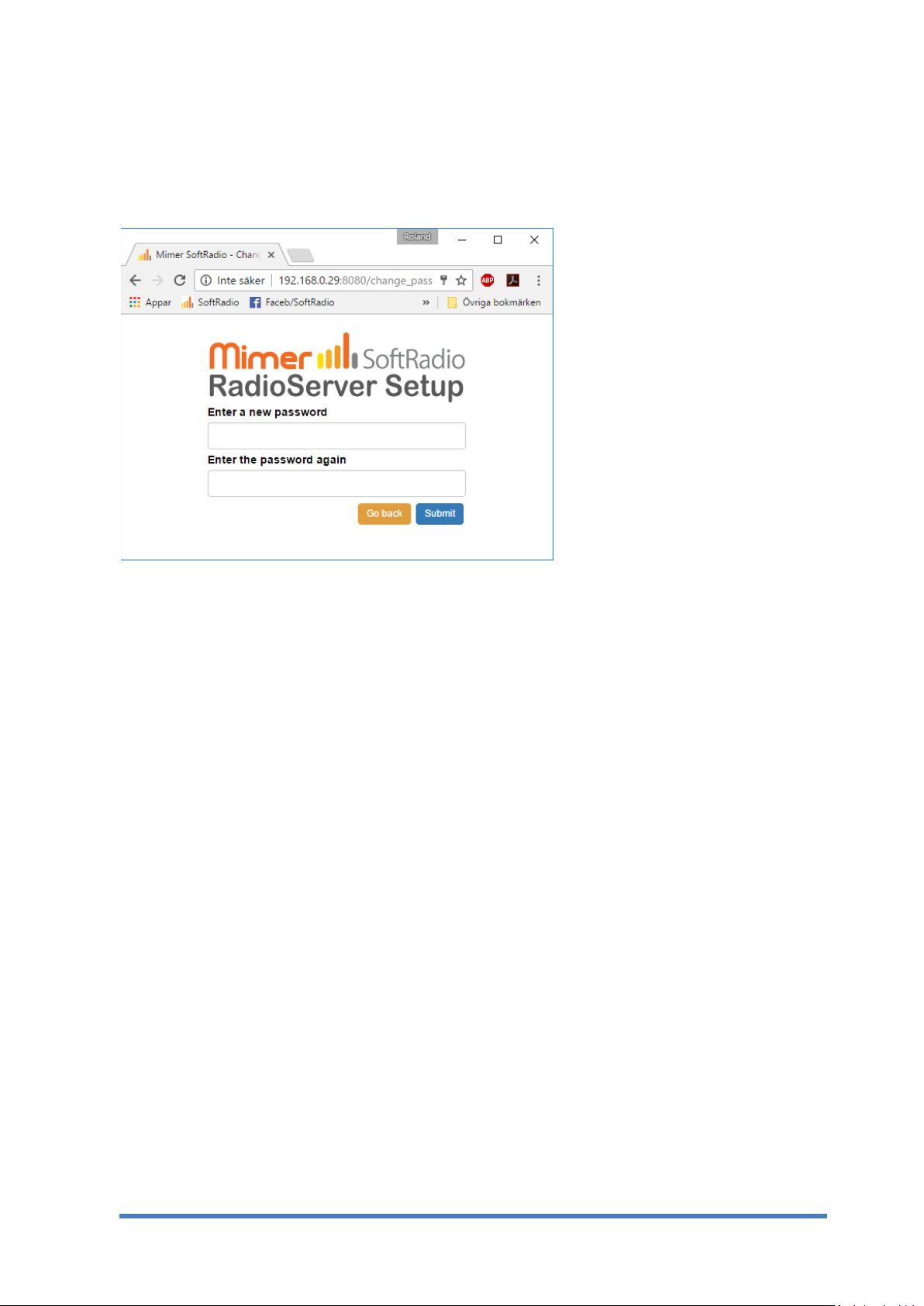
7 Other commands
7.1 Change password
Pushing the “Change password” button will lead you to this page.
RadioServer – Change password
If you wish to change your password for the RadioServer, just enter the new
password in both boxes and push “Submit”.
If you change the password, please don´t forget to make a note of your
changes, it might otherwise be hard to reconnect to the RadioServer.
7.2 Checking RadioServer status
The status of the RadioServer can be checked by accessing it with a web
browser. Type in the IP of the RadioServer and you will get a list as below.
You can access it both over a local LAN and over the Internet*. Choose the
Local or WAN IP address of the unit depending on how you access it.
There is also a direct key to get to the Status page from the RadioServer
Setup window. Just push the button “Show server status page”.
The list shows the currently active radios and the current user connections.
Each user connection to a radio will have a separate line. For example four
users with two radios each, will show eight connections.
*Your Internet router must be set up to port forward port 80 to the IP of the RadioServer.
Mimer RadioServer 2860-81 F Page 11
Page 12
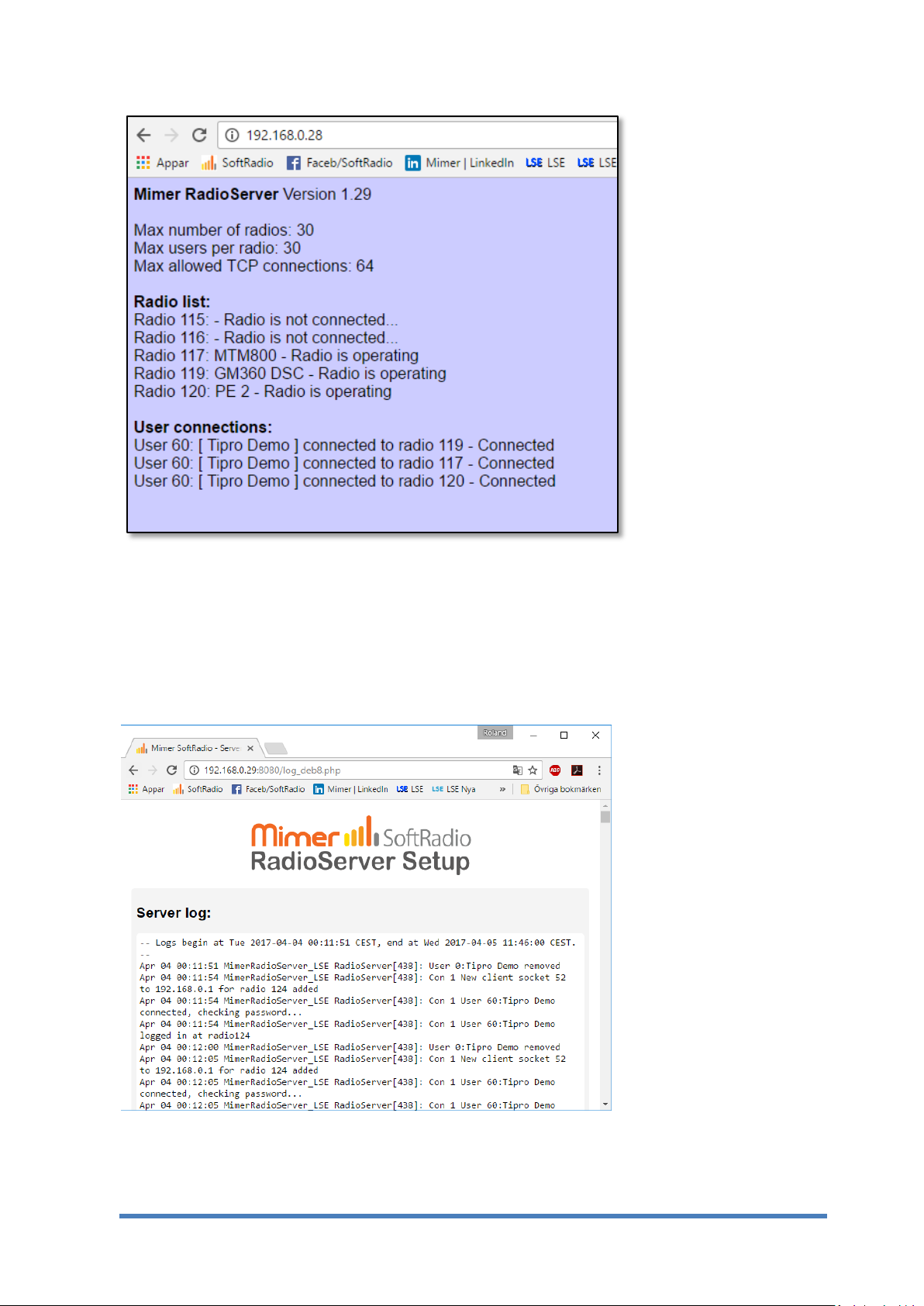
Web browser check of the RadioServer status
7.3 Show the server log
The server has a built in log function that shows in detail every connection to
the server. This can be useful when setting up a system or when fault finding
a system.
RadioServer log window
Mimer RadioServer 2860-81 F Page 12
Page 13
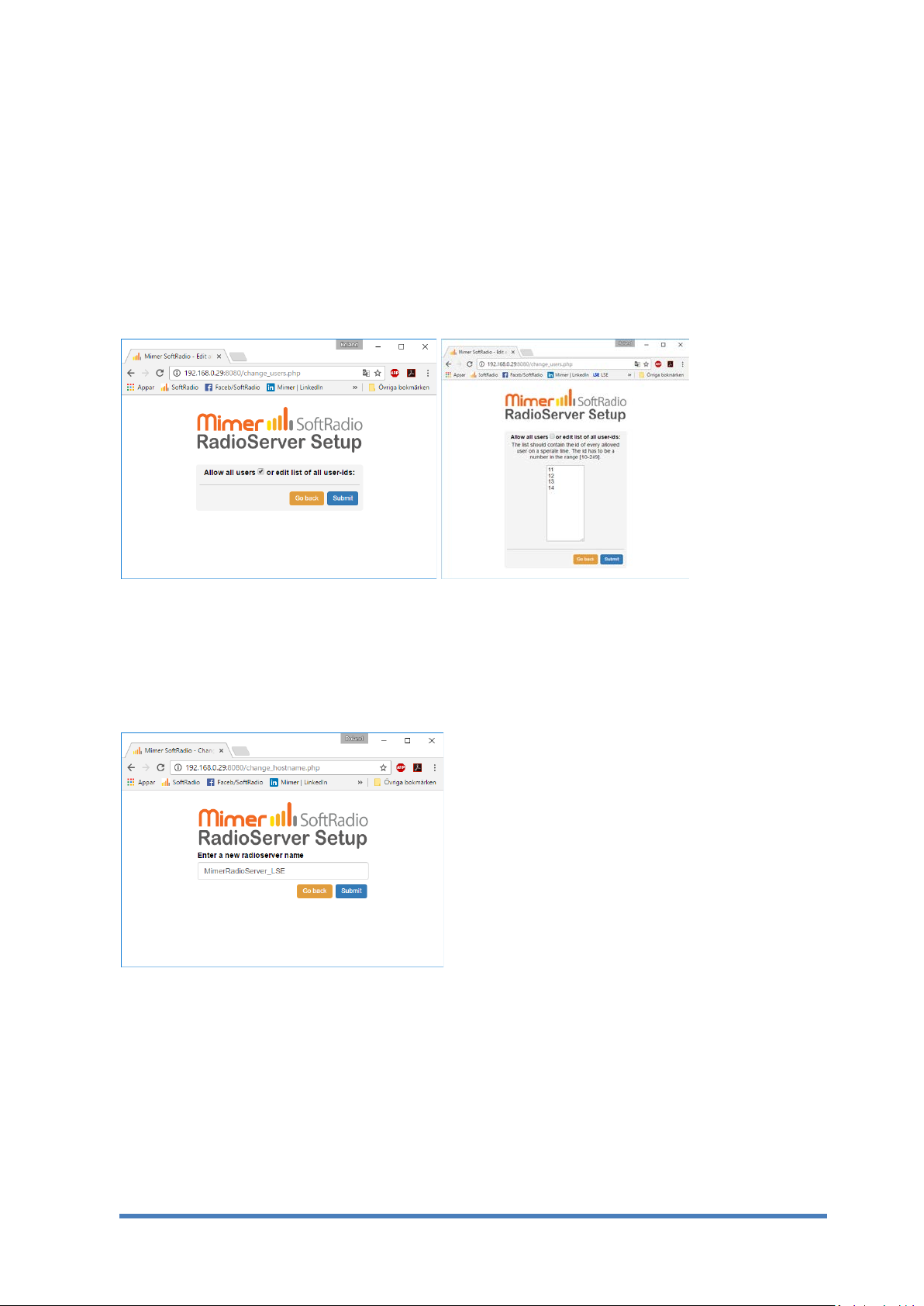
7.4 Allowed users
You can restrict which users in the SoftRadio system that are allowed to
connect to devices through the RadioServer.
Click the “Edit allowed users” key.
Enter the SoftRadio ID numbers of the operators that shall be allowed
access. Or tick the box “Allow all users”, this means that there are no
restrictions.
RadioServer - Allow users menu
7.5 Change Server name
The name of the server can be changed by entering the “Change server
name” menu.
RadioServer - Change server name menu
Mimer RadioServer 2860-81 F Page 13
Page 14
8 Setting up the Mimer SoftRadio client
The SoftRadio client (Operator PC) needs to be set up to access the radios
through the RadioServer instead of directly to the Network Interfaces.
The only difference from connecting directly to a Network Interface using
TCP is that the IP address of the RadioServer shall be specified instead of
that of the Network Interface. And the TCP Port and the Password of each
radio as specified in the RadioServer settings.
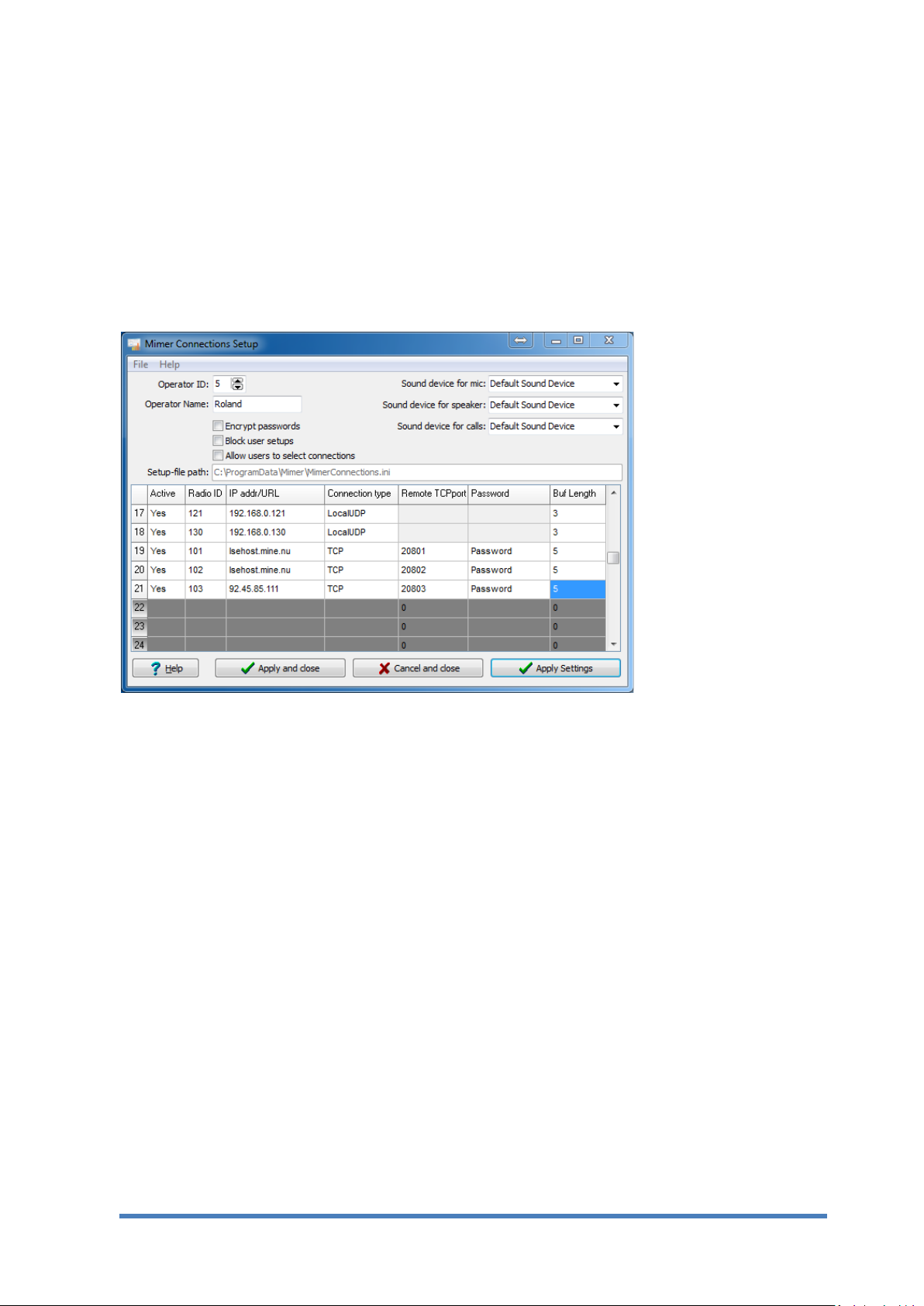
Example of Mimer Connection Setup, in an Operator PC.
If more than one radio is attached to the server there will be several radios
in the Mimer Setup that all have the same IP Address = the address to the
RadioServer.
In the example above, the user has selected two local radios, two remote
radios with a URL and one remote radio with an IP address.
Since the NetworkInterface or in this case the RadioServer at the radio end
of the system always needs to have a static IP address a dynDNS service is
used.
However each radio will need to have different ID numbers and different
remote TCP-port settings as defined earlier in this manual.
Mimer RadioServer 2860-81 F Page 14
Page 15

9 Mimer RadioServer summary:
Max number of local radios 32
Max number of connected users 32
Total max IP connections (Radios x Users) 64
Power supply 5VDC 2Amp. Mains adapter
included.
Network connections Two 10/100MB Ethernet RJ45
connections
Remote access Web based, ssh
Operating system CF Debian Linux. With added
services like ssh, ftp, dhcpc etc.
Default IP on eth0 192.168.0.28
Default IP on eth1 Dynamically allocated by
external DHCP server.
9.1 Note
The name “RadioServer” can mislead that the server is only used for
connecting radios. This is not true. The connection can be to any device in
the Mimer SoftRadio family. For example phone-, intercom- or PA-systemNetwork Interfaces.
9.2 Power failure
If power is lost to the RadioServer no damage will be done. There are no
files that needs to be saved before shut down.
When power is restored the RadioServer will automatically boot up in 2-3
minutes.
Mimer RadioServer 2860-81 F Page 15
Page 16
 Loading...