

Page 1
MT530 User Manual V1.0
http://www.mictrack.com
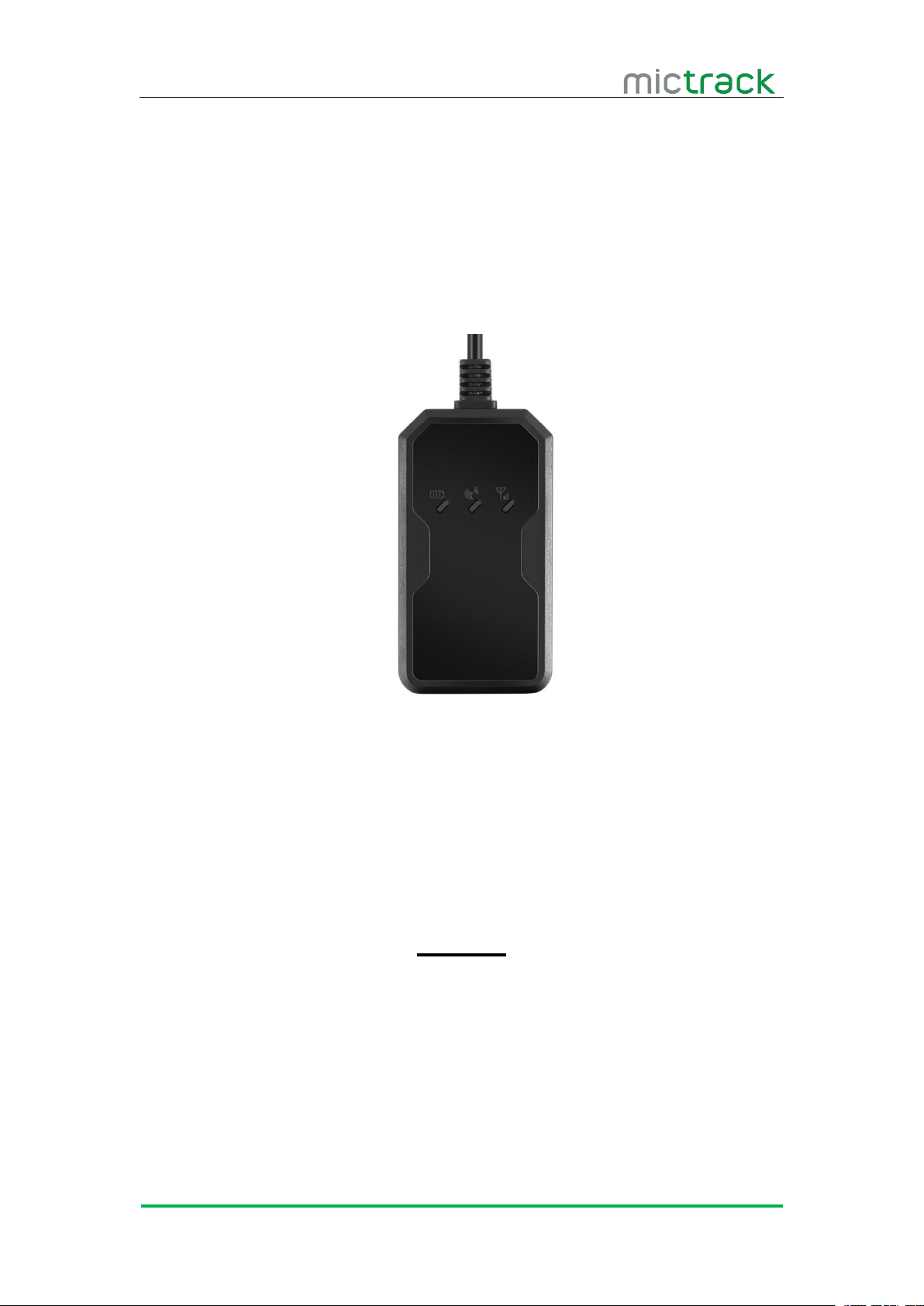
MT530 3G GPS Tracker
User Manual V1.0
Preface
Congratulations on choosing the Mictrack MT530 3G GPS tracker. This manual
shows how to easily program and setup the tracker for best results. Make sure to read this
manual carefully before using this product, so as to avoid delays or confusion with it’s
operation. Please note that specifications and instructions are subject to change without
notice to facilitate product improvement. Updates and changes will be integrated into the
latest release. The manufacturer assumes no responsibility for any errors or omissions in
outdated documents.
Page 2

MT530 User Manual V1.0
http://www.mictrack.com
Contents
1. Overview
2. Application........................................................................................................................................... 1
3. Specifications..................................................................................................................................... 1
4. MT530 and Accessories.................................................................................................................. 2
5. Unit Diagram
6. Installation
6.1 SIM Card installation
6.2 Power ON:............................................................................................................................... 4
6.3 LED Indications.......................................................................................................................4
6.4 Device Button Instruction
6.5 Connection of supplied wiring loom.................................................................................. 5
6.6 Install the SOS switch.......................................................................................................... 5
6.7 Optimum locations for unit Installation............................................................................. 6
7. Setup and Configuration
7.1 Setting Authorized Mobile Phone Numbers
7.2 Deleting authorized number.................................................................................................7
7.3 Changing the Admin password...........................................................................................7
7.4 Instant Location Request (used to receive unit location via SMS).......................... 7
7.5 SOS Alarm
7.6 Round Geo-fence (Setting of size and shape of Geo-Fence)
7.7 Square Geo-fence (Setting of dimensions and shape of Geo-Fence).................... 8
7.8 Remote cut off fuel and ignition
7.9 External power cut off alarm
7.10 Towing alarm......................................................................................................................... 8
7.11 Low battery Alarm (internal backup battery)................................................................. 9
7.12 Low battery Alarm (Vehicle Battery)............................................................................... 9
7.13 High Temperature Alarm
7.14 Over-Speed alarm (Alerts that the unit is exceeding a preset speed)
7.15 Set time zone
7.16 Set GPRS device name.................................................................................................... 9
7.17 Set APN (Access Point Name)........................................................................................ 9
7.18 Set Tracking Server IP and PORT...............................................................................10
.............................................................................................................................................
......................................................................................................................................
...........................................................................................................................................
.............................................................................................................
6.3.1 CHG-Charge indicator (RED).................................................................................. 4
6.3.2 SYS-System indicator (BLUE)
6.3.3 GPS-GPS indicator (GREEN)
.....................................................................................................
6.7.1 Caution
7.6.1 Enable the Round Geo-fence
7.6.2 Disable the Round Geo-fence................................................................................ 8
7.7.1 Enable the Square Geo-fence................................................................................ 8
7.7.2 Disable the Square Geo-fence
..........................................................................................................................
.................................................................................................................
...............................................................................................................................
..............................................................................................
....................................................................................................
.......................................................................................................................
.................................................................................
.................................................................................
.....................................................................
...................................
.................................................................................
...............................................................................
........................................................................................
.................
1
3
3
3
4
4
4
6
6
7
7
7
8
8
8
8
9
9
9
Page 3

MT530 User Manual V1.0
http://www.mictrack.com
7.19 Set GPRS Upload Interval Time
7.19.1 ACC ON (Upload default status is AUTO)
7.19.2 Vehicle Towed Alarm (vehicle moves whilst ACC is turned OFF)
7.19.3 ACC OFF & Vehicle Stationary (Upload status is AUTOLOW)................. 10
7.20 SMS Response ON/OFF................................................................................................. 10
7.21 Unit Phone Calling Control (useful for SIM Card data cost saving)................... 11
7.22 Set GPRS mileage and trip distance reporting
7.22.1 Set upload interval distance
7.22.2 Clear the distance data
7.22.3 Check the current trip distance travelled.........................................................11
...................................................................................
.....................................................
...........
.........................................................
................................................................................
........................................................................................
10
10
10
11
11
11
Page 4
MT530 User Manual V1.0
http://www.mictrack.com
1
1. Overview
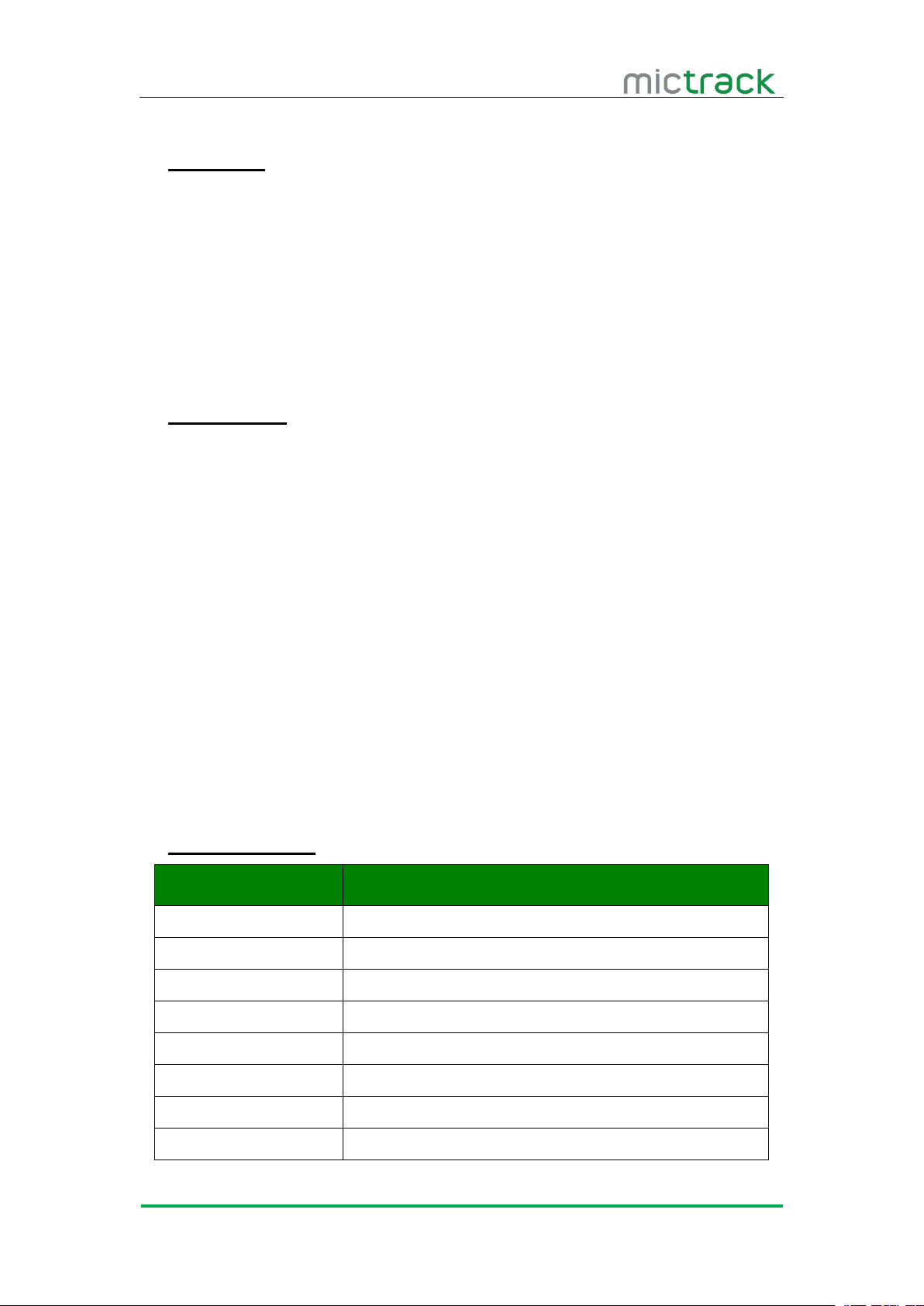
The MT530 is the 3G GPS tracker, supporting WCDMA/UMTS networks. This device
2. Application
3G WCDMA/UMTS Support (Compatible 2G)
Real-time position acquiring
Vehicle trip history and mileage data on web tracking platform
SOS alarm button and real time reporting (optional)
ACC switch status alarm
Geo-Fence alarm and reporting
External power cut off alarm
Remote cut off fuel / ignition (optional)
Vehicle towing / Movement alarm
Over-Speed alarm and reporting
Backup battery low power alarm
Car battery low power alarm
High temperature alarm
Power saving / sleep mode
3. Specifications
Item
Specifications
Dimension
94(L)*51(W)*17(H)mm
Weight
62g
Input Voltage
12V-24V
Backup battery
130mAh/3.7v
Power consumption
60mA standby current
Working temperature
-20°C to 70°C
GPS Chip
U-BLOX7
GPS Sensitivity
-162dBm
can be used locate, track and monitor any remote target via SMS, PC Computer or Mobile
APP. It is commonly used to track and locate individual vehicles, motorbikes or boats, and
is a valuable tool for enhanced fleet management. The user also can remotely cut off Fuel
/ Ignition and check the historical route travelled and other vehicle data.
The MT530 has an excellent track record for stable performance and possesses a
wide variety of features.
Page 5
MT530 User Manual V1.0
http://www.mictrack.com
2
Item
Specifications
3G Frequency bands
MT530-A: (for North America)
UMTS: 850/1900MHz
GSM: 850/900/1800/1900MHz
MT530-E: (for Asia/Europe/Australia)
UMTS: 900/2100MHz
GSM: 900/1800MHz
MT530-T: (for Asia/Europe/Australia)
UMTS: 850//2100MHz
GSM: 850/900/1800/1900MHz
Positioning Accuracy
10m
Channel
56 Channel
Hot start
1s on average
Warm start
15s on average
Cold start
30s on average
Humidity
5%~95% non-concretion
Antennas
Internal 3G & GPS antennas
Sensor
3D acceleration/movement sensor/ temperature sensor
LED
CHG/GPS/SYS
SIM Card interface
Micro Size SIM
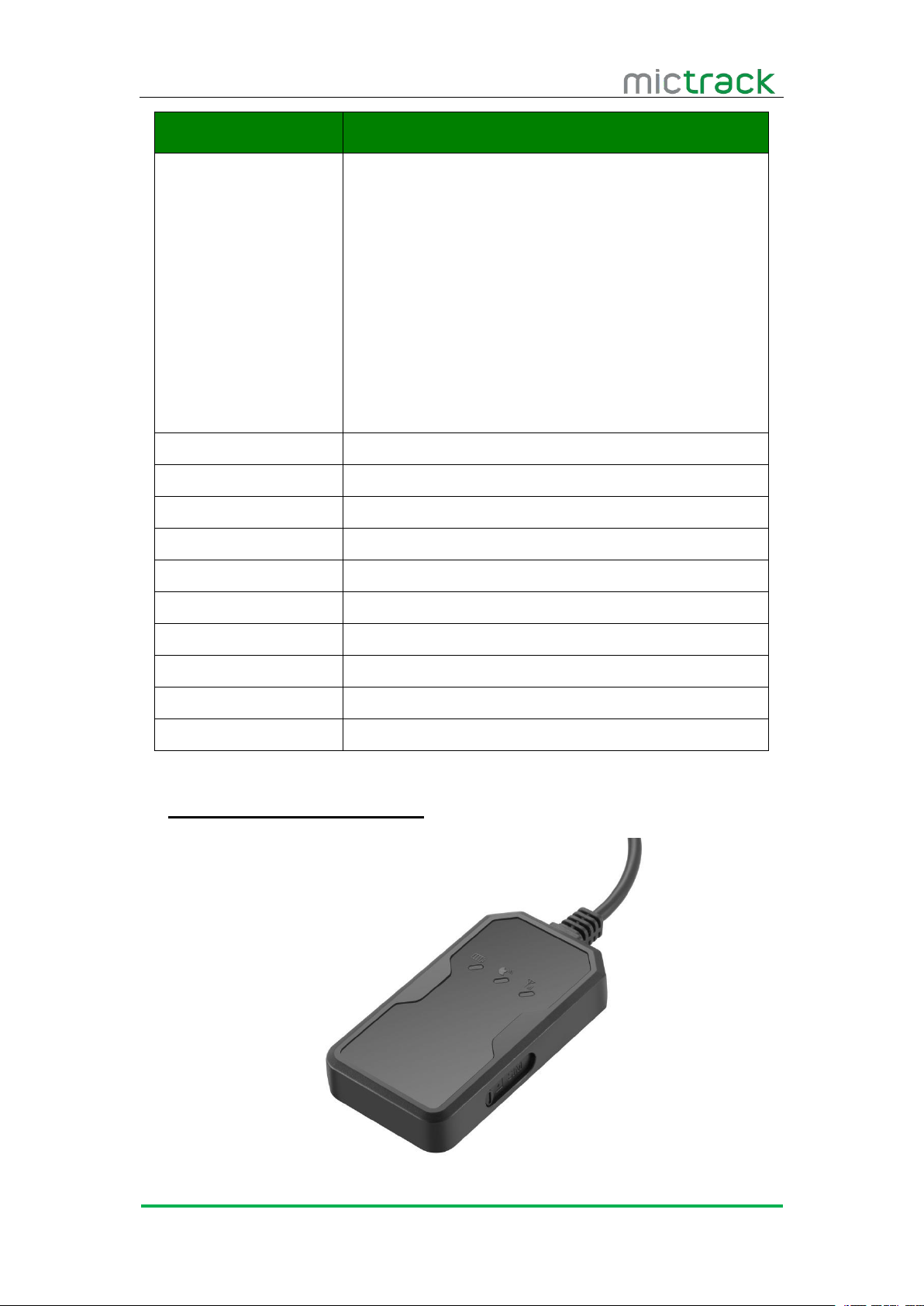
4. MT530 and Accessories
Page 6
MT530 User Manual V1.0
http://www.mictrack.com
3
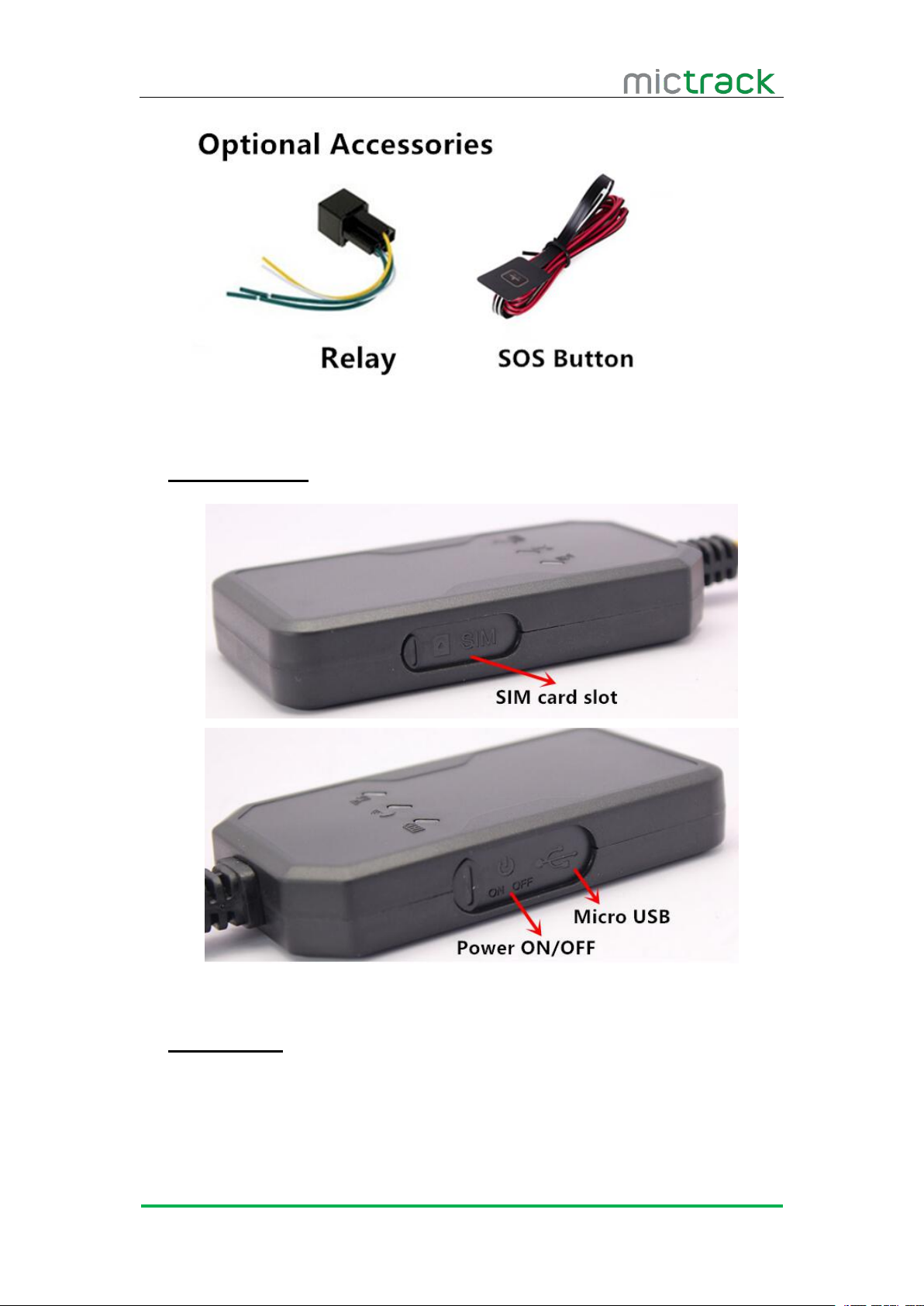
5. Unit Diagram
6. Installation
6.1 SIM Card installation
Please read the following before installing the SIM card:
Ensure the SIM card has minimum balance
Ensure the SIM card has caller ID and HSPA functions enabled
Page 7
MT530 User Manual V1.0
http://www.mictrack.com
4
Ensure the SIM card PIN is disabled, and call forwarding not active
Send a test SMS to and from the SIM card using a mobile phone
Power off the device before installing the SIM card
To install the SIM card, perform the following operations:
1. Ensure the SIM card has metal contacts facing down.
2. Insert the SIM card into the SIM card slot.
6.2 Power ON:
Make the Power button to ON, and the device will turn on.
The device only supports Micro Size SIM card;
To remove SIM card, use paperclip to press the SIM card to eject the SIM card .
6.3 LED Indications
6.3.1 CHG-Charge indicator (RED)
6.3.2 SYS-System indicator (BLUE)
Status
Description
Constant ON
No SIM Card (or) No Network Reception
OFF
Vehicle Parked – ACC Power OFF
Quick flash
Normal Working Mode
6.3.3 GPS-GPS indicator (GREEN)
6.4 Device Button Instruction
Button
Description
Status
Description
Constant ON
Currently Charging
OFF
Charging Complete
(Note: it will auto-charging when backup battery voltage
is low and LED light, or LED will no light.)
Status
Description
OFF
GPS / Satellites Unavailable – Out of Range
Quick flash
GPS/Satellite Locked – Normal Mode
Note:
Page 8
MT530 User Manual V1.0
http://www.mictrack.com
5
Power
ON/OFF
Make button to ON to POWER ON
Make button to OFF to POWER OFF
SOS Button
(Optional)
Press and hold the button for 3x seconds, the unit will send
position data to authorized phone numbers and Web Tracking
Platform.
6.5 Connection of supplied wiring loom
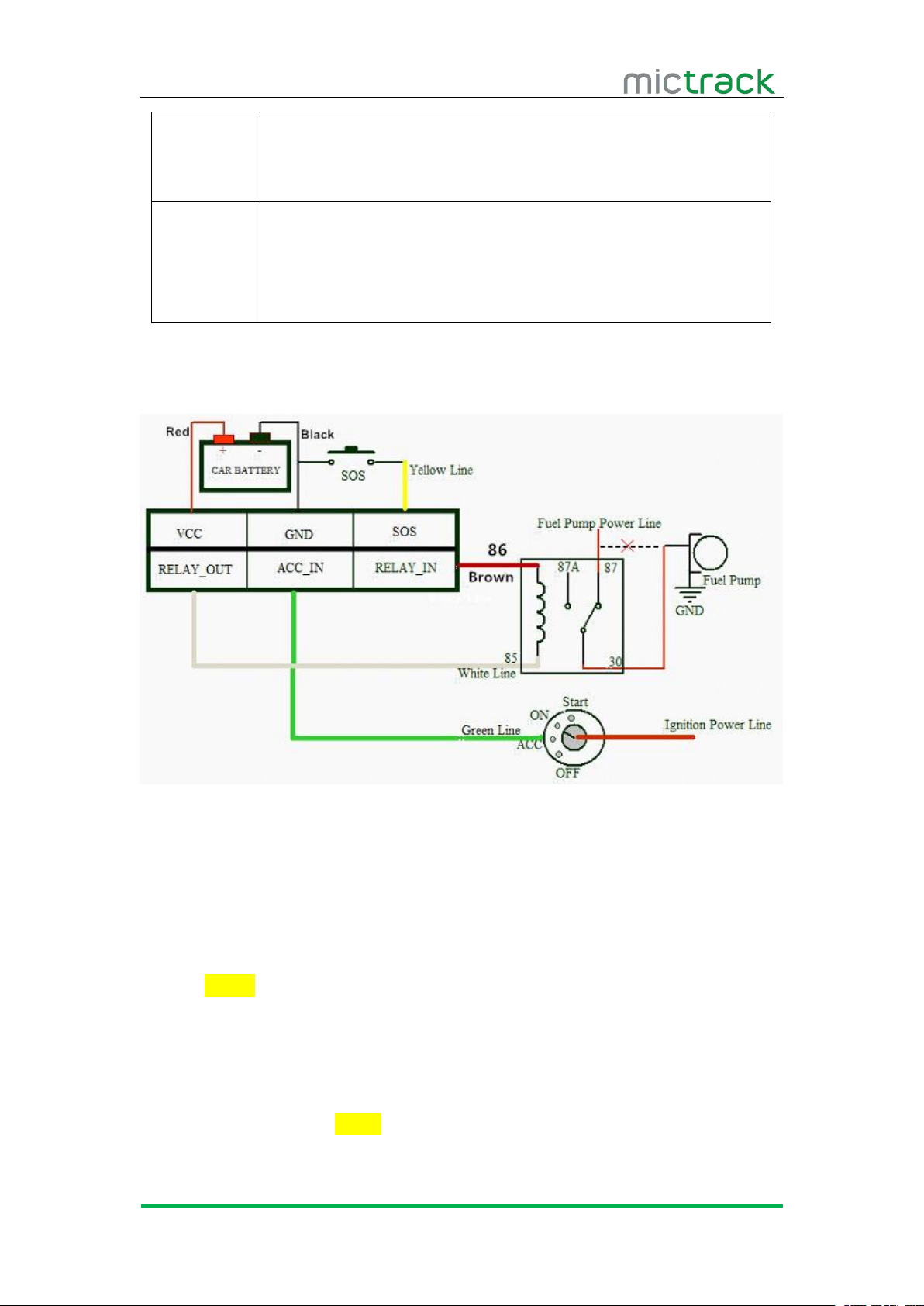
When installing the device, please connect supplied wiring loom as follows: (or
Red: Connect to constant 12V Car Battery(+)
Black: Connect to Earth (Chassis) Car battery(-)
Green: Connect to ACC switched 12V Power
Yellow: Connect to red wire of supplied SOS switch
White: Connect to Relay terminal (85)
Brown: Connect to Relay terminal (86)
6.6 Install the SOS switch
Red: connect to Yellow wire from the wiring loom
Black: connect to Earth (Chassis) Car battery(-)
contact our sales team for help)
Note: Relay is optional for remote fuel / ignition shut-off.
Note:SOS button is optional.
Page 9
MT530 User Manual V1.0
http://www.mictrack.com
6
6.7 Optimum locations for unit Installation
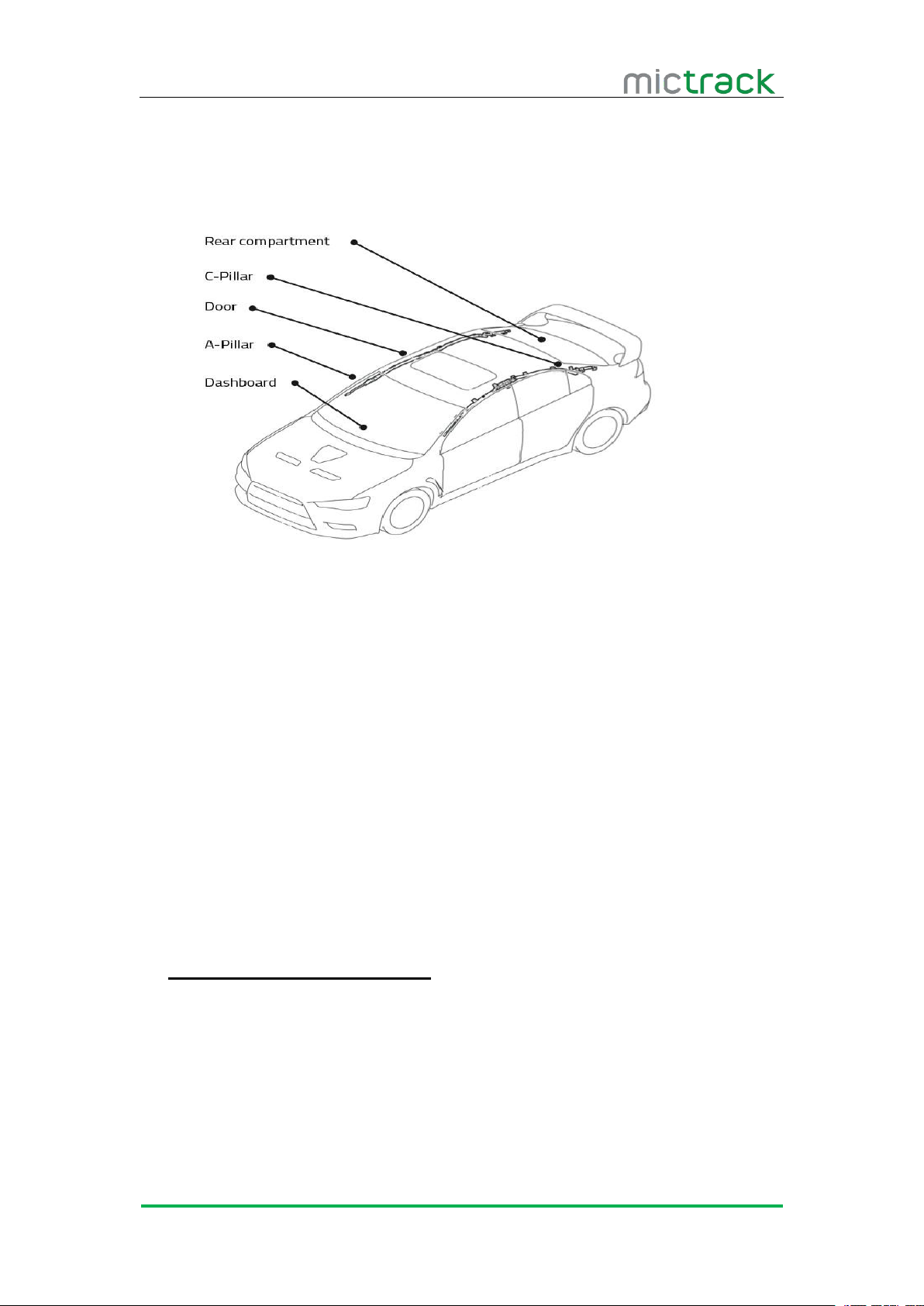
Below are the recommended areas available within a vehicle for unit installation.
6.7.1 Caution
Avoid placing GPS Antenna (or units with internal GPS antenna) under any metal
Do not install unit right next to stereo, CB radio, heater, speakers or alarm
Unit must be firmly mounted or cable tied to a surface, not hanging by wiring
Do not place the unit next to steering column or any moving parts.
It is recommended to place the GPS Antenna (or units with internal GPS antenna)
Device can be placed in other areas or storage compartments of the vehicle
7. Setup and Configuration
These are suggestions only, as depending on the vehicle type, there may be many
possible locations to hide/install the unit.
surfaces, as this may affect satellite lock and functionality.
systems.
loom etc.
in locations that are exposed to the sky (i.e. under plastic dashboard, under rear
parcel shelf, at base of rear windscreen, inside C-Pillar areas or doors, etc)
(internally or externally) depending on the vehicle, truck, boat or motorcycle, as
long as there is access to power and a clear signal from satellites.
Note: When sending SMS command to the unit, do NOT use spaces or symbols not
listed below. [brackets and + are for instructional use only] * and # are valid command
parameters.
Following a successful command, you should always receive a reply SMS from the
unit. Be patient, as this may take some time depending if the unit is required to reboot to
process the command. Failure to reply will indicate either an incorrect SMS Command, or
the unit has powered off, lost GSM Mobile signal or run out of SIM Card credit.
Page 10

MT530 User Manual V1.0
http://www.mictrack.com
7
7.1 Setting Authorized Mobile Phone Numbers
SMS Command format: mobile number+password+[command parameter]
The defaulted password is 0000.
It can authorize up to 3 phone numbers.
7.2 Deleting authorized number
7.3 Changing the Admin password
7.4 Instant Location Request (used to receive unit location via SMS)
7.5 SOS Alarm
7.6 Round Geo-fence (Setting of size and shape of Geo-Fence)
Note: Command Parameter here is the sequence of the mobile number
i.e. [1=Admin] or [2=SOS call number]
For example: *13424392330*0000*1**
Unit Reply: SET USER NUMBER 1 OK.
Note:
SMS Command format: password+number+[command parameter]
Note: Command Parameter here is the sequence of the mobile number
i.e. [1=Admin] or [2=SOS call number]
For example: **0000*1**
Unit Reply: DELETE USER NUMBER 1 OK.
SMS Command format: 777+new password+old password
For example: 77712340000
Unit Reply: SET USER PASSWORD OK.
SMS Command format: 666+password
For example: 6660000
When sent, this command will result in a Unit Reply SMS as follows:
ID:865662000409210 [Units IMEI #]
Date:05:36:59 11/11/2016
Fix:A State:SMS
http://maps.google.com/maps?q=+22.63146%2c1+14.03701
Note: This link can to be opened on any Smart Phone to reveal the Google Maps
Location of the unit at the time of request
When the SOS / Duress switch is pressed for 3 seconds, the unit will automatically
send it’s location to authorized phone number via SMS, and also upload location data to
the Web Tracking Platform server along with the status description “SOS”
SMS Command format: 005+password+R+[Command Parameter]
Note: Command Parameter here is fence diameter in KM [0.1~999.9]
For example: 0050000R1.0
Unit Reply: SET ROUND GEO-FENCE:ON
Page 11

MT530 User Manual V1.0
http://www.mictrack.com
8
7.6.1 Enable the Round Geo-fence
SMS Command format: 211+password
7.6.2 Disable the Round Geo-fence
7.7 Square Geo-fence (Setting of dimensions and shape of Geo-Fence)
7.7.1 Enable the Square Geo-fence
7.7.2 Disable the Square Geo-fence
7.8 Remote cut off fuel and ignition
7.9 External power cut off alarm
7.10 Towing alarm
For example: 2110000
Unit Reply: SET ROUND GEO-FENCE: ON.
SMS Command format: 210+password
For example: 2100000
Unit Reply: SET ROUND GEO-FENCE: OFF.
SMS Command format: 006+password+G1,IO/I/O,E/W longitude upper limit+N/S
latitude upper limit,E/W longitude lower limit+N/S latitude lower limit.
For example: 0060000G1,IO,E114.04540N22.59034,E114.05978N22.59797
Unit Reply: SET SQUARE GEO-FENCE1(IO)OK.
SMS Command format: 311+password
For example: 3110000
Unit Reply: SET SQUARE GEO-FENCE: ON.
SMS Command format: 310+password
For example: 3100000
Unit Reply: SET SQUARE GEO-FENCE: OFF.
To remotely Cut-Off fuel or power
SMS Command format: 940+password
For example: 9400000
Unit Reply: SET OILWAY DISCONNECT.
To remotely Resume fuel or power
SMS Command format: 941+password
For example: 9410000
Unit Reply: SET OILWAY RECOVERY CONNECT.
Note: The default setting for the Cut-Off feature is OFF
If the external power to the unit is disconnected, [i.e. unit tampering or vehicle battery
removal] the unit will call the authorized phone numbers, and then send location data to
the authorized phone number and upload location data to the Web Tracking Platform
server along with the status description “DEF”
If the vehicle was be moved or towed when ACC is turned OFF, it will SMS location
data to the authorized phone number, and upload location data to the Web Tracking
Page 12

MT530 User Manual V1.0
http://www.mictrack.com
9
Platform server along with the status description “TOWED”
7.11 Low battery Alarm (internal backup battery)
7.12 Low battery Alarm (Vehicle Battery)
7.13 High Temperature Alarm
7.14 Over-Speed alarm (Alerts that the unit is exceeding a preset speed)
7.15 Set time zone
7.16 Set GPRS device name
7.17 Set APN (Access Point Name)
When the unit’s internal backup battery is low, it will SMS the authorized phone
number, and upload location data to the Web Tracking Platform server along with the
status description “BLP”
When the vehicle battery is low, it will SMS the authorized phone number, and upload
location data to the Web Tracking Platform server along with the status description “CLP”
When the devices internal temperature is high [preset value] it will SMS the
authorized phone number, and upload location data to the Web Tracking Platform server
along with the status description “HT”
SMS Command format: #122#user password#[Command Parameter]##
Note: Command Parameter here is [Km/Hour]
Example: #122#0000#100##
Unit Reply: SET SPEED LIMIT:ON
To disable the Over-Speed Alarm
SMS Command format: #122#0000#0##
Note: Command Parameter here is [0=OFF]
Unit Reply: SET SPEED LIMIT:OFF.
Note: Speed is in KM/H, Maximum setting = [999].
SMS Command format: 896+password+ [+/-]HH:MM
Note: Command Parameter here is [Plus or Minus GMT]&[Hours/Minutes]
For example: 8960000+10:00
Reply: SET TIME ZONE:+08:00
Note: The default is Greenwich Time (UTC). [i.e. Melbourne Australia = +10:00]
SMS Command format: #801#password#device name##
For example: #801#0000#MT530##
Unit Reply: SET SERVER USER NAME OK.
Note: Maximum 10 Characters
SMS Command format 1: #803# password#APN##
For example : #803#0000#telstra.internet##
SMS Command format 2: #803#password#APN#APN user name# APN password##
For example: #803#0000#CMNET#INTERNET#INTERNET##
Reply: SET GPRS APN OK.
Page 13

MT530 User Manual V1.0
http://www.mictrack.com
10
Note: please contact your SIM Card provider to get the correct APN details
7.18 Set Tracking Server IP and PORT
7.19 Set GPRS Upload Interval Time
7.19.1 ACC ON (Upload default status is AUTO)
7.19.2 Vehicle Towed Alarm (vehicle moves whilst ACC is turned OFF)
7.19.3 ACC OFF & Vehicle Stationary (Upload status is AUTOLOW)
7.20 SMS Response ON/OFF
(Most SIM Card GSM providers do not use passwords or usernames for access
– it is already encoded into the SIM Card)
SMS Command format: #804#password#IP address(or domain) #port##
Example:
Reply: SET SERVER IP AND PORT OK.
#804#0000#112.95.164.248#7780##(or) #804#0000#e.trackits.com#7700##
This sets how often [in seconds] the unit sends location data back to the Tracking
Platform whilst the ACC is switched on. This will affect accuracy and data usage.
SMS Command format: #805#password#interval time#[command parameter]##
Note: Command Parameter here [1=ON] & [0=OFF]
For example:#805#0000#10#1##
Unit Reply: SET GPS PERIODIC UPLOAD ON.
Note: interval time maximum [10,65535]seconds
Unit Reply: SET GPS PERIODIC UPLOAD OFF.
SMS Command format: #809#password#interval time#[command parameter]##
Note: Command Parameter here [1=ON] & [0=OFF]
For example:#809#0000#10#1##
Unit Reply: SET GPS TOWED UPLOAD ON.
Note: interval time maximum [10,65535]seconds
Unit Reply: SET GPS TOWED UPLOAD OFF.
[Periodic upload of vehicle status to the Web Tracking Platform server whilst ACC off
– variable to save SIM data costs when parked for long periods and Power Saving]
SMS Command format: #807#password#interval time##
For example: #807#0000#2##
Unit Reply: SET GPS POWER SAVING UPLOAD ON.
Note: interval time maximum [2,1440] minutes [If interval time = 0, it will stop upload]
Unit Reply: SET GPS POWER SAVING UPLOAD OFF.
To turn SMS messages OFF
SMS Command format: 160+password
For example: 1600000
Unit Reply: SET SEND SMS:OFF.
To turn SMS messages back ON
SMS Command format: 161+password
For example: 1610000
Page 14

MT530 User Manual V1.0
http://www.mictrack.com
11
Unit Reply: SET SEND SMS:ON.
7.21 Unit Phone Calling Control (useful for SIM Card data cost saving)
7.22 Set GPRS mileage and trip distance reporting
7.22.1 Set upload interval distance
7.22.2 Clear the distance data
7.22.3 Check the current trip distance travelled
Tips:
How to setup APN: https://www.mictrack.com/apn-settings-for-mictrack-gps-trackers
How to use Mictrack Server: https://www.mictrack.com/how-to-use-mictrack-server
Global Frequency bands check: https://www.mictrack.com/4g-lte-frequency-bands-list
Note: if you want to disable the SMS alerts, send 1600000
To turn OFF unit Calling Alerts
(i.e. to save SIM data costs)
SMS Command format: 150+password
For example: 1500000
Unit Reply: SET VOICE CALL:OFF
To turn ON unit Calling Alerts
SMS Command format: 151+password
For example: 1510000
Unit Reply: SET VOICE CALL: ON
This sets how often [in kilometres] the unit uploads data of “trip distance travelled”
back to the Tracking Platform whilst the ACC is switched on. This will affect
accuracy and data usage. This setting is often used for International Shipping
clients and Trucking Fleets to save data on long journeys.
SMS Command format: #141#password#[command parameter]##
Note: Command Parameter here is [0=OFF] &[1000=1000 Kms]
Unit Reply: SET GPS MILEAGE STATISTICS:ON/OFF
SMS Command format: #142#password#[command parameter]##
Note: Command Parameter here is [0=clear current trip distance]
& [1=clear total distance travelled]
Unit Reply: SET GPS MILEAGE STATISTICS:CLEAR CURRENT/ALL
SMS Command format: #143#password##
For example: #143#0000##
Unit Reply: TOTAL GPS MILEAGE:X.X Km
CURRENT GPS MILEAGE:X.X Km
Page 15

MT530 User Manual V1.0
http://www.mictrack.com
12
Note: Please remember to monitor the credit balance of your SIM card, to
avoid confusion or delays in setting up your new unit. This can be a common issue,
especially when initially setting up a new unit, and the unit fails to reply to a correct
SMS command sequence.
If you have any questions please do not hesitate to contact us [email protected].
 Loading...