

Page 1
GSM/GPRS/GPS Tracker
Prime AT Plus
User Manual
Revision: 1.04
Document Title
Version
Finale Date
Status
Document Control ID
Prime AT Plus User manual
1.04
2012-08-28
Released
TRACKER Prime AT Plus
1
Page 2

Contents
1 Introduction .................................................................................................................................... 3
2 Product Overview .......................................................................................................................... 3
2.1 Appearance .......................................................................................................................... 3
2.2 Buttons/Mini USB Interface Description ............................................................................ 3
2.3 LED Description ................................................................................................................. 4
2.4 External Power Interface ..................................................................................................... 5
2.4.1 External DC Charger Interface ................................................................................. 5
2.4.2 External Battery Interface ........................................................................................ 6
3 Getting Started ............................................................................................................................... 7
3.1 Parts List ............................................................................................................................. 7
3.2 Battery Charging ................................................................................................................. 7
3.3 Prime AT Plus Data Cable ................................................................................................... 8
3.4 How to insert SIM Card ...................................................................................................... 8
3.5 Power on/Power off ............................................................................................................. 9
4 Trouble shooting and Safety info ................................................................................................... 9
4.1 Trouble shooting ................................................................................................................. 9
4.2 Safety info ......................................................................................................................... 10
5 warning statement……………………………………………………………………………….10
2
Page 3
1 Introduction
Prime AT Plus is a powerful GPS locator which is designed for vehicle, pets and assets tracking.
With superior receiving sensitivity, fast TTFF and GSM frequencies 850/900/1800/1900. Its
location can be real time or schedule tracked by backend server or specified terminals. Based on
the embedded wireless tracking protocol, Prime AT Plus can communicate with the backend
server through GPRS/GSM network, and transfer reports of emergency, Geo-fencing, device
status and scheduled GPS position etc… Service provider is easy to setup their tracking platform
based on the functional wireless tracking protocol.
2 Product Overview
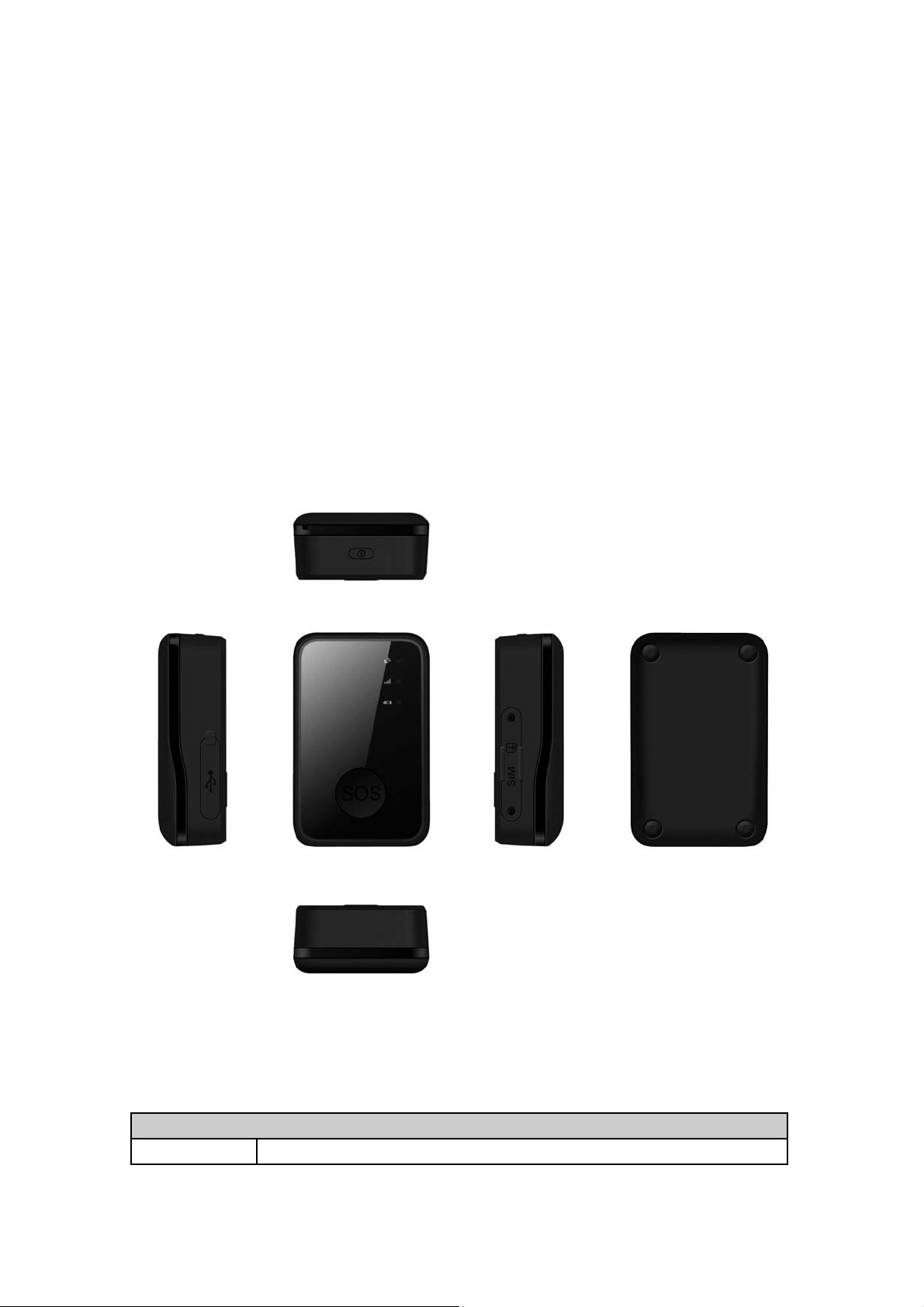
2.1 Appearance
Figure 1-1
2.2 Buttons/Mini USB Interface Description
Button /Mini USB Interface Description
KEY/interface Description
3
Page 4

Power Key
Power on Prime AT Plus
Power off Prime AT Plus (If power key is enabled)
Function Key
Mini USB
interface
Reset Key
Geo-Fence mode
Long press the key to enable/disable Geo-Fence ID0
Geo-Fence in current position mode
Long press the key to enable/disable Geo-Fence ID0. If enable Geo-Fence
ID0, using the current position as the centre of Geo-Fence 0.
SOS mode (default)
Long press the key to active SOS alarm
Connect a 5V DC adapter can power on Prime AT Plus and charge the
internal battery
Connect a 3.7V Li-ion or Li-Polymer battery can power on Prime AT Plus
Backend server developer or administrator can use the Data_Cable_M to
configure Prime AT Plus
Click the key will turn off internal VBAT when OS is abnormal, and then
press Power Key to restart Prime AT Plus.
Note: Reset key is invalid when external battery is used.
2.3 LED Description
Figure 1-2
There are three LED lights in Prime AT Plus device, the description as following.
Light Event State
GPS LED GPS fixed failed Slow flash (blue)
GPS has been turned off Dark
GSM LED Network has been registered Slow flash (green)
Power off Dark
Power LED Power on and normal Dark
Fully charged Slow flash (green)
4
Page 5

In charging Slow flash (red)
Power key was pressed and prepare to
power off
Power key was pressed and prepare to
power on
2.4 External Power Interface
2.4.1 External DC Charger Interface
The Pin2 on Mini-USB connector is used for charging and named as VCHG pin,
which can be connected to 5V DC power source to power on Prime AT Plus device and
charge the current battery.
Fast flash (red)
Fast flash (green)
Figure 1-3
PIN NO. NET NAME FUNCTION
PIN1 NC Not used
PIN2
PIN3 NC Not used
PIN4 NC Not used
PIN5 NC Not used
PIN6 NC Not used
PIN7 NC Not used
PIN8 NC Not used
PIN9 NC Not used
PIN10
5
+5V VCHG +5V input
GND Ground
Page 6

2.4.2 External Battery Interface
The Pin 8 and Pin9 on Mini-USB connector are used for external battery and
named as EXTBAT pin, which can be connected to 3.7V Li-ion or Li-Polymer battery to
power on Prime AT Plus device.
The Pin6 on Mini-USB connector is used for external battery interrupt detection
and named as EXT_VBAT INT, which must be connected to GND for EXT_VBAT
detection.
Figure 1-4
PIN NO. NET NAME FUNCTION
PIN1 NC Not used
PIN2 NC Not used
PIN3 NC Not used
PIN4 NC Not used
PIN5 NC Not used
PIN6
PIN7 NC Not used
PIN8
PIN9
PIN10 GND Ground
INT3_EXT_VBAT
EXT_VBAT
EXT_VBAT
external battery interrupt
detection
for external battery
for external battery
6
Page 7

3 Getting Started
3.1 Parts List
Name Picture Remark
Prime AT Plus
Locater
The GSM/GPRS/GPS locator.
AC-DC Power
Adapter
Prime AT Plus
Data and charger
Cable
3.2 Battery Charging
It is used to charge the internal battery of
Prime AT Plus.
It the USB data cable which can be used for
firmware upgrading and configuration.
It also includes the charger interface on the
Prime AT Plus.
The following items are suggestion for battery charge, please pay more attention.
Please connect AC-DC power adapter with Prime AT Plus device.
Insert the AC-DC power adapter into the power socket.
During the charging process, the
full y charged, the
You can also charge the battery using USB cable which connec ts Prime AT Plus
device with the PC.
Charging will last about 5 hours.
Note: If the Prime AT Plus device is firstly used, please make sure the battery is fully
charged, which will make the life of battery much longer.
7
Power LED light will be Ever-light.
Power LED light will flash fast. When the battery is
Page 8

3.3 Prime AT Plus Data Cable
Prime AT Plus Data Cable is a cable with a Mini USB connector.
The USB data cable is used for data download, which will be used for firmware update
or configuration and can be used for charging at the same time.
3.4 How to insert SIM Card
Figure 2-1
Figure 2-2
Step1: Screw off and pull out the cover of SIM card..
Step2: insert the SIM card into the slot of the device according to the direction as
8
Page 9

shown.
Step3: push the cover back.
3.5 Power on/Power off
Power on:
Press the Power key at least 3 seconds and release it to power on Prime AT Plus
device. Note that, the
Power off:
Press the power key about 3 seconds; Power LED light will fast flash and then turn
off, which indicates that Prime AT Plus device has been powered off.
Note: the user can not power off Prime AT Plus if the power key is disabled
by protocol.
Power LED light will fast flash.
Figure 2-3
4 Trouble shooting and Safety info
4.1 Trouble shooting
Trouble Possible Reason Solution
Messages can’t be
reported to the
backend server by
GPRS.
Unable to power
off Prime AT Plus.
Battery can not be
charged
The SIM card in Prime
AT Plus doesn’t support
GPRS.
APN is wrong. Some
APN can not visit the
internet directly.
The IP address or port of
the backend server is
wrong.
The function of power key
was disabled by
AT+GTFKS.
The battery has not been
used for too long time and
Try a GPRS supported SIM card.
Ask the network operator for the right
APN.
Make sure the IP address for the
backend server is an identified address
in the internet.
Enable the function of power key by
AT+GTFKS.
Using a external power source with 3.6V
to 4.2V DC power supply to active the
9
Page 10

has been locked. battery or apply for after sale help.
Prime AT Plus
can’t fix GPS
successfully. GPS
LED flashes
slowly.
The GPS signal is weak. Please move Prime AT Plus to a place
4.2 Safety info
The following items are suggestion for safety use, please pay more attention.
Please do not disassemble the device by yourself.
Please do not put the device on the overheating or too humid place, avoid exposure
to direct sunlight. Too high temperature will damage the device or even cause the
battery explosion.
Please do not use Prime AT Plus on the airplane or near medical equipm ent.
5. warning statement
with open sky.
It is better to let the top surface face to
the sky. (The same surface with
indication LED)
This equipment has been tested and found to comply with the limits for a Class B
digital device, pursuant to Part 15 of the FCC rules. These limits are designed to provide
reasonable protection against harmful interference in a residential installation. This
equipment generates, uses and can radiate radio frequency energy and if not installed and
used in accordance with the instructions, may cause harmful interference to radio
communications. However, there is no guarantee that interference will not occur in a
particular installation. If this equipment does cause harmful interference to radio or
television reception, which can be determined by turning the equipment off and on, the user
is encouraged to try correct the interference by one or more of the following measures:
- Reorient the receiving antenna.
- Increase the separation between the equipment and receiver.
- Connect the equipment into and outlet on a circuit different from that to which the
receiver is connected.
- Consult the dealer or an experienced radio/TV technician for help.
You are cautioned that changes or modifications not expressly approved by the party
responsible for compliance could void your authority to operate the equipment.
This device complies with Part 15 of the FCC rules. Operation is subject to the
following two conditions: 1) this device may not cause harmful interference, and 2) this
device must accept any interference received, including interference that may cause
undesired operation.
10
 Loading...