

Page 1

Contents
Read Me First .................................. 3
Disclaimer....................................... 3
Understand Your Phone ...................... 5
Getting Started ................................ 5
SIM C ARD IN SERTION.......................................5
MEMORY C ARD IN SERTION ..................................7
HANDSET KEYS................................ ................8
C HARGIN G THE BATTERY .....................................9
Basic Phone Features......................... 10
HOME S CREEN ................................................10
A PPLICATION LAUNCHER......................................10
NOTIFICATION S ...............................................10
PHONE LOCKING TECHNIQ UES ..............................12
Using the Touch Screen ...................... 14
DRAG AN ITEM ................................................14
SCROLL .........................................................14
SWIPE..........................................................14
U SING THE PI NCH ZOOM.....................................15
.................................................................15
DOUBLE-TAP ...................................................15
U SING THE O NSCREEN K EYBOARD .......................... 15
Calling and Messaging ........................ 16
MAKE A C ALL ..................................................16
F LIGHT M ODE.................................................16
SEND M ESSAGE ................................ ...............16
C AMERA ........................................................17
1
Page 2

GALLERY........................................................18
MUSIC P LAYER ................................................18
FM RADIO ....................................................20
Settings, Networks, and Applications ....... 21
C ONN ECT TO THE INTERNET .................................21
PAIR WITH B LUETOOTH DEVICES...........................21
Safety Precautions ............................ 22
Taking Care of your device ................... 24
BATTERY RECOMMENDATIONS ...............................25
RECYCLE YOUR PHONE .......................................26
Copyright....................................... 26
2
Page 3

Read Me First
Please read all saf ety precautions and this manual
carefully before using your device to ens ure safe and
proper use.
The descriptions in this manual are based on the default
settings of your device.
Available features and additi onal servic es may vary by
device, software, or servic e provider.
Applications and their functions may vary based on the
country, region, software or hardware specif ications.
Micromax is not liable for performance is sues caused by
third-party applications.
Disclaimer
The c olors, s pecifications, functions and graphics
shown/mentioned in the user manual may differ from
the actual product. In such a case, the latter s hall
govern. Images shown are for representation purpose
only. Specific ations are s ubject to change without prior
notice. Mic romax keeps the right to modif y the content
in this user guide wit hout prior notice.
Upon first use of your device, your device will send
information related t o your mobile, IMEI numbers,
location details and other software details through SMS*
automatically. This information may be used as further
specified in Mic romax privacy policy**.
Talk and s tandby times are affect ed by network
preferences, type of SIM cards , connected accessories
3
Page 4

and individual usage patterns. Services and some
features may be dependent on the network,
service/content providers, SIM cards, compat ibility of the
devices used and the content formats s upported.
Other product logos and company names mentioned
herein may be trademarks or trade names of t heir
respective owners.
*Operator tariff shall be applicable for SMS.
**Micromax privacy policy is availabl e at
www.micromaxinfo.com.
4
Page 5
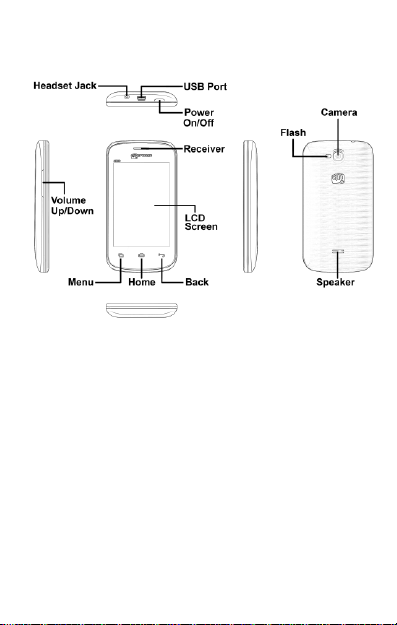
Understand Your Phone
Getting Started
SIM Card Insertion
Your X353 is a dual SIM phone. Switch off your phone before
SIM insertion/removal and i nsert the SIM card in the SIM slots
correctly. To insert your SIM card(s):
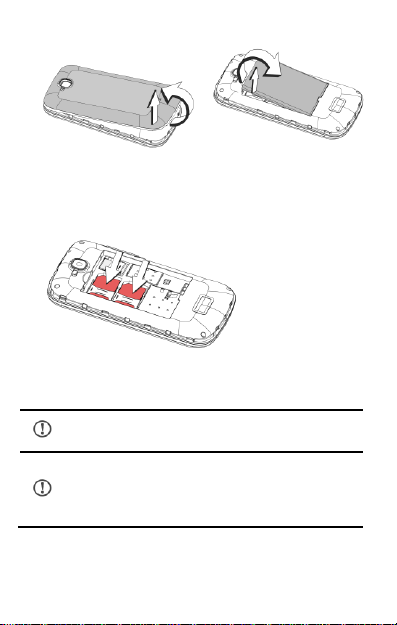
1. Switch off the mobi le phone and remove the rear c over and
battery, as illustrated in the following image:
5
Page 6
Please keep the SIM card out of the reach of
children.
The card and the contacts are vulnerable to
damage due to scratching or bending. Therefore,
be careful when us ing, i nserting, or removing the
card.
2. Insert the SIM card(s) correctly in the card s lot(s), as shown
in the following image:
3. Finally, insert the battery and place the rear cover of the
mobile phone.
6
Page 7
Memory Card Insertion
Use only compatible memory cards approved by
Micromax with this device. Incompatible memory
cards may damage the card or t he device and
corrupt the data stored in the card.
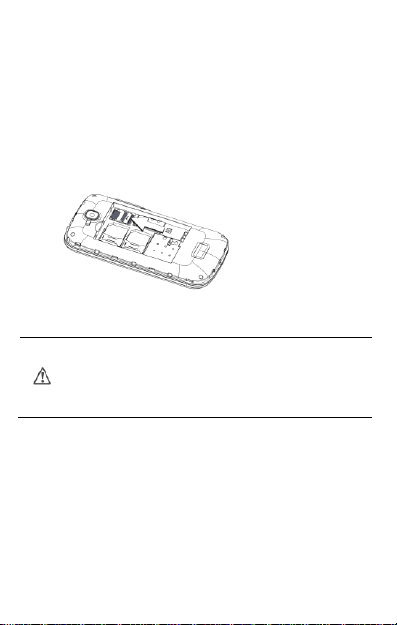
To st ore additional multimedia files, you must insert a memory
card. To insert the memory card:
1. Switch off the phone and remove t he rear cover and the
battery.
2. Insert the memory card in the card slot, as shown in the
following image:
3. Place back the battery and the rear cover of the mobile
phone.
7
Page 8
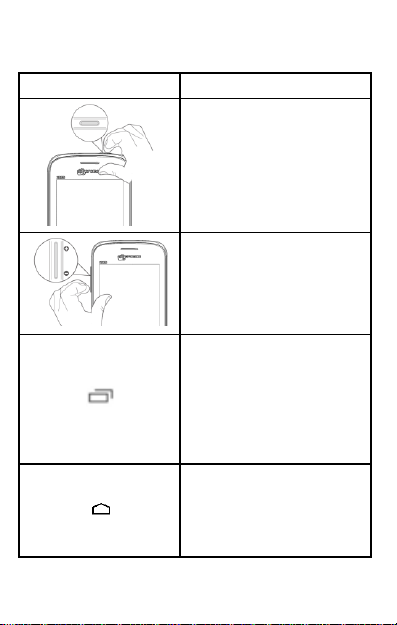
Handset Keys
Key s
Functions
Long press to switch on or
switch off the phone.
Press once to turn off the
screen or to wake up the
screen.
A djus t t he phone volume
from the volume keys
available on the left side of
the device.
O pens a menu with items
that aff ect the c urrent
screen or application.
If tapped when on the
home screen, opens
options to personalize the
home screen.
O pens the Home screen. If
you are viewing the left or
right extended Home
screen, opens the central
Home screen.
8
Page 9
O pens the previous screen
you were working on.
If the ons creen keyboard i s
open, closes the keyboard.
Charging the Battery
You can also use a compatible USB charger to charge
your battery.
Use only Mic romax approved chargers and cables.
Unapproved chargers or cables c an cause battery to
explode or damage your device.
We suggest you charge the battery for 4 hours
continuously for the first time.
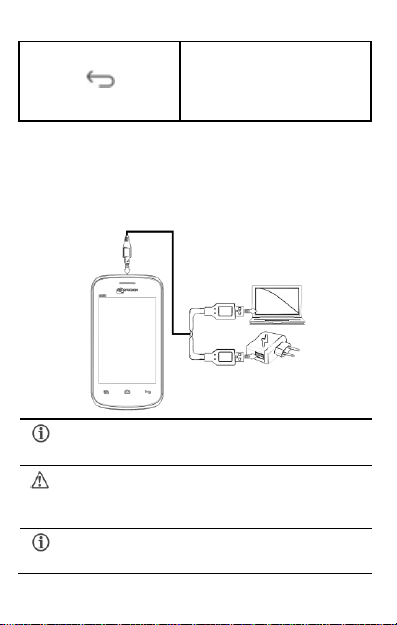
Before using the device for the first tim e, you must charge the
battery. You can charge the device with a travel adapter or
connecting the device to a PC with a USB cable.
9
Page 10

Basic Phone Features
Open Notification Panel
Close Notification Panel
Home Screen
You can personalize your home screen with shortcuts, wallpapers
and other items . To view quic k options to c hange wallpaper or
open settings section, tap the key. Swipe left or right on the
home screen to view the next extended home screen.
Application Launcher
Application launcher or Application menu is available right in the
middle of the home screen bottom pane.
Tap to view all i nbuilt and installed applications.
Notifications
Notification icons inform you of new mess ages and events as and
when it appears in the device.
10
Page 11
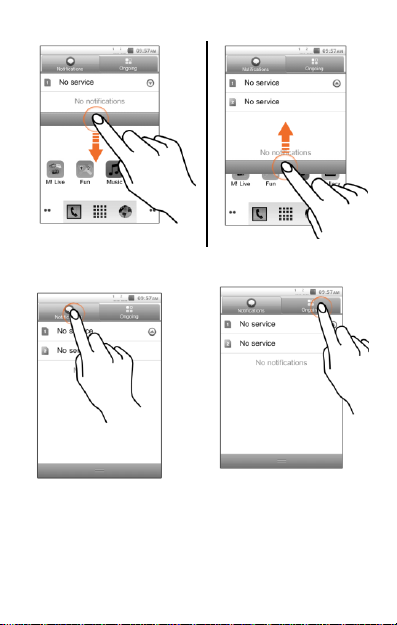
When you receive a notification, its icon appears in the status
bar, along with a brief summary. Y ou may clear each notific ation
separately by swiping it towards left or right.
Toolkit provides you shortcuts to manage basic phone features,
11
Page 12
such as A irplane Mode, Bluetoot h, and Brightness .
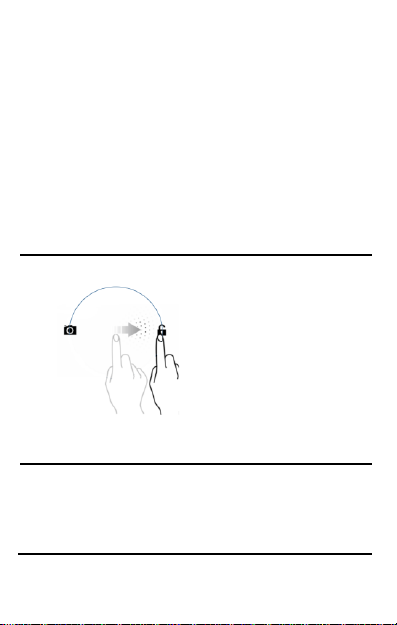
Slid e
Slide from lock icon to unlock
icon!
Just wake up the
screen and sl ide the
lock icon towards the
unlock ic on to unlock
your phone.
Patter n
You can set your own
pattern by connecting
the dots to prevent
your phone from
unauthorized access.
Phone Locking Techniques
You may need to dr aw a pattern or simply slide to unlock your
phone.
Slide unlock will be the default unlocking method in t he phone.
To unlock the screen:
1. Press the power key to wake up the phone.
2. Hold and drag the lock icon towards the unl ock icon.
12
Page 13

Set and draw your desired
pattern!
13
Page 14
Using the Touch Screen
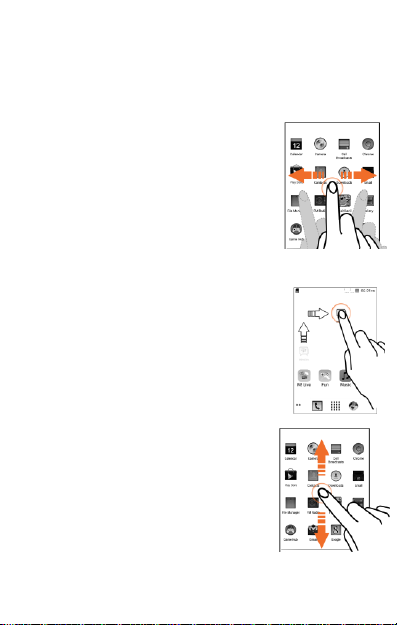
Drag an Item
Tap and hold an item and m ove your finger
on the s creen until you reach t he target
position. The item follows your finger.
Also, you can delete items from the home
screen by holding the item and dragging it to
the Delete icon that becomes available only
when you hold the item on the Home screen.
Scroll
To scroll a lis t, slide your f inger across the
surface of the screen upwards or downwards
(without dragging an item).
Swipe
Place a finger on the screen and st eadily
slide your finger in the desired direction.
For example, when you are viewing a
picture, to view the next picture, swipe left .
14
Page 15
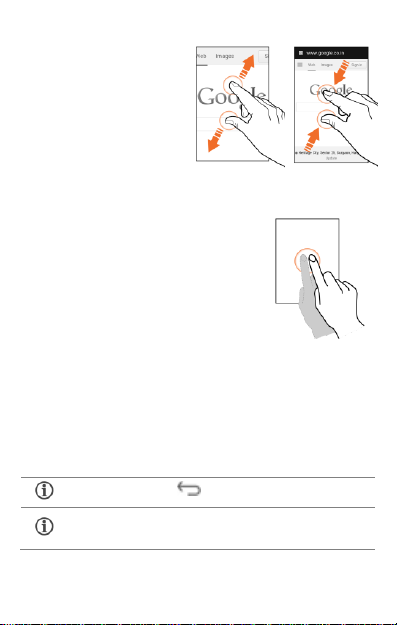
Using the Pinch
After typing, press button t o close the keyboard.
Tap and hold t he text field to open a menu and to
cut/copy/paste t ext.
Zoom
You can open any image or
web page and then use your
thumb and index finger to
zoom the display through
the pinch gesture.
Double-tap
Tap quickly twic e on a webpage, map, or
other s creen to zoom. For example, doubletap a secti on of a webpage in the browser
to zoom t hat secti on.
Using the Onscreen Keyboard
Some applications display the keyboard by default. In others, you
will be required to tap a text f ield, where you want to enter text,
to open the keyboard.
15
Page 16
Calling and Messaging
Make a Call
To make a call:
Tap on t he m enu screen or the home screen to open t he dial
pad for making calls.
By defaul t, the dialer will display a list of contacts on which calls
have been made very oft en.
Open the call log by tapping the Call log tab and t ap t he number
to be dialed.
Flight Mode
Some locations may require you to disable all the wireless
features of your mobile. The Airplane Mode enables you to
disable all incoming and outgoing calls and Bluetooth
connections.
Go to → → Network & connectivity → Flight mode.
Select the Flight mode option to turn Bluetooth On.
Send Message
To send a message:
1. Tap on t he menu screen to go to the mes saging
section.
2. Tap the New msg. icon to compose a message.
16
Page 17
3. Select the desired type of m ultimedia file s that can be
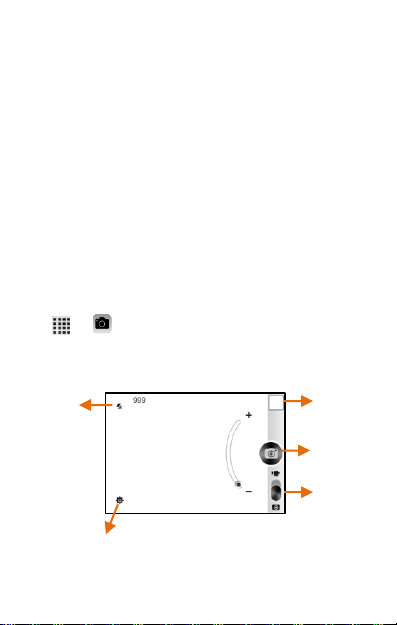
Fla sh
Capture/
Start video
recor ding
Settings
Swap
between
front and
back came ra
Open the
gall ery
attached with the mess age.
4. Tap to select the composition text box and enter your
message body in i t.
5. Enter the contact name (if it exists ) or enter the phone
number. Y ou can also view and select contact(s) from
the contact list.
6. You can send the message after all t he required f ields
have been f illed.
Multimedia
Camera
Go to →
picture
17
Page 18
Gallery
You can share/copy/move/delete images and videos
from the gallery.
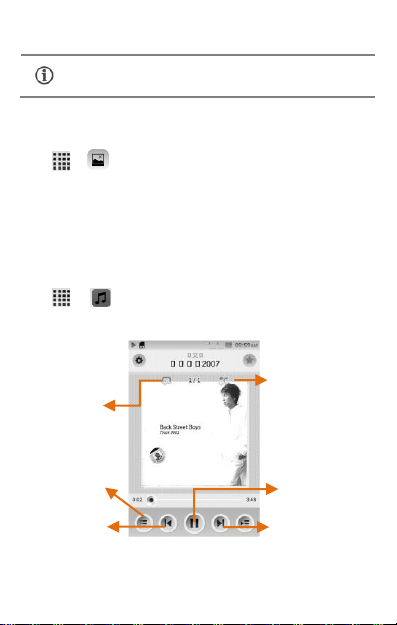
Turn on/ off
repe at songs
Play
pre viously
played song
Pla y next son g i n the
playli st
Pla y/Pause song
Turn on/o ff shuffle
Opens the
playli st
Go to →
You can use the Gallery to view pictures, play videos and share
files.
Music Player
Go to →
18
Page 19

Press the phone’s volume up/down keys on the left
side of the mobile phone to adjust the volume.
You can use an SD card to enhance the storage
capacity for your multimedia files such as music,
photos, emails, and so on.
19
Page 20
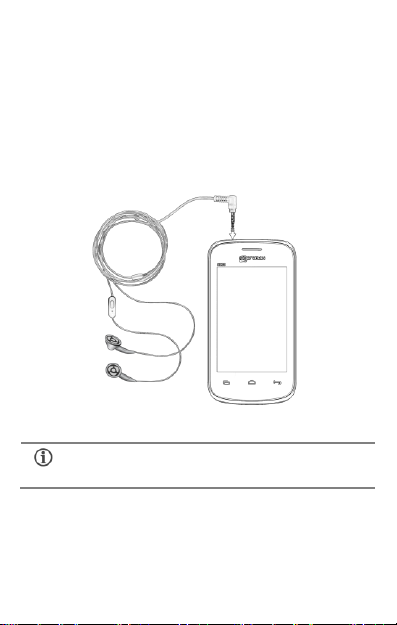
FM Radio
Press the phone’s volum e up/down keys on the left
side of the mobile phone to adjust the volume.
You can listen to your favorite FM channels using the inbuilt FM
receiver of your phone. Before st arting the FM, you need to plugin the headset as it works as antenna f or the FM radio. Use the
intuitive buttons and icons on the phone in the radio interface to
enjoy the features of your inbuilt FM radio.
20
Page 21
Settings, Networks, and
Applications
Your phone can connect to a variety of networks and devices,
including Internet, GPRS, Bluetooth, devices, such as headsets.
You can also transfer files to/from your PC through the data
cable.
Connect to the Internet
To configure Internet:
1. Go to → → Network & connectivity and
select the various modes of connection, s uch as GPRS,
Mobile network settings and Data accounts.
Pair With Bluetooth Devices
Go to → → Network & connectivity → BT.
If Bluetooth is off, select the Bluetooth opt ion t o turn Bluetooth
On.
1. If Bluetooth is off, turn it on.
2. To pair your X353 with another Bluetooth device, tap
Paired devices and then tap the Search icon. Your
phone sc ans and displays the Bluetooth devices in
range.
3. You will be prompted to conf irm passcode on both
devices. Tap Yes to confirm the passcode and pair t he
devices. On successful pairing, your phone connects t o
21
Page 22
the device.
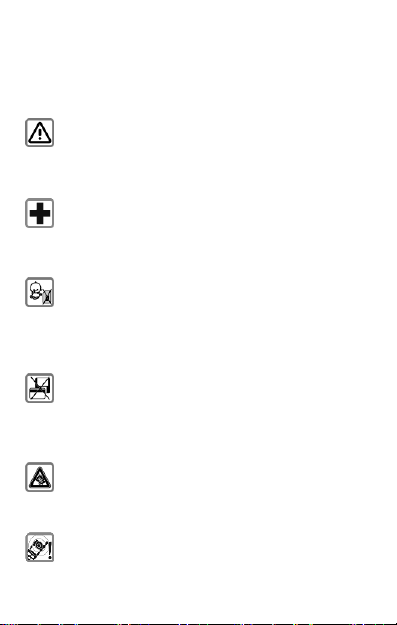
Remember to comply with legal requirements and
local rest rictions when using the phone.
Your Phone’s radio waves m ay interfere with
inadequately s hielded medical devices. Consult a
physician or m anuf acturer of the medical device to
know whether they are adequately shielded from
external Radi o Frequency. Switch off your device
when regulations require you to do so.
Always keep the phone and accessories out of
reach of small children. Small parts such as the
SIM c ard, dust cap, lens ring and lens cap as well
as t he micr o SD card can be dismantled and
swallowed by small children.
Do not place the phone near elect romagnetic data
carriers such as credit/Debit cards. Information
stored on them could be lost.
Permanent hearing loss may occur if you use
earphones at high volume for prolonged periods.
Set your volume t o a safe level. If you experienc e
discomfort in your ears, reduce the volume or
discontinue the use of your earphones.
Ring tones, info tones and hands-free t alking are
reproduced through the loudspeaker. Do not hold
Safety Precautions
22
Page 23
the phone to the ear when it rings or when you
have switched on the hands-f ree function.
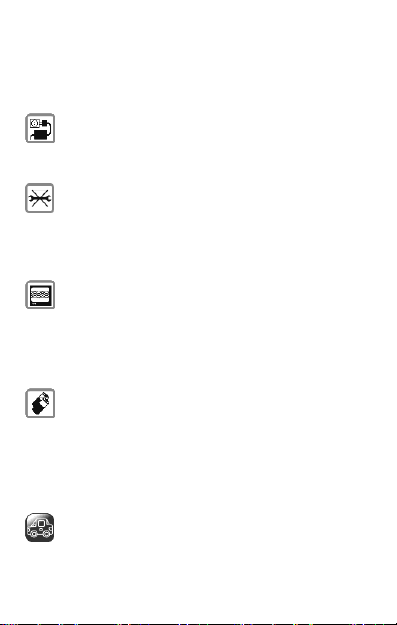
The mains voltage (V) s pecified on t he power
supply unit m ust not be exceeded to prevent
damage to the charging device. The power supply
must be plugged into an easily access ible AC
power s ocket when charging the battery.
You may only open the phone to replace the
battery, SIM and micro SD card. Y ou must not
open the battery under any c ircumstances. All
other c hanges to this device are s trict ly prohibited
and will i nvalidate the warranty.
The phone may cause interference in the vicinity of
TV sets, radios and PCs.
Only use Micromax specified batteries and charging
devices.
All batteries can cause property damage, injury or
burns if a conductive material taps the exposed
terminals. Exercise care in handling any c harged
battery, particularly when placing it inside your
pocket, purse or other container with metal
objects. Do not dispose of batteries in fire as t hey
may explode.
Do not use the phone while driving. When you
have to use the phone, please us e the personal
hands-free kit.
Please put the phone safely in the phone stand. Do
23
Page 24

not put it onto any pass enger seat or any place
from which it may fall down in c ase of vehicular
collision or emergency braking.
Flight is influenced by interference caused by the
phone. It is illegal to use a phone on the airplane.
Please turn off your phone during a flight.
Professional service: The phone must be installed
or repaired by Mic romax authorized personnel. You
are likely to s uffer a huge ris k when you install or
repair this phone by yourself, which also goes
agains t t he warranty rules.
Taking Care of your device
Your device is a product of superior design and cr aftsm anship
and should be handled with care. The following s uggestions will
help you protect your phone.
Keep the device dry. Precipitation, humidity, and all
types of liqui ds or moisture can rust the electronic
circuits . If your device gets wet, remove the battery,
wipe it with a dry cloth and take it to an authorized
service center.
Do not store the device in high or cold temperature.
High temperatures can shorten the life of electronic
devices and damage batteries.
Do not us e or store the device in dusty, dirty areas. Its
moving parts and electronic components can get
damaged.
24
Page 25

Do not att empt to open the device other t han as
instructed in this guide. Repairing this phone by yourself
other than our authorized service agent s/centers goes
agains t t he warranty rules.
Do not drop, knock, or shake the device. Rough handling
can break internal circuit boards and fi ne mechani cs.
Do not us e harsh chemicals, cleani ng solvents, or s trong
detergents to clean the device. Only use a soft, clean,
dry cloth to clean the surface of the device.
Do not store your device near magnetic fields or allow
your device to come in contact with magnetic f ields f or
extended period of tim e.
Battery Recommendations
Please put the battery in a cool and well-ventilated place
out of direct sunlight. We recommend you to charge the
battery at room t emperature range.
Batteries have life cycles. If the time that the battery
powers equipment becomes much shorter than us ual,
the battery life is at an end. Replace the battery wi th a
new battery of t he same make and specific ation.
Use manufacturer approved batteries, chargers,
accessories and s upplies. Micromax will not be held
responsible for user’s safety when using unapproved
accessories or s upplies.
Do not dis card the battery with household trash. Please
dispose of used battery according t o your local
environm ental l aws and guidelines.
25
Page 26

Recycle your Phone
The WEEE logo (s hown at the left) appears on the
product (battery, handset, and charger) to indicate
that this product m ust not be disposed off or
liable to dispose of all your electronic or electrical waste
equi pment by relocating over to the specified collect ion point for
recycling of s uch hazardous waste.
Collection and proper recovery of your elect ronic waste
equi pments at the time of disposal wil l allow us to help preserve
the environment . Recycling of the electronic waste equipment
will ensure safety of human health and environm ent. For more
information on best practices f or disposal of electronic and
electrical waste, please vi sit t o our web site:
www.micromaxinfo.com/weee.php.
Note: Micromax will not bear any respons ibility for any
incompliance with the above mentioned guidelines or improper
usage of the mobile phone.
dumped with your other household wastes. You are
Copyright
All right s reserved. Reproduction, transfer, distribution or storage
of part or all of the content s in this document in any f orm
without the prior written permis sion of Mic romax is st rictly
prohi bited.
26
 Loading...