

Page 1

File Name MEITRACK A21 User Guide Creator: Renny Lee
Project For MVT600/T1 Creation Date:
File Type Accessory User Guide Page: 1 of 16
Vers ion V2.2 Confidential: External Document
Update:
2011-12-30
2013-03-13
MEITRACK® LCD Display
A21
User Guide
Applicable to: MVT600/T1
Copyright ©2013 Shenzhen Meiligao Electronics Co., Ltd.
-1-
Page 2

File Name MEITRACK A21 User Guide Creator: Renny Lee
Project For MVT600/T1 Creation Date:
File Type Accessory User Guide Page: 2 of 16
Vers ion V2.2 Confidential: External Document
Update:
2011-12-30
2013-03-13
Content
1. Copyright and Disclaimer .................................................................................................................................. 3
2. Application ........................................................................................................................................................ 3
3. Functions and Specifications ............................................................................................................................. 3
3.1 Functions............................................................................................................................................. 3
3.2 Specifications ...................................................................................................................................... 4
4. A21 and Its Accessories ..................................................................................................................................... 4
5. View .................................................................................................................................................................. 5
6. First Use ............................................................................................................................................................ 6
6.1 Installation and Fixation ...................................................................................................................... 6
6.2 Connecting to Terminal ....................................................................................................................... 7
7. How to Use ....................................................................................................................................................... 8
Main Screen ....................................................................................................................................................... 8
7.1 Message .............................................................................................................................................. 9
7.1.1 Inbox ..................................................................................................................................... 9
7.1.2 Create New Message ........................................................................................................... 11
7.2 SMS ................................................................................................................................................... 11
7.2.1 Inbox ................................................................................................................................... 11
7.2.2 New SMS ............................................................................................................................. 12
7.3.1 Missed Calls ......................................................................................................................... 12
7.3.2 Received Calls ...................................................................................................................... 12
7.4 Settings ............................................................................................................................................. 12
7.4.1 Language ............................................................................................................................. 13
7.4.2 Backlight .............................................................................................................................. 13
7.4.3 Fast Dial ............................................................................................................................... 13
7.4.4 Voice Tips ............................................................................................................................ 14
7.4.5 Restore to Factory Settings .................................................................................................. 14
7.4.6 Version ................................................................................................................................ 14
7.5 Terminal Parameter ........................................................................................................................... 15
7.5.1 Parameter Sync ................................................................................................................... 15
7.5.2 Batch Setting ....................................................................................................................... 15
7.5.3 Parameter Edit .................................................................................................................... 16
7.5.4 Terminal Version .................................................................................................................. 16
Copyright ©2013 Shenzhen Meiligao Electronics Co., Ltd.
-2-
Page 3

File Name MEITRACK A21 User Guide Creator: Renny Lee
Project For MVT600/T1 Creation Date:
File Type Accessory User Guide Page: 3 of 16
Vers ion V2.2 Confidential: External Document
Update:
2011-12-30
2013-03-13
1. Copyright and Disclaimer
Copyright © 2013 MEITRACK. All rights reserve
MEITRACK and
are trademarks that belong to Shenzhen Meiligao Electronics Co., Ltd.
The user manual may be changed without prior notification.
This user manual, or any part thereof, may not be reproduced for any purpose whatsoever without the written
authorization of Meiligao (MEITRACK), or transmitted in any form, either electronically or mechanically, including
photocopying and recording.
In no event shall Meiligao (MEITRACK) be liable for direct, indirect, special, incidental, or consequential damages
(including but not limited to economic loss, personal injury, and loss of asset and property) arising out of the use
or inability or illegality to use the product or documentation.
2. Application
Using for match with Meitrack terminals with RS232 interface.
Using for dispatch and management of vehicles
3. Functions and Specifications
3.1 Functions
192*64 lattice LCD display in 4 lines
Universal RS232 interface
Chinese/English language display and input method
Voice tips in Chinese
Fully functional keys
Speakerphone voice communication. The maximum communicating distance reaches 1 meter
4 one-key speed dial numbers
Batch setting of terminal parameters
Copyright ©2013 Shenzhen Meiligao Electronics Co., Ltd.
-3-
Page 4
File Name MEITRACK A21 User Guide Creator: Renny Lee
Project For MVT600/T1 Creation Date:
File Type Accessory User Guide Page: 4 of 16
Vers ion V2.2 Confidential: External Document
3.2 Specifications
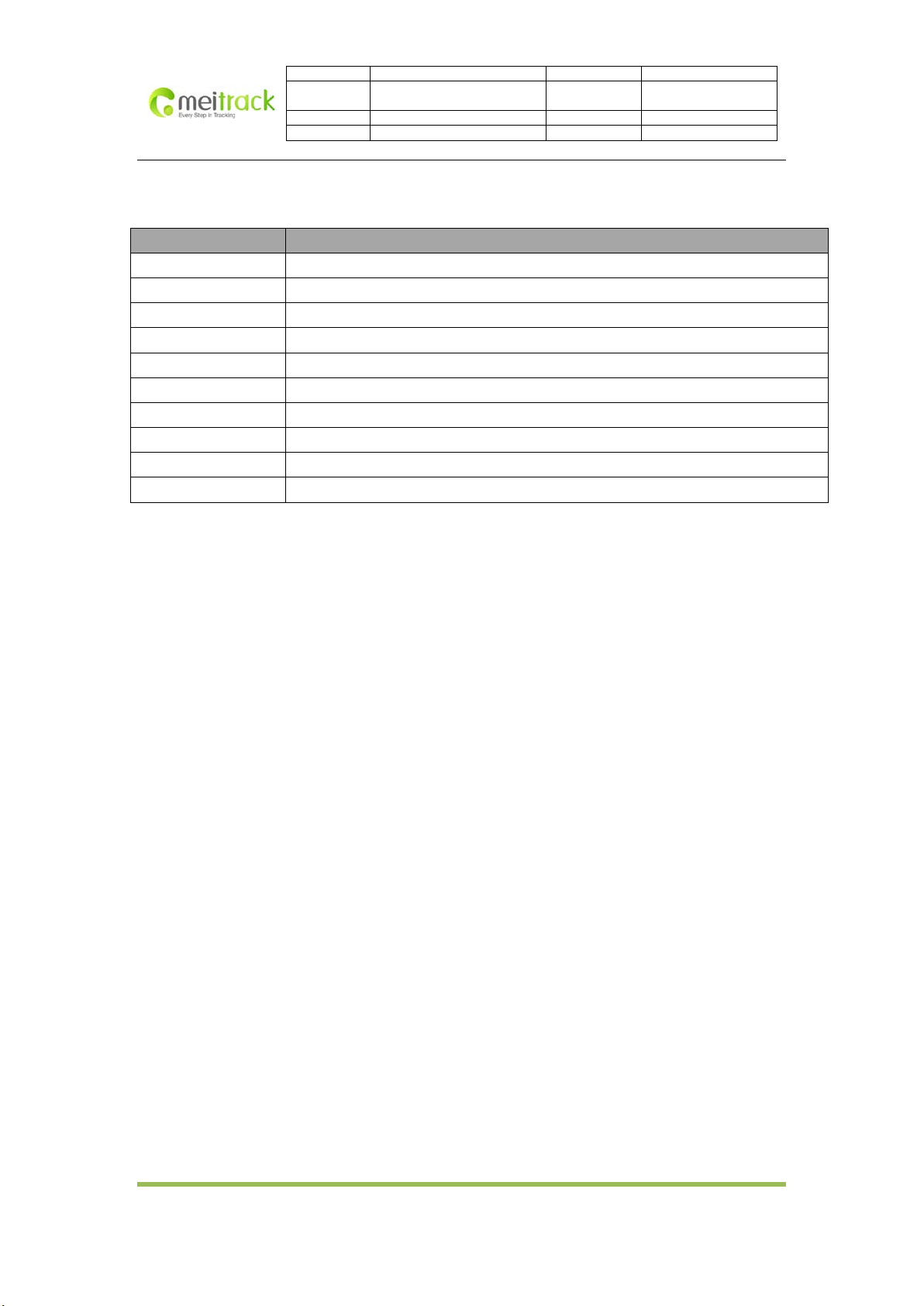
Item Description
Dimension 179 x 77 x 32mm
Weight 300g
Power Consumption 25mA
Operating Temperature -20℃~55℃
Operating Humidity 5%~95%
Operating Voltage 4V-6V
LCD 192 x 64 (Display in 4 lines)
Baud Rate 115200bps
Microphone Sensitivity -26dB
Loudspeaker 8Ω 2W
Update:
2011-12-30
2013-03-13
4. A21 and Its Accessories
A21
Holder
8 screws
Glue
Warranty Card
User Guide CD
Copyright ©2013 Shenzhen Meiligao Electronics Co., Ltd.
-4-
Page 5
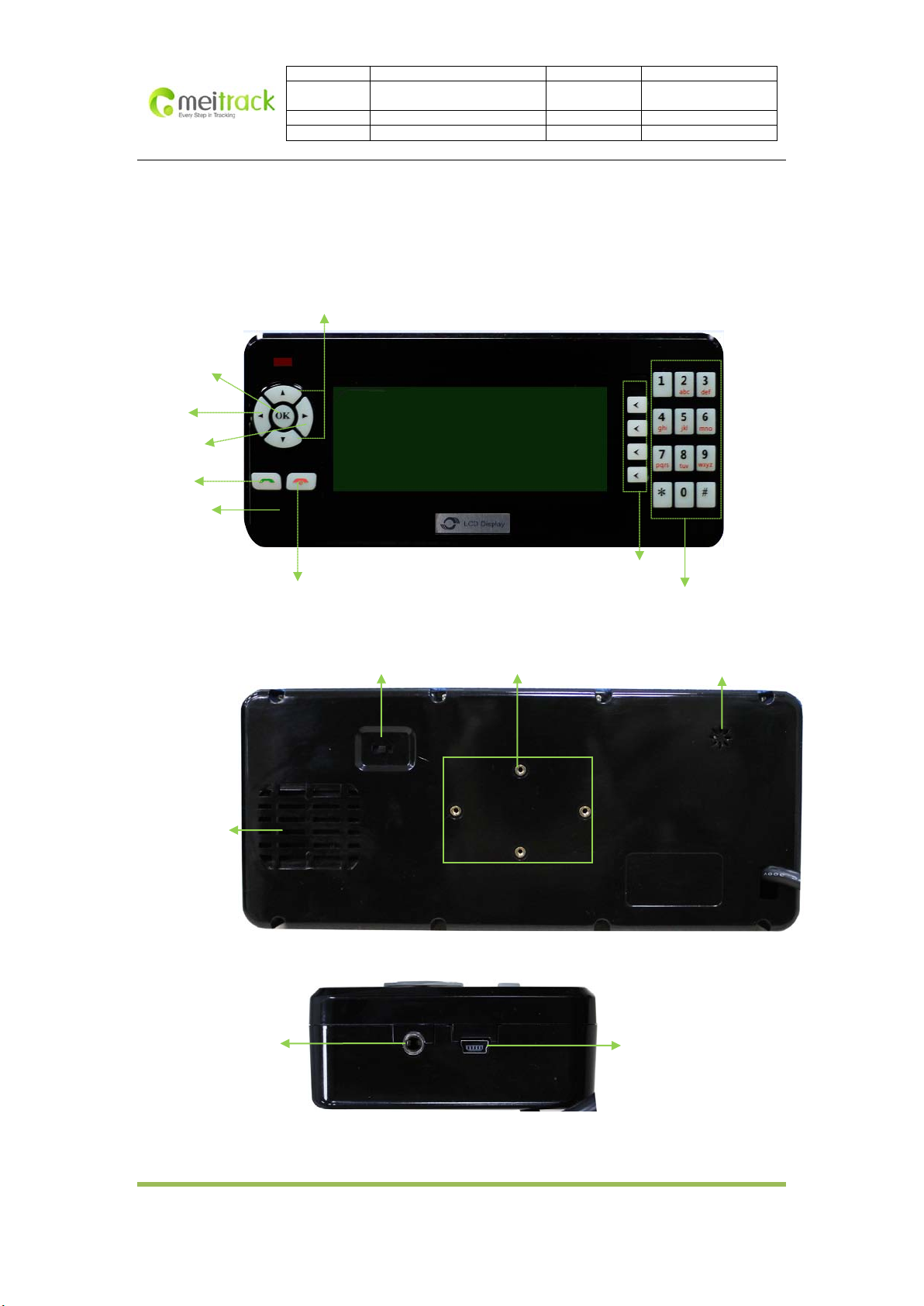
5. View
Front:
Menu/OK
Back/Delete
Dial/Answer
Microphone
Next
File Name MEITRACK A21 User Guide Creator: Renny Lee
Project For MVT600/T1 Creation Date:
File Type Accessory User Guide Page: 5 of 16
Vers ion V2.2 Confidential: External Document
Up/Down rolling keys
Update:
2011-12-30
2013-03-13
Back:
Loudspeaker
Side:
Hang-up/Back
Power On/Off
Screw Hole
Shortcuts
Number Keys
Buzzer
Audio Output
Copyright ©2013 Shenzhen Meiligao Electronics Co., Ltd.
USB interface
-5-
Page 6
Up/Down Rolling
Turn off the power to save battery if the dispatcher will not be used for a
File Name MEITRACK A21 User Guide Creator: Renny Lee
Project For MVT600/T1 Creation Date:
File Type Accessory User Guide Page: 6 of 16
Vers ion V2.2 Confidential: External Document
Update:
Panal Descriptions:
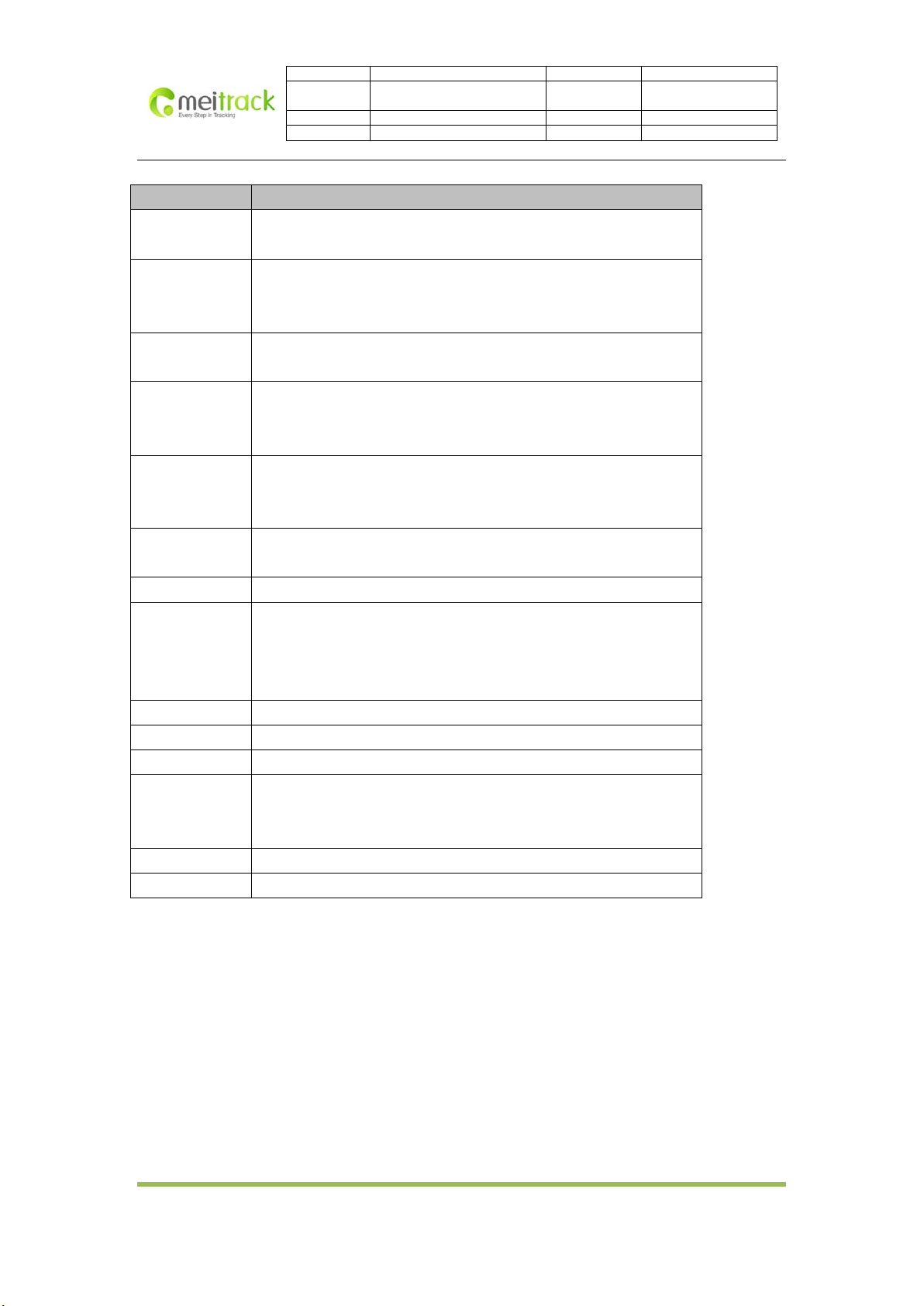
Items Descriptions
Dial/Answer Dial a phone number
Answer incoming calls
Hang-up/Back End the conversation
Back to the previous menu
Turn on backlight
Menu/OK Open the menu
Enter the selected menu
Roll the menu
Key
Up key: Turn up the volume during a call
Down key: Turn down the volume during a call
Backspace/Delete Delete characters when composing SMS; also Left key
To move left to select
Turn down microphone sensitivity to reduce noise during call
Next/ Select To move right to select; also Right key
Turn up microphone sensitivity to extend communicable distance
Fast Answer For fast dial numbers and fast select contents of corresponding line
Number Keys 0-9: common number keys
*: To answer the voice input symbol
#: To answer the voice input symbol and switch input method when
composing SMS
Loudspeaker To allow voices or sounds to be heard loudly
Microphone To make voices louder when someone is calling
Buzzer Buzz when there is press, SMS and dispatch data
Power On/Off Left: On, Right: Off
2011-12-30
2013-03-13
long time
Audio Output 3.5mm interface, to connect AUX input of vehicles
USB Interface To update firmware of the dispatcher
6. First Use
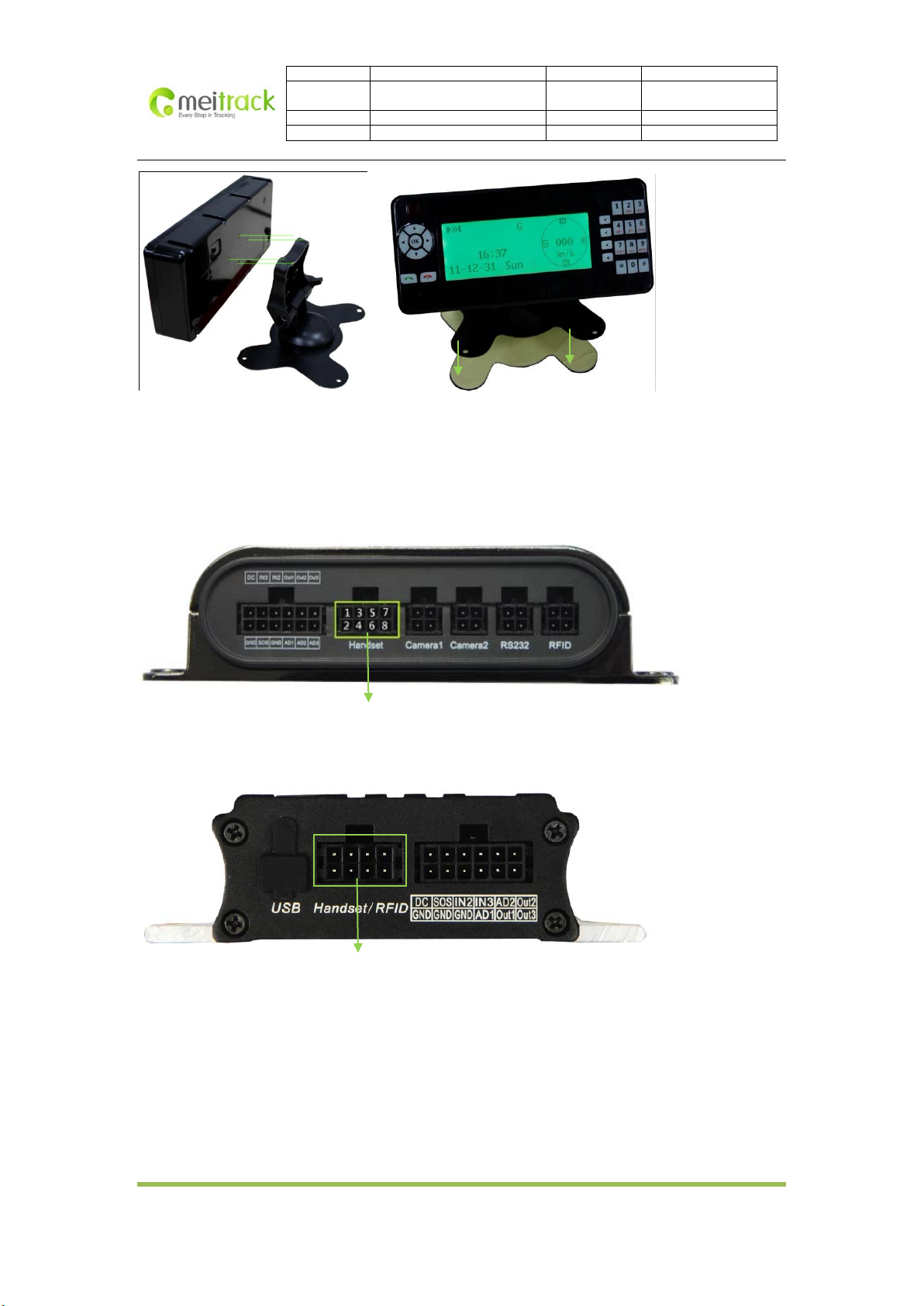
6.1 Installation and Fixation
Machine and Holder: fasten the machine to the holder by the four screw holes.
Holder and Vehicle: Fix the holder on the panel under the windshield by screws; or stick the bottom of the
holder to the vehicle panel by glue.
Copyright ©2013 Shenzhen Meiligao Electronics Co., Ltd.
-6-
Page 7
File Name MEITRACK A21 User Guide Creator: Renny Lee
Project For MVT600/T1 Creation Date:
File Type Accessory User Guide Page: 7 of 16
Vers ion V2.2 Confidential: External Document
6.2 Connecting to Terminal
Connecting A21 to the tracker’s interface tailored for A21
MVT600 interface:
Update:
2011-12-30
2013-03-13
T1 interface:
Interface for A21
Interface for A21
Copyright ©2013 Shenzhen Meiligao Electronics Co., Ltd.
-7-
Page 8
File Name MEITRACK A21 User Guide Creator: Renny Lee
Project For MVT600/T1 Creation Date:
File Type Accessory User Guide Page: 8 of 16
Vers ion V2.2 Confidential: External Document
Update:
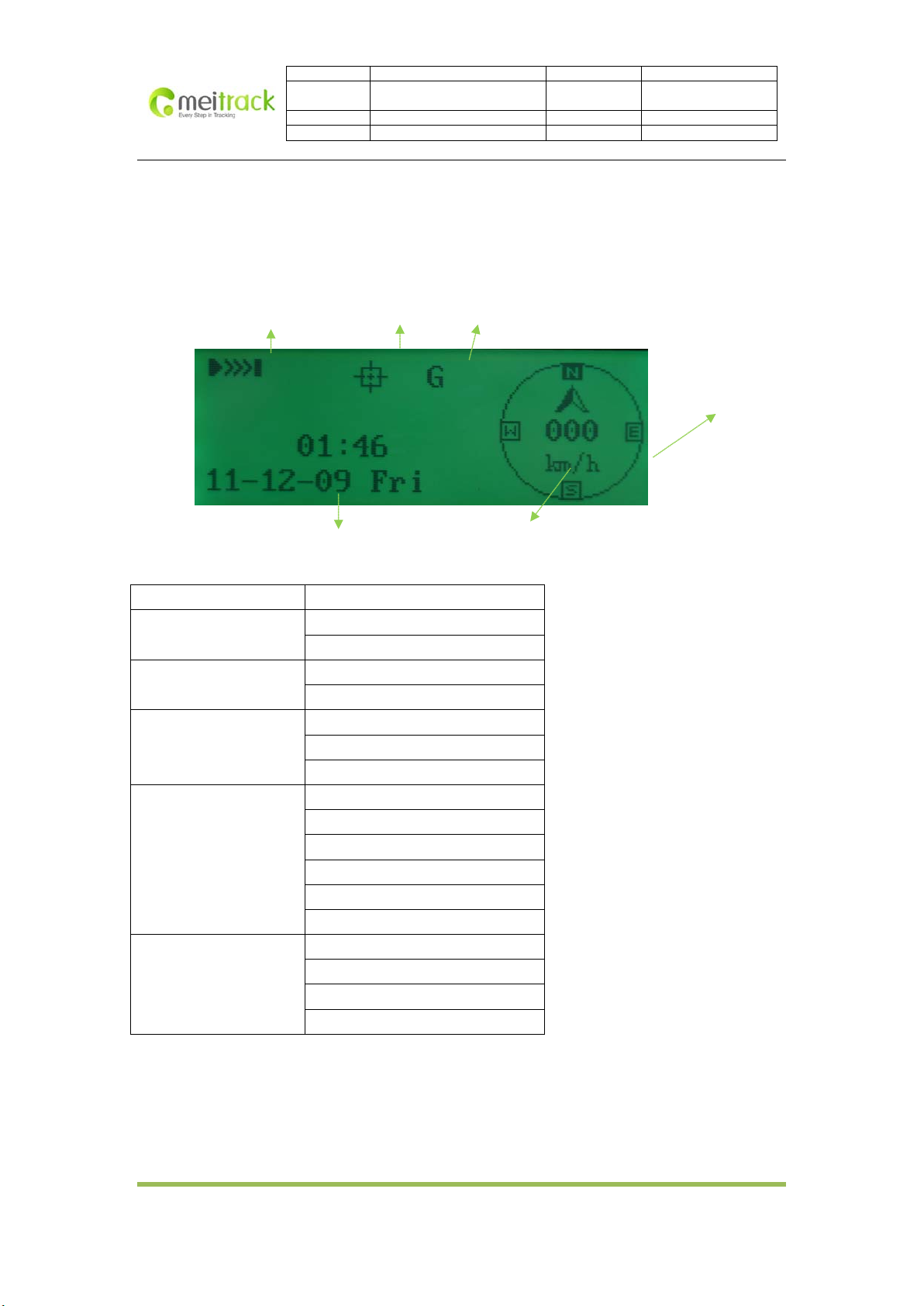
7. How to Use
Main Screen
GSM Signal Strength
System Menu
Main Menu Submenu
Message
SMS
Call History
Settings
Terminal Parameter
Positioning Status GPRS Connected
GPS Time & Date GPS Speed
Inbox
Create Message
Inbox
Create SMS
Missed Calls
Received Calls
Dialled Calls
Language
Backlight
Fast Dial
Voice Tip
Set Default
Version
Para Sync
Batch Set
Para Edit
Terminal Version
2011-12-30
2013-03-13
Electric Compass
Copyright ©2013 Shenzhen Meiligao Electronics Co., Ltd.
-8-
Page 9

Futian District: go to Futian People’s Hospital to pick up a
File Name MEITRACK A21 User Guide Creator: Renny Lee
Project For MVT600/T1 Creation Date:
File Type Accessory User Guide Page: 9 of 16
Vers ion V2.2 Confidential: External Document
Update:
2011-12-30
2013-03-13
7.1 Message
7.1.1 Inbox
Command C13 with regular format can be edited by server to send to the tracker and can be displayed on the
screen. If voice tip is valid, it will be voice played.
Luohu District: to pick up a guest for Meiligao
Luohu District Dispatch Request
patient
Futian District Dispatch Request
Appendix: MS02 send operation:
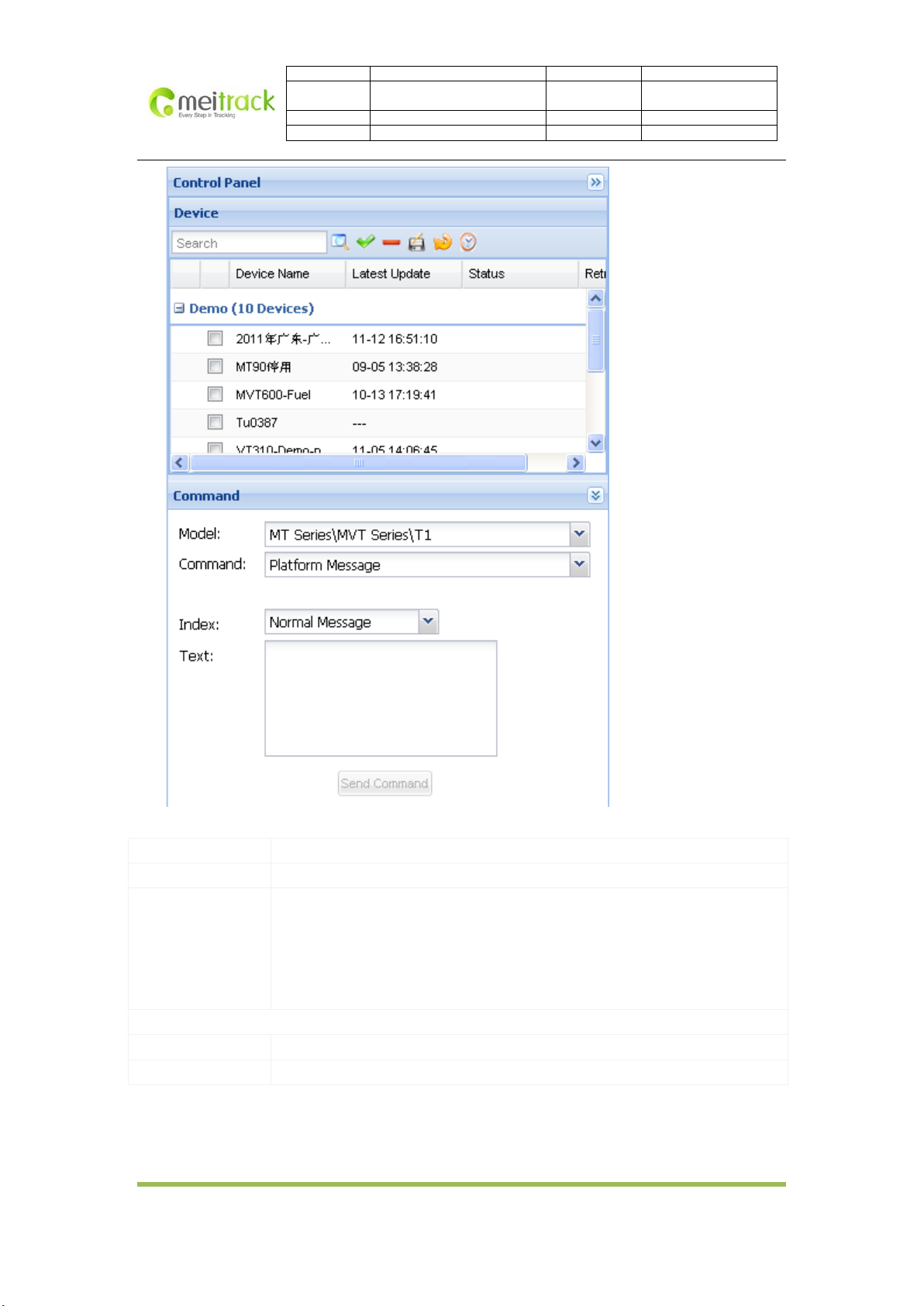
1. Select command panel, tick the terminals you want to choose.
2. Model: select MT or MVT series, T1 is a model.
3. Command: select message.
4. Serial Number: select “urgent message”, then it will be voice played (recommended); select “common
message”, then it will be in Inbox and showed only when you select it.
5. Content: input content, Chinese and English are selectable.
6. Click “send” button.
Note: the Status in the Device List will show sending result. If the device is offline, please retry a moment
late r.
Copyright ©2013 Shenzhen Meiligao Electronics Co., Ltd.
-9-
Page 10
File Name MEITRACK A21 User Guide Creator: Renny Lee
Project For MVT600/T1 Creation Date:
File Type Accessory User Guide Page: 10 of 16
Vers ion V2.2 Confidential: External Document
Update:
2011-12-30
2013-03-13
Appendix: Command Format by Server
GPRS set C13,level,type,content
GPRS get C13,OK
Description To show message sent from platform on the LCD screen
Level: 0 = normal message, 1 = urgent message
Type: coding mode. E=ASCII, U=UNICODE2
Content: message content, maximal 140 bytes. If it’s ASCII, then it directly show
characters, if Unicode, it is hexadecimal. Both Chinese and English are supportable.
Example
GPRS send @@C34,353358017784062,C13,1,E,Test*FB\r\n
GPRS get $$C28,353358017784062,C13,OK*F2\r\n
Copyright ©2013 Shenzhen Meiligao Electronics Co., Ltd.
-10-
Page 11

7.1.2 Create New Message
For tracker to send message to the platfrom via GPRS. Chinese and English characters are supportable.
File Name MEITRACK A21 User Guide Creator: Renny Lee
Project For MVT600/T1 Creation Date:
File Type Accessory User Guide Page: 11 of 16
Vers ion V2.2 Confidential: External Document
Update:
Hello
ab monMNO 004/140
When composing a SMS, use # to switch input method among “Letter/Number/Punctuation”. Use
“Left/Down” to select character and Left key to delete entered character.
When finish composing SMS, use “OK” or “Dial” key to send. There will be a notice received if the SMS has
been sent successfully.
7.2 SMS
2011-12-30
2013-03-13
7.2.1 Inbox
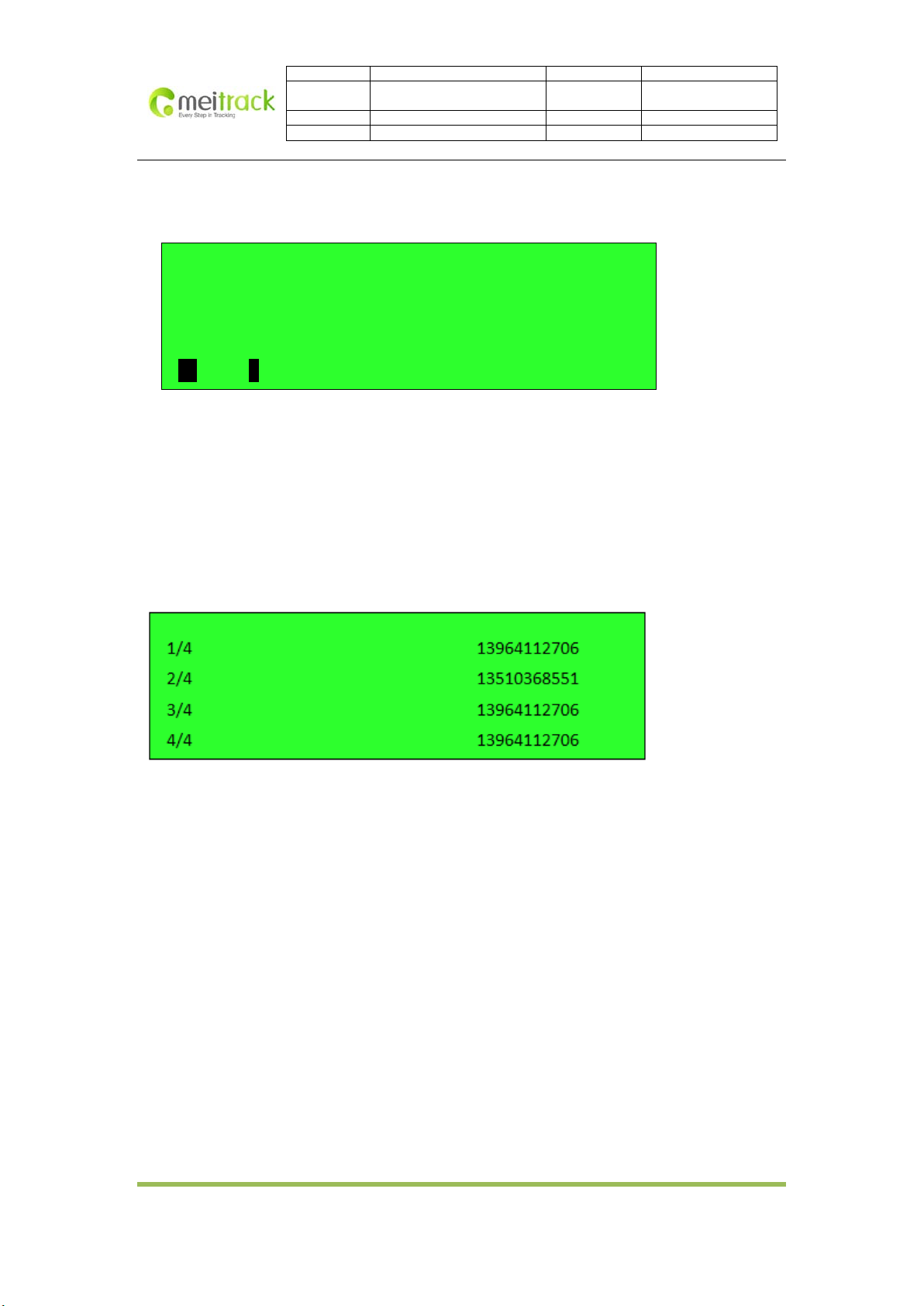
You can check unread SMS in the inbox. The left line indicates “current SMS numbers/total SMS numbers”,
the middle line is the mark of unread SMS, the right line indicates the phone number that sent the SMS.
1/1 2
+8613964112706
2/1 2 +8613510368551
3/1 2 +8613964112706
4/1 2 +8613964112706
Press “Up/Down” keys to turn page, “OK” key to select the SMS and enter to read the SMS.
Appendix: SMS format sent by mobile phone
The server or mobile phone can edit and send command C11 with regular format to the tracker, and display on
the screen.
The SMS format is like below:
SMS set 0000,C11,content
SMS get IMEI,C11,OK
Description To show message sent from platform on the LCD screen
Content: SMS content. It must be in ASCII character, maximal 150 bytes. Both Chinese
and English are supportable.
Example
SMS send 0000,C11,SMS Message
SMS get 353358017784062,C11,OK
When receiving an SMS, there will be a pop-up window to show if you want to read the SMS, and the buzzer will
notify by sound. The third shortcut key is to read, the forth is to exit.
Copyright ©2013 Shenzhen Meiligao Electronics Co., Ltd.
-11-
Page 12
File Name MEITRACK A21 User Guide Creator: Renny Lee
Project For MVT600/T1 Creation Date:
File Type Accessory User Guide Page: 12 of 16
Vers ion V2.2 Confidential: External Document
Update:
2011-12-30
2013-03-13
7.2.2 New SMS
The SMS edited by the dispatch screen can be sent to the server or mobile phone. Chinese and English characters
are supportable.
Hello
ab monMNO 004/140
When composing a SMS, use # to switch input method among “Letter/Number/Punctuation”. Use “Left/Down” to
select character and Left key to delete entered character.
When finish composing SMS, use “OK” or “Dial” key to enter phone number and send. There will be a notice
received if the SMS has been sent successfully.
7.3 Call History
7.3.1 Missed Calls
To show all missed calls
7.3.2 Received Calls
To show all received calls. Press “Dial” key to answer the call; press “Hang-up” key to reject/end the call.
7.3.3 Dialled Calls
To show all dialled calls.
Two ways to dial phone calls:
• Common Dial: use number keys to enter phone number, then press “Dial” to call; “Hang-up” key to end
the call. Use “Up/Down” to adjust volume during a call and “Left/Right” to adjust microphone
sensitivity.
• Fast Dial: Use shortcuts to fast dial the phone numbers preset, each shortcut key matches one phone
number. Please refer to “Settings” -> “Fast Dial” for details.
7.4 Settings
System settings include language, back light, fast dial, voice tip, restore to factory setting and version data.
Copyright ©2013 Shenzhen Meiligao Electronics Co., Ltd.
-12-
Page 13
7.4.1 Language
There are Chinese and English languages available for the machine. Use “Up/Down” to select and “OK” to enter.
File Name MEITRACK A21 User Guide Creator: Renny Lee
Project For MVT600/T1 Creation Date:
File Type Accessory User Guide Page: 13 of 16
Vers ion V2.2 Confidential: External Document
Update:
2011-12-30
2013-03-13
Language
中文
English
7.4.2 Backlight
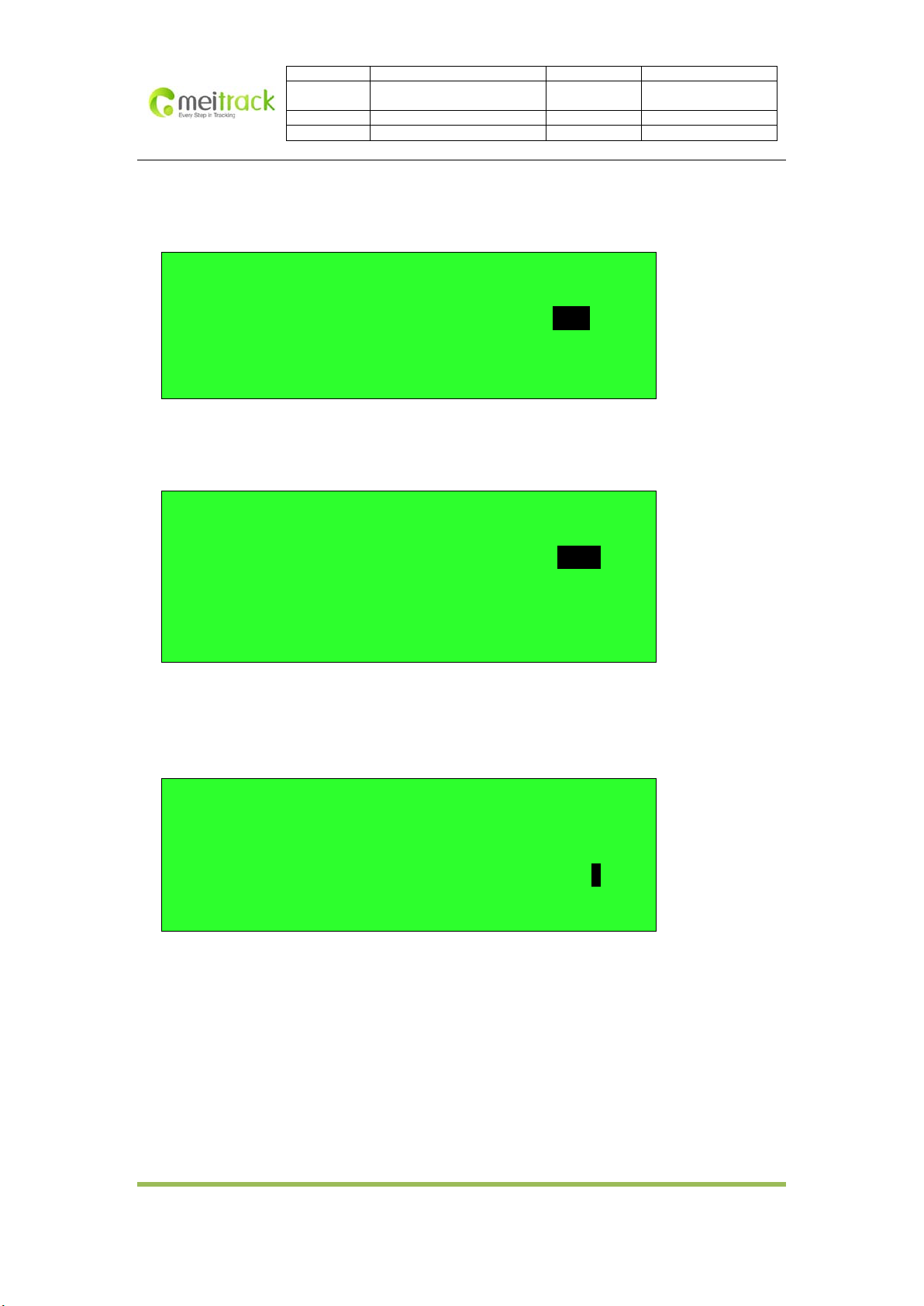
The options for backlight time are 10 seconds, 30 seconds, 50 seconds and always on. Use “Up/Down” to select
and “OK” to enter.
10sec
30sec
50sec
Always On
7.4.3 Fast Dial
4 phone numbers can be preset for fast dial. Each Fast Answer key matches only one phone number. Press the key
for 2 seconds to dial the phone number. Press “Up/Down” keys to select and “OK” to edit and enter.
13800138000
10086
1
68551
Copyright ©2013 Shenzhen Meiligao Electronics Co., Ltd.
-13-
Page 14
File Name MEITRACK A21 User Guide Creator: Renny Lee
Project For MVT600/T1 Creation Date:
File Type Accessory User Guide Page: 14 of 16
Vers ion V2.2 Confidential: External Document
Update:
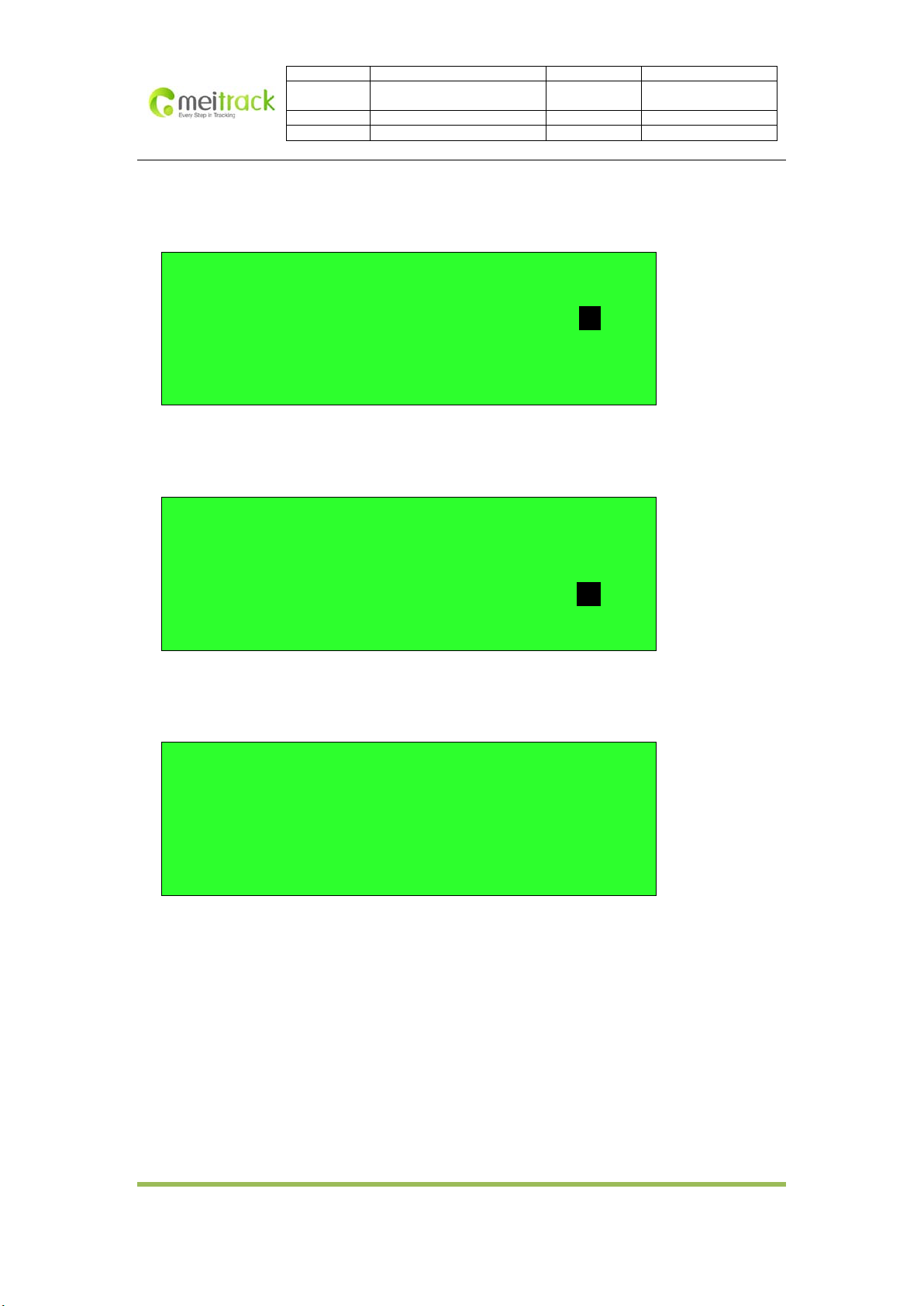
7.4.4 Voice Tips
To turn on/off voice tips with “Up/Down” keys and “OK” key for received dispatch data.
Voice Tips
On
Off
7.4.5 Restore to Factory Settings
To restore all settings to default factory settings, use the “Up/Down” keys and “OK” key.
2011-12-30
2013-03-13
Are you sure to restore factory settings?
Yes
Esc
7.4.6 Version
To check SN serial no, IMEI to connected terminal, Firmware version of terminal, Firmware version of A21.
SN : 02541236657
A21 : FW1.04-A21
Copyright ©2013 Shenzhen Meiligao Electronics Co., Ltd.
-14-
Page 15
File Name MEITRACK A21 User Guide Creator: Renny Lee
Project For MVT600/T1 Creation Date:
File Type Accessory User Guide Page: 15 of 16
Vers ion V2.2 Confidential: External Document
Update:
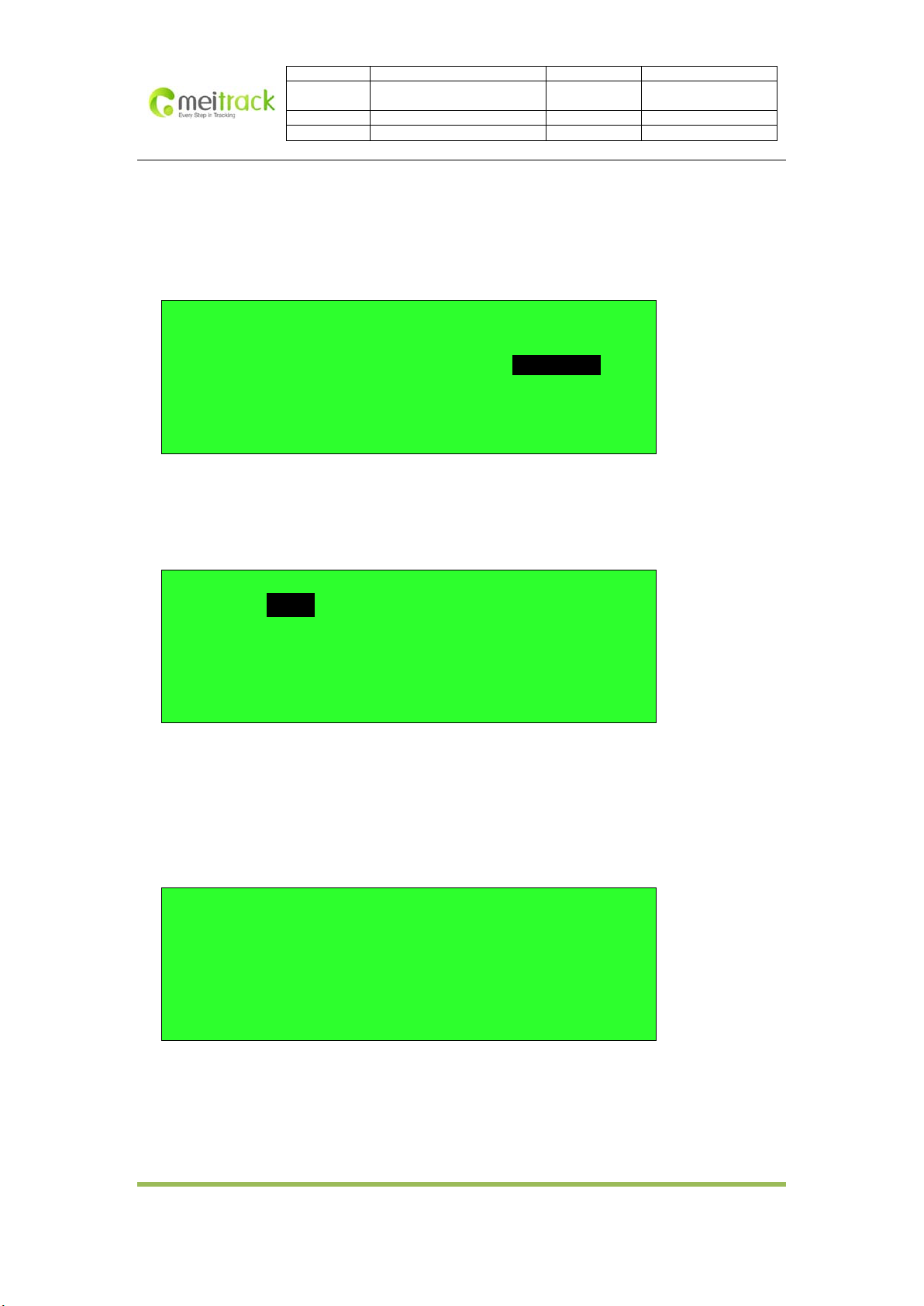
7.5 Terminal Parameter
To read and set parameters of the terminal, and edit preset parameters of the dispatcher.
Terminal Parameter
2011-12-30
2013-03-13
7.5.1 Parameter Sync
To read GPRS parameters from the terminal and save them on A21, then synchronize saved parameters with other
terminals.
Parameter Sync
Batch Setting
Parameter Edit
Mode: TCP, cmnet
IP: 125.91.12.222
Port: 8500
User Name:
7.5.2 Batch Setting
To set parameters for multiple terminals through A21, the saved parameters will be exported from A21.
Succeed: numbers of terminals.
Auto Setting: to set parameters automatically.
Setting: to set parameters manually.
Batch Setting
Succeed:0
Auto Setting
Setting
Copyright ©2013 Shenzhen Meiligao Electronics Co., Ltd.
-15-
Page 16
File Name MEITRACK A21 User Guide Creator: Renny Lee
Project For MVT600/T1 Creation Date:
File Type Accessory User Guide Page: 16 of 16
Vers ion V2.2 Confidential: External Document
Update:
2011-12-30
2013-03-13
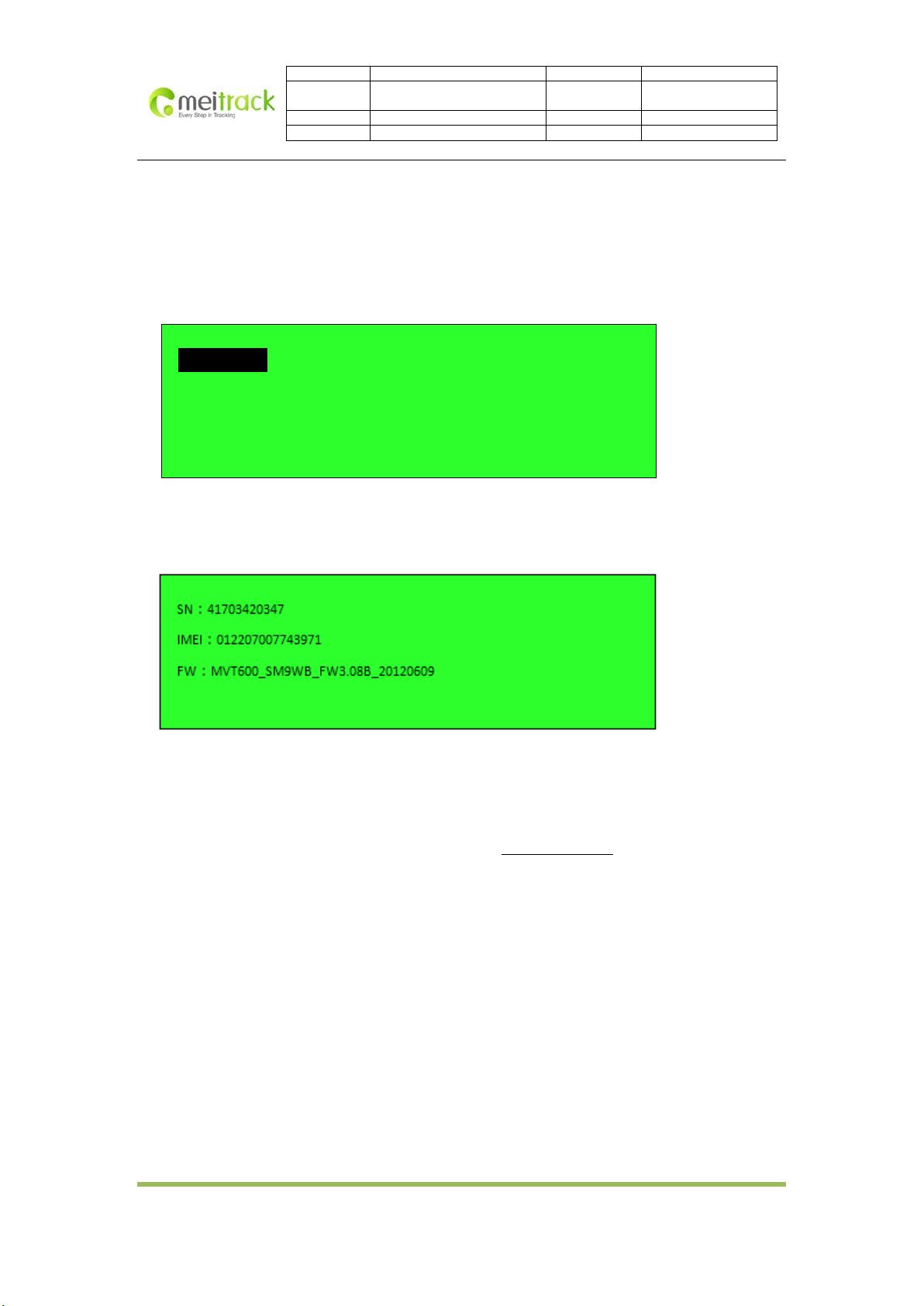
7.5.3 Parameter Edit
Only the parameters saved on A21 memory can be edited to set parameters for single terminal or multiple
terminals.
Note: The format of IP address is IPv4; enter numbers and digits according to the actual content.
For example: IP: 125.91.12.222, you should enter: 125091012222
Mode:TCP, CMNET
IP : 125.091.012.222
Port: 8500
User Name:
7.5.4 Terminal Version
To check SN number of the connected terminal, IMEI number and firmware version.
If you have any inquiries, please do not hesitate to contact us at
Copyright ©2013 Shenzhen Meiligao Electronics Co., Ltd.
-16-
 Loading...