

Page 1
Envoy 2 E Series User Guide 20190805-30.docx || © 2019 MegaVoice Ltd. || Page 1 of 68
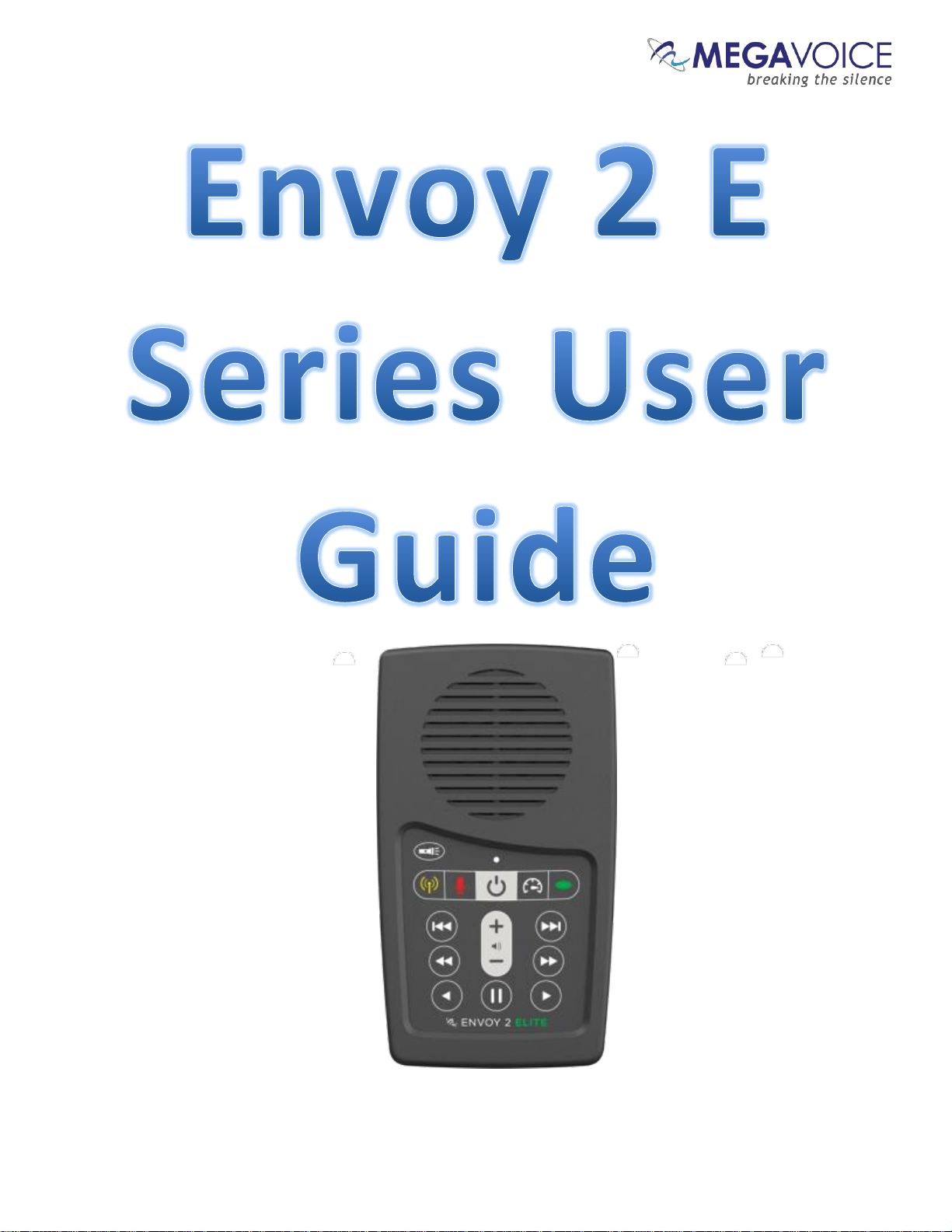
Everything you need to know to get the most from your MegaVoice Envoy 2 E Series audio player.
Page 2

Envoy 2 E Series User Guide 20190805-30.docx || © 2019 MegaVoice Ltd. || Page 2 of 68
Table of Contents
Table of Contents........................................................................................................................................................... 2
Table of Figures.............................................................................................................................................................. 5
Glossary of terms ........................................................................................................................................................... 6
Overview ........................................................................................................................................................................ 7
Audio Programming Requirements ............................................................................................................................... 7
Hardware Requirements ........................................................................................................................................... 7
Software Requirements ............................................................................................................................................. 7
Getting to know the exterior of the 2 E Series .............................................................................................................. 8
The 2 E Series models ................................................................................................................................................ 9
Audio Playback............................................................................................................................................................. 10
Folder Structure Requirements ............................................................................................................................... 10
Structuring Rules...................................................................................................................................................... 10
4 levels: Channels, Sections, Books, Chapters ..................................................................................................... 11
3 levels: Sections, Books, Chapters ...................................................................................................................... 12
2 levels: Books, Chapters ..................................................................................................................................... 13
1 level: Chapters only .......................................................................................................................................... 14
Exceptions! .......................................................................................................................................................... 15
Playback looping within the structures ............................................................................................................... 15
The Keypad .............................................................................................................................................................. 16
The keypad layout ............................................................................................................................................... 16
Navigation button specifics ................................................................................................................................. 17
Example: Applying Structure Rules to Your Audio................................................................................................... 19
Overview .............................................................................................................................................................. 19
The Audio Project Folder ..................................................................................................................................... 20
The Channel Folders ............................................................................................................................................ 23
The Section Folders.............................................................................................................................................. 24
The Book Folders and Chapter Files .................................................................................................................... 26
The Second Channel Folder ................................................................................................................................. 31
Verifying the Final Folder Structure ..................................................................................................................... 32
Loading audio files to the Envoy 2 E Series ................................................................................................................. 33
Connecting the players for programming ............................................................................................................... 33
Loading the Audio using SaberCopy ........................................................................................................................ 34
Page 3

Envoy 2 E Series User Guide 20190805-30.docx || © 2019 MegaVoice Ltd. || Page 3 of 68
Listen to the message .............................................................................................................................................. 39
FM Radio (Elite and Equip models only) ...................................................................................................................... 40
Using the FM radio .................................................................................................................................................. 40
Programming the presets using the configuration file ............................................................................................ 41
Configuration file examples ................................................................................................................................. 42
Recording (Elite and Echo models only) ...................................................................................................................... 43
Overview .................................................................................................................................................................. 43
Recording controls and features ............................................................................................................................. 44
Managing the recording files ................................................................................................................................... 45
Tips for recording on the 2 E Series ......................................................................................................................... 46
General advice ..................................................................................................................................................... 46
2 E Series specifics ............................................................................................................................................... 46
Distributing your recordings on microSD ................................................................................................................ 47
Speed control for audio playback ................................................................................................................................ 48
The LED flashlight ........................................................................................................................................................ 49
The microSD card reader ............................................................................................................................................. 50
Preparing the card ................................................................................................................................................... 51
Using SaberCopy .................................................................................................................................................. 52
Using the File Explorer ......................................................................................................................................... 53
Listen to the message on the SD card ..................................................................................................................... 54
The Lithium Ion battery ............................................................................................................................................... 55
The battery level indicator ....................................................................................................................................... 55
Battery care and charging ........................................................................................................................................ 56
Resetting player default values ................................................................................................................................... 57
Audio playback bookmark ........................................................................................................................................... 58
Setting the bookmark .............................................................................................................................................. 58
Resetting the bookmark to the beginning ............................................................................................................... 58
Charging and communication modes .......................................................................................................................... 59
Warnings and advisories .............................................................................................................................................. 60
MegaVoice limited warranty ....................................................................................................................................... 61
Technical ...................................................................................................................................................................... 63
Specifications ........................................................................................................................................................... 63
Contact for Support ................................................................................................................................................. 63
Page 4

Envoy 2 E Series User Guide 20190805-30.docx || © 2019 MegaVoice Ltd. || Page 4 of 68
Keypad button cross reference ............................................................................................................................... 64
Resetting the player ................................................................................................................................................. 66
Troubleshooting........................................................................................................................................................... 67
Troubleshooting continued…................................................................................................................................... 68
Page 5

Envoy 2 E Series User Guide 20190805-30.docx || © 2019 MegaVoice Ltd. || Page 5 of 68
Table of Figures
Figure 1: Overview of the Envoy 2 Elite........................................................................................................................... 8
Figure 2: A Four-level folder structure .......................................................................................................................... 11
Figure 3: A Three level folder structure......................................................................................................................... 12
Figure 4: A Two level folder structure ........................................................................................................................... 13
Figure 5: A One level folder structure ........................................................................................................................... 14
Figure 6: Envoy 2 Elite Navigation and Function buttons ............................................................................................. 16
Figure 7: Channel and Section control buttons ............................................................................................................. 17
Figure 8: Book control buttons ...................................................................................................................................... 17
Figure 9: Chapter control buttons ................................................................................................................................. 18
Figure 10: Buttons for navigating the Current Chapter, the Pause button ................................................................... 18
Figure 11: USB connection diagram .............................................................................................................................. 33
Figure 12: Power and Volume buttons .......................................................................................................................... 39
Figure 13: Button functionality while in FM Radio mode ............................................................................................. 40
Figure 14: Button functionality while in Recording Mode ............................................................................................ 44
Figure 15: RECORD folder and files, onboard and microSD .......................................................................................... 45
Figure 16: Button functionality while in Speed Control ................................................................................................ 48
Figure 17: LED flashlight control .................................................................................................................................... 49
Figure 18: Inserting a microSD card .............................................................................................................................. 50
Figure 19: SanDisk microSD-to-USB adaptor ................................................................................................................. 50
Figure 20: Copying files in proper sequence ................................................................................................................. 54
Figure 21: The rear panel with reset switch .................................................................................................................. 66
Page 6
Envoy 2 E Series User Guide 20190805-30.docx || © 2019 MegaVoice Ltd. || Page 6 of 68
Glossary of terms
Term
Description
2-second press
Synonymous with “long press”. Press, hold for 2 seconds and release.
Bit rate
In audio, the number of kilobits processed per second.
Bookmark
The storing of a setting or audio file playback position for use later.
Charge-only USB cable
A USB cable that can only be used for charging while connected to a computer or other charging
source.
Click
A quick press and release.
Data-only USB cable
A USB cable that will allow both transfer of data while connected to a computer as well as
charging of the player.
Firmware
Permanent software programmed into the player’s read-only memory.
Flashlight or Torch
A battery-operated portable light.
FM
“Frequency modulation” A radio broadcast band originating in the U.S. The range varies in
different parts of the world. The 2 E Series receives from 87.0 to 108.0 MHz.
Format
Initialization for use with an O/S by deleting all of the data and setting up a file system.
HUB or USB HUB
A device that expands a single Universal Serial Bus (USB) port into several so that there are
more ports available to connect devices to a host system. USB hubs are often built into
equipment such as computers, keyboards, monitors, or printers.
KBPS
Kilobits per second.
LED
“Light-emitting diode” A semiconductor device that emits visible light when an electric
current passes through it. The light is not particularly bright, but in most LEDs it is
monochromatic, occurring at a single wavelength.
Lithium Ion battery
(sometimes Li-ion battery or LIB) A battery that is a member of a family of rechargeable battery
types in which lithium ions move from the negative electrode to the positive electrode during
discharge and back when charging.
Long press
Press, hold for 2 seconds and release.
MHz
“Megahertz” 1 million hertz, where hertz (Hz) is a unit for measuring broadcast frequency.
microSD card
A type of removable flash memory card used for storing information. SD is an abbreviation of
Secure Digital, and microSD cards are the smaller version of SD cards.
MP3
“MPEG (Moving Pictures Experts Group) Layer 3” Audio file format.
N/A
Not applicable.
Onboard memory
Internal memory in the player. Accessible when player is connected with an SLS cable.
Player
A MegaVoice Envoy 2 E Series player.
Powered HUB
A USB HUB that receives its power from direct current rather than the computer.
Press and hold
A continuous press until a certain location is reached or the end/beginning.
SaberCopy
Software available from MegaVoice (at no charge) used to program players with audio.
Sample rate
The number of samples of audio carried per second, measured in Hz.
SLS cable
A special USB data cable (available only from MegaVoice) used for programming MegaVoice
players. The player memory can only be accessed using these cables.
Unit
A MegaVoice Envoy 2 E Series player.
USB
“Universal Serial Bus” The most popular connection used to connect a computer to devices
such as digital cameras, printers, scanners, and external hard drives. USB is a cross-platform
technology that is supported by most of the major operating systems.
USB port
A standard cable connection interface for personal computers and consumer electronic devices.
USB to micro-USB cable
USB cable with standard USB connector on one end and micro-USB connector on the other.
Volume
In the context of computer operating systems, a volume or logical drive is a single accessible
storage area with a single file system, typically (though not necessarily) resident on a single
partition of a hard disk or other device.
WAV
“Waveform Audio File” A standard audio file format created by Microsoft.
WMA
“Windows Media Audio” An audio and audio codec file format.
Page 7
Envoy 2 E Series User Guide 20190805-30.docx || © 2019 MegaVoice Ltd. || Page 7 of 68
Overview
The Envoy 2 E Series – one of the newest lines from MegaVoice with four models of advanced solar digital audio
players: Elite, Equip, Echo and Ember.
Cost effective and smaller than the average smartphone, the Envoy 2 E Series is lightweight and perhaps one
of the most powerful teaching and training tools available. The intuitive raised-button keypad with four levels
of navigation (for multiple Languages) makes searching hundreds of hours of audio Bible content easy and
accessible – especially for the blind, visually impaired, elderly and even oral learners.
The Envoy 2 E Series comes with 8 GB of onboard memory, which is programmable via the micro-USB port with
the SaberCopy software, making it simple and secure for you to update content. USB hubs allow for multiple
players to be loaded at the same time.
In addition, the enhanced 2 E Series provides the following features:
Audio recorder with playback (Elite and Echo only)
Programmable FM radio receiver (Elite and Equip only)
Audio playback speed control*
4 mode LED flashlight*
microSD card reader*
Battery level indicator
Stereo output using the 3.5mm audio jack
*Some versions of the Envoy 2 E may not include this feature
Audio Programming Requirements
Hardware Requirements
A Windows PC or Mac (Intel only)
At least one USB port (2.0 or higher)
Enough disk space for…
The SaberCopy software program (around 10 MB)
Each of your audio messages (up to 7.8GB per message)
Additional work area for restructuring message folders
One SLS USB cable per parallel connected player (available from MegaVoice)
A powered USB 2.0 (or higher) hub (optional – for programming multiple players concurrently)
Software Requirements
SaberCopy software (available from MegaVoice)
PC Operating System: Windows 7, 8.x or 10 (SaberCopy will work on XP but is not recommended since XP is
no longer supported by Microsoft)
SaberCopy will work on Mac but requires additional setup (see section "Using SaberCopy on Mac
OSX" for details)
Page 8
Envoy 2 E Series User Guide 20190805-30.docx || © 2019 MegaVoice Ltd. || Page 8 of 68
Getting to know the exterior of the 2 E Series
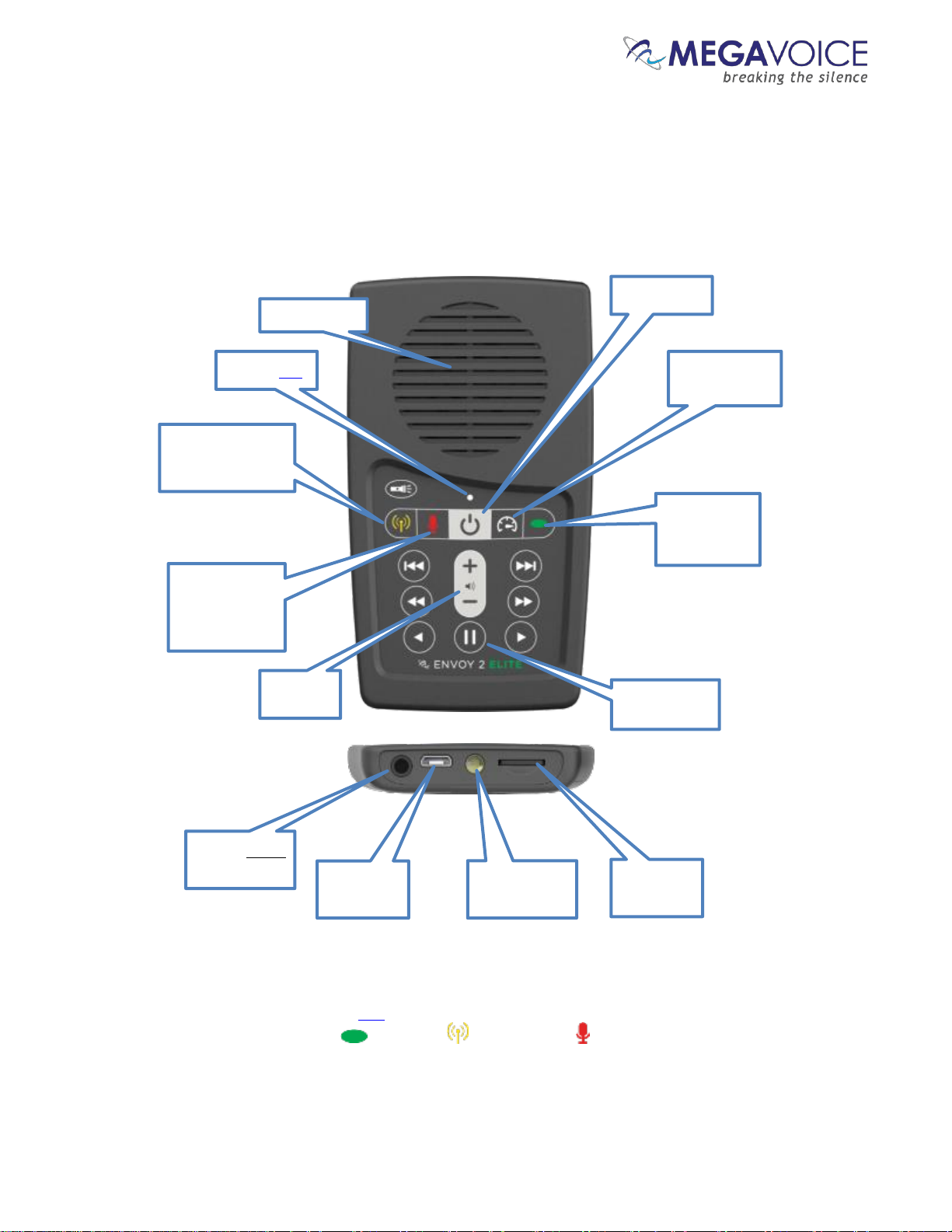
*During player operation, the color of the LED when executing any of the 3 primary functions matches the color of its
corresponding button: Audio Playback , FM Radio and Recording .
Figure 1: Overview of the Envoy 2 Elite
Channel
and Section
Navigation
Switch to Speed
Control mode
Power Button
Switch to FM
Radio mode (Elite
and Equip only)
Switch to
Recording
mode (Elite
and Echo only)
Volume
control
3.5 mm stereo
audio jack
micro USB
connector
LED flashlight
microSD card
reader
Tri-color LED*
Switch to
Pause mode
Speaker baffle
Page 9
Envoy 2 E Series User Guide 20190805-30.docx || © 2019 MegaVoice Ltd. || Page 9 of 68
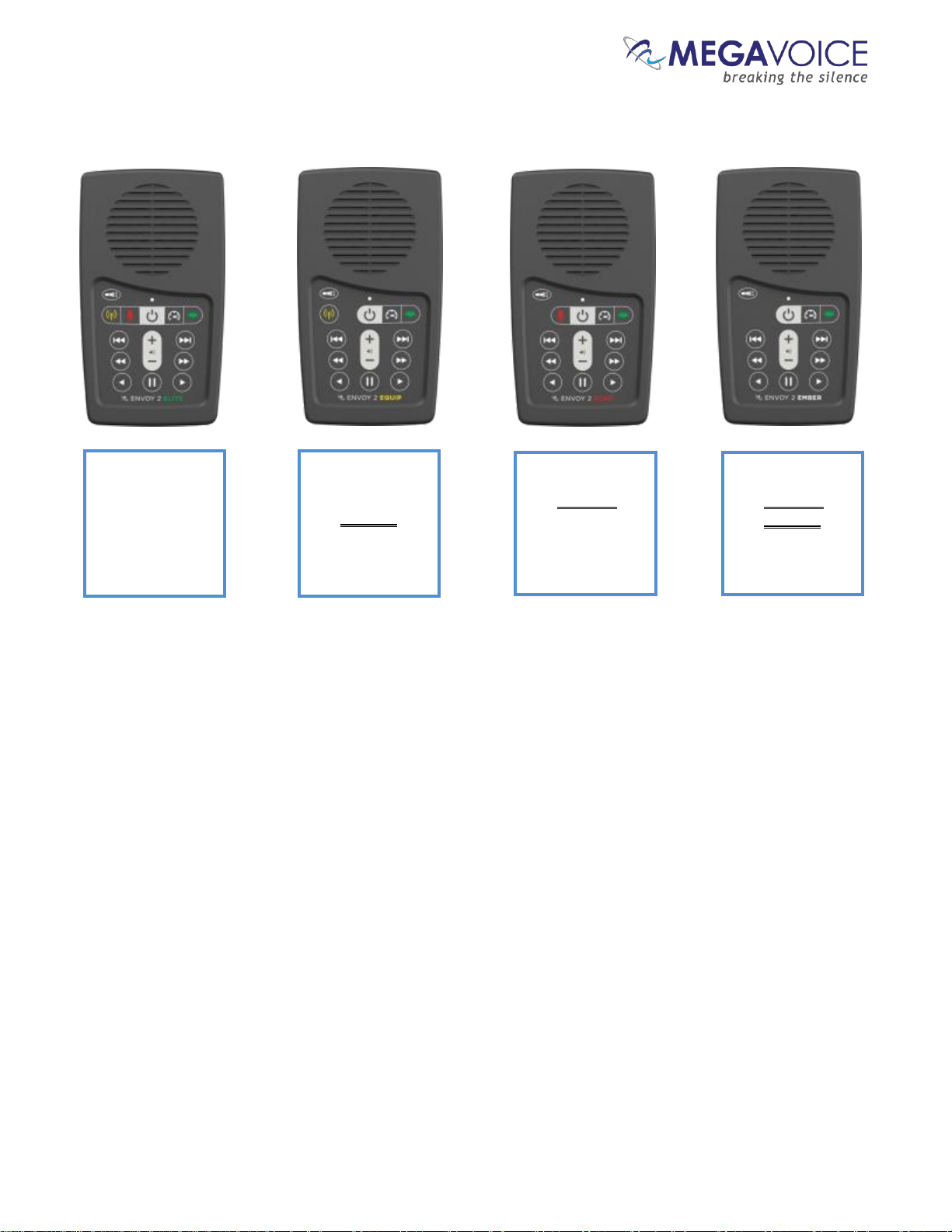
The 2 E Series models
Envoy 2 Elite
Audio playback
FM Radio
Recorder
microSD reader
Speed control
Flashlight
Envoy 2 Equip
Audio playback
FM Radio
Recorder
microSD reader
Speed control
Flashlight
Envoy 2 Echo
Audio playback
FM Radio
Recorder
microSD reader
Speed control
Flashlight
Envoy 2 Ember
Audio playback
FM Radio
Recorder
microSD reader
Speed control
Flashlight
Page 10
Envoy 2 E Series User Guide 20190805-30.docx || © 2019 MegaVoice Ltd. || Page 10 of 68
Audio Playback
Folder Structure Requirements
The Envoy 2 E Series provides four simple folder structures for you to choose from when loading your own
audio. Following is a discussion of the rules governing those structures.
Structuring Rules
All audio files must be in MP3, WAV or WMA format. Any other file types will be considered
“unsupported”.
The MegaVoice firmware is “forgiving” of unsupported file types encountered during playback to
the extent that it will automatically skip up to 20 consecutive unrecognized files and continue with
the next “good” file. The player will also skip any empty folders it encounters.
But if there are more than 20, the player will beep 5 times and go into pause mode.
You may resume from pause mode by pressing the button and the player will continue playing
the next “supported” file. If there are no more supported files, the player will continue to be placed
in pause mode.
Your audio project must be structured using one of four supported folder layouts. The acceptable folder
structures are valid for both the onboard memory and the microSD cards (with a slight difference of the
number of permitted Channel folders).
Whenever the term your audio project is used in this document, the reference is to the
folder containing your audio project. It is simply the “container” for your audio message. That
folder itself is not actually part of the structure that must be present on the player to comply
with the structuring rules.
In the folder structure diagrams on the following pages, only the structure below the box
labeled “Your Audio Folder” is part of the actual structure stored in the player’s memory.
Please keep this in mind when reading through this document.
Page 11
Envoy 2 E Series User Guide 20190805-30.docx || © 2019 MegaVoice Ltd. || Page 11 of 68
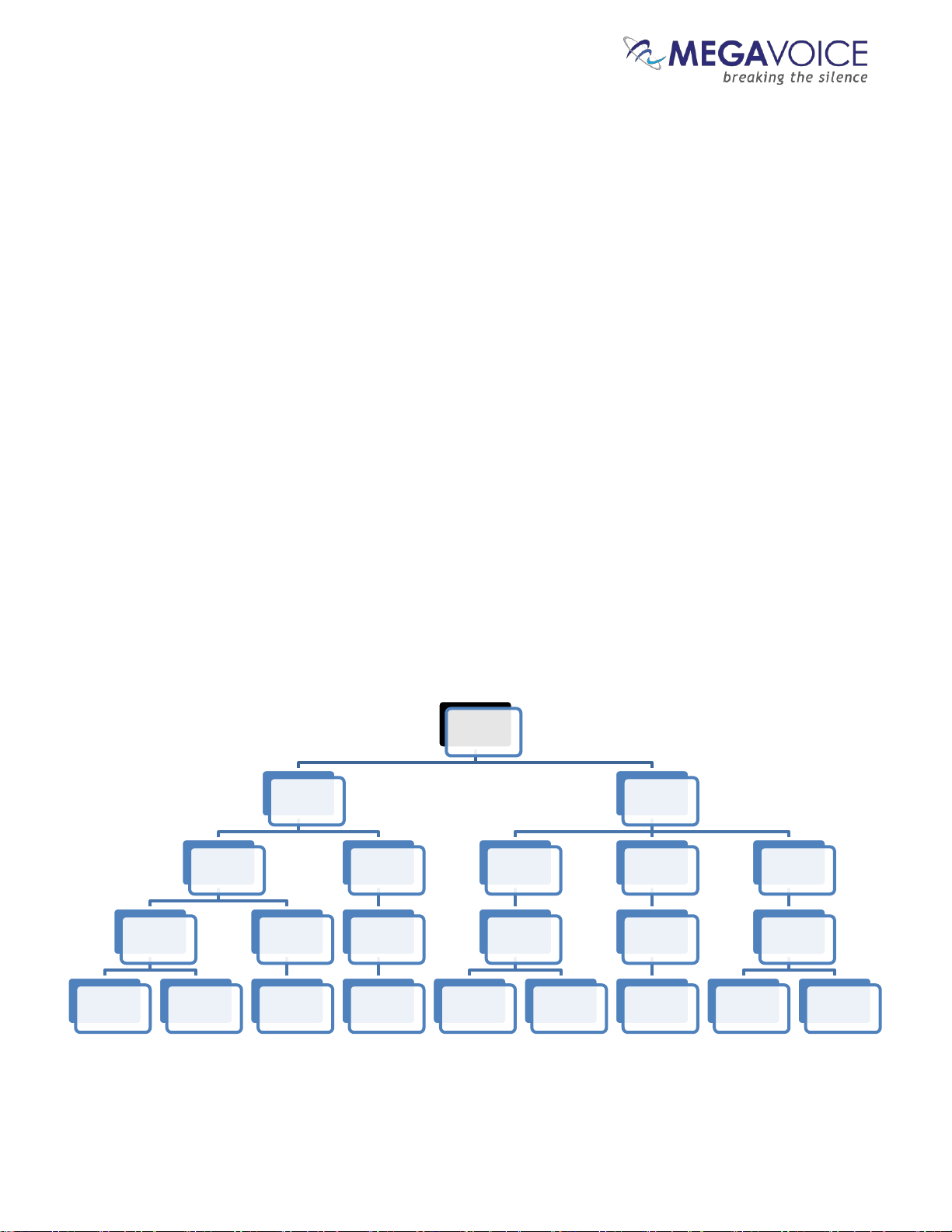
4 levels: Channels, Sections, Books, Chapters
Within your audio project folder must be at least one, and up to two, Channel folders.
For microSD, there may be up to 8 Channel folders.
Within each Channel folder must be at least one (and up to 20) Section folders.
There must not be any audio files.
Within each Section folder must be at least one (and up to 999) Book folders.
There must not be any audio files.
Within each Book folder must be at least one (and up to 999) audio files (chapters).
There must not be any folders.
The Channel and Section folders must be named with a 3-digit numeric prefix (beginning with 001)
followed by optional free-form text.
The prefixes must be sequential, i.e. 001, 002, 003, etc.
The Book folders and audio files may be named with free-form text only, but may also include a 3-digit
numeric prefix.
This is recommended to ensure proper sorting and copying.
The prefixes must be sequential, i.e. 001, 002, 003, etc.
The names of all folders and the audio files contained within Book folders must sort in the order they
should be played.
There may be no empty folders!
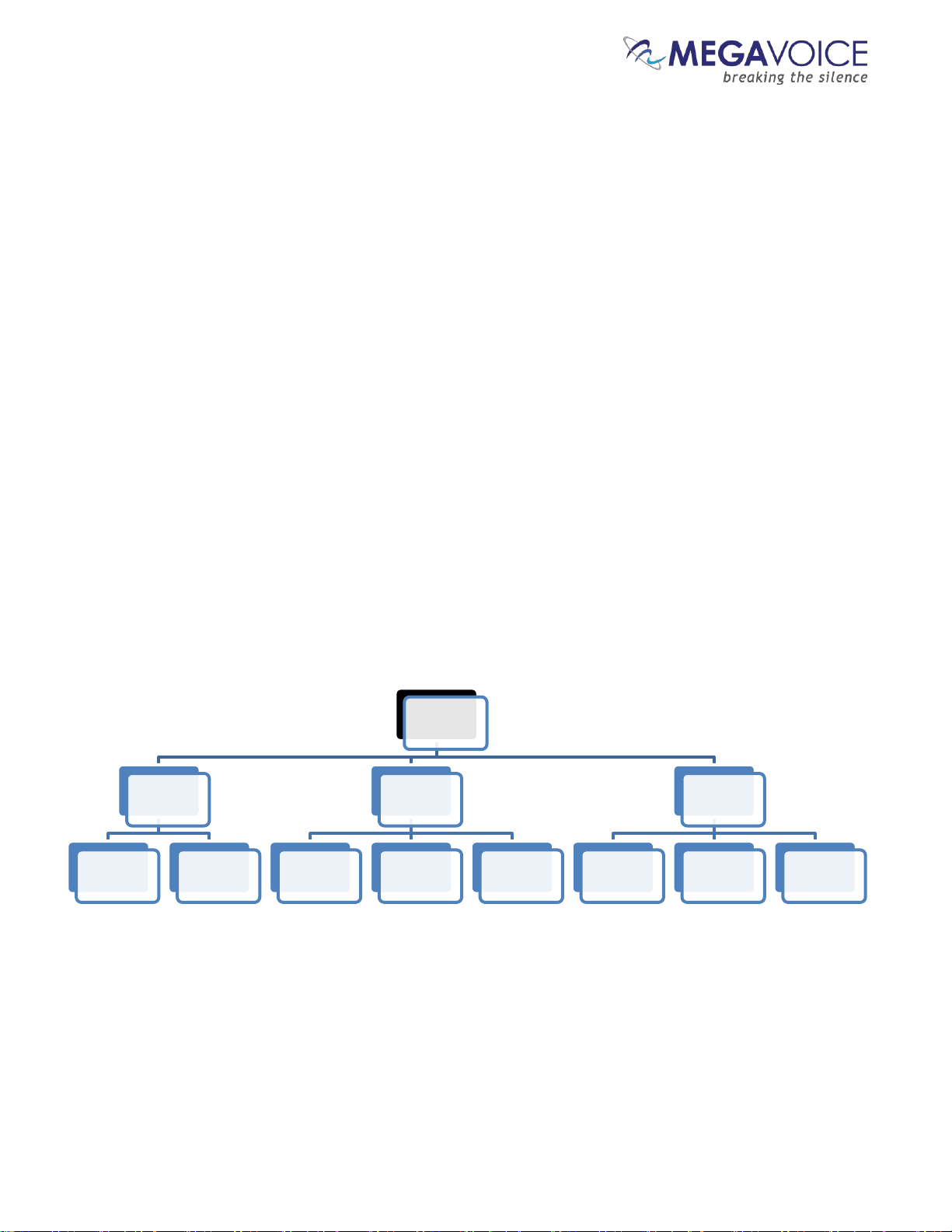
Figure 2: A Four-level folder structure
Your Audio
Folder
001
Channel
001
Section
Book 1
Audio file Audio file
Book 2
Audio file
002
Section
Book 1
Audio file
002
Channel
001
Section
Book 1
Audio file Audio file
002
Section
Book 1
Audio file
003
Section
Book 1
Audio file Audio file
Page 12
Envoy 2 E Series User Guide 20190805-30.docx || © 2019 MegaVoice Ltd. || Page 12 of 68
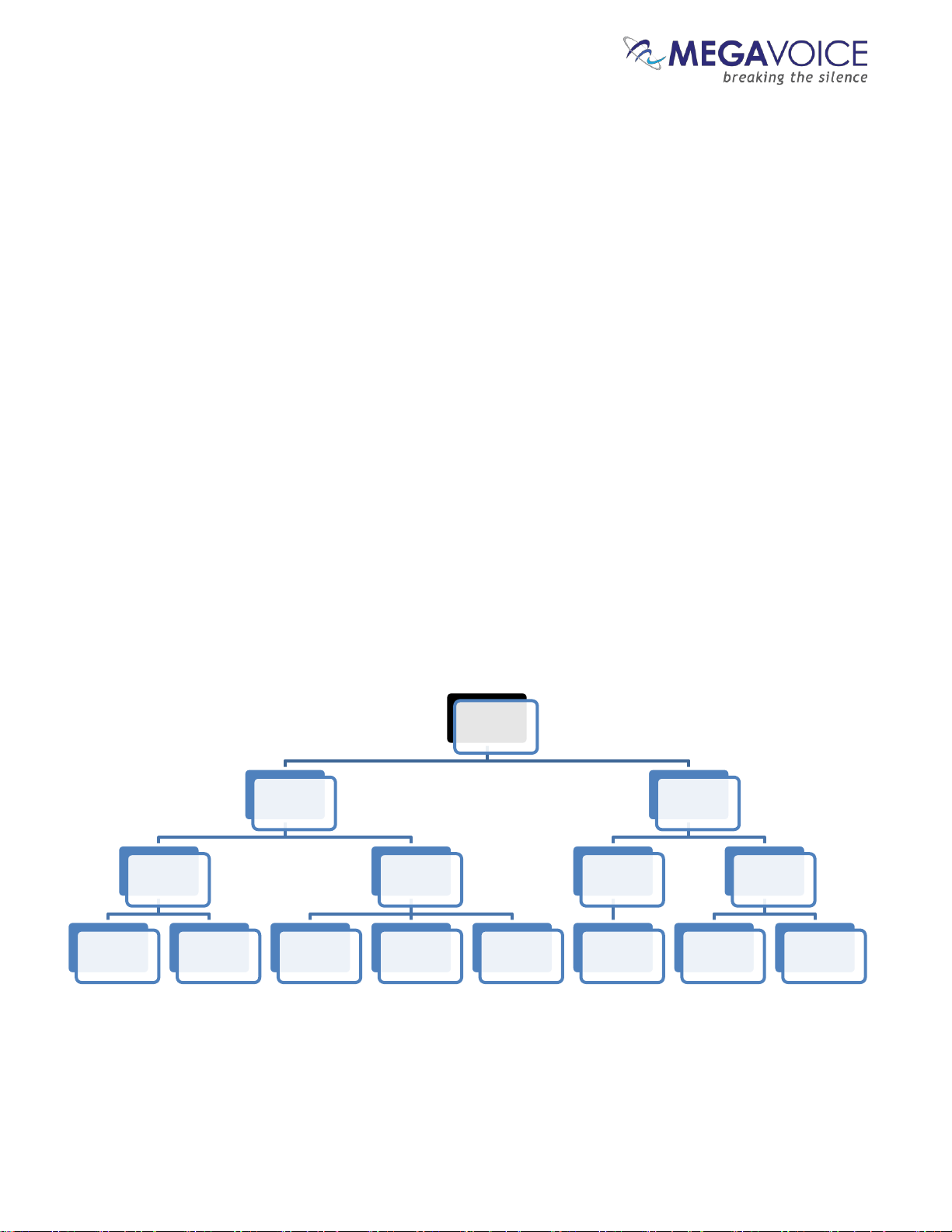
3 levels: Sections, Books, Chapters
Within your audio project folder must be at least one (and up to 10) Section folders.
Within each Section folder must be at least one (and up to 999) Book folders.
There must not be any audio files.
Within each Book folder must be at least one (and up to 999) audio files (chapters).
There must not be any folders.
The Section and Book folders must be named with a 3-digit numeric prefix (beginning with 001)
followed by optional free-form text.
The prefixes must be sequential, i.e. 001, 002, 003, etc.
Book folders must contain audio files only.
The audio files may be named with free-form text only.
It is recommended to include a 3-digit prefix in the File names to ensure proper sorting and
copying.
The prefixes must be sequential, i.e. 001, 002, 003, etc.
The names of all folders and the audio files contained within Book folders must sort in the order they
should be played.
There may be no empty folders!
Figure 3: A Three level folder structure
Your Audio
Folder
001
Section
001 Book
Audio file Audio file
002 Book
Audio file Audio file Audio file
002
Section
001 Book
Audio file
002 Book
Audio file Audio file
Page 13
Envoy 2 E Series User Guide 20190805-30.docx || © 2019 MegaVoice Ltd. || Page 13 of 68
2 levels: Books, Chapters
Within your audio project folder must be at least one (and up to 999) Book folders.
There must not be any audio files.
Within each Book folder must be at least one (and up to 999) audio files (chapters).
There must not be any folders.
The Book folders must be named with a 3-digit numeric prefix (beginning with 001) followed by
optional free-form text.
The prefixes must be sequential, i.e. 001, 002, 003, etc.
Book folders must contain audio files only.
The audio files may be named with free-form text only.
It is recommended to include a 3-digit prefix (beginning with 001) in the File names to ensure
proper sorting and copying.
The prefixes must be sequential, i.e. 001, 002, 003, etc.
The names of all folders and the audio files contained within Book folders must sort in the order they
should be played.
There may be no empty folders!
Figure 4: A Two level folder structure
Your Audio
Folder
001 Book
Audio file Audio file
002 Book
Audio file Audio file Audio file
003 Book
Audio file Audio file Audio file
Page 14
Envoy 2 E Series User Guide 20190805-30.docx || © 2019 MegaVoice Ltd. || Page 14 of 68
1 level: Chapters only
Within your audio project folder must be at least one (and up to 999) audio files (chapters).
There must not be any other files or folders.
The audio files may be named with free-form text only.
It is recommended to include a 3-digit numeric prefix (beginning with 001) in the File names to
ensure proper sorting and copying.
The names of the audio files must sort in the order they should be played.
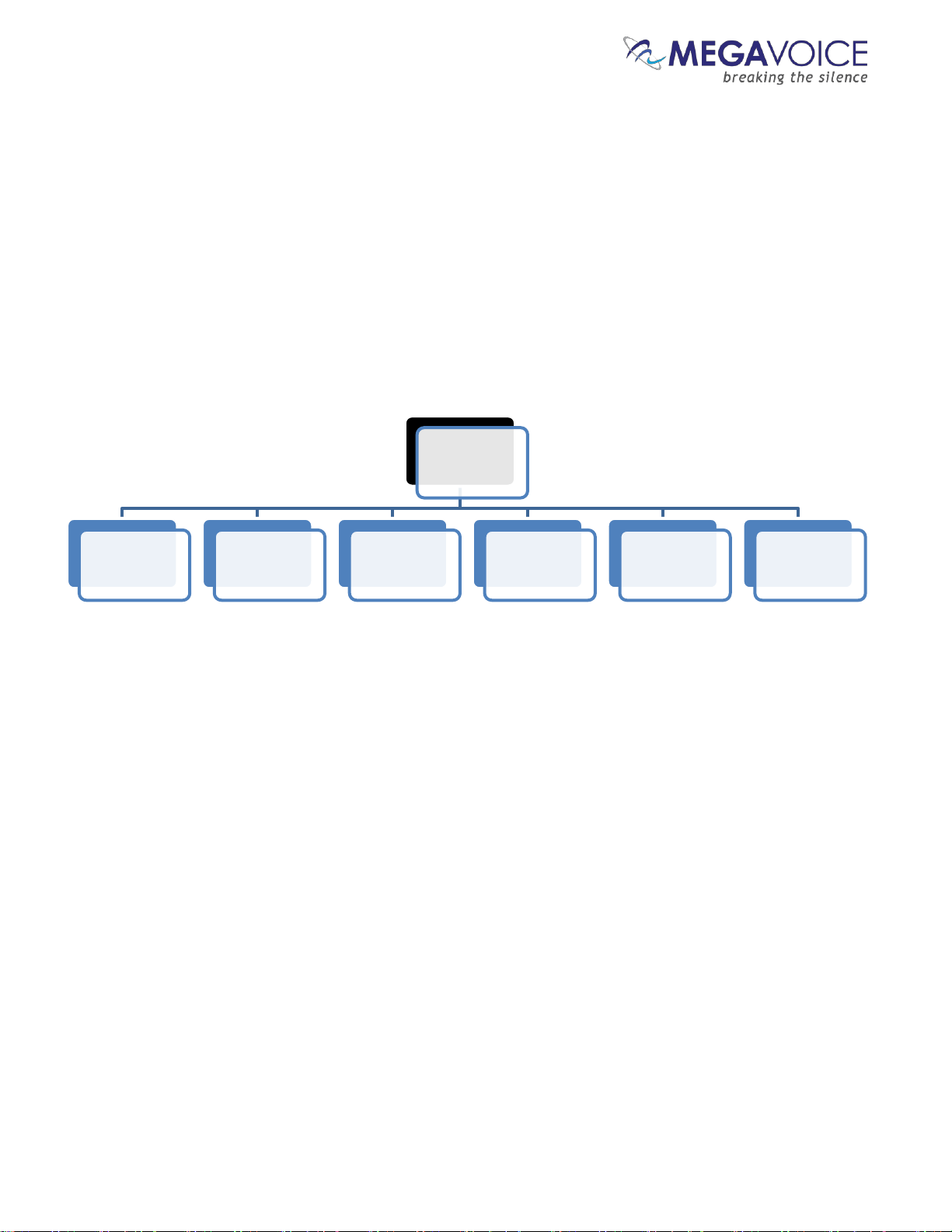
Figure 5: A One level folder structure
Your Audio
Folder
Audio file Audio file Audio file Audio file Audio file Audio file
Page 15
Envoy 2 E Series User Guide 20190805-30.docx || © 2019 MegaVoice Ltd. || Page 15 of 68
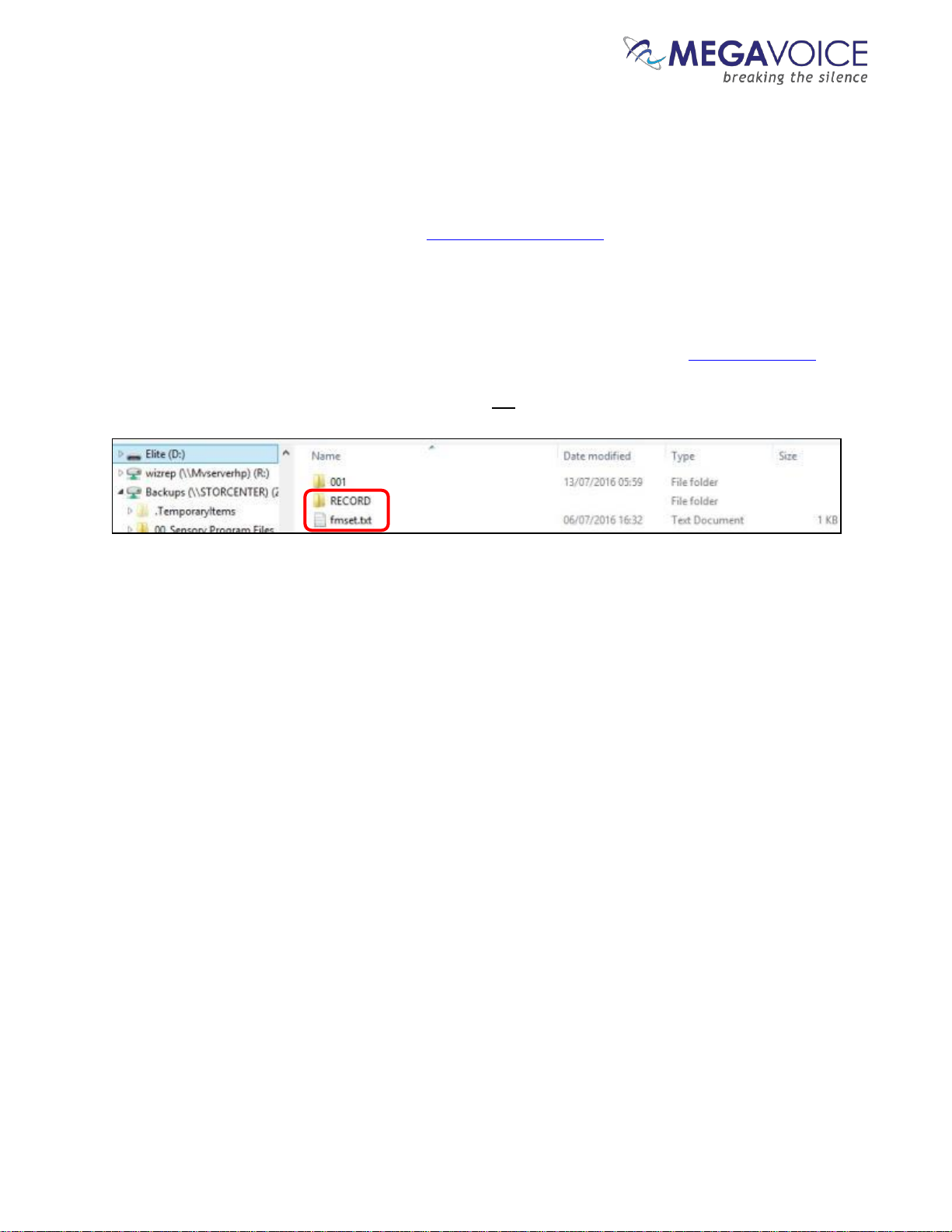
Exceptions!
There are two exceptions to the folder structure rules as detailed above. These exceptions are handled by the
firmware. In the root folder there may be:
A folder named “RECORD” to support the Recording mode function (Elite and Echo only). You may, if
you wish, include this [empty] folder in the root of your audio message (as long as its name is exactly
“RECORD”). However, it is not necessary since the player will create it automatically when needed.
(relevant for both the onboard memory and microSD card)
A file named “FMSET.txt” to support preset button frequencies, a feature of the FM Radio function (Elite
and Equip only). You may include this file in your audio message if you choose to use this feature.
(relevant for onboard memory only; the player does not create this file automatically)
Playback looping within the structures
Audio playback automatically loops when allowed to play uninterrupted. Once the last file* in a structure has
been played, playback will continue with the first file.
Within the 4-level structure, looping will occur within the currently playing Channel folder. For all other
structure levels, looping occurs within the entire audio content.
*In the preceding illustrations of the 4 different folder structures, the “last file” in each is highlighted in red.
Page 16
Envoy 2 E Series User Guide 20190805-30.docx || © 2019 MegaVoice Ltd. || Page 16 of 68
The Keypad
The Envoy 2 E Series comes with an intuitive raised-button keypad, offering four levels of convenient
navigation through hundreds of audio files in multiple Languages.
Let’s get to know the Envoy 2 Elite keypad and how the navigation buttons correlate to the supported
folder structures. Also noted are the different function buttons. The keypads of the Equip, Echo and Ember
models are the same except for the absence of the buttons controlling the functions that are not included
in that particular model.
For details on the functionality of each button from within the different player modes, see the keypad
button cross reference.
The keypad layout
*The actual time may vary slightly.
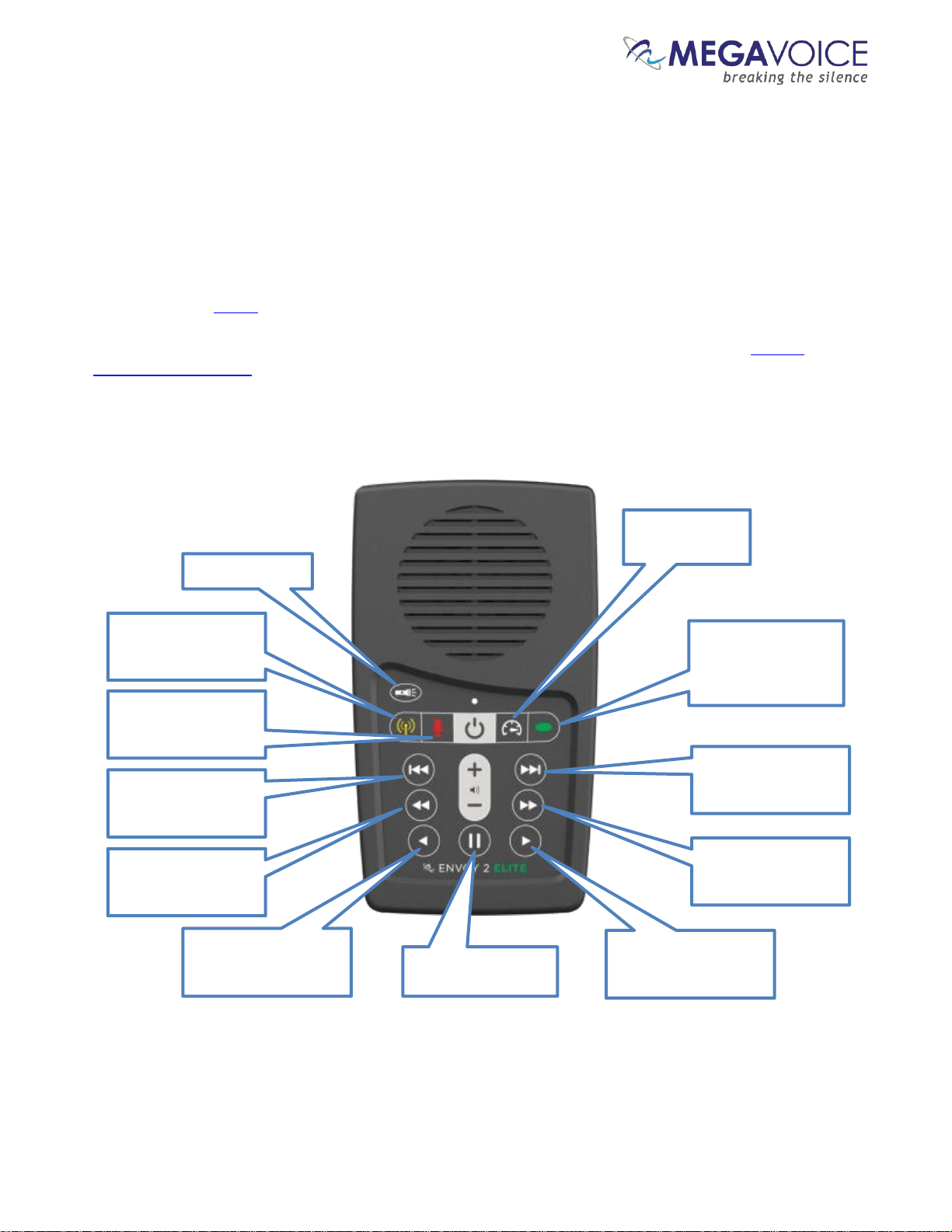
Figure 6: Envoy 2 Elite Navigation and
Function buttons
Switch to FM Radio
mode (Elite and Equip
only).
Flashlight control
Switch to Recording
mode (Elite and Echo
only).
Switch to Speed
Control mode
Channel button.
Scroll forward
through Sections
and
Channels.
Scroll backwards
through the Books
in
each Section.
Scroll backwards
through the
Chapters
in each Book.
Rewind through a
Chapter (Audio File)
in
20-second* intervals.
Pause audio playback
(enter Pause mode).
Fast-forward through a
Chapter (Audio File)
in
20-second* intervals.
Scroll forward
through the
Chapters
in each Book.
Scroll forward
through the Books
in
each Section.
Page 17
Envoy 2 E Series User Guide 20190805-30.docx || © 2019 MegaVoice Ltd. || Page 17 of 68
Navigation button specifics
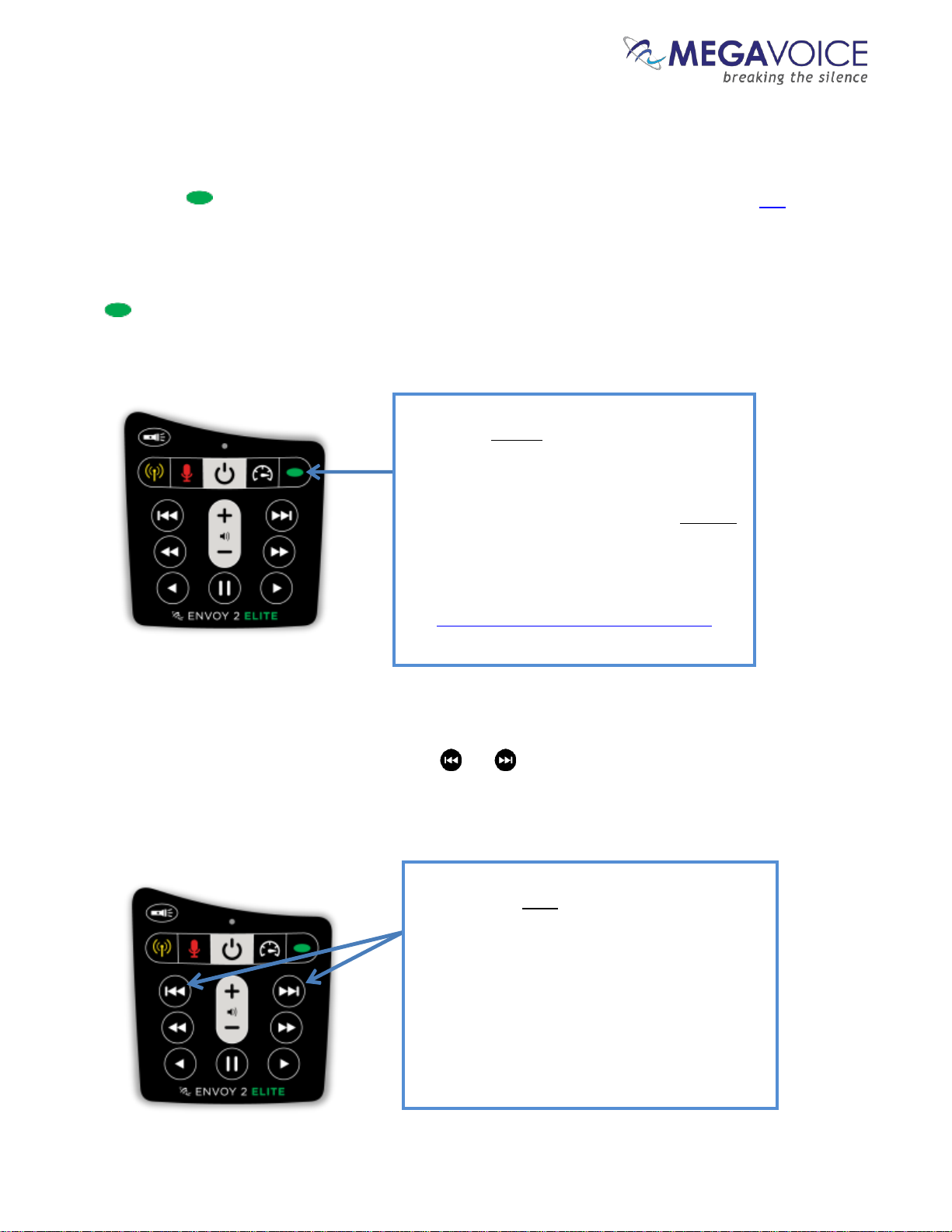
Initially, the player will start in audio playback mode. From any other mode, a 2-second press on the Green
Channel button will put the player in audio playback mode. While in audio playback mode the LED will be
green. The following diagrams address navigation while in audio playback mode, associating folders and files
within the valid structures to specific buttons.
There may be one or two Channel groups on the player. Each Channel may contain one or more “Sections”.
The button controls forward navigation through the Sections and Channels.
Figure 7: Channel and Section control buttons
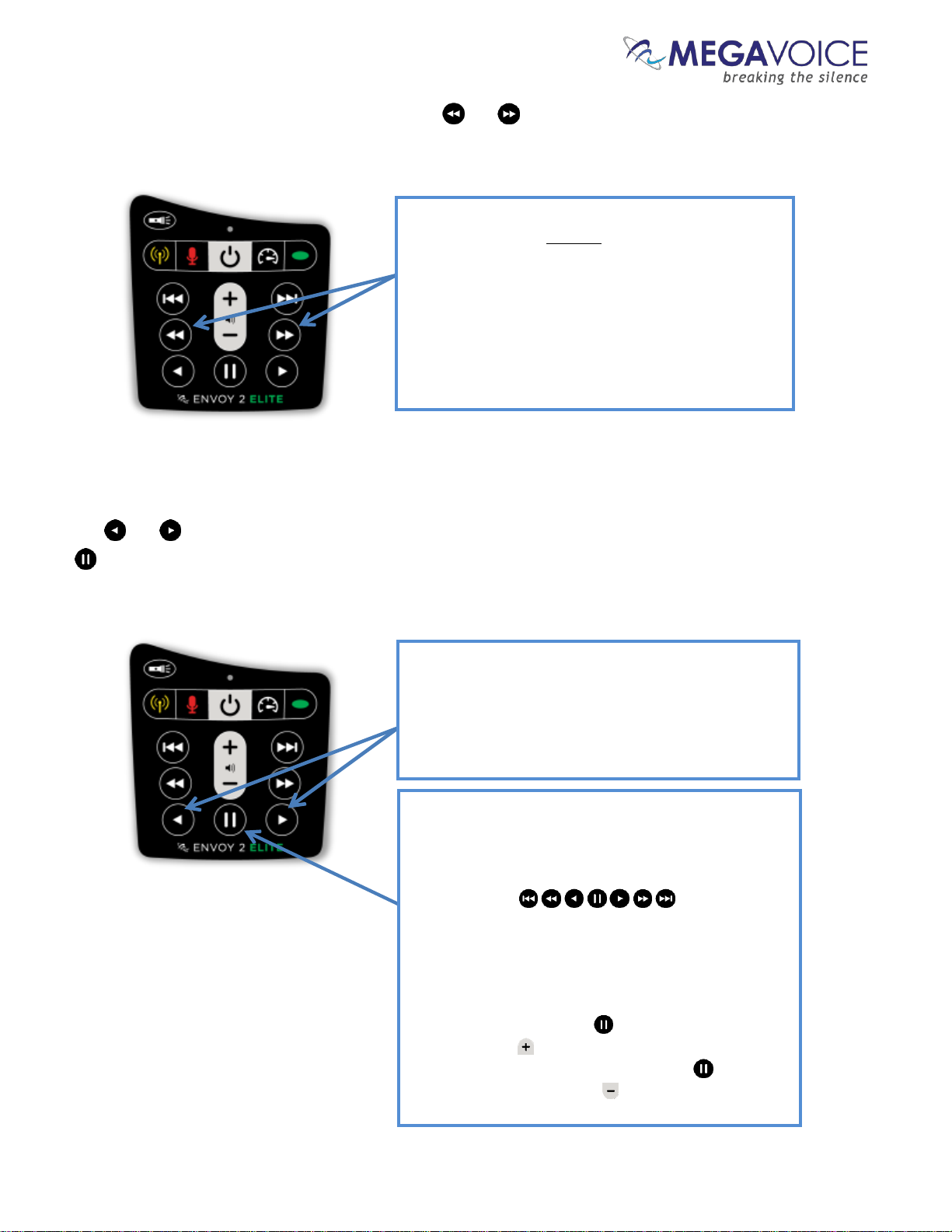
Each Section may contain one or more “Books”. The and buttons control reverse/forward navigation
through the Books.
A click on the Green Channel button will scroll
to the next Section within the current Channel.
From the last Section it will scroll back to the
first within the current Channel. There may be
up to 20 Sections within a Channel folder.
A 2-second press will scroll to the next Channel
(if there is one). From the last Channel it will
either scroll to the beginning of the microSD
card (if present) and beep once, or scroll back
to the first Channel in the onboard memory.
See potential issue when multiple Channels.
A click on one of these buttons will scroll to the
previous/next Book in the current Section within
the current Channel.
When the first/last Book in the current Section is
reached, a click will navigate to the last/first
Book in the previous/next Section within the
current Channel.
A 2-second press will skip up to 5 Books at a time.
Press and hold will skip up to 5 Books at a time
until the button is released or the first/last Book
within the current Section is reached.
Figure 8: Book control buttons
Page 18
Envoy 2 E Series User Guide 20190805-30.docx || © 2019 MegaVoice Ltd. || Page 18 of 68
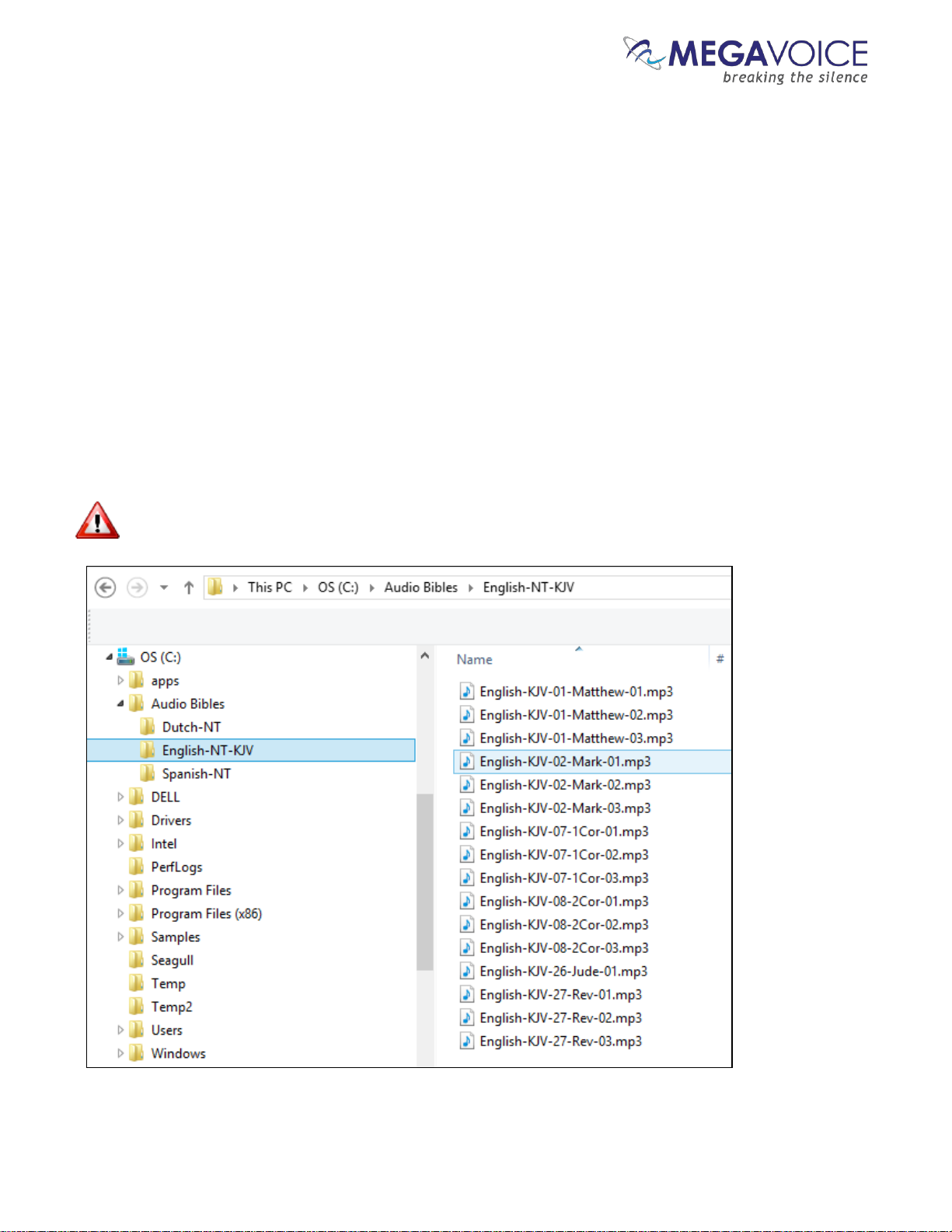
Each Book may contain one or more “Chapters”. The and buttons control reverse/forward navigation
through the Chapters.
The and buttons control rewind/fast-forward navigation through the current audio file (Chapter). The
button allows you to pause and resume audio playback.
A click on one of these buttons will scroll to the
previous/next Chapter in the current Book.
When the first/last Chapter in the current Book is
reached, a click will navigate to the last/first Chapter
in the previous/next Book.
A 2-second press will skip up to 5 Chapters at a time.
Press and hold will skip up to 5 Chapters at a time
until the button is released or the first/last Chapter
in the current Book is reached.
Figure 9: Chapter control buttons
A click on one of these buttons will rewind or fast-
forward through the current audio file (Chapter) in 20-
second* intervals. Press and hold will continue to
rewind/fast-forward until the button is released or
the beginning/end of the file is reached.
*The actual time may vary slightly.
While in audio playback mode, a click on this button
will place the player in pause mode (the LED will
blink intermittently). To resume playback, press any
of the navigation buttons:
A 2-second press will set a bookmark at the current
audio position and place the player in pause mode.
While in pause mode, the following reset operations
may be performed:
Reset the current playback bookmark to the
beginning by pressing and then pressing
volume up until the player beeps.
Reset all default settings by pressing and then
pressing volume down until the player beeps
3 times and turns off.
Figure 10: Buttons for navigating the Current Chapter, the Pause button
Page 19

Envoy 2 E Series User Guide 20190805-30.docx || © 2019 MegaVoice Ltd. || Page 19 of 68
Example: Applying Structure Rules to Your Audio
Overview
For those of you who are familiar with MP3 players or smart phones, it may be helpful to consider how we
organize our music: Artists, Albums (of an Artist) and Songs (in the Album).
We group our songs in albums and the albums are grouped per artist. The Envoy 2 E Series supports a very
similar structure for files! Audio files (which are usually “Chapters”) are grouped into “Books”, Books are grouped
into “Sections” and Sections can be grouped into “Channels”.
A typical Bible in a specific language from the MegaVoice Audio Library is divided into 3 Sections in the following
way:
English Bible
Section 1 Genesis through Job
18 “Books”
Each Book with its respective “Chapters”
Section 2 Psalms through Malachi
21 “Books”
Each Book with its respective “Chapters”
Section 3 Matthew through Revelation
27 “Books”
Each Book with its respective “Chapters”
Using the 4-level structure takes advantage of the most robust navigation available on the 2 E Series.
Page 20
Envoy 2 E Series User Guide 20190805-30.docx || © 2019 MegaVoice Ltd. || Page 20 of 68
The Audio Project Folder
Let’s use the following example. We have sets of Audio Bibles in different Languages, but the structure is such
that all the audio files for each Bible are together in a single folder. The individual audio files are named such
that they are easily recognizable and they also sort in the order in which they should be played but that is the
extent of the organization. Your audio messages may be organized like this or differently.
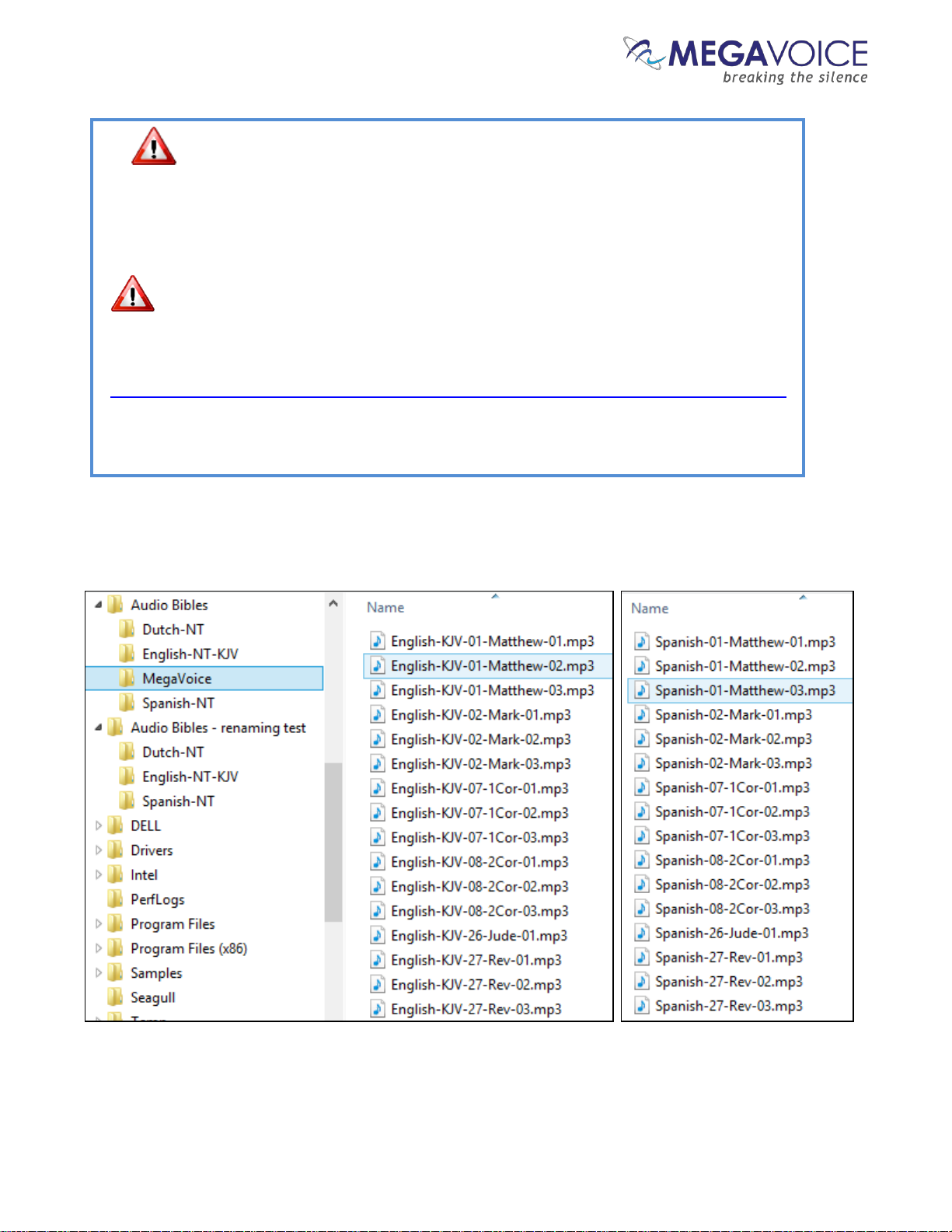
We have a folder named “Audio Bibles”. Within that folder we have 3 Bibles each in a folder of its own: a Dutch
New Testament (Dutch-NT), an English New Testament of the KJV translation (English-NT-KJV) and a Spanish
New Testament (Spanish-NT).
Within each Bible folder are all the relevant audio files (MP3, etc.), which are Chapters of the various Books. To
keep the files ordered within the single folder, our naming convention is:
BibleName-BookNumber-BookName-ChapterNumber
Let’s take the English-NT-KJV audio message and Spanish-NT and prepare them for the Envoy 2 E Series. We
have the first 3 Chapters of the Books Matthew, Mark, 1 Corinthians, 2 Corinthians, Jude and Revelation.
In order to keep the example simple, please note that only select Book folders and Chapter files appear.
Page 21
Envoy 2 E Series User Guide 20190805-30.docx || © 2019 MegaVoice Ltd. || Page 21 of 68
So let’s create a “working” folder within our Audio Bibles folder and call it MegaVoice. From this point on, we
will refer to that folder as the Audio Project Folder.
In order to load the Envoy 2 E Series with an audio project, depending on your naming
convention and message structure, it may be necessary to rename and/or reorganize the folders
and files. Before you begin making changes to your Audio Project Folder, MegaVoice recommends
that you make a copy of your project folder and make changes to the copy to keep your original
folder intact. Then use the copy to load to the players.
As noted earlier in the structuring rules, Channel and Section folders must include a 3-digit
numeric prefix. Depending on your file and folder naming convention, you may be required to do
quite a bit of renaming. MegaVoice recommends the following free tool for folder and file
renaming. Go to the following link on our web site and click on the File Renaming Utility:
http://megavoice.com/audio-tools/tools-and-utilities-for-loading-audio-content-on-audio-bibles/
This utility includes a tutorial and is easy to use. It requires Java to be installed on your PC. The first
time it starts, it will check and if Java is not installed, will redirect you to the web site to download
and install Java.
Page 22

Envoy 2 E Series User Guide 20190805-30.docx || © 2019 MegaVoice Ltd. || Page 22 of 68
Since we want to load two full language New Testament Bibles to our player, we want to end up with the
following 4-level structure:
Audio Project Folder
Channel Folder 1 (named “001-Language-English”)
Section Folder 1 (named “001-Section-Matthew-Mark”)
Book Folder 1 (named “001-Matthew”)
Book Folder 2 (named “002-Mark”)
And so on…
Section Folder 2 (named “002-1-and-2-Corinthians”)
Book Folder 1 (named “001-1-Corinthians”)
Book Folder 2 (named “002-2-Corinthians”)
And so on…
And so on…
Channel Folder 2 (named “002-Language-Spanish”)
Section Folder 1 (named “001-Section-Matthew-Mark”)
Book Folder 1 (named “001-Matthew”)
Book Folder 2 (named “002-Mark”)
And so on…
Section Folder 2 (named “002-1-and-2-Corinthians”)
Book Folder 1 (named “001-1-Corinthians”)
Book Folder 2 (named “002-2-Corinthians”)
And so on…
And so on…
Page 23
Envoy 2 E Series User Guide 20190805-30.docx || © 2019 MegaVoice Ltd. || Page 23 of 68
The Channel Folders
Let’s create the two Channel folders in the MegaVoice folder. The first must have a prefix of “001” with
optional descriptive text. In previous player versions, the folder names could only be 3-digit numbers, creating
lots of duplicate names throughout the audio message and making identification difficult.
The 2 E Series, however, supports descriptive names which makes organizing much easier. Let’s name the
first folder “001-Language-English”. The second will be “002-Language-Spanish”.
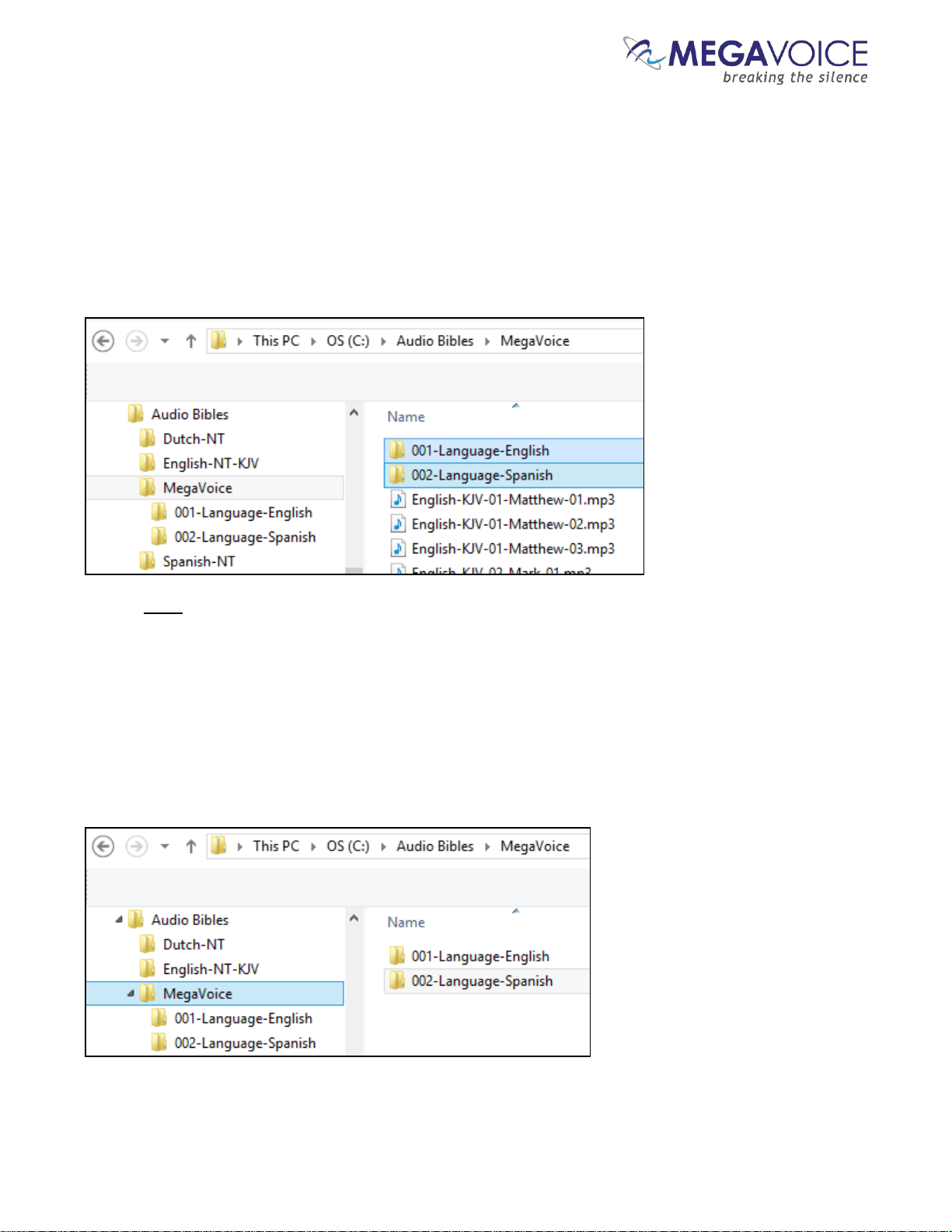
Now let’s move all the English-KJV and Spanish audio files into their respective new folders. There are several
ways to accomplish this. Use the method you are most comfortable with.
Highlight the relevant audio files, right-click and choose “Cut”, open the appropriate Channel folder,
right-click and choose “Paste”.
Highlight the relevant audio files, “drag” them to the appropriate Channel folder and “drop” them.
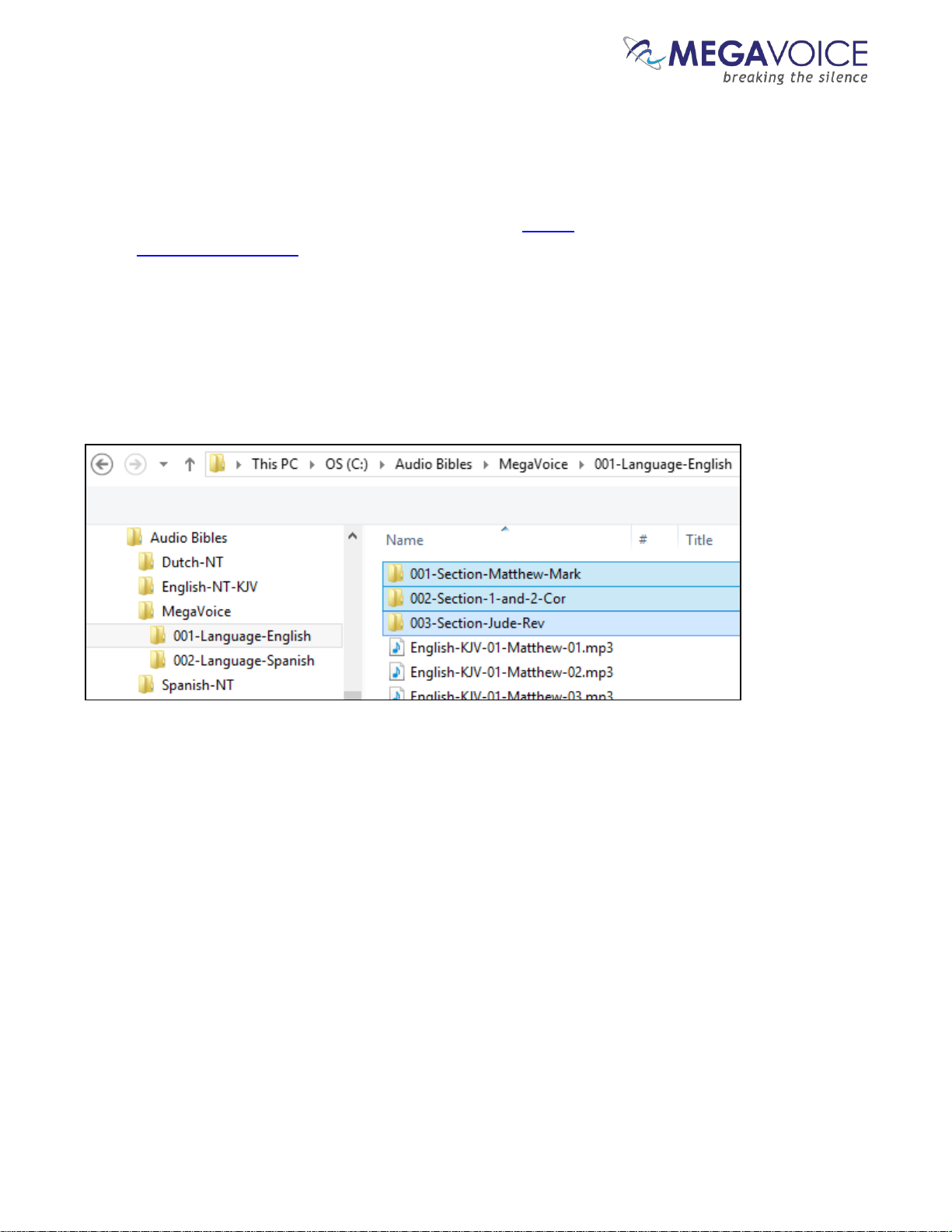
The MegaVoice folder will now contain only the two new Channel folders.
Page 24
Envoy 2 E Series User Guide 20190805-30.docx || © 2019 MegaVoice Ltd. || Page 24 of 68
The Section Folders
In this simplified example, we have only 6 Books of the New Testament: Matthew, Mark, 1 Corinthians, 2
Corinthians, Jude and Revelation. We could either group the books into Sections within a Channel folder (4
levels), or place all of the Books together within Section folders (3 levels). For the sake of example, we are going
with the 4-level structure model.
Within each language, we want 3 Sections where the first contains Matthew and Mark, the second contains 1
and 2 Corinthians and the third contains Jude and Revelation.
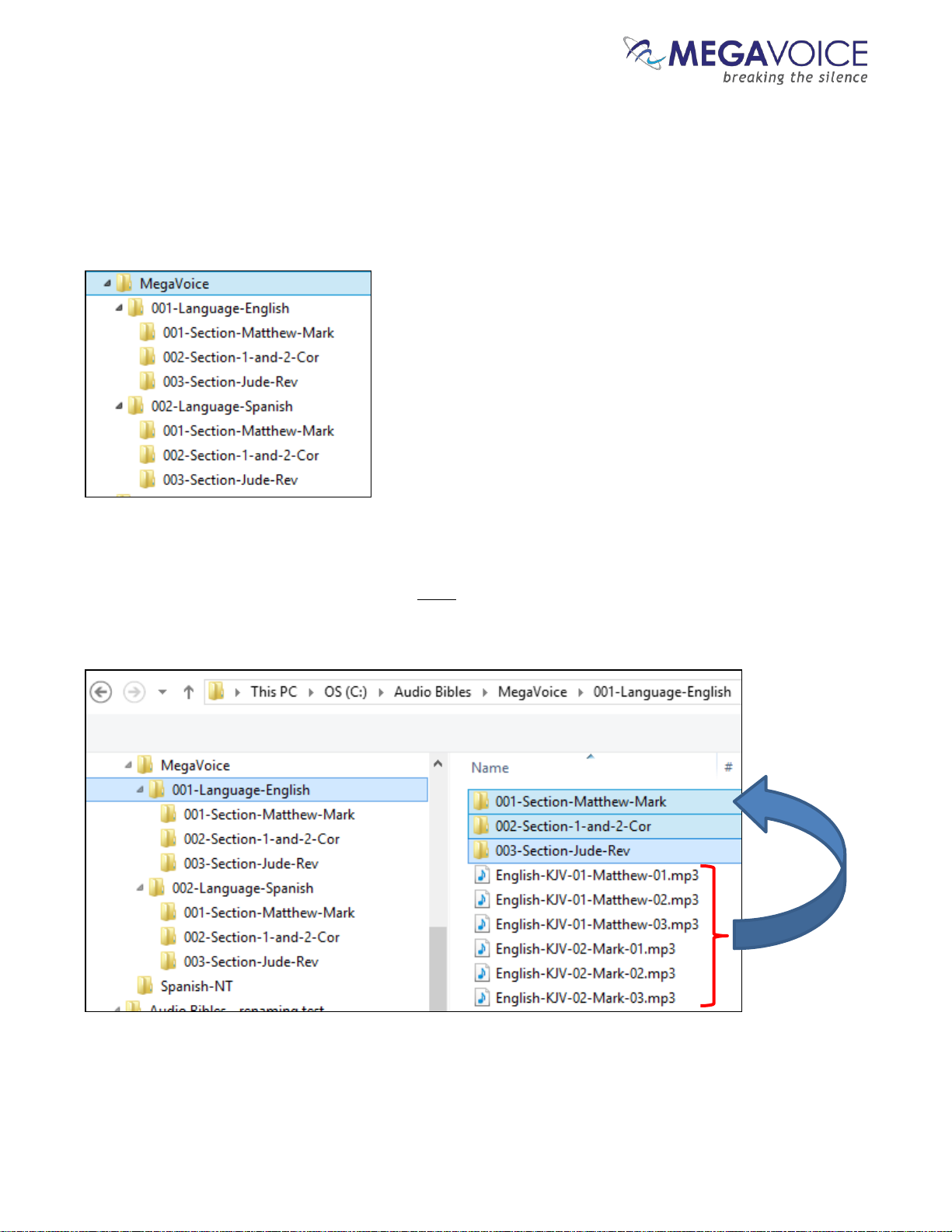
In Channel folder “001-Language-English”, let’s create the following Section folders: “001-Section-Matthew-
Mark”, ”002-Section-1-and-2-Cor” and “003-Section-Jude-Rev”.
Page 25
Envoy 2 E Series User Guide 20190805-30.docx || © 2019 MegaVoice Ltd. || Page 25 of 68
If we are using the same Section groupings for both Channels (not required) we could simply copy these empty
Section folders and paste them into the “002-Language-Spanish” folder.
Alternatively, we could wait until the first Channel folder is complete and manually create them when working
on the second Channel folder.
When done with this step, we should have the following folder structure in the MegaVoice audio folder:
Once our Section folders are created, let’s move corresponding audio files to their respective Section folder. In
the first Channel folder, “001-Language-English”, move all the Chapter (audio) files for Matthew and Mark to
the “001-Section-Matthew-Mark” folder. Move all the Chapter files for 1 and 2 Corinthians to ”002-Section-1and-2-Cor”. Move all the Chapter files for Jude and Revelation to “003-Section-Jude-Rev”.
Page 26
Envoy 2 E Series User Guide 20190805-30.docx || © 2019 MegaVoice Ltd. || Page 26 of 68
The Book Folders and Chapter Files
Now we will create “Book” folders in each of the three Section folders. We’ll begin with the first Channel folder
“001-Language-English”. This entire process will be repeated for the “002-Language-Spanish” folder later.
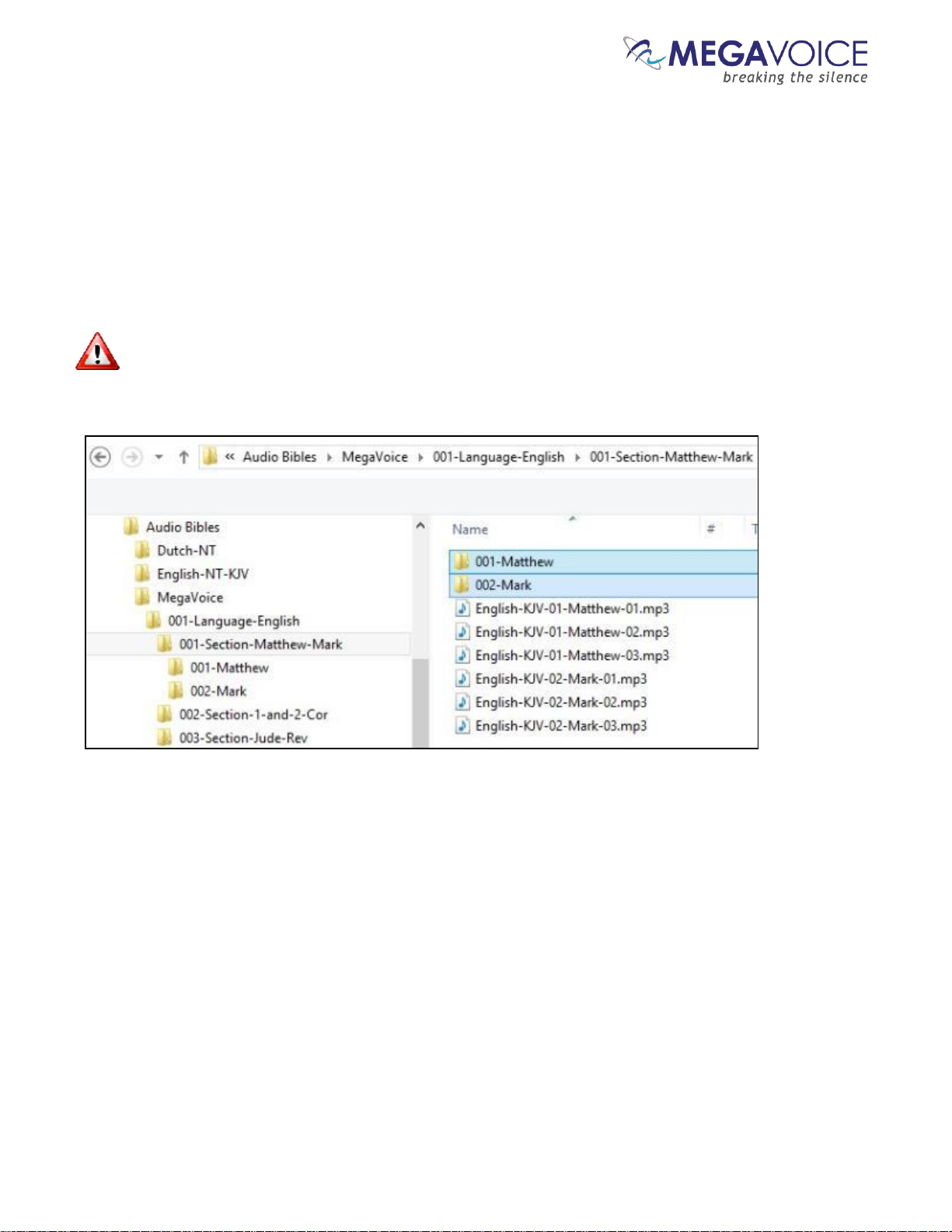
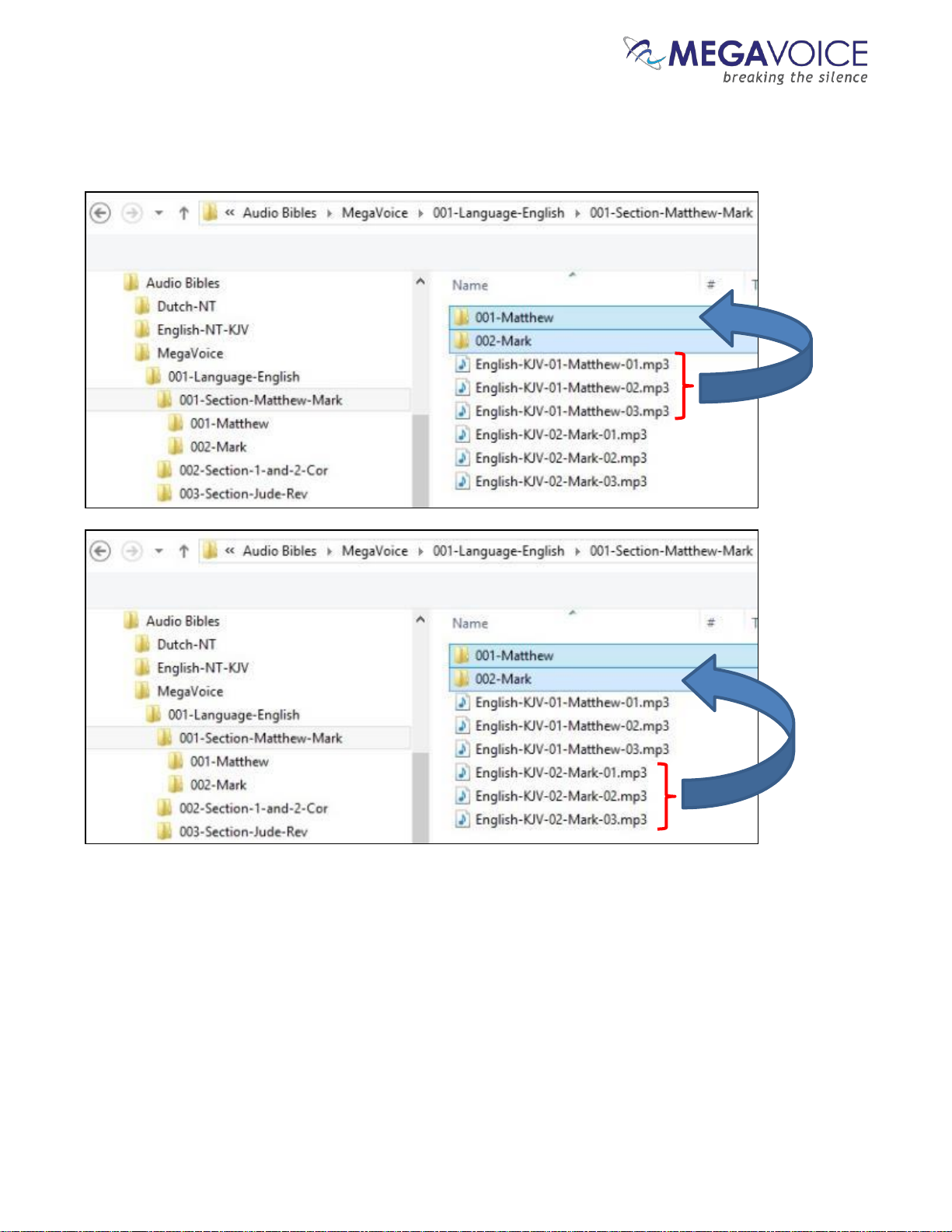
Open the first Section folder, “001-Section-Matthew-Mark”. Since Matthew is the first Book, create a folder
named “001-Matthew”. Mark, being the second Book, will need a folder named “002-Mark”.
For Book folders, the numeric prefix is optional but recommended. It will help ensure correct copy and
playback operation.
Page 27
Envoy 2 E Series User Guide 20190805-30.docx || © 2019 MegaVoice Ltd. || Page 27 of 68
Now we will move the Chapter files to their respective “Book” folders. Highlight the Chapter files for Matthew (3
of them in our example) and move them to the “001-Matthew” folder. Highlight the Chapter files for Mark (3 of
them) and move them to the “002-Mark” folder.
Page 28
Envoy 2 E Series User Guide 20190805-30.docx || © 2019 MegaVoice Ltd. || Page 28 of 68
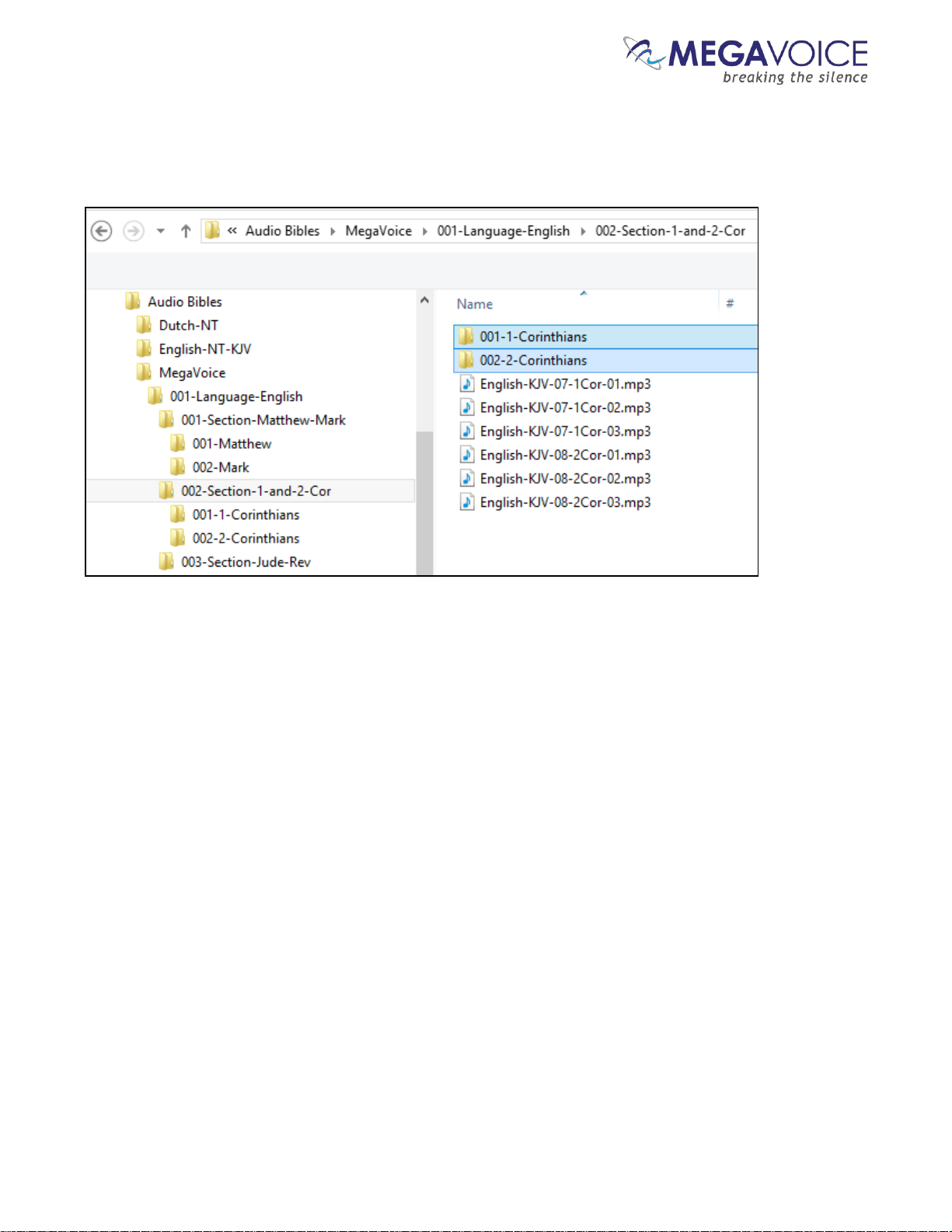
Let’s repeat the above process for the next Section, “002-Section-1-and-2-Cor”. Because 1 Corinthians is the first
Book in this Section, create folder “001-1-Corinthians”. And create “002-2-Corinthians” for the second Book.
Page 29
Envoy 2 E Series User Guide 20190805-30.docx || © 2019 MegaVoice Ltd. || Page 29 of 68
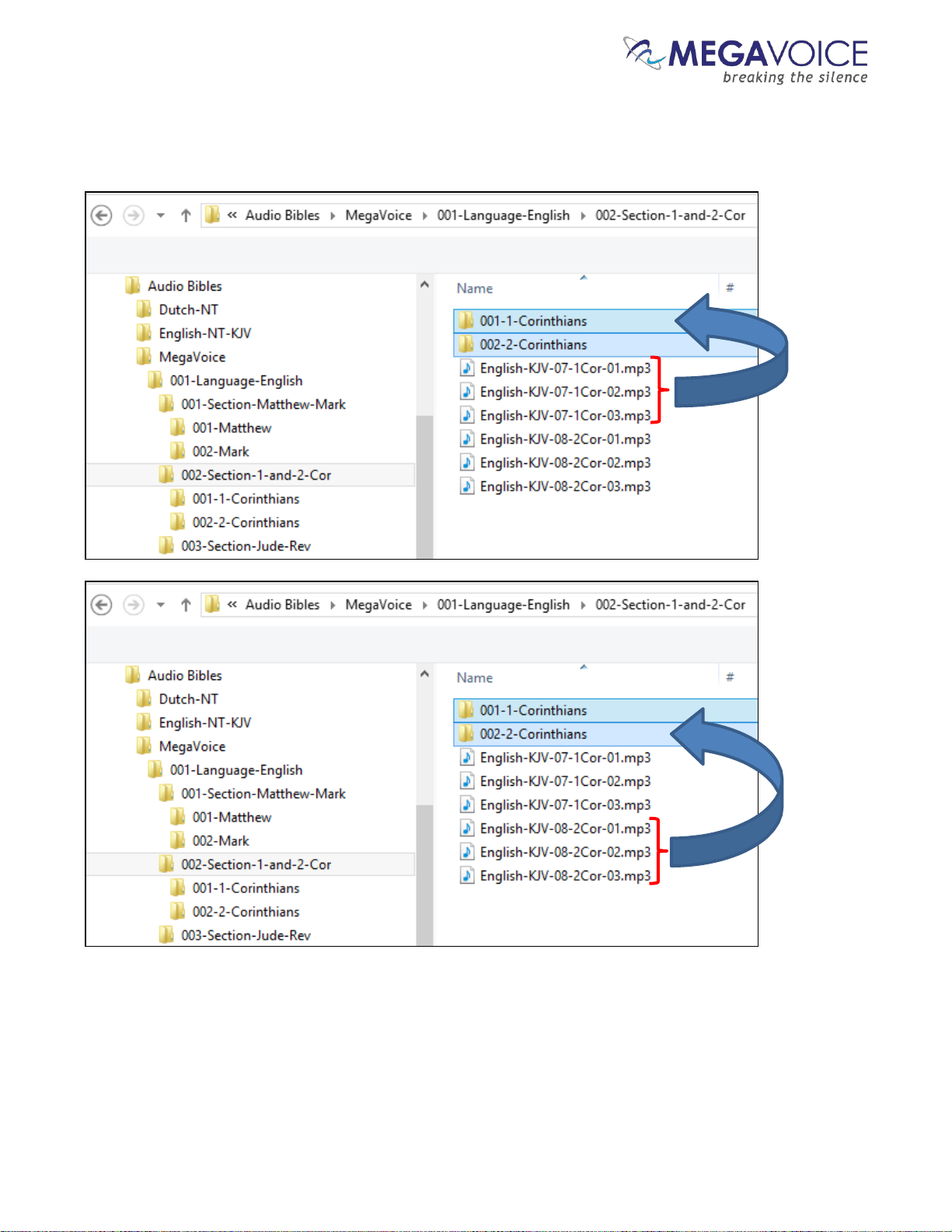
Again we will move the Chapter files to their respective “Book” folders. Highlight the Chapter files for 1
Corinthians (3 of them in our example) and move them to the “001-1-Corinthians” folder. Highlight the Chapter
files for 2 Corinthians (3 of them) and move them to the “002-2-Corinthians” folder.
Page 30
Envoy 2 E Series User Guide 20190805-30.docx || © 2019 MegaVoice Ltd. || Page 30 of 68
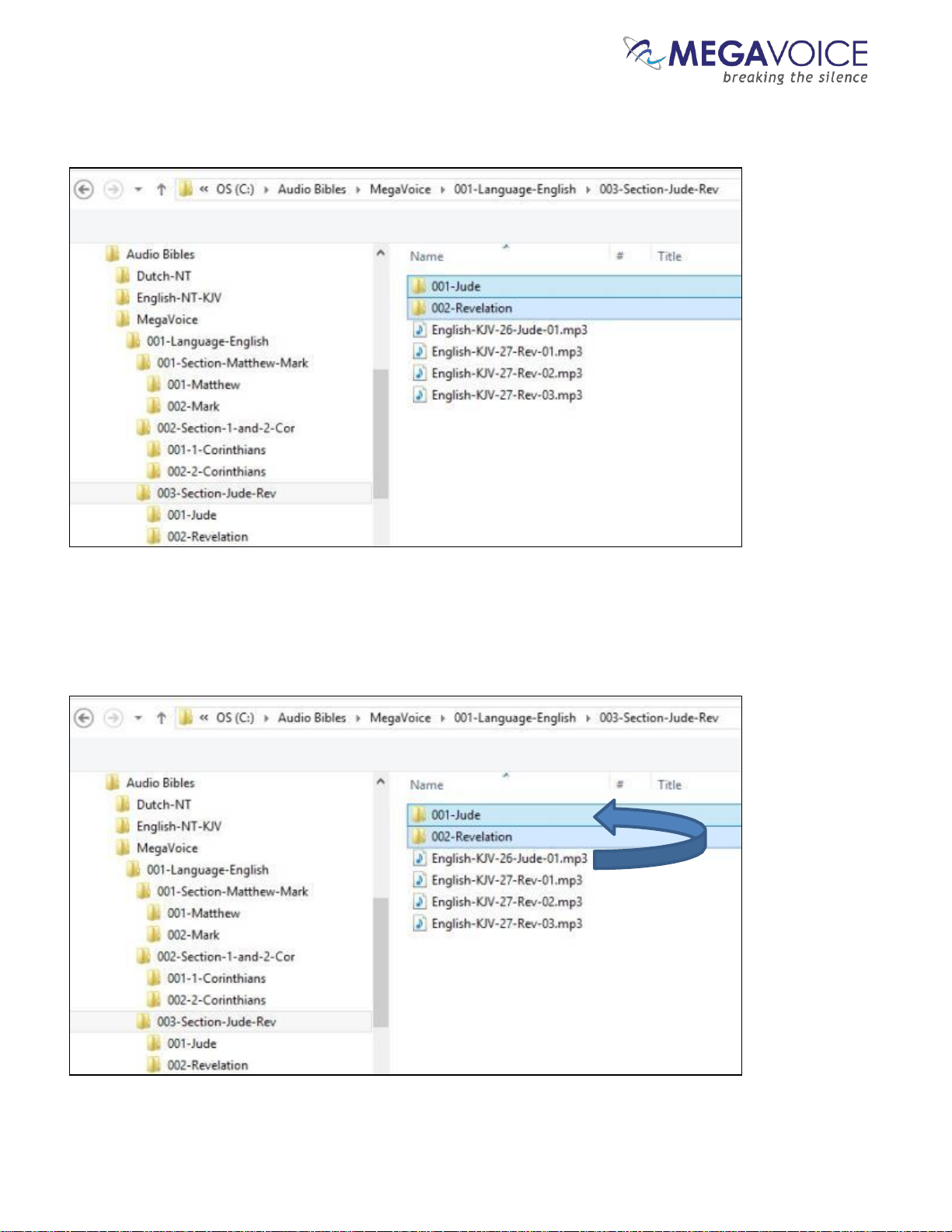
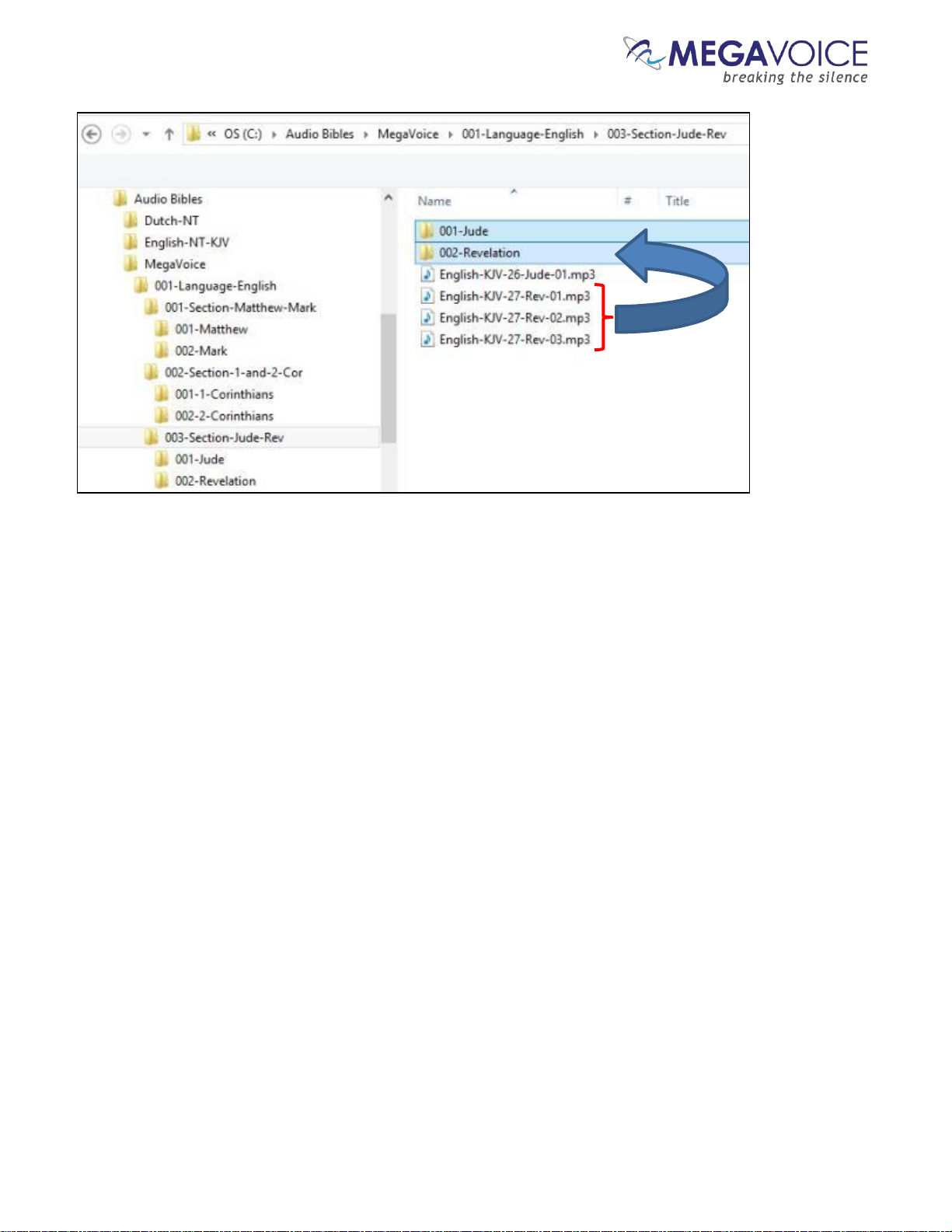
And finally, repeat the process for the third Section, “003-Section-Jude-Rev”. Open the folder and create a Book
folder for Jude, “001-Jude” and create a folder for Revelation, “002-Revelation”.
Let’s move the Chapter files to their respective “Book” folders for Section 3. Highlight the (only) Chapter file for
Jude and move it to the “001-Jude” folder. Highlight the Chapter files for Revelation (3 of them) and move them
to the “002-Revelation” folder.
Page 31
Envoy 2 E Series User Guide 20190805-30.docx || © 2019 MegaVoice Ltd. || Page 31 of 68
The Second Channel Folder
Once you have completed all the Section and Book folders in the “001-Language-English” folder, repeat the
process for the “002-Language-Spanish” folder following the steps outlined earlier.
Page 32
Envoy 2 E Series User Guide 20190805-30.docx || © 2019 MegaVoice Ltd. || Page 32 of 68
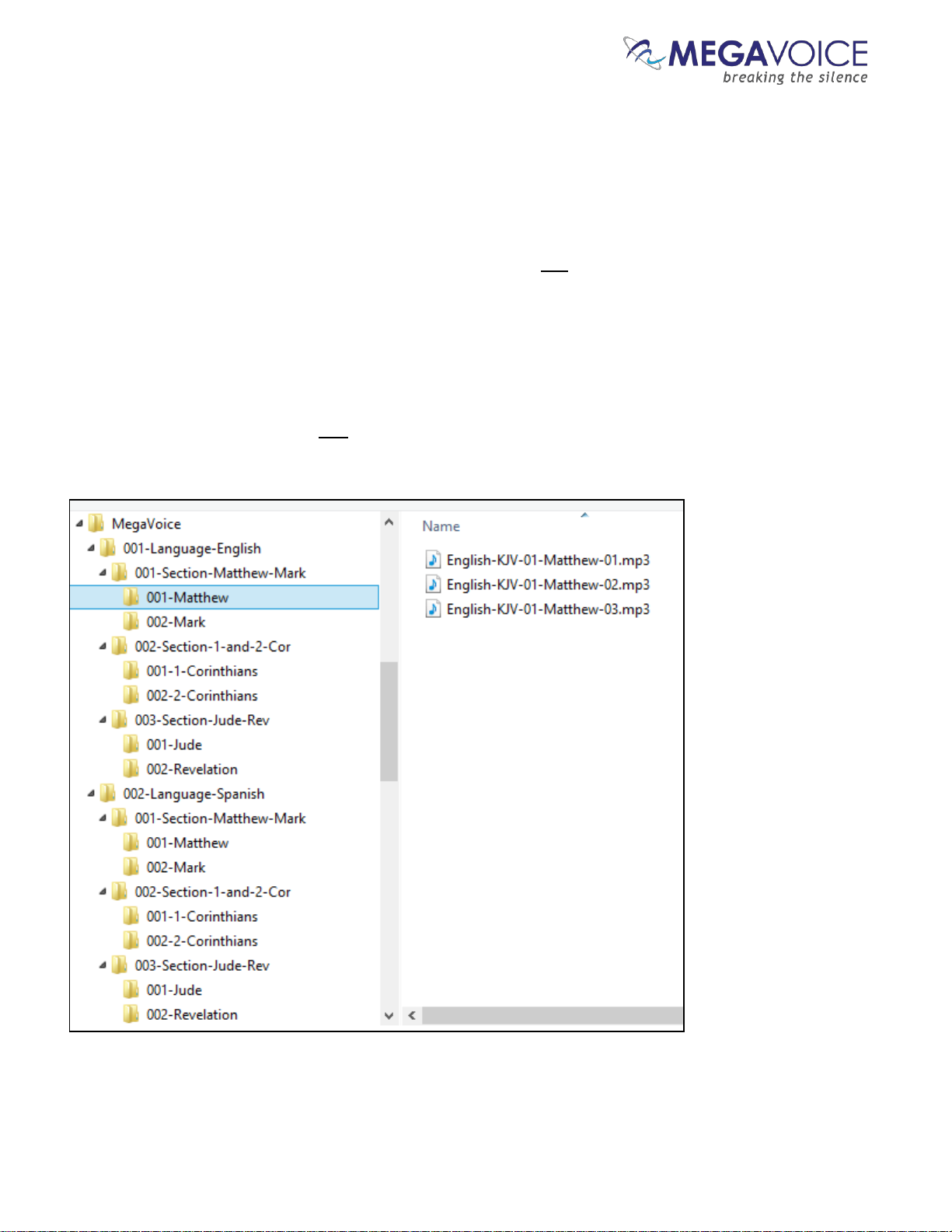
Verifying the Final Folder Structure
Let’s verify what we have so far in our example. Using names that were a combination of a 3-digit sequence
number and a meaningful name should make this easy. Start with the MegaVoice audio project folder and click
on each folder to verify the contents.
Within our Audio Project Folder “MegaVoice” we should only have two folders which are our Channel folders.
Within each Channel folder we should only have three Section folders.
Within each Section folder, we should only have two Book folders and they should be the Books relevant to that
particular Section.
Within each Book folder we should have the relevant Chapter (audio) files for that Book. For a four-level
structure, the Book folders are the only place in the Audio Project Folder where audio files may be present.
Page 33
Envoy 2 E Series User Guide 20190805-30.docx || © 2019 MegaVoice Ltd. || Page 33 of 68
Loading audio files to the Envoy 2 E Series
Connecting the players for programming
To load your audio files to the Envoy 2 E Series, it is recommended to use the SaberCopy software program
(provided by MegaVoice)
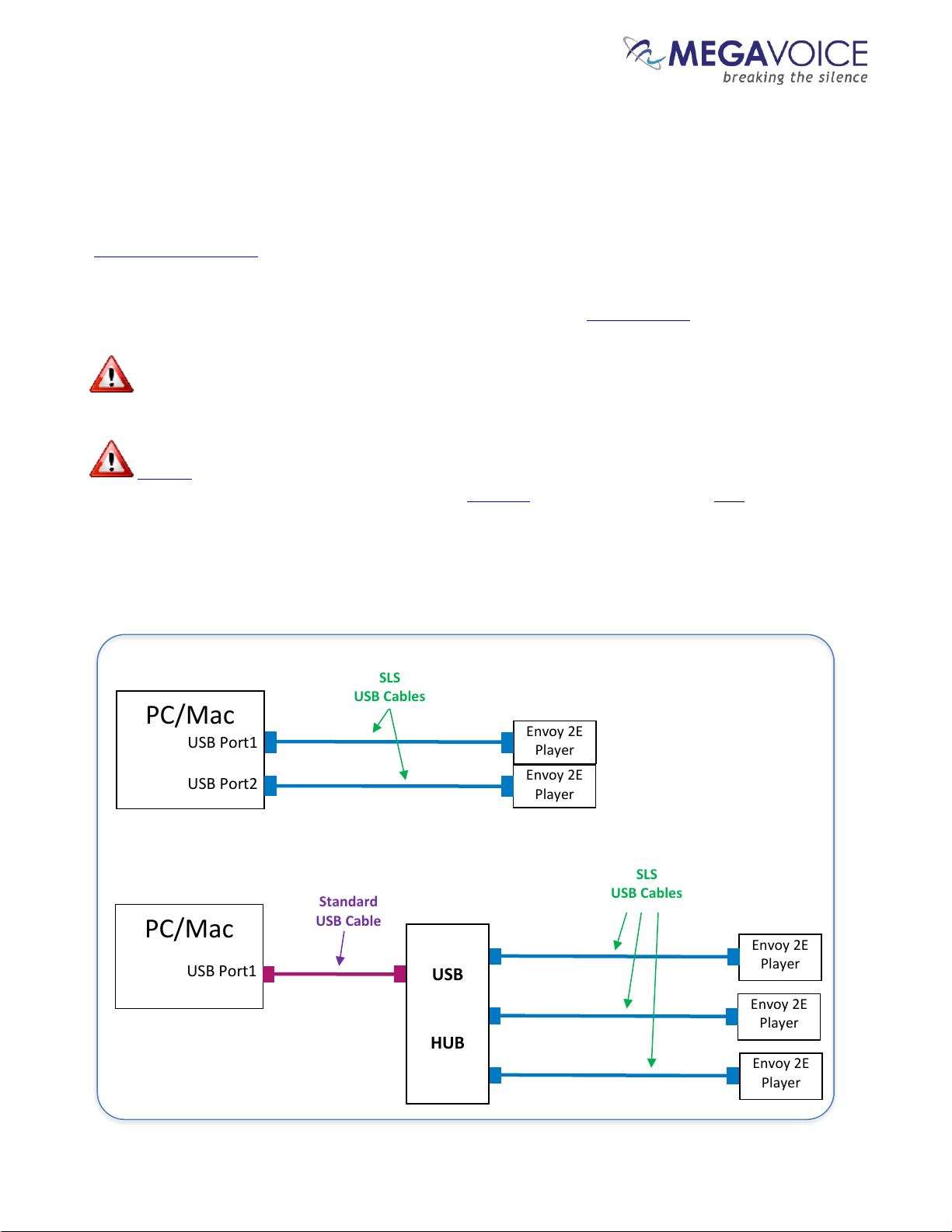
You may program multiple players at a time, using either multiple USB ports on your PC/Mac or by using a
USB expansion HUB. MegaVoice recommends using USB 2.0 (or higher) powered HUBs, each directly
connected to the computer.
The optimal number of hubs and/or players per hub that can be processed simultaneously with
maximum throughput will vary per your specific hardware.
SLS USB cables must be used to connect the players to the PC/Mac. Standard USB to micro-USB
cables will not work. When connecting players using a USB HUB each player must have its own SLS USB
cable.
See illustration below:
Envoy 2E
Player
PC/Mac
USB Port1
USB Port2
Envoy 2E
Player
SLS
USB Cables
PC/Mac
USB Port1
SLS
USB Cables
Standard
USB Cable
Envoy 2E
Player
Envoy 2E
Player
Envoy 2E
Player
USB
HUB
Figure 11: USB connection diagram
Page 34
Envoy 2 E Series User Guide 20190805-30.docx || © 2019 MegaVoice Ltd. || Page 34 of 68
Loading the Audio using SaberCopy
The following is an excerpt from the user guide Using SaberCopy to Program MegaVoice Players.
If you already have SaberCopy installed and your screens look different than those in the following example,
please click here to download the latest version and install it.
This section will briefly describe the steps necessary to perform a typical audio load using SaberCopy. It is
intentionally non-specific to a player model.
Recommended settings are displayed with no explanation and no functional details will be discussed here.
They are all described in detail in the full SaberCopy user guide.
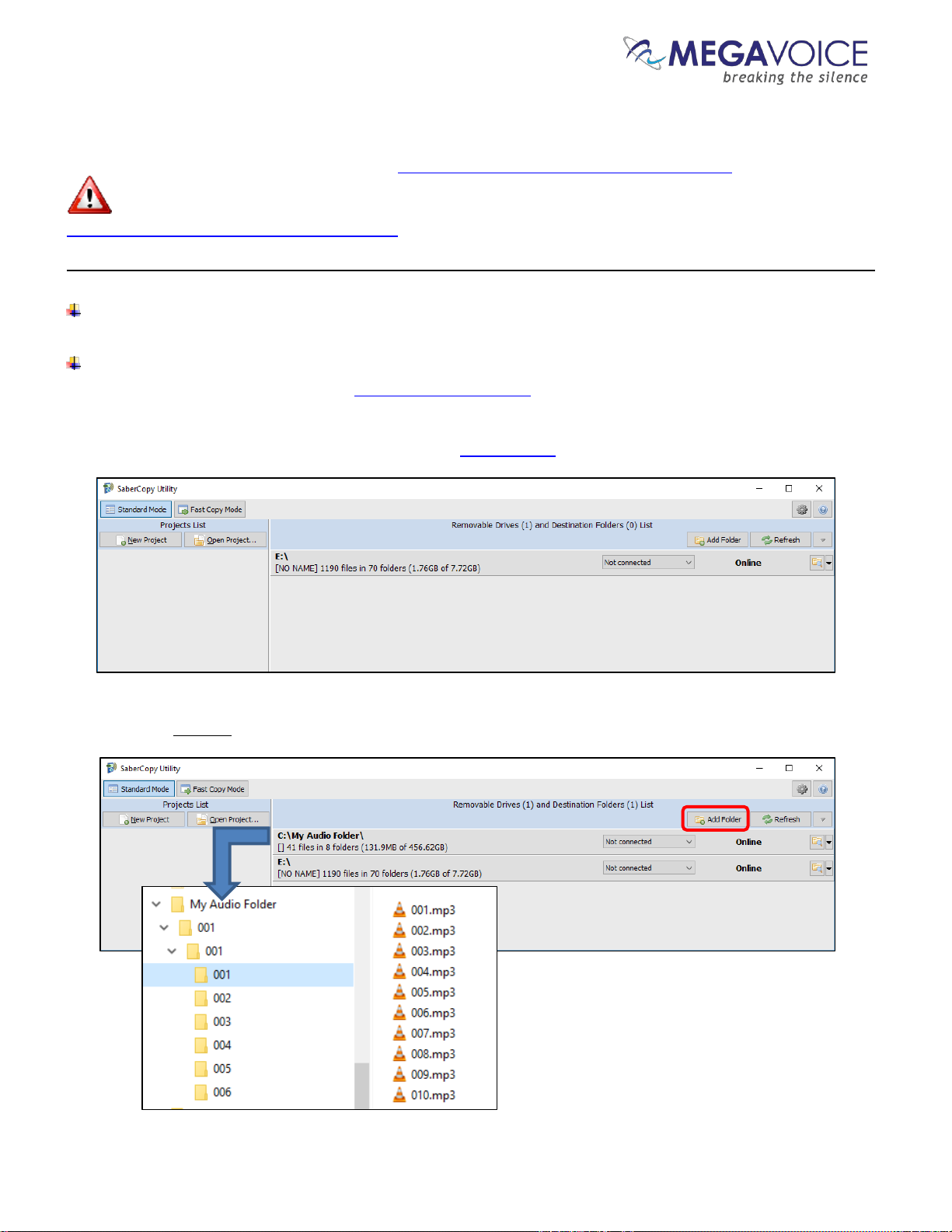
1. Open SaberCopy and connect your player(s) with an SLS USB cable.
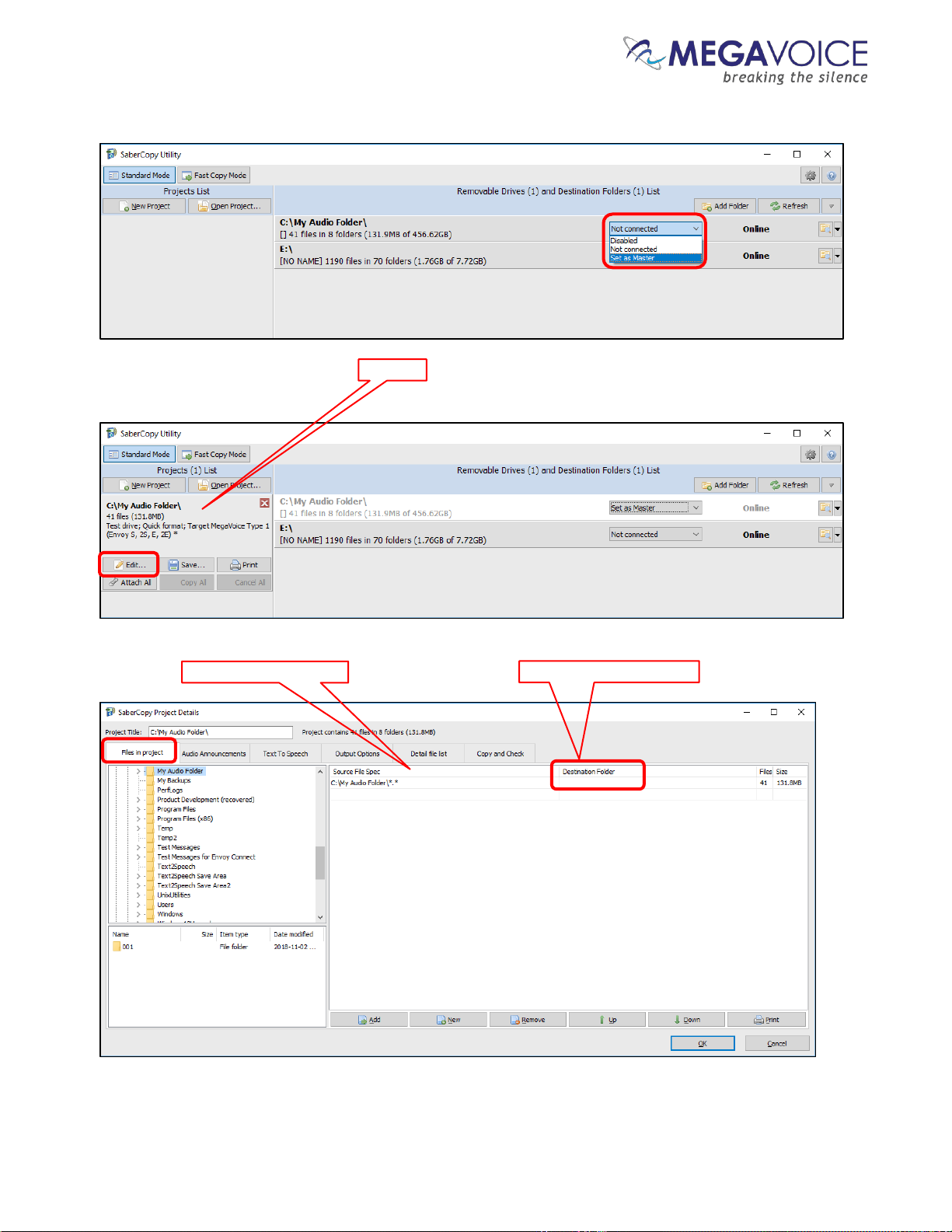
2. Click on the “Add Folder” button. Navigate to your audio folder and select it. Note that your audio folder is the
folder that contains all the (correctly structured) audio you want loaded to the player.
Page 35
Envoy 2 E Series User Guide 20190805-30.docx || © 2019 MegaVoice Ltd. || Page 35 of 68
3. In the entry for your audio folder, change the drop list setting from “Not connected” to “Set as Master”.
4. SaberCopy will automatically create a “project” for you named after your audio folder. Click on the “Edit”
button to adjust the settings.
5. The “Project Details” dialog will open. The “Files in Project” tab should already be correctly set with your audio
folder in the “Source File Spec” field. Just make sure that the “Destination Folder” field is blank.
Page 36
Envoy 2 E Series User Guide 20190805-30.docx || © 2019 MegaVoice Ltd. || Page 36 of 68
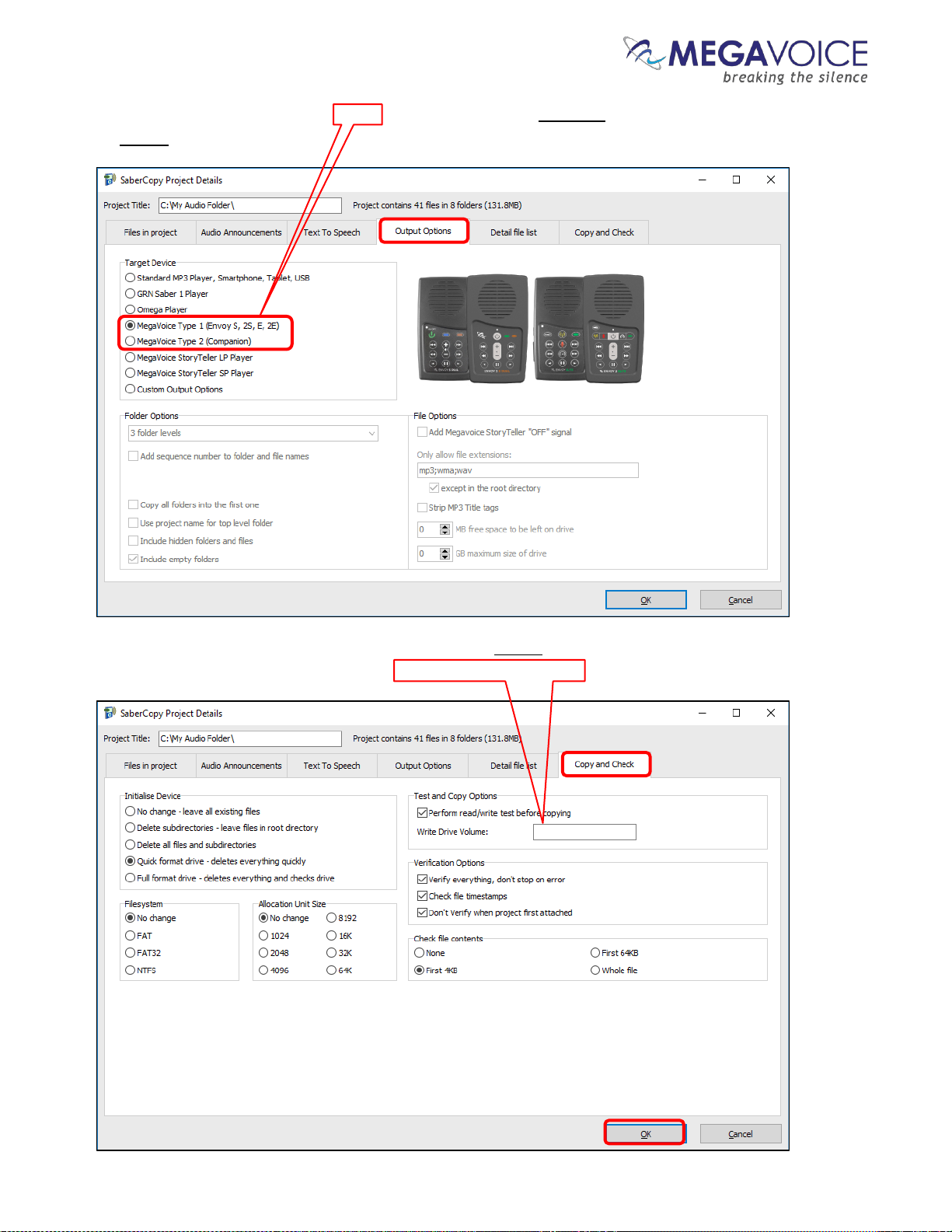
6. Click on the “Output Options” tab. Select MegaVoice Type 1 for Envoy 2 E. Make sure the remaining fields are
set exactly as in the image below.
7. Click on the “Copy and Check” tab and make sure it is set exactly as in the image below. Optionally, you can
name your player(s) by entering text in the “Write Drive Volume” field. Then click “OK”.
Page 37
Envoy 2 E Series User Guide 20190805-30.docx || © 2019 MegaVoice Ltd. || Page 37 of 68
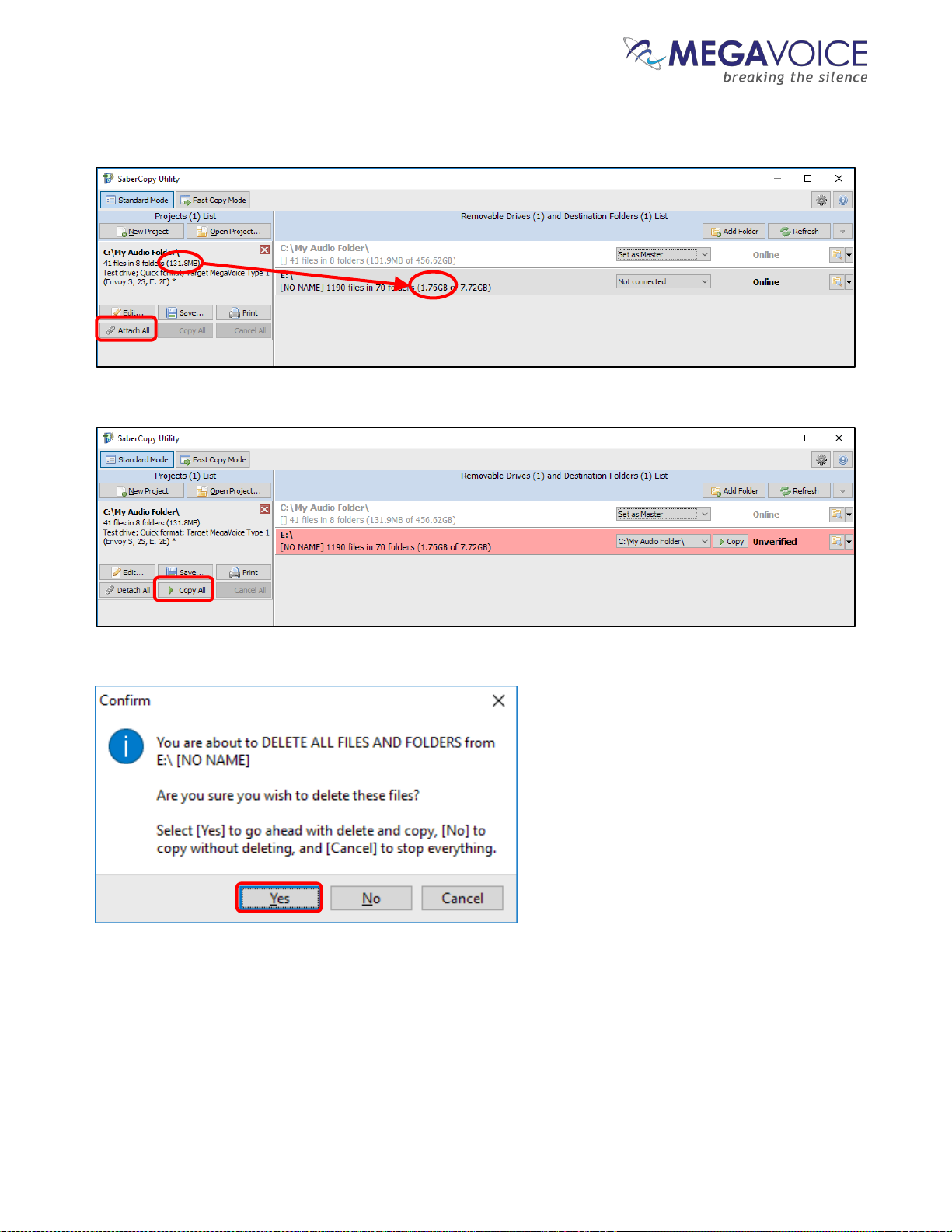
8. Take a moment and make sure your audio will fit on the target player. Then click “Attach All” in the project
window.
9. Now click “Copy All” in the project window.
10. Reply “Yes” to the delete warning.
Page 38
Envoy 2 E Series User Guide 20190805-30.docx || © 2019 MegaVoice Ltd. || Page 38 of 68
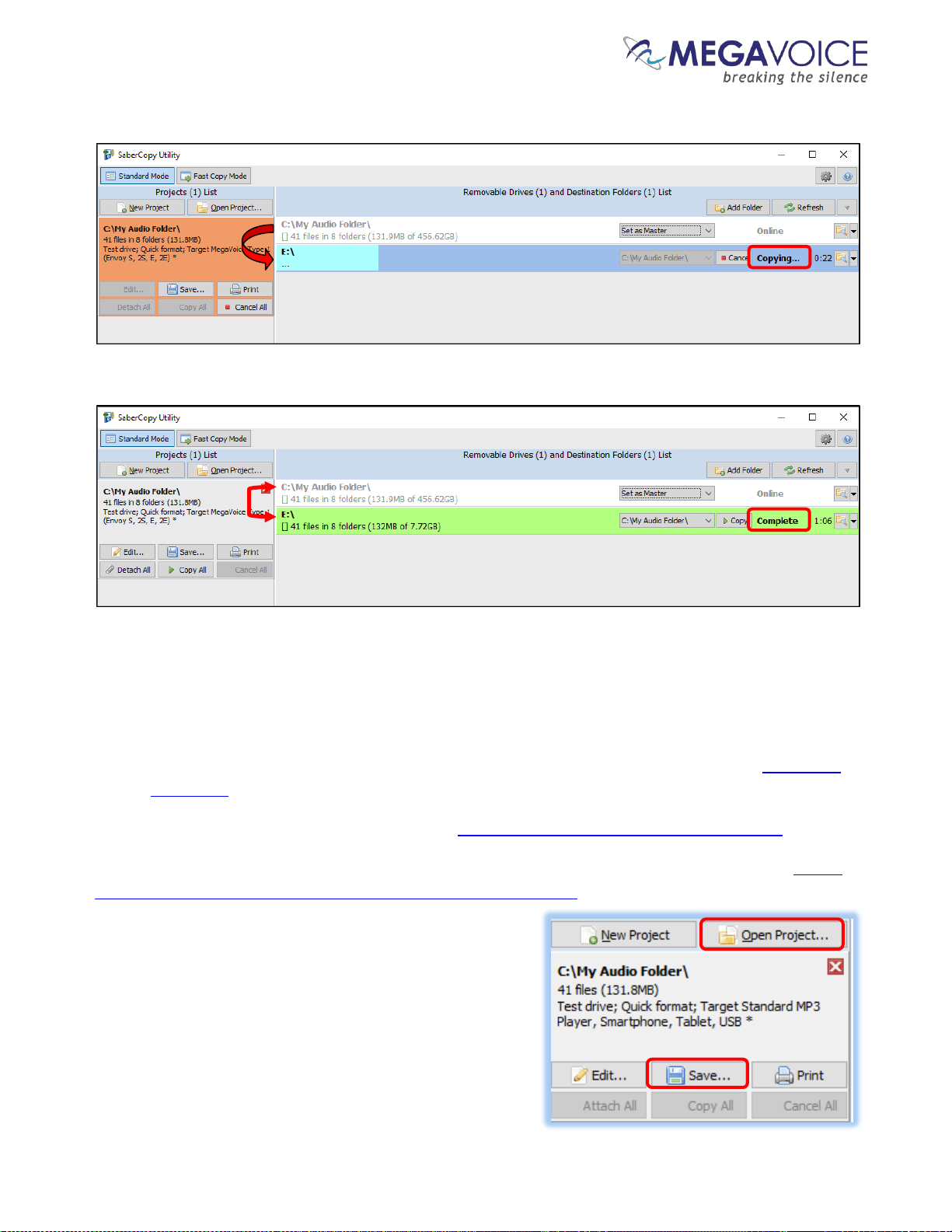
11. SaberCopy will begin the process…
12. Success!
13. In the vast majority of cases, the process described above is always successful. If for some reason the load was
not successful (the player line turns red) try the following:
a. Review all the settings on all the relevant screens and make sure they are correct per the preceding
screen images. If something was missed please make the change and try again.
b. If the completion message was “Unmatched”, review section “9: File verification” in the SaberCopy
User Guide.
c. If you are still not sure what the problem is, click here to contact MegaVoice for assistance.
14. If the load was successful, but the player beeps and turns off or does not work or navigate correctly, please
click here and review the structuring rules for for the Envoy 2 E Series.
15. Before you close SaberCopy!!! If you need to repeat the
above steps at a later date to load other players, please save
the project for easy re-use. SaberCopy will “remember” all
the settings in the project file. Simply click on the “Save”
button in the project window. Give the file a recognizable
name (but leave the file type as “.saber”) and click “Save”. To
open the project later, click on the “Open Project” button.
Page 39
Envoy 2 E Series User Guide 20190805-30.docx || © 2019 MegaVoice Ltd. || Page 39 of 68
Listen to the message
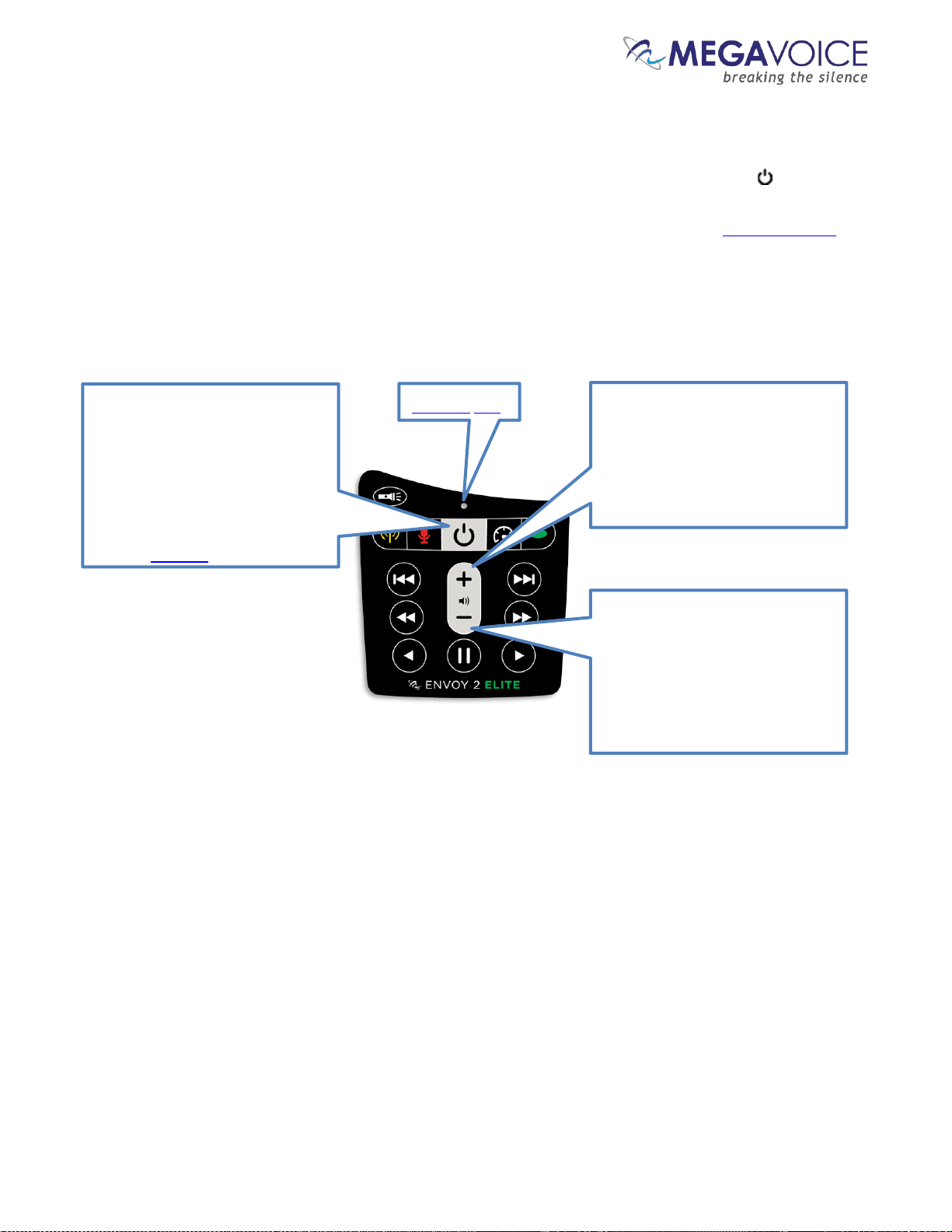
After disconnecting each player, you can listen to the message by holding down the power button on the
keypad for about 2 seconds until the LED lights up (in yellow). The player will beep once, the LED will change to
green and your message should begin to play automatically. If it does not, see the Section on Troubleshooting
at the end of this document.
The Power button. Press and hold
this button for 2 seconds to turn
the player on or off.
A click on this button during
operation will perform a battery
test. The LED will blink green,
yellow or red according to the
current capacity.
A click on this button will increase
the volume 1 level. Press and hold
will increase the volume until the
button is released or the
maximum level is reached.
A click on this button will
decrease the volume 1 level.
Press and hold will decrease the
volume until the button is
released or the minimum level is
reached.
There is no silent mode.
Figure 12: Power and Volume buttons
Tri-color LED
Page 40
Envoy 2 E Series User Guide 20190805-30.docx || © 2019 MegaVoice Ltd. || Page 40 of 68
FM Radio (Elite and Equip models only)
Using the FM radio
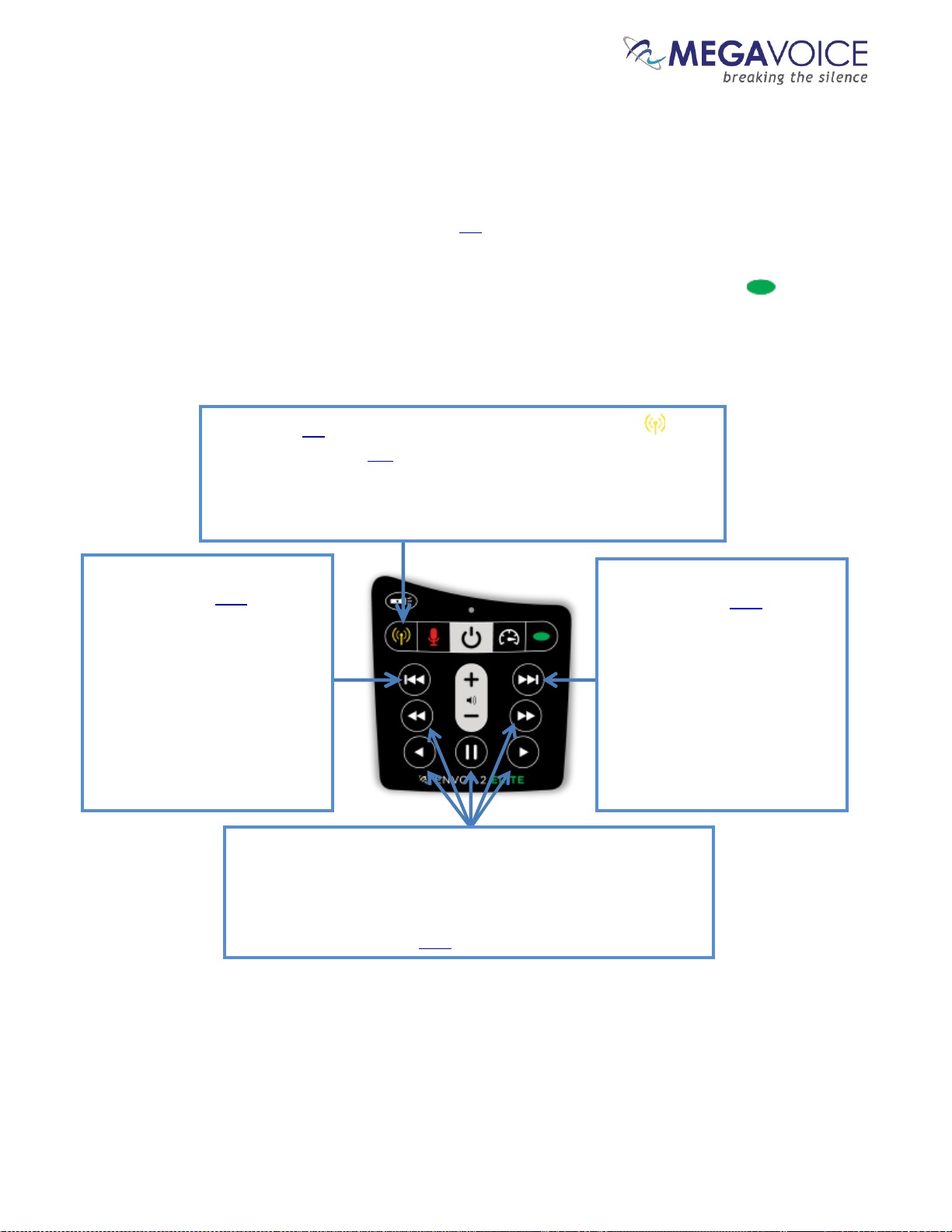
The Elite and Equip models of the 2 E Series provide an FM radio receiver. Details on how to turn the radio
on, navigate station frequency and use the preset station buttons are all described in the diagram below.
To turn the radio off, either change to audio playback mode (a long press on the Channel button ) or turn
the player completely off. The player will remember the last station accessed the next time the radio is used.
Each click will decrement the
frequency by 0.1 MHz. A 2-
second press will scan for the
previous FM station (the LED
will blink). When the lowest
frequency is reached, the scan
will stop and beep. An
additional 2-second press will
loop and continue to scan from
108.0 MHz.
Each click will increment the
frequency by 0.1 MHz. A 2-
second press will scan for the
next FM station (the LED will
blink). When the highest
frequency is reached, the scan
will stop and beep. An
additional 2-second press will
loop and continue to scan from
87.0 MHz.
To switch to FM radio mode, press and hold the Radio button until
the player beeps. The LED will turn yellow and the last station listened
to will be played. If the player is in Audio Playback when switching
modes, a bookmark will automatically be set so that playback will
resume from that place when returning to Audio Playback.
These five buttons are the programmable “preset” stations. A click
tunes to the frequency currently stored for the specific button. A
2-second press will set (or reset) the button to the current
frequency and beep to confirm the change. The frequency range
is from 87.0 MHz to 108.0 MHz.
Figure 13: Button functionality while in FM Radio mode
Page 41

Envoy 2 E Series User Guide 20190805-30.docx || © 2019 MegaVoice Ltd. || Page 41 of 68
Programming the presets using the configuration file
MegaVoice provides a way to configure the radio preset buttons. This is done via a simple text configuration file
named “FMSET.txt”. The file can be stored in the onboard memory in one of two places: within a hidden
volume* on the player or as a single file in the “root” folder. You can create and edit it using Windows Notepad
or your favorite editor.
When the 2 E Series boots up it will check for the presence of this file, looking first within a hidden volume*. If not
found there it looks in the root of the player. If found it will set the preset buttons to the defined frequencies.
But if a configuration file is not found, then all buttons are pre-programmed to 87.0 MHz and may be
reset by the user. The file should contain a single line of text with the following format:
S:0 frequency1,frequency2,frequency3,frequency4,frequency5
From left to right …
“S” an uppercase “S”
“:” a colon
0 zero
A single space.
A comma-separated list of five button frequencies with no spaces between them. The frequencies are
specified as whole numbers without the decimal point. For example, 87.5 MHz is specified as “875” and
107.0 MHz is specified as “1070”.
The frequencies do not have to be in any particular order and more than one button can be assigned to
the same frequency.
Button frequency assignments may be omitted if desired. If one is omitted, a default value of 87.0 MHz will be
substituted by the player. If the FMSET file is absent, all buttons will default to 87.0 MHz.
The position of the frequency numbers in the list correlates to one of the five programmable buttons on the
keypad in the following way:
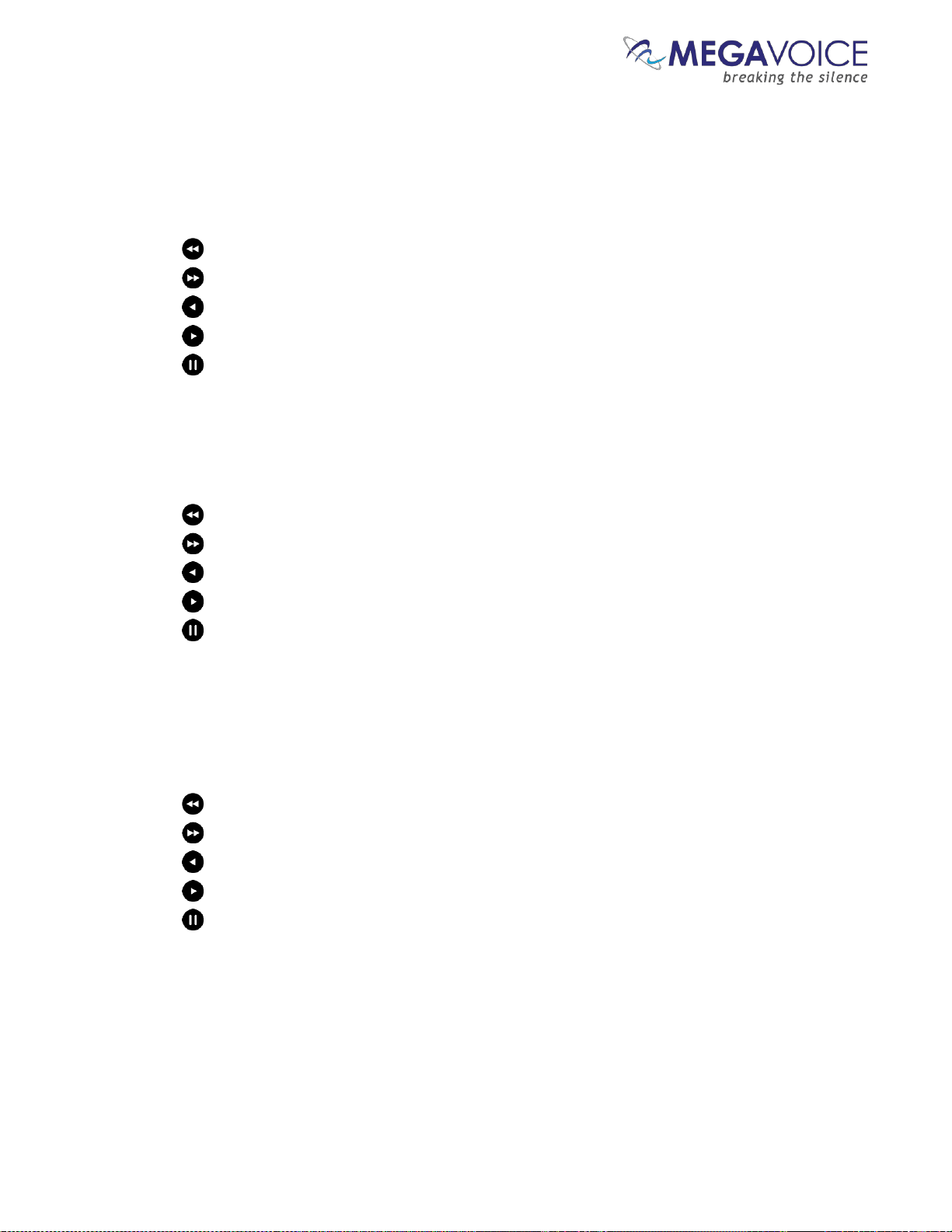
frequency1 = , frequency2= , frequency3 = , frequency4 = , frequency5 =
*The “hidden volume” option is limited to players prepared by MegaVoice upon special request.
Page 42
Envoy 2 E Series User Guide 20190805-30.docx || © 2019 MegaVoice Ltd. || Page 42 of 68
Configuration file examples
1. S:0 915,933,955,985,1047
The buttons are programmable and may be changed by the user
Button is pre-programmed to 91.5 MHz
Button is pre-programmed to 93.3 MHz
Button is pre-programmed to 95.5 MHz
Button is pre-programmed to 98.5 MHz
Button is pre-programmed to 104.7 MHz
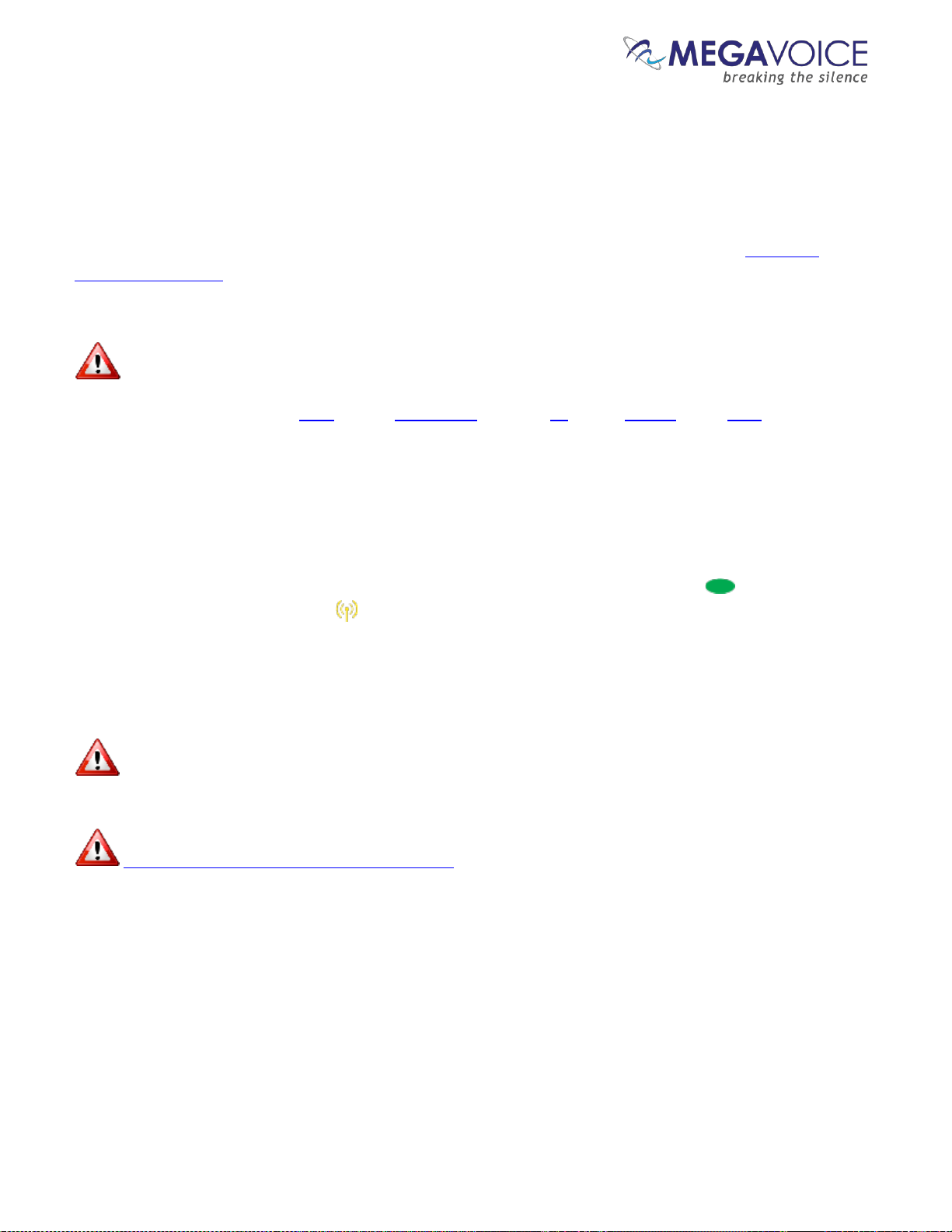
2. S:0 915,,,,1047
The buttons are programmable and may be changed by the user
Button is pre-programmed to 91.5 MHz
Button is omitted and defaults to 87.0 MHz
Button is omitted and defaults to 87.0 MHz
Button is omitted and defaults to 87.0 MHz
Button is pre-programmed to 104.7 MHz
3. S:0
The buttons are programmable and may be changed by the user
This is the equivalent of omitting the FMSET file altogether
Button is omitted and defaults to 87.0 MHz
Button is omitted and defaults to 87.0 MHz
Button is omitted and defaults to 87.0 MHz
Button is omitted and defaults to 87.0 MHz
Button is omitted and defaults to 87.0 MHz
Page 43
Envoy 2 E Series User Guide 20190805-30.docx || © 2019 MegaVoice Ltd. || Page 43 of 68
Recording (Elite and Echo models only)
Overview
The Elite and Echo models of the Envoy 2 E Series provide the ability to make your own recordings. Details on
how to initiate recording mode and use the various features while in that mode are described in Recording
controls and features.
Recording files can be stored on both the onboard memory and microSD.
If a microSD card is present in the card reader when initiating recording mode, the player will default to it.
All recording files are created in WAV format (sample rate of 44,000 Hz, mono, Bit rate of 192 Kbps) and stored in
a special folder named “RECORD” in the root (onboard memory or microSD). The player will automatically create
this folder if it is not present.
The naming convention for the recorded files is “RECnnn.wav” where nnn is a 3-digit counter that the player
increments automatically beginning with 000. This allows for up to 1,000 files. The largest single file allowed is
2GB. Based on the settings described above, a 2GB file can contain about 23.7 hours of recorded audio.
To exit recording mode, you may change to audio playback mode (a 2-second press on the button), or to FM
Radio mode (a 2-second press on the button; Elite and Equip only) or turn the player off completely. If a
recording is in progress when leaving Recording mode, the file will be saved “as is” before exiting (some
truncation may occur).
When recording to a microSD card, do NOT remove the card while recording is in progress. This will result
in a corrupt file and you will lose your work. The player will beep 4 times to alert you and stop recording.
See potential issue after using Recording mode.
Page 44
Envoy 2 E Series User Guide 20190805-30.docx || © 2019 MegaVoice Ltd. || Page 44 of 68
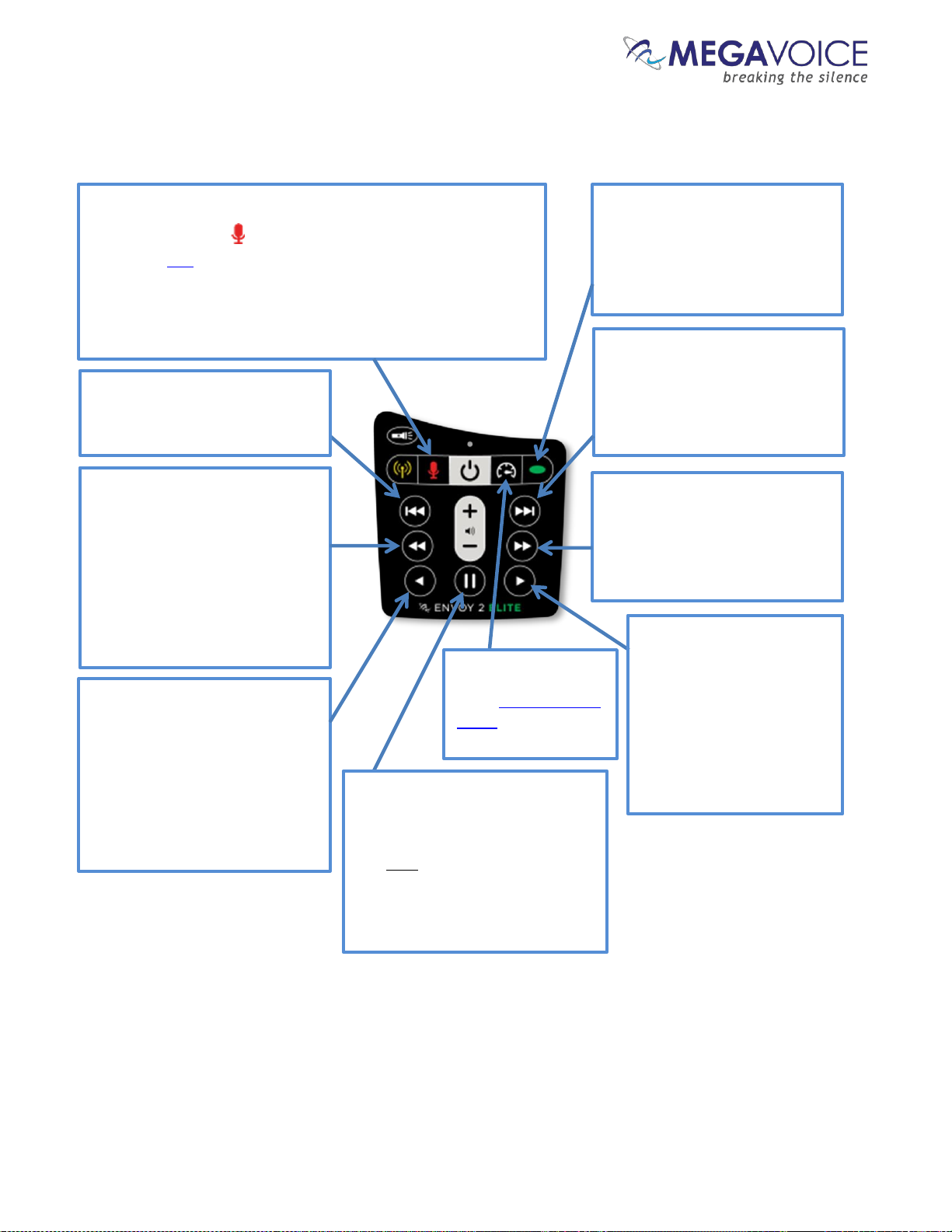
Figure 14: Button functionality while in Recording Mode
Recording controls and features
*The actual time may vary slightly.
To switch to Recording mode, press and hold the red
microphone button until the player beeps. While in this
mode, the LED will be red.
Once in Recording mode, a click on the button will beep and
begin recording a new file. When finished, another click will
end recording, beep and create the new file.
While recording, the LED will blink slowly.
A 2-second press will reset the
file counter to 000 and beep 4
times. It is recommended to do
this after moving files out of the
RECORD folder to other media.
While in recording playback
mode, a click will reverse
approximately 20 seconds* in
the current file. Press and hold
will rewind through the file until
the beginning is reached or the
button is released.
A 2-second press will delete the
current recording file and beep
4 times.
While in recording playback
mode, a click will skip to the
beginning of the current file. A
subsequent click skips to the
previous file. A 2-second press
will skip backwards 5 files.
Player will beep when first file is
reached.
While in recording playback
mode, a click will skip to the
next file. A 2-second press will
skip forward 5 files. Player will
beep when last file is reached.
A click begins playback of
recorded files, starting with the
most recent. If the RECORD
folder is empty, the player will
beep 4 times.
While recording, a click will pause
the recording. Another click will
resume recording to the same
file. Only this button can resume
recording. A recording session
may be paused any number of
times and resumed.
A 2-second press will
enter Speed Control
mode for recording
playback.
While in recording
playback mode, a click will
advance approximately 20
seconds*in the current
file. Press and hold will
fast-forward through the
file until the end is reached
or the button is released.
Page 45
Envoy 2 E Series User Guide 20190805-30.docx || © 2019 MegaVoice Ltd. || Page 45 of 68
Managing the recording files
You can access the recording files on the 2 E Series players by connecting your player to a computer using an SLS
USB to micro-USB cable and opening the RECORD folder.
If you recorded to a microSD card, you can also access the contents of the card while loaded in the card reader
of the player. You can even format microSD cards while they are loaded in the player’s card reader.
You can copy, rename or delete recording files while the player is connected to the computer.
Care must be exercised when accessing the player contents while connected to the computer, making
sure not to alter the folders or files comprising the audio message. Correct playback could be impacted if not.
Once you make recordings, it is advisable to rename them to something meaningful as soon as you can for easier
identification later. The player will still be able to access and play these files. The order of playback should remain
the same.
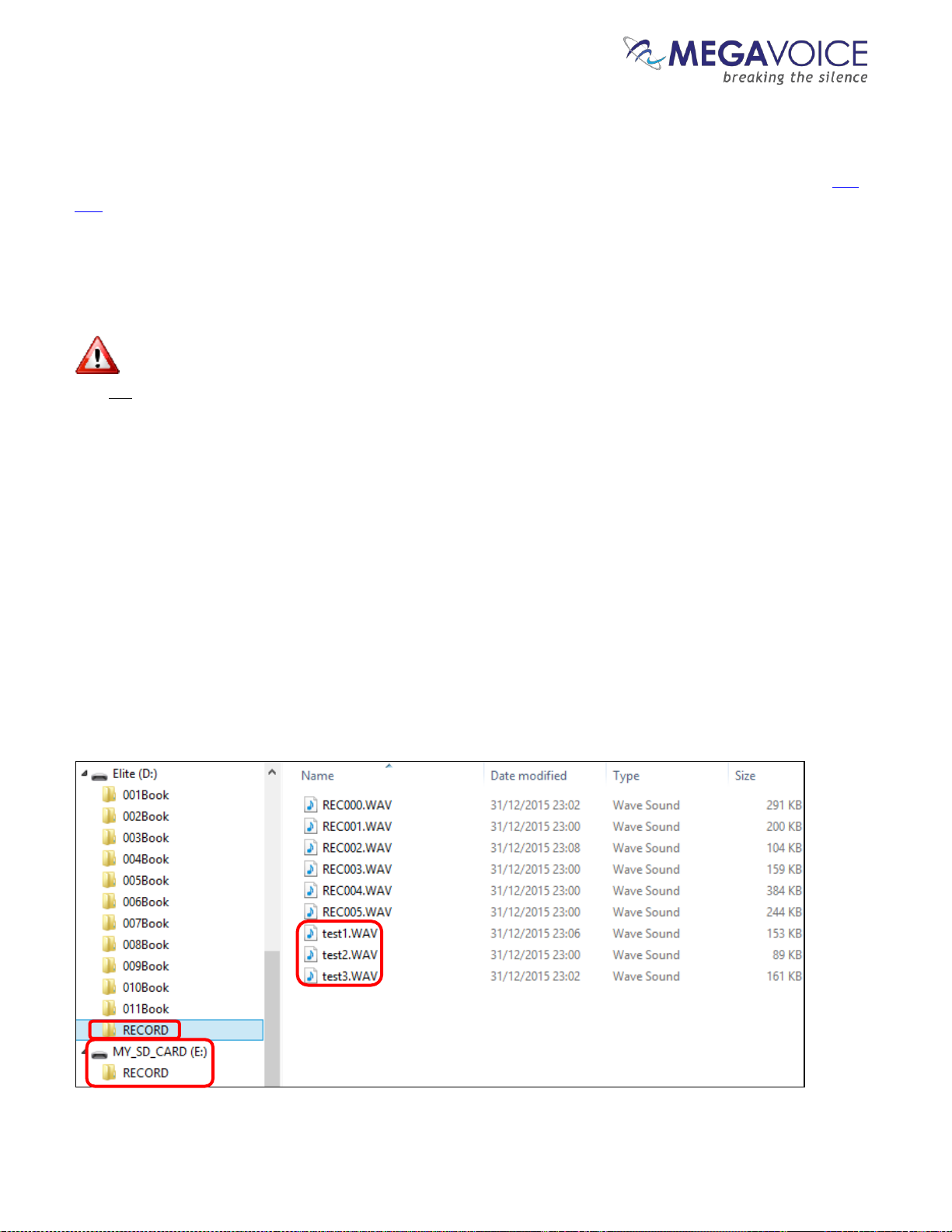
In the example below, using an SLS USB cable, a player is connected with a microSD card loaded in the card
reader. There are RECORD folders in both the player’s onboard memory (Elite D:) and the microSD card
(MY_SD_CARD E:). Three recording files in the RECORD folder of the onboard memory were manually renamed
after they were created.
In this example, the intended use for the microSD card was solely for recordings so the only object in the root is
the RECORD folder.
Figure 15: RECORD folder and files, onboard and microSD
Page 46

Envoy 2 E Series User Guide 20190805-30.docx || © 2019 MegaVoice Ltd. || Page 46 of 68
Tips for recording on the 2 E Series
General advice
1. Find a good acoustic environment for producing your recordings. If you can’t provide a special room at the
very least find a place that is reasonably quiet with little to no wind or background noise.
2. Noise may be picked up when the unit is placed near an AC power source, a fluorescent lamp or a mobile
phone during recording or playback.
3. Choose someone that has a good voice for narration. MegaVoice has found that the female voice produces
higher quality audio recordings than the male voice.
4. Practice with the player until you are very comfortable with its operation. This will enable you to focus
completely on the narration of your messages.
5. For personal recordings, hold the top of the player under the bottom lip while recording. The microphone is
internal, just above the speaker. Keep in mind that holding the player while recording may pick up
background noise from touching it.
a. For group recordings, set the player on a level surface a fixed distance from the source.
6. Speak slowly enough to clearly enunciate your words but quickly enough so that the message flows.
7. Provide proper silence between the parts of each message.
a. Take a short breath before the message/chapter
b. Take a breath (about 1 second) after the title
c. Take a long breath (about 2 seconds) at the end of the message/chapter
8. Using your favorite audio editing software, review and edit the recording as necessary before saving the
final version.
a. See MegaVoice’s web site for some recommended free audio utilities.
2 E Series specifics
1. After pressing the red microphone button to initiate a new recording, the player will beep once.
While recording the LED will blink. Wait until you see the LED blink once (about 1 second) before
beginning to speak to prevent truncation.
2. When you are finished recording, wait at least 1 second before pressing the red microphone button to
quit recording. Most recorders pick up the internal “click” of the button pressed to end the recording
because it is difficult to prevent. MegaVoice has specially engineered its firmware to “trim” the final 1
second of the recording in order to eliminate the “click”.
Page 47

Envoy 2 E Series User Guide 20190805-30.docx || © 2019 MegaVoice Ltd. || Page 47 of 68
Distributing your recordings on microSD
Unless you have a very large number of files you wish to distribute, the 1-level structure will probably be sufficient
for you to organize your files on the card. That is, only the individual WAV files are present on the card.
Remember you have 4 choices for organizing your files. Choose the one that makes the most sense for your
collection.
If you made all of your recordings directly to a microSD card dedicated for recording only, you can’t just
duplicate that card and distribute it. The reason is that the structure is not one of the supported types for audio
playback on the 2 E Series. If you try to navigate to the card and play the content, the player will beep 5 times
and go into pause mode because it won’t recognize the structure.
However, to make it work, you could do either of the following:
1. Move the WAV files from the RECORD folder to the root and then delete the empty RECORD folder.
This would be a 1-level message.
2. Rename the RECORD folder to something else. This would be a 2-level message so the name may be
alphabetic.
You may rename your files with meaningful names, but keep in mind that the file names must sort in the order
they should be played. Any renaming of files must be done before you copy them to another source so they will
transfer in the correct order.
Please refer to the section Preparing the SD card for important specifics on how to correctly create an SD card
with your recording files.
Page 48
Envoy 2 E Series User Guide 20190805-30.docx || © 2019 MegaVoice Ltd. || Page 48 of 68
Speed control for audio playback
All standard* models of the 2 E Series come with the ability to adjust the speed of audio playback. Speed control
allows you to slow down or speed up the playback of audio from the onboard memory or microSD cards.
Speed Control may also be used for listening to recordings you made but it does not affect the actual recording
speed. (Elite and Echo models only)
While in Speed Control mode, audio playback continues to the end of the current audio file so that you can hear
the altered speed.
Once a player is turned off, or any other mode is used like the FM Radio (Elite and Equip only), playback speed
automatically returns to normal.
*Some versions of the Envoy 2 E do not include the Speed Control feature
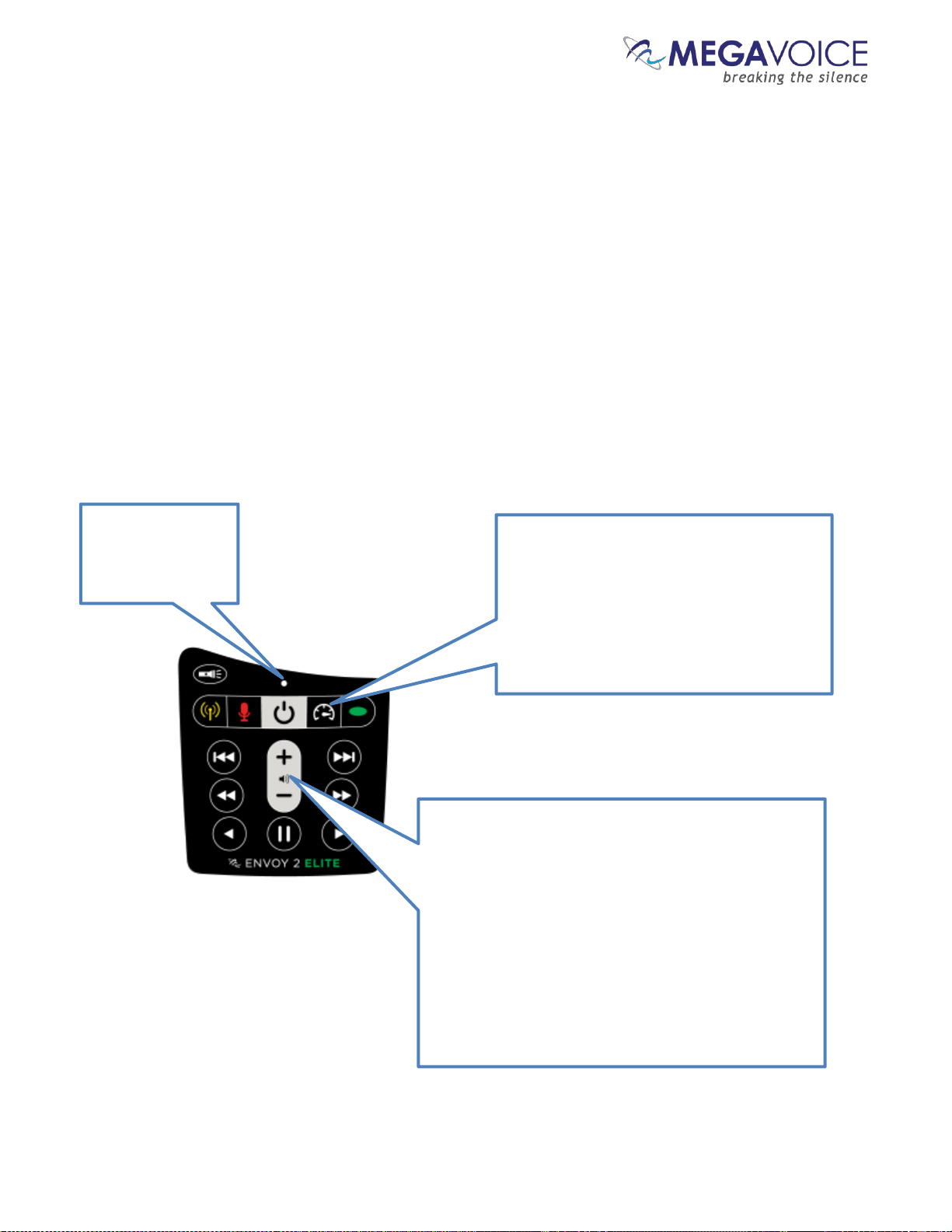
Figure 16: Button functionality while in Speed Control
While in Speed
Control mode, the
LED will alternate
red and green.
While in audio playback mode (or Recording
playback mode) a 2-second press on the
Speed Control button will place the player in
Speed Control mode.
To reset the speed back to normal, enter
Speed Control mode and then press this
button again for 2 seconds.
While in Speed Control mode, pressing volume down
or up will gradually decrease/increase the playback
speed. A continuous press will decrease/increase the
playback speed until the minimum/maximum speed is
reached.
The rate of the LED blink will change as you adjust the
rate of Speed Control.
Once the speed is at the desired setting, a brief press
on the Speed Control button, or any navigation
button, will exit Speed Control mode (the LED will
stop alternating colors).
Page 49
Envoy 2 E Series User Guide 20190805-30.docx || © 2019 MegaVoice Ltd. || Page 49 of 68
The LED flashlight
All standard* models of the 2 E Series come with a bright, 4-mode LED flashlight.
The flashlight operates independently of the other player functions so it may be used at any time, even when
the player is turned off.
The LED flashlight will continue to work for approximately 45 minutes in low beam even if the battery is
too weak to turn the player on.
*Some versions of the Envoy 2 E do not include the LED flashlight
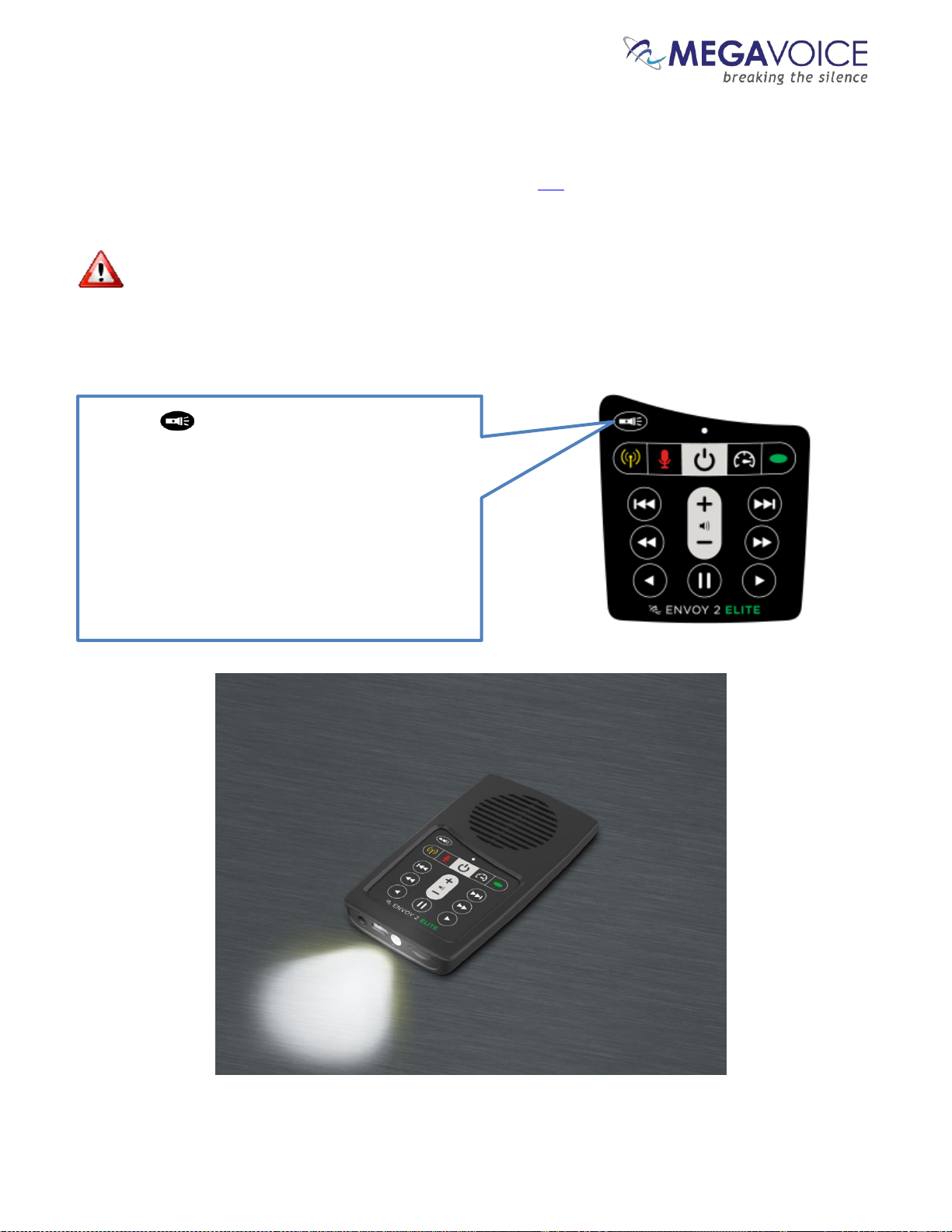
Figure 17: LED flashlight control
A click on will turn the flashlight on in low beam.
While the flashlight is on, subsequent clicks will
change to medium beam, then to high beam and
finally turn off.
A continuous press on the button will turn the
flashlight on with high beam and remain on until the
button is released.
When the flashlight is on, it does not affect other
active player functions and may be used at any time.
Page 50
Envoy 2 E Series User Guide 20190805-30.docx || © 2019 MegaVoice Ltd. || Page 50 of 68
The microSD card reader
All standard* 2 E Series models can also play content from a properly formatted microSD card. You may
load up to 8 Channel folders to a single microSD card, effectively increasing the capacity from 2 Channels
(onboard memory) to 10 Channels total. MegaVoice has successfully tested cards up to 64GB in size.
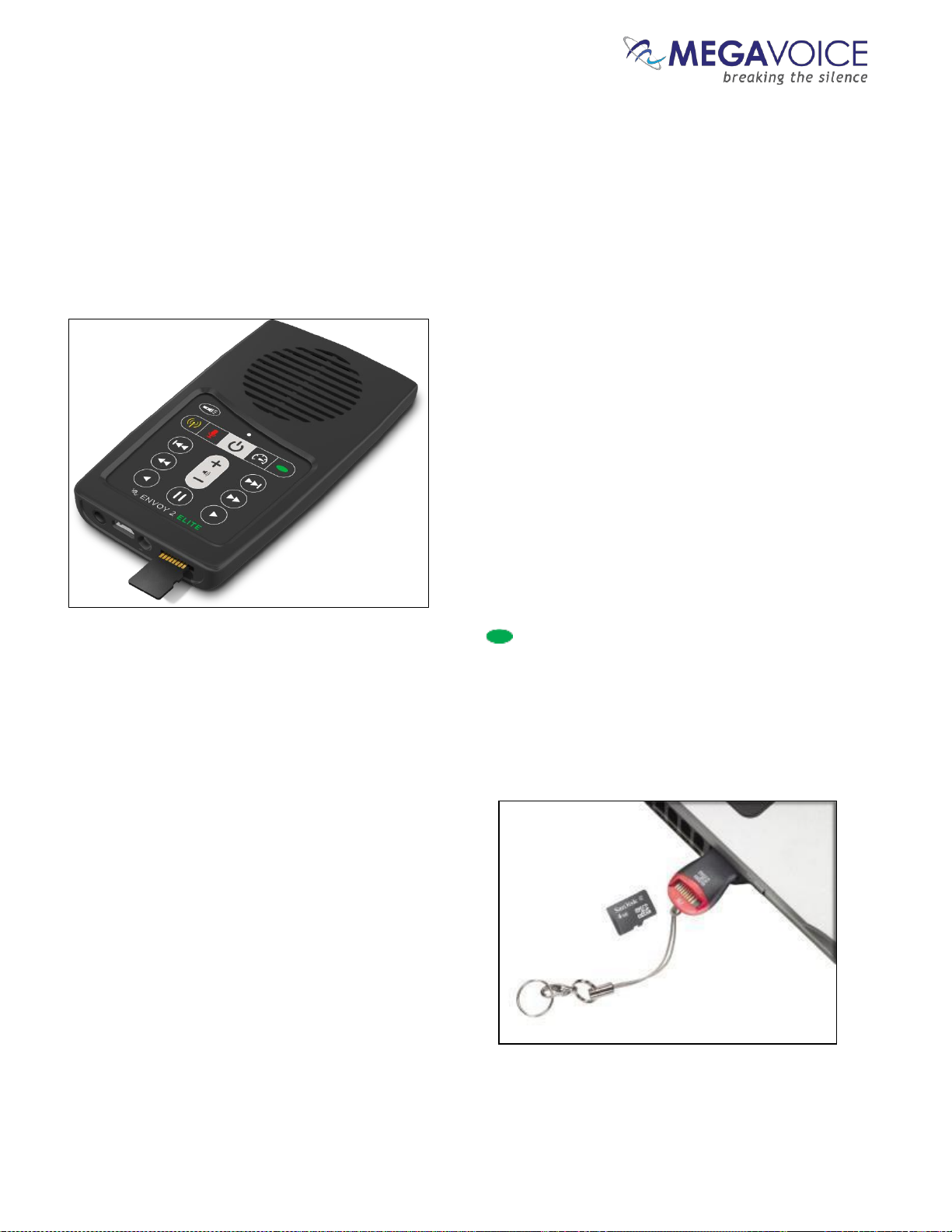
With the player facing you, insert a card into the reader with the brass contacts showing until it locks in place.
Once the microSD card is loaded, press the Channel button for 2 seconds repetitively until the player
beeps once. Playback will now begin from the card. The LED will show as green.
To remove the microSD card, gently push it in. The reader will unlock and push the card out so you can remove it.
If the player was in playback mode from the card when removed, it will beep twice and revert to the onboard
memory. If any other function was active, the function will continue with no interruption.
You can view, format and prepare a microSD card while
loaded in the player’s card reader when it is connected to
a Computer using a USB to micro-USB cable. You may also
do the same with the card loaded in a microSD adaptor
(shown at right) connected to a Computer.
If the player is turned off while playing from an SD card
and turned on later with the card still loaded, the player
will default to the card; otherwise, the player always
defaults to the onboard memory.
*Some versions of the Envoy 2 E do not include the microSD card reader
Figure 18: Inserting a microSD card
Figure 19: SanDisk microSD-to-USB adaptor
Page 51
Envoy 2 E Series User Guide 20190805-30.docx || © 2019 MegaVoice Ltd. || Page 51 of 68
Preparing the card
You may load your audio files to a microSD card in one of several ways:
1. Using the SaberCopy program while the card is loaded in either the 2 E Series’ card reader or a microSD card
adapter
2. Using the File Explorer utility on your PC/Mac while the card is loaded in either the 2 E Series’ card reader or a
microSD card adapter
3. Using a microSD card duplicator
Using any of the methods, you may load multiple cards simultaneously with properly structured audio messages.
Please be aware that when using methods 1 or 2 noted above from a Windows PC, you will be limited to
the number of players/microSD cards you can simultaneously load by the number of available “Drive” or
“Volume” letters on the PC. Volumes use the letters A through Z and several are already reserved by existing
definitions on the PC by devices such as disk drive(s), DVD/CD drives, mapped drives, etc. A microSD card
duplicator does not have this limitation but rather is limited only to the number of physical card slots it provides.
You can only access the onboard memory of the Envoy 2 E when connecting it to the computer using a
MegaVoice micro-USB SLS cable. If you use a standard micro-USB data cable, you can still access the card reader but
the contents of the onboard memory will be hidden from the computer.
Page 52
Envoy 2 E Series User Guide 20190805-30.docx || © 2019 MegaVoice Ltd. || Page 52 of 68
Using SaberCopy
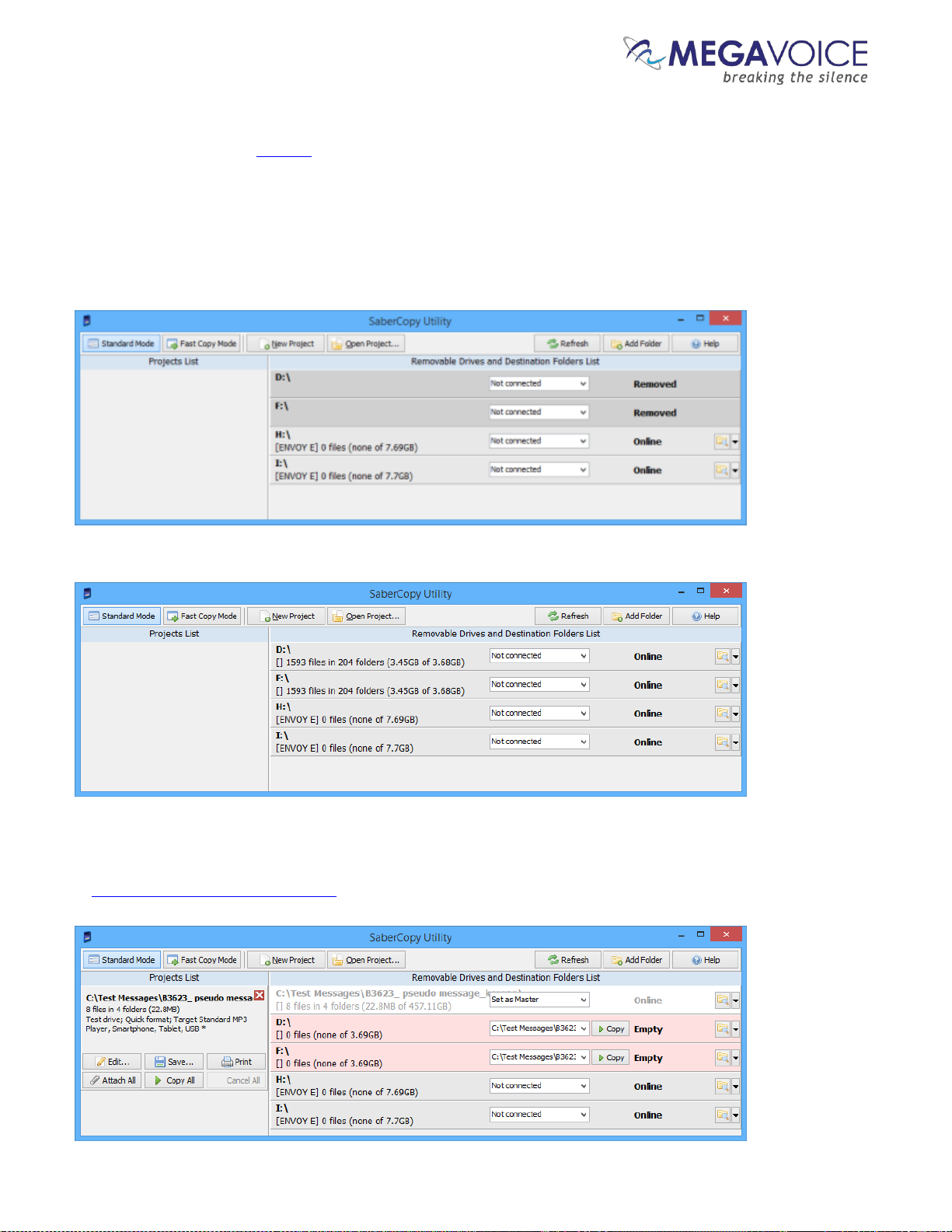
When connecting with an SLS USB cable, the challenge when using the Envoy 2 E to load a microSD card is that
both the onboard memory and microSD card reader show as “volumes”. The best way to distinguish the player
from the microSD card reader is to connect the player first without a microSD card loaded.
In the example below, two Envoy 2 E players are connected with SLS cables- without microSD cards loaded. The
onboard memory of each is volumes H: and I: and show with a status of Online. The microSD card readers
appear as volumes D: and F: and show with a status of Removed.
Once you insert microSD cards in the reader of both players (D: and F:), they also show as Online. See below:
Once you identify the correct “drives” you would choose the audio project folder desired, set it as
“master”, edit the project settings, assign it to the correct drives and begin the copy procedure as outlined
in Loading the Audio using SaberCopy.
Page 53
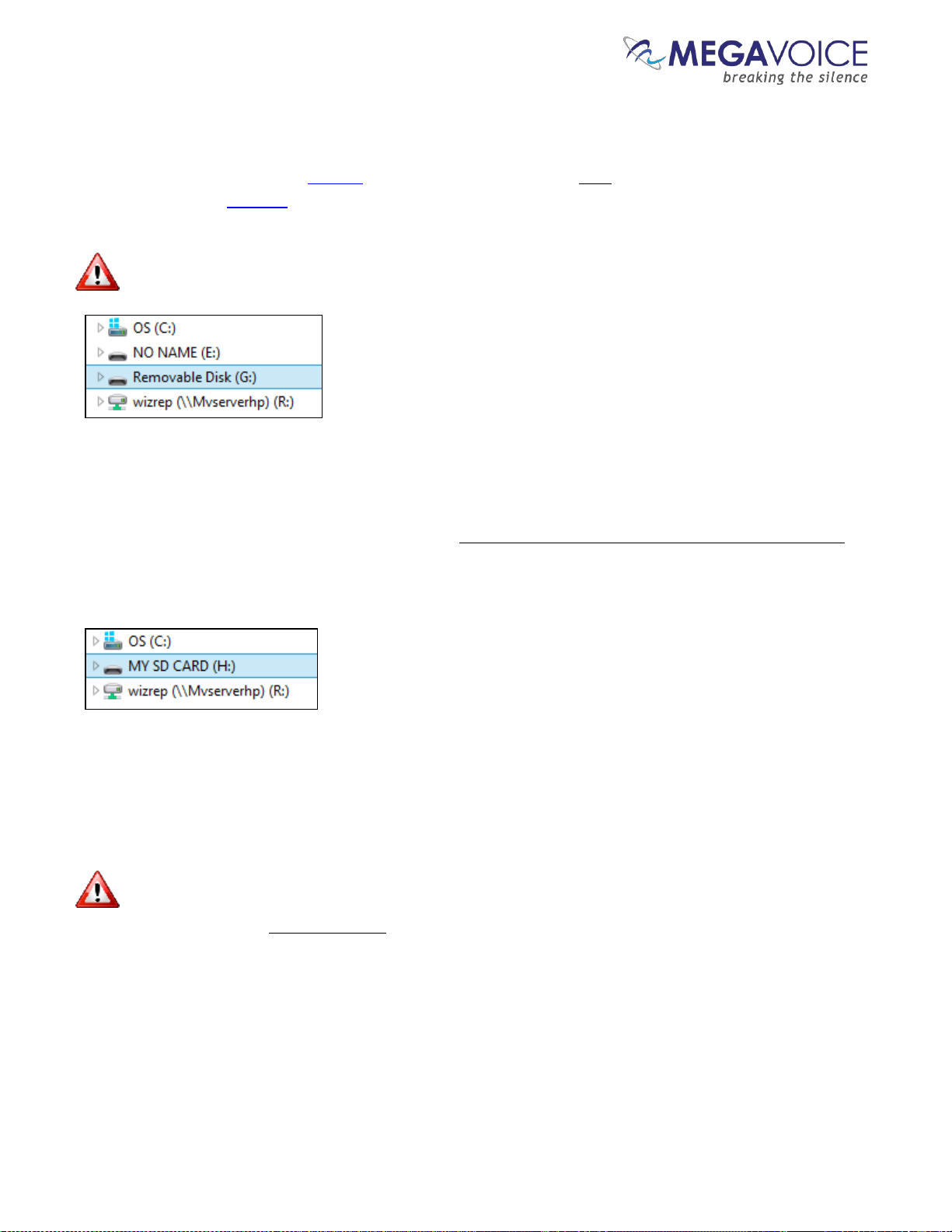
Envoy 2 E Series User Guide 20190805-30.docx || © 2019 MegaVoice Ltd. || Page 53 of 68
Using the File Explorer
If you connect a player using the SLS USB cable with an SD card loaded, both the on-board memory and SD card
appear and show as “Volumes”. In the Windows example below, the player is identified as “NO NAME” and the
SD card (with no volume name) is identified as “Removable Disk”.
Please note that the way the volumes are displayed depends on the operating system being used.
If you use a microSD USB adapter (see SanDisk microSD-to-USB adaptor) and connect it to your PC/Mac using a
standard USB cable, the SD card will display with the Volume name (if set when it was last formatted) or may show
as “Removable Disk” if no Volume name was specified. Again, this can vary depending on the operating system.
In the Windows example below, a microSD card loaded in a microSD USB adaptor and connected to the
computer shows as volume “MY SD CARD”.
Once the SD card(s) are connected to the PC/Mac using USB cables, you simply copy the contents of your audio
folder to the SD card volume(s). This can be done using “copy and paste” or “drag and drop”.
For the player to properly navigate among the audio files on an SD card, it is critical that the folders (and
their content) are copied in proper sequence. Windows and Mac don’t necessarily copy in sequence as the order
doesn’t usually matter, but in this case it definitely does. Keep reading - you can force the copy order.
Page 54
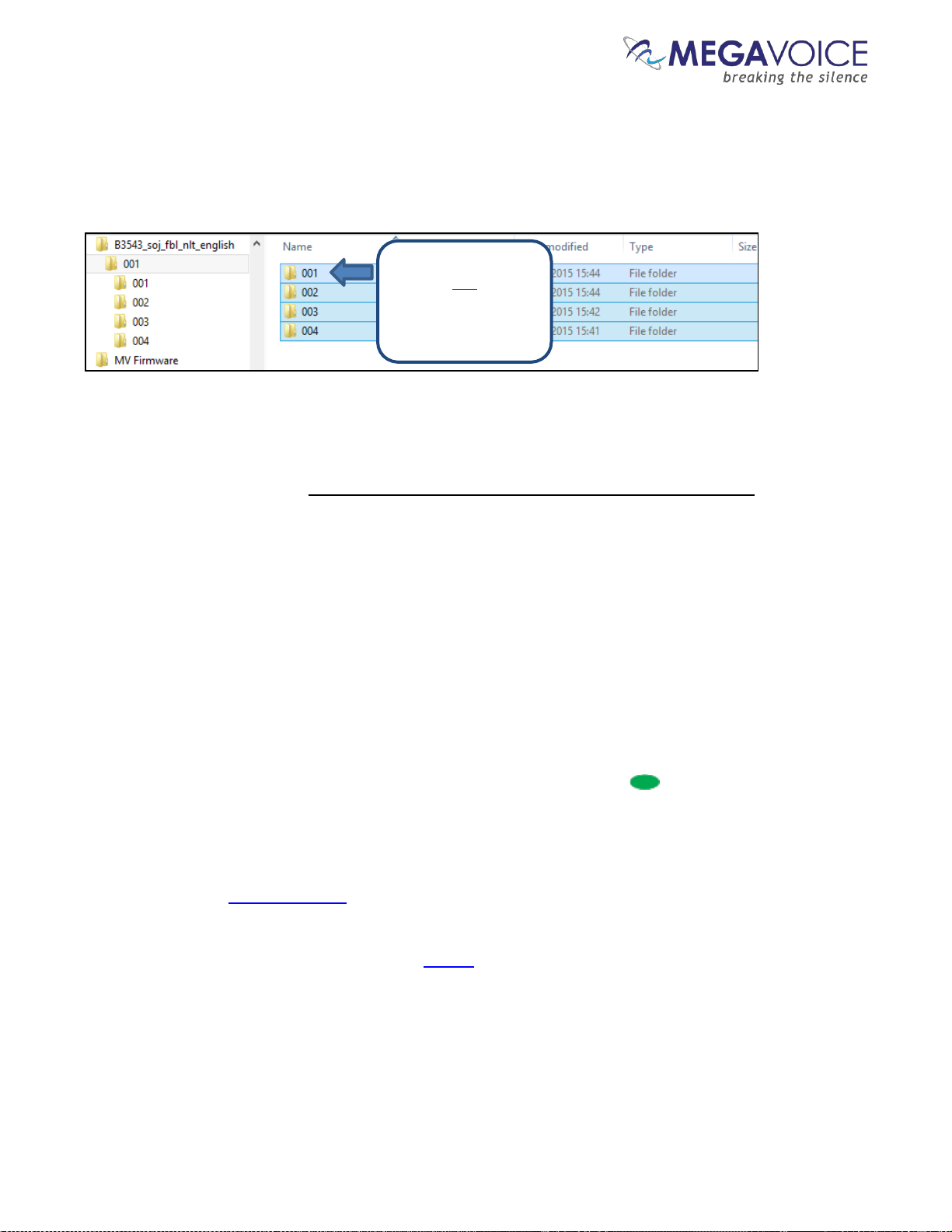
Envoy 2 E Series User Guide 20190805-30.docx || © 2019 MegaVoice Ltd. || Page 54 of 68
In the Windows example below, there are 4 Section folders, each containing multiple Book folders with each of
those containing individual audio Chapter files. The folders need to be copied in order beginning with 001, then
002 and so on. If the folders (and their content) are not copied in that order, the E Series may not play back the
audio in proper order.
The best way to ensure your data is copied in the correct sequence is to first highlight the folders in question. In
Windows this can be done a number of ways such as using the “Ctrl+A” shortcut key, choosing “Select All” from
the menu presented from a right-click or using the “Select All” icon in the ribbon area of File Explorer.
Once the folders are highlighted, you must point to the first folder of the group with your mouse (in the example
above it is folder “001”) and then drag the group to the SD card volume and drop them. Or you can right-click on
the first item, choose “Copy”, go to the SD card volume, right-click and choose “Paste”.
Listen to the message on the SD card
Once the SD card is programmed, you should listen to it to make sure it begins playback from the beginning
and that navigation among the various audio files is in the order you intended.
Load the card (see Inserting a microSD card) and then press the Channel button for 2 seconds repetitively
until the player beeps once. Playback will now begin from the card.
If the player immediately beeps 4 times and goes into pause mode (see Buttons for navigating the Current
Chapter, the Pause button), more than likely the folder structure copied to the SD card is incorrect. Please
review the section on Structuring Rules.
If navigation among the different folders and files on the card is not in the order you expected, and you
used the File Explorer method, please review that section again for details on how to copy/move folders
and files.
Make sure to point
to the first folder
when ready to
copy/paste or
drag/drop the group
Figure 20: Copying files in proper sequence
Page 55
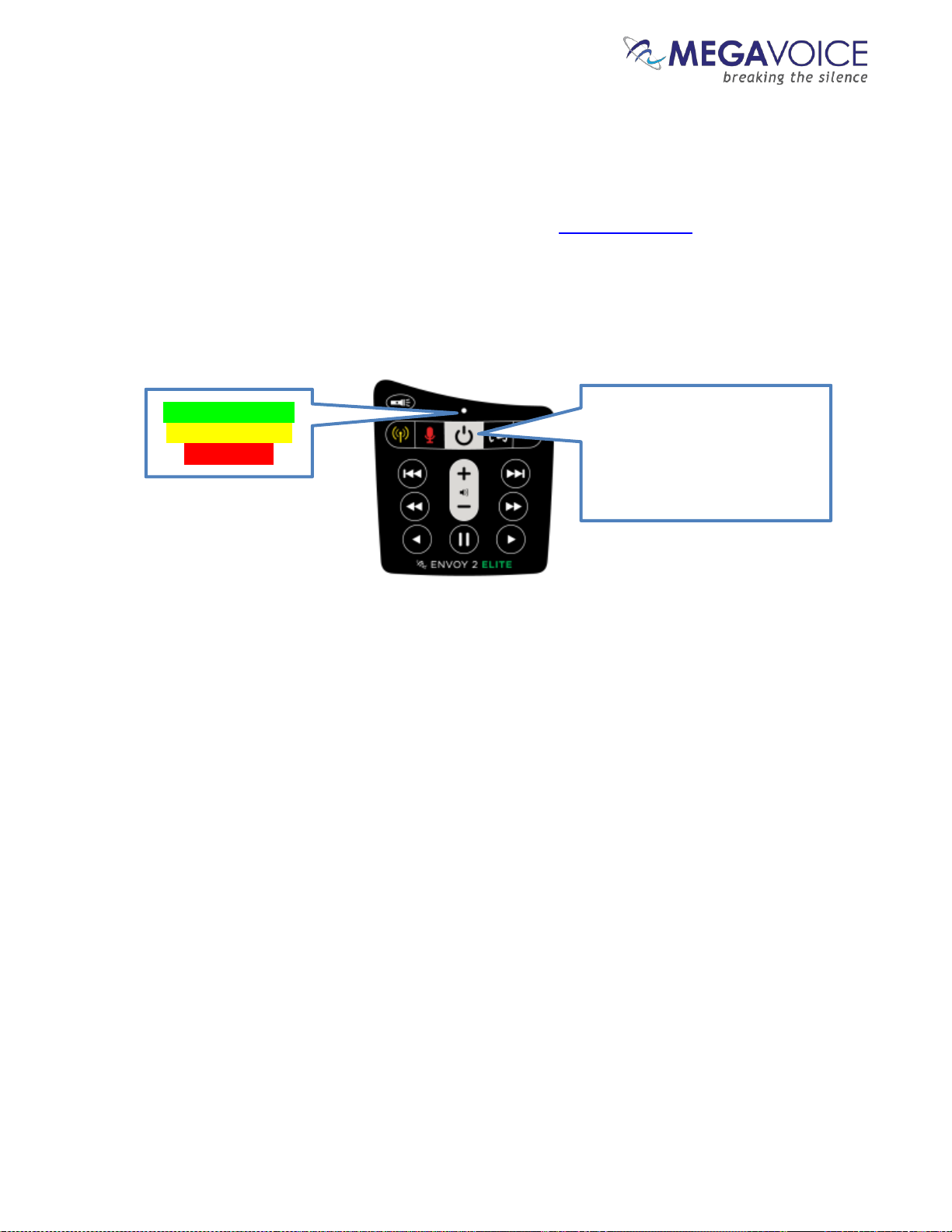
Envoy 2 E Series User Guide 20190805-30.docx || © 2019 MegaVoice Ltd. || Page 55 of 68
The Lithium Ion battery
The battery level indicator
The 2 E Series players come with an improved capacity, rechargeable Lithium Ion battery.
All models come with a built-in battery level indicator. The player must be on in order to test the battery. A click
on the power button at the top of the keypad executes the test. The LED on the keypad will blink rapidly for 2
seconds indicating the remaining capacity in the battery. The color of the LED displayed during the test shows the
remaining charge as presented below:
Green: 30% - 100%
Yellow: 10% - 29%
Red: 1% - 9%
A click on the power button
while the player is on will
perform a battery test. The LED
will blink green, yellow or red
according to the current
capacity.
Page 56

Envoy 2 E Series User Guide 20190805-30.docx || © 2019 MegaVoice Ltd. || Page 56 of 68
Battery care and charging
With proper care, the player’s Lithium-Ion battery should perform well for several years. When shipped, the
battery is only partially charged. You can easily charge the player using one of the methods below:
For fastest charge, connect any standard “USB” charger (regulated +5VDC, minimum 300mA) to the microUSB port on the bottom of the player for about 2 hours* or until the LED stops blinking. While charging, the LED
will blink according to the charge level described above.
Plug the player into any standard computer USB port using a “USB to micro-USB” cable for about 3 hours* or
until the LED stops blinking. Any MegaVoice SLS, regular or charge-only cable is sufficient.
For solar charging, place the player with the solar panel** facing bright sunlight for at least 8 hours* (there is
no indication during solar charging).
*Actual charge time will vary according to the current battery capacity.
**Some versions of the Envoy 2 E do not include a solar panel.
Before storing the player for prolonged periods, make sure the battery is at least partially charged. If stored for
extended periods, it is recommended to recharge the player at least every 6 months in order to prevent the
battery from losing its ability to charge. For optimum battery life, try to store the player at room temperature or
cooler.
Should the battery become damaged and unable to accept a charge, you can still operate the player by either
connecting it to a computer with any micro-USB cable or to an electric wall charger.
Page 57
Envoy 2 E Series User Guide 20190805-30.docx || © 2019 MegaVoice Ltd. || Page 57 of 68
Resetting player default values
The 2 E Series player stores and remembers as default values a number of settings (listed in the chart below).
They are used as defaults the next time the player is turned on. You may reset those to their initial values using
the steps below:
1. Make sure the player is in audio playback mode
2. Press the pause button to pause playback
3. Press and hold the volume down button on the keypad
4. The player will beep 3 times and turn itself off
5. When the player is restarted, the settings will be initialized
Setting
Initial value
Last used mode
Audio playback
Playback bookmark
Beginning of the audio message
Playback speed
Normal
Volume
Medium
Radio station bookmark (Elite and Equip only)
If configuration file is present, the first frequency
specified; otherwise, the lowest frequency: 87.0 MHz
Preset button frequencies (Elite and Equip only)
See configuration file settings
Recording file counter (Elite and Echo only)
000 (zero)
Page 58
Envoy 2 E Series User Guide 20190805-30.docx || © 2019 MegaVoice Ltd. || Page 58 of 68
Audio playback bookmark
Setting the bookmark
During audio playback, a 2-second press on the pause button will place a bookmark at the current position.
The player will beep 3 times to confirm and place the player in pause mode (see Buttons for navigating the
Current Chapter, the Pause button).
When the player is turned back on later, it will always begin to play from this bookmark. This bookmark will
persist until:
It is removed by the user (see below)
Or it is reset to a different place in the audio
The Envoy 2 E Series player supports 2 audio playback bookmarks – a permanent (explicit) one (that may
be set by the user by using the instructions above) and a temporary (implicit) one (which is managed internally by
the player).
When switching from Audio Playback mode to another mode the temporary bookmark is always set.
When returning to Audio Playback mode from another mode, the temporary bookmark will be used as the point
from which to resume playback.
When turning the player on, the user-set bookmark is used for resumption of playback.
Resetting the bookmark to the beginning
To reset the bookmark to the beginning of the audio message, follow these steps:
1. During audio playback, click the pause button .
2. Once the player is paused, press the volume up button on the keypad for 2 seconds. The player will
beep once to confirm.
3. The bookmark is now reset to the beginning of the audio message.
4. You may resume playback or turn the player off .
Page 59

Envoy 2 E Series User Guide 20190805-30.docx || © 2019 MegaVoice Ltd. || Page 59 of 68
Charging and communication modes
When connecting the 2 E Series player to a computer, it can be done in one of two modes: charging
or communication.
* Changing to computer communication mode is essential to allow programming of the player.
Connecting a player to a computer for programming purposes:
Connect the player to a computer using a micro-USB SLS cable (for Onboard / microSD programming) or
Standard micro-USB Data cable (for microSD programming only). The player will automatically enter
computer communication mode*.
* While in computer communications mode, the player will be charging as well.
Connecting a player to a computer for charging purposes:
Connect the player to a computer using a micro-USB SLS cable, a Standard micro-USB Data cable or a
Charge Only micro-USB cable.
If connected via SLS/Data cable, and you want to disconnect from computer communication mode and
continue charging your player, press briefly on the Power button at the top of the keypad or eject
the player’s volume via the operating system. If the player was on prior to connecting it to the
computer, the player will return to the mode it was last in (Audio playback, FM Radio or Recording).
For the computer to recognize the player again, the player will need to be unplugged from the
computer, and reconnected.
Depending on the connection type, and the player’s battery level, the LED will blink (indicating
communication activity or charging level)
Physically unplugging the player from the computer will stop the battery charging process.
Page 60

Envoy 2 E Series User Guide 20190805-30.docx || © 2019 MegaVoice Ltd. || Page 60 of 68
Warnings and advisories
Make sure to set the volume at the lowest level that can be heard comfortably. Prolonged exposure to
loud sound can cause gradual hearing loss.
DO NOT expose the player or battery to fire or extreme heat.
Stop use if you observe abnormal heat, odor, discoloration, leakage or deformation, especially near
battery. Refer to a qualified technician for service.
If the battery is removed from the player, handle it with care. Keep the exposed battery out of reach of
children. DO NOT burn, puncture, disassemble, or modify the battery.
If the battery leaks, dispose of it carefully in accordance with all local laws. Wash any skin or clothing
exposed to battery liquid and avoid swallowing or contact with eyes. In the case of swallowing or contact with
eyes, seek medical care immediately.
This device complies with part 15 of the FCC Rules. Operation is subject to the following two conditions:
(1) This device may not cause harmful interference, and
(2) This device must accept any interference received, including interference that may cause undesired operation.
Changes or modifications not expressly approved by MegaVoice could void your authority to operate this device.
Page 61

Envoy 2 E Series User Guide 20190805-30.docx || © 2019 MegaVoice Ltd. || Page 61 of 68
MegaVoice limited warranty
MegaVoice Ltd. (“MEGAVOICE”) warrants that the retail hardware product herein (“PRODUCT”) is free of
material defects in materials and workmanship that result in PRODUCT failure during normal usage, according
to the following terms and conditions:
1. This limited warranty (“WARRANTY”) extends only to the original end-user purchaser and holder of this
WARRANTY (“YOU” or “YOUR”) and is not transferable or assignable to any subsequent purchaser.
2. The PRODUCT must have been purchased from an authorized MEGAVOICE agent, or distributor, as new,
and YOU must provide proof of purchase of said PRODUCT by making available a dated itemized receipt, or
invoice, (“PROOF OF PURCHASE”) to be eligible for this WARRANTY.
3. It is YOUR responsibility to return the defective MEGAVOICE PRODUCT to the organization that provided it
to YOU (“PROVIDER”) together with a clear description of any alleged defect(s).
4. During the WARRANTY period (as defined below), MEGAVOICE will, at its sole discretion, repair or replace
any defective parts or any parts that will not properly operate for their intended purpose, with new or refurbished
parts if such repair or replacement is needed.
a) The WARRANTY for the PRODUCT extends for one (1) year from the date as determined by PROOF OF
PURCHASE (“WARRANTY PERIOD”). The WARRANTY PERIOD will be extended by each whole day that
the PRODUCT is out of YOUR possession for repair under this WARRANTY.
b) MEGAVOICE will pay for the labor charges incurred by MEGAVOICE in repairing or replacing the
defective parts during the WARRANTY PERIOD.
c) YOU will not have to pay for any such replacement parts.
d) MEGAVOICE also warrants that the repaired or replaced parts will be free from defects in material and
workmanship for a period of ninety (90) days from the date of repair or replacement, or for the remainder of
the WARRANTY PERIOD, whichever is greater.
5. MEGAVOICE does not warrant uninterrupted or error-free operation of the PRODUCT. MEGAVOICE is not
under any obligation to support the PRODUCT for all operating environments, including but not limited to,
interoperability with all existing and/or future versions of software or hardware.
6. If a problem develops during the WARRANTY PERIOD, please contact YOUR PROVIDER for instructions on
where to send YOUR PRODUCT.
a) The PROVIDER must provide to MEGAVOICE PROOF OF PURCHASE of the PRODUCT.
b) YOU will bear the cost of shipping the PRODUCT to your PROVIDER (or to MEGAVOICE, per the
instructions of the PROVIDER). MEGAVOICE will bear the cost of shipping the PRODUCT back to YOU
after completing the WARRANTY service.
c) YOU should only return the defective item(s). MEGAVOICE will not be responsible for other products or
accessories returned together with the defective item.
Page 62

Envoy 2 E Series User Guide 20190805-30.docx || © 2019 MegaVoice Ltd. || Page 62 of 68
7. The WARRANTY does not apply to the following:
a) Damage caused by normal wear and tear, abnormal use or conditions, misuse, neglect, abuse, accident,
improper handling or storage, exposure to moisture, unauthorized modifications, alterations, or repairs,
improper use of any electrical source, undue physical or electrical stress, operator error, non-compliance
with PRODUCT instructions or other acts which are not the fault of MegaVoice, including damage or loss
during shipment.
b) Damage from external causes such as floods, storms, fires, sand, dirt, earthquakes, an Act of God,
weather, moisture, heat, corrosive environments, electrical surges, battery leakage or theft.
c) Damage to either the MEGAVOICE PRODUCT or to any foreign device or media caused by connecting
the MEGAVOICE PRODUCT to any foreign device or media not specifically approved and recommended by
MEGAVOICE technical support.
d) Any PRODUCT that has had its serial number altered, defaced or removed.
e) Any defect occurring after the expiration of the WARRANTY PERIOD or where MEGAVOICE was not
advised in writing of an alleged defect or malfunction within seven (7) days after the expiration of the
WARRANTY PERIOD.
8. MEGAVOICE’s limit of liability under the WARRANTY is the actual cash value of the PRODUCT at the time
YOU return the PRODUCT for repair (e.g., the purchase price of the PRODUCT less a reasonable amount for
usage). MEGAVOICE will not be liable for any other losses or damages. These remedies are YOUR exclusive
remedies for breach of WARRANTY. Any action or lawsuit for breach of WARRANTY must be commenced
within eighteen (18) months following the purchase of the PRODUCT.
9. The foregoing WARRANTY is YOUR sole and exclusive remedy and is in lieu of all other warranties,
expressed or implied. To the extent permitted by applicable law, MEGAVOICE hereby disclaims the applicability
of any implied warranty of merchantability, fitness for a particular purpose or use for the PRODUCT. If such a
disclaimer is prohibited by applicable law, the implied warranty is limited to the duration of the foregoing limited
written WARRANTY.
10. MEGAVOICE will not be liable for any indirect, incidental, special, punitive or consequential damages, or
damages, including but not limited to any lost profits, savings, data, or usability, any third party claims, and any
injury to property or bodily injury (including death) to any person, arising from or relating to the use of this
PRODUCT, or arising from breach of the WARRANTY, breach of contract, negligence, tort, or strict liability,
even if MEGAVOICE has been advised of the possibility of such damages.
11. This WARRANTY gives YOU specific legal rights. YOU may also have other rights, which vary from state to
state and country to country. Some states and countries do not allow limitations on how long an implied
warranty lasts, or the exclusion or limitation of incidental or consequential damages, so the above limitations or
exclusions may not apply to YOU. This is the entire WARRANTY between YOU and MEGAVOICE and
supersedes all prior and contemporaneous agreements or understandings, oral or written, relating to the
PRODUCT, and no representation, promise or condition not contained herein will modify the afore-mentioned
stated terms.
Page 63
Envoy 2 E Series User Guide 20190805-30.docx || © 2019 MegaVoice Ltd. || Page 63 of 68
Technical
Specifications
Battery
Lithium Ion, 3.7V, 390 MAh, 1.44Wh
Input
DC 5.0V, 500mA
Weight
2.2 ounces (63 grams)
Dimensions
4.2" x 2.3" x 0.4" (10.6cm x 5.9cm x 1.1cm)
Onboard memory
8GB
microSD memory
Up to 128GB
Contact for Support
Request support from the MegaVoice web site:
https://megavoice.com/audio-tools/request-support-for-loading-audio-content-on-audio-bibles/
Recommended (free) utilities by MegaVoice:
http://megavoice.com/audio-tools/tools-and-utilities-for-loading-audio-content-on-audio-bibles/
Page 64
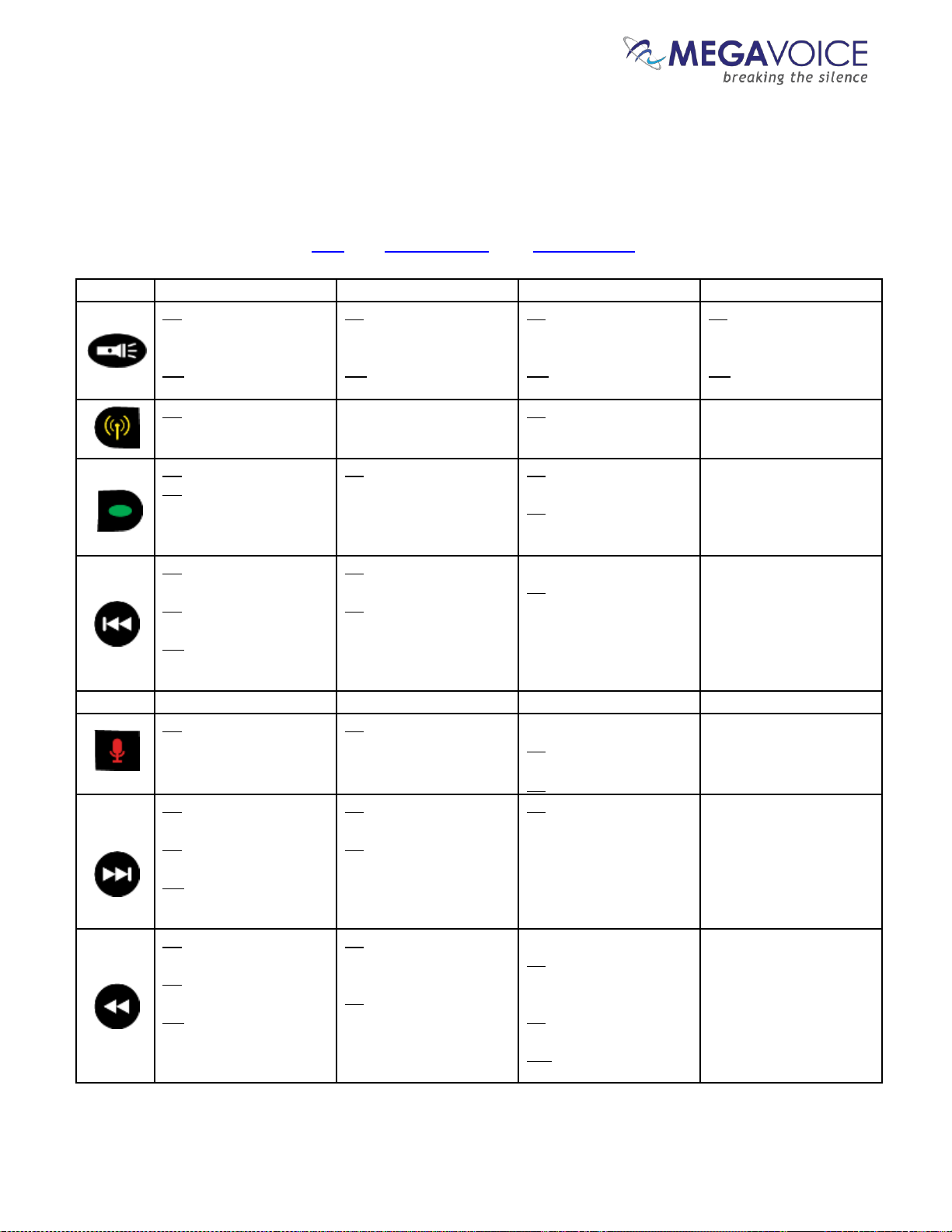
Envoy 2 E Series User Guide 20190805-30.docx || © 2019 MegaVoice Ltd. || Page 64 of 68
Keypad button cross reference
The following chart shows all keypad buttons and what occurs when pressed during different modes of
player operation. To save space, the following abbreviations are used throughout:
CL: Click, 2S: 2-second press, PH: Press and hold
Button
Audio Playback Mode
FM Radio Mode
Recording Mode
Speed Control Mode
CL: switch from low
beam, to medium, to
high, to off
PH: activate high beam
until button is released
CL: switch from low
beam, to medium, to
high, to off
PH: activate high beam
until button is released
CL: switch from low
beam, to medium, to
high, to off
PH: activate high beam
until button is released
CL: switch from low
beam, to medium, to
high, to off
PH: activate high beam
until button is released
2S: switch to FM Radio
mode (set temporary
bookmark)
N/A
2S: switch to FM Radio
mode
Exit Speed Control mode
CL: scroll to next Section
2S: scroll to next onboard
Channel, then to first
Channel on microSD card
(if present)
2S: switch to Audio
Playback mode
CL: begin playback of
recordings
2S: switch to Audio
Playback mode
Exit Speed Control mode
CL: scroll back to previous
Book
2S: scroll back 5 Books at
a time
PH: scroll back 5 Books
at a time until first Book
or button is released
CL: decrement frequency
by 0.1MHz
2S: scan for previous FM
station
While in playback…
2S: delete the current
recording
Exit Speed Control mode
Button
Audio Playback Mode
FM Radio Mode
Recording Mode
Speed Control Mode
2S: switch to Recording
mode (set temporary
bookmark)
2S: switch to Recording
mode
While idle…
CL: begin recording
While recording…
CL: end recording
Exit Speed Control mode
CL: scroll forward to next
Book
2S: scroll forward 5 Books
at a time
PH: scroll forward 5
Books at a time until last
Book or button released
CL: increment frequency
by 0.1MHz
2S: scan for next FM
station
2S: reset the file counter
to 000 (zero)
Exit Speed Control mode
CL: scroll to the previous
Chapter
2S: scroll back 5 Chapters
at a time
PH: scroll back 5
Chapters at a time until
first Chapter or button is
released
CL: switch to the preprogrammed station for
this button
2S: program the button to
the current station
While in playback…
CL: skip to the
beginning of the current
recording file
2S: skip back 5
recording files at a time
PH: skip back 5 files
until first file is reached
Exit Speed Control mode
Continued on next page
Page 65
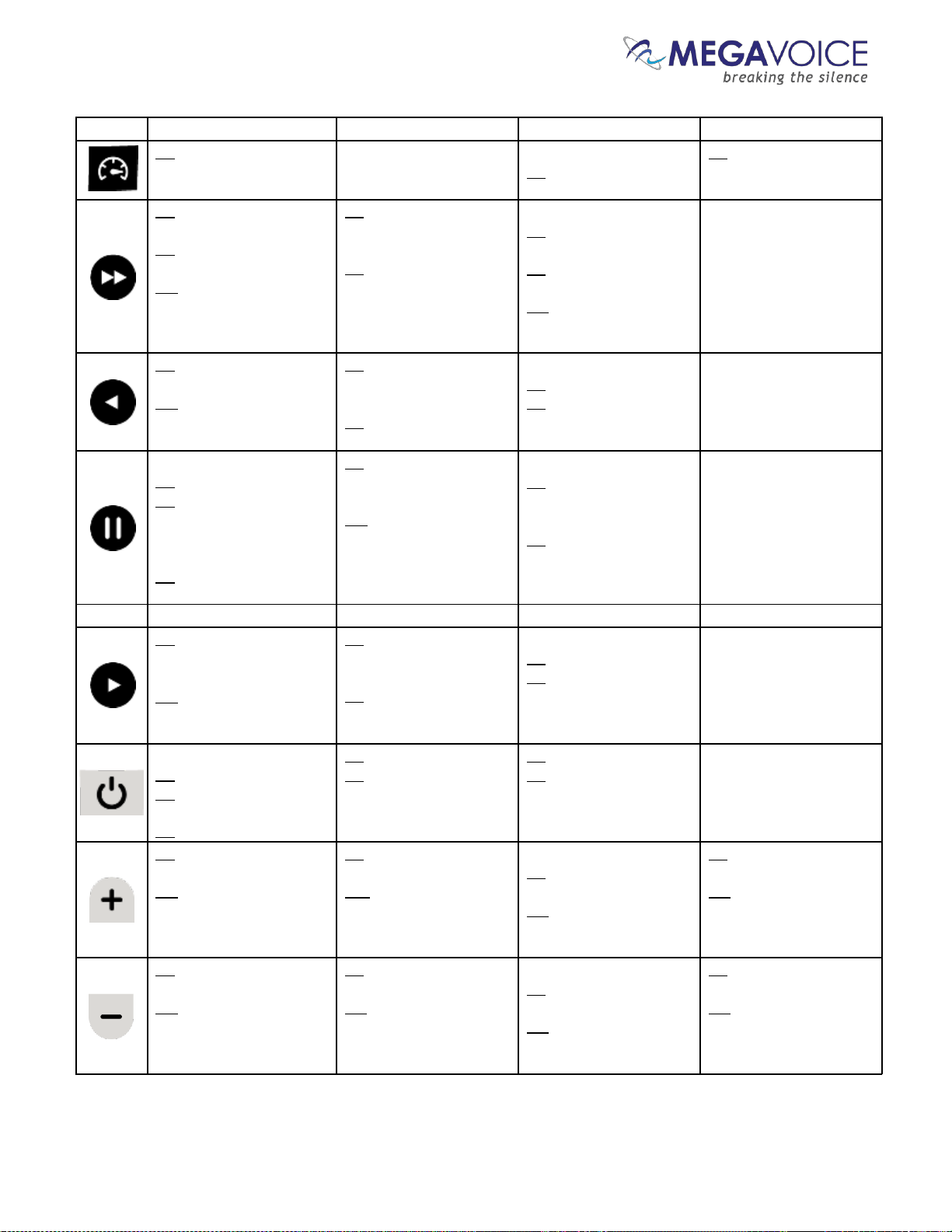
Envoy 2 E Series User Guide 20190805-30.docx || © 2019 MegaVoice Ltd. || Page 65 of 68
Button
Audio Playback Mode
FM Radio Mode
Recording Mode
Speed Control Mode
2S: Switch to Speed
Control mode
N/A
While in playback…
2S: Switch to Speed
Control mode
2S: reset the playback
speed to normal and exit
Speed Control
CL: scroll to the next
Chapter
2S: scroll forward 5
Chapters at a time
PH: scroll forward 5
Chapters at a time until
last Chapter or button is
released
CL: switch to the preprogrammed station for
this button
2S: program the button to
the current station
While in playback…
CL: skip to the next
recording file
2S: skip forward 5
recording files at a time
PH: skip forward 5 files
until last file is reached
Exit Speed Control mode
CL: rewind 20 seconds* in
current Chapter
PH: rewind until button
is released or beginning
of file
CL: switch to the preprogrammed station for
this button
2S: program the button to
the current station
While in playback…
CL: rewind 20 seconds*
2S: rewind through all the
files until button is
released
Exit Speed Control mode
While in playback…
CL: enter pause mode
2S: place a bookmark at
the current audio position
While paused…
CL: resume playback
2S: place a bookmark at
the current audio position
CL: switch to the preprogrammed station for
this button
2S: program the button to
the current station
While recording…
CL: pause current
recording
While paused…
CL: resume current
recording
Exit Speed Control mode
Button
Audio Playback Mode
FM Radio Mode
Recording Mode
Speed Control Mode
CL: fast-forward 20
seconds* in current
Chapter
PH: fast-forward until
button is released or end of
file
CL: switch to the preprogrammed station for
this button
2S: program the button to
the current station
While in playback…
CL: forward 20 seconds*
2S: fast-forward through
all the files until button is
released
Exit Speed Control mode
Player is ON:
CL: perform battery test
2S: turn player off
Player is OFF:
2S: turn player on
CL: perform battery test
2S: turn player off
CL: perform battery test
2S: turn player off
Exit Speed Control mode
CL: increase volume a
single level
PH: increase volume
until button is released
or maximum reached
CL: increase volume a
single level
PH: increase volume
until button is released
or maximum reached
While in playback…
CL: increase volume a
single level
PH: increase volume
until button is released
or maximum reached
CL: increase playback
speed a single level
PH: increase playback
speed until button is
released or maximum
reached
CL: decrease volume a
single level
PH: decrease volume
until button is released or
minimum reached
CL: decrease volume a
single level
PH: decrease volume
until button is released or
minimum reached
While in playback…
CL: decrease volume a
single level
PH: decrease volume until
button is released or
minimum reached
CL: decrease playback
speed a single level
PH: decrease
playback speed until
button is released or
minimum reached
*The actual time may vary slightly.
Page 66
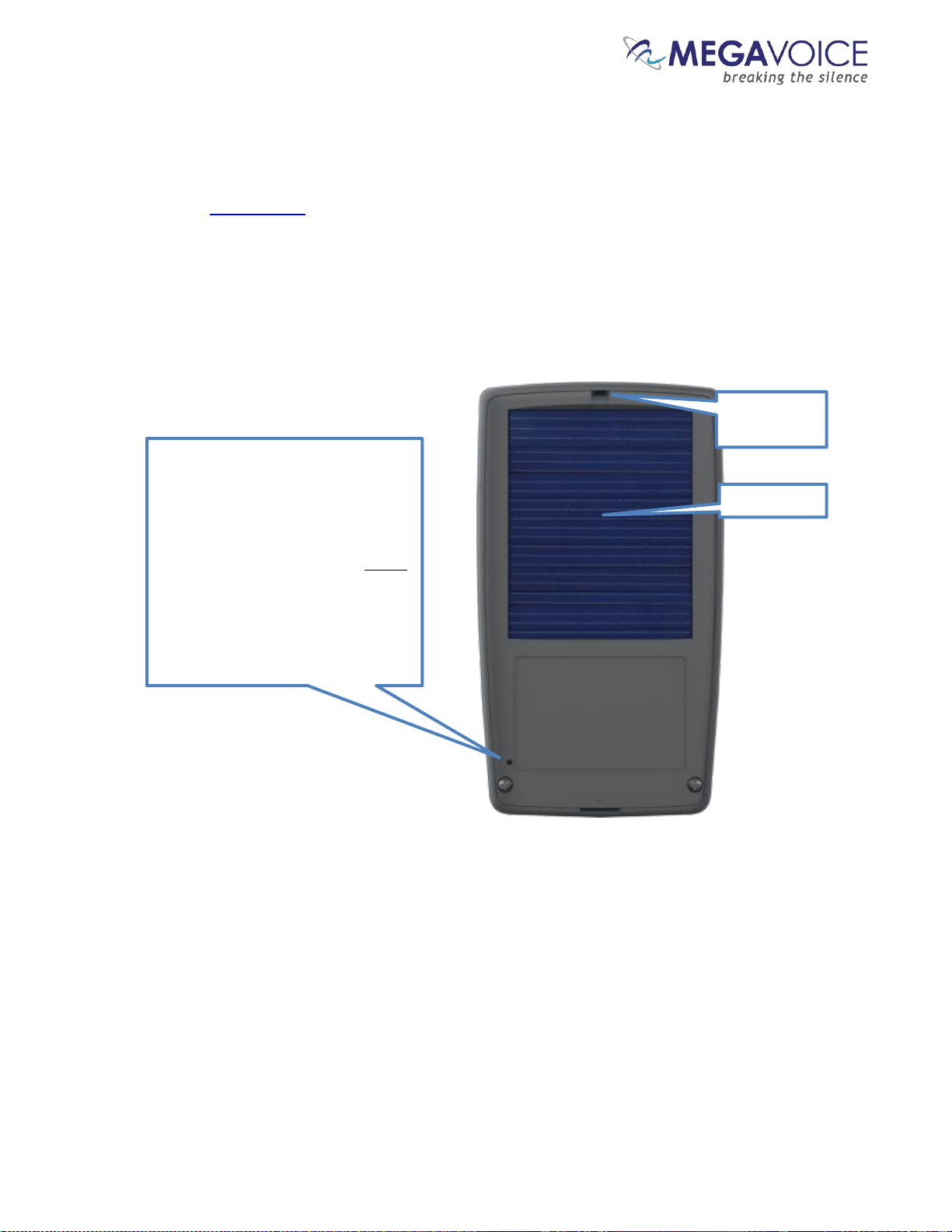
Envoy 2 E Series User Guide 20190805-30.docx || © 2019 MegaVoice Ltd. || Page 66 of 68
Resetting the player
To reset the Envoy 2 E try the following:
Hold down the power button for 10 seconds until the player restarts.
If unsuccessful, reconnect to the computer with a USB cable and hold down the power button for another 10
seconds.
If still unsuccessful, use the reset switch as illustrated below.
*Some versions of the Envoy 2 E do not include a solar panel.
To perform a physical reset of the
player, insert a small paper clip (or
similar item with a blunt end)
through the reset hole on the rear
panel of the player, just above the
left-most panel screw. Press (gently)
on the reset switch and hold for a
few seconds. The player should turn
on automatically.
(This is the same as disconnecting /
reconnecting the battery)
Opening for
Lanyard
Solar panel*
Figure 21: The rear panel with reset switch
Page 67
Envoy 2 E Series User Guide 20190805-30.docx || © 2019 MegaVoice Ltd. || Page 67 of 68
Troubleshooting
Symptom
Cause/Solution
Player will not turn on
Low Battery
Make sure the battery is charged per the instructions
Player needs to be reset
See Resetting the player
Player turns on but there is no
sound
Volume is set to minimum
Turn the volume up
Speaker is not working
The speaker may be disconnected or poorly connected. Remove
the back panel, open the player and check the speaker connector.
If poorly connected, reseat the plug in the socket.
If the speaker is connected, connect earbuds or external speaker to
the audio jack and test. If they work the speaker is defective.
Contact MegaVoice for instructions
Unit LED does not light up when
connected to the computer
USB port has not been initialized.
Test with a different “working” USB device
Try a different USB port
USB Hub is not working
Make sure the Hub has power and is turned on (indicator light)
Make sure all USB cables are properly connected
SLS USB cable might be faulty
Replace with a working SLS USB cable
Try connecting a different player
Replace the SLS cable with a regular USB charging cable. If the
player LED lights up, the SLS cable is faulty.
Player is faulty
Contact MegaVoice for instructions
Unit LED blinks quickly when first
connected to the computer with a
USB cable
Low Battery
See Battery care and charging
Unit does not respond or register
when connected to the computer
with an SLS cable
Player may be locked up
Reset the player if needed (see Resetting the player).
Switch to a different USB port
Reboot the computer
SLS cable might be faulty
Replace with a working SLS USB cable
Preset frequencies in the
FMSET.txt configuration file are
not working
Make sure the values coded in the FMSET file are correct
Make sure FMSET file is in the “root” of the onboard memory
After loading (or changing) the FMSET file in the root of the player’s
onboard memory, you must reset the player defaults
Continued on next page
Page 68
Envoy 2 E Series User Guide 20190805-30.docx || © 2019 MegaVoice Ltd. || Page 68 of 68
Troubleshooting continued…
Symptom
Cause/Solution
Player switches to microSD card
but does not play content and/or
turns off
microSD card may be faulty
Format the card, reload and try again.
microSD card not properly seated
Eject the card, re-insert and try again.
If none of the above solves the problem, try a different card.
Unit “locks up” during navigation
and/or beeps 5 times quickly and
goes to “pause” mode
Invalid folder layout
Empty folders
Onboard memory is blank
More than 20 consecutive unsupported files encountered
See structuring rules to make sure the audio message loaded to the
player adheres to those rules.
If the folder layout was faulty, reload the player with the
corrected folder layout.
Reset the player if needed (see Resetting the player).
Slow “write” speed when
programming with
SaberCopy software
Weak CPU capacity on your computer
Too many units connected through a single USB Hub
The source audio is somewhere other than the local PC’s hard drive
(i.e. on a network computer or portable device)
Unless you have a high-speed external device where your audio
files are stored, we recommend always having your source audio
on the local computer’s hard drive when loading players.
We also recommend using powered Hubs, with each Hub directly
connected to the computer (not daisy-chained together) with up
to 7 players connected per Hub.
Allocation unit size is too small
SaberCopy allows you to specify the allocation unit size when
formatting a device. The larger the size, the faster data can be
copied. The recommended setting is 8192 Bytes (8K).
See here for details.
While in Recording Mode,
player continues to beep 3
times when pressing Green
Channel button for playback
Corrupt or invalid file(s) in the RECORD folder
Connect the player to a computer. Manually check for and delete
the file(s) in question.
Cannot navigate to second Channel
folder when 2-second press on
Green Channel button
Envoy 2 E players shipped since mid-summer 2018 may have a potential
problem in their firmware when multiple Channel folders exist.
When the player automatically adds the RECORD folder during the first
use of the recording function (Elite and Echo only), this will prevent
navigation between the Channel folders later.
Until the firmware is corrected and released, the solution is to add an
empty RECORD folder to the root of your audio message, clear the
player contents and then reload it to the player with the RECORD folder.
This will prevent the problem from occurring.
MegaVoice is working to fix this problem in the firmware.
 Loading...