

Page 1
LXE Computers and
Wavelink Avalanche
User’s Guide
Copyright © September 2004 by LXE Inc.
All Rights Reserved
E-SW-WAVACFG-A
Page 2

Notices
LXE’s Package Builder and Enablers contain software developed by LXE for use on LXE certified equipment.
Any reference, whether direct or implied, to any LXE wireless or RF equipment requires the reader to refer to the
specific equipment’s User Manuals for cautions, warnings and federal notices (e.g. FCC, EMC, UL, CE, etc.).
Copyright Notice:
This manual is copyrighted. All rights are reserved. This document may not, in whole or in part, be copied,
photocopied, reproduced, translated or reduced to any electronic medium or machine-readable form without prior
consent, in writing, from LXE Inc.
Copyright © 2004 by LXE Inc. An EMS Technologies Company.
125 Technology Parkway, Norcross, GA 30092 U.S.A. (770) 447-4224
Trademarks:
LXE® is a registered trademark of LXE Inc.
Microsoft, Windows and the Windows logo are registered trademarks of Microsoft Corporation in the United
States and/or other countries.
Wavelink and Avalanche are registered trademarks of Wavelink Corporation.
All other brand or product names are trademarks or registered trademarks of their respective companies or
organizations. When this manual is in PDF format: “Acrobat ® Reader Copyright © 1987-2003 Adobe Systems
Incorporated. All rights reserved. Adobe, the Adobe logo, Acrobat, and the Acrobat logo are trademarks of Adobe
Systems Incorporated.” applies.
Page 3

Table of Contents
CHAPTER 1 INTRODUCTION 1
About This Manual.................................................................................................... 1
Overview.................................................................................................................... 1
Avalanche Management Console .............................................................................................1
Avalanche Agent ......................................................................................................................2
Avalanche Enablers ..................................................................................................................2
Limitations of DOS Devices ..................................................................................................2
Supported Computers .............................................................................................. 3
Supported Radios ..................................................................................................... 3
Supported DOS Terminal Emulations ..................................................................... 3
Configurable Parameters ......................................................................................... 4
Radio Parameters......................................................................................................................4
Cisco 350 Radios....................................................................................................................4
Lucent/Agere P1 Radios.........................................................................................................4
Symbol 4121 Radios ..............................................................................................................4
Network Configuration Parameters ..........................................................................................4
Terminal Emulation Parameters ...............................................................................................4
Installation................................................................................................................. 5
Installation of Wavelink Software............................................................................................5
Installation of LXE Package Builder........................................................................................5
Installation of Enablers on LXE Computers.............................................................................5
Operation................................................................................................................... 6
How To Use This Guide............................................................................................ 6
Document Conventions ............................................................................................................6
Getting Help............................................................................................................... 7
LXE Manuals.............................................................................................................. 7
Wavelink Manuals ..................................................................................................... 7
HAPTER 2 LXE FEATURES 9
C
Introduction ............................................................................................................... 9
Communication Overview........................................................................................ 9
Communication Using a Dock or Cradle................................................................................10
Configuring the Agent..........................................................................................................10
Step 1: Detect COM Ports in Avalanche Manager ............................................................10
E-SW-WAVACFG-A LXE Computers and Wavelink Avalanche User’s Guide
Page 4

ii Table of Contents
Step 2: Stop the Avalanche Service...................................................................................10
Step 3: Modify the Avalanche Properties File...................................................................10
Step 4: Restart the Avalanche Service...............................................................................11
LXE Package Builder .............................................................................................. 12
Using the GUI Interface..........................................................................................................12
Using the Command Line Interface........................................................................................14
Syntax Examples ..................................................................................................................14
Using Avalanche ..................................................................................................... 15
Software Collections...............................................................................................................17
Auto Run Software Packages...............................................................................................18
Application Software Packages............................................................................................19
Support Software Packages..................................................................................................20
Configuration .......................................................................................................... 21
Terminal Emulation Parameters .............................................................................................21
Radio and Network Parameters ..............................................................................................23
Manual Network and Radio Parameter Configuration.........................................................26
Filtering LXE Computers........................................................................................ 27
By Computer Type .................................................................................................................27
By Radio Type........................................................................................................................27
APPENDIX A DOS COMPUTER SOFTWARE LOAD 29
Minimum Software Baseline .................................................................................. 29
Upgrading LXE Computers....................................................................................................29
Directory Structure ................................................................................................. 29
\AGENT..................................................................................................................................30
\AVA.......................................................................................................................................30
\APPS......................................................................................................................................30
\APPS\AVAF..........................................................................................................................30
INDEX 31
LXE Computers and Wavelink Avalanche User’s Guide E-SW-WAVACFG-A
Page 5

Table of Contents iii
Illustrations
Figure 2-1 Select G-Number..............................................................................................................................12
Figure 2-2 Select Output Directory....................................................................................................................13
Figure 2-3 End of Conversion Message.............................................................................................................13
Figure 2-4 Avalanche Management Console Components................................................................................15
Figure 2-5 Software Collection.......................................................................................................................... 18
Figure 2-6 Sample Auto Run Software Package ...............................................................................................18
Figure 2-7 Sample Application Software Package ............................................................................................19
Figure 2-8 Sample Support Software Package ..................................................................................................20
Figure 2-9 Accessing the TE Configuration Menu............................................................................................21
Figure 2-10 The Configuration Menu................................................................................................................21
Figure 2-11 Accessing Network Profile Configuration ..................................................................................... 23
Figure 2-12 Network Profile, Control Tab ........................................................................................................23
Figure 2-13 Network Profile, Routing Tab........................................................................................................24
Figure 2-14 Network Profile, Security Tab .......................................................................................................25
Figure 2-15 Static WEP Keys ............................................................................................................................26
Figure 2-16 Filtering Devices by LXE Computer Type ....................................................................................27
Figure 2-17 Filtering Devices by Radio Type ...................................................................................................27
E-SW-WAVACFG-A LXE Computers and Wavelink Avalanche User’s Guide
Page 6

iv Table of Contents
LXE Computers and Wavelink Avalanche User’s Guide E-SW-WAVACFG-A
Page 7

About This Manual
This document assumes the user has a basic familiarity with the Wavelink Avalanche system. For
more information on Avalanche, the user should refer to Wavelink’s Quick Start Guide or
Avalanche Users Guide. These documents are available on Wavelink’s website,
www.wavelink.com. Avalanche also has online help available by clicking on Help in the Menu
Bar while running Avalanche.
This document contains a brief overview of Avalanche and a discussion of how LXE’s DOS
computers can be managed by Avalanche. LXE provides additional functionality for LXE DOS
computers under Avalanche. This additional functionality is discussed in this document.
This chapter, “Introduction” provides a basic overview of LXE computer management using
Wavelink Avalanche. Installation instructions are also included.
Chapter 2, “LXE Features” covers the package builder used to convert conventional LXE GNumbers into AVA packages for Wavelink Avalanche. Include are a brief discussion of software
collections, the configurable parameters on LXE DOS computers when using Wavelink
Avalanche, references to additional LXE publications for more details on configurable parameters
and selection criteria unique to LXE computers.
Chapter 1 Introduction
Appendix A, “DOS Computer Software Load” provides details on the directory structure and files
loaded on the LXE DOS computer when Wavelink Avalanche enablers have been loaded.
Overview
Wavelink Avalanche is a remote client management system that can be used to distribute software
and configuration updates to mobile devices including LXE DOS computers. Additionally,
Avalanche may provide support for other devices on the network.
Avalanche uses a three-tier software architecture:
• Avalanche Management Console
• Avalanche Agent
• Avalanche Enabler
Avalanche Management Console
The Avalanche Management Console is a Windows desktop application. It can be run from any
location on the network and can be used with multiple agents as long as there is an IP connection
between the PC with the Management Console and the PC (or multiple PC’s) running the Agent
service. The Management Console and the Agent may also be installed on the same PC.
The Management Console does not communicate directly with the managed devices. Instead, the
Management Console communicates with the Agent and the Agent communicates with the
wireless devices.
E-SW-WAVACFG-A LXE Computers and Wavelink Avalanche User’s Guide
Page 8

2 Overview
Avalanche Agent
The Avalanche Agent runs as a Windows service on a desktop PC. Once installed, the Agent
software starts automatically and monitors for communications from devices running Avalanche
Enablers on the network.
The Management Console can connect to or disconnect from the Agent. Even when the
Management Console is not connected to the Agent, the Agent continues to communicate with the
Enablers.
Avalanche Enablers
Avalanche Enablers are installed on the monitored devices, including LXE DOS computers. The
Enabler maintains a record of the software updates and configuration parameters on the monitored
device. This information is communicated to the Agent. The Agent sends updated software and
configuration parameters as necessary.
The Enabler performs several functions:
• Reports revision levels of software currently loaded
• Receives and installs software and configuration updates
• Reboots the device as necessary during the installation/configuration process.
Limitations of DOS Devices
When the Enabler is installed on a DOS device, such as an LXE DOS computer, the Enabler runs
only at boot up. After the Enabler has started during boot up, communicated with the Agent and
received and installed any updates, the Enabler exits.
For this reason, the following functions are not available with the DOS devices:
• Text messages
• Update now
• The agent does not know when the DOS device has been turned off.
LXE Computers and Wavelink Avalanche User’s Guide E-SW-WAVACFG-A
Page 9

Supported Computers 3
Supported Computers
The following LXE computers are supported:
• MX1 • VX1
• MX2 • VX2
• MX3 (DOS only) • VX4 (DOS only)
Note: Please refer to Appendix A, “DOS Computer Software Load” for more information on
the minimum software revision level (baseline) necessary to use Avalanche.
Supported Radios
The following 2.4 GHz radios are supported:
• Cisco 350 LMC
• Symbol 4121-1100
• Lucent/Agere P1
Note: Please refer to Appendix A, “DOS Computer Software Load” for more information on
the minimum radio driver revision level (baseline) necessary to use Avalanche.
Supported DOS Terminal Emulations
The following 2.4GHz terminal emulations are supported
• ANSI Plus Terminal Emulation
• LDS Plus Terminal Emulation
• TN3270 Terminal Emulation
• TN5250 Terminal Emulation
E-SW-WAVACFG-A LXE Computers and Wavelink Avalanche User’s Guide
Page 10

4 Configurable Parameters
Configurable Parameters
This section lists the parameters on the LXE DOS computer that may be configured using
Avalanche.
Radio Parameters
For more information on these radio parameters, please refer to the NET.CFG file and radio
parameter sections in the reference guide for the appropriate LXE computer.
Cisco 350 Radios
• SSID • WEP Transmit Key • WEP Key 3
• Encryption Type • WEP Key 1 • WEP Key 4
• WEP Key Size • WEP Key 2
Lucent/Agere P1 Radios
• Network Name • WEP Key 1 • WEP Key 3
• Encryption Type • WEP Key 2 • WEP Key 4
• WEP Transmit Key
Symbol 4121 Radios
• SSID • WEP Transmit Key • WEP Key 3
• Encryption Type • WEP Key 1 • WEP Key 4
• WEP Key Size • WEP Key 2
Network Configuration Parameters
For more information on these network parameters, please refer to the SOCKET.CFG file and
parameter sections in the reference guide for the appropriate LXE computer.
• Enable DHCP • Enable BootP • IP Address (static)
• Gateway • Subnet Mask • Default DNS Domain
• Primary DNS • Secondary DNS • Tertiary DNS
Terminal Emulation Parameters
Every parameter in the terminal emulation’s configuration utility can be configured using
Avalanche. For a complete list of parameters, descriptions and available values please refer to
Chapter 3, “Configuration Utility” in the appropriate TE reference guide
Note: Unlike the TE configuration utility on the LXE DOS computer, the TE configuration
menu within Avalanche is not password protected. To restrict user access to the
configuration menu, you must enable access control in the Avalanche Management
Console. Please refer to Wavelink’s Avalanche Manager User’s Guide for more details
on access control.
LXE Computers and Wavelink Avalanche User’s Guide E-SW-WAVACFG-A
Page 11

Installation 5
Installation
To use Wavelink Avalanche, the following items are required:
• A PC on which to install the Avalanche Management Console
• A PC on which to install the Avalanche Management Agent (this can be the same
PC where the Avalanche Management Console is installed)
• Wavelink Avalanche 3.4 or newer
• License for Wavelink Avalanche
• LXE Package Builder Software (can be installed on the same PC as Agent)
• LXE DOS computers with Enablers loaded (these computers can be connected to the
Agent PC via the wireless network or via a serial COM cable)
Installation of Wavelink Software
An installation file is provided for the Wavelink Avalanche software. This file allows you to
install the Management Console, Agent software or both onto a PC. Minimum requirements for
the PC are:
• Microsoft Windows NT/2000/XP
• 200MB free disk space
• Minimum Pentium III 550 MHz processor and 256K of RAM
For complete details on system requirements and installation of the Wavelink Avalanche software,
refer to either of these Wavelink documents:
• Quick Start Guide
• Avalanche Manager Users Guide
Please make sure your license key is available to complete the installation process.
Installation of LXE Package Builder
LXE provides the package builder file. This file installs to the C:\LXE2AVA directory. Please
contact your LXE representative for details on obtaining the LXE PackageBuilder.
Installation of Enablers on LXE Computers
LXE computers shipped after August 2004 have the enablers installed as part of the factory
software load. Earlier computers must be manually upgraded. Please contact your LXE
representative for details on updating the software load.
E-SW-WAVACFG-A LXE Computers and Wavelink Avalanche User’s Guide
Page 12

6 Operation
Operation
In the typical installation, the LXE computer is connected wirelessly to an access point. The
access point is then connected via a wired network to the PC running the Avalanche Management
Agent. Avalanche also can be used to communicate with an LXE computer attached to the Agent
PC with a serial cable. Communication can be limited to serially attached computers, limited to
computers connected via IP or both. The default behavior is to try to contact the LXE computer
wirelessly. If that contact fails, the available COM ports are tried at commonly used baud rates.
When an LXE DOS computer contains the Avalanche enabler, the LXE computer attempts to
contact the Agent during the boot process. Please note that for an LXE DOS computer this is the
ONLY time the LXE computer communicates with the Agent PC.
The Agent PC records the date and time of the contact and reviews the software load and
configuration settings (radio and network settings and TE parameters) on the LXE computer. If
there are any software updates or configuration setting changes scheduled for the LXE computer,
the update is performed at this time. Note that the LXE computer may be rebooted one or more
times during this update process. When the update process is complete, the LXE computer
continues to boot, launching either a terminal emulation, displaying the TE Selection Menu or
waiting at a DOS prompt, depending on software loaded.
How To Use This Guide
As the reference guide for using Wavelink Avalanche on LXE DOS computers, this guide
provides details on LXE specific functions. Use this guide as you would any other source book,
reading portions to learn about the Manager, and then referring to it when you need more
information about a particular subject.
For more information on general Avalanche functionality, please refer to Wavelink’s Avalanche
Manager Reference Guide.
Document Conventions
This reference guide uses the following document conventions:
Convention Meaning
ALL CAPS All caps are used to represent disk directories, file names, and application
Menu|Choice Rather than use the phrase “choose the Save command from the File menu”,
“Quotes” Indicates the title of a book, chapter or a section within a chapter (for
names.
this manual uses the convention “choose File|Save”.
example, “Document Conventions”).
< > Indicates a key on the keyboard (for example, <Enter> ).
Note: Keyword that indicates immediately relevant information.
!
Attention symbol that indicates vital or pivotal information to follow.
LXE Computers and Wavelink Avalanche User’s Guide E-SW-WAVACFG-A
Page 13

Getting Help 7
Getting Help
All LXE manuals are now available on one CD and they can also be viewed/downloaded
from the LXE website. Contact your LXE representative to obtain the LXE Manuals CD.
You can also get help from LXE by calling the telephone numbers listed on the LXE Manuals
CD, in the file titled “Contacting LXE”. This information is also available on the LXE website
www.lxe.com.
Explanations of terms and acronyms used in this manual are located in the file titled “Glossary”
on the LXE Manuals CD.
LXE Manuals
The following manuals are available on the LXE Manuals CD):
LXE Computer Manuals
• MX1 Reference Guide
• MX2 Reference Guide
Terminal Emulation Manuals
Miscellaneous
Wavelink Manuals
The following manuals are available on www.wavelink.com:
• MX3 Reference Guide
• VX1 Reference Guide
• VX2 Reference Guide
• VX4D Reference Guide
• ANSI Plus Reference Guide
• LDS Plus Reference Guide
• TN3270 Terminal Emulation Reference Guide
• TN5250 Terminal Emulation Reference Guide
• Contacting LXE
• LXE Technical Glossary
• Wavelink Avalanche Quick Start Guide
• Wavelink Avalanche Manager Users Guide
E-SW-WAVACFG-A LXE Computers and Wavelink Avalanche User’s Guide
Page 14

8 Wavelink Manuals
LXE Computers and Wavelink Avalanche User’s Guide E-SW-WAVACFG-A
Page 15

Introduction
This chapter discusses LXE specific features with Wavelink Avalanche. This chapter is split into
three basic areas:
• Communication Overview
• LXE Package Builder
• LXE DOS Computer Configuration
Communication Overview
There are three methods by which the enable on an LXE computer can communicate with the
Agent PC:
• Via the 2.4GHz radio
Chapter 2 LXE Features
• Via a serial cable between the Agent PC and the LXE computer
• Via a dock or cradle connected serially to the Agent PC.
Note: LXE recommends serial communication with an MX3 be performed through the
communication port on the MX3 endcap rather than using a docking cradle.
By default, the enabler on the LXE computer attempts to contact the Agent by the following
methods:
• RF connection via the 2.4GHz radio
• Serial connection using COM1 at 38,400 bps
• Serial connection using COM2 at 38,400 bps
• Serial connection using COM2 at 19,200 bps
• Serial connection using COM2 at 9600 bps.
The methods are tried in the order listed until either a successful connection is made or all
methods have been attempted:
Note: Because the 2.4GHz RF connection is tried first, use care when designating Network
Profiles or Software Collections as “Serial Only”. If the enabler establishes an RF
connection, profiles or collections marked as “Serial Only” are not sent to the LXE
computer. If the LXE computer later establishes a serial connection, the serial only
profiles or collections are downloaded at that time.
E-SW-WAVACFG-A LXE Computers and Wavelink Avalanche User’s Guide
Page 16

10 Communication Overview
Communication Using a Dock or Cradle
The Avalanche Agent can communicate with LXE computers in a dock or cradle, provided:
• The dock or cradle is serially connected to the Agent PC
• The Agent is configured to communicate with the dock or cradle at the appropriate
baud rate (usually 9600 bps).
Note: LXE recommends serial communication with an MX3 be performed through the
communication port on the MX3 endcap rather than using a docking cradle.
Configuring the Agent
The default COM port settings for the agent are:
• Baud rate: 38,400
• Databits: 8
• Parity: None
• Flow Control: None
• Delay: 75 milliseconds.
Please note that you cannot change these settings from within Avalanche’s Management Console.
Instead, the Avalanche.properties file must be manually edited as described below.
Step 1: Detect COM Ports in Avalanche Manager
If you have not already done so, follow this procedure to detect the available COM ports on the
Agent PC:
1. Launch the Management Console and connect with the Agent.
2. Locate and right click on “Serial Ports” in the Agent tree on the left side of the
screen.
3. From the menu that appears, select “Auto Detect Available Serial Ports”.
Step 2: Stop the Avalanche Service
The Avalanche service must be stopped before modifying the properties file:
1. Access the Windows Control Panel on the Agent PC.
2. Double click on Administrative Tools, and then double click on Services.
3. From the listed services, locate Wavelink Avalanche Manager and right click on it.
4. From the menu, select Stop.
The Avalanche service is now stopped.
Step 3: Modify the Avalanche Properties File
The Avalanche.properties file can be modified with a text editor. Microsoft WordPad is
recommended for ease of display and to preserve formatting.
1. On the Agent PC, browse to the following directory:
C:\Program Files\Wavelink\Avalanche\Service
LXE Computers and Wavelink Avalanche User’s Guide E-SW-WAVACFG-A
Page 17

Communication Overview 11
The default is to install in the C:\Program Files directory. If a different directory
was used during Avalanche installation, please substitute the appropriate directory in
place of C:\Program Files.
2. Open the Avalanche.properties file using the text editor, preferably Microsoft Word
Pad.
3. Find the line listing the COM port, such as:
COM2=BAUD\:38400\ DATABITS\:8\ PARITY\:NONE\ FLOW\:\ DELAY\:75
Note that there is one line for each COM port detected. Select the appropriate line
for the COM port you wish to configure.
4. Modify the line for desired COM port as necessary:
Parameter Values
BAUD Valid Options: 300, 600, 1200, 2400, 4800, 9600,
19200, 38400, 57600, 115000, 128000
Default: 38400
DATABITS Valid Options: 5, 6, 7, 8
Default: 8
PARITY Valid Options: NONE, EVEN, ODD, MARK, SPACE
FLOW Valid Options: [null space], RTS/CTS, XON/XOFF
DELAY Valid Options: 0 – 250 milliseconds
Generally, it is only necessary to modify the baud rate to correspond with the
docking cradle being used. In most cases this is 9600 bps.
5. Save the file after your changes have been made.
Step 4: Restart the Avalanche Service
The Avalanche Service must be restarted in one of the following ways:
1. The service can be restarted manually by following the same procedure as detailed in
“Step 2: Stop the Avalanche Service”. However, instead of selecting “Stop” from
the menu, select “Start”.
2. The service can also be restarted by connecting to the Agent from the Management
Console.
Do not restart the Agent until you are finished modifying the Avalanche.properties file.
Default: NONE
Default: [null space] (no flow control)
Default: 75 milliseconds
E-SW-WAVACFG-A LXE Computers and Wavelink Avalanche User’s Guide
Page 18
12 LXE Package Builder
LXE Package Builder
The package builder is provided to convert LXE software into a format that Avalanche can
distribute to LXE computers. The general process the package builder follows is summarized
below:
• The process starts with a G-Number, such as VX1GL01.01D. The G-Number
contains several files and, in the case of terminal emulation, a configuration utility.
• After processing by the package builder, the individual files included in the GNumber are used to create a single AVA file. In this case, that file would be named
VX1GL0101D.AVA.
Using the GUI Interface
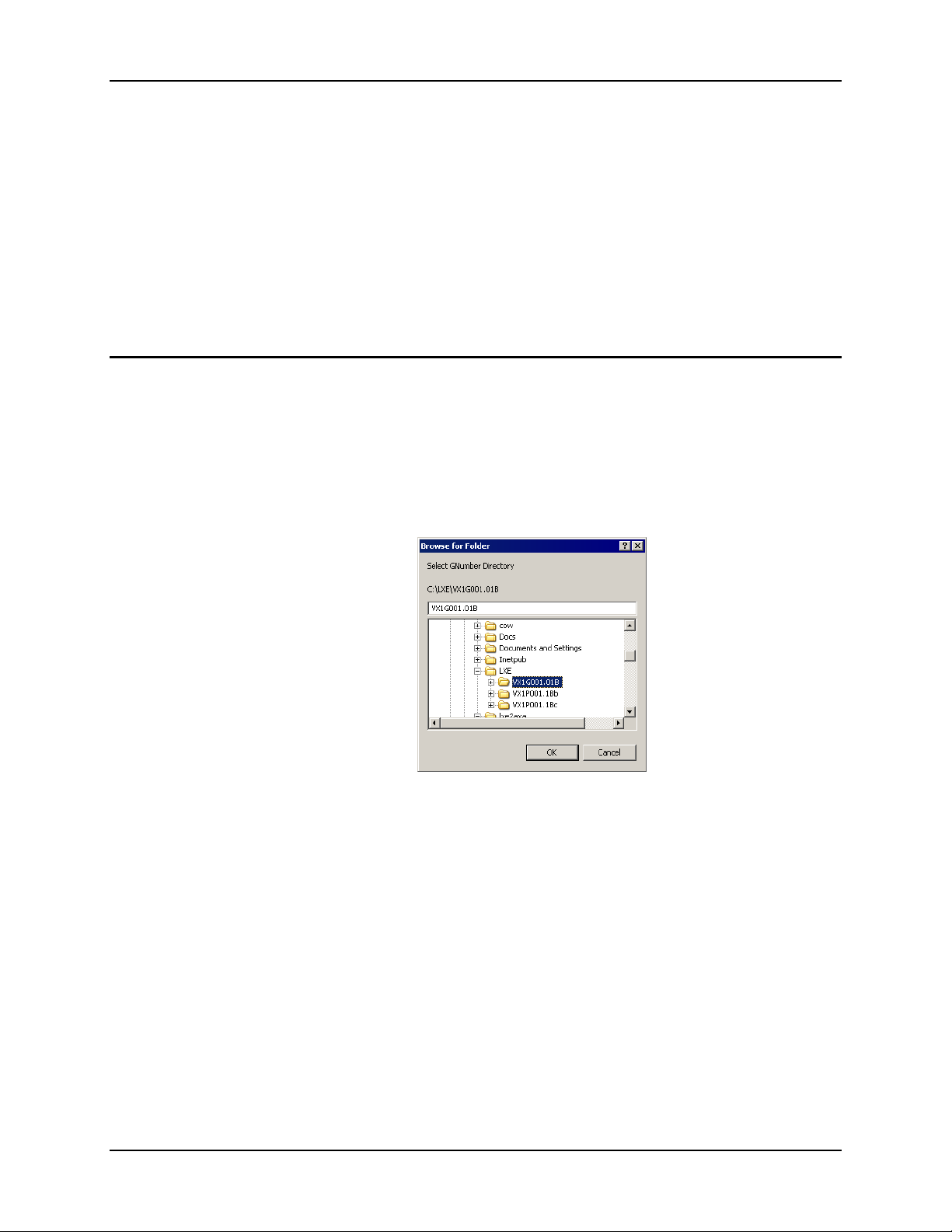
The Graphical User Interface (GUI) provides a convenient “browse” feature for the source GNumber and destination directory. However, this interface only allows one G-Number to be
converted at a time. To convert an entire directory containing several G-Numbers, it may be
preferable to use the command line version.
To use the GUI version, click on the LXE2AVA icon, located in C:\LXE2AVA. Next, browse to
the location of the desired G-Number.
Figure 2-1 Select G-Number
LXE Computers and Wavelink Avalanche User’s Guide E-SW-WAVACFG-A
Page 19
LXE Package Builder 13
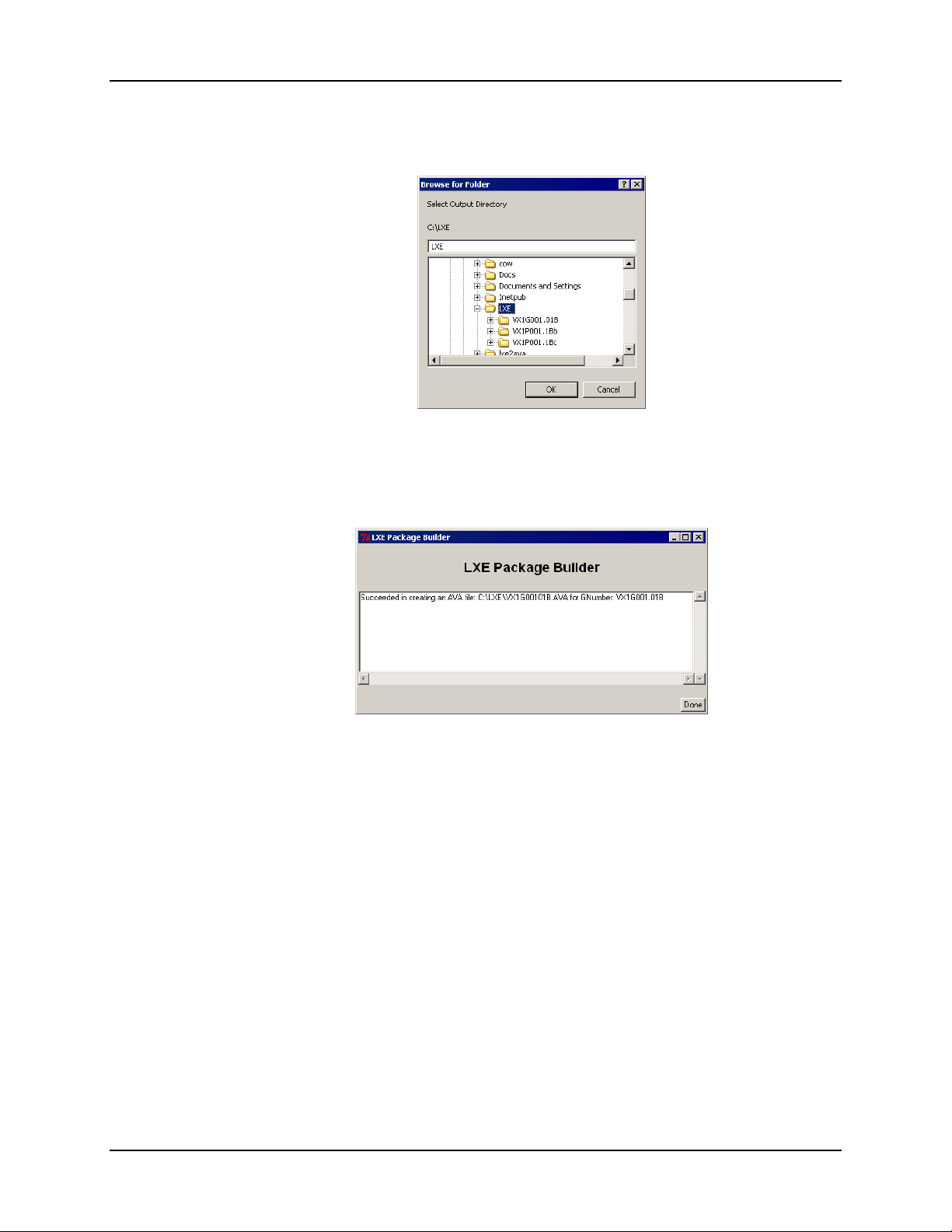
When the desired G-Number is located, click OK. Next, browse to the destination directory
where the AVA file is to be stored.
Figure 2-2 Select Output Directory
When the desired destination is located, click OK. The package builder builds an .AVA file from
the G-Number directory and displays the appropriate message upon completion.
Figure 2-3 End of Conversion Message
E-SW-WAVACFG-A LXE Computers and Wavelink Avalanche User’s Guide
Page 20

14 LXE Package Builder
Using the Command Line Interface
To use the command line interface from a DOS prompt, change the to C:\LXE2AVA directory.
Type:
lxe2ava [-h] [-g GNumber | -d InputDir] [-o OutputDir]
The command line options are shown below:
• -h: display help message
• -g <dir-name>: input G-Number directory, either the full path or relative to the
directory containing the LXE Package Builder Utility, lxe2ava.exe.
• -d <dir-name>: input parent directory containing G-Numbers. All G-Numbers in the
directory are processed.
• -o <dir-name>: optional output directory for the AVA package file. The default
values vary depending on the input:
o –g <dir-name> has as the default output directory the parent directory of the
G-Number
o –d <dir-name> has as the default output directory the input directory name
Note: The –g and –d switches are mutually exclusive.
Syntax Examples
Note: All examples are typed at the C:\LXE2AVA prompt.
To display the available options for the LXE2AVA utility, type
To build a package from a single G-Number, type
where the directory C:\LXE contains the desired G-Number, VX2G007.01E. The resulting file,
VX2G00701E.AVA, is located in the C:\LXE directory at the completion of this task.
To build a package from a single G-Number and specify the destination, type
where the directory C:\LXE contains the desired G-Number, VX2G007.01E and C:\LXE2 is the
desired location for the resulting AVA file, VX2G00701E.AVA.
To build packages for all the G-Numbers located in a directory, type
where the C:\LXE directory contains one or more G-Numbers. The resulting AVA files are
located in the C:\LXE directory. One .AVA file is created for each G-Number directory located
in C:\LXE.
To build packages for all the G-Numbers located in a directory and specify the destination, type
lxe2ava –h
lxe2ava –g c:\lxe\vx2g007.01e
lxe2ava –g c:\lxe\vx2g007.01e –o C:\lxe2
lxe2ava –d c:\lxe
lxe2ava –d c:\lxe –o c:\lxe2
where the C:\LXE directory contains one or more G-Numbers and C:\LXE2 is the desired location
for the resulting AVA files. One .AVA is created in C:\LXE2 for each G-Number directory
located in C:\LXE.
LXE Computers and Wavelink Avalanche User’s Guide E-SW-WAVACFG-A
Page 21
Using Avalanche 15
Using Avalanche
This section provides a brief introduction into Avalanche functionality. For more details on
Avalanche, please refer to the Avalanche Manager Users Guide or the online help feature.
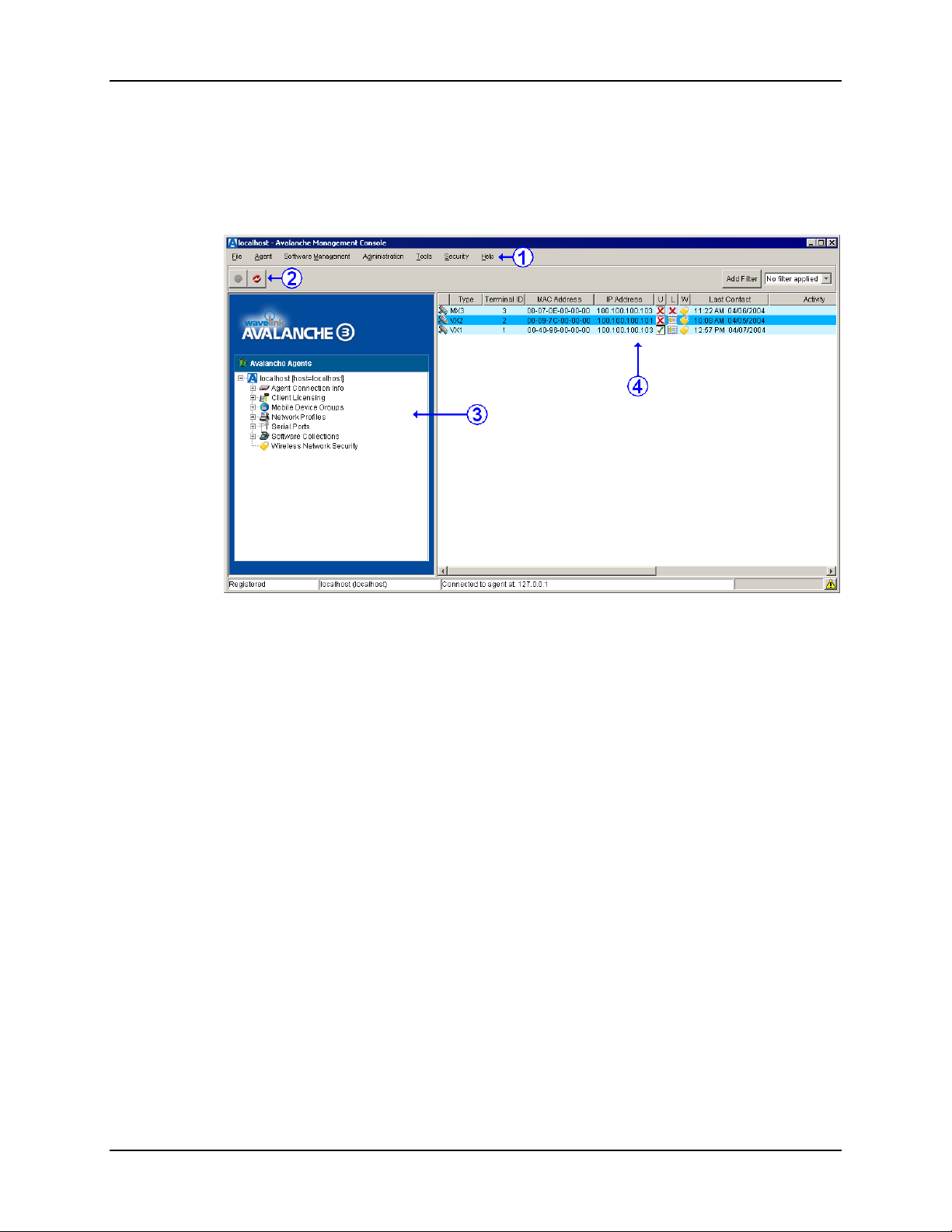
Figure 2-4 Avalanche Management Console Components
Components of the screen are identified below. This is not a complete listing of all screen
features or a complete description of the features listed. Rather this section highlights areas that
may be useful to an Avalanche user managing LXE computers.
1. Menu Bar – The Menu Bar can be used to access underlying menus.
2. Agent Icons – The Agent icons can be used to connect to an Agent (the left icon) or
disconnect from the Agent (the right icon). Note that only one icon is active at any
time. When the Management Console disconnects from an Agent, this does not stop
the Agent. Instead, the Agent continues to run as a Windows service as long as the
computer with the Agent loaded remains on.
3. Agent Window – Displays information for the currently connected agent.
• Agent Connection Info – Information on currently connected Agent.
• Client Licensing – Information on licensing.
• Mobile Device Groups – See “Filtering LXE Computers”, later in this
chapter for more information on selecting devices for the group.
• Network Profiles – Please refer to “Radio Parameters” and “Network
Parameters”, later in this chapter for more details.
• Serial Ports – Provides information on serial ports available for Avalanche.
• Software Collections – Please see “Software Collections”, later in this
chapter for more details.
• Wireless Network Security – Information on WEP key rotation.
E-SW-WAVACFG-A LXE Computers and Wavelink Avalanche User’s Guide
Page 22

16 Using Avalanche
4. Managed Devices – The managed devices are listed. For LXE computers, the
following information is present:
• Type – Identifies the managed device type, such as MX1, VX2, etc.
• Terminal ID – Can be used to uniquely identify the device. Avalanche
automatically assigns an ID, but the ID can be manually changed.
• MAC Address – The MAC address of the radio card in the LXE computer.
• IP Address – The IP Address of the LXE computer.
• U – Indicates if the LXE computer has an updated software load. A green
check mark indicates software is up to date. A red X indicates the
computer has a software update pending.
• L – Indicates if the managed device has a valid license. A certificate icon
indicates the device has a valid license. A red X indicates a device without
a valid license.
• W – Indicates the WEP key status of the device. A padlock indicates the
WEP keys on the computer are up to date. A red X indicates a WEP key
update is available but not downloaded.
• Last Contacted – Indicates the last time the Enabler on the device last
contacted the Agent. For LXE DOS computers, this is equal to the time the
computer was rebooted.
• Activity – Indicates any current activity such as downloading.
• Details – Provides details on the activity.
LXE Computers and Wavelink Avalanche User’s Guide E-SW-WAVACFG-A
Page 23
Using Avalanche 17
Software Collections
Software collections contain one or more .AVA packages. A software collection cannot contain
multiple versions of the same software (for example, an older and newer version of ANSI Plus).
To add a software package
1. Click on Software Management on the Menu Bar
2. Click on Install Software Package
3. Click the … button to browse to the location of the LXE software package
4. Once the desired package is selected, click Next
5. Review the license agreement and indicate acceptance
6. Select an existing Software Collection or create a new collection and click Next.
DO NOT use spaces in the name of the Software Collections. This is a
!
limitation of the Avalanche software.
7. When the installation process is completed, click Finish.
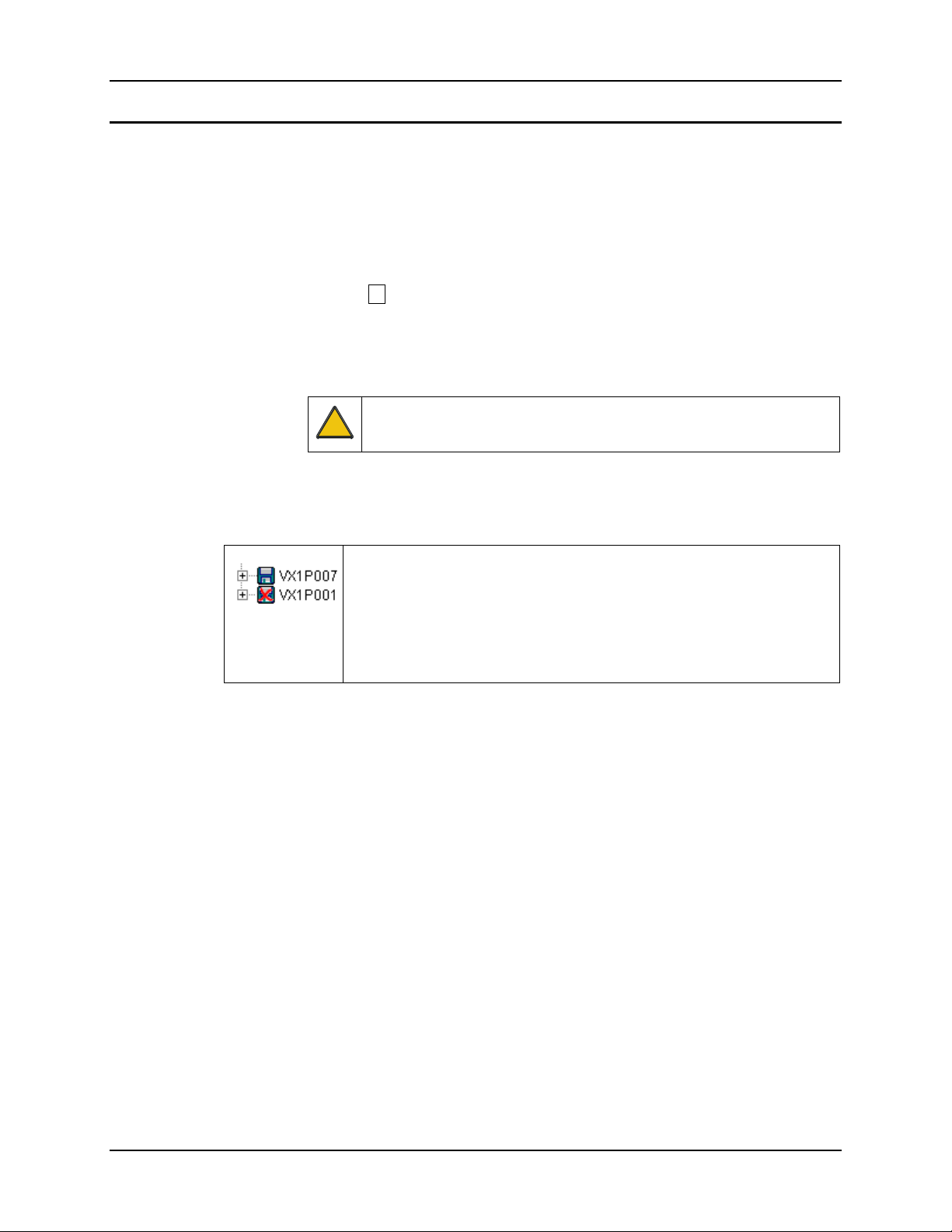
Note: When a software package is added, please note that the default is for the package to be
disabled.
Packages that are enabled are indicated by an icon without a red X to the left
of the package name. Packages that are currently disabled are indicated by
an icon with a red X through it.
The status of the package can be changed by right clicking on the name of
the package and selecting Enable Package or Disable Package as
appropriate.
When a package is enabled, the status of the managed devices may change. For example, if the
package is a TE for a VX1, then the status of all VX1’s are changed. The “U” column now shows
a red X for devices with an update pending.
If desired, the selection criteria can be modified to further limit the target computers. Please see
“Filtering LXE Computers”, later in this chapter, for more details.
E-SW-WAVACFG-A LXE Computers and Wavelink Avalanche User’s Guide
Page 24
18 Using Avalanche
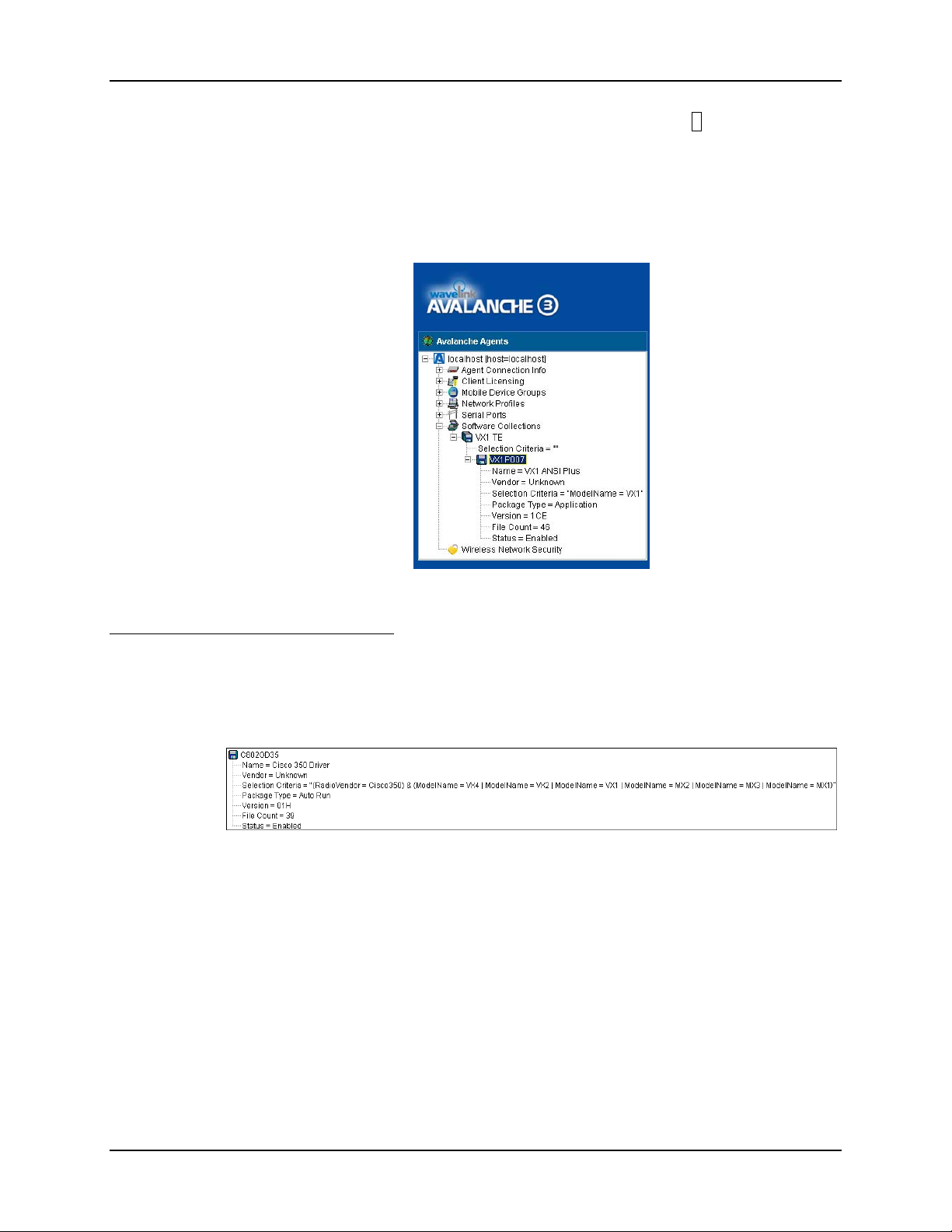
The details about a software package can be examined by clicking on the + icon to the left of the
package name. There are three types of software packages:
• Auto Run
• Application
• Support
Auto Run Software Packages
Auto Run software packages contain radio, core or system software. The software is uploaded to
the LXE computer. A configuration script is then executed and the LXE computer reboots. For
the MX2 only, enabler software is an Auto Run package.
Details of this sample package are as follows:
• The package name is determined by the G-Number. In this example, the package
name, C802GD35, is derived from the G-Number used to build the package,
C802GD35.01H.
• Name: A text description of the package, in this case it indicates the package
contains a Cisco 350 radio driver.
Figure 2-5 Software Collection
Figure 2-6 Sample Auto Run Software Package
• Vendor: This field is always displayed as “Unknown”.
• Selection Criteria: Displays the conditions, if any, preset for the package. In this
case, the software is designated for a Cisco 350 equipped MX1, MX2, MX3, VX1,
LXE Computers and Wavelink Avalanche User’s Guide E-SW-WAVACFG-A
Page 25

Using Avalanche 19
VX2 or VX4. These criteria cannot be changed, however, the selection criteria for
the entire software collection may be edited.
• Package Type: This package is Auto Run. After it is downloaded, a configuration
script runs and the computer reboots.
• Version: Determined by the G-Number. In this instance, the G-Number
C802GD35.01H results in a version identifier of 01H.
• File Count: The number of files included in the package.
• Status: Indicates if the package is enabled or disabled.
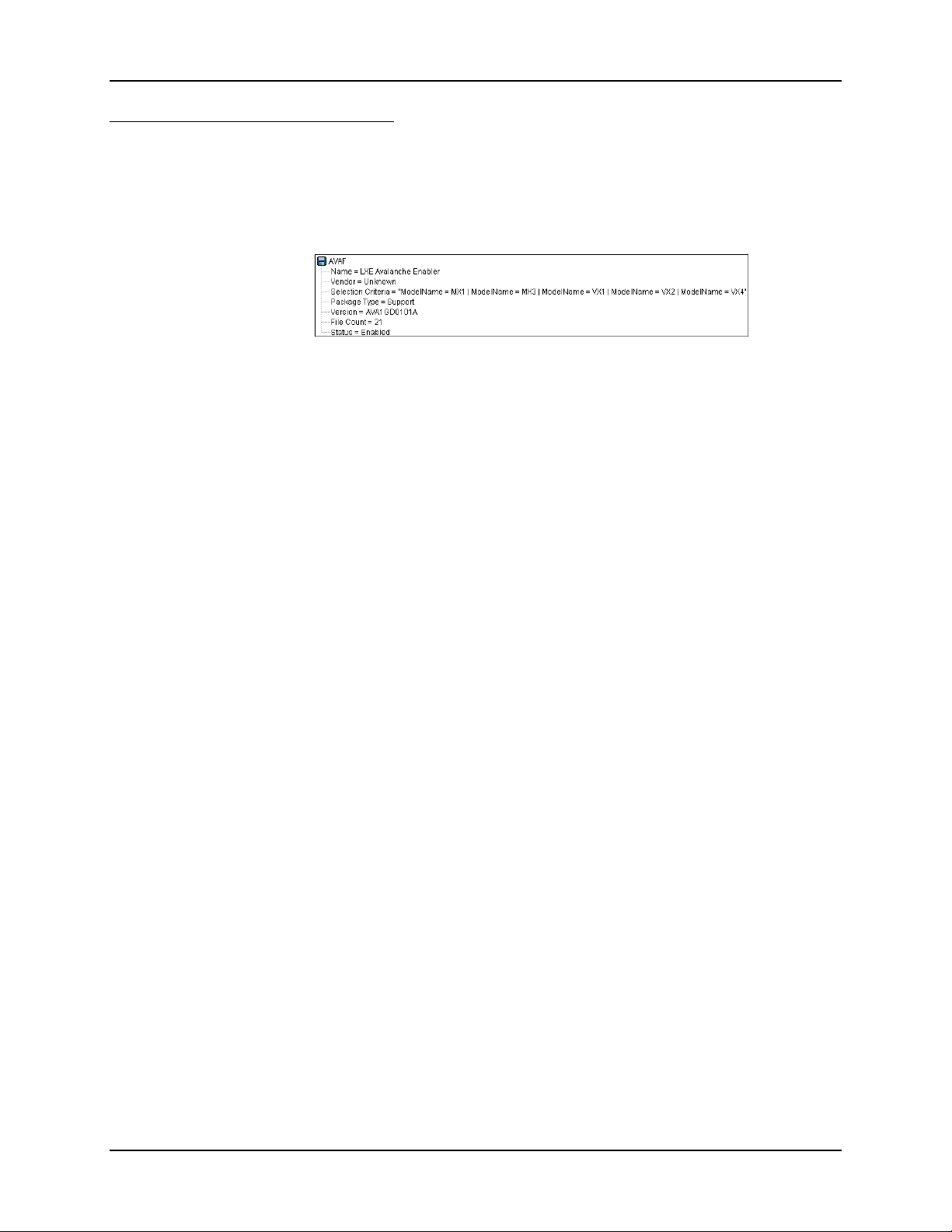
Application Software Packages
Application software packages contain terminal emulation software. The software is uploaded to
the LXE computer, then the normal bootup process continues.
Figure 2-7 Sample Application Software Package
Details of this sample package are as follows:
• The package name is determined by the G-Number. In this example, the package
name, VX1GA07, is derived from the G-Number used to build the package,
VX1GA07.01E.
• Name: A text description of the package, in this case it indicates the package
contains VX1 ANIS Plus software.
• Vendor: This field is always displayed as “Unknown”.
• Selection Criteria: Displays the conditions, if any, preset for the package. In this
case, the software is designated for a VX1 computer. These criteria cannot be
changed, however, the selection criteria for the entire software collection may be
edited.
• Package Type: This package is Application. The software is loaded to the
computer then the normal boot up process continues.
• Version: Determined by the G-Number. In this instance, the G-Number
VX1GA07.01E results in a version identifier of 01E.
• File Count: The number of files included in the package.
• Status: Indicates if the package is enabled or disabled.
E-SW-WAVACFG-A LXE Computers and Wavelink Avalanche User’s Guide
Page 26
20 Using Avalanche
Support Software Packages
Support software packages contain Enabler updates for MX1, MX3, VX1, VX2 or VX4
computers. The software is uploaded to the LXE computer, then the computer reboots.
Note: Enabler updates for an MX2 computer are Auto Run rather than Support.
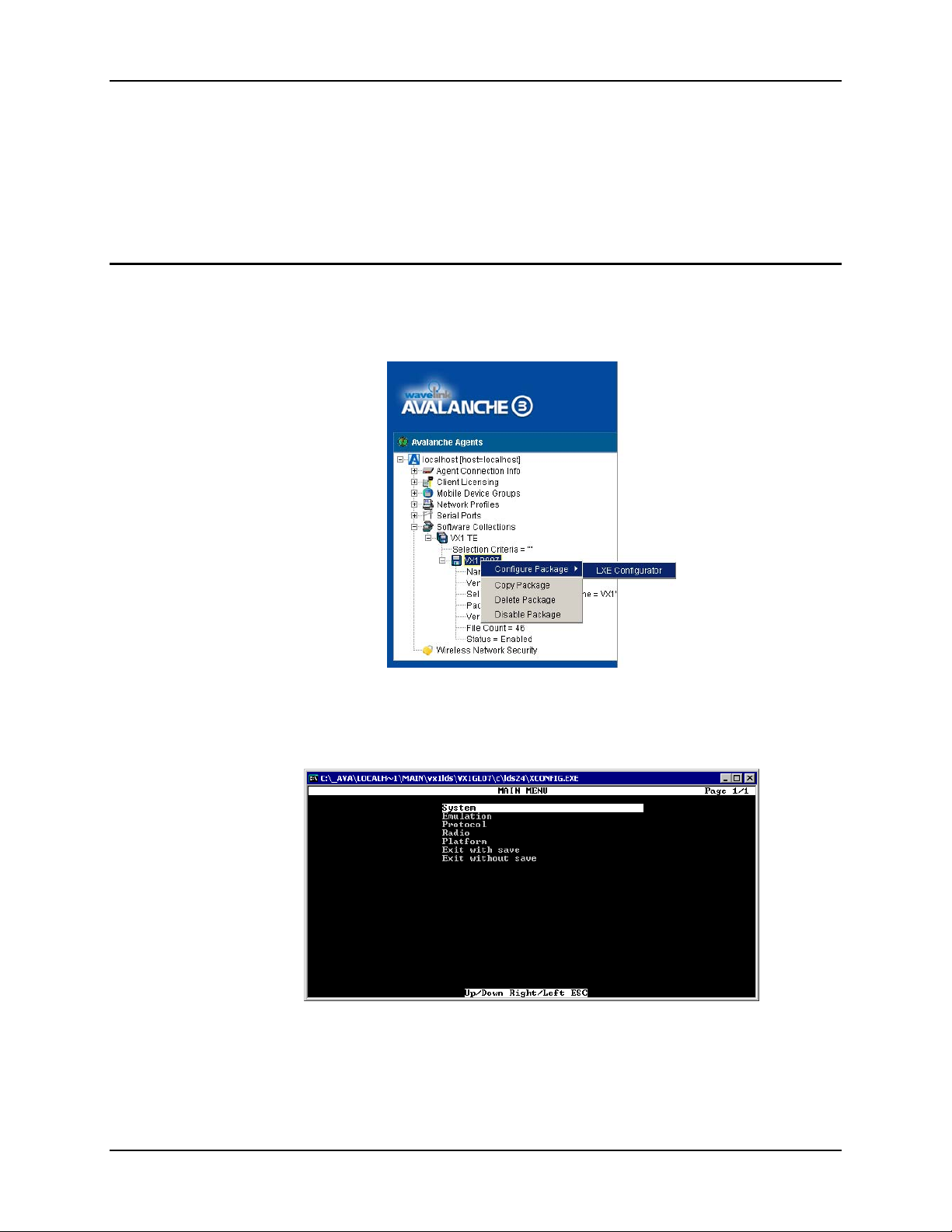
Figure 2-8 Sample Support Software Package
Details of this sample package are as follows:
• The package name is AVAF for all support packages.
• Name: A text description of the package, in this case it indicates the package
contains an LXE Avalanche Enabler.
• Vendor: This field is always displayed as “Unknown”.
• Selection Criteria: Displays the conditions, if any, preset for the package. In this
case, the software is designated for a MX1, MX3, VX1, VX2 or VX4 computer.
These criteria cannot be changed, however, the selection criteria for the entire
software collection may be edited.
• Package Type: This package is Support. The software is loaded to the computer
then the computer reboots.
• Version: Determined by the G-Number. In this instance, the G-Number
AVA1GD01.01A results in a version identifier of AVAGD0101A. Note that only
for support package, the version contains the entire G-Number.
• File Count: The number of files included in the package.
• Status: Indicates if the package is enabled or disabled.
LXE Computers and Wavelink Avalanche User’s Guide E-SW-WAVACFG-A
Page 27
Configuration 21
Configuration
All terminal emulation parameters plus selected radio and networking parameters may be
configured via Avalanche. This chapter assumes the user is familiar with these LXE
configuration parameters. Rather than explain options for each parameter, this chapter refers the
user to additional LXE documents containing parameter details.
Terminal Emulation Parameters
When a software collection includes a terminal emulation, right clicking on the name of the TE
package provides access to the TE configuration menu (LXE Configurator).
Figure 2-9 Accessing the TE Configuration Menu
Clicking on LXE Configurator starts the configuration menu.
Figure 2-10 The Configuration Menu
This configuration menu is structured the same as the TE configuration menu on the LXE DOS
computer. Please refer to Chapter 3, “Configuration Utility” in the appropriate TE reference
E-SW-WAVACFG-A LXE Computers and Wavelink Avalanche User’s Guide
Page 28

22 Configuration
guide for details on menu navigation, valid options for TE parameters and default values for the
TE parameters.
Be sure to use the Exit with Save option to save the changed TE parameters. Note that when TE
parameters are changed, the Avalanche screen now shows the LXE computer is no longer up to
date (indicated by a red X in the U column) even if it has the current TE loaded. However, rather
than retransmitting the entire terminal emulation package, only the configuration parameters
(LXE.INI) file is transmitted.
Note: The configuration menu IS NOT password protected in Avalanche like the menu is on the
DOS device. However, Avalanche provides access control by selecting Security from the
menu bar. Please refer to the Avalanche Manager Users Guide or the online help for
more information.
LXE Computers and Wavelink Avalanche User’s Guide E-SW-WAVACFG-A
Page 29
Configuration 23
Radio and Network Parameters
Radio and network parameters are set as part of a Network profile. Be sure to set the
SSID/Network Name to match your network settings. Whenever possible, the NET.CFG or
SOCKET.CFG parameter is included with the Avalanche parameter description.
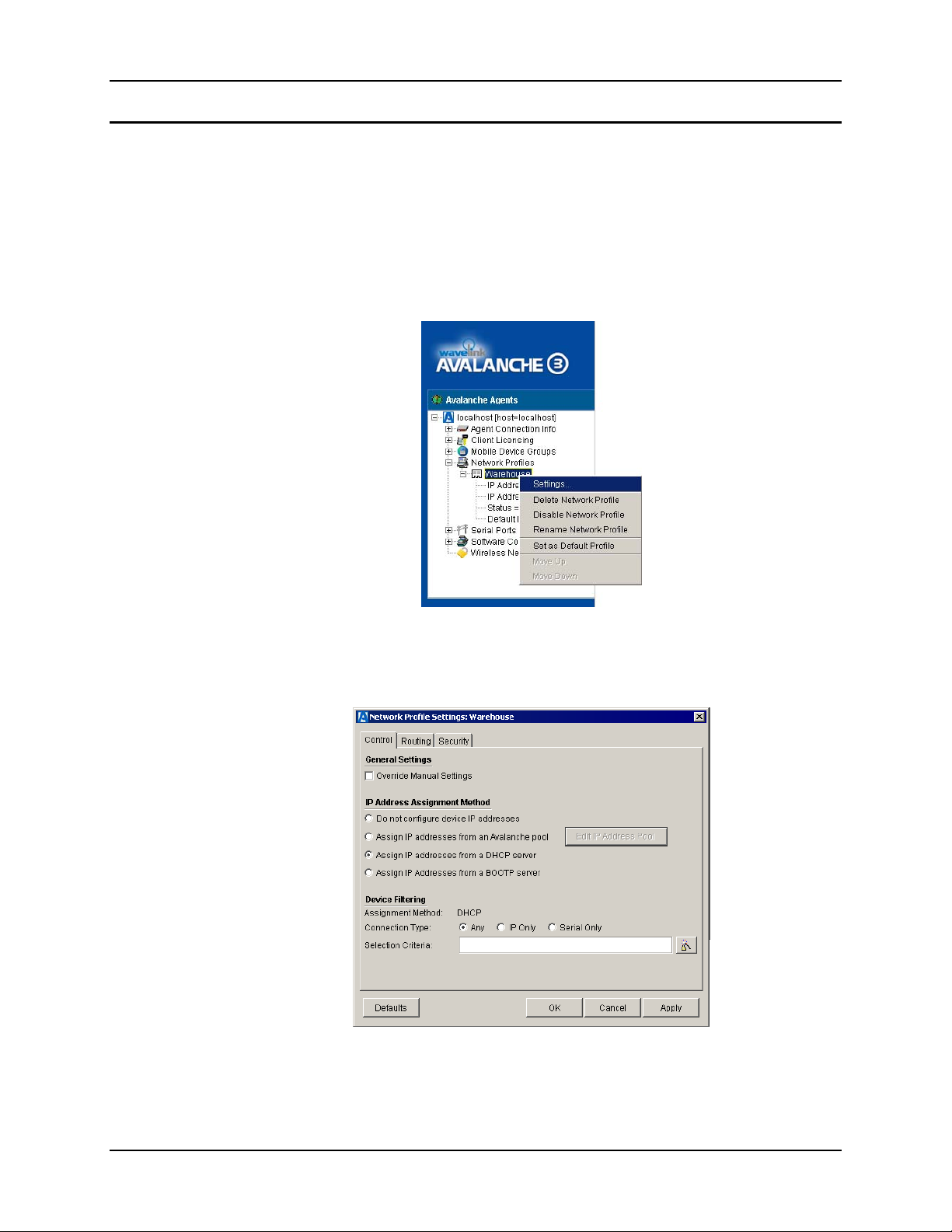
To set radio parameters, either right click on an existing network profile or right click on the
Network Profiles heading and create a new network profile.
Note: Do not include any spaces in Network Profile names.
Figure 2-11 Accessing Network Profile Configuration
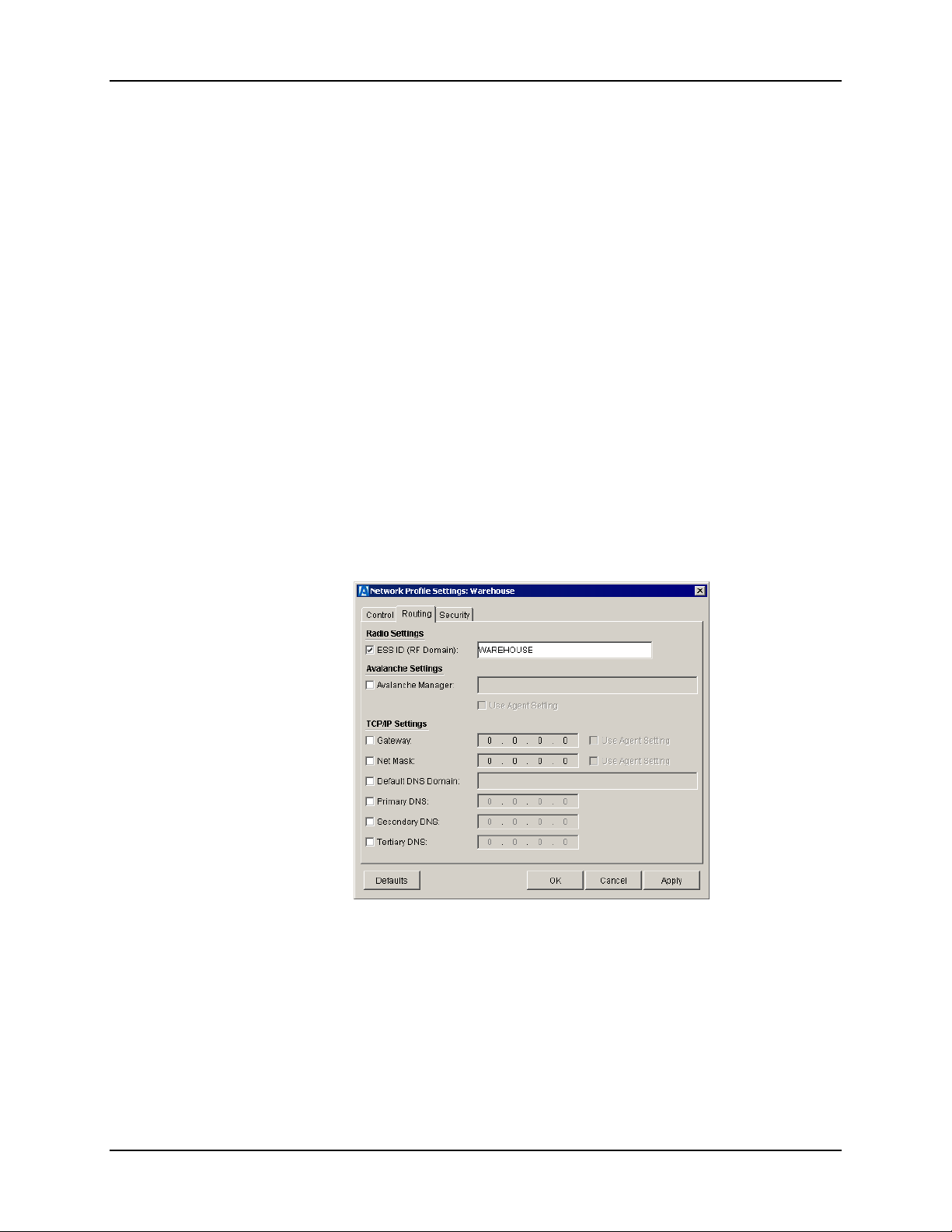
To change the parameters, click on Settings. If the Control tab is not selected, click on it.
Figure 2-12 Network Profile, Control Tab
E-SW-WAVACFG-A LXE Computers and Wavelink Avalanche User’s Guide
Page 30
24 Configuration
The Control tab provides the following configuration items:
• Override manual setting – Determines whether the settings in this profile take
precedence over manual settings made on the device,
• Assign IP addresses – Provides options for assigning an IP Address:
o None – No IP address is assigned by Avalanche. IP address must be set on
the device. Review the SOCKET.CFG file instructions in the appropriate
LXE computer reference guide.
o Avalanche Pool – Avalanche allows a range of IP addresses to be specified.
If this option is used, an IP address is assigned from that range.
o DHCP – A DHCP server is contacted for an IP address. This is equivalent
to setting the IP address to 0.0.0.1 in the SOCKET.CFG file.
o BOOTP – A BOOTP server is contacted for an IP address. This is
equivalent to setting the IP address to 0.0.0.0 in the SOCKET.CFG file.
• Device Filtering – Please see “Filtering LXE Computers”, later in this chapter, for
more details.
Note: To use either DHCP or BOOTP, the network must have either a DHCP or BOOTP
server, as appropriate. Avalanche does not perform the DHCP or BOOTP server
function.
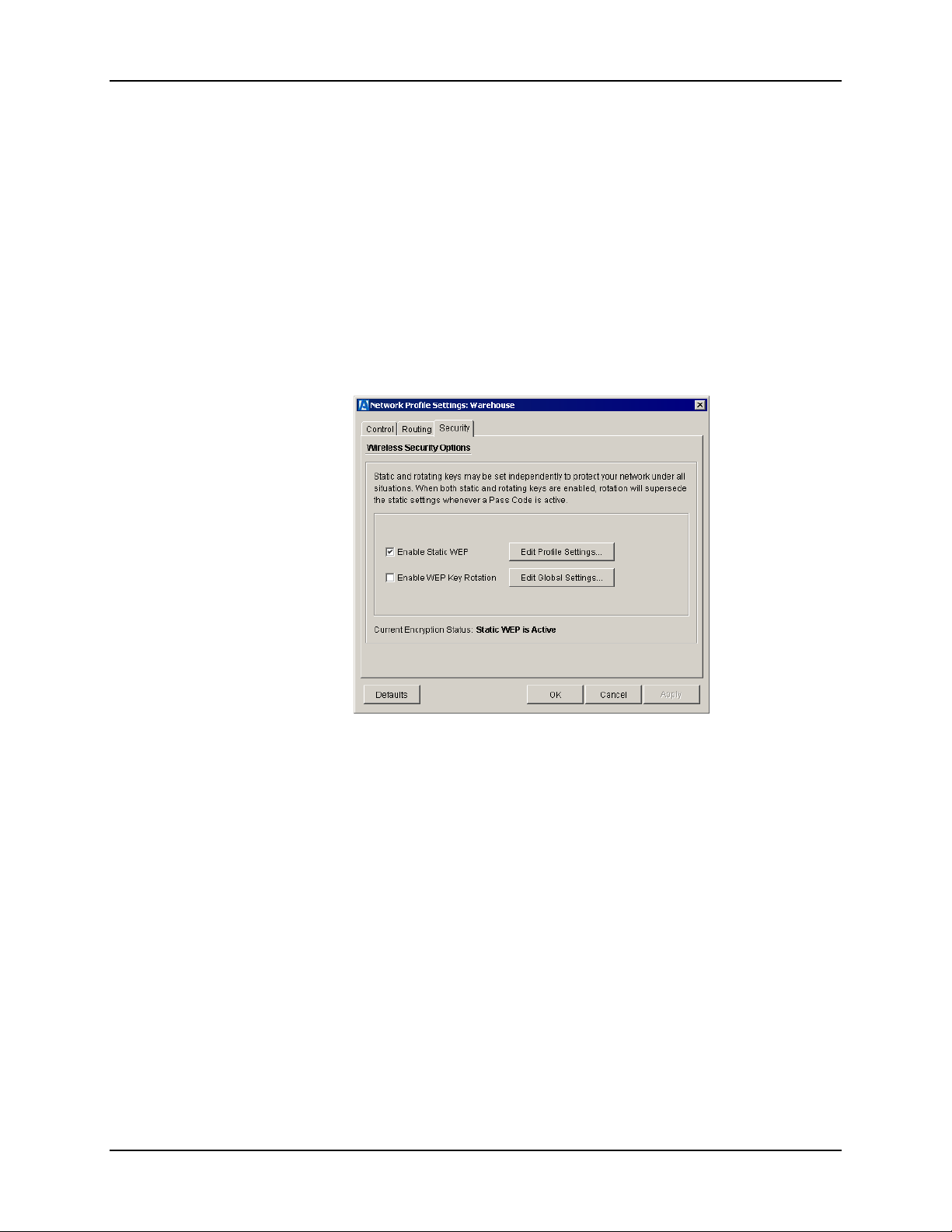
For more settings, please click on the Routing tab.
Figure 2-13 Network Profile, Routing Tab
The routing tab contains the following routing options:
• ESS ID (RF Domain) – This parameter corresponds to the radio parameter SSID
(Cisco and Symbol radios) or Network Name (Lucent radios).
• Avalanche Settings – When checked, this option allows the mobile device to be
linked to a specific Agent. When not used, the device links to the first Agent that
responds to the broadcast.
• TCP/IP Settings – Allows the following values to be set:
LXE Computers and Wavelink Avalanche User’s Guide E-SW-WAVACFG-A
Page 31
Configuration 25
o Gateway – The router address, equivalent to using the route statement in the
SOCKET.CFG file.
o Net Mask – The net mask in IP address format, equivalent to setting the
net_bits in the SOCKET.CFG file.
o Default DNS Domain – The default DNS domain, such as lxe.com,
equivalent to setting the domain suffix in SOCKET.CFG.
o Primary DNS – The IP address of the primary DNS, equivalent to setting
domain server in SOCKET.CFG..
o Secondary DNS – The IP address of the secondary DNS.
o Tertiary DNS – The IP address of the tertiary (third in line) DNS.
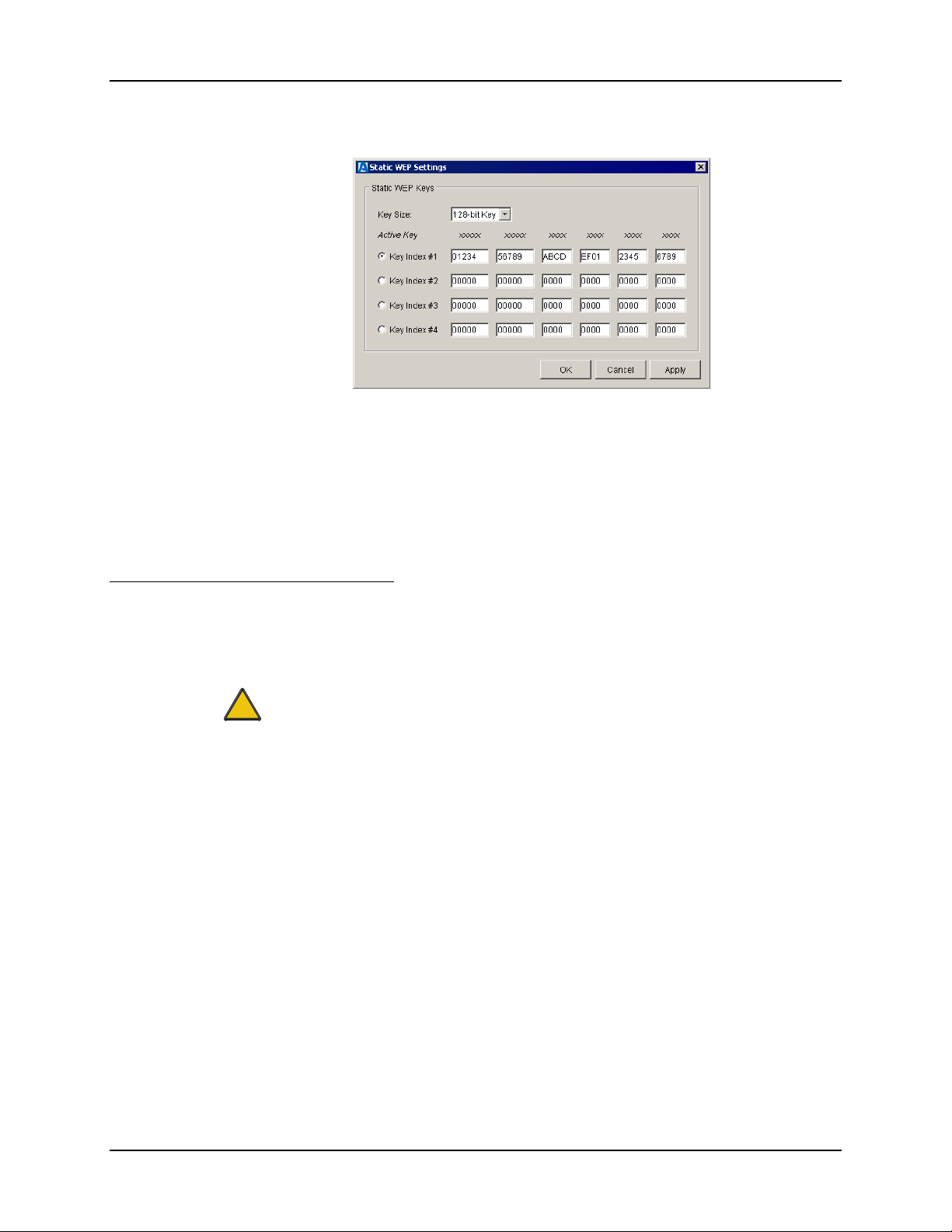
For more settings, please click on the Security tab.
Figure 2-14 Network Profile, Security Tab
Use this screen to enable static WEP keys. Note that enabling static WEP is equivalent to setting
the NET.CFG parameter as followed:
• For Cisco radios,
authtype “wepopen”
• For Lucent radios,
Enable_Encryption Y
• For Symbol Radios,
encrypt_enable Y
E-SW-WAVACFG-A LXE Computers and Wavelink Avalanche User’s Guide
Page 32
26 Configuration
Click on Edit Profile Settings to enter the WEP keys.
Figure 2-15 Static WEP Keys
Up to 4 WEP keys may be entered. A 40-bit WEP keys consists of 10 hexadecimal digits. A 128bit key consists of 26 hexadecimal digits. Click on the radio button for the WEP key you want to
activate.
Rotating WEP can also be configured in the Network Profile. To use rotating WEP, you must
know the setting the access point is using. Please refer to the Avalanche User’s Guide or online
help for more information on configuring rotating WEP.
Manual Network and Radio Parameter Configuration
As described in the reference guide for the appropriate LXE computer, NED.EXE can be used to
edit the SOCKET.CFG and NET.CFG files.
The Enabler is not aware of the manual changes made and does not report them to the
!
Agent. Therefore:
• The Management console may not display the updated information on the LXE
computer. For example, if the IP address is changed using NED.EXE, the computer
boots with the new IP address. However, the Management console may continue to
display the old IP address.
• Likewise, since the Enabler is not aware of the manual edit made, the settings in the
Network Profile DO NOT over write the manual changes, even when the “Override
manual settings” box is checked in the network profile.
LXE Computers and Wavelink Avalanche User’s Guide E-SW-WAVACFG-A
Page 33
Filtering LXE Computers 27
Filtering LXE Computers
Selection criteria can be applied to Mobile Device Groups, Network Profiles and Software
Collections. LXE adds two selection criteria to those built into Avalanche.
By Computer Type
ModelName identifies the type of LXE computer. Valid values for ModelName are:
• MX1 • MX3 • VX2
• MX2 • VX1 • VX4
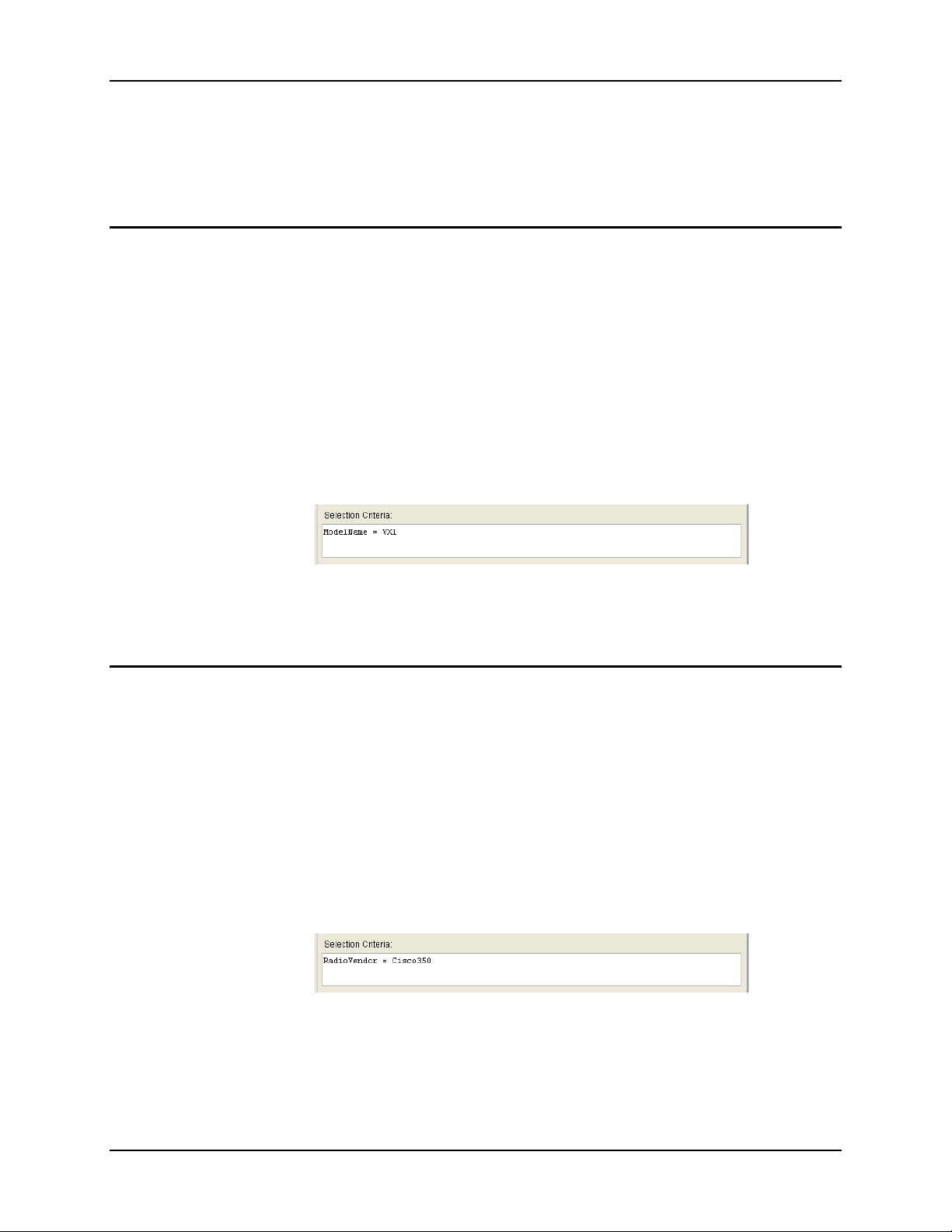
For example, to select all VX1’s:
• Select ModelName from the properties list and click Add
• Select = as the operator
• Enter VX1 in the value text box and click Add
The selection criteria appears as follows:
Note: Click the Evaluate button to review the computers matching the filtering criteria.
By Radio Type
RadioVendor identifies the type of radio installed in the LXE computer. Valid values for
RadioVendor are
For example, to select all computers with a Cisco radio:
The selection criteria appears as follows:
Figure 2-16 Filtering Devices by LXE Computer Type
• Cisco350 • Symbol4121 • Lucent
• Select RadioVendor from the properties list and click Add
• Select = as the operator
• Enter Cisco350 in the value text box and click Add
Figure 2-17 Filtering Devices by Radio Type
Note: Click the Evaluate button to review the computers matching the filtering criteria.
E-SW-WAVACFG-A LXE Computers and Wavelink Avalanche User’s Guide
Page 34

28 Filtering LXE Computers
LXE Computers and Wavelink Avalanche User’s Guide E-SW-WAVACFG-A
Page 35

Appendix A DOS Computer Software Load
Minimum Software Baseline
The tables below specify the minimum software revision level (baseline) that must be loaded on
the LXE computer in order to use Avalanche:
Platform System LXE Agent Util Core
MX1 486DGSYS.02A AGNTGD00.01C MX1GUTIL.01C 486DGCOR.01A AVA1GD01.01A
MX2 232XGSYS.02A AGNTGD00.01C N/A 232XGCOR.01C AVA2GD01.01A
MX3 486DGSYS.02A AGNTGD00.01C MX3GUTIL.01B 486DGCOR.01A AVA1GD01.01A
VX1 486DGSYS.02A AGNTGD00.01C VXXGUTIL.01B 486DGCOR.01A AVA1GD01.01A
VX2 486DGSYS.02A AGNTGD00.01C VXXGUTIL.01B 486DGCOR.01A AVA1GD01.01A
VX4 VX4DGSYS.02A AGNTGD00.01C VX4GUTIL.01B VX4DGCOR.01A AVA1GD01.01A
Radio Driver
Cisco 350 C802GD35.01H
Lucent L802GD01.01P
Symbol 4121 S802GD21.01E
Upgrading LXE Computers
If an LXE computer does not meet the minimum baselines specified above, it must be manually
upgraded to the baseline before it can be used with Avalanche. The older G-Number software
should be manually deleted from the LXE computer before the new G-Number is installed.
Avalanche
Enabler
Copying the new G-Number software to the LXE computer without first deleting the
!
old G-Number software may lead to insufficient disk space on the LXE computer.
This is especially important for LXE Agent, Radio and MX2 Core G-Numbers.
Directory Structure
Note: The information in this section is intended to supplement the information presented in the
applicable computer reference guide when the enabler is installed on the LXE DOS
computer
Software loaded on drive C:
\AGENT Location of SNMP agent
\APPS Location of files to track software revision levels
\AVA Location of files to support Avalanche
E-SW-WAVACFG-A LXE Computers and Wavelink Avalanche User’s Guide
Page 36

30 Directory Structure
\DOS Location of ROM DOS *
\PCMCIA Location of PCMCIA files *
\PCTCP Location of radio configuration files *
\UTILS Location of LXE installed utilities *
\APLUS Location of optional TE files *
\IBM24 Location of optional TE files *
\LDS24 Location of optional TE files *
* Please refer to the applicable computer reference guide for details on files in these
directories. Although Avalanche can be used to update the files contained in these
directories, the file structure is not changed by the addition of the Avalanche
enablers.
\AGENT
When Avalanche enablers are installed, only the SNMP agent, AGENT.EXE is installed. The
configuration agent, CFGAGENT.EXE is not installed.
\AVA
\APPS
\APPS\AVAF
This directory contains the Avalanche enablers and supporting files. Users must not make
changes to the contents of this directory.
When an updated enabler is loaded, it does not change the contents of the \AVA directory, except
on an MX2. For all computers except the MX2, the updated enabler files are located in
\APPS\AVAF. The boot process checks for a newer version of the enabler before loading the
enabler in the \AVA directory.
Since the MX2 has limited disk space, updates to the enabler on the MX2 replace the original
enabler files.
This directory is used by Avalanche to track the revisions of software on the LXE DOS computer.
For all computers except the MX2, this directory is used to load updated versions of the enabler.
If an updated enabler is located in this directory, it is loaded instead of the original enabler in
\AVA.
Due to disk space limitations, the MX2 does not use this directory. Instead, the updated enabler
files replace the originals in \AVA.
LXE Computers and Wavelink Avalanche User’s Guide E-SW-WAVACFG-A
Page 37

Index
A
Agent .......................................................................2
COM Port Settings............................................10
Connect ............................................................. 15
Disconnect ........................................................15
Avalanche
Agent................................................................... 2
Enabler ................................................................ 2
Management Console.......................................... 1
Screen Components ..........................................15
Avalanche Properties File, Modifying................... 10
Avalanche Service
Starting..............................................................11
Stopping ............................................................ 10
B
Baseline, LXE Software ........................................ 29
C
COM Port
Configuration .................................................... 10
Detection........................................................... 10
Properties ..........................................................11
Configuration
Network Parameters.......................................... 23
Radio Parameters ..............................................23
Terminal Emulation Parameters........................ 21
Cradles and Avalanche .......................................... 10
G
GNumber, Converting to AVA .............................12
I
Installation ............................................................... 5
Enabler ................................................................ 5
Management Console.......................................... 5
Package Builder ..................................................5
L
Limitations, DOS Devices.......................................2
M
Managed Devices ..................................................16
Management Console .............................................. 1
Manuals
LXE Computers .................................................. 7
Terminal Emulation ............................................7
Wavelink............................................................. 7
Modifying Avalanche Properties File.................... 10
N
Network Parameters ..........................................4, 23
P
D
Detecting COM Ports ............................................ 10
Directory Structure, Drive C .................................29
Docks and Avalanche............................................ 10
Document Conventions ...........................................6
DOS Device Limitations .........................................2
Package Builder..................................................... 12
Command Line..................................................14
GUI ...................................................................12
Syntax Examples............................................... 14
R
Radio Parameters............................................... 4, 23
E
Enabler..................................................................... 2
communication.................................................... 9
E-SW-WAVACFG-A LXE Computers and Wavelink Avalanche User’s Guide
S
Screen Components, Avalanche............................ 15
Selection Criteria ................................................... 27
Software Baseline.................................................. 29
Page 38

32 Index
Software Collections .............................................17
Software Packages................................................. 17
Details ............................................................... 18
Starting Avalanche Services..................................11
Static WEP ............................................................ 25
Stopping Avalanche Services ................................ 10
Supported 2.4GHz Radios....................................... 3
Supported Computers .............................................. 3
Supported Terminal Emulations..............................3
T
Terminal Emulation Parameters ........................ 4, 21
W
WEP....................................................................... 25
WEP Keys .............................................................26
LXE Computers and Wavelink Avalanche User’s Guide E-SW-WAVACFG-A
 Loading...