

Page 1
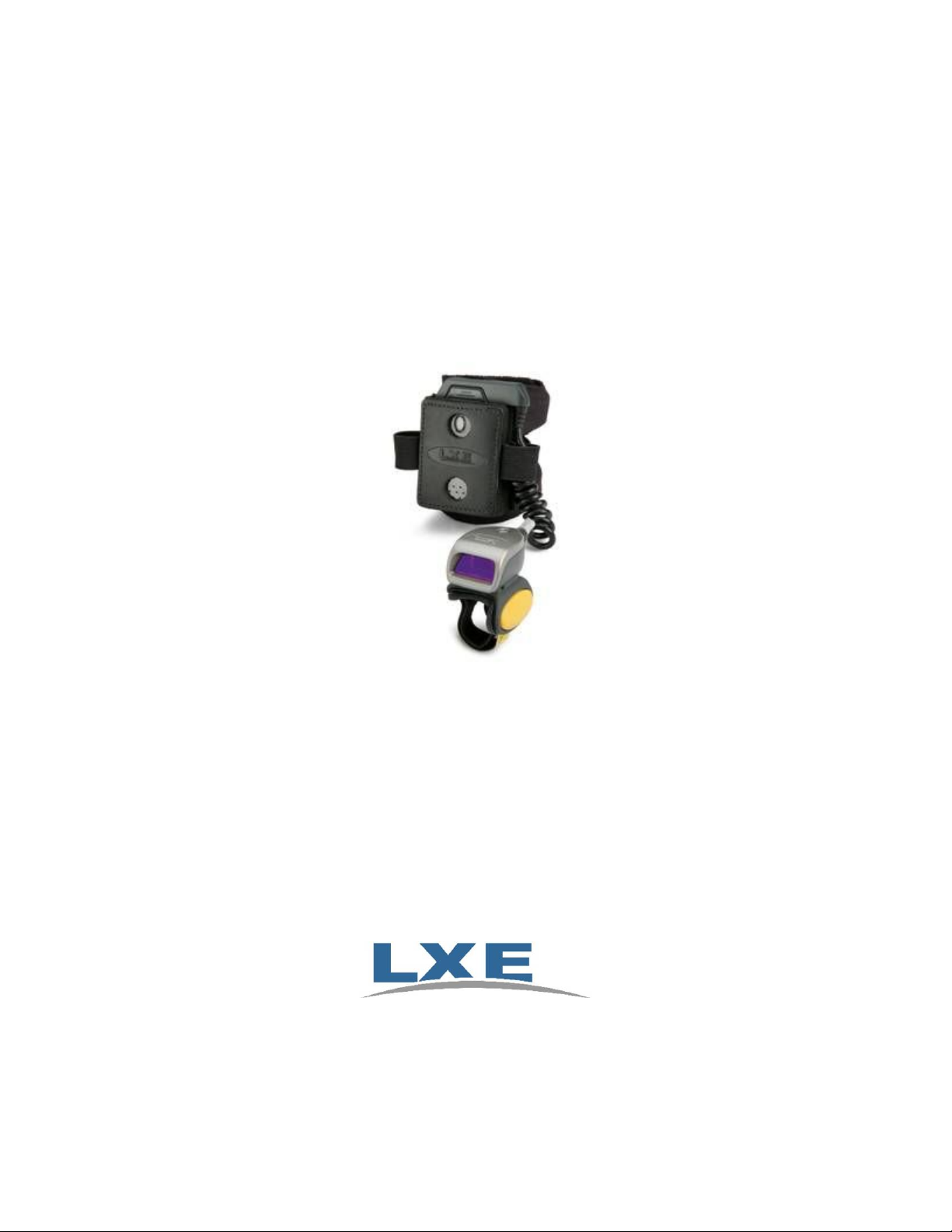
Bluetooth Ring Scanner Guide
Barcodes in this guide must be printed on a 600dpi printer.
The barcodes cannot be scanned from a computer monitor.
Copyright © 2008 by LXE Inc.
All Rights Reserved
E-SW-BLUESCANPG-A
Page 2

Notices
Any reference, whether direct or implied, to any LXE wireless equipment requires the reader to refer to the
specific wireless equipment’s User Guides for cautions, warnings and federal notices (e.g. FCC, EMC, UL,
CE, etc.).
Copyright Notice:
This guide is copyrighted. All rights are reserved. This document may not, in whole or in part, be copied,
photocopied, reproduced, translated or reduced to any electronic medium or machine-readable form without prior
consent, in writing, from LXE Inc.
Copyright © 2008 by LXE Inc., An EMS Technologies Company, 125 Technology Parkway, Norcross, GA 30092
U.S.A. (770) 447-4224
Trademarks:
LXE® is a registered trademark of LXE Inc.
All other brand or product names are trademarks or registered trademarks of their respective companies or
organizations.
Symbol® is a registered trademark of Symbol Technologies. MOTOROLA® and the Stylized M Logo are
registered trademarks of Motorola®, Inc.
The Bluetooth® word mark and logos are owned by the Bluetooth SIG, Inc. and any use of such marks by LXE,
Inc. is under license.
When this guide is in PDF format: “Acrobat ® Reader Copyright © 2006-2008 Adobe Systems Incorporated. All
rights reserved. Adobe, the Adobe logo, Acrobat, and the Acrobat logo are trademarks of Adobe Systems
Incorporated.” Applies.
Notice:
LXE Inc. reserves the right to make improvements or changes to the information in this guide at any time without
notice. While reasonable efforts have been made in the preparation of this guide to assure its accuracy, LXE assumes
no liability resulting from any errors or omissions in this guide, or from the use of the information contained herein.
Further, LXE Incorporated, reserves the right to revise this guide and to make changes to it from time to time
without any obligation to notify any person or organization of such revision or changes.
Page 3

Table of Contents
CHAPTER 1 INTRODUCTION 1
Barcodes, Ring Scanners and Scanner Engines ................................................................................. 1
LXE Tethered Scanners and Mobile Bluetooth Scanners ...................................................................2
Ring Decoder Warnings and Labels...................................................................................................... 3
Identify Your Ring Barcode Decoder Type............................................................................................4
Bluetooth Ring Scanner .........................................................................................................................5
Compatible Devices............................................................................................................................................. 5
Components.........................................................................................................................................................6
Bluetooth Module.............................................................................................................................................6
Ring Imager / Ring Scanner............................................................................................................................ 7
Wrist Strap / Back of Hand Strap................................................................................................................... 7
Battery............................................................................................................................................................... 8
Bluetooth MAC ID Barcode Label .................................................................................................................8
Bluetooth Module Assembly...............................................................................................................................9
Connecting the Ring Device Cable..................................................................................................................9
Inserting the Battery........................................................................................................................................ 9
Adjusting the Ring Device Strap ................................................................................................................... 10
Assembled ....................................................................................................................................................... 11
Status LED and Beep Indicators......................................................................................................................12
Bluetooth Module Status LED and Beep Indicators ...................................................................................13
Bluetooth Ring Imager LED and Ring Scanner LED .................................................................................14
Bluetooth Module Reboot Sequences ..............................................................................................................15
Suspend ...........................................................................................................................................................15
Reboot .............................................................................................................................................................15
Reset ................................................................................................................................................................15
Battery................................................................................................................................................................15
Battery Low ....................................................................................................................................................15
Battery Dead...................................................................................................................................................15
Removing / Replacing the Trigger Module .....................................................................................................16
Remove Finger Strap Assembly ....................................................................................................................16
Replace ............................................................................................................................................................17
Removing / Replacing the Ring Finger Strap Assembly .............................................................................17
Cleaning the Beam Aperture............................................................................................................................17
Bluetooth Module Firmware Update...............................................................................................................18
Update the Module Firmware.......................................................................................................................18
Troubleshooting .............................................................................................................................................. 19
How To . . . ..............................................................................................................................................20
Troubleshooting ....................................................................................................................................22
Printing Barcodes In This Guide .....................................................................................................................22
Miscellaneous Programmable Barcodes.......................................................................................................... 22
Beep After Good Decode ................................................................................................................................ 22
Beeper Frequency Adjustment ......................................................................................................................22
Beep on <BEL>...............................................................................................................................................22
Beeper Tone / Beeper Volume ........................................................................................................................22
Event Reporting .............................................................................................................................................22
Factors That May Impact Scanner Performance ........................................................................................... 23
Barcode Quality..............................................................................................................................................23
Barcode Symbology........................................................................................................................................23
Lens Damage ..................................................................................................................................................23
Ambient Lighting ...........................................................................................................................................23
E-SW-BLUESCANPG-A Bluetooth Ring Scanner Guide
Page 4

ii Table of Contents
Temperature ...................................................................................................................................................23
Pairing Bluetooth Devices.................................................................................................................... 24
LXE Bluetooth Devices.....................................................................................................................................24
Generic Bluetooth Devices................................................................................................................................24
Clear Paired Status ...........................................................................................................................................25
Bluetooth Module Technical Specifications ....................................................................................... 26
Getting Help ...........................................................................................................................................27
Accessories.........................................................................................................................................................27
CHAPTER 2 BLUETOOTH MODULE PROGRAMMING BARCODES 29
Introduction............................................................................................................................................ 29
Preparation............................................................................................................................................. 29
LXE Programming Barcodes................................................................................................................ 30
Restore Factory Defaults..................................................................................................................................30
Module Firmware Version................................................................................................................................ 30
Pairing Status ....................................................................................................................................................31
Suspend Timeout............................................................................................................................................... 32
Beep on Reconnect ............................................................................................................................................34
Reconnect Interval Timeout.............................................................................................................................35
Reconnect Timeout............................................................................................................................................37
Role Switching...................................................................................................................................................38
Authentication................................................................................................................................................... 39
Encryption .........................................................................................................................................................39
Imager White LEDs .......................................................................................................................................... 40
Beep Volume ......................................................................................................................................................41
Ring Imager Focus Mode .................................................................................................................................42
Enter Friendly Name or PIN Code.................................................................................................................. 43
PIN Code.........................................................................................................................................................43
Friendly Name ................................................................................................................................................ 44
Numbers..........................................................................................................................................................45
Lowercase Letters ..........................................................................................................................................47
Uppercase Letters...........................................................................................................................................53
CHAPTER 3 SE955 LASER BARCODES 59
Introduction............................................................................................................................................ 59
Aiming Modes ........................................................................................................................................60
Prefix / Suffix.......................................................................................................................................... 60
Pre-Configured Default Values.............................................................................................................61
Frequently Used Barcodes – SE955 .................................................................................................... 65
Reset/Cancel Barcodes......................................................................................................................................65
Configure The Decoder For Barcode Types....................................................................................................66
Bookland EAN................................................................................................................................................ 66
Chinese 2 of 5..................................................................................................................................................66
Codabar...........................................................................................................................................................67
Code 11............................................................................................................................................................ 67
Code 128.......................................................................................................................................................... 67
Code 39............................................................................................................................................................ 68
Code 93............................................................................................................................................................ 68
Discrete 2 of 5 .................................................................................................................................................69
EAN-13............................................................................................................................................................69
EAN-8..............................................................................................................................................................69
Interleaved 2 of 5............................................................................................................................................70
ISBT 128..........................................................................................................................................................70
MSI Plessey.....................................................................................................................................................70
UCC/EAN-128 ................................................................................................................................................71
Bluetooth Ring Scanner Guide E-SW-BLUESCANPG-A
Page 5

Table of Contents iii
UPC-A .............................................................................................................................................................71
UPC-E .............................................................................................................................................................71
UPC-E1 ...........................................................................................................................................................72
Scanner Parameters – General ............................................................................................................73
Aim Duration.....................................................................................................................................................73
Bi-Directional Redundancy..............................................................................................................................74
Data Options...................................................................................................................................................... 75
Prefix and Suffix.............................................................................................................................................75
Prefix ...........................................................................................................................................................75
Suffix 1 ........................................................................................................................................................76
Suffix 2 ........................................................................................................................................................76
Scan Data Transmission Format...................................................................................................................77
Transmit Code ID Character ........................................................................................................................79
Transmit No Code ID Character ..................................................................................................................79
Transmit Symbol Code ID Character...........................................................................................................79
Transmit AIM Code ID Character ...............................................................................................................80
Laser On Time ................................................................................................................................................... 82
Linear Code Type Security Level (Redundancy Level) .................................................................................83
Parameter Scanning..........................................................................................................................................85
Power Mode.......................................................................................................................................................86
Scan Angle..........................................................................................................................................................87
Set Default Parameter ......................................................................................................................................88
Simple Serial Interface (SSI) Options .............................................................................................................89
Decode Data Packet Format.......................................................................................................................... 90
Host Character Time-out...............................................................................................................................91
Host Serial Response Time-out .....................................................................................................................92
Intercharacter Delay......................................................................................................................................92
Parity...............................................................................................................................................................93
Software Handshaking...................................................................................................................................94
Disable ACK/NAK Handshaking ................................................................................................................94
Enable ACK/NAK Handshaking .................................................................................................................94
Stop Bit Select................................................................................................................................................. 95
Transmit “No Read / Decode” Message ..........................................................................................................96
Trigger Mode .....................................................................................................................................................97
Scanner Parameters – SE955 Barcode Type Specific .......................................................................99
Chinese 2 of 5..................................................................................................................................................... 99
Codabar .............................................................................................................................................................99
CLSI Editing.................................................................................................................................................100
NOTIS Editing..............................................................................................................................................100
Set Lengths for Codabar..............................................................................................................................101
One Discrete Length (Parameter L1).........................................................................................................101
Two Discrete Lengths (Parameter L2) .......................................................................................................102
Length Within Range.................................................................................................................................102
Any Length ................................................................................................................................................102
Code 11.............................................................................................................................................................103
Set Lengths for Code 11 ...............................................................................................................................103
One Discrete Length (Parameter L1).........................................................................................................104
Two Discrete Lengths (Parameter L2) .......................................................................................................104
Length Within Range.................................................................................................................................104
Any Length ................................................................................................................................................105
Code 11 Check Digit Verification................................................................................................................ 105
Transmit Code 11 Check Digits...................................................................................................................106
Code 128...........................................................................................................................................................107
UCC/EAN-128 ..............................................................................................................................................107
ISBT-128........................................................................................................................................................ 109
Lengths for Code 128................................................................................................................................... 109
Code 39............................................................................................................................................................. 110
Code 39 Check Digit Verification................................................................................................................ 110
E-SW-BLUESCANPG-A Bluetooth Ring Scanner Guide
Page 6

iv Table of Contents
Code 32 Prefix .............................................................................................................................................. 111
Convert Code 39 to Code 32........................................................................................................................ 111
Code 39 Full ASCII Conversion.................................................................................................................. 112
Set Lengths for Code 39............................................................................................................................... 113
One Discrete Length (Parameter L1).........................................................................................................113
Two Discrete Lengths (Parameter L2) .......................................................................................................114
Length Within Range................................................................................................................................. 114
Any Length ................................................................................................................................................ 114
Transmit Code 39 Check Digit ....................................................................................................................115
Trioptic Code 39 ...........................................................................................................................................116
Code 93............................................................................................................................................................. 117
Set Lengths for Code 93............................................................................................................................... 117
One Discrete Length (Parameter L1).........................................................................................................118
Two Discrete Lengths (Parameter L2) .......................................................................................................118
Length Within Range................................................................................................................................. 119
Any Length ................................................................................................................................................ 119
Discrete 2 of 5 ..................................................................................................................................................120
Set Lengths for Discrete 2 of 5..................................................................................................................... 121
One Discrete Length (Parameter L1).........................................................................................................121
Two Discrete Lengths (Parameter L2) .......................................................................................................121
Length Within Range.................................................................................................................................122
Any Length ................................................................................................................................................122
Interleaved 2 of 5............................................................................................................................................. 123
I 2 of 5 Digit Verification..............................................................................................................................124
Convert I 2 of 5 to EAN-13..........................................................................................................................125
Set Lengths for I 2 of 5................................................................................................................................. 126
One Discrete Length (Parameter L1).........................................................................................................126
Two Discrete Lengths (Parameter L2) .......................................................................................................127
Length Within Range.................................................................................................................................127
Any Length ................................................................................................................................................128
Transmit I 2 of 5 Check Digit ...................................................................................................................... 128
MSI Plessey...................................................................................................................................................... 129
MSI Plessey Check Digit Algorithm ...........................................................................................................129
MSI Plessey Check Digits ............................................................................................................................130
Set Lengths for MSI Plessey........................................................................................................................ 131
One Discrete Length (Parameter L1).........................................................................................................131
Two Discrete Lengths (Parameter L2) .......................................................................................................131
Length Within Range.................................................................................................................................132
Any Length ................................................................................................................................................132
Transmit MSI Plessey Check Digit .............................................................................................................133
UPC/EAN......................................................................................................................................................... 134
UPC-A ...........................................................................................................................................................134
UPC-E ...........................................................................................................................................................134
UPC-E1 .........................................................................................................................................................135
EAN-8............................................................................................................................................................135
EAN-13..........................................................................................................................................................136
Bookland EAN.............................................................................................................................................. 136
Check Digits.................................................................................................................................................. 137
Transmit UPC-A Check Digit....................................................................................................................137
Transmit UPC-E Check Digit....................................................................................................................137
Transmit UPC-E1 Check Digit..................................................................................................................138
Conversions...................................................................................................................................................139
Convert UPC-E to UPC-A.........................................................................................................................139
Convert UPC-E1 to UPC-A.......................................................................................................................139
Convert EAN-8 to EAN-13 Type ..............................................................................................................140
Preambles......................................................................................................................................................141
UPC-A Preamble .......................................................................................................................................141
UPC-E Preamble........................................................................................................................................142
Bluetooth Ring Scanner Guide E-SW-BLUESCANPG-A
Page 7

Table of Contents v
UPC-E1 Preamble......................................................................................................................................143
Supplementals...............................................................................................................................................144
Decode UPC/EAN Supplementals.............................................................................................................144
Decode UPC/EAN Supplemental Redundancy .........................................................................................146
EAN-8 Zero Extend......................................................................................................................................146
UCC Coupon Extended Code......................................................................................................................147
UPC/EAN Security Level.............................................................................................................................148
GS1 DataBar (RSS) Codes .............................................................................................................................150
GS1 DataBar Omnidirectional (RSS-14)....................................................................................................150
GS1 DataBar Limited (RSS Limited).........................................................................................................150
GS1 DataBar Expanded (RSS Expanded) .................................................................................................150
Convert GS1 DataBar (RSS) to UPC/EAN................................................................................................151
Keypad Number Symbols................................................................................................................... 152
CHAPTER 4 SE4400 IMAGER BARCODES 155
Introduction..........................................................................................................................................155
Imager Identification Label................................................................................................................. 156
Prefix / Suffix........................................................................................................................................ 156
Pre-Configured Default Values...........................................................................................................157
Frequently Used Barcodes – SE4400................................................................................................ 160
Reset/Cancel Barcodes....................................................................................................................................160
Enable / Disable Parameter Scanning ........................................................................................................... 161
Configure Imager For Barcode Types ...........................................................................................................162
2D Symbologies.............................................................................................................................................162
Codabar.........................................................................................................................................................164
Code 11.......................................................................................................................................................... 164
Code 39.......................................................................................................................................................... 165
Code 93.......................................................................................................................................................... 165
Code 128........................................................................................................................................................ 166
Composite .....................................................................................................................................................166
Interleaved 2 of 5..........................................................................................................................................167
Discrete 2 of 5 ...............................................................................................................................................168
ISBT-128........................................................................................................................................................ 168
MSI (Plessey Code) ......................................................................................................................................169
Postal Codes.................................................................................................................................................. 169
GS1 DataBar (RSS)...................................................................................................................................... 171
UPC/EAN......................................................................................................................................................172
Imager Parameters – General............................................................................................................. 174
Decode Session Timeout..................................................................................................................................174
Decode Aiming Pattern...................................................................................................................................175
Decoding Autoexposure ..................................................................................................................................175
Decoding Illumination ....................................................................................................................................176
Focus Mode...................................................................................................................................................... 177
LED Illumination ............................................................................................................................................ 178
Operational Mode ...........................................................................................................................................179
Power Mode.....................................................................................................................................................180
Presentation Mode Session Timeout .............................................................................................................. 181
Time Delay to Low Power Mode.................................................................................................................... 182
Time-out between Decodes, Same Symbol ....................................................................................................183
Trigger Modes .................................................................................................................................................184
Report Version................................................................................................................................................. 185
Transmit Code ID Character......................................................................................................................... 186
Transmit No Code ID Character ................................................................................................................186
Transmit Symbol Code ID Character.........................................................................................................186
Transmit AIM Code ID Character ............................................................................................................. 187
Prefix / Suffix Values ......................................................................................................................................191
E-SW-BLUESCANPG-A Bluetooth Ring Scanner Guide
Page 8

vi Table of Contents
Prefix .............................................................................................................................................................191
Suffix 1 ..........................................................................................................................................................191
Suffix 2 ..........................................................................................................................................................192
Scan Data Transmission Format.................................................................................................................... 193
Transmit “No Read” Message........................................................................................................................195
UPC/EAN ..............................................................................................................................................196
UPC-A .............................................................................................................................................................. 196
UPC-E ..............................................................................................................................................................196
UPC-E1 ............................................................................................................................................................197
EAN-8/JAN-8...................................................................................................................................................197
EAN-13/JAN-13...............................................................................................................................................198
Bookland EAN.................................................................................................................................................199
Bookland Format ............................................................................................................................................199
Decode UPC/EAN/JAN Supplementals (2 and 5 digits) ..............................................................................200
UPC/EAN/JAN Supplemental Redundancy................................................................................................. 202
Transmit UPC-A Check Digit........................................................................................................................202
Transmit UPC-E Check Digit ........................................................................................................................203
Transmit UPC-E1 Check Digit ......................................................................................................................203
UPC-A Preamble.............................................................................................................................................204
UPC-E Preamble.............................................................................................................................................205
UPC-E1 Preamble...........................................................................................................................................206
Convert UPC-E to UPC-A..............................................................................................................................207
Convert UPC-E1 to UPC-A............................................................................................................................208
EAN-8/JAN-8 Extend .....................................................................................................................................209
UCC Coupon Extended Code ........................................................................................................................210
Code 128............................................................................................................................................... 211
UCC/EAN-128 ................................................................................................................................................. 211
ISBT-128 ..........................................................................................................................................................212
Code 39................................................................................................................................................. 213
Trioptic Code 39.............................................................................................................................................. 213
Convert Code 39 to Code 32...........................................................................................................................214
Code 32 Prefix .................................................................................................................................................214
Set Length(s) for Code 39............................................................................................................................... 215
One Discrete Length (Parameter L1) ......................................................................................................... 215
Two Discrete Lengths (Parameter L2)........................................................................................................215
Length Within Range...................................................................................................................................216
Any Length ................................................................................................................................................... 216
Code 39 Check Digit Verification .................................................................................................................. 217
Transmit Code 39 Check Digit.......................................................................................................................218
Code 39 Full ASCII Conversion ....................................................................................................................219
Code 93................................................................................................................................................. 220
Set Lengths for Code 93..................................................................................................................................220
One Discrete Length (Parameter L1) ......................................................................................................... 221
Two Discrete Lengths (Parameter L2)........................................................................................................221
Length Within Range...................................................................................................................................222
Any Length ................................................................................................................................................... 222
Code 11................................................................................................................................................. 223
Set Lengths for Code 11.................................................................................................................................. 223
One Discrete Length (Parameter L1) ......................................................................................................... 224
Two Discrete Lengths (Parameter L2)........................................................................................................224
Length Within Range...................................................................................................................................225
Any Length ................................................................................................................................................... 225
Code 11 Check Digit Verification...................................................................................................................226
Transmit Code 11 Check Digits...................................................................................................................227
Interleaved 2 of 5 (ITF) ........................................................................................................................ 228
Set Lengths for I 2 of 5....................................................................................................................................228
One Discrete Length (Parameter L1) ......................................................................................................... 229
Two Discrete Lengths (Parameter L2)........................................................................................................229
Bluetooth Ring Scanner Guide E-SW-BLUESCANPG-A
Page 9

Table of Contents vii
Length Within Range...................................................................................................................................230
Any Length ................................................................................................................................................... 230
I 2 of 5 Check Digit Verification ....................................................................................................................231
Transmit I 2 of 5 Check Digit.........................................................................................................................232
Convert I 2 of 5 to EAN 13 ............................................................................................................................. 233
Discrete 2 of 5 (DTF)............................................................................................................................234
Set Lengths for Discrete 2 of 5 .......................................................................................................................234
One Discrete Length (Parameter L1) ......................................................................................................... 235
Two Discrete Lengths (Parameter L2)........................................................................................................235
Length Within Range...................................................................................................................................236
Any Length ................................................................................................................................................... 236
Codabar ................................................................................................................................................237
CLSI Editing....................................................................................................................................................237
NOTIS Editing ................................................................................................................................................238
Set Lengths for Codabar ................................................................................................................................238
One Discrete Length (Parameter L1) ......................................................................................................... 239
Two Discrete Lengths (Parameter L2)........................................................................................................239
Length Within Range...................................................................................................................................240
Any Length ................................................................................................................................................... 240
MSI ........................................................................................................................................................241
Set Length(s) for MSI ..................................................................................................................................... 241
One Discrete Length (Parameter L1) ......................................................................................................... 242
Two Discrete Lengths (Parameter L2)........................................................................................................242
Length Within Range...................................................................................................................................243
Any Length ................................................................................................................................................... 243
MSI Check Digits ............................................................................................................................................244
Transmit MSI Check Digit .............................................................................................................................245
MSI Check Digit Algorithm ...........................................................................................................................246
Postal Codes........................................................................................................................................247
US Postnet........................................................................................................................................................247
US Planet..........................................................................................................................................................247
UK Postal ......................................................................................................................................................... 248
Transmit UK Postal Check Digit ................................................................................................................248
Japan Postal.....................................................................................................................................................249
Australian Postal.............................................................................................................................................249
Dutch Postal.....................................................................................................................................................250
Transmit US Postal Check Digit....................................................................................................................251
4State Postal ....................................................................................................................................................251
GS1 DataBar (RSS)..............................................................................................................................252
GS1 DataBar Omnidirectional (RSS-14)....................................................................................................... 252
GS1 DataBar Limited (RSS Limited)............................................................................................................ 252
GS1 DataBar Expanded (RSS Expanded) ....................................................................................................253
Convert GS1 DataBar (RSS) to UPC/EAN...................................................................................................253
Composite ............................................................................................................................................254
Composite CC-C .............................................................................................................................................254
Composite CC-A/B..........................................................................................................................................254
Composite TLC-39..........................................................................................................................................255
UPC Composite Mode ....................................................................................................................................256
UCC/EAN Code 128 Emulation Mode..........................................................................................................257
2D Symbologies................................................................................................................................... 258
PDF417............................................................................................................................................................. 258
MicroPDF417 .................................................................................................................................................. 258
Code 128 Emulation........................................................................................................................................ 259
Data Matrix .....................................................................................................................................................260
Data Matrix Inverse........................................................................................................................................ 260
Maxicode..........................................................................................................................................................261
QR Code...........................................................................................................................................................261
MicroQR .......................................................................................................................................................... 262
E-SW-BLUESCANPG-A Bluetooth Ring Scanner Guide
Page 10

viii Table of Contents
QR Inverse....................................................................................................................................................... 262
Aztec.................................................................................................................................................................263
Aztec Inverse ...................................................................................................................................................263
Redundancy Level...............................................................................................................................264
Security Level ......................................................................................................................................266
Intercharacter Gap Size .................................................................................................................................268
Imager Keypad Number Symbols ...................................................................................................... 269
CHAPTER 5 SCAN ENGINE TECHNICAL SPECIFICATIONS 271
Scanner Identification Label ..............................................................................................................271
Decode Zones ...................................................................................................................................... 271
SE955-I000WR Standard Range Laser Scanner .......................................................................................... 272
SE4400 Laser Imager......................................................................................................................................273
Near Focus Decode Distances...................................................................................................................... 273
PL4407 ......................................................................................................................................................273
MS4407 .....................................................................................................................................................273
Far Focus Decode Distances stopped here .................................................................................................274
PL4407 ......................................................................................................................................................274
MS4407 .....................................................................................................................................................274
Toggled Focus Decode Distances.................................................................................................................275
PL4407 ......................................................................................................................................................275
MS4407 .....................................................................................................................................................275
Decode Distances in Darkness.....................................................................................................................276
PL4407 ......................................................................................................................................................276
APPENDIX 277
BlueCore Device Firmware Update Installation Instruction............................................................ 277
Install BlueCore Device Update Wizard and Driver.................................................................................... 277
Update the Module Firmware........................................................................................................................ 280
ASCII Character Equivalents.............................................................................................................. 282
INDEX 287
Bluetooth Ring Scanner Guide E-SW-BLUESCANPG-A
Page 11

Table of Contents ix
Illustrations
Figure 1-1 Ring Tether Connectors ...................................................................................................................... 2
Figure 1-2 Ring Scanner Caution Label – Class 2 Laser Scanner........................................................................3
Figure 1-3 Ring Imager (L) and Ring Scanner (R) ..............................................................................................4
Figure 1-4 Ring Imager (L) and Ring Scanner (R) Apertures..............................................................................4
Figure 1-5 Bluetooth Ring Scanner Assembly – On the Wrist or Back of Hand .................................................5
Figure 1-6 Components - Module........................................................................................................................6
Figure 1-7 Components – Ring Imager / Ring Scanner .......................................................................................7
Figure 1-8 Wrist Strap .......................................................................................................................................... 7
Figure 1-9 Rechargeable Lithium Ion Battery Pack.............................................................................................8
Figure 1-10 Sample MX8 Bluetooth Address (MAC ID) Barcode Label............................................................ 8
Figure 1-11 Bluetooth Ring Scanner Assembled ...............................................................................................11
Figure 1-12 Module LED, Beeper and Ring Scanner LED................................................................................12
Figure 1-13 Step 1 : Rotate Trigger Module and Remove Screw ......................................................................16
Figure 1-14 Step 2 : Rotate Trigger Module again until it pops up. Remove the trigger module. .....................16
Figure 1-15 Replace Trigger Module................................................................................................................. 17
Figure 1-16 Scanning Angle for Linear Barcodes..............................................................................................20
Figure 1-17 Scanning a 2D Barcode ..................................................................................................................21
Figure 3-1 Supported SE955 Barcode Symbologies..........................................................................................59
Figure 4-1 Supported SE4400 Barcode Symbologies......................................................................................155
Figure 5-1 Decode Zones – SE955-I000WR Standard Range Laser Ring Scanner.........................................272
Figure 5-2 Imager Near Focus Decode Distances............................................................................................ 273
Figure 5-3 Imager Far Focus Decode Distances .............................................................................................. 274
Figure 5-4 Imager Toggled Focus Decode Distances.......................................................................................275
Figure 5-5 Imager Decode Distances in Darkness........................................................................................... 276
E-SW-BLUESCANPG-A Bluetooth Ring Scanner Guide
Page 12

x Table of Contents
Bluetooth Ring Scanner Guide E-SW-BLUESCANPG-A
Page 13
Chapter 1 Introduction
Barcodes, Ring Scanners and Scanner Engines
This guide contains installation instructions and configuration / programming barcodes
specifically designed for the Bluetooth® Ring Scanner and its tethered ring scanner and ring
imager.
LXE barcode decoding laser engines and barcode decoding imager engines are designed to read,
decode and collect barcoded data from any nearby compatible barcode label that is visible and on
printed media.
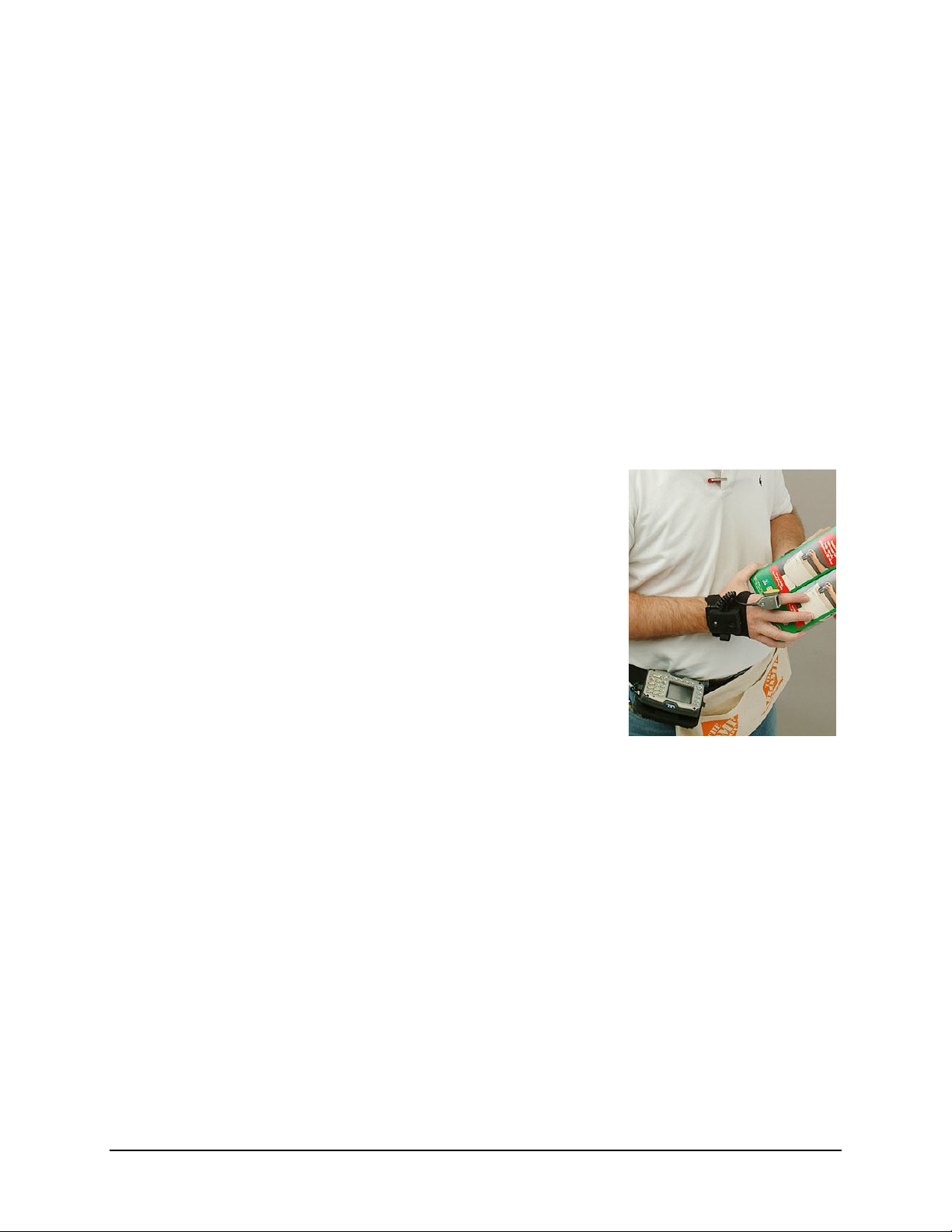
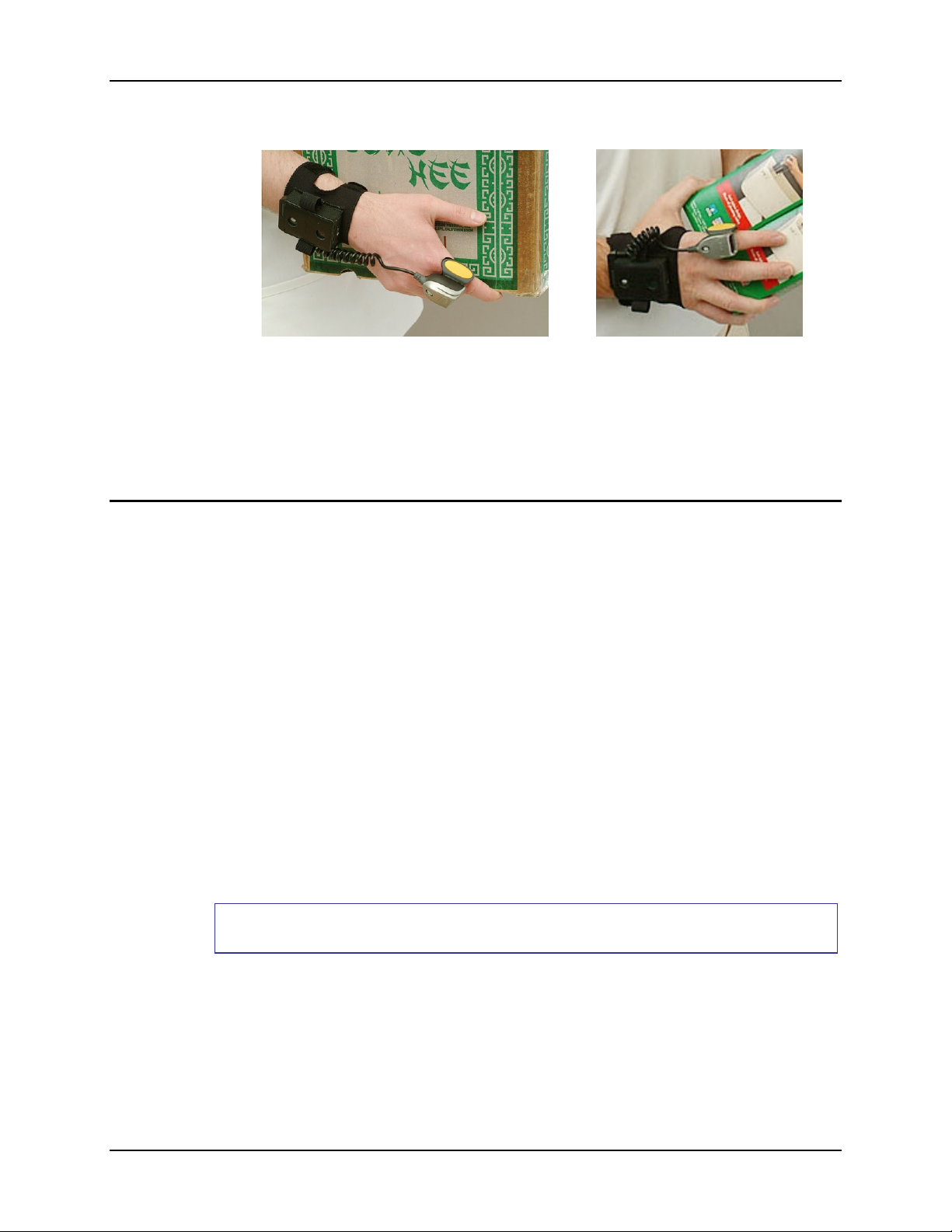
The Bluetooth Ring Scanner consists of a ring decoder tethered to a sturdy, compact, mobile
Bluetooth module and battery. The module’s lightweight battery provides power to the ring
decoder. The handstrap assembly is designed to be worn on the back of either hand or on either
wrist. The hook and loop fabric on the handstrap enables one-handed installation, adjustment and
removal of the handstrap.
LXE Bluetooth enabled mobile devices can pair with more
than one Bluetooth barcode reader at a time. Note the
Bluetooth enabled mobile device can only manipulate the data
received from one barcode reading device at a time.
See section titled Identify Your Ring Barcode Decoder Type
before scanning any barcode in this programming guide.
Note: The function to use the imager for OCR decoding is
not supported in this release.
When using the ring device to scan the barcodes in this guide,
the user can change scanning parameters for the Bluetooth
Module such as:
• Enable / disable suspend timeout length
• Set the Beeper volume (Bluetooth module only)
• Assign a Friendly Name
• and Restore the Bluetooth Module to factory default settings.
And, for the tethered ring decoder parameters:
• Enable / disable a specific barcode type (UPC/EAN, Code 90, PDF417, and many others)
• Scan beam timing – short, medium, long
• Set barcode type parameters
It is important that the barcodes in this guide to be scanned by any device are the barcodes that
have been designed specifically for the device.
Bluetooth Module – Programming barcodes specifically for the Bluetooth Ring Scanner module
are contained in Chapter 2 Bluetooth Module Programming Barcodes.
Laser Scanner – Programming barcodes for the SE955 scanner engine in the Ring Scanner cabled
to the Bluetooth Ring Scanner, are contained in Chapter 3 SE955 Laser Barcodes.
Laser Imager – Programming barcodes for the SE4400 imager engine in the Ring Imager cabled
to the Bluetooth Ring Scanner, are contained in Chapter 4 SE4400 Imager Barcodes.
Supported scanning ranges for the different barcode readers are contained in Chapter 5 Decode
Zones.
E-SW-BLUESCANPG-A Bluetooth Ring Scanner Guide
Page 14
2 Introduction
Wireless handheld Bluetooth scanner and Bluetooth imager (i.e. LXE 8500, 8700 and 8800 series)
programming barcodes and user instruction is not included in this guide. Please refer to the section
titled LXE Tethered Scanners and Mobile Bluetooth Scanners.
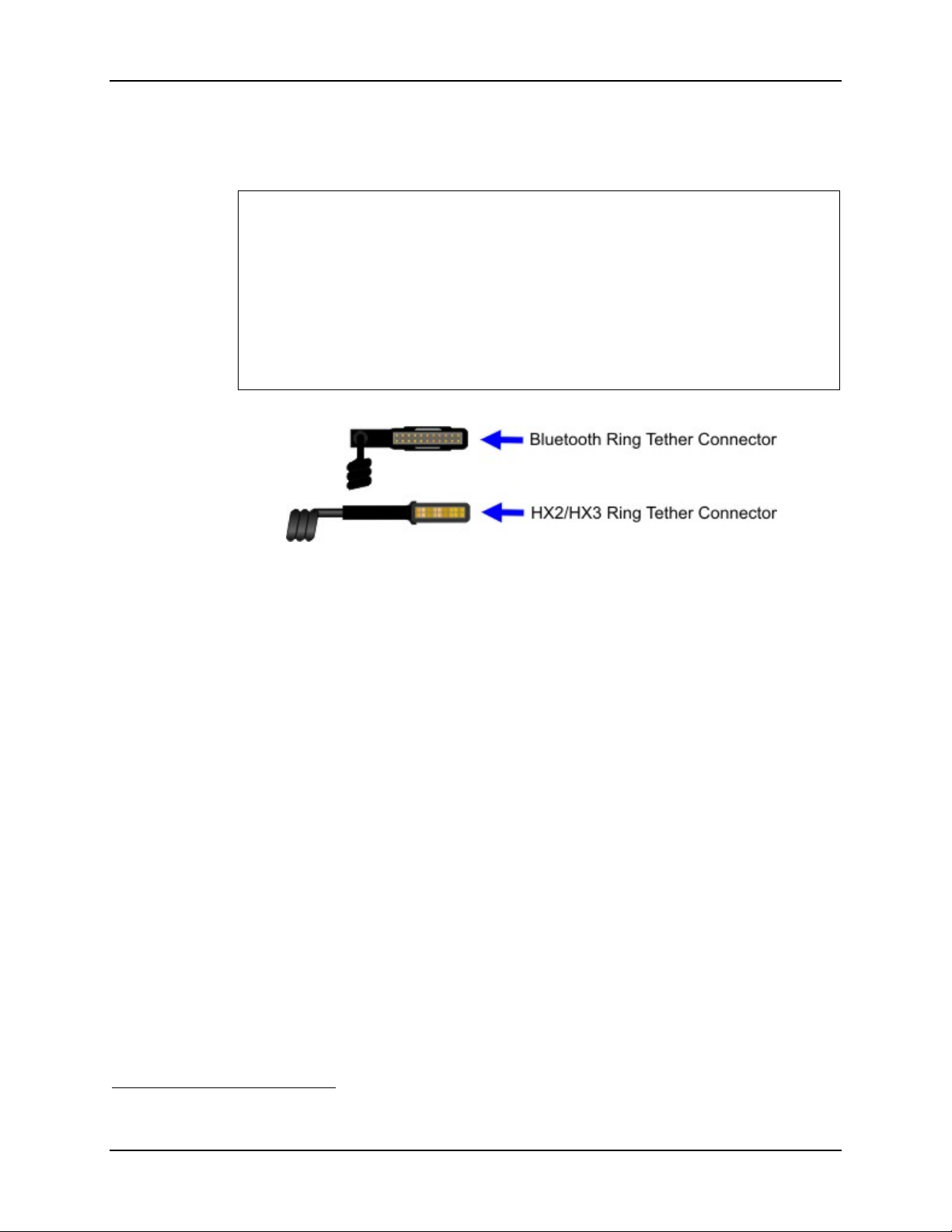
Note: The LXE Bluetooth Module ring scanner and ring imager connectors are not
interchangeable with the ring scanner and ring imager connectors designed for the
HX2 or the HX3 mobile device.
For HX2 and ring scanner/ring imager component description, installation and instruction
please refer to the HX2 User Guide, HX2 Reference Guide, and the Ring Scanner
ProgrammingGuide.
For HX3 and ring scanner/ring imager component description, installation and instruction
please refer to the HX3 User Guide, HX3 Reference Guide, and the Ring Scanner
Programming Guide.
Figure 1-1 Ring Tether Connectors
The Bluetooth Ring Scanner assembly provides wireless communication with the following
Bluetooth enabled LXE computers:
• HX2 Body Worn
• HX3 (Voice) Body Worn
• MX3X Handheld
• MX7 Handheld
• MX8 Handheld
• VX3X Vehicle Mount
• VX6 Vehicle Mount
• VX7 Vehicle Mount
LXE Tethered Scanners and Mobile Bluetooth Scanners
This guide does not include the barcodes to be used when programming tethered scanners
connected to a COM port or serial port on LXE Bluetooth enabled mobile devices or their
cradles/docks, the LXE 8300 and 8500 scanner series specifically, or Bluetooth mobile scanners
/imagers with trigger handles. Please refer to the scanner and imager manufacturer’s User Guide
Note: The manufacturer usually includes the printed manuals with the tethered device or mobile
Bluetooth device shipment.
1
.
1
Full programming guides for LXE mobile Bluetooth barcode decoders and COM port tethered scanners may be
available on the manufacturer’s web site.
Bluetooth Ring Scanner Guide E-SW-BLUESCANPG-A
Page 15
Introduction 3
Ring Decoder Warnings and Labels
• Do not look into the ring scanner/imager aperture.
• Do not stare directly into the ring scanner/imager laser beam.
• Do not remove the laser caution labels from the ring scanner/imager.
• Do not connect the ring decoder aperture to any other device.
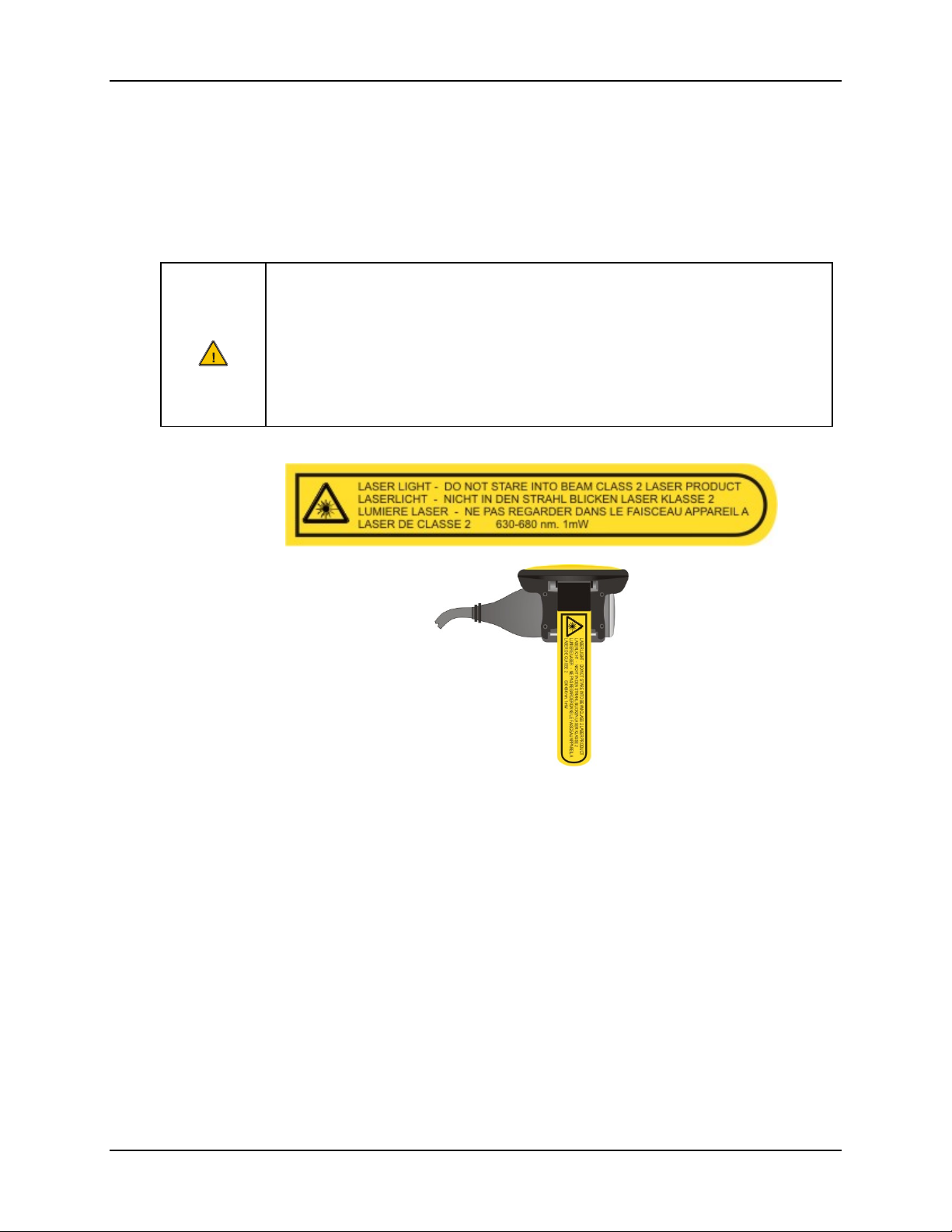
Laser radiation when open. Please read the caution labels.
Use of controls, adjustments or performance of procedures other than those
Caution:
specified herein may result in hazardous radiation exposure.
Class 2 laser scanners use a low power, visible light diode. As with any very
bright light source, such as the sun, the user should avoid staring directly into
the light beam. Momentary exposure to a Class 2 laser is not known to be
harmful.
Figure 1-2 Ring Scanner Caution Label – Class 2 Laser Scanner
E-SW-BLUESCANPG-A Bluetooth Ring Scanner Guide
Page 16
4 Introduction
Identify Your Ring Barcode Decoder Type
Keep fingers away from the scan trigger when looking at the scanner/imager lens.
Do not look into the ring scanner/imager lens.
Do not stare directly into any beam emitted from the scanner/imager lens.
Note: Imagers and scanners use laser beams when scanning a barcode.
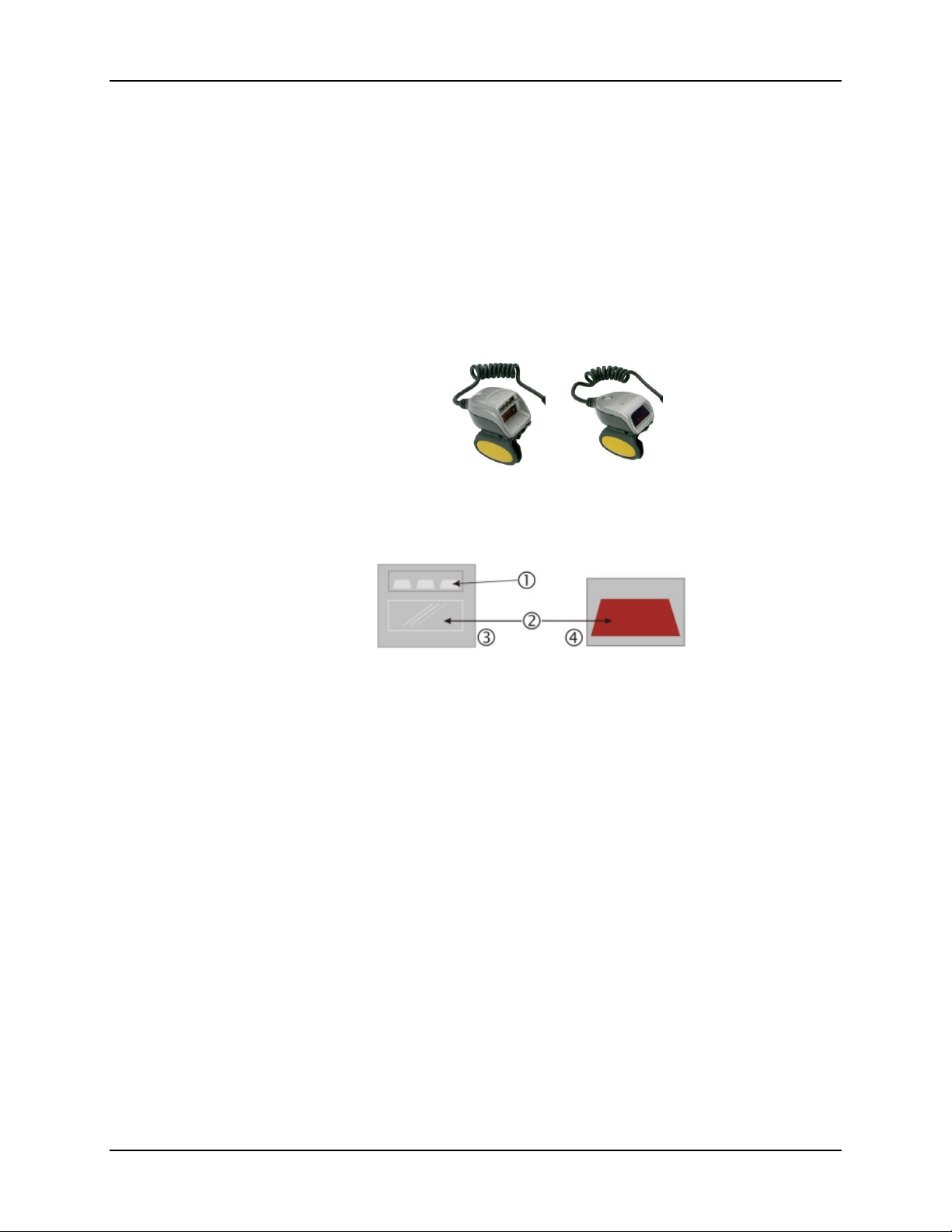
• The ring scanner has an SE955 scan engine (see Chapter 3 for programming barcodes).
• The ring imager has an SE4400 scan engine (see Chapter 4 for programming barcodes).
Carefully look at the laser apertures of your ring scanning devices.
Figure 1-3 Ring Imager (L) and Ring Scanner (R)
Figure 1-4 Ring Imager (L) and Ring Scanner (R) Apertures
1 Imager – Illumination LEDs
2 Beam Aperture
3 Imager – Clear Glass Lens
4 Laser Scanner – Red Glass Lens
Bluetooth Ring Scanner Guide E-SW-BLUESCANPG-A
Page 17
Introduction 5
Bluetooth Ring Scanner
Figure 1-5 Bluetooth Ring Scanner Assembly – On the Wrist or Back of Hand
The Bluetooth Ring Scanner consists of a ring scanner tethered to a sturdy, compact, mobile
Bluetooth module and battery. The module’s lightweight battery is the power source for the
module and the ring scanner. The handstrap assembly is designed to be worn on the back of either
hand, or at the wrist. The hook and loop fabric on the handstrap enables one-handed installation,
adjustment and removal of the handstrap.
Compatible Devices
At a minimum, the Bluetooth Ring Scanner provides wireless communication with the following
Bluetooth enabled LXE computers:
• HX2 Body Worn
• HX3 (Voice) Body Worn
• MX3 CE Handheld
• MX7 Handheld
• MX8 Handheld
• VX3 CE Vehicle Mount
• VX6 Vehicle Mount
• VX7 Vehicle Mount
The Bluetooth tethered ring scanner and tethered ring imager connectors are not interchangeable
with other LXE mobile devices that also use tethered ring scanners/ring imagers (i.e. HX2 / HX3).
The scan engine manufacturer may offer more barcodes and parameter options than are contained
in this guide. Please note that the barcodes in this guide are only those supported by LXE and the
imagers or scanners linked to LXE mobile devices that LXE manufactures or supports. If you need
assistance when using the barcodes in this guide, please contact your LXE representative.
Please read all cautions, warnings and labels on the scanning device before
scanning the barcodes in this guide.
E-SW-BLUESCANPG-A Bluetooth Ring Scanner Guide
Page 18
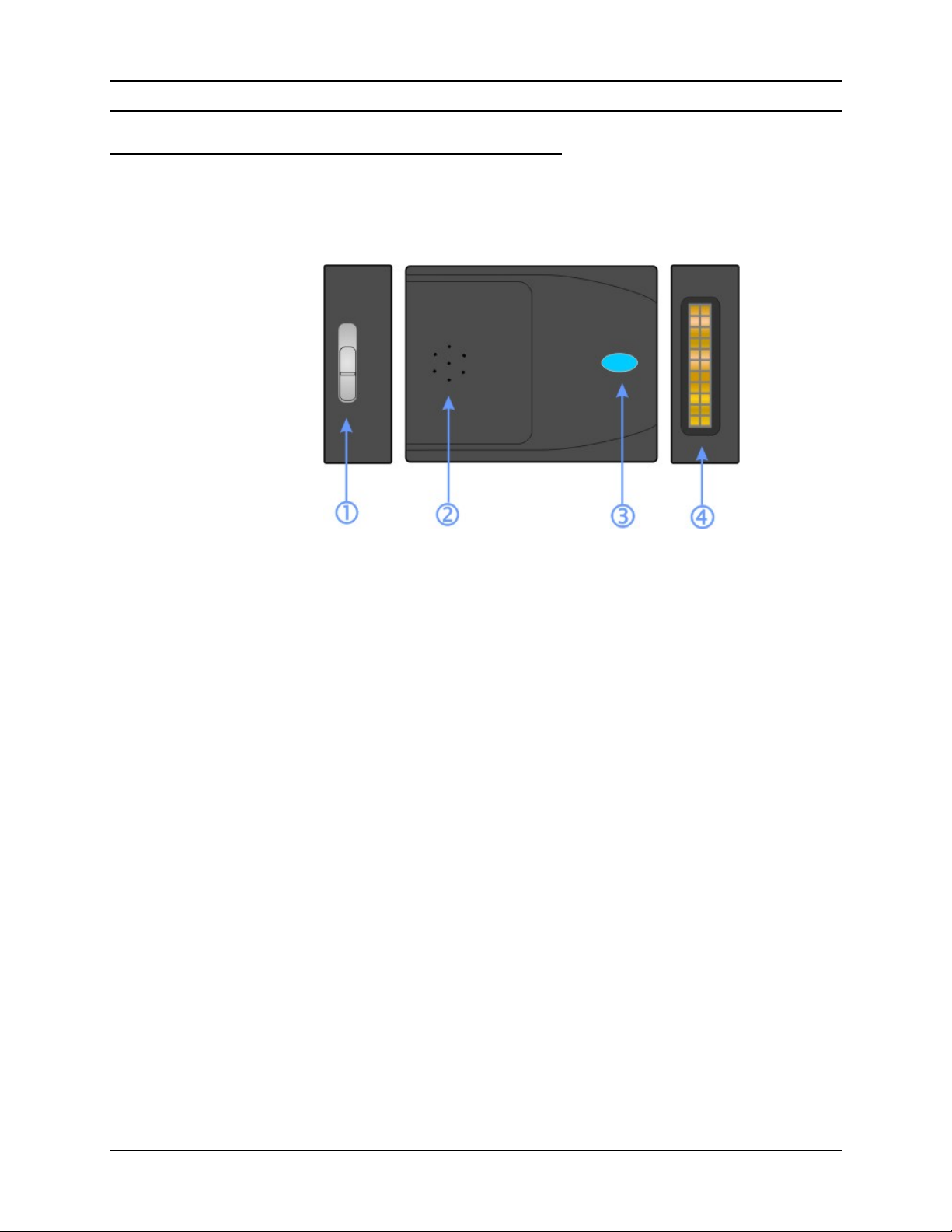
6 Introduction
Components
Bluetooth Module
Note: The Bluetooth Module ring scanner and ring imager connectors are not interchangeable
with the ring scanner and ring imager connectors designed for the HX2 or the HX3
mobile device.
Figure 1-6 Components - Module
1 Battery Compartment Latch
2 Speaker
3 LED
4 I/O Port: Ring Device Cable Connection
Bluetooth Ring Scanner Guide E-SW-BLUESCANPG-A
Page 19
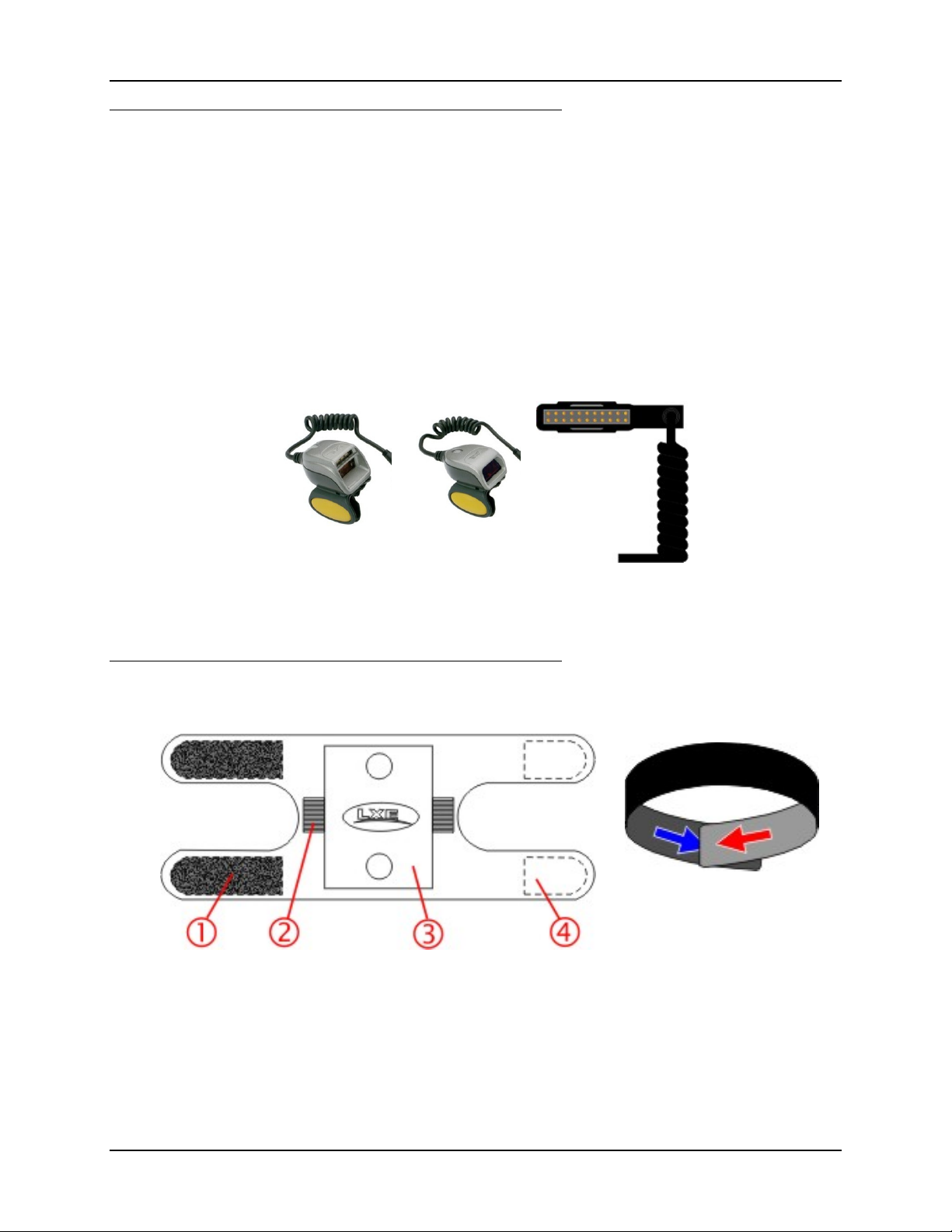
Introduction 7
Ring Imager / Ring Scanner
The Bluetooth ring scanner can scan and decode 1D barcodes. The Bluetooth ring imager can scan
and decode 1D and 2D barcodes. The type of barcodes scanned successfully depends on the scan
type of the tethered ring device. After pairing with an LXE mobile device, it can then send the
collected barcode data to the specific Bluetooth enabled LXE mobile device for processing.
The ring devices do not have the ability to emit a good read or bad read sound. The Bluetooth
Ring Scanner module emits good read or bad read sounds based on the ring scan results. See
section titled Status LED and Beep Indicators for an explanation of the LED and beep patterns
emitted by these devices.
Note: These ring decoding devices do not have the ability to emit a good read or bad read
sound.
Ring Imager Ring Scanner Cable Connection
Figure 1-7 Components – Ring Imager / Ring Scanner
Wrist Strap / Back of Hand Strap
Press Loops against
Hooks to secure
Figure 1-8 Wrist Strap
1 Loops
2 Elastic ring cable protector
3 Bluetooth module sleeve
4 Hooks
E-SW-BLUESCANPG-A Bluetooth Ring Scanner Guide
Page 20
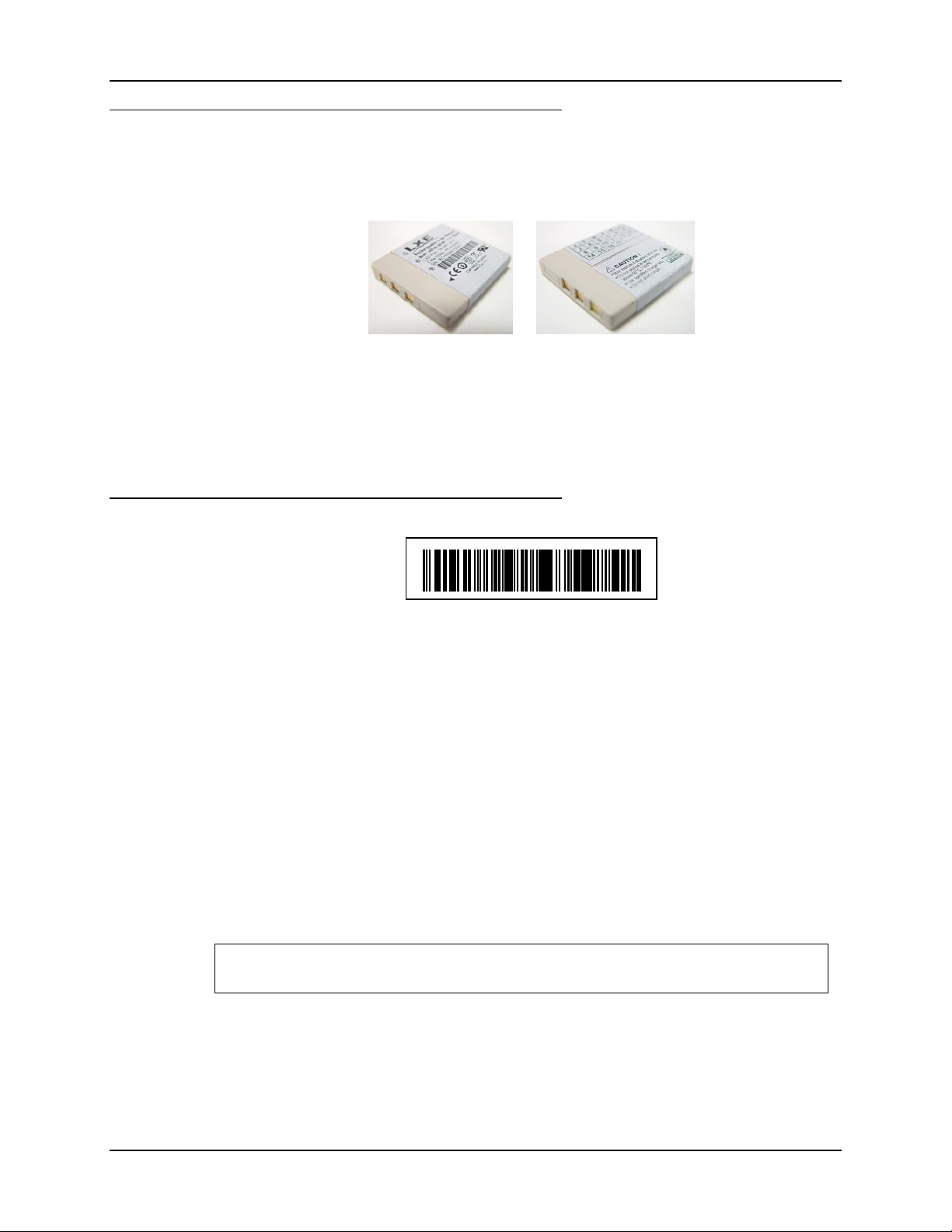
8 Introduction
Battery
The spring-loaded battery in the Bluetooth ring scanner module can be hotswapped
(removed/replaced) using one hand. No special tools are needed. A single bay spare battery
charger and an eight bay battery multi-charger are available from LXE (see Accessories).
Figure 1-9 Rechargeable Lithium Ion Battery Pack
The Bluetooth ring scanner module does not have a power or on-off switch. When the battery is
installed, the unit and it’s accessories are on. Remove the battery to power down the unit.
See Also: Bluetooth Module Reboot Sequences later in this chapter.
Bluetooth Ring Scanner Battery Charger User’s Guide
Bluetooth MAC ID Barcode Label
LnkB00440fd01020 - Sample
Figure 1-10 Sample MX8 Bluetooth Address (MAC ID) Barcode Label
Locate the barcode label, similar to the one shown above, attached to the LXE Bluetooth capable
mobile device. It may be on any side of the device.
The label is the Bluetooth address identifier for the LXE Bluetooth capable mobile device. It must
be scanned before LXEZ Pairing connection can occur.
The barcode label on the Bluetooth Ring Scanner module is a barcode and numeric representation
of the MAC ID of the module.
Troubleshooting
The MAC ID barcodes on some LXE Bluetooth capable mobile devices are quite small. If you
are unsuccessful using the ring imager when scanning a MAC ID barcode, change the ring
imager’s default Smart Focus Mode to Near Focus by scanning the Enable Near Focus barcode in
Chapter 4. Ensure focus mode is changed back to the default value of Smart Focus after the MAC
ID barcode read is successful.
Important: The Bluetooth module MAC ID label should remain protected from damage (rips,
tears, spills, soiling, erasure, etc.) at all times.
Bluetooth Ring Scanner Guide E-SW-BLUESCANPG-A
Page 21
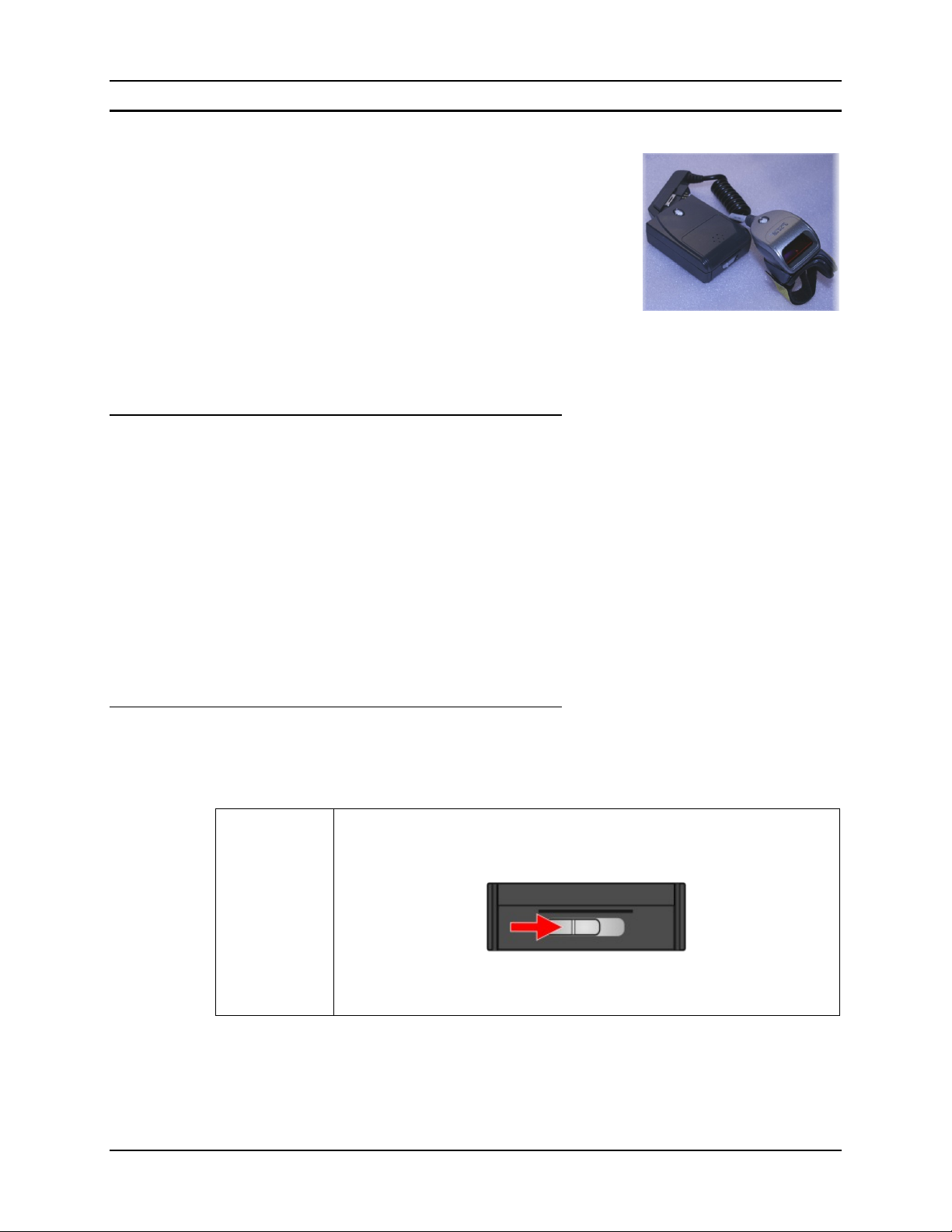
Introduction 9
Bluetooth Module Assembly
Note: Do not touch, push against or brace your finger on the
scan aperture at any time.
The battery and ring scanner cables should not be exchanged or
replaced in a dirty, harsh or hazardous environment. When the
ring tethers are disconnected, any dust or moisture that adheres
to the tether connector can potentially cause damage upon cable
re-connection with the Bluetooth Module.
Connect the Ring decoder to the Bluetooth Module before
inserting a battery into the module. The Bluetooth Module performs initialization with the Ring
Scanner on bootup.
When new, there is a clear, tabbed protective film covering the ring decoder scan window.
Remove and discard the clear, tabbed protective film before scanning a barcode.
Connecting the Ring Device Cable
Note: Do not use a metal object, or extreme force, to remove the cable connector from the
module.
Assumption: LXE logo on the module protective sleeve is up (visible).
Slip the ring cable connector through the ring cable guide on the side of the Bluetooth module
sleeve. The connector can be inserted from the left or the right. The ring cable guides are designed
to minimize excessive pulling or tugging on the scanner cable after the ring scanner is connected
to the Bluetooth module.
Press the connector firmly into the I/O port until the Bluetooth module LED illuminates and the
module beeps, signifying a ring cable I/O secure connection.
To remove the ring scanner cable, pinch and pull the cable connector (not the cable!) straight up
and away from the Bluetooth module.
Inserting the Battery
The battery is spring loaded and will slide out when the battery cover latch is opened. The battery
slides out of the battery bay far enough to be grasped, removed and then replaced with a fully
powered battery.
Open
Orientation: Bluetooth LED on the module is up.
Slide the battery bay latch to the right. The battery bay cover springs open.
Note: As soon as the battery contacts lose connection with the battery
terminals in the battery bay, the Bluetooth module turns Off.
E-SW-BLUESCANPG-A Bluetooth Ring Scanner Guide
Page 22
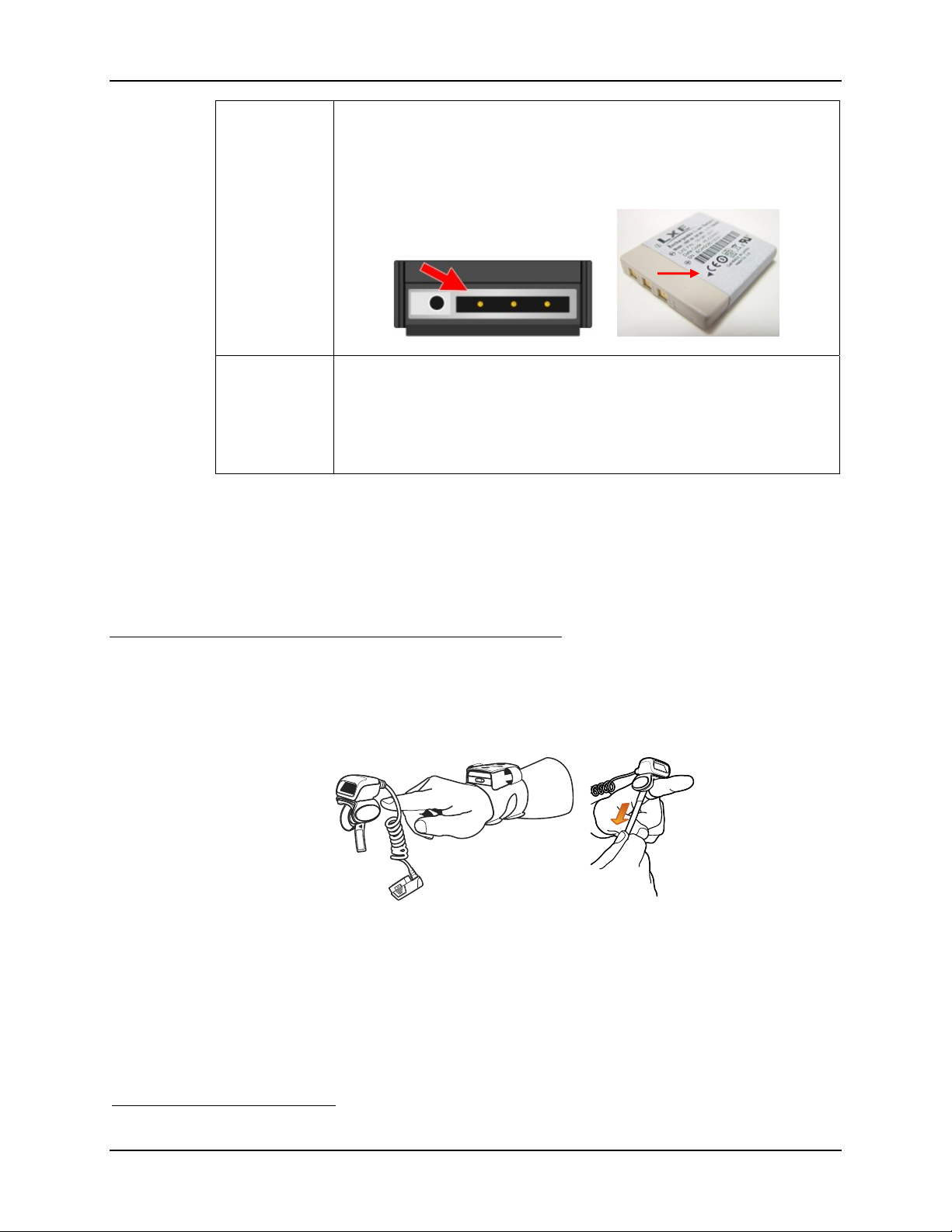
10 Introduction
Orientation: Bluetooth LED on the module is up.
Insert Battery
Insert a fully charged battery into the battery bay, making sure the battery
terminals enter the battery bay at the right side of the battery opening. Use the
direction of the arrow on the battery label as a guide.
Orientation: Bluetooth LED on the module is up.
Press down on the battery until it is seated in the battery bay and close the
Close
battery bay hatch cover. Slide the battery latch to the left to secure the battery
in the Bluetooth Module. The Bluetooth module beeps happily
2
and it’s LED
flashes.
Note: Do not use a metal object, or extreme force, to remove the battery from the module.
If a ring scanner is tethered to the Bluetooth module while a battery is being hotswapped and
there is no beep or LED flash, remove the battery, turn it over and reinsert, making sure the
battery terminals enter the battery bay to the right. Slide the battery bay latch to the left to secure
the battery in the Bluetooth Module. If there is sufficient power in the battery, the Bluetooth
module beeps happily and the LED flashes.
Adjusting the Ring Device Strap
The ring scanner finger loop is located under the ring scanner.
Pull gently on the end of the finger loop strap to separate the hook and loop fabric.
Slide your finger into the opened loop under the ring scanner.
Grasp the end of the finger loop strap and gently pull to loosen, then tighten, the finger strap until
the ring scanner is comfortably snug and the scan aperture is in the desired location. Secure the
ring strap at the desired location by pressing the hook fabric (under the yellow label) to the loop
fabric on the strap surrounding the finger.
The ring scanner has a built-in quick disconnect designed for occasional safety hazards. The quick
disconnect is not intended for daily removal of the ring scanner.
2
Short low tone beep, Long low tone beep, Long high tone beep
Bluetooth Ring Scanner Guide E-SW-BLUESCANPG-A
Page 23
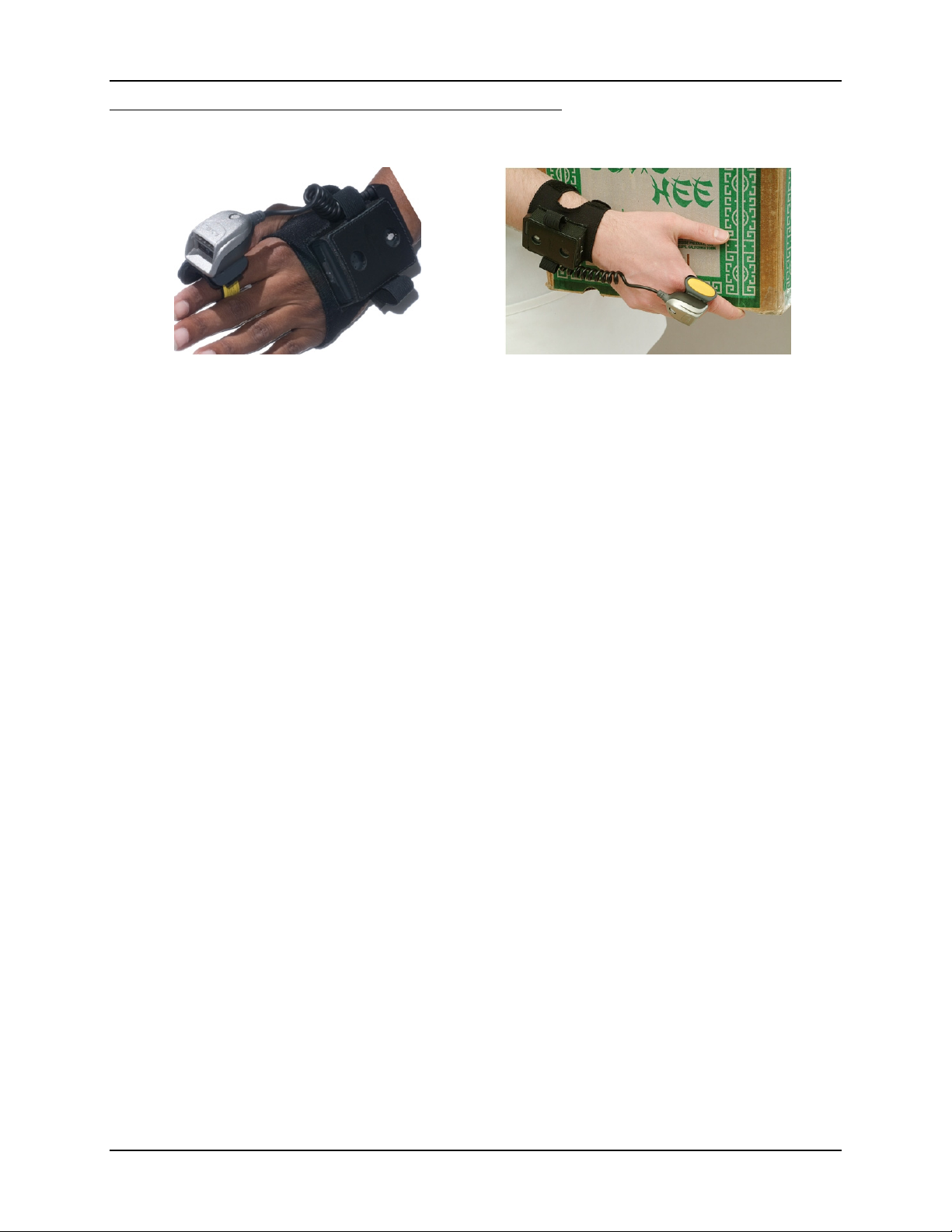
Introduction 11
Assembled
Worn on left hand, on back of hand Worn on right hand, on back of wrist
Figure 1-11 Bluetooth Ring Scanner Assembled
E-SW-BLUESCANPG-A Bluetooth Ring Scanner Guide
Page 24
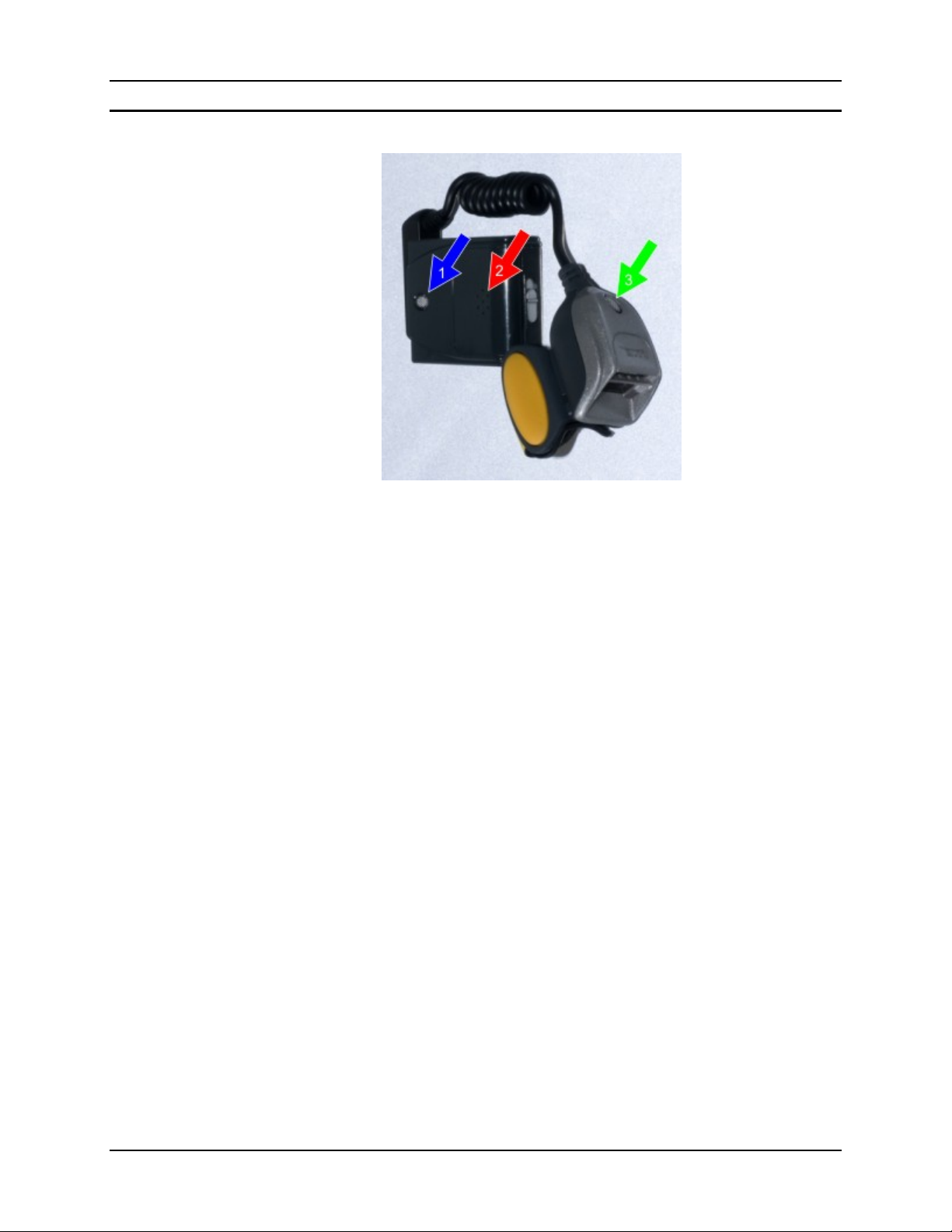
12 Introduction
Status LED and Beep Indicators
Figure 1-12 Module LED, Beeper and Ring Scanner LED
1 Module LED (Blue arrow)
2 Module Beeper (Red arrow)
3 Ring Scanner LED (Green arrow)
The ring devices do not have the ability to emit a good decode read sound (after a barcode scan) or
bad decode read sound. The Bluetooth Ring Scanner module emits the good read or bad read
sounds. The module and the ring devices have an LED.
Note: Rejected barcodes generate a bad scan beep and/or an LED light sequence. In some
cases, the receipt of data from the ring scanner triggers a good scan beep from the
Bluetooth module, and then the rejection of scanned barcode data by the paired mobile
device (e.g. MX8) processing causes a bad scan beep from the paired mobile device
(MX8) on the same data.
Please see the mobile device specific guide for an explanation of the LED and beep
indicators for the paired device. For example, if you have paired the Bluetooth Ring
Scanner with the MX8 handheld computer so it can manipulate the scanned barcode data
received from the Bluetooth Ring Scanner, refer to the MX8 User’s Guide for MX8 LED
and beep explanations.
See the following sections Bluetooth Module Status LED and Beep Indicators and Bluetooth Ring
Imager and Ring Scanner LED.
Bluetooth Ring Scanner Guide E-SW-BLUESCANPG-A
Page 25

Introduction 13
Bluetooth Module Status LED and Beep Indicators
The Bluetooth Module blue LED and Buzzer indicate status as follows:
Blue LED System Condition Beep
Short high tone beep
Fast blink, 0.25 sec.
duration every 1.0 sec.
Fast blink, 0.25 sec.
duration every 1.0 sec.
Slow blink, 0.25 sec.
duration every 4.0 sec.
Radio Failure
Pairing Failed
Successful Connection
Short high tone beep
Short low tone beep
Short low tone beep
Short low tone beep
Short high tone beep
Short high tone beep
Short low tone beep
Short low tone beep
Short high tone beep
(When “Beep on Connect”
is enabled. See LXE
Programming Barcodes)
Fast blink, 0.25 sec.
duration every 1.0 sec.
Slow blink, 0.25 sec.
duration every 4.0 sec.
Fast blink, 0.25 seconds
every 1.0 second
Off
Blue
Off
Fast Blink, 0.25 sec
duration every 0.5 sec.
None Power Up
Lost Connection
Connected None
Not Connected None
Suspend or Off (not tethered or no
battery power available in Bluetooth
Module)
Bluetooth Module firmware is
updating
Bluetooth Module firmware update
is completed
Communication Error None
Short high tone beep
Short low tone beep
(When “Beep on Connect”
is enabled. See LXE
Programming Barcodes)
None
None
Module restarts and powerup beep occurs
Short low tone beep
Long low tone beep
Long high tone beep
E-SW-BLUESCANPG-A Bluetooth Ring Scanner Guide
Page 26

14 Introduction
Bluetooth Ring Imager LED and Ring Scanner LED
The ring decoding devices do not have the ability to emit a good read or bad read sound. The Ring
Scanner indicates status as follows:
LED System Condition Bluetooth Module Beep
Green User Good Scan Short high beep
Configuration Good Scan
Green
Red Scan in progress None
Note: This means the configuration
process is successful
Three Short high beeps
Configuration Bad Scan
Red
Slow blink Amber,
once every .25 sec.
Off
Note: This means the configuration
process has failed
Low Battery in the Bluetooth
Module
Suspend or Off (not tethered or no
battery power available in Bluetooth
Module)
Three Short low beeps
Four Short high beeps
None
Bluetooth Ring Scanner Guide E-SW-BLUESCANPG-A
Page 27

Introduction 15
Bluetooth Module Reboot Sequences
Suspend
To improve battery life, the Suspend timeout can be adjusted by scanning the barcodes in Chapter
2 Bluetooth Module Programming Barcodes, section titled Set Suspend Timeout.
Suspend begins if the Suspend timeout occurs before the scanner trigger is pressed.
A trigger pull is required to wake the module from Suspend. The module is ready to receive
barcode data.
Note: After the trigger pull (to wake the module from Suspend) another trigger pull is needed to
scan a barcode.
If the module is in master mode and the Reconnect Timeout period expires, a scanner trigger press
resets the Reconnect Interval timer and the Reconnect Timeout timer.
Reboot
Remove the battery. Replace the battery. Do not press the ring scanner trigger or press it for less
than 30 seconds.
The previously stored configuration parameters are restored.
Reset
Battery
Battery Low
Battery Dead
Remove the battery.
Replace the battery while pressing the ring scanner trigger for 30 or more seconds.
The factory default configuration is restored.
The 3.7V, 750mAhH Li-Ion battery in the Bluetooth module is designed to power the Bluetooth
module for 8 hours and remain in standby for approximately 24 hours.
When a battery low condition exists, LXE recommends the battery be hotswapped with a fully
charged battery as soon as possible.
The Ring Scanner Amber LED indicates a battery low condition by blinking for .25 seconds every
5 seconds until a Battery Dead condition occurs or the battery is replaced with a fully charged
battery.
The Bluetooth module beeper indicates a battery low condition by emitting 4 short high beeps
until the battery is replaced or a Battery Dead condtion occurs.
The Bluetooth module is Off.
It reboots after a fully charged battery is inserted.
E-SW-BLUESCANPG-A Bluetooth Ring Scanner Guide
Page 28
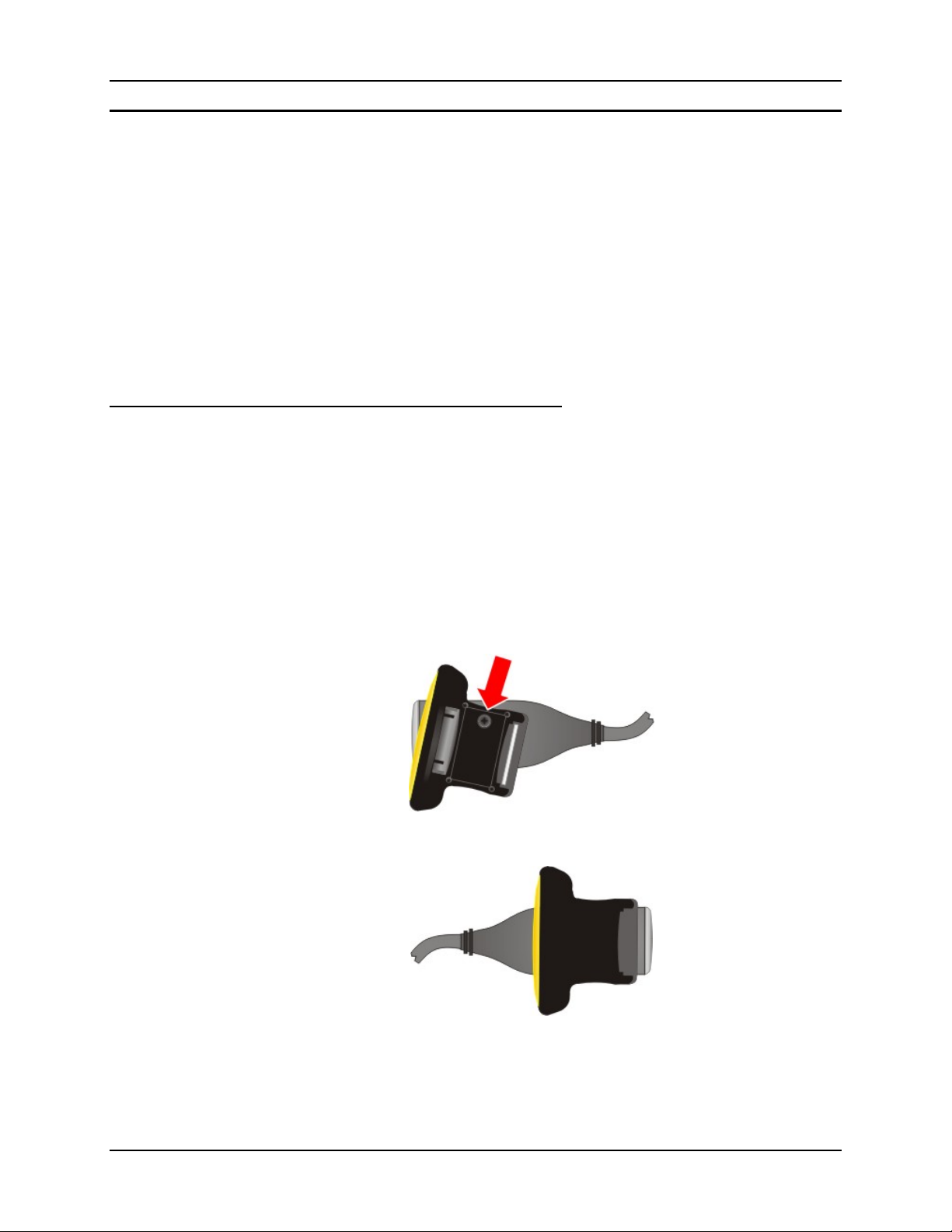
16 Introduction
Removing / Replacing the Trigger Module
Equipment Needed: Phillips screwdriver with a blade diameter of 1/8” (.4mm). Not supplied by
LXE.
Caution: Do not perform the following procedures if the ring barcode reader is tethered to the
Bluetooth module. There is a possibility the Scan button may be pressed inadvertently and the
laser beam emitted.
Note: Do not touch, push on or brace your finger against the scan aperture at any time.
LXE recommends that installation or removal of accessories be performed on a clean, well-lit
surface. When necessary, protect the work surface, the mobile device, and components from
electrostatic discharge.
A 20 pak of full Trigger assemblies is available from LXE (8600A403TRIGGERKIT). See
Accessories.
Remove Finger Strap Assembly
Fold the flexible liner back until the screw hole is visible.
1. Rotate the trigger module until the black screw is visible as shown in the following
figure.
2. Using a Phillips screwdriver with a blade diameter of 1/8” (.4mm) loosen the black
screw counter-clockwise and set the screw aside in a safe place.
3. Remove the trigger module.
Figure 1-13 Step 1 : Rotate Trigger Module and Remove Screw
Figure 1-14 Step 2 : Rotate Trigger Module again until it pops up. Remove the
trigger module.
Bluetooth Ring Scanner Guide E-SW-BLUESCANPG-A
Page 29
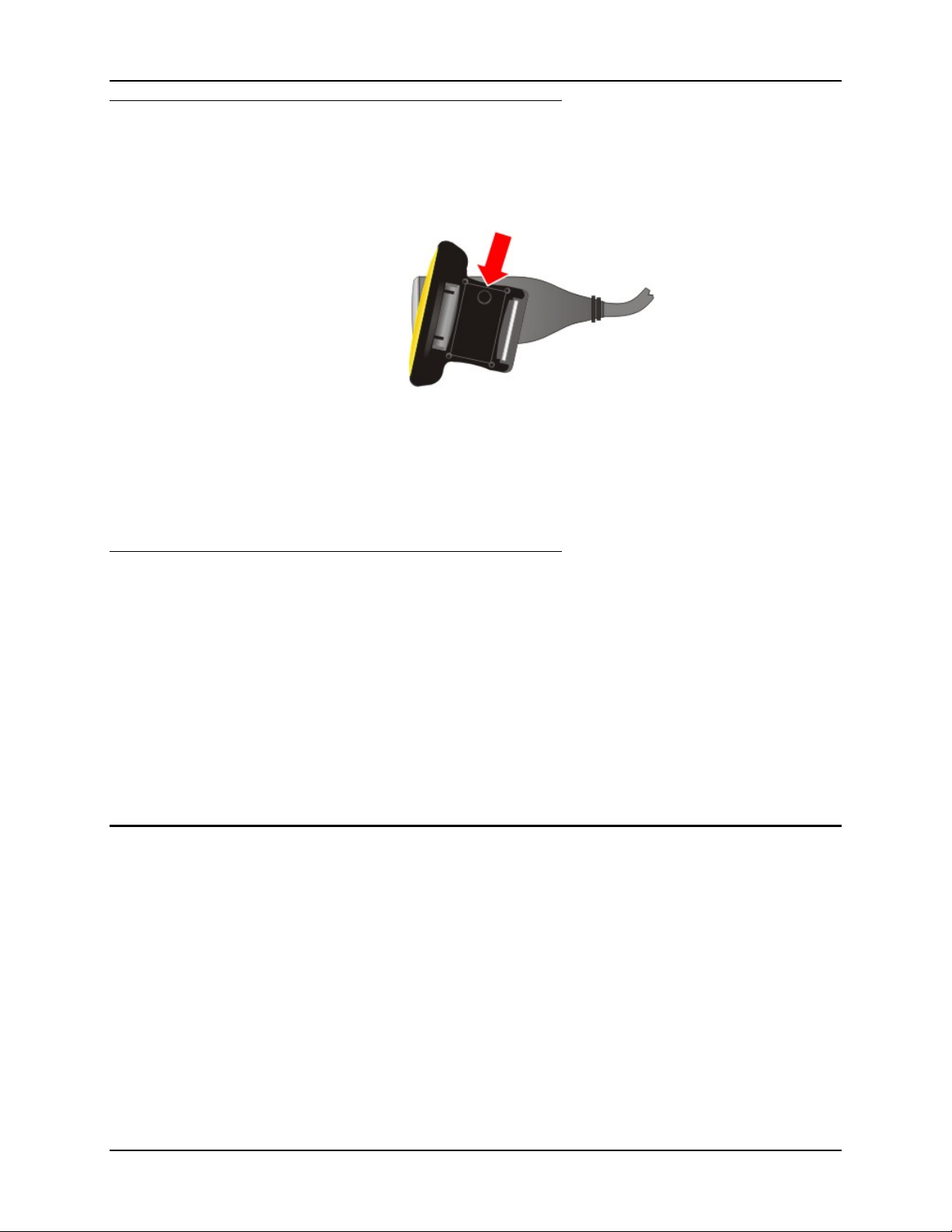
Introduction 17
Replace
1. Position the trigger module on the base of the Ring Scanner, making sure the empty screw
hole is visible as shown in the following figure.
2. Find the tiny black screw that you removed previously.
Figure 1-15 Replace Trigger Module
3. Using a Phillips screwdriver with a blade diameter of 1/8” (.4mm) rotate the black screw
clockwise until the trigger module is secured to the ring scanner.
4. Install the finger strap. See Removing / Replacing the Ring Finger Strap Assembly.
Removing / Replacing the Ring Finger Strap Assembly
Note: Do not pull on the finger strap or the flexible liner to remove the finger strap assembly.
This quick disconnect function is designed for occasional safety hazards and is not
intended for daily removal.
A 20 pak of Ring Scanner Finger Straps is available from LXE (8600A401RINGSTRAP). See
Accessories.
Using the Quick Disconnect Function, grasp the finger strap and pull the finger strap out and away
from the ring scanner.
Before attaching the finger strap to the trigger module, thread the finger strap, warning label side
down, first through the hinge, then under and over the pin next to the scan button.
It should slide easily.
Cleaning the Beam Aperture
Keep fingers and rough, sharp or abrasive objects away from the beam aperture. If the aperture
becomes soiled or smudged, clean only with a standard household cleaner such as Windex®
without vinegar or use Isopropyl Alcohol. Do not use paper towels or harsh-chemical-based
cleaning fluids since they may result in damage to the aperture surface. Use a clean, damp, lintfree cloth. Do not scrub optical surfaces. If possible, clean only those areas which are soiled.
Lint/particulates can be removed with clean, filtered canned air.
E-SW-BLUESCANPG-A Bluetooth Ring Scanner Guide
Page 30
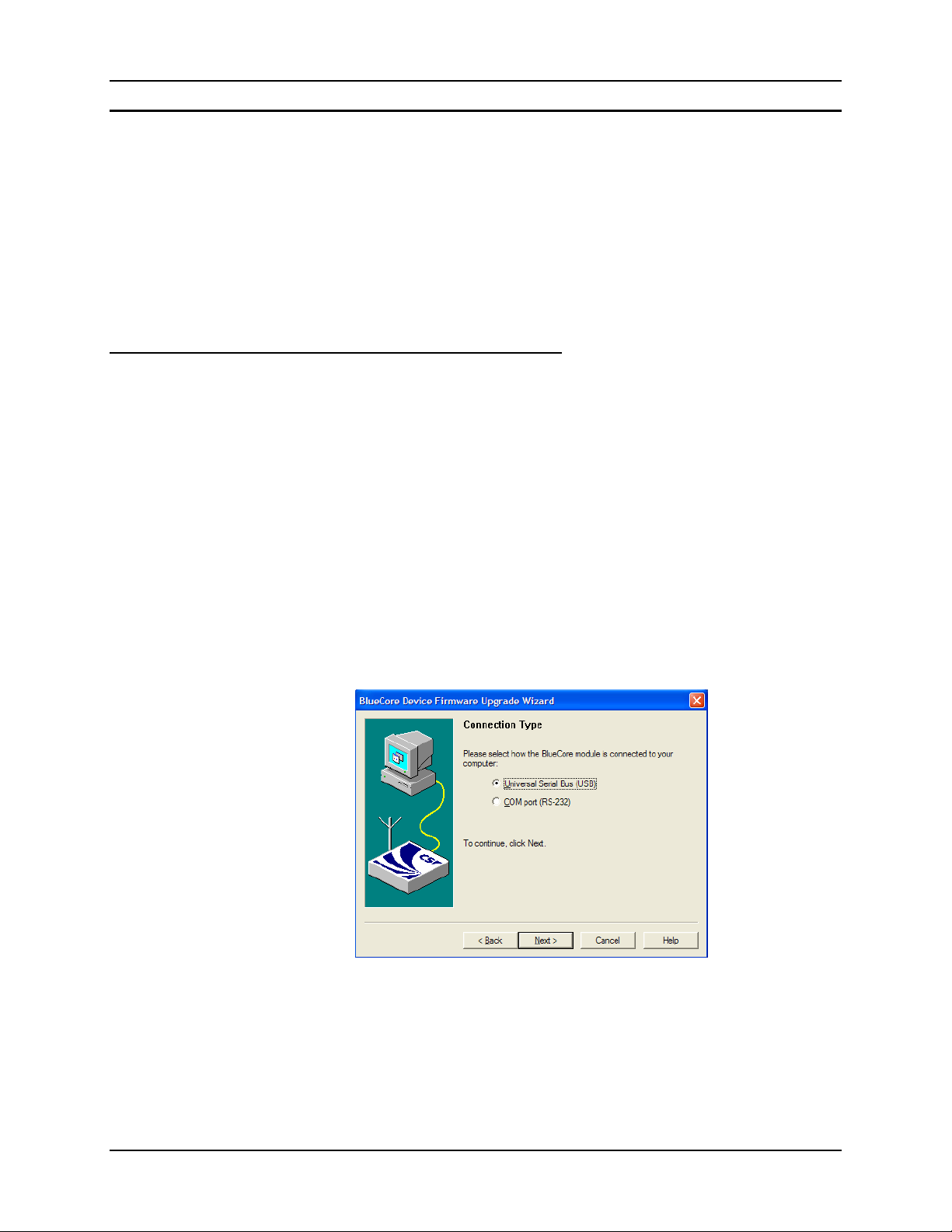
18 Introduction
Bluetooth Module Firmware Update
Refer to previous section titled Bluetooth Module Assembly.
Prerequisites: BlueCore Device Firmware Update program loaded on a desktop/laptop PC. Refer
to section titled “BlueCore Device Firmware Update Installation Instruction” in
the “Appendix” in this guide for instruction.
Bluetooth Module Firmware update cable (8650A051CBLBTUPDATE)
Firmware update file (contact your LXE representative to obtain the latest
Bluetooth Module firmware update file).
A Bluetooth Module and a fully charged battery.
Update the Module Firmware
1. Remove the battery pack from the Bluetooth Ring Scanner module.
2. Disconnect the ring scanner cable.
3. Connect the USB end of the firmware update cable to a PC and then insert the I/O end of the
firmware update cable in the I/O connector on the Bluetooth module.
4. Insert a fully charged battery pack into the Bluetooth Module. The module powers up
(multiple beeps and the blue LED begins flashing).
5. Bluetooth Module Firmware Update is ready to begin
6. Click Start | All Programs and start the BlueCore Device Firmware Update Wizard
application.
7. Click Next to begin the upgrade process.
8. Select how the Bluetooth module is connected to your PC by choosing the Universal Serial
Bus (USB) connection type. Click Next to continue.
9. Select Download a new version of the firmware, saving a copy of the current version first.
Any previous version will be replaced upgrade action and then click Next.
10. Browse to and highlight the latest firmware upgrade file. The file has a DFU extension. Click
Select to continue.
Bluetooth Ring Scanner Guide E-SW-BLUESCANPG-A
Page 31
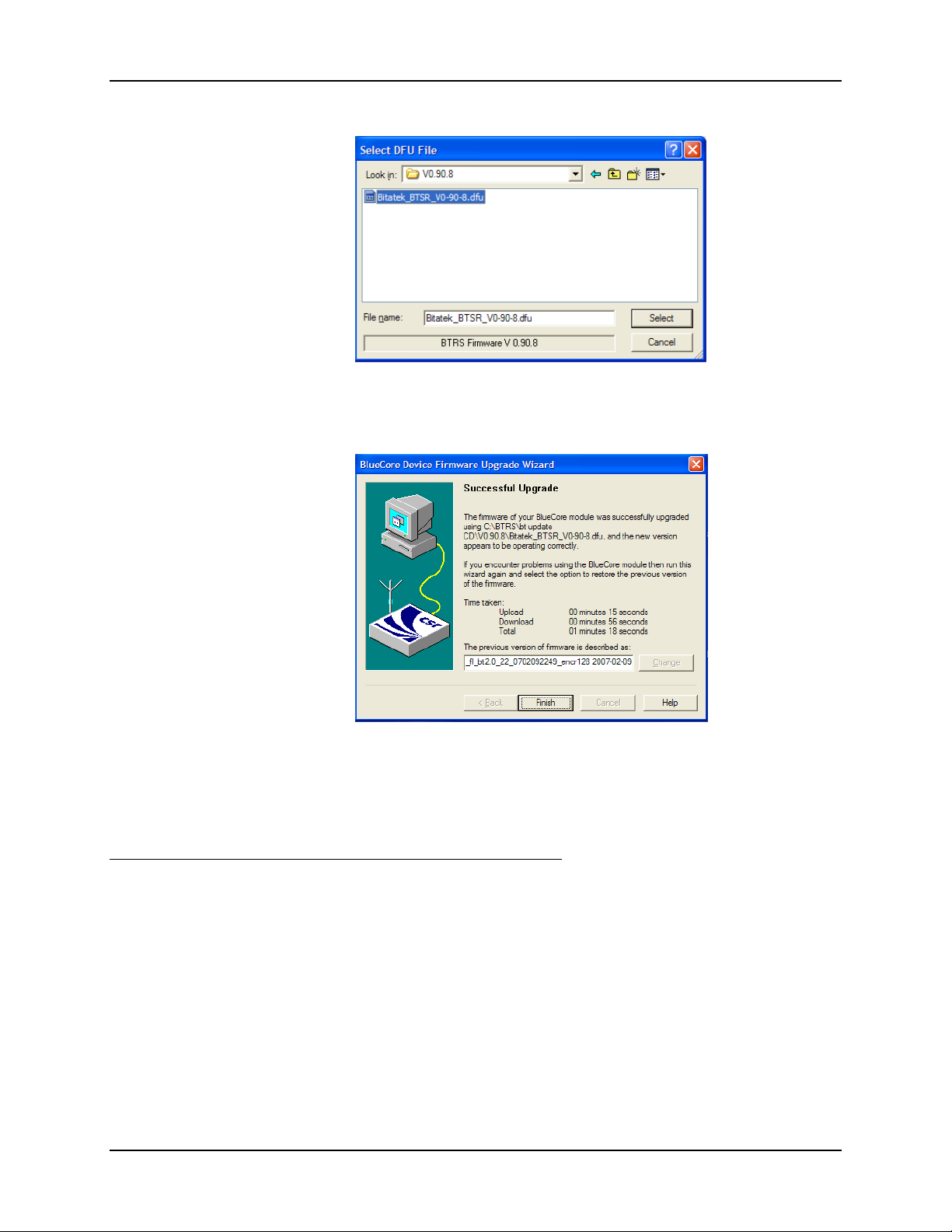
Introduction 19
11. The upgrade process proceeds and ends with a Successful Upgrade message (see below). The
Bluetooth module may emit a series of beeps or the blue LED may stop flashing and remain
illuminated until the upgrade is finished.
12. Click Finish.
13. Remove the battery pack from the Bluetooth Module again.
14. Remove the firmware update cable from the I/O port.
15. At this point, the PC is ready to upgrade the next Bluetooth module, if desired.
Troubleshooting
If the firmware update is interrupted due to loss of power or by removing the cable before the
update is complete, the original firmware will be destroyed and the Bluetooth Ring Scanner will
not be able to run in normal operation mode. If this event occurs the utility on the PC indicates
that the firmware upgrade was not successful.
This condition can be recovered by repeating the firmware update procedure.
E-SW-BLUESCANPG-A Bluetooth Ring Scanner Guide
Page 32
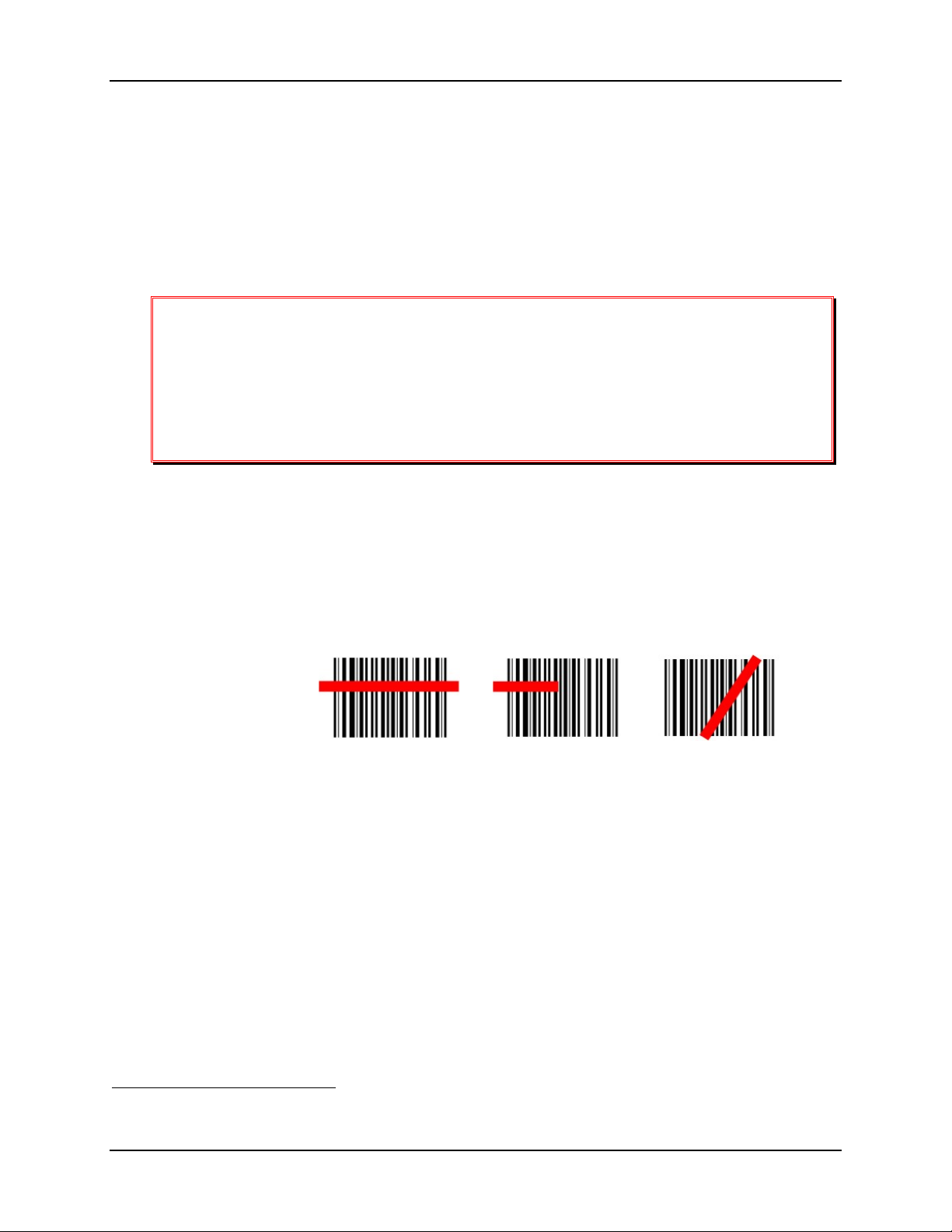
20 Introduction
How To . . .
Note: The function to use the imager for OCR decoding is not supported in this release.
The linear barcodes in this guide were created using Code 128 symbology. Your device has been
set up by LXE to automatically read / decode Code 128 barcodes.
Using the barcodes contained in this guide, you can change scanning system parameters or reset
all parameters to their factory default values.
All scanner parameters are programmed into and stored by the scanner engine.
Important
If this guide is not in print form, locate the page in this electronic guide that contains the
barcode you wish to use. Print the page on white paper using a 600dpi laser printer (or
equivalent).
LXE recommends printing the page containing the Reset and Cancel barcodes as well as
the page containing the A – F and 0 – 9 number barcodes.
3
1. Select the parameter you want to scan. If this guide is in print form,
flat on a table or propped up at an angle.
lay this reference guide
2. Holding the beam aperture approximately 2 – 12 inches away from the barcode, aim the scan
aperture toward the selected barcode. See the scanner engine Decode Zones in Chapter 5.
3. Press the Scan button. Align the scan beam so that the barcode is centered within the beam.
The beam must cross the entire barcode. Move the scan aperture towards or away from the
barcode so that the barcode takes up approximately two-thirds the width of the beam.
Correct Scan Incorrect Scan Incorrect Scan
Figure 1-16 Scanning Angle for Linear Barcodes
4. Refer to the recommended decode zone for the installed scan engine if you are having
difficulty with this process.
Note: Do not position the scan aperture exactly perpendicular to the barcode being scanned. In
this position, light can bounce back into the scan aperture, and possibly prevent a
successful decode.
3
When sending individual pages to a laser printer for scanning later, ensure the dots per inch setting is at least
600dpi.
Bluetooth Ring Scanner Guide E-SW-BLUESCANPG-A
Page 33

Introduction 21
Figure 1-17 Scanning a 2D Barcode
To scan with the imager, point the beam aperture at a barcode and press the Scan button. You will
see a bracketed crosshair strike the barcode. Align the brackets so that the center (or one of the
four corners of the center box) of the barcode is covered by the crosshair.
The scan On indicator illuminates (usually red) when the laser beam is on. Following a barcode
scan and “good read” the indicator usually turns green and the Bluetooth module beeps, indicating
a successful scan.
The laser and scan On indicator automatically turn off after a successful or unsuccessful read. The
scanner is ready to scan again.
Note: Whether there are beeps in conjunction with scan and decode functions is dependent on
the application currently running in the LXE Bluetooth capable mobile device. Beeps are
also emitted by the Bluetooth module, not the ring device.
Note: Decrease decode time by disabling unused barcode types. The ring scan engine can store
several different barcode symbologies at the same time. This means the system is able to
scan a Code 39 barcode, then an Interleaved 2 of 5 barcode, then a different barcode
without requiring a parameter reset.
E-SW-BLUESCANPG-A Bluetooth Ring Scanner Guide
Page 34

22 Introduction
Troubleshooting
Printing Barcodes In This Guide
Problem: Barcodes on the printed page are too compact to be scanned,
especially with a long range scanner.
Solution: There is a difference between laser printer types and how they handle some Adobe
Acrobat print functions – specifically, the “shink to fit” option on the Print Options
screen.
Before clicking Print, make sure the “Shrink oversized pages to paper size”
checkbox is unchecked. If the barcode is still too small to be read by the scanner
engine, run the printed page through the laser printer again using the laser printer’s
Zoom feature until the barcode is large enough to scan satisfactorily.
Miscellaneous Programmable Barcodes
Note: Ring decoding devices do not have the ability to emit a good read or bad read sound.
Beep After Good Decode
Audible scan progress indicators are generated by the scanner driver on LXE mobile devices (i.e.
HX2), not the tethered ring decoder engine. Use the Windows CE Control Panel options to set up
the mobile device audible indicators.
Beeper Frequency Adjustment
Audible scan progress indicators are generated by the scanner driver on LXE mobile devices, not
the ring decoder engine. Use the Windows CE Control Panel options to set up the mobile device
audible indicators.
Beep on <BEL>
This parameter is disabled/inactive on LXE mobile devices.
Beeper Tone / Beeper Volume
Audible scan progress indicators are generated by the scanner driver on LXE mobile devices, not
the ring decoder engine. Use the Windows CE Control Panel options to set up the mobile device
audible indicators.
Event Reporting
LXE mobile devices with linked scanners aren’t designed to process events triggered by the linked
scan engine. Events are processed by the operating system resident on the mobile device. Use
Windows CE Control Panel options to set up the mobile device event reporting parameters.
Bluetooth Ring Scanner Guide E-SW-BLUESCANPG-A
Page 35

Introduction 23
Factors That May Impact Scanner Performance
The range of a scanner is dependent upon many outside influences including size of the barcode,
quality of the barcode printing, material the barcode is printed on, condition of the scan lens
(scratches) and angle of the beam aperture relative to the barcode label. Any of these factors may
result in having to re-scan the label from a different distance or angle.
Barcode Quality
Check the barcode for marks or physical damage e.g. ripped label, missing section, correct size for
the scanner being used, etc.
In general, the bigger the barcode the further the distance from which it can be read. If the barcode
is smaller than the specified size for the scanner being used, the distance, in almost all cases, will
shrink.
Large barcodes can be scanned at the maximum distance. Hold the scanner closer to small
barcodes (or with bars that are very close together).
Note: Do not position the scanner exactly perpendicular to the barcode being scanned. In this
position, light can bounce back into the scan aperture, and possibly prevent a successful
decode.
Barcode Symbology
Barcodes such as UPC codes and Code 128 are more complex than Code 39 and Interleaved 2 of
5. When attempting to get the maximum read distance possible, particularly with reflective labels,
use Code 39. The use of Code 128 or other more complex symbologies will almost always result
in a reduction in maximum read distance. LXE will not support scanner maximum distances (from
Decode Zones) when symbologies other than Code 39 are used.
Lens Damage
A scratched scan beam aperture can impact read rates and distances. Beam apertures should be
inspected frequently, particularly if scanning quality or distances get worse over time.
Ambient Lighting
High ambient conditions, particularly outdoor environments, will produce enough light to
somewhat “blind” the scanner. This will result in shorter read distances.
Temperature
While small deviations from room temperature will have no impact on scanner performance,
severe conditions like those found in freezers will have a negative impact on both the distance
scanners can read and the speed the read is acquired.
Some scanner engines contain protection circuitry that shuts the scanner down in temperatures that
exceed the recommended operating temperature.
E-SW-BLUESCANPG-A Bluetooth Ring Scanner Guide
Page 36

24 Introduction
Pairing Bluetooth Devices
When the Bluetooth Ring Scanner module pairs with another Bluetooth device, it means the
Bluetooth Ring Scanner module can send serial data to the other Bluetooth device.
Note: Bluetooth Ring Scanner module paired data is stored in non-volatile memory in the
module and data is saved over power cycles. Paired devices automatically reconnect
when power is applied.
LXE Bluetooth Devices
Method 1
Using the Bluetooth Ring Scanner assembly, scan the pairing barcode (Bluetooth MAC address of
the device) on the LXE Bluetooth device (e.g. handheld or vehicle mount unit).
The Bluetooth Ring Scanner module initiates the pairing process with the LXE Bluetooth device
and the devices are paired. The Bluetooth Ring Scanner module’s Bluetooth LED flashes every 4
seconds. This is the LXE recommended method for pairing.
Method 2
Using the ring scanner attached to the Bluetooth Ring Scanner module, and the barcodes in
Chapter 2 Bluetooth Module Programming, scan the Pairing Status | Enable Slave Mode barcode.
Using the LXE Bluetooth device (e.g. handheld or vehicle mount unit) access the LXEZ Pairing
control panel by tapping the Bluetooth icon on the Desktop (or the Taskbar or the Control Panel).
Open the Bluetooth Devices panel. Tap the Discover button to discover nearby Bluetooth scanners
and printers. Identify the scanner you wish to pair with by matching the Friendly name (LXE
Scanner – [MAC ID]) with the MAC address label on the scanner. Doubletap the Friendly Name
and select Pair as Scanner from the drop-down menu. Close the LXEZ Pairing application.
Notes:
• Assumption is that the Bluetooth scanner parameters are at the factory defaults for the scanner.
• When users can use any mobile device with any scanner -- When returning from a break or at
the beginning of a shift all users should pair a scanner with their mobile device using either of
the methods shown above.
• When the scanner and mobile device pair successfully, the LXE Scanner Wedge automatically
sets Wedge Port 1 to be used by Bluetooth. If the mobile device is equipped with other
integrated or tethered scanners, they must be configured to use a Scanner Wedge Port other
than Port 1 if they are to be used when a Bluetooth scanner is paired.
• When the Bluetooth Ring Scanner is paired to a device using a Bluetooth driver other than
LXEZ Pairing, the Bluetooth scanner serial data should be managed in accordance with your
other Bluetooth devices.
Generic Bluetooth Devices
1. Using the ring scanner attached to the Bluetooth Ring Scanner module, and the barcodes
in Chapter 2 Bluetooth Module Programming, scan the following barcodes:
• Restore Factory Defaults
• Pairing Status | Enable Slave Mode
2. Using the ring decoder and the barcodes in the ring decoder-engine-specific chapter (e.g.
Chapter 3 SE955 Laser Barcodes) configure the ring decoder to meet the requirements of
the targeted generic Bluetooth device.
Bluetooth Ring Scanner Guide E-SW-BLUESCANPG-A
Page 37

Introduction 25
3. Using the generic Bluetooth device, and the device’s Bluetooth software, perform a
Discovery of nearby Bluetooth devices. The Bluetooth Ring Scanner assembly is
identified by the label “LXE Scanner – (MAC ID)”.
Using the generic device’s Bluetooth software, pair the devices.When the devices are
paired, the Bluetooth Ring Scanner module’s Bluetooth LED flashes every 4 seconds.
The generic Bluetooth device will receive serial data sent by the Bluetooth Ring Scanner module
every time a barcode is read and decoded by the attached ring decoder.
Clear Paired Status
Using the LXE Bluetooth device (e.g. handheld or vehicle mount unit) access the LXEZ Pairing
control panel by tapping the Bluetooth icon on the Desktop (or the Taskbar or the Control Panel).
Open the Bluetooth Devices panel. Locate the Bluetooth Ring Scanner module in the list of paired
devices by comparing the MAC ID number in the list with the MAC ID barcode on the module.
Doubletap the Bluetooth Ring Scanner module icon. The right-mouse-click menu appears. Select
Disconnect. When the icon is red, select Delete. All devices in the Bluetooth Devices panel can be
cleared (deleted) in this manner, if necessary.
The deleted Bluetooth Ring Scanner module is excluded from the list the next time the Bluetooth
Devices panel is opened.
If you cannot disconnect/delete the Bluetooth Ring Scanner module from the generic device at the
end of the work day, please contact your System Administrator for assistance.
E-SW-BLUESCANPG-A Bluetooth Ring Scanner Guide
Page 38

26 Introduction
Bluetooth Module Technical Specifications
Physical
I/O Port A 22 spring-pin, symmetrical port
Module Size Without Scanner : Height 0.75” / 1.90cm x Width 1.75” /
4.44cm x Length 2.4” / 6.1cm
With Scanner : Height 0.75” / 1.90cm x Width 1.75” /
4.44cm x Length 2.9” / 7.4cm
Module Weight 2.15oz / 60.9g with battery / 1.60oz / 45g without battery
4.05 – 4.15oz / 114g – 117g with battery and scanner
Ring Scanner : 1.75oz / 49.6g
Ring Imager : 1.85oz / 52.4g
Environmental
Operating Temperature -4° F to 122° F (-20° C to +50° C)
Storage Temperature -40° F to 158° F (-40°C to +60°C)
Water and Dust Resistance Sealed to IP-54 specifications or better
Humidity 5% to 95% relative humidity, non-condensing
Corrosion Corrosion resistant when exposed to water and common
cleaning chemicals
Chemical Resistance Corrosion resistant when exposed to water and common
cleaning chemicals
Abrasion Resistance Housing resists normal abrasion from dirty hands.
The CF Bluetooth Radio in the LXE Bluetooth Ring Scanner is Bluetooth Special Interest Group
(SIG) Qualified, is listed as an EPL (End Product Listing) and with QDID: B011904.
Bluetooth Ring Scanner Guide E-SW-BLUESCANPG-A
Page 39

Introduction 27
Getting Help
LXE user and reference guides are now available on one CD and they can also be viewed and
downloaded from the LXE website on the ServicePass or PartnerPass / Documentation page.
Contact your LXE representative to obtain the LXE Manuals CD or logon information for the
LXE website.
You can also get help from LXE by calling the telephone numbers listed on the LXE Manuals CD,
in the file titled Contacting LXE. This information is also available on the LXE website.
Explanations of terms and acronyms used in this guide are located in the file titled LXE Technical
Glossary on the LXE Manuals CD and the LXE website.
Accessories
Cable, Bluetooth Firmware Update 8650A051CBLBTUPDATE
Radio, Bluetooth, Back Of Hand Module 8650A276BTBOHMOD
Battery, Bluetooth Module 8650A376BTBOHBATTERY
Charger, 8 Bay Bluetooth Module US 8650A377BTBOHCHGRUS
Charger, 8 Bay Bluetooth Module WW 8650A378BTBOHCHGRWW
Charger, 1 Bay Bluetooth Module US 8650A379SINGLECHGRUS
Charger, 1 Bay Bluetooth Module WW 8650A380SINGLECHGRWW
Strap, Bluetooth Module, Large Hand 8650A401LARGEBTSTRAP
Strap, Bluetooth Module, Small Hand 8650A402SMALLBTSTRAP
Bluetooth module with laser ring scanner, battery, two
hand/wrist straps (large and small)
Scanner, SE955 Laser Ring Bluetooth Connector 8651A103LASERRINGBT
Bluetooth module with 1D/2D imager ring scanner,
battery, and two hand/wrist straps (large and small)
Scanner, SE4400 Imager Ring Bluetooth Connector 8652A103IMAGERRINGBT
20 pak of Full Trigger Assemblies 8600A403TRIGGERKIT
20 pak of Ring Finger Straps 8600A401RINGSTRAP
8651A100BTLASERKIT
8652A100BTIMAGERKIT
E-SW-BLUESCANPG-A Bluetooth Ring Scanner Guide
Page 40

28 Introduction
Bluetooth Ring Scanner Guide E-SW-BLUESCANPG-A
Page 41

Chapter 2 Bluetooth Module Programming Barcodes
Introduction
Preparation
This chapter contains LXE programming barcodes to be used when programming the Bluetooth
module only. The barcodes were created using Code 128 ASCII.
LXE scanners and imagers are setup to read Code 128 barcodes by default.
• The ring scanner, that is included in the Bluetooth Module, has an SE955 scan engine. Use the
programming barcodes in Chapter 3 to program the ring scanner engine parameters.
• The ring imager, that is a part of the Bluetooth Module, has an SE4400 scan engine. Use the
programming barcodes in Chapter 4 to program the ring imager scan engine parameters.
Assemble the Bluetooth Ring Scanner components:
• Connect the Ring decoder to the Bluetooth Module before inserting a battery into the
module. The Bluetooth Module performs initialization with the Ring Scanner on bootup.
• Fully charged battery must be secured in battery well.
• Ring scanner or ring imager can be tethered to the Bluetooth module. Both ring devices can
read the LXE programming barcodes in this chapter.
If desired, review the previous sections titled “How To” and “Troubleshooting” before you start to
program the Bluetooth Module.
When parameters are changed, and saved to memory, the Bluetooth module LED blinks. Barcodes
cannot be scanned until the LED color returns to normal mode.
The scan engine manufacturer may offer more barcodes and options than are contained in this
guide. Please note that the barcodes in this guide are only those supported by LXE and the imagers
or scanners linked to LXE mobile devices that LXE manufactures or supports. If you need
assistance when using the barcodes in this guide, please contact your LXE representative.
E-SW-BLUESCANPG-A Bluetooth Ring Scanner Guide
Page 42
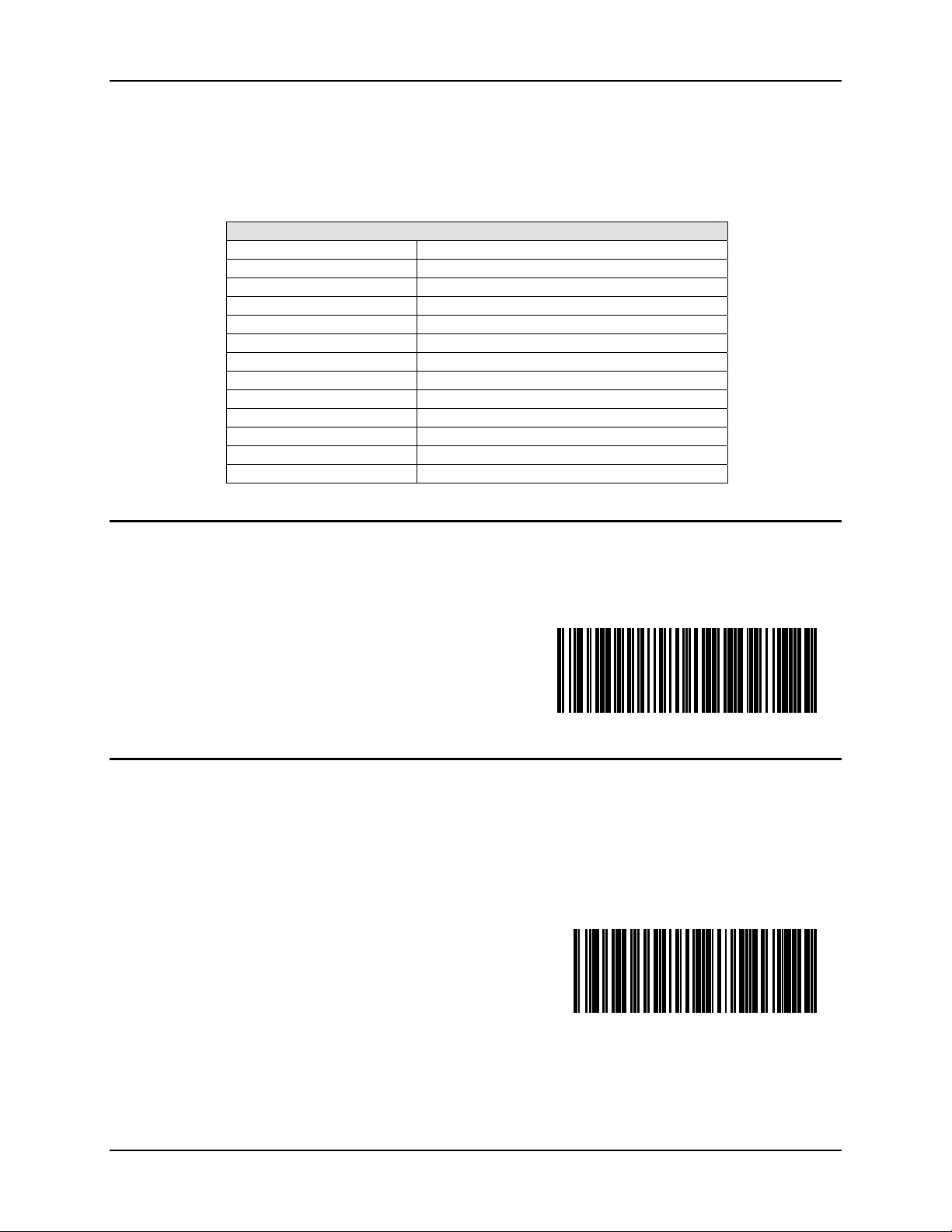
30 Bluetooth Module Programming Barcodes
LXE Programming Barcodes
To change a parameter value: Scan the appropriate barcode in this chapter. The new value
replaces the standard default value in memory.
Bluetooth Module Factory Default Settings
Slave Mode Enabled
Suspend Timeout 5 minutes
Beep on Reconnect Enabled
Reconnect Interval Timeout 30 seconds
Reconnect Timeout 1 minute
Role Switching Enabled
Authentication Disabled
Encryption Disabled
Imager White LEDs Disabled
PIN Code 16 zeros
Friendly Name “LXE Scanner” + Module MAC address
Ring Imager Focus Mode Smart Focus
Vo l u me Hi gh
Restore Factory Defaults
Scan this barcode to restore factory defaults in the Bluetooth Ring Scanner module.
Restore Factory Defaults
Module Firmware Version
Prerequisite: Bluetooth Ring Scanner module is fully assembled (battery, ring decoder) and
Scan this barcode, with either the ring scanner or the ring imager, to view the LXE firmware
version of the Bluetooth Ring Scanner module on the host device display.
Module Firmware Version
connected to a device with a video display.
If there is an issue with viewing the Bluetooth Ring Scanner module version on the connected
device display, open Notepad or Wordpad first, make sure the cursor is in the open file, then scan
the barcode.
Bluetooth Ring Scanner Guide E-SW-BLUESCANPG-A
Page 43
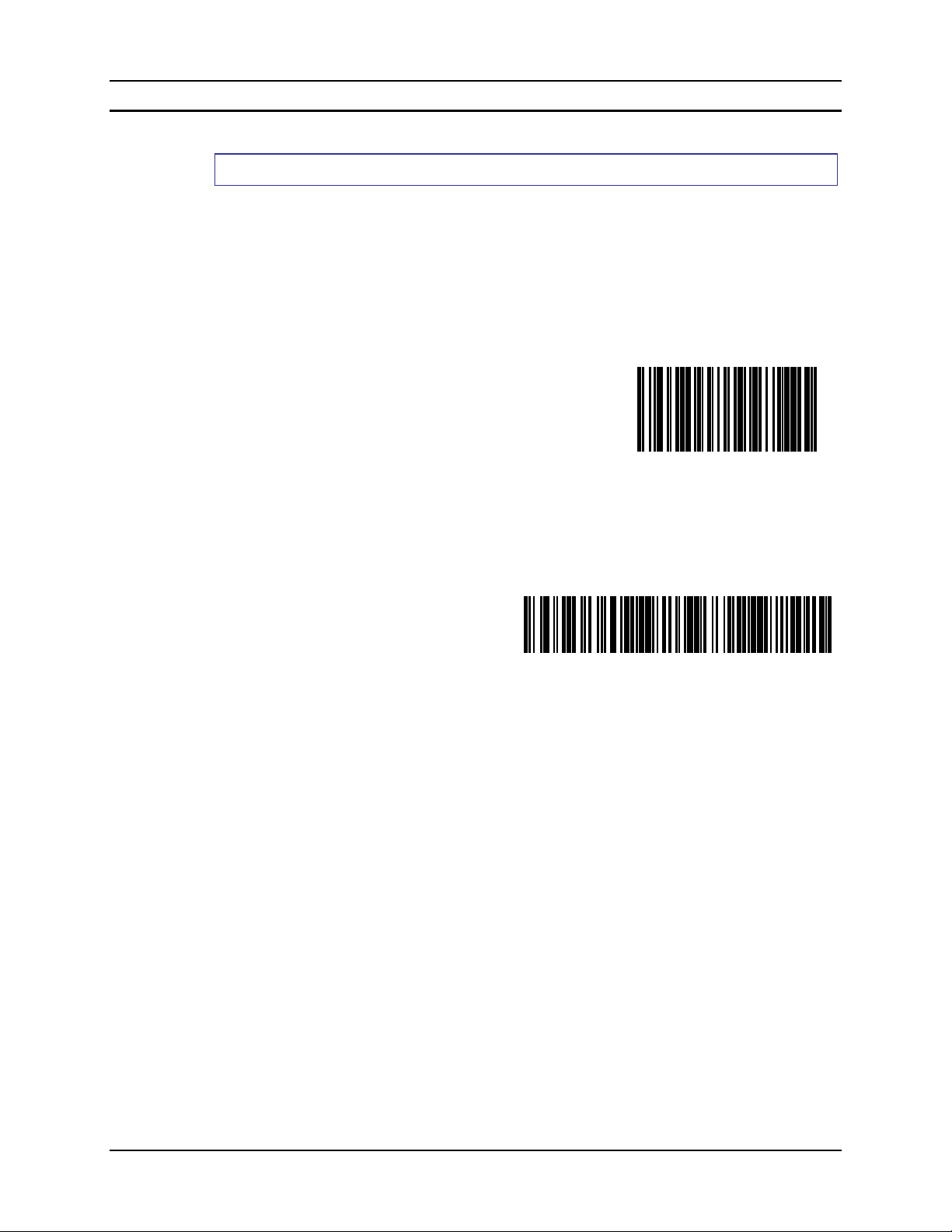
Bluetooth Module Programming Barcodes 31
Pairing Status
Parameter Default Value: Enable Slave Mode
Scan the barcode to enable pairing in Slave Mode for the Bluetooth module. Upon a successful
scan, the Bluetooth module then disconnects from the paired device, deletes any saved or current
pairing information and transitions into slave mode.
When pairing as Master device is successful, the module emits a pattern of a short low beep and a
short high beep and the Blue LED blinks slowly, every 4 seconds.
When pairing as Master device is unsuccessful, the module emits a pattern of short low, short
high, short high and short low beeps and the blue LED blinks fast, every 1 second.
Enable Slave Mode
SAMPLE LnkB BARCODE – DO NOT SCAN !!
LnkB00440fd01020 - Sample
Enable/Pair as Master
See Also: Role Switching parameter.
Troubleshooting
The LnkB barcodes on some LXE Bluetooth capable mobile devices are quite small. If you are
unsuccessful using the ring imager when scanning a LnkB barcode, change the ring imager’s
default Smart Focus Mode to Near Focus by scanning the Enable Near Focus barcode in Chapter
4. Ensure focus mode is changed back to the default value of Smart Focus after the LnkB barcode
read is successful.
Scan the LnkB barcode on the LXE Bluetooth capable mobile device
(e.g. MX8) and the Bluetooth module is set to Master Mode. Slave
mode is disabled.
Note: If the LnkB barcode is missing from the LXE Bluetooth
capable mobile device, contact your LXE representative.
Refer to the device specific reference guide (e.g. MX8
Reference Guide) for LnkB barcode instruction.
E-SW-BLUESCANPG-A Bluetooth Ring Scanner Guide
Page 44
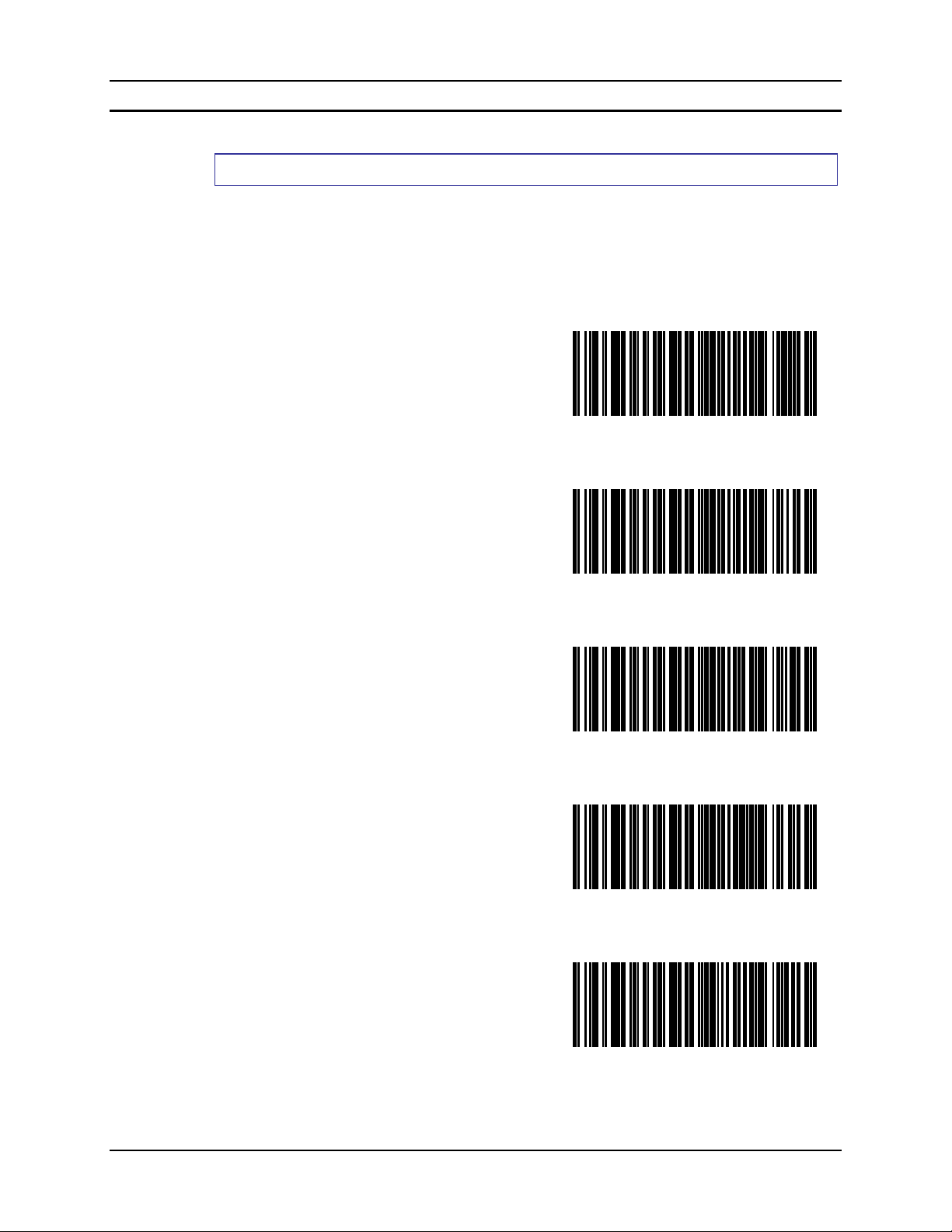
32 Bluetooth Module Programming Barcodes
Suspend Timeout
Parameter Default Value: 5 minutes
To improve battery life, the Suspend timeout can be adjusted by scanning the following barcodes.
A trigger pull is required to wake the module from Suspend.
Note: After the trigger pull (to wake the module from Suspend) another trigger pull is needed to
scan a barcode.
Disable Suspend
Timeout
Set Suspend Timeout to
15 seconds
Set Suspend Timeout to
30 seconds
Set Suspend Timeout to
1 minute
Set Suspend Timeout to
5 minutes
Bluetooth Ring Scanner Guide E-SW-BLUESCANPG-A
Page 45
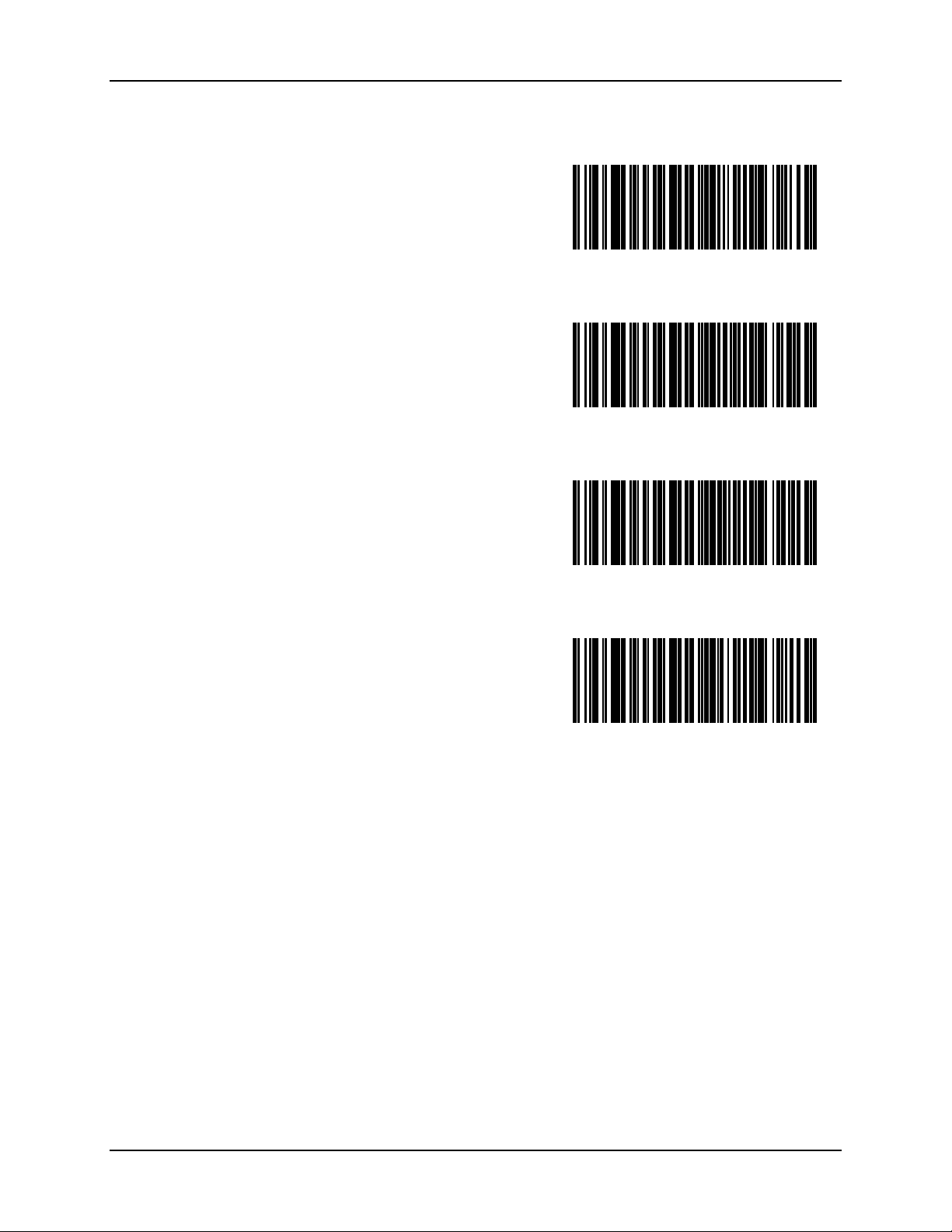
Bluetooth Module Programming Barcodes 33
Set Suspend Timeout 15
minutes
Set Suspend Timeout to
30 minutes
Set Suspend Timeout to
45 minutes
Set Suspend Timeout to
60 minutes
E-SW-BLUESCANPG-A Bluetooth Ring Scanner Guide
Page 46
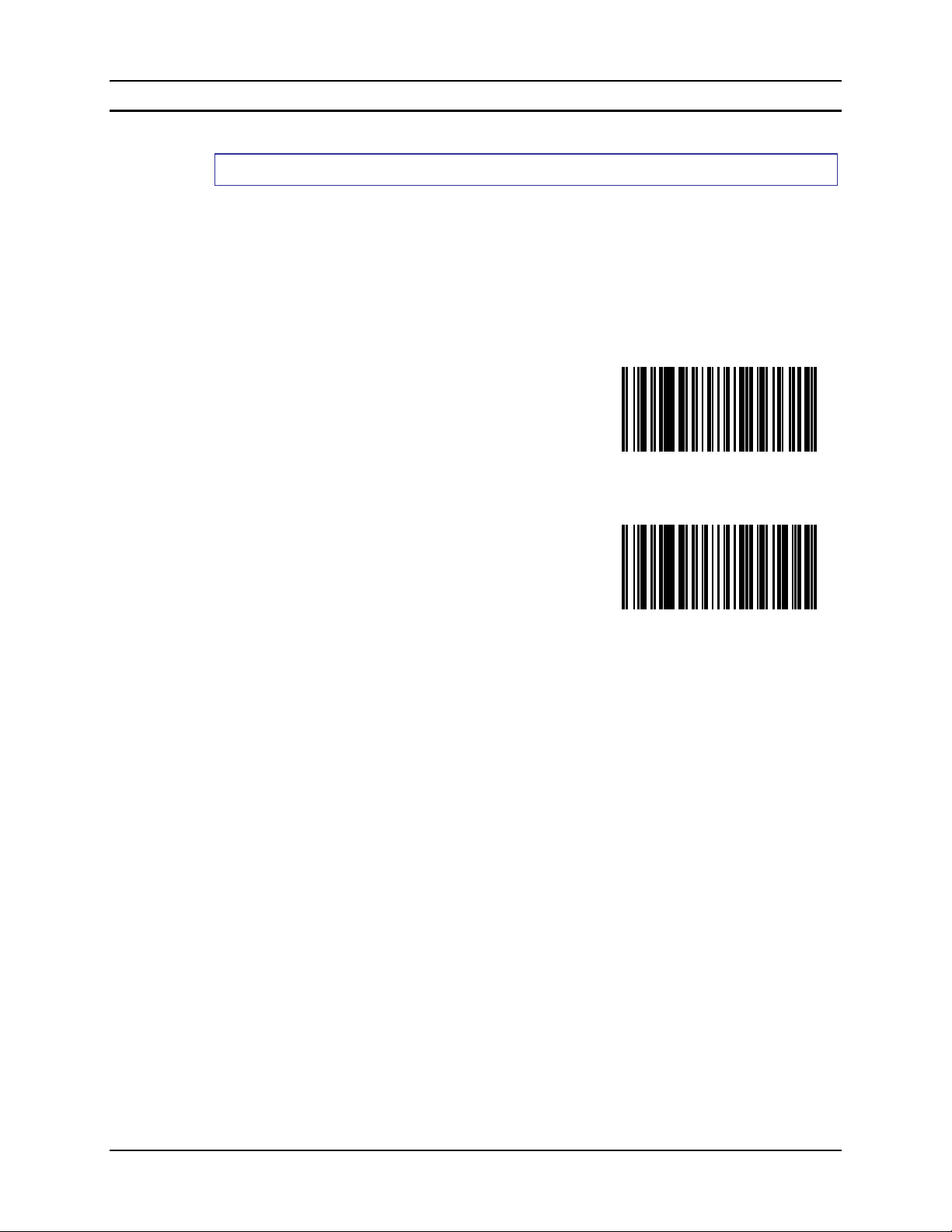
34 Bluetooth Module Programming Barcodes
Beep on Reconnect
Parameter Default Value: Enable
When Beep on Reconnect is enabled and reconnect is successful, the module emits a pattern of a
short low beep and a short high beep and the Blue LED blinks slowly, every 4 seconds.
When Beep on Reconnect is disabled and reconnect is unsuccessful over the reconnect interval,
the module emits a pattern of a short high beep and a short low beep and the blue LED blinks fast,
every 1 second.
Scan the Disable Beep on Reconnect to disable audible notification for connect and disconnect.
See Also: Reconnect Interval Timeout.
Enable Beep on
Reconnect
Disable Beep on
Reconnect
Bluetooth Ring Scanner Guide E-SW-BLUESCANPG-A
Page 47
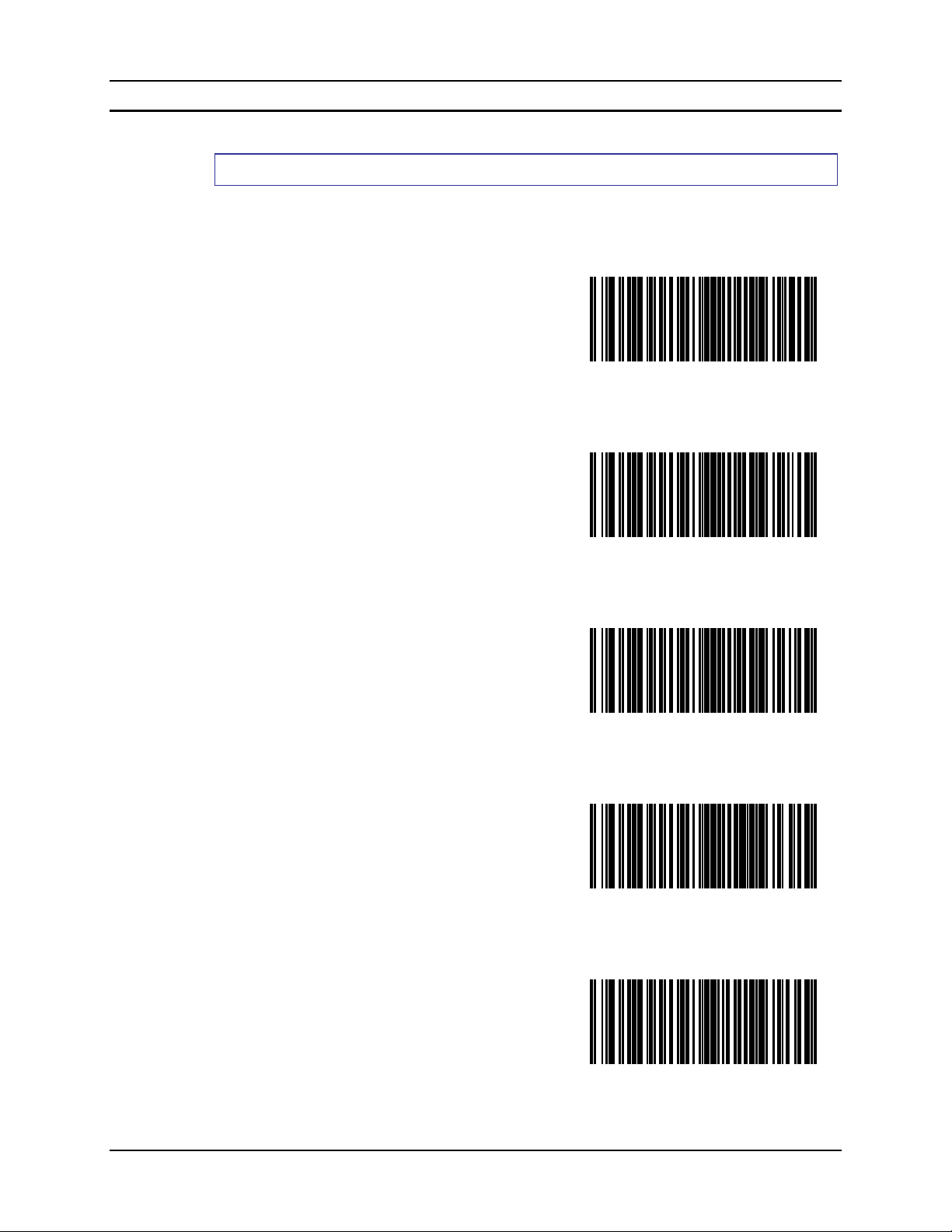
Bluetooth Module Programming Barcodes 35
Reconnect Interval Timeout
Parameter Default Value: 30 seconds
Scan one of the following barcodes to set the interval of time between attempts to reconnect with a
previously connected Bluetooth enabled device.
See Also: Beep on Reconnect
Reconnect Interval
Timeout 15 seconds
Reconnect Interval
Timeout 30 seconds
Reconnect Interval
Timeout 45 seconds
Reconnect Interval
Timeout 1 minutes
Reconnect Interval
Timeout 5 minutes
E-SW-BLUESCANPG-A Bluetooth Ring Scanner Guide
Page 48

36 Bluetooth Module Programming Barcodes
Reconnect Interval
Timeout 10 minutes
Reconnect Interval
Timeout 15 minutes
Reconnect Interval
Timeout 30 minutes
Bluetooth Ring Scanner Guide E-SW-BLUESCANPG-A
Page 49
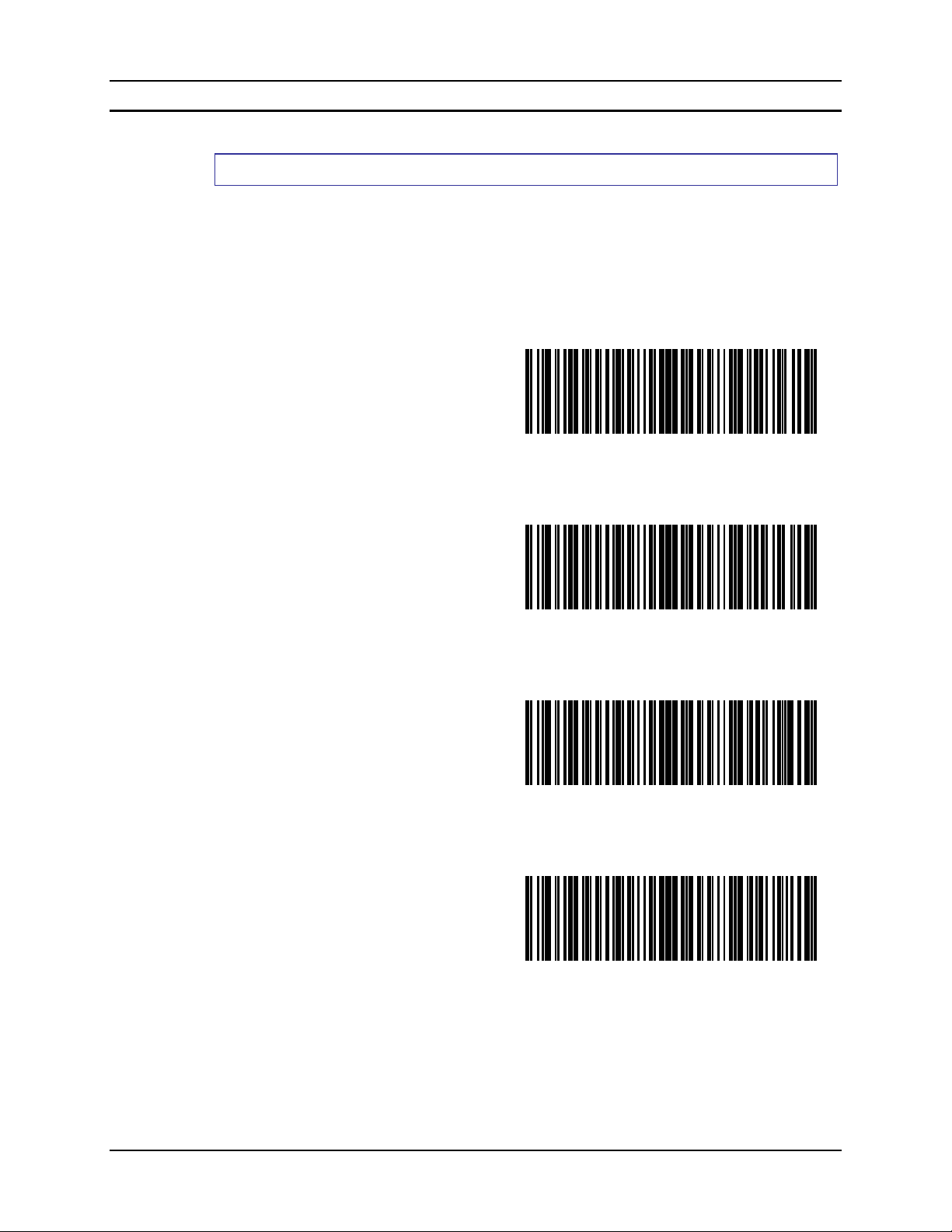
Bluetooth Module Programming Barcodes 37
Reconnect Timeout
Parameter Default Value: 1 minute
Scan one of the following barcodes to set the amount of time the Master device will retry
connection attempts before ceasing attempts.
When the parameter is set to Off, reconnect attempts will continue until the battery in the
Bluetooth module is depleted.
See Also: Beep on Reconnect
Reconnect Timeout
Off
Reconnect Timeout
1 minute
Reconnect Timeout 5
minutes
Reconnect Timeout
30 minutes
E-SW-BLUESCANPG-A Bluetooth Ring Scanner Guide
Page 50
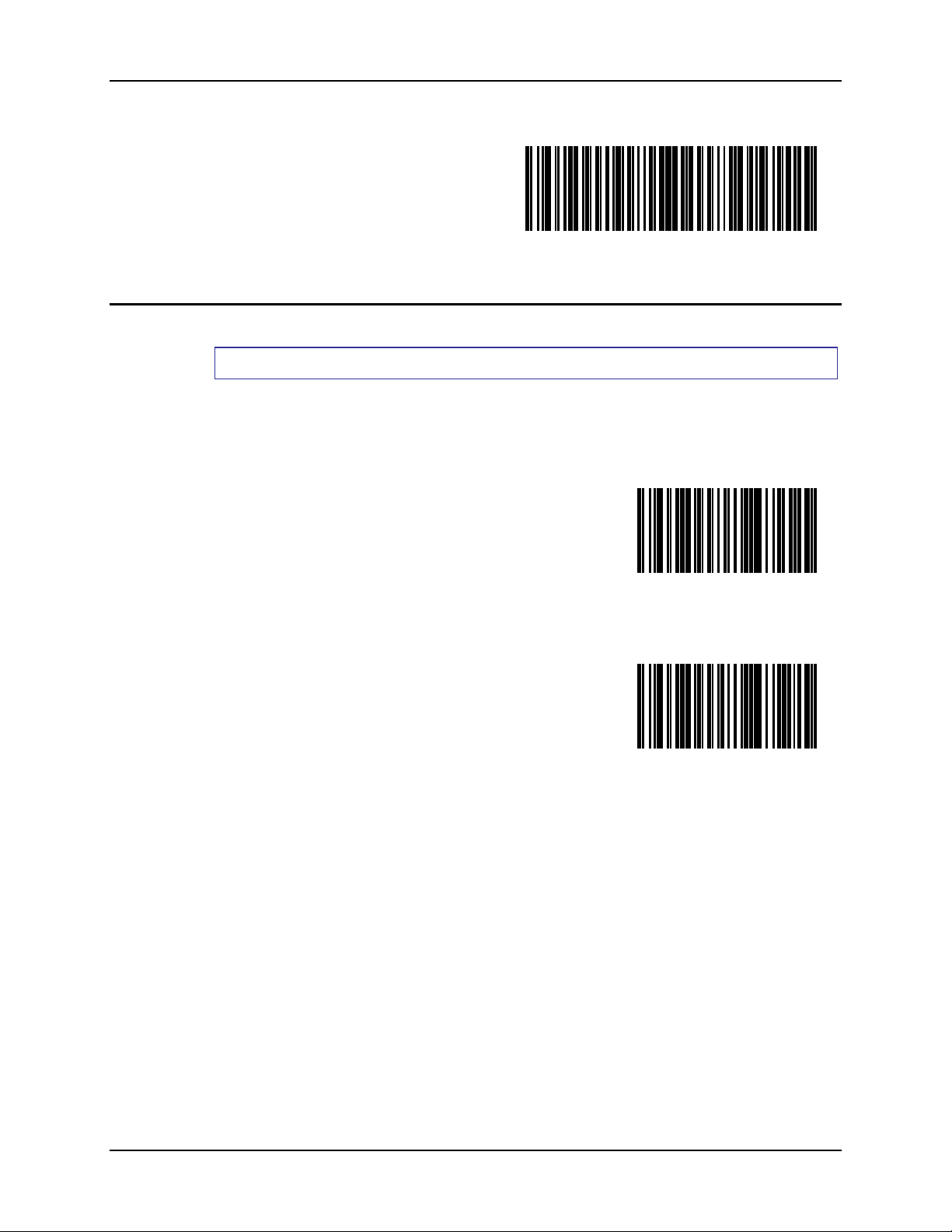
38 Bluetooth Module Programming Barcodes
Reconnect Timeout
60 minutes
Role Switching
Parameter Default Value: Enable
When Role Switching is enabled and the module has successfully paired with an LXE Bluetooth
capable mobile device (e.g. MX8) as a master, the module will perform role switching with the
mobile device and become a slave device.
See Also: Enable Slave Mode
Enable Role
Switching
Disable Role
Switching
Bluetooth Ring Scanner Guide E-SW-BLUESCANPG-A
Page 51
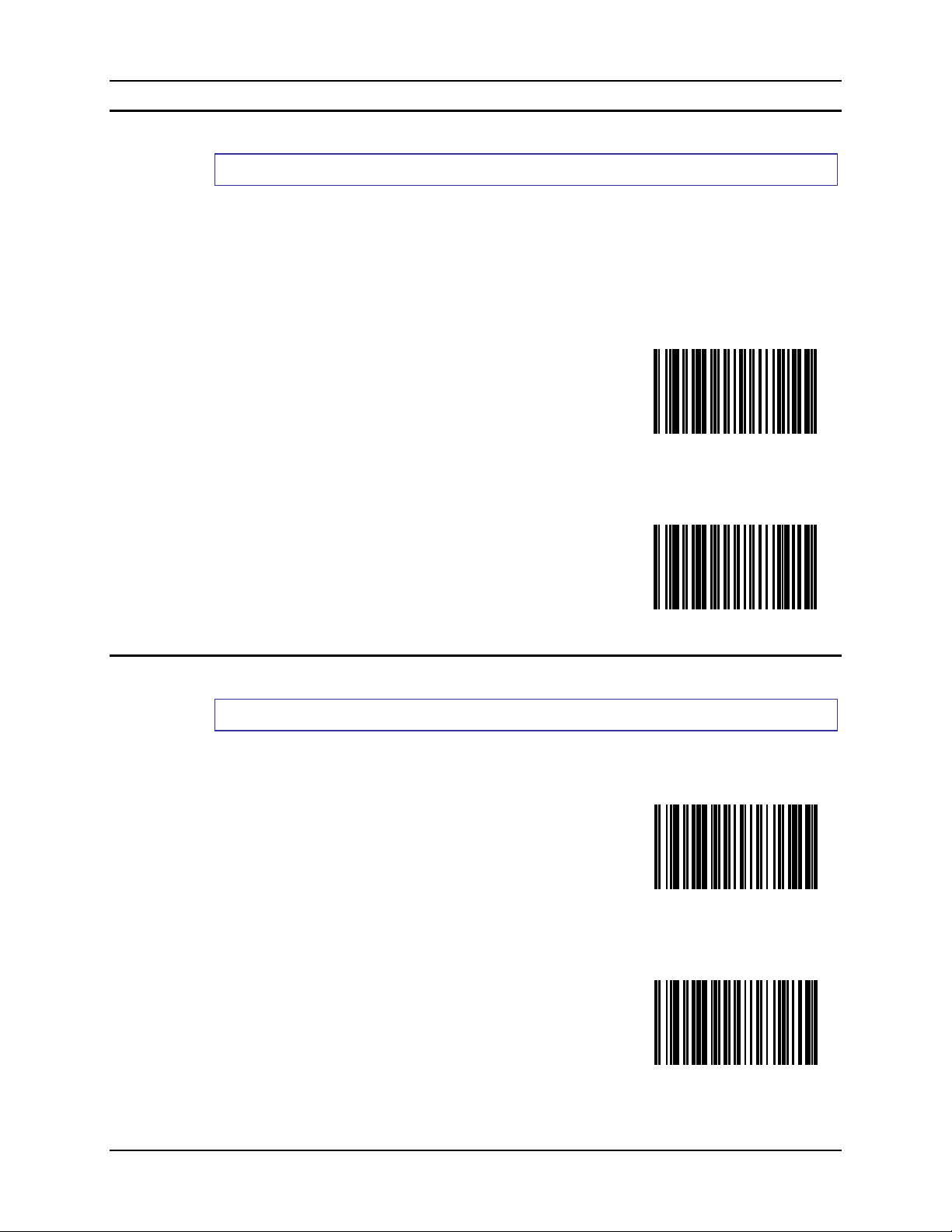
Bluetooth Module Programming Barcodes 39
Authentication
Parameter Default Value: Authentication Disabled
Authentication is the process of verifying the identity of a device with which a connection is to be
established.
When Authentication is disabled, any device can connect to the Bluetooth Ring Scanner module.
When Authentication is enabled, the connecting device is required to enter the PIN value set by
the Bluetooth Ring Scanner module before successful connection can occur.
See Also: Set PIN Code and PIN Code Default
Enable
Authentication
Encryption
Disable
Authentication
Parameter Default Value: Encryption Disabled
Encryption is the process of encoding data for transmission between devices to ensure its integrity.
Enable Encryption
Disable Encryption
E-SW-BLUESCANPG-A Bluetooth Ring Scanner Guide
Page 52
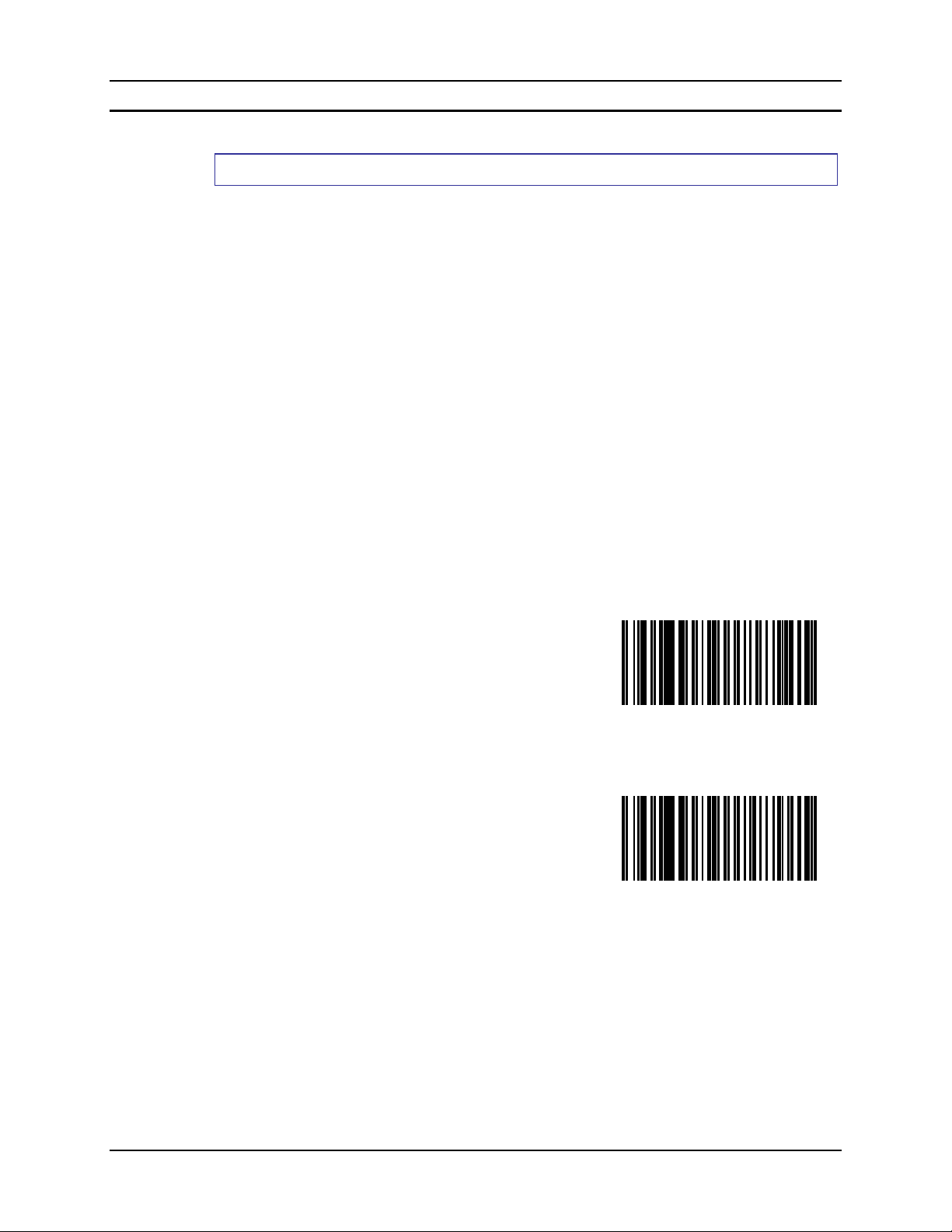
40 Bluetooth Module Programming Barcodes
Imager White LEDs
Parameter Default Value: Disable
Note: This parameter applies only to the Ring Imager. If enabled, the value is ignored by the
Ring Scanner.
When Imager White LEDs is enabled, the LEDs inside the scan aperture illuminate at the same
time, and for the same amount of time, as the scan beam.
This parameter setting persists over a power cycle (remove and replace the module battery).
This parameter reverts to the default setting after a module Reset (holding the imager trigger for
30 seconds after reinstalling the module battery).
It reverts to the default setting after the Factory Defaults barcode is scanned.
When this Imager White LEDs parameter is not scanned but the Decoding Illumination parameter
in Chapter 4 – SE4400 Imager Barcodes is scanned, the Imager White LEDs setting reverts to
Disable after a power cycle.
The LEDs turn off when the scan beam turns off.
Disabling this parameter does not affect the scan beam or scan beam timer.
Note: Enabling Imager White LEDs may reduce module battery life.
Scan the appropriate barcode below:
Enable Imager White
LEDs
Disable Imager
White LEDs
Bluetooth Ring Scanner Guide E-SW-BLUESCANPG-A
Page 53
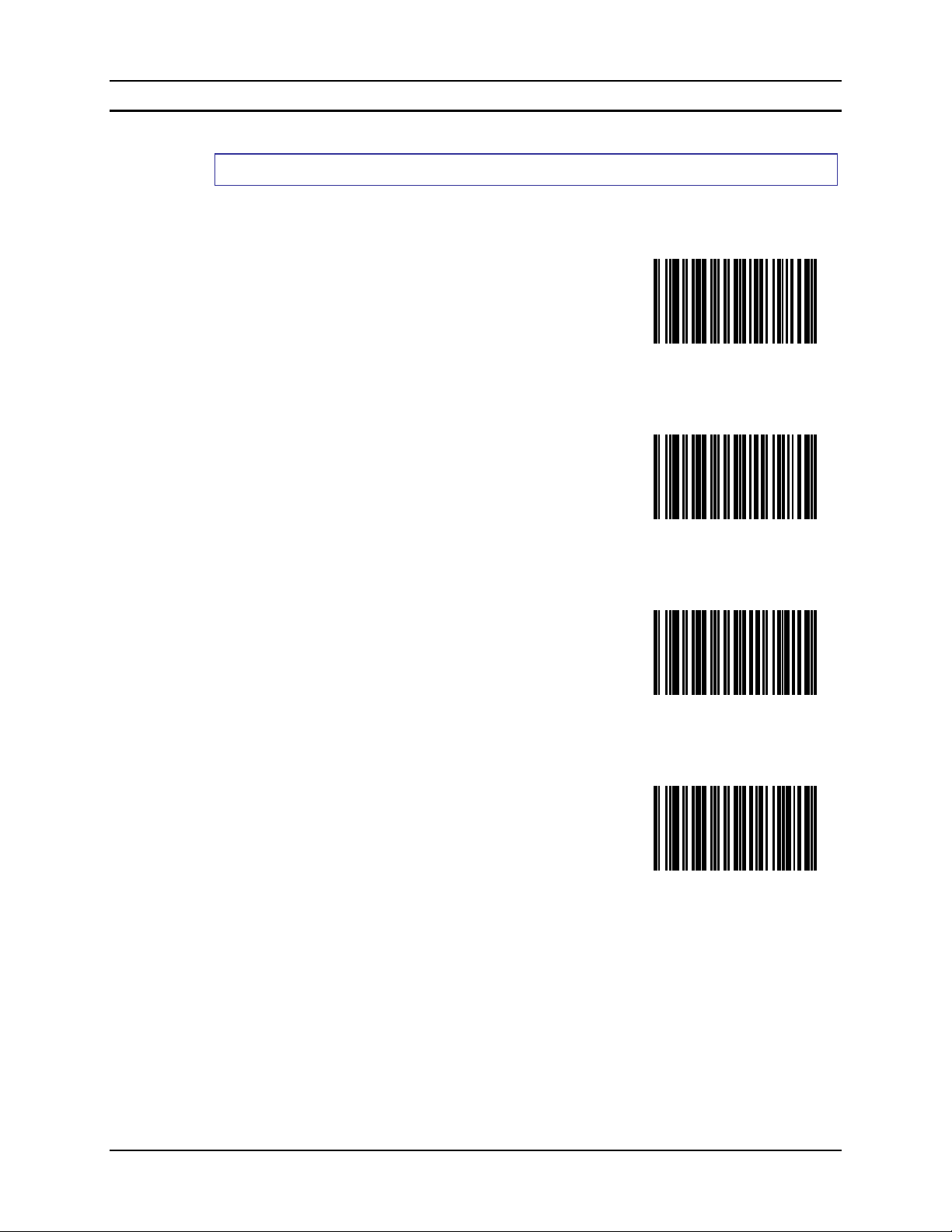
Bluetooth Module Programming Barcodes 41
Beep Volume
Parameter Default Value: High
The Bluetooth Module speaker volume can be reset by scanning one of the following barcodes.
Volume Off
Volume Low
Volume Medium
Volume High
E-SW-BLUESCANPG-A Bluetooth Ring Scanner Guide
Page 54
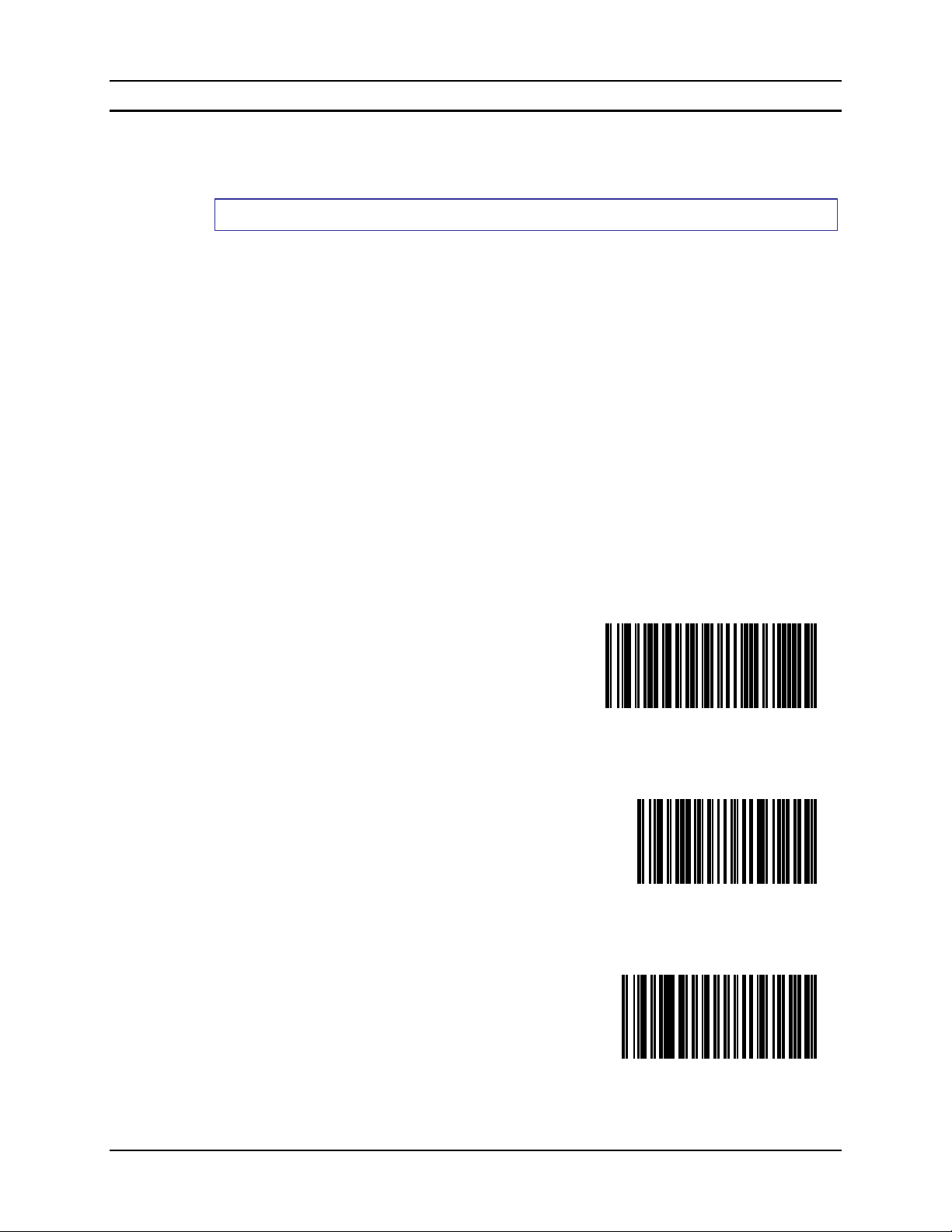
42 Bluetooth Module Programming Barcodes
Ring Imager Focus Mode
Note: This parameter is to be used for the ring imager connected to the Bluetooth Ring Scanner
module only. The ring scanner will ignore this parameter if it scans it in error.
Parameter Default Value: Smart Focus Mode
Select a focus mode to control the working range of the imager.
• When Far Focus is selected, the imager is optimized to read at its far position.
• With Near Focus, the imager is optimized to read at its near position.
• Smart Focus toggles the focus position after every frame. There may be audible signals emitted
from the module as Smart Focus toggles after every frame.
Refer to the SE4400 Laser Imager section in Chapter 5 – Scan Engine Technical Specifications
for typical working ranges for the Ring Imager decoder.
The focus mode persists over a power cycle (remove and replace the module battery).
This parameter reverts to the default setting after a module Reset (holding the imager trigger for
30 seconds after reinstalling the module battery).
It reverts to the default setting after the Factory Defaults barcode is scanned.
When this Imager Focus Mode parameter is not scanned but the Focus Mode parameter in Chapter
4 – SE4400 Imager Barcodes is scanned, the Imager Focus Mode setting reverts to Smart Focus
Mode after a power cycle.
Scan the appropriate barcode below:
Ring Imager Smart
Focus Mode
Ring Imager Far
Focus Mode
Ring Imager Near
Focus Mode
Bluetooth Ring Scanner Guide E-SW-BLUESCANPG-A
Page 55
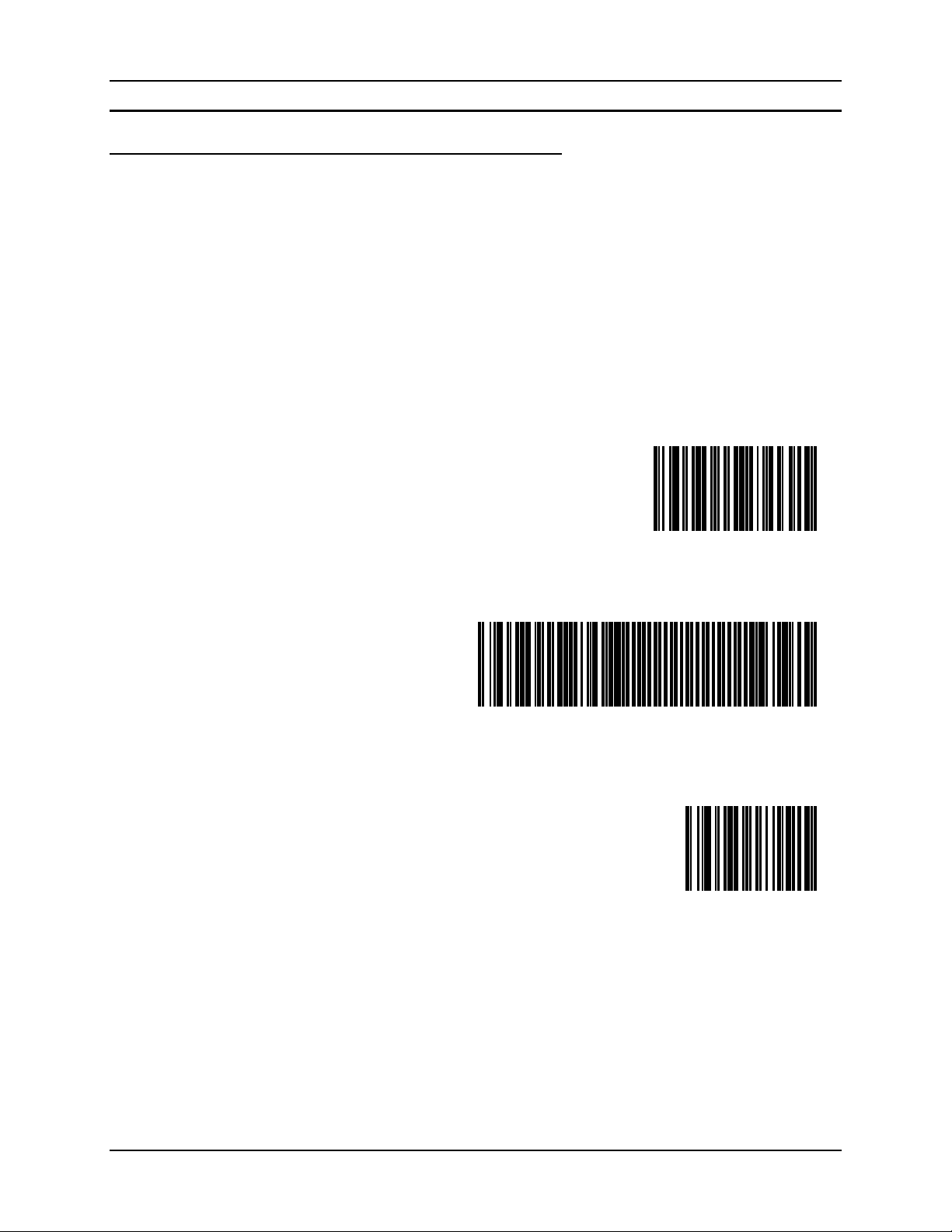
Bluetooth Module Programming Barcodes 43
Enter Friendly Name or PIN Code
PIN Code
Scan the Set PIN Code barcode, then scan up to 16 alphanumeric characters to set the Bluetooth
module PIN Code.
Scan the numbers, lowercase alpha and uppercase alpha barcodes that immediately follow this
section.
When finished entering all characters, scan the Stop PIN Code setup barcode.
Scan the Stop PIN Code setup barcode to end PIN Code data entry.
The PIN Code default value is 16 zeros.
To reset the Pin Code back to the default, scan the Set Pin Code barcode and the Pin Code Default
barcode only.
Set PIN Code
Pin Code Default
Stop PIN Code setup
E-SW-BLUESCANPG-A Bluetooth Ring Scanner Guide
Page 56

44 Bluetooth Module Programming Barcodes
Friendly Name
Scan the Set Friendly Name barcode, then scan up to 32 alphanumeric characters to set the
Bluetooth module Friendly Name.
Scan the numbers, lowercase alpha and uppercase alpha barcodes that immediately follow this
section.
When finished entering all characters, scan the Stop Friendly Name setup barcode to end Friendly
Name data entry.
The Friendly Name default value is “LXE Scanner” + MAC address in Hexadecimal.
The Friendly Name can be viewed using LXEZ Pairing on the paired LXE mobile device.
Set Friendly Name
Stop Friendly Name setup
Bluetooth Ring Scanner Guide E-SW-BLUESCANPG-A
Page 57
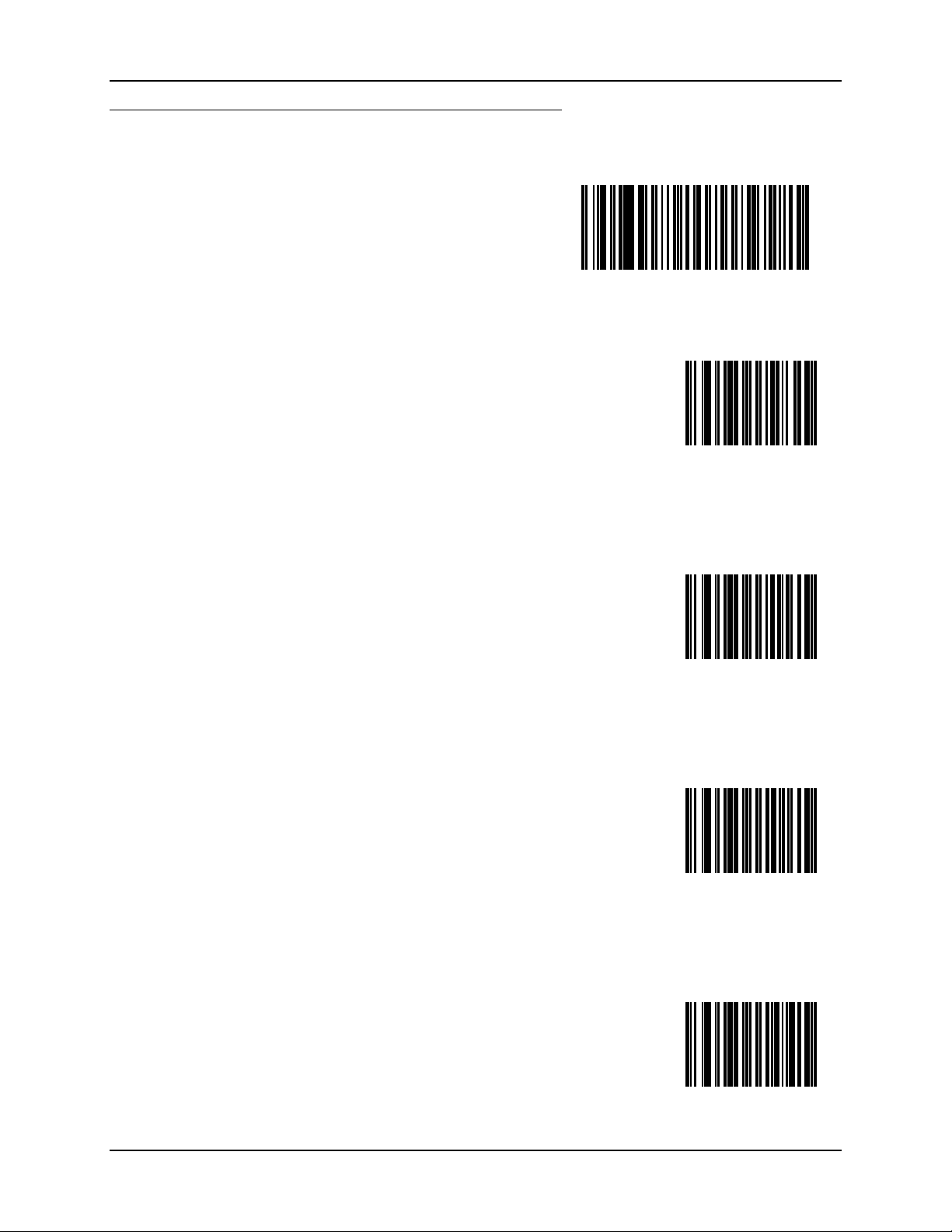
Bluetooth Module Programming Barcodes 45
Numbers
Cancel current programming
function
0
1
2
3
E-SW-BLUESCANPG-A Bluetooth Ring Scanner Guide
Page 58
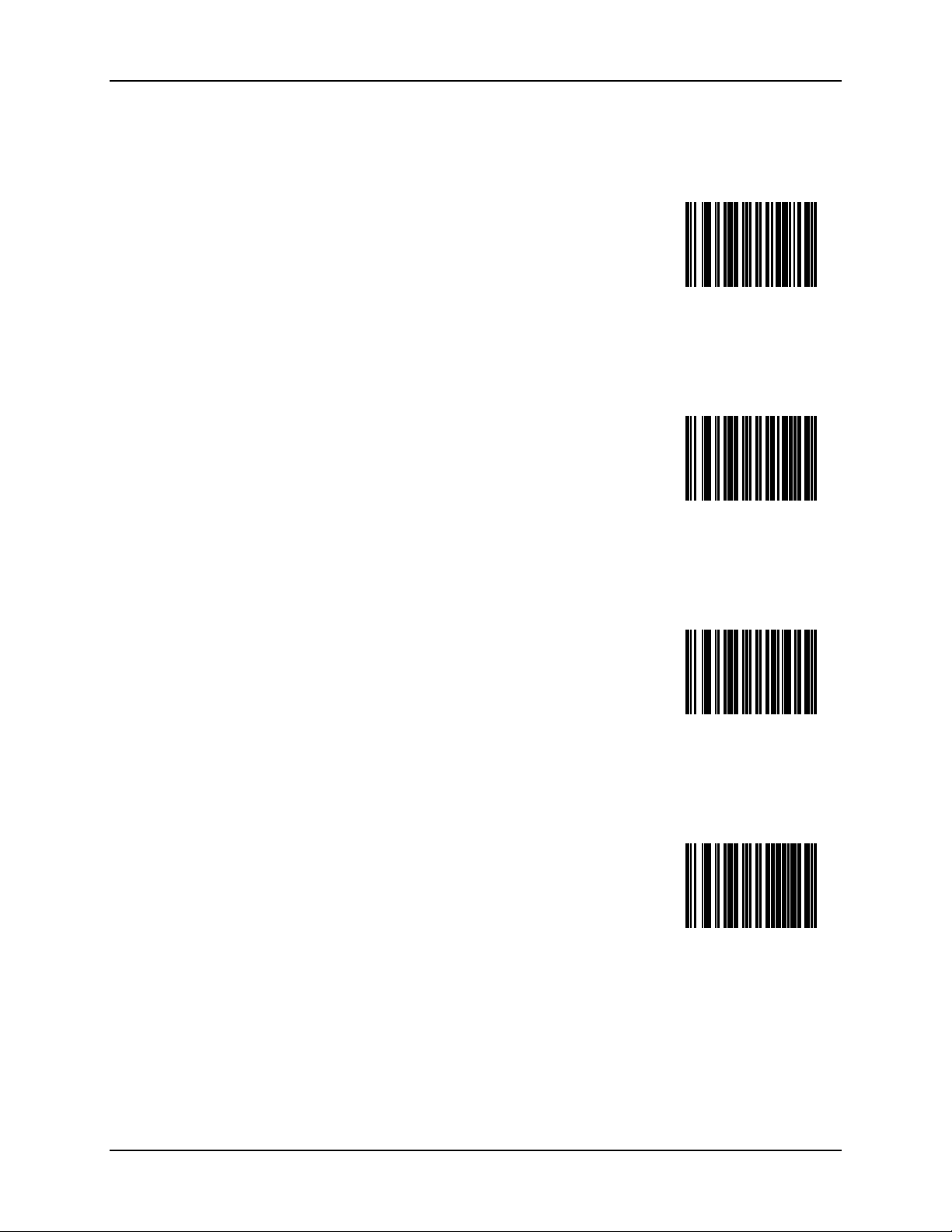
46 Bluetooth Module Programming Barcodes
4
5
6
7
Bluetooth Ring Scanner Guide E-SW-BLUESCANPG-A
Page 59
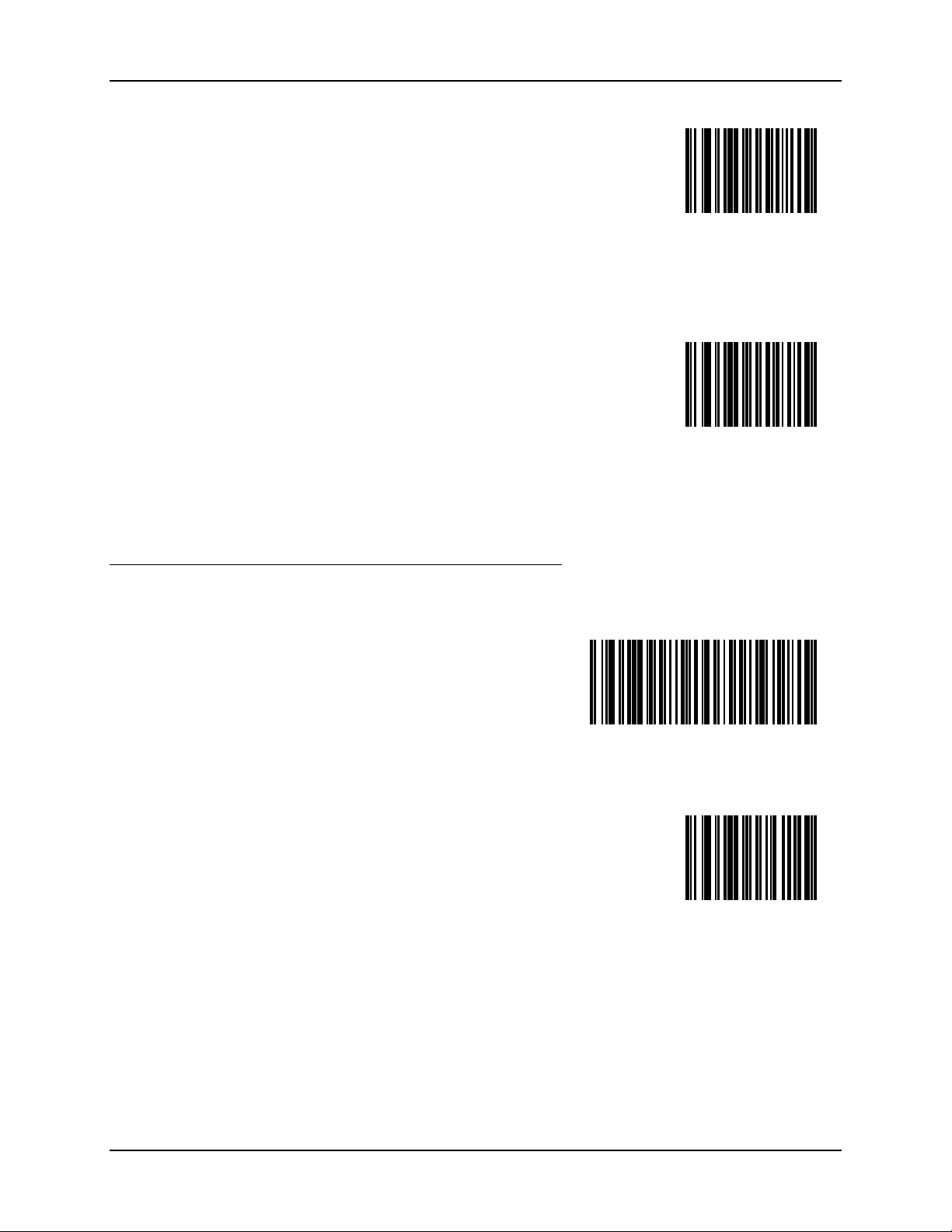
Bluetooth Module Programming Barcodes 47
8
Lowercase Letters
Cancel current
programming
function
9
a
E-SW-BLUESCANPG-A Bluetooth Ring Scanner Guide
Page 60
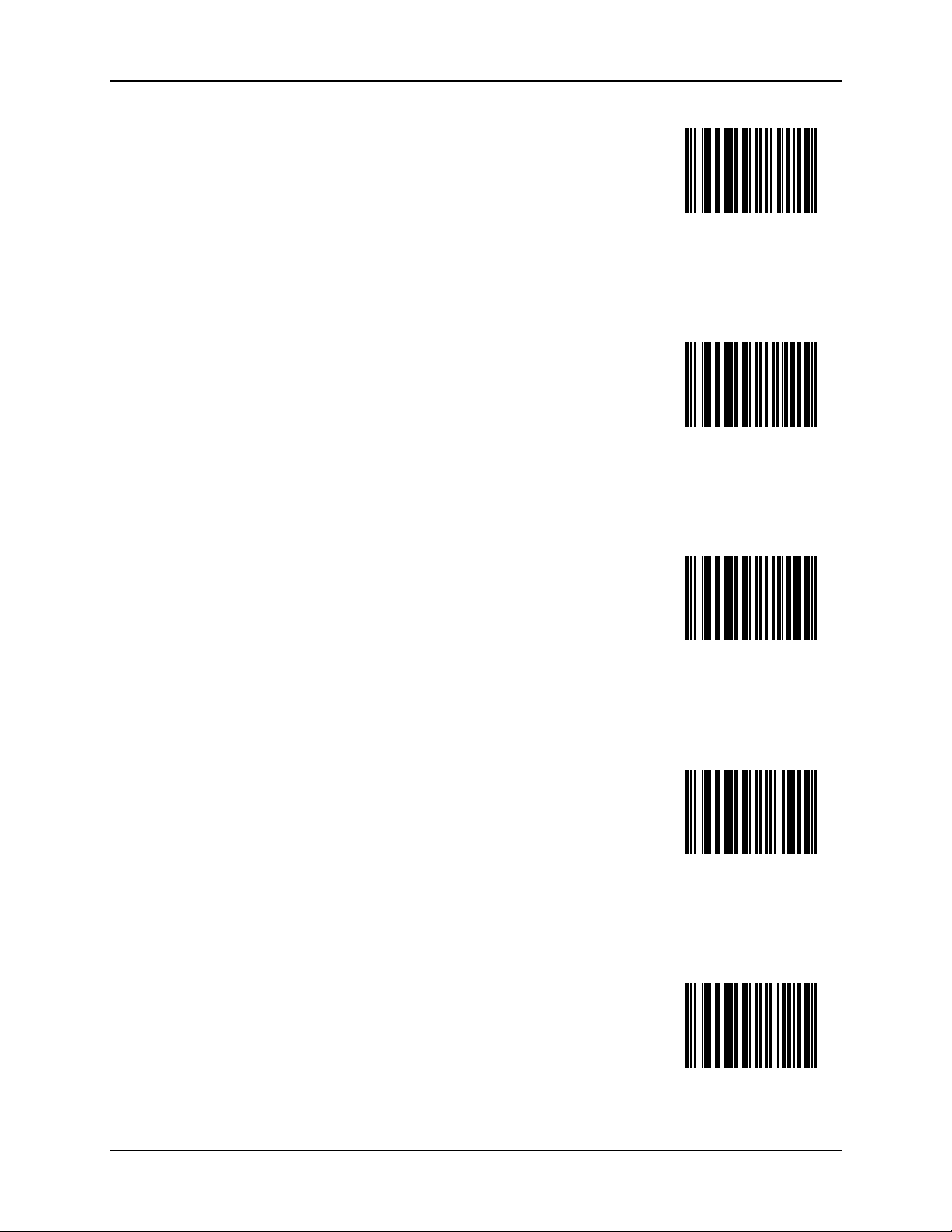
48 Bluetooth Module Programming Barcodes
b
c
d
e
f
Bluetooth Ring Scanner Guide E-SW-BLUESCANPG-A
Page 61
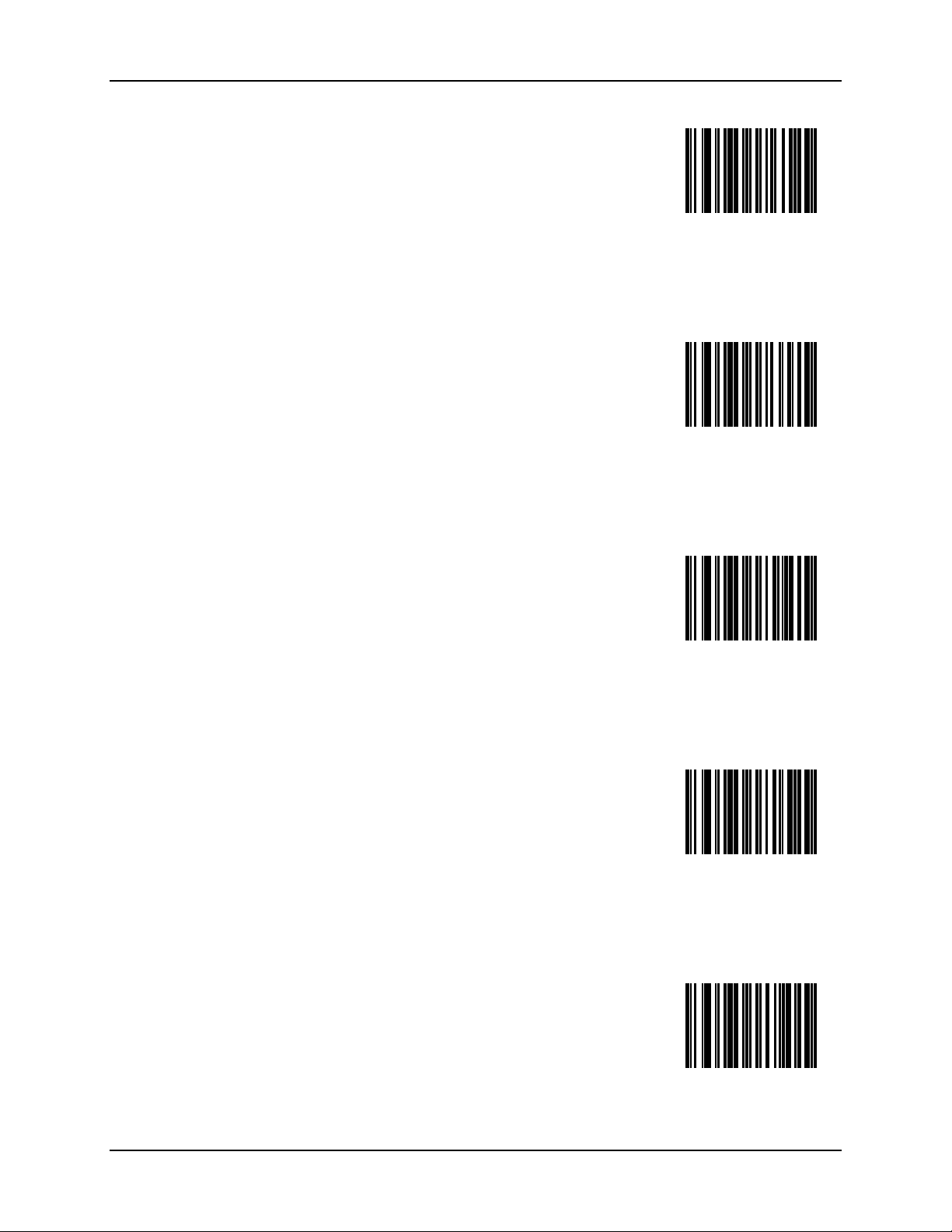
Bluetooth Module Programming Barcodes 49
g
h
i
j
k
E-SW-BLUESCANPG-A Bluetooth Ring Scanner Guide
Page 62
50 Bluetooth Module Programming Barcodes
l
m
n
o
p
Bluetooth Ring Scanner Guide E-SW-BLUESCANPG-A
Page 63
Bluetooth Module Programming Barcodes 51
q
r
s
t
u
E-SW-BLUESCANPG-A Bluetooth Ring Scanner Guide
Page 64
52 Bluetooth Module Programming Barcodes
v
w
x
y
z
Bluetooth Ring Scanner Guide E-SW-BLUESCANPG-A
Page 65
Bluetooth Module Programming Barcodes 53
Uppercase Letters
Cancel current
programming
function
A
B
C
D
E-SW-BLUESCANPG-A Bluetooth Ring Scanner Guide
Page 66
54 Bluetooth Module Programming Barcodes
E
F
G
H
I
Bluetooth Ring Scanner Guide E-SW-BLUESCANPG-A
Page 67
Bluetooth Module Programming Barcodes 55
J
K
L
M
N
E-SW-BLUESCANPG-A Bluetooth Ring Scanner Guide
Page 68
56 Bluetooth Module Programming Barcodes
O
P
Q
R
S
Bluetooth Ring Scanner Guide E-SW-BLUESCANPG-A
Page 69
Bluetooth Module Programming Barcodes 57
T
U
V
W
X
E-SW-BLUESCANPG-A Bluetooth Ring Scanner Guide
Page 70

58 Bluetooth Module Programming Barcodes
Y
Z
Bluetooth Ring Scanner Guide E-SW-BLUESCANPG-A
Page 71
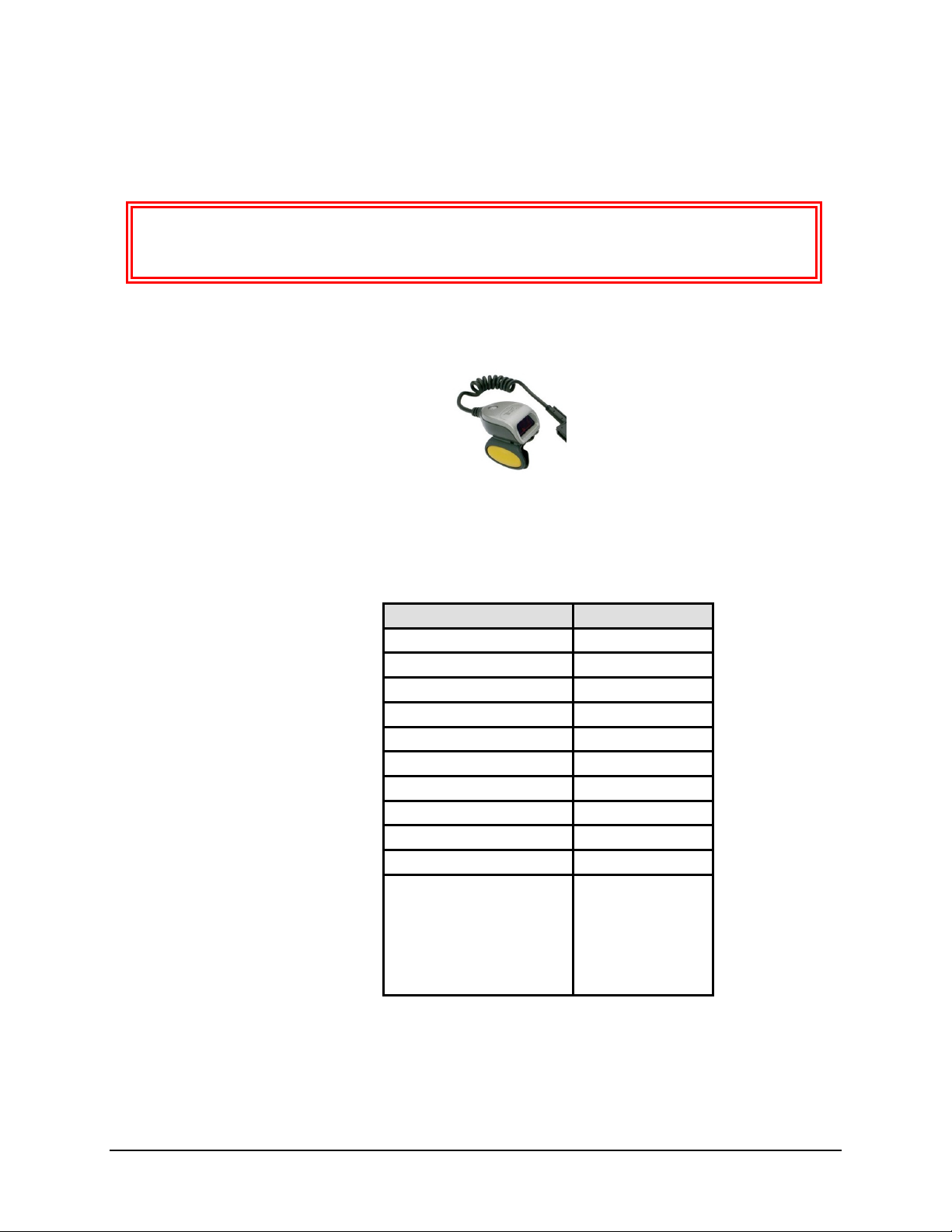
Chapter 3 SE955 Laser Barcodes
This chapter’s explanations and instructions are directed toward Symbol SE955 laser
scanner engines in Bluetooth Ring Scanners. DO NOT SCAN THE BARCODES IN
THIS CHAPTER WITH ANY OTHER IMAGER / LASER ENGINE.
Introduction
Ring Scanner
To change a parameter value: Scan the appropriate barcode in this chapter. The new value
replaces the standard default value in memory.
The following barcode symbologies are supported:
Symbology Default Setting
Chinese 2 of 5 Disabled
Codabar Disabled
Code 11 Disabled
Code 128 Enabled
Code 39 Enabled
Code 93 Disabled
Discrete 2 of 5 Disabled
Interleaved 2 of 5 Enabled
MSI Plessey Disabled
GS1 DataBar (RSS) Disabled
UPC/EAN
UPC-A
UPC-E
UPC-E1
EAN-8
EAN-13
Enabled
Enabled
Disabled
Enabled
Enabled
Figure 3-1 Supported SE955 Barcode Symbologies
The tethered ring scanner does not have beep / audio capability.
E-SW-BLUESCANPG-A Bluetooth Ring Scanner Guide
Page 72

60 SE955 Laser Barcodes
Aiming Modes
There are many aiming “modes” for laser barcode scanners – aiming dots, aiming patterns, aim
duration, etc. All aiming “modes” concern the length of time the beam is sent out, how wide the
beam is and what happens when the timer expires. The terms are used interchangeably and may be
confusing for the novice barcode laser scanner user.
Note: Decoding algorithms released by the barcode engine manufacturer often change upon
each new release. Programming parameters that were available at one release may not
be available upon a later software release. LXE supports the programming barcodes for
the specific engines in this guide only.
This scan engine can have it’s aiming beam/aiming dot setup using these barcodes in this guide:
• Use Laser On Time,
• Aim Duration, and
• Scan Angle.
How to get an aiming dot when there is no “Aiming Dot” parameter
Set Aim Duration to .5 seconds and an aiming “dot” is sent while the scan trigger is held down.
When the timer expires, the aiming beam widens and the barcode is read.
Prefix / Suffix
SE955 scanner engine prefix and suffix parameters cannot be set, changed, or reset using the
barcodes in this chapter.
Refer to the chapter titled “Scanner” in the [device specific e.g. HX2, HX3] Reference Guide for
information and instruction on setting up the following scanner parameters:
• Enable/Disable decoding sounds
• Imager LED Illumination
• COM1 Serial Parameters
• Code ID: AIM, Symbol, Custom
• Symbology Settings including Prefix/Suffix
• Control Character Mapping
• Custom Identifiers
Bluetooth Ring Scanner Guide E-SW-BLUESCANPG-A
Page 73

SE955 Laser Barcodes 61
Pre-Configured Default Values
SE955 Parameter Default
Set Default Parameter All Defaults
Scanning Options
Aim Duration 0.0 sec
Aiming Mode Not Supported
Beeper Volume Not Supported
Bi-directional Redundancy Disable
Laser On Time 3.0 sec.
Linear Code Type Security Levels 1
Parameter Scanning Enable
Power Mode Low Power
Raster Expansion Rate Not Supported
Raster Height Not Supported
Scan Angle (Clipping) Not Supported
Scan Angle Wide
Scanning Mode Not Supported
Time Delay to Low Power Not Supported
Time-out Between Different Symbols Not Supported
Time-out Between Same Symbol Not Supported
Transmit “No Read” Message Disable
Trigger Mode Host
UPC/EAN
UPC-A Enable
UPC-E Enable
UPC-E1 Disable
EAN-8 Enable
EAN-13 Enable
Bookland EAN Disable
Decode UPC/EAN Supplementals Ignore
Decode UPC/EAN Supplemental Redundancy 7
Transmit UPC-A Check Digit Enable
Transmit UPC-E Check Digit Enable
Transmit UPC-E1 Check Digit Enable
UPC-A Preamble System Character
UPC-E Preamble System Character
E-SW-BLUESCANPG-A Bluetooth Ring Scanner Guide
Page 74

62 SE955 Laser Barcodes
SE955 Parameter Default
UPC-E1 Preamble System Character
Convert UPC-E to A Disable
Convert UPC-E1 to A Disable
EAN-8 Zero Extend Disable
Convert EAN-8 to EAN-13 Type Type is EAN-13
UPC/EAN Security Level 0
UCC Coupon Extended Code Disable
Linear UPC/EAN Decode Not Supported
UPC Half Block Stitching Not Supported
UPC Composite Mode Not Supported
Code 128
Code 128 Enable
UCC/EAN-128 Enable
ISBT 128 Enable
Code 128 Decode Performance Not Supported
Code 128 Decode Performance Level Not Supported
Code 39
Code 39 Enable
Trioptic Code 39 Disable
Convert Code 39 to Code 32 Disable
Code 32 Prefix Disable
Set Length(s) for Code 39
Code 39 Check Digit Verification Disable
Transmit Code 39 Check Digit Disable
Code 39 Full ASCII Conversion Disable
Code 39 Decode Performance Not Supported
Code 39 Decode Performance Level Not Supported
Code 93
Code 93 Disable
Set Length(s) for Code 93
Length within
Range: 02 – 55
Length within
Range: 04 – 55
Code 11
Code 11 Disable
Set Lengths for Code 11
Code 11 Check Digit Verification Disable
Length within
Range: 04 – 55
Bluetooth Ring Scanner Guide E-SW-BLUESCANPG-A
Page 75

SE955 Laser Barcodes 63
SE955 Parameter Default
Transmit Code 11 Check Digit(s) Disable
Interleaved 2 of 5
Interleaved 2 of 5 Enable
Set Length(s) for I 2 of 5 14
I 2 of 5 Check Digit Verification Disable
Transmit I 2 of 5 Check Digit Disable
Convert I 2 of 5 to EAN 13 Disable
Discrete 2 of 5
Discrete 2 of 5 Disable
Set Length(s) for D 2 of 5 12
Chinese 2 of 5
Chinese 2 of 5 Disable
Codabar
CLSI Editing Disable
Codabar Disable
NOTIS Editing Disable
Set Lengths for Codabar Length within Range: 05-55
MSI Plessey
MSI Plessey Disable
Set Length(s) for MSI Plessey Length within Range: 06-55
MSI Plessey Check Digits One
Transmit MSI Plessey Check Digit Disable
MSI Plessey Check Digit Algorithm Mod 10/Mod 10
PDF417/MicroPDF417
PDF417 Not Supported
MicroPDF417 Not Supported
Decode Linked Symbol Not Supported
Code 128 Emulation Not Supported
GS1 DataBar (RSS)
GS1 DataBar Omnidirectional (RSS-14) Disable
GS1 DataBar Limited (RSS Limited) Disable
GS1 DataBar Expanded (RSS Expanded) Disable
Convert GS1 DataBar (RSS) to UPC/EAN Disable
Composite
CC-C Not Supported
CC-AB Not Supported
E-SW-BLUESCANPG-A Bluetooth Ring Scanner Guide
Page 76

64 SE955 Laser Barcodes
SE955 Parameter Default
TLC-39 Not Supported
Data Options
Transmit Code ID Character None
Prefix/Suffix Values
Prefix
Suffix 1
Suffix 2
Scan Data Transmission Format Data as is
Decode Buffering Not Supported
Simple Serial Interface (SSI) Options
Baud Rate Not Supported
Parity None
Check Parity Not Supported
Software Handshaking Enable
Decode Data Packet Format Unpacketed
Stop Bit Select 1
Intercharacter Delay 0
Host Serial Response Time-out 2 sec
Host Character Time-out 200 msec
Macro PDF
Macro PDF Transmit/Decode Mode Not Supported
NULL
LF
CR
Transmit Each Symbol in Codeword Format Not Supported
Transmit Unknown Codewords Not Supported
Escape Character Not Supported
ECI
Delete Character Set ECIs Not Supported
ECI Decoder Not Supported
Transmit Macro PDF User-Selected Field
Transmit File Name Not Supported
Transmit Block Count Not Supported
Transmit Time Stamp Not Supported
Transmit Sender Not Supported
Transmit Addressee Not Supported
Transmit Checksum Not Supported
Transmit File Size Not Supported
Transmit Macro PDF Control Header Not Supported
Last Block Marker Not Supported
Bluetooth Ring Scanner Guide E-SW-BLUESCANPG-A
Page 77

SE955 Laser Barcodes 65
SE955 Parameter Default
Flush Macro Buffer Not Supported
Abort Macro PDF Entry Not Supported
Frequently Used Barcodes – SE955
Reset/Cancel Barcodes
Note: After scanning Restore Defaults, reboot the Bluetooth Ring Scanner Module by removing
the battery then reinserting the battery.
Restore Defaults
If custom defaults were set by scanning Write Custom Defaults, scan Restore Defaults to retrieve
and restore the scanner’s custom default settings. If no custom defaults were set, scan Restore
Defaults to restore the factory default values.
Set Factory Defaults
Restore the factory default values. If custom defaults were set, they are eliminated.
Write Custom Defaults
Store the current scanner settings as custom defaults. Once custom default settings are stored, they
can be recovered at any time by scanning the Restore Defaults barcode.
Restore Defaults
Set Factory Defaults
Write Custom Defaults
E-SW-BLUESCANPG-A Bluetooth Ring Scanner Guide
Page 78
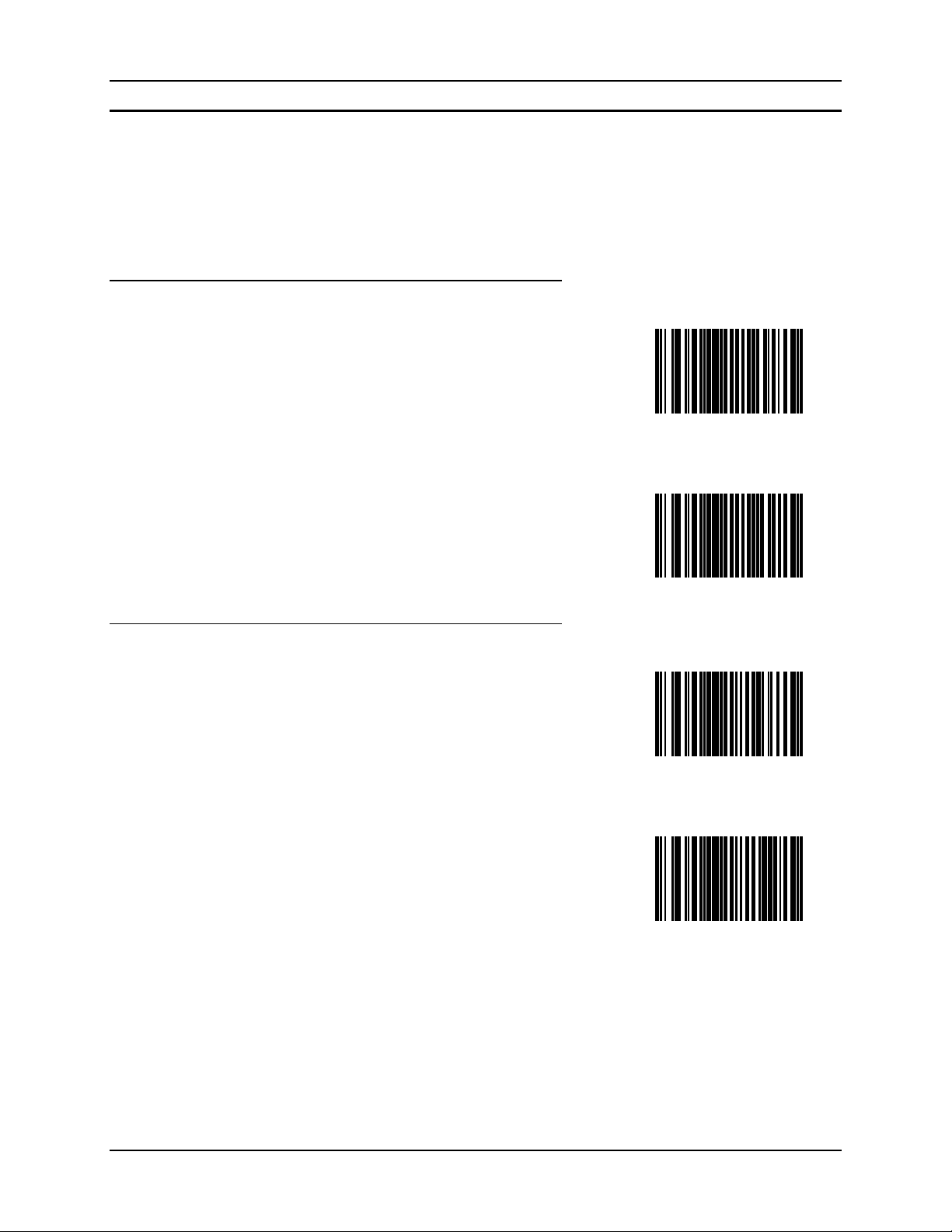
66 SE955 Laser Barcodes
Configure The Decoder For Barcode Types
Scan either the Enable or the Disable barcode to the right to turn a barcode type on or off.
See also the barcode type’s main section in this chapter. For example, see section “UPC/EAN” for
the remainder of the UPC/EAN parameters – such as UPC-A Preamble, UPC/EAN Security Level,
etc.
Note: Improve decode speed by disabling unused barcode types.
Bookland EAN
Enable Bookland EAN
Chinese 2 of 5
Disable Bookland EAN
Enable Chinese 2 of 5
Disable Chinese 2 of 5
Bluetooth Ring Scanner Guide E-SW-BLUESCANPG-A
Page 79
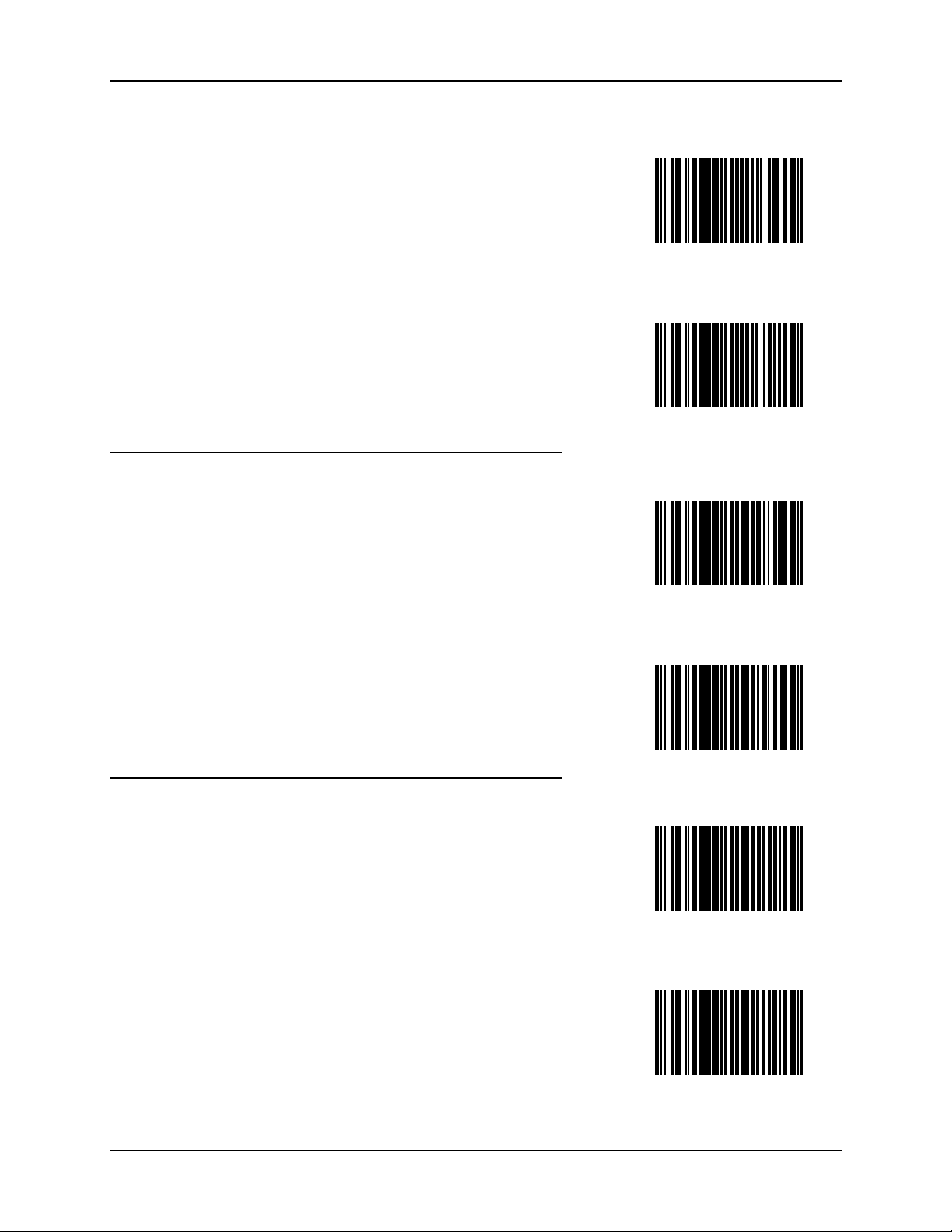
SE955 Laser Barcodes 67
Codabar
Enable Codabar
Disable Codabar
Code 11
Code 128
Enable Code 11
Disable Code 11
Enable Code 128
Disable Code 128
E-SW-BLUESCANPG-A Bluetooth Ring Scanner Guide
Page 80

68 SE955 Laser Barcodes
Code 39
Enable Code 39
Disable Code 39
Note: Trioptic Code 39 symbols always contain 6 characters. Trioptic Code and Code 39 Full
ASCII should not be enabled simultaneously.
Code 93
Enable Trioptic Code 39
Disable Trioptic Code 39
Enable Code 93
Disable Code 93
Bluetooth Ring Scanner Guide E-SW-BLUESCANPG-A
Page 81
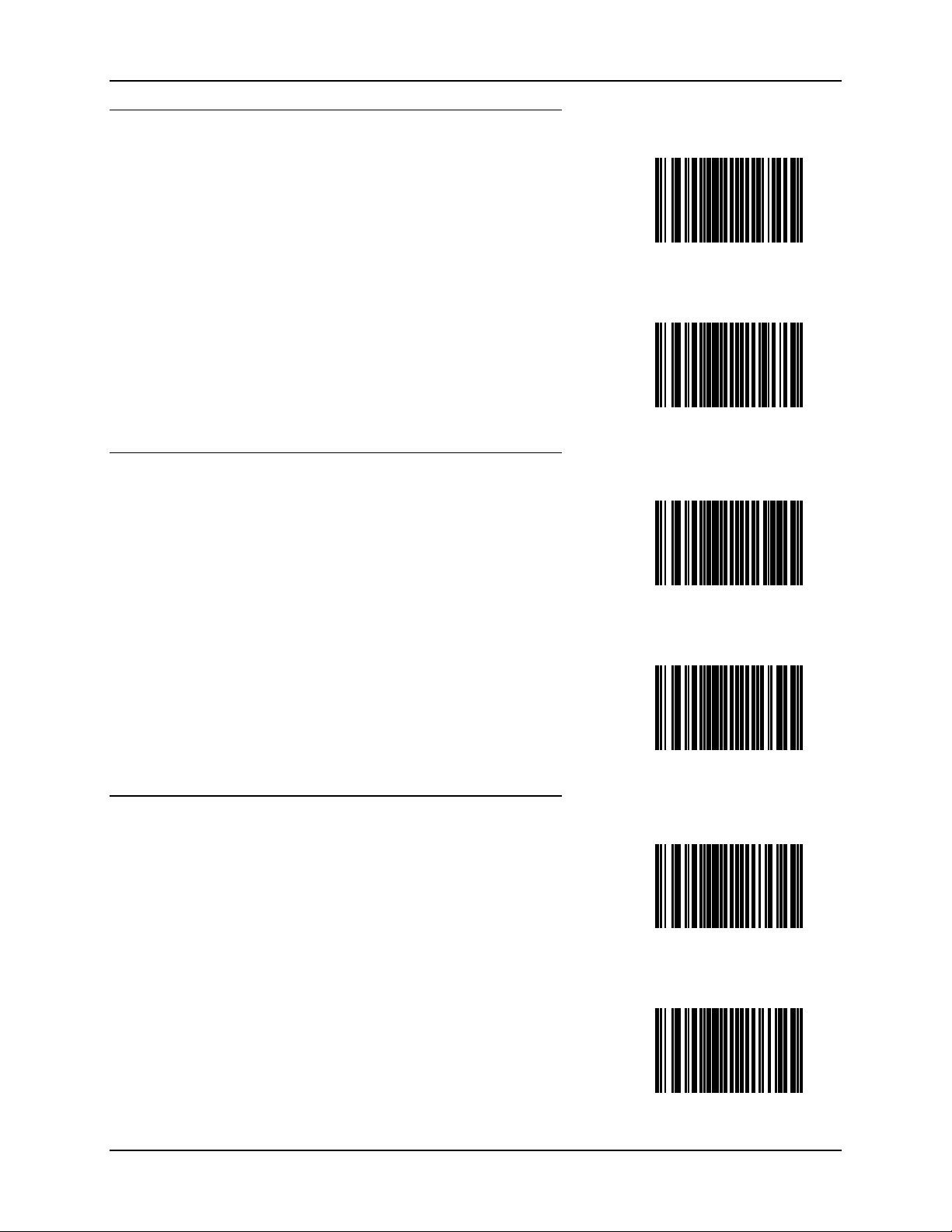
SE955 Laser Barcodes 69
Discrete 2 of 5
Enable Discrete 2 of 5
Disable Discrete 2 of 5
EAN-13
EAN-8
Enable EAN-13
Disable EAN-13
Enable EAN-8
Disable EAN-8
E-SW-BLUESCANPG-A Bluetooth Ring Scanner Guide
Page 82

70 SE955 Laser Barcodes
Interleaved 2 of 5
Enable Interleaved 2 of 5
Disable Interleaved 2 of 5
ISBT 128
MSI Plessey
Enable ISBT 128
Disable ISBT 128
Enable MSI (Plessey)
Disable MSI (Plessey)
Bluetooth Ring Scanner Guide E-SW-BLUESCANPG-A
Page 83
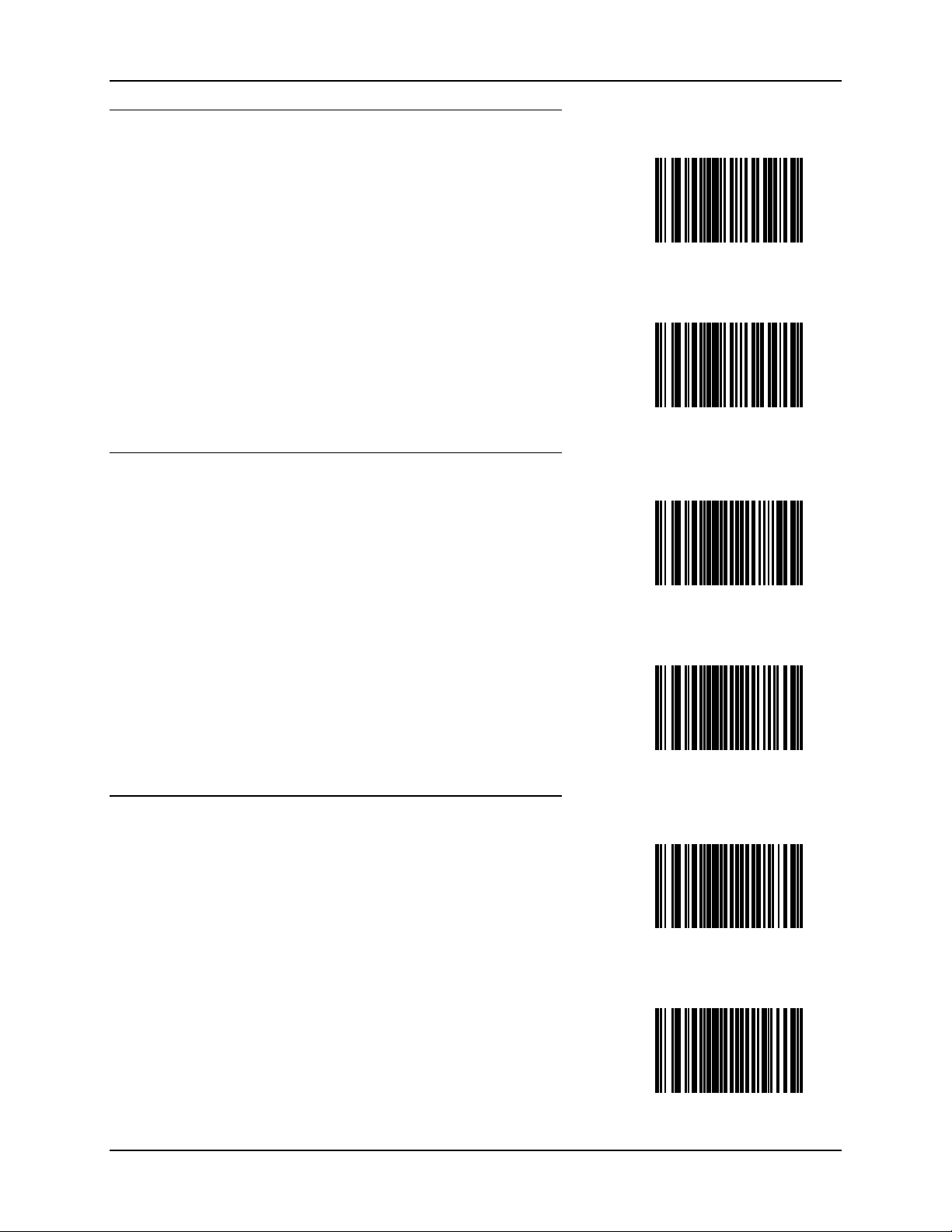
SE955 Laser Barcodes 71
UCC/EAN-128
Enable UCC/EAN-128
Disable UCC/EAN-128
UPC-A
UPC-E
Enable UPC-A
Disable UPC-A
Enable UPC-E
Disable UPC-E
E-SW-BLUESCANPG-A Bluetooth Ring Scanner Guide
Page 84

72 SE955 Laser Barcodes
UPC-E1
Enable UPC-E1
Disable UPC-E1
Bluetooth Ring Scanner Guide E-SW-BLUESCANPG-A
Page 85

SE955 Laser Barcodes 73
Scanner Parameters – General
Aim Duration
Note: For correct operation, reboot the mobile device after changing this value.
When a scanner with an aim mode is triggered either by a Scan button press, or a Start_Decode
command, this parameter sets the duration the aiming pattern is seen before a scan attempt begins.
It does not apply to the aim signal or the Aim_On command. It is programmable in 0.1 second
increments from 0.0 to 9.9 seconds. No aim pattern is visible when the value is 0.0.
To set aim duration, scan the barcode below:
Next scan two numeric barcodes that correspond to the desired aim duration. Times less than 1.0
second must have a leading zero. For example, to set an aim duration of 0.5 seconds, scan the
barcode above, then scan the “0” and “5” barcodes. If you make an error, or wish to change your
selection, scan the Cancel barcode.
E-SW-BLUESCANPG-A Bluetooth Ring Scanner Guide
Page 86
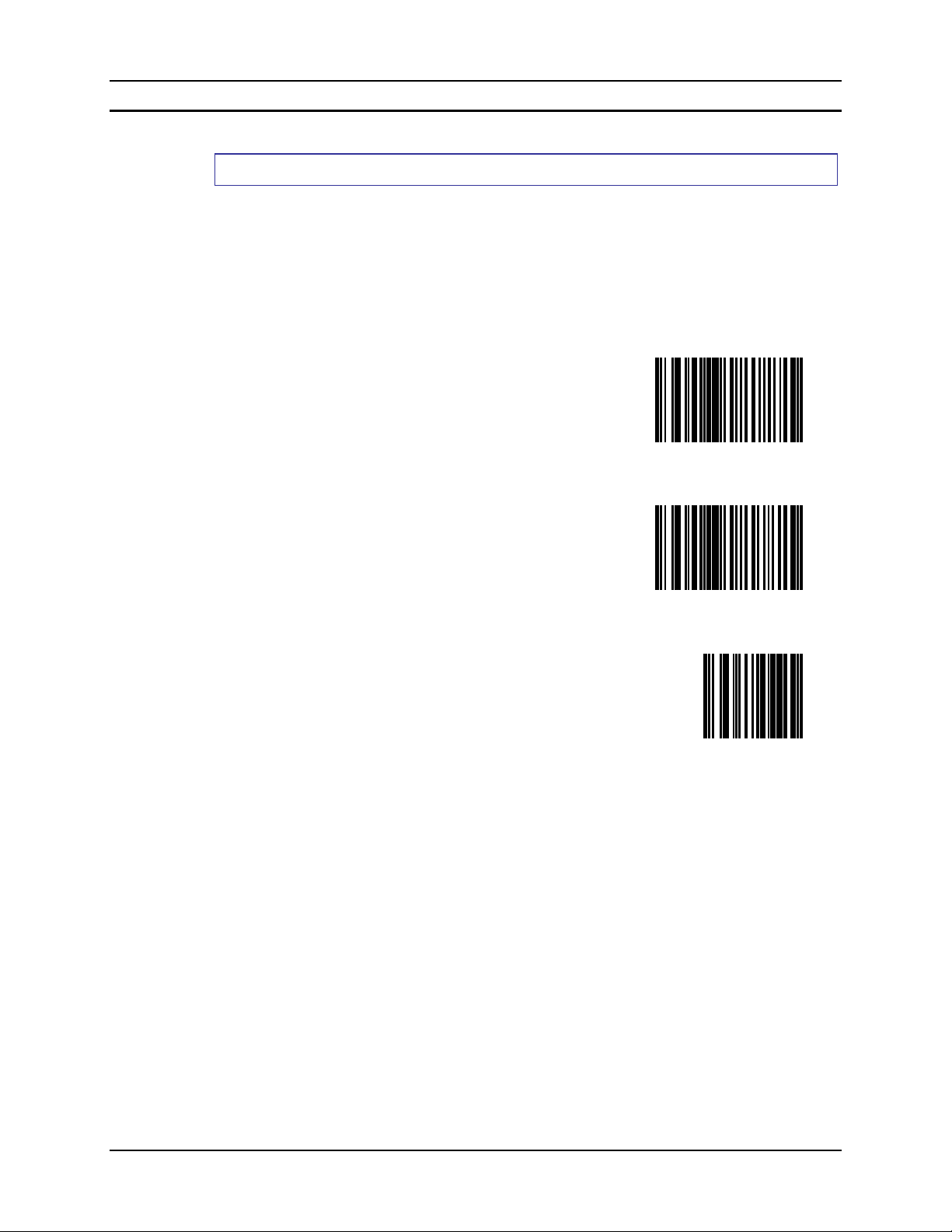
74 SE955 Laser Barcodes
Bi-Directional Redundancy
Parameter Default Value: Disable
Use this parameter to decide whether a barcode is successfully scanned in both directions before
being decoded.
Note: This parameter is only valid when a Linear Code Type Security Level has been enabled.
The default for Security Level parameter is Level 1.
Select an option by scanning either of the barcodes shown below. If you wish to change your
selection, scan Cancel.
Enable Bi-Directional Redundancy
Disable Bi-Directional Redundancy
Cancel
Bluetooth Ring Scanner Guide E-SW-BLUESCANPG-A
Page 87
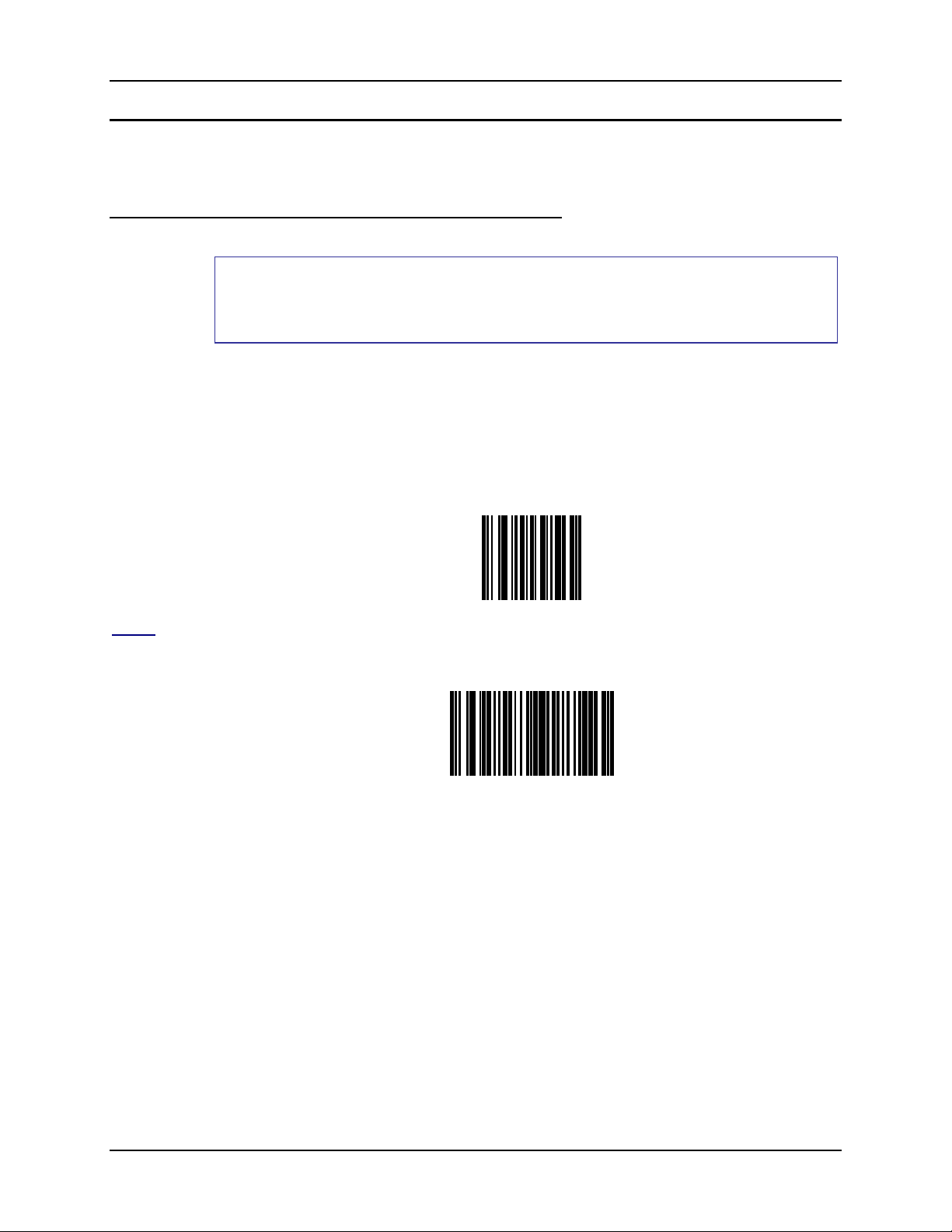
SE955 Laser Barcodes 75
Data Options
SE955 scanner engine prefix and suffix parameters cannot be set, changed, or reset using the
barcodes in this chapter. See previous section titled Prefix / Suffix.
Prefix and Suffix
Prefix (P) Parameter Default Value: Null
Suffix1 (S1) Parameter Default Value: LF
Suffix2 (S2) Parameter Default Value: CR
Note: Parameter “Scan Data Transmission Format” must be set before selecting Prefix/Suffix
values.
A prefix and/or one or two suffixes may be appended to scan data for use in data editing. These
values are set by scanning four barcodes (resulting in a four digit number) that correspond to key
codes for various mobile devices. See the table titled “ASCII Character Equivalents” at the end of
the “Appendix” for keycodes.
If you wish to change your selection, scan this Data Format Cancel barcode:
Prefix
To begin setting Prefix values, scan this barcode:
Next, scan four numeric barcodes that correspond to the computer keycode using the “Keypad
Number Symbols” at the end of this chapter.
If you wish to change your selection, scan Cancel on the “Keypad Number Symbols” page.
E-SW-BLUESCANPG-A Bluetooth Ring Scanner Guide
Page 88

76 SE955 Laser Barcodes
Suffix 1
To begin setting Suffix 1 value, scan this barcode:
Next, scan four numeric barcodes that correspond to the computer keycode using the “Keypad
Number Symbols” at the end of this chapter.
If you wish to change your selection, scan Cancel on the “Keypad Number Symbols” page.
Suffix 2
To begin setting Suffix 2 value, scan this barcode:
Next, scan four numeric barcodes that correspond to the computer keycode using the “Keypad
Number Symbols” at the end of this chapter.
If you wish to change your numeric selection, scan Cancel on the “Keypad Number Symbols”
page.
Bluetooth Ring Scanner Guide E-SW-BLUESCANPG-A
Page 89
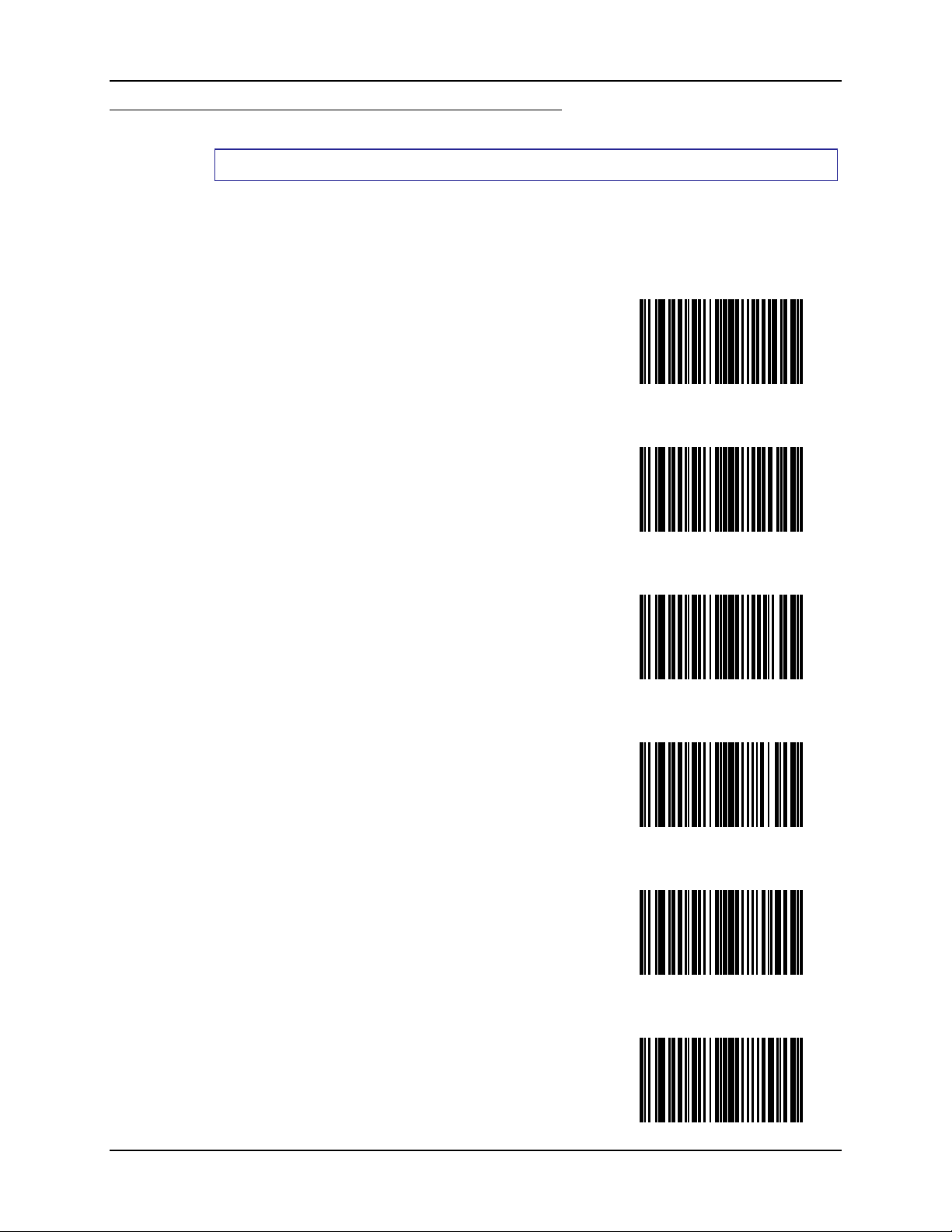
SE955 Laser Barcodes 77
Scan Data Transmission Format
Parameter Default Value: Data As Is
Note: Parameter “Prefix/Suffix Values” should be set after setting this parameter.
Use this option when you want to append a prefix and suffix to the decode data.
Set this parameter by scanning one of the following barcodes.
Data As Is
[Data] [Suffix 1]
[Data] [Suffix 2]
[Data] [Suffix 1] [Suffix 2]
[Prefix] [Data]
[Prefix] [Data] [Suffix 1]
E-SW-BLUESCANPG-A Bluetooth Ring Scanner Guide
Page 90

78 SE955 Laser Barcodes
[Prefix] [Data] [Suffix 2]
[Prefix] [Data] [Suffix 1]
[Suffix 2]
Cancel
Now you are ready to scan one of the “Prefix/Suffix Values” barcodes.
Bluetooth Ring Scanner Guide E-SW-BLUESCANPG-A
Page 91
SE955 Laser Barcodes 79
Transmit Code ID Character
Parameter Default Value: None
A code ID character identifies the code type of a scanned barcode. This may be useful when the
scanner is decoding more than one code type. In addition to any single character prefix already
selected, the code ID character is inserted between the prefix and the decoded symbol.
Scan one of the following barcodes to select either no code ID character, a Symbol Code ID
character or an AIM Code ID character.
Transmit No Code ID Character
Transmit Symbol Code ID Character
A UPC-A, UPC-E, UPC-E1, EAN-8, EAN-13
B Code 39, Code 32
C Codabar
D Code 128, ISBT 128
E Code 93
F Interleaved 2 of 5
G Discrete 2 of 5 or
H Code 11
J MSI Plessey
K UCC/EAN-128
L Bookland EAN
M Trioptic Code 39
N Coupon Code
R GS1 DataBar Omnidirectional (RSS-14)
Discrete 2 of 5 IATA
GS1 DataBar Limited (RSS Limited)
GS1 DataBar Expanded (RSS Expanded)
E-SW-BLUESCANPG-A Bluetooth Ring Scanner Guide
Page 92

80 SE955 Laser Barcodes
Transmit AIM Code ID Character
Each AIM Code Identifier contains the three character string ]cm where:
] = Flag Character (ASCII 93)
c = Code Character
A Code 39
C Code 128
E UPC/EAN
F Codabar
G Code 93
H Code 11
I Interleaved 2 of 5
M MSI Plessey
S D2 of 5, IATA 2 of 5
X Code 39 Trioptic, Bookland EAN
e GS1 DataBar (RSS)
m = Modifier Character
The modifier character is the sum of the applicable option values based on the following table.
Code
Type
Option
Va lu e Option
Code 39
0 No Check character or Full ASCII processing.
1 Reader has checked one check character.
3 Reader has checked and stripped check character.
4 Reader has performed Full ASCII character conversion.
5 Reader has performed Full ASCII character conversion and
checked one check character.
7 Reader has performed Full ASCII character conversion and
checked and stripped check character.
Example: A Full ASCII barcode with check character
W,A+I+MI+DW, is transmitted as ]A7AimId
where 7 = (3+4).
Trioptic Code 39
0 No option specified at this time. Always transmit 0.
Example: A Trioptic barcode 412356 is transmitted as
]X0412356
Code 128
0 Standard data packet, No Function code 1 in first symbol
position.
1 Function code 1 in first symbol character position.
2 Function code 1 in second symbol character position.
Example: A Code (EAN) 128 barcode with Function 1
character in the first position,
FNC1
Aim Id is
transmitted as ]ClAimId
Bluetooth Ring Scanner Guide E-SW-BLUESCANPG-A
Page 93

SE955 Laser Barcodes 81
Code
Type
Interleaved 2 of 5
0 No check digit processing.
1 Reader has validated check digit.
3 Reader has validated and stripped check digit .
Example: An I 2 of 5 barcode without check digit, 4123, is
Codabar
0 No check digit processing.
1 Reader has checked check digit.
3 Reader has stripped check digit before transmission.
Example: A Codabar barcode without check digit, 4123, is
Code 93
0 No options specified at this time. Always transmit 0.
Example: A Code 93 barcode 012345678905 is transmitted
MSI (Plessey)
0 Single check digit checked.
1 Two check digits checked.
2 Single check digit verified and stripped before transmission.
3 Two check digits verified and stripped before transmission.
Example: An MSI Plessey barcode 4123, with a single
Discrete 2 of 5
0 No options specified at this time. Always transmit 0.
Example: A D 2 of 5 barcode 4123, is transmitted as
UPC/EAN
0 Standard packet in full EAN country code format, which is 13
1 Two digit supplement data only
2 Five digit supplement data only
4 EAN-8 data packet.
Example: A UPC-A barcode 012345678905 is transmitted
Bookland EAN
0 No options specified at this time. Always transmit 0.
Example: A Bookland EAN barcode 123456789X is
According to AIM standards, a UPC with supplemental barcode is transmitted in the following
format:
]EO (UPC chars) (terminator) ]E2 (supplemental) (terminator)
Option
Va lu e Option
transmitted as ]I04123
transmitted as ]F04123
as ]G0012345678905
check digit checked, is transmitted as ]M04123
]S04123
digits for UPC-A and UPC-E (not including supplemental
data).
as ]E00012345678905
transmitted as ]X0123456789X
Therefore, a UPC with two supplemental characters, 01234567890510, is transmitted to the host
as a 21-character string, ]E00012345678905]E110.
E-SW-BLUESCANPG-A Bluetooth Ring Scanner Guide
Page 94

82 SE955 Laser Barcodes
Laser On Time
Note: For correct operation, reboot the mobile device after changing this value.
Parameter Default Value: 3.0 Seconds
This parameter sets the maximum time decode processing continues during a scan attempt. It is
programmable in 0.1 second increments from 0.5 to 9.9 seconds. If a label has not been decoded
before this time expires and the session is terminated, the system regards it as a failed scan
attempt.
To begin setting Laser On Time, scan this barcode:
Next, scan two numeric barcodes that correspond to the desired on time using the “Keypad
Number Symbols” at the end of this chapter. Times less than 1.0 second must have a leading zero.
If you wish to change your number selection, scan Cancel on the “Keypad Number Symbols”
page.
Bluetooth Ring Scanner Guide E-SW-BLUESCANPG-A
Page 95
SE955 Laser Barcodes 83
Linear Code Type Security Level (Redundancy Level)
Parameter Default Value: Level 1
Use this parameter to determine the security level appropriate for barcode quality. The security
level indicates how many times the barcode must be successfully read by the scanner before being
decoded.
There are four security levels. Higher security levels are selected for decreasing levels of barcode
quality. As security levels increase, the scanner’s aggressiveness decreases.
Select an option by scanning one of the barcodes shown below. If you wish to change your
selection, scan Cancel.
Linear Security
The following code types must be successfully read twice before being
decoded:
Codabar All lengths
MSI Plessey Length of 4 characters or less
D 2 of 5 Length of 8 characters or less
Level 1
I 2 of 5 Length of 8 characters or less
All code types (Code 128 exception) must be successfully read twice
before being decoded.
Level 2
E-SW-BLUESCANPG-A Bluetooth Ring Scanner Guide
Page 96

84 SE955 Laser Barcodes
Linear Security
Code types other than the following must be successfully read two times
before being decoded. The following codes (Code 128 exception) must
be read three times:
MSI Plessey Length of 4 characters or less
D 2 of 5 Length of 8 characters or less
I 2 of 5 Length of 8 characters or less
Level 3
Level 4
All code types (Code 128 exception) must be successfully read three
times before being decoded.
Cancel
Bluetooth Ring Scanner Guide E-SW-BLUESCANPG-A
Page 97

SE955 Laser Barcodes 85
Parameter Scanning
Parameter Default Value: Enable
Use this parameter to decide whether scanner parameters can be set using the barcodes in this
chapter.
Note: When this parameter is disabled, scan the Set Defaults parameter barcode to enable
parameter scanning.
When disabled, either scan the Enable Parameter Scanning barcode or the Set All Defaults
barcode (or set this parameter to 01h via a serial command) to reset the parameter and barcodes in
this chapter can then be scanned.
When enabled, scanners can be configured using the barcodes in this chapter.
Select a mode by scanning either of the barcodes shown below.
Enable Parameter Scanning
Disable Parameter Scanning
E-SW-BLUESCANPG-A Bluetooth Ring Scanner Guide
Page 98

86 SE955 Laser Barcodes
Power Mode
Note: LXE mobile devices are designed to be operated in Low Power Mode. LXE recommends
leaving this value unchanged.
Parameter Default Value: Low Power
A parameter setting of Continuous On means the laser scanner will not power down until the
mobile device is powered off.
A parameter setting of Low Power means the laser scanner will enter low power mode after one
second of waiting for a Scan button press. Pressing the Scan button will begin the decode
sequence.
Select a Power Mode by scanning either of the barcodes shown below.
Continuous Power
Low Power
Bluetooth Ring Scanner Guide E-SW-BLUESCANPG-A
Page 99
SE955 Laser Barcodes 87
Scan Angle
Parameter Default Value: Wide Angle
Choose one of the options below to set the scan angle to narrow or wide. The scan angle can be
selected through scanning a parameter barcode. Once the parameter barcode is scanned, the Scan
Angle setting is persistently stored.
Select an option by scanning one of the barcodes shown below.
Narrow Angle (35°)
Wide Scan Angle
Cancel
E-SW-BLUESCANPG-A Bluetooth Ring Scanner Guide
Page 100

88 SE955 Laser Barcodes
Set Default Parameter
Restore Defaults
If custom defaults were set by scanning Write Custom Defaults, scan Restore Defaults to retrieve
and restore the scanner’s custom default settings. If no custom defaults were set, scan Restore
Defaults to restore the factory default values.
Set Factory Defaults
Restore the factory default values. If custom defaults were set, they are eliminated.
Write Custom Defaults
Store the current scanner settings as custom defaults. Once custom default settings are stored, they
can be recovered at any time by scanning the Restore Defaults barcode.
Restore Defaults
Set Factory Defaults
Write Custom Defaults
Bluetooth Ring Scanner Guide E-SW-BLUESCANPG-A
 Loading...