

Page 1
READ ME FIRST
QUICK INSTALL GUIDE
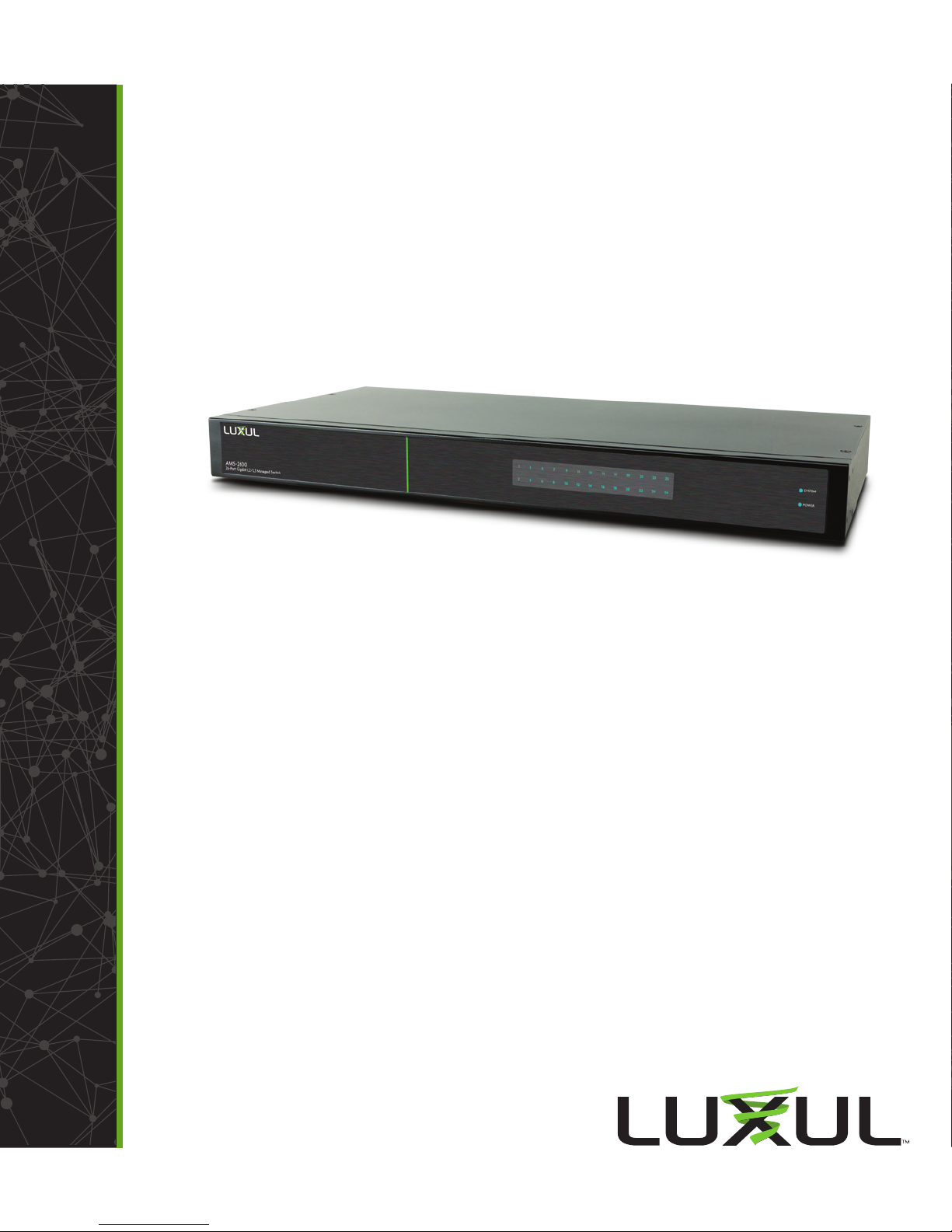
AV Series 26-Port Gigabit
Managed Switch
AMS-2600
Includes:
AMS-2600 26-Port Gigabit Managed Switch
Rack Mount Kit
Rubber Feet
Power Cable
Page 2
SETUP AND CONFIGURATION
Physical Installation
1
The AMS-2600 can be rack-mounted or used as a desktop switch. Install the
AMS-2600 in a stable/safe place to avoid any possible damage. Avoid placement in direct sunlight. Do not place heavy articles on the AMS-2600 and verify
the ground connection of the outlet is functioning properly.
Desktop/Shelf Installation
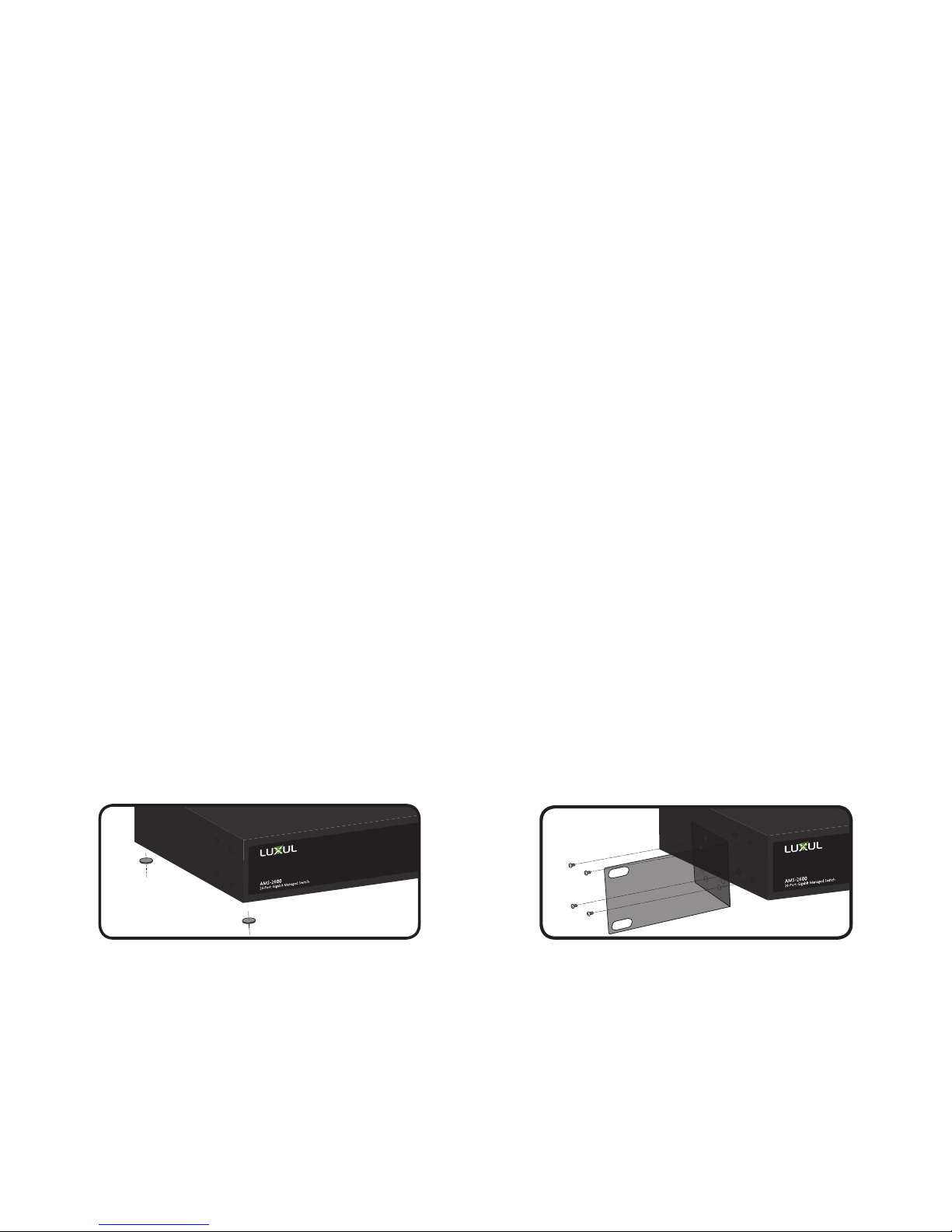
For desktop/shelf installation, attach the four rubber feet to the corner indentations on the bottom of the AMS-2600, then place the switch horizontally
on a solid, level platform.
Rack Installation
Use the included L brackets for convenient installation in a 19-inch server or
audio/video rack. Use four screws to attach the L-shaped brackets on both
sides of the AMS-2600 as shown below, then install the switch horizontally in
the rack. Use your desired hardware to ax the switch brackets to the rack.
Attach Feet for Desktop Installation Install Brackets for Rack-Mounting
Page 3

Connecting Ethernet and Power
2
Ethernet and Power Connections
Use any RJ-45 to connect the AMS-2600 to an Ethernet-enabled device,
including servers, routers or other switches. No crossover cable is necessary.
The AMS-2600 supports 10/100/1000 Mbps Ethernet; 10/100 Mbps half/
full-duplex mode and 1000 Mbps full-duplex mode.
n Note: Luxul recommends at least Cat-5e unshielded twisted pair
(CAT5e UTP) cabling. To ensure best performance and stable data
transmission at 1000 Mbps, use Category-6 unshielded twisted pair
(CAT6 UTP).
Use the included power cable to connect the AMS-2600 to a surge protected outlet. The AC input socket and a power switch are on the rear panel.
The built-in power supply supports 100~240VAC at 50/60Hz.
c CAUTION: Use only the correct power cord for your environment.
Any voltage other than standard 100/240 will result in
damage to the AMS-2600.
Page 4

Preparing for Access
3
IP Addressing
If the AMS-2600 is connected to a network with a 192.168.0.X address
scheme, and your computer shares a similar address on the same network,
you can skip to the next step, Access and Setup
n Note: If another device on your network shares the 192.168.0.2
address, you’ll need to temporarily reassign or remove that
device while you configure the AMS-2600.
If your network uses an address scheme other than 192.168.0.X, you’ll need
to set a temporary static IP address on the computer you’re using for
configuration. To do so, set the IP address of your computer to an address
in the 192.168.0.X range, then set the Gateway/Router address to 192.168.0.2
(the default IP address of the AMS-2600).
Once you’re finished configuring the switch, you can return your computer’s IP configuration to normal, typically “Obtain Automatically/DHCP.”
n Note: Visit http://luxul.com/ip-addressing to learn more about
.
changing your computer’s IP address and getting connected.
Page 5

Access and Setup
4
Getting Connected
Use an Ethernet cable to connect your computer to the AMS-2600, then power
on the switch.
Logging In
To access the AMS-2600 web configuration, open your web browser and
enter the switch’s default 192.168.0.2 IP address in the address field. Log in to
the switch using the default user name and password:
Default IP: 192.168.0.2
Username: admin
Password: admin
Select the menu items on the left to view and/or modify the configuration.
Refer to the Quick Setup Guide at Luxul.com for more detailed information on
setup, IP configuration and routing.
Page 6
Hardware Operation
5
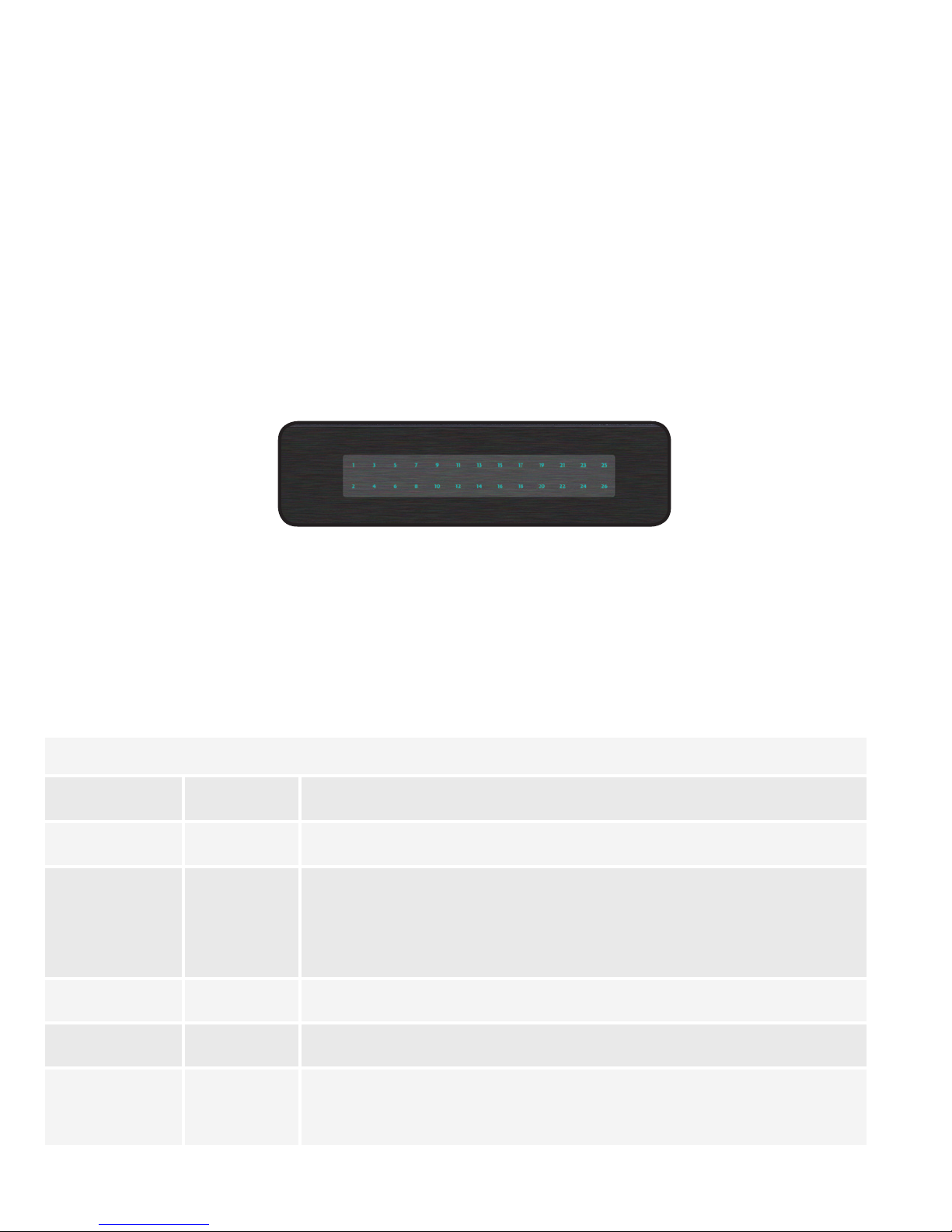
The front panel of the AMS-2600 switch features a Power LED, System LED
and a Link/Activity LED for each port. The back panel of the switch includes
(24) gigabit RJ-45 ports, two gigabit RJ-45 uplink ports with two shared SFP
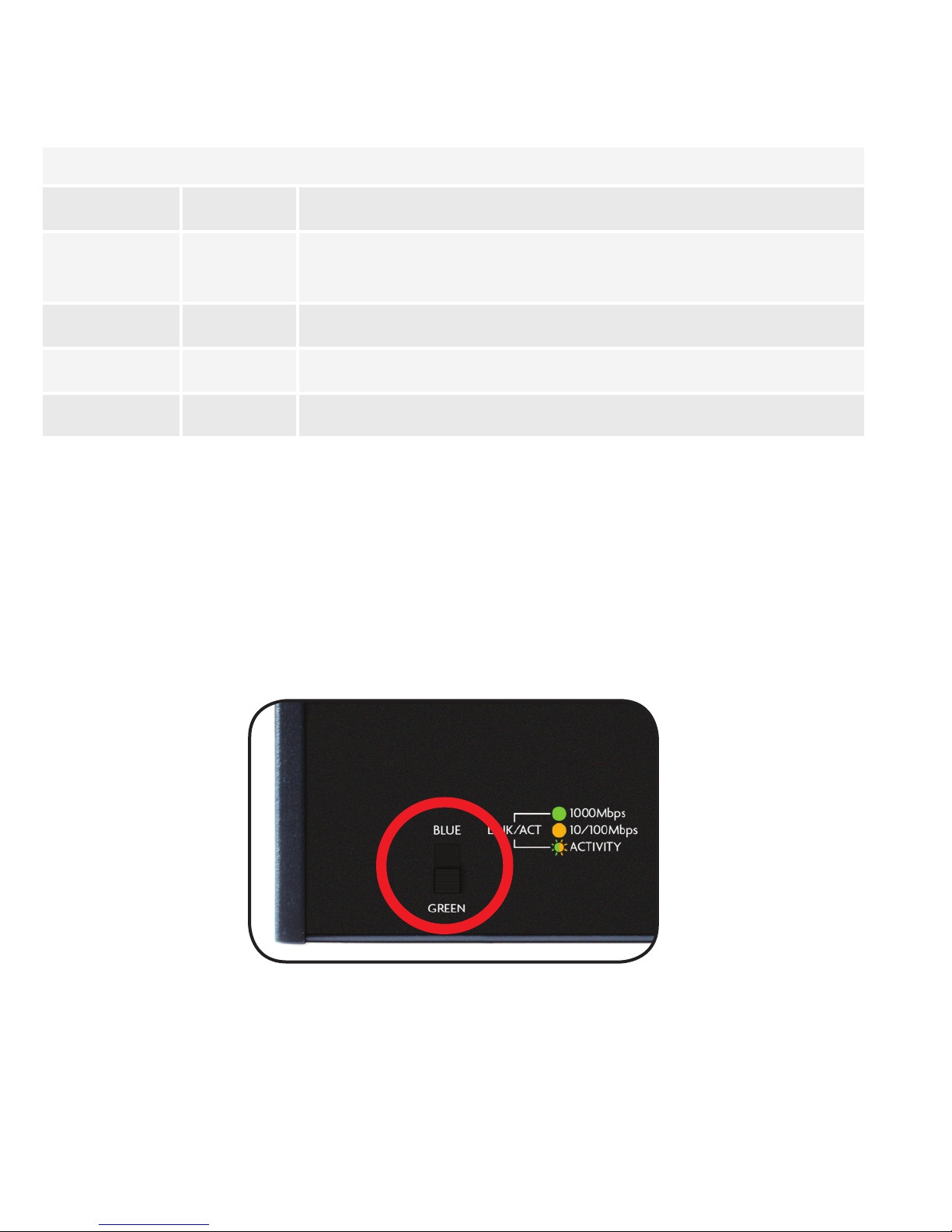
ports (combo ports), a power connector, and a switch to select blue or green
front-panel LEDs. Each Ethernet port has one LED to indicate Link/Activity as
well as connection speed.
AMS-2600 Front Panel
Status Indicators
The following table describes the LED functionality for both front and
back indicators:
Front
Indicator
Power
Link/Act
State Description
On The AMS-2600 is switched on.
O AMS-2600 is switched o or not connected to
AC power. Check power connections and power
switch at on the rear of the unit.
On Device connected to the port.
Flashing Port is receiving or transmitting data.
O No device connected to the port or the device
is o.
Page 7
Back
Indicator
Speed/
State Description
Green Gigabit device connected to the port.
Link/Act
Amber 10/100Mbps device connected to the port.
Flashing Port is receiving or transmitting data.
O No device connected to the port or device is o.
SELECTING FRONT-PANEL LED COLOR
Use the switch on the rear panel of the AMS-2600 to select either blue or
green for the Power and System LEDs on the front panel to best match the
equipment in the rack where the switch is sharing space.
AMS-2600 Selector Switch
Page 8

Sales
Technical Support
801-822-5450
[email protected]
801-822-5450
[email protected]
Copyright and Trademark Notices
No part of this document may be modified or adapted in any way, for any purposes without permission in
writing from Luxul. The material in this document is subject to change without notice. Luxul reserves the
right to make changes to any product to improve reliability, function, or design. No license is granted, either
expressly or by implication or otherwise under any Luxul intellectual property rights. An implied license
only exists for equipment, circuits and subsystems contained in this or any Luxul product.
© Copyright 2017 Luxul. All rights reserved. The name Luxul, the Luxul logo, the Luxul logo mark and Simply
Connected are all trademarks and or registered trademarks of Luxul Wireless, Inc. All other trademarks and
registered trademarks are property of their respective holders.
LUX-QIG-AMS-2600-v6 05191703
 Loading...