

Page 1

RALLY CAMERA
Setup Guide | Guide d’installation
Page 2

English . . . . . . . . . . . . . 3
Français . . . . . . . . . . . . 10
Español. . . . . . . . . . . . . 17
Português . . . . . . . . . . . 24
2
Page 3

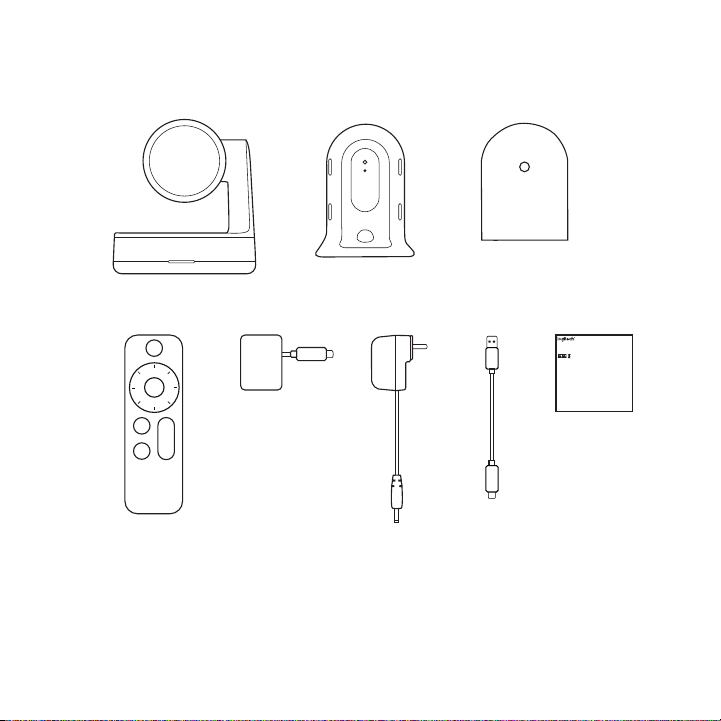
WHAT’S IN THE BOX
right
1
4
1. Camera
2. Camera Mount
3. Power Splitter Case
4. Remote
2 3
5 6 7 8
5. Power Splitter
6. Power Adapter
7. USB Cable
8. Documentation
Important Safety, Compliance and Warranty Information
Informations importantes concernant la sécurité, la mise en conformité et la garantie
FCC statement
English
This device complies with Part 15 of the FCC Rules. Operation is subject to the following
Read Manual Before Product Use.
two conditions: 1) this device may not cause harmful interference, and 2) this device must accept
any interference received, including interference that may cause undesired operation.
Note: This equipment has been tested and found to comply with the limits for a Class A
digital device, pursuant to part 15 of the FCC Rules. These limits are designed to provide
reasonable protection against harmful interference when the equipment is operated in
POWER SUPPLY WARNING! The power supply is for indoor use only. Only use the power supply
a commercial environment. This equipment generates, uses, and can radiate radio frequency
included with your product. Do not attempt to repair or use a damaged power supply. Do not
energy and, if not installed and used in accordance with the instruction manual, may cause
immerse the power supply in water or subject it to physical abuse. Inspect the power supply
harmful interference to radio communications. Operation of this equipment in a residential
regularly for cable, plug, and casing damage.
area is likely to cause harmful interference in which case the user will be required to correct
BATTERY WARNING!: Improperly replaced batteries may present a risk of leak or explosion
the interference at his own expense.
and personal injury. Mistreated rechargeable batteries may present a risk of fire or chemical
Warning: Where shielded interface cables or accessories have been provided with the
burn. Do not disassemble or expose to conducting materials, moisture, liquid, or heat above
product or specified additional components or accessories elsewhere defined to be used with
54° C (130° F). Do not use or charge the battery if it appears to be leaking, discolored, deformed,
the installation of the product, they must be used in order to ensure compliance with FCC.
or in any way abnormal. Do not leave your battery discharged or unused for extended periods.
Changes or modifications to product not expressly approved by Logitech, Inc could void your
Do not short circuit. Your device may contain an internal, rechargeable battery that is not
to use or operate your product by the FCC.
replaceable. Battery life varies with usage. Non-operational batteries should be discarded
Radiation Exposure Statement: This equipment complies with FCC and IC radiation exposure
according to local laws. If no laws or regulations govern, dispose of your device in a waste bin
limits set forth for an uncontrolled environment. This equipment should be installed and operated
for electronics. Keep batteries away from children.
with minimum distance 20cm between the radiator & your body.
BUTTON BATTERIES—WARNING! Coin-sized and button batteries may be easily swallowed,
Caution: (i) the device for operation in the band 5150-5250 MHz is only for indoor use to reduce
which may cause personal injury and death in children and senior citizens. Keep these batteries
the potential for harmful interference to co-channel mobile satellite systems; (ii) high-power
away from children! Do not allow children to play with or be in contact with these batteries
radars are allocated as primary users (i.e. priority users) of the bands 5250-5350 MHz and 5650-
or this product at any time. Add further security to the battery compartment as necessary.
5850 MHz and that these radars could cause interference and/or damage to LE-LAN devices.
Never place batteries in your mouth for any reason as they may be swallowed accidentally.
IC statement: CAN ICES-3 (A) / NMB-3 Class (A)
Always check medication before ingesting as adults have mistaken button batteries for pills or
This device complies with Industry Canada's licence-exempt RSSs. Operation is subject to the
tablets. If a button battery is ingested, seek medical attention immediately. Contact the National
following two conditions: (1) This device may not cause interference; and (2) This device must
Battery Ingestion Hotline at (202) 625-3333. It is available 24 hours a day.
accept any interference, including interference that may cause undesired operation of the device.
Safe Usage Guidelines for Products
Warning
• Do not open or modify the product except for battery removal and replacement.
This is a class A product. In a domestic environment this product may cause radio interference
• Do not disassemble or attempt to service this product.
in which case the user may be required to take adequate measures.
• This product is safe under normal and reasonably foreseeable operating conditions.
Logitech Limited Hardware Product Warranty – A Summary
• If product is operating improperly, please contact Logitech support.
Logitech warrants that its hardware product shall be free from defects in materials and
• Product must be returned to the manufacturer for any service or repair.
workmanship for the length of time identified on your product package beginning from the date
• This is not a Children's Product and is not intended for use by children under 14 years old.
of the original retail purchase. See support.logitech.com for specific warranty information about
• Warning: Not suitable for children under 36 months. Small parts. Choking hazard.
your product and procedures to act on a warranty claim.
• Mount device properly according to the provided instructions. Improper installation of
Logitech’s entire liability and your exclusive remedy for any breach of warranty shall be,
this product may cause damage or injury.
at Logitech’s option, to repair or replace a functional equivalent of the product, or to refund
Logitech Compliance. For Product Safety, EMC, RF and Energy information,
the price paid, if the hardware is returned to the point of purchase or such other place as Logitech
go to www.logitech.com/compliance. Maintenance is not required for product compliance.
may direct along with a receipt. Warranty protections are in addition to rights provided under
local consumer laws and may vary among countries. See full warranty information to know
your consumer rights and the additional protections provided by this product warranty.
Logitech Address: Logitech, Inc., 7700 Gateway Blvd. Newark, California 94560.
Full Warranty Information: support.logitech.com
English 3
Page 4

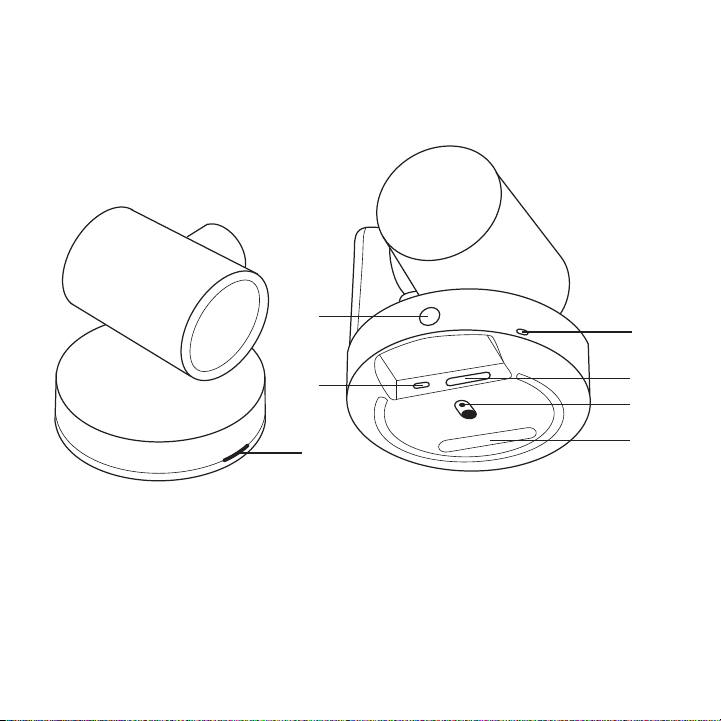
WHAT’S WHAT
CAMERA
1. Remote Pairing Button
2. USB
3. Status LED
4 English
1
2
3
4
5
6
7
4. Security Slot
5. MIPI
6. Tripod Thread
7. Expansion Slot
Page 5

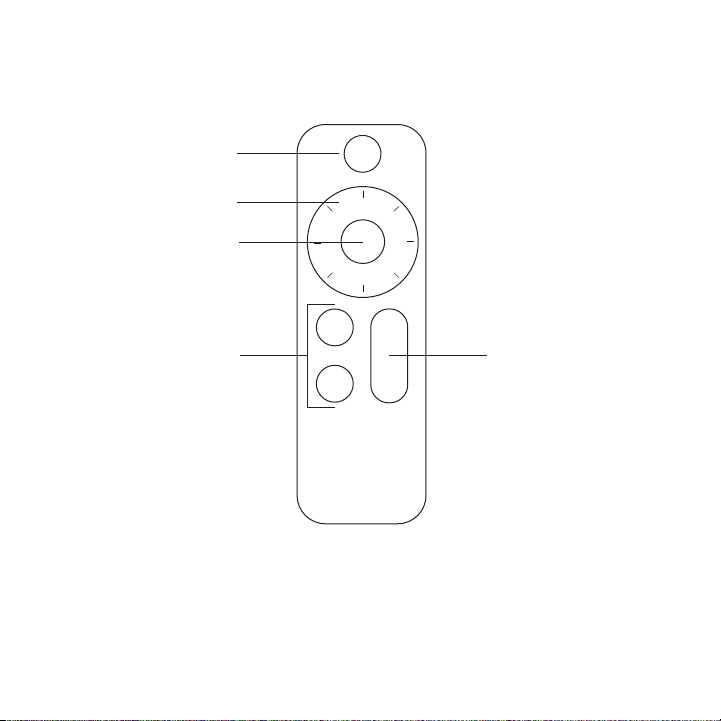
REMOTE
1
2
3
4 5
1. Video Mute
2. Pan/Tilt
3. Camera Home
4. Camera Presets
5. Zoom In/Out
English 5
Page 6

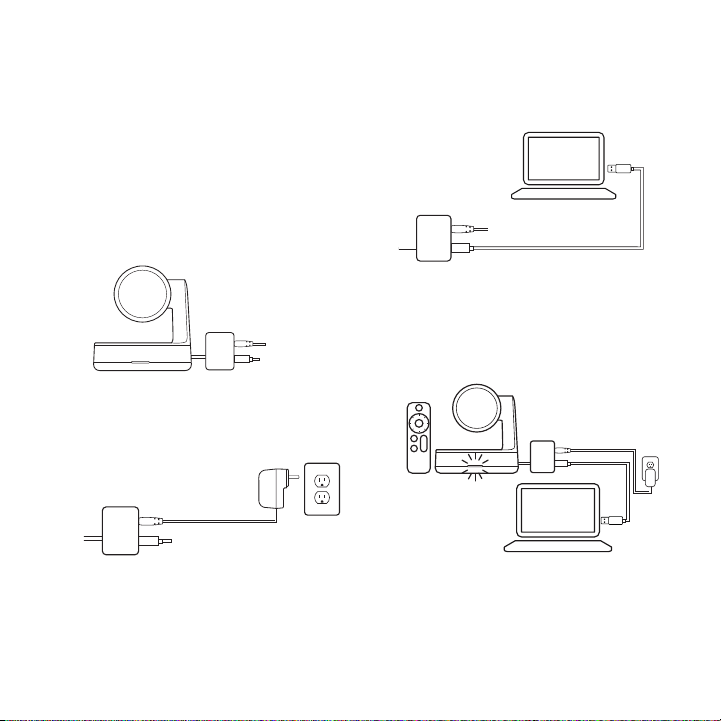
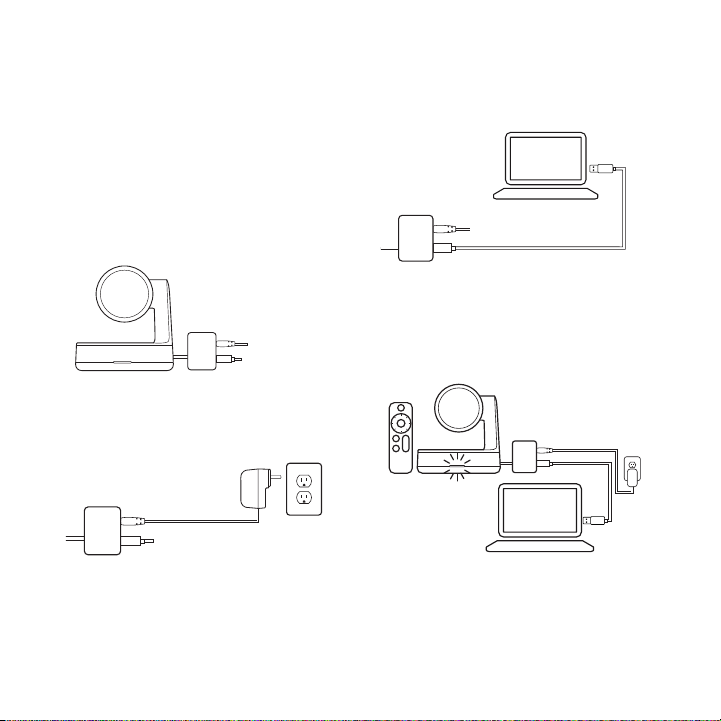
CONNECT YOUR CAMERA
Connecting Rally Camera is the same
whether you plan on using a dedicated
computer in the room, or your team
members bring a laptop to the room
to run the meeting.
1. Plug the power splitter USB pigtail
into the USB port of the camera.
2. Connect the power adapter from
the power splitter to a wall outlet.
3. Connect the USB cable from
the power splitter to your computer.
4. The status LED will ash when
the camera is connecting.
Once complete, the camera head
will rotate.
5. If issues persist, consult
www.logitech.com/support/
rallycamera or call technical support.
6 English
Page 7

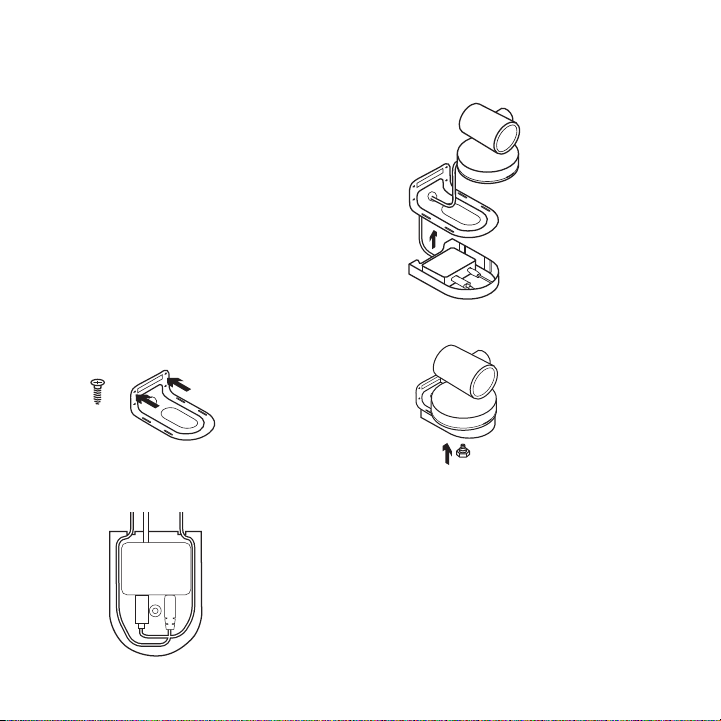
MOUNT YOUR CAMERA
We oer a numer of options to mount
your Rally Camera. For video calls,
we recommend placing the camera as
close to eye level as possible. Best results
typically come from mounting below
the T V.
1. Place on a table or shelf near the TV.
2. Mount on the wall:
a. Attach wall mount to the wall.
Please use the appropriate screw
type for your wall type.
c. Thread the USB pigtail through
the hole in the bottom of
the mount and connect to
the camera.
x2
b. Insert the power splitter into
the power splitter case and route
cables as shown.
d. Latch the power splitter case
to the mount.
e. Secure the camera to the mount
via the tripod screw.
3. Mount to the TV: An optional
TV mount bracket is available
at www.logitech.com.
English 7
Page 8

STARTING THE VIDEO CALL
To start a video call/capture session, start
your application of choice and select
the Rally Camera. The status LED will
illuminate when video is streamed.
Note regarding 4K video: The USB
2.0 cable included with Rally Camera
supports Full HD video (up to 1080p).
If you require 4K video, please use
a USB 3.0 cable (not included).
PAN AND TILT
Press once for incremental movement or
press and hold for continuous pan and tilt.
Caution: Manually rotating camera
head may damage the device.
CAMERA PRESETS
Set up to 2 preset positions. Once in the
desired position, save a preset by pressing
and holding the button for 3 seconds.
Return to the desired position at any time
by pressing the button once
HOME
Home will be the position the camera
moves to when the camera is started.
Save a new Home position by holding
the button for 10 seconds.
8 English
CAMERA SETTINGS
APPLICATION
Use this program to control the camera
pan, tilt, zoom, focus, and image
quality (like brightness and contrast).
The software can be downloaded from
www.logitech.com/support/rallycamera
RIGHTSIGHT
This function to automatically frame the
people in the room will be downloaded
after the camera is rst connected to
a computer (Windows only). To enable
the function on a Mac or if the download
is blocked on Windows, install the Camera
Settings Application. RightSight will run
at the start of a video call/capture session
and on demand by pressing the Home
button. To disable the RightSight function,
use the Camera Settings Application.
Page 9

PAIRING THE REMOTE
Your camera and remote control are paired at the factory. However, if you need to pair
a remote to the camera (such as when replacing a lost remote) do the following:
1. Press and hold button on the back of the camera until LED ashes blue.
2. Press and hold the Video Mute button on the remote for 10 seconds to place it
in pairing mode.
3. Once the remote and camera are paired the LED will stop ashing
4. If the pairing fails, the LED will keep ashing. Start from step 2 and repeat.
FOR MORE INFORMATION
You can nd additional information on Rally including:
– FAQ s
– Firmware Upgrades
– Software Downloads
– Support Community
– Warranty Information
– Replacement Parts
– And more at
www.logitech.com/support/rallycamera
English 9
Page 10

CONTENU DU COFFRET
right
1
4
5 6 7 8
2 3
1. Caméra
2. Support de caméra
3. Boitier pour répartiteur de puissance
4. Télécommande
10 Français
Important Safety, Compliance and Warranty Information
Informations importantes concernant la sécurité, la mise en conformité et la garantie
English
Read Manual Before Product Use.
POWER SUPPLY WARNING! The power supply is for indoor use only. Only use the power supply
included with your product. Do not attempt to repair or use a damaged power supply. Do not
immerse the power supply in water or subject it to physical abuse. Inspect the power supply
regularly for cable, plug, and casing damage.
BATTERY WARNING!: Improperly replaced batteries may present a risk of leak or explosion
and personal injury. Mistreated rechargeable batteries may present a risk of fire or chemical
burn. Do not disassemble or expose to conducting materials, moisture, liquid, or heat above
54° C (130° F). Do not use or charge the battery if it appears to be leaking, discolored, deformed,
or in any way abnormal. Do not leave your battery discharged or unused for extended periods.
Do not short circuit. Your device may contain an internal, rechargeable battery that is not
replaceable. Battery life varies with usage. Non-operational batteries should be discarded
according to local laws. If no laws or regulations govern, dispose of your device in a waste bin
for electronics. Keep batteries away from children.
BUTTON BATTERIES—WARNING! Coin-sized and button batteries may be easily swallowed,
which may cause personal injury and death in children and senior citizens. Keep these batteries
away from children! Do not allow children to play with or be in contact with these batteries
or this product at any time. Add further security to the battery compartment as necessary.
Never place batteries in your mouth for any reason as they may be swallowed accidentally.
Always check medication before ingesting as adults have mistaken button batteries for pills or
tablets. If a button battery is ingested, seek medical attention immediately. Contact the National
Battery Ingestion Hotline at (202) 625-3333. It is available 24 hours a day.
Safe Usage Guidelines for Products
• Do not open or modify the product except for battery removal and replacement.
• Do not disassemble or attempt to service this product.
• This product is safe under normal and reasonably foreseeable operating conditions.
• If product is operating improperly, please contact Logitech support.
• Product must be returned to the manufacturer for any service or repair.
• This is not a Children's Product and is not intended for use by children under 14 years old.
• Warning: Not suitable for children under 36 months. Small parts. Choking hazard.
• Mount device properly according to the provided instructions. Improper installation of
this product may cause damage or injury.
Logitech Compliance. For Product Safety, EMC, RF and Energy information,
go to www.logitech.com/compliance. Maintenance is not required for product compliance.
5. Répartiteur de puissance
6. Adaptateur secteur
7. Câble USB
8. Documentation
FCC statement
This device complies with Part 15 of the FCC Rules. Operation is subject to the following
two conditions: 1) this device may not cause harmful interference, and 2) this device must accept
any interference received, including interference that may cause undesired operation.
Note: This equipment has been tested and found to comply with the limits for a Class A
digital device, pursuant to part 15 of the FCC Rules. These limits are designed to provide
reasonable protection against harmful interference when the equipment is operated in
a commercial environment. This equipment generates, uses, and can radiate radio frequency
energy and, if not installed and used in accordance with the instruction manual, may cause
harmful interference to radio communications. Operation of this equipment in a residential
area is likely to cause harmful interference in which case the user will be required to correct
the interference at his own expense.
Warning: Where shielded interface cables or accessories have been provided with the
product or specified additional components or accessories elsewhere defined to be used with
the installation of the product, they must be used in order to ensure compliance with FCC.
Changes or modifications to product not expressly approved by Logitech, Inc could void your
to use or operate your product by the FCC.
Radiation Exposure Statement: This equipment complies with FCC and IC radiation exposure
limits set forth for an uncontrolled environment. This equipment should be installed and operated
with minimum distance 20cm between the radiator & your body.
Caution: (i) the device for operation in the band 5150-5250 MHz is only for indoor use to reduce
the potential for harmful interference to co-channel mobile satellite systems; (ii) high-power
radars are allocated as primary users (i.e. priority users) of the bands 5250-5350 MHz and 56505850 MHz and that these radars could cause interference and/or damage to LE-LAN devices.
IC statement: CAN ICES-3 (A) / NMB-3 Class (A)
This device complies with Industry Canada's licence-exempt RSSs. Operation is subject to the
following two conditions: (1) This device may not cause interference; and (2) This device must
accept any interference, including interference that may cause undesired operation of the device.
Warning
This is a class A product. In a domestic environment this product may cause radio interference
in which case the user may be required to take adequate measures.
Logitech Limited Hardware Product Warranty – A Summary
Logitech warrants that its hardware product shall be free from defects in materials and
workmanship for the length of time identified on your product package beginning from the date
of the original retail purchase. See support.logitech.com for specific warranty information about
your product and procedures to act on a warranty claim.
Logitech’s entire liability and your exclusive remedy for any breach of warranty shall be,
at Logitech’s option, to repair or replace a functional equivalent of the product, or to refund
the price paid, if the hardware is returned to the point of purchase or such other place as Logitech
may direct along with a receipt. Warranty protections are in addition to rights provided under
local consumer laws and may vary among countries. See full warranty information to know
your consumer rights and the additional protections provided by this product warranty.
Logitech Address: Logitech, Inc., 7700 Gateway Blvd. Newark, California 94560.
Full Warranty Information: support.logitech.com
Page 11
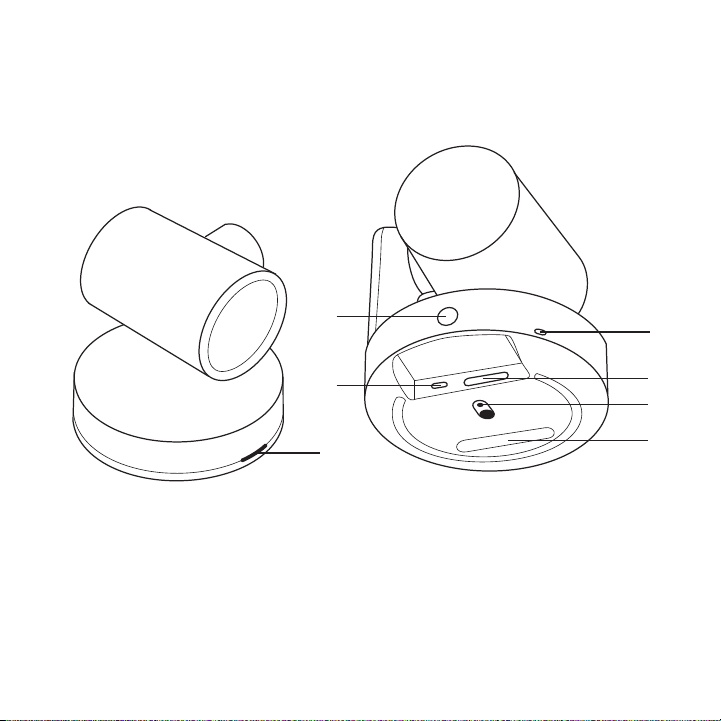
DISPOSITIF
CAMÉRA
1. Bouton de couplage à distance
2. USB
3. Témoin d'état
1
2
3
4. Emplacement de sécurité
5. MIPI
6. Filetage du trépied
7. Fente d'extension
4
5
6
7
Français 11
Page 12
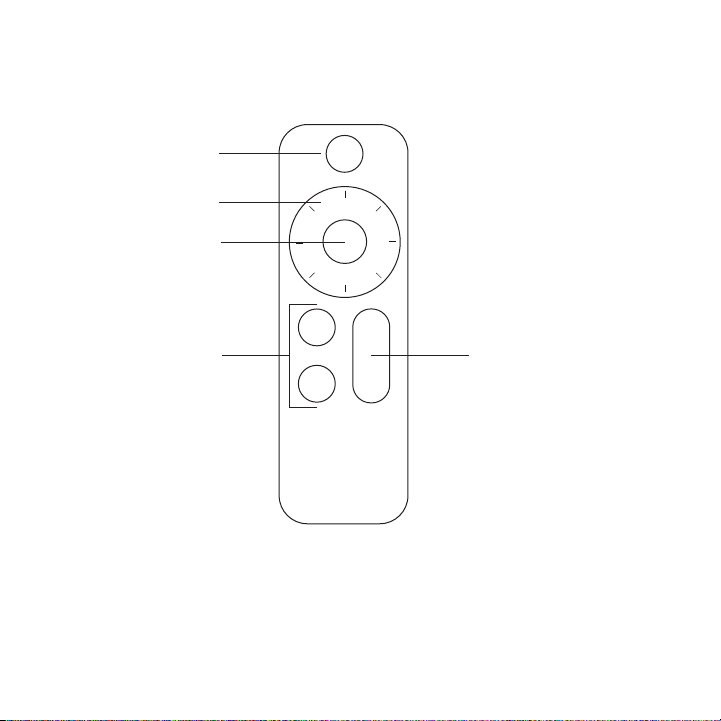
TÉLÉCOMMANDE
1
2
3
4 5
1. Coupure de la vidéo
2. Panoramique et inclinaison
3. Accueil de la caméra
12 Français
4. Préréglages de la caméra
5. Zoom avant/arrière
Page 13
CONNECTER VOTRE CAMÉRA
Que vous utilisiez un ordinateur
dédié dans la salle de réunion ou que
les membres de votre équipe y apportent
un ordinateur portable, le processus
de connexion de la caméra Rally reste
le même.
1. Branchez le connecteur du répartiteur
de puissance USB dans le port USB de
la caméra.
2. Connectez l'adaptateur secteur
du répartiteur de puissance
à une prise murale.
3. Connectez le câble USB du répartiteur
de puissance à votre ordinateur.
4. Le témoin lumineux clignote lorsque
la caméra est en cours de connexion.
Une fois la connexion terminée,
la caméra pivote.
5. Si le problème persiste, rendez-vous
sur www.logitech.com/support/
rallycamera ou contactez le support
technique.
Français 13
Page 14
MONTER VOTRE CAMÉRA
Nous proposons de nombreuses possibilités pour monter votre caméra Rally.
Pour les appels vidéo, nous vous recommandons de positionner la caméra
à hauteur des yeux, dans la mesure
du possible. Les résultats obtenus sont
généralement bien meilleurs lorsque
le dispositif est installé en dessous
du téléviseur.
1. Placez la caméra sur une table ou
une étagère à côté du téléviseur.
2. Montez le dispositif au mur:
a. Fixez le support mural au mur.
Utilisez des vis adaptées à
votre type de mur.
x2
b. Insérez le répartiteur de puissance
dans le boîtier dédié et placez
les câbles comme indiqué.
c. Faites passer le connecteur USB
dans le trou situé au bas du support
et connectez-le à la caméra.
d. Assemblez le boîtier du répartiteur
de puissance sur le support.
e. Fixez la caméra au support via la vis
du trépied.
3. Montage sur un téléviseur:
Un support pour téléviseur (en option)
est disponible sur www.logitech.com.
14 Français
Page 15

DÉMARRER UN APPEL VIDÉO
Pour démarrer une session d'appel/
de capture vidéo, lancez l'application
de votre choix et sélectionnez
la caméra Rally. Le témoin lumineux
s'allume pendant la diusion de la vidéo.
Remarque concernant la vidéo 4K:
le câble USB 2.0 fourni avec la caméra
Rally prend en charge les vidéos Full HD
jusqu'à 1080p. Si vous souhaitez utiliser
le format vidéo 4K, veuillez utiliser
un câble USB 3.0 (non fourni).
PANORAMIQUE ET
INCLINAISON
Pour un réglage progressif, procédez
par pressions courtes; pour un contrôle
Panoramique et Inclinaison continu,
maintenez une pression longue.
Attention: la rotation manuelle de
la tête de la caméra peut endommager
le dispositif.
PRÉRÉGLAGES DE LA CAMÉRA
Vous pouvez congurer jusqu'à 2 positions
de préréglage de la caméra. Une
fois dans la position de votre choix,
enregistrez un préréglage en maintenant
le bouton enfoncé pendant 3 secondes.
Vous pouvez revenir à tout moment
à la position que vous avez dénie
en appuyant sur le bouton
PAGE D'ACCUEIL
La position d'origine est la position
de la caméra lorsqu'elle démarre.
Enregistrez une nouvelle position d'origine
en maintenant le bouton enfoncé
pendant 10 secondes.
APPLICATION
CAMERASETTINGS
Utilisez ce programme pour contrôler
les fonctions de panoramique et
d'inclinaison, le zoom, la mise au point
et la qualité d'image de la caméra
(comme la luminosité et le contraste).
Le logiciel est téléchargeable sur
www.logitech.com/support/rallycamera
RIGHTSIGHT
Cette fonction permettant de cadrer
automatiquement les personnes
dans la pièce sera téléchargée après
la première connexion de la caméra
à un ordinateur (Windows uniquement).
Français 15
Page 16

Pour activer la fonction sur un Mac ou si le téléchargement est bloqué sur Windows,
installez l'application Camera Settings. RightSight s'exécutera au lancement d'une
session d'appel/de capture vidéo et sur demande en appuyant sur le bouton d'accueil.
Pour désactiver la fonction RightSight, utilisez l'application Camera Settings.
COUPLAGE DE LA TÉLÉCOMMANDE
Votre caméra et sa télécommande sont couplées en usine. Cependant, si vous souhaitez
coupler une autre télécommande avec la caméra (lorsque vous avez égaré
la télécommande d'origine, par exemple), procédez comme suit:
1. Maintenez appuyé le bouton à l'arrière de la caméra jusqu'à ce que le témoin
lumineux clignote en bleu.
2. Appuyez sur le bouton Coupure de la vidéo de la télécommande pendant
10 secondes pour la passer en mode de couplage.
3. Une fois la télécommande et la caméra couplées, le témoin lumineux cesse
de clignoter
4. Si le couplage échoue, le témoin lumineux continuera de clignoter.
Reprenez l'ensemble de la procédure à partir de la deuxième étape.
POUR EN SAVOIR PLUS
Des informations supplémentaires sur la caméra Rally sont disponibles, notamment:
– Les questions fréquentes
– Les mises à niveau du micrologiciel
– Le téléchargement de logiciels
– La communauté d'entraide
– Des informations sur la garantie
– Les pièces de remplacement
– Et bien plus encore, à l'adresse
www.logitech.com/support/rallycamera
16 Français
Page 17
CONTENIDO DE LA CAJA
right
1
4
1. Cámara
2. Soporte de cámara
3. Caja del divisor de alimentación
4. Control remoto
5 6 7 8
2 3
5. Divisor de alimentación
6. Adaptador de alimentación
7. Cable USB
8. Documentación
Important Safety, Compliance and Warranty Information
Informations importantes concernant la sécurité, la mise en conformité et la garantie
FCC statement
English
This device complies with Part 15 of the FCC Rules. Operation is subject to the following
Read Manual Before Product Use.
two conditions: 1) this device may not cause harmful interference, and 2) this device must accept
any interference received, including interference that may cause undesired operation.
Note: This equipment has been tested and found to comply with the limits for a Class A
digital device, pursuant to part 15 of the FCC Rules. These limits are designed to provide
reasonable protection against harmful interference when the equipment is operated in
POWER SUPPLY WARNING! The power supply is for indoor use only. Only use the power supply
a commercial environment. This equipment generates, uses, and can radiate radio frequency
included with your product. Do not attempt to repair or use a damaged power supply. Do not
energy and, if not installed and used in accordance with the instruction manual, may cause
immerse the power supply in water or subject it to physical abuse. Inspect the power supply
harmful interference to radio communications. Operation of this equipment in a residential
regularly for cable, plug, and casing damage.
area is likely to cause harmful interference in which case the user will be required to correct
BATTERY WARNING!: Improperly replaced batteries may present a risk of leak or explosion
the interference at his own expense.
and personal injury. Mistreated rechargeable batteries may present a risk of fire or chemical
Warning: Where shielded interface cables or accessories have been provided with the
burn. Do not disassemble or expose to conducting materials, moisture, liquid, or heat above
product or specified additional components or accessories elsewhere defined to be used with
54° C (130° F). Do not use or charge the battery if it appears to be leaking, discolored, deformed,
the installation of the product, they must be used in order to ensure compliance with FCC.
or in any way abnormal. Do not leave your battery discharged or unused for extended periods.
Changes or modifications to product not expressly approved by Logitech, Inc could void your
Do not short circuit. Your device may contain an internal, rechargeable battery that is not
to use or operate your product by the FCC.
replaceable. Battery life varies with usage. Non-operational batteries should be discarded
Radiation Exposure Statement: This equipment complies with FCC and IC radiation exposure
according to local laws. If no laws or regulations govern, dispose of your device in a waste bin
limits set forth for an uncontrolled environment. This equipment should be installed and operated
for electronics. Keep batteries away from children.
with minimum distance 20cm between the radiator & your body.
BUTTON BATTERIES—WARNING! Coin-sized and button batteries may be easily swallowed,
Caution: (i) the device for operation in the band 5150-5250 MHz is only for indoor use to reduce
which may cause personal injury and death in children and senior citizens. Keep these batteries
the potential for harmful interference to co-channel mobile satellite systems; (ii) high-power
away from children! Do not allow children to play with or be in contact with these batteries
radars are allocated as primary users (i.e. priority users) of the bands 5250-5350 MHz and 5650-
or this product at any time. Add further security to the battery compartment as necessary.
5850 MHz and that these radars could cause interference and/or damage to LE-LAN devices.
Never place batteries in your mouth for any reason as they may be swallowed accidentally.
IC statement: CAN ICES-3 (A) / NMB-3 Class (A)
Always check medication before ingesting as adults have mistaken button batteries for pills or
This device complies with Industry Canada's licence-exempt RSSs. Operation is subject to the
tablets. If a button battery is ingested, seek medical attention immediately. Contact the National
following two conditions: (1) This device may not cause interference; and (2) This device must
Battery Ingestion Hotline at (202) 625-3333. It is available 24 hours a day.
accept any interference, including interference that may cause undesired operation of the device.
Safe Usage Guidelines for Products
Warning
• Do not open or modify the product except for battery removal and replacement.
This is a class A product. In a domestic environment this product may cause radio interference
• Do not disassemble or attempt to service this product.
in which case the user may be required to take adequate measures.
• This product is safe under normal and reasonably foreseeable operating conditions.
Logitech Limited Hardware Product Warranty – A Summary
• If product is operating improperly, please contact Logitech support.
Logitech warrants that its hardware product shall be free from defects in materials and
• Product must be returned to the manufacturer for any service or repair.
workmanship for the length of time identified on your product package beginning from the date
• This is not a Children's Product and is not intended for use by children under 14 years old.
of the original retail purchase. See support.logitech.com for specific warranty information about
• Warning: Not suitable for children under 36 months. Small parts. Choking hazard.
your product and procedures to act on a warranty claim.
• Mount device properly according to the provided instructions. Improper installation of
Logitech’s entire liability and your exclusive remedy for any breach of warranty shall be,
this product may cause damage or injury.
at Logitech’s option, to repair or replace a functional equivalent of the product, or to refund
Logitech Compliance. For Product Safety, EMC, RF and Energy information,
the price paid, if the hardware is returned to the point of purchase or such other place as Logitech
go to www.logitech.com/compliance. Maintenance is not required for product compliance.
may direct along with a receipt. Warranty protections are in addition to rights provided under
local consumer laws and may vary among countries. See full warranty information to know
your consumer rights and the additional protections provided by this product warranty.
Logitech Address: Logitech, Inc., 7700 Gateway Blvd. Newark, California 94560.
Full Warranty Information: support.logitech.com
Español 17
Page 18
QUÉ ES CADA COSA
CÁMARA
1. Botón de emparejamiento
de control remoto
2. USB
3. LED de estado
18 Español
1
2
3
4. Conector de seguridad
5. MIPI
6. Adaptador para trípode
7. Ranura de expansión
4
5
6
7
Page 19
CONTROL REMOTO
1
2
3
4 5
1. Desactivar video
2. Panorámica/Inclinación
3. Centrar cámara
4. Preajustes de cámara
5. Zoom para ampliar/reducir
Español 19
Page 20
CONEXIÓN DE LA CÁMARA
La conexión de la cámara Rally
es la misma tanto si piensas usar
una computadora exclusiva en la sala
como si los miembros del equipo
llevan una laptop a la sala para realizar
la reunión.
1. Conecta el cable exible de conexión
USB del divisor de alimentación
al puerto USB de la cámara.
2. Conecta el adaptador de
alimentación del divisor
de alimentación a una toma de pared.
3. Conecta el cable USB del divisor
de alimentación a la computadora.
4. El LED de estado emitirá destellos
mientras se establece la conexión.
Una vez establecida, el cabezal de
la cámara girará.
5. Si los problemas persisten,
consulta www.logitech.com/
support/rallycamera o llama
a asistencia técnica.
20 Español
Page 21
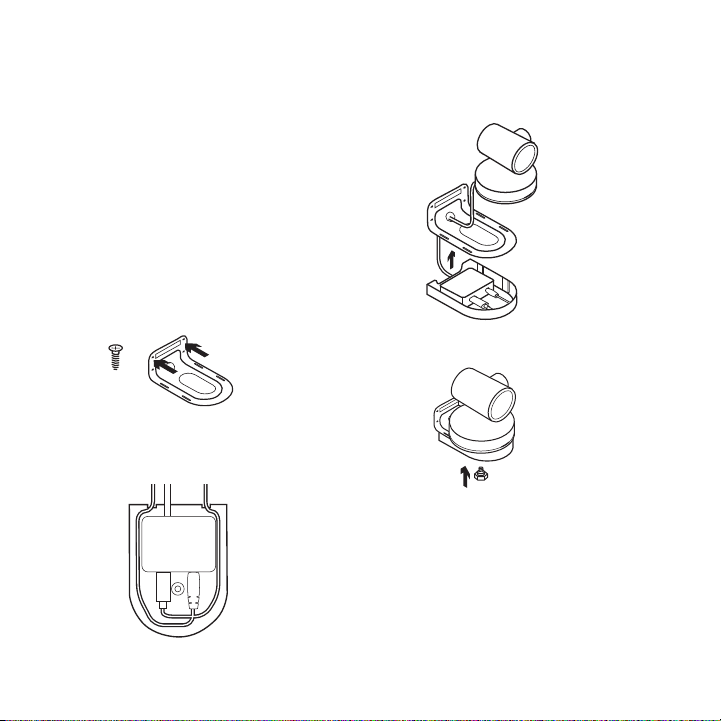
MONTAJE DE LA CÁMARA
Ofrecemos diversas opciones
para montar la cámara Rally.
Para videoconferencias, recomendamos
colocar la cámara lo más cerca posible
de la altura de la mirada. Los mejores
resultados suelen obtenerse con
el montaje debajo del televisor.
1. Coloca en una mesa o estante cerca
del televisor.
2. Montaje en la pared:
a. Fija el soporte de pared a la pared.
Usa el tipo de tornillos adecuado
para el tipo de pared.
x2
b. Inserta el divisor de alimentación en
la caja del divisor de alimentación
y pasa los cables como se indica.
c. Pasa el cable exible de conexión
USB a través del oricio en la parte
inferior del soporte y conéctalo
a la cámara.
d. Encaja la caja del divisor
de alimentación en el soporte.
e. Asegura la cámara al soporte
mediante el tornillo del trípode.
3. Montaje en el televisor:
En www.logitech.com encontrarás
un soporte de montaje en televisor
opcional.
Español 21
Page 22

INICIO DE
UNAVIDEOCONFERENCIA
Para iniciar una sesión de llamada/captura
de video, inicia tu aplicación preferida
y selecciona la cámara Rally. El LED
de estado de la cámara se iluminará
al iniciarse el streaming de video.
Nota sobre video 4K: El cable USB 2.0
incluido con la cámara Rally admite video
Full HD (hasta 1080p). Si necesitas video
4K, usa un cable USB 3.0 (no incluido).
PANORÁMICA E INCLINACIÓN
Pulsa una vez para incrementar
gradualmente el movimiento, o mantén
la pulsación para un incremento de
panorámica e inclinación continuado.
Precaución: La rotación manual
del cabezal de la cámara puede dañar
el dispositivo.
PREAJUSTES DE CÁMARA
Puedes congurar hasta dos posiciones
predeterminadas. Una vez en la
posición deseada, guarda un preajuste
presionando y manteniendo presionado
el botón durante tres segundos.
Vuelve a la posición deseada en cualquier
momento pulsando una vez el botón.
INICIO
Inicio será la posición a la que se mueva
la cámara cuando se inicia la cámara.
Para guardar una nueva posición de inicio,
mantén presionado el botón durante diez
segundos.
APLICACIÓN CAMERA
SETTINGS
Usa este programa para controlar
la panorámica, la inclinación, el zoom,
el enfoque y la calidad de imagen
(como el brillo y el contraste).
El software se puede descargar desde
www.logitech.com/support/rallycamera
RIGHTSIGHT
Esta función para encuadrar
automáticamente a la gente de
la sala se descargará después de que
la cámara se conecte por primera vez
a una computadora (sólo Windows).
Para activar la función en una Mac, o si
la descarga está bloqueada en Windows,
instala la aplicación Camera Settings.
RightSight se ejecutará al inicio de una
sesión de llamada/captura de video y bajo
demanda al presionar el botón de inicio.
Para desactivar la función RightSight,
usa la aplicación Camera Settings.
22 Español
Page 23

EMPAREJAMIENTO DEL CONTROL REMOTO
La cámara y el remoto vienen emparejados de fábrica. Sin embargo, si tiene
que emparejar un remoto con la cámara (como al sustituir un remoto extraviado),
haz lo siguiente:
1. Mantén pulsado el botón en la parte posterior de la cámara hasta que el LED
emita destellos azules.
2. Mantén pulsado el botón de desactivación de video en el remoto durante
10 segundos para activar el modo de emparejamiento.
3. Cuando el remoto y la cámara estén emparejados, el LED dejará de emitir destellos.
4. Si el emparejamiento falla, el LED seguirá emitiendo destellos. Inicia desde el paso
2 y repite.
PARA OBTENER MÁS INFORMACIÓN
Encontraré información adicional sobre Rally, que incluye:
– Preguntas más habituales
– Actualizaciones de rmware
– Descargas de software
– Comunidad de asistencia
– Información de garantía
– Piezas de recambio
– Y más en
www.logitech.com/support/rallycamera
Español 23
Page 24
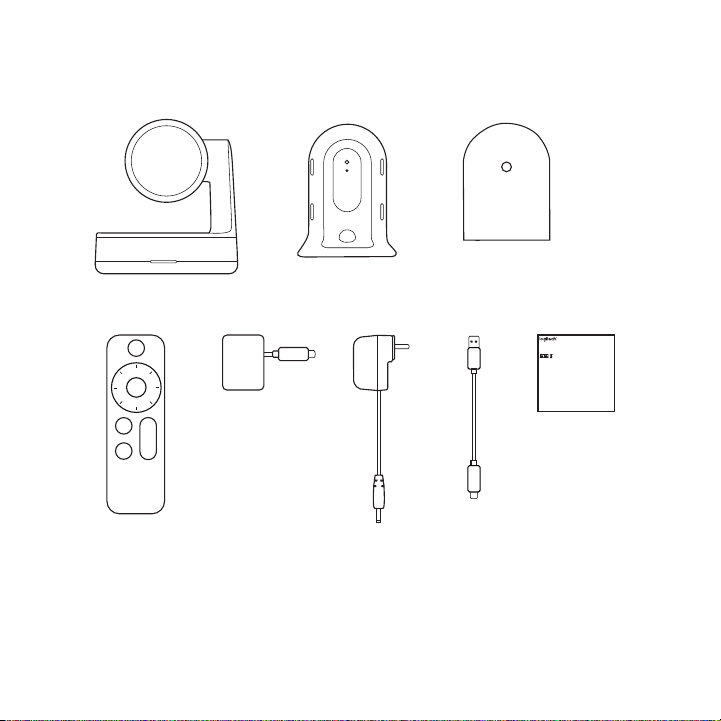
CONTEÚDO DA CAIXA
right
1
4
1. Câmera
2. Suporte da câmera
3. Estojo do separador de energia
4. Controle remoto
24 Português
5 6 7 8
2 3
5. Separador de energia
6. Adaptador de alimentação
7. Cabo USB
8. Documentação
Important Safety, Compliance and Warranty Information
Informations importantes concernant la sécurité, la mise en conformité et la garantie
FCC statement
English
This device complies with Part 15 of the FCC Rules. Operation is subject to the following
Read Manual Before Product Use.
two conditions: 1) this device may not cause harmful interference, and 2) this device must accept
any interference received, including interference that may cause undesired operation.
Note: This equipment has been tested and found to comply with the limits for a Class A
digital device, pursuant to part 15 of the FCC Rules. These limits are designed to provide
reasonable protection against harmful interference when the equipment is operated in
POWER SUPPLY WARNING! The power supply is for indoor use only. Only use the power supply
a commercial environment. This equipment generates, uses, and can radiate radio frequency
included with your product. Do not attempt to repair or use a damaged power supply. Do not
energy and, if not installed and used in accordance with the instruction manual, may cause
immerse the power supply in water or subject it to physical abuse. Inspect the power supply
harmful interference to radio communications. Operation of this equipment in a residential
regularly for cable, plug, and casing damage.
area is likely to cause harmful interference in which case the user will be required to correct
BATTERY WARNING!: Improperly replaced batteries may present a risk of leak or explosion
the interference at his own expense.
and personal injury. Mistreated rechargeable batteries may present a risk of fire or chemical
Warning: Where shielded interface cables or accessories have been provided with the
burn. Do not disassemble or expose to conducting materials, moisture, liquid, or heat above
product or specified additional components or accessories elsewhere defined to be used with
54° C (130° F). Do not use or charge the battery if it appears to be leaking, discolored, deformed,
the installation of the product, they must be used in order to ensure compliance with FCC.
or in any way abnormal. Do not leave your battery discharged or unused for extended periods.
Changes or modifications to product not expressly approved by Logitech, Inc could void your
Do not short circuit. Your device may contain an internal, rechargeable battery that is not
to use or operate your product by the FCC.
replaceable. Battery life varies with usage. Non-operational batteries should be discarded
Radiation Exposure Statement: This equipment complies with FCC and IC radiation exposure
according to local laws. If no laws or regulations govern, dispose of your device in a waste bin
limits set forth for an uncontrolled environment. This equipment should be installed and operated
for electronics. Keep batteries away from children.
with minimum distance 20cm between the radiator & your body.
BUTTON BATTERIES—WARNING! Coin-sized and button batteries may be easily swallowed,
Caution: (i) the device for operation in the band 5150-5250 MHz is only for indoor use to reduce
which may cause personal injury and death in children and senior citizens. Keep these batteries
the potential for harmful interference to co-channel mobile satellite systems; (ii) high-power
away from children! Do not allow children to play with or be in contact with these batteries
radars are allocated as primary users (i.e. priority users) of the bands 5250-5350 MHz and 5650-
or this product at any time. Add further security to the battery compartment as necessary.
5850 MHz and that these radars could cause interference and/or damage to LE-LAN devices.
Never place batteries in your mouth for any reason as they may be swallowed accidentally.
IC statement: CAN ICES-3 (A) / NMB-3 Class (A)
Always check medication before ingesting as adults have mistaken button batteries for pills or
This device complies with Industry Canada's licence-exempt RSSs. Operation is subject to the
tablets. If a button battery is ingested, seek medical attention immediately. Contact the National
following two conditions: (1) This device may not cause interference; and (2) This device must
Battery Ingestion Hotline at (202) 625-3333. It is available 24 hours a day.
accept any interference, including interference that may cause undesired operation of the device.
Safe Usage Guidelines for Products
Warning
• Do not open or modify the product except for battery removal and replacement.
This is a class A product. In a domestic environment this product may cause radio interference
• Do not disassemble or attempt to service this product.
in which case the user may be required to take adequate measures.
• This product is safe under normal and reasonably foreseeable operating conditions.
Logitech Limited Hardware Product Warranty – A Summary
• If product is operating improperly, please contact Logitech support.
Logitech warrants that its hardware product shall be free from defects in materials and
• Product must be returned to the manufacturer for any service or repair.
workmanship for the length of time identified on your product package beginning from the date
• This is not a Children's Product and is not intended for use by children under 14 years old.
of the original retail purchase. See support.logitech.com for specific warranty information about
• Warning: Not suitable for children under 36 months. Small parts. Choking hazard.
your product and procedures to act on a warranty claim.
• Mount device properly according to the provided instructions. Improper installation of
Logitech’s entire liability and your exclusive remedy for any breach of warranty shall be,
this product may cause damage or injury.
at Logitech’s option, to repair or replace a functional equivalent of the product, or to refund
Logitech Compliance. For Product Safety, EMC, RF and Energy information,
the price paid, if the hardware is returned to the point of purchase or such other place as Logitech
go to www.logitech.com/compliance. Maintenance is not required for product compliance.
may direct along with a receipt. Warranty protections are in addition to rights provided under
local consumer laws and may vary among countries. See full warranty information to know
your consumer rights and the additional protections provided by this product warranty.
Logitech Address: Logitech, Inc., 7700 Gateway Blvd. Newark, California 94560.
Full Warranty Information: support.logitech.com
Page 25
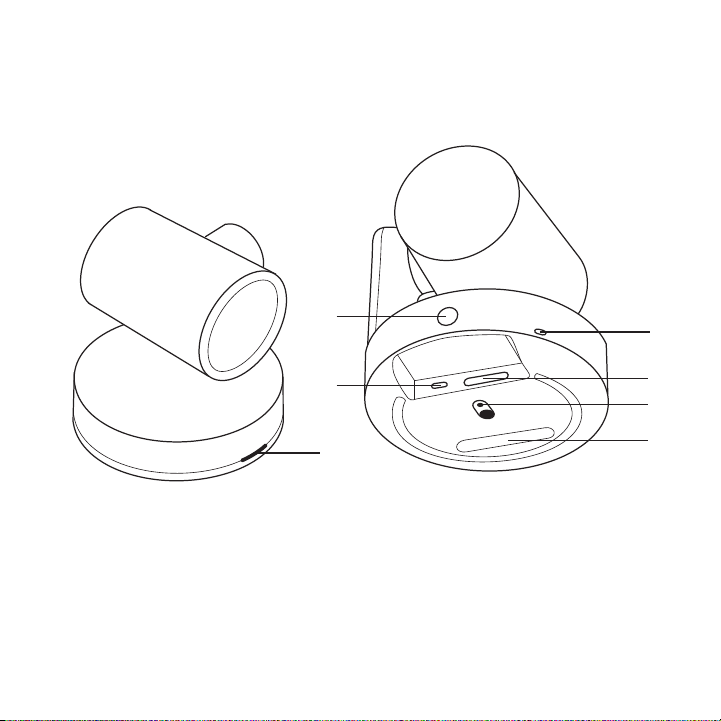
O QUE É O QUÊ
CÂMERA
1. Botão de emparelhamento remoto
2. USB
3. LED de status
1
2
3
4. Ranhura de segurança
5. MIPI
6. Rosca do tripé
7. Ranhura de expansão
4
5
6
7
Português 25
Page 26
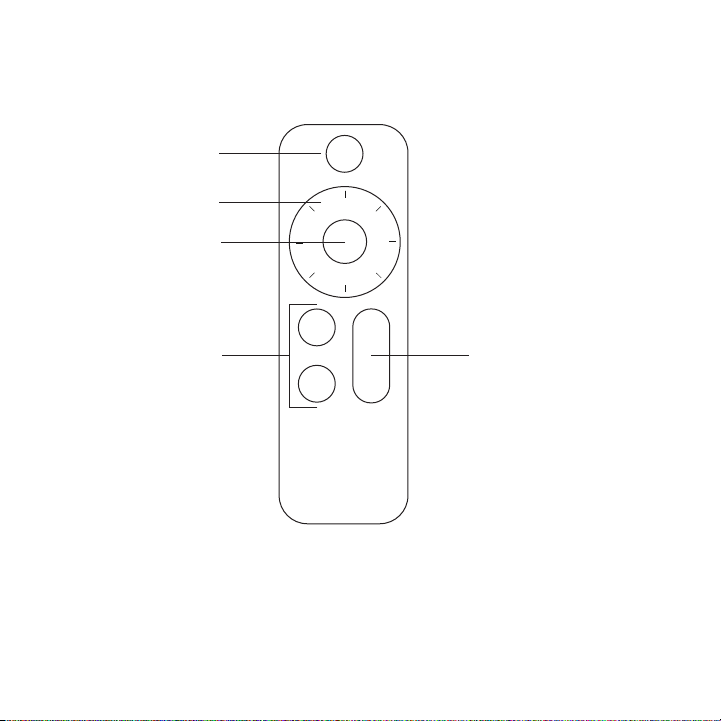
CONTROLE REMOTO
1
2
3
4 5
1. Vídeo sem som
2. Panorâmica/inclinação
3. Início da câmera
26 Português
4. Predenições da câmera
5. Mais/Menos zoom
Page 27
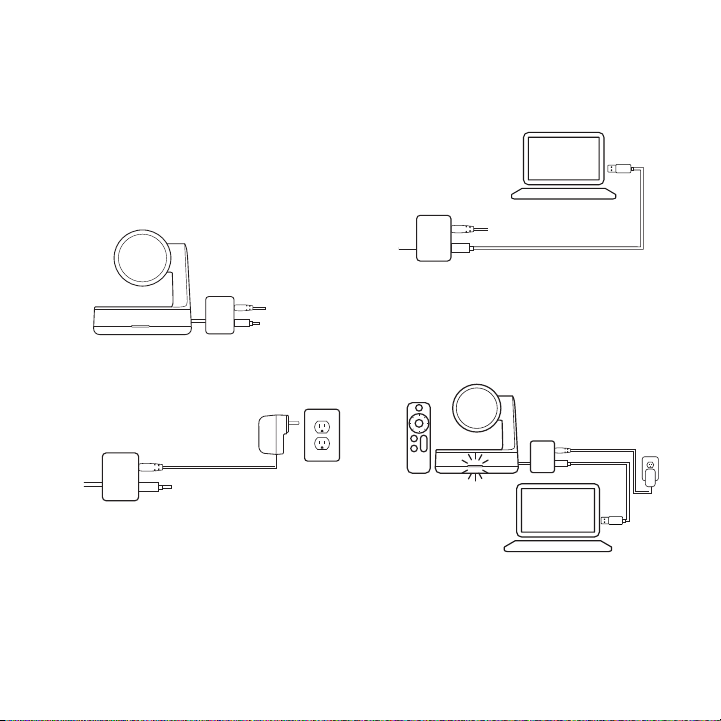
CONECTAR A CÂMERA
A conexão da câmera Rally é a mesma,
seja ao usar em seu computador
dedicado na sala de reuniões ou em
um laptop de algum de seus colegas
de equipe.
1. Conecte o cabo USB separador
de energia à porta USB da câmera.
2. Conecte o adaptador de alimentação
ao separador de energia e à tomada.
3. Conecte o cabo USB ao separador
de energia e ao computador.
4. O LED de status irá piscar quando
a câmera estiver se conectando.
Após conectada, a parte superior
da câmera girará.
5. Se os problemas persistirem,
consulte www.logitech.com/support/
rallycamera ou entre em contato com
o suporte técnico.
Português 27
Page 28
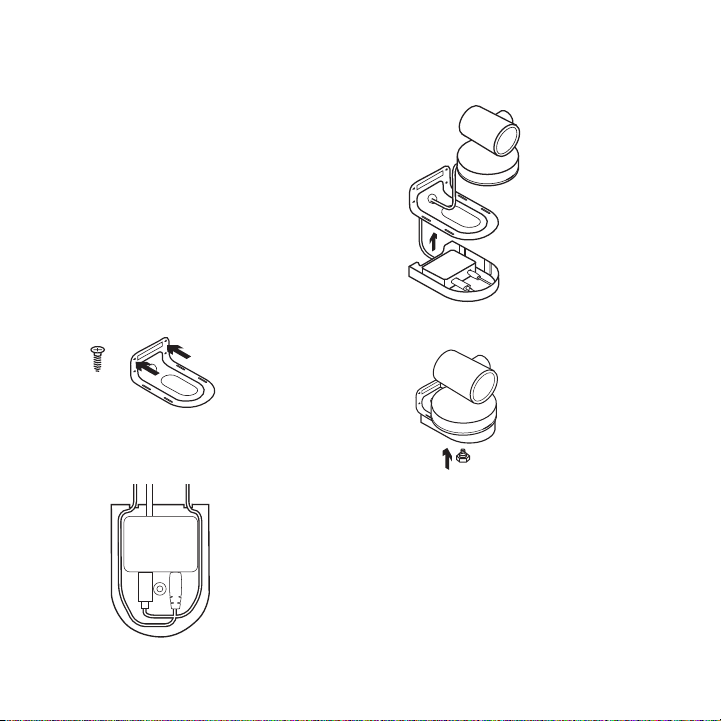
FIXAR A CÂMERA
Oferecemos várias opções de
xação para a câmera Rally.
Para videochamadas, recomendamos
posicionar a câmera o mais próximo
da altura dos olhos possível. Geralmente,
obtém-se melhores resultados ao
posicionar a câmera abaixo da TV.
1. Coloque-a em uma mesa ou
prateleira próxima à TV.
2. Fixar na parede:
a. Fixe o suporte na parede.
Use o tipo de parafuso adequado
para seu tipo de parede.
x2
b. Introduza o separador de energia
no estojo e coloque os cabos
conforme mostrado.
c. Introduza o cabo USB no furo
na parte inferior do suporte
e conecte-o à câmera.
d. Una o estojo do separador
de energia ao suporte.
e. Prenda a câmera ao suporte com
o parafuso do tripé.
3. Suporte para TV: Um suporte de
montagem opcional para TV está
disponível em www.logitech.com.
28 Português
Page 29

INICIAR A VIDEOCHAMADA
Para iniciar uma videochamada/sessão
de captura, inicie o aplicativo da sua
preferência e selecione a câmera Rally.
O LED de status se acenderá quando
o vídeo for transmitido.
Observação sobre o vídeo 4K: O cabo
USB 2.0 incluído com a câmera Rally
suporta vídeos FullHD (até 1080p).
Se precisar de vídeos 4K, use um cabo
USB 3.0 (não incluído).
PANORÂMICA E INCLINAÇÃO
Pressione uma vez para ajustar
o movimento ou pressione e mantenha
pressionado para panorâmicas
e inclinação contínuas.
Cuidado: Girar a cabeça da câmera
manualmente pode danicar
o dispositivo.
PREDEFINIÇÕES DA CÂMERA
Congure até 2 posições predenidas.
Quando a câmera estiver na posição
desejada, salve a predenição mantendo
o botão pressionado por 3 segundos.
Volte à posição desejada a qualquer
momento pressionando uma vez o botão.
INÍCIO
Início é a posição da câmera quando
ela é iniciada. Salve um nova posição
de início mantendo pressionado o botão
por 10 segundos.
APLICATIVO PARA
CONFIGURAÇÃO DA CÂMERA
Use este programa para controlar
a panorâmica, a inclinação, o zoom,
o foco e a qualidade da imagem
da câmera (como brilho e contraste).
O software pode ser baixado em
www.logitech.com/support/rallycamera
RIGHTSIGHT
Esta função de enquadrar
automaticamente as pessoas que estão
na sala será baixada depois que a câmera
for conectada pela primeira vez a
um computador (somente Windows).
Para ativar a função em um Mac ou,
se o download for bloqueado no Windows,
instale o Aplicativo para conguração
da câmera. O RightSight será executado
ao iniciar uma videochamada/sessão
de captura e sob demanda ao pressionar
o botão Início. Para desativar a função
RightSight, use o Aplicativo para
conguração da câmera.
Português 29
Page 30

EMPARELHAMENTO COM O CONTROLE REMOTO
Sua câmera e controle remoto estão emparelhados de fábrica. No entanto,
caso seja necessário emparelhar um controle remoto à câmera (como ao substituir
um controle perdido) siga estas etapas:
1. Mantenha pressionado o botão atrás da câmera até que o LED pisque em azul.
2. Mantenha pressionado o botão Vídeo sem som no controle remoto
por 10 segundos para colocá-lo no modo de emparelhamento.
3. Após emparelhar a câmera e o controle remoto, o LED para de piscar.
4. Se o emparelhamento falhar, o LED continuará piscando. Volte à etapa 2 e repita.
PARA MAIS INFORMAÇÕES
É possível obter mais informações sobre a Rally, incluindo:
– Perguntas frequentes
– Atualizações do rmware
– Downloads de software
– Comunidade de suporte
– Informações sobre garantia
– Peças de substituição
– E mais em
www.logitech.com/support/rallycamera
30 Português
Page 31

Page 32

© 2018 Logitech. Logitech, Logi and other Logitech marks are owned by Logitech and may be registered.
Allothertrademarks are the property of their respective owners. Logitech assumes no responsibility for any errors
that may appear in this manual. Information contained herein is subject to change without notice.
© 2018 Logitech. Logitech, Logi et les autres marques Logitech sont la propriété de Logitech et sont susceptibles
d’être déposées.Toutes les autres marques sont la propriété exclusive de leurs détenteurs respectifs. Logitech décline
toute responsabilité en cas d’erreurs dans ce manuel. Les informations énoncées dans le présent document peuvent
faire l’objet de modications sans avis préalable.
620-008410.002
 Loading...