

Page 1
LC8000 Series
Logic Controls Industrial Computer
USER MANUAL
Page 2

NOTICE
The manufacturer of the Industrial Computer makes no representations or warranties, either
expressed or implied, by or with respect to anything in this manual, and shall not be liable for
any implied warranties of fitness for a particular purpose or for any indirect, special or
consequential damages. Information in this document is subject to change without notice and
does not represent a commitment on the part of the manufacturer.
FCC NOTICE
This device complies with Part 15 of FCC Rules. Operations are subject to the following two
conditions: (1) this device may not cause harmful interference, and (2) this device must accept
any interference received, including interference that may cause undesired operation.
LOGIC CONTROLS, INC.
355 Denton Ave
New Hyde Park, NY 11040
TEL: (516) 248-0400
FAX: (516) 248-0443
Email: [email protected]
http://www.logiccontrols.com
LC8000 User Manual Rev. 1
2
Page 3

IMPORTANT SAFETY INSTRUCTIONS
Read these instructions carefully. Save these instructions for future reference.
1. Follow all warnings and instructions marked on the product.
2. Unplug this product from the wall outlet before cleaning. Do not use liquid cleaners or
aerosol cleaners. Use a damp cloth for cleaning.
3. Do not use this product near water.
4. This product should be operated from the type of power indicated on the power adaptor.
If you are not sure of the type of power available, consult your dealer or local power
company.
5. Do not allow anything to rest on the power cord. Do not locate this product where
persons will walk on the cord.
6. If an extension cord is used with this product, make sure that the total ampere rating of
the equipment plugged into the extension cord does not exceed the extension cord
ampere rating. Also, make sure that the total rating of all products plugged into the wall
outlet does not exceed the fuse rating.
7. Allow at least 6 inches of space from the top of the unit and 3 inches from the sides to
allow proper ventilation.
8. We recommend all servicing done on this product be done by qualified service
personnel. Aside from upgrades or swapping out the compact flash or hard-drive please
refer all other servicing to the Logic Controls RMA Dept.
9. Unplug this product from the wall outlet and refer servicing to qualified service personnel
under the following conditions:
a) When the power cord or plug is damaged or frayed
b) If liquid has been spilled into the product
c) If the product has been exposed to rain or water
d) If the product does not operate normally when the operating instructions are
followed. Adjust only those controls that are covered by the operating instructions
since improper adjustment of other controls may result in damage and will often
require extensive work by a qualified technician to restore the product to normal
condition.
e) If the product has been dropped or the cabinet has been damaged
f) If the product exhibits a distinct change in performance, indicating a need for
service.
LC8000 User Manual Rev. 1
3
Page 4

TABLE OF CONTENTS
FEATURES…………………………………………………………............. 5
OVERVIEW…………………………………………………….................... 6
HARDWARE CONNECTIONS……………………………………………. 7
TURNING ON YOUR COMPUTER ……………………………………… 8
TROUBLESHOOTING……………………………………………….......... 9
BOOTING FROM INTERNAL/EXTERNAL DEVICES….………………. 9
SPECIFICATIONS................................................................................. 11
LC8000 User Manual Rev. 1
4
Page 5

FEATURES
• Fanless operation
• Intel-compatible CPU 533 MHz to 1 GHz
• Ultra compact – only 2”H x 8”W x 6”L
• Mass storage: Compact flash (no moving parts) or/and hard disk drive
• Enclosed in rugged die cast case
• 128MB to 512MB embedded RAM
• No internal connecting cables with all components mounted on single PC board for high
reliability
• Large number of available I/O ports: 4 USB 2.0, 4 serial, 2 SVGA, 1 Ethernet, 1 PS/2
keyboard/mouse, 1 LPT, speaker out, microphone in, power input
• Multimedia: 1280 x 1024 resolution with 32-bit color, AGP 4X, MPEG-2 decoding and
video, integrated 128-bit 2 D and 64-bit 3D graphics engine, AC97 Audio CODEC
• System boot from compact flash, hard-drive, network, or USB floppy drive/CD-ROM
• Power: Wide range of input voltages, 9 to 24VDC, suitable for mobile applications
• Custom configurations available
LC8000 User Manual Rev. 1
5
Page 6

OVERVIEW
The Logic Controls LC8000 provides unparalleled reliability by being a fanless unit with no
moving mechanical parts. It is an ideal computer for use in harsh environments with high levels
of dust or oil when fan noise is not desirable. For mass storage, compact flash memory provides
true no-moving-part operation. In addition, all components and connectors reside on one PC
board, thus no internal cables (sources of common loose connections) are required. The
computer is housed in a rugged die cast case for extra protection. The LC8000 has a very
compact form factor - only 2”H x 8”W x 6”L. Two mounting brackets enable these units to be
mounted almost anywhere – on a wall, ceiling, table top or under a counter.
The LC-8000 uses Intel-compatible, Pentium-class processors, so it can run Windows and
Linux-based applications. Whether your application runs on Windows XP, Windows XP
embedded, Windows 2000, Windows CE or any flavor of Linux, your operating system needs
are supported by the LC8000. This enables the unit to be used in a wide variety of applications
– in a restaurant’s kitchen system, in a POS workstation, in an auto ID workstation, etc. The
LC8000 also provides a very impressive compliment of up-to-date I/O ports – Ethernet, parallel,
PS/2 and multiple USB 2.0, RS232, and SVGA ports are all included.
LC8000 User Manual Rev. 1
6
Page 7
HARDWARE INSTALLATION
} Optional Equipment
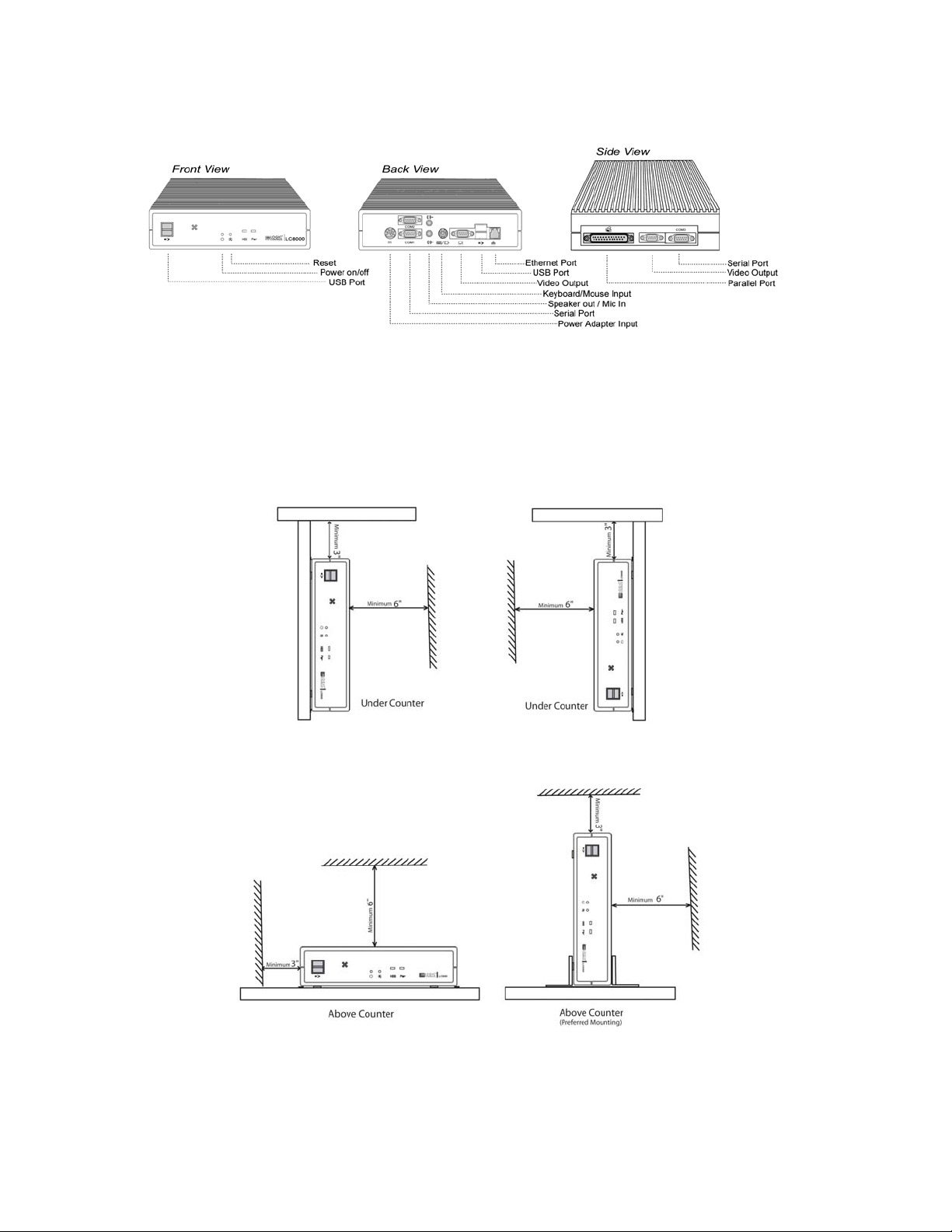
As it’s a fan-less computer, adequate ventilation is required to ensure normal operation. Allow
at least 6 inches of space from the top of the unit and 3 inches from the sides to allow proper
ventilation.
7
LC8000 User Manual Rev. 1
Page 8

TURNING ON YOUR COMPUTER
1. Connect keyboard, mouse, or other interface device.
2. Turn on all peripherals connected to the system such as the monitor, speakers, USB
devices, etc.
3. Connect power adaptor to the LC8000 and then plug power cord into wall outlet.
(If you have shut down your computer from your operating system, you may restart the
computer by using a pen-tip to press the on/off switch on the front panel of the LC8000.)
LC8000 User Manual Rev. 1
8
Page 9

TROUBLESHOOTING
If you encounter a hardware problem, we recommend that you review the following suggestions
before calling for service:
General failure
• Are all cables securely plugged?
• Are all system components and peripherals turned on?
• Is the system main power switch on?
• Is the power outlet burned out? You may check this by plugging in and turning on
another piece of equipment.
• Are any cables damaged? Are they properly routed and coiled? Entwined cables may
cause signal interference.
• Reset the unit
Perform a power reset (unplug the adaptor the from power socket for 5 minutes and
then plug the adaptor in again).
Keyboard is dead
• Is the keyboard cable plugged in? Turn off the system and plug in the keyboard.
Caution: Do not plug or unplug the keyboard while the power is on.
BOOTING FROM INTERNAL/EXTERNAL DEVICES
Depending on the configuration of your LC8000 whether it is equipped with either an internal
hard-drive or compact flash card or both, the BIOS will be pre-programmed to boot from that
particular device. If you need to boot from an external device or if you have upgraded your
compact flash card or hard-drive you will need to change settings in the BIOS. The following
steps show how to change the boot sequence within the BIOS.
1. Turn on or reboot your system. After a series of diagnostic checks, the following
message will appear:
PRESS <Del> TO RUN SETUP
2. Press the <Del> key and the BIOS setup main screen will appear as follows.
►Standard CMOS Features
►Advanced BIOS Features
►Advanced Chipset Features
►Power Management Features
►PNP/PCI Configurations
►Integrated Peripherals
►PC Health Status
►Frequency/Voltage Control
F1: Help ↑↓: Select Item +/-: Change Values F9: Setup Defaults
Esc: Exit ←→: Select Menu Enter: Select ►Sub-Menu F10: Save & Exit
LC8000 User Manual Rev. 1
AMIBIOS NEW SETUP UTILITY – VERSION 3.31a
►System Information
Set Supervisor Password
Load Optimal Defaults
Load Fail Safe Defaults
Save & Exit Setup
Exit Without Saving
9
Page 10

3. Use the arrow keys on your keyboard to select Advanced BIOS Features, and press
<Enter>.
AMIBIOS NEW SETUP UTILITY – VERSION 3.31a
Advanced BIOS Features [ Setup Help ]
Quick Boot Enabled
Boot Device Priority
1st Disabled
2nd Disabled
3rd Disabled
Try Other Boot Devices Yes
USB Controller 4 USB Ports
USB 1.1 Device Legacy Support Disabled
Initial Display Mode BIOS
Display Mode at Add-On ROM Init Force BIOS
S.M.A.R.T. for Hard Disks Disabled
BootUp Num-Lock On
PS/2 Mouse Support Enabled
Primary Display VGA/EGA
Password Check Setup
Ask HDD Password on Every Boot Yes
Wait for ‘F1’ If Error Enabled
CPU MicroCode Updation Enabled
CPU Serial Number Disabled
System BIOS Cacheable Enabled
C000,32K Shadow Cached
C800,16K Shadow Disabled
CC00,16K Shadow Disabled
D000,16K Shadow Disabled
D400,16K Shadow Disabled
D800,16K Shadow Disabled
DC00,16K Shadow Disabled
F1: Help ↑↓: Select Item +/-: Change Values F9: Setup Defaults
Esc: Previous Menu Enter: Select ►Sub-Menu F10: Save & Exit
4. Use the arrow keys to set Try Other Boot Devices to YES. You may also set the 1
and 3
rd
boot devices to the devices you wish to boot from.
You may return to the Main Menu anytime by pressing <ESC>.
5. In the Main Menu, “Save & Exit Setup” saves your changes and reboots the system, and
“Exit Without Saving” ignores your changes and exits the program.
st
, 2nd
LC8000 User Manual Rev. 1
10
Page 11

SPECIFICATIONS
LC8000 User Manual Rev. 1
11
 Loading...