

Page 1

Copyright
©1998 by Toshiba Corporation. All rights reserved. Under the copyright laws, this manual cannot be
reproduced in any form without the prior written permission of Toshiba. No patent liability is assumed with
respect to the use of the information contained herein.
Toshiba Libretto 50CT/70CT Maintenance Manual
Third edition February 1998
Disclaimer
The information contained in this manual is subject to change without notice.
Toshiba Corporation and Toshiba America Information Systems, Inc., assume no liability for damages
incurred directly or indirectly from errors, omissions, or discrepancies in connection with the furnishing,
performance, or use of this material.
Trademarks
IBM is a registered trademark, and PC/AT, PS/2, OS/2 and VGA are trademarks of IBM Corporation.
MS-DOS and Windows are registered trademarks of Microsoft Corporation.
Intel and Pentium are registered trademarks, and MMX is a trademark of Intel Corporation.
Lotus is a registered trademark of Lotus Development Corporation.
Novell and NetWare are registered trademarks of Novell, Inc.
UNIX is a registered trademark of X/Open Company Ltd.
Sound Blaster and Pro are trademarks of Creative Technology Ltd.
Centronics is a registered trademark of Centronics Data Computer Corporation.
All other properties are trademarks or registered trademarks of their respective holders.
Libretto 50CT/70CT Maintenance Manual i
Page 2

Preface
This maintenance manual describes how to perform hardware service maintenance for the
Toshiba Personal Computer Libretto 50CT/70CT.
Information on the Libretto 70CT has been incorporated into this manual since its original
release. Information added that is specific to the Libretto 70CT is noted by an asterisk (*).
The procedures described in this manual are intended to help service technicians in the field
isolate and replace faulty Field Replaceable Units (FRUs).
SAFETY PRECAUTIONS
Four types of messages are used in this manual to bring important information
to your attention. Each of these messages will be italicized and identified as
shown below.
DANGER: “Danger” indicates the existence of a hazard that could result
in death or serious injury if the safety instruction is not observed.
WARNING: “Warning” indicates the existence of a hazard that could
result in bodily injury if the safety instruction is not observed.
CAUTION: “Caution” indicates the existence of a hazard that could
result in property damage if the safety instruction is not observed.
NOTE: A “Note” contains general information that relates to safe
maintenance services.
Improper repair of the computer may result in safety hazards. Toshiba requires
service technicians and authorized dealers or service providers to ensure that
the following safety precautions are strictly adhered to.
q Be sure to fasten screws securely with the correct screwdriver. If a screw is
not fully fastened, it could loosen and create a short circuit, which could
cause overheating, smoke, or fire.
q If you replace the battery pack, RTC battery, or backup battery, be sure to
use only the same model battery or an equivalent battery recommended by
Toshiba. Installation of the wrong battery can cause the battery to explode.
ii Libretto 50CT/70CT Maintenance Manual
Page 3

The manual is divided into the following parts:
Chapter 1 Hardware Overview describes the system unit and each FRU.
Chapter 2 Troubleshooting Procedures explains how to diagnose and resolve
FRU problems.
Chapter 3 Tests and Diagnostics describes how to perform test and diagnostic
operations for maintenance service.
Chapter 4 Replacement Procedures describes the removal and replacement of the
FRUs.
Appendices The appendices describe the following:
❑ Handling the LCD module
❑ Board layout
❑ Pin assignments
❑ Key layout
❑ Wiring diagrams
❑ BIOS Rewrite Procedures
❑ Reliability
Libretto 50CT/70CT Maintenance Manual iii
Page 4

Conventions
This manual uses the following formats to describe, identify, and highlight terms and
operating procedures.
Acronyms
On the first appearance, and whenever necessary for clarification, acronyms are enclosed in
parentheses following their definition. For example:
Read Only Memory (ROM)
Keys
Keys are used in the text to describe many operations. The keytop symbol as it appears on
the keyboard is printed in
boldface type.
Key operation
Some operations require you to simultaneously use two or more keys. We identify such
operations by the keytop symbols separated by a plus (+) sign. For example,
Ctrl + Pause
(Break) means you must hold down Ctrl and at the same time press Pause (Break). If three
keys are used, hold down the first two and at the same time press the third.
User input
Text that you are instructed to type in is shown in the boldface type below:
DISKCOPY A: B:
The display
Text generated by the Libretto 50CT, that displays on the screen, is presented in the typeface
below:
Format complete
System transferred
iv Libretto 50CT/70CT Maintenance Manual
Page 5

Table of Contents
Chapter 1 Hardware Overview
1.1 Features..................................................................................................................1-1
1.2 System Unit Block Diagram....................................................................................1-4
1.3 3.5-inch External FDD (Option)..............................................................................1-7
1.4 2.5-inch HDD .........................................................................................................1-8
1.5 Keyboard................................................................................................................ 1-9
1.6 LCD Panel............................................................................................................1-10
1.7 Power Supply ....................................................................................................... 1-12
1.8 Batteries ...............................................................................................................1-13
Chapter 2 Troubleshooting Procedures
2.1 Troubleshooting Overview......................................................................................2-1
2.2 Troubleshooting Flowchart ..................................................................................... 2-2
2.3 Power Supply Troubleshooting ...............................................................................2-5
2.4 System Board Troubleshooting ............................................................................. 2-10
2.5 Floppy Disk Drive (FDD) Troubleshooting ...........................................................2-17
2.6 Hard Disk Drive (HDD) Troubleshooting .............................................................2-19
2.7 Keyboard Troubleshooting....................................................................................2-23
2.8 Pointing Device Troubleshooting ..........................................................................2-24
2.9 Display Troubleshooting .......................................................................................2-25
Chapter 3 Tests and Diagnostics
3.1 The Diagnostic Test................................................................................................3-1
3.2 Executing the Diagnostic Test................................................................................. 3-3
3.3 Subtest Names........................................................................................................3-7
3.4 System Test ............................................................................................................3-9
3.5 Memory Test ........................................................................................................3-10
3.6 Keyboard Test ......................................................................................................3-12
3.7 Display Test..........................................................................................................3-14
3.8 Floppy Disk Test...................................................................................................3-17
3.9 Printer Test...........................................................................................................3-20
Libretto 50CT/70CT Maintenance Manual v
Page 6

3.10 Async Test ............................................................................................................3-22
3.11 Hard Disk Test .....................................................................................................3-24
3.12 Real Timer Test....................................................................................................3-27
3.13 NDP Test.............................................................................................................. 3-29
3.14 Expansion Test ..................................................................................................... 3-30
3.15 Sound Test ...........................................................................................................3-31
3.16 Error Codes and Error Status Names....................................................................3-32
3.17 Hard Disk Test Detail Status .................................................................................3-35
3.18 Hard Disk Format................................................................................................. 3-37
3.19 Head Cleaning ......................................................................................................3-41
3.20 Log Utilities ..........................................................................................................3-42
3.21 Running Test ........................................................................................................3-44
3.22 Floppy Disk Drive Utilities ....................................................................................3-45
3.23 System Configuration............................................................................................3-49
3.24 SETUP................................................................................................................. 3-50
Chapter 4 Replacement Procedures
4.1 Overview................................................................................................................4-1
4.2 Battery Pack ...........................................................................................................4-6
4.3 Optional PC Card....................................................................................................4-8
4.4 Hard Disk Drive (HDD)........................................................................................ 4-10
4.5 Optional Memory Module.....................................................................................4-12
4.6 Keyboard..............................................................................................................4-14
4.7 Display Assembly..................................................................................................4-16
4.8 RTC Battery ......................................................................................................... 4-19
4.9 System Board ....................................................................................................... 4-20
4.10 Display Mask........................................................................................................4-21
4.11 FL Inverter Board.................................................................................................4-23
4.12 LCD Module ........................................................................................................4-25
4.13 Power Switch Board.............................................................................................4-27
4.14 AccuPoint Board ..................................................................................................4-29
4.15 LCD Flexible Cable...............................................................................................4-31
vi Libretto 50CT/70CT Maintenance Manual
Page 7

4.16 I/O Adapter Board................................................................................................4-33
Appendices
Appendix A Handling the LCD Module............................................................................A-1
Appendix B Board Layout................................................................................................B-1
Appendix C Pin Assignments............................................................................................C-1
Appendix D Key Layouts .................................................................................................D-1
Appendix E Wiring Diagrams........................................................................................... E-1
Appendix F BIOS Rewrite Procedures...............................................................................F-1
Appendix G Reliability......................................................................................................G-1
Libretto 50CT/70CT Maintenance Manual vii
Page 8

viii Libretto 50CT/70CT Maintenance Manual
Page 9

TOSHIBA
Toshiba America Information Systems, Inc.
Computer Systems Division
9740 Irvine Boulevard
Irvine, CA 92618
Page 10

Chapter 1
Hardware Overview
Page 11

1-ii Libretto 50CT/70CT Maintenance Manual
Page 12

Table of Contents
1.1 Features....................................................................................................................... 1-1
1.2 System Unit Block Diagram......................................................................................... 1-4
1.3 3.5-inch External FDD (Option) ..................................................................................1-7
1.4 2.5-inch HDD..............................................................................................................1-8
1.5 Keyboard.....................................................................................................................1-9
1.6 LCD Panel.................................................................................................................1-10
1.6.1 LCD Module.........................................................................................1-10
1.6.2 FL Inverter Board .................................................................................1-11
1.7 Power Supply............................................................................................................ 1-12
1.8 Batteries....................................................................................................................1-13
1.8.1 Main Battery Pack .................................................................................1-13
1.8.2 Battery Icon..........................................................................................1-13
1.8.3 Battery Charging Control ...................................................................... 1-13
1.8.4 RTC battery .......................................................................................... 1-14
Figures
Figure 1-1 Front of the computer.......................................................................................1-3
Figure 1-2 System unit configuration................................................................................. 1-3
Figure 1-3 System unit block diagram................................................................................1-4
Figure 1-4 3.5-inch FDD ................................................................................................... 1-7
Figure 1-5 2.5-inch HDD...................................................................................................1-8
Figure 1-6 Keyboard..........................................................................................................1-9
Figure 1-7 LCD module................................................................................................... 1-10
Tables
Table 1-1 FDD specifications............................................................................................. 1-7
Table 1-2 HDD specifications............................................................................................ 1-8
Table 1-3 Keyboard specifications .....................................................................................1-9
Table 1-4 LCD specifications...........................................................................................1-10
Libretto 50CT/70CT Maintenance Manual 1-iii
Page 13

Table 1-5 FL inverter board specifications ....................................................................... 1-11
Table 1-6 Power supply board output rating....................................................................1-12
Table 1-7 Battery specifications.......................................................................................1-13
Table 1-8 Time required for quick charge........................................................................1-14
Table 1-9 RTC battery charging/data preservation time.................................................... 1-14
1-iv Libretto 50CT/70CT Maintenance Manual
Page 14

1 Hardware Overview 1.1 Features
1
1.1 Features
The Libretto 50CT/70CT uses Toshiba’s advanced Large Scale Integration (LSI) and
Complementary Metal-Oxide Semiconductor (CMOS) technology extensively to provide
compact size, minimum weight, low power usage, and high reliability. The following features
and benefits are incorporated:
❑ Microprocessor
The Libretto 50CT has a 64-bit microprocessor, Intel Pentium processor running at a
clock speed of 75MHz.
∗The Libretto 70CT has a 64-bit microprocessor, Intel Pentium processor with MMX
technology running at a clock speed of 120MHz.
q Memory
Standard 16MB of Extend Data Out (EDO) DRAM.
q Hard Disk Drive (HDD)
The Libretto 50CT has a 2.5-inch HDD with a capacity of 815MB.
∗The Libretto 70CT has a 2.5-inch HDD with a capacity of 1.58GB.
q Display
A 6.1-inch, Thin Film Transistor (TFT) color Liquid Crystal Display (LCD), that
enables a display of up to 16M colors at a resolution of 640 x 480 pixels.
A video controller and 1MB of VRAM enable an external monitor to display 16M
colors at a resolution of 1280 x 1024 pixels.
q Keyboard
An easy-to-use 80/82-key keyboard provides: a numeric keypad overlay for fast
numeric data entry and cursor/page control; two keys that have special functions in
Microsoft Windows 95; and software that supports a 101- or 102-key enhanced
keyboard.
q Batteries
Two batteries: a Lithium-Ion main battery pack and RTC battery that backs up the
Real Time Clock and CMOS memory.
q Expansion
An optional 8 or 16MB memory kit can be installed in the memory slot.
Libretto 50CT/70CT Maintenance Manual 1-1
Page 15

1.1 Features 1 Hardware Overview
q Parallel port
A Centronics compatible parallel port on the I/O adapter enables connection of a
printer or other parallel device and supports the Extended Capabilities Port (ECP)
conforming to IEEE-1284.
q Serial port
A standard, 9-pin, serial port only on the I/O adapter enables connection of such serial
devices as a serial printer, mouse, or modem. A Universal Asynchronous
Receiver/Transmitter (UART) is 16550A equivalent.
q External monitor port
The port is available only on the I/O adapter and enables connection of an external
SVGA compatible monitor.
q PC card slot
A PC card slot accommodates one 5mm card (Type II). The slot supports PCMCIA
Release 2.01 cards and an optional external FDD.
q Docking interface port
A 132-pin, docking interface port enables connection of the I/O port adapter or an
optional Enhanced Port Replicator.
The Enhanced Port Replicator has one additional PC card slot that accommodates a
10.5mm card (Type III) and duplicates the ports available on the I/O adapter, in
addition to the connection of the PS/2 compatible mouse and keyboard.
q AccuPoint
The pointer control stick, located on the right of the display panel, provides
convenient control of the cursor without requiring desk space for a mouse.
q Infrared port
An Infrared Data Association (IrDA) 1.0 standard infrared port, which enables
cableless 115.2Kbps data transfer.
q Sound system
A Sound Blaster Pro compatible, 16-bit sound system enables the computer to play
back sound. The sound system is equipped with a built-in speaker and stereo
headphone jack.
q External Floppy Disk Drive (FDD) (Option)
A 3.5-inch external FDD is connected to the PC card slot and accommodates both
2HD (1.44MB) and 2DD (720KB) disks.
1-2 Libretto 50CT/70CT Maintenance Manual
Page 16

1 Hardware Overview 1.1 Features
The front of the computer is shown in Figure 1-1.
Figure 1-1 Front of the computer
The system unit configuration is shown in Figure 1-2.
Figure 1-2 System unit configuration
Libretto 50CT/70CT Maintenance Manual 1-3
Page 17

1.2 System Unit Block Diagram 1 Hardware Overview
1.2 System Unit Block Diagram
Figure 1-3 is a block diagram of the system unit.
Figure 1-3 System unit block diagram
1-4 Libretto 50CT/70CT Maintenance Manual
Page 18

1 Hardware Overview 1.2 System Unit Block Diagram
The system unit is composed of the following major components:
q Microprocessor
Libretto 50CT: Intel 75 MHz Pentium processor operates at 2.9/3.3 volts and
incorporates the math co-processor and 16 KB cache memory.
∗Libretto 70CT: Intel 120 MHz Pentium processor with MMX technology operates
at 2.9/3.3 volts and incorporates the math co-processor and 16 KB cache memory.
q Standard RAM
• 16 MB, eight 1M x 16-bit EDO DRAM chips
• 3.3 volt operation
• No parity bit
• Access time 70 ns
• Data transfer is 64-bit width
q BIOS ROM (Flash EEPROM)
• 256 KB, one 256K x 8-bit chip
− 64 KB are used for system BIOS
− 40 KB are used for VGA BIOS
− 152 KB are reserved
• Access time 120 ns
• Data transfer is 8-bit width
q Expansion memory
One expansion memory slot is available for 8 and 16 MB memory kits, which consist
of 1M x 16-bit EDO DRAM chips.
• 3.3 volt operation
• No parity bit
• Access time 70 ns
• Data transfer is 64-bit width
q Video Controller
Chips & Technologies F65550 is used. The video controller integrates an LCD/CRT
graphics controller, RAMDAC, and clock synthesizers.
q Video RAM
• 1 MB, two 256K x 16-bit DRAM chips
• 3.3 volt operation
• Access time 50 ns
Libretto 50CT/70CT Maintenance Manual 1-5
Page 19

1.2 System Unit Block Diagram 1 Hardware Overview
q System Controller Gate Array
This gate array has the following functions:
• Two PICs:82C59 equivalent
• Two UARTs:16550A equivalent (one SIO is used for SIR)
• One PIT:82C54 equivalent
• One RTC:T9934 equivalent
• Two DMACs:82C37 equivalent
• I/O port decode
• SIO port control
• Parallel (ECP) port control
• Speaker control
• Power supply microprocessor interface
• PnP support
• CPU control
− SMI control
− Clock speed control
• Memory control
− 64-bit memory bus control
• Video local bus control
− 64 to 32-bit, 32 to 64-bit data bus interface
• Address latch control
− Address conversion
− Address latch
• Hibernation control
• Ring wake up control
• PC card control
− Memory card control
− I/O card control
• BIOS-ROM interface
• Infrared port control
• Sound control
q Keyboard Controller (KBC)
This KBC includes: the keyboard scan controller and keyboard interface controller;
and controls: the internal keyboard, external keyboard, IPS and PS/2 mouse.
1-6 Libretto 50CT/70CT Maintenance Manual
Page 20

1 Hardware Overview 1.2 System Unit Block Diagram
q Internal Pointing Stick Controller (IPSC)
Provides simultaneous control of both an AccuPoint and a PS/2 mouse.
q Sound Controller
The Libretto 50CT uses one OPL3-SA2 that incorporates: OPL3 FM synthesizer,
Digital Analog Converter (DAC), and MPU401 MIDI interface.
∗The Libretto 70CT uses one OPL3-SA3 that incorporates: OPL3 FM synthesizer,
Digital Analog Converter (DAC), and MPU401 MIDI interface.
Libretto 50CT/70CT Maintenance Manual 1-7
Page 21
1.3 3.5-inch External FDD (Option) 1 Hardware Overview
1.3 3.5-inch External FDD (Option)
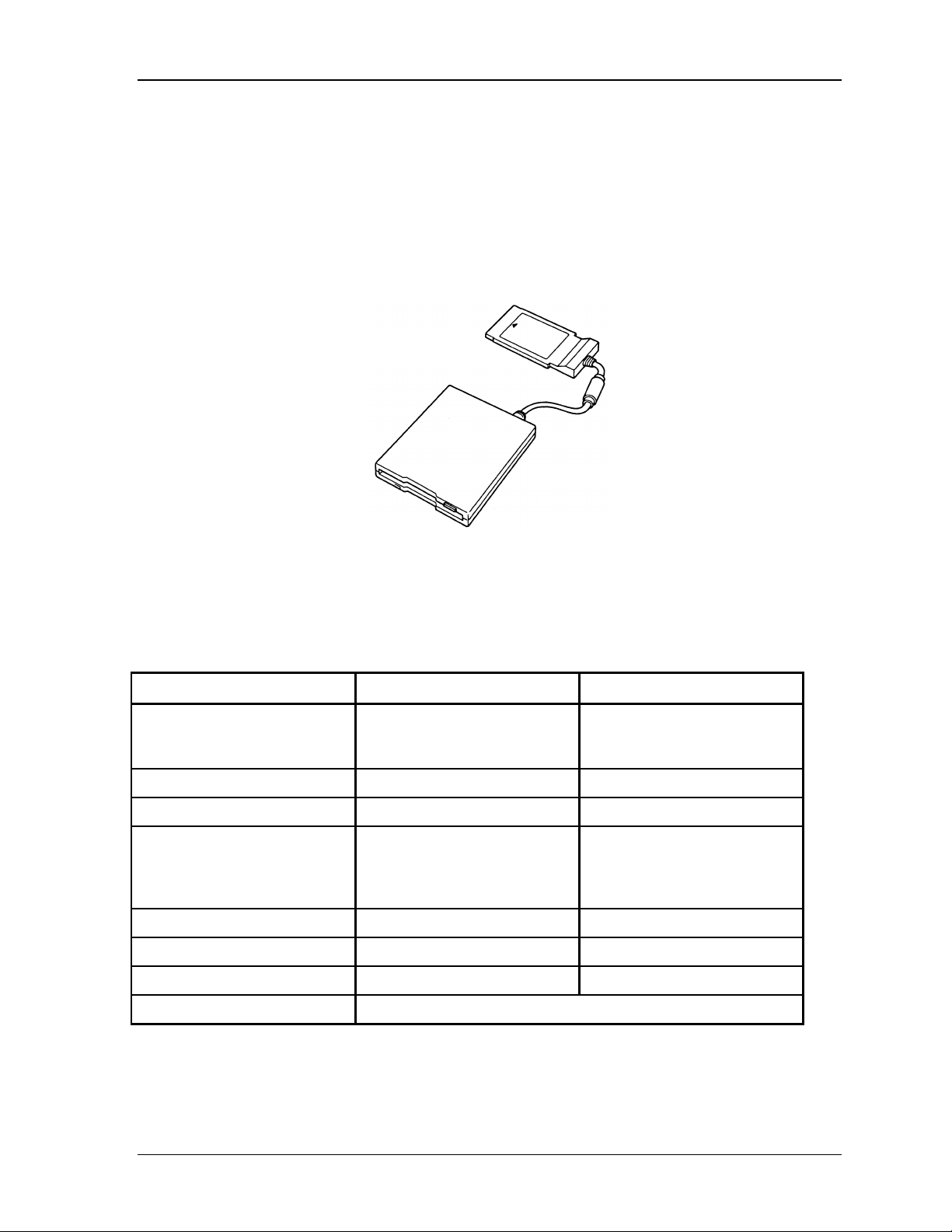
The 3.5-inch external FDD is a thin, high performance reliable drive that supports 720KB
(formatted) 2DD and 1.44MB (formatted) 2HD disks. The FDD can be connected to the PC
card slot.
The FDD is shown in Figure 1-4.
Figure 1-4 3.5-inch FDD
The specifications for the FDD are listed in Table 1-1.
Table 1-1 FDD specifications
Item 2MB mode 1MB mode
Storage capacity (KB)
Unformatted
Formatted
Number of heads 2 2
Number of cylinders 80 80
Access time (ms)
Track to track
Average
Head settling time
Recording track density (tpi) 135 135
Data transfer rate (Kbps) 500 250
Rotation speed (rpm) 300 300
Recording method Modified Frequency Modulation (MFM)
2,000
1,440
3
181
15
1,000
720
3
181
15
1-8 Libretto 50CT/70CT Maintenance Manual
Page 22

1 Hardware Overview 1.4 2.5-inch HDD
1.4 2.5-inch HDD
The removable HDD is a random access non-volatile storage device. It has a non-removable
2.5-inch magnetic disk and mini-winchester type magnetic heads.
The Libretto 50CT computer supports a 815MB HDD.
∗The Libretto 70CT computer supports a 1.58GB HDD.
The HDD is shown in Figure 1-5.
Figure 1-5 2.5-inch HDD
Libretto 50CT/70CT Maintenance Manual 1-9
Page 23

1.4 2.5-inch HDD 1 Hardware Overview
The specifications for the HDDs are listed in Table 1-2.
Table 1-2 HDD specifications
Libretto 50CT: 815MB HDD
Item Specifications
Formatted capacity (MB) 815
Number of disks 1
Logical heads 2
Bytes per sector 512
Rotation speed (rpm) 4,000
Recording method 8-9 RLL
*Libretto 70CT: 815MB HDD
Item Specifications
Formatted capacity (GB) 1.58
Number of disks 1
Logical heads 2
Bytes per sector 512
Rotation speed (rpm) 4,000
Recording method 8-9 RLL
1-10 Libretto 50CT/70CT Maintenance Manual
Page 24

1 Hardware Overview 1.5 Keyboard
1.5 Keyboard
The 80- (USA) or 82- key (European) keyboard is mounted on the system unit. The
keyboard is connected to the keyboard controller on the system board through one 20-pin flat
cable. The AccuPoint, located on the right of the display panel, provides convenient control
of the cursor without requiring desk space for a mouse. The keyboard is shown in Figure
1-6.
See Appendix D for optional keyboard configurations.
Figure 1-6 Keyboard
The specifications for the keyboard are listed in Table 1-3.
Table 1-3 Keyboard specifications
Item Specifications
Input method Pantograph (Function keys use cylinders)
Pitch 15mm
Thickness 6mm
Libretto 50CT/70CT Maintenance Manual 1-11
Page 25

1.6 LCD Panel 1 Hardware Overview
1.6 LCD Panel
The display panel contains a TFT color LCD module, a fluorescent lamp (FL), and an FL
inverter board.
1.6.1 LCD Module
The TFT color LCD enables display of up to 16M colors at a resolution of 640 x 480 pixels.
The LCD module is shown in Figure 1-7.
Figure 1-7 LCD module
The specifications for the LCD are listed in Table 1-4.
Table 1-4 LCD specifications
Item Specifications
Number of Pixels (pixels) 640x480
Dot pitch (mm) 0.192x0.192
Display area (mm) 122.8(H)x92.16(V)
Contrast 100:1
FL current (mA) 4.6/4.0/2.8/2.4*
*NOTE: The FL currents at power on are:
Universal AC Adapter connected 4.6 mA 2.8 mA
Universal AC Adapter not connected 4.0 mA 2.4 mA
(Bright/Semi-bright)
Bright Semi-bright
1-12 Libretto 50CT/70CT Maintenance Manual
Page 26
1 Hardware Overview 1.6 LCD Panel
1.6.2 FL Inverter Board
The FL inverter board supplies high frequency current to light the LCD Fluorescent Lamp.
The specifications for the FL inverter are listed in Table 1-5.
Table 1-5 FL inverter board specifications
Item Specifications
Input Voltage (V) 5
Power (W) 2.2
Output Voltage (Vrms) 800
Current (mA) (4.6/4.0/2.8/2.4)*
(Bright/Semi-bright)
*NOTE: The FL currents at power on are:
Bright Semi-bright
Universal AC Adapter connected 4.6 mA 2.8 mA
Universal AC Adapter not connected 4.0 mA 2.4 mA
Libretto 50CT/70CT Maintenance Manual 1-13
Page 27

1.7 Power Supply 1 Hardware Overview
1.7 Power Supply
The power supply provides two kinds of voltages to the system board, has one
microprocessor operating at 2 MHz, and performs the following functions:
1. Determines if the Universal AC Adapter or Main Battery Pack is connected to the
computer.
2. Detects DC output and circuit malfunctions.
3. Controls the LED icon and the speaker.
4. Detects a fully charged Main Battery Pack.
5. Controls power on/off.
6. Provides more accurate detection of a low Main Battery Pack.
7. Calculates the remaining Main Battery Pack capacity.
The power supply output rating is specified in Table 1-6.
Table 1-6 Power supply board output rating
DC Regulation
Use Name voltage (V) tolerance (%)
CPU, RAM, GA,
VGA, VRAM
GA, BIOS ROM,
KBC, PC card
B3V +3.3 ±5
VCC +12.0 ±5
1-14 Libretto 50CT/70CT Maintenance Manual
Page 28

1 Hardware Overview 1.8 Batteries
1.8 Batteries
The computer has two types of batteries:
q Main battery pack
q RTC battery
Battery specifications are listed in Table 1-7.
Table 1-7 Battery specifications
Battery name Material Output voltage Capacity
Main battery pack Lithium-Ion 10.8 V 1,200 mAh
RTC battery Nickel Metal Hydride 2.4 V 11 mAh
1.8.1 Main Battery Pack
The removable main battery pack is the computer’s main power source when the Universal
AC Adapter is not connected. The main battery pack maintains the state of the computer
when the computer enters into hibernation mode.
1.8.2 Battery Icon
The icon color shows the status of the removable battery pack. Each color indicates:
Orange The battery is being charged. (Universal AC Adapter connected)
Green The battery is full charged. (Universal AC Adapter connected)
Blinking orange The battery is low when the power is on.
No light Under any other conditions, the LED does not light.
1.8.3 Battery Charging Control
A power supply microprocessor mounted on the system board controls whether the battery
charge is on or off and also detects a full charge when the Universal AC Adapter and battery
are connected to the computer. The system charges the battery using quick charge or trickle
charge.
q Quick Battery Charge
The battery quick charges when the Universal AC Adapter is connected and the
system is powered off or in stand-by mode.
Libretto 50CT/70CT Maintenance Manual 1-15
Page 29

1.8 Batteries 1 Hardware Overview
Table 1-8 Time required for quick charge
Item Charging time
Power off or standby About 4.5 hours
If one of the following occurs, the Main Battery Pack quick charge process stops.
1. The Main Battery Pack becomes fully charged.
2. The Universal AC Adapter or Main Battery Pack is removed.
3. The Main Battery Pack or output voltage is abnormal.
q Trickle Battery Charge
The Main Battery Pack will trickle charge when the Universal AC Adapter is
connected and the system is on or when the main battery pack becomes fully charged.
The microprocessor automatically changes quick charge to trickle charge.
1.8.4 RTC battery
The RTC battery provides power to keep the current date, time, and other setup information
in memory while the computer is turned off. Table 1-9 shows the charging time and data
preservation period of the RTC battery.
Table 1-9 RTC battery charging/data preservation time
Item Time
Charging Time 48 hours
Data preservation period (full charge) About 1 month
1-16 Libretto 50CT/70CT Maintenance Manual
Page 30

Chapter 2
Troubleshooting Procedures
Page 31

2-ii Libretto 50CT/70CT Maintenance Manual
Page 32

Table of Contents
2.1 Troubleshooting Overview...........................................................................................2-1
2.2 Troubleshooting Flowchart.......................................................................................... 2-2
2.3 Power Supply Troubleshooting....................................................................................2-5
Procedure 1 Power Status Check ..................................................................... 2-5
Procedure 2 Error Code Check ........................................................................ 2-6
Procedure 3 Connection Check ........................................................................2-9
Procedure 4 Replacement Check...................................................................... 2-9
2.4 System Board Troubleshooting.................................................................................. 2-10
Procedure 1 Message Check........................................................................... 2-10
Procedure 2 Printer Port LED Check in Boot Mode.......................................2-12
Procedure 3 Printer Port LED Check in Hibernation Mode.............................2-14
Procedure 4 Diagnostic Test Program Execution and Replacement Checks ....2-15
Procedure 5 Connection Check ...................................................................... 2-16
2.5 Floppy Disk Drive (FDD) Troubleshooting................................................................2-17
Procedure 1 FDD Head Cleaning Check .........................................................2-17
Procedure 2 Diagnostic Test Program Execution Check................................. 2-17
Procedure 3 Connector Check and Replacement Check..................................2-18
2.6 Hard Disk Drive (HDD) Troubleshooting..................................................................2-19
Procedure 1 Partition Check...........................................................................2-19
Procedure 2 Message Check........................................................................... 2-20
Procedure 3 Format Check .............................................................................2-20
Procedure 4 Diagnostic Test Program Execution Check................................. 2-21
2.7 Keyboard Troubleshooting ........................................................................................2-23
Procedure 1 Diagnostic Test Program Execution Check................................. 2-23
Procedure 2 Connector and Replacement Check.............................................2-23
2.8 Pointing Device Troubleshooting...............................................................................2-24
Procedure 1 Diagnostic Test Program Execution Check................................. 2-24
Procedure 2 Connector and Replacement Check.............................................2-24
2.9 Display Troubleshooting............................................................................................2-25
Procedure 1 Diagnostic Test Program Execution Check................................. 2-25
Procedure 2 Connector Check ........................................................................2-25
Procedure 3 Replacement Check....................................................................2-25
Libretto 50CT/70CT Maintenance Manual 2-iii
Page 33

Figures
Figure 2-1 Troubleshooting flowchart (1/2)....................................................................... 2-3
Figure 2-2 Printer port LED............................................................................................2-12
Figure 2-3 Cable connection diagram ................................................................................2-16
Tables
Table 2-1 Battery icon.......................................................................................................2-5
Table 2-2 DC IN icon........................................................................................................ 2-5
Table 2-3 Printer port LED boot mode status (1/2)..........................................................2-13
Table 2-4 Printer port LED Hibernation mode error status...............................................2-15
Table 2-5 FDD error codes and statuses .......................................................................... 2-17
Table 2-6 Hard disk drive error codes and statuses .......................................................... 2-22
2-iv Libretto 50CT/70CT Maintenance Manual
Page 34

2 Troubleshooting Procedures 2.1 Troubleshooting Overview
2
2.1 Troubleshooting Overview
Chapter 2 describes how to determine if a Field Replaceable Unit (FRU) is causing the
computer to malfunction. The FRUs covered are:
• Power Supply • Floppy Disk Drive • Pointing Device
• System Board • Hard Disk Drive • Display
• FL Inverter Board • Keyboard
The Tests and Diagnostics are described in Chapter 3 and Replacement Procedures are
detailed in Chapter 4.
The following tools are necessary for implementing the troubleshooting procedures:
1. Diagnostics disk
2. Phillips screwdriver (2 mm)
3. Toshiba MS-DOS system disk(s)
(You must install the following onto the disk: SYS.COM,
FORMAT.COM,FDISK.COM and FDISK.EXE)
4. 2DD or 2HD formatted work disk for floppy disk drive testing
5. Cleaning kit for floppy disk drive troubleshooting
6. Printer port LED
7. Serial port wraparound connector
8. Multimeter
9. Printer port wraparound connector
10. PC card wraparound card
11. I/O Adapter
12. FDD
Libretto 50CT/70CT Maintenance Manual 2-1
Page 35

2.2 Troubleshooting Flowchart 2 Troubleshooting Procedures
2.2 Troubleshooting Flowchart
Use the flowchart in figure 2-1 as a guide to determine which troubleshooting procedures to
execute. Before going through the flowchart steps, do the following:
q Verify with the customer that Toshiba Windows 95 is installed on the hard disk. Non-
Toshiba operating systems can cause the computer to malfunction.
q Make sure all optional equipment is removed from the computer.
q Make sure the floppy disk drive is empty.
2-2 Libretto 50CT/70CT Maintenance Manual
Page 36

2 Troubleshooting Procedures 2.2 Troubleshooting Flowchart
Figure 2-1 Troubleshooting flowchart (1/2)
Libretto 50CT/70CT Maintenance Manual 2-3
Page 37

2.2 Troubleshooting Flowchart 2 Troubleshooting Procedures
Figure 2-1 Troubleshooting flowchart (2/2)
If the diagnostics program cannot detect an error, the problem may be intermittent. The
Running Test program should be executed several times to isolate the problem.
Check the Log Utilities function to confirm which diagnostic test detected an error(s), then
perform the appropriate troubleshooting procedures as follows:
1. If an error is detected on the system test, memory test, display test, ASYNC test,
printer test, expansion test, sound test, or real timer test do the System Board
troubleshooting procedures in Section 2.4.
2. If an error is detected on the floppy disk test, do the FDD troubleshooting procedures
in Section 2.5.
3. If an error is detected on the hard disk test, do the Hard Disk Drive troubleshooting
procedures in Section 2.6.
4. If an error is detected on the keyboard test, do the Keyboard troubleshooting
procedures in Section 2.7.
5. If an error is detected on the display test, do the Display troubleshooting procedures in
Section 2.9.
2-4 Libretto 50CT/70CT Maintenance Manual
Page 38

2 Troubleshooting Procedures 2.3 Power Supply Troubleshooting
2.3 Power Supply Troubleshooting
The power supply controls many functions and components. To determine if the power supply
is functioning properly, start with Procedure 1 and continue with the other Procedures as
instructed. The procedures described in this section are:
Procedure 1: Power Status Check
Procedure 2: Error Code Check
Procedure 3: Connection Check
Procedure 4: Replacement Check
Procedure 1 Power Status Check
The following icons indicate the power supply status:
q Battery icon
q DC IN icon
The power supply controller displays the power supply status through the Battery and the
DC IN icons as shown in the tables below.
Table 2-1 Battery icon
Battery icon Power supply status
Lights orange Quick charge
Lights green Battery has a full charge and the AC adapter is connected
Blinks orange
(even intervals)
Doesn’t light Any condition other than those above. If the battery becomes too hot,
*1 One of two battery levels becomes low.
*2 AutoResume Off will be executed soon.
The battery level becomes low while operating the computer on
battery power
charging will stop and the battery icon will go out even if the AC
adapter is connected
*1
*2
Table 2-2 DC IN icon
DC IN icon Power supply status
Lights green DC power is being supplied from the AC adapter
Blinks orange Power supply malfunction
*3
Blinks green Stand-by state
Doesn’t light Any condition other than those above
*3 When the power supply controller detects a malfunction, the DC IN icon blinks and an error
code is displayed.
Libretto 50CT/70CT Maintenance Manual 2-5
Page 39

2.3 Power Supply Troubleshooting 2 Troubleshooting Procedures
To check the power supply status, install a battery pack and connect an AC adapter.
Check 1 If the DC IN icon flashes orange, go to Procedure 2.
Check 2 If the DC IN icon does not light, go to Procedure 3.
Check 3 If the Battery icon does not light orange or green, go to Procedure 4.
CAUTION: Use only an AC adapter that is manufactured specifically for the Libretto
50CT/70CT. If you use a different AC adapter, the computer’s power supply may
malfunction or a fuse on the system board may be blown.
Procedure 2 Error Code Check
If the microprocessor detects a malfunction, the DC IN icon blinks orange. The blink pattern
indicates an error as shown below.
q Start Off for 2 seconds
q Error code (8 bit)
“1” On for one second
“0” On for half second
Interval between data bits Off for half second
Error codes begin with the least significant digit. For example:
Error code 12h (Error codes are given in hexadecimal)
Check 1 Convert the DC IN icon blink pattern into the hexadecimal error code and
compare it to the tables below.
q DC power supplied through AC adapter
Error code Meaning
01h AC adapter voltage is over the limit (16.5 V)
2-6 Libretto 50CT/70CT Maintenance Manual
Page 40

2 Troubleshooting Procedures 2.3 Power Supply Troubleshooting
q Battery pack
Error code Meaning
10h Battery voltage is over the limit
11h Battery charge current is over the limit
12h Battery discharge current is over the maximum allowed
limit when there is no load
13h Battery voltage is under the limit
q B5V,VCC output
Error code Meaning
20h VCC voltage is over the limit
21h VCC voltage is under the limit
22h VCC does not start up when power supply is turned on
q B3V output
Error code Meaning
30h B3V voltage is over the limit
31h B3V voltage is under the limit
33h B3V does not start up when the power supply is turned on
q Power supply microcontroller
Error code Meaning
50h Firmware or program error
q CPU environmental condition
Error code Meaning
80h CPU temperature is outside the allowable range
88h CPU overheat
(The CPU heat sensor has detected overheating and
has automatically shut down)
Libretto 50CT/70CT Maintenance Manual 2-7
Page 41

2.3 Power Supply Troubleshooting 2 Troubleshooting Procedures
Check 2 If error code 01h displays:
q Be sure the AC adapter is firmly connected to the computer DC IN socket and
to the power source. If these cables are connected correctly, go to the
following step:
q Replace the AC adapter with a new one.
If the error still exists, go to Procedure 4.
Check 3 If error code 10h displays:
q Make sure the battery pack is correctly installed in the computer.
If it is, go to the following step:
q Replace the battery pack with a new one.
If the error still exists, go to Procedure 4.
Check 4 When 88h displays, it indicates that the CPU temperature is outside the allowable
operating range. Do the following:
q Leave the computer in an area that is about room temperature until the CPU’s
internal temperature is within the allowable operating range.
If the error still exists, go to Procedure 4.
Check 5 If error code 11h displays:
q Go to Procedure 3.
Check 6 For any other error, go to Procedure 4.
2-8 Libretto 50CT/70CT Maintenance Manual
Page 42

2 Troubleshooting Procedures 2.3 Power Supply Troubleshooting
Procedure 3 Connection Check
The power supply related wiring diagrams are shown below:
Any of the connectors may be disconnected. Go to Check 1.
Check 1 Make sure the AC adapter is firmly connected to the computer’s DC IN socket
and to a power source. If these cables are connected correctly, go to Check 2.
Check 2 Replace the AC adapter with a new one. If the DC IN icon does not glow green,
go to Procedure 4.
Procedure 4 Replacement Check
The AC adapter may be disconnected or damaged. Disassemble the computer following the
steps described in Chapter 4, Replacement Procedures. After checking the connection, do the
following checks:
Check 1 Replace the AC adapter with a new one. If the problem still exists, go to Check 2.
Check 2 Replace the system board with a new one. Refer to Chapter 4 for instructions on
how to remove and replace the system board.
Libretto 50CT/70CT Maintenance Manual 2-9
Page 43

2.4 System Board Troubleshooting 2 Troubleshooting Procedures
2.4 System Board Troubleshooting
This section describes how to determine if the system board is defective or not functioning
properly. Start with Procedure 1 and continue with the other procedures as instructed. The
procedures described in this section are:
Procedure 1: Message Check
Procedure 2: Printer Port LED Check in Boot Mode
Procedure 3: Printer Port LED Check in Hibernation Mode
Procedure 4: Diagnostic Test Program Execution and Replacement Checks
Procedure 5: Connection Check
Procedure 1 Message Check
When the power is turned on, the system performs the Initial Reliability Test (IRT) installed
in the BIOS ROM. The IRT tests each IC on the system board and initializes it.
q If an error message is shown on the display, perform Check 1.
q If there is no error message, go to Procedure 2.
q If Toshiba MS-DOS or Toshiba Windows 95 is properly loaded, go to Procedure 3.
Check 1 If one of the following error messages displays on the screen, press the F1 key as
instructed. These errors occur when the system configuration preserved in the
RTC memory (CMOS type memory) is not the same as the actual configuration or
when the data is lost.
Press the F1 key as the message instructs and the TSETUP screen displays to set
the system configuration. If error message (b) displays often when the power is
on, replace the RTC battery. If any other error message displays, do Check 2.
(a) *** Bad HDD type ***
Check system. Then press [F1] key ......
(b) *** Bad RTC battery ***
Check system. Then press [F1] key ......
(c) *** Bad configuration ***
Check system. Then press [F1] key ......
(d) *** Bad memory size ***
Check system. Then press [F1] key ......
(e) *** Bad time function ***
Check system. Then press [F1] key ......
(f) *** Bad check sum (CMOS) ***
Check system. Then press [F1] key ......
(g) *** Bad check sum (ROM) ***
Check system. Then press [F1] key ......
2-10 Libretto 50CT/70CT Maintenance Manual
Page 44

2 Troubleshooting Procedures 2.4 System Board Troubleshooting
Check 2 If the following error message displays on the screen, press any key.
WARNING: CAN’T RESTORE HIBERNATED STATE.
PRESS ANY KEY TO CONTINUE.
This error message displays when the HDD has a bad sector in the area where the
Hibernation data was stored or when the system board is faulty. Go to Procedure
4.
NOTE: If necessary, you can bypass Hibernation by pressing the
backspace key while you power on the computer. The computer will start
up in boot mode.
If any other message displays, go to Check 3.
Check 3 The IRT checks the system board. When the IRT detects an error, the system
stops or an error message displays.
If one of the following error messages (1) through (17), (24) or (25) displays,
replace the system board.
If error message (18) displays, go to the Keyboard Troubleshooting Procedures in
Section 2.7.
If error message (19), (20) or (21) displays, go to the HDD Troubleshooting
Procedures in Section 2.6.
If error message (22) or (23) displays, go to the FDD Troubleshooting Procedures
in Section 2.5.
(1) PIT ERROR
(2) TIMER CH.2 OUT ERROR
(3) MEMORY REFRESH ERROR
(4) FIRST 64KB MEMORY ERROR
(5) CRT ERROR
(6) CRTC ERROR
(7) KBC ERROR
(8) VRAM ERROR
(9) SYSTEM MEMORY ERROR
(10) SYSTEM MEMORY PARITY ERROR
(11) EXTENDED MEMORY ERROR
(12) EXTENDED MEMORY PARITY ERROR
(13) DMA PAGE REGISTER ERROR
(14) DMAC #1 ERROR
(15) DMAC #2 ERROR
(16) PIC #1 ERROR
Libretto 50CT/70CT Maintenance Manual 2-11
Page 45

2.4 System Board Troubleshooting 2 Troubleshooting Procedures
(17) PIC #2 ERROR
(18) KB ERROR
(19) HDC ERROR
(20) HDD #0 ERR2OR
(21) HDD #1 ERROR
(22) NO FDD ERROR
(23) FDC ERROR
(24) TIMER INTERRUPT ERROR
(25) RTC UPDATE ERROR
Procedure 2 Printer Port LED Check in Boot Mode
The printer port LED displays the IRT status and test status by turning lights on and off as an
eight-digit binary value for boot mode. Figure 2-2 shows the printer port LED.
Figure 2-2 Printer port LED
To use the printer port LED follow these steps:
1. Plug the printer port LED into the computer’s parallel port.
2. Hold the space bar down and turn the computer on.
3. Read the LED status from left to right as you are facing the back of the computer.
4. Convert the status from binary to hexadecimal notation.
5. If the final LED status is FFh (normal status), go to Procedure 3.
6. If the final LED status matches any of the test status values in Table 2-3, do Check 1.
2-12 Libretto 50CT/70CT Maintenance Manual
Page 46

2 Troubleshooting Procedures 2.4 System Board Troubleshooting
NOTE: If an error condition is detected by the IRT test, the printer port LED displays an
error code after the IRT test ends. For example, when the printer port LED displays 1F
and halts, the IRT test has already completed the Display initialization. In this instance,
the IRT indicates an error has been detected during the system memory test.
Table 2-3 Printer port LED boot mode status (1/2)
LED status Test item Message
00H KBC initialization —
ROM Check —
02H PIT test PIT ERROR
PIT initialization —
PIT function check MEMORY REFRESH ERROR
TIMER CH.2 OUT ERROR
03H CMOS check
KB initialization
04H Initialization of memory
configuration
05H SM-RAM check —
06H ROM/RAM copy —
07H Selftest skip check —
Read PS Information —
08H Initialization of internal
VGA
0AH First 64 KB memory test FIRST 64KB MEMORY ERROR
0BH System memory clear —
0CH System clear —
0DH Interrupt vector
initialization
18H PIC initialization —
CMOS CHECKSUM ERROR
CMOS BAD BATTERY ERROR
—
—
FIRST 64KB MEMORY PARITY ERROR
—
1FH Display initialization VRAM ERROR
25H System memory test SYSTEM MEMORY ERROR
SYSTEM MEMORY PARITY ERROR
30H Extended memory test EXTENDED MEMORY ERROR
EXTENDED MEMORY PARITY ERROR
40H DMA page register test DMA PAGE REGISTER ERROR
41H DMAC test DMAC #X ERROR
Libretto 50CT/70CT Maintenance Manual 2-13
Page 47

2.4 System Board Troubleshooting 2 Troubleshooting Procedures
Table 2-3 Printer port LED boot mode status (2/2)
LED status Test item Message
42H DMAC initialization —
4AH PIC test PIC #X ERROR
Mouse initialization —
55H KBC initialization KBC ERROR
60H HDD initialization HDC ERROR/HDD #0 ERROR
65H FDD initialization FDC ERROR/NO FDD ERROR
70H Printer initialization —
80H SIO initialization —
90H Timer initialization RTC UPDATE ERROR
TIMER INTERRUPT ERROR
A0H NDP initialization —
A6H Initialization of expansion
ROM
C0H Password check —
FEH Setup boot check *** Bad xxxx xxxx ***
Check system. Then press [F1] key.
Boot load —
—
Check 1 If the following error codes display, go to Procedure 5.
00h, 02h, 03h, 04h, 05h, 06h, 07h, 08h, 0Ah, 0Bh, 0Ch, 0Dh,18h,
1Fh, 25h, 30h, 40h, 41h, 42h, 55h, 65h, 70h, 80h, 90h, A0h, A6h
Check 2 If error code 4AH displays, go to the Keyboard Troubleshooting procedures in
Section 2.7
Check 3 If error code 55H displays, go to the HDD Troubleshooting Procedures in Section
2.6.
Check 4 If error code 60H displays, go to the FDD Troubleshooting Procedures in Section
2.5.
Procedure 3 Printer Port LED Check in Hibernation Mode
The printer port LED displays the IRT status and test status by turning lights on and off as an
eight-digit binary value for Hibernation mode.
2-14 Libretto 50CT/70CT Maintenance Manual
Page 48

2 Troubleshooting Procedures 2.4 System Board Troubleshooting
To use the printer port LED follow these steps:
1. Be sure the computer is in Hibernation mode.
2. Plug the printer port LED into the computer’s parallel port.
3. Turn the computer on.
4. Read the LED status from left to right as you face the back of the computer.
5. Convert the status from binary to hexadecimal notation.
6. If the final LED status is FFh (normal status), go to Procedure 4.
7. If the final LED status matches any of the test status values in Table 2-4, go to
Procedure 5.
Table 2-4 Printer port LED Hibernation mode error status
Error status Meaning of status
F1H System BIOS RAM checksum error
F2H Optional ROM or Optional Card (CGA,MDA) is connected
F7H Extended memory checksum error
E1H Instant on error (extended memory checksum error)
Procedure 4 Diagnostic Test Program Execution and Replacement Checks
Execute the following tests from the Diagnostic Test Menu. Refer to Chapter 3, Tests and
Diagnostics, for more information on how to perform these tests.
System test (1)
Memory test (2)
Printer test (6)
ASYNC test (7)
Real Timer test (9)
NDP test (10)
Expansion test (11)
Sound test (12)
If an error is detected during these tests, replace the System Board with a new one. If the
problem still exists, go to Procedure 5.
Libretto 50CT/70CT Maintenance Manual 2-15
Page 49

2.4 System Board Troubleshooting 2 Troubleshooting Procedures
Procedure 5 Connection Check
Check each cable connection shown in Figure 2-3, then retry the computer’s operation. If the
problem still exists, another I/O interface may be faulty.
Figure 2-3 Cable connection diagram
2-16 Libretto 50CT/70CT Maintenance Manual
Page 50

2 Troubleshooting Procedures 2.5 Floppy Disk Drive (FDD) Troubleshooting
Code
Status
2.5 Floppy Disk Drive (FDD) Troubleshooting
This section describes how to determine if the 3.5-inch FDD is functioning properly.
Perform the steps below starting with Procedure 1 and continuing with the other procedures
as required.
Procedure 1: FDD Head Cleaning Check
Procedure 2: Diagnostic Test Program Execution Check
Procedure 3: Connector Check and Replacement Check
Procedure 1 FDD Head Cleaning Check
FDD head cleaning is one option available in the Diagnostic Program. Detailed operation is
given in Chapter 3, Tests and Diagnostics.
Insert the Diagnostics disk in the computer’s floppy disk drive, turn on the computer, and
run the test; then clean the FDD heads using the cleaning kit. If the FDD still does not
function properly after cleaning, go to Procedure 2.
If the test program cannot be executed on the computer, go to Procedure 2.
Procedure 2 Diagnostic Test Program Execution Check
Insert the diagnostics disk into the FDD, turn on the computer, and run the test. Refer to
Chapter 3, Tests and Diagnostics, for more information about the diagnostics test
procedures.
Floppy disk drive test error codes and their status names are listed in Table 2-5. Be sure the
floppy disk in the FDD is formatted correctly and that the write protect tab is disabled. If
any other errors occur while executing the FDD diagnostics test, go to Check 1.
Table 2-5 FDD error codes and statuses
01h Bad command
02h Address mark not found
03h Write protected
04h Record not found
06h Media removed on dual attach card
08h DMA overrun error
09h DMA boundary error
10h CRC error
20h FDC error
40h Seek error
60h FD not in drive
80h Time out error (Not ready)
Libretto 50CT/70CT Maintenance Manual 2-17
Page 51

2.5 Floppy Disk Drive (FDD) Troubleshooting 2 Troubleshooting Procedures
EEh Write buffer error
2-18 Libretto 50CT/70CT Maintenance Manual
Page 52

2 Troubleshooting Procedures 2.5 Floppy Disk Drive (FDD) Troubleshooting
Check 1 If the following message is displayed, disable the write protect tab on the floppy
disk. If any other message displays, perform Check 2.
Write protected
Check 2 Make sure the floppy disk is formatted correctly. If it is, go to Procedure 3.
Procedure 3 Connector Check and Replacement Check
The FDD, cable, and PC card is a single unit. Install the PC card in the computer, then begin
with Check 1 below.
Check 1 Make sure the PC card is properly connected to the system board.
If the connection is loose, reinstall the PC card and repeat Procedure 2. If there is
still an error, go to Check 2.
Check 2 The FDD may be defective or damaged. Replace the FDD with a new one. If the
FDD is still not functioning properly, perform Check 3.
Check 3 Replace the system board with a new one following the steps in Chapter 4,
Replacement Procedures.
Libretto 50CT/70CT Maintenance Manual 2-19
Page 53

2.6 Hard Disk Drive (HDD) Troubleshooting 2 Troubleshooting Procedures
2.6 Hard Disk Drive (HDD) Troubleshooting
To determine if the hard disk drive is functioning properly, do the procedures below starting
with Procedure 1. Continue with the other procedures as instructed.
Procedure 1: Partition Check
Procedure 2: Message Check
Procedure 3: Format Check
Procedure 4: Diagnostic Test Program Execution Check
NOTES: 1. The contents of the hard disk will be erased when the HDD troubleshooting
procedures are executed. Transfer the contents of the hard disk to floppy
disk or other device. If the customer has not or cannot perform the backup,
create backup disks as described below.
2. Check to see if the Microsoft Create System Disks Tools (MSCSD.EXE) still
exists in the System Tools Folder. (This tool can be used only once.) If it
exists, use it to back up the preinstalled software, then use the Backup utility
in the System Tools folder to back up the entire disk, including the user’s
files.
Refer to the operating system instructions.
Procedure 1 Partition Check
Insert the Toshiba MS-DOS system disk, turn the computer on, then perform the following
checks:
Check 1 Type C: and press Enter. If you cannot change to drive C, go to Check 2. If you
can, go to Procedure 2.
Check 2 Type FDISK and press Enter. Choose Display Partition Information from the
FDISK menu. If drive C is listed, go to Check 3. If not, return to the FDISK
menu and choose the option to create a DOS partition on drive C. Recheck the
system. If the problem still exists, go to Procedure 2.
Check 3 If drive C is listed as active in the FDISK menu, go to Check 4. If not, return to
the FDISK menu and choose the option to set the active partition for drive C.
Recheck the system. If the problem still exists, go to Procedure 2.
Check 4 Remove the system disk from the FDD and cold-boot the computer. If the
problem still exists, go to Procedure 2. Otherwise, the HDD is operating normally.
2-20 Libretto 50CT/70CT Maintenance Manual
Page 54

2 Troubleshooting Procedures 2.6 Hard Disk Drive (HDD) Troubleshooting
Procedure 2 Message Check
When the HDD does not function properly, some of the following error messages may appear
on the display. Start with Check 1 below and perform the other checks as instructed.
Check 1 If any of the following messages display, go to Check 5. If not, go to Check 2:
HDD ERROR
or
HDD #x ERROR
(After 5 seconds this message will disappear.)
Check 2 If either of the following messages displays go to Check 3. If not, go to check 5.
Insert system disk in drive
Press any key when ready .....
or
Non-System disk or disk error
Replace and press any key
Check 3 Use the Toshiba MS-DOS system disk to install a system program on the hard
disk, using the SYS command.
If the following message displays, the system program has been transferred to the
HDD. Restart the computer. If the error message still displays, go to Check 4.
System transferred
Check 4 If the HDD is firmly connected to the system board, go to Check 5.
Check 5 The HDD connector may be defective or damaged. Replace the HDD connector
with a new one following the steps in Chapter 4, Replacement Procedures. If the
HDD is still not functioning properly, go to Procedure 3.
Procedure 3 Format Check
The HDD is formatted using the low level format program and the MS-DOS FORMAT
program. To format the HDD, start with Check 1 below and do the other steps as required.
Check 1 Format the hard disk using FORMAT C:/S/U to transfer the system program to
the HDD. If the following message displays, the HDD is formatted.
Format complete
If any other error message displays, refer to the Toshiba MS-DOS Manual for
more information and do Check 2.
Libretto 50CT/70CT Maintenance Manual 2-21
Page 55

2.6 Hard Disk Drive (HDD) Troubleshooting 2 Troubleshooting Procedures
Check 2 Use the Toshiba MS-DOS system disk to partition the hard disk, using the FDISK
command.
Check 3 Using the Diagnostic Disk, format the HDD with a low level format option. Refer
to Chapter 3, Tests and Diagnostics for more information about the diagnostics
program.
If the following message displays, the HDD low level format is complete.
Partition and format the HDD using the MS-DOS FORMAT command.
Format complete
If you cannot format the HDD using the Tests and Diagnostics program, go to
Procedure 4.
Procedure 4 Diagnostic Test Program Execution Check
The HDD test program is stored on the Diagnostics Disk. Do all of the HDD tests in the
Hard Disk Drive Test. Refer to Chapter 3, Tests and Diagnostics, for more information about
the HDD test program.
If an error is detected during the HDD test, an error code and status will display; do Check 1.
The error codes and statuses are listed in Table 2-6. If an error code is not generated, the
HDD is operating properly.
2-22 Libretto 50CT/70CT Maintenance Manual
Page 56

2 Troubleshooting Procedures 2.6 Hard Disk Drive (HDD) Troubleshooting
Table 2-6 Hard disk drive error codes and statuses
Code Status
01h Bad command
02h Bad address mark
03h Write Protected
04h Record not found
06h HDC not reset
08h DMA overrun error
09h DMA boundary error
10h CRC error
20h FDC error
40h Seek error
60h FD not in drive
80h Time out error
EEh Write Buffer error
FFh Data compare error
Check 1 Replace the HDD unit with a new one following the instructions in Chapter 4,
Replacement Procedures. If the HDD is still not functioning properly, do Check 2.
Check 2 Replace the system board with a new one following the instructions in Chapter 4.
Libretto 50CT/70CT Maintenance Manual 2-23
Page 57

2 Troubleshooting Procedures 2.7 Keyboard Troubleshooting
2
2.7 Keyboard Troubleshooting
This section describes how to determine if the keyboard is functioning properly. To
troubleshoot the keyboard, start with Procedure 1 and continue with the other procedure as
instructed.
The procedures described in this section are:
Procedure 1: Diagnostic Test Program Execution Check
Procedure 2: Connector and Replacement Check
Procedure 1 Diagnostic Test Program Execution Check
Execute the Keyboard Test in the Diagnostic Program. Refer to Chapter 3, Tests and
Diagnostics, for more information on how to perform the test program.
If an error occurs, go to Procedure 2. If an error does not occur, the keyboard is functioning
properly.
Procedure 2 Connector and Replacement Check
The keyboard is connected to the system board by flat cables. These cables or connectors may
be disconnected or damaged. If there is a problem with the keyboard, disassemble the
computer as described in Chapter 4, Replacement Procedures, and do Check 1.
Check 1 Be sure the following cables are not damaged and are connected to the system
board.
If the cables are damaged, replace the keyboard with a new one. If the cable is
disconnected, firmly connect it. Do Procedure 1 again. If the error still exists, go
to Check 2.
Check 2 The system board may be damaged. Replace the system board with a new one.
Refer to Chapter 4 for more information.
Libretto 50CT/70CT Maintenance Manual 2-23
Page 58

2.8 Pointing Device Troubleshooting 2 Troubleshooting Procedures
2.8 Pointing Device Troubleshooting
This section describes how to determine if the pointing device is functioning properly. To
troubleshoot the pointing device, start with procedure 1 and continue with the other
procedure as instructed.
Procedure 1: Diagnostic Test Program Execution Check
Procedure 2: Connector and Replacement Check
Procedure 1 Diagnostic Test Program Execution Check
Execute the Pointing Device Test in the Diagnostic Program. Refer to Chapter 3, Tests and
Diagnostics, for information on how to do the test program. If an error occurs, go to
Procedure 2. If an error does not occur, the pointing device is functioning properly.
Procedure 2 Connector and Replacement Check
The pointing device is connected to the system board by flat cables. These cables or
connectors may be disconnected or damaged. If there is a problem with the pointing device,
disassemble the computer as described in Chapter 4, Replacement Procedures, and do Check
1.
Check 1 The AccuPoint board or flat cables may be damaged. Replace the AccuPoint
board or flat cables with new ones.
2-24 Libretto 50CT/70CT Maintenance Manual
Page 59

2 Troubleshooting Procedures 2.9 Display Troubleshooting
2.9 Display Troubleshooting
This section describes how to determine if the display is functioning properly. Start with
Procedure 1 and continue with other procedures as instructed.
Procedure 1: Diagnostic Test Program Execution Check
Procedure 2: Connector Check
Procedure 3: Replacement Check
Procedure 1 Diagnostic Test Program Execution Check
The Display Test program is stored on the Diagnostics Disk. This program checks the display
controller on the system board. Insert the Diagnostics disk into the floppy disk drive, turn on
the computer, and run the test. Refer to Chapter 3, Tests and Diagnostics, for details.
If an error is detected, go to Procedure 3. If an error is not detected, the display is
functioning properly.
Procedure 2 Connector Check
The Display unit has an LCD module, FL, and FL inverter board.
Disassemble the display unit and check the cable connections. Refer to Chapter 4,
Replacement Procedures, for more information about how to disassemble the computer.
If any cable is not connected, firmly reconnect it and repeat Procedures 1 and 2. If the
problem still exists, go to Procedure 4.
Procedure 3 Replacement Check
The FL, FL inverter board, LCD module, LCD flat cable, and system board are connected to
the display circuits. Any of these components may be damaged. Refer to Chapter 4,
Replacement Procedures, for instructions on how to disassemble the computer and then do
the following checks:
If the FL does not light, go to Check 4.
If characters are not displayed clearly, go to Check 3.
If some screen functions do not operate properly, go to Check 3.
Check 1 Replace the LCD flat cable with a new one and test the display again. If the
problem still exists, go to Check 2.
Libretto 50CT/70CT Maintenance Manual 2-25
Page 60

2.9 Display Troubleshooting 2 Troubleshooting Procedures
Check 2 Replace the LCD module with a new one and test the display again. If the problem
still exists, go to Check 3.
Check 3 Replace the FL inverter board with a new one and test the display again. If the
problem still exists, go to Check 4.
Check 4 Replace the FL with a new one and test the display again. If the problem still
exists, go to Check 5.
Check 5 The system board may be damaged. Replace the system board with a new one.
2-26 Libretto 50CT/70CT Maintenance Manual
Page 61

Chapter 3
Tests and Diagnostics
Page 62

3-ii Libretto 50CT/70CT Maintenance Manual
Page 63

Table of Contents
3.1 The Diagnostic Test..................................................................................................... 3-1
3.2 Executing the Diagnostic Test .....................................................................................3-3
3.3 Subtest Names .............................................................................................................3-7
3.4 System Test.................................................................................................................3-9
3.5 Memory Test.............................................................................................................3-10
3.6 Keyboard Test...........................................................................................................3-12
3.7 Display Test ..............................................................................................................3-14
3.8 Floppy Disk Test.......................................................................................................3-17
3.9 Printer Test................................................................................................................ 3-20
3.10 Async Test............................................................................................................... 3-22
3.11 Hard Disk Test........................................................................................................3-24
3.12 Real Timer Test.......................................................................................................3-27
3.13 NDP Test ................................................................................................................ 3-29
3.14 Expansion Test........................................................................................................ 3-30
3.15 Sound Test..............................................................................................................3-31
3.16 Error Codes and Error Status Names.......................................................................3-32
3.17 Hard Disk Test Detail Status.................................................................................... 3-35
3.18 Hard Disk Format.................................................................................................... 3-37
3.18.1 Function Description ........................................................................... 3-37
3.18.2 Operations...........................................................................................3-38
3.19 Head Cleaning.........................................................................................................3-41
3.19.1 Function Description ........................................................................... 3-41
3.19.2 Operations...........................................................................................3-41
3.20 Log Utilities............................................................................................................. 3-42
3.20.1 Function Description ........................................................................... 3-42
3.20.2 Operations...........................................................................................3-42
3.21 Running Test...........................................................................................................3-44
3.21.1 Function Description ........................................................................... 3-44
3.21.2 Operations...........................................................................................3-44
3.22 Floppy Disk Drive Utilities....................................................................................... 3-45
3.22.1 Function Description ........................................................................... 3-45
Libretto 50CT/70CT Maintenance Manual 3-iii
Page 64

3.22.2 Operations...........................................................................................3-45
3-iv Libretto 50CT/70CT Maintenance Manual
Page 65

3.23 System Configuration ..............................................................................................3-49
3.23.1 Function Description ........................................................................... 3-49
3.23.2 Operations...........................................................................................3-49
3.24 SETUP.................................................................................................................... 3-50
3.24.1 Function Description ........................................................................... 3-50
3.24.2 Accessing the SETUP Program ........................................................... 3-51
3.24.3 Moving Within the SETUP Menu and Changing Values ......................3-52
3.24.4 Accepting Changes and Exiting the SETUP Window...........................3-52
3.24.5 The Factory Preset Configuration........................................................3-52
3.24.6 SETUP Options................................................................................... 3-53
Tables
Table 3-1 Subtest names (1/2) ...........................................................................................3-7
Table 3-2 Error codes and error status names (1/3)..........................................................3-32
Table 3-3 Hard disk controller status register contents..................................................... 3-35
Table 3-4 Error register contents.....................................................................................3-36
Table 3-5 Hard disk formatting sequence.........................................................................3-37
Libretto 50CT/70CT Maintenance Manual 3-v
Page 66

3 Tests and Diagnostics 3.1 The Diagnostic Test
3
3.1 The Diagnostic Test
This chapter explains how to use the Diagnostic Test Program to test the functions of the
computer hardware modules. The Diagnostics Program is stored on the diagnostics disk.
NOTES: To start the diagnostics, follow these steps:
1. Check all cables for loose connections.
2. Exit any application you may be using and close Windows.
The DIAGNOSTICS MENU consists of the following functions:
q DIAGNOSTIC TEST
q HARD DISK FORMAT
q HEAD CLEANING
q LOG UTILITIES
q RUNNING TEST
q FDD UTILITIES
q SYSTEM CONFIGURATION
q EXIT TO MS-DOS
q SETUP
The DIAGNOSTIC TEST MENU contains the following functional tests:
q SYSTEM TEST
q MEMORY TEST
q KEYBOARD TEST
q DISPLAY TEST
q FLOPPY DISK TEST
q PRINTER TEST
q ASYNC TEST
q HARD DISK TEST
q REAL TIMER TEST
q NDP TEST
q EXPANSION TEST
q SOUND TEST
Libretto 50CT/70CT Maintenance Manual 3-1
Page 67

3.1 The Diagnostic Test 3 Tests and Diagnostics
You will need the following equipment to perform some of the Diagnostic test programs.
q Diagnostics Disk (all tests)
q Formatted working disk for the floppy disk drive test
q External FDD
q Cleaning kit to clean the floppy disk drive heads (Head Cleaning)
q PC card wraparound connector (PCMCIA test)
q Serial port wraparound connector (RS-232C test)
q Parallel port wraparound connector (Printer test)
q I/O Adapter
q Serial port direct cable
The following sections detail the tests within the Diagnostic Test function of the
DIAGNOSTIC TEST MENU. Refer to Sections 3.19 through 3.24 for detailed information
on the remaining Service Program Module functions.
3-2 Libretto 50CT/70CT Maintenance Manual
Page 68

3 Tests and Diagnostics 3.2 Executing the Diagnostic Test
3.2 Executing the Diagnostic Test
Toshiba MS-DOS is required to run the Diagnostics Program. To start the Diagnostics
Program follow these steps:
1. Connect a wraparound connector to the I/O adapter printer port and RS-232C port.
Connect the I/O adapter to the computer. Next, connect the FDD and insert the
diskette containing the test program.
2. Turn the computer on to execute the test program and the test menu will display.
The following menu displays:
TOSHIBA personal computer xxx DIAGNOSTICS
version X.XX (c) copyright TOSHIBA Corp. 19XX
DIAGNOSTICS MENU :
1 - DIAGNOSTIC TEST
2 - HARD DISK FORMAT
3
4 - HEAD CLEANING
5 - LOG UTILITIES
6 - RUNNING TEST
7 - FDD UTILITIES
8 - SYSTEM CONFIGURATION
9 - EXIT TO MS-DOS
0 - SETUP
NOTE: To exit the DIAGNOSTIC TEST MENU, press the Esc key. If a test
program is in progress, press Ctrl + Break to exit the test program or press Ctrl
+ C to stop the test program.
Libretto 50CT/70CT Maintenance Manual 3-3
Page 69

3.2 Executing the Diagnostic Test 3 Tests and Diagnostics
3. To execute the Diagnostic Test Menu from the Diagnostics Menu, set the highlight bar
to 1, and press Enter. The following Diagnostic Test Menu displays:
TOSHIBA personal computer xxx DIAGNOSTICS
version X.XX (c) copyright TOSHIBA Corp. 19XX
DIAGNOSTIC TEST MENU :
1 - SYSTEM TEST
2 - MEMORY TEST
3 - KEYBOARD TEST
4 - DISPLAY TEST
5 - FLOPPY DISK TEST
6 - PRINTER TEST
7 - ASYNC TEST
8 - HARD DISK TEST
9 - REAL TIMER TEST
10 - NDP TEST
11 - EXPANSION TEST
12 - SOUND TEST
88 - ERROR RETRY COUNT SET [HDD & FDD]
99 - EXIT TO DIAGNOSTICS MENU
Refer to Sections 3.4 through 3.15 for detailed descriptions of Diagnostic Tests 1
through 12. Function 88 sets the floppy disk drive and hard disk drive error retry
count. Function 99 exits the submenus of the Diagnostic Test and returns to the
Diagnostics Menu.
3-4 Libretto 50CT/70CT Maintenance Manual
Page 70

3 Tests and Diagnostics 3.2 Executing the Diagnostic Test
4. Select the option you want to execute and press Enter. The following message
displays:
SYSTEM TEST XXXXXXX xxx DIAGNOSTIC TEST VX.XX
[Ctrl]+[Break] ; test end
[Ctrl]+[C] ; key stop
SUB-TEST : XX
PASS COUNT: XXXXX ERROR COUNT: XXXXX
WRITE DATA: XX READ DATA : XX
ADDRESS : XXXXXX STATUS : XXX
SUB-TEST MENU :
01 - ROM checksum
02 03 04 - Fan ON/OFF
05 06 07 - DMI read
08 - DMI write
99 - Exit to DIAGNOSTIC TEST MENU
NOTE: The menu displayed by your computer may be slightly different from the
one shown above.
5. Select the desired subtest number from the subtest menu and press Enter. The
following message displays:
TEST LOOP : YES
Error Stop : YES
Select YES for TEST LOOP to set the test to run continuously until it is halted by the
user. Select NO to return to the main menu after the test is complete.
Select YES for ERROR STOP to stop the test program when an error is found and
display the operation guide on the right side of the display screen as shown below:
ERROR STATUS NAME [[ HALT OPERATION ]]
1: Test end
2: Continue
3: Retry
Libretto 50CT/70CT Maintenance Manual 3-5
Page 71

3.2 Executing the Diagnostic Test 3 Tests and Diagnostics
These three selections have the following functions respectively:
1. Terminates the test program and exits to the subtest menu.
2. Continues the test.
3. Restarts the test from the error.
Use the arrow keys to move the cursor to the desired option and press Enter.
Select NO for ERROR STOP to keep the test running even if an error is found.
Table 3-1 in Section 3.3 lists the function of each test on the subtest menu. Table 3-2
in Section 3.16 lists the codes and statuses for each error.
3-6 Libretto 50CT/70CT Maintenance Manual
Page 72

3 Tests and Diagnostics 3.3 Subtest Names
3.3 Subtest Names
Table 3-1 lists the subtest names for each test program on the Diagnostic Test Menu.
Table 3-1 Subtest names (1/2)
No. Test name Subtest No. Subtest item
1 SYSTEM 01 ROM checksum
2 MEMORY 01 RAM constant data
02 RAM address pattern data
03 RAM refresh
04 Protected mode
05 Memory module
06 Cache memory
3 KEYBOARD 01 Pressed key display
02 Not used
03 PS/2 mouse connect check
04 Pointing stick
4 DISPLAY 01 VRAM read/write for VGA
02 Gradation for VGA
03 Gradation for LCD
04 Gradation & mode test for VGA
05 All dots on/off for LCD
06 “H” pattern display
5 FDD 01 Sequential read
02 Sequential read/write
03 Random address/data
04 Write specified address
05 Read specified address
6 PRINTER 01 Ripple pattern
02 Function
03 Wraparound
Libretto 50CT/70CT Maintenance Manual 3-7
Page 73

3.3 Subtest Names 3 Tests and Diagnostics
Table 3-1 Subtest names (2/2)
No. Test name Subtest No. Subtest item
7 ASYNC 01 Wraparound (board)
02 Point to point (send)
03 Point to point (receive)
04 Interrupt test
05 Infra_red wrap_around test
06 Infra_red transmit mode
07 Infra_red receive mode
8 HDD 01 Sequential read
02 Address uniqueness
03 Random address/data
04 Cross talk & peak shift
05 Write/read/compare (CE)
06 Write specified address
07 Read specified address
08 ECC circuit
09 Sequential write
10 W-R-C specified address
9 REAL TIMER 01 Real time
02 Backup memory
03 Real time carry
10 NDP 01 NDP test
11 EXPANSION 01 PCMCIA wraparound
12 SOUND 01 FM synthesizer
02 SINE-wave playback
3-8 Libretto 50CT/70CT Maintenance Manual
Page 74

3 Tests and Diagnostics 3.4 System Test
3.4 System Test
To execute the System Test select 1 from the Diagnostic Test Menu, press Enter and follow
the directions on the screen. The System Test contains one test that tests the system. Move
the highlight bar to the subtest you want to execute and press
Subtest 01 ROM checksum
This subtest executes a checksum test of the BIOS ROM on the system board.
Enter.
Libretto 50CT/70CT Maintenance Manual 3-9
Page 75

3.5 Memory Test 3 Tests and Diagnostics
3.5 Memory Test
To execute the Memory Test select 2 from the Diagnostic Test Menu, press Enter and
follow the directions on the screen. The Memory Test contains six subtests that test the
computer’s memory. Move the highlight bar to the subtest you want to execute and press
Enter.
Subtest 01 RAM constant data (real mode)
This subtest writes a 256-byte unit of constant data to conventional memory (0
to 640 KB), then reads the new data and compares the result with the original
data.
The constant data is FFFFh, AAAAh, 5555h, 0101h, and 0000h.
Subtest 02 RAM address pattern data (real mode)
This subtest writes address pattern data created by the exclusive-ORing
(XORing), to the address segment and address offset in conventional memory
(from program end to 640 KB), then reads the new data and compares the
result with the original data.
Subtest 03 RAM refresh (real mode)
This subtest writes a 256-byte unit of constant data to conventional memory (0
to 640 KB), then reads the new data and compares the result with the original
data.
The constant data is AAAAh and 5555h.
NOTE: There is a short delay between write and read operations,
depending on the size of the data.
Subtest 04 Protected mode
This subtest writes constant data and address data to extended memory
(maximum address 100000h), then reads the new data and compares the result
with the original data.
3-10 Libretto 50CT/70CT Maintenance Manual
Page 76

3 Tests and Diagnostics 3.5 Memory Test
Subtest 05 Memory module
NOTE: To execute this subtest, an optional memory card must be
installed in the computer.
This subtest functions the same as subtest 04, except it is used for testing an
optional memory card. Memory module capacity is 8 MB or 16 MB.
After selecting subtest 05, the following message displays:
Extended memory size
(1:8 MB,2:16 MB)?
Select the number that corresponds to the memory card installed in the
computer.
Subtest 06 Cache memory
To test the cache memory, a pass-through write-read comparison of ‘5A’ data
is run repeatedly to the test area (‘7000’:’Program’ size to ‘7000’:’7FFF’ (32
KB)) to check the hit-miss ratio (on/off status) for CPU cache memory. One
test takes 3 seconds.
Number of misses < Number of hits → OK
Number of misses ≥ Number of hits → Fail
Libretto 50CT/70CT Maintenance Manual 3-11
Page 77

3.6 Keyboard Test 3 Tests and Diagnostics
3.6 Keyboard Test
To execute the Keyboard Test select 3 from the Diagnostic Test Menu, press Enter and
follow the directions on the screen. The Keyboard test contains three subtests that test the
keyboard, PS/2 mouse, and AccuPoint actions. Move the highlight bar to the subtest you
want to execute and press
Subtest 01 Pressed key display
NOTE: The Num Lock and the Overlay mode must be off to execute this
subtest.
When you execute this subtest, the keyboard layout is drawn on the display as
shown below. When any key is pressed, the corresponding key on the screen
changes to the corresponding character. Holding a key down enables the autorepeat function which causes the key’s display character to blink.
Enter.
<<<<<< Press Key Display >>>>>>
If test OK, Press [Del] [Enter] Key
Subtest 02 Pressed key code display − not used
Subtest 03 PS/2 mouse connect check
NOTE: To execute the PS/2 mouse connect check, a PS/2 mouse must be
connected to the computer before the power is turned on.
This subtest checks whether a PS/2 mouse is connected.
3-12 Libretto 50CT/70CT Maintenance Manual
Page 78

3 Tests and Diagnostics 3.6 Keyboard Test
Subtest 04 Pointing stick
This subtest checks the functions of the pointing stick as shown below.
A) IPS stick pressure sensing direction and parameter.
B) IPS switch function check.
This test reports the pointing stick motion response from the IPS and IPS
switch. When the stick is pressed towards the upper left, the <POINTING>
display changes according to the following illustration. If an IPS switch is
pressed, the <BUTTON> display alternates between black and white. Also, the
parameters appear on the right side of the display.
If two IPS switches are pressed at the same time, the subtest menu is
displayed.
Libretto 50CT/70CT Maintenance Manual 3-13
Page 79

3.7 Display Test 3 Tests and Diagnostics
3.7 Display Test
To execute the Display Test select 4 from the Diagnostic Test Menu, press Enter and follow
the directions on the screen. The Display test contains six subtests that test the display in
various modes. Move the highlight bar to the subtest you want to execute and press
Subtest 01 VRAM Read/Write for VGA
This subtest writes constant data AAh and 55h and address data to video RAM
(2MB: A0000h-AFFFFh). This data is then read from the video RAM and
compared to the original data.
Subtest 02 Gradation for VGA
This subtest displays four colors: red, green, blue, and white from left to right
across the screen from black to maximum brightness. The image below
displays on the screen when this subtest executes.
Enter.
To exit this subtest and return to the DISPLAY TEST menu, press Ctrl +
Break.
Subtest 03 Gradation for LCD
This subtest displays eight colors: red, semi-red, green, semi-green, blue, semiblue, white, and semi-white. Each color displays full screen for three seconds.
3-14 Libretto 50CT/70CT Maintenance Manual
Page 80

3 Tests and Diagnostics 3.7 Display Test
Subtest 04 Gradation & mode test for VGA
This subtest displays gradations for each mode. Execute the test, then press
Enter to change the mode.
Resolution Mode
640 x 480 3, 12, 13
The image below displays on the screen when this subtest executes.
Pressing Enter changes the size of the displayed image.
Pressing Enter changes the size of the displayed image.
Libretto 50CT/70CT Maintenance Manual 3-15
Page 81

3.7 Display Test 3 Tests and Diagnostics
Pressing Enter changes the size of the displayed image.
Pressing Enter changes the size of the displayed image.
To exit this subtest and return to the DISPLAY TEST menu, press Ctrl +
Break.
Subtest 05 All dots on /off for LCD
This subtest displays an all-white screen (all dots on) for three seconds then an
all-black screen (all dots off) for three seconds.
To exit this subtest and return to the DISPLAY TEST menu, press Ctrl +
Break.
Subtest 06 “H” pattern display
This subtest displays a full screen of “H” patterns.
HHHHHHHHHHHHHHHHHHHHHHHHHHHHHHHHHHHHHHHHHHHHHHH
HHHHHHHHHHHHHHHHHHHHHHHHHHHHHHHHHHHHHHHHHHHHHHH
HHHHHHHHHHHHHHHHHHHHHHHHHHHHHHHHHHHHHHHHHHHHHHH
HHHHHHHHHHHHHHHHHHHHHHHHHHHHHHHHHHHHHHHHHHHHHHH
HHHHHHHHHHHHHHHHHHHHHHHHHHHHHHHHHHHHHHHHHHHHHHH
HHHHHHHHHHHHHHHHHHHHHHHHHHHHHHHHHHHHHHHHHHHHHHH
HHHHHHHHHHHHHHHHHHHHHHHHHHHHHHHHHHHHHHHHHHHHHHH
HHHHHHHHHHHHHHHHHHHHHHHHHHHHHHHHHHHHHHHHHHHHHHH
HHHHHHHHHHHHHHHHHHHHHHHHHHHHHHHHHHHHHHHHHHHHHHH
HHHHHHHHHHHHHHHHHHHHHHHHHHHHHHHHHHHHHHHHHHHHHHH
HHHHHHHHHHHHHHHHHHHHHHHHHHHHHHHHHHHHHHHHHHHHHHH
HHHHHHHHHHHHHHHHHHHHHHHHHHHHHHHHHHHHHHHHHHHHHHH
HHHHHHHHHHHHHHHHHHHHHHHHHHHHHHHHHHHHHHHHHHHHHHH
To exit this subtest and return to the DISPLAY TEST menu, press Ctrl +
Break.
3-16 Libretto 50CT/70CT Maintenance Manual
Page 82

3 Tests and Diagnostics 3.8 Floppy Disk Test
3.8 Floppy Disk Test
NOTE: Before running the floppy disk test, prepare a formatted work disk. Remove the
Diagnostics Disk and insert a work disk into the FDD. The contents of the floppy disk will
be erased. Use one of the following commands depending on the FDD capacity:
FORMAT A:/F:720 2DD(720 KB)
FORMAT A:/F:1.44 2HD(1.44 MB)
To execute the Floppy Disk Test select 5 from the Diagnostic Test Menu, press Enter and
follow the directions on the screen. The Floppy Disk test contains five subtests that test the
FDD. To execute a test, enter an appropriate response to the messages that display after
selecting the Floppy Disk Test.
1. Select the test drive number of the floppy disk drive to be tested and press Enter.
Test drive number select (1:FDD#1,2:FDD#2,0:FDD1&2) ?
2. Select the media type of the floppy disk in the test drive to be tested, and press Enter.
Media in drive #X mode (0:2DD,1:2D,2:2D-2HD/2DD,3:2HD) ?
If you enter 2 or 3, the following message will display:
2HD Media mode (1:1.20MB:21.44MB) ?
3. Select the track you want the test to start on and press Enter. Simply pressing Enter
sets the start track to zero.
Test start track (Enter:0/dd:00-79) ?
4. The floppy disk test menu displays after you select the start track number. Select the
number of the subtest you want to execute and press Enter. The following message
displays during the floppy disk test.
FDD XXXXXXX
SUB TEST : XX
PASS COUNT : XXXXX ERROR COUNT : XXXXX
WRITE DATA : XX READ DATA : XX
ADDRESS : XXXXX STATUS : XX
SUB-TEST MENU :
01 - Sequential read
02 - Sequential read/write
03 - Random address/data
04 - Write specified address
05 - Read specified address
99 - Exit to DIAGNOSTIC TEST MENU
Exit to DIAGNOSTIC TEST MENU
↑↓→← : Select items
Enter : Specify
Esc : Exit
Libretto 50CT/70CT Maintenance Manual 3-17
Page 83

3.8 Floppy Disk Test 3 Tests and Diagnostics
5. When you type in the subtest number and press Enter, the Diagnostics Menu will
display (see Section 3.2), or an error message will display. Select subtest 01, 02, or 03
in step four above, and the diagnostic test will automatically begin. Select subtest 04
or 05 and the following lines will display, one after another:
Test data ?? (subtest 04 only)
Track No.
Head No.
After you enter the test data (subtest 04 only), track number, and head number, the
test will automatically begin.
6. The following message displays during the FDD test.
Subtest 01 Sequential read
This subtest performs a Cyclic Redundancy Check (CRC), that continuously
reads all the tracks on a floppy disk. The following tracks are read according
to the media type in the floppy disk drive:
Double-sided, double-density (2D): Tracks 0 to 39.
Double-sided, double-density, double-track (2DD) and double-sided,
high-density, double-track (2HD): Tracks 0 to 79.
The start track is specified when the FDD test is started from the Diagnostic
Test Menu. Refer to step 3 at the beginning of this section to set the start
track.
Subtest 02 Sequential read/write
This subtest continuously writes data pattern B5ADADh to all the specified
tracks selected in Subtest 01. The data is then read and compared to the
original data.
3-18 Libretto 50CT/70CT Maintenance Manual
Page 84

3 Tests and Diagnostics 3.8 Floppy Disk Test
Subtest 03 Random address/data
This subtest writes random data to random addresses on all tracks defined in
Subtest 01. The data is then read and compared to the original data.
Subtest 04 Write specified address
This subtest writes specified data to a specified track, head, and address.
Subtest 05 Read specified address
This subtest reads data from a specified track, head, and address.
Libretto 50CT/70CT Maintenance Manual 3-19
Page 85

3.9 Printer Test 3 Tests and Diagnostics
3.9 Printer Test
To execute the Printer Test select 6 from the Diagnostic Test Menu, press Enter and follow
the directions on the screen. The Printer Test contains three subtests that test the output of
the printer connected to the computer.
NOTE: An IBM compatible printer must be connected to the system to execute this test.
1. The following message displays when the printer test is selected:
channel#1 = 0378h
channel#2 = 0000h
channel#3 = 0000h
Select the channel number (1-3) ?
2. Enter the channel number for the printer port and press Enter. If you are running
Subtest 03, the test will automatically start when you press Enter. If you are running
Subtests 01, 02, or 04, the following message displays:
Select the printer mode ( 1:80/2:136 ) ?
3. Enter 1 or 2 to select the printer mode. That is, 1 for 80 characters per line or 2 for
136 characters. Press Enter and the following message displays:
Select the test mode ( 1:page / 2:all ) ?
If you select page, one page will be printed; if you select all, printing will be
continuous.
4. Enter 1 or 2 to select the printer output parameter, then press Enter. If you are
running Subtest 01 or 02, the test will automatically start after you press Enter.
Subtest 01 Ripple pattern
This subtest prints characters for codes 20h through 7Eh line-by-line while
shifting one character to the left at the beginning of each new line.
3-20 Libretto 50CT/70CT Maintenance Manual
Page 86

3 Tests and Diagnostics 3.9 Printer Test
Subtest 02 Function
This subtest is for IBM compatible printers, and tests the following functions:
Normal print
Double-width print
Compressed print
Emphasized print
Double-strike print
All characters print
This subtest prints the various print types shown below:
Subtest 03 Wraparound
NOTE: To execute this subtest, a parallel port wraparound connector
must be connected to the printer port. The parallel port wraparound
connector (34M741986G01) wiring diagram is described in Appendix E.
This subtest checks the output and bi-directional modes of the data control and
the status of lines through the printer wraparound connector.
Libretto 50CT/70CT Maintenance Manual 3-21
Page 87

3.10 Async Test 3 Tests and Diagnostics
3.10 Async Test
To execute the Async Test select 7 from the Diagnostic Test Menu, press Enter and follow
the directions displayed on the screen. The async test contains seven subtests that test the
asynchronous communication functions. Move the highlight bar to the subtest you want to
execute and press
Subtests 01 through 07 require the following data format:
Method: Asynchronous
Speed: 9600BPS (Subtests 01 to 04)
Data: 8 bits and one parity bit (EVEN)
Data pattern: 20h to 7Eh
The following message displays at the bottom of the screen when Subtests 01, 03, and 04 are
selected:
Enter.
38400BPS (Subtests 05 to 07)
Channel#1 = XXXXh
Channel#2 = XXXXh
Channel#3 = XXXXh
Select the Channel number (1/2/3)
The serial I/O port address is specified by the XXXXh number. Select the serial port channel
number, and press
Enter to start the subtest.
Subtest 01 Wraparound (board)
NOTE: To execute this subtest a serial port wraparound connector
(34M741621G01) must be connected to the serial port. The serial port
wraparound connector wiring diagram is described in Appendix E.
This subtest checks the data send/receive function through the wraparound
connector.
Subtest 02 Point to point (send)
NOTE: To execute this subtest, two machines must be connected with a
serial port direct cable. One machine should be set as “send”(Subtest 02)
and the other set as “receive” (Subtest 03). The wiring diagram for the
serial port direct cable is described in Appendix E.
This subtest sends 20h through 7Eh data to the receive side, then receives the
sent data and compares it to the original data.
3-22 Libretto 50CT/70CT Maintenance Manual
Page 88

3 Tests and Diagnostics 3.10 Async Test
Subtest 03 Point to point (receive)
This subtest is used with Subtest 02 described above. This subtest receives the
data from the send side, then sends the received data.
Subtest 04 Interrupt test
This subtest checks the Interrupt Request Level of IRQ 3, 4, and 5 from the
send side.
Subtest 05 Infra_red wrap_around test
This subtest checks the data send/receive function through the Infra_red port.
Subtest 06 Infra_red transmit mode
This subtest checks the data send function through the Infra_red port.
Subtest 07 Infra_red receive mode
This subtest checks the data receive function through the Infra_red port.
Libretto 50CT/70CT Maintenance Manual 3-23
Page 89

3.11 Hard Disk Test 3 Tests and Diagnostics
3.11 Hard Disk Test
To execute the Hard Disk Test select 8 from the Diagnostic Test Menu, press Enter, and
follow the directions on the screen. The hard disk test contains ten subtests that test the hard
disk drive functions. Answer each of the displayed questions with an appropriate response to
execute the test.
NOTE: The contents of the hard disk will be erased when Subtest 02, 03, 04, 05, 06, 08,
09, or 10 is executed. Before running the test, transfer the contents of the hard disk to
floppy disk.
Check to see if the Microsoft Create System Disks Tools (MSCSD.EXE) still exists in the
System Tools Folder. (This tool can be used only once.) If it exists, use it to back up the
preinstalled software, then use the Backup utility in the System Tools folder to back up the
entire disk, including the user’s files.
Refer to the operating system instructions.
1. Select the hard disk drive number to be tested.
Test drive number #1
#2
#1
2. This message is used to select the retry operation when the hard disk controller detects
an error. Select yes or no.
HDC F/W error retry yes
no
3. This message is used to select the error dump operation when a data compare error is
detected. Select yes or no.
Data compare error dump yes
no
4. This message is used to select whether or not the HDD status is displayed on the
screen. The HDD status is described in Section 3.18. Select yes or no.
Detail status display yes
no
5. The Hard Disk Test message will display when you select the number of the subtest
you want to execute and press Enter. The following message displays during each
subtest.
3-24 Libretto 50CT/70CT Maintenance Manual
Page 90

3 Tests and Diagnostics 3.11 Hard Disk Test
HARD DISK TEST XXXXXXX
SUB-TEST : XX
PASS COUNT: XXXXX ERROR COUNT: XXXXX
WRITE DATA: XX READ DATA : XX
ADDRESS : XXXXXX STATUS : XXX
SUB-TEST MENU :
01 - Sequential read
02 - Address uniqueness
03 - Random address/data
04 - Cross talk & peak shift
05 - Write/read/compare (CE)
06 - Write specified address
07 - Read specified address
08 - ECC circuit
09 - Sequential write
10 - W-R-C specified address
99 - Exit to DIAGNOSTIC TEST MENU
↑↓→← : Select items
Enter : Specify
Esc : Exit
6. Type the number of the subtest that you want to run and press Enter. The following
displays:
TEST LOOP : YES
ERROR STOP : YES
After you select TEST LOOP or ERROR STOP, the test will automatically start.
Subtest 01 Sequential read
This subtest is a sequential reading of all the tracks on the HDD starting at
track 0. When all the tracks on the HDD have been read, the test starts at the
maximum track and sequentially reads the tracks on the HDD back to track 0.
Subtest 02 Address uniqueness
This subtest writes unique address data to each sector of the HDD track-bytrack. The data written to each sector is then read and compared with the
original data. There are three ways the HDD can be read:
• Forward sequential
• Reverse sequential
• Random
Libretto 50CT/70CT Maintenance Manual 3-25
Page 91

3.11 Hard Disk Test 3 Tests and Diagnostics
Subtest 03 Random address/data
This subtest writes random data to random addresses on the HDD cylinder,
head, and sector. This data is then read and compared to the original data.
Subtest 04 Cross talk & peak shift
This subtest writes eight types of worst pattern data (shown below) to a
cylinder, then reads the data while moving from cylinder to cylinder.
Worst pattern
data
B5ADAD 0 cylinder
4A5252 1 cylinder
EB6DB6 2 cylinder
149249 3 cylinder
63B63B 4 cylinder
9C49C4 5 cylinder
2DB6DB 6 cylinder
D24924 7 cylinder
Subtest 05 Write/read/compare (CE)
This subtest writes B5ADADh worst pattern data to the CE cylinder on the
HDD, then reads the data from the CE cylinder and compares it with the
original data.
Subtest 06 Write specified address
This subtest writes specified data to a specified cylinder and head on the HDD.
Cylinder
Subtest 07 Read specified address
This subtest reads data which has been written to a specified cylinder and head
on the HDD.
Subtest 08 ECC circuit
This subtest checks the Error Check and Correction (ECC) circuit functions of
the specified cylinder and head on the HDD.
Subtest 09 Sequential write
This subtest writes specified 2-byte data to all of the cylinders on the HDD.
Subtest 10 W-R-C specified address
This subtest writes data to a specified cylinder and head on the HDD, then
reads the data and compares it to the original data.
3-26 Libretto 50CT/70CT Maintenance Manual
Page 92

3 Tests and Diagnostics 3.12 Real Timer Test
3
3.12 Real Timer Test
To execute the Real Timer Test select 9 from the Diagnostic Test Menu, press Enter and
follow the directions on the screen. The real timer test contains three subtests that test the
real timer functions. Move the highlight bar to the subtest you want to execute and press
Enter.
Subtest 01 Real time
A new date and time can be input during this subtest. To execute the real time
subtest follow these steps:
1. Select Subtest 01 and the following message displays:
Current date : XX-XX-XXXX
Current time : XX:XX:XX
Enter new date:
PRESS [ENTER] KEY TO EXIT TEST
2. If the current date is not correct, input the correct date at the “Enter new
date” prompt and press Enter. The following prompt will display:
Enter new time :
3. If the current time is not correct, input the correct time in 24-hour format.
Press Enter to toggle between the time and the date. To exit, press Ctrl +
Break.
Subtest 02 Backup memory
This subtest performs the following backup memory check:
Writes 1-bit of “on” data to addresses 01h; 02h, 04h through 80h
Writes 1-bit of “off” data to addresses FEh, FB, FD through 7Fh
Writes the data patterns AAh and 55h to 50-byte memory
(addresses 0Eh to 7Fh)
The subtest reads and compares this data with the original data.
To exit, press Ctrl + Break.
Libretto 50CT/70CT Maintenance Manual 3-27
Page 93

3.12 Real Timer Test 3 Tests and Diagnostics
Subtest 03 Real time carry
CAUTION: When this subtest is executed, the current date and time are
erased.
This subtest checks the real time clock increments, making sure the date and
time are displayed in the following format:
Current date : 12-31-1995
Current time : 23:59:58
Press Enter to display the following:
Current date : 01-01-1996
Current time : 00:00:00
PRESS [Enter] KEY TO EXIT TEST
Press Ctrl + Break to exit.
3-28 Libretto 50CT/70CT Maintenance Manual
Page 94

3 Tests and Diagnostics 3.13 NDP Test
3.13 NDP Test
To execute the NDP test select 10 from the Diagnostics Test Menu, press Enter and follow
the directions on the screen. The NDP test contains one subtest that tests the NDP functions.
Subtest 01 NDP Test
This test checks the following functions of the coprocessor:
q Control word
q Status word
q Bus
q Addition
q Multiplication
Press Ctrl + Break to exit.
Libretto 50CT/70CT Maintenance Manual 3-29
Page 95

3.14 Expansion Test 3 Tests and Diagnostics
3.14 Expansion Test
To execute the Expansion Test select 11 from the Diagnostics Test Menu, press Enter and
follow the directions on the screen. The expansion test contains one subtest.
NOTE: To execute this subtest, the PC card wraparound connector is required.
Subtest 01 PCMCIA wraparound
This test checks the following signal line of the PC card slot:
q Address line
q REG#, CE#1, CE#2 line
q Data line
q Speaker line
q Wait line
q BSY#, BVD1 line
This subtest is executed in the following order:
Sub# Address Good Bad Contents
01 00001
00001
02 00002 ww rr Data line
03 00003 –– –– Speaker line
04 00004 40, 80 xx Wait line (40<xx<80)
05 00005 nn xx Other lines (BSY#, BVD1)
nn
nn
xx
xx
Address line
REG#, CE#1, CE#2
nn=A0, 90, 80, 00
ww=write data,rr=read data
nn=21, 00
3-30 Libretto 50CT/70CT Maintenance Manual
Page 96

3 Tests and Diagnostics 3.15 Sound Test
3.15 Sound Test
To execute the Sound Test select 12 from the Diagnostics Test Menu, press Enter and follow
the directions on the screen. The sound test contains two subtests that test the sound
functions.
NOTE: To execute this subtest, the internal microphone and external headphone (or
external speaker) are required.
WARNING: The system is capable of producing high volume sound, so when you use the
headphones, be careful to set the volume low and adjust it as necessary. Using the
headphones at full volume could damage your hearing.
Subtest 01 FM synthesizer
Load the COM file. Connect headphones or speakers, and execute the OPL3SA3 (YMF711) function test. The eight-note musical should play through both
sides of the headphones or through both speakers.
Subtest 02 SINE-wave playback
Load the COM file. This subtest expands the sine-wave data table to 64KB and
creates sine-wave data. The play data is transferred between DMA and
CODEC, and plays the sound. (It is a long beep.) Use the oscilloscope to
observe the sine-wave form.
Libretto 50CT/70CT Maintenance Manual 3-31
Page 97

3.16 Error Codes and Error Status Names 3 Tests and Diagnostics
Device name
Error code
Error status name
3.16 Error Codes and Error Status Names
Table 3-2 lists the error codes and error status names for the diagnostics tests.
Table 3-2 Error codes and error status names (1/3)
(COMMON) FF Data Compare Error
System 01 ROM Checksum Error
Memory 01 Parity Error
02 Protected Mode Not Changed
14 Memory Read/Write Error
DD Cache Memory Error
Keyboard 01 Mouse Interface Error
02 IPS Interface Error
03 Interface Error
04 Retransmit Error
05 Mouse Handler Not Supported
06 PS/2 Mouse & IPS Not Supported
FDD 01 Bad Command
02 Address Mark Not Found
03 Write Protected
04 Record Not Found
06 Media Removed
08 DMA Overrun Error
09 DMA Boundary Error
10 CRC Error
20 FDC Error
40 Seek Error
60 FDD Not In Drive Error
80 Time Out Error
EE Write Buffer Error
Printer 01 Time Out
08 Fault
10 Select Line
20 Out of Paper
40 Power Off
80 Busy Line
ASYNC 01 DSR On Time Out
02 CTS On Time Out
04 RX-READY Time Out
3-32 Libretto 50CT/70CT Maintenance Manual
Page 98

3 Tests and Diagnostics 3.16 Error Codes and Error Status Names
Device name
Error code
Error status name
Table 3-2 Error codes and error status names (2/3)
ASYNC (cont.) 08 TX-BUFFER Full Time Out
10 Parity Error
20 Framing Error
40 Overrun Error
80 Line Status Error
88 Modem Status Error
33 No Carrier (Card Modem)
34 Error (Card Modem)
36 No Dial Tone (Card Modem)
HDD 01 Bad Command Error
02 Address Mark Not Found
04 Record Not Found
05 HDC Not Reset Error
07 Drive Not Initialized
08 HDC Overrun (DRQ)
09 DMA Boundary Error
0A Bad Sector
0B Bad Track Error
10 ECC Error
11 ECC Recover Enabled
20 HDC Error
40 Seek Error
80 Time Out Error
AA Drive Not Ready
BB Undefined Error
CC Write Fault
E0 Status Error
EE Access Time Out Error
NDP 01 No Co-Processor
02 Control Word Error
03 Status Word Error
04 Bus Error
05 Addition Error
06 Multiply Error
Libretto 50CT/70CT Maintenance Manual 3-33
Page 99

3.16 Error Codes and Error Status Names 3 Tests and Diagnostics
Device name
Error code
Error status name
Table 3-2 Error codes and error status names (3/3)
PCMCIA C1 Address Line Error
C2 REG# Line Error
C3 CE#1 Line Error
C4 CE#2 Line Error
C5 DATA Line Error
C6 WAIT Line Error
C7 BSY# Line Error
C8 BVD1 Line Error
CD No PCMCIA
3-34 Libretto 50CT/70CT Maintenance Manual
Page 100

3 Tests and Diagnostics 3.17 Hard Disk Test Detail Status
3.17 Hard Disk Test Detail Status
When an error occurs in the hard disk test, the following message displays:
HDC status = XXXXXXXX
Detailed information about the hard disk test error displays on the screen by an eight-digit
number. The first four digits represent the hard disk controller (HDC) error status number
and the last four digits are not used.
The hard disk controller error status is composed of 2 bytes; the first byte displays the
contents of the HDC status register in hexadecimal form and the second byte displays the
HDC error register.
The contents of the HDC status register and error register are listed in Tables 3-3 and 3-4.
Table 3-3 Hard disk controller status register contents
Bit Name Description
7 BSY
(Busy)
6 DRDY
(Drive ready)
5 DWF
(Drive write
fault)
4 DSC
(Drive seek
complete
3 DRQ
(Data
request)
2 CORR
(Corrected
data)
1 IDX
“0” — HDC is ready
“1” — HDC is busy
“0” — Hard disk drive is not ready to accept any command
“1” — Hard disk drive is ready to accept any command
“0” — DWF error is not detected
“1” — Write fault condition occurs
“0” — The hard disk drive heads are not settled over a track
“1” — The hard disk drive heads are settled over a track
“0” — Drive is not ready for data transfer
“1” — Drive is ready for data transfer
“0” — Not used
“1” — Correctable data error is corrected
“0” — Not used
(Index)
0 ERR
(Error)
Libretto 50CT/70CT Maintenance Manual 3-35
“1” — Index is sensed
“0” — Normal
“1” — The previous command was terminated with some error
 Loading...