

Page 1

ENGLISH | SIMPLE MANUAL
The actual product may dier from the image.
Model : NP8740 / NP8540
NP8740W / NP8540W
NP8740B / NP8540B
NP8740D / NP8540D
SMART Hi-Fi AUDIO
Wireless Multi-room
Page 2
Getting Started
2
Getting Started
1
Safety Information
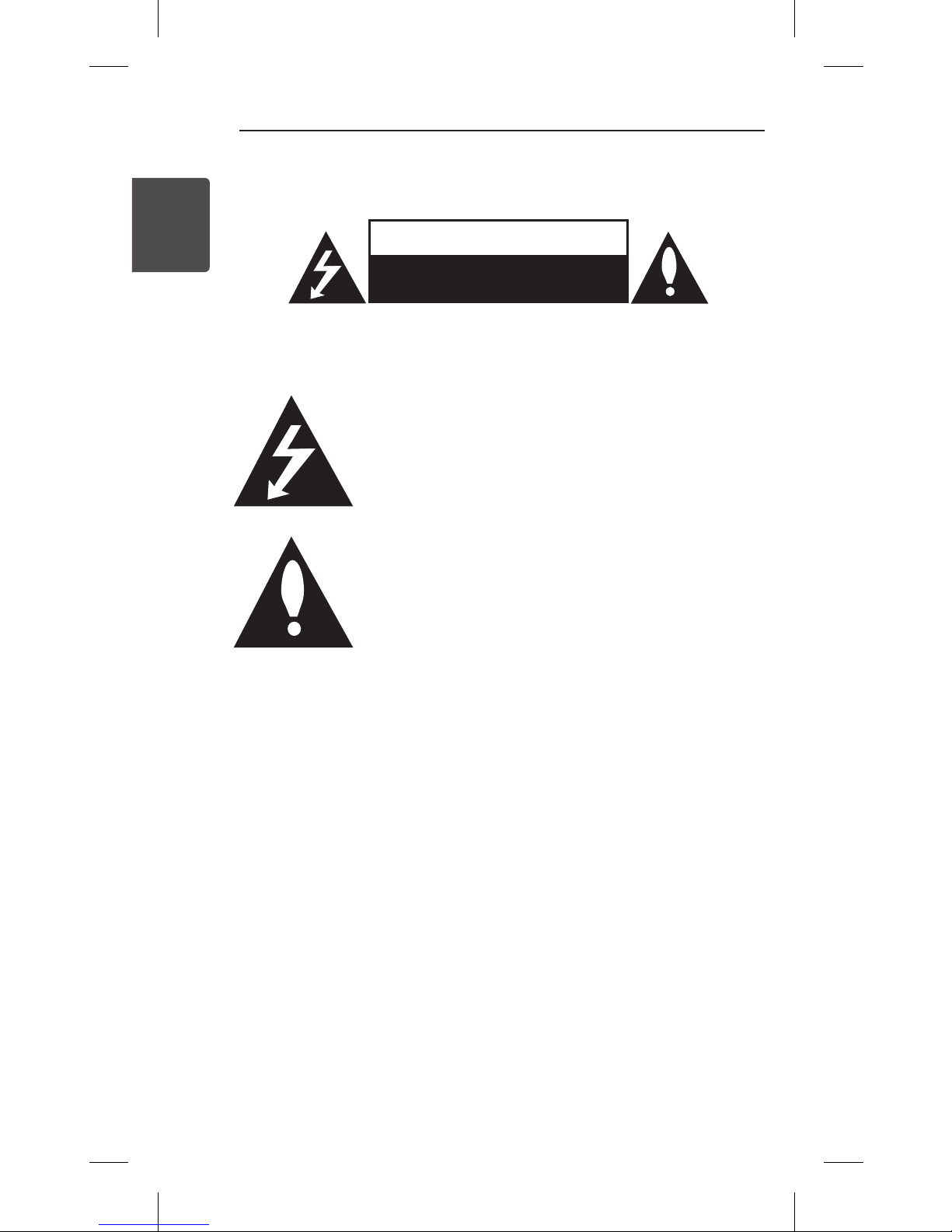
CAUTION
RISK OF ELECTRIC SHOCK
DO NOT OPEN
CAUTION: TO REDUCE THE RISK OF ELECTRIC SHOCK DO NOT REMOVE
COVER (OR BACK) NO USER-SERVICEABLE PARTS INSIDE REFER SERVICING
TO QUALIFIED SERVICE PERSONNEL.
This lightning ash with arrowhead symbol within
an equilateral triangle is intended to alert the user
to the presence of uninsulated dangerous voltage
within the product’s enclosure that may be of
sucient magnitude to constitute a risk of electric
shock to persons.
The exclamation point within an equilateral
triangle is intended to alert the user to
the presence of important operating and
maintenance (servicing) instructions in the
literature accompanying the product.
WARNING: TO PREVENT FIRE OR ELECTRIC SHOCK HAZARD, DO NOT
EXPOSE THIS PRODUCT TO RAIN OR MOISTURE.
CAUTION: The apparatus shall not be exposed to water (dripping or
splashing) and no objects lled with liquids, such as vases, shall be placed
on the apparatus.
WARNING: Do not install this equipment in a conned space such as a
book case or similar unit.
CAUTION: Do not block any ventilation openings. Install in accordance
with the manufacturer’s instructions.
Slots and openings in the cabinet are provided for ventilation and to
ensure reliable operation of the product and to protect it from over
heating. The openings shall be never be blocked by placing the product
on a bed, sofa, rug or other similar surface. This product shall not be
placed in a built-in installation such as a bookcase or rack unless proper
ventilation is provided or the manufacturer’s instruction has been
adhered to.
NOTICE: For safety marking information including product identication
and supply ratings, please refer to the main label on the bottom or rear of
the apparatus.
1 Getting Started
Page 3

Getting Started
3
1
Getting Started
CAUTION : Do not use high voltage products around this product. (ex.
Bug Zapper) This product may malfunction due to electrical shock.
CAUTION : Only use the AC adapter supplied with this device. Do not
use a power supply from another device or another manufacturer. Using
any other power cable or power supply may cause damage to the device
and void your warranty.
CAUTION concerning the Power Cord
Check the specication page of this owner’s manual to be certain of
the current requirements of this device. Do not overload wall outlets.
Overloaded wall outlets, loose or damaged wall outlets, extension
cords, frayed power cords, or damaged or cracked wire insulation are
dangerous. Any of these conditions could result in electric shock or re.
Periodically examine the cord of your appliance, and if its appearance
indicates damage or deterioration, unplug it, discontinue use of the
appliance, and have the cord replaced with an exact replacement part
by an authorized service center. Protect the power cord from physical
or mechanical abuse, such as being twisted, kinked, pinched, closed in
a door, or walked upon. Pay particular attention to plugs, wall outlets,
and the point where the cord exits the appliance. The Power Plug is the
disconnecting device. In case of an emergency, the Power Plug must
remain readily accessible.
Page 4

Getting Started
4
Getting Started
1
POWER: This unit operates on a mains supply of 100 - 240 V ~, 50/60 Hz.
Wiring: This unit is supplied with a BS 1363 approved main plug. When
replacing the fuse, always use of the same rating approved to BS 1362.
Never use this plug with the fuse cover omitted. To obtain a replacement
fuse cover contact your dealer. If the type of plug supplied is not suitable
for the mains sockets in your home, then the plug should be removed
and a suitable type tted. Please refer to the wiring instructions below:
Warning: A mains plug removed from the mains lead of this unit must
be destroyed. A mains plug with bared wires is hazardous if inserted in a
mains socket. Do not connect either wire to the earth pin, marked with
the letter E or with the earth symbol 6 or coloured green or green and
yellow. If any other plug is tted, use same rating of fuse in the plug.
Important: The wires in this mains lead are coloured in accordance with
the following codes:
- BLUE: NEUTRAL, BROWN: LIVE - As the colours of the wires in the
mains lead of this unit may not correspond with the coloured marking
identifying the terminals in your plug, proceed as follows: The wire which
is coloured blue must be connected to the terminal which is marked with
the letter N or coloured black. The wire which is coloured brown must be
connected to the terminal which is marked with the letter L or coloured
red.
Page 5
Getting Started
5
1
Getting Started
Declaration of Conformity
Hereby, LG Electronics European Shared Service Center B.V., declares that
this Wireless Multi-room Audio is compliant with the essential
requirements and other relevant provisions of Directive 1999/5/EC. The
complete Declaration of Conformity may be requested through the
following postal address:
LG Electronics European Shared Service Center B.V.
European Standard Team
Krijgsman 1
1186 DM Amstelveen
The Netherlands
or can be requested at our dedicated DoC website:
http://www.lg.com/global/support/cedoc/cedoc#
This device is a 2.4 GHz and 5 GHz wideband transmission system,
intended for use in all EU member states and EFTA countries, with indoor
use restriction for 5 GHz band. (5150 – 5250 MHz)
This device should be installed and operated with minimum distance
20 cm between the device and your body. And this phrase is for the
general statement for consideration of user environment.
Disposal of your old appliance
1. All electrical and electronic products should be
disposed of separately from the municipal waste stream
via designated collection facilities appointed by the
government or the local authorities.
2. The correct disposal of your old appliance will help
prevent potential negative consequences for the
environment and human health.
3. For more detailed information about disposal of your old
appliance, please contact your city office, waste disposal
service or the shop where you purchased the product.
Page 6
Table of Contents
6
Table of Contents
1 Getting Started
2 Safety Information
8 Unpacking
9 Top Panel
10 Rear Panel
2 Using Multi-Room
11 Multi-Room Network Setup
11 – Step 1. Home Network Requirement
12 – Step 2. Installing “Music Flow Player” App and Media
Server
14 – Step 3. Initial Multi-Room Setup
19 – Step 4. Add Speakers (Optional)
21 – Using the Bridge
23 Enjoying Multiple MUSICow Product
23 – 1. Home Cinema Mode
(Surround Sound Mode)
24 – 2. Grouping Mode
24 – 3. L/R Stereo Mode
Page 7
1
2
3
4
5
Table of Contents
7
3 Using External device
25 Using External device
25 – 1. PORTABLE IN connection
26 – 2. BLUETOOTH® connection
4 Troubleshooting
27 Troubleshooting
5 Appendix
32 About Status LED’s Condition
34 Specication
34 Open source software notice
yTo view the instructions of advanced features, visit
http://www.lg.com and then download Owner’s
Manual. Some of the content in this manual may dier
from your unit.
ySome of the content in this manual may dier from
Music Flow Player app depending on the application’s
version.
Page 8
Getting Started
8
Getting Started
1
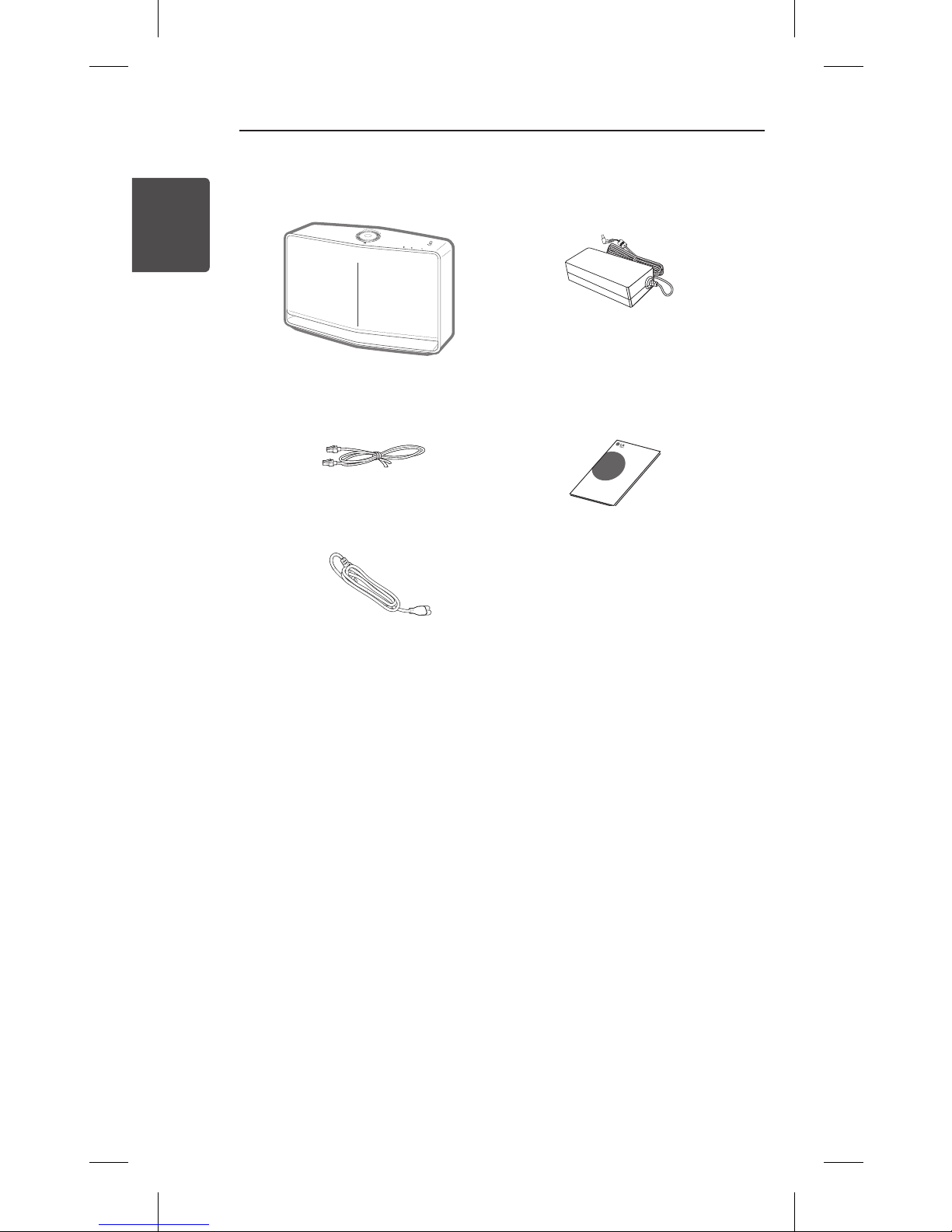
yDepending on the region, the supplied accessories may
dier.
Unpacking
Simple Manual
LAN cable
Unit
AC adapter
Power cord
Page 9

Getting Started
9
1
Getting Started
Top Panel
ba f
g
c d e
a 1/!/
F
button
-
Power On / Changing the
mode
- Switching to the standby
mode
b
Volume wheel
Turn the wheel clockwise
to increase volume, or
counterclockwise to
decrease volume.
c
Bluetooth status
LED (page 32)
d
Portable In status
LED (page 32)
e
Network status
LED (page 33)
f
NFC Tag (page 26)
g
Speaker
Page 10
Getting Started
10
Getting Started
1
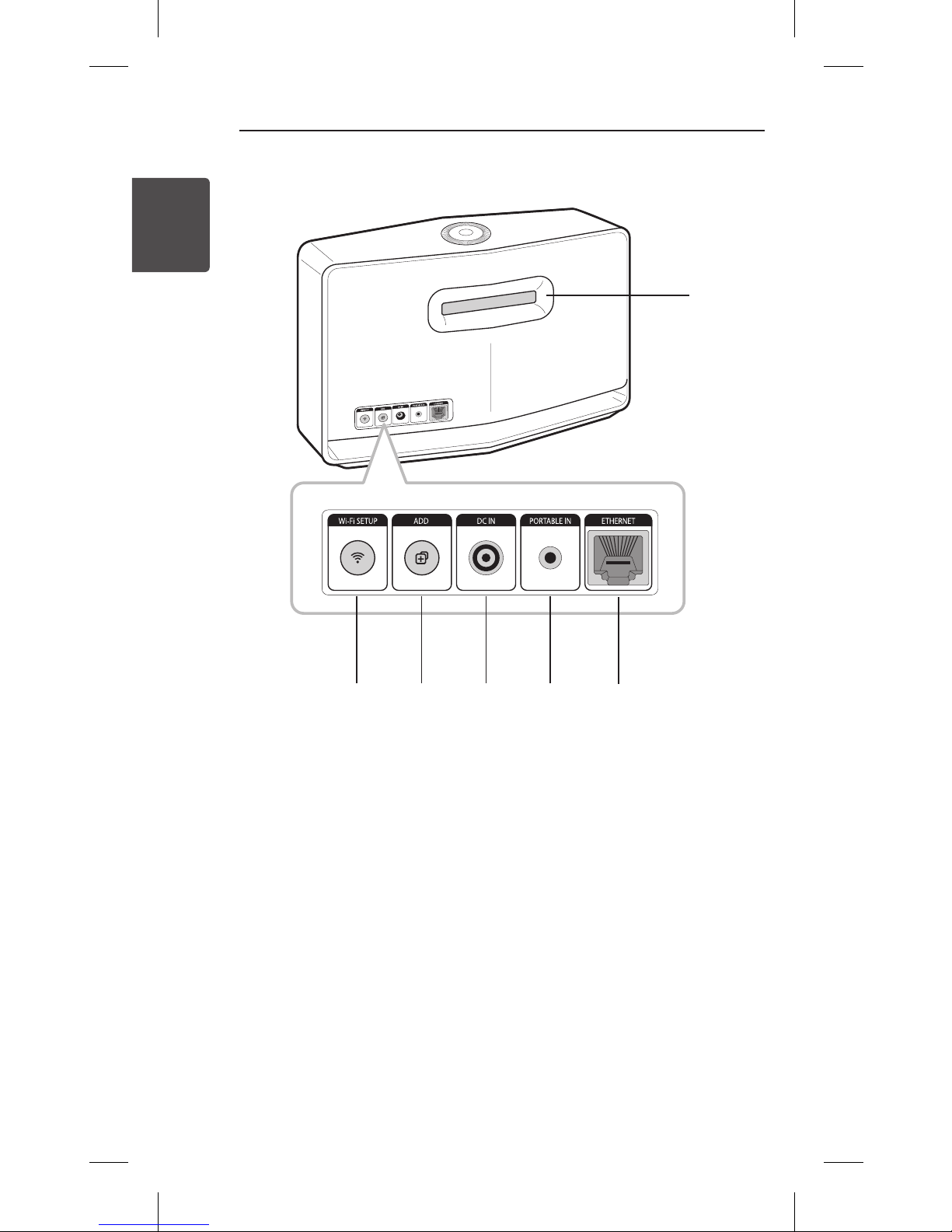
Rear Panel
a
Speaker duct
A hole for plentiful
bass sound on speaker
cabinet.
b
Wi-Fi SETUP button
Connects initial
MUSICflow product to
your network wirelessly.
c
ADD button
Adds additional
MUSICflow products to
your network.
(In case one or more
MUSICflow products are
connected)
d
DC IN (AC adapter input)
e
PORTABLE IN connector
f
ETHERNET (LAN) port
a
b c d e f
2 Using Multi-Room
Page 11
Using Multi-Room
11
2
Using Multi-Room
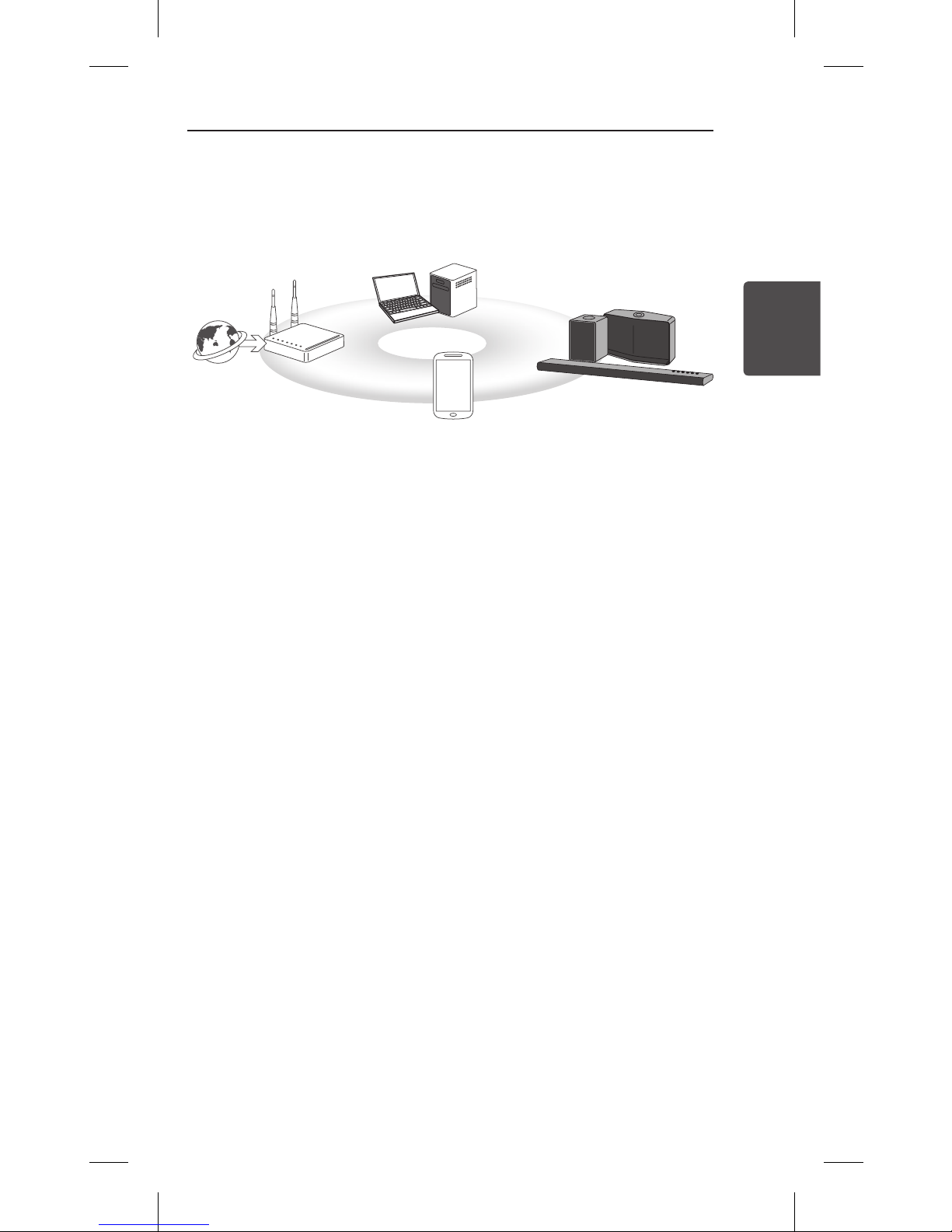
Multi-Room Network Setup
Step 1. Home Network Requirement
a
b
c
d
a
Make sure that a wireless network environment using a
router is installed at your home. The home router should be
connected to the internet.
b
Connect your smart device to your home network.
c
Connect the speaker to the power supply.
d
If you want to enjoy the music on media server (PC, Mac or
Network Storage), connect the media server to your home
network.
.
Caution for Home Network Requirement
yMUSICow system communicates over both 2.4 GHz and
5 GHz home network supporting 802.11b/g/n wireless
technology.
yWireless signal interference may lead to disconnection of
network or stopping playback.
yDepending on the speed of your network, playback of online
contents may not work well.
yNetwork connection may not be made with some routers
(or modem) from certain internet communication service
providers. In such case, purchase a router from general
market and use.
yBecause of a rewall on your PC, Music Flow PC Software may
not work well. In this case, disable all your rewalls and try to
connect again. Refer to your rewall’s instruction or website.
2 Using Multi-Room
Page 12

Using Multi-Room
12
2
Using Multi-Room
Step 2. Installing “Music Flow Player”
App and Media Server
Installing “Music Flow Player” App
Download “Music Flow Player” on the App Store or Google Play
Store.
A B
OR
A
Type “Music Flow Player” in the search bar and tap “Search”.
B
Scan the QR code using the scanning application.
,
Note for “Music Flow Player” App
yDepending on the device, “Music Flow Player” app may not
work.
yMusic Flow Player app will be available in version of the
software as follow;
Android O/S : Ver 4.0 (or later)
iOS O/S : Ver 6.0 (or later)
Page 13

Using Multi-Room
13
2
Using Multi-Room
Installing Media Server software on your PC or
Mac
Media server software allows you to access audio les stored in
media server (PC, Mac or Network storage) and enjoy them on
your speaker via home networking. On www.lg.com website,
type model name in the search bar and nd media server
software on support tab.
yWindows : Music Flow PC Software
yMac OS : Nero MediaHome 4 Essentials
,
Note for using Media Server
yOn your PC or Mac, you must share the folder contained
Audio content to play them on MUSICow system.
yOn your NAS device, you also must change the settings of
your NAS device to ensure that DLNA server is enabled.
yOn your Firewall software, you may also need to change the
settings of your rewall software to ensure that Windows le
sharing is not blocked.
Page 14

Using Multi-Room
14
2
Using Multi-Room
Step 3. Initial Multi-Room Setup
When installing the MUSICow product for the rst time, you
can choose two types of connection as below.
Option 1. Wired connection
(MUSICflow Mesh Network Connection)
Connect the one of MUSICow products (sound bar, speaker or
bridge) to the home router using LAN cable.
Then you can connect the additional MUSICow products
(Optional) to your home network wirelessly (MUSICow Mesh
Network). Refer to “Step 4. Add Speakers (Optional)” on page
19.
If you have a bridge
Bridge (Wired Connection) à One speaker (Add speakers)
à
Other speakers (Add speakers)
If you do not have a bridge
Initial speaker (Wired Connection) à Other speakers (Add
speaker)
LAN Cable
Page 15

Using Multi-Room
15
2
Using Multi-Room
Simple Setup Guide (Wired Connection)
1. Ensure that your smart device is connected to your Wi-Fi
network.
2. Select the product you want to connect.
3. Launch Music Flow Player App and follow “Wired
Connection” instructions on set-up wizard.
4. Connect LAN cable from router to any one of MUSICflow
product (sound bar, speaker or bridge).
5. Power on the MUSICflow product and wait until you see a
white LED become solid.
6. If you install successfully, update speaker software to the
latest:
[Home à Settings à Version Info.]
m Tip
Separated from the router’s Wi-Fi environment, composes
wireless network among MUSICow products.
Using MUSICow mesh network, Wireless coverage is
expanded, which oers stable music streaming service.
In the below case, MUSICow Mesh Network connection is
recommended.
1. When the Wi-Fi coverage cannot reach whole house
because home router performance is unstable.
(In case that your home router supports only 802.11 b/g 2.4
GHz.)
2. When you want to enjoy MUSICflow system in stable
wireless network environment.
3. When you want to use in below mode.
1) Multi-Room & Group-play Mode
2) Home Cinema Mode
3) Hi-Fi (24 bit/192 kHz) Mode : When you enjoying the high-
quality audio source (ex: flac)
Page 16

Using Multi-Room
16
2
Using Multi-Room
Option 2. Wireless connection
(Standard Wireless Connection)
When the wired connection is unavailable between MUSICow
products and home router, MUSICow products oer music
streaming service within home router’s Wi-Fi coverage.
Connect one of the MUSICow products (sound bar, speaker) to
the home router wirelessly.
(Option)
Then you can connect the additional MUSICow products to
your home Wi-Fi network wirelessly.
Refer to “Step 4. Add Speakers (Optional)” on page 19.
Wireless signal
Page 17

Using Multi-Room
17
2
Using Multi-Room
Simple Setup Guide (Wireless Connection)
1. Ensure your smart device is connected to your Wi-Fi
network.
2. Select the product you want to connect.
3. Launch Music Flow Player App and follow “Wireless
Connection” instructions on set-up wizard.
4. Press
(Wi-Fi Setup icon) button at the back or top of the
MUSICflow product (sound bar, speaker or bridge).
5. Check if the
network indicator LED is blinking in a white
and red color.
6. Please input the password of Home Router for connecting
MUSICflow product to home router.
If you have iOS device, you must take the three steps
below (6-1~6-3)
6-1. Press home button of iOS device and go to [Settings].
If you can select “MusicFlow_Setup” in Wi-Fi settings. The
App and MUSICflow product will be connected.
6-2. Move to Music Flow Player App and input the password
of home router for connecting MUSICflow product to
home router.
6-3. Press home button of iOS device and go to [Settings].
Reconnect to your Home Wi-Fi network. And move to
Music Flow Player App again.
7. If you install successfully, update speaker software to the
latest:
[Home à Settings à Version Info.]
,
Note
yIf you failed for “Wireless connection” conguration. It
seems that location is too far from the router, it may not be
connected. Place and use it at a location that is close enough
to router.
yMusic Flow PC Software installed on desktop is not supports
wireless connection procedure. In this case, use the Music
Flow Player on smart device.
Page 18

Using Multi-Room
18
2
Using Multi-Room
yIf the router’s performance is not good enough (ex. 802.11g
2.4 GHz), sound may be broken in group play or surround
playback mode. In this case, connect the speaker in
MUSICflow Mesh Network.
m Tip
Oers music streaming service in MUSICow system within
home router’s Wi-Fi coverage.
In the below case, Standard wireless connection is
recommended.
1. When all speakers are within the home router’s Wi-Fi
coverage.
(If case that your home router supports 802.11n 2.4/5 GHz )
2. When the wired connection is unavailable between
MUSICow products and home router.
3. When you want to use in below mode.
1) When you use single speaker MUSICflow system.
2) Group-play in the Wi-Fi coverage of the home router
3) L/R stereo Mode
Page 19

Using Multi-Room
19
2
Using Multi-Room
Step 4. Add Speakers (Optional)
If you connect the initial MUSICow product to your home
network, you can connect the additional MUSICow products
(sound bar, speaker or bridge) to your home network.
Simple Setup Guide (Add Speakers)
1. If you have additional speakers, power on the speaker.
2. Launch smart device or PC application and follow
instructions on set-up wizard.
[Home à Add Speakers]
3. Press
(ADD icon) button at the back or at the top of the
MUSICflow product (sound bar, speaker or bridge) which is
you want to connect.
4. Check if
network indicator LED is blinking in a red color.
5. If you install successfully, update speaker software to the
latest:
[Home à Settings à Version Info]
,
Note
If you failed for “Add Speaker” conguration. It seems that
location is too far from between speakers, it may not be
connected. Place and use it at a location that is close enough to
router and each speakers.
Page 20

Using Multi-Room
20
2
Using Multi-Room
,
Note for Multi-Room Setup
yYou can make all wireless/wired connection according to the
location of the router. But we recommend that you connect
the rst speaker or bridge to the router using LAN cable and
connect additional speakers for network stability.
yWhen the “Firmware update”pop-up appears on Music Flow
Player App, touch to start updating.
yIf you connected a speaker with a LAN cable and installed
additional speakers: If there is a speaker with frequent
sound breaking it may not be close enough with the LAN
cable connected speaker, install an additional Bridge or
another speaker in a middle location between the LAN cable
connected speaker and the speaker with sound breaking and
try again.
yEven if you connected speakers with MUSICow mesh
network, music sound breaks by ambient signal interference
causing Wi-Fi network defect. In this case, you can try to
change Mesh network channel of MUSICow system at the
[Settings à Advanced settings à Mesh Network Channel]
yWhen making connection, “Mesh network composition” may
appear and it takes about 30 seconds. This message appears
once in rst installation but may appear again when you
change network environment.
Page 21

Using Multi-Room
21
2
Using Multi-Room
Using the Bridge
1. Use as a root device
(wired to the home router)
When your home router is located too far from any speaker
location that is to be connected via wired mode:
a
According to “Simple Setup Guide (Wired Connection)”,
connect the Bridge to your home router with LAN cable.
b
According to “Simple Setup Guide (Add Speakers)“, add
MUSICflow products to your home network.
a
b
Bridge
Page 22

Using Multi-Room
22
2
Using Multi-Room
2. Use as a wireless extender
When you want to expand MUSICow mesh network coverage:
Preparation: Initial MUSICow product is connected to your
home router with LAN cable.
a
According to “Simple Setup Guide (Add Speakers)“, add the
Bridge to your home network.
b
According to “Simple Setup Guide (Add Speakers)“, add
MUSICflow products to your home network.
a
b
Bridge
Page 23

Using Multi-Room
23
2
Using Multi-Room
Enjoying Multiple MUSICflow
Product
1. Home Cinema Mode
(Surround Sound Mode)
Simply add a LG MUSICow sound bar to your network and
synchronize it with your LG MUSICow speakers to enjoy a
home cinema system experience.
If you have a bridge
Bridge (Wired Connection) à Sound bar (Add speaker) à
Other speakers (Add speaker)
If you do not have a bridge
Sound bar (Wired Connection) à Other speakers (Add
speaker)
,
Note
If you connect the MUSICow Speakers to your Home Cinema,
those speakers must be same model.
Requirement
yMUSICow Sound Bar x 1
yMUSICow Speaker x 2 (Same model)
yNetwork Bridge (optional)
Page 24

Using Multi-Room
24
2
Using Multi-Room
2. Grouping Mode
Speakers placed in separate rooms can play the same music or
dierent music based on your needs.
Synchronize your multi-room speakers together to play the
same song in every room.
Requirement
yMore than 2 MUSICow
yNetwork Bridge (optional)
3. L/R Stereo Mode
Set your speakers to stereo sound with Music Flow Player Apps
to enjoy movies and your favourite tracks.
Requirement
yMUSICow Speaker x 2
yNetwork Bridge (optional)
Page 25

Using External Device
25
Using External Device
3
Using External device
1. PORTABLE IN connection
Connect any device which has portable out ( ) to the
PORTABLE IN connector of the unit by using a 3.5 mm stereo
cable.
3 Using External device
Page 26

Using External Device
26
Using External Device
3
2. BLUETOOTH® connection
1. Select the Bluetooth mode with 1/
!/
F
button on the
speaker.
2. On your Bluetooth device, make sure that Bluetooth is on
and select “Music Flow H5 (or H7) (XX.XX).
Music Flow H5 (XX.XX)
H5 (or H7)(XX.XX)
3. Play music on your Bluetooth device.
NFC for Easy Pairing (Android Only)
You can pair simply and easily by tagging on the mark.
,
Note
If you are listening to music using the Music Flow Player app,
seamless playback is activated instead of Bluetooth pairing.
4 Troubleshooting
Page 27

Troubleshooting
27
Troubleshooting
4
Troubleshooting
Software Update
When the MUSICow device is connected to your home
network, check whether the rmware version is the latest on all
speakers and the Music Flow Player application.
Your MUSICow device might require a more recent rmware to
be installed for optimal operation.
[Settings à Version Info]: You can check if your speaker has the
latest rmware.
How can I initialize speaker?
If you press down “ (Add)” button until Beep sounds once,
the network related settings are initialized. (For sound bar,
“DISABLED” is displayed in the display window.)
If you press down “
(Add)” button until Beep sounds twice,
factory initialization is performed. (For sound bar “RESET” is
displayed in the display window.)
Speaker is not connected.
1. For a speaker that is already connected, make sure the
phone is connected to the same router as the speaker. If not,
connect to the same router, also check the following.
1-1. Set Power off / on, and check the connection.
1-2. If it is not solved by 1-1, close the application and run
again.
1-3. If it is not solved by 1-2, reset the Speaker and
reconnect. To reset, press and hold the “ADD” button
for 8 seconds until you hear one beep.
1-4. If it is not solved by 1-3, delete the App and reinstall,
then try again.
4 Troubleshooting
Page 28

Troubleshooting
28
Troubleshooting
4
2. If you change the location of the speaker that is in use,
2-1. If the changed location is too far from the home router,
it may not be connected. Place and use it at a location
that is close enough to router.
2-2. Connect the speaker with a LAN cable, and for
additionally installed speakers, if they are not close
enough to the speaker connected with a LAN cable,
additionally install Bridge or another speaker in the
middle location between the speaker connected
with LAN cable and the speaker with sound being
disconnected.
There are times that speaker disappears from
the application
1. If the speaker blinking lamp is not blinking, and stays
as white: Even after the speaker power off and on, if the
problem continues, in this case you have to reset the speaker
(To reset, press and hold the “ADD” button for 8 seconds until
you hear one beep. ) then you need to register again. Carry
out speaker installation or additional procedures.
2. If the speaker blinking lamp blinks white - network signal is
unstable. Wait for a while, or move the speaker to another
location closer to another speaker or router.
3. Press menu key or menu at the top right side of Home
screen to end Music Flow Player app and run again.
Music sound breaks and unstable MUSICflow
system
1. If speaker with breaking sound is connected through
wireless connection mode,
yIf the distance between the speaker and home router
is not close enough, the corresponding condition may
occur. Move the speaker closer to the home router and
try again.
Page 29

Troubleshooting
29
Troubleshooting
4
yIf the device playing the source sound (Ex. phone or
laptop) is at a place without uent home router signal,
move the corresponding device closer to the home
router and try again.
2. If you connected a speaker with a LAN cable and installed
additional speakers:
If the speaker with frequent sound breaking is not close
enough with the LAN cable connected speaker, install a
Bridge or other another speaker in the middle location
between the LAN cable connected speaker and the speaker
with sound breaking, and try again.
3. Even if you connected speakers with MUSICflow mesh
network, music sound breaks by ambient signal interference
causing Wi-Fi network defect. In this case, you can try to
change Mesh network channel of MUSICflow system at the
[Settings à Advanced settings à Mesh Network Channel].
How can I compose Music Library? / Song is not
added even though library is updated.
Just by adding a song to DLNA server, Music Library is not
automatically updated. When you add a song to the server, in
[Settings à Music Library à Synchronization], run Music Library
synchronization again. Even after Music Library synchronization,
if song is not added, check the followings.
1. Check if DLNA server or PC SW shared folder is designated.
2. Check if DLNA server contents list is renewed.
yEven if you copy the le into the server, server contents
list may not be immediately renewed, so check the server
setting.
yIf you copy a song into the phone with a method other
than MTP, it may not be reected to the server contents
list. In such case, rescan the contents in the phone, or turn
o and start the phone again.
Page 30

Troubleshooting
30
Troubleshooting
4
3. The sharing may be blocked, so check DLNA server program
setting or firewall setting.
yIf you are using LG Musicow PC software, when you
designate shared folder, the corresponding folder will be
automatically added to Music Library in a minute.
LG MUSICflow product is turned off
automatically.
There are some cases that power o will occur if not receiving
sound signal:
yOptical, HDMI ARC, Bluetooth, Wi-Fi (DLNA) mode: if there is
no sound signal during 20 minutes.
yPortable-In : no sound signal during 6 hours.
-In case of Network connected, it will go to Network standby
mode (White LED).
-In case of Network disconnected, it will go to Standby mode
(Red LED).
What is the type of music file that can be
played?
yYou can play the les with extension mp3, wma, ac, m4a,
aac, ogg, and wav.
yFor mp3 and wma, sampling frequency is 32- 48 kHz, and for
ac, it supports up to 192 kHz, 24 bit.
yEven if the above conditions are satised, it may not be
played according to the characteristics of the le or media
server.
yDRM applied le cannot be played.
Page 31

Troubleshooting
31
Troubleshooting
4
How can I use Spotify?
LG MUSICow product supports Spotify connect method
provided by Spotify. Through this, you can use the function
supported by Spotify by connecting to the speaker through
Spotify application. If Music Flow speaker is in the network
composed of the same router, Spotify application Speaker
shape Icon is changed, and when you press this Icon, you can
check and select the speakers in the same network. (When the
speaker is selected, the icon changes to green.)
How can I use HomeChat?
After HomeChat device registration, you can use Home Chat.
Each of the family members can register and use one speaker in
HomeChat, and one person can register several speakers.
For details, refer to http://www.lghomechat.com.
Depending on the region, some services (ex. Spotify,
Homechat, etc.) are unavailable.
,
Note
Page 32

Appendix
32
Appendix
5
About Status LED’s Condition
Bluetooth
Color Status
(O) (White)
The unit is waiting for
Bluetooth pairing
(White)
The unit is paired to Bluetooth
Portable In
Color Status
(White)
Portable cable is connected.
5 Appendix
Page 33

Appendix
33
Appendix
5
Network
Color Status
(O ) (White)
The unit is waiting for
network connection
Network Status
(White) (Red)
The initial unit is being
connected to the network
(
button is pressed)
(White)
The unit is connected to the
network
(O) (Red)
The additional unit is being
connected to the network
(
button is pressed)
(Dimmed Whtie)
Network standby mode
Standby Mode
Status
(Red)
Standby mode
,
Note for Status LED’s Condition
yWhen you set the group at rst, Network status LED turns
green.
yThe additional groups are set, the Network status LED color is
changed in group order.
[Green > Magenta > Cyan > Blue > Yellow]
yIf the grouped speakers switch to the network standby mode,
the brightness of Network status LED gets dark.
Page 34

Appendix
34
Appendix
5
Open Source Software Notice
Information
To obtain the source code under GPL, LGPL, MPL, and other
open source licenses, that is contained in this product, please
visit http://opensource.lge.com.
In addition to the source code, all referred license terms,
warranty disclaimers and copyright notices are available for
download.
LG Electronics will also provide open source code to you on
CD-ROM for a charge covering the cost of performing such
distribution (such as the cost of media, shipping, and handling)
upon email request to opensource@lge.com. This oer is valid
for three (3) years from the date on which you purchased the
product.
AC adapter:
Model: DA-48A18
Manufacturer: Yang Ming
Industrial
Input: 100 - 240 V ~ 50/60 Hz
Output: 18 V
0
2.67 A
Power consumption:
NP8740: 12 W
NP8540: 10 W
Networked standby: 5.4 W
(If all network ports are
activated.)
Bluetooth: Codec SBC
Dimensions (W x H x D):
NP8740:
Approx. (370 x 232 x 110)
mm without foot
NP8540:
Approx. (340 x 207 x 88) mm
without foot
Net Weight (Approx.):
NP8740: 4.1 kg
NP8540: 3.25 kg
yDesign and specications
are subject to change
without notice.
Specification
Page 35

LG Customer Information Center
Country Telephone
Austria / Österreich
0810-144131
Slovenia / Slovenija 080-543543
Benelux
0900 543 5454 (NL)
015 200 255 (BE)
Schweiz / Suisse / Svizzera /
Switzerland
0848-543543
České republiky nebo Slovenské
republiky / Českej republiky alebo
Slovenskej republiky
CZ: 810 555 810
SK: 0850 111 154
Deutschland 01806 11 54 11
España 963 05 05 00
France 3220
Ελλάδα
801 11 200 900
210 4800 564
Italia 199600099
Polska 801 54 54 54
Portugal 808 785 454
România 031 228 3542
United Kingdom
UK : 0344 847 5454
IE : 01 686 9454
For more product details check the following webpage
United Kingdom www.lg.com/uk/musicow
Page 36

 Loading...