

Page 1

SMART TV Quick Setup Guide
* Image shown may differ from your TV.
* Image shown on a PC or mobile phone may vary depending on the Operating System (OS).
or
Wireless Network Connection
ENGLISH
LG wireless dongle
wireless AP (Router)
Wired Network Connection
Wired router
P/NO : MBM63822504 (1301-REV00)
Internet connection
Page 2

NETWORK SETTING
REC
ENGLISH
1
2
Press the SMART
button to access the Home
menu. Select Settings and press Wheel (OK).
More
More
Settings
Settings
Select the NETWORK → Network Connection
menu.
NETWORK
Network Connection
Network Status
Wi-Fi Direct
MiracastTM/Intel's WiDi
My TV Name : 42LA6400-DA
The device automatically tries to connect to the
4
network available (wired network first).
Network Connection
Connecting to the network.
Cancel
If you select Cancel or it fails to connect to the
network, the network list available is displayed.
Choose the network you wish to use.
Network Connection
Choose the network you want.
Wired Network
Wireless : AAA
Wireless : BBB
Wireless : CCC
Wireless : 11111
Wireless : 22222
Manual Setup
Refresh Lis
For wireless AP (Router) that have the ꔒ symbol,
you need to enter the security key.
Network Connection
t
Select the Start Connection.
3
Network Connection
To use network, prepare the following items.
To connect to a wired network:
Connect a LAN cable to the back of TV.
To connect to a wireless network:
Requires a wireless router or access point.
or
5 The connected network is displayed.
Select Complete to confirm the network connection.
Start Connection
If you select the Other Network List, the available
network list is displayed again.
Network Connection
Please call LG Customer Service if you experience any problems.
Wireless : AAA
Enter security key of network.
Forgot your password? Contact your AP manufacturer.
Network is connected.
Wireless:AAA
Select [Other Network List] to connect to another network.
Complete
Other Network List
Page 3

Troubleshooting Network Problems
REC
Press the SMART
1
button to access the Smart
Home menu. Select Settings and press Wheel (OK).
More
More
Settings
Settings
Select the NETWORK → Network Status menu.
2
NETWORK
Network Connection
Network Status
Wi-Fi Direct
MiracastTM/Intel's WiDi
My TV Name : 42LA6400-DA
Follow the instructions below that correlate to your
network status.
Check the TV or the AP (Router).
Check the AP (Router) or consult your Internet
service provider.
Network Status
TV Gateway DNS Internet
When an appears on TV and Gateway, but an
X on DNS.
Unplug the power cord of the AP (Router), cable
1
modem and try to connect after 5 seconds.
Initialize (Reset) the AP (Router) or cable modem.
2
Con
tact internet companies or AP
3
(Router)
companies.
Network Status
TV Gateway DNS Internet
When an appears on TV, Gateway and DNS,
but an X on Internet.
Unplug the power cord of the AP (Router), cable
1
modem and try to connect after 5 seconds.
Initialize (Reset) the AP (Router) or cable modem.
2
Check that the MAC address of the TV/AP (Router)
3
is registered with your Internet service provider. (The
MAC address displayed on the right pane of the
network status window should be registered with
your Internet service provider.)
Check the AP (Router) manufacturer’s website
4
to make sure your router has the latest firmware
version installed.
ENGLISH
Network Status
TV Gateway DNS Internet
When an appears on TV, but an X on Gateway.
Check the connection status of the TV, AP (Router)
1
and cable modem.
Power off and power on the TV, AP (Router) and
2
cable modem.
If you are using a static IP, enter the IP directly.
3
Contact internet companies or AP (Router)
4
companies.
Additional points to check when using a wireless
connection
Check the password for the wireless
1
connection in the AP (Router) settings
window.
Change the AP (Router) SSID (network name)
2
or the wireless channel.
Page 4
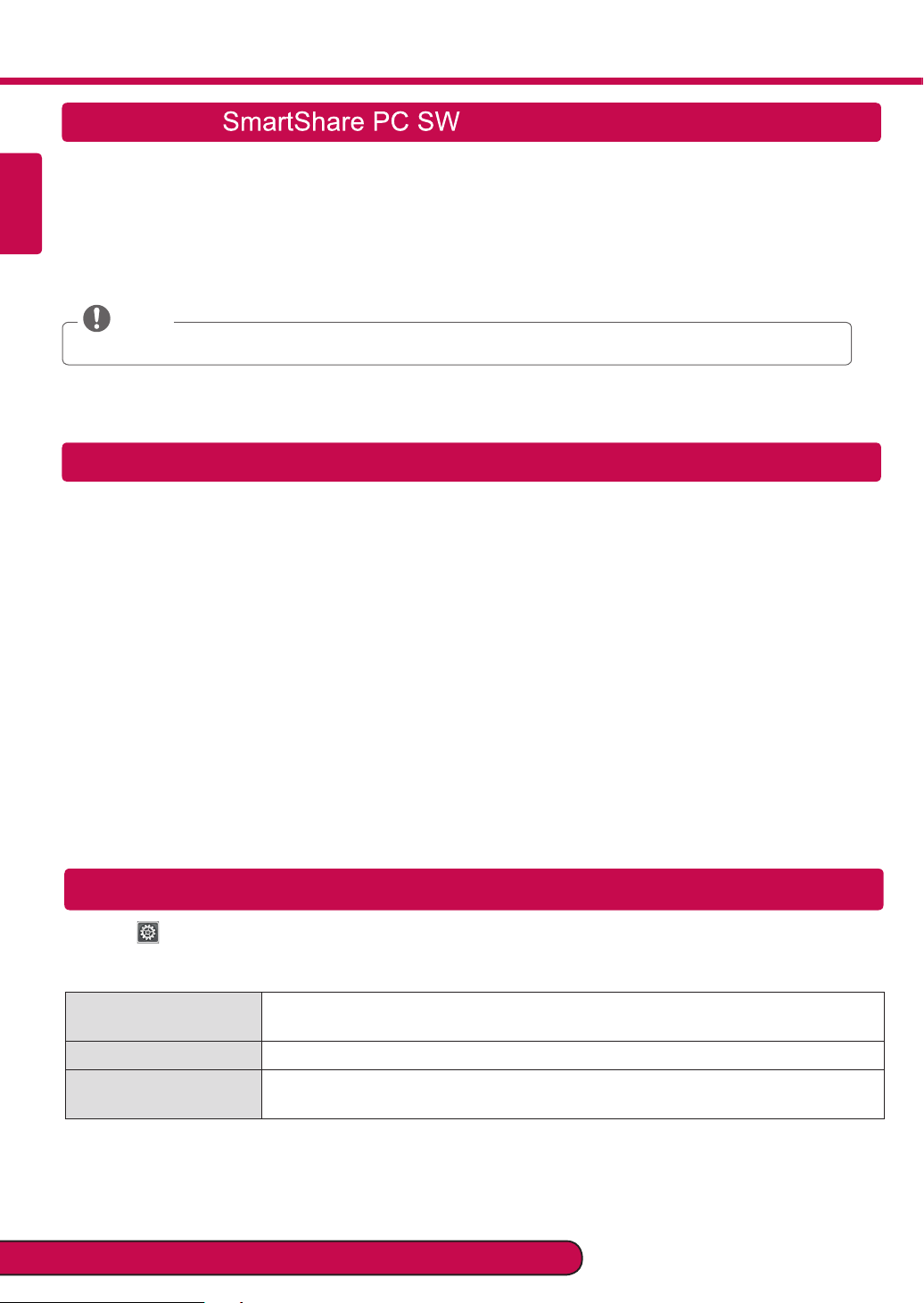
Installation & Setting
ENGLISH
Install the SmartShare PC SW (DLNA) and SmartShare PC SW (MediaLink) program on your PC.
Go to www.lg.com. Then, select your region.
1
Select SUPPORT. Then, search for your model.
2
Select Drivers & Software or SOFTWARE UPDATE. Then, select SmartShare PC SW (DLNA)
3
You can run the program when installation is complete.
4
NOTE
DLNA service is only available if TV and other devices are connected via a single AP (Router).
DLNA Connection to Smartphone
Check that Wi-Fi is enabled on your smartphone. To use DLNA, both devices must on the same local network.
1
Install/run the app for sharing content on your smartphone (It's called SmartShare on LG phones).
2
Enable your smartphone to share content files with other devices.
3
Select the file type you want to play (movie, audio or photo).
4
Select a movie, music or photo file to play on the TV.
5
Add the selected file to the playlist.
6
Select a TV model name on which to play the files. (The TV model name is on a label on the side of the TV and
7
in the customer support menu.)
Play the media file to view and enjoy it on your TV.
8
Updating the TV Firmware
HOME → Settings → SUPPORT → Software Update
By default, the TV will notify you of new software updates. You can use the Software Update menu to manually
check for available updates.
Software Update Set it to On.
When an updated file is detected, the file is downloaded automatically.
Automatic Update Mode If an update is available, the update automatically starts without prompting.
Check Update Version Checks the latest update version installed. When a new update is available, the
download process can be performed manually.
Please call LG Customer Service if you experience any problems.
Page 5
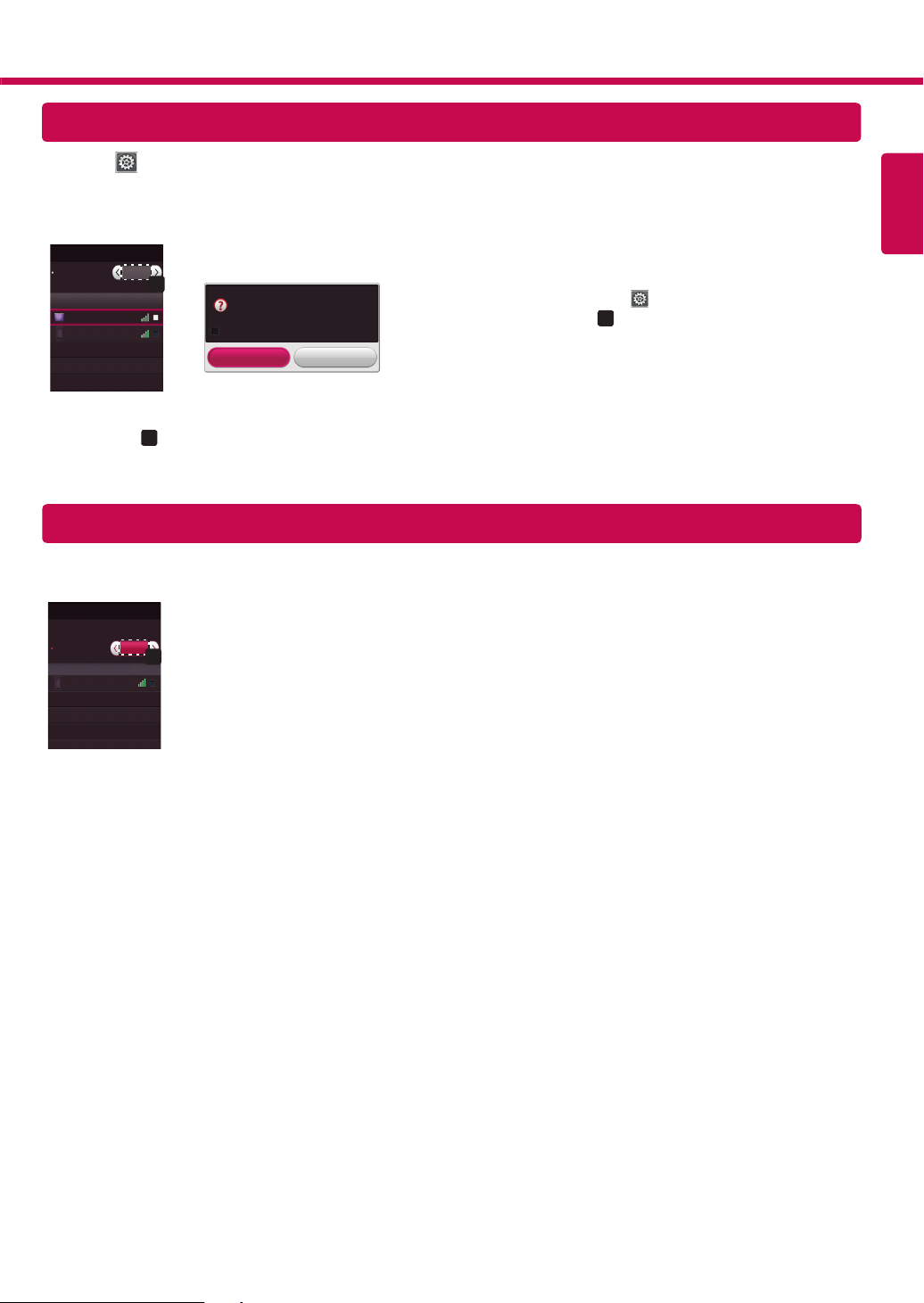
Wi-Fi Direct Setting
HOME → Settings → NETWORK → Wi-Fi Direct
If a local network is not available, you can connect a portable device directly to the TV using Wi-Fi Direct.
With Smart Share, you can share files or screens of devices connected to Wi-Fi
[Device Screen]
Wi-Fi Direct
Device Name
On
a
Connection
Connection
to Off. You can only use devices that support Wi-Fi
Wi-Fi Direct
TAAAA
BBBB
*
If you are not using
Wi-Fi Direct (a)
[TV Screen]
Automatically connect without asking
Wi-Fi Direct
[TAAAA]
Do you want to request a connection?
Yes
No
to minimize the interference between Wi-Fi devices, it is recommended to set
Miracast
1
If Wi-Fi
Direct
is set to On, a list of available devices
appears.
To use
Wi-Fi
»
Direct
and set Wi-Fi Direct (a) to On.
When you are prompted to request connection, select Yes.
2
Wi-Fi
Direct
is now connected to your TV.
Direct
TM
Setting
Direct
.
, go to
Settings → NETWORK
.
Miracast allows a portable device to securely send video and sound to the TV wirelessly.
[Device Screen]
TM
Miracast
/ Intel's WiDi
TAAAA
Device Name
TM
and intel's WiDi
On
The device which is applied Miracast
technology can be shown on the TV.
MiracastTM / Intel's WiDi
Connection
Connection
a
Miracast should be set to 'ON' on your mobile device And TV.
1
Go to the Network settings to set the Miracast.
When your TV or portable device is detected, select the device.
2
ENGLISH
Page 6
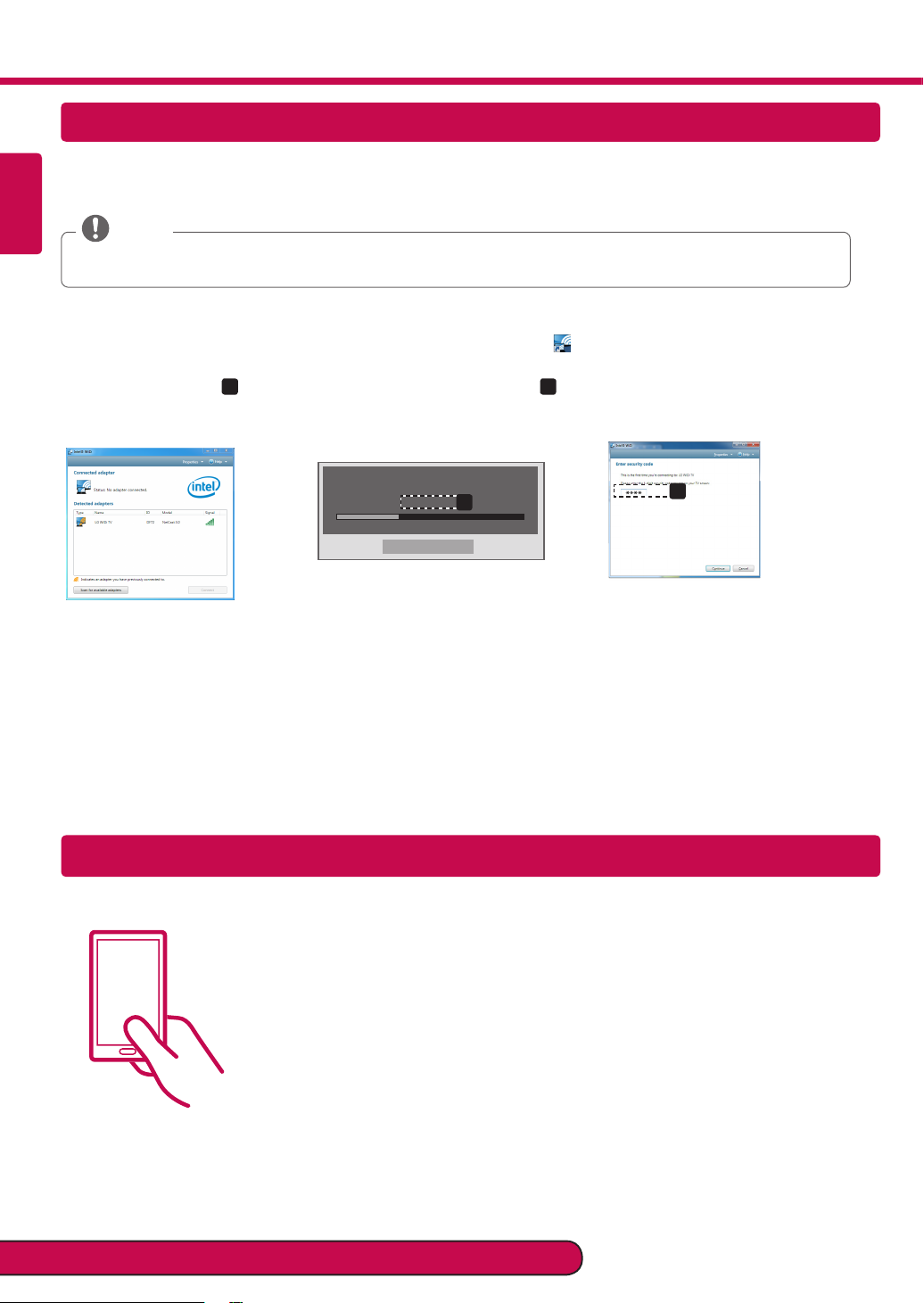
WiDi (Wireless Display) Setting
Tag On
ENGLISH
Intel’s WiDi (Wireless Display) technology enables easy and fast connection without wires or internet network for
mirrored and dual monitor display on your TV. You can sit back and experience your favorite movies, videos, photos,
online shows and more in full HD on your TV with great image clarity and sound.
NOTE
When you connect the TV and laptop, you should set up TV mode for “Live TV” and “ external input”.
If not, your computer cannot detect LG Smart TV.
Intel's WiDi is set to On. Connect your laptop to AP (Router). (Without AP, it is possible to use this function; it is
1
recommended to connect to AP.) Your laptop runs the Intel WiDi ( ) program.
It detects LG Smart TVs available, which supports WiDi. In the list, select the TV you want and click Connect.
2
Enter the number (a) shown on the screen into the input field (b) on your laptop and then click Continue.
(4-digit number: under WiDi 3.1.29, 8-digit number: above WiDi 3.5)
[Intel Notebook] Request connection
Enter the following Security keys.
PIN****
a
Remain: 92 second(s)
Cancel
[TV Screen] [Notebook Screen]
b
The TV screen appears on the laptop screen. The wireless environment may affect the screen display. If the
3
connection is poor, the Intel WiDi connection may be lost.
* LG TVs do not need to register.
* TV sound setting for Digital Sound Out is set to PCM.
* For more information on Intel WiDi, visit 'http://intel.com/go/widi'.
* On the Intel's WiDi, WiDi device is not searched. Close the Intel's WiDi, then search WiDi.
* You can control your PC using the Magic Remote Control.
* Intel's WiDi laptop is not appeared in the Miracast /WiDi menu in TV network menu.
Tag On
(Depending on model)
Tag On is a data transmission technology that can be used on smartphones with NFC
(Near Field Communication). Simply by tapping your smartphone to a Tag On sticker,
you can share content between your smartphone and TV.
• To connect your smartphone to the TV using Tag On, they must be connected on the
same Wi-Fi network or Miracast™/Intel’s WiDi of the smart TV is set to On.
- Do not attach the sticker to a metal part of the TV. Otherwise, your smartphone
cannot recognize the Tag On sticker.
-Do not crumple or fold the Tag On sticker. Otherwise, the Tag On is not recognized.
-To purchase a Tag On sticker, please contact the LG Electronics Service Center.
-This function is supported only on a smartphone with Android 4.0 (ICS) or later.
Please call LG Customer Service if you experience any problems.
Page 7
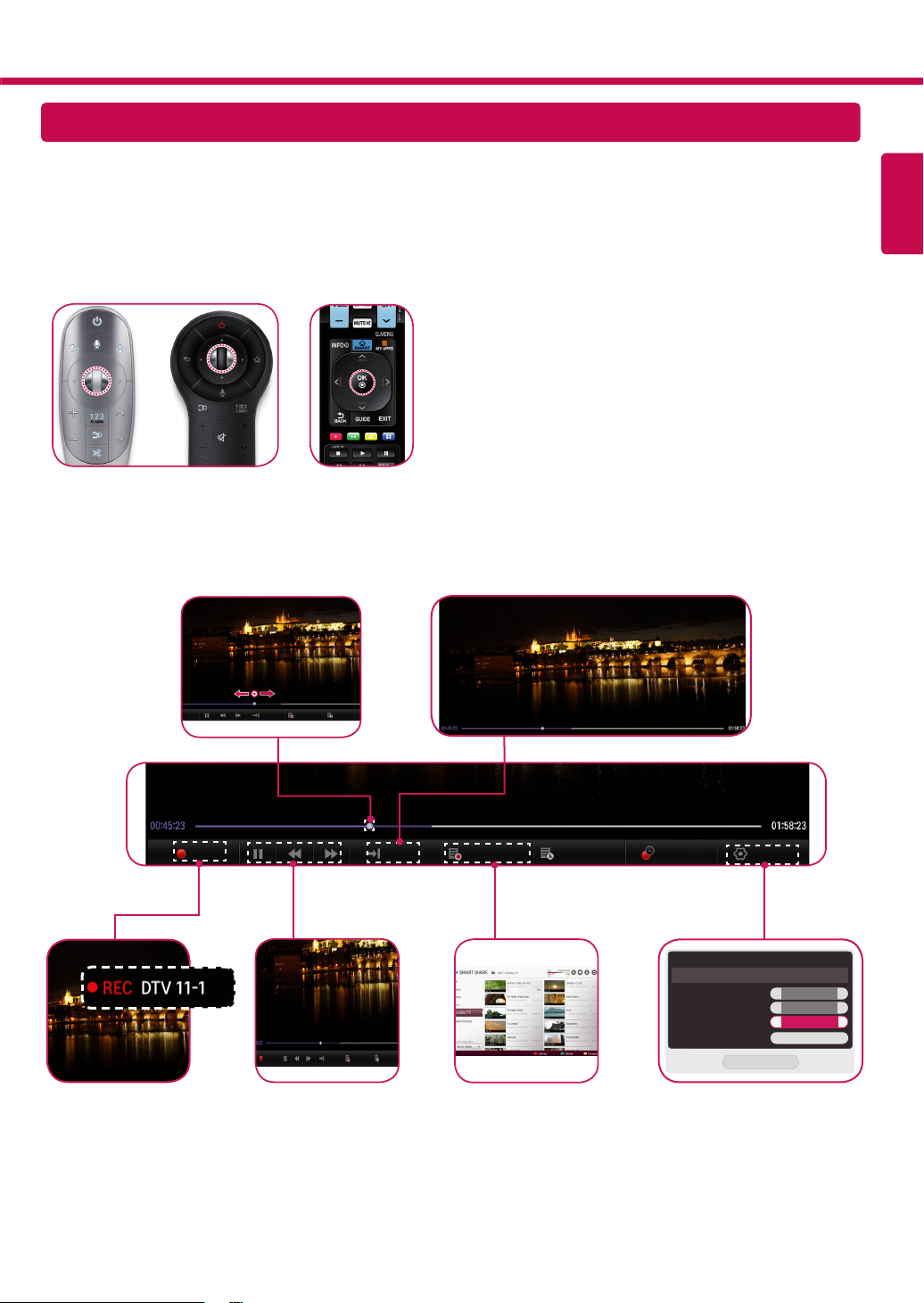
Timemachine II
Take Control of Time with Time Machine (It may not be available depending on the country/model.)
With your removable USB storage devices , Timeshift allows you to stop and rewind live TV, and record or set the
timer for your favourite TV programmes.
* You don’t need a removable USB storage devices to record a TV program.
* Time Machine II can record any programme in analogue and digital format, and can also record AV input.
* You can still use other services while recording a TV program.
Press the wheel (OK) button on the Magic Remote
1
Control while watching TV.
or
You can select the point
you want to play.
The progress bar appears and you can use
Time Machine’s various functions.
You can return to a live TV program when using
the Timeshift function.
ENGLISH
REC
The REC icon appears
at the top right of the
screen when recording
starts.
Live
REC Live
Recorded TV
Schedule
Recorded TV
Live
Schedule Li
You can use these
buttons to go to the
time you want to play.
Recorded TV
Schedule List
You can view a list
of recorded TV
programs.
Schedule
Option
* You may obtain space by deleting old videos for more space.
Recording Quality
Timeshift
Auto deleting
USB device initialization
Option
Close
Original
On
On
Initialize
>
>
>
<
<
<
You can click Option to change
the Time Machine settings.
Page 8
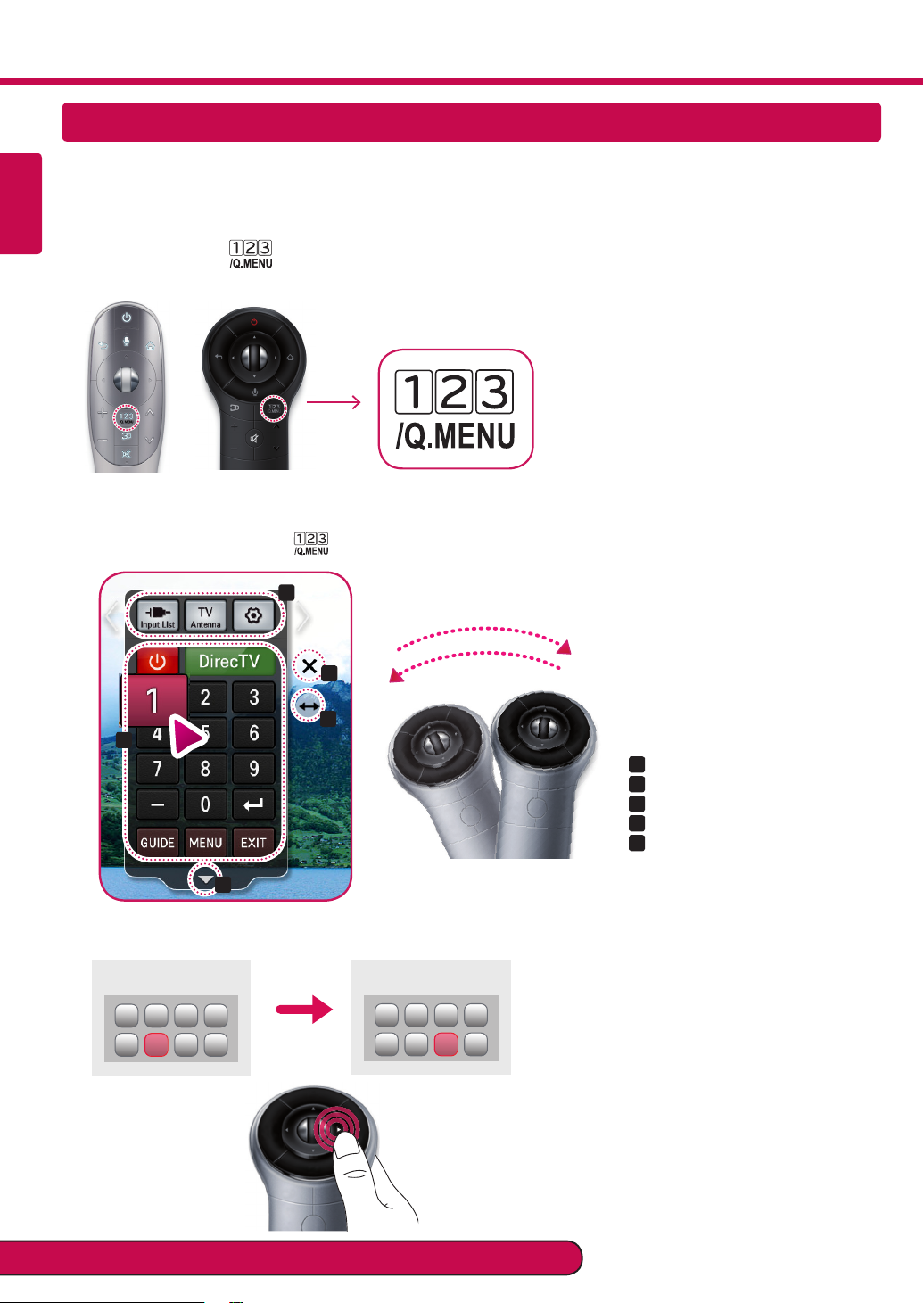
On-Screen Remote
ENGLISH
To use the Universal Control function (It may not be available depending on the country/model.)
With the Magic Remote Control, you can easily control your set-top box, Blu-ray player, home theater system, and
Sound Bar.
Check if the device is connected to the TV.
1
After pressing the ' ' button on the Magic Remote Control, select the device you want to control in the
2
Change Device tab. The Screen Remote that can control the device appears.
You can control external devices using the Screen Remote on the screen.
3
(This may not work with the ' ' button for some models.)
a
d
e
b
Change Device tab
»a :
Device control buttons
»b :
Expand the ScreenRemote
»c :
Exits the Screen Remote
»d :
Moves the position of the
»e :
ScreenRemote to left or right
c
Control external devices using the navigation keys, wheel (OK), or BACK button on the Magic Remote Control.
4
External Device Menu
External Device Menu
Please call LG Customer Service if you experience any problems.
 Loading...