

Page 1

Lenovo
Read the safety notices and important tips in the
included manuals before using your computer.
User Guide
Page 2

First Edition (June 2013)
© Copyright Lenovo 2013.
Before using the product, be sure to read Lenovo Safety and General
Information Guide first.
The features described in this guide are common to most models.
Some features might not be available on your computer and/or your
computer might include features that are not described in this user
guide.
LIMITED AND RESTRICTED RIGHTS NOTICE: If data or software is delivered pursuant a General
Services Administration “GSA” contract, use, reproduction, or disclosure is subject to restrictions set
forth in Contract No. GS-35F-05925.
Notes
•
•
The illustrations in this manual may differ from the actual product.
Please refer to the actual product.
•
The illustrations used in this manual are for the Lenovo M5400 unless
otherwise stated.
•
For details, refer to Guides & Manuals at http://support.lenovo.com.
Regulatory Notice
•
Page 3

Lenovo
User Guide
Instructions and technical information in this manual are applicable to the following
Lenovo notebook computers unless otherwise stated.
Model name MT
Lenovo B5400/B5400 Touch 20278, 80B6
Lenovo M5400/M5400 Touch 20281, 80B5
Page 4

Page 5

Contents
Chapter 1. Getting to know your computer .......................................... 1
Top view.......................................................................................................................1
Left-side view ..............................................................................................................6
Right-side view............................................................................................................9
Front view ..................................................................................................................10
Bottom view ...............................................................................................................12
Chapter 2. Learning the basics............................................................ 13
Configuring the operating system for the first time ............................................13
Putting the computer to sleep or shutting it down..............................................13
Connecting to a wireless network ..........................................................................14
Help and support ......................................................................................................14
Operating system interfaces (for the Windows 8 operating system) ................15
Charms and the charms bar (for the Windows 8 operating system)................. 16
Chapter 3. Recovery system................................................................ 18
Using the OneKey Recovery Pro program on the Windows 7
operating system .......................................................................................................18
Using the Windows recovery program on the Windows 8
operating system .......................................................................................................20
Chapter 4. Troubleshooting ................................................................. 22
Frequently asked questions .....................................................................................22
Troubleshooting ........................................................................................................24
Appendix A. CRU instructions............................................................. 28
Replacing the battery pack.......................................................................................28
Replacing the backup battery..................................................................................30
Replacing the hard disk drive .................................................................................32
Replacing memory ....................................................................................................35
Replacing the wireless LAN card ...........................................................................38
Replacing the optical drive ......................................................................................40
Trademarks............................................................................................ 43
i
Page 6

Page 7
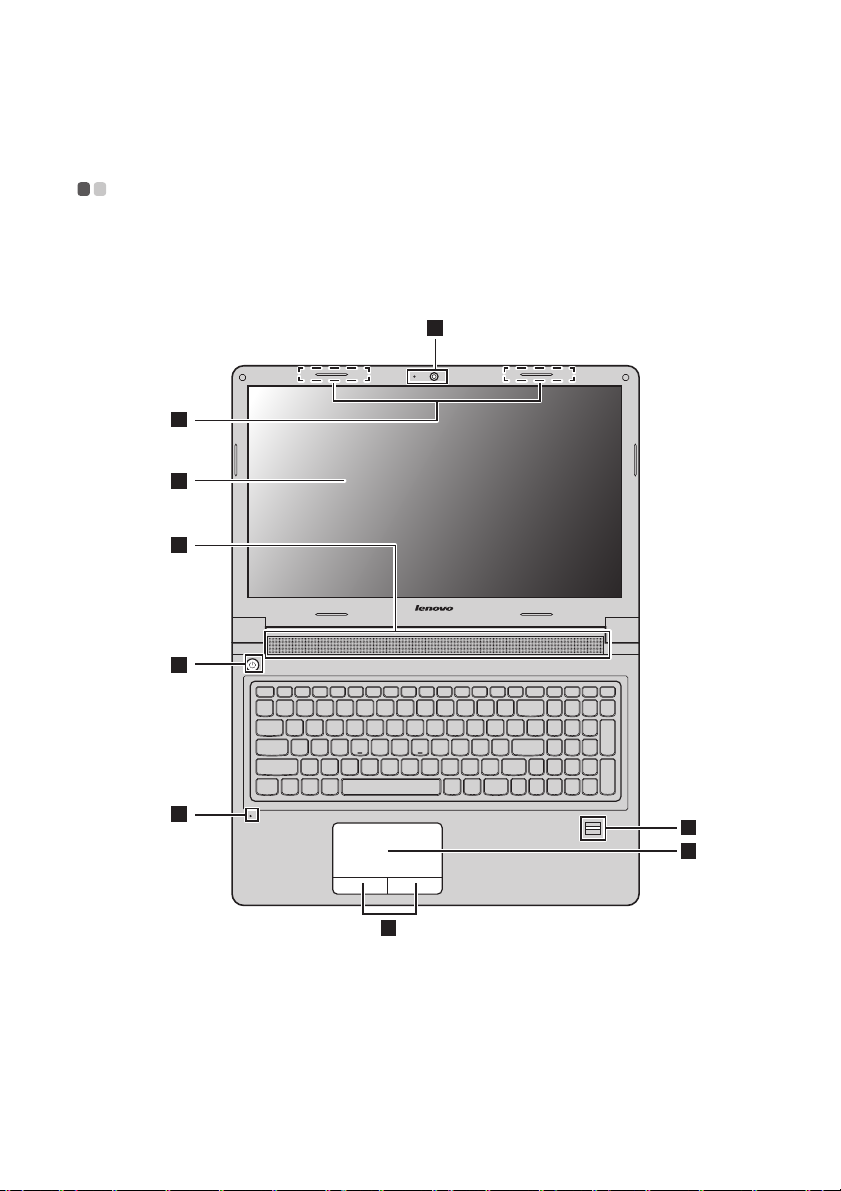
Chapter 1. Getting to know your computer
3
4
6
5
1
2
8
7
9
Top view - - - - - - - - - - - - - - - - - - - - - - - - - - - - - - - - - - - - - - - - - - - - - - - - - - - - - - - - - - - - - - - - - - - - - - - - - - - - - - - - - - - - - - - - - - - - - - - - - - - - - - - - - - - - - - - - - - - - -
B5400/B5400 Touch
1
Page 8

Chapter 1. Getting to know your computer
8
9
7
3
4
6
5
12 2
M5400/M5400 Touch
Notes:
• The dashed areas indicate parts that are invisible from outside.
• The illustrations may differ from the actual product. Please refer to the actual product.
Attention:
• Do not open the display panel beyond 130 degrees. When closing the display panel,
be careful not to leave pens or any other objects in between the display panel and the
keyboard. Otherwise, the display panel can be damaged.
2
Page 9

Chapter 1. Getting to know your computer
a
Integrated
Used for video communication or taking photos.
camera (on select
models)
ib
Built-in
microphone
c
Wireless
antennas
d
Display
e
Speakers
f
Power button
g
Fingerprint
reader (on select
Captures sound which can be used for video
conferencing, voice narration, or audio recording.
Connect to a wireless adapter to receive and send wireless
radio signals.
Provides brilliant visual output.
Provide audio output.
Press this button to turn on the computer.
Registers fingerprints that can be used as passwords to
secure your computer.
models)
h
Touchpad
i
Touchpad
buttons
Note: You can enable or disable the touchpad and the touchpad buttons by pressing Fn+F6.
The touchpad functions as a conventional mouse.
To move the cursor on the screen, slide your fingertip over
the pad in the direction in which you want the cursor to
move.
The functions of the left and right buttons correspond to
those of the left and right buttons on a conventional
mouse.
3
Page 10
Chapter 1. Getting to know your computer
b
2
1
2
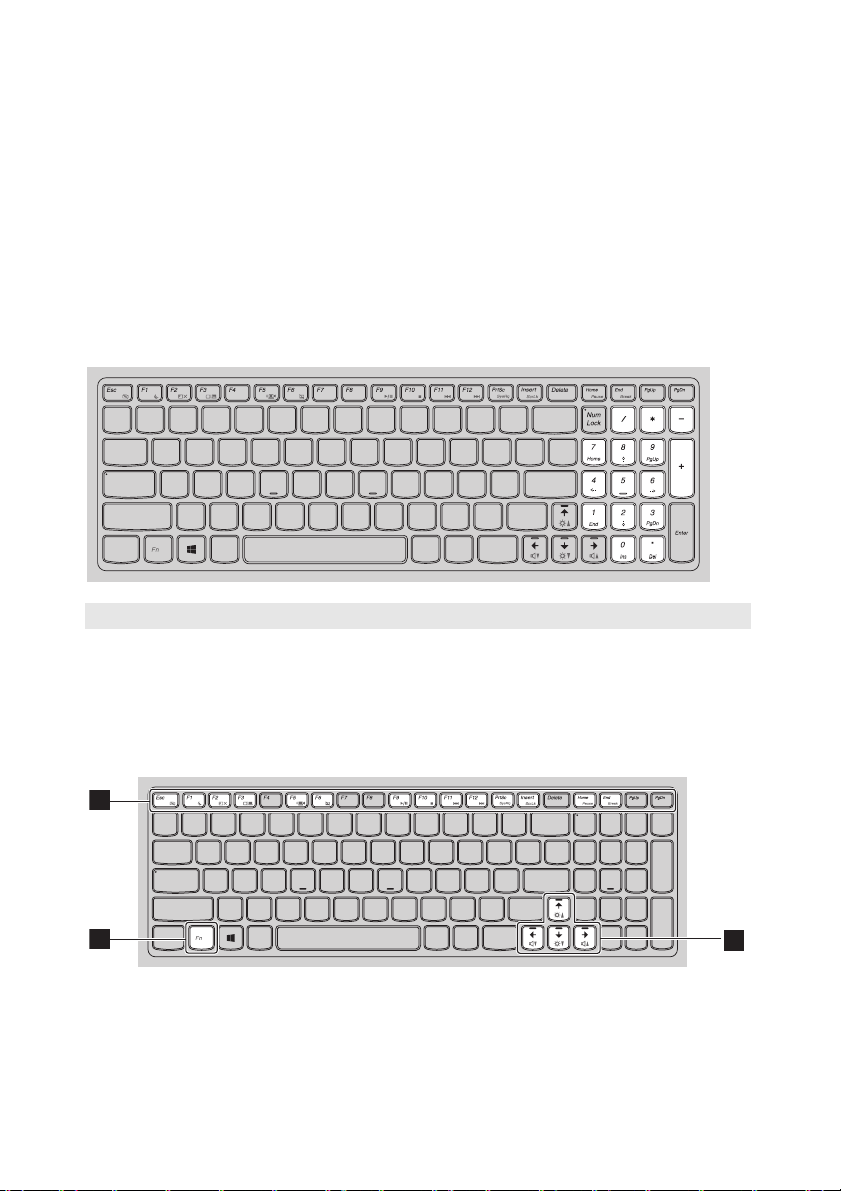
Using the keyboard
Your computer has a numeric keypad and function keys incorporated in its
standard keyboard.
Numeric keypad
The keyboard has a separate numeric keypad. To enable or disable the
keypad, press the Numeric Lock key (Num Lock).
Note: The numeric lock indicator is on when the numeric keypad is enabled.
Function key combinations
To use the function key combinations, press the Fn key , then press one of
a
the function keys .
4
Page 11

Chapter 1. Getting to know your computer
The following is a brief introduction to the function key combinations.
• On the Windows 7 operating system: Press Fn+Esc
to open the camera and audio settings window.
Fn+Esc:
The camera preview is turned on. Change the
camera and audio settings as desired.
• On the Windows 8 operating system: Press Fn+Esc
to enable or disable the camera.
Fn+F1:
Fn+F2:
Fn+F3:
Fn+F5:
Fn+F6:
Fn+F9:
Fn+F10:
Fn+F11:
Fn+F12:
Fn+PrtSc:
Fn+Insert:
Fn+Home:
Fn+End:
Fn+
/
:
Fn+/ :
Enters sleep mode.
Turns on/off the backlight of the LCD screen.
Opens the display device switch interface. Select this
notebook or an external display.
Enables/Disables wireless devices.
Enables/Disables the touchpad and touchpad
buttons.
Starts/Pauses playback of Windows Media Player.
Stops playback of Windows Media Player.
Skips to the previous track.
Skips to the next track.
Activates the system request.
Enables/Disables the scroll lock.
Activates the pause function.
Activates the break function.
Increases/Decreases display brightness.
Increases/Decreases sound volume.
5
Page 12
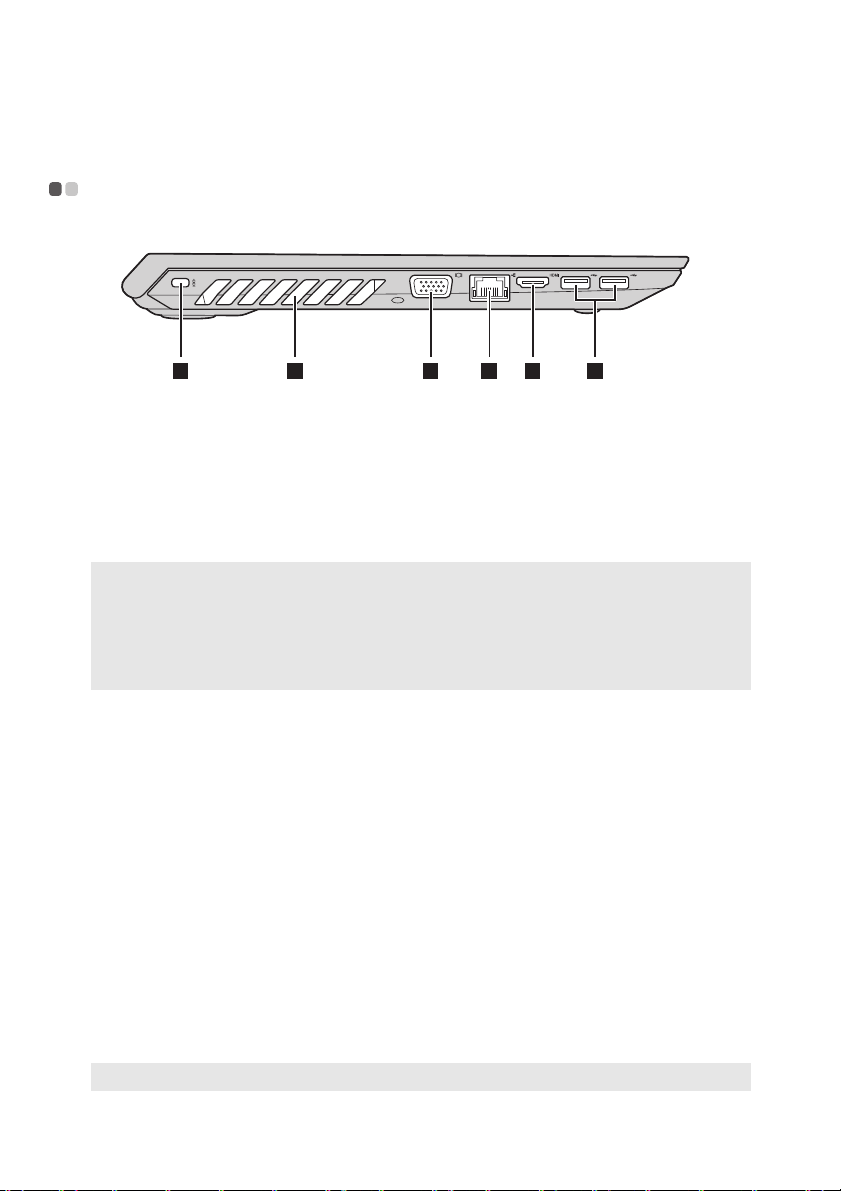
Chapter 1. Getting to know your computer
1 2 3 4 5 6
a
bc
de
f
Left-side view - - - - - - - - - - - - - - - - - - - - - - - - - - - - - - - - - - - - - - - - - - - - - - - - - - - - - - - - - - - - - - - - - - - - - - - - - - - - - - - - - - - - - - - - - - - - - - - - - - - - -
Kensington lock
slot
Attach a security lock (not supplied) here to help protect
your computer from theft and unauthorized use.
You can attach a security lock to your computer to help
prevent it from being removed without your permission.
For details on installing the security lock, please refer to
the instructions shipped with the security lock that you
have purchased.
Notes:
• Before purchasing any security product, verify that it is compatible with this type of
security keyhole.
• You are responsible for evaluating, selecting, and implementing the locking devices and
security features. Lenovo offers no comment, judgment, or warranty regarding the
function, quality, or performance of locking devices and security features.
Ventilation slots
Attention:
• Make sure that none of the ventilation slots are blocked or else overheating of the
computer may occur.
VGA port
RJ-45 port
Danger:
• To avoid the risk of electrical shock, do not connect a telephone cable to the Ethernet
port. You can only connect an Ethernet cable to this port.
HDMI port
Dissipate internal heat.
Connects to external display devices.
Connects the computer to an Ethernet network.
Connects to devices with HDMI input such as a TV or a
display.
USB 3.0 ports
Connect to USB devices. For details, see “Connecting USB
devices” on page 7.
Note: The USB 3.0 connector is compatible with USB 1.1, 2.0, and 3.0.
6
Page 13
Chapter 1. Getting to know your computer
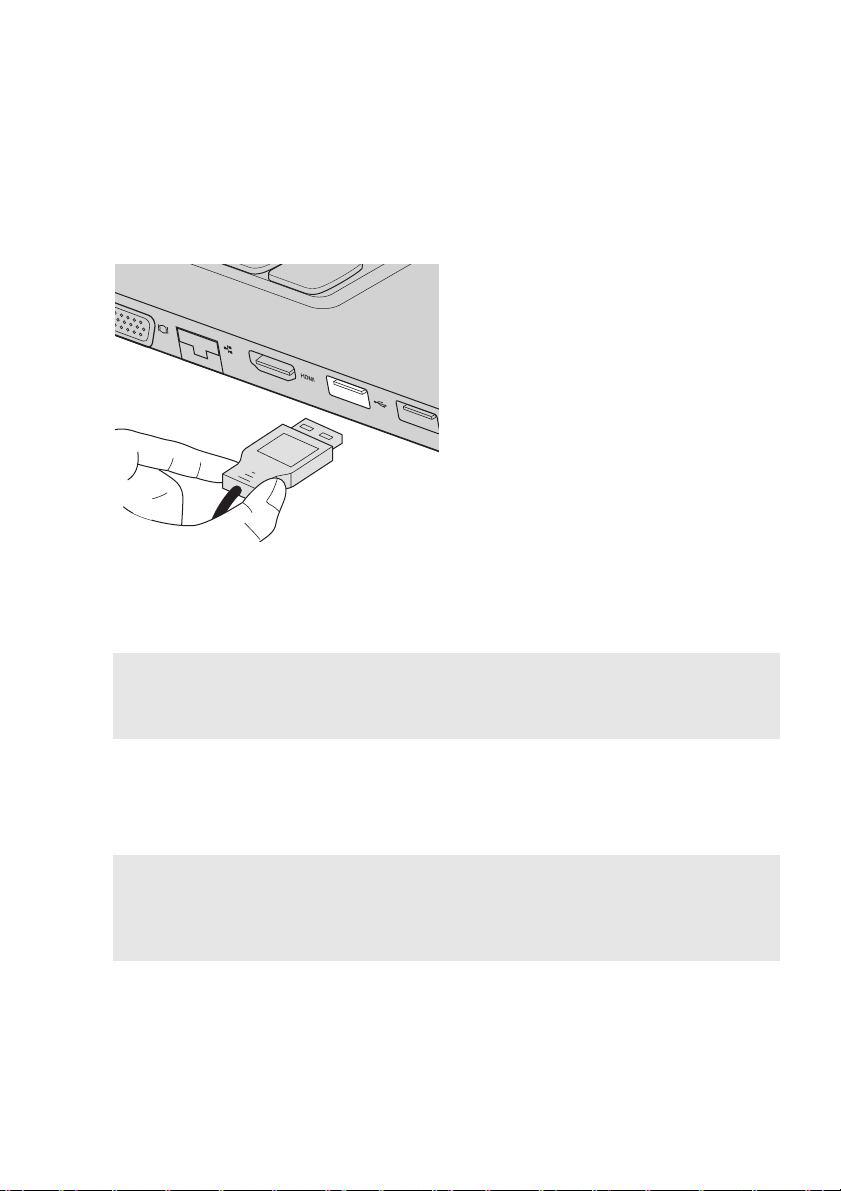
Connecting USB devices
You can connect a USB device to your computer by inserting its USB plug
(Type A) into the USB port on your computer.
The first time you plug a USB device into a particular USB port on your
computer, Windows automatically installs a driver for that device. After the
driver is installed, you can disconnect and reconnect the device without
performing any additional steps.
Note: Typically, Windows detects a new device after connecting it and then installs the
driver automatically. However, some devices might require you to install the driver
before connecting. Check the documentation provided by the manufacturer of the
device before connecting.
Before disconnecting a USB storage device, make sure your computer has
finished transferring data with it. Click the Safely Remove Hardware and
Eject Media icon in the notification area of the Windows desktop screen to
remove the device before disconnecting.
Notes:
• If your USB device uses a power cord, connect the device to a power source before
connecting it. Otherwise, the device may not be recognized.
• When in sleep mode, you can only use the keyboard instead of the mouse to wake up the
computer.
7
Page 14
Chapter 1. Getting to know your computer
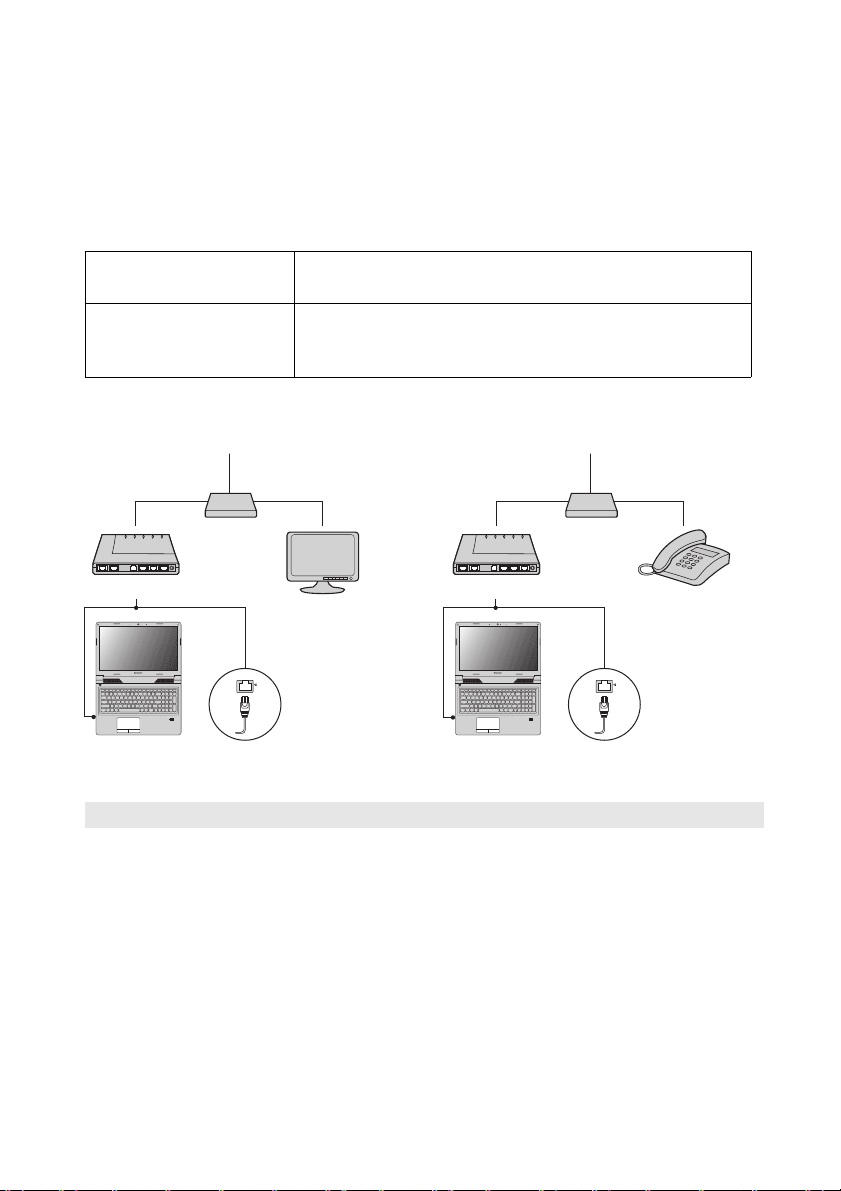
TV cable
Splitter *
Cable modem *
* Not supplied.
Telephone line
Splitter *
DSL modem *
Connecting to a wired network
Wired connections are a reliable and safe way to connect the computer to the
Internet.
Cable Cable Internet services use a cable modem connected to
the residential cable TV line.
DSL DSL is a family of related technologies that bring
highspeed network access to homes and small
businesses over ordinary telephone lines.
Hardware connection:
Cable DSL
*
*
*
Note: The above diagrams are for reference only. Actual connection method may vary.
Software configuration
*
Consult your Internet Service Provider (ISP) for details on how to configure
your computer.
8
Page 15
Chapter 1. Getting to know your computer
1 2 3 4 5
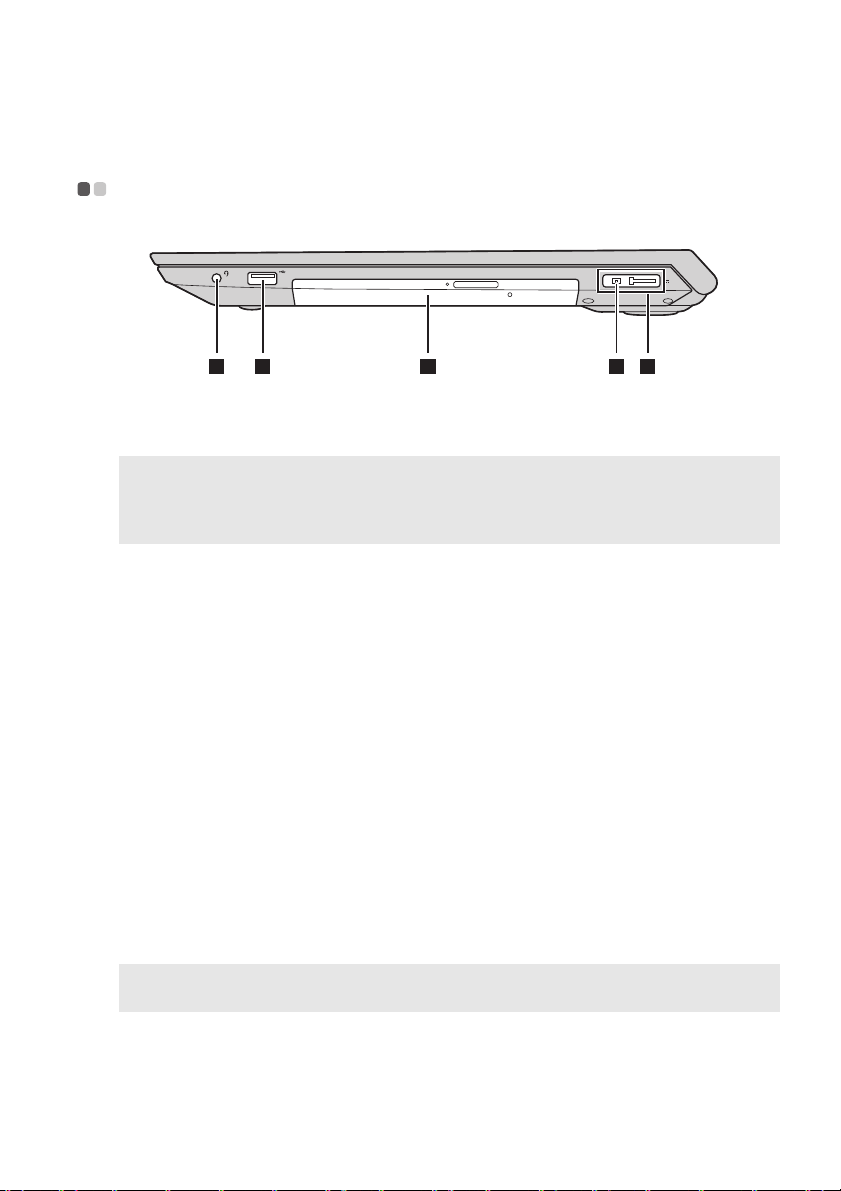
Right-side view - - - - - - - - - - - - - - - - - - - - - - - - - - - - - - - - - - - - - - - - - - - - - - - - - - - - - - - - - - - - - - - - - - - - - - - - - - - - - - - - - - - - - - - - - - - - - - - - - -
a
Combo audio
Connects to headsets.
jack
Notes:
• The combo audio jack does not support conventional microphones.
• The recording function might not be supported if third-party headphones or headsets
are connected due to different industry standards.
b
USB port
c
Optical drive (on
Connects to USB devices. For details, see “Connecting
USB devices” on page 7.
Reads/Burns optical discs.
select models)
d
AC power adapter
jack
e
Lenovo OneLink
connector
Note: Ensure that you keep the connector cover. Reattach it to the Lenovo OneLink
connector when you are not using the Lenovo OneLink connector.
When the AC power adapter is connected to the AC
power adapter jack, it provides power to the computer
and charges the battery. When a supported ThinkPad
OneLink Dock is connected to the Lenovo OneLink
connector, it can not only extend the computer
capabilities, but also provide AC power to the computer
and charge the battery.
To use the Lenovo OneLink connector, you need to
remove the connector cover from the Lenovo OneLink
connector first.
9
Page 16

Chapter 1. Getting to know your computer
1 2
a
b
Front view - - - - - - - - - - - - - - - - - - - - - - - - - - - - - - - - - - - - - - - - - - - - - - - - - - - - - - - - - - - - - - - - - - - - - - - - - - - - - - - - - - - - - - - - - - - - - - - - - - - - - - - - - - - - - - - -
System status
For details, see “System status indicators” on page 10.
indicators
Memory card
slot
Accepts memory cards (not supplied). For details, see “Using
memory cards (not supplied)” on page 11.
System status indicators
The system status indicators show the current status of your computer.
Power and battery status indicator
• Green: The battery has a charge between 20% and 100% and the computer
is powered on.
• Blinking green: The battery has a charge between 20% and 100% and the
computer is in sleep or hibernate mode.
• Amber: The battery has a charge of 20% or less and the computer is
powered on.
• Blinking amber: The battery has a charge of 20% or less and the AC power
adapter is connected to the computer.
• Off: The battery is detached or the computer is powered off.
Hard disk drive indicator
When this indicator is on, the hard disk drive is reading or writing data.
Attention:
• When the indicator is on, do not put the computer into sleep mode or turn off the
computer.
• When the indicator is on, do not move the computer. Sudden physical shock might
cause hard disk drive errors.
10
Page 17

Chapter 1. Getting to know your computer
Using memory cards (not supplied)
Yo ur computer supports the following types of memory card:
• Secure Digital (SD) card
• Secure Digital High Capacity (SDHC) card
• SD eXtended Capacity (SDXC) card
•MultiMediaCard (MMC)
Attention:
• Insert only one card in the slot at a time.
• This card reader does not support SDIO devices (e.g., SDIO Bluetooth, etc.).
Inserting a memory card
Slide a memory card in until it clicks into place.
Note: If a dummy card is shipped with the computer, push the dummy card and then
remove it before inserting a memory card.
Removing a memory card
1
Push the memory card in until you hear a click.
2
Gently pull the memory card out of the memory card slot.
Attention:
• Before removing a memory card, disable it through Safely Remove Hardware and
Eject Media to avoid data corruption.
11
Page 18

Chapter 1. Getting to know your computer
4
1 32
1 2
a
bcd
Bottom view - - - - - - - - - - - - - - - - - - - - - - - - - - - - - - - - - - - - - - - - - - - - - - - - - - - - - - - - - - - - - - - - - - - - - - - - - - - - - - - - - - - - - - - - - - - - - - - - - - - - - - - - - -
Battery
latch - manual
Battery pack
Battery
latch - spring
loaded
Bottom slot cover
12
Keeps the battery pack secured in place.
Keeps the battery pack secured in place.
The hard disk drive, memory module, and mini-PCI
Express Card are placed underneath.
Page 19

Chapter 2. Learning the basics
ĖĖ
ĖĖ
Configuring the operating system for the first time - - - - - - - - - -
You need to configure the operating system when it is first used. The
configuration process may include the procedures below:
• Accepting the end user license agreement
• Configuring the Internet connection
• Registering the operating system
• Creating a user account
Putting the computer to sleep or shutting it down - - - - - - - - - - - - -
When you have finished working with your computer, you can put it to sleep
or shut it down.
Putting your computer to sleep
If you will be away from your computer for only a short time, put the
computer to sleep. When the computer is in sleep mode, you can quickly
wake it to resume use, bypassing the startup process.
To put the computer to sleep:
• For the Windows 7 operating system:
-Click Start. Then select Sleep from the Shut down menu options.
- Press Fn+F1.
• For the Windows 8 operating system:
- Move your cursor to the lower-right corner of the screen to open the
charms bar, then select Settings Power Sleep.
- Press Fn+F1.
Attention:
• Wait until the power and battery status indicator light starts blinking green
(indicating that the computer is in sleep mode) before you move your computer.
Moving your computer while the hard disk drive is spinning can damage the hard
disk, causing loss of data.
To wake the computer, do one of the following:
• Press the power button.
• Press the Fn key on the keyboard.
13
Page 20

Chapter 2. Learning the basics
ĖĖ
ĖĖ
ĖĖ
Shutting down the computer
If you are not going to use your computer for a long time, shut it down.
To shut down your computer:
• For the Windows 7 operating system: Click Start Shut down.
• For the Windows 8 operating system:
Move your cursor to the lower-right corner of the screen to open the
charms bar, then select Settings Power Shut down.
Connecting to a wireless network - - - - - - - - - - - - - - - - - - - - - - - - - - - - - - - - - - - - - - - - - - -
Enabling wireless connection
To enable wireless communications, press Fn+F5.
Note: Some networks require a network security key or passphrase for connection.
To connect to one of those networks, ask the network administrator or the Internet
service provider (ISP) for the security key or passphrase.
Software configuration
Consult your Internet Service Provider (ISP) and search the Windows Help
and Support Center for details on how to configure your computer.
Help and support
- - - - - - - - - - - - - - - - - - - - - - - - - - - - - - - - - - - - - - - - - - - - - - - - - - - - - - - - - - - - - - - - - - - - - - - - - - - - - - - - - - - - - - - - - - - -
If you have questions about using the Windows operating system, refer to
Windows Help and Support. To access Windows Help and Support:
• For the Windows 7 operating system:
- From the Windows desktop, click Start and then click Help and Support.
- Press the Windows key + F1.
• For the Windows 8 operating system:
- Open the charms bar and select Settings; select Help on the Settings menu.
- Press the Windows key + F1.
14
Page 21

Chapter 2. Learning the basics
Operating system interfaces (for the Windows 8 operating system)
Windows 8 comes with two main user interfaces: the Start screen and the
Windows desktop.
To switch from the Start screen to the Windows desktop, do one of the
following:
• Select the Desktop tile on the Start screen.
• Press the Windows key + D.
To switch from the desktop to the Start screen, do one of the following:
•Select Start from the charms bar.
• Move the cursor to the lower-left corner, then select the Start screen
thumbnail when it is displayed.
Start screen Desktop
- - - - - - - - - - - - - - - - - - - - - - - - - - - - - - - - - - - - - - - - - - - - - - - - - - - - - - - - - - - - - - - - - - - - - - - - - - - - - - - - - - - - - - - - - -
15
Page 22

Chapter 2. Learning the basics
Charms and the charms bar (for the Windows 8 operating system)
Charms are navigation buttons that let you access basic tasks quickly.
Charms include: Search, Share, Start, Devices, and Settings. The charms bar
is the menu that contains the charms. To display the charms bar, do one of
the following:
• Move the cursor to the upper-right or lower-right corner until the charms
bar is displayed.
• Press the Windows key + C.
- - - - - - - - - - - - - - - - - - - - - - - - - - - - - - - - - - - - - - - - - - - - - - - - - - - - - - - - - - - - - - - - - - - - - - - - - - - - - - - - - - - - - - - - -
Search charm
The Search charm enables you to find what you are looking for, including
apps, settings and files.
16
Page 23

Chapter 2. Learning the basics
Share charm
The Share charm lets you send links, photos, and more to your friends and
social networks without leaving the app you are in.
Start charm
The Start charm is a fast way to go to the Start screen.
Devices charm
The Devices charm enables you to connect or send files to connected external
devices, including digital cameras, TVs, and printers.
Settings charm
The Settings charm lets you perform basic tasks, such as setting the volume
or shutting down the computer. Also, you can get to the Control Panel
through the Settings charm when on the Desktop screen.
17
Page 24

Chapter 3. Recovery system
Using the OneKey Recovery Pro program on the Windows 7 operating system
On the Windows 7 operating system, the OneKey® Recovery Pro program
enables you to do the following:
•Performing backup and recovery operations
The OneKey Recovery Pro program enables you to back up all your hard
disk drive contents including the operating system, data files, software
programs, and personal settings. You can designate where the OneKey
Recovery Pro program stores the backup.
•Using
•Creating and
For more information, refer to the help information system of the OneKey
Recovery Pro program.
the OneKey Recovery Pro workspace
The OneKey Recovery Pro workspace resides in a protected, hidden area of
your hard disk drive that operates independently from the Windows
operating system. This enables you to perform recovery operations even if
you cannot start the Windows operating system. You can perform the
following recovery operations from the OneKey Recovery Pro workspace.
using a rescue medium
With a rescue medium, such as a disc or a USB hard disk drive, you can
recover the computer from failures that prevent you from gaining access to
the OneKey Recovery Pro workspace on your hard disk drive.
- - - - - - - - - - - - - - - - - - - - - - - - - - - - - - - - - - - - - - - - - - - - - - - - - - - - - - - - -
Solving recovery problems on the Windows 7 operating system
To reinstall the Windows 7 operating system, do one of the following:
• Start the computer. When the Lenovo logo is displayed, press F11 and then
follow the on-screen instructions to start the Product Recovery program.
• Start the computer. After you enter the Windows operating system, click
the Lenov
Recovery option.
Notes:
• Yo u can choose to restore your system partition to the original factory state or to a
previously generated backup.
• The recovery process is irreversible. Ensure that you back up your critical data before
using the recovery feature.
18
o Solution Center to launch this program. Then click the
Page 25

Chapter 3. Recovery system
Ė
If you are unable to access the OneKey Recovery Pro workspace or the
Windows environment, do one of the following:
• Use a rescue medium to start the OneKey Recovery Pro workspace.
•Use recovery media if all other methods of recovery have failed and you
need to restore the hard disk drive to the factory default settings.
Note: If you are unable to access the OneKey Recovery Pro workspace or the Windows
environment from a rescue medium or recovery medium, you might not have the
rescue device (an internal hard disk drive, a disc, a USB hard disk drive, or other
external devices) set as the first boot device in the startup device sequence. You must
rst make sure that your rescue device is set as the first boot device in the startup
fi
device sequence in the BIOS program. Go to the Startup Boot menu to temporarily
or permanently change the startup device sequence.
Ė
It is important to create a rescu
e medium and a set of recovery media as early
as possible and store them in a safe place for future use.
19
Page 26

Chapter 3. Recovery system
ĖĖ
ĖĖ
ĖĖ
ĖĖ
Using the Windows recovery program on the Windows 8 operating system
Your computer comes with a built-in recovery program provided by
Windows. On the Windows 8 operating system, the program enables you to
do the following:
• Refreshing your computer settings
Refreshing enables you to restore your computer settings to factory
contents only, without removin
that you have installed from the Windows Store.
To refres h y our computer settings, do the following:
1
Move your cursor to the bottom right corner of the screen to bring up
the charms. Then click Settings Change PC settings General.
2
In the Refresh your PC without affecting your files section, click Get
started. Then follow the on-screen instructions to refresh your
computer settings.
• Resetting your computer settings
When you use the recovery program to reset your computer settings, all
the data you have stored on the hard disk drive will be deleted and the
computer settings will be restored to the factory defa
Attention:
• To avoid data loss, back up all the data that will be in use later.
To reset your computer settings, do the following:
1
Move your cursor to the bottom right corner of the screen to bring up
the charms. Then click Settings Change PC settings General.
2
In the Remove everything and reinstall Windows section, click Get
started. Then follow the on-screen instructions to reset your computer
settings.
Note: After restoring your computer settings to the factory contents, you might need to
reinstall the drivers for some devices.
g all the personal data and applications
- - - - - - - - - - - - - - - - - - - - - - - - - - - - - - - - - - - - - - - - - - - - - - - - - - - - - - - - -
ult settings.
20
Page 27

Chapter 3. Recovery system
ĖĖ
ĖĖ
ĖĖ
ĖĖ
• Advanced startup options
Advanced startup options enable you to start up from an external drive or
disc, change your computer settings, change the startup settings of the
Windows operating system, or restore the Windows operating system
from a system image.
To use the advanced startup option, do the followin
1
Move your cursor to the bottom right corner of the screen to bring up
g:
the charms. Then click Settings Change PC settings General.
2
In the Advanced startup section, click Restart now Troubleshoot
Advanced options. Then follow the on-screen instructions to
change the settings as desired.
For more information about the recovery solutions provided on your
computer, refer to the online help information system of the Windows 8
operating system.
21
Page 28

Chapter 4. Troubleshooting
Frequently asked questions - - - - - - - - - - - - - - - - - - - - - - - - - - - - - - - - - - - - - - - - - - - - - - - - - - - - - - - - - - - -
This section lists frequently asked questions by category.
Finding information
What safety precautions should I follow when using my computer?
The Lenovo Safety and General Information Guide which came with your
computer contains safety precautions for using your computer. Read and
follow all the precautions when using your computer.
Where can I find the hardware specifications for my computer?
Yo u can find hardware specification for your computer from the pri
flyers which came with your computer.
Where can I find warranty information?
For the warranty applicable to your computer, including the warranty
period and type of warranty service, see the Lenovo limited warranty flyer
that came with your computer.
nted
Drivers and preinstalled software
Where are the installation discs for Lenovo preinstalled software (desktop
software)?
Yo ur computer did not come with installation discs for Lenovo preinstalled
software. If you need to reinstall preinstalled software, you can find the
installation program on the D partition of your hard disk. If you cannot
find the installation program there, download it from t
consumer support Web site.
Where can I find drivers for the various hardware devices of my computer?
If your computer is preinstalled with a Windows operating system, Lenovo
provides drivers for the hardware devices that you need on the D partition
of your hard disk. You can also download the latest device drivers from the
Lenovo consumer support Web site.
22
he Lenovo
Page 29

Chapter 4. Troubleshooting
Recovery system
Where are the recovery discs?
Your computer did not come with recovery discs. Use the recovery system
if you need to restore the system to its factory status.
What can I do if the back-up process fails?
If you can start the backup but it fails during the back-up process, try the
following steps:
1
Close all open programs, and then restart the back-up process.
2
Check to see if the destination media is damaged. Select another path
and then try again.
When do I need to restore the system to its factory status?
Use this feature when the operating system fails to start up. If there is
critical data on the system partition, back it up before starting recovery.
BIOS setup utility
What is the BIOS setup utility?
The BIOS setup utility is ROM-based software. It communicates basic
computer information and provides options for setting boot devices,
security, hardware mode, and other preferences.
How can I start the BIOS setup utility?
To start the BIOS setup utility:
1
Shut down the computer.
2
Press and hold F1 while the computer is starting up.
How can I change the boot mode?
There are two boot modes: UEFI and Legacy Support. To change the boot
mode, start the BIOS setup utility and set boot mode to UEFI or Legacy
Support on the boot menu.
Getting help
How can I contact the customer support center?
See “Chapter 3. Getting help and service” of Lenovo Safety and General
Information Guide.
23
Page 30

Chapter 4. Troubleshooting
Troubleshooting - - - - - - - - - - - - - - - - - - - - - - - - - - - - - - - - - - - - - - - - - - - - - - - - - - - - - - - - - - - - - - - - - - - - - - - - - - - - - - - - - - - - - - - - - - - - - -
Display problems
When I turn on the
computer, nothing appears
on the screen.
When I turn on the
computer, only a white
cursor appears on a blank
screen.
My screen goes blank while
the computer is on.
The screen is unreadable or
distorted.
Incorrect characters appear
on the screen.
•If the screen is blank, make sure that:
- The AC power adapter is connected to the computer,
and the power cord is plugged into a working
electrical outlet.
-The computer power is on. Press the power button
again for confirmation.
-If you are using the AC power adapter or the battery,
and the power and battery status indicator is on,
press Fn+ to make the screen brighter.
•If these items are set correctly, and the screen remains
blank, have the computer serviced.
•Restore backed-up files to your Windows
environment or the entire contents of your hard disk
to its original factory contents using the recovery
system. If you still see only the cursor on
have the computer serviced.
•Your screen saver or power management might be
enabled. Do one of the following to exit from the
screen saver or to resume from sleep mode:
-Touch the touchpad.
- Press Fn key on the keyboard.
- Press the power button.
- Press Fn+F2 to confirm whether the backlight for the
LCD screen has been turned off.
-If the problem persists, follow the solution in the next
problem “The screen is unreadable or distorted.”
• Make sure that:
-The display device driver is installed correctly.
- The screen resolution and color quality are set
correctly.
-The monitor type is correct.
•Is the operating system or programs installed
correctly? If they are installed and configured
correctly, have the computer serviced.
the screen,
24
Page 31

Chapter 4. Troubleshooting
BIOS password problems
I forgot my password. •If you forget your user password, you must ask the
system administrator to reset your user password.
•If you forget your HDD password, a Lenovo
authorized servicer cannot reset your password or
recover data from the hard disk. You must take your
computer to a Lenovo authorized servicer or a
marketing represent
replaced. Proof of purchase is required, and a fee will
be charged for parts and service.
•If you forget your Supervisor password, a Lenovo
authorized servicer cannot reset your password. You
must take your computer to a Lenovo authorized
servicer or a marketing representative to have the
system board replaced. Proof of purchase i
and a fee will be charged for parts and service.
ative to have the hard disk drive
s required,
Sleep problems
The critical low-battery error
message appears, and the
computer immediately turns
off.
The computer enters sleep
mode immediately after
Power-on self-test (POST).
Note: If the battery is charged and the temperature is within range, have the computer serviced.
The computer does not
return from sleep mode,
and the computer does not
work.
•The battery power is getting low. Connect the AC
power adapter to the computer, or replace the battery
with a fully charged one.
• Make sure that:
-The battery is charged.
-The operating temperature is within the acceptable
range. See “Chapter 2. Use and care Information” in
the Lenovo Safety and General In
•If your computer is in sleep mode, connect the AC
power adapter to the computer and then press the Fn
key or the power button.
•If the system still does not return from sleep mode,
stops responding, or cannot be turned off, reset the
computer. Unsaved data may be lost. To reset the
computer, press and hold the power button for 4
seconds or more.
formation Guide.
25
Page 32

Chapter 4. Troubleshooting
Sound problems
No sound can be heard
from the speakers even
when the volume is turned
up.
Battery problems
Your computer shuts down
before the power and
battery status indicator
shows empty.
-orYour computer operates
after the power and battery
status indicator shows
empty.
The computer does not
operate with a fully charged
battery.
A hard disk drive problem
The hard disk drive does
not work.
• Make sure that:
-The mute function is off.
-The combo audio jack is not used.
- The speakers are selected as the playback device.
•Reset the battery gauge using Lenovo Energy
Management. If the problem persists, replace with a
new battery pack.
•The surge protector in the battery might be active.
Turn off the computer for one minute to reset the
protector; then turn on the comput
• Make sure that the hard disk drive is included in the
Boot Menu in the BIOS setup utility correctly.
er again.
26
Page 33

Other problems
Your computer does not
respond.
I need to start the computer
from a connected device,
but the device does not
appear on the boot device
list.
The connected external
device does not work.
Chapter 4. Troubleshooting
•To turn off your computer, press and hold the power
button for 4 seconds or more. If the computer still
does not respond, remove the battery pack and the
AC power adapter.
•Your computer might lock when it enters sleep mode
during a communication operation. Disable the sleep
timer when you are working on the network.
•Check the boot mode setting in the BIOS setup util
If Boot Mode is set to UEFI, make sure that the device
or the medium in the device supports UEFI boot. If
the device or the medium in the device does not
support UEFI boot, set Boot Mode to Legacy Support.
If the device still does not appear in the boot device
list, replace with a new de
•Do not connect or disconnect any external device
cables other than USB while the computer power is
on; otherwise, you might damage your computer.
•When using a high power consumption external
device such as an external USB optical disk drive, use
an external device power adapter. Otherwise, the
device migh
might result.
t not be recognized, or system shut down
vice or medium.
ity.
27
Page 34

Appendix A. CRU instructions
Customer Replaceable Units (CRUs) are parts that can be upgraded or
replaced by the customer. If a CRU is determined to be defective during the
warranty period, a replacement CRU will be provided to the customer.
Customers are responsible for installing the self-service CRUs for this
product. Customers also can install optional-service CRUs, wh
require some technical skills or tools, or request that a technician install the
optional-service CRU under the terms of the applicable warranty service
type for your country or region.
Notes:
•The illustrations used in this chapter are of the Lenovo M5400, unless otherwise stated.
•The illustrations in this manual might differ from the actual product. Please refer to the
actual product.
Replacing the battery pack - - - - - - - - - - - - - - - - - - - - - - - - - - - - - - - - - - - - - - - - - - - - - - - - - - - - - - - - - - - - - - -
Note: Use only the battery provided by Lenovo. Any other battery could ignite or explode.
To repla c e the battery pack, do the following:
1
Turn off the computer. Disconnect the AC power adapter and all cables
from the computer.
2
Close the computer display, and turn the computer over.
ich might
28
Page 35

Appendix A. CRU instructions
a
3
Unlock the manual battery latch . While holding the spring-loaded
battery latch in the unlocked position , remove the battery pack in the
direction shown by the arrow .
1
c
b
1
3
1
2
4
Install a fully charged battery pack.
5
Slide the manual battery latch to the locked position.
6
Turn the computer over and reconnect the AC power adapter.
2
2
29
Page 36

Appendix A. CRU instructions
a
b
Replacing the backup battery - - - - - - - - - - - - - - - - - - - - - - - - - - - - - - - - - - - - - - - - - - - - - - - - - - - - - - -
To repla c e the backup battery, do the following:
1
Turn off the computer. Disconnect the AC power adapter and all cables
from the computer. Wait three to five minutes to let the computer cool.
2
Close the computer display, and turn the computer over.
3
Remove the battery. For details, see “Replacing the battery pack” on page 28.
4
Remove the screws , and then remove the cover .
1
1
1
2
2
30
Page 37

Appendix A. CRU instructions
5
Unplug the backup battery connector, and then remove the backup
battery .
6
Install a new backup battery. Insert the backup battery connection firmly.
7
Reinstall the computer cover, and then reinstall the screws.
8
Reinstall the battery. For details, see “Replacing the battery pack” on
c
3
page 28.
9
Turn the computer over again. Reconnect the AC power adapter and all
cables.
31
Page 38

Appendix A. CRU instructions
Replacing the hard disk drive - - - - - - - - - - - - - - - - - - - - - - - - - - - - - - - - - - - - - - - - - - - - - - - - - - - - - - -
You can increase the storage capacity of your computer by replacing the hard
disk drive with one of greater capacity. Yo u can purchase a new hard disk
drive from your reseller or Lenovo marketing representative.
Notes:
• Replace the hard disk drive only for upgrades or repair. The c onne ctors and bay of the hard
disk drive were not designed for frequent changes, or drive swapping.
• The preinstalled software are not included on an optional hard disk drive.
Handling a hard disk drive
•Do not drop the drive or subject it to physical shock. Put the drive on a material,
such as soft cloth, that absorbs any physical shock.
•Do not apply pressure to the cover of the drive.
•Do not touch the connector.
The hard disk drive is very sensitive. Incorrect handling can cause damage
and permanent loss of data on the hard disk. Before removing the hard disk
drive, make a backup copy of all t
turn the computer off. Never remove the hard disk drive while the system is
operating or in sleep mode.
he information on the hard disk, and then
32
Page 39

Appendix A. CRU instructions
b
1
1
2
1
2
To repl a ce the hard disk drive, do the following:
1
Turn off the computer; then disconnect the AC power adapter and all
cables from the computer.
2
Close the computer display, and then turn the computer over.
3
Remove the battery pack. For details, see “Replacing the battery pack” on
page 28.
4
Remove the screws , and then remove the bottom slot cover .
a
33
Page 40

Appendix A. CRU instructions
c
5
Remove the frame fixing screw .
6
Remove the hard disk drive by gently pulling in the direction of the
arrow .
d
3
34
4
7
Remove the screws and detach the metal frame from the hard disk drive.
8
Attach the metal frame to a new hard disk drive and tighten the screws.
9
Slide the new hard disk drive firmly into place, and then reinstall the
frame fixing screw to secure the drive.
0
Reinstall the bottom slot cover and tighten the screws.
A
Reinstall the battery pack. For details, see “Replacing the battery pack” on
page 28.
B
Turn the computer over again. Reconnect the AC power adapter and the
cables to the computer.
Page 41

Appendix A. CRU instructions
1
1
2
1
2
Replacing memory - - - - - - - - - - - - - - - - - - - - - - - - - - - - - - - - - - - - - - - - - - - - - - - - - - - - - - - - - - - - - - - - - - - - - - - - - - - - - - - - - - - - - - - -
Yo u can increase the amount of memory in your computer by installing
double data rate three synchronous dynamic random access memory (DDR3
SDRAM)-available as an option-in the memory slot of your computer. DDR3
SDRAM modules are available in various capacities.
Note: Use only the memory types supported by your computer. If you incorrectly install
optional memory, or install an unsupported memory type, a warning beep will sound
when you try to start the computer.
To install a DDR3 SDRAM module, do the following:
1
Touch a metal table or a grounded metal object to reduce any static
electricity in your body, which could damage the DDR3 SDRAM. Do not
touch the contact edge of the DDR3 SDRAM module.
2
Turn off the computer. Disconnect the AC power adapter and all cables
from the computer.
3
Close the computer display, and turn the computer over.
4
Remove the battery pack. For details, see “Replacing the battery pack” on
page 28.
5
Remove the screws , and then remove the bottom slot cover .
a
b
35
Page 42

Appendix A. CRU instructions
6
If two DDR3 SDRAM modules are already installed in the memory slot,
remove one of them to make room for the new one by pressing out on the
latches on both edges of the socket at the same time. Be sure to save the
old DDR3 SDRAM for future use.
1 1
7
Align the notch of the DDR3 SDRAM module with the protrusion of the
socket and gently insert at a 30-45° angle.
8
Push the DDR3 SDRAM module down until the latches on both sides of
the socket lock into place.
2
36
2
1
9
After aligning the attachment clips with their matching gaps, reinstall the
bottom slot cover.
0
Reinstall and tighten the screw.
A
Reinstall the battery pack. For details, see “Replacing the battery pack” on
page 28.
B
Turn the computer over again. Reconnect the AC power adapter and the
cables to the computer.
Page 43

Appendix A. CRU instructions
b
a
Note: If only one DDR3 SDRAM module is installed in the computer you are servicing, the
card must be installed in SLOT-0 ( : lower slot), and not in SLOT-1 ( : upper slot).
To mak e sure that the DDR3 SDRAM module is installed correctly, do as
follows:
1
Turn the computer on.
2
Hold F1 during startup. The BIOS setup utility screen opens.
The Installed memory item shows the total amount of memory installed
in your computer.
37
Page 44

Appendix A. CRU instructions
a
Replacing the wireless LAN card - - - - - - - - - - - - - - - - - - - - - - - - - - - - - - - - - - - - - - - - - - - - - -
To repla c e the wireless LAN card, do the following:
1
Turn off the computer; then disconnect the AC power adapter and all
cables from the computer.
2
Close the computer display, and then turn the computer over.
3
Remove the battery pack. For details, see “Replacing the battery pack” on
page 28.
4
Remove the screws , and then remove the bottom slot cover .
1
1
1
2
b
38
2
5
Disconnect the two wireless LAN cables (one black, one white) .
Remove the screw that secures the wireless LAN card .
3
4
d
c
Page 45

Appendix A. CRU instructions
e
6
Remove the wireless LAN card .
5
7
Install the new wireless LAN card.
8
Reinstall and tighten the screw.
9
Reconnect the two wireless LAN cables (one black, one white).
Note: When installing or reinstalling the wireless LAN card, make sure to plug the black
cable into the jack labeled AUX and the white cable into the jack labeled MAIN.
0
Reinstall the bottom slot cover and tighten the screws.
A
Reinstall the battery pack. For details, see “Replacing the battery pack” on
page 28.
B
Turn the computer over again. Reconnect the AC power adapter and the
cables to the computer.
39
Page 46

Appendix A. CRU instructions
b
c
Replacing the optical drive - - - - - - - - - - - - - - - - - - - - - - - - - - - - - - - - - - - - - - - - - - - - - - - - - - - - - - - - - - - - - - -
To repla c e the optical drive, do the following:
1
Turn off the computer; then disconnect the AC power adapter and all
cables from the computer.
2
Close the computer display, and then turn the computer over.
3
Remove the battery pack. For details, see “Replacing the battery pack” on
page 28.
4
Remove the screws , and then remove the bottom slot cover .
2
a
1
1
1
2
40
5
Remove the screw shown in the illustration .
3
1
2
Page 47

Appendix A. CRU instructions
d
e
5
4
1
2
6
Gently pull the optical drive out .
7
Insert a new optical drive, and then reinstall the screw to secure the drive.
8
Reinstall the bottom slot cover, and then reinstall the screws to secure the
cover.
9
Reinstall the battery pack. For details, see “Replacing the battery pack” on
page 28.
0
Turn the computer over again. Reconnect the AC power adapter and the
cables to the computer.
41
Page 48

Appendix A. CRU instructions
The following table provides a list of CRUs for your computer, and informs
you of where to find replacement instructions.
Self-service CRUs
Setup Poster User Guide
AC power adapter ×
Power cord for AC adapter ×
Battery pack × ×
Backup battery ×
Memory ×
Optical drive ×
Optional-service CRUs
Setup Poster User Guide
Hard disk drive ×
Wireless LAN card ×
42
Page 49

Trademarks
The following terms are trademarks of Lenovo in the United States, other
countries, or both:
Lenovo
OneKey
Microsoft and Windows are either registered trademarks or trademarks of
Microsoft Corporation in the United States and/or other countries.
Other company, products, or service names may be trademarks or service marks
of others.
43
Page 50

en-US
Rev. AA00
 Loading...