

Page 1
Wireless - Equipment
123 Manual LP-C290N 300 Mbps Wi-Fi Access Point (AP).
Conguration as a Client
LPC290N_M123_ENC01W
LP-C290N
123 Manual LP-C290N 300 Mbps Wi-Fi
Access Point (AP). Conguration as a Client
1
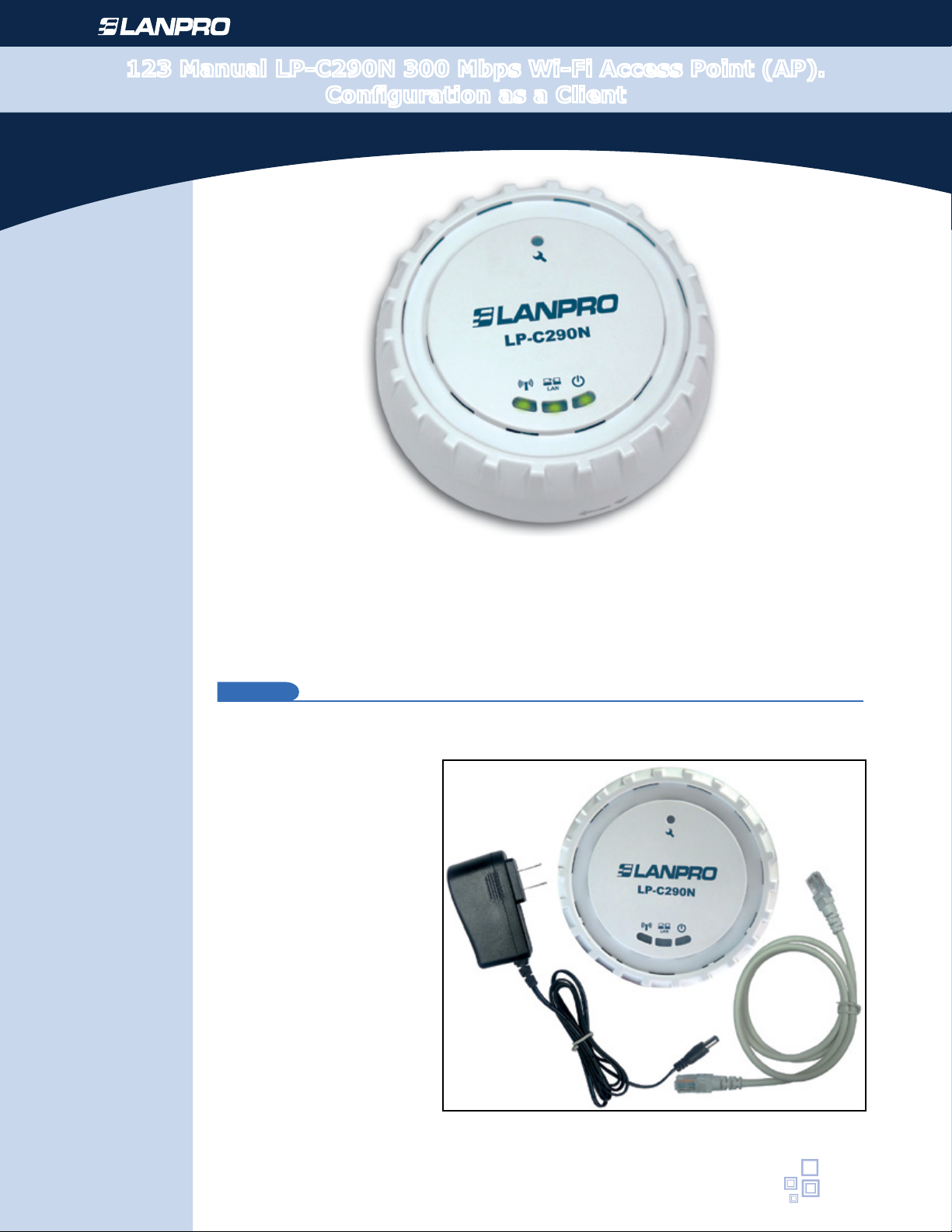
Please check the package contents, it must contain the components shown in gure 1
a. One(1) model: LP-C290N
AP equipment
b. One (1) 110VAC-12VDC
power adaptor
c. One (1) Patch-Cord
d. Installation Guide
Figure 1
www.lanpro.com
Page 2
300 Mbps Wi-Fi Access Point (AP) - Conguration as a Client
LP-C290
Mask 255.255.255.0
Wireless - Equipment - 123 Manual - LP-C290N
2
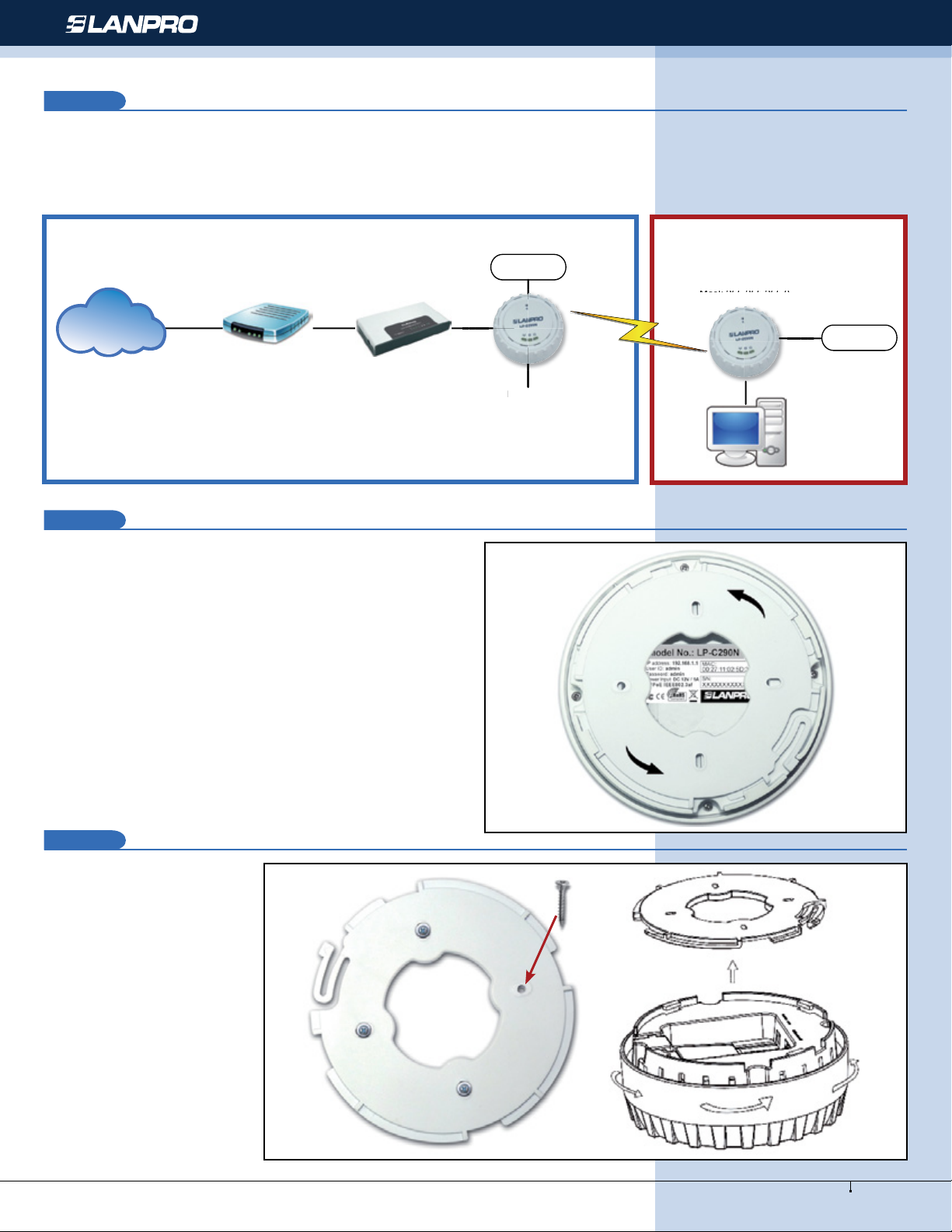
This manual explains the conguration steps for Client Mode, (inside the blue frame). It is tied to an LP-C290N working
as an AP connected to an ADSL Modem. For other operation modes, please consult the other 1 2 3 Manuals available for
download at www.lanpro.com. Please see gure 2 and remember that in this conguration, the existence of a WLAN is
mandatory, as shown in gure 2 inside the red frame.
AC Powered AP
Using ADSL Modem
Internet
Modem
ADSL
DHCP Server
LP-SW511
3
For xation of the equipment on a wall or ceiling, proceed to
remove the base by turning it as shown in gure 3.
AC
Power
LP-C290N
N
Mode: AP
IP: 192.168.1.1
Mask 255.255.255.0
SSID LanPro LP-C290N
WPA-WPA-PSK Security
AC Powered
Client Mode
IP: 192.168.1.2
Mask 255.255.255.0
AC
Power
Computer
IP 192.168.1.3
Figure 2
4
Fix it on the selected place
as shown in gure 4.
Figure 4
Figure 3
2
www.lanpro.com
Page 3

300 Mbps Wi-Fi Access Point (AP) - Conguration as a Client
LP-SW902FGP LP-C290N
Computer
LP-C2
9
0N
Wireless - Equipment - 123 Manual - LP-C290N
5
You must decide how to power the el LP-C290N, be it from the AC Mains with the furnished power adaptor or through the
Ethernet cable by using a PoE PSD device.
NOTE: Please be careful and avoid powering the device through both ways at the same time as you will provoke
an internal short circuit that can damage the equipment.
6
Remember to have an AC mains outlet near the device when powering it with the AC/DC adaptor, or by providing a PSD
device complying with the IEEE 802.3 af standard at the other end of the Ethernet cable supplying data+power.
Power Adaptor
With PoEWith
7
Proceed to connect it and to x the base as shown in point Number 4.
8
Once connected, please proceed to its conguration.
9
Connect a PC or Laptop to the LAN where the LP-C290N is located, as shown in gure 6
Figure 5
3
Figure 6
www.lanpro.com
Page 4
10 11
300 Mbps Wi-Fi Access Point (AP) - Conguration as a Client
Wireless - Equipment - 123 Manual - LP-C290N
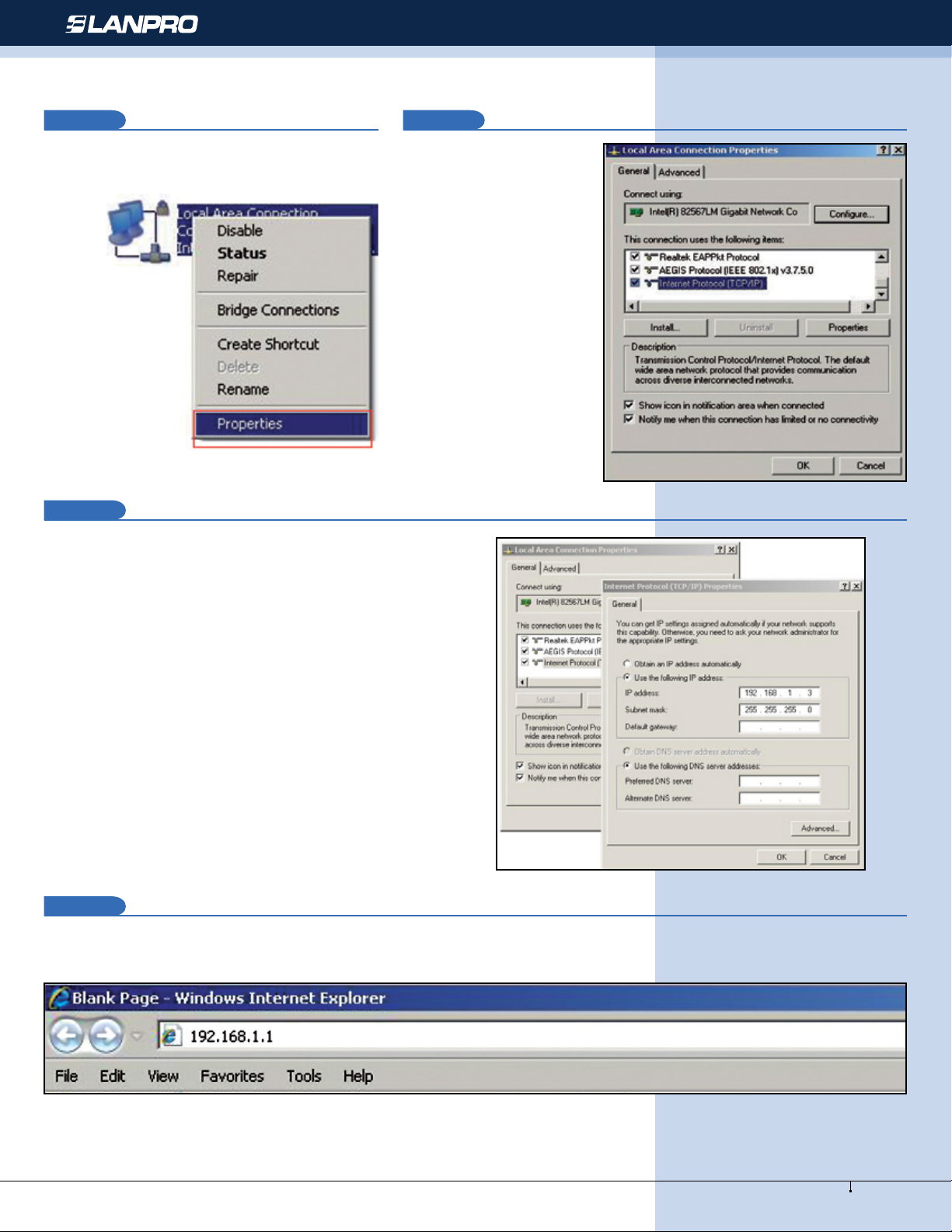
Now go to your Network Card properties, as
shown in gure 7.
Select the TCP/IP protocol
and properties again as
shown in gure 8.
12
Assign an IP address inside the LP-C290N segment
to your Network Card. The LP-C290N has a default IP
address of 192.168.1.1, hence, we will use a different
one in our network card like: 192.168.1.3; please see
Figure 2 in the Blue frame, and remember that IP
addresses cannot be repeated in your network. Proceed
to select OK twice as shown in gure 9.
Figure 8Figure 7
Figure 9
13
Proceed to open your preferred browser and with the LP-C290N IP address. In this case, use the default address 192.168.1.1,
as shown in Figure 10.
Figure 10
4
www.lanpro.com
Page 5
300 Mbps Wi-Fi Access Point (AP) - Conguration as a Client
14
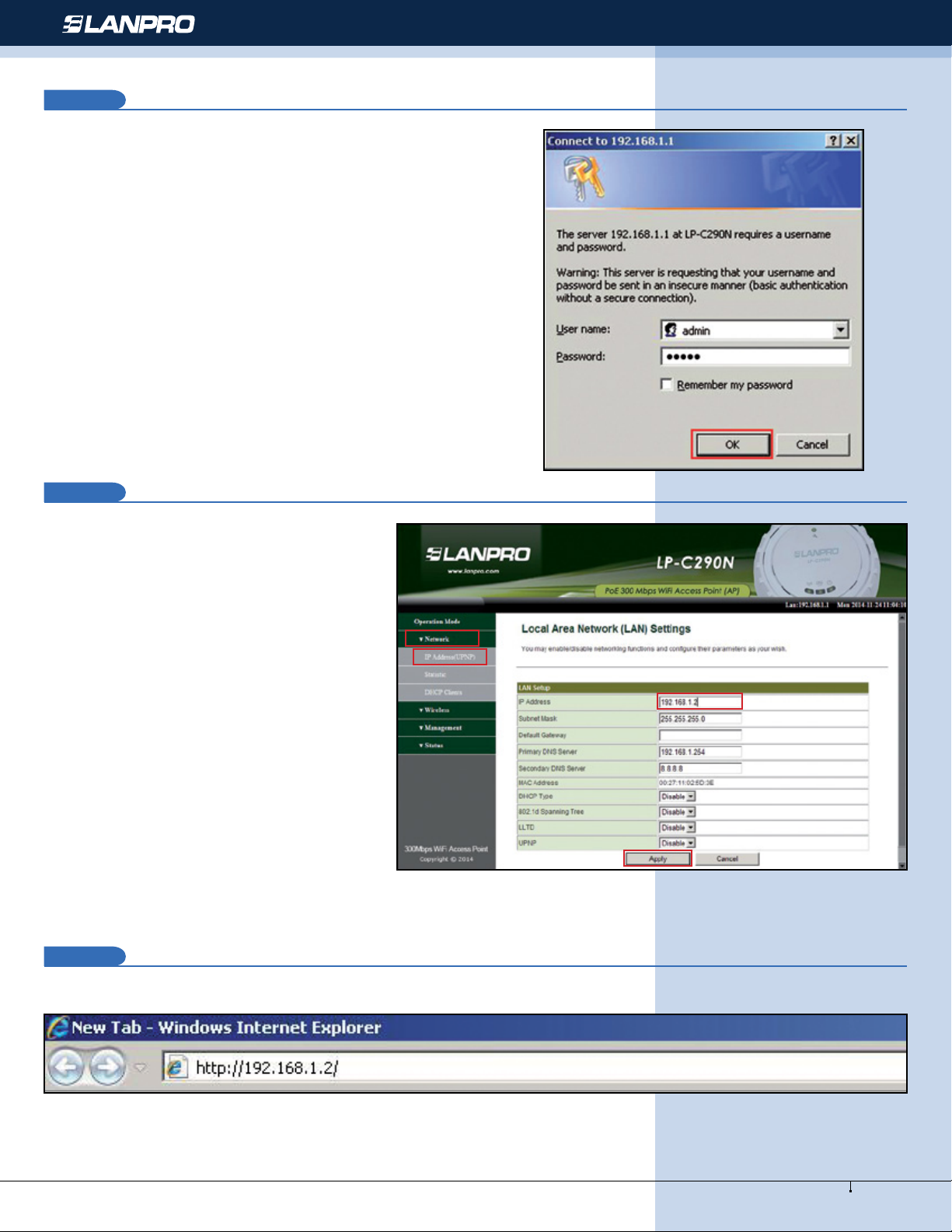
The LP-C290N, will prompt for your credentials for accessing your
conguration, in this case use the default ones: User name: admin
y Password: admin, as shown in gure 11.
Figure 11
Wireless - Equipment - 123 Manual - LP-C290N
15
Proceed to validate the administration IP of your
LP-C290N in your diagram, remember that in
this case the LP-C290N is a client of a network,
and a router or ADSL modem should be there,
responsible for delivering IP addresses to the
connecting Clients. In this example, the Client
will have the following address: 192.168.1.3 as
shown in gure 11 , remember that your network
card has the following address 192.168.1.3,
please see the blue frame in Figure 2.
Select the Network / IP Address (UPNP)
option; once the IP has been changed, select
Apply, your equipment will reset and must be
accessed from now on with the new address. In
this case 192.168.1.2, because it is the second
equipment. Please see Figure 12.
Figure 12
16
Proceed to open your preferred browser and input the new address 192.168.1.2, as shown in gure 13.
5
Figure 13
www.lanpro.com
Page 6
17
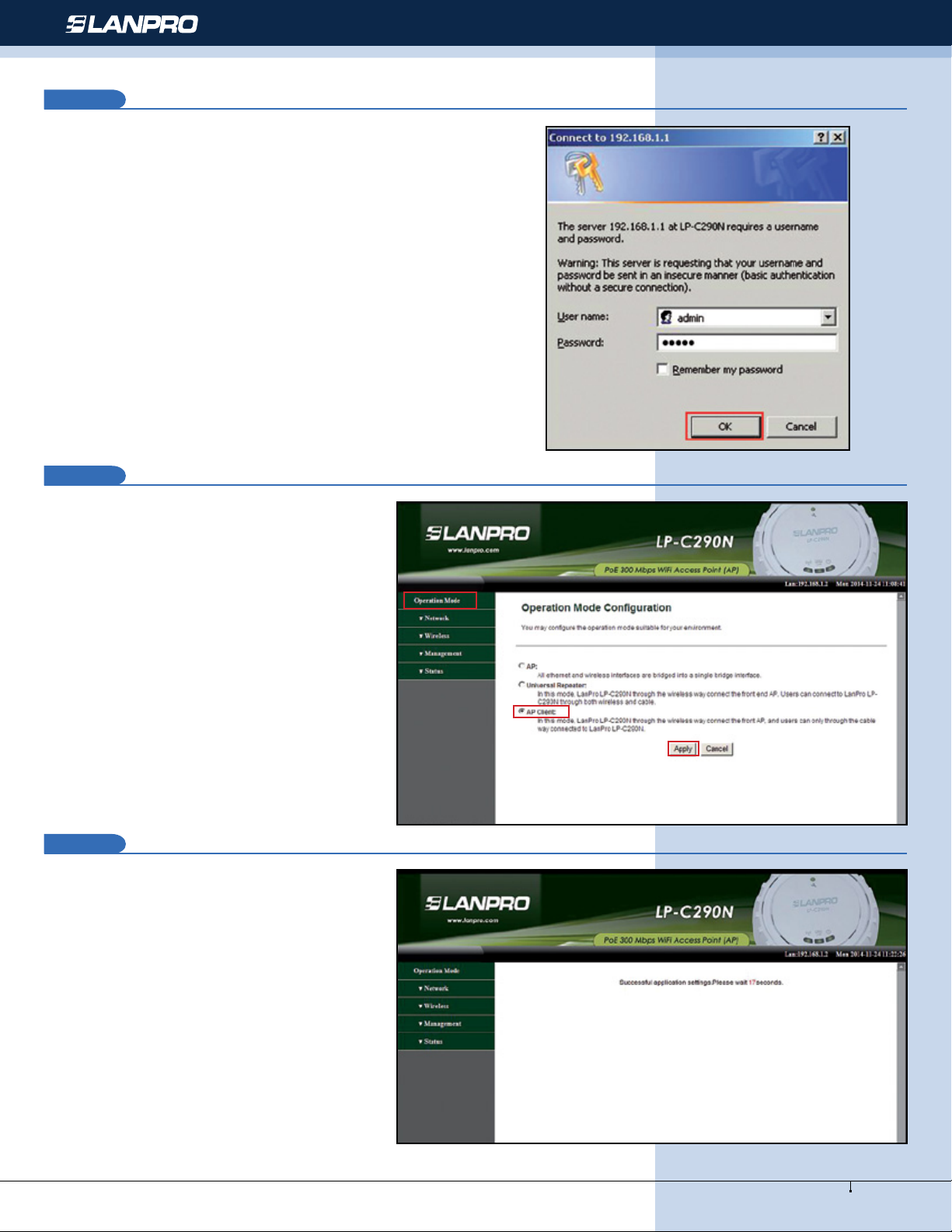
The LP-C290N, will prompt for your credentials for accessing
your conguration, in this case use the default ones: User
name: admin y Password: admin, as shown in gure 13.
Figure 14
300 Mbps Wi-Fi Access Point (AP) - Conguration as a Client
Wireless - Equipment - 123 Manual - LP-C290N
18
Proceed to change the operation mode to Client
by selecting Operation Mode/AP Client/
Apply, as shown in gure 15.
Figure 15
19
The equipment will show the counter while the
reset takes place as shown in gure 16.
Figura 16
6
www.lanpro.com
Page 7
20
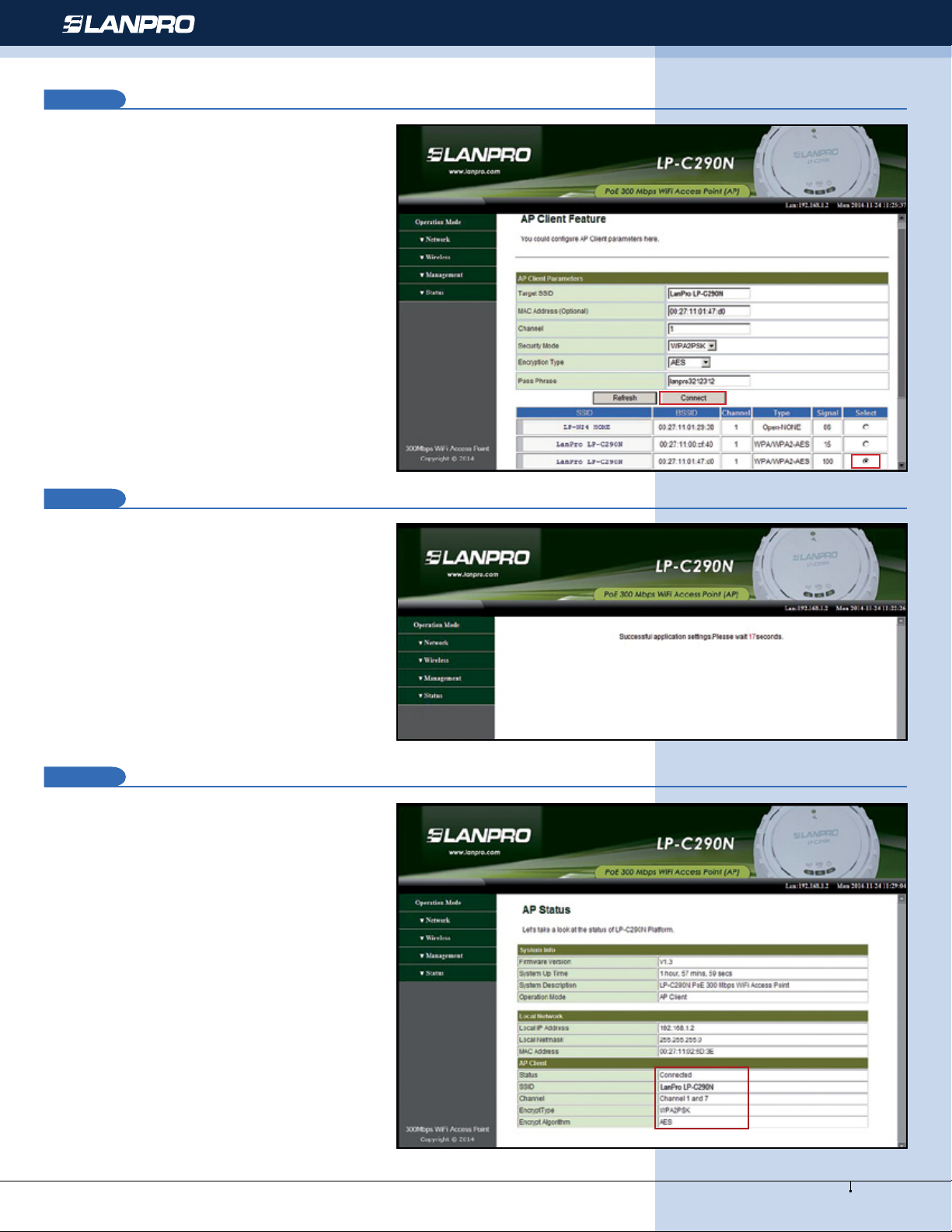
Proceed to select the network to connect to,
in this example LanPro LP-C290N, input the
password in the eld named Pass Phrase y
select Connect, as shown in gure 17.
Figure 17
300 Mbps Wi-Fi Access Point (AP) - Conguration as a Client
Wireless - Equipment - 123 Manual - LP-C290N
21
The equipment will show the counter while the
reset takes place as shown in gure 18.
Figure 18
22
The status window in which you will be able
to conrm that you are connected pops-up, as
shown in the red frame of gure 19.
Figure 19
7
www.lanpro.com
Page 8
23
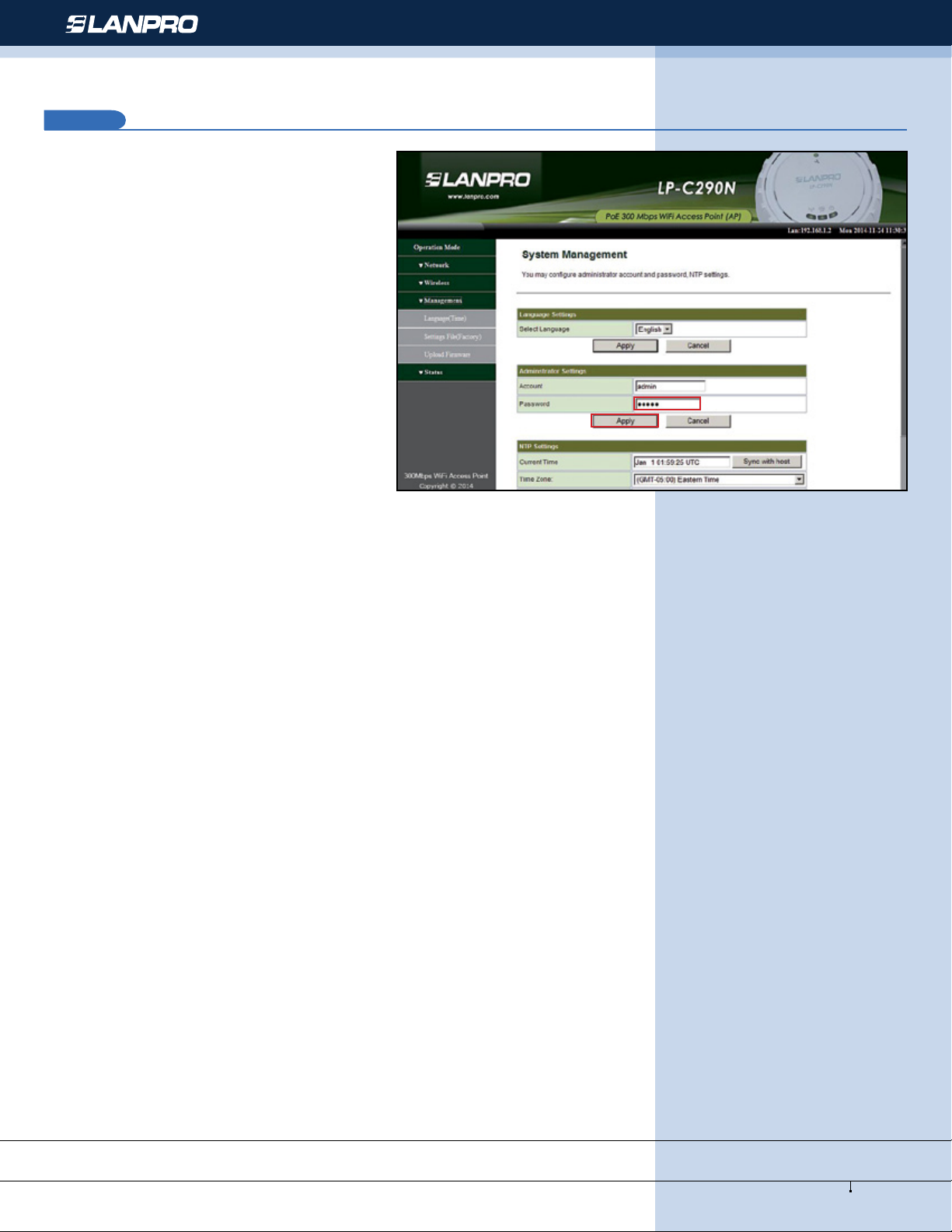
Proceed to change the password of the LP-C290N,
we highly recommend this. This password will
let you access as an administrator, to perform
this, please select: Management/Language
(Time) and input it in the Password eld and
immediately select Apply, as shown in figure
20.
Figure 20
300 Mbps Wi-Fi Access Point (AP) - Conguration as a Client
Wireless - Equipment - 123 Manual - LP-C290N
LanPro is continuously improving its products and reserves the right to change
specications and availability without prior notice.
8
www.lanpro.com
 Loading...