

Page 1
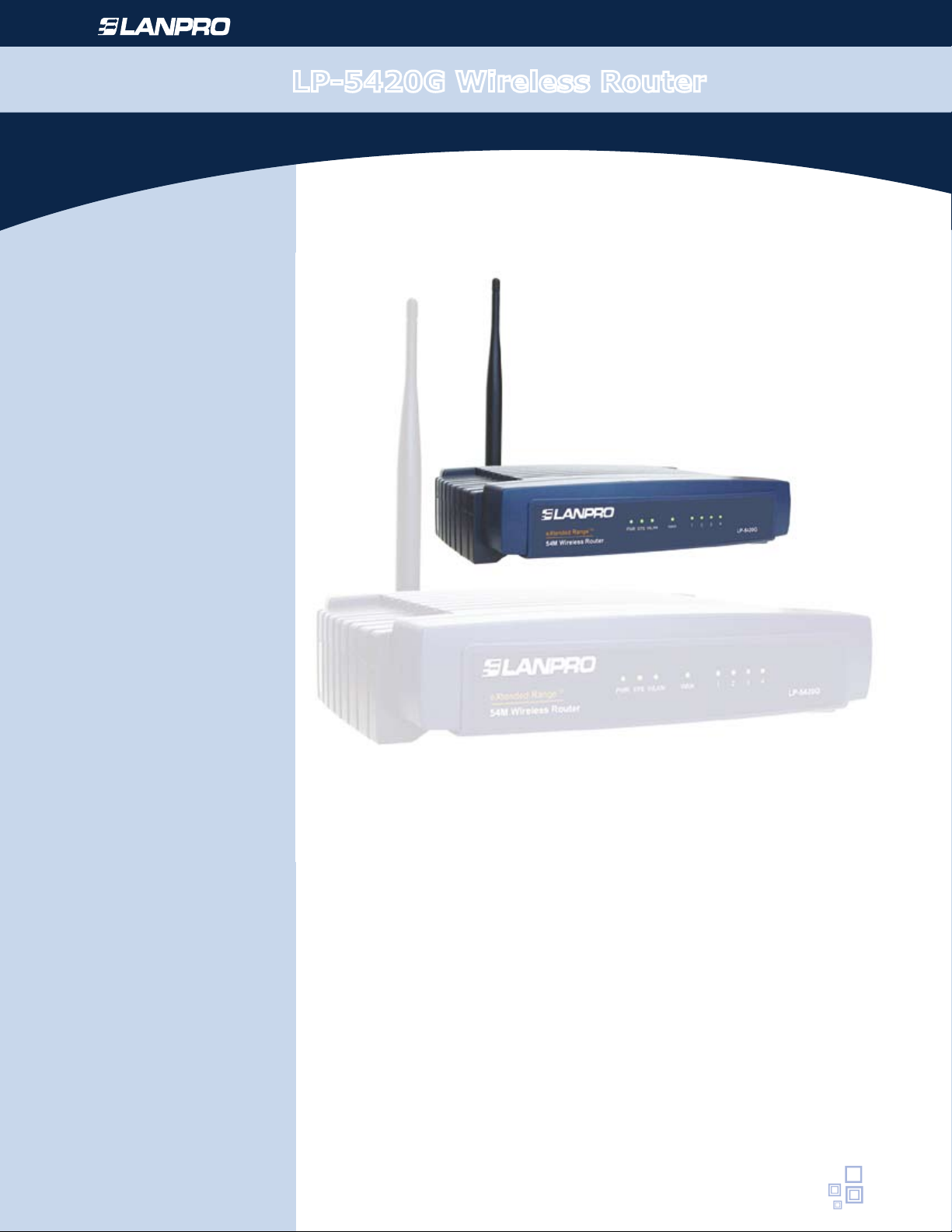
LP-5420G Wireless Router
www.lanpro.com
Wireless - Router
LP5420G_M123_ENB01W
LP-5420G
Basic Conguration (123)
Page 2
Steps for the installation of Lanpro LP-5420G Wireless Router.
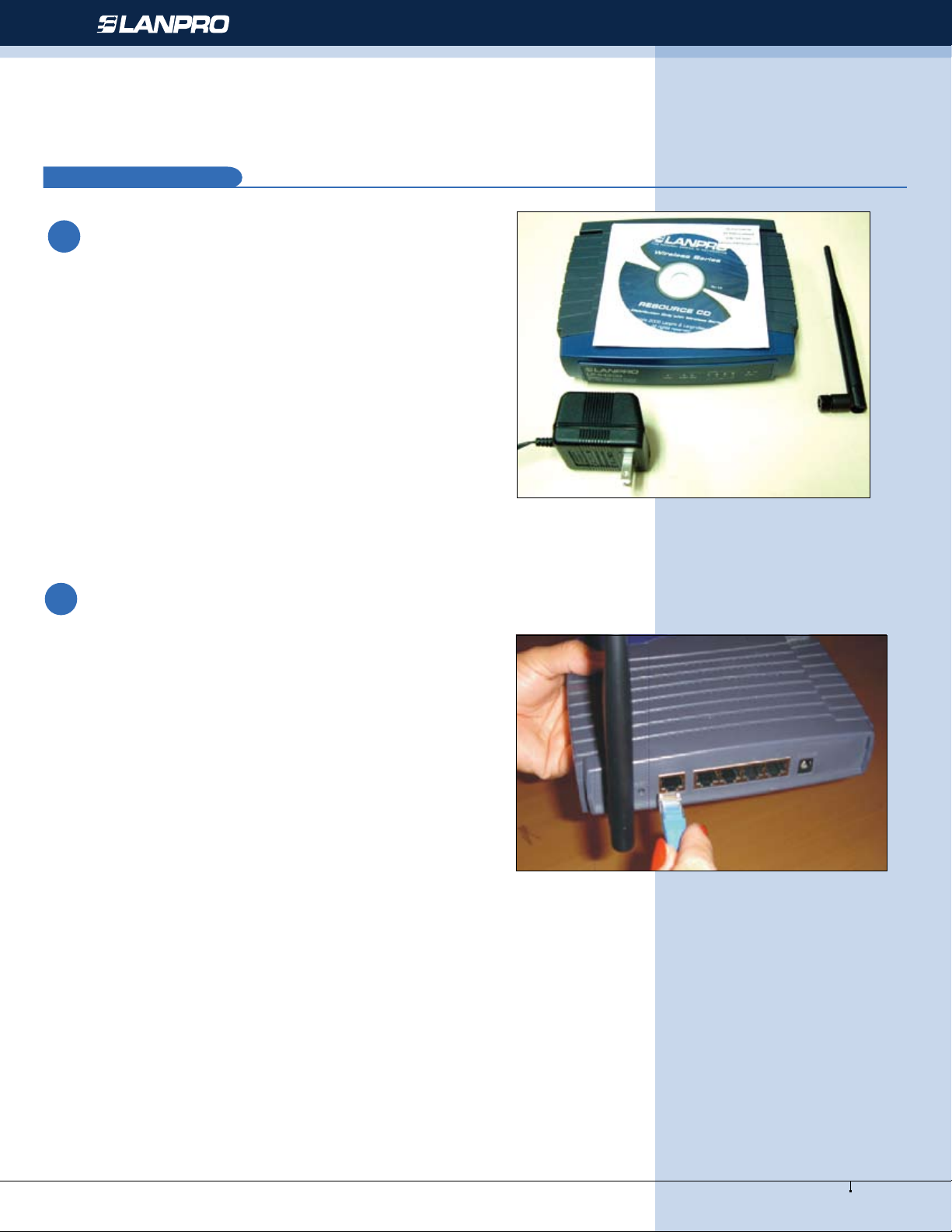
Please check box contentes rst:
A
1
•1 Foldable Screw type external antenna
•1 Router LP-5420G
•1 Power supply: 120 VAC input, 9 VAC @800Ma output
•1 (123) Basic Conguration Guide
•CD with manuals
Important remarks:
Please verify the mains voltaje to be in the 110-120 VAC ,
50 or 60Hz range.
The antenna must be connect before the router is turned on,
damage to the RF output stage can result if this remark is
not followed.
Wireless - Router - LP-5420G
Figure 1
2
• Connect the router as follows:
-Connect the antenna to the router by screwing the connector
in place.
-Connect the network cable (568A or 568B Standard type
Patchcord ) from the DSL or Cable Modem from the ISP
(Internet Service Provider) to the WAN port on the back of
the router.
In case there are equipments that need to be connected
through a LAN connection, please use Standard patch cords
of the proper lenght of the 568A or 568B type to connect
to the computer and to the router through the LAN ports
available at the back of the router(1,2 3 and 4).
-Connect the power supply to the Router.
-Turn your Computer, Modem and Router
-Besides being installed as per the manufacter specications.
Please verify the conguration of your wireless lan
connection(card or port) so that it obtains the IP address
and conguration automatically and without encryiption.
The Internet connection must be operative for this to work.
-The computer will automatically connect to the LanPro
WLAN unless there are other wlans available, in which case
you must select the LANPRO WLAN for connection. You can
verify the connection status looking at the icon shown on
the down right corner.
Figure 2
2
www.lanpro.com
Page 3
Wireless - Router - LP-5420G
3
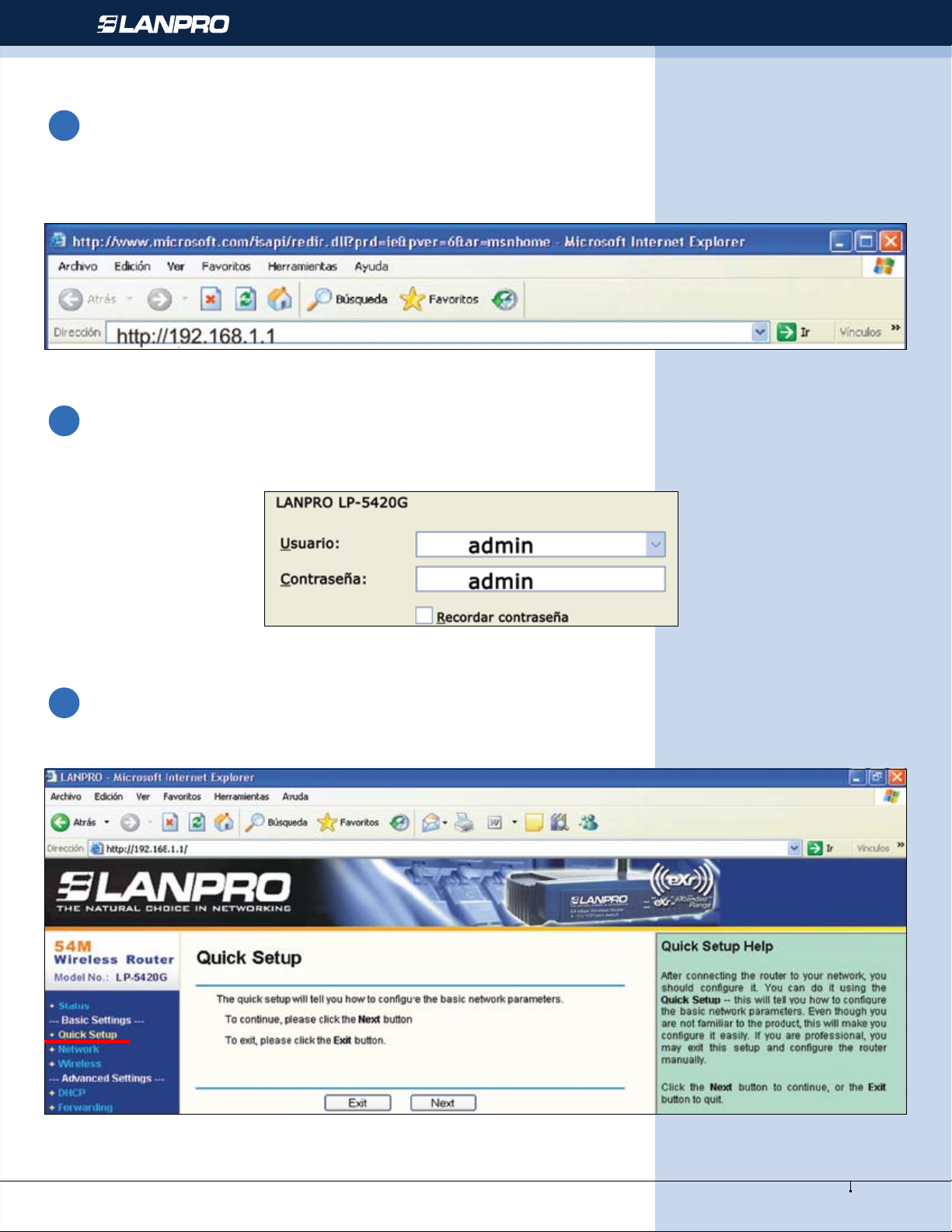
Conguration (Once connected to the LanPro WLAN or to the LAN connection please do the following:
-Open your preferred browser i.e.:(IE, FIRE Fox, Etc..), in the browser command line insert the following address:
http://192.168.1.1
Figure 3
4
• You will be prompted by the Router Software to use your user name and password, use the word admin (lower case) in
both elds.
Figure 4
5
• In the conguration window, please use the option Quick Setup as shown .
Figure 5
3
www.lanpro.com
Page 4
Wireless - Router - LP-5420G
6
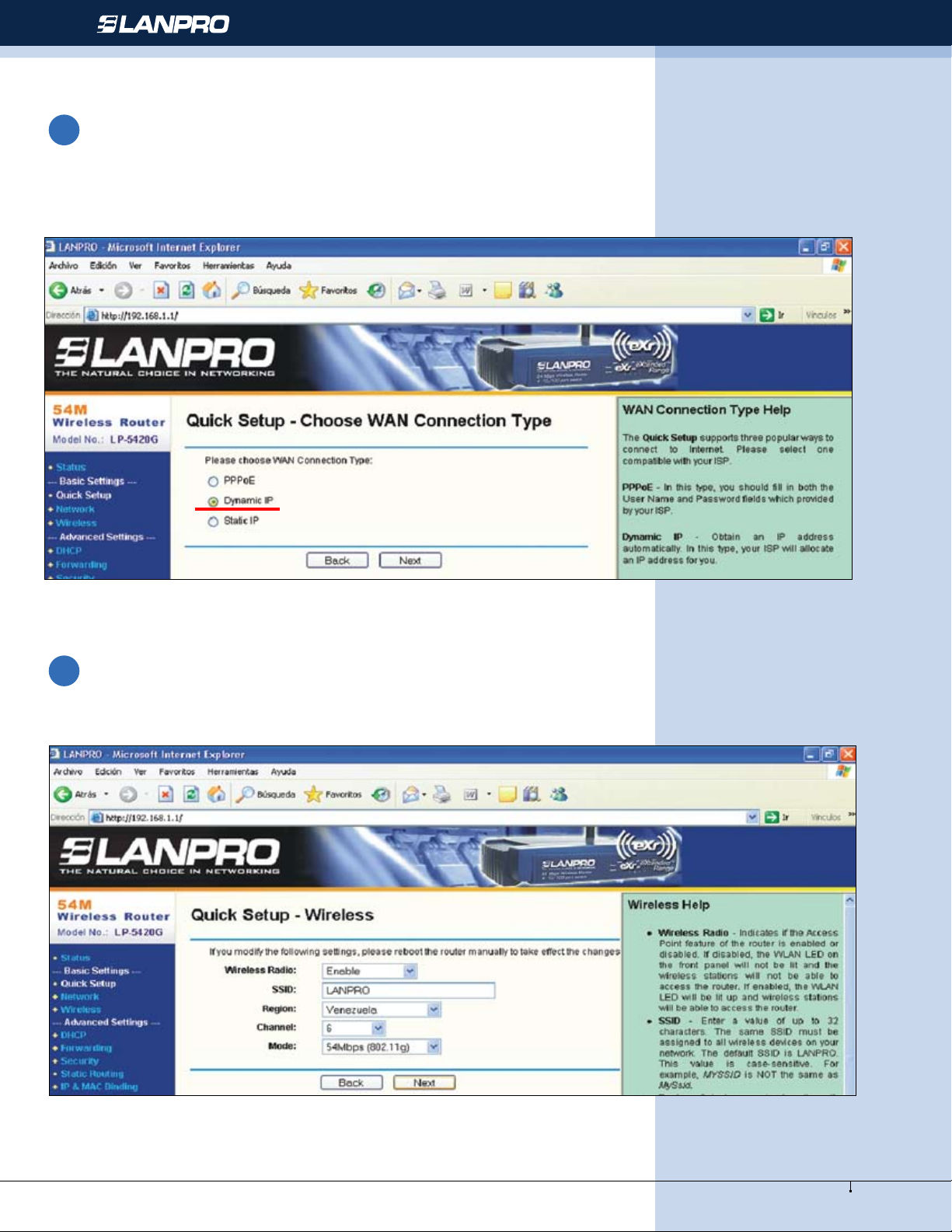
Selecting the Next Option
Select the option that your supplier of Internet indicates to yo, by defect changes it to the option Dynamic IP.
Figura 7
7
Select Next
Figure 6
Figure 7
4
www.lanpro.com
Page 5
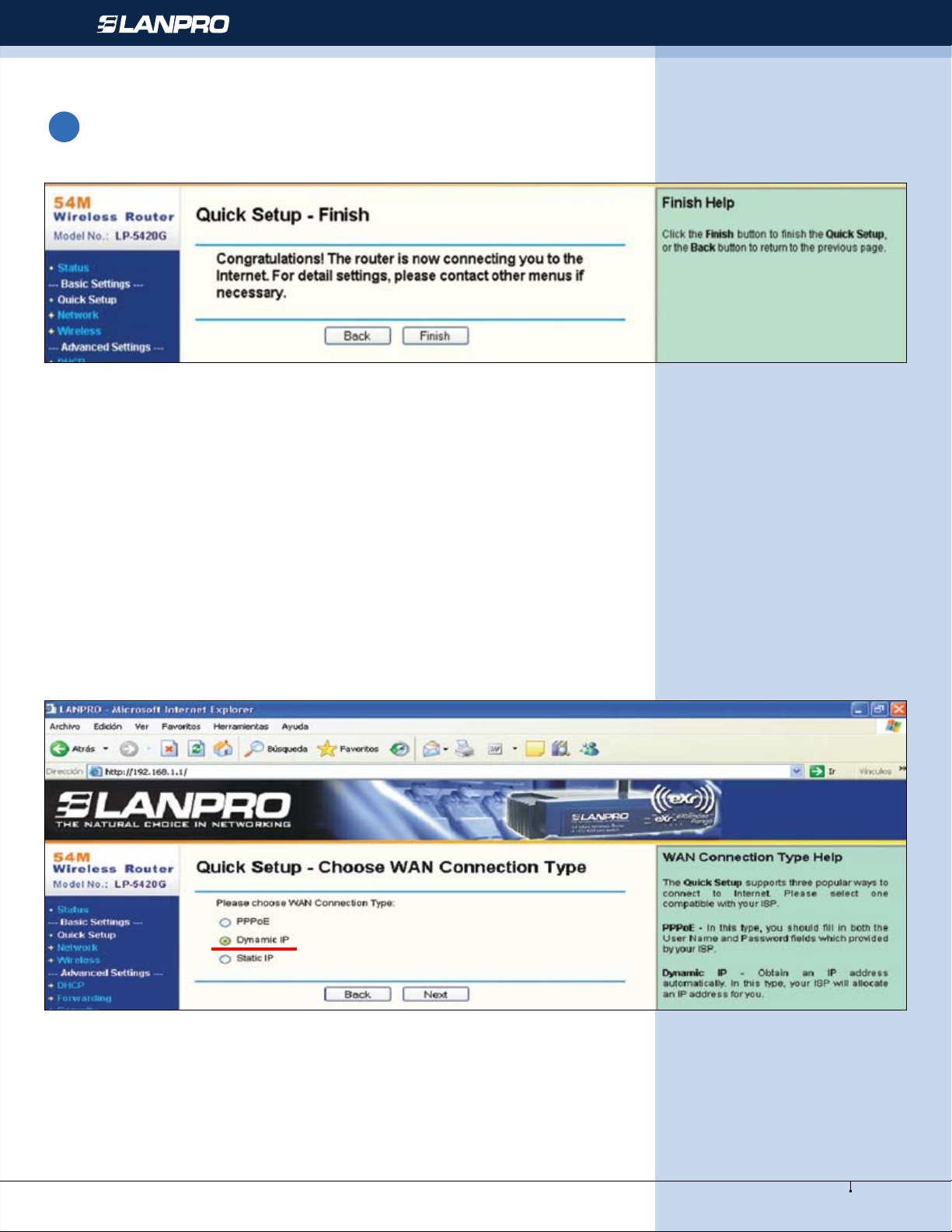
8
Select Next
Wireless - Router - LP-5420G
Figure 8
Select Finish
The basic conguration has nalized LP-5420G. It closes the Navigator and it enjoys his LP-5420G
Important notice
Dear user, for security reasons, the LP-5420G comes with Wan connection congured as PPPoE. Please
take this in mind at the moment of equipment conguration. Most ISP’s work with Dinamic IP’s. You can
change this as follows:
Figure 9
5
www.lanpro.com
Page 6
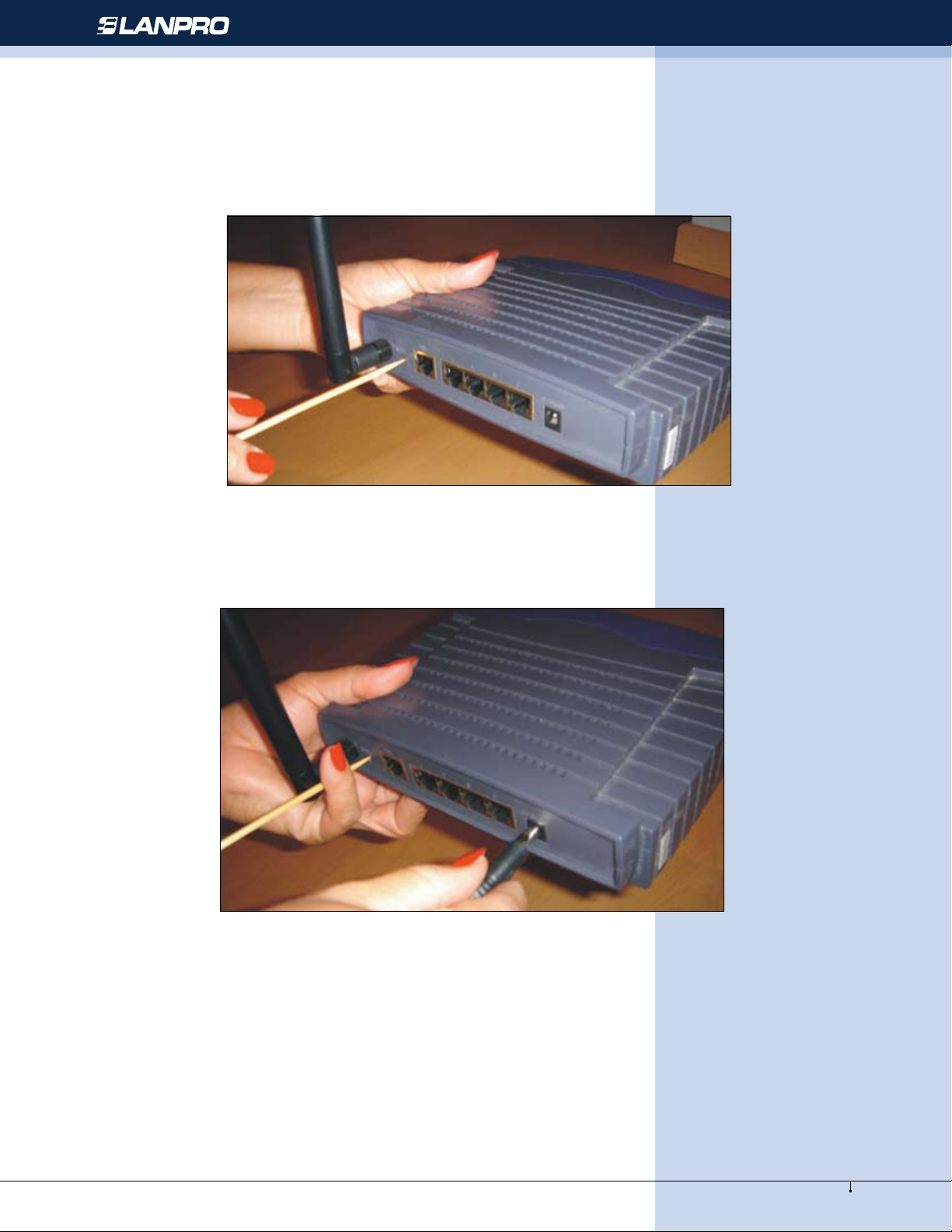
How to reset the Router to the original conguration:
1. Disconnect the power supply from the Router.
2. Locate a small hole on the back of the router to the right of the antenna as shown:
Wireless - Router - LP-5420G
Figura 10
3. Push the push button inside of the hole with a thin clip and reconnect the power supply, then wait ten seconds , nish
by releasing the push button:
Figura 11
Important considerations:
Please review: Document: Fast Installation,
Security Conguration LP-5420G,
LP5420G_M123_ENC01
6
www.lanpro.com
 Loading...