

Page 1

www.lanpro.com
123 fast installation guide for the LanPro
Features
Comply with IEEE802.11g,
IEEE802.11b
Adopt Extended Range™ WLAN
transmission technology,
transmission distance is 2-3 times
of the normal 11b, 11g products,
transmission range extended to
4-9 times.
Wireless - Equipment
LP-510G WLAN PCMCIA adaptor
LP510G_M123_ENB01W
Transmit Speed Auto-Negotiation,
up to 54Mbps
32-bit CardBus connector
Provide 64/128-bit WEP
Encryption
Support WPA, IEEE802.1X, TKIP,
AES
Support Windows 2000, XP
Provide simple configuration and
supervisor program
Support Ad-Hoc/Infrastructure
modes
Internal Intellective Antenna
Support Wireless Roaming, can
move among different AP´S and
no break
123 fast installation guide for
the LanPro LP-510G
WLAN PCMCIA adaptor
Complying with IEEE802.11g, the LP-510G adopts “Extended Range”
WLAN transmission technologies, resulting in transmission distances 2-3
times compared to the normal delivered by 11b, 11g products, transmission
range is extended up to 4-9 times.
The LP-510G provides multi security protection. Complying with
64/128/152-bit WEP Encryption, WPA, IEEE802.1X, TKIP and AES, the
LP-510G has super-safety data communication ability. With the strong
firewall, the LP-510G features effective security to protect the wireless
network from the intruders.
With the internal intellective antenna, the LP-510G can fit different operation
environments and let’s the user connect to the Wireless network. The LP510G also supports Seamless Roaming and is compatible with other 11b,
11g WLAN equipment.
Page 2
Wireless - Equipment - 2.4GHz - LP-510G Wireless CardBus Adapter
This fast installation guide will let you rapidly install the LanPro LP-510 device.
Physical installation of the PCMCIA Card (figure 1):
A
1
Please locate a PCMCIA slot in your Computer.
2
Insert this card in the slot with the label side facing upward
3
The indicator light shall blink when properly inserted.
Figure 1
Windows 2000/XP Software installation
(Windows Vista is fully plug and play, no need of software)
B
1
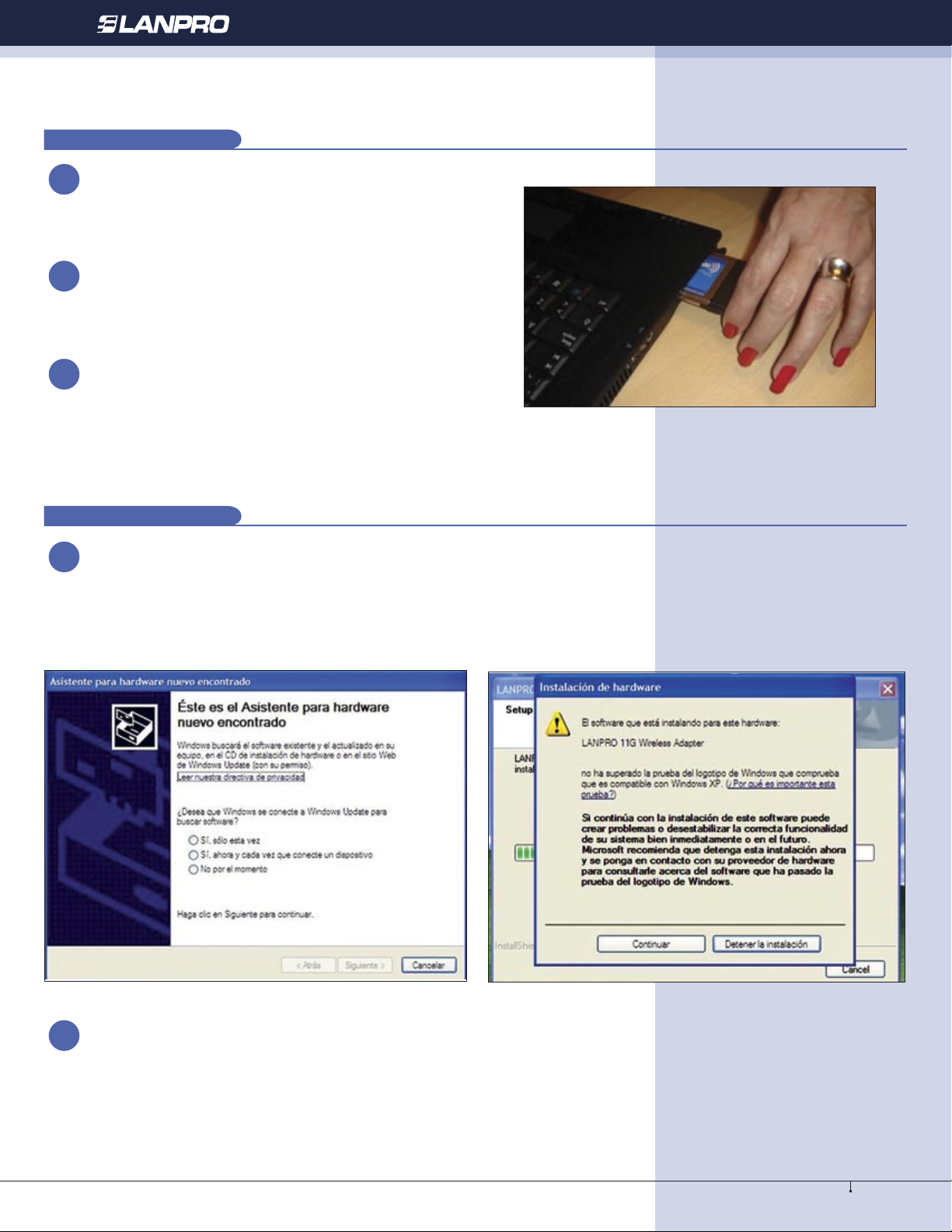
Turn your computer on, the operating system will show
you a “new hardware found” message, (Figure 2),
(please select the Cancel Operating System installation
option.
of the installation assistant and press “Ok” when finished.
The system will suggest you to perform a system reinitialization, please do it. In case the system asks for
confirmation of a digital signature, select: “Continue”
as shown in the Window shown in figure 3
Figure 2
2
Insert the disk supplied with the product in the CD Reader unit,
then , select de Windows “Start” Option and select “Run”
option. Please write in the path to the driver location:
F:\LP510G_550G\Win2000_XP\setup.exe, where “F”
represents the CD or DVD unit letter. Follow the instructions
Figure 3
Note for Windows Vista users:
If you wish to install the wireless client for this device,
please find it in the LanPro’s web page:
http://www.lan-products.com
2
www.lanpro.com
Page 3

Wireless - Equipment - 2.4GHz - LP-510G Wireless CardBus Adapter
Verifying the wireless connection
C
1
Once your PC equipment has been re-initiated, you will find the following icon in the lower right of the system bar.
Please select it with a double click on the left button of the mouse. Once done, select “PROFILE MANAGER” in the window
and then select: “Scan”. You now will see all the wireless networks available. In case you are using a LanPro`s LP-5420G
wireless router, it will connect automatically. If not, please select one of the networks to connect to. If none appears, select
“REFRESH” as many times as necessary in order to find one. If none appears, check your wireless equipment by following
its instructions, please remember to enable the “SSID Broadcast” mode in the router. Once the wireless network appears
in the list, select the “Activate” option. Once done, please close the configuration window.
2
Now you can enjoy your LanPro`s LP-510G
3
www.lanpro.com
 Loading...