

Page 1

Kramer Electronics, Ltd.
USER MANUAL
Model:
VP-725DSA
Presentation Switcher / Scaler
Page 2

Contents
i
Contents
1
Introduction 1
2
Getting Started 1
2.1
Quick Start 1
3
Overview 3
4
Your VP-725DSA Presentation Switcher / Scaler 5
5
Installing on a Rack 11
6
Connecting the VP-725DSA Presentation Switcher / Scaler 12
6.1
Connecting the MASTER OUT Terminal Block Connector 15
6.1.1 Using the MASTER OUT in the Master Audio Mode 15
6.1.2 Using the MASTER OUT in the Master AV Mode 15
6.2
The RGBS and RGsB PINOUTs 16
6.3
Connecting a PC 16
6.4
Connecting the VP-725DSA via the ETHERNET port 17
6.4.1 Connecting the ETHERNET Port directly to a PC (Crossover Cable) 17
6.4.2 Connecting the ETHERNET Port via a Network Hub (Straight-Through Cable) 19
6.5
Connecting the Balanced/Unbalanced Stereo Audio Input/Output 20
7
Understanding the Presentation Switcher / Scaler 21
7.1
Understanding the Video Group Mode/Scaler Mode 21
7.2
Understanding the Audio Group Mode/Master Audio Group Mode 21
7.3
Understanding the Audio Features 22
7.3.1 Choosing Audio-Follow-Video or Audio Breakaway 22
7.3.2 Adjusting the Audio Level 23
7.3.3 Using the Microphone CONTROL Modes 23
7.4
Understanding the PIP Button Feature 24
7.4.1 Activating the PIP Feature 24
7.4.2 PIP Characteristics 25
7.4.3 Toggling between the PIP and the Screen Source (SWAP) 25
7.4.4 Resizing the PIP 26
7.4.5 Moving the Position of the PIP 26
7.5
Locking and Unlocking the Front Panel 27
8
Operating the Presentation Switcher / Scaler 28
8.1
Switching an Input 28
8.1.1 Freezing the Image 28
8.1.2 Displaying a Blank Screen 29
8.2
Choosing the Output Resolution 30
9
Controlling the VP-725DSA Presentation Switcher / Scaler 31
9.1
Operating via the OSD MENU Screen 31
9.1.1 Controlling the Brightness and Contrast 32
9.1.2 Controlling the Gamma and Color 32
9.1.3 Selecting the Source 33
Page 3

KRAMER: SIMPLE CREATIVE TECHNOLOGY
Introduction
ii
9.1.4
Controlling the Geometry 36
9.1.4.1 Adjusting the Zoom Ratio 39
9.1.4.2 Adjusting the Zoom Position 39
9.1.5 Configuring via the Utility Screens 40
9.1.5.1 Choosing the Graphic Utility Settings 41
9.1.5.2 Choosing the Video Utility Settings 42
9.1.5.3 Choosing the Audio Utility Settings 43
9.1.5.4 Choosing the Audio Level Utility Settings 44
9.1.5.5 Choosing the PIP Utility Settings 45
9.1.5.6 Choosing the Seamless Switch Utility Settings 46
9.1.5.7 Choosing the OSD Utility Settings 47
9.1.5.8 Choosing the Output Utility Settings 48
9.1.5.9 Choosing Factory Reset 50
9.1.5.10 Choosing Advanced Utility Settings 51
9.1.6 Verifying Configuration Details via the Information Screen 52
9.2
Operating via the LCD Display 53
9.3
Operating via the Infra-red Remote Control Transmitter 53
9.4
Operating via ETHERNET/Serial Port 56
9.4.1 Installing and Running the Configuration Software 56
9.4.2 Configuring the Ethernet Connection 56
9.4.2.1 The Configuration Screen 56
9.4.3 Control the VP-725DSA via the Ethernet/Serial Port 58
10
Using Text Overlay 60
10.1 Downloading the TextOverlay Program 62
10.2 Setting the Text Message 62
10.2.1 Connecting and Disconnecting the TextOverlay Program 63
10.2.2 Saving and Loading Settings 64
11
Technical Specifications 65
12
VP-725DSA Communication Protocol 66
13
VP-725DSA Text Overlay Protocol 73
Figures
Figure 1: VP-725DSA Presentation Switcher / Scaler Front Panel 6
Figure 2: VP-725DSA Presentation Switcher / Scaler Rear Panel 9
Figure 3: Connecting the VP-725DSA Presentation Switcher / Scaler 14
Figure 4: Connecting the MASTER OUT (in Master Audio Mode) 15
Figure 5: Connecting the MASTER OUT (in Master AV Mode) 15
Figure 6: Connecting the PC 16
Figure 7: RJ-45 PINOUT 17
Figure 8: Local Area Connection Properties Window 18
Figure 9: Internet Protocol (TCP/IP) Properties Window 18
Figure 10: Connecting a Balanced Stereo Audio Input/Output 20
Figure 11: Connecting an Unbalanced Stereo Audio Input 20
Figure 12: Connecting an Unbalanced Stereo Audio Output 20
Figure 13: OSD PIP Status 25
Page 4

Contents
iii
Figure 14: OSD SWAP Status 25
Figure 15: Locking / Unlocking the Front Panel 27
Figure 16: OSD Input Status 28
Figure 17: OSD Output Status 30
Figure 18: Controlling the Brightness and Contrast 31
Figure 19: Menu Screen Icons 32
Figure 20: Controlling the Gamma and Color 32
Figure 21: Gamma, Color Temperature/Manager User 1/2 Screen 33
Figure 22: Selecting the Source 33
Figure 23: Selecting the Search 34
Figure 24: Selecting the Group 35
Figure 25: Selecting the Source 35
Figure 26: Geometry Screen 36
Figure 27: Geometry (Aspect Ratio) Screen 37
Figure 28: Geometry (Zoom) Screen 37
Figure 29: OSD Enlarge Status 38
Figure 30: Zoom Ratio Adjustment Example 38
Figure 31: Zoom Position Adjustment Example 38
Figure 32: Geometry (Zoom Ratio) Screen 39
Figure 33: Geometry (Zoom Position Adjustment) Screen 40
Figure 34: Geometry (Keystone) Screen 40
Figure 35: Utility Screen 40
Figure 36: Choosing the Graphic Utility Settings 41
Figure 37: Graphic Setting Color Format Utility Screen 42
Figure 38: Choosing the Video Utility Settings 42
Figure 39: Video Setting Standard Utility Screen 42
Figure 40: Choosing the Audio Utility Settings 43
Figure 41: Choosing the Audio Level Settings 44
Figure 42: Choosing the PIP Utility Settings 45
Figure 43: Choosing the Seamless Switch Utility Settings 46
Figure 44: Choosing the OSD Utility Settings 47
Figure 45: OSD Size Utility Screen 47
Figure 46: OSD Blank Color Utility Screen 48
Figure 47: Choosing the Output Utility Settings 48
Figure 48: Output Setting Resolution Utility Screen 49
Figure 49: Output Setting Refresh Rate Utility Screen 49
Figure 50: Output Setting User Mode Setting Utility Screen 50
Figure 51: Factory Reset Utility Screen 50
Figure 52: Advanced Utility Screen 51
Figure 53: Information Screen 52
Figure 54: Example of how to use the LCD Display 53
Figure 55: Infra-red Remote Control Transmitter 54
Figure 56: VP725 Ethernet Application Main Dialog Box (Configuration Tab) 56
Figure 57: VP725 Ethernet Application Search Panel Screen 57
Figure 58: Configuration Tab 57
Figure 59: Setting an IP Number 58
Figure 60: VP725 Ethernet Application Main Dialog Box (Control Tab) 59
Figure 61: TextOverlay Application Screen 60
Page 5

KRAMER: SIMPLE CREATIVE TECHNOLOGY
Introduction
iv
Tables
Table 1: Front Panel VP-725DSA Presentation Switcher / Scaler Features 7
Table 2: Rear Panel VP-725DSA Presentation Switcher / Scaler Features 10
Table 3: RGBS and RGsB PINOUTS 16
Table 4: Crossover Cable RJ-45 PINOUT 17
Table 5: Straight-through Cable RJ-45 PINOUT 19
Table 6: Controlling the Brightness and Contrast 32
Table 7: Controlling the Gamma and Color 33
Table 8: Selecting the Source 34
Table 9: Controlling the Geometry 36
Table 10: Choosing the Graphic Utility Settings 41
Table 11: Choosing the Video Utility Settings 43
Table 12: Choosing the Audio Utility Settings 43
Table 13: Choosing the Audio Level Settings 44
Table 14: Choosing the PIP Utility Settings 45
Table 15: Choosing the Seamless Switch Utility Settings 46
Table 16: Choosing the OSD Utility Settings 47
Table 17: Choosing the Output Utility Settings 49
Table 18: User Mode Setting Definitions 50
Table 19: Advanced Utility Screen Features 51
Table 20: User Define Measure Features 51
Table 21: Infra-Red Remote Control Transmitter Functions 55
Table 22: VP725 Ethernet Application Configuration Tab 57
Table 23: Features and Functions of the TextOverlay Application 61
Table 24: Number of Buffers, Output Resolution and Maximum Display Height 62
Table 25: TextOverlay Parameters 63
Table 26: Technical Specifications of the VP-725DSA Presentation Switcher / Scaler 65
Table 27: Communication Protocol of the VP-725DS/VP-725DSA 66
Table 28: Text Overlay Protocol of the VP-725DSA 73
Page 6
ADDENDUM: Ethernet Cross Cable Wiring Connection
P/N: 2900 - 9999993 A1
This addendum describes the correct wiring for crossover cable connections
and replaces the opening paragraph in the "Connecting the ETHERNET Port
directly to a PC (Crossover Cable)" section in the User Manual as follows:
Connecting the ETHERNET Port directly to a PC (Crossover Cable)
You can connect the Ethernet port of the machine to the Ethernet port on your
PC, via a crossover cable with RJ-45 connectors.
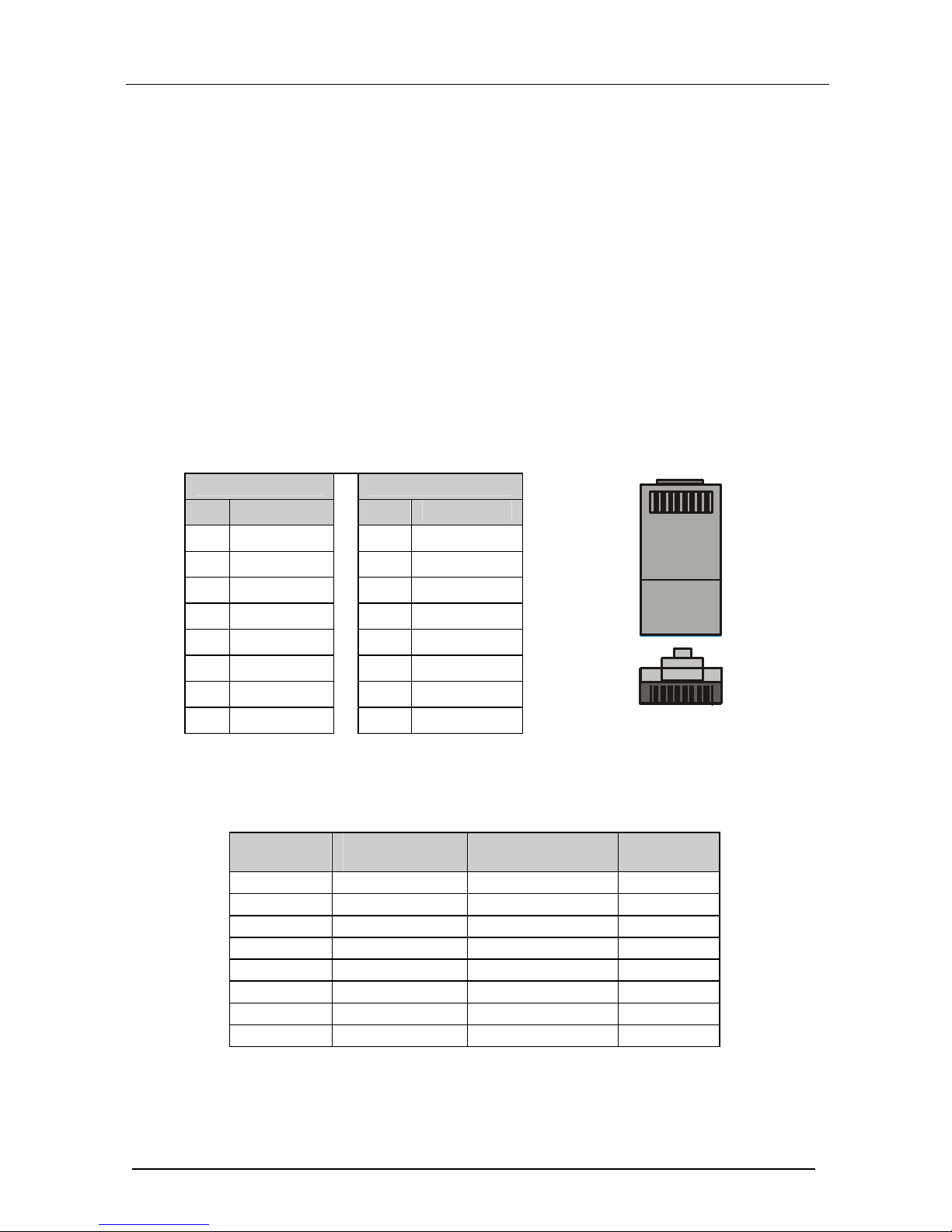
Table 1 and Figure 1 define the color codes for the two existing standard types
of cross cables used in the industry. Table 2 defines how to connect the wires
to the connectors on both ends of the cable.
When manually connecting the ends of a cable, both connectors must follow
the same standard (either EIA /TIA 568A or EIA /TIA 568B).
Table 1: Crossover Cable RJ-45 Types
EIA /TIA 568B
EIA /TIA 568A
PIN Wire Color
PIN Wire Color
1 White-orange
1 White-green
2 Orange
2 Green
3 White-green
3 White-orange
4 Blue
4 Blue
5 White-blue
5 White-blue
6 Green
6 Orange
7 White-brown
7 White-brown
8 Brown
8 Brown
1 8
TOP
FRONT
1 8
Figure 1: RJ-45 PINOUT
Table 2: Wiring between Connector One and Two of the Cable
Signal Pairs PINs on
Connector One
PINs on Connector
Two
Signal Pairs
TX_D1+ 1 3 RX_D2+
TX_D1- 2 6 RX_D2-
RX_D2+ 3 1 TX_D1+
RX_D2- 6 2 TX_D1-
BI_D3+ 4 7 BI_D4+
BI_D3- 5 8 BI_D4-
BI_D4+ 7 4 BI_D3+
BI_D4- 8 5 BI_D3-
Page 7

Introduction
1
1 Introduction
Welcome to Kramer Electronics (since 1981): a world of unique, creative and
affordable solutions to the infinite range of problems that confront the video,
audio and presentation professional on a daily basis. In recent years, we have
redesigned and upgraded most of our line, making the best even better! Our
500-plus different models now appear in 8 Groups1, which are clearly defined
by function.
Congratulations on purchasing your Kramer VP-725DSA Presentation
Switcher / Scaler, which is ideal for the following typical applications:
Projection systems (with full audio capability) in conference rooms, board
rooms, auditoriums, hotels, and churches
Any application in which high quality conversion and switching of
multiple and different video signals to graphical data is required for
projection and large display purposes (with full audio capability)
The package includes these items:
VP-725DSA Presentation Switcher / Scaler
Power cord2
Infra-red remote control transmitter (including the required battery)
Null-modem adapter
This user manual3
2 Getting Started
We recommend that you:
Unpack the equipment carefully and save the original box and packaging
materials for possible future shipment
Review the contents of this user manual
Use Kramer high performance high resolution cables4
2.1 Quick Start
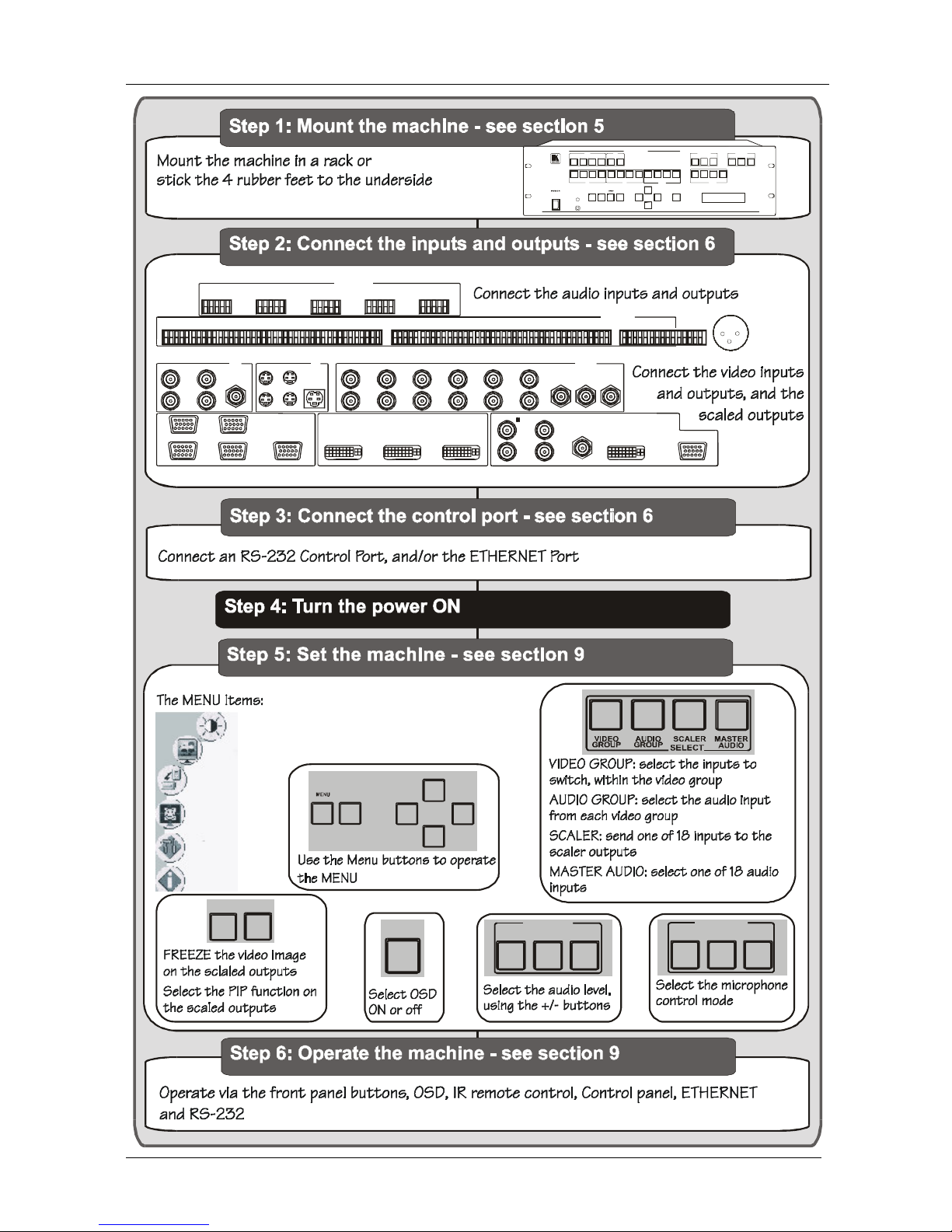
This quick start chart summarizes the basic setup and operation steps.
1 GROUP 1: Distribution Amplifiers; GROUP 2: Video and Audio Switchers, Matrix Switchers and Controllers; GROUP 3:
Video, Audio, VGA/XGA Processors; GROUP 4: Interfaces and Sync Processors; GROUP 5: Twisted Pair Interfaces;
GROUP 6: Accessories and Rack Adapters; GROUP 7: Scan Converters and Scalers; and GROUP 8: Cables and Connectors
2 We recommend that you use only the power cord that is supplied with the machine
3 Download up-to-date Kramer user manuals from the Internet at this URL: http://www.kramerelectronics.com
4 The complete list of Kramer cables is on our Web site at http://www.kramerelectronics.com
Page 8
KRAMER: SIMPLE CREATIVE TECHNOLOGY
Getting Started
2
OSD ON
FREEZE
PIP
ENTER
- +
UP
DOWN
INPUT SELECTOR
1
1 1 1
1
VGA
CV Y C COM P
DVI
FREEZE PIP
ENTER
- +
UP
DOWN
OSD ON
2
2 2 2
23
3 3 3
4
4 4 4
VIDEO
GROUP
AUDIO
GROUP
MASTER
AUDIO
SCALER
OVERRIDE TALKOVER LINE MIC OUTMIX
SELECT
MIC CO NTROL AUDIO L EVEL
Mic IN
AUDIO INPUTS
CV 2 CV 3 CV 4 YC 1 YC 2 YC 3 YC 4 VGA 1 VGA 2CV 1 VGA 3 VGA 4 COM P 1 COMP 2 COMP 3 COM P 4 DVI 1 DVI 2
MASTER
OUT
L+L- G R+R-
L+ L- G R+ R- L+L- G R+R- L+ L- G R+ R- L+L- G R+ R- L+ L- G R+R- L+ L- G R+ R- L+ L- G R+R- L+ L- G R+ R- L+ L- G R+ R- L+ L- G R+R- L+ L- G R+ R- L+ L- G R+ R- L+ L- G R+ R- L+L- G R+R- L+ L- G R+ R- L+ L- G R+ R- L+L- G R+R- L+ L- G R+ R-
AUDIO OUTP UTS
VGAYCCV
L+L- G R+R- L+L- G R+ R- L+ L- G R+R- L+ L- GR+ R- L+L- G R+R-
DVICOMP
COMP
VGA
CV YC
DVI
IN 1 G/Y1 B /Pb1 R/Pr1 B/Pb3
B/Pb
R/Pr3
R/Pr
B/Pb2 R/Pr2G/Y2 G/Y 4
G/Y3
G/Y
IN 1
IN 3
OUT
OUT
OUT
OUT
IN 2
IN 2
IN 4
IN 1 IN 3
IN 2 IN 4
OUTPUT
IN 1 IN 3
IN 2 IN 4
VGADVI
B/Pb4 R/Pr4
SCALED OUTPUTS
V
B/Pb
R/Pr
G/Y
Utilities
Information
Geometry
Brightness and Contrast
Gamma and Color
Source
OVERRIDE
TALKOVER
MIX
MIC CONTROL
LINE
MIC OUT
AUDIO LEVEL
Page 9

Overview
3
3 Overview
The VP-725DSA Presentation Switcher / Scaler is designed for a wide
variety of presentation and multimedia applications. It is a true multi-standard
video to graphics scaler and presentation switcher for a wide variety of
presentation and multimedia applications. It consists of a very high quality
scaler with many user-selectable pixel-rates including VGA (640x480), SVGA
(800x600), XGA (1024x768), SXGA (1280x1024) and UXGA (1600x1200);
high definition television HDTV (480p, 720p and 1080i); and several optimum
plasma and LCD rates such as 852x1024i, 1024x1024i, 1366x768, 1365x1024,
1280x720, 720x483, 852x480, 1400x1050, 576P, 720x400, 832x624,
1024x800, 1152x864, 1152x870, 1152x900, 1280x960, 1280x768, 1024x576,
as well as a user definable output mode1.
In particular, the VP-725DSA:
Offers high quality de-interlacing 3:2/2:2 pull down2
Supports firmware upgrade via RS-232
Includes non-volatile memory that retains the last setting, after switching
the power off and then on again
Scales and zooms (to up to 400% of the original size)
Digitally reprocesses the signal to correct mastering errors, and
regenerates the video at a chosen line and pixel rate format, providing, for
example, native-resolution video for LCD, DLP and Plasma displays
Facilitates scaling of graphics resolutions to other resolutions
Incorporates a unique graphics-scaling engine with image enhancement
algorithms, which are built into the firmware
Is specifically designed to improve video quality by reducing chroma noise
Includes an OSD (on-screen display) for making the adjustments that can
be located anywhere on the screen, and can be doubled in size. The OSD
can be used to deactivate the source prompt, choose the color of the blank
screen, and choose from three seamless switching transition speeds
Consists of 5 video groups—composite video, s-Video, component video
(RGB or YPbPr), DVI-D and VGA—and each group has 4 inputs (except
for DVI which has 2 inputs). Each video input has its own corresponding
balanced stereo audio input on a terminal block connector
1 Recommended for advanced users only – non-standard settings may not be recognized by the display device
2 Accommodates the frame-rate of a converted movie (24 frames per second) to video frequencies (25 frames per second
(PAL); 30 frames per second (NTSC)
Page 10

KRAMER: SIMPLE CREATIVE TECHNOLOGY
Overview
4
Has multi-standard video support; supports VESA standards; HDTV
standards and other popular resolutions on the input. Does not support1
HDCP (High bandwidth Digital Content Protection) on the DVI2
Features a Video Group Mode3 and a Scaler Mode4. These modes function
simultaneously and independently (except for DVI: once a DVI input is
selected in the Scaler Mode, that DVI input selection cannot be changed
in the Video Group Mode)
Features an Audio Group Mode5 and a Master Audio Group Mode6, with
a balanced stereo audio output on a terminal block connector for each
group. In addition, in the AV Group you can select the audio-follow-video
input from each group for switching, and in the Master AV Group you can
convert the selected video input (one of 18) to the SCALED OUTPUTS,
and also route the selected audio input (one of 18) to the MASTER OUT
terminal block connector
An independent Master Audio output that has a rich set of ProcAmp
features, including bass and treble controls (via the MENU and LCD status
display (and OSD when appropriate)), RS-232 and the infra-red remote
control transmitter
Audio breakaway option (to switch audio independently from video) or
Audio-follow-video
Adjustable volume on each input and output
A microphone input that can be used by mixing, switching or talk-over
Includes a front panel lock, as well as a separate OSD lock
In addition to providing an up- or down- scaled output of the selected (one of
18) inputs, also functions as 4x1 switchers for each video group (2x1 for DVI)
Has ProcAmp7 controls for the scaler output
Lets you freeze the image at any instant
Lets you select the output colorspace (RGB or YPbPr)
1 A method of security encryption (developed by Intel and Silicon Image)
2 An HDCP source would show up as a very snowy, noisy picture at the output
3 Selects the video input from each group: CV, YC, Component, VGA, DVI for switching to its local (group) output
4 Converts the selected input (one of 18) to the SCALED OUTPUTS
5 Selects the audio input from each group for switching
6 Routes the selected audio input (one of 18) to the MASTER OUT terminal block connector
7 Processing amplification enables adjustment of different video and audio signal parameters
Page 11

Your VP-725DSA Presentation Switcher / Scaler
5
Has a text overlay feature1 for insertion of subtitles, karaoke script, text
banners, and the like, which lets you send text to be displayed on the
scaled output
Includes a built-in Picture-In-Picture (PIP) inserter2 (letting you insert a
video source into a graphics background or vice versa. This PIP image
may be positioned and sized anywhere on the screen, or displayed as 2
images side-by-side (Split-Screen)
The VP-725DSA:
Comes in a rugged, professional 19" 3U rack-mountable metal enclosure
Uses a universal 100-240VAC automatic power supply
Control the VP-725DSA:
From the front panel user-friendly menu-driven OSD (see section 9.1)
From the front panel high contrast LCD Display (see section 9.2)
Remotely, from the infra-red remote control transmitter (see section 9.3)
Via Ethernet (see section 9.4)
Remotely, via RS-232
Achieving the best performance means:
Connecting only good quality connection cables, thus avoiding
interference, deterioration in signal quality due to poor matching, and
elevated noise levels (often associated with low quality cables)
Avoiding interference from neighboring electrical appliances, making
sure not to block the ventilation holes, and positioning your VP-725DSA
away from moisture, excessive sunlight and dust
4 Your VP-725DSA Presentation Switcher / Scaler
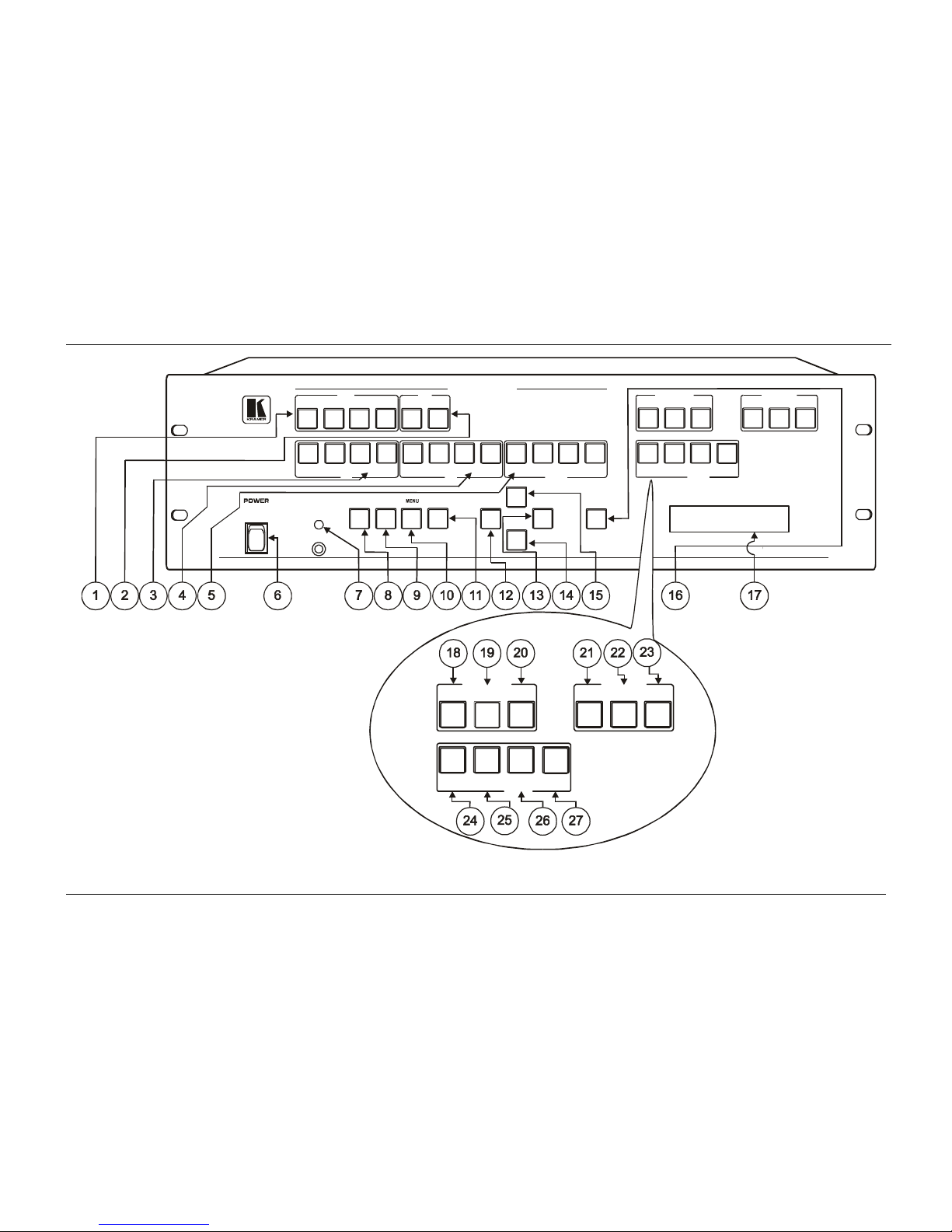
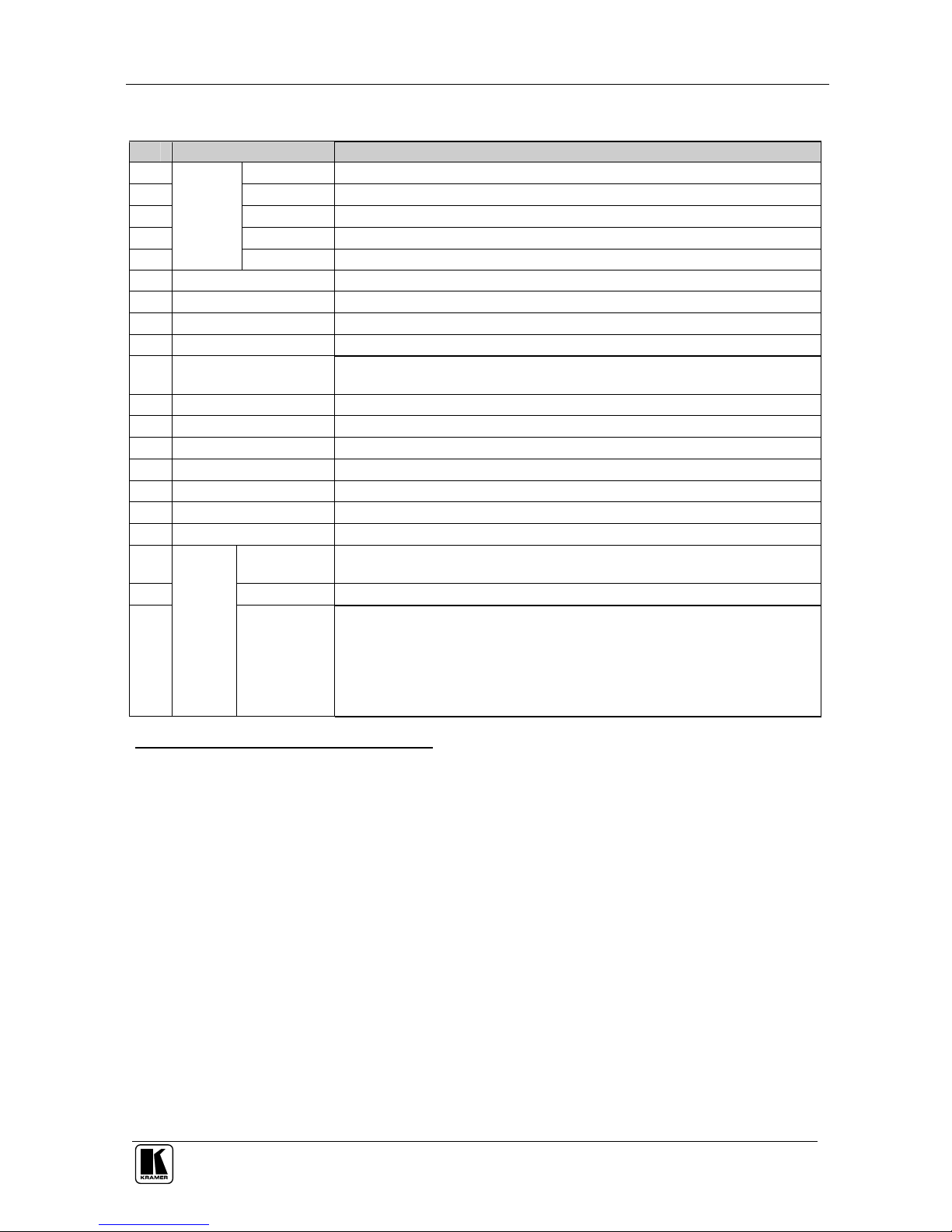
Figure 1 and Table 1 define the front panel of the VP-725DSA:
1 The VP725 Text Overlay Application (Text Overlay Sender) for the VP-725DSA (and the VP-725DS) can be downloaded
at http://www.kramerelectronics.com
2 See section 7.4
Page 12
KRAMER: SIMPLE CREATIVE TECHNOLOGY
Your VP-725DSA Presentation Switcher / Scaler
6
INPUT SELECTOR
1
1 1 1
1
VGA
CV YC COMP
DVI
FREEZE PIP ENTER
- +
UP
DOWN
OSD ON
2
2 2 2
23
3 3 3
4
4 4 4
VIDEO
GROUP
AUDIO
GROUP
MASTER
AUDIO
SCALER
OVERRIDE
TALKOVER
LINE MIC OUTMIX
SELECT
MIC CONTROL
AUDIO LEVEL
VIDEO
GROUP
AUDIO
GROUP
MASTER
AUDIO
SCALER
OVERRIDE TALKOVER
LINE MIC OUTMIX
SELECT
MIC CONTROL
AUDIO LEVEL
Figure 1: VP-725DSA Presentation Switcher / Scaler Front Panel
Page 13
Your VP-725DSA Presentation Switcher / Scaler
7
Table 1: Front Panel VP-725DSA Presentation Switcher / Scaler Features
# Feature Function
1 VGA Button Selects one of the 4 VGA sources
2 DVI Button Selects one of the 2 DVI sources1
3 CV Button Selects one of the 4 CV sources
4 YC Button Selects one of the 4 s-Video (Y/C) sources
5
INPUT
SELECTOR
COMP Button Selects one of the 4 Component sources
6 POWER Switch Illuminated switch for turning the unit ON or OFF
7 IR Receiver / LED Green when the unit will accept IR remote commands; red in standby mode2
8 FREEZE Button Freezes the output video image3
9 PIP Button Selects the picture-in-picture function
3,4
10 MENU Button Displays the OSD Menu screen (or moves to the previous level in the OSD
screen) and locks/unlocks the front panel
3,5
11 ENTER Button Moves to the next level in the OSD screen3
12 - Button Decreases the range by one step3
13 + Button Increases the range by one step3
14 DOWN Button Moves down one step (in the same level) in the OSD screen3
15 UP Button Moves up one step (in the same level) in the OSD screen3
16 OSD ON Button Activates/deactivates access to the OSD Menu
3, 6
17 LCD STATUS Display Displays the status
18 O
VERRIDE
8
Routes the signal from the microphone to the Master output instead of from the
Line, whose signal is blocked
19 M
IX
8
Routes the combined signals from the mic and the Line to the Master output
20
MIC CONTROL
7
Button
T
ALKOVER
8
Routes the selected input to the output until an audio signal is detected on the
microphone input. When this happens the selected input is faded out (to be
faded back in when no input is detected on the microphone)
1 Note, that once a DVI input is selected in the Scaler Mode, that DVI input selection cannot be changed in the Video Group
Mode
2 After pressing the POWER key on the remote control transmitter (see Figure 55). The machine is temporarily powered
down except that the power switch (item 6) on the machine continues to illuminate
3 Scaler outputs only
4 See section 7.4
5 See section 7.5
6 The OSD ON front panel button is activated (illuminated) by default, and pressing the MENU front panel button (or the
MENU key on the infra-red remote control transmitter (see Figure 55)) displays the OSD Menu. To block display of the OSD
Menu, press the OSD ON front panel button (or the OSD key) to deselect the OSD ON front panel button (which is no longer
illuminated); the OSD OFF status appears superimposed over the top right corner of the screen. However, deselecting the
OSD ON front panel button during an OSD operation will not turn off the OSD Menu (even though the OSD OFF status
appears superimposed over the top right corner of the screen), letting you complete the OSD operation
7 Only one of the three buttons can be ON, or all three buttons can be OFF (pressing a button will select that button, and turn
OFF the previously selected button. If the selected button is pressed, it will turn it OFF)
8 When no MIC CONTROL button is selected, the audio input is routed to the MASTER output, ignoring the mic input
Page 14
KRAMER: SIMPLE CREATIVE TECHNOLOGY
Your VP-725DSA Presentation Switcher / Scaler
8
# Feature Function
21 L
INE
22 MIC
23
AUDIO
LEVEL
1
Button
O
UT
2
Press this button and adjust using the –/+ buttons. The level is displayed in the
LCD Display and OSD
24 V
IDEO GROUP
Shows which video input from each group is selected for switching, and
facilitates the selection of an alternative video input from each group
3
25 A
UDIO GROUP
Selects the audio (breakaway mode) input from each group for switching
26 S
CALER
When selected shows which of the 18 video inputs has been selected to be
scaled at the SCALED OUTPUTS, and facilitates the selection of an alternative
video input for scaling
27
SELECT
1
Buttons
M
ASTER AUDIO
When selected routes the selected audio input (one of 18) to the
MASTER OUT terminal block connector
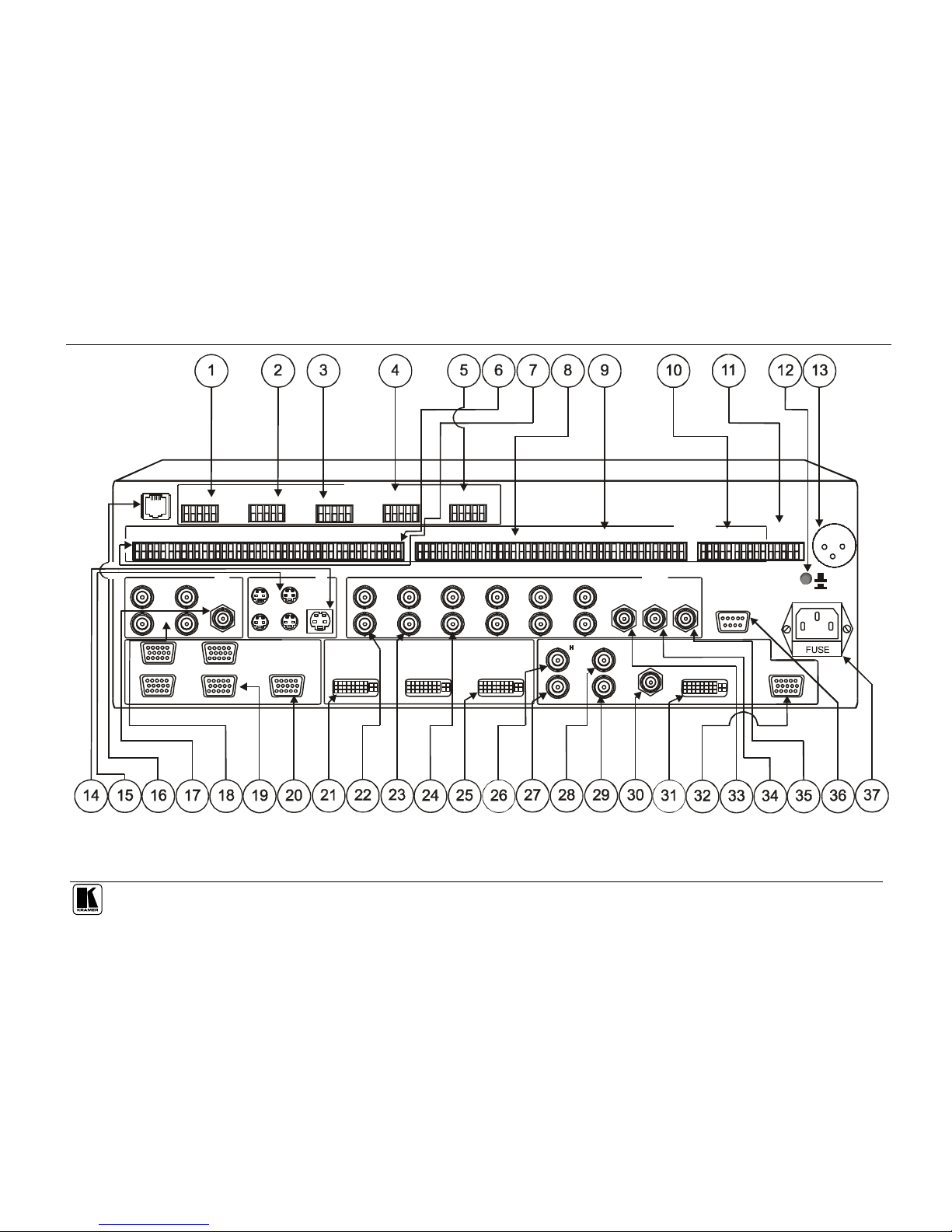
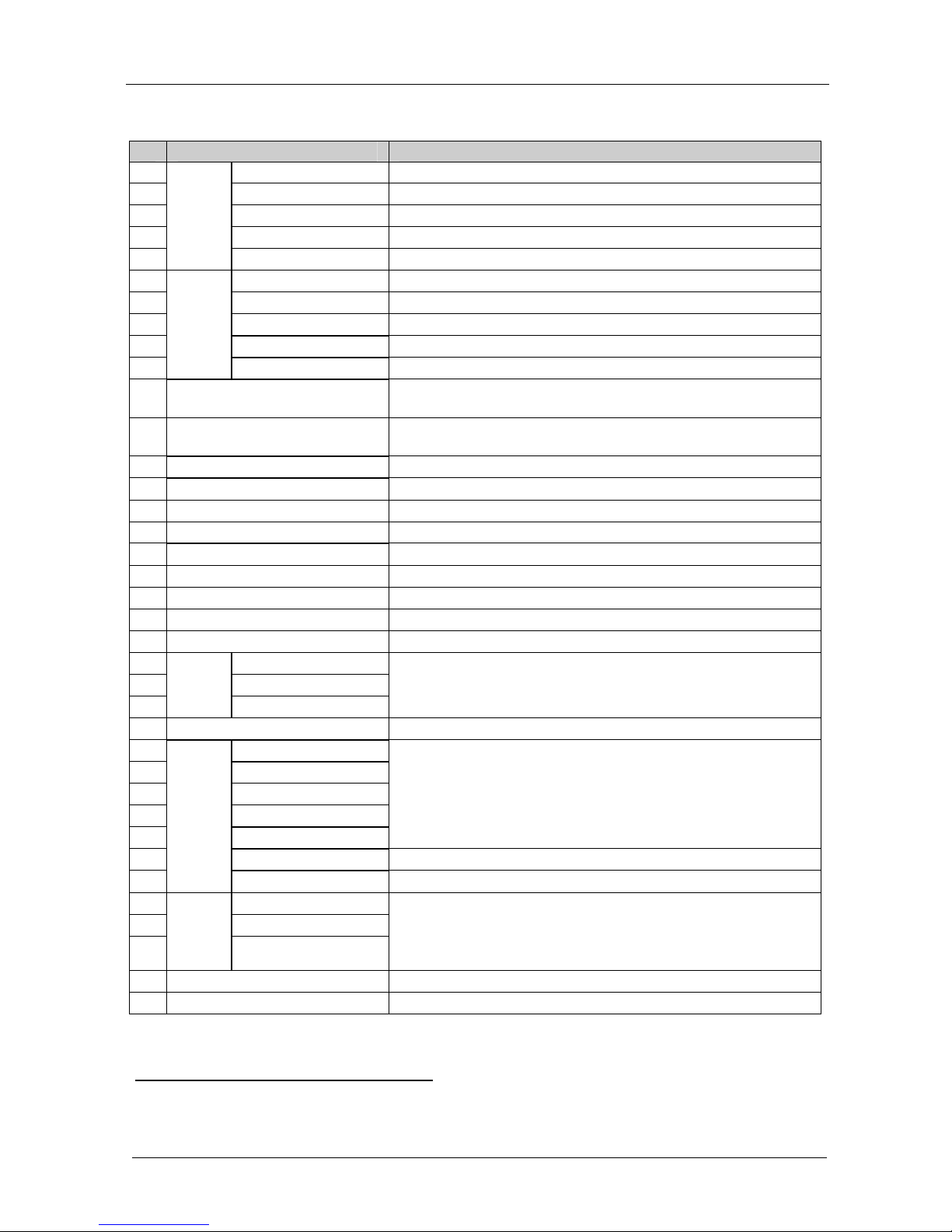
Figure 2 and Table 2 define the rear panel of the VP-725DSA:
1 Only one of the three buttons can be ON, or all three buttons can be OFF (pressing a button will select that button, and turn
OFF the previously selected button. If the selected button is pressed, it will turn it OFF)
2 Selecting OUT when the Audio Group button illuminates, lets you select the group (scrolling through CV, YC, VGA,
Component and DVI, displaying the selection on the LCD (and OSD when appropriate) using the UP and DOWN buttons
3 Note, that once a DVI input is selected in the Scaler Mode, that DVI input selection cannot be changed in the Video Group
Mode
Page 15
Your VP-725DSA Presentation Switcher / Scaler
9
VGA
CV YC
COMP
DVI
IN 1 G/Y1
B/Pb1
R/Pr1
B/Pb3
B/Pb
R/Pr3
R/Pr
B/Pb2
R/Pr2
G/Y2 G/Y4
G/Y3
G/Y
IN 1
IN 3
OUT
OUT
OUT
OUT
IN 2
IN 2
IN 4
IN 1 IN 3
IN 2 IN 4
RS-232
OUTPUT
IN 1 IN 3
IN 2 IN 4
VGADVI
B/Pb4
R/Pr4
SCALED OUTPUTS
V
B/Pb
R/Pr G /Y
90-264 VAC
50/60 Hz
Mic IN
COND. MIC
DYN. MIC
AUDIO INPUTS
AUDIO OUTPUTS
CV 2 CV 3 CV 4 YC 1 YC 2 YC 3 YC 4 VGA 1 VGA 2
VGAYCCV
CV 1
ETHERNET
VGA 3 V GA 4 C OMP 1 COMP 2 COMP 3 COMP 4 DVI 1 DVI 2
MASTER
OUT
L+ L- G R+ R-
L+ L- G R+ R- L+ L- G R+ R- L+ L- G R+ R- L+ L- G R+ R- L+ L- G R+ R-
L+ L- G R+ R- L+L- G R+ R- L+ L- G R+ R- L+ L- G R+ R- L+ L- G R+ R- L+ L- G R + R- L+ L- G R+ R- L+ L- G R+ R- L+ L- G R+ R- L+ L- G R+ R- L+ L- G R+ R- L+ L- G R+ R- L+ L- G R+ R- L+ L- G R+R - L+ L- G R+ R-
L+
L-GR+R-L+
L-GR+R-L+
L-GR+
R-
DVI
COMP
Figure 2: VP-725DSA Presentation Switcher / Scaler Rear Panel
Page 16
KRAMER: SIMPLE CREATIVE TECHNOLOGY
Your VP-725DSA Presentation Switcher / Scaler
10
Table 2: Rear Panel VP-725DSA Presentation Switcher / Scaler Features
# Feature Function
1 CV Connector Connects the balanced audio acceptor (for composite)
2 YC Connector Connects the balanced audio acceptor (for s-Video)
3 VGA Connector Connects the balanced audio acceptor (for VGA)
4 COMP Connector Connects the balanced audio acceptor (for component)
5
AUDIO
OUTPUT
Terminal Block
DVI Connector Connects the balanced audio acceptor (for DVI)
6 YC Connector Connects the balanced audio sources from 1 to 4 (for s-Video)
7 CV Connector Connects the balanced audio sources from 1 to 4 (for composite)
8 VGA Connector Connects the balanced audio sources from 1 to 4 (for VGA)
9 COMP Connector Connects the balanced audio sources from 1 to 4 (for component)
10
AUDIO INPUT
Terminal Block
DVI Connector Connects the balanced audio sources from 1 to 2 (for DVI)
11 MASTER OUT Terminal Block
Connector
Connects the routed balanced audio channel
12 Con / Dyn Switch Pushed in selects a dynamic microphone, released selects a
condenser microphone
13 Mic IN XLR Connector Connects to the microphone
14 YC OUT 4p Connector Connects to the s-Video (Y/C) acceptor
15 YC IN 4p Connectors Connects to the s-Video (Y/C) sources from 1 to 4
16 ETHERNET port Connects to your LAN1
17 CV OUT BNC Connector Connects to the composite video acceptor
18 CV IN BNC Connectors Connects to the composite video sources from 1 to 4
19 VGA IN HD15 Connectors Connects to the VGA (analog interface) graphics sources from 1 to 4
20 VGA OUT HD15 Connector Connects to the VGA (analog interface) graphics acceptor
21 DVI IN Connectors Connects to the DVI (digital video interface) graphics sources from 1 to 2
22 G/Y BNC Connector
23 B/Pb BNC Connector
24
COMP
Inputs
R/Pr BNC Connector
Connect to the component video source or RGB source from 1 to 4
25 DVI OUT Connector Connects to the DVI (digital video interface) graphics acceptor
26 H BNC Connector
27 R/Pr BNC Connector
28 V BNC Connector
29 G/Y BNC Connector
30 B/Pb BNC Connector
Connects to the component video or RGB acceptor
31 DVI Connector Connects to the DVI (digital video interface) graphics acceptor
32
SCALED
OUPUTS
VGA HD15 Connector Connects to the VGA (analog interface) graphics acceptor
33 G/Y BNC Connector
34 B/Pb BNC Connector
35
COMP
OUTPUT
R/Pr BNC Connector
Connect to the component video acceptor or to an RGB acceptor
36 RS-232 DB 9 Connector Connects to PC or Serial Controller
37 Power Connector with FUSE AC connector enabling power supply to the unit
1 Local Area Network (that is, computers sharing a common communications line or wireless link, which often share a server
within a defined geographic area)
Page 17
Installing on a Rack
11
5 Installing on a Rack
This section describes what to do before installing on a rack and how to rack
mount.
Before Installing on a Rack
Before installing on a rack, be sure that the environment is within
the recommended range:
Operating temperature range +5 to +45 Deg. Centigrade
Operating humidity range 5 to 65 % RHL, non-condensing
Storage temperature range -20 to +70 Deg. Centigrade
Storage humidity range 5 to 95% RHL, non-condensing
CAUTION!!
When installing on a 19" rack, avoid hazards by taking care
that:
1 It is located within the recommended environmental
conditions, as the operating ambient temperature of a
closed or multi unit rack assembly may exceed the room
ambient temperature.
2 Once rack mounted, enough air will still flow around the
machine.
3 The machine is placed straight in the correct horizontal
position.
4 You do not overload the circuit(s). When connecting the
machine to the supply circuit, overloading the circuits
might have a detrimental effect on overcurrent
protection and supply wiring. Refer to the appropriate
nameplate ratings for information. For example, for fuse
replacement, see the value printed on the product label.
5 The machine is earthed (grounded) in a reliable way
and is connected only to an electricity socket with
grounding. Pay particular attention to supply
connections other than direct connections to the branch
circuit (for example, the use of power strips), and that
you use only the power cord that is supplied with the
machine.
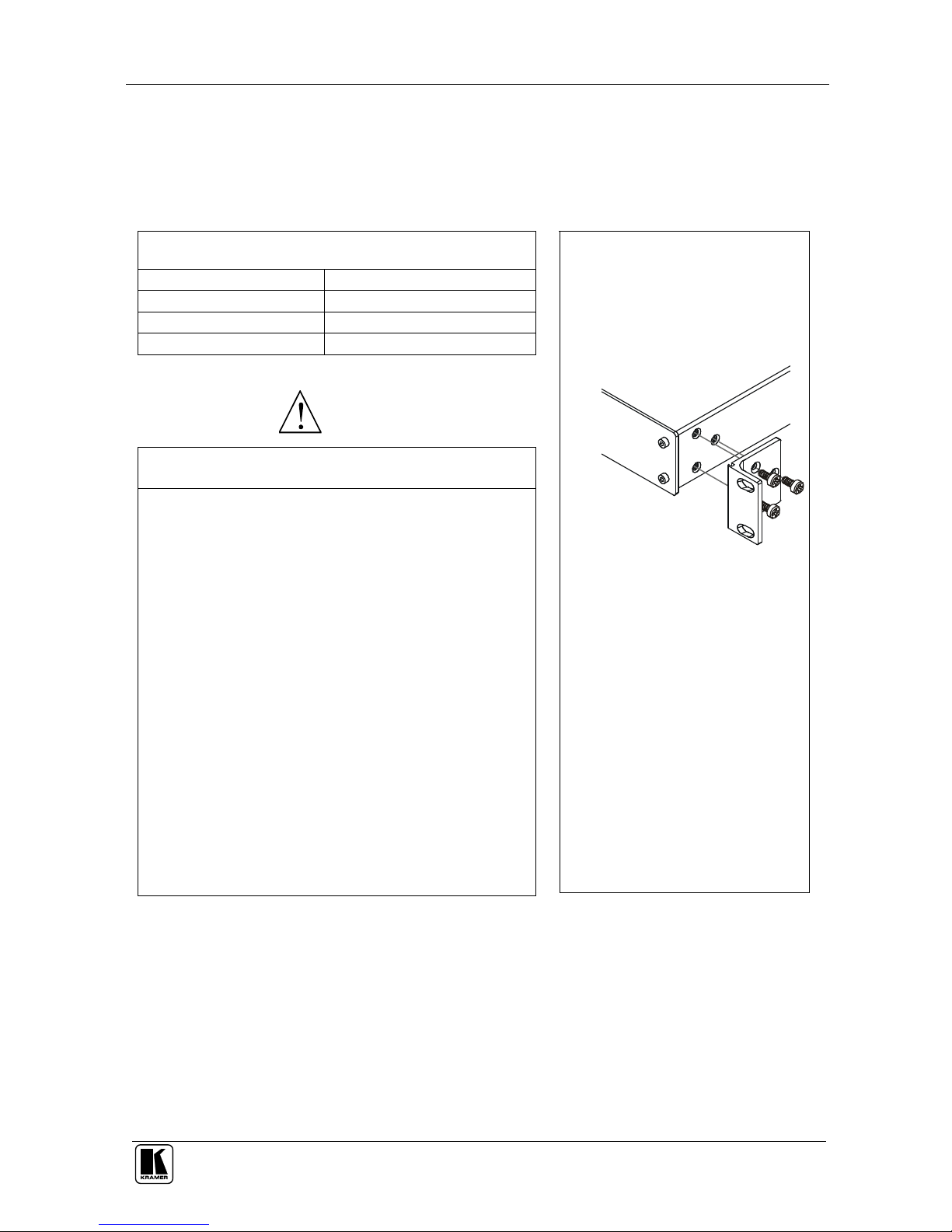
How to Rack Mount
To rack-mount the machine:
1 Attach both ear brackets to the
machine. To do so, remove the
screws from each side of the
machine (3 on each side), and
replace those screws through
the ear brackets.
2 Place the ears of the machine
against the rack rails, and
insert the proper screws (not
provided) through each of the
four holes in the rack ears.
Note that:
In some models, the front panel
may feature built-in rack ears
Detachable rack ears can be
removed for desktop use
Always mount the machine in the
rack before you attach any cables or
connect the machine to the power
If you are using a Kramer rack
adapter kit (for a machine that is not
19"), see the Rack Adapters user
manual for installation instructions
(you can download it at:
http://www.kramerelectronics.com)
Page 18

KRAMER: SIMPLE CREATIVE TECHNOLOGY
Connecting the VP-725DSA Presentation Switcher / Scaler
12
6 Connecting the VP-725DSA Presentation Switcher / Scaler
This section describes how to connect the VP-725DSA. In particular, how to:
Connect the VP-725DSA rear panel (see this section)
Connect the VP-725DSA MASTER OUT connector (see section 6.1)
Connect the interlaced and progressive RGBS and RGsB inputs (see section
6.2)
Connect the PC (see section 6.3)
Connect the Ethernet port (see section 6.4)
Connect the audio inputs/outputs (see section 6.5)
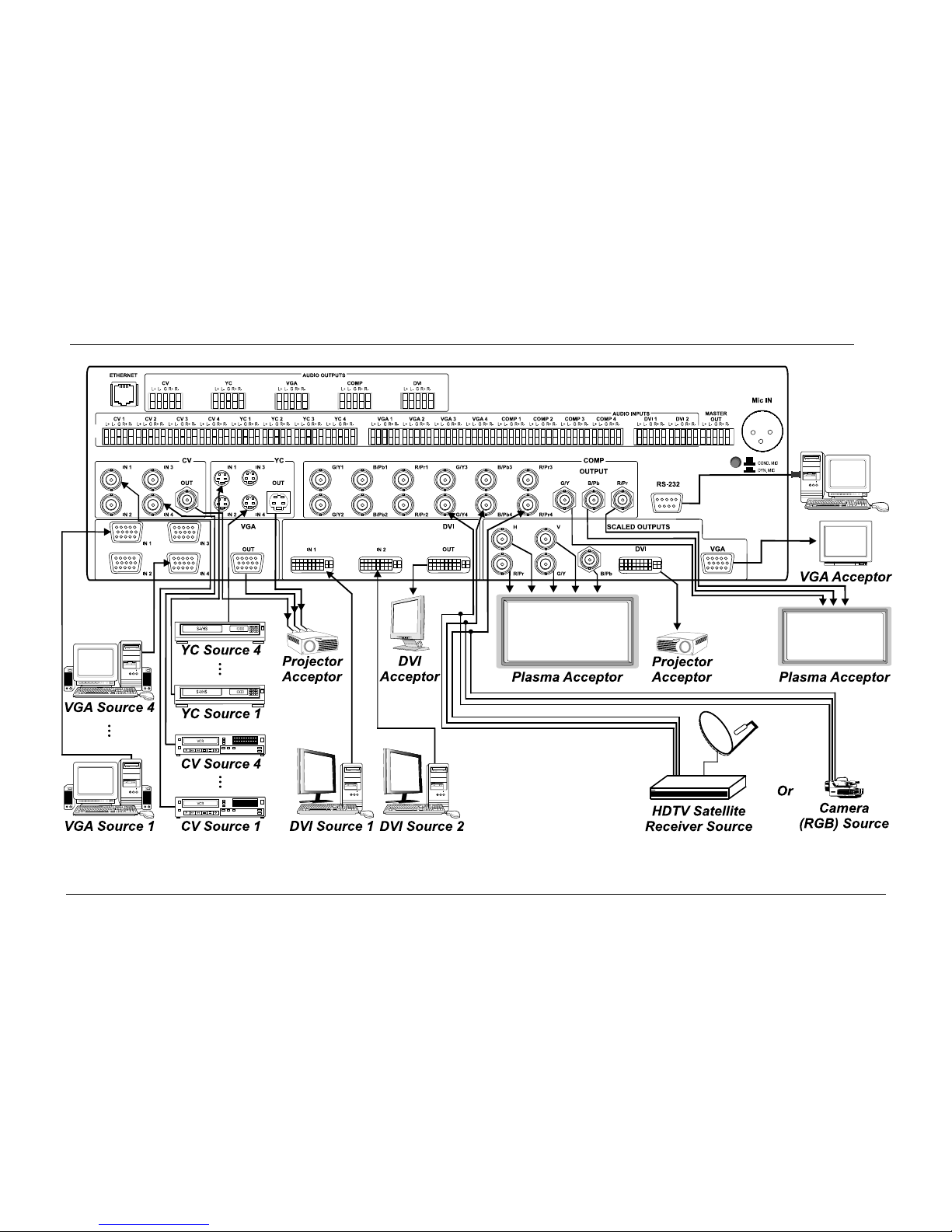
Using the VP-725DSA you can select any one of the 18 inputs and scale that
input to up to three scaled outputs (at the identical resolution).
To connect the VP-725DSA, connect the following1 to the rear panel, as the
example in Figure 3 illustrates:
1. Connect one or more of the following video sources:
Up to four VGA graphics sources (for example, computers): VGA
Source 1, VGA Source 2, VGA Source 3 and VGA Source 4 to the
HD15 input connectors2
Up to four composite video sources3: CV Source 1, CV Source 2, CV
Source 3, and CV Source 4 to the BNC input connectors
Up to four s-Video sources3: YC Source 1, YC Source 2, YC Source
3, and YC Source 4 to the 4p input connectors
Up to four component video (sometimes called YUV, or Y, B-Y,
R-Y, or Y, Pb/Cb, Pr/Cr) sources or 4 RGB sources to the four sets of
3 BNC connectors, G/Y, B/Pb, and R/Pr. The example in Figure 3
illustrates an HDTV satellite receiver or an RGB camera connected
to COMP Source 4
Up to two DVI4 graphics sources (for example, computers): DVI
Source 1 and DVI Source 2 to the DVI connectors
1 Switch OFF the power on each device before connecting it to your VP-725DSA. After connecting your VP-725DSA, switch
on its power and then switch on the power on each device
2 These connectors also accept interlaced and progressive RGBS and RGsB signals (see Table 3)
3 For example, VCR machines
4 Not HDCP sources
Page 19

Connecting the VP-725DSA Presentation Switcher / Scaler
13
2. Connect one or more of the following balanced stereo audio sources (not
illustrated in Figure 3). In particular, the audio of:
VGA Sources 1, 2, 3 and 4 to the AUDIO input terminal block
connectors VGA 1, VGA 2, VGA 3, and VGA 4, respectively
CV Sources 1, 2, 3 and 4 to the AUDIO input terminal block
connectors CV 1, CV 2, CV 3, and CV 4, respectively
YC Sources 1, 2, 3 and 4 to the AUDIO input terminal block
connectors YC 1, YC 2, YC 3, and YC 4, respectively
Component video/ RGB Sources 1, 2, 3 and 4 to the AUDIO input
terminal block connectors COMP 1, COMP 2, COMP 3, and COMP
4, respectively
DVI Sources 1 and 2 to the AUDIO input terminal block connectors
DVI 1 and DVI 2, respectively
3. Connect a microphone to the Mic IN XLR connector1, and push in or
release the Con / Dyn Switch as appropriate (see item 12 in Table 2).
4. Connect the CV OUT BNC connector, the YC OUT 4p connector, and the
VGA OUT HD15 connector to the respective video inputs on the projector.
Connect the MASTER OUT terminal block connector to the balanced audio
input on the audio amplifier. Select any one of the three audio inputs to route
to the MASTER OUT1 (see the example in section 6.1.1).
5. Connect the COMP OUTPUT BNC connectors: G/Y, B/Pb, and R/Pr to
the respective component video inputs on the Plasma monitor.
6. Connect up to three SCALED OUTPUTS, as follows:
Connect the RGBHV connectors (G/Y, B/Pb, R/Pr, H, and V) to the
RGBHV acceptor, for example, a Plasma monitor
Connect the DVI connector to the DVI acceptor, for example, a projector
Connect the VGA connector to the VGA acceptor, for example, a monitor
7. Connect the MASTER OUT terminal block connector to the balanced
audio input on the audio amplifier, and route the audio input
(corresponding to the converted video input) to the MASTER OUT1 (see
the example in section 6.1.2).
8. Connect the power cord2 (not illustrated in Figure 3).
9. Connect a PC (optional), see section 6.2.
10. Connect the Ethernet port (optional), see section 6.4.
1 Not illustrated in Figure 3
2 We recommend that you use only the power cord that is supplied with this machine
Page 20
KRAMER: SIMPLE CREATIVE TECHNOLOGY
Connecting the VP-725DSA Presentation Switcher / Scaler
14
Figure 3: Connecting the VP-725DSA Presentation Switcher / Scaler
Page 21
Connecting the VP-725DSA Presentation Switcher / Scaler
15
6.1 Connecting the MASTER OUT Terminal Block Connector
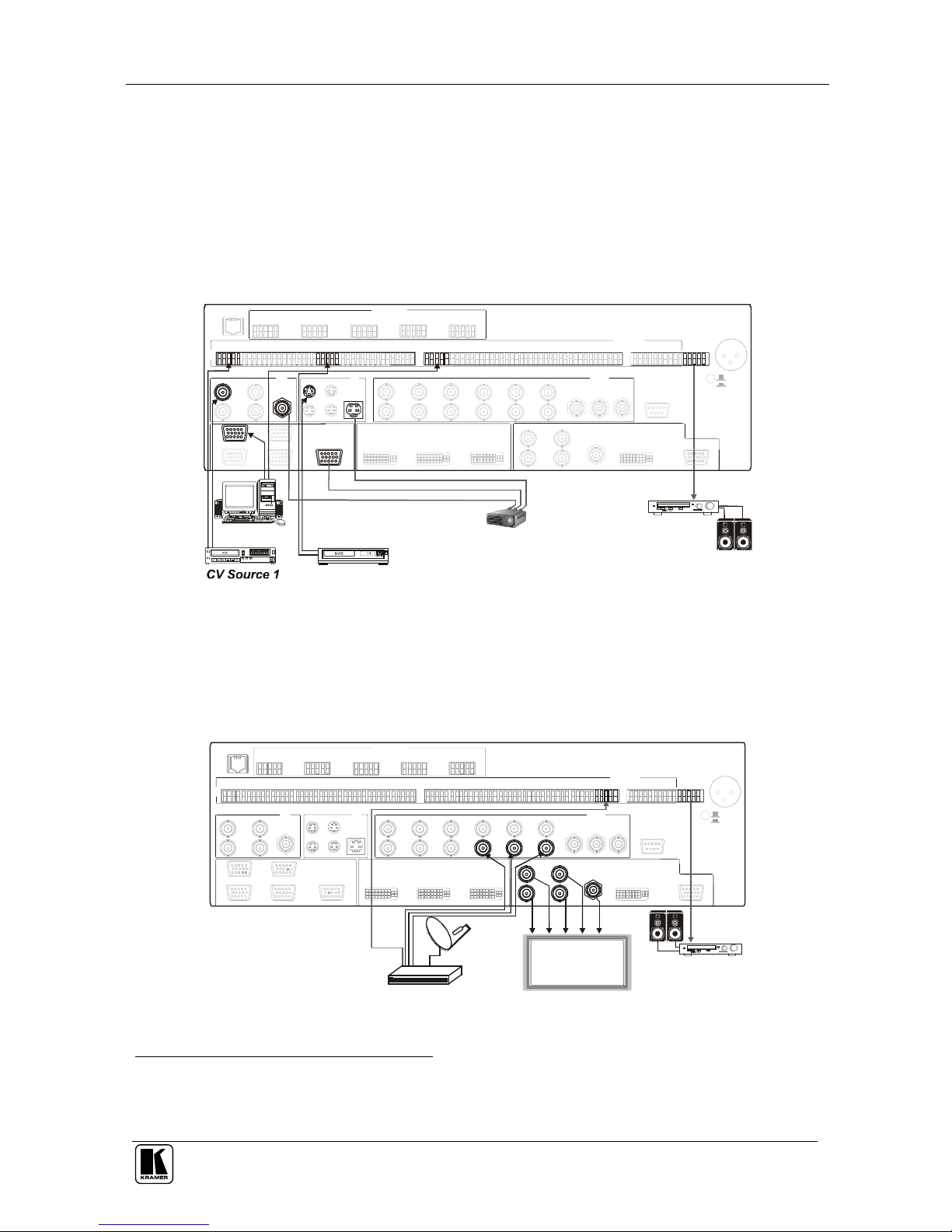
The MASTER OUT terminal block connector can be used in the Master Audio
Mode1 (see section 6.1.1) and the Master AV Mode2 (see section 6.1.2).
6.1.1 Using the MASTER OUT in the Master Audio Mode
In the Master Audio Mode (see Figure 4) you can route the audio input from the
VGA Source 1, CV Source 1 or YC Source 1 to the Master Out connector:
VGA
CV YC COMP
DVI
IN 1 G/Y 1
B/Pb1
R/Pr1
B/Pb3
B/Pb
R/Pr3
R/Pr
B/Pb2
R/Pr2
G/Y2 G/Y4
G/Y3
G/Y
IN 1
IN 3
OUT
OUT
OUT
OUT
IN 2
IN 2
IN 4
IN 1 IN 3
IN 2 IN 4
RS-232
OUTPUT
IN 1 IN 3
IN 2 IN 4
VGADVI
B/Pb4
R/Pr4
SCALED OUTPUTS
H V
B/PbR/Pr G/Y
Mic IN
COND. MIC
DYN. MIC
AUDIO INPUTS
AUDIO OUTPUTS
CV 2 CV 3 C V 4 YC 1 YC 2 YC 3 YC 4 VGA 1 VGA 2
VGAYCCV
CV 1
ETHERNET
VGA 3 VGA 4 COMP 1 COMP 2 COMP 3 COMP 4 DVI 1 DVI 2
MASTER
OUT
L+ L- G R+R-
L+ L- G R+ R- L+ L- G R+ R- L+ L- G R+ R- L+ L- G R+ R- L+ L- G R+ R-
L+ L- GR+ R- L+ L- G R+ R- L+ L- G R+ R- L+ L- G R+ R- L+ L- G R+ R- L+ L- G R+ R- L+ L- G R+ R- L+ L- G R+ R- L+ L- G R+ R- L+ L- G R+ R- L+ L- G R+ R- L+ L- G R+ R- L+ L- G R+ R- L+ L- G R+ R- L+ L- G R+R- L+ L- G R+ R- L+ L- G R+ R- L+L-G
R+
R-
DVICOMP
YC Source 1
VGA Source 1
Projector Acceptor
Amplifier
Figure 4: Connecting the MASTER OUT (in Master Audio Mode)
6.1.2 Using the MASTER OUT in the Master AV Mode
In the Master AV Mode (see Figure 5) you can convert the component video
input to the RGBHV SCALED OUTPUT, and route the audio input from that
source to the Master Out connector:
VGA
CV YC
COMP
DVI
IN 1 G/Y1
B/Pb1
R/Pr1
B/Pb3
B/Pb
R/Pr3
R/Pr
B/Pb2
R/Pr2
G/Y2 G/Y4
G/Y3
G/Y
IN 1
IN 3
OUT
OUT
OUT
OUT
IN 2
IN 2
IN 4
IN 1 IN 3
IN 2 IN 4
RS-232
OUTPUT
IN 1 IN 3
IN 2 IN 4
VGADVI
B/Pb4
R/Pr4
SCALED OUTPUTS
H V
B/PbR/Pr G/Y
AUDIO INPUTS
AUDIO OUTPUTS
CV 2 CV 3 CV 4 YC 1 YC 2 YC 3 YC 4 VGA 1 VGA 2
VGAYCCV
CV 1
ETHERNET
VGA 3 V GA 4 COMP 1 COMP 2 COMP 3 COMP 4 DVI 1 DVI 2
MASTER
OUT
L+ L- G R+ R-
L+ L- G R+ R- L+ L- G R+ R- L+ L- G R+ R- L+ L- G R+ R- L+ L- G R+ R-
L+ L- GR+ R- L+ L- G R+ R- L+ L- G R+ R- L+ L- G R+ R- L+ L- G R+ R- L+ L- G R+ R- L+ L- G R+ R- L+ L- G R+ R- L+ L- G R+ R- L+ L- G R+ R- L+ L- G R+ R- L+ L- G R+ R- L+ L- G R+ R- L+ L- G R+ R- L+ L- G R+ R- L+ L- G R+ R- L+ L- G R+ R- L+L- G
R+
R-
DVI
COMP
Plasma Acceptor
HDTV Satellite
Receiver Source
Amplifier
Mic IN
COND. MIC
DYN. MIC
Figure 5: Connecting the MASTER OUT (in Master AV Mode)
1 Routes the selected audio input (one of 18) to the MASTER OUT terminal block connector
2 Converts the selected video input (one of 18) to the SCALED OUTPUTS, and also routes the selected audio input (one of
18) to the MASTER OUT terminal block connector
Page 22
KRAMER: SIMPLE CREATIVE TECHNOLOGY
Connecting the VP-725DSA Presentation Switcher / Scaler
16
6.2 The RGBS and RGsB PINOUTs
Table 3 defines both the progressive1 and interlaced2 RGBS and RGsB
pinouts
Table 3: RGBS and RGsB PINOUTS
Input Color Space PINOUT
VGA RGsB Green + sync, to PIN 1
Blue to PIN 2
Red to PIN 3
RGBS Red to PIN 1
Green to PIN 2
Blue to PIN 3
Hs (H and V) to PIN 13
YUV RGsB Green + sync to Y
Blue to Pb
Red to Pr
6.3 Connecting a PC
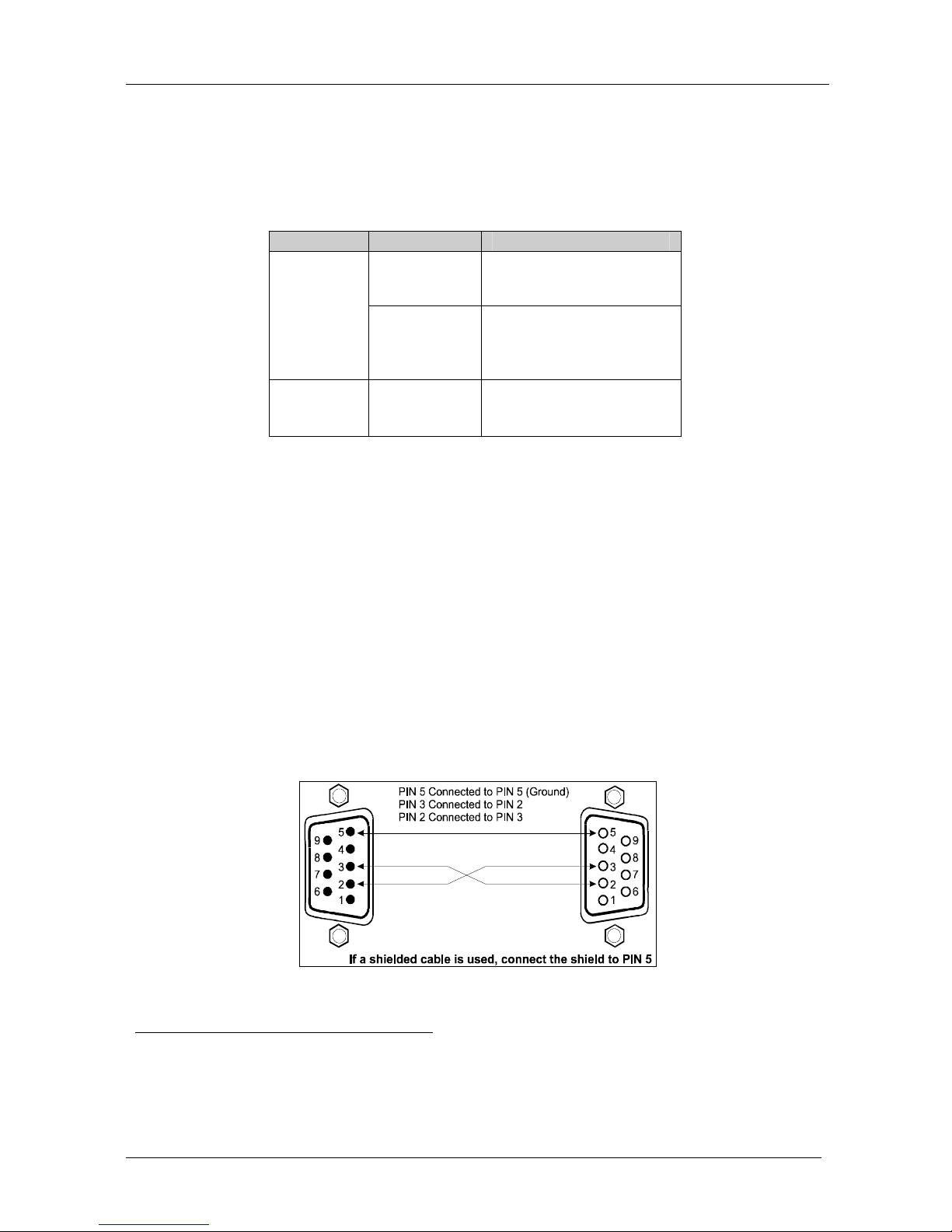
You can connect a PC (or other controller) to the VP-725DSA via the RS-232
port for remote control, and for upgrading the firmware.
To connect a PC to a VP-725DSA unit, using the Null-modem adapter
provided with the machine (recommended):
Connect the RS-232 DB9 rear panel port on the VP-725DSA unit to the
Null-modem adapter and connect the Null-modem adapter with a 9-wire
flat cable to the RS-232 DB9 port on your PC
To connect a PC to a VP-725DSA unit, without using a Null-modem adapter:
Connect the RS-232 DB9 port on your PC to the RS-232 DB9 rear panel port
on the VP-725DSA unit, forming a cross-connection3, as Figure 6 illustrates
DB9 (To Presentation
Switcher
/
Scaler)
DB9 (From PC
)
Figure 6: Connecting the PC
1 A display mode in which all the horizontal lines of an image are displayed in a single frame (one field)
2 A display mode in which a frame consists of two separate fields with the first field consisting of odd horizontal lines and the
second field even horizontal lines
3 Also known as a Null-modem connection
Page 23
Connecting the VP-725DSA Presentation Switcher / Scaler
17
6.4 Connecting the VP-725DSA via the ETHERNET port
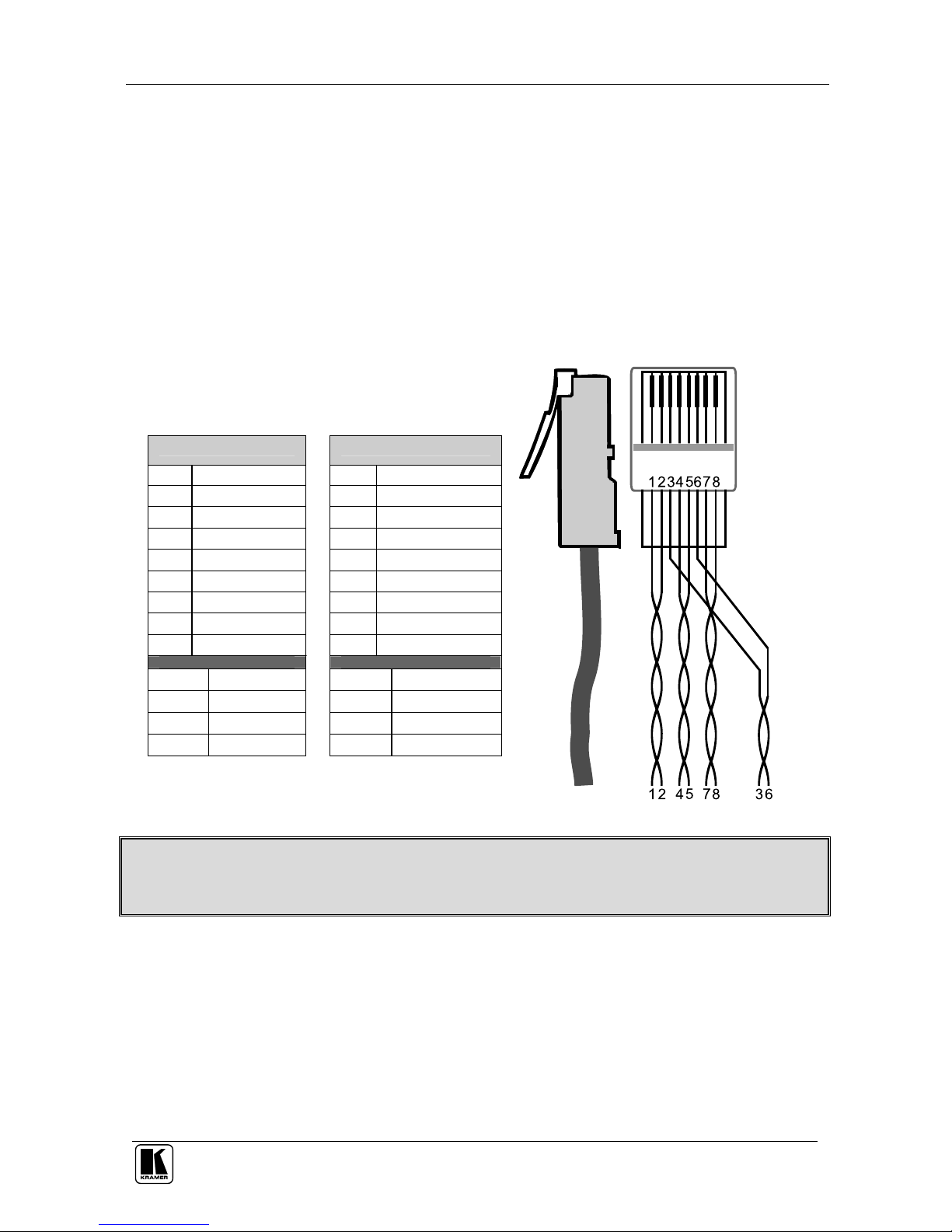
You can connect the VP-725DSA via the Ethernet, using a crossover cable
(see section 6.4.1) for direct connection to the PC or a straight through cable
(see section 6.4.2) for connection via a network hub or network router.
6.4.1 Connecting the ETHERNET Port directly to a PC (Crossover Cable)
You can connect the Ethernet port of the VP-725DSA to the Ethernet port on
your PC, via a crossover cable with RJ-45 connectors, as Table 4 and Figure 7
define.
Table 4: Crossover Cable RJ-45 PINOUT
Side 1 Side 2
PIN Wire Color PIN Wire Color
1 Orange / White 1 Green / White
2 Orange 2 Green
3 Green / White 3 Orange / White
4 Blue 4 Blue
5 Blue / White 5 Blue / White
6 Green 6 Orange
7 Brown / White 7 Brown / White
8 Brown 8 Brown
Pair 1 4 and 5 Pair 1 4 and 5
Pair 2 1 and 2 Pair 2 3 and 6
Pair 3 3 and 6 Pair 3 1 and 2
Pair 4 7 and 8
Pair 4 7 and 8
Figure 7: RJ-45 PINOUT
This type of connection is recommended for identification of the factory default
IP Address of the VP-725DSA during the initial configuration
After connecting the Ethernet port, configure your network card as follows:
1. Right-click the My Network Places icon on your desktop.
2. Select Properties and right-click Local Area Connection Properties.
3. Select Properties.
The Local Area Connection Properties window appears.
Page 24
KRAMER: SIMPLE CREATIVE TECHNOLOGY
Connecting the VP-725DSA Presentation Switcher / Scaler
18
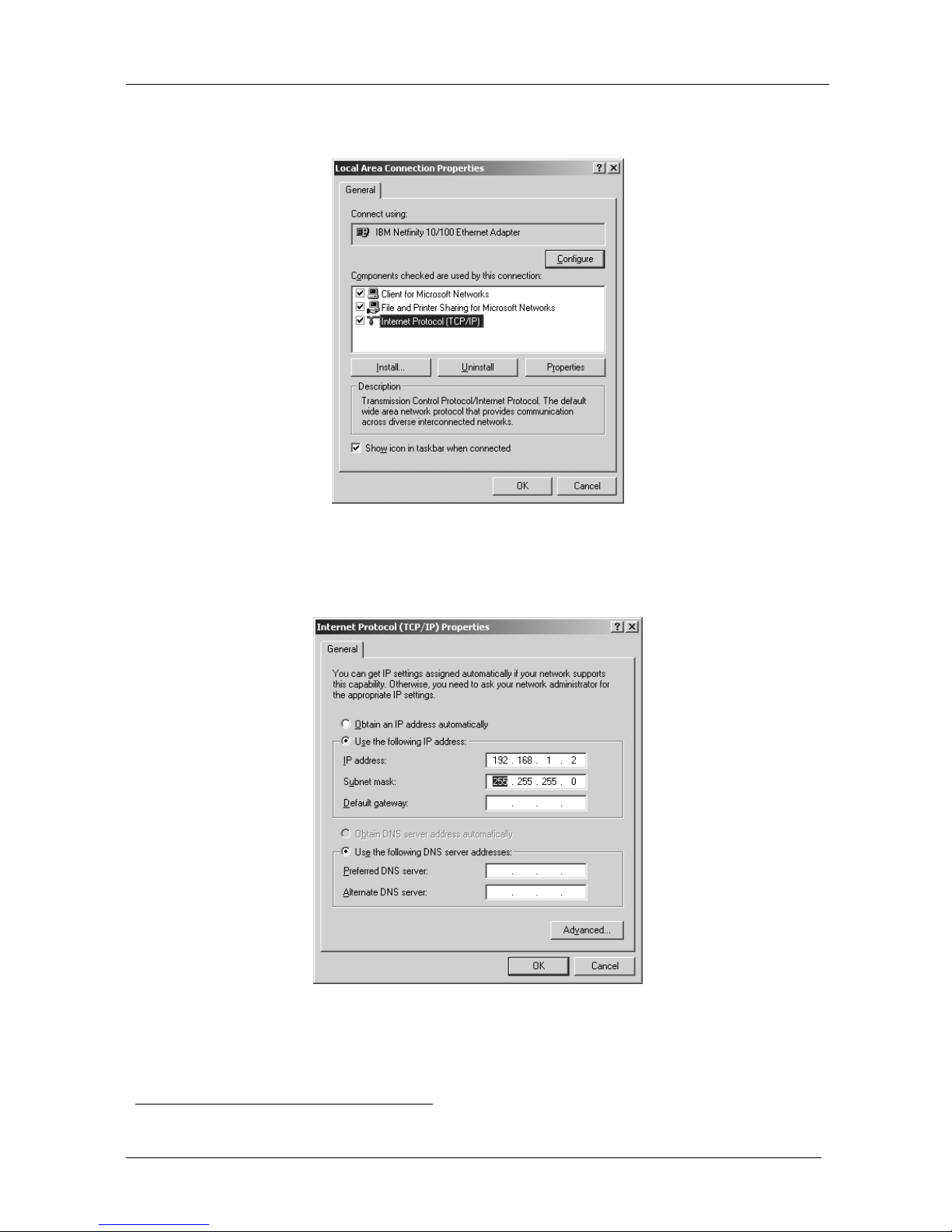
4. Select Internet Protocol (TCP/IP) and click the Properties Button (see
Figure 8).
Figure 8: Local Area Connection Properties Window
5. Select Use the following IP Address1, and fill in the details as shown in
Figure 9.
Figure 9: Internet Protocol (TCP/IP) Properties Window
6. Click OK.
1 This IP address is compatible with the factory default IP address of the unit
Page 25

Connecting the VP-725DSA Presentation Switcher / Scaler
19
6.4.2 Connecting the ETHERNET Port via a Network Hub (Straight-Through
Cable)
You can connect the Ethernet port of the VP-725DSA to the Ethernet port on
a network hub or network router, via a straight-through cable with RJ-45
connectors, as Table 5 defines:
Table 5: Straight-through Cable RJ-45 PINOUT
Side 1 Side 2
PIN Wire Color PIN Wire Color
1 White-orange 1 White-orange
2 Orange 2 Orange
3 White-green 3 White-green
4 Blue 4 Blue
5 White-blue 5 White-blue
6 Green 6 Green
7 White-brown 7 White-brown
8 Brown
8 Brown
Page 26

KRAMER: SIMPLE CREATIVE TECHNOLOGY
Connecting the VP-725DSA Presentation Switcher / Scaler
20
6.5 Connecting the Balanced/Unbalanced Stereo Audio Input/Output
Figure 10, Figure 11, and Figure 12 illustrate how to wire a
balanced/unbalanced input and/or output connection:
L+L-GR+R-
Figure 10: Connecting a Balanced Stereo Audio Input/Output
L+L-GR+R-
Figure 11: Connecting an Unbalanced Stereo Audio Input
L+L-GR+R-
Figure 12: Connecting an Unbalanced Stereo Audio Output
Page 27

Understanding the Presentation Switcher / Scaler
21
7 Understanding the Presentation Switcher / Scaler
The VP-725DSA includes the following front panel buttons:
A set of 18 INPUT SELECTOR buttons
A set of Video Group and Scaler Mode SELECT buttons1 (see section 7.1), as
well as Audio Group and Master Audio Group buttons (see section 7.2)
A FREEZE button (see section 8.1.1)
A PIP button (see section 7.1)
A set of 7 OSD buttons (described in Table 1): OSD ON, MENU,
ENTER, -, +, UP, and DOWN
7.1 Understanding the Video Group Mode/Scaler Mode
This is a machine with an 18x1:3 switcher for the Scaler, as well as individual
video switchers for the five Video Groups: composite video, s-Video,
component video (RGB or YPbPr), DVI-D and VGA.
When the VP-725DSA is in use, both modes operate simultaneously, as well
as independently. That is, the Scaler output is available even when switching
in the Video Group mode, and visa-versa (except for DVI: once a DVI input
is selected in the Scaler Mode, that DVI input selection cannot be changed in
the Video Group Mode).
In both the Video Group and the Scaler Mode, you can adjust2 the Audio
Level (Mic In).
7.2 Understanding the Audio Group Mode/Master Audio Group Mode
You can work with3 the following:
Audio Group, which lets you select the audio input from each group for
switching. Pressing the Audio Group button illuminates it and displays the
Audio Group OSD status. You can adjust2 the Audio Level (VGA Grp In,
Mic In, and VGA Grp Out)
1 VIDEO GROUP MODE SELECT: selects the video input from each group for switching to its group output, and SCALER
MODE SELECT: scales the selected video input (one of 18) at each of the SCALED OUTPUTS
2 By pressing the Audio Level key on the infra-red remote control transmitter (see Figure 55). This also cycles between the
front panel AUDIO LEVEL buttons: Out, Line, and Mic
3 Select the front panel buttons by pressing them directly, or by pressing the SELECT key on the infra-red remote control
transmitter (see Figure 50), or via Source Select OSD menu (see section 8.1.3)
Page 28

KRAMER: SIMPLE CREATIVE TECHNOLOGY
Understanding the Presentation Switcher / Scaler
22
AV Group, which lets you select the audio-follow-video input from each group
for switching. Pressing the Video Group button and the Audio Group button
illuminate both simultaneously and displays the AV Group OSD status. You
can adjust1 the Audio Level (VGA Grp In, Mic In, and VGA Grp Out)
Master Audio, which lets you route the selected audio input (one of 18) to
the MASTER OUT terminal block connector. Pressing the Master Audio
Group button illuminates it and displays the Master Audio OSD status. You
can adjust1 the Audio Level (Master In, Mic In, and Master Out)
Master AV, which lets you scale the selected video input (one of 18) at
each of the SCALED OUTPUTS and also route the selected audio input
(one of 18) to the MASTER OUT terminal block connector. Pressing the
Scaler button and the Master Audio button illuminate both simultaneously
and displays the Master AV OSD status. You can adjust1 the Audio Level
(Master In, Mic In, and Master Out)
7.3 Understanding the Audio Features
This section describes:
Switching balanced stereo audio signals in audio-follow-video or
breakaway modes (see section 7.3.1)
Adjusting the audio level (see section 7.3.2)
Using the Microphone CONTROL Modes (see section 7.3.3)
7.3.1 Choosing Audio-Follow-Video or Audio Breakaway
You can switch balanced stereo audio signals in one of two ways, either:
Audio-follow-video (AFV), in which all operations relate to both the
video and the audio channels. To set the Audio-follow-video (AFV)
option, make sure that the front panel buttons: Video Group and Audio
Group both illuminate simultaneously; or
Breakaway, in which video and audio channels switch independently. To
set the Breakaway option, make sure that either the Audio Group button
illuminates (for audio control only, that is, switching operations relate to
Audio) or the Video Group button illuminates (for video control only, that
is, switching operations relate to Video)
1 By pressing the Audio Level key on the infra-red remote control transmitter (see Figure 55). This also cycles between the
front panel AUDIO LEVEL buttons: Out, Line, and Mic. The selected AUDIO LEVEL may also be adjusted by pressing the
+ and – buttons on the front panel
Page 29

Understanding the Presentation Switcher / Scaler
23
7.3.2 Adjusting the Audio Level
You can set the audio level to determine the volume for each Group input and
output, as well as for the Master In, Master Out, and Mic In (see Table 13).
To adjust the group audio level via the front panel:
1. Press the AUDIO GROUP button.
2. Press the AUDIO LEVEL LINE button to adjust the group audio input
level or press the AUDIO LEVEL OUT button to adjust the group audio
output level.
An OSD audio level adjustment box appears on the screen. Press the UP
and DOWN buttons to scroll through the various groups.
3. Press the + and – buttons to adjust the audio level1.
To adjust Master Audio level, press the MASTER AUDIO button and repeat
step 2 above.
You can mute the audio output by pressing an input button that is already
selected. That button blinks, and the audio output is muted. Audio is restored
by pressing the button again (the button illuminates).
7.3.3 Using the Microphone CONTROL Modes
Using the MIC CONTROL2 buttons and/or the OSD, you can do the following:
Override3, which sends the signal from the microphone to the Master
output instead of from the line, whose signal is blocked
Mix, which sends the combined signals from the microphone and the line
to the Master output
Talkover, routes the selected input to the output, until an audio signal is
detected on the microphone input. When detected, the selected input is
faded out (to be faded back in when no input is detected on the
microphone)
1 Audio level within the group is adjusted for the selected input only. If you select a different input within the group you have
to press the LINE button twice (button light turns off and then on again)
2 Only one of the three buttons can be ON, or all three buttons can be OFF (pressing a button will select that button, and turn
OFF the previously selected button. If the selected button is pressed, it will turn it OFF)
3 When no MIC CONTROL button is selected, the audio input is routed to the MASTER output, ignoring the mic input
Page 30

KRAMER: SIMPLE CREATIVE TECHNOLOGY
Understanding the Presentation Switcher / Scaler
24
7.4 Understanding the PIP Button Feature
The Picture-in-Picture inserter (PIP) is used for the simultaneous display of
video and graphic sources, and lets you display:
An inserted video source1 PIP over a graphic source2
An inserted graphic source2 PIP over a video source1
Your Presentation Switcher / Scaler automatically recognizes and displays
only the relevant sources, as the following two examples illustrate:
Choosing the AV 1 PIP source when the VGA input is selected, will insert
the composite video source over the VGA graphic displayed on the
screen. You can choose a component3, YC 1, YC 2 or AV 2 PIP source4
(instead of the AV 1). You cannot choose VGA 1, VGA 2 or DVI5
Choosing the VGA 1 PIP source when the AV 1 input is selected, will
insert the VGA graphic source over the composite video displayed on the
screen. You can choose a component6, VGA 2 or DVI PIP source7
(instead of the VGA 1). You cannot choose AV 2, YC 1, or YC 2
7.4.1 Activating the PIP Feature
To activate the PIP (which illuminates the PIP button), do one of the
following:
Press the PIP button
Switch on the PIP functionality via the OSD Menu
Press the PIP key on the remote control transmitter (see Figure 55)
When the Source Prompt is ON, the PIP is enclosed by an orange frame, and
the OSD PIP status appears superimposed over the top right corner of the
screen for a few seconds, as Figure 13 illustrates. After a few seconds8, the
orange frame and the OSD PIP status automatically disappear9.
Activating the PIP subsequently cycles between the PIP with the orange
frame and no PIP.
1 That is, composite, s-Video or component
2 That is, DVI, VGA or component
3 At video frequencies
4 As long as it is connected and switched on. Otherwise, choosing it will display a blank screen
5 As these are graphics sources and you cannot insert a graphics PIP over a graphics source
6 At graphic frequencies
7 As long as it is connected and switched on. Otherwise, choosing it will display a blank screen
8 By default, 20 seconds. But you can reset the timeout (from 3 to 60 seconds), see section 9.1.5.7
9 Trying to activate the PIP again while the PIP is still enclosed by an orange frame deactivates the PIP
Page 31

Understanding the Presentation Switcher / Scaler
25
Figure 13: OSD PIP Status
When the Source Prompt is OFF, activating the PIP toggles between the PIP
(with no frame and no OSD PIP status) and no PIP.
7.4.2 PIP Characteristics
You can determine the following PIP characteristics:
PIP Source
PIP Size (1/25, 1/16, 1/9, 1/4, or split screen)
Horizontal and Vertical position, placing it anywhere on the screen
7.4.3 Toggling between the PIP and the Screen Source (SWAP)
To toggle back and forth between the PIP content and the screen source
content, do the following:
Press the SWAP key on the Infra-red remote control transmitter (see Figure 55)
The OSD SWAP status appears superimposed over the top right corner of
the screen for a few seconds1, as Figure 14 illustrates
Figure 14: OSD SWAP Status
1 By default, 20 seconds. But you can reset the timeout (from 3 to 60 seconds), see section 9.1.5.7
Page 32

KRAMER: SIMPLE CREATIVE TECHNOLOGY
Understanding the Presentation Switcher / Scaler
26
7.4.4 Resizing the PIP
To resize the PIP (1/25, 1/16, 1/9, 1/4, or split screen):
When the Source Prompt is ON and the PIP is enclosed by an orange
frame, use the Up and/or Down navigation control keys on the infra-red
remote control transmitter (see Figure 55) or the UP and/or DOWN front
panel OSD buttons
Use the OSD Menu
7.4.5 Moving the Position of the PIP
To move the location of the PIP:
When the Source Prompt is OFF (or ON, but without the orange frame),
use the four navigation control keys on the infra-red remote control
transmitter (see Figure 55), or the UP, DOWN, + and/or – front panel
OSD buttons
Page 33

Understanding the Presentation Switcher / Scaler
27
7.5 Locking and Unlocking the Front Panel
To prevent accidental changes to settings or unauthorized tampering with the
front panel, you can lock the front panel. This disengages the front panel
switches except for the MENU button on the front panel (press and hold for 3
seconds to unlock). When the front panel is locked, control from the infra-red
remote transmitter is also blocked1.
To lock the front panel:
Press and hold the MENU front panel OSD button or the MENU key on
the infra-red remote control transmitter (see Figure 55) for a few seconds,
until the Key Lock On OSD status appears superimposed over the top
right corner of the screen (when the Source Prompt is ON) for a few
seconds2, as Figure 15 illustrates
Figure 15: Locking / Unlocking the Front Panel
To unlock the front panel (releasing the protection mechanism):
Press and hold the MENU front panel OSD button or the MENU key on
the infra-red remote control transmitter (see Figure 55) for a few seconds,
until the Key Lock Off OSD status appears superimposed over the top
right corner of the screen (when the Source Prompt is ON) for a few
seconds2
1 However, operation via RS-232 serial commands (remote controller or PC) and/or ETHERNET is still available
2 By default, 20 seconds. But you can reset the timeout (from 3 to 60 seconds), see section 9.1.5.7
Page 34

KRAMER: SIMPLE CREATIVE TECHNOLOGY
Operating the Presentation Switcher / Scaler
28
8 Operating the Presentation Switcher / Scaler
This section describes how to:
Switch and scale an input (see section 8.1)
Select the output resolution (see section 8.2)
8.1 Switching an Input
You can switch seamlessly1 between each input2 that is connected to a source,
by pressing the appropriate INPUT SELECTOR button (when the SCALER
button is selected). The OSD status appears superimposed over the top right
corner of the screen (when the Source Prompt is ON) for a few seconds3, as
Figure 16 illustrates:
Figure 16: OSD Input Status
You can also use the INPUT SELECTOR button to freeze the image (see
section 8.1.1) or to display a blank screen (see section 8.1.2).
8.1.1 Freezing the Image
You can freeze the image, by either:
Pressing the FREEZE key on the infra-red remote control transmitter (see
Figure 55) or the FREEZE front panel button
The image freezes. The FREEZE front panel button illuminates and the
appropriate INPUT SELECTOR button flashes. The Freeze OSD status
appears superimposed over the top right corner of the screen (when the
Source Prompt is ON) for a few seconds3; or
1 For glitchless transitions between inputs
2 To set the image transition speed (fast, moderate or safe), see section 9.1.5.6
3 By default, 20 seconds. But you can reset the timeout (from 3 to 60 seconds), see section 9.1.5.7
Page 35

Operating the Presentation Switcher / Scaler
29
Pressing the appropriate illuminated INPUT SELECTOR front panel
button or the appropriate INPUT SELECTOR key on the infra-red remote
control transmitter (see Figure 55)
The image freezes. The FREEZE front panel button illuminates and the
appropriate INPUT SELECTOR button flashes. The Freeze OSD status
appears superimposed over the top right corner of the screen (when the
Source Prompt is ON) for a few seconds1
8.1.2 Displaying a Blank Screen
You can display a blank screen, as follows:
1. Press the appropriate illuminated INPUT SELECTOR front panel button
or the appropriate INPUT SELECTOR key on the infra-red remote
control transmitter (see Figure 55)2.
The image freezes. The FREEZE front panel button illuminates and the
appropriate INPUT SELECTOR button flashes. The Freeze OSD status
appears superimposed over the top right corner of the screen (when the
Source Prompt is ON) for a few seconds1
2. Press the appropriate flashing INPUT SELECTOR front panel button or
the INPUT SELECTOR key on the infra-red remote control transmitter
(see Figure 55)
The frozen image is replaced by a blank screen. The FREEZE front
panel button continues to illuminate and the appropriate INPUT
SELECTOR button flashes more slowly. The Blank status appears
superimposed over the top right corner of the screen (when the Source
Prompt is ON) for a few seconds1
You can choose the color of the blank screen (blue or black - see Figure 46).
1 By default, 20 seconds. But you can reset the timeout (from 3 to 60 seconds), see section 9.1.5.7
2 Alternatively, press the FREEZE key on the infra-red remote control transmitter (see Figure 55) or the FREEZE front panel
button. This will cause the FREEZE front panel button to illuminate and the appropriate INPUT SELECTOR button to flash
Page 36

KRAMER: SIMPLE CREATIVE TECHNOLOGY
Operating the Presentation Switcher / Scaler
30
8.2 Choosing the Output Resolution
You can select the output resolution by pressing the OUT key on the infra-red
remote control transmitter (see Figure 55) or via the Output Setting OSD
menu (see Table 17). The OSD status appears superimposed over the top right
corner of the screen (when the Source Prompt is ON) for a few seconds1, as
Figure 17 illustrates2:
Figure 17: OSD Output Status
1 By default, 20 seconds. But you can reset the timeout (from 3 to 60 seconds), see section 9.1.5.7
2 Adjusting the output resolution results in a corresponding adjustment to the size of the OSD status window
Page 37

Controlling the VP-725DSA Presentation Switcher / Scaler
31
9 Controlling the VP-725DSA Presentation Switcher / Scaler
You can control the Presentation Switcher / Scaler via:
The OSD Menu Screen (see section 9.1)
The front panel LCD Display (see section 9.2)
The infra-red remote control transmitter (see section 9.3)
ETHERNET (see section 9.4)
RS-232 remote control
9.1 Operating via the OSD MENU Screen
The OSD superimposes a menu on the screen from which you can control
your VP-725DSA. When the OSD ON front panel button is selected, pressing
the MENU front panel OSD button or the MENU key on the infra-red remote
control transmitter (see Figure 55) displays the first OSD screen, the
“Brightness and Contrast” screen (see Figure 18).
If the OSD is locked1, pressing the MENU front panel OSD button or the
MENU key on the infra-red remote control transmitter (see Figure 55) will
not display the “Menu screen”. In this case, you can navigate via the front
panel LCD.
After initially pressing the MENU front panel OSD button or the MENU key
on the infra-red remote control transmitter, each subsequent press moves to
the previous level in the OSD screen (Esc.).
Figure 18: Controlling the Brightness and Contrast
1 Pressing the OSD ON front panel OSD button or the OSD key on the infra-red remote control transmitter (see Figure 55)
will block access to the OSD Menu
Page 38

KRAMER: SIMPLE CREATIVE TECHNOLOGY
Controlling the VP-725DSA Presentation Switcher / Scaler
32
Figure 19 defines the six interactive icons1:
Brightness
and
Contrast
Gamma
and Color
Source
Geometry
Utility
Information
Figure 19: Menu Screen Icons
9.1.1 Controlling the Brightness and Contrast
Figure 18 and Table 6 define the Brightness and Contrast Screen:
Table 6: Controlling the Brightness and Contrast
Brightness and Contrast
Level 1 Range Default
Brightness
0 to 128 64
Contrast 0 to 128 64
9.1.2 Controlling the Gamma and Color
Figure 20 and Table 7 define the Gamma and Color Screen. You can choose
Normal (average setting), Presentation (higher black level), Cinema (higher
white balance), Nature (higher green level), User 1 or User 2.
Figure 20: Controlling the Gamma and Color
1 Each icon represents a Level 1 function. In addition to Level 1, the OSD structure includes Level 2 (a subset of level 1),
Level 3 (a subset of level 2), Level 4 (a subset of level 3) and Range
Page 39

Controlling the VP-725DSA Presentation Switcher / Scaler
33
Table 7: Controlling the Gamma and Color
Gamma and Color
Level 1 Level 2 Range Default
Normal
Presentation
Cinema
Nature
Gamma -10 to 10 0
Color Temperature
Red 0 to 127 64
Green 0 to 127 64
Blue 0 to 127 64
Color Manager
Red 0 to 32 16
Green 0 to 32 16
Blue 0 to 32 16
User 1 / 2
Yellow 0 to 32 16
Choosing User 1 or User 2 from the Gamma and Color Screen illustrated in
Figure 20, displays the Gamma, Color Temperature and Color Manager
Screen in Figure 21. Each user setting is customized to the applicable
environment. The user sets the parameters and saves them for recall later.
Figure 21: Gamma, Color Temperature/Manager User 1/2 Screen
9.1.3 Selecting the Source
Figure 22 and Table 8 define the Source (Search, Select, and Source) Screen.
Figure 22: Selecting the Source
Page 40

KRAMER: SIMPLE CREATIVE TECHNOLOGY
Controlling the VP-725DSA Presentation Switcher / Scaler
34
Table 8: Selecting the Source
Source
Level 1 Level 2 Level 3
Manual Search
Auto
Video Group
Audio Group
AV Group
Scaler
Master Audio
Select
Master AV
VGA1
VGA2
VGA3
VGA Group
VGA4
DVI1 DVI Group
DVI2
Comp1
Comp2
Comp3
Comp Group
Comp4
YC1
YC2
YC3
YC Group
YC4
AV1
AV2
AV3
AV Group
AV4
VGA1
VGA2
VGA3
VGA4
DVI1
DVI2
Comp1
Comp2
Comp3
Comp4
YC1
YC2
YC3
YC4
AV1
AV2
AV3
Source
Master
AV4
Figure 23 illustrates the Search (Manual or Auto) option:
Figure 23: Selecting the Search
Page 41

Controlling the VP-725DSA Presentation Switcher / Scaler
35
Selecting Manual Search disables the Auto Search option (which finds the
active source). After powering up, the VP-725DSA will not scan for an active
input but will display the source selected prior to power down, even if that
input is inactive.
Figure 24 illustrates the Group Select option. The Video Group1, Audio
Group2, AV Group3, Scaler4, Master Audio5, and Master AV6 are available
with the VP-725DSA:
Figure 24: Selecting the Group
Figure 25 illustrates the Source:
Figure 25: Selecting the Source
1 Selects the video input from each group: CV, YC, Component, VGA, DVI for switching to its local (group) output
2 Selects the audio (breakaway mode) input from each group for switching
3 Selects the audio-follow-video input from each group for switching
4 Converts the selected input (one of 18) to the SCALED OUTPUTS
5 Routes the selected audio input (one of 18) to the MASTER OUT terminal block connector (see the example in Figure 4)
6 Converts the selected video input (one of 18) to the SCALED OUTPUTS, and also routes the selected audio input (one of
18) to the MASTER OUT terminal block connector (see the example in Figure 5)
Page 42

KRAMER: SIMPLE CREATIVE TECHNOLOGY
Controlling the VP-725DSA Presentation Switcher / Scaler
36
9.1.4 Controlling the Geometry
Figure 26 and Table 9 define the main Geometry Screen, from which you can
choose the aspect ratio, zoom, and set the keystone angle:
Figure 26: Geometry Screen
Table 9: Controlling the Geometry
Geometry
Level 1 Level 2 Level 3 Range Default
Anamorphic
Virtual Wide
Letterbox Pan -32 to 32 0
Left + Up
Right + Up
Center
Left + Down
Native
Right + Down
4:3 Output Shift -32 to 32 0
H-Zoom -32 to 32 0
V-Zoom -32 to 32 0
H-Pan -32 to 32 0
Aspect Ratio
User Define
V- Pan -32 to 32 0
100%
150%
200%
225%
250%
275%
300%
325%
350%
375%
Zoom Ratio
400%
Zoom
Zoom Position Adjustment
Keystone Angle -32 to 32 0
Page 43

Controlling the VP-725DSA Presentation Switcher / Scaler
37
Figure 27 illustrates the Geometry (Aspect Ratio) Screen. You can set the
following characteristics according to your specific requirements: anamorphic
(displays the aspect ratio (usually 16:9)), virtual wide (anamorphic plus
non-linear scaling), letterbox (the vertical line is expanded to full screen1— it
is assumed that there are two bands of black, top and bottom of the screen),
native (lets you set the native resolution according to the specifications of the
plasma screen or projector), 4:3 output (the length to height ratio is 4:3), and
user define (H-Zoom, V-Zoom, H-Pan, and V-Pan):
Figure 27: Geometry (Aspect Ratio) Screen
Figure 28 illustrates the Geometry (Zoom) Screen:
Figure 28: Geometry (Zoom) Screen
The zoom ratio and the zoom position are illustrated by a small rectangle
inside a transparent pop-up OSD Enlarge status box that appears at the top
right corner of the screen, as the example in Figure 29 illustrates:
1 Panning the picture refers to resizing and cropping it
Page 44

KRAMER: SIMPLE CREATIVE TECHNOLOGY
Controlling the VP-725DSA Presentation Switcher / Scaler
38
Figure 29: OSD Enlarge Status
When you change the zoom ratio or zoom position, the screen image is
adjusted correspondingly, and the change is reflected in the pop-up OSD
Enlarge status box. For example, Figure 30 illustrates a zoom ratio increase
from 200% (Image A) to 400% (Image B):
Figure 30: Zoom Ratio Adjustment Example
Figure 31 illustrates how the pop-up OSD Enlarge status box shows a zoom
position adjustment from the top left corner (Image C) to the lower right
corner (Image D):
Figure 31: Zoom Position Adjustment Example
Page 45

Controlling the VP-725DSA Presentation Switcher / Scaler
39
9.1.4.1 Adjusting the Zoom Ratio
You can adjust the zoom ratio to up to 400% via one or both of these methods:
Using the Zoom + and/or the Zoom - control keys1 on the infra-red remote
control transmitter (see Figure 55). The pop-up OSD Enlarge status box
continuously displays the zoom ratio and position, as Figure 29 illustrates
Using the OSD Menu buttons, as Figure 32 illustrates
Figure 32: Geometry (Zoom Ratio) Screen
9.1.4.2 Adjusting the Zoom Position
You can adjust the zoom position (see the example in Figure 31) via one or
more of the following methods:
Using the navigation control keys on the infra-red remote control
transmitter (see Figure 55), to fine tune the zoom position (that is, to
slowly zoom-in at any location on the screen)2
Using the OSD Menu buttons (see Figure 33)3
1 The and the buttons
2 For example, to zoom-in toward the lower right of the image, press the and the buttons separately, as required
3 For example, to zoom-in to the lower right part of the image instead of the top left part, press the + and DOWN OSD Menu
buttons separately, as required
Page 46

KRAMER: SIMPLE CREATIVE TECHNOLOGY
Controlling the VP-725DSA Presentation Switcher / Scaler
40
Figure 33: Geometry (Zoom Position Adjustment) Screen
You can adjust the Keystone (to keep the picture rectangular) according to
your specific requirements (see Figure 34).
Figure 34: Geometry (Keystone) Screen
9.1.5 Configuring via the Utility Screens
You can determine how your VP-725DSA will function either generally or on
a specific occasion, via the Utility screen settings (see Figure 35):
Figure 35: Utility Screen
Page 47

Controlling the VP-725DSA Presentation Switcher / Scaler
41
9.1.5.1 Choosing the Graphic Utility Settings
Figure 36 and Table 10 define the Graphic1 Setting Utility screen. You can
set the color format (see Figure 37), position, color, hue, sharpness, frequency
and phase, as well as auto image2 and auto gain3.
Figure 36: Choosing the Graphic Utility Settings
Table 10: Choosing the Graphic Utility Settings
Utility
Level 1 Level 2 Level 3 Range Default
Default
RGB
Color Format
YUV
H-Position 0 to 255 128
V-Position 0 to 255 128
Color 0 to 128 70
Hue 0 to 128 64
Sharpness 0 to 16 8
Frequency 0 to 100 49
Phase 0 to 31 0
Auto Image
Graphic Setting
Auto Gain
Selecting the color format (see Figure 37) lets you select RGB or YUV4
colorspace. When the Default setting is chosen, the colorspace is set
according to the detected input resolution.
1 When a VGA source is selected, “Graphic Setting” will be shown. “HDTV Setting” will appear when an HDTV source is
selected
2 Assesses the image and improves the quality accordingly, by automatically adjusting the phase, frequency and position
3 Automatically adjusts the brightness and contrast
4 That is Y, B-Y, R-Y colorspace, also known as Y, Cb, Cr or Y, Pb, Pr
Page 48

KRAMER: SIMPLE CREATIVE TECHNOLOGY
Controlling the VP-725DSA Presentation Switcher / Scaler
42
Figure 37: Graphic Setting Color Format Utility Screen
9.1.5.2 Choosing the Video Utility Settings
Figure 38 and Table 11 define the Video Setting Utility screen. You can set the
Color Format, Standard (see Figure 39), color, hue, sharpness, and position.
Figure 38: Choosing the Video Utility Settings
Figure 39: Video Setting Standard Utility Screen
Page 49

Controlling the VP-725DSA Presentation Switcher / Scaler
43
Table 11: Choosing the Video Utility Settings
Utility
Level 1 Level 2 Level 3 Level 4 Range Default
Default
RGB
Color Format
YUV
Auto
NTSC
NTSC4.43
PAL
PAL-N
PAL-M
Standard Auto
SECAM
Color 0 to 128 64
Hue 0 to 128 64
Sharpness 0 to 16 11
H-Position 0 to 20 15
Video Setting
V-Position 0 to 20 10
9.1.5.3 Choosing the Audio Utility Settings
Figure 40 and Table 12 define the Audio Setting Utility screen:
Figure 40: Choosing the Audio Utility Settings
Table 12: Choosing the Audio Utility Settings
Utility
Level 1 Level 2 Level 3 Range Default
All off
Override
Mix
Mic Control
Talkover
Treble 0 to 255 128
Bass 0 to 255 128
Balance 0 to 255 128
Off
Audio Setting
Loudness
On
Page 50

KRAMER: SIMPLE CREATIVE TECHNOLOGY
Controlling the VP-725DSA Presentation Switcher / Scaler
44
9.1.5.4 Choosing the Audio Level Utility Settings
Figure 41 and Table 13 define the Audio Level Utility screen1:
Figure 41: Choosing the Audio Level Settings
Table 13: Choosing the Audio Level Settings
Utility
Level 1 Level 2 Range Default
VGA Grp In 0 to 255 160
VGA Grp Out 0 to 255 160
DVI Grp In 0 to 255 160
DVI Grp Out 0 to 255 160
Comp Grp In 0 to 255 160
Comp Grp Out 0 to 255 160
YC Grp In 0 to 255 160
YC Grp Out 0 to 255 160
AV Grp In 0 to 255 160
AV Grp Out 0 to 255 160
Master In 0 to 255 160
Master Out 0 to 255 160
Audio Level
Mic In 0 to 255 0
1 For an explanation of how to adjust the audio level, see section 7.3.2
Page 51

Controlling the VP-725DSA Presentation Switcher / Scaler
45
9.1.5.5 Choosing the PIP Utility Settings
Figure 42 and Table 14 define the PIP Setting Utility screen. You can activate
the PIP, choose the source, the size, and the position of the PIP.
Figure 42: Choosing the PIP Utility Settings
Table 14: Choosing the PIP Utility Settings
Utility
Level 1 Level 2 Level 3 Range Default
Off PIP On/Off
On
VGA-1
VGA-2
VGA-3
VGA-4
DVI-1
DVI-2
Comp1
Comp2
Comp3
Comp4
YC-1
YC-2
YC-3
YC-4
AV-1
AV-2
AV-3
PIP Source
AV-4
1/25
1/16
1/9
1/4
PIP Size
Split
H-Position 0 to 36 1
PIP Setting
V-Position
0 to 36 1
H-Width 1 to 255 63
User Define
Size
V-Height 1 to 255 63
Page 52

KRAMER: SIMPLE CREATIVE TECHNOLOGY
Controlling the VP-725DSA Presentation Switcher / Scaler
46
9.1.5.6 Choosing the Seamless Switch Utility Settings
Figure 43 and Table 15 define the Seamless Switch Utility screen. You can
choose the image transition speed Mode1.
Figure 43: Choosing the Seamless Switch Utility Settings
Table 15: Choosing the Seamless Switch Utility Settings
Utility
Level 1 Level 2 Default
Fast
Moderate
Seamless Switch
Safe
*
Blue Background
Black
Blue
1 FAST (an immediate switch, without checking the resolution. However, the image transition may appear unstable),
MODERATE (between fast and safe) or SAFE (a smooth image transition - the input resolution at the input is checked and
outputted after a few seconds delay, but it takes longer than fast)
Page 53

Controlling the VP-725DSA Presentation Switcher / Scaler
47
9.1.5.7 Choosing the OSD Utility Settings
Figure 44 and Table 16 define the OSD Setting Utility screen. You can set the
OSD position, time out, size (see Figure 45), source prompt1, and choose the
blank color (blue or black - see Figure 46).
Figure 44: Choosing the OSD Utility Settings
Table 16: Choosing the OSD Utility Settings
Utility
Level 1 Level 2 Level 3 Range Default
H-Position 0 to 36 18
V-Position 0 to 36 18
Time Out 3 to 60 20
OSD Size
Off Source Prompt
On
Blue
OSD Setting
Blank Color
Black
Figure 45: OSD Size Utility Screen
1 We recommend that you set the source prompt ON, when adjusting the system. During a presentation, set the source prompt
OFF to avoid the appearance of OSD screen labels
Page 54

KRAMER: SIMPLE CREATIVE TECHNOLOGY
Controlling the VP-725DSA Presentation Switcher / Scaler
48
Figure 46: OSD Blank Color Utility Screen
9.1.5.8 Choosing the Output Utility Settings
Figure 47 and Table 17 define the Output Setting Utility screen. You can set
the resolution1 (see Figure 48), refresh rate (see Figure 49), color format, and
a user definable output mode2 (see Figure 50 and Table 18).
Figure 47: Choosing the Output Utility Settings
1 That is, the identical resolution at each scaled output
2 Recommended for advanced users only – non-standard settings may not be recognized by the display device
Page 55

Controlling the VP-725DSA Presentation Switcher / Scaler
49
Table 17: Choosing the Output Utility Settings
Utility
Level 1 Level 2 Level 3
640x480 1280x720 832x624
800x600 720x483 1024x800
1024x768 852x480 1152x864
1280x1024 1400x1050 1152x870
1600x1200 480P 1152x900
852x1024i 720P 1280x960
1024x1024i 1080i 1280x768
1366x768 576P 1024x576
Resolution
1365x1024 720x400 User Define
Refresh Rate 60Hz
75Hz
85Hz
Color Format Default
RGB
YUV
Confirm
Discard
Output Setting
User Mode Setting
Figure 48: Output Setting Resolution Utility Screen
Figure 49: Output Setting Refresh Rate Utility Screen
Page 56

KRAMER: SIMPLE CREATIVE TECHNOLOGY
Controlling the VP-725DSA Presentation Switcher / Scaler
50
Figure 50: Output Setting User Mode Setting Utility Screen
Table 18: User Mode Setting Definitions
User Mode Setting Definitions
HT: Horizontal total
HW: Horizontal sync pulse width
HS: Horizontal active start point
HA: Horizontal active region
HP: Horizontal polarity
VT: Vertical total
VW: Vertical sync pulse width
VS: Vertical active start point
VA: Vertical active region
VP: Vertical polarity
OCLK: Output clock
Confirm: Confirm the action
Discard: Cancel the action
Set Current: Import the values of the currently selected
output resolution into the User Mode Setting
9.1.5.9 Choosing Factory Reset
From the Factory Reset Utility screen (see Figure 51), you can reset your
VP-725DSA to its preset default setting:
Figure 51: Factory Reset Utility Screen
Page 57

Controlling the VP-725DSA Presentation Switcher / Scaler
51
9.1.5.10 Choosing Advanced Utility Settings
Figure 52 and Table 19 define the Advanced Utility screen.
Figure 52: Advanced Utility Screen
Table 19: Advanced Utility Screen Features
Button Function
Input Button You can set the function of the input button besides selecting the input
signal: Freeze/Blank (press the selected input button once to freeze the
frame, press again to create a blank screen and again to return to normal
state); Freeze (press once to freeze the frame, press again to cancel
freeze); Blank (press once to insert blank screen, press again to return to
display); Ignore (input button ignores freeze and blank – you can freeze
the frame or insert a blank screen only via the Freeze and Blank buttons
respectively)
User Define Measure Measures and displays the parameters of the currently selected input (see
Figure 52 and Table 20)
Table 20 describes the User Define Measure features.
Table 20: User Define Measure Features
User Mode Setting Definitions
H Total Horizontal Total
H Start Horizontal active start point
H Active Horizontal active region
V Start Vertical active start point
V Active Vertical active region
Ch. Pump Charge pump current
Color Color format
H Freq Horizontal Frequency
V Freq Vertical Frequency
Measure Mode Select between Default and User Define
Page 58

KRAMER: SIMPLE CREATIVE TECHNOLOGY
Controlling the VP-725DSA Presentation Switcher / Scaler
52
9.1.6 Verifying Configuration Details via the Information Screen
From the Information screen (see Figure 53), you can verify information that
includes: the main source, the PIP source, the output mode, as well as the
unit’s firmware versions:
Figure 53: Information Screen
Page 59

Controlling the VP-725DSA Presentation Switcher / Scaler
53
9.2 Operating via the LCD Display
You can control the VP-725DSA from the front panel high contrast LCD
Display. You can also operate the VP-725DSA via the LCD Display, using
the:
Front panel OSD buttons: MENU, ENTER, -, +, UP and DOWN
Infra-red remote control transmitter (see Figure 55) keys: MENU, and the
navigation keys
For example, to set1 the Keystone to 6 via the LCD Display, using the front
panel buttons, do the following:
1. Turn the VP-725DSA unit ON, and press the OSD ON button (if
selected).
2. Press the appropriate front panel OSD buttons (as defined in Figure 54).
Figure 54: Example of how to use the LCD Display
9.3 Operating via the Infra-red Remote Control Transmitter
You can control the VP-725DSA remotely, from the infra-red remote control
transmitter (that has a range of up to 15 meters and is powered by two AAA
size 1.5V DC batteries), as defined in Figure 55 and Table 21:
1 To keep the picture rectangular. Figure 34 illustrates how to adjust the Keystone via the OSD Menu
Page 60

KRAMER: SIMPLE CREATIVE TECHNOLOGY
Controlling the VP-725DSA Presentation Switcher / Scaler
54
Figure 55: Infra-red Remote Control Transmitter
Page 61

Controlling the VP-725DSA Presentation Switcher / Scaler
55
Table 21: Infra-Red Remote Control Transmitter Functions
Keys Function
FREEZE Freezes the output video image
OSD Activates/deactivates access to the OSD Menu1
POWER Cycles power2
INPUT
SELECTOR3
18 separate keys for selecting these sources: AV1, AV2, AV3, AV4; COMP1, COMP2,
COMP3, COMP4; YC1, YC2, YC3, YC4; VGA1, VGA2, VGA3, VGA4; DVI1 and DVI2
OVERRIDE Sends the signal from the microphone to the Master output instead of from the Line, whose
signal is blocked
MIX Sends the combined signals from the microphone and the Line to the Master output
TALKOVER Routes the selected input to the output, until an audio signal is detected on the microphone
input. When this happens the selected input is faded out (to be faded back in when no input is
detected on the microphone)
SELECT Cycles between Video Group and Scaler
Audio Level Set the audio level (volume) for each Group input and output, as well as for the Master In,
Master Out, and Mic In
Auto Image Assesses the image and improves the quality accordingly, by automatically adjusting the
phase, frequency and position
MENU Displays the OSD Menu screen4 and locks/unlocks the front panel (see section 7.5)
NAVIGATION
CONTROL5
Allow maneuvering within an OSD screen (all keys); adjusts the zoom position (4 keys); moves
the PIP location when the Source Prompt is OFF (4 keys); resizes the PIP when the Source
Prompt is ON (2 keys)
Auto Gain Automatically adjusts the brightness and contrast
PIP Toggles the picture-in-picture function and illuminates/turns off the PIP button (see section 7.1)
SWAP Toggles between the PIP content and the screen source content (see section 7.4.3)
CONTRAST
Displays the contrast status (adjust using the / keys)
BRIGHT
Displays the brightness status (adjust using the / keys)
ZOOM
CONTROL5
Allows volume and zoom control
OUT Selects the output resolution
SCALE Toggles between each of the following Aspect Ratios:
Anamorphic, Virtual Wide, Letterbox, Native, 4:3 Output, and User Define
1 The OSD ON front panel button is activated (illuminated) by default, and pressing the MENU key (or the MENU front
panel button) displays the OSD Menu. To toggle the OSD, press the OSD key (or the OSD ON front panel button); the OSD
ON or OSD OFF status appears superimposed over the top right corner of the screen and the OSD button on the front panel is
illuminated or turned off. (Note that deselecting the OSD ON front panel button during an OSD operation will not turn off the
OSD Menu (even though the OSD OFF status appears superimposed over the top right corner of the screen), until you
complete the OSD operation)
2 Puts the machine in standby mode: (powering down the machine except that the power switch on the machine continues to
illuminate) and causing the IR Receiver / LED to light red (instead of green)
3 You can also use the INPUT SELECTOR keys to freeze the image (see section 8.1.1) or to display a blank screen (see
section 8.1.2)
4 Or moves to the previous level in the OSD screen
5 Consists of a set of 5 separate keys. See the illustration in Figure 55 which shows an enlarged view of this part of the
Infra-red remote control transmitter
Page 62

KRAMER: SIMPLE CREATIVE TECHNOLOGY
Controlling the VP-725DSA Presentation Switcher / Scaler
56
9.4 Operating via ETHERNET/Serial Port
To control your VP-725DSA via the Ethernet/Serial Port, connect the
ETHERNET port of the VP-725DSA to the Ethernet port of your PC1 and
then install and configure the Ethernet Application (see section 9.4.1).
9.4.1 Installing and Running the Configuration Software
To install the VP-725DSA Ethernet Application, do the following:
1. Insert the product CD into your CD-ROM drive2.
2. Save the zip file on your computer.
3. Run the installer setup.
4. Respond to the installation wizard prompts.
5. Restart your system.
9.4.2 Configuring the Ethernet Connection
Double click the VP725 Ethernet AP.exe icon. The VP725 Ethernet Application
main dialog box appears (see Figure 56), with a configuration tab and a Control tab.
9.4.2.1 The Configuration Screen
Use the Configuration screen to add the device IP address to your computer.
Figure 56 and Table 22 define the Configuration tab.
Figure 56: VP725 Ethernet Application Main Dialog Box (Configuration Tab)
1 Or connect the serial port of your VP-725DSA to the serial port of your PC (see section 6.2)
2 Or download the software from our Web site on http://www.kramerelectronics.com
Page 63

Controlling the VP-725DSA Presentation Switcher / Scaler
57
Table 22: VP725 Ethernet Application Configuration Tab
Button Function
Autoscan Press to automatically scan for connected machines
Up Press to scroll down the Server list
Down Press to scroll up the Server list
Delete Press to delete an IP number
Add Press to manually add a server (Com Port or IP Number)
Save Press to save Server settings
Load Press to load Server settings
To search for devices, click the Auto Scan button. Figure 57 shows a device
found on the network, with the IP address assigned at the factory.
Figure 57: VP725 Ethernet Application Search Panel Screen
Check your machine IP number, and press Insert to accept it.
Figure 58: Configuration Tab
Page 64

KRAMER: SIMPLE CREATIVE TECHNOLOGY
Controlling the VP-725DSA Presentation Switcher / Scaler
58
To change the IP address of the unit1, first select the device on the list and
then, using the right mouse button, right-click the mouse button. A selection
box appears, stating “ Set IP Address and “ Device Settings”2. Select Device
setting, enter the new IP address and click OK. The new IP address will
appear on the screen.
Figure 59: Setting an IP Number
9.4.3 Control the VP-725DSA via the Ethernet/Serial Port
To control the VP-725DSA via the Ethernet, do the following:
1. On the VP725 Ethernet Application screen, click the Control tab.
The Control screen appears (see Figure 60).
The Control tab includes a set of control buttons, which enable you to
operate and control the machine via the Ethernet or serial ports,
according to the configuration.
2. Press one of the eight orange buttons (1 to 8) that appear on the top left
side on the screen of the Control tab3.
Control the selected machine via the control buttons on the screen4.
1 The default IP address can be changed to fit your network system
2 From which you can enable/disable the DHCP client (DHCP is Dynamic Host Configuration Protocol), as well as setting
the Baud rate (for example, 9600 or 115200)
3 When a machine is connected, the button lights. Otherwise it is unavailable
4 Button turns green
Page 65

Controlling the VP-725DSA Presentation Switcher / Scaler
59
Figure 60: VP725 Ethernet Application Main Dialog Box (Control Tab)
The Control tab includes:
The front panel buttons
The BLANK, SWAP, MUTE and KEYLOCK buttons, which appear only
on the remote control transmitter
A Connection Status area consisting of a connection indicator and the
device IP number
A Message area, recording all the operations performed on the machine
By pressing the Remote Control button on the Control tab, you can operate
the machine via the virtual remote controller interface, for your convenience.
Page 66

KRAMER: SIMPLE CREATIVE TECHNOLOGY
Using Text Overlay
60
10 Using Text Overlay
The text overlay feature is accessed via the Application Program (AP)1.
Running this AP with the PC connected to the VP-725DSA lets you display
text over the screen, with a rich feature set including text color and speed,
transparency, text position and repetition. Current text overlay settings can be
saved and loaded to the AP.
Before running this program, you have to close the Ethernet Application
program.
Figure 61 and Table 23 define the TextOverlay Application Screen:
Figure 61: TextOverlay Application Screen
1 You can download it from our Web site: http://www.kramerelectronics.com
Page 67

Using Text Overlay
61
Table 23: Features and Functions of the TextOverlay Application
# Feature Function
1 Effect1 Set to Normal for a solid colored background
Set to Partial Transparency for a partially transparent background
Set to Full Transparency for a transparent background
Partial Transparency Select the partial transparency shade
Background
Color
Normal Color Select the background color
2 Effect1 Set to Normal for solid colored text; set to Partial Transparency for partially
transparent text; set to Full Transparency for transparent text (can be seen
over a solid background)
Partial Transparency Select the partial transparency shade
Text
Color
Normal Color Select the text color
3 Blank Time Set the blank delay time
Speed Set the speed at which the text moves on the display
Scrolling
Mode
Mode Set to Static (fixed text) or Scrolling (text moves across the display)
4
Number of Accessible Buffers
Set the number of messages you can send one after the other (from 1 to 3).
The number of buffers limit the display height in relation to the output
resolution, as defined in Table 24
5 Display Height Set the thickness of the background stripe (height value is limited by the
Number of Accessible Buffers and the output resolution, see Table 24)
6 Text Position – V-Position Set the vertical position of the text background on the display screen
7 Connect/Disconnect Connect the machine or disconnect
TCP/IP Check box When selected, set the IP Address and Port to connect via Ethernet2
RS-232 Check box
When selected, set the COM port and Baud Rate (9600 for VP-725DSA) to
connect via the RS-232 connector2
VP725 Check box
Select VP725 when connected to a VP-725 series machine
Communication
Interface
VP727 Check box
Select VP727 when connected to a VP-727 machine
8 Message Type the desired text in the Message box
Repeat Set the number of times that the text message will scroll across the screen3
(1 to 20), or set to Forever to repeat the text message continuously
Buffer Depending on the Number of Buffer, you can have up to 3 different text
messages running over the background
H-Offset After selecting the Static mode, use the H-Offset box to select the horizontal
position of the text
Select Font Press to select the font and the font size. The text will change on
the screen only after pressing the Send button
Send Text
Send Transmits the message to be displayed on the screen
9 Message Preview Press to show how the text overlay will look
10 Load Setting Press to load a previously saved setting
11 Save Setting Press to save the current setting
12 Quit Closes the program
13 Position Preview View the position of the text overlay (adjust via V-Position selector)
14 Start to Run Text Overlay Press to display the text on screen. The green button becomes a yellow
“Stop Text Overlay” button. Press to stop scrolling on screen
15 Get Resolution Press to read the current output resolution
16 Current Resolution Displays the current output resolution
1 Unavailable after pressing the “ Start to Run Text Overlay” button
2 You have to select the connection type before connecting the software to the machine
3 For example, set to 2 to repeat the text twice
Page 68

KRAMER: SIMPLE CREATIVE TECHNOLOGY
Using Text Overlay
62
Table 24: Number of Buffers, Output Resolution and Maximum Display Height
Maximum Display Height According to
Number of Buffers
Output Resolution 1 2 3
640x480
54
36
27
800x600
43
29
21
832x624
42
28
21
852x480
41
27
20
1024x768
34
22
17
1280x720
27
18
13
1280x768
27
18
13
1280x1024
27
18
13
1366x768
25
17
12
1365x1024
25
17
12
1400x1050
25
16
12
1600x1200
21
14
10
480P
48
32
24
576P
48
32
24
720P
27
18
13
1080i 18
12
9
1080p 18
12
9
10.1 Downloading the TextOverlay Program
To use the TextOverlay Application, download the Text Overlay software
from our Web site1 and follow the on-screen instructions.
10.2 Setting the Text Message
The text overlay parameters can be set before or after pressing the red
Connect button.
You can set the following parameters:
Type the required text in the Message box and press Send
Select the Background Color items and the Text Color items, including
the Effect, the Normal Color and the Partial Transparency
Select the Number of Buffer and the Display Height
Set the V-Position
Set the Blank Time and the scrolling Speed
Set the Mode to Static or Scrolling
If in the Static mode, set the text H – Offset
1 Go to http://www.kramerelectronics.com
Page 69

Using Text Overlay
63
If required, select the Buffer option1 (0 to 2) to send varying text messages
Select the Repeating frequency (1 to 20 or Forever)
Select the Font and Font size
Table 25 describes when the setup parameters are available:
Table 25: TextOverlay Parameters
The Parameter Before “Start to
Run TextOverlay”
Needs
Send2?
Number of accessible buffers Yes
Display height Yes
Mode selection3 Yes
Text Color Effect Yes
Background Color Effect Yes
Get resolution Yes
Normal Color (Text Color) No
Normal Color (Background Color) No
V-Position (Text Position) No
Blank Time (sec) No
Speed No
Message Yes
Repeat Yes
Buffer Yes
H-Offset Yes
Select Font Yes
10.2.1 Connecting and Disconnecting the TextOverlay Program
To connect the TextOverlay program, do the following:
1. Open the TextOverlay program.
The TextOverlay application screen appears4.
2. Select the VP-725 check box.
3. Select the type of connection to be used5:
When selecting RS-232, in the COM port box select the COM port
you want to use and in the Baud Rate box, select 115200
When selecting TCP/IP, in the IP Address box, type the machine IP
and in the Port box type the port you want to use
1 This option can be used only if the Number of Buffer is other than 1
2 Determines whether pressing the Send button is required to carryout a change in the parameter
3 Static or Scrolling
4 If required you can load a previously saved setting and continue to step 4 in this procedure
5 If you are loading a previously saved setting, the type of connection is already defined
Page 70

KRAMER: SIMPLE CREATIVE TECHNOLOGY
Using Text Overlay
64
4. Press the red “ Connect” button.
Once a connection is established, the red “ Connect” button changes to a
green “ Disconnect” button, and the connection type boxes are disabled.
5. If required, type the text in the message box, and edit the text message
(see section 10.2).
6. Press the green “ Start to run Text Overlay” button.
The green button changes to a yellow “ Stop Text Overlay” button.
7. Click the Send button in the Send Text area.
Text starts running over the display.
If you need to change any of the settings while the text message is running,
do so according to section 10.2.
To disconnect the TextOverlay program, press the green Disconnect button or
press the Quit button to exit the program.
10.2.2 Saving and Loading Settings
You can save current settings at any time or load a previously saved setting.
When loading a setting1, the TextOverlay program automatically disconnects
and you need to reconnect it.
1 A saved setting also includes the connection type (TCP/IP or RS-232)
Page 71

Technical Specifications
65
11 Technical Specifications
Table 26 includes the technical specifications:
Table 26: Technical Specifications1 of the VP-725DSA Presentation Switcher / Scaler
INPUTS:
4 x CV 1Vpp/75 on BNC connectors; 4 x YC 1Vpp (Y); 0.3Vpp (C)/75 on 4p
connectors; 4 x Component (Y/G, Pb/B, Pr/R or RGsB2) on BNC connectors; 4 x VGA
(VGA through UXGA, RGBS or RGsB2) on HD15F connectors; 2 x DVI-D on DVI-I
connectors.
18 x balanced stereo audio on terminal block connectors, 22dBm; microphone on a
female XLR connector
GROUP OUTPUTS:
1x CV 1Vpp/75 on a BNC connector; 1 x YC 1Vpp (Y); 0.3Vpp (C)/75 on 4p
connector; 1 x Component (Y/G, Pb/B, Pr/R) on BNC connectors; 1 x VGA (VGA through
UXGA) on an HD15F connector; 1 x DVI-D on a DVI-I connector.
6 x balanced stereo audio on terminal block connectors, 22dBm
SCALED O
UTPUTS:
1x RGBHV (VGA format) / component HDTV on an HD15F connector; 1 x RGBHV /
YPbPr on BNC connectors; 1 x DVI-D on a DVI-I connector; Master Audio Output
MASTER AUDIO
OUTPUT:
1 x balanced stereo audio on terminal block connector, 22dBm
OUTPUT
RESOLUTIONS:
VGA (640 x 480), SVGA (800 x 600), XGA (1024 x 768), SXGA (1280 x 1024), UXGA
(1600 x 1200), 1024 x 852,1024 x 1024, 1366 x 768, 1365 x 1024, 1280 x 720, 720 x 483,
852 x 480, 1400 x 1050, 480p, 720p, and 1080i, as well as a user definable output mode
CONTROL: Front panel buttons, IR remote control, RS-232, Ethernet; with OSD and front panel LCD
ADDITIONAL
CONTROLS:
Freeze, zoom, different selectable vertical refresh rates, ProcAmp control, output image
scaling, Picture-In-Picture, text overlay, aspect ratio change, independent volume control
of each input and output. Volume, bass, treble, loudness and balance control of master
audio output
POWER SOURCE: 100-240 VAC, 50/60Hz 60VA
DIMENSIONS: 19” (W), 9.3” (D), 3RU (H) rack mountable
WEIGHT: 5.5 kg. (12.2 lbs.) approx.
ACCESSORIES: IR remote control, power cord
1 Specifications are subject to change without notice
2 Progressive and interlaced
Page 72

KRAMER: SIMPLE CREATIVE TECHNOLOGY
VP-725DSA Communication Protocol
66
12 VP-725DSA Communication Protocol
Set and Get command:
Set Command: YControl_TypeFunctionParamCR
Reply: ZControl_TypeFunctionParamCRDoneCR
Get Command: YControl_TypeFunctionParamCR
Reply: ZControl_TypeFunctionParamCR
Command set type:
0: Key Set 5: ListBox Set
1: ValueSlider Set 7: TextButton Set
3: RadioGroup Set 9: Remote Control(Hotkey) Set
Example:
1. "Y 1032CR" -> set Contrast value as 32
"Z 1032CR"
” DoneCR” --> command setting success
2. "Y105CR" -> get current output resolution
” Z1052CR” -> current resolution is 1024x768
3. ” Y035CR” -> Keypad/Remote controller set Menu ON/OFF
” Z035CR”
” DoneCR” --> command setting success
Definition:
: ASCII Code 0x20
CR: ASCII Code 0xD or 0xA
After set type Command setting, system will respond a string as “ Done” .
The default data rate is 9600 Baud, with no parity, 8 data bits and 1 stop bit.
Table 27 includes the Communication Protocol:
Table 27: Communication Protocol of the VP-725DS/VP-725DSA
Control Type Function Param (for Set) Function Description Comment
0 0 N/A Freeze
0 1 N/A OSD ON
0 2 N/A Power
0 3 N/A AV1
0 4 N/A AV2
0 5 N/A AV3
0 6 N/A AV4
Page 73

VP-725DSA Communication Protocol
67
Control Type Function Param (for Set) Function Description Comment
0 7 N/A YC1
0 8 N/A YC2
0 9 N/A YC3
0 10 N/A YC4
0 11 N/A COMP1
0 12 N/A COMP2
0 13 N/A COMP3
0 14 N/A COMP4
0 15 N/A VGA1
0 16 N/A VGA2
0 17 N/A VGA3
0 18 N/A VGA4
0 19 N/A DVI1
0 20 N/A DVI2
0 21 N/A Override VP-725DSA only
0 22 N/A Mix VP-725DSA only
0 23 N/A TalkOver VP-725DSA only
0 24 N/A SELECT
0 25 N/A Video Group
0 26 N/A Audio Group VP-725DSA only
0 27 N/A Scaler
0 28 N/A Master Audio VP-725DSA only
0 29 N/A Audio Level VP-725DSA only
0 30 N/A Audio Level - Line VP-725DSA only
0 31 N/A Audio Level - Mic VP-725DSA only
0 32 N/A Audio Level - Out VP-725DSA only
0 33 N/A Auto Image
0 34 N/A Auto Gain
0 35 N/A Menu
0 36 N/A Up
0 37 N/A Left
0 38 N/A Enter
0 39 N/A Right
0 40 N/A Down
0 41 N/A PIP
0 42 N/A Swap
0 43 N/A Contrast
0 44 N/A Brightness
0 45 N/A Zoom+
0 46 N/A Zoom-
0 47 N/A Volume+ VP-725DSA only
0 48 N/A Volume- VP-725DSA only
0 49 N/A Mute
0 50 N/A OUT
0 51 N/A Aspect Ratio
2 0 0~128 Brightness
1: Set
2: Get
1 0~128 Contrast
1: Set
2: Get
2 -32~32 Aspect Ratio: Letterbox Pan
1: Set
2: Get
3 -32~32 Aspect Ratio: 4:3 Output Shift
1: Set
2: Get
4 -32~32 H-Zoom
1: Set
2: Get
5 -32~32 V-Zoom
Page 74

KRAMER: SIMPLE CREATIVE TECHNOLOGY
VP-725DSA Communication Protocol
68
Control Type Function Param (for Set) Function Description Comment
1: Set
2: Get
6 -32~32 H-Pan
1: Set
2: Get
7 -32~32 V-Pan
1: Set
2: Get
8 -32~32 Keystone Angle
1: Set
2: Get
9 0~255 Graphics H-Position
1: Set
2: Get
10 0~255 Graphics V-Position
1: Set
2: Get
11 0~128 Graphics Color
1: Set
2: Get
12 0~128 Graphics Hue
1: Set
2: Get
13 0~16 Graphics Sharpness
1: Set
2: Get
14 0~100 Graphics Frequency
1: Set
2: Get
15 0~31
Graphics Phase
1: Set
2: Get
16 0~128 Video - Color
1: Set
2: Get
17 0~128 Video - Hue
1: Set
2: Get
18 0~16 Video - Sharpness
1: Set
2: Get
19 0~20 Video H-Position
0~20
Video V-Position for NTSC/NTSC
4.43/PAL-M/PAL 60
1: Set
2: Get
20
0~39
Video V-Position for PAL/PALN/SECAM/NTSC 4.43 50
1: Set
2: Get
21 0~255 Audio Setting: Treble Level VP-725DSA only
1: Set
2: Get
22 0~255 Audio Setting: Bass Level VP-725DSA only
1: Set
2: Get
23 0~255 Audio Setting: Balance Level VP-725DSA only
1: Set
2: Get
24 0~255 Audio Level: VGA Group Input Level VP-725DSA only
1: Set
2: Get
25 0~255 Audio Level: DVI Group Input Level VP-725DSA only
1: Set
2: Get
26 0~255 Audio Level: COMP Group Input Level VP-725DSA only
1: Set
2: Get
27 0~255 Audio Level: YC Group Input Level VP-725DSA only
1: Set
2: Get
28 0~255 Audio Level: AV Group Input Level VP-725DSA only
1: Set
2: Get
29 0~255 Audio Level: VGA Group Output Level VP-725DSA only
1: Set
2: Get
30 0~255 Audio Level: DVI Group Output Level VP-725DSA only
1: Set
2: Get
31 0~255 Audio Level: COMP Group Output Level VP-725DSA only
1: Set
2: Get
32 0~255 Audio Level: YC Group Output Level VP-725DSA only
1: Set
2: Get
33 0~255 Audio Level: AV Group Output Level VP-725DSA only
1: Set
2: Get
34 0~255 Audio Level: Master Input Level VP-725DSA only
Page 75

VP-725DSA Communication Protocol
69
Control Type Function Param (for Set) Function Description Comment
1: Set
2: Get
35 0~255
Audio Level: Master Output Level
VP-725DSA only
1: Set
2: Get
36 0~255 Audio Level: Mic Input Level VP-725DSA only
1: Set
2: Get
37 0~36 PIP Setting: PIP H-Position
1: Set
2: Get
38 0~36 PIP Setting: V-Position
1: Set
2: Get
39 0~255 PIP Setting: H-Size
1: Set
2: Get
40 0~255 PIP Setting: V-Size
1: Set
2: Get
41 0~36 OSD Setting: H-Position
1: Set
2: Get
42 0~36 OSD Setting: V-Position
1: Set
2: Get
43 3~60 OSD Setting: OSD Timeout
1: Set
2: Get
44 0~255
Audio Level: VGA1 Input Level
VP-725DSA only
1: Set
2: Get
45 0~255 Audio Level: VGA2 Input Level VP-725DSA only
1: Set
2: Get
46 0~255 Audio Level: VGA3 Input Level VP-725DSA only
1: Set
2: Get
47 0~255 Audio Level: VGA4 Input Level VP-725DSA only
1: Set
2: Get
48 0~255 Audio Level: DVI1 Input Level VP-725DSA only
1: Set
2: Get
49 0~255 Audio Level: DVI2 Input Level VP-725DSA only
1: Set
2: Get
50 0~255 Audio Level: COMP1 Input Level VP-725DSA only
1: Set
2: Get
51 0~255 Audio Level: COMP2 Input Level VP-725DSA only
1: Set
2: Get
52 0~255 Audio Level: COMP3 Input Level VP-725DSA only
1: Set
2: Get
53 0~255 Audio Level: COMP4 Input Level VP-725DSA only
1: Set
2: Get
54 0~255 Audio Level: YC1 Input Level VP-725DSA only
1: Set
2: Get
55 0~255 Audio Level: YC2 Input Level VP-725DSA only
1: Set
2: Get
56 0~255 Audio Level: YC3 Input Level VP-725DSA only
1: Set
2: Get
57 0~255 Audio Level: YC4 Input Level VP-725DSA only
1: Set
2: Get
58 0~255 Audio Level: CV1 Input Level VP-725DSA only
1: Set
2: Get
59 0~255 Audio Level: CV2 Input Level VP-725DSA only
1: Set
2: Get
60 0~255 Audio Level: CV3 Input Level VP-725DSA only
1: Set
2: Get
61 0~255 Audio Level: CV4 Input Level VP-725DSA only
1: Set
2: Get
62 -10~10 Gamma and Color: User1Gamma
1: Set
2: Get
63 0~127
Gamma and Color: User1Color Temp
Red
1: Set
2: Get
64 0~127
Gamma and Color: User1Color Temp
Green
Page 76

KRAMER: SIMPLE CREATIVE TECHNOLOGY
VP-725DSA Communication Protocol
70
Control Type Function Param (for Set) Function Description Comment
1: Set
2: Get
65 0~127
Gamma and Color: User1Color Temp
Blue
1: Set
2: Get
66 0~32
Gamma and Color: User1Color Manager
Red
1: Set
2: Get
67 0~32
Gamma and Color: User1Color Manager
Green
1: Set
2: Get
68 0~32
Gamma and Color: User1Color Manager
Blue
1: Set
2: Get
69 0~32
Gamma and Color: User1Color Manager
Yellow
1: Set
2: Get
70 -10~10 Gamma and Color: User2Gamma
1: Set
2: Get
71 0~127 Gamma and Color: User2Color Temp Red
1: Set
2: Get
72 0~127
Gamma and Color: User2Color Temp
Green
1: Set
2: Get
73 0~127 Gamma and Color: User2Color Temp Blue
1: Set
2: Get
74 0~32
Gamma and Color: User2Color Manager
Red
1: Set
2: Get
75 0~32
Gamma and Color: User2Color Manager
Green
1: Set
2: Get
76 0~32
Gamma and Color: User2Color Manager
Blue
1: Set
2: Get
77 0~32
Gamma and Color: User2 Color Manager
Yellow
Control Type Function Param (for Set) Function Description Comment
3: Set
4: Get
0 0~1 Search 0: Manual 1: Auto
VP725DS
0: Video Group 3: Scaler
3: Set
4: Get
1 0~5 SELECT
VP725DSA
0: Video Group
1: Audio Group
2: AV Group
3: Scaler
4: Master Audio
5: Master AV
VP-725DSA
only
3: Set
4: Get
2 0~3
Select VGA Group
input
0: VGA1 1: VGA2
2: VGA3 3: VGA4
3: Set
4: Get
3 0~1
Select DVI Group
input
0: DVI1 1: DVI2
3: Set
4: Get
4 0~3
Select COMP
Group input
0: COMP1 1: COMP2
2: COMP3 3: COMP4
3: Set
4: Get
5 0~3
Select YC
Group input
0: YC1 1: YC2
2: YC3 3: YC4
3: Set
4: Get
6 0~3
Select AV
Group input
0: AV1 1: AV2
2: AV3 3: AV4
3: Set
4: Get
7 0~4
Aspect Ratio:
Native Position
0: Left + Up 1: Right + Up
2: Center 3: Left + Down
4: Right + Down
3: Set
4: Get
8 0~10 Zoom Ratio
0: 100% 1: 150%
2: 200% 3: 225%
4: 250% 5: 275%
6: 300% 7: 325%
8: 350% 9: 375%
10: 400%
3: Set
4: Get
9 0~2
Graphics Setting:
Color Format
0: Default 1: RGB 2: YUV
Page 77

VP-725DSA Communication Protocol
71
Control Type Function Param (for Set) Function Description Comment
3: Set
4: Get
10 0~2
Video Setting:
Color Format
0: Default 1: RGB 2: YUV
3: Set
4: Get
11 0~6
Video Setting:
Video Standard
0: Video Standard - Auto
1: Video Standard - NTSC
2: Video Standard - NTSC
4.43
3: Video Standard -
PAL
4: Video Standard -
PAL-N
5: Video Standard -
PAL-M
6: Video Standard -
SECAM
3: Set
4: Get
12 0~3 Mic Control
0: All Off 1: Override
2: Mix 3: TalkOver
VP-725DSA
only
3: Set
4: Get
13 0~1
Audio Setting:
Loudness
0:Off, 1:On
VP-725DSA
only
3: Set
4: Get
14 0~1
PIP Setting: PIP
ON/OFF
0:Off, 1:On
3: Set
4: Get
15 0~17 PIP Setting: PIP
Source
0: VGA1 1: VGA2
2: VGA3 3: VGA4
4: DVI1 5: DVI2
6: COMP1 7: COMP2
8: COMP3 9: COMP4
10: YC1 11: YC2
12 : YC3 13: YC4
14 : AV1 15 : AV2
16 : AV3 17 : AV4
3: Set
4: Get
16 0~4
PIP Setting: PIP
Size
0: 1/25 1: 1/16
2: 1/9 3: 1/4
4: Split 5:User Define
3: Set
4: Get
17 0~2 Seamless Switch
0: Fast 1: Moderate 2:
Safe
3: Set
4: Get
18 0~1
OSD Setting:
Source Prompt
0:Off, 1:On
3: Set
4: Get
19 0~1
OSD Setting:
Blank Color
0:Blue, 1:Black
3: Set
4: Get
20 0~2
Output Color
Format
0: Default 1: RGB 2: YUV
3: Set
4: Get
21 0~1 Factory Reset 0:Cancel 1:ok
3: Set
4: Get
22 0~1 OSD size 0:Normal 1:double
3: Set
4: Get
23 0~1
StartupLogo
On/Off
0:Off 1:On
3: Set
4: Get
24 0~1
Audio Auto
Search
0:Off 1:On
3: Set
4: Get
25 0~1 BackGround Color 0:Blue 1:Black
7 0 N/A
Gamma/Color Normal
7 1 N/A
Gamma/Color Presentation
7 2 N/A
Gamma/Color Cinema
7 3 N/A
Gamma/Color Nature
7 4 N/A
Gamma/Color -
User 1
Page 78

KRAMER: SIMPLE CREATIVE TECHNOLOGY
VP-725DSA Communication Protocol
72
Control Type Function Param (for Set) Function Description Comment
7 5 N/A
Gamma/Color -
User 2
7 6 N/A
Aspect Ratio Anamorphic
7 7 N/A
Aspect Ratio -
Virtual Wide
7 8 N/A
Aspect Ratio Letterbox
7 9 N/A
Aspect Ratio -
Native
7 10 N/A
Aspect Ratio - 4:3
Output
7 11 N/A
Aspect Ratio -
User Define
8 0 N/A
VGA/DVI/COMP
Resolution/
Refresh Rate
example:
"Y 8 0 CR"
return: "Z 8
0 1080i CR"
9: Set
10: Get
0 0~1 Power
0: Power Down 1:
Power On
9: Set
10: Get
1 0~1 Freeze 0: Off 1: On
9: Set
10: Get
2 0~1 Mute 0: Off 1: On
VP-725DSA
only
9: Set
10: Get
3 0~1 Blank 0: Off 1: On
9: Set
10: Get
4 0~1 Key Lock 0: Off 1: On
9: Set
10: Get
5 0~26 Output Resolution
0: 640x480 1: 800x600
2: 1024x768 3:1280x1024
4: 1600x1200 5: 852x1024i
6: 1024x1024i 7: 1366x768
8: 1365x1024 9: 1280x720
10: 720x483 11: 852x480
12: 1400x1050 13: 480P
14: 720P 15: 1080i
16: 576P 17: 720x400
18: 832x624 19: 1024x800
20: 1152x864 21: 1152x870
22: 1152x900 23: 1280x960
24: 1280x768 25: 1024x576
26: User Define
9:Set
10:Get
6
Output Refresh
Rate
0: 60Hz 1: 75Hz 2: 85Hz
3: 70Hz 4: 84Hz 5: 66Hz
6: 76Hz 7: 50Hz 8:72Hz
9: Set
10: Get
7 0~17 Master Source
0: VGA1 1: VGA2
2: VGA3 3: VGA4
4: DVI1 5: DVI2
6: COMP1 7: COMP2
8: COMP3 9: COMP4
10: YC1 11: YC2
12 : YC3 13: YC4
14 : AV1 15 : AV2
16 : AV3 17 : AV4
9: Set
10: Get
8 0~1 OSD 0:Off 1:On
9:Set
10:Get
9 0~3 Audio Level
0:All Off 1:Line
2:Mic 3:Out
10:Get 10 0~1 Audio Exist 0:No 1:Yes Get only
Page 79

VP-725DSA Text Overlay Protocol
73
13 VP-725DSA Text Overlay Protocol
Table 28 includes the Text Overlay Protocol.
Command P1 P2 P3;
P1, 2, 3: Parameters 1, 2, 3
Table 28: Text Overlay Protocol of the VP-725DSA
Functions Command P1 P2 P3 Comments
1 Display Buffer
Configuration
T12ED ** ** ** Page No. of
Buffer
Page
Width
Page
Height
No of page <= 7
Buffer size limitation: Width * Height *
(Page No+1) <= 70KB
2 V-Position T13EC ** Vertical
Location
NA NA 1~2047
3 H-Position T14EB ** Horizontal
Location
NA NA 1~2047, Non Used
4 Text Color Effect T16E9 ** Mode NA NA Mode :
0: Transparency
1: Partial Transparency
2: Normal
5 Text RGB Color T17E8 ** ** ** R G B RGB color 0-255
6 Text Partial
Transparency Color
T18E7 ** ** ** R G B RGB color 0-255
7 Background Color
Effect
T19E6 ** Mode NA NA 0: Transparency
1: Partial Transparency
2: Normal
8 Background RGB
Color
T1AE5 ** ** ** R G B RGB color 0-255
9 Background Partial
Transparency Color
T1BE4 ** ** ** R G B RGB color 0-255
10 TextOverlay On T1CE3 NA NA NA Enable TextOverlay
11 TextOverlay Off T1DE2 NA NA NA Disable TextOverlay
12 Blank Time T1EE1 ** Seconds NA NA Time between Two Strings, 0-30Sec
13 Text Bitmap
Download Start
T1FE0 NA NA NA PC start to send bit string
14 TextOverlay Mode T20DF ** Mode NA NA
0: Scroll
1: Static
15 Text H-Shift(only
available for static
mode)
T21DE ** ** Page H
location
NA
Text placement on H location
Page :Which string active
H location < 32767
16 Speed T22DD ** ** Refresh rate Step
Size
NA
Refresh rate : 10-100ms
( Slow – fast )
Step Size : 1-10 pixels
Command handshake: Only leading character for command start and no ending code.
Bit map file format: It is a raster scan image with 1 bit. 0 for background and 1 for text. The 0, 1 is ASCII code.
T1FE0001100010010010010011110010010; send bitmap as following image.
Page 80

KRAMER: SIMPLE CREATIVE TECHNOLOGY
74
LIMITED WARRANTY
Kramer Electronics (hereafter Kramer) warrants this product free from defects in material and workmanship under the
following terms.
HOW LONG IS THE WARRANTY
Labor and parts are warranted for seven years from the date of the first customer purchase.
WHO IS PROTECTED?
Only the first purchase customer may enforce this warranty.
WHAT IS COVERED AND WHAT IS NOT COVERED
Except as below, this warranty covers all defects in material or workmanship in this product. The following are not covered
by the warranty:
1. Any product which is not distributed by Kramer, or which is not purchased from an authorized Kramer dealer. If you are
uncertain as to whether a dealer is authorized, please contact Kramer at one of the agents listed in the web site
www.kramerelectronics.com.
2. Any product, on which the serial number has been defaced, modified or removed.
3. Damage, deterioration or malfunction resulting from:
i) Accident, misuse, abuse, neglect, fire, water, lightning or other acts of nature
ii) Product modification, or failure to follow instructions supplied with the product
iii) Repair or attempted repair by anyone not authorized by Kramer
iv) Any shipment of the product (claims must be presented to the carrier)
v) Removal or installation of the product
vi) Any other cause, which does not relate to a product defect
vii) Cartons, equipment enclosures, cables or accessories used in conjunction with the product
WHAT WE WILL PAY FOR AND WHAT WE WILL NOT PAY FOR
We will pay labor and material expenses for covered items. We will not pay for the following:
1. Removal or installations charges.
2. Costs of initial technical adjustments (set-up), including adjustment of user controls or programming. These costs are the
responsibility of the Kramer dealer from whom the product was purchased.
3. Shipping charges.
HOW YOU CAN GET WARRANTY SERVICE
1. To obtain service on you product, you must take or ship it prepaid to any authorized Kramer service center.
2. Whenever warranty service is required, the original dated invoice (or a copy) must be presented as proof of warranty coverage,
and should be included in any shipment of the product. Please also include in any mailing a contact name, company, address, and
a description of the problem(s).
3. For the name of the nearest Kramer authorized service center, consult your authorized dealer.
LIMITATION OF IMPLIED WARRANTIES
All implied warranties, including warranties of merchantability and fitness for a particular purpose, are limited in duration to
the length of this warranty.
EXCLUSION OF DAMAGES
The liability of Kramer for any effective products is limited to the repair or replacement of the product at our option. Kramer
shall not be liable for:
1. Damage to other property caused by defects in this product, damages based upon inconvenience, loss of use of the product, loss
of time, commercial loss; or:
2. Any other damages, whether incidental, consequential or otherwise. So me countries may not allow limitations on how long an
implied warranty lasts and/or do not allow the exclusion or limitation of incidental or consequential damages, so the above
limitations and exclusions may not apply to you.
This warranty gives you specific legal rights, and you may also have other rights, which vary from place to place.
NOTE: All products returned to Kramer for service must have prior approval. This may be obtained from your dealer.
This equipment has been tested to determine compliance with the requirements of:
EN-50081: "Electromagnetic compatibility (EMC);
generic emission standard.
Part 1: Residential, commercial and light industry"
EN-50082: "Electromagnetic compatibility (EMC) generic immunity standard.
Part 1: Residential, commercial and light industry environment".
CFR-47: FCC Rules and Regulations:
Part 15: “ Radio frequency devices
Subpart B – Unintentional radiators”
CAUTION!
Servicing the machines can only be done by an authorized Kramer technician. Any user who makes changes or modifications to the unit
without the expressed approval of the manufacturer will void user authority to operate the equipment.
Use the supplied DC power supply to feed power to the machine.
Please use recommended interconnection cables to connect the machine to other components.
Page 81

Kramer Electronics, Ltd.
Web site: www.kramerelectronics.com
E-mail: info@kramerel.com
P/N: 2900–002725 REV 3
For the latest information on our products and a list of Kramer
distributors, visit our Web site: www.kramerelectronics.com,
where updates to this user manual may be found.
We welcome your questions, comments and feedback.
Caution
Safety Warning:
Disconnect the unit from the power supply before
opening/servicing.
 Loading...