

Page 1
KODAK Theatre HD Player
Extended user guide
www.kodak.com
For interactive tutorials:
www.kodak.com/go/howto
For help with your product:
www.kodak.com/go/HDplayersupport
1
Page 2

Eastman Kodak Company
Rochester, New York 14650
© Eastman Kodak Company, 2009
Kodak and EasyShare are trademarks of Eastman Kodak Company.
Kodak is an authorized licensee of the CompactFlash trademark.
Flickr logo is a registered trademark used under license by Eastman Kodak Company.
FrameChannel is a registered trademark of FrameMedia, Inc.
YouTube is a trademark of Google Inc.
iTunes is a proprietary application developed by Apple Inc.
This product incorporates copyright protection technology that is protected by U.S.
patents and other intellectual property rights. Use of this copyright protection
technology must be authorized by Macrovision, and is intended for home and other
limited viewing uses only unless otherwise authorized by Macrovision. Reverse
engineering or disassembly is prohibited.
This product is protected by certain intellectual property rights of Microsoft. Use or
distribution of such technology outside of this product is prohibited without a license
from Microsoft.
MPEG Layer-3 audio coding technology licensed from Fraunhofer IIS and Thomson.
2 www.kodak.com/go/easysharecenter
Page 3
Protected by one or more of: U.S. Patent Nos. 7,139,983, 7,158,118, 7,239,301 and 7,262,760.
Freespace and the teardrop logo are trademarks of Hillcrest Laboratories, Inc.
This product is licensed under the Audio MPEG/SISVEL License Agreement. The customer’s use of this product is limited to
private, non-professional use for licensed contents and no rights are granted for professional use or any other use. No rights
granted under this Agreement extend to: (i) any unlicensed product or process used or sold in combination with a product
licensed under this Agreement; and (ii) product features or functions that do not conform to the ISO/IEC 11172-3 or ISO/IEC
13818-3 Standards.
This product is licensed under the VC-1 Patent Portfolio license for the personal and non-commercial use of a consumer to (i)
encode video in compliance with the VC-1 standard (“VC-1 Video”) and/or (ii) decode VC-1 video that was encoded by a
consumer engaged in a personal and non-commercial activity and/or was obtained from a video provider licensed to provide
VC-1 video. No license is granted or shall be implied for any other use. Additional information may be obtained from MPEG LA,
L. L. C. See http://www.mpegla.com.
Any use of this product other than consumer personal use in a manner that complies with the MPEG-2 standard for encoding
video information for packaged media is expressly prohibited without a license under applicable patents in the MPEG-2 Patent
Portfolio, which license is available from MPEG LA, L.L.C., 6313 S. Fiddlers Green Circle, Suite 400E, Greenwood Village,
Colorado 80111.
This product is licensed under the AVC Patent Portfolio license for the personal and non-commercial use of a consumer to (i)
encode video in compliance with the AVC standard (“AVC Video”) and/or (ii) decode AVC video that was encoded by a
consumer engaged in a personal and non-commercial activity and/or was obtained from a video provider licensed to provide
AVC video. No license is granted or shall be implied for any other use. Additional information may be obtained from MPEG LA,
L.L.C. See http://www.mpegla.com.
Use of this product in any manner that complies with the MPEG-4 Visual Standard is prohibited, except for use by a consumer
engaging in personal and non-commercial activities.
Compatible with Wi-Fi 802.11 b/g/n (draft II).
HDMI, the HDMI Logo, and High-Definition Multimedia Interface are trademarks or registered trademarks of HDMI Licensing
LLC.
Content owners use Windows Media digital rights management technology (WMRDM) to protect their intellectual property,
including copyrights. This device uses WMDRM software to access WMDRM-protected content. If the WMDRM software fails to
protect the content, content owners may ask Microsoft to revoke the software’s ability to use WMDRM to play or copy protected
content. Revocation does not affect unprotected content. When you download licenses for protected content, you agree that
Microsoft may include a revocation list with the licenses. Content owners may require you to upgrade WMDRM to access their
content. If you decline an upgrade, you will not be able to access content that requires the upgrade.
P/N 4H6539_en
3
Page 4
ENGLISH
1
2
3
4
5
6
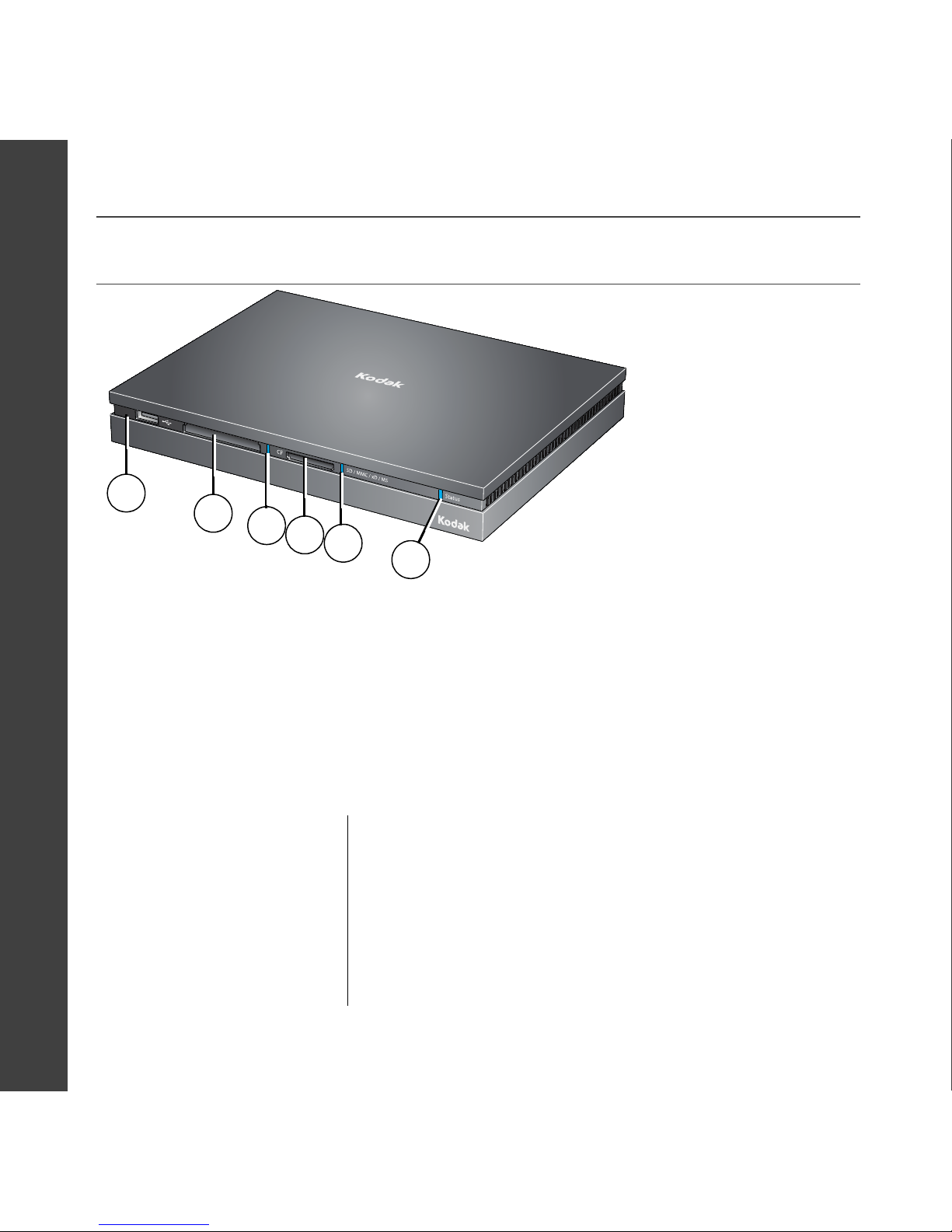
Front view
1 USB 2.0 port 4 SD/MMC/xD/MS* Card slot
2 COMPACTFLASH Card slot 5 SD/MMC/xD/MS Card status light
3 COMPACTFLASH Card status light 6 Main status light
*Also supports SDHC, miniSD/microSD Cards with an adapter, RS-MMC, MMCplus,
MMCmicro, SecureMMC, MS Pro, MS Duo, MS Pro Duo, MS Micro (M2), and MS Pro-HG Cards.
Card status lights Main status lights
Off: No card inserted; or card
not recognized or formatted
Solid blue: Card inserted
Flashing blue: Card inserted,
being accessed
Solid blue: Active network connection; no new pictures
Solid red: No network connection
Flashing blue: Active network connection; new Picture Mail
available
Flashing red: USB device not supported (flashes for 5 seconds)
4 www.kodak.com/go/easysharecenter
Page 5
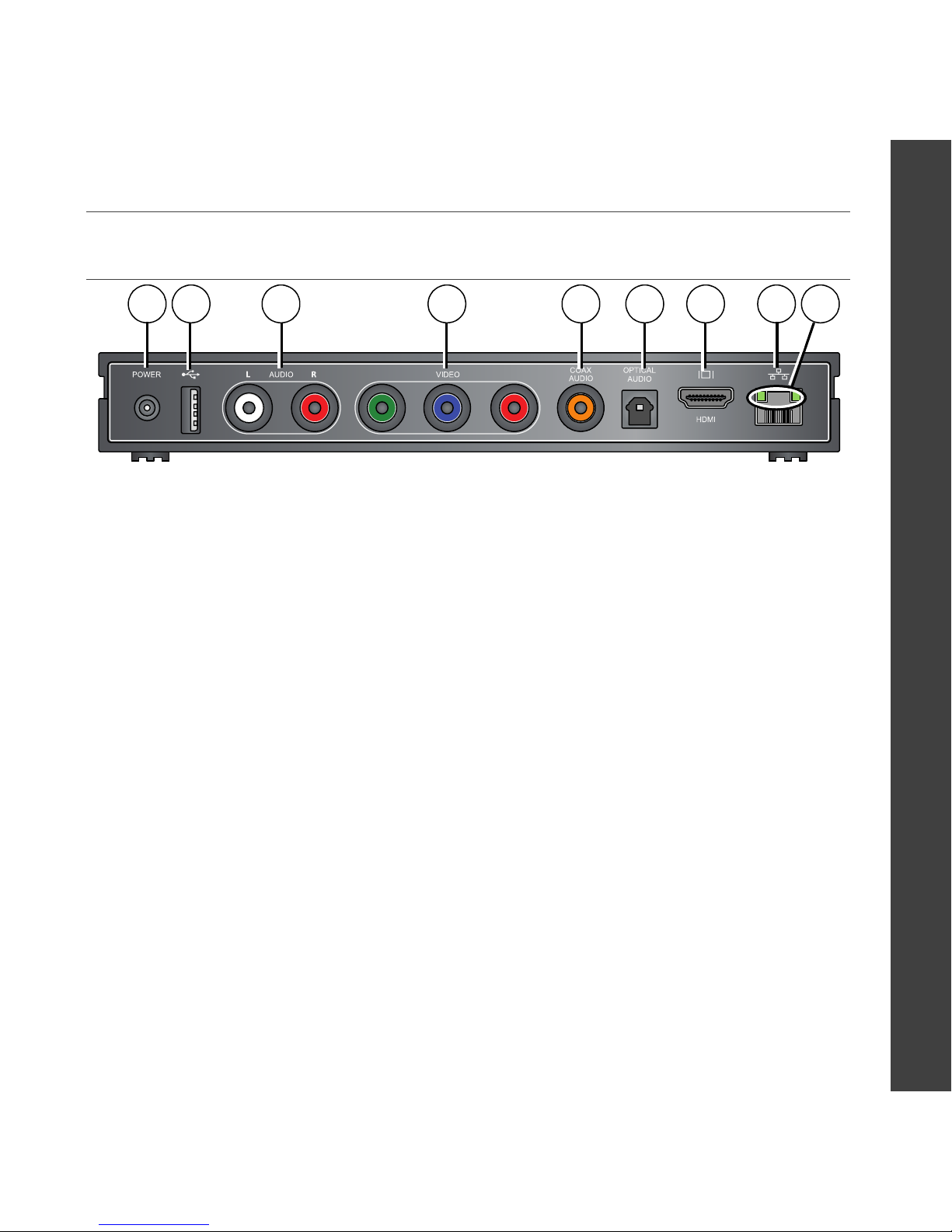
Back view
2 3 4 5 6 7 8 9
1
1 Power port 6 Optical audio out connector
2 USB 2.0 port 7 HDMI connector
3 Audio out connectors 8 Ethernet connector
4 Video out connectors 9 Ethernet status lights
5 Coax audio out connector
ENGLISH
Ethernet status lights
Both off: No active connection
Both on: Active 100BASE-T connection
One on: Active 10BASE-T connection
One flashing and one solid: Active connection transmitting or receiving data
www.kodak.com/go/HDplayersupport 5
Page 6
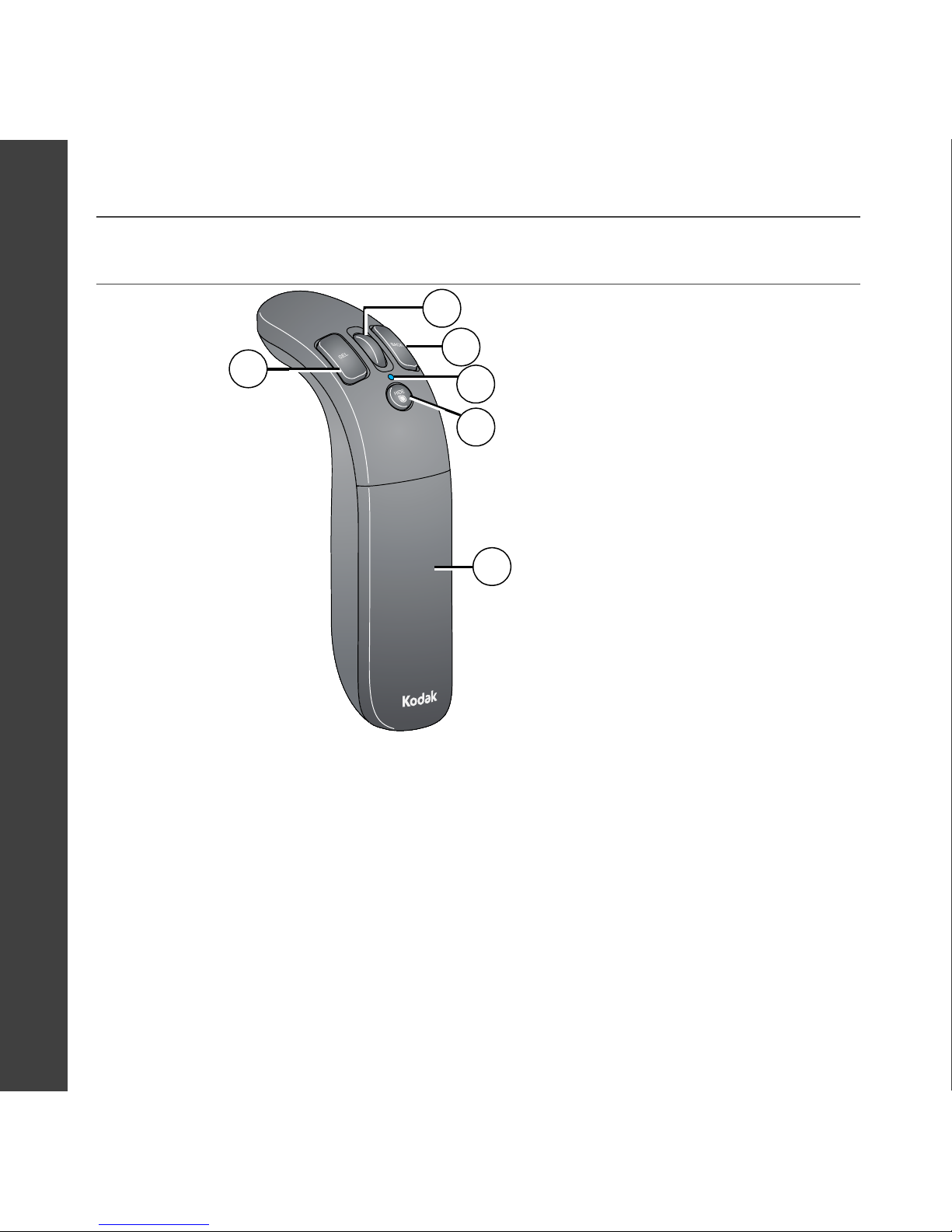
ENGLISH
1
2
3
4
5
6
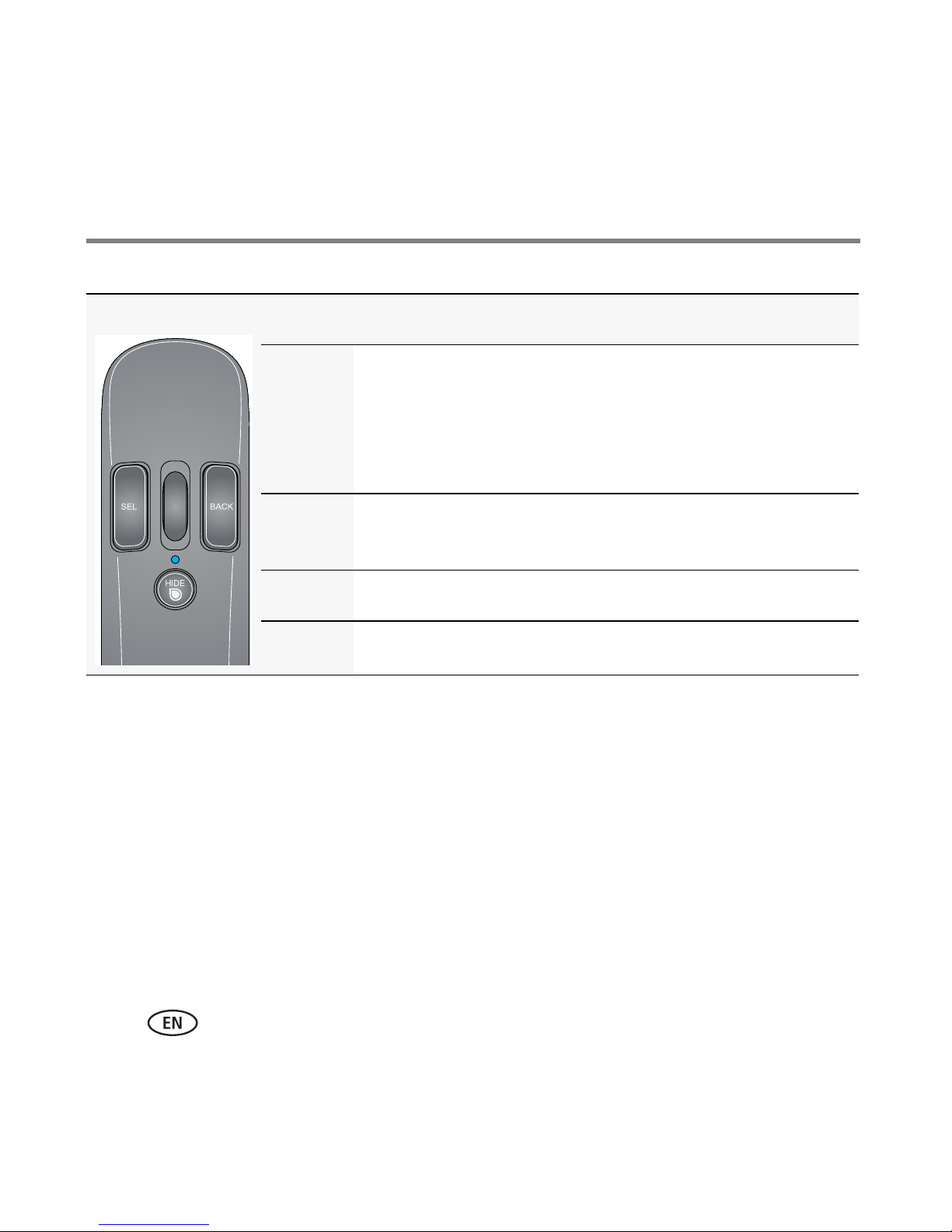
KODAK Pointer Remote
1 Select button 4 Power status light
2 Scroll wheel 5 Hide Cursor button
3 Back button 6 Battery door
Power Status light
Off: Remote is idle, or has no/dead batteries
Solid blue: Remote is active/in use
Flashing red: Batteries are low
6 www.kodak.com/go/easysharecenter
Page 7

Table of contents 1
1 Getting started ......................................................................................9
Welcome to the KODAK Family! ....................................................................9
System requirements ...................................................................................12
Using the pointer remote.............................................................................14
Connecting the HD player............................................................................17
Using the on-screen keyboard ..................................................................... 22
Installing the software.................................................................................23
Setting up and managing Web services........................................................ 27
2 Overview of the main portals ..............................................................29
Home screen...............................................................................................29
My Pictures & Videos portal.........................................................................30
Online Pictures portal..................................................................................31
My Music portal..........................................................................................32
My Entertainment Portal..............................................................................33
Online Entertainment portal ........................................................................34
Settings portal............................................................................................. 35
3 Using the HD player ............................................................................41
Viewing pictures and videos ........................................................................41
Making a slideshow ....................................................................................48
Viewing in Cafe mode.................................................................................55
Playing downloaded media..........................................................................55
Copying pictures and videos........................................................................56
Viewing online pictures and videos..............................................................57
7
Page 8

Table of contents
Playing music..............................................................................................58
Playing music from a memory card or USB storage device ............................65
Connecting to your FRAMECHANNEL Service...............................................66
Using the KODAK Gallery ............................................................................68
Viewing your albums, your friends’ albums, and favorites............................. 69
Uploading and sharing pictures ...................................................................70
Using the Entertainment features ................................................................72
Viewing collages .........................................................................................76
4 Troubleshooting and support ..............................................................77
Updating the firmware ................................................................................77
Updating your software...............................................................................77
Troubleshooting..........................................................................................78
Getting support...........................................................................................83
5 Appendix .............................................................................................84
Specifications..............................................................................................84
Important safety instructions .......................................................................86
Glossary of common wireless network terms................................................87
Limited warranty .........................................................................................91
Regulatory compliance ................................................................................94
8 www.kodak.com/go/easysharecenter
Page 9

1 Getting started
Welcome to the KODAK Family!
Congratulations on your purchase of a very exciting and innovative new KODAK
Product: the KODAK Theatre HD Player.
Nobody understands the emotional power of pictures like Kodak—the power to bring
people together and enhance stories and the emotions that come from them.
The KODAK Theatre HD Player will forever change the way you interact with your
personal content—from the pictures that are your most precious memories, the new
shots that you capture daily or weekly, to the music you have acquired and stored over
the years...not to mention the wealth of expanding, always changing, Web-based
content that can inform, entertain, and delight.
From today forward, this content will come alive from your computer and from the
Web—right into your family room and onto your HD (High Definition) TV—in stunning
detail and brilliant color!
www.kodak.com/go/HDplayersupport 9
Page 10

Getting started
Cool things you can do with the KODAK Theatre HD Player
■ View new pictures right from your camera’s memory card, without having to go to
the computer:
■ Insert your memory card into the HD player card slot—a slideshow
automatically starts (see page 41).
■ Use Kodak’s Picture Mail feature to send the best (or all) of these pictures to
family and friends wherever they live (see page 68).
■ Wirelessly copy your images to your computer right from the couch (see
page 56).
■ Simply point and play to create custom, multimedia slideshows from your favorite
pictures, videos, and music (see page 48).
■ Automatically receive Picture Mail from family and friends, and view on your HDTV
(see page 68).
■ View your digital movie, video collection, and TV shows (see page 55). Don’t have
movies yet? Check out any of the many sites on the Web that have Xvid HD content
available. It's a stunning experience on your HDTV!
■ Play the music you have stored on your computer—listen to it right in the family
room on your audio system. You can even listen to your APPLE ITUNES Playlists. And
you can simply point and play to combine your music with your pictures and videos
to create personalized, multimedia shows (see page 58).
NOTE: ITUNES plays only non-DRM music. Music does not play if it is DRM-protected.
■ Watch free podcasts, including HD video podcasts to which you subscribe (see
10 www.kodak.com/go/easysharecenter
Page 11

Getting started
page 75). If you are new to podcasts and would like to try them, use APPLE ITUNES
or do a Web search on podcasts to learn more about how to download them.
■ Link your HD player to your FLICKR Service account to view your photos or ones
from FLICKR (see page 57).
■ Every day, you can check out the free, on-demand Web channels containing news,
weather, sports, photography, and more (see page 66).
■ Set up a YOUTUBE Service account and enjoy your subscriptions, favorites, and
playlists on your HDTV—full screen (see page 73).
■ Personalize your KODAK Theatre HD Player—choose backdrops, select slideshow
preferences, set up a screensaver, and more (see page 35).
■ Connect to your KODAK Gallery account—right from your HDTV—then, view and
share your pictures, as well as send and receive automatic notification from friends
and family using Picture Mail (see page 68).
■ Always find something to listen to—choose from thousands of radio stations all
over the globe. It’s free and no sign-up is required (see page 74).
■ Enjoy the free games (page 75).
■ Perform upgrades, right from your HDTV, for new features and content (see
page 77).
www.kodak.com/go/HDplayersupport 11
Page 12

Getting started
System requirements
■ High Definition TV (HDTV) capable of 1080p, 1080i 60/50 Hz, or 720p 60/50 Hz
■ Computer running MICROSOFT WINDOWS XP (SP2) or VISTA operating system,
with a minimum of 2.8 GHz PENTIUM CPU or equivalent, 512 MB RAM, 1 GB free
hard drive space (5 GB free space recommended if your content includes many
videos), and a CD drive
■ KODAK Theatre HD Player Software installed on each computer on your home
network that you want to view content from through the HD player
■ Home network:
■ Wireless 802.11b, 802.11g, or 802.11n (video streaming requires 802.11g or
802.11n; HD video streaming requires 802.11n), or
■ 10/100BASE-T Ethernet (video streaming requires 100BASE-T), or
■ Powerline Ethernet adapter (HomePlug compatible)
■ Internet access with broadband connection.
■ If you are not using the included component video and audio cables, you must
provide the cables to connect the KODAK Theatre HD Player to your home
entertainment system. For the best experience, choose the best connectors available
on your components:
12 www.kodak.com/go/easysharecenter
Page 13
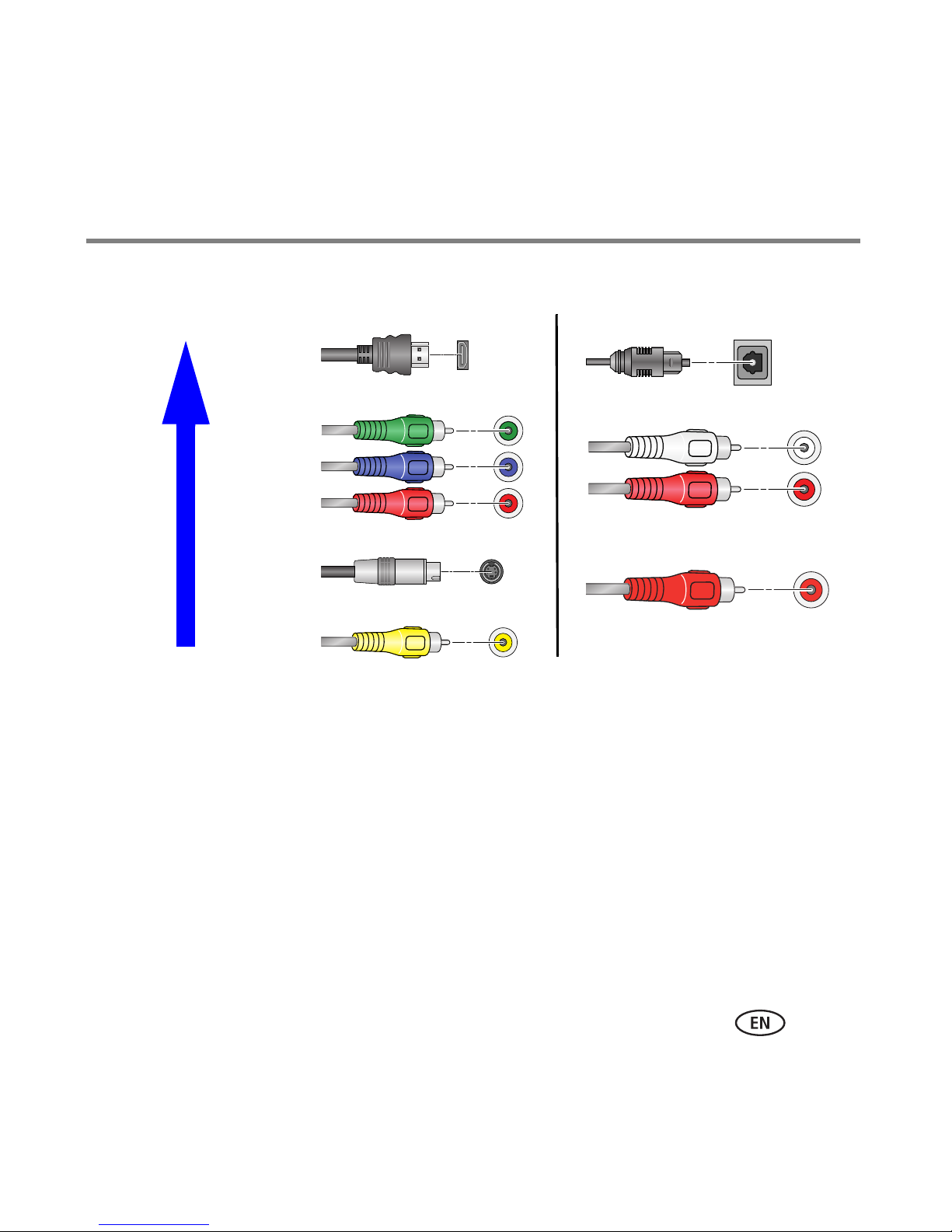
Video connectors Audio connectors
Best
audio/video
Component
S Video
Composite video
HDMI Digital audio optical
Analog audio
Coax audio
Getting started
www.kodak.com/go/HDplayersupport 13
Page 14
Getting started
2
1
Using the pointer remote
The pointer remote automatically pairs with the HD player when the batteries are
installed for the first time and the HD player is powered on. The pointer remote power
light blinks blue while pairing. When successful, the power light blinks blue rapidly for
2 seconds.
If pairing fails, the power light blinks red 3 times, pauses for half a second, and repeats
3 times. See page 78 for possible solutions.
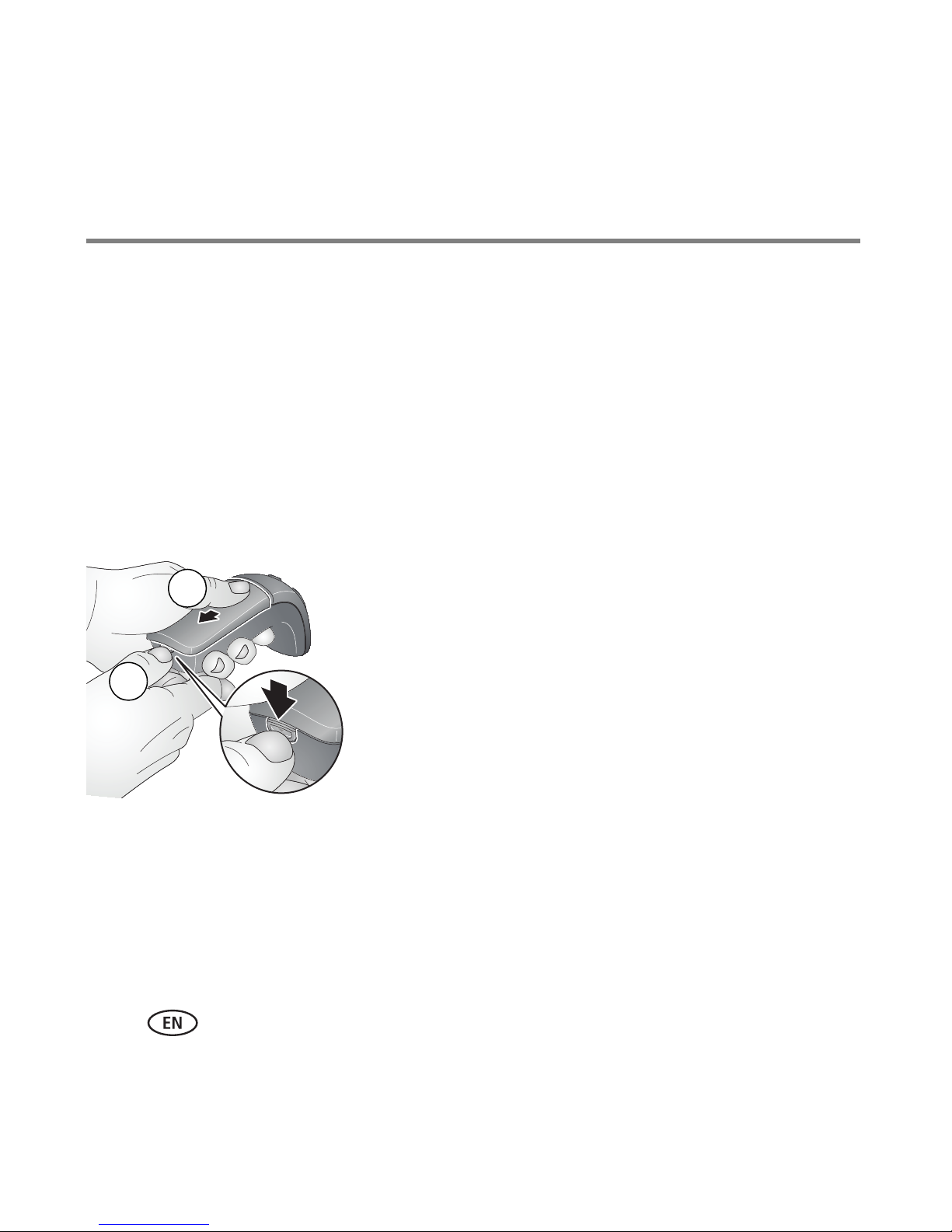
Installing the batteries
1 Push down on the latch and hold to release the
battery cover. Slide the battery cover out then up to
remove.
14 www.kodak.com/go/easysharecenter
Page 15
Getting started
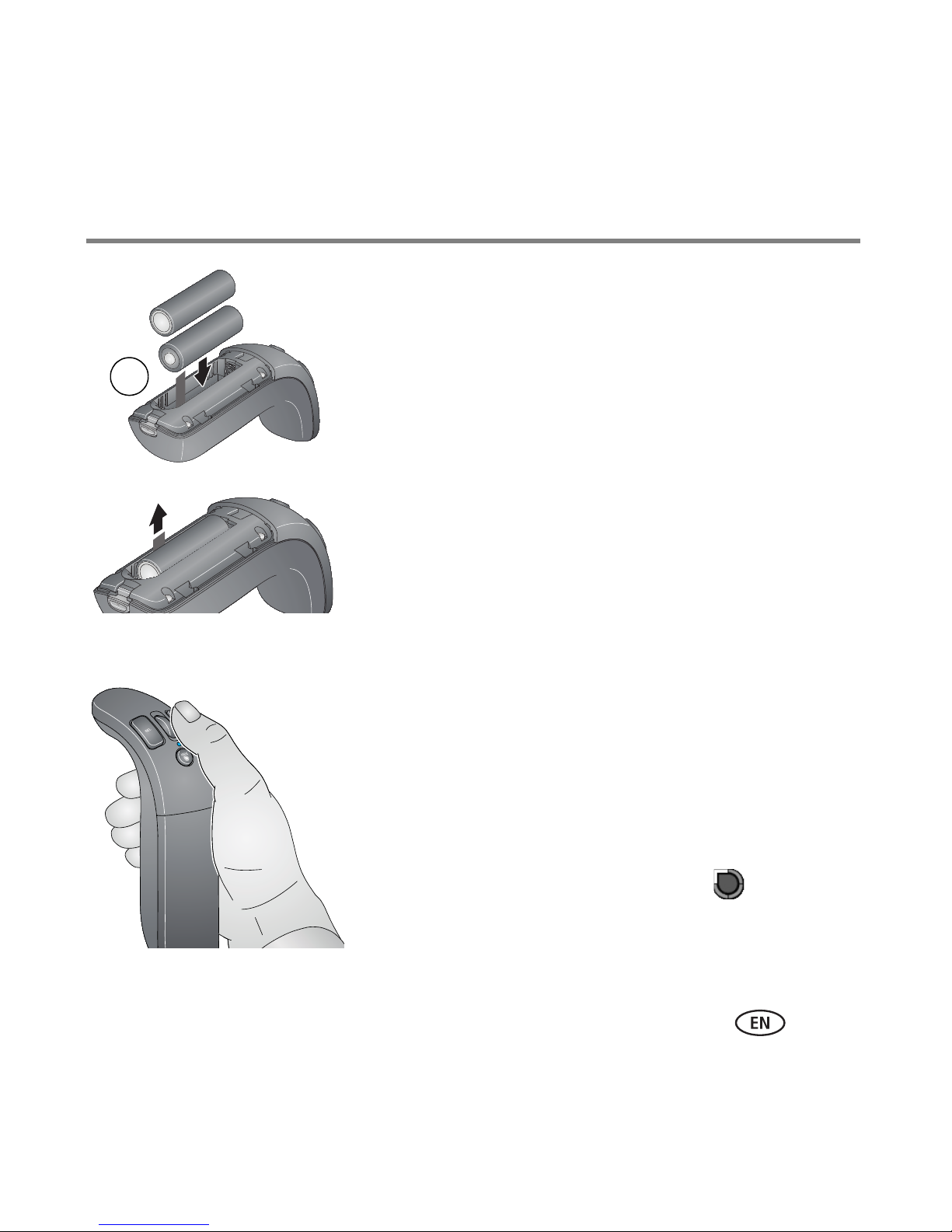
2 Insert 2 AA batteries as shown. Make sure the
batteries sit on top of the battery removal pull tab.
3 Replace the battery cover.
3
4 Place the pointer remote on a flat surface and wait
30 seconds before using it so it can pair with the HD
player. The power light changes from red to blue
when ready.
To remove the batteries, pull up on the battery
removal pull tab.
Tips for using the pointer remote
■ The pointer remote uses a radio signal instead of
infrared technology, so it is not necessary to point it
at your TV or the HD player.
■ Use small wrist movements for better control, instead
of your arm.
www.kodak.com/go/HDplayersupport 15
■ When there is no movement of the pointer remote for
a few seconds, the on-screen cursor hides itself
and the remote enters low-power mode until the
remote is moved again.
Page 16
Getting started
Button Function
Hide
Cursor
Scroll Scroll up and down; go to previous (scroll up) or next (scroll
Select Select an item on the screen.
Back Go back to the previous screen, or cancel an action.
■ Hide the on-screen cursor. The remote enters low-power
mode. You can continue to move the remote without
generating any cursor movement. Press again to resume
cursor movement.
■ Recenter the cursor (see page 16).
down) picture while viewing single pictures (1-up).
Recentering the cursor
After a period of time, the on-screen cursor may drift out of alignment with the pointer
remote. To recenter it:
1 Move the cursor to the center of the screen, then press the Hide Cursor button to
hide the cursor.
2 Aim the pointer remote at the center of the TV screen, then press the Hide Cursor
button again to resume cursor control.
Or, even easier, you can realign it by moving the cursor to an edge of the screen until it
stops moving, and continue moving the pointer remote until they are aligned again.
16 www.kodak.com/go/easysharecenter
Page 17
Getting started
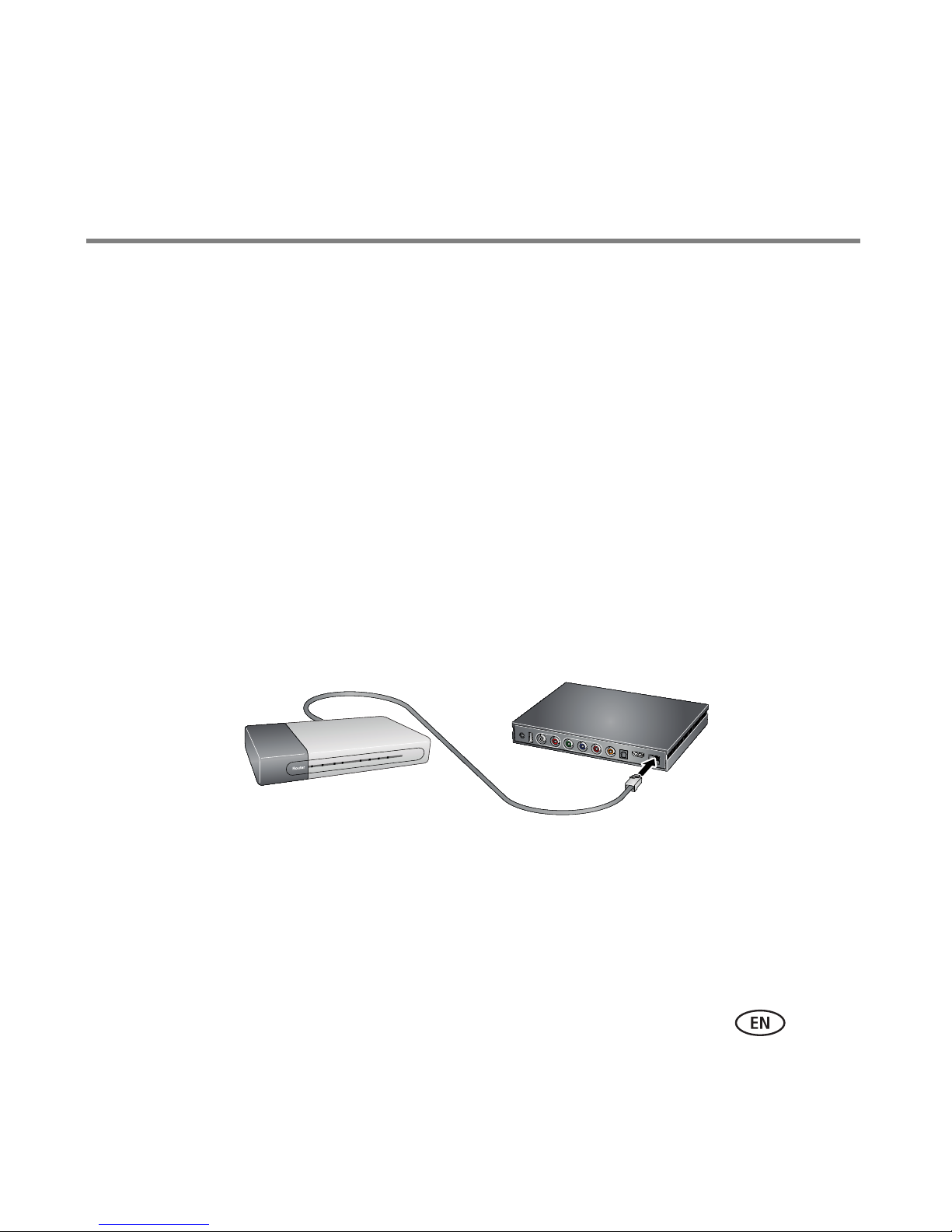
Example of a wired network connection
Network router
HD player
Connecting the HD player
1 Find a location for the HD player where it is not subjected to excessive heat from
your home heating system or other electronic devices (e.g., avoid placement directly
on top of other devices that generate significant heat).
NOTE: For optimum wireless performance, do not locate the HD player within a metallic enclosure as it
minimizes Wi-Fi radio and pointer remote transmission signals. Stay at least 2 ft away from large
metal fixtures (e.g., file cabinets, refrigerators) and 10 ft from your wireless router. Avoid placing the
HD player near devices that may produce electromagnetic noise (e.g., fax and copy machines,
cell/cordless phones, microwave ovens).
2 If you are not connecting to your home network wirelessly, connect a shielded
Ethernet cable (RJ45, sold separately) from your network router or computer to the
HD player. If you have a wireless network, go to step 3.
NOTE: If you are connecting wirelessly to the HD player, make note of the wireless settings (router SSID
name, security settings, network key, etc.) on your computer from your router's configuration screen.
You may need this information to set up the HD player later.
www.kodak.com/go/HDplayersupport 17
Page 18

Getting started
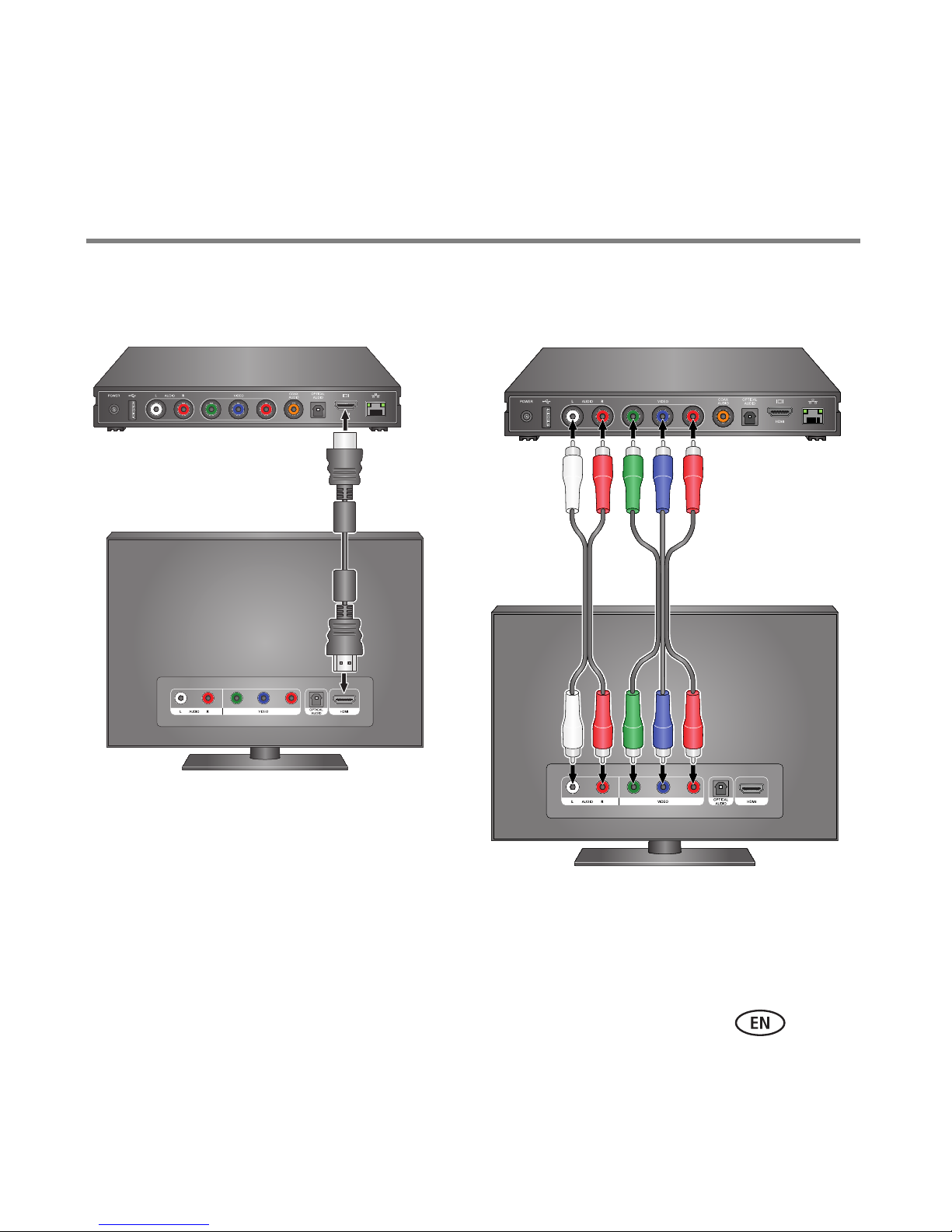
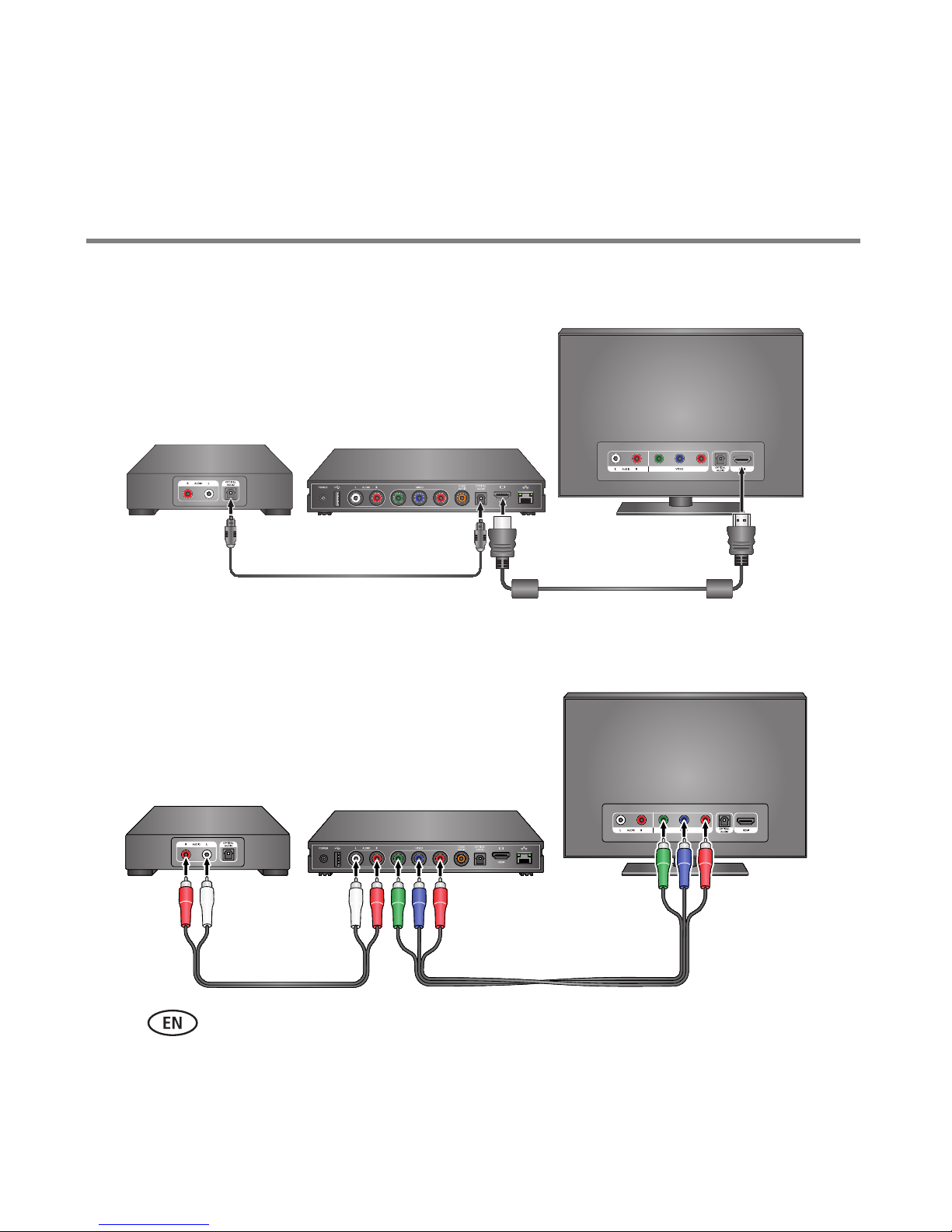
3 Connect the HD player to your HDTV (or to an HDMI computer monitor). Find the
audio and video ports on the back of your TV or receiver; use the appropriate cables
for your setup. HDMI or component connections provide a quality experience. Note
the HDMI or component inputs used.
■ Do not connect the unit through a VCR. (Video signals fed through VCRs may be
affected by copyright protection systems, and the picture will be distorted on the
television.)
■ If the component audio/video cables provided in the box are not used, Kodak
recommends a Category 2 HDMI cable with ferrite beads at both ends.
18 www.kodak.com/go/easysharecenter
Page 19
Getting started
Example of an HDMI connection
(provides both audio and video)
Example of a component video
and analog audio connection
www.kodak.com/go/HDplayersupport 19
Page 20
Getting started
Example of an HDMI and digital optical audio connection
Receiver HD player
HDTV
Example of a component video and analog audio connection
Receiver HD player
HDTV
20 www.kodak.com/go/easysharecenter
Page 21
Getting started
1
2
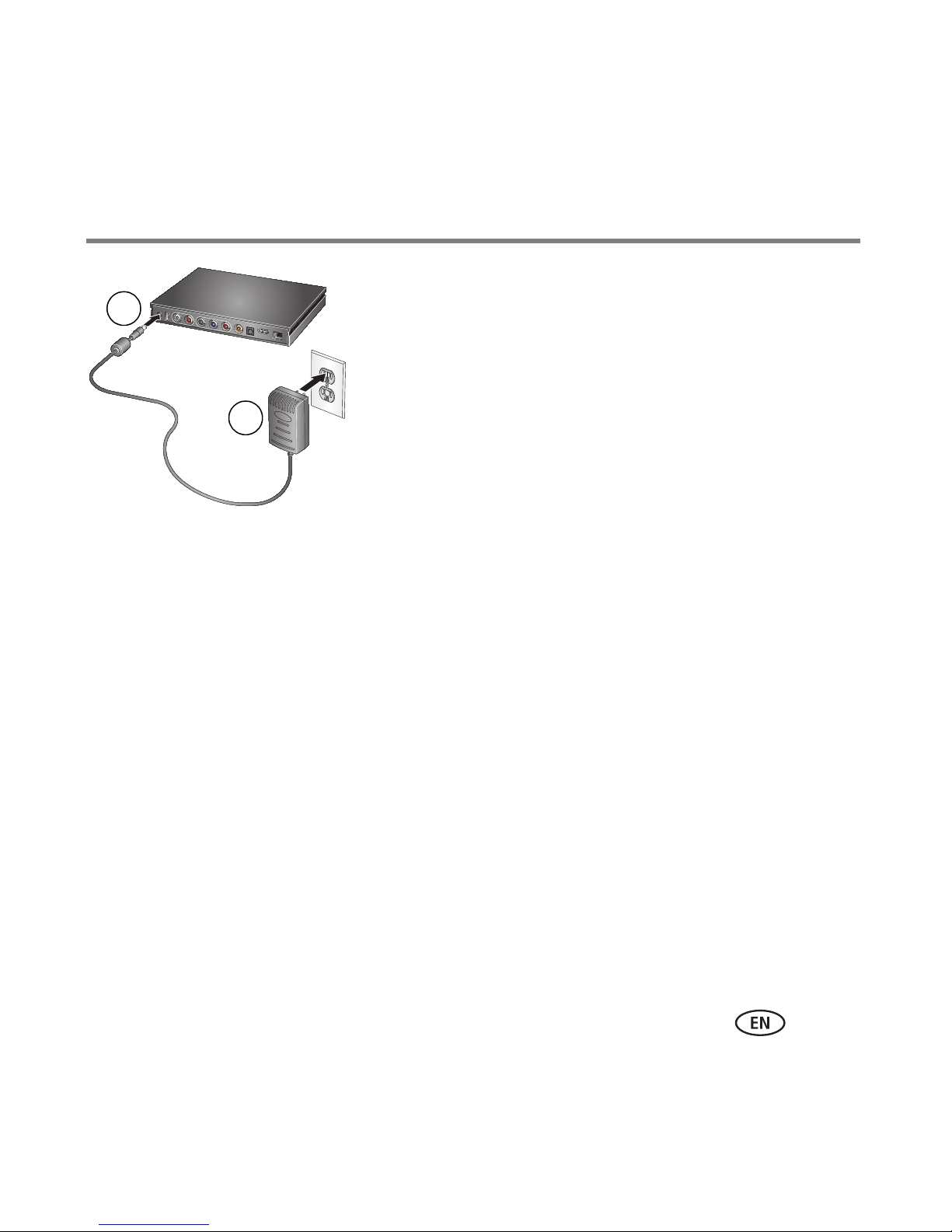
4 Attach the AC adapter to the HD player and plug it
into a wall outlet to turn it on.
5 Turn on your TV.
6 Using your TV remote control, select the video input matching the connection you
made in step 3. (Refer to your TV owner’s manual for more information on changing
the video input mode.) It may take a few seconds for the TV mode change to take
effect.
The setup wizard appears on your TV screen.
7 Use the KODAK Pointer Remote to follow the 8 easy steps on your TV screen for
configuring the HD player for your home network.
www.kodak.com/go/HDplayersupport 21
Page 22
Getting started
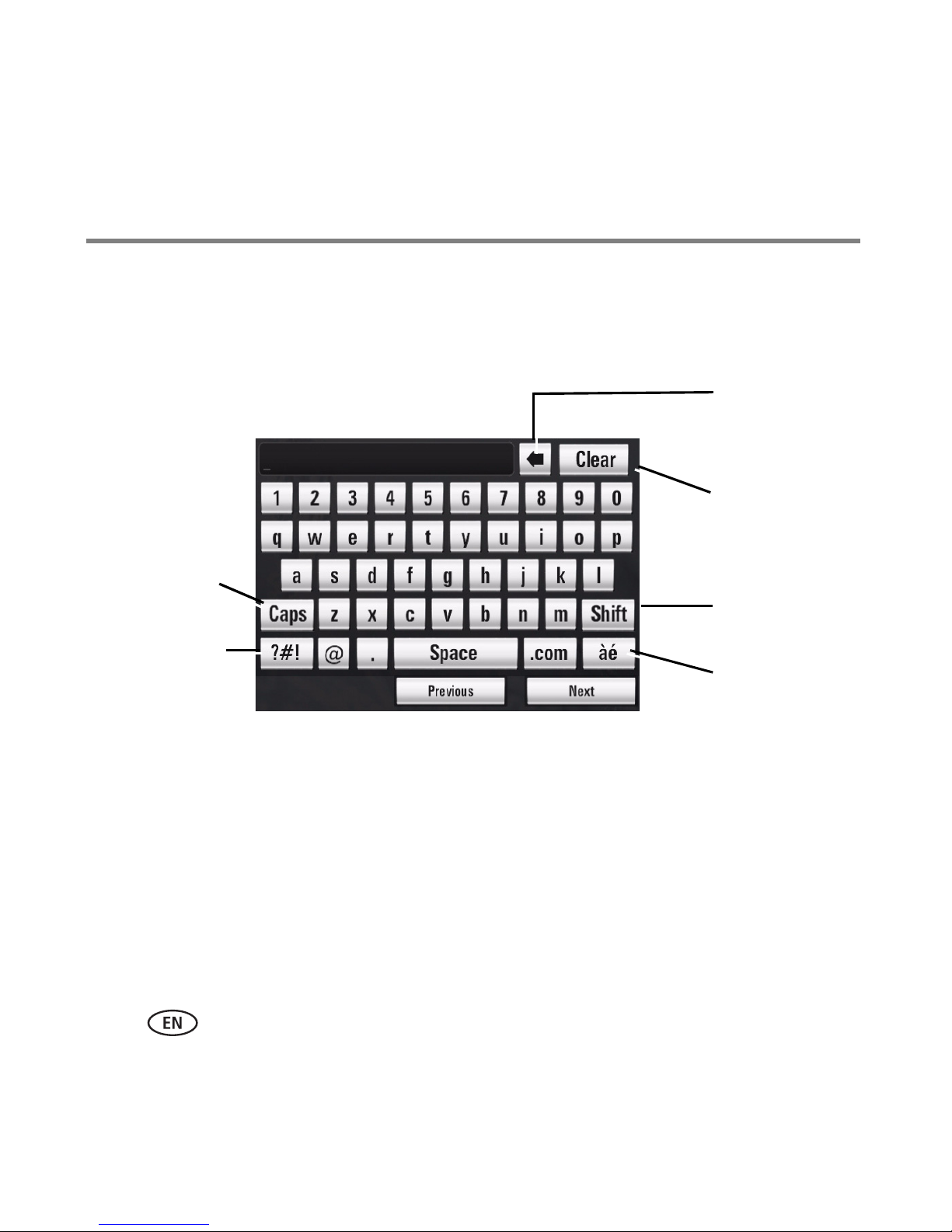
Caps lock,
capitalizes all
letters
Shows special
characters,
symbols, and
punctuation
Clears last
character
entered
Clears entire
entry
Capitalizes
one letter
Shows letters
commonly
used in other
languages
Using the on-screen keyboard
Some tasks require that you enter information manually. An on-screen keyboard
appears when necessary.
22 www.kodak.com/go/easysharecenter
Page 23

Getting started
Installing the software
KODAK Theatre HD Player Software facilitates communication with the HD player,
making it easy to get pictures, video, and music from any computer on your home
network and the Internet to the HD player. Any content in the My Pictures and Videos
and My Music folders on your computer are automatically available for viewing. You
can also add other folders on your computer that contain additional pictures, video, and
music.
NOTE: The software needs to be installed on each computer on your home network if you want to view
content from those computers through the HD player. Any computer from which you want to view
content must also be turned on. You can only view content from one computer at a time.
Before you begin:
■ You need administrator privileges to install the software on your computer.
■ Your computer must be on your home network.
■ If you have the WINDOWS XP Operating System, enable Allow Remote Access in the
Network Settings on your computer.
■ If you have the WINDOWS VISTA Operating System, enable Network Discovery and
File Sharing in the Network Settings on your computer.
If you did not install the software when you went through the HD player setup wizard,
you need to now:
www.kodak.com/go/HDplayersupport 23
Page 24
Getting started
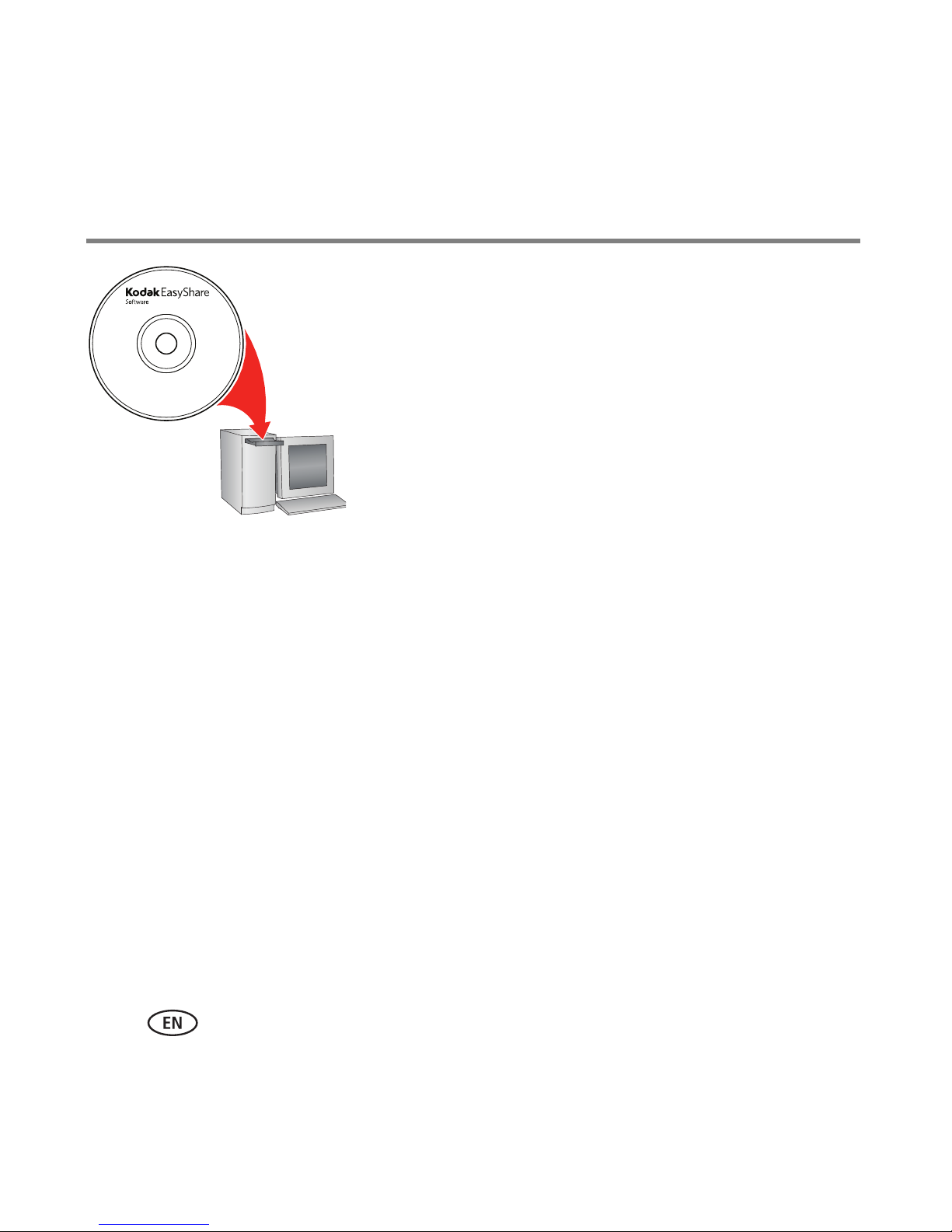
1 Insert the software CD that came with the HD player
into your computer, and follow the on-screen
directions. KODAK Theatre HD Player Software is
installed. Restart your computer if instructed to do so.
The application is installed in your Programs folder and a
shortcut is placed on your desktop.
Learn about KODAK Theatre HD Player Software at
www.kodak.com/go/easysharecenter.
2 If you have content on your computer in locations other than the My Pictures and
Videos and My Music folders that you want to view with the HD player, you need to
tell KODAK Theatre HD Player Software where to find it.
Open the software now, if it did not open automatically after installing, then:
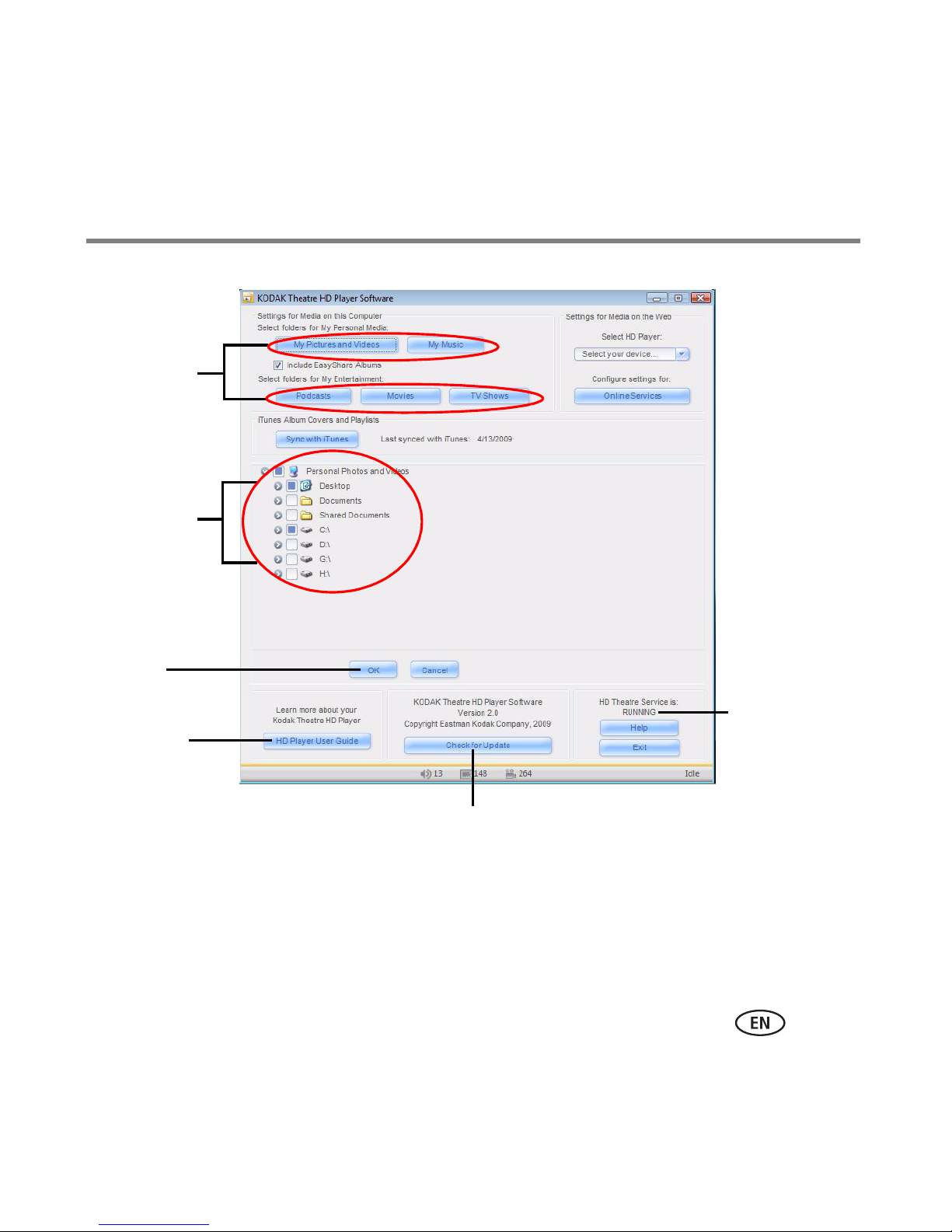
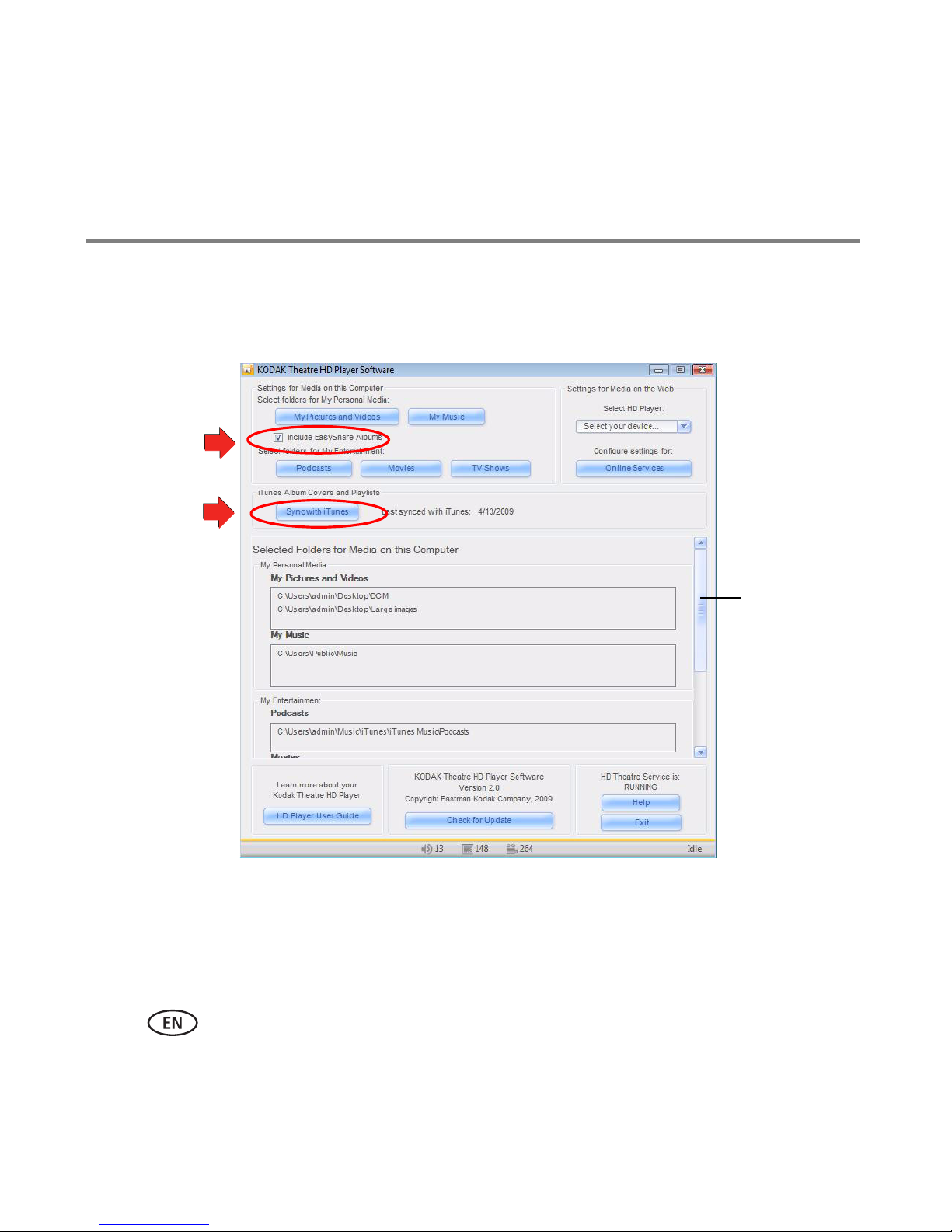
a In Settings for Media on this Computer, click a button (for example, My Pictures
and Videos, My Music, Podcasts, Movies, or TV Shows).
b Browse to the folder to be scanned for content to display on the HD player, and
click the box next to the folder to select it. (To stop sharing a folder’s contents,
click it again to deselect it.)
c Click OK to save your changes and exit.
24 www.kodak.com/go/easysharecenter
Page 25
Getting started
Software
status
Check for Update
Click a
button
Browse
and select
a folder
OK
Click to
access the
HD Player
User Guide
NOTE: KODAK Theatre HD Player Software must be running when using the HD player so it can access the
www.kodak.com/go/HDplayersupport 25
files on your computer.
Page 26
Getting started
Scroll to
see more
content on
your
computer*
*At the bottom (in Copy to PC Directory), see where your Inbox
folder for copied pictures and videos resides:
WINDOWS XP—:\Documents and Settings\All Users\Inbox
WINDOWS VISTA—:\Users\Public\Inbox
NOTE: To share your KODAK EASYSHARE Picture Albums, check the checkbox.
To share your current ITUNES Playlists and album art, click Sync with iTunes.
26 www.kodak.com/go/easysharecenter
Page 27
Getting started
Setting up and managing Web services
Set up your HD player to access YOUTUBE and your favorite photo-sharing sites such as
FLICKR, the KODAK Gallery, and FRAMECHANNEL Services right on your HDTV.
1 Make sure your HD player is connected properly (see page 17), and your computer is
connected to the Internet.
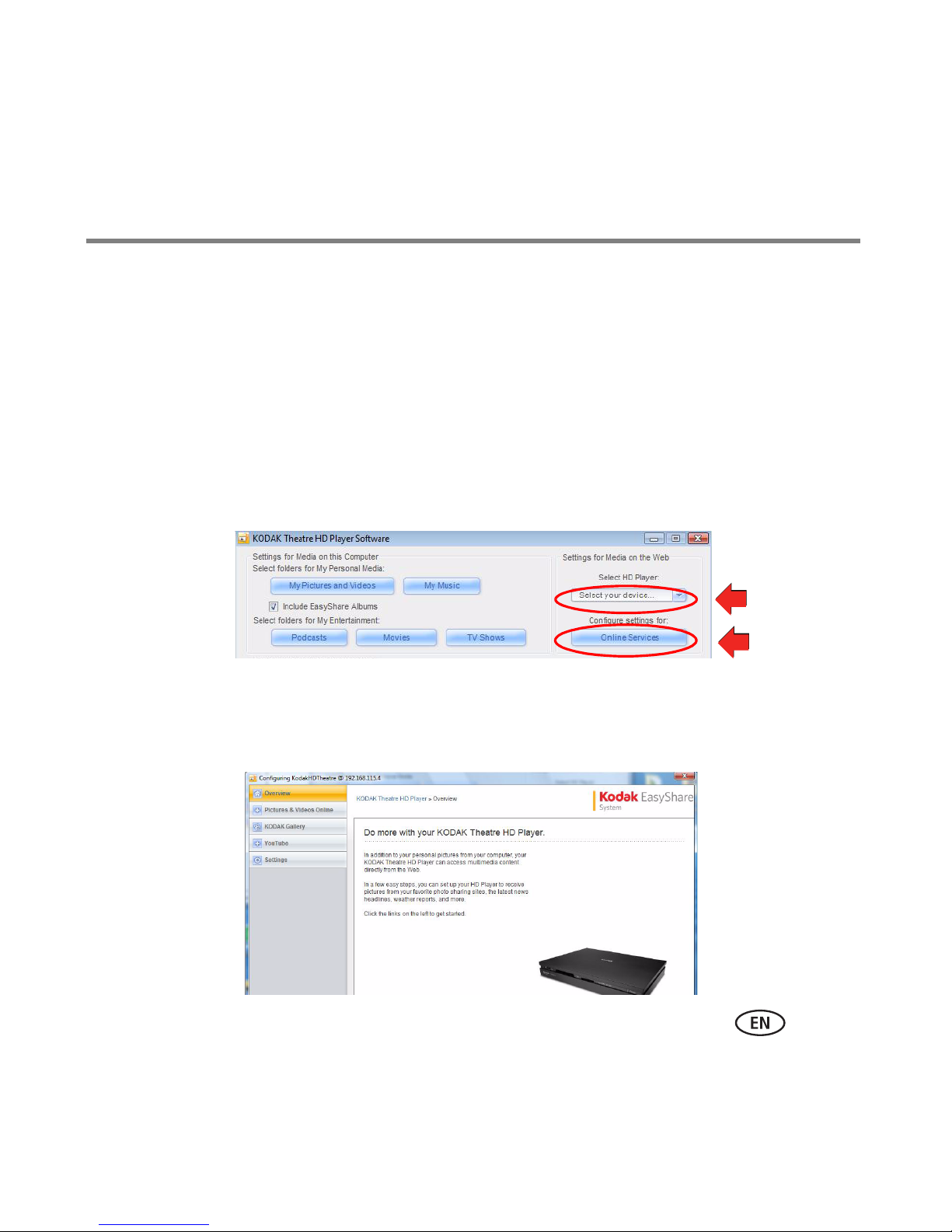
2 In the KODAK Theatre HD Player Software application, select your HD player, then
click Online Services.
Your HD player’s Web configuration page opens.
www.kodak.com/go/HDplayersupport 27
Page 28

Getting started
3 Click the following links to easily set up access to Web content on your HD player:
■ Pictures & Videos Online—connect to your FLICKR Service account or set up a
new one to view your own photos or ones from FLICKR. See page 57.
■ KODAK Gallery—connect to your Gallery account or set up a new one to receive
pictures from other Gallery friends and family. See page 68.
■ YOUTUBE—connect to your YOUTUBE Service account or set up a new one to
view, upload, and share videos worldwide; and enjoy your subscriptions,
favorites, and playlists. See page 73.
■ Settings—restore general factory and display settings, and view your HD player
information, such as serial number, firmware version, and device name.
NOTE: To set up your HD player to access the FRAMECHANNEL Service, see Connecting to your
FRAMECHANNEL Service, page 66.
28 www.kodak.com/go/easysharecenter
Page 29
2 Overview of the main portals
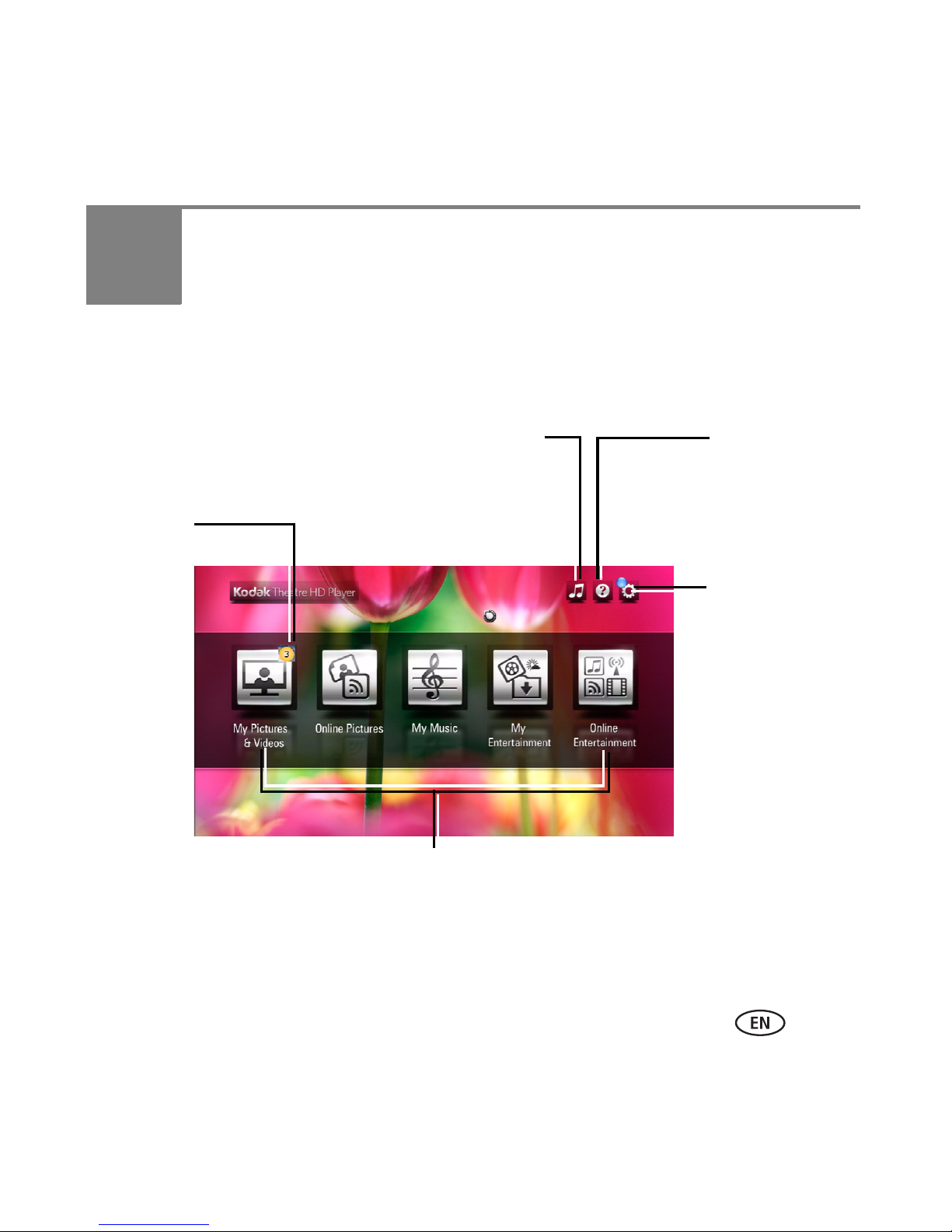
Music controls—
shows and hides the
music controls
Settings—
change your
HD player
settings.
The blue
bubble
indicates a
firmware
update is
available
Help—
provides help
for the main
HD player
functions
Portals for accessing pictures, videos, music,
KODAK Gallery, FLICKR, and local and online
entertainment
Notification of the
number of new collage
slideshows ready for
viewing
Home screen
www.kodak.com/go/HDplayersupport 29
Page 30
Overview of the main portals
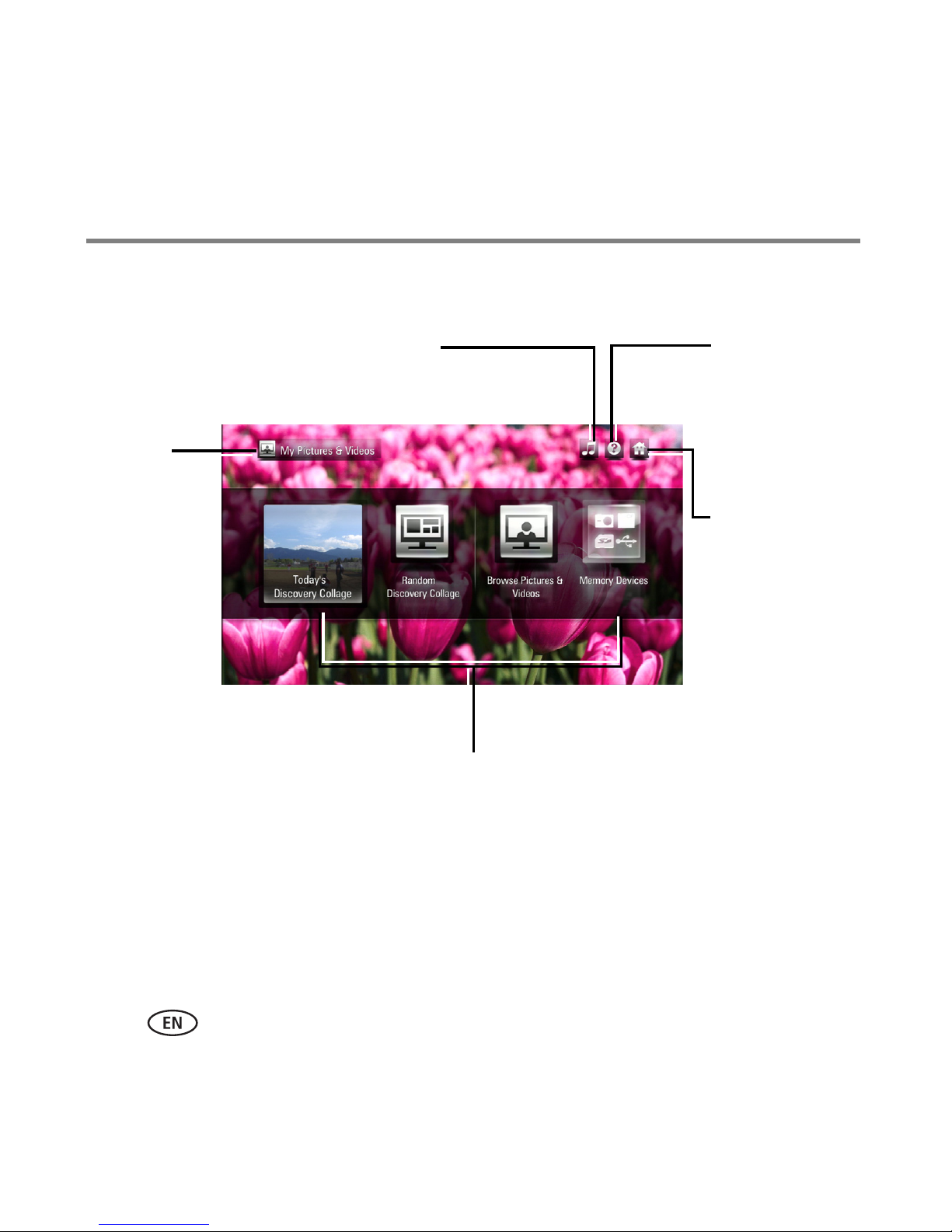
Options for viewing your picture/video collection—includes playing
a collage of your pictures randomly or by date
Home—
takes you to
the Home
screen
Help—
provides help
for the main
HD player
functions
Music controls—
shows and hides the music controls
Current
portal;
click to
return to this
screen
My Pictures & Videos portal
NOTE: The Devices button appears dimmed and is unselectable until you connect a KODAK EASYSHARE
30 www.kodak.com/go/easysharecenter
Camera, memory card, or USB storage device to the HD player.
Page 31
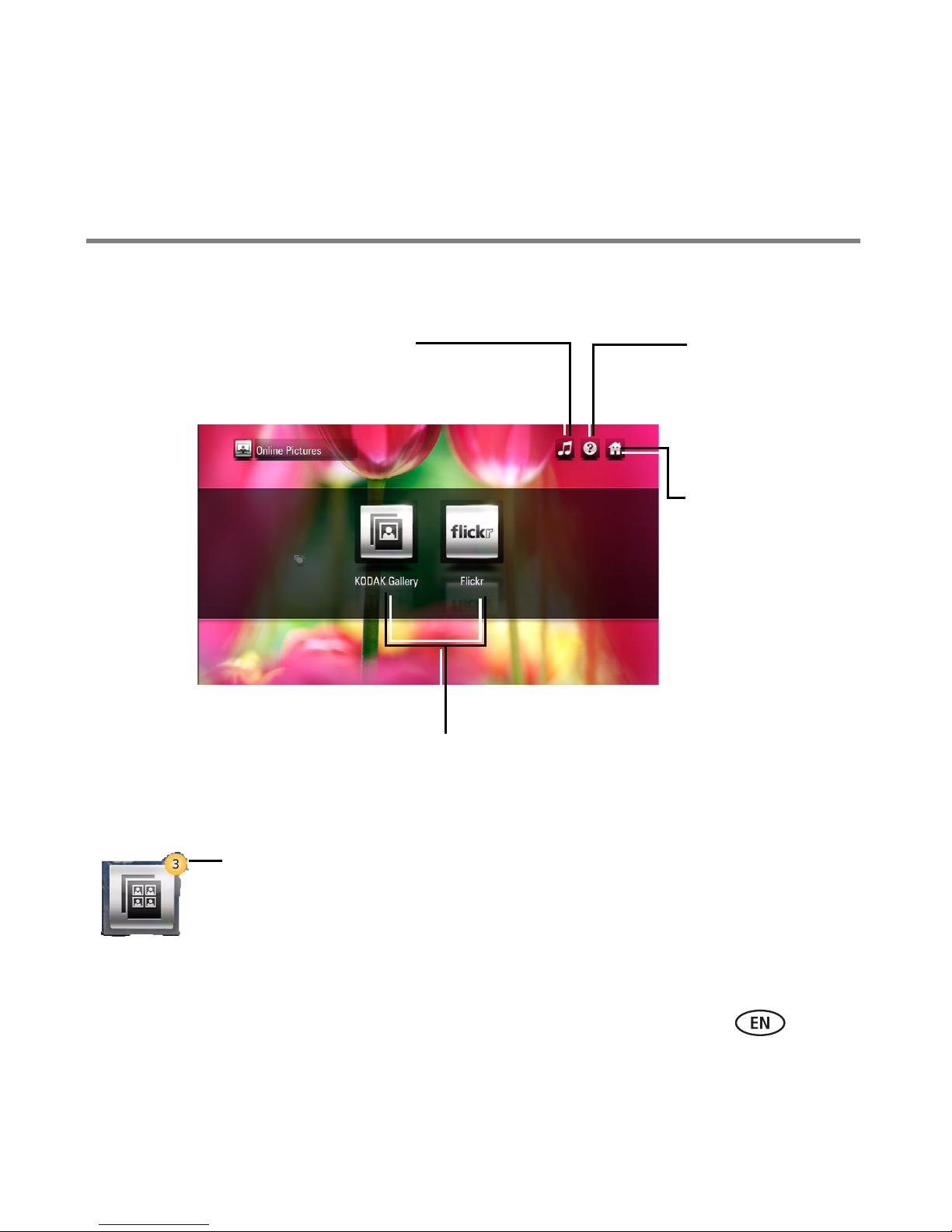
Online Pictures portal
Overview of the main portals
Music controls—
shows and hides the music controls
Help—
provides help
for the main
HD player
functions
Home—
takes you to
the Home
screen
Options for viewing FLICKR Photos and your albums on the
KODAK Gallery.
(An active Internet connection is required.)
Notification of the number of new Picture Mail that has
been shared with you at the Gallery.
www.kodak.com/go/HDplayersupport 31
Page 32
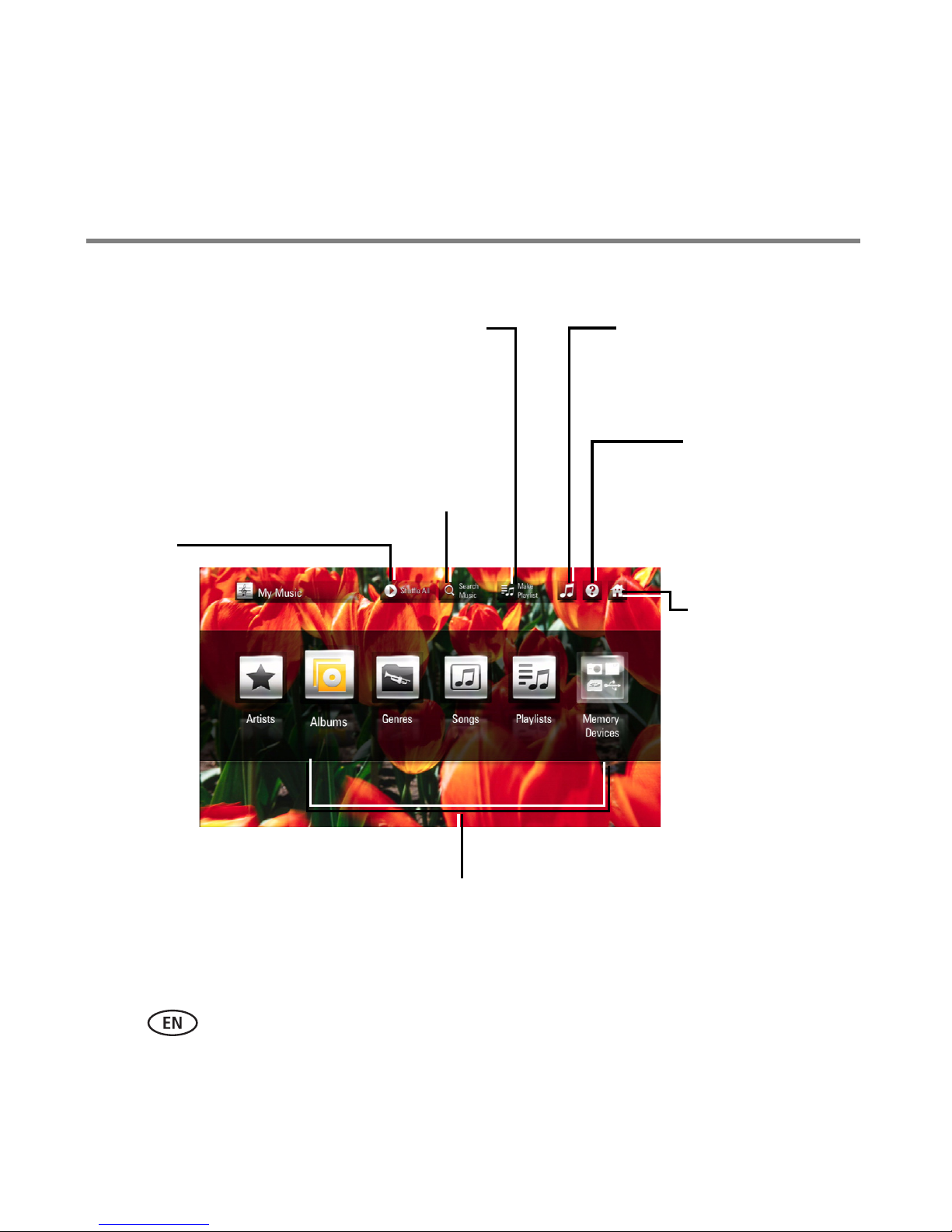
Overview of the main portals
Help—
provides help
for the main
HD player
functions
Options for viewing your music collection
Home—
takes you to
the Home
screen
Music controls—
shows and hides the
music controls
Make Playlist—
create a custom
collection of songs
Search—
search your collection by
song, artist, or album
Shuffle
All—
shuffles
your
entire
music
collection
My Music portal
NOTE: The Devices button appears dimmed and is unselectable until you connect a KODAK EASYSHARE
Camera, memory card, or USB storage device to the HD player.
32 www.kodak.com/go/easysharecenter
Page 33
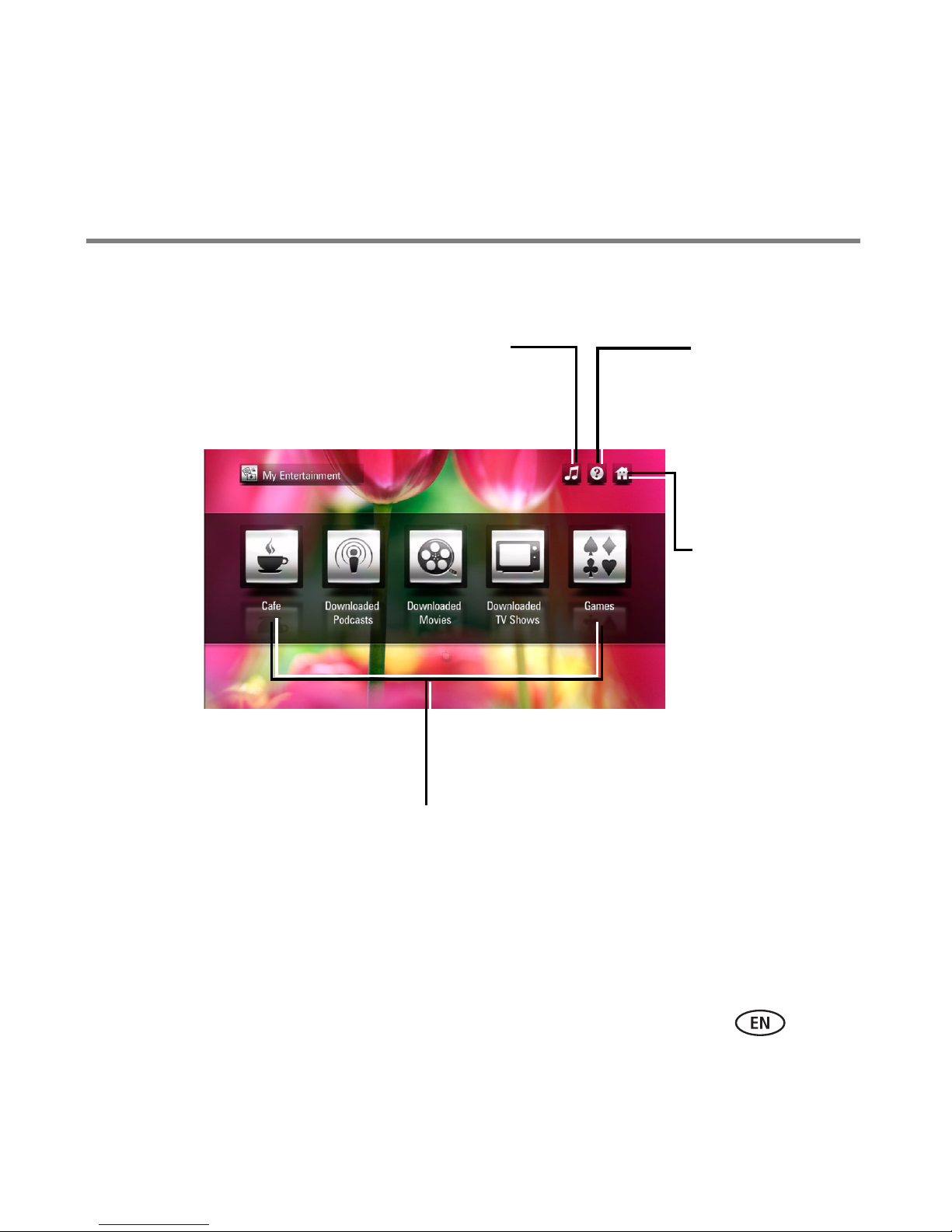
My Entertainment Portal
Options for viewing and listening to downloaded content.
Help—
provides help
for the main
HD player
functions
Home—
takes you to
the Home
screen
Music controls—
shows and hides the
music controls
Overview of the main portals
www.kodak.com/go/HDplayersupport 33
Page 34
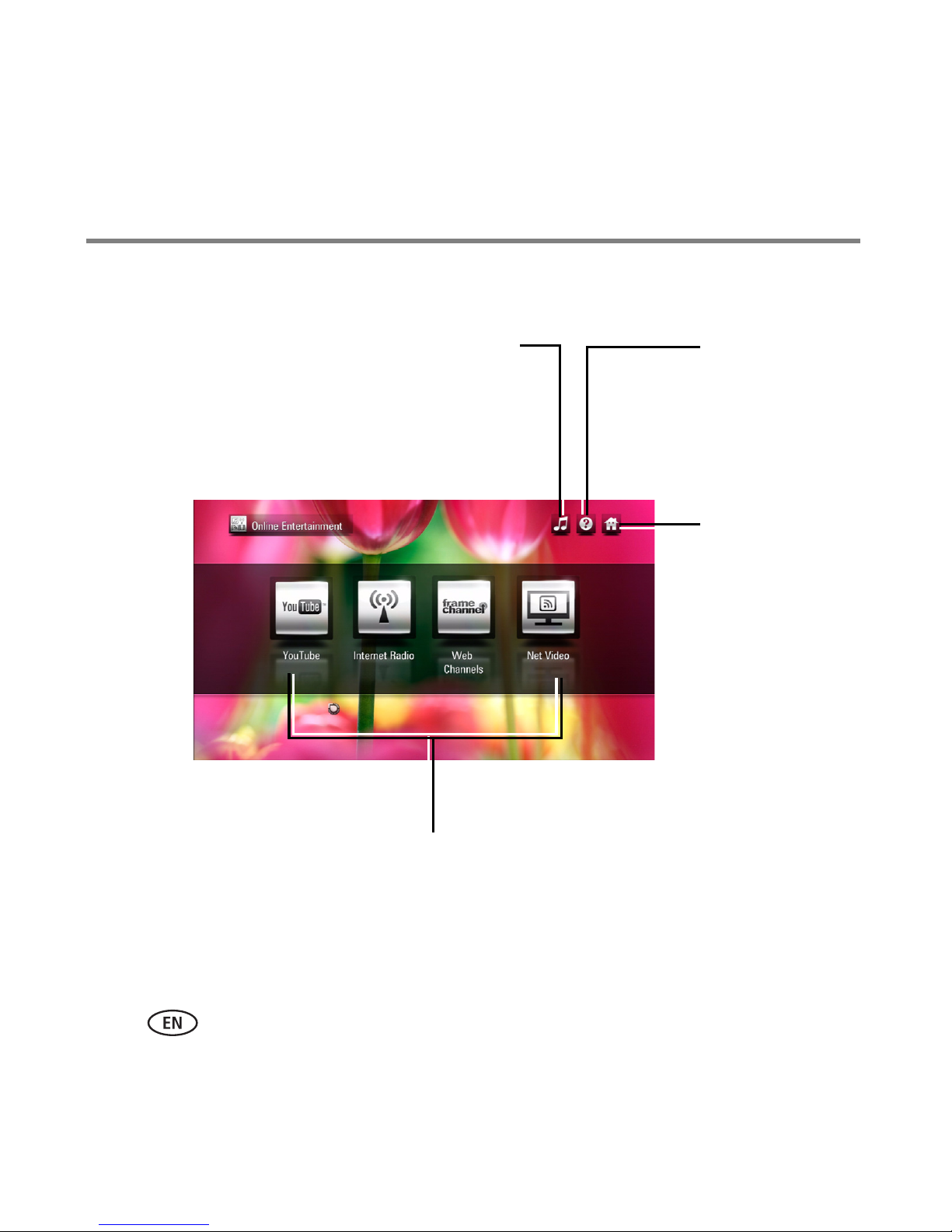
Overview of the main portals
Help—
provides help
for the main
HD player
functions
Home—
takes you to
the Home
screen
Music controls—
shows and hides the
music controls
Options for viewing and listening to Internet content.
(Content is subject to change.)
Online Entertainment portal
34 www.kodak.com/go/easysharecenter
Page 35
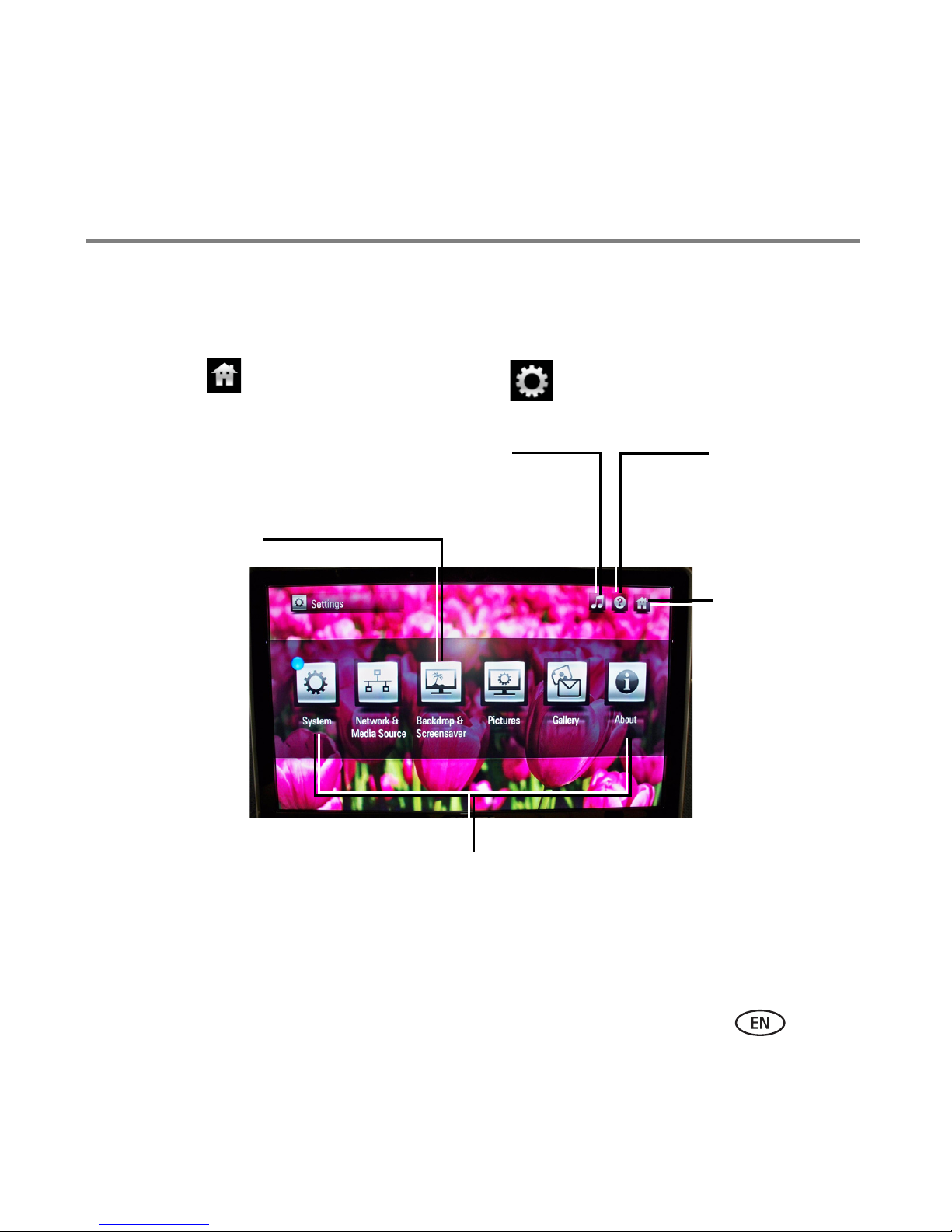
Overview of the main portals
HD player settings you can change at any time.
(See table.) The blue bubble indicates a firmware
update is available.
Help—
provides help
for the main
HD player
functions
Home—
takes you to
the Home
screen
Music controls—
shows and hides the
music controls
Backdrop &
Screensaver—
either one
image or a
series of 5
images used as
the screen
background
Settings portal
There are other HD player settings you can change (e.g., change the transition style
used in slideshows) from the Settings portal. To access the Settings portal, select the
Home screen and click the Settings button .
www.kodak.com/go/HDplayersupport 35
Page 36
Overview of the main portals
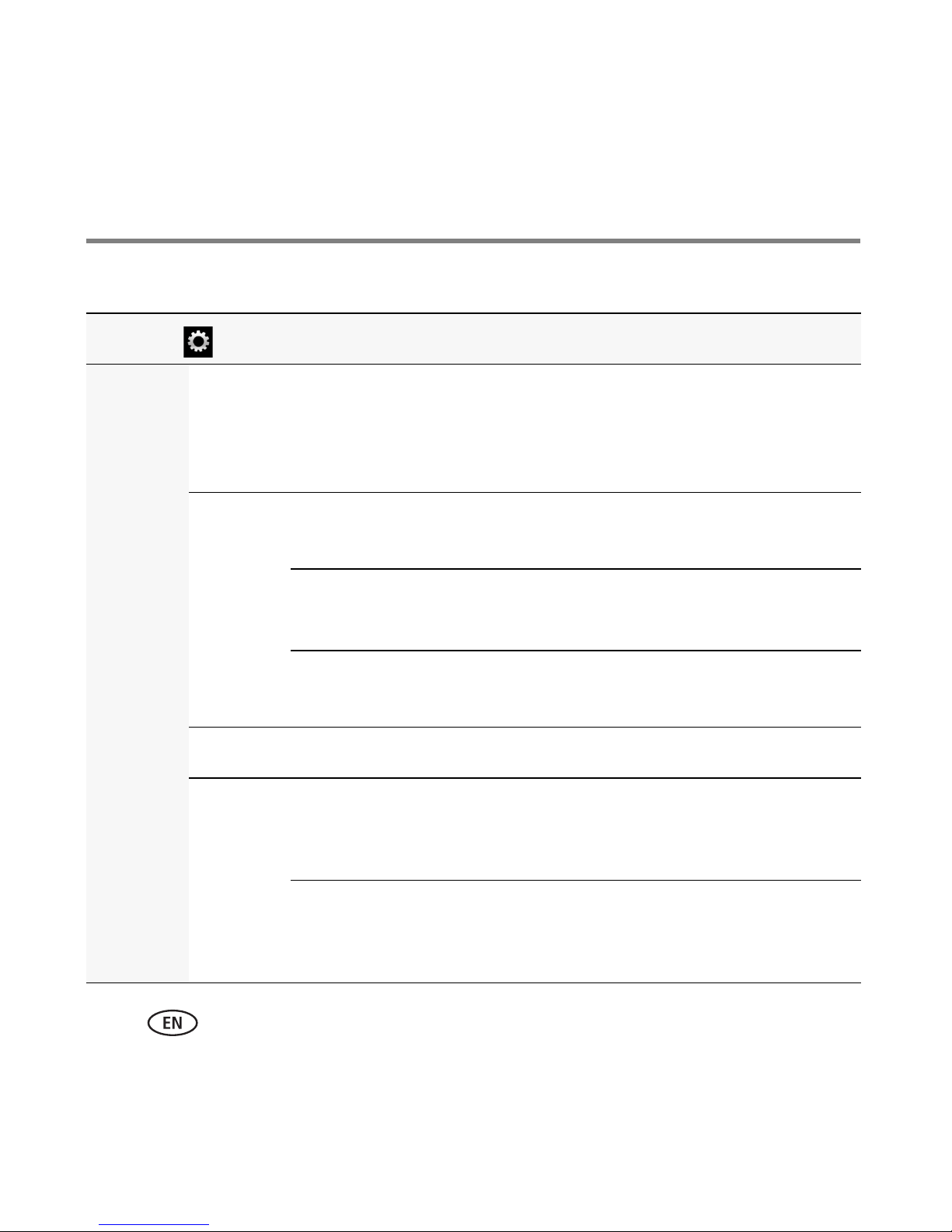
Settings Description
System General Install
Update/Check
for Updates
Now
Disable
YouTube
Restore
Defaults
Restart the
system
Regional Time Zone Set your time zone (default is EST)
Audio/
Video
Play Sound
Effects
Install the latest firmware version or Check for
new HD player firmware and the date last
checked.
Disable access to YOUTUBE.
Restore the HD player to factory settings
and restart the HD player.
Restart the HD player.
Choose Yes or No to hear feedback from the HD
player when selecting items on the screen
(default is Yes)
Video
Resolution
36 www.kodak.com/go/easysharecenter
Choose 480i, 480p, 720p, 1080i, or 1080p
(default is Auto for HDMI or 720p for
Component)
Page 37
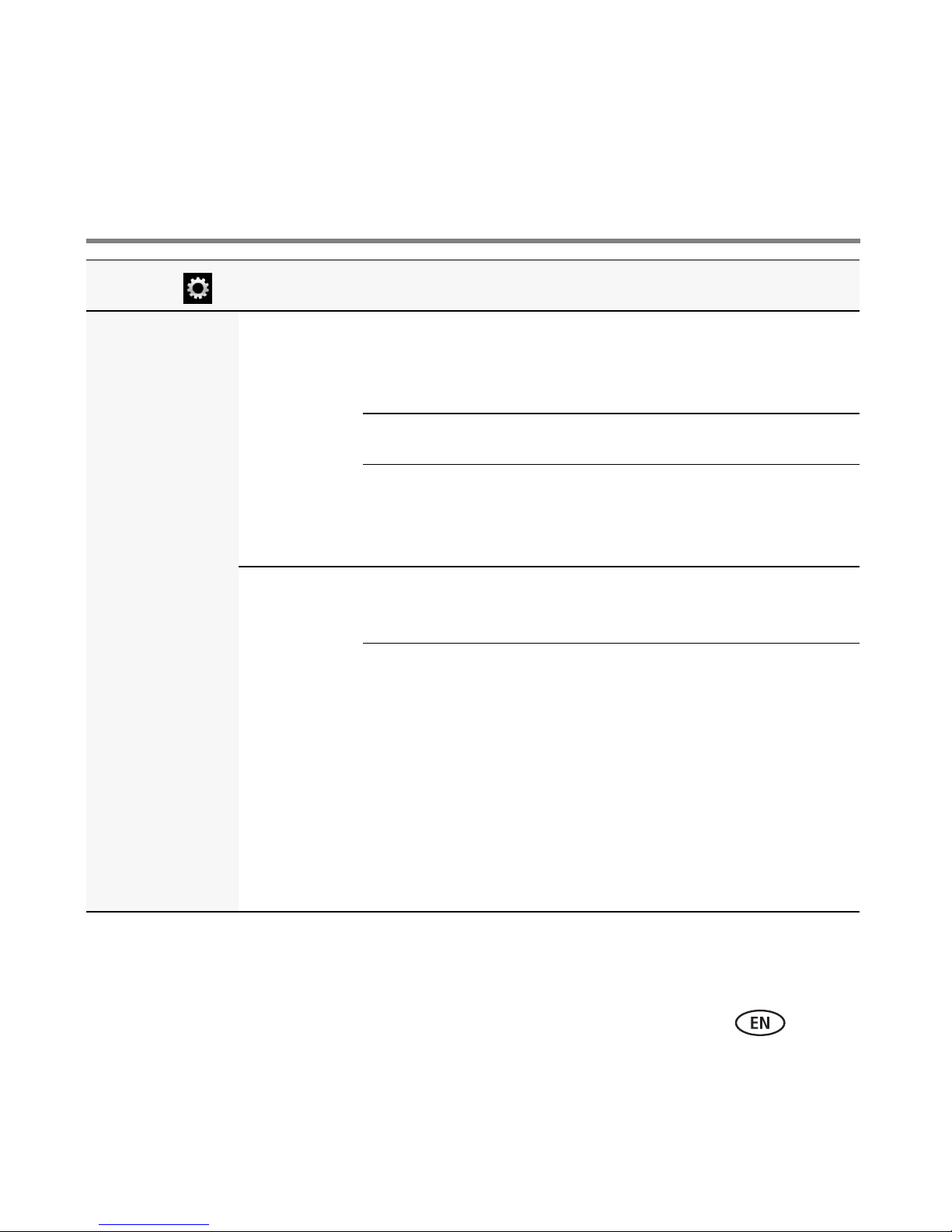
Settings Description
Overview of the main portals
Network and
Media
Source
Connection Configure
Connection
Choose your network type (Wireless,
Wired, or None), and enter the
settings for your wireless network
Test Connection Recheck the network status
View Details View IP address, subnet, gateway,
DNS, Alternate DNS, device name,
connection type, proxy information
Media Name Name your HD player to distinguish it
from other devices on your network
Media Source Choose the name of the computer on
your network from which you want to
view content.
NOTE:
You must install KODAK
Theatre HD Player Software on
each computer on your home
network that you want to view
content from through the HD
www.kodak.com/go/HDplayersupport 37
player.
Page 38

Overview of the main portals
Backdrop &
Screensaver*
Backdrop Choose a backdrop from provided background images,
either as a Themed Slideshow or Single Picture (default is
Themed Slideshow)
Screensaver Choose the type of screensaver: Collage, Picture Slideshow,
Picture Folder, or Random Photos (default is Collage)
Screensaver
Start
Choose the delay before the screensaver starts: 1, 5, 10,
15, 30, or 60 minutes (default is 10 minutes)
*Music currently playing continues while the screensaver runs. Use of the pointer remote
deactivates the screensaver. If the screensaver options are set to Photo Folder or Slideshow,
but a network connection is not available, and if local media is connected (USB storage device
or SD card, but not an EASYSHARE Camera), the contents of the local media play as a
slideshow. If there is no local media, the screensaver defaults to a built-in screensaver.
38 www.kodak.com/go/easysharecenter
Page 39

Settings Description
Overview of the main portals
Pictures Slideshow Transition
Delay
Transition
Type
Repeat Choose On or Off to repeat your slideshows
Shuffle Choose On or Off to view your pictures in random
Default
Slideshow
Music
Display Picture
Display
Choose between 3 and 10 seconds (default is 5
seconds)
Choose from Immediate, crossfade, or corners,
(default is Immediate)
(default is Off)
order (default is Off)
Choose music from a Playlist or Album, or choose
None to play no music during a slideshow (default
is Album)
Choose Fit to display the entire picture, or Fill to
make the picture fill the entire screen (cropping
may occur; default is Fit)
Simplified
Folder View
www.kodak.com/go/HDplayersupport 39
Choose On to see all your picture folders on one
screen, or Off to browse folders within folders
(default is Off)
Page 40
Overview of the main portals
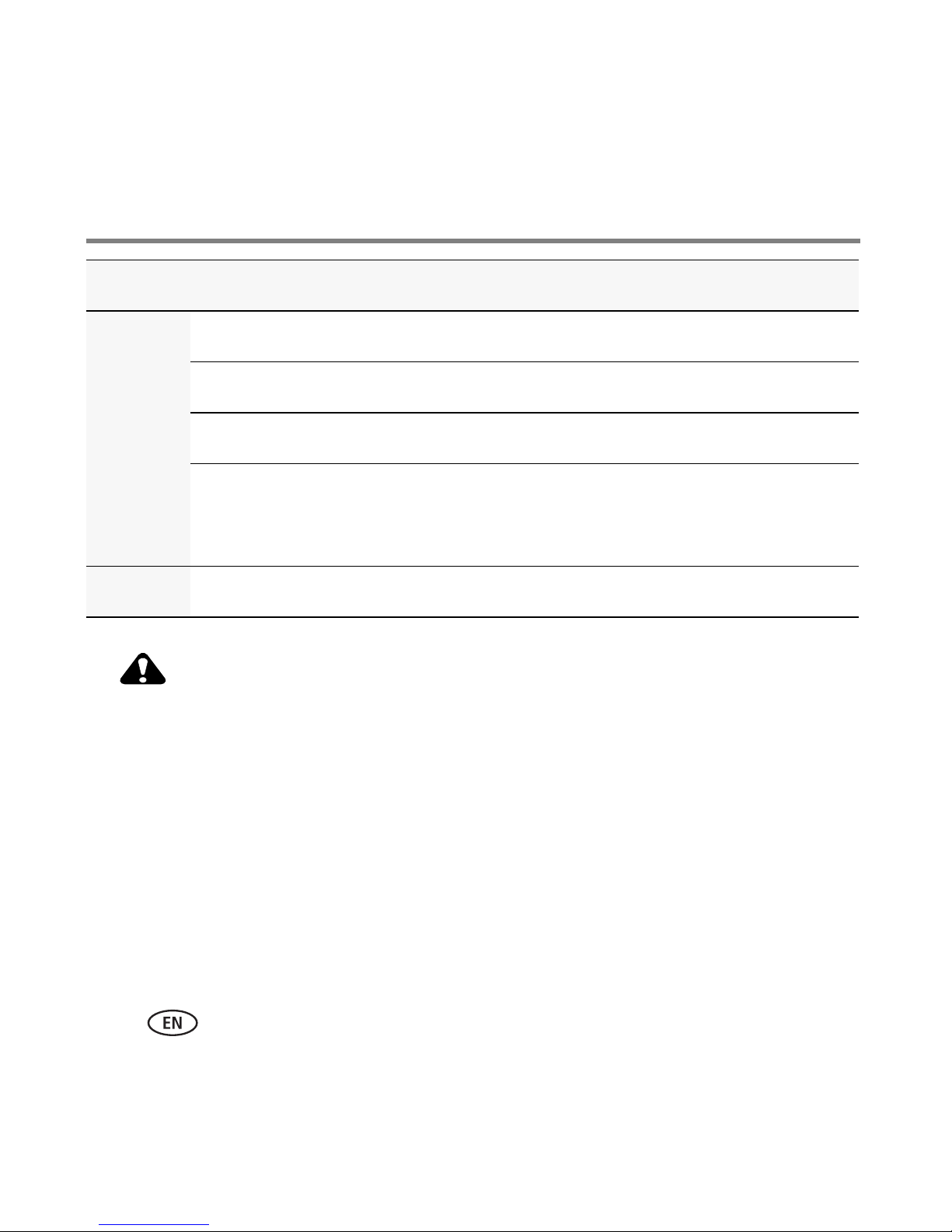
Settings Description
Gallery Username User name for your KODAK Gallery account
Password Password for your KODAK Gallery account
Country Choose your country (default is U.S.)
Auto-receive Choose Yes or No for receiving automatic notification that
Gallery albums/Picture Mail that have been shared with you
(default is Yes)
About Current firmware version, legal information
CAUTION:
Displaying static images (such as still pictures or paused videos) on
screen for long periods of time can cause “burn in” on certain
displays. Use the screensaver to make sure that a static image is
not on the display for extended periods.
40 www.kodak.com/go/easysharecenter
Page 41
3 Using the HD player
Viewing pictures and videos
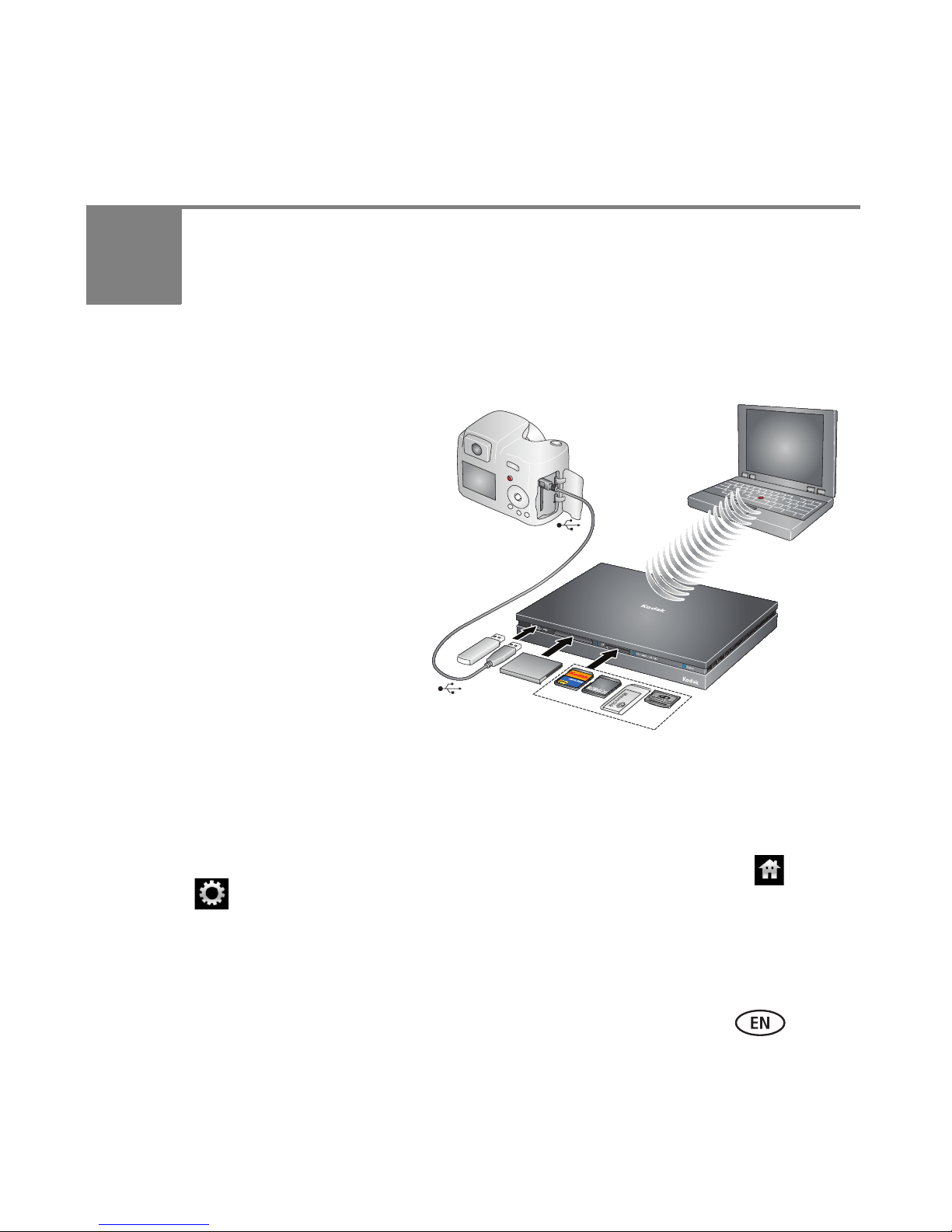
You can view pictures and videos stored
on any computer on your network.
You can also connect a USB storage
device or KODAK EASYSHARE Camera,
or insert a memory card into the built-in
card reader (see page 4 for compatible
memory cards); a slideshow
automatically plays.
NOTE:
■ Only one memory card can be active at a time.
■ To switch to another computer on your network, from the Home screen , select
Settings > Network and Media Source > Media > Media Source. Select the
name of the computer to which you want to switch, then click Done. If the source to
which you want to switch is not listed, click the Refresh button to rescan your
network. You can only select one computer at a time as a source.
www.kodak.com/go/HDplayersupport 41
Page 42

Using the HD player
■ KODAK Theatre HD Player Software must be installed on each computer on your
home network in order to view the content from those computers through the HD
player.
■ If you have pictures and videos in a location on your computer other than the My
Pictures and Videos default location, add that custom location in the HD Player
Software so the the HD player can find them. Open the software on your computer,
and select My Pictures and Videos, then select an alternate location. See step 2,
page 23.
1 From the Home screen , select My Pictures & Videos > Browse Pictures and
Videos, and choose how you’d like to view the content—by Timeline (date), Folders,
Slideshows, or EASYSHARE Albums (if KODAK EASYSHARE Software is installed).
NOTE: The Devices button appears dimmed and is unselectable until you connect an EASYSHARE
Camera, USB storage device, or memory card to the HD player.
2 Click a picture, video, or slideshow to view it. (If you are viewing by folder, click a
folder to see its contents first.)
A indicates a picture is in panoramic format.
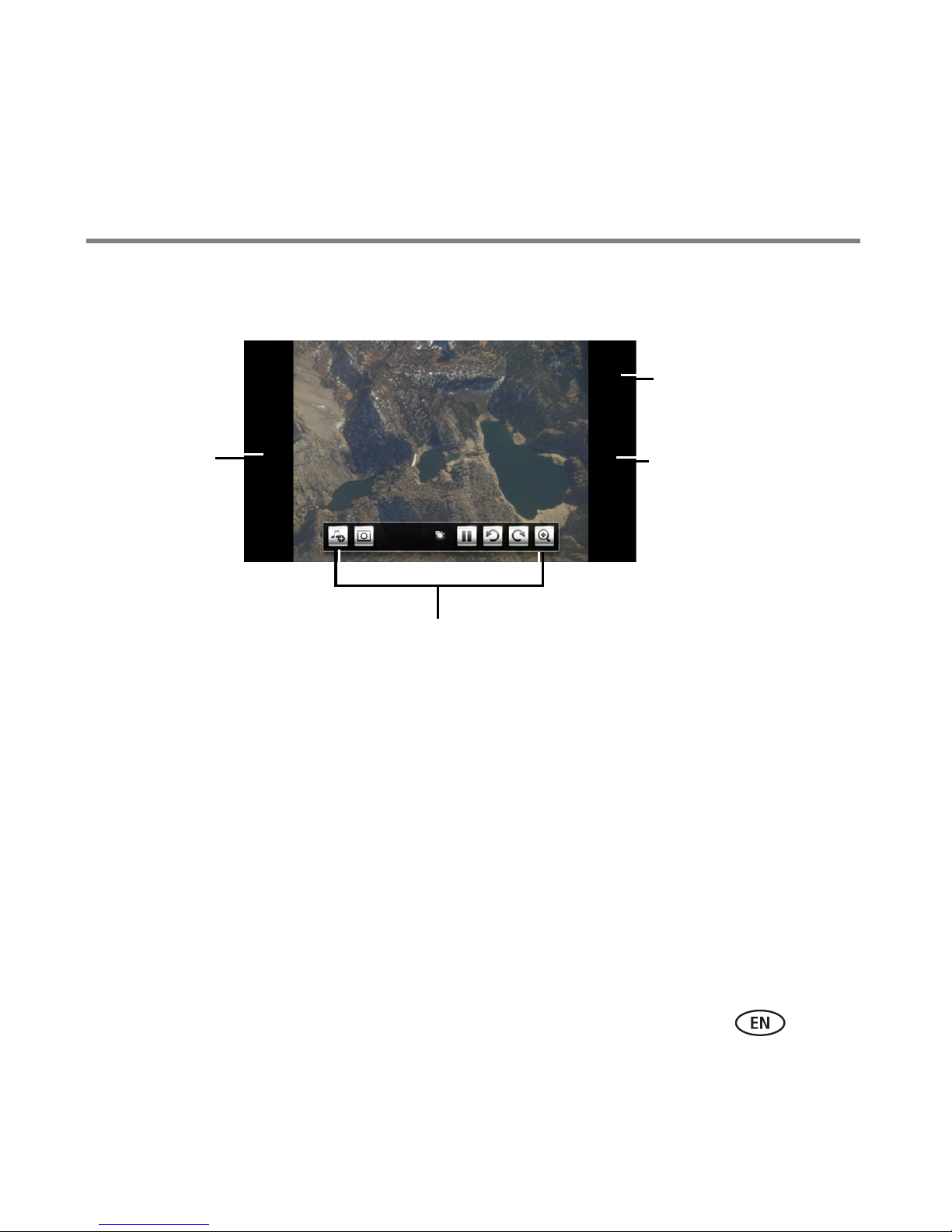
When you move the cursor as shown below, the hidden slideshow/video controls
appear. They disappear when you move the cursor away from them, or after a few
seconds of inactivity.
42 www.kodak.com/go/easysharecenter
Page 43
Using the HD player
Move the
cursor to the
left side of the
screen, and
click to go to
the previous
picture*
Move the cursor to the bottom of the screen, and the
slideshow or video controls appear (depending on what you
are viewing); see next section for details.
*You can also use the pointer remote’s scroll wheel to see the
previous/next picture.
Move the cursor to
the upper right of
the screen, and
Music controls,
Help, and Home
buttons appear.
Move the cursor to
the right side of the
screen, and click to
go to the next
picture*
www.kodak.com/go/HDplayersupport 43
Page 44
Using the HD player
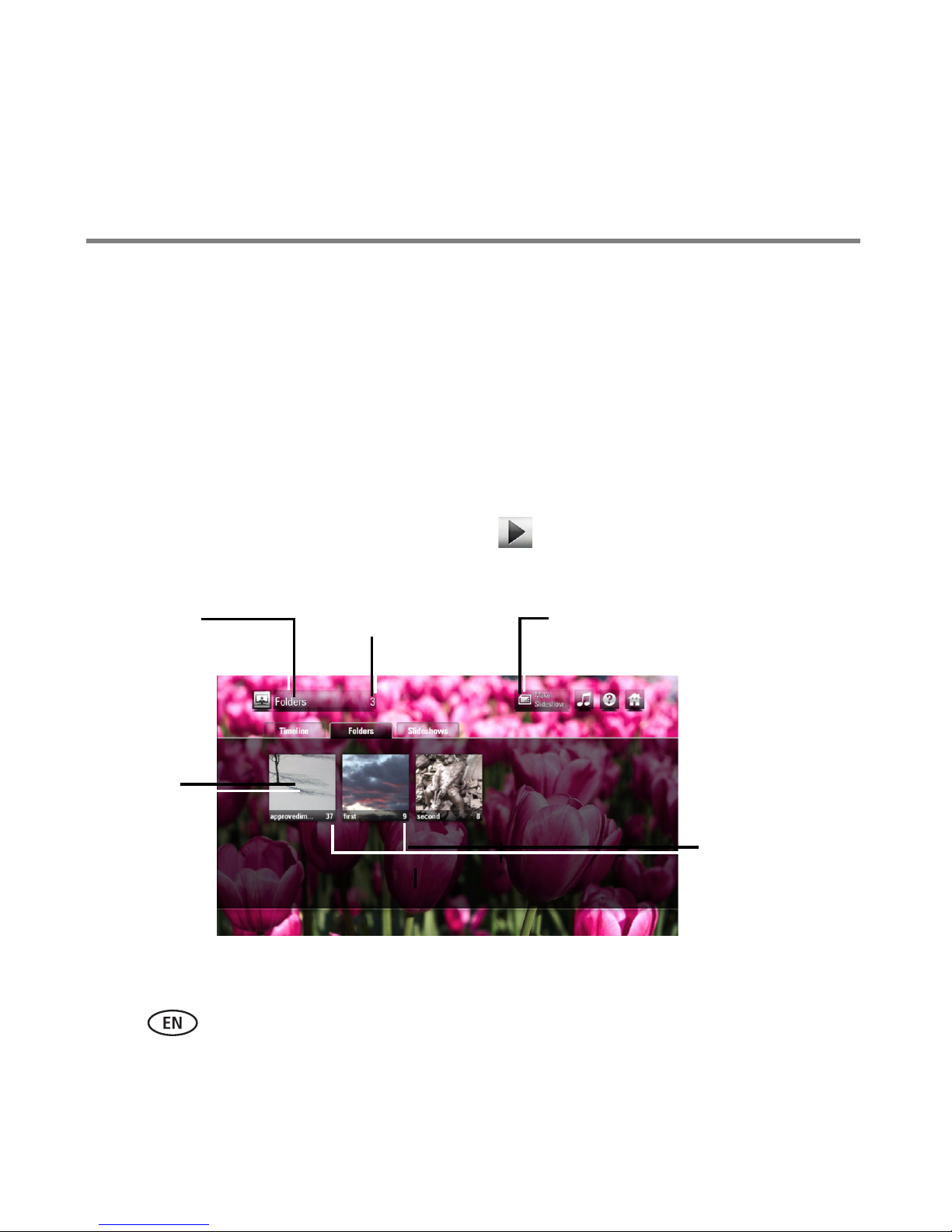
Number of previews
Quick
preview
Number of
pictures/videos
in each preview
Current
content
tab
Make Slideshow button
Quick preview
To see a quick preview of your pictures/videos:
1 Select Home > My Pictures & Videos > Browse Pictures & Videos.
2 Select the tab for the content you want to view—Timeline, Folders, Slideshows, or
EASYSHARE Albums (if KODAK EASYSHARE Software is installed).
3 Hold the cursor over one of the folder thumbnails.
A slideshow begins playing in thumbnail size, showing you the contents of that folder.
4 To play the slideshow in full size, click Play .
NOTE: You can also see quick previews when browsing your KODAK Gallery content.
44 www.kodak.com/go/easysharecenter
Page 45
Using the HD player
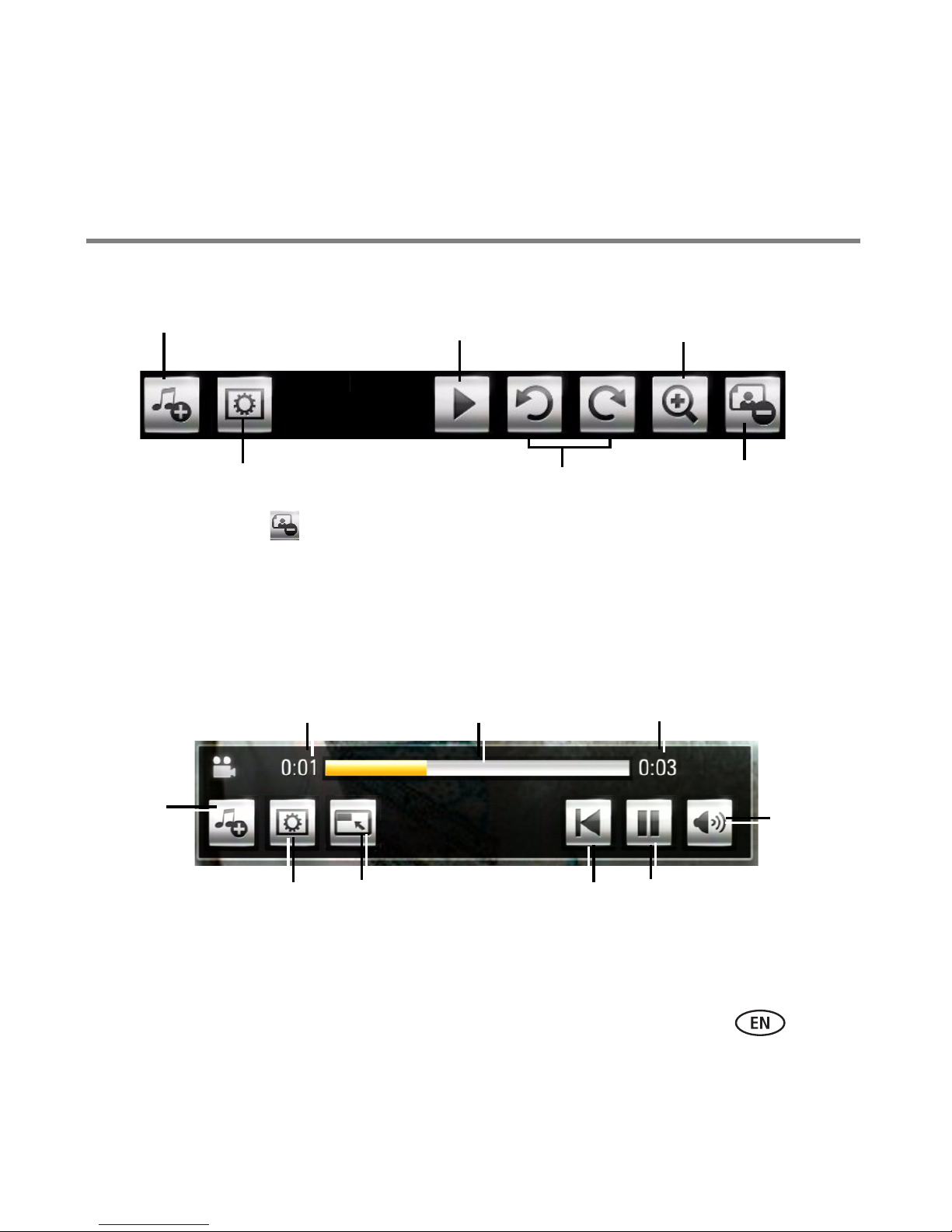
Add or change music Play/Pause
Zoom
Slideshow settings
Rotate left/right
Delete
Elapsed time
Add or
change
music
Progress bar
Video length
Slideshow settings
Play/pause
Restart
Volume
control
Screen
resizer*
Slideshow controls
NOTE: The Delete button appears only when viewing pictures from a USB storage device or EASYSHARE
Camera, enabling you to delete pictures from those devices. You cannot delete pictures or videos that
reside on your computer.
Video controls
*Keep clicking to view at 100% (full screen), 75%, or 50%.
www.kodak.com/go/HDplayersupport 45
Page 46
Using the HD player
Viewing pictures from an EASYSHARE Camera or storage device
Insert a memory card, or connect an EASYSHARE Camera or USB storage device
containing pictures to the HD player. A slideshow automatically begins playing. To see
thumbnails of all the pictures, click the Back button on the pointer remote.
To access a memory card, EASYSHARE Camera, or storage device from the Home screen
:
1 Select the My Pictures & Videos portal > Memory Devices.
2 If you have only one device connected, click Devices to see the contents of that
device. If you have more than one device connected, click Devices , then click
the button of the device you want to access.
46 www.kodak.com/go/easysharecenter
Page 47

Using the HD player
Move the cursor to
the bottom, left
side of the screen,
and a thumbnail
picture appears
with a yellow box.
Click an area in
the thumbnail that
you want to view.
Close Zoom and
return to 1X view
You can also pan
your picture by
clicking anywhere
within the yellow
box.
The yellow box
shows where you
are relative to your
picture.
The thumbnail
disappears when you
move the cursor away
from it.
Zooming and panning
To zoom in on a picture, center the cursor at the bottom of the screen to show the
controls, then click the Zoom button . To change the zoom factor (incrementally up
to 10X), use the scroll wheel on the pointer remote. Scroll up to increase the zoom
factor, and scroll down to decrease it.
NOTE: The yellow box gets smaller/larger as you zoom in/out.
www.kodak.com/go/HDplayersupport 47
Page 48
Using the HD player
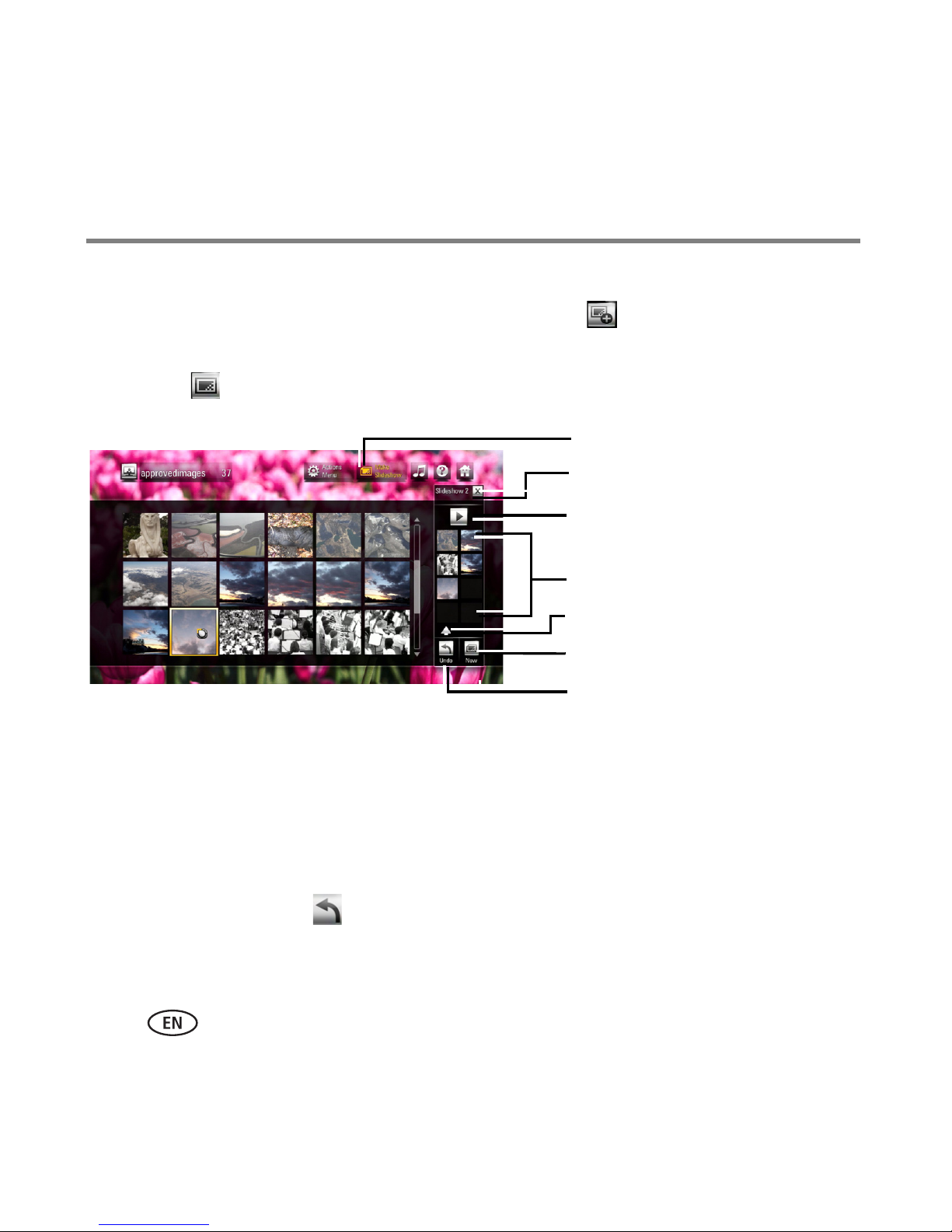
Make Slideshow button
Play button
Slideshow tray
New slideshow button
Undo button
Close slideshow tray
Up/down arrow
Making a slideshow
1 In any picture view, click the Make Slideshow button .
NOTE: If you previously created a slideshow, it may appear in the Slideshow tray. Click the New slideshow
button to clear it and begin a new slideshow.
2 In the dialog window that appears, accept the default slideshow name, or enter a
new name using the on-screen keyboard, then click Done.
3 Browse through your pictures/videos (you can switch to different views and folders
while the Slideshow tray is open) and click the ones you want in the slideshow. They
appear in the Slideshow tray. To remove the last picture added to the Slideshow tray,
click the Undo button . (Click the Undo button multiple times to remove more
than one picture in the tray, one at a time.)
NOTE: At least one picture must be in a slideshow before it can be saved.
48 www.kodak.com/go/easysharecenter
Page 49
Using the HD player
4 You can:
■ Click Play in the Slideshow tray to play the slideshow now (the tray must
have 2 or more pictures). To exit the slideshow, click the Back button on the
pointer remote.
■ Click Make Slideshow again or the in the Slideshow tray to close it and
play it later. Select My Pictures & Videos > Browse Pictures & Videos >
Slideshows tab to access the slideshow.
■ Click the New slideshow button to clear the current Slideshow tray and
begin a new slideshow.
■ Click the pictures in the Slideshow tray to go to Slideshow View and see larger
thumbnails. To continue working with your slideshow, click the Actions Menu
button . See page 51 for details on Actions Menu panels and page 53 for
Editing an existing slideshow.
Play an existing slideshow
1 Select My Pictures & Videos > Browse Pictures & Videos > Slideshows tab, then
click on the slideshow.
2 Click any picture to open the slideshow.
3 Click Play in the slideshow controls. The slideshow begins with the picture you
clicked.
Also see Quick preview, page 44.
www.kodak.com/go/HDplayersupport 49
Page 50
Using the HD player
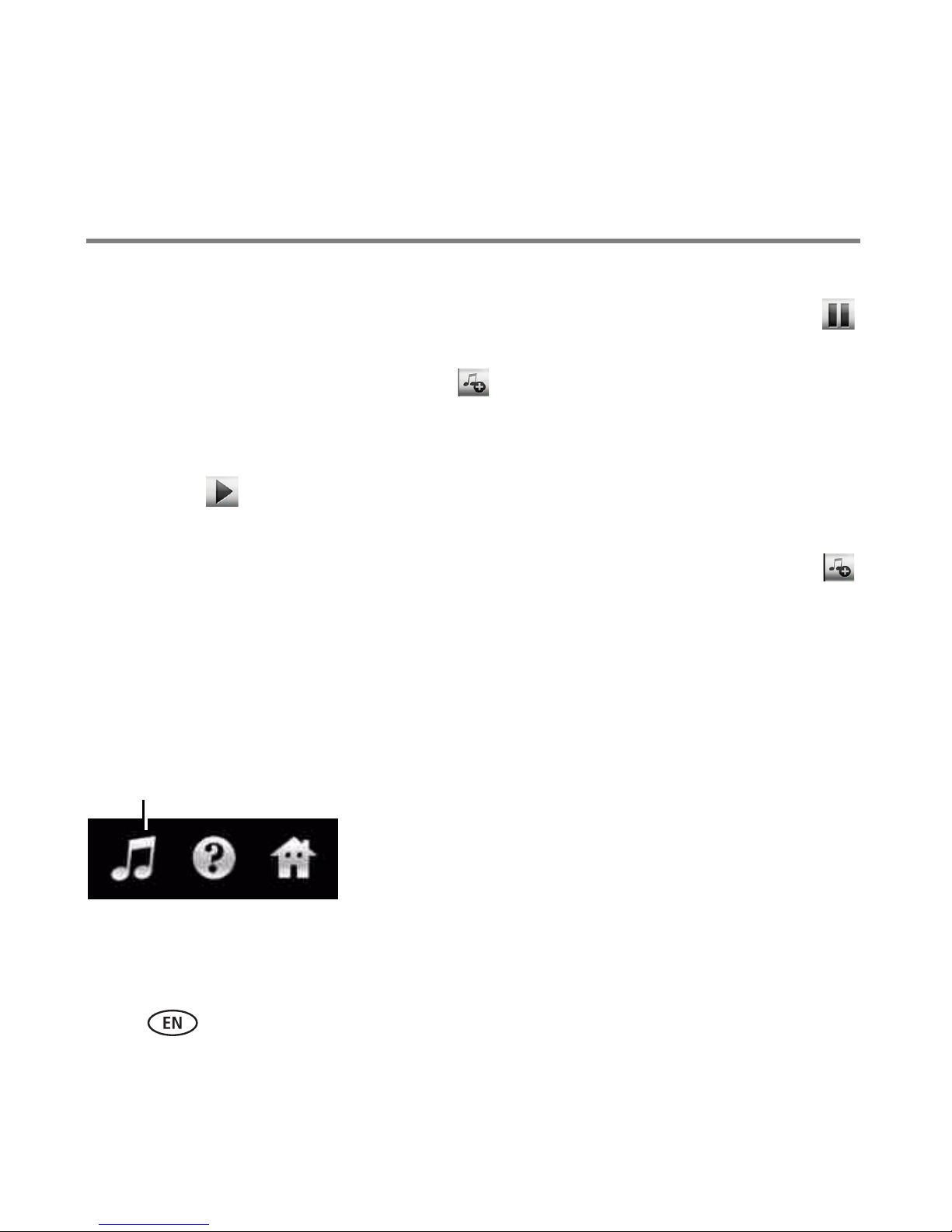
Music Controls button
Add music to a slideshow
1 If the slideshow to which you want to add music is currently playing, click Pause
in the slideshow controls.
2 Click the Add or Change Music button in the slideshow controls, then choose to
add either an album, playlist, or song.
3 Select the album or playlist from your collection, then click Done.
4 Click Play to resume playing the slideshow with the music you added.
■ To change the music, repeat the above steps.
■ To remove the music from the slideshow, click the Add or Change Music button
in the slideshow controls, then click Clear Attachment.
■ If you are playing a saved slideshow, the music you chose is saved with it and stops
playing when you exit the slideshow.
When you are viewing a slideshow of all the pictures in a folder, the music continues to
play when you exit the slideshow. To stop playing the music after exiting the slideshow:
You can also add or change music associated with your slideshows using the Actions
panel. See page 51 for details on Actions panels and editing an existing slideshow.
50 www.kodak.com/go/easysharecenter
1 Click the Music Controls button at the top right of the
screen.
2 Click Pause.
3 Click the Music Controls button again to hide the
controls, or click the “X” in the Music Controls.
Page 51
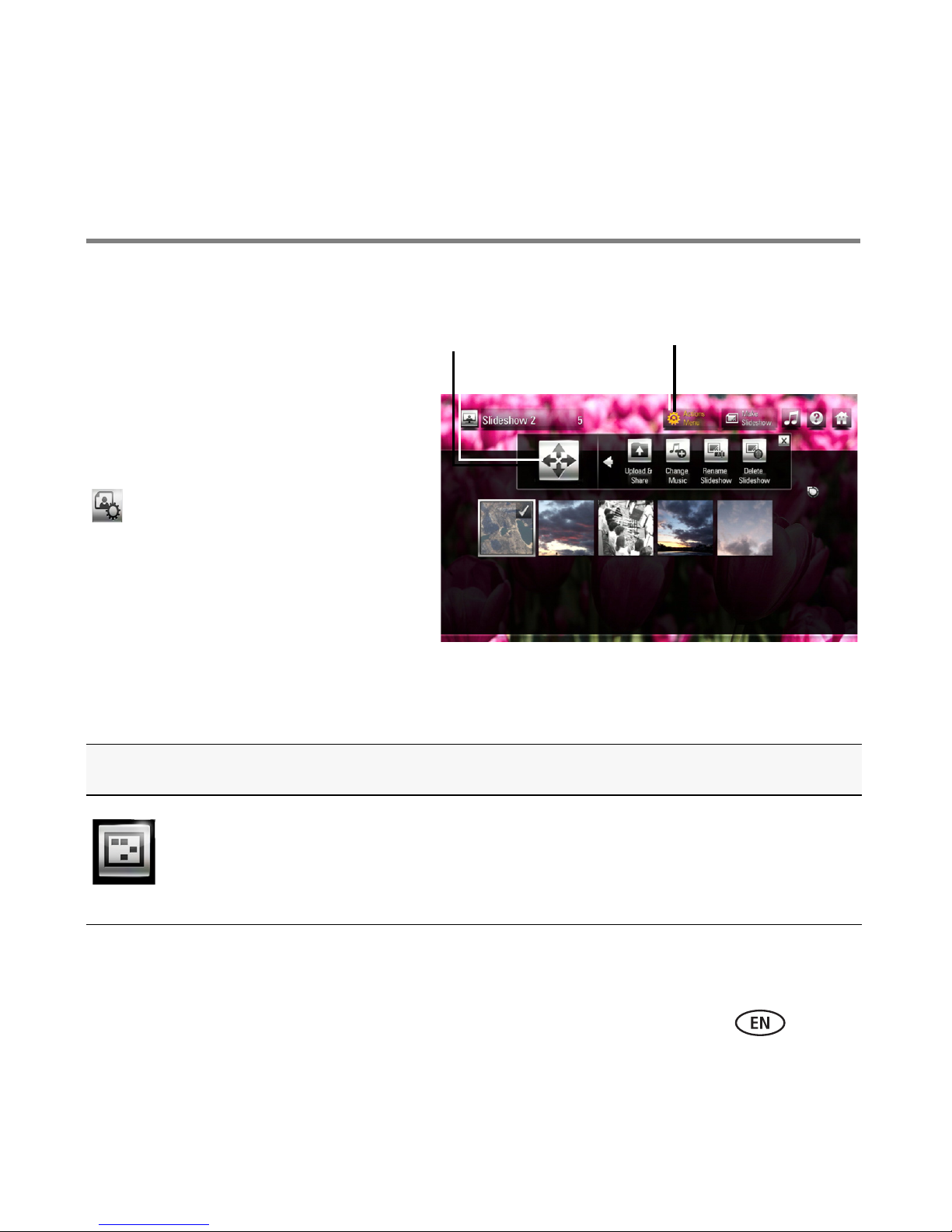
Actions Menu panels
Actions panel Actions Menu button
Actions panels let you perform additional
tasks with your pictures and videos.
(Actions panels may contain different
Actions depending on the screen.)
To access Actions while viewing
thumbnails, click the Actions Menu button
at the top of the screen. To close the
Actions panel, click it again.
To access Actions while viewing a single
picture or video, click the Actions Menu
button in the slideshow or video controls
Using the HD player
(page 41). To close the Actions panel, click
it again.
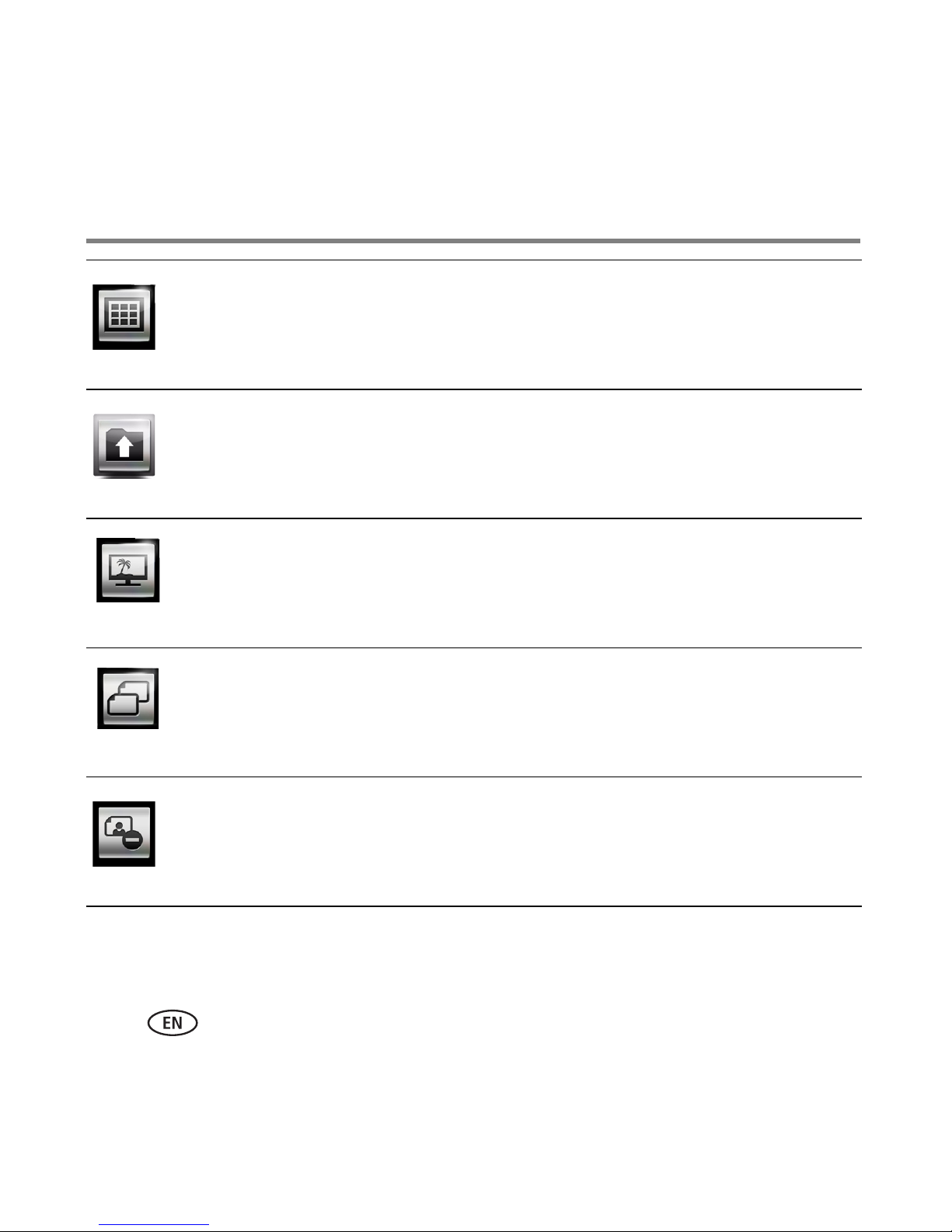
Picture/Video Actions Description
Select Multiple Click to select more than one picture/video on which to perform
an action.
www.kodak.com/go/HDplayersupport 51
Page 52
Using the HD player
Select All/
Exit Select All
Upload &
Share
Add to
Click to select all pictures/videos in the collection.
NOTE: Clicking Select All again deselects all the pictures/videos.
Share your pictures with friends and family directly from the HD
player through the KODAK Gallery. See page 68 for details.
Add up to 5 of your pictures as HD player backdrops.
Backdrops
Copy Copy pictures/videos to your computer from a memory card,
EASYSHARE Camera, or USB storage device. See page 56 for
details.
Remove Remove pictures/videos from a memory card or USB storage
52 www.kodak.com/go/easysharecenter
device.
Page 53
Using the HD player
Edit a slideshow
Select Browse Pictures & Videos > Slideshows tab. Click a slideshow to edit, then
click the Actions Menu button .
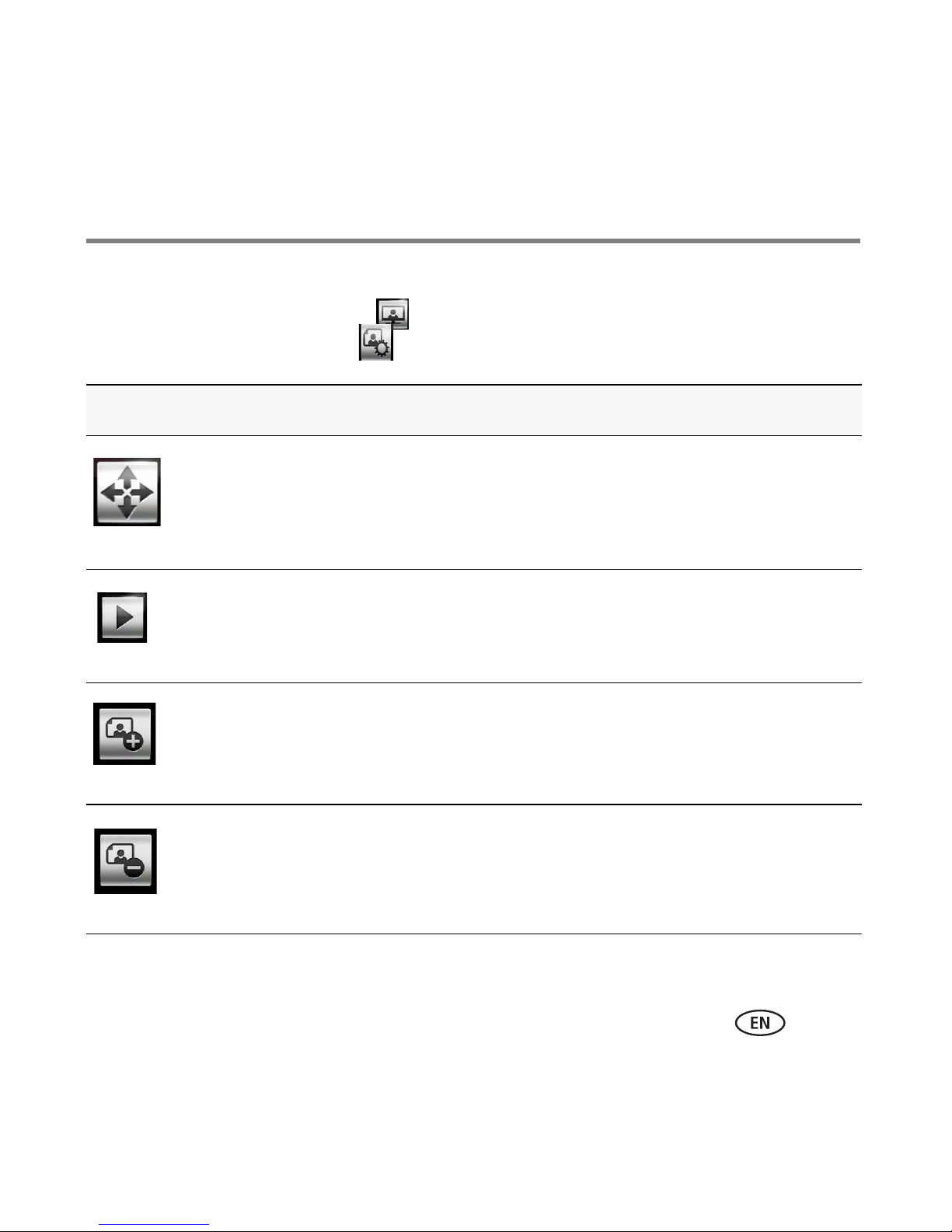
Slideshow Actions Description
Move Rearrange the order of your pictures/videos (Move Left, Move Right,
Move Up, Move Down). Select the picture you want to move, then
click an arrow on the Move button to move it in that direction.
Play Play the slideshow.
Add More Add more pictures/videos to the slideshow. The Slideshow tray
appears, and you can browse your content to find more
pictures/videos to add.
Remove Remove pictures/videos from the slideshow. (The pictures remain in
your collection.)
www.kodak.com/go/HDplayersupport 53
Page 54
Using the HD player
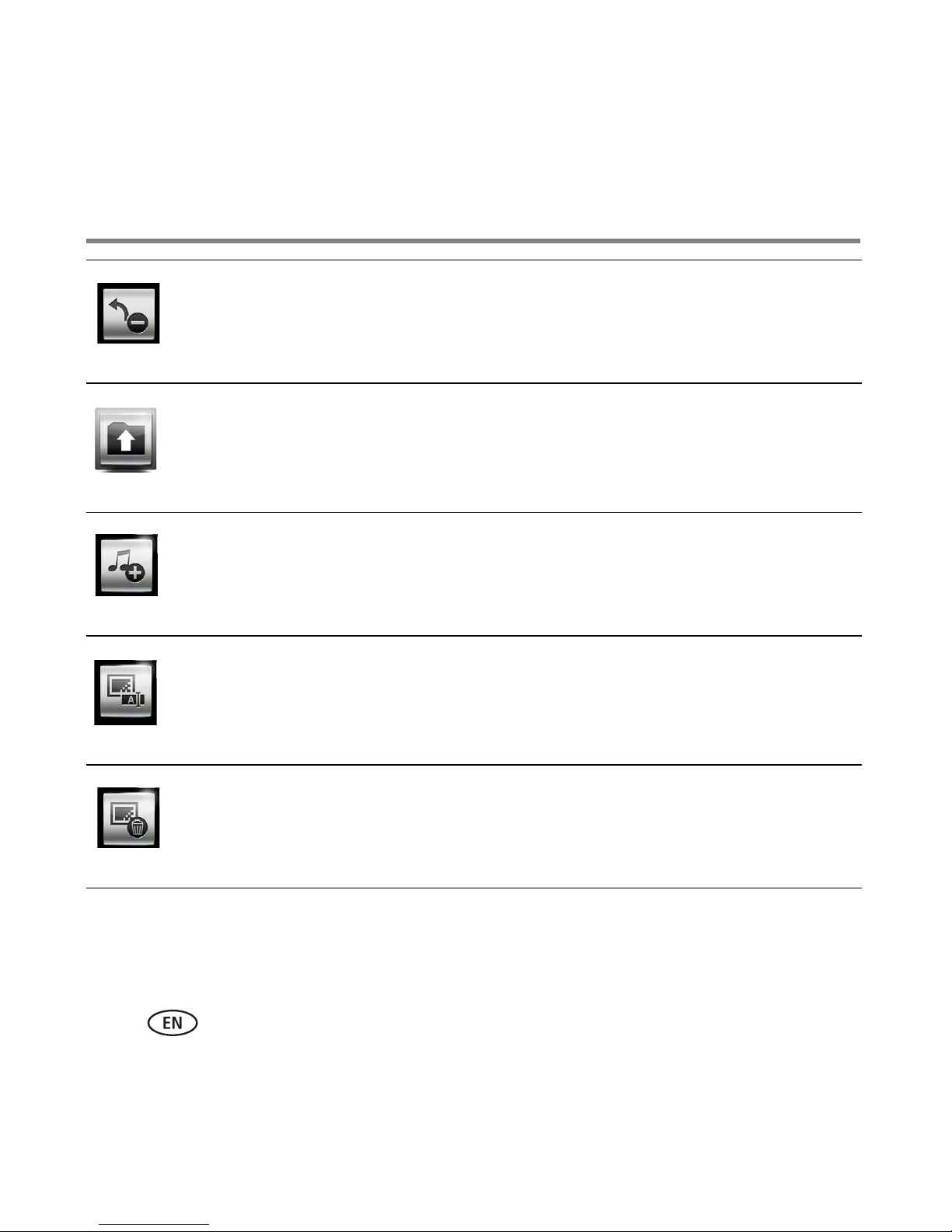
Undo
Remove
Upload &
Share
Change
Music
Rename
Slideshow
Return the picture(s) you just removed to the slideshow.
Share your pictures with friends and family directly from the HD player
through the KODAK Gallery. See page 68 for details.
Add or change the associated music playlist or album from the dialog
box that appears.
Rename the slideshow.
Delete
Delete the entire slideshow. (The pictures remain in your collection.)
Slideshow
54 www.kodak.com/go/easysharecenter
Page 55

Using the HD player
Viewing in Cafe mode
Expand the viewing options for your pictures, videos, music, local and online
entertainment—all on the same screen!
■ View the date and time ■ Click on news headlines to get more
details
■ View and listen to news videos and
Internet radio
■ View a mini slideshow of your pictures ■ Play or edit your FRAMECHANNEL Service
■ View new pictures/albums shared from the
Gallery
■ Customize the weather to your local zip
code
feeds, or get instructions to set them up
■ Receive software update notification, then
visit the update page
Select the Home screen > My Entertainment > Cafe to enjoy this feature.
Playing downloaded media
Play your stored movies, videos, TV shows, and podcasts on your HD player.
The HD player automatically finds your downloaded movies, videos, TV shows, and
podcasts if you have them in the default location on your computer. (If they are in
another location, open KODAK Theatre HD Player Software and click the folders tab for
your media so the HD player can find them.)
Select the Home screen > My Entertainment to play your downloaded media.
www.kodak.com/go/HDplayersupport 55
Page 56
Using the HD player
Copying pictures and videos
Copy pictures and videos to your computer from a memory card, EASYSHARE Camera,
or USB storage device that is connected to the HD player.
1 Insert a memory card or connect an EASYSHARE Camera or USB storage device to
the HD player.
2 From the Home screen, select My Pictures & Videos > Memory Devices ,
then access the card or device to show its content.
3 Click the Actions Menu button .
4 Click a picture or video to copy. To select more than one, click Select Multiple in the
Actions panel. To select all pictures and videos, click Select All. To deselect a picture
or video, click the picture or video again.
NOTE: To deselect pictures, click Select Multiple again.
5 In the Actions panel, click Copy .
Your pictures/videos are copied to the Inbox folder on your computer.
To see where the Inbox is located on your computer, open the KODAK Theatre HD Player Software.
Scroll down to see the location under Copy to PC Directory. For:
■
WINDOWS XP—:\Documents and Settings\All Users\Inbox
■
WINDOWS VISTA—:\Users\Public\Inbox
56 www.kodak.com/go/easysharecenter
Page 57
Using the HD player
Viewing online pictures and videos
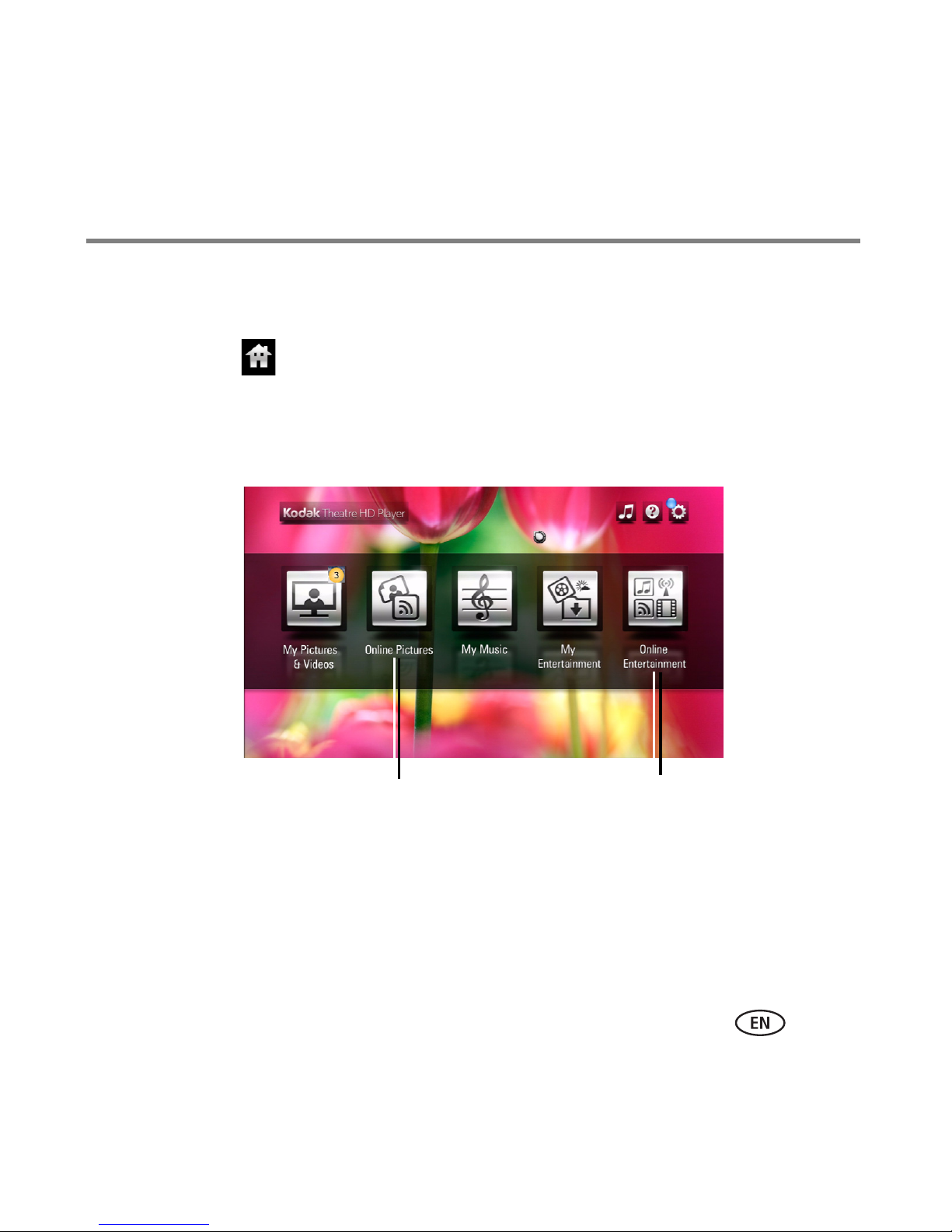
View pictures and videos on your HDTV from the Internet, through your HD player. From
the Home screen , select Online Pictures or Online Entertainment, then click the
button for the service in which you are interested. (Member accounts may be required.)
NOTE: First, you need to set up your HD player in the KODAK Theatre HD Player Software to access your
online pictures and videos, see page 27.
Click for KODAK Gallery,
FLICKR
www.kodak.com/go/HDplayersupport 57
Click for
FRAMECHANNEL
Page 58

Using the HD player
Searching for online pictures and videos
1 From within one of the available online feeds, click Search .
2 Enter a search term using the on-screen keyboard that appears.
3 Search in: Everyone’s Uploads, Your Contacts, or Your Photostreams.
4 Click the type of search to perform. Search for photos by:
■ Tag—to search for pictures/videos that have had tags (or descriptors) attached
to them.
■ Text—to search for pictures/videos whose name contains your search term.
■ FLICKR Member—to search for pictures/videos that belong to a particular
member of the online service.
NOTE: Types of searches you can perform may vary with each online service.
Playing music
You can listen to music stored on any computer on your network* (including your
APPLE ITUNES Library), on a memory card, or on a connected USB storage device (such
as a flash drive).
NOTE: If you have music in a location on your computer other than the My Music default location, add that
custom location in the KODAK Theatre HD Player Software so the HD player can find them. Open the
KODAK Theatre HD Player Software on your computer, and select the My Music button, then select an
alternate location. See step 2, page 23.
1 From the Home screen , click My Music.
58 www.kodak.com/go/easysharecenter
Page 59
Using the HD player
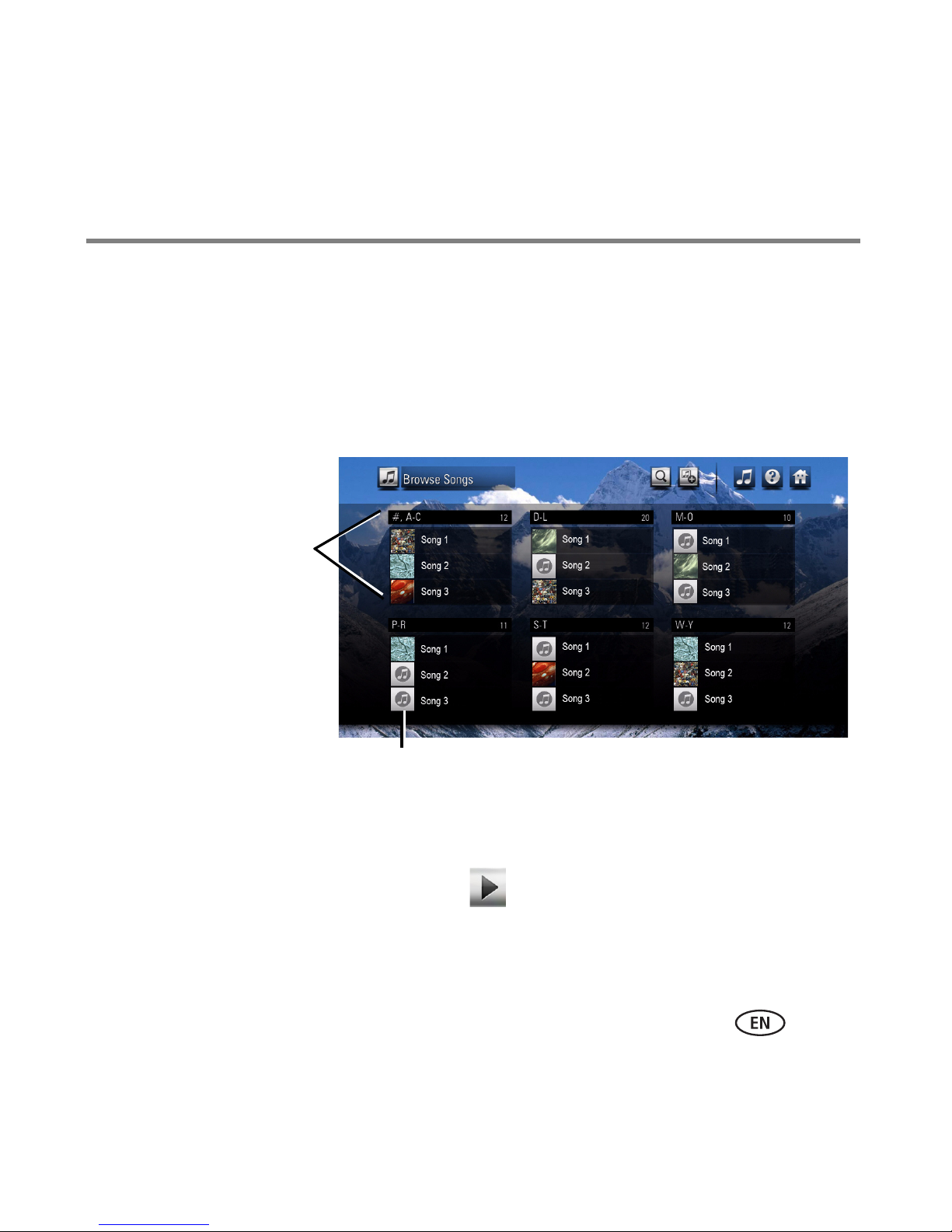
Each block in this
sample screen is a
grouping. The heading
indicates which part of
the alphabet is covered.
“#” in the heading of
the first grouping
includes any names that
start with numbers.
Indicates cover art is not available
2 Browse alphabetically by artist, album title, song title, or playlist, or browse by
genre.
When browsing by artist, album, or song, you will see groupings divided alphabetically.
The number of groupings you see depends upon how much content you have.
3 Navigate through a grouping or genre to find the content you want to hear, and
click to play it.
*KODAK Theatre HD Player Software must be installed on each computer. You can only
access one computer at a time. To switch to another computer on your network, see
page 41.
When looking at an Album view, click Play to play all the songs in the album. To
play just one song from the album, click the song.
In the HD Player Software, check the box next to Include EasyShare Albums, and select
www.kodak.com/go/HDplayersupport 59
Page 60
Using the HD player
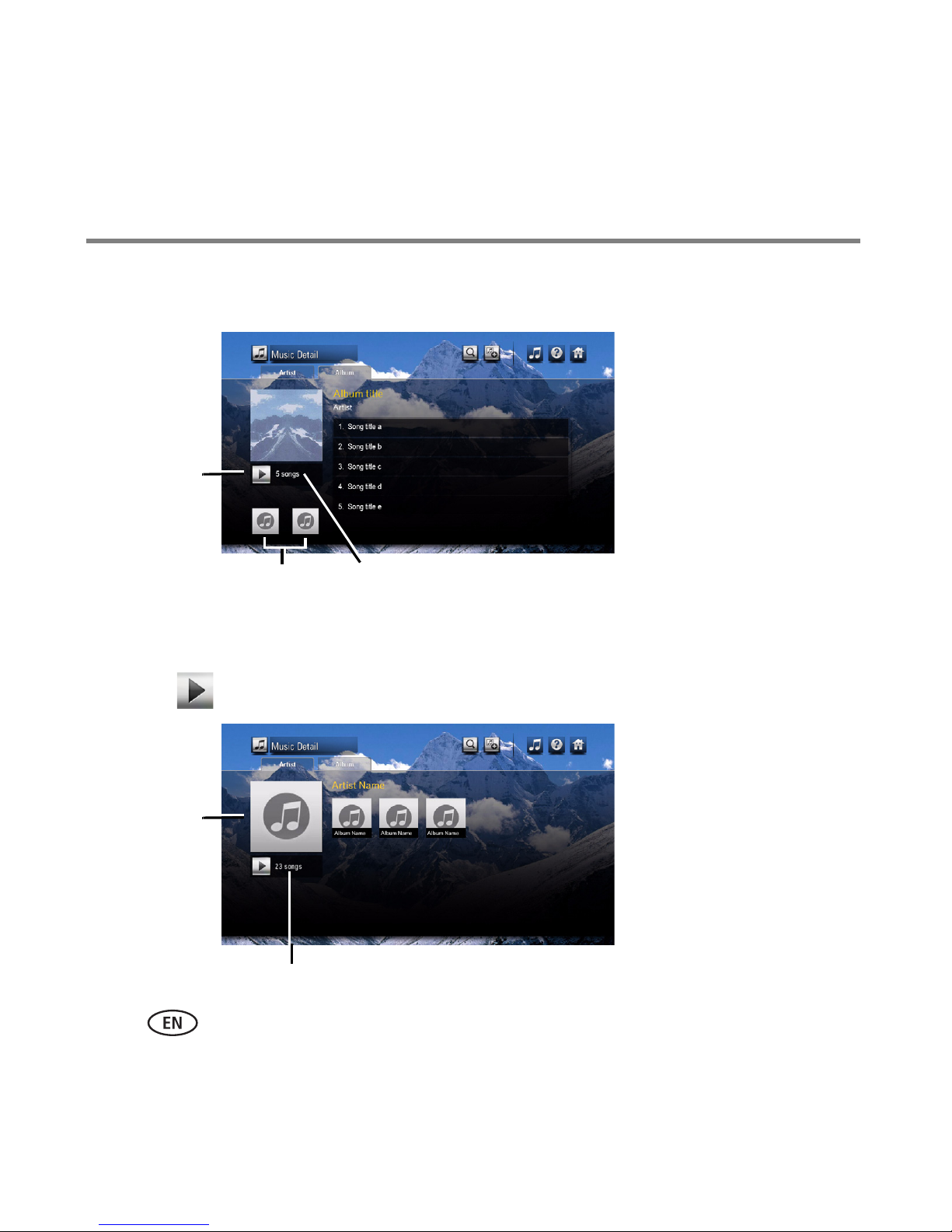
Quick
preview of
all your
albums by
a single
artist.
Total songs in your collection by this artist
the Sync with iTunes button to include and to use those content without waiting 24
hours.
Play album
When looking at an Artist view, all your albums by that artist are shown.
Click Play to play all of that artist’s songs, or click on Album to go to Album view.
60 www.kodak.com/go/easysharecenter
Go to previous/next
album by same artist
Total songs in this album
Page 61
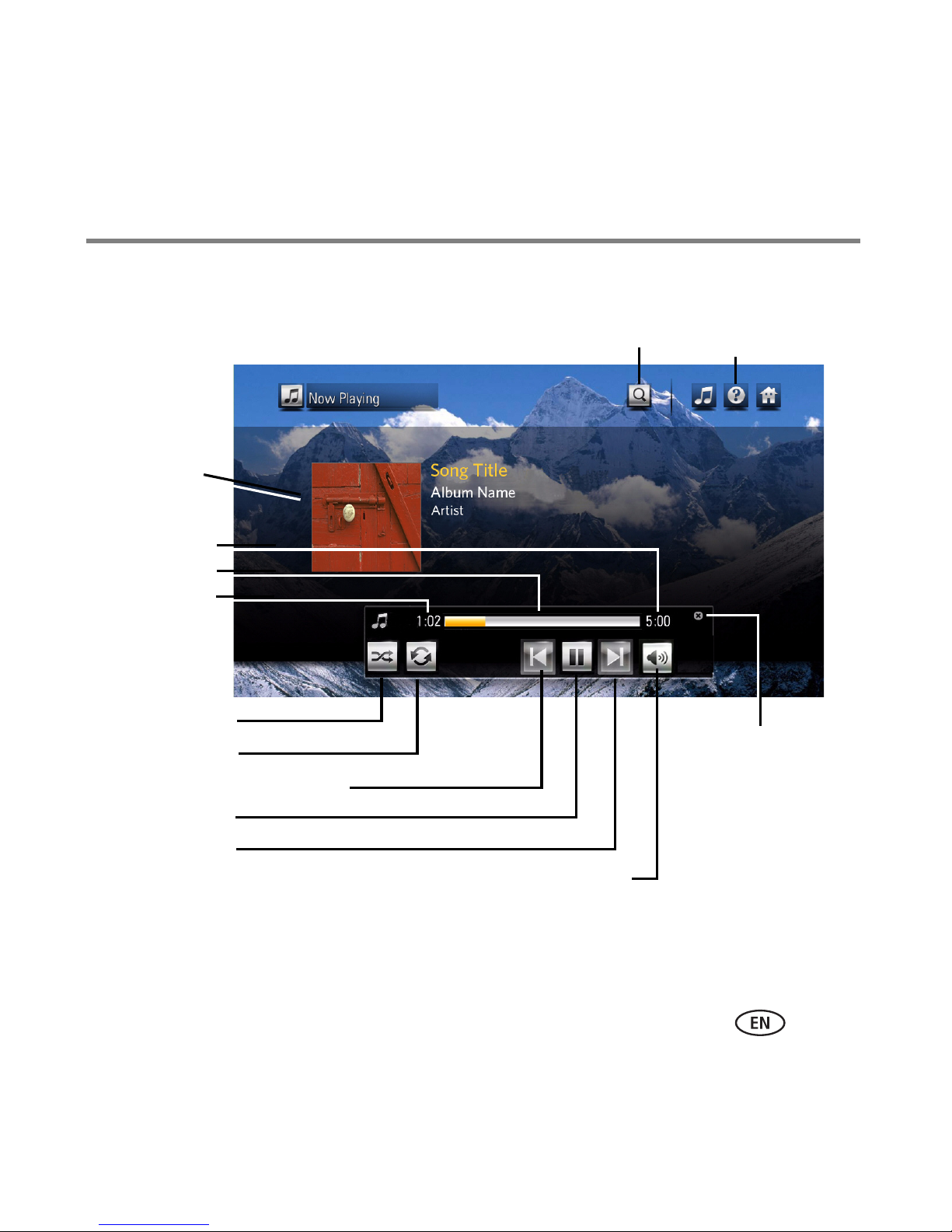
Music controls
Restart song/previous song
Album art
(if available)
Search
Music controls
(click to show/hide)
Elapsed time
Progress bar*
Close music
controls
Song length
Next song
Play/Pause
Shuffle on/off
Repeat on/off
* Click anywhere on the progress bar to play from that point.
Volume control—click or drag on the volume indicator that
appears to turn the volume up/down.
Using the HD player
www.kodak.com/go/HDplayersupport 61
Page 62
Using the HD player
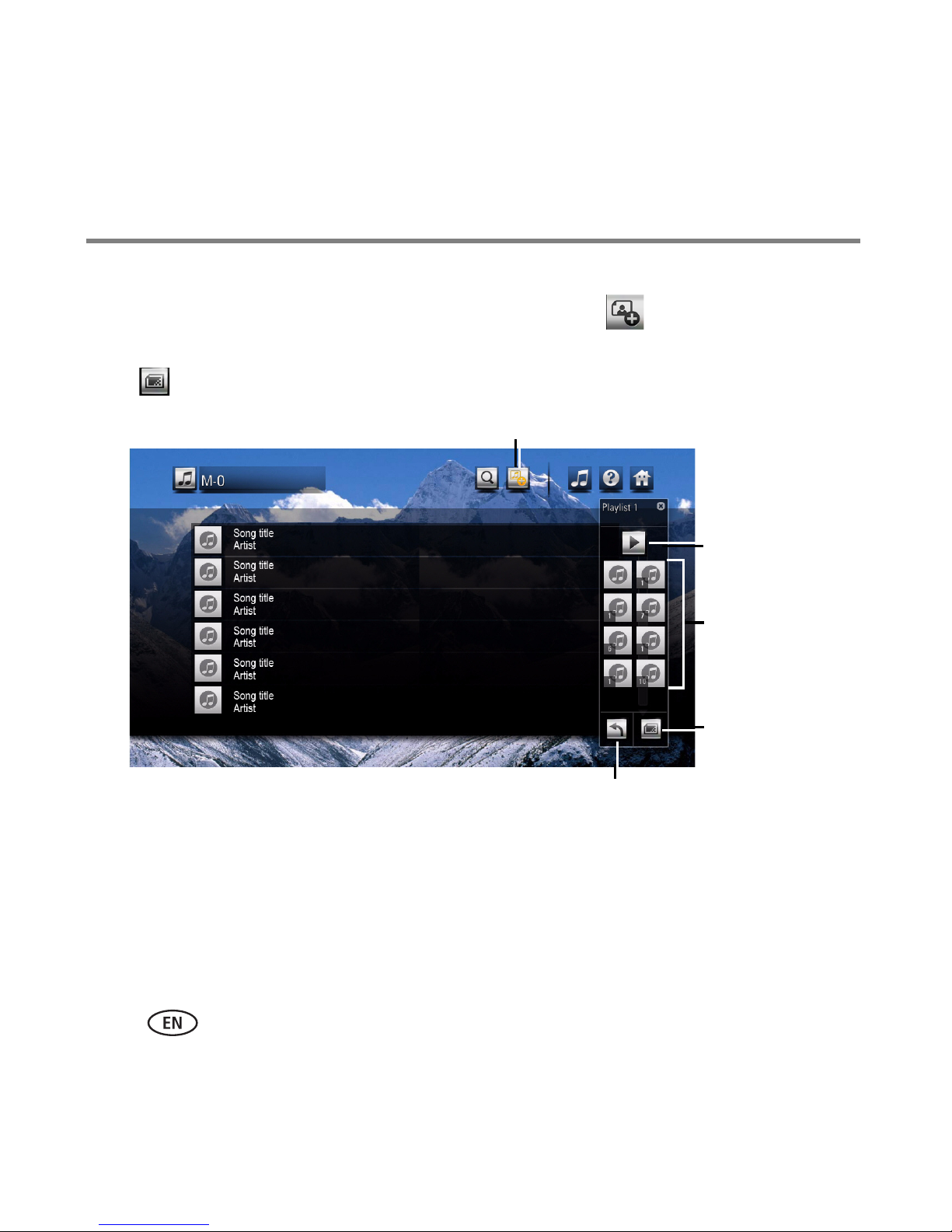
Add to playlist
Play
New
playlist
Playlist
tray
Remove (last song in tray)
Create a playlist
1 From any Music screen, click the Add to Playlist button .
NOTE: If you previously created a playlist, it may appear in the Playlist tray. Click the New Playlist button
to clear it and begin a new playlist.
2 In the dialog window that appears, click OK to accept the default playlist name, or
click Rename to enter a name using the on-screen keyboard, then click Done.
3 Browse your music and click the songs you want in the playlist. They appear in the
Playlist tray as album art (if art is available) with a song number. To add an entire
album, from Album view click the album art.
62 www.kodak.com/go/easysharecenter
Page 63
Using the HD player
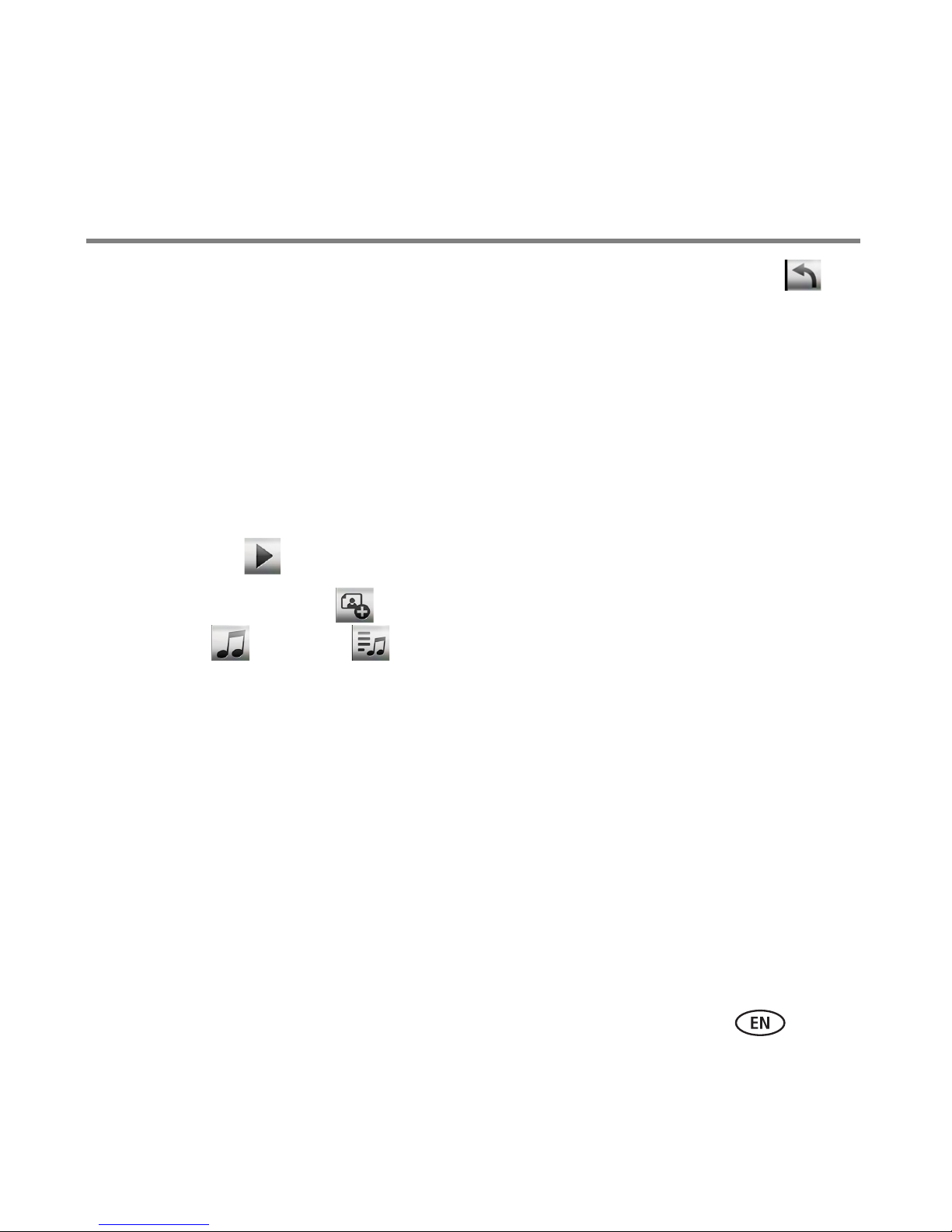
To remove the last song added to the Playlist tray, click the Remove button .
(Click the Remove button multiple times to remove more than one song in the tray,
one at a time.)
■ Music in ITUNES that is under digital rights management (DRM) is included in a
playlist but is not played.
■ Your existing ITUNES playlists can be access through Music > Playlists.
■ ITUNES playlists cannot be modified on the HD player.
4 You can:
■ Click Play in the Playlist tray to play the music now.
■ Click Add to Playlist again to close the Playlist tray and play it later. Select
Music > Playlists to access the playlist.
■ Click the New Playlist button to clear the current Playlist tray and begin a new
playlist.
■ Click the songs in the Playlist tray to go to Playlist Detail.
www.kodak.com/go/HDplayersupport 63
Page 64
Using the HD player
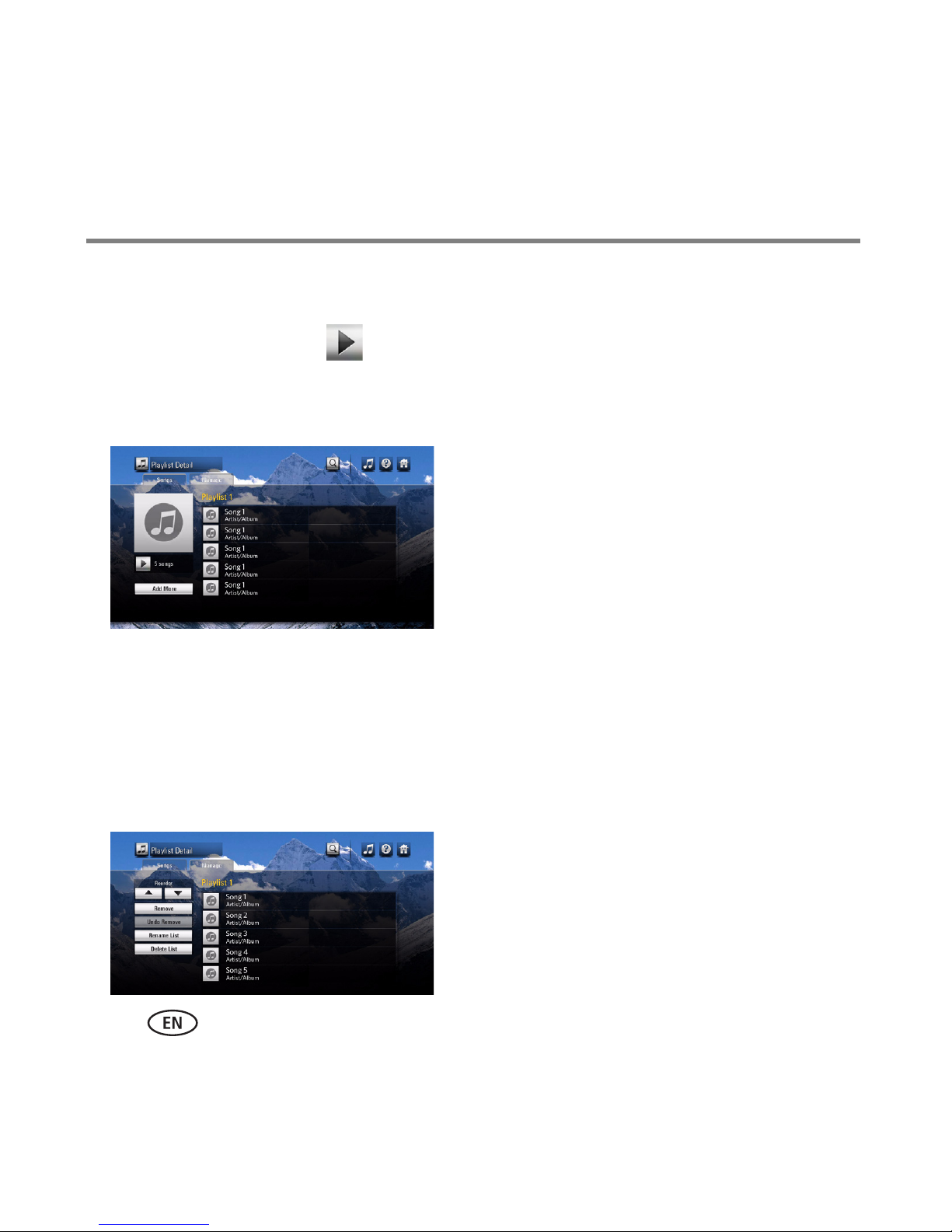
Edit (manage) an existing playlist
1 Select Music > Playlists, then click a playlist. (You can click any song in the playlist to
listen to it, or click Play to listen to the entire playlist.)
2 To add songs to the playlist, click Add More from the Songs tab.
The Playlist Detail appears.
3 To manage the playlist, use to the Manage tab to:
■ Select a song to reorder (move up or down in the playlist)
■ Remove a song from the playlist (the song is still on your computer)
■ Rename the playlist
■ Delete the entire playlist
64 www.kodak.com/go/easysharecenter
Page 65
Using the HD player
Search for music
Search your collection using keywords for song, artist, or album
1 From any Music screen, click Search .
2 Click the Song, Artist, or Album tab.
3 Enter one or more search terms using the on-screen keyboard, then click Search.
4 Click an entry in the Search Results box, or click Search Again to perform another
search.
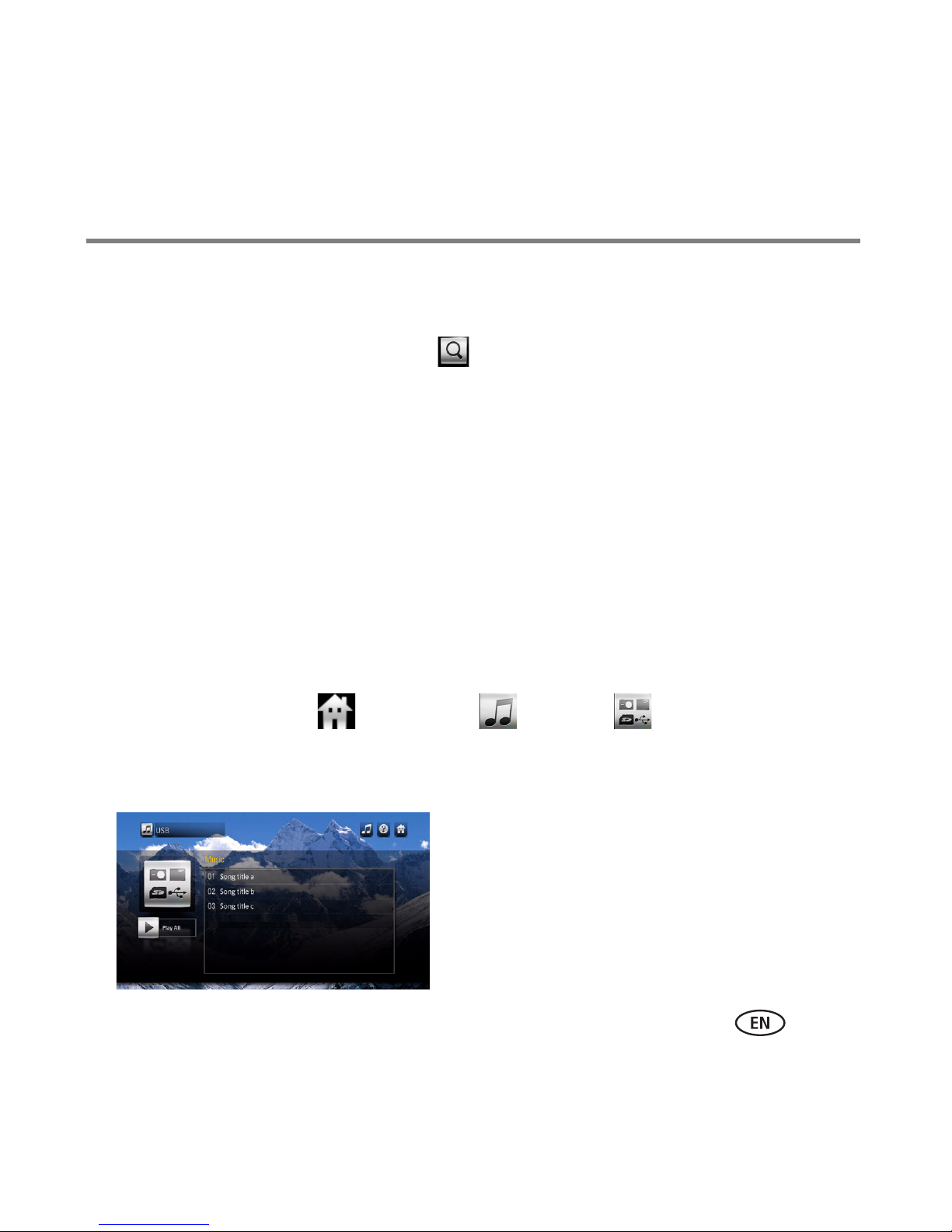
Playing music from a memory card or USB storage
device
Play music from a memory card or USB storage device.
1 Connect a USB storage device or insert a memory card in the HD player.
2 From the Home screen , select Music > Devices to access the music on
your memory card or device.
3 Locate your music, then click any song to play it, or click Play to play all the songs.
www.kodak.com/go/HDplayersupport 65
Page 66

Using the HD player
Connecting to your FRAMECHANNEL Service
Sign into your FRAMECHANNEL Service account, or set up a new one so you can
connect it to your HD player. Then, customize content—such as news, weather, traffic,
sports scores, finance, and much more—for you to view easily.
1 Make sure your HD player is connected properly to the Internet through your home
network and to your HDTV, see page 17.
2 Select Home > Online Entertainment > Web Channels.
3 Select My Feeds, then follow the on-screen instructions to customize the service:
NOTE: Select Categories to view feeds that have already been provided for you on your HD player.
NOTE: Later, you will need the code that is displayed, see Frame activation below.
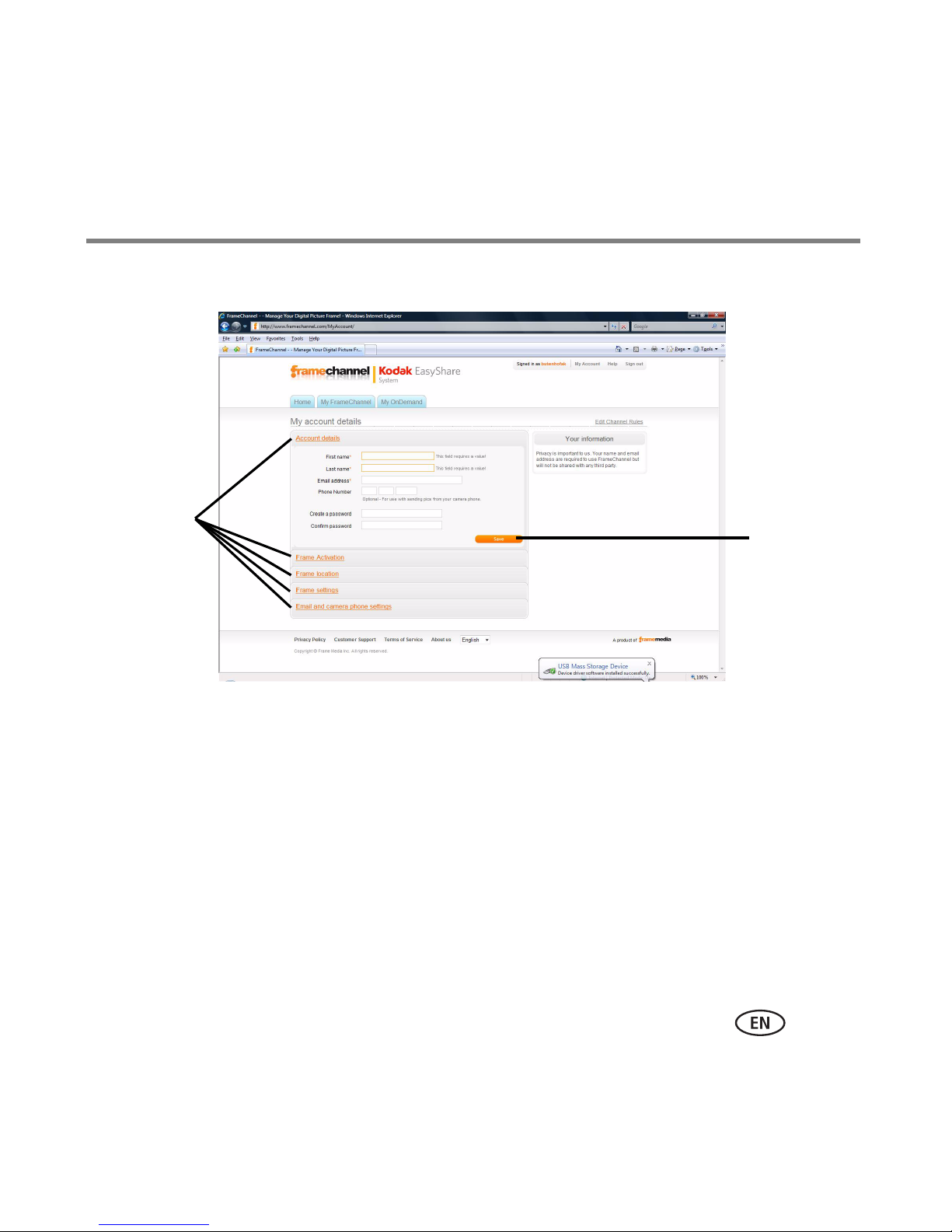
a Go to www.integrated.framechannel.com on your computer.
b Sign in if you have a FRAMECHANNEL Service account, or create one.
c Select My Account.
d Click these links, then fill in the information:
NOTE: Make sure you click Save in each section.
– Account details
– Frame activation (Enter the code that is displayed by the HD player.)
–Frame location
– Frame settings
– Email and camera phone settings
66 www.kodak.com/go/easysharecenter
Page 67
Using the HD player
Save
Click, then
fill in the
information
4 Return to your HD player screen and click OK to see your FRAMECHANNEL Service
NOTE: To disconnect the FRAMECHANNEL Service, click Registration Info, then click Unregister.
www.kodak.com/go/HDplayersupport 67
content on your HDTV.
Page 68
Using the HD player
Using the KODAK Gallery
View and share your Gallery albums, as well as send and receive Picture Mail from
friends and family, via the Picture Mail feature.
NOTE:
■ A Gallery account is required. Visit www.kodakgallery.com to register.
■ If your HD player is not connected to the Internet through your home network, the
KODAK Gallery button is dimmed/disabled on the Home screen.
If you did not already enter your Gallery account information in KODAK Theatre HD
Player Software, enter it now from the HD player:
1 Select Home > Settings > Gallery .
2 Click Username and enter your Gallery account user name.
3 Click Password and enter your Gallery account password.
4 Click country and choose your country.
5 To enable/disable automatic notification that Picture Mail has been shared with you,
click Auto-receive and choose Yes or No.
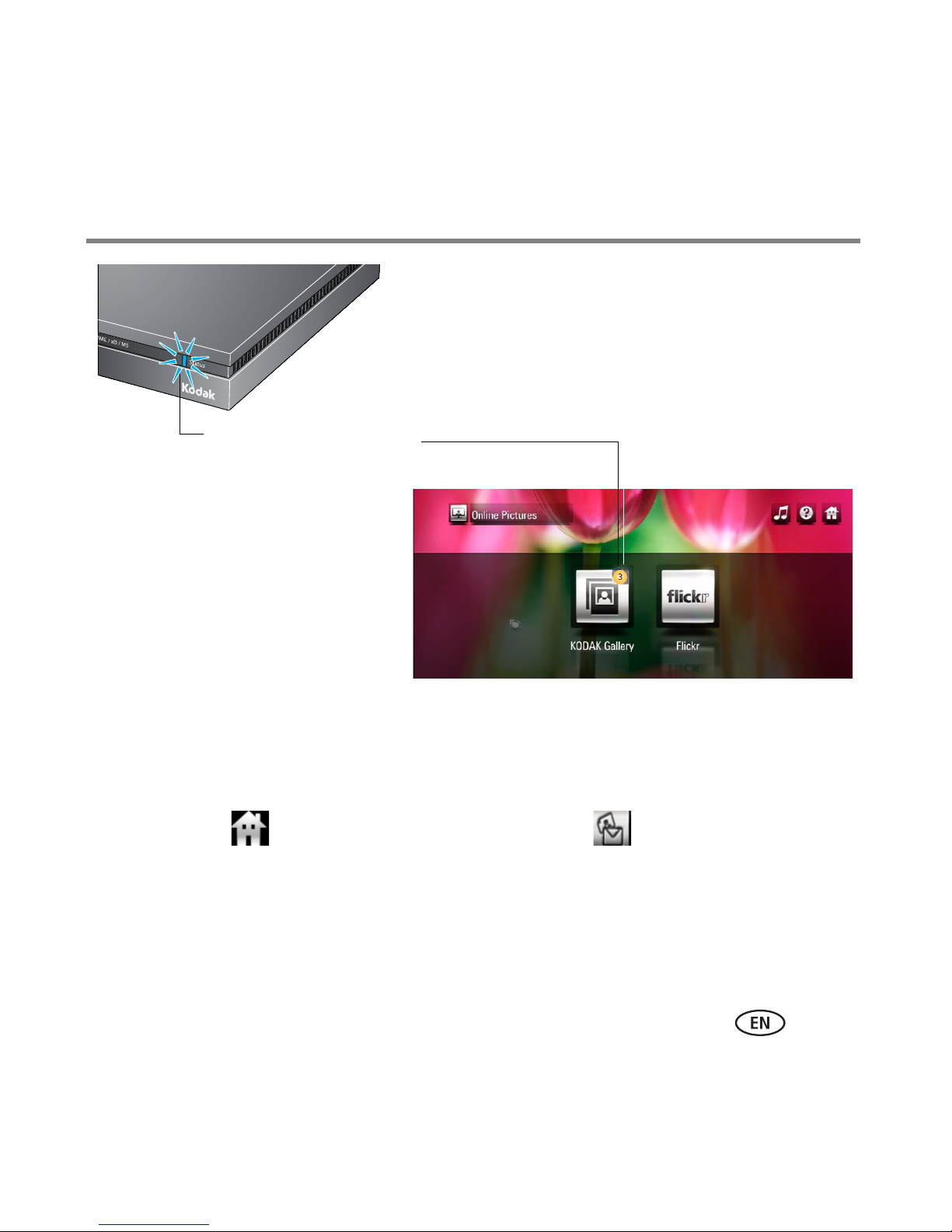
When new Picture Mail is available for viewing, the main status light on the HD
player flashes, and a notification icon and number appear on the Gallery button
on the Home screen . The same notification icon also appears on the Friends’
Album button in the Gallery portal. The HD player checks for new Picture Mail
every 2 hours.
68 www.kodak.com/go/easysharecenter
Page 69
Indicates Picture Mail
has been shared
with you.
Using the HD player
6 Click Done.
Viewing your albums, your friends’ albums, and
favorites
1 Select Home > Online Pictures > KODAK Gallery .
2 Click Friends’ Albums, My Albums, or Favorites to see your Gallery account. View
your Gallery pictures the same way you view other pictures in your collection.
www.kodak.com/go/HDplayersupport 69
Page 70
Using the HD player
Uploading and sharing pictures
Send Picture Mail to friends and family from a USB storage device, EASYSHARE Camera,
memory card, your computer, or the Gallery, using email addresses in your Gallery
account address book.
To upload pictures that reside on your computer, EASYSHARE Camera, a memory card,
or USB storage device, to the Gallery:
1 Insert a memory card or connect an EASYSHARE Camera or USB storage device to
the HD player, or navigate to a folder that contains pictures to upload to the Gallery.
If you inserted a memory card or connected a USB device, click My Pictures & Videos
> Memory Devices .
2 Click the Actions Menu button .
3 Click a picture to select it. To select more than one, click Select Multiple in the
Actions panel. To select all pictures and videos, click Select All. To deselect, click the
picture or video again.
NOTE: To deselect pictures, click Select Multiple again.
4 In the Actions panel, click Upload & Share.
5 Enter a new Gallery album name for your pictures, then click Done.
6 Click Yes to share your pictures.
7 When your Gallery address book appears, select one or more addresses, or click
Enter Address to manually enter an email address. The address you enter is added to
your Gallery address book.
70 www.kodak.com/go/easysharecenter
Page 71

Using the HD player
8 Click Check & Share. Review the list of people with whom you are sharing pictures.
■ Click Make changes to add or remove addresses.
■ Click Share Pictures to send an invitation to view your pictures.
■ Click cancel to cancel sharing your pictures.
To share your existing Gallery pictures:
1 Browse your Gallery albums to find the pictures you want to share.
2 Click the Actions button.
3 Click a picture to select it. To select more than one, click Select Multiple in the
Actions panel. To select all pictures and videos, click Select All. To deselect a picture,
click the picture or video again.
4 Click Share in the Actions panel.
5 When your Gallery address book appears, choose one or more addresses, click Enter
Address to manually enter an email address. The address you enter is added to your
Gallery address book.
6 Click Check & Share. Review the list of people with whom you are sharing pictures.
■ Click Make changes to add or remove addresses.
■ Click Share Pictures to send an invitation to view your pictures.
■ Click cancel to cancel sharing your pictures.
www.kodak.com/go/HDplayersupport 71
Page 72

Using the HD player
Using the Entertainment features
To access the screens for setting up the entertainment features, open the KODAK
Theatre HD Player Software, then select Online Services (see page 27).
Then, select Home > My Entertainment or Online Entertainment to enjoy these
entertainment features on your HDTV using the HD player:
■ YOUTUBE Service—Watch and share original videos worldwide using the Web.
■ Internet radio—Listen to thousands of free, global radio stations.
■ Net Video—View non-ITUNES podcasts and feeds. (No account necessary).
■ Podcasts—Enjoy podcast subscriptions on your HDTV, including HD video podcasts.
■ Movies, TV shows—Watch movies and TV shows you downloaded to your computer
with sharp image quality on your HDTV.
■ Games—Play preloaded games that came with your HD player.
NOTE:
■ For FRAMECHANNEL Service, see page 66.
■ For FLICKR Service, see page 57.
■ Member accounts may be required for some services.
■ Additional entertainment content may become available with future firmware
updates, so be sure to keep your HD player up-to-date! See Updating the firmware,
page 77.
72 www.kodak.com/go/easysharecenter
Page 73
Using the HD player
YOUTUBE
View and search subscriptions, favorites, and playlists through your HD player.
1 Open the KODAK Theatre HD Player Software, then log into your YOUTUBE Service
account or set up one. See page 27.
2 Using your HD player, select Home > Online Entertainment > YouTube to view
its content. See page 34.
To search YOUTUBE Service by keyword and suggestions, click Search and use the
on-screen keyboard. Refine your search by date, most viewed, most popular, or top
rated; or view all feature videos. Select the ones you want sent directly to your HD
player from the Internet. The information displayed is automatically updated.
To block YOUTUBE access through your HD player, select Home > Settings >
System > General > Disable YouTube.
www.kodak.com/go/HDplayersupport 73
Page 74

Using the HD player
Internet radio
Listen to your favorite Internet radio stations through your HD player.
1 On the HD player, select Home > Online Entertainment > Internet Radio .
2 Choose the type of station you want to hear, then click a station. Play/pause controls
appear at the bottom of the screen.
You can also save a radio station as a Favorite:
1 While listening to a station, click the heart icon next to the station’s name.
2 Click Done.
To access your Favorites, click a station and your Favorites appear on the screen. Click a
Favorite to listen to it.
Net Video
Play online news network (video) and featured Net videos. Browse and view feeds by
categories—Latest by Interest, Newest Feeds—then add them to your queue or as
Favorites for easy access and quick viewing.
To access the Net Video portal, select Home > Online Entertainment > Net Video.
74 www.kodak.com/go/easysharecenter
Page 75

Using the HD player
Podcasts
Play podcasts (non-DRM protected) that reside on your computer.
To access podcasts, select Home > My Entertainment > Downloaded Podcasts
.
NOTE: If you have podcasts in a location on your computer other than the ITUNES default location, add that
custom location in the KODAK Theatre HD Player Software so the HD player can find them. Open the
KODAK Theatre HD Player Software on your computer, and select Podcasts, then select an alternate
location. See step 2, page 23.
Movies/TV shows
Play movies and TV shows that you downloaded to your computer.
To access your downloaded movies and TV shows, select Home > My
Entertainment > Downloaded Movies or Downloaded TV Shows.
NOTE: If you have downloaded movies or TV shows in a location on your computer other than the Movies
and TV Shows default locations, add that custom location in the KODAK Theatre HD Player Software
so the HD player can find them. Open the KODAK Theatre HD Player Software on your computer, and
select the Movies or TV Shows button, then select an alternate location. See step 2, page 23.
Games
Play the included Mahjongg and Monkey Hearts games. Select Home > My
Entertainment > Games .
www.kodak.com/go/HDplayersupport 75
Page 76

Using the HD player
Viewing collages
View an arrangement of your pictures in a slideshow. Up to 6 pictures may appear on
the screen, depending on the picture size. Select Home > My Pictures & Videos,
then:
■ Today’s Discovery Collage—view time-based pictures starting with the current date
■ Random Discovery Collage—view your entire collection of pictures
Hover over a picture to highlight it. Click a picture to view in full screen. Click it again to
view it without text or instructions.
To see the controls, place the cursor at the bottom of the screen or at the top, right
corner.
76 www.kodak.com/go/easysharecenter
Page 77
4 Troubleshooting and support
Blue bubble indicates
firmware update is available
Updating the firmware
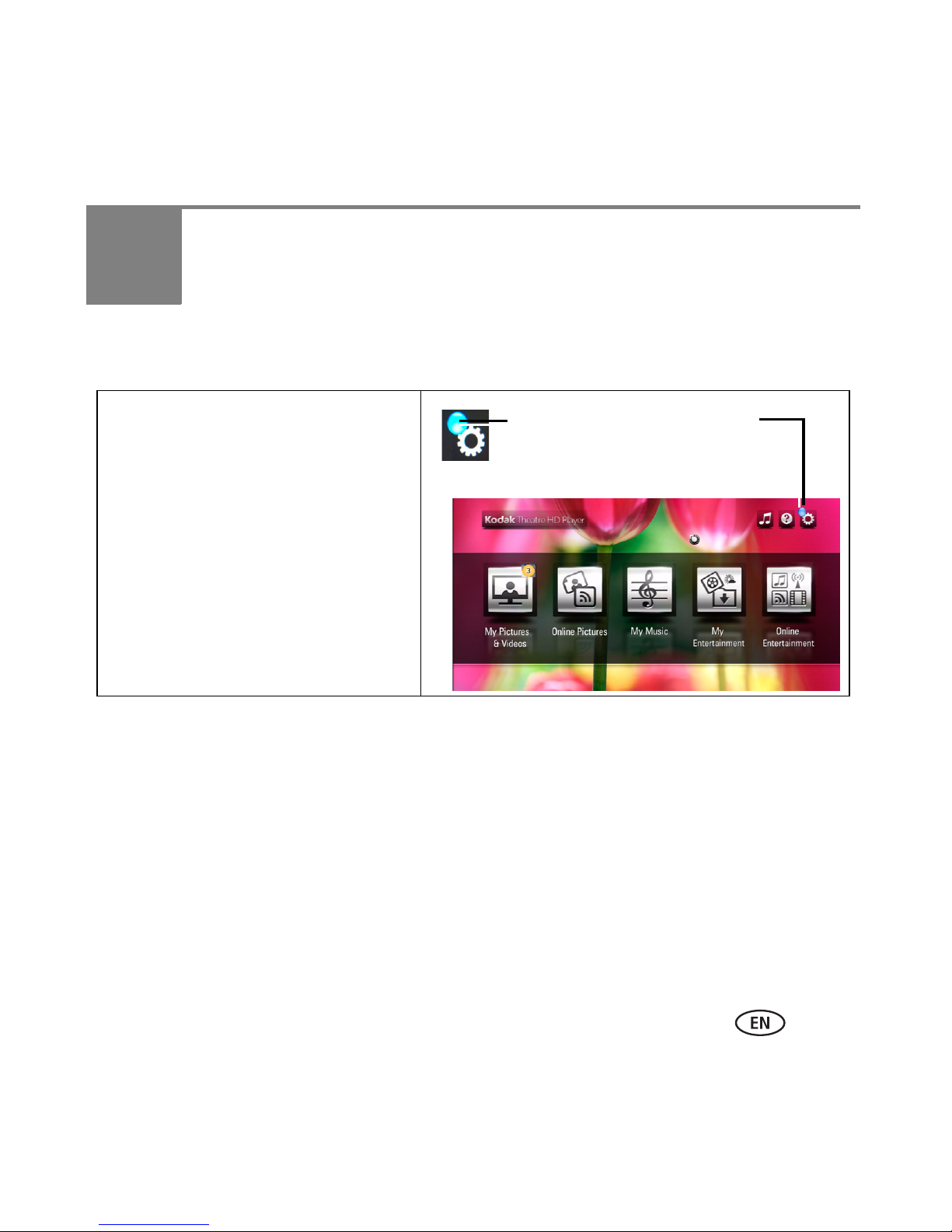
The HD player notifies you if a firmware
update is available via an icon on the
Settings button. Select Home > Settings
> System > General > either Install
Update or Check for Updates Now.
Updating your software
You can download and install the latest version of KODAK Theatre HD Player Software
from www.kodak.com/go/downloads. Or, check for the latest version and install it, right
from within the software.
www.kodak.com/go/HDplayersupport 77
Page 78
Troubleshooting and support
Check for updates
1 In the KODAK Theatre HD Player Software, click Check for Update at the bottom of
the screen.
2 If an update is available, follow the on-screen instructions to download and install
the software on your computer.
Troubleshooting
Status Solution
The cursor is out of
alignment with the
pointer remote.
Pointer remote does
not work.
The on-screen cursor
continually spins while
you try to view pictures
on the KODAK Gallery.
Recenter the cursor; see page 16.
■ If the power status light on the pointer remote is not lit, press the
Hide Cursor button to wake it up.
■ If the power status light on the pointer remote is flashing red,
replace the batteries (2 alkaline AA); see page 14.
■ Make sure the HD player is powered on.
■ Place the pointer remote on top of the HD player and restart
(unplug the HD player, then plug it back in).
The Gallery may be experiencing heavy traffic. Try again, later.
78 www.kodak.com/go/easysharecenter
Page 79
Status Solution
Troubleshooting and support
A pairing error
indication appears on
the pointer remote.
The Camera, USB, or
Memory Card buttons
are dimmed/disabled.
You deleted a
picture/song/video, but
it is still on your
computer.
The KODAK Gallery and
Entertainment buttons
are dimmed/disabled.
■ Pair the pointer remote with the HD player:
1 While holding down the Hide Cursor button, roll the scroll
wheel for approximately 4 seconds.
2 When the power status light on the pointer remote flashes
blue, release the Hide Cursor button and scroll wheel. The
pointer remote attempts to pair with the HD player for up to 40
seconds. When successful, the power status light flashes blue
for 2 seconds.
Connect an EASYSHARE Camera, USB storage device, or memory card
to the HD player to activate the buttons.
When you manage content on the HD player, the changes only affect
what you see on the HD player. Go to your computer to delete the
picture/song/video.
The HD player is not connected to the Internet through your network.
Check your network.
Cannot connect to
KODAK Gallery or see
your Gallery pictures.
■ Check that your Gallery address, account email address, and
account password are correct in Settings > Gallery.
■ Make sure you have pictures in your Gallery account.
■ Make sure the wireless router is connected to the Internet, and an
Internet connection is available.
■ The Gallery is temporarily unavailable. Try again later.
www.kodak.com/go/HDplayersupport 79
Page 80
Troubleshooting and support
Status Solution
You can't see any
content from the
Internet, or listen to
Internet radio.
Your pictures don’t look
very good (have noise
or artifacts) on the TV
screen.
Your HD player appears
to be frozen or has
crashed; nothing is
working on your HDTV
screen.
■ Make sure you put the correct Internet addresses, user names, and
passwords into KODAK Theatre HD Player Software for viewing
online content (see page 27).
■ The server providing Internet content may be temporarily
unavailable. To verify this, select Home > Online Entertainment. A
message appears here if the server is down.
■ Verify that the information in Settings > System > Audio/Video >
Video Resolution is correct.
■ Your picture may be a low-resolution picture. High-resolution
pictures produce better results.
Restart the HD player by unplugging it, then plugging it back in.
80 www.kodak.com/go/easysharecenter
Page 81
Status Solution
Troubleshooting and support
HD player will not
connect to your
network, or you keep
losing the connection.
■ Make sure your router and computer are turned on.
■ Verify that the HD player is firmly connected on both ends of your
wired connection.
■ Select Home > Settings > Network and Media Source to check the
signal strength of your wireless access point. You may need to
relocate/reposition your router or connect the router to your
computer with a shielded Ethernet cable.
■ Make sure you are within the operating range of the network.
Move the router into the same room as the HD player.
■ Verify that the information in Settings > Network and Media
Source on the HD player are correct.
■ Your access point may not be broadcasting its SSID (network
name). Check the router settings on your computer, and try
entering your network name manually.
■ If security is enabled on your network, make sure you entered the
correct security code.
■ Use the Advanced Setup in Settings > Network and Media Source
> Connection > Configure Connection settings to try assigning a
static IP address to your HD player. Check your router settings on
your computer and find the available range of IP addresses. (This
may be found with the DHCP information.)
Wireless performance is
poor.
■ If you have multiple wireless devices on your network, there may
be some signal interference. Try removing one or more of the
devices.
■ Keep all wireless devices at east 5 ft from the HD player.
www.kodak.com/go/HDplayersupport 81
Page 82
Troubleshooting and support
Status Solution
Your APPLE ITUNES
music is not available
on the HD player.
Pictures are very slow
to upload to the HD
player.
Make sure you have KODAK EASYSHARE Theatre HD Player Software
set up to display your ITUNES music and playlist. (See page 23.)
NOTE: ITUNES music does not play if it is DRM-protected.
■ Check the signal strength of your wireless access point in Home >
Settings > Network and Media Source. You may need to:
■ Relocate/reposition your router
■ Connect the router to your computer with a shielded Ethernet
cable
■ Use a Powerline Ethernet adapter (HomePlug compatible) to
improve the wireless signal
■ Use a repeater
■ Make sure your computer meets the minimum system
requirements. (See page 12.)
82 www.kodak.com/go/easysharecenter
Page 83
Status Solution
Troubleshooting and support
You can't see any of
your pictures or videos.
Make sure:
■ Your router and computer are turned on.
■ Audio/video cables are firmly connected and power is being
supplied to the HD player and your TV.
■ For video (.mov), you have APPLE QUICKTIME 7 Software or later
installed on your computer (available www.apple.com).
■ Your firewall is not blocking access.
■ KODAK Theatre HD Player Software was installed on the computer
and is running. (Also, if you have a large collection of
pictures/videos, it can take some time for the software to scan
them all.)
■ Your computer is selected in Settings > Network and Media Source
> Media > Media Source. If you see a yellow triangle , your
firewall is blocking your connection.
■ The files on your computer are in a supported format. See the
Specifications table on page 84 for supported formats.
Getting support
Get support for your product (FAQs,
troubleshooting and repairs, Extended user
guide, product registration, downloads)
Get information on EASYSHARE Software and
the KODAK Gallery
www.kodak.com/go/HDplayersupport 83
www.kodak.com/go/HDplayersupport
www.kodak.com/go/easysharecenter
Page 84

5 Appendix
Specifications
Input
AC input voltage—100V AC–240V AC
AC input frequency—47–63 Hz
Maximum in-rush current—60A max. at 240V AC, max. load at 77º F (25º C
ambient cold start)
AC input current—120V AC–0.8 A (RMS) max.; 240V AC–0.5 A (RMS) max.
Leakage current—3.5 mA max. at all line conditions
Input power saving—0.5 W max. at 230V AC and no load
Output
Total output power—30 W continuous
Efficiency—Complies with CEC-400-2006-002-REV1
Minimum hold up time—10 mS at max. load and 120V AC/60 Hz
Maximum rise time—100 mS at max. load and 120V AC/60 Hz
Operating temperature range—32–95º F (0–35º C)
Storage temperature range—-26–160º F (-32–71º C)
Operating/storage humidity range—20–90% RH
84 www.kodak.com/go/easysharecenter
Page 85

Appendix
Other
AC adapter—12V DC, 2.5A
Pointer remote model number—L153RC
Pointer remote batteries—AA
HDTV output format—Video: component (Y Pr Pb; High Definition support), HDMI
1.2 audio/video
Audio: component audio (analog RCA stereo), coax audio, optical audio
Supported still photo file formats—TIFF, PNG, JPEG
Supported video file formats—AVI, MOV, MPG, M4V, MP4
Supported video codecs—H.264, MJPG, MPEG1, MPEG2, MPEG4, WMV-9
Supported audio codecs—MP3, AAC (unprotected), WAV, WMA
Supported streaming audio formats—Streaming MP3
Supported Wi-Fi security protocols—WPA PSK AES, WPA2 PSK AES, WPA PSK
TKIP, WEP
Size—HD player: 8 x 6 x 1 in. (203 x 152 x 25 mm)
Weight—HD player: 452 g; pointer remote (without batteries): 67.7 g
www.kodak.com/go/HDplayersupport 85
Page 86

Appendix
Important safety instructions
CAUTION:
Do not disassemble this product; there are no user serviceable
parts inside. Refer servicing to qualified service personnel. Do not
expose this product to liquid, moisture, or extreme temperatures.
The use of controls, adjustments, or procedures other than those
specified herein may result in exposure to shock and/or electrical
or mechanical hazards.
■ When removing the battery from the remote, allow it to cool; it may be hot.
■ Follow all warnings and instructions supplied by the battery manufacturer.
■ Use only batteries approved for this product to avoid risk of explosion.
■ Keep batteries out of the reach of children.
■ Do not allow batteries to touch metal objects, including coins. Otherwise, a battery
may short circuit, discharge energy, become hot, or leak.
■ Do not disassemble, install backward, or expose batteries to liquid, moisture, fire, or
extreme temperature.
■ Remove the battery when the product is stored for an extended period of time. In
the unlikely event that battery fluid leaks inside the product, contact Kodak
customer support.
■ In the unlikely event that battery fluid leaks onto your skin, wash immediately with
water and contact your local health provider. For additional health related
information, contact your local Kodak customer support.
86 www.kodak.com/go/easysharecenter
Page 87

Appendix
■ Dispose of batteries according to local and national regulations. Visit
www.kodak.com/go/kes.
■ Do not charge non-rechargeable batteries.
■ For more information on batteries, visit www.kodak.com/go/batterytypes.
■ The HD player and pointer remote batteries may include perchlorate material.
Special handling may apply in California.
■ Read and follow all warnings and instructions supplied by the battery manufacturer.
Additional care and maintenance
■ Do not allow chemicals, such as suntan lotion, to contact painted surfaces.
■ Service agreements are available in some countries. contact a dealer of Kodak
products for more information.
■ For HD player disposal or recycling information, contact your local authorities. In the
U.S., visit the Electronics Industry Alliance at www.eiae.org or visit
www.kodak.com/go/hdplayersupport.
Glossary of common wireless network terms
Access point (also called A)— A wireless network transceiver or “base station” hub,
often used to connect a local area network to one or more wireless devices. An access point
can also provide a communication link to a wired local area network.
Ad Hoc—A client setting for a wireless local area network that allows devices connected to
the network to communicate with one another directly, independent of an access point or
router.
Bridge—A product that connects a local area network to another local area network that
www.kodak.com/go/HDplayersupport 87
Page 88

Appendix
uses the same protocol (for example, wireless, Ethernet or token ring). Wireless bridges are
commonly used to link buildings in campuses.
Client—An application on a computer or device connected to a network that requests
services (files, print capability) from another connected computer or device on the network.
Device to device—See Ad Hoc.
DHCP—Dynamic Host configuration Protocol: a utility that enables a server to dynamically
assign IP addresses from a predefined list and limit their time of use so they can be
reassigned. Without DH P, all of the IP addresses of all the clients on the network would have
to be manually entered. With DH P, whenever a client connects to the network, it
automatically gets an IP address assigned to it.
DNS—Domain Name System (or Service, or Server): a program that translates domain names
to IP addresses by accessing a database maintained on a collection of Internet servers. The
program works behind the scenes to facilitate surfing the Web with alpha versus numeric
addresses. A DNS server converts a name like mywebsite.com to a series of numbers like
107.22.55.26. Every Web site has its own specific IP address on the Internet.
Domain name—The portion of a URL or Web address that identifies a specific Web site. For
example, the domain name portion of the URL http://www.kodak.com is kodak.com. All
domain names have a suffix that indicates the top level domain (TLD) it belongs to. Examples:
■ com: US commercial business do: Dominican Republic
■ gov: US government agency es: Spain
■ edu: US educational institution fr: France
■ mil: US military organization
■ it: Italy net: US network organization nl: Netherlands
■ org: US nonprofit organization
■ pr: Puerto Rico
88 www.kodak.com/go/easysharecenter
Page 89

Appendix
■ au: Australia
■ pt: Portugal
■ br: Brazil
■ ru: Russian Federation
■ ca: canada
■ uk: United Kingdom
■ de: Germany
DSL—Digital Subscriber Lines: various technology protocols for high speed data, voice and
video transmission over ordinary twisted pair copper POTS (Plain Old Telephone Service)
telephone wires.
Dynamic IP address—An IP address assigned to a client each time the client connects to
the network. The dynamic IP address is configured by the DH P server and can be different
each time the client connects to the network.
Encryption key—An alphanumeric (letters and/or numbers) series that enables data to be
encrypted then decrypted so it can be safely shared among members of a network. WEP uses
an encryption key that automatically encrypts outgoing wireless data. On the receiving side,
the same encryption key enables the computer to automatically decrypt the information so it
can be read.
Infrastructure—A client setting for a local area network that allows devices connected to
the network to communicate with one another through a central access point or router.This
configuration is commonly used in wireless home networks.
IP—Internet Protocol: technology that supports voice, data and video transmission via IP
based local area networks, wide area networks, and the Internet. This includes VoIP (Voice
over IP).
IP address—A number that identifies each sender or receiver of information that is sent
www.kodak.com/go/HDplayersupport 89
Page 90

Appendix
across the Internet. Network name Identifies the wireless network for all the shared
components. During the installation process for most wireless networks, you must enter the
network name or SSID. Different network names are used when setting up your individual
computer, wired local area network, or workgroup.
Passphrase—A text string used for WPA security on a Wi-Fi wireless network. A passphrase
may contain up to 31 alphanumeric characters, including spaces and other special characters.
NOTE: A passphrase used for WPA security is not the same as a WEP key, nor is it the same as
a passphrase commonly found in router software that is used to generate a WEP key.
Router—An access point (AP) or hub that sends data from one local area network (LAN) or
wide area network (WAN) to another.A router monitors and controls data flow and sends
information using the most efficient route based on traffic load, line costs, speed, bad
connections, etc.
SSID—Service Set Identifier: also referred to as a network name, since it is essentially a name
that identifies a wireless network. The identifier is attached to the wireless local area network
(WLAN) and acts as an identifier when a device tries to connect to the system. A device is not
permitted to join the network unless it can provide the unique SSID. An SSID can be broadcast
by the network router, allowing devices to detect it as an available network. An SSID does not
supply security to the network.
SSL—Secure Sockets Layer: a commonly used encryption scheme used by many online retail
and banking sites to protect the financial integrity of transactions.
TCP/IP—Transmission control Protocol/Internet Protocol: the underlying technology behind
the Internet and communications between computers in a network.
URL—Uniform Resource Locator: also referred to as a Web address, since it identifies the
location of a file or resource on the Web. For example, the URL for the EASTMAN KODAK
COMPANY Web site is http://www.kodak.com.
WEP—Wired Equivalent Privacy: basic wireless security provided by Wi-Fi. In some instances,
WEP may be all a home or small business user needs to protect wireless data. WEP is
90 www.kodak.com/go/easysharecenter
Page 91

Appendix
available in 40 bit (also called 64 bit), or in 108 bit (also called 128 bit) encryption modes. As
108 bit encryption provides a longer algorithm that takes longer to decode, it can provide
better security than basic 40 bit (64 bit) encryption. WEP key A text string used for WEP
security on a Wi-Fi wireless network. A WEP key with 10 or 23 characters can include
numbers and the letters A F and are not case sensitive. 5- and 13-character WEP keys can
include numbers and all letters (as well as some special characters) and are case sensitive.
WPA—Wi-Fi Protected Access: a Wi-Fi security standard that provides a high level of wireless
network security. It uses data encryption through the Temporal Key Integrity Protocol (TKIP).
TKIP scrambles the keys and ensures that the keys have not been tampered with. User
authentication is performed through the Extensible Authentication Protocol (EAP) to ensure
that only authorized network users can access the network.
Wi-Fi—Wi-Fi is a trademark of the Wi-Fi Alliance used to describe any type of 802.11
standard wireless network. Products tested and approved as “Wi-Fi certified” by the Wi-Fi
Alliance are certified as interoperable with each other, even if they are from different
manufacturers.
For more information, visit www.kodak.com/go/wifisupport or www.wifi.org.
Limited warranty
Kodak warrants Kodak consumer electronic products and accessories (“Products”),
excluding batteries, to be free from malfunctions and defects in both materials and
workmanship for one year from the date of purchase. Retain the original dated sales
receipt. Proof of the date of purchase is required with any request for warranty repair.
Limited warranty coverage
Warranty service is only available from within the country where the Products were
originally purchased. You may be required to ship Products, at your expense, to the
www.kodak.com/go/HDplayersupport 91
Page 92

Appendix
authorized service facility for the country where the Products were purchased. Kodak
will repair or replace Products if they fail to function properly during the warranty
period, subject to any conditions and/or limitations stated herein. Warranty service will
include all labor as well as any necessary adjustments and/or replacement parts. If
Kodak is unable to repair or replace a Product, Kodak will, at its option, refund the
purchase price paid for the Product provided the Product has been returned to Kodak
along with proof of the purchase price paid. Repair, replacement, or refund of the
purchase price are the sole remedies under the warranty. If replacement parts are used
in making repairs, those parts may be remanufactured, or may contain remanufactured
materials. If it is necessary to replace the entire Product, it may be replaced with a
remanufactured Product. Remanufactured Products, parts and materials are warranted
for the remaining warranty term of the original Product, or 90 days after the date of
repair or replacement, whichever is longer.
Limitations
This warranty does not cover circumstances beyond Kodak's control. Warranty does not
apply when failure is due to shipping damage, accident, alteration, modification,
unauthorized service, misuse, abuse, use with incompatible accessories or attachments
(such as third party ink or ink tanks), failure to follow Kodak's operation, maintenance
or repacking instructions, failure to use items supplied by Kodak (such as adapters and
cables), or claims made after the duration of this warranty.
Kodak makes no other express or implied warranty for this product, and disclaims the
implied warranties of merchantability and fitness for a particular purpose. In the event
that the exclusion of any implied warranty is ineffective under the law, the duration of
the implied warranty will be one year from the purchase date or such longer period as
required by law. The option of repair, replacement, or refund is Kodak's only obligation.
92 www.kodak.com/go/easysharecenter
Page 93

Appendix
Kodak will not be responsible for any special, consequential or incidental damages
resulting from the sale, purchase, or use of this product regardless of the cause. Liability
for any special, consequential or incidental damages (including but not limited to loss
of revenue or profit, downtime costs, loss of the use of the equipment, cost of
substitute equipment, facilities or services, or claims of your customers for such
damages resulting from the purchase, use, or failure of the Product), regardless of
cause or for breach of any written or implied warranty is expressly disclaimed.
You r rights
Some states or jurisdictions do not allow exclusion or limitation of incidental or
consequential damages, so the above limitation or exclusion may not apply to you.
Some states or jurisdictions do not allow limitations on how long an implied warranty
lasts, so the above limitation may not apply to you. This warranty gives you specific
rights, and you may have other rights which vary from state to state or by jurisdiction.
www.kodak.com/go/HDplayersupport 93
Page 94
Appendix
Regulatory compliance
FCC compliance and advisory
KODAK Theatre HD Player
Model: L153
This equipment has been tested and found to comply with the limits for a Class B digital
device, pursuant to Part 15 of the FCC Rules. These limits are designed to provide
reasonable protection against harmful interference in a residential installation.This
equipment generates, uses, and can radiate radio frequency energy and, if not installed
or used in accordance with the instructions, may cause harmful interference to radio
communications. However, there is no guarantee that interference will not occur in a
particular installation. If this equipment does cause harmful interference to radio or
television reception, which can be determined by turning the equipment off and on, the
user is encouraged to try to correct the interference by one or more of the following
measures:
■ Reorient or relocate the receiving antenna.
■ Increase the separation between the equipment and receiver.
■ Connect the equipment into an outlet on a circuit different from that to which the
receiver is connected.
■ Consult the dealer or an experienced radio/TV technician for help.
This transmitter must not be co-located or operated in conjunction with any other
antenna or transmitter.
94 www.kodak.com/go/easysharecenter
Page 95

Appendix
This device complies with Part 15 of the FCC Rules. Operation is subject to the following
two conditions: (1) this device may not cause harmful interference, and (2) this device
must accept any interference received, including interference that may cause undesired
operation.
Any changes or modifications not expressly approved by the party responsible for
compliance could void the user's authority to operate the equipment. Where shielded
interface cables have been provided with the product or specified additional
components or accessories elsewhere defined to be used with the installation of the
product, they must be used in order to ensure compliance with FCC regulation.
To comply with FCC RF exposure requirements, this device must be operated with a
minimum separation distance of 20 cm from a person’s body.
Responsible party:
Eastman Kodak Company
343 State St., Rochester, NY 14650
www.kodak.com
Waste Electrical and Electronic Equipment labeling
For more information, contact your retailer, collection facility, or appropriate local
authorities; or visit www.kodak.com/go/recycle. (Product weight: HD player and pointer
remote: 552 g.)
MPEG-4
Use of this product in any manner that complies with the MPEG-4 visual standard is
prohibited, except for use by a consumer engaging in personal and non-commercial
activities
www.kodak.com/go/HDplayersupport 95
Page 96

Index 1
A
actions panel, 51
B
batteries, install, 14
C
cafe, 55
care and maintenance, 87
collage, 76
discovery collage, 76
random discovery collage, 76
connecting, 17
controls
music, 61
slideshow, 45
video, 45
copy pictures/videos, 56
cursor, recentering, 16
setting up, 27
viewing online pictures and
videos, 57
FRAMECHANNEL Service
connecting to, 66
setting up, 27
viewing online pictures and
videos, 57
G
games, 75
glossary, 87
H
home screen, 29
I
importing music, 65
install
batteries, 14
D
definitions, 87
downloaded media, playing, 55
E
edit slideshow, 53
entertainment features, about online, 72
entertainment portal, 34
F
firmware, update, 77
FLICKR Service
96 www.kodak.com/go/support
software, 23
Internet radio, 74
K
keyboard, on-screen, 22
KODAK Gallery Service
setting up, 27
using, 68
M
making a slideshow, 48
movies, 55, 75
Page 97

Index
music
controls, 61
creating playlists, 62
importing, 65
play, 58
portal, 32
searching, 65
N
net video, 74
O
online pictures portal, 31
on-screen keyboard, 22
P
panning, 47
pictures & videos portal, 30
play
portal
entertainment, 34
music, 32
online pictures, 31
pictures & videos, 30
settings, 35
problems, solving, 77
Q
quick folder preview, 44
R
radio, 74
recentering cursor, 16
remote control
sensitivity, 15
using, 14
repair, 83
music, 58
playlists
creating, 62
editing, 64
podcasts, 55, 75
pointer remote
sensitivity, 15
using, 14
S
safety, 86
screen, home, 29
search
for music, 65
for online pictures/videos, 58
settings portal, 35
slideshow
97
Page 98

Index
controls, 45
edit, 53
making, 48
software
install, 23
update, 77
specifications, 84
system requirements, 12
T
troubleshooting, 77
TV shows, 55, 75
U
update
firmware, 77
software, 77
pictures/videos, 41
pointer remote, 6
W
warranty, 91
Y
YOUTUBE Service
connecting to, 73
setting up, 27
Z
zooming, 47
upload and share pictures, 70
V
video controls, 45
view
albums, 69
back, 5
favorites, 69
front, 4
pictures from camera, device, 46
98 www.kodak.com/go/easysharecenter
Page 99
New Features Have Been Added To The
Kodak Theatre HD Player!
Be sure to follow the easy instructions to upgrade your Kodak Theatre
HD Player to begin enjoying these exciting new features...
YouTube On TV
.,.
It's YouTube specially configured for your widescreen HDTV
'j;. Select from Most Popular, Most Viewed, Featured, and Related Videos
); Search all videos by keyword, author
~
Log into your personal YouTube account to view subscriptions, save favorites,
give ratings
Discovery Collage
,.
A dynamic collage view enhanced with Rich Wandering; Explore your collection
by Random, Same Time, and "Through the Years" views
.,
An engaging 'multiple-up' viewofyour special moments
Net Video
Ii'
Select from hundredsofonline videos from sports, news, comedy, entertainment,
and more
.,
Conveniently grouped by genre, special interest and category
Cafe
..,
A customizable Home Screen that can including local weather, news videos,
traffic and your Picture Chronicles (A "through the years" slideshow from your
picture collection)
.,
National and Global headlines scroll continuously keeping you 'in-the-know'
Kodak
Eastman Kodak Company
Rochester, NY 14650
'9 Eastman Kodak Company, 2009.
TM:
Kodak, EasyShare. 4H6602
Page 100
 Loading...