

Page 1
KNC-D410
Quick Installation Guide
High performance
Easy Installation
KNC-D410
Network Camera
Tech Support for customers within the United States: Kocom Technical Support over the
Telephone: (82)-2-6675-2121
Kocom Technical Support over the Internet :
http://support.kocom.com email : [email protected]
Technical Support
You can find software updates and user documentation on the Kocom website.
Kocom provides free technical support for customers within the United States for
the duration of the warranty period on this product.
2005.05
This product can be set up using
Internet Explorer 6.x or later
Page 2
Before You Begin
You must have at least the following:
- Windows XP/2000/Me/98SE
- Ethernet Adapter
- CD-ROM Driver
- Internet Explorer 6.x or above
-CPU: Pentium 3, 500MHz or above
- Memory Size : 128MB
- VGA card resolution : 800 x 600 or above
- Video Memory 16M Byte or above
- Direct X 9.0 or later
System Requirements
※ Kocom, Inc. All rights reserved. Trademarks or registered trademarks are the property of
their respective holders. Software and specifications subject to change without notice
Hardware Installation
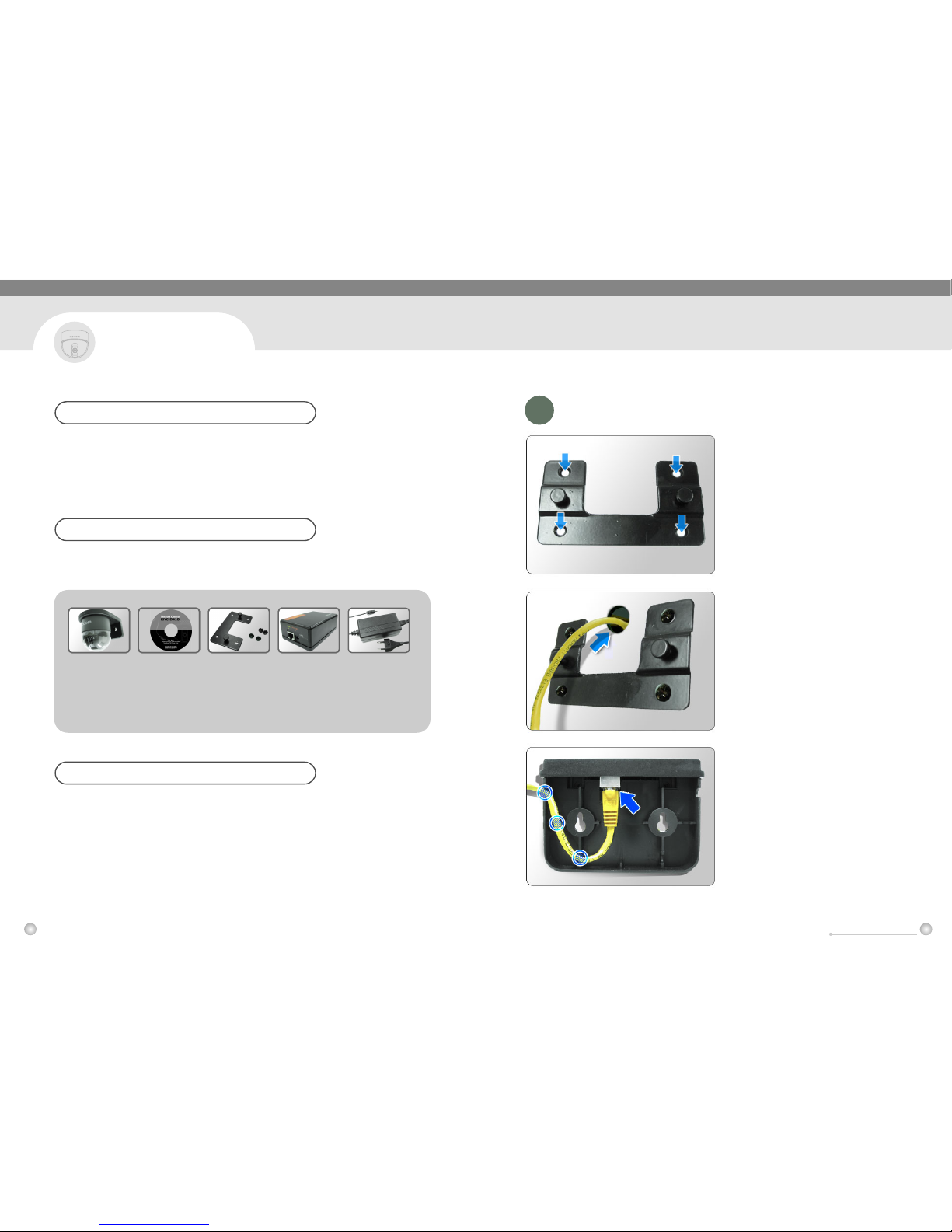
Attach the panel to a wall by
using the included screw.
Connect LAN cable to camera
through the hole.
Connect LAN cable to camera
(in case, use holes at both sides.)
1
Check Your Package Contents
These are item included with your purchase:
If any of below items are missing, please contact your reseller
KNC-D410
Network Camera
Installation CD
- Containing Drivers,
- Software,
- Quick Installation
- Guide and Manual
Wall Mounting
Bracket (1pc),
Screw (4pc)
Power over
Ethernet Box
Adaptor
KNC-D410
Hardware Installation
2 3
KNC-D410
Home Internet Camera
KNC-D410
Network Camera
Page 3
Adjustment of Camera Location
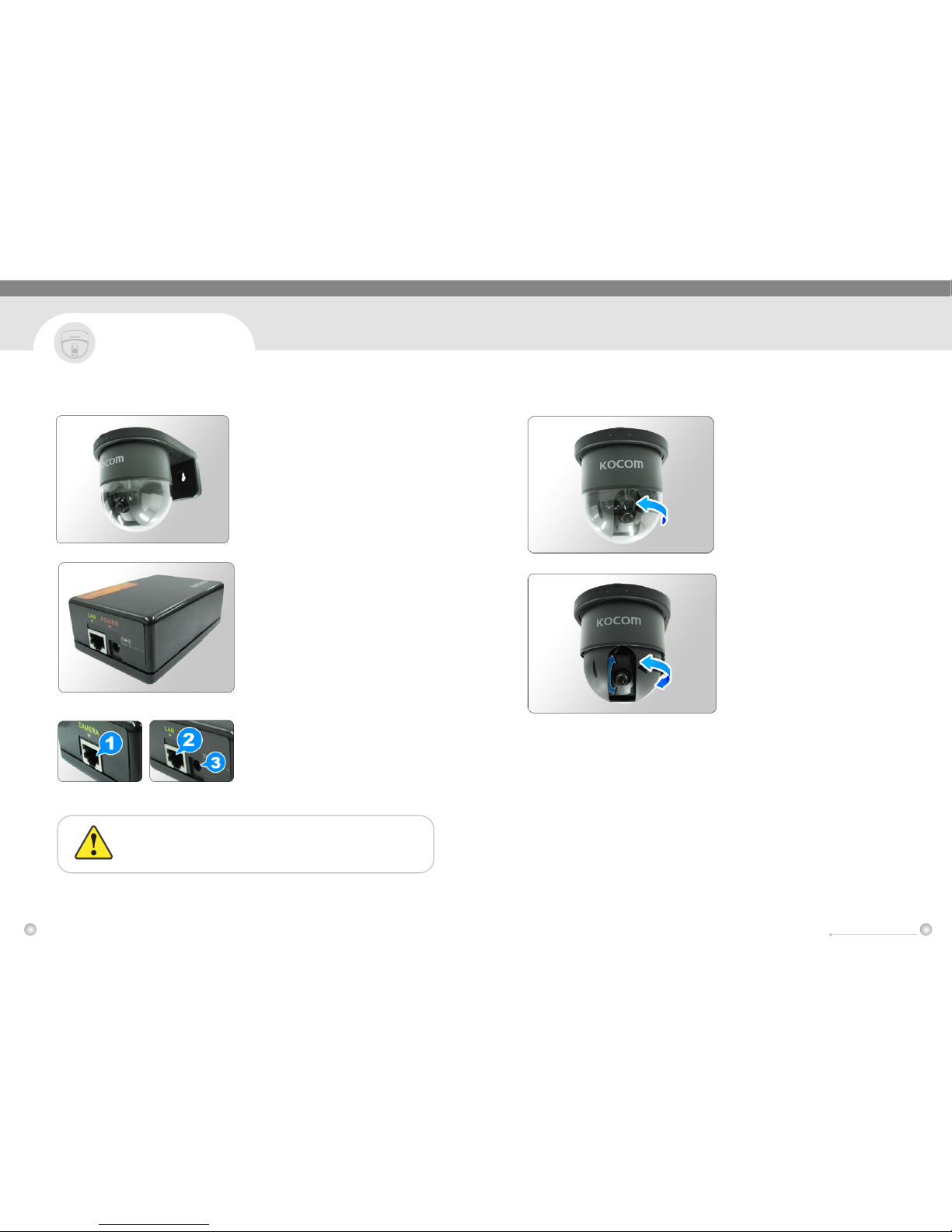
: To adjust the position and angle of lens, it is
possible for user to open the camera case
and then adjust the angle of lens after
setup and connection is done.
Please, see the user's manual for
more detail information.
Set up the camera on fixed panel.
Connect IP camera, LAN and
AC adaptor to the PoE Box.
Follow the procedure
1. Connect camera cable to PoE box.
2. Connect an Internet cable to PoE box.
3. Attach the external adaptor.
Using a power supply and PoE box with a different
voltage rating will damage this product and void the warranty.
KNC-D410
Hardware Installation
4 5
Dome Cover
Open
Manual
Pan / Tilt
KNC-D410
Home Internet Camera
KNC-D410
Network Camera
Page 4
KNC-D410
Program Installation
6 7
Program Installation
2
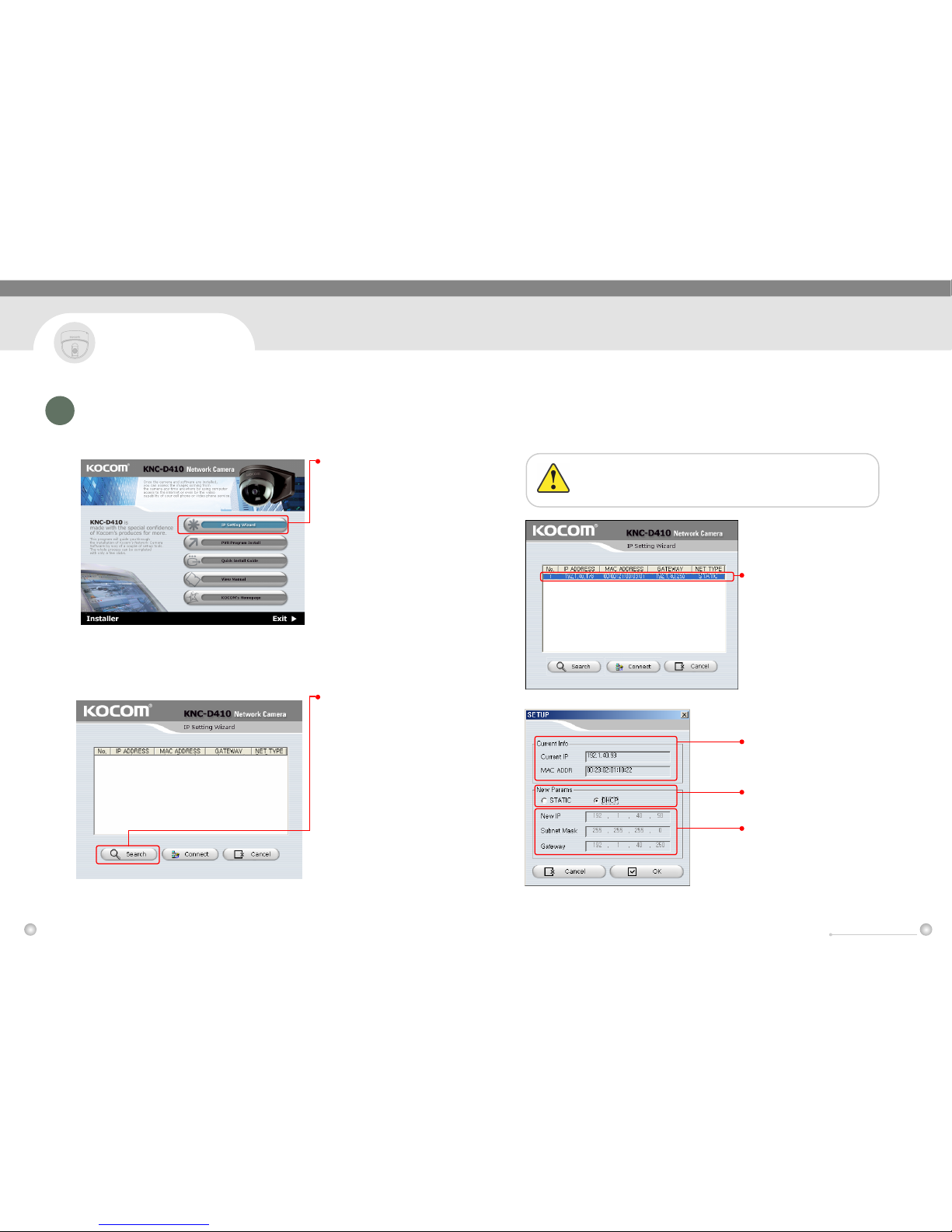
The Installation Wizard will now show an IP Address for the KNC-D410. The Installation Wizard will now show an IP Address for the KNC-D410.
This is the first screen that will appear.
IP Address may or may not be correct depending on what you
have your KNC- D410 connected to. If you have a DHCP
server on your network, there will be a valid IP Address.
In case of change IP at the
found network, choose IP
of camera at the list and
then do 'double click'.
Click the 'IP Setting
Wizard' button to search
for the network camera
automatically.
Click the 'Search' button
to search for the network
camera automatically.
Indicate the current setting IP.
Choose the new setting
IP as Static or DHCP.
To choose as static, input
the new IP, Subnet Mask
and Gateway address.
KNC-D410
Home Internet Camera
KNC-D410
Network Camera
Page 5
KNC-D410
Viewing Your Network Camera
8 9
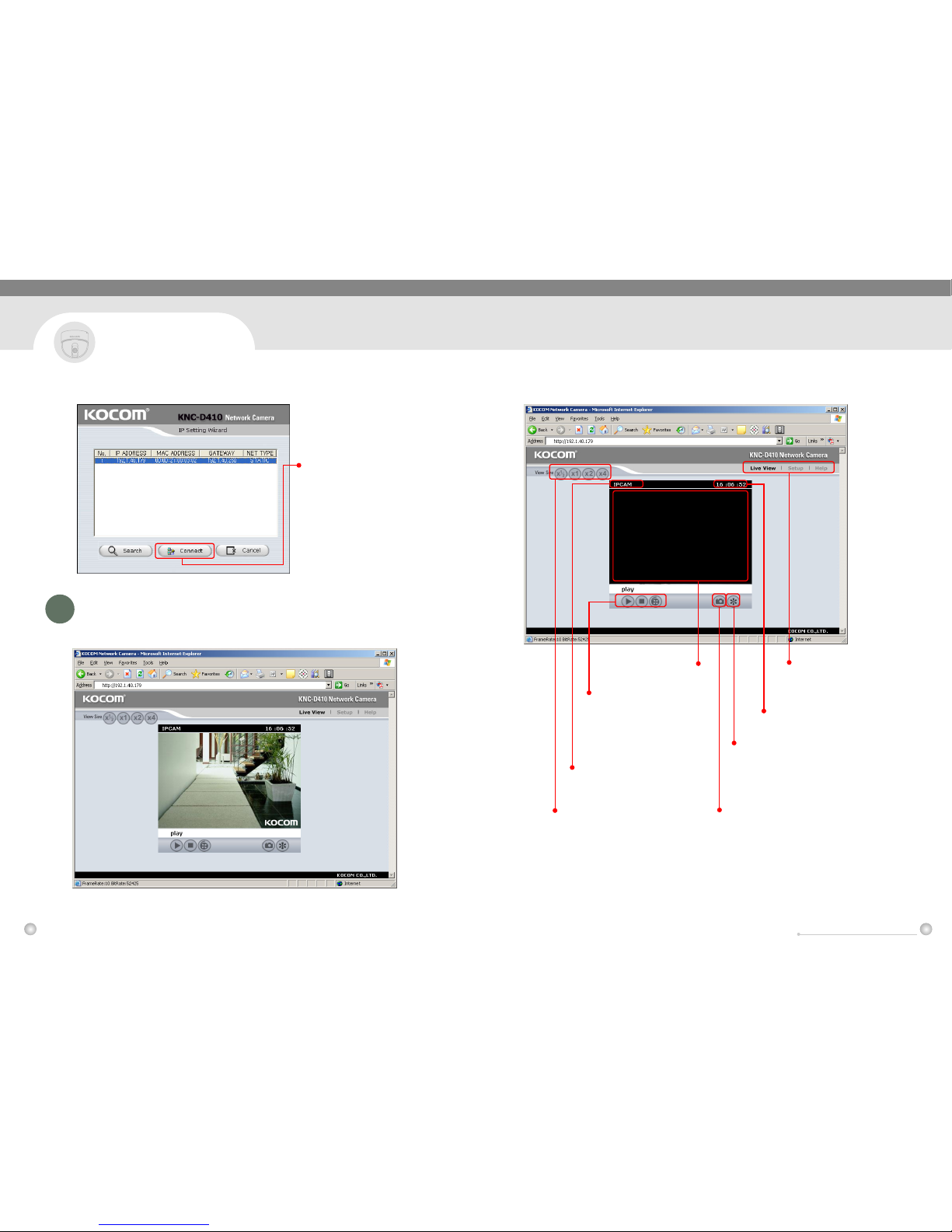
After changing IP,
to connect the assigned camera,
click 'Connect' button.
Viewing Your Network Camera
It is possible to make sure the setting and image at web browser link this.
3
Live View
Setup
Help
Current time
View setting
- Brightness
- Contrast
- Saturation
- Sharpness
Snapshot Button
Screen View
Selection of view size
Name of camera
PLAY
STOP
RECORD Button
KNC-D410
Home Internet Camera
KNC-D410
Network Camera
Page 6
KNC-D410
Configure Your Network Camera
10 11
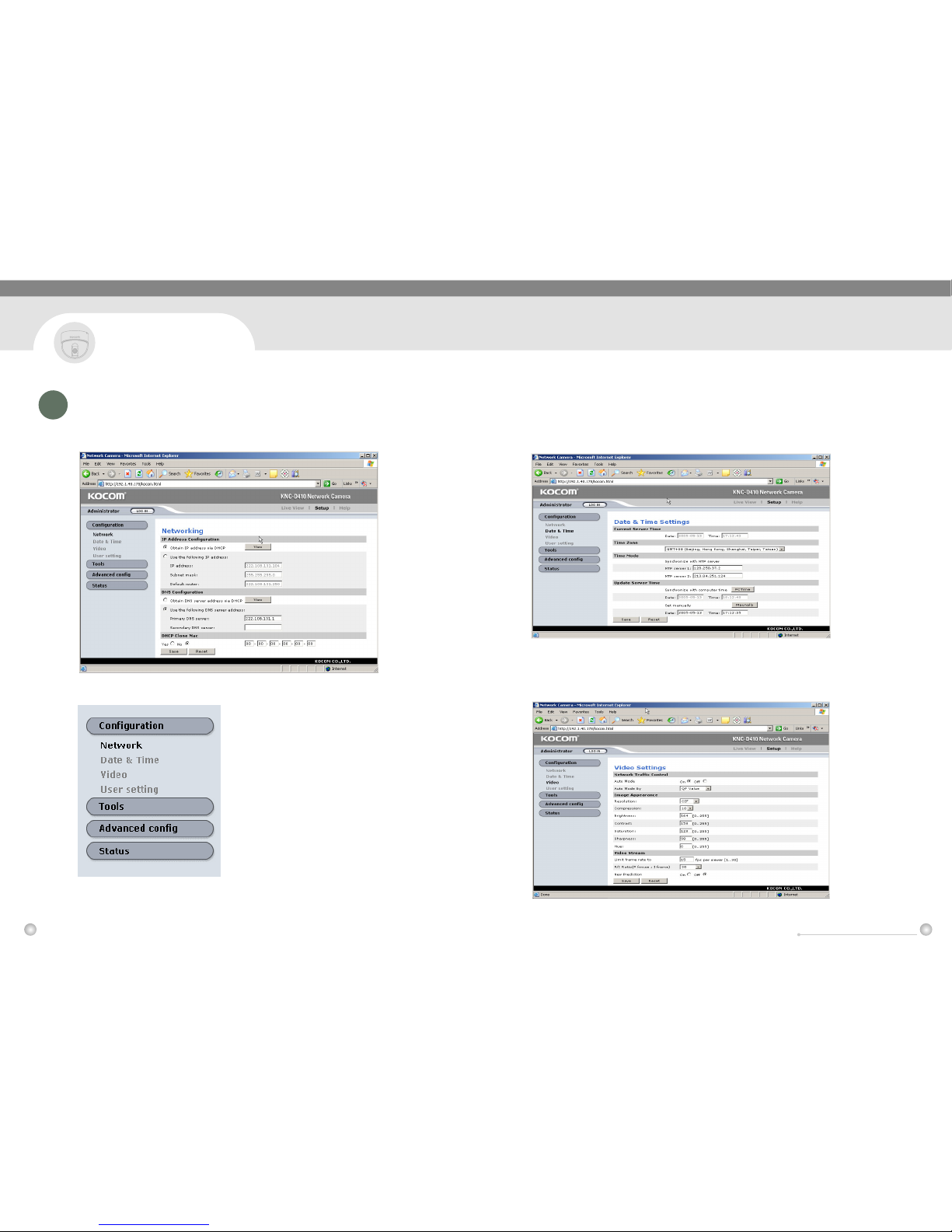
Network Setup page
Basic composition of picture and functions
1) Network
2) Date & Time
3) Video
4) User setting
Click 'Configuration' and
there will be four menus
The detail information for each menu is
on user manual. Please refer user manual.
Date & Time
Video Setting
Configure Your Network Camera
4
KNC-D410
Home Internet Camera
KNC-D410
Network Camera
Page 7
KNC-D410
12
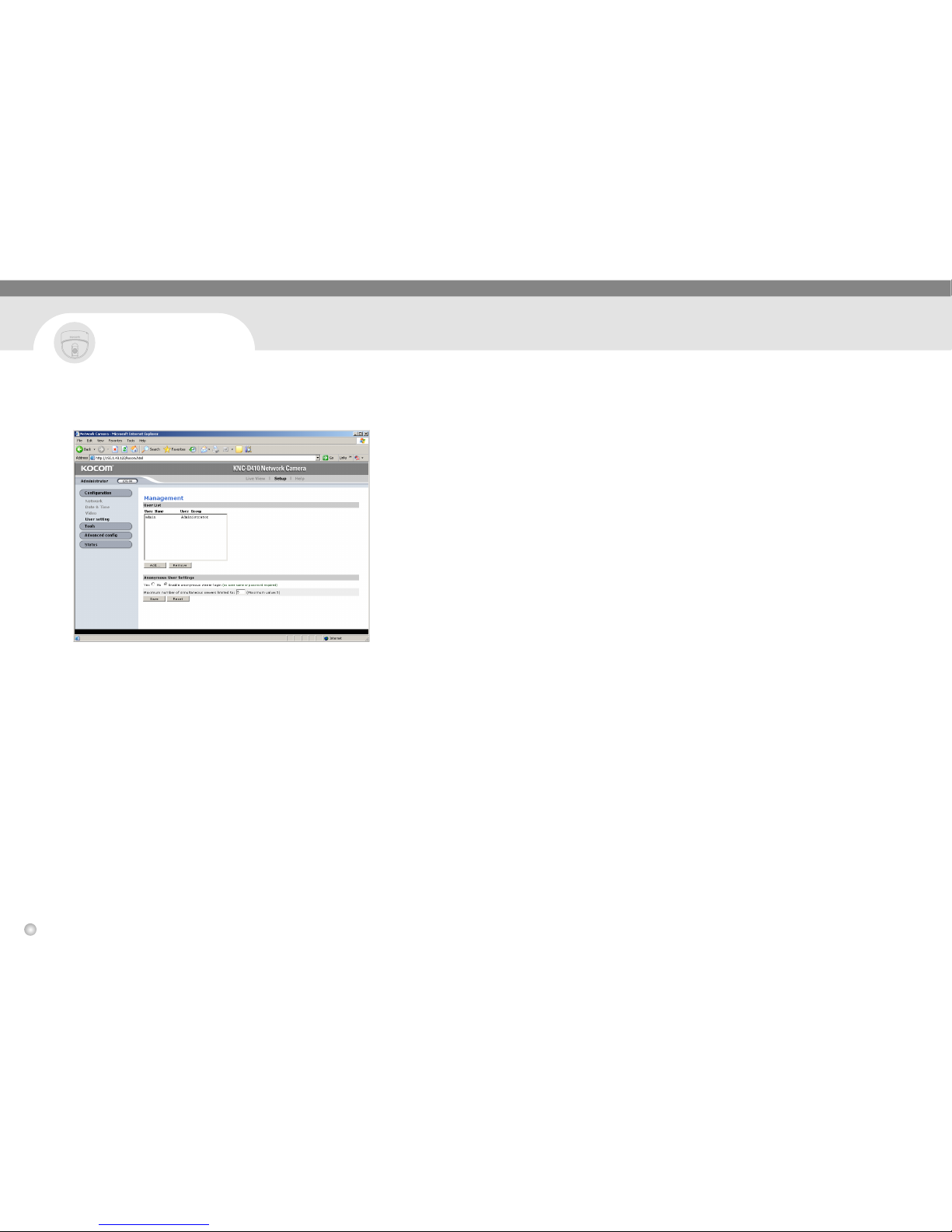
User setting
KNC-D410
Home Internet Camera
KNC-D410
Network Camera
 Loading...